
Connecting the headset to both a music player and a smartphone or
mobile phone 70....................................................................................................................
Connecting the headset to 2 Android smartphones 71..........................................................
Connecting the headset to an Android smartphone and an iPhone 73.................................
Listening to music 3...........................................................................................................................
Listening to music via a BLUETOOTH connection 21.................................................................
Listening to music from a device connected via BLUETOOTH 75........................................
Controlling the audio device (BLUETOOTH connection) 77..................................................
Disconnecting BLUETOOTH connection (after use) 78........................................................
Sound quality mode 22................................................................................................................
Switching the sound quality mode 79....................................................................................
Making phone calls 4.........................................................................................................................
Making phone calls 23.................................................................................................................
Receiving a call 81.................................................................................................................
Making a call 83.....................................................................................................................
Functions for a phone call 85.................................................................................................
Important information 5......................................................................................................................
Precautions 24.............................................................................................................................
Precautions 86.......................................................................................................................
What is BLUETOOTH wireless technology? 87....................................................................
Trademarks 25............................................................................................................................
Trademarks 89.......................................................................................................................
Support website 26......................................................................................................................
Customer support websites 90..............................................................................................
Troubleshooting 6..............................................................................................................................
Troubleshooting 27......................................................................................................................
What can I do to solve a problem? 91...................................................................................
Power 28.....................................................................................................................................
The headset is not turned on. 92...........................................................................................
Charging 29.................................................................................................................................
Charging cannot be done. 93................................................................................................
Charging time is too long. 94.................................................................................................
The headset cannot be recognized by a computer. 95..........................................................
Sound 30.....................................................................................................................................
No sound 96..........................................................................................................................
Low sound level 97................................................................................................................
Low sound quality 98.............................................................................................................
Sound skips frequently during playback. 99..........................................................................
Pairing 31....................................................................................................................................
Pairing cannot be done. 100..................................................................................................
TOC-2
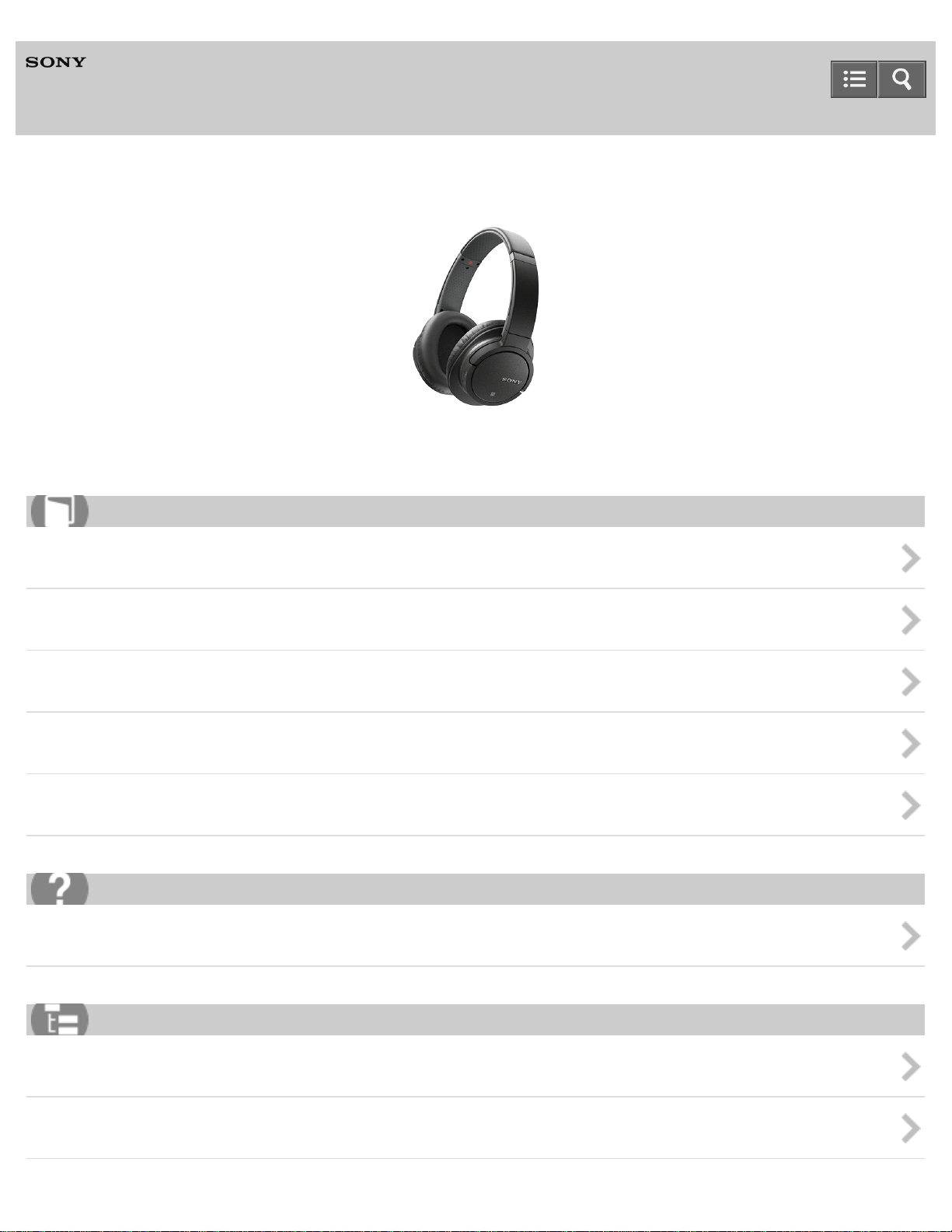
Wireless Stereo Headset
MDR-ZX770BT
Making connections
BLUETOOTH connection
One-touch connection (NFC) compatible Android devices
Android devices not compatible with one-touch connection (NFC)
iPhone (iOS devices)
Other BLUETOOTH devices
Multi point connection
4-564-474-11(1)
Copyright 2015 Sony Corporation
Help Guide
How to Use
2


Wireless Stereo Headset
MDR-ZX770BT
How to Use
Getting started
Before first use
Read this first
Features
What you can do with the headset
Parts and controls
Location and function of parts
BLUETOOTH function indicator
Supplied accessories
List of the included items
About the supplied manuals
Charging the headset
System requirements for battery charge using USB
Charging the headset
Available operating time
Checking the remaining battery charge
Making connections
BLUETOOTH connection
What you can do with the BLUETOOTH function
How to make a wireless connection to BLUETOOTH devices
One-touch connection (NFC) compatible Android devices
One-touch connection (NFC) with a smartphone (Android 4.1 or later)
One-touch connection (NFC) with a smartphone (Android 2.3.3 or later, and less than Android 4.1)
Disconnecting the smartphone by one touch (NFC)
Switching the device by one touch (NFC)
Android devices not compatible with one-touch connection (NFC)
Pairing and connecting with an Android smartphone
Connecting to a paired Android smartphone
iPhone (iOS devices)
Pairing and connecting with an iPhone
Help Guide
List of Topics
7

Connecting to a paired iPhone
Other BLUETOOTH devices
Pairing and connecting with other BLUETOOTH devices
Connecting to a paired BLUETOOTH device
Multi point connection
Connecting the headset to both a music player and a smartphone or mobile phone
Connecting the headset to 2 Android smartphones
Connecting the headset to an Android smartphone and an iPhone
Listening to music
Listening to music via a BLUETOOTH connection
Listening to music from a device connected via BLUETOOTH
Controlling the audio device (BLUETOOTH connection)
Disconnecting BLUETOOTH connection (after use)
Sound quality mode
Switching the sound quality mode
Making phone calls
Making phone calls
Receiving a call
Making a call
Functions for a phone call
Disconnecting BLUETOOTH connection (after use)
Important information
Precautions
Precautions
What is BLUETOOTH wireless technology?
Trademarks
Trademarks
Support website
Customer support websites
4-564-474-11(1)
Copyright 2015 Sony Corporation
8

Wireless Stereo Headset
MDR-ZX770BT
Troubleshooting
Troubleshooting
Troubleshooting
What can I do to solve a problem?
Power
The headset is not turned on.
Charging
Charging cannot be done.
Charging time is too long.
The headset cannot be recognized by a computer.
Sound
No sound
Low sound level
Low sound quality
Sound skips frequently during playback.
Pairing
Pairing cannot be done.
One-touch connection (NFC)
Unable to connect the headset to a BLUETOOTH device with one-touch connection (NFC)
BLUETOOTH connection
Unable to make a BLUETOOTH connection
Distorted sound
The BLUETOOTH wireless communication range is short, or the sound skips.
The headset does not operate properly.
Phone calls
No voice from callers
Low voice from callers
Resetting or initializing the headset
Resetting the headset
Initializing the headset to restore factory settings
Help Guide
List of Topics
9


Wireless Stereo Headset
MDR-ZX770BT
Parts and controls
Location and function of parts
View the names of buttons, connections and indicators on the headset.
BLUETOOTH function indicator
You can check the BLUETOOTH connection status of the headset by the indicators.
4-564-474-11(1)
Copyright 2015 Sony Corporation
Help Guide
How to Use
12
Wireless Stereo Headset
MDR-ZX770BT
Charging the headset
System requirements for battery charge using USB
Confirm the computer system required to charge the headset via USB connection.
Charging the headset
You can charge the headset using the micro-USB cable supplied.
Available operating time
See the operating time available with a fully charged battery.
Checking the remaining battery charge
You can check the remaining battery charge of the rechargeable battery.
4-564-474-11(1)
Copyright 2015 Sony Corporation
Help Guide
How to Use
14
Wireless Stereo Headset
MDR-ZX770BT
BLUETOOTH connection
What you can do with the BLUETOOTH function
Check out the headset operations available with the BLUETOOTH connection.
How to make a wireless connection to BLUETOOTH devices
Learn about how to make a BLUETOOTH connection.
4-564-474-11(1)
Copyright 2015 Sony Corporation
Help Guide
How to Use
15
Wireless Stereo Headset
MDR-ZX770BT
One-touch connection (NFC) compatible Android devices
One-touch connection (NFC) with a smartphone (Android 4.1 or later)
By touching the headset with an NFC-compatible smartphone running the Android OS mentioned above, the headset turns on
automatically and then pairs and makes a BLUETOOTH connection.
One-touch connection (NFC) with a smartphone (Android 2.3.3 or later, and less than Android 4.1)
By touching the headset with an NFC-compatible smartphone running the Android OS mentioned above, the headset turns on
automatically and then pairs and makes a BLUETOOTH connection.
Disconnecting the smartphone by one touch (NFC)
You can disconnect the headset from the connected smartphone by touching the headset with it.
Switching the device by one touch (NFC)
You can switch devices by touching a new device once on the headset (One-touch connection switching).
4-564-474-11(1)
Copyright 2015 Sony Corporation
Help Guide
How to Use
16
Wireless Stereo Headset
MDR-ZX770BT
Android devices not compatible with one-touch connection (NFC)
Pairing and connecting with an Android smartphone
You can register (pair) an Android smartphone and the headset with each other, and make a BLUETOOTH connection.
Connecting to a paired Android smartphone
You can connect the headset with an Android smartphone that is already paired with the headset.
4-564-474-11(1)
Copyright 2015 Sony Corporation
Help Guide
How to Use
17
Wireless Stereo Headset
MDR-ZX770BT
iPhone (iOS devices)
Pairing and connecting with an iPhone
You can register (pair) an iPhone and the headset with each other, and make a BLUETOOTH connection.
Connecting to a paired iPhone
You can connect the headset with an iPhone that is already paired with the headset.
4-564-474-11(1)
Copyright 2015 Sony Corporation
Help Guide
How to Use
18
Wireless Stereo Headset
MDR-ZX770BT
Other BLUETOOTH devices
Pairing and connecting with other BLUETOOTH devices
You can register (pair) a BLUETOOTH device and the headset with each other, and make a BLUETOOTH connection.
Connecting to a paired BLUETOOTH device
You can connect the headset with a BLUETOOTH device that is already paired with the headset.
4-564-474-11(1)
Copyright 2015 Sony Corporation
Help Guide
How to Use
19
Wireless Stereo Headset
MDR-ZX770BT
Multi point connection
Connecting the headset to both a music player and a smartphone or mobile phone
You can connect a BLUETOOTH music player and a BLUETOOTH smartphone to the headset, the player for listening to music
and the smartphone for making phone calls.
Connecting the headset to 2 Android smartphones
You can connect 2 smartphones to the headset, one for listening to music and the other for making phone calls.
Connecting the headset to an Android smartphone and an iPhone
You can connect an Android smartphone and an iPhone to the headset simultaneously to use different functions on those
devices.
4-564-474-11(1)
Copyright 2015 Sony Corporation
Help Guide
How to Use
20
Wireless Stereo Headset
MDR-ZX770BT
Listening to music via a BLUETOOTH connection
Listening to music from a device connected via BLUETOOTH
You can enjoy listening to music from a BLUETOOTH device wirelessly via a BLUETOOTH connection.
Controlling the audio device (BLUETOOTH connection)
You can control music playback via a BLUETOOTH connection.
Disconnecting BLUETOOTH connection (after use)
After use, disconnect the headset from the BLUETOOTH device.
4-564-474-11(1)
Copyright 2015 Sony Corporation
Help Guide
How to Use
21

Wireless Stereo Headset
MDR-ZX770BT
Making phone calls
Receiving a call
You can receive an incoming call to a smartphone or mobile phone using the headset hands-free function.
Making a call
You can make a call with a smartphone or mobile phone using the headset hands-free function.
Functions for a phone call
You can operate the smartphone or mobile phone by the headset via a BLUETOOTH connection.
Disconnecting BLUETOOTH connection (after use)
After use, disconnect the headset from the BLUETOOTH device.
4-564-474-11(1)
Copyright 2015 Sony Corporation
Help Guide
How to Use
23






Wireless Stereo Headset
MDR-ZX770BT
Read this first
In addition to this Help Guide, read the printed manuals supplied: “Quick Start Guide” and “Reference Guide.”
Quick Start Guide
This covers initial settings and basic operations.
Reference Guide
This includes information about using your headset safely, and specifications of your headset.
For information about the customer support Web site, access:
(http://www.sony.net/)
About battery charging
Charge the headset before you use it for the first time.
Related Topic
Charging the headset
4-564-474-11(1)
Copyright 2015 Sony Corporation
Help Guide
How to Use
36

Wireless Stereo Headset
MDR-ZX770BT
What you can do with the headset
40 mm driver unit, producing powerful high-quality sound
Wireless music playback
Clear voice hands-free calling with built-in microphone
Comfort around-ear style
Up to 17 hours of playtime
One-touch connection (NFC)
SBC, AAC and aptX compatible
A headphone cable is included for use as wired headphones if the battery runs out.
Micro-USB port for charging
Swivels flat and easy portability
4-564-474-11(1)
Copyright 2015 Sony Corporation
Help Guide
How to Use
37
Wireless Stereo Headset
MDR-ZX770BT
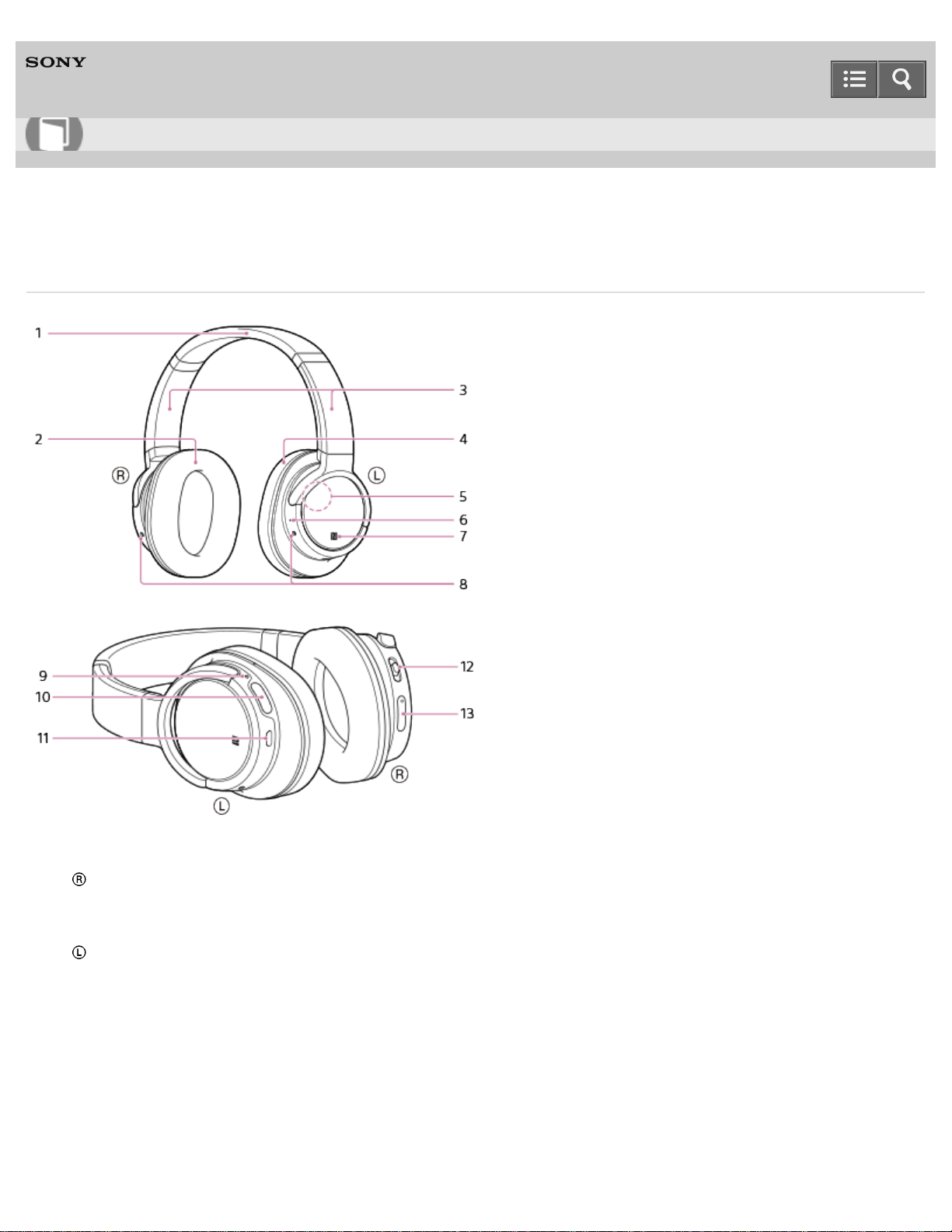
Location and function of parts
1. Headband
2. right unit
3. Slider
Slide to adjust the length of the headband.
4. left unit
5. Built-in antenna
The BLUETOOTH antenna is built into the headset.
6. RESET button
Resets and turns off the headset.
7. N-Mark
8. Microphone
Picks up the sound of your voice when talking on the phone.
9. Indicator (blue/red)
Help Guide
How to Use
38

Lights up in red during charging.
Lights up in red or blue to indicate the power or communication status of the headset.
10. POWER button
11. Micro-USB port
Connect a computer to this port with the supplied micro-USB cable to charge the headset.
12. Jog switch ( / / / )
13. VOL (volume) +/- buttons
Related Topic
BLUETOOTH function indicator
Checking the remaining battery charge
4-564-474-11(1)
Copyright 2015 Sony Corporation
39
Wireless Stereo Headset
MDR-ZX770BT
BLUETOOTH function indicator
The indicator flashes in red or blue to indicate the BLUETOOTH connection status.
○: Turns on in blue/●: Turns on in red/-: Turns off
Pairing mode
○ ● ○ ● ○ ● ○ ● ○ ● ○ ●...
Connectable
○ - - ○ - - ○ - - ○ - - ○ - - ○ - - ○ - - ○...
Connecting
○ ○ - ○ ○ - ○ ○ - ○ ○ - ○ ○ - ○ ○ - ○ ○...
Connected (HFP/HSP or A2DP)
○ - - - - - - - - - ○ - - - - - - - - -...
Connected (HFP/HSP and A2DP)
○ - ○ - - - - - - - ○ - ○ - - - - - - -...
Playing music or during a call (HFP/HSP or A2DP)
○ ○ - - - - - - - - ○ ○ - - - - - - - -...
Playing music or during a call (HFP/HSP and A2DP)
○ ○ ○ - - - - - - - ○ ○ ○ - - - - - - -...
Incoming call
○ ○ ○ ○ ○ ○ ○ ○ ○ ○ ○...
Hint
When the remaining battery charge becomes low, the indicator turns from blue to red, except for pairing mode.
4-564-474-11(1)
Copyright 2015 Sony Corporation
Help Guide
How to Use
40

Wireless Stereo Headset
MDR-ZX770BT
List of the included items
After opening the package, check that all items in the list are included in the package. If items are missing, contact your
dealer.
Numbers in ( ) indicate the item amount.
Wireless Stereo Headset (1)
Micro-USB cable (approx. 50 cm (19 3/4 in.)) (1)
Reference Guide (1)
Quick Start Guide (1)
Other documents (1 set) (*)
*
May not be supplied in some countries or regions.
4-564-474-11(1)
Copyright 2015 Sony Corporation
Help Guide
How to Use
41
Wireless Stereo Headset
MDR-ZX770BT
About the supplied manuals
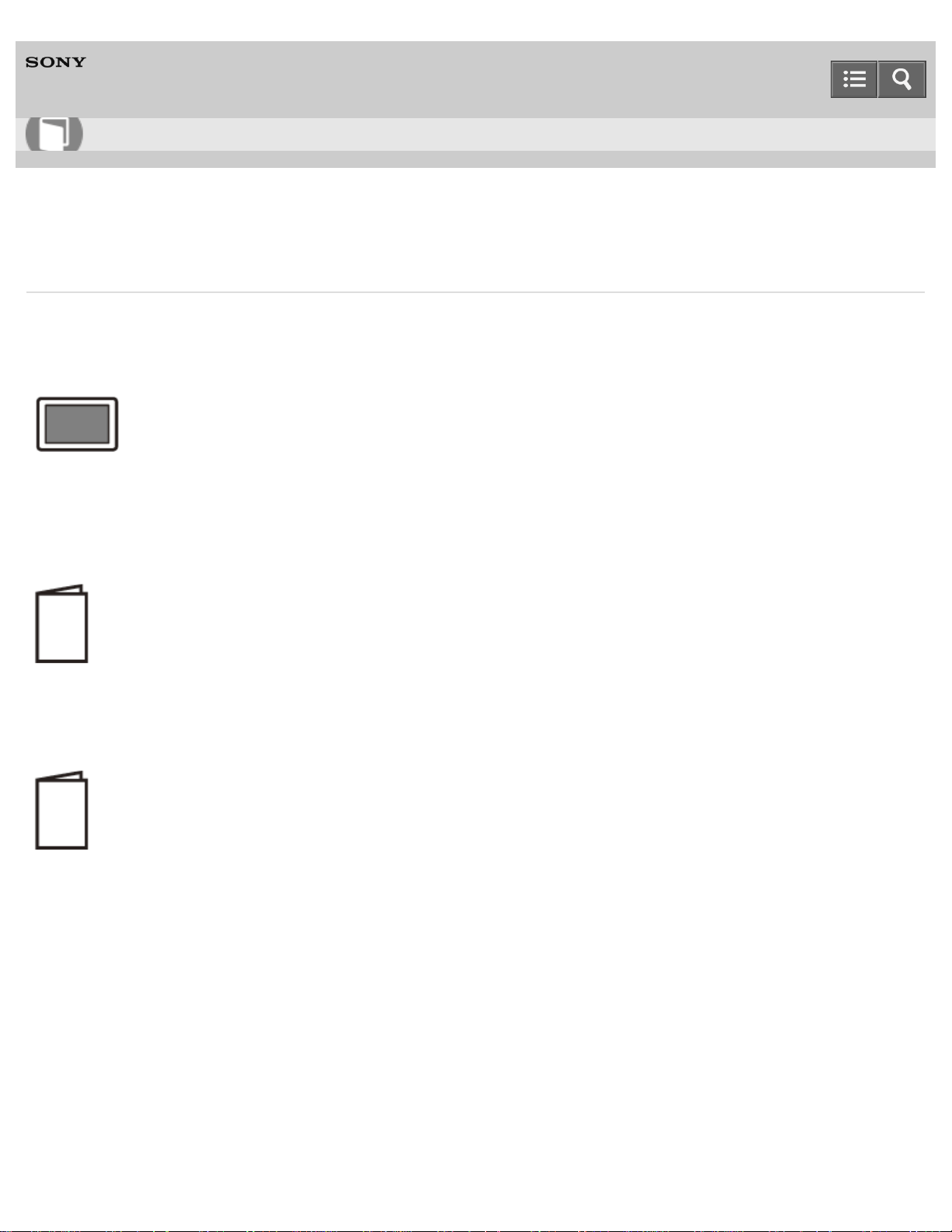
The following three manuals come with the headset.
Help Guide (this data)
Operation manual on the Web, which can be accessed by a PC or smartphone, provides the detailed information on how
to use the headset and troubleshooting, etc.
Quick Start Guide (enclosed paper)
Provides basic information on how to connect or use the headset.
Reference Guide (enclosed paper)
Provides precautions and specifications.
4-564-474-11(1)
Copyright 2015 Sony Corporation
Help Guide
How to Use
42

Wireless Stereo Headset
MDR-ZX770BT
System requirements for battery charge using USB
The headset contains a lithium ion rechargeable battery, which should be charged before using the headset for the first
time.
Personal Computer with pre-installed with any of the following operating systems and USB port:
When using Windows®
Windows® 8.1 / Windows® 8.1 Pro
Windows® 8 / Windows® 8 Pro
Windows® 7 Home Basic / Home Premium / Professional / Ultimate
Windows Vista® (Service Pack 2 or later) Home Basic / Home Premium / Business / Ultimate
When using Mac
Mac OS X (version 10.3 or later)
Note
Sony does not guarantee proper operation in all system environments.
When using Windows 8.1 update using Windows Update.
4-564-474-11(1)
Copyright 2015 Sony Corporation
Help Guide
How to Use
43
Wireless Stereo Headset
MDR-ZX770BT
Charging the headset
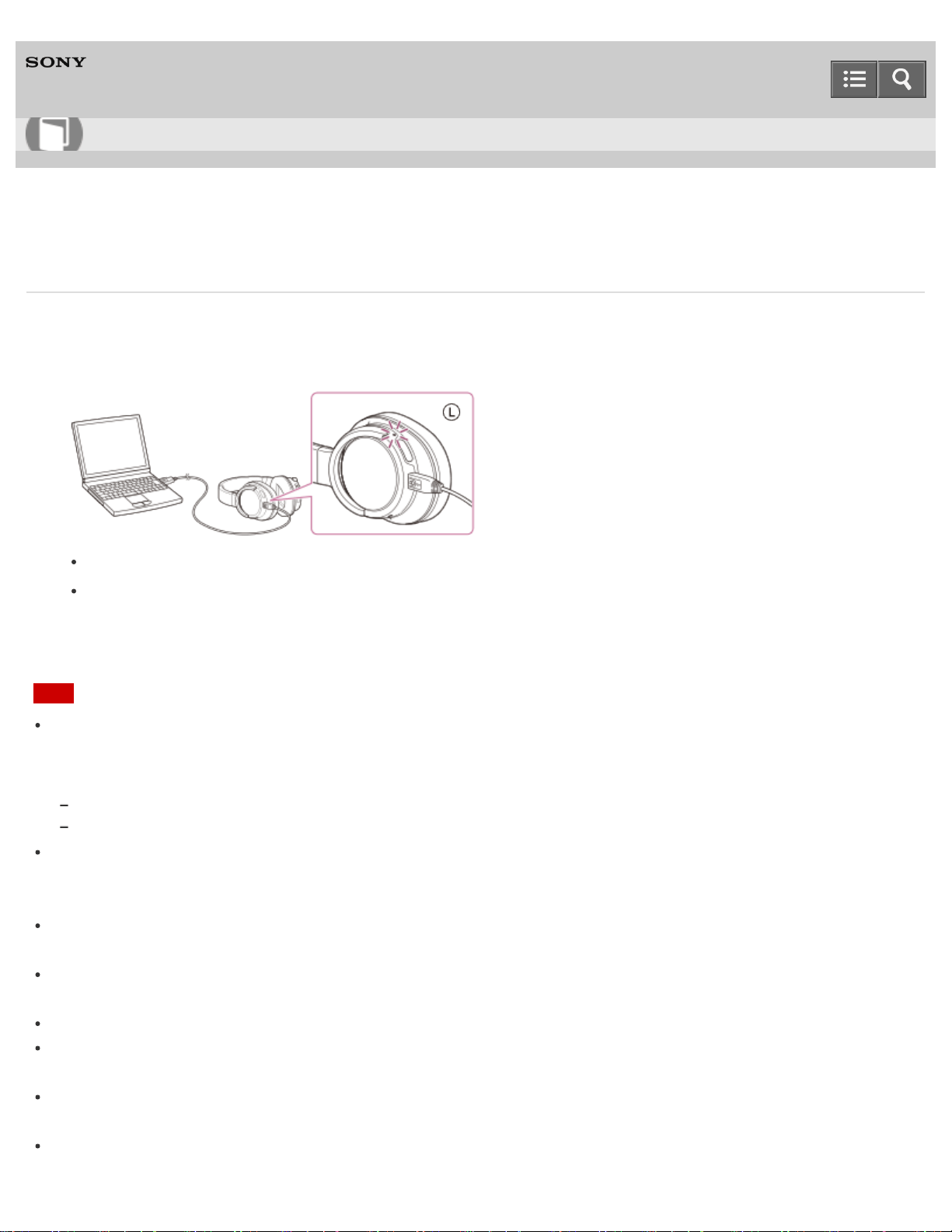
The headset contains a lithium ion rechargeable battery. Charge the headset using the supplied micro-USB cable.
1. Connect the supplied micro-USB cable to the headset, and then connect the other end to a booted computer.
Make sure that the indicator (red) lights up.
Charging is completed in about 2.5 hours (*) and the indicator (red) goes off automatically.
*
Time required for charging the empty battery to its full capacity.
Note
If the headset detects a problem while charging due to following causes, the indicator (red) may turn off, although
charging is not complete. In this case, charge again within the charging temperature range. If the problem persists,
consult your nearest Sony dealer.
Ambient temperature exceeds the charging temperature range of 5 °C – 35 °C (41 °F - 95 °F).
There is a problem with the battery.
If the headset is not used for a long time, the indicator (red) may not light up when you connect the micro-USB cable
to charge the headset. In this case, do not disconnect the micro-USB cable from the headset: wait a few minutes until
the indicator (red) lights up.
If the headset is not used for a long time, the battery may be quickly depleted, however, after a few recharges, the
battery life will improve.
If you store the headset for a long time, charge the battery to its full capacity once every 6 months to avoid over
discharge.
If the headset is not used for a long time, it may take longer to charge the battery.
If the life of the built-in rechargeable battery drops significantly, the battery should be replaced. Consult your nearest
Sony dealer for replacement of the rechargeable battery.
Avoid exposure to temperature extremes, direct sunlight, moisture, sand, dust or mechanical shock. Never leave the
headset in a car parked in the sun.
If the computer enters into hibernation mode while connected to the headset, charging will not be completed properly.
Help Guide
How to Use
44

Check the setting of the computer before charging. The indicator (red) will go off automatically if the computer enters
into hibernation mode. Charge the headset again in this case.
Use the supplied micro-USB cable only, and connect directly to a computer. Charging will not be completed properly
by an indirect connection, such as via a USB hub.
Hint
If charging starts while the headset is turned on, the headset will turn off automatically.
4-564-474-11(1)
Copyright 2015 Sony Corporation
45

Wireless Stereo Headset
MDR-ZX770BT
Available operating time
The available operating time of the headset on fully-charged battery are as follows:
Music playback time: Max. 17 hours (SBC/AAC)/Max. 14 hours (aptX)
Communication time: Max. 17 hours
Standby time: Max. 450 hours
Note
Usage hours may be shorter depending on the Codec and the conditions of use.
4-564-474-11(1)
Copyright 2015 Sony Corporation
Help Guide
How to Use
46

Wireless Stereo Headset
MDR-ZX770BT
Checking the remaining battery charge
You can check the remaining battery charge of the rechargeable battery.
When you turn on the headset by pressing the POWER button, the indicator (red) flashes. You can check the remaining
battery charge by the number of times the indicator (red) flashes.
You can also check the remaining battery charge when the headset is turned on. Pressing the POWER button will cause
the indicator to flash and show the remaining battery charge.
3 times: High
2 times: Medium
1 time: Low (needs to charge)
When the battery is almost empty
The indicator turns red. When the battery becomes empty, the headset sounds a warning beep and turns off
automatically.
4-564-474-11(1)
Copyright 2015 Sony Corporation
Help Guide
How to Use
47
Wireless Stereo Headset
MDR-ZX770BT
What you can do with the BLUETOOTH function
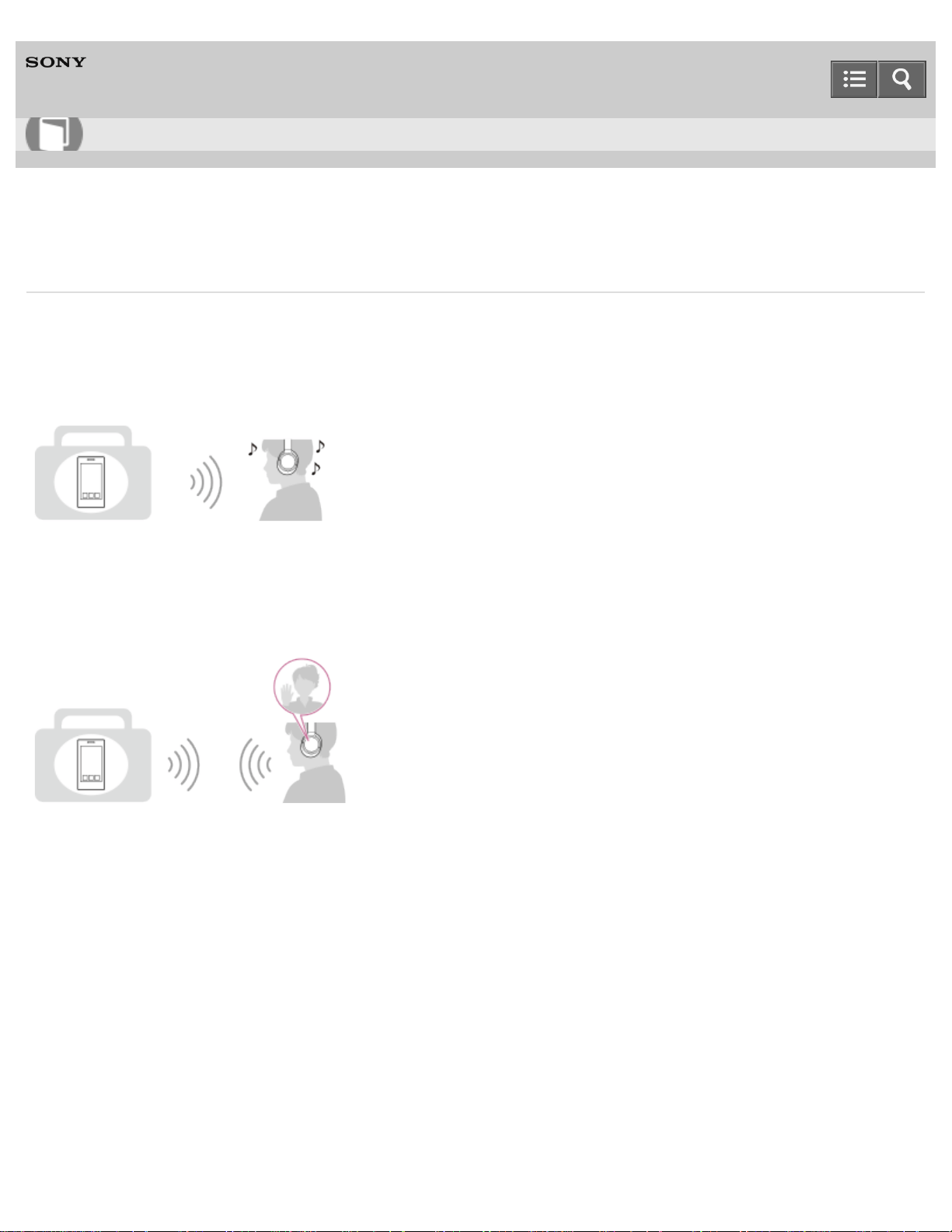
The headset uses BLUETOOTH wireless technology, allowing you to listen to music or make phone calls wirelessly.
Listening to music
You can receive audio signals from a smartphone, mobile phone, or music player to enjoy music wirelessly.
Talking on the phone
You can make and receive a call with your hands free, while leaving your smartphone or mobile phone in your bag or
pocket.
4-564-474-11(1)
Copyright 2015 Sony Corporation
Help Guide
How to Use
48

Wireless Stereo Headset
MDR-ZX770BT
How to make a wireless connection to BLUETOOTH devices
You can enjoy music and hands-free calling with the headset wirelessly by using your device’s BLUETOOTH function.
How to connect devices via the BLUETOOTH function differs depending on whether or not the device supports one-
touch connection (NFC).
Connecting the headset to a device that supports one-touch connection (NFC)
By touching the headset to an NFC-compatible smartphone, the headset turns on automatically and then makes a
BLUETOOTH connection. Touching the headset to the smartphone again will disconnect the connection.
Compatible smartphones
NFC-compatible smartphones with Android 2.3.3 or later installed (excluding Android 3.x)
NFC
NFC (Near Field Communication) is a technology enabling short-range wireless communication between various
devices, such as smartphones and IC tags. Thanks to the NFC function, data communication - for example,
BLUETOOTH pairing - can be achieved easily by simply touching NFC-compatible devices together (i.e., at the N-Mark
symbol or location designated on each device).
Connecting to a device that does not support one-touch connection (NFC)
Pairing with a BLUETOOTH device
Pairing is the process required to create a link between BLUETOOTH devices to allow wireless connection.
You must pair a device with the headset before you start using the headset.
Connecting the headset to a paired device
Once BLUETOOTH devices are paired, there is no need to pair them again. Connect a device already paired by the
method that applies for that device.
4-564-474-11(1)
Copyright 2015 Sony Corporation
Help Guide
How to Use
49
Wireless Stereo Headset
MDR-ZX770BT
One-touch connection (NFC) with a smartphone (Android 4.1 or later)
By touching the headset with a smartphone, the headset turns on automatically and then pairs and makes a
BLUETOOTH connection.
Compatible smartphones
NFC-compatible smartphones installed with Android 4.1 or later
NFC
NFC (Near Field Communication) is a technology enabling short-range wireless communication between various
devices, such as smartphones and IC tags. Thanks to the NFC function, data communication - for example,
BLUETOOTH pairing - can be achieved easily by simply touching NFC-compatible devices together (i.e., at the N-Mark
symbol or location designated on each device).
1. Unlock the screen of the smartphone.
2. Set the NFC function of the smartphone to on.
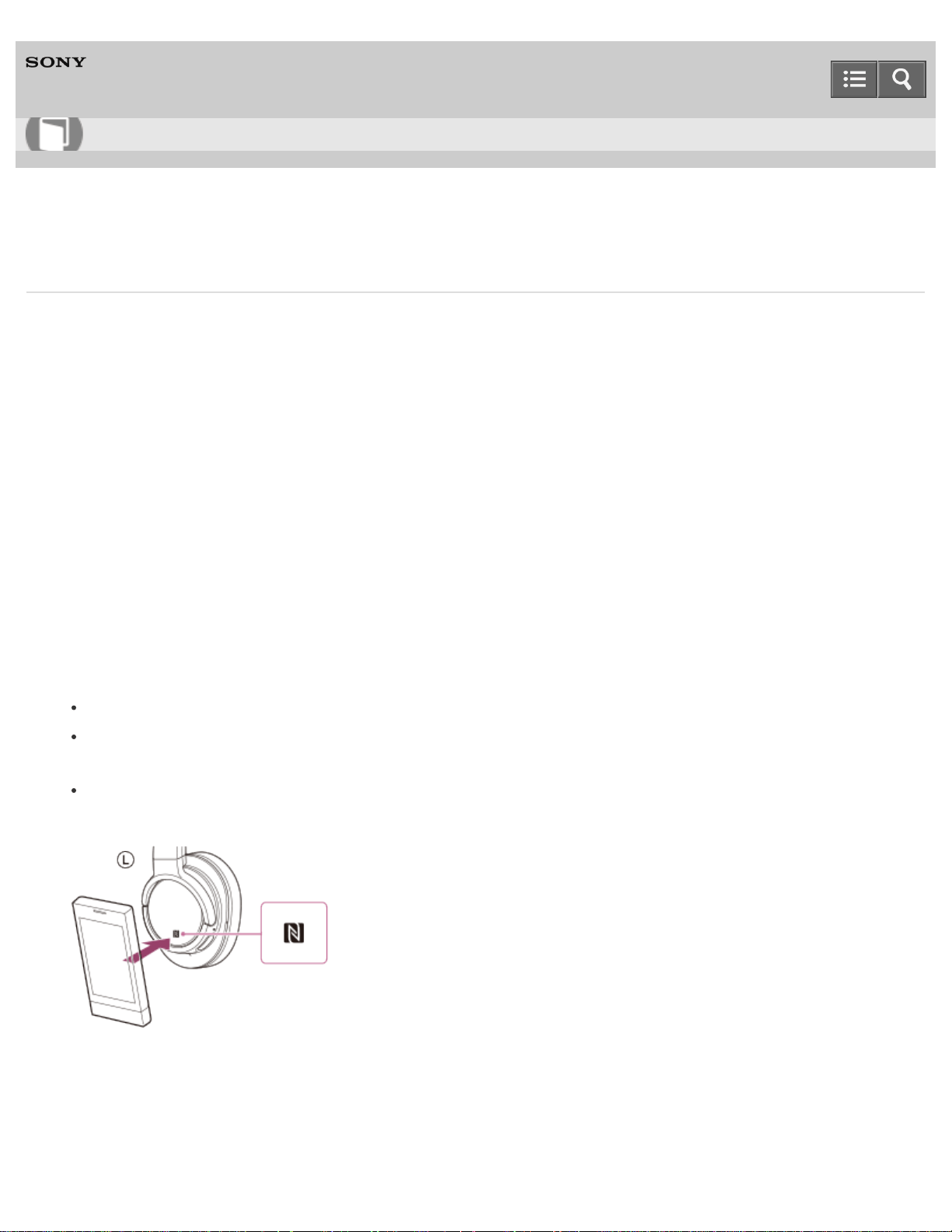
3. Touch the headset with the smartphone.
Confirm that the screen of the smartphone is unlocked.
Touch the smartphone on the N-Mark of the headset. Keep touching the headset with the smartphone until the
smartphone reacts.
Refer to the operating instructions of the smartphone for the designated location to be touched on the
smartphone.
Follow the on-screen instructions to complete the pairing and connection.
When the headset is connected with the smartphone, the blue indicator starts flashing slowly.
Help Guide
How to Use
50
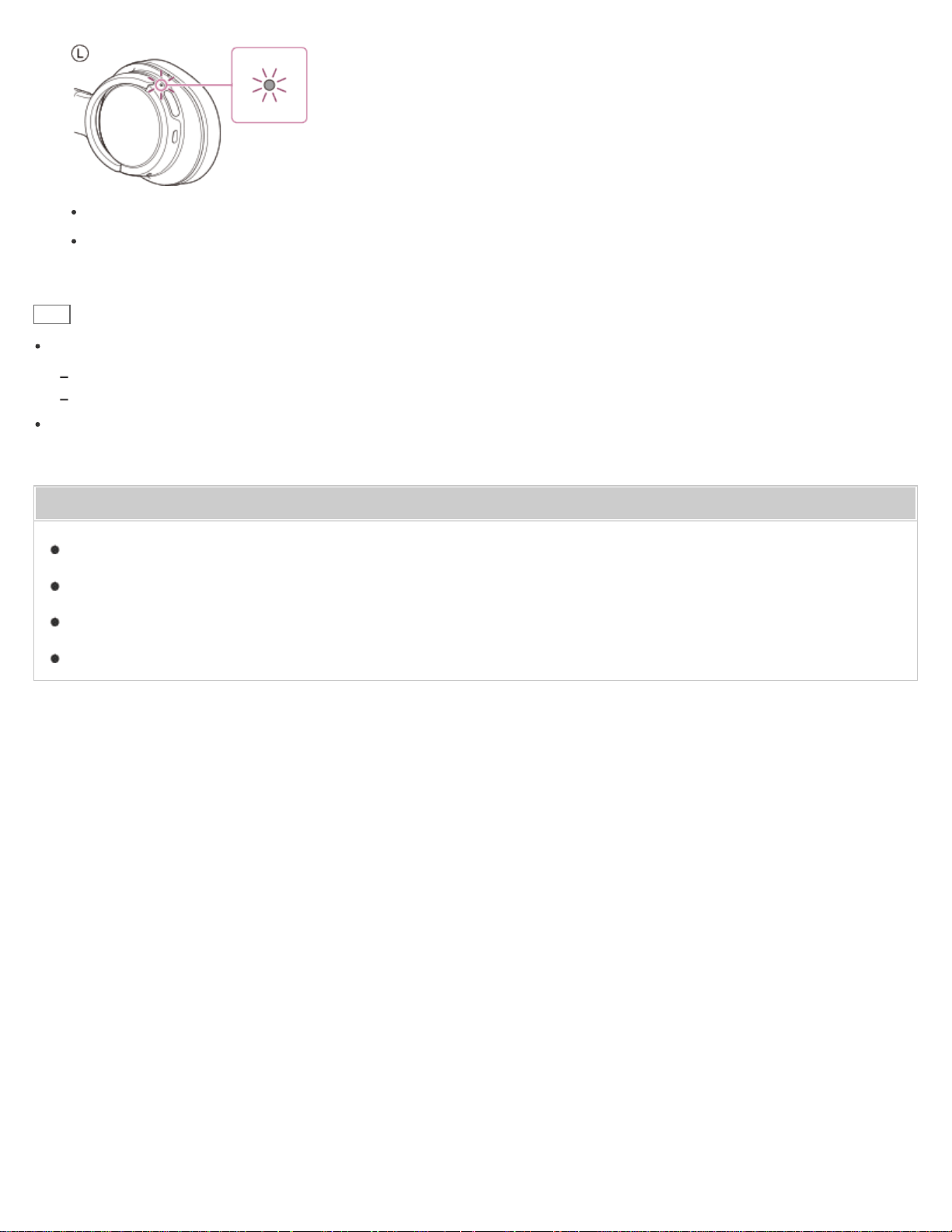
To disconnect, touch the smartphone again.
To connect a paired smartphone, perform steps 2 and 3.
Hint
If you cannot connect the headset, try the following.
Unlock the screen of the smartphone, and move the smartphone slowly over the N-Mark of the headset.
If the smartphone is in a case, remove the case.
If you touch an NFC-compatible smartphone with the headset, the smartphone terminates BLUETOOTH connection
with any current device, and connects to the headset (One-touch connection switching).
Related Topic
How to make a wireless connection to BLUETOOTH devices
Disconnecting the smartphone by one touch (NFC)
Switching the device by one touch (NFC)
Listening to music from a device connected via BLUETOOTH
4-564-474-11(1)
Copyright 2015 Sony Corporation
51

Wireless Stereo Headset
MDR-ZX770BT
One-touch connection (NFC) with a smartphone (Android 2.3.3 or later, and less than Android 4.1)
By touching the headset with a smartphone, the headset turns on automatically and then pairs and makes a
BLUETOOTH connection.
Compatible smartphones
NFC-compatible smartphones with Android 2.3.3 up to Android 4.0.4 (excluding Android 3.x)
NFC
NFC (Near Field Communication) is a technology enabling short-range wireless communication between various
devices, such as smartphones and IC tags. Thanks to the NFC function, data communication - for example,
BLUETOOTH pairing - can be achieved easily by simply touching NFC-compatible devices together (i.e., at the N-Mark
symbol or location designated on each device).
1. Unlock the screen of the smartphone.
2. Set the NFC function of the smartphone to on.
3. Download and install the app “NFC Easy Connect.”
If you have already downloaded the app, proceed to step 4.
“NFC Easy Connect” is a free Android app you can download from Google Play™.
Download the app by searching for “NFC Easy Connect” or access it by using the two-dimensional code. Fees
may be charged for downloading the app.
Access the following Web site:
https://play.google.com/store/apps/details?id=com.sony.easyconnect
The App may not be available in some countries and/or regions.
Use a two-dimensional code reader app.
4. Start the app “NFC Easy Connect” on the smartphone.
Make sure that the app screen is displayed on the smartphone.
5. Touch the headset with the smartphone.
Confirm that the screen of the smartphone is unlocked.
Help Guide
How to Use
52
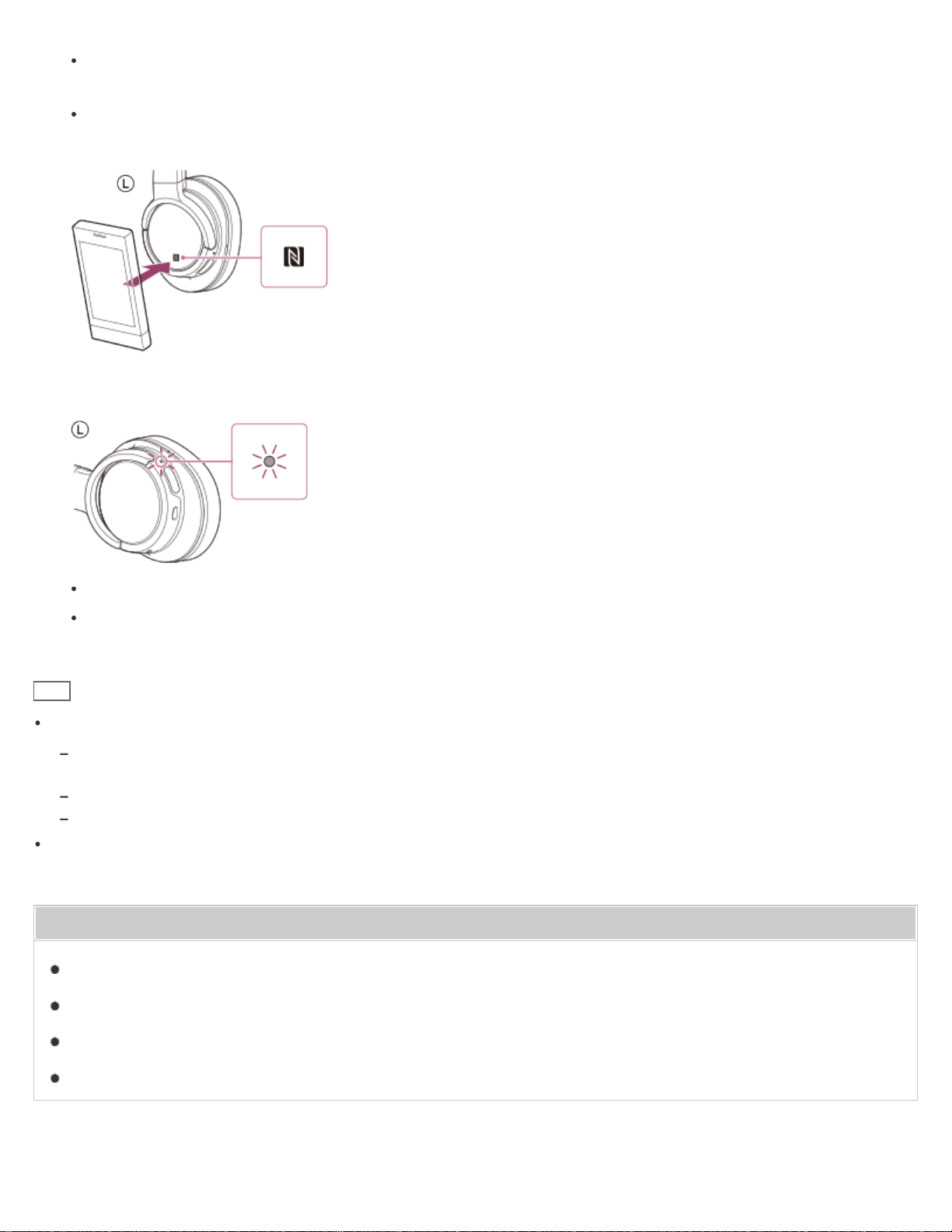
Touch the smartphone on the N-Mark of the headset. Keep touching the headset with the smartphone until the
smartphone reacts.
Refer to the operating instructions of the smartphone for the designated location to be touched on the
smartphone.
Follow the on-screen instructions to complete the pairing and connection.
When the headset is connected with the smartphone, the blue indicator starts flashing slowly.
To disconnect, touch the smartphone again.
To connect a paired smartphone, perform steps 4 and 5.
Hint
If you cannot connect the headset, try the following.
Start the app “NFC Easy Connect” on the smartphone, and move the smartphone slowly over the N-Mark of the
headset.
If the smartphone is in a case, remove the case.
Make sure that the app “NFC Easy Connect” screen is displayed on the smartphone.
If you touch an NFC-compatible smartphone with the headset, the smartphone terminates BLUETOOTH connection
with any current device, and connects to the headset (One-touch connection switching).
Related Topic
How to make a wireless connection to BLUETOOTH devices
Disconnecting the smartphone by one touch (NFC)
Switching the device by one touch (NFC)
Listening to music from a device connected via BLUETOOTH
4-564-474-11(1)
53
Wireless Stereo Headset
MDR-ZX770BT
Disconnecting the smartphone by one touch (NFC)
You can disconnect the headset from the connected smartphone by touching the headset with it.
1. Unlock the screen of the smartphone.
If you installed the app “NFC Easy Connect” in the smartphone, start the app “NFC Easy Connect.”
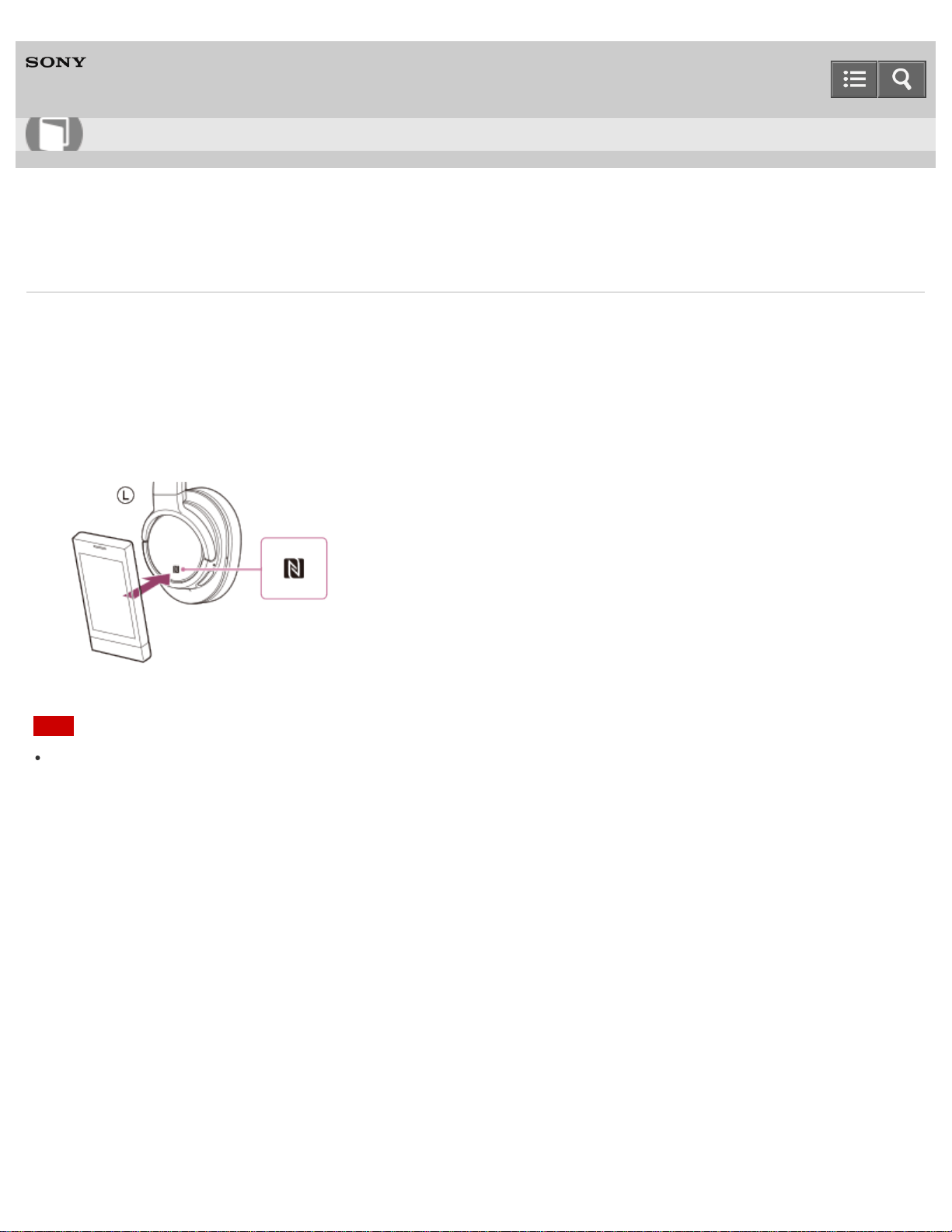
2. Touch the headset with the smartphone.
Touch the smartphone on the N-Mark of the headset.
Note
After the headset is disconnected from the smartphone, if no operation is performed for about 5 minutes, the headset
turns off automatically. To turn off the headset before that, press and hold the POWER button for about 2 seconds.
The indicator (blue) goes off and the headset turns off.
4-564-474-11(1)
Copyright 2015 Sony Corporation
Help Guide
How to Use
54
Wireless Stereo Headset
MDR-ZX770BT
Switching the device by one touch (NFC)
When the headset is connected with a BLUETOOTH device, if you touch an NFC-compatible smartphone on the
headset, the headset is connected with the smartphone that touched on the headset most recently (One-touch
connection switching). However, if you are talking on a BLUETOOTH mobile phone connected to the headset, you
cannot switch the BLUETOOTH connection by one touch.
When the headset is connected with an NFC-compatible smartphone, if you touch the smartphone on another NFC-
compatible BLUETOOTH headset or BLUETOOTH speaker, the smartphone disconnects from the headset, and
connects to the BLUETOOTH device it touched.
Note
Unlock the screen of the smartphone beforehand.
If you installed the app “NFC Easy Connect” in the smartphone, start the app “NFC Easy Connect.”
4-564-474-11(1)
Copyright 2015 Sony Corporation
Help Guide
How to Use
55
Wireless Stereo Headset
MDR-ZX770BT
Pairing and connecting with an Android smartphone
Pairing is the process required to create a link between BLUETOOTH devices to allow wireless connection.
You must pair a device with the headset to be able to make a BLUETOOTH connection for the first time.
Before you start pairing operation, make sure that:
The smartphone is placed within 1 m (3 feet) of the headset.
The headset is charged sufficiently.
The operating instructions of the smartphone is on hand.
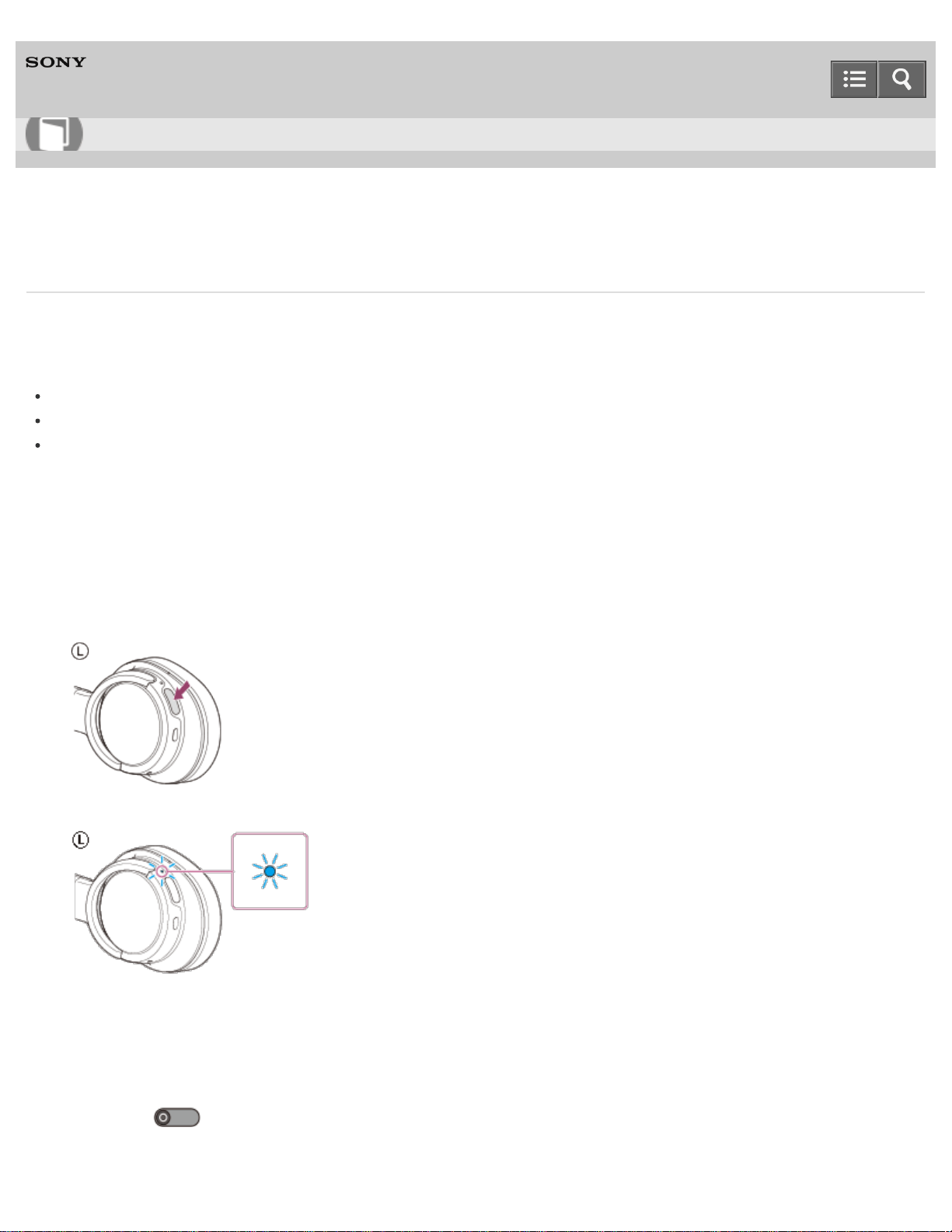
1. Enter pairing mode on this headset.
When you pair the headset with a device for the first time after you bought it, or after you initialized the headset (the
headset has no pairing information), press and hold the POWER button for about 2 seconds when the headset is
turned off. The headset enters pairing mode automatically.
When you pair a 2nd or subsequent device (the headset has pairing information for other devices), press and hold
the POWER button for about 7 seconds.
Make sure that the indicator flashes blue and red alternately after you release the button.
2. Unlock the screen of the Android smartphone.
3. Search for this headset on the smartphone.
i. Select [Setting] - [Bluetooth].
ii. Touch [
] next to [Bluetooth].
Help Guide
How to Use
56
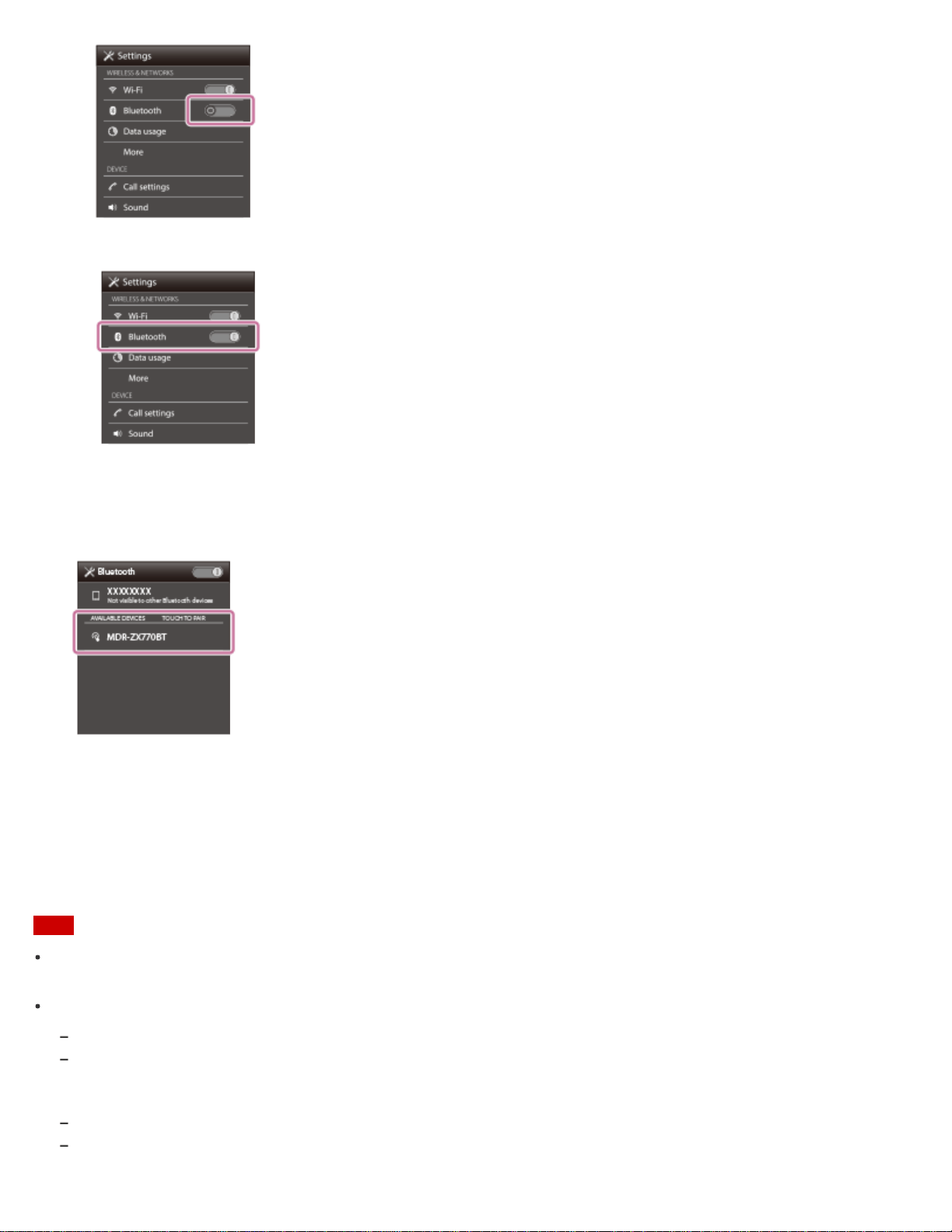
iii. Touch [Bluetooth].
4. Touch [Search for devices].
5. Touch [MDR-ZX770BT].
If passkey (*) input is required on the display of the smartphone, input “0000.”
The headset and the smartphone are paired with each other and connected.
If they are not connected, see “Connecting to a paired Android smartphone.”
If [MDR-ZX770BT] does not appear on the display, try again from step 3.
*
A Passkey may be called a “Passcode,” a “PIN code,” or a “Password.”
Note
If pairing is not established within about 5 minutes, pairing mode will be canceled and the headset will turn off. In this
case, start over from step 1.
Once BLUETOOTH devices are paired, there is no need to pair them again, except in the following cases:
Pairing information has been deleted after repair, etc.
The headset is already paired with 8 devices and another device is to be paired.
The headset can be paired with up to 8 devices. If a new device is paired after 8 devices are already paired, the paired
device with the oldest connection time is replaced by the new one.
When the pairing information for the headset has been deleted from the BLUETOOTH device.
When the headset is initialized, all pairing information is deleted.
In this case, delete the pairing information of the headset from the BLUETOOTH device, and then pair them again.
57

The headset can be paired with multiple devices, but can only play music from one paired device at a time.
Hint
The above procedure is an example. For details, refer to the operating instructions supplied with your Android
smartphone.
To delete all pairing information, see “Initializing the headset to restore factory settings.”
Related Topic
How to make a wireless connection to BLUETOOTH devices
Connecting to a paired Android smartphone
Listening to music from a device connected via BLUETOOTH
Disconnecting BLUETOOTH connection (after use)
Initializing the headset to restore factory settings
4-564-474-11(1)
Copyright 2015 Sony Corporation
58
Wireless Stereo Headset
MDR-ZX770BT
Connecting to a paired Android smartphone
1. Unlock the screen of the Android smartphone.
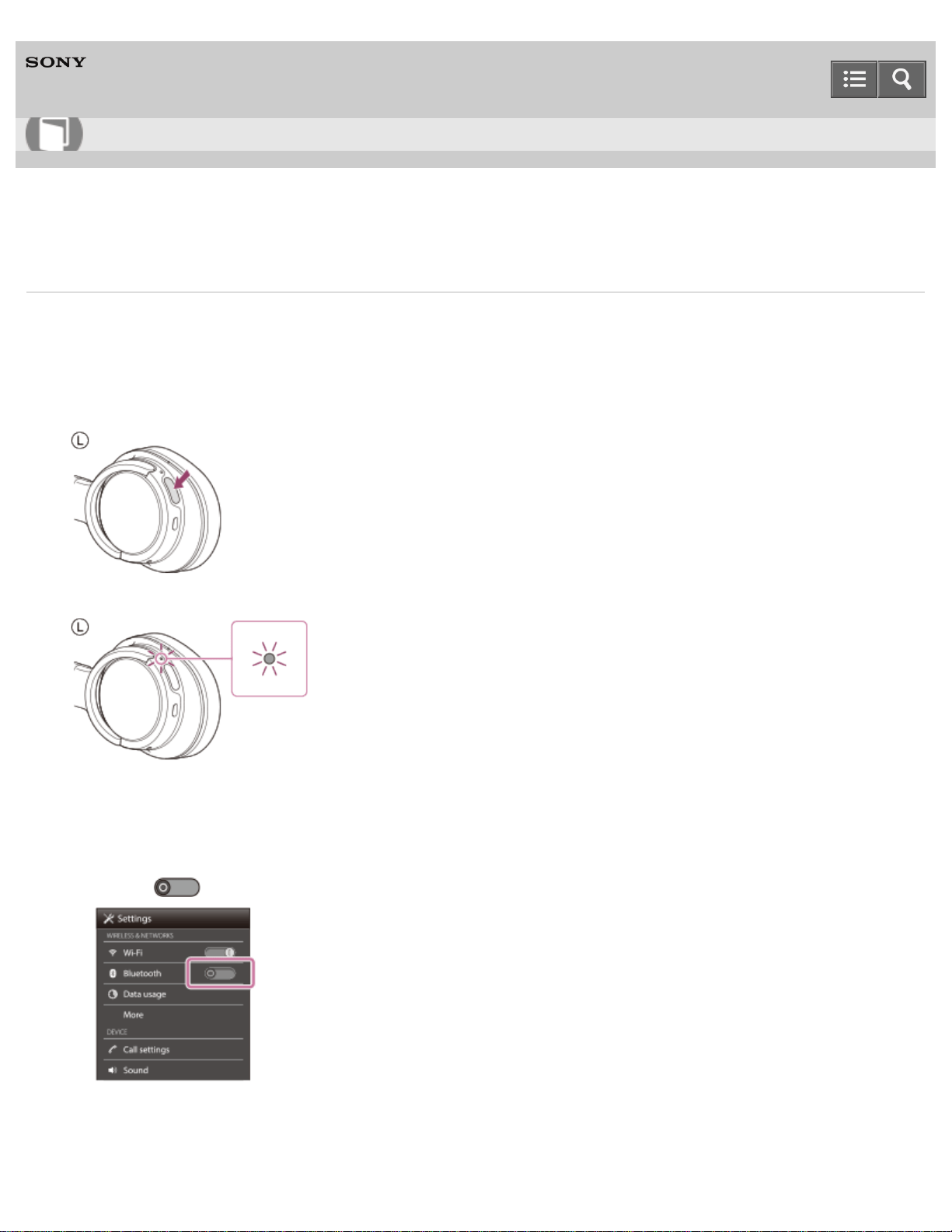
2. Turn on the headset.
Press and hold the POWER button for about 2 seconds.
Make sure that the indicator (blue) flashes after you release the button.
Check the connection status on the Android smartphone. If not connected, proceed to step 3.
3. Search for this headset on the smartphone.
i. Select [Setting] - [Bluetooth].
ii. Touch [
] next to [Bluetooth].
iii. Touch [Bluetooth].
Help Guide
How to Use
59
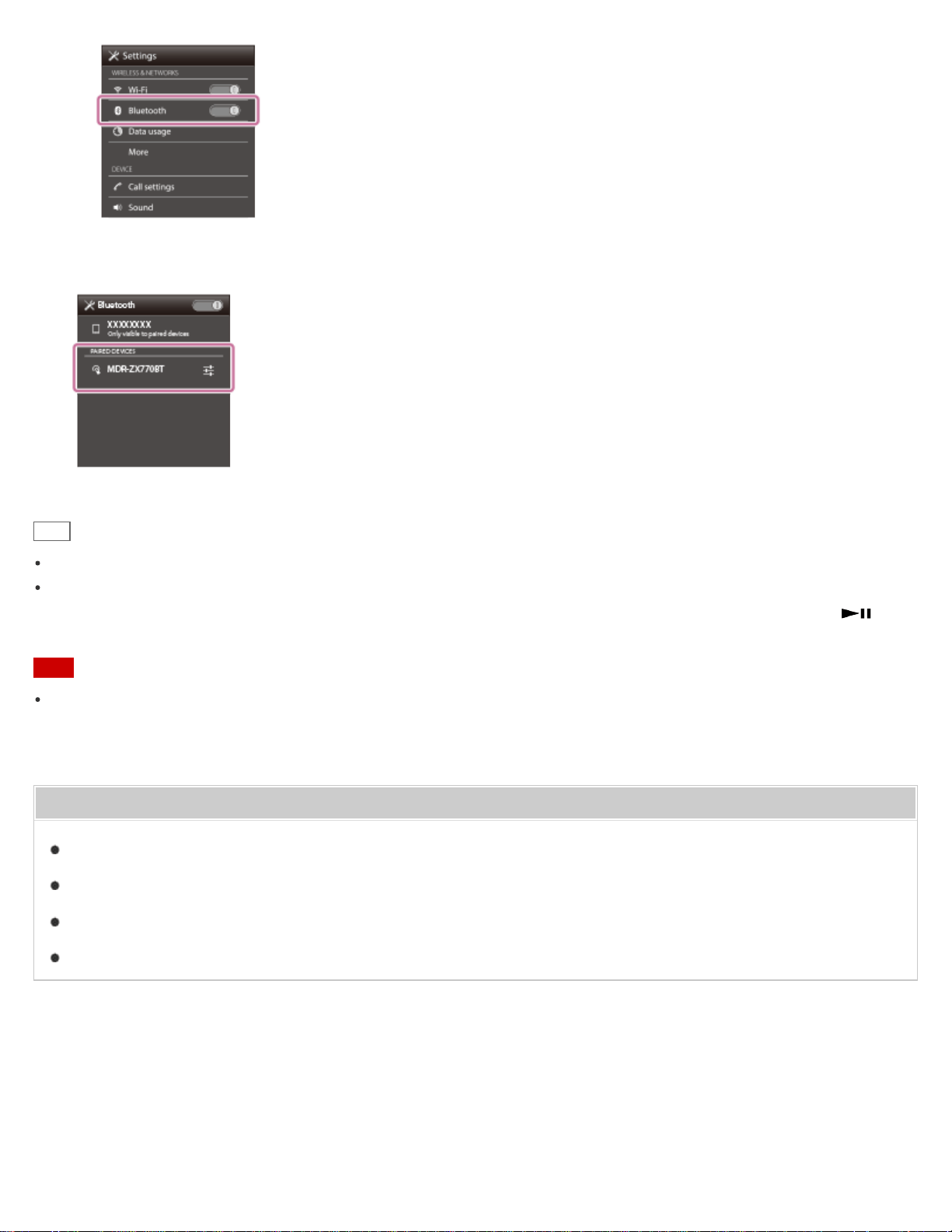
4. Touch [MDR-ZX770BT].
Hint
The above procedure is an example. For details, refer to the operating instructions supplied with your smartphone.
If the smartphone was connected with the headset the last time, an HFP/HSP connection is made when you turn on
the headset. While the headset is on, you can make an A2DP connection (music playback) by pressing the
button.
Note
If the headset tries to make a connection with a previously connected BLUETOOTH device, you may not be able to
connect to the device you want to. If connection fails, terminate the BLUETOOTH connection from the device that was
previously connected.
Related Topic
How to make a wireless connection to BLUETOOTH devices
Pairing and connecting with an Android smartphone
Listening to music from a device connected via BLUETOOTH
Disconnecting BLUETOOTH connection (after use)
4-564-474-11(1)
Copyright 2015 Sony Corporation
60
Wireless Stereo Headset
MDR-ZX770BT
Pairing and connecting with an iPhone
Pairing is the process required to create a link between BLUETOOTH devices to allow wireless connection.
You must pair a device with the headset to be able to make a BLUETOOTH connection for the first time.
Before you start pairing operation, make sure that:
The iPhone is placed within 1 m (3 feet) of the headset.
The headset is charged sufficiently.
The operating instructions of the iPhone is on hand.
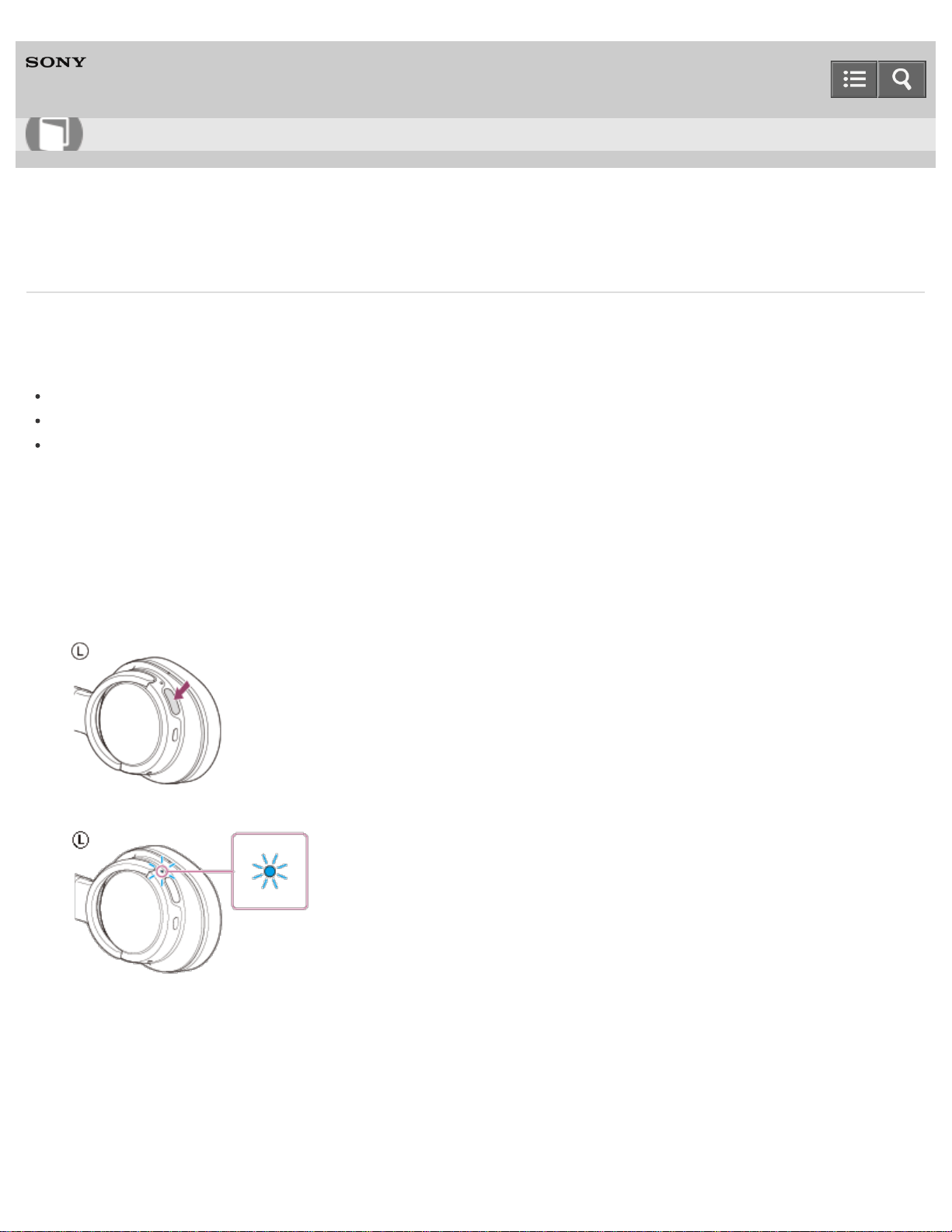
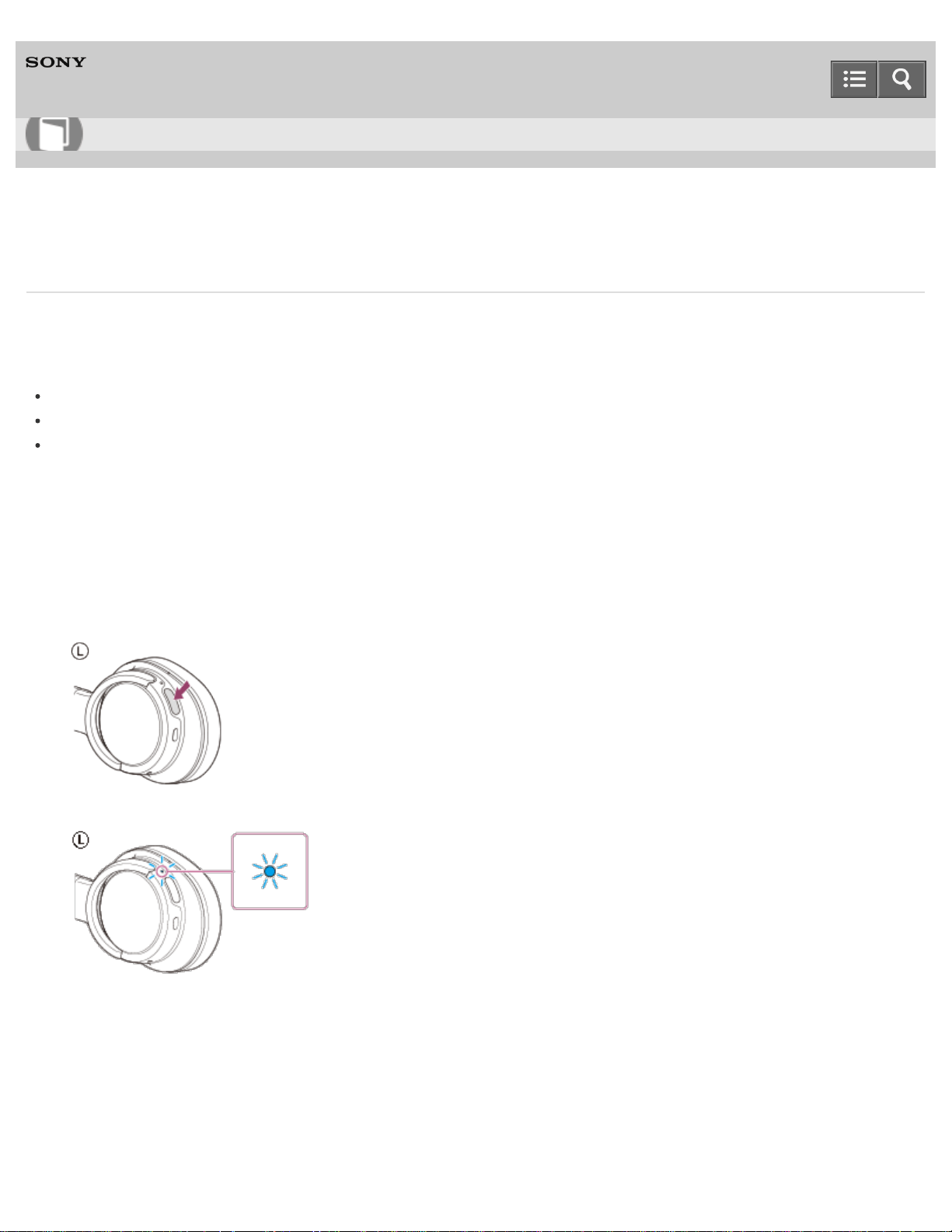
1. Enter pairing mode on this headset.
When you pair the headset with a device for the first time after you bought it, or after you initialized the headset (the
headset has no pairing information), press and hold the POWER button for about 2 seconds when the headset is
turned off. The headset enters pairing mode automatically.
When you pair a 2nd or subsequent device (the headset has pairing information for other devices), press and hold
the POWER button for about 7 seconds.
Make sure that the indicator flashes blue and red alternately after you release the button.
2. Unlock the screen of the iPhone.
3. Select the BLUETOOTH setting on the iPhone.
i. Select [Settings].
ii. Touch [Bluetooth].
Help Guide
How to Use
61
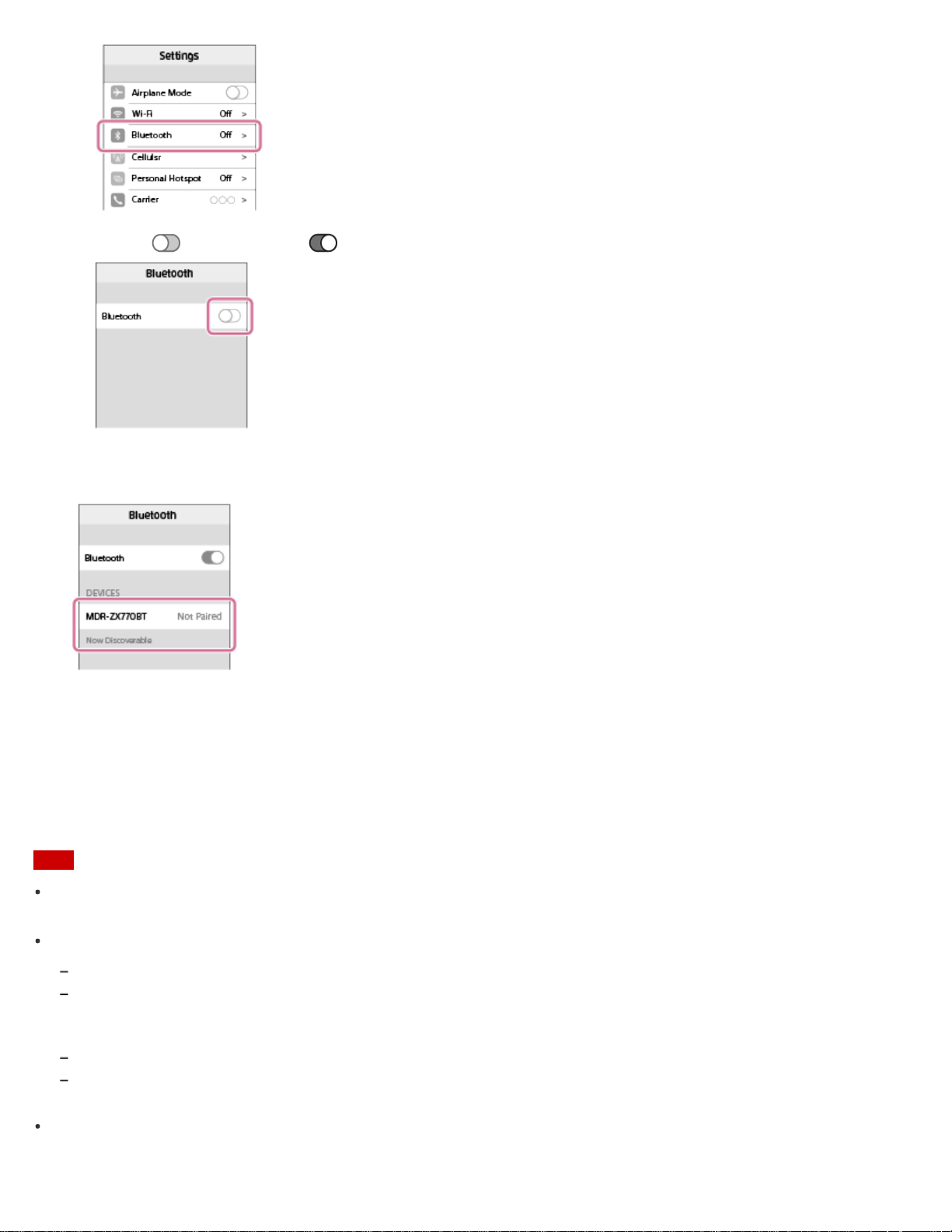
iii. Touch [ ] to change it to [ ].
4. Touch [MDR-ZX770BT].
If passkey (*) input is required on the display of the iPhone, input “0000.”
The headset and the iPhone are paired with each other and connected.
If they are not connected, see “Connecting to a paired iPhone.”
If [MDR-ZX770BT] does not appear on the display, try again from step 3.
*
A Passkey may be called a “Passcode,” a “PIN code,” or a “Password.”
Note
If pairing is not established within about 5 minutes, pairing mode will be canceled and the headset will turn off. In this
case, start over from step 1.
Once BLUETOOTH devices are paired, there is no need to pair them again, except in the following cases:
Pairing information has been deleted after repair, etc.
The headset is already paired with 8 devices and another device is to be paired.
The headset can be paired with up to 8 devices. If a new device is paired after 8 devices are already paired, the paired
device with the oldest connection time is replaced by the new one.
When the pairing information for the headset has been deleted from the BLUETOOTH device.
When the headset is initialized, all pairing information is deleted.
In this case, delete the pairing information of the headset from the BLUETOOTH device, and then pair them again.
If the pairing information was deleted by initializing the headset, etc., delete from your iPhone the pairing information
for the headset, and then pair them again.
62

The headset can be paired with multiple devices, but can only play music from one paired device at a time.
Hint
The above procedure is an example. For details, refer to the operating instructions supplied with your iPhone.
To delete all pairing information, see “Initializing the headset to restore factory settings.”
Related Topic
How to make a wireless connection to BLUETOOTH devices
Connecting to a paired iPhone
Listening to music from a device connected via BLUETOOTH
Disconnecting BLUETOOTH connection (after use)
Initializing the headset to restore factory settings
4-564-474-11(1)
Copyright 2015 Sony Corporation
63
Wireless Stereo Headset
MDR-ZX770BT
Connecting to a paired iPhone
1. Unlock the screen of the iPhone.
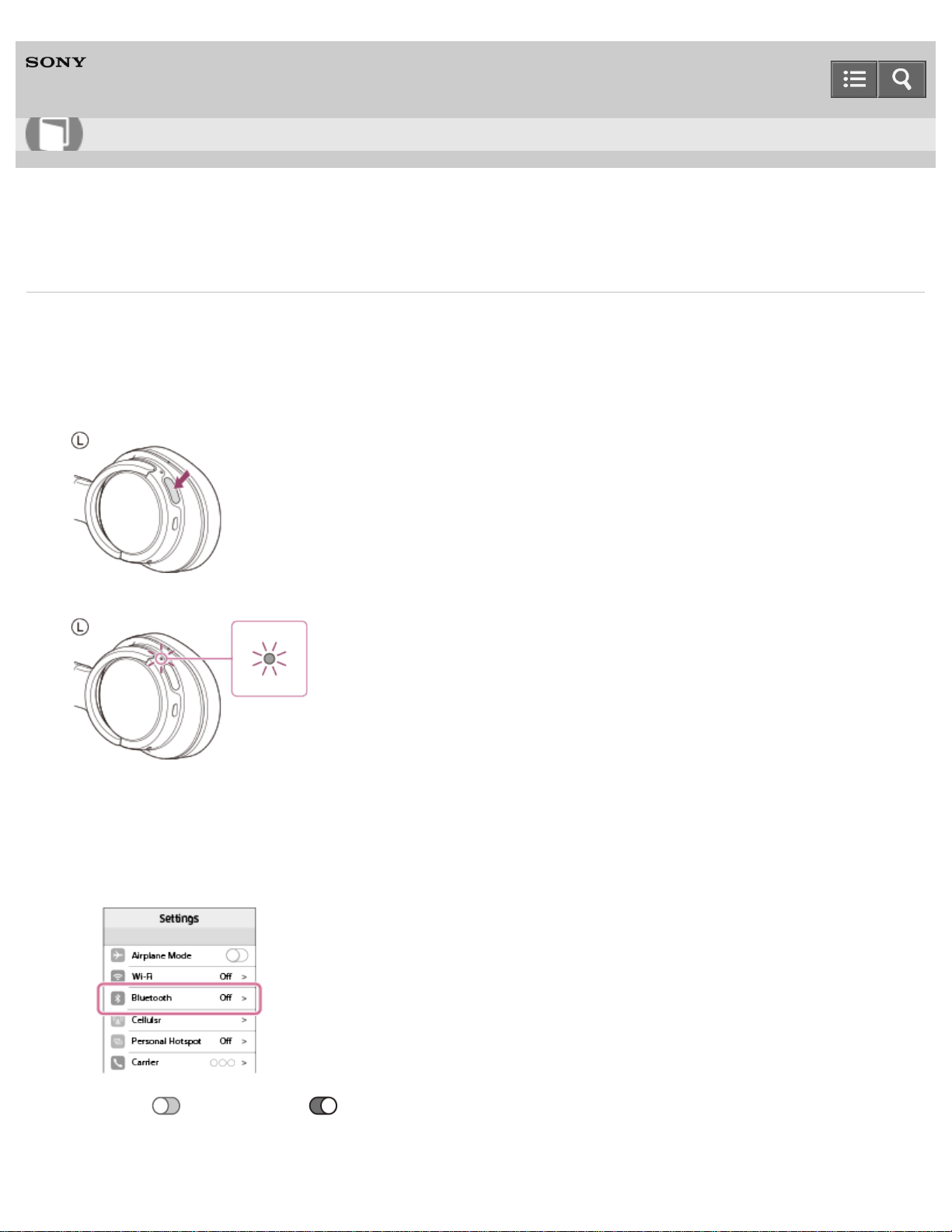
2. Turn on the headset.
Press and hold the POWER button for about 2 seconds.
Make sure that the indicator (blue) flashes after you release the button.
Check the connection status on the iPhone. If not connected, proceed to step 3.
3. Search for this headset on the iPhone.
i. Select [Settings].
ii. Touch [Bluetooth].
iii. Touch [ ] to change it to [ ].
Help Guide
How to Use
64
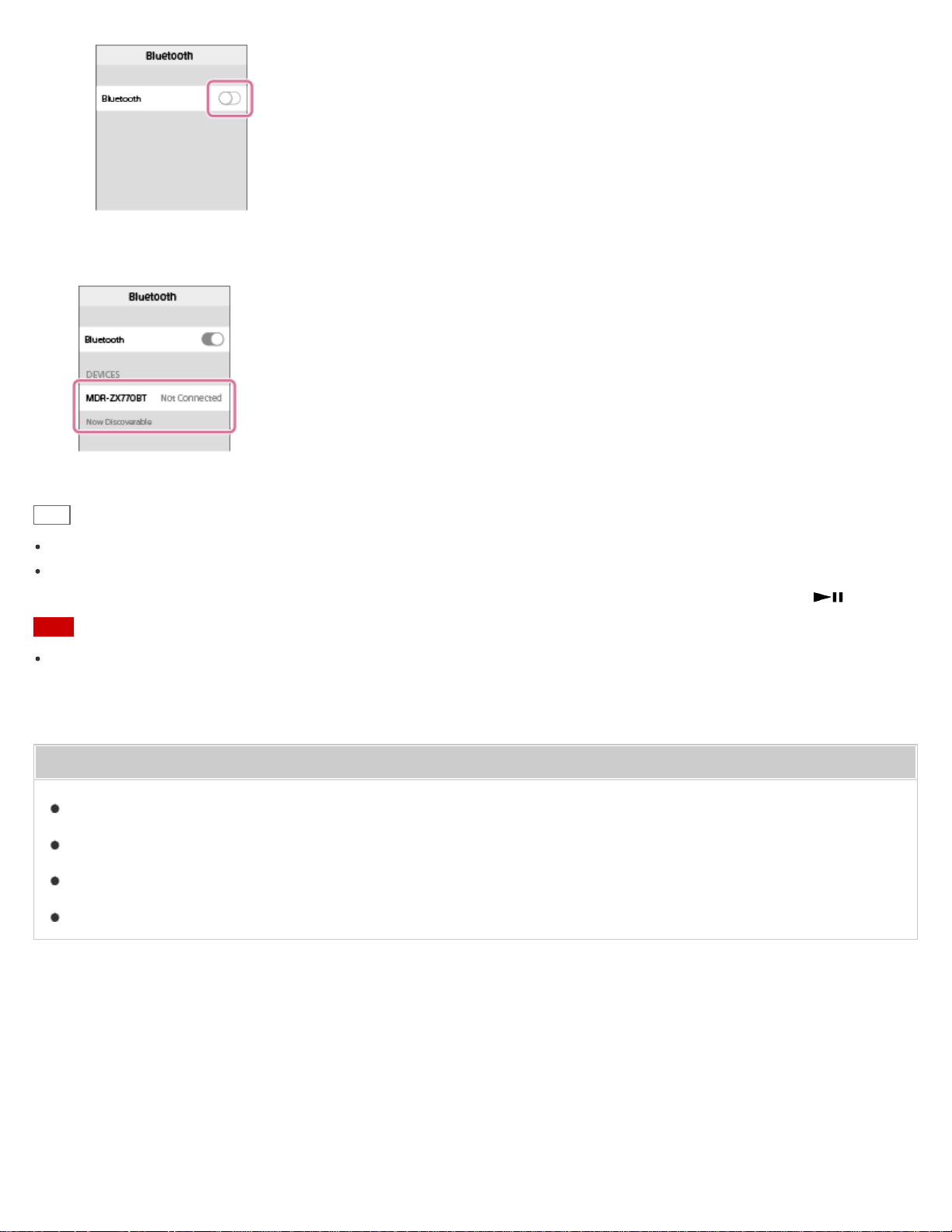
4. Touch [MDR-ZX770BT].
Hint
The above procedure is an example. For details, refer to the operating instructions supplied with your iPhone.
If the iPhone was connected with the headset the last time, an HFP/HSP connection is made when you turn on the
headset. While the headset is on, you can make an A2DP connection (music playback) by pressing the button.
Note
If the headset tries to make a connection with a previously connected BLUETOOTH device, you may not be able to
connect to the device you want to. If connection fails, terminate the BLUETOOTH connection from the device that was
previously connected.
Related Topic
How to make a wireless connection to BLUETOOTH devices
Pairing and connecting with an iPhone
Listening to music from a device connected via BLUETOOTH
Disconnecting BLUETOOTH connection (after use)
4-564-474-11(1)
Copyright 2015 Sony Corporation
65
Wireless Stereo Headset
MDR-ZX770BT
Pairing and connecting with other BLUETOOTH devices
Pairing is the process required to create a link between BLUETOOTH devices to allow wireless connection.
You must pair a device with the headset to be able to make a BLUETOOTH connection for the first time.
Before you start pairing operation, make sure that:
The BLUETOOTH device is placed within 1 m (3 feet) of the headset.
The headset is charged sufficiently.
The operating instructions of the BLUETOOTH device is on hand.
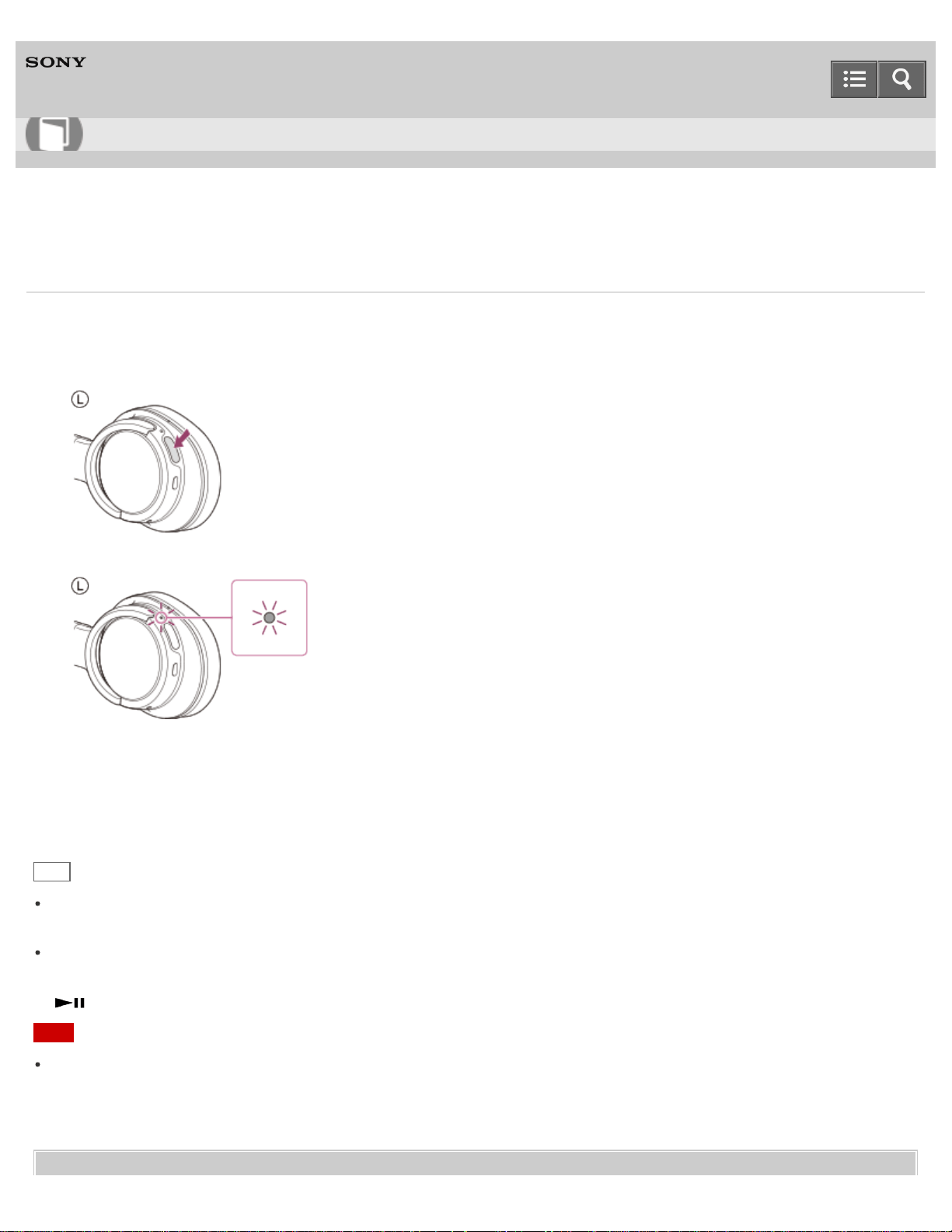
1. Enter pairing mode on this headset.
When you pair the headset with a device for the first time after you bought it, or after you initialized the headset (the
headset has no pairing information), press and hold the POWER button for about 2 seconds when the headset is
turned off. The headset enters pairing mode automatically.
When you pair a 2nd or subsequent device (the headset has pairing information for other devices), press and hold
the POWER button for about 7 seconds.
Make sure that the indicator flashes blue and red alternately after you release the button.
2. Perform the pairing procedure on the BLUETOOTH device to search for this headset.
[MDR-ZX770BT] will be displayed on the list of detected devices on the screen of the BLUETOOTH device. If not
displayed, repeat from step 1.
3. Select [MDR-ZX770BT].
If passkey (*) input is required on the display of the BLUETOOTH device, input “0000.”
*
A Passkey may be called a “Passcode,” a “PIN code,” or a “Password.”
Help Guide
How to Use
66

4. Make the BLUETOOTH connection from the BLUETOOTH device.
Depending on the BLUETOOTH device, the headset may be connected with the device automatically as soon as
they are paired.
Note
If pairing is not established within about 5 minutes, pairing mode will be canceled and the headset will turn off. In this
case, start over from step 1.
When pairing with a BLUETOOTH device that cannot display a list of detected devices or that has no display, you
may pair the device by setting both the headset and the BLUETOOTH device to pairing mode. At this time, if passkey
is set other than “0000” on the BLUETOOTH device, pairing cannot be done with the headset.
Once BLUETOOTH devices are paired, there is no need to pair them again, except in the following cases:
Pairing information has been deleted after repair, etc.
The headset is already paired with 8 devices and another device is to be paired.
The headset can be paired with up to 8 devices. If a new device is paired after 8 devices are already paired, the paired
device with the oldest connection time is replaced by the new one.
When the pairing information for the headset has been deleted from the BLUETOOTH device.
When the headset is initialized, all pairing information is deleted.
In this case, delete the pairing information of the headset from the BLUETOOTH device, and then pair them again.
The headset can be paired with multiple devices, but can only play music from one paired device at a time.
Hint
The above procedure is an example. For details, refer to the operating instructions supplied with your BLUETOOTH
device.
To delete all pairing information, see “Initializing the headset to restore factory settings.”
Related Topic
How to make a wireless connection to BLUETOOTH devices
Connecting to a paired BLUETOOTH device
Listening to music from a device connected via BLUETOOTH
Disconnecting BLUETOOTH connection (after use)
Initializing the headset to restore factory settings
4-564-474-11(1)
Copyright 2015 Sony Corporation
67
Wireless Stereo Headset
MDR-ZX770BT
Connecting to a paired BLUETOOTH device
1. Turn on the headset.
Press and hold the POWER button for about 2 seconds.
Make sure that the indicator (blue) flashes after you release the button.
Check the connection status on the BLUETOOTH device. If not connected, proceed to step 2.
2. Make the BLUETOOTH connection from the BLUETOOTH device.
For details, refer to the operating instructions supplied with your BLUETOOTH device.
Hint
The above procedure is an example. For details, refer to the operating instructions supplied with your BLUETOOTH
device.
If the BLUETOOTH device was connected with the headset the last time, an HFP/HSP connection is made when you
turn on the headset. While the headset is on, you can make an A2DP connection (music playback) by pressing the
button.
Note
If the headset tries to make a connection with a previously connected BLUETOOTH device, you may not be able to
connect to the device you want to. If connection fails, terminate the BLUETOOTH connection from the device that was
previously connected.
Help Guide
How to Use
68


Wireless Stereo Headset
MDR-ZX770BT
Connecting the headset to both a music player and a smartphone or mobile phone
To use a BLUETOOTH music player for listening to music and a BLUETOOTH smartphone for making phone calls, the
headset needs to be connected with each device with a BLUETOOTH connection.
1. Pair the headset with BLUETOOTH devices, respectively.
2. Make an A2DP BLUETOOTH connection between the headset and the BLUETOOTH music player.
3. Make an HFP or HSP BLUETOOTH connection between the headset and the BLUETOOTH smartphone or mobile
phone.
Note
If the smartphone or mobile phone was connected with the headset the last time, an HFP or HSP connection is made
automatically when you turn on the headset. At the same time, an A2DP connection may also be made automatically.
If this happens, disconnect the headset from the smartphone or mobile phone once using the phone, then connect the
devices again by repeating the process from step 2.
4-564-474-11(1)
Copyright 2015 Sony Corporation
Help Guide
How to Use
70
Wireless Stereo Headset
MDR-ZX770BT
Connecting the headset to 2 Android smartphones
When you connect the headset to a smartphone, usually the music playback function and the phone call function are
both connected automatically.
To make a multi point connection with 2 smartphones separately, one for listening to music and the other for making
phone calls, change the settings of the smartphones so that only one of the functions is connected for each smartphone.
1. Pair the headset with both smartphones, respectively.
2. Use one of the smartphones to establish a BLUETOOTH connection with the headset.
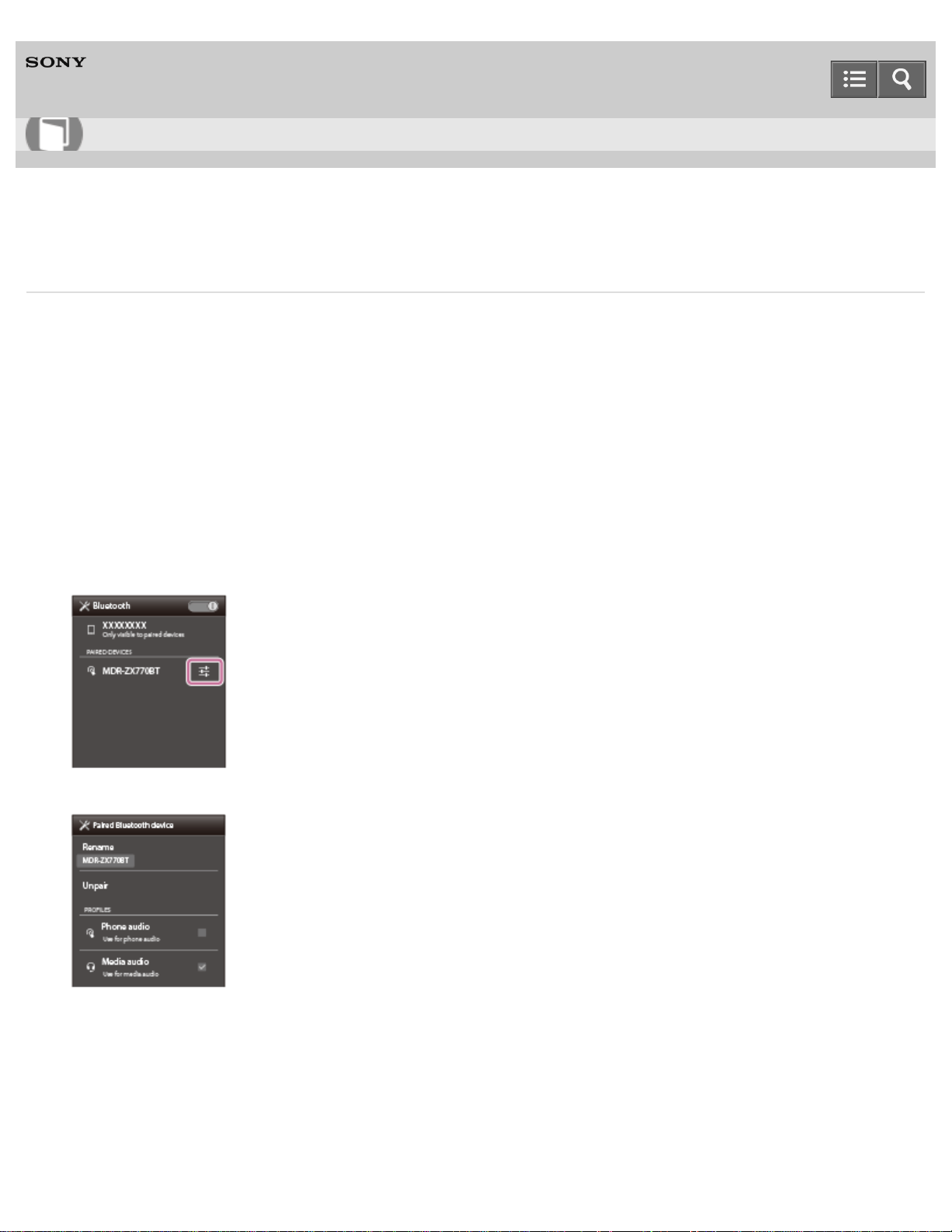
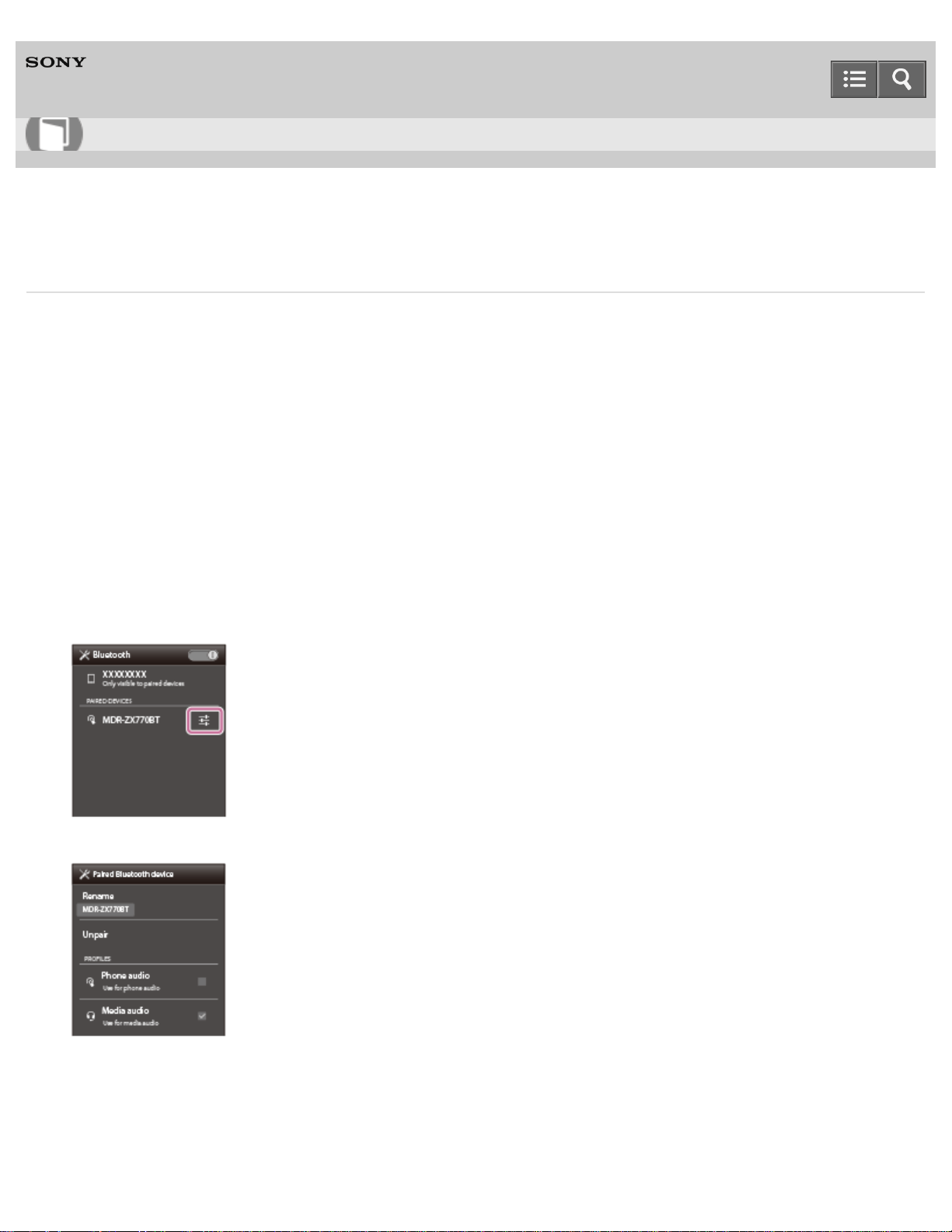
3. On the smartphone connected to the headset, uncheck either [Phone audio] (HFP) or [Media audio] (A2DP).
Example: To connect “Media audio” (A2DP) only
Touch [Settings] - [Bluetooth] - the setting icon next to [MDR-ZX770BT].
On the [Paired Bluetooth device] screen, uncheck [Phone audio].
4. Terminate the BLUETOOTH connection of the smartphone.
5. Use the other smartphone to establish a BLUETOOTH connection to the headset.
6. In the same way, uncheck the function that you did not uncheck in step 3.
7. Use the first smartphone to establish a BLUETOOTH connection again.
Help Guide
How to Use
71

Both smartphones are connected to the headset with only one function enabled.
Hint
The above procedure is an example. For details, refer to the operating instructions supplied with your Android
smartphones.
4-564-474-11(1)
Copyright 2015 Sony Corporation
72
Wireless Stereo Headset
MDR-ZX770BT
Connecting the headset to an Android smartphone and an iPhone
When you connect the headset to a smartphone, usually the music playback function and the phone call function are
both connected automatically. To make a multi point connection using an Android smartphone and an iPhone separately
for listening to music and making phone calls, change the settings on the Android smartphone so that only one of the
functions is connected. Connect the Android smartphone first, and then connect the iPhone.
You cannot set the iPhone to connect one function only.
1. Pair the headset with both Android smartphone and iPhone, respectively.
2. Use the Android smartphone to establish a BLUETOOTH connection with the headset.
3. On the Android smartphone connected to the headset, uncheck either [Phone audio] (HFP) or [Media audio]
(A2DP).
Example: To connect “Media audio” (A2DP) only
Touch [Settings] - [Bluetooth] - the setting icon next to [MDR-ZX770BT].
On the [Paired Bluetooth device] screen, uncheck [Phone audio].
4. Use the iPhone to establish a BLUETOOTH connection to the headset.
The iPhone is connected to the headset with both functions, but you can only use the function that you unchecked
in step 3.
Help Guide
How to Use
73

Hint
The above procedure is an example. For details, refer to the operating instructions supplied with your Android
smartphone.
Note
If you connect an Android smartphone with [Phone audio] (HFP), the remaining battery charge of the headset will not
be displayed correctly on an iPhone.
4-564-474-11(1)
Copyright 2015 Sony Corporation
74
Wireless Stereo Headset
MDR-ZX770BT
Listening to music from a device connected via BLUETOOTH
You can enjoy listening to music and basic remote control operation of a BLUETOOTH device via a BLUETOOTH
connection. The BLUETOOTH device is required to support the following BLUETOOTH profiles.
A2DP (Advanced Audio Distribution Profile):
enables you to enjoy high-quality audio content wirelessly.
AVRCP (Audio Video Remote Control Profile):
enables you to adjust volume, etc.
The operation may vary depending on the BLUETOOTH device. Refer to the operating instructions supplied with your
BLUETOOTH device.
1. Connect the headset to a BLUETOOTH device.
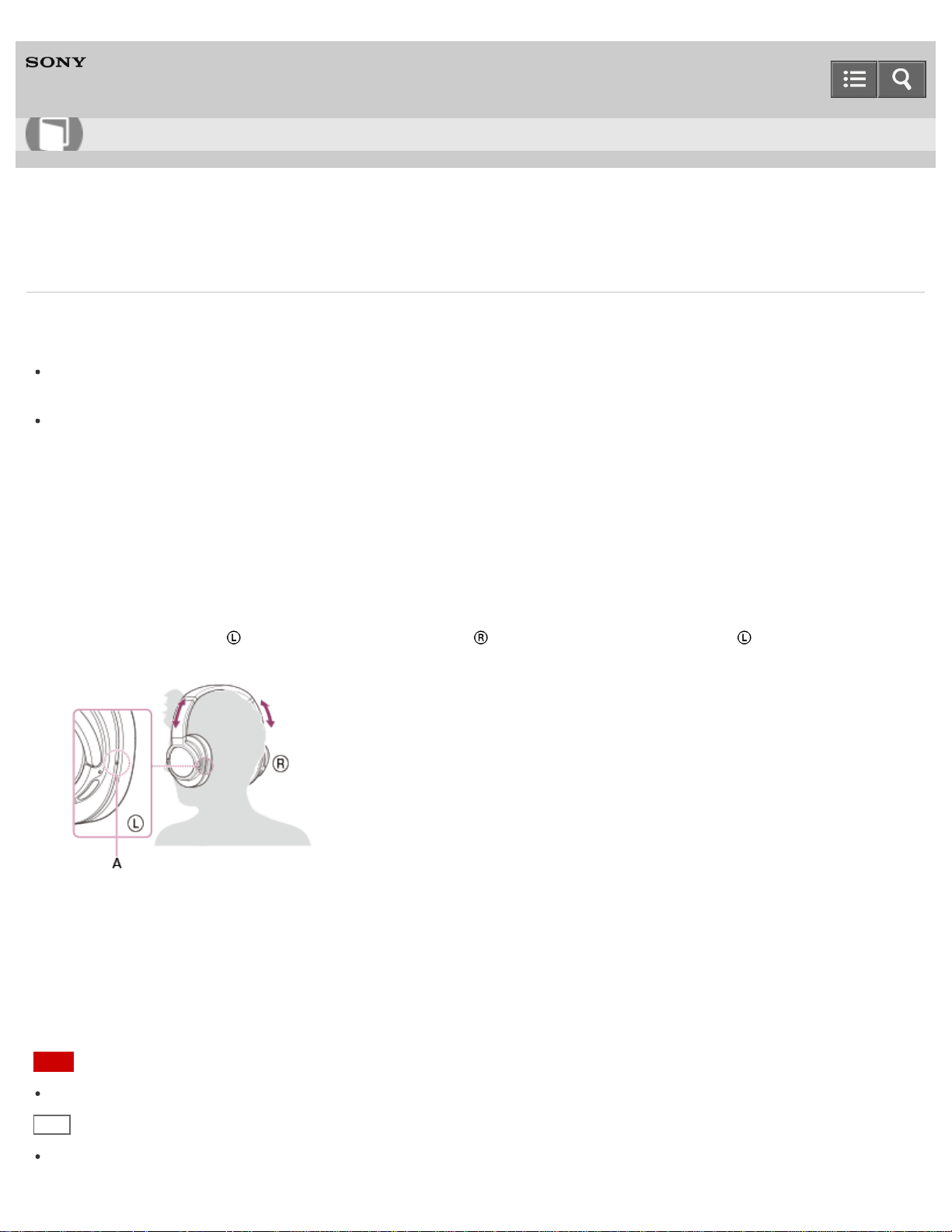
2. Wear the headset.
Adjust the length of the headband.
Put the headset with
indication on your left ear and indication on your right ear. The unit of the headset
has a tactile dot.
A: Tactile dot
3. Play back music or video on the BLUETOOTH device.
Adjust the volume on the BLUETOOTH device.
4. Adjust the volume by pressing the VOL +/- buttons of the headset.
Note
If the communication condition is poor, the BLUETOOTH device may react incorrectly to the operation on the headset.
Hint
The headset supports SCMS-T content protection. You can enjoy music, etc., from a device such as a mobile phone
Help Guide
How to Use
75

or portable TV that supports SCMS-T content protection.
Depending on the BLUETOOTH device, it may be necessary to adjust the volume or set the audio output setting on
the BLUETOOTH device.
Related Topic
How to make a wireless connection to BLUETOOTH devices
Controlling the audio device (BLUETOOTH connection)
Disconnecting BLUETOOTH connection (after use)
Switching the sound quality mode
4-564-474-11(1)
Copyright 2015 Sony Corporation
76
Wireless Stereo Headset
MDR-ZX770BT
Controlling the audio device (BLUETOOTH connection)
If the BLUETOOTH device supports AVRCP, you can control it by the headset. The functions available may vary
depending on the BLUETOOTH device. Refer to the operating instructions supplied with your BLUETOOTH device.
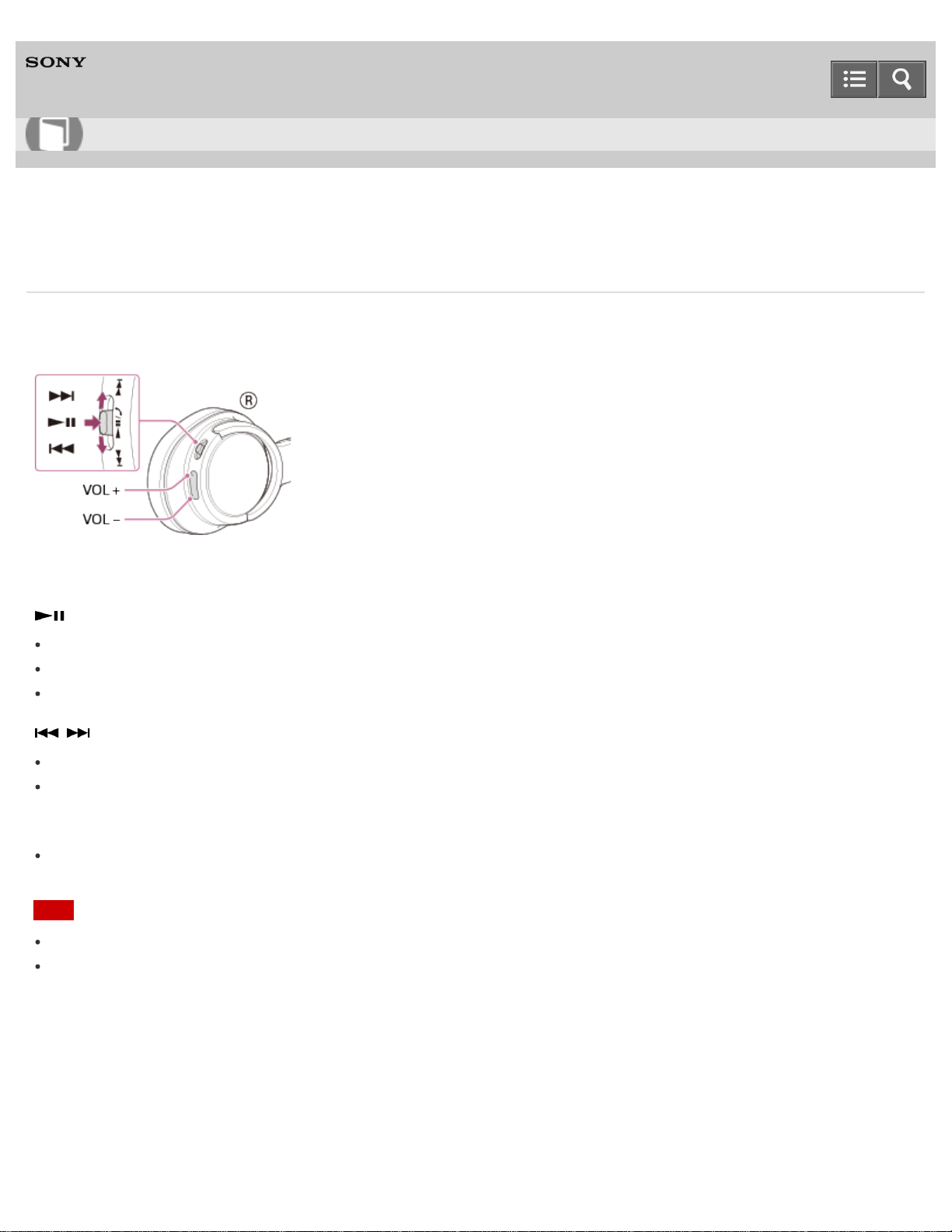
Each button has the following function:
:
Press once during pause to start playback.
Press and hold for 2 seconds during playback to stop.
Press once during playback to pause.
/ :
Press once to skip to the previous/next track.
Press and hold to fast-reverse/fast-forward.
VOL +/-:
Press the + or - button to adjust the volume.
Note
If the communication condition is poor, the BLUETOOTH device may react incorrectly to the operation on the headset.
The available functions may vary depending on the BLUETOOTH device. When you operate as illustrated above, it
may operate differently or may not work at all.
4-564-474-11(1)
Copyright 2015 Sony Corporation
Help Guide
How to Use
77
Wireless Stereo Headset
MDR-ZX770BT
Disconnecting BLUETOOTH connection (after use)
When you finish playing music with the BLUETOOTH device, perform any of the following operations to terminate the
BLUETOOTH connection.
If using a device that supports one-touch connection (NFC), touch the device to the headset again.
If using a device that does not support one-touch connection (NFC), operate from the BLUETOOTH device.
Press and hold the POWER button on the headset for about 2 seconds to turn off the headset.
Turn off the BLUETOOTH device.
Hint
When you finish playing music, the BLUETOOTH connection may terminate automatically, depending on the
BLUETOOTH device.
Related Topic
Disconnecting the smartphone by one touch (NFC)
Switching the device by one touch (NFC)
4-564-474-11(1)
Copyright 2015 Sony Corporation
Help Guide
How to Use
78
Wireless Stereo Headset
MDR-ZX770BT
Switching the sound quality mode
The sound quality is set to the “Standard” mode (SBC high quality mode) as the default setting.
When using an AAC or aptX compatible device, select the “Priority on sound quality” mode.
If the connection is unstable, such as when producing only intermittent sound, select the “Priority on stable
connection” mode.
Sound quality and indicator (blue) of each mode
When you switch the sound quality mode, the indicator flashes in red to show the remaining battery power first, then it
flashes in blue to show the current sound quality mode.
“Priority on sound quality” mode: 3 times
SBC (high quality), AAC, or aptX is selected automatically.
“Standard” mode: 2 times
SBC (high quality)
“Priority on stable connection” mode: 1 time
SBC
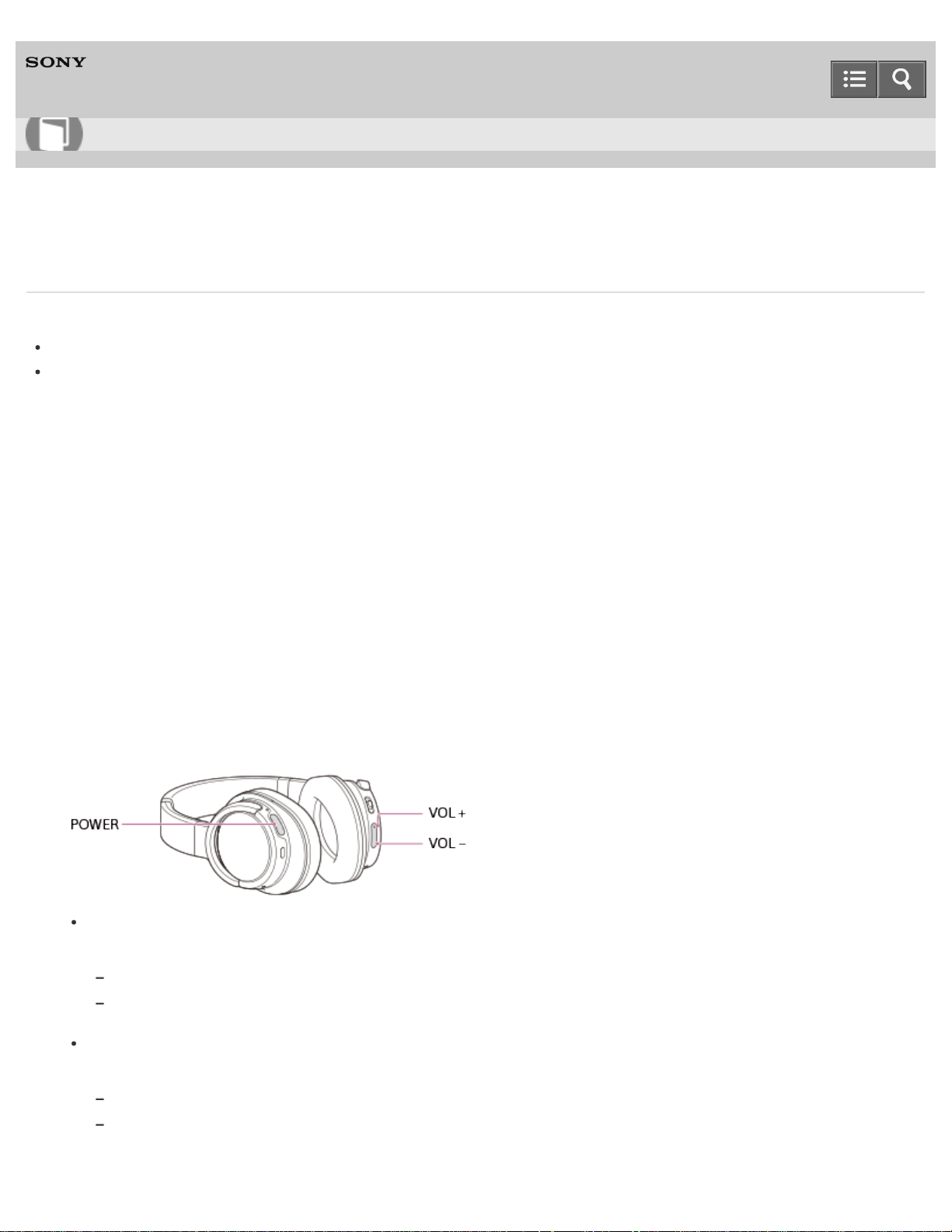
1. Turn on the headset by pressing the POWER button for more than 2 seconds while holding the VOL+ or VOL–
button down.
If you turn on the headset while holding the VOL+ button down, a mode with more priority placed on sound
quality is selected.
It switches from “Priority on stable connection” mode to “Standard” mode.
It switches from “Standard” mode to “Priority on sound quality” mode.
If you turn on the headset while holding the VOL- button down, a mode with more priority placed on
communications is selected.
It switches from “Priority on sound quality” mode to “Standard” mode.
It switches from “Standard” mode to “Priority on stable connection” mode.
Help Guide
How to Use
79

Note
When you turn on the headset by pressing the POWER button only, the headset does not indicate the sound quality
mode with flashes of the indicator (blue).
The playback time may become shorter, depending on the sound quality and the conditions under which you are
using the headset.
Depending on the ambient conditions in the area where you are using the headset, intermittent sound may still occur,
even if the “Priority on stable connection” mode is selected.
4-564-474-11(1)
Copyright 2015 Sony Corporation
80
Wireless Stereo Headset
MDR-ZX770BT
Receiving a call
You can enjoy a hands-free call with a smartphone or mobile phone that supports the BLUETOOTH profile HFP (Hands-
free Profile) or HSP (Headset Profile), via a BLUETOOTH connection.
If your smartphone or mobile phone supports both HFP and HSP, set it to HFP.
Operations may vary depending on the smartphone or mobile phone. Refer to the operating instructions supplied with
your smartphone or mobile phone.
Ring tone
When an incoming call arrives, a ring tone will be heard from the headset.
You will hear either of following ring tones, depending on your smartphone or mobile phone.
Ring tone set on the headset
Ring tone set on the smartphone or mobile phone
Ring tone set on the smartphone or mobile phone only for a BLUETOOTH connection
1. Connect the headset to a smartphone or mobile phone beforehand.
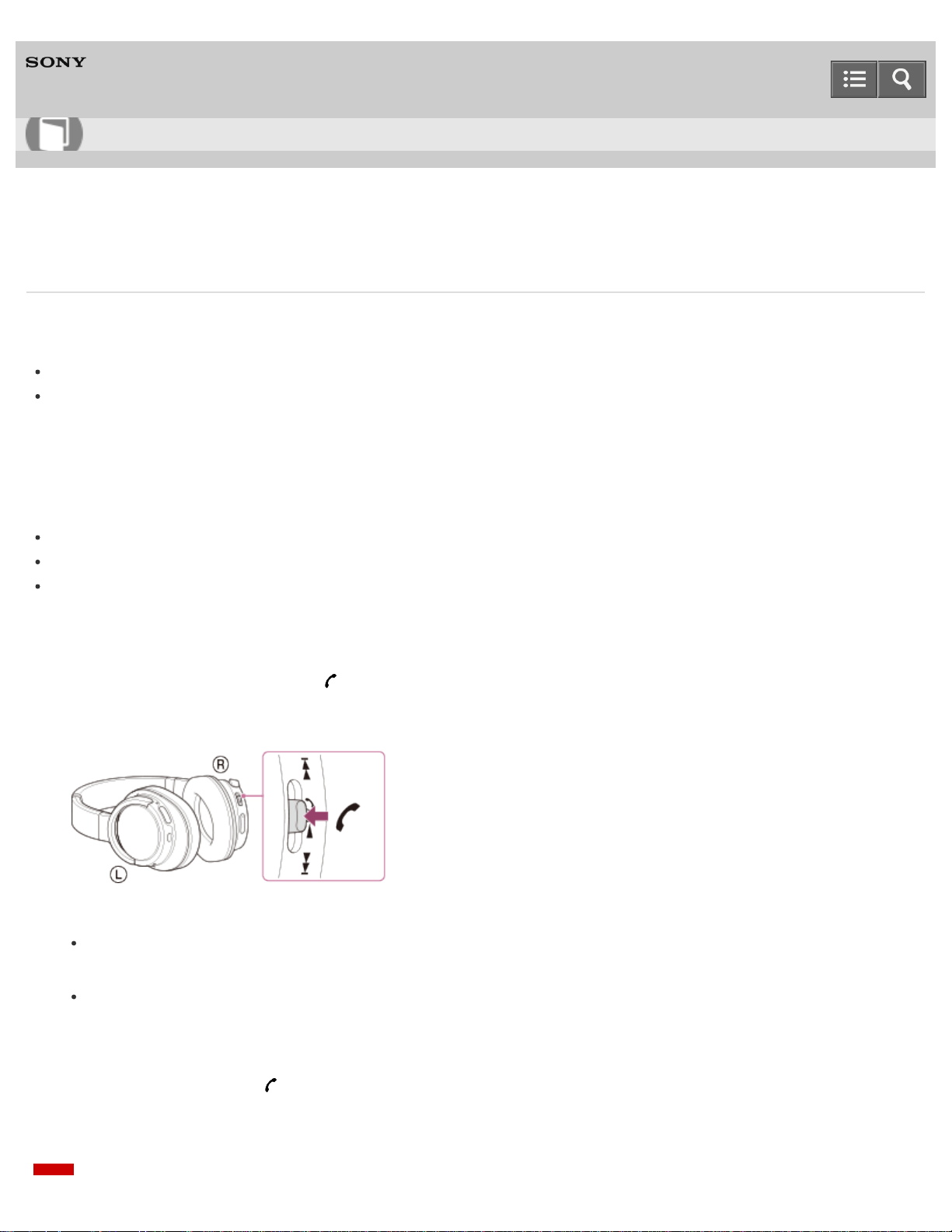
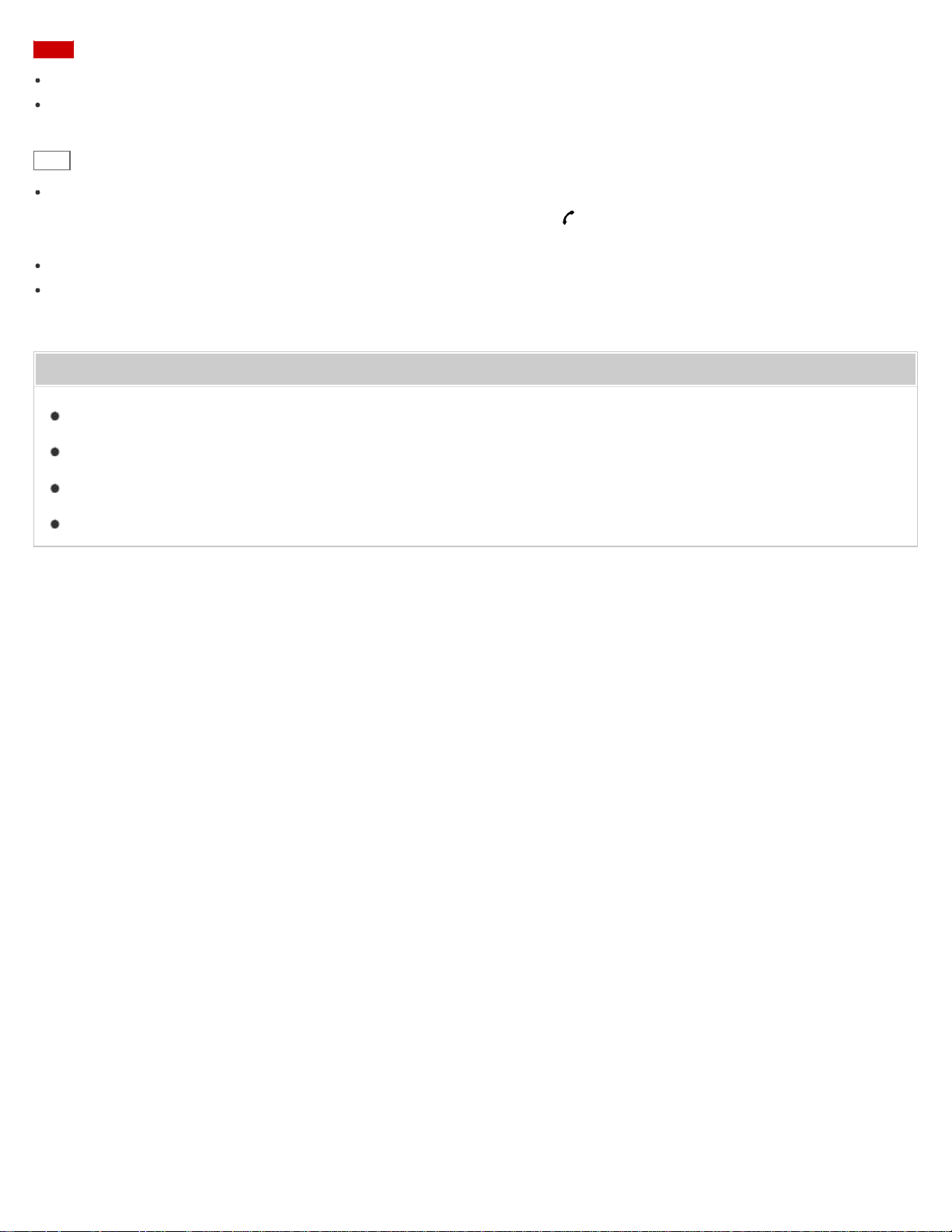
2. When you hear a ring tone, press
button on the headset and receive the call.
When an incoming call arrives even while you are listening to music, playback pauses and a ring tone will be heard
from the headset.
If no ring tone is heard via the headset
The headset may not be connected with the smartphone or mobile phone with HFP or HSP. Check the
connection status on the smartphone or mobile phone.
If playback does not pause automatically, operate the headset to pause playback.
3. Press the VOL+ or VOL- button to adjust the volume.
4. To end the call, press the
button on the headset again.
If you received a call during music playback, music playback resumes automatically.
Help Guide
How to Use
81
Note
Depending on the smartphone or mobile phone, playback may not resume automatically even if you finish the call.
Use a smartphone or mobile phone at least 50 cm (19 3/4 in.) away from the headset. Noise may result if the headset
and the smartphone or mobile phone are too close.
Hint
Some smartphones or mobile phones by default receive calls with the phone instead of the headset. With an HFP or
HSP connection, switch the call device to the headset by holding the button down for about 2 seconds or by using
your smartphone or mobile phone.
If you adjust the volume on the headset when not talking, the music playback volume is adjusted.
Volume during a call and volume during music playback can be adjusted independently. Changing call volume does
not change the volume of music playback, and vice versa.
Related Topic
How to make a wireless connection to BLUETOOTH devices
Disconnecting BLUETOOTH connection (after use)
Making a call
Functions for a phone call
4-564-474-11(1)
Copyright 2015 Sony Corporation
82
Wireless Stereo Headset
MDR-ZX770BT
Making a call
You can enjoy a hands-free call with a smartphone or mobile phone that supports the BLUETOOTH profile HFP (Hands-
free Profile) or HSP (Headset Profile), via a BLUETOOTH connection.
If your smartphone or mobile phone supports both HFP and HSP, set it to HFP.
Operations may vary depending on the smartphone or mobile phone. Refer to the operating instructions supplied with
your smartphone or mobile phone.
1. Connect the headset to a smartphone or mobile phone beforehand.
2. Operate your smartphone or mobile phone to make a call.
When you make a call, the dial tone is heard from the headset.
If you make a call while you are listening to music, playback pauses.
If no dial tone is heard via the headset, switch the call device to the headset using your smartphone or mobile
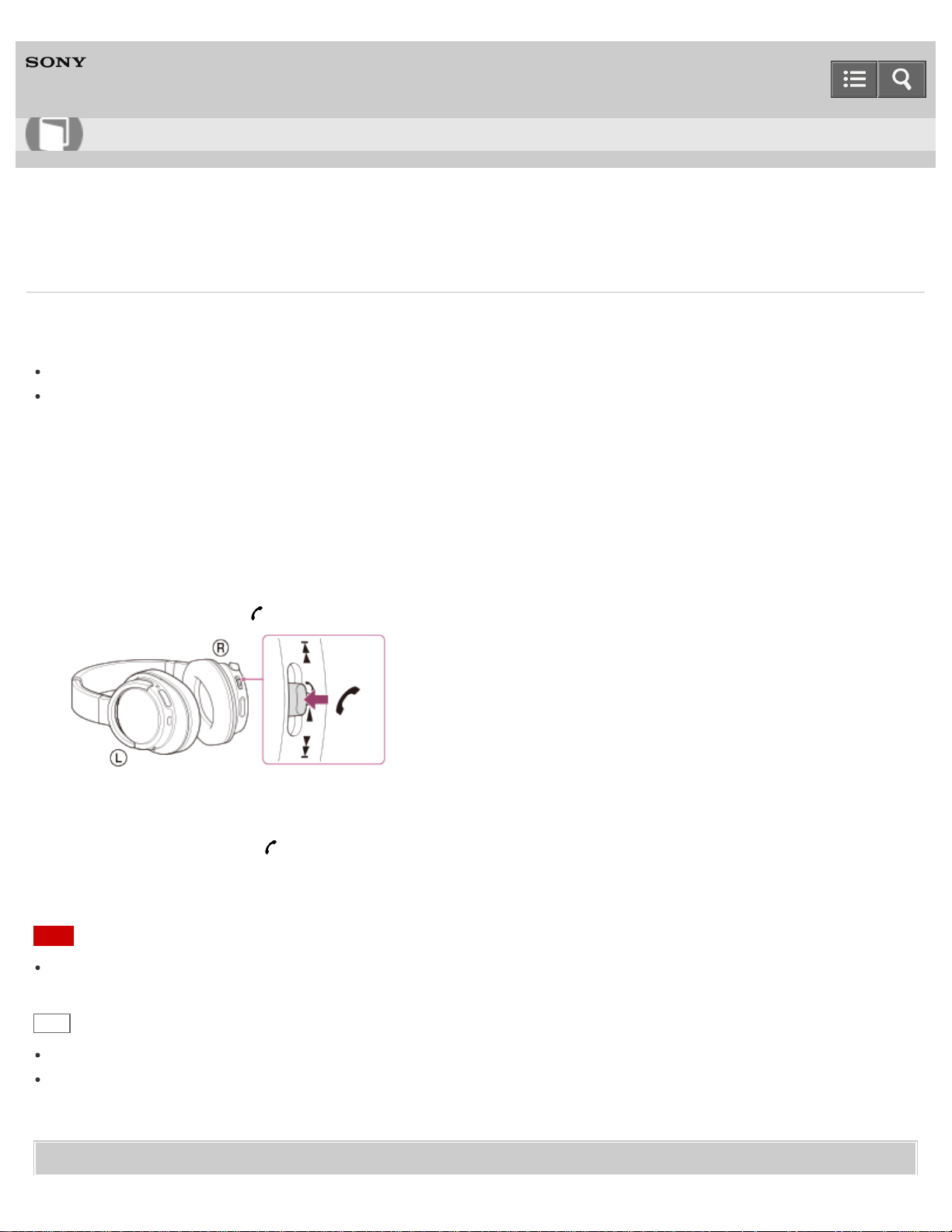
phone or by holding the
button down for about 2 seconds.
3. Press the VOL+ or VOL- button to adjust the volume.
4. To end the call, press the button on the headset again.
If you made a call during music playback, music playback resumes automatically.
Note
Use a smartphone or mobile phone at least 50 cm (19 3/4 in.) away from the headset. Noise may result if the headset
and the smartphone or mobile phone are too close.
Hint
If you adjust the volume on the headset when not talking, the playback volume is adjusted.
Volume for a call and listening to music can be adjusted independently. Even if you change the volume while playing
back music, the volume of a call does not change.
Related Topic
Help Guide
How to Use
83

Wireless Stereo Headset
MDR-ZX770BT
Functions for a phone call
The available functions may vary depending on the profile supported by your smartphone or mobile phone. Even if the
profile is the same, functions may vary depending on the smartphone or mobile phone.
Refer to the operating instructions supplied with your smartphone or mobile phone.
Supported profile: HFP
Outgoing call
Press the button once to cancel an outgoing call.
Press the button for about 2 seconds to change the call device between the headset and the smartphone or mobile
phone.
Incoming call
Press the button once to answer a call.
Press and hold the button for about 2 seconds to reject a call.
During call
Press the button once to finish a call.
Press the button for about 2 seconds to change the call device between the headset and the smartphone or mobile
phone.
Supported profile: HSP
Outgoing call
Press the button once to cancel an outgoing call. (*)
Incoming call
Press the button once to answer a call.
During call
Press the button once to finish a call. (*)
*
Some devices may not support this function.
Related Topic
Receiving a call
Making a call
Help Guide
How to Use
85

Wireless Stereo Headset
MDR-ZX770BT
Precautions
Note on static electricity
Static electricity accumulated in the body may cause mild tingling in your ears. To minimize the effect, wear clothes
made from natural materials.
Others
Do not place this headset in a place exposed to humidity, dust, soot or steam, or subject to direct sunlight. Do not
leave the headset in a car for a long time. It may cause a malfunction.
Using the BLUETOOTH device may not function on mobile phones, depending on radio wave conditions and location
where the device is being used.
Listening with this headset at high volume may affect your hearing. For traffic safety, do not use this headset while
driving or cycling.
Do not use the headset in places where it would be dangerous if you are unable to hear ambient sound, such as at
railroad crossings, train station platforms, pedestrian crossings, and construction sites.
Do not put weight or pressure on this headset as it may cause the headset to deform during long storage.
Do not subject the headset to excessive shock.
Clean the headset with a soft dry cloth.
Do not expose the headset to water. The headset is not waterproof. Remember to follow the precautions below.
Be careful not to drop the headset into a sink or other container filled with water.
Do not use the headset in humid locations or bad weather, such as in the rain or snow.
Do not get the headset wet. If you touch the headset with wet hands, or put the headset in a damp article of clothing, the
headset may get wet and this may cause a malfunction of the headset.
If you experience discomfort after using the BLUETOOTH device, stop using the BLUETOOTH device immediately.
Should any problem persist, consult your nearest Sony dealer.
The earpads may deteriorate due to long-term storage or use.
Optional replacement earpads can be ordered from your nearest Sony dealer.
If you have any questions or problems concerning this headset that are not covered in this manual, please consult
your nearest Sony dealer.
4-564-474-11(1)
Copyright 2015 Sony Corporation
Help Guide
How to Use
86

Wireless Stereo Headset
MDR-ZX770BT
What is BLUETOOTH wireless technology?
BLUETOOTH wireless technology is a short-range wireless technology that enables wireless data communication
between digital devices, such as a computer and digital camera. BLUETOOTH wireless technology operates within a
range of about 10 m (30 feet).
Connecting two devices as necessary is common, but some devices can be connected to multiple devices at the same
time.
You do not need to use a cable for connection, nor is it necessary for the devices to face one another, such is the case
with infrared technology. For example, you can use such a device in a bag or pocket.
BLUETOOTH is an international standard supported by thousands of companies worldwide.
Communication system and compatible BLUETOOTH profiles of the unit
Profile is standardization of the function for each BLUETOOTH device specification. The unit supports the following
BLUETOOTH version and profiles:
Communication system:
BLUETOOTH Specification Ver. 3.0
Compatible BLUETOOTH profiles:
A2DP (Advanced Audio Distribution Profile): Transmitting or receiving audio content of high-quality.
AVRCP (Audio Video Remote Control Profile): Controlling A/V equipment; pausing, stopping, starting playback, etc.
HSP (Headset Profile)(*): Talking on the phone/Operating the phone.
HFP (Hands-free Profile)(*): Talking on the phone/Operating the phone by hands-free.
*
When you use a BLUETOOTH mobile phone supported by both HFP (Hands-free Profile) and HSP (Headset Profile), set it to
HFP.
Maximum communication range
Use the devices within a range of about 10 m (30 feet) of line of sight.
Maximum communication range may shorten under the following conditions.
There is an obstacle such as a person, metal, or wall between this unit and the BLUETOOTH device.
A Wi-Fi device is in use near this unit.
A microwave oven is in use near this unit.
A device that generates electromagnetic radiation is in use near this unit.
Interference from other devices
Because BLUETOOTH uses 2.4 GHz, the same frequency as some Wi-Fi (IEEE802.11b/g/n), a Wi-Fi device used
nearby may cause interference: resulting in noise, an invalid connection, or deterioration of communication speed. In
such a case, perform the following.
Use this unit at least 10 m (30 feet) away from the Wi-Fi device.
Help Guide
How to Use
87

If this unit is used within 10 m (30 feet) of a Wi-Fi device, turn off the Wi-Fi device.
Bring the headset and the BLUETOOTH device closer together.
Interference to other devices
Microwaves emitting from a BLUETOOTH device may affect the operation of electronic medical devices. Turn off this unit
and other BLUETOOTH devices in the following locations, as it may cause an accident.
where inflammable gas is present, in a hospital, train, airplane, or a gas station
near automatic doors or a fire alarm
Note
To be able to use the BLUETOOTH function, the BLUETOOTH device to be connected requires the same profile as
this unit. Note also that even if the same profile exists, devices may vary in function depending on their specifications.
Due to the characteristic of BLUETOOTH wireless technology, the sound played on this unit is slightly delayed from
the sound played on the BLUETOOTH device during talking on the telephone or listening to the music.
This unit supports security capabilities that comply with the BLUETOOTH standard to provide a secure connection
when the BLUETOOTH wireless technology is used, but security may not be enough depending on the setting. Be
careful when communicating using BLUETOOTH wireless technology.
We do not take any responsibility for the leakage of information during BLUETOOTH communication.
A device featuring the BLUETOOTH function is required to conform to the BLUETOOTH standard specified by
Bluetooth SIG, Inc. and be authenticated. Even if the connected device conforms to the above mentioned
BLUETOOTH standard, some devices may not be connected or work correctly, depending on the features or
specifications of the device.
Noise or sound skips may occur depending on the BLUETOOTH device connected with this unit, the communication
environment or the usage environment.
4-564-474-11(1)
Copyright 2015 Sony Corporation
88

Wireless Stereo Headset
MDR-ZX770BT
Trademarks
The BLUETOOTH word mark and logos are owned by the Bluetooth SIG, Inc. and any use of such marks by Sony
Corporation is under license.
The N-Mark is a trademark or registered trademark of NFC Forum, Inc. in the United States and in other countries.
Android and Google Play are trademarks of Google Inc.
iPad, iPhone, iPod touch are trademarks of Apple Inc., registered in the U.S. and other countries.
Microsoft, Windows and Windows Vista are registered trademarks or trademarks of Microsoft Corporation in the
United States and/or other countries.
Mac and Mac OS are trademarks of Apple Inc., registered in the U.S. and other countries.
The aptX® mark and the aptX logo are trade marks of CSR plc or one of its group companies and may be registered
in one or more jurisdictions.
Other trademarks and trade names are those of their respective owners.
4-564-474-11(1)
Copyright 2015 Sony Corporation
Help Guide
How to Use
89

Wireless Stereo Headset
MDR-ZX770BT
Customer support websites
Please access the following support home page to get the support information about your headset:
For customers in the U.S.A:
http://esupport.sony.com/
For customers in Canada:
http://esupport.sony.com/CA/
For customers in Latin America:
http://esupport.sony.com/LA/
For customers in European countries:
www.sony.eu/support
For customers in other countries/regions:
http://www.sony-asia.com/
4-564-474-11(1)
Copyright 2015 Sony Corporation
Help Guide
How to Use
90
Wireless Stereo Headset
MDR-ZX770BT
What can I do to solve a problem?
If the headset does not function as expected, try the following steps to resolve the issue.
Find the symptoms of the issue in this Help Guide, and try any corrective actions listed.
Connect the headset to a computer to charge the battery.
You may be able to resolve some issues by charging the battery.
Reset the headset.
Initialize the headset.
This operation resets volume settings, etc., and deletes all pairing information.
Look up information on the issue on the customer support website.
If the operations above do not work, consult your nearest Sony dealer.
Related Topic
Charging the headset
Customer support websites
Resetting the headset
Initializing the headset to restore factory settings
4-564-474-11(1)
Copyright 2015 Sony Corporation
Help Guide
Troubleshooting
91
Wireless Stereo Headset
MDR-ZX770BT
The headset is not turned on.
Charge the battery of the headset.
The headset cannot be turned on while charging the battery. Remove the micro-USB cable from the headset, and
then turn on the headset again.
Related Topic
Charging the headset
Checking the remaining battery charge
4-564-474-11(1)
Copyright 2015 Sony Corporation
Help Guide
Troubleshooting
92
Wireless Stereo Headset
MDR-ZX770BT
Charging cannot be done.
Check that you are using the micro-USB cable supplied.
Check that the micro-USB cable is connected to the headset and the computer firmly.
Check that the computer is turned on.
Check that the computer is not in standby, sleep or hibernation mode.
When using Windows 8.1 update using Windows Update.
Related Topic
Charging the headset
4-564-474-11(1)
Copyright 2015 Sony Corporation
Help Guide
Troubleshooting
93

Wireless Stereo Headset
MDR-ZX770BT
The headset cannot be recognized by a computer.
The micro-USB cable is not connected properly to the USB port of the computer. Connect the micro-USB cable
again.
Check that the headset and the computer are directly connected, not via a USB hub.
A problem may have occurred with the connected USB port of the computer. Connect to another USB port if it is
available.
Try the USB connection procedure again in cases other than those stated above.
Check that you are using the micro-USB cable supplied.
4-564-474-11(1)
Copyright 2015 Sony Corporation
Help Guide
Troubleshooting
95
Wireless Stereo Headset
MDR-ZX770BT
No sound
Check that both the headset and the connected device (i.e., smartphone) are turned on.
An A2DP BLUETOOTH connection is not made between the headset and the BLUETOOTH device. Use the
BLUETOOTH device and make an A2DP BLUETOOTH connection.
Turn up the volume of the headset and the connected device (i.e., smartphone).
Check that the connected device is playing back.
If you are connecting a computer to the headset, make sure the audio output setting of the computer is set for a
BLUETOOTH device.
Pair the headset and the BLUETOOTH device again.
Related Topic
How to make a wireless connection to BLUETOOTH devices
Listening to music from a device connected via BLUETOOTH
4-564-474-11(1)
Copyright 2015 Sony Corporation
Help Guide
Troubleshooting
96


Wireless Stereo Headset
MDR-ZX770BT
Low sound quality
Turn down the volume of the connected device.
Keep the headset away from a microwave oven, Wi-Fi device, etc.
Bring the headset and the BLUETOOTH device closer together. Remove any obstacles between the headset and the
BLUETOOTH device.
Keep the headset away from a TV.
Switch the BLUETOOTH connection to A2DP by operating the BLUETOOTH device when HFP or HSP is set.
If you connect a device with a built-in radio or tuner to the headset, broadcasts may not be received, or sensitivity may
be reduced. Locate the headset farther away from the device and check that you can listen to the broadcasts
satisfactorily.
If you have previously connected the headset to this BLUETOOTH device, only an HFP/HSP BLUETOOTH
connection may be made when the headset is turned on. If this happens, use the BLUETOOTH device and make an
A2DP BLUETOOTH connection.
When you listen to music from a computer on the headset, sound quality may be poor for the first few seconds after a
connection is made. This is caused by the computer transmitting music at sound quality for communications at first,
and it is not a malfunction.
If the sound quality does not improve after a few seconds, press the button on the headset once during
playback. Or, operate the computer to make an A2DP connection. Refer to the operating instructions supplied with
your computer for computer operation.
4-564-474-11(1)
Copyright 2015 Sony Corporation
Help Guide
Troubleshooting
98
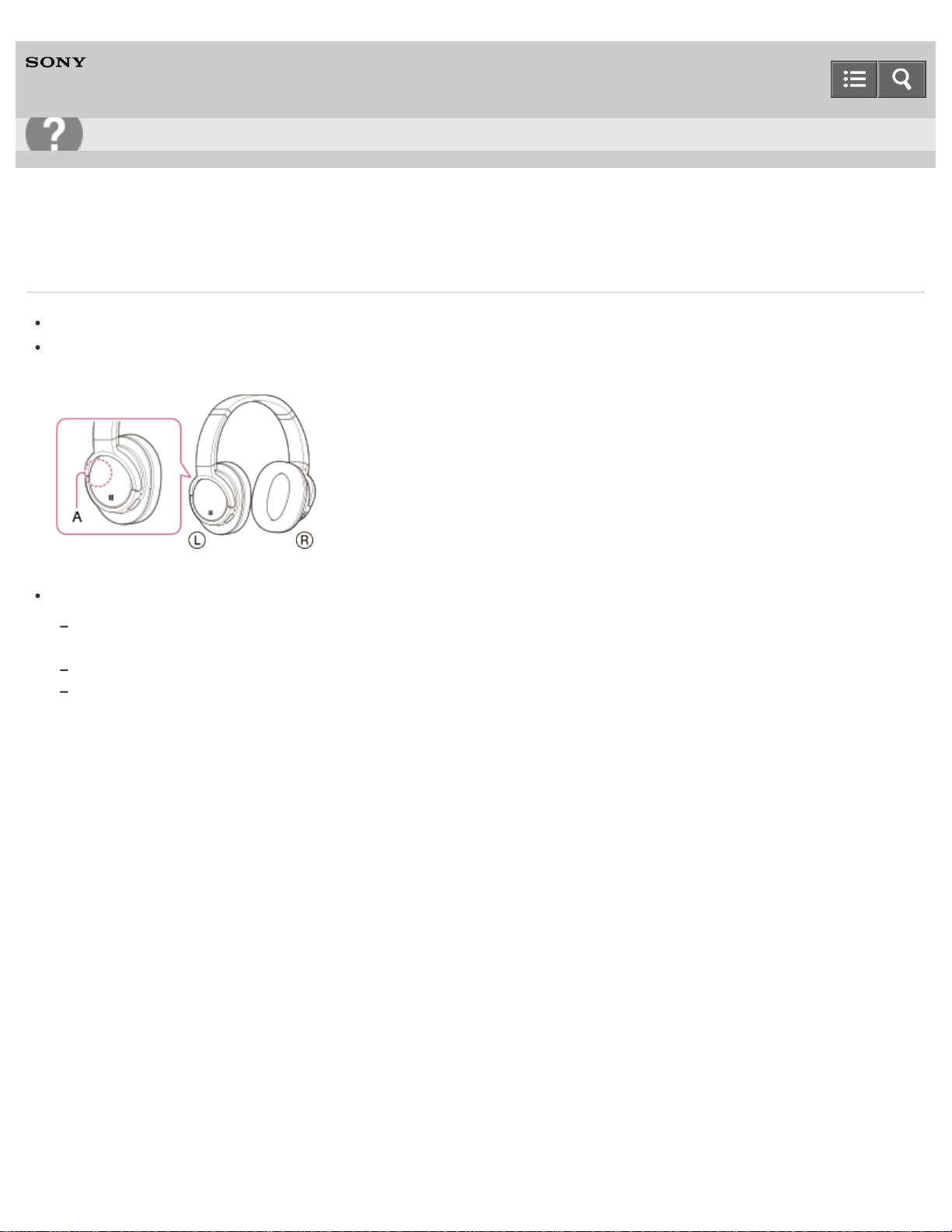
Wireless Stereo Headset
MDR-ZX770BT
Sound skips frequently during playback.
Set the headset to the “Priority on stable connection” mode. For details, refer to “Switching the sound quality mode.”
Remove any obstacles between the antenna of the BLUETOOTH device to be connected and the built-in antenna of
the headset. The antenna of the headset is built into the part shown in the dotted line below.
A: Location of the built-in antenna
BLUETOOTH communications may be disabled, or noise or audio dropout may occur under the following conditions.
There is a human body between the headset and the BLUETOOTH device. This situation may be improved by placing the
BLUETOOTH device facing the antenna of the headset.
There is an obstacle, such as metal or wall, between the headset and the BLUETOOTH device.
A device using 2.4 GHz frequency, such as a Wi-Fi device, cordless telephone, or microwave oven, is in use near this
headset.
4-564-474-11(1)
Copyright 2015 Sony Corporation
Help Guide
Troubleshooting
99
Wireless Stereo Headset
MDR-ZX770BT
Pairing cannot be done.
Bring the headset and the BLUETOOTH device within 1 m (3 feet) from each other.
When you turn on the headset for the first time after purchasing, initializing, or repairing it, the headset enters pairing
mode automatically. Pair the headset with a BLUETOOTH device. When you want to pair a 2nd or subsequent device,
press and hold the POWER button of the headset for about 7 seconds to enter pairing mode.
When you pair the headset with devices again after initializing or repairing the headset, information for pairing with the
headset remaining on the iPhone or other device may prevent you from pairing them successfully. In this case, delete
the pairing information of the headset from the device, and then pair them again.
Related Topic
BLUETOOTH function indicator
How to make a wireless connection to BLUETOOTH devices
Initializing the headset to restore factory settings
4-564-474-11(1)
Copyright 2015 Sony Corporation
Help Guide
Troubleshooting
100
Wireless Stereo Headset
MDR-ZX770BT
Unable to connect the headset to a BLUETOOTH device with one-touch connection (NFC)
Keep the smartphone close to the headset until the smartphone reacts. If you fail to connect, move the smartphone
slowly on the N-Mark of the headset.
Check that the NFC function of the smartphone is set to on.
If the smartphone is in a case, remove it.
NFC reception sensitivity varies depending on the device. If you repeatedly fail to connect the headset with a
smartphone by one touch, connect it to the headset by on-screen operation on the smartphone.
You cannot make a one-touch connection (NFC) while charging the battery because the headset cannot be turned on.
Finish charging first, and then make the one-touch connection (NFC).
Related Topic
One-touch connection (NFC) with a smartphone (Android 4.1 or later)
One-touch connection (NFC) with a smartphone (Android 2.3.3 or later, and less than Android 4.1)
4-564-474-11(1)
Copyright 2015 Sony Corporation
Help Guide
Troubleshooting
101
Wireless Stereo Headset
MDR-ZX770BT
Unable to make a BLUETOOTH connection
Check that the headset is turned on.
Check that the BLUETOOTH device is turned on and the BLUETOOTH function is on.
Connection with the BLUETOOTH device may not be memorized on the headset. Make a BLUETOOTH connection
from the BLUETOOTH device to the headset soon after pairing is complete.
The BLUETOOTH device is in sleep mode.
The BLUETOOTH connection is terminated. Make the BLUETOOTH connection again.
Related Topic
BLUETOOTH function indicator
How to make a wireless connection to BLUETOOTH devices
4-564-474-11(1)
Copyright 2015 Sony Corporation
Help Guide
Troubleshooting
102

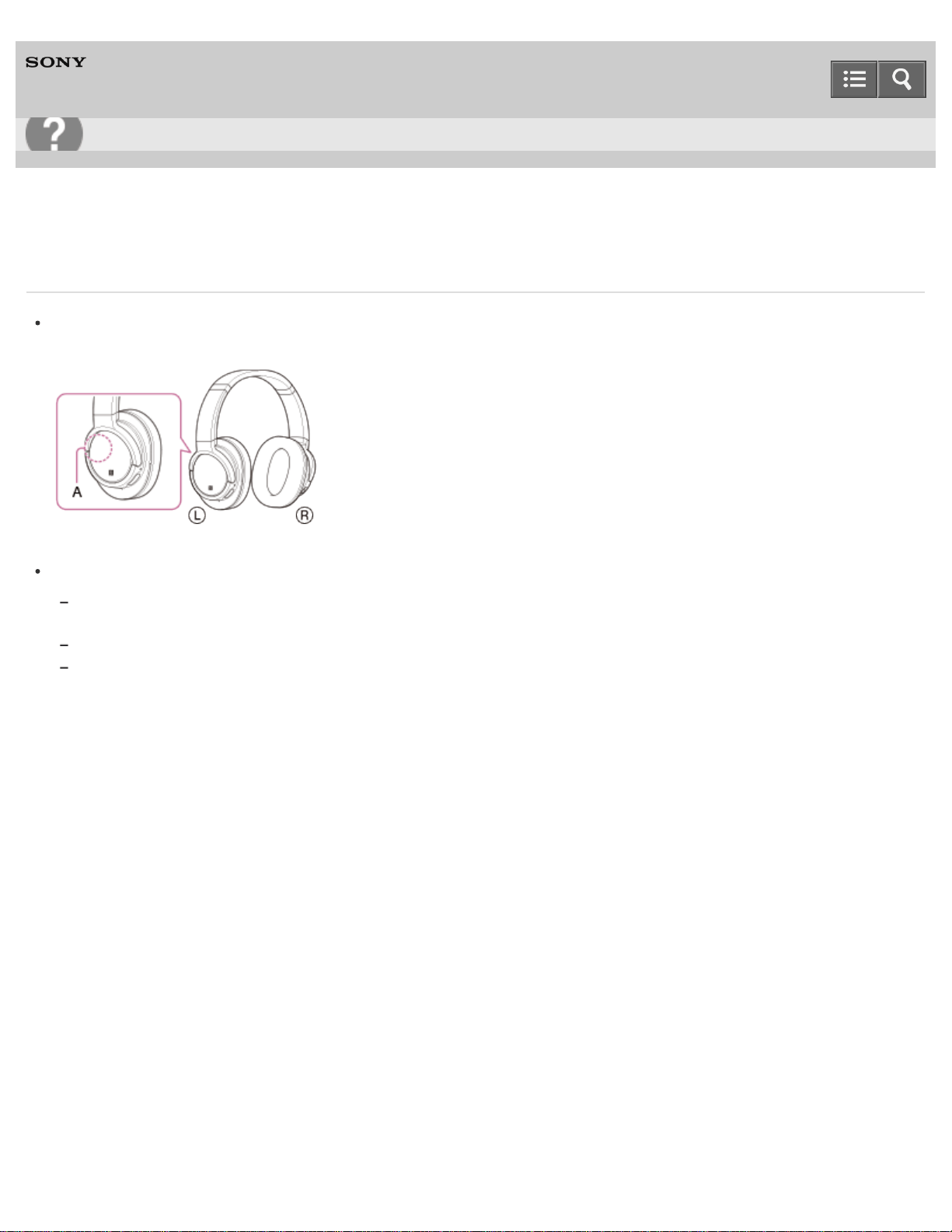
Wireless Stereo Headset
MDR-ZX770BT
The BLUETOOTH wireless communication range is short, or the sound skips.
Remove any obstacles between the antenna of the BLUETOOTH device to be connected and the built-in antenna of
the headset. The antenna of the headset is built into the part shown in the dotted line below.
A: Location of the built-in antenna
BLUETOOTH communications may be disabled, or noise or audio dropout may occur under the following conditions.
There is a human body between the headset and the BLUETOOTH device. This situation may be improved by placing the
BLUETOOTH device facing the antenna of the headset.
There is an obstacle, such as metal or wall, between the headset and the BLUETOOTH device.
A device using 2.4 GHz frequency, such as a Wi-Fi device, cordless telephone, or microwave oven, is in use near this
headset.
4-564-474-11(1)
Copyright 2015 Sony Corporation
Help Guide
Troubleshooting
104
Wireless Stereo Headset
MDR-ZX770BT
The headset does not operate properly.
Reset the headset. Pairing information is not deleted by this operation.
If you cannot use the headset even after resetting it, initialize the headset.
Related Topic
Resetting the headset
Initializing the headset to restore factory settings
4-564-474-11(1)
Copyright 2015 Sony Corporation
Help Guide
Troubleshooting
105
Wireless Stereo Headset
MDR-ZX770BT
No voice from callers
Check that both the headset and the connected device (i.e., smartphone) are turned on.
Turn up the volume of the headset and the connected device (i.e., smartphone).
Check that output of the BLUETOOTH device is set for the headset.
Select an HFP or HSP BLUETOOTH connection by operating the BLUETOOTH device.
If you are listening to music using the headset, stop playback, press the button on the headset and talk.
Related Topic
How to make a wireless connection to BLUETOOTH devices
Receiving a call
Making a call
4-564-474-11(1)
Copyright 2015 Sony Corporation
Help Guide
Troubleshooting
106

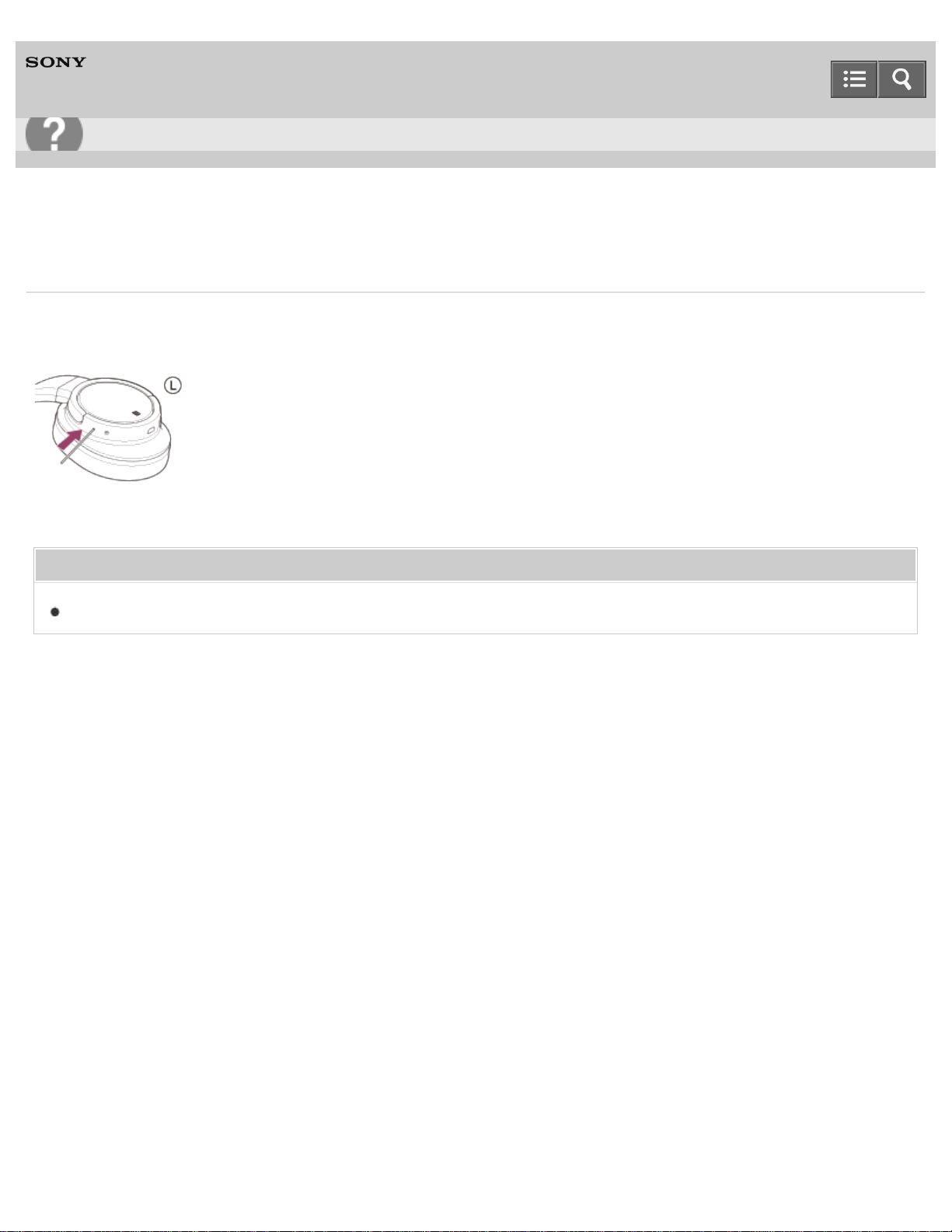
Wireless Stereo Headset
MDR-ZX770BT
Resetting the headset
If the headset cannot be turned on, or if it cannot be operated even when it is turned on, push the RESET button with a
pointed object. The headset is reset, and turns off when it was on.
If the headset does not operate correctly even after resetting, initialize the headset to restore factory settings.
Related Topic
Initializing the headset to restore factory settings
4-564-474-11(1)
Copyright 2015 Sony Corporation
Help Guide
Troubleshooting
108

Wireless Stereo Headset
MDR-ZX770BT
Initializing the headset to restore factory settings
Turn off the headset, then press and hold the POWER and / buttons simultaneously for more than 7 seconds.
The indicator (blue) flashes 4 times, and the headset is reset to the factory settings. All pairing information is deleted.
If the headset does not operate correctly even after initializing, consult your nearest Sony dealer.
4-564-474-11(1)
Copyright 2015 Sony Corporation
Help Guide
Troubleshooting
109