StarBoard
FX-77/FX-63/FX-82W
User’s Guide
How to Request a User’s Guide
When requesting a separate copy of this user’s guide, specify FXEU-051101.
FXEU-051101
Read this user’s guide and carefully retain it for future reference.
Before using this product, carefully read and fully understand the safety instructions.
Store this user’s guide nearby for ease of reference.

1
StarBoard
F
X
-77/F
X
-63/F
X
-82
W
English
Notices
Reproduction or reprinting, without permission, of this manual or any part thereof is prohibited.
The contents of this manual are subject to change without prior notice.
Every effort has been made to ensure that this manual is complete and correct. However, should
any questionable points, mistakes, etc., come to your attention, please inform the vendor.
Please be advised in advance that this company will assume no responsibility for losses, etc.,
resulting from the operation of this product, regardless of the preceding clauses.
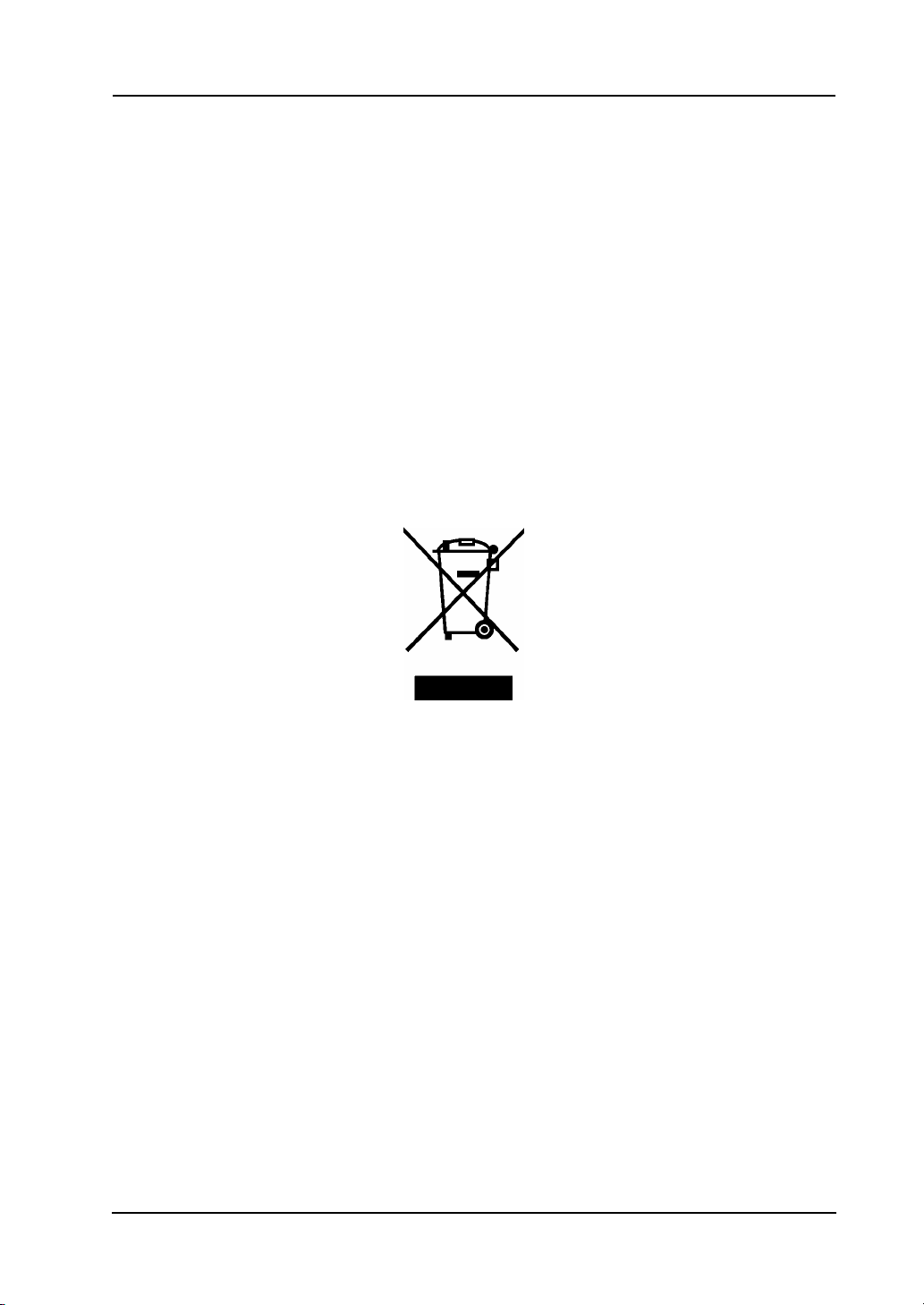
WEEE
"The mark (bin mark) is in compliance with the Waste Electrical and Electronic Equipment
Directive 2002/96/EC (WEEE)."
"The mark indicates the requirement NOT to dispose the equipment as unsorted municipal
waste, but use the return and collection systems available"
As for details, please verify the product home page.
Disclaimers
Hitachi Software Engineering Co., Ltd. assumes no liability and makes no warranty, either
express or implicit, regarding the contents of this user’s guide.
Also, the company makes no warranty as to the product’s suitability, merchantability or fitness
for a particular intended use.
All products of Hitachi Software Engineering Co., Ltd., described in this user’s guide are
presently for sale or are site-licensed.
Users who purchased the aforesaid product(s) will bear the costs of all required services, repairs,
and damages resulting from defects in this product, and will bear the costs of direct or indirect
damages (including the loss of profits or required information) that resulted from the product
defects.
Moreover, Hitachi Software Engineering Co., Ltd., retains the right to revise this user’s guide
and to modify the contents thereof, without any obligation to notify anyone.

2
StarBoard
F
X
-77/F
X
-63/F
X
-82
W
English
Product Assurance Provisions
This product is limited to use in the European Union markets.
For warranty details, refer to Appendix B at the end of this user's guide.
This first edition of the user’s guide (FXEU-051101) is for the following products:
AH00086: StarBoard FX-77 (Wired)
AH00087: StarBoard FX-77 (Wireless)
AH00088: StarBoard FX-63 (Wired)
AH00089: StarBoard FX-63 (Wireless)
AH00090: StarBoard FX-82W(Wired)
AH00091: StarBoard FX-82W(Wireless)
K-W033-021: Floor Stand
The StarBoard FX-77 and StarBoard FX-63 and StarBoard FX-82W incorporate eBeam
technology licensed from Luidia, Inc. eBeam is a trademark of Luidia Inc.
Windows, Windows 98, Windows 98 SE, Windows 2000, Windows Me, and Windows XP are
trademarks of Microsoft Corporation (U.S.) and in other countries.
Other trademarks and product names are trademarks and/or registered trademarks of their
respective holders.
Manual Creation Dates
October 2005, 1st Edition FXEU-051101
All Rights Reserved. Copyright © 2003,2004,2005 Hitachi Software Engineering Co., Ltd.
3
StarBoard
F
X
-77/F
X
-63/F
X
-82
W
Safe Handling
English
Safe Handling
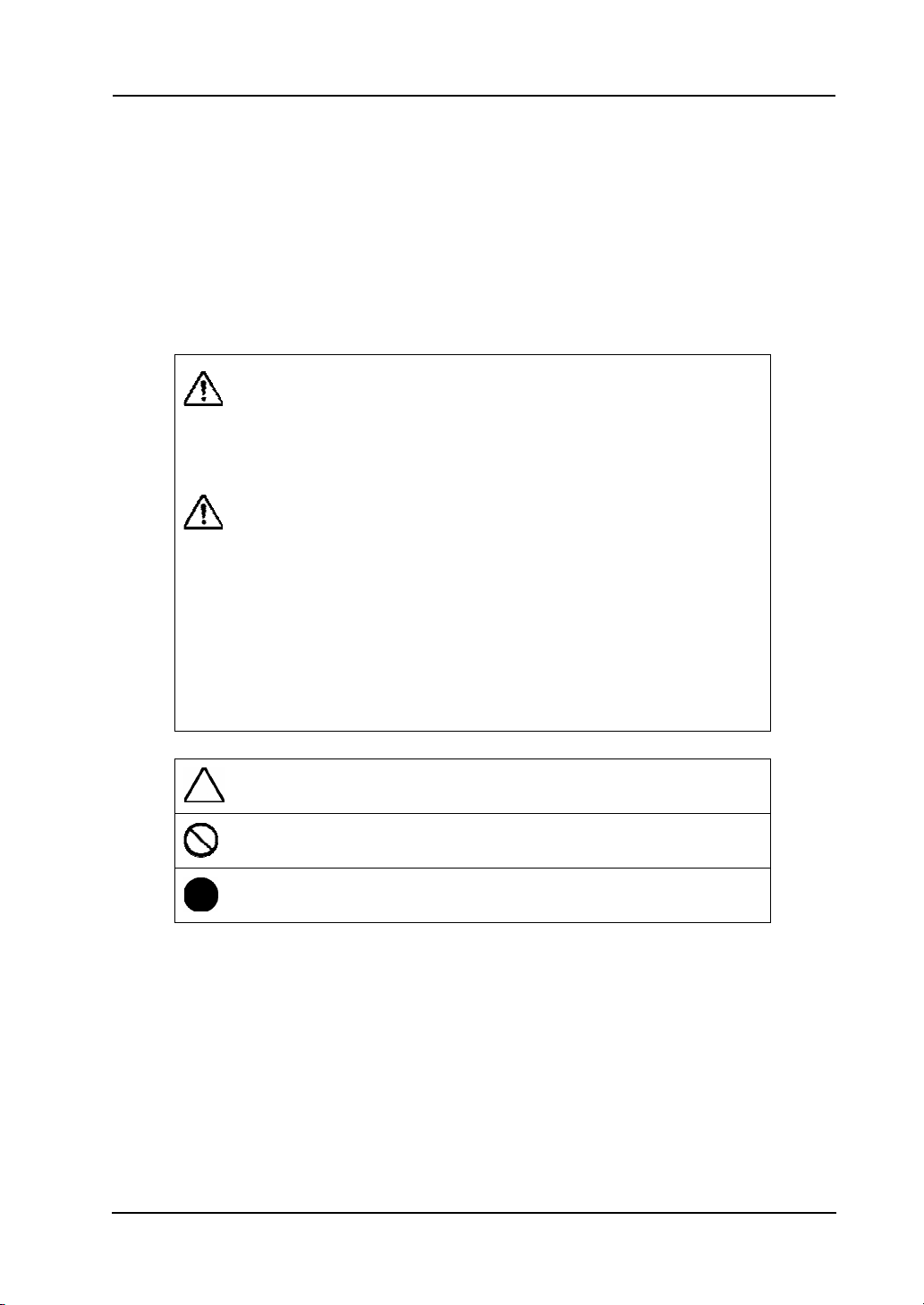
Markings and Symbols
Various markings and symbols are used in this user’s guide and on this product, to ensure
the safe and correct use of this product and to prevent personal injury and property damage.
These symbols and their meanings are as explained below. Understand the information well
before reading the body of the user’s guide.
WARNING
This symbol indicates information that, if ignored or applied incorrectly,
creates the possibility of death or serious personal injury.
CAUTION
This symbol indicates information that, if ignored or applied incorrectly,
might result only in personal impairment or physical damage.
CAUTION
This symbol indicates information that, if ignored or applied incorrectly,
might result in physical hazard or abnormal operation.
This symbol draws attention to cautions (including warnings).
This symbol indicates something prohibited.
This symbol indicates something that must be done.
4
StarBoard
F
X
-77/F
X
-63/F
X
-82
W
Safe Handling
English
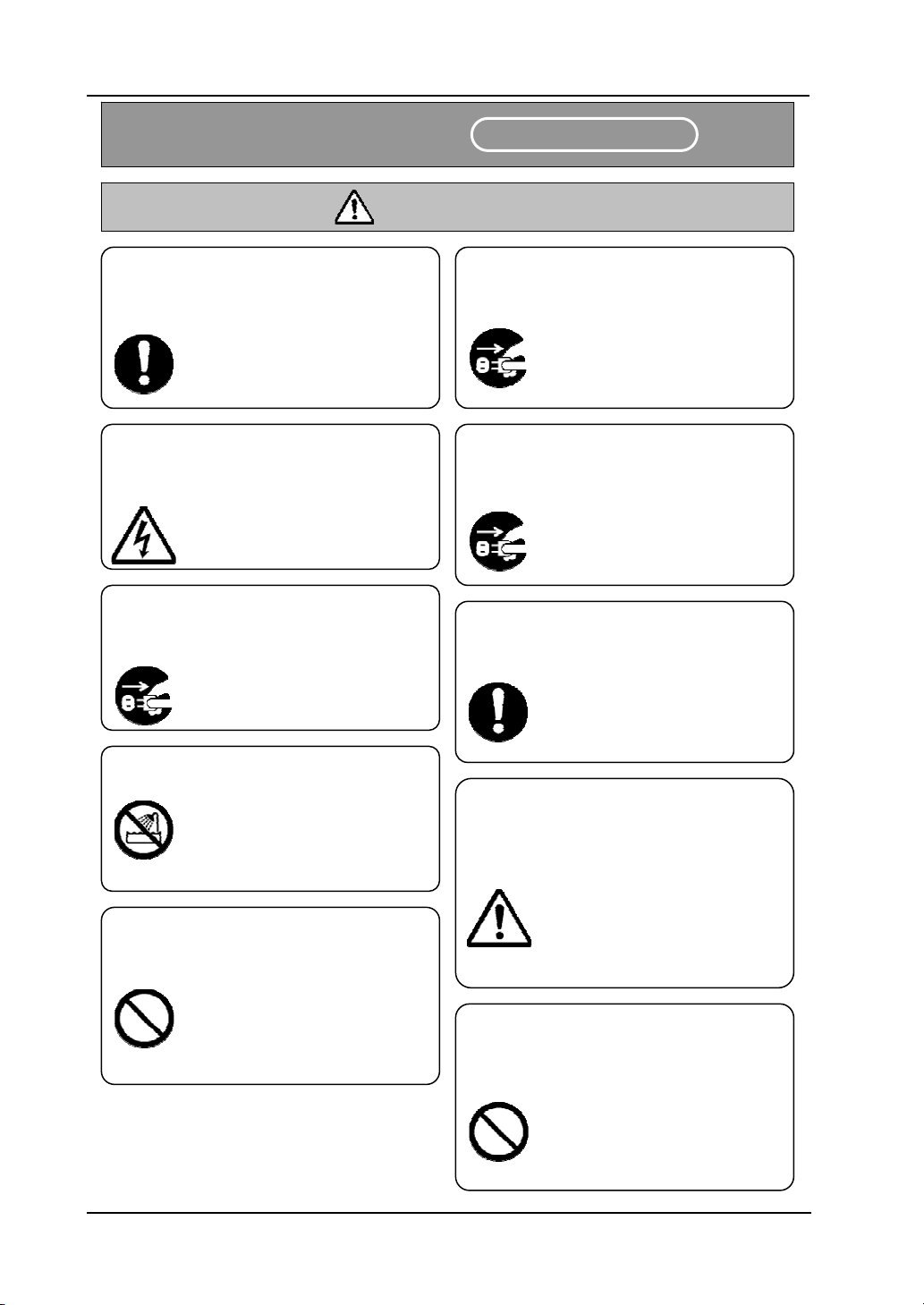
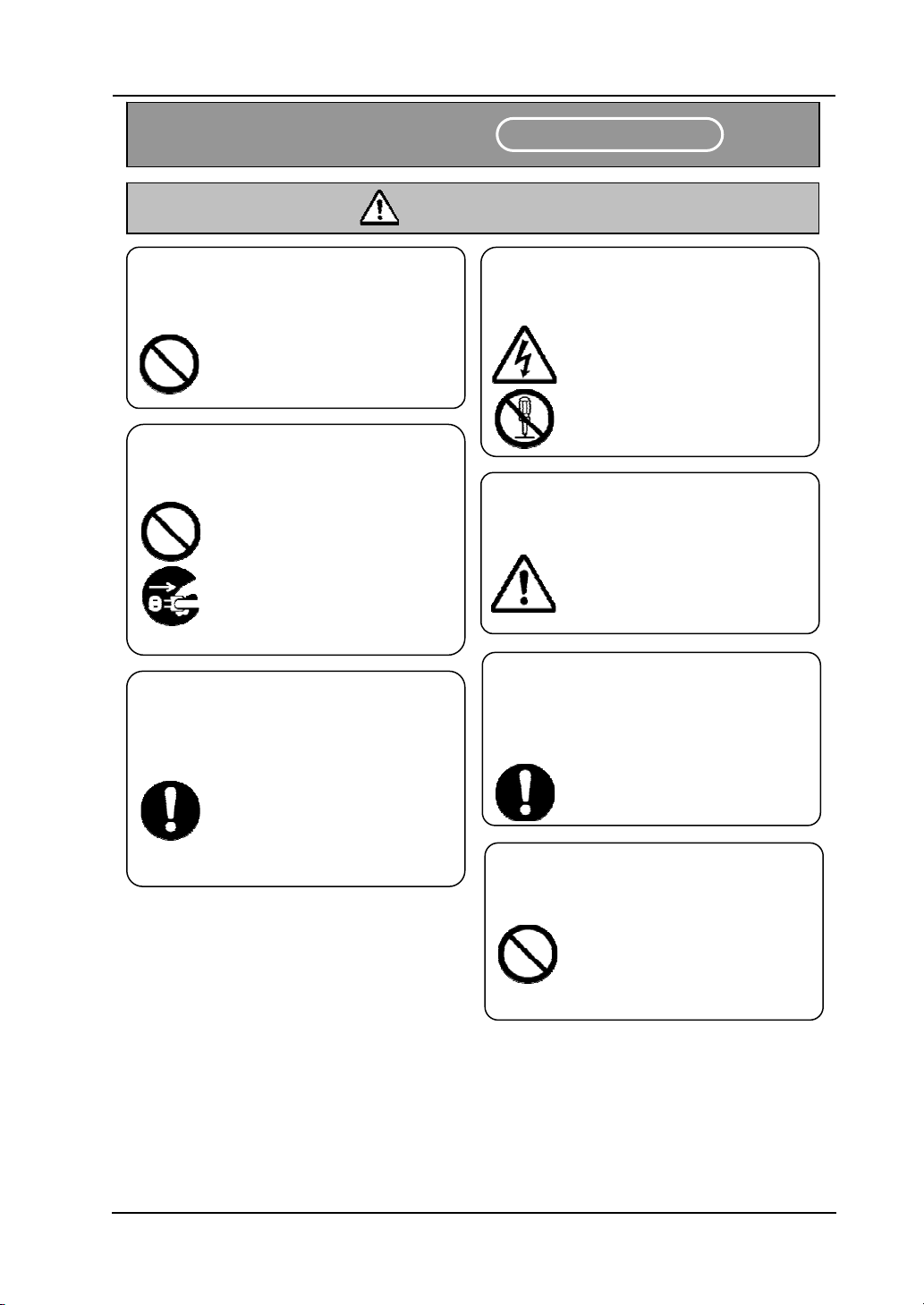
Securely insert the power plug into the
mains.
If it is not plugged in securely,
overheating will occur, possibly
resulting in electric shock or
fire.
Before moving this product, detach the
power plug and the mains lead.
The mains lead might be
damaged, possibly resulting in
electric shock or fire.
Do not plug in the power plug with a wet
hand.
Electric shock will result.
When plugging in or unplugging the
power plug, hold the plug.
If the mains lead is pulled, it
might be damaged, possibly
resulting in electric shock or
fire.
Before cleaning this product, unplug the
power plug.
Electric shock sometimes
results.
Periodically clean the power plug to
remove dust.
If a dirty plug is plugged into a
mains, fire or electric shock
might result.
Do not use this product near water.
Electric shock will result.
Be careful about the locations of the mains
lead, etc.
The mains lead might trip
someone, possibly causing the
product to fall, etc., thereby
causing injury or product
failure. Be careful with their
locations.
Do not damage, break, process, or forcibly
bend the mains lead.
The mains lead will be
damaged, resulting in fire or
electric shock.
Use the product at the indicated power
supply voltage.
If the product is used at a
power supply voltage other
than the one indicated, it
would fail, resulting in fire or
electric shock.
Safety Precautions
Alwa
y
s com
p
l
y
with them.
WARNINGS
5
StarBoard
F
X
-77/F
X
-63/F
X
-82
W
Safe Handling
English
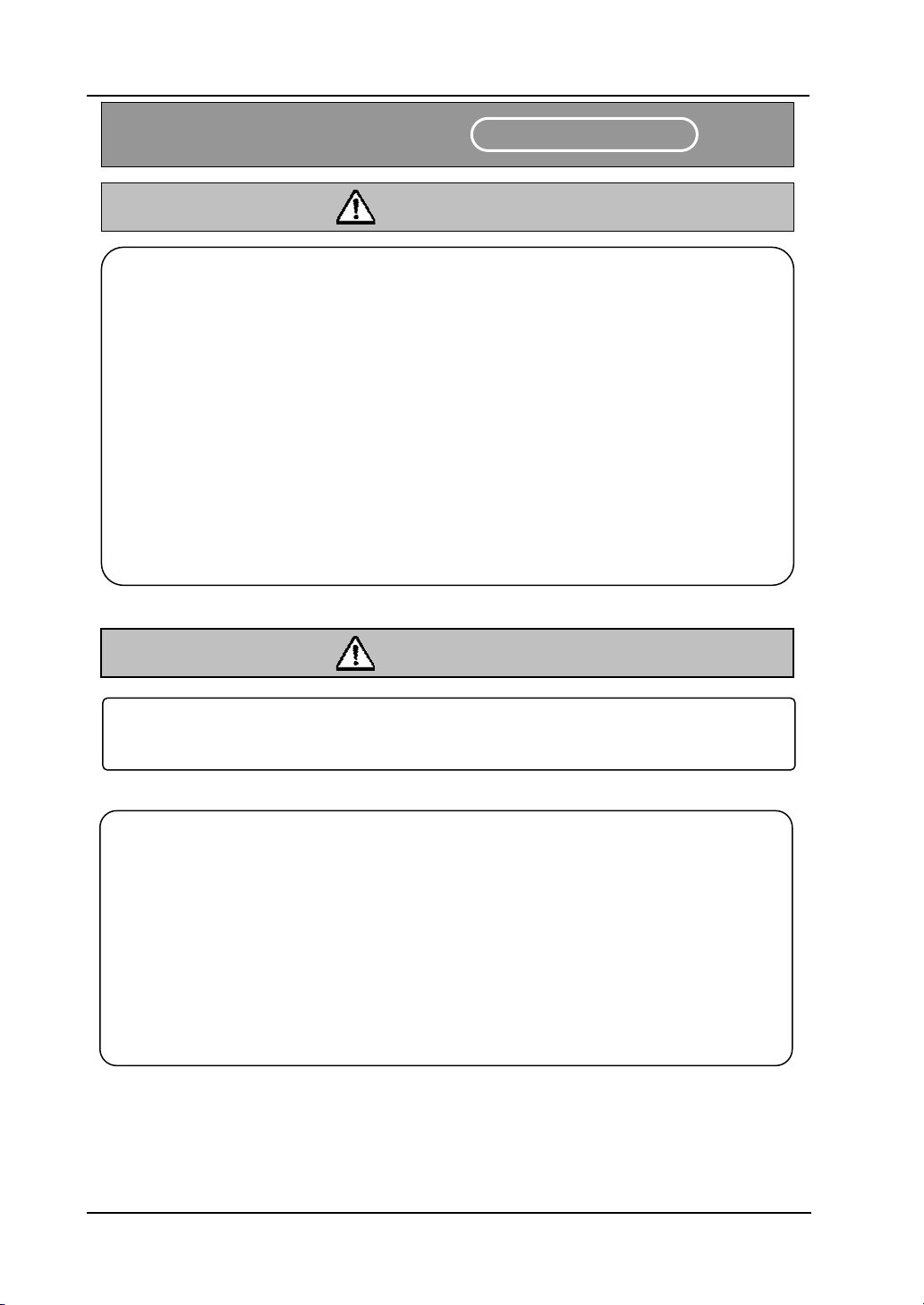
Do not use a mains lead other than the
accessory mains lead.
If a mains lead other than the
accessory mains lead is used,
fire or electric shock might
result.
Do not open or alter the cabinet of this
product.
The cabinet contains
high-voltage areas, so electric
shock or other injury will
result.
Only place specified objects on this
product.
If a liquid or a metal object
enters this product, electric
shock or fire might result.
If either should enter, unplug
the power plug from the mains
and contact your dealer.
Do not leave this product or any of its
accessories on the floor.
Someone might step on it and
break it, or might be injured by
tripping on it.
This product must be disposed of as
industrial waste, in accordance with the
relevant laws and regulations.
Do not use this product in a location with
high temperature or high humidity.
This product’s usage
environment conditions:
Temp.: 50 °F to 95 °F
Humidity: 20% to 80%
(But no condensation must be
allowed to form.)
Safety Precautions
Alwa
y
s com
p
l
y
with them.
WARNINGS
Do not place a heavy object on the mains
lead, heat or pull it.
The mains lead will be
damaged, causing fire or
electric shock.
6
StarBoard
F
X
-77/F
X
-63/F
X
-82
W
Safe Handling
English
WARNINGS
Safety Precautions
Alwa
y
s com
p
l
y
with them.
In the following cases, unplug the product from the mains and ask the dealer.
a. After the mains lead or power supply plug is damaged.
b. After a liquid is spilled onto the main unit.
c. After the main unit is exposed to rain or water.
d. After this product malfunctions, even when operated according to the instruction
manual. Adjust this product within the ranges specified in the instruction manual. Do
not make other adjustments. A qualified service representative is required to correct
improper adjustments.
e. After this product falls or after its cabinet is damaged.
f. After the functionality of this product changes and repair by a service representative is
considered necessary.
WARNINGS
This product contains chemicals, including lead, known to the State of California to
cause cancer, and birth defects or other reproductive harm. Wash hands after handling.
Wireless models use 2.4GHz radio frequency and users must follow:
a. Keep away from medical devices such as heart pacer.
b. Keep away from licensed / non-licensed radio stations.
c. The device may cause slower performance or interference with IEEE802.11g/b
wireless devices. Switch off other wireless devices when they are not used.
d. Change the location of the device if it does not work near other wireless devices.
e. Keep remove shielding objects between the StarBoard and the receiver.
f . Keep away from other electric devices. Microwave may cause the interference.
7
StarBoard
F
X
-77/F
X
-63/F
X
-82
W
Safe Handling
English
Careful thought was given to the cautions on this device and in this user’s guide. However,
unanticipated circumstances might occur. When operating this product, users themselves must
exercise caution as well as follow instructions.
Caution Details Page(s)
Fasten the screws tightly.
Otherwise, the stand might fall and cause injury or the impact of the falling
board might cause damage.
P.1-5
This work should be performed by at least two people.
The board might fall and cause injury or its impact might cause damage.
P.1-6
P.1-7
P.1-9
Fasten the screws tightly.
The board might fall and cause injury or its impact might cause damage.
P.1-7
Before installation, take the wall material into consideration.
If it is installed by using a method inappropriate for the wall material, the
board might fall.
Also, installation might be impossible, depending on the wall selected. For
details, consult your dealer.
P.1-8
Before installation, take the wall strength into consideration.
Before using the StarBoard, make sure that it has been fastened securely so
that it will not fall. Also verify that the wall mounting bracket is strong
enough to support a weight of approximately 88.2lb. /40 kg.
P.1-8
Be sure to orient the battery correctly.
Do not reverse the + and – terminals of the battery, and use only the
specified type of battery. Otherwise, it will overheat and fail.
P.2-1
Be sure to insulate the battery before discarding it.
Before discarding the AA battery, be sure to insulate the + and – terminals
with cellophane tape, or similar material. If batteries are discarded without
insulation, they might short or overheat, rupture, and ignite, resulting in
injury or fire. Also, dispose of them as instructed by the local authorities.
P.2-1
CAUTIONS

8
Sta
r
Board F
X
-77/F
X
-63/F
X
-82
W
Contents
English
Contents
Notices..................................................................................................................1
Disclaimers...........................................................................................................1
Product Assurance Provisions............................................................................2
1. Introduction................................................................................................. 1-1
1.1 Parts Check......................................................................................................... 1-1
1.1.1 StarBoard ....................................................................................................................1-1
1.1.2 Stand............................................................................................................................1-2
1.2 Role of Each Part................................................................................................ 1-3
1.2.1 StarBoard ....................................................................................................................1-3
1.2.2 Function Area..............................................................................................................1-4
1.2.3 Electronic Pen.............................................................................................................1-4
1.3 Assembly and Setup............................................................................................ 1-5
1.3.1 Stand Setup Method....................................................................................................1-5
1.3.2 Wall-Mounting Setup Method ....................................................................................1-8
1.3.3 How to Connect When Using Projection Mode .......................................................1-10
2. Usage ............................................................................................................ 2-1
2.1 Basic Usage......................................................................................................... 2-1
2.1.1 Preparation..................................................................................................................2-1
2.1.2 How to Use Electronic Pen.........................................................................................2-2
2.1.3 Basic operation of Electronic Pen...............................................................................2-3
2.2 How to Use StarBoard in Projection Mode ........................................................2-4
2.2.1 Wired Connection .......................................................................................................2-4
2.2.2 Wireless Connection ...................................................................................................2-5
3. Appendix...................................................................................................... 3-1
A System Specifications ........................................................................................... 3-1
B Provisions of Product Warranty ............................................................................3-3
1-1
StarBoard
F
X
-77/F
X
-63/F
X
-82
W
Introduction
English
1. Introduction
1.1 Parts Check
After unpacking, make sure that all of the following parts are present.
1.1.1 StarBoard
(1) Parts
No. Name Qty.
(1) Board 1
(2) Electronic pen 1
(3) AC Adaptor (*1) 1
(4) AC Adaptor Plug (*1) 4
(5) Power Supply to USB Adaptor (*1) 1
(6) Bluetooth Adaptor (*2) 1
(7) Wall mounting bracket 2
(8) AA alkaline Battery 2
(9) StarBoard Software x.x (CD-ROM) (*3) 2
(10) User’s Guide (this manual) 1
(11) StarBoard Software x.x User's guide (*3) 1
(12) Warranty Sheet 1
(*1) (3),(4),(5) is bundled only if the StarBoard FX-77(Wireless) or StarBoard
FX-63(Wireless) or StarBoard FX-82W(Wireless) is purchased.
(*2) (6) is bundled only if the Bluetooth Adapter is purchased.
(∗3) The term “x.x.” as used in this manual denotes the same version as the software
which is included with the accessories.
(1)
(2)
(3)
(4)
(5)
(6)
(7)
(8)
(9)
(10)
(11)
(12)
1-2
StarBoard
F
X
-77/F
X
-63/F
X
-82
W
Introduction
English
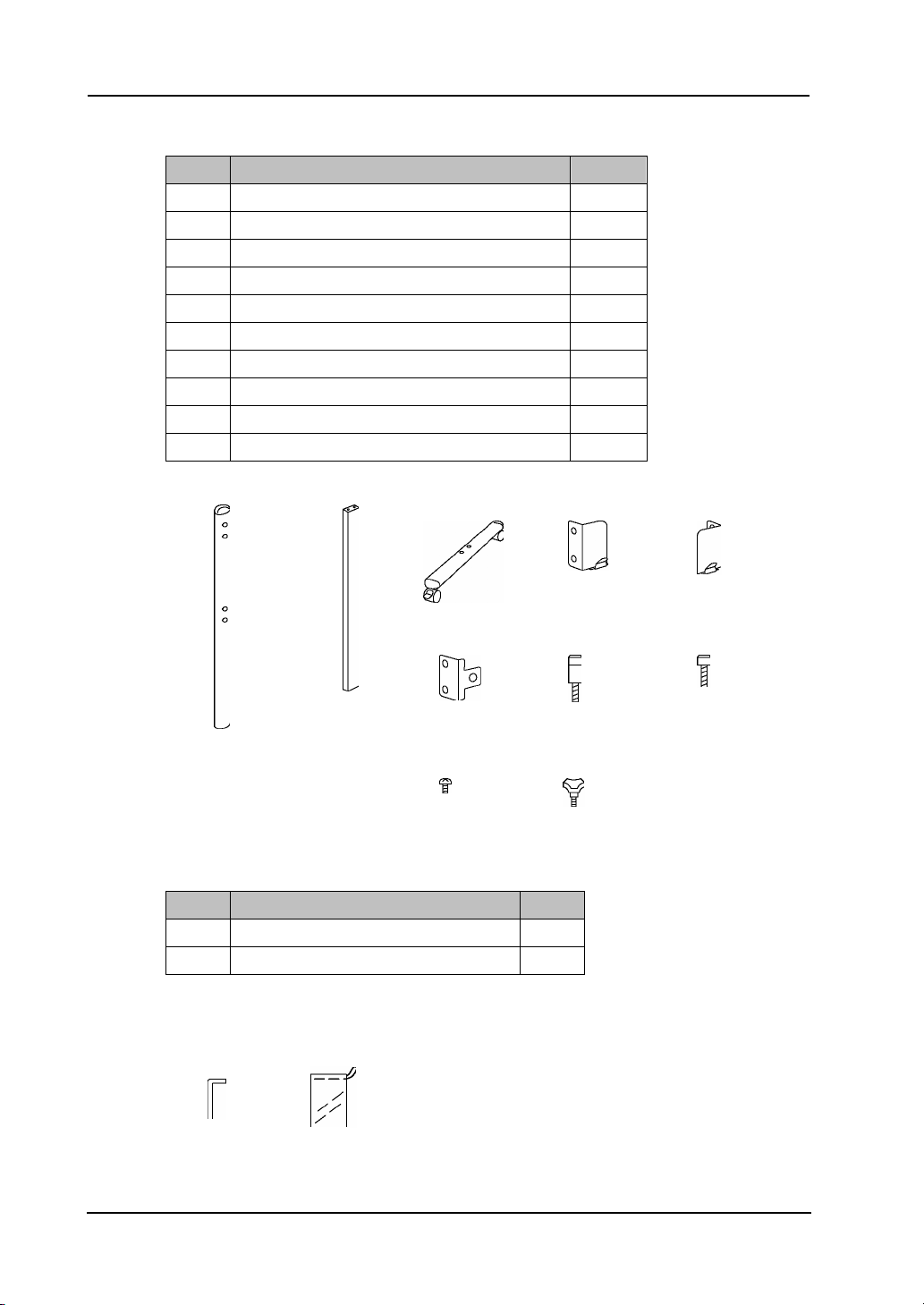
1.1.2 Stand
(1) Parts
No. Name Qty.
(1) Stand vertical support 2
(2) Stand crossbar 2
(3) Stand foot with casters 2
(4) Board receiving bracket (left-hand version) 1
(5) Board receiving bracket (right-hand version) 1
(6) Board fixing bracket 2
(7) Hex socket head cap screw, with collar 8
(8) Hex socket head cap screw 4
(9) Panhead screw 8
(10) Triangular knob screw 2
(1) (2) (3) (4) (5)
(6) (7) (8)
(9) (10)
(2) Accessories
No. Name Qty.
(1) Allen wrench 1
(2) Allen wrench holder 1
(2) is used to prevent the loss of the Allen wrench. Hang
it in the appropriate place on the stand.
(1) (2)
1-3
StarBoard
F
X
-77/F
X
-63/F
X
-82
W
Introduction
English
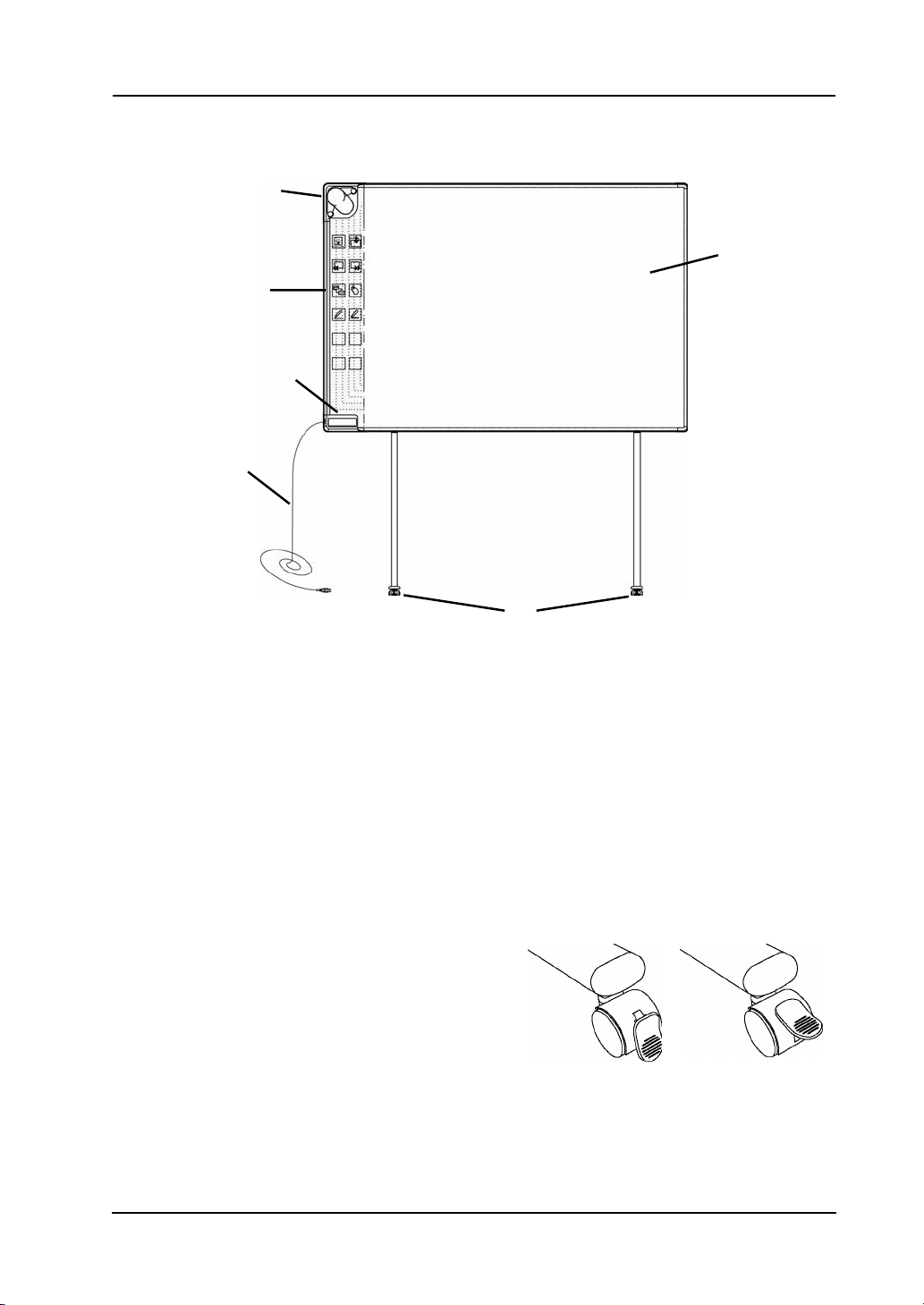
1.2 Role of Each Part
1.2.1 StarBoard
(1) Digitiser
Receives information regarding annotations and
graphics drawn with the electronic pen, and
transmits this data to the PC. Green light
indicates a wired connection, and blue light
indicates a wireless connection.
(2) Function Area
Buttons that shortcut the functions used
frequently in applications are located here.
Please refer to the next page for details.
(3) Pen Input Active Area
Annotations and graphics drawn in this area are
stored into the PC. When using the StarBoard in
the Projection Mode, confine to this area the
images projected by the projector.
(4) USB Cable
Connect to the PC (for Wired Models) or
connect to AC adaptor (for Wireless
Models).
(5) Casters
After setting up the StarBoard, lock the
casters. Lift up the tab to unlock a caster,
and press down the tab to lock it.
Locked Unlocked
(6) Pen Holder
(1)
(2)
(3)
(5)
(6)
(4)
1-4
StarBoard
F
X
-77/F
X
-63/F
X
-82
W
Introduction
English
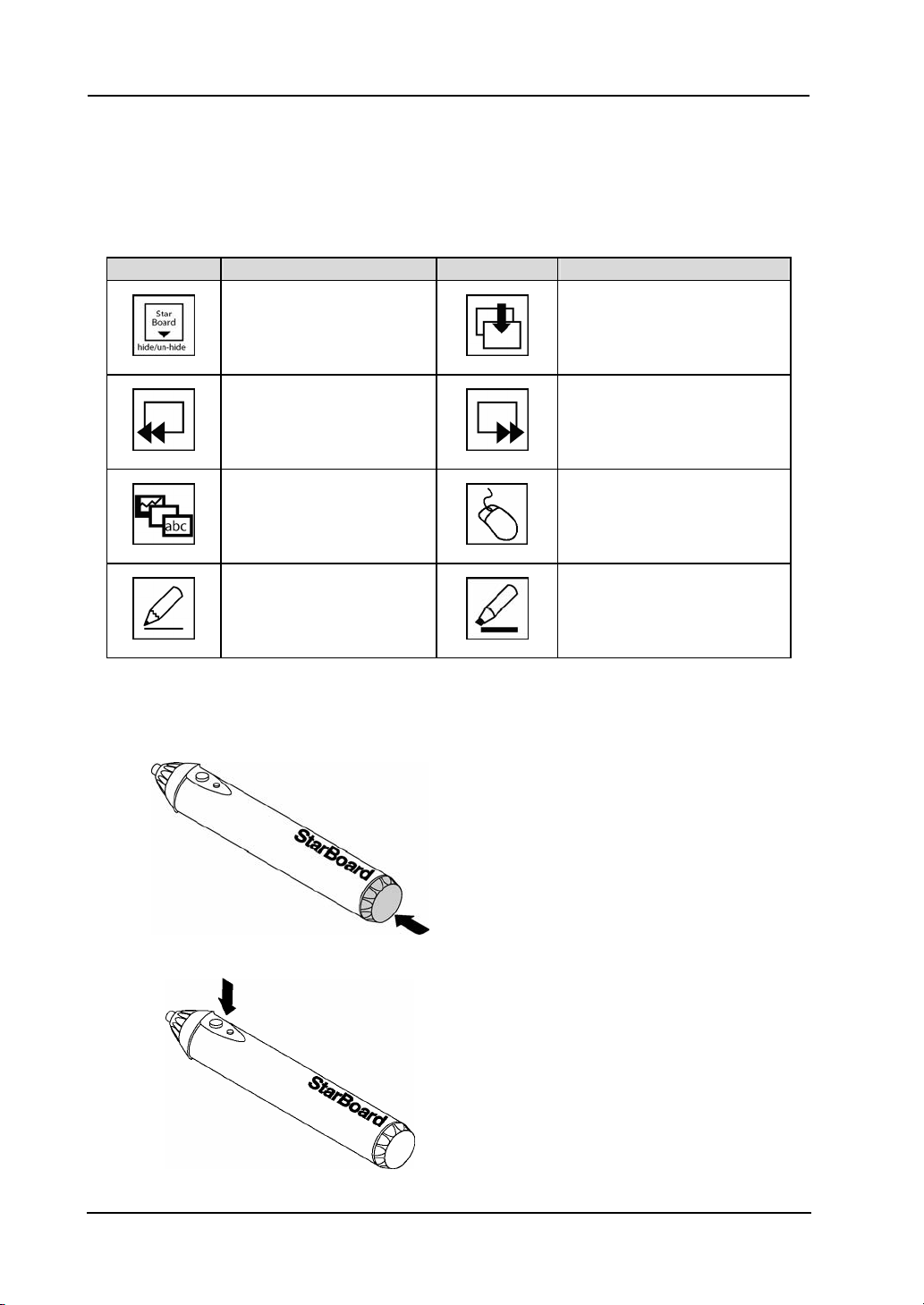
1.2.2 Function Area
There are the shortcut buttons frequently used in applications (the default settings are
shown below), and you can customise the buttons as desired. Please refer to the online help
for details.
Symbol Description Symbol Description
Show/Hide the StarBoard
Software toolbar.
Insert and show a blank page.
Show previous page.
Show next page.
Show/Hide Topic List.
Switch to PC Operation.
Select Pen.
Select Highlighter.
1.2.3 Electronic Pen
(1) Battery cover
When replacing the battery, open the lid
and replace the battery.
(2) Side buttons
Please see page 2-3.
1-5
StarBoard
F
X
-77/F
X
-63/F
X
-82
W
Introduction
English
1.3 Assembly and Setup
When setting up the StarBoard, keep the following in mind:
• Select a level and stable position.
• Do not set it up near equipment that might generate electromagnetic waves and radio
frequencies (e.g. radio transmitter, television, copying machine, air conditioner).
• Avoid locations that are dusty, that are subject to extremely high or low temperature or
humidity or that are exposed to direct sunlight.
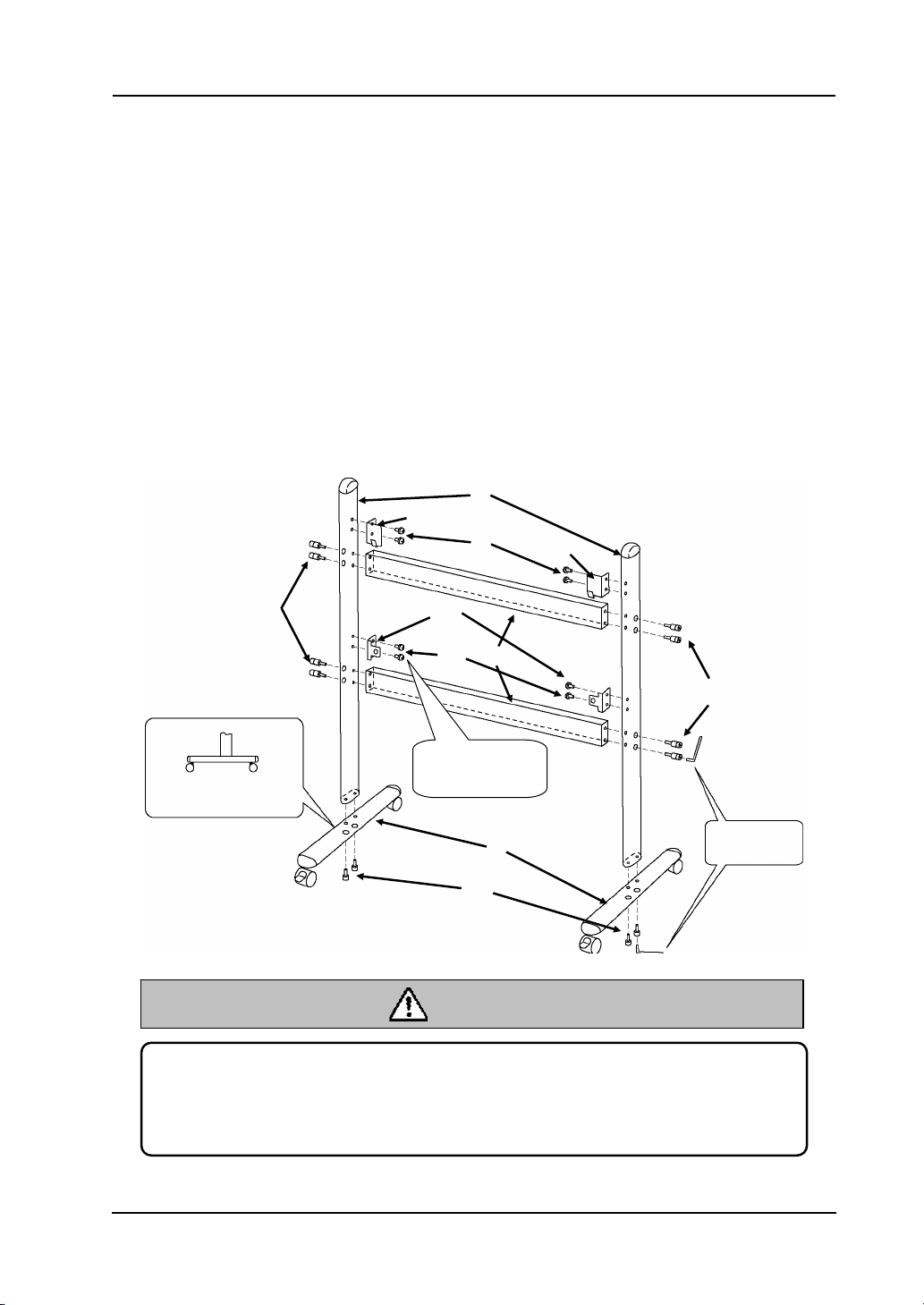
1.3.1 Stand Setup Method
Reconfirm that all parts are present before assembling and setting up the stand.
(1) Stand Assembly
Assemble the stand according to the following diagram. Numbers in the diagram
correspond to numbers in the parts list on page 1-2.
Long Short
Align both feet with the
longer side facing forward
Fasten with an
Allen wrench.
(1)
(2)
(3)
(4)
(5)
(6)
(7)
(8)
(9)
(9)
Fasten the screws tightly.
Otherwise, the stand might fall and cause injury or the impact of the falling board
might cause damage.
CAUTION
Fasten with a
Phillips screwdriver.
(7)
1-6
StarBoard
F
X
-77/F
X
-63/F
X
-82
W
Introduction
English
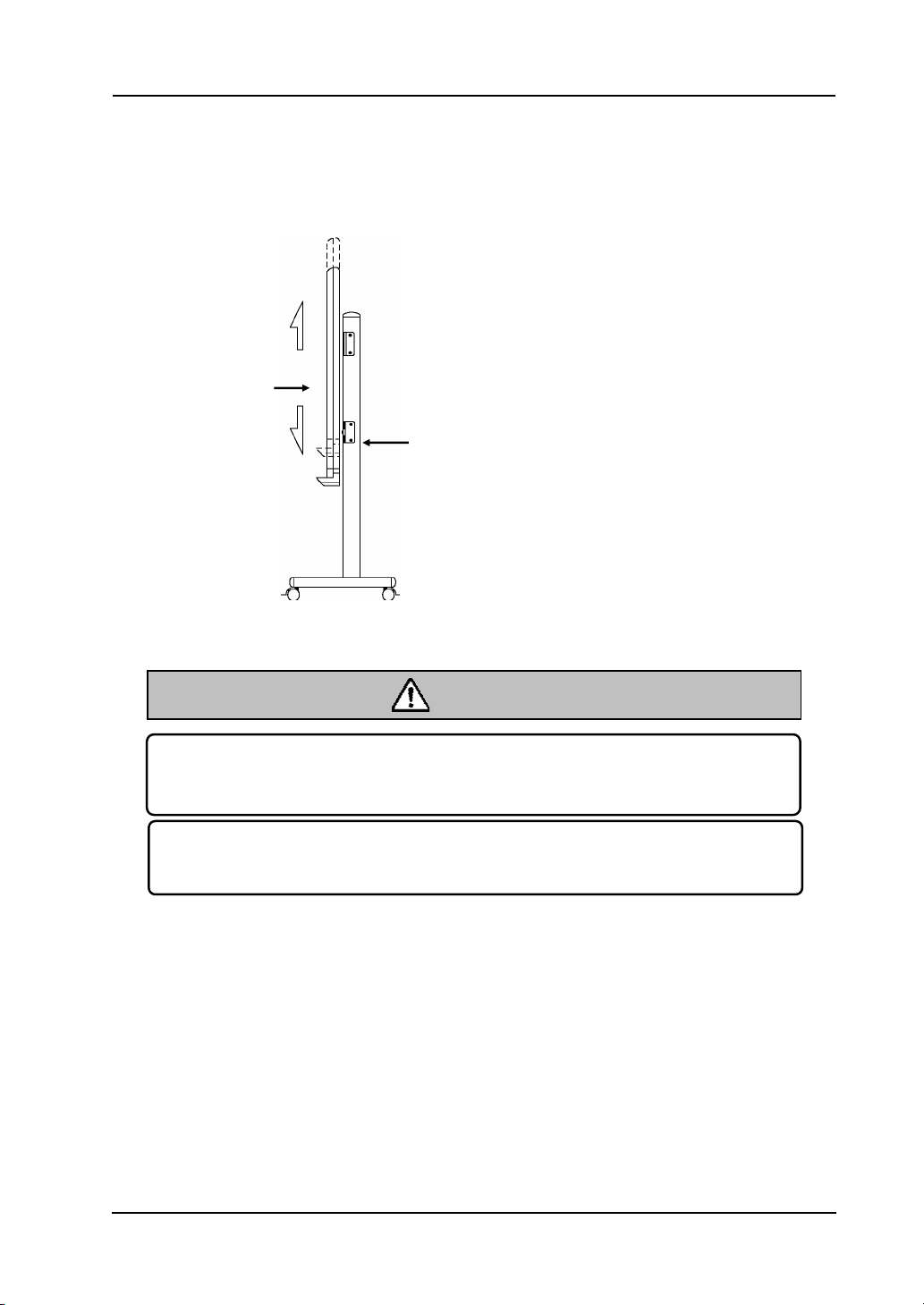
(2) Board Installation
Install the board on the stand assembled in step (1). Install the board according to the
following procedure. Furthermore, this step should be performed by at least two
people. Numbers in the diagram correspond to numbers in the parts list on page 1-2.
(a) Decide the level (out of six) at
which the board will be installed,
and use the square holes on the
back of the board to hang it on the
board receiving brackets.
(b) Verify that one of the board’s
square holes is attached securely to
the board receiving bracket on each
side.
(c) Tighten triangular knob screw to
fasten the board to the board fixing
bracket on each side.
(6)
(4)
(5)
(10)
Board
This work should be performed by at least two people.
The board might fall and cause injury or its impact might cause damage.
Fasten the screws tightly.
The board might fall and cause injury or its impact might cause damage.
CAUTION
1-7
StarBoard
F
X
-77/F
X
-63/F
X
-82
W
Introduction
English
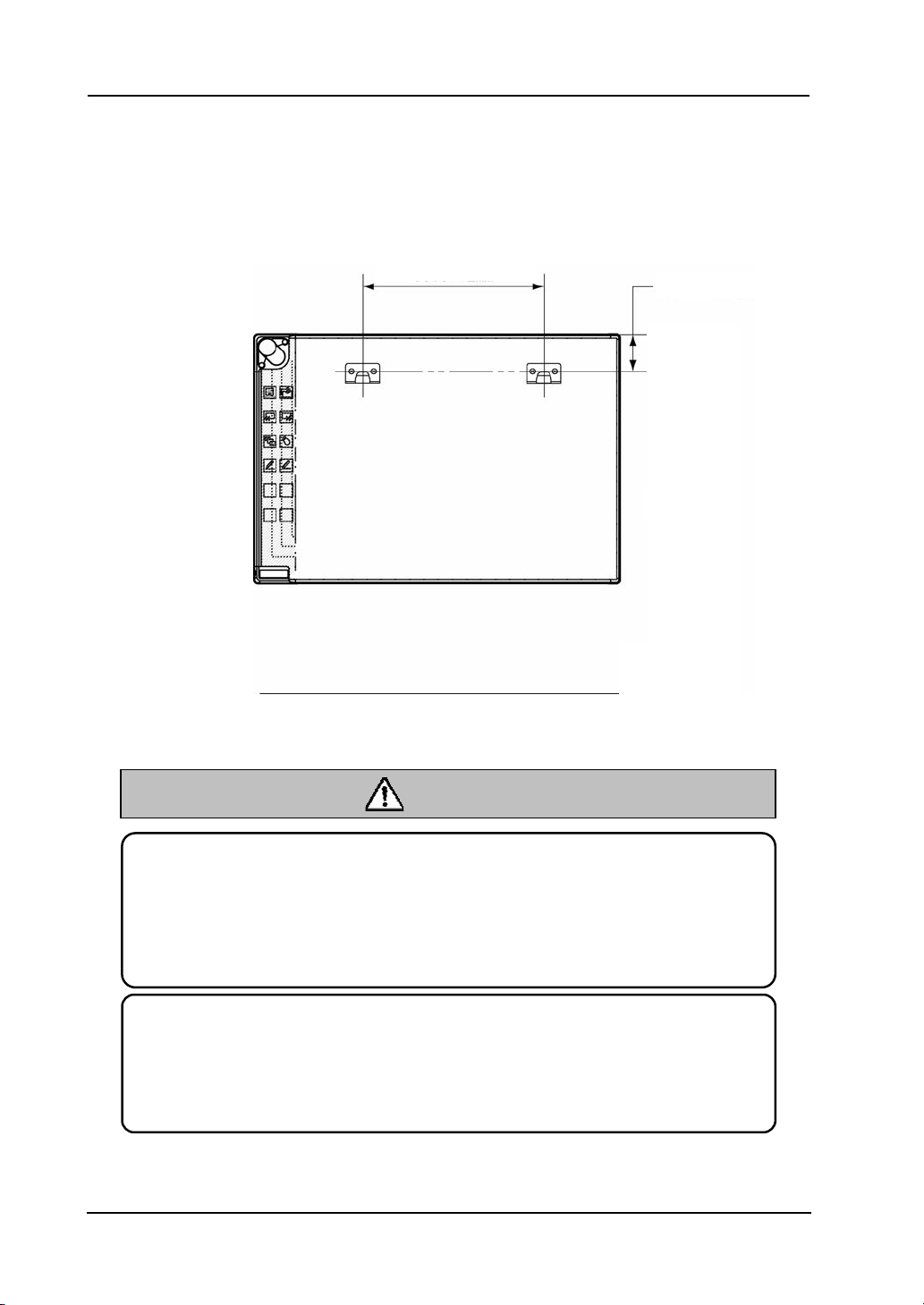
(3) Height Adjustment
The StarBoard can be positioned at six height levels. Adjust the height according to
the following procedure. Furthermore, this work should be done by at least two
people.
(a) Remove the triangular knob screw at the
bottom of each side.
(b) Raise the board and re-hang it by attaching
the square holes for the desired height to
the receiving brackets.
(c) Fasten the triangular knob screw at the
bottom of each side.
(a)(c)
(b)
©
CAUTION
Fasten the screws tightly.
The board might fall and cause injury or its impact might cause damage.
This work should be performed by at least two people.
The board might fall and cause injury or its impact might cause damage.
1-8
StarBoard
F
X
-77/F
X
-63/F
X
-82
W
Introduction
English
1.3.2 Wall-Mounting Setup Method
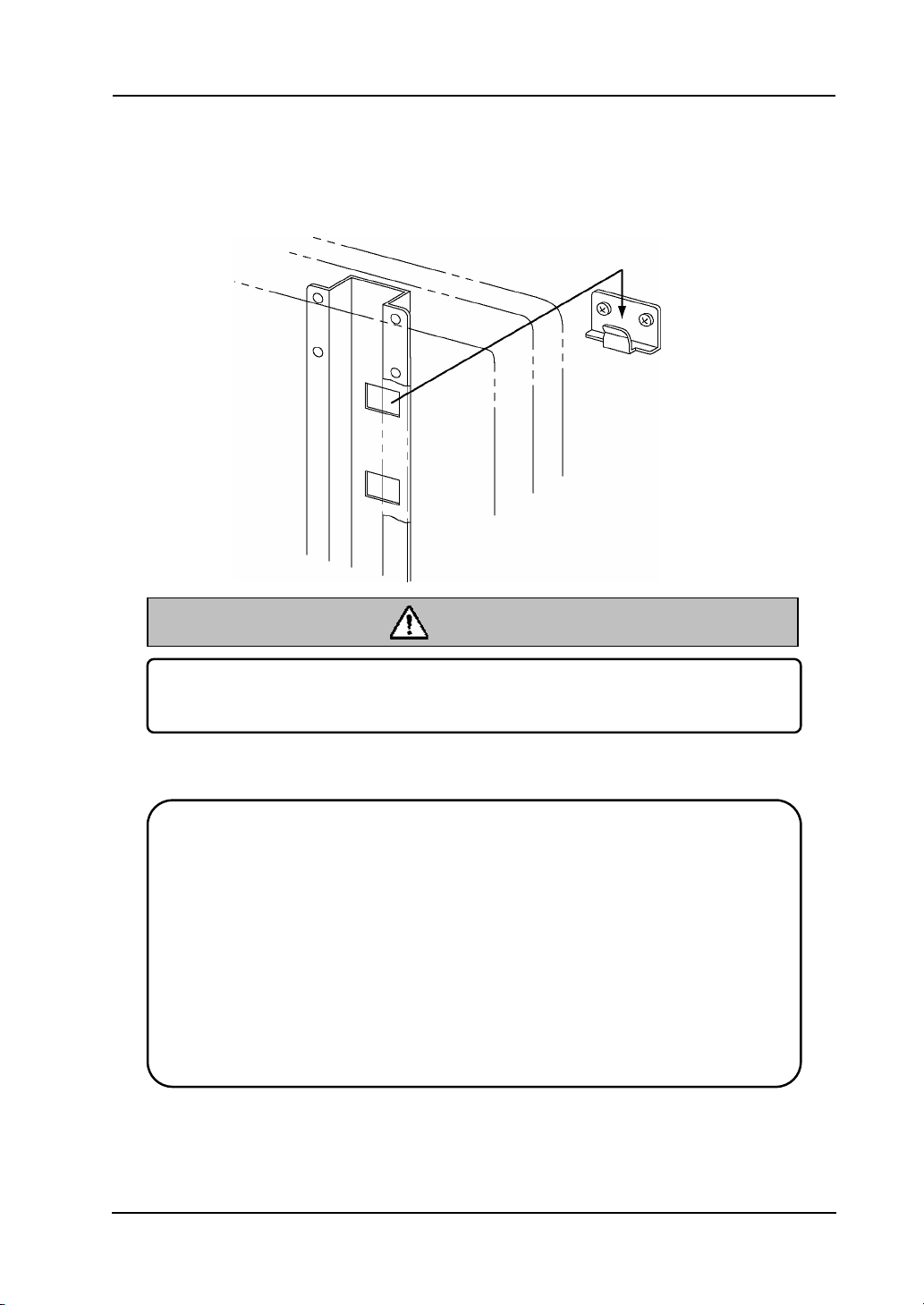
(1) Install the mounting brackets.
Determine the height at which the board will be installed, and install the brackets at
the positions shown in the following diagram.
1108±2mm/
43.6±0.1inch
Height
107mm/4.2inch
Before installation, take the wall material into consideration.
If it is installed by using a method inappropriate for the wall material, the board
might fall.
Also, installation might be impossible, depending on the wall selected. For details,
consult
y
our dealer.
Before installation, take the wall strength into consideration.
Before using the StarBoard, make sure that it has been fastened securely so that it
will not fall. Also verify that the wall mounting bracket is strong enough to support
a weight of approximately 88.2lb. /40 kg.
CAUTION
Height
Floor
1-9
StarBoard
F
X
-77/F
X
-63/F
X
-82
W
Introduction
English
(2) Board Installation
Connect each mounting bracket to the top square hole in the board receiving bracket
located at the back of the board on both sides.
This work should be performed by at least two people.
The board might fall and cause injury or its impact might cause damage.
CAUTION
NOTE
・The equipment might malfunction if set up in an excessively bright location. If the
ceiling lights are too bright, it will be necessary to adjust the brightness by turning
off the lights, etc.
・Either avoid setting it up in a location exposed to direct sunlight or near a window, or
use curtains, etc., to block the sunlight. Otherwise, the equipment might
malfunction.
・If multiple systems are set up in the same room or adjacent to each other, they might
malfunction. If necessary, contact the technical support in advance.
1-10
StarBoard
F
X
-77/F
X
-63/F
X
-82
W
Introduction
English
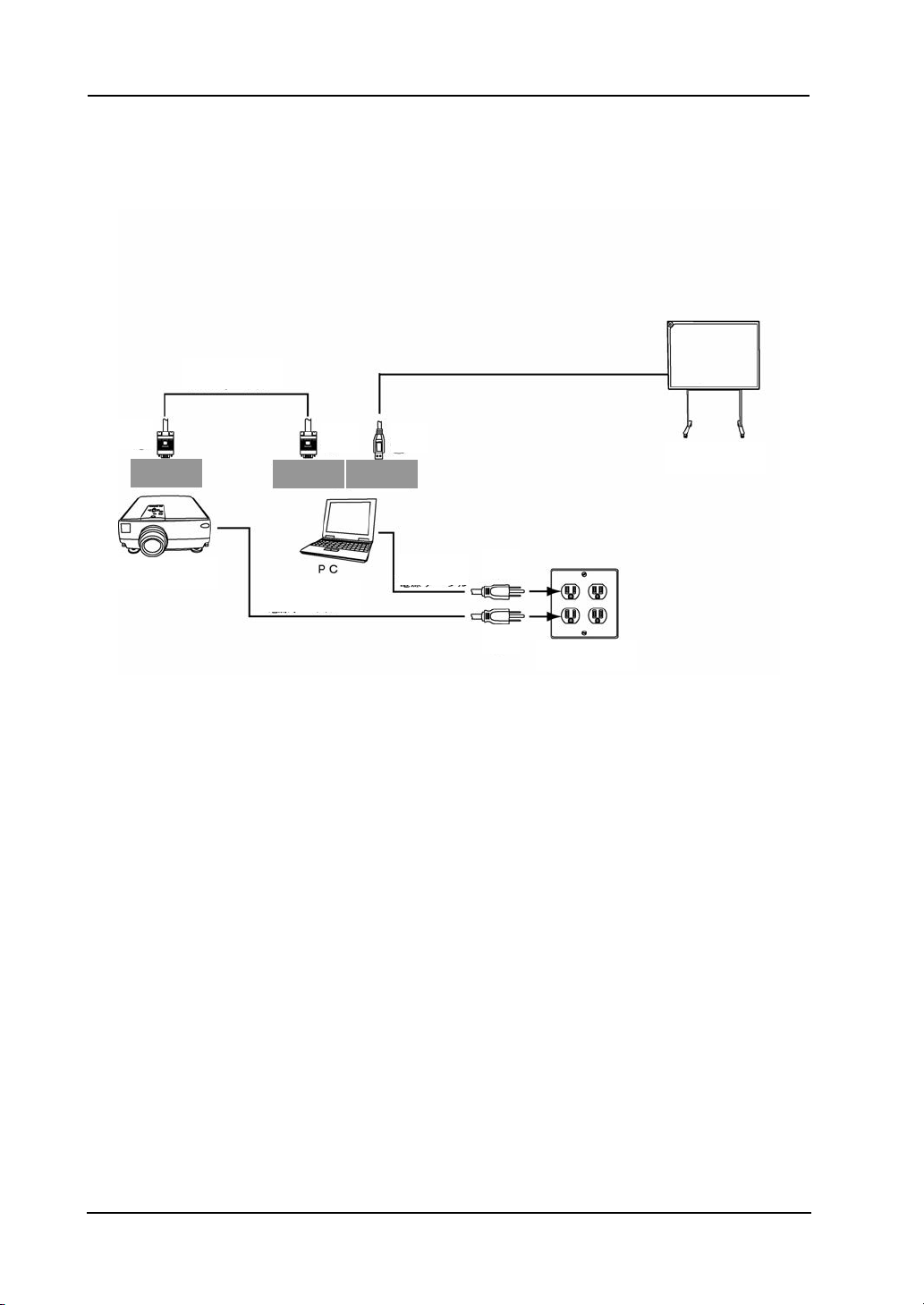
1.3.3 How to Connect When Using Projection Mode
(1) How to connect when using USB cable (i.e., Wired Mode)
Connect the PC, projector, and StarBoard according to the following procedure.
(1) Connect the RGB cable to the projector’s RGB terminal, and fasten with the
integral screws.
(2) Connect the opposite side of the RGB cable connected in step (1) to the PC’s RGB
terminal, and fasten with the integral screws.
(3) Connect the USB cable from StarBoard to the USB terminal of the PC.
(4) Connect the power supplies of the PC and the projector to the mains.
RGB
RGB USB
Projector
RGB Cable
Power Supply
StarBoard
(1)
(2) (3)
(4)
(4)
1-11
StarBoard
F
X
-77/F
X
-63/F
X
-82
W
Introduction
English
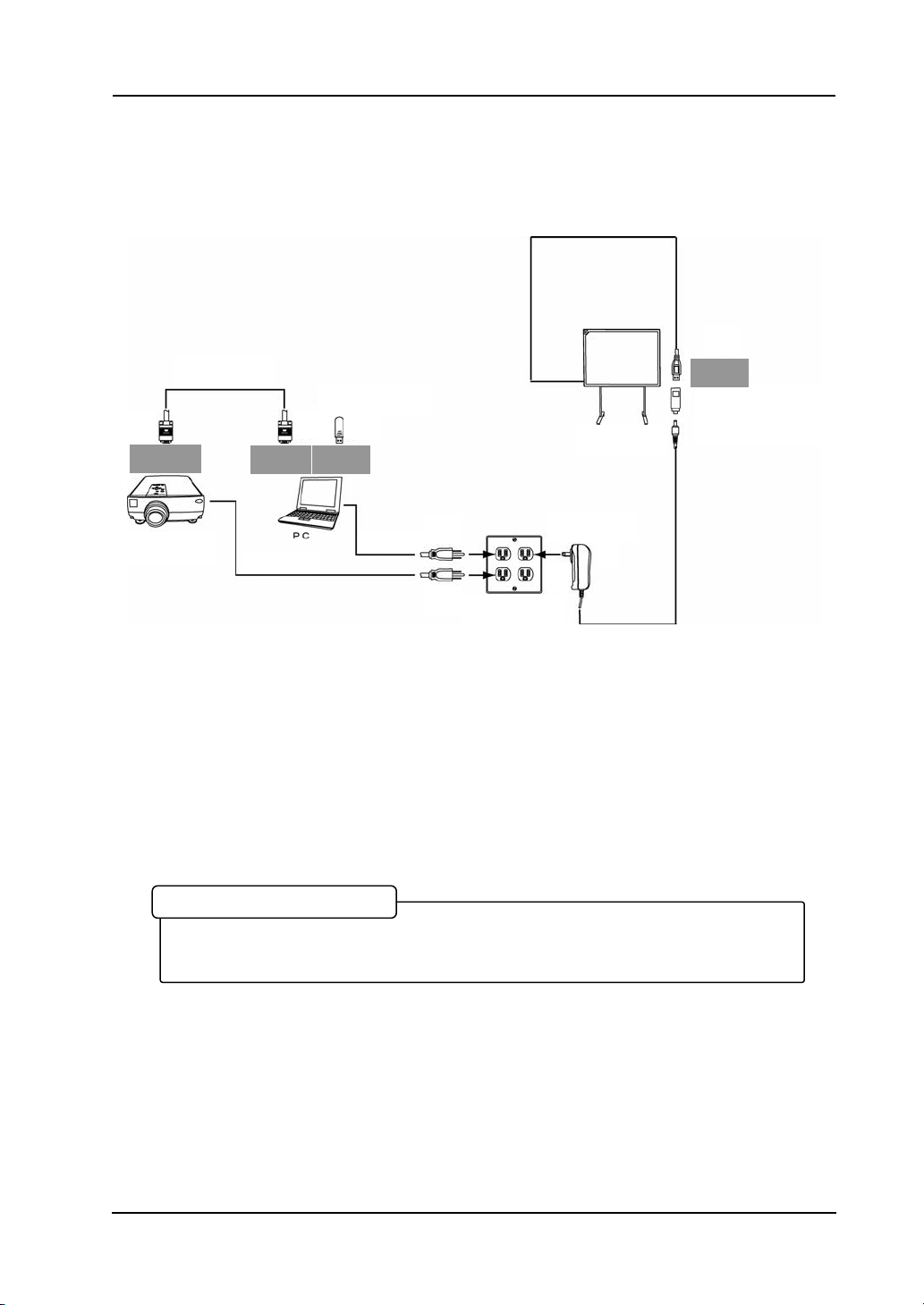
(2) How to connect when using the USB wireless receiver (i.e., Wireless Mode)
Connect the PC, projector, and StarBoard according to the following procedure (only
if the wireless unit is purchased with the StarBoard).
(1) Connect the RGB cable to the projector’s RGB terminal, and fasten with the
integral screws.
(2) Connect the other end of the RGB cable connected in step (1) to the PC’s RGB
terminal, and fasten with the integral screws.
(3) Connect the Bluetooth adaptor (option) to the PC’s USB terminal.
(4) Connect the power supplies of the PC and the projector to the mains.
(5) Connect Power Supply to USB Adaptor to the USB terminal of StarBoard.
(6) Connect AC Adaptor to the mains.
RGB
RGB USB
StarBoard
RGB Cable
Projector
Power Supply
AC Adaptor
Power Supply
to USB Adaptor
USB
Bluetooth adaptor
(1)
(2) (3)
(4)
(4)
(5)
(6)
Please remove any shielding objects which may block off the radio wave between the
PC and StarBoard, and the distance between must be within 10m.
PC & StarBoard Installation

2-1
Usage
English
StarBoard
F
X
-77/F
X
-63/F
X
-82
W
2. Usage
2.1 Basic Usage
In this chapter, the basic usage of the StarBoard will be explained.
Read this section carefully to learn about the StarBoard functions.
2.1.1 Preparation
Prepare to use the StarBoard.
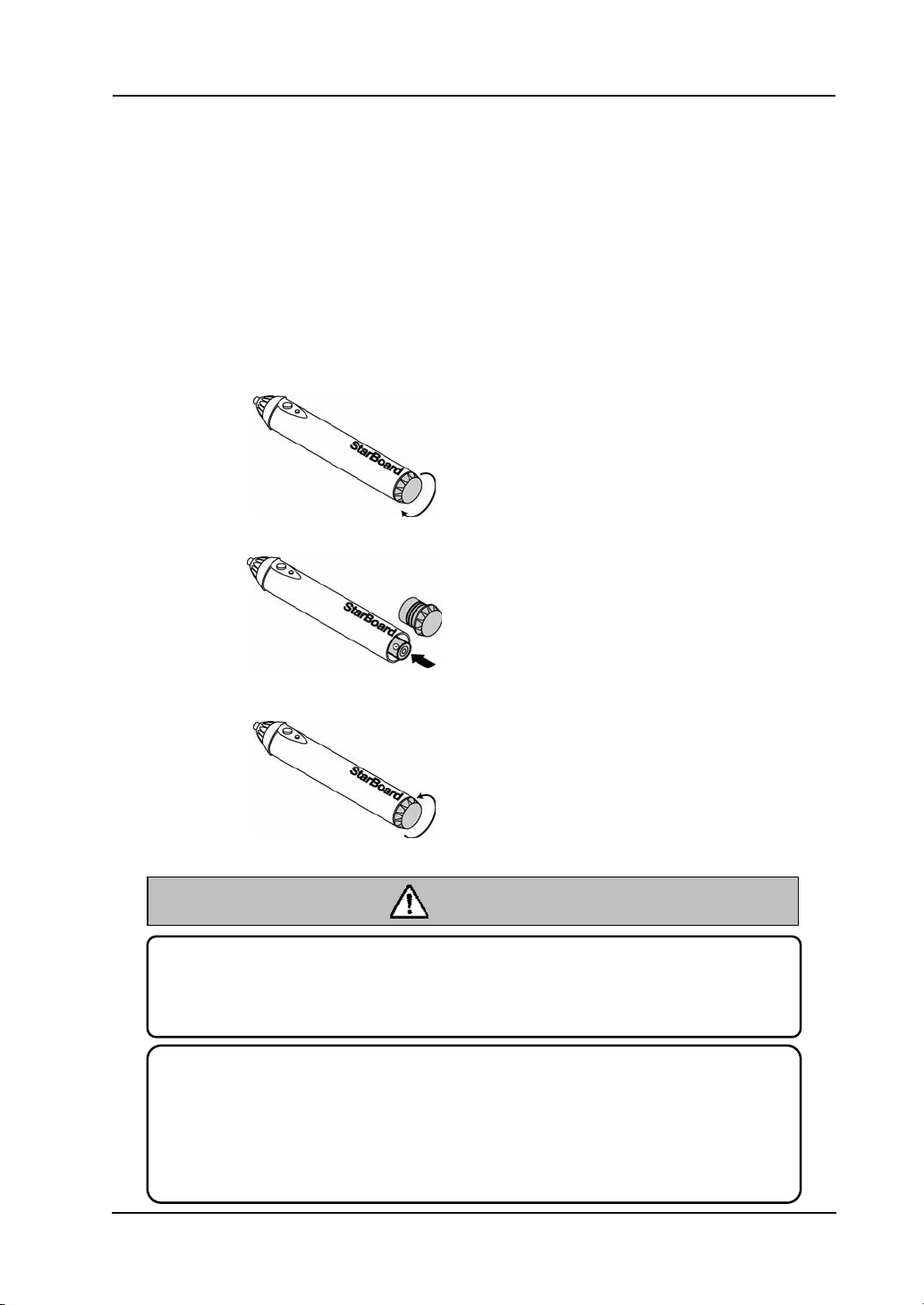
(1) Insert the battery into the electronic pen.
(1) Open the battery cover on the
electronic pen by moving in the
direction of the arrow.
(2) As shown in the figure, insert the
battery after verifying that the “+”
side faces to the pen tip.
(3) Replace the battery cover and slide
it in the direction of the arrow until
it closes completely.
Be sure to orient the battery correctly.
Do not reverse the + and – terminals of the battery, and use only the specified type
of battery. Otherwise, it will overheat and fail.
Be sure to insulate the battery before discarding it.
Before discarding the AA battery, be sure to insulate the + and – terminals with
cellophane tape, or similar material. If batteries are discarded without insulation,
they might short or overheat, rupture, and ignite, resulting in injury or fire. Also,
dispose of them as instructed by the local authorities.
CAUTION
2-2
Usage
English
StarBoard
F
X
-77/F
X
-63/F
X
-82
W
2.1.2 How to Use Electronic Pen
(1) When drawing with the electronic pen, apply force sufficient enough to cause the pen
tip to sink completely into the electronic pen. When information from the pen is being
transmitted normally, a slight buzzing sound is audible from the pen.
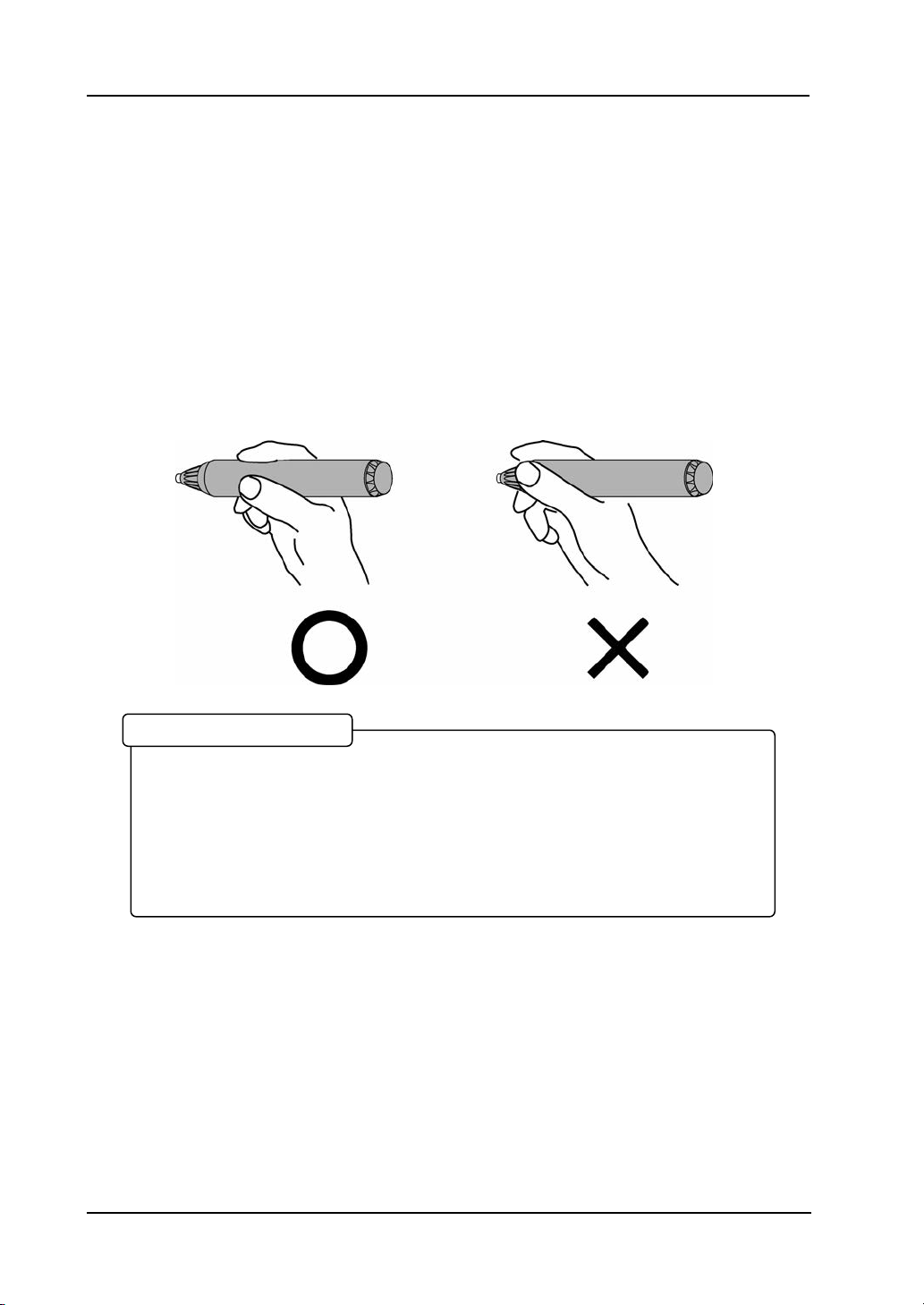
(2) A miniature transmitter is embedded in the tip of the electronic pen. When drawing
annotations or graphics while holding the electronic pen below the colour ring, the
drawing data from the electronic pen sometimes is not transmitted correctly. If the
annotations and graphics drawn on the whiteboard are not stored correctly to the PC,
change your grip on the electronic pen and then verify that they are displayed correctly.
In the mechanism of this device, the pen coordinates are detected after the digitiser
reads the infrared beam emitted by the pen and the ultrasonic signals. So, if the
electronic pen or the digitiser is blocked, normal input becomes impossible. Avoid
blocking them during use. Also, when it is used with the optional wireless unit, the
digitiser also functions as a wireless transmitter, so avoid blocking the digitiser front
and the wireless receiver.
Blocking of Infrared Beam
2-3
Usage
English
StarBoard
F
X
-77/F
X
-63/F
X
-82
W
2.1.3 Basic operation of Electronic Pen
In the default setting of the electronic pen, the pen tip is set to emulate the left click
button of a mouse. While Windows is in operation, the following mouse operations can
be performed using the pen tip button.
• Click
Push the pen tip onto the StarBoard with sufficient force and then release the pen
away from the board.
• DoubleClick
Perform the “Click” operation explained above twice in the same spot.
• Drag
Push the pen tip onto the starboard with sufficient force, and without releasing it away
from the broad, move it from one point to another.
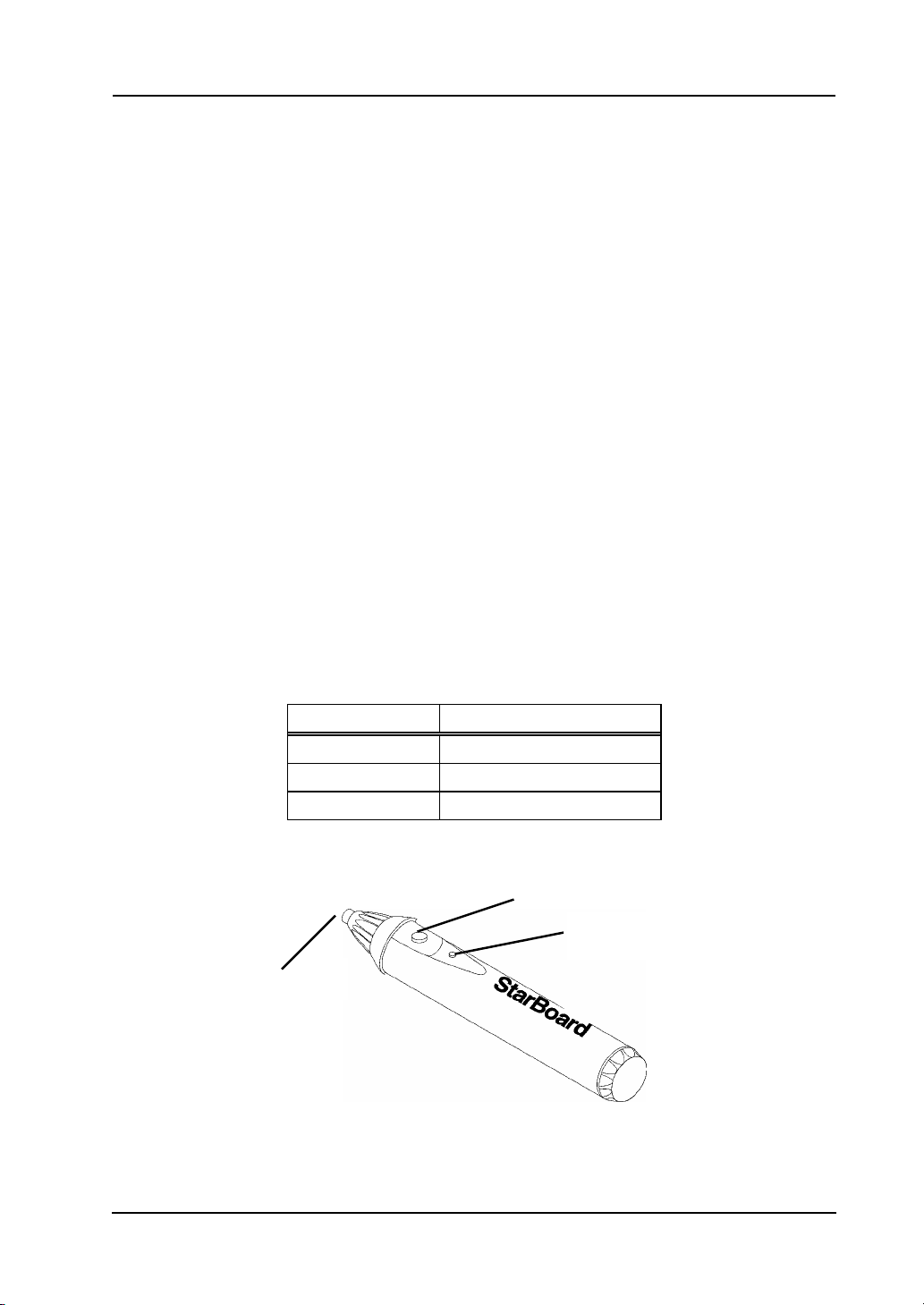
2.1.4 Electronic Pen Setting
The electronic pen has one pen tip button, and two side buttons. Mouse actions can be
assigned to these three buttons. The default button settings are summarized in the
following table.
Use the StarBoard Software functions to change the button settings. For details, see the current
indicator section of the StarBoard Software User’s Guide.
Button Name Function
Pen tip Left click of mouse
Side Button No.0 Hovering
Side Button No.1 Right click of mouse
Pen tip
Side Button No.0
Side Button No.1
2-4
Usage
English
StarBoard
F
X
-77/F
X
-63/F
X
-82
W
2.2 How to Use StarBoard in Projection Mode
2.2.1 Wired Connection
(1) Connect devices following the page 1-10.
(2) Power up the projector.
(3) Power up PC to start up Windows.
(4) Adjust the position of the projector so that the Windows screen projected by the
projector is within the pen input active area (see page 1-3).
(5) Install and launch the StarBoard Software.
If the board is not detected by the StarBoard Software, check whether the StarBoard
power is on, and whether StarBoard and the PC are properly connected to each
other.
You can perform the board detection using the StarBoard Software. Refer to the
StarBoard Software User’s Guide for details.
(6) Refer to the StarBoard Software User’s Guide for information on using
the StarBoard.
If the cursor location of the PC is different from the pen tip, launch the calibration
programme. Please refer to the StarBoard Software User Guide for details.
Select [Start] → [Programs] → [StarBoard Software] → [ StarBoard Software], or
double-click the StarBoard Software icon on the desktop. (A StarBoard Software icon
will not be created on the desktop unless [Desktop] is checked in the shortcut creation
step during the software installation process.)
Starting StarBoard Software manually

2-5
Usage
English
StarBoard
F
X
-77/F
X
-63/F
X
-82
W
2.2.2 Wireless Connection
(1) Connect devices following the page 1-11.
(2) Power up the projector.
(3) Power up PC to start up Windows.
(4) Adjust the position of the projector so that the Windows screen projected by the
projector is within the pen input active area (see page 1-3).
For the driver installation, please refer to “USB Bluetooth Dongle Installation
Manual” provided with the Bluetooth Dongle.

3-1
Appendix
English
StarBoard F
X
-77/F
X
-63/F
X
-82
W
3. Appendix
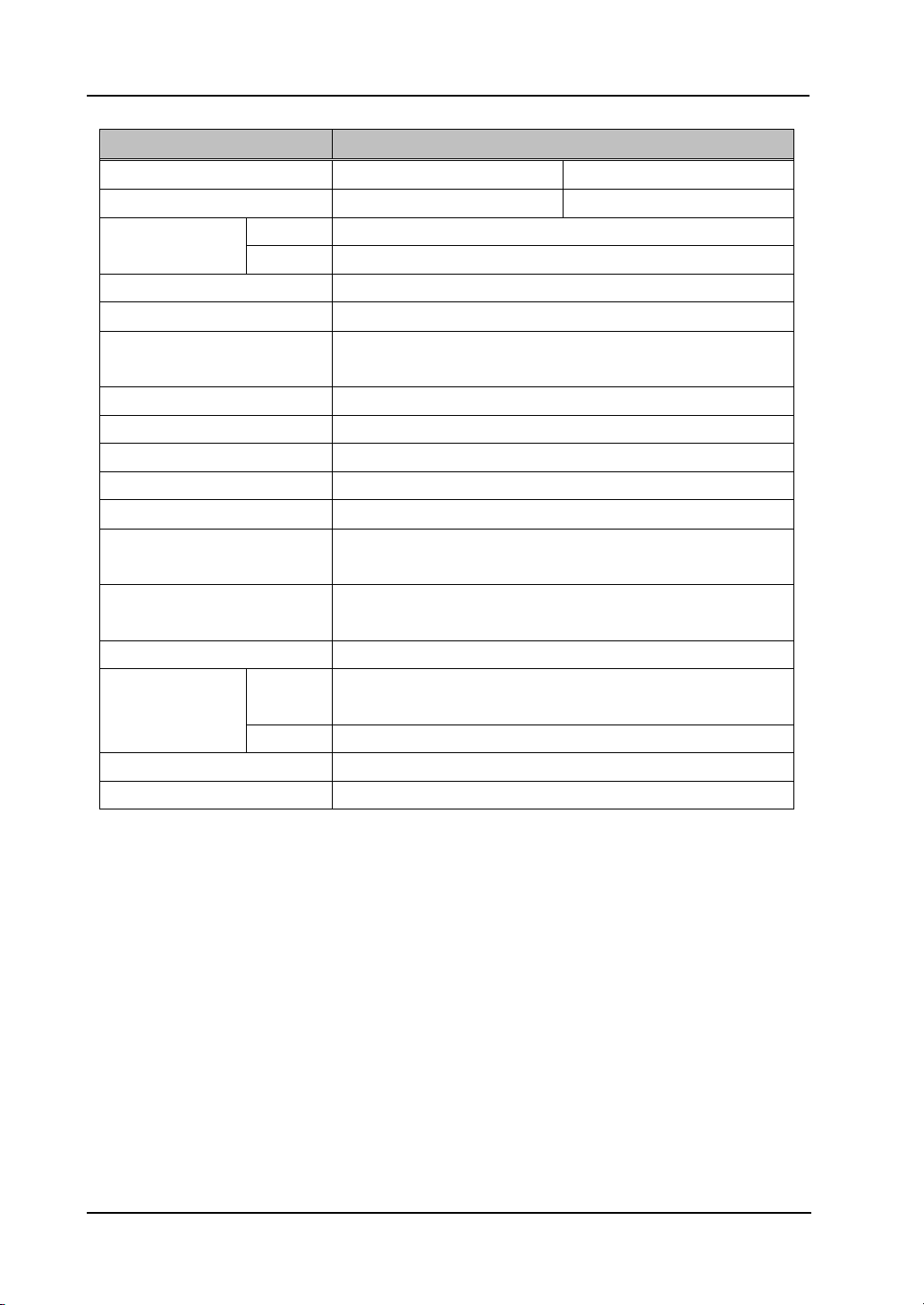
A. System Specifications
Item Specification
Product name FX-77 (Wired) FX-77(Wireless) FX-63 (Wired) FX-63(Wireless)
Model No AH00086 AH00087 AH00088 AH00089
Input methods Infrared and Ultrasonic methods
Wired USB 2.0 Interface to computer
Wireless Bluetooth 1.1
Effective screen size (mm) 77 inches, 1,573 (W) × 1,180 (H) 63 inches, 1,280 (W) × 960 (H)
StarBoard dimensions (mm) 1,793 (W) × 1,220 (H) × 77.5 (D) 1,500 (W) × 1,000 (H) × 77.5 (D)
Overall dimensions (including stand)
(mm)
1,793 (W) × 1,700 –
2,050 (H) × 620 (D)
1,500 (W) × 1,700 –
2,050 (H) × 620 (D)
IR wavelength 880 nm
Ultrasonic frequency 40 KHz
Sampling rate Approximately 66 points/s
Accuracy ±1.5 mm
Current / input voltage 200mA (5V)
AC adapter input voltage/
power consumption
100 – 240 V / 0.5A
AD adaptor output voltage/
power consumption
5.0V/2.0A
Weight of main unit/
weight including stand
17kg/34kg 12kg/28kg
Bundled software StarBoard Software, 1 set
Ambient
temperature
10 – 35°C
Environmental
conditions
Humidity 10 – 80%
Battery life Continuous operating time Approximately 90 hours
*1
Compatible operating systems Windows98SE, Me, 2000, XP
*1 The battery life varies according to the temperature and the usage environment.
3-2
English
StarBoard F
X
-77/F
X
-63/F
X
-82
W
Appendix
Item Specification
Product name FX-82W (Wired) FX-82W (Wireless)
Model No AH00090 AH00091
Wired USB 2.0 Interface to computer
Wireless Bluetooth 1.1
Effective screen size (mm) 82 inches Wide, 1,831 (W) × 1,030 (H)
StarBoard dimensions (mm) 2,051 (W) × 1,070 (H) × 77.5 (D)
Overall dimensions (including
stand) (mm)
2,051 (W) × 1,700 – 2,050 (H) × 620 (D)
IR wavelength 880 nm
Ultrasonic frequency 40 KHz
Sampling rate Approximately 66 points/s
Accuracy ±1.5 mm
Current / input voltage 200mA (5V)
AC adapter input voltage/
power consumption
100 – 240 V / 0.5 W
Weight of main unit/
weight including stand
18kg / 34kg
Bundled software StarBoard Software, 1 set
Ambient
temperature
10 – 35°C Environmental
conditions
Humidity 10 – 80%
Battery life Continuous operating time Approximately 90 hours
*1
Compatible operating systems Windows98SE, Me, 2000, XP
*1 The battery life varies according to the temperature and the usage environment.
3-3
English
StarBoard F
X
-77/F
X
-63/F
X
-82
W
Appendix
B. Provisions of Product Warranty
1. During the free warranty service period, if a malfunction occurs during normal use, the
malfunction will be corrected without charge, according to the provisions of the warranty.
Furthermore, if the customer registration card accompanying the warranty is not returned
to our company, the customer information will not be registered; so free repairs might be
unavailable. After receiving this product, please immediately fill out and return this
customer registration card.
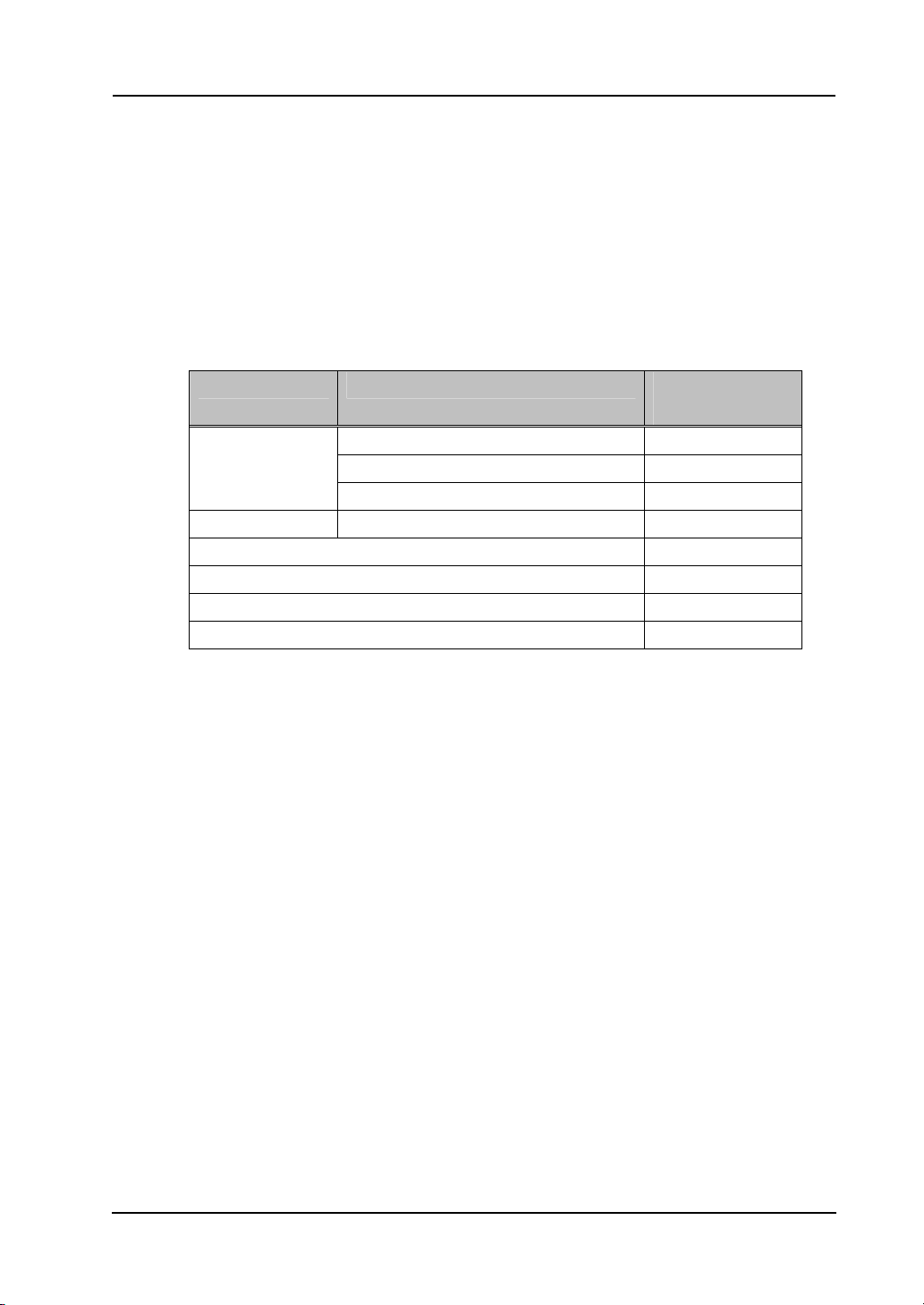
2. The warranty coverage is as listed in the following table:
Product Name Part Name Warranty
Coverage
Digitiser (FX-77/FX-63/FX-82W) +
Power supply +
StarBoard
Power Supply to USB Adaptor
+
Electronic Pen Electronic Pen +
Stand –
Wall-mounting bracket –
AA alkaline battery –
Other parts and optional equipment –
Legend: + → Covered by warranty (excluding wear and physical damage)
– → Not covered by warranty
3. Please refer to the warranty sheet for this product’s warranty service period.
4. Even during the warranty period, there will be a repair charge in the following cases:
(1) If the registration card accompanying the warranty is not returned to our company.
(2) If the warranty is not presented.
(3) If specified fields on the registration card accompanying the warranty are not
completed, or if the wording has been changed without authorisation.
(4) The warranty applies only to the original purchasers. (It does not apply to a third
party to whom the customer resold this product.)
(5) In the event of a malfunction or damage resulting from the customer’s improper
handling (e.g., a fall, impact, etc., caused by the customer during transportation or
movement).
(6) In the event of problems resulting from handling contrary to the handling and
precautions mentioned in this user’s guide.
(7) In the event of failure or damage resulting from abnormal voltages, pollution or
other natural disasters (e.g., fire, earthquake, and lightning).

3-4
English
StarBoard F
X
-77/F
X
-63/F
X
-82
W
Appendix
(8) In the event of a malfunction in this product caused by the connection to this
product of equipment other than the equipment specified by our company.
(9) In the event that there is no abnormality in this product, but a defect in a part other
than this product was detected or remedied.
(10) In the event of ordinary wear and tear, wear, deterioration, etc., of consumables,
even during normal use.
5. If this product malfunctions, review the contents of this user’s guide. If the problems
remain irreparable, contact the dealer. The dealer will determine whether or not the
product must be repaired, so please contact them. If the customer sends the product to
our company without RMA (Return Merchandise Authorisation) number, it might not be
covered by warranty.
6. As a rule, the customer is responsible for shipping charges required to send all or part of
the product for repair, etc. Our company will assume responsibility for the return
shipping to the customer.
7. This warranty does not cover labour fees for repair-associated equipment assembly or
disassembly.
8. Incidental damage caused by the failure of this product (e.g., loss of profit that should
have resulted from the use of this product) is outside the scope of this warranty.
9. The aforementioned provisions define this warranty, and they supersede those of all
express or implied warranties that include legal defect liability.