
www.lg.com
Please read this manual carefully before operating your set
and retain it for future reference.
OWNER’S MANUAL
LED TV*
* LG LED TV applies to LCD screen with LED backlights.
84LM9600-UB
P/NO : MFL67652637 (1312-REV00)
*MFL67652637*
ENGLISH
2
IMPORTANT SAFETY INSTRUCTIONS
IMPORTANT SAFETY INSTRUCTIONS
Always comply with the following precautions to avoid dangerous situations and ensure peak
performance of your product.
y
Do not use this apparatus near water.
Short-circuit
Breaker
Power Supply
y
Clean only with a dry cloth.
Short-circuit
Breaker
Power Supply
y
Do not block any ventilation openings. Install in
accordance with the manufacturer’s instructions.
Short-circuit
Breaker
Power Supply
y
Do not install near any heat sources such
as radiators, heat registers, stoves, or other
apparatus (including amplifiers) that produce heat.
Short-circuit
Breaker
Power Supply
y
Do not defeat the safety purpose of the polarized
or grounding-type plug. A polarized plug has two
blades with one wider than the other. A grounding
type plug has two blades and a third grounding
prong. The wide blade or the third prong are
provided for your safety. If the provided plug does
not fit into your outlet, consult an electrician for
replacement of the obsolete outlet (Can differ by
country).
Short-circuit
Breaker
Power Supply
Read these instructions.
Keep these instructions.
Heed all warnings.
Follow all instructions.
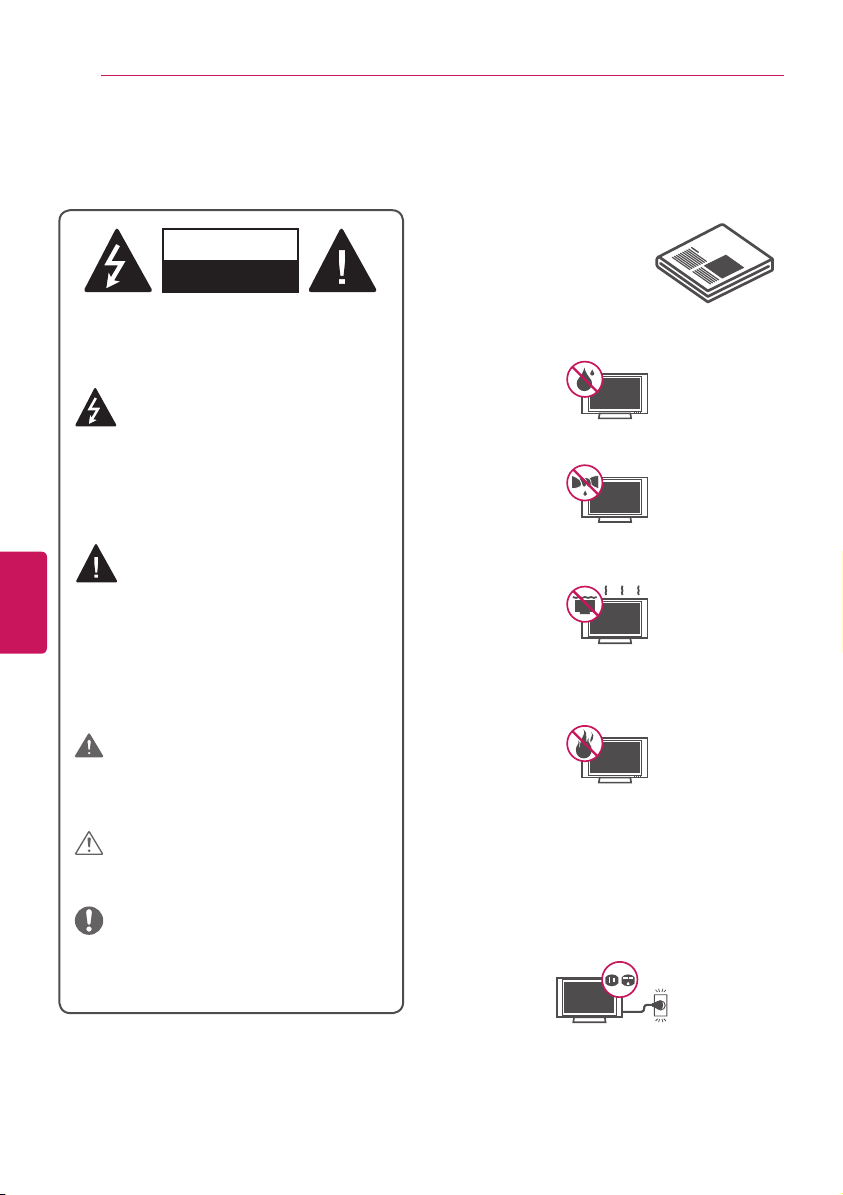
WARNING/CAUTION
RISK OF ELECTRIC SHOCK
DO NOT OPEN
TO REDUCE THE RISK OF ELECTRIC SHOCK DO
NOT REMOVE COVER (OR BACK).
NO USER SERVICEABLE PARTS INSIDE.
REFER TO QUALIFIED SERVICE PERSONNEL.
WARNING/CAUTION
RISK OF ELECTRIC SHOCK
DO NOT OPEN
The lightning flash with arrowhead symbol,
within an equilateral triangle, is intended to
alert the user to the presence of
uninsulated dangerous voltage within the
product’s enclosure that may be of sufficient
magnitude to constitute a risk of electric shock to
persons.
WARNING/CAUTION
RISK OF ELECTRIC SHOCK
DO NOT OPEN
The exclamation point within an equilateral
triangle is intended to alert the user to the
presence of important operating and
maintenance (servicing) instructions in the
literature accompanying the appliance.
WARNING/CAUTION
- TO REDUCE THE RISK OF FIRE AND ELECTRIC
SHOCK, DO NOT EXPOSE THIS PRODUCT TO
RAIN OR MOISTURE.
WARNING
If you ignore the warning message, you may be
seriously injured or there is a possibility of accident
or death.
CAUTION
If you ignore the caution message, you may be
slightly injured or the product may be damaged.
NOTE
The note helps you understand and use the
product safely. Please read the note carefully
before using the product.
Short-circuit
Breaker
Power Supply
WARNING
: This product contains chemicals known to
the State of California to cause cancer and birth defects
or other reproductive harm.
Wash hands after handling.
ENGLISH
3
IMPORTANT SAFETY INSTRUCTIONS
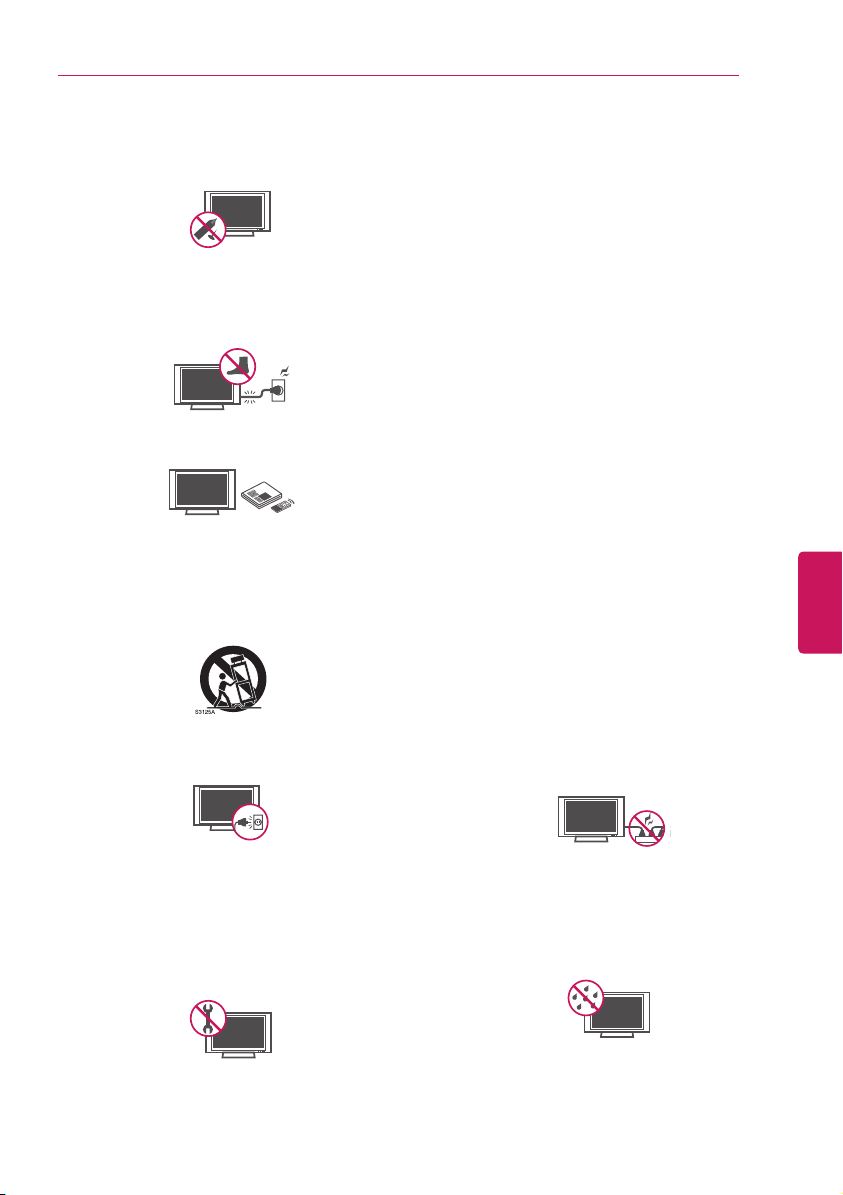
y
Do not press strongly upon the panel with a hand
or a sharp object such as a nail, pencil or pen, or
make a scratch on it.
Short-circuit
Breaker
Power Supply
y
Protect the power cord from being walked on
or pinched particularly at plugs, convenience
receptacles, and the point where they exit from
the apparatus.
Short-circuit
Breaker
Power Supply
y
Only use attachments/accessories specified by
the manufacturer.
Short-circuit
Breaker
Power Supply
y
Use only with a cart, stand, tripod, bracket, or
table specified by the manufacturer, or sold with
the apparatus. When a cart is used, use caution
when moving the cart/apparatus combination to
avoid injury from tip-over.
Short-circuit
Breaker
Power Supply
y
Unplug this apparatus during lightning storms or
when unused for long periods of time.
Short-circuit
Breaker
Power Supply
y
Refer all servicing to qualified service personnel.
Servicing is required when the apparatus has
been damaged in any way, such as power-supply
cord or plug is damaged, liquid has been spilled
or objects have fallen into the apparatus, the
apparatus has been exposed to rain or moisture,
does not operate normally, or has been dropped.
Short-circuit
Breaker
Power Supply
y
Do not stick metal objects or any other conductive
material into the power cord. Do not touch the
end of the power cord while it is plugged in.
y
Keep the packing anti-moisture material or vinyl
packing out of the reach of children. Anti-moisture
material is harmful if swallowed. If swallowed
by mistake, force the patient to vomit and visit
the nearest hospital. Additionally, vinyl packing
can cause suffocation. Keep it out of the reach of
children.
y
CAUTION concerning the Power Cord
(Can differ by country):
It is recommended that appliances be placed
upon a dedicated circuit; that is, a single outlet
circuit which powers only that appliance and
has no additional outlets or branch circuits.
Check the specification page of this owner’s
manual to be certain. Do not connect too many
appliances to the same AC power outlet as
this could result in fire or electric shock. Do not
overload wall outlets. Overloaded wall outlets,
loose or damaged wall outlets, extension cords,
frayed power cords, or damaged or cracked wire
insulation are dangerous. Any of these conditions
could result in electric shock or fire. Periodically
examine the cord of your appliance, and if its
appearance indicates damage or deterioration,
unplug it, discontinue use of the appliance, and
have the cord replaced with an exact replacement
part by an authorized service. Protect the power
cord from physical or mechanical abuse, such
as being twisted, kinked, pinched, closed in a
door, or walked upon. Pay particular attention to
plugs, wall outlets, and the point where the cord
exits the appliance. Do not move the TV with the
power cord plugged in. Do not use a damaged
or loose power cord. Be sure do grasp the plug
when unplugging the power cord. Do not pull on
the power cord to unplug the TV.
Short-circuit
Breaker
Power Supply
y
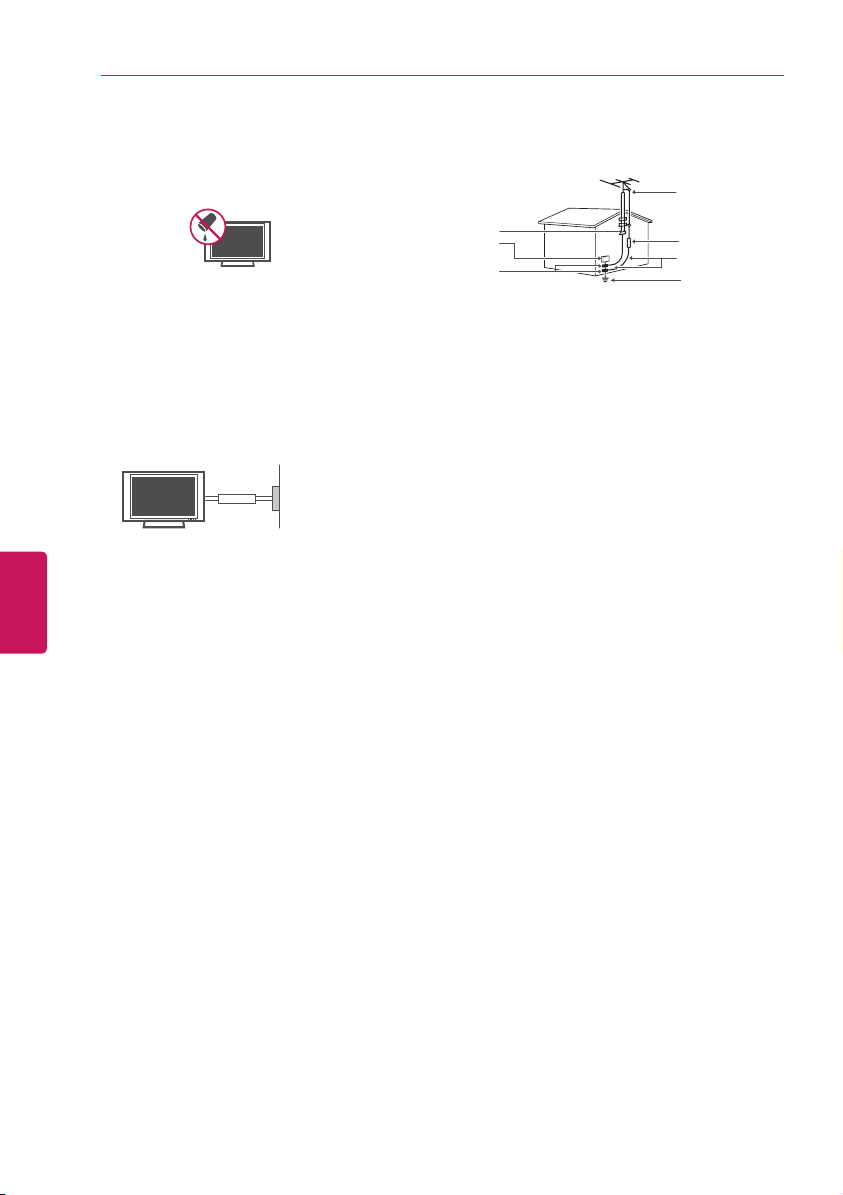
Warning
- To reduce the risk of fire or electrical
shock, do not expose this product to rain,
moisture or other liquids. Do not touch the TV
with wet hands. Do not install this product near
flammable objects such as gasoline or candles, or
expose the TV to direct air conditioning.
Short-circuit
Breaker
Power Supply
ENGLISH
4
IMPORTANT SAFETY INSTRUCTIONS
y
Do not expose to dripping or splashing and do
not place objects filled with liquids, such as
vases, cups, etc. on or over the apparatus (e.g. on
shelves above the unit).
Short-circuit
Breaker
Power Supply
y
Grounding
(Except for devices which are not grounded.)
Ensure that you connect the earth ground wire to
prevent possible electric shock (i.e. a TV with a
three-prong grounded AC plug must be connected
to a three-prong grounded AC outlet). If grounding
methods are not possible, have a qualified
electrician install a separate circuit breaker. Do
not try to ground the unit by connecting it to
telephone wires, lightening rods, or gas pipes.
Short-circuit
Breaker
Power Supply
y
As long as this unit is connected to the AC wall
outlet, it is not disconnected from the AC power
source even if the unit is turned off.
y
Do not attempt to modify this product in any way
without written authorization from LG Electronics.
Unauthorized modification could void the user’s
authority to operate this product.
y
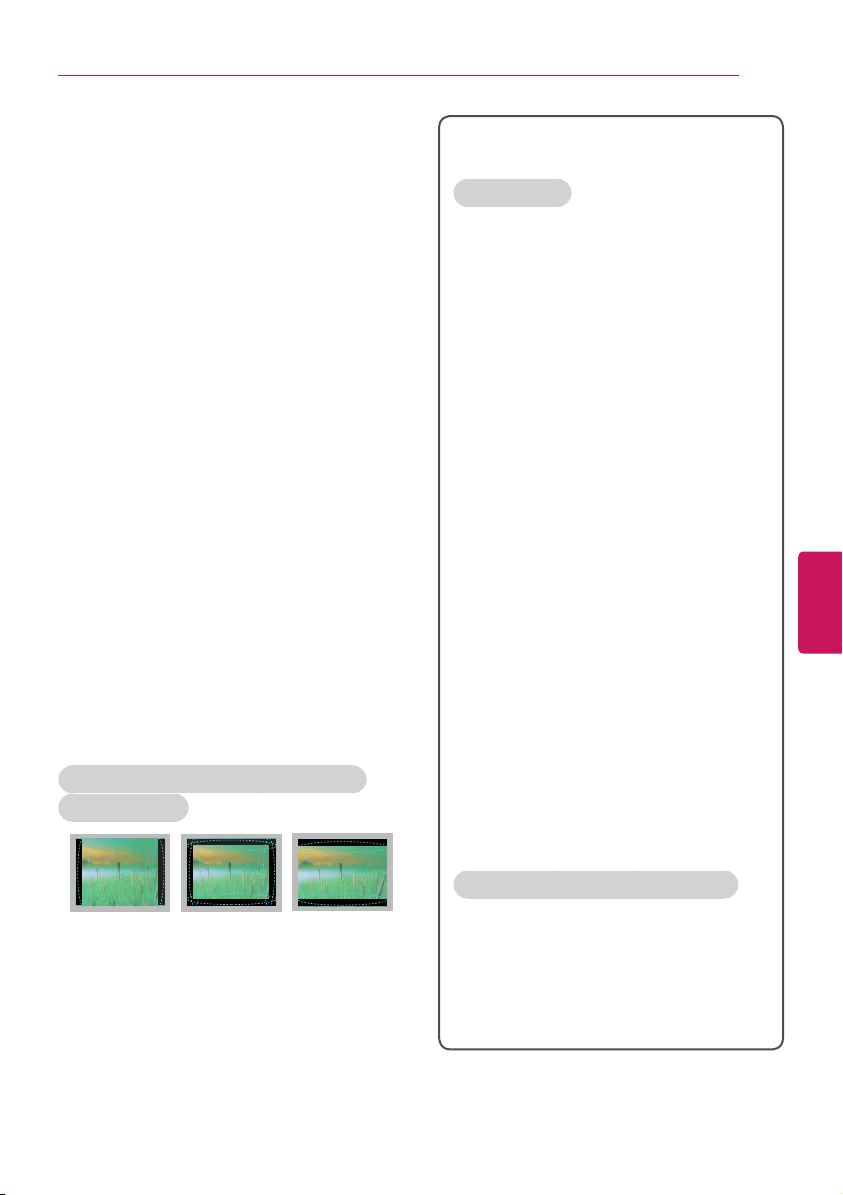
Outdoor Antenna Grounding
(Can differ by country):
If an outdoor antenna is installed, follow the
precautions below. An outdoor antenna system
should not be located in the vicinity of overhead
power lines or other electric light or power
circuits, or where it can come in contact with
such power lines or circuits as death or serious
injury can occur. Be sure the antenna system
is grounded to provide some protection against
voltage surges and built-up static charges. Section
810 of the National Electrical Code (NEC) in the
U.S.A. provides information with respect to proper
grounding of the mast and supporting structure,
grounding of the lead-in wire to an antenna
discharge unit, size of grounding conductors,
location of antenna discharge unit, connection to
grounding electrodes and requirements for the
grounding electrode.
Antenna grounding according to the National
Electrical Code, ANSI/NFPA 70
Short-circuit
Breaker
Power Supply
Ground Clamp
Grounding Conductor
(NEC Section 810-21)
Antenna Lead in Wire
Electric Service
Equipment
Antenna Discharge Unit
(NEC Section 810-20)
Ground Clamp
Power Service Grounding
Electrode System
(NEC Art 250, Part H)
NEC: National Electrical Code
y
Cleaning
When cleaning, unplug the power cord and wipe
gently with a soft cloth to prevent scratching. Do
not spray water or other liquids directly on the TV
as electric shock may occur. Do not clean with
chemicals such as alcohol, thinners, or benzine.
y
Moving
Make sure the product is turned off, unplugged,
and all cables have been removed. It may take 2
or more people to carry larger TVs. Do not press
or put stress on the front panel of the TV.
y
Ventilation
Install your TV where there is proper ventilation. Do
not install in a confined space such as a bookcase.
Do not cover the product with cloth or other
materials while plugged. Do not install in excessively
dusty places.
y
If you smell smoke or other odors coming from
the TV, unplug the power cord and contact an
authorized service center.
y
Keep the product away from direct sunlight.
y
Never touch this apparatus or antenna during a
thunder or lightning storm.
y
When mounting a TV on the wall, make sure not
to install the TV by hanging the power and signal
cables on the back of the TV.
y
Do not allow an impact shock or any objects to fall
into the product, and do not drop anything onto
the screen.
y
Disconnecting the Main Power
The power outlet used with this device must
remain easily accessible.
y
Store the accessories (battery, etc.) in a safe
location out of the reach of children.
y
This apparatus use batteries. In your community
there might be regulations that require you
to dispose of these batteries properly due to
environmental considerations. Please contact
your local authorities for disposal or recycling
information.
y
Do not dispose of batteries in a fire.
y
Do not short circuit, disassemble, or allow the
batteries to overheat.
ENGLISH
5
IMPORTANT SAFETY INSTRUCTIONS
y
Dot Defect
The Plasma or LCD panel is a high technology product
with resolution of two million to six million pixels. In a
very few cases, you could see fine dots on the screen
while you’re viewing the TV. Those dots are deactivated
pixels and do not affect the performance and reliability
of the TV.
y
Generated Sound
Cracking noise
A cracking noise that occurs when
watching or turning off the TV is generated by plastic
thermal contraction due to temperature and humidity.
This noise is common for products where thermal
deformation is required.
Electrical circuit humming/panel buzzing
A low level
noise is generated from a high-speed switching circuit,
which supplies a large amount of current to operate a
product. It varies depending upon the product.
This generated sound does not affect the performance
and reliability of the product.
y
Take care not to touch the ventilation openings When
watching the TV for a long period, the ventilation
openings may become hot. This does not affect the
performance of the product or cause defects in the
product.
y
Do not install this product on a wall if it could be
exposed to oil or oil mist. This may damage the product
and cause it to fall.
y
If the TV feels cold to the touch, there may be a small
flicker when it is turned on. This is normal, there is
nothing wrong with TV. Some minute dot defects may
be visible on the screen, appearing as tiny red, green, or
blue spots. However, they have no adverse effect on
the TV’s performance. Avoid touching the LCD screen
or holding your finger(s) against it for long periods of
time. Doing so may produce some temporary distortion
effects on the screen.
Preventing Image burn or Burn-in on
your TV screen
y
If a fixed image displays on the TV screen for
a long period of time, it will be imprinted and
become a permanent disfigurement on the
screen. This is image burn or burn-in and not
covered by the warranty.
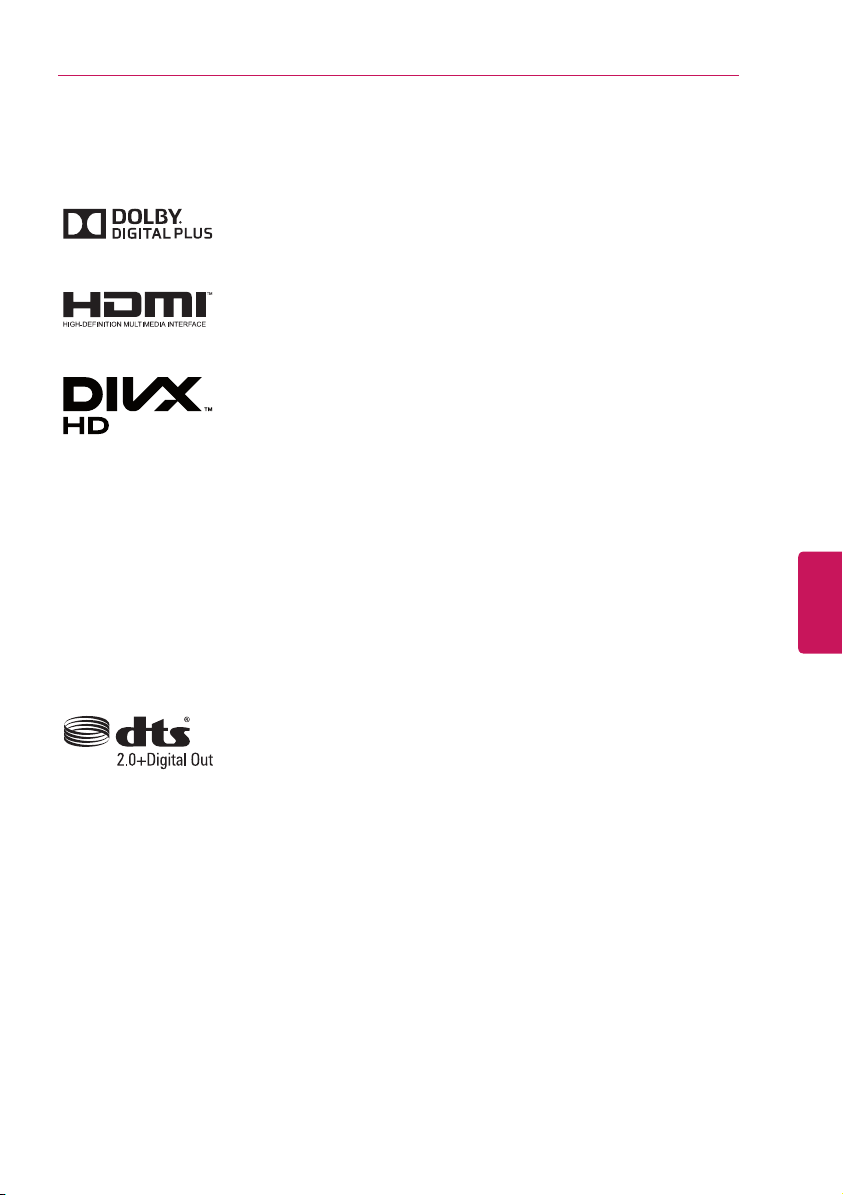
y
If the aspect ratio of the TV is set to 4:3 for a
long period of time, image burn may occur on the
letterboxed area of the screen.
y
Avoid displaying a fixed image on the TV screen
for a long period of time (2 or more hours for LCD,
1 or more hours for the Plasma TV) to prevent
image burn.
For USA and Canada
FCC NOTICE
This equipment has been tested and found to
comply with the limits for a Class B digital device,
pursuant to Part 15 of the FCC Rules. These limits
are designed to provide reasonable protection
against harmful interference in a residential
installation. This equipment generates, uses
and can radiate radio frequency energy and, if
not installed and used in accordance with the
instructions, may cause harmful interference
to radio communications. However, there is no
guarantee that interference will not occur in a
particular installation. If this equipment does
cause harmful interference to radio or television
reception, which can be determined by turning the
equipment off and on, the user is encouraged to
try to correct the interference by one or more of
the following measures:
- Reorient or relocate the receiving antenna.
- Increase the separation between the
equipment and the receiver.
- Connect the equipment to an outlet on
a circuit different from that to which the
receiver is connected.
- Consult the dealer or an experienced radio/TV
technician for help.
This device complies with part 15 of the FCC
Rules. Operation is subject to the following two
conditions: (1) this device may not cause harmful
interference and (2) this device must accept any
interference received, including interference that
may cause undesired operation of the device.
Any changes or modifications in construction of
this device which are not expressly approved by
the party responsible for compliance could void
the user’s authority to operate the equipment.
NOTE TO CABLE/TV INSTALLER
This reminder is provided to call the CATV system
installer’s attention to Article 820-40 of the
National Electric Code (U.S.A.). The code provides
guidelines for proper grounding and, in particular,
specifies that the cable ground shall be connected
to the grounding system of the building, as close
to the point of the cable entry as practical.

ENGLISH
6
IMPORTANT SAFETY INSTRUCTIONS
Viewing 3D Imaging
WARNING
Viewing Environment
y
Viewing Time
- When watching 3D content, take 5 to
15 minute breaks every hour. Viewing
3D content for a long period of time may
cause headache, dizziness, fatigue or eye
strain.
Those that have a photosensitive seizure
or chronic illness
y
Some users may experience a seizure or
other abnormal symptoms when they are
exposed to a flashing light or particular
pattern from 3D content.
y
Do not watch 3D videos if you feel
nauseous, are pregnant and/ or have a
chronic illness such as epilepsy, cardiac
disorder, or blood pressure disease, etc.
y
3D Content is not recommended for those
who suffer from stereo blindness or stereo
anomaly. Double images or discomfort in
viewing may be experienced.
y
If you have strabismus (cross-eyed),
amblyopia (weak eyesight) or astigmatism,
you may have trouble sensing depth and
easily feel fatigue due to double images.
It is advised to take more frequent breaks
than the average adult.
y
If your eyesight varies between your right
and left eye, revise your eyesight prior to
watching 3D content.
Symptoms which require discontinuation
or refraining from watching 3D content
y
Do not watch 3D content when you feel
fatigue from lack of sleep, overwork, or
intoxication.
y
When these symptoms are experienced,
stop using/watching 3D content and get
enough rest until the symptom subsides.
- Consult your doctor when the symptoms
persist. Symptoms may include headache,
eyeball pain, dizziness, nausea, palpitation,
blurriness, discomfort, double image, visual
inconvenience, or fatigue.
CAUTION
Viewing Environment
y
Viewing Distance
- Maintain a distance of at least twice the
screen diagonal length when watching 3D
content. If you feel discomfort in viewing
3D content, move further away from the
TV.
Viewing Age
y
Infants / Children
- Usage/ Viewing 3D content for children
under the age of 5 are prohibited.
- Children under the age of 10 may
overreact and become overly excited
because their vision is in development
(for example: trying to touch the screen or
trying to jump into it.) Special monitoring
and extra attention is required for children
watching 3D content.
- Children have greater binocular disparity of
3D presentations than adults because the
distance between the eyes is shorter than
one of adults. Therefore they will perceive
more stereoscopic depth compared to
adults for the same 3D image.
y
Teenagers
- Teenagers under the age of 19 may be
stimulated to light coming from 3D videos.
Advise them not to watch 3D videos for a
long time when they are tired.
y
Elderly
- The elderly may perceive less of a 3D
effect than the youth. Do not sit closer to
the TV than the recommended distance.
Cautions when using the 3D glasses
y
Only use LG 3D glasses. Otherwise,
you may not be able to view 3D videos
properly.
y
Do not use 3D glasses instead of your
normal glasses, sunglasses, or protective
goggles.
y
Using modified 3D glasses may cause eye
strain or image distortion.
y
Do not keep your 3D glasses in extremely
high or low temperatures. It will cause
deformation.
y
The 3D glasses are fragile and are easy to
scratched. Use a soft, clean piece of cloth
when wiping the lenses. Do not scratch
the lenses of the 3D glasses with sharp
objects or clean/wipe them with chemicals.
ENGLISH
7
LICENSES / OPEN SOURCE SOFTWARE NOTICE
LICENSES
Supported licenses may differ by model. For more information about licenses, visit
www.lg.com
.
Manufactured under license from Dolby Laboratories. Dolby and the
double-D symbol are trademarks of Dolby Laboratories.
The terms HDMI and HDMI High-Definition Multimedia Interface, and the
HDMI logo are trademarks or registered trademarks of HDMI Licensing LLC
in the United States and other countries.
ABOUT DIVX VIDEO: DivX
®
is a digital video format created by DivX, LLC, a
subsidiary of Rovi Corporation. This is an official DivX Certified
®
device that
plays DivX video. Visit
divx.com
for more information and software tools to
convert your files into DivX video.
ABOUT DIVX VIDEO-ON-DEMAND: This DivX Certified
®
device must be
registered in order to play purchased DivX Video-on-Demand (VOD) movies.
To obtain your registration code, locate the DivX VOD section in your device
setup menu. Go to vod.divx.com for more information on how to complete
your registration.
DivX Certified
®
to play DivX
®
video up to HD 1080p, including premium
content.
DivX
®
, DivX Certified
®
and associated logos are trademarks of Rovi
Corporation or its subsidiaries and are used under license.
Covered by one or more of the following U.S. patents:
7,295,673; 7,460,668; 7,515,710; 7,519,274
Manufactured under license under U.S. Patent Nos: 5,956,674; 5,974,380;
6,487,535 & other U.S. and worldwide patents issued & pending. DTS, the
Symbol & DTS and the Symbol together are registered trademarks & DTS
2.0+Digital Out is a trademark of DTS, Inc. Product includes software. ©
DTS, Inc. All Rights Reserved.
OPEN SOURCE SOFTWARE NOTICE
To obtain the source code under GPL, LGPL, MPL and other open source licenses, that is contained in
this product, please visit
http://opensource.lge.com
.
In addition to the source code, all referred license terms, warranty disclaimers and copyright notices
are available for download.
LG Electronics will also provide open source code to you on CD-ROM for a charge covering the cost
of performing such distribution (such as the cost of media, shipping and handling) upon email request
to [email protected]. This offer is valid for three (3) years from the date on which you purchased
the product.
ENGLISH
8
TABLE OF CONTENTS
2 IMPORTANT SAFETY INSTRUCTIONS
6 Viewing 3D Imaging
7 LICENSES
7 OPEN SOURCE SOFTWARE NOTICE
8 TABLE OF CONTENTS
9 INSTALLATION PROCEDURE
9 ASSEMBLING AND PREPARING
9 Unpacking
11 Optional Extras
12 Parts and Buttons
13 Lifting and Moving the TV
14 Setting up the TV
14 - Attaching the Stand
15 - Mounting on a Table
16 - Tidying cables
17 - Mounting on a Wall
18 MAKING CONNECTIONS
18 Connecting to an Antenna or Cable
19 Connecting to a HD receiver, DVD Player or
VCR
19 - HDMI Connection
20 - DVI to HDMI Connection
21 - Connecting to a Mobile Phone
22 - Component Connection
23 - Composite Connection
24 Connecting a PC
24 - HDMI Connection or DVI to HDMI
Connection
26 Connecting to an Audio System
26 - Digital Optical Audio Connection
27 Connecting a USB Device
28 MAGIC REMOTE CONTROL
FUNCTIONS
29 Registering Magic Remote Control
29 How to use Magic Remote Control
29 Precautions to Take when Using the Magic
Remote Control
30 WATCHING TV
30 Turning the TV on for the First Time
31 USING THE USER GUIDE
32 SPECIFICATIONS
37 MAINTENANCE
37 Cleaning Your TV
37 - Screen, Frame, Cabinet, and Stand
37 - Power Cord
37 TROUBLESHOOTING
TABLE OF CONTENTS
y
Image shown may differ from your TV.
y
Your TV’s OSD (On Screen Display) may
differ slightly from that shown in this
manual.
y
The available menus and options may
differ from the input source or product
model that you are using.
y
New features may be added to this TV in
the future.
NOTE
ENGLISH
9
INSTALLATION PROCEDURE / ASSEMBLING AND PREPARING
INSTALLATION PROCEDURE
1
Open the package and make sure all the accessories are included.
2
Attach the stand to the TV set.
3
Connect an external device to the TV set.
4
Make sure the network connection is available.
You can use the TV network functions only when the network connection is made.
ASSEMBLING AND PREPARING
Unpacking
Check your product box for the following items. If there are any missing accessories, contact the local
dealer where you purchased your product. The illustrations in this manual may differ from the actual
product and item.
y
Do not use any unapproved items to ensure the safety and product life span.
y
Any damages or injuries by using unapproved items are not covered by the warranty.
y
Some models appear to have a thin film on the screen. It is actually part of the screen; do not
remove it.
CAUTION
y
The items supplied with your product may vary depending upon the model.
y
Product specifications or contents of this manual may be changed without prior notice due to
upgrade of product functions.
y
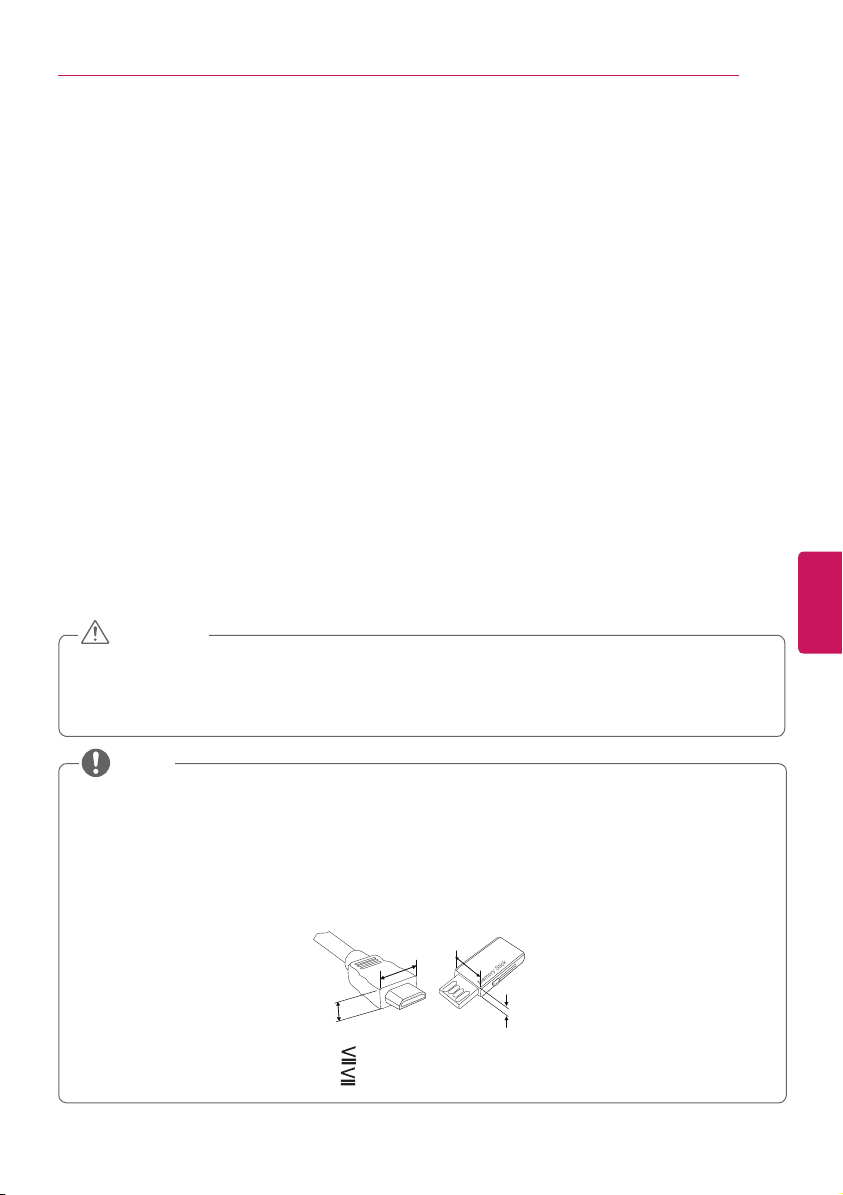
For an optimal connection, HDMI cables and USB devices should have bezels less than 10 mm
(0.39 inches) thick and 18 mm (0.7 inches) width.
y
Use an extension cable that supports USB 2.0 if the USB cable or USB FLASH DRIVE does not
fit into your TV’s USB port.
B
A
A
B
*A 10 mm (0.39 inches)
*B 18 mm (0.7 inches)
NOTE
ENGLISH
10
ASSEMBLING AND PREPARING
FREEZE
RATIO
L/R SELECT
ENTER
BACK
EXIT
Q.MENU
INFO
MENU
CHVOL
P
A
G
E
FAV
3D
MUTE
1 2 3
4 5 6
7 8
0
9
MARK
LIST
FLASHBK
ENERGY
SAVING
TV
AV MODE
INPUT
Magic Remote Control,
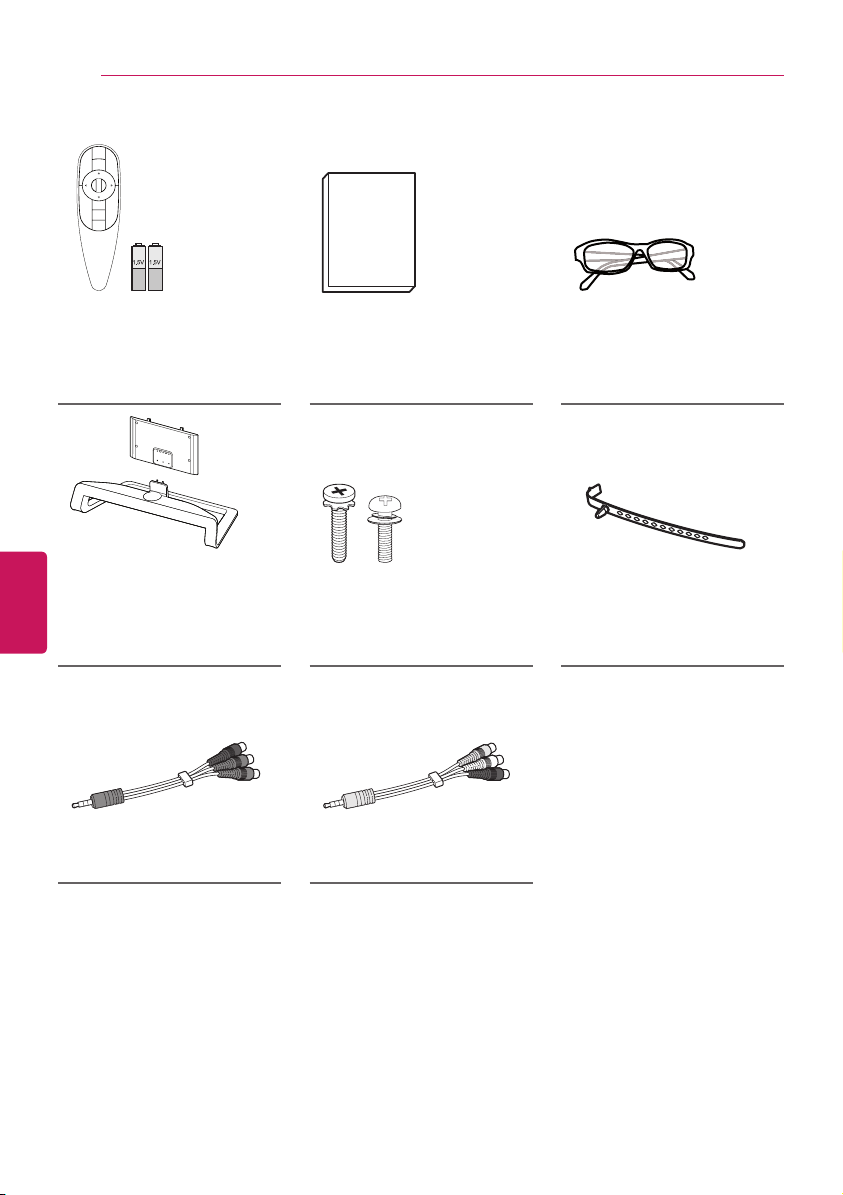
Batteries (AA)
(See page 28.)
Owner’s Manual Cinema 3D Glasses
The number of 3D glasses
may differ depending upon
the model or country.
Stand Body / Stand Base
(See page 14.)
Stand Screws
4 EA, M4 x 20
6 EA, M5 x 16
(See page 14.)
Cable Holder
(See page 16.)
Component Video Cable
(See page 22.)
Composite Video Cable
(See pages 22 and 23.)
ENGLISH
11
ASSEMBLING AND PREPARING
Optional Extras
Optional extras can be changed or modified for quality improvement without any notification.
Contact your dealer to buy these items.
These devices only work with certain models.
The model name or design may be changed manufacturer’s circumstances or policies.
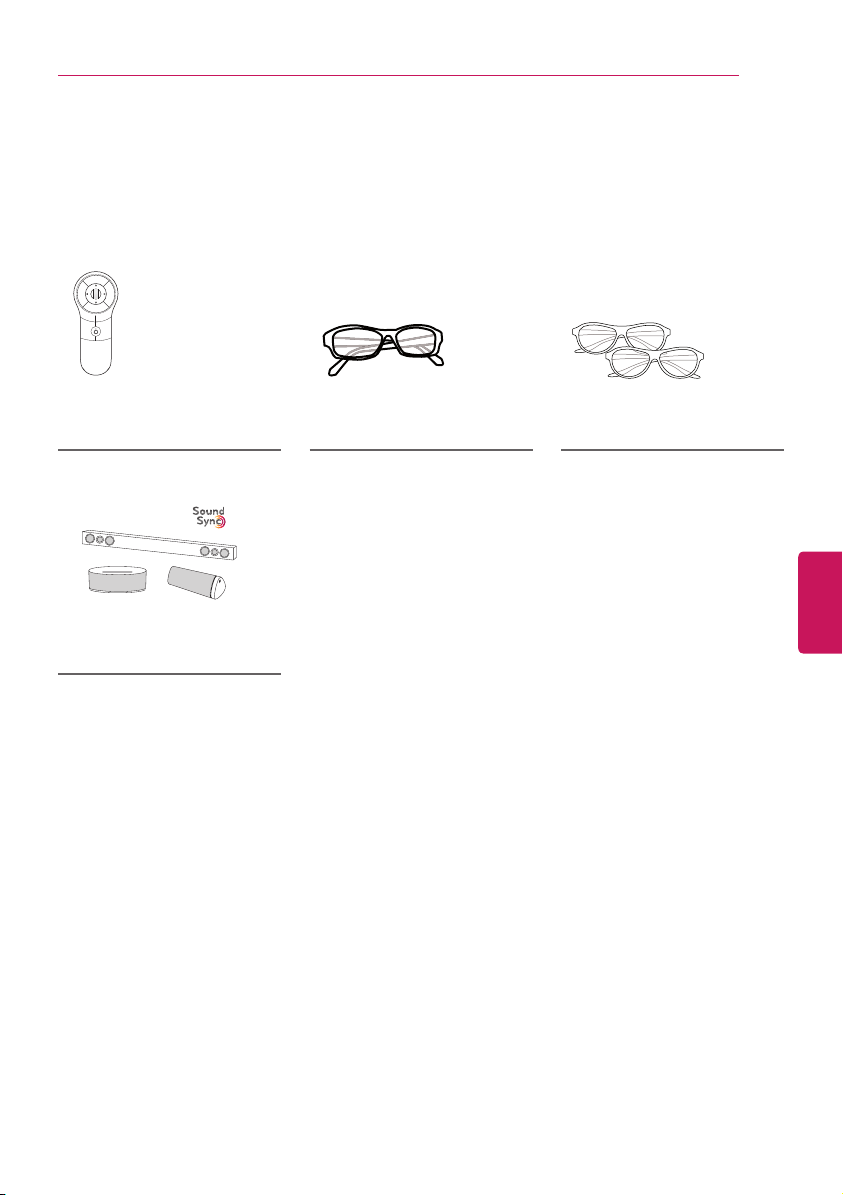
AN-MR400
Magic Remote
AG-F***
Cinema 3D Glasses
AG-F***DP
Dual Play Glasses
LG Audio Device
ENGLISH
12
ASSEMBLING AND PREPARING
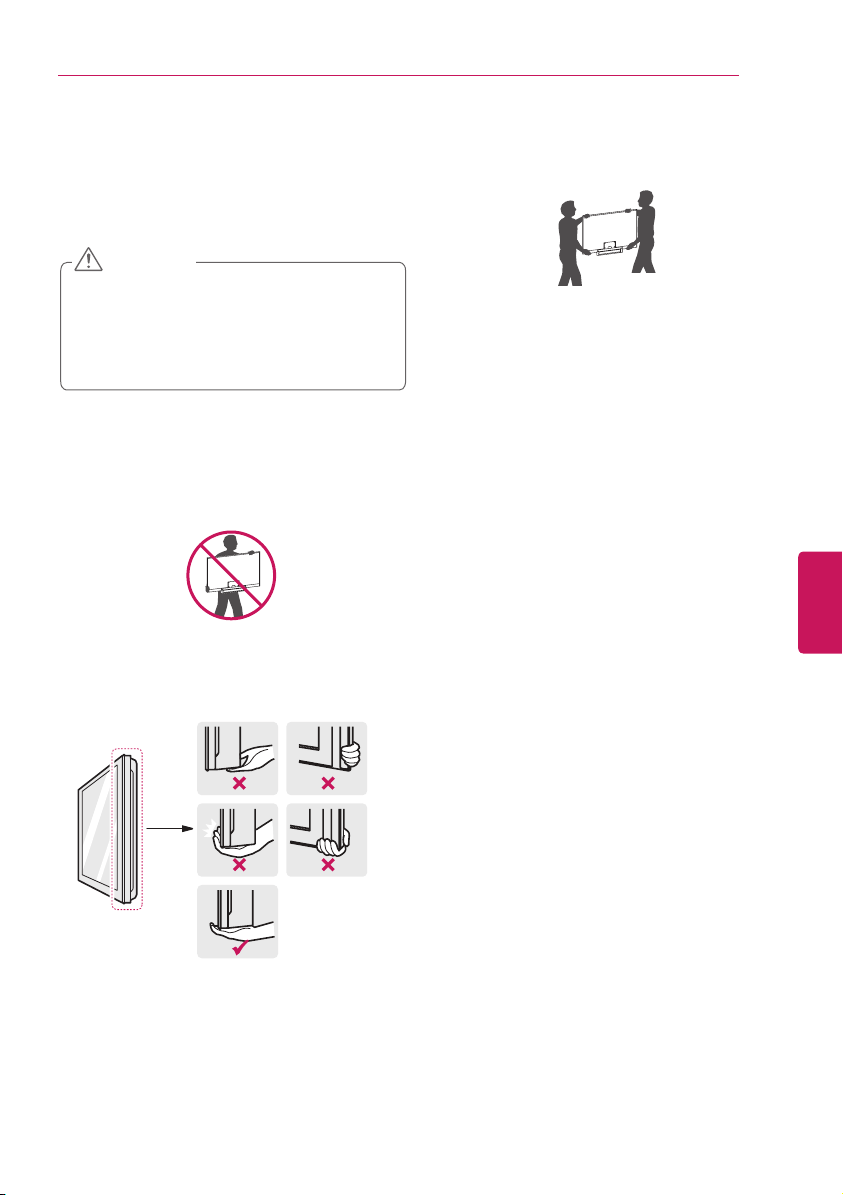
Parts and Buttons
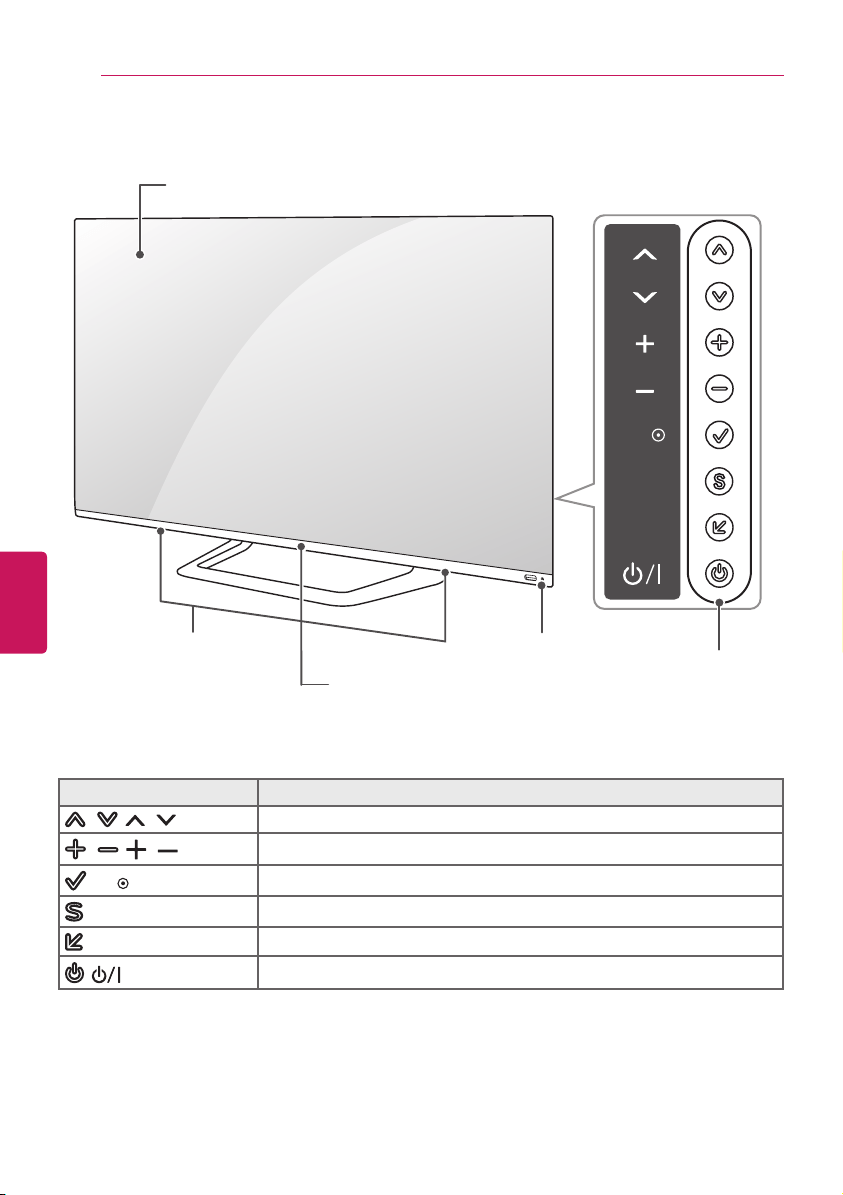
Button Description
/ ( / )
Scrolls through the saved channels.
/ ( / )
Adjusts the volume level.
(
OK
)
Selects the highlighted menu option or confirms an input.
(
SETTINGS
)
Accesses the main menus, or saves your input and exits the menus.
(
INPUT
)
Changes the input source.
( )
Turns the power on or off.
SETTINGS
INPUT
OK
Screen
Buttons
Remote control sensor
Speakers
Logo light
ENGLISH
13
ASSEMBLING AND PREPARING
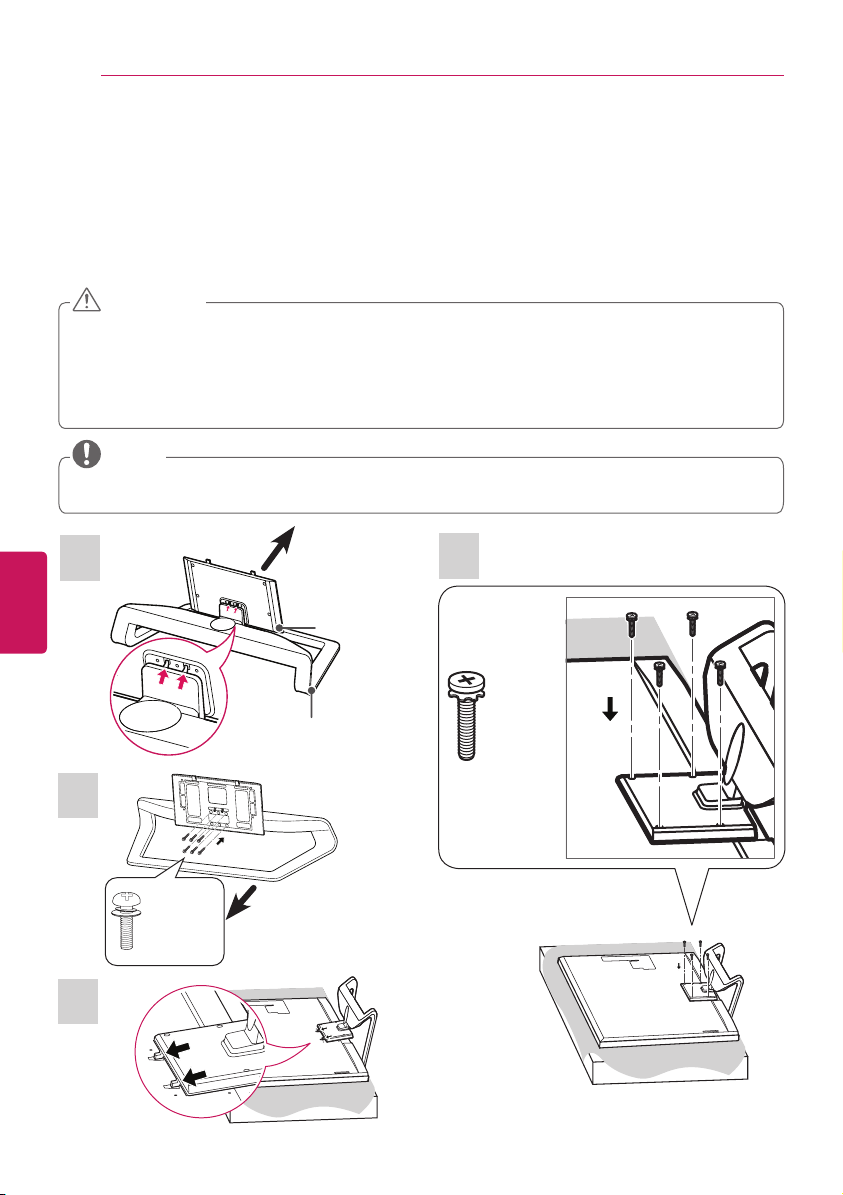
Lifting and Moving the TV
When moving or lifting the TV, read the following
to prevent the TV from being scratched or
damaged and for safe transportation regardless
of its type and size.
y
Avoid touching or applying pressure to the
screen at all times, as this may result in
damage to the screen.
y
Do not place the product on the floor with
its front facing down. Doing so may result
in damage to the screen.
CAUTION
y
Hold the top and bottom of the TV
frame firmly. Make sure not to hold the
transparent part, speaker, or speaker grill
area.
y
It is recommended to move the TV in
the box or packing material that the TV
originally came in.
y
Before moving or lifting the TV, disconnect
the power cord and all cables.
y
When holding the TV, the screen should
face away from you to avoid damage.
y
When transporting a large TV, there should
be at least 2 people.
y
When transporting the TV by hand, hold the
TV as shown in the following illustration.
y
When transporting the TV, do not expose
the TV to jolts or excessive vibration.
y
When transporting the TV, keep the TV
upright, never turn the TV on its side or tilt
towards the left or right.
ENGLISH
14
ASSEMBLING AND PREPARING
Setting up the TV
You can mount your TV to a wall or attach the stand if you wish to place the TV on an entertainment
center or other furniture.
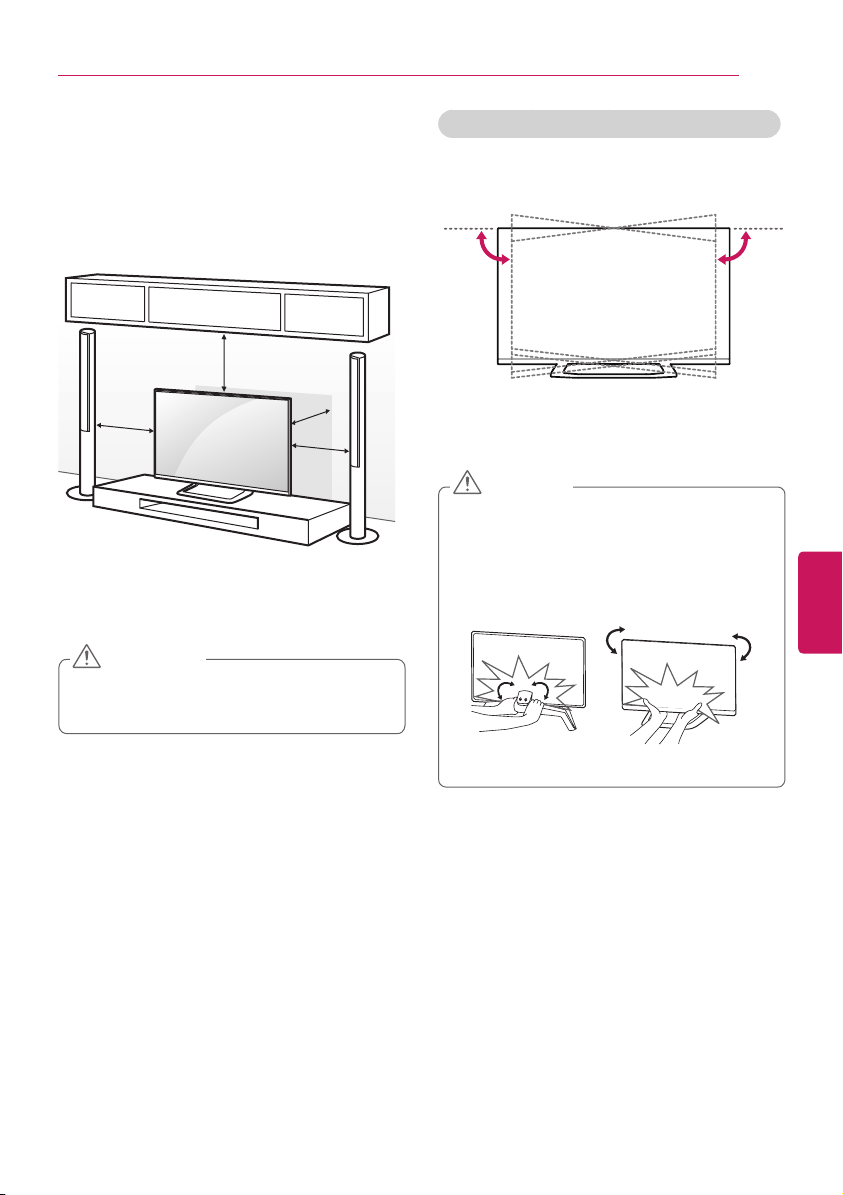
Attaching the Stand
If you are not mounting the TV to a wall, use the following instructions to attach the stand.
y
When attaching the stand to the TV set, using 2 people, place the screen facing down on a
cushioned table or flat surface to protect the screen from scratches.
y
Make sure that the screws are fastened tightly. (If they are not fastened securely enough, the
TV may tilt forward after being installed.)
y
Do not tighten the screws with too much force; otherwise they may be damaged and come
loose later.
CAUTION
y
Remove the stand before installing the TV on a wall mount by performing the stand attachment
in reverse.
NOTE
1
2
3
Front
Stand Base
Stand Body
Front
6 EA
M5 x 16
4
M4 x 20
4 EA
ENGLISH
15
ASSEMBLING AND PREPARING
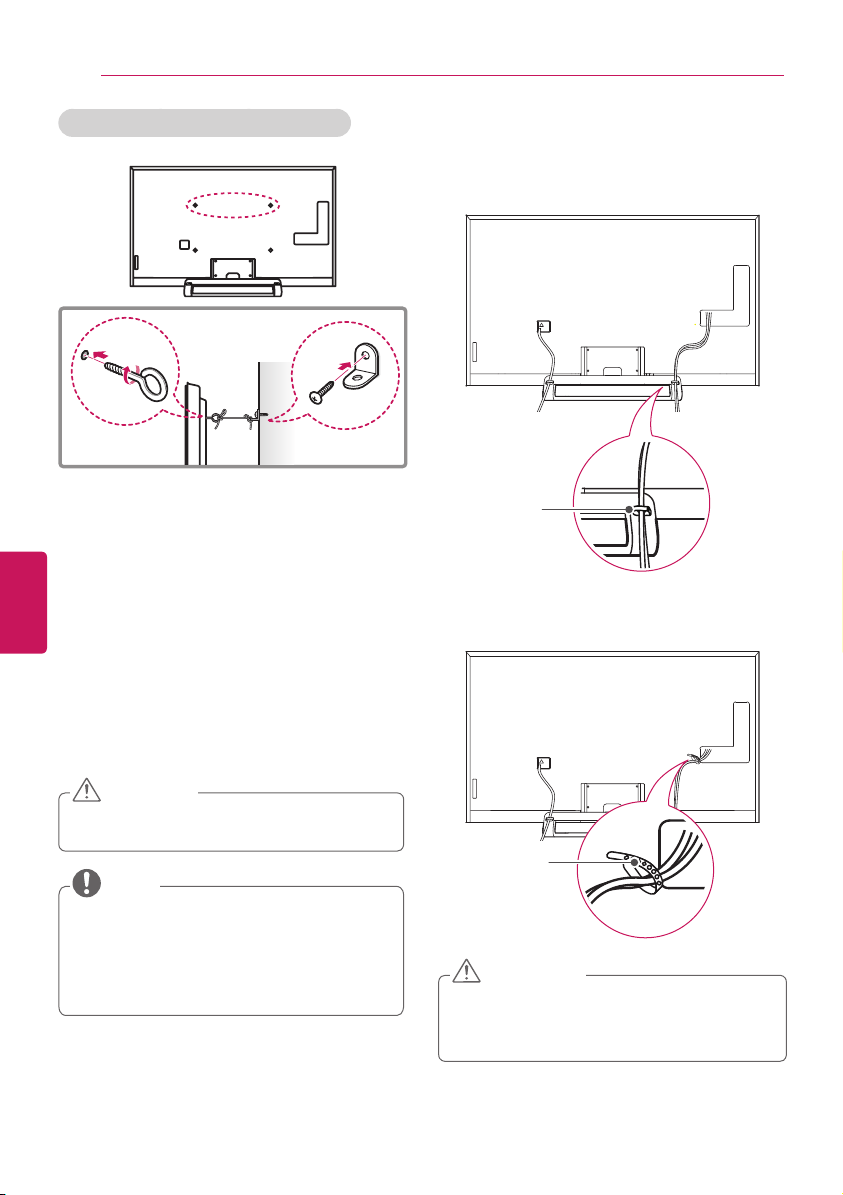
Mounting on a Table
1
Lift and tilt the TV into its upright position on
a table.
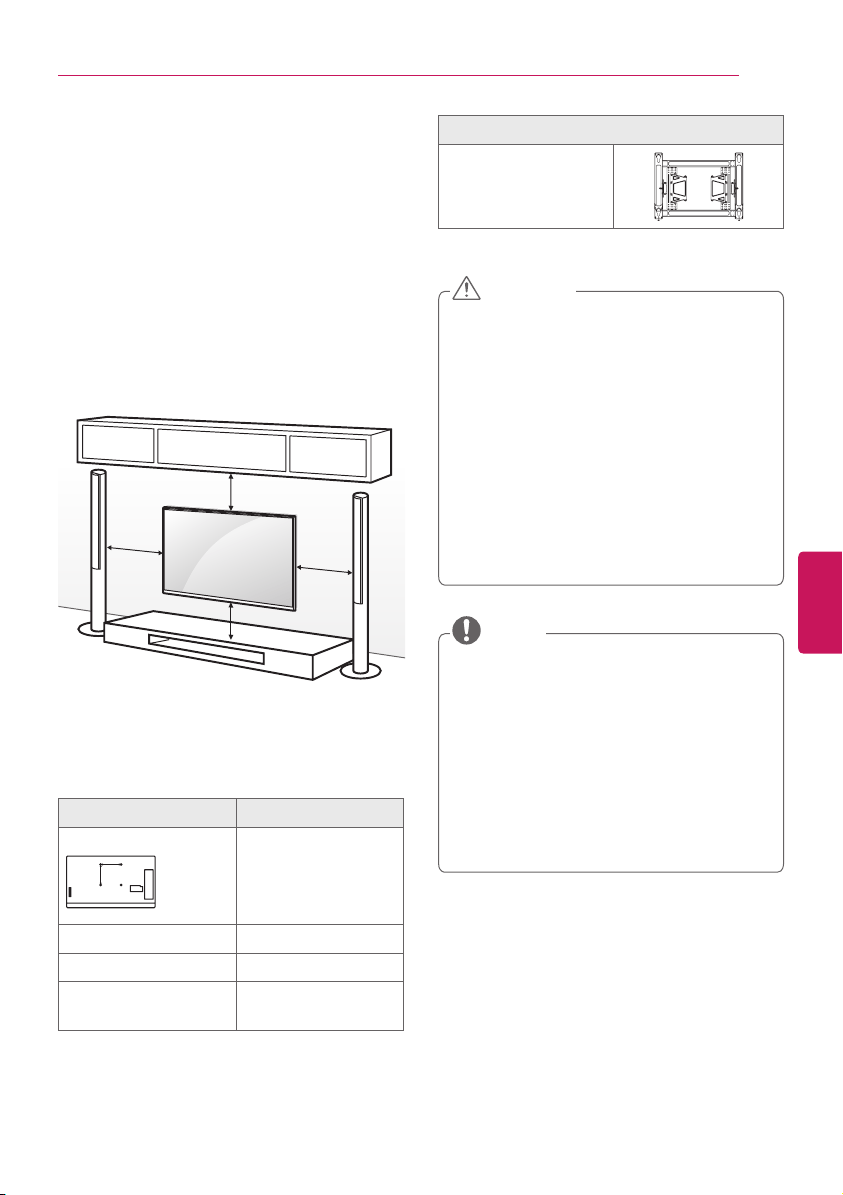
- Leave a 10 cm (4 inches) (minimum) space
from the wall for proper ventilation.
10 cm
10 cm
10 cm
10 cm
(4
in
ch
es)
2
Connect the power cord to a wall outlet.
y
Do not place the TV near or on sources
of heat, as this may result in fire or other
damage.
CAUTION
Adjusting the angle of the TV to suit view
Swivel 7 degrees to the left or right and adjust
the angle of the TV to suit your view.
7˚7˚
y
When adjusting the angle of the TV, watch
out for your fingers.
y
Personal injury may occur if hands or
fingers are pinched. If the product is tilted
too much, it may fall, causing damage or
injury.
Rear
Front
CAUTION
ENGLISH
16
ASSEMBLING AND PREPARING
Tidying cables
y
Do not move the TV by holding the cable
holder and cable management, as the
cable holders may break, and injuries and
damage to the TV may occur.
CAUTION
1
Gather and bind the cables with the cable
management.
2
Gather and bind the cables with the cable
holder.
Cable
Management
Cable Holder
Securing the TV to a wall (optional)
1
Insert and tighten the eye-bolts, or TV
brackets and bolts on the back of the TV.
- If there are bolts inserted at the eye-bolts
position, remove the bolts first.
2
Mount the wall brackets with the bolts to
the wall.
Match the location of the wall bracket and
the eye-bolts on the rear of the TV.
3
Connect the eye-bolts and wall brackets
tightly with a sturdy rope.
Make sure to keep the rope horizontal with
the flat surface.
y
Make sure that children do not climb on or
hang on the TV.
CAUTION
y
Use a platform or cabinet that is strong
and large enough to support the TV
securely.
y
Brackets, bolts, and ropes are optional.
You can obtain additional accessories from
your local dealer.
NOTE
ENGLISH
17
ASSEMBLING AND PREPARING
Mounting on a Wall
An optional wall mount can be used with your
LG Television. Consult with your local dealer for
a wall mount that supports the VESA standard
used by your TV model. Carefully attach the wall
mount bracket at the rear of the TV. Install the
wall mount bracket on a solid wall perpendicular
to the floor. If you are attaching the TV to other
building materials, please contact qualified
personnel to install the wall mount. Detailed
instructions will be included with the wall mount.
We recommend that you use an LG brand wall
mount.
10 cm
10 cm
10 cm
10 cm
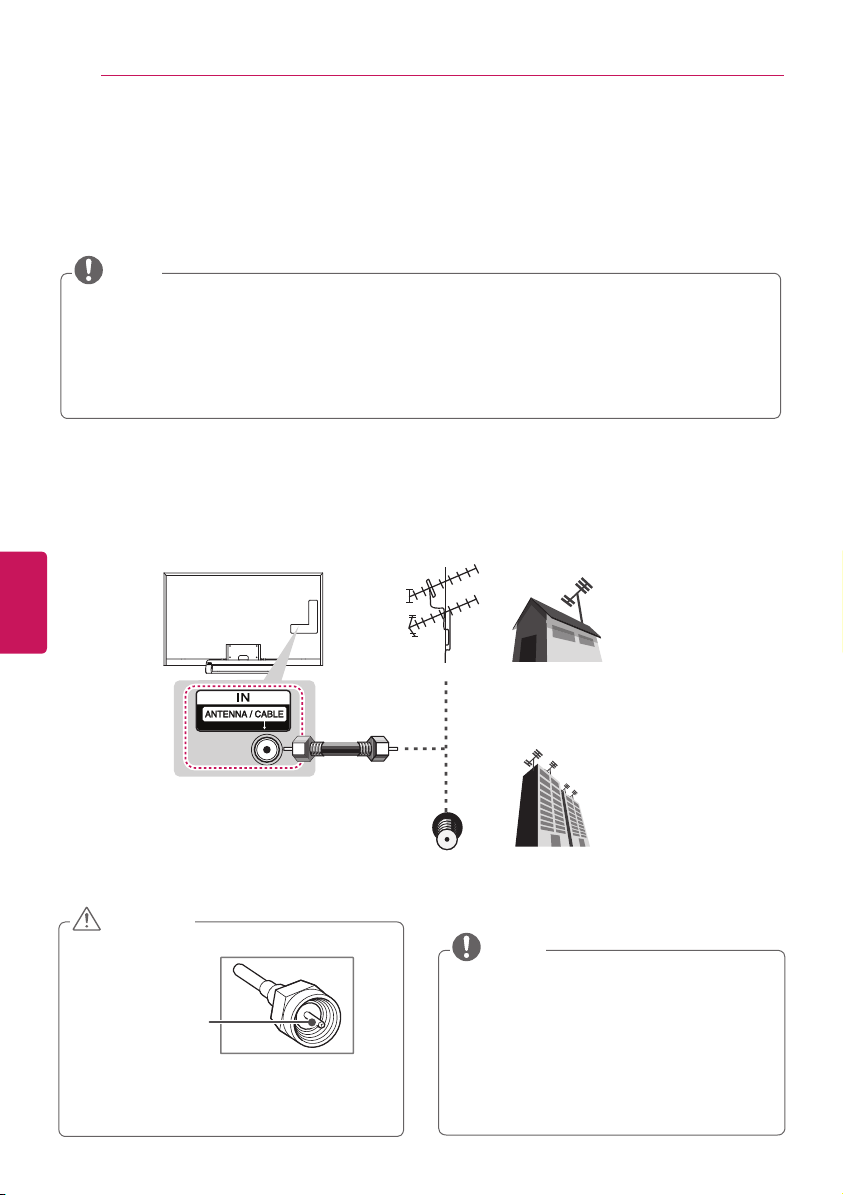
Make sure to use screws and wall mounts that
meet the VESA standard. Standard dimensions
for the wall mount kits are described in the
following table.
Model 84LM9600-UB
VESA (A x B)
A
B
600 x 400
Standard screw M8
Number of screws 4
Wall mount bracket
(optional)
LSW630B
(4 inches)
Wall mount bracket (optional)
LSW630B
y
Disconnect the power before moving or
installing the TV. Otherwise electric shock
may occur.
y
If you install the TV on a ceiling or slanted
wall, it may fall and result in severe injury.
Use an authorized LG wall mount and
contact the local dealer or qualified
personnel.
y
Do not over tighten the screws as this
may cause damage to the TV and void
your warranty.
y
Use the screws and wall mounts that
meet the VESA standard. Any damages
or injuries by misuse or using an improper
accessory are not covered by the warranty.
CAUTION
y
Use the screws that are listed in the VESA
standard screw specifications.
y
The wall mount kit includes an installation
manual and necessary parts.
y
The wall mount bracket is optional. You
can obtain additional accessories from
your local dealer.
y
The length of screws may differ depending
upon the wall mount. Make sure to use
the proper length.
y
For more information, refer to the manual
supplied with the wall mount.
NOTE
ENGLISH
18
MAKING CONNECTIONS
MAKING CONNECTIONS
You can connect various external devices to the TV. Supported external devices are: HD receivers,
DVD players, VCRs, audio systems, USB storage devices, PC, gaming devices, and other external
devices. For more information on external device’s connection, refer to the manual provided with
each device.
y
If you record a TV program on a DVD recorder or VCR, make sure to connect the TV signal input
cable to the TV through a DVD recorder or VCR. For more information of recording, refer to the
manual provided with the connected device.
y
The external device connections shown may differ slightly from illustrations in this manual.
y
Connect external devices to the TV regardless of the order of the TV port.
y
If you connect a gaming device to the TV, use the cable supplied with the gaming device.
y
Refer to the external equipment’s manual for operating instructions.
NOTE
Connecting to an Antenna or Cable
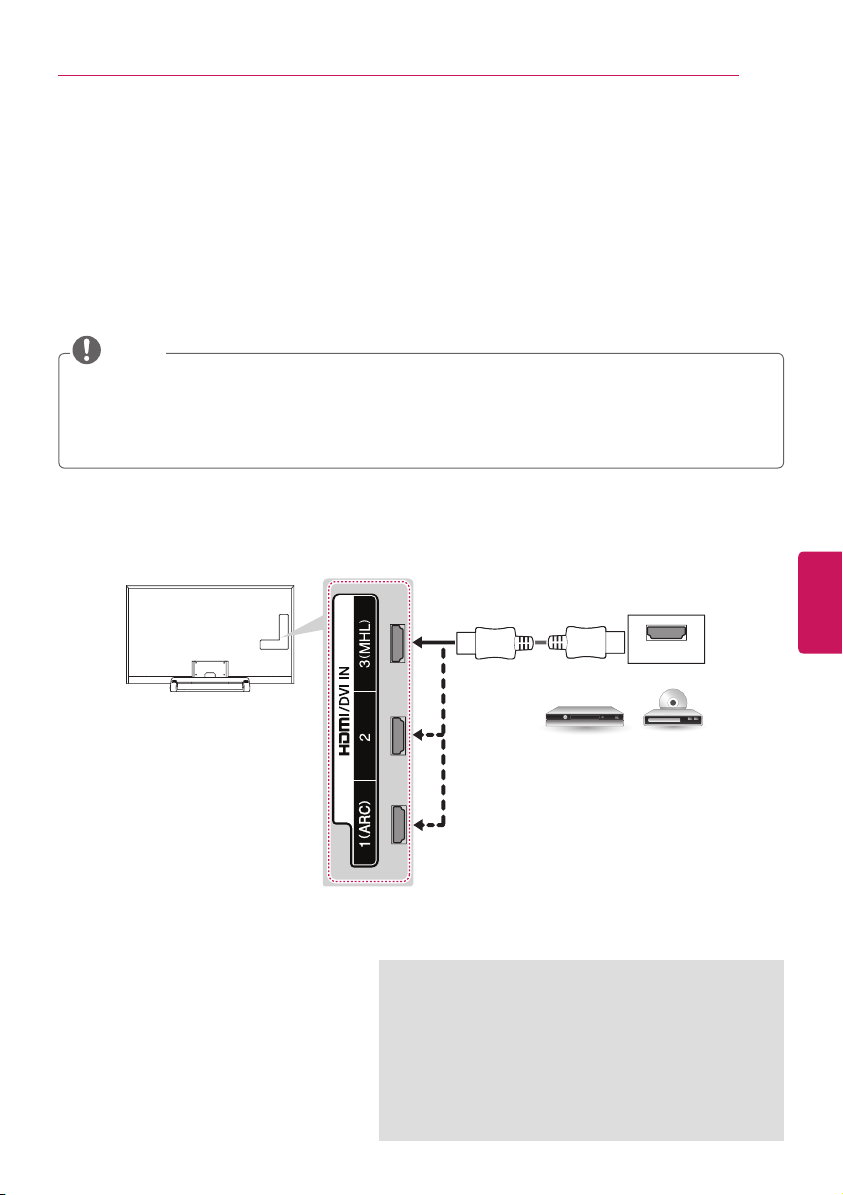
Connect an antenna, cable, or cable box to watch TV while referring to the following. The illustrations
may differ from the actual items and a RF cable is optional.
y
Make sure not to bend the copper wire of
the RF cable.
Copper wire
y
Complete all connections between
devices, and then connect the power cord
to the power outlet to prevent damage to
your TV.
CAUTION
(*Not Provided)
Antenna
Coaxial (75Ω)
Terminal
y
Use a signal splitter to use more than 2
TVs.
y
DTV Audio Supported Codec: MPEG,
Dolby Digital.
y
Display of Ultra HD (3840 x 2160 pixels)
content compatible; additional device
capable of processing Ultra HD source
content (in 2D or 3D) may be required and
will be sold separately.
NOTE
VHF Antenna
UHF Antenna
ENGLISH
19
MAKING CONNECTIONS
Connecting to a HD receiver, DVD Player or VCR
Connect a HD receiver, DVD Player, or VCR to the TV and select an appropriate input mode.
HDMI Connection
HDMI is the best way to connect a device.
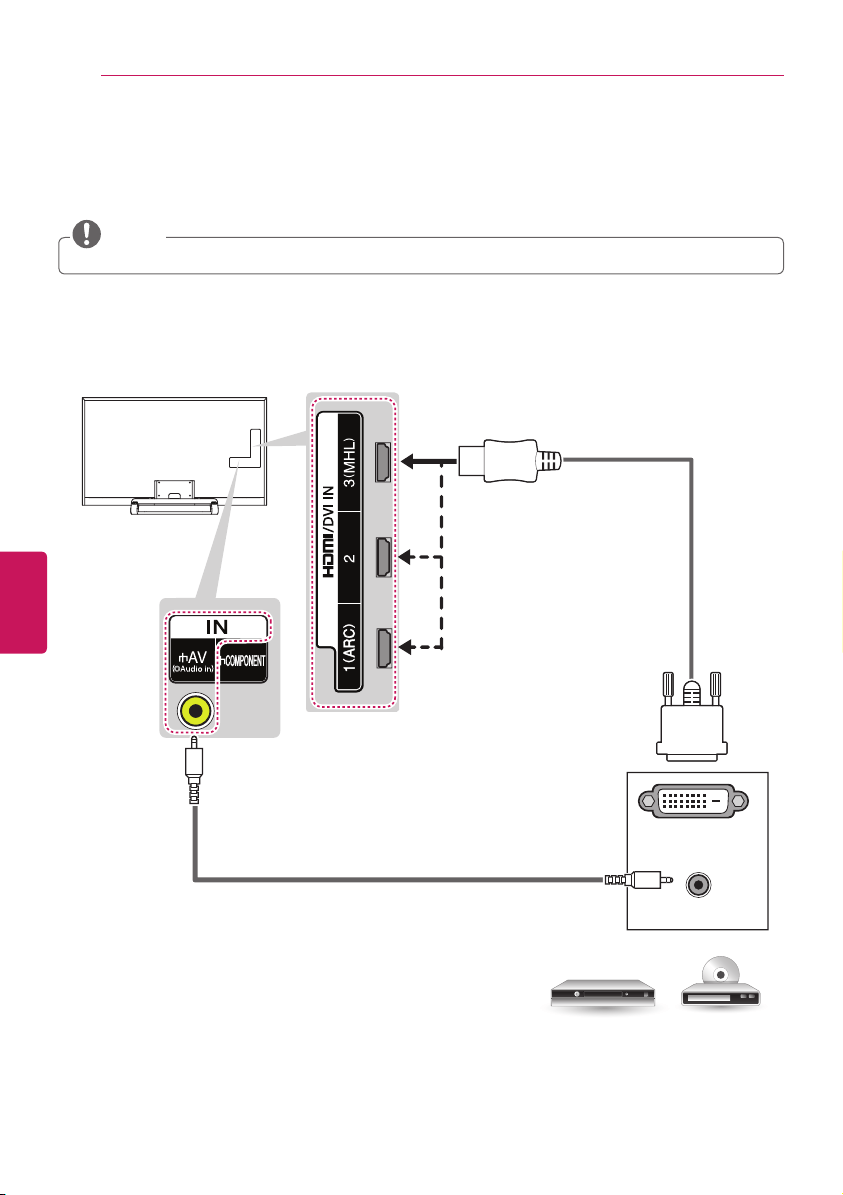
Transmits digital video and audio signals from an external device to the TV. Connect the external
device and the TV with the HDMI cable as shown in the following illustration.
y
Use the latest High Speed HDMI™ Cable that supports CEC (Customer Electronics Control)
function.
y
High Speed HDMI™ Cables are tested to carry an HD signal up to 1080p and higher.
y
HDMI Audio Supported Format: PCM (Up to 192 kHz, 32 kHz / 44.1 kHz / 48 kHz / 88 kHz /
96 kHz / 176 kHz / 192 kHz)
NOTE
ARC (Audio Return Channel)
y
When connected with a high-speed HDMI cable,
digital audio can be sent to a compactible device
without an additional optical audio cable.
y
ARC is only supported on the HDMI/DVI IN 1
(ARC) port. An external audio device that supports
ARC should be connected to HDMI/DVI IN 1 if
you wish to use ARC.
HDMI
DVD / Blu-Ray / HD Cable Box / HD STB
(*Not Provided)
Choose any HDMI input port to connect.
It does not matter which port you use.
ENGLISH
20
MAKING CONNECTIONS
AUDIO OUT
DVI OUT
DVI to HDMI Connection
Transmits the digital video signal from an external device to the TV. Connect the external device and
the TV with the DVI-HDMI cable as shown in the following illustration. To transmit an audio signal,
connect an audio cable.
Choose any HDMI input port to connect.
It does not matter which port you use.
y
When using the HDMI/DVI cable, only Single link is supported.
NOTE
(*Not Provided)
(*Not Provided)
DVD / Blu-Ray / HD Cable Box
YELLOW
ENGLISH
21
MAKING CONNECTIONS
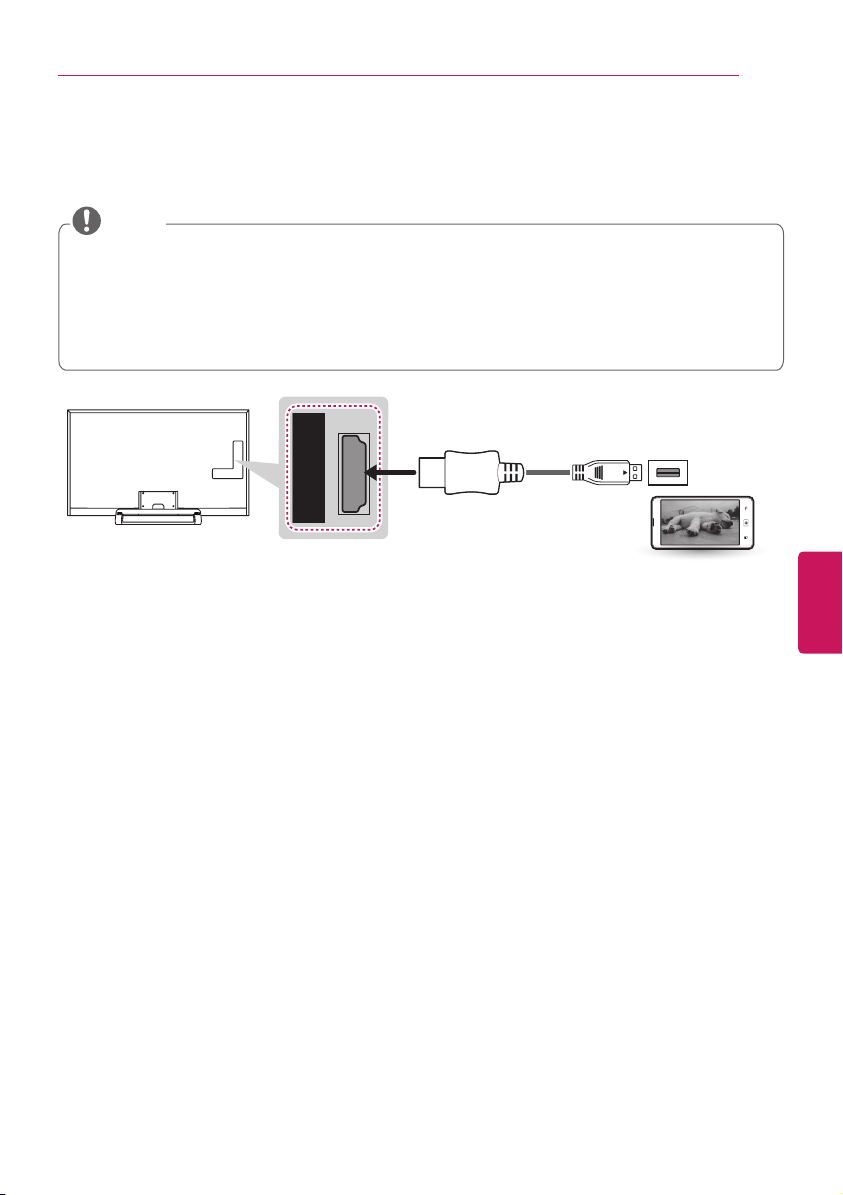
Connecting to a Mobile Phone
Mobile High-definition Link (MHL) is an interface for transmitting digital audio/visual signals from
mobile phones to television sets.
y
Connect the mobile phone to the HDMI/DVI IN 3 (MHL) port to view the phone screen on the TV.
y
This only works with an MHL-enabled phone.
y
With some MHL supporting mobile phones, you can use the TV remote to control the phone.
y
An MHL passive cable is needed to connect the TV and a mobile phone.
y
Remove the MHL cable from the TV when:
- the MHL function is disabled
- your mobile device is fully charged in standby mode
NOTE
3
(MHL)
(*Not Provided)
MHL Cable
Mobile phone
ENGLISH
22
MAKING CONNECTIONS
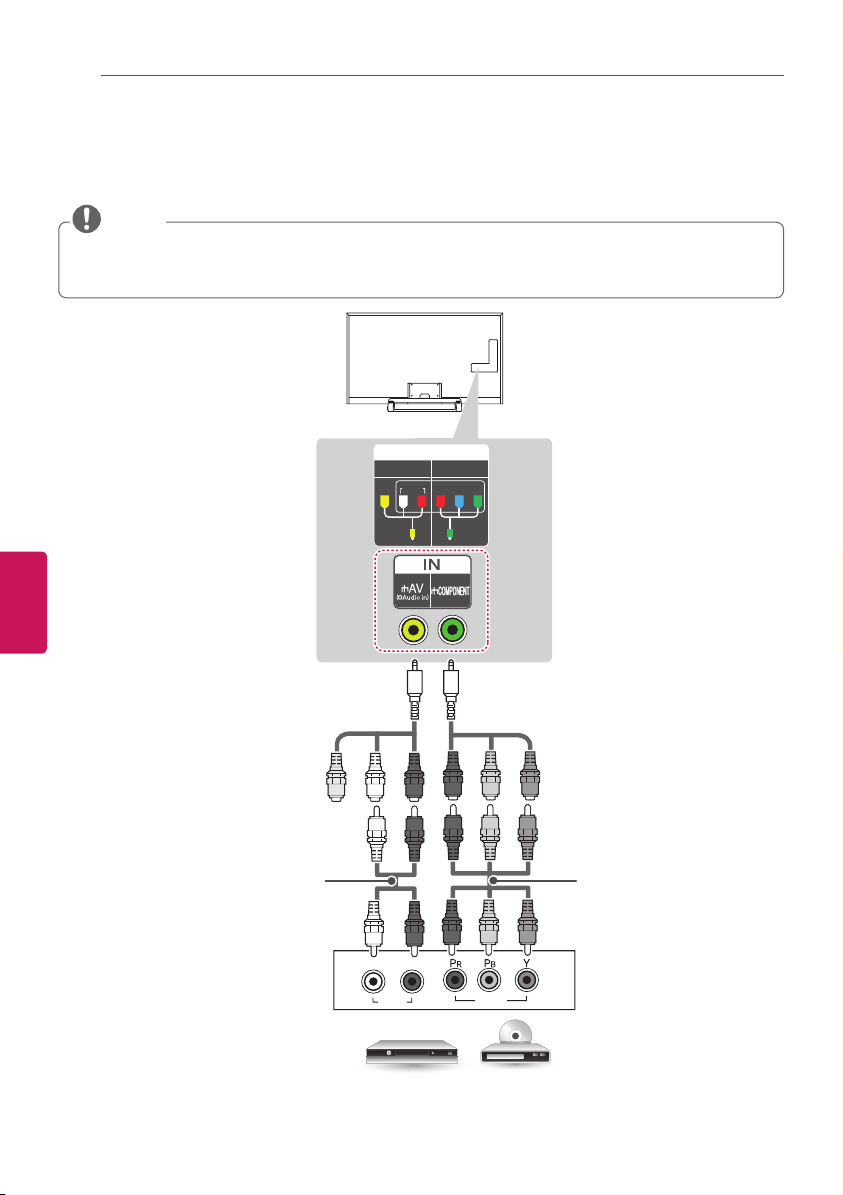
Component Connection
Transmits analog video and audio signals from an external device to the TV. Connect the external
device and the TV with a component cable as shown in the following illustration.
y
If cables are installed incorrectly, it could cause the image to display in black and white or with
distorted color.
y
Check to ensure the cables are matched with the corresponding color connection.
NOTE
IN
COMPONENT
AV
VIDEO AUDIO
Y
P
B
P
R
VIDEO
AUDIO
L R
GREEN
BLUE
RED
RED
WHITE
GREEN
YELLOW
YELLOW
WHITE
RED
GREEN
BLUE
RED
WHITE
RED
GREEN
BLUE
RED
(Use the composite video cable provided.) (Use the component video cable provided.)
DVD / Blu-Ray / HD Cable Box
(*Not Provided)(*Not Provided)
ENGLISH
23
MAKING CONNECTIONS
(Use the component video cable provided.)
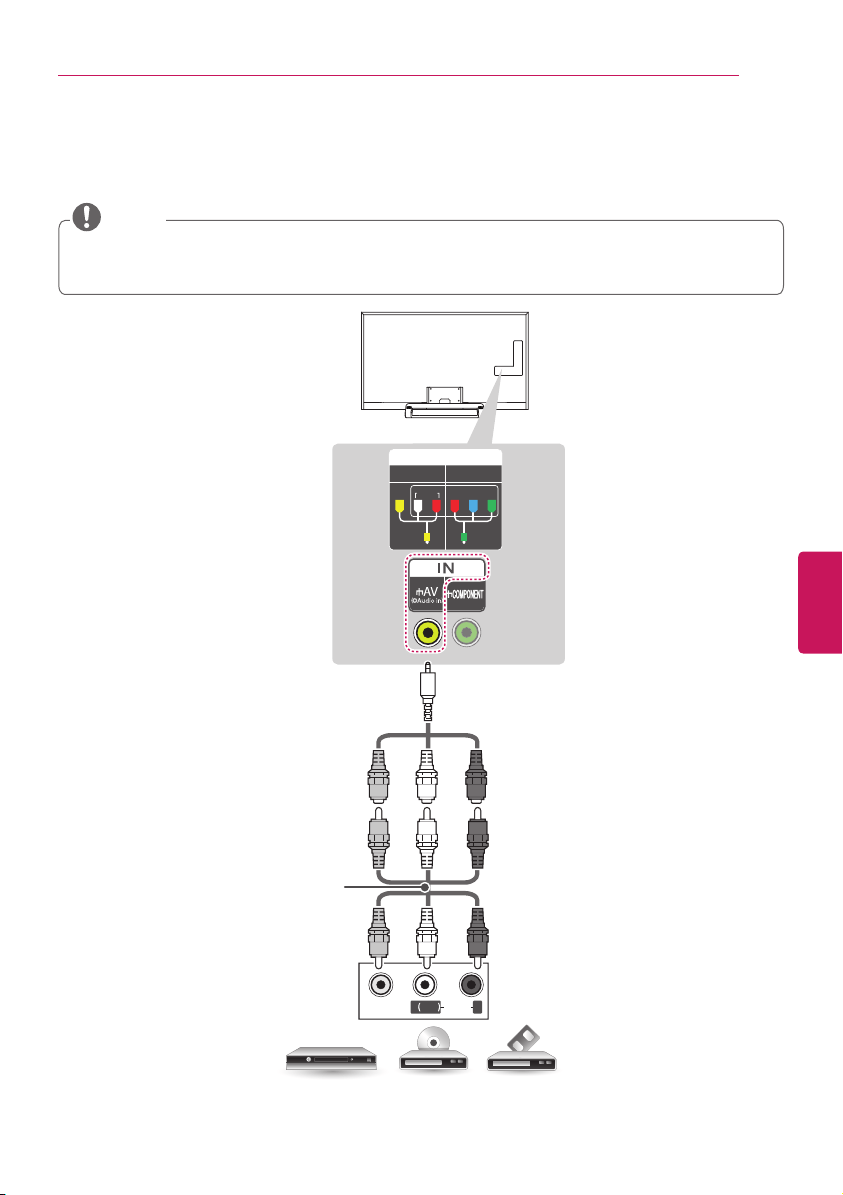
Composite Connection
Transmits analog video and audio signals from an external device to the TV. Connect the external
device and the TV with the composite cable as shown in the following illustration.
IN
COMPONENT
AV
VIDEO AUDIO
Y
P
B
P
R
VIDEO
MONO
( )
AUDIOL R
RED
WHITE
YELLOW
WHITE
RED
WHITE
RED
YELLOW YELLOW
YELLOW
(Use the composite video cable provided.)
y
If you have a mono VCR, connect the audio cable from the VCR to the AUDIO L/MONO jack of
the TV.
y
Check to ensure the cables are matched with the corresponding color connection.
NOTE
VCR / DVD / Blu-Ray / HD Cable Box
(*Not Provided)
ENGLISH
24
MAKING CONNECTIONS
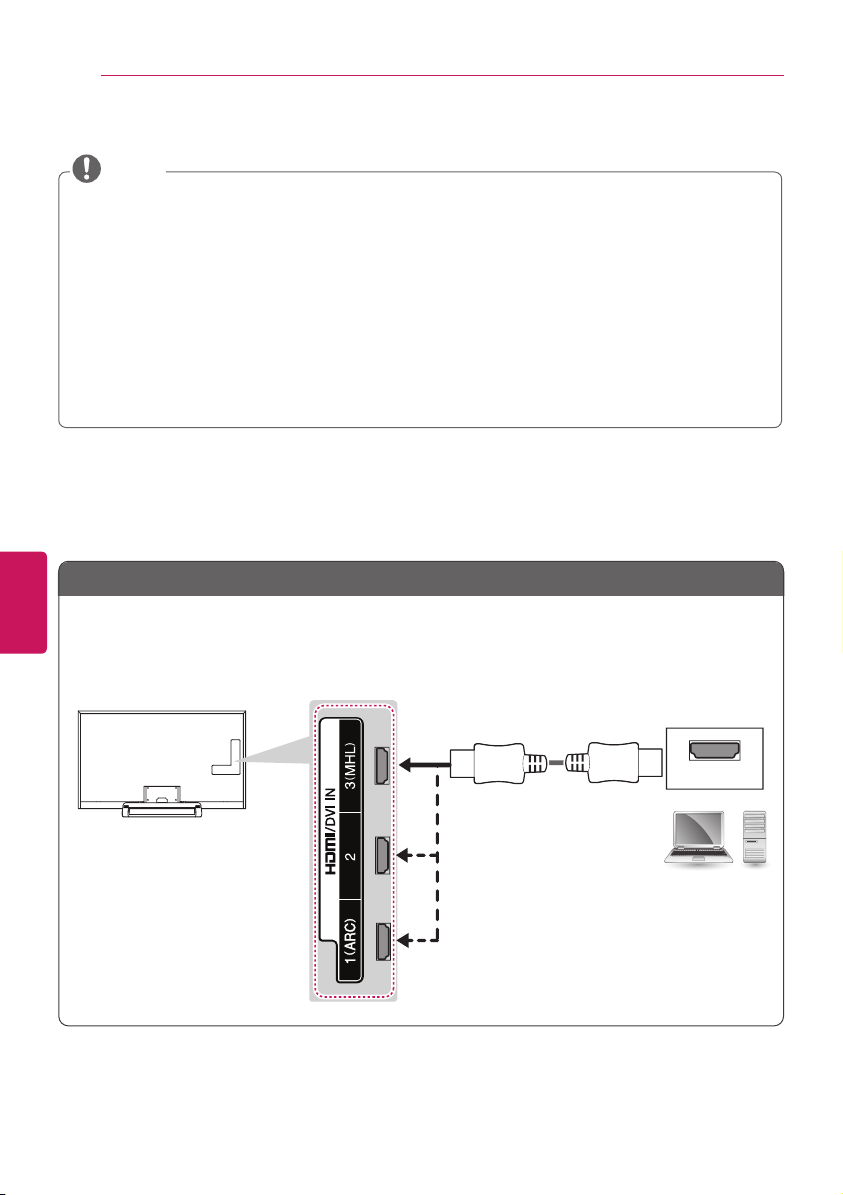
Connecting a PC
y
It is recommended to use an HDMI connection for the best image quality.
y
Depending upon the graphics card, DOS mode video may not work if a HDMI to DVI Cable
is in use.
y
In PC mode, there may be noise associated with the resolution, vertical pattern, contrast, or
brightness. If noise is present, change the PC output to another resolution, change the refresh
rate to another rate or adjust the brightness and contrast on the PICTURE menu until the picture
is clear.
y
The synchronization input form for horizontal and vertical frequencies is separate.
y
Depending upon the graphics card, some resolution settings may not allow the image to be
positioned on the screen properly.
y
If you are using DVI out from a PC, you have to connect analog audio separately. Refer to the
instructions on the next page.
y
When using the HDMI/DVI cable, only Single link is supported.
NOTE
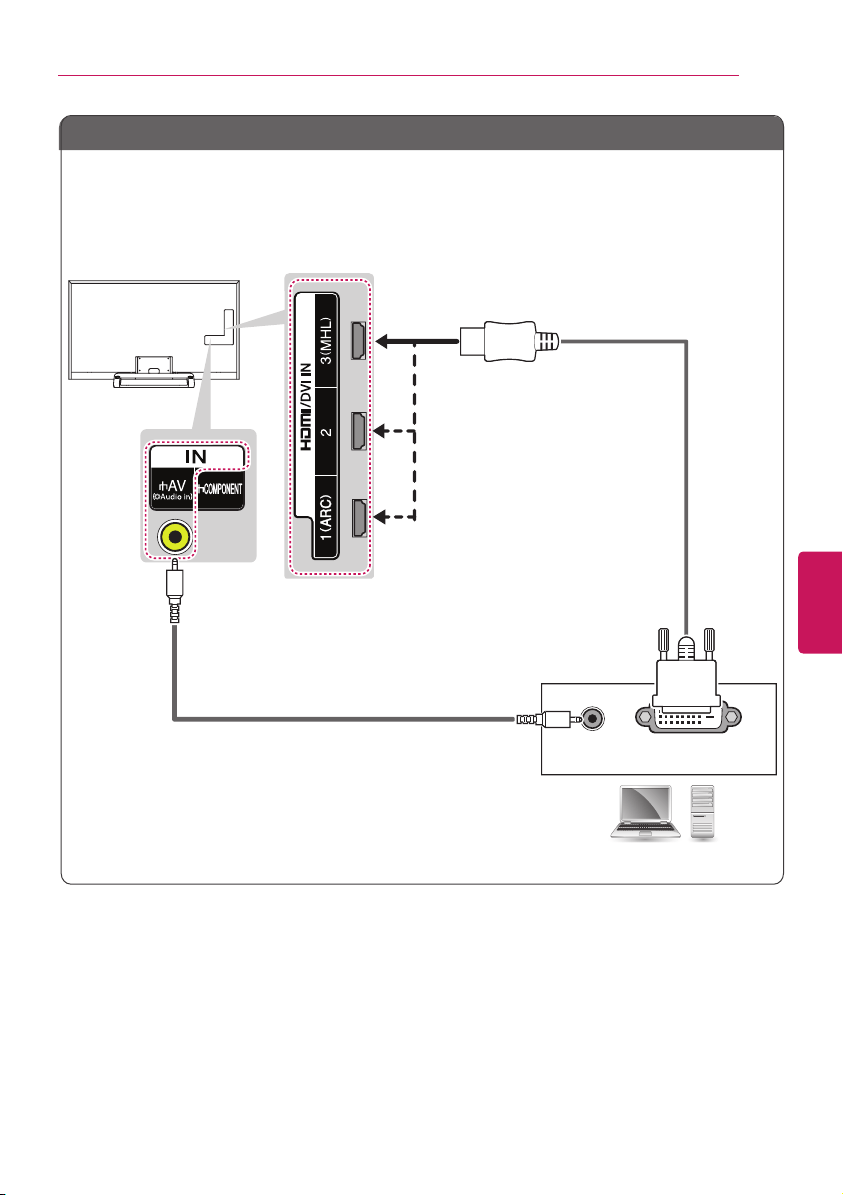
HDMI Connection or DVI to HDMI Connection
Choose method A or B to make connection.
Method A: HDMI Connection
AUDIO OUT
DVI OUT
HDMI
(*Not Provided)
PC
Choose any HDMI input port to connect.
It does not matter which port you use.
ENGLISH
25
MAKING CONNECTIONS
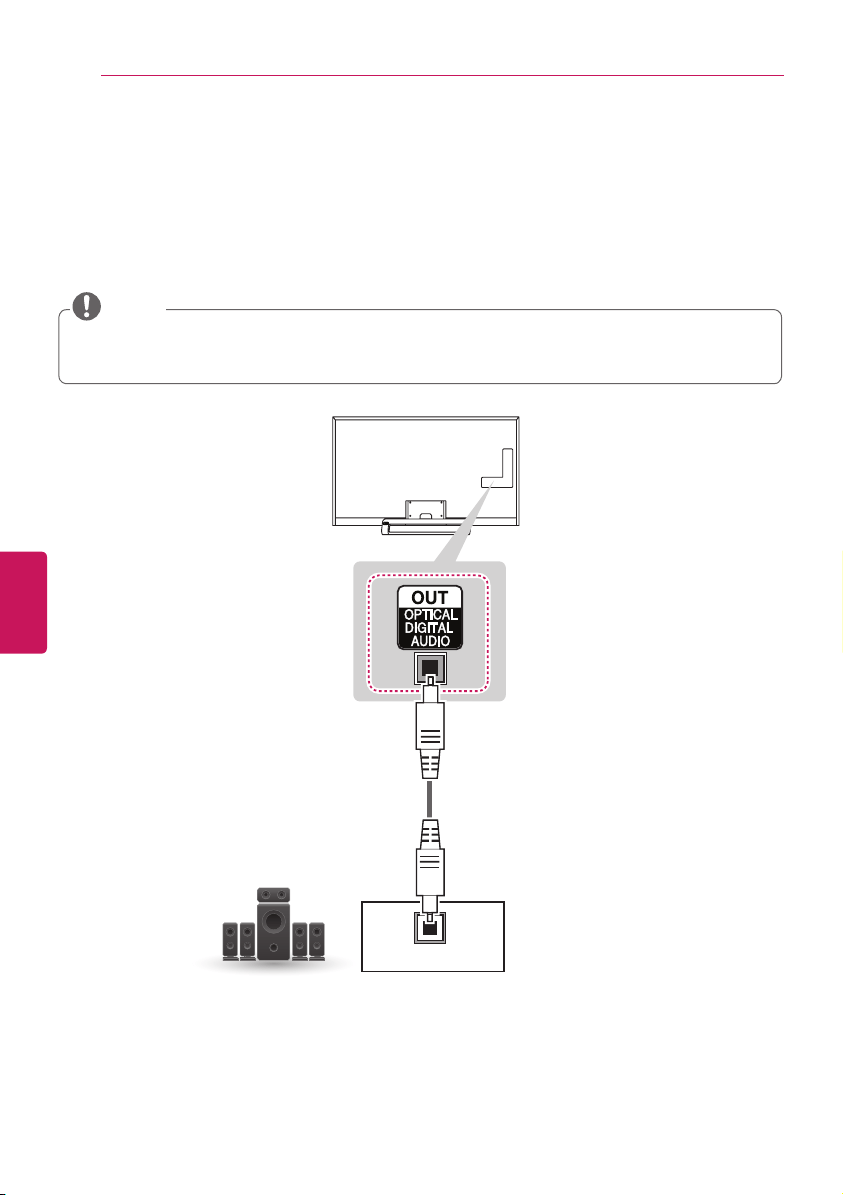
Method B: DVI to HDMI Connection
AUDIO OUT
DVI OUT
HDMI
PC
(*Not Provided)
(*Not Provided)
YELLOW
Choose any HDMI input port to connect.
It does not matter which port you use.
ENGLISH
26
MAKING CONNECTIONS
Connecting to an Audio System
You can use an optional external audio system instead of the built-in speaker.
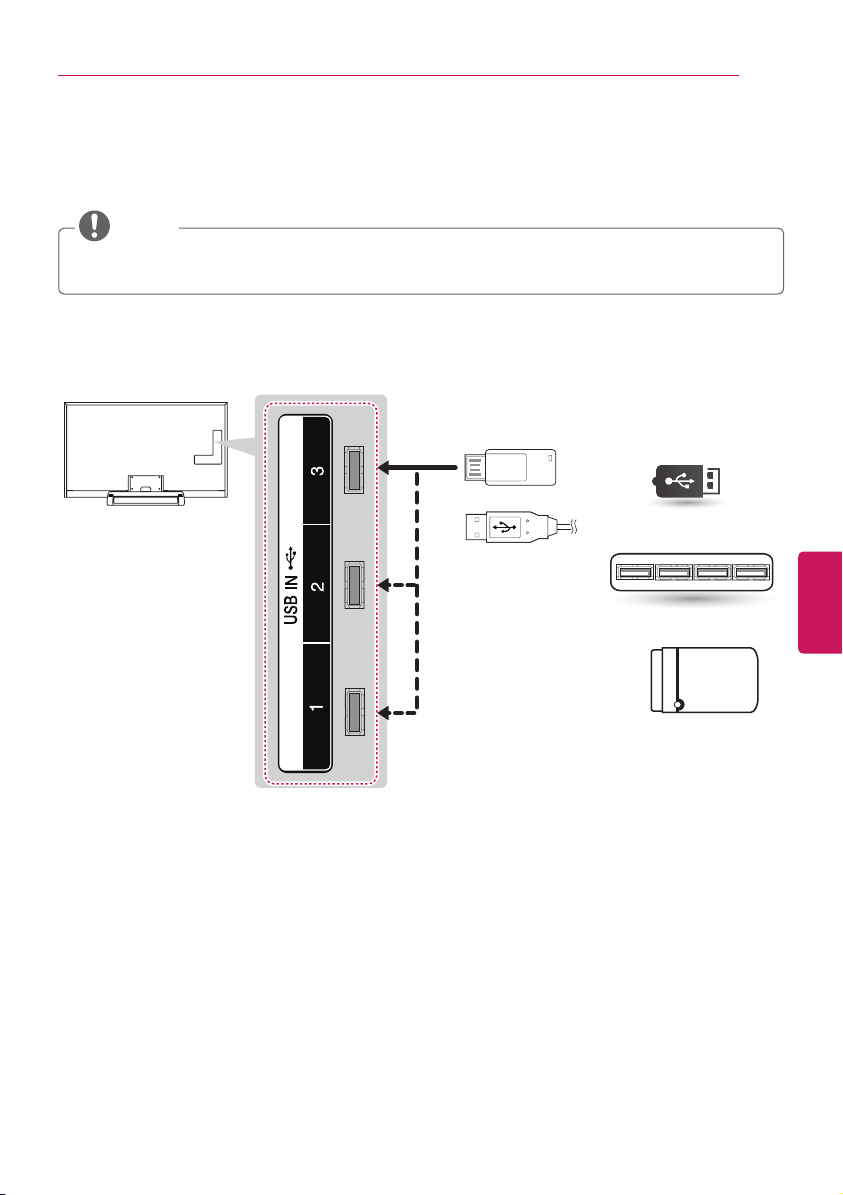
Digital Optical Audio Connection
Transmits a digital audio signal from the TV to an external device. Connect the external device and the
TV with the optical audio cable as shown in the following illustration.
y
Do not look into the optical output port. Looking directly at the emitted light from the Optical output
port may damage your vision.
y
Audio with ACP (Audio Copy Protection) function may block digital audio output.
NOTE
OPTICAL AUDIO IN
Digital Audio System
(*Not Provided)
ENGLISH
27
MAKING CONNECTIONS
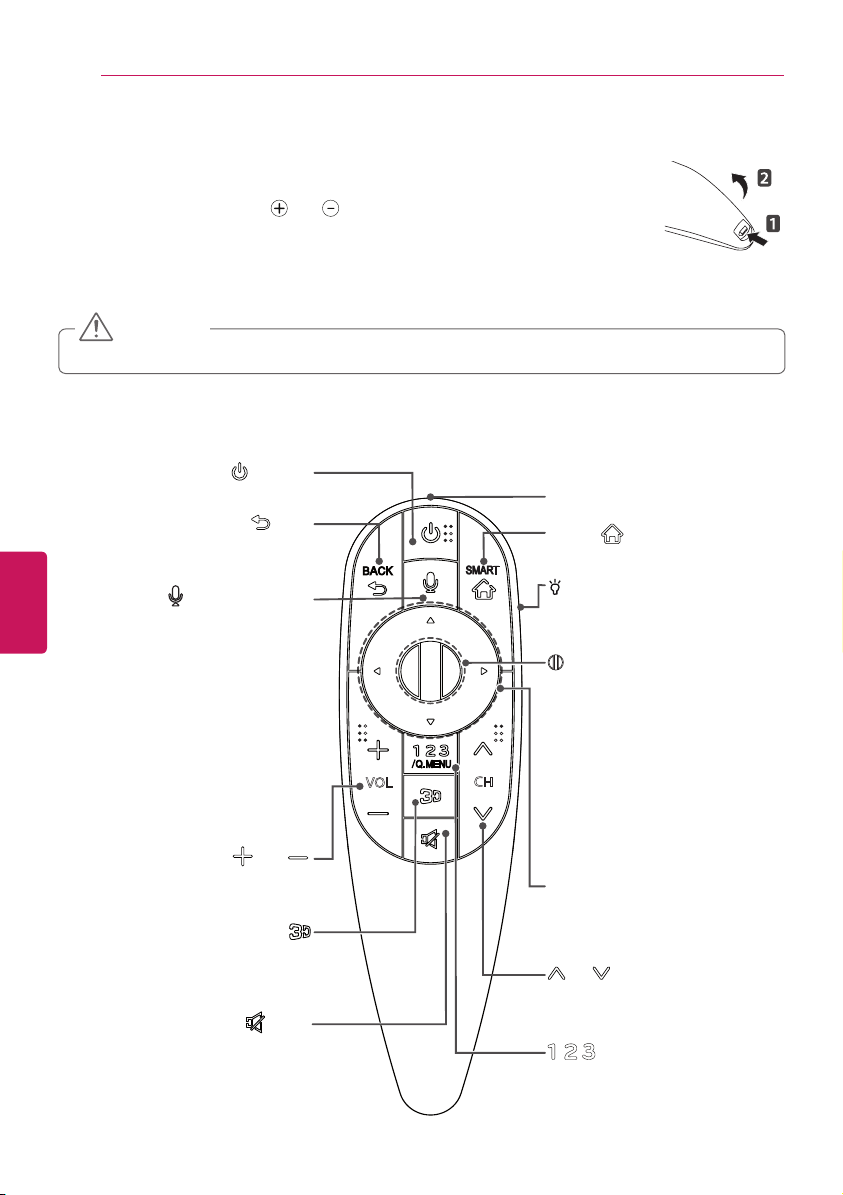
Connecting a USB Device
Connect a USB storage device such as USB flash memory, external hard drive, or a USB memory card
reader to the TV and access the SmartShare menu to use various multimedia files.
Choose any USB input port to connect.
It does not matter which port you use.
y
Some USB Hubs may not work. If a USB device connected using a USB Hub is not detected,
connect it directly to the USB port on the TV.
NOTE
(*Not Provided)
USB / USB HUB / HDD
ENGLISH
28
MAGIC REMOTE CONTROL FUNCTIONS
MAGIC REMOTE CONTROL FUNCTIONS
When the message
Magic remote control battery is low.
Change the battery.
is
displayed, replace the battery. To install batteries, open the battery cover, replace
batteries (1.5 V AA) matching
and ends to the label inside the compartment,
and close the battery cover. Failure to match the correct polarities of the battery
may cause the battery to burst or leak, resulting in fire, personal injury, or ambient
pollution. Be sure to point the remote control at the remote control sensor on the TV.
To remove the batteries, perform the installation actions in reverse.
y
Do not mix old and new batteries, as this may damage the remote control.
CAUTION
When the Remote is registered with the TV, the Power button is the only button using infrared light.
(Or when operating other devices).
VOL
CH
/Q.MENU
Accesses the Universal Control
(Depending on country)
Accesses the quick menus.
Wheel(OK)
Selects menus or options and confirms
your input.
Scrolls through the saved programmes.
If you press the navigation button while
moving the pointer on the screen,
the pointer disappears, and the Magic
Remote Control works as a regular
remote control.
To display the pointer again, shake the
Magic Remote Control from side to
side.
(POWER)
Turns the TV on or off.
Used for viewing 3D video.
BACK
Returns to the previous level.
CH
Scrolls through the saved programmes
or channels.
Navigation buttons
(up/down/left/right)
Scrolls through menus or options.
MUTE
Mutes all sounds.
VOL
Adjusts the volume level.
Voice recognition
-This is a beta version and only available
in selected functions for supported
models.
-Network connection is required to use
the voice recognition function.
1. Press the Voice recognition button.
2. Speak slowly and precisely.
When a voice is recognized, the
processing message appears on the
screen.
• Use the magic remote control no
further than 10 cm (4 inches) from your
face.
SMART
Accesses the Smart Home.
Pointer (RF transmitter)
LIGHTING ON/OFF
Turns the light on and off.
If you set it to ON, the light
automatically turns off in 5 seconds
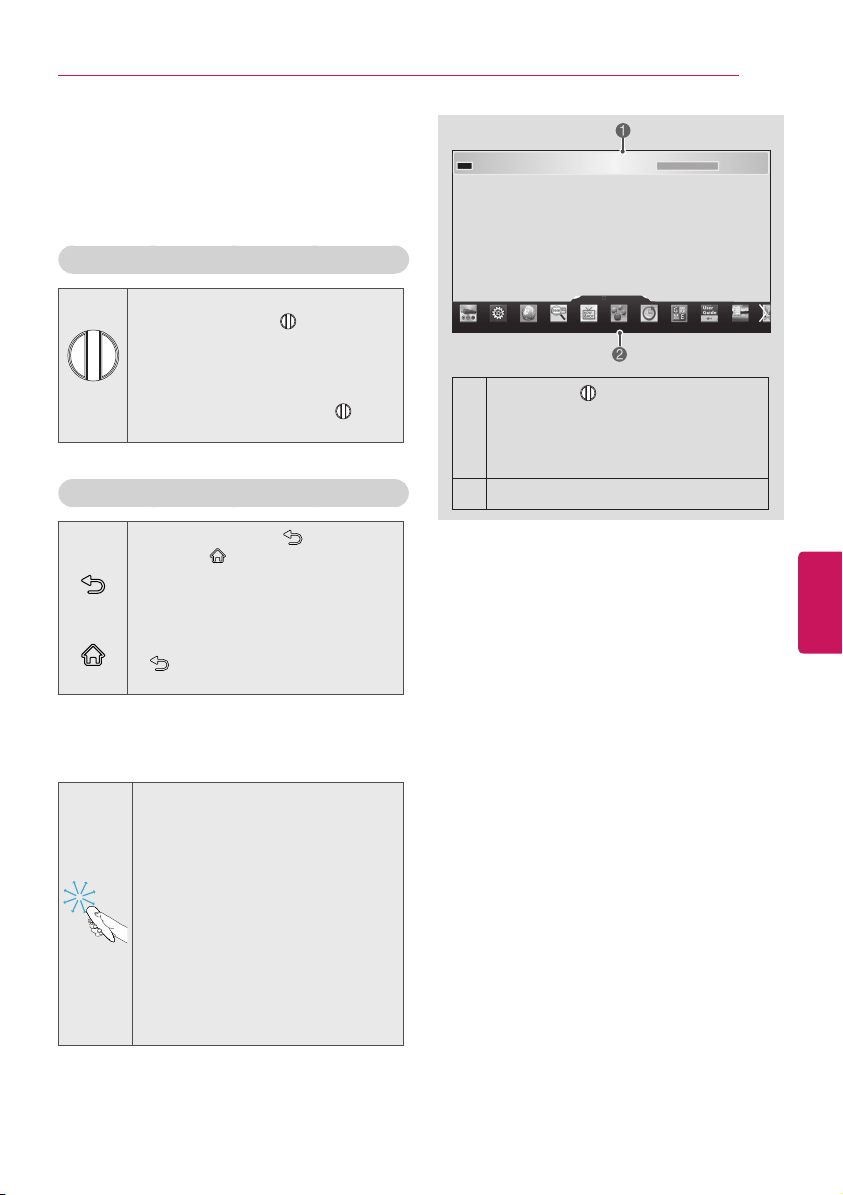
ENGLISH
29
MAGIC REMOTE CONTROL FUNCTIONS
Registering Magic Remote Control
The Magic Remote Control operates by pairing
with your TV.
Please register the remote as follows.
How to register the Magic Remote Control
(Wheel)
To register automatically, turn the
TV on and press the
Wheel (OK)
.
When registration is completed, the
completion message appears on the
screen.
If registration fails, turn the TV off
and back on, then press the
Wheel (OK)
to complete registration.
How to Re-register the Magic Remote Control
BACK
SMART
1 Press and hold the
BACK
and
SMART
buttons together for 5
seconds to reset, then register it
by following
How to register the
Magic remote control
above.
2 To re-register the Magic remote
control, press and hold the
BACK
button for 5 seconds
toward the TV.
How to use Magic Remote Control
1 You can move the pointer by
aiming the Pointer Receiver of the
remote control at your TV then
move it left, right, up or down.
»
If the pointer does not work
properly, leave the remote control
for 10 seconds then use it again.
2 If the pointer disappears, move
the remote control slightly to left
or right. Then, it will automatically
appear on the screen.
»
If the pointer has not been used
for a certain period of time, it will
disappear.
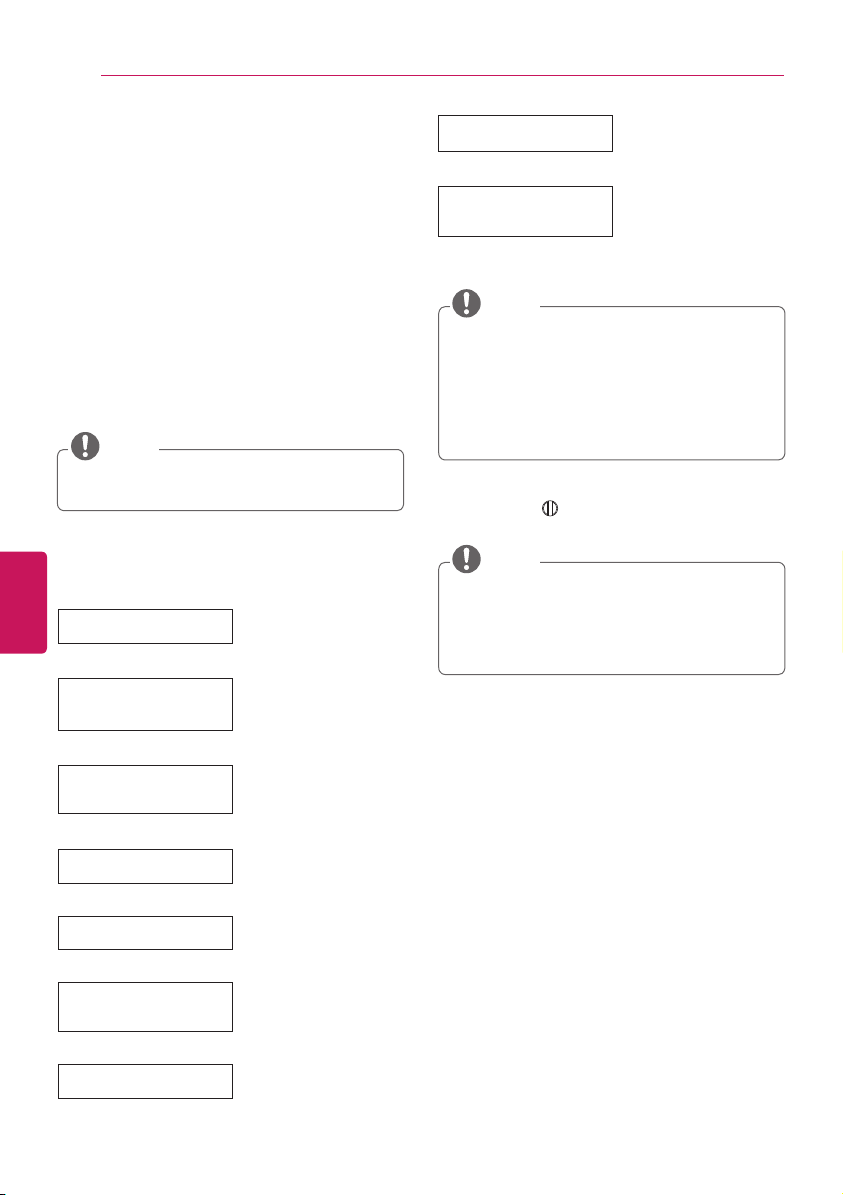
1
If you press
Wheel (OK)
on the
Magic remote control, the screen
appears.
Shows information about the current
program and screen.
2
You can select More Menu.
Precautions to Take when Using
the Magic Remote Control
y
Use the Magic remote control within the
maximum communication distance (10 m,
32.8 ft). Using the remote control beyond this
distance, or with an object obstructing it, may
cause a communication failure.
y
A communication failure may occur due to nearby
devices. Electrical devices such as a microwave
oven or wireless LAN product may cause
interference, as these use the same bandwidth
(2.4 GHz) as the Magic remote control.
y
The Magic remote control may be damaged or
may malfunction if it is dropped or receives a
heavy impact.
y
Take care not to bump into nearby furniture or
other people when using the Magic remote
control.
y
Manufacturer and installer cannot provide
service related to human safety as the applicable
wireless device has possibility of electric wave
interference.
y
It is recommended that an Access Point (AP) be
located more than 1 m (3.28 ft) away from the
TV. If the AP is installed closer than 1 m (3.28 ft),
the Magic remote control may not perform as
expected due to frequency interference.
ENGLISH
30
WATCHING TV
WATCHING TV
Turning the TV on for the First Time
When you turn the TV on for the first time, the
Initial setting screen appears. Select a language
and customize the basic settings.
1
Connect the power cord to a power outlet.
2
In standby mode, press the power button on
the remote control to turn the TV on.
The initial setting screen appears if you turn
the TV on for the first time.
y
You can also access
Initial Setting
by
accessing
OPTION
in the main menu.
NOTE
3
Follow the on-screen instructions to
customize your TV settings according to
your preferences.
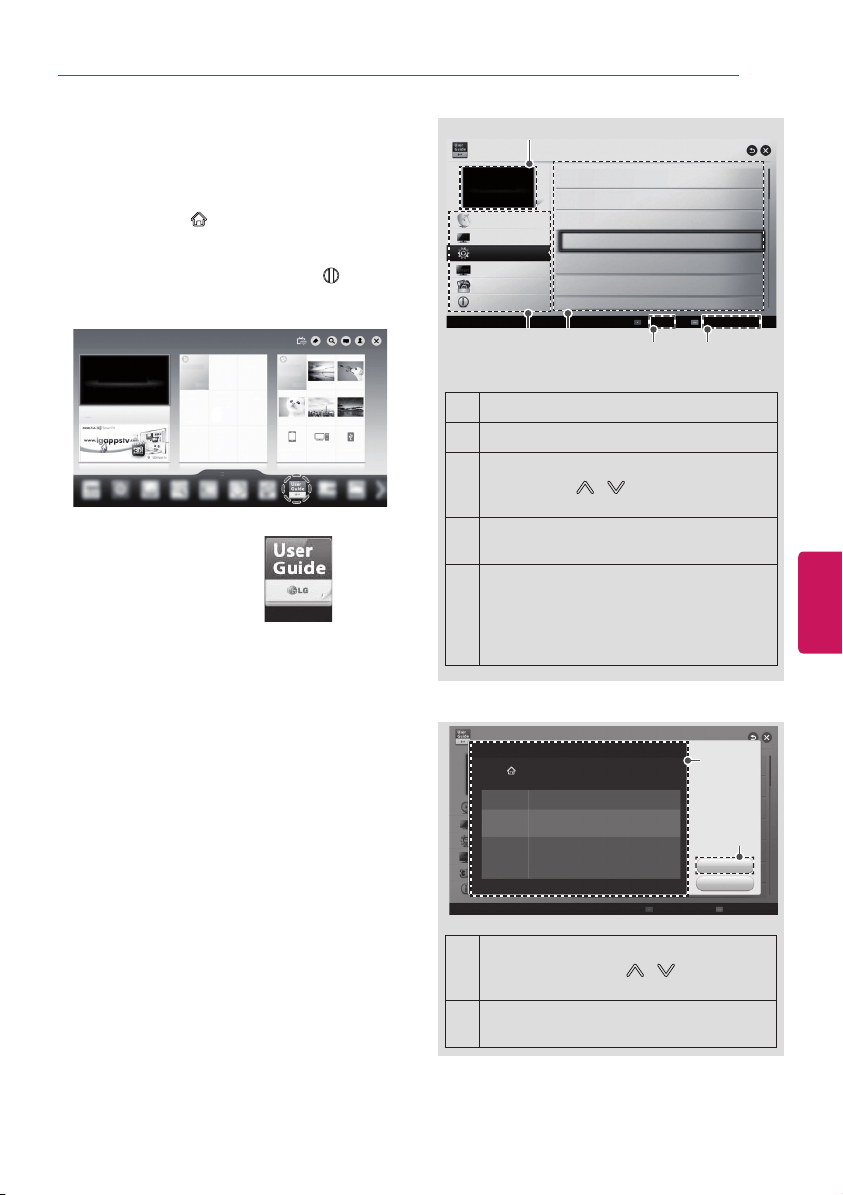
Language Selection
Selects a language to
display.
Environment
Selection
Select
Home
for the home
environment.
Time Zone Setting
Selects the time zone and
daylight saving.
(Depending upon country)
Network Connection
Sets your network to
enable network-related
features on the TV.
ZIP Code
Setting the network
connection, you can enter
your Zip Code.
(Depending upon country)
Select TV watching
Type
Set the TV and set-top box
for each watching type.
(Depending upon country)
Auto Tuning
Scans and saves available
channels automatically.
Setting is complete
Confirms the setting
options.
Experience Magic
Remote Control
Simple guide of Magic
Remote Control
(Depending upon model)
y
Select
Home
when prompted.
Store
mode
puts the TV in demo mode.
y
If you select
Store
, then any customized
settings will switch back to the default
settings of
Store
in 5 minutes.
y
The Standby light feature is disabled in
Store Demo mode.
NOTE
4
When the basic settings are complete,
press the
Wheel (OK)
.
y
If you do not complete the initial setting, it
will appear whenever the TV turns on.
y
Disconnect the power cord from the
power outlet when you do not use the TV
for a long period of time.
NOTE
5
To turn the TV off, press the power button
on the remote control.
ENGLISH
31
USING THE USER GUIDE
USING THE USER GUIDE
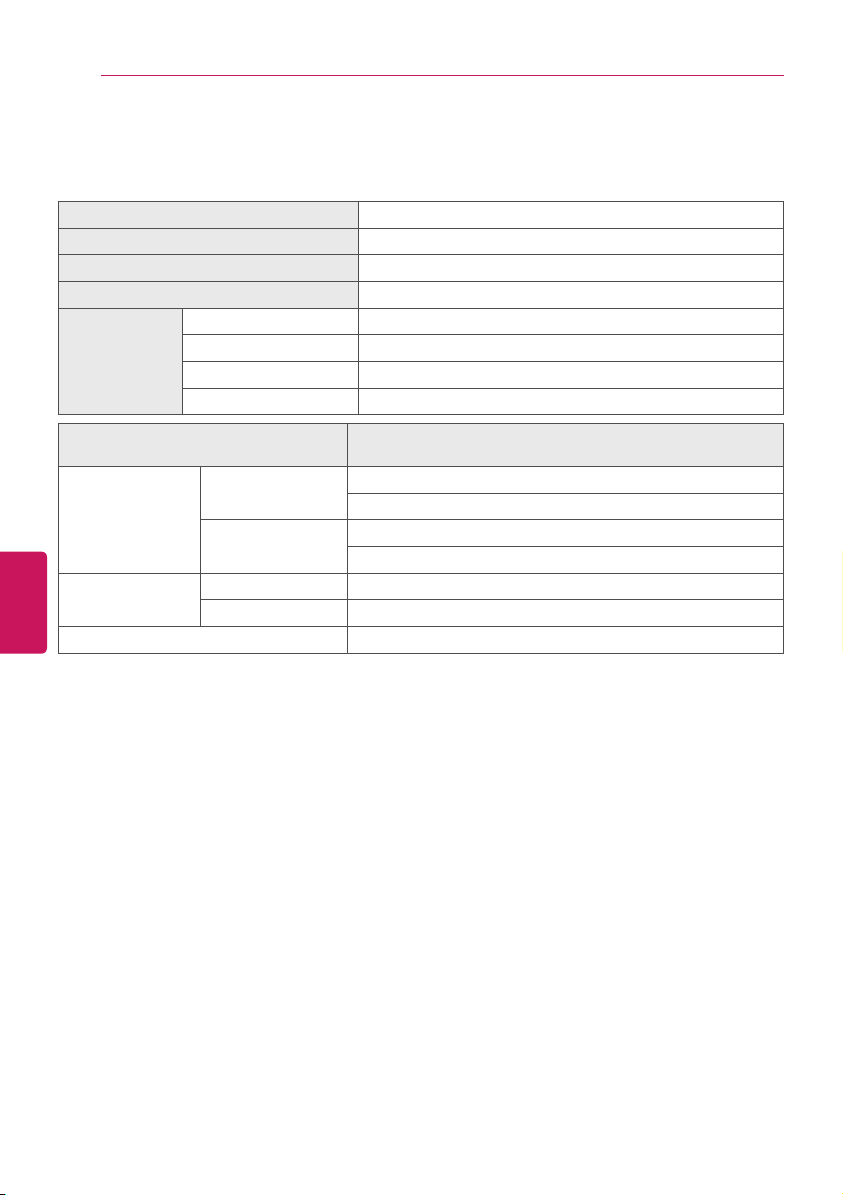
User Guide allows you to access detailed TV
information easily.
1
Press
SMART
button to access the Smart
Home menu.
2
Select
User Guide
and press the
Wheel
(OK)
button.
User Guide
OPTION > To set language
SMART Settings OPTION Language
Selects Menu Language and Audio Language displayed on the screen.
Menu
Language
Audio
Language
Selects a screen menu language.
[In Digital Mode Only]
Selects the desired language when watching digital
broadcasting containing several audio languages.
Voice
Recognition
Language
Select the language to make voice search.
✎
Only the voice search adopted model support this
setting.
Try Now
Close
1
2
1
Shows the description of the selected
menu. You can use / to move
between pages.
2
Moves to the selected menu directly
from the User Guide.
(Depending upon country)
To use input device
To set time options
To set language
To set caption
To set other options
To set TV lock options
User Guide
Index
Online User Guide
OPTION
CHANNEL Setting
PICTURE, SOUND Setting
LG SMART Function
Advanced Function
Information
1
2 3
4 5
To set Magic remote control
Check with your remote control right now.
1
Shows the video you were watching.
2
Guide categories.
3
List of topics in the current category.
You can use / button to move
between pages.
4
An index of key words present in the
User Guide.
5
Provides the detailed information on
the functions of LG Smart TV when the
Internet is connected.
(It may not be available depending upon
the country/language.)
Index
Online User Guide
ENGLISH
32
SPECIFICATIONS
SPECIFICATIONS
Product specifications may be changed without prior notice due to upgrade of product functions.
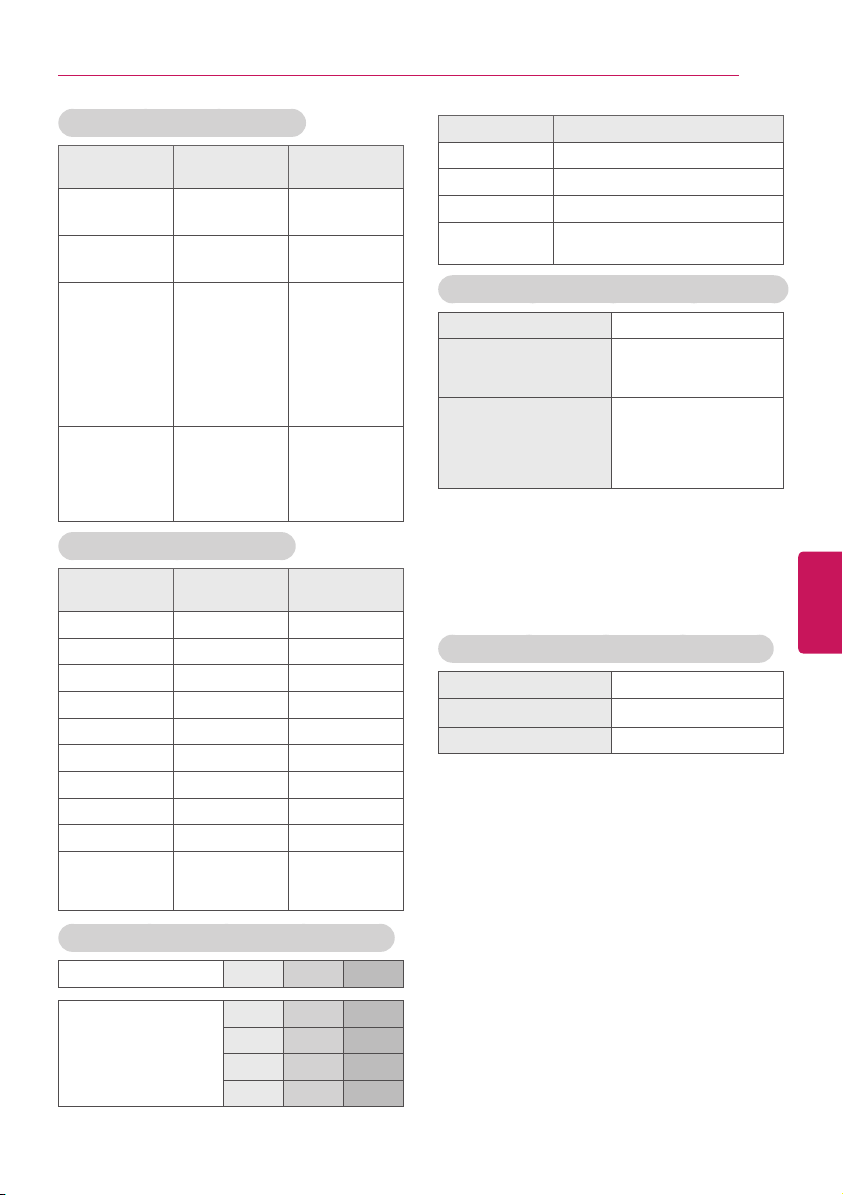
Power requirement
AC 120 V~ 50/60 Hz
Television System
NTSC-M, ATSC, 64 & 256 QAM
Program Coverage
VHF 2-13, UHF 14-69, CATV 1-135, DTV 2-69, CADTV 1-135
External Antenna Impedance
75
Ω
Environment
condition
Operating Temperature 0 °C ~ 40 °C (32 °F ~ 104 °F)
Operating Humidity Less than 80 %
Storage Temperature -20 °C ~ 60 °C (-4 °F ~ 140 °F)
Storage Humidity Less than 85 %
MODELS
84LM9600
(84LM9600-UB)
Dimensions (Width x
Height x Depth)
With stand
1,916 x 1,214 x 399 (mm)
75.4 x 47.7 x 15.7 (inch)
Without stand
1,916 x 1,120 x 39.9 (mm)
75.4 x 44.0 x 1.5 (inch)
Weight
With stand 81.7 Kg (180.1 Ibs)
Without stand 70.4 Kg (155.2 Ibs)
Current Value / Power consumption 5.2 A / 520 W
ENGLISH
33
SPECIFICATIONS
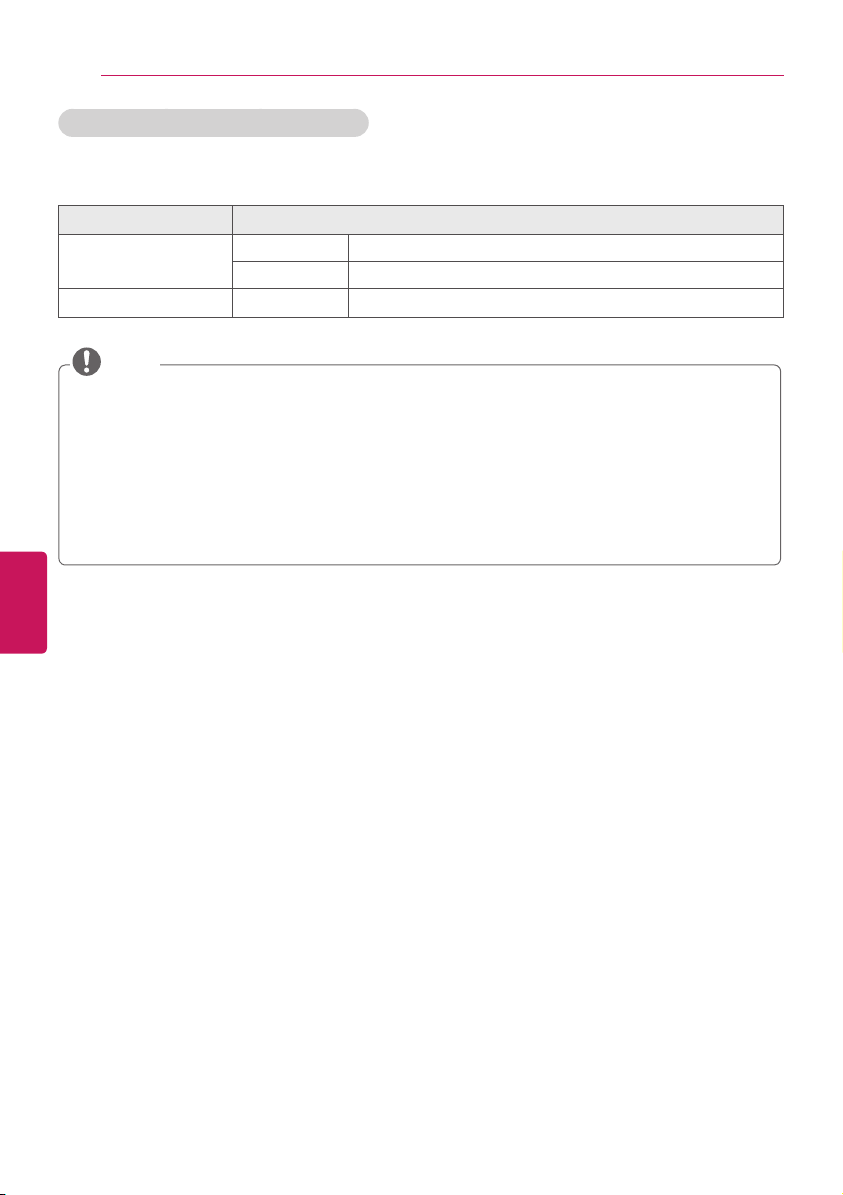
HDMI (DTV) supported mode
Resolution
Horizontal
Frequency (kHz)
Vertical
Frequency (Hz)
720 x 480
31.469
31.50
59.94
60.00
1280 x 720
44.96
45.00
59.94
60.00
1920 x 1080
33.72
33.75
26.97
27.000
33.716
33.75
67.43
67.500
59.94
60.00
23.97
24.000
29.976
30.00
59.94
60
3840 x 2160
53.95
54
56.25
61.43
67.5
23.976
24.00
25.00
29.970
30.00
HDMI (PC) supported mode
Resolution
Horizontal
Frequency (kHz)
Vertical
Frequency (Hz)
640 x 350 31.468 70.09
720 x 400 31.469 70.08
640 x 480 31.469 59.94
800 x 600 37.879 60.31
1024 x 768 48.363 60.00
1152 x 864 54.348 60.053
1280 x 1024 63.981 60.020
1360 x 768 47.712 60.015
1920 x 1080 67.5 60.00
3840 x 2160
54
56.25
67.5
24.00
25.00
30.00
Component port connecting information
Component ports on the TV Y PB PR
Video output ports
on DVD player
Y PB PR
Y B-Y R-Y
Y Cb Cr
Y Pb Pr
Signal Component
480i O
480p O
720p/1080i O
1080p
O
(60 Hz only)
Wireless LAN module (WN8122E1) specification
Standard
IEEE802.11a/b/g/n
Frequency Range
2400 to 2483.5 MHz
5150 to 5250 MHz
5725 to 5850 MHz
Output Powe
r
(Max.)
802.11a: 16.5 dBm
802.11b: 16 dBm
802.11g: 15.5 dBm
802.11n - 2.4GHz: 15.5 dBm
802.11n - 5GHz: 16.5 dBm
y
Because the channel band used by the
country could be different, the user can not
change or adjust the operating frequency
and this product is set for the regional
frequency table.
y
Contains FCC ID: BEJWN8122E1
Contains IC: 2703H-WN8122E1
Bluetooth module (BM-LDS401) specification
Standard
Bluetooth Version 3.0
Frequency Range
2400 ~ 2483.5 MHz
Output Power (Max.)
10 dBm or lower
y
Contains FCC ID: BEJLDS401
Contains IC: 2703H-LDS401
ENGLISH
34
SPECIFICATIONS
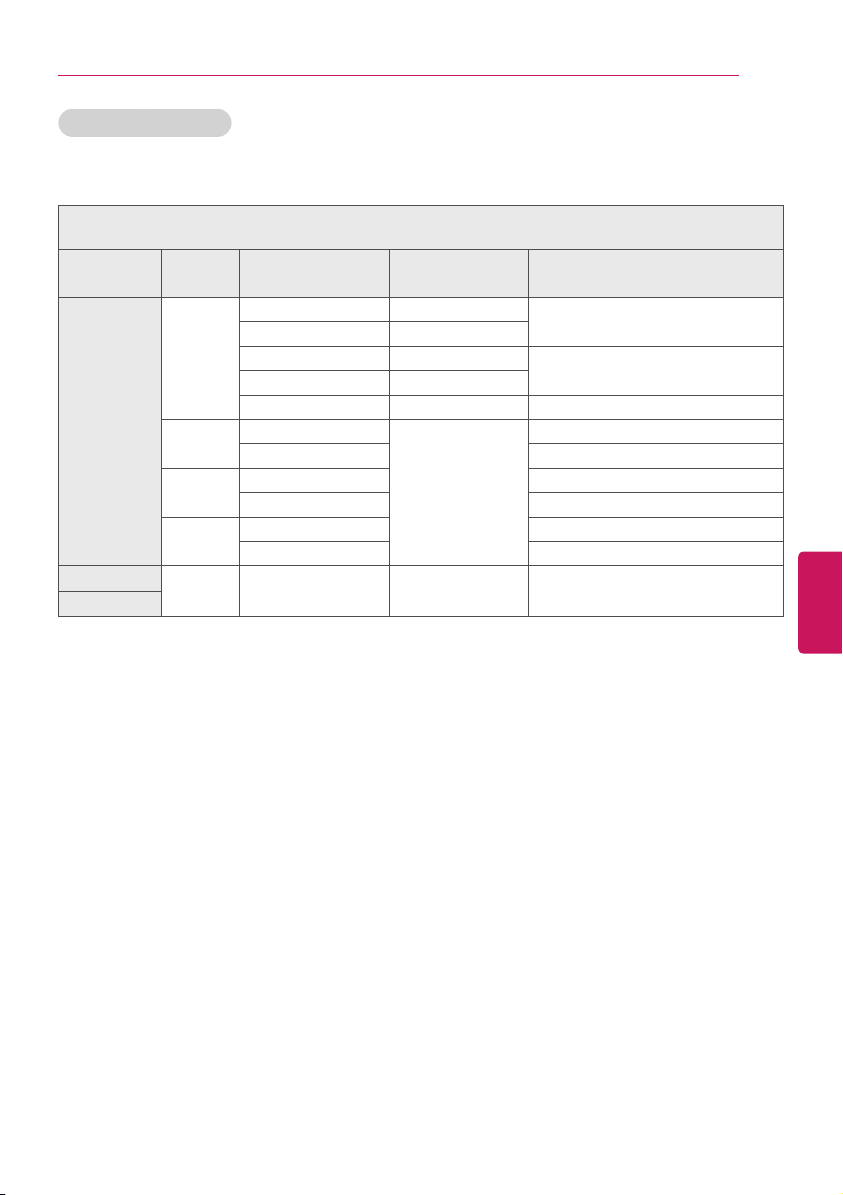
[ULTRA HD] Video Supported Codec
y
Maximum : 3840 x 2160 @ 30p
y
Maximum data transfer rate
3840 x 2160 (H.264 L5.1) : 50Mbps (megabits per second)
Extension
Codec
.mkv / .mp4 / .ts
Video H.264 / AVC
Audio Dolby Digital, Dolby Digital Plus, AAC, HE-AAC
.ts
Audio Dolby Digital, Dolby Digital Plus, AAC, HE-AAC
y
New codecs can be updated through SW upgrade.
y
Video files created by some encoders may not be played back.
y
Video files in formats other than the ones specified here may not be played back.
y
Playback of video files stored on a USB device that does not support High Speed, may not work
properly.
y
Some subtitles created by users may not work properly.
y
The video and subtitle files should be placed in the same folder. In this case, you must assign
the same names for the video and subtitle files for proper display.
y
It supports the playback through USB only.
y
Some ULTRA HD models need connection with “ULTRA HD Upgrade Kit”.
NOTE
ENGLISH
35
SPECIFICATIONS
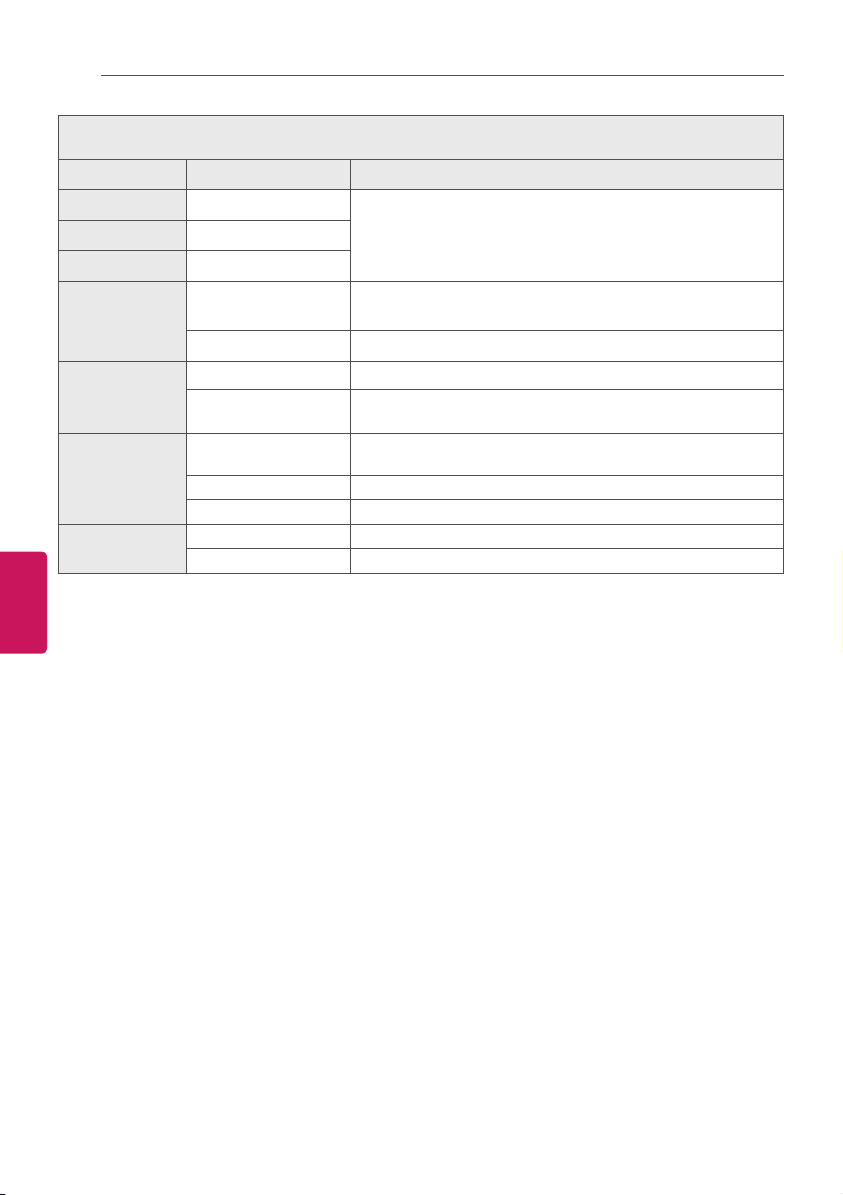
3D supported mode
y
Video, (Media Content) which is input as below is automatically switched into the 3D screen.
3D supported mode automatically
Input Signal
Horizontal
Frequency (kHz)
Vertical Frequency
(Hz)
Playable 3D video format
HDMI
1080p
54.00 24
F/P, L/A
67.50 30
27.00 24
S/S, T&B, S/S Full
33.75 30
67.50 60 S/S, T&B
1080i
67.50
60
F/P, F/A
33.75 S/S, T&B, S/S Full
720p
90.00 F/P, L/A
45.00 S/S, T&B, S/S Full
480p
63.00 F/P, L/A
31.50 T/B, S/S, S/S Full
USB
1080p 33.75 30 S/S, T&B, C/B, MPO (Photo)
DLNA
S/S : Side by Side, S/S Full : Side by Side Full, S/S Half :Side by Side Half,
T/B : Top & Bottom, F/P : Frame Packing, F/A : Field Alternative, L/A : Line Alternative, C/B : Checker Board,
R/I : Row Interleaving, C/I: Column Interleaving, F/S : Single Frame Sequential
ENGLISH
36
SPECIFICATIONS
3D supported mode manually
Input Signal Playable 3D video format
TV
-
2D to 3D, S/S, T&B
ATV (CVBS)
-
Component
-
HDMI-PC
1080p
2D to 3D, S/S, T&B, C/B, R/I, C/I
(60Hz : F/S)
Others 2D to 3D, S/S, T&B
HDMI-DTV
Interlace 2D to 3D, S/S, T&B
Progressive
2D to 3D, S/S, T&B, C/B, R/I, C/I
(60Hz : F/S )
USB / DLNA
(Movie)
704 x 480p (Over)
2D to 3D, S/S, T&B, C/B, R/I, C/I
(60Hz : F/S )
704 x 480i (Over) 2D to 3D, S/S, T&B
704 x 480 (Under) 2D to 3D
USB / DLNA
(Photo)
320 x 240 (Over) 2D to 3D, S/S, T&B
320 x 240 (Under) 2D to 3D
ENGLISH
37
MAINTENANCE / TROUBLESHOOTING
MAINTENANCE
Cleaning Your TV
Clean your TV regularly to keep it at peak performance and to extend the product lifespan.
y
Before cleaning, turn the power off and disconnect the power cord and all other cables.
y
When the TV is left unattended or unused for a long time, disconnect the power cord from the
wall outlet to prevent possible damage from lightning or power surges.
CAUTION
Screen, Frame, Cabinet, and Stand
To remove dust or light dirt, wipe the surface with a dry, clean, and soft cloth.
To remove major dirt, wipe the surface with a soft cloth dampened in clean water or a diluted mild
detergent. Then wipe immediately with a dry cloth.
y
Do not push, rub, or hit the surface with your fingernail or a sharp object, as this may result in
scratches on the screen and image distortions.
y
Do not use any chemicals, such as waxes, benzene, alcohol, thinners, insecticides, air
fresheners, or lubricants, as these may damage the screen’s finish and cause discoloration.
y
Do not spray liquid onto the surface. If water enters the TV, it may result in fire, electric shock,
or malfunction.
CAUTION
Power Cord
Remove the accumulated dust or dirt on the power cord regularly.
TROUBLESHOOTING
Problem Solution
Cannot control the TV with
the remote control.
y
Check the remote control sensor on the product for obstructions and try again.
y
Check if there is any obstacle between the product and the remote control.
y
Check if the batteries are still working and properly installed (
to , to ).
No image display and no
sound is produced.
y
Check if the product is turned on.
y
Check if the power cord is connected to a wall outlet.
y
Check if there is a problem in the wall outlet by connecting other products.
The TV turns off suddenly.
y
Check the power control settings. The power supply may be interrupted.
y
Check if the
Off Time/Sleep Timer
is activated in the
TIME
settings.
y
If there is no signal while the TV is on, the TV will turn off automatically after 15
minutes of inactivity.

THE CONSUMER ELECTRONICS INDUSTRY CARES
• Manufacturers, retailers and the rest of the consumer electronics industry are committed to
making home entertainment safe and enjoyable.
• As you enjoy your television, please note that all televisions – new and old- must be supported on
proper stands or installed according to the manufacturer’s recommendations. Televisions that
are inappropriately situated on dressers, bookcases, shelves, desks, speakers, chests, carts, etc.,
may fall over, resulting in injury.
TUNE IN TO SAFETY
• ALWAYS follow the manufacturer’s recommendations for the safe installation of your television.
• ALWAYS read and follow all instructions for proper use of your television.
• NEVER allow children to climb on or play on the television or the furniture on which the television
is placed.
• NEVER place the television on furniture that can easily be used as steps, such as a chest of
drawers.
• ALWAYS install the television where it cannot be pushed, pulled over or knocked down.
• ALWAYS route cords and cables connected to the television so that they cannot be tripped
over, pulled or grabbed.
WALL OR CEILING MOUNT YOUR TELEVISION
• ALWAYS contact your retailer about professional installation if you have any doubts about your
ability to safely mount your television.
• ALWAYS use a mount that has been recommended by the television manufacturer and has a
safety certication by an independent laboratory (such as UL, CSA, ETL).
• ALWAYS follow all instructions supplied by the television and mount manufacturers.
• ALWAYS make sure that the wall or ceiling where you are mounting the television is appropriate.
Some mounts are not designed to be mounted to walls and ceilings with steel studs or cinder
block construction. If you are unsure, contact a professional installer.
• Televisions can be heavy. A minimum of two people is required for a wall or ceiling mount
installation.
MOVING AN OLDER TELEVISION TO A NEW PLACE IN
YOUR HOME
• Many new television buyers move their older CRT televisions into a secondary room after the
purchase of a at-panel television. Special care should be made in the placement of older CRT
televisions.
• ALWAYS place your older CRT television on furniture that is sturdy and appropriate for its size
and weight.
• NEVER place your older CRT television on a dresser where children may be tempted to use the
drawers to climb.
• ALWAYS make sure your older CRT television does not hang over the edge of your furniture.
CHILD SAFETY:
PROPER TELEVISION PLACEMENT MATTERS
CE.org/safety
The model and serial numbers of the TV are located
on the back and one side of the TV.
Record them below should you ever need service.
MODEL
SERIAL
LG Customer Information Center
For inquires or comments, visit www.lg.com or call;
1-800-243-0000 USA, Consumer User
1-888-865-3026 USA, Commercial User
1-888-542-2623 CANADA
Register your product Online!
www.lg.com

OWNER’S MANUAL
EXTERNAL CONTROL
DEVICE SETUP
Please read this manual carefully before operating the set and retain it for
future reference.
www.lg.com
2
ENG
ENGLISH
2
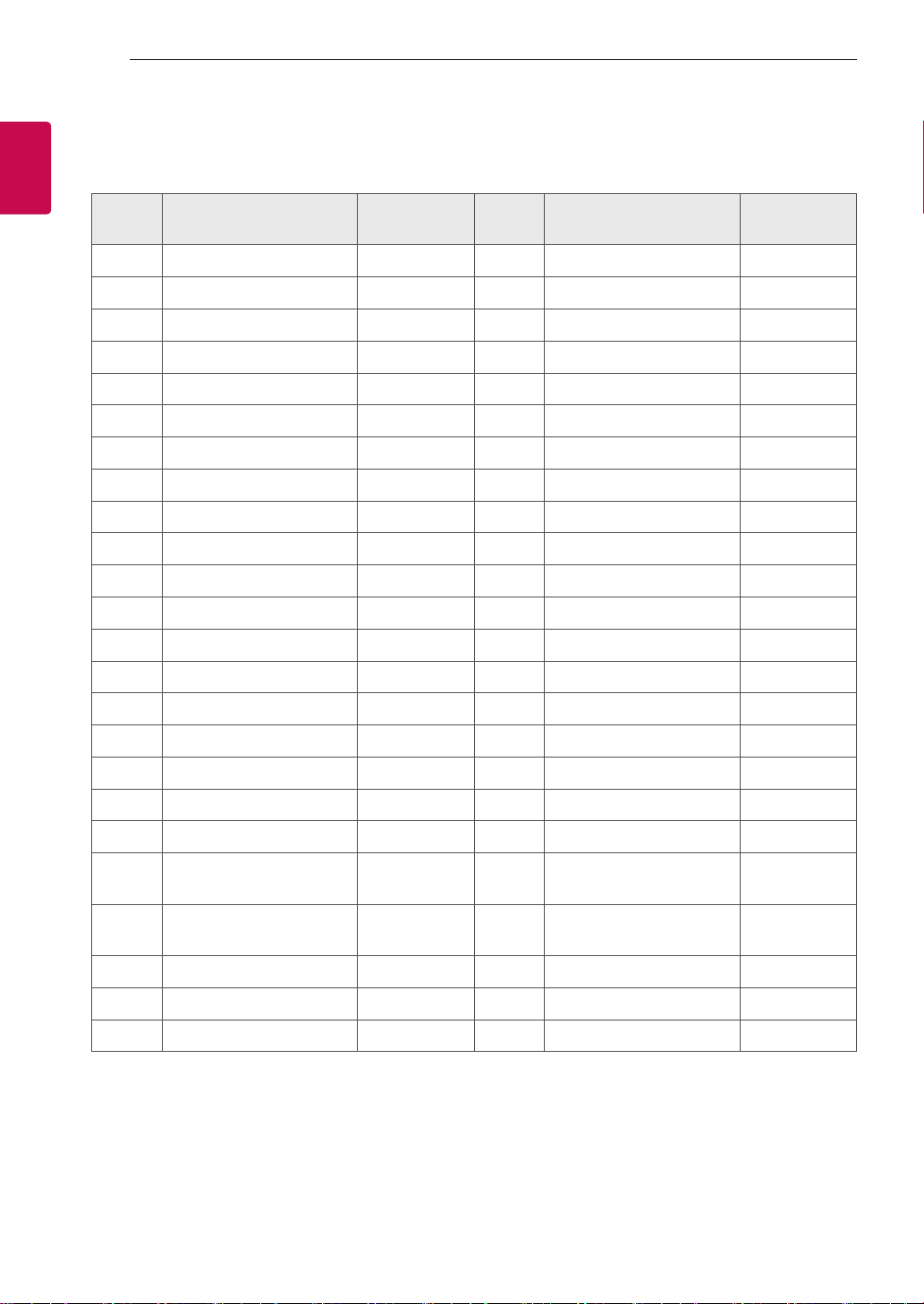
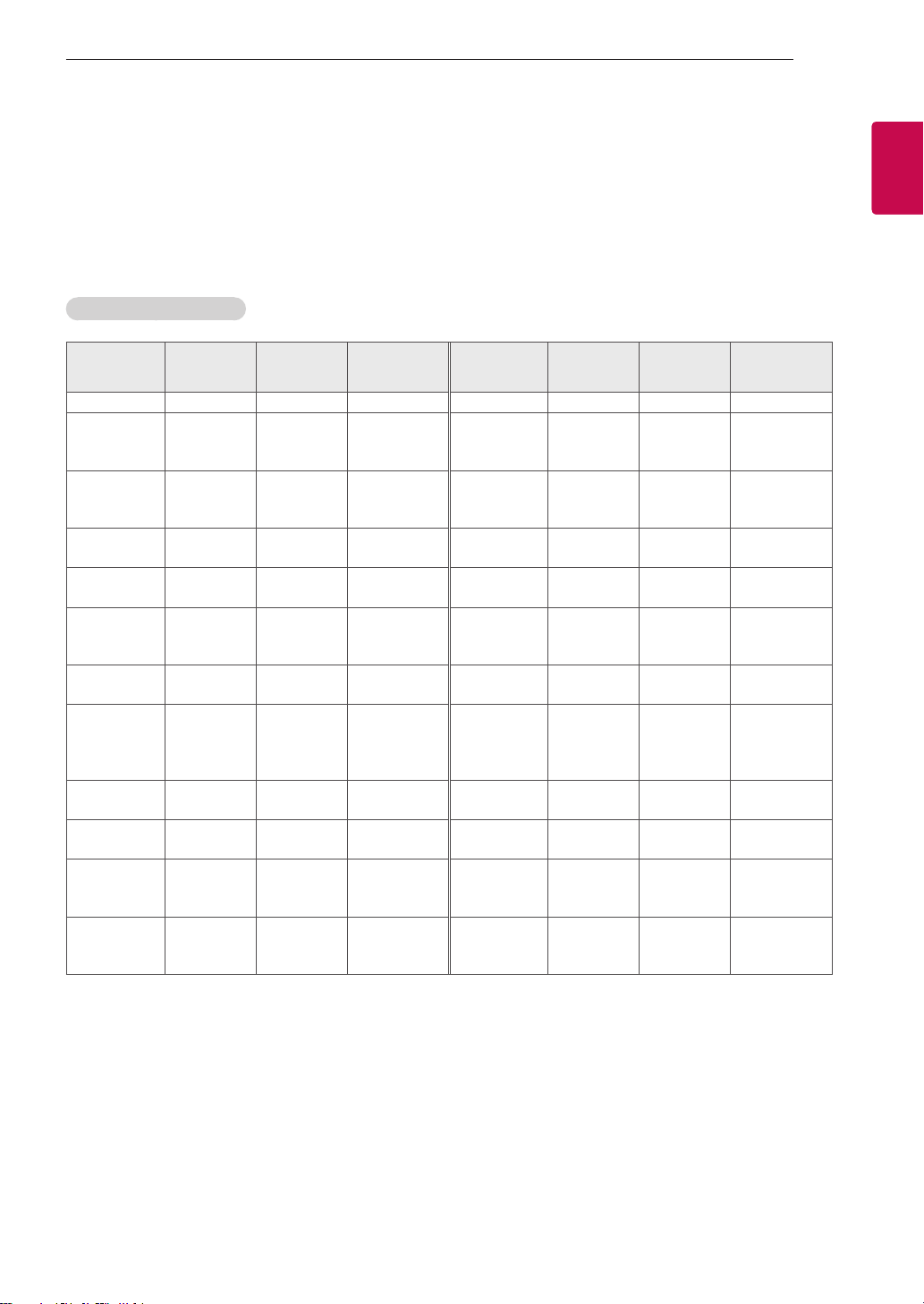
KEY CODES
KEY CODES
• This feature is not available for all models.
Code
(Hexa)
Function Note
Code
(Hexa)
Function Note
00 CH +, PR + R/C Button 45 Q.Menu R/C Button
01 CH -, PR - R/C Button 4C List, - (ATSC Only) R/C Button
02 Volume + R/C Button 53 List R/C Button
03 Volume - R/C Button 5B Exit R/C Button
06 > (Arrow Key / Right Key) R/C Button 61 Blue R/C Button
07 < (Arrow Key / Left Key) R/C Button 63 Yellow R/C Button
08 Power R/C Button 71 Green R/C Button
09 Mute R/C Button 72 Red R/C Button
0B Input R/C Button 79 Ratio / Aspect Ratio R/C Button
0E SLEEP R/C Button 91 AD (Audio Description) R/C Button
0F TV, TV/RAD R/C Button 7A User Guide R/C Button
10 - 19 Number Key 0 - 9 R/C Button 7C Smart / Home R/C Button
1A Q.View / Flashback R/C Button 7E SIMPLINK R/C Button
1E FAV (Favorite Channel) R/C Button 8E ►► (Forward) R/C Button
20 Text (Teletext) R/C Button 8F ◄◄ (Rewind) R/C Button
21 T. Opt (Teletext Option) R/C Button AA Info R/C Button
28 Return (BACK) R/C Button AB Program Guide R/C Button
30 AV (Audio / Video) Mode R/C Button B0 ► (Play) R/C Button
39 Caption/Subtitle R/C Button B1 ꕗ (Stop / Live TV) R/C Button
40 Λ
(Arrow Key / Cursor Up)
R/C Button BA
ꕘ (Freeze / Slow Play /
Pause)
R/C Button
41
V (Arrow Key / Cursor
Down)
R/C Button BD ꔄ (REC) R/C Button
42 My Apps R/C Button DC 3D R/C Button
43 Menu / Settings R/C Button 9F App / * R/C Button
44 OK / Enter R/C Button
* Key code 4C (0x4C) is available on ATSC/ISDB models which use major/minor channel.
(For South Korea, Japan, North America, Latin America except Colombia models)
3
ENGENGLISH
3
EXTERNAL CONTROL DEVICE SETUP
EXTERNAL CONTROL DEVICE SETUP
• Image shown may differ from your TV.
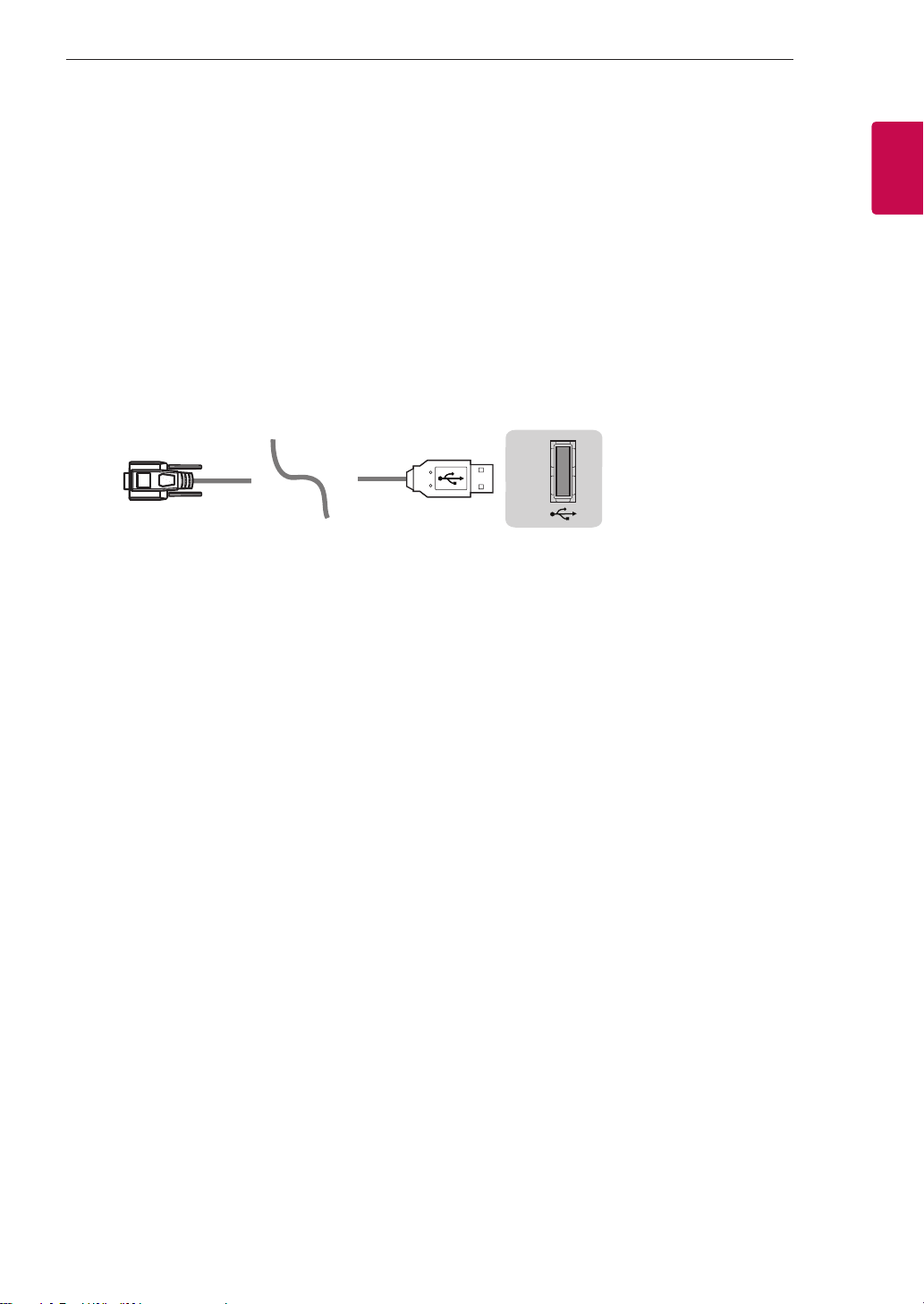
Connect the USB to Serial converter/RS-232C input jack to an external control device (such as a computer
or an A/V control system) to control the product’s functions externally.
Note: The type of control port on the TV can be different between model series.
* Please be advised that not all models support this type of connectivity.
* Cable is not provided.
USB to Serial converter with USB Cable
USB Type
USB IN
(TV)
(PC )
(PC )
RS-232C IN
(CONTROL & SERVICE)
(TV)
(TV)
(PC )
(TV)
(PC )
SERVICE ONLY
RS-232C IN
(CONTROL & SERVICE)
RS-232C IN
(CONTROL & SERVICE)
1
3
2
1
3
2
• LGTV supports PL2303 chip-based (Vendor ID : 0x0557, Product ID : 0x2008) USB to serial converter
which is not made nor provided by LG.
• It can be purchased from computer stores that carry accessories for IT support professionals.
4
ENG
ENGLISH
4
EXTERNAL CONTROL DEVICE SETUP
RS-232C with RS-232C Cable (Legacy)
Phone jack Type
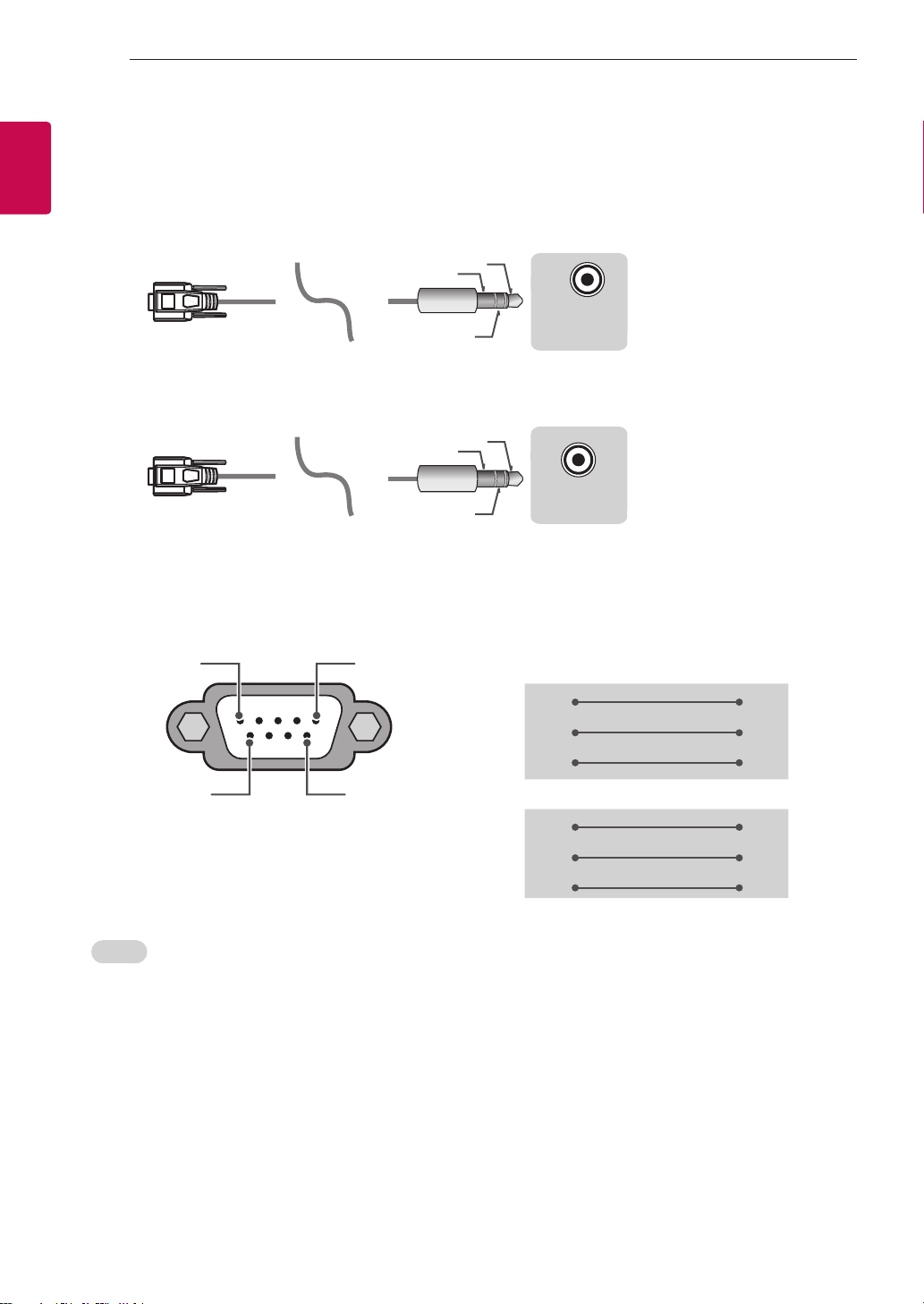
• You need to purchase the phone-jack to RS-232 cable required for the connection between the PC and
the TV, which is specified in the manual.
* For other models, connect to the USB port.
USB IN
(TV)
(PC )
(PC )
RS-232C IN
(CONTROL & SERVICE)
(TV)
(TV)
(PC )
(TV)
(PC )
SERVICE ONLY
RS-232C IN
(CONTROL & SERVICE)
RS-232C IN
(CONTROL & SERVICE)
1
3
2
1
3
2
- This connection can only be used for the following models: 55/47/39LN5450-UA,
55/50/47/42LN5400-UA, 42/39/32LN5300-UA, and 37/32LN530B-UA.
USB IN
(TV)
(PC )
(PC )
RS-232C IN
(CONTROL & SERVICE)
(TV)
(TV)
(PC )
(TV)
(PC
)
SERVICE ONLY
RS-232C IN
(CONTROL & SERVICE)
RS-232C IN
(CONTROL & SERVICE)
1
3
2
1
3
2
- This connection can only be used for the following models: 42/50PN4500-UA, 50/60PN5300-UF,
50/60PN6500-UA, and 60PN6550-UA.
Customer Computer RS-232C configurations
3-Wire Configurations(Not standard)
1
6
5
9
PC TV
RXD 2 2 TXD
TXD 3 1 RXD
GND 5 3 GND
OR
RXD 3 2 TXD
TXD 2 1 RXD
GND 5 3 GND
D-Sub 9 Phone
RS-232C
(Serial port)
Set ID
For Set ID number, see "Real Data Mapping" on p.6
1. Press SETTINGS to access the main menus.
2. Press the Navigation buttons to scroll to OPTION and press OK.
3. Press the Navigation buttons to scroll to SET ID and press OK.
4. Scroll left or right to select a set ID number and select CLOSE. The adjustment range is 1-99.
5. When you are finished, press EXIT.
5
ENGENGLISH
5
EXTERNAL CONTROL DEVICE SETUP
Communication Parameters
• Baud rate : 9600 bps (UART)
• Data length : 8 bits
• Parity : None
• Stop bit : 1 bit
• Communication code : ASCII code
• Use a crossed (reverse) cable.
Command reference list
(Depending on model)
COMMAND1 COMMAND2
DATA
(Hexadecimal)
COMMAND1 COMMAND2
DATA
(Hexadecimal)
01. Power off k a 00 13. Balance k t 00 to 64
02. Aspect
Ratio
k c (p.7)
14. Color
(Colour)
Temperature
x u 00 to 64
03. Screen
Mute
k d (p.7)
15. ISM
Method (Only
Plasma TV)
j p (p.8)
04. Volume
Mute
k e 00 to 01
16. Energy
Saving
j q 00 to 05
05. Volume
Control
k f 00 to 64
17. Tune
Command
m a (p.8)
06. Contrast k g 00 to 64
18. Channel
(Programme)
Add/Del(Skip)
m b 00 to 01
07.
Brightness
k h 00 to 64 19. Key m c Key Codes
08. Color/
Colour
k i 00 to 64
20. Control
Back Light,
Control Panel
Light
m g 00 to 64
09. Tint k j 00 to 64
21. Input
select (Main)
x b (p.10)
10.
Sharpness
k k 00 to 32
22. 3D (Only
3D models)
x t (p.11)
11. OSD
Select
k l 00 to 01
23. Extended
3D (Only 3D
models)
x v (p.11)
12. Remote
Control Lock
Mode
k m 00 to 01
* Note: During USB operations such as DivX or EMF, all commands except Power(ka) and Key(mc) are
not executed and treated as NG.

6
ENG
ENGLISH
6
EXTERNAL CONTROL DEVICE SETUP
Transmission / Receiving Protocol
Transmission
[Command1][Command2][ ][Set ID][ ][Data][Cr]
[Command 1] : First command to control the TV. (j, k, m or x)
[Command 2] : Second command to control the TV.
[Set ID] : You can adjust the [Set ID] to choose desired monitor ID number in option menu.
Adjustment range in TV is 1 to 99. If [Set ID] value is selected to ‘0’, every connected set
can be controlled.
* [Set ID] is indicated as decimal (1 to 99) on menu and as Hexadecimal (0x00 to 0x63) on
transmission/receiving protocol.
[DATA] : To transmit command data (hexadecimal). Transmit ‘FF’ data to read status of command.
[Cr] : Carriage Return - ASCII code ‘0x0D’
[ ] : Space – ASCII code ‘0x20’
OK Acknowledgement
[Command2][ ][Set ID][ ][OK][Data][x]
* The set transmits ACK (acknowledgement) based on this format when receiving normal data. At this time,
if the data is data read mode, it indicates present status data. If the data is data write mode, it returns the
data of the PC computer.
Error Acknowledgement
[Command2][ ][Set ID][ ][NG][Data][x]
* The set transmits ACK (acknowledgement) based on this format when receiving abnormal data from
non-viable functions or communication errors.
Data 00: Illegal Code
Real data mapping (Hexadecimal b Decimal)
* When you enter the [data] in hexadecimal, refer to following conversion table.
* Channel Tune (ma) Command uses two-byte hexadecimal value([data]) to select channel number.
00 : Step 0 32 : Step 50 (Set ID 50) FE : Step 254
01 : Step 1 (Set ID 1) 33 : Step 51 (Set ID 51) FF : Step 255
... ... ...
0A : Step 10 (Set ID 10) 63 : Step 99 (Set ID 99) 01 00 : Step 256
... ... ...
0F : Step 15 (Set ID 15) C7 : Step 199 27 0E : Step 9998
10 : Step 16 (Set ID 16) C8 : Step 200 27 0F : Step 9999
... ... ...

7
ENGENGLISH
7
EXTERNAL CONTROL DEVICE SETUP
* Commands may work differently depending on model and signal.
01. Power (Command: k a)
► To control Power Off of the set.
Transmission[k][a][ ][Set ID][ ][Data][Cr]
Data 00 : Power Off
Ack [a][ ][Set ID][ ][OK/NG][Data][x]
► To Show Power On. (Works TV is On Only)
Transmission [k][a][ ][Set ID][ ][FF][Cr]
Ack [a][ ][Set ID][ ][OK][01][x]
* Similarly, if other functions transmit ‘FF’ data
based on this format, Acknowledgement feedback
presents status about each function.
02. Aspect Ratio (Command: k c)
(Main Picture Size)
► To adjust the screen format. (Main picture format)
You can also adjust the screen format using the
Aspect Ratio in the Q.MENU. or PICTURE menu.
Transmission [k][c][ ][Set ID][ ][Data][Cr]
Data 01 : Normal screen
(4:3)
02 : Wide screen
(16:9)
04 : Zoom
05 : Zoom 2
(Latin America
except Colombia
Only)
06 : Set by Program/
Original
07 : 14:9
(Europe, Colombia, Mid-East,
Asia except South Korea and
Japan)
09 : * Just Scan
0B : Full Wide
(Europe, Colombia, Mid-
East, Asia except South
Korea and Japan)
10 to 1F : Cinema Zoom 1
to 16
Ack [c][ ][Set ID][ ][OK/NG][Data][x]
* Using the PC input, you select either 16:9 or 4:3
screen aspect ratio.
* In DTV/HDMI/Component mode (high-definition),
Just Scan is available.
* Full wide mode may work differently based on
model and is supported for DTV fully, and ATV,
AV partially.
03. Screen Mute (Command: k d)
► To select screen mute on/off.
Transmission [k][d][ ][Set ID][ ][Data][Cr]
Data 00 : Screen mute off (Picture on)
Video mute off
01 : Screen mute on (Picture off)
10 : Video mute on
Ack [d][ ][Set ID][ ][OK/NG][Data][x]
* In case of video mute on only, TV will display On
Screen Display(OSD). But, in case of Screen mute
on, TV will not display OSD.
04. Volume Mute (Command: k e)
► To control volume mute on/off.
You can also adjust mute using the MUTE button
on remote control.
Transmission [k][e][ ][Set ID][ ][Data][Cr]
Data 00 : Volume mute on (Volume off)
01 : Volume mute off (Volume on)
Ack [e][ ][Set ID][ ][OK/NG][Data][x]
05. Volume Control (Command: k f)
► To adjust volume.
You can also adjust volume with the volume
buttons on remote control.
Transmission [k][f][ ][Set ID][ ][Data][Cr]
Data Min : 00 to Max : 64
Ack [f][ ][Set ID][ ][OK/NG][Data][x]
06. Contrast (Command: k g)
► To adjust screen contrast.
You can also adjust contrast in the PICTURE
menu.
Transmission [k][g][ ][Set ID][ ][Data][Cr]
Data Min : 00 to Max : 64
Ack [g][ ][Set ID][ ][OK/NG][Data][x]
07. Brightness (Command: k h)
► To adjust screen brightness.
You can also adjust brightness in the PICTURE
menu.
Transmission [k][h][ ][Set ID][ ][Data][Cr]
Data Min : 00 to Max : 64
Ack [h][ ][Set ID][ ][OK/NG][Data][x]
08. Color/Colour (Command: k i)
► To adjust the screen Color(Colour).
You can also adjust colour in the PICTURE menu.
Transmission [k][i][ ][Set ID][ ][Data][Cr]
Data Min : 00 to Max : 64
Ack [i][ ][Set ID][ ][OK/NG][Data][x]

8
ENG
ENGLISH
8
EXTERNAL CONTROL DEVICE SETUP
09. Tint (Command: k j)
► To adjust the screen tint.
You can also adjust tint in the PICTURE menu.
Transmission [k][j][ ][Set ID][ ][Data][Cr]
Data Red : 00 to Green : 64
Ack [j][ ][Set ID][ ][OK/NG][Data][x]
10. Sharpness (Command: k k)
► To adjust the screen sharpness.
You can also adjust sharpness in the PICTURE
menu.
Transmission [k][k][ ][Set ID][ ][Data][Cr]
Data Min : 00 to Max : 32
Ack [k][ ][Set ID][ ][OK/NG][Data][x]
11. OSD Select (Command: k l)
► To select OSD (On Screen Display) on/off when
controlling remotely.
Transmission [k][l][ ][Set ID][ ][Data][Cr]
Data 00 : OSD off 01 : OSD on
Ack [l][ ][Set ID][ ][OK/NG][Data][x]
12. Remote control lock mode (Command: k m)
► To lock the front panel controls on the monitor and
remote control.
Transmission [k][m][ ][Set ID][ ][Data][Cr]
Data 00 : Lock off 01 : Lock on
Ack [m][ ][Set ID][ ][OK/NG][Data][x]
* If you are not using the remote control, use this
mode.
When main power is off & on (plug-off and plug-in,
after 20 - 30 seconds), external control lock is
released.
* In the standby mode (DC off by off timer or ‘ka’,
‘mc’ command), and if key lock is on, TV will not
turn on by power on key of IR & Local Key.
13. Balance (Command: k t)
► To adjust balance.
You can also adjust balance in the AUDIO menu.
Transmission [k][t][ ][Set ID][ ][Data][Cr]
Data Min : 00 to Max : 64
Ack [t][ ][Set ID][ ][OK/NG][Data][x]
14. Color(Colour) Temperature (Command: x u)
► To adjust colour temperature. You can also adjust
Color(Colour) Temperature in the PICTURE menu.
Transmission [x][u][ ][Set ID][ ][Data][Cr]
Data Min : 00 to Max : 64
Ack [u][ ][Set ID][ ][OK/NG][Data][x]
15. ISM Method (Command: j p) (Only Plasma TV)
► To control the ISM method. You can also adjust
ISM Method in OPTION menu.
Transmission [j][p][ ][Set ID][ ][Data][Cr]
Data Min : 02: Orbiter
08: Normal
20: Color(Colour) Wash
Ack [p][ ][Set ID][ ][OK/NG][Data][x]
16. Energy Saving (Command: j q)
► To reduce the power consumption of the TV. You
can also adjust Energy Saving in PICTURE menu.
Transmission [j][q][ ][Set ID][ ][Data][Cr]
Data
00 : Off
01 : Minimum
02 : Medium
03 : Maximum
04 : Auto
05 : Screen off
* (Depending on model)
Ack [q][ ][Set ID][ ][OK/NG][Data][x]
17. Tune Command (Command: m a)
* This command may work differently depending on
model and signal.
• For Europe, Mid-East, Colombia, Asia except
South Korea and Japan Model
► Select channel to following physical number.
Transmission [m][a][ ][Set ID][ ][Data 00][ ]
[Data 01][ ][Data 02][Cr]
* Analogue Terrestrial/Cable
[Data 00][Data 01] Channel Data
Data 00 : High byte channel data
Data 01 : Low byte channel data
- 00 00 ~ 00 C7 (Decimal : 0 ~ 199)
Data 02 : Input Source (Analogue)
- 00 : Terrestrial TV (ATV)
- 80 : Cable TV (CATV)

9
ENGENGLISH
9
EXTERNAL CONTROL DEVICE SETUP
* Digital Terrestrial/Cable/Satellite
[Data 00][Data 01]: Channel Data
Data 00 : High Channel data
Data 01 : Low Channel data
- 00 00 ~ 27 0F (Decimal: 0 ~ 9999)
Data 02 : Input Source (Digital)
- 10 : Terrestrial TV (DTV)
- 20 : Terrestrial Radio (Radio)
- 40 : Satellite TV (SDTV)
- 50 : Satellite Radio (S-Radio)
- 90 : Cable TV (CADTV)
- a0 : Cable Radio (CA-Radio)
* Tune Command Examples:
1. Tune to the analogue terrestrial (PAL) Channel 10.
Set ID = All = 00
Data 00 & 01 = Channel Data is 10 = 00 0a
Data 02 = Analogue Terrestrial TV = 00
Result = ma 00 00 0a 00
2. Tune to the digital terrestrial (DVB-T) Channel 01.
Set ID = All = 00
Data 00 & 01 = Channel Data is 1 = 00 01
Data 02 = Digital Terrestrial TV = 10
Result = ma 00 00 01 10
3. Tune to the satellite (DVB-S) Channel 1000.
Set ID = All = 00
Data 00 & 01 = Channel Data is 1000 = 03 E8
Data 02 = Digital Satellite TV = 40
Result = ma 00 03 E8 40
Ack [a][ ][Set ID][ ][OK][Data 00][Data 01]
[Data 02][x][a][ ][Set ID][ ][NG][Data 00][x]
• For South Korea, North/Latin America except
Colombia Model
► To tune channel to following physical/major/minor
number.
Transmission [m][a][ ][0][ ][Data00][ ][Data01]
[ ][Data02][ ][Data03][ ][Data04][ ][Data05][Cr]
Digital channels have a Physical, Major, and Minor
channel number. The Physical number is the actual
digital channel number, the Major is the number that
the channel should be mapped to, and the Minor is
the sub-channel. Since the ATSC tuner automatically
maps the channel from the Major / Minor number,
the Physical number is not required when sending a
command in Digital.
* Analogue Terrestrial/Cable
Data 00 : Physical Channel Number
- Terrestrial (ATV) : 02~45 (Decimal: 2 ~ 69)
- Cable (CATV) : 01, 0E~7D (Decimal : 1, 14~125)
[Data 01 ~ 04]: Major/Minor Channel Number
Data 01 & 02: xx (Don't care)
Data 03 & 04: xx (Don't care)
Data 05: Input Source (Analogue)
- 00 : Terrestrial TV (ATV)
- 01 : Cable TV (CATV)
* Digital Terrestrial/Cable
Data 00 : xx (Don't care)
[Data 01][Data 02]: Major Channel Number
Data 01 : High byte Channel Data
Data 02 : Low byte Channel Data
- 00 01 ~ 27 0F (Decimal: 1 ~ 9999)
[Data 03][Data 04]: Minor Channel Number
Data 03 : High byte Channel Data
Data 04 : Low byte Channel Data
Data 05 : Input Source (Digital)
- 02 : Terrestrial TV (DTV) – Use Physical Channel
Number
- 06 : Cable TV (CADTV) – Use Physical Channel
Number
- 22 : Terrestrial TV (DTV) – Don’t Use Physical
Channel Number
- 26 : Cable TV (CADTV) - Don’t Use Physical
Channel Number
- 46 : Cable TV (CADTV) – Use Major Channel
Number Only (One Part Channel)
Two bytes are available for each major and minor
channel data, but usually the low byte is used alone
(high byte is 0).
* Tune Command Examples:
1. Tune to the analogue cable (NTSC) channel 35.
Set ID = All = 00
Data 00 = Channel Data is 35 = 23
Data 01 & 02 = No Major = 00 00
Data 03 & 04 = No Minor = 00 00
Data 05 = Analogue Cable TV = 01
Total = ma 00 23 00 00 00 00 01
2. Tune to the digital terrestrial (ATSC) channel 30-3.
Set ID = All = 00
Data 00 = Don’t know Physical = 00
Data 01 & 02 = Major is 30 = 00 1E
Data 03 & 04 = Minor is 3 = 00 03
Data 05 = Digital Terrestrial TV = 22
Total = ma 00 00 00 1E 00 03 22
Ack [a][ ][Set ID][ ][OK][Data 00][Data 01]
[Data 02][Data 03][Data 04][Data 05]
[x][a][ ][Set ID][ ][NG][Data 00][x]
• For Japan Model
► To tune channel to following physical/major/minor
number.
Transmission [m][a][ ][0][ ][Data00][ ][Data01]
[ ][Data02][ ][Data03][ ][Data04][ ][Data05][Cr]
* Digital Terrestrial/Satellite
Data 00: xx (Don't care)

10
ENG
ENGLISH
10
EXTERNAL CONTROL DEVICE SETUP
[Data 01][Data 02]: Major Channel Number
Data 01: High byte Channel Data
Data 02: Low byte Channel Data
- 00 01 ~ 27 0F (Decimal: 1 ~ 9999)
[Data 03][Data 04]: Minor/Branch Channel Number
(Don’t care in Satellite)
Data 03: High byte Channel Data
Data 04: Low byte Channel Data
Data 05 : Input Source (Digital/Satellite for Japan)
- 02 : Terrestrial TV (DTV)
- 07 : BS (Broadcasting Satellite)
- 08 : CS1 (Communication Satellite 1)
- 09 : CS2 (Communication Satellite 2)
* Tune Command Examples:
1
Tune to the digital terrestrial (ISDB-T) channel 17-1
.
Set ID = All = 00
Data 00 = Don’t know Physical = 00
Data 01 & 02 = Major is 17 = 00 11
Data 03 & 04 = Minor/Branch is 1 = 00 01
Data 05 = Digital Terrestrial TV = 02
Total = ma 00 00 00 11 00 01 02
2. Tune to the BS (ISDB-BS) channel 30.
Set ID = All = 00
Data 00 = Don’t know Physical = 00
Data 01 & 02 = Major is 30 = 00 1E
Data 03 & 04 = Don’t Care = 00 00
Data 05 = Digital BS TV = 07
Total = ma 00 00 00 1E 00 00 07
* This feature is varied based on the model.
Ack [a][ ][Set ID][ ][OK][Data 00][Data 01]
[Data 02][Data 03][Data 04][Data 05]
[x][a][ ][Set ID][ ][NG][Data 00][x]
18. Channel(Programme) Add/Del(Skip)
(Command: m b)
► To skip current channel(programme) for next time.
Transmission [m][b][ ][Set ID][ ][Data][Cr]
Data 00 : Del(ATSC,ISDB)/Skip(DVB) 01 : Add
Ack [b][ ][Set ID][ ][OK/NG][Data][x]
* Set the saved channel status to del(ATSC, ISDB)/
skip(DVB) or add.
19. Key (Command: m c)
► To send IR remote key code.
Transmission [m][c][ ][Set ID][ ][Data][Cr]
Data Key code - p.2.
Ack [c][ ][Set ID][ ][OK/NG][Data][x]
20. Control Back Light (Command: m g)
• For LCD TV / LED TV
► To control the back light.
Transmission [m][g][ ][Set ID][ ][Data][Cr]
Data Min : 00 to Max : 64
Ack [g][ ][Set ID][ ][OK/NG][Data][x]
Control Panel Light (Command: m g)
• For Plasma TV
► To control the panel light.
Transmission [m][g][ ][Set ID][ ][Data][Cr]
Data Min : 00 to Max : 64
Ack [g][ ][Set ID][ ][OK/NG][Data][x]
21. Input select (Command: x b)
(Main Picture Input)
► To select input source for main picture.
Transmission [x][b][ ][Set ID][ ][Data][Cr]
Data
00 : DTV
02 : Satellite DTV
ISDB-BS (Japan)
03 : ISDB-CS1 (Japan)
04 : ISDB-CS2 (Japan)
11 : CATV
01 : CADTV
10 : ATV
20 : AV or AV1 21 : AV2
40 : Component1 41 : Component2
90 : HDMI1
92 : HDMI3
91 : HDMI2
93 : HDMI4
Ack [b][ ][Set ID][ ][OK/NG][Data][x]
* This function depends on model and signal.
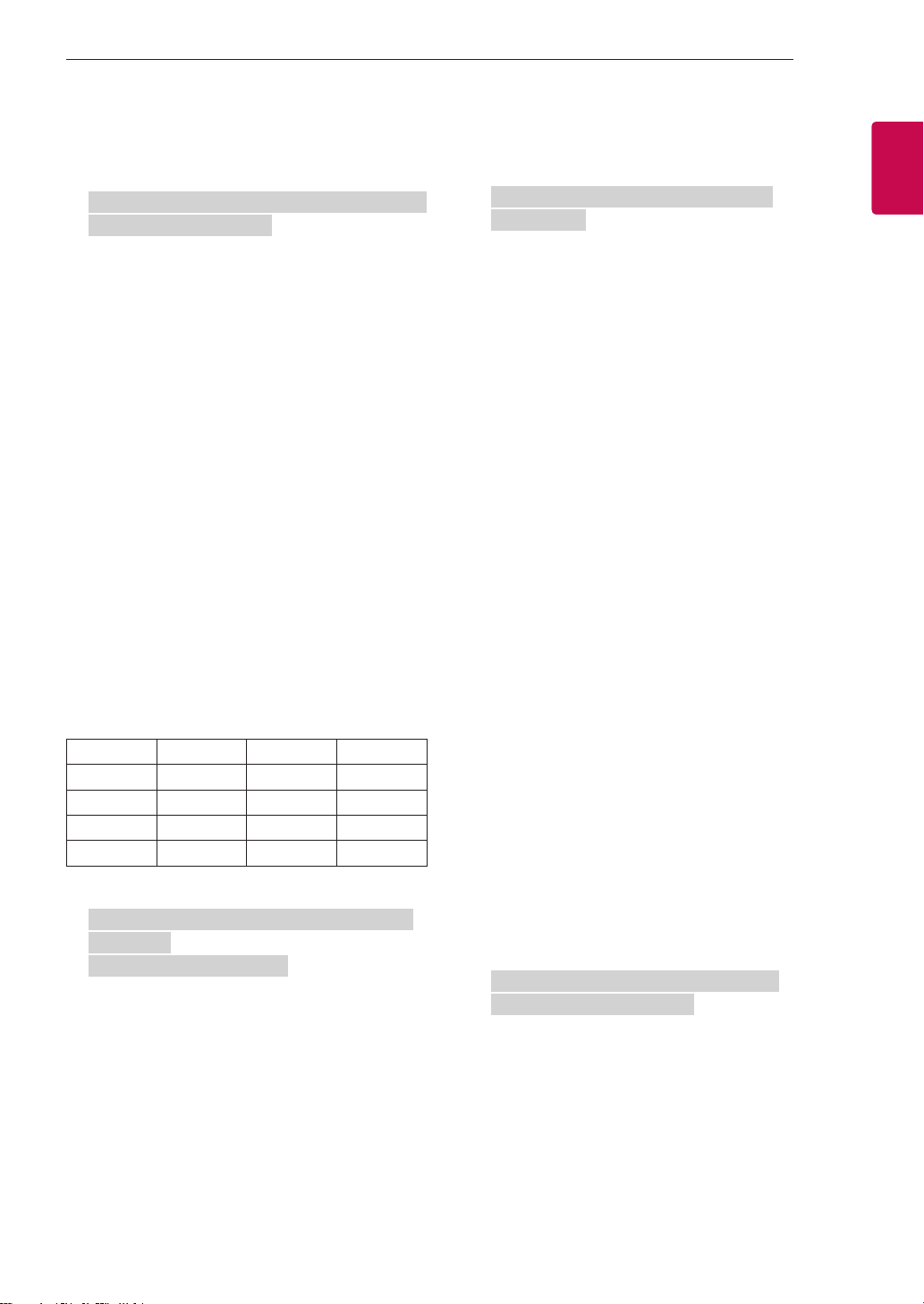
11
ENGENGLISH
11
EXTERNAL CONTROL DEVICE SETUP
22. 3D(Command: x t) (only 3D models)
(Depending on model)
► To change 3D mode for TV.
Transmission [x][t][ ][Set ID][ ][Data 00][ ][Data 01]
[ ][Data 02][ ][Data 03][Cr]
Data Structure
[Data 00] 00 : 3D On
01 : 3D Off
02 : 3D to 2D
03 : 2D to 3D
[Data 01] 00 : Top and Bottom
01 : Side by Side
02 : Check Board
03 : Frame Sequential
04 : Column interleaving
05 : Row interleaving
[Data 02] 00 : Right to Left
01 : Left to Right
[Data 03] 3D Effect(3D Depth): Min : 00 - Max : 14
(*transmit by Hexadecimal code)
* If [Data 00] is 00 (3D On), [Data 03] has no
meaning.
* If [Data 00] is 01 (3D off) or 02 (3D to 2D), [Data
01], [Data 02] and [Data 03] have no meaning.
* If [Data 00] is 03(2D to 3D), [Data 01] and [Data 02]
have no meaning.
* If [Data 00] is 00 (3D On) or 03 (2D to 3D), [Data
03] works when 3D Mode (Genre) is manual only.
* All 3D pattern options ([Data 01]) may not be
available according to broadcasting/video signal.
[Data 00] [Data 01] [Data 02] [Data 03]
00 O O O
01 X X X
02 X X X
03 X X O
X : don’t care
Ack [t][ ][Set ID][ ][OK][Data00][Data01][Data02]
[Data03][x]
[t][ ][Set ID][ ][NG][Data00][x]
23. Extended 3D(Command: x v) (only 3D models)
(Depending on model)
► To change 3D option for TV.
Transmission [x][v][ ][Set ID][ ][Data 00][ ]
[Data 01][Cr]
[Data 00] 3D option
00 : 3D Picture Correction
01 : 3D Depth (3D Mode is Manual Only)
02 : 3D Viewpoint
06 : 3D Color Correction
07 : 3D Sound Zooming
08 : Normal Image View
09 : 3D Mode (Genre)
[Data 01] It has own range for each 3D option
determined by [Data 00].
1) When [Data 00] is 00
00 : Right to Left
01 : Left to Right
2) When [Data 00] is 01, 02
Data Min: 0 - Max: 14 (*transmit by Hexadecimal
code)
Data value range(0 - 20) converts Viewpoint range
(-10 - +10) automatically (Depending on model)
* This option works when 3D Mode (Genre) is manual
only.
3) When [Data 00] is 06, 07
00 : Off
01 : On
4) When [Data 00] is 08
00 : Revert to 3D video from 3D-to-2D
converted 3D video
01 : Change 3D video to 2D video, except
2D-to-3D video
* If conversion condition doesn’t meet, command is
treated as NG.
5) When [Data 00] is 09
00 : Standard
02 : Cinema
04 : Manual
01 : Sport
03 : Extreme
Ack [v][ ][Set ID][ ][OK][Data00][Data01][x]
[v][ ][Set ID][ ][NG][Data00][x]