AJL 700
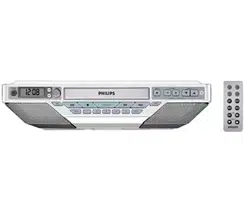
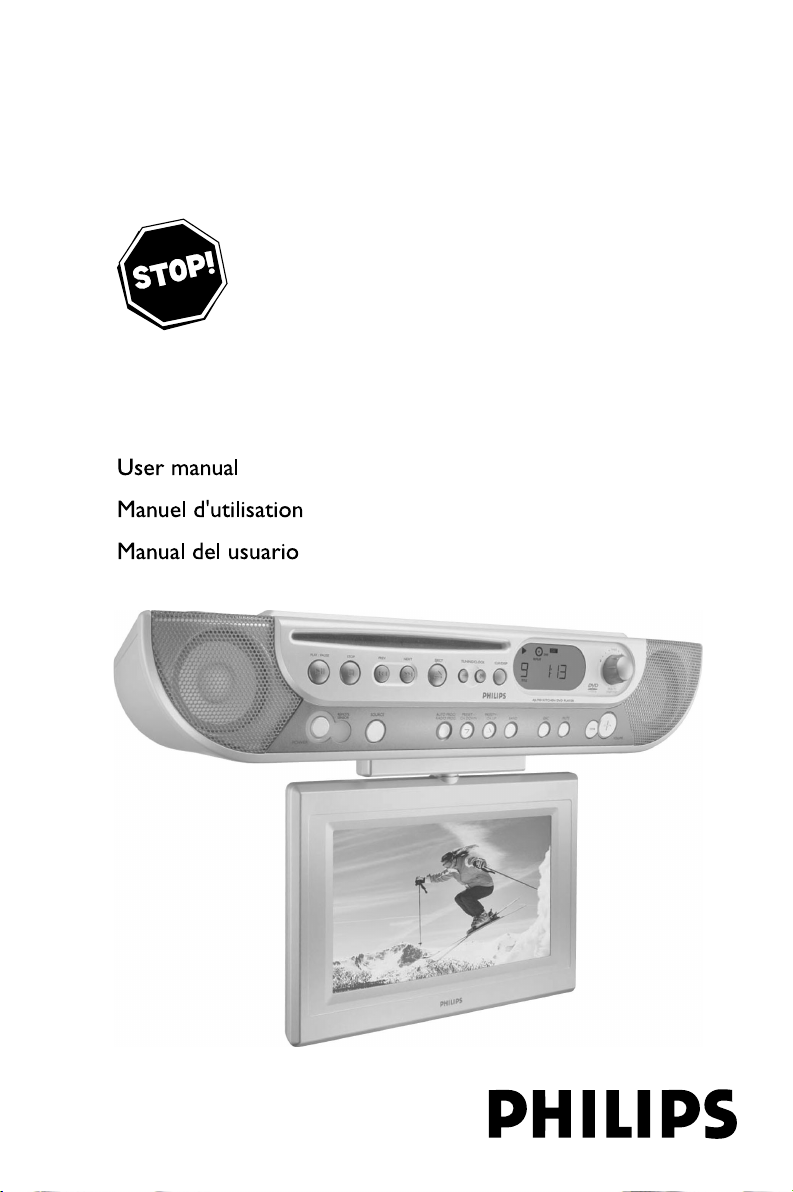
DVD Kitchen Radio
with LCD-TV
THANK YOU FOR CHOOSING PHILIPS!
NEED HELP FAST?
Read your Quick-Start guide and/or owner's manual first for quick tips
that make using your Philips product more enjoyable. If you have read
your instructions and still need assistance,
you may access our online help at www.p4c.philips.com
or call 1-888-PHILIPS(744-5477) while with your
product.

2
.
Note : This equipment has been tested and found to comply with the limits for a Class B digital device,
pursuant to part 15 of the FCC Rules. These limits are designed to provide reasonable protection against
harmful interference in a residential installation. This equipment generates, uses, and can radiate radio
frequency energy and, if not installed and used in accordance with the instruction manual, may cause
harmful interference to radio communications. However, there is no guarantee that interference will not
occur in a particular installation. If this equipment does cause harmful interference to radio or television
reception, which can be determined by turning the equipment off and on, the user is encouraged to try to
correct the interference by one or more of the following measures :
– Relocate the receiving antenna.
– Increase the separation between the equipment and receiver
– Connect the equipment into an outlet on a circuit different from that to which the receiver is connected.
– Consult the dealer or an experienced radio/TV technician for help.
IMPORTANT !
modifications not authorized by the manufacturer may void users authority to operate this device.
Nota : Este aparato ha sido probado y cumple con los límites correspondientes a un aparato digital de Clase
B, según la parte 15 de las Normas FCC. Estos límites han sido diseñados para facilitar suficiente protección
frente a interferencias perjudiciales en una instalación residencial. Este aparato genera, utiliza y puede emitir
energía de frecuencias de radio y, si no se instala y utiliza según el manual de instrucciones, puede provocar
interferencias perjudiciales en las comunicaciones de radio. Sin embargo, no existe garantía de que las
interferencias no ocurrirán en una instalación particular. Si este aparato provoca interferencias perjudiciales en
la recepción de radio o television, que se puede identificar encendiendo y apagando el aparato,
recomendamos al usuario que intente solucionar las interferencias siguiendo una o más de las siguientes
medidas:
– Cambie la posición de la antena receptora.
– Aumente la separación entre el aparato y el receptor.
– Conecte el aparato a una toma de un circuito diferente al que está conectado el receptor.
– Consulte con el distribuidor o un técnico de radio/TV con experiencia para que le ayuden.
¡IMPORTANTE!
modificações não autorizadas pelo fabricante, podem causar danos na operação deste aparelho.
Remarque : Cet équipement a été testé et a été certifié conforme aux limites imposées pour un
appareil numérique de Classe B, conformément à la partie 15 des réglements FCC. Ces limites sont
définies aux fins d'assurer une protection raisonnable contre les interférences nuisibles dans une
installation résidentielle. Cet équipement génère, utilise et émet des fréquences radio qui, en cas d'une
mauvaise installation ou d'une utilisation non-conforme aux instructions de ce manuel d'utilisation
peuvent causer des interférences nuisibles aux communications radio. Il n'y a toutefois aucune garantie
que des interférences nuisibles ne se produiront pas dans une installation donnée. Si cet équipement
cause des interférences nuisibles avec votre poste radio ou de télévision, ce que vous pouvez déterminer
en éteignant et en rallumant votre équipement, il est conseillé à l'utilisateur d'essayer de pallier à ces
interférences nuisibles en prenant l'une ou l'autre des mesures suivantes:
– Changez la position de l'antenne de réception.
– Augmentez la séparation entre l'équipement et le récepteur.
– Branchez l'équipement sur une source d'alimentation différente de celle sur laquelle le récepteur est
branché.
– Consultez votre distributeur ou un technicien qualifié en la matière pour assistance.
IMPORTANTE !
las modificaciones no autorizadas por el fabricante pueden anular la autoridad de los usuarios para
utilizar este aparato.
3
PRESET
MHZ
kHZ
VOL.
MEM
SHUFFLE PROG.
1ALL
TV FM AM TIMER
21 3
^
5
7
8 94 6
% $ # @ !
0
&
*
*
PREV NEXT
TUNING/CLOCK CLK/DISP
PLAY / PAUSE STOP EJECT
AJL700 KITCHEN DVD PLAYER
PRESET+ /
CH. UP
PRESET
-
/
CH. DOWN
AUTO PROG/
RADIO PROG BAND
DSC MUTE
REMOTE
SENSOR
SOURCE
POWER
VOLUME
PRESS TO
START
/
STOP
TIMER
PUSH
(
FM ANT AM ANT
VIDEO INAUDIO INRL
TV ANT
DC-12V
) ¡ ™
£
∞≤

8
English
Contents
General Information
Supplied accessories ............................................ 9
Environmental information ................................ 9
Maintenance .......................................................... 9
Safety information ................................................ 9
Mounting the Set under a
Cabinet
Preparation .......................................................... 10
Mounting the set ................................................ 10
Installation
Rear connections ............................................... 11
Connecting FM/AM antennas
Connecting TV antenna/CATV
Connecting an additional appliance
Power supply ....................................................... 12
Inserting batteries into the remote control . 12
Setting the clock ................................................. 13
Using the TV screen ........................................... 13
Controls
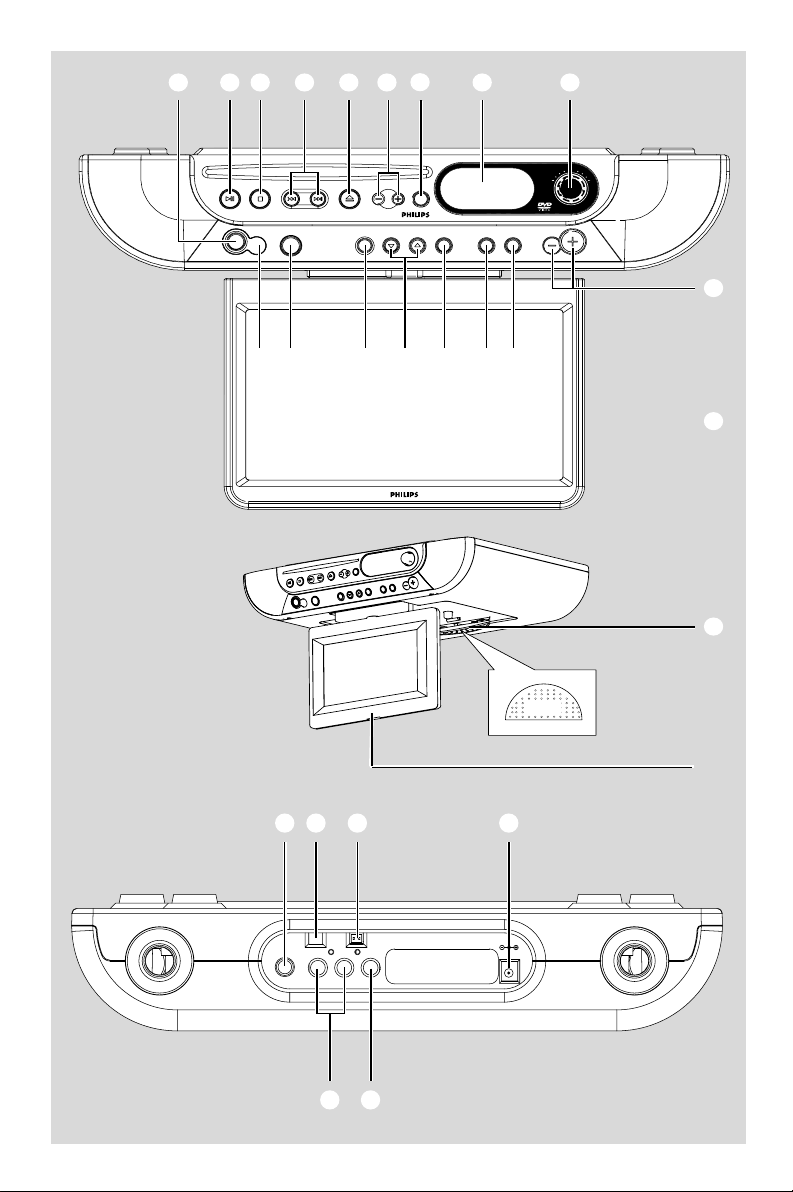
Controls on the set ........................................... 14
Remote control ........................................... 15~16
Basic Functions
Switching on/ to standby mode and
selecting functions ............................................ 17
Adjusting volume and sound............................ 17
Adjusting volume
DSC
Mute ...................................................................... 17
Display information ............................................ 17
Adjusting picture ................................................ 17
TV
Watching TV ........................................................ 18
Radio
Tuning to radio stations .................................... 19
Storing preset radio stations ........................... 19
Manual programming
Autostore: Automatic programming
To listen to a preset station
Disc Operations
Playable discs ....................................................... 20
Region codes
Playing discs ......................................................... 20
Selecting and searching ..................................... 21
Selecting a different track/chapter
Fast rewinding/forwarding
GOTO
Different play modes:REPEAT, SHUFFLE and
REPEAT A< >B .................................................... 22
REPEAT
SHUFFLE
REPEAT A< >B
Display information ............................................ 23
Programming tracks/chapters.......................... 23
DVD/VCD Features
INTRO .................................................................. 24
Playing in slow motion ...................................... 24
ZOOM .................................................................. 24
AUDIO ................................................................. 24
SUBTITLE ............................................................. 24
Using the DISC MENU ..................................... 24
DVD Setup Menu
To navigate setup options ................................. 25
GENERAL SETUP PAGE .................................. 25
TV DISPLAY
ANGLE MARK
OSD LANG
Screen Saver
PREFERENCE PAGE .......................................... 26
PARENTAL
DEFAULT
PASSWORD SETUP PAGE .............................. 26
Timer
................................................................................ 27
External AV Source
................................................................................ 27
Specifications
................................................................................ 28
Troubleshooting
................................................................................ 29
Glossary
................................................................................ 30

9
English
This set complies with the FCC rules,
Part 15 and with 21 CFR 1040.10.
Operation is subject to the following two
conditions:
– This device may not cause harmful
interference, and
– This device must accept any interference
received, including interference that may
cause undesired operation.
Supplied accessories
– DC 12V adapter with bracket
– L-shape adapter (for TV ANT connector)
– remote control with 2 x AA batteries
– AM antenna
– FM antenna
–Mounting kit: template, 4 spacers, 8 screws
Environmental information
All unnecessary packaging has been omitted.
We have tried to make the packaging easy to
separate into three materials: cardboard (box),
polystyrene and polyethylene (bags, protective
foam sheet).
Your system consists of materials which can be
recycled and reused if disassembled by a
specialized company. Please observe the local
regulations regarding the disposal of packaging
materials, exhausted batteries and old
equipment.
Maintenance
Cleaning the Cabinet
● Use a soft cloth slightly moistened with a mild
detergent solution. Do not use a solution
containing alcohol, spirits, ammonia or abrasives.
Cleaning Discs
● When a disc becomes dirty,
clean it with a cleaning cloth.
Wipe the disc from the center
out.
● Do not use solvents such as
benzene, thinner, commercially
available cleaners, or antistatic spray intended for
analog records.
Cleaning the disc lens
● After prolonged use, dirt or dust may
accumulate at the disc lens. To ensure good
playback quality, clean the disc lens with any
commercially available cleaner. Follow the
instructions supplied with cleaner.
Safety information
● Place the system on a flat, hard and stable
surface.
● Do not expose the system, batteries or discs to
excessive moisture, rain, sand or heat sources
caused by heating equipment or direct sunlight.
● Place the system in a location with adequate
ventilation to prevent internal heat build-up in
your system.
● The ventilation should not be impeded by
covering the ventilation openings with items,
such as newspapers table-cloths, curtains, etc.
● The apparatus shall not be exposed to dripping
or splashing.
● No objects filled with liquids, such as vases, shall
be placed on the apparatus.
● No naked flame sources, such as lighted candles,
should be placed on the apparatus.
● The mechanical parts of the set contain self-
lubricating bearings and must not be oiled or
lubricated.
General Information

14
English
Controls on the set (illustrations
on page 3)
Front panel
1 POWER
– switches the set on or to standby mode
2 ÉÅ PLAY/PAUSE
– starts or pauses disc playback.
3 Ç STOP
– stops or pauses disc playback
4 PREV à / á NEXT
– DVD/VCD/CD: skips tracks or chapters
backward/forward
5 0 EJECT
– ejects a disc from the slot loader.
6 TUNING/CLOCK -, +
– RADIO: tunes to radio stations
– CLOCK: adjusts the hour/minute
7 CLK/DISP
– set clock time
– toggles clock (or timer) display and status
of the set
8 Display
– shows status of the set.
9 TIMER
– alarm timer with setting options from 1 to 180
minutes
0 VOLUME +/-
– adjusts the volume level
! MUTE
– switches the sound off temporarily
@ DSC (Digital Sound Control)
– selects predefined sound settings: CLASSIC, POP,
MOVIE, SPEECH
# BAND
– selects wavebands, FM or AM
$ 3 , 4 PRESET - / CH.DOWN, PRESET
+ / CH.UP
– RADIO: selects a preset radio station
(down, up)
– TV/CATV: selects a TV channel
(down, up)
% AUTO PROG/ RADIO PROG
– RADIO/TV: programs preset stations/channels
^ SOURCE
– selects functions: DVD (VCD, CD or MP3),
RADIO, AV or TV/ CATV
& REMOTE SENSOR
– sensor for the infrared remote control
Helpful hints: Always point the remote control
towards this sensor.
Bottom panel
* PUSH
– push here to release LCD monitor
( TV screen
Rear panel
) TV ANT
– connects to the external TV antenna or CATV
¡ FM ANT
– connects the supplied wire antenna here.
™ AM ANT
– connects the supplied loop antenna here.
£ DC 12V
– socket for the supplied 12V AC/DC adapter
≤ VIDEO IN
– connects to the VIDEO OUT jack on the
external appliance
∞ AUDIO IN (L/R)
– connects to the AUDIO OUT jack on the
external appliance
Controls

15
English
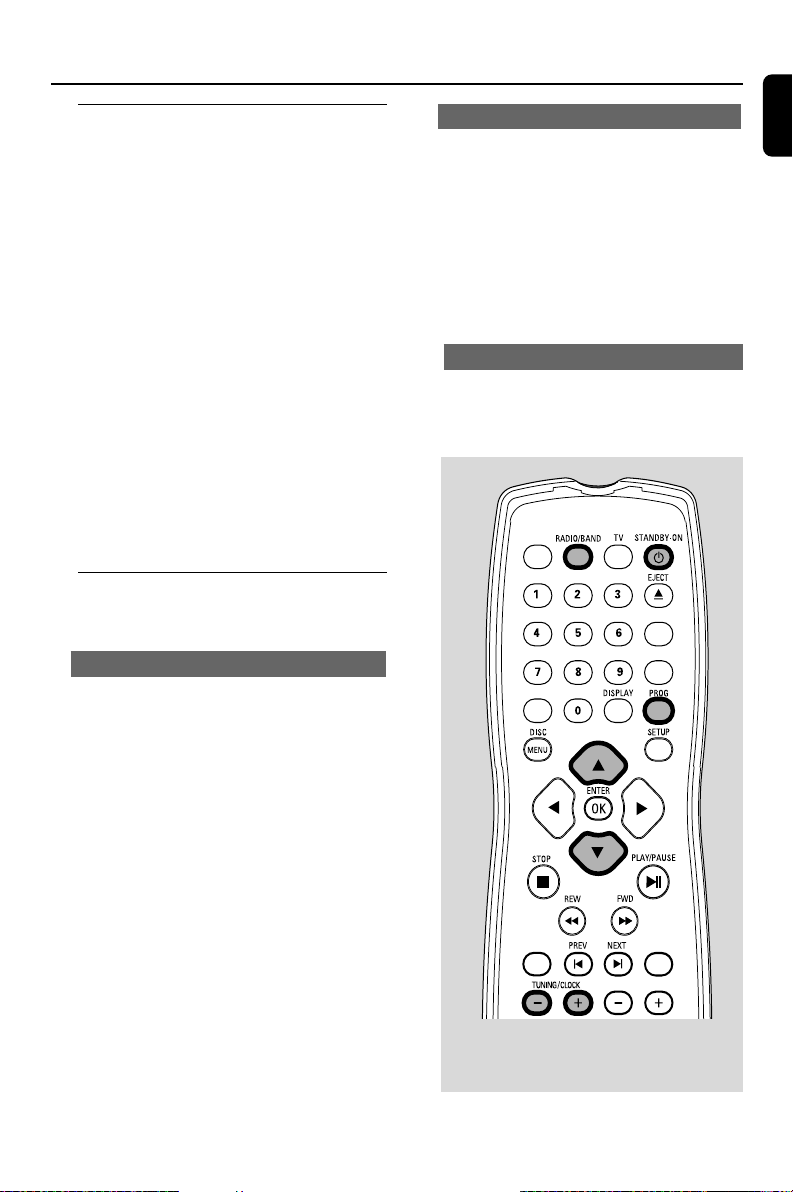
Remote control
1 Source buttons
DVD (VCD/CD/MP3)
– selects disc functions: DVD, VCD, CD or MP3
RADIO/BAND
– selects the radio and toggles between the
wavebands
TV
– selects TV or CATV
2 STANDBY-ON
– switches the set on or to standby mode
3 0 EJECT
– ejects a disc from the slot loader.
4 AV
– selects the input from an external connected
appliance
5 SHUFFLE
– plays the disc in random order
6 DISPLAY
– toggles clock (or timer) display/ status of the set
7 PROG
– RADIO: programs preset stations
– DVD/VCD/CD: programs chapters/titles/tracks
8 SETUP
– enters or exits the Setup menu.
9 1 / 2 / 3 / 4
–navigation controls (left, right, up, down) to scroll
through disc/menu options
1 / 2
– DISC: starts fast search backward or forward
2X, 4X, 8X, 16X or 32X
3 / 4
– RADIO: selects a preset radio station
(up, down)
– TV/CATV: selects a TV channel (up, down)
0 ENTER/ OK
– confirms selection
– CATV: selects HRC, IRC, STD or AUTO mode
¤
⁄
º
ª
•
§
∞
™
)
(
$
#
@
^
&
*
¡
%
8
5
7
4
3
2
6
9
!
1
£
0
DVD
AV
PROGERASE/WRITE
SHUFFLE
CLOCKSETCLOCKSET PICTURE
VOL
DSC
≥
≤
IMPORTANT!
– First, select the source you wish to
control by pressing a source button(DVD,
RADIO or TV for example).
– Then, select the desired functions (
í
,
ë
, for example).
Controls

16
English
Controls
! ÉÅ PLAY/PAUSE
– starts/ pause disc playback
@ REW, FWD à / á
– star ts fast search backward or forward 2X, 4X,
8X, 16X or 32X
PREV, NEXT O P
– DVD/VCD/CD: skips tracks or chapters
backward/forward
# PICTURE
– toggle to select picture setting options: BRIGHT,
CONTRAST, COLOR, TINT
$ VOL +/-
– adjusts the volume level
– adjusts the picture values.
% ANGLE
– views picture from different recorded camera
angles (if available on your disc)
^ ZOOM
– enlarges or reduces the video image during
playback.
& GOTO
– goes directly to desired title, chapter, time or
track.
* INTRO
– DVD/VCD: gives you an overview of your disc
contents: in digest or at 10-minute intervals
( MUTE
– turns on/off the speaker output.
) OSD
– Enables or disables on-screen display
¡ SLOW
– DVD/VCD: plays in slow motion: 1/2, 1/4, 1/8 or
1/16.
™ DSC (Digital Sound Control)
– selects predefined sound settings: CLASSIC, POP,
MOVIE, SPEECH
£ A< >B Repeat
– repeats a section on a disc
≤ REPEAT
– selects repeat modes
∞ SUBTITLE
– selects a subtitle language
§ AUDIO
– selects audio channels or selects a sound track
language in a DVD
≥ TUNING/CLOCK -, +
– RADIO: tunes to radio stations
– CLOCK: ajusts the hour/minute
• CLOCK SET
– sets clock time.
ª 9 STOP
– stops playback/ cancels program function.
º DISC MENU
– enters or exits the disc content menu
⁄ ERASE/ WRITE
– TV/CATV: deletes/adds a programmed channel
¤ Numeric Keypad (0-9)
– DVD/VCD/CD: selects a track/title/chapter
number
– TV/CATV: selects a TV channel number

18
English
TV
Watching TV
1 Check your TV set has been properly connected
and placed. (see Installation, Connecting TV
antenna/CATV and Using the TV Screen)
2 On the remote control, press
BB
BB
B to on, then
press TV once or more to select TV or CATV
mode (or on the set, POWER and SOURCE).
3 In CATV, press ENTER on the remote control
to select HRC, IRC, STD or AUTO mode.
4 The first time you use the TV, press AUTO
PROG /RADIO PROG on the set.
➜ Channel number starts running.
➜ Available channels are programmed.
➜ After all channels are stored, the first
autostore channel will then automatically play.
5 Press PRESET - / CH.DOWN, PRESET + /
CH.UP to select your desired channel (on the
remote control, 3 , 4)
or
Use the Numeric Keypad (0-9) on the
remote control to select the channel number
directly. e.g.
Channel 2: Press 0 and then, 2
Channel 10, Press 1 and then, 0
To erase/ overwrite current presets
You can erase a preset channel by storing
another channel in its place.
1 Select the channel you want to erase.
2 On the remote control, press ERASE/ WRITE
once or more until ERASE appears
➜The erased channel number appears in red.
3 Press ERASE/ WRITE again until ADD
appears.
4 Use the Numeric Keypad (0-9) on the
remote control to enter your desired channel
number
➜ The stored channel number appears in green.
DVD
AV
PROGERASE/WRITE
SHUFFLE
PRESET
MHZ
kHZ
VOL.
MEM
SHUFFLE PROG.
1ALL
TV FM AM TIMER
CLOCK/TUNING CLK/DISP
E
JECT
AJL700 KITCHEN DVD PLAYER
PRESET+ /
CH. UP
PRESET
-
/
CH. DOWN
AUTO PROG/
RADIO PROG BAND
DSC MUTE
VOLUME
PRESS TO
START
/
STOP
TIMER
19
English
Radio
Autostore: automatic programming
Autostore automatically starts programming
radio stations from preset 1. Any previous
presets e.g. manually programmed will be
erased.
● Press and hold AUTO PROG /RADIO
PROG until AUtO appears.
➜ Available stations are programmed (20FM
and 10 AM).
➜ After all stations are stored, the first
autostore preset station automatically plays.
To listen to a preset station
● Press PRESET - / CH.DOWN, PRESET +
/ CH.UP until the desired preset station is
displayed (or on the remote control 3, 4 ).
Tuning to radio stations
1 Press POWER to on, then press SOURCE
once or more to select RADIO mode.(or on the
remote control,
BB
BB
B and RADIO/BAND).
➜Display: The waveband, radio station
frequency and if programmed, a preset number
are shown.
2 Press BAND once or more to select your
waveband: FM or AM (or RADIO/BAND on
the remote control)
3 Press and hold TUNING/CLOCK -, + until
the frequency in the display starts running.
➜ The radio automatically tunes to a station of
sufficient reception. Display shows Srch during
automatic tuning.
4 Repeat step 3 if necessary until you find the
desired radio station.
● To tune to a weak station, press TUNING/
CLOCK -, + briefly and repeatedly until optimal
reception is found.
Storing preset radio stations
You can store up to 30 preset radio stations in
the memory (20 FM and 10AM).
Manual programming
1 Tune to your desired radio station (see “Tuning
to radio stations”).
2 Press AUTO PROG/ RADIO PROG to
activate programming. (or PROG on the
remote control).
➜ Display shows: current radio frequency and
PROG flashes.
3 Press PRESET - / CH.DOWN, PRESET + /
CH.UP to select a preset number. (on the
remote control, 3 , 4)
4 Press AUTO PROG/ RADIO PROG to
confirm.
➜ Display: PROG disappears.
5 Repeat steps 1-4 to store other stations.
Helpful hints:
–You can erase a preset station by storing
another frequency in its place.
DVD
AV
ERASE/WRITE
SHUFFLE
CLOCKSETCLOCKSET PICTURE
VOL

20
English
Disc Operations
IMPORTANT!
– Use 12cm discs only!
– The set is designed for regular discs.
Therefore, do not use any accessories
such as disc stabilizer rings or disc
treatment sheets, etc.
– Depending on the format of DVDs or
VCDs, some operations may be different
or restricted.
– If the inhibit icon appears on the TV
screen when a button is pressed, it
means the function is not available on
the current disc or at the current time.
– CDs encoded with copyright
protection technologies by some record
companies may be unplayable on this
system.
Playable discs
Your DVD Player will play:
– Digital Video Discs (DVDs).
– Video CDs (VCDs).
– Super Video CDs (SVCDs).
–Digital Video Discs + Recordable
(DVD+R).
– Digital Video Discs + Rewritable
(DVD+RW).
– Compact Discs (CDs).
– MP3 disc on CD-R (W).
– Maximum 16 characters display.
– Supported sampling frequencies: 32 kHz, 44.1
kHz, 48 kHz.
– Supported Bit-rates: 32~192 kbps, variable
bitrates.
– Picture (JPEG) files on CD-R(W).
– JPEG/ISO 9660 format.
Region Codes
To play on this DVD player, DVDs must be
labelled for ALL regions or Region 1. You
cannot play discs that are labeled for other
regions.
Note:
– If you are having trouble playing a certain disc,
remove the disc and try a different one. Improper
formatted discs will not play on this DVD Player.
Playing discs
1 Press POWER to on, then press SOURCE
once or more to select DVD mode.(or on the
remote control,
BB
BB
B and DVD).
2 Insert a 12cm disc into the slot loader.
● Insert a disc in DVD mode. Make sure you
have removed any other disc fromthe loader.
● Make sure the label side is facing up. For
double-sided discs, load the side you want to
play facing down.
Insert a
12 cm disc
3 Playback will start automatically (depending on
the disc type).
➜ If a disc menu appears on the screen, use the
navigation controls 1 / 2 / 3 / 4 and
ENTER /OK to select your playback options.
➜ If the disc is locked by parental control, see
DVD Setup Menu, PREFERENCE PAGE.
4 To pause playback., press 9 STOP .
5 Press ÉÅ to resume playback from the last
position.
6 To stop playback, press 9 STOP again.
7 To remove the disc, press 0 EJECT .
23
English
Disc Operations
Programming tracks/chapters
DVDs:
TITLE ELAPSED - elapsed playback time of
current title.
TITLE REMAIN - remaining time of current
title.
CHAPTER ELAPSED - elapsed playback
time of current chapter.
CHAPTER REMAIN - remaining time of
current chapter.
**Options available subject to type of disc. Not
available for MP3-CDs.
Display information
During playback, press DISPLAY on the
remote control repeatedly to select your display
options:
CDs/VCDs:
SINGLE ELAPSED - elapsed playback time
of current track.
SINGLE REMAIN - remaining time of current
track.
TOTAL ELAPSED - elapsed playback time of
disc.
TOTAL REMAIN - remaining playback time of
disc.
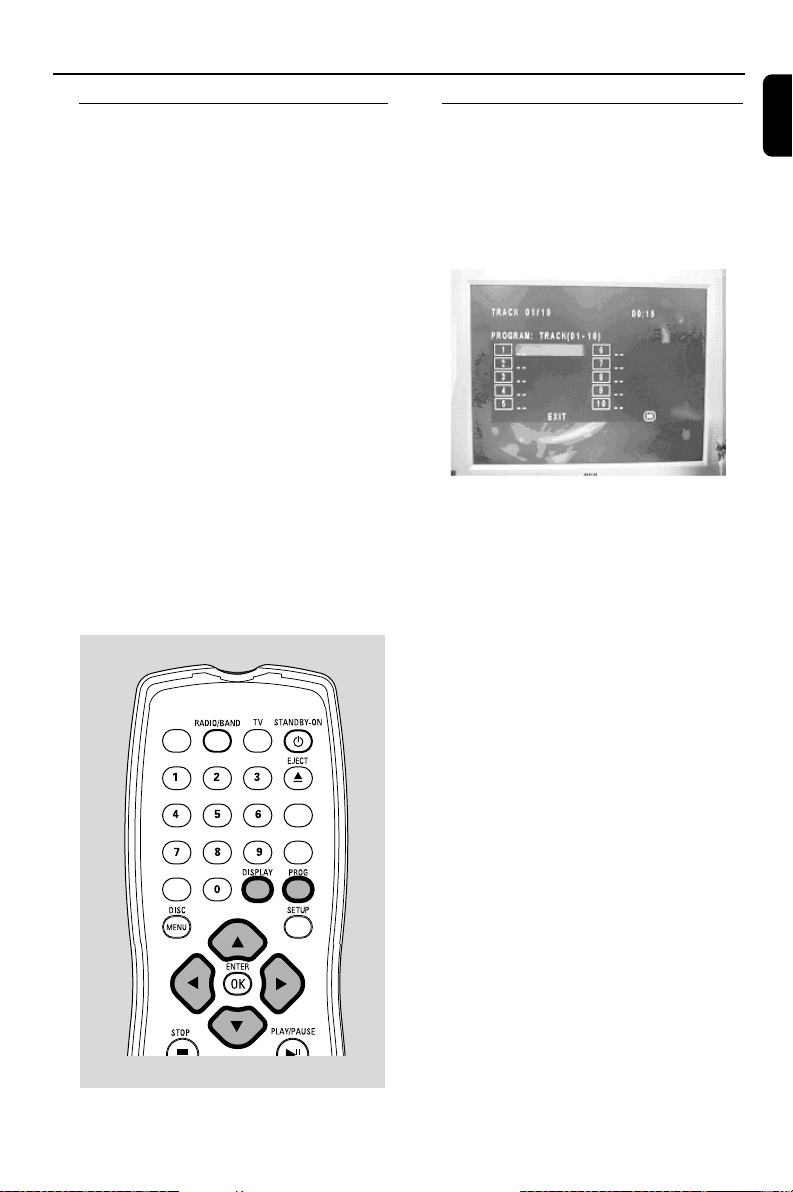
You can select and program 20 tracks/ chapters
for playback. If you like, store any track/chapter
more than once.
CDs/VCDs/DVDs:
1 Press PROG to activate programming mode.
➜ The program pop-up appears for you to
enter the desired track/chapter numbers.
2 Use the navigation controls 1 / 2 / 3 / 4
on the remote control to select your desired
program position.
● If you need to go the next /previous page to
continue programming, navigate to highlight
4 / ¢.
3 Use the Numeric Keypad (0-9) on the
remote control to enter your desired track/
chapter number (in 2 digits)
E.g. Track/chapter 7, press 0 and then, 7.
4 To start playback, navigate to highlight START.
● If necessary, press ENTER/ OK to confirm.
Erasing the program
Either:
● Press PROG again, or
● Use the navigation controls 1 / 2 / 3 / 4 to
highlight EXIT.
➜ The program pop-up disappears.
DVD
AV
ERASE/WRITE
SHUFFLE

24
English
DVD/VCD Features
INTRO
This feature gives you an overview of the disc
contents.
DVDs:
TITLE DIGEST: A thumbnail picture appears
for each title in current chapter
CHAPTER DIGEST: A thumbnail picture
appears for each chapter in the disc
TITLE INTERVAL: Thumbnail pictures appear
for current title at 10-minute interval.
DISC INTERVAL: Thumbnail pictures appear
for the disc at 10-minute interval.
VCDs:
TRACK DIGEST: A thumbnail picture
appears for each track in the disc
DISC INTERVAL: Thumbnail pictures appear
for the disc at 10-minute interval.
TRACK INTERVAL: Thumbnail pictures
appear for current track at 10-minute interval.
1 On the remote control, press INTRO to go to
the SELECT DIGEST TYPE page.
2 Use the navigation controls 1 / 2 / 3 / 4 to
select your option.
3 Press ENTER /OK to confirm.
➜ Thumbnail pictures appear in the selected
mode.
4 To return to normal playback, press INTRO.
Playing in slow motion
1 Press SLOW repeatedly on the remote control
during playback to select the desired speed: 1/2,
1/4, 1/8 or 1/16
➜ Sound will be muted.
2 To return to normal speed, pressÉÅ PLAY/
PAUSE (or Press SLOW repeatedly until the
speed number disappears).
ZOOM
CLOCKSETCLOCKSET PICTURE
VOL
DSC
AUDIO
DVDs:
● On the remote control, press AUDIO
repeatedly to select the desired language for
sound track
VCDs/CDs:
Zooming allows you to enlarge or reduce the
video/ JPEG image during playback.
● Press ZOOM repeatedly to zoom in and out on
the playback video image.
➜ Image size enlarges at 2X, 3 X, 4 X or
reduces at 1/2, 1/3, 1/4 .
● To return to normal playback, press ZOOM
repeatedly until the numbers disappear
● Press AUDIO repeatedly to select the audio
channel for sound output:
MONO LEFT - MONO RIGHT - MIX MONO
- STEREO
SUBTITLE (DVD only)
● Press SUBTITLE on the remote control
repeatedly to select different subtitle languages.
Using the DISC MENU (DVD
only)
1 During playback, press DISC MENU on the
remote control to enter the disc menu.
2 Use the navigation controls 1 / 2 / 3 / 4 to
select your playback options.
3 Press ENTER /OK to confirm.
4 Press DISC MENU to exit.
** DISC MENU available subject to format of
disc.
25
English
DVD Setup Menu
ANGLE MARK (default OFF)
Views picture from different recorded camera
angles (if available on your disc).
● Select ON or OFF.
OSD LANG (default English)
There are three different OSD languages for
selection.
● Select English, French or Spanish.
Screen Saver (default ON)
The screen saver appears after 3 minutes in the
pause/ stop mode.
● Select ON or OFF.
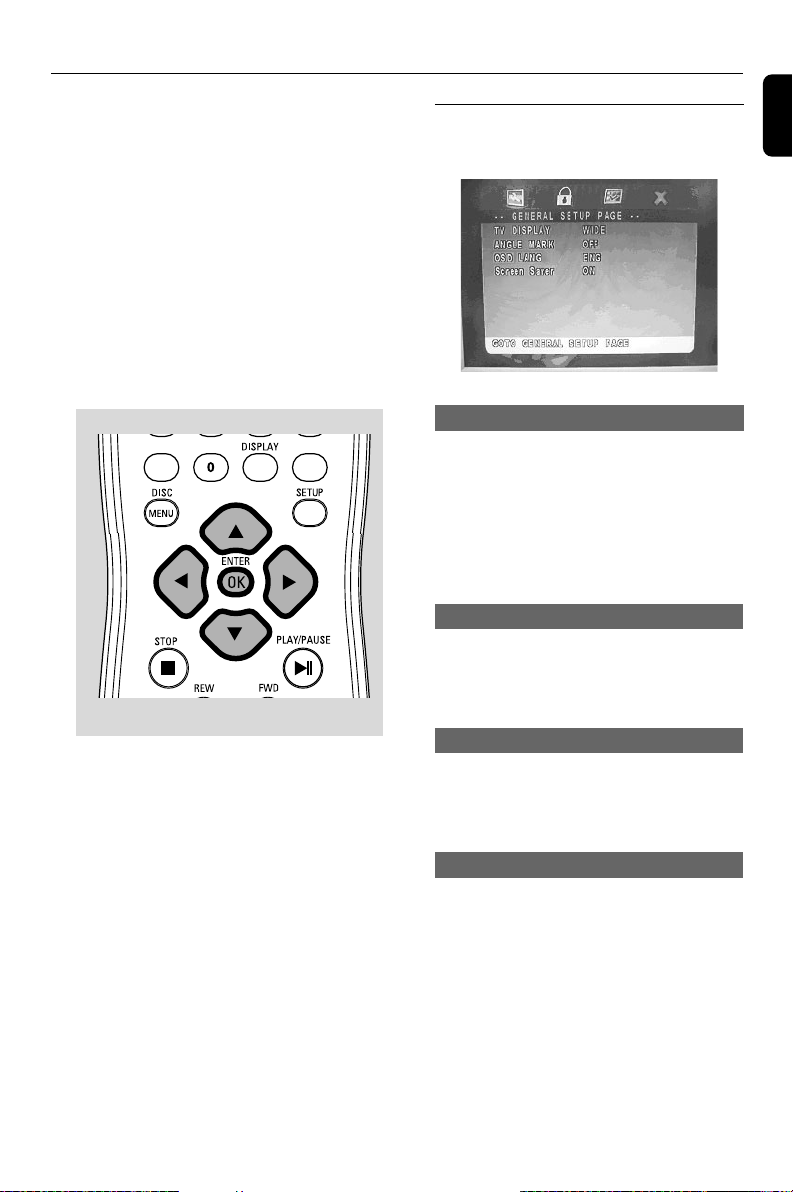
To navigate setup options
In the stop mode of DVD, use the remote
control to select the setup options.
1 Press SETUP to enter SETUP mode
2 Press 1 / 2 to select the desired SETUP page:
GENERAL SETUP PAGE, PREFERENCE
PAGE and PASSWORD SETUP PAGE
3 Press 3 / 4 to highlight an option.
4 Enter its submenu by pressing 2.
5 Move the cursor by pressing 3 / 4 to highlight
the selected item.
6 Press ENTER/OK to confirm.
GENERAL SETUP PAGE
TV DISPLAY (default WIDE)
● Select PS (Pan and Scan) for TV display at 4:3
aspect ratio if your DVD is not formatted for
widescreen viewing
● Select LB (Letterbox) for TV display at 4:3
aspect ratio if your DVD is formatted for
widescreen viewing.
● Select WIDE for TV display at 16:9 aspect ratio.
PROGERASE/WRITE

30
English
Glossary
Aspect ratio: The ratio of vertical and
horizontal sizes of a displayed image. The
horizontal vs. vertical ratio of conventional TVs. is
4:3, and that of wide-screens is 16:9.
Bit Rate: The amount of data used to hold a
given length of music; measured in kilobits per
second, or kbps. Or, the speed at which you
record. Generally, the higher the bit rate better
the sound quality. However, higher bit rates use
more space on a Disc.
Chapter: Sections of a picture or a music
piece on a DVD that are smaller than titles. A
title is composed of several chapters. Each
chapter is assigned a chapter number enabling
you to locate the chapter you want.
Disc menu: A screen display prepared for the
selection of images, sound, subtitles, multi-angles,
etc recorded on a DVD.
JPEG: A still-picture data compression system
proposed by the Joint Photographic Expert
Group, which features small decrease in image
quality in spite of its high compression ratio.
MP3: A file format with a sound data
compression system, “MPE” is the abbreviation of
Motion Picture Experts Group 1 (or MPEG-1)
Audio Layer 3. Through the MP3 format, one
CD-R or CD-RW can contain about 10 times as
much data volume as a regular CD can.
Parental control: A function of the DVD to
limit playback of the disc by the age of the users
according to the limitation level in each country.
The limitation varies from disc to disc; when it is
activated, playback will be prohibited if the
software’s level is higher than the user-set level.
Region code: A system allowing discs to be
played only in preset regions. This unit will only
play discs that have compatible region codes. You
can find the region code of your unit from the
product label. Some discs are compatible with
more than one region (or ALL regions).
Title: The longest section of a picture or music
feature on DVD, music, etc., in video software, or
the entire album in audio software. Each title is
assigned a title number enabling you to locate
the title you want.