Custom-designed Features
Camera features
Portrait
You can create an artistic portrait photo, whereby the subject is in focus and the background is blurred. You can also edit the image by applying lighting or color effect to the background.
NOTE:
- While taking a photo, keep the distance to your subject to 1.3 ~ 5 feet.
- This feature is not available if the surroundings are too dark.
1. On the home screen, tap  , and tap Portrait.
2. Drag the slide bar to the left or right to adjust the blur strength.
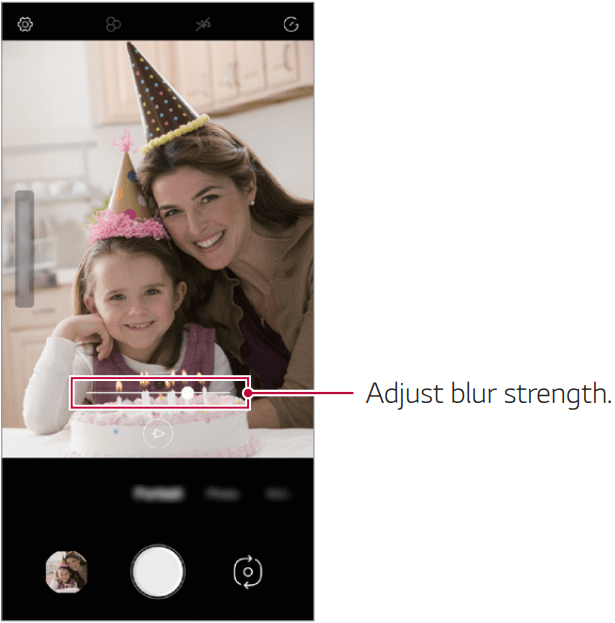
3. When Portrait is available appears on the screen, tap  to take a photo.
The Portrait feature may not work if the camera cannot recognize the subject.
Gallery features
Creating a movie
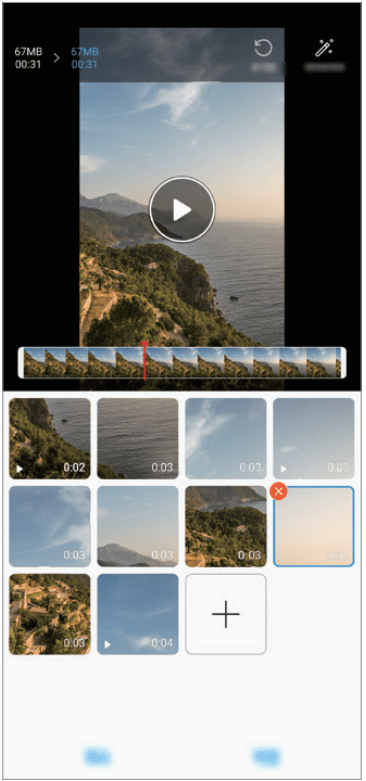
You can create a new movie by putting images and videos together.
1. On the home screen, tap  , select an album, then tap
  Create movie.
2. Select images or videos for your movie and tap Next.
3. Edit the selected images and videos and then tap Save.
Deleting files
You can select images or videos to delete from your video by tapping  at the top right corner of its thumbnail.
Adding files
You can select images or videos to add after tapping at the bottom of the screen. You can also select the images or videos you have already previously added.
NOE: Touch and hold a file, and then tap another file for multiple selection.
Rearranging files
To rearrange the images and videos, touch and hold the file you want to move, then dragging it to the desired location.
Adding file effects
Tap  to add a theme or background music, or change the font.
Resetting the movie edits
You can reset the edits made to the movie (e.g. play time) by tapping  .
.
Previewing a file
Check your new video before saving it by tapping  . After the playback time elapses, the next file is played automatically.
NOTE:
- A maximum of 50 images and videos can be used to create a video.
- The playback time for an image is 3 seconds by default and it cannot be changed. Videos can be trimmed down to a minimum of 1 second.
- This feature may not support some image or video formats.
Making a GIF
You can easily make a GIF file using recorded video.
1. At the desired starting point while watching a video, tap  .
.
2. Select the length of the GIF you want to create.
GIF is generated for the time selected from the current time.
For videos less than 5 seconds, GIF images are automatically generated for the remaining time.
CAUTION: You may use this feature solely for creative purposes. The use of this feature involving infringement of any other person’s rights, such as copyright or defamatory or offensive statements, may be subject to civil, criminal, or administrative liabilities and/or penalties under applicable laws. You shall not copy, reproduce, distribute, or otherwise make illegal use of any copyrighted materials without permission of the rightful owner or copyright holder. To the fullest extent permitted by applicable law, LG Electronics disclaims all expressed and implied warranties as well as liabilities associated thereto.
Google Assistant
Google Assistant overview
Your device has the built-in Google Assistant feature. Find answers and get things done while on-the-go.
NOTE: To use this feature, first connect to the network and sign in to your Google Account.
Sign in
1. Press the Google Assistant key on the left side of the device to launch Google Assistant.
2. Follow the on-screen instructions.
The device saves your voice data for recognition.
3. Set whether to use the voice match unlock function.
If you use the voice match unlock function, you can unlock the device even when the device screen is turned off or the device is charging by saying “OK Google” or “Hey Google”.
NOTE:
- For stronger security, it is advisable to use Pattern, PIN, or Password.
- When a similar voice or your recorded voice is used, the screen may be unlocked.
- To use this feature, tap Settings > Lock screen & security > Secure lock settings > Smart Lock, and then use the screen lock method you set to unlock the device. Tap Voice Match, then tap Access with Voice Match
 , then enter the currently used unlock method again. Note that Swipe is excluded.
 - You need to unlock the device by using the specified method if you fail to unlock the device with voice recognition.
4. Tap Save.
Accessing by Voice
1. When the home screen is turned off or locked, say “OK Google” or “Hey Google”.
2. When the Google Assistant screen appears, say a command or ask a question.
Accessing from Home Screen or Any Other Screen
1. Press the Google Assistant key on the left side of the device.
2. Say a command or question when you see  on the bottom of the screen.
NOTE: Voice recognition accuracy may decrease if you speak with an unclear voice or in a noisy place. When you use the voice recognition feature, increase its accuracy by speaking with a clear voice in a quiet place.
Fingerprint recognition
Fingerprint recognition overview
You must register your fingerprint on your device first before using the fingerprint recognition function.
You can use the fingerprint recognition function in the following cases:
- To unlock the screen.
- To view locked contents in Gallery and QuickMemo+.
- Confirm a purchase by signing in to an app or identifying yourself with your fingerprint.
NOTE:
- Your fingerprint can be used by the device for user identification. Very similar fingerprints from different users may be recognized by the fingerprint sensor as the same fingerprint. For added security, set the screen lock using a pattern, PIN or Password.
- If the device cannot detect your fingerprint, or you forget the value specified for registration, contact the LG Authorized Service Center with your device and ID card.
Registering fingerprints
You can register and save your fingerprint on the device to use fingerprint identification.
1. On the home screen, tap Settings > Lock screen & security > Fingerprints.
NOTE:
- This feature is available only when the screen lock is set. - Lock the device with a pattern, PIN or password.
- If the screen lock is not set, enable it by following the on-screen instructions.
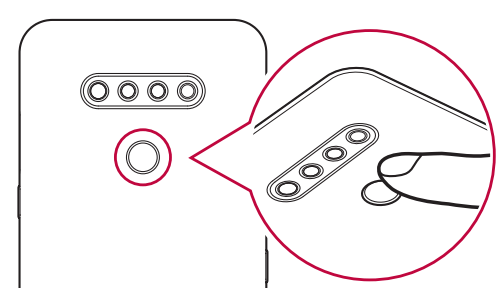
2. Locate the fingerprint sensor on the back of the device and gently put your finger on it to register the fingerprint.
3. Follow the on-screen instructions.
Repeat scanning the fingerprint by moving your finger little by little until the fingerprint is registered.
4. When the fingerprint registration is done, tap OK.
Tap Add more to register another fingerprint. If you register only one fingerprint and the corresponding finger is not in a good condition, the fingerprint recognition may not work well. As a preventative measure, register multiple fingerprints.
Managing fingerprints
You can edit or delete registered fingerprints.
1. On the home screen, tap Settings > Lock screen & security > Fingerprints.
2. Unlock according to the specified lock method.
3. From the fingerprint list, tap a fingerprint to rename it. To delete it, tap  .
.
Unlocking the screen with a fingerprint
You can unlock the screen or view locked content by using your fingerprint.
1. On the home screen, tap Settings > Lock screen & security > Fingerprints.
2. Unlock according to the specified lock method.
3. On the fingerprint settings screen, activate the desired function:
Screen lock: Unlock the screen with a fingerprint.
Content lock: Access contents you have locked in Gallery and QuickMemo+ with a fingerprint.
Multi-tasking feature
Recent Uses Screen
Swipe the Home button upward and hold to view the recent use history.
Pop-up window
You can open multiple apps on the screen and easily switch between them at any time.
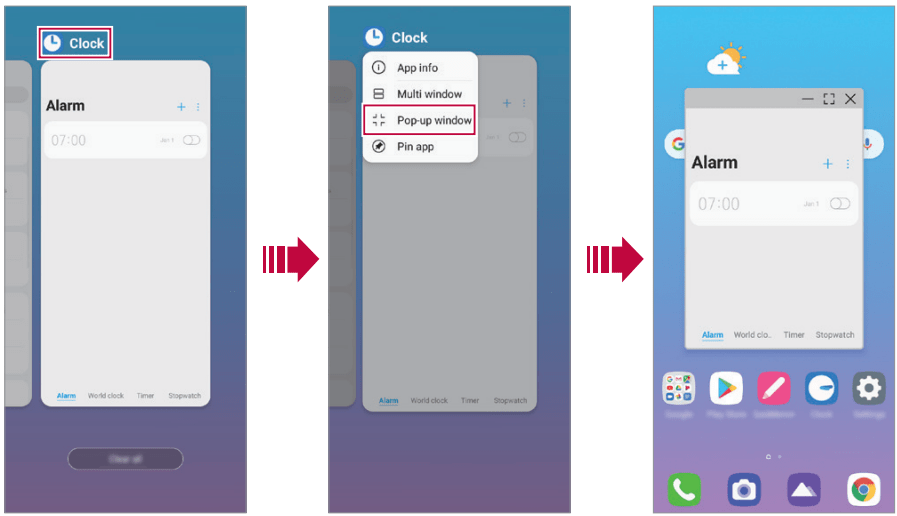
1 Swipe up and hold  from the bottom of the screen.
2 Tap the app icon on the top left of the app screen and select Pop-up window.
If you tap the app icon, the App info, Multi window, Pop-up window and Pin app options appear.
3 The app appears in the form of a pop-up window on the screen.
NOTE: This feature may not be available in some apps or screens.
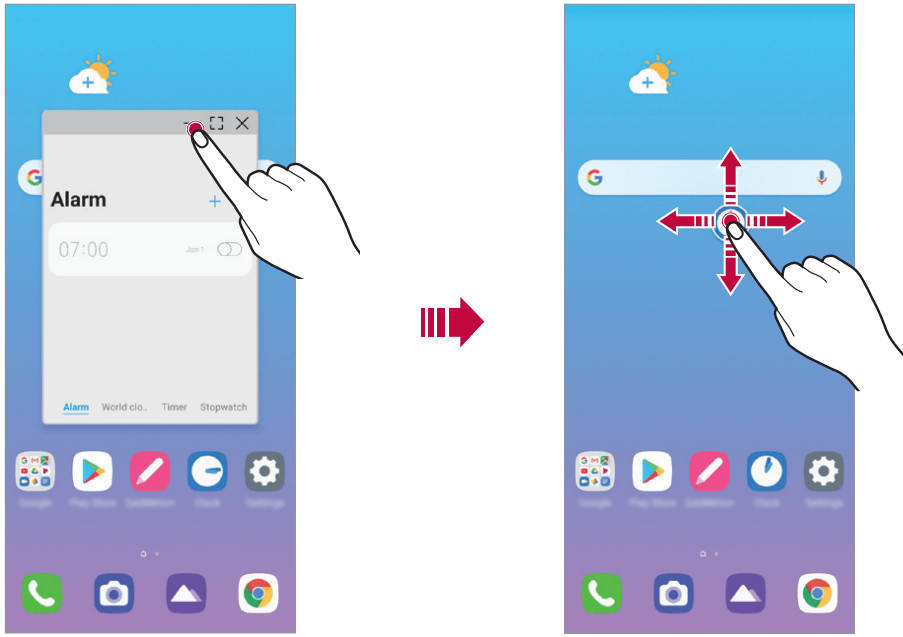
Using the pop-up window
 : Minimizes the pop-up window. The pop-up window is minimized into the app icon floating on the screen, which can be moved anywhere you want.
 : Expands the app to full screen.
 : Closes the app.
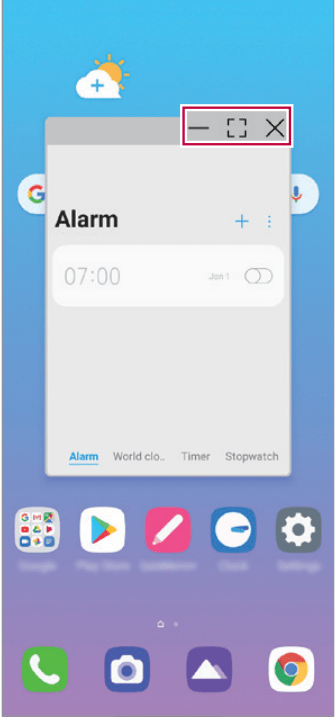
To move the pop-up window: Drag the top of the pop-up window.
To adjust the size of the pop-up window: Drag the left, right or bottom edge of the pop-up window.
NOTE:
- You can open up to 5 apps using the pop-up windows.
- To select an app from the opened apps, tap one of the pop-up windows. The selected pop-up window comes to the front.
- Pop-up windows cannot be moved to the status bar or navigation bar area.
Using the app folder for pop-up windows
If you tap on the pop-up window, the pop-up window is minimized into the app icon.
You can move the app icon anywhere you want by dragging it.
If two or more pop-up windows are minimized, the app folder is created to contain the app icons.
NOTE: The recently-used app icon is used as the app folder icon. If you tab the icon, all the icons for the minimized pop-up windows appear in the app folder
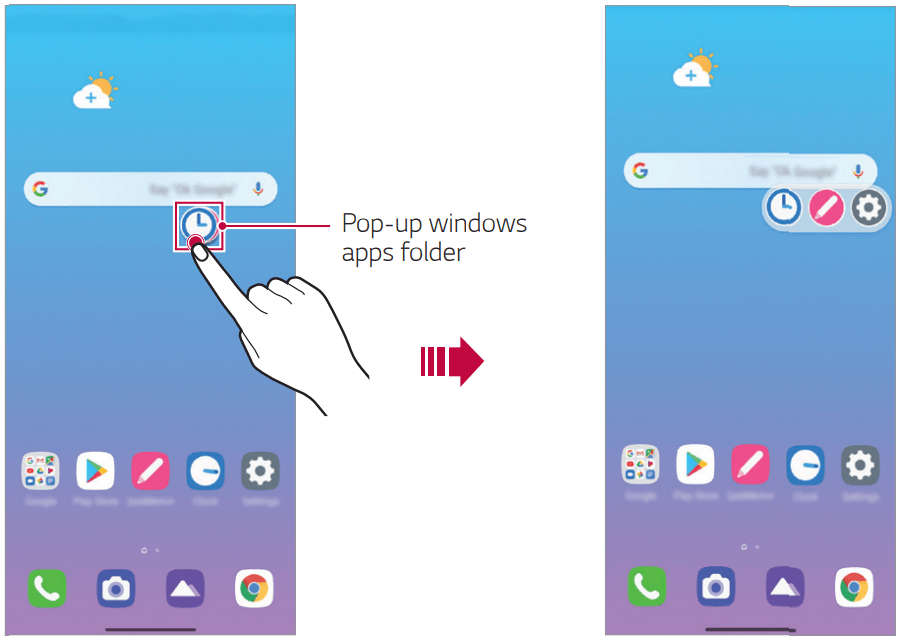
NOTE:
- If you touch and hold the app folder for pop-up windows and drag the app folder into Remove, the app folder will be removed.
- To remove one of the apps from the app folder, open the app folder and drag the app icon out of the app folder
Multi window
When using Gestures navigation (by default)
1. Swipe up and hold from the bottom of the screen.
Recently-used apps appear.
If you tap the app icon, the App info, Multi window, Pop-up window and Pin app options appear.
2. Tap the app icon on the top left of the app to be displayed in the multiwindow and select Multi window.
The selected app appears at the top half of the screen.
3. Tap the other app to be displayed in the multi window.
The selected app appears at the bottom half of the screen.
When using Buttons only navigation
1. Tap  on the navigation bar.
Recently-used apps appear.
If you tap the app icon, the App info, Multi window, Pop-up window and Pin app options appear.
2. Tap the app icon on the top left of the app to be displayed in the multiwindow and select  .
.
The selected app appears at the top half of the screen.
3. Tap the other app to be displayed in the multi window.
NOTE:
- To adjust the size of the split screen, drag the bar on the center of the screen.
- To deactivate the multi window feature, drag the center bar up or down to the end of the screen.
- The multi window feature is not supported in some LG apps or apps downloaded from the Play Store.
Basic Functions
Product components and accessories
The following items are included with your device.
Device
USB cable
Charger
Quick Start Guide
Ejection pin
CAUTION:
- The items supplied with the device and any available accessories may vary depending on the area and service provider.
- Do not use unapproved USB cables or chargers with your device. The LG limited warranty does not cover damage caused by the use of third party accessories.
- Some of the device parts are made of tempered glass. If you drop your device on a hard surface or subject it to severe impact, the tempered glass may be damaged. If this happens, stop using your device immediately and contact the LG Authorized Service Center.
NOTE:
- If any of these basic items are missing, contact the dealer from which you purchased your device.
- To purchase additional basic items, contact the LG Authorized Service Center.
- To purchase optional items, contact the LG Authorized Service Center for available dealers.
- Some items in the product box are subject to change without notice.
- The appearance and specifications of your device are subject to change without notice.
- Device specifications may vary depending on the area or service provider.
- Be sure to use authentic accessories provided by LG Electronics. Using third-party accessories may damage the device or cause malfunctions.
- Remove the protective film from the Fingerprint sensor before using the fingerprint recognition feature.
Parts overview
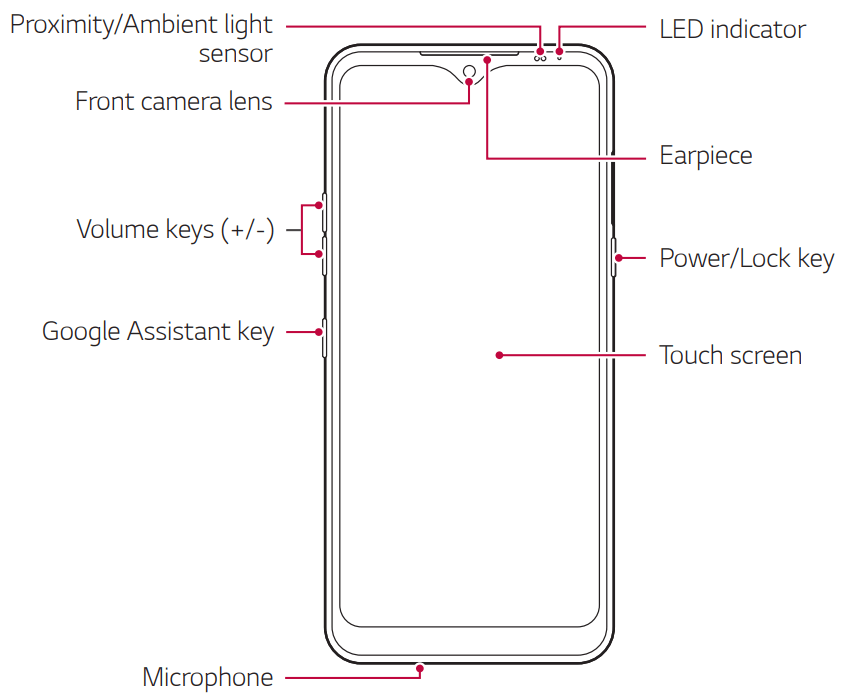
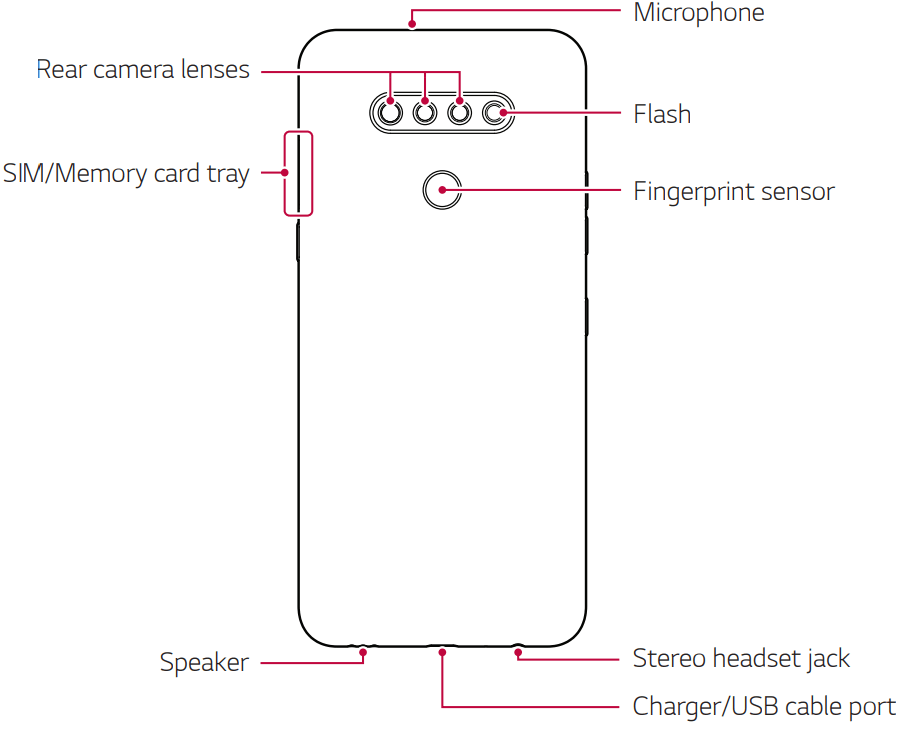
CAUTION: Do NOT attempt to remove the back cover. This device has a non-removable battery. Do not attempt to remove the back cover. Doing so may severely damage the battery and device, which could cause overheating, fire, and injury.
NOTE: Press and hold the volume down key and Power/Lock key at the same time for a second to take a screenshot.
Proximity/Ambient light sensor
- Proximity sensor: During a call, the proximity sensor turns off the screen and disables touch functionality when the device is in close proximity to the human body. It turns the screen back on and enables touch functionality when the device is outside a specific range.
- Ambient light sensor: The ambient light sensor analyzes the ambient light intensity when the auto-brightness control mode is turned on.
Volume keys
- Adjust the volume for ringtones, calls or notifications.
- While using the Camera, gently press a Volume key to take a photo. To take continuous photos, press and hold the Volume key.
- Press the Volume Down key twice to launch the Camera app when the screen is locked or turned off. Press the Volume Up key twice to launch Screen-off memo.
Power/Lock key
- Briefly press the key when you want to turn the screen on or off.
- Press and hold the key when you want to select a power control option.
Google Assistant key
- Your device has Google Assistant built in. Find answers and get things done while on-the-go. To get started, just tap the Google Assistant key on the side of the phone.
- Activate Google assistant
NOTE:
- Some functions may be restricted for access, depending on the device specifications.
- Do not put heavy objects on the device or sit on it. Doing so may damage the touch screen.
- Screen-protective film or accessories may interfere with the proximity sensor.
- If your device is wet or is being used in a humid place, the touch screen or buttons may not function properly.
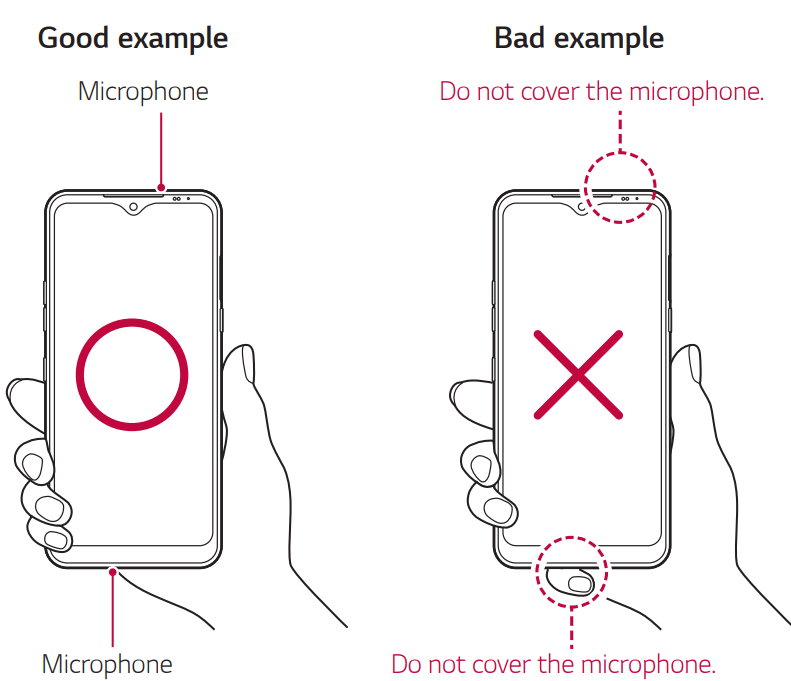
Hold the device correctly as shown below. If you cover the microphone hole with a hand, finger, or protective case while using the device, you may sound unclear during a call.
Turning the power on or off
Turning the power on
When the power is turned off, press and hold the Power/Lock key.
NOTE: When the device is turned on for the first time, initial configuration takes place. The first booting time for the smart phone may be longer than usual.
Turning the power off
Press and hold the Power/Lock key, then select Power off.
Restarting the device
When the device is not working properly or does not respond, restart it by following the instructions below.
1. Press and hold the Power/Lock key and the Volume Down key at the same time until the power is turned off.
2. When the device restarts, release the key.
Power control options
Press and hold the Power/Lock key, then select an option.
Power off: Turn the device off.
Power off and restart: Restart the device.
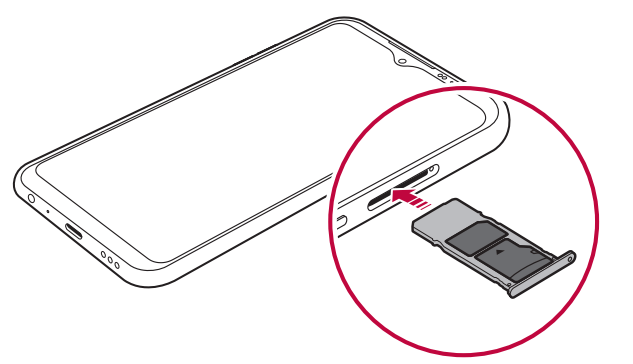
Installing the SIM card and memory card
Insert the SIM card provided by your mobile service provider to start using your device.
WARNING: Be careful with the ejection pin since it has a sharp edge.
1. Insert the ejection pin into the hole on the card tray.
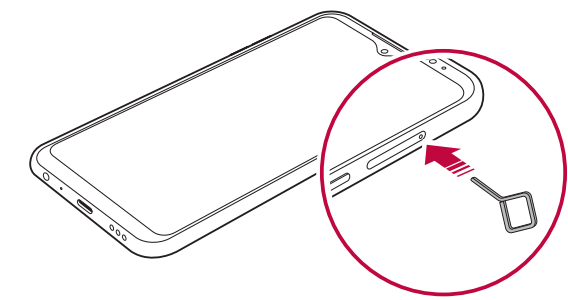
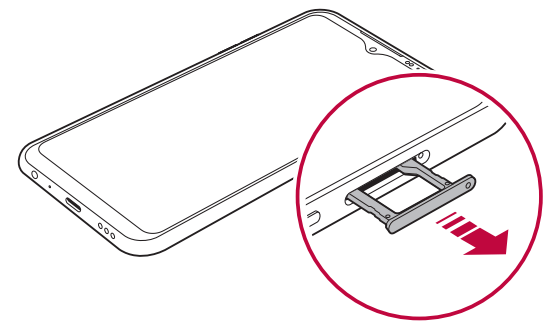
2. Pull out the card tray.
3. Put the SIM card (and a memory card; optional-sold separately) on the card tray with the gold-colored contacts facing downwards.
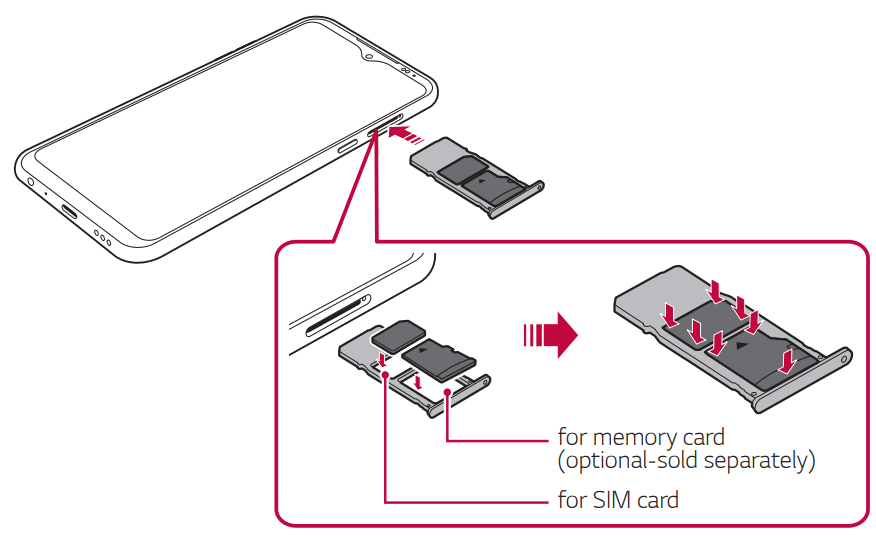
4. Insert the card tray back into the slot.
NOTE:
- This device supports only Nano SIM cards.
- For problem-free performance, it is recommended to use the device with the correct type of SIM card. Always use a factory-made SIM card supplied by the service provider.
- Do not lose your SIM card. LG is not responsible for damage and other issues caused by loss or transfer of a SIM card.
- Be careful not to damage the SIM card when you insert or remove it.
- When you insert the card tray back into the device, insert it horizontally in the direction of arrow as shown in the figure. Make sure that the card placed on the card tray does not move out of its position.
- Frequent writing and erasing of data may shorten the memory card lifespan.
- Some memory cards may not be fully compatible with the device. If you use an incompatible card, it may damage the device or the memory card, or corrupt the data stored in it.
Removing the memory card
Unmount the memory card before removing it for safety.
1. On the home screen, tap Settings > Storage >  .
.
2. Insert the ejection pin into the hole in the card tray and then pull out the card tray from the device.
3. Remove the memory card from the card tray.
4. Insert the card tray back into the slot.
CAUTION: Do not remove the memory card while the device is transferring or accessing information. This may cause data to be lost or corrupted, or may damage the memory card or the device. LG is not responsible for losses that result from the abuse or improper use of memory cards, including the loss of data.
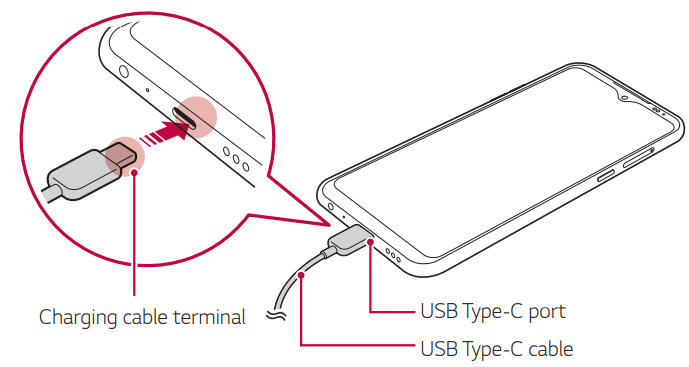
Charging the battery
Before using the device, fully charge the battery.
Connect one end of the charging cable to the charger, insert the other end of the cable into the cable port, and then plug the charger into a power socket.
WARNING:
- Do not charge while the device or charging cable is wet or contains moisture. This can cause fire, electric shock, injury or damage to device. If there is moisture, stop using the device immediately and remove the moisture completely.
- Do not use unapproved USB cables or chargers with your device. The LG limited warranty does not cover damage caused by the use of third party accessories.
- Using the device when it is charging may cause electric shock. To use the device, stop charging it.
NOTE:
- Remove the charger from the power socket after the device is fully charged. This prevents unnecessary power consumption.
- Another way to charge the battery is by connecting a USB cable between the device and a desktop or laptop computer. This may take a longer time than plugging the adapter to a wall outlet.
- Do not charge the battery by using a USB hub that is unable to maintain the rated voltage. Charging may fail or unintentionally stop.
- Since the battery is a consumable, the battery life may be shortened as time goes.
Using the battery efficiently
Battery lifespan may decrease if you keep many apps and functions running simultaneously and continuously.
Stop apps and functions from running in the background to increase battery life.
To minimize battery consumption, follow these tips:
- Turn off the Bluetooth® or Wi-Fi network function when not using them.
- Set the screen timeout to as short a time as possible.
- Minimize the screen brightness.
- Set a screen lock when the device is not in use.
- Check the battery level while using any downloaded apps.
Touch screen
You can familiarize yourself with how to control your device by using touch screen gestures.
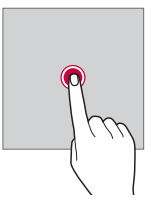
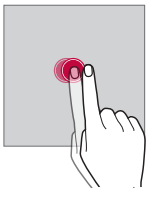
Tapping
Lightly tap with your fingertip to select or run an app or option.
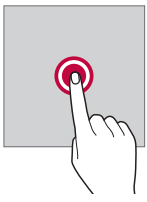
Touching and holding
Touch and hold for several seconds to display a menu with available options.
Double-tapping
Tap twice quickly to zoom in or out on a web page or map.
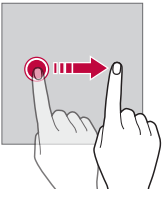
Dragging
Touch and hold an item, such as an app or widget, then move your finger to another location in a controlled motion. You can use this gesture to move an item.
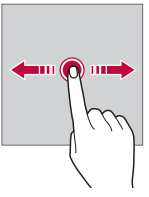
Swiping
Touch the screen with your finger and move it quickly without pausing. You can use this gesture to scroll through a list, a web page, photos, screens, and more.
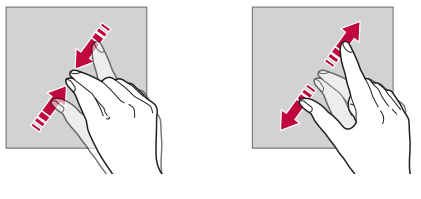
Pinching and spreading
Pinch two fingers to zoom out such as on a photo or map. To zoom in, spread your fingers apart.
WARNING: Do not expose the touch screen to excessive physical shock. You might damage the touch sensor.
NOTE:
- A touch screen failure may occur if you use the device near a magnetic, metallic or conductive material.
- If you use the device under bright lights, such as direct sunlight, the screen may not be visible, depending on your position. Use the device in a shady location or a location with an ambient light that is not too bright and bright enough to read books.
- Do not press the screen with excessive force.
- Gently tap with your fingertip on the desired option.
- The touch control may not work properly if you tap while wearing a glove or by using the tip of your fingernail.
- Touch control may not work properly if the screen is moist or wet.
- The touch screen may not function properly if a screen-protective film or accessory purchased from a third party store is attached to the device.
- Displaying a static image for extended periods of time may result in after-images or screen burn-in. Turn off the screen or avoid displaying the same image for a long time when you do not use the device.
Home screen
Home screen overview
The Home screen is the starting point for accessing various functions and apps on your device. Swipe up from the bottom edge of any screen to directly go to the Home screen.
You can manage all apps and widgets on the Home screen. Swipe the screen left or right to view all installed apps at a glance.
Home screen layout
You can view all apps and organize widgets and folders on the Home screen.
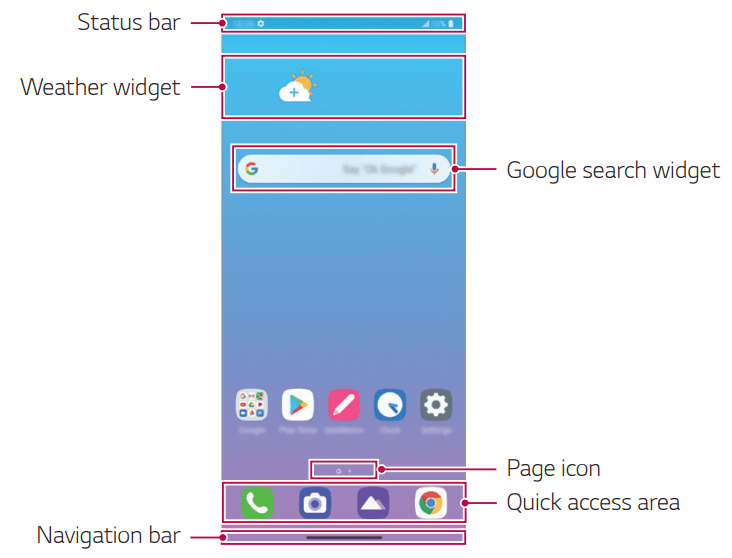
NOTE: The Home screen may differ depending on the manufacturer policy, user settings, software version or service provider
Status bar: View status icons, the time and the battery level.
Weather widget: View the information of weather and time for a specific area.
Google Search widget: Type or speak to open Google Search.
Folder: You can create folders to classify the app based on desired criteria.
Page icon: Display the total number of Home screen canvases. You can tap the desired page icon to go to the page. The icon reflecting the current canvas will be highlighted.
Quick access area: Fix main apps at the bottom of the screen so that they can be accessed from any Home screen canvas.
Navigation bar: You can do some gestures to go to the Home screen, previous screen, Overview screen, or quickly switch between apps.
Using Navigation bar
Here is the gestures guide to control the Navigation bar.
- To go to Home screen, swipe up from the bottom edge of the screen.
- To go back to the previous screen, swipe in from the left or right edge of the screen.
- To go to Overview screen, swipe up and hold from the bottom edge of the screen.
- To quickly switch between apps, swipe right at the bottom edge of the screen to go to previously used apps.
NOTE: Gestures is the default for the Navigation bar. To change it to Buttons only  , tap Settings Display Navigation bar, then select Buttons only.
Status icons
When there is a notification for an unread message, calendar event or alarm, the status bar displays the corresponding notification icon. Check your device’s status by viewing notification icons displayed on the status bar
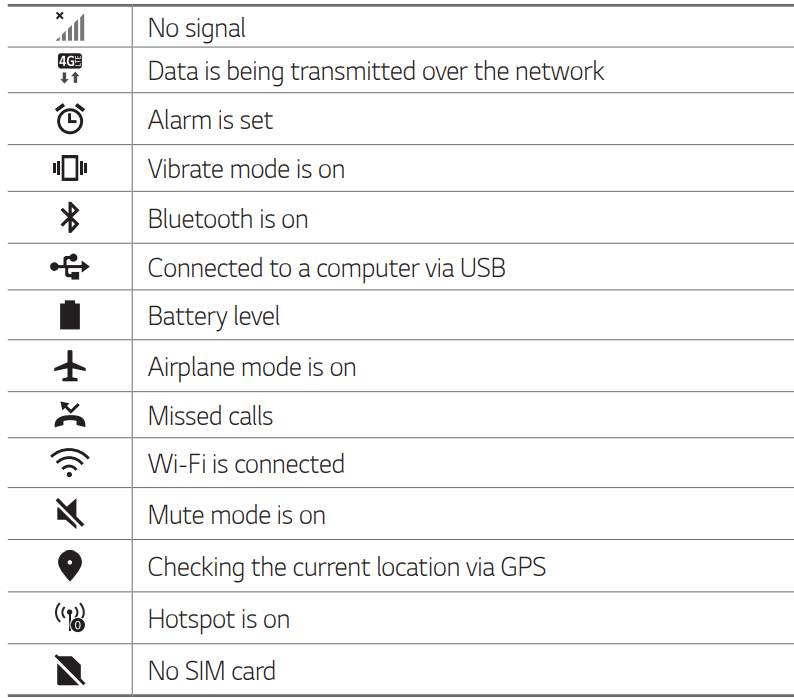
NOTE:
- Some of these icons may appear differently or may not appear at all, depending on the device's status. Refer to the icons according to the actual environment and area in which you are using the device and your service provider.
- Displayed icons may vary, depending on the area or service provider.
Notifications panel
You can open the notifications panel by dragging the status bar downward on the main screen.
- You can drag down the notice window or tap
 to open the list of quick setting icons.
 - You can tap
 to add, delete or arrange icons in the notice window.
 - If you touch and hold the icon, the settings screen for the corresponding function appears.
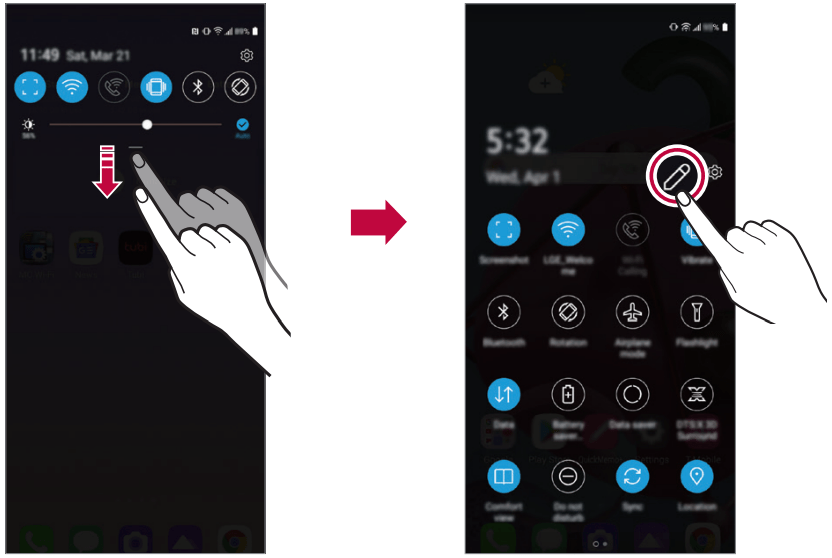
NOTE: You can use the notifications panel even on the lock screen. Drag the notifications panel while the screen is locked to quickly access the desired features.
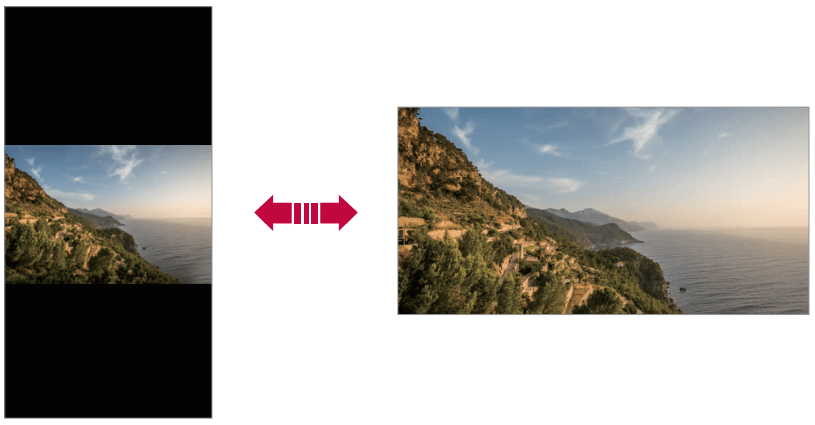
Switching the screen orientation
You can set the screen orientation to automatically switch according to the device’s physical orientation.
On the notification panel, tap Rotation from the quick access icon list.
You can also tap Settings on the home screen, tap Display and activate Auto-rotate screen.
Editing the Home screen
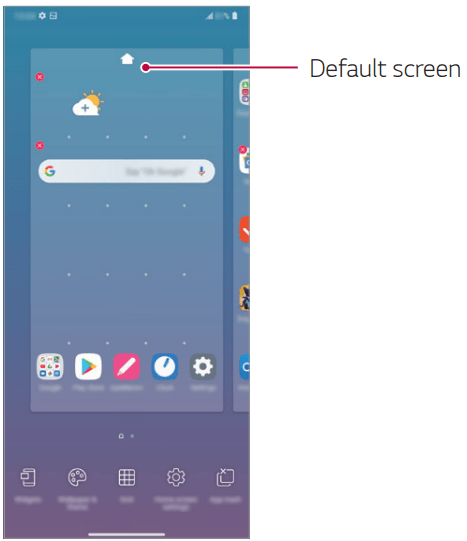
On the Home screen, touch and hold on an empty space, then select the desired action from below.
- To rearrange the Home screen canvases, touch and hold on a canvas, then drag it to a desired location.
- To add a widget to the Home screen, touch and hold on a blank area of the Home screen, then select Widgets.
- To change wallpapers, themes and icon styles, touch and hold on a blank area of the Home screen, then select Wallpaper & theme. You can also tap Settings on the home screen and tap Display > Home screen > Wallpaper, then select desired options from Wallpaper, Theme and Icon to apply to the device.
- To change the grid, touch and hold on a blank area of the Home screen, then select Grid. Tap the desired grid, then tap Apply.
- To configure the Home screen settings, touch and hold on a blank area of the Home screen, then select Home screen settings.
- To view or reinstall the uninstalled apps, touch and hold on a blank area of the Home screen, then select App trash.
- To change the default screen, touch and hold on a blank area of the Home screen, move to desired screen, tap
 , then tap the screen once more.
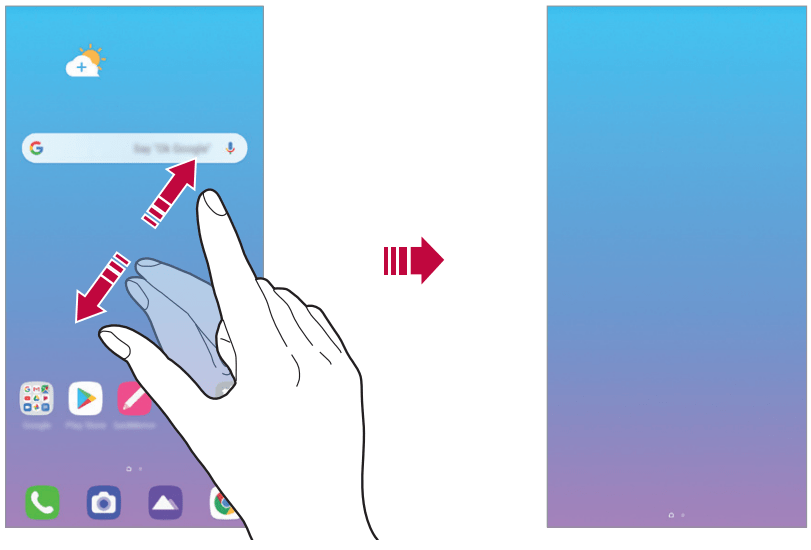
Viewing the background theme
You can view only the background image by hiding the apps and widgets on the Home screen.
Spread two fingers apart on the Home screen.
To return to the original screen, which displays apps and widgets, pinch your fingers on the Home screen or tap  .
.
Moving apps on the Home screen
On the Home screen, touch and hold an app, then drag it to a desired location.
- To keep frequently used apps at the bottom of the Home screen, touch and hold an app, then drag it to the quick access area at the bottom.
- To remove an icon from the quick access area, drag the icon to the Home screen.
Using folders from the Home screen
Creating folders
On the Home screen, touch and hold an app, then drag it over another app.
A new folder is created and the apps are added to the folder.
Editing folders
On the Home screen, tap a folder and do one of the following actions.
- To edit the folder name and color, tap the folder name.
- To add apps, touch and hold an app, then drag it over the folder and release it.
- To remove an app from the folder, touch and hold the app and drag it to outside the folder. If the removed app is the only one app that existed in the folder, the folder is removed automatically.
- You can also add or remove apps after tapping in the folder.
NOTE: You cannot change the folder color while using downloaded theme.
Home screen settings
You can customize the Home screen settings.
1. On the home screen, tap Settings Display Home screen.
2. Customize the following settings:
- Select Home: Select a Home screen mode.
- Wallpaper: Change the Home screen background wallpaper.
- Icon shape: Choose a desired shape for icons from the options provided.
- Google feed: Select whether to display Google feed on the screen located left to the main Home screen.
- Sort apps by: Set how apps are sorted on the Home screen.
- Hide apps: Select apps you want to hide from the Home screen.
- Loop Home screen: Enable to allow continuous Home screen scrolling (loop back to the first screen after the last screen).
NOTE: This function is not available when Google feed is selected for Left Home screen.
- Search: Search by swiping down on the Home screen.
- Home screen lock: Enable to prevent apps and widgets from being rearranged or removed.
Screen lock
Screen lock overview
Your device’s screen turns off and locks itself if you press the Power/Lock key. This also happens after the device is left idle for a specified period of time.
If you press the Power/Lock key when a screen lock is not set, the Home screen appears immediately.
To ensure security and prevent unwanted access to your device, set a screen lock.
NOTE: A screen lock also prevents unnecessary touch input on the device screen and reduces battery consumption. We recommend that you activate the screen lock while not using the device.
Setting a screen lock
There are several options available for configuring the screen lock settings.
1. On the home screen, tap Settings > Lock screen & security > Select screen lock and then select the method you prefer.
2. Customize the following settings:
- None: Deactivate the screen lock function.
- Swipe: Swipe on the screen to unlock the screen.
- Pattern: Draw a pattern to unlock the screen.
- PIN: Enter a numeric password to unlock the screen.
- Password: Enter an alphanumeric password to unlock the screen.
- Fingerprints: Unlock the screen by using your fingerprint.
Customize Lock screen
You can customize lock screen.
1. On the home screen, tap Settings > Lock screen & security > Customize Lock screen.
2. Select a function you want to set.
- Wallpaper: Allow you to set the background for your Lock screen.
- Clock: Allow you to set where to position the clock on the Lock screen.
- Shortcuts: Allow you to choose apps to run on your Lock screen. This setting appears only when a screen lock is set.
- Contact info for lost phone: Allow you to set text to be displayed on the Lock screen to identify the phone’s owner.
Secure lock settings
You can set secure lock settings.
1. On the home screen, tap Settings > Lock screen & security > Secure lock settings.
2. Select a function you want to set.
- Make pattern visible (shown only when Pattern is set as a screen lock): Turn on to make pattern visible.
- Lock timer: Allows you to set the amount of time before the screen automatically locks after the backlight turns off (time-out due to inactivity).
- Power key instantly locks: Enable this option to instantly lock the screen when the Power/Lock button is pressed. This setting overrides the Security Lock timer setting.
- Show lockdown option (shown only when a screen lock is set): Enable this option to display the Lockdown icon when you press and hold the Power/Lock button. Tap the Lockdown icon to turn off Smart Lock, biometric unlocking, and notifications on the lock screen.
- Smart Lock: Allows you to set trusted devices, places, voice, and/or on-body detection that will allow your phone to remain unlocked.
NOTE: Available menu options may vary depending on the lock screen method selected.
KnockON
You can turn the screen on or off by double-tapping the screen.
On the home screen, tap Settings > Extensions > KnockON to enable the option.
NOTE:
- This option is available only on the Home screen provided by LG. It may not function properly on a custom launcher or on the Home screen installed by the user.
- When tapping the screen, use your fingertip. Do not use a fingernail.
- To use the KnockON feature, make sure that the proximity/light sensor is not blocked by a sticker or any other foreign substance.
Turning the screen on
Double-tap the middle of the screen.
Tapping the top or bottom of the screen may decrease the recognition rate.
Turning the screen off
Double-tap on an empty space on the Home screen and Lock screen. You can also double-tap an empty space on the status bar.
Memory card encryption
You can encrypt and protect data saved on the memory card. The encrypted data in the memory card cannot be accessed from another device.
1. On the home screen, tap Settings > Lock screen & security > Encryption & credentials > Encrypt SD card.
2. Read the on-screen overview of memory card encryption and then tap Continue to continue.
3. Select an option and tap Encrypt now.
- New data encryption: Encrypt only data that is saved on the memory card after encryption.
- Full encryption: Encrypt all the data currently saved on the memory card.
- Exclude media files: Encrypt all files, except for media files such as music, photos and videos.
NOTE:
- Once memory card encryption starts, some functions are not available.
- If the device is turned off while encryption is underway, the encryption process will fail, and some data may be damaged. Therefore, be sure to check if the battery level is sufficient before starting encryption.
- Encrypted files are accessible only from the device where the files were encrypted.
- The encrypted memory card cannot be used on another device. To use the encrypted memory card on another mobile device, format the card.
- You can activate memory card encryption even when no memory card is installed into the device. Any memory card that is installed after encryption will automatically be encrypted.
Taking screenshots
You can take screenshots of the current screen you are viewing.
Via a shortcut
Press and hold the Power/Lock key and the Volume Down key at the same time for at least two seconds.
Screenshots can be viewed from the Screenshots folder in Gallery.
Via Screenshot
On the screen where you want to take a screenshot, drag the status bar downwards, then tap  .
.
Do not disturb
You can limit or mute notifications to avoid disturbances for a specific period of time.
On the home screen, tap Settings Sound Do not disturb.
Mode: Select a desired mode:
Priority only: Receive sound or vibrate notifications for the selected apps. Even when Priority only is turned on, alarms still sound.
Total silence: Disable both the sound and vibration.
Select priorities: Receive alarms and the notifications for the selected apps.
App notifications: Select apps to receive the notifications.
Calls from: Set up a range of contacts from which you want to receive notifications for incoming calls.
Repeated calls: Second call from same caller within 15 min is not silenced.
Messages from: Set up a range of contacts from which you want to receive notifications for incoming messages.
Use Do not disturb: Turn on the Do not disturb feature.
SCHEDULE: Set the schedule for which you want to turn on the Do not disturb feature.
Help: View the help for Do not disturb.
FAQ
Device overheats
Device overheats while it is in use.
In the following cases, the battery consumption increases and the device may overheat:
When you turn on the device for the first time or back up the data
When running multiple apps simultaneously
- When multiple apps are running in the background
- When downloading large files while making a video call or recording a video
When using features that require high power
- When watching video streaming on the internet, or recording a long video
- When playing high-end games for long time
- When using the device with maximum screen brightness for a long time
When using lots of mobile data
- When using Wi-Fi hotspot or tethering
- When synchronizing the data for multiple accounts simultaneously
Other cases
- When roaming overseas
- When using the device in areas with weak signals or no reception
- When charging the device with the charger/USB cable port that is damaged or contaminated with foreign substance
NOTE: Some of the above cases may not apply depending on the features and apps.
Device overheats while charging.
The device and the charger may become hot while charging. During wireless charging or fast charging (if supported), the device may become even hotter. If the battery temperature rises above a certain level, the device may stop charging.
- Disconnect the charger from the device and close any running apps. Let the device cool down before charging the device or running an app again.
- Stop charging if the charger/USB cable port at the lower part of the device overheats, and contact the LG Authorized Service Center.
How to solve overheating of the device
Close any running apps or features, and let the device cool down.
Always update the software to the latest version.
Turn off Wi-Fi, Bluetooth, or GPS features while not using them.
Close apps you don’t use.
If you are using the device with maximum screen brightness, decrease the brightness.
If the device overheats for a prolonged period, stop using it for a while. If the device continues to overheat, contact the LG Authorized Service Center.
Usage limitations when the device overheats
If the device overheats while using it or charging, some features, apps, or even the device may be turned off.
This is a normal operation for the devices that support this feature.
If the device temperature rises above a certain level, a warning message appears.
- If you play high-end games, record videos, or upload large files, the device may overheat for a prolonged period. In this case, a warning message may appear to notify automatic shutdown.
Turn off the device or close any running apps or features, and let the device cool down.
The screen brightness and the operating speed may be limited to cool down the device. Any running apps or features may slow down or stop. The device may stop charging.
SIM card error
Make sure the SIM card is correctly inserted.
No network connection or dropped network
Signal is weak. Move to a window or an open area.
You are outside the carrier network area. Move and check the network.
Calls are not available
New network not authorized.
Make sure you have not set call barring for the incoming number.
Make sure you have not set call barring for the number you are dialing.
Device cannot be turned on
When the battery is completely discharged, your device will not turn on.
Fully charge the battery before turning on the device.
Charging error
Make sure the device is charging at a moderate temperature.
Check the charger and its connection to the device.
Use only in-box accessories which are authorized by LG.
The battery depletes faster than when first purchased
When you expose the device or the battery to very cold or hot temperatures, the battery life may be reduced.
Battery consumption will increase when you use certain features or apps, such as GPS, games or the Internet.
The battery is consumable and the battery life will get shorter over time.
Error messages appear when launching the camera
Charge the battery.
Free some memory by transferring files to a computer or deleting files from your device.
Restart the device.
If you are still having trouble with the camera app after trying these tips, contact the LG Authorized Service Center.
The photo quality is poor
The quality of your photos may vary, depending on the surroundings and the photography techniques you use.
When you take photos and videos, keep in mind that the image quality with standard angle is better than that with wide-angle.
If you take photos in dark areas, at night or indoors, image noise may occur or images may be out of focus.
If you have any problems, reset the options.
The touch screen responds slowly or incorrectly
If you attach a screen protector or optional accessories to the touch screen, the touch screen may not function properly.
If you are wearing gloves, if your hands are not clean while touching the touch screen or if you tap the screen with sharp objects or your fingertips, the touch screen may malfunction.
The touch screen may malfunction in humid conditions or when exposed to water.
Restart your device to clear any temporary software bugs.
If the touch screen is scratched or damaged, contact the LG Authorized Service Center.
Hangs or freezes
Restart the device
If your device freezes or hangs, you may need to close apps or turn the device off and then on again.
Perform a boot-up
Press and hold the Power/Lock key and the Volume Down key until the device restarts.
Reset the device
If the methods above do not solve your problem, perform a factory data reset.
On the settings screen, tap System > Restart & reset > Factory data reset.
- Reset all settings for the device and delete data. Before performing the factory data reset, remember to make backup copies of all important data stored in the device.
- If you registered a Google account to the device, you must sign in to the same Google account after resetting the device.
Bluetooth device is not located
Make sure the Bluetooth wireless feature is activated on your device.
Make sure the Bluetooth wireless feature is activated on the device you wish to connect to.
Make sure your device and the other Bluetooth device are within the maximum Bluetooth range (10 m).
If the tips above do not solve your problem, contact the LG Authorized Service Center
A connection is not established when you connect the device to a computer
Make sure the USB cable you are using is compatible with your device.
Make sure you have the proper driver installed and updated on your computer.
Downloaded application causes a lot of errors
Application has problems.
Remove and reinstall the application.