PLASMA
TV
OWNER'S
MANUAL
Please
read
this
manual
carefully
and
completely
before
operating
your
TV.
Retain
this
manual
for
future
reference.
Record
model
number
and
serial
number
of
the
TV
in
the
spaces
provided
below.
See
the
label
attached
on
the
back
cover
and
relate
this
information
to
your
dealer
if
you
require
service.
Model
Number
:
Serial
Number
:
MODELS:
DU-50PX10/10C
DU-42PX12X/12XC
LG
Electronics
U.S.A.,
Inc.

2
Plasma
TV
Warning/Caution
WARNING/CAUTION:
TO
REDUCE
THE
RISK
OF
ELECTRIC
SHOCK
DO
NOT
REMOVE
COVER
(OR
BACK).
NO
USER
SERVICEABLE
PARTS
INSIDE.
REFER
TO
QUALIFIED
SERVICE
PERSONNEL.
The
lightning
flash
with
arrowhead
symbol,
within
an
equilateral
triangle,
is
intended
to
alert
the
user
to
the
presence
of
uninsulated
"dangerous
voltage"
within
the
product's
enclosure
that
may
be
of
suffi-
cient
magnitude
to
constitute
a
risk
of
electric
shock
to
persons.
The
exclamation
point
within
an
equilateral
triangle
is
intended
to
alert
the
user
to
the
presence
of
important operating
and
maintenance
(servicing)
instructions
in
the
literature
accompanying
the
appli-
ance.
WARNING/CAUTION:
TO PREVENT
FIRE
OR
SHOCK
HAZARDS,
DO
NOT
EXPOSE
THIS
PRODUCT
TO
RAIN
OR
MOISTURE.
FCC
NOTICE
?
A
Class
B
digital
device
This
equipment
has
been
tested
and
found
to
comply
with
the
limits
for
a
Class
B
digital
device,
pursuant
to
Part
15
of
the
FCC
Rules.
These
limits
are
designed
to
provide
reasonable
protection
against
harmful
interference
in
a
residential
installation.
This
equipment
generates,
uses
and
can
radiate
radio
frequency
energy
and,
if
not
installed
and
used
in
accordance
with
the
instructions,
may
cause
harmful
interference
to
radio
communications.
However,
there
is
no
guarantee
that
interference
will
not
occur
in
a
particular
installation.
If
this
equipment
does
cause
harmful
interference
to
radio
or
television
reception,
which
can
be
determined
by
turning
the
equipment
off
and
on,
the
user
is
encouraged
to
try
to
correct
the
interference
by
one
or
more
of
the
following
measures:
-
Reorient
or
relocate
the
receiving
antenna.
-
Increase
the
separation
between
the
equipment
and
receiver.
-
Connect
the
equipment
into
an
outlet
on a
circuit
different
from
that
to
which
the
receiver
is
connected.
-
Consult
the
dealer
or
an
experienced
radio/TV
technician
for
help.
?
Any
changes
or
modifications
not
expressly
approved by
the
party
responsible
for
compli-
ance
could
void
the
user's
authority
to
operate
the
equipment.
CAUTION:
Do
not
attempt
to
modify
this
product
in
any
way
without
written
authorization
from
LG
Electronics.
Unauthorized
mod-
ification
could
void
the
user's
authority
to
operate
this
product.
COMPLIANCE:
The
responsible
party
for
this
product's
compliance
is:
LG
Electronics
U.S.A.,
Inc
1000
Sylvan
Avenue,
Englewood
Cliffs,
NJ
07632
1-800-243-0000
http://www.lgusa.com
WARNING/CAUTION
WARNING/CAUTION
TO
REDUCE
THE
RISK
OF
FIRE
AND
ELECTRIC
SHOCK,
DO
NOT
EXPOSE
THIS
PRODUCT
TO
RAIN
OR
MOISTURE.
W
Warning/Caution
arning/Caution

Owner's
Manual
3
Safety
Instructions
IMPORTANT
SAFETY
INSTRUCTIONS
Important
safety
instructions
shall
be
provided
with
each
apparatus.
This
information
shall
be
given
in
a
separate
booklet
or
sheet,
or
be
located
before
any
operating
instructions
in
an
instruction
for
installation
for
use
and
supplied
with
the
appa-
ratus.
This
information
shall
be
given
in
a
language
acceptable
to
the
country
where
the
apparatus
is
intended
to
be
used.
The
important
safety
instructions
shall
be
entitled
"Important
Safety
Instructions".
The
following
safety
instructions
shall
be
included
where
applicable,
and,
when
used,
shall
be
verbatim
as
follows.
Additional
safety
information
may
be
included
by
adding
statements
after
the
end
of
the
following
safety
instruction
list.
At the
manufacturer's
option,
a
picture
or
drawing
that
illustrates
the
intent
of
a
specific
safety
instruction
may
be
placed
immediately
adjacent
to
that
safety
instruction
:
1.
Read
these
instructions.
2.
Keep
these
instructions.
3.
Heed
all
warnings.
4.
Follow
all
instructions.
5.
Do
not
use
this
apparatus
near
water.
6.
Clean
only
with
dry
cloth.
7.
Do
not
block
any
ventilation
openings.
Install
in
accordance
with
the
manufacturer
's
instructions.
8.
Do
not
install
near
any
heat
sources
such
as
radiators,
heat
registers,
stoves,
or
other
apparatus
(including
ampli-
fiers)that
produce
heat.
9.
Do
not
defeat
the
safety
purpose
of
the
polarized
or
grounding-type
plug.
A
polarized
plug
has
two
blades
with
one
wider
than
the
other.
A
grounding
type
plug
has
two
blades
and
a
third
grounding
prong,
The
wide
blade
or
the
third
prong
are
provided
for
your
safety.
If
the
provided
plug
does
not
fit
into
your
outlet,
consult
an
electrician
for
replacement
of
the
obsolete
outlet.
10.
Protect
the
power
cord
from
being
walked
on
or
pinched
particularly
at
plugs,
convenience
receptacles,
and
the
point
where
they
exit
from
the
apparatus.
11.
Only
use
attachments/accessories
specified
by
the
manufacturer.
12.
Use
only
with
the
cart,
stand,
tripod,
bracket,
or
table
specified
by
the
manufacturer,
or
sold
with the
apparatus.
When
a
cart
is
used,
use
caution
when
moving
the
cart/apparatus
combination
to
avoid
injury
from
tip-over.
PORTABLE
CART
WARNING
Safety
Instructions
Safety
Instructions

4
Plasma
TV
Safety
Instructions
13.
Unplug
this
apparatus
during
lightning
storms
or
when
unused
for
long
periods
of
time.
14.
Refer
all
servicing
to
qualified
service
personnel.
Servicing
is
required
when
the
apparatus
has
been
damaged
in
any
way,
such
as
power-supply
cord
or
plug
is
damaged,
liquid
has
been
spilled
or
objects
have
fallen
into
the
apparatus,
the
apparatus
has
exposed
to
rain
or
moisture,
does
not
operate
normally,
or
has
been
dropped.
15.
CAUTION
concerning
the
Power
Cord
:
Most
appliances
recommend
they
be
placed
upon
a
dedicated
circuit;
that
is,
a
single
outlet
circuit
which
powers
only
that
appliance
and
has
no
additional
outlets
or
branch
circuits.
Check
the
specification
page
of
this
owner's
manual
to
be
certain.
Do
not
overload
wall
outlets.
Overloaded
wall
outlets,
loose
or
damaged
wall
outlets,
extension
cords,
frayed
power
cords,
or
damaged
or
cracked
wire
insulation
are
dangerous.
Any
of
these
conditions
could
result
in
electric
shock
or
fire.
Periodically
examine
the
cord
of
your
appliance,
and
if
its
appearance
indicates
damage
or
deterioration,
unplug
it,
discontinue
use
of
the
appliance,
and
have
the
cord
replaced
with
an
exact
replacement
part
by
an
authorized
servicer.
Protect
the
power
cord
from
physical
or
mechanical
abuse,
such
as
being
twisted,
kinked,
pinched,
closed
in
a
door,
or
walked
upon.
Pay
particular
attention
to
plugs,
wall
outlets,
and
the
point
where
the
cord
exits
the
appliance.
16.
Outdoor
Use
Marking
:
WARNING
-
To
Reduce
The
Risk
Of
Fire
Or
Electric
Shock,
Do
Not
Expose
This
Appliance
To
Rain
Or
Moisture.
17.
Wet
Location
Marking
:
Apparatus
shall
not
be
exposed
to
dripping
or
splashing
and
no
objects
filled
with
liquids,
such
as
vases,
shall
be
placed
on
the
apparatus.
Safety
Instructions
continued
Safety
Instructions
continued

Owner's
Manual
5
Contents
After
reading
this
manual,
keep
it
handy
for
future
reference.
Warning/Caution................................2
SafetyInstructions.............................3~4
Introduction
Controls...............................7
ConnectionOptions......................8
RemoteControlKeyFunctions.
. . . . . . . . . . . .
.9
Installation
InstallationInstruction...................10~11
External
Equipment
Connections
. . . . . . . . .
.12~16
AntennaConnection.....................12
VCRSetup/CableTVSetup..............13
ExternalA/VSourceSetup................14
MonitorOutSetup/DVDSetup
. . . . . . . . . . .
.14
HDSTBSetup/DigitalAudioOutput
. . . . . . . .
.15
PCSetup.............................16
Operation
ScreenSetupforPCmode..................17
TurningtheTVOn........................18
On-screen
Menus
Language
Selection
. . . . . . . .
.18
Setup
Menu
Options
EZScan(ChannelSearch)................19
ChannelEdit...........................19
DTVSignalStrength.....................20
ChannelLabelSetup....................20
MainPictureSourceSelection
. . . . . . . . . . . .
.20
Video
Menu
Options
EZPicture............................21
Manual
Picture
Control
(Off
Option)
. . . . . . . .
.21
ColorTemperatureControl................21
VideoPreset..........................21
Audio
Menu
Options
AudioLanguage........................22
EZSoundRite/EZSound.................22
ManualSoundControl(OffOption).
. . . . . . . .
.23
Stereo/SAPBroadcastsSetup
. . . . . . . . . . . .
.23
FrontSurround.........................23
TVSpeakersOn/OffSetup................24
BBE.................................24
Time
Menu
Options
AutoClockSetup.......................25
ManualClockSetup.....................25
On/OffTimerSetup.....................25
SleepTimer/AutoOff....................26
Option
Menu
Features
AspectRatio...........................27
Caption/CaptionMode..................28
CaptionOption........................29
CinemaModeSetup....................29
Demo...............................29
ISMMethod...........................30
Lowpower............................30
SplitZoom............................30
Lock
Menu
Options
ParentalLockSetup.....................32
PIP
(Picture-in-Picture)/POP/Twin
Picture
WatchingPIP/POP/TwinPicture.
. . . . . . . . . .
..33
Selecting
an
Input
Signal
Source
for
PIP/Twin
Picture
.
.33
SwappingthePIP/TwinPicture
. . . . . . . . . . . .
.33
TVProgramSelectionforPIP.
. . . . . . . . . . . .
.33
MovingthePIPsubpicture................34
Adjusting
Main
and
Sub
Picture
Sizes
for
Twin
Picture
.
.34
POP
(Picture-out-of-Picture:
Channel
Scan)
. .
.34
ExternalControlDeviceSetup.
. . . . . . . . . . . . . .
.35~39
IRCodes................................40~41
ProgrammingtheRemote......................42
ProgrammingCodes.......................43~44
TroubleshootingChecklist......................45
Maintenance.................................46
ProductSpecifications.........................46
Warranty.................................47~48
Contents
Contents
Setup
and
Operation
Checklist
Setup
and
Operation
Checklist
Setup
and
Operation
Checklist
(See
pages
11~16
for
available
connection
and
operational
setup
options.)
1.
Unpack
TV
and
all
accessories.
2.
Connect
all
external
video
and
audio
equipment.
see
pages
14
~
16.
3
Install
batteries
in
remote
control.
See
page
9.
4.
Turn
TV
on.
See
page
18.
5.
Turn
video
source
equipment
on.
6.
Select
viewing
source
for
TV.
See
page
20.
7.
Fine-tune
source
image
and
sound
to
your
personal
prefer-
ence
or
as
required
by
source.
See
pages
21
~
24.
8.
Additional
features
set
up
See
Contents
above.

6
Plasma
TV
Introduction
Introduction
Introduction
What
is
a
Plasma
Display
Panel
(PDP)?
A
plasma
display
panel
is
the
latest
display
technology
and
the best
way
to
achieve
flat
panel
displays
with
excellent
image
quality
and
large
screen
sizes
that
are
easily
viewable.
The
PDP
can
be
thought
of
as
a
descendant
of
the
neon
lamp
and
it
can
be
also
be
viewed
as
a
series
of
fluorescent
lamps.
How
does
it
work?
PDP
is
an
array
of
cells,
known
as
pixels,
which
are
comprised
of
3
sub
pixels,
corresponding
to
the
colors
red,
green,
and
blue.
Gas
in
a
plasma
state
is
used
to
react
with
phosphors
in
each
sub-pixel
to
produce
colored
light
(red,
green,
or
blue).
These
phos-
phors
are
the
same
types
used
in
Cathode
Ray
Tube
(CRT)
devices
such
as
televisions
and
common
computer
monitors.
You
get
the
rich,
dynamic
colors
that
you
expect.
Each
sub-pixel
is
individually
controlled
by
advanced
electronics
to
produce
over
16
million
different
colors.
All
of
this
means
that
you
get
perfect
images
that
are
easily
viewable
in
a
display
that
is
less
than
5
inches
thick.
160°
-
Wide
angle
range
of
vision
Your
flat
panel
plasma
screen
offers
an
exceptionally
broad
viewing
angle
--
over
160
degrees.
This
means
that
the
display
is
clear
and
visible
to
viewers
anywhere
in
the
room
who
can
see
the
screen.
Wide
Screen
The
screen
of
the
Plasma
Display
is
so
wide
that
your
viewing
experience
is
as
if
you
are
in
a
theater.
Multimedia
Connect
your
plasma
display
to
a
PC
and
you
can use
it
for
conferencing,
games,
and
Internet
browsing.
The
Picture-in-Picture
feature
allows
you
to
view
your
PC
and
video
images
simultaneously.
Versatile
The
light
weight
and
thin
size
makes
it
easy
to
install
your
plasma
display
in
a
variety
of
locations
where
conventional
TVs
will
not
fit.
The
PDP
Manufacturing
Process:
a
few
minute
colored
dots
may
be
present
on
the
PDP
screen
The
PDP
(Plasma
Display
Panel),
which
is
the
display
device
of
this
product
is
composed
of
0.9
to
2.2
million
cells.
A
few
cell
defects
will
normally
occur
in
the
PDP
manufacturing
process.
Several
tiny,
minute
colored
dots
visible
on
the
screen
should
be
acceptable.
This
also
occurs
in
other
PDP
manufacturers'
products.
The
tiny
dots
appearing
does
not
mean
that
this
PDP
is
defec-
tive.
Thus
a
few
cell
defects
are
not
sufficient
cause
for
the
PDP
to
be
exchanged
or
returned.
Our
production
technology
mini-
mizes
these
cell
defects
during
the
manufacture
and
operation
of
this
product.
Cooling
Fan
Noise
(DU-50PX10
only)
In
the
same
way
that
a
fan
is
used
in
a
PC
computer
to
keep
the
CPU
(Central
Processing
Unit)
cool,
the
PDP
is
equipped
with
cooling
fans
to
cool
the
Monitor
and
improve
its
reliability.
Therefore,
a
certain
level
of
noise could
occur
while
the
fans
are
operat-
ing
and
cooling
the
PDP.
The
fan
noise
doesn't
have
any
negative
effect
on
the
PDP's
efficiency
or
reliability.
The
noise
from
these
fans
is
normal
during
the
operation
of
this
product.
We
hope
you
understand
that
a
certain
level
of
noise
from
the
cooling
fans
is
acceptable
and
is
not
suffi-
cient
cause
for
the
PDP
to
be
exchanged
or
returned.

Owner's
Manual
7
Introduction
Controls
Controls
ON/OFF
TV/VIDEO
MENU
VOL
CH
-
This
is
a
simplified
representation
of
front
panel.
Image
shown
may
be
somewhat
different
from
your
TV.
-
This
manual
explains
the
features
available
on
the
DU-50PX10
series
TVs.
Front
Panel
Controls
Front
Panel
Controls
ON/OFF
Button
Remote
Control
Sensor
VOLUME
(
,
)
Buttons
Power
Standby
Indicator
Illuminates
red
in
standby
mode,
Illuminates
green
when
the
TV
is
turned
on.
CHANNEL
(
,
)
Buttons
MENU
Button
TV/VIDEO
Button

8
Plasma
TV
Introduction
Connection
Options
Connection
Options
R
S-VIDEO
VIDEO
L/MONO
AUDIO
A/V
2
REMOTE
CONTROL
RS-232C
INPUT
(CONTROL/SERVICE)
AC
INPUT
AUDIO
INPUT
COMPONENT
2
COMPONENT
1
RL
DIGITAL
AUDIO
(OPTICAL)
DVI
INPUT
COMPONENT1
INPUT
OUTPUT
AUDIO
INPUT
DVI
INPUT
(PC/DTV
INPUT)
RGB
INPUT
(PC/DTV
INPUT)
VIDEO
INPUT
DVD
DTV
INPUT
MONITOR
OUTPUT
A/V
INPUT
1
AUDIO
R
L
(MONO)
VIDEO
S-VIDEO
Antenna
1
Analog/DTV
Antenna
2
DTV
.
Back
Connection
Panel
Back
Connection
Panel
Antenna
1-2
Inputs
Connect
cable
or
antenna
signals
to
the
TV,
either
directly
or
through
your
cable
box.
For
DTV
use
Antenna
2
only.
DVI
Input/Audio
Input/RGB
Input
Connect
the
monitor
output
con-
nector
from
a
PC
to
the
appro-
priate
input
port.
Digital
Audio
(DVI:
Digital
Visual
Interface/Component1)
Input/
Digital
Audio
Output
Connect
digital
audio
from
various
types
of
equipment.
Note:
In
standby
mode,
these
ports
will
not
work.
Audio/Video
Input
1
Connect
audio/video
out-
put
from
an
external
device
to
these
jacks.
DVD/DTV
Input
(Component
1-2)
Connect
a
component
video/audio
device
to
these
jacks.
Monitor
Output
Connect
a
second
TV
or
Monitor.
Remote
Control
Port
Connect
your
wired
remote
control
here.
S-Video
Input
Connect
S-Video
out
from
an
S-VIDEO
device
to
the
S-
VIDEO
input.
Power
Cord
Socket
This
TV
operates
on an
AC
power.
The
voltage
is
indi-
cated
on
the
Specifications
page.
Never
attempt
to
oper-
ate
the
TV
on
DC
power.
-
This
manual
explains
the
features
available
on
the
DU-50PX10
series
TVs.
S-VIDEO
Input
A
connection
available
to
provide
better
picture
quality
than
the
video
input.
VIDEO
Input
Connects
the
video
signal
from
a
video
device.
AUDIO
Input
Use
to
connect
to
hear
stereo
sound
from
an
external
device.
RS-232C
INPUT
(CONTROL/SERVICE)
PORT
Connect
to
the
RS-232C
port
onaPC.

Owner's
Manual
9
Installation
-
When
using
the
remote
control,
aim
it
at
the
remote
control
sensor
on
the
TV.
L
GHT
TV
VIDEO
MODE
COMP/RGB/DVI
MUTE
SURF
VOL
CH
INFO
SAP
RATIO
CC
MENU
SOUND
VIDEO
EXIT
PLAY
PAUSE
STOP
RECORD
PIP
PIPCH-
PIPCH+
PIPINPUT
FREEZE
ADJUST
OK
ZOOM
SIGNAL
SWAP
REW
FF
SKIP
POWER
TIMER
FLASHBK
LIGHT
Illuminates
the
remote
control
buttons.
TV/VIDEO
Selects:
DTV,
Analog,
Video1-2,
Component
1-2,
RGB-DTV
(or
RGB-PC),
DVI-DTV
(or
DVI-PC)
input
sources.
COMP/RGB/DVI
Selects:
Component
1-2,
RGB-DTV
(or
RGB-
PC),
DVI-DTV
(or
DVI-PC)
input
sources.
NUMBER
buttons
DASH
Used
to
enter
a
program
number
for
multiple
program
channels
such
as
2-1,2-2,etc.
MUTE
Switches
the
sound
on
or
off.
VCR/DVD
BUTTONS
Control
some
video
cassette
recorders
or
DVD
player
("RECORD"
button
is
not
avail-
able
for
DVD
player).
RATIO
Changes
the
aspect
ratio.
MODE
Selects the
remote
operating
mode:
TV,
VCR,
DVD,
CABLE,
HDSTB
or
AUDIO.
Select other
operating
modes,
for
the
remote
to
operate
external
devices.
POWER
Turns
your
TV
or
any
other
programmed
equipment
on
or
off,
depending
on
mode.
TIMER
Lets
you
select
the
amount
of
time
before
your
TV
turns
itself
off
automatically.
SURF
Use
to
scroll
the
Surf
channel
list.
CC
Select
a
closed
caption:
Off,
EZ
Mute,
and
On.
FLASHBK
Tunes
to
the
last
channel
viewed.
THUMBSTICK
(Up/Down/Left/Right/OK)
Allows
you
to
navigate
the
on-screen
menus
and
adjust
the
system
settings
to
your
preference.
CHANNEL
UP/DOWN
Selects
available
channels
found
with
EZ
scan.
EXIT
Clears
all
on-screen
displays
and
returns
to
TV
viewing
from
any
menu.
VIDEO
Adjusts
the
factory
preset
picture
according
to
the
room.
VOLUME
UP/DOWN
Increases/decreases
the
sound
level.
SAP
Selects
MTS
sound:
Mono,
Stereo,
and
SAP.
Change
the
audio
language
in
DTV
mode.
MENU
Brings
up
the
main
menu
to
the
screen.
INFO
When
you
watch
the
TV,
displays
information
on
top
of
the
screen.
Not
available
in
Component
1-2,
RGB
and
DVI
mode.
SOUND
Selects the
sound
appropriate
for
the
program's
character.
PIP
Switches
between
PIP,
POP
(Picture-out-of-
Picture)
and
Twin
picture
modes.
PIPCH-/PIPCH+
Changes
to
next
higher/lower
PIP
channel.
PIP
INPUT
Selects
the
input
source
for
the
sub
picture.
SWAP
Exchanges
the
PIP/main
images.
FREEZE
Freezes
the
currently-viewed
picture.
Main
picture
is
frozen
in
PIP/Twin
picturre
mode.
ADJUST
Adjusts
screen
position,
clock,
and
phase
in
PC
mode.
ZOOM
Enlarges
the
main
picture
size.
SIGNAL
Displays
the
digital
signal strength.
Installing
Batteries
?
Open
the
battery
compartment
cover
on
the
back
side
and
install
the
batteries
matching
correct
polarity
(+
with
+,
-
with
-).
?
Install
two
1.5V
AA
batteries.
Don't
mix
old
or
used
batteries
with
new
ones.
Replace
cover.
Remote
Control
Key
Functions
Remote
Control
Key
Functions

10
Plasma
TV
Installation
Installation
Installation
Owner's
Manual
1.5V
1.5V
Batteries
Power
Cord
LIGHT
TV/
IDEO
MODE
COMP/RGB/DVI
MUTE
SURF
VOL
CH
INFO
SAP
RATIO
CC
MENU
SOUND
VDEO
EXIT
PLAY
P
AUSE STOP
RECORD
PIP
PPCH- PPCH+
PIPINPUT
FREEZE
ADJUST
OK
ZOOM
SGNAL
SWAP
REW
FF SKIP
POWER
TMER
FLASHBK
Remote
Control
75Ω
Round
Cable
Ensure
that
the
following
accessories
are
included
with
your
plasma
display.
If
an
accessory
is
missing,
please
contact
the
dealer
where
you
purchased
the
product.
-
Secure
the
TV
assembly
by
attaching
it
to
a
wall
for
additional
support.
Attaching
the
Attaching
the
TV
assembly
to
the
wall
TV
assembly
to
the
wall
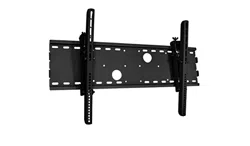
?
Install
the
TV
brackets
on
the
TV
as
shown.
Insert
the
2
bolts
and
tighten
securely,
in
the
holes
on
the
bracket.
(42")
After
removing
the
existing
bolts,
Insert
the
4
bolts
and
tighten
securely,
in
the
holes
on
the
bracket.(50")
Install
the
wall
brackets
on
the
wall
with
4
bolts*,
(not
supplied
with
the
product),
as
shown.
Match
the
height
of
the
TV
brackets
and
the
wall
brackets.
Check
to
be
sure
the
brackets
are
tightened
securely.
?
Secure
the
TV
assembly
to
the
wall
with
strong
strings
or
wound
wire
cables,
(not
supplied
with
the
product),
as
shown.
2-TV
brackets
2-Wall
brackets
2-TV
bracket
bolts(42")
4-TV
bracket
bolts(50")

Owner's
Manual
11
Installation
Installation
Instructions
Installation
Instructions
?
The
TV
can
be
installed
in
various
ways
such
as on
a
wall,
or
on a
desktop
etc.
?
The
TV
is
designed
to
be
mounted
horizontally.
The
speakers
shown
are
optional.
GROUNDING
Ensure
that
you
connect
the
grounding
/
earth
wire
to
prevent
possible
electric
shock.
If
grounding
methods
are
not
possible,
have
a
qualified
electrician
install
a
separate
circuit
breaker.
Do
not
try
to
ground
the
unit
by
connecting
it
to
telephone
wires,
lightening
rods,
or
gas
pipes.
Power
Supply
Short-circuit
Breaker
4
inches
4
inches
4
inches
4
inches
2
inches
W
Wall
Mount:
Horizontal
installation
all
Mount:
Horizontal
installation
For
proper
ventilation,
allow
a
clearance
of
4"
on
each
side
and
2"
from
the
wall.
Detailed
installation
instruc-
tions
are
available
from
your
dealer,
see
the
optional
Wall
Mounting
Bracket
Installation
and
Setup
Guide.
4
inches
4
inches
2.36
inches
4
inches
2
inches
Desktop
Pedestal
Installation
Desktop
Pedestal
Installation
For
proper
ventilation,
allow
a
clearance
of
4"
on
each
side
and
the
top,
2.36"
on
the
bottom,
and
2"
from
the
wall.
Detailed
installation
instructions
are
included
in
the
optional
Desktop
Stand
Installation
and
Setup
Guide
available
from
your
dealer.
To
Mount
on
a
Wall
Wall
mount
minimum
allowable
clearances
for
ade-
quate
ventilation.
To
Install
on
a
Desktop
Pedestal
mount
minimum
allowable
clearances
for
adequate
ventilation.

12
Plasma
TV
Installation
AC
INPUT
Antenna
1
Ana
g/DTV
Antenna
2
DTV
-
Antenna
or
Cable
Service
without
a
Cable
Box
Connections
-
For
optimum
picture
quality,
adjust
antenna
direction
if
needed.
Antenna
Connection
Antenna
Connection
Analog
and
Digital
TV
signals
provided
on
one
antenna
NOTE:
If
you
are
not
sure
of
the
type
of
signal(s)
you
are
receiving,
let
EZ
Scan
complete
all
the
channel
signal-type
searches.
The
TV
will
let
you
know when
the
analog,
cable,
and
digital
channel
scans
are
complete.
Analog
and
DTV
signals
provided
on
two
separate
antennas
?
In
a
poor
signal
area
to
improve
picture
quality,
purchase
and
install
a
signal
amplifier.
?
If
the
antenna
needs
to
be
split
for
two
TV's,
install
a
"2-
Way
Signal
Splitter"
in
the
connections.
?
If
the
antenna
is
not
installed
properly,
contact
your
deal-
er
for
assistance.
AC
INPUT
UDIO
L
(MONO)
VIDEO
S-VIDEO
Antenna
1
Analog/DTV
Antenna
2
DTV
Multi-family
Dwellings/Apartments
(Connect
to
wall
antenna
socket)
Single-family
Dwellings
/Houses
(Connect
to
wall
jack
for
outdoor
antenna)
Outdoor
Antenna
Wall
Antenna
Socket
VHF
Antenna
UHF
Antenna
RF
Coaxial
Wire
(75
ohm)Copper
Wire
Turn
clockwise
to
tighten.
Copper
Wire
Be
careful
not
to
bend
the
Copper
wire
when
connecting
the
antenna.
AC
INPUT
AUDIO
L
(MONO)
VIDEO
S-VIDEO
Antenna
1
Analog/DTV
Antenna
2
DTV
Wall
Antenna
Socket
RF
Coaxial
Wire
(75
ohm)
Analog
Antenna
Digital
Antenna
Copper
Wire
Copper
Wire
Turn
clockwise
to
tighten.
Wall
Antenna
Socket
RF
Coaxial
Wire
(75
ohm)
External
Equipment
Connections
External
Equipment
Connections
Signal
Amplifier

Owner's
Manual
13
Installation
NOTE:
All
cables
shown
are
not
included
with the
TV
-
To
avoid
picture
noise
(interference),
leave
an
adequate
distance
between
the
VCR
and
TV
-
Use
the
ISM
Method
(on
the
Option
menu)
feature
to
avoid
having
a
fixed
image
remain
on
the
screen
for
a
long
period
of
time.
Typically
a
frozen
still
picture
from
a
VCR.
If
the
4:3
picture
format
is
used;
the
fixed
images
on
the sides
of
the
screen
may
remain
visible
on
the
screen.
Connection
Option
1
Set
VCR
output
switch
to
3
or
4
and
then
tune
TV
to
the
same
channel
number.
Connection
Option
2
1.
Connect
the
audio
and
video
cables
from
the
VCR's
output
jacks
to
the
TV
input
jacks,
as
shown
in
the
figure.
When
connecting
the
TV
to
VCR,
match
the
jack
colors
(Video
=
yellow,
Audio
Left
=
white,
and
Audio
Right
=
red).
If
you
connect
an
S-VIDEO
output
from
VCR
to
the
S-VIDEO
input,
the
picture
quality
is
improved;
compared
to
connecting
a
regular
VCR
to
the
Video
input.
2.
Insert
a
video
tape
into
the
VCR
and
press
PLAY
on
the
VCR.
(Refer
to
the
VCR
owner's
manual.)
3.
Select the
input
source
with
using
the
TV/VIDEO
button
on
the
remote
control.
(If
connected
to
A/V
INPUT
1,
select
Video
1
input
source)
Do
not
connect
to
both
Video
and
S-Video
at
the
same
time.
VCR
Setup
VCR
Setup
AC
INPUT
AUDIO
INPUT
COMPONENT
2
COMPONENT
1
RL
AUDIO
INPUT
DVI
INPUT
(PC/DTV
INPUT)
RGB
INPUT
(PC/DTV
INPUT)
VIDEO
INPUT
DVD
DTV
INPUT
MONITOR
OUTPUT
A/V
INPUT
1
DIO
R
L
(MONO)
DEO
S-VIDEO
Ant
nna
1
Ana
og/DTV
Antenna
2
DTV
S-VIDEO
OUT
IN
(R)
AUDIO
(L)
VIDEO
34
OUTPUT
SWITCH
AUT
ANT
IN
.
-
After
subscribing
to
a
cable
TV
service
from
a
local
provider
and
installing
a
converter,
you
can
watch
cable
TV
programming.
The
TV
cannot
display
TV
programming
unless
a
TV
tuner
device
or
cable
TV
converter
box
is
connected
to
the
TV.
-
For
further
information
regarding
cable
TV
service,
contact
your
local
cable
TV
service
provider(s).
Connection
Option
1
1.
Select
3
or
4
with
channel
switch
on
cable
box.
2.
Tune
the
TV
channel
to
the
same
selected
output
channel
on
cable
box.
3.
Select
channels
at
the
cable
box
or
with
the
cable
box
remote
control.
Connection
Option
2
1.
Connect
the
audio
and
video
cables
from
the
Cable
Box's
output
jacks
to
the
TV
input
jacks,
as
shown
in
the
figure.
When
connecting
the
TV
to
a
Cable
Box,
match
the
jack
colors
(Video
=
yellow,
Audio
Left
=
white,
and
Audio
Right
=
red).
2.
Select the
input
source
with
using
the
TV/VIDEO
button
on
the
remote
control.
(If
connected
to
A/V
INPUT
1,
select
Video
1
input
source)
3.
Select
your
desired
channel
with
the
remote
control
for
cable
box.
Cable
Cable
TV
Setup
TV
Setup
AC
INPUT
AUDIO
INPUT
COMPONENT
2
COMPONENT
1
RL
VIDEO
INPUT
DVD
DTV
INPUT
MONITOR
OUTPUT
A/V
INPUT
1
AUO
R
L
VIDEO
S-VIDEO
Aa1
A
/DTV
Antenna
2
DTV
TV
VCR
RF
Cable
(R)
AUDIO
(L)
VIDEO
34
OUTPUT
SWITCH
.
VCR
Cable
Box
1
2
1
2

14
Plasma
TV
Installation
?
Component
Input
ports
To
get
better
picture
quality,
connect
a
DVD
player
to
the
compo-
nent
input
ports
as
shown
below.
How
to
connect
Connect
the
audio
and
video
cables
from
the
external
equip-
ment's
output
jacks
to
the
TV
input
jacks,
as
shown
in
the
figure.
When
connecting
the
TV
to
external
equipment,
match
the
jack
colors
(Video
=
yellow,
Audio
Left
=
white,
and
Audio
Right
=
red).
How
to
use
1.
Select the
input
source
with
using
the
TV/VIDEO
button
on
the
remote
control.
(If
connected
to
A/V
INPUT
1,
select
Video
1
input
source).
2.
Operate
the
corresponding
external
equipment.
Refer
to
external
equipment
operating
guide.
Component
ports
on
the
TV
YPBPR
Video
output
ports
on
DVD
player
Y
Y
Y
Y
Pb
B-Y
Cb
PB
Pr
R-Y
Cr
PR
How
to
connect
1.
Connect
the
DVD
video
outputs
(Y,
PB,
PR)
to
the
COMPONENT
(Y,
PB,
PR)
INPUT
jacks
on
the
TV
and
connect
the
DVD
audio
outputs
to
the
AUDIO
INPUT
jacks
on
the
TV,
as
shown
in
the
figure.
2.
If
your
DVD
only
has
an
S-Video
output
jack,
connect
this
to
the
S-
VIDEO
input
on
the
TV
and
connect
the
DVD
audio
outputs
to
the
AUDIO
INPUT
jacks
on
the
TV,
as
shown
in
the
figure.
NOTE:
If
your
DVD
player
does
not
have
component
video
output,
use
S-Video.
How
to
use
1.
Turn
on
the
DVD
player,
insert
a
DVD.
2.
Use
the
TV/VIDEO
or
COMP/RGB/DVI
button
on
the
remote
control
to
select
Component
1
or
Component
2.
(If
connected
to
S-
VIDEO,
select
the
Video
1
or
Video
2
external
input
source.)
3.
Refer
to
the
DVD
player's
manual
for
operating
instructions.
External
External
A/V
Source
Setup
A/V Source
Setup
DVD
Setup
DVD
Setup
RL
AUDIO VIDEO
AUDIO
INPUT
COMPONENT
2
COMPONENT
1
RL
VIDEO
INPUT
DVD
DTV
INPUT
MONITOR
OUTPUT
A/V
INPUT
1
AUDIO
R
L
MONO)
VIDEO
Antenna
1
Analog/DTV
Antenna 2
DTV
S-VIDEO
.
REMOTE
CONTROL
RS-232C
INPUT
(CONTROL/SERVICE)
AUDIO
PUT
COMPONENT
2
COMPONENT
1
RL
DIGIT
AUDIO
(OP
CAL)
DVI
INPUT
C
ONENT1
PUT
OUTPUT
VIDEO
I
PUT
MONITOR
OUTPUT
A/V
INPUT
1
A
DIO
R L
(MONO)
VIDEO
An
An
B R
(R)
AUDIO
(L)
DIGITAL
AUDIO
OPTICAL
(R)
AUDIO
(L)
S-VIDEO
S-
IDEO
DVD
DTV
INPUT
.
DVD
or
Camcorder
Video
Game
Set
The
TV
has
a
special
signal
output
capability
which
allows
you
to
hook
up
a
second
TV
or
monitor.
Connect
the
second
TV
or
monitor
to
the
TV's
MONITOR
OUTPUT.
See
the
Operating
Manual
of
the
second
TV
or
monitor
for
further
details
regarding
that
device's
input
settings.
NOTE
?
Component,
RGB-PC/RGB-DTV,
DVI-PC/DVI-DTV,
DTV
input
sources
cannot
be
used
for
Monitor
out.
NOTES
?
Digital
Audio
will
not
work
for
Component
2
input
source.
?
Digital
Audio
operation
has
priority
if
Digital
Audio
and
AUDIO
L/R
are
connected
at
the
same
time.
AUDIO
INPUT
COMPONENT
2
COMPONENT
1
RL
VIDEO
INPUT
MONITOR
OUTPUT
A/V
INPUT
1
AUDIO
R
L
(MONO)
VIDEO
S-VIDEO
Antenna
1
Analog/DTV
Antenna 2
DTV
S-VIDEO
IN
(R)
AUDIO
(L)
VIDEO
DVD
DTV
INPUT
.
Monitor
Out
Setup
Monitor
Out
Setup
or

Owner's
Manual
15
Installation
Send
the
TV's
audio
to
external
audio
equipment
(stereo
system)
via
the
Digital
Audio
Output
Optical
port.
How
to
connect
1.
Connect
one
end
of
an
optical
cable
to
the
TV
Digital
Audio
Optical
Output
port.
2.
Connect
the
other
end
of
the
optical
cable
to
the
digital
audio
optical
input
on
the
audio
equipment.
3.
Set
the
"
TV
Speaker
option
-
Off"
in
the
AUDIO
menu.
Refer
to
page
23.
See
the
external
audio
equipment
instruction
manual
for
operation.
Caution:
Do
not
look
into
the
optical
output
port.
Looking
at
the
laser
beam
may
damage
your
vision.
Digital
Digital
Audio
Output
Audio
Output
-
This
TV
can
receive
Digital
Over-the-air/Cable
signals
without
an
external
digital
set-top
box.
However,
if
you
do
receive
Digital
signals
from
a
digital
set-top
box
or
other
digital
external
device,
refer
to
the
figure
as
shown
below.
-
This
TV
supports
HDCP
(High-bandwidth
Digital
Contents
Protection)
protocol
for
DTV
(480p,720p,1080i)
mode.
How
to
connect
Use
the
TV's
COMPONENT
(Y,
PB,
PR)
INPUT,
RGB
or
DVI
jack
for
video
connections,
depending
on
your
set-top
box
connector.
Then,
make
the
corresponding
audio
connections.
How
to
use
1.
Turn
on
the
digital
set-top
box.
(Refer
to
the
owner's
manual
for
the
digital
set-top
box.)
2.
Use
TV/VIDEO
or
COMP/RGB/DVI
on
the
remote
control
to
select
Component
1,
Component
2,
RGB-DTV,
or
DVI-DTV
source.
HDSTB
Setup
HDSTB
Setup
REMOTE
CONTROL
RS-232C
INPUT
(CONTROL/SERVICE)
AC
INPUT
AUDIO
NPUT
COMPONENT
2
COMPONENT
1
RL
DIGIT
AUDIO
(OP
CAL)
VI
I
PUT
C
PONENT1
PUT
OUTPUT
AUDIO
I
PUT
DVI
I
(PC/D
NPUT)
R
NPUT
(P
V
INPUT)
VIDEO
INPUT
MONITOR
OUTPUT
A/V
INPUT
1
AUDIO
R
L
(MONO)
VIDEO
Antenna
1
Analog/DTV
Antenna 2
DTV
R
(R)
AUDIO
(L)
RGB-DTV
OUTPUT
B R
(R)
AUDIO
(L)
DIGITAL
AUDIO
OPTICAL
(R)
AUDIO
(L)
DVI-DTV
OUTPUT
DIGITAL
AUDIO
OPTICAL
S-VIDEO
DVD
DTV
INPUT
.
Digital
Set-top
Box
or
or
or
or
REMOTE
CONTROL
RS-232C
INPUT
(CONTROL/SERVICE)
DIGITAL
AUDIO
(OPTICAL)
DVI
INPUT
COMPONENT1
INPUT
O
TPUT
AUDIO
INPUT
DVI
INPUT
(PC/DTV
INPUT)
RGB
INPUT
(PC/DTV
INPUT)
Signal
480i
480p
720p
1080i
Component
1/2
Yes
Yes
Yes
Yes
RGB-DTV,DVI-DTV
No
Yes
Yes
Yes

16
Plasma
TV
Installation
How
to
connect
1.
To
get
the
best
picture
quality,
adjust
the
PC
graphics
card
to
1024x768,
60Hz.
2.
Use
the
TV's
RGB
INPUT
or
DVI
(Digital
Visual
Interface)
INPUT
port
for
video
connections,
depending
on
your
PC
connector.
?
If
the
graphic
card
on
the
PC
does
not
output
analog
and
digital
RGB
simultaneously,
connect
only
one
of
either
RGB
INPUT
or
DVI
INPUT
to
display
the
PC
on
the
TV.
?
If
the
graphic
card
on
the
PC
does
output
analog
and
digital
RGB
simultaneously,
set
the
TV
to
either
RGB
or
DVI;
(the
other
mode
is
set
to
Plug
and
Play
automatically
by
the
TV.)
3.
Then,
make
the
corresponding
audio
connections.
If
using
a
sound
card,
adjust
the
PC
sound
as
required.
How
to
use
1.
Turn
on
the
PC
and
the
TV.
2.
Turn
on
the
display
by
pressing
the
POWER
button
on
the
TV's
remote
control.
3.
Select
RGB-PC
or
DVI-PC
input
source
in
main
input
option
of
SETUP
menu.
(Refer
to
P.20)
4.
Check
the
image
on
your
TV.
There
may
be
noise
associated
with
the
resolution,
vertical
pattern,
contrast
or
bright-
ness
in
PC
mode.
If
noise
is
present,
change
the
PC
mode
to
another
resolution,
change
the
refresh
rate
to
another
rate
or
adjust
the
brightness
and
contrast
on
the
menu
until
the
picture
is
clear.
If
the
refresh
rate
of
the
PC
graphic
card
can
not
be
changed,
change
the
PC
graphic
card
or
consult
the
manufacturer
of
the
PC
graphic
card.
NOTES:
?
Depending
on
the
graphics
card,
DOS
mode
may
not
work
if
you
use
a
DVI-I
cable.
?
Avoid
keeping
a
fixed
image
on
the
TV's
screen
for
a
long
period
of
time.
The
fixed
image
may
become
per-
manently
imprinted
on
the
screen.
Use
the
Orbiter
screen
saver
when
possible.
?
The
synchronization
input
form
for
Horizontal
and
Vertical
frequencies
is
separate.
PC
Setup
PC
Setup
AUDIO
INPUT
COMPONENT
2
COMPONENT
1
RL
GITAL
AUDIO
(OPTICAL)
T
COMPONENT1
INPUTOUTPUT
AUDIO
PUT
DVI
INP
(PC/DT
PUT)
R
NPUT
(P
V
INPUT)
VIDEO
INPUT
MONITOR
OUTPUT
A/V
INPUT
1
AUDIO
R
L
(MONO)
VIDEO
S-VIDE
DVD
DTV
INPUT
.
-
This
TV
provides
Plug
and
Play
capability,
meaning
that
the
PC
adjusts
automatically
to
the
TV's
settings.
The
TV
sends
config-
uration
information
(EDID)
to
the
PC
using
the
Video
Electronics
Standard
Association
(VESA)
Display
Data
Channel
(DDC)
protocol.
-
The
TV
perceives
640x480,
60Hz
as
DTV
480p
based
on
the
PC
graphic
card.
card,
change
the
screen
scanning
rate
for
the
graphic
card
accordingly.
Resolution
640x350
720x400
640x480
800x600
Horizontal
Frequency(KHz)
31.468
37.861
31.469
37.927
31.469
37.861
37.500
43.269
70.09
85.08
70.08
85.03
59.94
72.80
75.00
85.00
35.156
37.879
48.077
46.875
53.674
48.363
56.476
60.023
56.25
60.31
72.18
75.00
85.06
60.00
70.06
75.02
Vertical
Frequency(Hz)
Resolution
Horizontal
Frequency(KHz)
Vertical
Frequency(Hz)
1024x768
Monitor
Display
Specifications
(RGB-PC
/
DVI-PC
Mode)

Owner's
Manual
17
Installation
Operation
Operation
-
Be
sure
to
select
the
RGB-PC/RGB-DTV
source
before
operation.
(For
RGB-DTV
input
source,
Position
and
Reset
are
available.)
-
In
DVI-PC
and
DVI-DTV
input
source,
settings
are
not
adjustable.
-
You
can
manually
adjust
picture
position
and
minimize
image
shaking
for
the
PC
input
source.
1.
Press
the
ADJUST
button
and
then
use
/
button
to
select
POSITION,
CLOCK,
or
PHASE.
2.
Press
OK
button
and
then
use
/
/ /
buttons
to
make
appropriate
adjust-
ments.
?
The
PHASE
adjustment
range
is
-16
~
+16.
?
The
CLOCK
adjustment
range
is
-30
~
+30.
3.
Press
OK
button.
Adjustment
for
screen
Position,
Clock,
and
Phase
Adjustment
for
screen
Position,
Clock,
and
Phase
Screen
Setup
for
PC
mode
Screen
Setup
for
PC
mode
1.
Press
the
ADJUST
button
and
then
use
/
button
to
select
the
RESET
option.
2.
Press
OK
button
and
then
use
/
button
to
select
Yes
.
3.
Press
OK
button
Initializing
(Reset
to
original
factory
values)
Initializing
(Reset
to
original
factory
values)
-
To
initialize
the
adjusted
values
Close
POSITION
CLOCK
PHASE
RESET
Adjust
Close
POSITION
CLOCK
PHASE
RESET
Adjust
Initialize
Settings

18
Plasma
TV
Operation
On-screen
Menus
Language
Selection
On-screen
Menus
Language
Selection
T
Turning
the
TV
On
urning
the
TV
On
Turning
on
the
TV
just
after
installation
Turning
on
the
TV
(power
cord
is
still
connected)
1.
Connect
power
cord
correctly.
2.
Press
the
ON/OFF
button
on
the
TV.
At
this
moment,
the
TV
is
switched
to
standby
mode.
Press
the
TV/VIDEO,
CH
(
/
)
button
on
the
TV
or
press
the
POWER,
TV/VIDEO,
COMP/RGB/DVI,
CH
(+,
-),
Number
(0
~
9)
button
on
the
remote
control
and
then
the
TV
will
switch
on.
?
Press
the
ON/OFF
button
on
the
TV
to
turn the
TV
on.
1.
If
the
TV
was
turned
off
with
the
ON/OFF
button
on
the
TV
2.
If
the
TV
was
turned
off
with the
remote
control
and
then
the
ON/OFF
button
on
the
TV
?
Press
the
ON/OFF
button
on
the
TV
and
then
press
the
POWER,
TV/VIDEO,
COMP/RGB/DVI,
CH
(+,
-),
Number
(0
~
9)
button
on
the
remote
control
to
turn
the
TV
on.
-
The
menus
can
be
shown
on
the
screen
in
the
selected
language.
First
select
your
language.
1.
Press
the
MENU
button
and
then
use
/
button
to
select
the
OPTION
menu.
2.
Press
the
button
and
then
use
/
button
to
select
Language.
3.
Press
the
button
and
then
use
/
button
to
select
your
desired
language.
From
this
point
on,
the
on-screen
menus
will
be
shown
in
the
selected
language.
4.
Press
EXIT
button
to return
to
TV
viewing
or
press
MENU
button
to return
to
the
previous
menu.
NOTE
?
If
you
intend
to
be
away
on
vacation,
disconnect
the
power
plug
from
the
wall
power
outlet.
SETUP
VIDEO
AUDIO
TIME
OPTION
LOCK
Prev.
Aspect
Ratio
Caption
Caption
Mode
Caption
Option
Language
Cinema
Demo
ISM
Method
Low
Power
English
Espanol
Francais
MENU

Owner's
Manual
19
Operation
SETUP
VIDEO
AUDIO
TIME
OPTION
LOCK
Prev.
Select
antenna
input,
press
MENU
Air
ANT1
ANT2
-
Automatically
finds
all
channels
available
through
antenna
or
cable
inputs,
and
stores
them
in
memory
on
the
channel
list.
-
Run
EZ
Scan
again
after
any
Antenna/Cable
connection
changes.
1.
Press
the
MENU
button
and
then
use
/
button
to
select
the
SETUP
menu.
2.
Press
the button
and
then
use
/
button
to
select
EZ
Scan.
3.
Press
the button
and
then
use
/
button
to
select
antenna
input
(Based
on
your
connections
to
antenna
1-2).
?
Analog/DTV
Air:
Watching
the
Over-the-air,
cable,
and
digital
over-the-air
signals
via
antenna
1
input
port
?
Analog/DTV
Cable:
Watching
the
Over-the-air,
cable,
and
digital
cable
signals
via
antenna
1
input
port
?
Analog+DTV
Air
(ANT2):
Watching
the
Over-the-air,
and
cable
signal
via
antenna
1
input
port
and
the
digital
over-the-air
signal
via
antenna
2
input
port
?
Analog/DTV
Cable
(ANT2):
Watching
the
Over-the-air,
and
cable
signal
via
antenna
1
input
port
and
the
digital
cable
signal
via
antenna
2
input
port
*
Cable
Service
Band
Note:
Select
Std=Standard,
HRC=HRC
Band,
or
IRC=IRC
Band.
(For
further
band
information,
contact
your
cable
service
provider.)
4.
Press
the
OK
button
to
begin
the
channel
search.
Allow
EZ
Scan
to
complete
the
channel
search
cycle
for
TV,
CATV,
and
DTV/CADTV.
EZ
Scan
(Channel
Search)
EZ
Scan
(Channel
Search)
SETUP
VIDEO
AUDIO
TIME
OPTION
LOCK
Prev.
EZ
Scan
Ch.Edit
DTV
Signal
Ch.
Label
Main
Input
Sub
Input
SET
ID
Selection
(
or
)
leads
you
to
the
channel
edit
screen.
MENU
-
Create
two
different
types
of
channel
lists
in
memory:
"Custom
list"
and
"Surf"
(Favorite)
channel
list"
from
the
default
channel
list
created
from
the
EZ
Scan
channel
search.
-
A
custom
list
can
be
created
by
toggling
each
channel
on
or
off
with
OK
button.
Once
a
channel
is
highlighted,
you
will
be
able
to
see
whether
the
channel
is
currently
added
or
deleted
by
referring
to
the small
window
at
the
top-left
corner
of
the
screen.
You
can
create
your
own
Surfchannel
list
with
up
to
10
channels.
It
appears
at
the
bottom-left
corner
of
the
screen.
Use
the
SURF
button
on
the
remote
control
when
a
channel
is
highlighted,
to
add
or
delete
the
channel
from
the
Surf
channel
list.
-
You
can
create
your
SURF
channel
list
from
the
channel
list
memorized
from
EZ
Scan.
-
CATV
is
available
for
1-125
channel.
1.
Press
the
MENU
button
and
then
use
/
button
to
select
the
SETUP
menu.
2.
Press
the button
and
then
use
/
button
to
select
Ch.
Edit.
3.
Press
the
button.
You
will
now
see a
screen
filled
with
channel
numbers
and
a
preview
picture.
4.
Use
/
/ /
button
to
select
a
channel
and
then
use
the
OK
button
to
add
or
delete
it.
Press
SURF
to
add
the
channel
to
the
Surf
List.
5.
Press
EXIT
button
to
return
to
TV
viewing
or
press
MENU
button
to
return
to
the
previous
menu.
Channel
Edit
Channel
Edit
Setup
Menu
Options
Setup
Menu
Options
Analog/DTV
Air
Analog/DTV
Cable
Analog+DTV
Air(ANT2)
Analog+DTV
Cable(ANT2)
Prev.
Select
antenna
input,
press
MENU
Cable
ANT1
ANT2
Analog/DTV
Air
Analog/DTV
Cable
Analog+DTV
Air(ANT2)
Analog+DTV
Cable(ANT
)
Prev.
Select
antenna
input,
press
MENU
Cable
Air
ANT1
ANT2
Analog/DTV
Air
Analog/DTV
Cable
Analog+DTV
Air(ANT2)
Analog+DTV
Cable(ANT2)
Prev.
Select
antenna
input,
press
MENU
Air
Cable
ANT1
ANT2
Analog/DTV
Air
Analog/DTV
Cable
Analog+DTV
Air(ANT2)
Analog+DTV
Cable(ANT2)
EZ
Scan
Ch.Edit
DTV
Signal
Ch.
Label
Main
Input
Sub
Input
SET
ID
Select
DTV
cable
band,
press
1.
STD
2.
HRC
3.
IRC

20
Plasma
TV
Operation
SETUP
VIDEO
AUDIO
TIME
OPTION
LOCK
Prev.
EZ
Scan
Ch.Edit
DTV
Signal
Ch.
Label
Main
Input
Sub
Input
SET
ID
MENU
Selection
(
or
)
leads
you
to
the
channel
logo
screen.
-
Choose
preset
labels
for
your
channels.
-
If
a
channel
label
is
provided
on
the
signal
from
the
broadcasting
station,
the
TV
displays
a
short
name
for
a
DTV
chan-
nel
-
even
if
you
didn't
preset
a
label
for
the
channel.
1.
Press
the
MENU
button
and
then
use
/
button
to
select
the
SETUP
menu.
2.
Press
the
button
and
then
use
/
button
to
select
Ch.Label.
3.
Press
the
button.
You
will
now
see
a
screen
filled
with
Labels
and
a
preview
screen.
4.
Use
the
CH
+/-
button
to
select
a
channel
to
Label.
5.
Use
/
/ /
button
to
select
the
appropriate
label
for
the
channel,
then
press
OK
button
to
set
the
Label
to
the
selected
channel.
6.
Press
EXIT
button
to
return
to
TV
viewing
or
press
MENU
button
to
return
to
the
previous
menu.
Channel
Label
Setup
Channel
Label
Setup
-
Reveals
how
strong
your
DTV
signal
is
and
whether
you
need
to
adjust
your
antenna
or
digital
cable
input.
The
higher
the
signal
strength,
the
less
likely
you
are
to
experience
picture
degradation.
-
Digital
DTV
Signals:
May
not
be
available
in
all
areas,
nor
are
broadcast
on
all
programs.
1.
Press
the
SIGNAL
button.
2.
View
the
on-screen
signal
strength
monitor
to
see
the
quality
of
the
signal
being
received.
?
You
can
also
check
the
DTV
Signal
strength
with
the
SETUP
menu.
DTV
Signal
Strength
DTV
Signal
Strength
-
Changes
the
picture
source
so
you
can
watch
your
off-air
TV,
cable
TV,
VCR,
DVD,
or
any
other
devices
that
are
connected
to
your
TV.
1.
Press
the
MENU
button
and
then
use
/
button
to
select
the
SETUP
menu.
2.
Press
the
button
and
then
use
/
button
to
select
Main
Input.
3.
Press
the
button
and
then
use
/
button
to
select
the
source:
DTV,
Analog,
Video1, Video2,
Component1,
Component2,
RGB-DTV
(or
RGB-PC),
DVI-DTV
(or
DVI-PC).
4.
Press
EXIT
button
to
return to
TV
viewing
or
press
MENU
button
to
return
to
the
previous
menu.
Main
Picture
Source
Selection
Main
Picture
Source
Selection
SETUP
VIDEO
AUDIO
TIME
OPTION
LOCK
Prev.
EZ
Scan
Ch.Edit
DTV
Signal
Ch.
Label
Main
Input
Sub
Input
SET
ID
DTV
Analog
Video1
Video2
Component1
Component2
RGB-DTV
DVI-DTV
MENU

Owner's
Manual
21
Operation
-
Adjust
the
picture
appearance
to
suit
your
preference
and
viewing
situations.
1.
Press
the
MENU
button
and
then
use
/
button
to
select
the
VIDEO
menu.
2.
Press
the
button
and
then
use
/
button
to
select
the
desired
picture
option
(Contrast,
Brightness,
Color,
Sharpness,
or
Tint).
3.
Press
the
button
and
then
use
/
button
to
make
appropriate
adjustments.
4.
Press
EXIT
button
to
return
to
TV
viewing
or
press
MENU
button
to
return
to
the
previous
menu.
1.
Press
the
VIDEO
button
repeatedly
to
select
the
picture
appearance
setup
option
as
shown
below:
Off
(your
own
settings),
Day
Light,
Normal,
Night
Time, Movie,
Video
Game,
and
Sports.
?
You
can
also
use
the
VIDEO
menu
to
adjust
EZ
Picture.
2.
Press
the
EXIT
button
to
save
and
return
to
TV
viewing.
EZ
Picture
EZ
Picture
Manual
Picture
Control
(
Manual
Picture
Control
(Off
option)
option)
-
Choose
one
of
three
automatic
color
adjustments.
Set
to
warm
to
enhance
hotter
colors
such
as
red,
or
set
to
cool
to
see
less
intense
colors
with
more
blue.
1.
Press
the
MENU
button
and
then
use
/
button
to
select
the
VIDEO
menu.
2.
Press
the
button
and
then
use
/
button
to
select
Color
Temperature
.
3.
Press
the
button
and
then
use
/
button
to
select
either
Warm,
Medium,
or
Cool.
4.
Press
EXIT
button
to
return
to
TV
viewing
or
press
MENU
button
to
return
to
the
previous
menu.
Color
Color
T
Temperature
Control
emperature
Control
-
Use
to
quickly
reset
all
the
Video
menu
options
to
their
original
factory
preset
values.
1.
Press
the
MENU
button
and
then
use
/
button
to
select
the
VIDEO
menu.
2.
Press
the
button
and
then
use
/
button
to
select
Video
Preset
.
3.
Press
the
button
to
reset
the
Video
menu
options
to
original
values.
V
V
ideo
Preset
ideo
Preset
-
EZ
Picture
adjusts
the
TV
for
the
best
picture
appearance.
Select the
preset
value
in
the
EZ
Picture
menu
based
on
the
program
category.
-
When
adjusting
Video
menu
options
(contrast,
brightness,
color,
sharpness,
tint,
and
color
temperature)
manually,
EZ
Picture
automatically
changes
to
Off.
-
Day
Light,
Normal,
Night
Time, Movie,
Video
Game,
and
Sports
settings
are
preset
for
optimum
picture
quality
at
the
factory
and
are
not
adjustable.
V
Video
Menu
Options
ideo
Menu
Options
SETUP
VIDEO
AUDIO
TIME
OPTION
LOCK
Prev.
EZ
Picture
Contrast
Brightness
Color
Sharpness
Tint
Color
Temperature
Video
Preset
Warm
Medium
Cool
MENU
SETUP
VIDEO
AUDIO
TIME
OPTION
LOCK
Prev.
EZ
Picture
Contrast
Brightness
Color
Sharpness
Tint
Color
Temperature
Video
Preset
MENU
SETUP
VIDEO
AUDIO
TIME
OPTION
LOCK
Prev.
EZ
Picture
Contrast
85
Brightness
50
Color
50
Sharpness
50
Tint
0
Color
Temperature
Video
Preset
MENU
Selection
(
or
)
presets
the
video
configuration.
R
G

22
Plasma
TV
Operation
-
Other
languages
may
be
available
if
a
digital
signal
is
provided
by
the
broad-
casting
station.
Audio
Menu
Options
Audio
Menu
Options
1.
Press
the
SOUND
button
repeatedly
to
select
the
appropriate
sound
setup
as
shown
below:
Off
(your
own
settings),
Normal,
Stadium,
Theater,
and
Music.
?
You
can
also
adjust
EZ
Sound
in
the
AUDIO
menu.
2.
Press
EXIT
button
to
save
and
return
to
TV
viewing.
EZ
Sound
EZ
Sound
1.
Press
the
MENU
button
and
then
use
/
button
to
select
the
AUDIO
menu.
2.
Press
the
button
and
then
use
/
button
to
select
Audio
Language.
3.
Press
the
button
and
then
use
/
button
to
select:
English,
Spanish,
or
French.
4.
Press
EXIT
button
to
return to
TV
viewing
or
press
MENU
button
to
return
to
the
previous
menu.
Audio
Language
Audio
Language
-
EZ
Sound
lets
you
enjoy
the
best
sound
without
any
special
adjustment
because
the
TV
sets
the
appropriate
sound
options
based
on
the
program
content.
-
When
adjusting
sound
options
(treble,
bass,
and
front
surround)
manually,
EZ
Sound
automatically
switches
Off.
-
Normal,
Stadium,
Theater,
and
Music
are
preset
for
good
sound
quality
at
the
factory
and
are
not
adjustable.
-
Scans
for
changes
in
sound
level
during
commercials,
then
adjusts
the
sound
to
match
the
specified
audio
level.
SoundRite
makes
sure
that
the
volume
level
remains
consistent
whether
you
are
watching
a
commercial
or
a
regular
TV
program.
1.
Press
the
MENU
button
and
then
use
/
button
to
select
the
AUDIO
menu.
2.
Press
the
button
and
then
use
/
button
to
select
EZ
SoundRite.
3.
Press
the
button
and
then
use
/
button
to
select
On
or
Off.
4.
Press
EXIT
button
to
return to
TV
viewing
or
press
MENU
button
to
return
to
the
previous
menu.
EZ
SoundRite
EZ
SoundRite
SETUP
VIDEO
AUDIO
TIME
OPTION
LOCK
Prev.
Audio
Language
EZ
SoundRite
EZ
Sound
Balance
Treble
Bass
Front
Surround
TV
Speaker
BBE
English
Spanish
French
MENU
SETUP
VIDEO
AUDIO
TIME
OPTION
LOCK
Prev.
Audio
Language
EZ
SoundRite
EZ
Sound
Balance
Treble
Bass
Front
Surround
TV
Speaker
BBE
Off
On
MENU

Owner's
Manual
23
Operation
SETUP
VIDEO
AUDIO
TIME
OPTION
LOCK
Prev.
Audio
Language
EZ
SoundRite
EZ
Sound
Balance
Treble
Bass
Front
Surround
TV
Speaker
BBE
Off
3D
EchoSound
System
SRS
TruSurround
XT
MENU
1.
Press
the
MENU
button
and
then
use
/
button
to
select
the
AUDIO
menu.
2.
Press
the button
and
then
use
/
button
to
select
Front
Surround.
3.
Press
the
button
and
then
use
/
button
to
select
Off,
3D
EchoSound
System
or
SRS
(Sound
Retrieval
System)
TruSurround
XT..
?
SRS
TruSurround
XT
Takes
advantage
of
any
multi-channel
format
without
needing
to
add
extra
speakers
or
equipment.
Dialog
clarity,
bass
enrichment,
and
the
addition
of
stereo
audio
enhancement
that
produces
an
immersive
sound
experience
from
standard
stereo
material.
?
3D
EchoSound
System
Creates
a
stunning
simulated
stereo
effects
from
any
mono
sound
and
a
real-
istic
three-dimensional
sound
with
a
very
wide
and
deep
sound
stage
into
stereo
sound.
4.
Press
EXIT
button
to
return
to
TV
viewing
or
press
MENU
button
to
return
to
the
previous
menu.
Front
Surround
Front
Surround
1.
Use
the
SAP
button
to
select
your
desired
MTS
mode
in
analog
signal.
Each
time
you
press
the
SAP
button,
Mono,
Stereo,
or
SAP
appear
in
turn.
?
If
other
languages
available
on
the
digital
signal,
select
them
with
the
SAP
button.
2.
Press
EXIT
button
to
save
and
return
to
TV
viewing.
Stereo/SAP
Stereo/SAP
Broadcasts
Setup
Broadcasts
Setup
-
This
TV
can
receive
MTS
stereo
programs
and
any
SAP
(Secondary
Audio
Program)
that
accompanies
the
stereo
program;
if
the
station
transmits
an
additional
sound
signal
as
well
as
the
original
one.
-
Stereo
or
SAP
can
be
received
only
when
the
TV
station
transmits
those
signals
even
though
you
have
selected
Stereo
or
SAP.
-
Mono
sound
is
automatically
received
if
the
broadcast
is
only
in
Mono;
even
though
Stereo
or
SAP
has
been
selected.
-
Select
Mono
if
you
want
to
listen
to
the
mono
sound
in
remote
fringe
areas
during
stereo/SAP
broadcasting.
-
is
a
trademark
of
SRS
Labs,
Inc.
-
TruSurround
XT
technology
is
incorporated
under
license
from
SRS
Labs,
Inc.
-
Manufactured
under
license
from
Dolby
Laboratories.
"Dolby"
and
the
double-D
symbol
are
trademarks
of
Dolby
Laboratories.
1.
Press
the
MENU
button
and
then
use
/
button
to
select
the
AUDIO
menu.
2.
Press
the button
and
then
use
/
button
to
select
the
desired
sound
option
(Balance,
Treble,
or
Bass).
3.
Press
the
button
and
then
use
/
button
to
make
appropriate
adjustments.
4.
Press
EXIT
button
to
return
to
TV
viewing
or
press
MENU
button
to
return
to
the
previous
menu.
Manual
Sound
Control
(
Manual
Sound
Control
(Off
option)
option)
SETUP
VIDEO
AUDIO
TIME
OPTION
LOCK
Prev.
Audio
Language
EZ
SoundRite
EZ
Sound
Balance
0
Treble
50
Bass
50
Front
Surround
TV
Speaker
BBE
MENU
L
R
-
Adjust
the
sound
to
suit
your
taste
and
room
situations.
Audio
Menu
Options
continued
Audio
Menu
Options
continued

24
Plasma
TV
Operation
SETUP
VIDEO
AUDIO
TIME
OPTION
LOCK
Prev.
Audio
Language
EZ
SoundRite
EZ
Sound
Balance
Treble
Bass
Front
Surround
TV
Speaker
BBE
Off
On
MENU
1.
Press
the
MENU
button
and
then
use
/
button
to
select
the
AUDIO
menu.
2.
Press
the
button
and
then
use
/
button
to
select
TV
Speaker.
3.
Press
the
button
and
then
use
/
button
to
select
On
or
Off.
4.
Press
EXIT
button
to
return to
TV
viewing
or
press
MENU
button
to
return
to
the
previous
menu.
TV
Speakers
On/Of
TV
Speakers
On/Off
Setup
f
Setup
-
Turn
TV
speakers
off
if
using
external
audio
equipment.
Feature
turns
the
TV
Speakers
option
On
or
Off.
SETUP
VIDEO
AUDIO
TIME
OPTION
LOCK
Prev.
Audio
Language
EZ
SoundRite
EZ
Sound
Balance
Treble
Bass
Front
Surround
TV
Speaker
BBE
MENU
1.
Press
the
MENU
button
and
then
use
/
button
to
select
the
AUDIO
menu.
2.
Press
the
button
and
then
use
/
button
to
select
BBE.
3.
Press
the
button
and
then
use
/
button
to
select
On
or
Off.
4.
Press
EXIT
button
to
return
to
TV
viewing
or
press
MENU
button
to
return
to
the
previous
menu.
BBE
BBE
-
BBE
High
Definition
Sound
restores
clarity
and
presence
for
better
speech
intelligibility
and
music
realism.
Off
On

Owner's
Manual
25
Operation
T
Time
Menu
Options
ime
Menu
Options
SETUP
VIDEO
AUDIO
TIME
OPTION
LOCK
Prev.
Auto
Clock
Manual
Clock
Off
Timer
On
Timer
Sleep
Timer
Auto
Off
Off
On
Time Zone
Eastern
MENU
SETUP
VIDEO
AUDIO
TIME
OPTION
LOCK
Prev.
Auto
Clock
Manual
Clock
Off
Timer
On
Timer
Sleep
Timer
Auto
Off
Off
On
Time6:30AM
Ch.
TV
2-0
Vol
17
MENU
SETUP
VIDEO
AUDIO
TIME
OPTION
LOCK
Prev.
Auto
Clock
Manual
Clock
Off
Timer
On
Timer
Sleep
Timer
Auto
Off
Year
----
Date--/--
Time--:--
MENU
-
Timer
function
operates
only
if
current
time
has
been
set.
-
Off-Timer
function
overrides
On-Timer
function
if
they
are
set
both
set
to
the
same
time.
-
The
TV
must
be
in
standby
mode
for
the
On-Timer
to
work.
-
If
you
do
not
press
any
button
within
2
hours
after
the
TV
turns
on
with
the
On
Timer
function,
the
TV
will
automatically
revert
to
standby
mode.
On/Of
On/Offf
T
T
imer
Setup
imer
Setup
1.
Press
the
MENU
button
and
then
use
/
button
to
select
the
TIME
menu.
2.
Press
the button
and
then
use
/
button
to
select
Off
Timer
or
On
Timer.
3.
Press
the
button
and
then
use
/
button
to
select
On.
?
To
cancel
On/Off
timer
function,
select
Off.
4.
Press
the
button
and
then
use
/
button
to
set
the
hour.
5.
Press
the
button
and
then
use
/
button
to
set
the
minutes.
6.
For
only
On
timer
function
Press
the
button
and
then
use
/
button
to
select
the
channel
at
turn-on.
Press
the
button
and
then
use
/
button
to
set
the
sound
level
at
turn-on.
7.
Press
EXIT
button
to return
to
TV
viewing
or
press
MENU
button
to
return
to
the
previous
menu.
Auto
Clock
Setup
Auto
Clock
Setup
-
The
time
is
set
automatically
from
a
digital
channel
signal.
-
The
digital
channel
signal
includes
information
for
the
current
time
provided
by
the
broadcasting
station.
-
Set
the
clock
manually,
if
the
current
time
is
set
incorrectly
by
the
auto
clock
function.
1.
Press
the
MENU
button
and
then
use
/
button
to
select
the
TIME
menu.
2.
Press
the button
and
then
use
/
button
to
select
Auto
Clock.
3.
Press
the button
and
then
use
/
button
to
select
On.
4.
Press
the button
and
then
use
/
button
to
select
your
viewing
area
time
zone:
Eastern,
Central,
Mountain,
Pacific,
Alaska,
or
Hawaii.
5.
Press
EXIT
button
to
return
to
TV
viewing
or
press
MENU
button
to
return
to
the
previous
menu.
Manual
Clock
Setup
Manual
Clock
Setup
-
If
current
time
setting
is
wrong,
reset
the
clock
manually.
1.
Press
the
MENU
button
and
then
use
/
button
to
select
the
TIME
menu.
2.
Press
the button
and
then
use
/
button
to
select
Manual
Clock.
3.
Press
the button
and
then
use
/
button
to
select
either
the
year,
date,
or
time
option.
Once
selected,
use
the
/
button
to
set
the
year,
date,
and
time
options.
4.
Press
EXIT
button
to
return
to
TV
viewing
or
press
MENU
button
to
return
to
the
previous
menu.

26
Plasma
TV
Operation
Auto
Of
Auto
Offf
-
If
set
to
on
and
there
is
no
input
signal,
the
TV
turns
off
vertically
after
10
min-
utes.
1.
Press
the
MENU
button
and
then
use
/
button
to
select
the
TIME
menu.
2.
Press
the
button
and
then
use
/
button
to
select
Auto
Off.
3.
Press
the
button
and
then
use
/
button
to
select
On
or
Off.
4.
Press
EXIT
button
to
return
to
TV
viewing
or
press
MENU
button
to
return
to
the
previous
menu.
Sleep
Sleep
T
Timer
imer
-
The
Sleep
Timer
turns
the
TV
off
at
the
preset
time.
Note
that
this
setting
is
cleared
when
the
TV
is
turned
off.
-
You
can
also
set
up
the
Sleep
Timer
in
the
TIME
menu.
1.
Press
the
TIMER
button
repeatedly
to
select
the
number
of
minutes.
First
the
Off
option
appears
on
the
screen,
followed
by
the
following
sleep
timer
options:
10,
20, 30, 60, 90,
120, 180,
and
240
minutes.
2.
When
the
number
of
minutes
you
want
is
displayed
on
the
screen,
press
the
OK
button.
The
timer
begins
to
count
down
from
the
number
of
minutes
selected.
3.
To
check
the
remaining
minutes
before
the
TV
turns
off,
press
the
TIMER
button
once.
4.
To
cancel
the
Sleep
Timer,
press
the
TIMER
button
repeatedly
to
select
Off.
SETUP
VIDEO
AUDIO
TIME
OPTION
LOCK
Prev.
Auto
Clock
Manual
Clock
Off
Timer
On
Timer
Sleep
Timer
Auto
Off
Off
On
MENU

Owner's
Manual
27
Operation
Option
Menu
Features
Option
Menu
Features
Aspect
Ratio
Control
Aspect
Ratio
Control
-
Lets
you
choose
the
way
an
analog
picture
with
a
4:3
aspect
ratio
is
displayed
on
your
TV
with
a
16:9
ratio
picture
format.
When
you
receive
an
analog
picture
with
a
4:3
aspect
ratio
on
your
16:9
TV,
you
need
to
specify
how
the
picture
is
to
be
dis-
played.
-
If
you
are
viewing
a
picture
with
a
16:9
aspect
ratio,
you
can't
use
the
Horizon
aspect
ratio
option.
-
Horizon
aspect
ratio
is
not
available
for
Component
1-2
(720p/1080i)/RGB-DTV
(720p/1080i)/DVI-DTV
(720p/1080i)/DTV(720p/1080i)
input
source.
-
RGB-PC/DVI-PC
input
source
use
4:3
or
16:9
aspect
ratio.
-
Note:
If
a
fixed
image
is
displayed
on
the
screen
for
a
long
time,
that
fixed
image
may
become
imprinted
on
the
screen
and
remain
visible.
?
Set
By
Program
Selects the
proper
picture
proportion
to
match
the
source's
image.
(4:3
→
4:3,
16:9
→
16:9)
?
4:3
Choose
4:3
when
you
want
to
view
a
picture
with
an
original
4:3
aspect
ratio,
with
black
bars
appearing
at
both
the
left
and
right
sides.
?
16:9
Choose
16:9
when
you
want
to
adjust
the
picture
horizontally,
in
a
linear
proportion
to
fill
the
entire
screen.
?
Horizon
Choose
Horizon
when
you
want
to
adjust
the
picture
in
a
non-linear
proportion,
that
is,
more
enlarged
at
both
sides,
to
create
a
spectacular
view.
?Zoom1
Choose
Zoom
1
when
you
want
to
view
the
picture
without
any
alteration.
However,
the
top
and
bottom
portions
of
the
picture
will
be
cropped.
?Zoom2
Choose
Zoom
2
when
you
want
the
picture
to
be
altered,
both
horizontally
extended
and
vertically
cropped.
The
picture
taking
a
halfway
trade
off
between
alteration
and
screen
coverage.
?
Cinema
Zoom
Choose
Cinema
Zoom
when
you
want
to
enlarge
the
picture
in
correct
proportion.
Note:
When
enlarging
or
reducing
the
picture,
the
image
may
become
distorted.
You
can
adjust
the
enlarge
proportion
of
Cinema
Zoom
using
/
button.
The
adjustment
range
is
1~16.
1.
Press
the
RATIO
button
repeatedly
to
select
the
desired
picture
format.
You
can
also
adjust
Aspect
Ratio
in
the
OPTION
menu.

28
Plasma
TV
Operation
Caption
Mode
Caption
Mode
Analog
Broadcasting
System
Captions
-
Select
a
caption
mode
for
displaying
captioning
information
if
provided
on a
program.
-
Analog
caption
displays
information
at
any
position
on
the
screen
usually
the
program's
dialog.
-
Text
displays
information,
usually
at
the
bottom
position
and
is
used
for
a
data
service,
generally
not
program
related.
-
Caption/Text,
if
provided
by
the
broadcaster,
would be
available
for
both
digital
and
analog
channels
on
the
Antenna
1
source.
-
This
TV
is
programmed
to
remember
the
caption/text
mode
it
was
last
set
to,
when
you
turn the
power
off.
SETUP
VIDEO
AUDIO
TIME
OPTION
LOCK
Prev.
Aspect
Ratio
Caption
Caption
Mode
Caption
Option
Language
Cinema
Demo
ISM
Method
Low
Power
MENU
CC1
CC2
CC3
CC4
Text
1
Text 2
Text 3
Text
4
SETUP
VIDEO
AUDIO
TIME
OPTION
LOCK
Prev.
Aspect
Ratio
Caption
Caption
Mode
Caption
Option
Language
Cinema
Demo
ISM
Method
Low
Power
MENU
English
Spanish
French
Digital
Broadcasting
System
Captions
-
Choose
the
language
you
want
the
DTV/CADTV
Captions
to
appear
in.
-
Languages
can
be
chosen
for
digital
sources
only
if
they
are
included
on
the
program.
1.
Press
the
MENU
button
and
then
use
/
button
to
select
the
OPTION
menu.
2.
Press
the
button
and
then
use
/
button
to
select
Caption
Mode.
3.
Press
the
button
and
then
use
/
button
to
select
caption:
CC1,
CC2,
CC3,
CC4,
Text1,
Text2,
Text3,
or
Text4.
?
CAPTION
The
term
for
the
words
that
scroll
across
the
bottom
of
the
TV
screen;
usually
the
audio
portion
of
the
program
provided
for
the
hearing
impaired.
?
TEXT
The
term
for
the
words
that
appear
in
a
large
black
frame
and
almost
cover
the
entire
screen;
usually
messages
provided
by
the
broadcaster.
4.
Press
EXIT
button
to
return to
TV
viewing
or
press
MENU
button
to
return
to
the
previous
menu.
1.
Press
the
MENU
button
and
then
use
/
button
to
select
the
OPTION
menu.
2.
Press
the
button
and
then
use
/
button
to
select
Caption
Mode.
3.
Press
the
button
and
then
use
/
button
to
select available
caption
lan-
guages:
English,
Spanish,
or
French.
4.
Press
EXIT
button
to
return to
TV
viewing
or
press
MENU
button
to
return
to
the
previous
menu.
Caption
Caption
1.
Use
the
CC
button
repeatedly
to
select
Caption
Off,
EZ
Mute,
or
On.
?
EZ
Mute
shows
the
selected
captions
option
(if
available
on
program)
when
the
TV
sound
is
muted.
.
?
You
can
also
use
the
OPTION
menu
to
select
Caption.
2.
Press
EXIT
button
to
save
and
return
to
TV
viewing.

Owner's
Manual
29
Operation
Option
Menu
Features
continued
Option
Menu
Features
continued
SETUP
VIDEO
AUDIO
TIME
OPTION
LOCK
Prev.
Aspect
Ratio
Caption
Caption
Mode
Caption
Option
Language
Cinema
Demo
ISM
Method
Low
Power
Style
Custom
Size
A
Standard
Font Font
0
Text
Color
White
Text
Opacity
Solid
Bg
Color
Black
Bg
Opacity
Solid
Edge
Type
None
Edge
Color
Black
MENU
Caption
Option
Caption
Option
-
Customize
the
DTV/CADTV
captions
that
appear
on
your
screen.
1.
Press
the
MENU
button
and
then
use
/
button
to
select
the
OPTION
menu.
2.
Press
the
button
and
then
use
/
button
to
select
Caption
Option.
3.
Press
the
button
and
then
use
/
button
to
select
Custom.
4.
Use
/
button
to
customize
the
Style,
Font,
etc.,
to
your
preference.
A
pre-
view
icon
is
provided
at
the
bottom
of
the
screen,
use
it
to
see
the
caption
lan-
guage.
?
Size:
Set
the
size
the
words
will
appear
in.
?
Font:
Select
a
typeface
for
the
words.
?
Text
Color:
Choose
a
color
for
the
text.
?
Text
Opacity:
Specify
the
opacity
for
the
text
color.
?
Bg
(Background)
Color:
Select
a
background
color.
?
Bg
(Background)
Opacity:
Select the
opacity
for
the
background
color.
?
Edge
Type:
Select
an
edge
type.
?
Edge
Color:
Select
a
color
for
the
edges.
5.
Press
EXIT
button
to
return
to
TV
viewing
or
press
MENU
button
to
return
to
the
previous
menu.
SETUP
VIDEO
AUDIO
TIME
OPTION
LOCK
Prev.
MENU
Cinema
Mode
Setup
-
Set
up
the
TV
for
the
best
picture
appearance
for
viewing
movies.
1.
Press
the
MENU
button
and
then
use
/
button
to
select
the
OPTION
menu.
2.
Press
the
button
and
then
use
/
button
to
select
Cinema.
3.
Press
the
button
and
then
use
/
button
to
select
On
or
Off.
4.
Press
EXIT
button
to
return
to
TV
viewing
or
press
MENU
button
to
return
to
the
previous
menu.
-
EZ
Demo
Use
to
scan
the
features
and
menu
options
available
on
your
TV.
-
XD Demo
Use
to
see
the
difference
between
XD
Demo
On
and
XD
Demo
Off.
1.
Press
the
MENU
button
and
then
use
/
button
to
select
the
OPTION
menu.
2.
Press
the button
and
then
use
/
button
to
select
Demo.
3.
Press
the
button
and
then
use
/
button
to
select
EZ
Demo
or
XD
Demo.
4.
Press
the
button
to
start
EZ
Demo
or
XD
Demo.
Press
EXIT
button
to
stop
EZ
Demo
or
XD
Demo.
Demo
Demo
SETUP
VIDEO
AUDIO
TIME
OPTION
LOCK
Prev.
Aspect
Ratio
Caption
Caption
Mode
Caption
Option
Language
Cinema
Demo
ISM
Method
Low
Power
MENU
EZ
Demo
Demo
Off
On
Aspect
Ratio
Caption
Caption
Mode
Caption
Option
Language
Cinema
Demo
ISM
Method
Low
Power

30
Plasma
TV
Operation
Low
Power
Low
Power
-
Low
power
reduces
the
plasma
display's
power
consumption.
1.
Press
the
MENU
button
and
then
use
/
button
to
select
the
OPTION
menu.
2.
Press
the
button
and
then
use
/
button
to
select
Low
power.
3.
Press
the
button
and
then
use
/
button
to
select
On
or
Off.
?
If
you
select
On,
the
screen
darkens.
4.
Press
EXIT
button
to
return to
TV
viewing
or
press
MENU
button
to
return
to
the
previous
menu.
SETUP
VIDEO
AUDIO
TIME
OPTION
LOCK
Prev.
Aspect
Ratio
Caption
Caption
Mode
Caption
Option
Language
Cinema
Demo
ISM
Method
Low
Power
MENU
Normal
Orbiter
Inversion
White
Wash
SETUP
VIDEO
AUDIO
TIME
OPTION
LOCK
Prev.
Aspect
Ratio
Caption
Caption
Mode
Caption
Option
Language
Cinema
Demo
ISM
Method
Low
Power
MENU
Off
On
1.
Press
the
ZOOM
button
in
DTV
720p,
or
1080i
modes.
2.
Use
the
/
/ /
buttons
to
select
the
screen
split
zoom
section.
3.
To
return to
normal
viewing,
press
the
ZOOM
button
again.
Split
Zoom
(DTV
720p,
or
1080i
mode
only)
Split
Zoom
(DTV
720p,
or
1080i
mode
only)
-
Enlarges
the
picture
with
correct
proportions.
-
When
enlarging
the
picture,
the
image
may
become
distorted.
-
A
frozen
still
picture
from
a
PC/video
game
displayed
on
the
screen
for
prolonged
periods
will
result
in
an
ghost
image
remaining;
even
when
you
change
the
image.
Avoid
allowing
any
fixed
image
to
remain
on
the
TV's
screen
for
a
long
period
of
time.
1.
Press
the
MENU
button
and
then
use
/
button
to
select
the
OPTION
menu.
2.
Press
the
button
and
then
use
/
button
to
select
ISM
Method.
3.
Press
the
button
and
then
use
/
button
to
select
either
Normal,
Orbiter,
Inversion,
or
White
Wash.
?
Normal
If
image
sticking
is
never
a
problem,
ISM
is
not
necessary
-
set
to
Normal.
When
image
is
stopped,
screen
light
automatically
get
dark
to
prevent
ghost
images,
and
image
is
appeared,
screen
light
get
bright,automatically.
?
Orbiter
Orbiter
may
help
prevent
ghost
images.
However,
it
is
best
not
to
allow
any
fixed
image
to
remain
on
the
screen.
To
avoid
a
permanent
image
on
the
screen,
the
image
will
move
once
per
minute:
Right
→
Right
→
Downside
→
Downside
→
Left
→
Left→Upside
→
Upside.
?
Inversion
Inversion
will
automatically
invert
the
plasma
display
panel
color
every
30
min-
utes.
?
White
Wash
White
Wash
remove
s
permanent
images
from
the
screen.
Note:
An
excessive
permanent
image
may
be
impossible
to
clear
entirely
with
White
Wash.
To
return to
normal
viewing,
press
the
any
button.
4.
Press
EXIT
button
to
return
to
TV
viewing
or
press
MENU
button
to
return
to
the
previous
menu.
ISM
(Image
Sticking
Minimization)
Method
ISM
(Image
Sticking
Minimization)
Method

Owner's
Manual
31
Operation
Lock
Menu
Options
Lock
Menu
Options
Parental
Control
can
be
used
to
block
specific
channels,
ratings
and
other
viewing
sources.
The
Parental
Control
Function
(V-Chip)
is
used
to
block
program
viewing
based
on
the
ratings
sent
by
the
broadcasting
station.
The
default
setting
is
to
allow
all
programs
to
be
viewed.
Viewing
can
be
blocked
by
the
type
of
program
and
by
the
categories
chosen
to
be
blocked.
It
is
also
possible
to
block
all
program
viewing
for
a
time
period.
To
use
this
function,
the
following
must
be
done
:
1.
Set
ratings
and
categories
to
be
blocked.
2.
Specify
a
password
3.
Enablethe
lock
V-Chip
rating
and
categories
Rating
guidelines
are
provided
by
broadcasting
stations.
Most
television
programs
and
television
movies
can
be
blocked
by
TV
Rating
and/or
Individual
Categories.
Movies
that
have been
shown
at
the
theaters
or
direct-to-video
movies
use
the
Movie
Rating
System
(MPAA)
only.
Ratings
for
Movies
previously
shown
in
theaters:
Movie
Ratings
:
?
Blocking
Off
(Permits
all
programs)
?G
(General
audience)
?PG
(Parental
guidance
suggested)
?
PG-13
(Parents
strongly
cautioned)
?R
(Restricted)
?
NC-17
(No
one
17
and
under
admitted)
?X
(Adult
only)
If
you
set
PG-13
:
G
and
PG
movies
will
be
available
,
PG-13,
R,
NC-17
and
X
will
be
blocked.
Ratings
for
Television
programs
including
made-for-TV
movies
:
?
TV-G
(General
audience)
?
TV-PG
(Parental
guidance
suggested)
?
TV-14
(Parents
strongly
cautioned)
?
TV-MA
(Mature
audience
only)
?
TV-Y
(All
children)
?
TV-Y7
(Children
7
years
older)
TV
Rating
Children:
?
Age
(applies
to
TV-Y,
TV-Y7)
?
Fantasy
Violence
(applies
to
TV-Y7)
TV
Rating
General:
?
Age
(applies
to
TV-G,
TV-PG,
TV-14,
TV-MA)
?
Dialogue
-
sexual
dialogue
(applies
to
TV-PG,
TV-14)
?
Language
-
adult
language
(applies
to
TV-PG,
TV-14,
TV-MA)
?
Sex
-
sexual
situations
(applies
to
TV-PG,
TV-14,
TV-MA)
?
Violence
(applies
to
TV-PG,
TV-14,
TV-MA)
Aux.
Block
?Video1,2
(On,
Off)
?
Component
1,
2
(On,
Off)
?
RGB,
DVI
(On,
Off)

32
Plasma
TV
Operation
Parental
Lock
Setup
Parental
Lock
Setup
1.
Press
the
MENU
button
and
then
use
/
button
to
select
the
LOCK
menu.
Then,
press
the
button
?
If
Lock
is
already
set,
enter
the
password
as
requested.
?
The
TV
is
set
up
with
the
initial
password
"7-7-7-7".
2.
Use
the
/
button
to
choose
from
the
following
Lock
Menu
options.
Once
the
option
is
selected,
change
the
settings
to
your
preference.
?
Lock
System:
Activates
or
disables
the
blocking
scheme
you
set
up
previ-
ously.
?
Set
Password:
Change
the
password
by
inputting
a
new
password
twice.
?
Movie
Rating
(MPPA):
Blocks
movies
according
to
the
movie
ratings
limits
specified,
so
children
cannot
view
certain
movies.
You
can
set
the
ratings
limit
by
blocking
out
all
the
movies
with
the
ratings
above
a
specified
level.
Keep
in
mind
that
the
movie
ratings
limit
only
applies
to
movies
shown
on
TV,
not
TV
programs,
such
as
soap
operas.
?
TV
Rating-Children:
Prevents
children
from
watching
certain
children's
TV
programs,
according
to
the
ratings
limit
set.
The
children
rating
does
not
apply
to
other
TV
programs.
Unless
you
block
certain
TV
programs
intend-
ed
for
mature
audiences
in
the
TV
Rating
-
sub
menu,
your
children
can
view
those
programs.
?
TV
Rating-General:
Based
on
the
ratings,
blocks
certain
TV
programs
that
you
and
your
family
do
not
want
to
view.
?
Aux.
Block:
Enables
you
to
select
a
source
to
block
from
the
external
source
devices
you
have
hooked
up.
3.
Press
EXIT
button
to
return
to
TV
viewing
or
press
MENU
button
to
return
to
the
previous
menu.
Note
?
If
you
ever
forget
your
password,
key
in
'7', '7',
'7',
'7'
on
the
remote
control.
-
Lets
you
set
up
blocking
schemes
to
block
specific
channels,
ratings,
and
external
viewing
sources.
-
A
password
is
required
to
gain
access
to
this
menu
if
the
Lock
System
is
turned
on
SETUP
VIDEO
AUDIO
TIME
OPTION
LOCK
Prev.
Lock
System
Set
Password
Block
Ch.
Movie
Rating
TV
Rating-Children
TV
Rating-General
Aux.
Block
MENU
Off
On

Owner's
Manual
33
Operation
W
Watching
PIP/POP/T
atching
PIP/POP/Twin
Picture
win
Picture
-
PIP
lets
you
view
2
different
inputs
(sources)
on
your
TV
screen
at
the
same
time.
One
source
will
be
large,
and
the other
source
will
show
a
smaller
inset
image.
-
Twin
Picture
mode
splits
the
screen
into
2,
allowing
2
picture
sources
to
be
shown
on
the
TV
screen
at
the
same
time.
Each
source
is
given
half
the
screen.
-
If
you
set
the
block/rating
for
Lock
menu
options
in
PIP/Twin
Picture
mode,
"Rating
Blocked"
doesn't
display
on
screen.
Press
the
PIP
button
to
access
the
sub
picture.
Each
press
of
PIP
changes
the
PIP
options
as
shown
below.
PIP
Off
PIP
Mode
POP
Mode
Twin
Picture
Mode
PIP
PIP
(Picture-In-Picture)
/
POP
(Picture-In-Picture)
/
POP
/
T
/
Twin
Picture
win
Picture
TV
Program
Selection
for
PIP
TV
Program
Selection
for
PIP
1.
Press
the
PIP
button.
2.
Select
the
Analog
or
DTV
option
on
the
Sub
input
menu
or
with
the
PIP
INPUT
button.
Use
the
PIPCH+
/
PIPCH-
button
to
select
a
channel
for
the
sub
picture.
Swapping
the
PIP
Swapping
the
PIP/T
/Twin
Picture
win
Picture
Use
the
SWAP
button
to
switch
the
main
and
sub
pictures.
?
Component
1,
Component
2,
RGB-PC
(or
RGB-DTV),
DVI-DTV
(or
DVI-PC)
input
sources
for
the
main
picture
can't
be
used
to
swap
the
main
and
sub
pictures.
Selecting
an
Input
Signal
Source
for
PIP/T
Selecting
an
Input
Signal
Source
for
PIP/Twin
Picture
win
Picture
Use
the
PIP
INPUT
button
to
select
the
input
source
for
the
sub
picture.
Each
press
of
PIP
INPUT
button
changes
the
PIP
source.
You
can
also
select
sources
for
the
Sub
Input
in
the
SETUP
menu.
Main
Picture
Source
Available
Sub
Picture
Sources
DTV
Signal
Analog
Signal
Analog,
Video
1,
and
Video
2
DTV,
Analog,
Video
1,
and
Video
2
Main
Picture
Sub
Picture
Main
Picture
Sub
Picture
TV
2-0
TV
4-0
TV
6-0

34
Plasma
TV
Operation
Moving
the
PIP
Moving
the
PIP
sub
picture
sub
picture
In
PIP
mode,
press
the
/
/ /
button
to
move
the
sub
picture
to
a
different
location
on
the
screen.
Adjusting
Main
and
Sub
Picture
Sizes
for
Adjusting
Main
and
Sub
Picture
Sizes
for
T
Twin
Picture
win
Picture
Use
the
/
/ /
button
to
change
main
and
sub
picture
sizes
in
Twin
Picture
mode.
If
the
maximal
adjusted
screen
is
4:3,
the
large
screen
is
filled
with
entire
screen
vertically
as
shown.
If
the
maximal
adjusted
screen
is
16:9,
the
large
screen
appears
the
gray
part
at
both
the
up
and
down
sides.
i.e)
1.
Press
the
PIP
button
to
activate
the
POP
mode
while
in
PIP
mode.
?
Channel
selection:
Use
button
to
enlarge
the
selected
channel
being
searched
on
the
PIP
screen
to
shift
it
for
viewing
on
the
Main
screen.
?
PIP
selection:
Use
/
button
to
select
one
of
3
PIP
screen
pictures
in
POP
mode.
?
Input
source
selection
for
PIP:
Use
PIP
INPUT
button
or
Sub
Input
option
on
the
SETUP
menu
to
select
an
input
source
for
the
sub
picture
(You
can't
select
DTV
for
main
and
sub
pic-
ture
simultaneously).
You
can
only
select
the
Analog
and
DTV
signal
for
sub
input
source
in
POP
mode.
2.
Press
the
EXIT
button
to
cancel
POP
mode.
POP
POP
(Picture-out-of-Picture:
Channel
Scan)
(Picture-out-of-Picture:
Channel
Scan)
-
Use
POP
to
search
the
programs
of
all
the
memorized
channels
one-by-one
on
the
3
PIP
screen
display,
(while
the
main
picture
source
remains
the
current
channel).
The
pictures
of
all
the
programmed
channels
are
searched
with
the
3
POP
screen.
-
Note:
Run
EZ
Scan
channel
search
before
using
POP
mode.
TV
2-0
TV
4-0
TV
6-0

Owner's
Manual
35
External
Control
Device
Setup
No.
Pin
Name
1
No
connection
2
RXD
(Receive
data)
3
TXD
(Transmit
data)
4
DTR
(DTE
side
ready)
5
GND
6
DSR
(DCE
side
ready)
7
RTS
(Ready
to
send)
8
CTS
(Clear
to
send)
9
No
Connection
1
5
6
9
2
3
5
4
6
7
8
RXD
TXD
GND
DTR
DSR
RTS
CTS
TXD
RXD
GND
DSR
DTR
CTS
RTS
PC
7-Wire
Configurations
(Standard
RS-232C
cable)
D-Sub
9
3
2
5
6
4
8
7
PDP
D-Sub
9
2
3
5
4
6
7
8
RXD
TXD
GND
DTR
DSR
RTS
CTS
TXD
RXD
GND
DTR
DSR
RTS
CTS
PC
3-Wire
Configurations
(Not
standard)
D-Sub
9
3
2
5
4
6
7
8
PDP
D-Sub
9
-
Connect
the
RS-232C
input
jack
to
an
external
control
device
(such
as
a
computer
or
an
A/V
control
system)
and
control
the
Monitor's functions
externally.
-
Connect
the
serial
port
of
the
control
device
to
the
RS-232C
jack
on
the
Monitor
back
panel.
-
RS-232C
connection
cables
are
not
supplied
with
the
Monitor.
T
Type
of
Connector;
D-Sub
9-Pin
Male
ype
of
Connector;
D-Sub
9-Pin
Male
RS-232C
Configurations
RS-232C
Configurations
External
Control
Device
Setup
External
Control
Device
Setup
RS-232C
Setup
RS-232C
Setup
REMOTE
CONTROL
RS-232
NPUT
(CONTRO
VICE)
AC
INPUT
AUDIO
INPUT
COMPONENT
2
COMPONENT
1
RL
DIGITAL
AUDIO
(OPTICAL)
DVI
INPUT
COMPONENT1
INPUT
OUTPUT
AUDIO
INPUT
DVI
INPUT
(PC/DTV
INPUT)
RGB
INPUT
(PC/DTV
INPUT)
VIDEO INPUT
MONITOR
OUTPUT
A/V
INPUT
1
AUDIO
R
L
(MONO)
VIDEO
Antenna
1
Analog/DTV
Antenna
2
DTV
S-VIDEO
DVD
DTV
INPUT
.
PC

36
Plasma
TV
External
Control
Device
Setup
Set
ID
Set
ID
Use
this
function
to
specify
a
monitor
ID
number.
Refer
to
'Real
Data
Mapping'.
See
page
37.
?
Baud
rate
:
9600
bps
(UART)
?
Data
length
:
8
bits
?
Parity
:
None
*
Use
a
crossed
(reverse)
cable.
?Stopbit:1bit
?
Communication
code
:
ASCII
code
Communication
Parameters
Communication
Parameters
1.
Press
the
MENU
button
and
then
use
/
button
to
select
the
SETUP
menu.
2.
Press
the
button
and
then
use
/
button
to
select
SET
ID.
3.
Press
the
button
and
then
use
/
button
to
adjust
SET
ID
to
choose
the
desired
monitor
ID
number.
The
adjustment
range
of
SET
ID
is
1
~
99.
4.
Press
EXIT
button
to
return
to
TV
viewing
or
press
MENU
button
to
return
to
the
previous
menu.
Transmission
*
[Command
1]:
First
command
to
control
the
set.
(j
or
k)
*
[Command
2]:
Second
command
to
control
the
set.
*
[Set
ID]:
You
can
adjust
the
set
ID
to
choose
desired
monitor
ID
number
in
Setup
menu.
Adjustment
range
is
1
~
99.
When
selecting
Set
ID
'0',
every
connected
the
TV
is
controlled.
Set
ID
is
indicated
as
decimal
(1~99)
on
menu
and
as
Hexa
decimal
(0x0~0x63)
on
transmission/receiving
protocol.
*
[DATA]:
To
transmit
command
data.
Transmit
'FF'
data
to
read
status
of
command.
*
[Cr]:
Carriage
Return
ASCII
code
'0x0D'
*
[
]:
ASCII
code
'space
(0x20)'
[Command1][Command2][
][Set
ID][
][Data][Cr]
T
T
ransmission
/
Receiving
Protocol
ransmission
/
Receiving
Protocol
OK
Acknowledgement
*
The
Monitor
transmits
ACK
(acknowledgement)
based
on
this
format
when
receiving
normal
data.
At
this
time,
if
the
data
is
data
read
mode,
it
indicates
present
status
data.
If
the
data
is
data
write
mode,
it
returns
the
data
of
the
PC
computer.
[Command2][
][Set
ID][
][OK][Data][x]
Error
Acknowledgement
*
The
Monitor
transmits
ACK
(acknowledgement)
based
on
this
format
when
receiving
abnormal
data
from
non-viable
functions
or
communication
errors.
[Command2][
][Set
ID][
][NG][Data][x]
Data
1:
Illegal
Code
2:
Not
supported
function
3:
Wait
more
time
01.
Power
k
a
0~1
02.
Input
Select
k
b
0~9
03.
Aspect
Ratio k
c
0~15
04.
Screen
Mute
k
d
0~1
05.
Volume
Mute
k
e
0~1
06.
Volume
Control k
f
0~64
07.
Contrast
k
g
0~64
08.
Brightness
k h
0~64
09.
Color
k
i
0~64
10.
Tint
k
j
0~64
11.
Sharpness
k k
0~64
12.
OSD
Select
k
l
0~1
13.
Key
Lock
Mode
k
m
0~1
14.
PIP/POP/Twin
Picture
k
n
0~3
15.
PIP
Position
k
q
0~3
16.
Treble
k
r
0~64
17.
Bass
k
s
0~64
18.
Balance
k
t
0~64
19.
Color
Temperature
k
u
0~2
20.
PIP
Input
Source
k
y
0~3
21.
ISM
Method
j
p
0~2
22.
White
Wash
j
q
0~1
23.
Orbiter
Time
Setting
j
r
1~64
24.
Orbiter
Pixel
Setting
j
s
0~A
COMMAND
1
COMMAND
2
DATA
(Hexadecimal)
25.ChannelTuning
m
a
01~87 01~87
00~FE
00~15
26.
Channel
Add/Del
m
b
00
~
01
27.
Key
mc
COM-
MAND
2
COM-
MAND
1
DATA
0
(Hexadecimal)
DATA
1
(Hexadecimal)
DATA
2
(Hexadecimal)
DATA
3
(Hexadecimal)
Command
Reference
List
Command
Reference
List
SETUP
VIDEO
AUDIO
TIME
OPTION
LOCK
Prev.
EZ Scan
Ch.Edit
DTV
Signal
Ch.
Label
Main
Input
Sub
Input
SET
ID
MENU
1
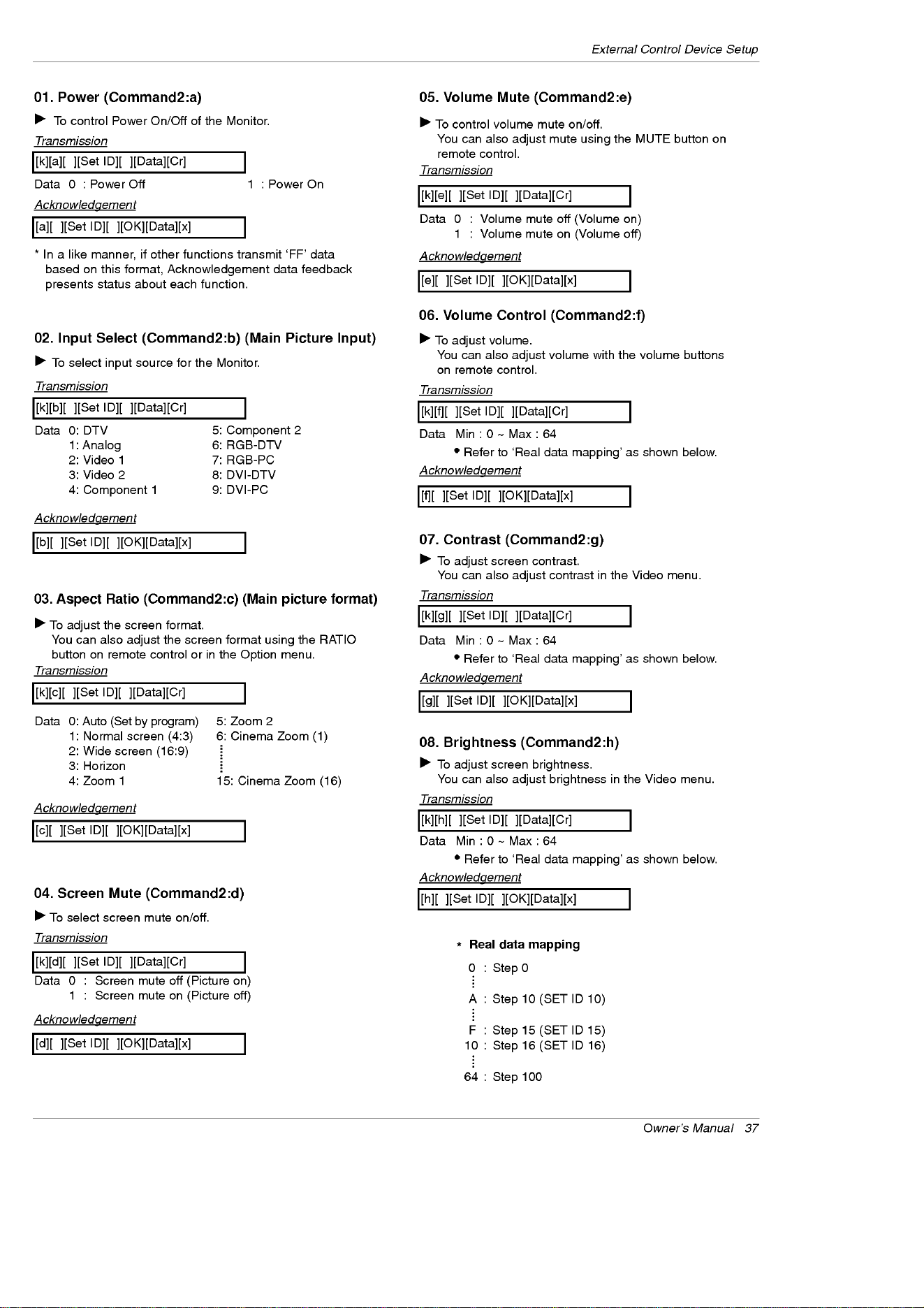
Owner's
Manual
37
External
Control
Device
Setup
02.
Input
Select
(Command2:b)
(Main
Picture
Input)
G
To
select
input
source
for
the
Monitor.
Transmission
Data
0:
DTV
1:
Analog
2:
Video
1
3:
Video
2
4:
Component
1
5:
Component
2
6:
RGB-DTV
7:
RGB-PC
8:
DVI-DTV
9:
DVI-PC
Data
0:
Auto
(Set
by
program)
1:
Normal
screen
(4:3)
2:
Wide
screen
(16:9)
3:
Horizon
4:
Zoom
1
5:
Zoom
2
6:
Cinema
Zoom
(1)
15:
Cinema
Zoom
(16)
[k][b][
][Set
ID][
][Data][Cr]
Acknowledgement
[b][
][Set
ID][
][OK][Data][x]
01.
Power
(Command2:a)
G
To
control
Power
On/Off
of
the
Monitor.
Transmission
Data
0
:
Power
Off
1:PowerOn
[k][a][
][Set
ID][
][Data][Cr]
Acknowledgement
[a][
][Set
ID][
][OK][Data][x]
*
In
a
like
manner,
if
other
functions
transmit
'FF'
data
based
on
this
format,
Acknowledgement
data
feedback
presents
status
about
each
function.
*
Real
data
mapping
0
:Step0
A
:Step10(SETID10)
F
:Step15(SETID15)
10
:Step16(SETID16)
64
:
Step
100
05.
Volume
Mute
(Command2:e)
G
To
control
volume
mute
on/off.
You
can
also
adjust
mute
using
the
MUTE
button
on
remote
control.
Transmission
Data
0
:
Volume
mute
off
(Volume
on)
1
:
Volume
mute
on
(Volume
off)
[k][e][
][Set
ID][
][Data][Cr]
Acknowledgement
[e][
][Set
ID][
][OK][Data][x]
03.
Aspect
Ratio
(Command2:c)
(Main
picture
format)
G
To
adjust
the
screen
format.
You
can
also
adjust
the
screen
format
using
the
RATIO
button
on
remote
control
or
in
the
Option
menu.
Transmission
[k][c][
][Set
ID][
][Data][Cr]
Acknowledgement
[c][
][Set
ID][
][OK][Data][x]
04.
Screen
Mute
(Command2:d)
G
To
select
screen
mute
on/off.
Transmission
Data
0
:
Screen
mute
off
(Picture
on)
1
:
Screen
mute
on
(Picture
off)
[k][d][
][Set
ID][
][Data][Cr]
Acknowledgement
[d][
][Set
ID][
][OK][Data][x]
06.
Volume
Control
(Command2:f)
G
To
adjust
volume.
You
can
also
adjust
volume
with
the
volume
buttons
on
remote
control.
Transmission
Data
Min:0~Max:64
?
Refer
to
'Real
data
mapping'
as
shown
below.
[k][f][
][Set
ID][
][Data][Cr]
Acknowledgement
[f][
][Set
ID][
][OK][Data][x]
07.
Contrast
(Command2:g)
G
To
adjust
screen
contrast.
You
can
also
adjust
contrast
in
the
Video
menu.
Transmission
Data
Min:0~Max:64
?
Refer
to
'Real
data
mapping'
as
shown
below.
[k][g][
][Set
ID][
][Data][Cr]
Acknowledgement
[g][
][Set
ID][
][OK][Data][x]
08.
Brightness
(Command2:h)
G
To
adjust
screen
brightness.
You
can
also
adjust
brightness
in
the
Video
menu.
Transmission
Data
Min:0~Max:64
?
Refer
to
'Real
data
mapping'
as
shown
below.
[k][h][
][Set
ID][
][Data][Cr]
Acknowledgement
[h][
][Set
ID][
][OK][Data][x]
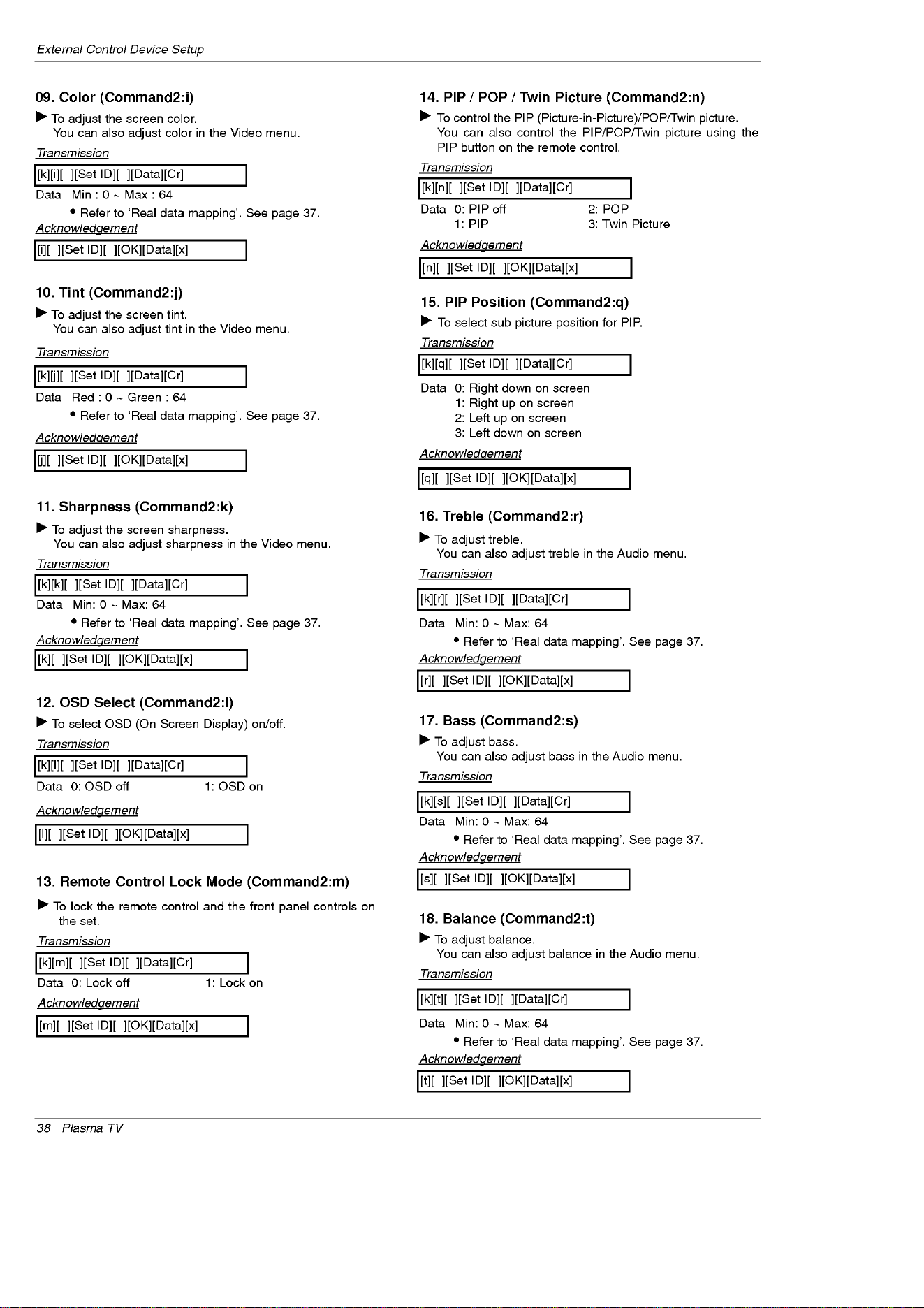
38
Plasma
TV
External
Control
Device
Setup
09.
Color
(Command2:i)
G
To
adjust
the
screen
color.
You
can
also
adjust
color
in
the
Video
menu.
Transmission
Data
Min:0~Max:64
?
Refer
to
'Real
data
mapping'.
See
page
37.
[k][i][
][Set
ID][
][Data][Cr]
Acknowledgement
[i][
][Set
ID][
][OK][Data][x]
10.
Tint
(Command2:j)
G
To
adjust
the
screen
tint.
You
can
also
adjust
tint in
the
Video
menu.
Transmission
Data
Red:0~Green:64
?
Refer
to
'Real
data
mapping'.
See
page
37.
[k][j][
][Set
ID][
][Data][Cr]
Acknowledgement
[j][
][Set
ID][
][OK][Data][x]
13.
Remote
Control
Lock
Mode
(Command2:m)
G
To
lock
the
remote
control
and
the
front
panel
controls
on
the
set.
Transmission
[k][m][
][Set
ID][
][Data][Cr]
Acknowledgement
Data
0:
Lock
off
1:
Lock
on
[m][
][Set
ID][
][OK][Data][x]
14.
PIP
/
POP
/
Twin
Picture
(Command2:n)
G
To
control
the
PIP
(Picture-in-Picture)/POP/Twin
picture.
You
can
also
control
the
PIP/POP/Twin
picture
using
the
PIP
button
on
the
remote
control.
Transmission
Data
0:
PIP
off
1:
PIP
2:
POP
3:
Twin
Picture
[k][n][
][Set
ID][
][Data][Cr]
Acknowledgement
[n][
][Set
ID][
][OK][Data][x]
G
To
adjust
the
screen
sharpness.
You
can
also
adjust
sharpness
in
the
Video
menu.
Transmission
11.
Sharpness
(Command2:k)
Data
Min:
0
~
Max:
64
?
Refer
to
'Real
data
mapping'.
See
page
37.
[k][k][
][Set
ID][
][Data][Cr]
Acknowledgement
[k][
][Set
ID][
][OK][Data][x]
12.
OSD
Select
(Command2:l)
G
To
select
OSD
(On
Screen
Display)
on/off.
Transmission
[k][l][
][Set
ID][
][Data][Cr]
Acknowledgement
Data
0:
OSD
off
1:
OSD
on
[l][
][Set
ID][
][OK][Data][x]
15.
PIP
Position
(Command2:q)
G
To
select
sub
picture
position
for
PIP.
Transmission
[k][q][
][Set
ID][
][Data][Cr]
Acknowledgement
Data
0:
Right
down
on
screen
1:
Right
up
on
screen
2:
Left
up
on
screen
3:
Left
down
on
screen
[q][
][Set
ID][
][OK][Data][x]
16.
Treble
(Command2:r)
G
To
adjust
treble.
You
can
also
adjust
treble
in
the
Audio
menu.
Transmission
Data
Min:
0
~
Max:
64
?
Refer
to
'Real
data
mapping'.
See
page
37.
[k][r][
][Set
ID][
][Data][Cr]
Acknowledgement
[r][
][Set
ID][
][OK][Data][x]
18.
Balance
(Command2:t)
G
To
adjust
balance.
You
can
also
adjust
balance
in
the
Audio
menu.
Transmission
Data
Min:
0
~
Max:
64
?
Refer
to
'Real
data
mapping'.
See
page
37.
[k][t][
][Set
ID][
][Data][Cr]
Acknowledgement
[t][
][Set
ID][
][OK][Data][x]
17.
Bass
(Command2:s)
G
To
adjust
bass.
You
can
also
adjust
bass
in
the
Audio
menu.
Transmission
Data
Min:
0
~
Max:
64
?
Refer
to
'Real
data
mapping'.
See
page
37.
[k][s][
][Set
ID][
][Data][Cr]
Acknowledgement
[s][
][Set
ID][
][OK][Data][x]
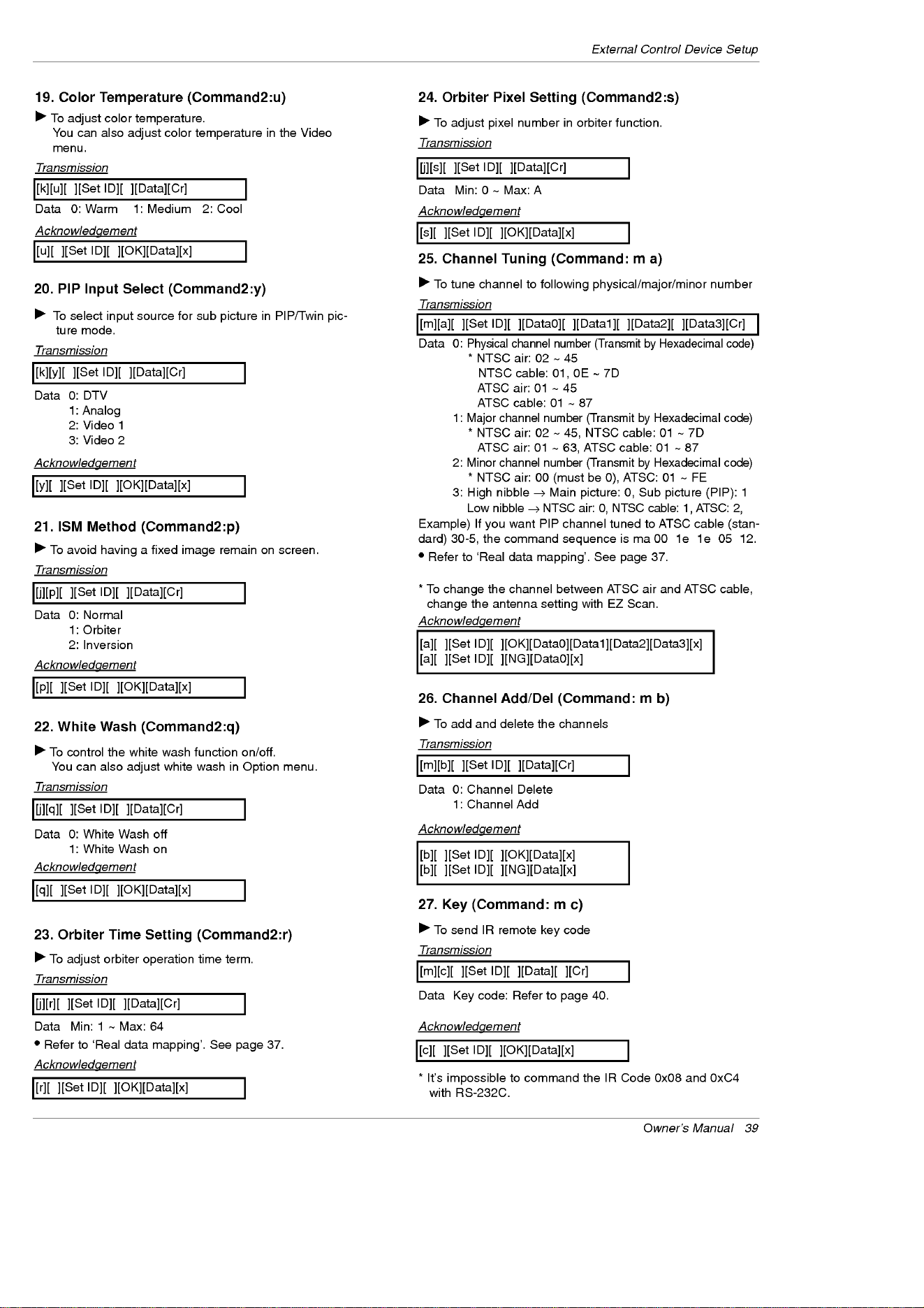
Owner's
Manual
39
External
Control
Device
Setup
19.
Color
Temperature
(Command2:u)
G
To
adjust
color
temperature.
You
can
also
adjust
color
temperature
in
the
Video
menu.
Transmission
Data
0:
Warm
1:
Medium
2:
Cool
[k][u][
][Set
ID][
][Data][Cr]
Acknowledgement
[u][
][Set
ID][
][OK][Data][x]
23.
Orbiter
Time
Setting
(Command2:r)
G
To
adjust
orbiter
operation
time
term.
Transmission
Data
Min:
1
~
Max:
64
?
Refer
to
'Real
data
mapping'.
See
page
37.
[j][r][
][Set
ID][
][Data][Cr]
Acknowledgement
[r][
][Set
ID][
][OK][Data][x]
24.
Orbiter
Pixel
Setting
(Command2:s)
G
To
adjust
pixel
number
in
orbiter
function.
Transmission
Data
Min:0~Max:A
[j][s][
][Set
ID][
][Data][Cr]
Acknowledgement
[s][
][Set
ID][
][OK][Data][x]
25.
Channel
Tuning
(Command:
m
a)
G
To
tune
channel
to
following
physical/major/minor
number
Transmission
Data
0:
Physical
channel
number
(Transmit
by
Hexadecimal
code)
*NTSCair:02~45
NTSC
cable:
01,
0E
~
7D
ATSC
air:
01
~
45
ATSC
cable:
01
~
87
1:
Major
channel
number
(Transmit
by
Hexadecimal
code)
*NTSCair:02~45,NTSCcable:01~7D
ATSC
air:
01
~
63,
ATSC
cable:
01
~
87
2:
Minor
channel
number
(Transmit
by
Hexadecimal
code)
*
NTSC
air:
00
(must
be
0),
ATSC:
01
~
FE
3:
High
nibble
→
Main
picture:
0,
Sub
picture
(PIP):
1
Low
nibble
→
NTSC
air:
0,
NTSC
cable:
1,
ATSC:
2,
Example)
If
you
want
PIP
channel
tuned
to
ATSC
cable
(stan-
dard)
30-5,
the
command
sequence
is
ma
00
1e
1e
05
12.
?
Refer
to
'Real
data
mapping'.
See
page
37.
*
To
change
the
channel
between
ATSC
air
and
ATSC
cable,
change
the
antenna
setting
with
EZ
Scan.
[m][a][
][Set
ID][
][Data0][ ][Data1][ ][Data2][
][Data3][Cr]
[a][
][Set
ID][
][OK][Data0][Data1][Data2][Data3][x]
[a][
][Set
ID][
][NG][Data0][x]
Acknowledgement
26.
Channel
Add/Del
(Command:
m
b)
G
To
add
and
delete
the
channels
Transmission
Data
0:
Channel
Delete
1:
Channel
Add
[m][b][
][Set
ID][
][Data][Cr]
[b][
][Set
ID][
][OK][Data][x]
[b][
][Set
ID][
][NG][Data][x]
Acknowledgement
27.
Key
(Command:
m
c)
G
To
send
IR
remote
key
code
Transmission
Data
Key
code:
Refer
to
page
40.
*
It's
impossible
to
command
the
IR
Code
0x08
and
0xC4
with
RS-232C.
[m][c][
][Set
ID][
][Data][
][Cr]
[c][
][Set
ID][
][OK][Data][x]
Acknowledgement
20.
PIP
Input
Select
(Command2:y)
G
To
select
input
source
for
sub
picture
in
PIP/Twin
pic-
ture
mode.
Transmission
Data
0:
DTV
1:
Analog
2:
Video
1
3:
Video
2
[k][y][
][Set
ID][
][Data][Cr]
Acknowledgement
[y][
][Set
ID][
][OK][Data][x]
21.
ISM
Method
(Command2:p)
G
To
avoid
having
a
fixed
image
remain
on
screen.
Transmission
Data
0:
Normal
1:
Orbiter
2:
Inversion
[j][p][
][Set
ID][
][Data][Cr]
Acknowledgement
[p][
][Set
ID][
][OK][Data][x]
22.
White
Wash
(Command2:q)
G
To
control
the white
wash
function
on/off.
You
can
also
adjust
white
wash
in
Option
menu.
Transmission
Data
0:
White
Wash
off
1:
White
Wash
on
[j][q][
][Set
ID][
][Data][Cr]
Acknowledgement
[q][
][Set
ID][
][OK][Data][x]

40
Plasma
TV
IR
Codes
G
Connect
your
wired
remote
control
to
the
Remote
Control
port
on
the TV.
G
Output
waveform
Single
pulse,
modulated
with
37.917KHz
signal
at
455KHz
G
Configuration
of
frame
G
Repeat
code
G
Lead
code
?
1st
frame
Low
custom
code
Lead
code
High
custom
code
Data
code
Data
code
TC
Tf
T1
C0
Carrier
frequency
FCAR
=
1/TC
=
fOSC/12
Duty
ratio
=
T1/TC
=
1/3
?
Repeat
frame
C1C2C3C4C5C6C7C0C1C2C3C4C5C6C7D0D1D2D3D4D5D6D7D0D1D2D3D4D5D6D7
Repeat
code
9ms
4.5
ms
0.55
ms
9ms
2.25
ms
G
Bit
description
G
Frame
interval
:
Tf
The
waveform
is
transmitted
as
long
as
a
key
is
depressed.
?
Bit
"0"
Tf Tf
Tf=108ms
@455KHz
0.56
ms
0.56
ms
1.12
ms
?
Bit
"1"
2.24
ms
How
to
Connect
How
to
Connect
Remote
Control
IR
Codes
Remote
Control
IR
Codes
IR
Codes
IR
Codes

Owner's
Manual
41
IR
Codes
0x0B
0x08
0xC4
0xC5
0x98
0x79
0x0E
0x10
~
0x19
0x4C
0x1A
0x09
0x02
0x03
0x00
0x01
0x1E
0xAA
0x39
0x40
0x41
0x07
0x06
0x44
0x43
0x52
0x4D
0x5B
0x60
0x72
0x71
0x61
0x63
0x65
0x7B
0x0A
0xCB
0xD6
0x5A
0xD0
0xBF
0xD4
0xD5
0xD7
0xC6
0x76
0x77
0xAF
0x70
0x96
R/C
Button
R/C
Button
R/C
Button
(Power
On/Off)
Discrete
IR
Code
(Only
Power
On)
Discrete
IR
Code
(Only
Power
Off)
R/C
Button
R/C
Button
R/C
Button
R/C
Button
R/C
Button
R/C
Button
R/C
Button
R/C
Button
R/C
Button
R/C
Button
R/C
Button
R/C
Button
R/C
Button
R/C
Button
R/C
Button
R/C
Button
R/C
Button
R/C
Button
R/C
Button
R/C
Button
R/C
Button
R/C
Button
R/C
Button
R/C
Button
R/C
Button
R/C
Button
R/C
Button
R/C
Button
R/C
Button
R/C
Button
R/C
Button
R/C
Button
Discrete
IR
Code
(TV
Input
Selection)
Discrete
IR
Code
(Video1
Input
Selection)
Discrete
IR
Code
(Video2
Input
Selection)
Discrete
IR
Code
(Component1
Input
Selection)
Discrete
IR
Code
(Component2
Input
Selection)
Discrete
IR
Code
(RGB-PC
Input
Selection)
Discrete
IR
Code
(RGB-DTV
Input
Selection)
Discrete
IR
Code
(DVI-DTV
Input
Selection)
Discrete
IR
Code
(Only
4:3
Mode)
Discrete
IR
Code
(Only
16:9
Mode)
Discrete
IR
Code
(Only
Zoom
Mode)
Channel
Search
R/C
Button
Code
(Hexa)
Function
Note
TV/VIDEO
MODE
POWER
POWER
ON
POWER
OFF
COMP/RGB/DVI
RATIO
TIMER
Number
Key
0~
9
-
(Dash)
FLASHBK
MUTE
VOL
+
VOL
-
CH+
CH-
SURF
INFO
CC
D
E
F
G
OK
MENU
SOUND
VIDEO
EXIT
PIP
PIPCH
-
PIPCH
+
PIP
INPUT
SWAP
FREEZE
ZOOM
SAP
ADJUST
TV
VIDEO
1
VIDEO
2
COMPONENT
1
COMPONENT
2
RGB-PC
RGB-DTV
DVI-DTV
Ratio
4:3
Ratio
16:9
Ratio
Zoom
MULTI
PIP
SIGNAL

42
Plasma
TV
Programming
the
Remote
G
The
remote
control
is
a
multi-brand
or
universal
remote
control.
It
can
be
programmed
to
operate
most
remote-controllable
devices
of
other
manufacturers.
Note
that
the
remote
control
may
not
control
all
models
of
other
brands.
Programming
a
code
into
a
remote
mode
Programming
a
code
into
a
remote
mode
Programming
the
Remote
Programming
the
Remote
1.
Test
your
remote
control.
To
find
out
whether
your
remote
control
can
operate
the
component
without
programming,
turn
on
the
component
such
as
a
VCR
and
press
the
corresponding
MODE
button
(VCR)
on
the
remote
control,
while
pointing
at
the
component.
Test the
POWER
and
CH
+/-
buttons
to
see
if
the
component
responds
properly.
If
not,
the
remote
requires
programming
to
operate
the
device.
2.
Turn
on
the
component
to
be
programmed,
then
press
the
corresponding
MODE
button
on
the
remote
control.
3.
Press
the
MENU
and
MUTE
buttons
simultaneously,
the
remote
control
is
ready
to
be
programmed
for
the
code.
4.
There
are
two
ways
to
find
the
right
code
for
the
component.
A.
If
you
press
the
CH
+/-
buttons
repeatedly,
the
codes
will
change
one
at-a-time.
Press
the
POWER
button
after
each
code
change.
If
the
right
code
is
found,
the
device
will
turn
off.
B.
Enter
a
code
number
using
the
number
buttons
on
the
remote.
Programming
code
numbers
for
the
corresponding
component
can
be
found
on
the
following
pages.
Again,
if
the
code
is
correct,
the
device
will
turn
off.
5.
Press
the
MENU
button
to
store
the
code.
6.
Test
the
remote
control
functions
to
see
if
the
component
responds
properly.
If
not,
repeat
from
step
2.

Owner's
Manual
43
Programming
Codes
Programming
Codes
Programming
Codes
VCRs
VCRs
CA
CATV
TV
AIWA
034
AKAI
016 043 046
124
125 146
AMPRO
072
ANAM
031
033
103
AUDIO
DYNAMICS
012 023 039 043
BROKSONIC
035 037
129
CANON
028
031
033
CAPEHART
108
CRAIG
003 040
135
CURTIS
MATHES
031
033
041
DAEWOO
005 007 010 064
065
108
110
111
1 1
21
1
61
1
71
1
9
DAYTRON
108
DBX
012 023 039 043
DYNATECH
034 053
ELECTROHOME
059
EMERSON
006 017 025 027
029
031
034 035
036 037 046
101
129
131
138 153
FISHER
003 008 009 010
FUNAI
034
GE
031
033 063 072
107 109 144 147
GO
VIDEO
132 136
HARMAN
KARDON
012 045
HITACHI
004 018 026 034
043 063
137 150
INSTANTREPLAY
031
033
JCL
031
033
JCPENNY
012 013 015 033
040 066
101
JENSEN
043
JVC
012
031
033 043
048 050 055 060
130 150 152
KENWOOD
014 034 039 043
047 048
LG
(GOLDSTAR)
001
012 013 020
101
106
114
123
LLOYD
034
LXI
003 009 013 014
017 034
101
106
MAGIN
040
MAGNAVOX
031
033 034
041
067 068
MARANTZ
012
031
033 067
069
MARTA
101
MATSUI
027 030
MEI
031
033
MEMOREX
003 010 014
031
033 034 053 072
101
102 134 139
MGA
045 046 059
MINOLTA
013 020
MITSUBISHI
013 020 045 046
049
051
059
061
151
MTC
034 040
MULTITECH
024 034
NEC
012 023 039 043
048
NORDMENDE
043
OPTONICA
053 054
PANASONIC
066 070 074 083
133 140 145
PENTAX
013 020
031
033
063
PHILCO
031
034 067
PHILIPS
031
033 034 054
067
071
101
PILOT
101
PIONEER
013
021
048
PORTLAND
108
PULSAR
072
QUARTZ
011
014
QUASAR
033 066 075
145
RCA
013 020 033 034
040
041
062 063
107 109 140 144
145 147
REALISTIC
003 008 010 014
031
033 034 040
053 054
101
RICO
058
RUNCO
148
SALORA
014
SAMSUNG
032 040
102 104
105 107 109
112
113 115
120 122
125
SANSUI
022 043 048
135
SANYO
003 007 010 014
102 134
SCOTT
017 037
112
129
131
SEARS
003
00
009
010 013 014 017 020
031
042 073
081
101
SHARP
031
054
149
SHINTOM
024
SONY
003 009
031
052
056 057 058 076
077 078
149
SOUNDESIGN
034
STS
013
SYLVANIA
031
033 034 059
067
SYMPHONIC
034
TANDY
010 034
TATUNG
039 043
TEAC
034 039 043
TECHNICS
031
033 070
TEKNIKA
019
031
033 034
101
THOMAS
034
TMK
006
TOSHIBA
008 013 042 047
059 082
112
131
TOTEVISION
040
101
UNITECH
040
VECTOR
RESEARCH
012
VICTOR
048
VIDEO
CONCEPTS
012 034 046
VIDEOSONIC
040
WARDS
003 013 017 024
031
033 034 040
053 054
131
YAMAHA
012 034 039 043
ZENITH
034 048 056
058 072 080
101
Brand
Codes
Brand
Codes
Brand
Codes
Brand
Codes
Brand
Codes
Brand
Codes
Brand
Codes
Brand
Codes
ABC
003 004 039 042
046 052 053
AJIN
112
ANTRONIK
014
ARCHER
005 007 014 024
CABLE
STAR
026
CENTURION
092
CENTURY
007
CITIZEN
007
COLOUR
VOICE
065 090
COMBANO
080
081
COMTRONICS
019 030
DIAMOND
023
EAGLE
020 030 040
EASTERN
057 062 066
ELECTRICORD
032
GE
072
GEMINI
008 022 025 054
GI
052 074
GOLDEN
CHANNEL
030
HAMLIN
049 050 055
HITACHI
052 055
HOSPITALITY
070 077
JERROLD
002 003 004 008
009 010 052 069
074
LG
(GOLDSTAR)
001
106
101
005
M-NET
037
MACOM
033
MAGNAVOX
010 012 064 079
MEMOREX
100
MOVIE
TIME
028 032
NSC
015 028 038
071
073
OAK
016
031
037 053
PANASONIC
044 047
PARAGON
100
PHILIPS
006 012 013 020
065 085 090
PIONEER
034
051
052 063
076
POST
NEWS
WEEK
016
PRUCER
059
PTS
011
048
071
072
073 074
PULSAR
100
RCA
047
REGAL
049 050
REGENCY
057
REMBRANT
025
RK
091
SAMSUNG
102 107
030 068
SCIENTIFIC
ATLANTA
003
011
041
042
043 045 046
SHERITECH
022
SIGNAL
030
SIGNATURE
052
SL
MARX
030
SPRUCER
047 078
STARCOM
002 004 008 009
STARGATE
008 030
SYLVANIA
067
TADIRAN
030
TAEKWANG
110
TAIHAN
105
TANDY
017
TEXSCAN
029 067
TOCOM
039 040 056
TOSHIBA
100
UNIKA
007 014 024
UNITED
CABLE
004 053
UNIVERSAL
005 007 014 024
026 027 032 035
VIEWSTAR
012 015 018 086
087 088 089
ZENITH
100
114
060 093

44
Plasma
TV
Programming
Codes
Audio
Audio
APEX
DIGITAL
022
DENON
020 014
GE
005 006
HARMAN
KARDON
027
JVC
012
LG
001
010 016 025
MAGNAVOX
013
MARANTZ
024
MITSUBISHI
002
NAD
023
ONKYO
008 017
PANASONIC
003 009
PHILIPS
013
PIONEER
004 026
PROCEED
021
PROSCAN
005 006
RCA
005 006
SAMSUNG
011
015
SONY
007
THOMPSON
005 006
TOSHIBA
019 008
YAMAHA
009 018
ZENITH
010 016 025
DVD
DVD
ALPHASTAR
DSR
123
AMPLICA
050
BIRDVIEW
051
126 129
BSR
053
CAPETRONICS
053
CHANNEL
MASTER
013 014 015 018
036 055
CHAPARRAL
008 009 012 077
CITOH
054
CURTIS
MATHES
050
145
DRAKE
005 006 007 010
011
052
112 116
141
DX
ANTENNA
024 046 056 076
ECHOSTAR
038 040 057 058
093 094 095 096
097 098 099
100
122
ELECTRO
HOME
089
EUROPLUS
114
FUJITSU
017
021
022 027
133 134
GENERAL
INSTRUMENT
003 004 016 029
031
059
101
HITACHI
139 140
HOUSTON
TRACKER
033 037 039
051
057
104
HUGHES
068
HYTEK
053
JANIEL
060
147
JERROLD
061
KATHREIN
108
LEGEND
057
LG
001
LUTRON
132
LUXOR
062
144
MACOM
010 059 063 064
065
MEMOREX
057
NEXTWAVE
028
124 125
NORSAT
069 070
PACE
SKY
SATELLITE
143
PANASONIC
060
142
PANSAT
121
PERSONAL
CABLE
117
PHILIPS
071
PICO
105
PRESIDENT
019
102
PRIMESTAR
030
110
111
PROSAT
072
RCA
066
106
REALISTIC
043 074
SAMSUNG
123
SATELLITE
SERVICE
CO
028 035 047 057
085
SCIENTIFIC
ATLANTA
032
138
SONY
103
STARCAST
041
SUPER
GUIDE
020
124 125
TEECOM
023 026 075 087
088 090
107 130
137
TOSHIBA
002
127
UNIDEN
016
025 042 043
044 045 048 049
078 079 080 086
101
UNIDEN
135
136
VIEWSTAR
115
WINEGARD
128
146
ZENITH
081
082 083 084
091
120
HDSTB
HDSTB
Brand
Codes
Brand
Codes
Brand
Codes
Brand
Codes
Brand
Codes
Brand
Codes
Brand
Codes
Brand
Codes
AIWA
014 028 070 096
125 129 139
229
230
AKAI
163
ANAM
003 014 017 023
059
106 189
216
217 235 236
BURMECTER
252
CARVER
086
CLARION
199
DAEWOO
027 053 060 084
102 148 198
221
DENON
015 075
130 143
FANTASIA
071
FINEARTS
022
FISHER
089 099
LG(GOLDSTAR)
001 021
024 029
087
107 108
110
190
191
192
210
211
212 239
HAITAI
034 035
188
222
HARMAN/KARDON
068
INKEL
037 058 062 069
078 079 095
121
122 149 150
151
152 153 154 155
157 158 159 160
189
207 222 224
225 226 227 243
247
JVC
004 013
141
KEC
185 186 187
KENWOOD
038 050 067 089
170
171
197
206
215 222
KOHEL
030
NAD
045 046
LOTTE
014 016 036 098
100 172 173 174
175 176 177 178
179 180
181
183
201
202 208 213
214 219 223 232
238 240
LXI
103
MAGNAVOX
111
MARANTZ
002 018 020 025
034
041 081
090
097
112
MCINTOSH
049
MCS
104
MEMOREX
107
NAD
046
ONKYO
013 040
041
047
048 056 057
132
133 140
OPTIMUS
158
PANASONIC
007 033 064
113
142
220
241 251
PENNEY
104
PHILIPS
026
112
143
253
PIONEER
039 042 043 063
065
091
093 094
115
123 127
250
QUASAR
113
RCA
080
RCX
092
REALISTIC
103 106
SAMSUNG
124 145 146 182
193 194 195
203
204 244 245 246
SANSUI
011
135 138 144
SANYO
019 083 234
SCOTT
106 186
SHARP
031
032
051
052
072 082
117 119
156 184 199
200
206 209
SHERWOOD
005 006
158
SONY
044 045
109
114
118
126
248 249
TAEKWANG
012 020 073 074
076 077
105
161
162 163 164 165
166 167 168 169
205
231
233 242
254
TEAC
010 085
106 136
185 187
237
TECHNICS
101
113
128 134
147
218
TOSHIBA
137
THE
061
VICTOR
088
131
WARDS
089
YAMAHA
054 055 066 092
199
Brand
Codes
Brand
Codes
Brand
Codes
Brand
Codes

Owner's
Manual
45
Troubleshooting
Checklist
No
output
from
one
of
the
speakers
?
Adjust
Balance
in
the
AUDIO
menu.
(Refer
to
p.23)
Unusual
sound
from
inside
the
TV
?
A
change
in
ambient
humidity
or
temperature
may
result
in
an
unusual
noise
when
the
plasma
display
is
turned
on
or
off
and
does
not
indicate
a
fault
with
the
TV.
No
picture
&
No
sound
?
Check
whether
the
TV
is
turned
on.
?
Is
the
power
cord
inserted
into
wall
power
outlet?
?
Test
the
wall
power
outlet,
plug
another
product's
power
cord
into
the
outlet
where
the
TV's
power
cord
was
plugged
in.
No
or
poor
color
or
poor
picture
?
Select
Color
in
the
Video
menu
and
press
the
VOLUME
(G)
button.
(Refer
to
p.21)
?
Keep
a
sufficient
distance
between
the
TV
and
the
VCR.
?
Activate
any
function
to
restore
the
brightness
of
the
picture.
(If
still
picture
is
on
the
screen
for
more
than
5
minutes,
the
screen
gets
dark.)
The
remote
control
doesn't
work
?
Check
to
see
if
there
is
any
object
between
the
TV
and
the
remote
control
causing
obstruction.
?
Are
batteries
installed
with
correct
polarity
(+
to
+,
-
to
-)?
(Refer
to
p.9)
?
Correct
remote
operating
mode
set:
TV,
VCR
etc.?
?
Install
new
batteries.
(Refer
to
p.9)
Picture
OK
&
No
sound
?
Press
the
VOLUME
(G)
button.
?
Sound
muted?
Press
MUTE
button.
Picture
appears
slowly
after
switching
on
?
This
is
normal,
the
image
is
muted
during
the
TV
startup
process.
Please
contact
your
service
center,
if
the
picture
has
not
appeared
after
five
minutes.
Horizontal/vertical
bars
or
picture
shaking
?
Check
for local
interference
such
as
an
electrical
appliance
or
power
tool.
T
Troubleshooting
Checklist
roubleshooting
Checklist

46
Plasma
TV
Maintenance
&
Specification
?
The
specifications
shown
above
may
be
changed
without
prior
notice
for
quality
improvement.
Product
Specifications
Product
Specifications
MODELS
AC100-240V
~
50/60Hz
NTSC-M,
ATSC
VHF2~13,UHF14~69,CATV1~125,CADTV1~135.DTV2~69
75Ω
1024
x
768
(Dot)
1366
x
768
(Dot)
16,770,000
(256
steps
of
each
R,
G
and
B)
32
~
104°F
(0
~
40°C)
Less
than
80%
6561
feet
(2000m)
41
/
1210
27.5
/
701
3.7/96
76.1
/
34.6
Width
(inches
/
mm)
Height
(inches
/
mm)
Depth
(inches
/
mm)
Weight
(pounds
/
kg)
Power
requirement
Television
System
Program
Coverage
External
Antenna
Impedance
Resolution
Color
Operating
Temperature
Range
Operating
Humidity
Range
Maximum
Elevation
DU-42PX12X/12XC
48.3
/
1400
30.6
/
821
3.9/99
98.1
/
52.2
DU-50PX10/10C
1.
Here's
a
great
way
to
keep
the
dust
off
your
screen
for
a
while.
Wet
a
soft
cloth
in
a
mixture
of
lukewarm
water
and
a
little
fabric
softener
or
dish
washing
detergent.
Wring
the
cloth
until
it's
almost
dry,
and
then
use
it
to
wipe
the
screen.
2.
Make
sure
the
excess
water
is
off
the
screen,
and
then
let
it
air-dry
before
you
turn
on
your
TV.
To
remove
dirt
or
dust,
wipe
the
cabinet
with
a
soft,
dry,
lint-free
cloth.
Please
be
sure
not
to
use
a
wet
cloth.
If
you
expect
to
leave
your
TV
dormant
for
a
long
time
(such
as
a
vacation),
it's
a
good
idea
to
unplug
the
power
cord
to
protect
against
possible
damage
from
lightning
or
power
surges.
-
Early
malfunctions
can
be
prevented.
Careful
and
regular
cleaning
can
extend
the
amount
of
time
you
will
have
your
new
TV.
Be
sure
to
turn the
power
off
and
unplug
the
power
cord
before
you
begin
any
cleaning.
Cleaning
the
Screen
Cleaning
the
Screen
Cleaning
the
Cabinet
Cleaning
the
Cabinet
Extended
Extended
Absence
Absence
Maintenance
Maintenance
Your
LG
Plasma
TV
will
be
repaired
or
replaced
in
accordance
with
the
terms
of
this
warranty,
at
LGE's
option,
if
it
proves
to
be
defective
in
material
or
workmanship
under
normal
use,
during
the
warranty
period
("Warranty
Period")
listed
below,
effective
from
the
date
("Date
of
Purchase")
of
original
consumer
purchase
of
the
product.
This
war-
ranty
is
good
only
to
the
original
purchaser
of
the
product
and
effective
only
when
used
in
the United
States,
includ-
ing
Alaska,
Hawaii,
and
U.S.
Territories.
CONCERNING
PIXEL
FUNCTIONALITY:
Your
Plasma
TV
contains
about
one
million
individual
pixels.
Plasma
TV
typically
contain
a
small
number
of
pixels
that
do
not
function
normally.
Your
display
has
been
inspected
and
is
in
compliance
with
manufacturer's
specifications,
indicating
that
any
pixel
defects
do
not
effect
the
operation
or
use
of
your
display.
THIS
WARRANTY
IS
IN
LIEU
OF
ANY
OTHER
WARRANTY,
EXPRESS
OR
IMPLIED,
INCLUDING
WITHOUT
LIMITATION,
ANY
WARRANTY
OF
MERCHANTABILITY
OR
FITNESS
FOR
A
PARTICULAR
PURPOSE.
TO
THE
EXTENT
ANY
IMPLIED
WARRANTY
IS
REQUIRED
BY
LAW,
IT
IS
LIMITED
IN
DURATION
TO
THE
EXPRESS
WARRANTY
PERIOD
ABOVE.
NEITHER
THE
MANUFACTURER
NOR
ITS
U.S.
DISTRIBUTOR
SHALL
BE
LIABLE
FOR
ANY
INCIDENTAL,
CONSEQUENTIAL,
INDIRECT,
SPECIAL,
OR
PUNITIVE
DAMAGES
OF
ANY
NATURE,
INCLUDING
WITHOUT
LIMITATION,
LOST
PROFITS,
LOST
OR
CORRUPTED
PROGRAMMING
OR
DATA,
OR
ANY
OTHER
DAMAGE
WHETHER
BASED
IN
CONTRACT,
TORT,
OR
OTHERWISE.
Some
states
do
not
allow
the
exclusion
or
limitation
of
incidental
or
consequential
damages
or
limitations
on
how
long
an
implied
warranty
lasts,
so
the
above
exclusion
or
limitation
may
not
apply
to
you.
This
warranty
gives
you
specific
legal
rights
and
you
may
also
have
other
rights
that
vary
from
state
to
state.
WARRANTY
PERIOD:
LABOR
and
PARTS:
2
YEARS
from
the
Date
of
Purchase.
Your
unit
will
be
repaired
or
replaced
with
a
new,
substitute
model
or
factory
reconditioned
unit,
at
LGE's
option.
If
repaired,
parts
used
in
the
repair
may
be
new
or
remanufac-
tured.
Replacement
Units
and
Repair
Parts
are
warranted
for
the
remaining
portion
of
the
original
unit's
warranty
period.
EFFECTIVE
DATE
OF
WARRANTY:
Your
warranty
period
begins
on
the
date
of
sale
to
the
original
consumer/end
user.
KEEP
THE
DEALER'S
DATED
BILL
OF
SALE
OR
PROOF
OF
DELIVERY
as
evidence
of
the
purchase
date.
You
will
be
required
to
submit
a
legible
copy
of
your
bill
of
sale
or
proof
of
delivery
when
requesting
warranty
service.
HOW
SERVICE
IS
HANDLED:
In-Home
Service:
Please
retain
dealer's
dated
bill
of
sale
or
delivery
ticket
as
evidence
of
the
Date
of
Purchase
for
proof
of
warranty,
and
submit
a
copy
of
the
bill
of
sale
to
the
ser-
vice
person
at
the
time
warranty
service
is
pro-
vided.
Please
call
1-800-243-0000
to
locate
your
nearest
LGE
Authorized
Service
Center.
Visit
our
website
at:
http://www.lgservice.com
IMPORTANT:
Please
fill
out
and
mail
in
your
Product
Registration
Card
or
go
to
www.lgservice.com
to
register
your
product
online.
This
information
will
allow
us
to
reach
you
promptly
should
we
discover
a
safety
or
reliability
prob-
lem
that
could
affect
you.
TO
CONTACT
THE
LGE
CUSTOMER
SERVICE
CENTER
BY
MAIL:
LGE
Customer
Interactive
Center
P.O.
Box
240007
201
James
Record
Road
Huntsville,
Alabama
35824
http://www.lgservice.com
FOR
SERVICE:
Before
you
call
for
warranty
service,
check
your
operating
guide
--
you
may
avoid
a
service
call.
For
warranty
service
information,
please
contact
the
LGE Customer
Interactive
Center
telephone
number.
When
calling
for
service,
please
have
your
product
model
number,
serial
number
and
the
date
of
pur-
chase
or
the
date
of
original
installation
available.
If
a
replacement
unit
is
required,
under
some
circumstances
you
may
be
asked
to
provide
a
reserve
deposit
to
the
LGE
Service
Center
against
a
credit
card
number
as
surety
for
advanced
shipment.
Your
credit
card
will
not
be
charged
if
you
return
the
defective
unit
within
10
working
days.
If
a
replacement
unit
is
received,
please
use
the
carton
and
packaging
from
that
unit
in
returning
the
defective
unit
to
the
LGBrand
Service
Center.
Parts
and
service
in
accordance
with
the
LGE
warranty
are
LGE's
responsibility
and
will
be
provided
without
charge.
Other
service
requirements
will
be
at
the
owner's
expense.
If
you
have
problems
in
obtaining
satisfactory
warranty
service,
write
or
call
the
LGE Customer
Interactive
Center.
Service
may
be
provided
by
independently
owned
and
operated
service
organizations.
To
assure
proper
credit
and
avoid
unnecessary
charges,
you
must
obtain
an
LGE
Return
Authorization
before
returning
any
product
to
the
LGE
Service
Center.
Contact
the
Customer
Interactive
Center
for
details.
CUSTOMER
INTERACTIVE
CENTER
NUMBERS:
To
obtain
customer
assistance,
product
information
or
Dealer
or
Service
locations
Call
1-800-243-0000
24
hours
a
day,
365
days
per
year
THIS
LIMITED
WARRANTY
DOES
NOT
APPLY
TO:
The
cost
of
repair
or
replacement
under
these
excluded
circumstances
shall
be
borne
by
the
consumer.
damage
caused
in
shipping
or
transit
service
required
as
a
result
of
improper
installation,
including
incorrect
or
insufficient
AC
supply
(please
consult
the
owner's
manual
for
power
supply
requirements)
installation
or
repair
of
antenna
systems,
cable
con-
verters,
cable
company
supplied
equipment,
or
other
components
in
a
video
system
set-up
or
adjustment
on
consumer
controls,
or
damage
caused
by
improper
adjustments
damage
caused
by
other
system
components
any
panel
that
has
been
modified
or
incorporated
into
any
other
product
replacement
of
batteries
on
the
remote
control.
damage
(including
cosmetic
damage),
failure,
loss
or
personal
injury
due
to
misuse,
abuse,
negli-
gence,
improper
maintenance
or
storage,
or
to
acts
of
nature
or
other
causes
beyond
our
control.
(Causes
beyond
our
control
include
but
are
not
lim-
ited
to
lightning
strike,
power
surges,
power
out-
ages
and
water
damage.)
image
burn-in
repair
or
replacement
of
warranted
parts
by
other
than
LGE
authorized
service
centers.
units
purchased
or
serviced
outside
of
the
coverage
area.
product
where
the
original
factory
serial
numbers
have
been
removed,
defaced
or
changed
in
any
way.
product
sold
and
labeled
as
"as
is,
where
is"
or
sim-
ilar
disclaimer.
P/NO
:
3828VA0479D
d