
MFL70960502 (1.0) www.lg.com
USER GUIDE
ENGLISH
LM-X410MK
Copyright ©2018 LG Electronics Inc. All Rights Reserved.
OS: Android Oreo

1
About this user guide
Thank you for choosing this LG product. Please carefully read this
user guide before using the device for the first time to ensure safe
and proper use.
• Always use genuine LG accessories. The supplied items are
designed only for this device and may not be compatible with
other devices.
• Descriptions are based on the device default settings.
• Default apps on the device are subject to updates, and support for
these apps may be withdrawn without prior notice. If you have any
questions about an app provided with the device, please contact
an LG Service Center. For user-installed apps, please contact the
relevant service provider.
• Modifying the device’s operating system or installing software
from unofficial sources may damage the device and lead to data
corruption or data loss. Such actions will violate your LG license
agreement and void your warranty.
• Some content and illustrations may differ from your device,
depending on the area, service provider, software version, or OS
version, and are subject to change without prior notice.
• Software, audio, wallpaper, images, and other media supplied with
your device are licensed for limited use. If you extract and use
these materials for commercial or other purposes, you may be
infringing copyright laws. As a user, you are fully responsible for
the illegal use of media.
• Additional charges may incur for data services, such as messaging,
uploading, downloading, auto-syncing and location services. To
avoid additional charges, select a data plan suitable to your needs.
Contact your service provider to obtain additional details.
2
Instructional notices
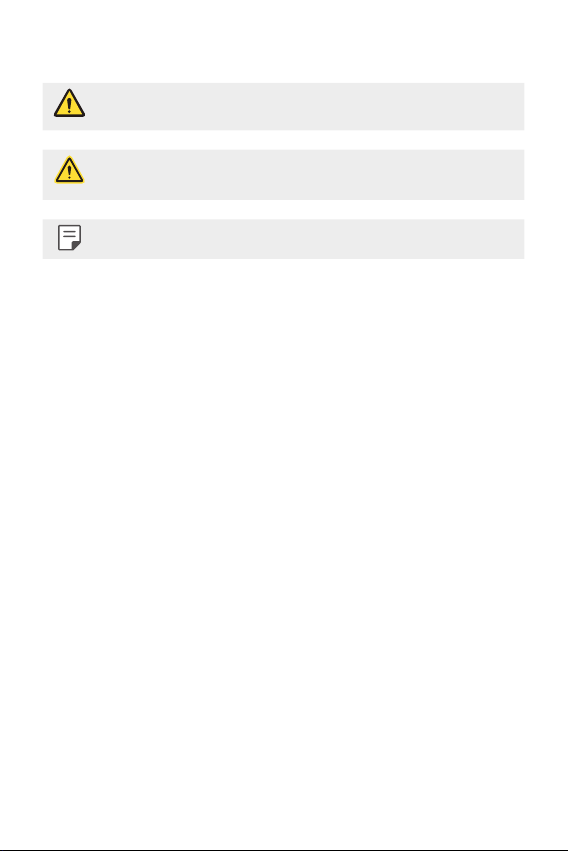
WARNING: Situations that could cause injury to the user and third
parties.
CAUTION: Situations that may cause minor injury or damage to the
device.
NOTE: Notices or additional information.

Custom-designed Features 8
3
Follow the on-screen instructions.
• Repeat scanning the fingerprint by moving your finger little by
little until the fingerprint registers.
4
When the fingerprint registration is done, tap OK.
• Tap ADD MORE to register another fingerprint. If you register
only one fingerprint and the corresponding finger is not in
a good condition, the fingerprint recognition may not work
well. As the preventive measure against this kind of situation,
register multiple fingerprints.
Managing fingerprints
You can edit or delete registered fingerprints.
1
Tap Settings General Lock screen & security
Fingerprints.
2
Unlock according to the specified lock method.
3
From the fingerprint list, tap a fingerprint to rename it. To delete
it, tap
.
Unlocking the screen with a fingerprint
You can unlock the screen or view the locked content by using your
fingerprint.
1
Tap Settings General Lock screen & security
Fingerprints.
2
Unlock according to the specified lock method.
3
On the fingerprint settings screen, activate the desired function:
• Screen lock: Unlock the screen with a fingerprint.
• Content lock: Access locked contents in QuickMemo+ with a
fingerprint.

Custom-designed Features 14
• To deactivate the Multi-Window feature, touch and hold on the
Home touch button.
• To adjust the size of the split screen, drag
at the center of the
screen.
• The Multi-Window feature is not supported by some LG apps and
apps downloaded from Play Store.
Overview screen
The Overview screen provides a preview of your recently-used apps.
To view the list of recently-used apps, tap
on the Home touch
buttons.
• Touch and hold an app and drag it to the top of the screen to start
the app with the Multi-Window feature. You can also tap
at the
top of each app preview.

Custom-designed Features 15
Camera features
Flash Jump-Cut
You can create a GIF by taking photos at three second intervals.
1
Tap , then tap MODE Flash Jump-Cut .
2
Tap to set the number of cuts you want to take.
3
Tap to take photos.
Portrait
You can take a sharp portrait by applying the camera lens blur effect
on the front camera.
1
Tap , switch to the front camera, then tap Portrait.
2
Tap to take a photo.
• To adjust blur strength, drag the slide bar up, down, left or right
(depending on the orientation of the phone).
• This feature is not available if the surroundings are too dark.
• After applying this feature, touch and hold the desired position on
the preview screen to automatically apply the exposure value and
focus. In this case, the Portrait feature and blur strength stay the
same.

Custom-designed Features 17
Gallery features
Floating button
You can use the floating button at the lower part of the Gallery app
screen in landscape mode.
• After dragging the
button upwards, release it when you reach
the
button to return to the Home screen.
• You can drag the button to the left or right to move the
floating button as desired.
Custom-designed Features 18
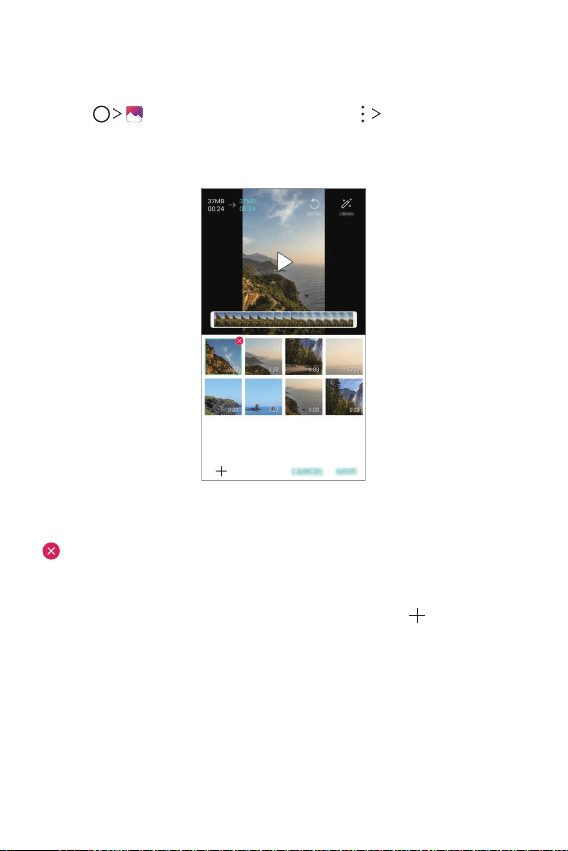
Creating a movie
You can create a new movie by putting images and videos together.
1
Tap
,
select an album, and then tap
Create movie.
2
Select images or videos for your movie and tap NEXT.
3
Edit the selected images and videos and then tap SAVE.
Deleting files
You can select images or videos to delete from your video by tapping
at the top right corner of its thumbnail.
Adding files
You can select images or videos to add after tapping at the
bottom of the screen. You can also select the images or videos you
have already previously added.
Custom-designed Features 19
Rearranging files
To rearrange the images and videos, touch and hold the file you want
to move, then drag it to the desired location.
Adding file effects
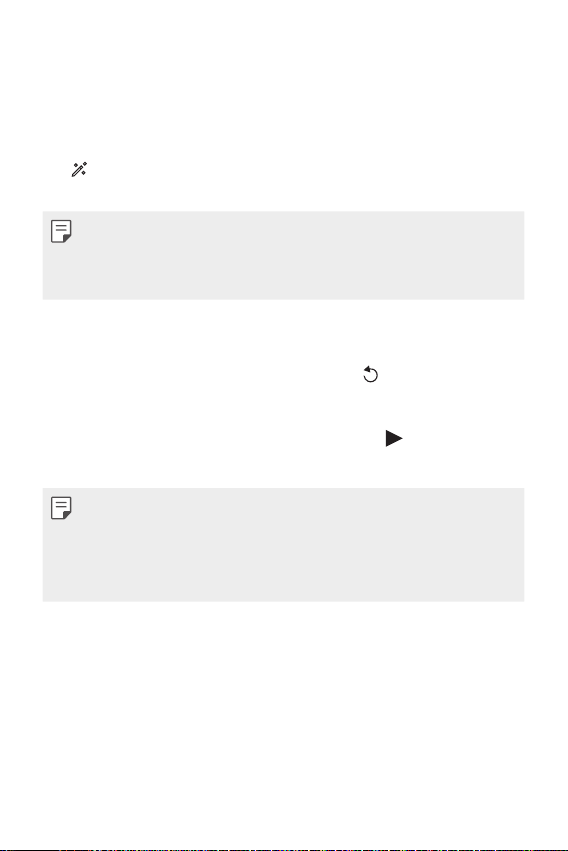
Tap to add a theme or background music, change the font, and
add a title and author.
• Download the VASSET app from Play Store to add video themes,
background music or font faces.
If you use mobile data without connecting to a Wi-Fi network, you
may be charged for data usage.
Resetting the movie edits
You can reset the edits made to the movie (e.g. play time, theme,
background music and font effect) by tapping
.
Previewing a file
Check your new video before saving it by tapping . After the
playback time elapses, the next file is played automatically.
• A maximum of 50 images and videos can be used to create a video.
• The playback time for an image is 3 seconds by default and it
cannot be changed. Videos can be trimmed down to a minimum of
1 second.
• This feature may not support some image or video formats.

Basic Functions 35
Pinching and spreading
Pinch two fingers to zoom out such as on a photo or map. To zoom in,
spread your fingers apart.
• Do not expose the touch screen to excessive physical shock. You
might damage the touch sensor.
• A touch screen failure may occur if you use the device near a
magnetic, metallic or conductive material.
• If you use the device under bright lights, such as direct sunlight,
the screen may not be visible, depending on your position. Use the
device in a shady location or a location with an ambient light that is
not too bright and bright enough to read books.
• Do not press the screen with excessive force.
• Gently tap with your fingertip on the desired option.
• The touch control may not work properly if you tap while wearing a
glove or by using the tip of your fingernail.
• Touch control may not work properly if the screen is moist or wet.
• The touch screen may not function properly if a screen-protective
film or accessory purchased from a third party store is attached to
the device.
Basic Functions 38
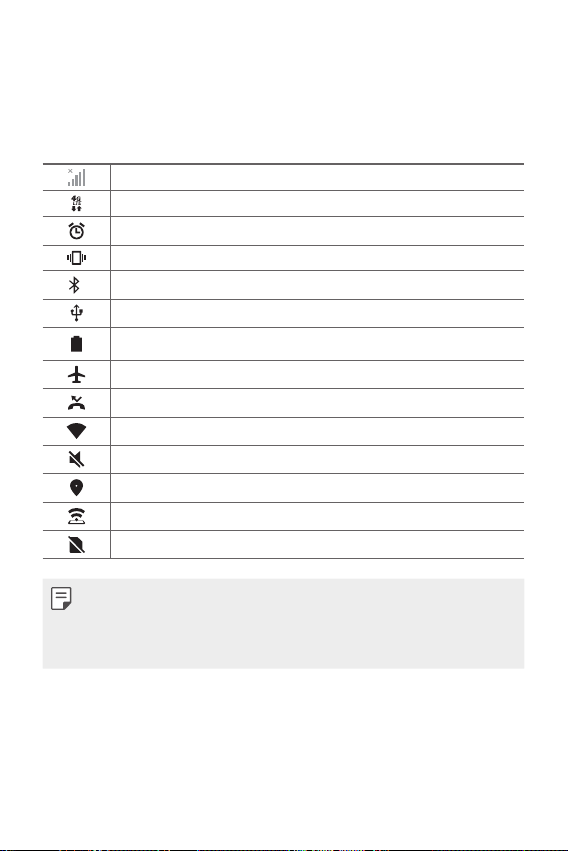
Status icons
When there is a notification for an unread message, calendar event
or alarm, the status bar displays the corresponding notification icon.
Check your device's status by viewing notification icons displayed on
the status bar.
No signal
Data is being transmitted over the network
Alarm is set
Vibrate mode is on
Bluetooth is on
Connected to a computer via USB
Battery level
Airplane mode is on
Missed calls
Wi-Fi is connected
Mute mode is on
GPS is on
Hotspot is on
No SIM card
• Some of these icons may appear differently or may not appear at
all, depending on the device's status. Refer to the icons according to
the actual environment in which you are using the device.
• Displayed icons may vary, depending on the area or service provider.

Basic Functions 41
• To change the default screen, touch and hold on a blank area of
the Home screen, move to desired screen, tap
, then tap the
screen once more.
Default screen
Viewing the background theme
You can view only the background image by hiding the apps and
widgets on the Home screen.
Spread two fingers apart on the Home screen.
• To return to the original screen, which displays apps and widgets,
pinch your fingers on the Home screen or tap
.

Basic Functions 46
Secure start-up settings
For additional security for your device, you can enable the Secure
start-up option when setting a screen lock.
• You cannot use all functions, except for emergency calls, until you
unlock the device.
• If you forget your decryption password, you cannot restore
encrypted data and personal information.
Precautions for the secure start-up feature
• Be sure to keep your screen lock passwords separately.
• If you enter the screen lock passwords incorrectly more than
the specified times, the device automatically resets itself and
the encrypted data and your personal information are deleted
automatically and they cannot be restored.
• Be cautious not to enter incorrect screen lock passwords more
than the specified times.
• When you turn on the device right after the device reboots,
encryption also starts. If you stop the encryption arbitrarily,
the data may be damaged. Be sure to wait until the reboot is
completed.

Basic Functions 53
Splitting the keyboard
You can split the keyboard in half and place each piece on either side
of the screen when the screen is in landscape mode.
To split the keyboard, turn the device horizontally and spread it apart
on both sides with holding the keyboard with two fingers. To attach
the keyboard, close it with pressing with two fingers.
One-handed operation mode
You can move the keyboard to one side of the screen so that you can
use the keyboard with one hand.
1
Tap Settings General Language & input On-screen
keyboard
LG Keyboard Keyboard height and layout One-
handed operation.
You can also touch and hold
on the keyboard, then tap
Keyboard height and layout
One-handed operation.
2
Press the arrow displayed next to the keyboard to move the
keyboard in the desired direction.

Basic Functions 56
Do not disturb
You can limit or mute notifications to avoid disturbances for a specific
period of time.
Tap
Settings Sound Do not disturb.
• Mode: Select the desired mode.
- Priority only: Receive sound or vibrate notifications for the
selected apps. Even when Priority only is turned on, alarms still
sound.
- Total silence: Disable both the sound and vibration.
• Select priorities: Receive alarms and notifications for the selected
apps.
- App notifications: Select apps to receive the notifications.
- Calls from: Set up a range of contacts from which you want to
receive notifications for incoming calls.
- Repeated calls: Second call from same caller within 15 min is
not silenced.
- Messages from: Set up a range of contacts from which you
want to receive notifications for incoming messages.
• Use Do not disturb: Turn on the Do not disturb feature.
• SCHEDULE: Set the schedule for which you want to turn on the
Do not disturb feature.
• Help: View the help for Do not disturb.

Useful Apps 62
Answering a call
To answer a call, drag on the incoming call screen.
• When the stereo headset is connected, you can make calls by
using the call/end button on the headset.
• To end a call without turning off the screen, tap
Settings
Network
Call Answer and end calls and then activate End
call with the Power key.
Rejecting a call
To reject an incoming call, drag across the incoming call screen.
• To send a rejection message, drag the rejection message option
across the screen.
• To add or edit a rejection message, tap
Settings Network
Call Call blocking & Decline with message Decline with
message.
• When a call is coming in, press the Volume Up, Volume Down or
Power/Lock key to mute ringtone or vibration, or to hold the call.
Checking an incoming call while using an app
When a call comes in while using an app, a pop-up notification can be
displayed at the top of the screen. You can receive the call, reject the
call, or send message from the pop-up screen.
To deactivate this feature:
1
Tap Settings Network Call More Incoming voice call
pop-up.
2
Tap
.

Useful Apps 64
Making a three-way calling
You can make a call to another contact during a call.
1
During a call, tap Add call.
2
Enter a phone number and tap .
• The two calls are displayed on the screen at the same time, and
the first call is put on hold.
3
To start a conference call, tap Merge calls.
• You may be charged a fee for each call. Consult with your service
provider for more information.
Viewing call records
To view recent call records, tap Call logs. Then, you can use
the following functions:
• To view detailed call records, select a contact. To make a call to the
selected contact, tap
.
• To delete call records, tap
Delete.
• The displayed call duration may differ from the call charge. Consult
with your service provider for more information.
Configuring call options
You can configure various call options.
1
Tap Dial or Call logs.
2
Tap Call settings and then configure the options to suit your
preferences.

Useful Apps 74
Gallery
Gallery overview
You can view and manage photos and videos saved on your device.
1
Tap .
• Saved photos and videos are displayed by folder.
2
Tap a folder and select a file.
• View the selected file in full-screen mode.
• While viewing a photo, swipe left or right to view the previous
or next photo.
• While viewing a video, swipe left or right to rewind or fast-
forward the video.
• Some file formats may not be supported, depending on the
installed software and the encoding.
• Files that exceed the size limit may cause an error.
Viewing photos
Back to the
previous screen.
Write a memo on
a photo.
Edit images.
Access additional
options.
Back to the
previous screen.
Delete images.
Start the camera.
Add to or
remove from
your favorites.
Share images.
• To display the menu items, gently tap the screen. To hide the menu
items, tap the screen again.

Useful Apps 79
Contacts
Contacts overview
You can save and manage contacts.
Tap
Essentials Contacts.
Adding contacts
Adding new contacts
1
On the contact list screen, tap .
2
Enter the contact’s details and tap SAVE.
Importing contacts
You can import contacts from another storage device.
1
On the contact list screen, tap Manage contacts Import.
2
Select the source and target locations of the contact you want to
import, and then tap OK.
3
Select the vCard file(s) and tap IMPORT.
Adding contacts to the speed dial list
1
On the contact list screen, tap Speed dial.
2
Tap Add contact from a speed dial number.
3
Select a contact.
Searching for contacts
You can search for contacts by using one of the following options:
• Tap
from the top of the contacts list and then enter the contact
information or phone number.
• Scroll the contact list up or down.

Useful Apps 80
• From the index of the contact list screen, tap the initial letter of a
contact.
• The search option is available in all tabs.
Contacts list
Editing contacts
1
On the contact list screen, select a contact.
2
On the contact detail screen, tap and edit details.
3
Tap SAVE to save changes.
Deleting contacts
You can delete contacts by using one of the following options:
• On the contact list screen, touch and hold a contact you want to
delete, tap Delete contact, then tap DELETE to confirm.
• Tap
Delete on the contact list screen, select contacts to
delete, then tap DELETE.
Adding favorites
You can register frequently used contacts as favorites.
1
On the contact list screen, select a contact.
2
On the contact detail screen, tap .
Creating groups
1
On the Groups tab, tap .
2
Enter a new group name.
3
Tap Add members, select contacts, then tap ADD.
4
Tap SAVE to save the new group.

Useful Apps 81
Music
You can play and manage songs or music albums.
1
Tap Essentials Music.
2
Select a category.
3
Select a music file.
Back to the previous
screen.
Play in random order.
Adjust the sound volume.
Tap to play from the
beginning of the current
file / Double-tap to play
the previous file / Touch
and hold to rewind.
Add to or delete
from your favorites.
Switch to the playlist.
Set sound effects.
Turn on the camera flash
to blink to the beat of the
song played.
Access additional options.
Select a repeat mode.
Set sound effects.
Tap to play the next file
/ Touch and hold to fast
forward.
Pause or play.
• Some file formats may not be supported, depending on the
installed software.
• Files that exceed the size limit may cause an error.
• Music files may be protected by international copyright owners
or copyright laws. You may have to obtain legal permission before
copying a music file. To download or copy a music file, first check
the copyright law for the relevant country.
Useful Apps 82
Calendar
Use Google Calendar to keep track of all your events. Events can only
be synched to a managed account.
Adding events
1
Tap Essentials Calendar.
2
Select a date, tap , then tap Event.
3
Enter event details and tap SAVE.
Calculator
You can use two types of calculators: the simple calculator and the
scientific calculator.
1
Tap Essentials Calculator.
2
Use the keypad to make a calculation.
• To use the scientific calculator, drag the blue colored slide bar
located in the right side of the screen to the left.
• To restart a calculation, touch and hold the DEL button.
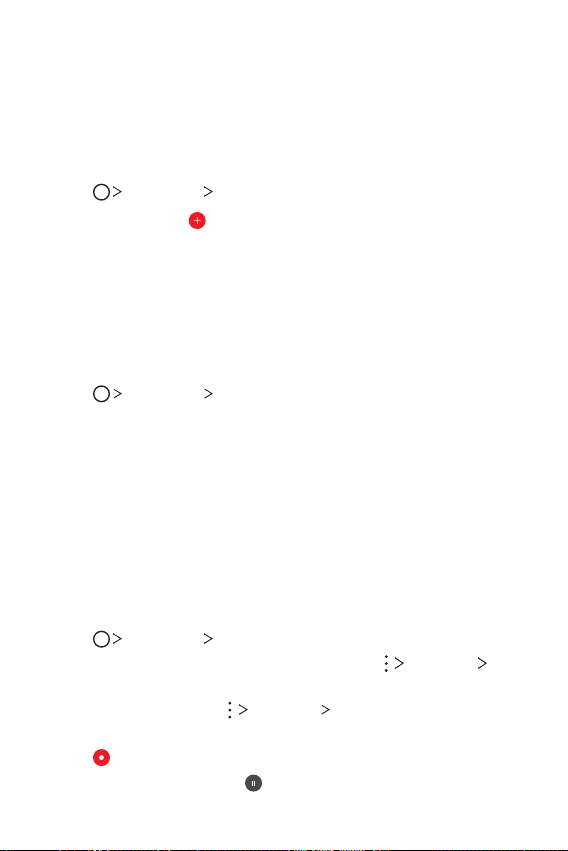
Audio Recorder
You can record and save your voice or others’ voices from important
events. Recorded voice files can be played back or shared.
1
Tap Essentials Audio Recorder.
• To save the recording's location details, tap
Add tags Add
under Location.
• To add an event, tap
Add tags Add under Event. Then,
add an event to the desired date.
2
Tap .
• To pause recording, tap
.

Useful Apps 84
LG Mobile Switch
You can transfer data from your old LG device to a new LG device.
1
Tap Management LG Mobile Switch.
You can also tap
Settings General Backup LG Mobile
Switch.
2
Follow the on-screen instructions to select a desired method for
transfer.
• Data in a Google account will not be backed up. When you
synchronize your Google account, Google apps, Google contacts,
Google calendar, Google memo app data and apps downloaded
from the Play Store are stored on the Drive app automatically.
• Fully charge the battery before transferring data to avoid
unintentional powering off during the process.
Downloads
You can view, delete or share files downloaded via the Internet or
apps.
Tap
Management Downloads.
Clock
Alarm
You can set an alarm to trigger it at a specified time.
1
Tap Clock Alarm.
2
Tap to add a new alarm.
3
Configure the alarm settings and tap SAVE.

Useful Apps 88
Email
Use the Email application to send and receive emails from your
webmail or other accounts, using POP3 or IMAP, or access your
Exchange account for your corporate email needs.
Set up Email account
Your phone supports several types of email accounts and allows you
to have multiple email accounts set up at one time.
Before setting up an email account, make sure you have the
username (user ID), password, server name, etc., so you can get set
up successfully.
1
Tap Email.
2
Follow the onscreen instructions to set up your email account.
• The email account is set up and you will begin receiving email.
LG SmartWorld
You can download a variety of games, audio content, apps and
fonts provided by LG Electronics. Customize your device to suit your
preferences by using Home themes and fonts.
• If you use mobile data, you may be charged for data usage
depending on your pricing plan.
• This feature may not be supported depending on the area or
service provider.
1
Tap SmartWorld.
2
Tap LG Account, then sign in.
3
Select and download content items.
Phone Settings 90
Settings
You can customize the device settings to fit your preferences.
Tap
Settings.
• Tap and enter a keyword in the search box to access a setting
item.
• Tap
to change the view mode. This user guide assumes that you
are using the Tab view.
Network
Wi-Fi
You can connect to nearby devices over a Wi-Fi network.
Connecting to a Wi-Fi network
1
On the settings screen, tap Network Wi-Fi.
2
Tap to activate it.
• Available Wi-Fi networks appear automatically.
3
Select a network.
• You may need to enter the network's Wi-Fi password.
• The device skips this process for previously accessed Wi-Fi
networks. If you do not want to automatically connect to a
certain Wi-Fi network, tap the network and then tap FORGET.

Phone Settings 95
Mobile HotSpot
You can set the device as a wireless router so that other devices can
connect to the Internet by using your device’s mobile data.
1
On the settings screen, tap Network Tethering Mobile
HotSpot and then tap
to activate it.
2
Tap Configure Mobile HotSpot and enter the Wi-Fi name (SSID)
and password.
3
Turn on Wi-Fi on the other device, and select the name of the
device network on the Wi-Fi list.
4
Enter the network password.
• This option uses mobile data and may incur data usage fees,
depending on your pricing plan. Consult with your service provider
for more information.
• More information is available at this web site:
http://www.android.com/tether#wifi
Mobile HotSpot turn off timer
When the Mobile hotspot has not been used for a specific period
of time, it is automatically disconnected. You can set the time for
automatic disconnection.
Allowed devices
View a list of devices permitted to access content on your device.
Phone Settings 96
Help
You can view help on using tethering and hotspots.
On the settings screen, tap Network
Tethering Help.
Sharing panel
You can share contents from Gallery, Music and File Manager with
nearby devices. Also you can share content with specific people in
apps that work with Google Direct Share.
1
On the settings screen, tap Network Sharing panel.
2
Tap to deactivate each option.
LG AirDrive
You can use your LG account to manage files saved on the device
from a computer. You do not need a USB connection.
1
On the settings screen, tap Network LG AirDrive.
2
Use a single LG account to sign in to LG Bridge on the computer
and LG AirDrive on the device.
• LG Bridge software can be downloaded from
www.lg.com
.
3
Manage files on the device from the computer.
Printing
You can connect your device to a Bluetooth printer and print photos
or documents saved on the device.
1
On the settings screen, tap Network Printing.
• If the desired printer is not in the list, install the printer driver from
the app store.
2
Select a printer from the printer list screen.

Phone Settings 100
• Vibrate on tap: Set the device to vibrate when you tap certain
items on the screen.
• Dialing keypad sound: Enable the keypad sound effect.
• LG Keyboard sound: Enable the LG keyboard sound effect.
• Touch sound: Enable the sound effect to play when tapping an item.
• Screen lock sound: Enable the sound effect to play when the
screen is locked or unlocked.
Display
The Display category allows you to manage various display settings.
On the settings screen, tap Display and customize the following
settings:
• Home screen: Customize settings for the Home screen. See
Home screen settings
for details.
• Theme: Select a theme for your device.
• Font: Change the font size, boldness, or type.
• Home touch buttons: Rearrange Home touch buttons or change
their background colors.
• Display size: Set the items on the screen to a size that is easy for
you to see. Some items may change position.
• Comfort view: Set the device to reduce amount of blue light on
screen to reduce eye strain.
• Brightness: Use the slide bar to change the device’s screen
brightness. To automatically adjust screen brightness according to
ambient light intensity, tap the Auto switch.
• Auto-rotate screen: Automatically rotate the screen according to
the device’s orientation.
• Screen timeout: Automatically turn off the screen when the
device is left idle for a specified period of time.
• Screen saver: Display a screen saver when the device is connected
to the holder or charger. Select a screen saver type to display.

Phone Settings 101
General
The General category allows you to manage various general settings.
Lock screen & security
You can customize lock screen and security settings.
On the settings screen, tap General
Lock screen & security and
customize the following settings:
• Google Play Protect: Scan the device periodically for potentially
harmful codes or apps.
• Find My Device: Remotely track the device location. You can also
protect your data securely if you lost your device.
• Security update: Check for software update and configure
automatic installation settings.
• Select screen lock: Select the desired screen lock method. See
Setting a screen lock
for details.
• Customize Lock screen: Change the information displayed on the
locked screen.
• Secure lock settings: Change the secure lock settings.
• Fingerprints: Use your fingerprint to unlock the screen or content.
See
Fingerprint recognition overview
for details.
• Face Recognition: Allows you to unlock the screen with your face.
See
Face recognition overview
for details.
• Content lock: Allows you to set a lock type (password or pattern)
for your QuickMemo+ and Gallery files.
• Location: You can customize how your location information is
used by particular apps.
• Encryption & credentials: Configure the settings for SD card
encryption and credentials.
- Encrypt SD card: Encrypt the memory card to prevent use on
another device. See
Memory card encryption
for details.
Phone Settings 103
Battery
You can view the current battery information or turn on power-
saving mode.
1
On the settings screen, tap General Battery.
2
Customize the following settings:
• Battery usage: View the battery usage details. To view more
details, select a specific item.
• Battery percentage on status bar: Display the remaining
battery level as a percentage on the status bar.
• Battery saver: Reduce battery consumption by cutting down
some device settings, such as the display brightness, speed and
vibration intensity.
• Power saving exclusions: Select apps to use without
any functional limitation while in power saving or battery
optimization mode.
Storage
You can view and manage internal storage on the device or storage
space of the memory card.
1
On the settings screen, tap General Storage.
2
Customize the following settings:
• Internal storage: View the total storage space and free space
in the device’s internal storage. View a list of apps in use and the
storage capacity for each app.
• SD card: View the total storage space and free space in the
memory card. This option appears only when a memory card is
inserted. To unmount the memory card, tap
.

Phone Settings 108
Update center
From time to time, updates may become available for your phone.
You can download and apply updates through the Settings menu.
On the settings screen, tap General
Update center.
Language & input
You can customize language and keyboard settings for your device.
1
On the settings screen, tap General Language & input.
2
Customize the following settings:
• Language: Select a language to apply for the device.
• Current keyboard: View the keyboard currently in use. Select a
keyboard to use when entering text.
• On-screen keyboard: Change the LG keyboard settings or voice
recognition feature of Google Voice.
• Physical keyboard: Select to use the physical keyboard, or
check keyboard shortcut keys.
• Spelling correction: Allows you to set various options for the
Google Spell Checker.
• Autofill service: Enable this option to enter your information
saved in your account such as password, address, or credit card
number with a single tap. You can also disable this option, use
Google Autocomplete, or add a new service account.
• Text-to-speech output: Configure the settings for text-to-
speech output.
• Pointer speed: Adjust the pointer speed of a mouse or
trackpad.
• Reverse mouse buttons: Reverse the right mouse button to
perform primary direct-manipulation actions.
Phone Settings 109
Date & time
You can customize date and time settings for your device.
1
On the settings screen, tap General Date & time.
2
Customize the desired settings.
Memory
You can view the average amount of memory usage over a certain
period of time and the memory occupied by an app.
1
On the settings screen, tap General Memory.
2
Tap to set a time slot to retrieve data.
Backup
You can back up data saved on your device to another device or
account.
1
On the settings screen, tap General Backup.
2
Customize the following settings:
• LG Mobile Switch: Allows you to transfer data from an old LG
device to your new LG device. See
LG Mobile Switch
for details.
• Backup & restore: Back up your device data or restore data to
your device from a backup.
• Resetting your device may delete backup files saved in storage.
Make sure to copy and store the important backup files to your PC.
• Google backup: Change Google drive backup settings. You can
also check the backup account currently used, or add a new
backup account.

Phone Settings 110
Reset
You can reset the device including network and app settings.
1
On the settings screen, tap General Reset.
2
Customize the following settings:
• Network settings reset: Reset Wi-Fi, Bluetooth and other
network settings.
• Reset app preferences: Reset the settings for an app. The data
saved in the app will not be deleted.
• Factory data reset: Reset all settings for the device and delete
data.
• Resetting your device deletes all data on it. Enter your device name,
Google account and other initial information again.
About phone
You can view information about your device, such as the name,
status, software details and legal information.
On the settings screen, tap General
About phone and view
information.
Regulatory & safety
You can view regulatory marks and related information on your
device.
On the settings screen, tap General
Regulatory & safety.

Appendix 114
LG Mobile Phone software update via Over-the-
Air (OTA)
This feature allows you to conveniently update your phone’s software
to a newer version via OTA, without connecting a USB cable. This
feature will only be available if and when LG makes a newer firmware
version available for your device.
First check the software version on your mobile phone:
Settings
General Update center System update.
• Your personal data from internal phone storage—including
information about your Google account and any other accounts,
your system/application data and settings, any downloaded
applications and your DRM license—might be lost in the process
of updating your phone’s software. Therefore, LG recommends
that you backup your personal data before updating your phone’s
software. LG does not take responsibility for any loss of personal
data.
• This feature depends on the area or service provider.

Appendix 116
FAQ
This chapter lists some problems you might encounter when using
your phone. Some problems require you to call your service provider,
but most are easy to fix yourself.
Message Possible causes Possible corrective measures
SIM card error
There is no SIM card in
the phone or it is inserted
incorrectly.
Make sure the SIM card is
correctly inserted.
No network
connection/
Dropped
network
Signal is weak or you
are outside the carrier
network.
Move toward a window or
into an open area. Check the
network operator coverage
map.
No
applications
can be set
Not supported by service
provider or registration
required.
Contact your service provider.
Downloaded
application
causes a lot
of errors.
Remove the application.
1. Tap
Settings.
2. Tap General
Apps &
notifications
App info.
3. Tap the app
Uninstall.

Appendix 118
Message Possible causes Possible corrective measures
Hangs up or
freezes
Intermittent software/
hardware problem
Restarting the device
If your device freezes or hangs,
you may need to close apps or
turn off the device and turn it
on again.
Performing a boot-up
Press and hold the Power/
Lock key and the Volume
Down key for about 10
seconds to restart your device.
Resetting the device
If the methods above do not
solve your problem, perform a
factory data reset.
On the settings screen, tap
General
Reset Factory
data reset.
* Reset all settings for the
device and delete data.
Before performing the
factory data reset, remember
to make backup copies of all
important data stored in the
device.
* If you registered a Google
account to the device, you
must sign in to the same
Google account after
resetting the device.

Appendix 120
• Some data may not be transmitted depending on the software
version, app version, operating system, manufacturer or service
provider’s policy.
Open Source Software Notice Information
To obtain the source code under GPL, LGPL, MPL, and other open
source licenses, that is contained in this product, please visit
http://opensource.lge.com
.
In addition to the source code, all referred license terms, warranty
disclaimers and copyright notices are available for download.
LG Electronics will also provide open source code to you on CD-ROM
for a charge covering the cost of performing such distribution (such
as the cost of media, shipping, and handling) upon email request to
opensourc[email protected]
. This offer is valid for a period of three years
after our last shipment of this product. This offer is valid to anyone in
receipt of this information.
Regulatory Information (FCC ID number, etc.)
For regulatory details, go to Settings General Regulatory &
safety.

For Your Safety
06

For Your Safety 126
against the head. On the other hand, if the device is mounted against the
waist or other part of the body during use, then that part of the body will
absorb more RF energy. Wireless devices marketed in the U.S. are required to
meet safety requirements regardless of whether they are used against the
head or against the body. Either configuration should result in compliance with
the safety limit.” Also, if you use your wireless device while in a car, you can
use a device with an antenna on the outside of the vehicle. You should also
read and follow your wireless device manufacturer’s instructions for the safe
operation of your device.
Do wireless devices pose any special risks to children?
The FDA/FCC website states that “the scientific evidence does not show a
danger to users of wireless communication devices, including children.” The
FDA/FCC website further states that “some groups sponsored by other
national governments have advised that children be discouraged from
using wireless devices at all.” For example, the Stewart Report from the
United Kingdom [“UK”] made such a recommendation in December 2000.
In this report a group of independent experts noted that no evidence exists
that using a cell phone causes brain tumors or other ill effects. [The UK’s]
recommendation to limit cell phone use by children was strictly precautionary;
it was not based on scientific evidence that any health hazard exists. A copy of
the UK’s leaflet is available at
http://www.dh.gov.uk
(search “mobile”), or you
can write to: NRPB, Chilton, Didcot, Oxon OX11 ORQ, United Kingdom. Copies
of the UK’s annual reports on mobile phones and RF are available online at
http://www.hpa.org.uk/radiation/
(search “mobile”). Parents who wish to
reduce their children’s RF exposure may choose to restrict their children’s
wireless device use.
Where can I get further information about RF emissions?
For further information, see the following additional resources (websites
current as of April 2005):
U.S. Food and Drug Administration
FDA Consumer magazine November-December 2000
Telephone: (888) INFO-FDA
http://www.fda.gov
(Under “c” in the subject index, select Cell Phones >
Research.)

For Your Safety 130
T-Ratings: Devices rated T3 or T4 meet FCC requirements and are likely
to generate less interference to hearing devices than devices that are not
labeled. T4 is the better/ higher of the two ratings.
Hearing devices may also be rated. Your hearing device manufacturer or
hearing health professional may help you find this rating. Higher ratings mean
that the hearing device is relatively immune to interference noise. The hearing
aid and wireless device rating values are then added together. A sum of 5 is
considered acceptable for normal use. A sum of 6 is considered for best use.
In the above example, if a hearing aid meets the M2 level rating and the
wireless device meets the M3 level rating, the sum of the two values equal
M5. This should provide the hearing aid user with “normal usage” while using
their hearing aid with the particular wireless device. “Normal usage” in this
context is defined as a signal quality that’s acceptable for normal operation.
The M mark is intended to be synonymous with the U mark. The T mark
is intended to be synonymous with the UT mark. The M and T marks are
recommended by the Alliance for Telecommunications Industries Solutions
(ATIS). The U and UT marks are referenced in Section 20.19 of the FCC Rules.
The HAC rating and measurement procedure are described in the American
National Standards Institute (ANSI) C63.19 standard.
To ensure that the Hearing Aid Compatibility rating for your device
is maintained, secondary transmitters such as Bluetooth and WLAN
components must be disabled during a call.

For Your Safety 138
• Do not charge while the device or charging cable is wet or contains
moisture. This can cause fire, electric shock, injury or damage to the device.
• Do not place or answer calls while charging the device as it may short-
circuit the device and/or cause electric shock or fire.
• Talking on your device for a long period of time may reduce call quality due
to heat generated during use.
WARNING! Notice for Battery Replacement
• Do not remove the back cover.
• Your device has an internal battery. For your safety, do not remove the
battery incorporated in the product. If you need to replace the battery,
take it to the nearest authorized LG Electronics service point or dealer for
assistance.
• The Li-Ion Battery is a hazardous component which can cause injury.
• Battery replacement by non-qualified professional can cause damage to
your device.
Explosion, Shock, and Fire Hazards
• Do not put your device in a place subject to excessive dust and keep the
minimum required distance between the power cord and heat sources.
• Unplug the power cord prior to cleaning your device, and clean the power
plug pin when it’s dirty.
• When using the power plug, ensure that it’s firmly connected. If not, it may
cause excessive heat or fire.
• If you put your device in a pocket or bag without covering the receptacle
of the device (power plug pin), metallic articles (such as a coin, paperclip
or pen) may short-circuit the device and may cause an explosion. Always
cover the receptacle when not in use.
• Do not charge while the device or charging cable is wet or contains
moisture. This can cause fire, electric shock, injury or damage to the device.

For Your Safety 140
FDA Consumer Update
The U.S. Food and Drug Administration’s Center for Devices and Radiological
Health Consumer Update on Mobile Phones:
1. Do wireless devices pose a health hazard?
The available scientific evidence does not show that any health problems
are associated with using wireless devices. There is no proof, however, that
wireless devices are absolutely safe. Wireless devices emit low levels of Radio
Frequency (RF) energy in the microwave range while being used. They also
emit very low levels of RF when in standby mode. Whereas high levels of RF
can produce health effects (by heating tissue), exposure to low level RF that
does not produce heating effects causes no known adverse health effects.
Many studies of low level RF exposures have not found any biological effects.
Some studies have suggested that some biological effects may occur, but
such findings have not been confirmed by additional research. In some cases,
other researchers have had difficulty in reproducing those studies, or in
determining the reasons for inconsistent results.
2. What is the FDA’s role concerning the safety of wireless
devices?
Under the law, the FDA does not review the safety of radiation-emitting
consumer products such as wireless devices before they can be sold, as it does
with new drugs or medical devices. However, the agency has authority to take
action if wireless devices are shown to emit Radio Frequency (RF) energy at
a level that is hazardous to the user. In such a case, the FDA could require the
manufacturers of wireless devices to notify users of the health hazard and
to repair, replace, or recall the devices so that the hazard no longer exists.
Although the existing scientific data do not justify FDA regulatory actions,
the FDA has urged the wireless device industry to take a number of steps,
including the following:
• Support needed research into possible biological effects of RF of the type
emitted by wireless devices;
• Design wireless devices in a way that minimizes any RF exposure to the
user that is not necessary for device function; and

For Your Safety 141
• Cooperate in providing users of wireless devices with the best possible
information on possible effects of wireless device use on human health.
The FDA belongs to an interagency working group of the federal agencies that
have responsibility for different aspects of RF safety to ensure coordinated
efforts at the federal level. The following agencies belong to this working
group:
• National Institute for Occupational Safety and Health
• Environmental Protection Agency
• Occupational Safety and Health Administration
• National Telecommunications and Information Administration
The National Institutes of Health participates in some interagency working
group activities, as well.
The FDA shares regulatory responsibilities for wireless devices with the
Federal Communications Commission (FCC). All devices that are sold in the
United States must comply with FCC safety guidelines that limit RF exposure.
The FCC relies on the FDA and other health agencies for safety questions
about wireless devices.
The FCC also regulates the base stations that the wireless device networks
rely upon. While these base stations operate at higher power than do the
wireless devices themselves, the RF exposures that people get from these
base stations are typically thousands of times lower than those they can get
from wireless devices. Base stations are thus not the subject of the safety
questions discussed in this document.
3. What kinds of devices are the subject of this update?
The term “wireless device” refers here to handheld wireless devices with
built-in antennas, often called “cell,” “mobile,” or “PCS” devices. These types
of wireless devices can expose the user to measurable Radio Frequency (RF)
energy because of the short distance between the device and the user’s head.
These RF exposures are limited by FCC safety guidelines that were developed
with the advice of the FDA and other federal health and safety agencies.
When the device is located at greater distances from the user, the exposure
to RF is drastically lower because a person’s RF exposure decreases rapidly
with increasing distance from the source. The so-called “cordless devices,”
which have a base unit connected to the telephone wiring in a house, typically
operate at far lower power levels, and thus produce RF exposures far below
the FCC safety limits.

For Your Safety 148
7. Do not engage in stressful or emotional conversations that may be
distracting. Stressful or emotional conversations and driving do not mix;
they are distracting and even dangerous when you are behind the wheel
of a car. Make people you are talking with aware you are driving and if
necessary, suspend conversations which have the potential to divert your
attention from the road.
8. Use your wireless device to call for help. Your wireless device is one of the
greatest tools you can own to protect yourself and your family in dangerous
situations -- with your device at your side, help is only three numbers away.
Dial 911 or another local emergency number in the case of fire, traffic
accident, road hazard, or medical emergency. Remember, it’s a free call on
your wireless device!
9. Use your wireless device to help others in emergencies. Your wireless
device provides you a perfect opportunity to be a “Good Samaritan” in your
community. If you see an auto accident, crime in progress or other serious
emergency where lives are in danger, call 911 or another local emergency
number, as you would want others to do for you.
10. Call roadside assistance or a special wireless non-emergency assistance
number when necessary. Certain situations you encounter while driving
may require attention, but are not urgent enough to merit a call for
emergency services. But you can still use your wireless device to lend a
hand. If you see a broken-down vehicle posing no serious hazard, a broken
traffic signal, a minor traffic accident where no one appears injured or a
vehicle you know to be stolen, call roadside assistance or other special
non-emergency wireless number.
The above tips are meant as general guidelines. Before deciding to use your
mobile device while operating a vehicle, it is recommended that you consult
your applicable jurisdiction’s local laws or other regulations regarding such use.
Such laws or other regulations may prohibit or otherwise restrict the manner
in which a driver may use his or her device while operating a vehicle.

LIMITED WARRANTY - USA 153
PROCEDURE FOR RESOLVING DISPUTES:
ALL DISPUTES BETWEEN YOU AND LG ARISING OUT OF OR RELATING
IN ANY WAY TO THIS LIMITED WARRANTY OR THE PRODUCT SHALL BE
RESOLVED EXCLUSIVELY THROUGH BINDING ARBITRATION, AND NOT IN A
COURT OF GENERAL JURISDICTION. BINDING ARBITRATION MEANS THAT
YOU AND LG ARE EACH WAIVING THE RIGHT TO A JURY TRIAL AND TO
BRING OR PARTICIPATE IN A CLASS ACTION.
Definitions. For the purposes of this section, references to “LG” mean LG
Electronics MobileComm U.S.A., Inc., its parents, subsidiaries and affiliates, and
each of their officers, directors, employees, agents, beneficiaries, predecessors
in interest, successors, assigns and suppliers; references to “dispute” or
“claim” shall include any dispute, claim or controversy of any kind whatsoever
(whether based in contract, tort, statute, regulation, ordinance, fraud,
misrepresentation or any other legal or equitable theory) arising out of or
relating in any way to the sale, condition or performance of the product or this
Limited Warranty.
Notice of Dispute. In the event you intend to commence an arbitration
proceeding, you must first notify LG in writing at least 30 days in advance
of initiating the arbitration by sending a letter to LG at LG Electronics U.S.A.,
Inc. Attn: Legal Department- Arbitration 1000 Sylvan Ave, Englewood Cliffs
07632. You and LG agree to engage in good faith discussions in an attempt
to amicably resolve your claim. The notice must provide your name, address,
and telephone number; identify the product that is the subject of the claim;
and describe the nature of the claim and the relief being sought. If you and LG
are unable to resolve the dispute within 30 days, either party may proceed to
file a claim for arbitration.
Agreement to Binding Arbitration and Class Action Waiver. Upon failure to
resolve the dispute during the 30 day period after sending written notice
to LG, you and LG agree to resolve any claims between us only by binding
arbitration on an individual basis, unless you opt out as provided below.
Any dispute between you and LG shall not be combined or consolidated
with a dispute involving any other person’s or entity’s product or claim.
More specifically, without limitation of the foregoing, any dispute between
you and LG shall not under any circumstances proceed as part of a class
or representative action. Instead of arbitration, either party may bring an
individual action in small claims court, but that small claims court action may
not be brought on a class or representative basis.

LIMITED WARRANTY - USA 154
Arbitration Rules and Procedures. To begin arbitration of a claim, either you
or LG must make a written demand for arbitration. The arbitration will be
administered by the American Arbitration Association (“AAA”) and will be
conducted before a single arbitrator under the AAA’s Consumer Arbitration
Rules that are in effect at the time the arbitration is initiated (referred to
as the “AAA Rules”) and under the procedures set forth in this section. The
AAA Rules are available online at
www.adr.org/consumer
. Send a copy of your
written demand for arbitration, as well as a copy of this provision, to the AAA
in the manner described in the AAA Rules. You must also send a copy of your
written demand to LG at LG Electronics, U.S.A., Inc. Attn: Legal Department-
Arbitration 1000 Sylvan Avenue Englewood Cliffs, NJ 07632. If there is a
conflict between the AAA Rules and the rules set forth in this section, the
rules set forth in this section will govern. This arbitration provision is governed
by the Federal Arbitration Act. Judgment may be entered on the arbitrator’s
award in any court of competent jurisdiction. All issues are for the arbitrator
to decide, except that issues relating to the scope and enforceability of the
arbitration provision and to the arbitrability of the dispute are for the court to
decide. The arbitrator is bound by the terms of this provision.
Governing Law. The law of the state of your residence shall govern this Limited
Warranty and any disputes between us except to the extent that such law is
preempted by or inconsistent with applicable federal law.
Fees/Costs. You do not need to pay any fee to begin an arbitration. Upon
receipt of your written demand for arbitration, LG will promptly pay all
arbitration filing fees to the AAA unless you seek more than $25,000 in
damages, in which case the payment of these fees will be governed by the
AAA Rules. Except as otherwise provided for herein, LG will pay all AAA filing,
administration and arbitrator fees for any arbitration initiated in accordance
with the AAA Rules and this arbitration provision. If you prevail in the
arbitration, LG will pay your attorneys’ fees and expenses as long as they are
reasonable, by considering factors including, but not limited to, the purchase
amount and claim amount. Notwithstanding the foregoing, if applicable law
allows for an award of reasonable attorneys’ fees and expenses, an arbitrator
can award them to the same extent that a court would. If the arbitrator
finds either the substance of your claim or the relief sought in the demand is
frivolous or brought for an improper purpose (as measured by the standards
set forth in Federal Rule of Civil Procedure 11(b)), then the payment of all
arbitration fees will be governed by the AAA Rules. In such a situation, you
agree to reimburse LG for all monies previously disbursed by it that are
otherwise your obligation to pay under the AAA Rules. Except as otherwise

LIMITED WARRANTY - USA 155
provided for, LG waives any rights it may have to seek attorneys’ fees and
expenses from you if LG prevails in the arbitration.
Hearings and Location. If your claim is for $25,000 or less, you may choose
to have the arbitration conducted solely on the basis of (1) documents
submitted to the arbitrator, (2) through a telephonic hearing, or (3) by an
in-person hearing as established by the AAA Rules. If your claim exceeds
$25,000, the right to a hearing will be determined by the AAA Rules. Any in-
person arbitration hearings will be held at a location within the federal judicial
district in which you reside unless we both agree to another location or we
agree to a telephonic arbitration.
Opt Out. You may opt out of this dispute resolution procedure. If you opt
out, neither you nor LG can require the other to participate in an arbitration
proceeding. To opt out, you must send notice to LG no later than 30 calendar
days from the date of the first consumer purchaser’s purchase of the product
by either: (i) sending an e-mail to
, with the subject line:
“Arbitration Opt Out” or (ii) calling 1-800-980-2973. You must include in
the opt out e-mail or provide by telephone: (a) your name and address; (b)
the date on which the product was purchased; (c) the product model name
or model number; and (d) the IMEI or MEID or Serial Number, as applicable
(the IMEI or MEID or Serial Number can be found (i) on the product box; (ii)
on a label on the back of the product beneath the battery, if the battery is
removable; or (iii) from the settings menu via the following path: Settings
General About phone Status). You may only opt out of the dispute
resolution procedure in the manner described above (that is, by e-mail or
telephone); no other form of notice will be effective to opt out of this dispute
resolution procedure. Opting out of this dispute resolution procedure will not
affect the coverage of the Limited Warranty in any way, and you will continue
to enjoy the full benefits of the Limited Warranty. If you keep this product and
do not opt out, then you accept all terms and conditions of the arbitration
provision described above.