P/N - - Rev FYRL TSINSTL FUL
1
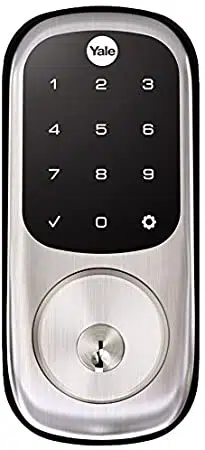
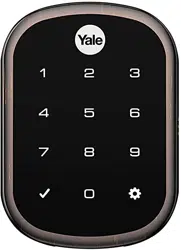
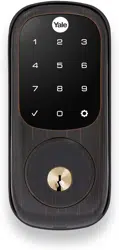
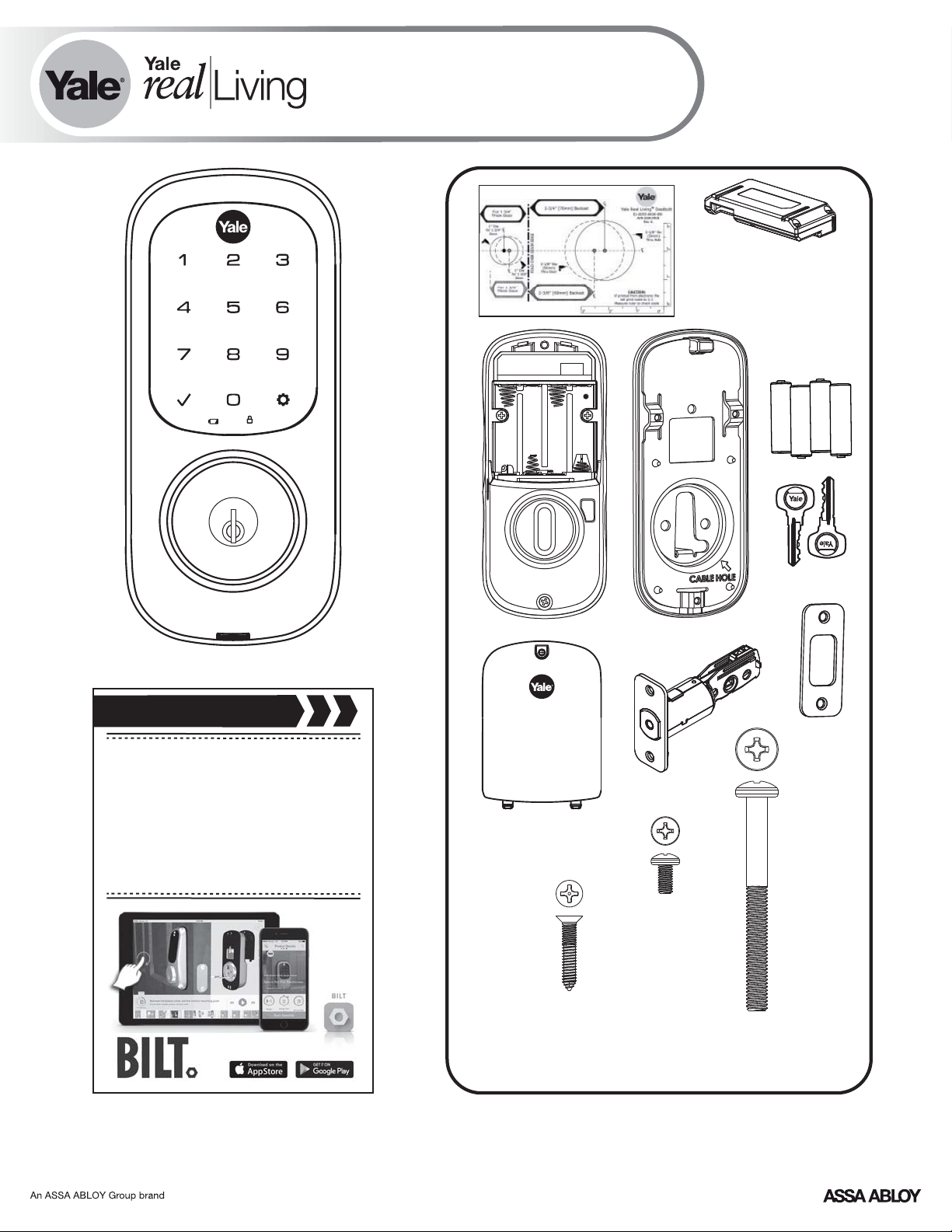
Yale Assure Lock
®®
Touchscreen Deadbolt
Installation and Programming Instructions
( 226/YRD426)YRD
®
x3
#8-32 x 5/16"
Machine screws
x4
#7 wood & #8-32
machine x 20mm
Combination screws
x2
M6x59.5mm
Long through bolt
FAILURE TO FOLLOW THESE INSTRUCTIONS COULD RESULT IN DAMAGE TO
THE PRODUCT AND VOID THE FACTORY WARRANTY
Optional
Network Module
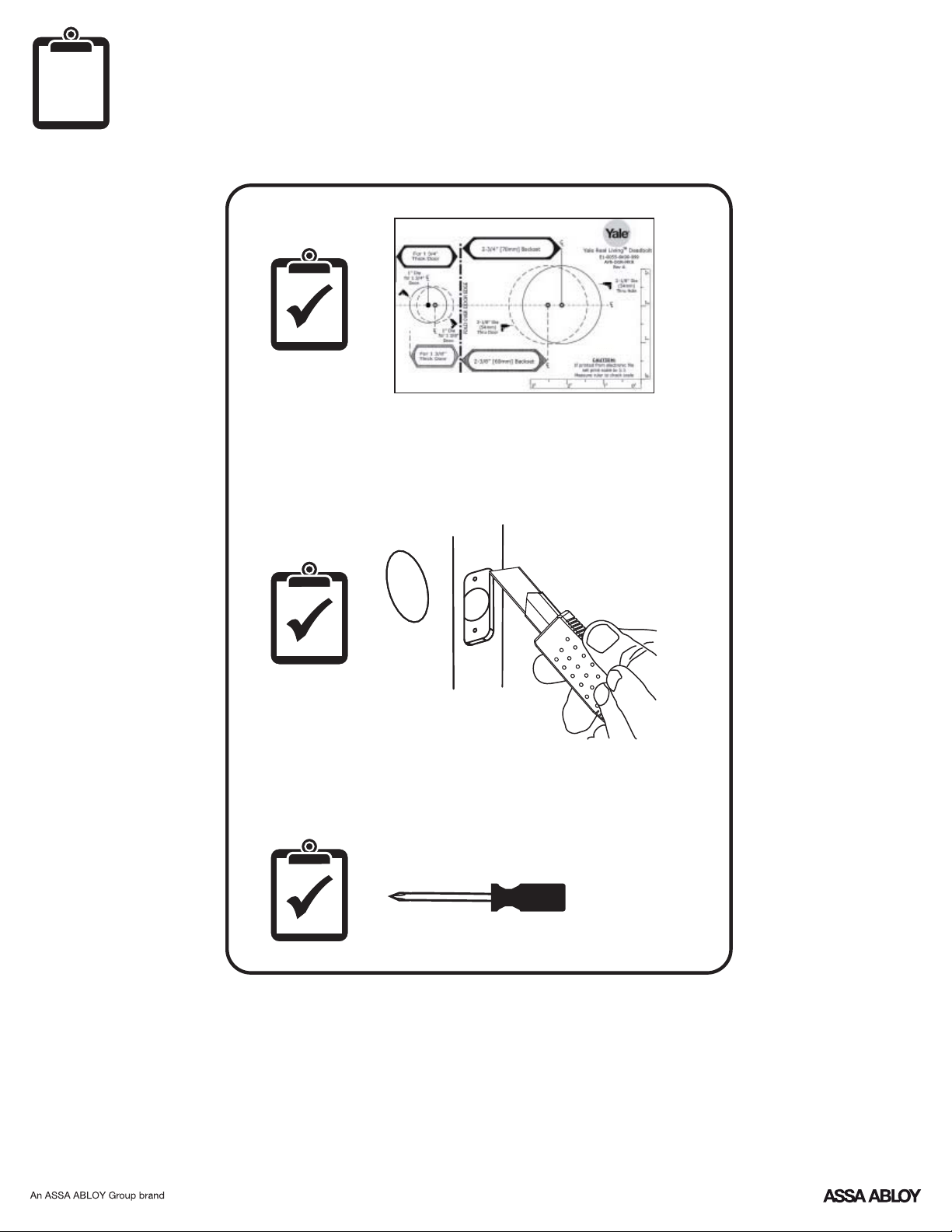
Before you begin
for step-by-step installation
instructions & to register
your product
DOWNLOAD
THE BILT APP
P/N - - Rev FYRL TSINSTL FUL
2
Preparing Door
P/N - - Rev FYRL TSINSTL FUL
3
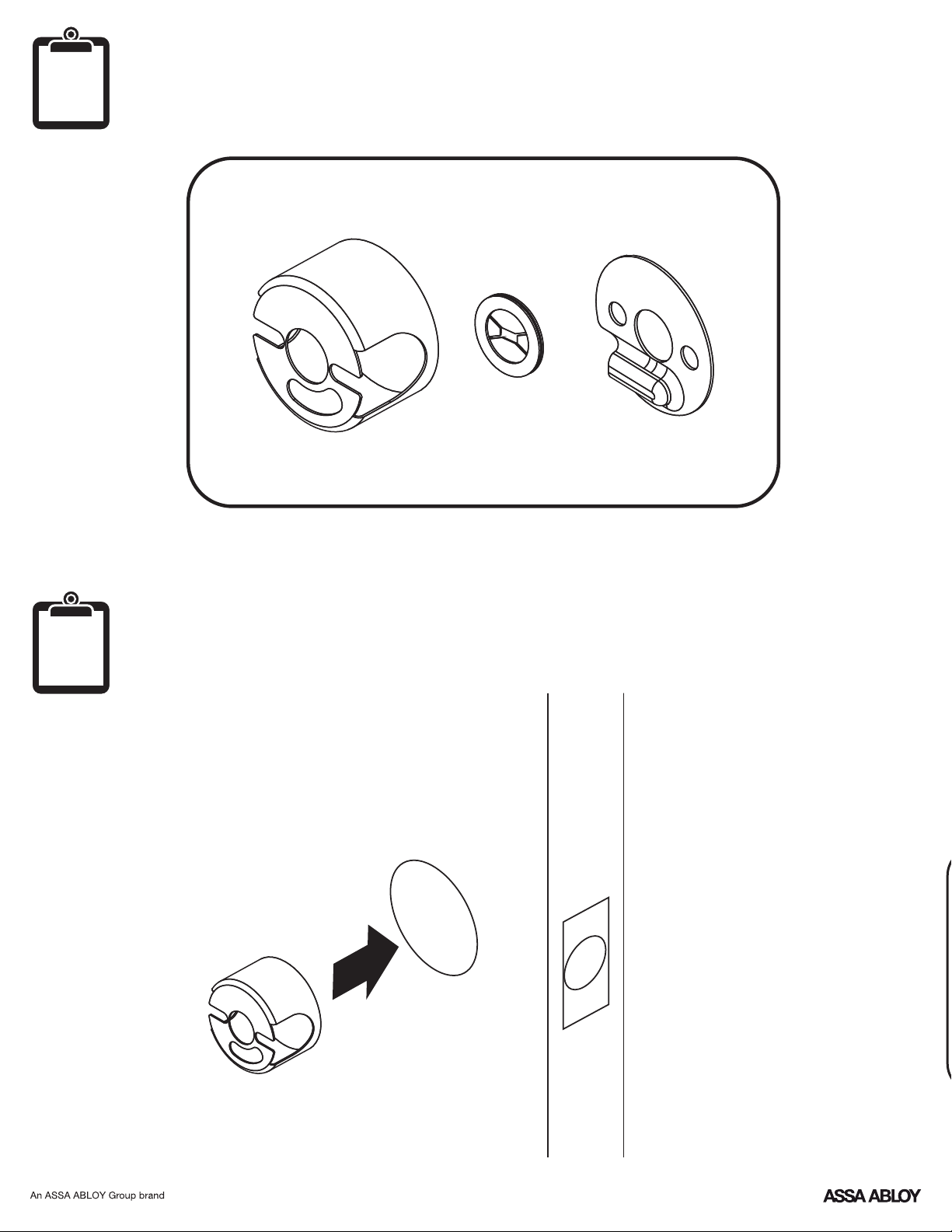
Optional Fire Kit Parts
For Model 620YRD ONLY
Installing Optional Fire Cup
Inside of Door
O
optional
O
optional
P/N - - Rev FYRL TSINSTL FUL
4
O
x4
1
d faute
2-3/8" position
2-3/4" position
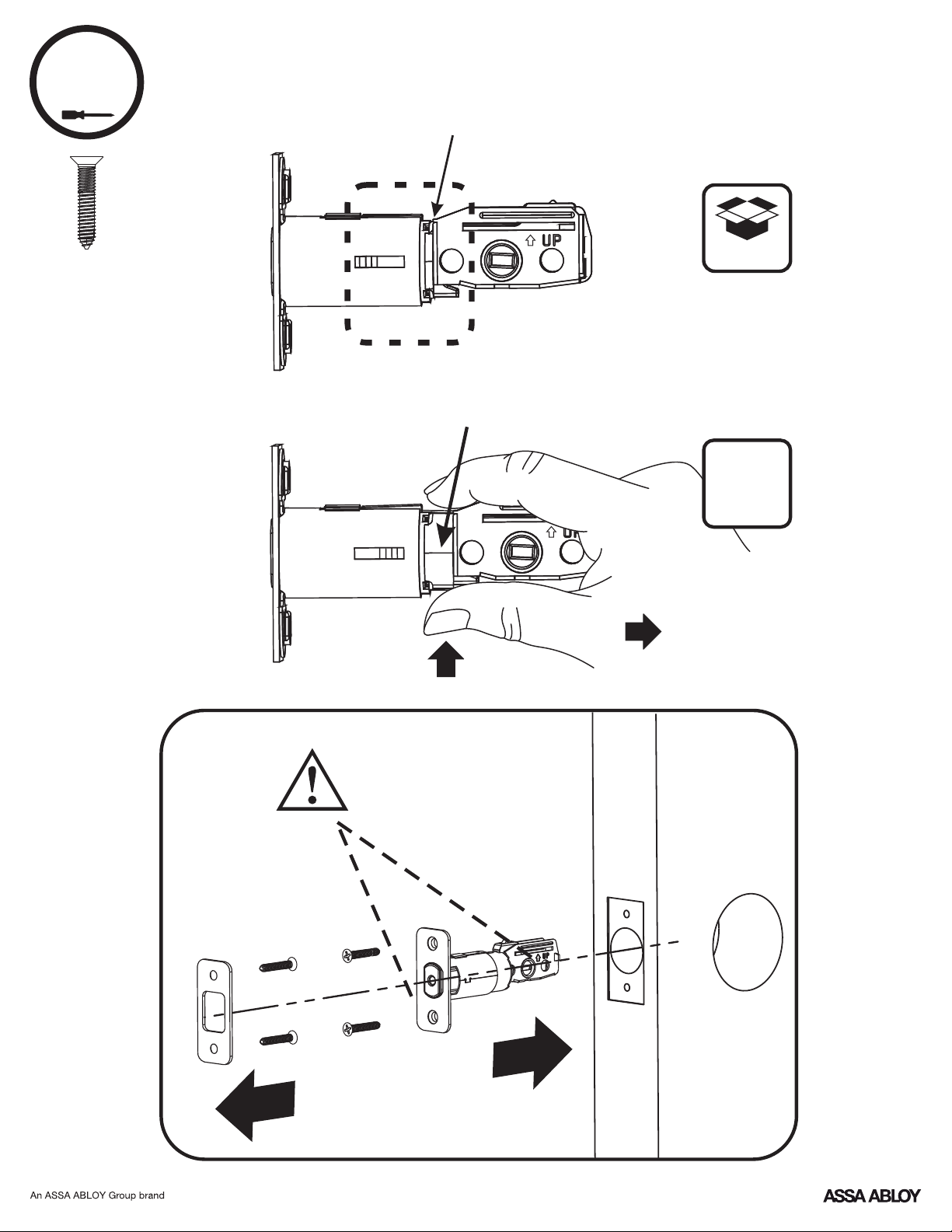
Installing Latch & Strike Plate
Press
Pull
optional
Bolt must be in retracted
(unlocked) position. Note
horizontal orientation of
mechanism.
P/N - - Rev FYRL TSINSTL FUL
5
2
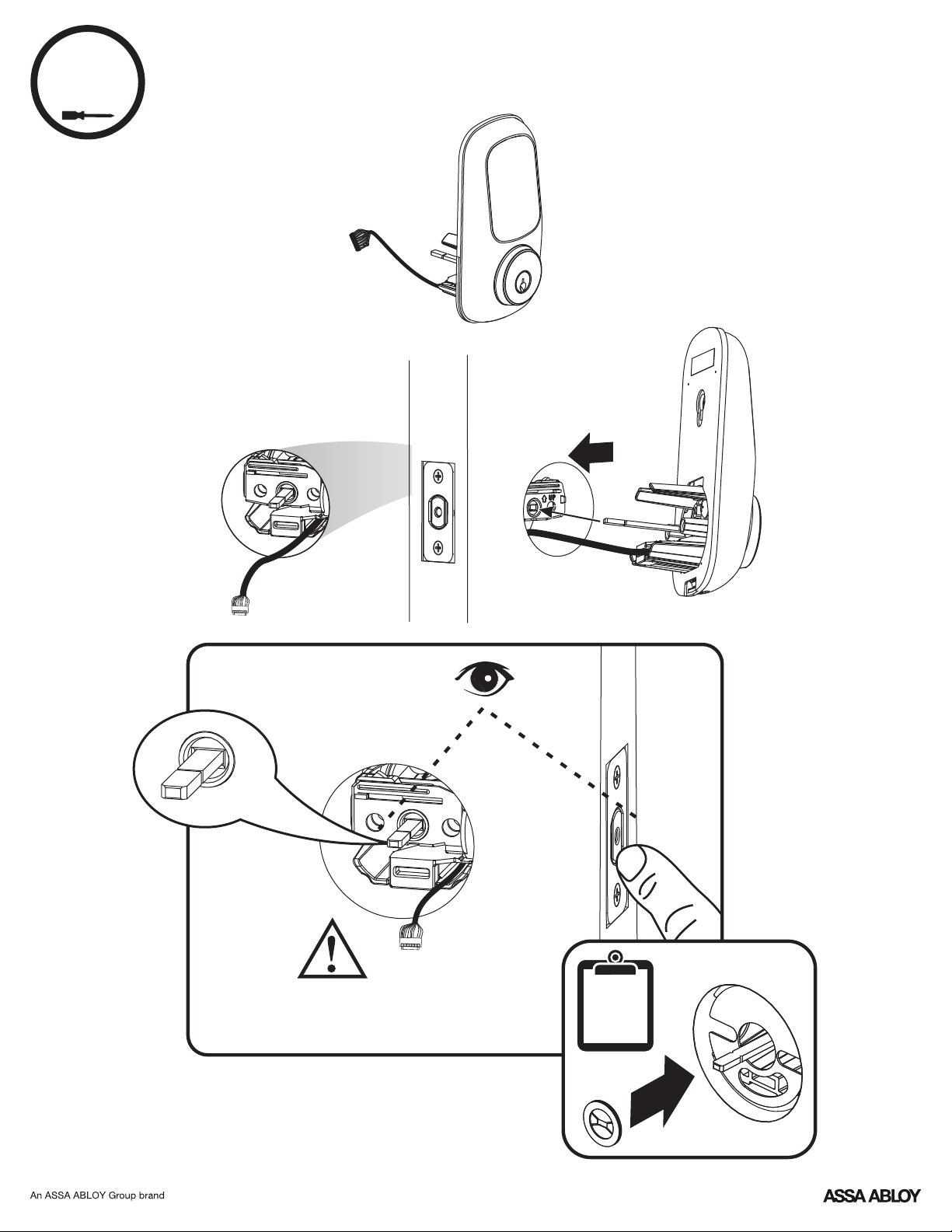
Installing Touchscreen Escutcheon
Outside of DoorInside of Door
Bolt must be in retracted (unlocked)
position. Note horizontal orientation
of mechanism.
O
optional
P/N - - Rev FYRL TSINSTL FUL
6
x2
3
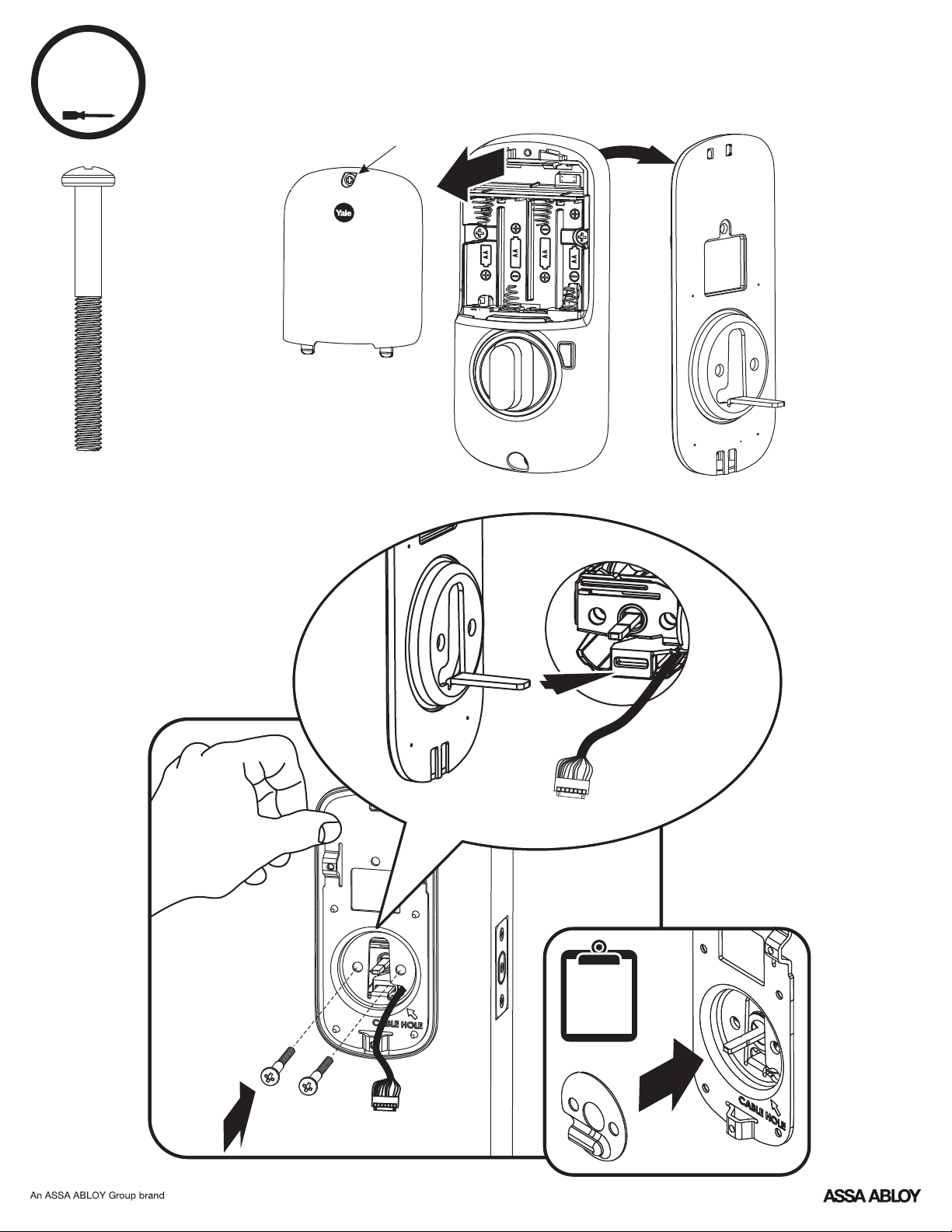
Installing Interior Mounting Plate
Loosen screw to
remove cover.
O
optional
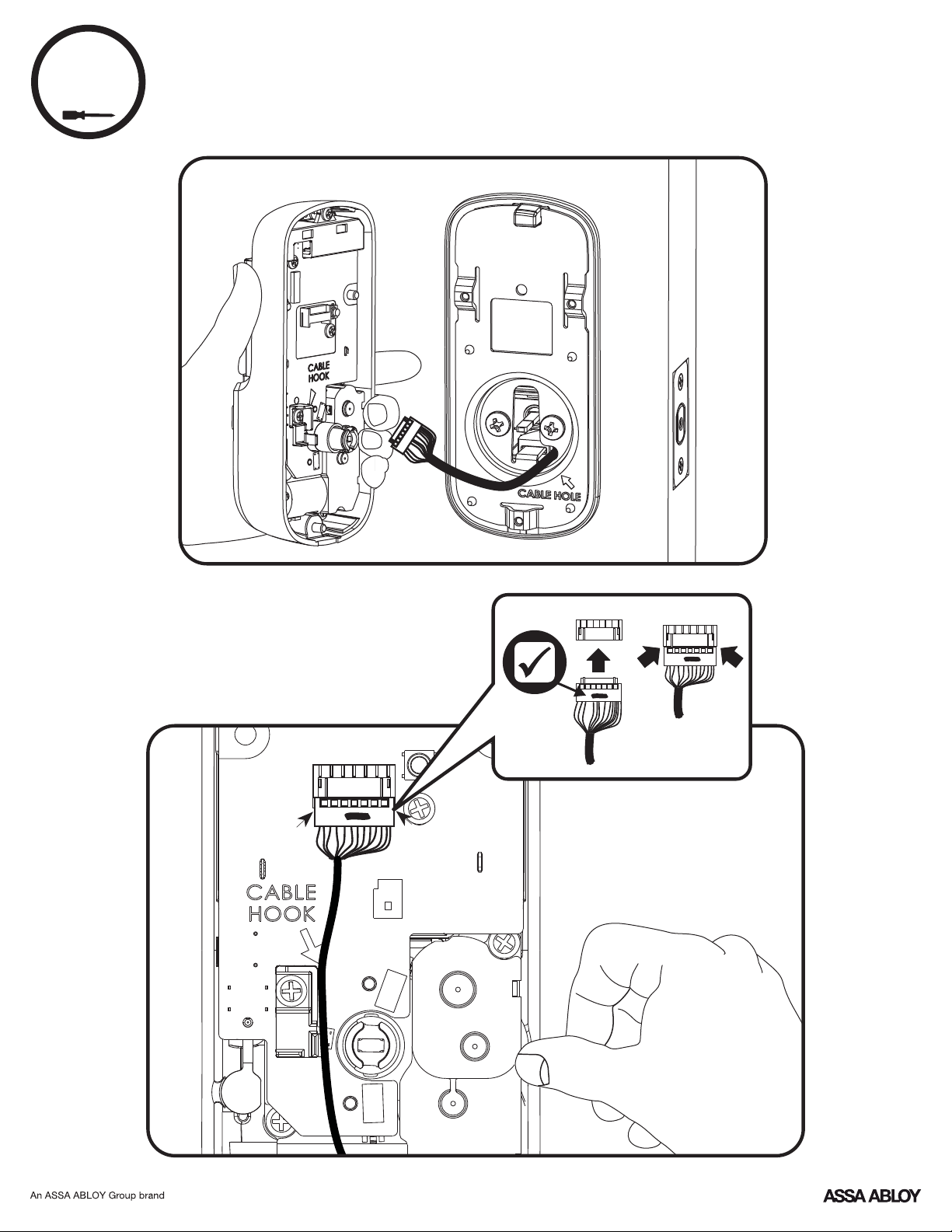
4
Attaching the Cable Assembly
P/N - - Rev FYRL TSINSTL FUL
7
P/N - - Rev FYRL TSINSTL FUL
8
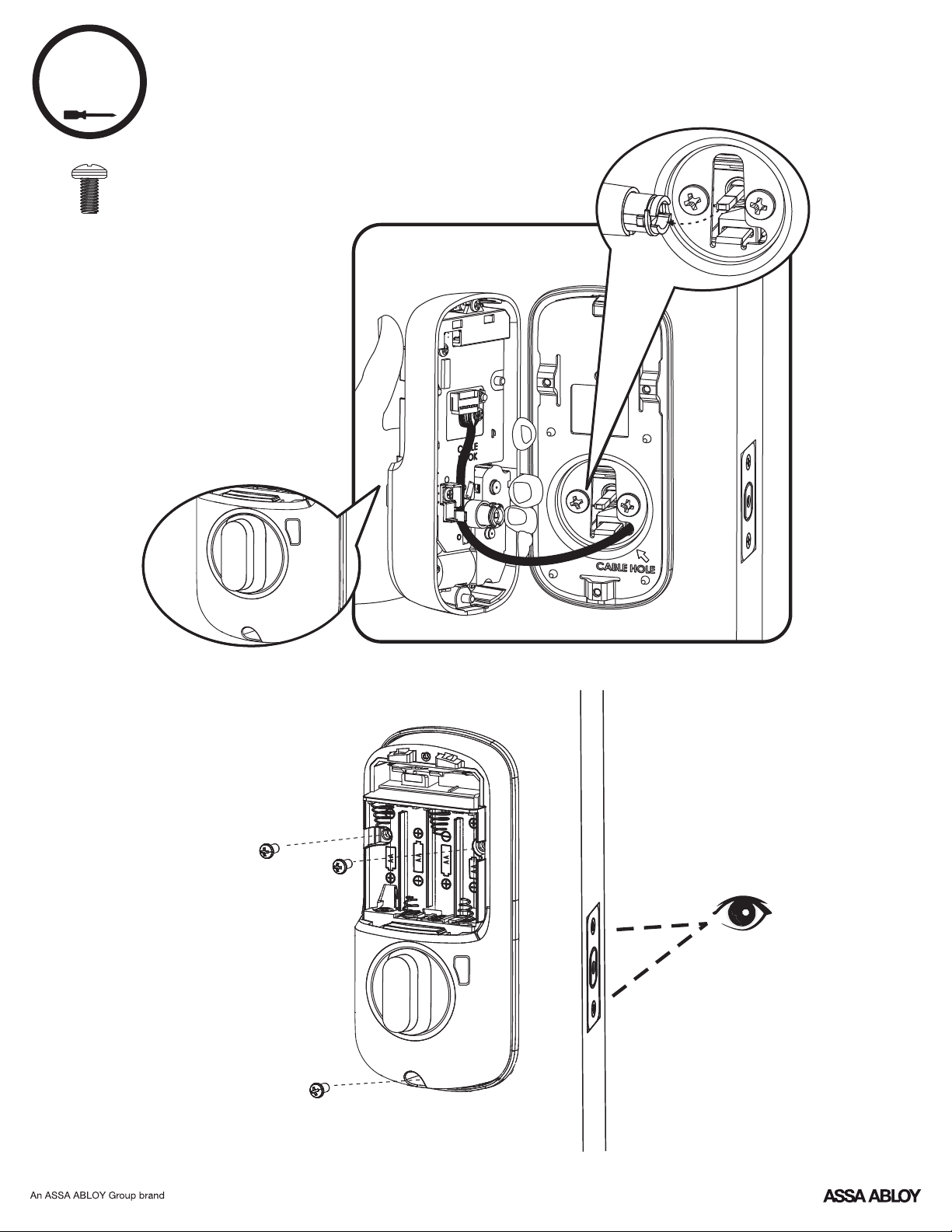
x3
5
Installing Interior Escutcheon
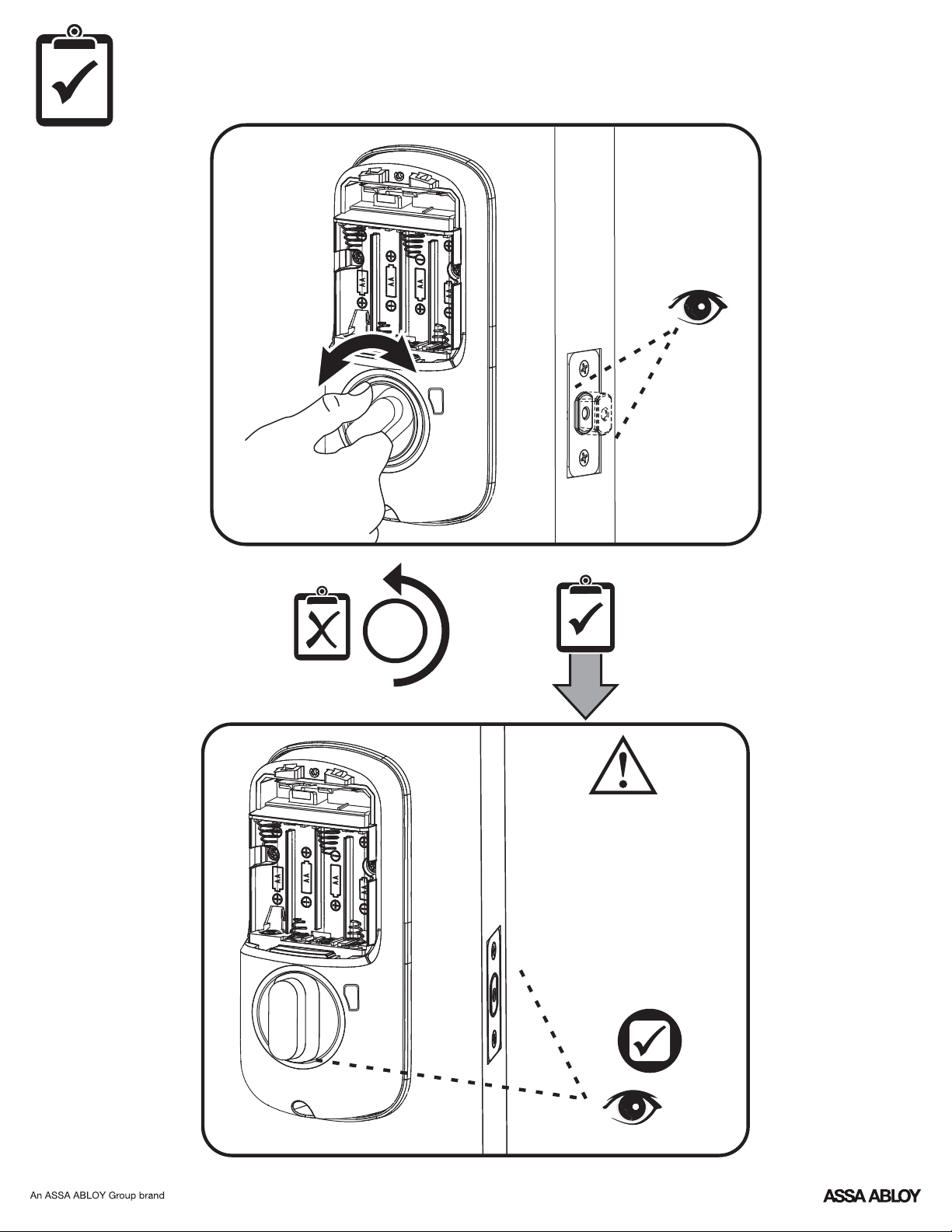
3
Testing Operation
Bolt must be in retracted
(unlocked) position before
installing batteries.
P/N - - Rev FYRL TSINSTL FUL
9
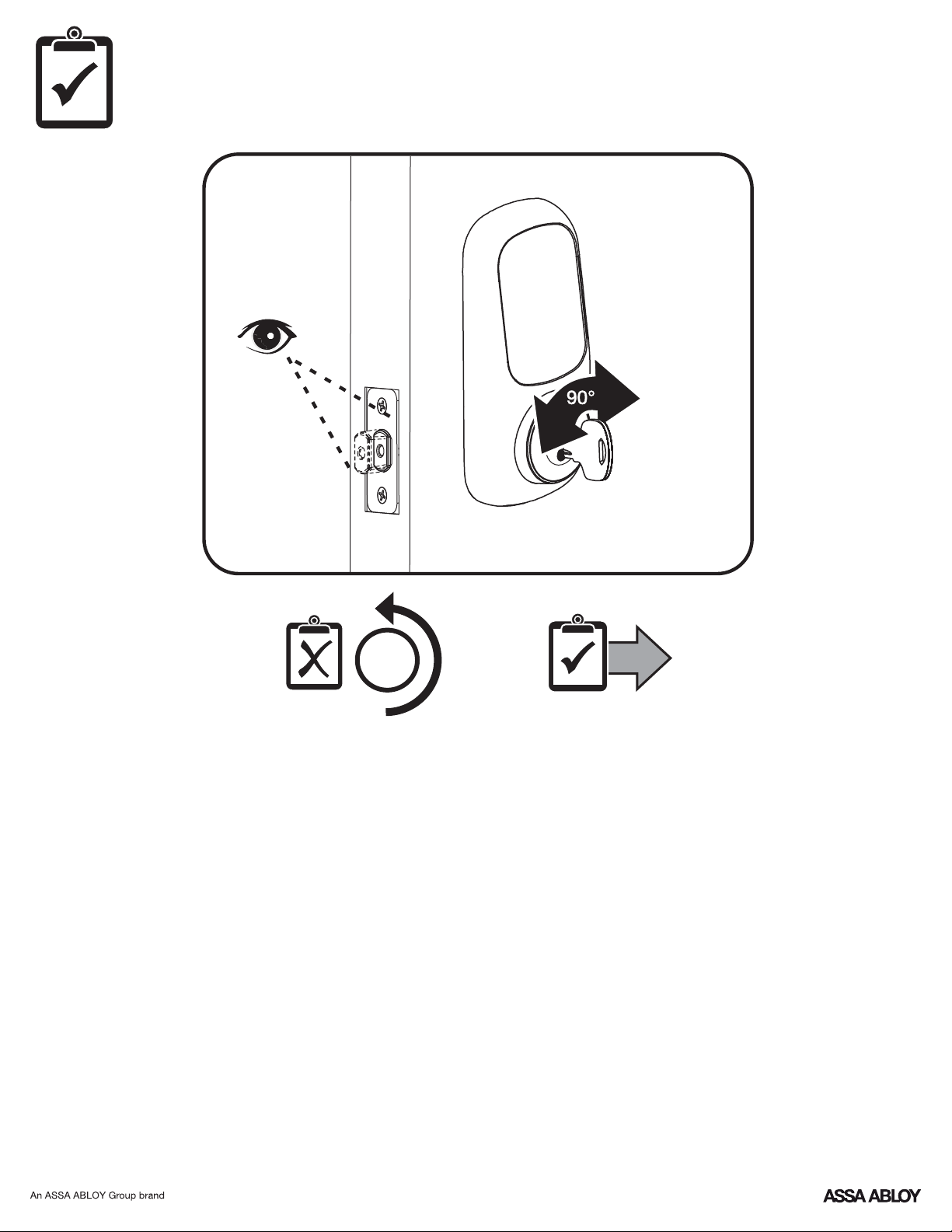
P/N - - Rev FYRL TSINSTL FUL
10
2
Testing Operation
P/N - - Rev FYRL TSINSTL FUL
11
6
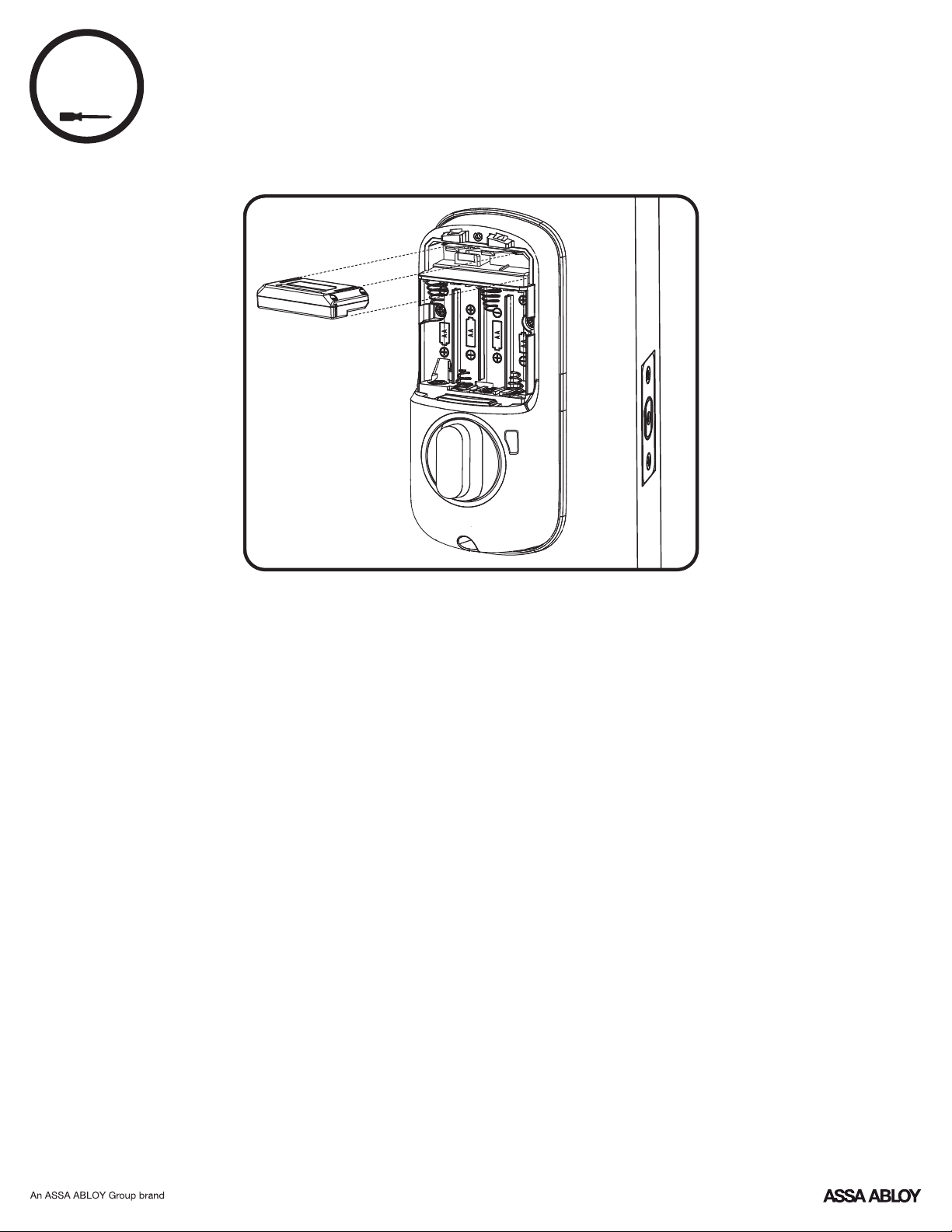
Installing Optional Network Module
P/N - - Rev FYRL TSINSTL FUL
12
7
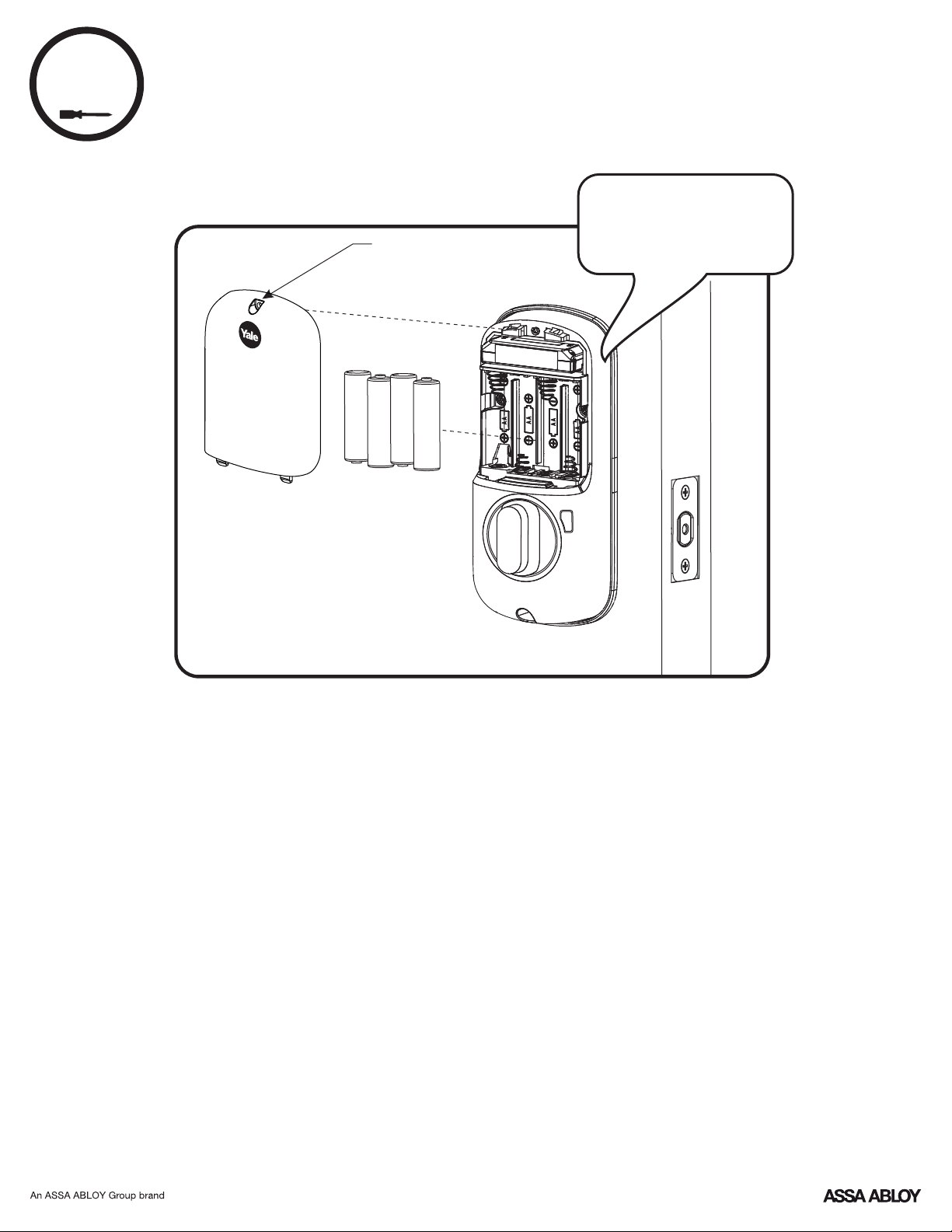
Installing Batteries & Cover
Congratulations, you've installed the Yale Assure Lock
®®
Touchscreen Deadbolt ( 226/YRD426)!YRD
Continue with Programming Instructions to customize your product.
Tighten screw
to replace cover.
"Welcome to
Yale Real Living."
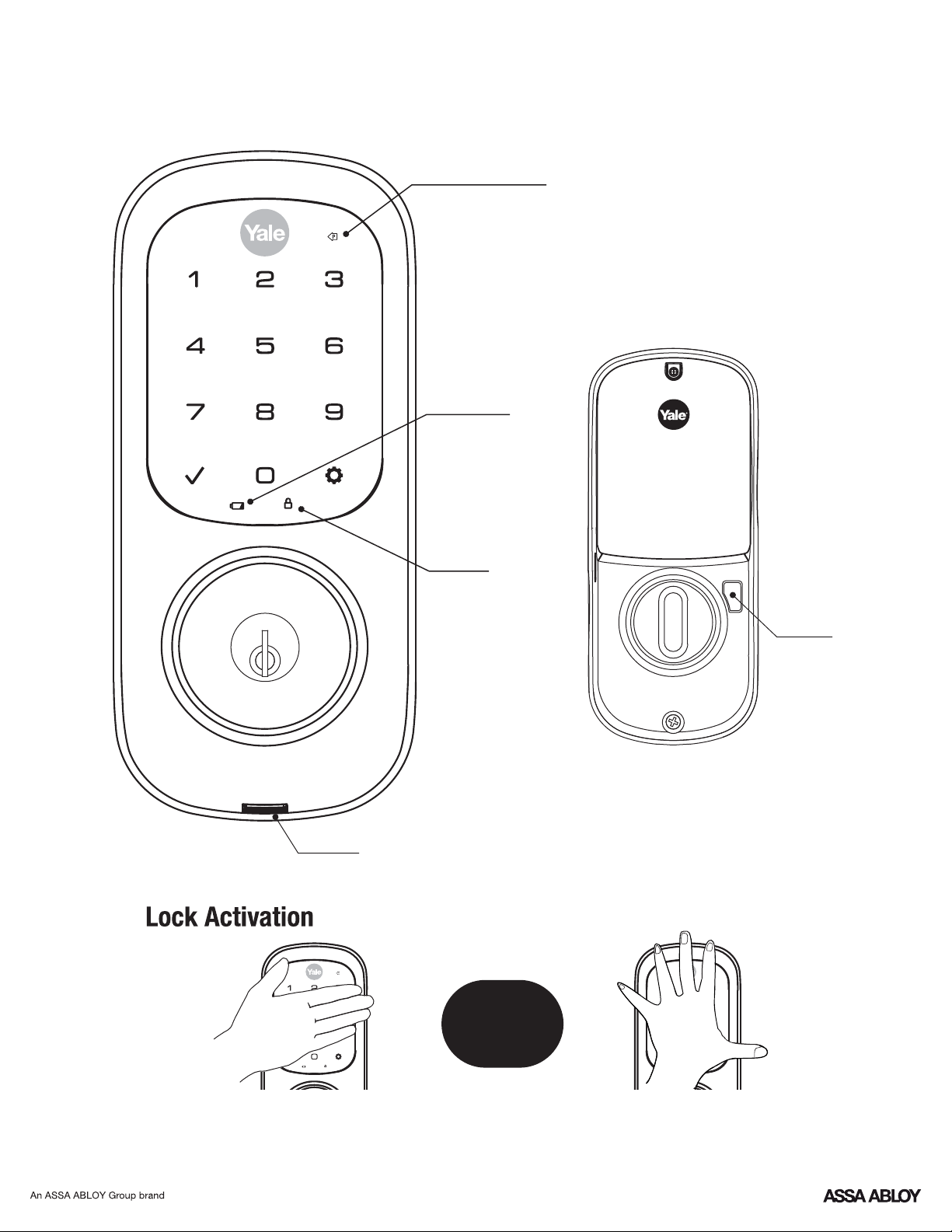
Programming Instructions
OR
Master Code must be created before any further programming.PIN
Max User Codes = 250 with Network Module. Max User Codes = 25 without.
Interior Escutcheon
Privacy
Mode
Button
Speaker
"P" Key
(Return to Previous)
Low Battery
Indicator
Lockout
Mode
Exterior Escutcheon
P/N - - Rev FYRL TSINSTL FUL
13
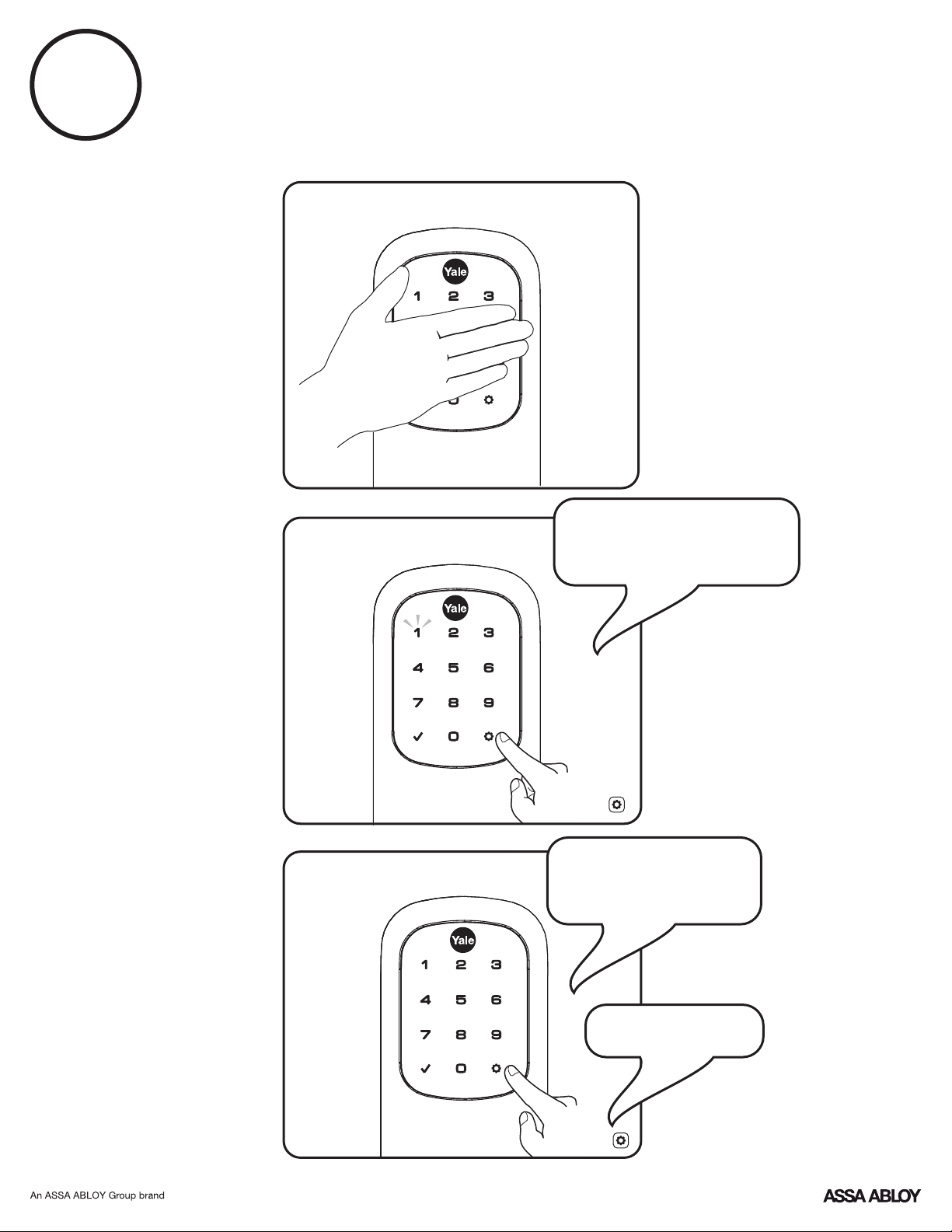
1
Creating a Master Code must be performed upon installation or after resettingPIN
the lock to factory default. Programming and use of lock is not possible until this
step has been successfully completed.
"Register Master
Code. Press the gear
key to continue."
"Enter a 4 to 8 digit
code followed byPIN
the gear key."
"Registered."
Enter 4-8
digit Master
Code.PIN
Press
Press
Creating Master CodePIN
P/N - - Rev FYRL TSINSTL FUL
14
2
Creating User CodesPIN
Master code must be created first.PIN
*Max user codes = 250 with Network Module. Max user codes = 25 without.
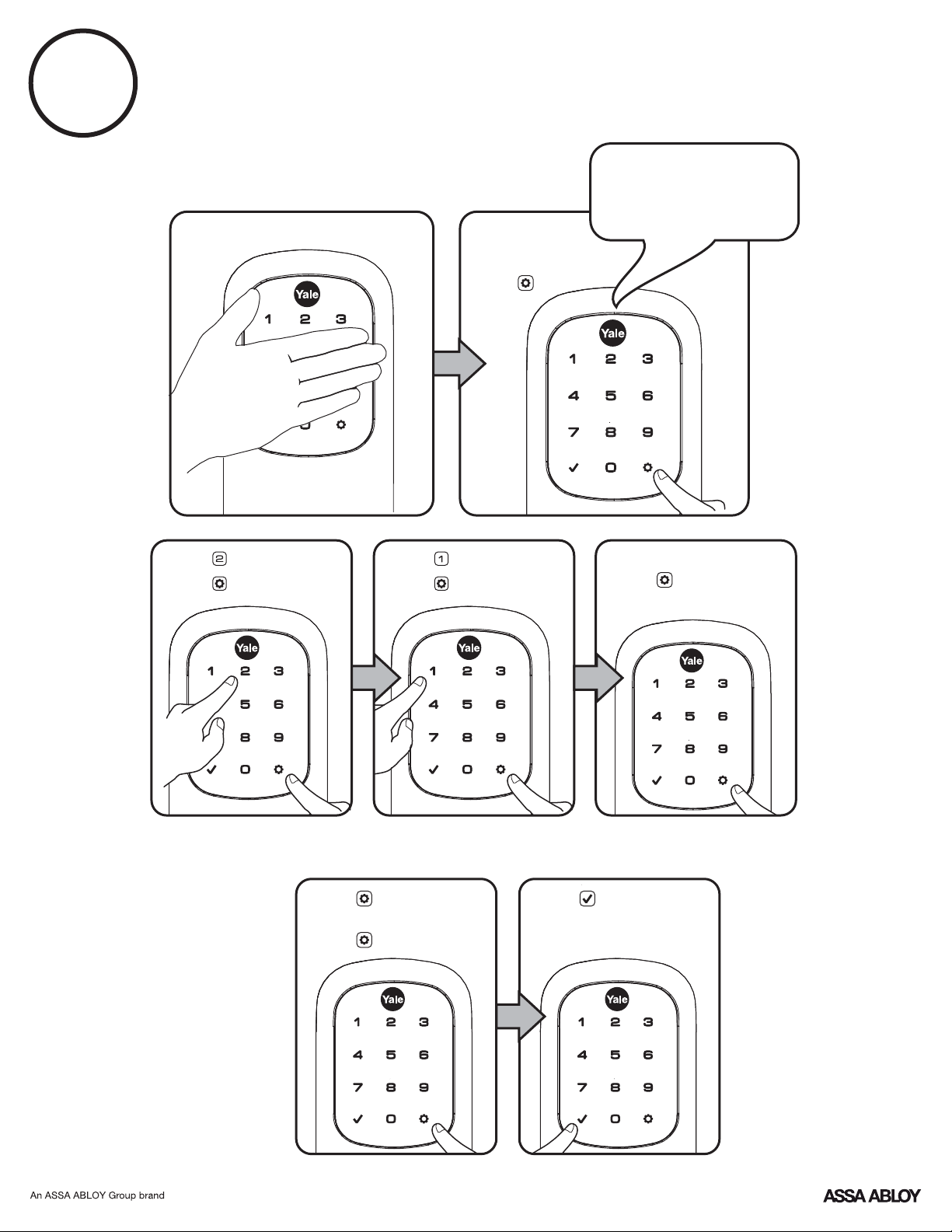
"Menu Mode,
enter number,
press the gear key
to continue."
Enter Master
codePIN
Press
Press
Press
Press
Press
Press
Enter 4-8 digit codePIN
Press
Enter 4-8 digit codePIN
Press
(code flashes)
Adding more User Codes:
To end programming:
Press
P/N - - Rev FYRL TSINSTL FUL
15
P/N - - Rev FYRL TSINSTL FUL
16
3
PIN Code Management (With Network Module - Up to 250 Users)
Master
User ___
User ___
User ___
User ___
User ___
User ___
User ___
User ___
User ___
User ___
User ___
User ___
User ___
User ___
User ___
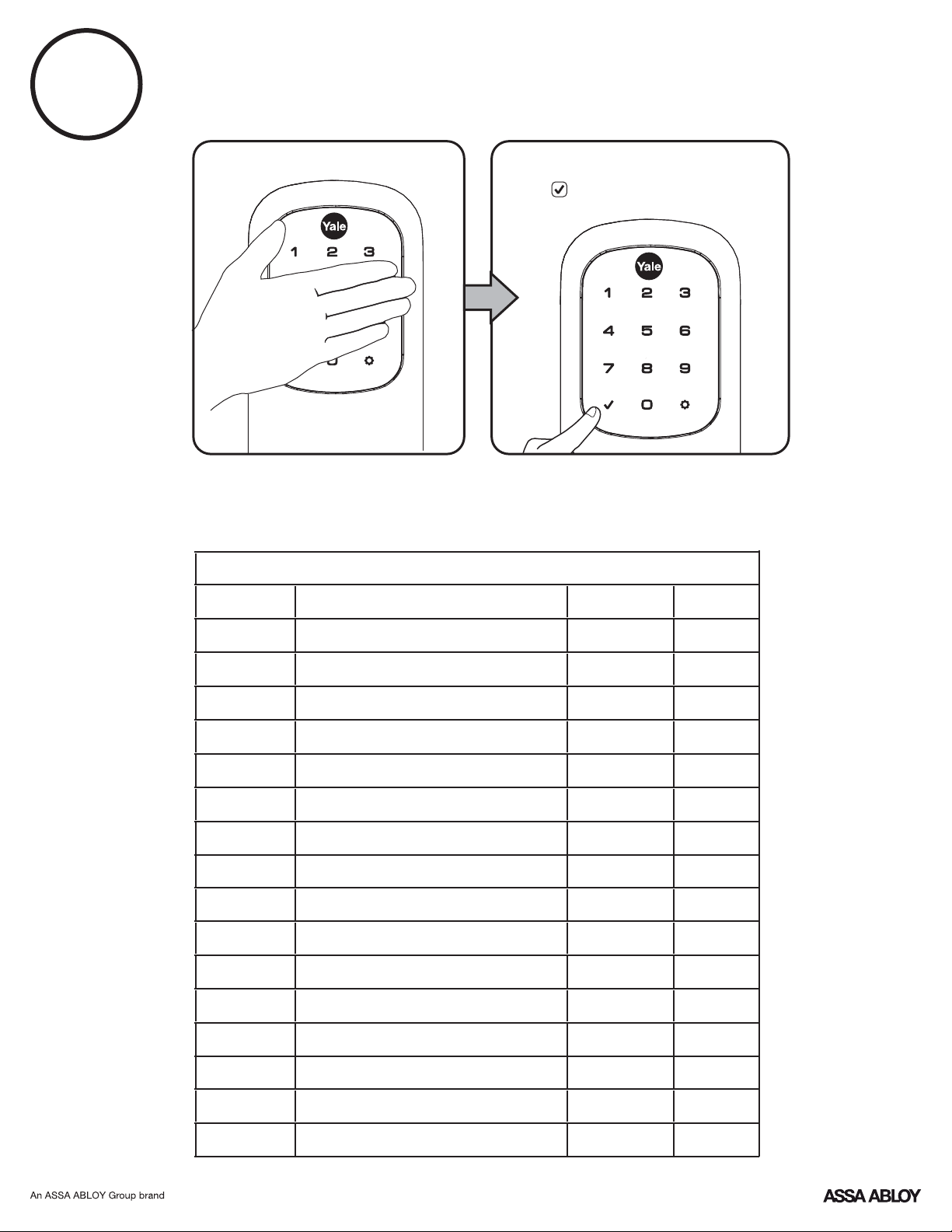
Enter CodePIN
Press
Code Chart
Duplicate if necessary
User Name
User Type
PIN Code
Unlocking Door with CodePIN
User #
P/N - - Rev FYRL TSINSTL FUL
17
Interior Escutcheon
Resetting Lock to Factory Default
Reset
Button
When lock is reset to factory defaults all user codes (including the
Master code*) are deleted and all programming features are resetPIN
to original default settings (see below).
1. Remove the battery cover and batteries.
2. Remove the interior escutcheon to access the reset button.
3. The reset button (see image at right) is located beside the PCB
cable connector.
4. While pressing the reset button (minimum of 3 seconds) reinstall
batteries. Release reset button.
5. Replace battery cover.
Upon reset, Master Code creation is the only option available andPIN
must be performed prior to any other programming of the lock.
P/N - - Rev FYRL TSINSTL FUL
18
Factory Settings
*The Master code must be registered prior to any other programming of the lock.PIN
Registration
required*
Settings
Factory Setting
Master CodePIN
Automatic Re-lock
Disabled
Lockout Mode
Disabled
Language Setting
English
Wrong Code Entry Limit
5 Times
Shutdown Time 60 Seconds
Volume Setting
Enabled (Low)
Privacy Setting
Disabled
One Touch Locking
Enabled
Inside Indicator Light
Disabled (Off)
Automatic Re-lock Time
30 Seconds
Escape Return Mode (Model 620 only)YRD
Disabled

P/N - - Rev FYRL TSINSTL FUL
19
Definitions
All Code Lockout Mode: This feature is enabled by the Master code. When enabled, it restricts all user (except
Master) code access. When attempting to enter a code while the unit is in Lockout, the locked padlockPIN RED
will appear on the screen.
Automatic Re-lock Time: After a successful code entry and the unit unlocks, it will automatically re-lock after
thirty (30) seconds.
Inside Indicator Light: Located on the interior escutcheon. Shows active status (Locked) of lock and can be
enabled or disabled in the (Main Menu selection #3).Advanced Lock Settings
Language Setting Mode: Choosing English (1), Spanish (2) or French (3) becomes the (default) setting for the
lock's voice prompts.
Low Battery: When battery power is low, the Low Battery Warning indicator flashes . If battery power isRED
completely lost, use the cylinder key override.
Master Code: It must be createdPIN The Master code is used for programming and for feature settings.PIN
prior to programming the lock. The Master code will also operate (unlock/lock) the lock.
Network Module Setting: With the optional Network Module installed, this setting becomes available thru the
Main Menu (7) and allows the lock to connect with a network controller.
One Touch Locking: When the latch is retracted, activating the keypad will extend the latch (during Automatic Re-
lock duration or when Automatic Re-lock is disabled). When One-Touch Re-lock is in use anynot (disabled),
valid code will re-lock the lock.PIN
Previous: While in Menu Mode, pressing this icon cancels the current operation and returns the user to the
previous step.
Privacy Mode: Privacy mode is disabled by default. Enable Privacy Mode by pressing the privacy button for 4
seconds to put the lock in do-not-disturb mode (all pin codes are disabled).
Shutdown Time: The unit will shutdown (flashing ) for sixty (60) seconds and not allow operation after theRED
wrong code entry limit (5 attempts) has been met.
Tamper Alert: Audible alarm sounds if attempting to forcibly remove outside lock from door.
User Code:PIN The User code operates the lock. Maximum number of user codes is 250 with Network Module;
without Network Module, maximum is 25 user codes. Note: When deleting User code(s), screen will displayPIN
User Number (not code) being deleted.PIN
Volume Setting Mode: Low (2)The volume setting for code verification is set to by default; otherwise it canPIN
be set to or for quiet areas.High (1) Silent (3)
Wrong Code Entry Limit: After five (5) unsuccessful attempts at entering a valid code, the unit will shutPIN
down and not allow operation.
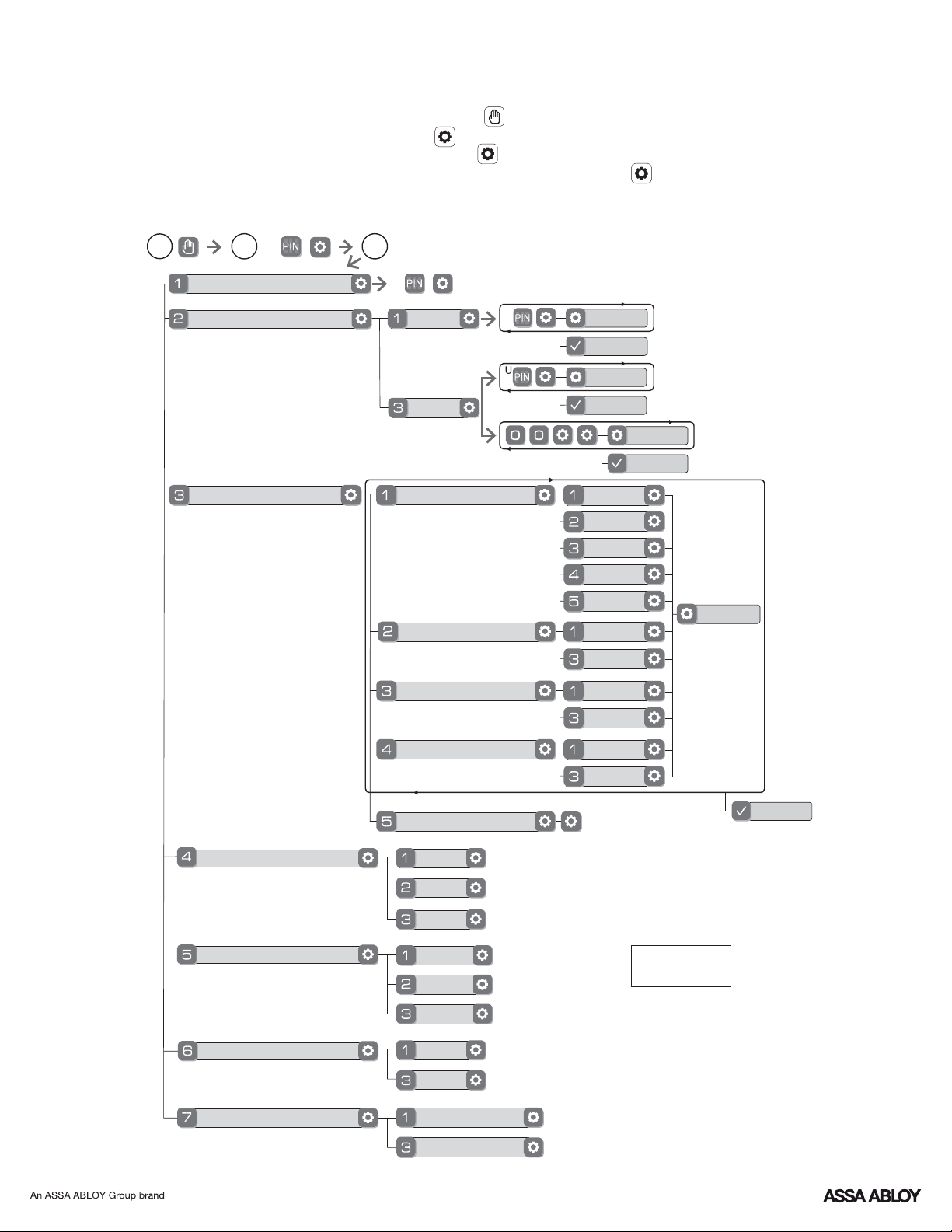
P/N - - Rev FYRL TSINSTL FUL
20
*The Master code must be registered prior to any other programming of the lock.PIN
1. Touch screen with back of hand or palm to activate.
2. Enter 4-8 digit master code* followed by key.PIN
Lock Response: "Menu mode, enter number, press key to continue."
3. Enter digit corresponding to the function to be performed followed by the key.
Follow the voice commands.
M
U
**This function appears only with
network module installed.
Default settings
in bold.
Master Code SettingPIN
User Code RegistrationPIN
Continue
Complete
Register
Delete
Continue
Complete
M
2
31
Join the Network
Enable
Disable
English
Spanish
French
Silent
Low
High
Complete
Exit the Network
Volume Setting
Language Setting Mode
Lockout Mode
**Network Module Setting
Privacy Setting Mode
Enable
Disable
Handing the Lock
Preforms automatic
handing of the lock
Advanced Lock Settings
Automatic Re-lock
Disable
30 sec
Inside Indicator Light
One Touch Locking
Enable
Disable
Enable
Disable
Continue
60 sec
3 min
2 min
Continue
Complete
Model 226 Feature Programming ThroughYRD
Menu Mode Using Master code*PIN
P/N - - Rev FYRL TSINSTL FUL
21
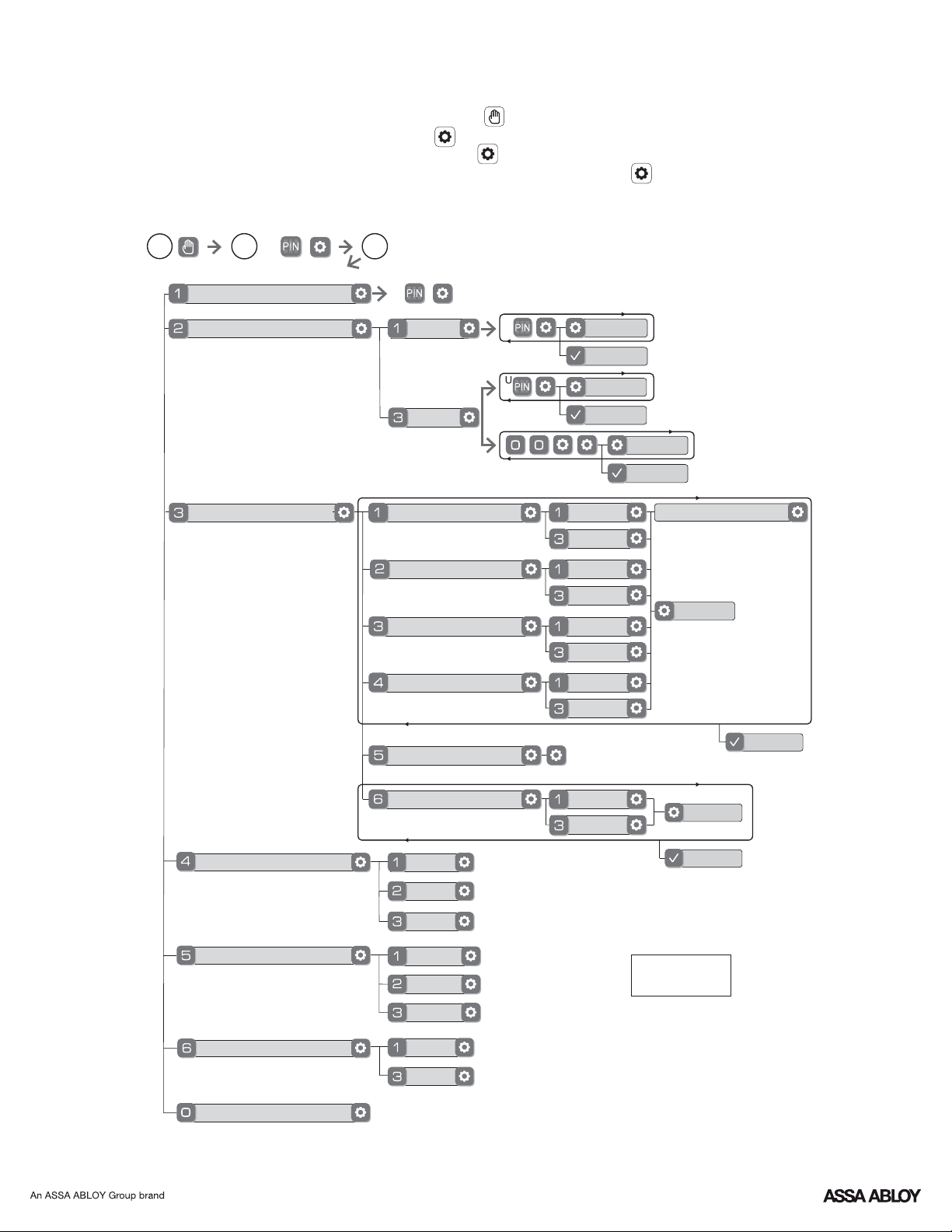
Model 620 Feature Programming ThroughYRD
Menu Mode Using Master code*PIN
*The Master code must be registered prior to any other programming of the lock.PIN
1. Touch screen with back of hand or palm to activate.
2. Enter 4-8 digit master code* followed by key.PIN
Lock Response: "Menu mode, enter number, press key to continue."
3. Enter digit corresponding to the function to be performed followed by the key.
Follow the voice commands.
M
U
Master Code SettingPIN
User Code RegistrationPIN
Continue
Complete
Register
Delete
Continue
Complete
M
2
31
Continue
Complete
Default settings
in bold.
*If Escape Return Mode is enabled,
Automatic Re-lock cannot be enabled.
Language Setting Mode
Set Up CardSEOS
Advanced Lock Settings
Enable
Disable
English
Spanish
French
Silent
Low
High
Complete
Volume Setting
Lockout Mode
Privacy Setting Mode
Enable
Disable
Handing the Lock
Preforms automatic
handing of the lock
*Automatic Re-lock
Inside Indicator Light
One Touch Locking
Enable
Disable
Enable
Disable
Continue
Enable
Disable
*Escape Return Mode
Enable
Disable
Enter Time 1-180 Sec
Continue
Complete
P/N - - Rev FYRL TSINSTL FUL
22
PIN codes must consist of 4 to 8 digits to register.
Disable Auto Re-lock Mode to lock the door (automatically).
The digits entered were incorrect or incomplete. Re-enter
the correct code followed by the check key.
This is the alert to replace the batteries. Replace all four
(4) batteries* with new Alkaline batteries.AA
Check to see if Silent Mode is enabled (see Feature #4).
Setting/managing Lockout Mode is done through
Master Code only. Contact the Master user.
Check to see if the lock is set to Lockout Mode.
Contact the Master user.
Only the Master can enable/disable Lockout Mode.
Lockout Mode is enabled.
Check or gear cannot be used as part of the code.PIN
Contact the Master user.
Check that the wire harness is firmly connected to the .PCB
Check the door gaps for any foreign objects between door
and frame.
Batteries may be completely discharged.
Check batteries are installed and oriented correctly (polarity)
in the battery case.
User codes must be entered within 5 seconds (while
touchscreen is active) or process will have to be restarted.
Registration/management of codes is set by thePIN
authority of the Master Code, which is set first.
The same code cannot be used for multiple users.PIN
If low battery indicator is lit (see below), change batteries*.
Check to see if Auto Re-lock Mode is enabled.
Batteries do not have enough power. Replace batteries*.
Use mechanical key to gain entry and replace batteries*.
Check to see if touchscreen harness is fully connected
and not pinched.
Check batteries are in good condition; replace batteries*
if discharged.
If touchscreen numbers are visible, check to see if they
respond when pressed.
Touchscreen becomes active when pressed w/whole hand.
Use a larger area of the hand or fingers and verify contact
with at least 3 areas.
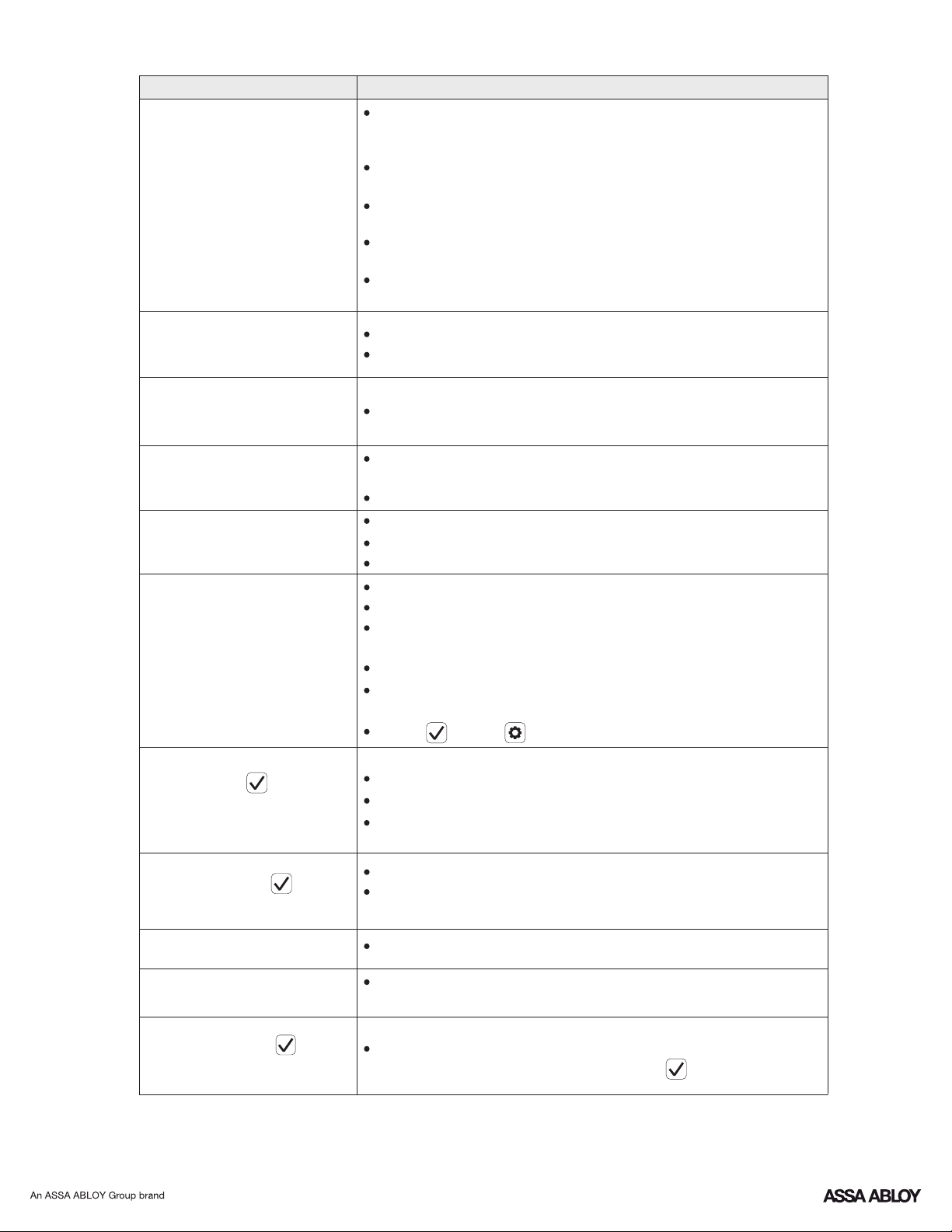
Symptom
Suggested Action
Lock does not respond –
door is open and
accessible.
Unit chimes to indicate
code acceptance, but the
door will not open.
Unit operates to allow
access, but will not
automatically re-lock.
PIN codes will not register.
Upon entering a codePIN
and pressing key, the
unit displays " invalid code"
error or lock times out with-
out responding.
Upon entering a codePIN
and pressing the key,
the red padlock icon appears
and there are different tones.
The unit operates, but it
makes no sound.
The unit responds
" Low Battery"
Upon entering a codePIN
and pressing the key,
the unit responds " Wrong
number of digits" .
Lock does not respond –
door is locked and
inaccessible.
Unit is on for a while then
shows no reaction. Lights
dim.
* When batteries are replaced, Network Module locks have a real time clock that will be set through the User Interface ( );UI
it is recommended to verify correct date and time particularly those locks operating under Daylight Saving Time ( ).DST
** Network Module locks only
Programming Troubleshooting
P/N - - Rev FYRL TSINSTL FUL
23
L
w
T
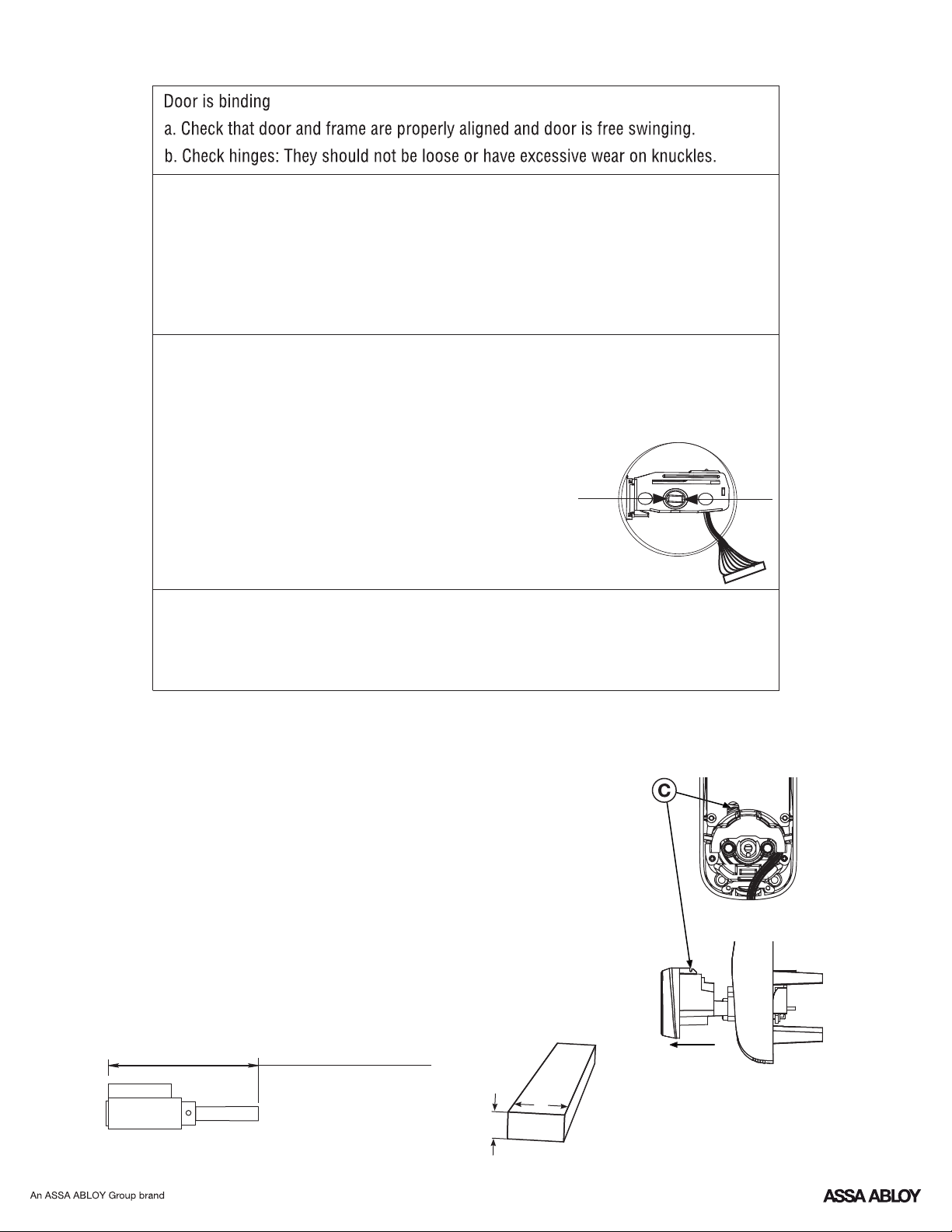
Changing Lock: Replacing Cylinder
Hardware Troubleshooting
Cycle lock in both the locked and unlocked positions. If problems are found:
1-3/8" * - 2" thick doors:
= 3-1/2" (88.8mm)L
2" - 2-1/4" thick doors:
= 3-3/4" (95.3mm)L
W = .2" (5.2mm)
Tailpiece
T = .098" (2.5mm)
1.To Remove cylinder:
A. Remove outside escutcheon from door.
B. Remove rubber gasket.
C. Insert small flathead screwdriver under spring. Gently lift spring.
Note: Notch on top of cylinder engages spring.
D. Remove cylinder by pulling outward towards outside of door.
Before installing cylinder, be sure tailpiece is correct length (see
below).
2.To install new cylinder:
A. Reverse previous steps for removing cylinder.
*Requires addition of Thin Door Kit.
Bolt will not deadlock
a. Check for sufficient clearance of the bolt within the strike-side jamb. Correct this by
increasing the depth of the pocket for the bolt.
b. Check for misalignment of bolt and/or strike which may be preventing bolt from
properly entering the strike. With the door open, extend and retract the bolt; if it is
smooth, check the strike alignment.
Bolt does not extend or retract smoothly
a. Bolt and strike are misaligned, see above.
b. Check the backset of door relative to adjustments already made to bolt.
c. Verify proper door preparation and re-bore holes that are too small or misaligned.
d. Verify keypad wire harness is routed under the bolt (see Fig. A).
e. Verify bolt is installed with correct side up (Fig. A).
Keypad numerics are scrolling
Remove interior escutcheon and check to ensure that the wire harness lies flat against
the back recessed area and is properly routed along the side of the escutcheon and
tucked under the plastic cable guide.
Figure A

P/N - - Rev FYRL TSINSTL FUL
24
FCC:
Class B Equipment
This equipment has been tested and found to comply with the limits for a Class B digital device, pursuant to Part 15 of the FCC
Rules. These limits are designed to provide reasonable protection against harmful interference in a residential installation. This
equipment generates, uses, and can radiate radio frequency energy and, if not installed and used in accordance with the
instructions, may cause harmful interference to radio communications. However, there is no guarantee that interference will not
occur in a particular installation. If this equipment does cause harmful Interference to radio or television reception, which can be
determined by turning the equipment off and on, the user is encouraged to try to correct the interference by one or more of the
following measures:
• Reorient or relocate the receiving antenna.
• Increase the separation between the equipment and receiver.
• Connect the equipment into an outlet on a circuit different from that to which the receiver is connected.
• Consult the dealer or an experienced radio/ technician for help.TV
Industry Canada:
This Class A digital apparatus meets all requirements of the Canadian Interference Causing Equipment Regulations.
Cet appareillage numérique de la classe A répond à toutes les exigences de l'interférence canadienne causant des règlements
d'équipement.
Warning: Yale Security Inc.Changes or modifications to this device, not expressly approved by could void the user's authority
to operate the equipment.
Yale® , Yale Real Living® and Assure Lock® are registered trademarks of
Yale Security Inc., an Group company.ASSA ABLOY
Copyright © 2017, Yale Security Inc., an Group company.ASSA ABLOY
All rights reserved. Reproduction in whole or in part without the express written permission
of Yale Security Inc. is prohibited.
ASSA ABLOY is the global leader in door opening solutions,
dedicated to satisfying end-user needs for security, safety and convenience.
Product Support Tel 1-855-213-5841 • www.yalehome.com
Yale Locks & Hardware is a division of Yale Security Inc., an ASSA ABLOY Group company.
YALE, with its unique global reach and range of products, is the world's favorite lock
– the preferred solution for securing your home, family and personal belongings.
Yale Z Plus Module
®®
-Wave
Installation and Programming Instructions
Installing the Z Plus Module-Wave
®
This device is a security enabled Z-Wave Plus product that is able to use encrypted Z-Wave
Plus messages to communicate to other security enabled Z-Wave Plus products. This device
must be used in conjunction with a Security Enabled Z-Wave Controller in order to fully utilize
all implemented functions. This product can be operated in any Z-Wave network with other
Z-Wave certified devices from other manufacturers. All non-battery operated nodes within
the network will act as repeaters regardless of vendor to increase reliability of the network.
To Enroll/Add the Module (Inclusion Mode):
• Enter the 4-8 digit Master code followed by the key.PIN
• Press the key followed by the key.
• Press the key followed by the key.
To Unenroll/Remove the Module (Exclusion Mode):
• Enter the 4-8 digit Master code followed by the key.PIN
• Press the key followed by the key.
• Press the key followed by the key.
Factory Reset - If No Controller:
• See the Lock Installation Manual
• Please use this procedure only when the network primary controller is missing or
otherwise inoperable.
For specific Z-Wave Plus association and parameter information for your lock, please visit
YaleResidential.com/ZwavePlus
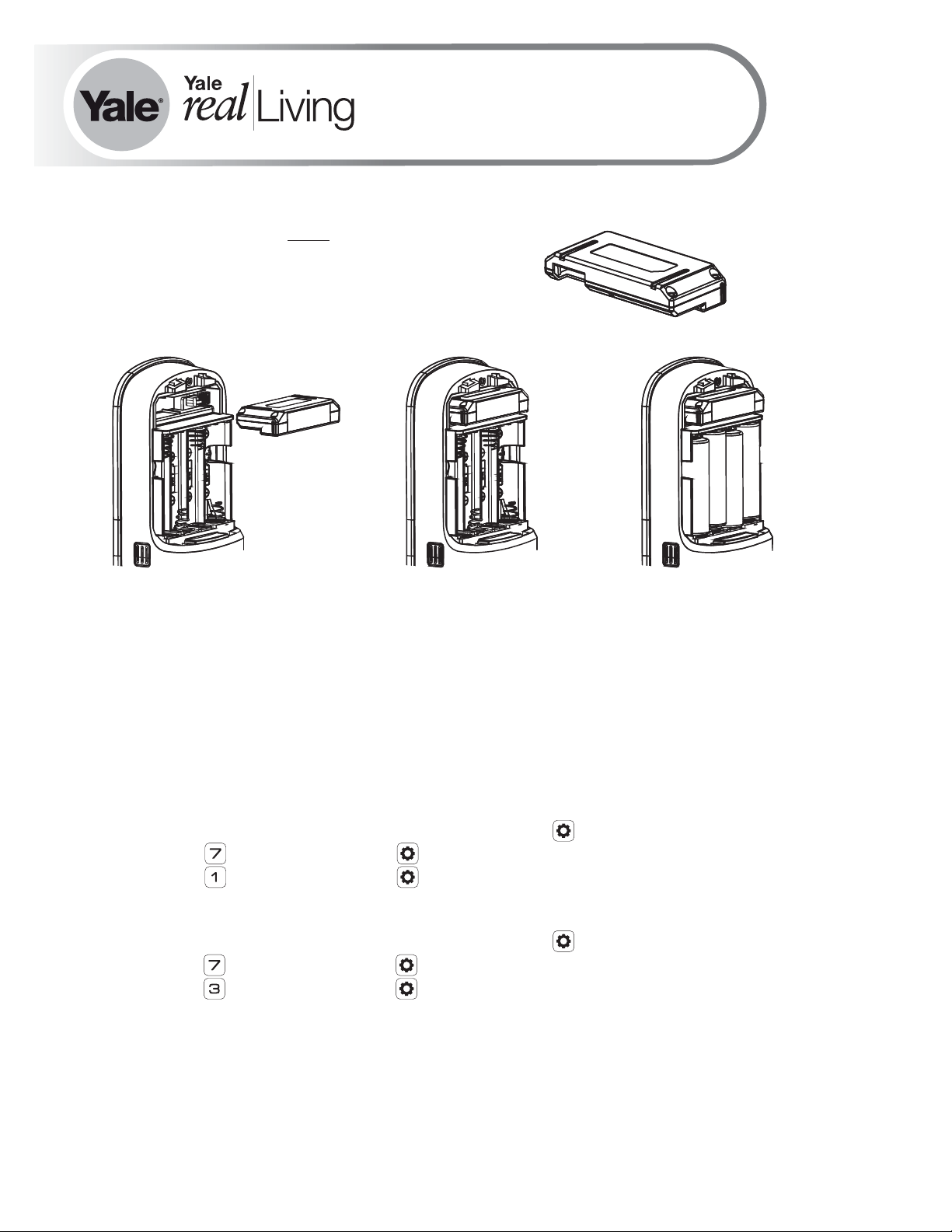
Enrolling/Unenrolling the Network Module:
IMPORTANT: the batteries be removed priormust
to removing and/or inserting the network module:
• Remove battery cover and batteries.
• Remove and/or insert Network Module.
• Reinstall batteries and battery cover.
P/N 202- - - Rev CAYR ZW INSTAL FUL
®

!
Warning: Changes or modifications to this device, not expressly approved by Yale Security
Inc. could void the user's authority to operate the equipment.
FCC:
Contain : U4A- 0FCC ID YRHCPZW FM
Model: 2-YRMZW US
This equipment has been tested and found to comply with
the limits for a Class B digital device, pursuant to Part 15 of
the Rules. These limits are designed to provideFCC
reasonable protection against harmful interference in a
residential installation. This equipment generates, uses,
and can radiate radio frequency energy and, if not installed
and used in accordance with the instructions, may cause
harmful interference to radio communications. However,
there is no guarantee that interference will not occur in a
particular installation. If this equipment does cause harmful
Interference to radio or television reception, which can be
determined by turning the equipment off and on, the user
is encouraged to try to correct the interference by one or
more of the following measures:
Reorient or relocate the receiving antenna.
Increase the separation between the equipment and
receiver.
Connect the equipment into an outlet on a circuit
different from that to which the receiver is connected.
Consult the dealer or an experienced radio/TV
technician for help.
THIS DEVICE COMPLIES WITH PART OF THE FCC RULES15 .
OPERATION IS SUBJECT TO THE FOLLOWING TWO
CONDITIONS.
(1) THIS DEVICE MAY NOT CAUSE HARMFUL
INTERFERENCE AND THIS DEVICE MUST ACCEPT ANY, (2)
INTERFERENCE RECEIVED INCLUDING INTERFERENCE,
THAT MAY CAUSE UNDESIRED OPERATION.
Industry Canada:
Contain : 6982A- 0IC YRHCPZW FM
Model: 2-YRMZW US
Section 7.1.2 of -RSS GEN Under Industry Canada
regulations, this radio transmitter may only operate using
an antenna of a type and maximum (or lesser) gain
approved for the transmitter by Industry Canada. To reduce
potential radio interference to other users, the antenna type
and its gain should be so chosen that the equivalent
isotropically radiated power (e.i.r.p.) is not more than that
necessary for successful communication.
En vertu des règlements d'Industrie Canada, cet émetteur
radio ne peut fonctionner avec une antenne d'un type et un
maximum (ou moins) approuvés pour gagner de l'émetteur
par Industrie Canada. Pour réduire le risque d'interférence
aux autres utilisateurs, le type d'antenne et son gain
doivent être choisies de façon que la puissance isotrope
rayonnée équivalente ( ) ne dépasse pas ce qui estPIRE
nécessaire pour une communication réussie.
Section 7.1.3 of -RSS GEN This Device complies with
Industry Canada License-exempt standard(s).RSS
Operation is subject to the following two conditions: 1) this
device may not cause interference, and 2) this device must
accept any interference, including interference that may
cause undesired operation of the device.
Cet appareil est conforme avec Industrie Canada RSS
standard exemptes de licence(s). Son fonctionnement est
soumis aux deux conditions suivantes: 1) ce dispositif ne
peut causer des interférences, et 2) cet appareil doit
accepter toute interférence, y compris les interférences qui
peuvent causer un mauvais fonctionnement du dispositif.
This radio transmitter 6982A- 0 has beenYRHCPZW FM
approved by Industry Canada to operate with the antenna
types listed below with the maximum permissible gain
indicated. Antenna types not included in this list, having a
gain greater than the maximum gain indicated for that
type, are strictly prohibited for use with this device.
Le présent émetteur radio 6982A- 0 a étéYRHCPZW FM
approuvé par Industrie Canada pour fonctionner avec les
types d'antenne énumérés ci-dessous et ayant un gain
admissible maximal. Les types d'antenne non inclus dans
cette liste, et dont le gain est supérieur au gain maximal
indiqué, sont strictement interdits pour l'exploitation de
l'émetteur.
CAN ICES NMB-3B/ -3B
Product Support Tel 1-855-213-5841 • www.yalehome.com
Yale® and Yale Real Living® are registered trademarks of Yale Security Inc., an ASSA ABLOY Group Company.
Other products’ brand names may be trademarks or registered trademarks of their respective owners and are mentioned for
reference purposes only. Copyright © 2017, Yale Security Inc., an ASSA ABLOY Group company.
All rights reserved. Reproduction in whole or in part without the express written permission of Yale Security Inc. is prohibited.
Yale Locks & Hardware is a division of Yale Security Inc., an ASSA ABLOY Group company.
YALE, with its unique global reach and range of products, is the world's favorite lock
– the preferred solution for securing your home, family and personal belongings.
ASSA ABLOY is the global leader in door opening solutions,
dedicated to satisfying end-user needs for security, safety and convenience.
Yale ZigBee Module
®®
Installation and Programming Instructions
Installing the ZigBee Module
®
This device is a security enabled ZigBee product that is able to use encrypted ZigBee
messages to communicate to other security enabled ZigBee products. This device must be
used in conjunction with a Security Enabled ZigBee Controller in order to fully utilize all
implemented functions. This product can be operated in any ZigBee network with other
ZigBee certified devices from other manufacturers. All non-battery operated nodes within the
network will act as repeaters regardless of vendor to increase reliability of the network.
To Enroll the Module (Inclusion Mode):
• Enter the 4-8 digit Master code followed by the key.PIN
• Press the key followed by the key.
• Press the key followed by the key.
To Unenroll the Module (Exclusion Mode):
• Enter the 4-8 digit Master code followed by the key.PIN
• Press the key followed by the key.
• Press the key followed by the key.
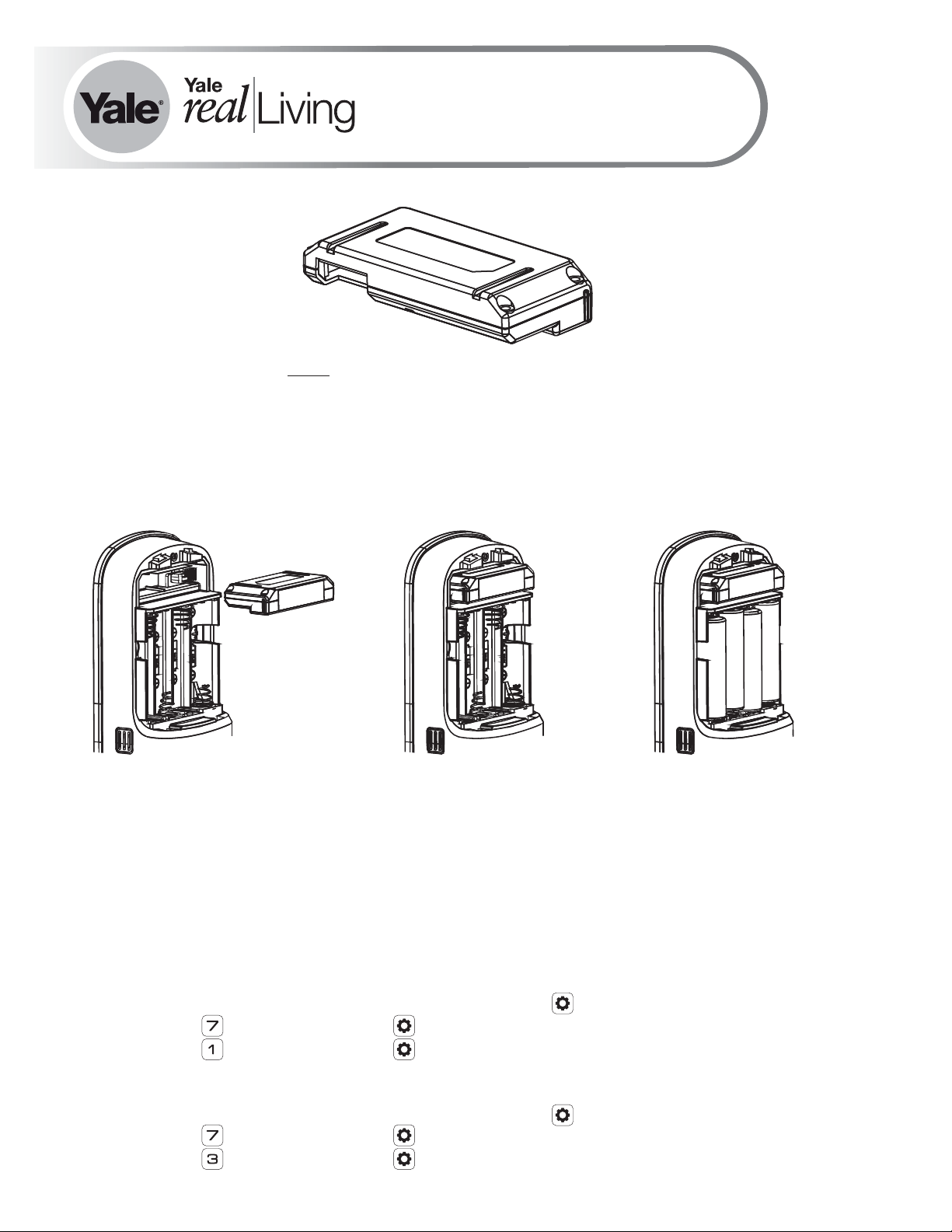
Enrolling/Unenrolling the Network Module:
IMPORTANT: the batteries be removed priormust
to removing and/or inserting the network module:
• Remove battery cover.
• Remove batteries.
• Remove and/or insert network module.
• Reinstall batteries.
• Replace cover.
P/N 202- - - Rev CAYR ZB INSTAL FUL
®

FCC:
FCC ID YRHCPZB FM: U4A- 0
Model: 2YRMZB
This equipment has been tested and found to comply with
the limits for a Class B digital device, pursuant to Part 15 of
the Rules. These limits are designed to provideFCC
reasonable protection against harmful interference in a
residential installation. This equipment generates, uses,
and can radiate radio frequency energy and, if not installed
and used in accordance with the instructions, may cause
harmful interference to radio communications. However,
there is no guarantee that interference will not occur in a
particular installation. If this equipment does cause harmful
Interference to radio or television reception, which can be
determined by turning the equipment off and on, the user is
encouraged to try to correct the interference by one or
more of the following measures:
Reorient or relocate the receiving antenna.
Increase the separation between the equipment and
receiver.
Connect the equipment into an outlet on a circuit
different from that to which the receiver is connected.
CTVonsult the dealer or an experienced radio/
technician for help.
This equipment complies with radiation exposureFCC
limits set forth for an uncontrolled environment. This
equipment should be installed and operated with minimum
distance 20cm between the radiator and your body. This
transmitter must not be co-located or operating in
conjunction with any other antenna or transmitter.
This device complies with Part 15 of the rules.FCC
Operation is subject to the following two conditions: (1) This
device may not cause harmful interference, and (2) this
device must accept any interference received, including
interference that may cause undesired operation. Any
changes or modifications not expressly approved by
manufacturer could void the user’s authority to operate the
equipment.
IMPORTANT! Any changes or modifications not expressly
approved by the party responsible for compliance could
void the user’s authority to operate this equipment.
Industry Canada:
IC YRHCPZB FM: 6982A- 0
Model: 2YRMZB
This Device complies with Industry Canada License-exempt
RSS standard(s). Operation is subject to the following two
conditions: 1) this device may not cause interference, and
2) this device must accept any interference, including
interference that may cause undesired operation of the
device.
Le présent appareil est conforme aux d'IndustrieCNR
Canada applicables aux appareils radio exempts de licence.
L'exploitation est autorisée aux deux conditions suivantes:
(1) l'appareil ne doit pas produire de brouillage, et (2)
l'utilisateur de l'appareil doit accepter tout brouillage
radioélectrique subi, meme si le brouillage est susceptible
d'en compromettre le fonctionnement.
Important Note:
Radiation Exposure Statement:
This equipment complies with radiation exposure limitsIC
set forth for an uncontrolled environment. This equipment
should be installed and operated with minimum distance
20cm between the radiator and your body.
Note Importante: (Pour l’utilisation de dispositifs
mobiles)
Declaration d’exposition aus radiations:
Cet équipement est conforme aux limites d´exposition aux
rayonnements établies pour un environnement nonIC
contrôlé. Cet équipment doit être installé et utilisé avec un
mimimum de 20 cm de distance entre la source de
rayonnement et votre corps.
IMPORTANT! Any changes or modifications not expressly
approved by the party responsible for compliance could
void the user’s authority to operate this equipment.
IMPORTANT! Tous les changements ou modifications pas
expressément approuvés par la partie responsable de la
conformité ont pu vider l’autorité de l’utilisateur pour
actioner cet équipment.
CAN ICES NMB-3B/ -3B
Product Support Tel 1-855-213-5841 • www.yalehome.com
Yale Locks & Hardware is a division of Yale Security Inc., an ASSA ABLOY Group company.
YALE, with its unique global reach and range of products, is the world's favorite lock
– the preferred solution for securing your home, family and personal belongings.
ASSA ABLOY is the global leader in door opening solutions,
dedicated to satisfying end-user needs for security, safety and convenience.
Yale® and Yale Real Living® are registered trademarks of Yale Security Inc., an ASSA ABLOY Group Company.
Other products’ brand names may be trademarks or registered trademarks of their respective owners and are mentioned for reference purposes only.
Copyright © 2017, Yale Security Inc., an ASSA ABLOY Group company.
All rights reserved. Reproduction in whole or in part without the express written permission of Yale Security Inc. is prohibited.
Yale iM1 Network Module
®
Installation and Programming Instructions
®
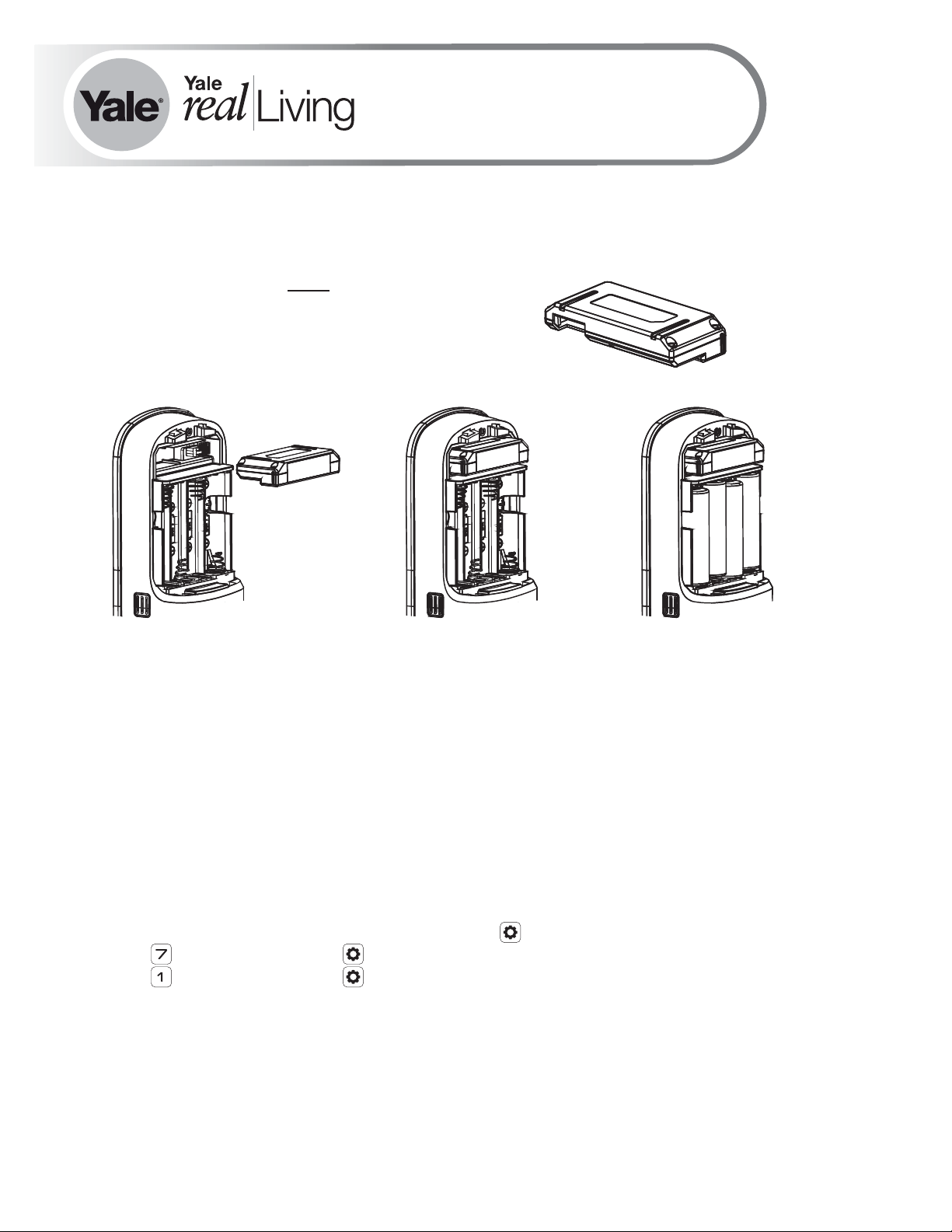
Installing the Yale iM1 Network Module
IMPORTANT: the batteries be removed priormust
to removing and/or inserting the network module:
• Remove battery cover and batteries.
• Remove and/or insert Network Module.
• Reinstall batteries and battery cover.
Enrolling the iM1 Network Module:
The Yale iM1 Network Module must be used with a Yale Assure Lock or Yale nexTouch
Lock and cannot be used in conjunction with any other Yale Network Module.
To Enroll the Module:
•Enter the 4-8 digit Master code followed by the key.PIN
•Press the key followed by the key.
•Press the key followed by the key.
P/N 202- - - Rev CAYR iM1 INSTAL FUL
Yale®, Yale Real Living® and Assure Lock® are registered trademarks of Yale Security Inc., an ASSA ABLOY Group Company. nexTouch™ is a trademark of Yale Security Inc.,
an ASSA ABLOY Group Company. Other products’ brand names may be trademarks or registered trademarks of their respective owners and are mentioned for reference
purposes only. Copyright © 2017, Yale Security Inc., an ASSA ABLOY Group Company. All rights reserved. Reproduction in whole or in part without the express written
permission of Yale Security Inc. is prohibited. Apple®, iPhone®, iPad®, iPod touch® and Siri® are trademarks of Apple Inc., registered in the U.S. and other countries. HomeKit
is a trademark of Apple Inc. Use of the Works with Apple HomeKit logo means that an electronic accessory has been designed to connect specifically to iPod touch, iPhone or
iPad, respectively, and has been certified by the developer to meet Apple performance standards. Apple is not responsible for the operation of this device or its compliance with
safety and regulatory standards. Use of the HomeKit logo means that an electronic accessory has been designed to connect specifically to iPod, iPhone, or iPad, respectively,
and has been certified by the developer to meet Apple performance standards. Apple is not responsible for the operation of this device or its compliance with safety and
regulatory standards. Please note that the use of this accessory with iPod, iPhone, or iPad may affect wireless performance.
1. After following the steps listed on other side of page for enrolling the module, download the
Yale Secure app from the App Store .
®
2. Ensure Bluetooth is enabled on your iPhone , iPad or iPod touch , and that you're within a
®®®®
foot of your Yale lock.
3. Open the Yale Secure app and agree to allow the app to access your Home Data.
4. If you do not have a home already created, create a new home when prompted. Tap + to add
a new Yale Lock.
5. The app will search for your Yale Lock. Be sure that you are within close proximity (less than
two feet or so). When "Yale Lock" appears, tap to add.
*If the lock does not appear, enter your Master Pin Code on the lock keypad, tap the gear,
tap 7, tap gear, tap 1 and then tap gear.
6. Scan your Accessory Setup Code; shown below, or manually enter within the app.
Connecting the Yale Secure App with the Yale iM1 Network Module
Accessory Setup Code
Yale Secure App Connection
®
with Yale iM1 Network Module
®
®
Product Support Tel 1-855-213-5841 • www.yalehome.com
Yale Locks & Hardware is a division of Yale Security Inc., an ASSA ABLOY Group company.
YALE, with its unique global reach and range of products, is the world's favorite lock
– the preferred solution for securing your home, family and personal belongings.
ASSA ABLOY is the global leader in door opening solutions,
dedicated to satisfying end-user needs for security, safety and convenience.