E11-N1EA
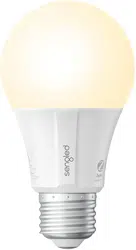
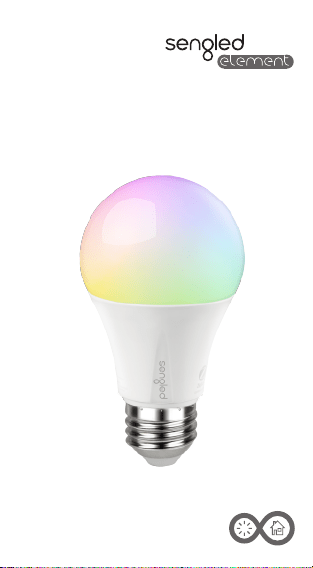
LED Wireless RGBW A19 Bulb
User Manual
LED + Smart Control

Features
•
•
•
•
•
•
•
EN
COLOR/CCT/ON/OFF/DIMMING via mobile APP.
16 million color options available.
Bulb is also white tunable from 2000K to 6500K.
The bulb reports its energy use and power consumption.
Compatible with most smart home hubs, supporting Zigbee
HA 1.2.1
Lighting controls for lighting schedules, rules, and more via
mobile APP.
Zigbee Alliance certified.
Operations of the bulb
• Color/CCT/On/Off/Dimming control
Use the Sengled mobile App or smart hub panel to control
color, color temperature, off and on.
Product Specifications
•
•
•
•
•
•
•
•
•
Power: 8.6 Watts
Input: 100-130 V AC, 60 Hz, 100 mA
Color Temperature: 2000K-6500K
Brightness: 800 lumens @2700K
Light Socket: E26
Beam Angle: 200 degrees
Operating Temperature: -4° F ~ + 104° F
Storage Temperature: -40° F ~ + 158° F
Operating Humidity: 0% RH 95%, non-condensing
Installation Instructions
Adding the bulb to any smart home hub involves the following
two steps:
Step 1: Prepare the bulb to enter pairing mode.
• Turn the light switch to the OFF position prior to installing the
LED bulb. Next, screw the bulb into a standard light socket
and turn the light switch on.
• Brand new bulbs automatically enter pairing mode for three
minutes when switched on. To re-enter pairing mode, switch
the bulb off and on to restart the three minute cycle.
• If you are unsure whether the bulb is paired, factory reset the
bulb. If the bulb is unpaired, the bulb will flash white, blue,
green and red then white after powering on.
Step 2: Scan and pair the bulb from smart home hub via
mobile device App or hub control panel. Please read the
instructions provided by the specific hub system on how to
complete pairing with the bulb.
Package Includes
•
•
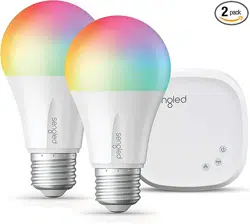
One E11-N1EA A19 Bulb
Welcome card containing online user manual
EN
Troubleshoot the device
•
•
•
•
•
•
Having trouble pairing with the hub?
Try moving the bulb to a location closer to the hub.
Remove obstacles or other wireless devices between the
bulb and the hub.
Ensure neither the bulb nor the hub is located near
other wireless devices such as a Wi-Fi access point/router.
After factory resetting a bulb, it will stay in pairing mode for
only the next three minutes. You may reactivate pairing mode
by simply power cycling the bulb once.
Bulb was communicating with the hub, but then the hub
eventually loses control of the bulb.
Check if there is power running to the bulb and make sure the
switch is in the ON position.
Power cycle the bulb using the wall switch. The bulb should
rejoin the hub automatically.
If the previous steps do not resolve the problem, delete the
bulb from the hub, then follow the installation
instructions above to add the bulb again to the hub.
Important Safety Instructions
•
•
•
NOT FOR EMERGENCY LIGHTING
RISK OF ELECTRIC SHOCK-DO NOT USE WHERE DIRECTLY
EXPOSED TO WATER
This product is intended for indoor use only
Dimmer Incompatible
•
•
•
Rejoin wireless network from the bulb
The bulb will blink two time to indicate that the bulb has
rejoined the network.
EZ-Mode commissioning from the bulb:
Power cycle the bulb (off then back on) seven times quickly
to enable EZ-Mode. The bulb will blink to indicate that it is in
this mode for three minutes. To exit this mode earlier, power
off the bulb via the wall switch, wait for two seconds and
then power it back on.
Factory default reset
While the bulb is on, quickly turn the bulb off and then on 10
times in quick succession (using a light switch or power strip
works best). If the reset is successful, the bulb will pulse
white, blue, green, and red then stay white. If it does not, you
will have to try again.
EN
© 2017 Sengled, Incorporated. All rights reserved. Sengled
Element is a trademark of Sengled, Incorporated, registered in
the United States and other countries. Specifications are
subject to change without notice. Other trademarks and trade
names are the property of their respective owners.
FCC ID: 2AGN8-E11N1EA IC: 20888-E11N1EA

Rev 1.0 2017.11
© 2017 Sengled, Incorporated. All rights reserved.
www.sengled.com