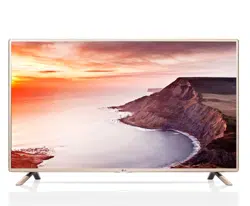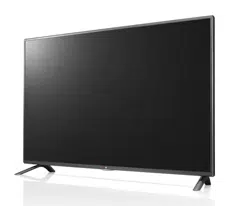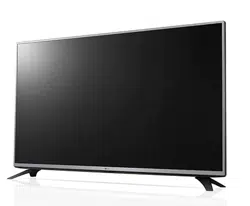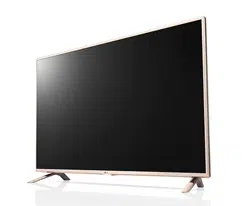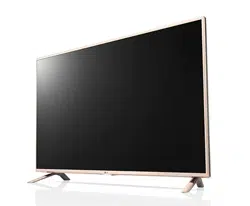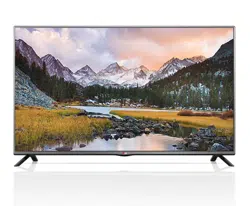

www.lg.com
Please read this manual carefully before operating your set
and retain it for future reference.
LB55**
LB56**
LB62**
P/NO : MFL68003809 (1503-REV04)
Printed in Korea
OWNER’S MANUAL
LED TV*
* LG LED TV applies LCD screen with LED backlights.
*MFL68003809*
2
ENG
ENGLISH
LICENSES / OPEN SOURCE SOFTWARE NOTICE INFORMATION
LICENSES
Supported licenses may differ by model. For more information about licenses, visit www.lg.com.
Manufactured under license from Dolby Laboratories.
Dolby and the double-D symbol are trademarks of Dolby Laboratories.
The terms HDMI and HDMI High-Denition Multimedia Interface, and the HDMI
logo are trademarks or registered trademarks of HDMI Licensing LLC in the
United States and other countries.
ABOUT DIVX VIDEO: DivX
®
is a digital video format created by DivX, LLC, a
subsidiary of Rovi Corporation. This is an ofcial DivX Certied
®
device that has
passed rigorous testing to verify that it plays DivX video. Visit divx.com
for more information and software tools to convert your les into DivX videos.
ABOUT DIVX VIDEO-ON-DEMAND: This DivX Certied
®
device must be
registered in order to play purchased DivX Video-on-Demand (VOD)
movies.
To obtain your registration code, locate the DivX VOD section in your device setup
menu. Go to vod.divx.com for more information on how to complete your
registration.
“DivX Certied
®
to play DivX
®
video up to HD 1080p, including premium content.”
“DivX
®
, DivX Certied
®
and associated logos are trademarks of
Rovi Corporation or its subsidiaries and are used under license.”
“Covered by one or more of the following U.S. patents :
7,295,673; 7,460,668; 7,515,710; 7,519,274”
OPEN SOURCE SOFTWARE NOTICE INFORMATION
To obtain the source code under GPL, LGPL, MPL, and other open source licenses, that is
contained in this product, please visit http://opensource.lge.com.
In addition to the source code, all referred license terms, warranty disclaimers and copyright notices
are available for download.
LG Electronics will also provide open source code to you on CD-ROM for a charge covering the cost
of performing such distribution (such as the cost of media, shipping, and handling) upon email request
to [email protected]. This offer is valid for three (3) years from the date on which you purchased
the product.

3
ENGENGLISH
SAFETY INSTRUCTIONS
SAFETY INSTRUCTIONS
Please read these safety precautions carefully before using the product.
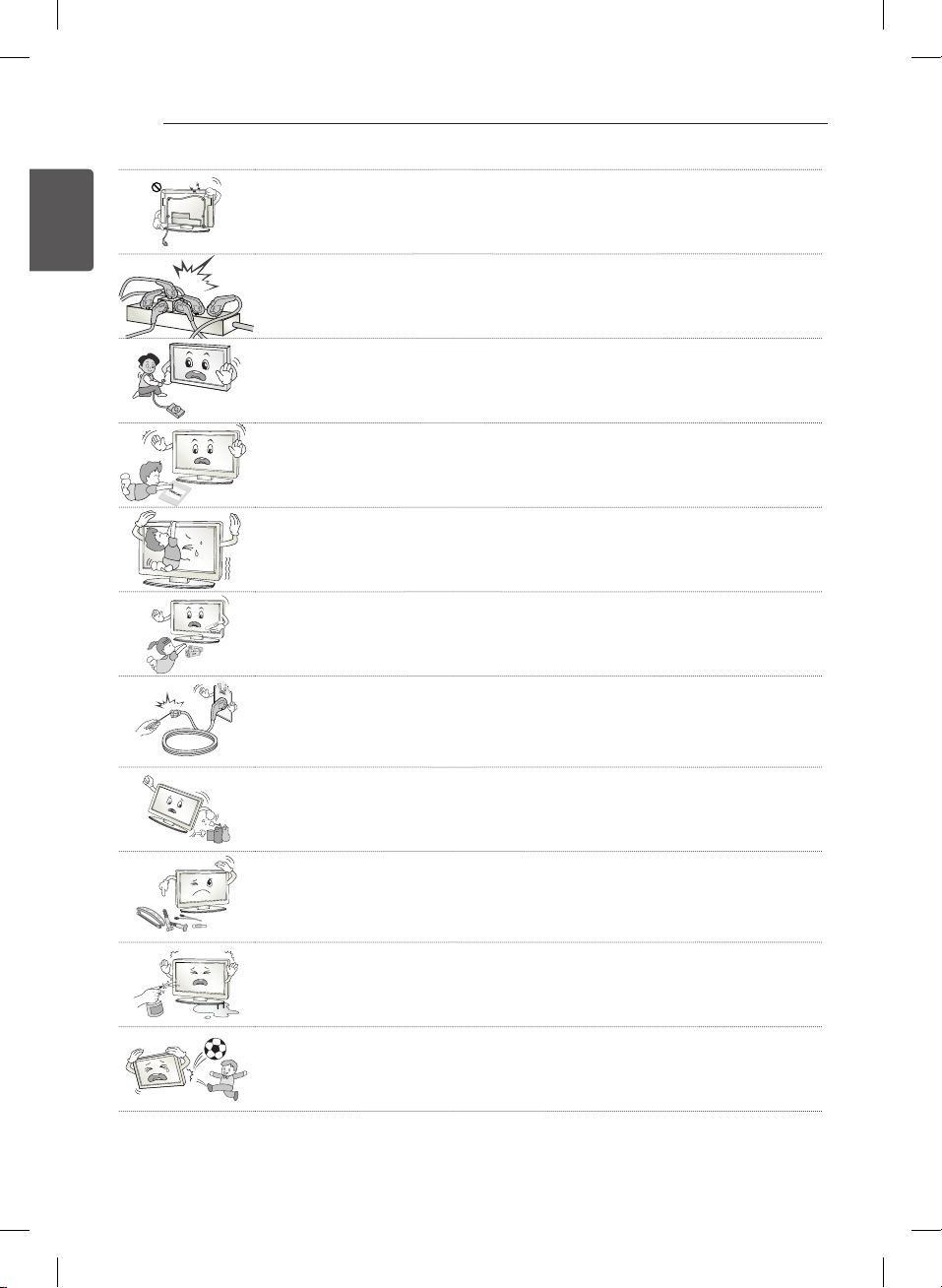
WARNING
y
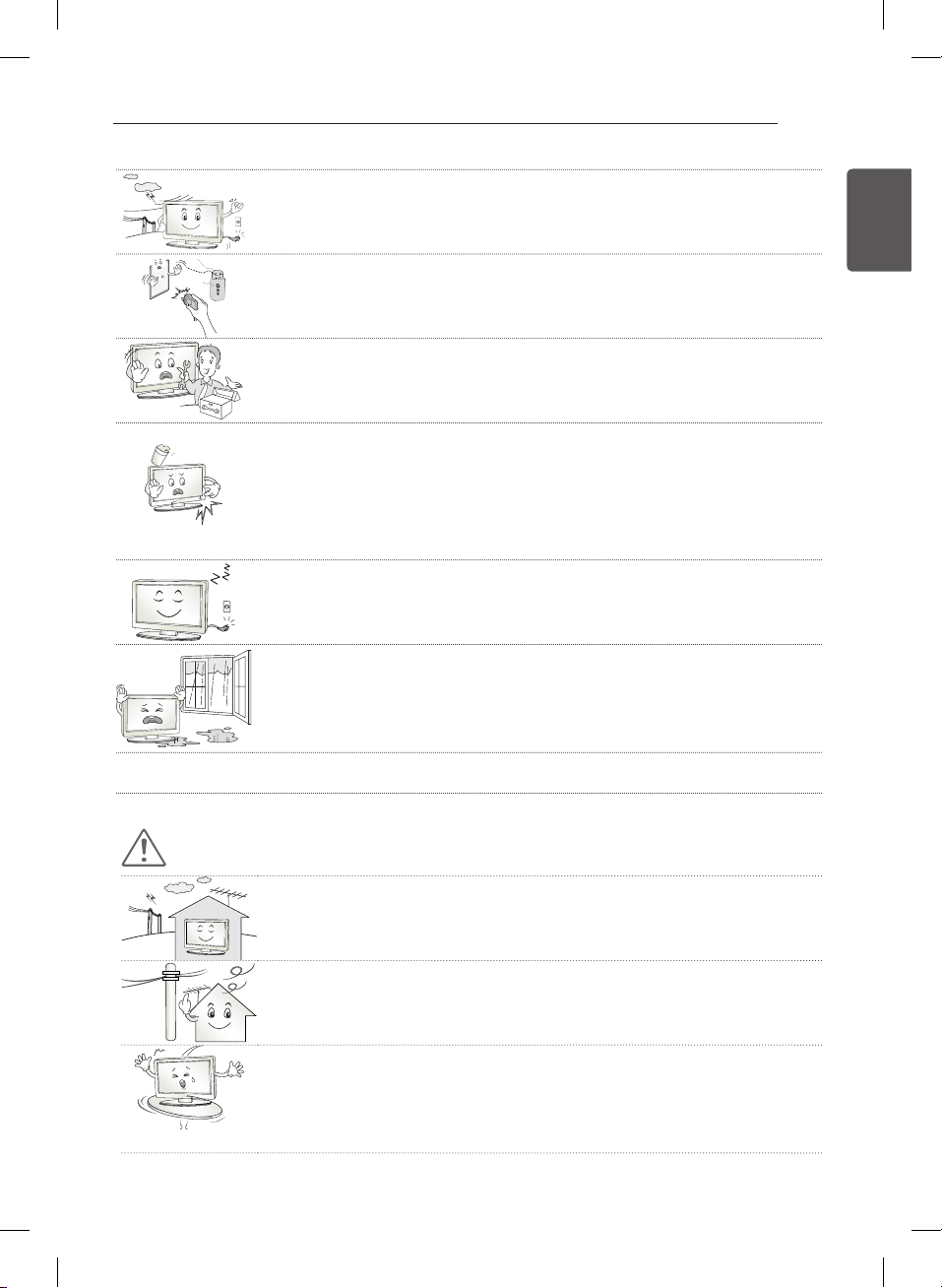
Do not place the TV and/or remote control in the following environments:
-
- A location exposed to direct sunlight
-
- An area with high humidity such as a bathroom
-
- Near any heat source such as stoves and other devices that produce heat
-
- Near kitchen counters or humidifiers where they can easily be exposed to steam or
oil
-
- An area exposed to rain or wind
-
- Near containers of water such as vases
Otherwise, this may result in re, electric shock, malfunction or product deformation.
y
Do not place the product where it might be exposed to dust.
This may cause a fire hazard.
y
Mains Plug is the TV connecting/disconnecting device to AC mains electric supply.This
plug must remain readily attached and operable when TV is in use.
y
Do not touch the power plug with wet hands. Additionally, if the cord pin is wet or
covered with dust, dry the power plug completely or wipe dust off.
You may be electrocuted due to excess moisture.
y
Make sure to connect Mains cable to compliant AC mains socket with Grounded earth
pin. (Except for devices which are not grounded on earth.) Otherwise possibility you
may be electrocuted or injured.
y
Insert power cable plug completely into wall socket otherwise if not secured completely
into socket, fire ignition may break out.
y
Ensure the power cord does not come into contact with hot objects such as a heater.
This may cause a fire or an electric shock hazard.
y
Do not place a heavy object, or the product itself, on power cables.
Otherwise, this may result in fire or electric shock.
y
Bend antenna cable between inside and outside building to prevent rain from flowing in.
This may cause water damaged inside the Product and could give an electric shock.
4
ENG
ENGLISH
SAFETY INSTRUCTIONS
y
When mounting TV onto wall make sure to neatly install and isolate cabling from rear of
TV as to not create possibility of electric shock /fire hazard.
y
Do not plug too many electrical devices into a single multiple electrical outlet.
Otherwise, this may result in fire due to over-heating.
y
Do not drop the product or let it fall over when connecting external devices.
Otherwise, this may result in injury or damage to the product.
y
Keep the anti-moisture packing material or vinyl packing out of the reach of children.
Anti-moisture material is harmful if swallowed. If swallowed by mistake, force the patient
to vomit and visit the nearest hospital. Additionally, vinyl packing can cause suffocation.
Keep it out of the reach of children.
y
Do not let your children climb or cling onto the TV.
Otherwise, the TV may fall over, which may cause serious injury.
y
Dispose of used batteries carefully to ensure that a small child does not consume them.
Please seek Doctor- Medical Attention immediately if child consumes batteries.
y
Do not insert any metal objects/conductors (like a metal chopstick/cutlery/screwdriver)
between power cable plug and input Wall Socket while it is connected to the input
terminal on the wall. Additionally, do not touch the power cable right after plugging into
the wall input terminal. You may be electrocuted.
(Depending on model)
y
Do not put or store inflammable substances near the product.
There is a danger of combustion/explosion or fire due to careless handling of the
inflammable substances.
y
Do not drop metallic objects such as coins, hair pins, chopsticks or wire into the
product, or inflammable objects such as paper and matches. Children must pay
particular attention.
Electrical shock, fire or injury can occur. If a foreign object is dropped into the product,
unplug the power cord and contact the service centre.
y
Do not spray water on the product or scrub with an inflammable substance (thinner or
benzene). Fire or electric shock accident can occur.
y
Do not allow any impact, shock or any objects to fall into the unit, and do not drop
anything onto the screen.
You may be injured or the product can be damaged.
5
ENGENGLISH
SAFETY INSTRUCTIONS
y
Never touch this product or antenna during a thunder or lighting storm.
You may be electrocuted.
y
Never touch the wall outlet when there is leakage of gas, open the windows and
ventilate.
It may cause a fire or a burn by a spark.
y
Do not disassemble, repair or modify the product at your own discretion.
Fire or electric shock accident can occur.
Contact the service centre for check, calibration or repair.
y
If any of the following occur, unplug the product immediately and contact your local
service centre.
-
- The product has been impacted by shock
-
- The product has been damaged
-
- Foreign objects have entered the product
-
- The product produced smoke or a strange smell
This may result in re or electric shock.
y
Unplug the TV from AC mains wall socket if you do not intend to use the TV for a long
period of time.
Accumulated dust can cause re hazard and insulation deterioration can cause electric
leakage/shock/re.
y
Apparatus shall not be exposed to dripping or splashing and no objects filled with
liquids, such as vases, shall be placed on the apparatus.
y
Do not install this product on a wall if it could be exposed to oil or oil mist.
This may damage the product and cause it to fall.
CAUTION
y
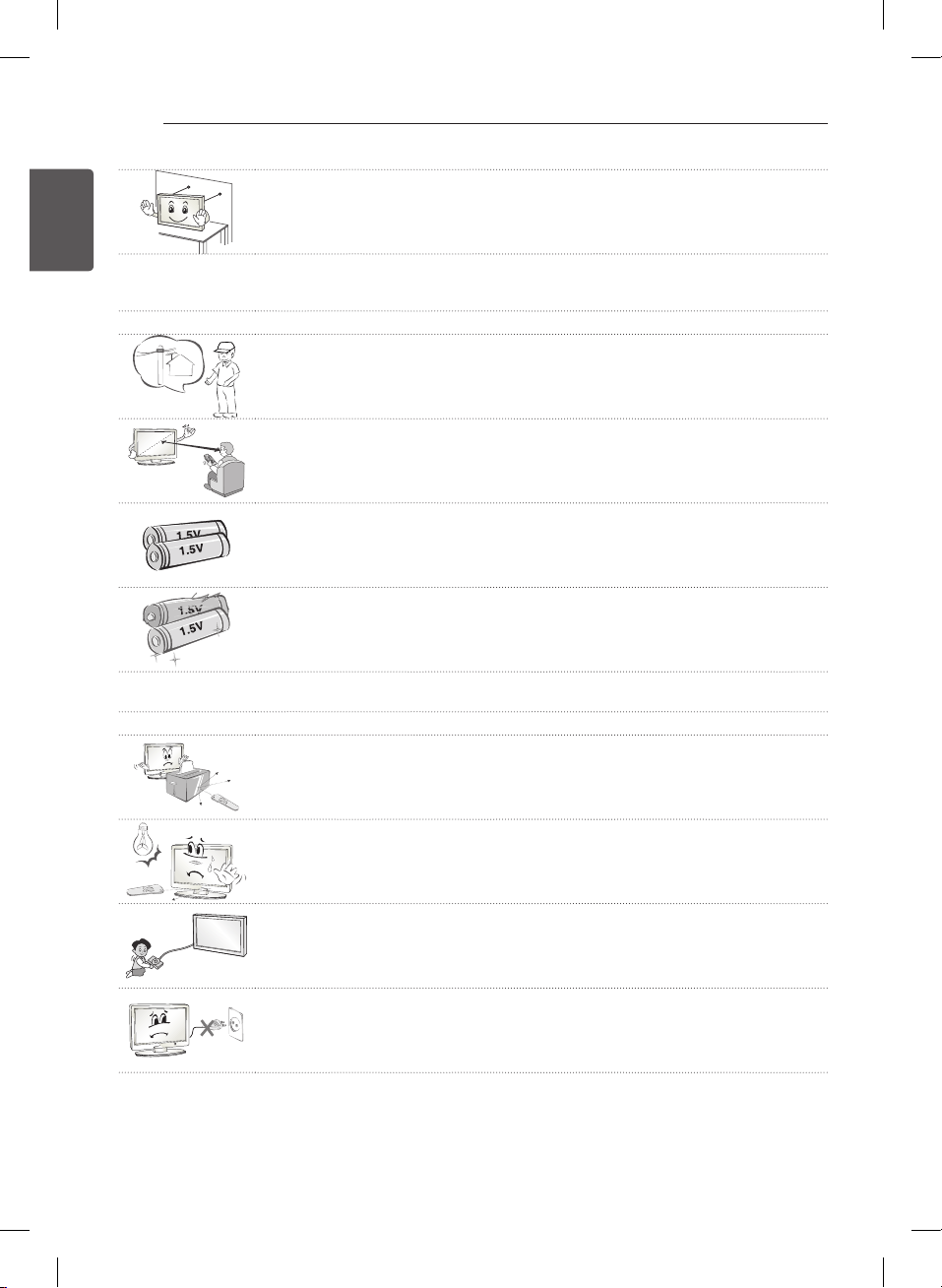
Install the product where no radio wave occurs.
y
There should be enough distance between an outside antenna and power lines to keep
the former from touching the latter even when the antenna falls.
This may cause an electric shock.
y
Do not install the product on places such as unstable shelves or inclined surfaces. Also
avoid places where there is vibration or where the product cannot be fully supported.
Otherwise, the product may fall or flip over, which may cause injury or damage to the
product.
6
ENG
ENGLISH
SAFETY INSTRUCTIONS
y
If you install the TV on a stand, you need to take actions to prevent the product from
overturning. Otherwise, the product may fall over, which may cause injury.
y
If you intend to mount the product to a wall, attach VESA standard mounting interface (optional parts) to the
back of the product. When you install the set to use the wall mounting bracket (optional parts), fix it carefully so
as not to drop.
y
Only use the attachments / accessories specified by the manufacturer.
y
When installing the antenna, consult with a qualified service technician. If not installed
by a qualified technician, this may create a fire hazard or an electric shock hazard.
y
We recommend that you maintain a distance of at least 2 to 7 times the diagonal screen
size when watching TV.
If you watch TV for a long period of time, this may cause blurred vision.
y
Only use the specified type of battery.
This could cause damage to the remote control.
y
Do not mix new batteries with old batteries.
This may cause the batteries to overheat and leak.
y
Batteries should not be exposed to excessive heat. For example, keep away from direct Sunlight , open
fireplace and electric heaters .
y
Do not place non-rechargeable batteries in charging device.
y
Make sure there are no objects between the remote control and its sensor.
y
Signal from Remote Control can be interrupted due to external/internal lighting eg
Sunlight, fluorescent lighting.
If this occurs turn off lighting or darken viewing area.
y
When connecting external devices such as video game consoles, make sure the
connecting cables are long enough.
Otherwise, the product may fall over, which may cause injury or damage the product.
y
Do not turn the product On/Off by plugging-in or unplugging the power plug to the wall
outlet. (Do not use the power plug for switch.)
It may cause mechanical failure or could give an electric shock.
7
ENGENGLISH
SAFETY INSTRUCTIONS
y
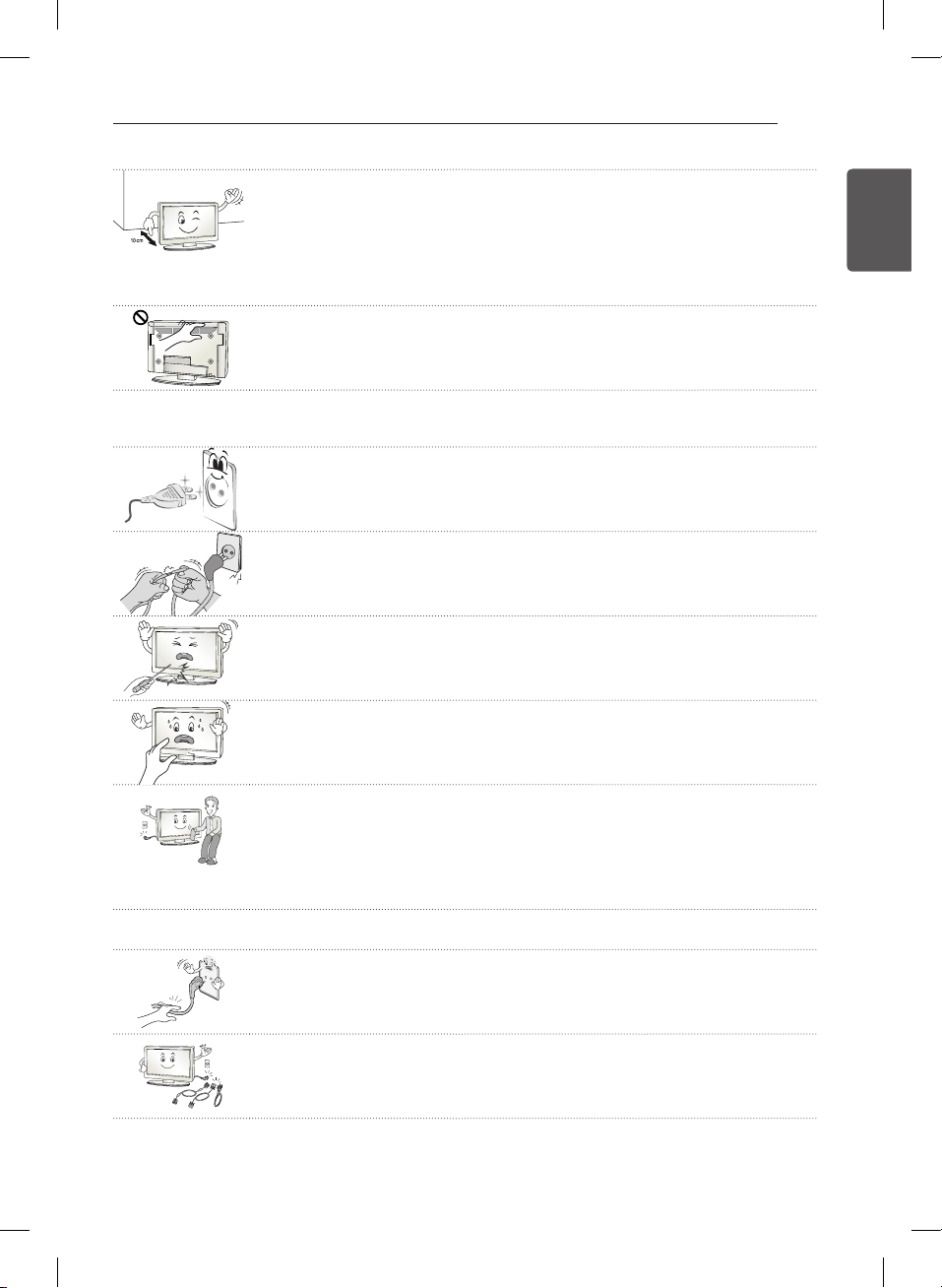
Please follow the installation instructions below to prevent the product from overheating.
-
- The distance between the product and the wall should be more than 10 cm.
-
- Do not install the product in a place with no ventilation (e.g., on a bookshelf or in a
cupboard).
-
- Do not install the product on a carpet or cushion.
-
- Make sure the air vent is not blocked by a tablecloth or curtain.
Otherwise, this may result in re.
y
Take care not to touch the ventilation openings when watching the TV for long periods
as the ventilation openings may become hot. This does not affect the operation or
performance of the product.
y
Periodically examine the cord of your appliance, and if its appearance indicates damage or deterioration,
unplug it, discontinue use of the appliance, and have the cord replaced with an exact replacement part by an
authorized servicer.
y
Prevent dust collecting on the power plug pins or outlet.
This may cause a fire hazard.
y
Protect the power cord from physical or mechanical abuse, such as being twisted,
kinked, pinched, closed in a door, or walked upon. Pay particular attention to plugs, wall
outlets, and the point where the cord exits the appliance.
y
Do not press strongly upon the panel with a hand or sharp object such as nail, pencil or
pen, or make a scratch on it, as it may cause damage to screen.
y
Avoid touching the screen or holding your finger(s) against it for long periods of time.
Doing so may produce some temporary or permanent distortion/damage to screen.
y
When cleaning the product and its components, unplug the power first and wipe it with
a soft cloth. Applying excessive force may cause scratches or discolouration. Do not
spray with water or wipe with a wet cloth. Never use glass cleaner, car or industrial
shiner, abrasives or wax, benzene, alcohol etc., which can damage the product and its
panel.
Otherwise, this may result in fire, electric shock or product damage (deformation,
corrosion or breakage).
y
As long as this unit is connected to the AC wall outlet, it is not disconnected from the AC power source even if
you turn off this unit by SWITCH.
y
When unplugging the cable, grab the plug and unplug it, by pulling at the plug.
Don’t pull at the cord to unplug the power cord from the power board, as this could be
hazardous.
y
When moving the product, make sure you turn the power off first. Then, unplug the
power cables, antenna cables and all connecting cables.
The TV set or power cord may be damaged, which may create a fire hazard or cause
electric shock.
8
ENG
ENGLISH
SAFETY INSTRUCTIONS
y
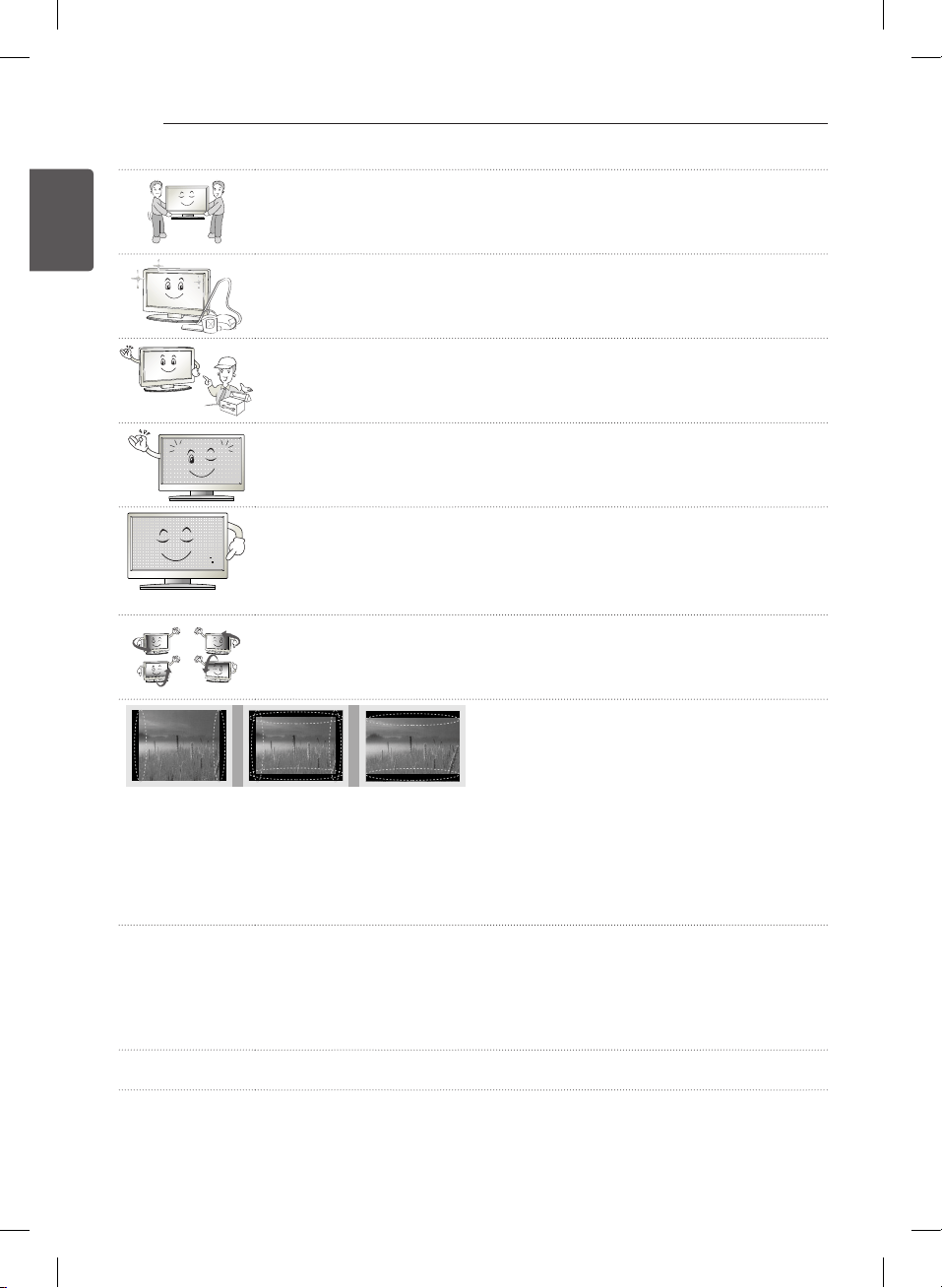
When moving or unpacking the product, work in pairs because the product is heavy.
Otherwise, this may result in injury.
y
Contact the service centre once a year to clean the internal parts of the product.
Accumulated dust can cause mechanical failure.
y
Refer all servicing to qualified service personnel. Servicing is required when the
apparatus has been damaged in any way, such as power supply cord or plug is
damaged, liquid has been spilled or objects have fallen into the apparatus, the apparatus
has been exposed to rain or moisture, does not operate normally, or has been dropped.
y
If the product feels cold to the touch, there may be a small “flicker” when it is turned on.
This is normal, there is nothing wrong with product.
y
The panel is a high technology display product with resolution of two million to six million
pixels. You may see tiny black dots and/or brightly coloured dots (red, blue or green) at a
size of 1 ppm on the panel. This does not indicate a malfunction and does not affect the
performance and reliability of the product.
This phenomenon also occurs in third-party products and is not subject to exchange or
refund.
y
You may find different brightness and color of the panel depending on your viewing
position(left/right/top/down).
This phenomenon occurs due to the characteristic of the panel. It is not related with the
product performance, and it is not malfunction.
y
Displaying a still image (e.g., broadcasting channel logo, on-screen menu, scene from a video game) for a
prolonged time may cause damage to the screen, resulting in retention of the image, which is known as image
sticking. The warranty does not cover the product for image sticking.
Avoid displaying a fixed image on your television’s screen for a prolonged period (2 or more hours for LCD, 1
or more hours for Plasma).
Also, if you watch the TV at a ratio of 4:3 for a long time, image sticking may occur on the borders of the panel.
This phenomenon also occurs in third-party products and is not subject to exchange or refund.
y
Generated Sound
“Cracking” noise: A cracking noise that occurs when watching or turning off the TV is generated by plastic
thermal contraction due to tempera-ture and humidity. This noise is common for products where thermal
deformation is required. Electrical circuit humming/panel buzzing: A low level noise is generated from a high-
speed switching circuit, which supplies a large amount of current to operate a product. It varies depending on
the product.
This generated sound does not affect the performance and reliability of the product.
y
Do not use high voltage electrical goods near the TV (e.g. electric mosquito-swatter). This may result in product
malfunction.
9
ENGENGLISH
SAFETY INSTRUCTIONS
Viewing 3D Imaging
(Only 3D models)
WARNING
Viewing Environment
y
Viewing Time
-
- When watching 3D contents, take 5 - 15 minute
breaks every hour. Viewing 3D contents for
a long period of time may cause headache,
dizziness, fatigue or eye strain.
Those that have a photosensitive seizure or
chronic illness
y
Some users may experience a seizure or other
abnormal symptoms when they are exposed to a
flashing light or particular pattern from 3D contents.
y
Do not watch 3D videos if you feel nausea, are
pregnant and/ or have a chronic illness such
as epilepsy, cardiac disorder, or blood pressure
disease, etc.
y
3D Contents are not recommended to those who
suffer from stereo blindness or stereo anomaly.
Double images or discomfort in viewing may be
experienced.
y
If you have strabismus (cross-eyed), amblyopia
(weak eyesight) or astigmatism, you may have
trouble sensing depth and easily feel fatigue due to
double images. It is advised to take frequent breaks
than the average adult.
y
If your eyesight varies between your right and left
eye, correct your eyesight prior to watching 3D
contents.
Symptoms which require discontinuation or
refraining from watching 3D contents
y
Do not watch 3D contents when you feel fatigue
from lack of sleep, overwork or drinking.
y
When these symptoms are experienced, stop using/
watching 3D contents and get enough rest until the
symptom subsides.
-
- Consult your doctor when the symptoms
persist. Symptoms may include headache,
eyeball pain, dizziness, nausea, palpitation,
blurriness, discomfort, double image, visual
inconvenience or fatigue.
CAUTION
Viewing Environment
y
Viewing Distance
- Maintain a distance of at least twice the screen
diagonal length when watching 3D contents.
If you feel discomfort in viewing 3D contents,
move further away from the TV.
Viewing Age
y
Infants/Children
-
- Usage/ Viewing 3D contents for children under
the age of 6 are prohibited.
-
- Children under the age of 10 may overreact
and become overly excited because their vision
is in development (for example: trying to touch
the screen or trying to jump into it. Special
monitoring and extra attention is required for
children watching 3D contents.
-
- Children have greater binocular disparity of 3D
presentations than adults because the distance
between the eyes is shorter than one of adults.
Therefore they will perceive more stereoscopic
depth compared to adults for the same 3D
image.
y
Teenagers
-
- Teenagers under the age of 19 may react with
sensitivity due to stimulation from light in 3D
contents. Advise them to refrain from watching
3D contens for a long time when they are tired.
y
Elderly
-
- The elderly may perceive less 3D effect
compared to the youth. Do not sit closer to the
TV than the recommended distance.
Cautions when using the 3D glasses
y
Make sure to use LG 3D glasses. Otherwise, you
may not be able to view 3D videos properly.
y
Do not use 3D glasses instead of your normal
glasses, sunglasses or protective goggles.
y
Using modified 3D glasses may cause eye strain or
image distortion.
y
Do not keep your 3D glasses in extremely high or
low temperatures. It will cause deformation.
y
The 3D glasses are fragile and are easily scratched.
Always use a soft, clean piece of cloth when wiping
the lenses. Do not scratch the lenses of the 3D
glasses with sharp objects or clean/wipe them with
chemicals.
10
ENG
ENGLISH
ASSEMBLING AND PREPARING
y
Image shown may differ from your TV.
y
Your TV’s OSD (On Screen Display) may differ slightly from that shown in this manual.
y
The available menus and options may differ from the input source or product model that you are using.
y
New features may be added to this TV in the future.
y
The TV can be placed in standby mode in order to reduce the power consumption. And the TV should be
turned off if it will not be watched for some time, as this will reduce energy consumption.
y
The energy consumed during use can be significantly reduced if the level of brightness of the picture is
reduced, and this will reduce the overall running cost.
NOTE
ASSEMBLING AND PREPARING
Unpacking
Check your product box for the following items. If there are any missing accessories, contact the local dealer where
you purchased your product. The illustrations in this manual may differ from the actual product and item.
y
Do not use any unapproved items to ensure the safety and product life span.
y
Any damages or injuries by using unapproved items are not covered by the warranty.
y
Some models have a thin film attached on to the screen and this must not be removed.
CAUTION
y
The items supplied with your product may vary depending on the model.
y
Product specifications or contents of this manual may be changed without prior notice due to upgrade of
product functions.
y
For an optimal connection, HDMI cables and USB devices should have bezels less than 10 mm thick and 18
mm width. Use an extension cable that supports USB 2.0 if the USB cable or USB memory stick does not fit
into your TV’s USB port.
A
B
A
B
*A
<
=
10 mm
*B
<
=
18 mm
y
Use a certified cable with the HDMI logo attached.
y
If you do not use a certified HDMI cable, the screen may not display or a connection error may occur.
(Recommended HDMI cable types)
-
- High-Speed HDMI
®
/™ cable
-
- High-Speed HDMI
®
/™ cable with Ethernet
NOTE

11
ENGENGLISH
ASSEMBLING AND PREPARING
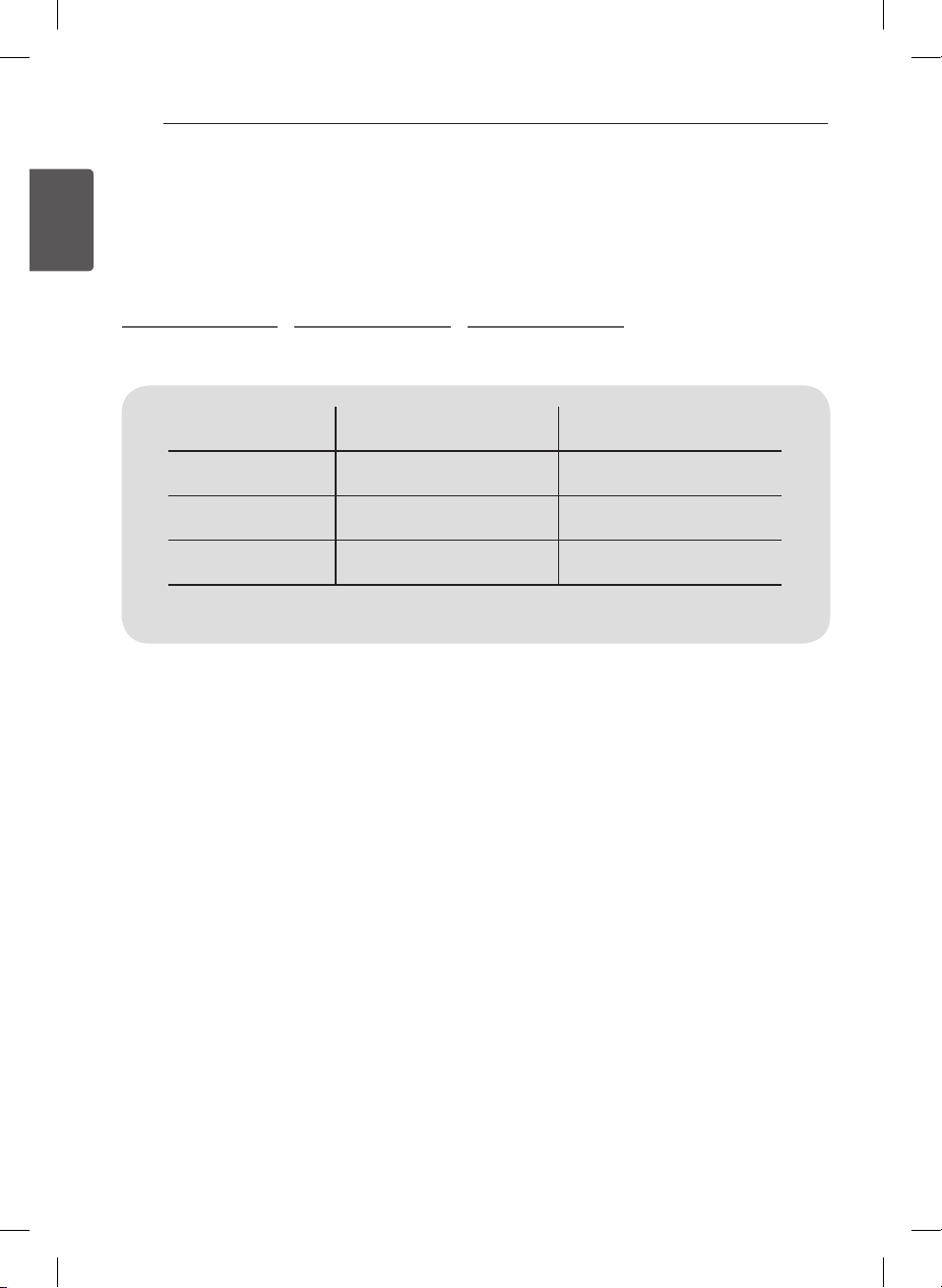
Remote control,
batteries (AAA)
Owner’s manual Power Cord
Stand Bases
(Only LB55**, LB56**-ZE / ZC,
LB62**-ZA / ZB / ZD)
Stand Bases
(Only LB56**-ZT / ZQ, LB62**-ZE)
Stand Screws
4EA, M4 x L14
(Only 42/49LB55**,
39/42/47/50/55/60LB56**,
42/49/55LB62**)
Stand Screws
4EA, M4 x L20
(Only 32LB55**, 32LB56**,
32LB62**)
Wall Mount Spacers
2EA
(Only 42LB55**, 42LB56**,
42LB62**)
Cable Managements
2EA
(Only LB55**, LB56**-ZE / ZC /
ZT / ZQ, LB62**-ZA / ZB / ZD / ZE)
Cable holder
(Depending on model)
Cinema 3D Glasses
The number of 3D glasses may
differ depending on the model or
country.
(Only LB62**)
Stand Body / Stand Base
(Only LB56**-ZX, LB62**-ZM)
Stand Screws
4EA, M4 x L20
(Only LB56**-ZX, LB62**-ZM)
Rubbers
2EA
(Only LB56**-ZX, LB62**-ZM)
12
ENG
ENGLISH
ASSEMBLING AND PREPARING
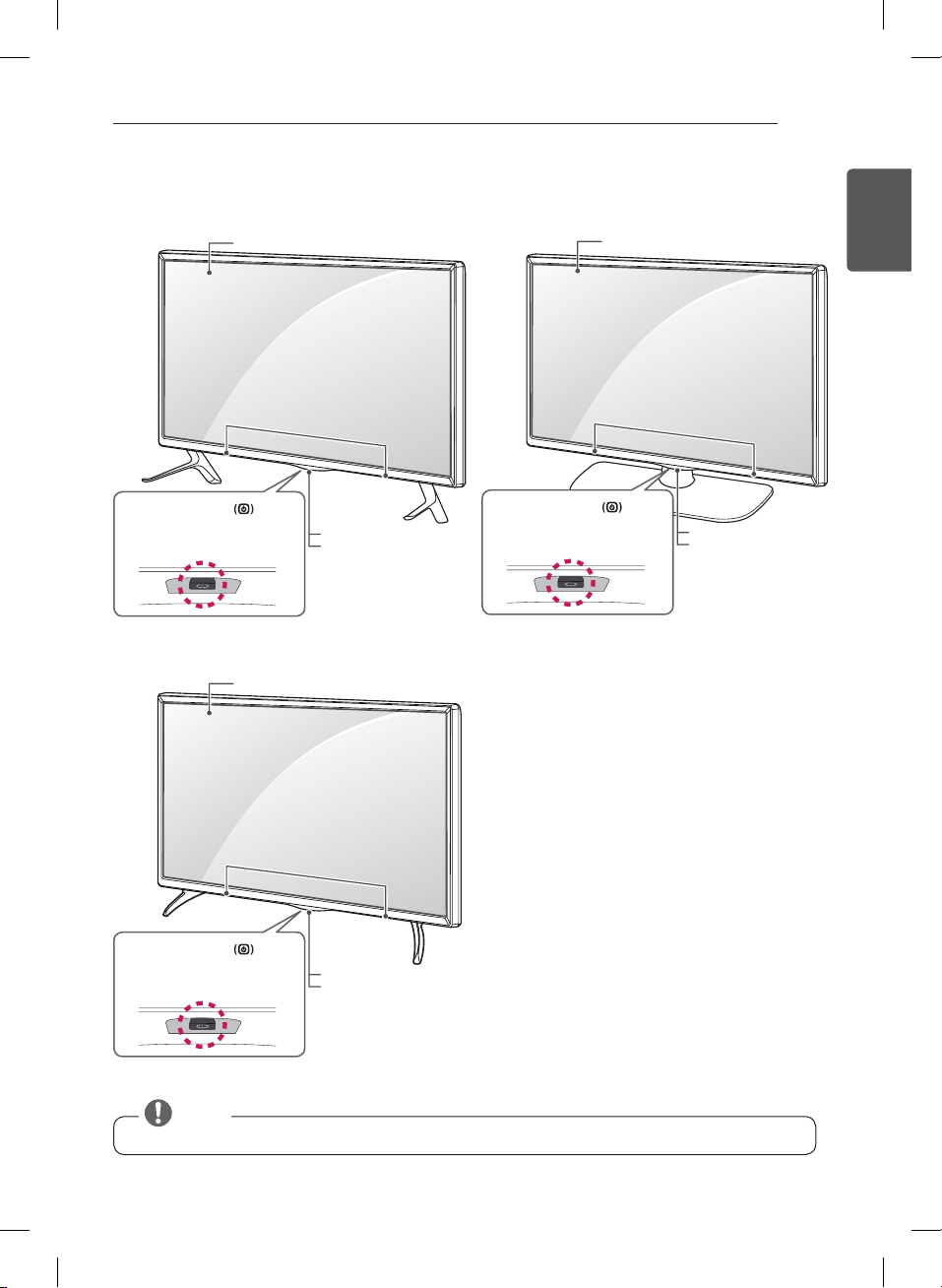
Separate purchase
Optional extras can be changed or modied for quality improvement without any notication.
Contact your dealer for buying these items.
These devices only work with certain models.
LG Audio Device AG-F***
Cinema 3D Glasses
AG-F***DP
Dual play glasses
Compatibility LB56** / LB55** LB62**
LG Audio device • •
AG-F***
Cinema 3D Glasses
•
AG-F***DP
Dual play glasses
•
The model name or design may be changed depending on the upgrade of product functions,
manufacturer’s circumstances or policies.
13
ENGENGLISH
ASSEMBLING AND PREPARING
Parts and buttons
A type : LB55**, LB56**-ZE / ZC, LB62**-ZA / ZB / ZD
Screen
Remote control sensor
Power Indicator
Speakers
Joystick Button
(* This button is located
below the TV screen.)
B type : LB56**-ZT / ZQ, LB62**-ZE
Screen
Remote control sensor
Power Indicator
Speakers
Joystick Button
(* This button is located
below the TV screen.)
y
You can set the power indicator light to on or off by selecting OPTION in the main menus.
NOTE
C type : LB56**-ZX, LB62**-ZM
Screen
Remote control sensor
Power Indicator
Speakers
Joystick Button
(* This button is located
below the TV screen.)
14
ENG
ENGLISH
ASSEMBLING AND PREPARING
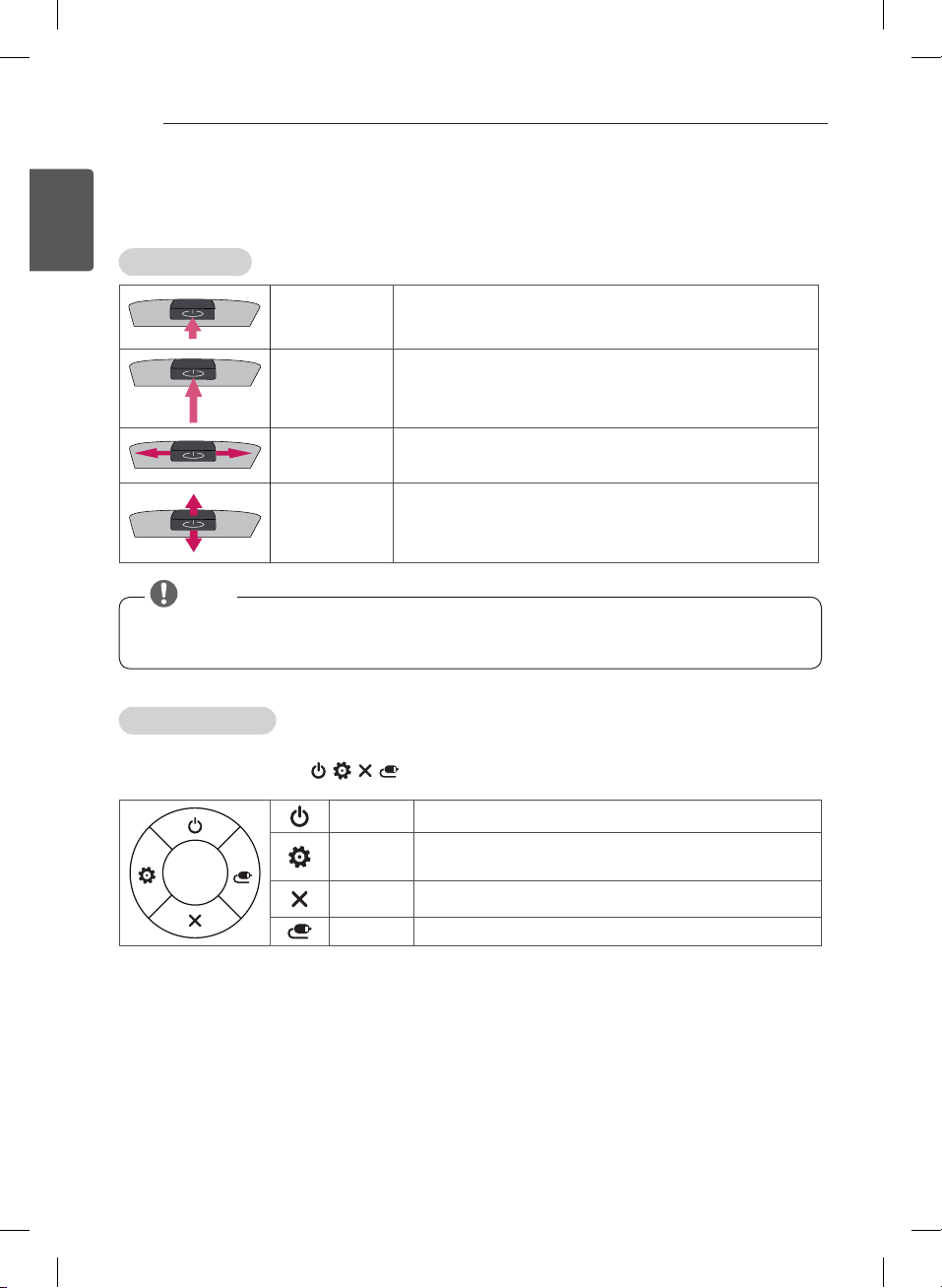
Using the Joystick button
You can simply operate the TV functions, pressing or moving the joystick button up, down, left or right.
Basic Functions
Power On
When the TV is turned off, place your nger on the joystick button
and press it once and release it.
Power Off
When the TV is turned on, place your nger on the joystick button
and press it once for a few seconds and release it.
(However, if the Menu button is on the screen, pressing and holding
the joystick button will let you exit the Menu.)
Volume Control
If you place your nger over the joystick button and move it left or
right, you can adjust the volume level you want.
Programmes
Control
If you place your nger over the joystick button and move it up or
down, you can scrolls through the saved programmes you want.
y
When your finger over the joystick button and push it to the up, down, left or right, be careful not to
press the joystick button. If you press the joystick button first, you may not be able to adjust the volume level
and saved programmes.
NOTE
Adjusting the Menu
When the TV is turned on, press the joystick button one time.
You can adjust the Menu items( , , , ) moving the joystick button up, down, left or right.
TV off Turns the power off.
Settings Accesses the main menu.
Close Clears on-screen displays and returns to TV viewing.
Input List Changes the input source.
15
ENGENGLISH
ASSEMBLING AND PREPARING
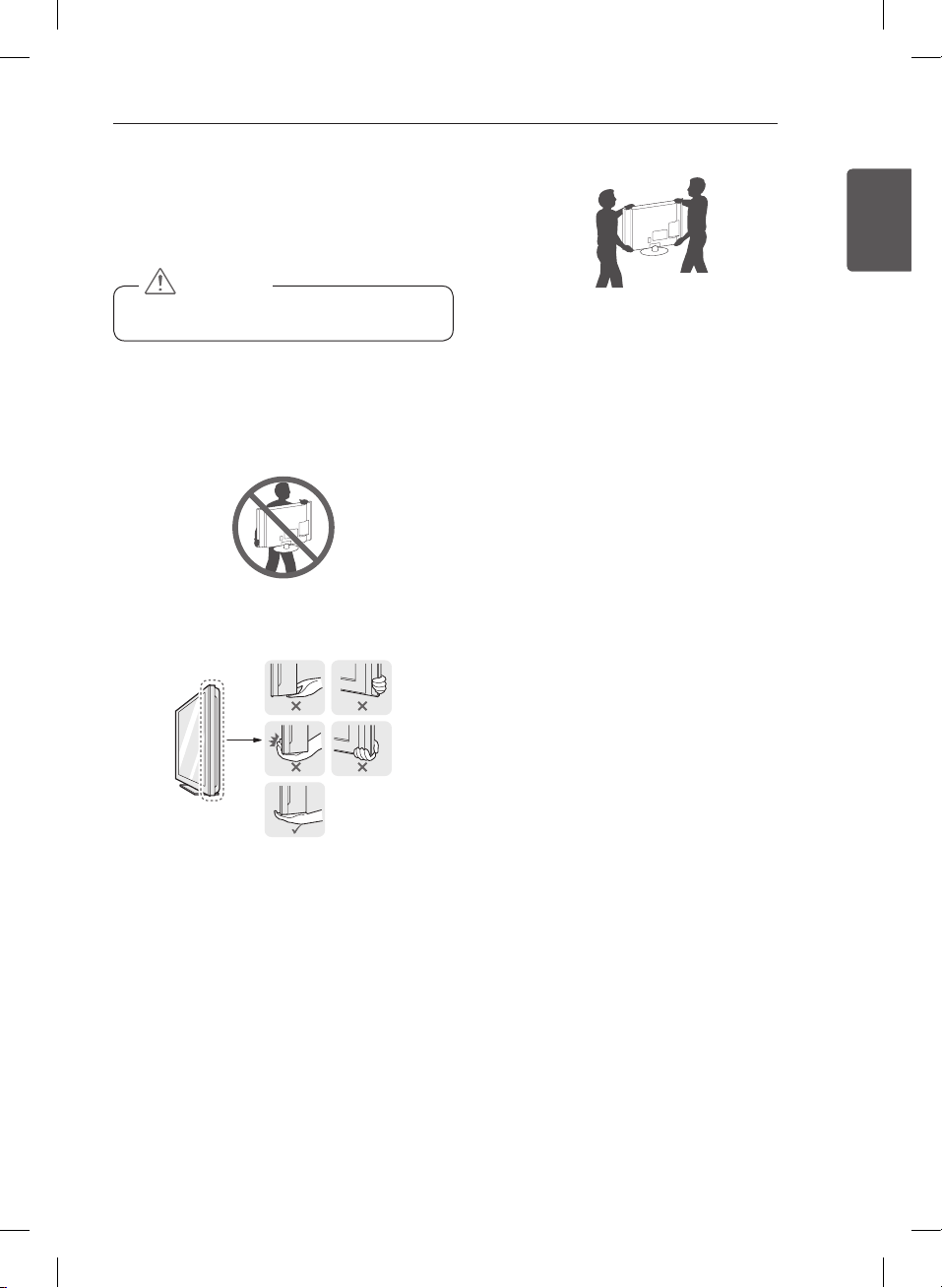
Lifting and moving the TV
Please note the following advice to prevent the TV from
being scratched or damaged and for safe transportation
regardless of its type and size.
y
Avoid touching the screen at all times, as this
may result in damage to the screen.
CAUTION
y
It is recommended to move the TV in the box or
packing material that the TV originally came in.
y
Before moving or lifting the TV, disconnect the
power cord and all cables.
y
When holding the TV, the screen should face away
from you to avoid damage.
y
Hold the top and bottom of the TV frame firmly.
Make sure not to hold the transparent part, speaker,
or speaker grill area.
y
When transporting a large TV, there should be at
least 2 people.
y
When transporting the TV by hand, hold the TV as
shown in the following illustration.
y
When transporting the TV, do not expose the TV to
jolts or excessive vibration.
y
When transporting the TV, keep the TV upright,
never turn the TV on its side or tilt towards the left
or right.
y
Do not apply excessive pressure to cause flexing /
bending of frame chassis as it may damage screen.
16
ENG
ENGLISH
ASSEMBLING AND PREPARING
1
1
2
1
2
4EA
M4 x L14
(Only 32LB56**-ZT / ZQ,
32LB62**-ZE)
M4 x L20
2
1
2
A Stand Base
B Stand Base
1
2
y
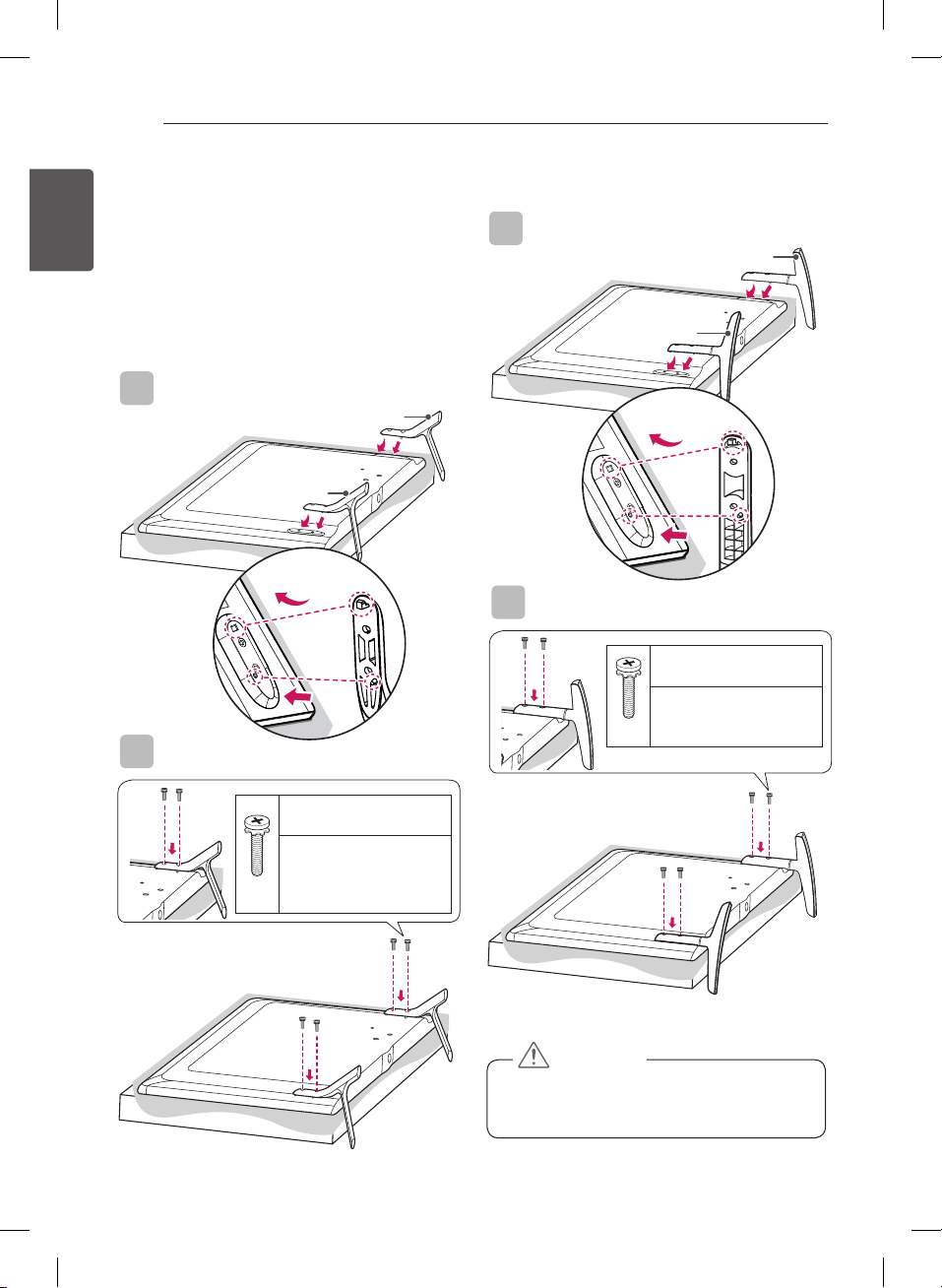
When attaching the stand to the TV set, place
the screen facing down on a cushioned table or
flat surface to protect the screen from scratches.
CAUTION
(Only LB56**-ZT / ZQ, LB62**-ZE)
Setting up the TV
Image shown may differ from your TV.
Attaching the stand
(Only LB55**, LB56**-ZE / ZC, LB62**-ZA / ZB / ZD)
4EA
M4 x L14
(Only 32LB55**,
32LB56**-ZE / ZC,
32LB62**-ZA / ZB)
M4 x L20
1
2
A Stand Base
B Stand Base
1
2
17
ENGENGLISH
ASSEMBLING AND PREPARING
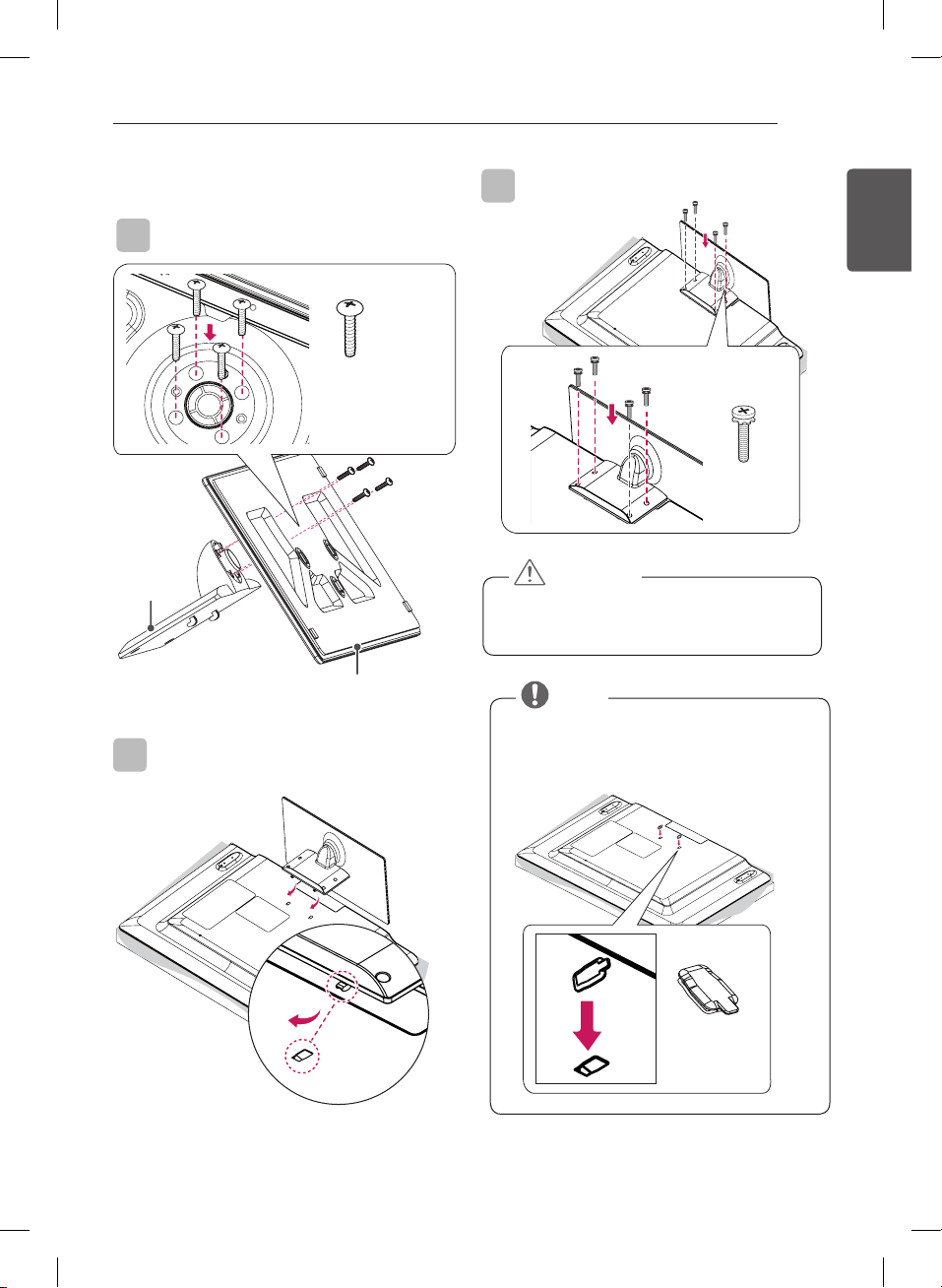
(Only LB56**-ZX, LB62**-ZM)
1
1
Stand Body
Stand Base
4EA
M4 x L20
2
3
4EA
M4 x L14
y
When attaching the stand to the TV set, place
the screen facing down on a cushioned table or
flat surface to protect the screen from scratches.
CAUTION
y
The Rubber will protect the opening from
accumulating dust and dirt. When installing the
wall mounting bracket, use the Rubber. (Only
LB56**-ZX, LB62**-ZM)
Rubber
2EA
NOTE
18
ENG
ENGLISH
ASSEMBLING AND PREPARING
Mounting on a table
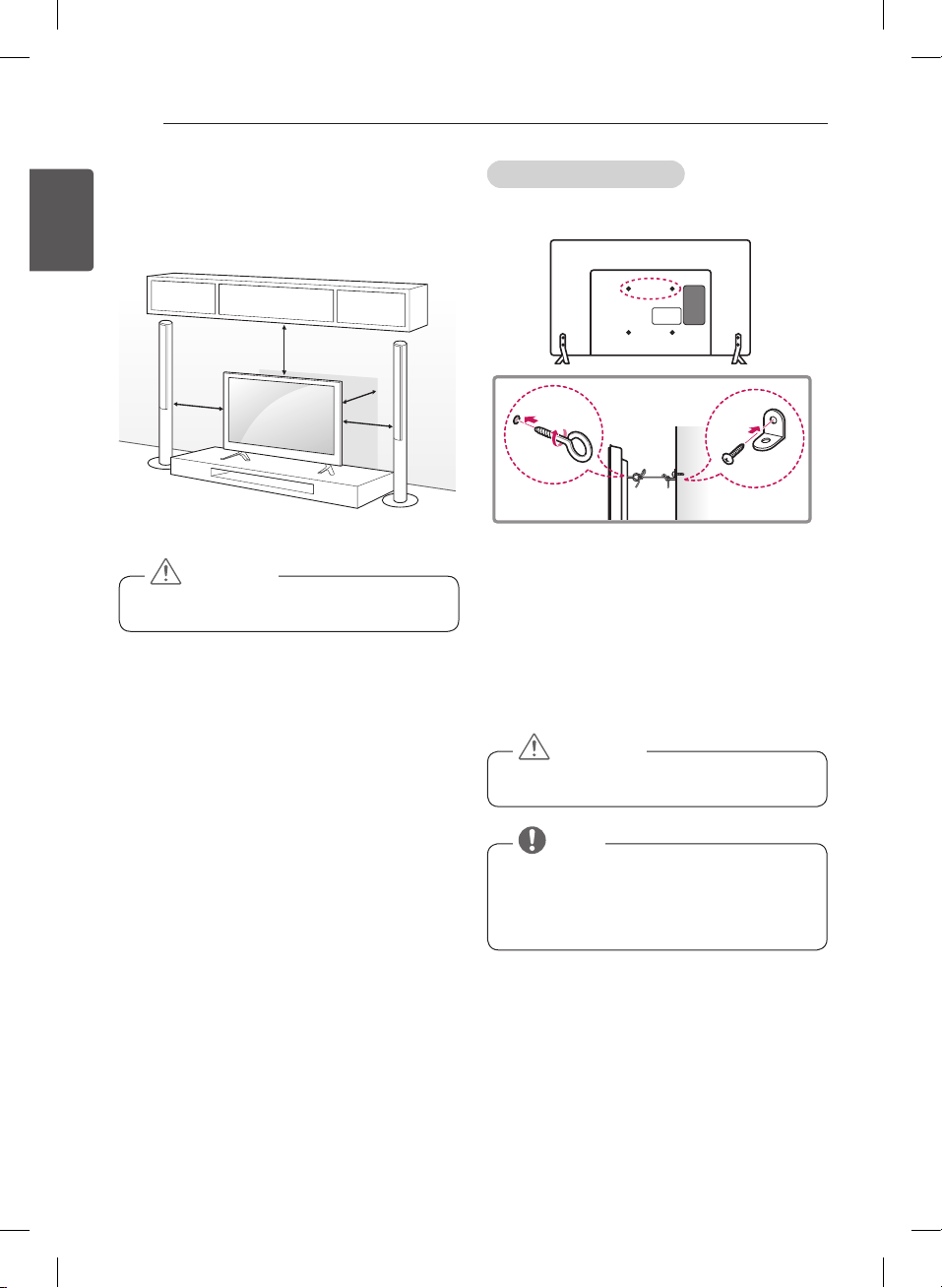
1 Lift and tilt the TV into its upright position on a table.
-
- Leave a 10 cm (minimum) space from the wall
for proper ventilation.
10 cm
10 cm
10 cm
10 cm
2 Connect the power cord to a wall outlet.
y
Do not place the TV near or on sources of heat,
as this may result in fire or other damage.
CAUTION
Securing the TV to a wall
(This feature is not available for all models.)
1 Insert and tighten the eye-bolts, or TV brackets and
bolts on the back of the TV.
-
- If there are bolts inserted at the eye-bolts
position, remove the bolts first.
2 Mount the wall brackets with the bolts to the wall.
Match the location of the wall bracket and the eye-
bolts on the rear of the TV.
3 Connect the eye-bolts and wall brackets tightly with
a sturdy rope.
Make sure to keep the rope horizontal with the flat
surface.
y
Make sure that children do not climb on or hang
on the TV.
CAUTION
y
Use a platform or cabinet that is strong and large
enough to support the TV securely.
y
Brackets, bolts and ropes are not provided. You
can obtain additional accessories from your local
dealer.
NOTE
19
ENGENGLISH
ASSEMBLING AND PREPARING
Mounting on a wall
Attach an optional wall mount bracket at the rear of the
TV carefully and install the wall mount bracket on a
solid wall perpendicular to the oor. When you attach
the TV to other building materials,
please contact qualied personnel.
LG recommends that wall mounting be performed by a
qualied professional installer.
We recommend the use of LG’s wall mount bracket.
When you do not use LG’s wall mount bracket, please
use a wall mount bracket where the device is ad-
equately secured to the wall with enough space to allow
connectivity to external devices.
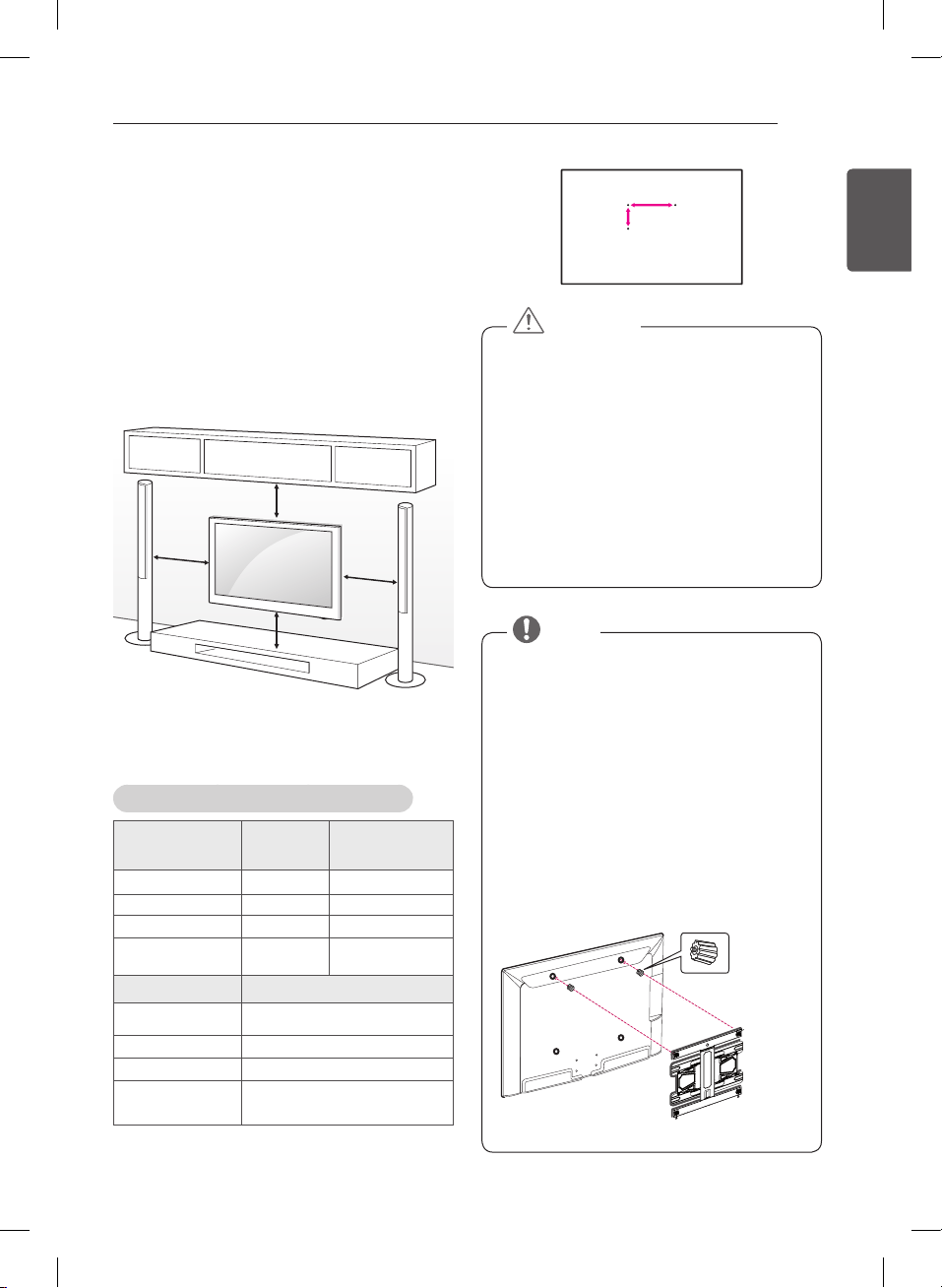
10 cm
10 cm
10 cm
10 cm
Make sure to use screws and wall mount bracket that
meet the VESA standard. Standard dimensions for the
wall mount kits are described in the following table.
Separate purchase(Wall Mounting Bracket)
Model
32/39LB56**
32LB55**
32LB62**
42/47/50/55LB56**
42/49LB55**
42/49/55LB62**
VESA (A x B) 200 x 200 400 x 400
Standard screw M6 M6
Number of screws 4 4
Wall mount
bracket
LSW240B
MSW240
LSW440B
MSW240
Model 60LB56**
VESA (A x B)
400 x 400
Standard screw M6
Number of screws 4
Wall mount
bracket
LSW440B
A
B
y
Disconnect the power first, and then move or
install the TV. Otherwise electric shock may
occur.
y
If you install the TV on a ceiling or slanted wall, it
may fall and result in severe injury.
Use an authorized LG wall mount and contact
the local dealer or qualified personnel.
y
Do not over tighten the screws as this may cause
damage to the TV and void your warranty.
y
Use the screws and wall mounts that meet the
VESA standard. Any damages or injuries by
misuse or using an improper accessory are not
covered by the warranty.
CAUTION
y
Use the screws that are listed on the VESA
standard screw specifications.
y
The wall mount kit includes an installation manual
and necessary parts.
y
The wall mount bracket is not provided. You can
obtain additional accessories from your local
dealer.
y
The length of screws may differ depending on the
wall mount. Make sure to use the proper length.
y
For more information, refer to the manual
supplied with the wall mount.
y
When attaching a wall mounting bracket to the
TV, insert the wall mount spacers into the TV wall
mount holes to adjust the vertical angle of the TV.
(Only 42LB55**, 42LB56**, 42LB62**)
Wall Mount Spacers
NOTE
20
ENG
ENGLISH
MAKING CONNECTIONS
MAKING CONNECTIONS
This section on MAKING CONNECTIONS
mainly uses diagrams for the 47LB561V models.
Connect various external devices to the TV and switch
input modes to select an external device.
For more information of external device’s connection,
refer to the manual provided with each device.
Available external devices are:
HD receivers, DVD players, VCRs, audio systems,
USB storage devices, PC, gaming devices, and other
external devices.
y
The external device connection may differ from
the model.
y
Connect external devices to the TV regardless of
the order of the TV port.
y
If you record a TV programme on a DVD recorder
or VCR, make sure to connect the TV signal
input cable to the TV through a DVD recorder or
VCR. For more information of recording, refer to
the manual provided with the connected device.
y
Refer to the external equipment’s manual for
operating instructions.
y
If you connect a gaming device to the TV, use the
cable supplied with the gaming device.
y
In PC mode, there may be noise associated
with the resolution, vertical pattern, contrast or
brightness. If noise is present, change the PC
output to another resolution, change the refresh
rate to another rate or adjust the brightness and
contrast on the PICTURE menu until the picture
is clear.
y
In PC mode, some resolution settings may not
work properly depending on the graphics card.
NOTE
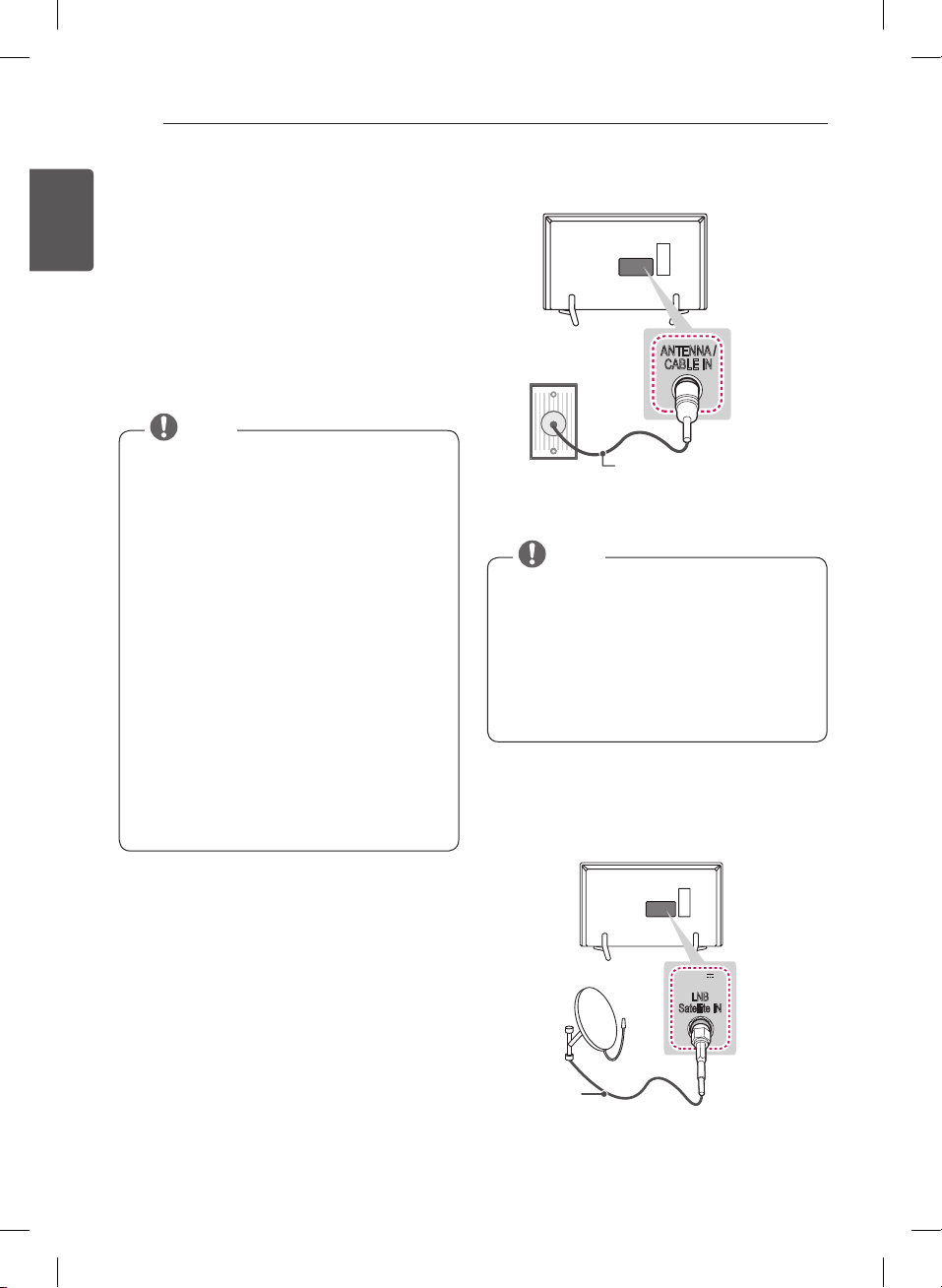
Antenna connection
ANTENNA /
CABLE IN
Wall Antenna
Socket
*Not Provided
Connect the TV to a wall antenna socket with an RF
cable (75 Ω).
y
Use a signal splitter to use more than 2 TVs.
y
If the image quality is poor, install a signal
amplifier properly to improve the image quality.
y
If the image quality is poor with an antenna
connected, try to realign the antenna in the
correct direction.
y
An antenna cable and converter are not supplied.
y
Supported DTV Audio: MPEG, Dolby Digital,
Dolby Digital Plus, HE-AAC
NOTE
Satellite dish connection
(Only satellite models)
LNB
Satellite IN
13/18V
700mA Max
Satellite
Dish
*Not Provided
Connect the TV to a satellite dish to a satellite socket
with a satellite RF cable (75 Ω).
21
ENGENGLISH
MAKING CONNECTIONS
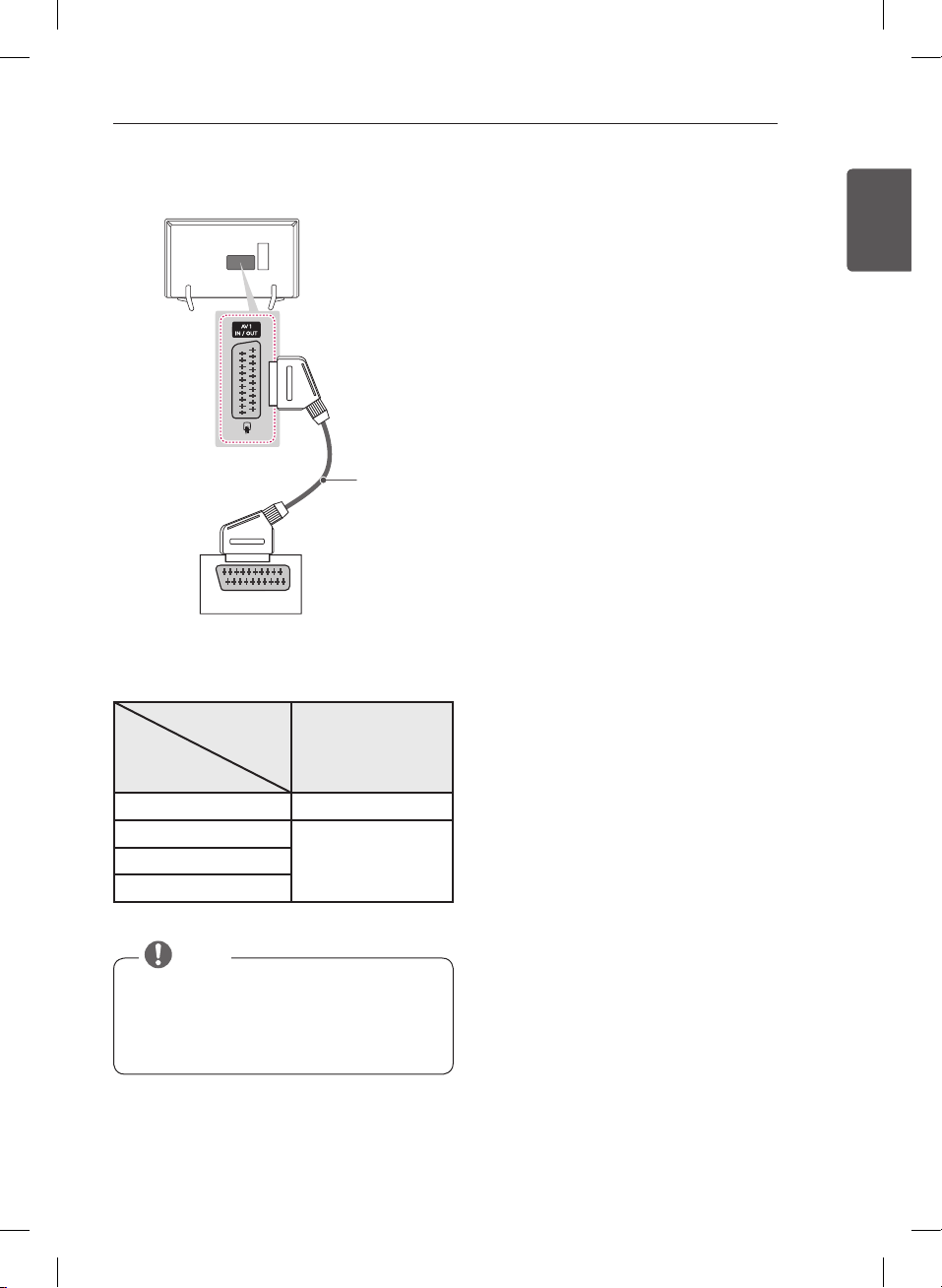
Euro Scart connection
AUDIO / VIDEO
*Not Provided
Transmits the video and audio signals from an external
device to the TV set. Connect the external device and
the TV set with the euro scart cable as shown.
Output
Type
Current
input mode
AV1
(TV Out
1
)
Digital TV
Digital TV
Analogue TV, AV
Analogue TV
Component
HDMI
1 TV Out : Outputs Analogue TV or Digital TV signals.
y
Any Euro scart cable used must be signal
shielded.
y
When watching digital TV in 3D imaging mode,
only 2D out signals can be output through the
SCART cable. (Only 3D models)
NOTE
22
ENG
ENGLISH
MAKING CONNECTIONS
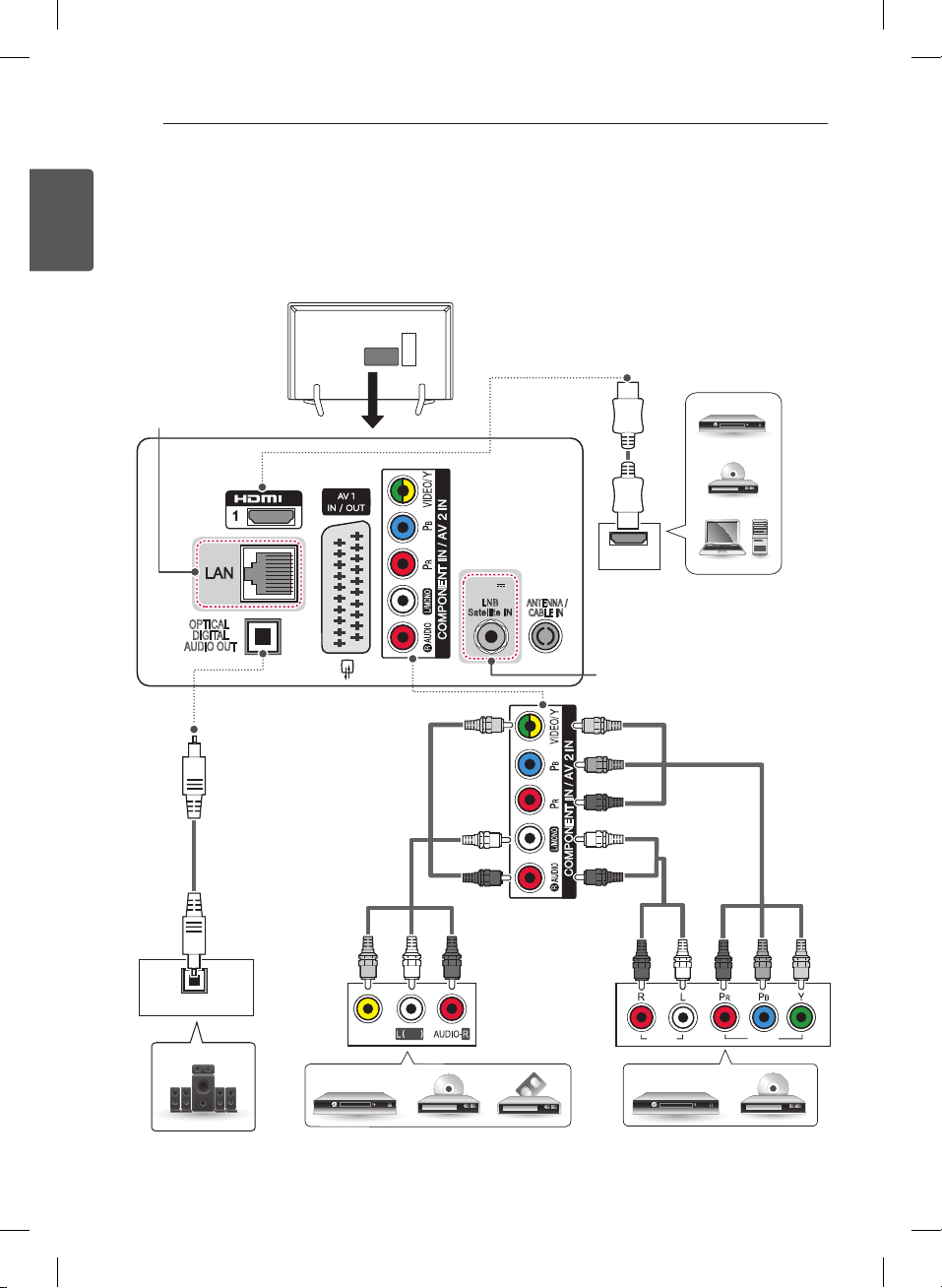
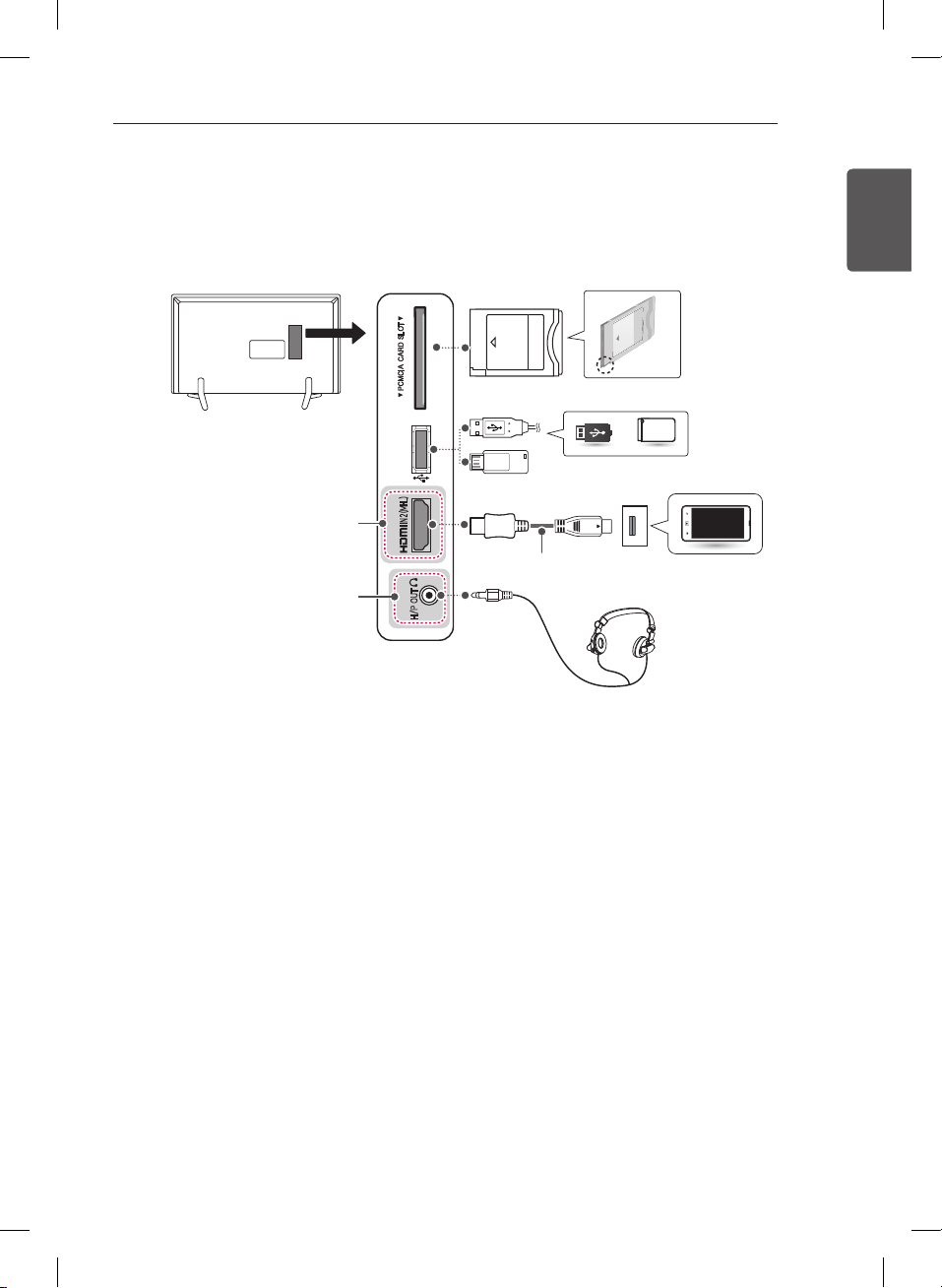
Other connections
Connect your TV to external devices. For the best picture and audio quality, connect the external device and the TV
with the HDMI cable as shown. Some separate cable is not provided.
Only LB56**, LB62** series
DVD/ Blu-Ray / HD Cable Box
DVD/ Blu-Ray / HD Cable Box / VCR
MONO
( )
YELLOW
RED
WHITE
YELLOW
RED
WHITE
GREEN
BLUE
RED
RED
WHITE
GREEN
BLUE
RED
RED
WHITE
AUDIO
VIDEO
VIDEO
IN
OPTICAL
DIGITAL
AUDIO OUT
LNB
Satellite IN
13/18V
700mA Max
ANTENNA /
CABLE IN
OPTICAL
AUDIO IN
Digital Audio System
DVD/ Blu-Ray / HD Cable Box
/ HD STB / PC
HDMI
(Only LAN PORT models)
(Only Satellite models)
USB IN
USB / HDD
Mobile phone
PCMCIA card
H/P OUT
IN 2 (MHL)
HDMI 2 port position
varies by model.
Headphone
MHL passive cable
23
ENGENGLISH
MAKING CONNECTIONS
Only LB56**, LB62** series
DVD/ Blu-Ray / HD Cable Box
DVD/ Blu-Ray / HD Cable Box / VCR
MONO
( )
YELLOW
RED
WHITE
YELLOW
RED
WHITE
GREEN
BLUE
RED
RED
WHITE
GREEN
BLUE
RED
RED
WHITE
AUDIO
VIDEO
VIDEO
IN
OPTICAL
DIGITAL
AUDIO OUT
LNB
Satellite IN
13/18V
700mA Max
ANTENNA /
CABLE IN
OPTICAL
AUDIO IN
Digital Audio System
DVD/ Blu-Ray / HD Cable Box
/ HD STB / PC
HDMI
(Only LAN PORT models)
(Only Satellite models)
USB IN
USB / HDD
Mobile phone
PCMCIA card
H/P OUT
IN 2 (MHL)
HDMI 2 port position
varies by model.
Headphone
MHL passive cable
24
ENG
ENGLISH
REMOTE CONTROL
REMOTE CONTROL
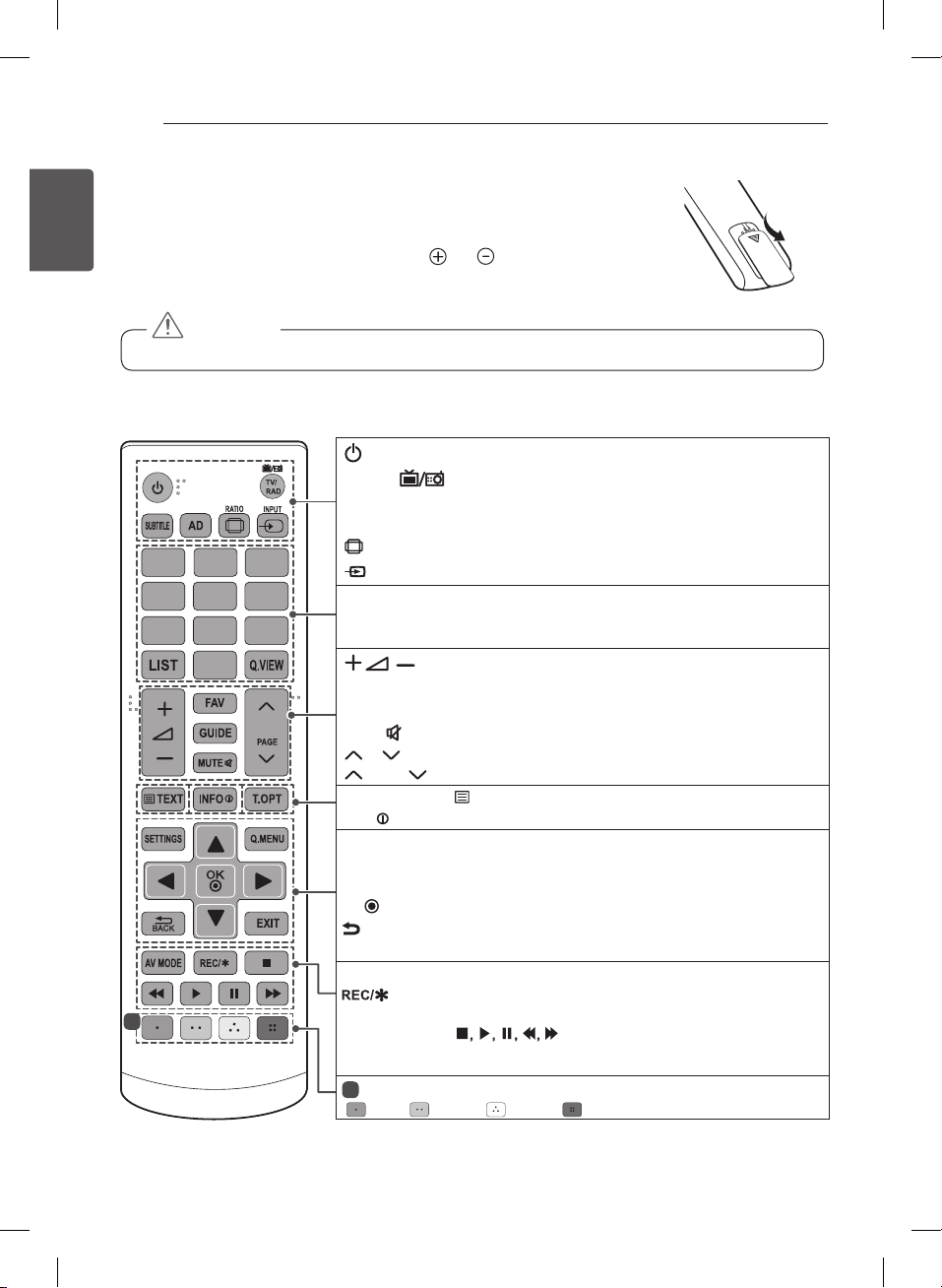
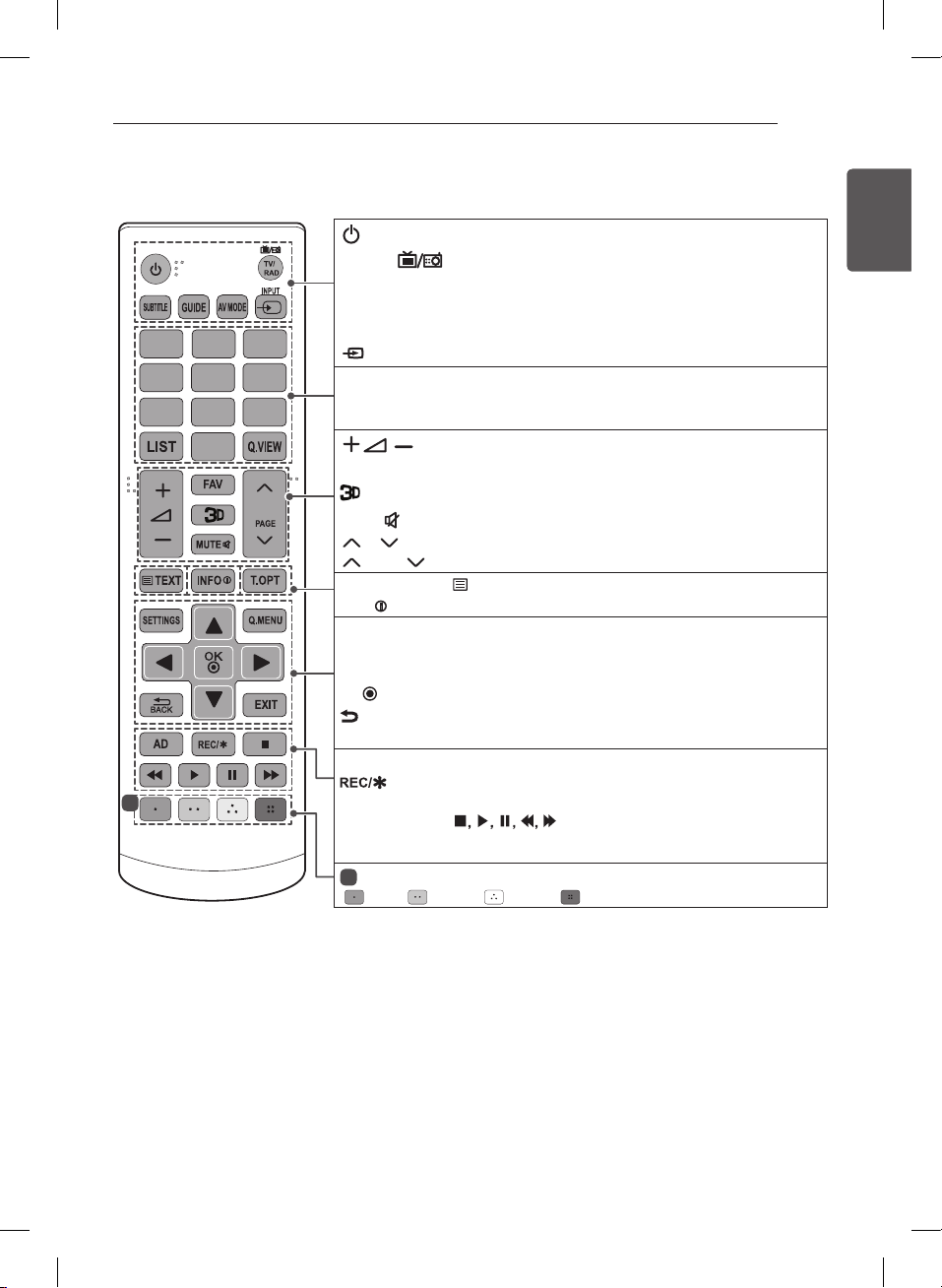
The descriptions in this manual are based on the buttons on the remote control. Please
read this manual carefully and use the TV correctly. To replace batteries, open the battery
cover, replace batteries (1.5 V AAA) matching the and ends to the label inside the
compartment, and close the battery cover.
To remove the batteries, perform the installation actions in reverse.
y
Do not mix old and new batteries, as this may damage the remote control.
CAUTION
Make sure to point the remote control toward the remote control sensor on the TV.
(Only LB55**, LB56**)
1
456
789
P
0
23
1
1
(POWER) Turns the TV on or off.
TV/RAD Selects Radio, TV and DTV programme.
SUBTITLE Recalls your preferred subtitle in digital mode.
AD By pressing the AD button, audio descriptions function will be enabled.
RATIO Resizes an image.
INPUT Changes the input source.
Number buttons Enters numbers.
LIST Accesses the saved programme list.
Q.VIEW Returns to the previously viewed programme.
Adjusts the volume level.
FAV Accesses your favourite programme list.
GUIDE Shows programme guide.
MUTE Mutes all sounds.
P
Scrolls through the saved programmes.
PAGE
Moves to the previous or next screen.
Teletext buttons ( TEXT / T.OPT)
These buttons are used for teletext.
INFO
Views the information of the current programme and screen.
SETTINGS Accesses the main menus.
Q.MENU Accesses the Quick menus.
Navigation buttons (up/down/left/right) Scrolls through menus or options.
OK
Selects menus or options and conrms your input.
BACK Returns to the previous level.
EXIT Clears on-screen displays and returns to TV viewing.
AV MODE Selects an AV mode.
Starts to record and displays record menu.
(Only Time Machine
Ready
supported model)
Control buttons
( )
Controls the MY MEDIA menus,
Time Machine
Ready
control or the SIMPLINK compatible devices (USB, SIMPLINK
or Time Machine
Ready
).
1
Coloured buttons These access special functions in some menus.
( : Red, : Green, : Yellow, : Blue)
25
ENGENGLISH
REMOTE CONTROL
(Only LB62**)
1
456
789
P
0
23
1
1
(POWER) Turns the TV on or off.
TV/RAD Selects Radio, TV and DTV programme.
SUBTITLE Recalls your preferred subtitle in digital mode.
GUIDE Shows programme guide.
AV MODE Selects an AV mode.
INPUT Changes the input source.
Number buttons Enters numbers.
LIST Accesses the saved programme list.
Q.VIEW Returns to the previously viewed programme.
Adjusts the volume level.
FAV Accesses your favourite programme list.
Used for viewing 3D video.
MUTE Mutes all sounds.
P
Scrolls through the saved programmes.
PAGE
Moves to the previous or next screen.
Teletext buttons ( TEXT / T.OPT)
These buttons are used for teletext.
INFO
Views the information of the current programme and screen.
SETTINGS Accesses the main menus.
Q.MENU Accesses the Quick menus.
Navigation buttons (up/down/left/right) Scrolls through menus or options.
OK
Selects menus or options and conrms your input.
BACK Returns to the previous level.
EXIT Clears on-screen displays and returns to TV viewing.
AD By pressing the AD button, audio descriptions function will be enabled.
Starts to record and displays record menu.
(Only Time Machine
Ready
supported model)
Control buttons
( )
Controls the MY MEDIA menus,
Time Machine
Ready
control or the SIMPLINK compatible devices (USB, SIMPLINK
or Time Machine
Ready
).
1
Coloured buttons These access special functions in some menus.
( : Red, : Green, : Yellow, : Blue)
26
ENG
ENGLISH
NETWORK CONNECTION
NETWORK CONNECTION
(Only LAN PORT model)
Image shown may differ from your TV.
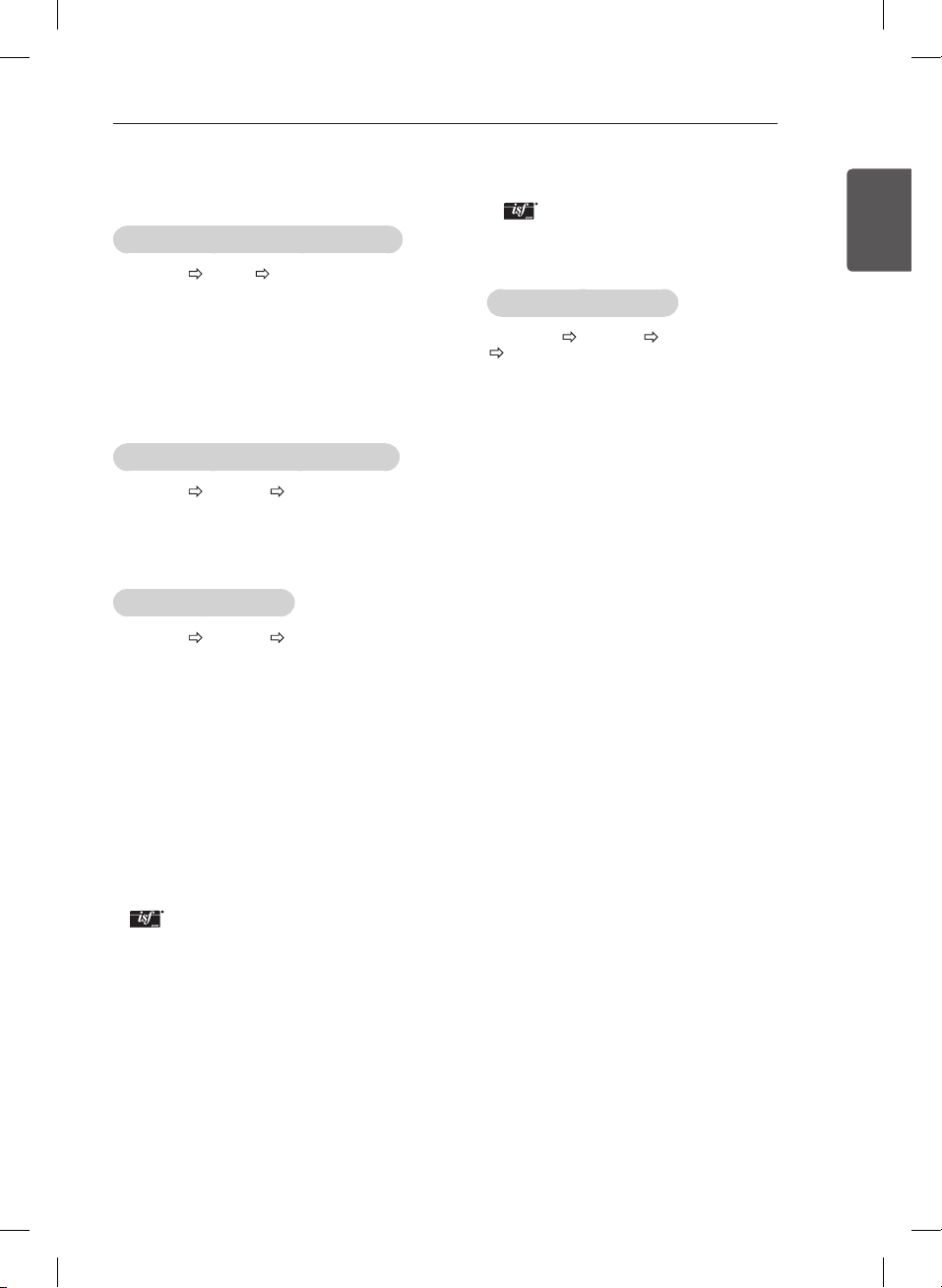
Wired network connection
Internet connection
Wired router
Network setting
1 Press the
SETTINGS
button to access the main
menu.
2 Select the
NETWORK
Network Setting
menu.
NETWORK
Network Setting
Move OK
Network Status
3 Select the
Start Connection
.
Connect a LAN cable to the back of TV.
Setting your network will enable network-related features on the TV.
Previous
Network Setting
Start Connection
Next
4 The device automatically tries to connect to the
network.
Previous
Network connecting...
Network Setting
Cancel
5 The connected network is displayed.
Select the
Complete
to confirm the network
connection.
Network Setting
For detailed settings, select [Set Expert].
Previous
Wired network is connected.
CompleteSet Expert
27
ENGENGLISH
SETTINGS
SETTINGS
Automatically Setting Up Programme
SETTINGS SETUP Auto Tuning
Automatically tunes the programmes.
y
If Input Source is not connected properly,
programme registration may not work.
y
Auto Tuning
only finds programmes that are
currently broadcasting.
y
If
Lock System
is turned on, a pop-up window will
appear asking for password.
To adjust picture with Picture Wizard
SETTINGS PICTURE Picture Wizard III
[Depending on model]
Calibrates and adjusts for optimum picture quality us-
ing the remote control and the Picture Wizard without
expensive pattern devices or help from a specialist.
To select Picture Mode
SETTINGS PICTURE Picture Mode
Select the picture mode optimized for the viewing envi-
ronment or the programme.
y
Vivid
: Heightens contrast, brightness and
sharpness to display vivid images.
y
Standard
: Displays images in standard levels of
contrast, brightness and sharpness.
y
Eco/APS
: [Depending on model]
The Energy Saver feature changes settings on the
TV to reduce power consumption.
y
Cinema/Game
: Displays the optimum picture for
movie, game.
y
Sports
: Optimizes the video image for high and
dynamic actions by emphasizing primary colours
such as white, grass, or sky blue.
y
Expert
1, 2 : Menu for adjusting picture quality
that allows experts and amateurs to enjoy the best
TV viewing. This is the adjustment menu provided
for ISF-certified picture tuning professionals. (ISF
logo can only be used on ISF-certified TVs.)
ISFccc: Imaging Science Foundation Certified
Calibration Control
y
Depending on input signal, available range of
picture modes may differ.
y
Expert mode is for picture tuning professionals
to control and fine-tune using a specific image. For
normal images, the effects may not be dramatic.
y
The ISF function is only available on some models.
To set advanced control
SETTINGS PICTURE Picture Mode
Advanced Control / Expert Control
Calibrates the screen for each picture mode; or adjusts
picture settings for a special screen. First select a
Picture Mode of your choice.
y
Dynamic Contrast
: Adjusts the contrast to the
optimal level according to the brightness of the
image.
y
Dynamic Colour
: Adjusts colours to make the
image appear in more natural colours.
y
Skin Colour
: Sets Skin colour spectrum separately
to implement the skin colour as defined by the user.
y
Sky Colour
: Sky colour is set separately.
y
Grass Colour
: Natural colour spectrum (meadows,
hills, etc.) can be separately set.
y
Gamma
: Sets the gradation curve according to the
output of picture signal in relation to the input signal.
y
Colour Gamut
: Selects the range of colours that
can be expressed.
y
Edge Enhancer
: Shows clearer and distinctive yet
natural edges of the video.
y
Expert Pattern
: [Depending on model]
Patterns used for expert adjustment.
y
Colour Filter
: Filters a specific colour spectrum in
RGB colours to fine-tune colour saturation and hue
accurately.
y
Colour Temperature
: Adjusts the overall tone of
the screen as desired. In Expert mode, detailed fine-
tuning can be set via Gamma method, etc.
y
Colour Management System
: This is a system
that experts use when they adjust colour with a
test pattern. They can select from six colour areas
(Red / Green / Blue / Cyan / Magenta / Yellow)
without affecting other colours. For normal images,
adjustments may not result in noticeable colour
changes.
y
Depending on input signal or other picture settings,
the range of detailed items for adjustment may
differ.
28
ENG
ENGLISH
SETTINGS
To set additional picture options
SETTINGS PICTURE Picture Mode
Picture Option
[Depending on model]
Adjusts detailed setting for images.
y
Noise Reduction
: Eliminates noise in the picture.
y
MPEG Noise Reduction
: Eliminates noise
generated while creating digital picture signals.
y
Black Level
: Adjusts the brightness and contrast of
the screen to suit the black level of the input picture
by using the blackness (black level) of the screen.
y
Real Cinema
: Optimizes the screen for movie
viewing.
y
Motion Eye Care/SUPER Energy Saving
:
[Depending on model]
Saves power consumption by adjusting the
brightness corresponding to the movement of the
image on the screen.
y
Depending on input signal or other picture settings,
the range of detailed items for adjustment may
differ.
To use TruMotion
SETTINGS PICTURE TruMotion
[Depending on model]
Corrects images to display smoother motion sequences.
y
Smooth
: De-judder/De-blur working on higher
range in auto mode.
y
Clear
: De-judder/De-blur working on middle range
in auto mode.
y
User
: De-judder / De-blur can be set manually.
De-judder : This function adjusts juddering of the
screen.
De-blur : This function adjusts and eliminates
blurring of the screen.
Auto means Juddering and blurring range that depend
on input video status is controlled by TruMotion mode.
To use Energy Saving feature
SETTINGS PICTURE Energy Saving
Reduces power consumption by adjusting screen
brightness.
y
Auto
: [Depending on model]
The TV sensor detects the ambient lighting and
automatically adjusts the screen brightness.
y
Off
: Turns off the Energy Saving mode.
y
Minimum / Medium / Maximum
: Applies the pre-
set Energy Saving mode.
y
Screen Off
: Screen is turned off and only sound is
played. Press any button except Power button on
the remote control to turn the screen back on.
To use TV speaker
SETTINGS AUDIO Sound Out TV Speaker
[Depending on model]
Sound is output through the TV speaker.
To use External Speaker
SETTINGS AUDIO Sound Out
External Speaker (Optical)
[Depending on model]
Sound is output through the speaker connected to the
optical port.
y
SimpLink is supported.
To use Digital Sound Out
SETTINGS AUDIO Sound Out
External Speaker (Optical) Digital Sound Out
[Depending on model]
Sets up Digital Sound Out.
Item Audio Input
Digital Audio
Ouput
Auto
MPEG
Dolby Digital
Dolby Digital Plus
HE-AAC
PCM
Dolby Digital
Dolby Digital
Dolby Digital
PCM All PCM
29
ENGENGLISH
SETTINGS
y
If you switch to another input, the SIMPLINK device
will stop.
y
If a third-party device with the HDMI-CEC function
is also used, the SIMPLINK device may not work
normally.
y
[Depending on model]
If you select or play media from a the device with a
home theatre function, the
HT Speaker(Speaker)
is
automatically connected.
Be sure to connect with an optical cable (sold
separately) to use the
HT Speaker(Speaker)
function.
SIMPLINK function description
y
Direct Play
: Plays the multimedia device on the TV
instantly.
y
Select multimedia device
: Selects the desired
device via the SIMPLINK menu to control it from the
TV screen instantly.
y
Disc playback
: Manages the multimedia device
with the TV remote control.
y
Power off all devices
: When you power off the TV,
all connected devices are turned off.
y
Sync Power on
: When the equipment with
SIMPLINK function connected HDMI terminal starts
to play, the TV will automatically turn on.
y
Speaker
: [Depending on model]
Select speaker either on the home theatre unit or
the TV.
To set password
SETTINGS LOCK Set Password
Sets or changes the TV password.
The initial password is set to ‘0000’.
When France is selected for Country, password is not
‘0000’ but ‘1234’.
When France is selected for Country, password cannot
be set to ‘0000’.
To return Factory Reset
SETTINGS OPTION Factory Reset
All stored information is deleted and TV settings are
reset.
The TV turns itself off and back on, and all settings are
reset.
y
When
Lock System
is in place, a pop-up window
appears and asks for password
y
Do not turn off the power during initialization.
To connect and use LG audio device
SETTINGS AUDIO Sound Out
LG Sound Sync (Optical)
[Depending on model]
Connect LG audio device with the logo to the opti-
cal digital audio output port. LG audio device allows you
to enjoy rich powerful sound easily.
To use Headphone
SETTINGS AUDIO Sound Out Headphone
[Depending on model]
Sound is output through the headphone connected to
the earphone/headphone port.
To synchronize audio and video
SETTINGS AUDIO AV Sync. Adjust
[Depending on model]
Synchronizes video and audio directly when they do
not match.
y
If you set
AV Sync. Adjust
to
ON
, you can adjust
the sound output (TV speakers or SPDIF) to the
screen image.
To use SIMPLINK
[Depending on model]
SIMPLINK is a feature that enables you to control and
manage various multimedia devices conveniently via
the SIMPLINK menu.
1 Connect the TV’s HDMI IN terminal and the
SIMPLINK device’s HDMI output terminal using an
HDMI cable.
y
[Depending on model]
For home theatre units with a SIMPLINK function,
connect HDMI terminals as above, and use an
optical cable to connect Optical Digital Audio
Out from the TV to Optical Digital Audio In of the
SIMPLINK device.
2 Select
INPUT(OPTION)
SIMPLINK
.
SIMPLINK menu window appears.
3 In SIMPLINK Setting window, set SIMPLINK
function to
ON
.
4 In SIMPLINK menu window, selects the device you
want to control.
y
This function is only compatible with devices with
the SIMPLINK logo.
y
To use the SIMPLINK function, you need to use
a high-speed HDMI
®
cable (with CEC (Consumer
Electronics Control) feature added). High-speed
HDMI
®
cables have the No. 13 pin connected for
information exchange between devices.
30
ENG
ENGLISH
SETTINGS
To remove the USB device
Q.MENU USB Device
Select a USB storage device that you want to remove.
When you see a message that the USB device has
been removed, separate the device from the TV.
y
Once a USB device has been selected for removal,
it can no longer be read. Remove the USB storage
device and then re-connect it.
Using a USB storage device - warning
y
If the USB storage device has a built-in auto
recognition program or uses its own driver, it may
not work.
y
Some USB storage devices may not work or may
work incorrectly.
y
Use only USB storage devices formatted with the
Windows FAT32 or NTFS File System.
y
For external USB HDDs, it is recommended that you
use devices with a rated voltage of less than 5 V
and a rated current of less than 500 mA.
y
It is recommended that you use USB memory sticks
of 32 GB or less and USB HDDs of 2 TB or less.
y
If a USB HDD with power-saving function does not
work properly, turn the power off and on. For more
information, refer to the user manual of the USB
HDD.
y
Data in the USB storage device can be damaged, so
be sure to back up important files to other devices.
Data maintenance is the user’s responsibility and
the manufacturer is not responsible for data loss.
My Media supporting file
y
Maximum data transfer rate : 20 Mbps (Mega bit per
second)
y
External supported subtitle formats : *.srt (SubRip),
*.smi (SAMI), *.sub (SubViewer, MicroDVD,
DVDsubtitleSystem, SubIdx(Vobsub)), *.ass/*.
ssa (SubStation Alpha), *.txt (TMplayer), *.psb
(PowerDivX)
y
Internal supported subtitle formats: XSUB (Supports
internal subtitles generated from DivX6)
Supported Video Formats
y
Maximum: 1920 x 1080 @ 30p (only Motion JPEG
640 x 480 @ 30p)
y
.asf, .wmv
[Video] MPEG-2, MPEG-4 Part2, DivX3.11, DivX4,
DivX5, DivX6, XViD, H.264/AVC, VC1(WMV3,
WVC1), MP43
[Audio] WMA Standard, WMA9(Pro), MP3, AAC,
AC3, MP3, 3D WMV Single Stream.
y
divx, .avi
[Video] MPEG-2, MPEG-4 Part2, DivX3.11, DivX4,
DivX5, DivX6, XViD, H.264/AVC
[Audio] HE-AAC, LPCM, ADPCM, MPEG- 1 Layer
I, MPEG-1 Layer II, Dolby Digital, MPEG-1 Layer III
(MP3)
y
.ts, .trp, .tp, .mts, .m2ts
[Video] H.264/AVC, MPEG-2, AVS, VC1
[Audio] MPEG-1 Layer I, MPEG-1 Layer II, MPEG-
1 Layer III (MP3), Dolby Digital, Dolby Digital Plus,
AAC, HE-AAC
y
.vob
[Video] MPEG-1, MPEG-2
[Audio] Dolby Digital, MPEG-1 Layer I, MPEG- 1
Layer II, DVD-LPCM
y
.mp4, .m4v, .mov
[Video] MPEG-2, MPEG-4 Part2, DivX3.11, DivX4,
DivX5, DivX6, XVID, H.264/AVC [Audio] AAC,
MPEG-1 Layer III (MP3)
y
.mkv
[Video] MPEG-2, MPEG-4 Part2, DivX3.11, DivX4,
DivX5, DivX6, XVID, H.264/AVC [Audio] HE-AAC,
Dolby Digital, MPEG-1 Layer III (MP3), LPCM
y
motion JPEG
[Video] MJPEG
[Audio] LPCM, ADPCM
y
.mpg, .mpeg, .mpe
[Video] MPEG-1, MPEG-2
[Audio] MPEG-1 Layer I, MPEG-1 Layer II, Dolby
Digital, LPCM
y
dat
[Video] MPEG-1, MPEG-2
[Audio] MP2
y
flv
[Video] Sorenson H.263, H.264/AVC
[Audio] MP3, AAC, HE-AAC
y
*rm, *rmvb
[Video] RV30, RV40
[Audio] Dolby Digital, AAC, HE-AAC, RA6(Cook)
y
3gp, 3gp2
[Video] H.264/AVC, MPEG-4 Part2
[Audio] AAC, AMR(NB/WB)
y
*rm / *rmvb : Depending on model
31
ENGENGLISH
SETTINGS / TO SEE WEB MANUAL / EXTERNAL CONTROL DEVICE SETUP
Supported Audio Formats
y
File type : mp3
[Bit rate] 32 Kbps - 320 Kbps
[Sample freq.] 16 kHz - 48 kHz
[Support] MPEG1, MPEG2, Layer2, Layer3
y
File Type : AAC
[Bit rate] Free Format
[Sample freq.] 8 kHz ~ 48 kHz
[Support] ADIF, ADTS
y
File Type : M4A
[Bit rate] Free Format
[Sample freq.] 8 kHz ~ 48 kHz
[Support] MPEG-4
y
File Type : WMA
[Bit rate] 128 Kbps ~ 320 Kbps
[Sample freq.] 8 kHz ~ 48 kHz
[Support] WMA7, WMA8, WMA9 Standard
y
File Type : WMA 10 Pro
[Bit rate] ~ 768 Kbps
[Channel / Sample freq.]
M0 : up to 2 Channel @ 48 kHz
(Except LBR mode),
M1 : up to 5.1 Channel @ 48 kHz,
M2 : up to 5.1 Channel @ 96 kHz
[Support] WMA 10 Pro
y
File Type : OGG
[Bit rate] Free Format
[Sample freq.] 8kHz ~ 48 kHz
[Support] OGG Vorvis
Supported Photo Formats
y
Category : 2D (jpeg, jpg, jpe)
[Available file type] SOF0: Baseline,
SOF1: Extend Sequential,
SOF2: Progressive
[Photo size] Minimum: 64 x 64,
Maximum: Normal Type: 15360 (W) x 8640
(H), Progressive Type: 1920 (W) x 1440 (H)
y
Category : BMP
[Photo size] Minimum : 64 x 64, Maximum :
9600 x 6400
y
Category : PNG
[Available file type] Interlace, Non-Interlace
[Photo size] Minimum : 64 x 64, Maximum : Interlace
: 1200 x 800, Non-Interlace : 9600 x 6400
y
BMP and PNG format files may be slower to display
than JPEG.
TO SEE WEB MANUAL
To obtain detailed User Guide information,
please visit www.lg.com.
EXTERNAL CONTROL
DEVICE SETUP
To obtain the external control device setup information,
please visit www.lg.com.
32
ENG
ENGLISH
MAINTENANCE / TROUBLESHOOTING
MAINTENANCE
Cleaning your TV
Clean your TV regularly to keep the best performance and to extend the product lifespan.
y
Make sure to turn the power off and disconnect the power cord and all other cables first.
y
When the TV is left unattended and unused for a long time, disconnect the power cord from the wall outlet to
prevent possible damage from lightning or power surges.
CAUTION
Screen, frame, cabinet and stand
y
To remove dust or light dirt, wipe the surface with a dry, clean, and soft cloth.
y
To remove major dirt, wipe the surface with a soft cloth dampened in clean water or a diluted mild detergent.
Then wipe immediately with a dry cloth.
y
Avoid touching the screen at all times, as this may result in damage to the screen.
y
Do not push, rub, or hit the screen surface with your fingernail or a sharp object, as this may result in
scratches and image distortions.
y
Do not use any chemicals as this may damage the product.
y
Do not spray liquid onto the surface. If water enters the TV, it may result in fire, electric shock, or malfunction.
CAUTION
Power cord
Remove the accumulated dust or dirt on the power cord regularly.
TROUBLESHOOTING
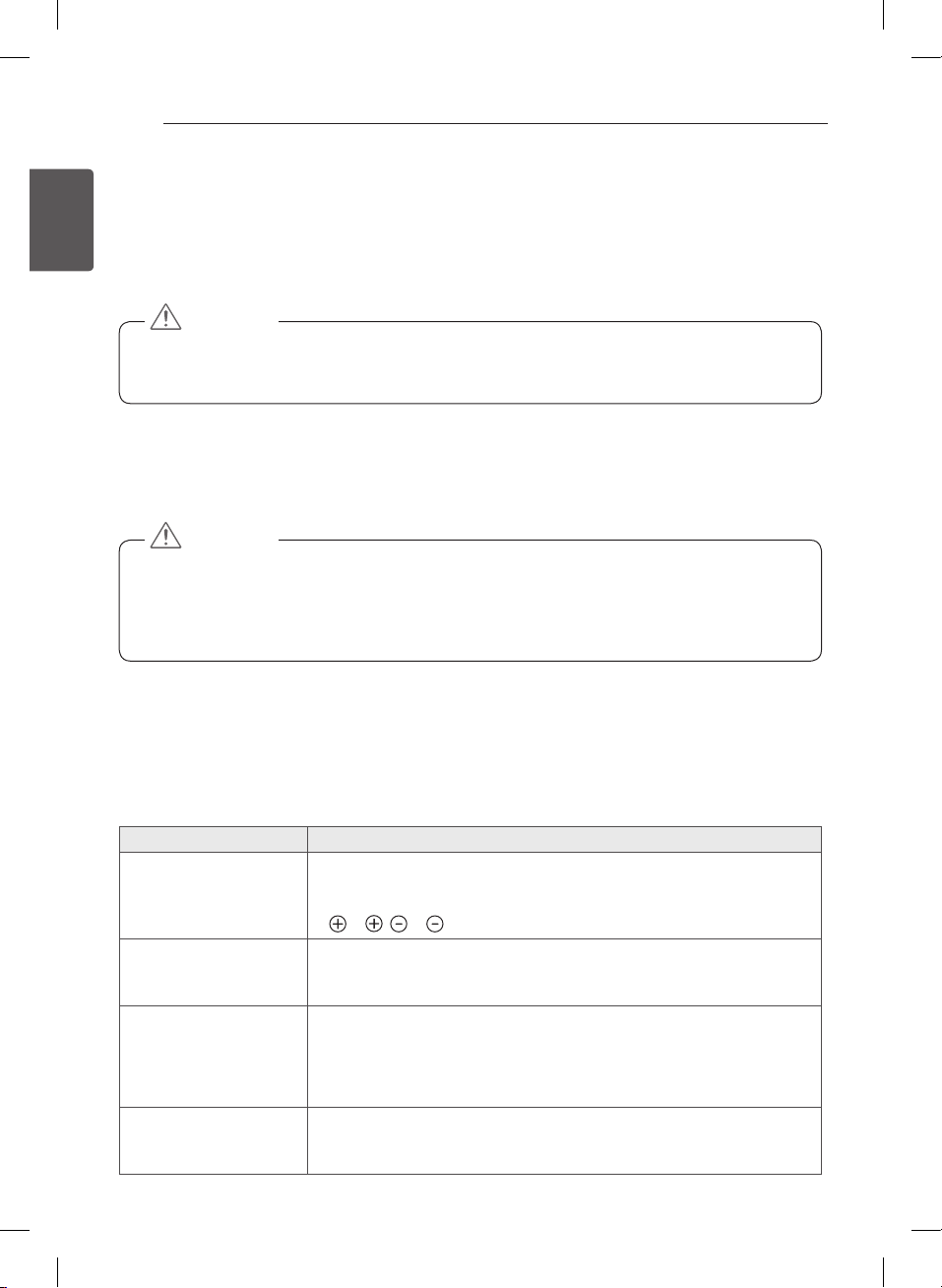
Problem Solution
Cannot control the TV with
the remote control.
y
Check the remote control sensor on the product and try again.
y
Check if there is any obstacle between the product and the remote control.
y
Check if the batteries are still working and properly installed
( to , to ).
No image display and no
sound is produced.
y
Check if the product is turned on.
y
Check if the power cord is connected to a wall outlet.
y
Check if there is a problem in the wall outlet by connecting other products.
The TV turns off suddenly.
y
Check the power control settings. The power supply may be interrupted.
y
Check if the
Automatic Standby
(Depending on model) /
Sleep Timer
/
Off Time
feature is activated in the
TIME
settings.
y
If there is no signal while the TV is on, the TV will turn off automatically after 15
minutes of inactivity.
When connecting to the PC
(HDMI), ‘No signal’ or ‘Invalid
Format’ is displayed.
y
Turn the TV off/on using the remote control.
y
Reconnect the HDMI cable.
y
Restart the PC with the TV on.
33
ENGENGLISH
SPECIFICATIONS
SPECIFICATIONS
Product specications may be changed without prior notice due to upgrade of product functions.
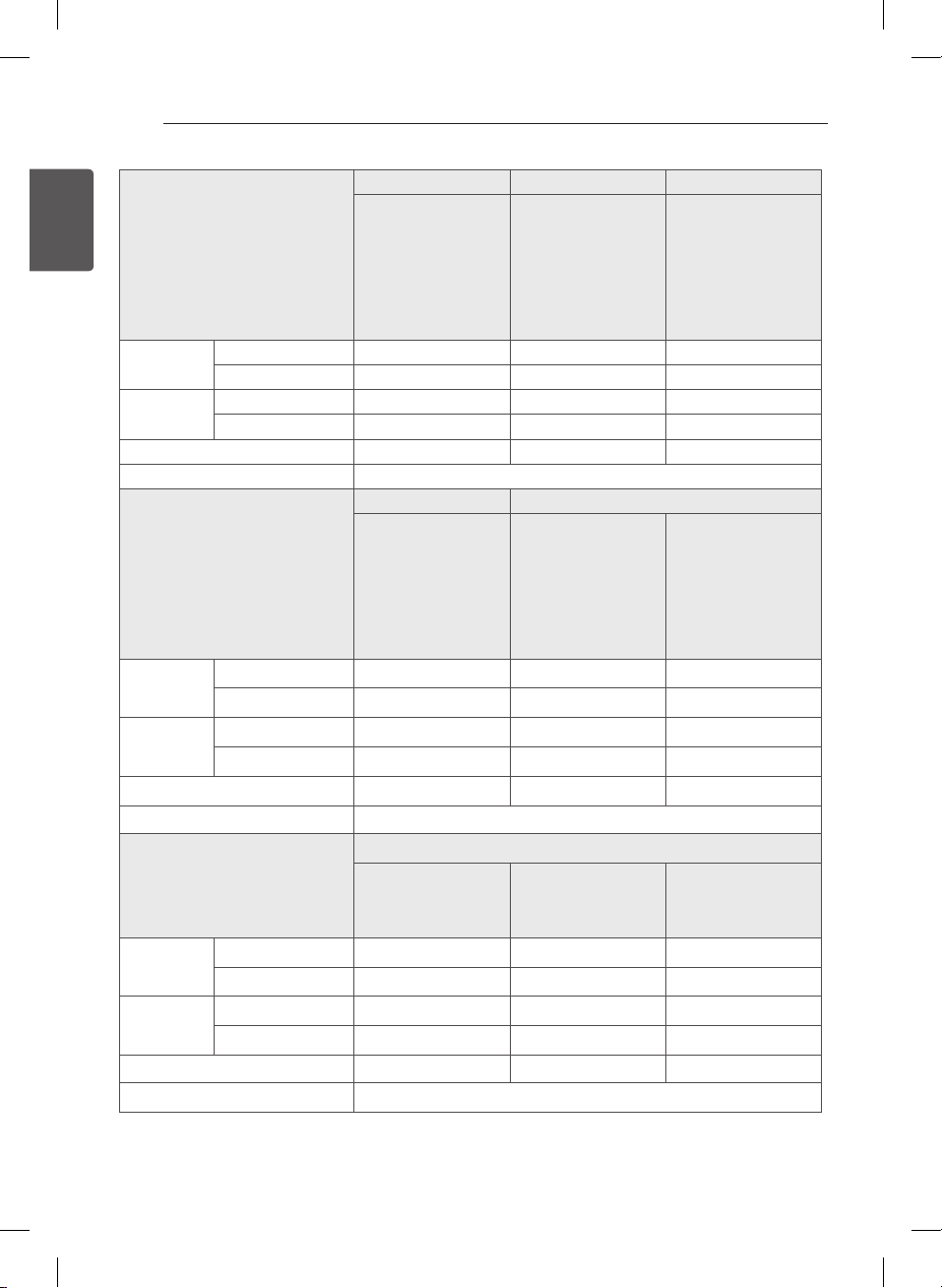
MODELS
32LB56** 39LB56**
32LB5610-ZC
32LB561B-ZC
32LB561U-ZC
32LB561U-ZE
32LB561V-ZC
32LB561V-ZE
32LB563U-ZT
32LB563V-ZT
32LB565U-ZQ
32LB565V-ZQ
39LB5610-ZC
39LB561B-ZC
39LB561U-ZC
39LB561U-ZE
39LB561V-ZC
39LB561V-ZE
Dimensions
(W x H x D)
With stand (mm) 732 x 481 x 207 732 x 475 x 185 885 x 567 x 218
Without stand (mm) 732 x 437 x 55.5 732 x 437 x 55.5 885 x 524 x 55.5
Weight
With stand (kg) 6.2 6.2 8.3
Without stand (kg) 6.0 6.0 8
Power consumption 65 W 65 W 90 W
Power requirement AC 100-240 V~ 50 / 60 H
z
MODELS
42LB56**
42LB5610-ZC
42LB561B-ZC
42LB561U-ZC
42LB561U-ZE
42LB561V-ZC
42LB561V-ZE
42LB563U-ZT
42LB563V-ZT
42LB565U-ZQ
42LB565V-ZQ
42LB569V-ZX
Dimensions
(W x H x D)
With stand (mm) 961 x 610 x 218 961 x 613 x 193 961 x 607 x 238
Without stand (mm) 961 x 567 x 55.5 961 x 567 x 55.5 961 x 567 x 55.5
Weight
With stand (kg) 9.5 9.5 11.7
Without stand (kg) 9.2 9.2 9.2
Power consumption 100 W 100 W 100 W
Power requirement AC 100-240 V~ 50 / 60 Hz
MODELS
47LB56** 50LB56** 55LB56**
47LB5610-ZC
47LB561B-ZC
47LB561U-ZC
47LB561U-ZE
47LB561V-ZC
47LB561V-ZE
50LB5610-ZC
50LB561B-ZC
50LB561U-ZC
50LB561U-ZE
50LB561V-ZC
50LB561V-ZE
55LB5610-ZC
55LB561B-ZC
55LB561U-ZC
55LB561U-ZE
55LB561V-ZC
55LB561V-ZE
Dimensions
(W x H x D)
With stand (mm) 1073 x 676 x 255 1128 x 708 x 255 1243 x 772 x 255
Without stand (mm) 1073 x 629 x 55.8 1128 x 660 x 55.8 1243 x 725 x 56.8
Weight
With stand (kg) 12.7 14.2 17.7
Without stand (kg) 12.3 13.8 17.3
Power consumption 110 W 120 W 130 W
Power requirement AC 100-240 V~ 50 / 60 Hz
34
ENG
ENGLISH
SPECIFICATIONS
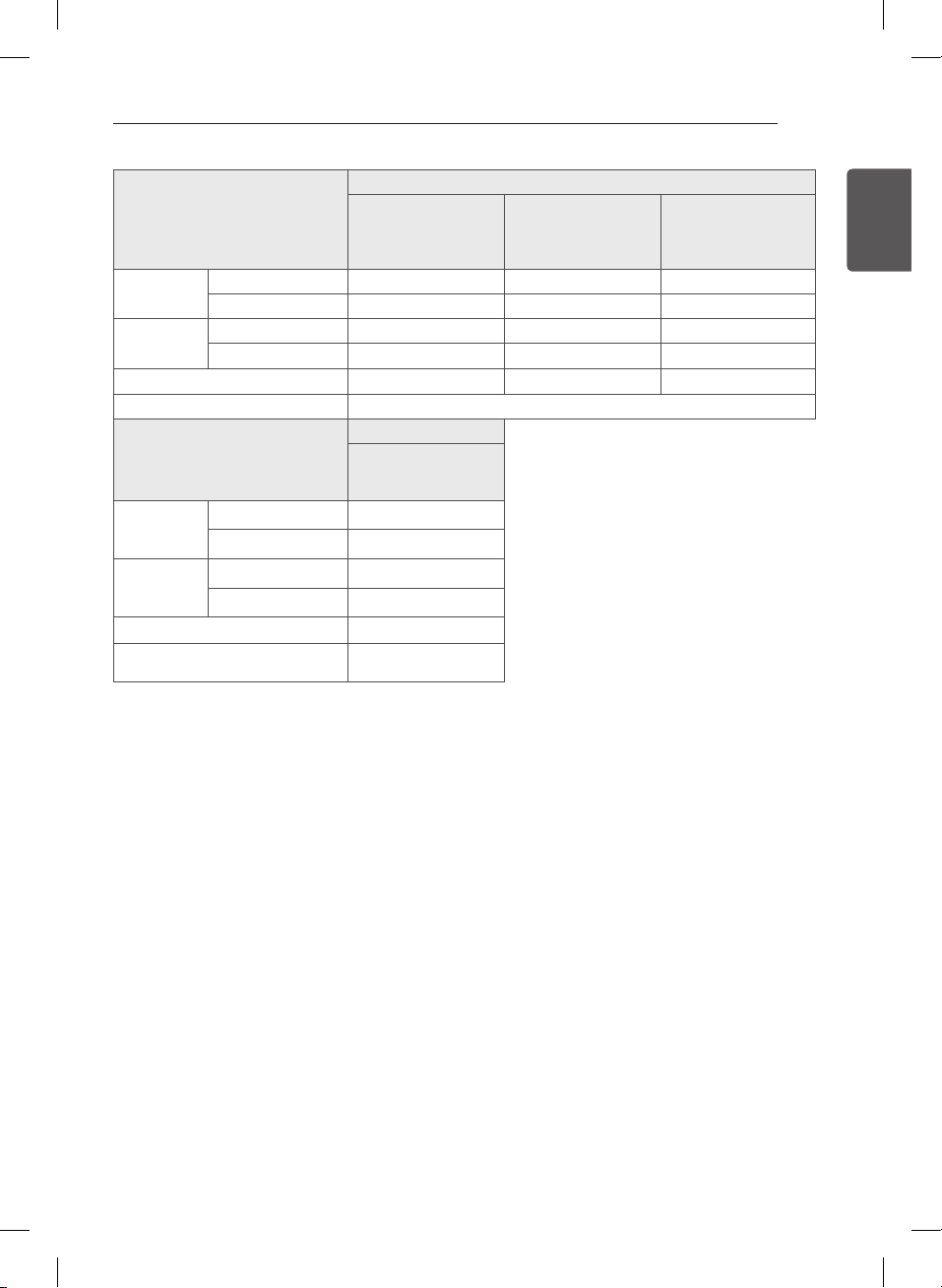
MODELS
60LB56** 32LB55** 42LB55**
60LB5610-ZC
60LB561B-ZC
60LB561U-ZC
60LB561U-ZE
60LB561V-ZC
60LB561V-ZE
32LB5500-ZA
32LB550B-ZA
32LB550U-ZA
32LB550V-ZA
32LB551U-ZC
32LB551V-ZC
32LB552U-ZA
32LB552V-ZA
42LB5500-ZA
42LB550B-ZA
42LB550U-ZA
42LB550V-ZA
42LB551U-ZC
42LB551V-ZC
42LB552U-ZA
42LB552V-ZA
Dimensions
(W x H x D)
With stand (mm) 1373 x 848 x 280 731 x 480 x 208 959 x 611 x 218
Without stand (mm) 1373 x 801 x 58.8 731 x 442 x 56.5 959 x 570 x 56.2
Weight
With stand (kg) 23.5 5.9 9.5
Without stand (kg) 23.0 5.7 9.2
Power consumption 130 W 65 W 100 W
Power requirement AC 100-240 V~ 50 / 60 Hz
MODELS
49LB55** 32LB62**
49LB5500-ZA
49LB550B-ZA
49LB550U-ZA
49LB550V-ZA
49LB551U-ZC
49LB551V-ZC
49LB552U-ZA
49LB552V-ZA
32LB620V-ZA
32LB628U-ZB
32LB628V-ZB
32LB6200-ZE
32LB620V-ZE
32LB626V-ZE
Dimensions
(W x H x D)
With stand (mm) 1105 x 694 x 247 731 x 480 x 208 731 x 477.6 x 184.6
Without stand (mm) 1105 x 652 x 56.5 731 x 442 x 56.5 731 x 442 x 56.5
Weight
With stand (kg) 13.6 5.9 5.9
Without stand (kg) 13.2 5.7 5.7
Power consumption 110 W 65 W 65 W
Power requirement AC 100-240 V~ 50 / 60 Hz
MODELS
42LB62**
42LB620V-ZA
42LB628U-ZB
42LB628V-ZB
42LB620V-ZD
42LB6200-ZE
42LB620V-ZE
42LB626V-ZE
42LB629V-ZM
Dimensions
(W x H x D)
With stand (mm) 959 x 611 x 218 959 x 609.7 x 193 959 x 604 x 238
Without stand (mm) 959 x 570 x 56.2 959 x 570 x 56.2 959 x 570 x 56.2
Weight
With stand (kg) 9.5 9.5 11.7
Without stand (kg) 9.2 9.2 9.2
Power consumption 100 W 100 W 100 W
Power requirement AC 100-240 V~ 50 / 60 Hz
35
ENGENGLISH
SPECIFICATIONS
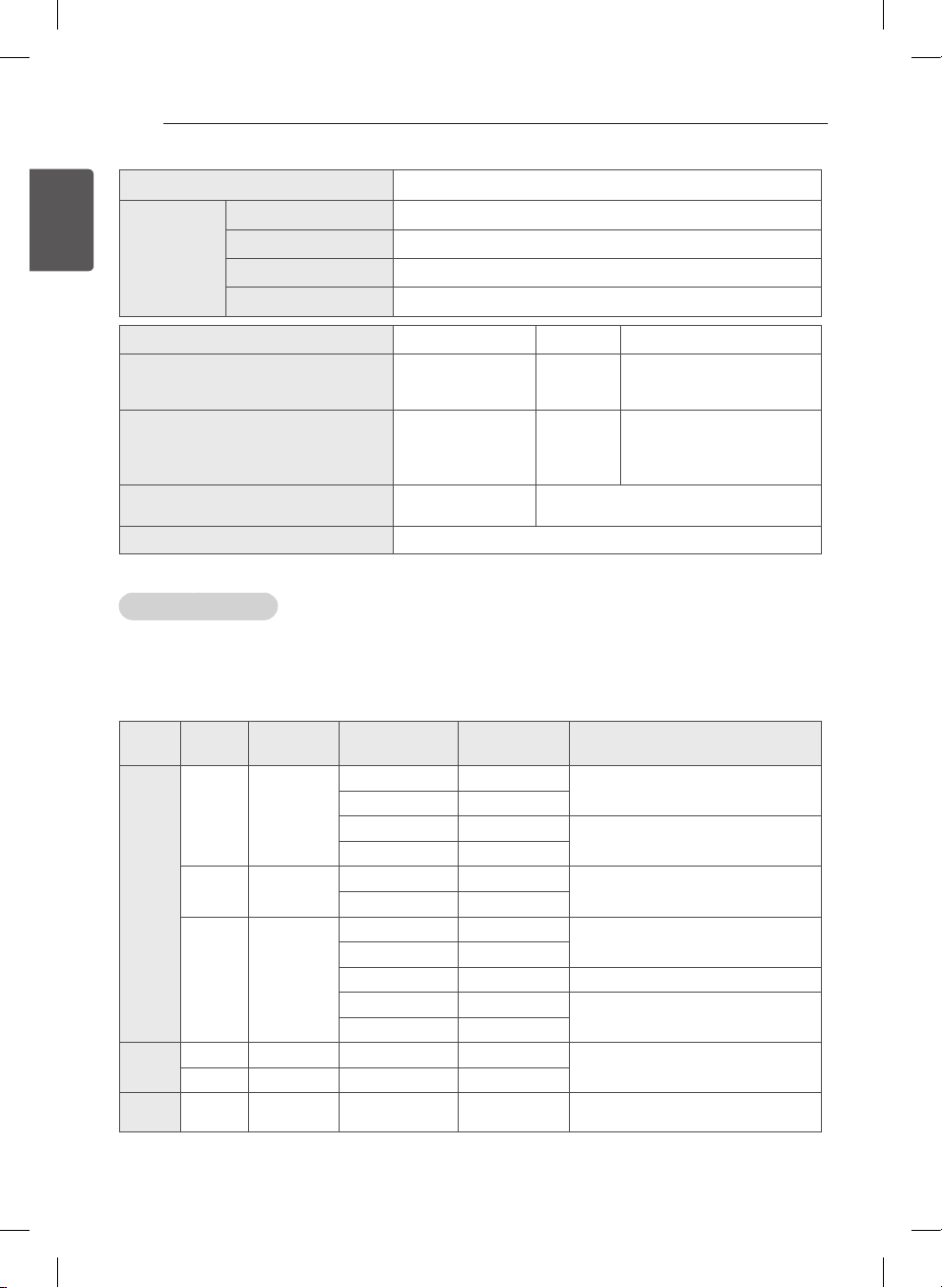
MODELS
49LB62**
49LB620V-ZA
49LB628U-ZB
49LB628V-ZB
49LB620V-ZD
49LB6200-ZE
49LB620V-ZE
49LB626V-ZE
49LB629V-ZM
Dimensions
(W x H x D)
With stand (mm) 1105 x 694 x 247 1105 x 694.3 x 230 1105 x 686 x 238
Without stand (mm) 1105 x 652 x 56.5 1105 x 652 x 56.5 1105 x 652 x 56.5
Weight
With stand (kg) 13.6 13.6 16.4
Without stand (kg) 13.2 13.2 13.2
Power consumption 110 W 110 W 110 W
Power requirement AC 100-240 V~ 50 / 60 Hz
MODELS
55LB62**
55LB6200-ZE
55LB620V-ZE
55LB626V-ZE
Dimensions
(W x H x D)
With stand (mm) 1241 x 769 x 230
Without stand (mm) 1241 x 729 x 57.5
Weight
With stand (kg) 18.2
Without stand (kg) 17.8
Power consumption 130 W
Power requirement
AC 100-240 V~ 50 /
60 Hz
36
ENG
ENGLISH
SPECIFICATIONS
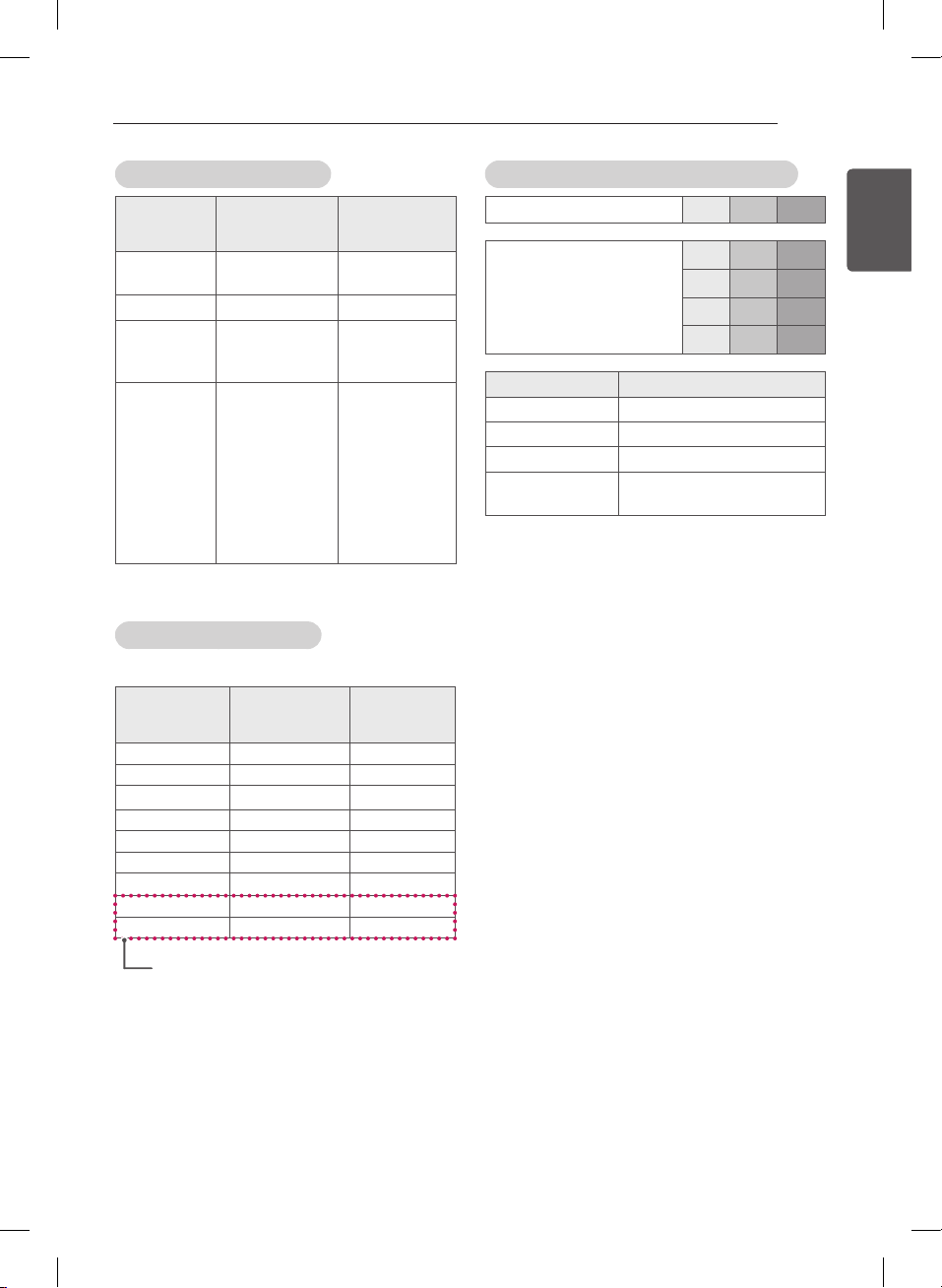
CI Module Size (W x H x D) 100.0 mm x 55.0 mm x 5.0 mm
Environment
condition
Operating Temperature 0 °C to 40 °C
Operating Humidity Less than 80 %
Storage Temperature -20 °C to 60 °C
Storage Humidity Less than 85 %
Satellite Digital TV Digital TV Analogue TV
Television system
DVB-T/T2
DVB-C
DVB-S/S2
DVB-T
DVB-C
PAL/SECAM B/G/D/K/I,
SECAM L/L’
Programme coverage
VHF, UHF
C-Band, Ku-Band
VHF, UHF
VHF: E2 to E12,
UHF : E21to E69,
CATV: S1 to S20,
HYPER: S21 to S47
Maximum number of
storable programmes
6,000 1,500
External antenna impedance 75 Ω
3D supported mode
(Only 3D models)
y
Video, which is input as below media contents is switched into the 3D screen automatically.
y
The method for 3D digital broadcast may differ depending on the signal environment. If video is not switched
automatically into 3D, manually convert the settings to view 3D images.
Input Signal Resolution
Horizontal
Frequency (kHz)
Vertical
Frequency (Hz)
Playable 3D video format
HDMI
720p 1280 x 720
37.5 50
Side by Side(half),
Top and Bottom
45 60
75 50
Frame packing
89.9 / 90 59.94 / 60
1080i 1920 x 1080
28.125 50
Side by Side(half),
Top and Bottom
33.7 60
1080p 1920 x 1080
27 24
Side by Side(half),
Top and Bottom
33.7 30
53.95 / 54 23.98 / 24 Frame packing
56.3 50
Side by Side(half), Top and Bottom,
Single frame sequential
67.5 60
DTV
720p 1280 x 720 37.5 50
Side by Side, Top and Bottom
1080i 1920 x 1080 28.125 50
USB 1080p 1920 x 1080 33.75 30
Side by Side, Top and Bottom,
JPS, MPO(Photo)
37
ENGENGLISH
SPECIFICATIONS
Component port connecting information
Component ports on the TV Y P
B
P
R
Video output ports on
DVD player
Y P
B
P
R
Y B-Y R-Y
Y Cb Cr
Y Pb Pr
Signal Component
480i / 576i O
480p / 576p O
720p / 1080i O
1080p
O
(50 Hz / 60 Hz only)
HDMI-DTV supported mode
Resolution
Horizontal
Frequency (kHz)
Vertical
Frequency
(Hz)
720 x 480
31.469
31.5
59.94
60
720 x 576 31.25 50
1280 x 720
37.5
45
44.96
50
60
59.94
1920 x 1080
28.125
33.75
33.72
56.25
67.5
67.432
27
26.973
33.75
33.716
50
60
59.94
50
60
59.94
24
23.976
30
29.97
HDMI-PC supported mode
(Use HDMI IN 1 for PC mode)
Resolution
Horizontal
Frequency (kHz)
Vertical
Frequency
(Hz)
640 x 350 31.468 70.09
720 x 400 31.469 70.08
640 x 480 31.469 59.94
800 x 600 37.879 60.31
1024 x 768 48.363 60.00
1152 x 864 54.348 60.053
1360 x 768 47.712 60.015
1280 x 1024 63.981 60.020
1920 x 1080 67.50 60.00
(Except for 32LB55*B, 32LB55*U, 32LB56*B,
32LB56*U, 32LB62*U)
38
ENG
ENGLISH
REGULATORY
REGULATORY
LG Recycling Policy (Only EU)
LG Electronics offers a customized e-waste take-back & recycling service that meets local needs and requirements
in the countries where e-waste regulations are in place, and also provides product and packaging take-back & recy-
cling service voluntarily in some countries. LG Electronics evaluates products’ recyclability at the design step using
LG’s recyclability evaluation tool, with the goal of improving recyclability where practicable. Through these activities,
LG seeks to contribute to conserving natural resources and protecting the environment.
For more information about the LG Recycling Policy, please visit our global site at http://www.lg.com/global/sustain-
ability/environment/take-back-recycling
Energy Saving
Energy efciency cuts energy consumption and thus saves money by reducing electricity bills. The following indica-
tions allow to reduce power consumption when the television is not being watched:
y
Turning the television off at its mains supply, or un-plugging it, will cut energy use to zero for all televisions, and
is recommended when the television is not being used for a long time, e.g. when on holiday,
y
Putting the television into standby mode, will reduce energy consumption, but will still draw some power,
y
Reducing the brightness of the screen will reduce energy use.
EU ecolabel (Only EU ecolabel applied model)
Better for the environment...
y
High Energy Efficiency
y
Reduced CO2 emissions
y
Designed to facilitate repair and recycling
... better for you.
EU Ecolabel : PL/22/004
LGE announced the ‘LG Declaration for a Cleaner Environment ‘in 1994, and this ideal has served as a Guiding
managerial principle ever since. The Declaration is a foundation that has allowed us to undertaike Environmentally
friendly activities in careful consideration of economic, environmental, and social aspects. We promote activities
for environmental preservation, and we specically develop our products to embrace the Concept of environment-
friendly through whole process from getting raw materials, production, transportation, usage and end-of-life. These
environmental characteristics are endorsed by the award of the European Commission as approval of the product
environmental status for energy saving. Facilities for recycling and a host of other features.
The full list of criteria and more information on the eco label can be found at the web-site address :
http://www.ecolabel.eu
39
ENGENGLISH
REGULATORY
Restriction of Hazardous Substances (Only Ukraine)
Обмеження України на наявність небезпечних речовин
y
The equipment complies with requirements of the Technical Regulation, in terms of restrictions for the use of
certain dangerous substances in electrical and electronic equipment.
y
Устаткування відповідає вимогам технічного регламенту щодо обмеженного використання небезпечних
речовин в електричному і електронному обладнанні.
Isolator (Only Sweden, Norway)
y
“Equipment connected to the protective earthing of the building installation through the mains connection or
through other equipment with a connection to protective earthing - and to a cable distribution system using
coaxial cable, may in some circumstances create a fire hazard. Connection to a cable distribution system has
therefore to be provided through a device providing electrical isolation below a certain frequency range (galvanic
isolator, see EN 60728-11)”
y
“Utrustning som är kopplad till skyddsjord via jordat vägguttag och/eller via annan utrustning och samtidigt är
kopplad till kabel-TV nät kan i vissa fall medföra risk för brand.
För att undvika detta skall vid anslutning av utrustningen till kabel-TV nät galvanisk isolator finnas mellan
utrustningen och kabel-TV nätet.”
y
“Utstyr som er koplet til beskyttelsesjord via nettplugg og/eller via annet jordtilkoplet utstyr - og er tilkoplet et
kabel-TV nett, kan forårsake brannfare.
For å unngå dette skal det ved tilkopling av utstyret til kabel-TV nettet installeres en galvanisk isolator mellom
utstyret og kabel-TV nettet.”
Packing Information (Only Russia, Kazakhstan, Belarus)
Русский
Символ «не для пищевой продукции» применяется в соответствие с техническим регламентом
Таможенного союза «О безопасности упаковки» 005/2011 и указывает на то, что упаковка данного продукта
не предназначена для повторного использования и подлежит утилизации. Упаковку данного продукта
запрещается использовать для хранения пищевой продукции.
Қазақша
Символ Кедендік одақтың 005/2011 техникалық регламентіне сәйкес қолданылады және осы өнімнің
қаптамасын екінші рет пайдалануға арналмағанын және жоюға жататынын көрсетеді. Осы өнімнің
қаптамасын азық-түлік өнімдерін сақтау үшін пайдалануға тыйым салынады.
Русский
Символ «петля Мебиуса» указывает на возможность утилизации упаковки. Символ может быть дополнен
обозначением материала упаковки в виде цифрового и/или буквенного обозначения.
Қазақша
Символ қаптаманы жою мүмкіндігін көрсетеді. Символ сандық код және/немесе әріп белгілері түріндегі
қаптама материалының белгісімен толықтырылуы мүмкін.
Record the model number and serial number
of the TV.
Refer to the label on the back cover and
quote this information to your dealer when
requiring any service.
MODEL
SERIAL
Please contact LG First.
If you have any inquiries or comments,
please contact LG customer information centre.
Customer Information Centre
Country
Service
Country
Service
0 810 144 131 0900 543 5454
015 200 255 800 187 40
0032 15 200255 801 54 54 54
07001 54 54 808 78 54 54
810 555 810 031 228 3542
8088 5758 0850 111 154
0800 0 54 54 963 05 05 00
3220 54
0770 54 54 54
01806 11 54 11
(0,20€ pro Anruf aus
dem Festnetz der DTAG;
Mobilfunk: max. 0,60€
pro Anruf)
0848 543 543
801 11 200 900,
210 4800 564
0344 847 5454
8 800 200 7676
06 40 54 54 54 800 9990
01 686 9454 0 800 303 000
199600099
8 8000 805 805,
2255(GSM)
8 820 0071 1111
Latvija 80200201 8 800 120 2222
880008081
0-800-805-8050
Türkiye 444 6 543 Slovenija 080 543 543