
User Guide
t 4PNFDPOUFOUBOEJMMVTUSBUJPOTNBZEJGGFSGSPNZPVSEFWJDFEFQFOEJOHPOUIF
SFHJPOTFSWJDFQSPWJEFSTPGUXBSFWFSTJPOPS04WFSTJPOBOEBSFTVCKFDUUPDIBOHF
XJUIPVUQSJPSOPUJDF
t "MXBZTVTFHFOVJOF-(BDDFTTPSJFT5IFTVQQMJFEJUFNTBSFEFTJHOFEPOMZGPSUIJT
EFWJDFBOENBZOPUCFDPNQBUJCMFXJUIPUIFSEFWJDFT
t "WBJMBCMFBDDFTTPSJFTNBZWBSZEFQFOEJOHPOZPVSSFHJPODPVOUSZPSTFSWJDF
QSPWJEFS
t 5IJTEFWJDFJTOPUTVJUBCMFGPSQFPQMFXIPIBWFBWJTVBMJNQBJSNFOUEVFUPUIF
UPVDITDSFFOLFZCPBSE
t $PQZSJHIUª-(&MFDUSPOJDT*OD"MMSJHIUTSFTFSWFE-(BOEUIF-(MPHPBSF
SFHJTUFSFEUSBEFNBSLTPG-((SPVQBOEJUTSFMBUFEFOUJUJFT"MMPUIFSUSBEFNBSLT
BSFUIFQSPQFSUZPGUIFJSSFTQFDUJWFPXOFST
t (PPHMF(PPHMF.BQT(NBJM:PV5VCF)BOHPVUTBOE1MBZ4UPSF
BSFUSBEFNBSLTPG(PPHMF*OD
t 64$FMMVMBS
®
$VTUPNFS$BSF
ENGLISH

Table of contents
Table of contents
Important notice .......................................6
Getting to know your phone ...................10
Phone layout ..........................................10
Installing the SIM or USIM card ..............12
Charging the phone ...............................14
Unlocking the screen .............................15
Smart Lock ............................................15
Your Home screen ...................................16
Touch screen tips ..................................16
Home screen .........................................17
Customizing the Home screen ...............18
Returning to recently-used applications .19
Notifications panel .................................20
On-screen keyboard ..............................23
Special Features .....................................24
Gesture shot ..........................................24
Gesture View .........................................25
Glance View ...........................................26
KnockON ...............................................26
Knock Code ...........................................27
Dual window..........................................28
QuickMemo+ ......................................... 29
QSlide ....................................................30
QuickRemote .........................................31
Google account setup .............................32
Connecting to Networks and Devices ....33
Wi-Fi .....................................................33
Bluetooth ...............................................34
Wi-Fi Direct ...........................................35
SmartShare ...........................................36
Transferring data between a PC and your
device....................................................37
Calls ........................................................38
Making a call .........................................38
Calling your contacts .............................38
Answering and rejecting a call ...............38
Making a second call .............................39
Viewing your call logs ............................39
Call settings ...........................................39
Contacts ..................................................40
Searching for a contact ..........................40
Adding a new contact ............................40
Favorites contacts..................................41
Creating a group ....................................41
Messaging ............................................... 42
Sending a message ...............................42
Conversation view .................................43
Changing message settings ...................43
Email .......................................................44
Managing email accounts ......................44
Working with account folders .................44
Composing and sending email ...............45

3
Table of contents
Camera and Video ...................................46
Camera options on the viewfinder ..........46
Using the advanced settings ..................47
Taking a photo ......................................47
Once you have taken a photo .................48
Recording a video ..................................48
After recording a video...........................49
Gallery ................................................... 52
Multimedia ..............................................55
Music ....................................................55
Utilities ....................................................57
Clock .....................................................57
Calculator ..............................................58
Calendar ................................................ 59
Voice Recorder ......................................59
Voice Search..........................................60
Downloads ............................................60
Browsing the Web...................................61
Chrome .................................................61
Settings ...................................................62
Networks ...............................................62
Sound .................................................... 65
Display ..................................................67
General .................................................. 69
Phone software update ..........................77
Phone software update ..........................77
About this user guide .............................79
About this user guide .............................79
Trademarks ...........................................80
DivX HD .................................................80
Dolby Digital Plus ...................................80
Troubleshooting ......................................81
FAQ ..........................................................85
Safety ......................................................91
Consumer Information About Radio
Frequency Emissions .............................93
Consumer Information on SAR ...............97
FCC Hearing-Aid Compatibility (HAC)
Regulations for Wireless Devices ...........99
Caution: Avoid potential hearing loss. ...101
TIA Safety Information .........................102
Safety Information ...............................105
FDA Consumer Update .........................110
Driving ................................................. 116
10 Driver Safety Tips ...........................117
Limited Warranty Statement.................120
Warning
7JPMBUJPOPGUIFJOTUSVDUJPOTNBZDBVTFTFSJPVTJOKVSZPSEFBUI
WARNING:5IJTQSPEVDUDPOUBJOTDIFNJDBMTLOPXOUPUIF4UBUFPG$BMJGPSOJBUPDBVTF
DBODFSBOECJSUIEFGFDUTPSPUIFSSFQSPEVDUJWFIBSN
Wash hands after handling
t /FWFSVTFBOVOBQQSPWFECBUUFSZTJODFUIJTDPVMEEBNBHFUIFQIPOFBOE
PSCBUUFSZBOEDPVMEDBVTFUIFCBUUFSZUPFYQMPEF
t /FWFSQMBDFZPVSQIPOFJOBNJDSPXBWFPWFOBTJUXJMMDBVTFUIFCBUUFSZUP
FYQMPEF
t %POPUEJTQPTFPGZPVSCBUUFSZOFBSGJSFPSXJUIIB[BSEPVTPSGMBNNBCMF
NBUFSJBMT
t 8IFOSJEJOHJOBDBSEPOPUMFBWFZPVSQIPOFPSTFUVQUIFIBOETGSFFLJU
OFBSUIFBJSCBH*GXJSFMFTTFRVJQNFOUJTJNQSPQFSMZJOTUBMMFEBOEUIFBJS
CBHJTEFQMPZFEZPVNBZCFTFSJPVTMZJOKVSFE
t %POPUVTFUIFQIPOFJOBSFBTXIFSFJUTVTFJTQSPIJCJUFE'PSFYBNQMF
BJSDSBGU
t %POPUFYQPTFUIFCBUUFSZDIBSHFSPSBEBQUFSUPEJSFDUTVOMJHIUPSVTFJUJO
QMBDFTXJUIIJHIIVNJEJUZTVDIBTBCBUISPPN
t %POPUVTFIBSTIDIFNJDBMTTVDIBTBMDPIPMCFO[FOFUIJOOFSTFUDPS
EFUFSHFOUTUPDMFBOZPVSQIPOF5IJTDPVMEDBVTFBGJSF
t %POPUESPQTUSJLFPSTIBLFZPVSQIPOFTFWFSFMZ*UNBZIBSNUIFJOUFSOBM
DJSDVJUCPBSETPGUIFQIPOF
t %POPUVTFZPVSQIPOFJOIJHIFYQMPTJWFBSFBTBTUIFQIPOFNBZHFOFSBUF
TQBSLT
t %POPUEBNBHFUIFQPXFSDPSECZCFOEJOHUXJTUJOHQVMMJOHPSIFBUJOH%P
OPUVTFUIFQMVHJGJUJTMPPTFBTJUNBZDBVTFFMFDUSJDTIPDLPSGJSF
t %POPUQMBDFBOZIFBWZJUFNTPOUIFQPXFSDPSE%POPUBMMPXUIFQPXFS
DPSEUPCFDSJNQFEBTJUNBZDBVTFFMFDUSJDTIPDLPSGJSF
t %POPUIBOEMFUIFQIPOFXJUIXFUIBOETXIJMFJUJTCFJOHDIBSHFE*UNBZ
DBVTFBOFMFDUSJDTIPDLPSTFSJPVTMZEBNBHFZPVSQIPOF
t %POPUEJTBTTFNCMFUIFQIPOF
t %POPUQMBDFPSBOTXFSDBMMTXIJMFDIBSHJOHUIFQIPOFBTJUNBZTIPSU
DJSDVJUUIFQIPOFBOEPSDBVTFFMFDUSJDTIPDLPSGJSF
t .BLFTVSFUIBUOPTIBSQFEHFEJUFNTTVDIBTBOJNBMTUFFUIPSOBJMT
DPNFJOUPDPOUBDUXJUIUIFCBUUFSZ5IJTDPVMEDBVTFBGJSF
t 4UPSFUIFCBUUFSZPVUPGSFBDIPGDIJMESFO
t #FDBSFGVMUIBUDIJMESFOEPOPUTXBMMPXBOZQBSUTTVDIBTFBSQIPOF
DPOOFDUJPOQBSUTPGUIFQIPOFFUD5IJTDPVMEDBVTFBTQIZYJBUJPOPS
TVGGPDBUJPOSFTVMUJOHJOTFSJPVTJOKVSZPSEFBUI
t 6OQMVHUIFQPXFSDPSEBOEDIBSHFSEVSJOHMJHIUOJOHTUPSNTUPBWPJEFMFDUSJD
TIPDLPSGJSF
t 0OMZVTFUIFCBUUFSJFTBOEDIBSHFSTQSPWJEFECZ-(5IFXBSSBOUZXJMMOPU
CFBQQMJFEUPQSPEVDUTQSPWJEFECZPUIFSTVQQMJFST
t 0OMZBVUIPSJ[FEQFSTPOOFMTIPVMETFSWJDFUIFQIPOFBOEJUTBDDFTTPSJFT
'BVMUZJOTUBMMBUJPOPSTFSWJDFNBZSFTVMUJOBDDJEFOUTBOEDPOTFRVFOUMZ
JOWBMJEBUFUIFXBSSBOUZ
t "OFNFSHFODZDBMMDBOCFNBEFPOMZXJUIJOBTFSWJDFBSFB'PSBO
FNFSHFODZDBMMNBLFTVSFUIBUZPVBSFXJUIJOBTFSWJDFBSFBBOEUIBUUIF
QIPOFJTUVSOFEPO
t :PVSQIPOFJTBOFMFDUSPOJDEFWJDFUIBUHFOFSBUFTIFBUEVSJOHOPSNBM
PQFSBUJPO&YUSFNFMZQSPMPOHFEEJSFDUTLJODPOUBDUJOUIFBCTFODFPG
BEFRVBUFWFOUJMBUJPONBZSFTVMUJOEJTDPNGPSUPSNJOPSCVSOT5IFSFGPSFVTF
DBSFXIFOIBOEMJOHZPVSQIPOFEVSJOHPSJNNFEJBUFMZBGUFSPQFSBUJPO
t 6TFBOETUPSFZPVSQIPOFJOUFNQFSBUVSFTCFUXFFO¡$¡'BOE
¡$¡'JGQPTTJCMF&YQPTJOHZPVSQIPOFUPFYUSFNFMZMPXPSIJHI
UFNQFSBUVSFTNBZSFTVMUJOEBNBHFNBMGVODUJPOPSFWFOFYQMPTJPO

6
Important notice
Please read this before you start using your phone!
1MFBTFDIFDLUPTFFXIFUIFSBOZQSPCMFNTZPVFODPVOUFSFEXJUIZPVSQIPOFBSF
EFTDSJCFEJOUIJTTFDUJPOCFGPSFUBLJOHUIFQIPOFJOGPSTFSWJDFPSDBMMJOHBTFSWJDF
SFQSFTFOUBUJWF
1. Phone memory
8IFOUIFSFJTMFTTUIBO.#PGTQBDFBWBJMBCMFJOZPVSQIPOFNFNPSZZPVSQIPOF
DBOOPUSFDFJWFOFXNFTTBHFT:PVNVTUDIFDLZPVSQIPOFNFNPSZBOEEFMFUFTPNF
EBUBTVDIBTBQQMJDBUJPOTPSNFTTBHFTUPNBLFNPSFNFNPSZBWBJMBCMF
To uninstall applications:
1 'SPNUIF)PNFTDSFFOUBQ Apps UBCJGOFDFTTBSZ General UBC
Apps
2 0ODFBMMBQQMJDBUJPOTBQQFBSTDSPMMUPBOETFMFDUUIFBQQMJDBUJPOZPVXBOUUP
VOJOTUBMM
3 5BQUninstallUIFOUBQOKUPDPOmSN
Important notice
7
Important notice
2. Optimizing battery life
&YUFOEZPVSCBUUFSZhTQPXFSCZUVSOJOHPGGGFBUVSFTUIBUZPVEPOPUOFFEUPSVO
DPOTUBOUMZJOUIFCBDLHSPVOE:PVDBONPOJUPSIPXBQQMJDBUJPOTBOETZTUFNSFTPVSDFT
DPOTVNFCBUUFSZQPXFS
Extending your phone's battery life:
t 5VSOPGGSBEJPDPNNVOJDBUJPOTXIFOZPVBSFOPUVTJOH*GZPVBSFOPUVTJOH8J'J
#MVFUPPUIPS-PDBUJPOTFSWJDFTJODMVEJOH(14UVSOUIFNPGG
t 3FEVDFTDSFFOCSJHIUOFTTBOETFUBTIPSUFSTDSFFOUJNFPVU
t 5VSOPGGBVUPNBUJDTZODJOHGPS(NBJM$BMFOEBS$POUBDUTBOEPUIFSBQQMJDBUJPOT
NOTE:
t Some applications you download may consume battery power.
t While using downloaded applications, check the battery charge level.
3. Before installing an open source application and OS
WARNING
If you install and use an OS other than the one provided by the manufacturer
it may cause your phone to malfunction. In addition, your phone will no longer
be covered by the warranty.
WARNING
To protect your phone and personal data, only download applications from
trusted sources, such as Play Store™. If there are improperly installed
applications on your phone, the phone may not work normally or a serious
error may occur. You must uninstall those applications and all associated data
and settings from the phone.
Important notice
4. Using the Hard Reset (Factory Reset)
*GZPVSQIPOFOFFETUPCFSFTUPSFEUPJUTPSJHJOBMTFUUJOHTBOEDPOEJUJPOVTFB)BSE
3FTFU'BDUPSZ3FTFU
1 5VSOUIFQPXFSPGG
2 1SFTTBOEIPMEUIFPower/Lock KeyVolume Down KeyBUUIFTBNFUJNF
3 3FMFBTFPOMZUIFPower/Lock KeyXIFOUIFCPPUMPHPJTEJTQMBZFEUIFO
JNNFEJBUFMZQSFTTBOEIPMEJUBHBJO
4 3FMFBTFBMMPGUIFLFZTXIFOUIF'BDUPSZEBUBSFTFUTDSFFOJTEJTQMBZFE
5 1SFTTUIFVolume Down KeyUPTDSPMMUPYesUIFOQSFTTUIFPower/Lock KeyUP
DPOUJOVF
6 1SFTTUIFVolume Down KeyUPTDSPMMUPYesPODFNPSFUIFOQSFTTUIFPower/
Lock KeyUPDPOmSN
7 :PVSQIPOFQFSGPSNTBGBDUPSZSFTFU
WARNING
If you perform a Hard Reset, all user applications, user data and DRM
licenses will be deleted. Please remember to backup any important data
before performing a Hard Reset.

Important notice
5. Opening and switching applications
.VMUJUBTLJOHJTFBTZXJUI"OESPJEZPVDBOLFFQNPSFUIBOPOFBQQMJDBUJPOSVOOJOHBU
UIFTBNFUJNF5IFSFJTOPOFFEUPRVJUBOBQQMJDBUJPOCFGPSFPQFOJOHBOPUIFS6TFBOE
TXJUDICFUXFFOTFWFSBMPQFOBQQMJDBUJPOT"OESPJENBOBHFTFBDIBQQMJDBUJPOTUPQQJOH
BOETUBSUJOHUIFNBTOFFEFEUPNBLFTVSFUIBUJEMFBQQMJDBUJPOTEPOhUDPOTVNF
SFTPVSDFTVOOFDFTTBSJMZ
To stop applications:
1 5BQ "QQQSFWJFXTPGSFDFOUMZVTFEBQQMJDBUJPOTXJMMCFEJTQMBZFE
2 5BQUIFBQQMJDBUJPOZPVXBOUUPBDDFTT5IJTEPFTOPUTUPQUIFQSFWJPVTBQQGSPN
SVOOJOHJOUIFCBDLHSPVOE.BLFTVSFUPUBQ
UPCBDLPVUPGBXJOEPXBGUFS
VTJOHJU
t 5PDMPTFBOBQQGSPNUIFSFDFOUBQQTMJTUTXJQFUIFBQQQSFWJFXUPUIFMFGUPSSJHIU
5PDMFBSBMMBQQTUBQClear all
6. If the screen freezes
If the screen freezes or the phone does not respond when you try to operate it:
1SFTTBOEIPMEUIFPower/Lock KeyBOEVolume Down KeyGPSBCPVUTFDPOETUP
SFTFUZPVSQIPOF5PUVSOZPVSQIPOFPGGQSFTTBOEIPMEUIFPower/Lock KeyBOEUIF
Volume Down KeyGPSBCPVUTFDPOET*GJUTUJMMEPFTOPUXPSLQMFBTFDPOUBDUUIF
TFSWJDFDFOUFS
Getting to know your phone
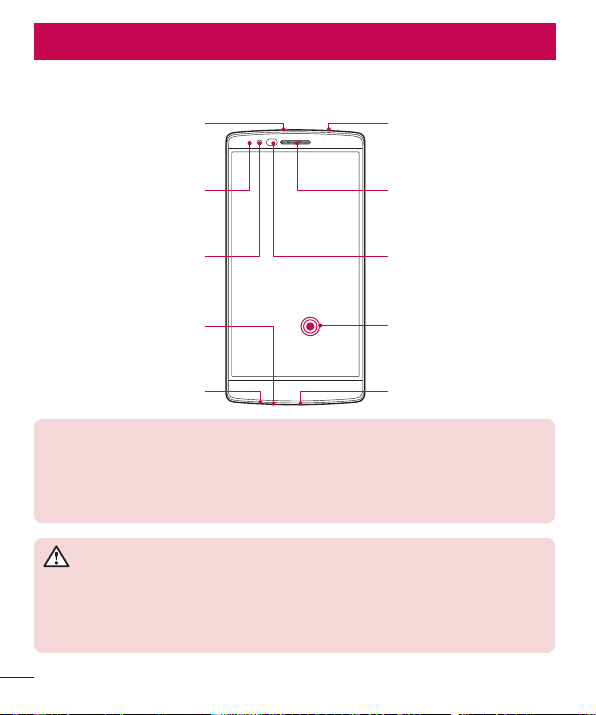
Phone layout
Touch Screen
Notification LED
Front Camera Lens Proximity Sensor
Earpiece
Headset Jack
Microphone
Microphone
Charger/USB port
Infrared LED
NOTE: Proximity sensor
When receiving and making calls, the proximity sensor automatically turns
the backlight off and locks the touch screen by sensing when the phone is
near your ear. This extends battery life and prevents you from unintentionally
activating the touch screen during calls.
WARNING
Placing a heavy object on the phone or sitting on it can damage the display
and touch screen functions. Do not cover the proximity sensor with screen
protectors or any other type of protective film. This could cause the sensor to
malfunction.
Getting to know your phone
Getting to know your phone
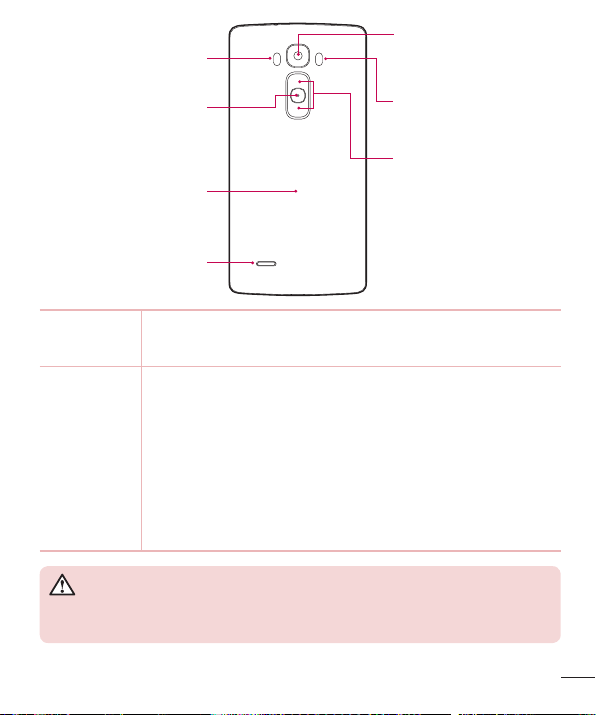
Volume Keys
Power/Lock Key
NFC Touch Point
Laser Detection
AutoFocus
Speaker
Rear Camera Lens
Flash
Power/Lock Key t 1SFTTBOEIPMEUPBDDFTTUIFNFOVUPUVSOZPVSQIPOFPGGSFTUBSUJUPSUVSOBJSQMBOF
NPEFPOBOEPGG
t 1SFTTPODFRVJDLMZUPXBLFPSMPDLUIFTDSFFO
Volume Keys While screen is off
t 1SFTTBOEIPMEUIF6QLFZUPMBVODI2VJDL.FNP
t 1SFTTBOEIPMEUIF%PXOLFZUPMBVODIUIF$BNFSB
On the Home screen
t $POUSPMSJOHFSWPMVNF
During a call
t $POUSPMZPVSFBSQJFDFWPMVNF
When playing audio/video
t $POUSPMWPMVNFDPOUJOVPVTMZ
WARNING
Be careful not to damage the NFC touch point on the phone, as this is part
of the NFC antenna.
Getting to know your phone
NOTE: The back cover of this product applies a “self-healing” technology,
which self-repairs minor scratches in just a few minutes. Minor scratches are
those cause by ordinary and normal use of the phone. Scratches caused by
abrasive surface, misuse, including but not limited to intentional scratches,
and damages caused by a fall or dropping the product, may not disappear.
The “self-healing” results may vary depending on the extent of the damage as
well as other conditions. Any warranty on the “self-healing” is hereby expressly
excluded.
NOTE: Laser Detection AutoFocus Sensor
Detects the distance between the rear camera and nearby objects using laser
technology. This feature helps the camera to focus quickly and accurately at
short or long distances.
Installing the SIM or USIM card
#FGPSFZPVDBOTUBSUFYQMPSJOHZPVSOFXQIPOFZPVOFFEUPTFUJUVQ
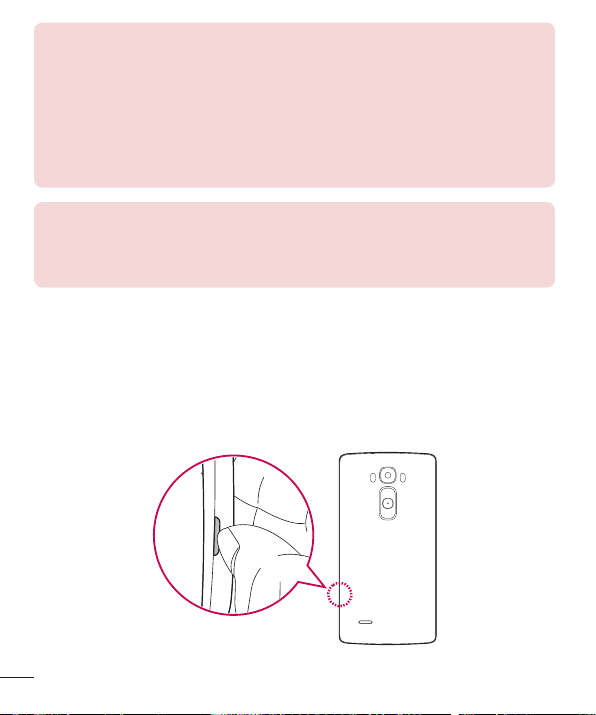
1 5PSFNPWFUIFCBDLDPWFSIPMEUIFQIPOFmSNMZJOPOFIBOE8JUIZPVSPUIFSIBOE
MJGUPGGUIFCBDLDPWFSXJUIZPVSUIVNCOBJMBTTIPXOJOUIFmHVSFCFMPX
Getting to know your phone
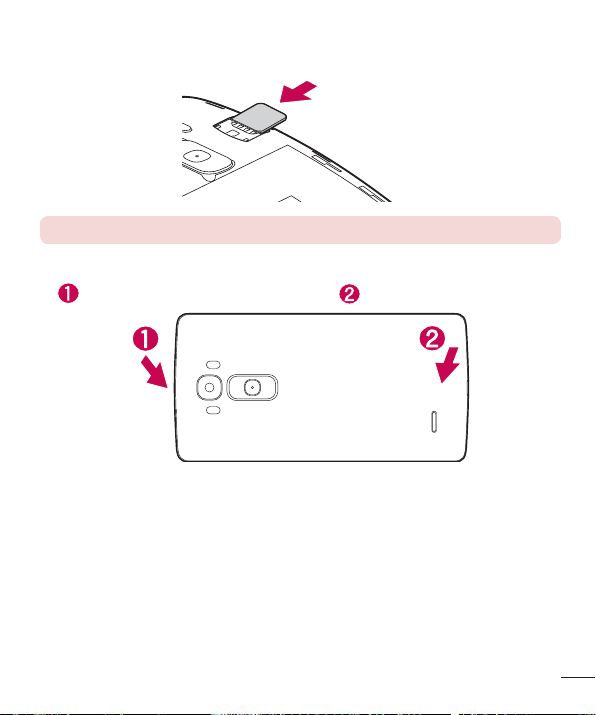
2 4MJEFUIF4*.DBSEJOUPUIFMPXFSTMPUGPSUIF4*.DBSEBTTIPXOJOUIFmHVSF.BLF
TVSFUIFHPMEDPOUBDUBSFBPOUIFDBSEJTGBDJOHEPXOXBSE
NOTE: Only microSIM card types work with this device.
3 5PSFQMBDFUIFDPWFSPOUPUIFEFWJDFBMJHOUIFDPWFSPWFSUIFCBDLPGUIFQIPOF
BOEQSFTTJUEPXOVOUJMJUDMJDLTJOUPQMBDF
Getting to know your phone
Charging the phone
$IBSHFUIFCBUUFSZCFGPSFVTJOHJUGPSGJSTUUJNF6TFUIFDIBSHFSUPDIBSHFUIFCBUUFSZ
WARNING
Use only LG-approved chargers, batteries and cables. If you use unapproved
chargers, batteries or cables, it may cause battery charging delay or display
a pop-up message regarding slow charging. It can also cause the battery to
explode or damage the device, which are not covered by the warranty.
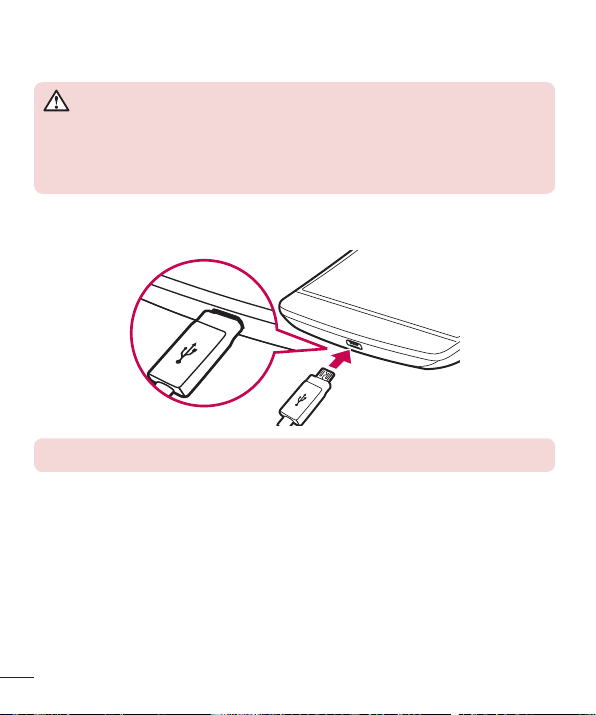
5IFDIBSHFSDPOOFDUPSJTBUUIFCPUUPNPGUIFQIPOF*OTFSUUIFDIBSHFSBOEQMVHJUJOUP
BQPXFSPVUMFU
NOTE: Do not open the back cover while your phone is charging.

Getting to know your phone
Unlocking the screen
#ZEFGBVMUZPVSTDSFFOXJMMMPDLBGUFSBQFSJPEPGJOBDUJWJUZUIFOUVSOPGG
Unlocking the screen
1 1SFTTUIFPower/Lock KeyPSEPVCMFUBQPOUIFTDSFFO
2 4XJQFUIFTDSFFOJOBOZEJSFDUJPOUPVOMPDLJU
Smart Lock
:PVDBOVTF4NBSU-PDLUPNBLFVOMPDLJOHZPVSQIPOFFBTJFS:PVDBODPOGJHVSFJUUP
LFFQZPVSQIPOFVOMPDLFEXIFOZPVIBWFBUSVTUFE#MVFUPPUIEFWJDFDPOOFDUFEUPJU
XIFOJUhTJOBGBNJMJBSMPDBUJPOMJLFZPVSIPNFPSXPSLPSXIFOJUSFDPHOJTFTZPVSGBDF
Setting up Smart Lock
#FGPSFZPVBDUJWBUF4NBSU-PDLZPVOFFEUPTFUVQBTDSFFOMPDL,OPDL$PEFQBUUFSO
1*/PSQBTTXPSE
1 'SPNUIF)PNFTDSFFOUBQ
AppsUBCJGOFDFTTBSZ
2 5BQDisplayUBCLock screenSmart Lock
3 &OUFSZPVSDVSSFOUTDSFFOMPDL
4 5BQPOFPGUIFPQUJPOTBOEBEEUSVTUFEEFWJDFTMPDBUJPOTPSGBDJBMSFDPHOJUJPO

Your Home screen
Your Home screen
Touch screen tips
)FSFBSFTPNFUJQTPOIPXUPOBWJHBUFPOZPVSQIPOF
t Tap or toucho"TJOHMFGJOHFSUBQTFMFDUTJUFNTMJOLTTIPSUDVUTBOEMFUUFSTPOUIF
POTDSFFOLFZCPBSE
t Touch and holdo5PVDIBOEIPMEBOJUFNPOUIFTDSFFOCZUBQQJOHJUBOEOPU
MJGUJOHZPVSGJOHFSVOUJMBOBDUJPOPDDVST
t Drago5PVDIBOEIPMEBOJUFNGPSBNPNFOUBOEUIFOXJUIPVUMJGUJOHZPVSGJOHFS
NPWFZPVSGJOHFSPOUIFTDSFFOVOUJMZPVSFBDIUIFUBSHFUQPTJUJPO:PVDBOESBH
JUFNTPOUIF)PNFTDSFFOUPSFQPTJUJPOUIFN
t Swipe or slideo5PTXJQFPSTMJEFRVJDLMZNPWFZPVSGJOHFSBDSPTTUIFTVSGBDF
PGUIFTDSFFOXJUIPVUQBVTJOHXIFOZPVGJSTUUBQJUTPZPVEPOUESBHBOJUFN
JOTUFBE
t Double-tapo%PVCMFUBQUP[PPNPOBXFCQBHFPSBNBQJGUIFGFBUVSFJT
TVQQPSUFECZUIFBQQMJDBUJPO
t Pinch-to-Zoomo6TFZPVSJOEFYGJOHFSBOEUIVNCJOBQJODIJOHPSTQSFBEJOH
NPUJPOUP[PPNJOPSPVUXIFOVTJOHUIFCSPXTFSPSNBQTPSXIFOCSPXTJOH
QJDUVSFTJGUIFGFBUVSFJTTVQQPSUFECZUIFBQQMJDBUJPO
t Rotate the screeno'SPNNBOZBQQMJDBUJPOTBOENFOVTUIFTDSFFOPSJFOUBUJPO
BEKVTUTUPUIFEFWJDFhTQIZTJDBMPSJFOUBUJPO
NOTE:
t Do not press too hard; the tap screen is sensitive enough to pick up a light, yet
firm tap.
t Use the tip of your finger to tap the option you want. Be careful not to tap any
other buttons.
Your Home screen
Home screen
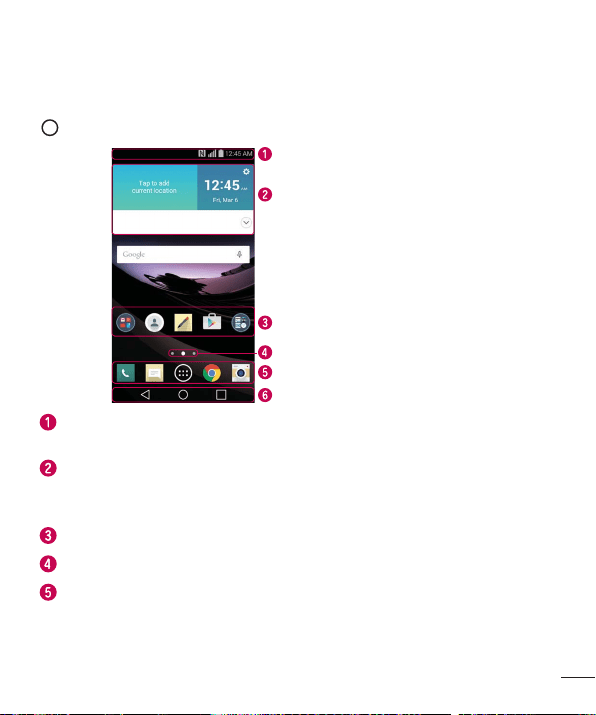
5IF)PNFTDSFFOJTUIFTUBSUJOHQPJOUGPSNBOZBOEGVODUJPOT*UBMMPXTZPVUPBEE
JUFNTMJLFBQQTIPSUDVUTBOE(PPHMFXJEHFUTUPHJWFZPVJOTUBOUBDDFTTUPJOGPSNBUJPO
BOEBQQMJDBUJPOT5IJTJTUIFEFGBVMUDBOWBTBOEBDDFTTJCMFGSPNBOZNFOVCZUBQQJOH
Status Bar
Widget
Application Icons
Home Screen Location Indicator
Quick Button Area
Home Touch Buttons
4IPXTUIFQIPOFhTTUBUVTJOGPSNBUJPOJODMVEJOHUIFUJNFTJHOBMTUSFOHUICBUUFSZ
TUBUVTBOEOPUJGJDBUJPOJDPOT
8JEHFUTBSFTFMGDPOUBJOFEBQQMJDBUJPOTUIBUDBOCFBDDFTTFEUISPVHIUIF"QQT
TDSFFOPSPOUIF)PNFTDSFFO6OMJLFBTIPSUDVUUIF8JEHFUDBOGVODUJPOBTBO
POTDSFFOBQQMJDBUJPO
5BQBOJDPOBQQMJDBUJPOGPMEFSFUDUPPQFOBOEVTFJU
*OEJDBUFTXIJDI)PNFTDSFFODBOWBTZPVBSFDVSSFOUMZWJFXJOH
1SPWJEFTPOFUPVDIBDDFTTUPUIFGVODUJPOJOBOZ)PNFTDSFFODBOWBT
Your Home screen
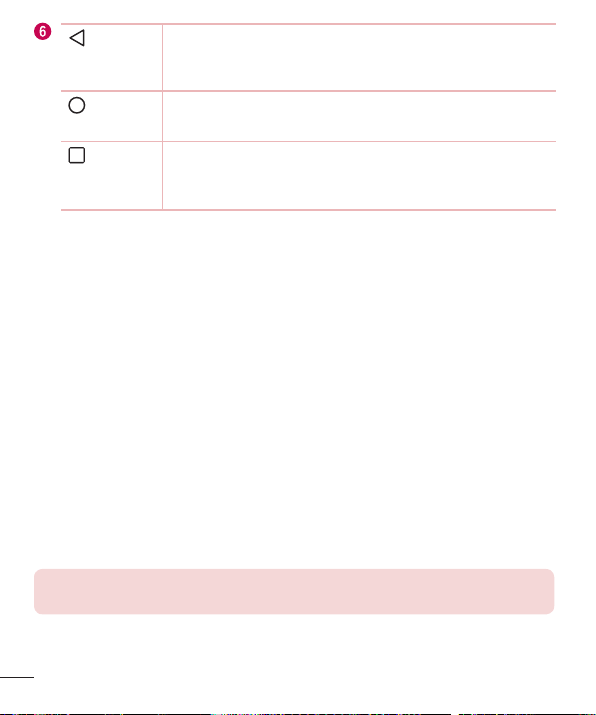
Back
Button
3FUVSOTUPUIFQSFWJPVTTDSFFO"MTPDMPTFTQPQVQJUFNTTVDI
BTNFOVTEJBMPHCPYFTBOEUIFPOTDSFFOLFZCPBSE5PVDIBOE
IPMEJUUPBDDFTTUIF%VBMXJOEPX
Home
Button
3FUVSOUPUIF)PNFTDSFFOGSPNBOZTDSFFO5PVDIBOEIPMEUP
BDDFTTUIF(PPHMF/PXTIPSUDVU
Recent
Apps
Button
%JTQMBZTSFDFOUMZVTFEBQQMJDBUJPOT*GZPVUPVDIBOEIPMEUIJT
LFZJUPQFOTBNFOVPGBWBJMBCMFPQUJPOT
Extended Home screen
5IFPQFSBUJOHTZTUFNQSPWJEFTNVMUJQMF)PNFTDSFFODBOWBTFTUPQSPWJEFNPSFTQBDF
GPSBEEJOHJDPOTXJEHFUTBOENPSF
t 4MJEFZPVSGJOHFSMFGUPSSJHIUBDSPTTUIF)PNFTDSFFOUPBDDFTTBEEJUJPOBM
DBOWBTFT
Customizing the Home screen
:PVDBODVTUPNJ[FZPVS)PNFTDSFFOCZBEEJOHBQQTBOEXJEHFUTBOEDIBOHJOH
XBMMQBQFST
Adding items on your Home screen
1 5PVDIBOEIPMEUIFFNQUZQBSUPGUIF)PNFTDSFFO
2 $IPPTFUIFAppsPSWidgetsUBCBOEUBQUIFEFTJSFEJUFN
3 %SBHJUUPUIFEFTJSFEMPDBUJPOBOEMJGUZPVSmOHFS
TIP! To add an application icon to the Home screen from the Apps screen,
touch and hold the application you want to add.
Your Home screen
Removing an item from the Home screen
t 8IJMFPOUIF)PNFTDSFFOUPVDIBOEIPMEUIFJDPOZPVXBOUUPSFNPWFUIFOESBH
JUUP BOESFMFBTFJU
Adding an app as a Quick Button
t 'SPNUIF"QQTTDSFFOPSPOUIF)PNFTDSFFOUPVDIBOEIPMEBOBQQMJDBUJPOJDPO
BOEESBHJUUPUIF2VJDL#VUUPOBSFB5IFOSFMFBTFJUJOUIFEFTJSFEMPDBUJPO6QUP
BQQTDBOCFBEEFE
Removing an app from the Quick Button area
t 5PVDIBOEIPMEUIFEFTJSFE2VJDL#VUUPOESBHJUUP BOESFMFBTFJU
NOTE: The Apps Button cannot be removed.
Customizing app icons on the Home screen
1 5PVDIBOEIPMEBOBQQMJDBUJPOJDPOVOUJMJUJTVOMPDLFEGSPNJUTDVSSFOUQPTJUJPO
UIFOSFMFBTFJU5IFFEJUJOHJDPO XJMMBQQFBSJOUIFVQQFSSJHIUDPSOFSPGUIF
BQQMJDBUJPO
2 5BQUIFBQQMJDBUJPOJDPOBHBJOBOETFMFDUUIFEFTJSFEJDPOEFTJHOBOETJ[F
3 5BQOKUPTBWFUIFDIBOHF
Returning to recently-used applications
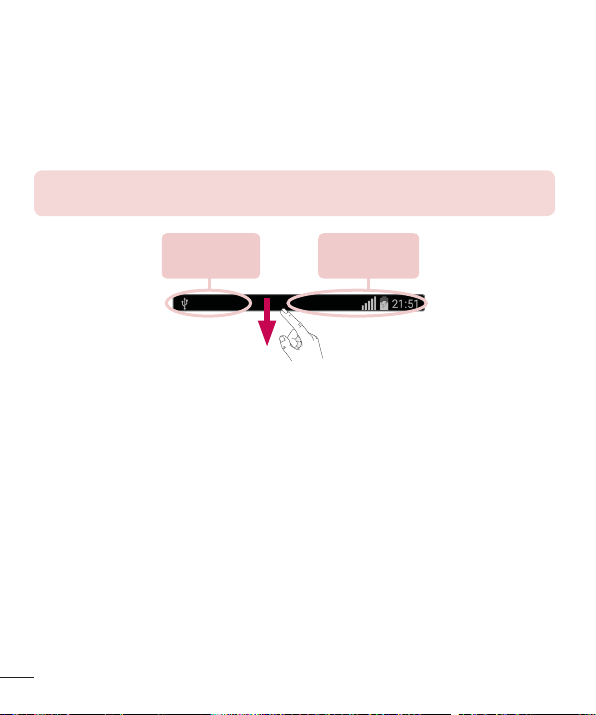
1 5BQ "QQQSFWJFXTPGSFDFOUMZVTFEBQQMJDBUJPOTXJMMCFEJTQMBZFE
2 5BQBOBQQQSFWJFXUPPQFOUIFBQQMJDBUJPO0SUBQ
UPSFUVSOUPUIFQSFWJPVT
TDSFFO
Your Home screen
Notifications panel
/PUJGJDBUJPOTBMFSUZPVUPUIFBSSJWBMPGOFXNFTTBHFTDBMFOEBSFWFOUTBOEBMBSNTBT
XFMMBTPOHPJOHFWFOUTTVDIBTXIFOZPVBSFVTJOHUVSOCZUVSOOBWJHBUJPO
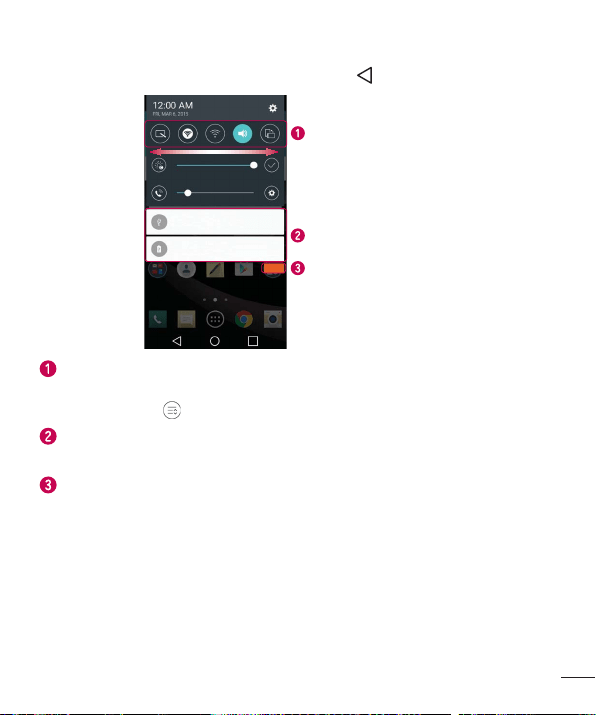
8IFOBOPUJGJDBUJPOBSSJWFTJUTJDPOBQQFBSTBUUIFUPQPGUIFTDSFFO*DPOTGPSQFOEJOH
OPUJGJDBUJPOTBQQFBSPOUIFMFGUBOETZTUFNJDPOTTVDIBT8J'JBOECBUUFSZTUSFOHUI
BSFTIPXOPOUIFSJHIU
NOTE: The available options may vary depending on the region or service
provider.
Pending
notifications
System
notifications
Your Home screen
Opening the Notifications panel
4XJQFEPXOGSPNUIF4UBUVT#BSUPPQFOUIF/PUJGJDBUJPOTQBOFM5PDMPTFUIF
/PUJGJDBUJPOTQBOFMTXJQFUIFTDSFFOVQXBSETPSUBQ
Quick Settings Area
Notifications
Clear
5BQFBDI2VJDL4FUUJOHLFZUPUPHHMFJUPOPGG5PVDIBOEIPMEUIFEFTJSFELFZUP
EJSFDUMZBDDFTTUIFGVODUJPOhTTFUUJOHTNFOV5PTFFNPSF2VJDL4FUUJOHLFZTTXJQF
MFGUPSSJHIU5BQ UPSFNPWFBEEPSSFBSSBOHF2VJDL4FUUJOHLFZT
5IFDVSSFOUOPUJGJDBUJPOTBSFMJTUFEFBDIXJUIBCSJFGEFTDSJQUJPO5BQBOPUJGJDBUJPO
UPPQFOUIFDPSSFTQPOEJOHBQQMJDBUJPOUIBUNBOBHFTJU
5BQUPDMFBSBMMPGUIFOPUJGJDBUJPOT
Your Home screen
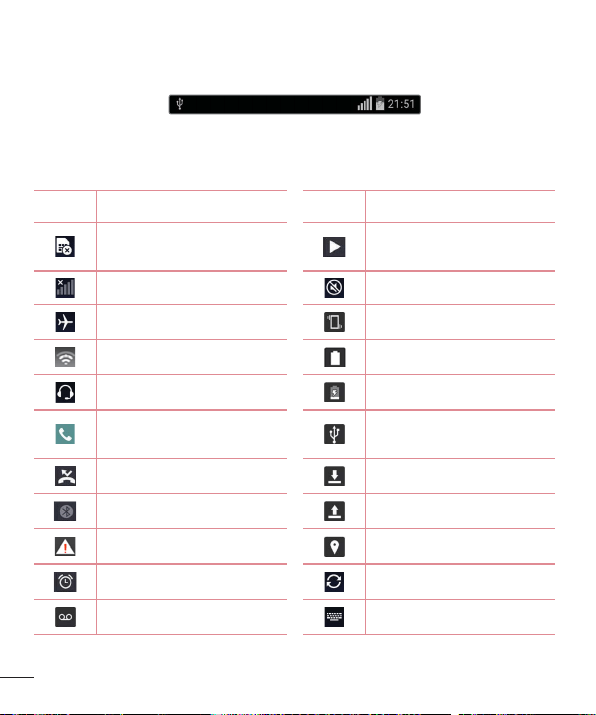
Indicator icons on the Status Bar
*OEJDBUPSJDPOTBQQFBSPOUIF4UBUVTCBSBUUIFUPQPGUIFTDSFFOUPSFQPSUNJTTFEDBMMT
OFXNFTTBHFTDBMFOEBSFWFOUTEFWJDFTUBUVTBOENPSF
5IFJDPOTEJTQMBZFEBUUIFUPQPGUIFTDSFFOQSPWJEFJOGPSNBUJPOBCPVUUIFTUBUVTPGUIF
EFWJDF5IFJDPOTMJTUFEJOUIFUBCMFCFMPXBSFTPNFPGUIFNPTUDPNNPOPOFT
Icon Description Icon Description
/P4*.DBSEJOTFSUFE
"NFEJBGJMFJTDVSSFOUMZ
QMBZJOH
/POFUXPSLTJHOBMBWBJMBCMF 4JMFOUNPEFJTFOBCMFE
"JSQMBOFNPEFJTPO 7JCSBUFNPEFJTPO
$POOFDUFEUPB8J'JOFUXPSL #BUUFSZGVMMZDIBSHFE
8JSFEIFBETFUDPOOFDUFE #BUUFSZJTDIBSHJOH
$BMMJOQSPHSFTT
1IPOFJTDPOOFDUFEUP1$WJB
64#DBCMF
.JTTFEDBMM %PXOMPBEJOHEBUB
#MVFUPPUIJTPO 6QMPBEJOHEBUB
4ZTUFNXBSOJOH
(14JTPO
"OBMBSNJTTFU %BUBJTTZODISPOJ[JOH
/FXWPJDFNBJMBWBJMBCMF $IPPTFJOQVUNFUIPE
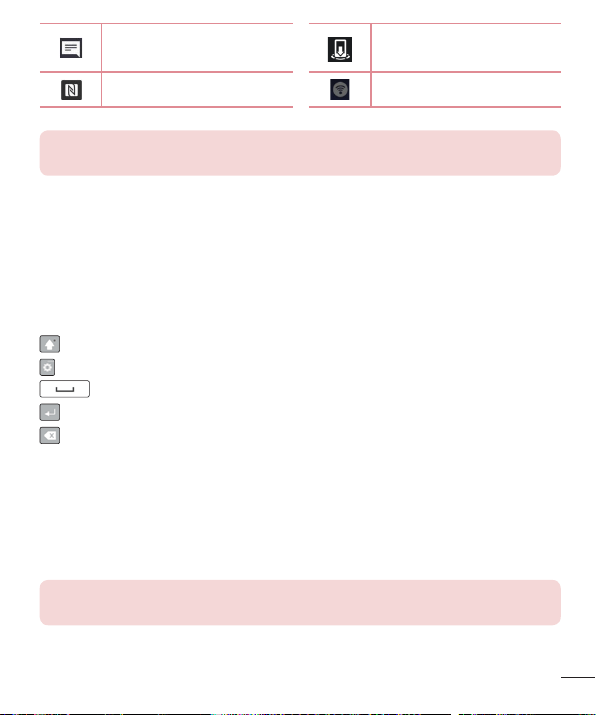
Your Home screen
/FXUFYUPSNVMUJNFEJB
NFTTBHF
.FEJBTFSWFSDPOUFOUTIBSJOH
JTPO
/'$JTPO 8J'JIPUTQPUJTBDUJWF
NOTE: The icon's location in the Status bar may differ depending on the
function or service.
On-screen keyboard
:PVDBOFOUFSUFYUVTJOHUIFPOTDSFFOLFZCPBSE5IFPOTDSFFOLFZCPBSEBQQFBSTPO
UIFTDSFFOXIFOZPVUBQBOBWBJMBCMFUFYUFOUSZGJFME
Using the keypad and entering text
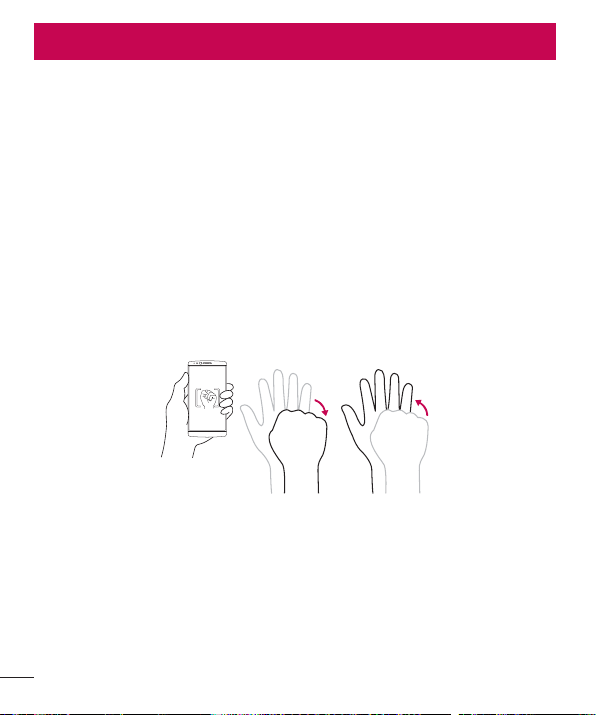
5BQPODFUPDBQJUBMJ[FUIFOFYUMFUUFSZPVUZQF5BQUXJDFGPSBMMDBQT
5BQUPBDDFTTUIFLFZCPBSEhT4FUUJOHTNFOV
5BQUPFOUFSBTQBDF
5BQUPDSFBUFBOFXMJOFJOUIFNFTTBHFGJFME
5BQUPEFMFUFUIFQSFWJPVTDIBSBDUFS
Entering special characters
5IF-(,FZCPBSEBMMPXTZPVUPFOUFSTQFDJBMDIBSBDUFSTFHÈXIFOFOUFSJOHUFYU
'PSFYBNQMFUPFOUFSÈUPVDIBOEIPMEUIFBLFZVOUJMUIFBEEJUJPOBMDIBSBDUFSTBSF
EJTQMBZFE8JUIPVUMJGUJOHUIFGJOHFSESBHZPVSGJOHFSUPUIFEFTJSFETQFDJBMDIBSBDUFSBOE
MJGUJUPGG
NOTE: A symbol at the top right corner of a key indicates that additional
characters are available for that key.
Special Features
Gesture shot
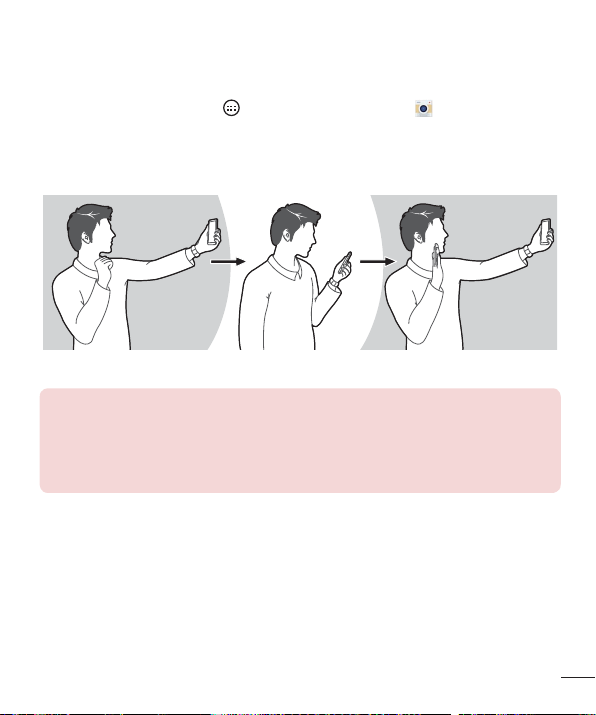
5IF(FTUVSFTIPUGFBUVSFBMMPXTZPVUPUBLFBQJDUVSFXJUIBIBOEHFTUVSFVTJOHUIF
GSPOUDBNFSB
To take photo
5IFSFBSFUXPNFUIPETGPSVTJOHUIF(FTUVSFTIPUGFBUVSF
t 3BJTFZPVSIBOEXJUIBOPQFOQBMNVOUJMUIFGSPOUDBNFSBEFUFDUTJUBOEBCPY
BQQFBSTPOUIFTDSFFO5IFODMPTFZPVSIBOEJOUPBGJTUUPTUBSUUIFUJNFSBMMPXJOH
ZPVUJNFUPHFUSFBEZ
t 3BJTFZPVSIBOEJOBDMFODIFEGJTUVOUJMUIFGSPOUDBNFSBEFUFDUTJUBOEBCPY
BQQFBSTPOUIFTDSFFO5IFOVODMFODIZPVSGJTUUPTUBSUUIFUJNFSBMMPXJOHZPVUJNF
UPHFUSFBEZ
OR
Special Features
Special Features
Gesture View
"GUFSUBLJOHBQIPUPXJUIUIFGSPOUDBNFSBMFOTZPVDBOBVUPNBUJDBMMZDIFDLUIF
DBQUVSFEQIPUPXJUIUIJTHFTUVSF
1 'SPNUIF)PNFTDSFFOUBQ
AppsUBCJGOFDFTTBSZ
2 5BLFBQJDUVSFXJUIUIFGSPOUDBNFSB
3 "GUFSUBLJOHUIFQJDUVSFCSJOHUIFQIPOFDMPTFUPZPVSGBDF5IFDBQUVSFEQIPUPXJMM
CFEJTQMBZFE
Taking a picture Quick preview Returning front camera mode
NOTE:
t Depending on the speed and angle of the gesture, this feature may not work
properly.
t When the angle is changed after the Quick preview, your phone will go back to
camera mode. You must go to Gallery to view the picture again.
Special Features
Glance View
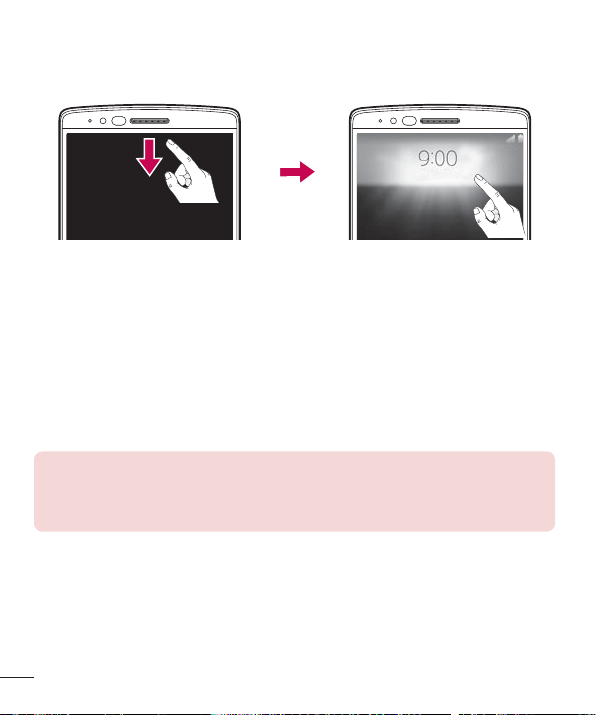
8IFOUIFQIPOFTDSFFOJTPGGZPVDBOTFFUIF4UBUVTCBSUJNFBOEEBUFCZESBHHJOH
ZPVSGJOHFSEPXOGSPNUIFUPQPGUIFTDSFFO
KnockON
:PVDBOXBLFVQPSUVSOPGGUIFTDSFFOBTFBTJMZBTEPVCMFUBQQJOHUIFTDSFFO
8IJMFUIFTDSFFOJTPGGBOEJEMFEPVCMFUBQUIFDFOUFSTDSFFORVJDLMZUPXBLFUIF
TDSFFO5PUVSOUIFTDSFFOPGGEPVCMFUBQUIF4UBUVTCBSJOBOZTDSFFOFYDFQUPOUIF
DBNFSBWJFXGJOEFSPSFNQUZBSFBPOUIF)PNFTDSFFO
NOTE: When using KnockOn to wake the screen, make sure you do not
cover the proximity sensor. Doing so will prevent the screen from turning on.
This feature is designed to prevent the device from turning on inadvertently in
your pocket or storage location.
Special Features
Knock Code
5IF,OPDL$PEFGFBUVSFBMMPXTZPVUPXBLFBOEVOMPDLUIFTDSFFOXJUIZPVSPXO
,OPDL$PEFQBUUFSO8IFOFOBCMFE,OPDL$PEFEJWJEFTUIFTDSFFOJOUPQBSUTBOE
VTFTZPVSVOJRVFDPNCJOBUJPOPGUBQTUPTFDVSFZPVSEFWJDF:PVDBOEJTBCMFUIJT
GFBUVSFJOUIF-PDLTDSFFOTFUUJOHT
NOTE:
t If you enter an incorrect Knock Code combination 6 times, it will be necessary
to use your Google account log in or backup PIN.
t Use the fingertip instead of finger nail to tap the screen when using Knock
Code.
t When the Knock Code is not in enabled, you can use the Knock On function by
double-tapping the screen.
1 'SPNUIF)PNFTDSFFOUBQ AppsUBCJGOFDFTTBSZ Display UBC
Lock screenSelect screen lockKnock Code
2 'PMMPXUIFPOTDSFFOTUFQTUPTFUZPVS,OPDL$PEF:PVIBWFUPDSFBUFB#BDLVQ
1*/BTBTBGFUZNFBTVSFJODBTFZPVGPSHFUZPVS,OPDL$PEF
Unlocking the screen using the Knock Code
:PVDBOXBLFVQBOEVOMPDLUIFTDSFFOCZUBQQJOHUIF,OPDL$PEFTFUVQJOUIF
QSFWJPVTTFDUJPOXIFOUIFTDSFFOJTPGG
Special Features
Dual window
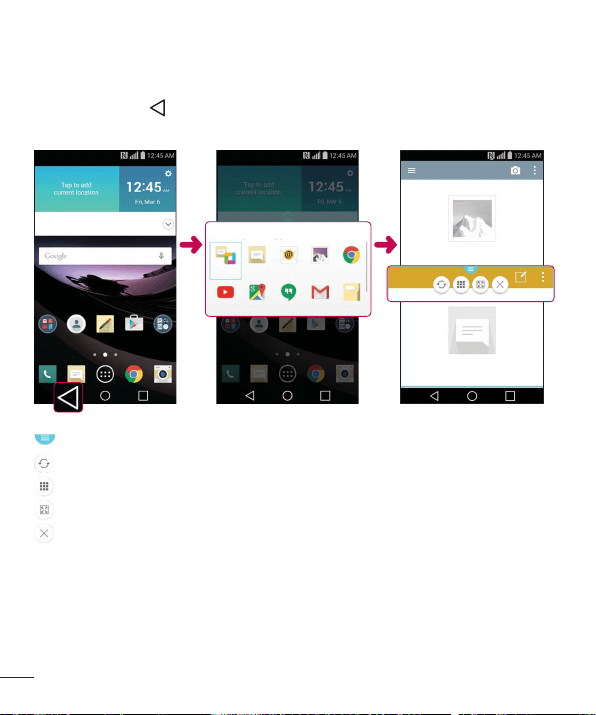
5IJTGFBUVSFBMMPXTZPVUPNVMUJUBTLCZTQMJUUJOHVQUIFTDSFFOJOUPUXPBMMPXJOHZPVUP
VTFUXPDPNQBUJCMFBQQMJDBUJPOTBUUIFTBNFUJNF
1 5PVDIBOEIPME
UPTQMJUUIFTDSFFO
2 5BQPSESBHUIFBQQJDPOGPSUIFDPSSFTQPOEJOHBQQMJDBUJPOZPVXJTIUPVTF
5BQUPWJFXUIF%VBMXJOEPXNFOVPQUJPOTPSESBHUPSFTJ[FUIFTQMJUTDSFFOT
4XJUDIUXPTDSFFOT
7JFXUIFBQQMJTU
$IBOHFUIFTFMFDUFEXJOEPXUPGVMMTDSFFO
$MPTFUIFDVSSFOUMZTFMFDUFEBQQXJOEPX
Special Features
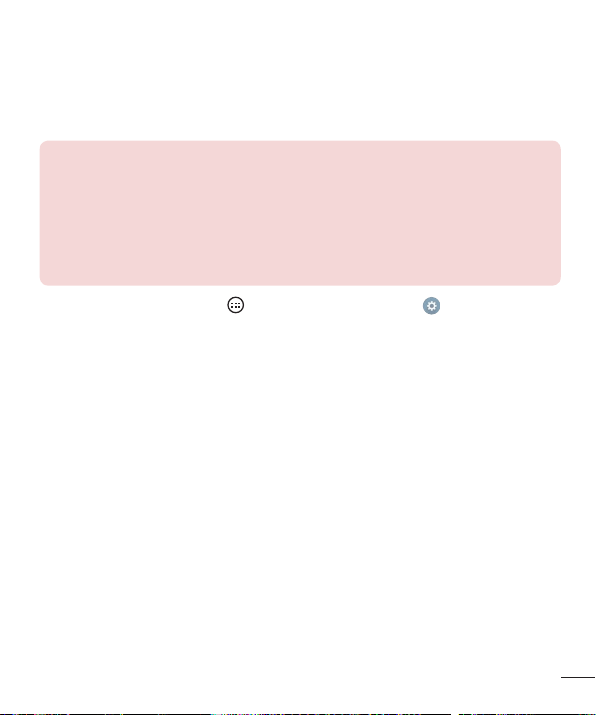
NOTE: Dual window is enabled by default. You can enable or disable Dual
window through the Settings menu.
1 From the Home screen, tap
> Apps tab (if necessary) > > General
tab > Dual window.
2 Slide the toggle button to On or Off.
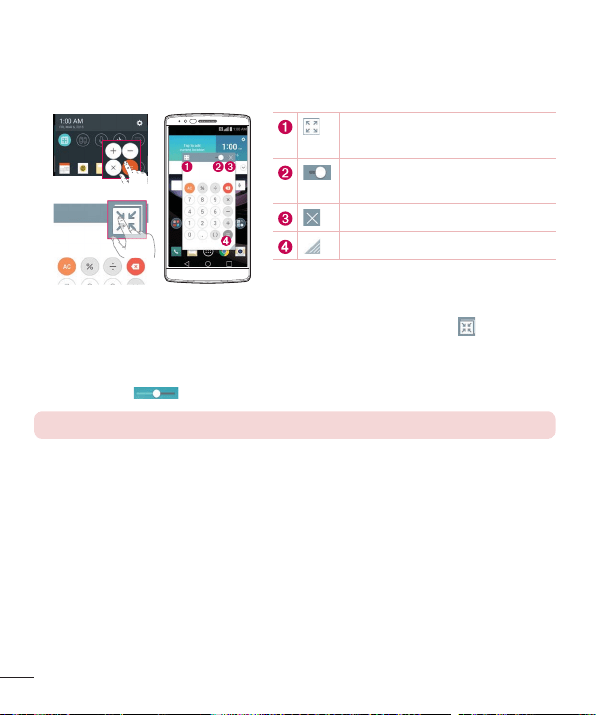
QuickMemo+
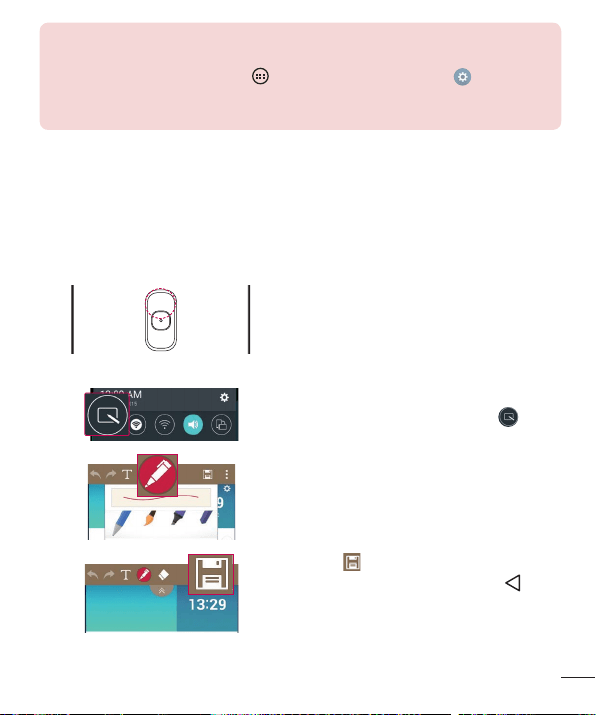
5IF2VJDL.FNPGFBUVSFBMMPXTZPVUPDBQUVSFTDSFFOTIPUTBOEVTFUIFNUPDSFBUF
NFNPT:PVDBOVTF2VJDL.FNPUPFBTJMZDSFBUFNFNPTEVSJOHBDBMMXJUIBTBWFE
QJDUVSFPSPOUIFDVSSFOUQIPOFTDSFFOBOETIBSFUIFNXJUIGBNJMZBOEGSJFOET
1 8IJMFTDSFFOJTPGGQSFTTBOEIPME
UIF7PMVNF6Q,FZ
OR OR
8IJMFUIFTDSFFOJTPOTMJEFUIF
4UBUVT#BSEPXOXBSEBOEUBQ
2 6TFUIFUPPMCBSUPDSFBUFBNFNP
3 5BQ UPTBWFUIFNFNP5PFYJU
2VJDL.FNPBUBOZUJNFUBQ
Special Features
QSlide
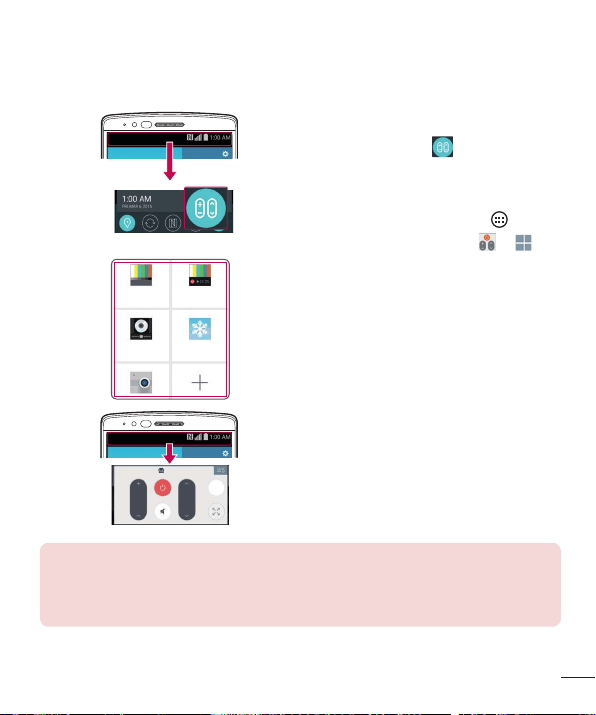
'SPNBOZTDSFFOVTFUIF/PUJGJDBUJPOTQBOFMUPFBTJMZBDDFTTBOEVTFUIF$BMFOEBS
$BMDVMBUPSBOENPSFXJUI24MJEF
OR
5BQUPFYQBOEUIFXJOEPXUPGVMM
XJOEPXTJ[F
5BQUPBEKVTUUIFXJOEPXhT
USBOTQBSFODZ
5BQUPDMPTFUIF24MJEFXJOEPX
%SBHUPBEKVTUUIFTJ[F
1 5PVDIBOETMJEFUIFTUBUVTCBSEPXOXBSEBOEUBQQSlideUPWJFXUIFBWBJMBCMF
24MJEFBQQT"MTPXIJMFVTJOHBQQMJDBUJPOTUIBUTVQQPSU24MJEFUBQ
5IF
GVODUJPOJTEJTQMBZFEBTBTNBMMXJOEPXPOZPVSTDSFFO
2 :PVDBOVTFBOEUBQUIFTDSFFOVOEFSUIFQSlideXJOEPXTXIFOUIFUSBOTQBSFODZ
CBSJTOPUGVMM
NOTE: QSlide can support up to one window at the same time.
Special Features
QuickRemote
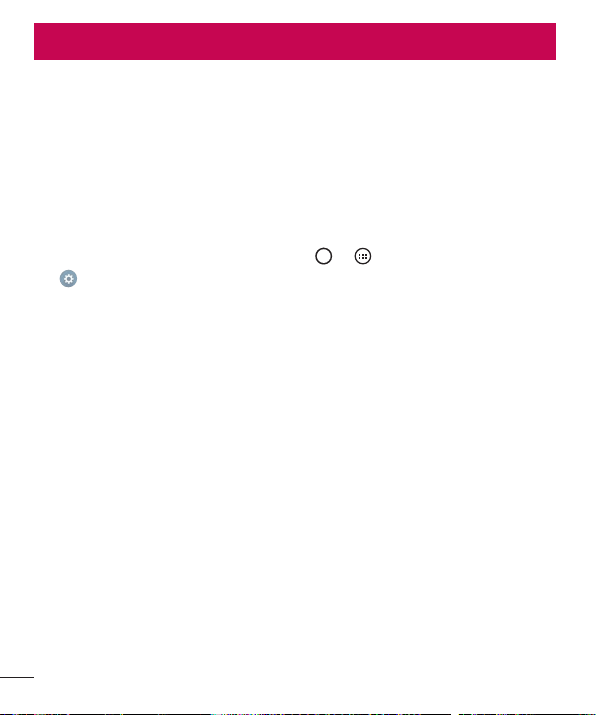
2VJDL3FNPUFUVSOTZPVSQIPOFJOUPB6OJWFSTBM3FNPUFGPSZPVSIPNF57DBCMFCPY
BOEBVEJPTZTUFNBOENPSF
1 5PVDIBOETMJEFUIF4UBUVTCBS
EPXOXBSEBOEUBQ ADD
REMOTE
OR
'SPNUIF)PNFTDSFFOUBQ
Apps UBCJGOFDFTTBSZ
2 4FMFDUUIFUZQFBOECSBOEPGUIF
EFWJDFUIFOGPMMPXUIFPOTDSFFO
JOTUSVDUJPOTUPDPOmHVSFUIFEFWJDF
3 0ODFZPVIBWFDPNQMFUFEUIFJOJUJBM
TFUVQZPVDBOFBTJMZBDDFTTUIF
2VJDL3FNPUFGSPNUIF/PUJmDBUJPOT
QBOFM0QFOUIF/PUJmDBUJPOTQBOFM
BOEVTFUIF2VJDL3FNPUFGVODUJPOT
NOTE: The QuickRemote operates the same way as an ordinary remote
control infrared (IR) signals. Be careful not to cover the infrared sensor at the top
of the phone when you use the QuickRemote function. This function may not
be supported depending on the model, the manufacturer or service company.
Google account setup
Google account setup
8IFOZPVGJSTUUVSOPOZPVSQIPOFZPVIBWFUIFPQQPSUVOJUZUPTJHOJOUPZPVS(PPHMF
"DDPVOUBOETFMFDUIPXZPVXBOUUPVTFDFSUBJO(PPHMFTFSWJDFT
Setting up your Google account
t %VSJOHUIFJOJUJBMCPPUVQPGZPVSEFWJDFFOTVSFZPVSEFWJDFJTDPOOFDUFEUPUIF
8FC5IFOTJHOJOUPB(PPHMF"DDPVOUGSPNUIFQSPNQUFETFUVQTDSFFO
OR
t "GUFSIBWJOHFYJUFEUIF4UBSUVQ8J[BSEUBQ AppsUBCJGOFDFTTBSZ
GeneralUBCAccounts & syncAdd accountGoogle
*GZPVBMSFBEZIBWFB(PPHMFBDDPVOUFOUFSZPVSFNBJMBEESFTTBOEUBQNEXT
0ODFZPVIBWFTFUVQZPVS(PPHMFBDDPVOUPOZPVSQIPOFZPVSQIPOFXJMM
BVUPNBUJDBMMZTZODISPOJ[FXJUIZPVS(PPHMFBDDPVOUPOUIF8FCJGEBUBDPOOFDUJPOJT
BWBJMBCMF
%FQFOEJOHPOZPVSTZODISPOJ[BUJPOTFUUJOHTZPVSDPOUBDUT(NBJMNFTTBHFT$BMFOEBS
FWFOUTBOEPUIFSJOGPSNBUJPOGSPNUIFTFBQQMJDBUJPOTBOETFSWJDFTPOUIF8FCBSF
TZODISPOJ[FEXJUIZPVSQIPOF
"GUFSTJHOJOHJOZPVDBOVTF(NBJMBOEUBLFBEWBOUBHFPG(PPHMFTFSWJDFTPOZPVS
QIPOF
33
Connecting to Networks and Devices
Connecting to Networks and Devices
Wi-Fi
:PVDBOVTFIJHITQFFE*OUFSOFUBDDFTTXIJMFXJUIJOUIFDPWFSBHFPGUIFXJSFMFTT
BDDFTTQPJOU"1
Connecting to Wi-Fi networks
1 'SPNUIF)PNFTDSFFOUBQ Apps UBCJGOFDFTTBSZ Networks UBC
Wi-Fi
2 5BQ
UPUVSO8J'JPOBOETUBSUTDBOOJOHGPSBWBJMBCMF8J'JOFUXPSLT
3 5BQBOFUXPSLUPDPOOFDUUPJU
t *GUIFOFUXPSLJTTFDVSFEXJUIBMPDLJDPOZPVXJMMOFFEUPFOUFSBTFDVSJUZLFZPS
QBTTXPSE
NOTE:
t The Status bar displays icons that indicate Wi-Fi status.
t If you are out of the Wi-Fi zone or have set Wi-Fi to Off, the device may
automatically connect to the Web using mobile data, which may incur data
charges.
TIP! How to obtain the phone's MAC address
From the Home screen, tap
> Apps tab (if necessary) > > Networks
tab > Wi-Fi > > Advanced Wi-Fi > MAC address.
Connecting to Networks and Devices
Bluetooth
:PVDBOVTF#MVFUPPUIUPDPOOFDUXJUIIFBETFUTTPVOETZTUFNTPSFWFOUPFYDIBOHF
EBUBCFUXFFOOFBSCZEFWJDFT
NOTE:
t LG is not responsible for the loss, interception or misuse of data sent or
received via the Bluetooth feature.
t Always ensure that you share and receive data with devices that are trusted and
properly secured.
t If there are obstacles between the devices, the operating distance may be
reduced.
t Some devices, especially those that are not tested or approved by Bluetooth
SIG, may be incompatible with your device.
Pairing your phone with another Bluetooth device
1 'SPNUIF)PNFTDSFFOUBQ Apps UBCJGOFDFTTBSZ Networks UBC
Bluetooth
2 5BQ
UPUVSO#MVFUPPUIPO
3 5BQSearch for devicesUPWJFXUIFWJTJCMFEFWJDFTJOSBOHF
4 $IPPTFUIFEFWJDFZPVXBOUUPQBJSXJUIGSPNUIFMJTUBOEGPMMPXBOZTVCTFRVFOU
JOTUSVDUJPOTUPDPNQMFUFQBJSJOH
0ODFUIFQBSJOHJTTVDDFTTGVMZPVSQIPOF
DPOOFDUTUPUIFPUIFSEFWJDF
NOTE: Some devices, especially headsets or hands-free car kits, may have
a default Bluetooth PIN, such as 0000.
Connecting to Networks and Devices
Sending data via Bluetooth
1 6TJOHBOBQQMJDBUJPOUIBUTVQQPSUTTIBSJOHMPDBUFUIFEBUBPSmMFUIBUZPVXBOUUP
TIBSF
2 4FMFDUUIFSharePQUJPO
3 4FMFDUBluetooth
4 4FMFDUUIFQBJSFE#MVFUPPUIEFWJDFPSQBJSXJUIBOFXEFWJDF
NOTE: The method for selecting an option may vary by data type.
Receiving data via Bluetooth
1 'SPNUIF)PNFTDSFFOUBQ Apps UBCJGOFDFTTBSZ Networks UBC
Bluetooth
2 5BQ
UPUVSO#MVFUPPUIPO
3 :PVXJMMSFDFJWFBSFRVFTUUPBDDFQUBQBJSJOHBUUFNQUGSPNUIFTFOEJOHEFWJDF#F
TVSFUPTFMFDUAccept
Wi-Fi Direct
8J'J%JSFDUQSPWJEFTBEJSFDUDPOOFDUJPOCFUXFFO8J'JFOBCMFEEFWJDFTXJUIPVU
SFRVJSJOHBOBDDFTTQPJOU
Turning on Wi-Fi Direct
1 'SPNUIF)PNFTDSFFOUBQ Apps UBCJGOFDFTTBSZ > Networks UBC
> Wi-Fi.
2 5BQ
Advanced Wi-Fi Wi-Fi Direct
NOTE: When in this menu, your device is visible to other visible Wi-Fi Direct
devices nearby.

36
Connecting to Networks and Devices
SmartShare
4NBSU4IBSFBMMPXTZPVUPSFDFJWFNVMUJNFEJBDPOUFOUWJB-(QIPOFBOEUBCMFUT
1 8IJMFWJFXJOHUIFDPOUFOUZPVXBOUUPTIBSFUBQ
PS SmartShare
2 5BQPlayPSBeamJOUIFQPQVQUIBUJTEJTQMBZFE
t Play: :PVDBOTUSFBNZPVSDPOUFOUWJBB57#MVFUPPUITQFBLFSFUD
t Beam: :PVDBOTFOEZPVSDPOUFOUUP#MVFUPPUIEFWJDFTPSWJB4NBSU4IBSF#FBNUP
TVQQPSUFE-(QIPOFTPSUBCMFUT
4NBSU4IBSF#FBNRVJDLMZUSBOTGFSTNVMUJNFEJBDPOUFOUTUISPVHI8J'J%JSFDU
3 5BQUIFEFWJDFZPVXBOUUPTIBSFGSPNUIFMJTU
t *GUIFEFWJDFJTOPUEJTQMBZFEPOUIFMJTUNBLFTVSFUIBU8J'J8J'J%JSFDUPS
#MVFUPPUIJTUVSOFEPO5IFOUBQRescan.
4 5BQSend UPTIBSFUIFmMFT
Enjoying content from nearby devices on your phone
1 5PDPOOFDUOFBSCZEFWJDFTUPZPVSQIPOFUBQUIFNearby devicesPQUJPOPOUIF
GalleryBOEMusicBQQT
t .BLFTVSFUIBUZPVSQIPOFBOEOFBSCZEFWJDFTBSFDPOOFDUFEUPUIFTBNF8J'J
OFUXPSLBOEUIBUUIF%-/"TFSWJDFPOUIFOFBSCZEFWJDFJTUVSOFEPO
2 5BQUIFEFWJDFZPVXJTIUPDPOOFDUUP
*GUIFEFWJDFJTOPUMJTUFEUBQSearch nearby devices
3 "GUFSBDPOOFDUJPOJTFTUBCMJTIFEZPVDBOFOKPZUIFDPOUFOUPOZPVSQIPOF
37
Connecting to Networks and Devices
Transferring data between a PC and your device
:PVDBODPQZPSNPWFEBUBCFUXFFOB1$BOEUIFEFWJDF
Transferring data
1 $POOFDUZPVSEFWJDFUPB1$VTJOHUIF64#DBCMFUIBUDBNFXJUIZPVSQIPOF
2 0QFOUIF/PUJmDBUJPOTQBOFMBOETFMFDUMedia device (MTP)
3 "XJOEPXXJMMQPQVQPOZPVS1$BMMPXJOHZPVUPUSBOTGFSUIFEFTJSFEEBUB
NOTE: The LG Android Platform Driver is required to be installed on your
PC to be able to detect the phone.
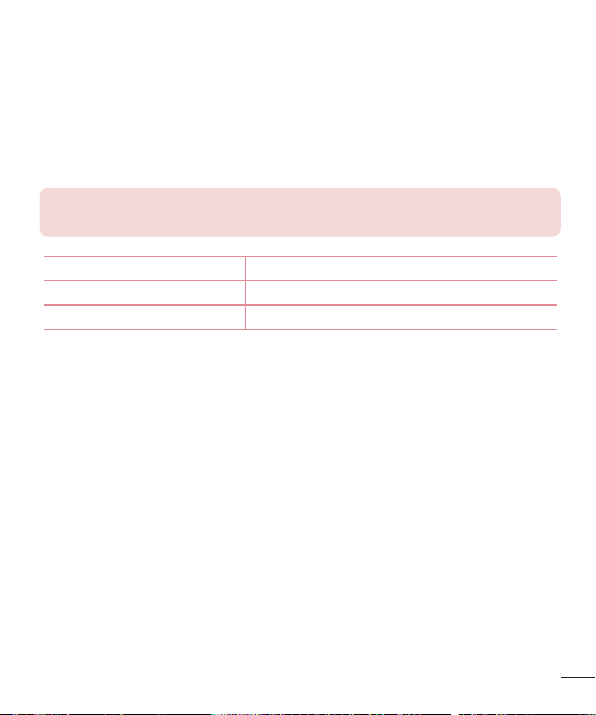
Items Requirement
04 .JDSPTPGU8JOEPXT91417JTUBPSIJHIFS
8JOEPX.FEJB1MBZFSWFSTJPO 8JOEPXT.FEJB1MBZFSPSIJHIFS
Calls
Calls
Making a call
1 'SPNUIF)PNFTDSFFOUBQ AppsUBCJGOFDFTTBSZ UPPQFOUIFEJBMFS
2 &OUFSUIFOVNCFSVTJOHUIFEJBMFS5PEFMFUFBEJHJUUBQ
3 "GUFSFOUFSJOHUIFEFTJSFEOVNCFSUBQ
UPQMBDFUIFDBMM
4 5PFOEUIFDBMMUBQ
TIP! To enter "+" to make international calls, touch and hold .
Calling your contacts
1 'SPNUIF)PNFTDSFFOUBQ AppsUBCJGOFDFTTBSZ UPPQFOZPVS
DPOUBDUT
2 4DSPMMUISPVHIUIFDPOUBDUMJTU:PVDBOBMTPFOUFSUIFDPOUBDUhTOBNFJOUIF4FBSDI
mFMEPSTDSPMMBMPOHUIFBMQIBCFUMFUUFSTPOUIFSJHIUFEHFPGUIFTDSFFO
3 5PQMBDFUIFDBMMUBQ
OFYUUPUIFDPOUBDUZPVXBOUUPDBMM
Answering and rejecting a call
8IFOZPVSFDFJWFBDBMMTXJQF JOBOZEJSFDUJPOUPBOTXFSUIFDBMM
4XJQF
JOBOZEJSFDUJPOUPEFDMJOFUIFDBMM
Calls
Making a second call
1 %VSJOHZPVSmSTUDBMMUBQ Add call
2 &OUFSUIFOVNCFSBOEUBQ
UPQMBDFUIFDBMM
3 #PUIDBMMTBSFEJTQMBZFEPOUIFDBMMTDSFFO:PVSJOJUJBMDBMMJTMPDLFEBOEQVUPO
IPME
4 5PUPHHMFCFUXFFOOVNCFSTUBQUIFOVNCFSEJTQMBZFEPOUIFTDSFFO:PVDBOBMTP
UBQ
UPTUBSUBDPOGFSFODFDBMM
5 5PFOEBMMDBMMTUBQEnd
NOTE: You may be charged for each call you make.
Viewing your call logs
'SPNUIF)PNFTDSFFOUBQ AppsUBCJGOFDFTTBSZ BOETFMFDUCall logs
UBC
"MJTUPGBMMEJBMFESFDFJWFEBOENJTTFEDBMMTJTEJTQMBZFE
TIP!
t Tap any call log entry to view the date, time and duration of the call.
t Tap , then tap Delete all to delete all of the recorded items.
Call settings
:PVDBODPOGJHVSFQIPOFDBMMTFUUJOHTTVDIBTDBMMGPSXBSEJOHBTXFMMBTPUIFSTQFDJBM
GFBUVSFTPGGFSFECZZPVSDBSSJFS
1 'SPNUIF)PNFTDSFFOUBQ
AppsUBCJGOFDFTTBSZ UPPQFOUIFEJBMFS
2 5BQ
UPEJTQMBZUIFBWBJMBCMFPQUJPOT
3 5BQCall settingsBOEDPOmHVSFUIFEFTJSFEPQUJPOT
Contacts
Contacts
"EEDPOUBDUTUPZPVSQIPOFBOETZODISPOJ[FUIFNXJUIUIFDPOUBDUTJOZPVS(PPHMF
BDDPVOUPSPUIFSBDDPVOUTUIBUTVQQPSUDPOUBDUTZODJOH
Searching for a contact
1 'SPNUIF)PNFTDSFFOUBQ AppsUBCJGOFDFTTBSZ UPPQFOZPVS
DPOUBDUT
2 5BQSear
ch contactsBOEFOUFSUIFDPOUBDUOBNFVTJOHUIFLFZCPBSE:PVDBOBMTP
TDSPMMBMPOHUIFBMQIBCFUMFUUFSTPOUIFSJHIUFEHFPGUIFTDSFFO
Adding a new contact
1 'SPNUIF)PNFTDSFFOUBQ AppsUBCJGOFDFTTBSZ BOEFOUFSUIFOFX
DPOUBDUhTOVNCFS
2 5BQ
Add to ContactsNew contact
3 *GZPVXBOUUPBEEBQJDUVSFUPUIFOFXDPOUBDUUBQUIFJNBHFJDPO$IPPTFTake
photoPSSelect from Gallery
4 &OUFSUIFEFTJSFEJOGPSNBUJPOGPSUIFDPOUBDU
5 5BQSave
Contacts
Favorites contacts
:PVDBODMBTTJGZGSFRVFOUMZDBMMFEDPOUBDUTBTGBWPSJUFT
Adding a contact to your favorites
1 'SPNUIF)PNFTDSFFOUBQ AppsUBCJGOFDFTTBSZ UPPQFOZPVS
DPOUBDUT
2 5BQBDPOUBDUUPWJFXJUTEFUBJMT
3 5BQUIFTUBSBUUIFUPQSJHIUDPSOFSPGUIFTDSFFO5IFTUBSUVSOTZFMMPX
Removing a contact from your favorites list
1 'SPNUIF)PNFTDSFFOUBQ AppsUBCJGOFDFTTBSZ UPPQFOZPVS
DPOUBDUT
2 5BQUIFFavoritesUBCBOEDIPPTFBDPOUBDUUPWJFXJUTEFUBJMT
3 5BQUIFZFMMPXTUBSBUUIFUPQSJHIUDPSOFSPGUIFTDSFFO5IFTUBSUVSOTHSFZDPMPS
BOEUIFDPOUBDUJTSFNPWFEGSPNZPVSGBWPSJUFT
Creating a group
1 'SPNUIF)PNFTDSFFOUBQ AppsUBCJGOFDFTTBSZ UPPQFOZPVS
DPOUBDUT
2 5BQGroups
New group
3 &OUFSBOBNFGPSUIFOFXHSPVQ:PVDBOBMTPTFUBEJTUJODUSJOHUPOFGPSUIFHSPVQ
BOEUIFBDDPVOUUPTBWFUIFHSPVQUP
4 5BQAdd membersUPBEEDPOUBDUTUPUIFHSPVQ
5 5BQSaveUPTBWFUIFHSPVQ
NOTE: If you delete a group, the contacts assigned to that group are not
lost. They remain in your contact list.
Messaging
Messaging
:PVSQIPOFDPNCJOFTUFYUBOENVMUJNFEJBNFTTBHFTJOUPPOFJOUVJUJWFFBTZUPVTF
NFOV
Sending a message
1 'SPNUIF)PNFTDSFFOUBQ AppsUBCJGOFDFTTBSZ UPDSFBUFB
OFXNFTTBHF
2 &OUFSBDPOUBDUOBNFPSDPOUBDUOVNCFSJOUPUIFTomFME
"TZPVFOUFSUIFDPOUBDU
OBNFNBUDIJOHDPOUBDUTBQQFBS:PVDBOUBQBTVHHFTUFESFDJQJFOUBOEBEENPSF
UIBOPOFDPOUBDU
NOTE: You may be charged for each text message you send. Please consult
with your service provider.
3 5BQUIFUFYUmFMEBOECFHJODPNQPTJOHZPVSNFTTBHF
4 5BQ
UPPQFOUIFNFTTBHJOHPQUJPOT
TIP! You can tap to attach a file that you want to share.
5 5BQSendPSSend MMSUPTFOEZPVSNFTTBHF
TIP!
t The 160-character limit may vary from country to country, depending on the
language and how the text message is coded.
t If an image, video or audio file is added to a text message, it is automatically
converted into a multimedia message and you may be charged accordingly.

Messaging
Conversation view
5FYUBOENVMUJNFEJBNFTTBHFTFYDIBOHFEXJUIBOPUIFSQBSUZBSFEJTQMBZFEJO
DISPOPMPHJDBMPSEFSTPUIBUZPVDBODPOWFOJFOUMZTFFBOEGJOEZPVSDPOWFSTBUJPOT
Changing message settings
:PVSQIPOFhTNFTTBHJOHTFUUJOHTBSFQSFEFGJOFEUPBMMPXZPVUPTFOENFTTBHFT
JNNFEJBUFMZ:PVDBODIBOHFUIFTFUUJOHTCBTFEPOZPVSQSFGFSFODFT
t 0QFOUIFMessagingBQQBOEUBQ Settings
Email
Email
:PVDBOVTFUIF&NBJMBQQMJDBUJPOUPSFBEFNBJMTGSPNTFSWJDFTMJLF(NBJM5IF&NBJM
BQQMJDBUJPOTVQQPSUTUIFGPMMPXJOHBDDPVOUUZQFT101*."1BOE&YDIBOHF:PVS
TFSWJDFQSPWJEFSPSTZTUFNBENJOJTUSBUPSDBOQSPWJEFZPVXJUIUIFBDDPVOUTFUUJOHTZPV
OFFE
Managing email accounts
5IFGJSTUUJNFZPVPQFOUIF&NBJMBQQMJDBUJPOBTFUVQXJ[BSEPQFOTUPIFMQZPVUPTFU
VQBOFNBJMBDDPVOU
Adding another email account:
0QFOUIFEmailBQQBOEUBQ Settings Add account
Changing an email general settings:
0QFOUIFEmailBQQBOEUBQ SettingsGeneral settings
Deleting an email account:
0QFOUIFEmailBQQBOEUBQ Settings Remove account4FMFDUUIF
BDDPVOUZPVXBOUUPEFMFUFRemoveYes
Working with account folders
5PBDDFTTZPVSFNBJMBDDPVOUhTGPMEFSTPQFOUIFEmailBQQBOEUBQ Folders
&BDIBDDPVOUIBTBO*OCPY0VUCPY4FOUBOE%SBGUTGPMEFS%FQFOEJOHPOUIFGFBUVSFT
TVQQPSUFECZZPVSBDDPVOUhTTFSWJDFQSPWJEFSZPVNBZIBWFBEEJUJPOBMGPMEFST
Email
Composing and sending email
Composing and sending messages
1 8IJMFJOUIFEmailBQQMJDBUJPOUBQ UPDSFBUFBOFXFNBJM
2 &OUFSBOBEESFTTGPSUIFNFTTBHFhTJOUFOEFESFDJQJFOU"TZPVFOUFSUFYUNBUDIJOH
BEESFTTFTXJMMCFQSPQPTFEGSPNZPVS$POUBDUT4FQBSBUFNVMUJQMFBEESFTTFTVTJOH
TFNJDPMPOT
3 5BQUIF$D#DDmFMEUPDPQZDPOUBDUTPSUBQ
UPBUUBDImMFTJGSFRVJSFE
4 &OUFSUIFFNBJMhTUFYU
5 5BQ
UPTFOEUIFFNBJM
Camera and Video
5PPQFOUIF$BNFSBBQQMJDBUJPOGSPNUIF)PNFTDSFFOUBQ AppsUBCJG
OFDFTTBSZ
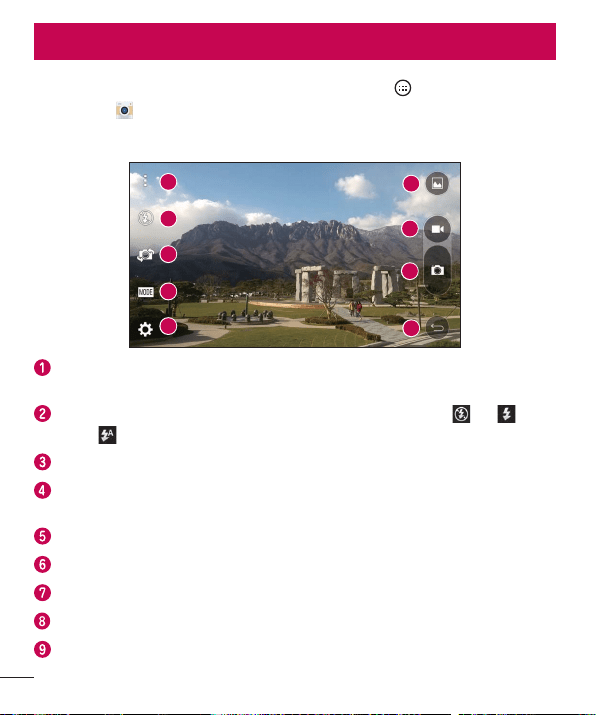
Camera options on the viewfinder
1
6
9
2
7
8
3
4
5
Hide/Display Optionso5BQUPIJEFEJTQMBZUIFDBNFSBPQUJPOTPOUIF
WJFXGJOEFS
Flasho"MMPXTZPVUPNBOBHFUIFDBNFSBhTGMBTI$IPPTFGSPNOff On
Auto
Swap camerao5BQUPTXBQCFUXFFOUIFSFBSDBNFSBBOEUIFGSPOUDBNFSB
Shot modeo"MMPXTZPVUPTFMFDUUIFTIPUNPEFGPSUIFQJDUVSF$IPPTFGSPN
Auto Panorama BOE Dual
Settingso5BQUPBEKVTUUIFDBNFSBBOEWJEFPTFUUJOHT
Galleryo5BQUPBDDFTTZPVS(BMMFSZ
Recordo5BQUPTUBSUSFDPSEJOHBWJEFP
Capture o5BQUPUBLFBQIPUP
Back button o5BQUPDMPTFUIFTFMFDUFENFOVPSFYJUUIF$BNFSBBQQ
Camera and Video
Camera and Video
Using the advanced settings
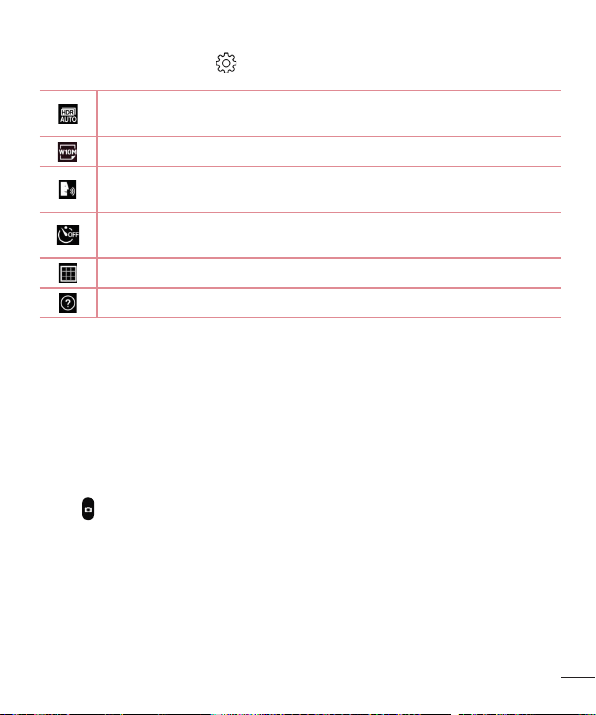
*OUIFDBNFSBWJFXGJOEFSUBQ UPBDDFTTUIFDBNFSBTFUUJOHTCFMPX
$PNCJOFTQIPUPTUBLFOBUNVMUJQMFFYQPTVSFTJOUPPOFPQUJNBMQIPUPUPHFUB
CFUUFSQIPUPJOEJGGJDVMUMJHIUJOHTJUVBUJPOT
4FMFDUTUIFQIPUPBOEWJEFPSFTPMVUJPO
"MMPXTZPVUPTBZBWPJDFDPNNBOEUPUBLFQJDUVSFT:PVDBOTBZ-(
$IFFTF4NJMFPSBOZPUIFSBWBJMBCMFDPNNBOE
4FUTBEFMBZBGUFSUIFDBQUVSFLFZJTQSFTTFE5IJTJTJEFBMJGZPVXBOUUPCF
JOUIFQIPUPPSWJEFP
%JTQMBZTHSJEMJOFTUPIFMQZPVBMJHOZPVSQJDUVSFTBOEWJEFPT
0QFOTUIF)FMQHVJEFUPTIPXIPXUPVTFBGVODUJPO
Taking a photo
1 0QFOUIFCameraBQQMJDBUJPOBOEQPJOUUIFMFOTUPXBSEUIFTVCKFDUZPVXBOUUP
QIPUPHSBQI
2 'PDVTJOEJDBUPSTXJMMBQQFBSJOUIFDFOUFSPGUIFWJFXmOEFSTDSFFO:PVDBOBMTPUBQ
BOZXIFSFPOUIFTDSFFOUPGPDVTPOUIBUTQPU
3 8IFOUIFGPDVTJOEJDBUPSTUVSOCMVFUIFDBNFSBIBTGPDVTFEPOZPVSTVCKFDU
4 5BQ
UPDBQUVSFUIFQIPUP
Camera and Video
Once you have taken a photo
5BQUIFJNBHFUIVNCOBJMPOUIFTDSFFOUPWJFXUIFMBTUQIPUPZPVUPPL5IFGPMMPXJOH
PQUJPOTBSFBWBJMBCMF
5BQUPFEJUUIFQIPUP
5BQUPUBLFBOPUIFSQIPUPJNNFEJBUFMZ
5BQUPTFOEZPVSQIPUPUPPUIFSTPSTIBSFJUJOWJBBOZBWBJMBCMFTPDJBM
OFUXPSLTFSWJDFT
5BQUPEFMFUFUIFQIPUP
5BQUPBDDFTTBEEJUJPOBMPQUJPOT
5BQUPBEEUIFQIPUPUPZPVSGBWPSJUFT
Recording a video
1 0QFOUIFCameraBQQMJDBUJPOBOEQPJOUUIFMFOTUPXBSEUIFTVCKFDUZPVXBOUUP
DBQUVSFJOZPVSWJEFP
2 5BQ
PODFUPTUBSUSFDPSEJOH
NOTE: The timer will be displayed on the screen.
3 5BQ UPTUPQSFDPSEJOH
TIP!
o Tap to capture a screen shot while recording a video.
o Tap to pause the recording.
Camera and Video
After recording a video
5BQUIFWJEFPUIVNCOBJMPOUIFTDSFFOUPWJFXUIFMBTUWJEFPZPVSFDPSEFE5IF
GPMMPXJOHPQUJPOTBSFBWBJMBCMF
5BQUPSFDPSEBOPUIFSWJEFPJNNFEJBUFMZ
5BQUPTFOEZPVSWJEFPUPPUIFSTPSTIBSFJUWJBBOZBWBJMBCMFTPDJBMOFUXPSL
TFSWJDFT
5BQUPEFMFUFUIFWJEFP
5BQUPBDDFTTBEEJUJPOBMPQUJPOT
Multi-point Auto Focus
8IFOZPVUBLFBQJDUVSFUIF.VMUJQPJOU"VUP'PDVT"'GVODUJPOPQFSBUFT
BVUPNBUJDBMMZBOEBMMPXTZPVUPTFFBDMFBSJNBHF
Burst shot
"MMPXTZPVUPUBLFNVMUJQMFTIPUTRVJDLMZ5PVDIBOEIPME UPUBLFNVMUJQMFQJDUVSFT
RVJDLMZ
Panorama mode
"MMPXTZPVUPUBLFBQBOPSBNJDQJDUVSF
1 'SPNUIF)PNFTDSFFOUBQ
AppsUBCJGOFDFTTBSZ
2 5BQ
MODE
3 5BQ
UPTUBSUUBLJOHUIFQBOPSBNJDQJDUVSF
4 1BOZPVSQIPOFTMPXMZJOPOFEJSFDUJPO
5 .BLFTVSFUIBUUIFGPDVTBSFBBMJHOTXJUIUIFCMVFHVJEFMJOFXIJMFUBLJOHUIFQIPUP
6 5BQ
UPTUPQUBLJOHUIFQBOPSBNJDQJDUVSF
Camera and Video
Dual
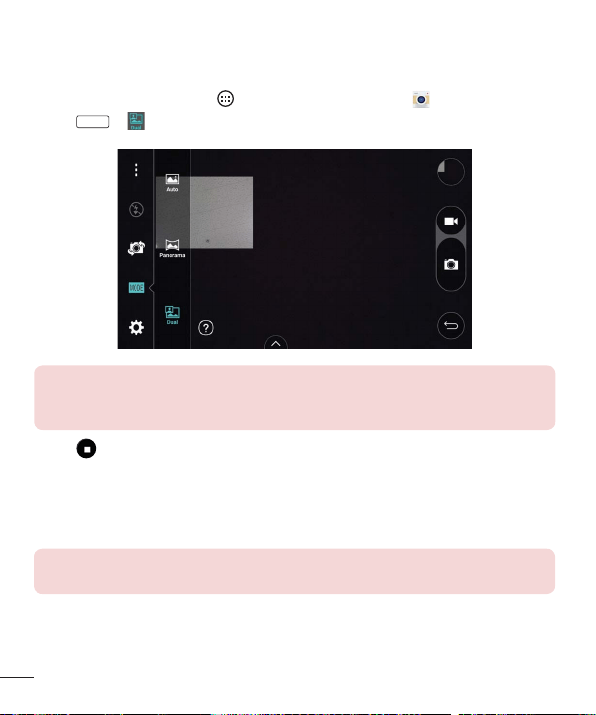
5IF%VBMGFBUVSFBMMPXTZPVUPUBLFBQJDUVSFPSSFDPSEWJEFPXJUIUIFGSPOUBOESFBS
DBNFSBTBUUIFTBNFUJNF
1 'SPNUIF)PNFTDSFFOUBQ
AppsUBCJGOFDFTTBSZ
2 5BQ
MODE
NOTE: Drag the small screen to move it to your desired location. Touch
and hold the small screen to resize it. Tap on the small screen to alternate
between the two cameras.
3 5BQ UPTUPQEVBMSFDPSEJOH
8X Zooming
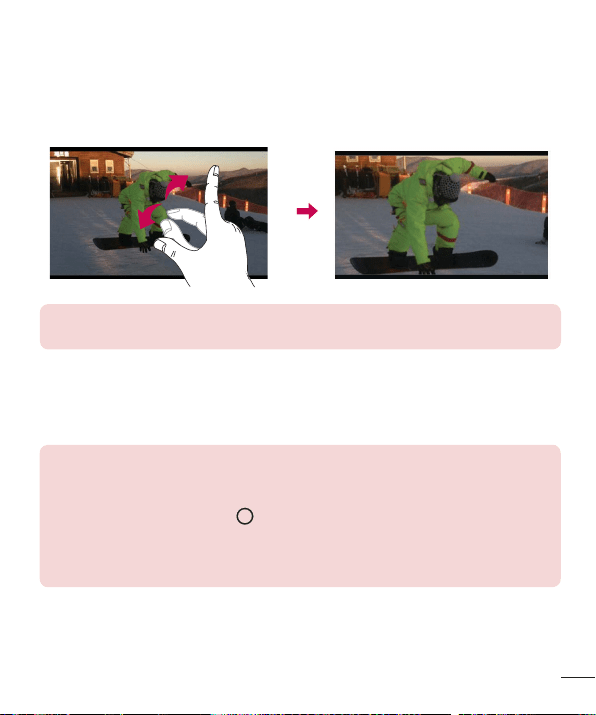
8IFOVTJOHUIFSFBSDBNFSBMFOTZPVDBO[PPNJOPSPVUUPY6TFZPVSJOEFYGJOHFS
BOEUIVNCJOBQJODIJOHPSTQSFBEJOHNPUJPOUP[PPNJOBOEPVU
NOTE: Use a steady hand. This feature does not work with some functions
Objects may be overlapped when taking a picture of fast-moving subjects.
Camera and Video
Live Zoom
-JWF;PPNBMMPXTZPVUP[PPNJOPSPVUPOBQPSUJPOPGBWJEFPUIBUJTCFJOHQMBZFEUP
NBLFUIFEFTJSFETFDUJPOBQQFBSMBSHFSPSTNBMMFS
8IFOWJFXJOHBWJEFPVTFZPVSJOEFYGJOHFSBOEUIVNCJOBQJODIJOHPSTQSFBEJOH
NPUJPOUP[PPNJOPSPVU
NOTE: Do not press too hard; the touch screen is sensitive enough to pick
up a light, but firm touch.
Dual Play
%VBM1MBZXJSFEPSXJSFMFTTDPOOFDUJPOUPUXPEJTQMBZTDBOCFSVOPOBEJGGFSFOU
TDSFFO
NOTE: Connect two devices using a wired (Slimport-HDMI) cable or
wirelessly (Miracast). The connectable device can be a TV or a monitor
supported by an HDMI cable or Miracast. The Gallery and Video apps are
supported on Dual Play. Tap
once when two displays are a different status
(i.e. the monitor is playing a video and your phone’s video app is displaying an
empty screen), then Dual Play will start. Not all videos are supported by Dual
Play. Dual Play operates at 1280X720 or higher display resolution.
Camera and Video
Gallery
5IF(BMMFSZBMMPXTZPVUPWJFXBOENBOBHFBMMPGZPVSQJDUVSFTBOEWJEFPT
t 'SPNUIF)PNFTDSFFOUBQ Apps UBCJGOFDFTTBSZ
NOTE:
t Depending on the software installed, some file formats may not be supported.
t Some files may not play properly due to their encoding.
Viewing pictures
5IF(BMMFSZEJTQMBZTZPVSQJDUVSFTJOGPMEFST8IFOBOBQQMJDBUJPOTVDIBT&NBJMTBWFT
BQJDUVSFUIF%PXOMPBEGPMEFSJTBVUPNBUJDBMMZDSFBUFEUPDPOUBJOUIFQJDUVSF-JLFXJTF
DBQUVSJOHBTDSFFOTIPUBVUPNBUJDBMMZDSFBUFTUIF4DSFFOTIPUTGPMEFS
1JDUVSFTBSFEJTQMBZFEJOBGPMEFSCZUIFEBUFUIFZXFSFDSFBUFE4FMFDUBQJDUVSFUPWJFX
JUGVMMTDSFFO4DSPMMMFGUPSSJHIUUPWJFXUIFOFYUPSQSFWJPVTJNBHF
Zooming in and out
6TFPOFPGUIFGPMMPXJOHNFUIPETUP[PPNJOBOEPVUPOBOJNBHF
t %PVCMFUBQBOZXIFSFUP[PPNJO
t 4QSFBEUXPGJOHFSTBQBSUPOBOZQMBDFJOUIFQJDUVSFUP[PPNJO1JODIJOPSEPVCMF
UBQUIFJNBHFUP[PPNPVU
Camera and Video
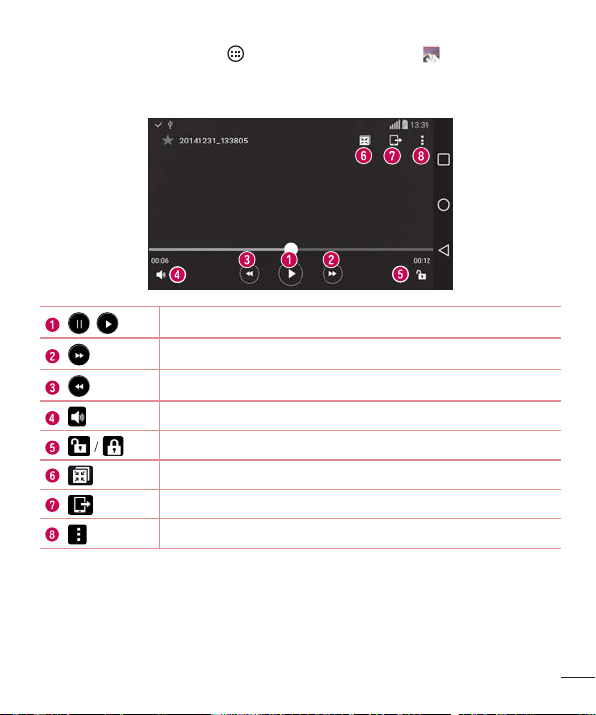
Video options
1 'SPNUIF)PNFTDSFFOUBQ Apps UBCJGOFDFTTBSZ
2 4FMFDUUIFWJEFPZPVXBOUUPXBUDI
5IFGPMMPXJOHPQUJPOTBSFBWBJMBCMF
/
5PVDIUPQBVTFSFTVNFWJEFPQMBZCBDL
5PVDIUPGBTUGPSXBSETFDPOET
5PVDIUPSFXJOETFDPOET
5PVDIUPBEKVTUUIFWJEFPWPMVNF
5PVDIUPMPDLVOMPDLUIFTDSFFO
5PVDIUPVTF24MJEFGPSUIF7JEFPTBQQ
5BQUPTIBSFZPVSWJEFPVTJOHUIF4NBSU4IBSFGVODUJPO
5BQUPBDDFTTBEEJUJPOBMPQUJPOT
5PDIBOHFUIFWPMVNFXIJMFXBUDIJOHBWJEFPQSFTTUIF7PMVNF6Q%PXO,FZTPOUIF
CBDLPGUIFQIPOF
Camera and Video
Editing photos
8IJMFWJFXJOHBQIPUPUBQ
Deleting photos/videos
6TFPOFPGUIFGPMMPXJOHNFUIPET
t 8IJMFJOBGPMEFSUBQ TFMFDUUIFQIPUPTWJEFPTZPVXBOUUPEFMFUF5IFOUBQ
Delete
t 8IJMFWJFXJOHBQIPUPUBQ
Setting wallpaper
8IJMFWJFXJOHBQIPUPUBQ Set image asUPTFUUIFJNBHFBTXBMMQBQFSPSBTTJHO
JUUPBDPOUBDU
NOTE:
t Depending on the software installed, some file formats may not be supported.
t If the file size exceeds the available memory, an error can occur when you open
files.
Multimedia
Music
:PVSQIPOFIBTBNVTJDQMBZFSUIBUMFUTZPVQMBZBMMZPVSGBWPSJUFUSBDLT5PBDDFTTUIF
NVTJDQMBZFSGSPNUIF)PNFTDSFFOUBQ Apps UBCJGOFDFTTBSZ .
Playing a song
1 GSPNUIF)PNFTDSFFOUBQ Apps UBCJGOFDFTTBSZ
2 5BQUIFSongsUBC
3 4FMFDUUIFTPOHZPVXBOUUPQMBZ
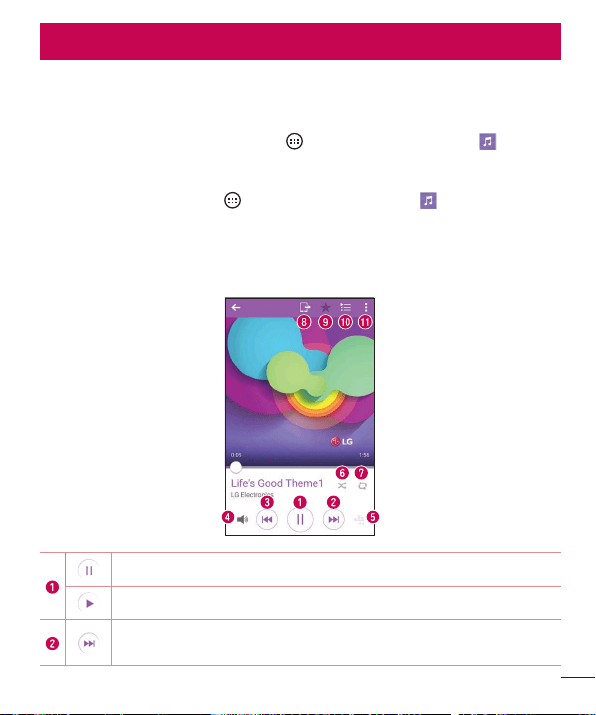
4 5IFGPMMPXJOHPQUJPOTBSFBWBJMBCMF
5BQUPQBVTFQMBZCBDL
5BQUPSFTVNFQMBZCBDL
5BQUPTLJQUPUIFOFYUUSBDLJOUIFBMCVNQMBZMJTUPSTIVGGMFMJTU5PVDIBOE
IPMEUPGBTUGPSXBSE
Multimedia
Multimedia
5BQUPSFTUBSUUIFDVSSFOUUSBDLPSTLJQUPUIFQSFWJPVTUSBDLJOUIFBMCVN
QMBZMJTUPSTIVGGMFMJTU5PVDIBOEIPMEUPSFXJOE
5BQUPBEKVTUUIFWPMVNF
5BQUPTFUBVEJPFGGFDUT
5BQUPQMBZUIFDVSSFOUQMBZMJTUJOTIVGGMFNPEFUSBDLTBSFQMBZFEJO
SBOEPNPSEFS
5BQUPUPHHMFUISPVHISFQFBUBMMTPOHTSFQFBUDVSSFOUTPOHBOESFQFBUPGG
5BQUPTIBSFZPVSNVTJDVTJOHUIF4NBSU4IBSFGVODUJPO
5BQUPBEEUIFTPOHUPZPVSGBWPSJUFT
5BQUPPQFOUIFDVSSFOUQMBZMJTU
5BQUPBDDFTTBEEJUJPOBMPQUJPOT
5PDIBOHFUIFWPMVNFXIJMFMJTUFOJOHUPNVTJDQSFTTUIF7PMVNF6Q%PXO,FZTPOUIF
CBDLTJEFPGUIFQIPOF
NOTE:
t Depending on the software installed, some file formats may not be supported.
t If the file size exceeds the available memory, an error can occur when you open
files.
NOTE: Music file copyrights may be protected by international treaties and
national copyright laws.
Therefore, it may be necessary to obtain permission or a license to reproduce
or copy music.
In some countries, national laws prohibit private copying of copyrighted
material. Before downloading or copying the file, check the national laws of
the relevant country concerning the use of such material.
Utilities
Clock
6TFUIF$MPDLBQQUPBDDFTTUIF"MBSNT5JNFS8PSMEDMPDLBOE4UPQXBUDIGVODUJPOT
"DDFTTUIFTFGVODUJPOTCZUBQQJOHUIFUBCTBDSPTTUIFUPQPGUIFTDSFFOPSTXJQJOH
IPSJ[POUBMMZBDSPTTUIFTDSFFO
5PBDDFTTUIF$MPDLBQQGSPNUIF)PNFTDSFFOUBQ
AppsUBCJGOFDFTTBSZ
Alarms
5IF"MBSNTUBCBMMPXTZPVUPTFUBMBSNT
1 0QFOUIFClockBQQUIFOTFMFDUUIFAlarmsUBC
2 5BQ
UPBEEBOFXBMBSN
3 "EKVTUUIFTFUUJOHTBTOFDFTTBSZBOEUBQSave
NOTE: You can also tap an existing alarm to edit it.
Timer
5IF5JNFSDBOBMFSUZPVXJUIBOBVEJCMFTJHOBMXIFOBTFUBNPVOUPGUJNFIBTQBTTFE
1 0QFOUIFClockBQQUIFOTFMFDUUIFTimerUBC
2 4FUUIFEFTJSFEUJNFPOUIFUJNFS
3 5BQStartUPTUBSUUIFUJNFS
4 5BQStopUPTUPQUIFUJNFS
Utilities
Utilities
World clock
5IF8PSMEDMPDLBMMPXTZPVUPFBTJMZDIFDLUIFDVSSFOUUJNFJOPUIFSDJUJFTBSPVOEUIF
XPSME
1 0QFOUIFClockBQQUIFOTFMFDUUIFWorld clockUBC
2 5BQ
BOETFMFDUUIFEFTJSFEDJUZ
Stopwatch
5IF4UPQXBUDIGFBUVSFBMMPXTZPVUPVTFZPVSQIPOFBTBTUPQXBUDI
1 0QFOUIFCloc
kBQQUIFOTFMFDUUIFStopwatchUBC
2 5BQStartUPJOJUJBUFUIFTUPQXBUDI
NOTE: Tap Lap to record lap times.
3 5BQStopUPTUPQUIFTUPQXBUDI
NOTE: To reset the stopwatch, tap the Reset button. You can also tap the
Resume button to resume the stopwatch.
Calculator
5IF$BMDVMBUPSBQQBMMPXTZPVUPQFSGPSNNBUIFNBUJDBMDBMDVMBUJPOTVTJOHBTUBOEBSE
DBMDVMBUPSPSBTDJFOUJGJDDBMDVMBUPS
1 'SPNUIF)PNFTDSFFOUBQ
AppsUBCJGOFDFTTBSZ
2 5BQUIFOVNCFSLFZTUPFOUFSOVNCFST
3 'PSTJNQMFDBMDVMBUJPOTUBQUIFGVODUJPOZPVXBOUUPQFSGPSNoYPSGPMMPXFE
CZ
4 'PSNPSFDPNQMFYDBMDVMBUJPOTUBQ
Scientific calculatorBOETFMFDUUIF
EFTJSFEGVODUJPO
NOTE: To check the history of calculations, tap > Calculation history.
Utilities
Calendar
5IF$BMFOEBSBQQBMMPXTZPVUPUSBDLZPVSTDIFEVMFPGFWFOUT
1 'SPNUIF)PNFTDSFFOUBQ
Apps UBCJGOFDFTTBSZ .
2 5BQUIFEBUFZPVXBOUUPBEEBOFWFOUUP5IFOUBQ
3 &OUFSUIFFWFOUEFUBJMTBOEUBQSaveUPTBWFUIFFWFOU
Voice Recorder
5IF7PJDF3FDPSEFSBQQSFDPSETBVEJCMFGJMFTGPSZPVUPVTFJOBWBSJFUZPGXBZT
Recording a sound or voice
1 'SPNUIF)PNFTDSFFOUBQ AppsUBCJGOFDFTTBSZ
2 5BQ
UPCFHJOSFDPSEJOH
3 5BQ
UPFOEUIFSFDPSEJOH
4 5BQ
UPMJTUFOUPUIFSFDPSEJOH
NOTE: Tap to access your recordings. You can listen to your saved
recordings. The displayed available recording time may differ from actual
recording time.
Utilities
Voice Search
6TFUIJTBQQMJDBUJPOUPTFBSDIUIFXFCVTJOHZPVSWPJDF
1 'SPNUIF)PNFTDSFFOUBQ
AppsUBCJGOFDFTTBSZGoogle GPMEFS
2 4BZBLFZXPSEPSQISBTFXIFOSpeak nowBQQFBSTPOUIFTDSFFO4FMFDUPOFPG
UIFTVHHFTUFELFZXPSETUIBUBQQFBS
NOTE: This application may not be available depending on the region or
service provider.
Downloads
6TFUIJTBQQMJDBUJPOUPTFFXIBUGJMFTIBWFCFFOEPXOMPBEFEUISPVHIZPVSBQQMJDBUJPOT
t 'SPNUIF)PNFTDSFFOUBQ AppsUBCJGOFDFTTBSZ
NOTE: This application may not be available depending on the region or
service provider.
Browsing the Web
Browsing the Web
Chrome
6TF$ISPNFUPTFBSDIGPSJOGPSNBUJPOBOECSPXTFXFCQBHFT
t 'SPNUIF)PNFTDSFFOUBQ Apps UBCJGOFDFTTBSZ
NOTE: This application may not be available, depending on your region and
service provider.
Viewing webpages
*OUIF$ISPNFCSPXTFSUBQUIFBEESFTTGJFMEBOEUIFOFOUFSBXFCBEESFTTPSTFBSDI
DSJUFSJBBOEUBQ(PPOUIFLFZCPBSE
Opening a page
5PPQFOBOFXQBHFUBC New tab
5PHPUPBOPUIFSXFCQBHFUBQ
BOEUBQUIFQBHFUPTFMFDUJU
Settings
Settings
5IJTTFDUJPOQSPWJEFTBOPWFSWJFXPGJUFNTZPVDBODIBOHFVTJOHZPVSQIPOFT4ZTUFN
4FUUJOHTNFOVT
Accessing the Settings menu:
t 'SPNUIF)PNFTDSFFOUPVDIBOEIPME System settings
OR
t 'SPNUIF)PNFTDSFFOUBQ Apps UBCJGOFDFTTBSZ
Networks
< WIRELESS NETWORKS >
Airplane mode
"JSQMBOF.PEFGMJHIUNPEFBMMPXTZPVUPVTFNBOZPGZPVSQIPOFhTGFBUVSFTTVDIBT
HBNFTBOENVTJDXIFOZPVBSFJOBOBSFBXIFSFNBLJOHPSSFDFJWJOHDBMMTPSEBUB
VTFJTQSPIJCJUFE8IFOZPVTFUZPVSQIPOFUP"JSQMBOF.PEFJUDBOOPUTFOEPSSFDFJWF
BOZDBMMTPSBDDFTTPOMJOFEBUB
Wi-Fi
"MMPXTZPVUPNBOBHFZPVS8J'JDPOOFDUJPOTBOEDPOOFDUUPBWBJMBCMF8J'JOFUXPSLT
Bluetooth
"MMPXTZPVUPNBOBHFZPVSUIF#MVFUPPUIXJSFMFTTGFBUVSF
Mobile data
%JTQMBZTUIFEBUBVTBHFBOEBMMPXTZPVUPTFUBNPCJMFEBUBVTBHFMJNJU

63
Settings
Call
t Voicemailo"MMPXTZPVUPNBOBHFZPVSWPJDFNBJMTFUUJOHT
t Auto retryo4FUTUIFBNPVOUPGUJNFUPXBJUCFGPSFBVUPNBUJDBMMZSFEJBMJOHBDBMM
UIBUGBJMFEUPDPOOFDU$IPPTFGSPNOff10 sec30 secBOE60 sec
t Incoming voice call pop-upo%JTQMBZTBQPQVQGPSBOJODPNJOHDBMMXIFOBO
BQQJTJOVTF
t Decline with messageo8IFOZPVXBOUUPSFKFDUBDBMMZPVDBOTFOEBRVJDL
NFTTBHFVTJOHUIJTGVODUJPO5IJTJTVTFGVMJGZPVOFFEUPSFKFDUBDBMMEVSJOHB
NFFUJOH
t Auto answero4FUUIFUJNFCFGPSFBDPOOFDUFEIBOETGSFFEFWJDFBVUPNBUJDBMMZ
BOTXFSTBOJODPNJOHDBMM
t TTY modeo4FUTUIF55:NPEFUPDPNNVOJDBUFXJUIPUIFS55:EFWJDFT
t Hearing aidso"MMPXTZPVUPUVSOPOIFBSJOHBJEDPNQBUJCJMJUZ
t Noise suppressiono$IFDLNBSLUPTVQQSFTTCBDLHSPVOEOPJTFPONZFOEEVSJOH
BDBMM
t Voice clarityo$IFDLNBSLUPFOIBODFWPJDFDMBSJUZJOOPJTZFOWJSPONFOUTBMMPXJOH
ZPVUPIFBSNPSFDMFBSMZ
t Save unknown numberso"MMPXTZPVUPBEEVOLOPXOOVNCFSTUPZPVSDPOUBDU
MJTUBGUFSBDBMM
t Power key ends callo$IFDLNBSLUPBMMPXZPVUPFOEWPJDFDBMMTCZQSFTTJOHUIF
1PXFS-PDL,FZ
t DTMF toneso4FUTUIFMFOHUIPGUIF%5.'UPOFT$IPPTFNormalPSLong
t Call restrictionso"MMPXTZPVUPSFTUSJDUJODPNJOHPSPVUHPJOHDBMMT
t Call durationo"MMPXTZPVUPWJFXUIFDBMMEVSBUJPOGPSWBSJPVTUZQFTPGDBMMT
t Voice privacyo$IFDLNBSLUPFOBCMFFOIBODFEQSJWBDZNPEF

Settings
< CONNECTIVITY >
Share & connect
t NFCo:PVSEFWJDFJTBO/'$FOBCMFENPCJMFQIPOF/'$/FBS'JFME
$PNNVOJDBUJPOJTBXJSFMFTTDPOOFDUJWJUZUFDIOPMPHZUIBUFOBCMFTUXPXBZ
DPNNVOJDBUJPOCFUXFFOFMFDUSPOJDEFWJDFT*UPQFSBUFTPWFSBEJTUBODFPGBGFX
DFOUJNFUFST:PVDBOTIBSFZPVSDPOUFOUXJUIBO/'$UBHPSBOPUIFS/'$TVQQPSU
EFWJDFCZTJNQMZUBQQJOHJUXJUIZPVSEFWJDF*GZPVUBQBO/'$UBHXJUIZPVSEFWJDF
JUEJTQMBZTUIFUBHDPOUFOUPOZPVSEFWJDF
t Android Beamo8IFOUIJTGFBUVSFJTUVSOFEPOZPVDBOUSBOTGFSBQQDPOUFOU
UPBOPUIFS/'$DBQBCMFEFWJDFCZIPMEJOHUIFEFWJDFTDMPTFUPHFUIFS+VTUCSJOH
UIFEFWJDFUPHFUIFSUZQJDBMMZCBDLUPCBDLBOEUIFOUBQZPVSTDSFFO5IFBQQ
EFUFSNJOFTXIBUHFUTCFBNFE
t SmartShare Beamo"MMPXTZPVUPSFDFJWFNVMUJNFEJBDPOUFOUWJB-(QIPOFTBOE
UBCMFUT
t Media servero"MMPXTZPVUPTIBSFUIFQIPOFhTEJTQMBZBOETPVOEPOZPVS57
t Miracasto"MMPXTZPVUPXJSFMFTTMZNJSSPSUIFQIPOFTDSFFOBOETPVOEPOUPB
.JSBDBTUEPOHMFPS57
Tethering & networks
t USB tetheringo"MMPXTZPVUPTIBSFUIFJOUFSOFUDPOOFDUJPOXJUIZPVSDPNQVUFS
WJBB64#DBCMF
t Wi-Fi hotspoto"MMPXTZPVUPDSFBUFBIPUTQPUBOETIBSFZPVSDPOOFDUJPO
t Bluetooth tetheringo"MMPXTZPVUPDPOOFDUUPPUIFSEFWJDFTWJB#MVFUPPUI
t Helpo%JTQMBZT)FMQJOGPSNBUJPOBCPVU64#UFUIFSJOH8J'JIPUTQPUBOE#MVFUPPUI
UFUIFSJOH
t Mobile networkso5IJTNFOVBMMPXTZPVUPDPOGJHVSFWBSJPVTNPCJMFOFUXPSL
TFUUJOHT
Settings
t VPNo'SPNZPVSQIPOFZPVDBOBEETFUVQBOENBOBHFWJSUVBMQSJWBUFOFUXPSLT
71/TUIBUBMMPXZPVUPDPOOFDUBOEBDDFTTSFTPVSDFTJOTJEFBTFDVSFEMPDBM
OFUXPSLTVDIBTZPVSDPSQPSBUFOFUXPSL
NOTE: You must set a screen lock before you can use VPN.
Sound
< BASIC >
Sound profile
"MMPXTZPVUPTFUZPVSQIPOFhTTPVOEQSPGJMF$IPPTFGSPNSoundVibrate onlyBOE
Do not disturb
Volume
"EKVTUUIFQIPOFTWPMVNFTFUUJOHTUPTVJUZPVSOFFETBOEFOWJSPONFOU
Vibration strength
"MMPXTZPVUPTFUUIFWJCSBUJPOTUSFOHUIGPSDBMMTOPUJGJDBUJPOTBOEUPVDIGFFECBDL
< RINGTONES & VIBRATIONS >
Ringtone
"MMPXTZPVUPTFUUIFSJOHUPOFTGPSDBMMT:PVDBOBMTPBEEBSJOHUPOFCZUBQQJOH
JO
UIFVQQFSSJHIUDPSOFSPGUIFTDSFFO
Notification sound
"MMPXTZPVUPTFUUIFOPUJGJDBUJPOTPVOE:PVDBOBMTPBEEBOPUJGJDBUJPOTPVOECZ
UBQQJOH
JOUIFVQQFSSJHIUDPSOFSPGUIFTDSFFO
Sound with vibration
$IFDLNBSLUPTFUUIFQIPOFUPWJCSBUFJOBEEJUJPOUPUIFSJOHUPOFXIFOZPVSFDFJWF
DBMMT

66
Settings
Vibration type
"MMPXTZPVUPDIPPTFUIFUZQFPGWJCSBUJPO
< NOTIFICATIONS >
Do not disturb
"MMPXTZPVUPTFUBTDIFEVMFXIFOUPQSFWFOUJOUFSSVQUJPOTGSPNOPUJGJDBUJPOT:PVDBO
TFUUPBMMPXDFSUBJOGFBUVSFTUPJOUFSSVQUXIFO1SJPSJUZPOMZJTTFU
Lock screen
"MMPXTZPVUPDIPPTFJGZPVXBOUUPTIPXPSIJEFOPUJGJDBUJPOTPOUIFMPDLTDSFFO
Apps
"MMPXTZPVUPQSFWFOUBQQTGSPNEJTQMBZJOHOPUJGJDBUJPOT:PVDBOBMTPTFUBQQTUPTIPX
OPUJGJDBUJPOTXJUIQSJPSJUZXIFO%POPUEJTUVSCJTTFUUP1SJPSJUZPOMZ
< ADVANCED SETTINGS >
Vibrate on tap
$IFDLNBSLUPWJCSBUFXIFOUBQQJOHUIF)PNFUPVDICVUUPOTBOEEVSJOHPUIFS6*
JOUFSBDUJPOT
Sound effects
5BQUPTFUUIFEJBMQBEUPVDIUPOFTUPVDITPVOETBOETDSFFOMPDLTPVOE
t Dialpad touch sounds o$IFDLNBSLUPQMBZUPOFTXIJMFVTJOHUIFEJBMQBE
t Touch sounds o$IFDLNBSLUPQMBZBTPVOEXIFONBLJOHBTDSFFOTFMFDUJPOT
t Screen lock sound o$IFDLNBSLUPQMBZBTPVOEXIFOMPDLJOHBOEVOMPDLJOHUIF
TDSFFO
t Emergency toneo"MMPXTZPVUPTFUZPVSQIPOFhTFNFSHFODZUPOF$IPPTFGSPN
OffAlertBOEVibrate
Message/call voice notifications
5BQ
UPHHMFJU0OPS0GG0OBMMPXTZPVSEFWJDFUPSFBEPVUJODPNJOHDBMMTBOE
NFTTBHFFWFOUTBVUPNBUJDBMMZ
67
Settings
Display
< HOME & LOCK >
Home screen
t Select Home o"MMPXTZPVUPTFMFDUUIFIPNFJOUFSGBDFZPVXPVMEMJLFUPVTF
$IPPTFHomeGPSVTFSTFYQFSJFODFEXJUI"OESPJEhTMBZPVUPSEasyHomeGPSBO
FBTJFSJOUFSGBDFGPSCFHJOOFST
t Smart Bulletin o5BQ UPUPHHMFJU0OPS0GG"DUJWBUJOHUIJTGFBUVSFBEETBO
BEEJUJPOBM)PNFTDSFFOTIPXJOHDVTUPNJ[FEJOGPSNBUJPO$IFDLNBSLLG HealthPS
Smart Tips
t Wallpaper o"MMPXTZPVUPTFUUIFEFTJSFEXBMMQBQFSGPSZPVS)PNFTDSFFO
t Screen swipe effect o$IPPTFUIFEFTJSFEUZQFPGFGGFDUUPEJTQMBZXIFOZPV
TXJQFGSPNPOF)PNFTDSFFODBOWBTUPUIFOFYU
t Allow Home screen looping o%JTQMBZTUIFGJSTUTDSFFOBGUFSUIFMBTUTDSFFOXIFO
TDSPMMJOHUIF)PNFTDSFFO
t Home backup & restore o:PVDBOCBDLVQBOESFTUPSFBQQXJEHFUMBZPVUTBOE
UIF)PNFTDSFFOXBMMQBQFS
t Help o%JTQMBZTIFMQJOGPSNBUJPOGPSUIF)PNFTDSFFO
Lock screen
t Select screen locko"MMPXTZPVUPTFUUIFTDSFFOMPDLGPSZPVSQIPOF
t Smart Locko"MMPXTZPVUPTFUUPLFFQZPVSQIPOFVOMPDLFEXIFOZPVIBWFB
USVTUFE#MVFUPPUIEFWJDFDPOOFDUFEUPJUXIFOJUhTJOBGBNJMJBSMPDBUJPOMJLFZPVS
IPNFPSXPSLPSXIFOJUSFDPHOJ[FTZPVSGBDF
t Screen swipe effecto4FUTUIFTDSFFOTXJQFFGGFDUPQUJPOT
NOTE: This setting name may be Pattern effect if the Screen lock is set to
Pattern.
t Wallpapero"MMPXTZPVUPTFUZPVS-PDLTDSFFOXBMMQBQFS

Settings
t Shortcutso"MMPXTZPVUPDIPPTFUIFTIPSUDVUTBWBJMBCMFPOUIFMPDLTDSFFO
t Weather animationo$IFDLNBSLUPTIPXXFBUIFSBOJNBUJPOPOUIFMPDLTDSFFO
GPSUIFDVSSFOUMPDBUJPO
t Contact info for lost phoneo"MMPXTZPVUPEJTQMBZUIFPXOFSJOGPSNBUJPOPOUIF
MPDLTDSFFOJODBTFUIFQIPOFJTMPTU
t Lock timero"MMPXTZPVUPTFUUIFBNPVOUPGUJNFCFGPSFUIFTDSFFOBVUPNBUJDBMMZ
MPDLTBGUFSUIFTDSFFOIBTUJNFEPVU
t Power button instantly lockso"MMPXTZPVUPJOTUBOUMZMPDLUIFTDSFFOXIFOUIF
1PXFS-PDL,FZJTQSFTTFE5IJTTFUUJOHPWFSSJEFTUIF-PDLUJNFSTFUUJOH
Home touch buttons
4FUUIF)PNFUPVDICVUUPOTEJTQMBZFEBUUIFCPUUPNPGBMMTDSFFOT4FUXIJDILFZTBSF
EJTQMBZFEUIFJSQPTJUJPOPOUIFCBSBOEXIBUUIFZMPPLMJLF:PVDBOBMTPDIPPTFUPIJEF
UIFNXIJMFVTJOHDFSUBJOBQQT
< FONT >
Font type
"MMPXTZPVUPTFUUIFUZQFPGGPOUVTFEGPSUIFQIPOFBOENFOVT
Font size
"MMPXTZPVUPTFUUIFTJ[FPGUIFGPOUEJTQMBZFEJOUIFQIPOFBOENFOVT
< OTHER SCREEN SETTINGS >
Brightness
"EKVTUTUIFCSJHIUOFTTPGUIFTDSFFO'PSCFTUCBUUFSZQFSGPSNBODFVTFUIFEJNNFTU
DPNGPSUBCMFCSJHIUOFTT
Notification LED
5BQUIFTXJUDIUPUPHHMFJU0OPS0GG0OBDUJWBUFTUIF-&%MJHIUGPSUIFOPUJGJDBUJPOTZPV
TFMFDUJOUIFDPMPSZPVTFUGPSFBDI

Settings
Auto-rotate screen
"MMPXTZPVUPTFUUPTXJUDIUIFTDSFFOPSJFOUBUJPOBVUPNBUJDBMMZXIFOZPVQIZTJDBMMZ
SPUBUFUIFQIPOF
Screen timeout
"MMPXTZPVUPTFUUIFBNPVOUPGUJNFCFGPSFUIFTDSFFOUJNFTPVU
Screen mode
"MMPXTZPVUPTFUUIFEFTJSFETDSFFODPMPSUPOFUPTVJUZPVSUBTUF
< ADVANCED SETTINGS >
Screen-off effect
"MMPXTZPVUPTFUUIFTDSFFOPGGFGGFDUVTFEXIFOUIFTDSFFOUVSOTPGG
Daydream
5BQ
UPUPHHMFJU0OPS0GG0OBMMPXTZPVUPTFUBTDSFFOTBWFSUPCFEJTQMBZFEXIFO
UIFQIPOFJTTMFFQJOHXIJMFEPDLFEBOEPSDIBSHJOH
Auto-adjust screen tone
$IFDLNBSLUPBEKVTUUIFTDSFFOCSJHIUOFTTBVUPNBUJDBMMZXJUIBOBOBMZTJTPGJNBHF
DPMPS
General
< PERSONAL >
Language & input
6TFUIF-BOHVBHFJOQVUTFUUJOHTUPTFMFDUUIFMBOHVBHFGPSUIFUFYUPOZPVSQIPOF
BOEUPDPOGJHVSFUIFPOTDSFFOLFZCPBSEJODMVEJOHXPSETZPVBEEFEUPJUTEJDUJPOBSZ
t Language o4FUTUIFMBOHVBHFUPVTFPOZPVSEFWJDF
t Default o"MMPXTZPVUPTFUUIFEFGBVMULFZCPBSEUPVTFXIFOFOUFSJOHUFYU
t LG Keyboard o$IFDLNBSLUPTFMFDUUIF-(,FZCPBSEUPFOUFSUFYU5BQ UP
DIBOHFUIFLFZCPBSETFUUJOHT

Settings
t Google voice typing o$IFDLNBSLUPTFMFDU(PPHMFWPJDFUZQJOHUPFOUFSUFYU5BQ
UPDIBOHFUIF(PPHMFWPJDFTFUUJOHT
t Voice Searcho"MMPXTZPVUPTFUUIFTBNFWPJDFPQUJPOTBWBJMBCMFGPS(PPHMFWPJDF
UZQJOH
t Text-to-speech output o4FUTUIFQSFGFSSFETQFFDIFOHJOFBOETQFFDISBUFTMPX
WTGBTU"MTPQMBZTBTIPSUEFNPOTUSBUJPOPGTQFFDITZOUIFTJT
t Pointer speed o"MMPXTZPVUPTFUUIFQPJOUFSTQFFEVTJOHBTMJEFCBS
Location
"MMPXTZPVUPNBOBHFMPDBUJPOTFSWJDFTUPEFUFSNJOFZPVSBQQSPYJNBUFMPDBUJPOVTJOH
(148J'JBOENPCJMFOFUXPSLT
t Mode o"MMPXTZPVUPDIPPTFBMPDBUJPONPEFGSPNHigh accuracy (GPS and
networks) Battery saving (Networks only) BOE Device sensors only (GPS
only)
t Camera o$IFDLNBSLUPUBHQIPUPTPSWJEFPTXJUIUIFMPDBUJPOUIFZXFSFUBLFOBU
t Google Location Reporting o"MMPXTZPVUPWJFXBOENBOBHFZPVS(PPHMF
MPDBUJPOTFUUJOHT
Accounts & sync
1FSNJUTBQQMJDBUJPOTUPTZODISPOJ[FEBUBJOUIFCBDLHSPVOEXIFUIFSPSOPUZPVBSF
BDUJWFMZVTJOHUIFN%FBDUJWBUJOHUIFAuto-sync data PQUJPODBOTBWFCBUUFSZQPXFS
BOEMPXFSCVUOPUFMJNJOBUFEBUBVTBHF
Cloud
"MMPXTZPVUPBEEBDMPVEBDDPVOUUPRVJDLMZBOEFBTJMZVTFBDMPVETFSWJDF
Accessibility
6TFUIF"DDFTTJCJMJUZTFUUJOHTUPDPOGJHVSFBDDFTTJCJMJUZQMVHJOTZPVIBWFJOTUBMMFEPO
ZPVSQIPOF
t TalkBack o"MMPXTZPVUPTFUVQUIF5BML#BDLGVODUJPOXIJDIBTTJTUTQFPQMFXJUI
JNQBJSFEWJTJPOCZQSPWJEJOHWFSCBMGFFECBDL5BQ UPUPHHMFJU0OPS0GG5BQ

Settings
SettingsBUUIFCPUUPNPGUIFTDSFFOUPBEKVTUUIF5BML#BDLTFUUJOHT
t Font size o"MMPXTZPVUPDIBOHFUIFGPOUTJ[F
t Invert colors o"MMPXTZPVUPJOWFSUUIFTDSFFOBOEDPOUFOUDPMPST
t Color adjustment o"MMPXTZPVUPWJFXUIFTDSFFOXJUIHSFBUFSDPMPSDPOUSBTU5P
BEKVTUUIFDPOUSBTUBOEIVFBDUJWBUFUIFGFBUVSFBOEESBHZPVSGJOHFSBDSPTTUIF
TDSFFO
t Touch zoom o"MMPXTZPVUPUSJQMFUBQUIFTDSFFOUP[PPNJOBOEPVU
t Message/call voice notifications o5BQ UPUPHHMFJU0OPS0GG0OBMMPXTZPVS
EFWJDFUPSFBEPVUJODPNJOHDBMMTBOENFTTBHFTBVUPNBUJDBMMZ
t Screen shade o$IFDLNBSLUPEJNUIFTDSFFOhTCBDLMJHIUGPSBEBSLFSDPOUSBTU
t Accessibility shortcut o5BQ UPUPHHMFJU0OPS0GG0ORVJDLMZFOBCMFT
BDDFTTJCJMJUZGFBUVSFT
t Text-to-speech output o4FUTUIFUFYUUPTQFFDIQSFGFSSFEFOHJOFBOETQFFDI
SBUFTFUUJOH"MTPQMBZTBTIPSUEFNPOTUSBUJPOPGTQFFDITZOUIFTJT5FYUUPTQFFDI
PVUQVUQSPWJEFTBOBVEJCMFSFBEPVUPGUFYUGPSFYBNQMFUIFDPOUFOUTPGUFYU
NFTTBHFTBOEUIF$BMMFS*%GPSJODPNJOHDBMMT
t Audio type o4FUTUIFBVEJPUZQF$IPPTFMonoPSStereo
t Sound balance o3PVUFTUIFTPVOEUISPVHICPUIUIFSJHIUBOEMFGUDIBOOFMXIFO
BIFBETFUJTDPOOFDUFE5PNBOVBMMZTFUUIFBVEJPSPVUFNPWFUIFTMJEFSPOUIF
TPVOECBMBODFCBSUPTFUJU
t Notification LED o5BQ BUUIFVQQFSSJHIUDPSOFSPGUIFTDSFFOUPUPHHMFJU0O
PS0GG0OBDUJWBUFTUIF-&%MJHIUGPSJODPNJOHDBMMTBOEOPUJGJDBUJPOT
t Flash alerts o$IFDLNBSLUPBMMPXBGMBTIUPCMJOLGPSJODPNJOHDBMMTBOE
OPUJGJDBUJPOT
t Turn off all sounds o$IFDLNBSLUPUVSOPGGBMMTPVOET
t Captions o5BQ UPUPHHMFJU0OPS0GG0ODVTUPNJ[FTDBQUJPOTFUUJOHTGPSUIPTF
XJUIIFBSJOHJNQBJSNFOUT4FULanguageFont sizeBOECaption style

Settings
t Touch feedback time o4FUTUIFUPVDIBOEGFFECBDLUJNF$IPPTFGSPNShort
MediumPSLong
t Touch assistant o5BQ UPUPHHMFJU0OPS0GG0OBMMPXTZPVUPSFQMBDFUIF
IBSEXBSFLFZTXJUIB5PVDIBTTJTUBOUCPBSEUIBUJTEJTQMBZFEPOUIFTDSFFO5BQ
UPBDDFTTPowerCVUUPOHomeCVUUPOVolume downCVUUPOVolume upCVUUPO
BOEUIF1/2QBHFCVUUPOScreen captureCVUUPOAccessibilityCVUUPOPinch
CVUUPOVoice MateCVUUPO
t Screen timeout o4FUTUIFEFTJSFETDSFFOUJNFPVUPQUJPO
t Touch control areas o5BQ UPUPHHMFJU0OPS0GG0OBMMPXTZPVUPTFMFDUBO
BSFBPGUIFTDSFFOUPMJNJUUPVDIDPOUSPM1SFTTUIF7PMVNF%PXO,FZBOEUBQUIF
)PNF,FZBUUIFTBNFUJNFUPBDUJWBUFBOEEFBDUJWBUFUIJTGFBUVSF
t Auto-rotate screen o$IFDLNBSLUPBMMPXUIFQIPOFUPSPUBUFUIFTDSFFO
EFQFOEJOHPOUIFQIZTJDBMQIPOFPSJFOUBUJPOQPSUSBJUPSMBOETDBQF
t Password voice confimation o$IFDLNBSLUPBMMPXWPJDFDPOGJSNBUJPOPG
DIBSBDUFSTXIFOFOUFSJOHQBTTXPSET
t Power key ends call o$IFDLNBSLTPUIBUZPVDBOFOEWPJDFDBMMTCZQSFTTJOHUIF
1PXFS-PDL,FZ
t Accessibility settings shortcut o4FUTRVJDLFBTZBDDFTTUPTFMFDUFEGFBUVSFT
XIFOZPVUSJQMFUBQUIF)PNF,FZ
t One-touch input o$IFDLNBSLUPFOBCMFPOFUPVDIJOQVU*UBMMPXTFBDIGJOHFS
UPVDIUPFOUFSBMFUUFSPSDIBSBDUFSPOUIF-(LFZCPBSE
t Switch accesso"MMPXTZPVUPJOUFSBDUXJUIZPVSEFWJDFVTJOHPOFPSNPSF
TXJUDIFTUIBUXPSLMJLFLFZCPBSELFZT5IJTNFOVDBOCFIFMQGVMGPSVTFSTXJUI
NPCJMJUZMJNJUBUJPOTUIBUQSFWFOUUIFNGSPNJOUFSBDUJOHEJSFDUMZXJUIUIFZPVSEFWJDF
5BQSettingsBUUIFCPUUPNPGUIFTDSFFOUPBEKVTUUIF4XJUDIBDDFTTTFUUJOHT
One-handed operation
t Dial keypad o$IFDLNBSLUPFOBCMFZPVUPNPWFUIFEJBMLFZQBEUPUIFSJHIUPSMFGU
TJEFPGUIFEFWJDF4JNQMZUBQUIFBSSPXUPNPWFJUUPPOFTJEFPSUIFPUIFS

73
Settings
t LG keyboard o$IFDLNBSLUPFOBCMFZPVUPNPWFUIFLFZCPBSEUPUIFSJHIUPSMFGU
TJEFPGUIFEFWJDF4JNQMZUBQUIFBSSPXUPNPWFJUUPPOFTJEFPSUIFPUIFS
t Lock screen o$IFDLNBSLUPFOBCMFZPVNPWFUIF1*/-PDLTDSFFOLFZQBEUPUIF
SJHIUPSMFGUTJEFPGUIFQIPOF4JNQMZUBQUIFBSSPXUPNPWFJUUPPOFTJEFPSUIF
PUIFS
t Help o%JTQMBZTJOGPSNBUJPOSFHBSEJOHPOFIBOEFEPQFSBUJPO
Shortcut key
(FURVJDLBDDFTTUPBQQTCZQSFTTJOHBOEIPMEJOHUIF7PMVNF,FZTXIFOUIFTDSFFOJT
PGGPSMPDLFE5BQ
JOUIFVQQFSSJHIUDPSOFSPGUIFTDSFFOUPUPHHMFJUOnPSOff
< PRIVACY >
Security
t Content lock o4FMFDUMPDLUZQFTUPMPDLGJMFTJO(BMMFSZ$IPPTFGSPNPassword
PSPattern
t Encrypt phone o0QFOTBTDSFFOUIBUFODSZQUTEBUBPOUIFQIPOFGPSTFDVSJUZ:PV
XJMMCFSFRVJSFEUPFOUFSB1*/PSQBTTXPSEUPEFDSZQUZPVSQIPOFFBDIUJNFZPV
QPXFSJUPO
t Encrypt SD card storage o"MMPXTZPVUPFODSZQUUIF4%DBSEBOELFFQEBUB
VOBWBJMBCMFGPSPUIFSEFWJDFT
t Password typing visible o$IFDLNBSLUPCSJFGMZTIPXFBDIDIBSBDUFSPG
QBTTXPSETBTZPVFOUFSUIFNTPUIBUZPVDBOTFFXIBUZPVFOUFS
t Phone administrators o"MMPXTZPVUPWJFXPSEFBDUJWBUFQIPOFBENJOJTUSBUPST
t Unknown sources o"MMPXTZPVUPJOTUBMMOPO1MBZTUPSFBQQMJDBUJPOT
t Verify apps o%JTBMMPXPSXBSOCFGPSFJOTUBMMBUJPOPGBQQTUIBUNBZDBVTFIBSN
t Storage type o%JTQMBZTUIFTUPSBHFUZQFGPSDSFEFOUJBMT
t Trusted credentials o%JTQMBZTUSVTUFE$"DFSUJGJDBUFT
t Install from storage o"MMPXTZPVUPJOTUBMMFODSZQUFEDFSUJGJDBUFT
t Clear credentials o%FMFUFTBMMTFDVSFDFSUJGJDBUFTBOESFMBUFEDSFEFOUJBMTBOE
FSBTFTUIFTFDVSFTUPSBHFhTPXOQBTTXPSE

Settings
t Trust agents o4FMFDUBQQTUPVTFXJUIPVUVOMPDLJOHUIFTDSFFO
t Screen pin o5IJTGFBUVSFBMMPXTZPVUPMPDLZPVSEFWJDFTPUIBUUIFDVSSFOUVTFS
DBOPOMZBDDFTTUIFQJOOFEBQQ5IJTJTVTFGVMGPSVTFSTXJUIDIJMESFO
< SMART FUNCTIONS >
Gestures
t Answer an incoming call o$IFDLNBSLUPFOBCMFZPVUPCSJOHUIFEFWJDFUPZPVS
FBSUPBVUPNBUJDBMMZBOTXFSUIFJODPNJOHDBMM
t Fade out ringtone o$IFDLNBSLUPBMMPXZPVUPQJDLVQUIFEFWJDFGSPNUIFGMBU
TVSGBDFUPGBEFPVUUIFJODPNJOHDBMMSJOHUPOF
t Silence incoming calls o$IFDLNBSLUPBMMPXZPVUPGMJQUIFEFWJDFUPTJMFODF
JODPNJOHDBMMT
t Snooze or stop alarm o$IFDLNBSLUPBMMPXZPVUPTJNQMZGMJQUIFEFWJDFUP
TOPP[FPSTUPQUIFBMBSN
t Pause video o$IFDLNBSLUPBMMPXZPVUPTJNQMZGMJQUIFEFWJDFUPQBVTFUIF
DVSSFOUMZQMBZJOHWJEFP
t Help o%JTQMBZTB)FMQHVJEFPOIPXUPVTFUIF(FTUVSFTGFBUVSFTPGZPVSEFWJDF
t Motion sensor calibration o"MMPXTZPVUPJNQSPWFUIFBDDVSBDZPGUIFUJMUBOE
TQFFEPGUIFTFOTPS
QuickCircle case
5IJTNFOVBMMPXTZPVUPTFMFDUBQQTUPCFVTFEEJSFDUMZPOUIFDPWFSJOTNBMMWJFX
VTJOH2VJDL$JSDMF

Settings
Dual window
"MMPXTZPVUPDPOGJHVSFUIF%VBM8JOEPXGFBUVSF
t Split view o$IFDLNBSLUPBMMPXZPVUPUBQBMJOLPOUIFGVMMTDSFFOPSBUUBDINFOUT
GSPNFNBJMTUPPQFO%VBMXJOEPX
t Help o%JTQMBZUJQTGPSVTJOH%VBMXJOEPX
< PHONE MANAGEMENT >
Date & time
6TFUIF%BUFUJNFTFUUJOHTUPTFUIPXEBUFTXJMMCFEJTQMBZFE:PVDBOBMTPVTFUIFTF
TFUUJOHTUPTFUZPVSPXOUJNFBOEUJNF[POFSBUIFSUIBOPCUBJOJOHUIFDVSSFOUUJNFGSPN
UIFNPCJMFOFUXPSL
Storage
t Internal Storageo"MMPXTZPVUPWJFXJOGPSNBUJPOBCPVUUIFJOUFSOBMTUPSBHF
VTBHF
t SD Cardo"MMPXTZPVUPWJFXJOGPSNBUJPOBCPVUTUPSBHFVTFPOUIF4%DBSE:PV
DBOBMTPNPVOUBOEVONPVOUBO4%DBSEPSFSBTFJUTDPOUFOUT
Battery
t BATTERY INFORMATION o5IF#BUUFSZDIBSHFJOGPSNBUJPOJTEJTQMBZFEPOB
CBUUFSZHSBQIJDBMPOHXJUIUIFQFSDFOUBHFPGUIFSFNBJOJOHDIBSHFBOEJUTTUBUVT
t Battery usage o%JTQMBZTUIFCBUUFSZVTBHFMFWFMBOECBUUFSZVTFEFUBJMT
t Battery percentage on status bar o$IFDLNBSLUPEJTQMBZUIFCBUUFSZMFWFM
QFSDFOUBHFPOUIF4UBUVT#BSOFYUUPUIFCBUUFSZJDPO
t Battery saver o5BQ UPUPHHMFJU0OPS0GG:PVDBOBMTPDIPPTFXIFOUP
BVUPNBUJDBMMZUVSOUIF#BUUFSZTBWFSGFBUVSFPO
t Help o%JTQMBZTIFMQJOGPSNBUJPOGPSUIF#BUUFSZTBWFSGFBUVSF
Smart cleaning
"MMPXTZPVUPNBOBHFVOVTFEBQQTBOEEBUB

76
Settings
Apps
5IJTNFOVMFUTZPVWJFXEFUBJMTBCPVUUIFBQQMJDBUJPOTJOTUBMMFEPOZPVSQIPOFNBOBHF
UIFJSEBUBGPSDFUIFNUPTUPQ
Default message app
5IJTNFOVBMMPXTZPVUPTFUZPVSEFGBVMUNFTTBHJOHBQQBTEFTJSFE
Backup & reset
5IJTNFOVBMMPXTZPVUPCBDLVQZPVSEBUBBVUPNBUJDBMMZSFTUPSFEBUBBOEFSBTFBMM
UIFEBUBPOZPVSQIPOF
t Back up my data o"MMPXTZPVUPCBDLVQZPVSBQQEBUB8J'JQBTTXPSETBOE
PUIFSTFUUJOHTUP(PPHMFTFSWFST
t Backup account o"MMPXTZPVUPTFUUIFBDDPVOUUPXIJDIZPVXBOUUPCBDLVQ
EBUBUP
t Automatic restore o"MMPXTZPVUPSFTUPSFZPVSTFUUJOHTBOEBQQMJDBUJPOEBUBXIFO
UIFBQQMJDBUJPOTBSFSFJOTUBMMFEPOZPVSEFWJDF
t LG Backup service o#BDLTVQBMMJOGPSNBUJPOPOUIFEFWJDFBOESFTUPSFTJUJOUIF
FWFOUPGEBUBMPTTPSSFQMBDFNFOU
t Factory data reset o"MMPXTZPVUPSFTFUZPVSTFUUJOHTUPUIFGBDUPSZEFGBVMUWBMVFT
BOEEFMFUFBMMZPVSEBUBJODMVEJOHVTFSEBUBTVDIBTQJDUVSFTBOEWJEFPT
Printing
t Cloud Printo"MMPXTZPVUPNBOBHFZPVS(PPHMF$MPVE1SJOUTFUUJOHTBOEQSJOU
KPCT
About phone
%JTQMBZJOGPSNBUJPOBCPVUUIFOFUXPSLQIPOFJEFOUJUZCBUUFSZIBSEXBSFTPGUXBSFMFHBM
BOESFHVMBUJPOTBOETBGFUZ
77
Phone software update
Phone software update
LG Mobile phone software update from the Internet
'PSNPSFJOGPSNBUJPOBCPVUVTJOHUIJTGVODUJPOQMFBTFWJTJUIUUQXXXMHDPNDPNNPO
JOEFYKTQ
TFMFDUZPVSDPVOUSZBOEMBOHVBHF
5IJTGFBUVSFBMMPXTZPVUPDPOWFOJFOUMZVQEBUFUIFGJSNXBSFPOZPVSQIPOFUPBOFXFS
WFSTJPOGSPNUIF*OUFSOFUXJUIPVUOFFEJOHUPWJTJUBTFSWJDFDFOUFS5IJTGFBUVSFXJMMPOMZ
CFBWBJMBCMFJGBOEXIFO-(NBLFTBOFXFSGJSNXBSFWFSTJPOBWBJMBCMFGPSZPVSEFWJDF
#FDBVTFUIFNPCJMFQIPOFGJSNXBSFVQEBUFSFRVJSFTUIFVTFShTGVMMBUUFOUJPOGPSUIF
EVSBUJPOPGUIFVQEBUFQSPDFTTQMFBTFNBLFTVSFZPVDIFDLBMMJOTUSVDUJPOTBOEOPUFT
UIBUBQQFBSBUFBDITUFQCFGPSFQSPDFFEJOH1MFBTFOPUFUIBUSFNPWJOHUIF64#EBUB
DBCMFEVSJOHUIFVQHSBEFNBZTFSJPVTMZEBNBHFZPVSNPCJMFQIPOF
NOTE: LG reserves the right to make firmware updates available only for
selected models at its own discretion and does not guarantee the availability
of the newer version of the firmware for all handset models.
LG Mobile Phone software update via Over-the-Air (OTA)
5IJTGFBUVSFBMMPXTZPVUPDPOWFOJFOUMZVQEBUFZPVSQIPOFhTTPGUXBSFUPBOFXFS
WFSTJPOWJB05"XJUIPVUDPOOFDUJOHVTJOHB64#EBUBDBCMF5IJTGFBUVSFXJMMPOMZCF
BWBJMBCMFJGBOEXIFO-(NBLFTBOFXFSGJSNXBSFWFSTJPOBWBJMBCMFGPSZPVSEFWJDF
:PVTIPVMEGJSTUDIFDLUIFTPGUXBSFWFSTJPOPOZPVSNPCJMFQIPOFSettingsGeneral
tabAbout phoneUpdate CenterSoftware UpdateCheck now for update
Phone software update

Phone software update
NOTE: Your personal data from internal phone storage—including
information about your Google account and any other accounts, your
system/application data and settings, any downloaded applications and
your DRM licence—might be lost in the process of updating your phone's
software. Therefore, LG recommends that you backup your personal data
before updating your phone's software. LG does not take responsibility for
any loss of personal data.
NOTE: This feature depends on your network service provider, region and
country.
Notice: Open Source Software
To obtain the source code under GPL, LGPL, MPL, and other open source
licenses, that is contained in this product, please visit
http://opensource.lge.com.
In addition to the source code, all referred license terms, warranty disclaimers
and copyright notices are available for download.
LG Electronics will also provide open source code to you on CD-ROM for a
charge covering the cost of performing such distribution (such as the cost of
media, shipping, and handling) upon email request to opensour[email protected].
This offer is valid for three (3) years from the date on which you purchased the
product.

About this user guide
About this user guide
t #FGPSFVTJOHZPVSEFWJDFQMFBTFDBSFGVMMZSFBEUIJTHVJEF5IJTFOTVSFTUIBUZPV
VTFZPVSQIPOFTBGFMZBOEDPSSFDUMZ
t 4PNFPGUIFJNBHFTBOETDSFFOTIPUTQSPWJEFEJOUIJTHVJEFNBZBQQFBSEJGGFSFOUMZ
POZPVSQIPOF
t :PVSDPOUFOUNBZEJGGFSGSPNUIFGJOBMQSPEVDUPSGSPNTPGUXBSFTVQQMJFECZTFSWJDF
QSPWJEFSTPSDBSSJFST5IJTDPOUFOUJTTVCKFDUUPDIBOHFXJUIPVUQSJPSOPUJDF'PSUIF
MBUFTUWFSTJPOPGUIJTHVJEFQMFBTFWJTJUUIF-(XFCTJUFBUXXXMHDPN
t :PVSQIPOFhTBQQMJDBUJPOTBOEUIFJSGVODUJPOTNBZWBSZCZDPVOUSZSFHJPOPS
IBSEXBSFTQFDJGJDBUJPOT-(DBOOPUCFIFMEMJBCMFGPSBOZQFSGPSNBODFJTTVFT
SFTVMUJOHGSPNUIFVTFPGBQQMJDBUJPOTEFWFMPQFECZQSPWJEFSTPUIFSUIBO-(
t -(DBOOPUCFIFMEMJBCMFGPSQFSGPSNBODFPSJODPNQBUJCJMJUZJTTVFTSFTVMUJOHGSPN
FEJUFESFHJTUSZTFUUJOHTPSNPEJGJFEPQFSBUJOHTZTUFNTPGUXBSF"OZBUUFNQUUP
DVTUPNJ[FZPVSPQFSBUJOHTZTUFNNBZDBVTFUIFEFWJDFPSJUTBQQMJDBUJPOTUPXPSL
JODPSSFDUMZ
t 4PGUXBSFBVEJPXBMMQBQFSJNBHFTBOEPUIFSNFEJBTVQQMJFEXJUIZPVSEFWJDFBSF
MJDFOTFEGPSMJNJUFEVTF*GZPVFYUSBDUBOEVTFUIFTFNBUFSJBMTGPSDPNNFSDJBMPS
PUIFSQVSQPTFTZPVNBZCFJOGSJOHJOHDPQZSJHIUMBXT"TBVTFSZPVBSFGVMMZBSF
FOUJSFMZSFTQPOTJCMFGPSUIFJMMFHBMVTFPGNFEJB
t "EEJUJPOBMDIBSHFTNBZBQQMZGPSEBUBTFSWJDFTTVDIBTNFTTBHJOH
VQMPBEJOHEPXOMPBEJOHBVUPTZODJOHBOEMPDBUJPOTFSWJDFT5PBWPJEBEEJUJPOBM
DIBSHFTTFMFDUBEBUBQMBOTVJUBCMFUPZPVSOFFET$POUBDUZPVSTFSWJDFQSPWJEFSUP
PCUBJOBEEJUJPOBMEFUBJMT
About this user guide
About this user guide
Trademarks
t -(BOEUIF-(MPHPBSFSFHJTUFSFEUSBEFNBSLTPG-(&MFDUSPOJDT
t "MMPUIFSUSBEFNBSLTBOEDPQZSJHIUTBSFUIFQSPQFSUZPGUIFJSSFTQFDUJWFPXOFST
DivX HD
5IJT%JW9$FSUJGJFE
®
EFWJDFIBTQBTTFESJHPSPVTUFTUJOHUPFOTVSFJUQMBZT%JW9
®
WJEFP
5PQMBZQVSDIBTFE%JW9NPWJFTGJSTUSFHJTUFSZPVSEFWJDFBUWPEEJWYDPN'JOEZPVS
SFHJTUSBUJPODPEFJOUIF%JW970%TFDUJPOPGZPVSEFWJDFTFUVQNFOV
DivX Certified
®
to play DivX
®
video up to HD 720p, including premium content.
DivX
®
, DivX Certified
®
and associated logos are trademarks of DivX, LLC and are
used under license.
Dolby Digital Plus
Manufactured under license from Dolby Laboratories. Dolby, Dolby Digital Plus,
and the double-D symbol are trademarks of Dolby Laboratories.
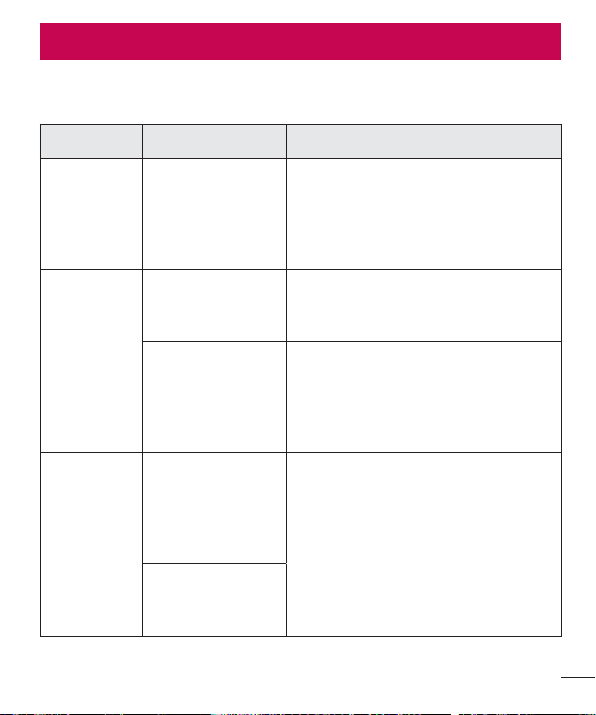
Troubleshooting
Troubleshooting
5IJTDIBQUFSMJTUTTPNFQSPCMFNTZPVNJHIUFODPVOUFSXIFOVTJOHZPVSQIPOF4PNF
QSPCMFNTSFRVJSFZPVUPDBMMZPVSTFSWJDFQSPWJEFSCVUNPTUBSFFBTZUPGJYZPVSTFMG
Message Possible causes Possible corrective measures
SIM or
USIM card
error
There is no SIM
or USIM card
in the phone
or it is inserted
incorrectly.
Make sure that the SIM card is
correctly inserted.
No network
connection/
Dropped
network
Signal is weak or
you are outside the
carrier network.
Move toward a window or into
an open area. Check the network
operator coverage map.
Operator applied
new services.
Check whether the SIM card is more
than 6~12 months old. If so, change
your SIM card at your network
provider’s nearest branch. Contact
your service provider.
Codes do
not match
To change a
security code,
must confirm
the new code by
re-entering it.
If you forget the code, contact your
service provider.
The two codes
you entered do
not match.

Troubleshooting
Message Possible causes Possible corrective measures
No
applications
can be set
Not supported by
service provider
or registration
required.
Contact your service provider.
Calls not
available
Dialing error New network not authorized.
New SIM or USIM
card inserted.
Check for new restrictions.
Pre-paid charge
limit reached.
Contact service provider or reset limit
with PIN2.
Phone
cannot be
turned on
On/Off key
pressed too briefly.
Press the On/Off key for at least two
seconds.
Battery is not
charged.
Charge battery. Check the charging
indicator on the display.
Troubleshooting
Message Possible causes Possible corrective measures
Charging
error
Battery is not
charged.
Charge battery.
Outside
temperature is too
hot or cold.
Make sure phone is charging at a
normal temperature.
Contact problem
Check the charger and its connection
to the phone.
No voltage Plug the charger into a different outlet.
Charger defective Replace the charger.
Wrong charger Use only original LG accessories.
Number not
allowed.
The Fixed dialing
number function
is on.
Check the Settings menu and turn the
function off.
Impossible
to receive/
send text
messages &
photos
Memory full
Delete some messages from your
phone.
Files do not
open
Unsupported file
format
Check the supported file formats.
Troubleshooting
Message Possible causes Possible corrective measures
The screen
does not
turn on
when I
receive a
call.
Proximity sensor
problem
If you use a protection tape or case,
make sure it has not covered the area
around the proximity sensor. Make
sure that the area around the proximity
sensor is clean.
No sound Vibration mode
Check the settings status in the sound
menu to make sure you are not in
vibration or silent mode.
Hangs up
or freezes
Intermittent
software problem
Try to perform a software update
through the website.
FAQ
Category Question Answer
Bluetooth
Devices
What functions
are available via
Bluetooth?
You can connect a Bluetooth audio
device, such as a Stereo/Mono
headset or car kit.
Contacts
Backup
How can I back up
Contacts?
Contacts data can be synchronized
between your phone and Gmail™.
Synchronization
Is it possible to set up
one-way sync with
Gmail?
Only two-way synchronization is
available.
Synchronization
Is it possible to
synchronize all email
folders?
The Inbox is automatically
synchronized. You can view other
folders by tapping the icon and
selecting Folders to choose a folder.
Gmail Log-In
Do I have to log into
Gmail whenever I want
to access Gmail?
Once you have logged into Gmail,
there is no need to log into Gmail
again.
Google
Account
Is it possible to filter
emails?
No, the phone does not support email
filtering.
Email
What happens when
I execute another
application while
writing an email?
Your email is automatically saved as
a draft.
Ringtone
Is there a file size limit
for using MP3 files as
ringtones?
There is no file size limit.
FAQ
FAQ
Category Question Answer
Message
Time
My phone does not
display the time of
receipt for messages
older than 24 hrs. How
can I change this?
Open the conversation and touch and
hold the desired message to see the
details.
Navigation
Is it possible to install
another navigation
application on my
phone?
Any application that is available at Play
Store™ and is compatible with the
hardware can be installed and used.
Synchronization
Is it possible to
synchronize my
contacts from all my
email accounts?
Only Gmail and MS Exchange server
(company email server) contacts can
be synchronized.
Wait and
Pause
Is it possible to save a
contact with Wait and
Pause in the numbers?
If you transferred a contact using the
Wait & Pause functions saved into
the number, you cannot use those
features. You must save each number
again.
How to save with Wait and Pause:
1. From the Home screen, tap
.
2. Dial the number, then tap
.
3. Tap Add 2-sec pause or Add wait.
Security
What are the phone’s
security functions?
You can set the phone to require an
Unlock Pattern to be entered before
the phone can be accessed or used.
FAQ
Category Question Answer
Unlock
Pattern
How do I create the
Unlock Pattern?
1. From the Home screen, touch and
hold
.
2. Tap System settings > Display tab
> Lock screen.
3. Tap Select screen lock > Pattern.
The first time you do this, a short
tutorial about creating an Unlock
Pattern appears.
4. Set up your pattern by drawing
itthen drawing it a second time for
confirmation.
Precautions to take when using the
pattern lock.
It is very important to remember
the unlock pattern you set. You can
nolonger access your phone if you
use an incorrect pattern five times.
You have five chances to enter your
unlock pattern, PIN or password. If you
have used all 5 opportunities, you can
try again after 30 seconds. (Or, if you
preset the backup PIN, you can use
the backup PIN code to unlock the
pattern.)

FAQ
Category Question Answer
Unlock
Pattern
What should I do if
I forget the unlock
pattern and I did not
create my Google
account on the
phone?
If you forgot your pattern:
If you logged into your Google account
on the phone but failed to enter the
correct pattern 5 times, tap the Forgot
pattern button. You are then required
to log in with your Google account
to unlock your phone. If you have
not created a Google account on the
phone or you have forgotten it, you
must perform a hard reset.
Caution: If you perform a factory reset,
all user applications and user data are
deleted. Please remember to back up
any important data before performing a
factory reset.
Memory
Will I know when my
memory is full?
Yes, you will receive a notification.
Language
Support
Is it possible to change
my phone’s language?
The phone has multilingual capabilities.
To change the language:
1. From the Home screen, touch and
hold
and tap System settings.
2. Tap General tab > Language &
input > Language.
3. Tap the desired language.
VPN
How do I set up a
VPN?
VPN access configuration is different
for each company. To configure VPN
access on your phone, you must
obtain the details from your company’s
network administrator.
FAQ
Category Question Answer
Screen time
out
My screen turns off
after only 15 seconds.
How can I change the
amount of time for the
backlight to turn off?
1. From the Home screen, touch and
hold
.
2. Tap System settings > Display tab.
3. Tap Screen timeout.
4. Tap the preferred screen backlight
timeout time.
Wi-Fi &
mobile
network
When the Wi-Fi and
mobile networks are
both available, which
service does my
phone use?
When using data, your phone may
default to the Wi-Fi connection (if Wi-Fi
connectivity on your phone is set to
On). However, there is no notification
when your phone switches from one
to the other.
To know which data connection is
being used, view the mobile network or
Wi-Fi icon at the top of your screen.
Home
screen
Is it possible to remove
an application from the
Home screen?
Yes. Just touch and hold the icon until
the trash can icon appears at the top
and center of the screen. Then, without
lifting your finger, drag the icon to the
trash can.
Application
I downloaded an
application and it
causes a lot of errors.
How do I remove it?
1. From the Home screen, touch and
hold
.
2. Tap System settings > General tab
> Apps > DOWNLOADED.
3. Tap the application, then tap
Uninstall.
Charger
Is it possible to charge
my phone using a
USB cable without
installing the necessary
USB driver?
Yes, the phone is charged through the
USB cable regardless of whether the
necessary drivers are installed.
FAQ
Category Question Answer
Alarm
Can I use music files
for my alarm?
Yes. After saving a music file as a
ringtone, you can use it as an alarm.
1. Touch and hold a song in a library
list. In the menu that opens, tap Set
as ringtonePhone ringtone or
Contact ringtone.
2. On the Alarm Clock Setting screen,
select the song as a ringtone.
Alarm
Will my alarm be
audible or will it go off
if the phone is turned
off?
No, this is not supported.
Alarm
If my ringer volume is
set to Off or Vibrate,
will I hear my alarm?
Your alarm is programmed to be
audible even in these scenarios.
Display
I tried to set the
screen brightness to
maximum but it still
appears dark. How
can I make the screen
brighter?
1. From the Home screen, touch and
hold
2. Tap System settings > Display tab
> Auto-adjust screen tone.
3. Tap the checkbox to cancel the
function.
Hard Reset
(Factory
Reset)
How can I perform a
factory reset if I cannot
access the phone’s
Settings menu?
If your phone does not restore to its
original condition, use a hard reset
(factory reset) to initialize it.

91
Safety
HAC
This phone has been tested and rated for use with hearing aids for some of the
wireless technologies that it uses. However, there may be some newer wireless
technologies used in this phone that have not been tested yet for use with hearing
aids. It is important to try the different features of this phone thoroughly and in different
locations, using your hearing aid or cochlear implant, to determine if you hear any
interfering noise. Consult your service provider or the manufacturer of this phone for
information on hearing aid compatibility. If you have questions about return or exchange
policies, consult your service provider or phone retailer.
FCC RF Exposure Information
WARNING! Read this information before operating the phone.
In August 1996, the Federal Communications Commission (FCC) of the United States,
with its action in Report and Order FCC 96-326, adopted an updated safety standard
for human exposure to Radio Frequency (RF) electromagnetic energy emitted by
FCC regulated transmitters. Those guidelines are consistent with the safety standard
previously set by both U.S. and international standards bodies. The design of this phone
complies with the FCC guidelines and these international standards.
Body-worn Operation
This device was tested for typical body-worn operations with the back of the phone kept
0.39 inches (1cm) between the user's body and the back of the phone. To comply with
FCC RF exposure requirements, a minimum separation distance of 0.39 inches (1cm)
must be maintained between the user's body and the back of the phone. Any belt-clips,
holsters, and similar accessories containing metallic components may not be used.
Body-worn accessories that cannot maintain 0.39 inches (1cm) separation distance
between the user's body and the back of the phone, and have not been tested for
Safety

92
Safety
typical body-worn operations may not comply with FCC RF exposure limits and should
be avoided.
Caution
Use only the supplied antenna. Use of unauthorized antennas (or modifications to the
antenna) could impair call quality, damage the phone, void your warranty and/or violate
FCC regulations.
Don’t use the phone with a damaged antenna. A damaged antenna could cause a
minor skin burn. Contact your local dealer for a replacement antenna.
Part 15.19 statement
This device complies with part15 of FCC rules. Operation is subject to the following two
conditions:
(1) This device may not cause harmful interference.
(2) This device must accept any interference received, including interference that may
cause undesired operation.
Part 15.21 statement
Changes or modifications that are not expressly approved by the manufacturer for
compliance could void the user’s authority to operate the equipment.
Part 15.105 statement
This equipment has been tested and found to comply with the limits for a class B digital
device, pursuant to Part 15 of the FCC rules. These limits are designed to provide
reasonable protection against harmful interference in a residential installation. This
equipment generates, uses, and can radiate radio frequency energy and, if not installed
and used in accordance with the instructions, may cause harmful interference to radio
communications. However, there is no guarantee that interference will not occur in a
particular installation. If this equipment does cause harmful interference to radio or
television reception, which can be determined by turning the equipment off and on, the

93
Safety
user is encouraged to try to correct the interference by one or more of the following
measures:
- Reorient or relocate the receiving antenna.
- Increase the separation between the equipment and receiver.
- Connect the equipment into an outlet on a circuit different from that to which the
receiver is connected.
- Consult the dealer or an experienced radio/TV technician for help.
Consumer Information About Radio Frequency
Emissions
Your wireless phone, which contains a radio transmitter and receiver, emits radio
frequency energy during use. The following consumer information addresses
commonly asked questions about the health effects of wireless phones. Are
wireless phones safe?
Scientific research on the subject of wireless phones and radio frequency (“RF”) energy
has been conducted worldwide for many years, and continues. In the United States, the
Food and Drug Administration (“FDA”) and the Federal Communications Commission
(“FCC”) set policies and procedures for wireless phones. The FDA issued a website
publication on health issues related to cell phone usage where it states,“The scientific
community at large …believes that the weight of scientific evidence does not show
an association between exposure to radiofrequency (RF) from cell phones and adverse
health outcomes. Still the scientific community does recommend conducting additional
research to address gaps in knowledge. That research is being conducted around the
world and FDA continues to monitor developments in this field. You can access the
joint FDA/FCC website at http://www.fda.gov (under “c”in the subject index, select Cell
Phones > Research). You can also contact the FDA toll-free at (888) 463-6332 or (888)
INFO-FDA. In June 2000, the FDA entered into a cooperative research and development
agreement through which additional scientific research is being conducted. The FCC

94
Safety
issued its own website publication stating that “there is no scientific evidence that
proves that wireless phone usage can lead to cancer or a variety of other problems,
including headaches, dizziness or memory loss.”This publication is available at http://
www.fcc.gov/cgb/ cellular.html or through the FCC at (888) 225-5322 or (888) CALL-
FCC.
What does “SAR” mean?
In 1996, the FCC, working with the FDA, the U.S. Environmental Protection Agency, and
other agencies, established RF exposure safety guidelines for wireless phones in the
United States. Before a wireless phone model is available for sale to the public, it must
be tested by the manufacturer and certified to the FCC that it does not exceed limits
established by the FCC. One of these limits is expressed as a Specific Absorption Rate,
or “SAR.”SAR is a measure of the rate of absorption of RF energy in the body. Tests for
SAR are conducted with the phone transmitting at its highest power level in all tested
frequency bands. Since 1996, the FCC has required that the SAR of handheld wireless
phones not exceed 1.6 watts per kilogram, averaged over one gram of tissue. Although
the SAR is determined at the highest power level, the actual SAR value of a wireless
phone while operating can be less than the reported SAR value. This is because the
SAR value may vary from call to call, depending on factors such as proximity to a cell
site, the proximity of the phone to the body while in use, and the use of hands-free
devices. For more information about SARs, see the FCC’s OET
Bulletins 56 and 65 at http://www.fcc.gov/Bureaus/Engineering_Technology/Doc
uments/bulletins or visit the Cellular Telecommunications Industry Association website at
http://www.ctia.org/consumer_info/index.cfm/AID/10371. You may also wish to contact
the manufacturer of your phone.
Can I minimize my RF exposure?
If you are concerned about RF, there are several simple steps you can take to minimize
your RF exposure. You can, of course, reduce your talk time. You can place more
distance between your body and the source of the RF, as the exposure level drops off
dramatically with distance. The FDA/FCC website states that “hands-free kits can be

95
Safety
used with wireless phones for convenience and comfort. These systems reduce the
absorption of RF energy in the head because the phone, which is the source of the
RF emissions, will not be placed against the head. On the other hand, if the phone is
mounted against the waist or other part of the body during use, then that part of the
body will absorb more RF energy. Wireless phones marketed in the U.S. are required
to meet safety requirements regardless of whether they are used against the head
or against the body. Either configuration should result in compliance with the safety
limit.”Also, if you use your wireless phone while in a car, you can use a phone with an
antenna on the outside of the vehicle. You should also read and follow your wireless
phone manufacturer’s instructions for the safe operation of your phone.
Do wireless phones pose any special risks to children?
The FDA/FCC website states that “the scientific evidence does not show a danger to
users of wireless communication devices, including children.”The FDA/FCC website
further states that “some groups sponsored by other national governments have
advised that children be discouraged from using wireless phones at all”. For example,
the Stewart Report from the United Kingdom [“UK”] made such a recommendation in
December 2000. In this report a group of independent experts noted that no evidence
exists that using a cell phone causes brain tumors or other ill effects. [The UK’s]
recommendation to limit cell phone use by children was strictly precautionary; it was
not based on scientific evidence that any health hazard exists. A copy of the UK’s leaflet
is available at http://www.dh.gov.uk (search “mobile”), or you can write to: NRPB,
Chilton, Didcot, Oxon OX11 ORQ, United Kingdom. Copies of the UK’s annual reports
on mobile phones and RF are available online at www.iegmp.org.uk and http://www.
hpa.org.uk/radiation/ (search “mobile”). Parents who wish to reduce their children’s RF
exposure may choose to restrict their children’s wireless phone use.
Where can I get further information about RF emissions?
For further information, see the following additional resources (websites current as of
April 2005):

96
Safety
U.S. Food and Drug Administration
FDA Consumer magazine November-December 2000
Telephone: (888) INFO-FDA
http://www.fda.gov (Under “c”in the subject index, select Cell Phones > Research.)
U.S. Federal Communications Commission
445 12th Street, S.W. Washington, D.C. 20554
Telephone: (888) 225-5322
http://www.fcc.gov/oet/rfsafety
Independent Expert Group on Mobile Phones
http://www.iegmp.org.uk
Royal Society of Canada Expert Panels on Potential Health Risks of Radio
Frequency Fields from Wireless Telecommunication Devices
283 Sparks Street Ottawa, Ontario K1R 7X9 Canada
Telephone: (613) 991-6990
http://www.rsc.ca/index.php?page=Expert_Panels_RF&Lang_id=120
World Health Organization
Avenue Appia 20 1211 Geneva 27 Switzerland
Telephone: 011 41 22 791 21 11
http://www.who.int/mediacentre/factsheets/fs193/en/
International Commission on Non-Ionizing Radiation Protection
c/o Bundesamt fur Strahlenschutz
Ingolstaedter Landstr. 1
85764 Oberschleissheim Germany
Telephone: 011 49 1888 333 2156
http://www.icnirp.de
American National Standards Institute
1819 L Street, N.W., 6th Floor Washington, D.C. 20036
Telephone: (202) 293-8020
http://www.ansi.org

97
Safety
National Council on Radiation Protection and Measurements
7910 Woodmont Avenue, Suite 800
Bethesda, MD 20814-3095
Telephone: (301) 657-2652
http://www.ncrponline.org
Engineering in Medicine and Biology Society, Committee on Man and Radiation
(COMAR) of the Institute of Electrical and Electronics Engineers
http://ewh.ieee.org/soc/embs/comar/
Consumer Information on SAR
(Specific Absorption Rate)
This model phone meets the government's requirements for exposure to radio waves.
Your wireless phone is a radio transmitter and receiver. It is designed and manufactured
not to exceed the emission limits for exposure to Radio Frequency (RF) energy set by
the Federal Communications Commission of the U.S. Government. These limits are part
of comprehensive guidelines and establish permitted levels of RF energy for the general
population. The guidelines are based on standards that were developed by independent
scientific organizations through periodic and thorough evaluation of scientific studies.
The standards include a substantial safety margin designed to assure the safety of
all persons, regardless of age and health. The exposure standard for wireless mobile
phones employs a unit of measurement known as the Specific Absorption Rate, or SAR.
The SAR limit set by the FCC is 1.6 W/kg. Tests for SAR are conducted using standard
operating positions specified by the FCC with the phone transmitting at its highest
certified power level in all tested frequency bands. Although SAR is determined at the
highest certified power level, the actual SAR level of the phone while operating can be
well below the maximum value. Because the phone is designed to operate at multiple
power levels to use only the power required to reach the network, in general, the closer
you are to a wireless base station antenna, the lower the power output. Before a phone

98
Safety
model is available for sale to the public, it must be tested and certified to the FCC that it
does not exceed the limit established by the government-adopted requirement for safe
exposure. The tests are performed in positions and locations (e.g., at the ear and worn
on the body) as required by the FCC for each model.
The highest SAR values are:
• Head: 1.00 W/kg
• Body (Body-worn/Hotspot): 1.13 W/kg
(Body measurements differ among phone models, depending upon available
accessories and FCC requirements).
While there may be differences between SAR levels of various phones and at various
positions, they all meet the government requirement for safe exposure. The FCC has
granted an Equipment Authorization for this model phone with all reported SAR levels
evaluated as in compliance with the FCC RF emission guidelines. SAR information on
this model phone is on file with the FCC and can be found under the Display Grant
section of http://www.fcc.gov/oet/ea/fccid after searching on FCC ID ZNFUS995.
Additional information on Specific Absorption Rates (SAR) can be found on the Cellular
Telecommunications Industry Association (CTIA) website at http://www.ctia.org/.
* In the United States and Canada, the SAR limit for mobile phones used by the public
is 1.6 watts/kg (W/kg) averaged over one gram of tissue. The standard incorporates a
substantial margin of safety to give additional protection for the public and to account
for any variations in measurements.

99
Safety
FCC Hearing-Aid Compatibility (HAC) Regulations for
Wireless Devices
On July 10, 2003, the U.S. Federal Communications Commission (FCC) Report and
Order in WT Docket 01-309 modified the exception of wireless phones under the
Hearing Aid Compatibility Act of 1988 (HAC Act) to require digital wireless phones
be compatible with hearing-aids. The intent of the HAC Act is to ensure reasonable
access to telecommunications services for persons with hearing disabilities. While
some wireless phones are used near some hearing devices (hearing aids and cochlear
implants), users may detect a buzzing, humming, or whining noise. Some hearing
devices are more immune than others to this interference noise, and phones also
vary in the amount of interference they generate. The wireless telephone industry has
developed a rating system for wireless phones, to assist hearing device users to find
phones that may be compatible with their hearing devices. Not all phones have been
rated. Phones that are rated have the rating on their box or a label located on the box.
The ratings are not guarantees. Results will vary depending on the user's hearing
device and hearing loss. If your hearing device happens to be vulnerable to interference,
you may not be able to use a rated phone successfully. Trying out the phone with your
hearing device is the best way to evaluate it for your personal needs.
M-Ratings: Phones rated M3 or M4 meet FCC requirements and are likely to generate
less interference to hearing devices than phones that are not labeled. M4 is the better/
higher of the two ratings.
T-Ratings: Phones rated T3 or T4 meet FCC requirements and are likely to generate
less interference to hearing devices than phones that are not labeled. T4 is the better/
higher of the two ratings.
Hearing devices may also be rated. Your hearing device manufacturer or hearing health
professional may help you find this rating. Higher ratings mean that the hearing device
is relatively immune to interference noise. The hearing aid and wireless phone rating
values are then added together. A sum of 5 is considered acceptable for normal use. A
sum of 6 is considered for best use.

100
Safety
In the above example, if a hearing aid meets the M2 level rating and the wireless phone
meets the M3 level rating, the sum of the two values equal M5. This should provide the
hearing aid user with “normal usage”while using their hearing aid with the particular
wireless phone. “Normal usage”in this context is defined as a signal quality that’s
acceptable for normal operation. The M mark is intended to be synonymous with the U
mark. The T mark is intended to be synonymous with the UT mark. The M and T marks
are recommended by the Alliance for Telecommunications Industries Solutions (ATIS).
The U and UT marks are referenced in Section 20.19 of the FCC Rules. The HAC rating
and measurement procedure are described in the American National Standards Institute
(ANSI) C63.19 standard.
To ensure that the Hearing Aid Compatibility rating for your phone is maintained,
secondary transmitters such as Bluetooth and WLAN components must be disabled
during a call.
For information about hearing aids and digital wireless phones:
Wireless Phones and Hearing Aid Accessibility
http://www.accesswireless.org/
Gallaudet University, RERC
http://tap.gallaudet.edu/Voice/
FCC Hearing Aid Compatibility and Volume Control
http://www.fcc.gov/cgb/dro/hearing.html
The Hearing Aid Compatibility FCC Order
http://hraunfoss.fcc.gov/edocs_public/attachmatch/FCC-03-168A1.pdf
Hearing Loss Association of America [HLAA]
http://hearingloss.org/content/telephones-and-mobile-devices

101
Safety
Caution: Avoid potential hearing loss.
Prolonged exposure to loud sounds (including music) is the most common cause of
preventable hearing loss. Some scientific research suggests that using portable audio
devices, such as portable music players and cellular telephones, at high volume settings
for long durations may lead to permanent noise-induced hearing loss. This includes
the use of headphones (including headsets, earbuds and Bluetooth® or other wireless
devices). Exposure to very loud sound has also been associated in some studies with
tinnitus (a ringing in the ear), hypersensitivity to sound and distorted hearing. Individual
susceptibility to noise-induced hearing loss and other potential hearing problems varies.
The amount of sound produced by a portable audio device varies depending on the
nature of the sound, the device, the device settings and the headphones. You should
follow some commonsense recommendations when using any portable audio device:
• Set the volume in a quiet environment and select the lowest volume at which you can
hear adequately.
• When using headphones, turn the volume down if you cannot hear the people
speaking near you or if the person sitting next to you can hear what you are listening
to.
• Do not turn the volume up to block out noisy surroundings. If you choose to listen
to your portable device in a noisy environment, use noise-cancelling headphones to
block out background environmental noise.
• Limit the amount of time you listen. As the volume increases, less time is required
before your hearing could be affected.
• Avoid using headphones after exposure to extremely loud noises, such as rock
concerts, that might cause temporary hearing loss. Temporary hearing loss might
cause unsafe volumes to sound normal.
• Do not listen at any volume that causes you discomfort. If you experience ringing in
your ears, hear muffled speech or experience any temporary hearing difficulty after
listening to your portable audio device, discontinue use and consult your doctor.

102
Safety
TIA Safety Information
The following is the complete TIA Safety Information for wireless handheld phones.
Exposure to Radio Frequency Signal
Your wireless handheld portable phone is a low power radio transmitter and receiver.
When ON, it receives and sends out Radio Frequency (RF) signals. In August, 1996,
the Federal Communications Commissions (FCC) adopted RF exposure guidelines with
safety levels for handheld wireless phones. Those guidelines are consistent with the
safety standards previously set by both U.S. and international standards bodies:
ANSI C95.1 (1992) *
NCRP Report 86 (1986)
ICNIRP (1996)
* American National Standards Institute; National Council on Radiation Protection and
Measurements; International Commission on Non-Ionizing Radiation Protection Those
standards were based on comprehensive and periodic evaluations of the relevant
scientific literature. For example, over 120 scientists, engineers, and physicians from
universities, government health agencies, and industry reviewed the available body of
research to develop the ANSI Standard (C95.1). The design of your phone complies with
the FCC guidelines (and those standards).
Antenna Care
Use only the supplied or an approved replacement antenna. Unauthorized antennas,
modifications, or attachments could damage the phone and may violate FCC
regulations.
Tips on Efficient Operation
For your phone to operate most efficiently: Don’t touch the antenna unnecessarily when
the phone is in use. Contact with the antenna affects call quality and may cause the
phone to operate at a higher power level than otherwise needed.

103
Safety
Electronic Devices
Most modern electronic equipment is shielded from RF signals. However, certain
electronic equipment may not be shielded against the RF signals from your wireless
phone.
Pacemakers
The Health Industry Manufacturers Association recommends that a minimum separation
of six (6) inches be maintained between a handheld wireless phone and a pacemaker to
avoid potential interference with the pacemaker. These recommendations are consistent
with the independent research by and recommendations of Wireless Technology
Research. Persons with pacemakers:
• Should ALWAYS keep the phone more than six (6) inches from their pacemaker when
the phone is turned ON;
• Should not carry the phone in a breast pocket;
• Should use the ear opposite the pacemaker to minimize the potential for interference;
• Should turn the phone OFF immediately if there is any reason to suspect that
interference is taking place.
Hearing Aids
Some digital wireless phones may interfere with some hearing aids. In the event of such
interference, you may want to consult your service provider (or call the customer service
line to discuss alternatives).
Other Medical Devices
If you use any other personal medical device, consult the manufacturer of your device
to determine if it is adequately shielded from external RF energy. Your physician may be
able to assist you in obtaining this information.
Health Care Facilities
Turn your phone OFF in health care facilities when any regulations posted in these
areas instruct you to do so. Hospitals or health care facilities may use equipment that
could be sensitive to external RF energy.

104
Safety
Vehicles
RF signals may affect improperly installed or inadequately shielded electronic systems
in motor vehicles. Check with the manufacturer or its representative regarding your
vehicle. You should also consult the manufacturer of any equipment that has been
added to your vehicle.
Posted Facilities
Turn your phone OFF in any facility where posted notices so require.
Aircraft
FCC regulations prohibit using your phone while in the air. Switch OFF your phone
before boarding an aircraft.
Blasting Areas
To avoid interfering with blasting operations, turn your phone OFF when in a “blasting
area”or in areas posted: “Turn off two-way radio”. Obey all signs and instructions.
Potentially Explosive Atmosphere
Turn your phone OFF when in any area with a potentially explosive atmosphere and
obey all signs and instructions. Sparks in such areas could cause an explosion or fire
resulting in bodily injury or even death. Areas with a potentially explosive atmosphere
are often, but not always marked clearly. Potential areas may include: fueling areas
(such as gasoline stations); below deck on boats; fuel or chemical transfer or storage
facilities; vehicles using liquefied petroleum gas (such as propane or butane); areas
where the air contains chemicals or particles (such as grain, dust, or metal powders);
and any other area where you would normally be advised to turn off your vehicle
engine.
For Vehicles Equipped with an Air Bag
An air bag inflates with great force. DO NOT place objects, including either installed or
portable wireless equipment, in the area over the air bag or in the air bag deployment
area. If in-vehicle wireless equipment is improperly installed and the air bag inflates,
serious injury could result.

105
Safety
Safety Information
Please read and observe the following information for safe and proper use of your
phone and to prevent damage.
Caution
Violation of the instructions may cause minor or serious damage to the product.
• Do not disassemble or open crush, bend or deform, puncture or shred.
• Do not modify or remanufacture, attempt to insert foreign objects into the battery,
immerse or expose to water or other liquids, expose to fire, explosion or other hazard.
Such conditions may present the risk of fire or explosion.
• Only use the battery for the system for which it is specified.
• Only use the battery with a charging system that has been LG-approved and
qualified with the system per IEEE-Std-1725-2006. Use of an unqualified and non-
LG-approved battery or charger may present a risk of fire, explosion, leakage, or other
hazard.
• Replace the battery only with another battery that has been LGapproved and qualified
with the system per this standard, IEEE-Std-1725-2006. Use of an unqualified and
non-LG-approved battery may present a risk of fire, explosion, leakage or other
hazard.
• Battery usage by children should be supervised.
• Avoid dropping the phone, battery or exposing the phone or battery to a liquid. If the
phone or battery is dropped, especially on a hard surface, or is exposed to a liquid or
comes into contact with a sharp object take it to a service center for inspection.
• Improper battery use may result in a fire, explosion or other hazard.
• At least, one of the Authentication methods may be implemented. (e.g. H/W, S/W,
Mechanical, Hologram, etc.)

106
Safety
Charger and Adapter Safety
• The charger and adapter are intended for indoor use only.
• Insert the battery pack charger vertically into the wall power socket.
• Only use the LG-approved battery charger. Otherwise, you may cause serious damage
to your phone.
• Use the correct adapter for your phone when using the battery pack charger abroad.
Battery Information and Care
• Always unplug the charger from the wall socket after the phone is fully charged to
save unnecessary power consumption of the charger.
• Please read the manual of proper installation and removal of the battery.
• Please read the manual of specified charger about charging method.
• Do not damage the power cord by bending, twisting, or heating. Do not use the plug
if it is loose as it may cause electric shock or fire. Do not place any heavy items on
the power cord. Do not allow the power cord to be crimped as it may cause electric
shock or fire.
• Unplug the power cord prior to cleaning your phone, and clean the power plug pin
when it’s dirty. When using the power plug, ensure that it’s firmly connected. If not,
it may cause excessive heat or fire. If you put your phone in a pocket or bag without
covering the receptacle of the phone (power plug pin), metallic articles (such as a
coin, paperclip or pen) may short-circuit the phone. Always cover the receptacle when
not in use.
• Recharge the battery after long periods of non-use to maximize battery life. Battery
life will vary due to usage pattern and environmental conditions.
• Please use only an LG-approved charging accessory to charge your LG phone.
Improper handling of the charging port, as well as the use of an incompatible charger,
may cause damage to your phone and void the warranty.

107
Safety
• Charging temperature range is regulated between 32°F (0°C) and 113°F (45°C).
Do not charge the battery out of recommended temperature range. Charging out of
recommended range might cause the generating heat or serious damage of battery.
And also, it might cause the deterioration of battery's characteristics and cycle life.
• Do not use or leave the battery under the blazing sun or in heated car by sunshine.
The battery may generate heat, smoke or flame. And also, it might cause the
deterioration of battery’s characteristics or cycle life.
• The battery pack has protection circuit to avoid the danger. Do not use nearby the
place where generates static electricity more than 100V which gives damage to the
protection circuit. If the protection circuit were broken, the battery would generate
smoke, rupture or flame.
• When the battery has rust, bad smell or something abnormal at first-time-using, do
not use the equipment and go to bring the battery to the shop which it was bought.
• In case younger children use the battery, their parents should teach them how to use
batteries according to the manual with care.
• If the skin or cloth is smeared with liquid from the battery, wash with fresh water. It
may cause the skin inflammation. Remove and do not use the battery.
• Do not handle the phone with wet hands while it is being charged. It may cause an
electric shock or seriously damage your phone.
• Do not place or answer calls while charging the phone as it may short-circuit the
phone and/or cause electric shock or fire.
• The charger and adapter are intended for indoor use only.
• Insert the battery pack charger vertically into the wall power socket.
• Only use the LG-approved battery charger. Otherwise, you may cause serious damage
to your phone and risk of overheating, fire or explosion may occur.
• Use the correct adapter for your phone when using the battery pack charger abroad.
• Talking on your phone for a long period of time may reduce call quality due to heat
generated during use.

108
Safety
• Do not use harsh chemicals (such as alcohol, benzene, thinners, etc.) or detergents to
clean your phone. This could cause a fire. Do not place or answer calls while charging
the phone as it may short-circuit the phone and/or cause electric shock or fire. Don’t
short-circuit the battery. Metallic articles such as a coin, paperclip or pen in your
pocket or bag may short-circuit the + and – terminals of the battery (metal strips on
the battery) upon moving. Short-circuit of the terminal may damage the battery and
cause an explosion.
• Never use and unapproved battery since this could damage the phone and/or battery
and could cause the battery to explode. Only use the batteries and chargers provided
by LG. The warranty will not be applied to products provided by other suppliers. Only
authorized personnel should service the phone and its accessories. Faulty installation
or service may result in accidents and consequently invalidate the warranty.
Explosion, Shock, and Fire Hazards
• Do not put your phone in a place subject to excessive dust and keep the minimum
required distance between the power cord and heat sources.
• Unplug the power cord prior to cleaning your phone, and clean the power plug pin
when it’s dirty.
• When using the power plug, ensure that it’s firmly connected. If not, it may cause
excessive heat or fire.
• If you put your phone in a pocket or bag without covering the receptacle of the phone
(power plug pin), metallic articles (such as a coin, paperclip or pen) may short-circuit
the phone and may cause an explosion. Always cover the receptacle when not in use.
• Don’t short-circuit the battery. Metallic articles such as a coin, paperclip or pen in
your pocket or bag or contact with sharp objects including animal bites may short-
circuit the + and – terminals of the battery (metal strips on the battery) upon moving.
Shortcircuit of the terminal may damage the battery and cause an explosion.

109
Safety
General Notice
• Using a damaged battery or placing a battery in your mouth or animal's mouth may
cause serious injury including a fire or explosion.
• Do not place items containing magnetic components such as a credit card, phone
card, bank book, or subway ticket near your phone. The magnetism of the phone may
damage the data stored in the magnetic strip.
• Talking on your phone for a long period of time may reduce call quality due to heat
generated during use.
• When the phone is not used for a long period time, store it in a safe place with the
power cord unplugged.
• Using the phone in proximity to receiving equipment (i.e., TV or radio) may cause
interference to the phone.
• Do not use the phone if the antenna is damaged. If a damaged antenna contacts skin,
it may cause a slight burn. Please contact an LG Authorized Service Center to replace
the damaged antenna.
• Do not immerse your phone in water, liquid, or expose to high humidity. If this
happens, turn it off immediately and remove the battery. Immediately, take it to an LG
Authorized Service Center.
• Do not paint your phone.
• The data saved in your phone might be deleted due to careless use, repair of the
phone, or upgrade of the software. Please backup your important phone numbers.
(Ringtones, text messages, voice messages, pictures, and videos could also be
deleted.) The manufacturer is not liable for damage due to the loss of data.
• When you use the phone in public places, set the ringtone to vibration so you don't
disturb others.
• Do not turn your phone on or off when putting it to your ear.
• Use accessories, such as earphones and headsets, with caution. Ensure that cables
are tucked away safely and do not touch the antenna unnecessarily.

110
Safety
FDA Consumer Update
The U.S. Food and Drug Administration’s Center for Devices and Radiological
Health Consumer Update on Mobile Phones:
1. Do wireless phones pose a health hazard?
The available scientific evidence does not show that any health problems are associated
with using wireless phones. There is no proof, however, that wireless phones are
absolutely safe.Wireless phones emit low levels of Radio Frequency (RF) energy in
the microwave range while being used. They also emit very low levels of RF when in
standby mode.Whereas high levels of RF can produce health effects (by heating tissue),
exposure to low level RF that does not produce heating effects causes no known
adverse health effects. Many studies of low level RF exposures have not found any
biological effects. Some studies have suggested that some biological effects may occur,
but such findings have not been confirmed by additional research. In some cases, other
researchers have had difficulty in reproducing those studies, or in determining the
reasons for inconsistent results.
2. What is the FDA's role concerning the safety of wireless phones?
Under the law, the FDA does not review the safety of radiation-emitting consumer
products such as wireless phones before they can be sold, as it does with new drugs
or medical devices. However, the agency has authority to take action if wireless phones
are shown to emit Radio Frequency (RF) energy at a level that is hazardous to the user.
In such a case, the FDA could require the manufacturers of wireless phones to notify
users of the health hazard and to repair, replace, or recall the phones so that the hazard
no longer exists. Although the existing scientific data do not justify FDA regulatory
actions, the FDA has urged the wireless phone industry to take a number of steps,
including the following:
• Support needed research into possible biological effects of RF of the type emitted by
wireless phones;
• Design wireless phones in a way that minimizes any RF exposure to the user that is
not necessary for device function; and

111
Safety
• Cooperate in providing users of wireless phones with the best possible information on
possible effects of wireless phone use on human health.
The FDA belongs to an interagency working group of the federal agencies that have
responsibility for different aspects of RF safety to ensure coordinated efforts at the
federal level. The following agencies belong to this working group:
• National Institute for Occupational Safety and Health
• Environmental Protection Agency
• Occupational Safety and Health Administration
• National Telecommunications and Information Administration
The National Institutes of Health participates in some interagency working group
activities, as well. The FDA shares regulatory responsibilities for wireless phones with
the Federal Communications Commission (FCC). All phones that are sold in the United
States must comply with FCC safety guidelines that limit RF exposure.
The FCC relies on the FDA and other health agencies for safety questions about
wireless phones.
The FCC also regulates the base stations that the wireless phone networks rely upon.
While these base stations operate at higher power than do the wireless phones
themselves, the RF exposures that people get from these base stations are typically
thousands of times lower than those they can get from wireless phones. Base stations
are thus not the subject of the safety questions discussed in this document.
3. What kinds of phones are the subject of this update?
The term “wireless phone”refers here to handheld wireless phones with built-in
antennas, often called “cell”, “mobile”, or “PCS”phones. These types of wireless phones
can expose the user to measurable Radio Frequency (RF) energy because of the short
distance between the phone and the user’s head.
These RF exposures are limited by FCC safety guidelines that were developed with
the advice of the FDA and other federal health and safety agencies. When the phone
is located at greater distances from the user, the exposure to RF is drastically lower
because a person's RF exposure decreases rapidly with increasing distance from

112
Safety
the source. The so-called “cordless phones,”which have a base unit connected to
the telephone wiring in a house, typically operate at far lower power levels, and thus
produce RF exposures far below the FCC safety limits.
4. What are the results of the research done already?
The research done thus far has produced conflicting results, and many studies have
suffered from flaws in their research methods. Animal experiments investigating the
effects of Radio Frequency (RF) energy exposures characteristic of wireless phones
have yielded conflicting results that often cannot be repeated in other laboratories. A
few animal studies, however, have suggested that low levels of RF could accelerate the
development of cancer in laboratory animals. However, many of the studies that showed
increased tumor development used animals that had been genetically engineered or
treated with cancercausing chemicals so as to be pre-disposed to develop cancer in
the absence of RF exposure. Other studies exposed the animals to RF for up to 22
hours per day. These conditions are not similar to the conditions under which people
use wireless phones, so we do not know with certainty what the results of such studies
mean for human health. Three large epidemiology studies have been published since
December 2000. Between them, the studies investigated any possible association
between the use of wireless phones and primary brain cancer, glioma, meningioma, or
acoustic neuroma, tumors of the brain or salivary gland, leukemia, or other cancers.
None of the studies demonstrated the existence of any harmful health effects from
wireless phone RF exposures. However, none of the studies can answer questions
about long-term exposures, since the average period of phone use in these studies was
around three years.
5. What research is needed to decide whether RF exposure from wireless
phones poses a health risk?
A combination of laboratory studies and epidemiological studies of people actually
using wireless phones would provide some of the data that are needed. Lifetime animal
exposure studies could be completed in a few years. However, very large numbers of
animals would be needed to provide reliable proof of a cancer promoting effect if one

113
Safety
exists. Epidemiological studies can provide data that is directly applicable to human
populations, but ten or more years follow-up may be needed to provide answers about
some health effects, such as cancer. This is because the interval between the time of
exposure to a cancer-causing agent and the time tumors develop — if they do — may
be many, many years. The interpretation of epidemiological studies is hampered by
difficulties in measuring actual RF exposure during day-to-day use of wireless phones.
Many factors affect this measurement, such as the angle at which the phone is held, or
which model of phone is used.
6. What is the FDA doing to find out more about the possible health effects of
wireless phone RF?
The FDA is working with the U.S. National Toxicology Program and with groups of
investigators around the world to ensure that high priority animal studies are conducted
to address important questions about the effects of exposure to Radio Frequency
(RF) energy. The FDA has been a leading participant in the World Health Organization
International Electro Magnetic Fields (EMF) Project since its inception in 1996. An
influential result of this work has been the development of a detailed agenda of
research needs that has driven the establishment of new research programs around
the world. The project has also helped develop a series of public information documents
on EMF issues. The FDA and the Cellular Telecommunications & Internet Association
(CTIA) have a formal Cooperative Research And Development Agreement (CRADA) to do
research on wireless phone safety. The FDA provides the scientific oversight, obtaining
input from experts in government, industry, and academic organizations. CTIA-funded
research is conducted through contracts with independent investigators. The initial
research will include both laboratory studies and studies of wireless phone users. The
CRADA will also include a broad assessment of additional research needs in the context
of the latest research developments around the world.
7. How can I find out how much Radio Frequency energy exposure I can get by
using my wireless phone?
All phones sold in the United States must comply with Federal Communications

114
Safety
Commission (FCC) guidelines that limit Radio Frequency (RF) energy exposures. The
FCC established these guidelines in consultation with the FDA and the other federal
health and safety agencies. The FCC limit for RF exposure from wireless phones is
set at a Specific Absorption Rate (SAR) of 1.6 watts per kilogram (1.6 W/kg). The FCC
limit is consistent with the safety standards developed by the Institute of Electrical and
Electronic Engineering (IEEE) and the National Council on Radiation Protection and
Measurement. The exposure limit takes into consideration the body’s ability to remove
heat from the tissues that absorb energy from the wireless phone and is set well below
levels known to have effects. Manufacturers of wireless phones must report the RF
exposure level for each model of phone to the FCC. The FCC website (http://www.fcc.
gov/oet/rfsafety) gives directions for locating the FCC identification number on your
phone so you can find your phone’s RF exposure level in the online listing.
8. What has the FDA done to measure the Radio Frequency energy coming from
wireless phones?
The Institute of Electrical and Electronic Engineers (IEEE) is developing a technical
standard for measuring the Radio Frequency (RF) energy exposure from wireless
phones and other wireless handsets with the participation and leadership of FDA
scientists and engineers. The standard, “Recommended Practice for Determining
the Spatial-Peak Specific Absorption Rate (SAR) in the Human Body Due to Wireless
Communications Devices: Experimental Techniques”, sets forth the first consistent test
methodology for measuring the rate at which RF is deposited in the heads of wireless
phone users. The test method uses a tissue-simulating model of the human head.
Standardized SAR test methodology is expected to greatly improve the consistency
of measurements made at different laboratories on the same phone. SAR is the
measurement of the amount of energy absorbed in tissue, either by the whole body
or a small part of the body. It is measured in watts/kg (or milliwatts/g) of matter. This
measurement is used to determine whether a wireless phone complies with safety
guidelines.

115
Safety
9. What steps can I take to reduce my exposure to Radio Frequency energy from
my wireless phone?
If there is a risk from these products — and at this point we do not know that there
is — it is probably very small. But if you are concerned about avoiding even potential
risks, you can take a few simple steps to minimize your exposure to Radio Frequency
(RF) energy. Since time is a key factor in how much exposure a person receives,
reducing the amount of time spent using a wireless phone will reduce RF exposure.
If you must conduct extended conversations by wireless phone every day, you could
place more distance between your body and the source of the RF, since the exposure
level drops off dramatically with distance. For example, you could use a headset and
carry the wireless phone away from your body or use a wireless phone connected to a
remote antenna. Again, the scientific data does not demonstrate that wireless phones
are harmful. But if you are concerned about the RF exposure from these products, you
can use measures like those described above to reduce your RF exposure from wireless
phone use.
10. What about children using wireless phones?
The scientific evidence does not show a danger to users of wireless phones, including
children and teenagers. If you want to take steps to lower exposure to Radio Frequency
(RF) energy, the measures described above would apply to children and teenagers
using wireless phones. Reducing the time of wireless phone use and increasing the
distance between the user and the RF source will reduce RF exposure. Some groups
sponsored by other national governments have advised that children be discouraged
from using wireless phones at all. For example, the government in the United Kingdom
distributed leaflets containing such a recommendation in December 2000. They noted
that no evidence exists that using a wireless phone causes brain tumors or other ill
effects. Their recommendation to limit wireless phone use by children was strictly
precautionary; it was not based on scientific evidence that any health hazard exists.
11. What about wireless phone interference with medical equipment?
Radio Frequency (RF) energy from wireless phones can interact with some electronic

116
Safety
devices. For this reason, the FDA helped develop a detailed test method to measure
Electro Magnetic Interference (EMI) of implanted cardiac pacemakers and defibrillators
from wireless telephones. This test method is now part of a standard sponsored by the
Association for the Advancement of Medical Instrumentation (AAMI). The final draft, a
joint effort by the FDA, medical device manufacturers, and many other groups, was
completed in late 2000. This standard will allow manufacturers to ensure that cardiac
pacemakers and defibrillators are safe from wireless phone EMI. The FDA has tested
hearing aids for interference from handheld wireless phones and helped develop a
voluntary standard sponsored by the Institute of Electrical and Electronic Engineers
(IEEE). This standard specifies test methods and performance requirements for hearing
aids and wireless phones so that no interference occurs when a person uses a
“compatible”phone and a “compatible” hearing aid at the same time. This standard was
approved by the IEEE in 2000.
The FDA continues to monitor the use of wireless phones for possible interactions with
other medical devices. Should harmful interference be found to occur, the FDA will
conduct testing to assess the interference and work to resolve the problem.
12. Where can I find additional information?
For additional information, please refer to the following resources: FDA web page on
wireless phones (http://www.fda.gov/cellphones/) Federal Communications Commission
(FCC) RF Safety Program (http://www.fcc.gov/oet/rfsafety) International Commission
on Non-lonizing Radiation Protection (http://www.icnirp.de) World Health Organization
(WHO) International EMF Project (http://www.who.int/emf)National Radiological
Protection Board (UK) (http://www.hpa.org.uk/radiation/)
Driving
Check the laws and regulations on the use of wireless phones in the areas where you
drive and always obey them. Also, if using your phone while driving, please observe the
following:

117
Safety
• Give full attention to driving – driving safely is your first responsibility;
• Use hands-free operation, if available;
• Pull off the road and park before making or answering a call if driving conditions or
the law require it.
10 Driver Safety Tips
Your wireless phone gives you the powerful ability to communicate by voice almost
anywhere, anytime. An important responsibility accompanies the benefits of wireless
phones, one that every user must uphold. When operating a car, driving is your first
responsibility. When using your wireless phone behind the wheel of a car, practice good
common sense and remember the following tips:
1 Get to know your wireless phone and its features such as speed dial and redial.
Carefully read your instruction manual and learn to take advantage of valuable
features most phones offer, including automatic redial and memory. Also, work to
memorize the phone keypad so you can use the speed dial function without taking
your attention off the road.
2 When available, use a hands-free device. A number of hands-free wireless phone
accessories are readily available today.Whether you choose an installed mounted
device for your wireless phone or a speaker phone accessory, take advantage of
these devices if available to you.
3 Make sure you place your wireless phone within easy reach and where you can
reach it without removing your eyes from the road. If you get an incoming call at an
inconvenient time, if possible, let your voicemail answer it for you.
4 Suspend conversations during hazardous driving conditions or situations. Let the
person you are speaking with know you are driving; if necessary, suspend the call
in heavy traffic or hazardous weather conditions. Rain, sleet, snow, and ice can
be hazardous, but so is heavy traffic. As a driver, your first responsibility is to pay
attention to the road.

118
Safety
5 Don’t take notes or look up phone numbers while driving. If you are reading an
address book or business card, or writing a “to-do”list while driving a car, you are
not watching where you are going. It is common sense. Do not get caught in a
dangerous situation because you are reading or writing and not paying attention to
the road or nearby vehicles.
6 Dial sensibly and assess the traffic; if possible, place calls when you are not
moving or before pulling into traffic. Try to plan your calls before you begin your trip
or attempt to coincide your calls with times you may be stopped at a stop sign, red
light, or otherwise stationary. But if you need to dial while driving, follow this simple
tip – dial only a few numbers, check the road and your mirrors, then continue.
7 Do not engage in stressful or emotional conversations that may be distracting.
Stressful or emotional conversations and driving do not mix; they are distracting
and even dangerous when you are behind the wheel of a car. Make people you are
talking with aware you are driving and if necessary, suspend conversations which
have the potential to divert your attention from the road.
8 Use your wireless phone to call for help. Your wireless phone is one of the greatest
tools you can own to protect yourself and your family in dangerous situations – with
your phone at your side, help is only three numbers away. Dial 911 or other local
emergency number in the case of fire, traffic accident, road hazard, or medical
emergency. Remember, it’s a free call on your wireless phone!
9 Use your wireless phone to help others in emergencies. Your wireless phone
provides you a perfect opportunity to be a “Good Samaritan”in your community.
If you see an auto accident, crime in progress or other serious emergency where
lives are in danger, call 911 or other local emergency number, as you would want
others to do for you.
10 Call roadside assistance or a special wireless nonemergency assistance number
when necessary. Certain situations you encounter while driving may require
attention, but are not urgent enough to merit a call for emergency services. But you
can still use your wireless phone to lend a hand. If you see a broken-down vehicle

119
Safety
posing no serious hazard, a broken traffic signal, a minor traffic accident where no
one appears injured or a vehicle you know to be stolen, call roadside assistance or
other special nonemergency wireless number.
The above tips are meant as general guidelines. Before deciding to use your mobile
device while operating a vehicle, it is recommended that you consult your applicable
jurisdiction’s local laws or other regulations regarding such use. Such laws or other
regulations may prohibit or otherwise restrict the manner in which a driver may use his
or her phone while operating a vehicle.
Laser Safety Statement
CDRH Compliance
THIS PRODUCT COMPLIES WITH APPLICABLE REQUIREMENT OF THE DHHS
PERFORMANCE STANDARD FOR LASER PRODUCT, 21 CFR SUBCHAPTER J.
Caution!
This product employs a laser system. To ensure proper use of this product, please read
this owner’s manual carefully and retain for future reference. Should the unit require
maintenance, contact an authorized service center.
Use of controls, adjustments, or the performance of procedures other than those
specified herein may result in hazardous radiation exposure.
To prevent direct exposure to laser beam, do not try to open the enclosure or make
direct contact with the laser.
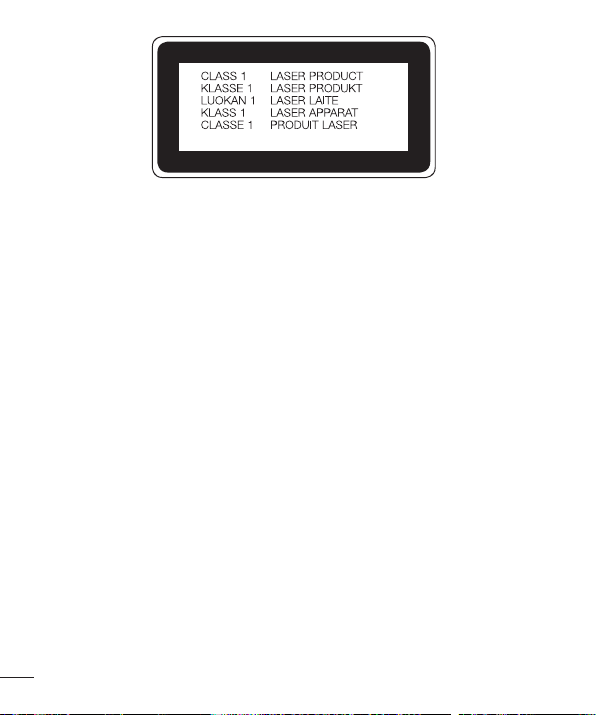
120
Safety
Limited Warranty Statement
1. WHAT THIS WARRANTY COVERS:
LG offers you a limited warranty that the enclosed subscriber unit and its enclosed
accessories will be free from defects in material and workmanship, according to the
following terms and conditions:
(1) The limited warranty for the product extends for TWELVE (12) MONTHS beginning
on the date of purchase of the product with valid proof of purchase, or absent valid
proof of purchase, FIFTEEN (15) MONTHS from date of manufacture as determined
by the unit's manufacture date code.
(2) The limited warranty extends only to the original purchaser of the product and is not
assignable or transferable to any subsequent purchaser/end user.
(3) This warranty is good only to the original purchaser of the product during the
warranty period as long as it is in the U.S., including Alaska, Hawaii, U.S. Territories
and Canada.
(4) The external housing and cosmetic parts shall be free of defects at the time of
shipment and, therefore, shall not be covered under these limited warranty terms.
(5) Upon request from LG, the consumer must provide information to reasonably prove
the date of purchase.

121
Safety
(6) The customer shall bear the cost of shipping the product to the Customer Service
Department of LG. LG shall bear the cost of shipping the product back to the
consumer after the completion of service under this limited warranty.
2. WHAT THIS WARRANTY DOES NOT COVER:
(1) Defects or damages resulting from use of the product in other than its normal and
customary manner.
(2) Defects or damages from abnormal use, abnormal conditions, improper storage,
exposure to moisture or dampness, unauthorized modifications, unauthorized
connections, unauthorized repair, misuse, neglect, abuse, accident, alteration,
improper installation, or other acts which are not the fault of LG, including damage
caused by shipping, blown fuses, spills of food or liquid.
(3) Breakage or damage to antennas unless caused directly by defects in material or
workmanship.
(4) That the Customer Service Department at LG was not notified by consumer of the
alleged defect or malfunction of the product during the applicable limited warranty
period.
(5) Products which have had the serial number removed or made illegible.
(6) This limited warranty is in lieu of all other warranties, express or implied either in
fact or by operations of law, statutory or otherwise, including, but not limited to any
implied warranty of marketability or fitness for a particular use.
(7) Damage resulting from use of non LG approved accessories.
(8) All plastic surfaces and all other externally exposed parts that are scratched or
damaged due to normal customer use.
(9) Products operated outside published maximum ratings.
(10) Products used or obtained in a rental program.
(11) Consumables (such as fuses).
3. WHAT LG WILL DO:
LG will, at its sole option, either repair, replace or refund the purchase price of any

122
Safety
unit that is covered under this limited warranty. LG may choose at its option to use
functionally equivalent re-conditioned, refurbished or new units or parts or any units.
In addition, LG will not re-install or back-up any data, applications or software that you
have added to your phone. It is therefore recommended that you back-up any such
data or information prior to sending the unit to LG to avoid the permanent loss of such
information.
4. STATE LAW RIGHTS:
No other express warranty is applicable to this product. THE DURATION OF ANY
IMPLIED WARRANTIES, INCLUDING THE IMPLIED WARRANTY OF MARKETABILITY
OR MERCHANTABILITY OR FITNESS FOR A PARTICULAR PURPOSE, IS LIMITED TO
THE DURATION OF THE EXPRESS WARRANTY HEREIN. LG SHALL NOT BE LIABLE
FOR THE LOSS OF THE USE OF THE PRODUCT, INCONVENIENCE, LOSS OR ANY
OTHER DAMAGES, DIRECT OR CONSEQUENTIAL, ARISING OUT OF THE USE OF,
OR INABILITY TO USE, THIS PRODUCT OR FOR ANY BREACH OF ANY EXPRESS OR
IMPLIED WARRANTY, INCLUDING THE IMPLIED WARRANTY OF MARKETABILITY OR
MERCHANTABILITY OR FITNESS FOR A PARTICULAR PURPOSE APPLICABLE TO
THIS PRODUCT. Some states do not allow the exclusive limitation of incidental or
consequential damages or limitations on how long an implied warranty lasts; so these
limitations or exclusions may not apply to you. This warranty gives you specific legal
rights and you may also have other rights which vary from state to state.
5. HOW TO GET WARRANTY SERVICE:
To obtain warranty service, please call or fax to the following telephone numbers from
anywhere in the continental United States:
Tel. 1-800-793-8896 or Fax. 1-800-448-4026
Or visit http://us.lgservice.com. Correspondence may also be mailed to:
LG Electronics Service- Mobile Handsets, P.O. Box 240007, Huntsville, AL 35824
DO NOT RETURN YOUR PRODUCT TO THE ABOVE ADDRESS. Please call or write for
the location of the LG authorized service center nearest you and for the procedures for
obtaining warranty claims.

123
Safety
7.11 Warranty Laws
The following laws govern warranties that arise in retail sales of consumer goods:
• The California Song-Beverly Consumer Warranty Act [CC §§1790 et seq],
• The California Uniform Commercial Code, Division Two [Com C §§2101 et seq], and
• The federal Magnuson-Moss Warranty Federal Trade Commission Improvement Act
[15 USC §§2301 et seq; 16 CFR Parts 701– 703]. A typical Magnuson-Moss Act
warranty is a written promise that the product is free of defects or a written promise
to refund, repair, or replace defective goods. [See 15 USC §2301(6).] Remedies
include damages for failing to honor a written warranty or service contract or for
violating disclosure provisions. [See 15 USC §2310(d).] Except for some labeling and
disclosure requirements, the federal Act does not preempt state law. [See 15 USC
§2311.]
The Consumer Warranty Act does not affect the rights and obligations of parties under
the state Uniform Commercial Code, except the provisions of the Act prevail over
provisions of the Commercial Code when they conflict. [CC §1790.3.]
For purposes of small claims actions, this course will focus on rights and duties under
the state laws.