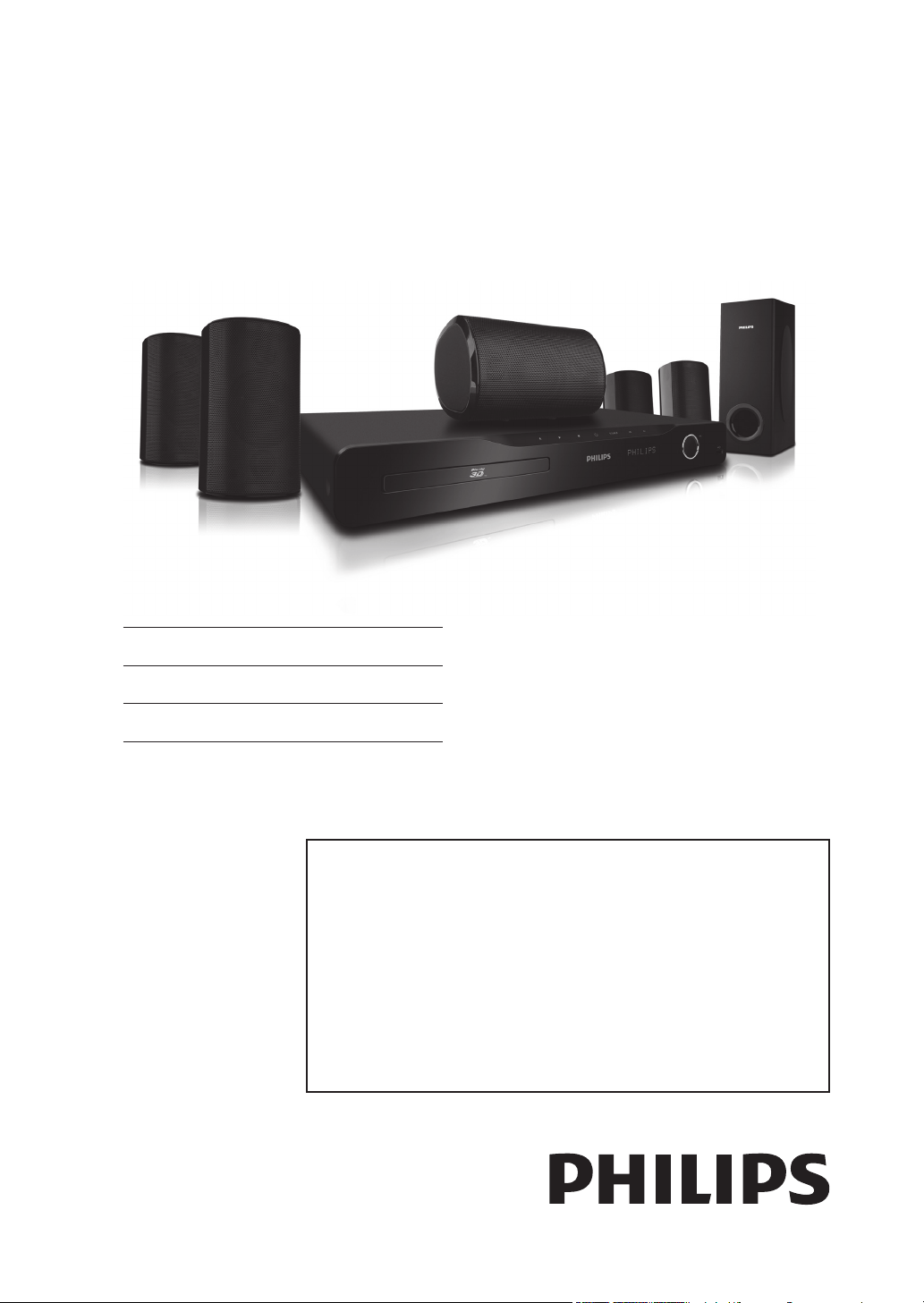
Register your product and get support at
www.philips.com/welcome
FR Manuel d’Utilisation
EN User Manual
ES Manual del Usuario
EN: For further assistance, call the customer support service in your country.
• To obtain assistance in the U.S.A., Canada, Puerto Rico, or the U.S. Virgin Islands, contact
Philips Customer Care Center at 1-866-309-0866
• To obtain assistance in Mexico, contact Philips Customer Care Center at 01 800 504 62 00
FR: Pour obtenir de l’aide supplémentaire, communiquez avec le centre de service à la clientèle de
votre pays.
•
Pour obtenir de l’aide aux États-Unis, au Canada, à Puerto Rico ou aux Îles Vierges
américaines,
communiquez avec le centre de service à la clientèle Philips au : 1-866-309-0866
• Pour obtenir l’aide au Mexique, entrez en contact avec le centre de soin de client de Philips à
01 800 504 62 00
ES: Para obtener más información, llame al servicio de soporte al cliente de su país.
•
Para obtener asistencia en los Estados Unidos, en Canadá, Puerto Rico o en las Islas Vírgenes de los
Estados Unidos, comuníquese con Centro de atención al cliente de Philips al 1-866-309-0866
• Solo para Mexico CENTRO DE ATENCIÓN A CLIENTES LADA. 01 800 504 62 00 Solo
Para México.
Lea este manual antes de usar el product.
Register your product and get support at
www.philips.com/support
HTS5506/F7
HTS5506/F8
EN - 2
1. INTRODUCTION
1.1. Safety Instructions
Know these
safety symbols
CAUTION
RISK OF ELECTRIC SHOCK
DO NOT OPEN
For Customer Use
Model No. ___________________________________
Serial No. ___________________________________
Visit our World Wide Web Site at http://www.philips.com/support
The symbol for CLASS ll (Double Insulation)
This “bolt of lightning” indicates uninsulated material
within your unit may cause an electrical shock. For
the safety of everyone in your household, please do
not remove product covering.
The “exclamation point” calls attention to features
for which you should read the enclosed literature
closely to prevent operating and maintenance
problems.
WARNING
:
To reduce the risk of fire or electric
shock, this apparatus should not be exposed to rain or
moisture, and objects filled with liquids, such as vases,
should not be placed on this apparatus.
The important note and rating are located on the rear or
bottom of the cabinet.
Congratulations on your purchase, and
welcome to the “family!”
Dear Philips product owner:
Thank you for your confidence in Philips.
You’ve selected one of the best-built,
best-backed products available today. We’ll do
everything in our power to keep you happy with
your purchase for many years to come.
As a member of the Philips “family,” you’re
entitled to protection by one of the most
comprehensive warranties and outstanding
service networks in the industry. What’s more,
your purchase guarantees you’ll receive all the
information and special offers for which you
qualify, plus easy access to accessories from our
convenient home shopping network.
Most importantly, you can count on our
uncompromising commitment to your total
satisfaction.
All of this is our way of saying welcome - and
thanks for investing in a Philips product.
P.S. To get the most from your Philips
purchase, be sure to complete and
return your Product Registration Card
at once, or register online at:
www.philips.com/support
CAUTION:
TO REDUCE THE RISK OF
ELECTRIC SHOCK, DO NOT REMOVE COVER (OR
BACK). NO USER-SERVICEABLE PARTS INSIDE. REFER
SERVICING TO QUALIFIED SERVICE PERSONNEL.
CAUTION: To prevent electric shock, match wide blade of
plug to wide slot, fully insert.
ATTENTION:
Pour éviter les chocs électriques, introduire la
lame la plus large de la fiche dans la borne correspondante de la
prise et pousser jusqu’au fond.
* Additional Benefits
Registering your product guarantees that you’ll
receive all of the privileges to which you’re entitled,
including special money-saving offers.
* Product Safety Notification
By registering your product, you’ll receive notification -
directly from the manufacturer - in the rare case of a
product recall or safety defect.
Registering your model with Philips makes you eligible for all of the valuable benefits listed below, so don’t
miss out. Complete and return your Product Registration Card at once, or register online at
www.philips.com/support to ensure:
Return your Product Registration Card or register online at
www.philips.com/support today to get the very most from your purchase.
Please write the model and serial number of your unit (located
on the cabinet) in the space below for future reference.
EN
EN - 3
IMPORTANT SAFETY INSTRUCTIONS
1. Read these instructions.
2. Keep these instructions.
3. Heed all warnings.
4. Follow all instructions.
5. Do not use this apparatus near water.
6. Clean only with dry cloth.
7. Do not block any ventilation openings. Install in
accordance with the manufacturer's instructions.
8. Do not install near any heat sources such as radiators,
heat registers, stoves, or other apparatus (including
amplifiers) that produce heat.
9. Do not defeat the safety purpose of the polarized or
grounding-type plug. A polarized plug has two blades
with one wider than the other. A grounding type plug
has two blades and a third grounding prong. The wide
blade or the third prong are provided for your safety. If
the provided plug does not fit into your outlet, consult
an electrician for replacement of the obsolete outlet.
10. Protect the power cord from being walked on or
pinched particularly at plugs, convenience receptacles,
and the point where they exit from the apparatus.
11. Only use attachments/accessories specified by the
manufacturer.
12. Use only with the cart, stand, tripod,
bracket, or table specified by the
manufacturer, or sold with the apparatus.
When a cart is used, use caution when
moving the cart/apparatus combination
to avoid injury from tip-over.
13. Unplug this apparatus during lightning storms or when
unused for long periods of time.
14. Refer all servicing to qualified service personnel.
Servicing is required when the apparatus has been
damaged in any way, such as power-supply cord or plug
is damaged, liquid has been spilled or objects have fallen
into the apparatus, the apparatus has been exposed to
rain or moisture, does not operate normally, or has
been dropped.
FCC WARNING
This equipment may generate or use radio frequency
energy. Changes or modifications to this equipment may
cause harmful interference unless the modifications are
expressly approved in the manual. The user could lose the
authority to operate this equipment if an unauthorized
change or modification is made.
This transmitter must be co-located or operated in
conjunction with any other antenna or transmitter.
RADIO-TV INTERFERENCE
This equipment has been tested and found to comply with
the limits for a Class B digital device, pursuant to Part 15
of the FCC Rules. These limits are designed to provide
reasonable protection against harmful interference in a
residential installation. This equipment generates, uses,
and can radiate radio frequency energy and, if not installed
and used in accordance with the instructions, may cause
harmful interference to radio communications. However,
there is no guarantee that interference will not occur in a
particular installation. If this equipment does cause
harmful interference to radio or television reception,
which can be determined by turning the equipment off
and on, the user is encouraged to try to correct the
interference by one or more of the following measures:
1. Reorient or relocate the receiving antenna.
2. Increase the separation between the equipment and
receiver.
3. Connect the equipment into an outlet on a circuit
different from that to which the receiver is connected.
4. Consult the dealer or an experienced radio/TV
technician for help.
This device complies with Industry Canada licence-
exempt RSS standard(s). Operation is subject to the
following two conditions: (1) this device may not cause
interference, and (2) this device must accept any
interference, including interference that may cause
undesired operation of the device.
This Class B digital apparatus complies with
Canadian ICES-003.
Disconnect the mains plug to shut off when find
trouble or not in use. The mains plug shall remain
readily operable.
LASER SAFETY
This apparatus is classified as a CLASS 1 LASER PRODUCT.
This apparatus employs a laser. Only a qualified service
person should remove the cover or attempt to service this
apparatus, due to possible eye injury.
IMPORTANT COPYRIGHT INFORMATION
Unauthorized copying, broadcasting, public performance and
lending of discs are prohibited. This item incorporates copy
protection technology that is protected by U.S. patents and
other intellectual property rights of Rovi Corporation.
Reverse engineering and disassembly are prohibited.
Do not place the unit on the furniture that is capable of
being tilted by a child and an adult leaning, pulling, standing
or climbing on it. A falling unit can cause serious injury or
even death.
This apparatus should not be placed in a built-in
installation such as a bookcase or rack unless proper
ventilation is provided. Make sure to leave a space of 7.8
inches (20cm) or more around this apparatus.
CAUTION: Danger of explosion if battery is
incorrectly replaced. Replace only
with the same or equivalent type.
WARNING: Batteries (Battery pack or battery
installed) shall not be exposed to
excessive heat such as sunshine, fire
or the like.
CAUTION:
Use of controls or adjustments or
performance of procedures other
than those specified herein may result
in hazardous radiation exposure.

EN - 4
To Avoid the Hazards of Electrical Shock and Fire
• Do not handle the AC power cord with wet hands.
• Do not pull on the AC power cord when disconnecting
it from an AC outlet. Grasp it by the plug.
• Do not put your fingers or objects into the unit.
Location and Handling
• Do not install the unit in direct sunlight, near strong
magnetic fields, or in a place subject to dust or strong
vibration.
• Avoid a place with drastic temperature changes.
• Install the unit in a horizontal and stable position. Do
not place anything directly on top or bottom of the
unit. Depending on your external devices, noise or
disturbance in the picture and/or sound may be
generated if the unit is placed too close to them. In this
case, please ensure enough space between the external
devices and the unit.
• Depending on the environment, the temperature of this
unit may increase slightly. This is not a malfunction.
• Be sure to remove the disc and unplug the AC power
cord from the outlet before carrying the unit.
Dew Condensation Warning
• Dew condensation may form inside the unit in the
following conditions. If so, do not use this unit at least
for a few hours until its inside gets dry.
- The unit is moved from a cold place to a warm place.
- Under conditions of high humidity.
- After heating a cold room.
Notice for Progressive Scan Output
• Consumers should note that not all high definition
television sets are fully compatible with this product
and may cause artifacts to be displayed in the picture. In
case of picture problems with 525(480) progressive
scan output, it is recommended that the user switch the
connection to the ‘standard definition’ output. If there
are questions regarding your TV set compatibility with
this 525p(480p) Blu-ray Disc™/DVD player, please
contact our customer service center.
1.2. Maintenance
Servicing
• Please refer to relevant topics on
“TROUBLESHOOTING” on page 52 before returning
the product.
• If you need to call a customer service representative,
please know the model number and serial number of
your product before you call. This information is
displayed on the back of the product. Also, please take
a moment to identify the problem you are having, and
be prepared to explain this to the representative. If you
believe the representative will need to help you with
operations, please stay near the product. Our
representatives will be happy to assist you. For online
reference, please visit our website at
www.philips.com/support
Cleaning the Cabinet
• Wipe the front panel and other exterior surfaces of the
unit with a soft cloth.
• Never use a solvent, thinner, benzene or alcohol to
clean the unit. Do not spray insecticide liquid near the
unit. Such chemicals may discolor the surface or
damage the unit.
Cleaning Discs
• When a disc becomes dirty, clean it with a cleaning
cloth. Wipe the disc from the center to outside. Do not
wipe in a circular motion.
• Do not use solvents such as benzine, thinner,
commercially available cleaners, detergent, abrasive
cleaning agents or antistatic spray intended for analog
records.
Cleaning the Disc Lens
• If this unit still does not perform properly although you
refer to the relevant sections and to
“TROUBLESHOOTING” in this user manual, the laser
optical pickup unit may be dirty. Consult your dealer or
an Authorized Service Center for inspection and
cleaning of the laser optical pickup unit.
Disc Handling
• Handle the discs so that fingerprints and dust do not
adhere to the surfaces of the discs.
• Always store the disc in its protective case when it is
not used.
• Note that discs with special shapes (heart-shaped discs,
octagonal discs, etc.) cannot be played back on this unit.
Do not attempt to play such discs, as they may damage
the unit.
Testing the Remote Control
• If the remote control is not working properly, you can
use a digital camera (including a cellular phone with
built-in camera) to see if it is sending out an infrared
signal.
How to perform the test?
1. Point the IR transmitter of the remote
control towards the lens of the digital
camera (or cell phone camera).
2. Turn on the digital camera and look at
the IR transmitter of the remote
control through the LCD display of
the digital camera.
3. While looking at the LCD, press the
buttons on your remote control you
want to test.
a. If your remote control is working
properly, the IR transmitter of the
remote control will create a noticeable
flash on the LCD of the digital camera.
b. If it does not flash, replace the
batteries in your remote with new
batteries and try again. If it still does
not flash, your remote control may
be damaged or defective. Please
contact customer service for
replacement options.

EN
EN - 5
1.3. Notice
Specifications are subject to change without notice.
Trademarks are the property of Koninklijke Philips
Electronics N.V. or their respective owners. P&F USA
reserves the right to change products at any time without
being obliged to adjust earlier supplies accordingly.
The material in this manual is believed adequate for the
intended use of the system. If the product, or its individual
modules or procedures, are used for purposes other than
those specified herein, confirmation of their validity and
suitability must be obtained. P&F USA warrants that the
material itself does not infringe any United States patents.
No further warranty is expressed or implied. P&F USA
cannot be held responsible neither for any errors in the
content of this document nor for any problems as a result
of the content in this document. Errors reported to P&F
USA will be adapted and published on the P&F USA support
website as soon as possible.
Warranty
No components are user serviceable. Do not open or
remove covers to the inside of the product. Repairs may
only be done by Service Centers and official repair shops.
Failure to do so shall void any warranty, stated or implied.
Any operation expressly prohibited in this manual, any
adjustments, or assembly procedures not recommended or
authorized in this manual shall void the warranty.
1.4. Important
Registering your model with Philips makes you eligible for
all of the valuable benefits listed below, so don’t miss out.
Complete and return your Product Registration Card at
once, or register online at www.philips.com/support to
ensure:
Product Safety Notification
By registering your product you receive notification -
directly from the manufacturer - in the rare case of a
product recall or safety defect.
Additional Benefits of Product Ownership
Registering your product guarantees that you receive all of
the privileges to which you’re entitled, including special
money-saving offers.
For further assistance
For further assistance, call the customer support service in
your country.
• To obtain assistance in the U.S.A., Canada, Puerto Rico,
or the U.S. Virgin Islands, contact Philips Customer
Care Center at 1-866-309-0866
Environmental Care
End of life directives
Disposal of used batteries
The batteries supplied do not contain the heavy metals
mercury and cadmium. Nevertheless, in many areas
batteries may not be disposed of with your household
waste. Please ensure you dispose of batteries according to
local regulations.
1.5. Supplied Accessories
• Remote Control
• Batteries (AAA, 1.5V x 2)
• User Manual
• Quick Start Guide
•Registration card
•Box-inserts
• Video cable
• FM wire antenna
• 1 center, 2 front, 2 rear speakers and 1 subwoofer
The packaging of this product is
intended to be recycled.
Contact your local authorities for
information about how to recycle
the packaging.
For Product recycling information,
please visit -
www.recycle.philips.com
Philips pays a lot of attention to
produce environment-friendly
products in green focal areas.
Your new Blu-ray Disc™ Home
Theater System contains materials
which can be recycled and reused.
At the end of its life, specialized
companies can dismantle the
discarded Home Theater System
to concentrate the reusable
materials and to minimize the
amount of materials to be
disposed of. Please ensure you
dispose of your old Home
Theater System according to local
regulations.

EN - 6
1.6. Trademark Information
Manufactured under license from Dolby Laboratories.
“Dolby”, “Pro Logic”, and the double-D symbol are
trademarks of Dolby Laboratories.
Manufactured under license under U.S. Patent #’s:
5,451,942; 5,956,674; 5,974,380; 5,978,762; 6,226,616;
6,487,535; 7,392,195; 7,272,567; 7,333,929; 7,212,872 &
other U.S. and worldwide patents issued & pending. DTS
and the Symbol are registered trademarks, & DTS-HD,
DTS-HD Master Audio
|
Essential and the DTS logos are
trademarks of DTS, Inc. Product includes software.
© DTS, Inc. All Rights Reserved.
HDMI, the HDMI Logo, and High-Definition Multimedia
Interface are trademarks or registered trademarks of
HDMI Licensing LLC in the United States and other
countries.
“x.v.Color” and “x.v.Color” logo are trademarks of Sony
Corporation.
Java and all Java based trademarks and logos are
trademarks or registered trademarks of Oracle and/or its
affiliates.
Windows Media and the Windows logo are trademarks
or registered trademarks of Microsoft Corporation in the
United States and/or other countries.
“AVCHD” and the “AVCHD” logo are trademarks of
Panasonic Corporation and Sony Corporation.
“BONUSVIEW™” and “BONUSVIEW™” logo are
trademarks of the Blu-ray Disc Association.
“BD-Live™” and “BD-Live™” logo are trademarks of the
Blu-ray Disc Association.
DLNA
®
, the DLNA Logo and DLNA CERTIFIED
®
are
trademarks, service marks, or certification marks of the
Digital Living Network Alliance.
Netflix and the Netflix logo are trademarks or registered
trademarks of Netflix, Inc.
Film Fresh and the Film Fresh logo are registered
trademarks of Film Fresh Inc.
EN
EN - 7
is a trademark of DVD Format/Logo Licensing
Corporation.
VUDU™ is a trademark of VUDU, Inc.
Pandora is a registered trademark of Pandora Media, Inc.
“Blu-ray 3D™” and “Blu-ray 3D™” logo are trademarks
of the Blu-ray Disc Association.
“Blu-ray Disc™”, “Blu-ray™” and “Blu-ray Disc™” logo
are trademarks of the Blu-ray Disc Association.
Kodak and KODAK Picture CD Compatible are
trademarks of Kodak used under license.
The Wi-Fi CERTIFIED Logo is a certification mark of the
Wi-Fi Alliance.

EN - 8
CONTENTS
INTRODUCTION ............................................. 2
Safety Instructions.................................................................2
Maintenance ...........................................................................4
Notice......................................................................................5
Important................................................................................5
Supplied Accessories............................................................5
Trademark Information .......................................................6
FEATURES....................................................... 10
Features................................................................................ 10
Version Info......................................................................... 11
Symbols Used in this User Manual................................. 11
FUNCTIONAL OVERVIEW .......................... 12
Front Panel .......................................................................... 12
Rear Panel............................................................................ 12
Remote Control................................................................. 13
Display Panel ....................................................................... 15
Guide to On-Screen Display........................................... 15
CONNECTIONS ............................................. 16
Placing the Speakers.......................................................... 16
Connection to the TV ...................................................... 16
Connecting Speakers and Subwoofer ........................... 17
Connect a Wireless Module ........................................... 17
Connecting Audio from Cable Box / Recorder /
Game Console or TV ....................................................... 18
Connecting FM Radio Antenna....................................... 18
Audio Output from HDMI OUT Jack........................... 19
Connection to the Network........................................... 20
BEFORE YOU START.................................... 22
Finding the Viewing Channel / Source on Your TV... 22
Initial Setup.......................................................................... 22
INFORMATION ON PLAYBACK................. 23
Information on Playback................................................... 23
Guide to File List................................................................ 25
How to Insert a Disc ........................................................ 25
BASIC PLAYBACK ......................................... 26
Playing Back a Disc ............................................................ 26
Playing Back a Blu-ray 3D™ Disc................................... 27
Playing Back Contents on a USB Storage Device....... 27
Playing Back Video / Music / Photo from DLNA
Certified Home Media Servers....................................... 28
Using the Title / Disc / Pop-up Menu............................ 29
SPECIAL PLAYBACK..................................... 30
Fast Forward / Fast Reverse............................................ 30
Slow Forward Playback..................................................... 30
Step by Step Playback........................................................ 30
Repeat Playback ..................................................................30
Slide Show ............................................................................31
PiP (BONUSVIEW™) Setting..........................................31
Enjoying BD-Live™ Discs Using the Internet..............31
Title / Chapter Search.......................................................32
Track Search........................................................................32
Time Search .........................................................................32
Switching Subtitles..............................................................33
Switching Audio Soundtrack ............................................33
Switching Camera Angles .................................................34
Black Level............................................................................34
Noise Reduction.................................................................34
Philips Wireless MediaConnect ......................................34
Radio Operations ...............................................................35
NETWORK SERVICES .................................. 36
Before Using Network Services......................................36
Information on Network Services..................................36
PANDORA OPERATIONS............................ 37
Activating Pandora .............................................................37
Adding Pandora User Accounts......................................37
Creating a New Station.....................................................37
Guide to the Player Screen..............................................37
LIST OF SETTINGS ....................................... 38
SETUPS............................................................ 41
TV Display............................................................................41
HDMI Video.........................................................................41
Network Installation..........................................................42
EasyLink Setup.....................................................................46
Audio Input Mapping..........................................................46
Parental Control.................................................................47
Software Update.................................................................48
Restore Default Settings...................................................49
SOUND SETTINGS........................................ 50
Volume Control..................................................................50
Selecting Surround Mode .................................................50
Selecting Sound Effect Mode............................................50
OTHER SETTINGS ........................................ 51
Switching Active Source Mode........................................51
Sleep Timer..........................................................................51
TROUBLESHOOTING .................................. 52
Downloading an Electronic Copy...................................54
Contact Us...........................................................................54
GLOSSARY...................................................... 55
LANGUAGE CODE LIST .............................. 57
SPECIFICATIONS.......................................... 58


EN - 10
2. FEATURES
Congratulations on your purchase, and welcome to Philips!
To fully benefit from the support that Philips offers, register
your product at www.philips.com/support
2.1. Features
Blu-ray Disc™
You can enjoy Blu-ray Disc™ which is capable of storing
five times more data than a conventional DVD.
Playing back Blu-ray 3D™ Disc
This unit can play back Blu-ray 3D™ discs which contain
stereoscopic 3D video. In order to enjoy 3D video,
connect this unit to a 3D capable TV using a 3D compatible
HDMI cable.
BD-Java
With some Blu-ray™ discs which contain Java applications,
you can enjoy interactive functions such as games or
interactive menus.
DVD upscaling for enhanced picture quality
Your current DVD will look even better than before thanks
to video upscaling. Upscaling will increase the resolution of
standard definition DVD to high definition up to 1080p
over an HDMI connection. The picture will be less jagged
and more realistic for a near high definition experience.
Enjoy your content on different kinds of media
Full backwards compatibility with DVD, CD and USB
storage device ensures that you can continue to enjoy your
current audio-video collection. Additionally, you can enjoy
AVCHD / MP3 / WMA / JPEG files.
Listen to rich multi-channel surround sound
Multi-channel surround sound, which realizes real-to-life
sound and makes you feel that you are really there.
Intuitive user interface and remote control
The Philips logical user interface allows you to easily
navigate through your content and settings, so you can
quickly find what you are looking for.
Easy and simple connection to your HDTV via
HDMI
Connect your HTS5506 to your HDTV with one single
HDMI (High-Definition Multimedia Interface) cable. Philips
recommends High Speed HDMI cable for better
compatibility. The high definition video output signal will be
transferred to your HDTV without conversion to analog
signals, so you will get excellent picture and sound quality,
completely free from noise. Thanks to other multiple
outputs, you can also easily connect to your home theater
system or amplifier.
About EasyLink (HDMI CEC) (Consumer
Electronics Control)
EasyLink allows you to operate the linked functions of this
home theater system with Philips brand TV with EasyLink
feature.
Philips does not guarantee 100 % interoperability with other
brands of HDMI CEC compliant devices.
PiP (BONUSVIEW™)
Some BD-videos have the PiP function which enables you
to display the secondary video in the primary video. You
can call up the secondary video by pressing
[BONUSVIEW (PiP)] whenever the scene contains a
secondary video.
BD-Live™
BD-Live™ (BD-ROM version 2 Profile 2.0) that allows
interactive functions to be used when this unit is connected
to the Internet in addition to the BONUSVIEW™ function.
The various functions differ depending on the disc.
Pop-up menu
Some BD-videos have a pop-up menu which is a navigation
menu that can be called up and be operated on the TV screen
without interrupting playback. You can call up the pop-up
menu by pressing
[DISC MENU / POP-UP MENU]
.
Contents in the pop-up menu vary depending on the disc.
HDMI Deep Color
Deep Color reduces posterization (color banding) effect of
the playback image. Refer to “HDMI Deep Color” on
page 38.
HDMI 1080p/24 output (Blu-ray Disc™ only)
This unit is equipped with the feature which can provide
smooth movement during playback of film originated
material with the frame rate of 24 frames per second with
progressive. (Available only when the display device is
connected by an HDMI cable.) Refer to “HDMI Video” on
page 41.
Playing back contents on a USB storage device
You can play back MP3 / WMA / JPEG files stored in a USB
storage device. BD-ROM Profile 2.0 (BD-Live™) and
Profile 1.1 discs sometimes store picture-in-picture
commentary, subtitles or other extras in the USB storage
device for use during playback with the BD-video.
Playing back AVCHD files
This unit supports playback of AVCHD format files (new
format for high definition video camcorders) recorded on
disc. Your high definition personal archive is playable in HD
quality.
EN - 11
EN
x.v.Color
This unit supports playback of video contents on discs
recorded with “x.v.Color” technology. To watch this video
content with the “x.v.Color” space, a TV or other display
device supporting both video image reproduction using
“x.v.Color” standard and capability of manual switching of
its color space setting is required. Please refer to the user
manual of your display device for further information.
Enjoy contents stored on DLNA certified home
media servers
This unit is a DLNA certified media player that can play
video, music and photo files stored on DLNA certified
home media servers connected to your home network.
Netflix
With this unit, you can enjoy movies and TV episodes
streamed instantly from Netflix via the Internet. In order to
use this feature, you must visit on your
PC and become a Netflix member.
(This feature is available only in the United States.)
Film Fresh
With this unit, you can enjoy movies and TV episodes
streamed instantly from Film Fresh via the Internet. In
order to use this feature, you must visit following website
on your PC and become a Film Fresh member. (This
feature is available only in the United States.)
- Film Fresh:
VUDU
This unit supports VUDU which is the leading HD
on-demand video service. With VUDU, you can also enjoy
various kinds of Internet applications. In order to use this
feature, you must connect this unit to the Internet. For
complete instructions on using VUDU service, please visit
www.vudu.com/docs
to view an updated in-depth online
manual. (This feature is available only in the United States.)
Pandora
This unit supports Pandora Internet radio service. You can
instantly listen to personalized radio stations streamed over
the Internet from Pandora.
(This feature is available only in the United States.)
Audio Return Channel (ARC)
If you own a Philips EasyLink or any other compatible
HDMI-CEC device such as a TV with an HDMI ARC port,
you can configure the external device to send audio back to
this Home Theater System over the HDMI cable eliminating
the need for a separate Digital Audio Connection. HDMI
ARC supports more digital audio formats than a S/PDIF
connection.
2.2. Version Info
“Version Info” screen provides information about this unit’s
software version. You can also download the latest
software from the Philips website and update it yourself if it
is newer than the version currently on your unit. The
current version of software on your unit can be seen on
the “Version Info” screen.
To access “Version Info”, follow the procedure below.
1. Press [(home)].
2. Use [] to select “Setup”, then press
[OK].
3. Use [] to select “Advanced Setup”, then press
[OK].
4. Use [] to select “Version Info”, then press
[OK].
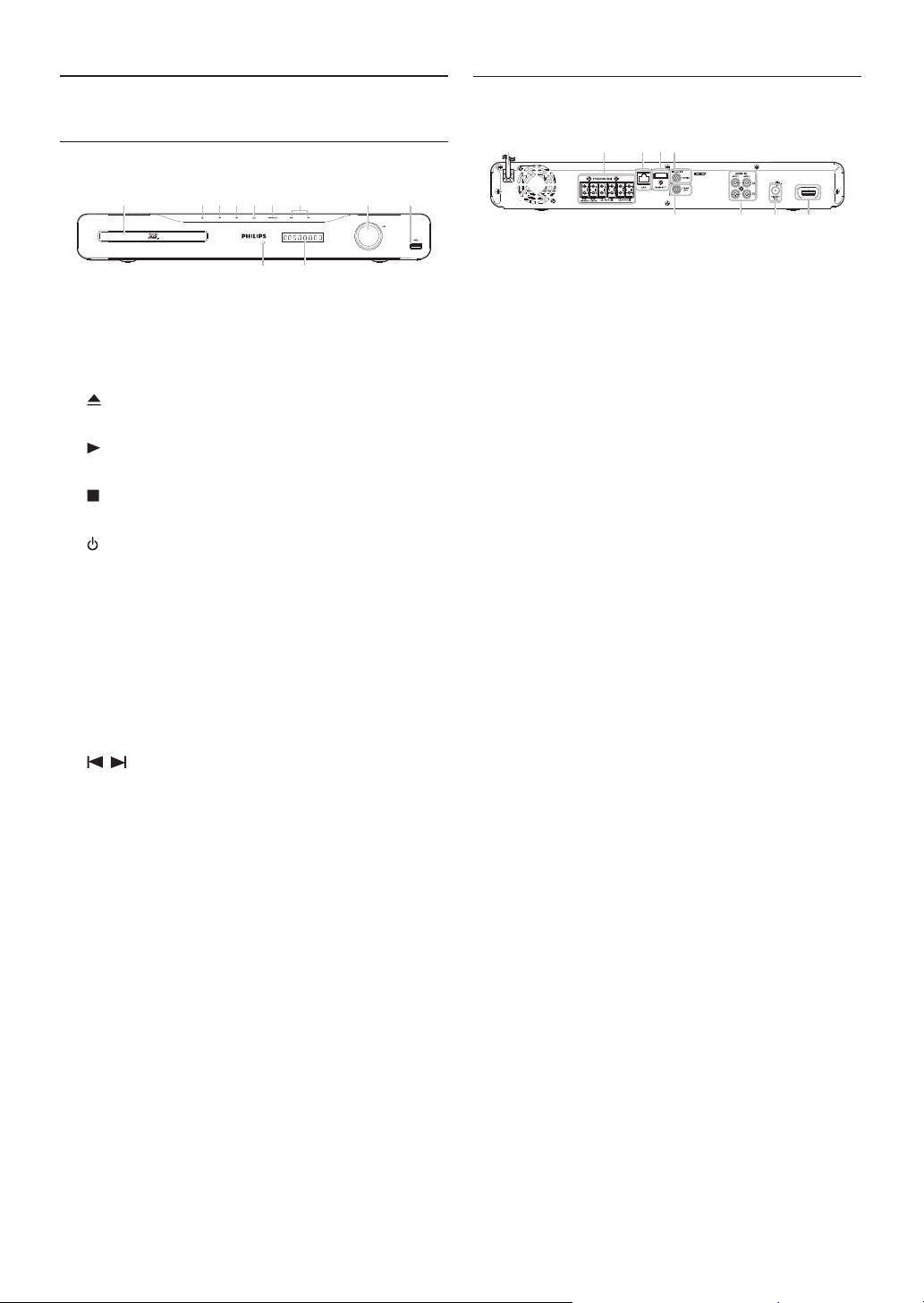
2.3. Symbols Used in this User Manual
To specify which media type each function is applicable to,
we put the following symbols at the beginning of each item
to operate.
If you do not find any of the symbols listed above under the
function heading, the operation is applicable to all media.
netflix.com/Philips
filmfresh.roxionow.com/Login
Symbol Description
Description refers to BD-video
Description refers to DVD-video
Description refers to audio CD / DTS-CD
Description refers to DVD-RW/-R with
AVCHD files
Description refers to BD-RE/-R,
DVD-RW/-R, CD-RW/-R and USB storage
device with MP3 files
Description refers to BD-RE/-R,
DVD-RW/-R, CD-RW/-R and USB storage
device with Windows Media™ Audio files
Description refers to BD-RE/-R,
DVD-RW/-R, CD-RW/-R and USB storage
device with JPEG files
Description refers to video files in the
DLNA home server
Description refers to music files in the
DLNA home server
Description refers to photo files in the
DLNA home server
EN - 12
3. FUNCTIONAL OVERVIEW
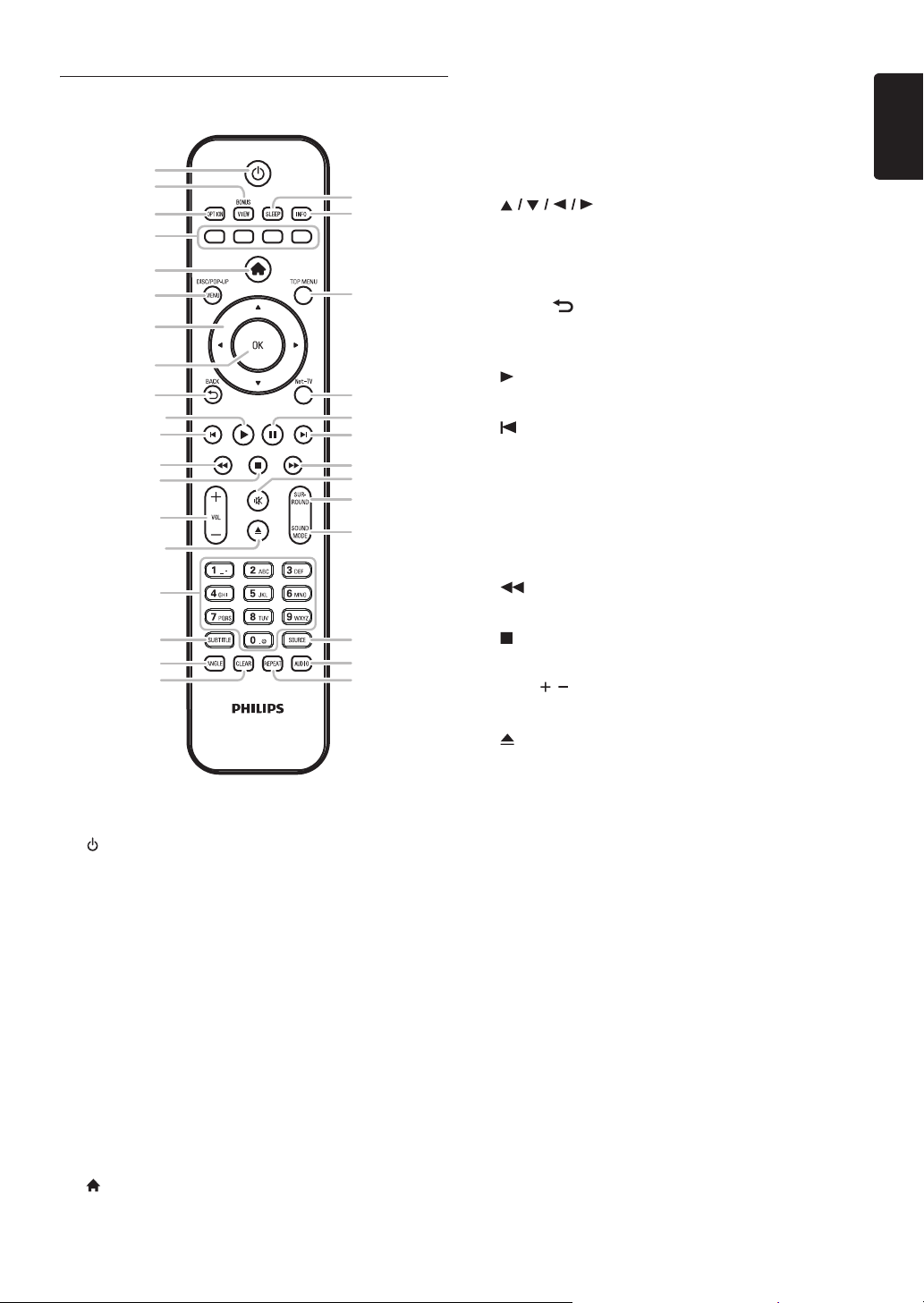
3.1. Front Panel
* The unit can also be turned on by touching these
buttons.
1. Disc tray
• Place a disc after opening the disc tray.
2. (open/close) button*
• Touch to open or close the disc tray.
3. (play) button*
• Touch to start or resume playback.
4. (stop) button
• Touch to stop playback.
5. (standby/on) button
• Touch to turn on the unit, or to switch the unit into
standby mode. (To completely turn off the unit, you
must unplug the AC power cord.)
• Touch and hold for 10 seconds to shut down the
unit.
• This button lights up when the power is on and turns
off when the unit is in standby mode.
6. SOURCE button
• Touch to switch the active source mode.
7. / (previous/next) buttons
• Touch to skip to the previous or next title / chapter /
track / file.
8. VOL jog
• Rotate to adjust the volume.
9. USB input
• Connect a USB storage device or USB card reader.
10. Infrared sensor window
• Receives signals from your remote control so that
you can control the unit from a distance.
11. Display
• Refer to “Display Panel” on page 15.
C Caution
• Do not connect any device other than USB storage
device or USB card reader into USB input. (e.g. PC,
external HDD, MP3 player, digital camera, keyboard,
mouse, etc.)
• Do not use an extension cord or USB hub to connect
devices to this unit. Always connect one single USB
storage device or USB card reader into USB input
directly.
3.2. Rear Panel
1. AC power cord
• Connect to a standard AC outlet to supply power to
this unit.
• Unplug this cord from the AC outlet to completely
turn off the unit.
2. 5.1ch Audio Out jacks (SPEAKERS (4:))
• Use to connect supplied 5.1ch speakers.
3. LAN terminal
• Use to connect to network provisioning equipment
such as a router or a modem with a LAN cable.
4. HDMI OUT jack
• Use to connect to a display with an HDMI compatible
port with an HDMI cable.
5. DIGITAL AUDIO IN (COAXIAL) jack
• Use to connect to another device with a digital audio
coaxial output jack with a digital audio coaxial cable.
6. VIDEO OUT jack
• Use to connect a TV monitor, an AV receiver /
amplifier or other device with a video cable.
7. AUDIO¬IN (AUX1 / AUX2) jacks
• Use to connect to another device with audio out
jacks with an audio cable.
8. FM ANT 75: jack
• Use to connect the supplied FM wire antenna.
9. Wireless rear audio input
• Connect to a Philips wireless module.
(Model: Philips RWSS5510/F7, sold separately.
Contact 1-866-309-0866 for details to purchase this
wireless module.)
C Caution
• Do not touch the inner pins of the jacks on the rear
panel. Electrostatic discharge may cause permanent
damage to the unit.
• This unit does not have an RF modulator.
D Note
Wireless Speaker and Wireless Module for
Philips model: HTS5506/F7
• This unit is compatible only with Philips brand wireless
speakers and wireless module (RWSS5510/F7).
• Do not connect other commercially available wireless
module with this unit.
2*15
6
7 8
10 11
3*
49
1
6
453
2
8 9
7
EN - 13
EN
3.3. Remote Control
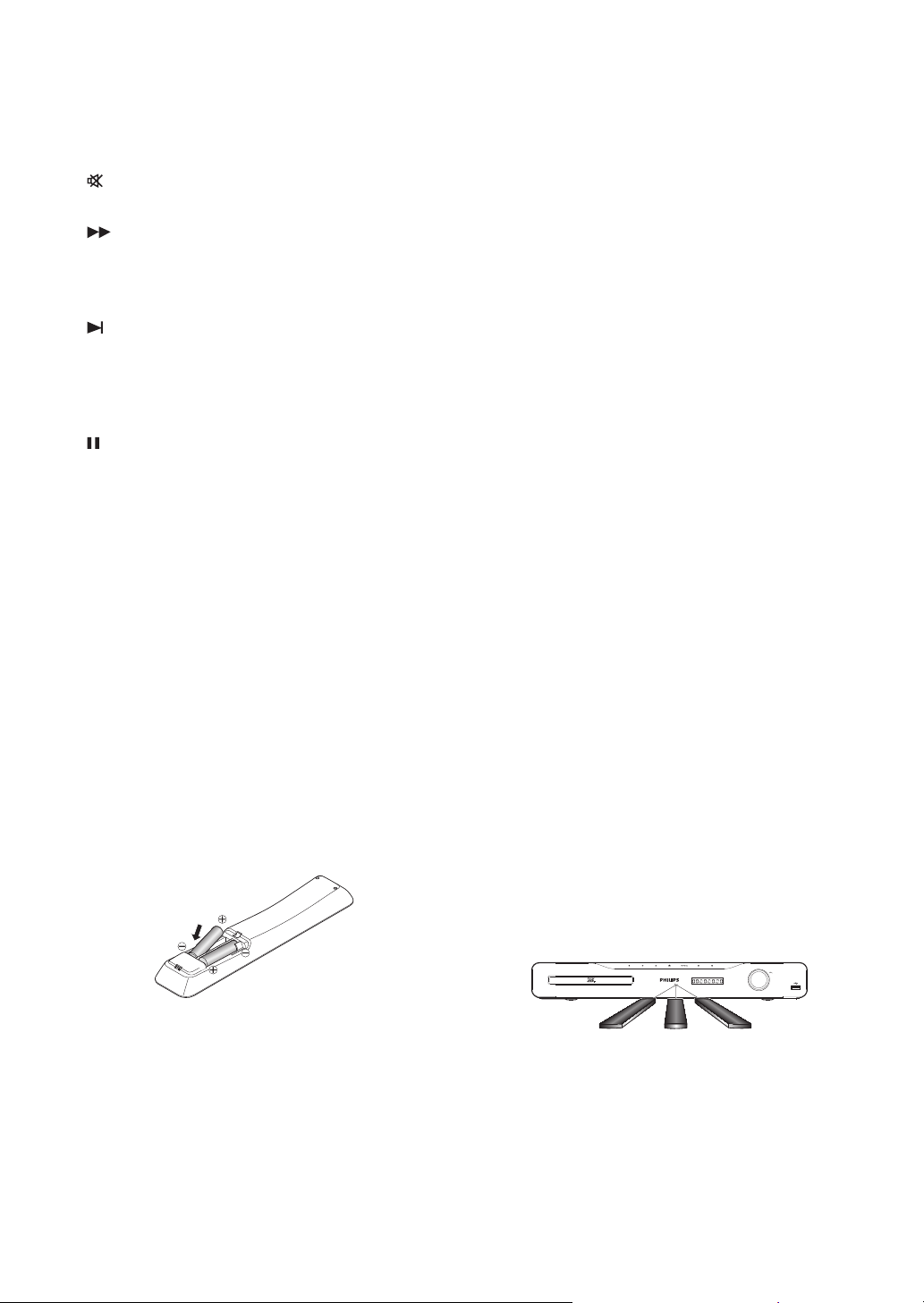
* The unit can also be turned on by pressing these
buttons.
1. (standby/on) button
• Press to turn on the unit, or to switch the unit into
standby mode. (To completely turn off the unit, you
must unplug the AC power cord.)
2. BONUSVIEW (PiP) button
• Press to switch picture in picture feature on / off
(only applicable to BD-video which supports the PiP
(BONUSVIEW™) function).
3. OPTION button
• During playback, press to display the play menu.
4. Red / Green / Blue / Yellow buttons
• Press to activate shortcut keys on some BD-video
functions.
• When file list is shown, press to switch between
pages.
5. (home) button
• Press to display the home menu.
6. DISC MENU / POP-UP MENU button
Blu-ray Disc™:
• Press to display the pop-up menu.
DVD:
• Press to display the disc menu.
7. buttons
• Press to select items or settings.
8. OK button
• Press to confirm or select menu items.
9. BACK button
• Press to return to the previously displayed menu or
screen function.
10. (play) button*
• Press to start playback or resume playback.
11. (previous) button
• During playback, press once to return to the
beginning of the current title, chapter, track or file.
• During playback, press twice to return to the
previous title, chapter, track or file.
• During the JPEG playback, press to return to the
previous file.
12. (reverse) button
• During playback, press to fast reverse the playback.
13. (stop) button
• Press to stop playback.
14. VOL / button
• Press to adjust the volume.
15. (open/close) button*
• Press to open or close the disc tray.
16. Number buttons
• Press to select a chapter during playback.
• Press to enter numbers or letters in the input field.
17. SUBTITLE button
• Press to select subtitles on a disc.
18. ANGLE button
• Press to select camera angles on a disc.
19. CLEAR button
• Press to clear the information once entered.
20. REPEAT button
• Press to select repeat mode.
21. AUDIO button
• Press to select the audio channel (such as audio
languages).
22. SOURCE button
• Press to switch the active source mode; home menu
(Disc / USB / Network), “Aux1”, “Aux2”, “Coaxial”,
“FM” or “HDMI-ARC”.
32
31
30
29
27
23
24
22
21
26
25
28
20
1
2
5
6
7
9
11
10*
12
13
14
15*
16
17
18
4
3
8
19
EN - 14
23. SOUND MODE button
• Press to select a sound effect mode.
24. SURROUND button
• Press to select surround mode.
25. (mute) button
• Press to mute the volume.
26. (forward) button
• During playback, press to fast forward the playback.
• When playback is in pause, press to slow forward the
playback.
27. (next) button
• During playback, press to skip to the next chapter,
track or file.
• When playback is in pause mode, press to forward
the playback picture by picture.
28. (pause) button
• Press to pause playback.
29. Net-TV button
• Press to display the network media mode menu.
30. TOP MENU button
Blu-ray Disc™:
• Press to display the top menu.
DVD:
• Press to display the title menu.
31. INFO button
• Press to display the information display.
32. SLEEP button
• Press to set the sleep timer.
Installing the Batteries in the Remote Control
Install 2 AAA (1.5V) batteries matching the polarity
indicated inside battery compartment of the remote
control.
C Caution
Incorrect use of batteries can result in hazards such as
leakage and bursting. Please observe the following:
• Do not mix alkaline, standard (carbon-zinc), or
rechargeable (ni-cad, ni-mh, etc) batteries.
• Do not mix new and old batteries together.
• Do not use different kinds of batteries together.
Although they may look similar, different batteries may
have different voltages.
• Make sure that the + and - ends of each battery match
the indications in the battery compartment.
• Remove batteries from battery compartment, when the
remote is not going to be used for a month or more.
• When disposing of used batteries, please comply with
governmental regulations or environmental public rules
that apply in your country or area.
• Do not recharge, short-circuit, heat, burn or
disassemble batteries.
Using the Remote Control
Remote Control Usage Guidelines:
• Make sure that there are no obstacles between the
remote control and the infrared sensor window on the
unit.
• Remote operation may become unreliable if strong
sunlight or fluorescent light is shining on the infrared
sensor window of the unit.
• Remote controls of different devices can interfere with
each other. Avoid using a remote control from another
device which is located close to the unit.
• Replace the batteries when you notice a fall-off in the
operating range of the remote control.
• The maximum operable ranges from the unit are as
follows.
-Line of sight:
approx. 23 feet (7 m)
- Either side of the center:
approx. 16 feet (5 m) within 30°
-Above:
approx. 16 feet (5 m) within 15°
-Below:
approx. 10 feet (3 m) within 30°
30˚ 30˚
16 feet (5 m) 16 feet (5 m)23 feet (7 m)
EN - 15
EN
3.4. Display Panel
Display panel shows playback status or information. (e.g.
elapsed playing time, source mode, repeat type, menu type,
etc.).
* Brightness of the display can be adjusted. Refer to
“Display Panel” in “LIST OF SETTINGS” on page 39.
• When switching the source mode, the following will be
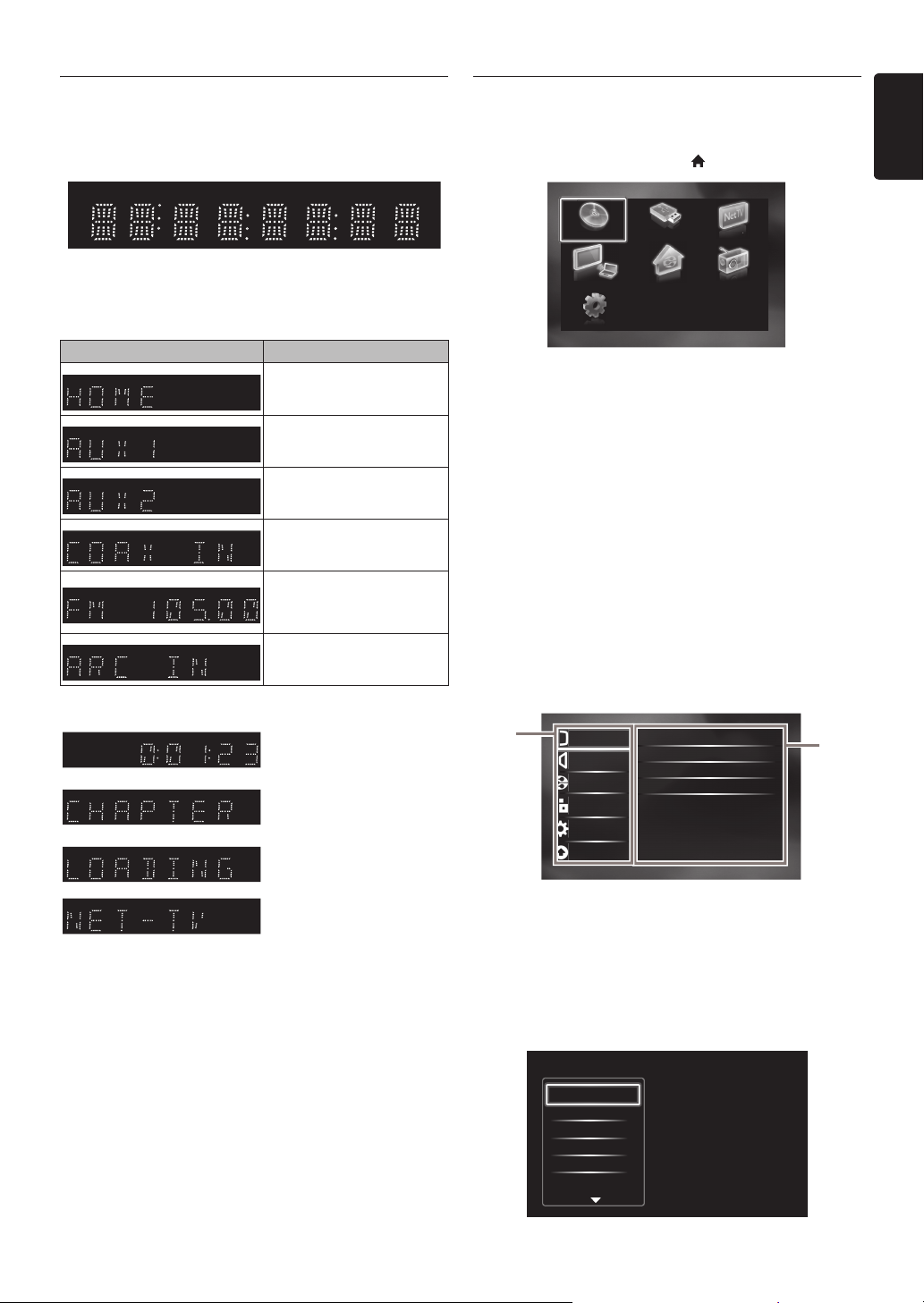
displayed.
e.g.)
3.5. Guide to On-Screen Display
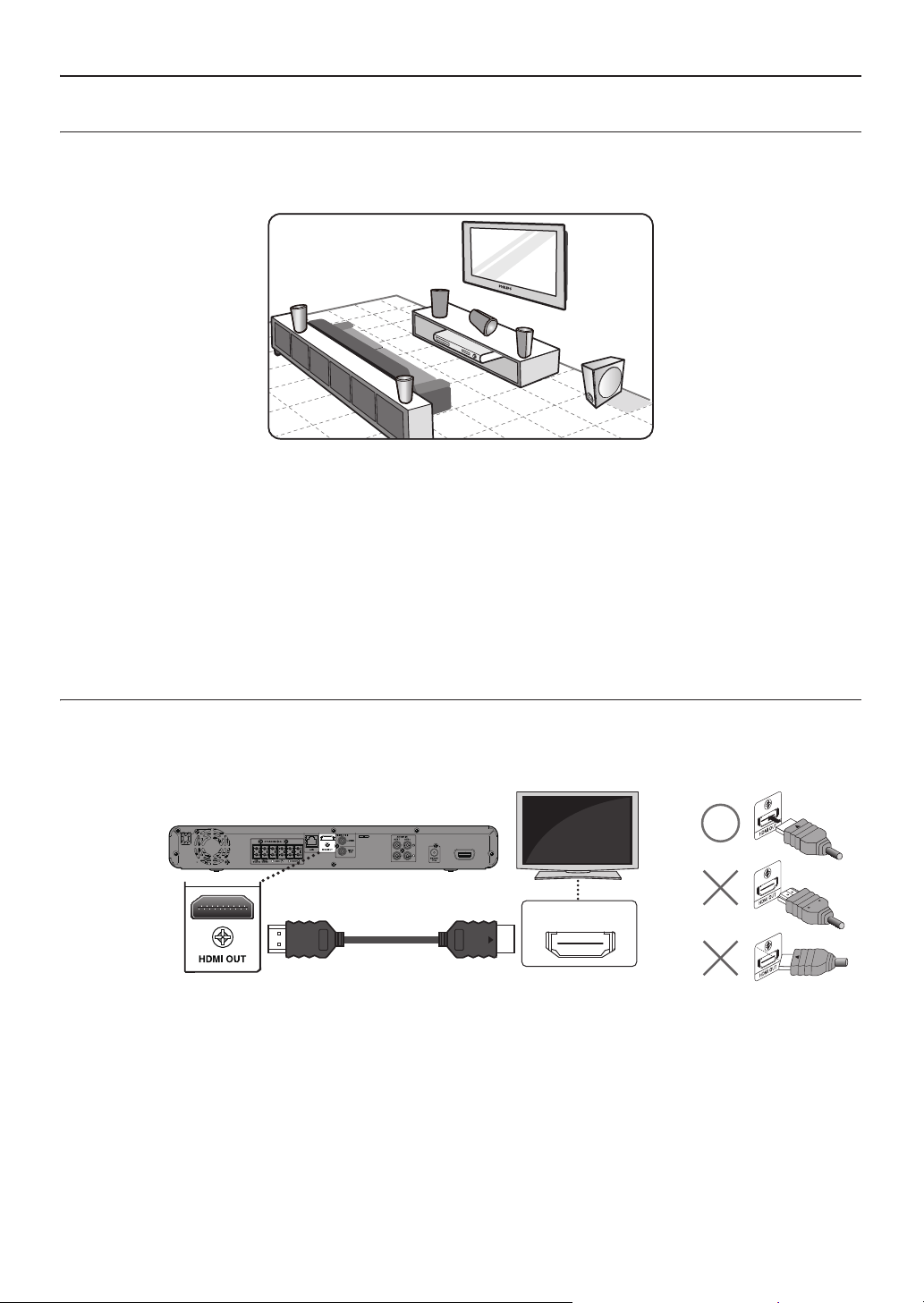
Home Menu
When you turn on the unit, home menu will appear
automatically. Otherwise, press [(home)].
Setup Menu
1. Category
2. Menus / Options:
Displays options for the highlighted item on the left
whenever available
Play Menu
During playback, press
[OPTION]
to display the play menu.
e.g.) Blu-ray Disc™
Display Mode
Home menu
“Aux1” mode
“Aux2” mode
“Coaxial” mode
“FM” mode(Frequency of
radio station will be
displayed.)
“HDMI-ARC” mode
Indicating the elapsed time
of playback.
Current chapter is in
chapter repeat mode
during playback of disc.
Loading a disc, USB storage
device or USB card reader.
Network media mode
menu is displayed.
“Play Disc” : Initiates playback of inserted disc,
displays a list of tracks / files or the
media filter menu
“Browse USB” : Displays a list of tracks / files on the
connected USB storage device or the
media filter menu
“Browse Net
TV”
: To access the menu of network
services
“MediaConnect”
: To access the Philips Wireless
MediaConnect menu
“Home
Network”
: Displays a list of available DLNA
media servers discovered on the
connected network
“FM” :
To access the menu screen of FM radio
“Setup” : To access setup menu
Browse Net TVPlay Disc Browse USB
Setup
MediaConnect Home Network FM
Setup
rowse
owse
Net
Net T
●
●
●
●
2
1
Advanced Setup
Video Setup
Audio Setup
Network Setup
EasyLink Setup
Preference Setup
TV Display
HDMI Video
HDMI Deep Color
De-interlacing Mode
16:9 Widescreen
Auto
Auto
Auto
3D Output
●
Auto (3D)
Search
Audio
Subtitle
Repeat
Black Level
Noise Reduction
EN - 16
4. CONNECTIONS
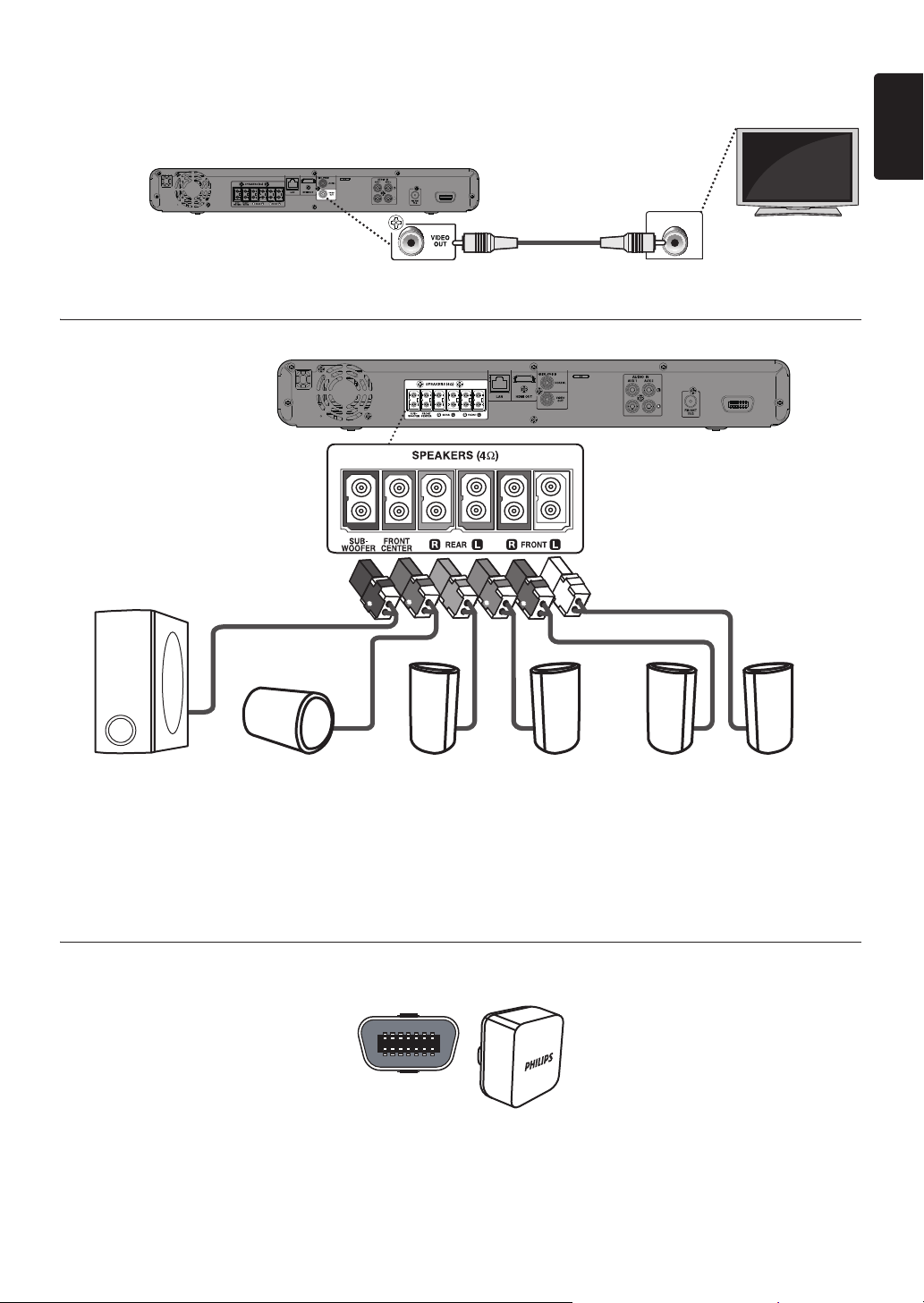
4.1. Placing the Speakers
The Philips Blu-ray Disc™ Home Theater is simple to install. However, proper system placement is critical to ensure an
optimum sound experience.
1. Place the main unit near to the TV.
2. Place the speakers system at normal listening ear-level and directly parallel to the listening area.
3. Place the subwoofer at the corner of the room or at least 1meter away from the TV.
D Note
• The placement diagram shown here is only a guideline that provides great system performance. You may find other
placement choices that are more suitable for your room layout that provide the sound experience you enjoy.
• To avoid magnetic interference, never position the front speakers too close to your TV.
• The rear speakers are labeled as REAR LEFT or REAR RIGHT.
• The front speakers are labeled as FRONT LEFT or FRONT RIGHT.
• For speaker setup, refer to “Speaker Setup” on page 38.
4.2. Connection to the TV
HDMI Connection (Supports up to 1080i
(*1)
, 1080p
(*2)
, 1080p/24 resolution.)
No analog audio connection required.
• Do not tilt the connector when inserting it into the HDMI jack, and make sure the shapes of the jack and the connector
are matched.
• When connected to an HDCP incompatible display device, the picture will not be displayed properly.
• Use an HDMI cable with the HDMI logo (a certified HDMI cable) for this connection. High Speed HDMI cable (also
known as HDMI category 2 cable) is recommended for better compatibility.
• To enjoy Blu-ray 3D™ video, connect this unit to a 3D capable TV using a 3D compatible HDMI cable.
(*1)
1080i : Outputs video data with a frame rate of 30 frames per second.
(*2)
1080p : Outputs video data with a frame rate of 60 frames per second.
FRONT
RIGHT
FRONT
CENTER
REAR
RIGHT
REAR
LEFT
SUBWOOFER
LEFT
HDMI IN
HDMI cable
(not supplied)
Your TV
EN - 17
EN
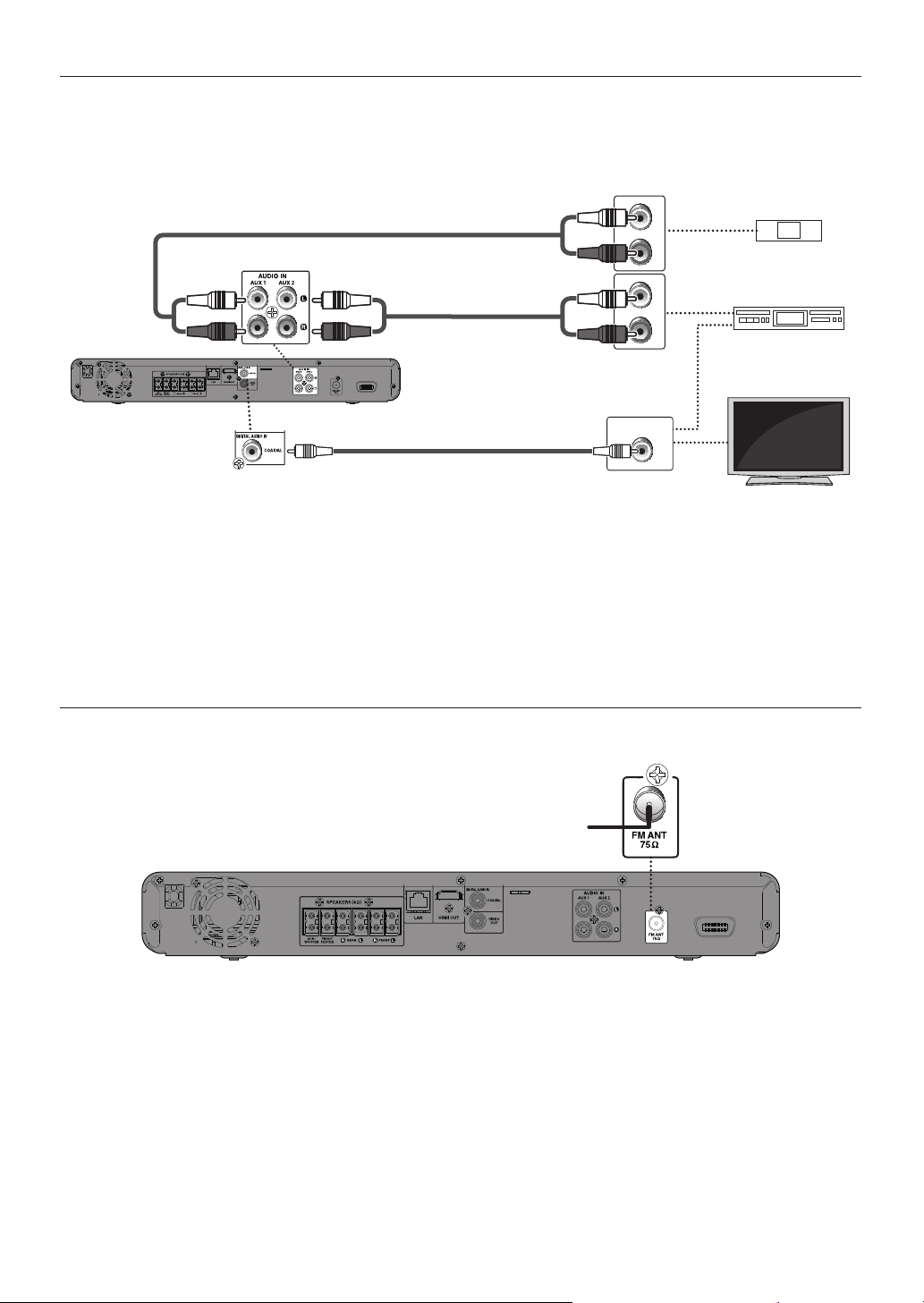
Standard Video Connection (Supports only 480i resolution.)
• Connect this unit directly to the TV. If the video cables are connected to a VCR then the pictures may be distorted due
to the copyright protection system.
4.3. Connecting Speakers and Subwoofer
1. Connect the speaker cables to the matching color sockets on the speakers.
2. Connect all the speakers and subwoofer to the matching sockets at the rear of the main unit.
Make sure that the colors of the cables and sockets match.
D Note
• To prevent unwanted noise, never place the speakers too close to the main unit, subwoofer, AC power adapter, TV or
any other radiation sources.
4.4. Connect a Wireless Module
D Note
• When you connect and switch on the wireless module, the rear surround sound is output through the connectors on
the wireless receiver.
• Please turn off the unit when you connect or disconnect the wireless module.
• When using the wireless module, please disconnect the rear speakers from the rear speaker connectors.
VIDEO IN
Your TV
Video cable
(supplied)
FRONT
LEFT
FRONT
RIGHT
FRONT CENTER REAR LEFTREAR RIGHTSUBWOOFER
Wireless rear audio input
Wireless module (not supplied) - Philips RWSS5510/F7
EN - 18
4.5. Connecting Audio from Cable Box / Recorder / Game Console or TV
• This unit provides analog and digital audio connection. You can connect the audio output from an audio / video device
(e.g. DVD Recorder, VCR, Cable / Satellite Box, game console or TV) to this Blu-ray Disc™ Home Theater in order to
enjoy the multi-channel surround sound capabilities.
• Use an audio cable (not supplied) to connect the AUDIO¬IN (AUX1 / AUX2) jacks on the main unit to the audio
output jacks on the connected device.
• Use a digital audio coaxial cable (not supplied) to connect the DIGITAL AUDIO IN (COAXIAL) jack on the main unit
to the digital audio coaxial output jack on the connected device.
D Note
• To listen to the audio output from these connections, select “Speakers” in “Audio Output” (refer to page 38) and
change the active source mode to the connected input. (Refer to “Switching Active Source Mode” on page 51.)
4.6. Connecting FM Radio Antenna
1. Connect the supplied FM wire antenna to the FM ANT 75: jack on this unit.
2. Extend the FM antenna and fix its ends to the wall for optimum reception.
D Note
• For better FM stereo reception, connect an external FM antenna (not supplied).
• Place the antenna away from your TV, VCR or other radiation source to prevent any unwanted interference.
• For FM radio playback, refer to “Radio Operations” on page 35.
COAXIAL
DIGITAL OUT
AUDIO OUT
R
L
AUDIO OUT
R
L
DVD Recorder / VCR
Cable / Satellite Box
Your TV
Digital audio coaxial cable
(not supplied)
Audio cable
(not supplied)
Audio cable
(not supplied)
FM wire antenna (supplied)
EN - 19
EN
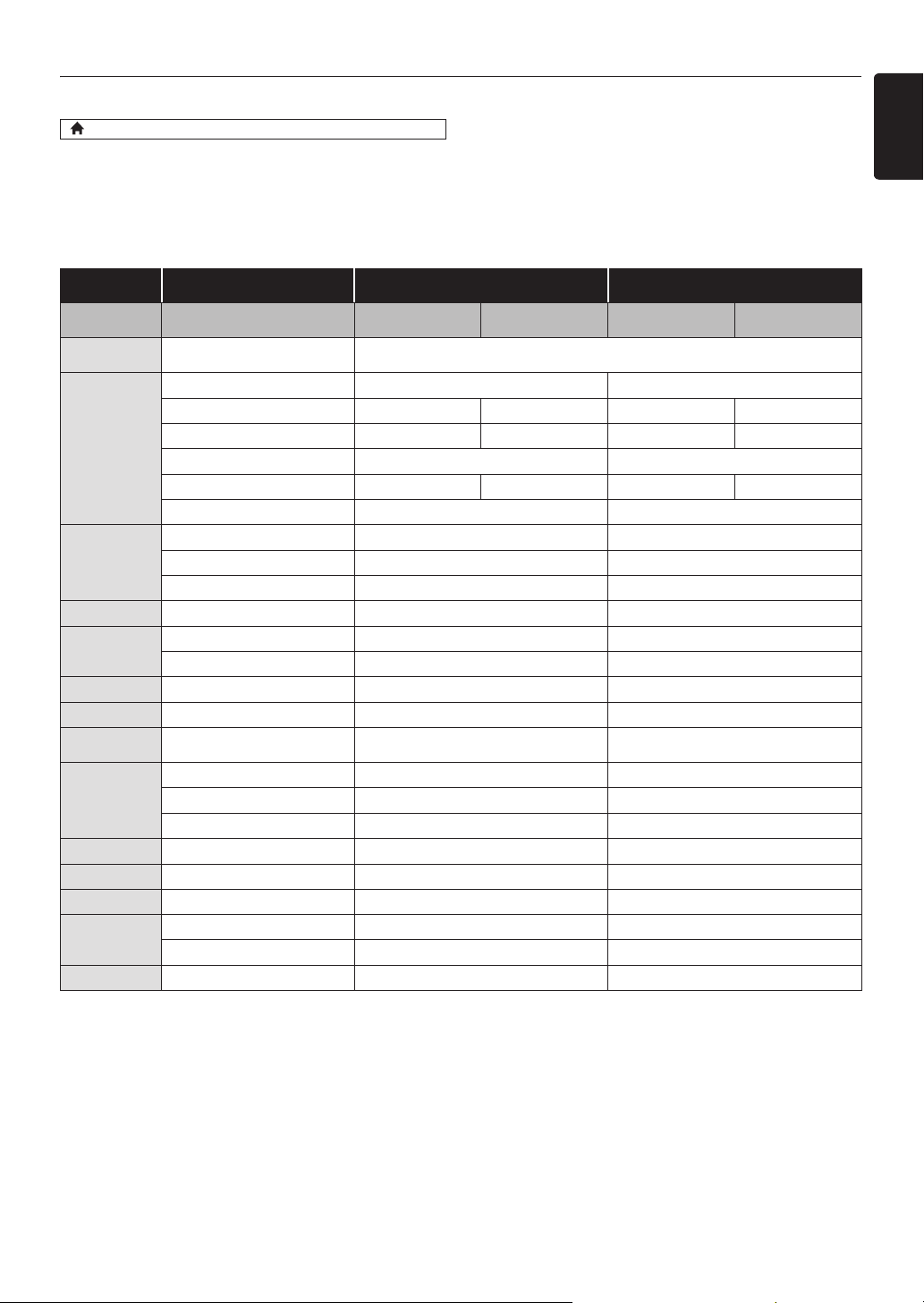
4.7. Audio Output from HDMI OUT Jack
If you set to “Speakers”:
The audio output from the 5.1ch speakers differs depending on the audio source and the setting of surround mode.
(Refer to “Selecting Surround Mode” on page 50.)
If you set to “HDMI Normal” or “HDMI LPCM”:
Refer to the table below for the audio output from HDMI OUT jack.
*1
) Fully decoded.
*2
) Only the independent substream is decoded.
*3
) Dolby TrueHD stream is decoded.
*4
) Only the Dolby Digital substream is decoded.
*5
) Only the core substream is decoded.
(home) A
“Setup”
A “Audio Setup” A
“Audio Output”
“Audio Output”
setting
“HDMI Normal” “HDMI LPCM”
“Blu-ray Disc Audio”
setting A
“Primary Audio
Only”
“Mix Audio Output”
“Primary Audio
Only”
“Mix Audio Output”
Media
ª
Audio Source
ª
Which audio format can be output depends on the compatibility of the connected
device.
BD-video
Dolby Digital Dolby Digital Multi LPCM
Dolby Digital Plus Dolby Digital Plus Dolby Digital Multi LPCM
*1
Multi LPCM
*2
Dolby TrueHD Dolby TrueHD Dolby Digital Multi LPCM
*3
Multi LPCM
*4
DTS
®
DTS
®
Multi LPCM
DTS-HD
®
DTS-HD
®
DTS
®
Multi LPCM
*1
Multi LPCM
*5
LPCM Multi LPCM Multi LPCM
DVD-video
Dolby Digital Dolby Digital Multi LPCM
DTS
®
DTS
®
Multi LPCM
LPCM 2ch LPCM 2ch LPCM
DTS-CD DTS
®
DTS
®
Multi LPCM
AVCHD
Dolby Digital Dolby Digital Multi LPCM
LPCM Multi LPCM Multi LPCM
Audio CD LPCM 2ch LPCM 2ch LPCM
MP3 MP3 2ch LPCM 2ch LPCM
Windows
Media™ Audio
WMA 2ch LPCM 2ch LPCM
DLNA Video
Dolby Digital Dolby Digital Multi LPCM
MP2 2ch LPCM 2ch LPCM
LPCM Multi LPCM Multi LPCM
DLNA Music MP3 / WMA / LPCM 2ch LPCM 2ch LPCM
Netflix WMA 2ch LPCM 2ch LPCM
Film Fresh AAC 2ch AAC 2ch LPCM
VUDU
Dolby Digital Plus Dolby Digital Plus Multi LPCM
*1
MP3 2ch LPCM 2ch LPCM
Pandora MP3 2ch LPCM 2ch LPCM
EN - 20
D Note
• If the connected device is not compatible with HDMI BITSTREAM, audio will be output as multi LPCM or 2-channel
down-mixed LPCM depending on the capability of the connected device even if you select “HDMI Normal” in
“Audio Output” setting.
• If the connected device is not compatible with AAC, audio will be output as LPCM depending on the capability of the
connected device.
• When playing back a BD-video which only contains the primary audio, the audio output will be the same case as
“Primary Audio Only” even if “Blu-ray Disc Audio” is set to “Mix Audio Output”.
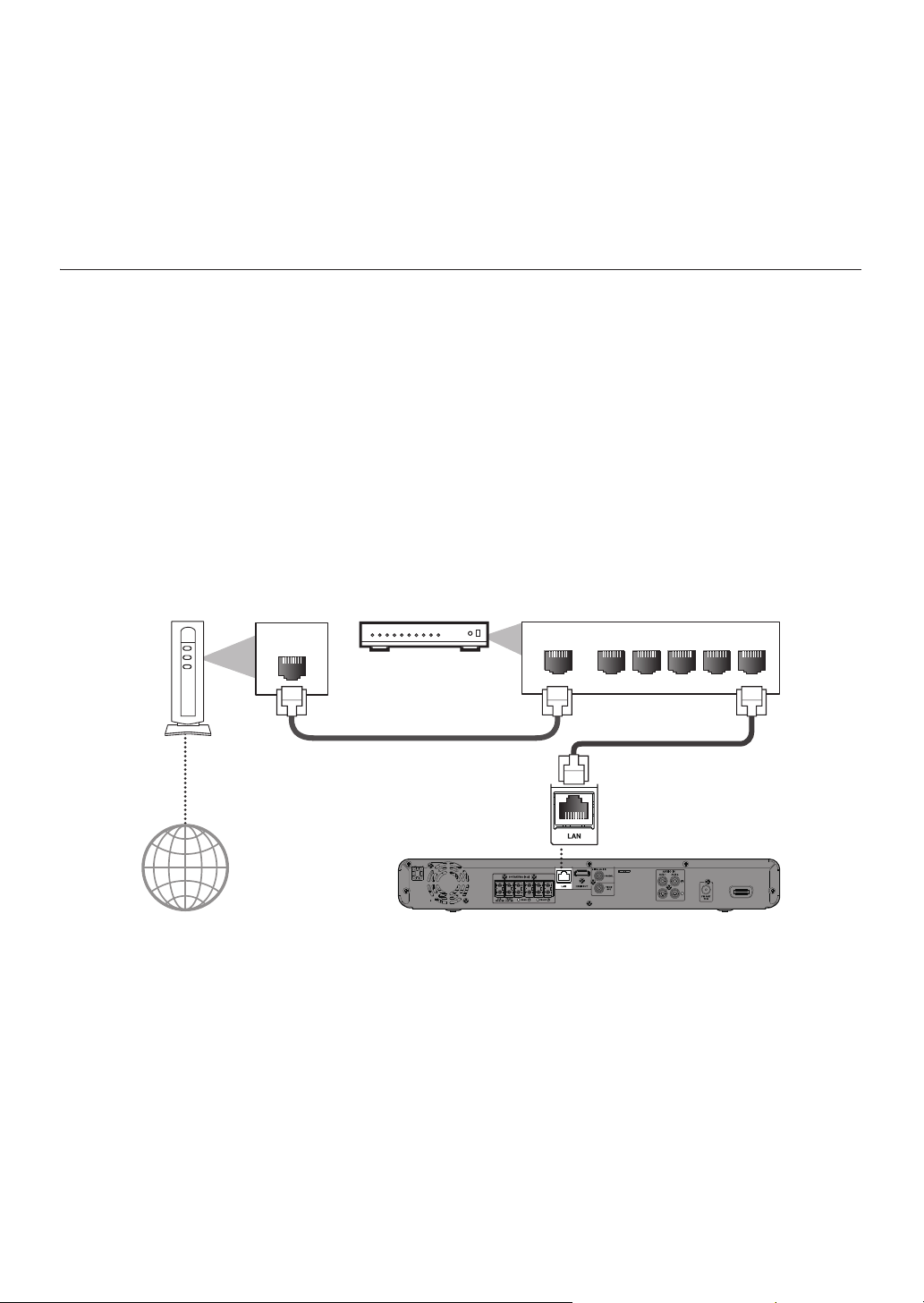
4.8. Connection to the Network
By connecting this unit to the Internet, you can update the software via the Internet, play contents stored on DLNA home
media servers, access BD-Live™, Netflix, Film Fresh, VUDU and Pandora services.
D Note
• For a stable connection, wired connection is recommended when using following features.
(Using following features with Wi-Fi connection can be affected by other devices using radio frequencies.)
- Play contents from DLNA certified home media servers
- Video streaming services (Netflix / Film Fresh / VUDU)
- Internet radio service (Pandora)
- Network update
Wired Connection
C Caution
• Do not insert any cable other than a LAN cable to the LAN terminal to avoid damaging the unit.
• Do not connect your PC directly to the LAN terminal of this unit.
D Note
• After you made a wired connection, set up necessary network settings.
(For network setting of wired connection, refer to “Wired” on page 42.)
• If your modem does not have router functions, connect a wired router.
• If your modem has router functions but there is no vacant port, add a hub.
• For a wired router, use a router which supports 10BASE-T / 100BASE-TX ETHERNET standard.
• Please purchase shielded LAN cables at your local store and use them when you connect to network equipment.
WAN LAN
12345
LAN
Internet
LAN cable
(not supplied)
LAN cable
(not supplied)
Networking equipment
(modem, etc.)
Broadband router or hub
EN - 21
EN
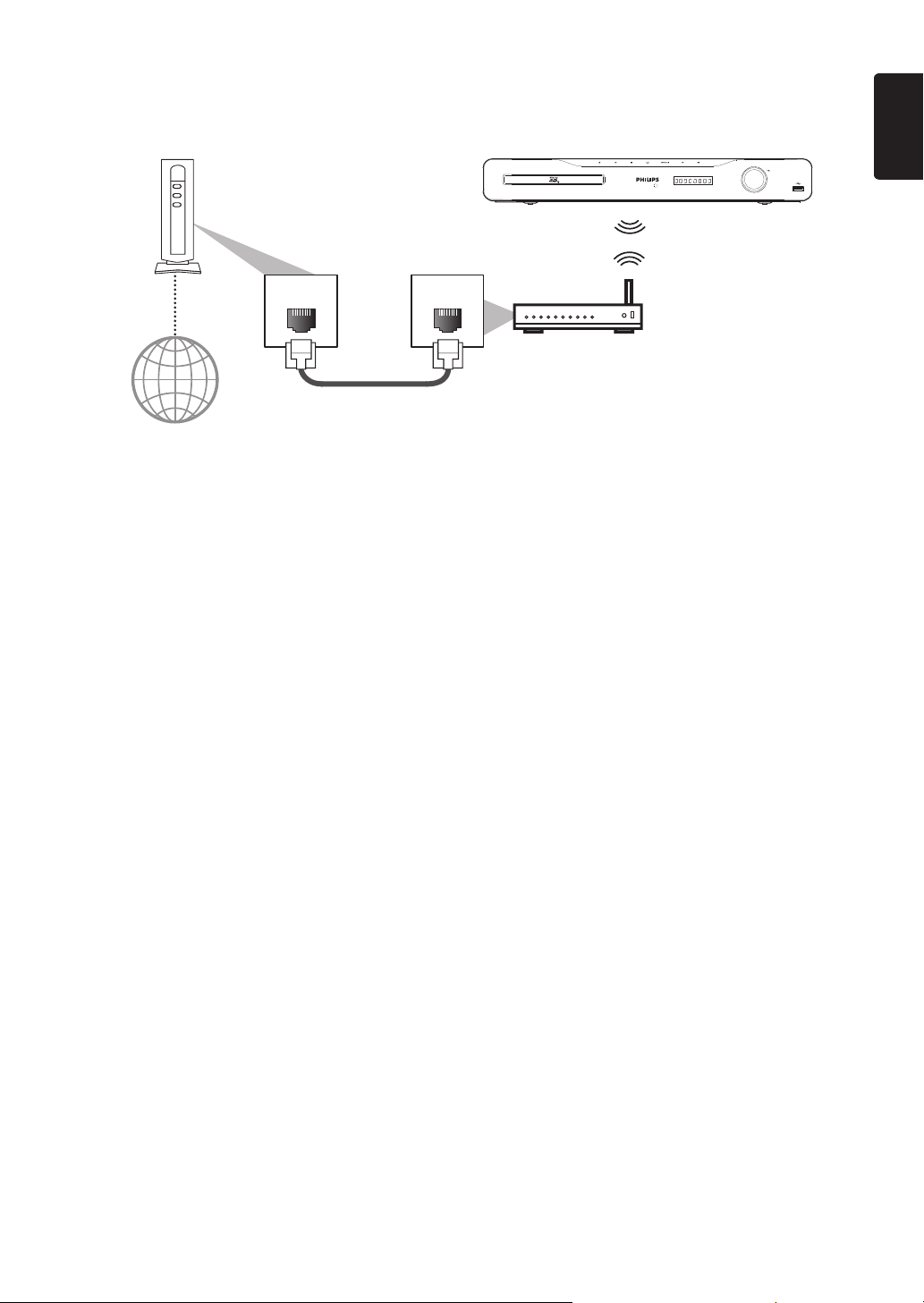
Wi-Fi Connection
D Note
• After you made a Wi-Fi connection, set up necessary network settings.
(For the network setting of Wi-Fi connection, refer to “Wireless” on page 44.)
• For a Wi-Fi router, use a router which supports IEEE 802.11 b/g/n.
(“n” type is recommended for stable operation of the Wi-Fi network.)
• Set the Wi-Fi router to Infrastructure mode. This unit does not support Ad-hoc mode.
• Other radio devices or obstacles may cause interference to the Wi-Fi network connection.
LAN WAN
LAN cable
(not supplied)
Internet
Networking equipment
(modem, etc.)
Wi-Fi router
EN - 22
5. BEFORE YOU START
5.1. Finding the Viewing Channel /
Source on Your TV
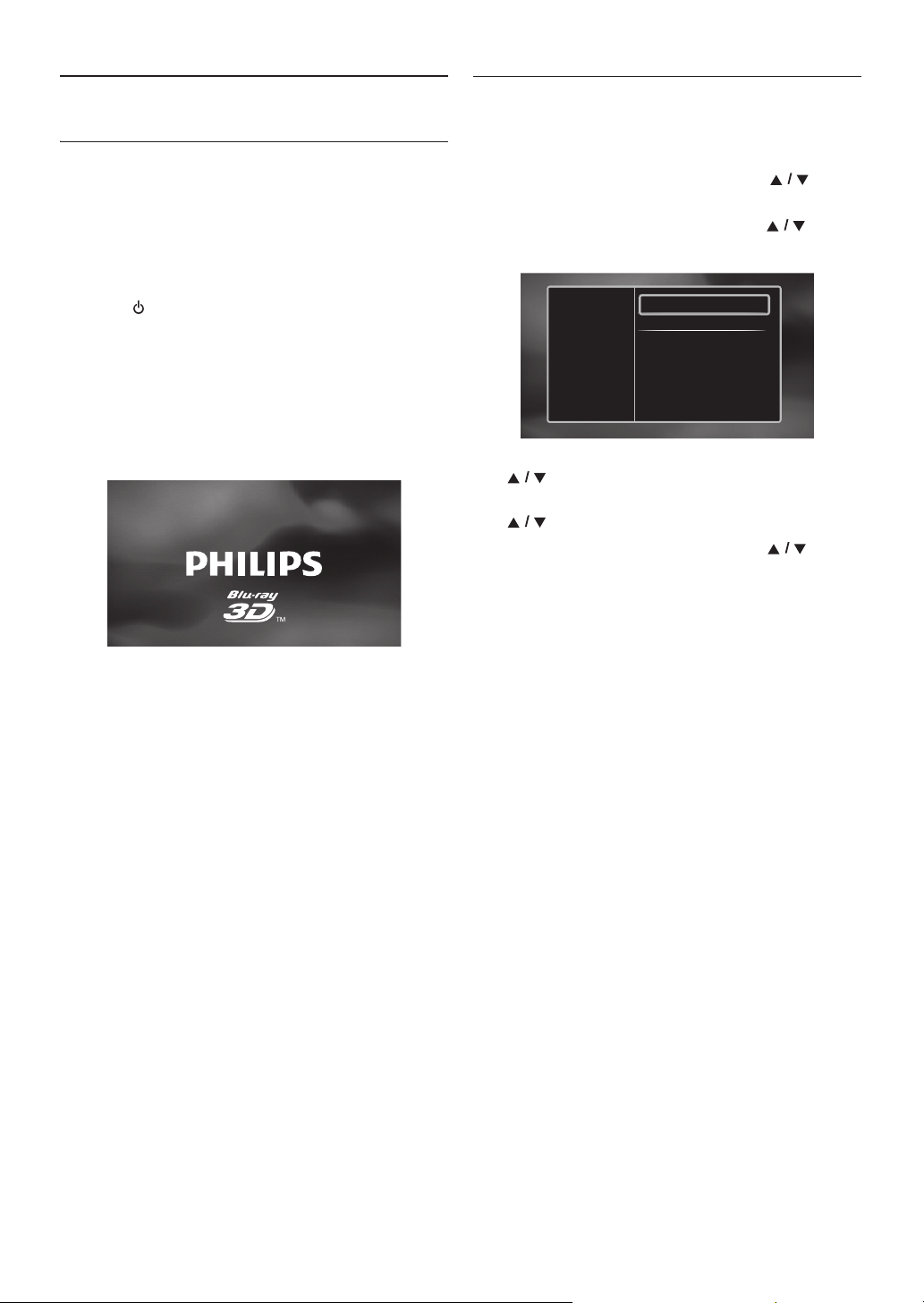
After you have completed all the connections, you must
find the viewing channel (external input source) on your
TV.
1. After you have made all the necessary connections,
press [ (standby/on)] to turn on the unit.
2. Turn on your TV.
3. Press the button on the TV’s remote control that
accesses the external input channel. It may be labeled
“SOURCE”, “AV”, “AUX” or “SELECT” (refer to your
TV’s user manual). Or press “2” on the TV’s remote
control, then press channel down button repeatedly
until you see the Philips splash screen.
This is the correct viewing channel (external input
source).
• If the TV is connected by an HDMI cable, it may take
a while for the Philips splash screen to come up.
• If a certain amount of time has passed since you
turned on the unit, welcome screen appears the first
time you turn on this unit.
5.2. Initial Setup
Please follow the instructions below to complete the initial
setup.
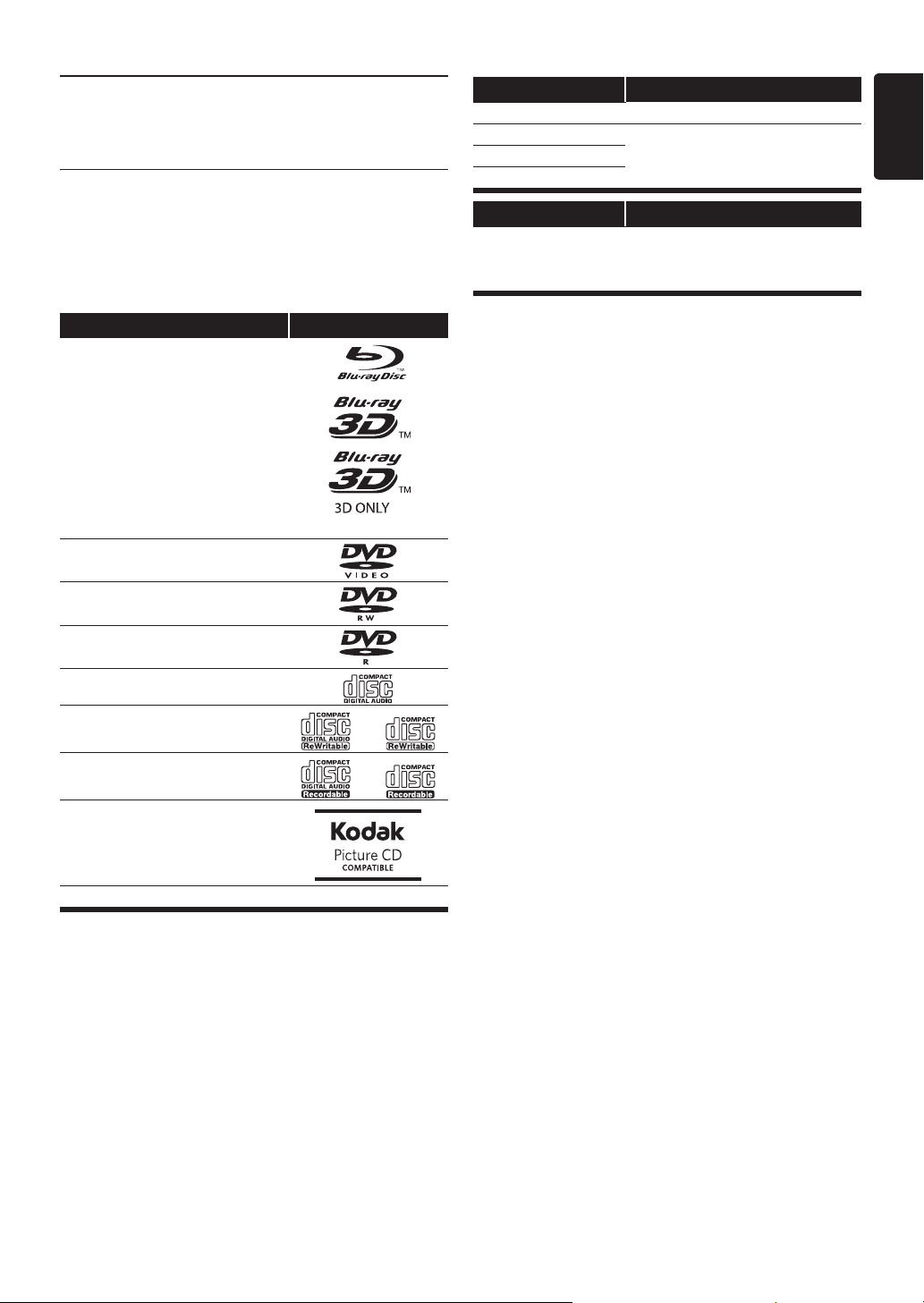
1. While welcome screen is displayed, use [] to
select “Next”, then press [OK].
2. Language setup screen will appear. Use [] to
select your language, then press [OK].
3. Quick start mode setup screen will appear. Use
[] to select the desired mode, then press [OK].
4. Auto software update setup screen will appear. Use
[] to select the desired mode, then press [OK].
5. Network setup screen will appear. Use [] to
select the desired mode, then press [OK].
• If you select “Wired”, refer to “Wired” on page 42
for further operation.
• If you select “Wireless”, refer to “Wireless” on
page 44 for further operation.
Please select your
language for on-screen
display.
English
Español
Français
EN - 23
EN
6. INFORMATION ON
PLAYBACK
6.1. Information on Playback
Before you start playing back a disc, read the following
information.
Playable Discs and Files
(*) Due to the intentional progression of the Blu-ray Disc™
format by its standard setting authority, the company
cannot guarantee or warrant the playability of future
extensions of the Blu-ray Disc™ format with this
product.
Recommended Specifications
AVCHD
This unit cannot play back standalone AVCHD files (*.m2ts,
*.mts or *.m2t) written to a DVD. The DVD containing
AVCHD files must have a proper file and folder structure
meeting AVCHD format specifications.
Please use AVCHD compliant device / software to burn or
copy AVCHD files to DVD. (Please refer to user manuals
of the device / software for more information.)
MP3 / Windows Media™ Audio
JPEG
Resolution
Folder / File Number Limitations
Blu-ray Disc™, DVD and USB storage device
• 999 folders (groups) and 9,999 files.
CD
• 255 folders (groups) and 999 tracks / files.
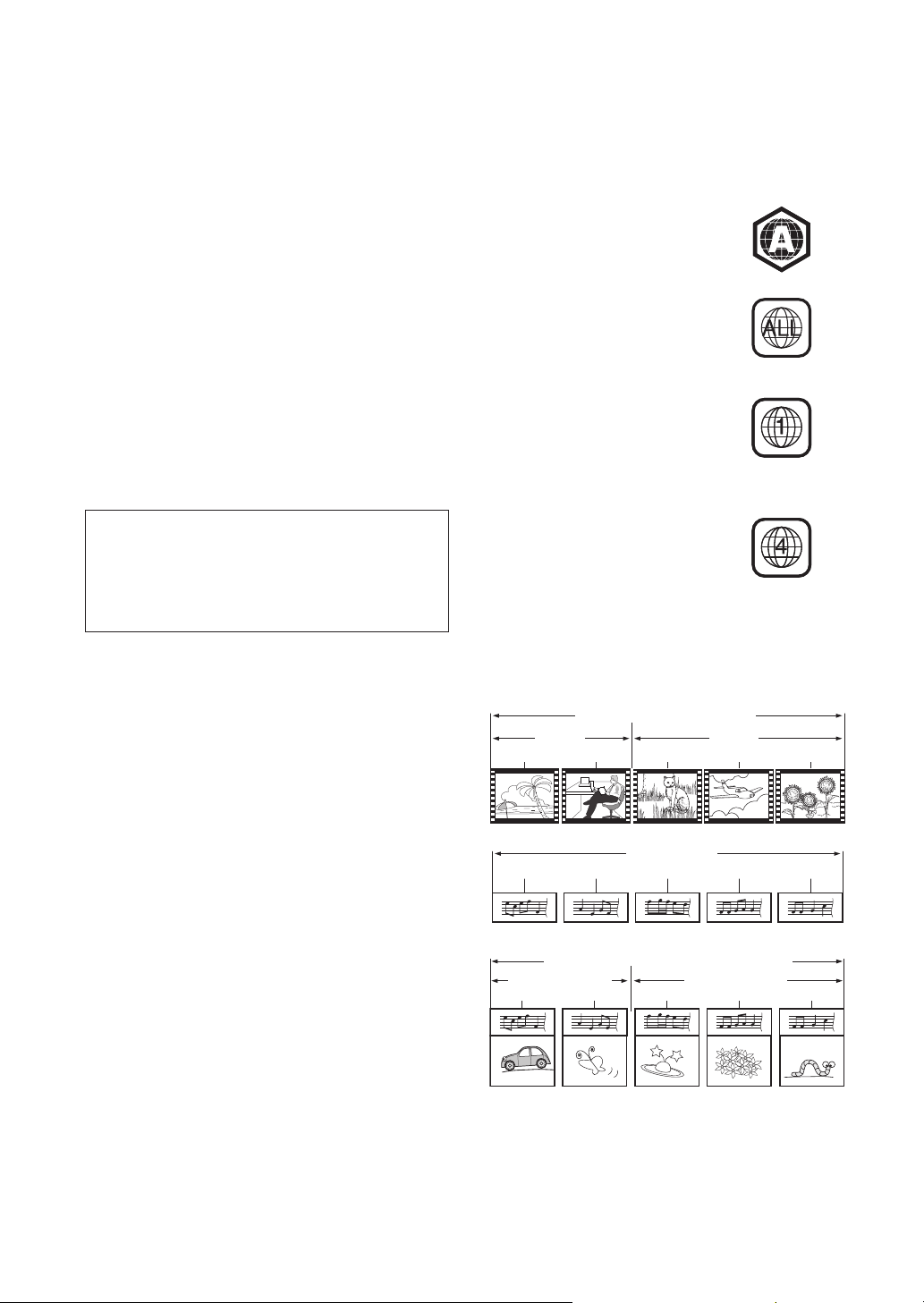
Playable discs Logos
Blu-ray Disc™
- BD-video
- Blu-ray 3D™ Disc
- Blu-ray 3D™ only Disc
- BD-RE* (ver. 2.1)
(Recorded in BDMV format)
- BD-R* (ver. 1.1 / 1.2 / 1.3)
(Recorded in BDMV format)
(Unfinalized disc may not be
played back.)
DVD-video
DVD-RW
(finalized video mode discs only)
DVD-R
(finalized video mode discs only)
CD-DA (audio CD)
CD-RW
CD-R
KODAK Picture CD
DTS-CD
-
Playable files Media
AVCHD DVD-RW/-R
MP3 BD-RE/-R
DVD-RW/-R
CD-RW/-R
USB storage device
Windows Media™ Audio
JPEG
Readable devices Playable files / data
USB storage device
supports USB1.1 /
USB2.0
MP3, WMA, JPEG, picture-in-picture
commentary, subtitles or other extras
for BD-ROM ver. 2 (Profile 2.0 / Profile
1.1)
• Sampling frequency
: 32 kHz, 44.1 kHz or 48 kHz
• Constant bit rate
: 112 kbps - 320 kbps (MP3),
48 kbps - 192 kbps (WMA)
• Upper limit
: 2,560 x 1,900 dots
(sub sampling is 4:4:4)
5,120 x 3,840 dots
(sub sampling is up to 4:2:2)
• Lower limit
: 32 x 32 dots
• Maximum file size of a
picture
: 12MB
EN - 24
Caution / Note for USB Storage Device
C Caution
• Philips is not responsible if the USB storage device is
not supported nor is it responsible for damage or loss
of data from the device.
• Do not try to open or modify the USB storage device.
• Do not touch the terminal surface with your fingers or
any metals.
D Note
• This unit supports USB storage device with FAT16 /
FAT32 file system.
• This unit does not support NTFS file system.
• This unit may not read USB storage devices formatted
on a computer. If that is the case, please reformat the
USB storage devices in this unit and try again.
• Please keep the USB storage devices in their cases
when you are not using them.
• Some USB storage devices may not work with this unit.
• This unit can read SD cards using USB card reader (not
supplied).
Readable cards:
Unplayable Discs and Files
The following discs will not be played back in this unit.
•CD-ROM
•DVD-RAM
•DVD-audio
• HD DVD
• CD-I (compact disc-interactive)
• VSD (video single disc)
•video CD
•SVCD
• SDXC Memory Card
• microSDXC Card
• unfinalized disc
• BD-RE (ver.1.0)
• BD-RE (ver.2.1) (Recorded in BDAV format)
• BD-R (ver.1.1 / 1.2 / 1.3) (Recorded in BDAV format)
• Blu-ray Disc™ / DVD / CD / USB storage device / SD card
contains DivX
®
files
• Blu-ray Disc™ that contains AVCHD files
• Blu-ray Disc™ / DVD hybrid disc (played back as a
BD-video only)
• DVD-RW/-R recorded in non compatible recording
format
• Super Audio CD - Only the sound on the CD layer can
be heard. The sound on the high-density Super Audio
CD layer cannot be heard.
• Playability of dual discs is not guaranteed.
• This unit cannot play back the disc contents protected
by Windows Media™ Digital Rights Management
(DRM).
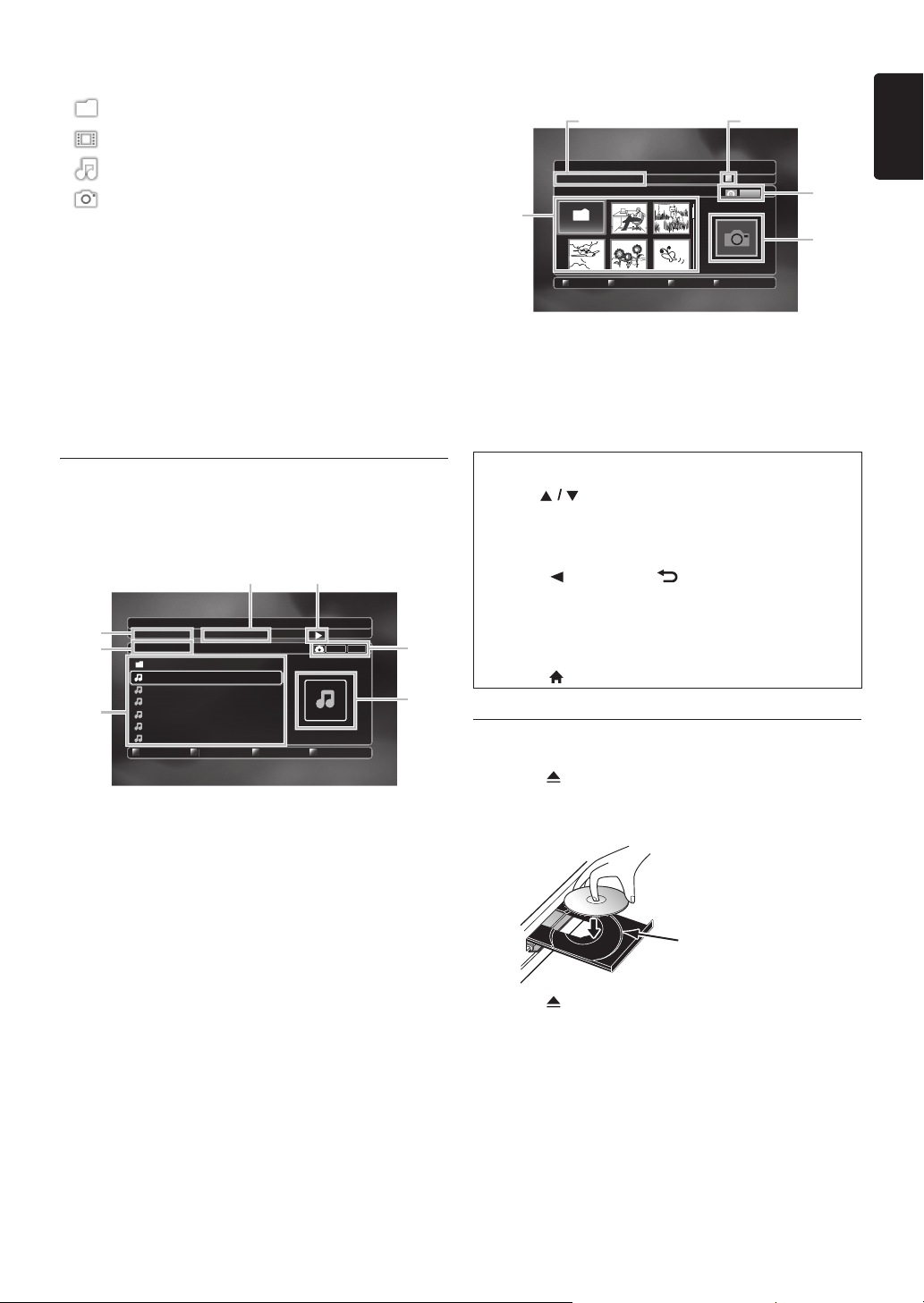
Region Codes
Hint for Disc Playback
The contents of a disc are generally divided into sections or
folders (groups of titles / files) as shown below.
SD Memory Card (8 MB - 2 GB)
miniSD Card (16 MB - 2 GB)
microSD Card (256 MB - 2 GB)
SDHC Memory Card (4 GB - 32 GB)
miniSDHC Card (4 GB - 8 GB)
microSDHC Card (4 GB - 16 GB)
This unit has been designed to
play back BD-video with region
“A”, DVD-video with region
“ALL” or “1” for HTS5506/F7
(USA / Canada) and region “ALL”
or “4” for HTS5506/F8 (Mexico).
You cannot play back BD-video
or DVD-video that are labeled
for other regions. Look for the
symbols on the right on your
BD-video or DVD-video.
If these region symbols do not
appear on your BD-video or
DVD-video, you cannot play back
the disc in this unit. The letter or
number inside the globe refers to
region of the world. A BD-video
or DVD-video labeled for a
specific region can only be played
back in the unit with the same
region code.
BD-video
DVD-video
For HTS5506/F7
(USA / Canada)
For HTS5506/F8
(Mexico)
BD-video, DVD-video, AVCHD
chapter 1 chapter 2 chapter 1 chapter 2 chapter 3
track 1 track 2 track 3 track 4 track 5
Audio CD
title 1 title 2
file 1 file 2 file 3 file 4 file 5
MP3, Windows Media™ Audio, JPEG
folder (group) 1 folder (group) 2
EN - 25
EN
Description for Icons
[] : group (folder) icon
[] : video file icon
[] : music file icon
[] : photo file icon
- “Folders” refers to the groups of files.
- “Tracks” refers to the contents recorded on the audio
CD.
- “Files” refers to the contents on a disc which are
recorded in AVCHD, MP3, Windows Media™ Audio,
JPEG (including KODAK Picture CD) file format.
D Note
• Unrecognizable characters will be replaced with
asterisks.
6.2. Guide to File List
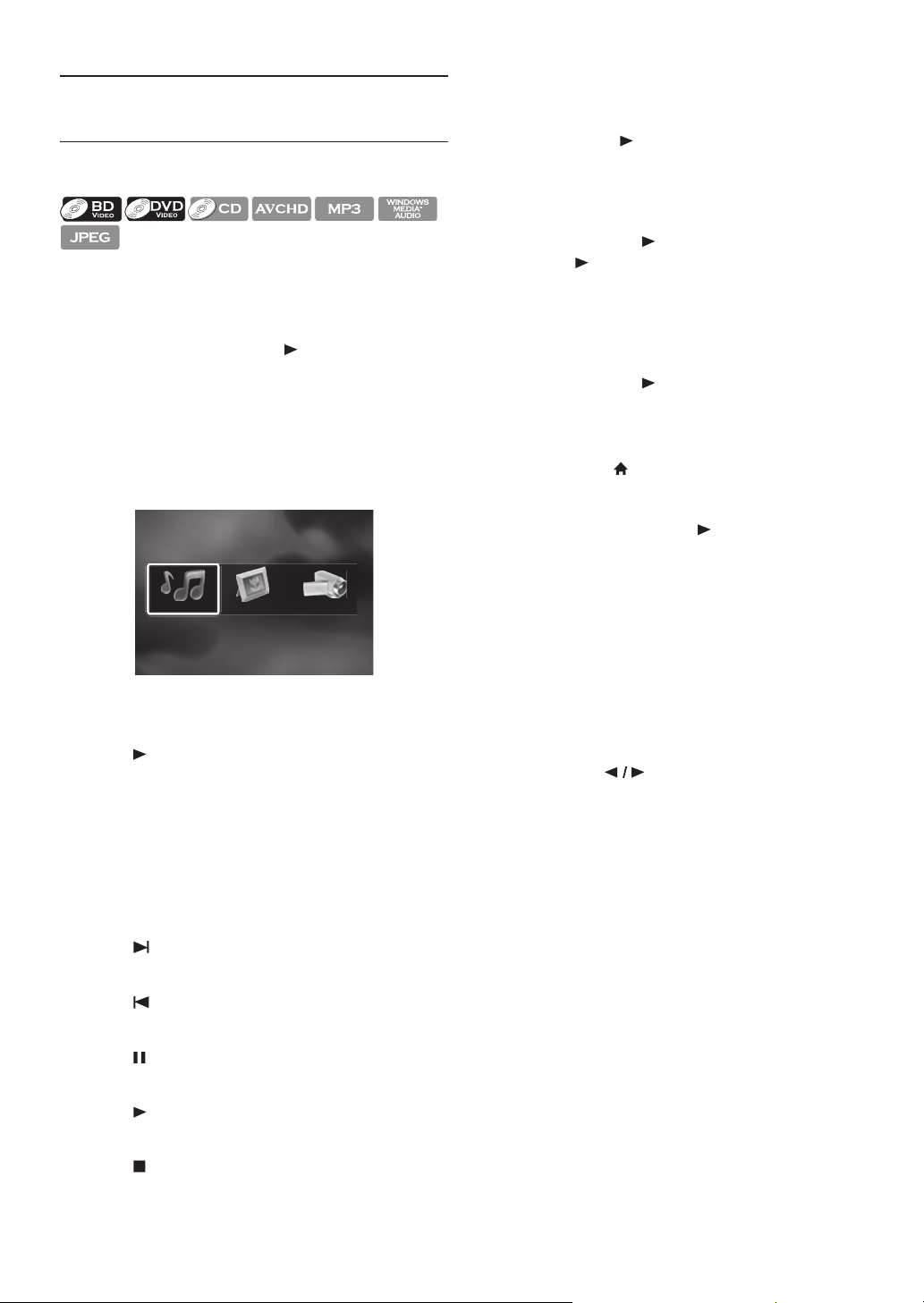
Video / Music File List
e.g.) MP3 mode
1. Current track (file) number / Total number of
tracks (files)
2. Elapsed playing time of the current track
3. Playback status
4. Media type
5. Image
6. Group (folder) / File list
7. Name of disc / USB storage device
Picture File List
1. Current file number / Total number of files
2. Playback status
3. Media type
4. Image
5. Group (folder) / File list (thumbnails)
6.3. How to Insert a Disc
1. Press [(open/close)] to open the disc tray.
2. Place the disc on the disc tray with its label side facing
up.
3. Press [(open/close)] to close the disc tray.
• It may take a while to load the disc.
5
4
23
1
7
6
DATACD
1 / 25
0 : 00 : 12
MP3_
Audio
MP3_1.mp3
MP3_2.mp3
MP3_3.mp3
MP3_4.mp3
MP3_5.mp3
MP3_6.mp3
File List
Track
Time
Disc
Page Up
Pa
g
e Down
How to Navigate through the Track / File List
•Use [] to move the highlight up and down in the
list.
• To access the files in a group (folder), select the
desired group (folder), then press [OK].
• Press [] or [BACK ] to go back to the
previous hierarchy.
• Press [Red] or [Green] to change the page of the
list.
• Press [Yellow] to go back to the media mode screen.
• Press [(home)] to go back to the home menu.
Picture CD
12
5
3
4
1/50
Thumbnail
Track
Pictures
Page Up
Photo Folder
Page Down
Align the disc to the disc tray
guide.
EN - 26
7. BASIC PLAYBACK
7.1. Playing Back a Disc
1. Insert a disc (refer to “How to Insert a Disc” on
page 25).
• For Blu-ray Disc™ / DVD / audio CD or a disc
containing only one type of file, playback will start
automatically. If not, press [(play)].
• Some discs may show a title or a disc menu. In this
case, refer to “Using the Title / Disc / Pop-up Menu”
on page 29.
• Media filter screen will appear.
2. Select the type of the file you want to play back, then
press [OK].
3. For “AVCHD”, playback will start automatically.
For “Music”, track / file list will be displayed. Select a
group (folder) or track / file you want to play back then
press [(play)] or [OK] to start playback.
• Refer to “Video / Music File List” on page 25 and
“How to Navigate through the Track / File List” on
page 25.
For “Photo”, thumbnail screen will appear.
• Refer to “Picture File List” on page 25 and “How to
Navigate through the Track / File List” on page 25.
To skip to the next track / file:
Press [ (next)].
To skip to the previous track / file:
Press [ (previous)].
To pause playback:
Press [ (pause)].
To return to normal playback:
Press [(play)].
To stop playback:
Press [(stop)].
Playback will be in Resume-On-Stop mode.
Resume-On-Stop Mode
Blu-ray Disc™ / DVD / AVCHD:
When you press [(play)] next time, the playback
will start from the point where it has been stopped.
Audio CD:
Playback will start from the point where it is stopped
next time you press [(play)]. If you press [OK]
instead of [(play)], playback will start from the
beginning of the track / file instead of resuming from the
stop point.
MP3 / WMA / JPEG / KODAK Picture CD:
Playback will start from the beginning of the current file
next time you press [(play)] or [OK].
D Note
• Playback will also stop and the home menu will appear
when you press [(home)].
• For BD-Java application, the Resume-On-Stop may not
be available.
• If you press [OK] instead of [(play)], playback can
be started from the beginning of the disc even if it was
in the Resume-On-Stop mode.
• Resume-On-Stop mode remains in effect even after
power is turned off, but will be canceled once the disc
is ejected.
• With regard to the multi-border BD-RE/-R, additionally
recorded sections cannot be recognized.
• With regard to the multi-border DVD-RW/-R,
additionally recorded sections may not be recognized.
E Tips for JPEG / KODAK Picture CD Playback
• Every press of [] will turn the image by 90
degrees when an image is displayed.
• During playback, press [TOP MENU] to display
thumbnail screen.
• This unit conforms to ver.7.0 of KODAK Picture CD.
For details of KODAK Picture CD, contact a shop that
provides developing service for Kodak Inc.
• Some unplayable folders or files may be listed due to
the recording status.
• High-resolution JPEG files take longer to be displayed.
• Progressive JPEG files (JPEG files saved in progressive
format) cannot be played back in this unit.
Music Photo AVCHD
EN - 27
EN
7.2. Playing Back a Blu-ray 3D™ Disc
This unit can play back Blu-ray 3D™ discs which contain
stereoscopic 3D video. In order to view Blu-ray 3D™
videos, you need to have the following:
- 3D capable TV
- 3D compatible HDMI cable
- 3D glasses
- Blu-ray 3D™ Disc or Blu-ray 3D™ only Disc
1. Connect 3D capable TV with a 3D compatible HDMI
cable.
• Refer to “Connection to the TV” on page 16.
2. Insert a Blu-ray 3D™ Disc or a Blu-ray 3D™ only Disc.
• Refer to “How to Insert a Disc” on page 25.
3. Playback may start automatically. If not, press
[(play)].
Some discs may show a title or a disc menu. In this case,
refer to “Using the Title / Disc / Pop-up Menu” on
page 29.
To pause playback:
Press [ (pause)].
To return to normal playback:
Press [(play)].
To stop playback:
Press [(stop)].
Playback will be in Resume-On-Stop mode, and the
home menu will appear.
Resume-On-Stop Mode
When you press [(play)] next time, the playback
will start from the point where it has been stopped.
C Caution
• Watching 3D videos may cause headache, dizziness or
tiredness.
To avoid such consequences, do not watch 3D videos
for a long period of time.
• Watching 3D videos is not recommended for the
following people:
- People who are susceptible to motion sickness
- Children from walking age to seven years
- Pregnant woman
For more information, refer to “IMPORTANT HEALTH
AND SAFETY INFORMATION FOR 3D TELEVISIONS”
on page 59.
D Note
• For more information, refer to the 3D TV’s manual.
• When “3D Output” is set to “Auto (XX)” and your TV
is not 3D capable, playback of Blu-ray 3D™ discs will
revert to 2D depending on the disc.
• You can turn off 3D output mode by setting
“3D Output” to “2D”. (Refer to page 38.)
• For some Blu-ray 3D™ only discs, playback in 2D mode
is not possible.
• You can check the current output mode (2D or 3D) by
pressing [INFO] during playback.
• If you change “3D Output” setting to “2D” while the
unit is in the Resume-On-Stop mode of Blu-ray 3D™
Disc playback, the resume information will be cleared.
7.3. Playing Back Contents on a USB
Storage Device
You can play back MP3 / WMA / JPEG files from a USB
storage device. With the USB storage device, you can also
enjoy the following functions.
- Special additional contents for BD-ROM Profile 1
ver.1.1. (For more information about the special
additional contents, refer to the instruction book that
came with the disc.)
- BD-Live™ function (BD-ROM ver. 2 Profile 2.0). (For
more information about BD-Live™, refer to page 31.)
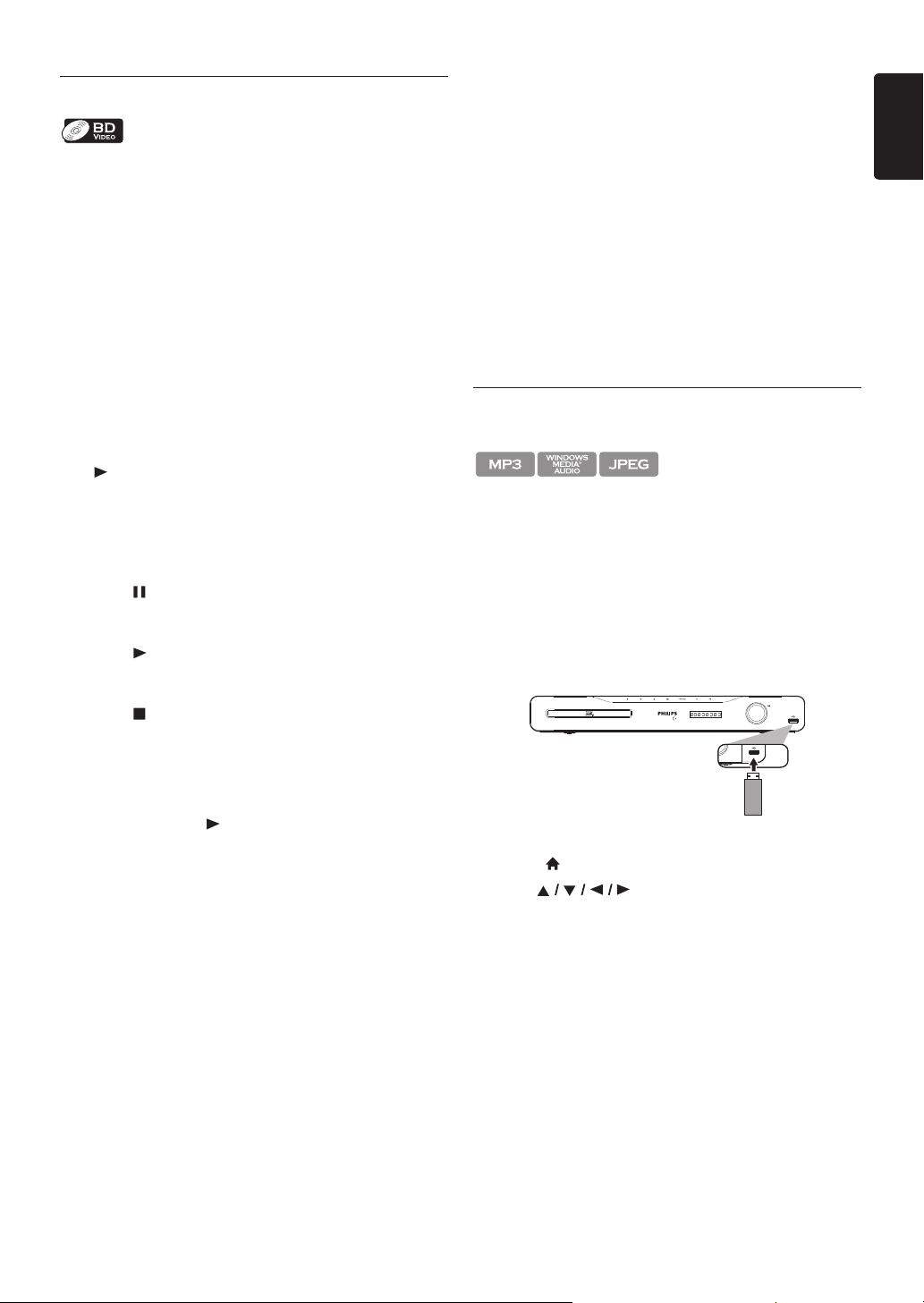
1. Connect a USB storage device to the USB input.
2. Press [(home)].
3. Use [] to select “Browse USB”, then
press [OK].
4. Follow steps 2 to 3 in “Playing Back a Disc” on page 26.
To remove the USB storage device:
In stop mode, pull it out slowly.
EN - 28
C Caution
• Do not remove the USB storage device or switch the
unit to standby mode while the contents of the device
are being accessed. It may result in malfunction or loss
of the device data.
• Philips cannot be held responsible if your USB storage
device is not supported, nor will Philips accept any
liability for damage or loss of stored data.
• If a USB card reader is connected, files in an SD card
which is connected first to the slot of the reader will be
displayed.
D Note
• The resume information will be cleared when;
- [(stop)] is pressed while in the Resume-On-Stop
mode.
- the USB storage device is removed.
- the unit is switched to standby mode.
• Do not delete the folders or files in the USB storage
device with your computer. This unit may not read USB
storage devices formatted on a computer.
• If a folder or file name includes one of the following
unrecognizable characters, the folder or file name may
not be displayed correctly.
- Unrecognizable characters:
• This unit can read MP3 / WMA / JPEG files in an SD
card by using USB card reader (not supplied).
7.4. Playing Back Video / Music / Photo
from DLNA Certified Home Media
Servers
On this unit, you can play video, music and photo files
stored on DLNA certified home media servers connected
to your home network. In order to use this feature, you
must connect this unit to the Internet. (unwarranted for
wireless environment)
• For details, refer to the user manual of the DLNA
certified device.
1. Follow steps 1 to 2 in “Before Using Network Services”
on page 36.
2. Start DLNA home media servers in your home
network.
3. Press [(home)].
4. Use [] to select “Home Network”, then
press [OK].
• This unit will start loading the home server list.
• To cancel loading, press [(stop)].
• To reload the home server list, press [Yellow].
5. After loading, home server list will appear. Select a
home server you want to access, then press [OK].
6. File list of the selected home server will appear. Select a
file you want to play back, then press [(play)] or
[OK] to start playback.
• If you select a folder, select a file in the folder and
then press [(play)] or [OK] to start playback.
• Refer to “Guide to File List” on page 25.
To control the playback, use following buttons.
D Note
• For the home server list, maximum of 10 servers can be
displayed.
• The system can recognize up to 9,999 files (including
folders).
• The 10th and deeper hierarchies cannot be displayed.
• This unit supports following formats. (Formats other
than listed below cannot be recognized.)
- Video : MPEG 1, MPEG 2 PS, MPEG 2 TS / TTS
- Music : LPCM, MP3, WMA
- Photo : JPEG
• Unplayable files in the home server will not be
displayed in the file list.
• For some files, playback is not available even if displayed
in the file list.
• In order to play back the contents in the home servers,
the player and the servers must be connected to the
same access point.
. , " = + [ ] ; / \ : | ¥
Button Action
[ (next)]
For video files, playback will be step by
step in pause mode.
[(forward)]/
[ (reverse)]
During playback, press to fast reverse/
forward the playback.
[ (pause)]
Pause the playback.
[(play)]
Return to normal playback.
[(stop)]
Stop the playback. (For video files,
playback will be in Resume-On-Stop
mode.)
Resume-On-Stop mode for video
files
Playback will start from the point where
it is stopped next time you press
[(play)]. If you press [OK] instead
of [(play)], playback will start from
the beginning of the file instead of
resuming from the stop point.
8 / 1234
0 : 00 : 12
DATA
Photo
Video
MP3_1.mp3
WMA_1.wma
JPEG_1.jpg
JPEG_2.jpg
M2TS_1.m2ts
File List
Track
Time
Page Up
Pa
g
e
Down
S
er
v
er Li
st

EN - 29
EN
• Compatibility and available playback function may differ
depending on the home server.
• If you select a photo file in step 6 on page 28, the
selected file will be played back and go to the next file
in the current hierarchy in turn every 10 seconds.
• For photo files, every press of [] will turn the
image by 90 degrees when an image is displayed.
• The quality of the playback picture or audio differs
depending on your network condition.
• It will take a while for loading when going to the other
hierarchy.
7.5. Using the Title / Disc / Pop-up Menu
Some BD-videos, DVD-videos or AVCHD files may contain
a title menu which describes the contents of the disc, or a
disc menu which guides you through the available functions
in the disc.
With such discs, a title menu or a disc menu may appear
automatically when you insert the disc. Otherwise, press
[TOP MENU] or [DISC MENU / POP-UP MENU]
to call up the menu. Refer to the disc’s manual on how to
navigate through the menu.
D Note
• Menus vary among discs. Refer to the information
accompanying the disc for details.
• [TOP MENU] or
[DISC MENU / POP-UP MENU] may not work
with some discs.
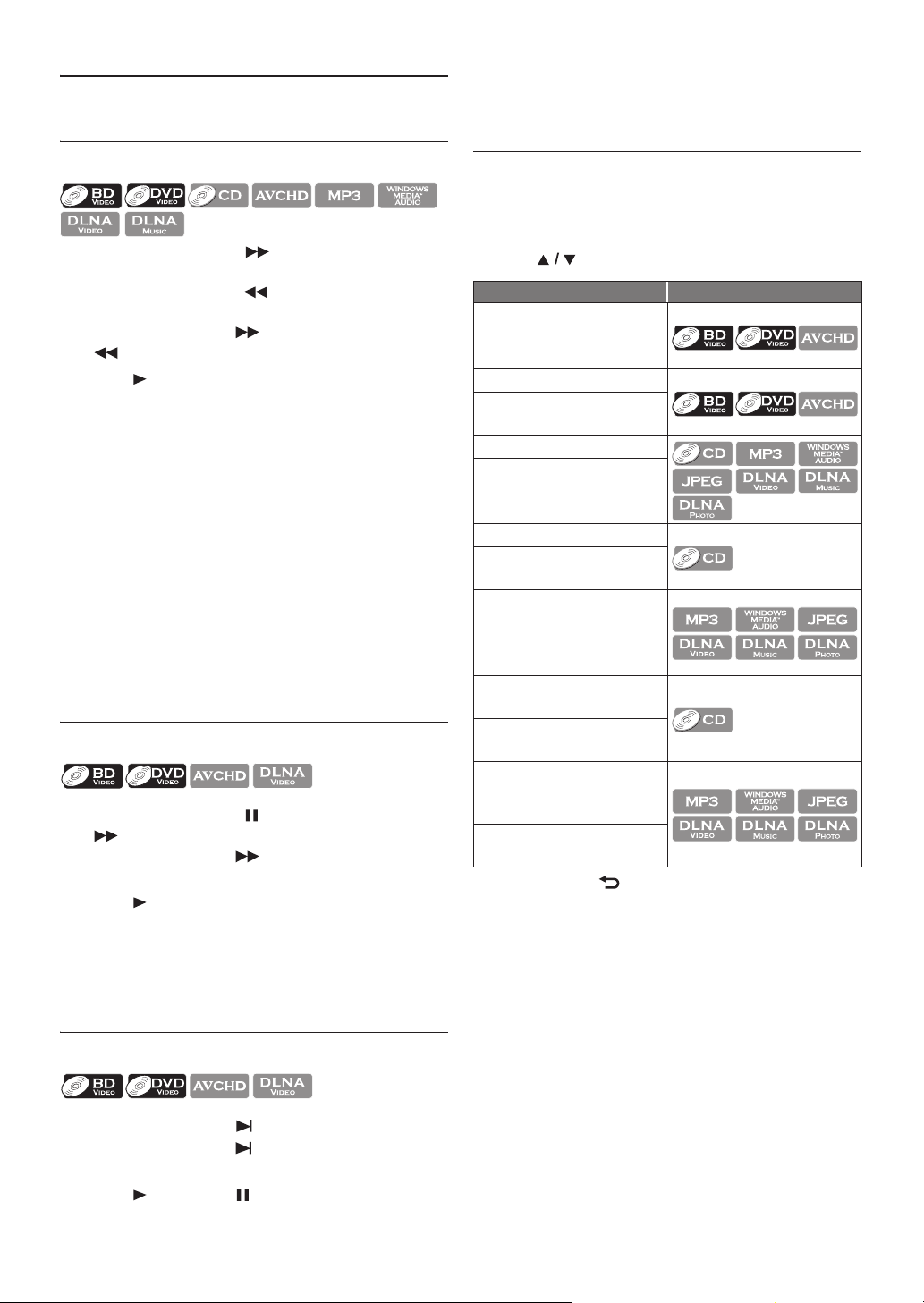
EN - 30
8. SPECIAL PLAYBACK
8.1. Fast Forward / Fast Reverse
1. During playback, press [(forward)] repeatedly
for fast forward.
During playback, press [ (reverse)] repeatedly for
fast reverse.
Every time you press [(forward)] or
[(reverse)], the playback speed will change.
2. Press [(play)] to return to normal playback.
D Note
• For Blu-ray Disc™, DVD and AVCHD, speed changes
in 5 different levels.
• For audio CD, MP3 and Windows Media™ Audio, and
video / music files on DLNA home server, speed
changes in 3 different levels.
• For audio CD, fast forward / fast reverse search
between different tracks are not available during
random playback.
• For some video / music files on DLNA home server,
fast forward / fast reverse may not function.
• For MP3 and Windows Media™ Audio, fast forward /
fast reverse search between different files are not
available.
8.2. Slow Forward Playback
1. During playback, press [(pause)]. Then press
[(forward)].
Every time you press [(forward)], the playback
speed changes in 3 different levels.
2. Press [(play)] to return to normal playback.
D Note
• Only slow forward is available.
• For some video files on DLNA home server, slow
forward may not function.
8.3. Step by Step Playback
1. In pause mode, press [ (next)] repeatedly.
Every time you press [(next)], playback will
advance one step at a time.
2. Press [(play)] or [(pause)] to return to
normal playback.
D Note
• Only step by step forward is available.
8.4. Repeat Playback
Available repeat function varies depending on the discs.
1. During playback, press [REPEAT].
2. Use [] to select the desired repeat mode.
3. Press [BACK ] to exit.
D Note
• The repeat setting will be canceled when you stop
playback.
• When the repeat setting is set for an MP3 or WMA
folder (file), the repeat setting will be canceled if you
select other MP3 or WMA folder (file) to playback.
• For some video / music / photo files on DLNA home
server, repeat playback may not function.
REPEAT MODE AVAILABLE MEDIA
Chapter Repeat
The current chapter will be
played back repeatedly.
Title Repeat
The current title will be
played back repeatedly.
Track Repeat
The current track or file will
be played back repeatedly.
All Repeat
All tracks in the media will
be played back repeatedly.
Group Repeat
The current group (folder)
will be played back
repeatedly.
Random Repeat (Audio
CD)
Repeats the random
playback.
Random Repeat (MP3 /
Windows Media™ Audio
/ JPEG)
Repeats the random
playback in a folder.
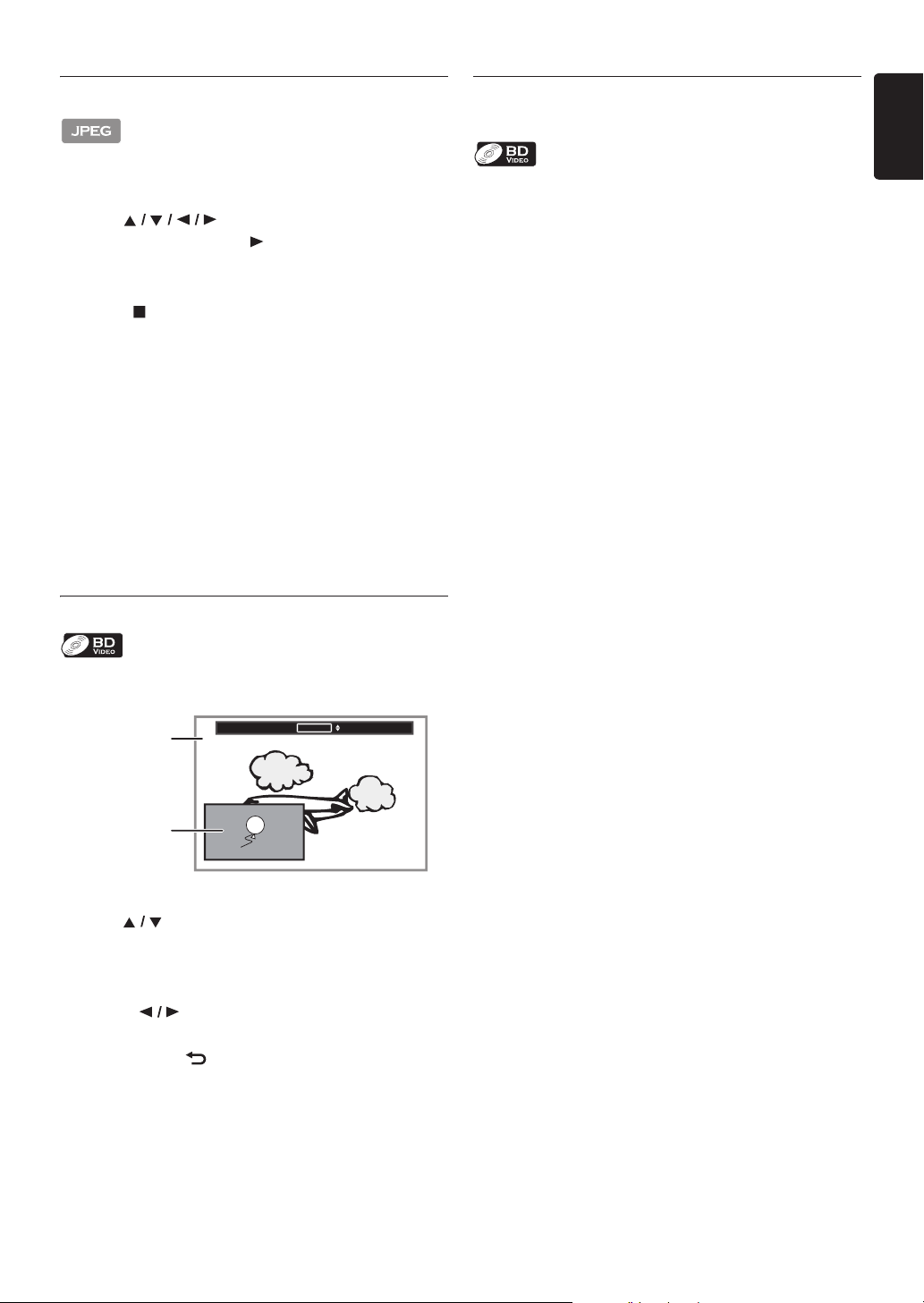
EN - 31
EN
8.5. Slide Show
1. Follow steps 1 to 2 in “Playing Back a Disc” on page 26.
2. Open the folder which contains the desired JPEG files.
3. Use [] to select a desired file to be
played back, then press [(play)] or [OK].
• An image will be played back from the selected file
and go to the next one in turn every 10 seconds.
4. Press [(stop)] to stop playback.
To return to the first item:
Press [TOP MENU].
To return to the file played last:
Press [DISC MENU / POP-UP MENU].
D Note
• During playback, press [TOP MENU] to display
thumbnail screen.
• Large-size JPEG files take a few moments to be
displayed.
8.6. PiP (BONUSVIEW™) Setting
Some BD-videos have the PiP function which enables you
to display the secondary video in the primary video.
1. During playback, press [BONUSVIEW (PiP)].
2. Use [] to select the secondary video you want to
show.
• The secondary video will be displayed with the
secondary audio.
•Use [] to switch between current setting and
“Off”.
3. Press [BACK ] to remove the PiP information.
• On how to output the secondary audio, refer to
“Switching Audio Soundtrack” on page 33 and
“Blu-ray Disc Audio” on page 38.
8.7. Enjoying BD-Live™ Discs Using the
Internet
You can enjoy BD-Live™ which enables you to use
interactive features when the unit is connected to the
Internet.
Examples of BD-Live™ features:
• Online access to additional content such as movie
trailers, subtitles, BD-Java applications, etc.
• While downloading, special video data may be played
back.
- Service and functions differ depending on the
disc. Follow the instructions given by the disc
when using the BD-Live™ function.
- Insert a USB storage device of at least 1 GB
capacity before using BD-Live™ features on a
Blu-ray Disc™.
- Do not remove the USB storage device while
using BD-Live™ features.
D Note
• You must connect the unit to the Internet and set up
necessary settings in order to use BD-Live™.
• For the network connection, refer to “Connection to
the Network” on page 20.
• For the network setup, refer to “Network Installation”
on page 42.
•For certain discs, BD-Live™¬setting in “Manual Setup”
may need to be changed. (Refer to page 42.)
• Depending on your connection environment, it may
take time to connect to the Internet or the Internet
may not be connected.
• When BD-Live™ functions are used and the unit is
connected to the Internet, you may be charged for this
communication.
• Some discs with BD-Live™ function require memory
when playing back the content. If you cannot play back a
disc with BD-Live™ function, insert a USB storage
device (1GB or more) which is formatted on this unit.
D Note for AACS Online
• The player or disc IDs may be sent to the content
provider when playing back a disc with BD-Live™
function.
• If you save your viewing history on the server by using
these IDs, you will be introduced to other similar
movies.
• You can save game score histories.
PiP 1/8
Primary video
Secondary video
EN - 32
8.8. Title / Chapter Search
Using [ (previous)] / [ (next)]
1. During playback, press [ (next)] to skip the current
title or chapter and move to the next.
The title or chapter will move forward one at a time.
• If there is no chapter in one title, the current title
may be skipped.
To go back to the beginning of the current title or
chapter, press [ (previous)].
Press [ (previous)] repeatedly to go to the
previous title or chapter. The title or chapter may
move backward one at a time.
Using [OPTION]
1. During playback, press [OPTION] to display the play
menu.
2. Use [] to select “Search”, then press [OK].
3. Use [] to select “Title” or “Chapter”, then press
[OK].
e.g.) Blu-ray Disc™
4. Use [] to select the title / chapter
number.
5. Press [OK].
Playback will start from the beginning of the title /
chapter.
6. Press [BACK ] to exit.
Using [the Number buttons] (Direct Search)
Chapter Search
During playback of a title, enter the chapter number you
want to search using [the Number buttons].
Playback of the chapter will start in a few seconds.
D Note
• As for the BD-video, how it performs will be strongly
determined by the disc, and may not perform as
described.
8.9. Track Search
1. During playback, press [(next)] to skip the current
track or file and move to the next.
The track / file will move forward one at a time. To go
back to the beginning of the current track / file, press
[ (previous)].
Press it repeatedly to go to the previous track / file.
The track / file will move backward one at a time.
8.10. Time Search
1. During playback, press [OPTION] to display the play
menu.
2. Use [] to select “Search”, then press [OK].
• For video files on DLNA server, skip to step 4.
3. Use [] to select “Time”, then press [OK].
e.g.) Blu-ray Disc™
4. Use [] or [the Number buttons] to enter the
time count you want to jump to.
e.g.) Entering 1 hour 45 minutes and 15 seconds.
Press
5. Press [OK].
Playback will start from the desired time entered.
6. Press [BACK ] to exit.
D Note
• For some video files on DLNA home server, time
search may not function.
001 / 999Search Title
00:12:44 / 11:13:14Search Time
EN - 33
EN
8.11. Switching Subtitles
Some video materials may have subtitles in one or more
languages. For commercially available discs, the supported
languages can be found on the disc case.
Follow the steps below to switch the subtitle language
during playback.
1. During playback, press [SUBTITLE].
2. Use [] to select “Primary”, “Secondary” or
“Style”, then press [OK].
3. Use [] to select your desired subtitle or style.
•Use [] to switch between current subtitle
setting and “Off”.
4. Press [BACK ] to exit.
1. During playback, press [SUBTITLE].
2. Use [] to select your desired subtitle.
•Use [] to switch between current subtitle
setting and “Off”.
3. Press [BACK ] to exit.
D Note
• Some discs will only allow you to change the subtitles
from the disc menu or pop-up menu. Press
[TOP MENU] or
[DISC MENU / POP-UP MENU] to display the
disc menu or pop-up menu.
• If the disc has no subtitle language or subtitle style,
“Not Available” will be displayed on the TV screen.
• During playback of the secondary video, the primary
subtitle setting is not available except when there is no
subtitle for the secondary video.
• You can also change the subtitle setting from the play
menu. Play menu can be called up by pressing
[OPTION].
8.12. Switching Audio Soundtrack
When playing back video material recorded with two or
more soundtracks (these are often in different audio
languages or audio formats), you can switch them during
playback.
For Blu-ray Disc™, available audio varies depending on
“Blu-ray Disc Audio” setting. Refer to page 38 for more
information.
1. During playback, press [AUDIO].
2. Use [] to select “Primary” or “Secondary”, then
press [OK].
3. Use [] to select your desired audio stream
channel.
• For “Secondary”, use [] to switch between
current audio setting and “Off”.
4. Press [BACK ] to exit.
1. During playback, press [AUDIO].
2. Use [] to select your desired audio stream
channel.
• For audio CD, you can select following options.
3. Press [BACK ] to exit.
D Note
• The secondary audio will not be output when the
secondary video is not displayed or when
“Blu-ray Disc Audio” is set to “Primary Audio Only”.
(For some Blu-ray™ discs, secondary audio will be
output even when secondary video is off.)
• The sound mode cannot be changed during playback of
discs not recorded in multiple audio mode.
• Some discs allow changing the audio language setting on
the disc menu. (Operation varies depending on the
discs. Refer to the manual accompanying the disc.)
“Primary” :
Sets the subtitle for the primary video.
“Secondary” :
Sets the subtitle for the secondary
video.
“Style” :
Sets style of the subtitle.
/ 255
1Subtitle Primary
Secondary
Style
ENG
Off
Off
/ 321Subtitle
ENG
“Primary” :
Sets the audio for the primary video.
“Secondary” :
Sets the audio for the secondary video.
“Stereo”
:
Both right and left channels are active
(stereo).
“L-ch”
:
Only left channel is active.
“R-ch”
:
Only right channel is active.
/ 3
/ 3
1
1
Audio
Primary
Secondary
ENG
Dolby D
Multi-ch
ENG
DTS
Multi-ch
Dolby D[Decoding Format] :
1 / 3Audio
ENG Dolby D
Dolby D
Multi-ch
[Decoding Format] :
EN - 34
• [AUDIO] may not work on some discs with multiple
audio streams or channels (e.g. DVDs that allow
changing audio setting on the disc menu).
• If the disc has no audio language, “Not Available” will be
displayed on the TV screen.
• For DTS-CD (5.1 music disc), selecting audio streams
or channels is not available.
• You can also change the audio setting from the play
menu. Play menu can be called up by pressing
[OPTION].
8.13. Switching Camera Angles
Some BD-videos and DVD-videos contain scenes which
have been shot simultaneously from various angles. You can
change the camera angle when appears on the TV
screen.
1. During playback, press [ANGLE].
• The selected angle will be displayed on the display
bar at the top of the TV screen.
2. Use [] to select your desired angle.
3. Press [BACK ] to exit.
D Note
• If “Angle Icon” setting is set to “Off”, will not
appear on the TV screen. (refer to page 39)
• You can also change the angle setting from the play
menu. Play menu can be called up by pressing
[OPTION].
8.14. Black Level
You can adjust the black level setting to make the black
parts of the pictures as bright as you prefer. You can select
“On” or “Off”.
1. During playback, press [OPTION] to display the play
menu.
2. Use [] to select “Black Level”, then press [OK].
3. Use [] to select your desired setting.
e.g.) Blu-ray Disc™
4. Press [BACK ] to exit.
D Note
• The setting will remain the same even if the unit is
switched to standby mode.
• “Black Level” is not effective under the following
conditions.
- When the picture is output from HDMI OUT jack.
8.15. Noise Reduction
Reduces the noise of the playback picture.
1. During playback, press [OPTION] to display the play
menu.
2. Use [] to select “Noise Reduction”, then press
[OK].
3. Use [] to select your desired setting.
e.g.) Blu-ray Disc™
4. Press [BACK ] to exit.
D Note
• The setting will remain the same even if the unit is
switched to standby mode.
8.16. Philips Wireless MediaConnect
With this feature, you can enjoy your TV as a PC monitor
wirelessly using your home network. Make sure you
download the Philips Wireless MediaConnect software and
install it on your PC before you perform the steps below.
Install Philips Wireless MediaConnect
1. Press
[ (home)]
on the Blu-ray Disc™ Home Theater
System remote.
2. Use [] to select “Setup”, then press
[OK].
3. Use [] to select “Network Setup”, then press
[OK].
4. Use [] to select “MediaConnect”, then press
[OK].
• Write down the 12-digit code displayed on the
screen. You will need this to download
MediaConnect software.
5. Start your Internet browser on your PC and open the
Philips Wireless MediaConnect download page at
On the website,
you can check the necessary PC system requirements.
6. Enter the 12-digit code you wrote at step 4 and
download the MediaConnect software.
“On”
:
Makes the dark parts blacker with additional
contrast and brightness.
“Off”
:
Shows the original picture as recorded.
Black Level On
“On”
:
Activates noise reduction.
“Off”
:
Deactivates noise reduction.
Noise Reduction Off
www.wifimediaconnect.philips.com
EN - 35
EN
7. Click the “Download now” button to download the
free Philips Wireless MediaConnect software.
8. Once downloaded, run the file “Philips Wireless
MediaConnect_setup.exe”. Follow the instructions on
your PC to complete software installation.
Using Philips Wireless MediaConnect
1. Launch Philips Wireless MediaConnect on your PC
first.
• Select “Start projecting” with right click on the in
the system tray.
2. Press [(home)] on the Blu-ray Disc™ Home
Theater System remote.
3. Use [] to select “MediaConnect”, then
press [OK].
• The startup screen for Philips Wireless
MediaConnect will be displayed and the unit searches
for an available PC that is running Philips Wireless
MediaConnect software.
Once connected, the Philips Wireless MediaConnect
software will encode and stream the screen of your PC as a
video along with audio.
Depending on your computer and network configuration,
there will be a delay between your PC screen and the TV
but the audio-video will always be in sync.
Philips Wireless MediaConnect Help
To read the Philips Wireless MediaConnect Help, right
click the program icon in the notification tray of the PC and
select Help.
Specifics
You can project high definition (HD) or standard definition
(SD) video, depending on the processing power of your PC.
For smooth playback of HD video, please use a hardware
accelerated video player on your computer. A hardware
accelerated video player uses the graphics adapter of your
PC to render HD video rather than the processor. This
frees up the processor for Philips Wireless MediaConnect
video encoding. The content protection on most DVD or
Blu-ray Disc™ movies might restrict watching the movie on
TV when the disc is playing on a PC. The TV shows PC
media files with a small delay. Philips Wireless
MediaConnect is only available for PC.
PC and network requirements
Supported OS
Windows XP, Windows Vista, Windows 7 (PC only)
Minimum requirements
• Intel Core 2 Duo 1.8GHz
• 512MB RAM
• IEEE 802.11n (PC and wireless router)
Recommended requirements
• Intel Core 2 Duo 2.1GHz
•1GB RAM
8.17. Radio Operations
By connecting the supplied FM wire antenna, you can listen
to FM radio on this unit.
Presetting Radio Stations
When you access radio mode for the first time, follow the
instruction to store a radio station to your preset station
list. You can store up to 40 FM radio stations in the
memory.
1. Connect the supplied FM wire antenna to the FM ANT
75: jack on this unit.
• Refer to “Connecting FM Radio Antenna” on
page 18.
2. Press [(home)].
3. Use [] to select “FM”, then press [OK].
4. Press [].
• This unit will start tuning automatically until a radio
station with sufficient signal strength is found.
• If necessary, repeat press [] again until you
find the desired radio station.
• To fine-tune the reception of a weak station, press
[] repeatedly until an optimal reception is
found.
5. Press [OK] or [Blue].
• The radio station is added to the preset station list.
D Note
• While auto tuning, audio will be muted until this unit
finds a radio station with sufficient signal strength.
Listening to a Preset Radio Station
1. Follow steps 1 to 3 in “Presetting Radio Stations” on
page 35.
2. Use [(previous)] / [(next)] to select the
desired preset station.
• This unit will tune to the selected preset radio
station.
• To go to the previous / next page of the preset
station list, press [Red] / [Green].
D Note
• You can search the preset station or change the audio
mode (stereo or mono mode) from the play menu. Play
menu can be called up by pressing [OPTION].
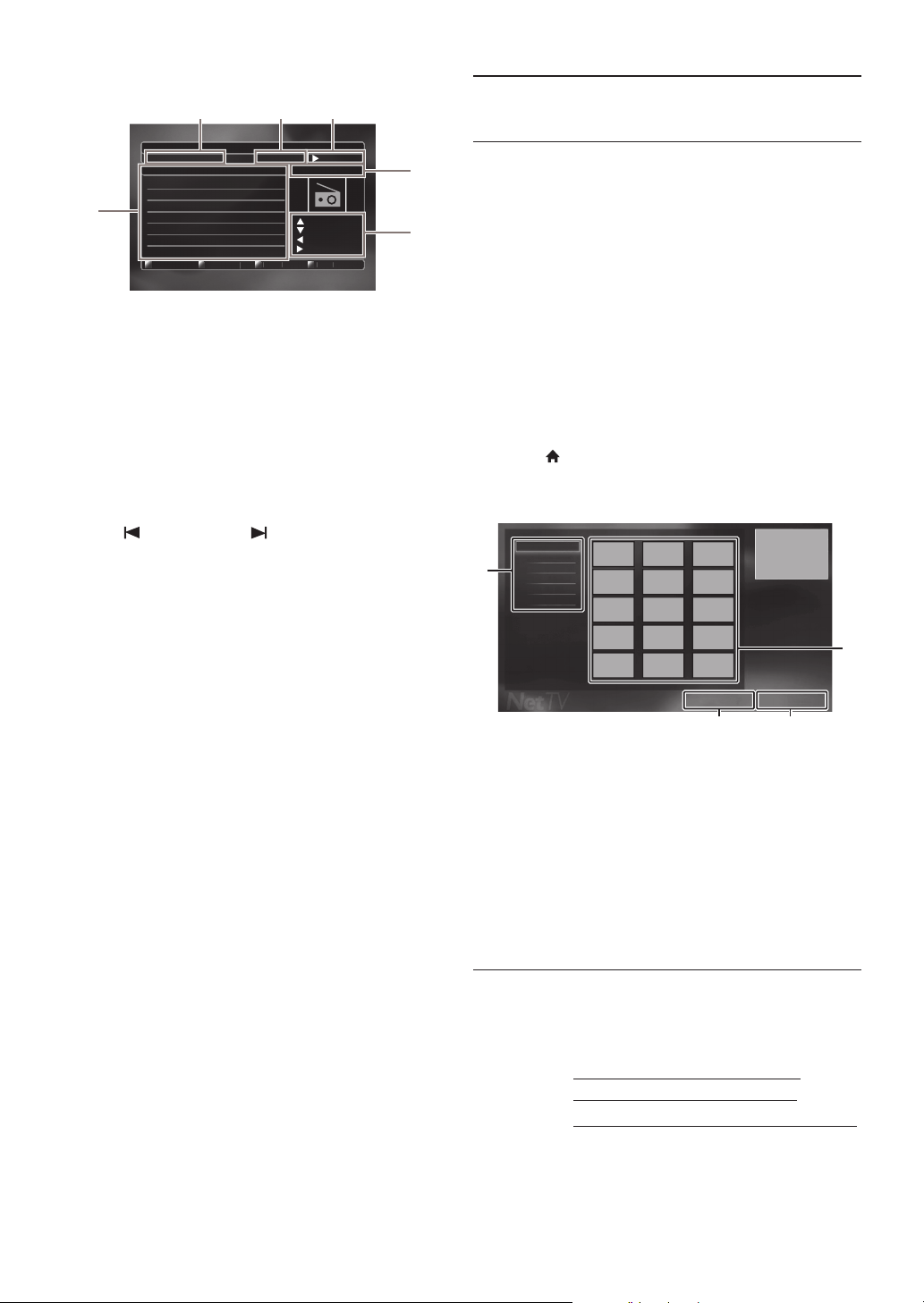
EN - 36
Guide to the FM Radio Screen
1. Preset number and frequency of current radio
station
2. Current status
3. Audio mode (Stereo or Mono mode)
4. Total number of preset stations
5. Button guide for tuning
6. Preset station list
Deleting a Preset Radio Station
1. Follow steps 1 to 3 in “Presetting Radio Stations” on
page 35.
2. Use [ (previous)] / [(next)] to select the
desired preset station.
3. Press [Yellow].
• The selected station is deleted from the preset
station list.
9. NETWORK SERVICES
9.1. Before Using Network Services
Please follow the instructions below before using network
features.
1. Connect this unit to the Internet.
• Refer to “Connection to the Network” on page 20.
2. Set up the necessary network connection settings.
• Refer to “Network Installation” on page 42.
3. Press [Net-TV].
• Net TV screen will appear.
• For the first time only, "Philips Terms of Use
Internet Enabled Product" screen will appear. After
confirming the content, press [OK].
4. Press [(home)] to exit.
Guide to Net TV menu screen
1. Sorting items :
Categorizes genre of each services
2. Network Service icons :
Displays service icons
3. Country :
Selects what country you live
4. Terms of Use :
Displays a clause of net service
9.2. Information on Network Services
For detailed information on 3rd party Internet services,
please visit the service providers website:
105.50 MHz12
Stereo
FM
08 100.00 MHz
09 102.50 MHz
10 103.50 MHz
+0.1 MHz
-0.1 MHz
Tuning -
Tuning +
11 104.50 MHz
12 105.50 MHz
13 106.50 MHz
14 107.50 MHz
External Input
Received
Preset Number : 23
Page Up
Pa
g
e Dow
n
Pre
s
e
t
C
lea
r
5
4
321
6
Netflix
:
http://www.netflix.com/HowItWorks
Film Fresh
:
http://www.filmfresh.roxionow.com/
VUDU
:
Terms of Use
Country USA
All
Video
Music
Game
News
Lifestyle
1
4
2
3
http://www.vudu.com/product_overview.html
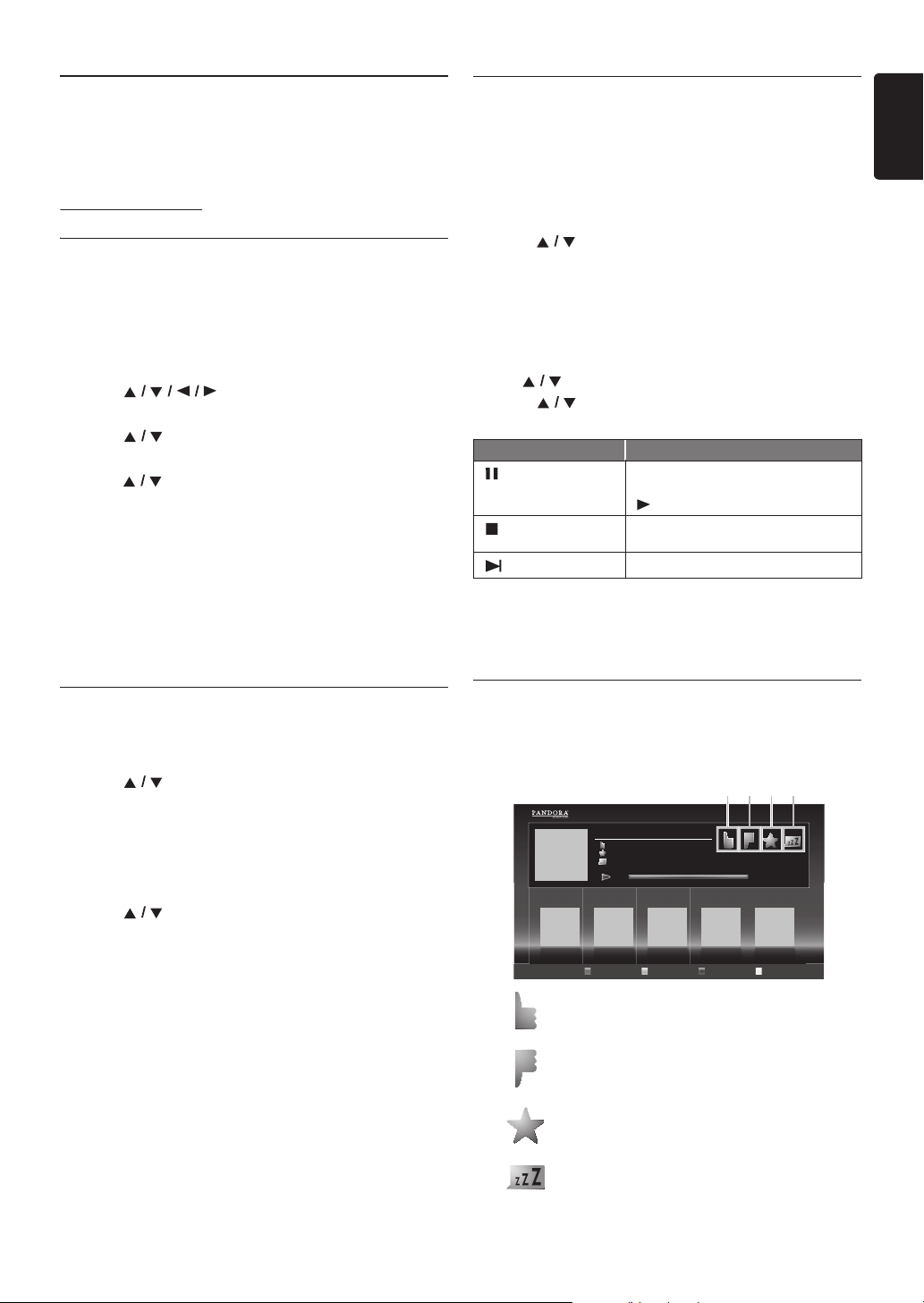
EN - 37
EN
10. PANDORA OPERATIONS
With this unit, You can instantly listen to personalized
radio stations streamed over the Internet from Pandora.
To learn more about Pandora, please visit
10.1. Activating Pandora
In order to listen to Internet radio streamed from Pandora
via the Internet, you must create a Pandora account and
activate this unit.
1. Follow steps 1 to 3 in “Before Using Network Services”
on page 36.
2. Use [] to select “PANDORA”, then
press [OK].
3. Use [] to select “CREATE NEW
ACCOUNT”, then press [OK].
4. Use [] to select “No, I am new to Pandora.”,
then press [OK].
5. Note the activation code and website address displayed
on the TV screen.
6. On your PC, visit the website address noted at step 5.
7. Follow directions on the website to create your
account.
8. On this unit, select “CONTINUE” and press [OK]
to complete activation.
10.2. Adding Pandora User Accounts
You can add multiple Pandora user accounts on this unit.
1. Follow steps 1 to 3 in “Activating Pandora” on page 37.
2. Use [] to select “Yes, I have a Pandora
account”, then press [OK].
3. Enter your e-mail address, then press [OK] while
“OK” is selected.
4. Enter a password, then press [OK] while “OK” is
selected.
5. Use [] to select “SIGN IN”, then press [OK].
• Your account is added to the user list and player
screen appears on the TV screen.
D Note
• Pandora is available only in the United States.
• You can add up to 5 accounts. After creating 5
accounts, “CREATE NEW ACCOUNT” is not
displayed.
• If you forget your password, please enter your Pandora
account’s e-mail address and select “Password
Recovery”, then press [OK]. After a while, an e-mail
of password reset will be sent to the e-mail address.
10.3. Creating a New Station
By entering your favorite artists or songs, Pandora selects
music and creates a new station for you on the basis of the
entered information.
1. On the player screen, press [Blue] to display station
list.
2. Press [Yellow] to call up the “Tool Menu”.
3. Use [] to select “Create a new station”, then
press [OK].
4. Enter a name of your favorite artist or song, then press
[OK] while “OK” is selected.
• Search result will appear on the right side of the TV
screen.
• If the selection screen of result type appears, use
[] to select the desired type, then press [OK].
5. Use [] to select the desired station, then press
[OK] to start the playback.
D Note
•On the “Tool Menu”, you can delete or rename the
currently selected station.
10.4. Guide to the Player Screen
On the player screen, you can set various options to the
currently playing song.
www.pandora.com
Button Action
[ (pause)]
Pause the playback.
Resume the playback, press
[
(play)].
[(stop)]
Stop the playback and the station list
will appear.
[ (next)]
Skips to the next song.
1.
: Give thumbs up to the currently playing song.
Pandora will play songs similar to the song.
2.
: Give thumbs down to the currently playing song.
Pandora will skip and will not play the song.
3.
: Bookmarks the currently playing song. You can
view your bookmarked songs list by accessing
Pandora website and log into your account.
4.
: Tells Pandora that you do not like the currently
playing song. Pandora will not play the song for
about a month.
Station List
American Oldies Radio
ABC
XXXXX
XXXXX
4:52 0:00
1 2 3 4
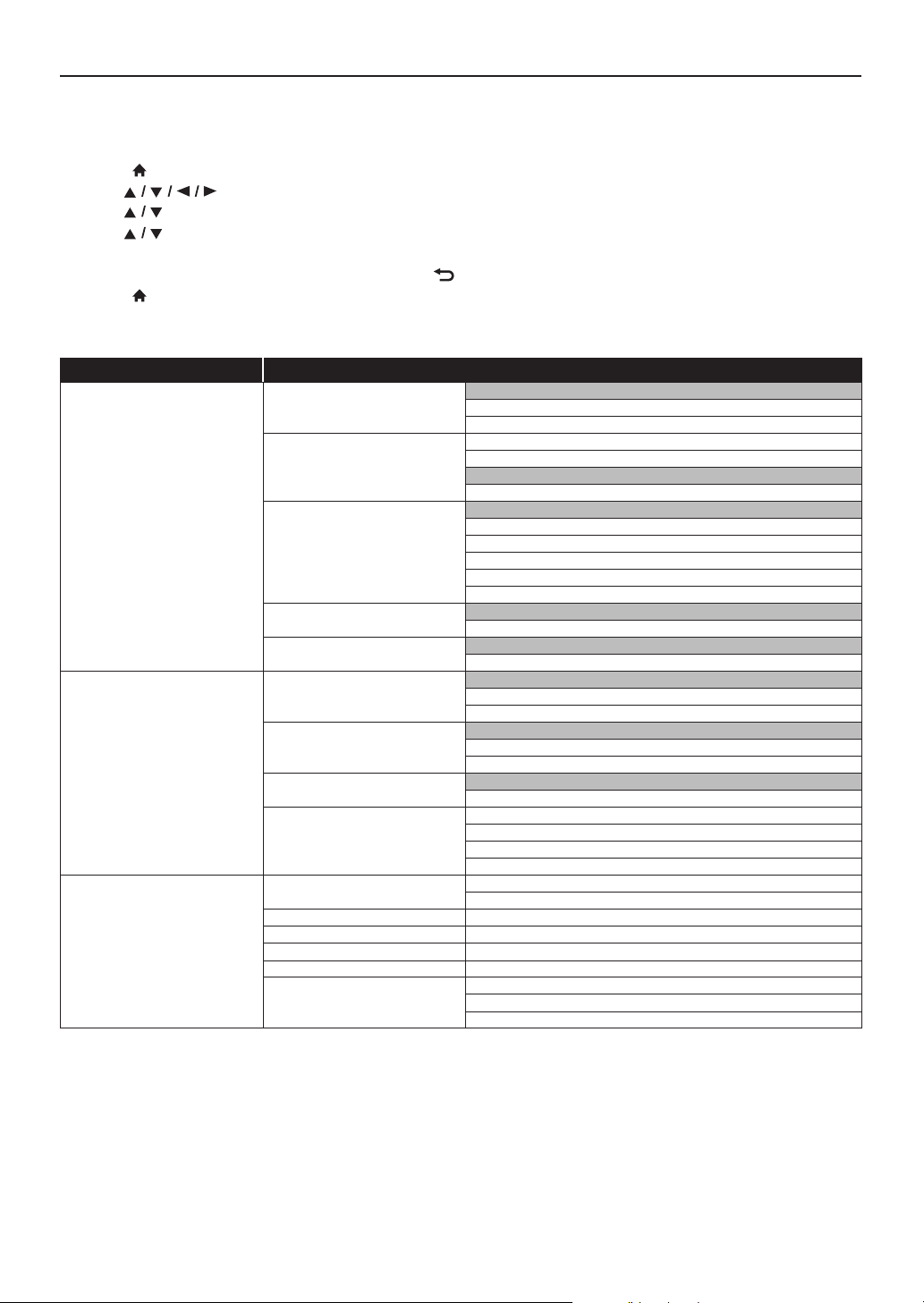
EN - 38
11. LIST OF SETTINGS
In the setup menu, you can customize various kinds of settings as you prefer.
Refer to the following instructions to navigate through the setup menu.
1. Press [(home)] to access the home menu.
2. Use [] to select “Setup”, then press [OK].
3. Use [] to select the desired setting, then press [OK].
4. Use [] to move the highlight up and down in the list.
5. To make a selection or to access options of an item, select the desired item, then press [OK].
• To go back to the previous screen, press [BACK ].
6. Press [(home)] to exit.
Refer to the following table for the types of settings you can customize.
The item highlighted in gray is the default setting.
Category Menus / Options
Video Setup 3D Output
Auto (XX)
3D
2D
TV Display 4:3 Normal
4:3 Crop
16:9 Widescreen
16:9 Squeeze
HDMI Video
Auto
480p
720p
1080i
1080p
1080p/24
HDMI Deep Color
Auto
Off
De-interlacing Mode
Auto
Video
Audio Setup Night Mode
Auto
On
Off
Audio Output
Speakers
HDMI Normal
HDMI LPCM
Blu-rayDiscAudio
Mix Audio Output
Primary Audio Only
Speaker Setup Speaker Layout
Surround Effects
Speaker Distance
Speaker Volume
Network Setup Network Installation Start
Connection Test
View Network Settings
View Wireless Settings
Netflix ESN
MediaConnect
Deactivation Netflix
FILM FRESH
VUDU
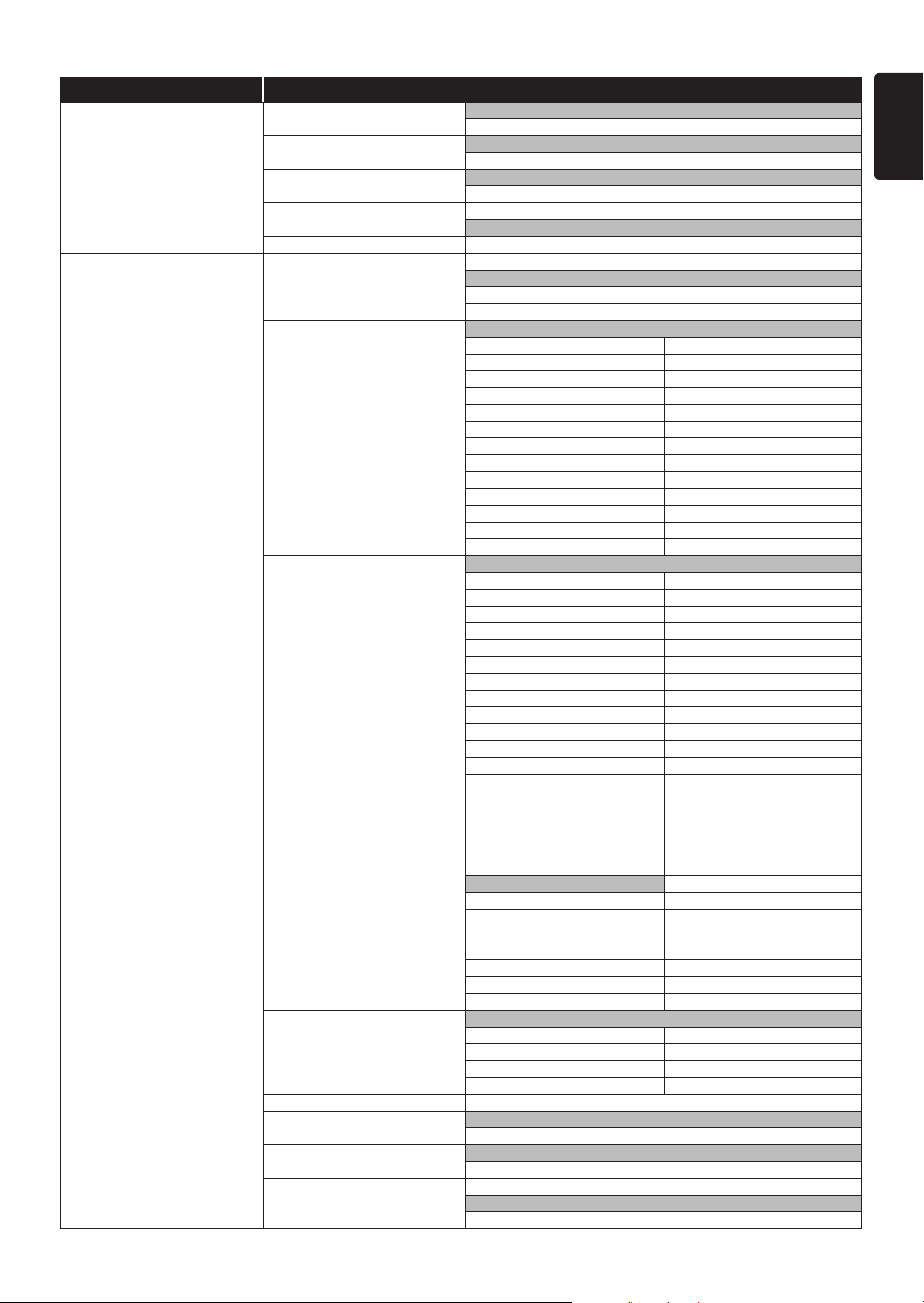
EN - 39
EN
Category Menus / Options
EasyLink Setup EasyLink
On
Off
One Touch Play
On
Off
One Touch Standby
On
Off
System Audio Control On
Off
Audio Input Mapping
Preference Setup Menu Language Auto (XXXX)
English
Español
Français
Audio
Original
Bulgarian Italian
Chinese Japanese
Czech Korean
Danish Norwegian
Dutch Polish
English Portuguese
Finnish Romanian
French Russian
German Slovak
Greek Spanish
Hungarian Swedish
Icelandic Turkish
Irish Other
Subtitle
Off
Bulgarian Italian
Chinese Japanese
Czech Korean
Danish Norwegian
Dutch Polish
English Portuguese
Finnish Romanian
French Russian
German Slovak
Greek Spanish
Hungarian Swedish
Icelandic Turkish
Irish Other
Disc Menu Bulgarian Italian
Chinese Japanese
Czech Korean
Danish Norwegian
Dutch Polish
English Portuguese
Finnish Romanian
French Russian
German Slovak
Greek Spanish
Hungarian Swedish
Icelandic Turkish
Irish Other
Parental Control
Off
8 [Adult] 4 [PG-13]
7 [NC-17] 3 [PG]
6 [R] 2 [G]
5 [PGR] 1 [Kid Safe]
Change Password
Screen Saver
On
Off
Angle Icon
On
Off
Display Panel Auto
Bright
Dimmer

EN - 40
* When “Quick Start Mode” is set to “On”, power consumption during standby mode will increase.
Category Menus / Options
Advanced Setup
Auto Power Off On
Off
Software Update Disc
Network
USB
Automatically check for latest
software
On
Off
Quick Start Mode* On
Off
Version Info
Restore default settings Reset Settings
Format USB
(Unit) Erase Saved BD-ROM Data
(USB) Erase Saved BD-ROM Data
Reset Network Settings
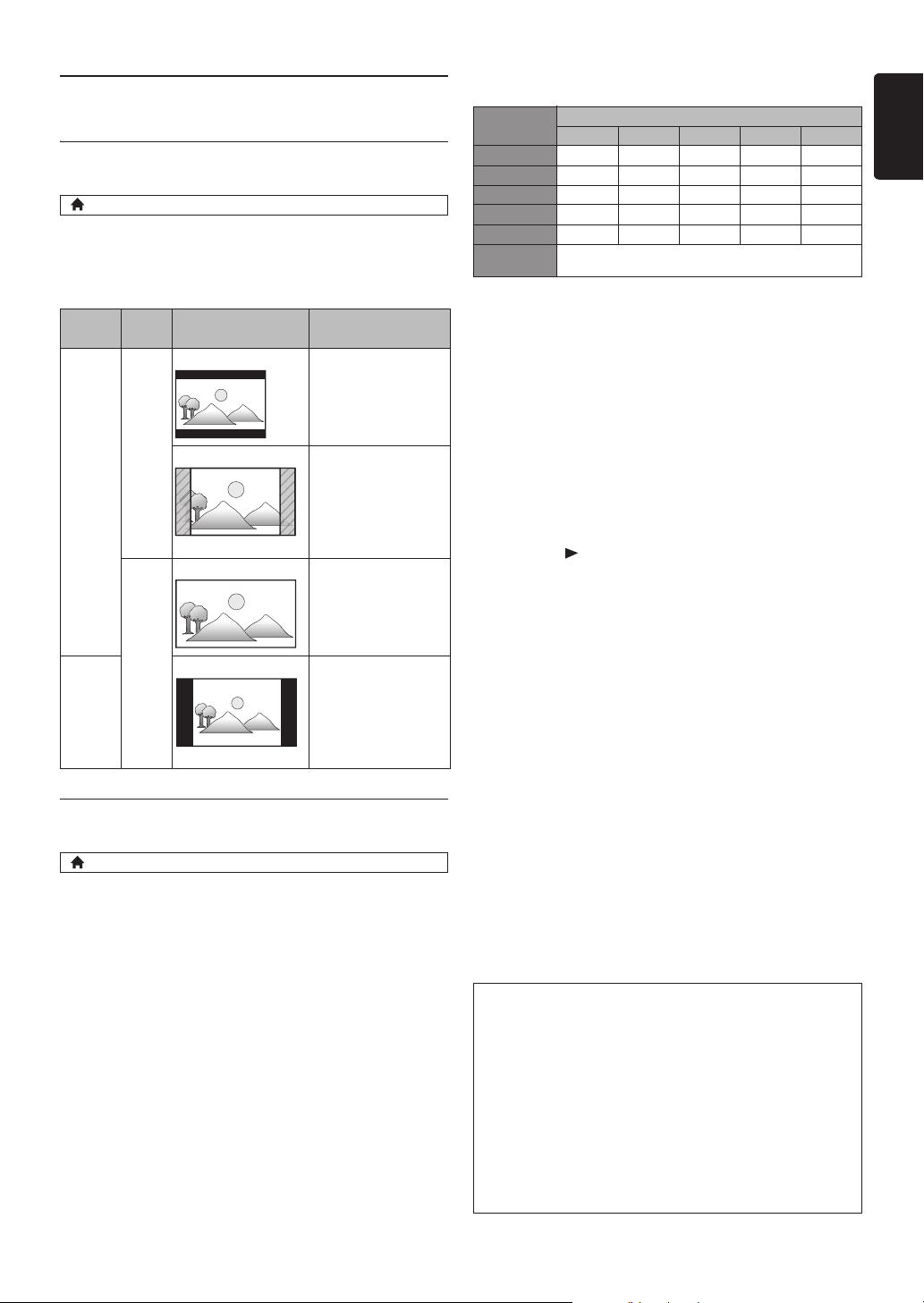
EN - 41
EN
12. SETUPS
12.1. TV Display
Use this feature to adjust the aspect ratio of the video
source which is different from your TV’s ratio to fit your
TV monitor without distorting the picture. Descriptions of
each setting are as follows:
12.2. HDMI Video
Set the resolution of the video signal being output from the
HDMI OUT jack.
You can select the desired “HDMI Video” among the
settings listed below:
“Auto”, “480p”, “720p”, “1080i”, “1080p”, “1080p/24”
Actual Output Resolution :
• Composite video output (VIDEO OUT) jack can only
output 480i/60.
• For AVCHD, outputting the video in 24 frames per
second (1080p/24) is not available.
D Note
• The selected resolution must also be supported by
your display device.
• Even if “HDMI Video” is set to “1080p/24”, for a
Blu-ray Disc™ that is not recorded in 1080p/24 or for
DVD, the video resolution supported by the disc and
the display device will be output instead of 1080p/24.
• Refer also to your TV’s manual.
•Pressing [(play)] on the front panel for 5 seconds
changes the setting back to its default.
• When connected to an HDCP incompatible display
device, the picture will not be displayed properly.
• The audio signals from the HDMI OUT jack (including
the sampling frequency, the number of channels and bit
length) may be limited by the device that is connected.
• Among the display device(s) that support HDMI, some
do not support audio output (for example, projectors).
While connected to a device such as a projector, audio
will not be output from the HDMI OUT jack.
• When this unit’s HDMI OUT jack is connected to a
DVI-D compatible display device(s) (HDCP compatible)
with an HDMI-DVI converter cable, the signals are
output in digital RGB.
• When the HDMI OUT jack is outputting the video in
1080p/24, picture will not be output from the VIDEO
OUT jack.
• When playing back a Frame Sequential 3D Disc, video
resolution of output picture will depend on contents on
the disc. (“HDMI Video” setting is not applicable for
Frame Sequential 3D Discs.)
(home) A “Setup” A “Video Setup” A “TV Display”
Video
source
Your
TV
Option Description
16:9
4:3
4:3 Normal To enjoy 16:9 picture
on 4:3 monitor:
16:9 picture is scaled
down until both sides
of the picture fits the
4:3 TV.
4:3 Crop To enjoy 16:9 picture
on 4:3 monitor:
Both sides of the
picture are trimmed to
fit the 4:3 TV without
distorting the aspect
ratio of the picture.
16:9
16:9 Widescreen To enjoy 16:9 picture
on 16:9 monitor:
Select this setting
when you want to
enjoy 16:9 picture on
the 16:9 TV.
4:3
16:9 Squeeze To enjoy 4:3 picture
on 16:9 monitor:
Use this setting to
display 4:3 picture on
the 16:9 TV without
distorting the aspect
ratio of the picture.
(home) A “Setup” A “Video Setup” A “HDMI Video”
Setting in the
“HDMI Video”
Source
480i/60 720p/60 1080i/60 720p/24 1080p/24
480p 480p/60 480p/60 480p/60 480p/60 480p/60
720p 720p/60 720p/60 720p/60 720p/60 720p/60
1080i 1080i/60 1080i/60 1080i/60 1080i/60 1080i/60
1080p 1080p/60 1080p/60 1080p/60 1080p/60 1080p/60
1080p/24 1080p/60 1080p/60 1080p/60 1080p/60 1080p/24
Auto
The highest resolution supported by your display device
will be in effect automatically.
Copyright protection system
To play back the digital video images of a BD-video or
DVD-video via an HDMI connection, it is necessary that
both the player and the display device (or an AV receiver /
amplifier) support a copyright protection system called
HDCP (high-bandwidth digital content protection system).
HDCP is copy protection technology that comprises data
encryption and authentication of the connected AV
device. This unit supports HDCP. Please read the
operating instructions of your display device (or an AV
receiver / amplifier) for more information.
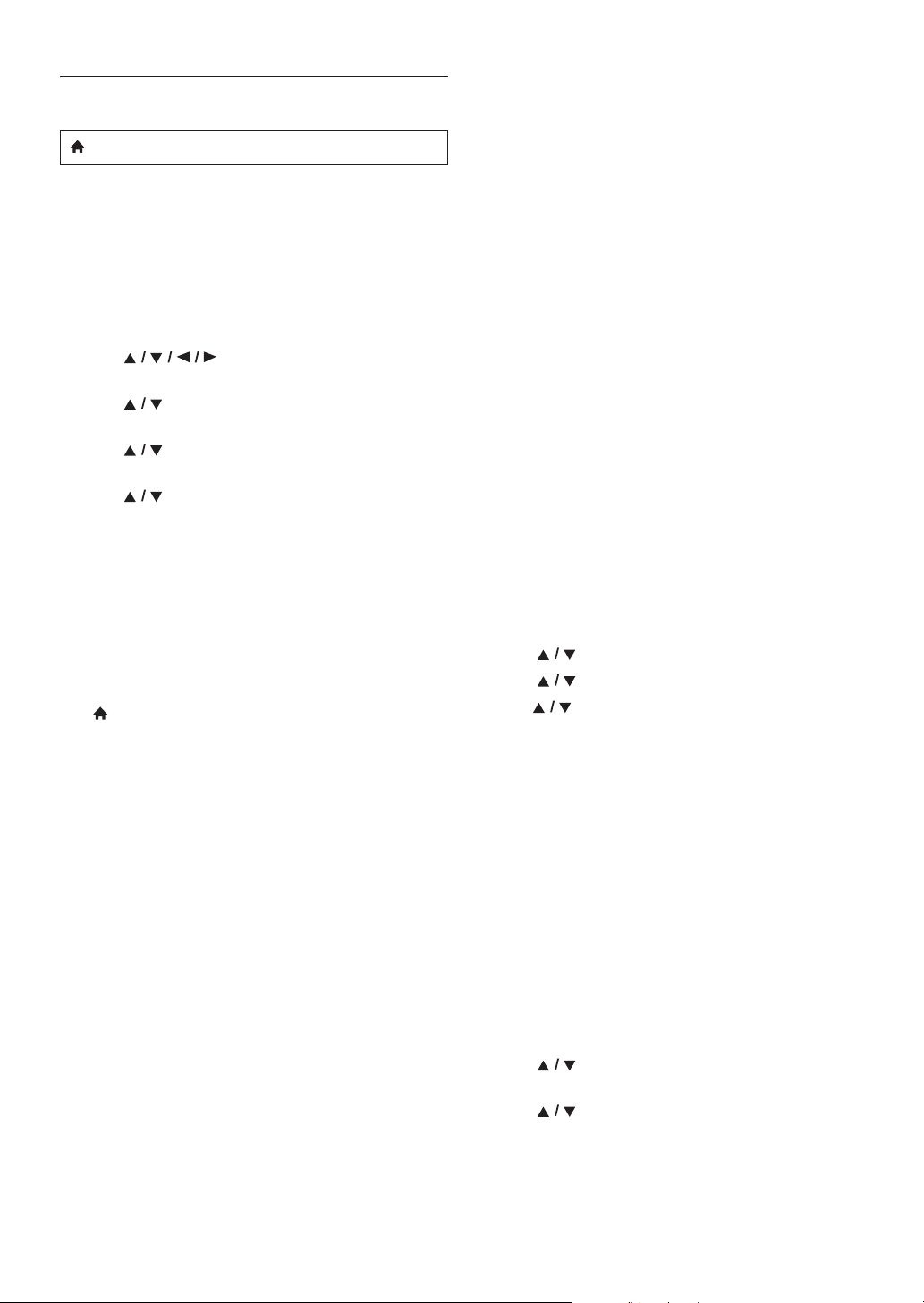
EN - 42
12.3. Network Installation
Set up network connection settings in order to use
BD-Live™, DLNA home media server, Netflix / Film Fresh
/ VUDU / Pandora or network update function.
Connection Test
After you enable a network connection or change the
network settings, always perform the connection test to
check if the connection is correctly made.
1. Use [] to select “Setup” in the home
menu, then press [OK].
2. Use [] to select “Network Setup”, then press
[OK].
3. Use [] to select “Network Installation”, then
press [OK].
4. Use [] to select “Connection Test”, then
press [OK].
• Connection test will start automatically and the test
result will appear right after the connection test
finishes.
- “Connecting...”: The test is in progress.
- “Pass”: Connection test is successfully completed.
- “Failed”: Connection test failed. Check the
connection settings.
5. Press [OK] to go back to the setup menu, or press
[(home)] to exit.
D Note
• If the connection test passes, you are ready to use
BD-Live™, DLNA home media server, Netflix /
Film Fresh / VUDU / Pandora or network update
function, using the Internet without making any
additional settings.
• If the connection test fails, you may need to check your
router settings and make sure the physical connection
is secure. If you need the MAC address of this unit to
complete your router settings, you can view it on the
“View Network Settings” / “View Wireless Settings”
screen (refer to page 45).
• When connecting this unit directly to a modem for the
first time or connecting it to a modem which was
previously connected to any other network device (e.g.
a router, PC, etc.), you may have to power cycle the
modem to reset the settings on the modem.
Wired
Select “Wired” if you made a wired connection and set the
setting to “Auto Setup” or “Manual Setup”, in accordance
with your network environment.
Auto Setup
Select “Auto Setup” to set the network setting
automatically.
1. Follow steps 1 to 3 in “Connection Test” on page 42.
2. Use [] to select “Start”, then press [OK].
3. Use [] to select “Wired”, then press [OK].
4. Use[] to select “Auto Setup”, then press [OK].
• The unit will start the connection test automatically
and the test result will appear right after the
connection test finishes.
5. Select “Finish” to activate the network settings and set
the network connection automatically.
Manual Setup
In following cases, select “Manual Setup” to set each setting
as necessary.
- When connection test failed with the setting of
“Auto Setup”.
- When instructed by your Internet service provider to
make specific settings in accordance with your network
environment.
1. Follow steps 1 to 3 in “Auto Setup” on page 42.
2. Use [] to select “Manual Setup”, then press
[OK].
3. Use [] to select “IP Address”, then press [OK].
(home) A “Setup” A
“
Network
Setup”
A
“Network
Installation”
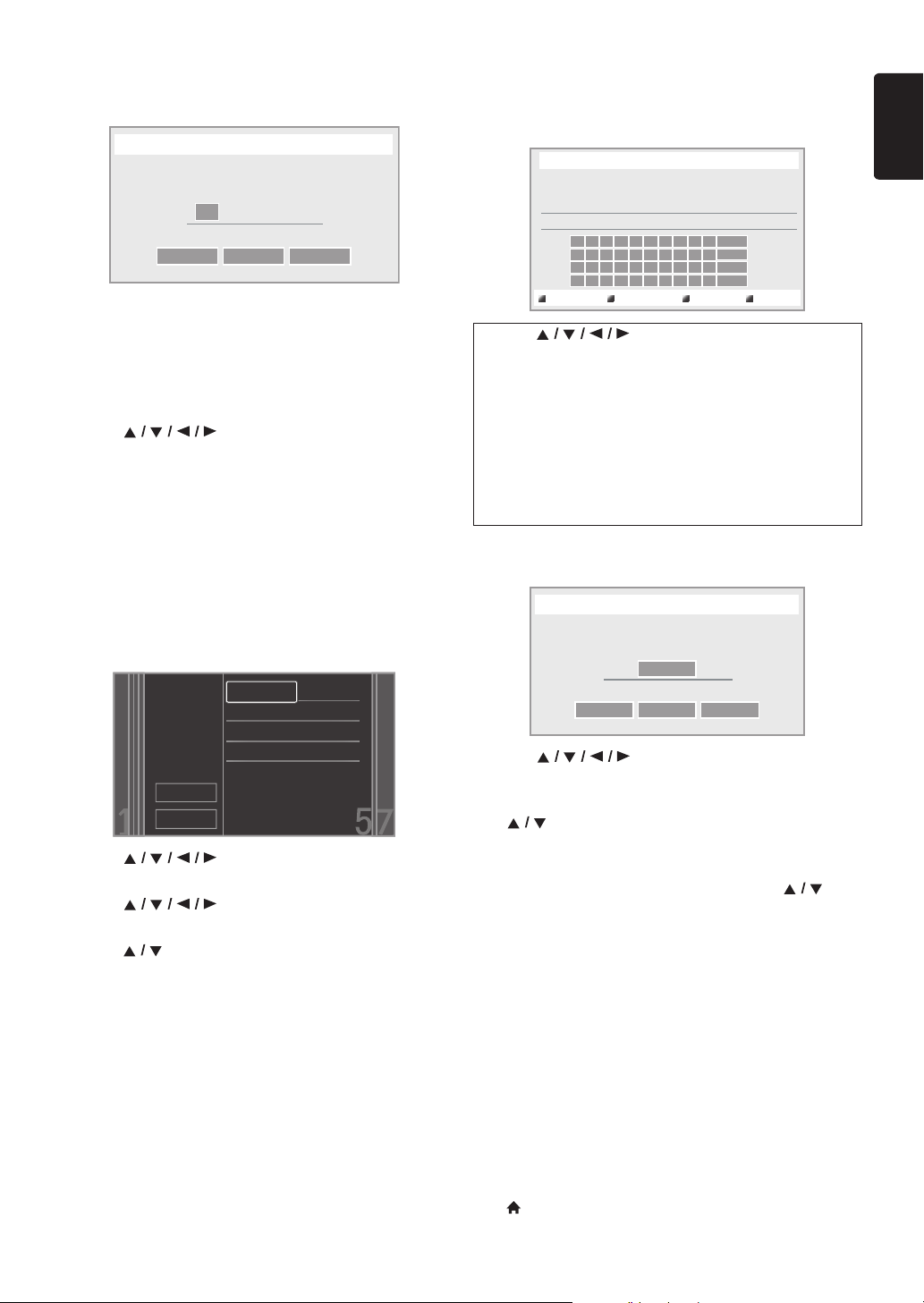
EN - 43
EN
4. “IP Address” setting screen will appear. Enter IP
address with cursor buttons and number buttons.
• Enter the IP address after checking the specifications
of your router.
• If the IP address is unknown, check the IP address of
other devices (e.g. PC connected via LAN cable) and
assign a different number from those of other
devices.
5. Use [] to select “Done”, then press
[OK].
6. Select “Subnet Mask”, “Default Gateway”, “Primary
DNS” and “Secondary DNS” in turn, and enter each
address number with cursor buttons and number
buttons, then press [OK].
• Enter the DNS addresses provided by your Internet
provider.
• If the DNS address is unknown, check the DNS
address of other devices (e.g. PC connected via LAN
cable) and assign the same DNS address.
7. Use [] to select “Done”, then press
[OK].
8. Use [] to select “Continue”, then press
[OK].
9. Use [] to select “Yes” or “No” for proxy server,
then press [OK].
• If you use proxy server, select “Yes” to go to the
next step.
• If you do not use proxy server, select “No” to go to
step 13.
10. “Proxy Address” setting screen will appear. Enter
proxy address with cursor buttons, number buttons
and color key.
11. Press [Red] to go to the “Proxy Port” setting screen.
Enter proxy port number with number buttons.
12. Use [] to select “Done”, then press
[OK].
13. Connection speed setting screen will appear. Use
[] to select the desired setting, then press
[OK].
(The default setting is “Auto”.)
14. BD-Live™ setting screen will appear. Use [] to
select the desired setting, then press [OK].
(The default setting is “Allow”.)
“Allow”:
Internet access is permitted for all BD-Live™ contents.
“Limited Allow”:
Internet access is permitted only for BD-Live™
contents which have content owner certificates.
Internet access without the certificates is prohibited.
“Prohibit”:
Internet access is prohibited for all BD-Live™ contents.
15. Connection test confirmation screen will appear. Select
“Yes” to start the connection test and the test result
will appear right after the connection test finishes.
16. Press [OK] to go back to the setup menu, or press
[(home)] to exit.
0000
...
IP Address
Please input the IP Address.
Cancel Clear Done
xxx. xxx. xxx. xxx
xxx. xxx. xxx. xxx
xxx. xxx. xxx. xxx
xxx. xxx. xxx. xxx
xxx. xxx. xxx. xxx
●
●
●
●
●
Please enter your
network settings.
Continue
Cancel
IP Address
Subnet Mask
Default Gateway
Primary DNS
Secondary DNS
[]: Move the highlight.
[the Number buttons] : Enter numbers or letters.
[OK] : Enter the highlighted number /
letter.
*[Red] : Set the entered number or letter.
[Green] : Cancel the network setting.
*[Blue] : Clear the entered number or
letter.
[Yellow] : Switch between abc, ABC and @!?.
* These buttons can be used in other network settings.
http://xxxxx.xx.xx
a/A/@
Proxy Address
Please input the Proxy Address with keypad or software keyboard.
Done Cancel Clear
xxxxxx
Proxy Port
Please input the Proxy Port.
Cancel Clear Done
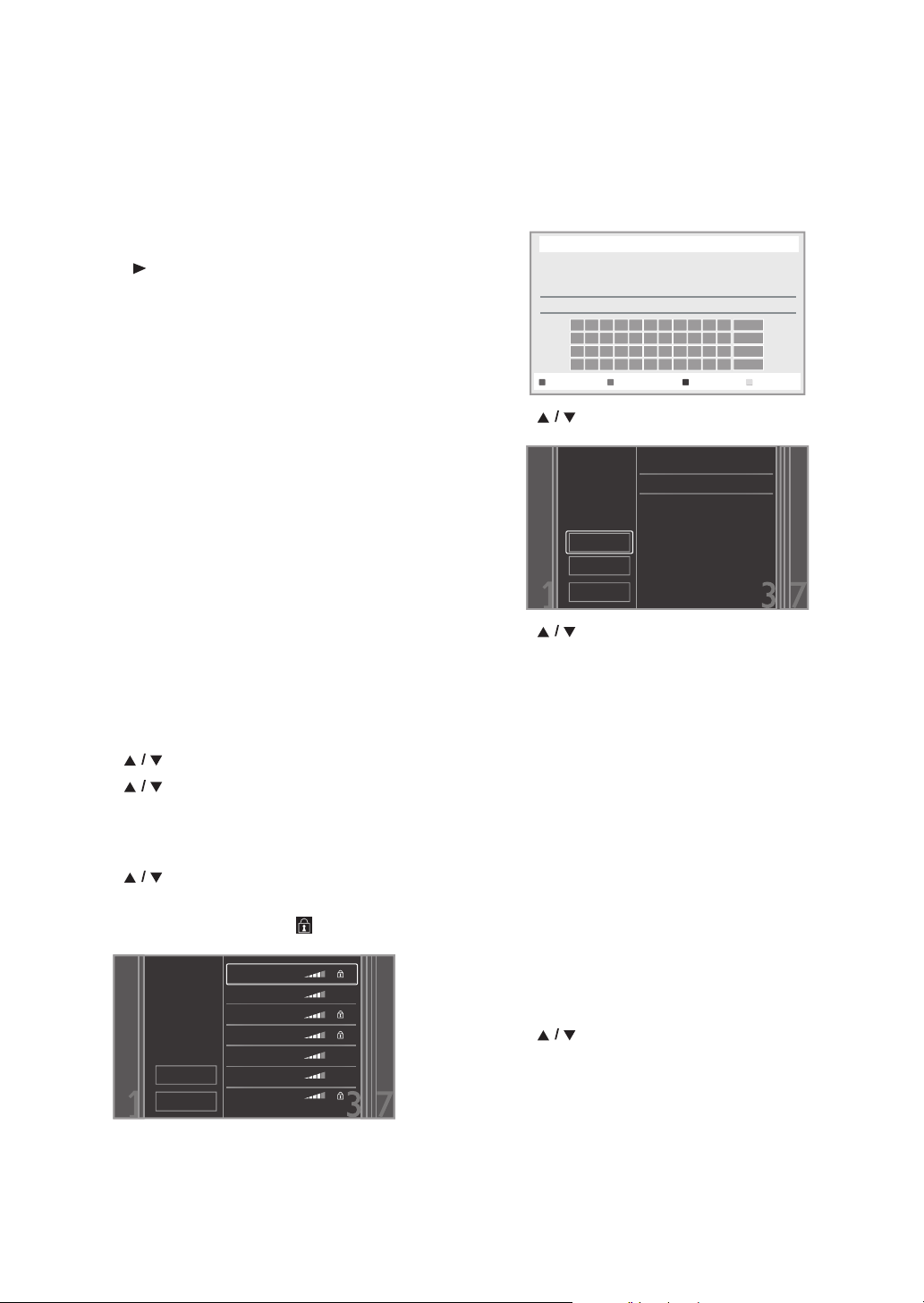
EN - 44
D Note for “IP Address”, “Subnet Mask”, “Default
Gateway”, “Primary DNS” and “Secondary
DNS”
• The range of input numbers is between 0 and 255.
• If you enter a number larger than 255, the number will
automatically be reset to 255.
• When you enter a wrong number, select “Clear” to
clear. (The number will be reset back to “0”.)
• If you want to enter a 1 or 2-digit number in one cell,
press [] to move on to the next cell.
D Note for “Proxy Address” and “Proxy Port”
• The range of input numbers for the port number is
between 0 and 65535. (If you enter a number larger
than 65535, it will be regarded as 65535.)
• For proxy port, certain ports might be closed, blocked
or unusable depending on your network environment.
• Choose a connection speed in accordance with your
network environment.
• When the settings are changed, the network
connection may be disabled depending on the device.
Wireless
If you connect this unit to the Wi-Fi network, select
“Wireless” and set up necessary settings.
Please make a note of your Wi-Fi network name (SSID) and
its WEP / WPA key before proceeding with the setup.
Auto Scan
Search for Wi-Fi networks automatically and select the
Wi-Fi network name (SSID) from the list.
1. Follow steps 1 to 2 in “Auto Setup” on page 42.
2. Use [] to select “Wireless”, then press [OK].
3. Use [] to select “Auto Scan”, then press [OK].
• This unit will start searching for Wi-Fi networks
automatically.
4. The result of Wi-Fi network searching will be displayed.
Use [] to select the appropriate Wi-Fi network
name (SSID), then press [OK].
• If you select an SSID without “ ”, please go to step 6.
5. “Access Point Setting (Auto Scan)” screen will appear.
Enter the WEP / WPA key of the selected Wi-Fi
network using cursor buttons, number buttons and
color key, then press [Red].
• If you do not know the WEP / WPA key for your
Wi-Fi network, ask your ISP or the person who set
up your Wi-Fi network.
6. Use [] to select “Continue”, then press [OK].
7. Use [] to select “Auto Setup” or
“Manual Setup”, then press [OK].
• If you select “Auto Setup”, follow step 5 in
“Auto Setup” on page 42.
• If you select “Manual Setup”, follow steps 3 to 12 and
14 to 16 in “Manual Setup” on page 42.
D Note
• The internal wireless LAN supports following
specifications.
- Wi-Fi standards :IEEE 802.11 b/g/n
- Frequency spectrum :2.4 GHz
- Security protocol :WEP / WPA / WPA2
Manual Entry
Set up the connection to the Wi-Fi network manually by
entering the Wi-Fi network name (SSID).
1. Follow steps 1 to 2 in “Auto Scan” on page 44.
2. Use [] to select “Manual Entry”, then press
[OK].
3. “Access Point Setting (Manual Entry)” screen will
appear.
Enter the SSID using cursor buttons, number buttons
and color key, then press [Red].
Rescan
Cancel
Access 1
Access 2
Access 3
Access 4
Access 5
Access 6
Access 7
Please select the
access point.
XXXXXXXXXX_
a/A/@
Access Point Setting (Auto Scan)
Please input the WEP/WPA key with keypad or software keyboard.
Done Cancel Clear
WPA-PSK(AES)
Access 1
XXXXXXXXXX
●
●
●
Please confirm the
setting.
Rescan
Continue
Cancel
SSID
Security
WEP/WPA Key
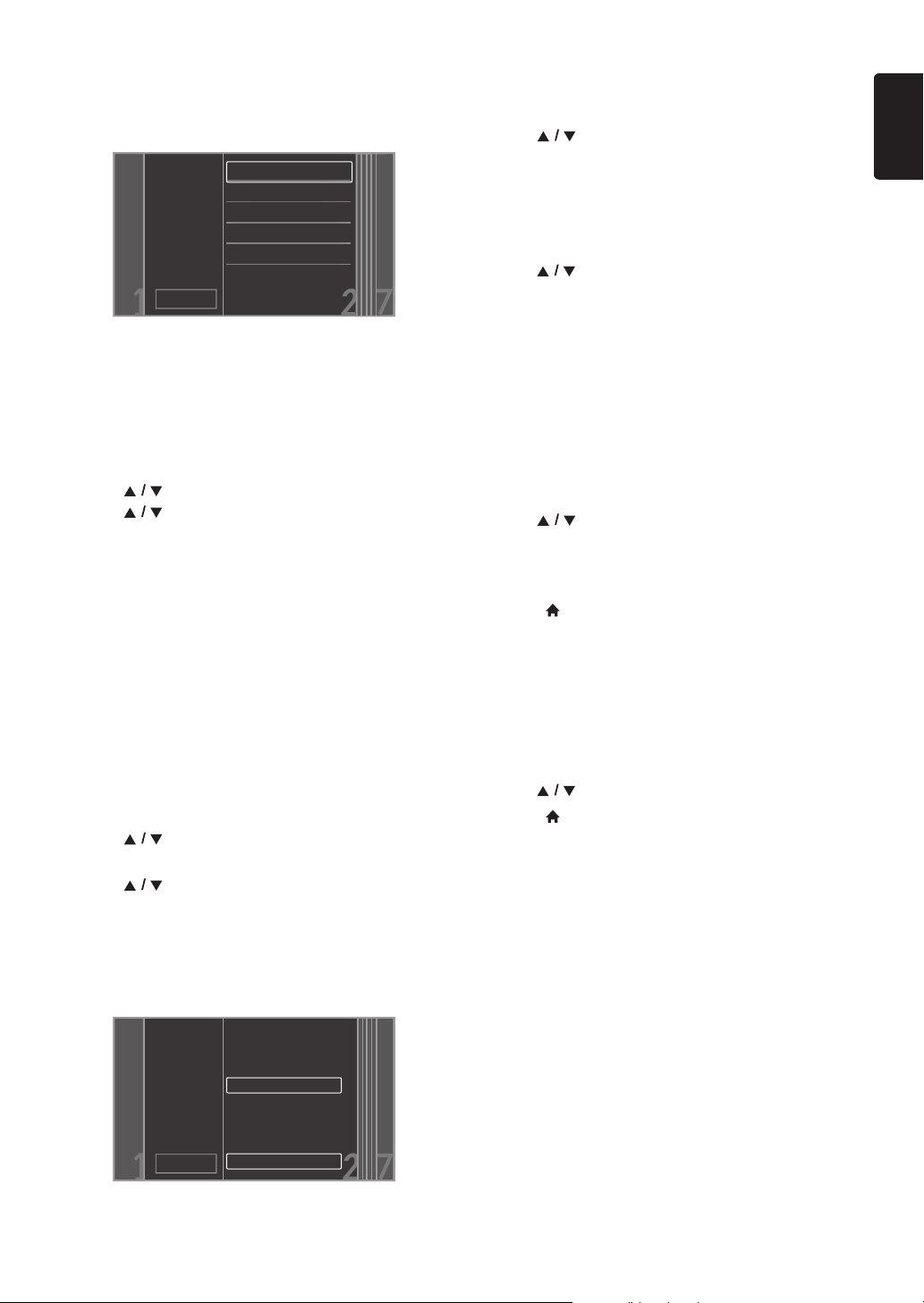
EN - 45
EN
4. Security mode selection screen will appear. Select the
security mode of the entered SSID, then press [OK].
• If you select “None”, please go to step 6.
5. “Access Point Setting (Manual Entry)” screen will
appear.
Enter the WEP / WPA key of the Wi-Fi network using
cursor buttons, number buttons and color key, then
press [Red].
• If you do not know the WEP / WPA key for your
Wi-Fi network, ask your ISP or the person who set
up your Wi-Fi network.
6. Use [] to select “Continue”, then press [OK].
7. Use [] to select “Auto Setup” or
“Manual Setup”, then press [OK].
• If you select “Auto Setup”, follow step 5 in
“Auto Setup” on page 42.
• If you select “Manual Setup”, follow steps 3 to 12 and
14 to 16 in “Manual Setup” on page 42.
Easy Connect
You can set up the Wi-Fi connection quickly. (“Easy
Connect” is available only when your router supports it.
For details, please refer to the user manual of your Wi-Fi
router.)
Push Button Method
Please confirm your Wi-Fi router has a PBC button.
1. Follow steps 1 to 2 in “Auto Scan” on page 44.
2. Use [] to select “Easy Connect”, then press
[OK].
3. Use [] to select “Push Button Method”, then
press [OK]. And push the PBC (Push Button
Configuration) on your Wi-Fi router.
• The unit will start the connection test automatically
and the test result will appear right after the
connection test finishes.
4. Select “Finish” to complete the settings.
PIN Code Method
1. Follow steps 1 to 2 in “Auto Scan” on page 44.
2. Use [] to select “Easy Connect”, then press
[OK].
3. Set up your Wi-Fi router with PIN code shown on the
TV screen.
• For details about setting method of your Wi-Fi
router, please refer to the user manual of the router.
4. Use [] to select “PIN Code Method”, then press
[OK].
5. The unit will start the connection test automatically and
the test result will appear right after the connection
test finishes.
6. Select “Finish” to complete the settings.
View Network Settings / View Wireless Settings
You can check the current status of network settings or
Wi-Fi settings.
1. Follow steps 1 to 2 in “Connection Test” on page 42.
2. Use [] to select “View Network Settings” or
“View Wireless Settings”, then press [OK].
• The current network settings or Wi-Fi settings will
be displayed.
3. Press [(home)] to exit.
Netflix ESN
You can view the ESN number which is a serial number
used by Netflix to identify a device. Netflix customer
service might ask you for this number during
troubleshooting.
1. Follow steps 1 to 2 in “Connection Test” on page 42.
2. Use [] to select “Netflix ESN”, then press [OK].
3. Press [(home)] to exit.
Cancel
None
WEP
WEP-PSK(TKIP)
WEP-PSK(AES)
WPA-PSK(TKIP)
WPA-PSK(AES)
Please select the
security mode.
Cancel
Please push the PBC(push button
configuration) on the wireless router
and select ‘Push Button Method’
button on screen.
Please input the PIN number into
the wireless router and select ‘PIN
Code Method’ button on screen.
Push Button Method
PIN Code Method
65729403
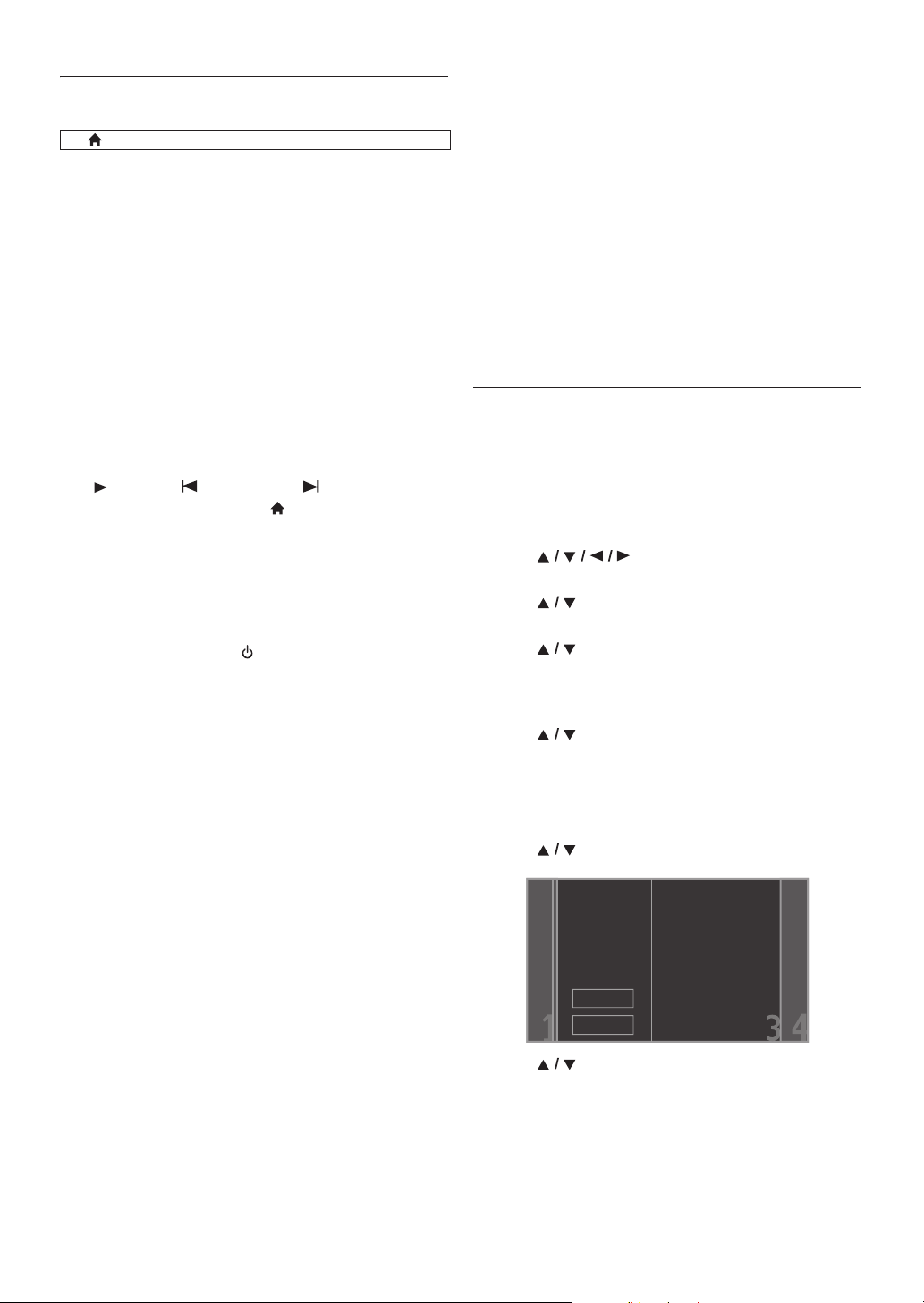
EN - 46
12.4. EasyLink Setup
This unit supports Philips EasyLink, which enables your TV
(limited to Philips brand EasyLink TV) to act in conjunction
with this unit, or vice versa. Compliant TV must be
connected to the HDMI OUT jack.
When “EasyLink” setting is set to “On”, functions listed
below will be available.
One Touch Play
When the operations with following buttons of the remote
control of this unit are performed, the TV will automatically
be turned on and switched to the appropriate input
channel. (“One Touch Play” can be turned off by setting it
to “Off”.)
Buttons for one touch play:
- [(play)], [ (previous)], [ (next)],
[the Number buttons], [(home)], [Net-TV],
or [SOURCE]
- [TOP MENU], or
[DISC MENU / POP-UP MENU]
(when a disc is inserted in the unit)
One Touch Standby
When you press and hold [ (standby/on)] for 2
seconds, it turns off the power of the TV first and then
turns off the power on this unit. When the connected
EasyLink compatible display device is turned off first, it then
turn off the power on this unit. (“One Touch Standby” can
be turned off by setting it to “Off”.)
System Information
Get & Set Menu Language
The unit recognizes the OSD language set of the TV and
automatically sets the same language as the player menu
language (OSD menu language) for this unit. Refer to
“Menu Language” on page 39 for available languages.
• This feature is available only when “Auto (XXXX)” is
selected in the “Menu Language” in the setup menu.
System Audio Control
When you set your TV to output the audio from the 5.1ch
speakers through this unit, you can control the volume
level or mute the audio using TV’s remote control. (For
more details, refer to the owner’s manual of your TV.)
D Note
• For external input mode, “One Touch Play” is not
available.
• Volume level will be displayed on the display panel.
• If you change the speaker setting of your TV to output
the audio from TV's speaker, 5.1ch speakers will be
muted. (To restore the volume, use the remote control
of this unit.)
• When you switch this unit into standby mode, TV’s
speaker will be activated automatically.
• Depending on the connected TV, two device names
(“PHILIPS BD-HTS” and “Audio System”) may be
displayed in the device list of TV’s menu screen. To
select this unit, please select “PHILIPS BD-HTS”.
12.5. Audio Input Mapping
Use to map a connected HDMI device to the correct audio
input for automatic audio source switching.
This unit is compatible with HDMI-ARC devices.
Audio Input Mapping is available only when “System Audio
Control” is set to “On”.
1. Use [] to select “Setup” in the home
menu, then press [OK].
2. Use [] to select “EasyLink Setup”, then press
[OK].
3. Use [] to select “Audio Input Mapping ”, then
press [OK].
4. Read the information on the TV screen and make sure
that all devices are connected properly.
Use [] to select “Continue”, then press [OK].
• Unit starts scanning for compatible devices
connected to its HDMI ports.
• Compatible devices found will be listed on the TV
screen.
5. Use [] to select “Continue”, then press [OK].
6. Use [] to select a desired device, then press
[OK].
(home) A “Setup” A “EasyLink Setup”
Rescan
Continue
The following HDMI devices
were found.
PHILIPS TV
To connect your Home
Theater System, select
the audio input
connector in the second
column that connects to
the device in the first
column.
EN - 47
EN
7. Use [] to select the correct audio input for the
selected device.
8. Press [(home)] to exit.
D Note
• “HDMI-ARC” is available only when connected device
supports ARC on the HDMI input.
12.6. Parental Control
Some BD-videos or DVD-videos feature parental lock
levels. Playback will stop if the ratings exceed the levels you
set, it will require you to enter a password before the disc
will play back. This feature prevents your children from
viewing inappropriate material.
1. Use [] to select “Setup” in the home
menu, then press [OK].
2. Use [] to select “Preference Setup”, then press
[OK].
3. Use [] to select “Parental Control”, then press
[OK].
For the first time only:
Use [the Number buttons] to enter any 4-digit
number (except for 4737). That number will be used as
the password. Record your password, in case you
forget it.
• If you forget the password, enter [4], [7], [3], [7].
The password will be cleared and rating level will be
set to “Off”.
• While you input the password, select “Clear” to
clear the number, then re-enter the password.
Once a password is set:
Use [the Number buttons] to enter your 4-digit
password.
4. Use [] to select your desired parental lock level,
then press [OK].
5. Press [(home)] to exit.
To cancel parental lock temporarily:
Some discs allow you to cancel parental lock temporarily.
With these discs, the message below will appear when you
try to play them back.
“Enter current password.”
Follow the instruction which appears on the TV screen to
cancel parental lock. After entering the password, “Parental
Control” appears. Select desired parental lock level, then
press [OK].
Change Password
1. Follow steps 1 to 2 in “Parental Control” on page 47.
2. Use [] to select “Change Password”, then press
[OK].
3. Use [the Number buttons] to enter your 4-digit
password.
4. Use [the Number buttons] to enter a new 4-digit
password.
5. Use [the Number buttons] to retype the same new
4-digit password.
6. Use [] to select “Confirm”, then press
[OK].
7. Press [(home)] to exit.
(home) A “Setup” A
“Preference
Setup”
A
“Parental
Control”
Rescan
Continue
To connect your Home
Theater System, select
the audio input
connector in the second
column that connects to
the device in the first
column.
PHILIPS TV Aux1
Aux2
Coaxial
HDMI-ARC
None
RATING EXPLANATIONS
Off
• Parental Control is inactive; all discs
can play back.
8 [Adult]
• DVD software of any grades (adult /
general / children) can be played
back.
7 [NC-17]
• No one under 17.
6 [R]
• Restricted; under 17.
5 [PGR]
• Parental Guidance Recommended.
4 [PG-13]
• Unsuitable for children under 13.
3 [PG]
• Parental Guidance suggested.
2 [G]
• General Audience.
1 [Kid Safe]
• Suitable for children.
EN - 48
12.7. Software Update
Philips continuously tries to improve its products and we
strongly recommend that you update the software when
updates are available. New software can be downloaded
from our website at www.philips.com/support using the
model number of your Home Theater System (e.g.
HTS5506) to find information.
Disc / USB Update
You can update the software by using a disc or USB storage
device.
1. Use [] to select “Setup” in the home
menu, then press [OK].
2. Use [] to select “Advanced Setup”, then press
[OK].
3. Use [] to select “Software Update”, then press
[OK].
4. Use [] to select “Disc” or “USB”, then press
[OK].
5. Use [] to select “Yes”, then press [OK].
6. Insert the disc or USB storage device for software
update.
7. After loading the disc or USB storage device,
confirmation message will appear. Select “Yes” and
press [OK] to start updating.
• It may take a while to complete the update.
8. After the update finishes, this unit will restart. Remove
the disc or USB storage device from the unit.
C Caution
• Please do not disconnect the AC power cord or USB
storage device while executing the “Disc” or “USB”
update.
D Note
•Please visit www.philips.com/support to download
the latest software version. Please read the software
update Read-me file carefully before performing an
update using a disc or USB storage device.
• All settings will remain the same even if you update the
software version.
• The version of Netflix will also be updated if newer
version of Netflix is available when updating the
software.
Network Update
You can update the software by connecting the unit to the
Internet.
1. Follow steps 1 to 3 in “Disc / USB Update” on page 48.
2. Use [] to select “Network”, then press [OK].
3. Use [] to select “Yes”, then press [OK].
• This unit will then start checking for the latest
software version.
4. Confirmation message will appear. Select “Yes”, then
press [OK].
• The unit will start downloading the latest software
version.
5. When the download completes, confirmation message
will appear. Press [OK].
• The unit will start updating the software version.
• It may take a while to complete the update.
6. After updating finishes, this unit will restart
automatically.
C Caution
• Please do not unplug the AC power cord or LAN cable
while executing the “Network” update.
D Note
• In order to update the software via the Internet, you
must connect the unit to the Internet and set up
necessary settings.
• For the network connection, refer to “Connection to
the Network” on page 20.
• For the network setup, refer to “Network Installation”
on page 42.
• All settings will remain the same even if you update the
software version.
• The version of Netflix will also be updated if newer
version of Netflix is available when updating the
software.
(home) A
“Setup”
A
“Advanced
Setup”
A
“
Software
Update
”
EN - 49
EN
12.8. Restore Default Settings
Menus to reset player settings, format USB storage device,
local storage and clear network settings.
1. Use [] to select “Setup” in the home
menu, then press [OK].
2. Use [] to select “Advanced Setup”, then press
[OK].
3. Use [] to select “Restore default settings”, then
press [OK].
4. Use [] to select the desired setting, then press
[OK].
“Reset Settings”:
All the settings except for the “Parental Control” and
“Network Installation” setting will be reset to default.
“Format USB” (Available only when a USB
storage device is connected):
Initialize the USB storage device.
“(Unit) Erase Saved BD-ROM Data”:
Clears the data saved for the BD-ROM contents, such
as BD-ROM game scores, on this player.
“(USB) Erase Saved BD-ROM Data” (Available
only when a USB storage device is connected):
Clears the supplemental data for the BD-ROM
playback, such as subtitle data, from the USB storage
device.
“Reset Network Settings”:
Reset the network setting to the default.
5. Use [] to select “Yes”, then press [OK].
• Confirmation message will appear. Press [OK] to
complete the setting.
6. Press [(home)] to exit.
C Caution
• Do not remove the USB storage device while executing
the “Format USB” or “(USB) Erase Saved BD-ROM
Data”. It will damage the USB storage device.
D Note
• “Format USB” and “(USB) Erase Saved BD-ROM Data”
are not available when a Blu-ray Disc™ is in the unit.
(home) A
“Setup”
A
“Advanced
Setup”
A
“Restore default
settings”
EN - 50
13. SOUND SETTINGS
13.1. Volume Control
You can control the volume level of the audio output from
5.1ch speakers.
To increase or decrease the volume level:
Press [VOL / ].
• The volume level will increase or decrease, every time
you press [VOL ] or [VOL ].
• The volume level will be displayed on the display panel
and the TV screen.
To turn off the volume temporarily:
Press [ (mute)].
• To restore the volume, press [(mute)] again or
press [VOL / ].
• “MUTE” will be displayed on the display panel and
will be displayed on the TV screen.
D Note
• This function is only available for the audio output from
5.1ch speakers.
• Pressing [VOL / ] does not work while the setup
menu is displayed.
• If you turn up the volume too much, the audio may get
distorted. To enjoy clear sounds, please turn down the
volume.
13.2. Selecting Surround Mode
Select the surround mode for the audio output from 5.1ch
speakers.
1. During playback, press [SURROUND], then use
[] to select the desired surround mode.
“Direct”:
Selects the appropriate audio decoder (stereo /
multi-channel Dolby, DTS
®
or PCM) based on the input
audio stream.
“2.1ch Stereo”:
Set the surround mode to “2.1ch Stereo”.
(2.1ch Stereo sound from front left/right speakers.)
“Multi ch Stereo”:
Set the surround mode to “Multi ch Stereo”.
(5.1ch stereo sound from 5.1ch speakers.)
“Dolby Pro Logic II Movie”:
Set the surround mode to “Dolby Pro Logic II Movie”.
(Dolby Pro Logic II 5.1ch surround sound.)
“Dolby Pro Logic II Music”:
Set the surround mode to “Dolby Pro Logic II Music”.
(Dolby Pro Logic II 5.1ch surround sound.)
D Note
• During playback of network service, press
[SURROUND] repeatedly to select the desired
surround mode. (The setting does not appear on the
TV screen.)
• The availability of surround sound modes will depend
on the audio source.
• In disc or USB mode, pressing [SURROUND] does
not work while in the Resume-On-Stop mode.
• In FM mode, pressing [SURROUND] does not work
when no audio is being input.
•Pressing [SURROUND] does not work during
playback of JPEG files.
• This function is effective only for the audio output from
5.1ch speakers.
• The volume will be restored If you press
[SURROUND] when the audio is muted.
• For multi-channel audio, “Multi ch Stereo”, “Dolby Pro
Logic II Movie” or “Dolby Pro Logic II Music” cannot be
set.
• You can also change the surround setting by pressing
[OPTION].
13.3. Selecting Sound Effect Mode
Select the sound effect mode for the audio output from
5.1ch speakers to suit your video or music.
1. During playback, press [SOUND MODE], then use
[] to select the desired sound effect mode.
D Note
• During playback of network service, press
[SOUND MODE] repeatedly to select the desired
sound effect mode. (The setting does not appear on the
TV screen.)
• In disc or USB mode, pressing [SOUND MODE]
does not work while in the Resume-On-Stop mode.
• In FM mode, pressing [SOUND MODE] does not
work when no audio is being input.
•Pressing [SOUND MODE] does not work during
playback of JPEG files.
• This function is effective only for the audio output from
5.1ch speakers.
• The volume will be restored if you press
[SOUND MODE] when the audio is muted.
• You can also change the sound effect mode by pressing
[OPTION].
Video Music Description
Off Off Turns off the sound effect
mode.
Action Rock Enhanced low and high-range.
Ideal for action movies and
rock or pop music.
Drama Jazz Clear mid and high-range.
Ideal for drama movies and
jazz music.
Concert Classic Neutral sound. Ideal for live
concerts and classical music.
Sports Sports Moderate mid-range and
surround effects for clear
vocals and the atmosphere of
a live sport venue.

EN - 51
EN
14. OTHER SETTINGS
14.1. Switching Active Source Mode
You can change the active source mode to the desired
external audio inputs and enjoy audio from the connected
device with the multi-channel surround sound capabilities.
Press [SOURCE] repeatedly to select the desired source
mode.
“Aux1”:
Set the active source mode to the AUDIO IN(AUX1).
“Aux2”:
Set the active source mode to the AUDIO IN(AUX2).
“Coaxial”:
Set the active source mode to the DIGITAL AUDIO IN
(COAXIAL).
“FM”:
Set the active source mode to the FM.
“HDMI-ARC”:
Set the active source mode to the HDMI-ARC.
14.2. Sleep Timer
The sleep timer enables the unit to switch to the standby
mode automatically after the selected preset time.
To set the sleep timer:
Press [SLEEP] repeatedly to select the desired
preset time.
“SLP¬Off”:
Turns off the sleep timer.
“SLP 15min.”:
Set the preset turn-off time to 15 minutes.
“SLP 30min.”:
Set the preset turn-off time to 30 minutes.
“SLP 60min.”:
Set the preset turn-off time to 60 minutes.
“SLP 90min.”:
Set the preset turn-off time to 90 minutes.
“SLP 120min.”:
Set the preset turn-off time to 120 minutes.
“SLP 150min.”:
Set the preset turn-off time to 150 minutes.
To check or change the setting:
Press [SLEEP] once to display the remaining time.
To change the setting, press [SLEEP] repeatedly until
your desired preset time is displayed.
To cancel sleep timer:
Press [SLEEP] repeatedly until “SLP¬Off” is displayed.
D Note
• The sleep timer will be activated even if the unit is in
operation.
•Pressing [SLEEP] does not work while the setup
menu is displayed.
EN - 52
15. TROUBLESHOOTING
Problem Tip
No reaction to the remote control. Connect the product to the power outlet.
Point the remote control at the product.
Insert the batteries with the correct polarity.
Insert new batteries in the remote control.
No video signal on the display device. Turn on the TV.
Set the TV to the correct external input.
Select the correct video resolution in the “HDMI Video” in the setup menu.
Press and hold [(play)] on the front panel for 5 seconds to change the setting
back to its default.
No audio / video signal on the display device via
HDMI cable.
If the unit is connected to the unauthorized display device with an HDMI cable, the
audio / video signal may not be output.
Perform an HDMI cable hotplug, wherein you disconnect the HDMI cable from the TV
and this unit and then reconnect it to both the devices while they are powered on.
Ensure that your HDMI cable is certified.
No high-definition video signal on the TV screen. Does the disc contain high-definition video? High-definition video is not available
when the disc does not contain it.
Does the TV support high-definition video? High-definition video is not available when
the TV does not support it.
No 3D video on the TV screen. Check if your TV is 3D capable.
Use a 3D compatible HDMI cable to connect the 3D capable TV.
Set “3D Output” to “Auto (XX)”. (Refer to page 38.)
Check the battery levels of your glasses.
Wear 3D glasses and make sure they are switched on and in sync with your TV.
Refer to your 3D TV’s user manual for more information.
No audio signal from the loudspeakers of the TV
connected via an HDMI cable.
Set “Audio Output” to “HDMI Normal” or “HDMI LPCM” in the setup menu.
Ensure that the TV speakers are turned on in the TV menu.
Ensure that the TV speakers are not muted.
No audio from the speaker system. Increase the volume level of the speaker system.
Set “Audio Output” to “Speakers” in the setup menu.
Make sure that audio is not muted.
Make sure you have selected the correct active source for external audio input.
No 5.1-channel audio from the speaker system. Does the disc contain 5.1-channel audio? The 5.1-channel audio is not available when
the disc does not contain it.
Set “Audio Output” to “Speakers” in the setup menu.
Make sure that the surround mode is not set to “2.1ch Stereo”.
When listening to a stereo (2 channel) source, press [SURROUND] and select
“Dolby Pro Logic II Music” or “Dolby Pro Logic II Movie” to upmix the stereo source
to 5.1 channel surround.
When I press [SURROUND] on my HTS remote
while playing movies, I only get “Direct” and “2.1ch
Stereo” as available surround modes.
Most movies have multi-channel audio tracks, i.e. 5.1 channel or 7.1 channel audio in
DTS
®
, Dolby or PCM. Virtual surround modes such as “Multi ch Stereo”, “Dolby Pro
Logic II Movie” or “Dolby Pro Logic II Music” are not available (and not necessary)
when the source audio is already multi-channel.
It is best to use Surround = Direct in such cases as it enables the appropriate
multi-channel decoder.
Cannot play back a disc. Make sure that the product supports the disc.
Check the region code of the disc. This unit supports following region codes.
- Blu-ray Disc™ :“A”
- DVD :“ALL” or “1” for HTS5506/F7 (USA / Canada)
“ALL” or “4” for HTS5506/F8 (Mexico)
For DVD-RW/-R, make sure that the disc is finalized.
Clean the disc.
USB storage device cannot be read. The format of the device is not accepted by this unit or the device is not compatible.
Cannot play back JPEG files from a disc. Make sure that the disc was recorded in the UDF, ISO9660 or JOLIET format.
Cannot play back MP3 files from a disc. Make sure that the disc was recorded in the UDF, ISO9660 or JOLIET format.
Make sure that the bit rate of the MP3 files is between 112 and 320 kbps.
Make sure that the sample rate of the MP3 files is 32 kHz, 44.1 kHz or 48 kHz.
Cannot play back Windows Media™ Audio files
from a disc.
Make sure that the sample rate of the Windows Media™ Audio files is
44.1 kHz or 48 kHz.
EN - 53
EN
Problem Tip
in the upper right hand corner of the TV
screen.
The operation is not possible.
Buttons do not work or the unit stops responding.
To completely reset the unit, press and hold [(standby/on)] on the front panel
for 10 seconds to shut down the unit or unplug the AC cord from the AC outlet for
15-20 seconds.
Cannot find a JPEG file. Make sure that the selected group (folder) does not contain more than 9,999 files for
Blu-ray Disc™ / DVD / USB storage device, and 999 files for CD.
Make sure that the file extension is .jpg, .JPG, .jpeg or .JPEG.
Cannot find an MP3 and Windows Media™ Audio
file.
Make sure that the selected folder does not contain more than 9,999 files for Blu-ray
Disc™ / DVD / USB storage device, and 999 files for CD.
Make sure that the file extension is .mp3 or .MP3 for MP3, and .wma or .WMA for
Windows Media™ Audio.
Cannot play back AVCHD file. This unit cannot play back standalone AVCHD files (*.m2ts, *.mts or *.m2t) written
to a DVD. The DVD containing AVCHD files must have a proper file and folder
structure meeting AVCHD format specifications.
Please use AVCHD compliant device / software to burn or copy AVCHD files to
DVD. (Please refer to user manuals of the device / software for more information.)
Error message appears when I select “Auto” in the
“Menu Language”.
Make sure that the unit is connected to the Philips brand EasyLink TV and the
“EasyLink” is set to “On”.
This error message may appear when your TV’s OSD language is not supported by
this unit.
Cannot connect to the network. Check if the network connection is properly made.
Turn on the modem or router.
Check the network settings.
Check if the router and/or modem is correctly connected.
Check the BD-Live™¬setting in “Manual Setup” on page 42.
When connecting directly to a modem via a LAN cable, you might need to power
cycle the modem to reset settings on the modem.
Cannot use the Wi-Fi connection. Once you have activated the Wi-Fi connection please wait for 30 seconds for the
connection to be established after turning on the unit, before trying to access
network features such as BD-Live™, DLNA, Netflix, Film Fresh, VUDU or Pandora.
Cannot get into the PC’s screen after
“MediaConnect” is selected.
The startup screen (Philips logo with spinning circle) keep displaying until the unit
found the PC that is running Philips Wireless MediaConnect.
Make sure if the network connection is connected properly.
Check if your PC runs Philips Wireless MediaConnect.
Make sure this unit and PC are connected on the same network.
I have a 1.8GHz CPU but MediaConnect does not
work on my PC.
For smooth operation of your PC while Philips MediaConnect is running you need a
mainstream dual core processor from Intel or AMD.
Intel: Core2Duo or Core i3/5/7 @ 1.8GHz or higher.
AMD: Athlon II X2, Turion II Dual-Core or Phenom X2 @ 2GHz or higher.
Cannot connect to the network while my PC is
connected to the network.
Check the content of your Internet service contract to see if your Internet Service
Provider prevents multiple terminals connecting at the same time.
The capacity of the USB storage device decreased. Data may be written to the USB storage device when a BD-video that supports the
virtual package is used and a USB storage device is connected.
MPEG-2 video and audio on the USB storage device
cannot be played back.
MPEG-2 is noncompliant on this unit.
The contents of the USB storage device cannot be
read.
The USB storage device is not compatible or the contents on the USB storage device
may be damaged.
Turn off and then turn the unit on again.
Cannot use the BD-Live™ function or download of
data does not perform properly.
Insert a USB storage device with enough space (1GB or more).
Check if a USB storage device is correctly inserted.
Cannot play back BD-video (BD-ROM Profile 2.0). Insert a USB storage device (1GB or more) which is formatted on this unit. Some
discs with BD-Live™ function require memory when playing back the content.
Do not remove the USB storage device during playback.
Folder or files stored on DLNA home media server
are not displayed in the file list or cannot be played
back.
Check the setting on your home media server.(Refer to the user manual of the home
media server.)
Check the network connection and settings.
Radio reception is poor. If the signal is too weak, adjust the antenna or connect an external antenna for better
reception.
Increase the distance between this unit and your TV or VCR.
Tune in to the correct frequency.
Place the
antenna further away from any equipment that may be causing the
interference.

EN - 54
15.1. Downloading an Electronic Copy
To obtain an electronic copy of this manual :
1. Point your browser to www.philips.com/support
2. Choose your country of location.
3. Enter the model number or a keyword in the “Find your product” field. Alternatively, you can browse the catalog.
4. Click the description or model.
5. Under Product support, click “User manuals”.
15.2. Contact Us
• If you cannot resolve your problem, refer to the FAQ for this Home Theater System at www.philips.com/support
If the problem remains unresolved, contact the Customer Support Center in your country.
D Note
• Do not attempt to repair the Home Theater System yourself. This may cause severe injury, irreparable damage to your
Home Theater System or void your warranty.
• Please have your Home Theater System model and serial number available before contacting us.
These numbers are available on the cabinet, as well as on the packaging.

EN - 55
EN
16. GLOSSARY
Analog Audio
An electrical signal that directly represents sound.
Compare this to digital audio which can be an electrical
signal, but is an indirect representation of sound. See also
“Digital Audio”.
Aspect Ratio
The width of a TV screen relative to its height.
Conventional TVs are 4:3 (in other words, the TV screen is
almost square); widescreen models are 16:9 (the TV screen
is almost twice as wide as its height).
AVCHD
AVCHD is a new format for high definition video
camcorders which can record and play high-resolution HD
images.
BD-Live™
BD-Live™ is a BD-video (BD-ROM version 2 Profile 2.0)
which contains new functions (e.g. Internet connection), in
addition to the BONUSVIEW™ function.
Blu-ray Disc™
Blu-ray Disc™ is a next generation optical video disc which
is capable of storing much more data than a conventional
DVD. The large capacity makes it possible to benefit from
the features such as high-definition videos, multi-channel
surround sounds, interactive menus and so on.
Chapter
Just as a book is split up into several chapters, a title on a
BD-video or DVD-video is usually divided into chapters.
See also “Title”.
Cinavia™
Cinavia Notice
This product uses Cinavia technology to limit the use of
unauthorized copies of some commercially-produced film
and videos and their soundtracks. When a prohibited use of
an unauthorized copy is detected, a message will be
displayed and playback or copying will be interrupted.
More information about Cinavia technology is provided at
the Cinavia Online Consumer Information Center at
To request additional information about Cinavia by mail,
send a postcard with your mailing address to: Cinavia
Consumer Information Center, P.O. Box 86851, San Diego,
CA, 92138, USA.
This product incorporates proprietary technology under
license from Verance Corporation and is protected by U.S.
Patent 7,369,677 and other U.S. and worldwide patents
issued and pending as well as copyright and trade secret
protection for certain aspects of such technology.
Cinavia is a trademark of Verance Corporation. Copyright
2004-2010 Verance Corporation. All rights reserved by
Verance. Reverse engineering or disassembly is prohibited.
Digital Audio
An indirect representation of sound by numbers. During
recording, the sound is measured at discrete intervals
(44,100 times a second for CD audio) by an
analog-to-digital converter, generating a stream of numbers.
On playback, a digital-to-analog converter generates an
analog signal based on these numbers. See also “Sampling
Frequency” and “Analog Audio”.
DLNA (Digital Living Network Alliance)
DLNA is a cross-industry organization of consumer
electronics that formulates DLNA Interoperability
Guidelines for sharing digital contents within a home
network.
DNS Server
A server which translates Internet domain names into IP
addresses.
Dolby Digital
The system to compress digital sound developed by Dolby
Laboratories. It offers you sound of stereo (2ch) or
multi-channel audio.
Dolby Digital Plus
Dolby Digital Plus is the next generation digital audio
compression technology developed as an extension to
Dolby Digital. Blu-ray Disc™ supports 7.1 multi-channel
surround sound output.
Dolby Pro Logic II
Dolby Pro Logic II technology processes any high quality
stereo (two-channel) movie and music audio into five
playback channels of full-bandwidth surround sound.
A matrix surround decoding technology, Dolby Pro Logic II
detects the directional cues that occur naturally in stereo
content and uses these elements to create a five-channel
surround sound playback experience.
Dolby TrueHD
Dolby TrueHD is a lossless coding technology developed
for next generation optical discs. Blu-ray Disc™ supports
7.1 multi-channel surround sound output.
DTS
®
(Digital Theater System)
DTS
®
is a multi channel surround sound system. You can
enjoy movie dynamic and realistic sound like movie theater.
DTS surround sound technologies were developed by DTS,
Inc.
DTS-HD
®
DTS-HD
®
is a lossless coding technology developed as an
extension of the original DTS Coherent Acoustics format.
Blu-ray Disc™ supports 7.1 multi-channel surround sound
output.
Film Fresh
Film Fresh is online service which you can rent or purchase
movies and TV episodes streamed over the Internet.
Film Fresh is available only in the United States.
http://www.cinavia.com

EN - 56
Gateway
IP address of the electronic devices (such as router) which
provide Internet access.
HDMI (High-Definition Multimedia Interface)
A digital interface between audio and video source. It can
transmit component video, audio, and control signal with
one cable connection.
Hub
A device used for connecting multiple device to the
network.
IP Address
A set of numbers which are assigned to devices
participating in a computer network.
JPEG (Joint Photographic Experts Group)
JPEG is a method of compressing still picture files. You can
copy JPEG files on BD-RE/-R, DVD-RW/-R, CD-RW/-R or
USB storage device from a computer and play back the files
on this unit.
LAN (Local Area Network)
A group of computer networks covering a small area like a
company, school or home.
Local Storage
A storage area of sub contents for playing virtual packages
on BD-video.
MP3 (MPEG audio layer 3)
MP3 is a method of compressing files. You can copy MP3
files on BD-RE/-R, DVD-RW/-R, CD-RW/-R or USB
storage device from the computer and play back the files on
this unit.
Netflix
Netflix is online movie rental service, offering online
steaming to customers in the United States.
Pandora
Pandora is the personalized Internet radio service.
You can instantly listen to personalized radio stations
streamed over the Internet from Pandora.
Pandora is available only in the United States.
PCM (Pulse Code Modulation)
The most common system of encoding digital audio, found
on CD and DAT. Excellent quality, but requires a lot of
data compared to formats such as Dolby Digital and MPEG
audio. For compatibility with digital audio recorders (CD,
MD and DAT) and AV amplifiers with digital inputs, this
unit can convert Dolby Digital, DTS, and MPEG audio to
PCM. See also “Digital Audio”.
Proxy Server
Proxy server is a server which acts as an intermediary
between a workstation user and the Internet to ensure
security.
Region Code
Regions associate discs and players with particular areas of
the world. This unit will only play back discs that have
compatible region codes. You can find the region code of
your unit by looking on the rear panel. Some discs are
compatible with more than one region (or all regions).
Router
A networking device which distinguishes the IP address
assigned to each device and routing and forwarding
information in the computer network.
Sampling Frequency
The rate which sound is measured by a specified interval to
turn into digital audio data. The numbers of sampling in one
second defines as sampling frequency. The higher the rate,
the better the sound quality.
Subnet Mask
A mask which is used to determine what subnet an IP
address belongs to.
Title
A collection of chapters on BD-video or DVD-video. See
also “Chapter”.
Track
Audio CD uses tracks to divide up the content of a disc.
The BD-video or DVD-video equivalent is called a chapter.
See also “Chapter”.
Virtual Package
The function which copies data to other media (local
storage) from the Internet and plays secondary video,
secondary audio and subtitles at the same time. The
method of the playback varies depending on discs.
VUDU
VUDU is a leading HD on-demand video service which
utilizes the Internet connection to deliver the highest
quality on-demand video and Internet applications.
Windows Media™ Audio
Windows Media™ Audio is the audio compressing
technology developed by Microsoft. You can copy
Windows Media™ Audio files on BD-RW/-R, DVD-RW/-R,
CD-RW/-R or USB storage device from a computer and
play them back on this unit.
x.v.Color
“x.v.Color” is a promotion name given to the products that
have the capability to realize a wide color space based on
the xvYCC specifications and is a trademark of Sony
Corporation.
EN - 57
EN
17. LANGUAGE CODE LIST
D Note
• If you choose a language that has a 3-letter-language code (written in bracket), the code will be displayed every time
you change the subtitle language setting on page 33 or audio setting on page 33. If you choose any other languages, “---”
will be displayed instead.
Language Code Language Code Language Code Language Code
A-B
French [FRE] 5264 Macedonian 5957 Siswat 6565
Abkhazian 4748 Frisian 5271 Malagasy 5953 Slovak [SLO] 6557
Afar 4747 Galician 5358 Malay 5965 Slovenian 6558
Afrikaans 4752 Georgian 5747 Malayalam 5958 Somali 6561
Albanian 6563 German [GER] 5051 Maltese 5966 Spanish [SPA] 5165
Amharic 4759 Greek [GRE] 5158 Maori 5955 Sundanese 6567
Arabic 4764 Greenlandic 5758 Marathi 5964 Swahili 6569
Armenian 5471 Guarani 5360 Moldavian 5961 Swedish [SWE] 6568
Assamese 4765 Gujarati 5367 Mongolian 5960
T
Aymara 4771 Hausa 5447 Nauru 6047 Tagalog 6658
Azerbaijani 4772 Hebrew 5569 Nepali 6051 Tajik 6653
Bashkir 4847 Hindi 5455 Norwegian [NOR] 6061 Tamil 6647
Basque 5167 Hungarian [HUN] 5467
O-R
Tatar 6666
Bengali;Bangla 4860
I-K
Occitan 6149 Telugu 6651
Bhutani 5072 Icelandic [ICE] 5565 Oriya 6164 Thai 6654
Bihari 4854 Indonesian 5560 Oromo (Afan) 6159 Tibetan 4861
Bislama 4855 Interlingua 5547 Panjabi 6247 Tigrinya 6655
Breton 4864 Interlingue 5551 Pashto;Pushto 6265 Tonga 6661
Bulgarian [BUL] 4853 Inupiak 5557 Persian 5247 Tsonga 6665
Burmese 5971 Irish [GLE] 5347 Polish [POL] 6258 Turkish [TUR] 6664
Byelorussian 4851 Italian [ITA] 5566 Portuguese [POR] 6266 Turkmen 6657
C-E
Japanese [JPN] 5647 Quechua 6367 Twi 6669
Cambodian 5759 Javanese 5669 Rhaeto-Romance 6459
U-Z
Catalan 4947 Kannada 5760 Romanian [RUM] 6461 Ukrainian 6757
Chinese [CHI] 7254 Kashmiri 5765 Russian [RUS] 6467 Urdu 6764
Corsican 4961 Kazakh 5757
S
Uzbek 6772
Croatian 5464 Kinyarwanda 6469 Samoan 6559 Vietnamese 6855
Czech [CZE] 4965 Kirghiz 5771 Sangho 6553 Volapuk 6861
Danish [DAN] 5047 Kirundi 6460 Sanskrit 6547 Welsh 4971
Dutch [DUT] 6058 Korean [KOR] 5761 Scots Gaelic 5350 Wolof 6961
English [ENG] 5160 Kurdish 5767 Serbian 6564 Xhosa 7054
Esperanto 5161
L-N
Serbo-Croatian 6554 Yiddish 5655
Estonian 5166 Laothian 5861 Sesotho 6566 Yoruba 7161
F-H
Latin 5847 Setswana 6660 Zulu 7267
Faroese 5261 Latvian;Lettish 5868 Shona 6560
Fiji 5256 Lingala 5860 Sindhi 6550
Finnish [FIN] 5255 Lithuanian 5866 Singhalese 6555
EN - 58
18. SPECIFICATIONS
D Note
• The specifications and design of this product are subject to change without notice.
General
Signal system NTSC Color
Power requirements 120 V AC, 60 Hz
Power consumption 70 W (standby: 0.6 W)
Total output power (Amplifier) Home theater mode: 1000 W
FTC* output power: 700 W
* (Main Ch @ 1 kHz within 10 % THD, Sub Ch 60 Hz within 2.5 % THD)
Dimensions (width x height x depth) 17.2 x 2.4 x 11.1 inches (435 x 60 x 281 mm)
Weight Total weight: 28.11 lbs. (12.75 kg)
Main unit: 8.16 lbs. (3.7 kg)
Operating temperature 41°F (5°C) to 104°F (40°C)
Operating humidity Less than 80 % (no condensation)
Terminals
USB input
TYPE A
USB 2.0
Bus power current: MAX. 500mA
Analog audio output
(SPEAKERS (4:))
Front speakers System: Full range satellite
Impedance: 4:
Frequency response: 160 Hz ~ 20 kHz
Dimensions: 3.7 x 6.3 x 3.4 inches (95 x 160.9 x 87 mm)
Speaker cable length: 9.8 feet (3 m)
Weight: 1.23 lbs. (0.56 kg)
Rear speakers System: Full range satellite
Impedance: 4:
Frequency response: 180 Hz ~ 20 kHz
Dimensions: 3.7 x 6.3 x 3.4 inches (95 x 160.9 x 87 mm)
Speaker cable length: 30 feet (9.15 m)
Weight: 1.19 lbs. (0.54 kg)
Center speaker System: Full range satellite
Impedance: 4:
Frequency response: 160 Hz ~ 20 kHz
Dimensions: 6.3 x 3.7 x 3.6 inches (160.9 x 95 x 92 mm)
Speaker cable length: 9.8 feet (3 m)
Weight: 1.68 lbs. (0.76 kg)
Subwoofer Impedance: 4:
Speaker drivers: 6.5 inches (160 mm) woofer
Frequency response: 50 Hz ~ 150 Hz
Dimensions: 4.8 x 12.2 x 14.5 inches (122.6 x 309.5 x 369 mm)
Speaker cable length: 14.1 feet (4.3 m)
Weight: 8.2 lbs. (3.72 kg)
Video output
RCA jack x 1 1 Vp-p (75:)
Analog audio input
AUX1 / AUX2
RCA jacks(L / R) x 2 L/R: 2 Vrms (47k:)
Digital audio input (COAXIAL)
RCA jack x 1 500 mVp-p (75:)
HDMI output
HDMI jack x 1 Video: 480p, 720p, 1080i, 1080p, 1080p24/Audio
LAN terminal
10BASE-T / 100BASE-TX
Wireless LAN (Internal)
IEEE 802.11 b/g/n
RADIO
FM ANT 75: jack × 1
Tuning range: FM 87.5 - 108 MHz (100kHz)
Antenna terminal: 75: (unbalanced)
Wireless rear audio input
14-pin jack × 1

EN - 59
EN
19. IMPORTANT HEALTH AND SAFETY INFORMATION FOR 3D
TELEVISIONS
Ambient fluorescent lighting may cause a flickering effect and direct sunlight
may adversely affect the operation of your 3D glasses.
1.
Read the following information before viewing 3D television images.
DO NOT place your television near open stairwells, balconies or other objects as
viewing in 3D images may cause disorientation for some viewers resulting in falls,
tripping or walking into objects.
2.
If you experience (1) altered vision; (2) lightheadedness; (3) dizziness; (4) involuntary
movements such as eye or muscle twitching; (5) confusion; (6) nausea; (7) loss of
awareness; (8) convulsions; (9) cramps; and/or (10) disorientation, immediately stop
watching 3D images and consult your doctor.
3.
Parents should regularly monitor their children concerning the above symptoms
as children and teenagers may be more likely to experience these symptoms more
frequently than adults. Watching 3D television is not recommended for children
under the age of 6 as their visual system is not yet fully developed.
4.
Prolonged viewing of 3D images might cause discomfort, dizziness, eye strain,
headaches or disorientation.
5.
CAUTION NOTICE:
Some viewers may experience an epileptic seizure or stroke when exposed to
certain flashing images or lights contained in certain television pictures or video
games. If you or any of your family has a history of epilepsy or stroke, please
consult your doctor before viewing 3D images.
1.
DO NOT watch 3D television if you are pregnant, elderly, sleep-deprived, suffering
from serious medical conditions, in poor physical condition or under the influence
of alcohol.
2.
Sitting too close to the screen for an extended period of time may damage your
eyesight. The ideal distance should be at least three times the height of the TV screen
and at the viewer's eyes level.
3.
Wearing the 3D glasses for any reason other than viewing 3D television (as general
spectacles, sunglasses, protective goggles, etc.) may physically harm you or weaken
your eyesight.
4.
If you experience any discomfort while viewing 3D images, stop and do not
immediately engage in any potentially hazardous activity such as driving a car
until your symptoms have disappeared. If your symptoms persist, do not resume
watching 3D images without consulting your doctor.
5.
WARNING NOTICE:

EN - 60
20. ONE (1) YEAR LIMITED WARRANTY
W
ARRANTY COVERAGE:
This warranty obligation is limited to the terms set forth
below.
W
HO IS COVERED:
This product is warranted to the original purchaser or the per-
son receiving the product as a gift against defects in materials
and workmanship as based on the date of original purchase
(“Warranty Period”) from an Authorized Dealer. The original
sales receipt showing the product name and the purchase date
from an authorized retailer is considered such proof.
W
HAT IS COVERED:
This warranty covers new products if a defect in material
or workmanship occurs and a valid claim is received within
the Warranty Period. At its option, the company will either (1)
repair the product at no charge, using new or refurbished
replacement parts, or (2) exchange the product with a product
that is new or which has been manufactured from new, or ser-
viceable used parts and is at least functionally equivalent or
most comparable to the original product in current inventory,
or (3) refund the original purchase price of the product.
The Company warrants replacement products or parts provided
under this warranty against defects in materials and workmanship
from the date of the replacement or repair for ninety (90) days
or for the remaining portion of the original product’s warranty,
whichever provides longer coverage for you. When a product or
part is exchanged, any replacement item becomes your property
and the replaced item becomes the company’s property. When a
refund is given, your product becomes the company’s property.
Note: Any product sold and identified as refurbished or
renewed carries a ninety (90) day limited warranty.
Replacement product can only be sent if all warranty
requirements are met. Failure to follow all
requirements can result in delay.
W
HAT IS NOT COVERED - EXCLUSIONS AND
LIMITATIONS:
This Limited Warranty applies only to the new products that
can be identified by the trademark, trade name, or logo affixed
to it. This Limited Warranty does not apply to any non-Philips
hardware product or any software, even if packaged or sold
with the product. Non-Philips manufacturers, suppliers, or
publishers may provide a separate warranty for their own
products packaged with the bundled product.
The Company is not liable for any damage to or loss of any
programs, data, or other information stored on any media
contained within the product, or any non-Philips product or
part not covered by this warranty. Recovery or reinstallation
of programs, data or other information is not covered under
this Limited Warranty.
This warranty does not apply (a) to damage caused by accident,
abuse, misuse, neglect, misapplication, or non-Philips product,
(b) to damage caused by service performed by anyone other
than an Authorized Service Location, (c) to a product or
a part that has been modified without written permission,
or (d) if any serial number has been removed or defaced,
or (e) product, accessories or consumables sold “AS IS”
without warranty of any kind by including refurbished Philips
product sold “AS IS” by some retailers.
This Limited Warranty does not cover:
•
Shipping charges to return defective product.
•
Labor charges for installation or setup of the product, adjust-
ment of customer controls on the product, and installation or
repair of antenna/signal source systems outside of the product.
•
Product repair and/or part replacement because of improper
installation or maintenance, connections to improper voltage
supply, power line surge, lightning damage, retained images or
screen markings resulting from viewing fixed stationary con-
tent for extended periods, product cosmetic appearance items
due to normal wear and tear, unauthorized repair or other
cause not within the control of the company.
•
Damage or claims for products not being available for use, or
for lost data or lost software.
•
Damage from mishandled shipments or transit accidents when
returning product.
• A product that requires modification or adaptation to enable
it to operate in any country other than the country for which
it was designed, manufactured, approved and/or authorized, or
repair of products damaged by these modifications.
• A product used for commercial or institutional purposes
(including but not limited to rental purposes).
•
Product lost in shipment and no signature verification receipt
can be provided.
•
Failure to operate per Owner’s Manual.
TO OBTAIN ASSISTANCE IN THE U.S.A., CANADA,
PUERTO RICO, OR U.S. VIRGIN ISLANDS...
Contact Customer Care Center at:
1-866-309-0866
This warranty gives you specific legal rights. You may have other rights which vary from state/province to state/province.
P&F USA, Inc.
PO Box 430 Daleville, IN 47334-0430
WARRANTY IS THE EXCLUSIVE REMEDY FOR THE CON-
SUMER. PHILIPS SHALL NOT BE LIABLE FOR ANY INCIDEN-
TAL OR CONSEQUENTIAL DAMAGES FOR BREACH OF
ANY EXPRESS OR IMPLIED WARRANTY ON THIS PROD-
UCT. EXCEPT TO THE EXTENT PROHIBITED BY APPLICABLE
LAW, ANY IMPLIED WARRANTY OF MERCHANTABILITY OR
FITNESS FOR A PARTICULAR PURPOSE ON THIS PRODUCT
IS LIMITED IN DURATION TO THE DURATION OF THIS
WARRANTY.
Some states do not allow the exclusions or limitation of incidental
or consequential damages, or allow limitations on how long
an implied warranty lasts, so the above limitations or exclusions
may not apply to you.
REPAIR OR REPLACEMENT AS PROVIDED UNDER THIS

L
ICENS
E
This section describes software license used for this product.
This product uses some open source software:
GPL software: linux, module-init-tools, mount, nettools, sash, Realtek WiFi driver
LGPL software: directfb, glibc, Qt, live555
BSD: WPA Supplicant
MIT: expat, lua, lua-xmlreader, lua-slncrypto, libxml2
MIT/X: cURL
XML-RPC FOR C/C++ license: xmlrpc
gSOAP Public License: gSOAP
Free Type, LibJPEG, Open SSL, Vera Fonts
G
P
L
G
NU General Public License (GPL)
V
ersion 2, June 199
1
C
opyright (C) 1989, 1991 Free Software Foundation, Inc. 51 Franklin Street, Fifth
F
loor
,
Boston
,
MA 02110-1301
,
US
A
Everyone is permitted to copy and distribute verbatim copies of this license docu-
ment,
b
ut c
h
ang
i
ng
i
t
i
s not a
ll
owe
d.
P
ream
bl
e
T
he licenses for most software are designed to take away your freedom to share
and change it. By contrast, the GNU General Public License is intended to guaran-
tee your freedom to share and change free software--to make sure the software
i
s free for all its users. This General Public License applies to most of the Free Soft-
ware Foundation's software and to any other program whose authors commit to
using it. (Some other Free Software Foundation software is covered by the GNU
Lesser General Public License instead.) You can apply it to your programs, too
.
When we speak of free software, we are referring to freedom, not price. Ou
r
G
eneral Public Licenses are designed to make sure that you have the freedom to
d
istribute copies of free software (and charge for this service if you wish), that you
receive source code or can get it if you want it, that you can change the software
or use pieces of it in new free programs; and that you know you can do these
t
hi
ngs
.
T
o protect your rights, we need to make restrictions that forbid anyone to deny
y
ou t
h
ese r
i
g
h
ts or to as
k
you to surren
d
er t
h
e r
i
g
h
ts.
Th
ese restr
i
ct
i
ons trans
l
ate
to certain responsibilities for you if you distribute copies of the software, or if you
modify it
.
F
or example, if you distribute copies of such a program, whether gratis or for a
fee, you must give the recipients all the rights that you have. You must make sure
that they, too, receive or can get the source code. And you must show them these
terms so t
h
ey
k
now t
h
e
i
r r
i
g
h
ts
.
We protect your rights with two steps: (1) copyright the software, and (2) offe
r
y
ou this license which gives you legal permission to copy, distribute and/or modify
the software
.
A
lso, for each author's protection and ours, we want to make certain that every-
one understands that there is no warranty for this free software. If the software is
modiÀ ed by someone else and passed on, we want its recipients to know that what
t
h
ey
h
ave
i
s not t
h
e or
i
g
i
na
l
, so t
h
at any pro
bl
ems
i
ntro
d
uce
d
b
y ot
h
ers w
ill
not
reÁ ect on the original authors' reputations
.
F
inally, any free program is threatened constantly by software patents. We wish to
avoid the danger that redistributors of a free program will individually obtain patent
l
icenses, in effect making the program proprietary. To prevent this, we have made it
clear that any patent must be licensed for everyone's free use or not licensed at all.
T
he precise terms and conditions for copying, distribution and modiÀ cation follow.
T
ERMS AND CONDITIONS FOR COPYING
,
DISTRIBUTION AND MODIFICA-
T
IO
N
0. This License applies to any program or other work which contains a notice
placed by the copyright holder saying it may be distributed under the terms o
f
t
his General Public License. The "Program", below, refers to any such program
or work, and a
"
work based on the Program
"
means either the Program or any
d
er
i
vat
i
ve wor
k
un
d
er copyr
i
g
h
t
l
aw: t
h
at
i
s to say, a wor
k
conta
i
n
i
ng t
h
e
P
rogram
or a portion of it, either verbatim or with modiÀ cations and/or translated into
another language. (Hereinafter, translation is included without limitation in the
t
erm "modiÀ cation".) Each licensee is addressed as "you"
.
A
ctivities other than copying, distribution and modiÀ cation are not covered by this
License; they are outside its scope. The act of running the Program is not restricted
,
and the output from the Program is covered only if its contents constitute a work
based on the Program (independent of having been made by running the Program)
.
Wh
et
h
er t
h
at
i
s true
d
epen
d
s on w
h
at t
h
e
P
rogram
d
oes
.
1
. You may copy and distribute verbatim copies of the Program's source code as
y
ou rece
i
ve
i
t,
i
n any me
di
um, prov
id
e
d
t
h
at you consp
i
cuous
l
y an
d
appropr
i
ate
l
y
publish on each copy an appropriate copyright notice and disclaimer of warranty
;
keep intact all the notices that refer to this License and to the absence of any
w
arranty; and give any other recipients of the Program a copy of this License
a
l
ong w
i
t
h
t
h
e
P
rogram
.
You may charge a fee for the physical act of transferring a copy, and you may at
y
our option offer warranty protection in exchange for a fee
.
2. You may modify your copy or copies of the Program or any portion of it, thus
forming a work based on the Program, and copy and distribute such modiÀ ca-
t
ions or work under the terms of Section 1 above, provided that you also meet
all of these conditions
:
a) You must cause the modiÀ ed À les to carry prominent notices stating that you
changed the À les and the date of any change
.
b) You must cause any work that you distribute or publish, that in whole or in part
contains or is derived from the Program or any part thereof, to be licensed as a
whole at no charge to all third parties under the terms of this License
.
c) If the modiÀ ed program normally reads commands interactively when run, you
must cause it, when started running for such interactive use in the most ordinary
way, to pr
i
nt or
di
sp
l
ay an announcement
i
nc
l
u
di
ng an appropr
i
ate copyr
i
g
h
t
notice and a notice that there is no warranty (or else, saying that you provide a
warranty) and that users may redistribute the program under these conditions
,
and telling the user how to view a copy of this License. (Exception: if the Pro-
gram itself is interactive but does not normally print such an announcement, you
r
work based on the Program is not required to print an announcement.)
T
hese requirements apply to the modiÀ ed work as a whole. If identiÀ able sections
o
f that work are not derived from the Program, and can be reasonably considered
i
n
d
epen
d
ent an
d
separate wor
k
s
i
n t
h
emse
l
ves, t
h
en t
hi
s
Li
cense, an
d
i
ts terms,
d
o
not app
l
y to t
h
ose sect
i
ons w
h
en you
di
str
ib
ute t
h
em as separate wor
k
s.
B
ut w
h
en
y
ou distribute the same sections as part of a whole which is a work based on the
P
rogram, the distribution of the whole must be on the terms of this License, whose
permissions for other licensees extend to the entire whole, and thus to each and
ever
y
p
art re
g
ardless of who wrote it
.
T
hus, it is not the intent of this section to claim rights or contest your rights to
wor
k
wr
i
tten ent
i
re
l
y
b
y you; rat
h
er, t
h
e
i
ntent
i
s to exerc
i
se t
h
e r
i
g
h
t to contro
l
t
h
e
d
istribution of derivative or collective works based on the Program
.
In addition, mere aggregation of another work not based on the Program with the
P
rogram (or with a work based on the Program) on a volume of a storage or dis-
t
ribution medium does not bring the other work under the scope of this License
.
3
. You may copy and distribute the Program (or a work based on it, under Section
2
)
in ob
j
ect code or executable form under the terms of Sections 1 and 2 above
provided that you also do one of the following
:
a) Accompany it with the complete corresponding machine-readable source code
,
which must be distributed under the terms of Sections 1 and 2 above on a
medium customarily used for software interchange; o
r
,
b) Accompany it with a written offer, valid for at least three years, to give any third
party, for a charge no more than your cost of physically performing source
d
istribution, a complete machine-readable copy of the corresponding source
code
,
to be distributed under the terms of Sections 1 and 2 above on a medium
customarily used for software interchange; or,
c
) Accompany it with the information you received as to the offer to distribute
c
orresponding source code. (This alternative is allowed only for noncommercial
d
istribution and only if you received the program in object code or executable
form with such an offer, in accord with Subsection b above.)
T
he source code for a work means the preferred form of the work for making
modiÀ cations to it. For an executable work, complete source code means all the
source code for all modules it contains, plus any associated interface deÀ nition
À les, plus the scripts used to control compilation and installation of the executable
.
H
owever, as a spec
i
a
l
except
i
on, t
h
e source co
d
e
di
str
ib
ute
d
nee
d
not
i
nc
l
u
d
e any-
t
hing that is normally distributed (in either source or binary form) with the majo
r
c
omponents (compiler, kernel, and so on) of the operating system on which the
executable runs, unless that component itself accompanies the executable
.
If distribution of executable or object code is made by offering access to copy from
a designated place, then offering equivalent access to copy the source code from
t
he same place counts as distribution of the source code, even though third parties
are not compe
ll
e
d
to copy t
h
e source a
l
ong w
i
t
h
t
h
e o
bj
ect co
d
e
.
4. You may not copy, modify, sublicense, or distribute the Program except as
expressly provided under this License. Any attempt otherwise to copy, modify
,
s
u
bli
cense or
di
str
ib
ute t
h
e
P
rogram
i
s vo
id
, an
d
w
ill
automat
i
ca
ll
y term
i
nate you
r
r
i
g
h
ts un
d
er t
hi
s
Li
cense.
H
owever, part
i
es w
h
o
h
ave rece
i
ve
d
cop
i
es, or r
i
g
h
ts
,
from you under this License will not have their licenses terminated so long as
s
uch parties remain in full compliance
.
5
.
Y
ou are not requ
i
re
d
to accept t
hi
s
Li
cense, s
i
nce you
h
ave not s
i
gne
d
i
t.
H
ow-
ever, nothing else grants you permission to modify or distribute the Program or
i
ts derivative works. These actions are prohibited by law if you do not accept this
License. Therefore, by modifying or distributing the Program (or any work based
o
n the Program), you indicate your acceptance of this License to do so, and all its
t
erms and conditions for copying, distributing or modifying the Program or works
b
ase
d
on
i
t
.
6. Each time you redistribute the Program (or any work based on the Program)
,
the recipient automatically receives a license from the original licensor to copy
,
d
istribute or modify the Program subject to these terms and conditions. You
may not impose any further restrictions on the recipients' exercise of the rights
granted herein. You are not responsible for enforcing compliance by third parties
to t
hi
s
Li
cense
.
7
. If, as a consequence of a court judgment or allegation of patent infringement o
r
for any other reason (not limited to patent issues), conditions are imposed on you
(whether by court order, agreement or otherwise) that contradict the conditions
o
f this License, they do not excuse you from the conditions of this License. If you
c
annot distribute so as to satisf
y
simultaneousl
y
y
our obli
g
ations under this License
an
d
any ot
h
er pert
i
nent o
bli
gat
i
ons, t
h
en as a consequence you may not
di
str
ib
ute
t
he Program at all. For example, if a patent license would not permit royalty-free
redistribution of the Pro
g
ram b
y
all those who receive co
p
ies directl
y
or indirectl
y
t
hrough you, then the only way you could satisfy both it and this License would be
t
o refrain entirely from distribution of the Program
.
If any portion of this section is held invalid or unenforceable under any particular
c
ircumstance, the balance of the section is intended to apply and the section as a
w
h
o
l
e
i
s
i
nten
d
e
d
to app
l
y
i
n ot
h
er c
i
rcumstances
.
It is not the purpose of this section to induce you to infringe any patents or othe
r
property right claims or to contest validity of any such claims; this section has the
sole
p
ur
p
ose of
p
rotectin
g
the inte
g
rit
y
of the free software distribution s
y
stem
,
w
hi
c
h
i
s
i
mp
l
emente
d
b
y pu
bli
c
li
cense pract
i
ces.
M
any peop
l
e
h
ave ma
d
e generous
c
ontributions to the wide range of software distributed through that system in reli-
ance on consistent a
pp
lication of that s
y
stem; it is u
p
to the author/donor to decide
i
f he or she is willing to distribute software through any other system and a licensee
c
annot
i
mpose t
h
at c
h
o
i
ce
.
Thi
s sect
i
on
i
s
i
nten
d
e
d
to ma
k
e t
h
oroug
hl
y c
l
ear w
h
at
i
s
b
e
li
eve
d
to
b
e a conse-
quence of the rest of this License
.
8. If the distribution and/or use of the Program is restricted in certain countries
P&F(withWireless)OMB4OSSB5v1.indd1 2011/03/1812:00:01

either by patents or by copyrighted interfaces, the original copyright holder who
p
l
aces t
h
e
P
rogram un
d
er t
hi
s
Li
cense may a
dd
an exp
li
c
i
t geograp
hi
ca
l
di
str
ib
u-
ti
on
li
m
i
tat
i
on exc
l
u
di
ng t
h
ose countr
i
es, so t
h
at
di
str
ib
ut
i
on
i
s perm
i
tte
d
on
l
y
i
n
o
r among countr
i
es not t
h
us exc
l
u
d
e
d
.
I
n suc
h
case, t
hi
s
Li
cense
i
ncorporates
t
he limitation as if written in the body of this License
.
9. The Free Software Foundation may publish revised and/or new versions of the
G
eneral Public License from time to time. Such new versions will be similar in
spirit to the present version, but may differ in detail to address new problems o
r
concerns
.
Each version is given a distinguishing version number. If the Program speciÀ es a
version number of this License which applies to it and "any later version", you have
the o
p
tion of followin
g
the terms and conditions either of that version or of an
y
l
ater version
p
ublished b
y
the Free Software Foundation. If the Pro
g
ram does
not specify a version number of this License, you may choose any version eve
r
published by the Free Software Foundation
.
1
0. If you wish to incorporate parts of the Program into other free programs
whose distribution conditions are different
,
write to the author to ask fo
r
p
ermission. For software which is co
py
ri
g
hted b
y
the Free Software Foundation,
write to the Free Software Foundation; we sometimes make exceptions for this
.
O
ur decision will be guided by the two goals of preserving the free status o
f
all derivatives of our free software and of promoting the sharing and reuse o
f
software
g
enerall
y.
N
O WARRANT
Y
1
1. BECAUSE THE PROGRAM IS LICENSED FREE OF CHARGE
,
THERE IS NO
WARRANTY FOR THE PROGRAM
,
TO THE EXTENT PERMITTED BY AP-
P
LICABLE LAW. EXCEPT WHEN OTHERWISE STATED IN WRITING THE
C
OPYRIGHT HOLDERS AND/OR OTHER PARTIES PROVIDE THE PRO-
G
RAM "AS IS" WITHOUT WARRANTY OF ANY KIND
,
EITHER EXPRESSED
O
R IMPLIED
,
INCLUDING
,
BUT NOT LIMITED TO
,
THE IMPLIED WARRAN-
T
IES OF MERCHANTABILITY AND FITNESS FOR A PARTICULAR PURPOSE
.
T
HE ENTIRE RISK AS TO THE QUALITY AND PERFORMANCE OF THE
P
ROGRAM IS WITH YOU. SHOULD THE PROGRAM PROVE DEFECTIVE
,
YOU ASSUME THE COST OF ALL NECESSARY SERVICING
,
REPAIR O
R
C
ORRECTION
.
1
2. IN NO EVENT UNLESS REQUIRED BY APPLICABLE LAW OR AGREED TO
IN WRITING WILL ANY COPYRIGHT HOLDER
,
OR ANY OTHER PART
Y
WHO MAY MODIFY AND/OR REDISTRIBUTE THE PROGRAM AS PER-
MITTED ABOVE
,
BE LIABLE TO YOU FOR DAMAGES
,
INCLUDING AN
Y
G
ENERAL, SPECIAL, INCIDENTAL OR CONSEQUENTIAL DAMAGES ARIS-
ING OUT OF THE USE OR INABILITY TO USE THE PROGRAM (INCLUD-
ING BUT NOT LIMITED TO LOSS OF DATA OR DATA BEING RENDERED
INACCURATE OR LOSSES SUSTAINED BY YOU OR THIRD PARTIES O
R
A
FAILURE OF THE PROGRAM TO OPERATE WITH ANY OTHER PRO-
G
RAMS), EVEN IF SUCH HOLDER OR OTHER PARTY HAS BEEN ADVISED
O
F THE POSSIBILITY OF SUCH DAMAGES
.
END OF TERMS AND CONDITION
S
How to A
pp
l
y
These Terms to Your New Pro
g
ram
s
If you develop a new program, and you want it to be of the greatest possible use to
the public, the best way to achieve this is to make it free software which everyone
can re
di
str
ib
ute an
d
c
h
ange un
d
er t
h
ese terms
.
T
o do so, attach the followin
g
notices to the
p
ro
g
ram. It is safest to attach them to
the start of each source À le to most effectivel
y
conve
y
the exclusion of warrant
y;
and each À le should have at least the "copyright" line and a pointer to where the
full notice is found
.
one line to give the program's name and an idea of what it does
.
C
o
py
ri
g
ht
(
C
)
yyyy
name of autho
r
T
his program is free software; you can redistribute it and/or modify it under the
terms of the GNU General Public License as published by the Free Software Foun-
d
ation; either version 2 of the License, or (at your option) any later version
.
T
his program is distributed in the hope that it will be useful, but WITHOUT ANY
WARRANTY; without even the im
p
lied warrant
y
of MERCHANTABILITY or FIT-
N
ESS FOR A PARTICULAR PURPOSE. See the GNU General Public License fo
r
more
d
eta
il
s
.
You should have received a copy of the GNU General Public License along with
this
p
ro
g
ram; if not, write to the Free Software Foundation, Inc., 51 Franklin Street
,
F
ifth Floor
,
Boston
,
MA 02110-1301
,
USA. Also add information on how to contact
y
ou
by
e
l
ectron
i
c an
d
p
a
p
er ma
il.
If the program is interactive, make it output a short notice like this when it starts in
an
i
nteract
i
ve mo
d
e
:
G
nomovision version 69, Co
py
ri
g
ht
(
C
)
year name of author
Gnomovision comes
r
with ABSOLUTELY NO WARRANTY; for details t
yp
e `show w'. This is free
software, and
y
ou are welcome to redistribute it under certain conditions; t
yp
e
`show c' for details
.
T
he hypothetical commands `show w
'
and `show c
'
should show the appropriate
p
arts of the General Public License. Of course, the commands
y
ou use ma
y
be
called somethin
g
other than `show w' and `show c'; the
y
could even be mouse-
c
li
c
k
s or menu
i
tems--w
h
atever su
i
ts
y
our
p
ro
g
ram.
You should also get your employer (if you work as a programmer) or your school
,
i
f any, to sign a "copyright disclaimer" for the program, if necessary. Here is a sample
;
a
l
ter t
h
e names
:
Yo
y
od
y
ne, Inc., hereb
y
disclaims all co
py
ri
g
ht interest in the
p
ro
g
ram `Gnomovision'
(which makes passes at compilers) written by James Hacker.
signature of Ty Coon, 1 April 198
9
T
y Coon, President of Vice
T
his General Public License does not
p
ermit incor
p
oratin
g
y
our
p
ro
g
ram into
p
ro-
p
rietar
y
p
ro
g
rams. If
y
our
p
ro
g
ram is a subroutine librar
y
,
y
ou ma
y
consider it more
useful to permit linking proprietary applications with the library. If this is what you
want to do
,
use the GNU Lesser General Public License instead of this License
.
If
y
ou are interested in obtainin
g
GPL source code used in this
p
roduct,
p
lease
contact P&F USA
,
Inc.
,
P
O Box 430 Daleville
,
IN 47334-0430 U.S.A
.
LGP
L
G
NU LESSER GENERAL PUBLIC LICENS
E
V
ersion 2.1, February 199
9
C
opyright (C) 1991, 1999 Free Software Foundation, Inc
.
51 Franklin Street
,
Fifth Floor
,
Boston
,
MA 02110-1301 US
A
Everyone is permitted to copy and distribute verbatim copies of this license docu-
ment,
b
ut c
h
ang
i
ng
i
t
i
s not a
ll
owe
d.
[
This is the À rst released version of the Lesser GPL. It also counts as the successor
o
f the GNU Library Public License, version 2, hence the version number 2.1.]
P
ream
bl
e
The licenses for most software are designed to take away your freedom to share
and change it. By contrast, the GNU General Public Licenses are intended to guar-
antee
y
our freedom to share and chan
g
e free software--to make sure the software
i
s free for all its users
.
This license, the Lesser General Public License, applies to some specially designated
software packages--typically libraries--of the Free Software Foundation and othe
r
authors who decide to use it. You can use it too, but we suggest you À rst think
c
arefull
y
about whether this license or the ordinar
y
General Public License is the
b
etter strategy to use
i
n any part
i
cu
l
ar case,
b
ase
d
on t
h
e exp
l
anat
i
ons
b
e
l
ow
.
When we speak of free software, we are referring to freedom of use, not price.
O
ur General Public Licenses are designed to make sure that you have the freedom
t
o distribute copies of free software (and charge for this service if you wish)
;
t
hat
y
ou receive source code or can
g
et it if
y
ou want it; that
y
ou can chan
g
e the
software and use pieces of it in new free programs; and that you are informed that
y
ou can
d
o t
h
ese t
hi
ngs
.
To protect your rights, we need to make restrictions that forbid distributors to
d
en
y
y
ou t
h
ese r
igh
ts or to as
k
y
ou to surren
d
er t
h
ese r
igh
ts.
Th
ese restr
i
ct
i
ons
t
ranslate to certain res
p
onsibilities for
y
ou if
y
ou distribute co
p
ies of the librar
y
o
r
i
f you modify it
.
For example, if you distribute copies of the library, whether gratis or for a fee, you
must g
i
ve t
h
e rec
i
p
i
ents a
ll
t
h
e r
i
g
h
ts t
h
at we gave you.
Y
ou must ma
k
e sure t
h
at
t
he
y
, too, receive or can
g
et the source code. If
y
ou link other code with the librar
y,
y
ou must provide complete object À les to the recipients, so that they can relink
t
hem with the library after making changes to the library and recompiling it. And
y
ou must s
h
ow t
h
em t
h
ese terms so t
h
ey
k
now t
h
e
i
r r
i
g
h
ts
.
We protect your rights with a two-step method: (1) we copyright the library, and
(
2
)
we offer
y
ou this license, which
g
ives
y
ou le
g
al
p
ermission to co
py
, distribute
and/or modify the library
.
T
o protect eac
h
di
str
ib
utor, we want to ma
k
e
i
t very c
l
ear t
h
at t
h
ere
i
s no warranty
for the free library. Also, if the library is modiÀ ed by someone else and passed on
,
th
e rec
ipi
ents s
h
ou
ld
k
now t
h
at w
h
at t
h
e
y
h
ave
i
s not t
h
e or
igi
na
l
vers
i
on, so t
h
at
t
he ori
g
inal author's re
p
utation will not be affected b
y
p
roblems that mi
g
ht be
i
ntro
d
uce
d
b
y ot
h
ers.
Finally, software patents pose a constant threat to the existence of any free pro-
gram. We wish to make sure that a company cannot effectively restrict the users
o
f a free
p
ro
g
ram b
y
obtainin
g
a restrictive license from a
p
atent holder. Therefore
,
we insist that an
y
p
atent license obtained for a version of the librar
y
must be
c
onsistent with the full freedom of use speciÀ ed in this license
.
Most GNU software, including some libraries, is covered by the ordinary GNU
G
eneral Public License. This license, the GNU Lesser General Public License, ap-
p
lies to certain desi
g
nated libraries, and is
q
uite different from the ordinar
y
General
P
ublic License. We use this license for certain libraries in order to
p
ermit linkin
g
t
hose libraries into non-free programs.
Wh
en a program
i
s
li
n
k
e
d
w
i
t
h
a
lib
rary, w
h
et
h
er stat
i
ca
ll
y or us
i
ng a s
h
are
d
lib
rary
,
t
he combination of the two is legally speaking a combined work, a derivative of the
o
ri
g
inal librar
y
. The ordinar
y
General Public License therefore
p
ermits such linkin
g
o
nly if the entire combination À ts its criteria of freedom. The Lesser General Public
License permits more lax criteria for linking other code with the library
.
We call this license the "Lesser" General Public License because it does Less
t
o protect the user's freedom than the ordinary General Public License. It also
p
rovides other free software develo
p
ers Less of an advanta
g
e over com
p
etin
g
non-
free programs. These disadvantages are the reason we use the ordinary General
P
ublic License for many libraries. However, the Lesser license provides advantages
i
n certa
i
n spec
i
a
l
c
i
rcumstances
.
F
or exam
pl
e, on rare occas
i
ons, t
h
ere ma
y
b
e a s
p
ec
i
a
l
nee
d
to encoura
g
e t
h
e
widest
p
ossible use of a certain librar
y
, so that it becomes a de-facto standard. To
achieve this, non-free
p
ro
g
rams must be allowed to use the librar
y
. A more fre-
quent case is that a free library does the same job as widely used non-free libraries.
In this case, there is little to gain by limiting the free library to free software only, so
we use the Lesser General Public License
.
In other cases,
p
ermission to use a
p
articular librar
y
in non-free
p
ro
g
rams enables
a
g
reater number of
p
eo
p
le to use a lar
g
e bod
y
of free software. For exam
p
le
,
permission to use the GNU C Library in non-free programs enables many more
people to use the whole GNU operating system, as well as its variant, the GNU/
Li
nux o
p
erat
i
n
g
s
y
stem
.
Althou
g
h the Lesser General Public License is Less
p
rotective of the users' free-
d
om, it does ensure that the user of a
p
ro
g
ram that is linked with the Librar
y
has
t
he freedom and the wherewithal to run that program using a modiÀ ed version o
f
th
e
Lib
rary
.
The
p
recise terms and conditions for co
py
in
g
, distribution and modiÀ cation follow.
P
a
y
close attention to the difference between a "work based on the librar
y
" and
a "work that uses the library". The former contains code derived from the library
,
w
h
ereas t
h
e
l
atter must
b
e com
bi
ne
d
w
i
t
h
t
h
e
lib
rary
i
n or
d
er to run
.
G
NU LESSER GENERAL PUBLIC LICENS
E
T
ERMS AND CONDITIONS FOR COPYING
,
DISTRIBUTION AND MODIFICA-
T
IO
N
0. This License Agreement applies to any software library or other program which
c
onta
i
ns a not
i
ce p
l
ace
d
b
y t
h
e copyr
i
g
h
t
h
o
ld
er or ot
h
er aut
h
or
i
ze
d
party say
i
ng
i
t may be distributed under the terms of this Lesser General Public License (also
c
alled "this License"
)
. Each licensee is addressed as "
y
ou"
.
A "librar
y
" means a collection of software functions and/or data
p
re
p
ared so as to
P&F(withWireless)OMB4OSSB5v1.indd2 2011/03/1812:00:03

be conveniently linked with application programs (which use some of those func-
tions and data) to form executables
.
The "Library", below, refers to any such software library or work which has been
d
istributed under these terms.
A
"work based on the Library" means either the
Lib
rary or any
d
er
i
vat
i
ve wor
k
un
d
er copyr
i
g
h
t
l
aw: t
h
at
i
s to say, a wor
k
conta
i
n
i
ng
the Library or a portion of it, either verbatim or with modiÀ cations and/or trans-
l
ated straightforwardly into another language. (Hereinafter, translation is included
without limitation in the term "modiÀ cation".)
"Source code" for a work means the preferred form of the work for making modi-
À cations to it. For a library, complete source code means all the source code fo
r
all modules it contains, plus any associated interface deÀ nition À les, plus the scripts
used to control compilation and installation of the library
.
Activities other than copying, distribution and modiÀ cation are not covered by this
License; they are outside its scope. The act of running a program using the Library
i
s not restricted, and out
p
ut from such a
p
ro
g
ram is covered onl
y
if its contents
constitute a work based on the Library (independent of the use of the Library in
a tool for writing it). Whether that is true depends on what the Library does and
w
h
at t
h
e program t
h
at uses t
h
e
Lib
rary
d
oes.
1. You may copy and distribute verbatim copies of the Library's complete source
c
o
d
e as
y
ou rece
i
ve
i
t,
i
n an
y
me
di
um,
p
rov
id
e
d
t
h
at
y
ou cons
pi
cuous
ly
an
d
a
p
-
propr
i
ate
l
y pu
bli
s
h
on eac
h
copy an appropr
i
ate copyr
i
g
h
t not
i
ce an
d
di
sc
l
a
i
me
r
o
f warranty; keep intact all the notices that refer to this License and to the
absence of an
y
warrant
y
; and distribute a co
py
of this License alon
g
with the
Lib
rary
.
You may charge a fee for the physical act of transferring a copy, and you may at
y
our o
p
tion offer warrant
y
p
rotection in exchan
g
e for a fee
.
2. You may modify your copy or copies of the Library or any portion of it, thus
forming a work based on the Library, and copy and distribute such modiÀ cations
o
r work under the terms of Section 1 above, provided that you also meet all o
f
th
ese con
di
t
i
ons
:
a
)
The modiÀ ed work must itself be a software librar
y.
b) You must cause the À les modiÀ ed to carry prominent notices stating that you
changed the À les and the date of any change
.
c
)
You must cause the whole of the work to be licensed at no char
g
e to all third
parties under the terms of this License
.
d
) If a facility in the modiÀ ed Library refers to a function or a table of data to
be su
pp
lied b
y
an a
pp
lication
p
ro
g
ram that uses the facilit
y
, other than as an
argument passed when the facility is invoked, then you must make a good faith
effort to ensure that, in the event an application does not supply such function o
r
t
able, the facility still operates, and performs whatever part of its purpose remains
meaningful
.
(
For exam
p
le, a function in a librar
y
to com
p
ute s
q
uare roots has a
p
ur
p
ose that
i
s entirely well-deÀ ned independent of the application. Therefore, Subsection 2d
requires that any application-supplied function or table used by this function must
be o
p
tional: if the a
pp
lication does not su
pp
l
y
it, the s
q
uare root function must
still compute square roots.
)
T
hese requirements apply to the modiÀ ed work as a whole. If identiÀ able sections
of that work are not derived from the Librar
y
, and can be reasonabl
y
considered
i
n
d
epen
d
ent an
d
separate wor
k
s
i
n t
h
emse
l
ves, t
h
en t
hi
s
Li
cense, an
d
i
ts terms,
d
o
not a
pply
to t
h
ose sect
i
ons w
h
en
y
ou
di
str
ib
ute t
h
em as se
p
arate wor
k
s.
B
ut w
h
en
y
ou distribute the same sections as part of a whole which is a work based on the
Library, the distribution of the whole must be on the terms of this License, whose
p
ermissions for other licensees extend to the entire whole, and thus to each and
every part regardless of who wrote it
.
T
hus, it is not the intent of this section to claim rights or contest your rights to
wor
k
wr
i
tten ent
i
re
ly
by
y
ou; rat
h
er, t
h
e
i
ntent
i
s to exerc
i
se t
h
e r
igh
t to contro
l
t
h
e
d
istribution of derivative or collective works based on the Library
.
In addition, mere aggregation of another work not based on the Library with the
Library (or with a work based on the Library) on a volume of a storage or distribu-
tion medium does not bring the other work under the scope of this License
.
3. Yo u m a
y
o
p
t to a
pp
l
y
the terms of the ordinar
y
GNU General Public License
i
nstead of this License to a given copy of the Library. To do this, you must alte
r
all the notices that refer to this License, so that they refer to the ordinary GNU
G
eneral Public License, version 2, instead of to this License.
(
If a newer version
t
han version 2 of the ordinary GNU General Public License has appeared, then
y
ou can s
p
ecif
y
that version instead if
y
ou wish.
)
Do not make an
y
other chan
g
e
i
n t
h
ese not
i
ces
.
Once this change is made in a given copy, it is irreversible for that copy, so the or-
d
inar
y
GNU General Public License a
pp
lies to all subse
q
uent co
p
ies and derivative
works made from that copy
.
This option is useful when you wish to copy part of the code of the Library into a
p
ro
g
ram t
h
at
i
s not a
lib
rar
y.
4. You may copy and distribute the Library (or a portion or derivative of it, unde
r
S
ection 2
)
in ob
j
ect code or executable form under the terms of Sections 1
and 2 above
p
rovided that
y
ou accom
p
an
y
it with the com
p
lete corres
p
ondin
g
machine-readable source code
,
which must be distributed under the terms o
f
S
ections 1 and 2 above on a medium customaril
y
used for software interchan
g
e
.
If distribution of object code is made by offering access to copy from a designated
place, then offering equivalent access to copy the source code from the same place
satisÀ es the re
q
uirement to distribute the source code, even thou
g
h third
p
arties
are not compe
ll
e
d
to copy t
h
e source a
l
ong w
i
t
h
t
h
e o
bj
ect co
d
e
.
5. A program that contains no derivative of any portion of the Library, but is
d
es
ig
ne
d
to wor
k
w
i
t
h
t
h
e
Lib
rar
y
by
b
e
i
n
g
com
pil
e
d
or
li
n
k
e
d
w
i
t
h
i
t,
i
s ca
ll
e
d
a
"work that uses the Library". Such a work, in isolation, is not a derivative work o
f
the Librar
y
, and therefore falls outside the sco
p
e of this License
.
However, linkin
g
a
"
work that uses the Librar
y"
with the Librar
y
creates an execut-
able that is a derivative of the Library (because it contains portions of the Library)
,
rather than a "work that uses the librar
y
". The executable is therefore covered b
y
this License. Section 6 states terms for distribution of such executables
.
When a "work that uses the Library" uses material from a header À le that is part
of the Librar
y
, the ob
j
ect code for the work ma
y
be a derivative work of the
Library even though the source code is not. Whether this is true is especially signiÀ -
c
ant if the work can be linked without the Library, or if the work is itself a library.
T
he threshold for this to be true is not precisely deÀ ned by law
.
If such an object À le uses only numerical parameters, data structure layouts and
accessors, and small macros and small inline functions (ten lines or less in length)
,
t
hen the use of the object À le is unrestricted, regardless of whether it is legally
a derivative work. (Executables containing this object code plus portions of the
Library will still fall under Section 6.)
Otherwise, if the work is a derivative of the Library, you may distribute the object
c
ode for the work under the terms of Section 6. Any executables containing that
work also fall under Section 6, whether or not they are linked directly with the
Library itself
.
6. As an exception to the Sections above, you may also combine or link a "work
t
hat uses the Library
"
with the Library to produce a work containing portions
o
f the Librar
y
, and distribute that work under terms of
y
our choice,
p
rovided
t
hat the terms permit modiÀ cation of the work for the customer's own use and
reverse engineering for debugging such modiÀ cations
.
You must give prominent notice with each copy of the work that the Library is
use
d
i
n
i
t an
d
t
h
at t
h
e
Lib
rary an
d
i
ts use are covere
d
b
y t
hi
s
Li
cense.
Y
ou must
su
pp
l
y
a co
py
of this License. If the work durin
g
execution dis
p
la
y
s co
py
ri
g
ht
notices, you must include the copyright notice for the Library among them, as well
as a reference directing the user to the copy of this License. Also, you must do one
o
f these thin
g
s
:
a) Accompany the work with the complete corresponding machine-readable
source code for the Library including whatever changes were used in the work
(
which must be distributed under Sections 1 and 2 above
)
; and, if the work is an
executable linked with the Library, with the complete machine-readable
"
work
t
hat uses the Library", as object code and/or source code, so that the user can
modify the Library and then relink to produce a modiÀ ed executable containing
t
he modiÀ ed Library. (It is understood that the user who changes the contents
o
f deÀ nitions À les in the Librar
y
will not necessaril
y
be able to recom
p
ile the
application to use the modiÀ ed deÀ nitions.)
b
) Use a suitable shared library mechanism for linking with the Library. A suitable
mechanism is one that
(
1
)
uses at run time a co
py
of the librar
y
alread
y
p
resent
o
n the user's computer system, rather than copying library functions into the
executable, and (2) will operate properly with a modiÀ ed version of the library, if
t
he user installs one, as lon
g
as the modiÀ ed version is interface-com
p
atible with
th
e vers
i
on t
h
at t
h
e wor
k
was ma
d
e w
i
t
h
.
c
) Accompany the work with a written offer, valid for at least three years, to give
t
he same user the materials speciÀ ed in Subsection 6a, above, for a charge no
more than the cost of performing this distribution
.
d)
If distribution of the work is made b
y
offerin
g
access to co
py
from a desi
g
-
n
ated place, offer equivalent access to copy the above speciÀ ed materials from
th
e same p
l
ace.
e
)
Ver if
y
that the user has alread
y
received a co
py
of these materials or that
y
ou
h
ave a
l
rea
d
y sent t
hi
s user a copy
.
For an executable, the required form of the "work that uses the Library" must
i
nclude an
y
data and utilit
y
p
ro
g
rams needed for re
p
roducin
g
the executable from
i
t.
H
owever, as a spec
i
a
l
except
i
on, t
h
e mater
i
a
l
s to
b
e
di
str
ib
ute
d
nee
d
not
i
nc
l
u
d
e
an
y
thin
g
that is normall
y
distributed
(
in either source or binar
y
form
)
with the
major components (compiler, kernel, and so on) of the operating system on which
t
he executable runs, unless that component itself accompanies the executable
.
It ma
y
ha
pp
en that this re
q
uirement contradicts the license restrictions of othe
r
proprietary libraries that do not normally accompany the operating system. Such
a contra
di
ct
i
on means you cannot use
b
ot
h
t
h
em an
d
t
h
e
Lib
rary toget
h
er
i
n an
executa
bl
e t
h
at
y
ou
di
str
ib
ute
.
7. You may place library facilities that are a work based on the Library side-by-side
i
n a single library together with other library facilities not covered by this License
,
an
d
di
str
ib
ute suc
h
a com
bi
ne
d
lib
rary, prov
id
e
d
t
h
at t
h
e separate
di
str
ib
ut
i
on
o
f the work based on the Library and of the other library facilities is otherwise
p
erm
i
tte
d
, an
d
p
rov
id
e
d
t
h
at
y
ou
d
o t
h
ese two t
hi
n
g
s
:
a) Accompany the combined library with a copy of the same work based on
t
he Library, uncombined with any other library facilities. This must be distributed
u
nder the terms of the Sections above
.
b
) Give prominent notice with the combined library of the fact that part of it
i
s a work based on the Librar
y
, and ex
p
lainin
g
where to À nd the accom
p
an
y
in
g
u
ncombined form of the same work
.
8. You may not copy, modify, sublicense, link with, or distribute the Library except
as ex
p
ressl
y
p
rovided under this License. An
y
attem
p
t otherwise to co
py
, modif
y,
su
bli
cense,
li
n
k
w
i
t
h
, or
di
str
ib
ute t
h
e
Lib
rary
i
s vo
id
, an
d
w
ill
automat
i
ca
ll
y term
i
-
nate your r
i
g
h
ts un
d
er t
hi
s
Li
cense.
H
owever, part
i
es w
h
o
h
ave rece
i
ve
d
cop
i
es
,
o
r ri
g
hts, from
y
ou under this License will not have their licenses terminated so
l
ong as such parties remain in full compliance
.
9. You are not re
q
uired to acce
p
t this License, since
y
ou have not si
g
ned it. How-
ever, nothin
g
else
g
rants
y
ou
p
ermission to modif
y
or distribute the Librar
y
or its
d
erivative works. These actions are prohibited by law if you do not accept this
License. Therefore, b
y
modif
y
in
g
or distributin
g
the Librar
y
(
or an
y
work based
o
n the Library), you indicate your acceptance of this License to do so, and all its
t
erms and conditions for copying, distributing or modifying the Library or works
b
ase
d
on
i
t
.
10. Each time you redistribute the Library (or any work based on the Library)
,
t
he recipient automatically receives a license from the original licensor to copy
,
d
istribute, link with or modif
y
the Librar
y
sub
j
ect to these terms and condi-
t
ions. You may not impose any further restrictions on the recipients' exercise
o
f the ri
g
hts
g
ranted herein. You are not res
p
onsible for enforcin
g
com
p
liance
by
t
hi
r
d
p
art
i
es w
i
t
h
t
hi
s
Li
cense
.
11. If, as a consequence of a court judgment or allegation of patent infringement
o
r for an
y
other reason
(
not limited to
p
atent issues
)
, conditions are im
p
osed
o
n you (whether by court order, agreement or otherwise) that contradict the
c
onditions of this License, they do not excuse you from the conditions of this
License. If
y
ou cannot distribute so as to satisf
y
simultaneousl
y
y
our obli
g
ations
P&F(withWireless)OMB4OSSB5v1.indd3 2011/03/1812:00:03

un
d
er t
hi
s
Li
cense an
d
any ot
h
er pert
i
nent o
bli
gat
i
ons, t
h
en as a consequence
y
ou may not distribute the Library at all. For example, if a patent license would
not permit royalty-free redistribution of the Library by all those who receive
copies directly or indirectly through you, then the only way you could satisfy
both it and this License would be to refrain entirely from distribution of the
Lib
rary
.
If any portion of this section is held invalid or unenforceable under any particula
r
circumstance, the balance of the section is intended to apply, and the section as a
w
h
o
l
e
i
s
i
nten
d
e
d
to app
l
y
i
n ot
h
er c
i
rcumstances
.
It is not the purpose of this section to induce you to infringe any patents or othe
r
property right claims or to contest validity of any such claims; this section has the
sole purpose of protecting the integrity of the free software distribution system
w
hi
c
h
i
s
i
mp
l
emente
d
b
y pu
bli
c
li
cense pract
i
ces.
M
any peop
l
e
h
ave ma
d
e gener-
ous contributions to the wide range of software distributed through that system
i
n reliance on consistent a
pp
lication of that s
y
stem; it is u
p
to the author/donor to
d
ecide if he or she is willing to distribute software through any other system and a
li
censee cannot
i
m
p
ose t
h
at c
h
o
i
ce
.
Thi
s sect
i
on
i
s
i
nten
d
e
d
to ma
k
e t
h
oroug
hl
y c
l
ear w
h
at
i
s
b
e
li
eve
d
to
b
e a conse-
quence of the rest of this License
.
12. If the distribution and/or use of the Library is restricted in certain countries
either by patents or by copyrighted interfaces, the original copyright holder
w
h
o p
l
aces t
h
e
Lib
rary un
d
er t
hi
s
Li
cense may a
dd
an exp
li
c
i
t geograp
hi
ca
l
di
str
ib
ut
i
on
li
m
i
tat
i
on exc
l
u
di
ng t
h
ose countr
i
es, so t
h
at
di
str
ib
ut
i
on
i
s perm
i
t-
t
e
d
on
l
y
i
n or among countr
i
es not t
h
us exc
l
u
d
e
d
.
I
n suc
h
case, t
hi
s
Li
cense
i
ncorporates the limitation as if written in the body of this License
.
13. The Free Software Foundation ma
y
p
ublish revised and/or new versions of the
Lesser General Public License from time to time. Such new versions will be
similar in s
p
irit to the
p
resent version, but ma
y
differ in detail to address new
pro
bl
ems or concerns
.
Each version is given a distinguishing version number. If the Library speciÀ es a ver-
sion number of this License which applies to it and "any later version", you have the
option of following the terms and conditions either of that version or of any late
r
version published by the Free Software Foundation. If the Library does not specify
a
li
cense vers
i
on num
b
er, you may c
h
oose any vers
i
on ever pu
bli
s
h
e
d
b
y t
h
e
F
ree
S
oftware Foundation
.
14. If you wish to incorporate parts of the Library into other free programs whose
di
str
ib
ut
i
on con
di
t
i
ons are
i
ncom
p
at
ibl
e w
i
t
h
t
h
ese, wr
i
te to t
h
e aut
h
or to as
k
for permission. For software which is copyrighted by the Free Software Foun-
d
ation, write to the Free Software Foundation; we sometimes make exce
p
tions
for this. Our decision will be guided by the two goals of preserving the free
status of all derivatives of our free software and of promoting the sharing and
reuse of software generally
.
N
O WARRANT
Y
15. BECAUSE THE LIBRARY IS LICENSED FREE OF CHARGE
,
THERE IS NO
WARRANTY FOR THE LIBRARY
,
TO THE EXTENT PERMITTED BY AP-
P
LICABLE LAW. EXCEPT WHEN OTHERWISE STATED IN WRITING THE
C
OPYRIGHT HOLDERS AND/OR OTHER PARTIES PROVIDE THE LIBRARY
"AS IS" WITHOUT WARRANTY OF ANY KIND
,
EITHER EXPRESSED OR IM-
P
LIED
,
INCLUDING
,
BUT NOT LIMITED TO
,
THE IMPLIED WARRANTIES OF
MERCHANTABILITY AND FITNESS FOR A PARTICULAR PURPOSE. THE
ENTIRE RISK AS TO THE QUALITY AND PERFORMANCE OF THE LIBRARY
IS WITH YOU. SHOULD THE LIBRARY PROVE DEFECTIVE
,
YOU ASSUME
T
HE COST OF ALL NECESSARY SERVICING
,
REPAIR OR CORRECTION
.
16. IN NO EVENT UNLESS REQUIRED BY APPLICABLE LAW OR AGREED
T
O IN WRITING WILL ANY COPYRIGHT HOLDER
,
OR ANY OTHE
R
P
ARTY WHO MAY MODIFY AND/OR REDISTRIBUTE THE LIBRARY AS
P
ERMITTED ABOVE
,
BE LIABLE TO YOU FOR DAMAGES
,
INCLUDING ANY
G
ENERAL, SPECIAL, INCIDENTAL OR CONSEQUENTIAL DAMAGES ARIS-
ING OUT OF THE USE OR INABILITY TO USE THE LIBRARY
(
INCLUDING
BUT NOT LIMITED TO LOSS OF DATA OR DATA BEING RENDERED
INACCURATE OR LOSSES SUSTAINED BY YOU OR THIRD PARTIES OR A
F
AILURE OF THE LIBRARY TO OPERATE WITH ANY OTHER SOFTWARE)
,
EVEN IF SUCH HOLDER OR OTHER PARTY HAS BEEN ADVISED OF THE
P
OSSIBILITY OF SUCH DAMAGES
.
END OF TERMS AND CONDITION
S
How to A
pp
l
y
These Terms to Your New Librarie
s
If you develop a new library, and you want it to be of the greatest possible use to
the
p
ublic, we recommend makin
g
it free software that ever
y
one can redistribute
and change. You can do so by permitting redistribution under these terms (o
r
,
alternativel
y
, under the terms of the ordinar
y
General Public License
).
To apply these terms, attach the following notices to the library. It is safest to at-
tach them to the start of each source À le to most effectivel
y
conve
y
the exclusion
of warranty; and each À le should have at least the "copyright" line and a pointer to
where the full notice is found
.
<
one line to give the library's name and a brief idea of what it does.>
C
o
py
ri
g
ht
(
C
)
<
y
ear> <name of author>
T
his librar
y
is free software;
y
ou can redistribute it and/or modif
y
it under the
t
erms of the GNU Lesser General Public License as published by the Free
S
oftware Foundation; either version 2.1 of the License, or
(
at
y
our o
p
tion
)
an
y
l
ater vers
i
on
.
T
his librar
y
is distributed in the ho
p
e that it will be useful, but WITHOUT ANY
WARRANTY; without even the implied warranty of MERCHANTABILITY o
r
F
ITNESS FOR A PARTICULAR PURPOSE. See the GNU Lesser General Public
License for more details
.
You should have received a co
py
of the GNU Lesser General Public License
along with this library; if not, write to the Free Software Foundation, Inc., 51
F
ranklin Street
,
Fifth Floor
,
Boston
,
MA 02110-1301 US
A
A
lso add information on how to contact
y
ou b
y
electronic and
p
a
p
er mail
.
You should also get your employer (if you work as a programmer) or your school
,
i
f an
y
, to si
g
n a "co
py
ri
g
ht disclaimer" for the librar
y
, if necessar
y
. Here is a sam
p
le
;
a
l
ter t
h
e names
:
Y
oyodyne, Inc., hereby disclaims all copyright interest in the library `Frob' (a
l
ibrary for tweaking knobs) written by James Random Hacke
r
.
<
signature of Ty Coon>, 1 April 1990
T
y Coon, President of Vice
T
hat
'
s all there is to it
!
If you are interested in obtaining LGPL source code used in this product, please
contact P&F USA
,
Inc.
,
P
O Box 430 Daleville
,
IN 47334-0430 U.S.A
.
BS
D
C
opyright (c) 2003-2010, Jouni Malinen <j@w1.À > and contributors All Rights
R
eserve
d.
Redistribution and use in source and binary forms, with or without modiÀ cation
,
are
p
ermitted
p
rovided that the followin
g
conditions are met
:
1
. Redistributions of source code must retain the above copyright notice, this list o
f
conditions and the following disclaime
r
.
2. Redistributions in binary form must reproduce the above copyright notice, this
l
ist of conditions and the following disclaimer in the documentation and/or other
mater
i
a
l
s prov
id
e
d
w
i
t
h
t
h
e
di
str
ib
ut
i
on
.
3
. Neither the name(s) of the above-listed copyright holder(s) nor the names o
f
i
ts contributors may be used to endorse or promote products derived from this
software without speciÀ c prior written permission
.
T
HIS SOFTWARE IS PROVIDED BY THE COPYRIGHT HOLDERS AND CON-
T
RIBUTORS "AS IS" AND ANY EXPRESS OR IMPLIED WARRANTIES
,
INCLUD-
ING
,
BUT NOT LIMITED TO
,
THE IMPLIED WARRANTIES OF MERCHANT-
A
BILITY AND FITNESS FOR A PARTICULAR PURPOSE ARE DISCLAIMED
.
IN NO EVENT SHALL THE COPYRIGHT OWNER OR CONTRIBUTORS BE
LIABLE FOR ANY DIRECT
,
INDIRECT
,
INCIDENTAL
,
SPECIAL
,
EXEMPLARY
,
O
R
C
ONSEQUENTIAL DAMAGES (INCLUDING, BUT NOT LIMITED TO, PRO-
C
UREMENT OF SUBSTITUTE GOODS OR SERVICES
;
LOSS OF USE
,
DATA
,
O
R
P
ROFITS; OR BUSINESS INTERRUPTION) HOWEVER CAUSED AND ON ANY
T
HEORY OF LIABILITY
,
WHETHER IN CONTRACT
,
STRICT LIABILITY
,
OR TORT
(INCLUDING NEGLIGENCE OR OTHERWISE) ARISING IN ANY WAY OUT
O
F THE USE OF THIS SOFTWARE
,
EVEN IF ADVISED OF THE POSSIBILITY OF
S
UCH DAMAGE
.
MIT
--------------------------------------------
•
expa
t
C
opyright © 1998, 1999, 2000 Thai Open Source Software Center Ltd and Clark Coope
r
C
opyright © 2001, 2002, 2003, 2004, 2005, 2006 Expat maintainers
.
--------------------------------------------
•
l
ua
C
o
py
ri
g
ht © 1994 -2010 Lua.or
g
, PUC-Rio
.
--------------------------------------------
• lua-xmlreader
C
opyright © 2008 A.S. Bradbury
--------------------------------------------
• lua-slncrypto
C
opyright © 2005 Malete Partner, Berlin, partner@malete.or
g
--------------------------------------------
• libxml2
C
o
py
ri
g
ht © 1998-2003 Daniel Veillard. All Ri
g
hts Reserved
.
--------------------------------------------
P
ermission is hereb
y
g
ranted, free of char
g
e, to an
y
p
erson obtainin
g
a co
py
o
f
t
his software and associated documentation À les (the "Software"), to deal in the
S
oftware without restriction, includin
g
without limitation the ri
g
hts to use, co
py,
modify, merge, publish, distribute, sublicense, and/or sell copies of the Software
,
and to permit persons to whom the Software is furnished to do so, subject to the
following conditions
:
Th
e a
b
ove copyr
i
g
h
t not
i
ce an
d
t
hi
s perm
i
ss
i
on not
i
ce s
h
a
ll
b
e
i
nc
l
u
d
e
d
i
n a
ll
cop-
i
es or substantial
p
ortions of the Software
.
T
HE SOFTWARE IS PROVIDED "AS IS"
,
WITHOUT WARRANTY OF ANY KIND
,
EXPRESS OR IMPLIED
,
INCLUDING BUT NOT LIMITED TO THE WARRAN-
T
IES OF MERCHANTABILITY
,
FITNESS FOR A PARTICULAR PURPOSE AND
N
ONINFRINGEMENT. IN NO EVENT SHALL THE AUTHORS OR COPYRIGHT
HOLDERS BE LIABLE FOR ANY CLAIM
,
DAMAGES OR OTHER LIABILITY
,
WHETHER IN AN ACTION OF CONTRACT
,
TORT OR OTHERWISE
,
ARISING
F
ROM
,
OUT OF OR IN CONNECTION WITH THE SOFTWARE OR THE USE
O
R OTHER DEALINGS IN THE SOFTWARE
.
MIT/X
C
OPYRIGHT AND PERMISSION NOTIC
E
C
o
py
ri
g
ht
(
c
)
1996 - 2009, Daniel Stenber
g
.
A
ll rights reserved
.
P
ermission to use, co
py
, modif
y
, and distribute this software for an
y
p
ur
p
ose with
or without fee is hereby granted, provided that the above copyright notice and this
p
erm
i
ss
i
on not
i
ce a
pp
ear
i
n a
ll
co
pi
es
.
T
HE SOFTWARE IS PROVIDED "AS IS"
,
WITHOUT WARRANTY OF ANY KIND
,
EXPRESS OR IMPLIED
,
INCLUDING BUT NOT LIMITED TO THE WARRAN-
T
IES OF MERCHANTABILITY
,
FITNESS FOR A PARTICULAR PURPOSE AND
N
ONINFRINGEMENT OF THIRD PARTY RIGHTS. IN NO EVENT SHALL THE
A
UTHORS OR COPYRIGHT HOLDERS BE LIABLE FOR ANY CLAIM
,
DAM-
A
GES OR OTHER LIABILITY
,
WHETHER IN AN ACTION OF CONTRACT
,
TORT
O
R OTHERWISE
,
ARISING FROM
,
OUT OF OR IN CONNECTION WITH THE
P&F(withWireless)OMB4OSSB5v1.indd4 2011/03/1812:00:04

S
OFTWARE OR THE USE OR OTHER DEALINGS IN THE SOFTWARE
.
Except as contained in this notice, the name of a copyright holder shall not be
use
d
i
n a
d
vert
i
s
i
ng or ot
h
erw
i
se to promote t
h
e sa
l
e, use or ot
h
er
d
ea
li
ngs
i
n t
hi
s
S
oftware without prior written authorization of the copyright holde
r
.
gSOAP
P
art of the software embedded in this product is gSOAP software
.
P
ortions created by gSOAP are Copyright (C) 2001-2009 Robert A. van Engelen
,
G
enivia inc. All Rights Reserved
.
T
HE SOFTWARE IN THIS PRODUCT WAS IN PART PROVIDED BY GENIVIA
INC AND ANY EXPRESS OR IMPLIED WARRANTIES
,
INCLUDING
,
BUT NOT
LIMITED TO
,
THE IMPLIED WARRANTIES OF MERCHANTABILITY AND FIT-
N
ESS FOR A PARTICULAR PURPOSE ARE DISCLAIMED. IN NO EVENT SHALL
T
HE AUTHOR BE LIABLE FOR ANY DIRECT
,
INDIRECT
,
INCIDENTAL
,
SPECIAL
,
EXEMPLARY, OR CONSEQUENTIAL DAMAGES (INCLUDING, BUT NOT LIM-
ITED TO
,
PROCUREMENT OF SUBSTITUTE GOODS OR SERVICES
;
LOSS OF
USE, DATA, OR PROFITS; OR BUSINESS INTERRUPTION) HOWEVER CAUSED
A
ND ON ANY THEORY OF LIABILITY
,
WHETHER IN CONTRACT
,
STRICT
LIABILITY, OR TORT
(
INCLUDING NEGLIGENCE OR OTHERWISE
)
ARISING IN
A
NY WAY OUT OF THE USE OF THIS SOFTWARE
,
EVEN IF ADVISED OF THE
P
OSSIBILITY OF SUCH DAMAGE
.
F
ree
T
ype
P
ortions of this software are co
py
ri
g
ht
(
c
)
2001, 2002, 2003, 2004, 2006 The
F
reeType Project (www.freetype.org). All rights reserved
.
LibJPE
G
T
his software is based in
p
art on the work of the Inde
p
endent JPEG Grou
p.
O
pen SS
L
LICENSE ISSUE
S
==========
T
he O
p
enSSL toolkit sta
y
s under a dual license, i.e. both the conditions of the
O
penSSL License and the original SSLeay license apply to the toolkit. See below
for the actual license texts. Actually both licenses are BSD-style Open Source
l
icenses. In case of any license issues related to OpenSSL please contact openssl-
.
O
penSSL License
----------------------
/*
===============================================
C
opyright (c) 1998-2008 The OpenSSL Project. All rights reserved
.
Redistribution and use in source and binary forms, with or without modiÀ cation
,
are
p
ermitted
p
rovided that the followin
g
conditions are met
:
1
. Redistributions of source code must retain the above copyright notice, this list
of conditions and the followin
g
disclaime
r
.
2. Redistributions in binary form must reproduce the above copyright notice
,
t
his list of conditions and the following disclaimer in the documentation and/
or ot
h
er mater
i
a
l
s
p
rov
id
e
d
w
i
t
h
t
h
e
di
str
ib
ut
i
on
.
3
. All advertising materials mentioning features or use of this software must
d
isplay the following acknowledgment: "This product includes software devel-
o
p
ed b
y
the O
p
enSSL Pro
j
ect for use in the O
p
enSSL Toolkit.
(
htt
p
://www
.
openssl.org/)
"
4. The names "OpenSSL Toolkit" and "OpenSSL Project" must not be used to en-
d
orse or promote products derived from this software without prior written
permission. For written permission, please contact [email protected]g
.
5. Products derived from this software ma
y
not be called "O
p
enSSL" nor ma
y
"OpenSSL" appear in their names without prior written permission of the
O
penSSL Project
.
6. Redistributions of an
y
form whatsoever must retain the followin
g
acknowled
g
-
ment: "This product includes software developed by the OpenSSL Project fo
r
use in the O
p
enSSL Toolkit
(
htt
p
://www.o
p
enssl.or
g
/
)"
T
HIS SOFTWARE IS PROVIDED BY THE O
p
enSSL PROJECT ``AS IS'' AND
A
NY EXPRESSED OR IMPLIED WARRANTIES
,
INCLUDING
,
BUT NOT LIM-
ITED TO
,
THE IMPLIED WARRANTIES OF MERCHANTABILITY AND FITNESS
F
OR A PARTICULAR PURPOSE ARE DISCLAIMED. IN NO EVENT SHAL
L
T
HE OpenSSL PROJECT OR ITS CONTRIBUTORS BE LIABLE FOR AN
Y
DIRECT, INDIRECT, INCIDENTAL, SPECIAL, EXEMPLARY, OR CONSEQUEN-
T
IAL DAMAGES (INCLUDING, BUT NOT LIMITED TO, PROCUREMENT OF
S
UBSTITUTE GOODS OR SERVICES
;
LOSS OF USE
,
DATA
,
OR PROFITS
;
O
R
BUSINESS INTERRUPTION
)
HOWEVER CAUSED AND ON ANY THEORY
O
F LIABILITY
,
WHETHER IN CONTRACT
,
STRICT LIABILITY
,
OR TORT
(
INCLUDING NEGLIGENCE OR OTHERWISE
)
ARISING IN ANY WAY OUT
O
F THE USE OF THIS SOFTWARE
,
EVEN IF ADVISED OF THE POSSIBILIT
Y
O
F SUCH DAMAGE
.
===============================================
T
his product includes cryptographic software written by Eric Young (eay@
cryptsoft.com). This product includes software written by Tim Hudson (tjh@
cr
yp
tsoft.com
).
O
ri
g
inal SSLea
y
License
-----------------------------
/*
*
*
*
C
o
py
ri
g
ht
(
C
)
1995-1998 Eric Youn
g
(
ea
y
@cr
yp
tsoft.com
)
All ri
g
hts reserved
.
T
his package is an SSL implementation written by Eric Young (eay@cryptsoft
.
com)
.
T
he im
p
lementation was written so as to conform with Netsca
p
es SSL
.
T
his library is free for commercial and non-commercial use as long as the
following conditions are aheared to. The following conditions apply to all code
found in this distribution, be it the RC4, RSA, lhash, DES, etc., code; not just the
S
SL code. The SSL documentation included with this distribution is covered by
t
he same copyright terms except that the holder is Tim Hudson (tjh@cryptsoft
.
c
om)
.
C
opyright remains Eric Young's, and as such any Copyright notices in the code
are not to
b
e remove
d.
If this package is used in a product, Eric Young should be given attribution as the
author of the parts of the library used
.
T
his can be in the form of a textual message at program startup or in documen-
t
ation (online or textual) provided with the package
.
Redistribution and use in source and binary forms, with or without modiÀ cation
,
are permitted provided that the following conditions are met
:
1
. Redistributions of source code must retain the co
py
ri
g
ht notice, this list o
f
c
onditions and the following disclaimer.
2. Redistributions in binary form must reproduce the above copyright notice
,
this list of conditions and the following disclaimer in the documentation and/
or ot
h
er mater
i
a
l
s prov
id
e
d
w
i
t
h
t
h
e
di
str
ib
ut
i
on
.
3
. All advertisin
g
materials mentionin
g
features or use of this software must
d
isplay the following acknowledgement: "This product includes cryptographic
software written by Eric Young (eay@cryptsoft.com)" The word 'crypto-
g
ra
p
hic' can be left out if the rouines from the librar
y
bein
g
used are not
c
ryptographic related :-)
.
4. If you include any Windows speciÀ c code (or a derivative thereof) from the
a
pp
s director
y
(
a
pp
lication code
)
y
ou must include an acknowled
g
ement
:
"This product includes software written by Tim Hudson (tjh@cryptsoft.com)
"
T
HIS SOFTWARE IS PROVIDED BY ERIC YOUNG ``AS IS'' AND AN
Y
EXPRESS OR IMPLIED WARRANTIES
,
INCLUDING
,
BUT NOT LIMITED TO
,
T
HE IMPLIED WARRANTIES OF MERCHANTABILITY AND FITNESS FO
R
A
PARTICULAR PURPOSE ARE DISCLAIMED. IN NO EVENT SHALL THE
A
UTHOR OR CONTRIBUTORS BE LIABLE FOR ANY DIRECT
,
INDIRECT
,
INCIDENTAL, SPECIAL, EXEMPLARY, OR CONSEQUENTIAL DAMAGES
(
INCLUDING, BUT NOT LIMITED TO, PROCUREMENT OF SUBSTITUTE
G
OODS OR SERVICES
;
LOSS OF USE
,
DATA
,
OR PROFITS
;
OR BUSINESS
INTERRUPTION) HOWEVER CAUSED AND ON ANY THEORY OF LIABIL-
ITY, WHETHER IN CONTRACT, STRICT LIABILITY, OR TORT
(
INCLUDING
N
EGLIGENCE OR OTHERWISE) ARISING IN ANY WAY OUT OF THE USE
O
F THIS SOFTWARE
,
EVEN IF ADVISED OF THE POSSIBILITY OF SUCH
DAMAGE
.
T
he licence and distribution terms for any publically available version or deriva-
t
ive of this code cannot be chan
g
ed. i.e. this code cannot sim
p
l
y
be co
p
ied and
put un
d
er anot
h
er
di
str
ib
ut
i
on
li
cence
[
including the GNU Public Licence.]
V
era
F
ont
s
C
opyright
C
o
py
ri
g
ht
(
c
)
2003 b
y
Bitstream, Inc. All Ri
g
hts Reserved. Bitstream Vera is a trade-
mark of Bitstream
,
Inc
.
P
ermission is hereby granted, free of charge, to any person obtaining a copy of the
fonts accom
p
an
y
in
g
this license
(
“Fonts”
)
and associated documentation À les
(
the
“Font Software”), to reproduce and distribute the Font Software, including without
l
imitation the rights to use, copy, merge, publish, distribute, and/or sell copies of the
F
ont Software, and to
p
ermit
p
ersons to whom the Font Software is furnished to
d
o so, subject to the following conditions
:
Th
e a
b
ove copyr
i
g
h
t an
d
tra
d
emar
k
not
i
ces an
d
t
hi
s perm
i
ss
i
on not
i
ce s
h
a
ll
b
e
i
ncluded in all copies of one or more of the Font Software typefaces
.
T
he Font Software may be modiÀ ed, altered, or added to, and in particular the
d
esi
g
ns of
g
l
yp
hs or characters in the Fonts ma
y
be modiÀ ed and additional
g
l
yp
hs
o
r characters may be added to the Fonts, only if the fonts are renamed to names
not containing either the words
“
Bitstream
”
or the word
“
Vera
”.
T
his License becomes null and void to the extent a
pp
licable to Fonts or Font Soft-
ware that has been modiÀ ed and is distributed under the “Bitstream Vera” names
.
T
he Font Software ma
y
be sold as
p
art of a lar
g
er software
p
acka
g
e but no co
py
o
f
o
ne or more of the Font Software t
yp
efaces ma
y
be sold b
y
itself
.
T
HE FONT SOFTWARE IS PROVIDED "AS IS"
,
WITHOUT WARRANTY OF
A
NY KIND
,
EXPRESS OR IMPLIED
,
INCLUDING BUT NOT LIMITED TO ANY
WARRANTIES OF MERCHANTABILITY
,
FITNESS FOR A PARTICULAR PUR-
P
OSE AND NONINFRINGEMENT OF COPYRIGHT
,
PATENT
,
TRADEMARK
,
O
R
O
THER RIGHT. IN NO EVENT SHALL BITSTREAM OR THE GNOME FOUNDA-
T
ION BE LIABLE FOR ANY CLAIM
,
DAMAGES OR OTHER LIABILITY
,
INCLUD-
ING ANY GENERAL, SPECIAL, INDIRECT, INCIDENTAL, OR CONSEQUENTIAL
DAMAGES
,
WHETHER IN AN ACTION OF CONTRACT
,
TORT OR OTHER-
WISE
,
ARISING FROM
,
OUT OF THE USE OR INABILITY TO USE THE FONT
S
OFTWARE OR FROM OTHER DEALINGS IN THE FONT SOFTWARE
.
Except as contained in this notice, the names of Gnome, the Gnome Foundation
,
an
d
Bi
tstream
I
nc., s
h
a
ll
not
b
e use
d
i
n a
d
vert
i
s
i
ng or ot
h
erw
i
se to promote t
h
e
sale, use or other dealin
g
s in this Font Software without
p
rior written authorization
from the Gnome Foundation or Bitstream Inc., respectively. For further information
,
c
ontact: fonts at gnome dot org
.
x
m
l
pr
c
XML-RPC For C/C++ License
-------------------------
C
o
py
ri
g
ht
(
C
)
2001 b
y
First Peer, Inc. All ri
g
hts reserved
.
C
opyright (C) 2001 by Eric Kidd. All rights reserved
.
Redistribution and use in source and binary forms, with or without modiÀ cation
,
are
p
ermitted
p
rovided that the followin
g
conditions are met
:
*
*
*
*
*
*
*
*
*
*
*
*
*
*
*
*
*
*
*
*
*
*
*
*
*
*
*
*
*
*
*
*
*
*
*
*
*
*
*
*
/
*
*
*
*
*
*
*
*
*
*
*
*
*
*
*
*
*
*
*
*
*
*
*
*
*
*
*
*
*
*
*
*
*
*
*
*
*
*
*
*
*
*
*
*
*
/
P&F(withWireless)OMB4OSSB5v1.indd5 2011/03/1812:00:04

1
. Redistributions of source code must retain the above copyright notice, this list o
f
conditions and the following disclaime
r
.
2. Redistributions in binary form must reproduce the above copyright notice, this
l
ist of conditions and the following disclaimer in the documentation and/or othe
r
mater
i
a
l
s prov
id
e
d
w
i
t
h
t
h
e
di
str
ib
ut
i
on
.
3
. The name of the author may not be used to endorse or promote products
d
erived from this software without speciÀ c prior written permission
.
T
HIS SOFTWARE IS PROVIDED BY THE AUTHOR AND CONTRIBUTORS ``AS
IS'' AND ANY EXPRESS OR IMPLIED WARRANTIES
,
INCLUDING
,
BUT NOT
LIMITED TO
,
THE IMPLIED WARRANTIES OF MERCHANTABILITY AND FIT-
N
ESS FOR A PARTICULAR PURPOSE ARE DISCLAIMED. IN NO EVENT SHAL
L
T
HE AUTHOR OR CONTRIBUTORS BE LIABLE FOR ANY DIRECT
,
INDIRECT
,
INCIDENTAL, SPECIAL, EXEMPLARY, OR CONSEQUENTIAL DAMAGES (IN-
C
LUDING
,
BUT NOT LIMITED TO
,
PROCUREMENT OF SUBSTITUTE GOODS
O
R SERVICES
;
LOSS OF USE
,
DATA
,
OR PROFITS
;
OR BUSINESS INTERRUP-
T
ION) HOWEVER CAUSED AND ON ANY THEORY OF LIABILITY, WHETHE
R
IN CONTRACT, STRICT LIABILITY, OR TORT (INCLUDING NEGLIGENCE O
R
O
THERWISE) ARISING IN ANY WAY OUT OF THE USE OF THIS SOFTWARE
,
EVEN IF ADVISED OF THE POSSIBILITY OF SUCH DAMAGE
.
P&F(withWireless)OMB4OSSB5v1.indd6 2011/03/1812:00:04

Meet Philips at the Internet
http://www.philips.com/support
P&F USA, Inc.
PO Box 430 Daleville, IN 47334-0430
IMPORTADOR: Sojitz Mexicana, S.A. de C.V.
Av. Paseo de las Palmas no. 239-302
Col. Lomas de Chapultepec, c.p. 11000
México, D.F. 52 (55) 5202 - 7222
P&F Mexicana, S.A. de C.V.
Av. La Palma No. 6, Col. San Fernando La Herradura,
Huixquilucan Edo. de México C.P. 52787
EXPORTADOR : FUNAI ELECTRIC CO. L.T.D.
País de Origen : CHINA
Comercializado por : P&F Mexicana, S.A. DE C.V.
LEA CUIDADOSAMENTE ESTE INSTRUCTIVO
GARANTIA INCLUIDA EN EL INSTRUCTIVO DE USO
ANTES DE USAR SU APARATO.
ENERGIA
120 V ~ 60 Hz 70 W
Philips and Philips Shield are used under
license of Koninklijke Philips Electronics N.V.
★★★★
E1U21UD
HTS5506