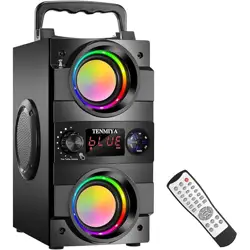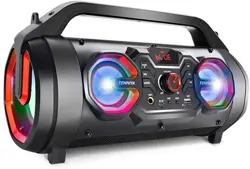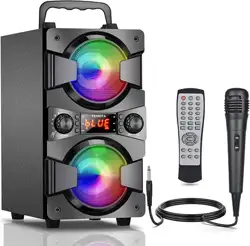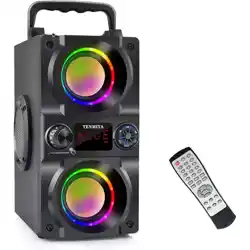
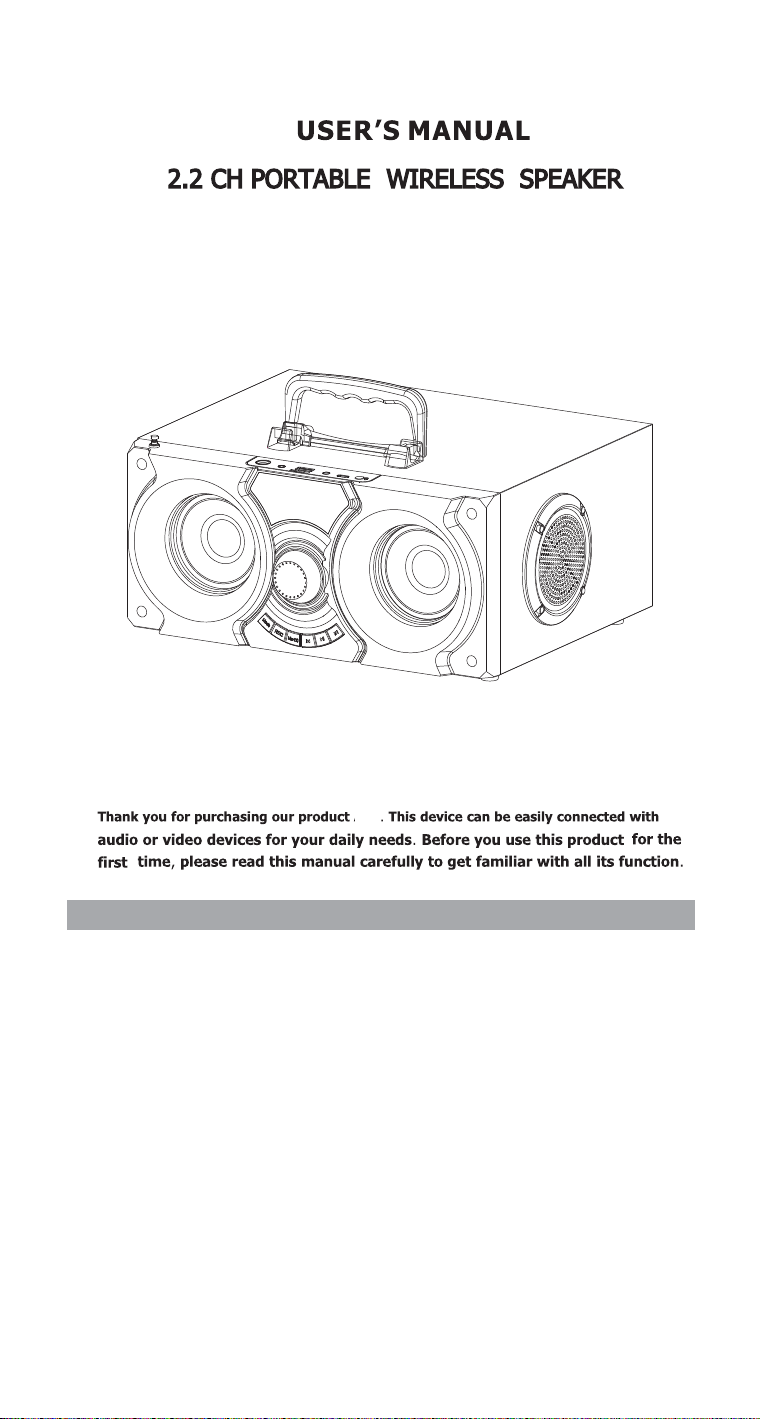
A35
A35
1
A35
A35
1
2
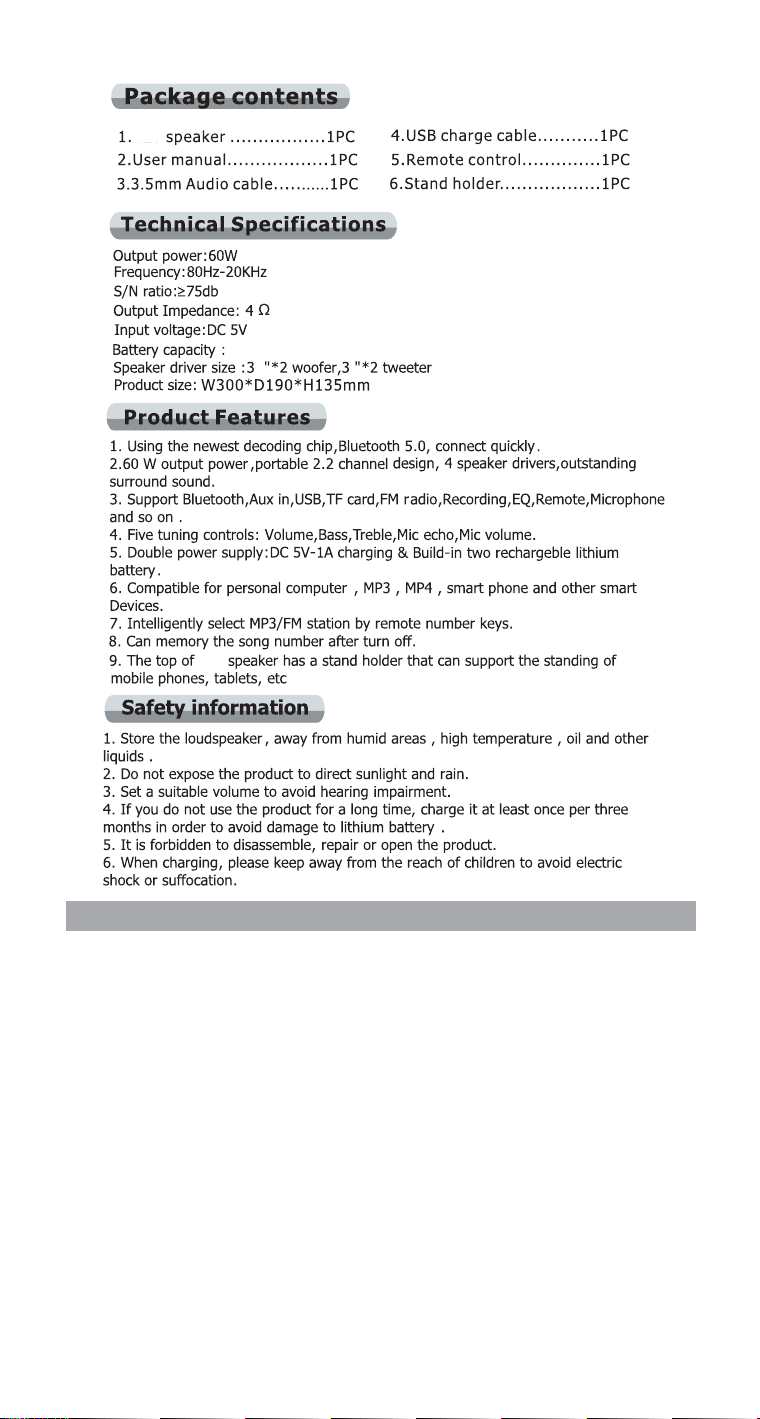
7.4V 4000MAh
-
+
3

Bluetooth mode
Turn on the speaker and Open the hands of the Bluetooth Settings Mobile phone(
brand different Bluetooth opening method, will be different into the search the), ,
A35 will be found please connect it When th,.e Bluetooth pairing is successful Then,
you can play the music by your phone In case of unsuccessful pairing turn off the.,
speaker and restart it After successfully co. nnecting to Bluetooth if you turn off the,
device but the Bluetooth on your smart phone remains open when you restart the,,
device the Bluetooth will be connected automatically,.
When the speaker Bluetooth is connected to the Bluetooth of your mobile phone if,
you want to connect the Bluetooth of other mobile phone you must first press and,
hold the
▶ll
button to disconnect the Bluetooth connection of your mobile phone or,
you can directly disconnect your mobile phone s Bluetooth and then pair the',
Bluetooth on other mobile phones.
9 USB socket insert the USB with music inside can play the music in MP3 WAV.: , ,
format .
10 TF card socket insert the TF card with music inside can play the music in.: ,
MP3 WAV format,
11 AUX input jack..
12 Power switch pull on is turn on pull off is turn off., , .
13 Charging LED light indicator It is always red when charging the red light will be.: ;
off after fully charged.
14 DC 5V charging jack..
AUX Line in mode/
Turn on A20 speaker select AUX mode you can use AUX cable to connect your MP3,,
or computer with the speaker and then play your music,.
Fm radio mode
To activate radio FM mode turn on A35 speaker use Mode button to select FM or,,
press the FM button on the remote control To search for available radio stations.
automatically click and hold,▶ll,.FM Stations will be saved automatically To switch
stations click,
lorl◀◀ ▶▶
.
or click the number keys on the remote control,
each number key will save the corresponding FM radio station.
To start searching radio stations manually please use the number on the remote to,
enter the station number you need For example if you want to search for 90 5.: "."
90 5 radio station..
radio station, you can directly press the number 905 on the remote control to go to
3
4
5
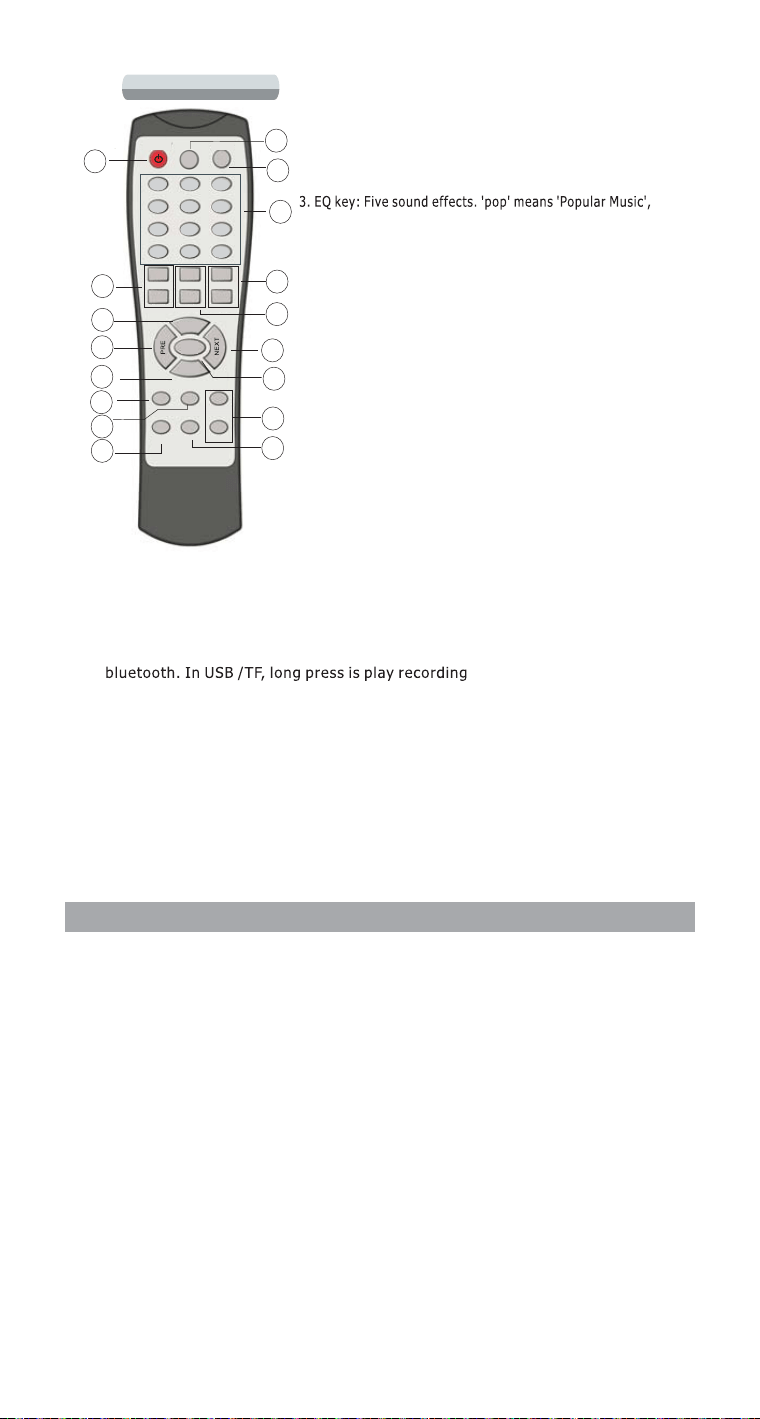
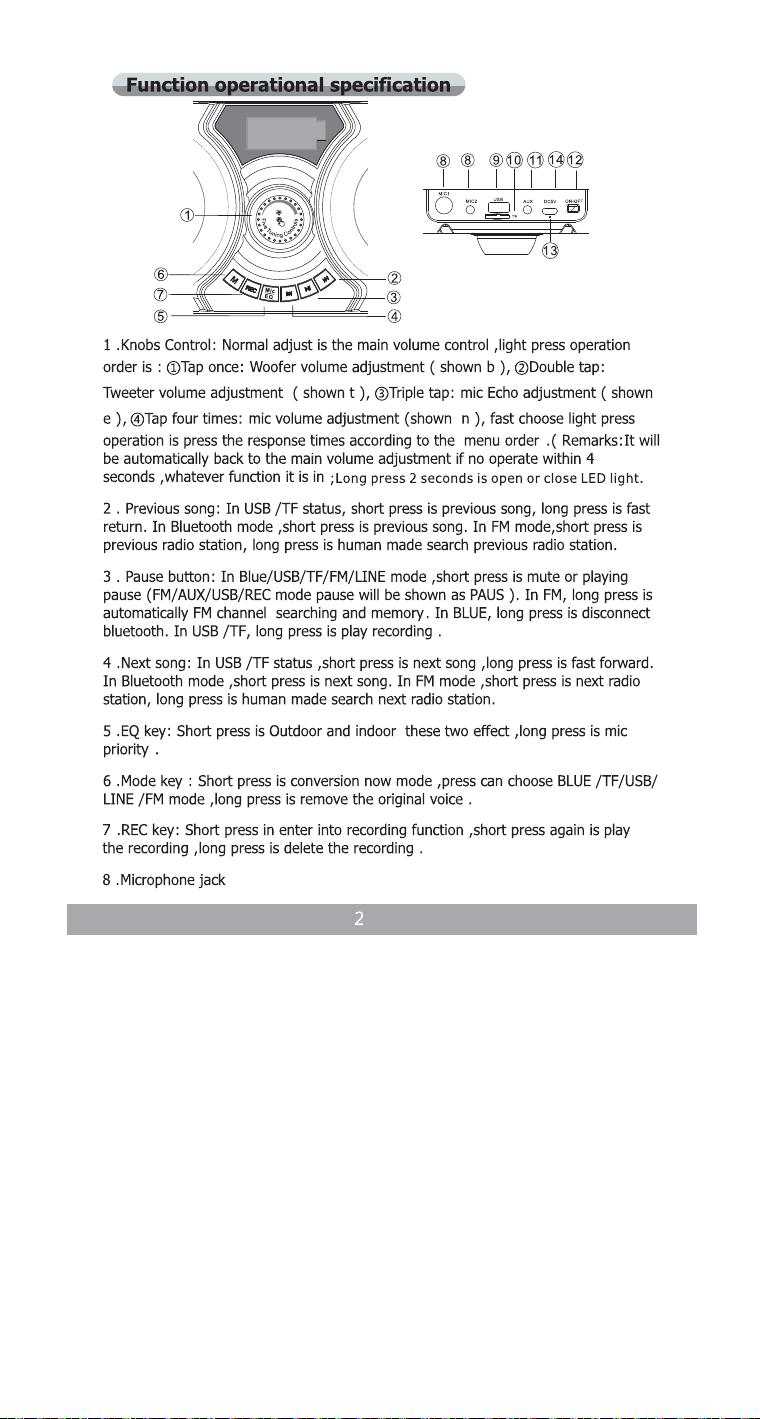
11 Next song In USB TF status short press is next song long press is fast forward.:/, , .
In Bluetooth mode short press is next song In FM mode short press is next radio,.,
station long press is human made search next radio station,.
12 Pause button In Blue USB TF FM LINE mode short press is mute or playing.:////,
pause FM AUX USB REC mode pause will be shown as PAUS In FM long press is(/ / / ). ,
automatically FM channel searching and memory In BLUE long press is disconnect.,
13 Microphone Echo Tuning.
14 Aux Mode Use AUX cable to connect to TV MP3 computer mobile phone iPad.: ,,, ,,
iPod etc,.
15 FM Mode To search radio stations manually please use the number on the.: ,
remote to enter the station number you need.
16 REC key Short press in enter into recording function short press again is play.: ,
the recording long press is delete the recording,.
17 Bluetooth Mode.
Thank you again for purchasing the A35 speaker If you have any questions.,
please contact us Hope our products can.
get your love and recommend.
for you Wishing every happiness will always be with you!!
Best wish
1 Standby.
2 Mode key Short press is conversion now mode.: ,
press can choose BLUE TF USB LINE FM mode long// / / ,
press is remove the original voice.
'' ' ',' ' ' ',' 'roc means Rock Music JAZ means Jazz Music CLA
means Classical Music cut means Country Music nor'','''',''
means Normal Music long press is microphone priority'', .
4 Number key In the USB TF mode press the number to.:/,
select the song you want to play in the USB flash memory /
TF card in the FM radio mode press the number 905 to go;,
to ‘90.5' radio station you can freely choose FM radio,
frequency you want,Long press the “0" key 2 seconds is open.
5 Microphone volume Tuning.
6 Treble Tuning.
7 Bass Tuning.
8 Increase volume.
9 Previous song In USB TF status short press is previous.:/,
song long press is fast return In Bluetooth mode short press,.,
is previous song In FM mode short press is previous radio station., ,
long press is human made search previous radio station.
10 Decrease volume.
or close LED light.
EQ
MODE
BA+
MIC+
MIC-
FM REC
EC+
AUXBT
VOL+
VOL-
PALY PAUSE/
0
10-
10+
BA-
TR+
TR-
EC-
1
2
3
4
5
6
7
8
9
0
10-
10+
1
2
3
4
5
6
7
8
9
10
11
12
13
14
15
16
17
Remote control
5
6
FCC Warning Statement
Changes or modifications not expressly approved by the party responsible for compliance
could void the user’s authority to operate the equipment. This equipment has been tested and
found to comply with the limits for a Class B digital device, pursuant to Part 15 of the FCC
Rules. These limits are designed to provide reasonable protection against harmful interference
in a residential installation. This equipment generates uses and can radiate radio frequency
energy and, if not installed and used in accordance with the instructions, may cause harmful
interference to radio communications. However, there is no guarantee that interference will
not occur in a particular installation. If this equipment does cause harmful interference to
radio or television reception, which can be determined by turning the equipment off and on,
the user is encouraged to try to correct the interference by one or more of the following
measures:
‐‐ Reorient or relocate the receiving antenna.
‐‐ Increase the separation between the equipment and receiver.
‐‐Connect the equipment into an outlet on a circuit different from that to which the receiver is
connected.
‐‐ Consult the dealer or an experienced radio/TV technician for help.
This device complies with part 15 of the FCC Rules. Operation is subject to the following
two conditions: (1) This device may not cause harmful interference, and
(2) this device must accept any interference received, including interference that may cause
undesired operation.
The device has been evaluated to meet general RF exposure requirement.