SQT1119-2
Operating Instructions
Thank you for purchasing this product.
Please read these instructions carefully before using this product, and save this manual for future use.
Model number suffix “EB” denotes UK model.
Blu-ray Disc™ Recorder
Model No. DMR-BWT850
Software (Firmware) Update
To support the latest features, it’s very important you install the latest updates to
maintain proper operation of your unit.
For details, refer to “Software (Firmware) Update” (> 81) or
https://panasonic.jp/support/global/cs/ (This site is in English only.)
until
2015/09/26
EB
DMR-BWT850EB_eng_SQT1119-2.book 1 ページ 2023年1月11日 水曜日 午後1時37分

SQT1119
2
Small object
• Keep the Memory Card out of reach of children
to prevent swallowing.
Unit
• Do not place sources of naked flames, such as
lighted candles, on this unit.
• This unit may receive radio interference caused
by mobile telephones during use. If such
interference occurs, please increase separation
between this unit and the mobile telephone.
• This unit is intended for use in moderate climates.
The symbols on this product (including the accessories)
represent the following.
• Some products are not represented.
Safety precautions
WARNING
Unit
• To reduce the risk of fire, electric shock or
product damage,
- Do not expose this unit to rain, moisture,
dripping or splashing.
- Do not place objects filled with liquids, such as
vases, on this unit.
- Use only the recommended accessories.
- Do not remove covers.
- Do not repair this unit by yourself. Refer
servicing to qualified service personnel.
- Do not let metal objects fall inside this unit.
- Do not place heavy items on this unit.
AC mains lead
• To reduce the risk of fire, electric shock or
product damage,
- Ensure that the power supply voltage
corresponds to the voltage printed on this unit.
- Insert the mains plug fully into the socket outlet.
- Do not pull, bend, or place heavy items on the
lead.
- Do not handle the plug with wet hands.
- Hold onto the mains plug body when
disconnecting the plug.
- Do not use a damaged mains plug or socket
outlet.
• The mains plug is the disconnecting device.
Install this unit so that the mains plug can be
unplugged from the socket outlet immediately.
CAUTION
• This unit utilizes a laser. Use of controls or
adjustments or performance of procedures other
than those specified herein may result in
hazardous radiation exposure.
Placement
• Place this unit on an even surface.
• To reduce the risk of fire, electric shock or
product damage,
- Do not install or place this unit in a bookcase,
built-in cabinet or in another confined space.
Ensure this unit is well ventilated.
- Do not obstruct this unit’s ventilation openings with
newspapers, tablecloths, curtains, and similar items.
- Do not expose this unit to direct sunlight, high
temperatures, high humidity, and excessive vibration.
Batteries
• Danger of explosion if battery is incorrectly
replaced. Replace only with the type
recommended by the manufacturer.
• Mishandling of batteries can cause electrolyte
leakage and may cause a fire.
- Do not mix old and new batteries or different
types at the same time.
- Do not heat or expose to flame.
- Do not leave the battery(ies) in a car exposed
to direct sunlight for a long period of time with
doors and windows closed.
- Do not take apart or short circuit.
- Do not recharge alkaline or manganese batteries.
- Do not use batteries if the covering has been
peeled off.
- Remove batteries if you do not intend to use
the remote control for a long period of time.
Store in a cool, dark place.
• When disposing of the batteries, please contact
your local authorities or dealer and ask for the
correct method of disposal.
ON AC
Standby (OFF) DC
Class II equipment (The construction of the product
is double-insulated.)
DMR-BWT850EB_eng_SQT1119-2.book 2 ページ 2023年1月11日 水曜日 午後1時37分
SQT1119
3
(For the AC mains plug of three pins)
For your safety, please read the following text
carefully.
This appliance is supplied with a moulded three
pin mains plug for your safety and convenience.
A 5-ampere fuse is fitted in this plug.
Should the fuse need to be replaced please
ensure that the replacement fuse has a rating of
5-ampere and that it is approved by ASTA or BSI
to BS1362.
Check for the ASTA mark Ï or the BSI mark Ì
on the body of the fuse.
If the plug contains a removable fuse cover you
must ensure that it is refitted when the fuse is
replaced.
If you lose the fuse cover the plug must not be
used until a replacement cover is obtained.
A replacement fuse cover can be purchased from
your local dealer.
Before use
Remove the connector cover.
How to replace the fuse
The location of the fuse differ according to the
type of AC mains plug (figures A and B). Confirm
the AC mains plug fitted and follow the
instructions below.
Illustrations may differ from actual AC mains plug.
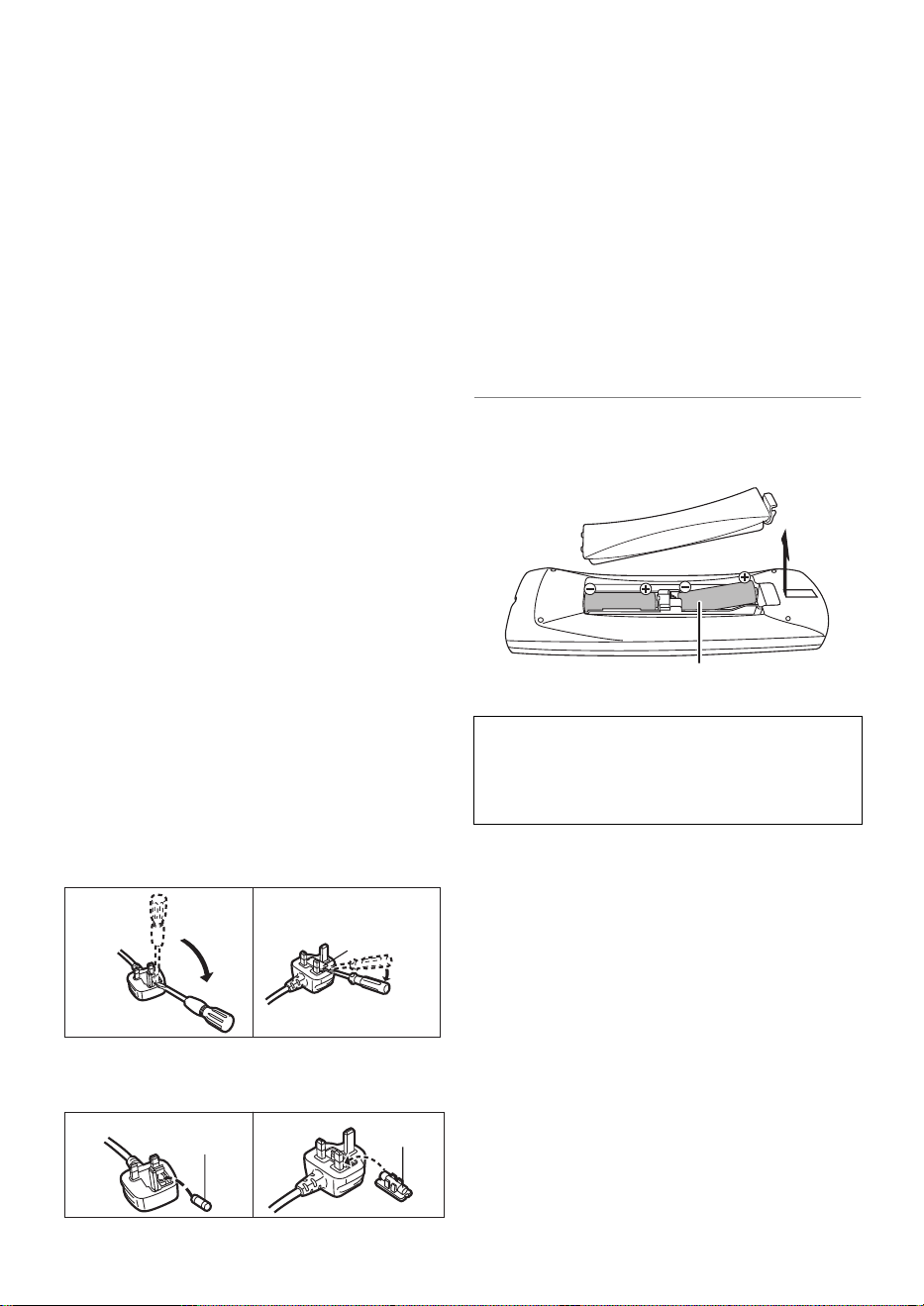
1. Open the fuse cover with a screwdriver.
2. Replace the fuse and close or attach the fuse
cover.
Please check and identify the supplied
accessories.
(Product numbers are correct as of August 2015.
These may be subject to change.)
• Do not use AC mains lead with other equipment.
Insert batteries
Insert so the poles (i and j) match those in the
remote control.
Caution for AC Mains
Lead
Fuse cover
Figure A Figure B
Figure A Figure B
Fuse
(5 ampere)
Fuse
(5 ampere)
Supplied accessories
Remote control (N2QAYB001058): 1pc.
Batteries for remote control: 2 pcs.
AC mains lead (K2CT2CA00007): 1pc.
RF coaxial cable (K1TYYYY00056): 1pc.
HDMI cable (K1HY19YY0035): 1 pc.
About descriptions in these operating
instructions
• Pages to be referred to are indicated as “> ±±”.
• Images are for illustration purpose, contents may change
without notice.
R6/LR6, AA
(Alkaline or manganese batteries)
DMR-BWT850EB_eng_SQT1119-2.book 3 ページ 2023年1月11日 水曜日 午後1時37分

SQT1119
4
Table of contents
Safety precautions . . . . . . . . . . . . . . . . . . . . 2
Caution for AC Mains Lead. . . . . . . . . . . . . 3
Supplied accessories. . . . . . . . . . . . . . . . . . 3
Getting started
HDD and media information . . . . . . . . . . . . 6
Unit care . . . . . . . . . . . . . . . . . . . . . . . . . . . . 11
Control reference guide . . . . . . . . . . . . . . . 12
Connection. . . . . . . . . . . . . . . . . . . . . . . . . . 14
Settings. . . . . . . . . . . . . . . . . . . . . . . . . . . . . 17
FUNCTION MENU screen . . . . . . . . . . . . 21
Watching broadcasts
Watching broadcasts . . . . . . . . . . . . . . . . . 22
Freeview Play . . . . . . . . . . . . . . . . . . . . . . . 25
Recording
Recording TV programmes. . . . . . . . . . . . 27
Timer recording. . . . . . . . . . . . . . . . . . . . . . 29
Playing back video
Playing titles on the HDD . . . . . . . . . . . . . 34
Playing titles on the media . . . . . . . . . . . . 37
Operation during play. . . . . . . . . . . . . . . . . 39
Editing video
Deleting/Editing titles . . . . . . . . . . . . . . . . . 42
Copying video
Copying titles. . . . . . . . . . . . . . . . . . . . . . . . 46
Photo and Music
Playing photos. . . . . . . . . . . . . . . . . . . . . . . 54
Editing photos . . . . . . . . . . . . . . . . . . . . . . . 56
Copying photos . . . . . . . . . . . . . . . . . . . . . . 57
Playing music . . . . . . . . . . . . . . . . . . . . . . . 58
Copying/Deleting music. . . . . . . . . . . . . . . 59
Network
Smart Home Networking (DLNA). . . . . . . 60
TV Anywhere . . . . . . . . . . . . . . . . . . . . . . . . 64
Enjoying Network Service . . . . . . . . . . . . . 64
With Other Equipment
Copying the HD Video (AVCHD) . . . . . . . 65
Registering
the external HDD (USB HDD)
. . . . . . . . . 65
Convenient functions
VIERA Link functions. . . . . . . . . . . . . . . . . 67
Playback menu . . . . . . . . . . . . . . . . . . . . . . 68
Basic Settings . . . . . . . . . . . . . . . . . . . . . . . 70
4K Networking. . . . . . . . . . . . . . . . . . . . . . . 81
Software (Firmware) Update . . . . . . . . . . 81
Other operations. . . . . . . . . . . . . . . . . . . . . 82
Troubleshooting
Troubleshooting guide. . . . . . . . . . . . . . . . 86
Reference
Specifications . . . . . . . . . . . . . . . . . . . . . . . 92
Reference . . . . . . . . . . . . . . . . . . . . . . . . . . 94
Licenses . . . . . . . . . . . . . . . . . . . . . . . . . . . . 96
Index . . . . . . . . . . . . . . . . . . . . . . . . . . . . . . . 98
DMR-BWT850EB_eng_SQT1119-2.book 4 ページ 2023年1月11日 水曜日 午後1時37分

Getting started
Watching broadcasts
Recording
Playing back video
Editing video
Copying video
Photo and Music
Network
With Other Equipment
Convenient functions
Troubleshooting
Reference
SQT1119
5
DMR-BWT850EB_eng_SQT1119-2.book 5 ページ 2023年1月11日 水曜日 午後1時37分
Getting started
SQT1119
6
HDD and media information
Getting started
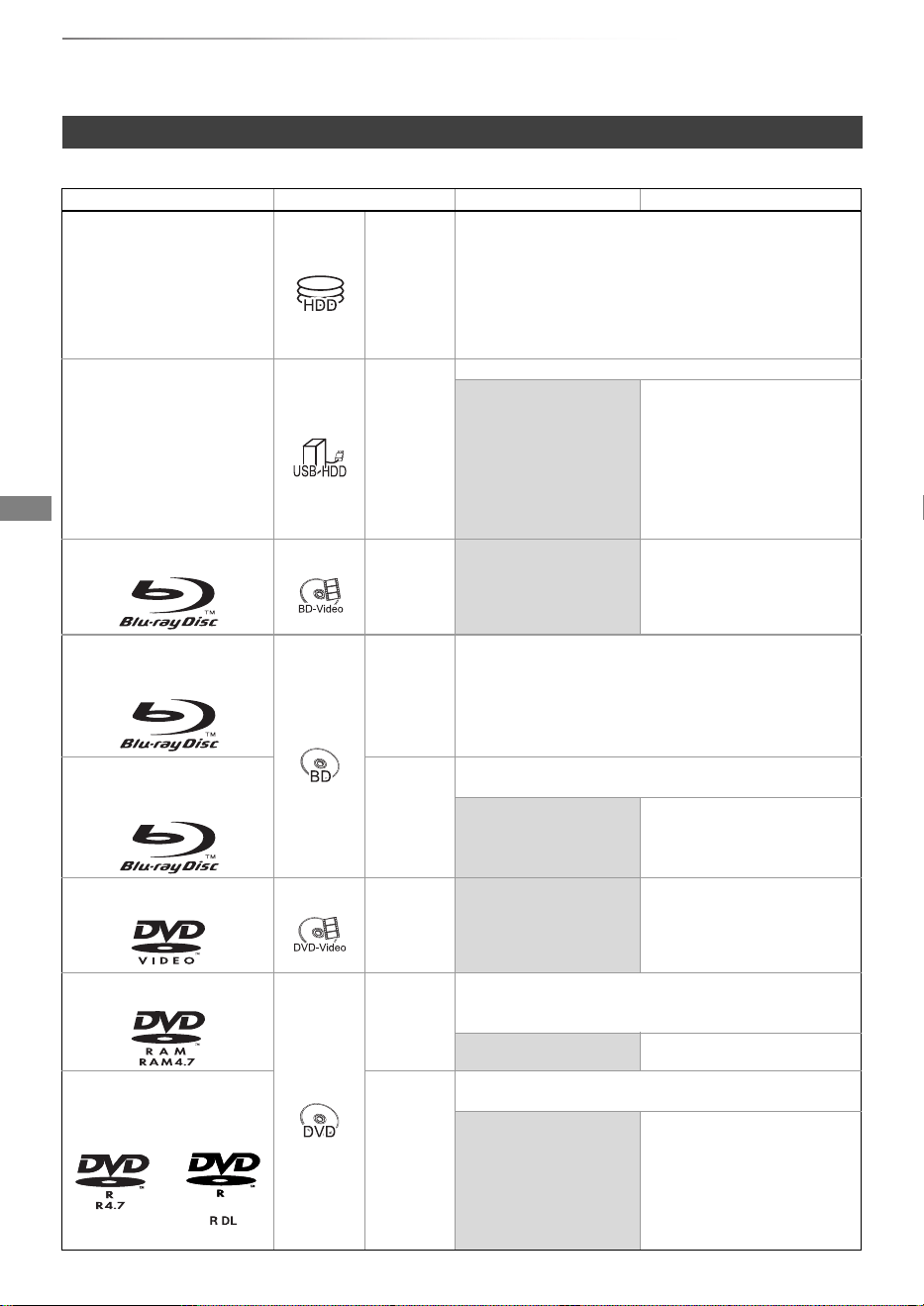
For more details, refer also to the specifications. (> 92)
(–: Impossible)
Recordable/playable contents
Media type Standard symbol Recordable contents Playable contents
Built-in hard disk drive
(HDD)
[HDD]
•Video
• AVCHD/AVCHD 3D
•MKV
•MP4
• MPEG2
•Xvid
•JPEG
•MPO
(3D photo)
• AAC
•ALAC
•DSD
•FLAC
•MP3
•WAV
•WMA
External hard disk drive
(USB HDD)
(> 9)
[USB_HDD]
•Video
§1
–
• AVCHD/AVCHD 3D
§2, 3
•MKV
•MP4
• MPEG2
• Xvid
•JPEG
•MPO
(3D photo)
• AAC
•ALAC
•DSD
•FLAC
•MP3
•WAV
•WMA
BD-Video
[BD-V]
–
•Video
BD-RE
BD-RE DL
[BD-RE]
•Video
• AVCHD/AVCHD 3D
•JPEG
• MPO (3D photo)
BD-R
BD-R DL
[BD-R]
•Video
• AVCHD/AVCHD 3D
§2
–
• MKV • Xvid
DVD-Video
§4
[DVD-V] –
•Video
DVD-RAM
[RAM]
•Video
•JPEG
• MPO (3D photo)
–
• AVCHD
§2
DVD-R
DVD-R DL
[DVD-R]
•Video
• AVCHD
§2
–
•MKV
• Xvid
•JPEG
•MPO
(3D photo)
• AAC
•ALAC
•DSD
•FLAC
•MP3
•WAV
•WMA
DMR-BWT850EB_eng_SQT1119-2.book 6 ページ 2023年1月11日 水曜日 午後1時37分
Getting started
SQT1119
7
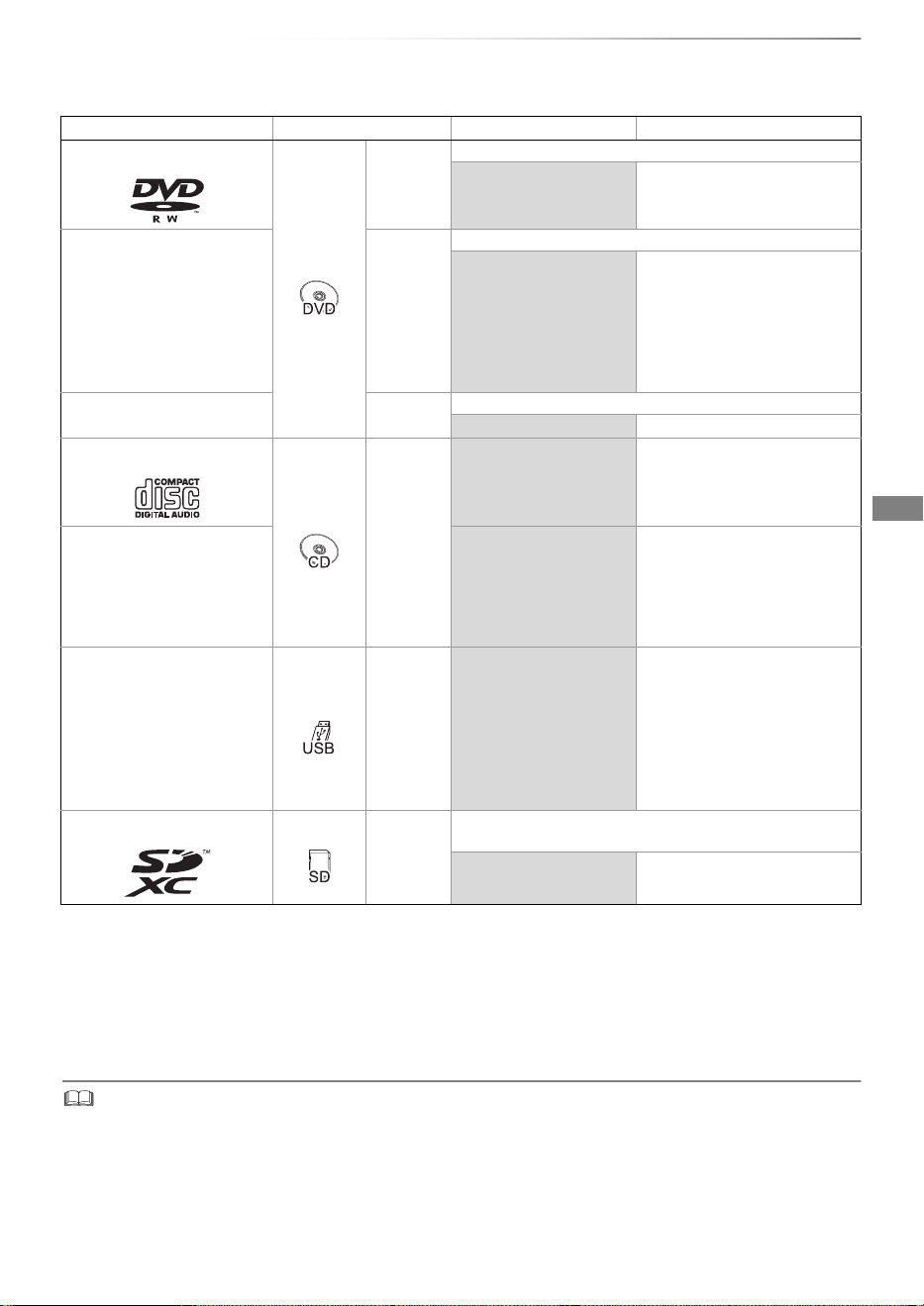
(–: Impossible)
• [+RW] This unit cannot record to 8X Speed +RW disc.
• With certain recording states and folder structures, the play order may differ or playback may not be possible.
• It may not be possible to play the above media in some cases due to the type of media, the condition of the recording, the
recording method, and how the files were created.
Media type Standard symbol Recordable contents Playable contents
DVD-RW
[DVD-RW]
•Video
–
• AVCHD
§2
+R/+R DL [+R]
•Video
–
• AVCHD
§2
•MKV
• Xvid
• JPEG
•MPO
(3D photo)
•AAC
•ALAC
•DSD
•FLAC
•MP3
•WAV
•WMA
+RW [+RW]
•Video
–
• AVCHD
§2
Audio CD (CD-DA)
[CD]
–
•Music
CD
(including CD-R/RW)
–
•MKV
• Xvid
• JPEG
•MPO
(3D photo)
•AAC
•ALAC
•FLAC
•MP3
•WAV
•WMA
USB memory [USB] –
• AVCHD/AVCHD 3D
§2, 3
•MKV
•MP4
• MPEG2
• Xvid
• JPEG
•MPO
(3D photo)
•AAC
•ALAC
•DSD
•FLAC
•MP3
•WAV
•WMA
SD Cards
[SD]
•MP4
•MPEG2
• JPEG
• MPO (3D photo)
–
• AVCHD/AVCHD 3D
§2
§1
It cannot be recorded directly. (Only compatible with copying from the built-in HDD)
§2
Recorded with AVCHD format compatible devices (Panasonic video camera, etc.). It may not be
able to play back, add, or edit depending on the device.
§3
It cannot be played back directly from the USB HDD or USB memory. Playback is possible by
copying to the built-in HDD. (> 65)
§4
Includes finalised DVD-R, DVD-R DL, DVD-RW, +R and +R DL.
DMR-BWT850EB_eng_SQT1119-2.book 7 ページ 2023年1月11日 水曜日 午後1時37分
Getting started
SQT1119
8
HDD and media information
∫ Broadcast Recordings
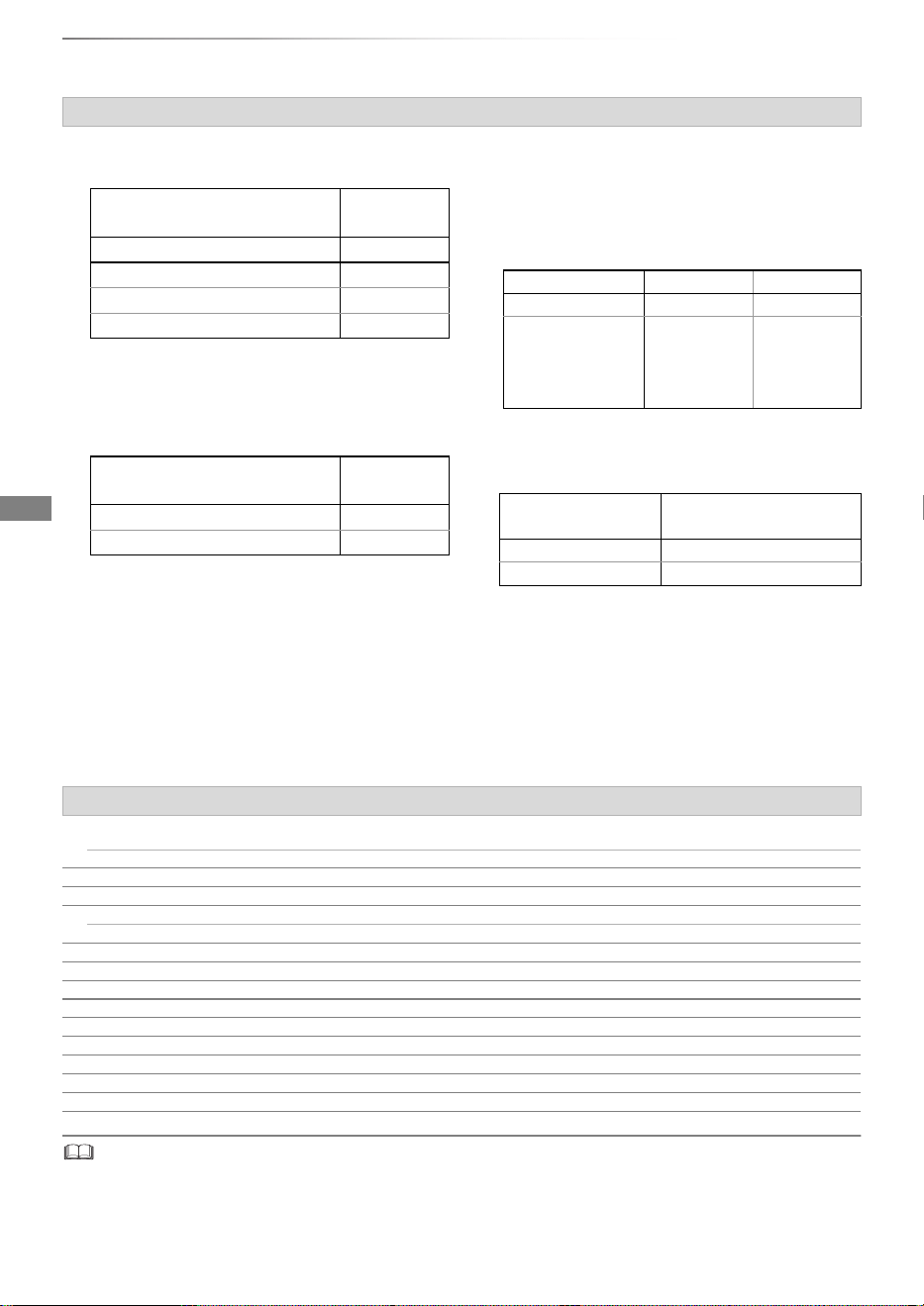
Numbers of titles that can be recorded:
• Maximum numbers of titles are including recordings of
HD CAMCORDER.
∫ HD CAMCORDER Recordings
MPEG-4 AVC/H.264 (based on AVCHD)
Numbers of titles that can be recorded:
• Maximum numbers of titles are including recordings of
Broadcast.
∫ Photo files
Compatible pixels:
Between 34k34 and 8192k8192 pixels
Sub sampling: 4:2:2, 4:2:0
(Motion JPEG is not supported.)
Maximum numbers of contents:
∫ Video files/Audio files
Numbers of contents that can be copied to
internal HDD:
USB device:
• Each folder can store up to 1000 files.
• We recommend that you limit the depth of
folder trees to about five levels.
• Bit rate up to 100 Mbps/resolution up to
3840k2160 25p/30p, 4096k2160 24p. (MP4
only)
• The video file and subtitle text files are inside the same folder, and the file names are the same except for the file extensions.
• Some files may not be played back even if they have these extensions.
Information about contents
Media
Maximum
titles
HDD 3000
BD-RE, BD-R 200
DVD-RAM, DVD-R, DVD-RW 99
+R, +RW 49
Media
Maximum
titles
HDD 3000
BD-RE, BD-R 200
Media Folders Files
HDD – 20000
BD-RE, DVD-RAM,
DVD-R, +R,
CD-R, CD-RW,
USB device, SD
500 10000
Contents
Maximum numbers of
folders and files
Video 20000
Audio 20000
About extension of files
MKV: “.mkv”
Subtitle text files: “.srt” “.sub” “.txt”
MP4: “.mp4” “.mov”
MPEG2: “.mpg” “.mpeg” “.m2ts” “.mts” “.ts”
Xvid: “.avi”
Subtitle text files: “.srt” “.sub” “.txt”
JPEG: “.jpg”
MPO: “.mpo”
AAC: “.m4a”
ALAC: “.m4a”
DSD: “.dsf” “.dff”
FLAC: “.flac”
MP3: “.mp3”
WAV: “.wav”
WMA: “.wma”
DMR-BWT850EB_eng_SQT1119-2.book 8 ページ 2023年1月11日 水曜日 午後1時37分
Getting started
SQT1119
9
§1
FR (Flexible Recording Mode):
The unit automatically selects the best possible recording rate between XP mode and EP mode.
§2
The SD quality programme cannot be converted to HD quality.
§3
You cannot select during play whether it activates or deactivates.
§4
You cannot select during play whether it appears or disappears.
Approximate recording times
Refer to “Recording modes and approximate recording times”. (> 92)
You can use an external HDD (USB HDD) in the
following two ways (A single HDD cannot handle
those two ways simultaneously), and a USB
memory for data files.
• For recorded titles
Moving titles in the built-in HDD to a USB HDD
to save the capacity of the built-in HDD.
• The USB HDD must first be registered on this
unit. (> 65)
• The USB HDD over 3 TB is not usable.
• For data files
Playing back MP4, JPEG, MP3, etc. in a
USB device with this unit.
• The USB device must be formatted in FAT12,
FAT16, FAT32 or NTFS file system.
• The USB device over 2 TB is not usable.
• This unit supports USB 2.0 High Speed.
• Although this unit can use USB 3.0 devices as USB 2.0
devices.
• This unit does not recognise USB HDDs other than those in
which the size of one sector is 512-bytes or 4096-bytes.
(For details, consult the dealer of your USB HDD.)
• This unit supports USB mass storage device class.
• This unit does not guarantee connection with all USB
devices.
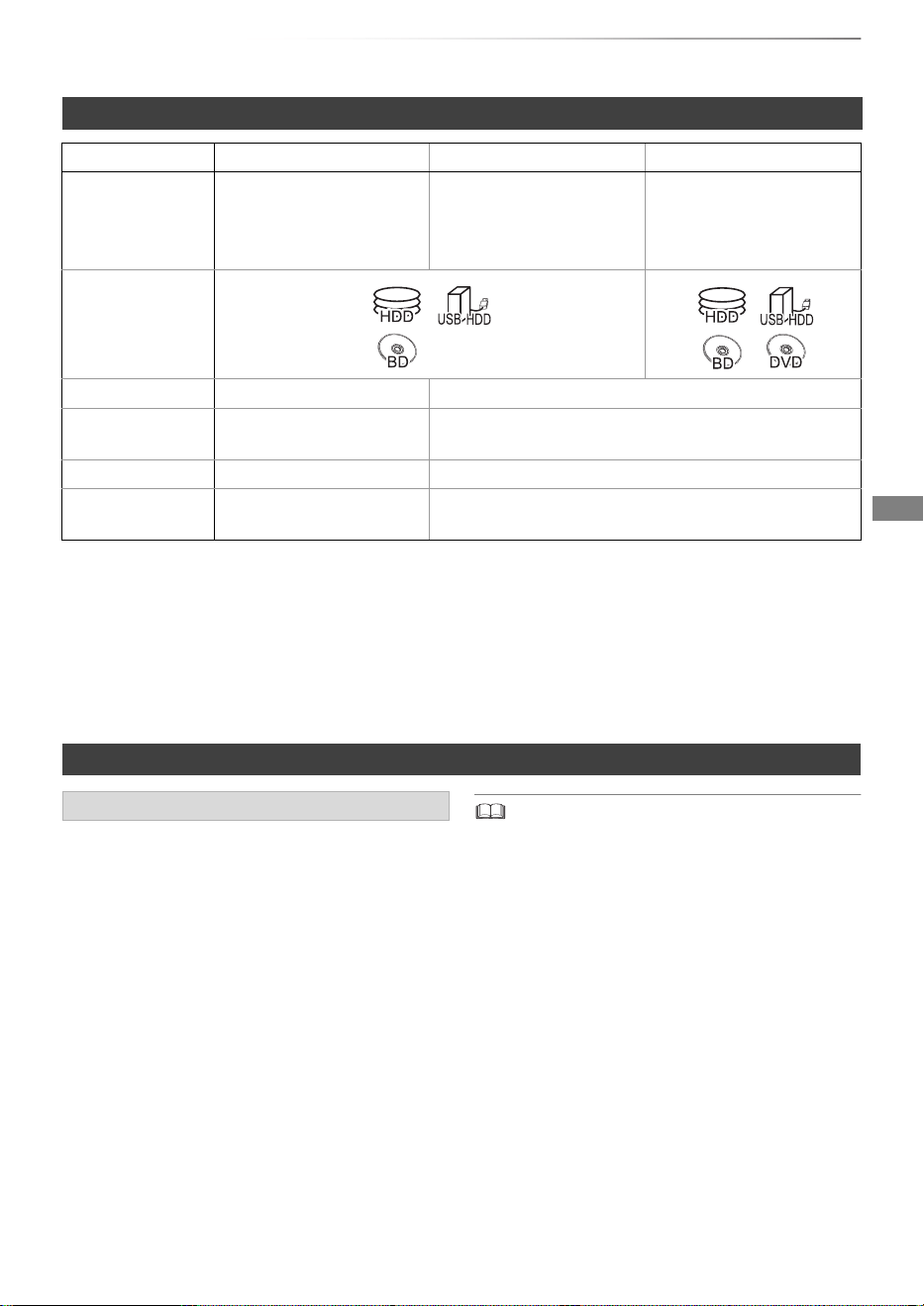
Recording mode
Recording Mode DR HG/HX/HE/HL/HM
XP/SP/LP/EP/FR
§1
Feature Programmes can be
recorded in a nearly
perfect broadcasted state.
Recording can be done
with reduced recording
volume in High definition
(HD) quality
§2
.
Recording can be done
with reduced recording
volume in Standard
definition (SD) quality.
Recordable
media
Multiple audio Record all multiple audio
Record only one audio
§3
Audio
Description
Can be recorded
Can be recorded
§3
Subtitles Can be recorded
Can be recorded (only one subtitle)
§4
Surround audio Surround audio as the
broadcast
Stereo audio
Notes
Notes for the USB device
DMR-BWT850EB_eng_SQT1119-2.book 9 ページ 2023年1月11日 水曜日 午後1時37分
Getting started
SQT1119
10
HDD and media information
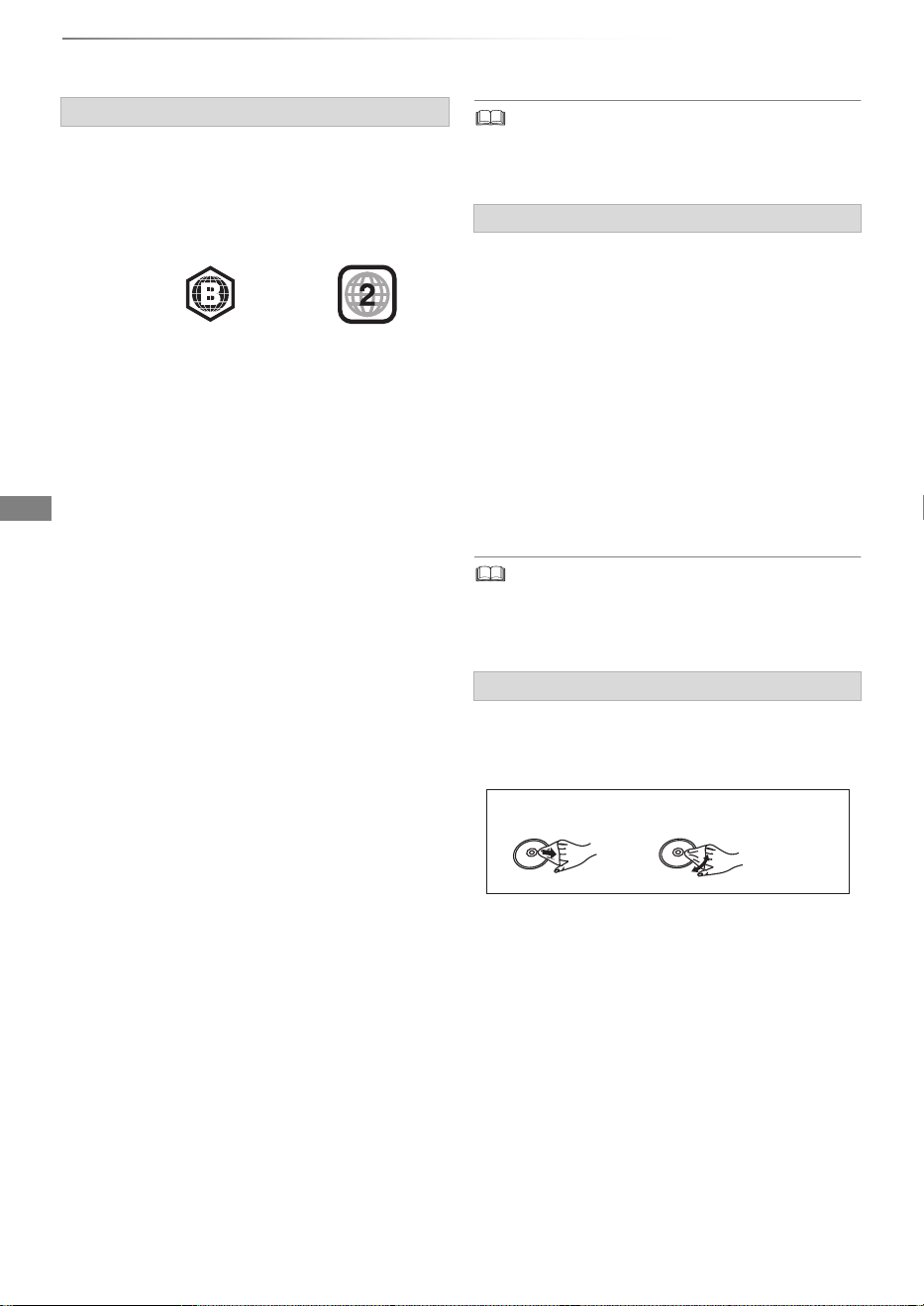
• Region management information
The unit can play back BD-Video/DVD-Video
discs of the following regions codes, including
“ALL”:
• Disc recorded on another device
• It may be necessary to finalise the disc, create
Top Menu or close the session on the
equipment used for recording to play on this
unit.
• [DVD-RW] Recorded in DVD Video Recording
(DVD-VR) format
- This unit can play back and copy to HDD.
- This unit does not support editing or
recording.
- It is possible to record and edit with
DVD-Video (DVD-V) format by formatting
discs with this unit.
• Recording may not be possible to discs which
were used for recording on other equipment.
• Play on other players
• [BD-RE] [BD-R] When these discs cannot be
played back on other Blu-ray Disc players, etc.
(e.g., title recorded with HE-AAC audio
format), convert the recording mode to play
them back. (> 44, File Conversion)
• [DVD-R] [DVD-RW] [+R] Finalisation is needed.
(> 83)
• [+RW] If the disc failed to play on other
equipment, we recommend you create a Top
Menu (> 83).
• [DVD-R] The disc created in AVCHD format can
only be played back on AVCHD compatible
equipment.
• Regarding 8 cm Disc
This unit cannot record or edit the 8 cm disc.
Only playback or copy to the HDD is possible.
• Discs that cannot be played
- DVD-RAM in a cartridge
- 2.6 and 5.2 GB DVD-RAM, 12 cm
- DVD-Audio
- Super Video CD, Super Audio CD, Video CD
• Operation and sound quality of CDs that do not conform to
CD-DA specifications (copy control CDs, etc.) cannot be
guaranteed.
• If the SD card is formatted on other equipment, the time
necessary for recording may be longer or the card may not
be able to be used on this unit. In these cases, format the
card on this unit.
• Do not touch the recorded surface of the discs
or the terminal surface of the SD cards.
• Wipe with a damp cloth and then wipe dry.
Notes for the disc
e.g., BD-Video DVD-Video
Notes for the SD cards
• Compatible SD card
- SD Memory Card
(from 8 MB to 2 GB, FAT12 and FAT16
formats)
- SDHC Memory Card
(from 4 GB to 32 GB, FAT32 format)
- SDXC Memory Card
(48 GB, 64 GB, exFAT format)
• Using miniSD card or microSD card
Mini-type and micro-type cards can also be
used, but must be used with adaptor cards
(optional).
Media handling
• Do not attach labels or stickers to discs.
• Do not use disc cleaning sprays, benzine,
thinner, static electricity prevention liquids or
any other solvent.
• Do not use the following discs:
- Discs with exposed adhesive from removed
stickers or labels (rental discs, etc.).
- Discs that are badly warped or cracked.
- Irregularly shaped discs, such as heart
shapes.
• Do not expose the terminals of the SD card to
water, garbage or other strange things.
DO DO NOT
DMR-BWT850EB_eng_SQT1119-2.book 10 ページ 2023年1月11日 水曜日 午後1時37分

Getting started
SQT1119
11
Unit care
• If the HDD or USB HDD is damaged, the
recorded content cannot be recovered.
• The unit may breakdown if cigarette smoke
or bug spray/vapour, etc. gets inside the
unit.
Before moving the unit, ensure the disc tray is
empty.
1 Switch the unit to standby mode. (Wait until
“BYE” disappears from the display.)
2 Remove the AC mains lead from the
household mains socket.
3 Move only after the unit has come to a
complete stop (approx. 3 minutes) in order to
avoid subjecting to vibration and shock. (Even
after the unit is switched to standby mode, the
HDD continues operating for a short time.)
The registration of the USB HDD may be
cancelled in the process of repairing this unit.
You can use the USB HDD again by
re-registering, but all recorded content already on
the USB HDD will be lost. In such cases, the
recorded content (data) cannot be recovered.
This unit may contain private information. Before
disposing of or transferring this unit, perform the
following to delete the data, including personal or
secret information:
- Format HDD (> 73)
- Perform “Shipping Condition” (> 80)
HDD/USB HDD handling care
• The HDD is a high precision recording
instrument and is easily susceptible to damage.
Therefore, be careful of the following points
while the unit is turned on, especially during
operation, otherwise the HDD and the recorded
content may be damaged:
- Do not subject the unit to any vibration and
shock.
- Do not remove the AC mains lead from the
household mains socket.
• The HDD is a temporary storage device
- It is recommended to save the recorded
content on a disc or to keep the original data or
CDs that they were copied from.
- If you notice a problem with the HDD such as
repetitive strange sounds, immediately save
(backup) all content and request service. If you
continue using the HDD with a problem, the
unit or the recorded content will be damaged.
Setup precautions
• Do not place on anything that generates heat
like a Set Top Box, etc.
• Place in an area where condensation does
not occur. Conditions where condensation
may occur
- When there is an extreme change in
temperature.
In the above situation, without turning the unit
on, let the unit adjust to the room temperature
and wait 2–3 hours until condensation is gone.
When moving the unit
Cleaning
• Wipe with a soft, dry cloth.
• Never use alcohol, paint thinner or benzine to
clean this unit.
• Before using chemically treated cloth, carefully
read the instructions that came with the cloth.
• Use the lens cleaner (not supplied) to clean the
unit’s lens.
When requesting this unit for repair
To dispose or transfer this unit
DMR-BWT850EB_eng_SQT1119-2.book 11 ページ 2023年1月11日 水曜日 午後1時37分
Getting started
SQT1119
12
Control reference guide
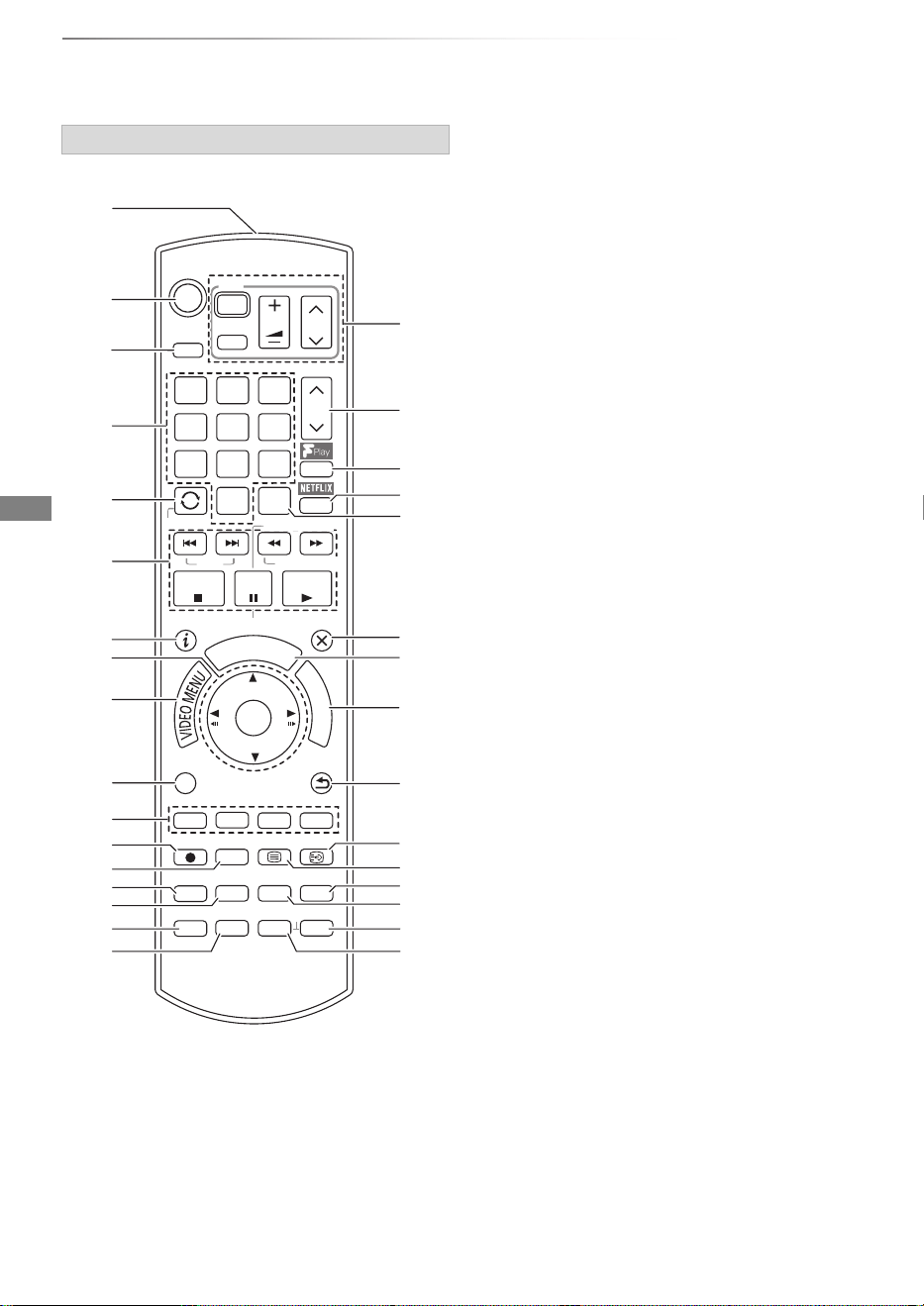
Instructions for operations are generally described using the remote control.
1 Transmit the remote control signal
• Point it at remote control signal sensor on
this unit. (> 13)
2 Switch the unit from on to standby mode or
vice versa
3 Select drive (HDD, Disc, SD or USB)
4 Select channels and title numbers, etc./Enter
numbers or characters
5
Switch to the previously watched channel (
>
22)
6 Basic operations for recording and play,
REWIND LIVE TV/PAUSE LIVE TV (> 24)
7 Show Information (> 22, 35, 39)
8 Selection/OK, Frame-by-frame (> 39)
9 Show Video Menu (> 34), Top Menu, Pop-up
Menu
: Show OPTION menu (> 42, 56, 68)
; Colour buttons (red, green, yellow, blue)
(Use in accordance with instruction on the
screen.)
< Start recording (> 27)
=
Select a recording mode/conversion mode
(> 27)
> Show the Timer Recording screen (> 31)
? Create chapter (> 40)
@ Listen to Audio Description (> 23, 40)
A Skip the specified time (> 40)
B TV operation buttons (> 17)
C Channel select (> 22)/Change pages in the
Video Menu screen etc.
D Show the Freeview Play Catch Up Service
screen (> 26)
E Show NETFLIX screen (> 64)
F Show the Network Service screen (> 64)
G Exit the menu screen
H Show the TV Guide screen (> 25)
I Show the FUNCTION MENU screen (> 21)
J Return to previous screen
K Show subtitles (> 22, 40)
L Show Digital Teletext (> 23)
M Switching to the radio channel list (> 22)
N To delete unwanted recorded titles, timer
programmes, video, photo or music (> 42)
O Skip approx. 1 minute forward (> 39)
P Skip approx. 10 seconds backward (> 39)
Remote control
STATUS
F
U
N
C
T
I
O
N
M
E
N
U
G
U
I
D
E
PLAY/x1.3
PAUSE
PAUSE LIVE TV
STOP
SLOW/SEARCH
SKIP
CH
PAGE
NET
CH
AV
INPUT
TV
DRIVE
SELECT
EXIT
OK
OPTION
VOL
0
2
abc
5
jkl
8
tuv
1
4
ghi
7
qrs
p
3
def
6
mno
9
xyz
w
DELETE
PROG/CHECK
TIME SLIP
RADIO/TV
-10s +60s
REC MODE
AD
REC TEXT STTL
CHAPTER
MANUAL SKIP
REWIND LIVE TV
LAST VIEW
BACK/
RETURN
SLOW/SEARCH
REWIND LIVE TV
LAST VIEW
DMR-BWT850EB_eng_SQT1119-2.book 12 ページ 2023年1月11日 水曜日 午後1時37分
Getting started
SQT1119
13
• While writing to/reading from the media, do not switch the
unit to standby mode or remove the media. Such action
may result in loss of the media contents.
• When inserting the media, ensure that it is facing the right
way up.
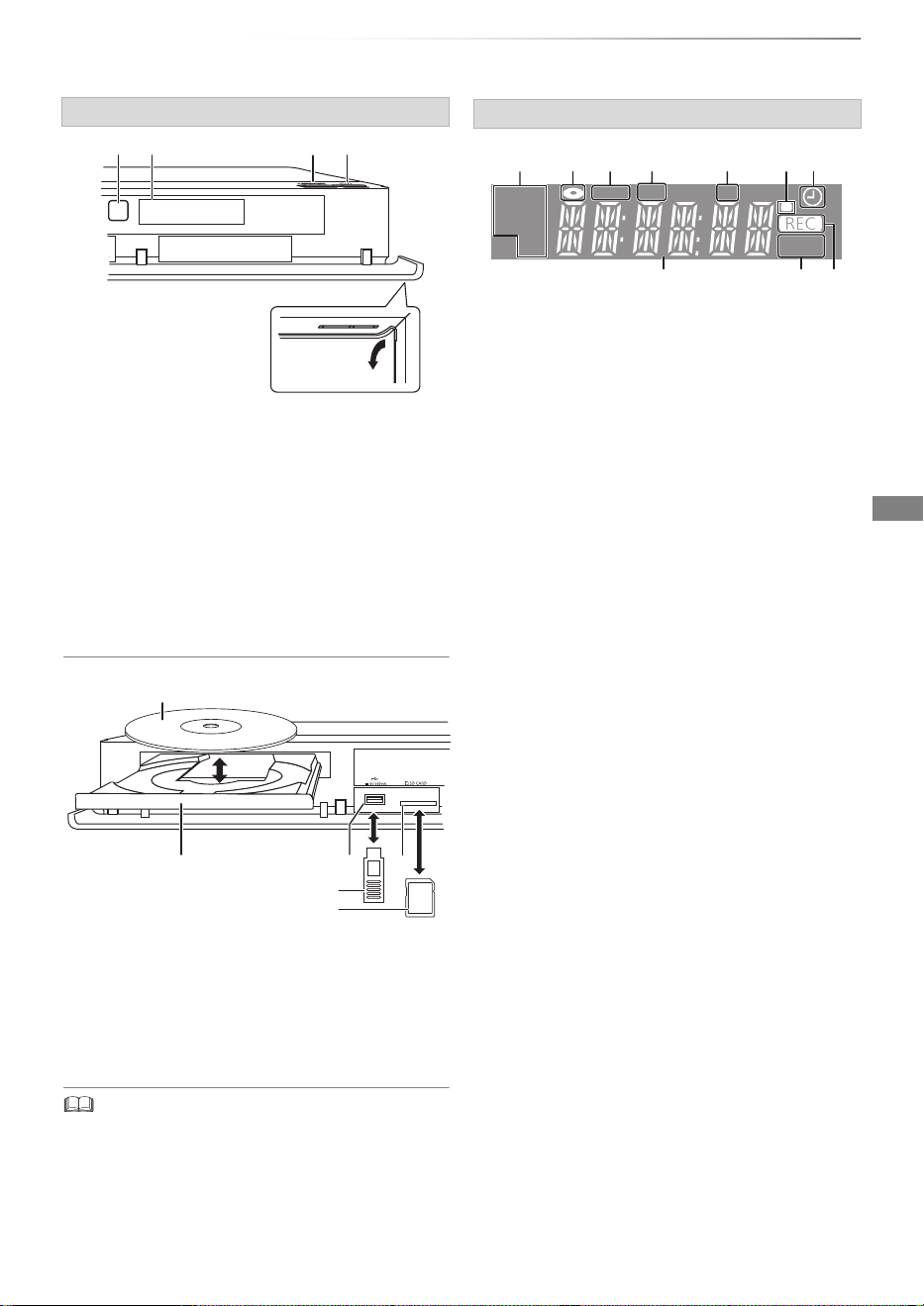
Main unit
1 Remote control signal sensor
• Angle: Approx. 20° up and down, 30° left and
right
• Distance: Within approx. 7 m in front of the
unit
2 Open/close disc tray
3 Standby/on switch (Í/I)
Press to switch the unit from on to standby
mode or vice versa. In standby mode, the unit
is still consuming a small amount of power.
4 Disc tray
5 USB port
6 SD card slot
• When removing the SD card, press on the
centre of the card and pull it straight out.
Display
Pull to flip down the
front panel.
SD card
USB memory
Disc
Display
1 Drive (HDD, BD or SD) indicator
2 Disc indicator
3 Copying indicator
4 USB port indicator
5 SD card slot indicator
6 Remote control signal indicator
7 Timer recording indicator
• This indicator lights up when the timer
recording standby is activated.
8 Main display section indicator
• Messages and other information are
displayed. (> 91)
9 Playback indicator
10 Recording indicator
• The indicator will light up while recording.
• The indicator will blink while recording is
paused and before recording starts.
PLAY
COPY
SDUSB
HDD
SD
BD
12 5 6743
8910
DMR-BWT850EB_eng_SQT1119-2.book 13 ページ 2023年1月11日 水曜日 午後1時37分
Getting started
SQT1119
14
Connection
3D programmes or 4K images can be played back when this unit is connected to 3D or 4K
compatible terminal of a 3D or 4K compatible TV.
• Keep the RF coaxial cables as far away as possible from other cables.
• Before connection, turn off all equipment and read the appropriate operating instructions.
• If you use an optional HDMI cable, use the High Speed HDMI cables. Non-HDMI-compliant cables
cannot be utilized.
It is recommended that you use Panasonic’s HDMI cable.
When outputting 1080p or 24p (4K) signal, please use HDMI cables 5.0 meters or less.
The HDMI-compliant cable is supplied with this unit.
• When the unit is not to be used for a long time
To save power, unplug it from the household mains socket. This unit consumes a small amount of
power, even when the unit is in standby mode. (> 92)
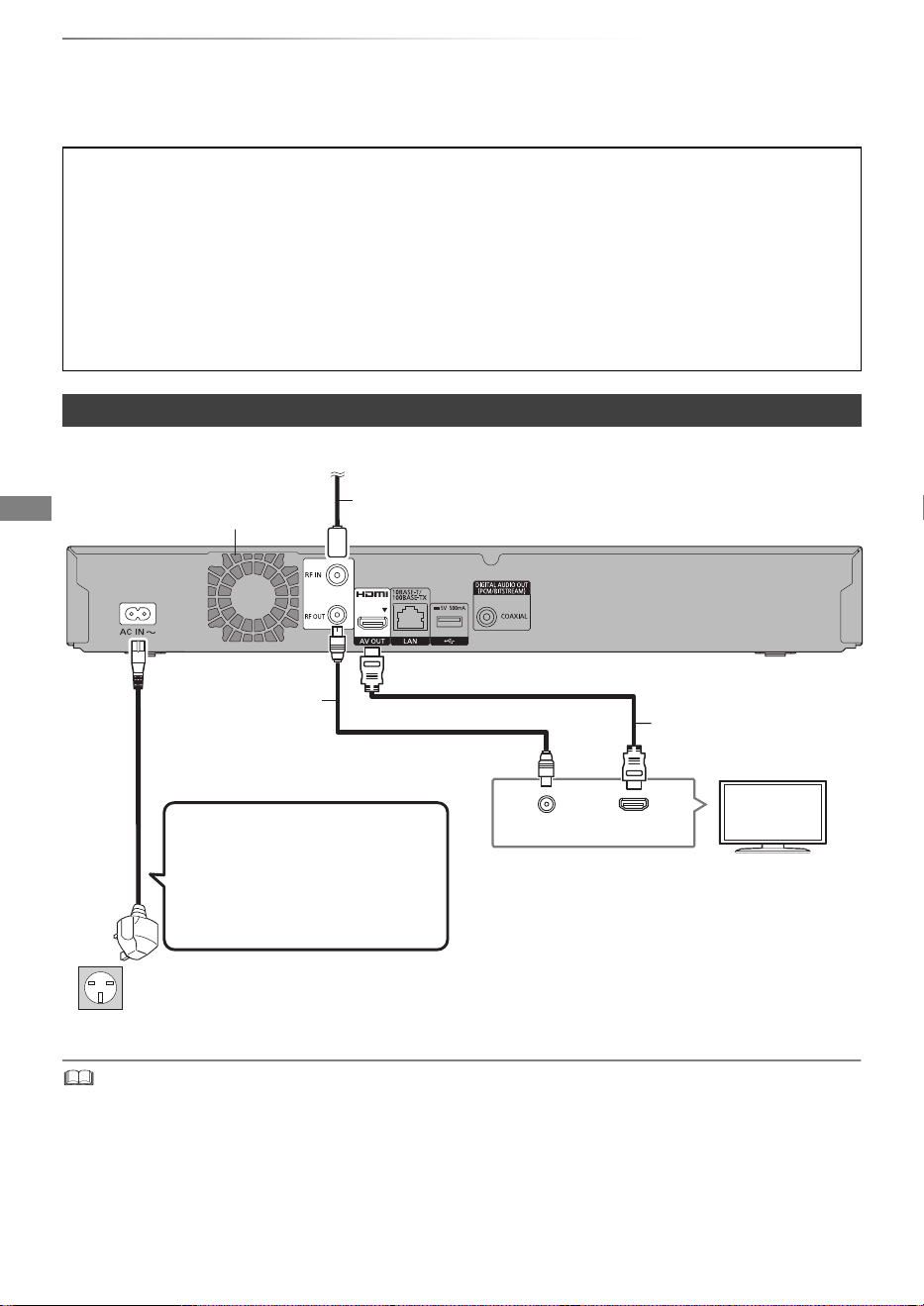
Basic connections
HDMI
VHF/UHF
RF IN
This unit’s rear panel
Household mains socket
(AC 220 to 240 V, 50 Hz)
AC mains lead
(supplied)
• Connect only after all other
connections are complete.
HDMI cable
(supplied)
To the aerial
Aerial cable
RF coaxial cable
(supplied)
Cooling fan
DMR-BWT850EB_eng_SQT1119-2.book 14 ページ 2023年1月11日 水曜日 午後1時37分
Getting started
SQT1119
15
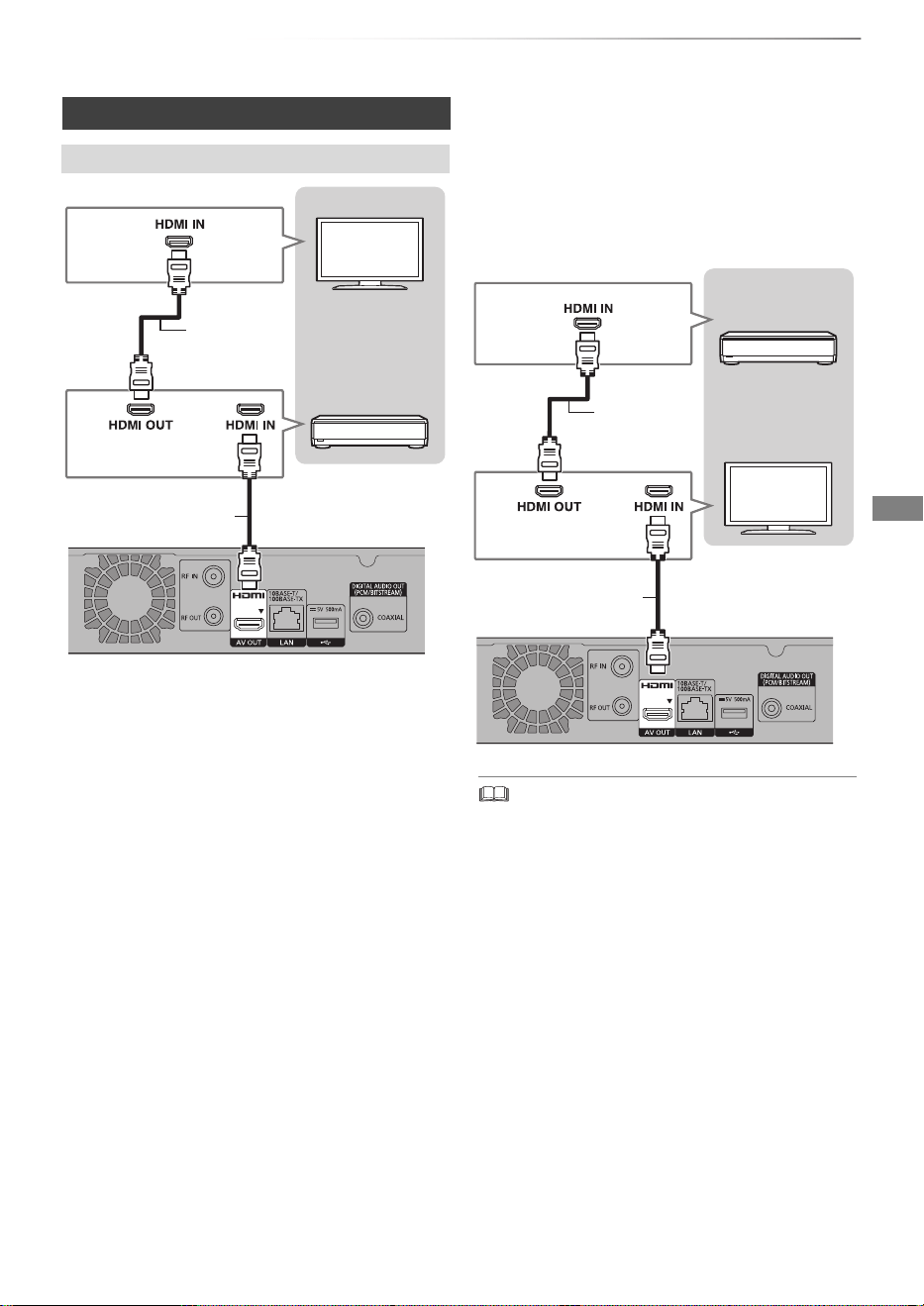
Amplifier/receiver connections
HDMI terminal
• You will not be able to view 3D programmes or
4K images with this connection if your
amplifier/receiver is not 3D or 4K compatible.
HDMI cable
HDMI cable
(supplied)
Amplifier/
receiver
∫ Amplifier/receiver not compatible with 3D
or 4K
3D programmes or 4K images can be played
back when this unit is connected to a 3D or 4K
compatible TV.
• This connection only supports up to 5.1ch.
• When using a TV or an amplifier/receiver that does not
display “ARC” on the HDMI terminal, it is necessary to
connect the TV and the amplifier/receiver with a digital
audio cable to enjoy the TV audio on the
amplifier/receiver.
HDMI cable
HDMI cable
(supplied)
Amplifier/
receiver
DMR-BWT850EB_eng_SQT1119-2.book 15 ページ 2023年1月11日 水曜日 午後1時37分
Getting started
SQT1119
16
Connection
• When you do not want the audio to be output from the TV,
set “HDMI Audio Output” to “Off” (> 76).
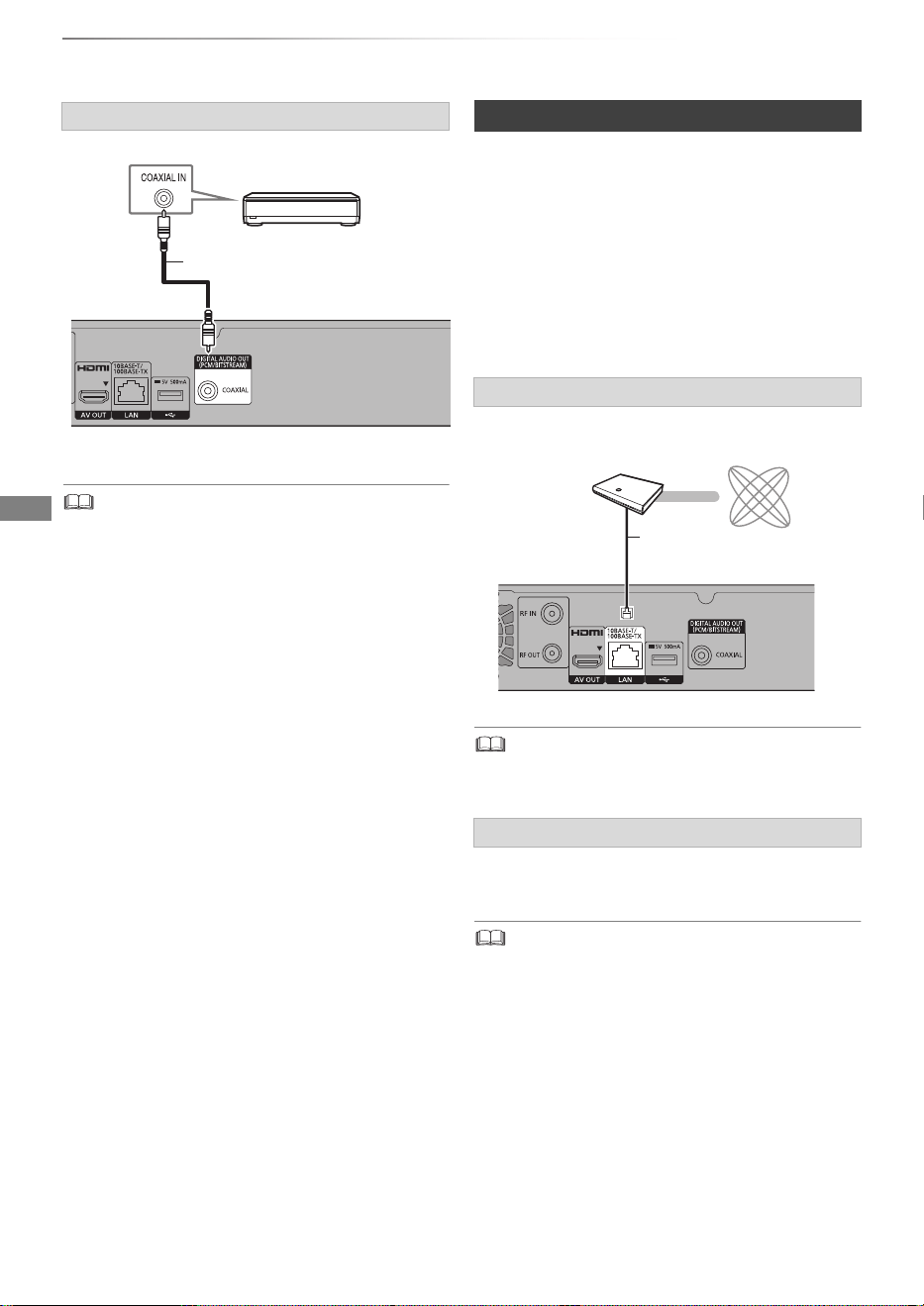
When this unit is connected to the network, you
can enjoy network functions (DLNA function,
Network Service, TV Anywhere, etc.).
For details about connection method, refer to the
instructions supplied with the connected
equipment.
After you make the LAN cable/Wireless LAN
connection, the network setting is needed.
(> 19, Easy Network Setting)
• Use category 5 or above straight LAN cables (STP) when
connecting to peripheral devices.
About wireless LAN connection (> 19, Easy
Network Setting)
• For up-to-date compatibility information on your Wireless
router, refer to
https://panasonic.jp/support/global/cs/
(This site is in English only.)
• The unit is not compatible with public wireless LAN
services.
DIGITAL AUDIO OUT terminal
Amplifier/receiver
Coaxial cable
Network connection
LAN cable connection
Wireless LAN connection
Broadband
router, etc.
Internet
LAN (ethernet) cable
DMR-BWT850EB_eng_SQT1119-2.book 16 ページ 2023年1月11日 水曜日 午後1時37分
Getting started
SQT1119
17
Settings
The TV can be operated from the TV operation
buttons of the remote control.
• Perform the setting if you cannot operate the TV
with the TV operation buttons.
While pressing [TV Í], enter the code with
the number buttons.
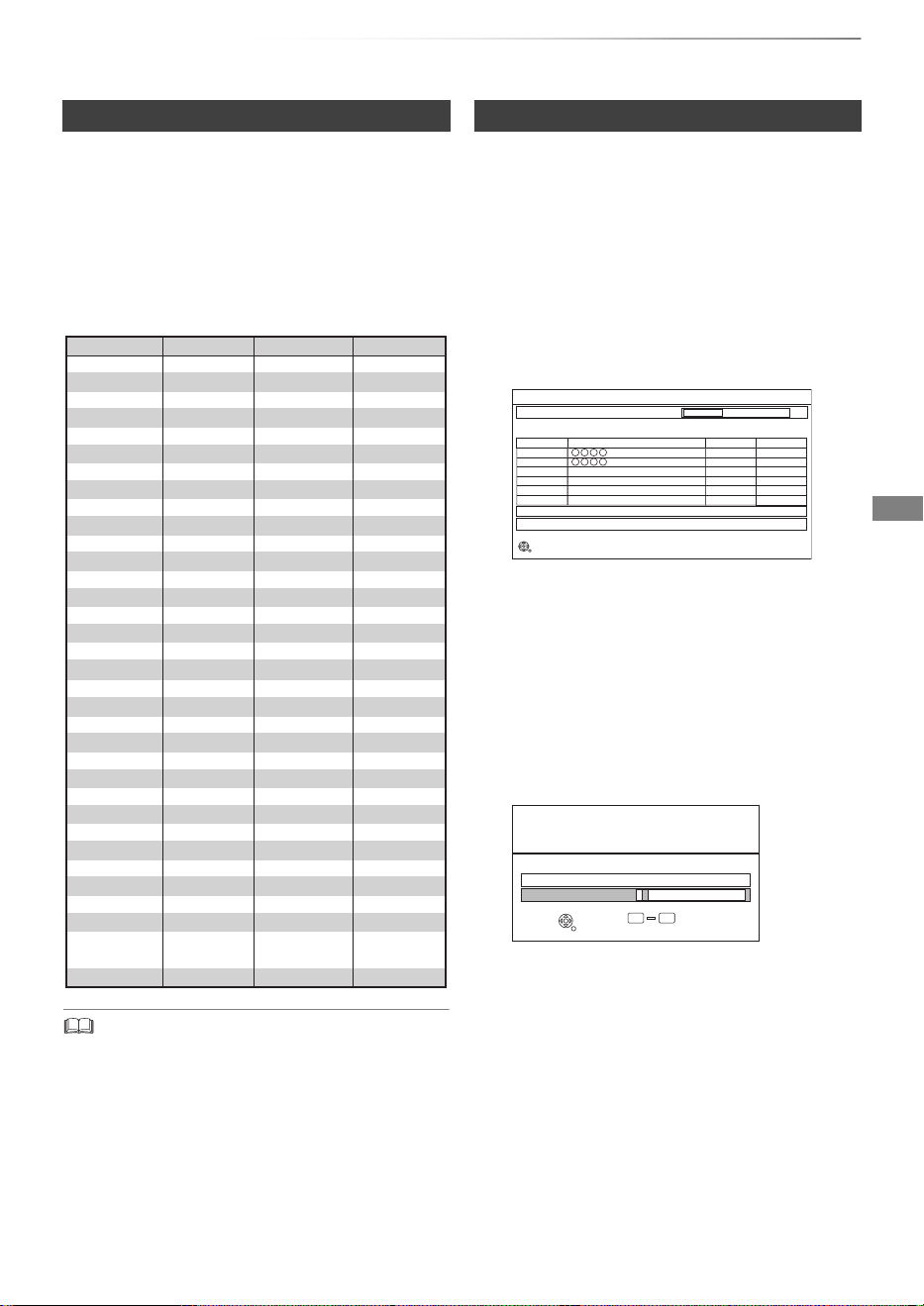
Manufacturer and Code No.
• If your TV brand has more than one code listed, select the
one that allows correct operation.
• If the brand of your TV is not listed or the code number is
invalid for your TV, this remote control is not compatible
with your TV.
1 Turn on the TV, then select the appropriate
AV input to suit the connections to this unit.
2 Press [Í] on the remote control or [Í/I] on
this unit.
• The Easy Setting will start at the initial
power on.
Auto Setup starts.
(This operation may take some time.)
e.g.,
• If the region selection screen appears,
select repeatedly until you reach the
available region.
4 Enter the PIN.
This PIN will be used only for the Owner
ID-Data Entry screen.
1 Press the number buttons to enter 4-digit
PIN.
2 Repeat step 1 to confirm.
• Make a note of PIN in case you forget it.
The PIN number cannot be reset.
• Steps 4 – 6 will be skipped in the Easy
Setting after “Shipping Condition”
(> 80) is performed. (> go to step 7 on
page 18)
TV operation buttons
Manufacturer Code Manufacturer Code
AIWA 35
BENQ 58/59
BRANDT 10/15
CENTREX 66
CURTIS 05
DESMET 05
ELEMIS 05
FINLUX 61
Panasonic 01/02/03/04
AKAI 27/30
BEKO 05/71/72/73/74
BUSH 05
DAEWOO 64/65
DUAL 05
FERGUSON 10/34
FISHER 21
MITSUBISHI 05/19/20/47
METZ 05/28/79
MIVAR 24
NEC 36
NOKIA 25/26/27/60/61
OLEVIA 45
ORION 05
PHILCO 41/48/64
PHONOLA 05
PROVIEW 52
RADIOLA 05
NOBLEX 33
NORDMENDE 10
ONWA 30/39/70
PEONY 49/69
PHILIPS 05/06/46
PIONEER 37/38
PYE 05
SABA 10
FUJITSU 53
ITT
LG
GOLDSTAR 05/50/51
GRADIENTE 36
25
JVC 17/30/39/70
KOLIN 45
05/50/51
MAG 52
FUNAI 63/67
GOODMANS 05
GRUNDIG 09
IRRADIO 30
KDS 52
KONKA 62
HITACHI 05/22/23/40/41
SALORA 26
SANSUI 05
32/42/43/65/68SAMSUNG
SCHNEIDER 05/29/30
SELECO 05/25
SIEMENS 09
SONY 08
TELEFUNKEN 10/11/12/13/14
TOSHIBA 16/57
YAMAHA 18/41
05
WHITE
WESTINGHOUSE
SANYO 21/54/55/56
05/69/75/76/77/78
SEG
SINUDYNE 05
31/33/66/67/69TCL
TEVION 52
THOMSON 10/15/44
SHARP 18
Easy Setting
3 Clock will be set automatically.
If the clock setting screen appears, set the
time manually (> 80, Clock).
Progress
DVB Auto Setup
CH 21 60
CH
Free TV: 2 Pay TV: 0 Data: 0Radio: 0
Searching
Actual number of channels may differ due to channel duplication.
Quality
Type
Channel Name
RETURN
This will take about 3 minutes.
35
10
10
35
Free TV
Free TV
Owner ID
Please enter new PIN
PIN
0
PIN entry
9
You now have the opportunity to enter your
details and help the police to crack crime.
See Instruction Book.
* * * *
RETURN
DMR-BWT850EB_eng_SQT1119-2.book 17 ページ 2023年1月11日 水曜日 午後1時37分
Getting started
SQT1119
18
Settings
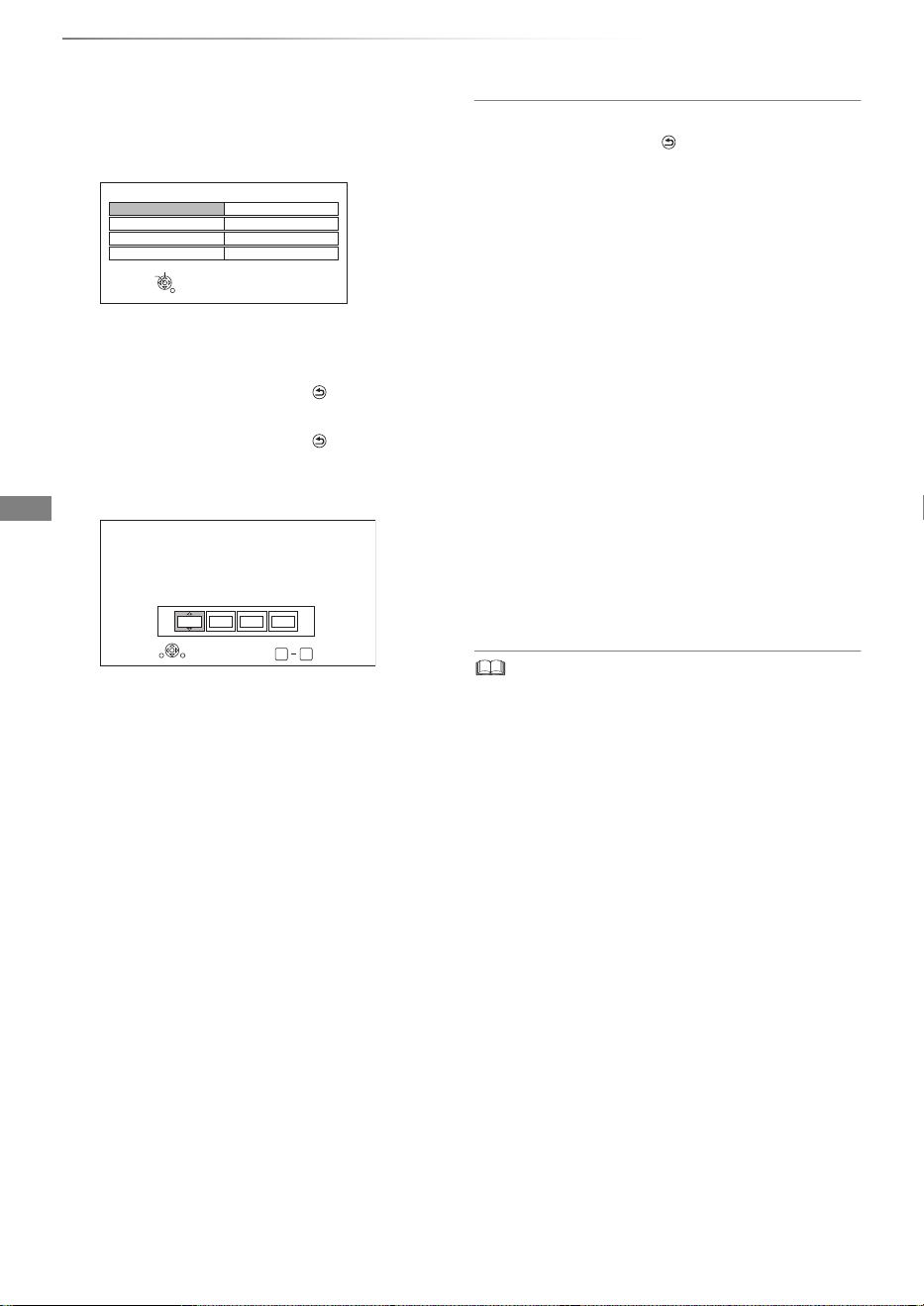
5 Set the Owner ID-Data Entry (“NAME”,
“HOUSE NO” and “POSTCODE”).
e.g.,
1 Select the item, then press [OK].
2 Select the character, then press [OK].
Repeat this step.
3 Press [BACK/RETURN ].
4 Repeat steps 1-3 to enter all data.
5 Press [BACK/RETURN ] to exit from
the Owner ID-Data Entry screen.
6 Enter the new PIN for parental control.
• The default PIN is “0000”.
1 Enter the new 4-digit PIN with the number
buttons.
• Make a note of the PIN you have
decided on in case you forget it.
2 Press [OK].
7 Set “Quick Start” to “On”, “Off” or “Timer
Setting for Quick Start”, then press [OK].
For details, refer to “Quick Start”. (> 79)
When “Easy Setting has been completed.”
appears, Easy Setting is complete.
- Select “Yes” to set network settings.
- Select “No” to finish the Easy Setting.
To stop partway
Press [BACK/RETURN ].
To restart setup (> 70, Auto Setup)
To display the Owner ID information on TV
1 While the unit is on, press and hold [OK], the
yellow button and the blue button on the
remote control at the same time for more than
5 seconds.
- “00 RET” is displayed on the front panel
display.
2 Repeatedly press [1] (right) on the remote
control until “01 OID” is displayed on the front
panel display.
3 Press [OK] on the remote control.
The PIN is not displayed.
To change PIN for parental control
Refer to “PIN Entry”. (> 80)
To change the region for Channel Sorting
Refer to “Channel Sorting by Region”. (> 71)
• If tuning is cancelled partway through, it may not be
possible to receive the channels. Restart setup again.
Owner ID-Data Entry
NAME
HOUSE NO
POSTCODE
PIN 0000
RETURN
Change PIN
Select
0
Number
9
-
PIN Entry
Enter a new 4-digit PIN, then press OK.
This PIN will be used for controlling viewing and playback.
PIN will be set to “0000” by pressing “RETURN” when there is no
number input.
- - -
RETURN
DMR-BWT850EB_eng_SQT1119-2.book 18 ページ 2023年1月11日 水曜日 午後1時37分
Getting started
SQT1119
19
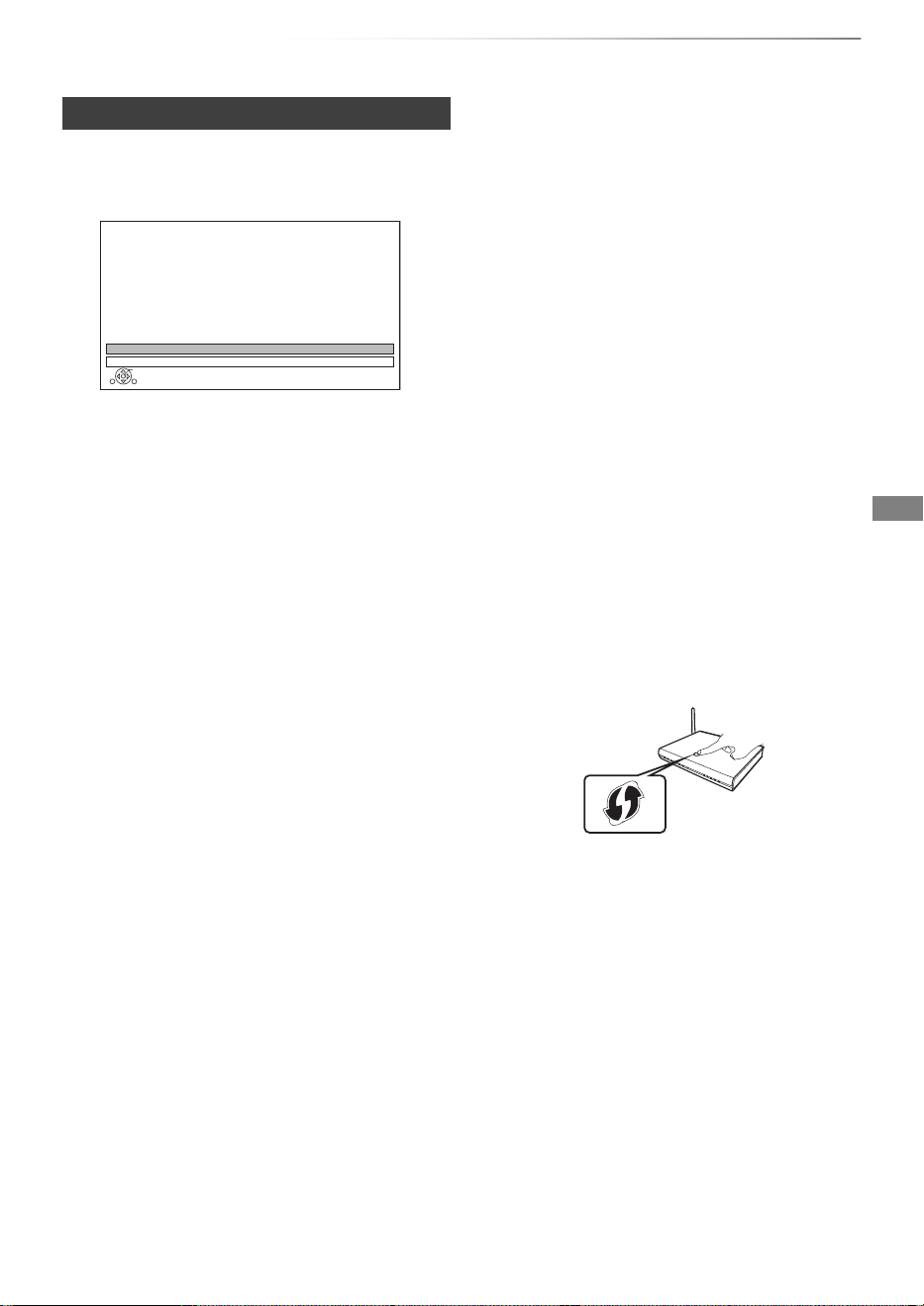
After completing “Easy Setting”, you can continue
with “Easy Network Setting”.
Select “Wired” or “Wireless”, then press [OK].
“Wired” connection
Follow the on-screen instructions to apply your
connection settings.
“Wireless” connection
Before beginning wireless connection setup
• Obtain your network name (SSID
§1
).
• If your wireless connection is encrypted, please
be sure that you know your encryption key.
Select “Search for wireless network” or “WPS
(PUSH button)” and press [OK], then follow the
on-screen instructions and apply the settings.
• If your wireless network is encrypted, Encryption
Key Input Screen will be displayed.
Input the encryption key of your network.
§1
SSID:
An SSID (Service Set IDentification) is a name used by
wireless LAN to identify a particular network.
Transmission is possible if the SSID matches for both
devices.
§2
The wireless router compatible with Wi-Fi Protected
Setup
TM
may have the mark.
Easy Network Setting
OK
RETURN
Easy Network Setting
Settings and tests for connection required
for home network and the Internet will be
conducted.
First, please select a connection mode.
LAN cable connection:
Connect a LAN cable to the unit and select “Wired”.
Wireless LAN connection:
Select “Wireless”.
Current setting : Wired
Wired
Wireless
Search for wireless network:
The available wireless networks will be displayed.
Select your network name and press [OK].
- If your Network name is not displayed, search
again by pressing the red button on the remote
control.
- Stealth SSID will not be displayed. Enter
manually by using “Wireless Settings”. (> 76)
WPS (PUSH button):
If your Wireless router supports WPS (PUSH
button), you can easily perform the settings by
pressing WPS button on it.
WPS (Wi-Fi Protected Setup™) is a standard that
facilitates settings relating to the connection and
security of wireless LAN devices.
1 Press WPS button or corresponding button of
Wireless router until the lamp starts flashing.
• For details, refer to the operating instructions
of Wireless router.
2 Press [OK].
※
2
e.g.,
DMR-BWT850EB_eng_SQT1119-2.book 19 ページ 2023年1月11日 水曜日 午後1時37分

Getting started
SQT1119
20
Settings
To restart Easy Network Setting
1 Press [FUNCTION MENU]. (> 21)
2 Select “Basic Settings” in “Setup”, then press
[OK].
3 Select “Easy Network Setting” in “Network”,
then press [OK].
To redo settings individually
If “Easy Network Setting” did not work properly or
when you change the settings individually,
perform the following steps:
1 Press [FUNCTION MENU]. (> 21)
2 Select “Basic Settings” in “Setup”, then press
[OK].
3 Select “Network Settings” in “Network”, then
press [OK].
4 Refer to “Network Settings”. (> 76)
Check security before using Home Network
function
If you set “Home Network function” to “On”, all
connected devices on the same network can
access this unit. Ensure that the router for your
home network has adequate security system to
prevent unauthorised access.
• Refer to the operating instructions of the hub or router.
• If you set “Home Network function” or “TV Anywhere” to
“On”, the setting for “Quick Start” is fixed to “On”.
• Do not use this unit to connect to any wireless network for
which you do not have usage rights.
During automatic searches in a wireless network
environment, wireless networks (SSID) for which you do
not have usage rights may be displayed; however, using
these networks may be regarded as illegal access.
• After performing network settings on this unit, the settings
(encryption level, etc.) of the Wireless router might change.
When you have trouble getting online on your PC, perform
the network settings on your PC in accordance with the
settings of Wireless router.
• Please be aware that connecting to a network without
encryption may result in the content of the communication
being illegitimately viewed by a third party, or the leaking of
data such as personal or secret information.
DMR-BWT850EB_eng_SQT1119-2.book 20 ページ 2023年1月11日 水曜日 午後1時37分
Getting started
SQT1119
21
FUNCTION MENU screen
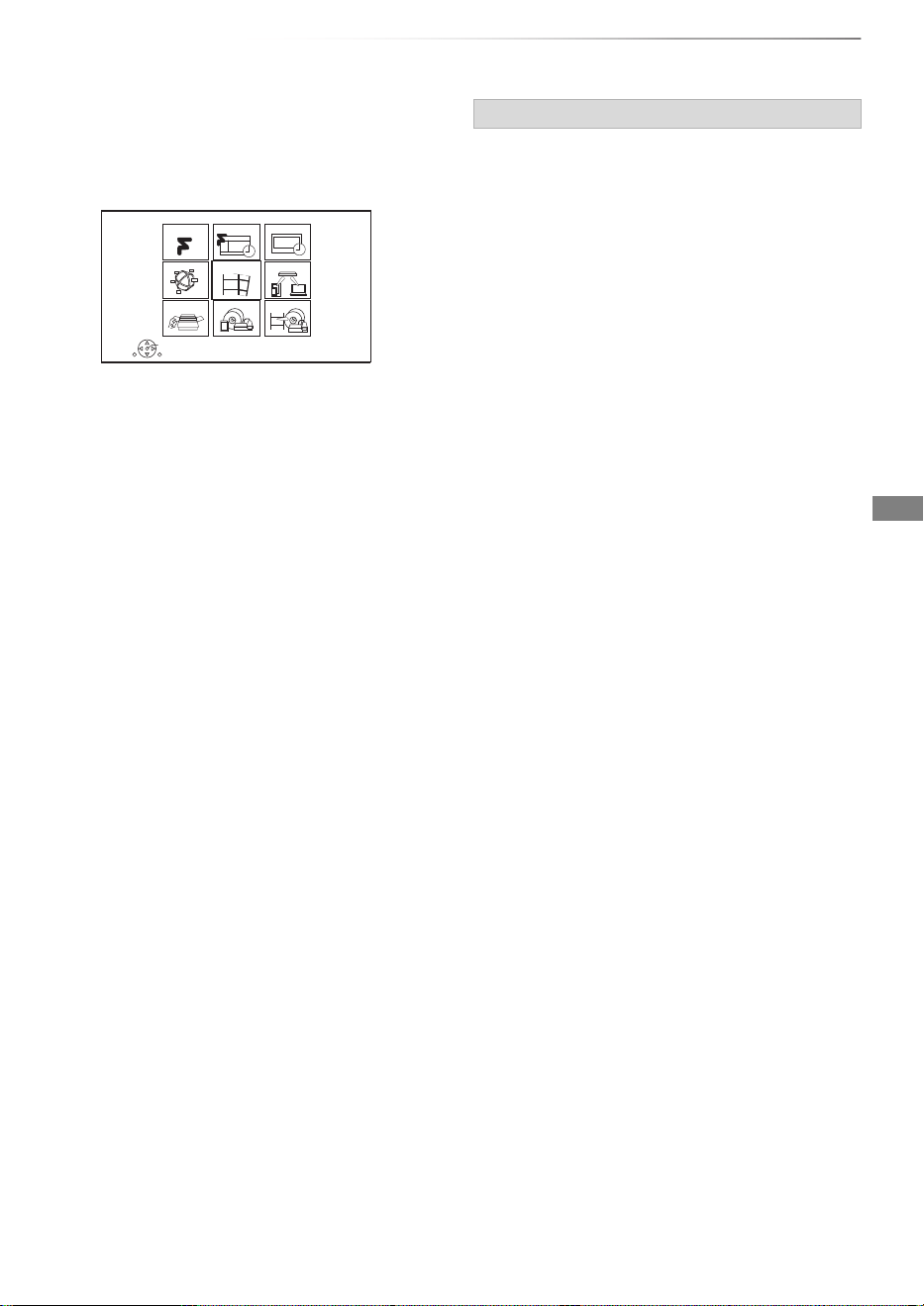
You can easily access the desired functions, such
as playback, timer recording, the unit’s settings
etc. via the FUNCTION MENU.
1 Press [FUNCTION MENU].
2 Select the item, then press [OK].
• Freeview Play Catch Up (> 26)
•TV Guide (> 25)
• Timer Recording (> 31)
• Network Service (> 64)
• Contents on HDD
- Recorded Programmes (> 34)
- Video ( AVCHD ) (> 34)
- Video ( MP4 / Xvid / MKV ) (> 36)
-Photo (> 54)
-Music (> 58)
• Home Network
- Miracast (> 63)
- DLNA Client (> 61)
- Media Renderer (> 62)
- Wi-Fi Direct (> 63)
•Setup
- Basic Settings (> 70)
• You can change the unit’s settings of Tuning,
Sound, Display, Connection, Network etc.
- TV Anywhere (> 64)
- Wallpaper
Personalize a background of the FUNCTION
MENU.
• To select from among “Photo”, register photo
in advance. (> 55)
- BD-Video Data Management (> 38)
•Media
-Disc
- SD Card
- USB device
- USB HDD
• Copy Video
- Copy Menu (> 48)
- Copy Video (AVCHD) to DVD-R (> 53)
RETURN
FUNCTION MENU
OK
Media
TV Guide
Freeview Play
Catch Up
Home Network
Setup
Timer Recording
Contents on HDDNetwork Service
Copy Video
FUNCTION MENU list
DMR-BWT850EB_eng_SQT1119-2.book 21 ページ 2023年1月11日 水曜日 午後1時37分
Watching broadcasts
SQT1119
22
Watching broadcasts
Wat ching
broadcasts
To switch to the channel you have previously
watched
Press [LAST VIEW ].
• This function will work only for the channels you
have watched for more than 10 seconds.
To switch to the radio channels or to the all
channels
Press [RADIO/TV].
If you have locked channels (> 71, Child Lock
List), you may be asked to enter the PIN. In that
case, enter the 4-digit PIN with the number
buttons by following the on-screen instructions.
• PIN can be changed via “PIN Entry”. (> 80)
While watching a programme
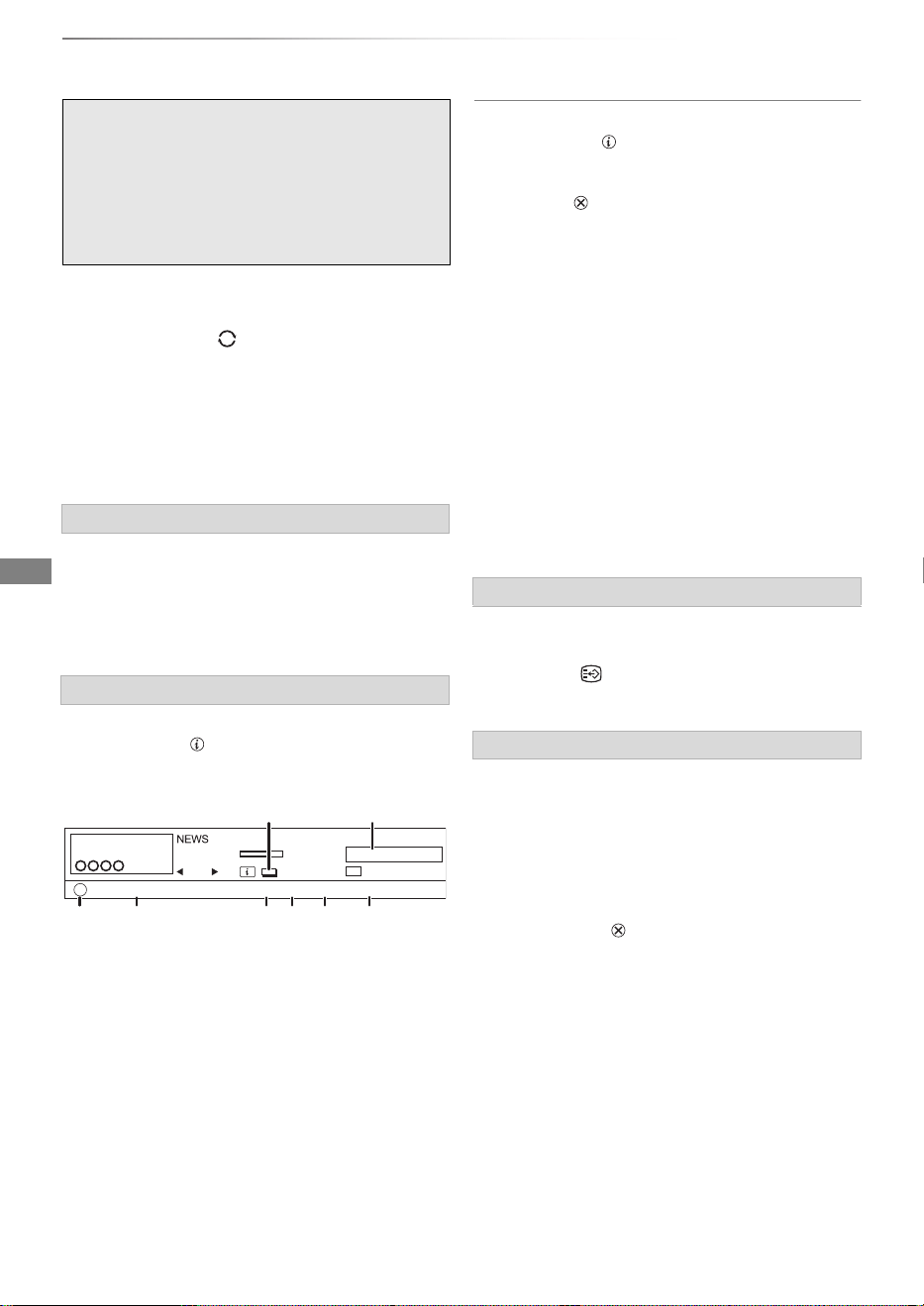
Press [STATUS ].
Channel information appears.
1 Set timer (> 32)
2 Current Category
3 Guidance information for parental control
(> 72, Child Lock)
4 HD simulcast programmes
5 Audio Description
6 Subtitle
7 Digital teletext
8 Multiple audio
To show detailed information
Press [STATUS ] again.
To hide the information screen
Press [EXIT ].
To switch between the current programme
and the next programme
Press [2, 1].
To switch to another channel
Press [3, 4], then press [OK].
When “STTL” appears in channel information
(
>
left)
Press [STTL ].
• Press again to hide subtitle.
When “Multi Audio” appears in channel
information (
>
left)
1 Press [OPTION].
2 Select “Multi Audio” in “Digital TV Menu”, then
press [OK].
3 Select the desired audio.
• Press [EXIT ] to exit from the screen.
Press [CH WX] to select the channel.
• You can also select the channel by the
following operations.
- Using number buttons
- Using “TV Guide” (> 25)
- Using channel information (> below)
If this unit requests a PIN
Using channel information
10:30
1
Now
ADMPEG
Change category
All DVB Channels
9:00 - 11:00
Set timer
SD>HD
STTL TEXT Multi Audio
G
e.g.,
To change Category
Press the blue button.
• To register your favourite channels
1 Press [OPTION].
2 Select “Digital TV Menu”, then press [OK].
3 Select “Favourites Edit”, then press [OK].
4 Refer to “Favourites Edit”. (> 70)
To show subtitle
Switching audio
DMR-BWT850EB_eng_SQT1119-2.book 22 ページ 2023年1月11日 水曜日 午後1時37分
Watching broadcasts
SQT1119
23
To use Hybrid Broadcast Broadband TV
application, perform network connection and
settings. (> 16, 19)
• Set “HbbTV Setting” to “On”. (> 71)
• Operations may vary depending on the broadcaster.
• On-screen instructions may not correspond to the remote
control buttons.
• It may take some time to show the data service.
• Some functions of the data service may be deactivated
during recording.
Audio Description adds an additional soundtrack
to describe events on screen (narration) and aids
understanding and enjoyment, particularly for
visually-impaired viewers.
When “AD” appears in channel information
(> 22)
1 Press [AD].
2
Select “Audio Description” and set to “Automatic”.
3 Select “Volume”, then adjust the volume with
[2, 1].
• Audio Description may not be available depending on the
type of audio format.
• When “Dolby D / Dolby D + / Dolby True HD”,
“DTS/ DTS-HD”, “MPEG” or “HE-AAC” is set to “Bitstream”,
the Audio Description may not work. Set them to “PCM”
(> 74, Digital Audio Output).
• You can also set “Audio Description” active in the Setup
menu. (> 71)
When “TEXT” appears in channel information (
>
22)
1 Press [TEXT ].
2 Use [3, 4, 2, 1], number buttons or colour
buttons, etc. according to on-screen
instructions.
• Some functions of Digital teletext are deactivated during
recording.
• “Player PIN Control” applies access control for some MHEG
services. If you have locked viewing of Digital teletext (MHEG)
(
>
71, Player PIN Control), PIN is required to start viewing.
You can switch the aspect ratio of the screen. (
>
85)
To use data service (Hybrid Broadcast
Broadband TV)
To listen to the Audio Description
To show Digital teletext (MHEG)
Aspect
DMR-BWT850EB_eng_SQT1119-2.book 23 ページ 2023年1月11日 水曜日 午後1時37分
Watching broadcasts
SQT1119
24
Watching broadcasts
This unit temporarily saves a live TV programme
you are watching with this unit’s tuner on HDD.
REWIND LIVE TV
You can rewind live TV programme to the point
where temporary save has started (up to
1.5 hours).
PAUSE LIVE TV
You can pause live TV programme and restart
watching from the paused position.
While pausing or rewinding a broadcast:
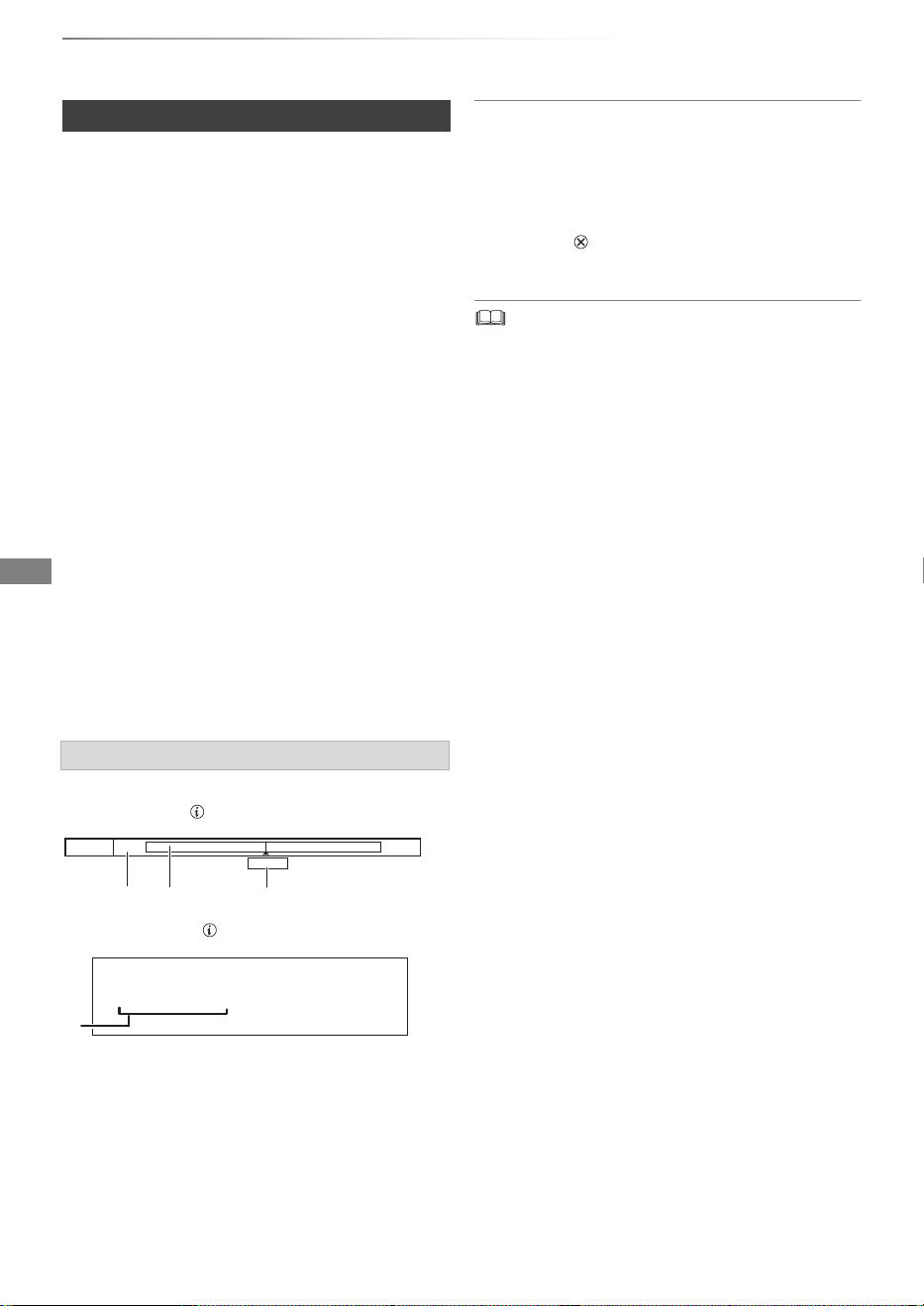
Press [STATUS ].
• Press [STATUS ] again.
1 The time that you can rewind the live
programme.
2 The amount of time temporarily saved on
HDD.
3 The time of the current playback position.
To stop REWIND LIVE TV or PAUSE LIVE TV
1Press [STOP∫].
2 Select “Yes”, then press [OK].
To hide the display information
Press [EXIT ].
• Temporary save stops in the following cases:
- When switching to other channels or other screen
- When two programmes simultaneous recording is started
- When performing PAUSE LIVE TV or REWIND LIVE TV
for more than 8 hours (This may vary depending on the
HDD free space.)
• These functions do not work in the following cases:
- When the clock is not set
- When two programmes simultaneous recording is started
- While copying
- While watching a programme being recorded
- When a radio programme is selected
REWIND LIVE TV/PAUSE LIVE TV
1 While watching TV
REWIND LIVE TV:
Press [SLOW/SEARCH 6] to rewind.
PAUSE LIVE TV:
Press [PAUSE ;] to pause.
• The maximum amount of the temporary
save is 1.5 hours.
2 When you want to resume:
Press [PLAY/a1.3 1].
• You can perform search or Quick View, etc.
• If temporary save stops (> right), playback
will be performed by that point.
Display information
Pause
8:05 9:35
8:50
8:50:55 06/01/2015
Play
8:50.50
DMR-BWT850EB_eng_SQT1119-2.book 24 ページ 2023年1月11日 水曜日 午後1時37分
Watching broadcasts
SQT1119
25
Freeview Play
When this unit is connected to a network, it
enables you to scroll back through the TV Guide
for programmes from the last seven days on
catch up (7 days back function), or display the list
of services provided by broadcasters, such as
BBC, ITV, and Channel 4 (Freeview Play Catch
Up function).
Freeview Play will launch in October 2015.
The following functions will be available for this unit:
• Freeview Play Side Bar (> below)
• TV Guide (> right)
• 7 days back function (> 26)
• Freeview Play Catch Up
(> 26)
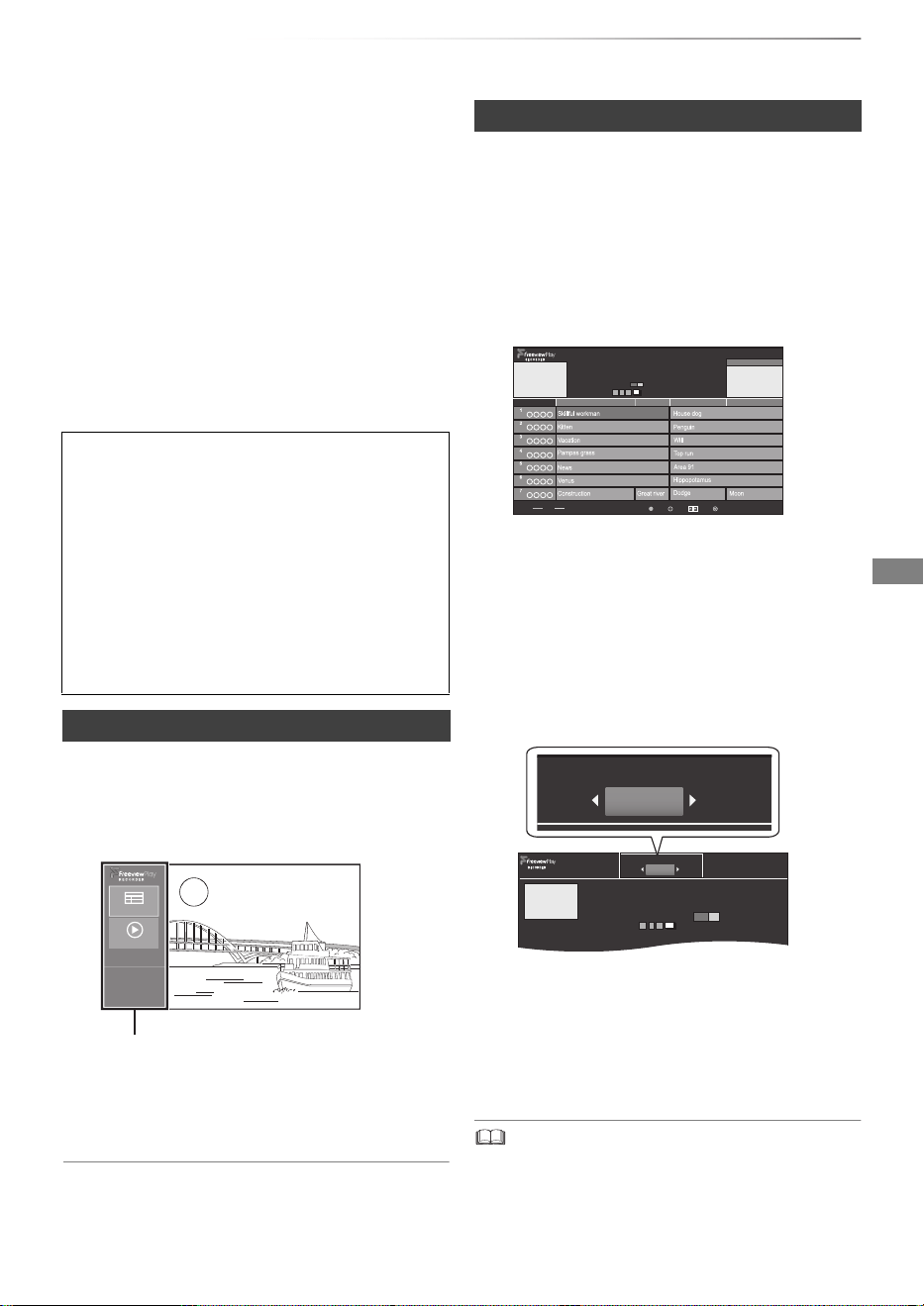
You can use the Freeview Play Side Bar to select
items.
2 Select the item, then press [OK].
TV Guide (> right)
Catch Up (Freeview Play Catch Up) (> 26)
To exit
Press [BACK/RETURN].
4 To watch the programme
Select “Watch Now”, then press [OK].
• To set a timer recording, edit timer
recording settings or etc., select the
desired item with [2, 1] and press [OK].
• Selection of channel is made easy by creating a Favourite
of the channels you watch often. (> 70, Favourites Edit)
About the 7 days back function and Freeview
Play Catch Up function
• These functions will be made available through
a firmware update. (As of October 2015)
For details, please check the following website.
https://panasonic.jp/support/global/cs/
(This site is in English only.)
• A network connection and related access
settings are required. (> 16, 19)
• Minimum broadband speed of 2 Mbps required
for catch up and on demand services.
Freeview Play Side Bar
1 While watching a programme
Press [OK].
TV Guide
Catch Up
Freeview Play Side Bar
TV Guide
1 While watching a programme
Press [OK] to display the Freeview Play Side
Bar.
2 Select the “TV Guide”, then press [OK].
• You can directly access the TV Guide by
pressing [GUIDE].
e.g.,
Page up/down
Press and hold [CH WX] or [3, 4].
To view a programme list for another day
Press the red button, then select the item.
To set a timer recording using the TV
Guide (> 29)
3 Select the programme, then press [OK].
Schedule
Jump Now
Timer Rec.
OK
Channel
Back
OK
TV Guide
Tue 22th Dec 2015 20:42
AD HDS
1 XXXXXXXXXXX
XXXXXXXXXXX
XXXXXXXXXXX
XX XX XX XXXX XXXX-XXXX
XXXXXXXXXXX
1 XXXXXXXXXX
8:00Today 8:30 9:00 9:30
TV Guide
Back
Record Series Info
Tue 22th Dec 2015 20:42
Watch Now
1 XXXXX
XXXXXXXXXXX
XX XX XX XXXX XXXX-XXXX
XXXXXXXXXX
XXXXXXXXXXX
AD HDS
TV Guide
Back
Record
Watch Now
DMR-BWT850EB_eng_SQT1119-2.book 25 ページ 2023年1月11日 水曜日 午後1時37分
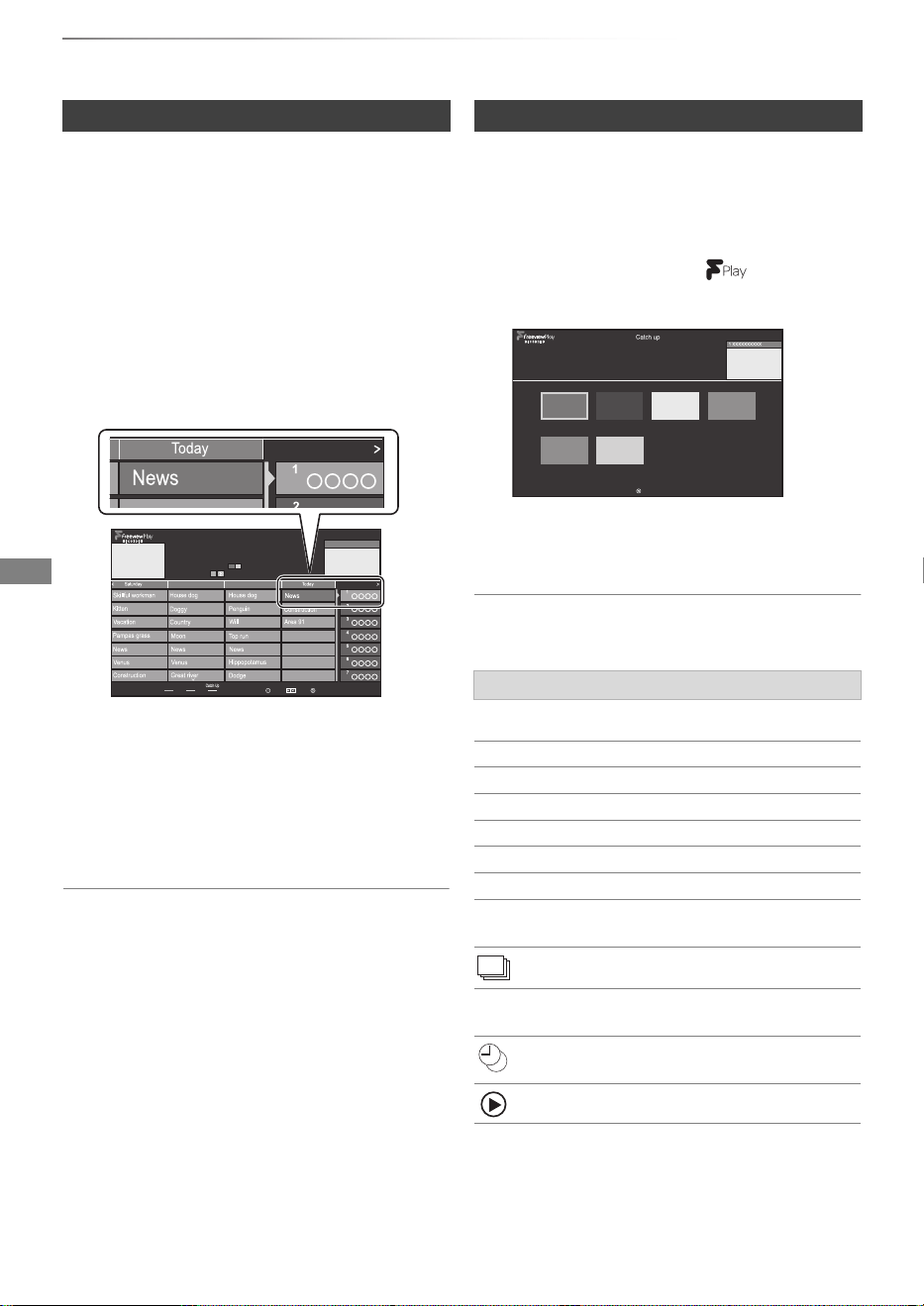
Watching broadcasts
SQT1119
26
Freeview Play
1 While watching a programme
Press [OK] to display the Freeview Play Side
Bar.
2 Select the “TV Guide”, then press [OK].
• You can directly access the TV Guide by
pressing [GUIDE].
3 Press [2] to display the 7 days back function
screen.
4 Select the programme, then press [OK].
• You can select a broadcaster by pressing
[CH WX].
• You can select a date by pressing [2, 1].
5 To watch the programme
Select “Watch Now”, then press [OK].
To return to the TV Guide screen for the
current time
Press the green button.
To exit
Press [BACK/RETURN].
§1
The icon turns grey when the timer is
cancelled.
§2
This function can be used when this unit is
connected to a network, and it will be made
available through a firmware update.
7 days back function
Schedule
Jump Now
OK
Channel
Back
OK
TV Guide
Tue 22th Dec 2015 20:42
Monday 21thSunday 20th19th
AD
1 XXXXXXXXXXX
XXXXXXXXXXX
XXXXXXXXXXX
XX XX XX XXXX XXXX-XXXX
XXXXXXXXXXX
1 XXXXXXXXXX
e.g.,
Freeview Play Catch Up
1
While watching a programme
Press [OK] to display the Freeview Play Side Bar.
2 Select the “Catch Up”, then press [OK].
• You can directly access Freeview Play
Catch Up by pressing
[].
e.g.,
3 Select the item, then press [OK].
Follow the on-screen instructions and make
the subsequent settings.
Screen icons
AD Audio Description
S Programmes with subtitles
SL Programmes with sign language
HD High definition programmes
SD Standard definition programmes
SD>HD HD simulcast programmes
Pay Pay-per-view programmes
Guidance Programmes with guidance
information
Series programmes
F
§1
Programmes set for single timer
recording
§1
Programmes set for series timer
recording
§2
Catch Up Programmes
Back
Tue 22th Dec 2015 20:42
XXXXXXXXXXX
XXXXXXXXXXXXXXXXXXXXXXXXXXXXXXXXXXXXXXXXXX
DMR-BWT850EB_eng_SQT1119-2.book 26 ページ 2023年1月11日 水曜日 午後1時37分
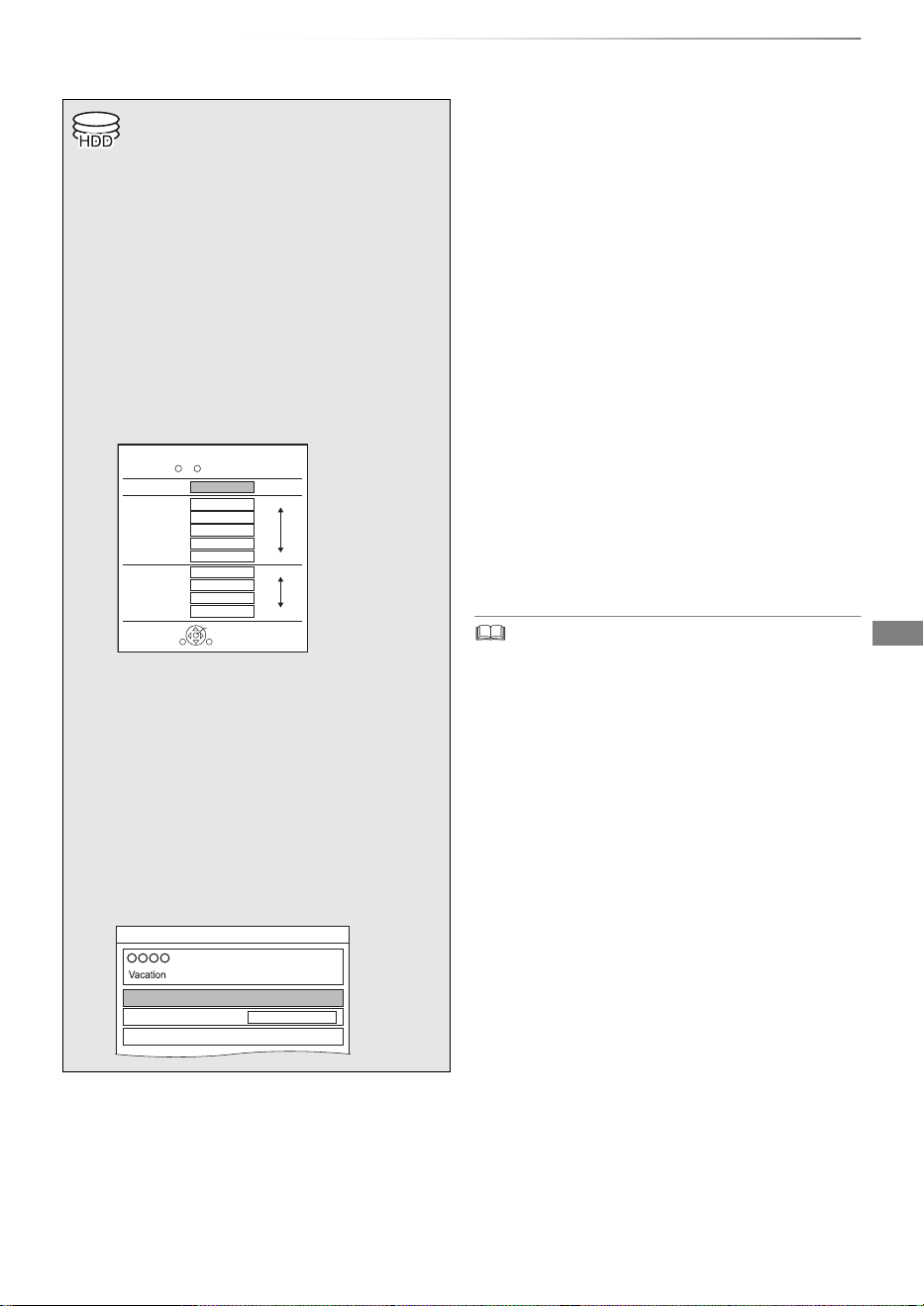
Recording
SQT1119
27
Recording TV programmes
Recording
To convert the recording mode after recording
in DR mode
Refer to “File Conversion”. (> 44)
To confirm whether the conversion is
completed
Refer to “To confirm whether the conversion is
completed”. (> 44)
To cancel a conversion
Refer to “To cancel a “During standby”
conversion”. (> 44)
• If a timer recording reaches its start time when all tuners
are being used for recording, the recording (OTR) of one of
the programmes terminates.
• Digital teletext will not be recorded.
• Following contents or media cannot be played back while
recording.
- video file
- photo
- USB HDD (For data files, > 9) and USB memory
• Copying cannot be performed while recording.
• When “Automatic Standby after OTR” is set to “On” (> 79),
this unit is turned to standby mode if this unit is not
operated for approximately 5 minutes after completing
“Automatic Stop” or “Recording Time”.
• This unit can record two programmes being
broadcasted at the same time.
1 Select the channel to record.
2 Press [REC MODE] and select the
conversion mode, then press [OK].
• This unit will record the programmes in DR
mode once, and then automatically
convert to the selected recording mode
while this unit is in standby.
• Recording mode (> 9)
• The conversion mode set here is used
as an initial value for the next recording.
3 Press [REC ¥].
Recording will start.
4 Select “Automatic Stop”, then press
[OK].
• One touch recording (OTR)
Recording stops automatically when the
programme ends.
HG
HX
HE
HL
HM
XP
SP
LP
EP
Off (DR)
Conversion Mode Setting
OK
RETURN
HDD Remain (DR)m
h
High
Definition
Data Size
Large
Small
Large
Small
Standard
Definition
Automatic Stop (Guide Link) at 8:45
REC1/OTR
Recording Time
Continuous recording
30 min
8:00 - 8:45
To set the recording time
1 Select “Recording Time” or “Continuous
recording” in step 4 (> left).
Recording Time:
You can set the length of recording time from
30 minutes to 4 hours.
• You can select the recording time with
[2, 1].
2 Press [OK].
DMR-BWT850EB_eng_SQT1119-2.book 27 ページ 2023年1月11日 水曜日 午後1時37分
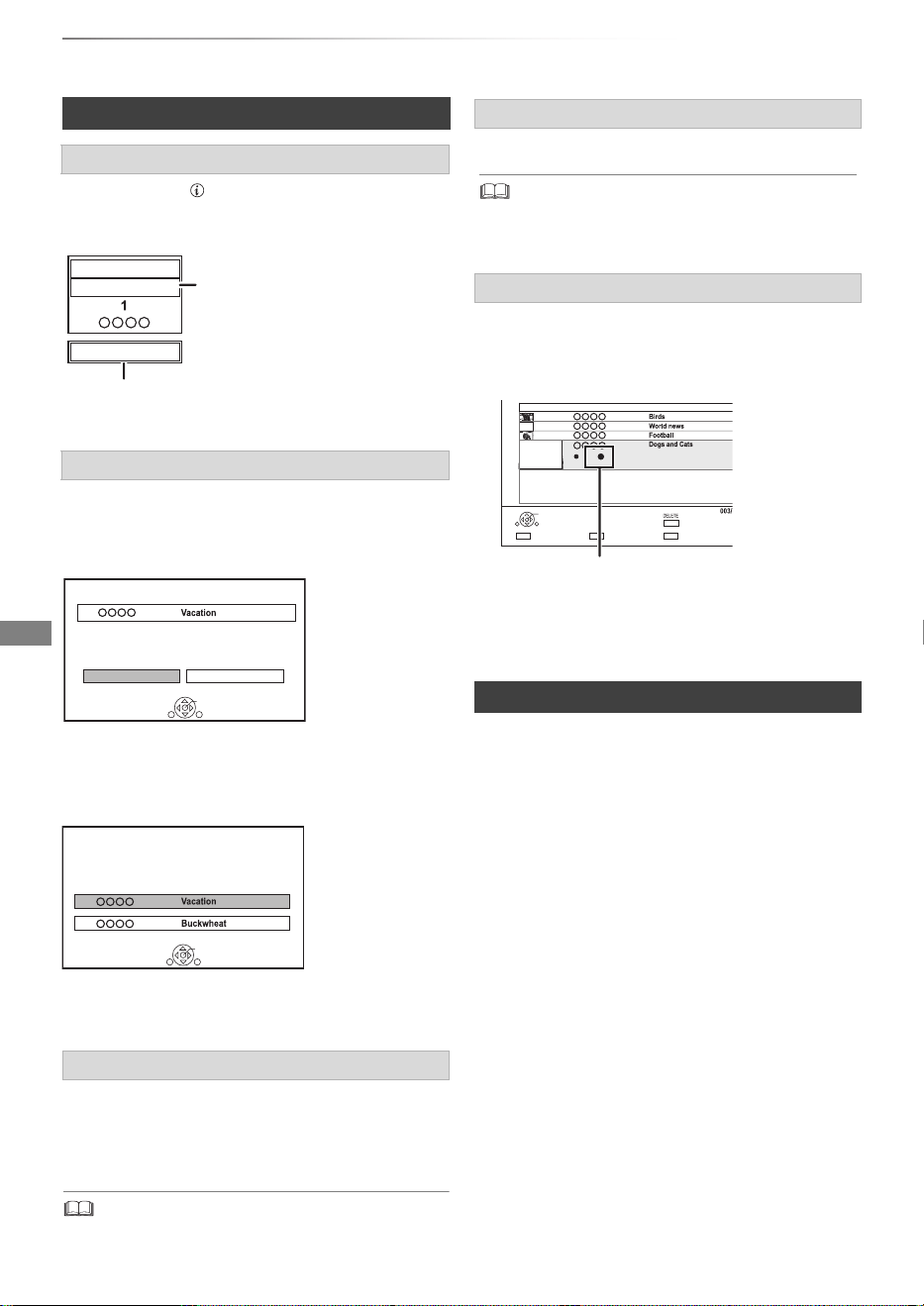
Recording
SQT1119
28
Recording TV programmes
Press [STATUS ].
Press [STOP ∫].
When recording one programme:
If the following screen appears
Select “Yes”, then press [OK].
After displaying the recording programme, press
[PAUSE ;].
• Press again to restart recording.
(A title is not split into separate titles.)
• Timer recording programme cannot be paused.
You can play the recording title from the beginning
or the titles previously recorded to the HDD.
• The title before conversion (the title recorded in
DR mode) will be deleted once the conversion is
completed.
• Conversion will take about the same time as the
recorded duration.
• When the HDD does not have enough
remaining space, conversion will not start.
• Conversion is stopped when this unit is turned
on. Conversion will start from the beginning
again once the unit is switched to standby
mode.
• When converted, audio content and subtitle will
be converted with the same settings as at the
start of recording.
Operation during Recording
To check the recording programme
e.g., While recording two programmes simultaneously
To stop recording
When recording two programmes:
Following screen appears
1 Select the programme, then press [OK].
2 Select “Yes”, then press [OK].
To pause recording
REC2
HDD
REC1/OTR AUTO
5
Recording programme
displayed on the TV
Recording programme not displayed on the TV
Stop Recording
Yes
No
Recording of this programme is in progress.
Stop this recording ?
OK
RETURN
1
Stop Recording
2 recordings are in progress.
Which recording would you like to stop ?
OK
RETURN
1
2
To record two programmes simultaneously
While recording, perform steps 1–4 on page 27.
• Channel can only be switched between the recording
programmes.
Simultaneous rec and play
1 Press [VIDEO MENU].
“[” (red) is displayed on the recording
programme.
2 Select the title, then press [OK].
Notes for Conversion
Page
Select
Start Time
Prog.Type:
Rec Time
Play
RETURN
Channel Date Title Name
Delete
Drama
9:00 0h10min(DR
04/10
04/10
29/10
29/10
Channel Date Title Name
DMR-BWT850EB_eng_SQT1119-2.book 28 ページ 2023年1月11日 水曜日 午後1時37分
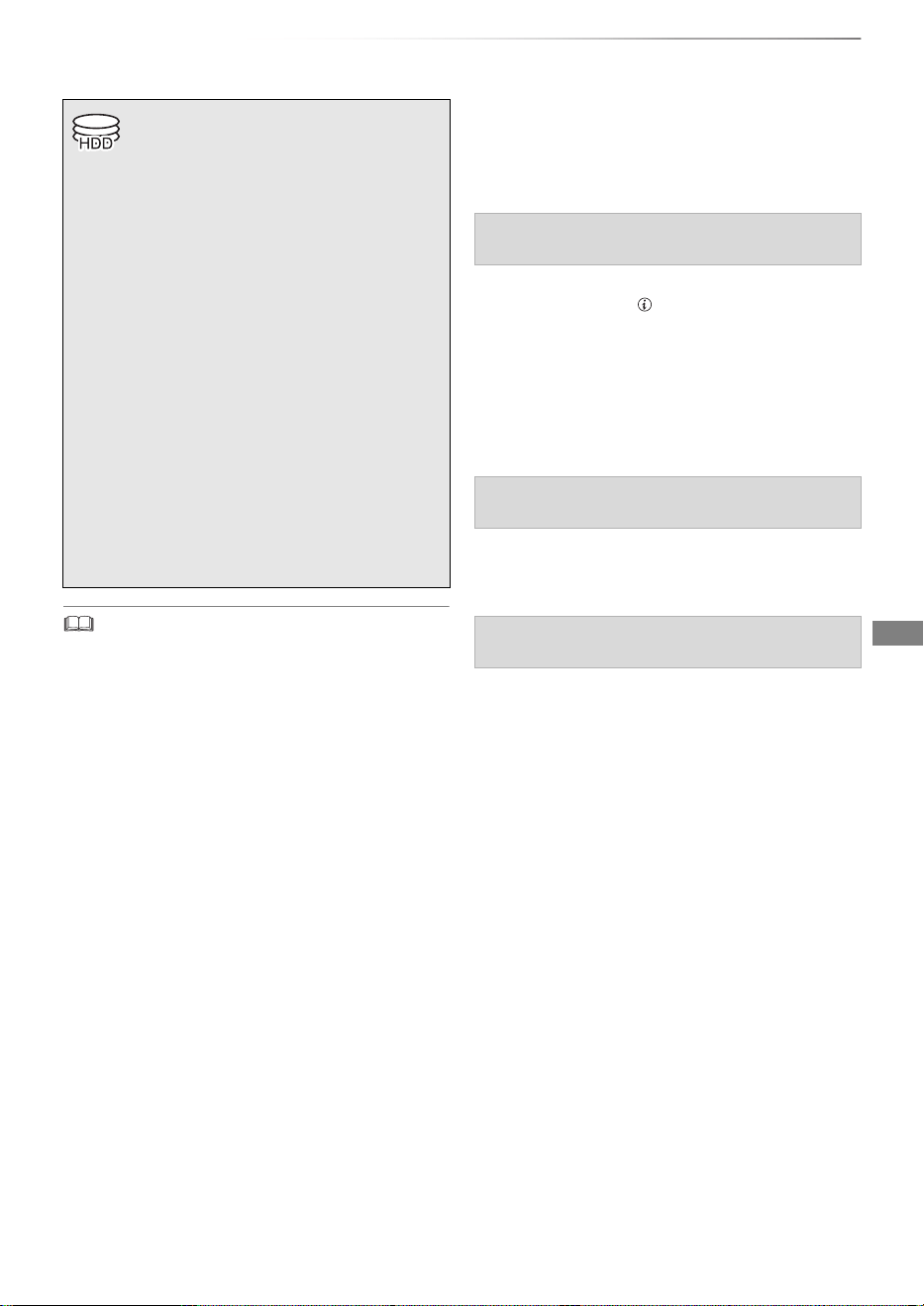
Recording
SQT1119
29
Timer recording
• This unit has several functions that enable timer recordings
to be controlled by the signal sent from the broadcaster.
(> 30) If the signal is not sent correctly, the recording may
lack the beginning or the ending part of the programmes.
• Some broadcasters may not send programme information.
When programme information is not displayed correctly,
use manual timer recording. (> 31)
• If the unit cannot record the selected programme, the unit
will record the repeat programme if it is available. However,
this unit will not record the repeat programme, if any part of
the selected programme is recorded.
To use TV Guide (> 25)
Operation during Recording (> 28)
1 Select the programme to edit, then press the
[OK] or [STATUS ].
2 Select “Edit Recording”, then press [OK].
3 Go to step 3 on page 31, “Manually
programming timer recording”.
• Some options cannot be changed when
“Guide Link” is effective. (> 30, 32)
Select the programme to cancel, then press the
[REC ¥].
Select “Single Timer Recording” or “Series Timer
Recording” (> 30), then press [OK].
• You can enter up to 32 programmes within a
month in advance. (Each daily or weekly
programme is counted as one programme.)
• This unit can record two programmes being
broadcasted at the same time.
Preparation
If you want to change the recording mode:
Press [REC MODE] and select the recording
mode, then press [OK].
1 Press [GUIDE].
TV Guide screen appears.
2 Select the programme, then press the
[REC ¥].
The timer icon “F” (red) is displayed.
• If on-screen instructions are displayed,
follow them.
To edit the timer recording on the TV Guide
screen
To cancel a timer recording on the TV Guide
screen
If the screen for selecting single or series
timer recording appears
DMR-BWT850EB_eng_SQT1119-2.book 29 ページ 2023年1月11日 水曜日 午後1時37分
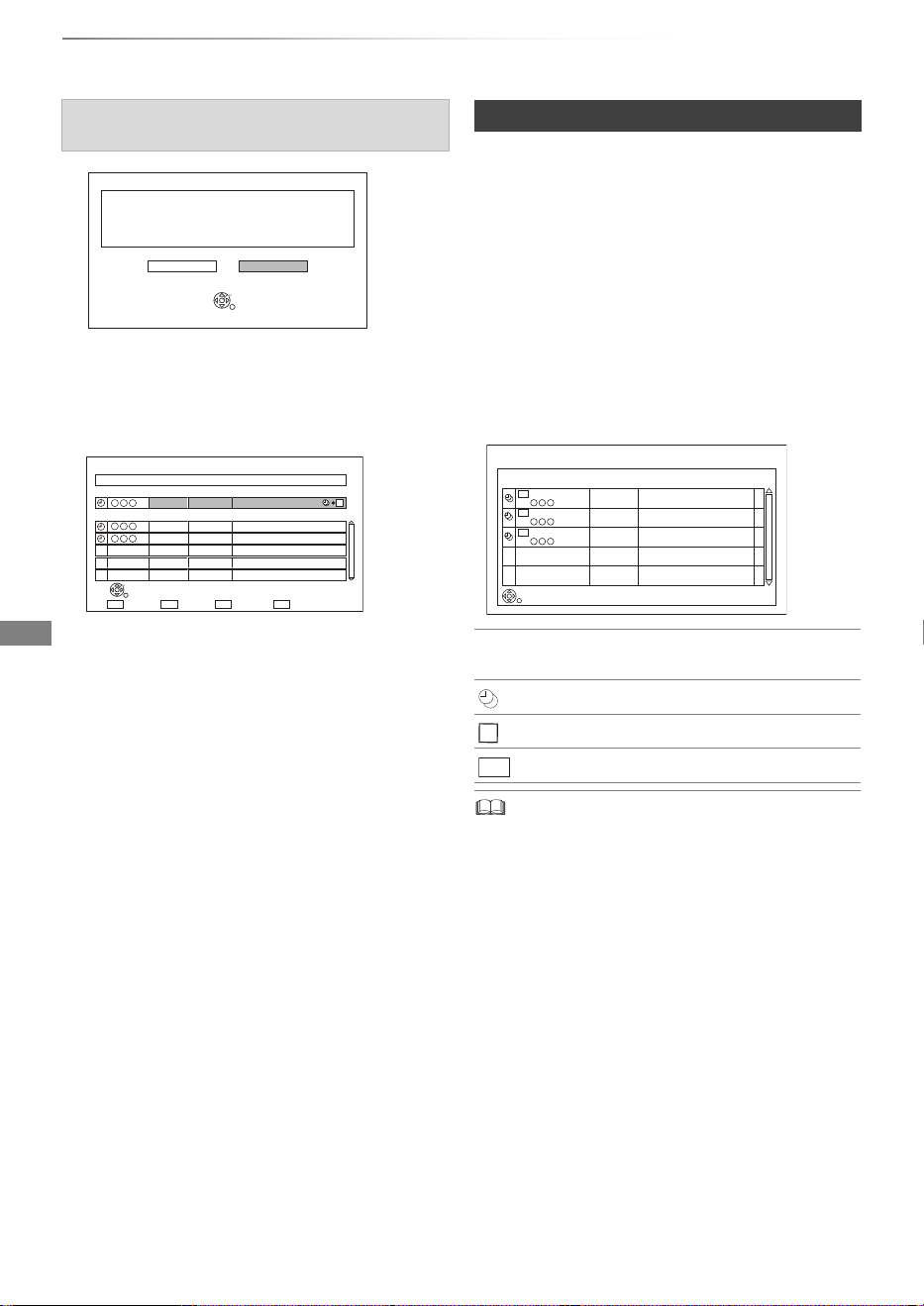
Recording
SQT1119
30
Timer recording
Guide Link
The recording’s start and stop times can be
controlled by the broadcaster, e.g. delayed start.
• This is indicated by “Guide Link” in the Timer
Recording screen (> 32).
• The “Guide Link” function may not work if you
manually change the start time or the stop time
over 10 minutes.
Series Timer Recording
You can record all the episodes of a series by
setting just one timer recording.
• Titles recorded using “Series Timer Recording” are bundled
and displayed as a “group” in the Video Menu screen
(> 34).
• The series recording will be cancelled if there has been no
episode of the series for 13 weeks.
If “Overlapped Timer Recording” screen
appears
You can eliminate the overlapping or may change
with repeat event for the duplicated programme.
1 Select “Change”, then press [OK].
2 Follow the on-screen instructions.
Red: Delete
Green: Record repeat programme
Yellow: Exit (Overlapping is not resolved)
Timer programme overlaps with others.
Some part or all of programmes may not be recorded completely.
OK
RETURN
Overlapped Timer Recording
Keep Change
Please delete unnecessary programme to resolve.
OK
RETURN
Overlapped Timer Recording
New Programme
ConfirmDelete Repeat
THU 11/10 23:15 - 23:45 TWO Wales
Existing Programmes
THU
11/10
23:00 - 23:30 Holiday
THU
11/10
23:00 - 23:30 Animals
Episode 01/ 02
R
Various functions with Freeview
F
Programme for which you set the timer
recording
Series Timer Recording programme
Repeat programme
High definition programme
Series Information WED 07/01/2015 19:40
TUE 06/01
23:00 - 0:00
2/6 Comedy-drama series about
housemates who are actually awere...
HD
Channel Schedule Contents
WED 07/01
23:00 - 0:00
THU 08/01
23:00 - 0:00
3/6 Comedy-drama series about
housemates who are actually awere...
3/6 Comedy-drama series about
housemates who are actually awere...
HD
HD
RETURN
R
HD
DMR-BWT850EB_eng_SQT1119-2.book 30 ページ 2023年1月11日 水曜日 午後1時37分
Recording
SQT1119
31
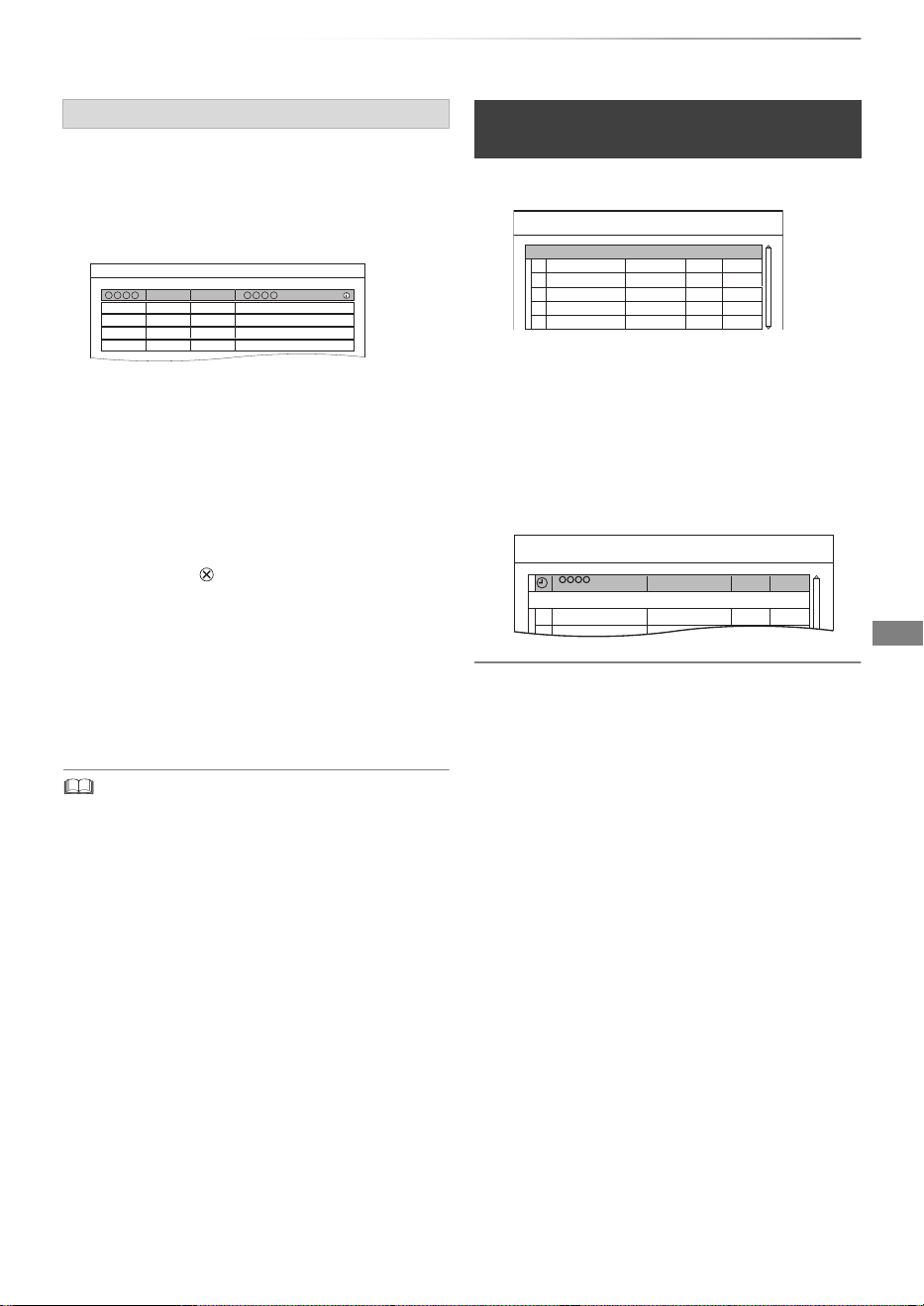
You can record a programme that the broadcaster
recommends.
1 On the TV Guide screen:
Select “Recommended”, then press [OK].
2 Select the programme, then press [OK].
• If the screen for selecting single or series
timer recording, or “Programme Selection”
screen appears, refer to page 29.
3 Press [OK].
The timer icon (red) is displayed on the
Recommendation List.
• To exit from the screen
Press [EXIT ].
To cancel the timer recording on the
Recommendation List
1 Select the programme with the timer icon
(red), then press [OK].
2 Select “Yes”, then press [OK].
(The timer icon disappears.)
• “Recommended” cannot be selected if there is no
recommended programme.
1 Press [PROG/CHECK].
2 Select “New Timer Programme”, then press
[OK].
To confirm and edit the timer programme
Refer to “To confirm and edit a timer programme”.
(> 33)
Operation during Recording
Refer to “Operation during Recording”. (> 28)
Recording recommended programme
SAT 14/03 19:45 - 20:00
Recommendation List
Manually programming timer
recording
3 Select the items and change the items.
(> 32, Timer recording options)
4 Press [OK].
The timer programme is stored.
Channel Name
Schedule
Mode
Space
Timer Recording
30:30 DRHDD TUE 06/01/2015 8:05
New Timer Programme
Channel Name
Schedule
Mode
Space
Timer Recording
30:30 DRHDD TUE 06/01/2015 8:05
New Timer Programme
OK
Programme Name
WED 07/01
8:00 - 9:00
DR
DMR-BWT850EB_eng_SQT1119-2.book 31 ページ 2023年1月11日 水曜日 午後1時37分
Recording
SQT1119
32
Timer recording
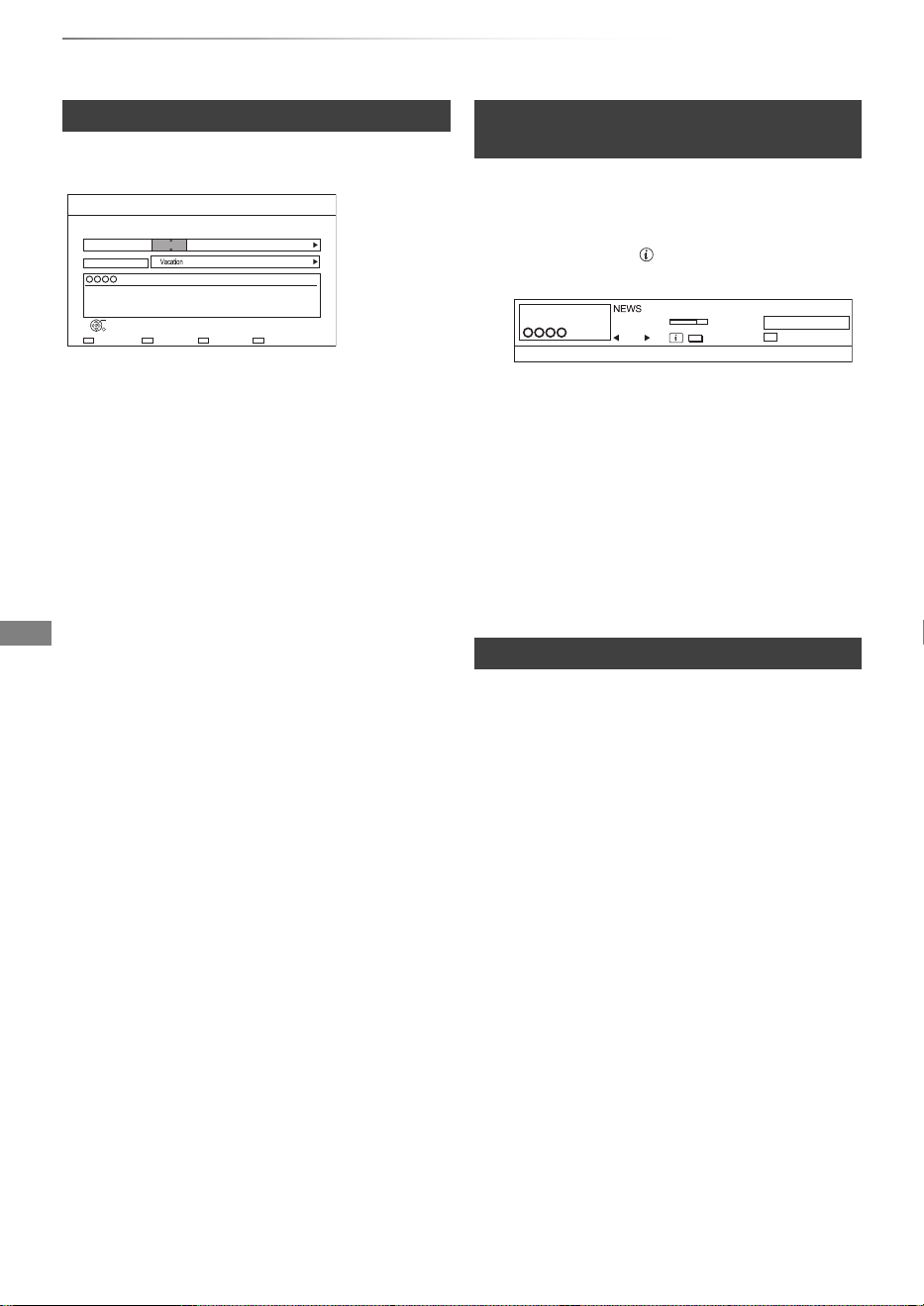
Select the items and change the settings.
Channel
• You can select Category with the red button.
Start/Stop
• Press and hold [3, 4] to alter in 15-minute
increments.
Mode/Conv.
Refer to step 2. (> 27)
Subtitles
You can choose whether or not to record the
subtitle at conversion.
(Only when item other than “OFF” is selected in
“Conv.”)
Title Name
1 Select “Title Name”, then press [OK].
2 Refer to “Entering text”. (> 84)
You can make timer recording of the current or
next programme.
1 While watching a programme
Press [STATUS ].
3 Press the yellow button.
4 Go to step 3 on page 31, “Manually
programming timer recording”.
• Some options cannot be changed when
“Guide Link” is effective. (
>
30, Guide Link)
Timer recording options
Day/Date
• You can select “Date” or “Weekly” by pressing
the green button.
Auto Renewal Recording
• (Only daily/weekly/series timer recording)
The unit will record the new programme over the
old one.
Press the yellow button.
“Renew : ON” is displayed.
Timer Recording TUE 06/01/2015 8:05
30:24 DR
Channel
1 WED 07/01
Day/Date Stop
8:00 9:00
Start
Title Name
DR OFF
Mode
OFF
Conv. Subtitles
HDD
RETURN
OK
Category
Date or Weekly?
e.g.,
Timer recording from channel
information
2 Display the channel information of a
programme to record.
• Switch the programme with [2, 1].
• Switch the channel with [3, 4].
Notes on timer recording
• When the programme recorded in DR mode is
converted, the audio content and subtitle language
will be selected according to the following settings:
- “Multi Audio” and “Audio Description” of
“Preferred Multi Audio” (> 71)
- “Subtitles” of “Preferred Subtitles” (> 71)
• When you programme successive timer
recordings to start, about last 1 minute of earlier
programme will not be recorded.
• Timer recording will not start while:
- copying a title in high speed mode [with
finalising or creating Top Menu ([+RW])]
- copying a title in normal speed mode
- converting a title in “File Conversion” (Only
when “Now” is selected)
- copying HD Video (AVCHD) from USB device
or SD card
- copying video/photos/music files
-formatting
- finalising/creating Top Menu
• When “Pure Sound mode” is activated, timer
recording does not start during playback of
BD-Video, DVD-Video or music CD. (> 72)
e.g.,
10:30
1
Now
MPEG
Change category
All DVB Channels
9:00 - 11:00
Set timer
STTL TEXT
DMR-BWT850EB_eng_SQT1119-2.book 32 ページ 2023年1月11日 水曜日 午後1時37分
Recording
SQT1119
33
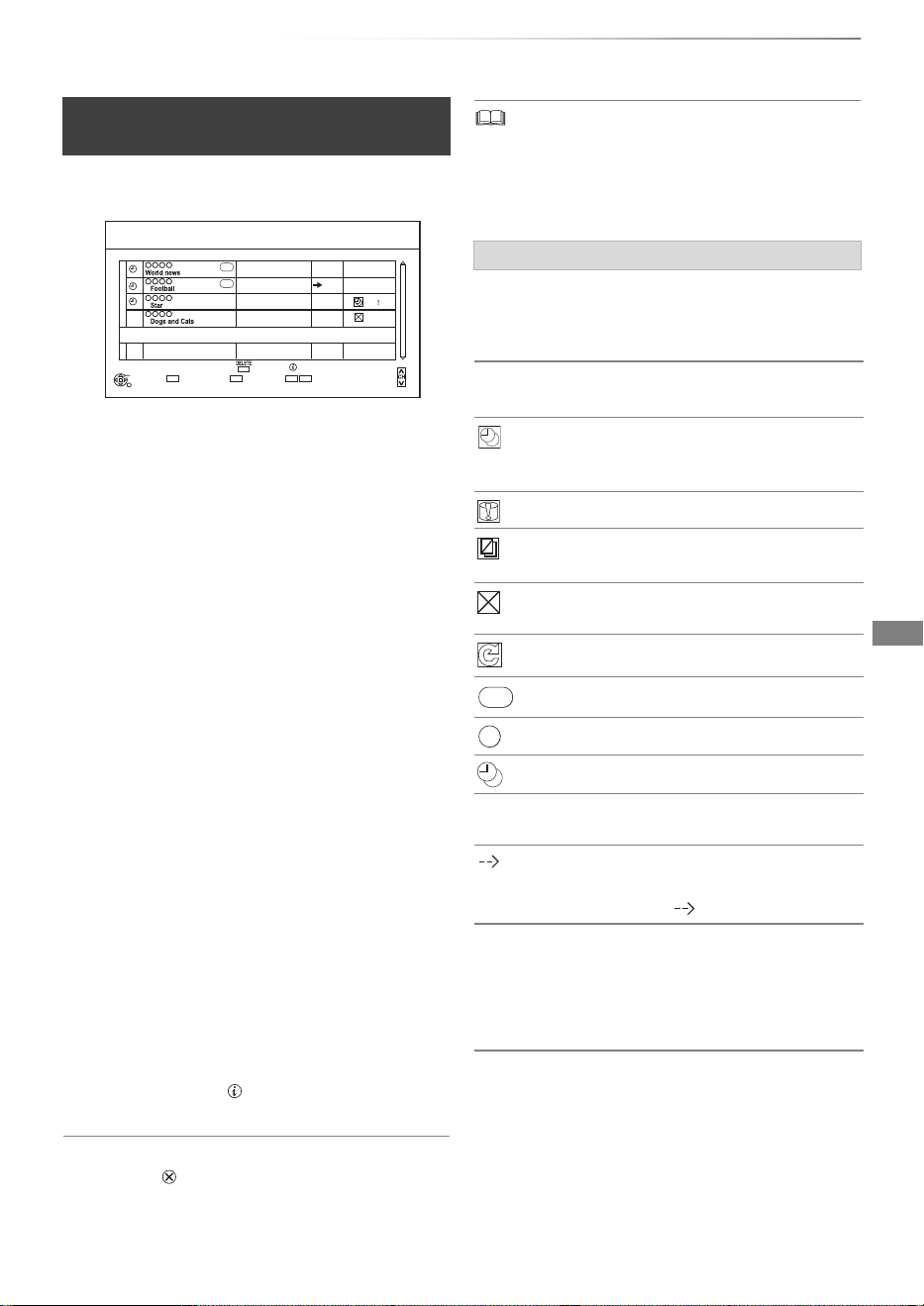
1 Press [PROG/CHECK].
2 Select the programme, then perform the
operations.
To exit the timer recording list
Press [EXIT ].
• “No Data” is displayed on a series recording item if there
will be no episode of the series for the next 8 days. We
recommend you delete the “No Data” item after you confirm
the last episode of the series is recorded.
To confirm and edit a timer
programme
To deactivate a timer programme
Press the red button.
• The timer icon “F” will change from red to
grey.
• Press the red button again to activate timer
recording standby. (The timer icon “F” will
change to red.)
To delete a timer programme
Press [DELETE].
To resolve an overlap timer programme
Press the green button.
• The overlapped timer recording list will
appear. (> 30)
To edit a timer programme
1 Press [OK].
2 Change the timer recording options.
• Refer to “Timer recording options”.
(> 32)
3 Press [OK].
To show programme information
Press [STATUS ].
Channel Name
Schedule
Mode
Space
OK
RETURN
Page Up
Page Down
Turn
Timer Off
Total 3/32
Timer Recording
30:30 DRHDD TUE 06/01/2015 8:05
Delete
Info
Resolve overlap
New Timer Programme
MON 13/01
MON 13/01
10:00 - 11:50
11:00 - 11:45
11:30 - 1:00
8:00 - 10:45
MON 13/01
TUE 07/01
DR
HG
DR
DR
OK
OK
Guide
Guide
e.g.,
Screen icons
F
Red: Timer recording standby is activated.
Grey: Timer recording standby is
deactivated.
[
(Red)
Currently recording programme
A part or all of the programme will not be
recorded since the programme is
overlapping.
The HDD is full.
Copy-protected programme
It was not recorded.
The recording of the programme was not
completed because of some reason.
Auto Renewal Recording is set (> 32).
Guide Link (> 30)
Split Programme
Series Timer Recording (> 30)
OK
Displayed if the recording can fit in the
remaining space
(Date)
Daily or weekly timer programme is set.
• The timer remains active until the date
indicated below .
!
It may not be possible to record because:
- there is not enough space left.
- the number of possible titles has
reached its maximum. (> 8)
- programmes are deactivated, etc.
Guide
S/P
DMR-BWT850EB_eng_SQT1119-2.book 33 ページ 2023年1月11日 水曜日 午後1時37分
Playing back video
SQT1119
34
Playing titles on the HDD
Playing
back video
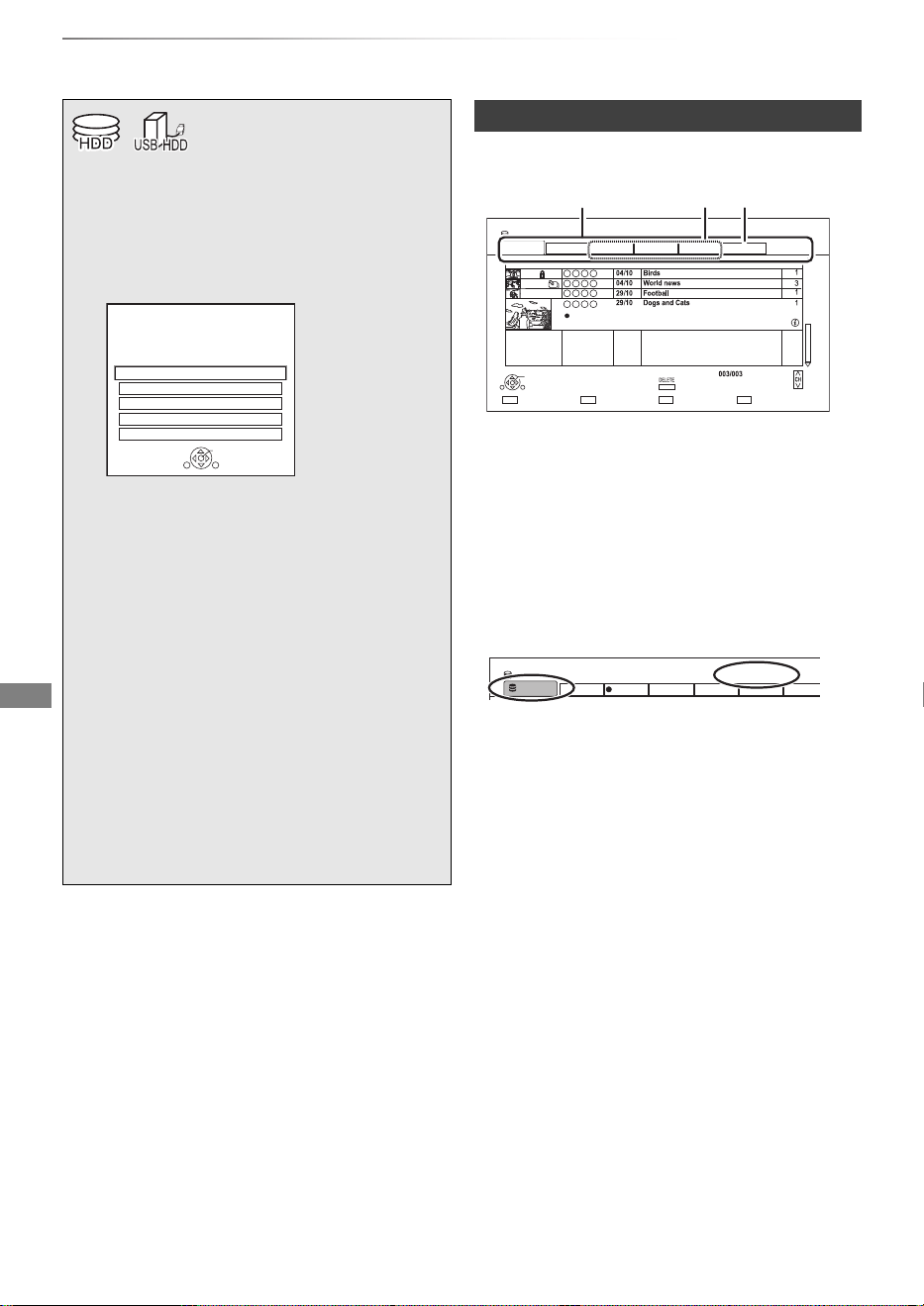
AVCHD tab
• [USB_HDD] When connecting registered
USB HDD, “USB HDD” tab and registration
number appears.
Select “USB HDD” tab.
§
“For recorded titles (> 9)” only
1 Press [FUNCTION MENU].
2 Select “Contents on HDD”, then press
[OK].
e.g.,
3 To play recorded titles:
Select “Recorded Programmes”, then
press [OK].
The Video Menu screen appears (> right).
To play HD Video (AVCHD):
Select “Video ( AVCHD )”, then press
[OK].
The AVCHD tab appears on the Video Menu
screen (> right).
To play video files:
Select “Video ( MP4 / Xvid / MKV )”, then
press [OK].
The video list screen appears (> 36).
4 Select the title, then press [OK].
§
Contents on HDD
Recorded programmes can be played.
OK
RETURN
Video ( AVCHD )
Recorded Programmes
Video ( MP4 / Xvid / MKV )
Photo
Music
Video Menu screen
e.g.,
1 Tab (> 35)
2 Programme type
3 AVCHD tab
e.g.,
Time Remaining 45h54m (DR)
HDD
Page
Select Copy
Grouped Titles
Start Time
Prog.Type:
Rec time
Play
RETURN
Sport AVCHDMovieNot Viewed
Video Menu
Channel Date Title Name Titles
All
Delete
Page Up
Page Down
Movie
9:00 0h01m(DR)
Drama
Time Remaining 45h54m (DR) Registration number 1
USB HDD
Grouped Titles
Drama
Sport
AVCH D
Movie
Not Viewed
Video Menu
All
USB HDD
DMR-BWT850EB_eng_SQT1119-2.book 34 ページ 2023年1月11日 水曜日 午後1時37分
Playing back video
SQT1119
35
You can quickly find the recorded titles by
selecting the tab.
To select the tab
Press [2, 1].
To change the displayed programme type tab
1 Select the programme type, then press the
green button.
2 Select the item, then press [OK].
Select the title, then press [STATUS ].
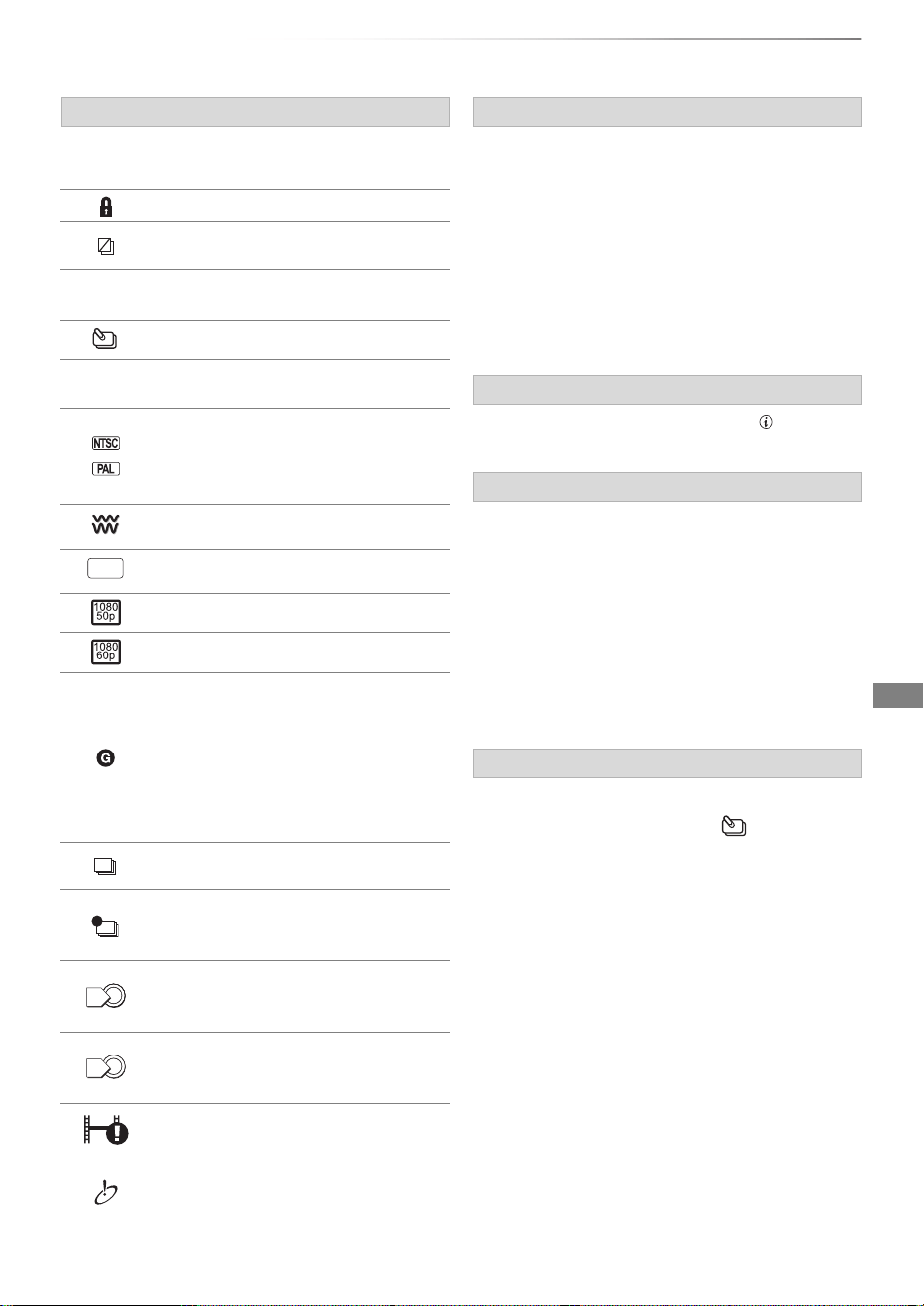
Screen icons
[
(Red)
Currently recording programme
Protected title
Title was not recorded due to
recording protection
t
Title cannot be played
(When data is damaged etc.)
Grouped titles
[
(Blue)
Title has not yet been played
Title is recorded using a different
encoding system from that of the
unit.
Change the “TV System” (> 75).
Radio programme
3D contents
Recorded in 1080/50p contents
Recorded in 1080/60p contents
This icon is displayed with the
following titles when “Child Lock” is
set to “On”. (> 72)
- Title with Guidance information
- Title restricted by Child Lock List
(> 71)
• PIN is required to play.
Title has been recorded in Series
timer recording.
Title has been recorded in Series
timer recording and has not yet been
played.
Titles cannot be copied to the disc in
high definition quality mode (DR, HG,
HX, HE, HL, HM) any more.
Titles can be copied to the disc in
high definition quality mode (DR, HG,
HX, HE, HL, HM) once.
Recording did not complete as the
timer recording has started.
Title cannot be played from DLNA
client not compatible with DTCP-IP
(> 60)
&
0
1
Tab
Showing Information
Showing grouped titles
1 Press [OPTION].
2 Select “Grouped Titles” or “All Titles”, then
press [OK].
Grouped Titles:
• Two or more titles recorded in the
daily/weekly/series timer recording mode are
bundled and displayed as one item.
All Titles
Playing back grouped titles
1 On the Grouped Titles screen:
Select the item marked with .
2 When playing all titles:
Press [PLAY/a1.3 1].
When playing the individual title:
Press [OK] and select the title, then press
[OK].
DMR-BWT850EB_eng_SQT1119-2.book 35 ページ 2023年1月11日 水曜日 午後1時37分
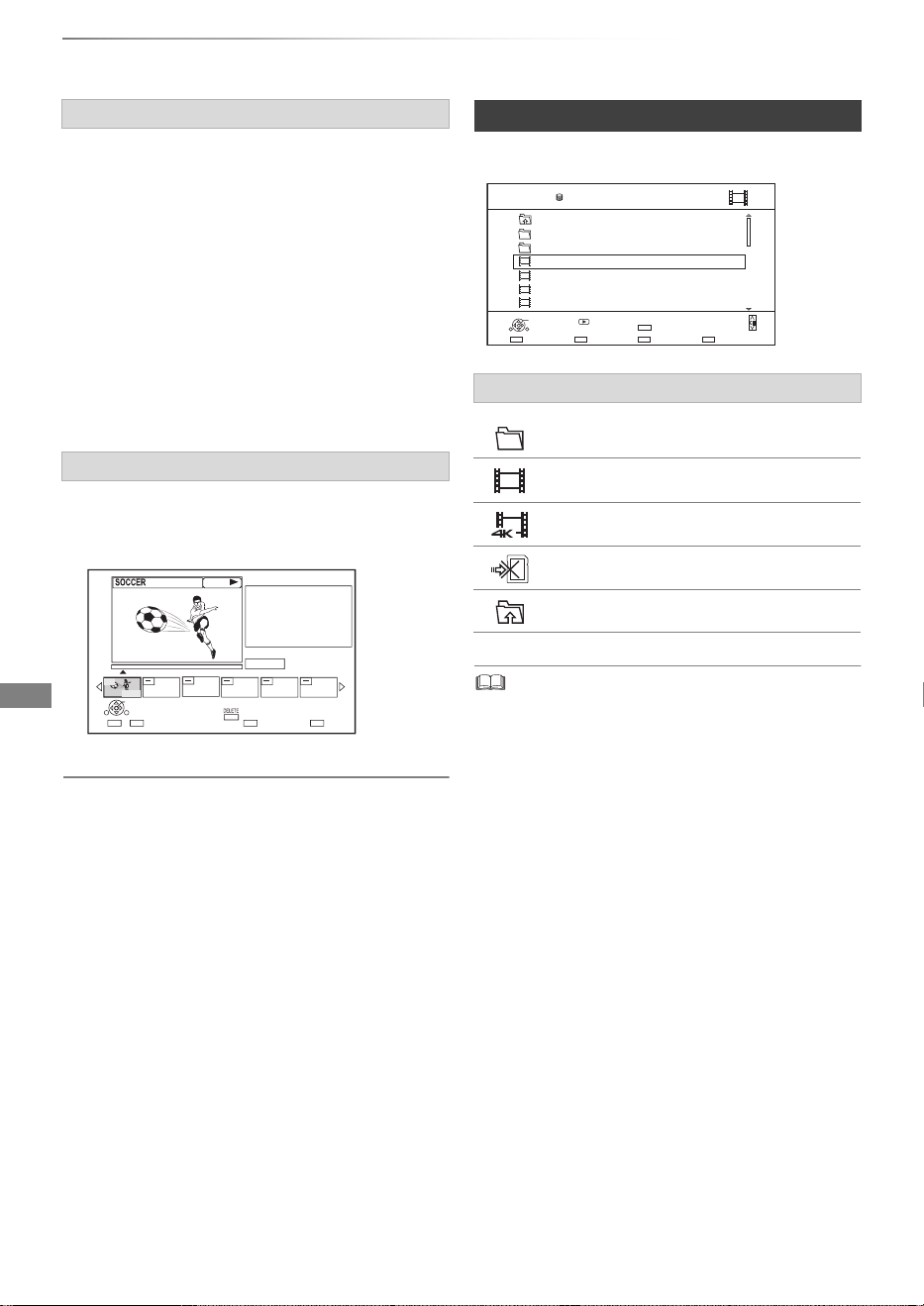
Playing back video
SQT1119
36
Playing titles on the HDD
To edit the chapter in Chapter View
Refer to “Editing chapters”. (> 45)
e.g.,
• When the following conditions are met, videos are played
back in 4K regardless of the image quality:
- When this unit is connected to a TV that is 4K and
24p/25p compatible
- When “HDMI Video Format” is set to “Automatic” (> 75)
- When “24p / 25p Conversion” is set to “Auto” (> 69)
This unit can not output 4K image when playing back in 3D.
Editing the grouped titles
1 Select the title or the group, then press the
yellow button.
• A check mark is displayed. Repeat this step.
• Press the yellow button again to cancel.
2 Press [OPTION].
3 Select the item, then press [OK].
Create Group:
Selected titles are bundled to form a group.
Release Grouping:
All the titles in the group are released.
Remove:
Selected titles are removed from the group.
Playback from Chapter View
1 Select the title, then press [OPTION].
2 Select “Chapter View”, then press [OK].
e.g., [HDD]
3 Select the chapter, then press [OK].
Press OK to start playing from
the selected chapter.
Selected chapter can be edited
via OPTION.
Press RETURN to go back to
previous menu.
Page 001/001
0:00.00
001
0:12.29
Play
SelectEdit Chapter Mark
Play
RETURN
Delete
Video list screen
Screen icons
Folder
Titles
Titles (4K)
Copy to SD card is not available
Move to the parent folder
Parent Folder
Videos \ Video \
Folder 01
Folder 02
video01.mpeg
video02.mpeg
video03.mpeg
video04.mpeg
HDD
Page 0001/0003
SelectParent Folder
Play
RETURN
Delete
Page Up
Page Down
DELETE
Play
08/02/2012 13:46
08/03/2011 11:46
08/03/2010 12:46
08/03/2009 10:46
DMR-BWT850EB_eng_SQT1119-2.book 36 ページ 2023年1月11日 水曜日 午後1時37分
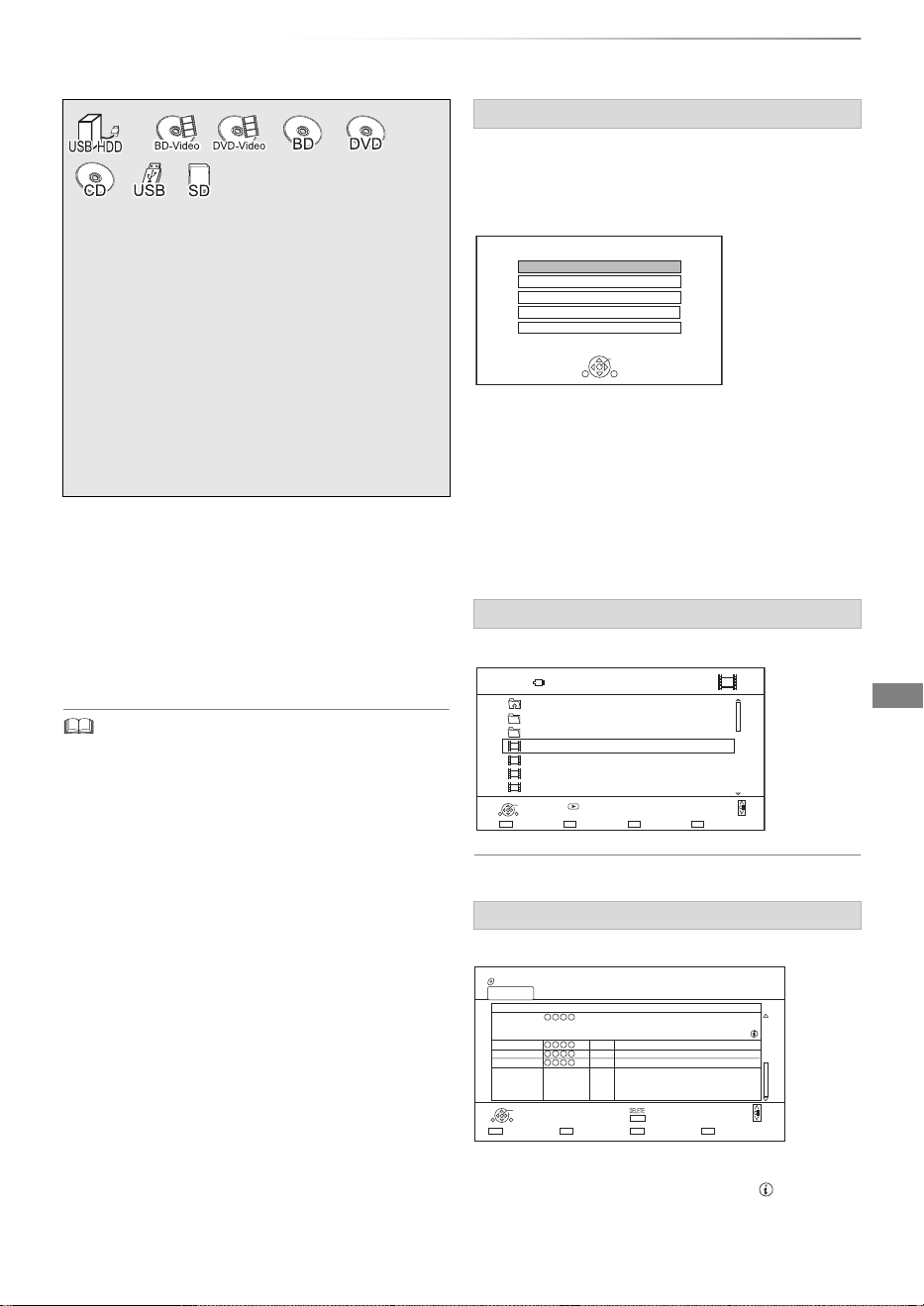
Playing back video
SQT1119
37
Playing titles on the media
To play back the playlist created on other
equipment
1 Press [FUNCTION MENU].
2 Select “Disc” in “Media”, then press [OK].
3 Select “Playlists”, then press [OK].
4 Select the playlist, then press [OK].
• When the following conditions are met, videos are played
back in 4K regardless of the image quality:
- When this unit is connected to a TV that is 4K and
24p/25p compatible
- When “HDMI Video Format” is set to “Automatic” (> 75)
- When “24p / 25p Conversion” is set to “Auto” (> 69)
This unit can not output 4K image when playing back in 3D.
• To enjoy BD-Video that supports Dolby Atmos or
DTS:X
TM
(> 76)
Selecting screen for each operation is displayed
when the media is inserted, and you can access
the operation screen easily.
e.g., [USB]
• Display items differ depending on what is
recorded in each media.
If the menu screen is not displayed, display it
by performing the following operation.
1 While stopped
Press [FUNCTION MENU].
2 Select “Media”, then press [OK].
3 Select the media, then press [OK].
e.g.,
About screen icons (> 36)
e.g.,
Showing Information
Select the title, then press [STATUS ].
§
“For data files (> 9)” only
1 Insert the media.
• AVCHD: If the menu screen is not
displayed
Press [PLAY/a1.3 1].
2 When the Video Menu screen or menu
screen etc., appears:
Select the item or title, then press [OK].
• Repeat this step if necessary.
§
Menu screen
Video list screen
Video Menu screen
Playback from Chapter View (> 36)
USB Device
OK
RETURN
USB device is inserted.
View Photos
Play / Copy Video
Play / Copy Music
Copy Video ( AVCHD )
Copy New Photos
USB
Parent Folder
Videos \ Video \
Folder 01
Folder 02
video01.mpeg
video02.mpeg
video03.mpeg
video04.mpeg
Page 0001/0003
Select CopyParent Folder
Play
RETURN
Page Up
Page Down
Play
08/02/2012 13:46
08/03/2011 11:46
08/03/2010 12:46
08/03/2009 10:46
Time Remaining
10h30m (DR)
BD-RE
Page 003/003
CopySelect
All Titles
Birds
World news
Football
Dogs and Cats
04/10
04/10
29/10
29/10
Start Time 22:46 Rec time 0h10m(HM)
Play
RETURN
Video Menu
Channel Date Title Name
All
Delete
Page Up
Page Down
DMR-BWT850EB_eng_SQT1119-2.book 37 ページ 2023年1月11日 水曜日 午後1時37分
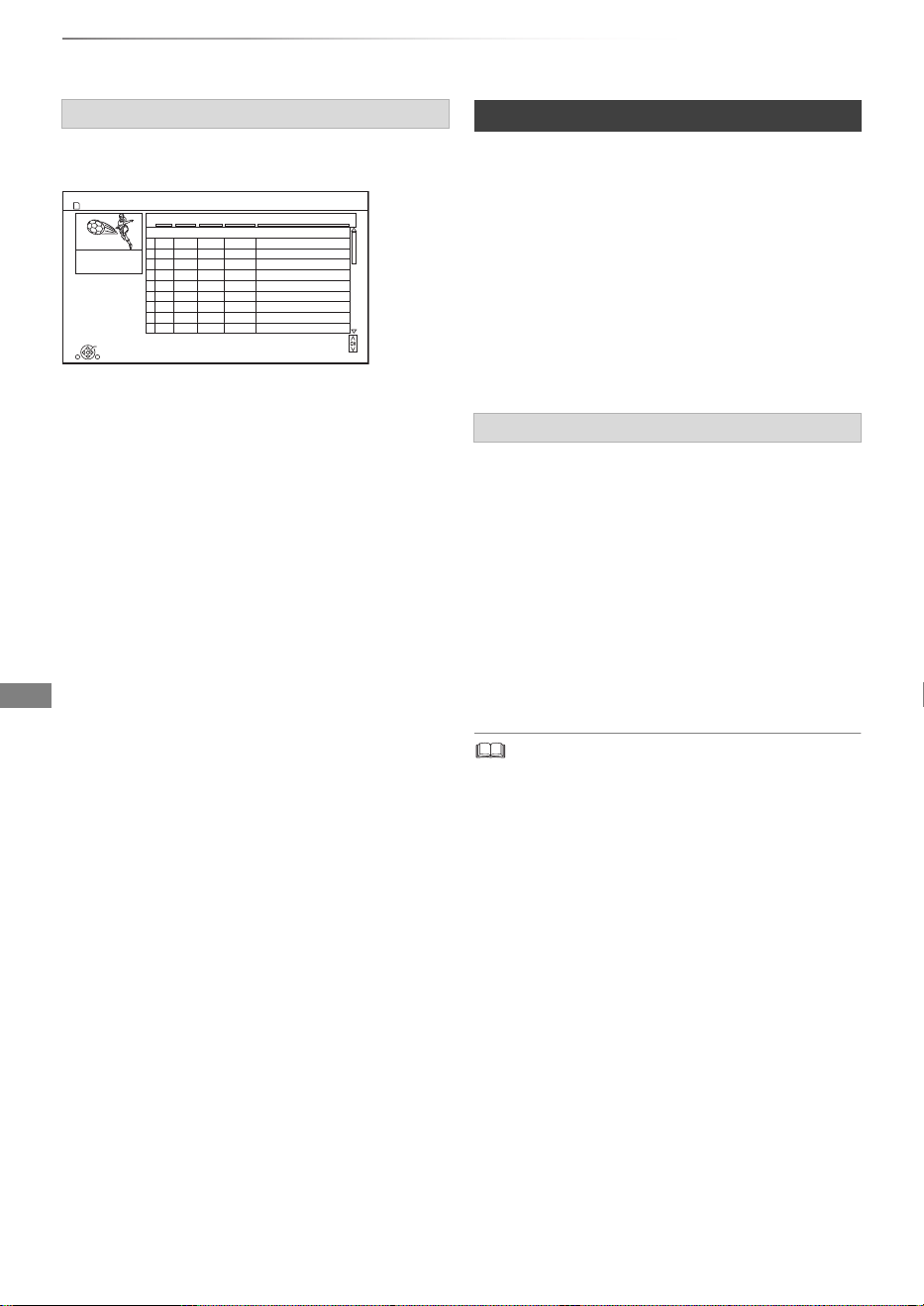
Playing back video
SQT1119
38
Playing titles on the media
[SD]
e.g.,
Showing Information
1 Select the title, then press [OPTION].
2 Select “Information”, then press [OK].
[BD-V]
BD-Live allows you to enjoy more functions such
as subtitles, exclusive images and online games.
Preparation
1 Perform network connection and settings.
(> 16, 19)
2 Insert a disc.
For the playback method, refer to the
instructions for the disc.
If you no longer need BD-Live data recorded on
the built-in HDD, you can delete data with the
following operation.
1 Press [FUNCTION MENU].
2 Select “BD-Video Data Management” in
“Setup”, then press [OK].
3 Select “Delete BD-Video data”, then press
[OK].
4 Select “Yes”, then press [OK].
5 Select “Start”, then press [OK].
6 Press [OK].
• You can restrict Internet access when BD-Live functions are
used (> 72, BD-Live).
• When “Pure Sound mode” is set to “On”, this unit cannot
use BD-Live functions. (> 72)
Video Menu ( AVCHD ) screen
Video Menu ( AVCHD )
RETURN
Date Day
Time
Title Name
Rec time
0:30.41
Page 01/03
Page Up
Page Down
No.
05/01 5:00 Birds
06/01 9:30 World news
07/01 10:00 Football
07/01 11:30 House dog
08/01 2:00 Hunting
09/01 11:00 Shopping
09/01 10:00 Venus
10/01 3:45 Kitten
10/01 9:00 Moon
05/01
SUN
MON
TUE
TUE
WED
THU
THU
FRI
FRI
SUN 9:00 Dogs and Cats
Play
SD Card
001
002
003
004
005
006
007
008
009
010
Notes for BD-Live discs
Delete BD-Video data
DMR-BWT850EB_eng_SQT1119-2.book 38 ページ 2023年1月11日 水曜日 午後1時37分
Playing back video
SQT1119
39
Operation during play
• Discs continue to rotate while menus are displayed. Press
[STOP ∫] when you have finished playback to protect the
unit’s motor, your TV screen, etc.
Press [STATUS ] twice.
e.g.,
Press [STOP ∫].
Press and hold [PLAY/a1.3 1].
• Press again to return to normal speed.
• Xvid, MKV, MP4 and MPEG2: Quick View is not effective.
• Quick View is not effective when playing back the DVD-RW
disc.
Press [SLOW/SEARCH 6] or
[SLOW/SEARCH 5].
• Press [PLAY/a1.3 1] to restart play.
• The speed increases up to 5 steps.
([+R] [+RW]: Up to 3 steps)
• Xvid, MKV, MP4 and MPEG2: Audio is not heard during all
levels search.
Press [PAUSE ;].
• Press [PLAY/a1.3 1] to restart play.
While paused, press [SLOW/SEARCH 6] or
[SLOW/SEARCH 5].
• Press [PLAY/a1.3 1] to restart play.
• The speed increases up to 5 steps.
• Xvid, MKV, MP4 and MPEG2: Slow-motion is not effective.
• [BD-V], AVCHD ([DVD-R] [SD]): Forward direction
[SLOW/SEARCH 5] only.
While paused, press [2](2;) or [1](;1).
• Each press shows the next frame.
• Press and hold to change in succession forward
or backward.
• Press [PLAY/a1.3 1] to restart play.
• Xvid, MKV, MP4 and MPEG2: Frame-by-frame is not
effective.
• [BD-V], AVCHD ([DVD-R] [SD]): Forward direction [1](;1)
only.
Skip forward 1 minute:
Press [MANUAL SKIP +60s].
Skip backward 10 seconds:
Press [MANUAL SKIP -10s].
• Xvid and MKV: Manual Skip is not effective.
General operations
Status messages
Stop
Resume play function
Press [PLAY/a1.3 1] to restart from the stopped
position.
• Discs: Only previous stopped position is memorised. The
position may be cleared if the tray is opened or the unit is
switched to standby mode.
Quick View
8:05:50 06/01/2015
0:05.14 DR
0:30.00
Remain HDD
Search
Pause
Slow-motion
Frame-by-frame
Manual Skip
DMR-BWT850EB_eng_SQT1119-2.book 39 ページ 2023年1月11日 水曜日 午後1時37分
Playing back video
SQT1119
40
Operation during play
1 Press [TIME SLIP].
2 Select the time with [3, 4].
• Press and hold [3, 4] to change the time by
10-minute.
3 Press [OK].
• Play skips the specified time.
• [BD-V] [DVD-V], Xvid, MKV, AVCHD, MP4 and MPEG2:
[TIME SLIP] is not effective.
[BD-V] [DVD-V]
1 Press [OPTION].
2 Select “Playback Menu”, then press [OK].
3 Select “Top Menu”, “Pop-up Menu” or “Menu”,
then press [OK].
Press [SKIP :] or [SKIP 9].
• [HDD] [USB_HDD] (For recorded titles, > 9): It will not skip the
title. But the title in the grouped titles will be skipped. (> 35)
[HDD] [USB_HDD] (For recorded titles, > 9)
[BD-RE] [BD- R] [RAM]
During the playback or pause
Press [CHAPTER].
[HDD] [USB_HDD] (For recorded titles, > 9)
[BD-RE] [BD- R] [RAM]
1 While paused
Press [SKIP :] or [SKIP 9] and skip to
the location you want to delete.
2 Press [CHAPTER].
3 Select “Yes”, then press [OK].
Select the desired audio with “Multi Audio” in the
Basic Operation menu (> 68).
[HDD] [USB_ HDD] (For recorded titles, > 9)
[BD-RE] [BD-R]
1 Press [STTL ].
2 Press [OK].
3 Select “On” or “Off”, then press [OK].
• If you want to switch the subtitle language,
select it in the Basic Operation menu (> 68).
[BD-V] [DVD-V], Xvid and MKV:
Display with “Subtitle Settings” in the Basic
Operation menu (> 68).
[HDD] [USB_ HDD] (For recorded titles, > 9)
[BD-RE] [BD-R]
1 Press [AD].
2 Select “Audio Description” and set to
“Automatic”.
3 Select “Volume”, then adjust the volume with
[2, 1].
• When “Dolby D / Dolby D + / Dolby True HD”,
“DTS/ DTS-HD”, “MPEG” or “HE-AAC” is set to “Bitstream”,
the Audio Description may not work. Set them to “PCM”
(> 74, Digital Audio Output).
• You can also set “Audio Description” active in the Setup
menu. (> 71)
You can switch the aspect ratio of the screen.
(> 85)
Skipping the specified time
To display menu
Skipping the title or chapter
To create Chapter Marks
To delete the Chapter Mark
Changing audio
Switching subtitles
Listening to the Audio Description
Aspect
DMR-BWT850EB_eng_SQT1119-2.book 40 ページ 2023年1月11日 水曜日 午後1時37分
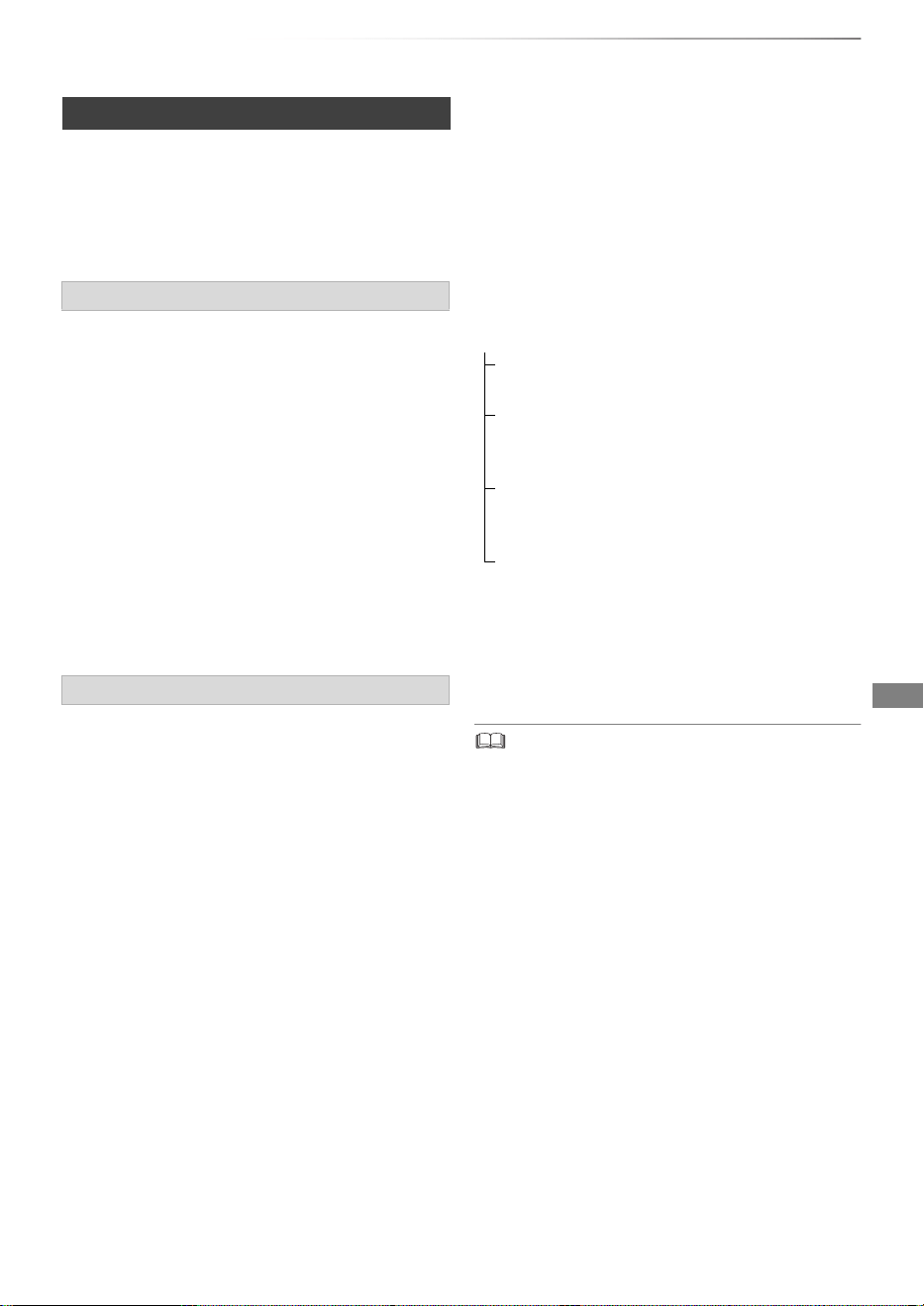
Playing back video
SQT1119
41
Preparation
Connect 3D compatible TV to this unit. (> 14)
• Perform the necessary preparations for the TV.
Play back following the instructions displayed
on the screen.
3D BD-Video Playback
It is also possible to play back 3D discs in 2D
(conventional video). (> 72)
3D Type
If 3D video cannot be played back in 3D, you may
be able to play it in 3D by changing the setting.
(> 75)
3D AVCHD Output
If 2D AVCHD video is recognised as 3D video and
cannot be played back correctly, you may be able
to play it by changing the setting. (> 75)
3D Playback Message
Hide the 3D viewing warning screen. (> 75)
Change this setting when the screen is not
correctly displayed for 3D compatible
programmes.
1 Press [OPTION].
2 Select “Playback Settings” in “Playback
Menu”, then press [OK].
3 Select “3D Settings”, then press [OK].
4 Select the item, then press [OK].
Signal Format
- Original:
Keep original picture format.
- Side by side:
3D picture format comprising of left and right
screens.
- 2D to 3D:
Converts 2D pictures to 3D effect while playing.
3D Picture Mode
-Normal
-Soft
• This function cannot be enabled when “Signal
Format” is set to “2D to 3D”.
- Manual:
3D effects set manually (> below)
Graphic Display Level
Adjust the 3D position for the playback menu or
message screen etc.
• Please refrain from viewing 3D images if you do not feel
well or are experiencing visual fatigue.
In the event that you experience dizziness, nausea, or other
discomfort while viewing 3D images, discontinue use and
rest your eyes.
• Depending on the connected TV, the video being played
back might switch to 2D video due to changes in resolution
etc. Check the 3D setting on the TV.
• 3D video might not output the way it is set in “HDMI Video
Format” (> 75) and “24p Output” (> 76).
• It may display as Side-by-Side (2 screen structure) when
playback of the 3D video is started. Select “Side by side” in
“Signal Format”. (> left)
• This unit only guarantees the playback of the Frame
Sequential and the Side-by-Side (Half) programme types.
3D video playback
Preparatory 3D settings
3D settings during playback
Manual Settings
(To change the setting, set “3D Picture Mode” to
“Manual”.)
Distance
Set the amount of depth perception.
Screen Type
Selects how the screen appears during 3D
playback (flat or round).
Frame Width
Set the amount of feathering at the edge of
screen.
Frame Colour
Set the colour of feathering at the edge of
screen.
DMR-BWT850EB_eng_SQT1119-2.book 41 ページ 2023年1月11日 水曜日 午後1時37分
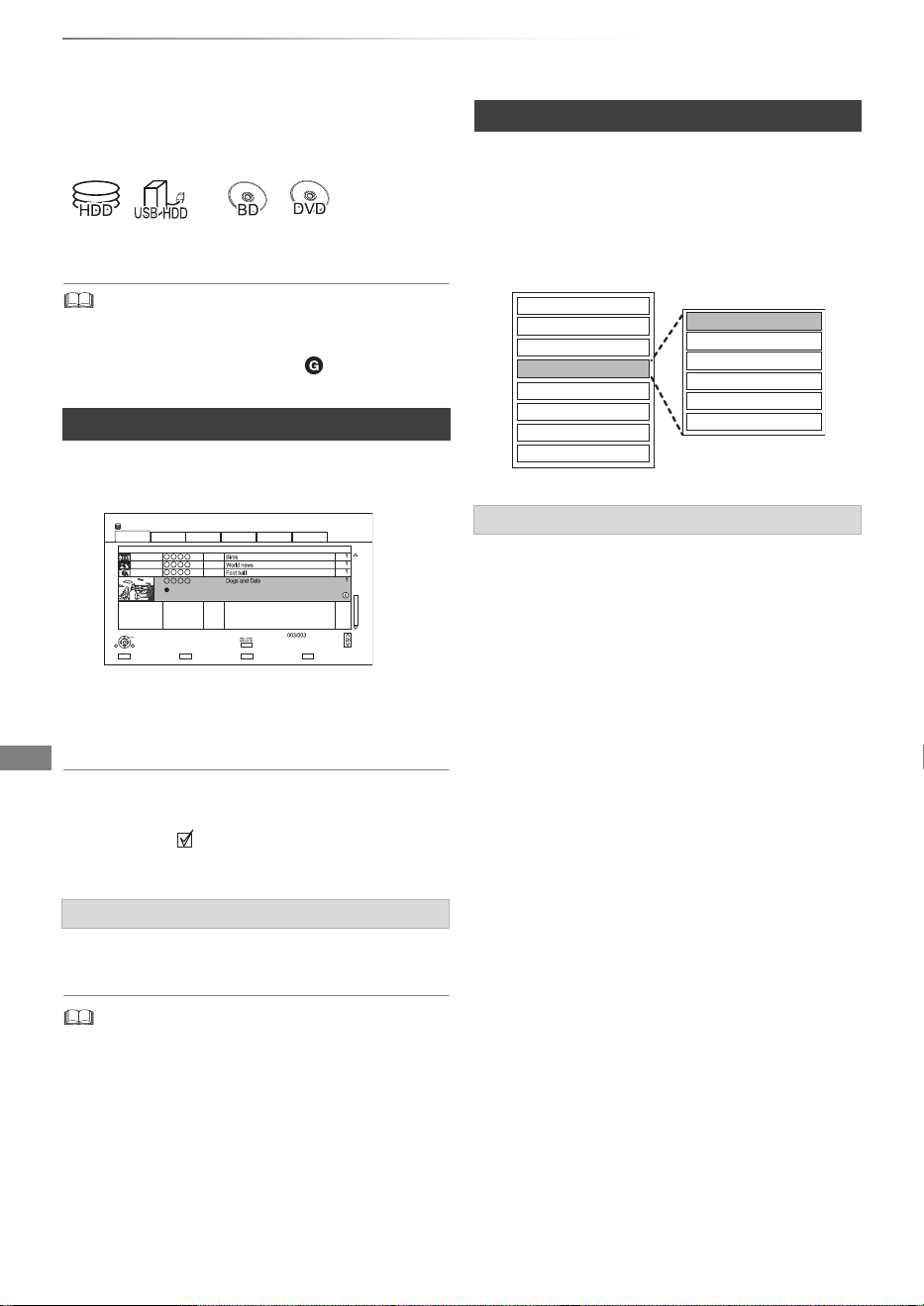
Editing video
SQT1119
42
Deleting/Editing titles
Editing video
Once deleted, divided or partially deleted,
content cannot be restored to its original
state. Make certain before proceeding.
§
“For recorded titles (> 9)” only
• If the disc is protected, release the protection. (> 82, Disc
Protection)
• PIN is required to edit the titles with in some functions.
(> 35)
1 On the Video Menu screen:
Select the title.
2 Press [DELETE].
3 Select “Delete”, then press [OK].
Multiple selection
Select the title, then press the yellow button.
A check mark
is displayed. Repeat this step.
• Press the yellow button again to cancel.
1 Press [DELETE] while playing.
2 Select “Delete”, then press [OK].
• Available disc space after deleting:
- [HDD] [USB_HDD] [B D-RE] [RAM]
The space deleted becomes available for recording.
- [BD-R] [DVD-R] [+R]
Available space does not increase even after the contents
are deleted.
- [DVD-RW] [+RW]
Available recording space increases only when the last
recorded title is deleted.
1 On the Video Menu screen:Select the title.
• Multiple selection (> left)
2 Press [OPTION].
1
Select “Enter Title Name” in “Edit”, then press [OK].
2 Refer to “Entering text”. (> 84)
Deleting recorded titles
Deleting during play
§
Time Remaining 45h54m (DR)
HDD
Page
Select Copy
Grouped Titles
Start Time
Prog.Type:
Rec Time
Drama Sport AVCHDMovieNot Viewed
Video Menu
Channel Date Title Name Titles
All
Delete
Page Up
Page Down
Movie
9:00 0h01m (DR)
04/10
04/10
29/10
29/10
Play
RETURN
Editing recorded titles
3 Select the item, then press [OK].
e.g.,
Entering title name
Set up Protection
Cancel Protection
Partial Delete
Divide Title
File Conversion
Enter Title Name
Delete Title
Playback
Information
Chapter View
Create Group
Release Grouping
Edit
All Titles
DMR-BWT850EB_eng_SQT1119-2.book 42 ページ 2023年1月11日 水曜日 午後1時37分
Editing video
SQT1119
43
[HDD] [USB_HDD] [BD-RE] [BD-R] [RAM] [+R] [+RW]
Protection setting prevents the title from
accidental deletion.
[HDD] [USB_HDD] [BD-RE] [BD-R] [RAM]
[HDD] [USB_ HDD] [BD-RE] [BD-R] [RAM]
To confirm the division point
After performing step 2.
Select “Preview”, then press [OK].
• The unit plays 10 seconds before and after the
division point.
To change the division point
After performing step 2.
Restart play and select “Divide”, then press [OK]
at the division point.
Setting protection
1 Select “Set up Protection” or “Cancel
Protection” in “Edit”, then press [OK].
2 Select “Yes”, then press [OK].
appears when setting the protection.
Partial deleting
1
Select “Partial Delete” in “Edit”, then press [OK].
2
Press [OK] at the start point and end point to delete.
• You can find the desired point by using play,
search, etc. (> 39)
3 Select “Continue”, then press [OK].
• Select “Next”, then press [OK] to delete other
sections. Up to 20 sections can be set.
(> go to step 2)
4 Select “Delete”, then press [OK].
5 Press [BACK/RETURN ].
• Chapter Mark is generated in the scene that was partially
deleted.
Dividing title
1 Select “Divide Title” in “Edit”, then press [OK].
2 Press [OK] at the point to divide the title.
• You can find the desired point by using play,
search, etc. (> 39)
3 Select “Continue”, then press [OK].
4 Select “Divide”, then press [OK].
• [HDD] [USB_HDD] Divided titles will become a group of titles.
DMR-BWT850EB_eng_SQT1119-2.book 43 ページ 2023年1月11日 水曜日 午後1時37分
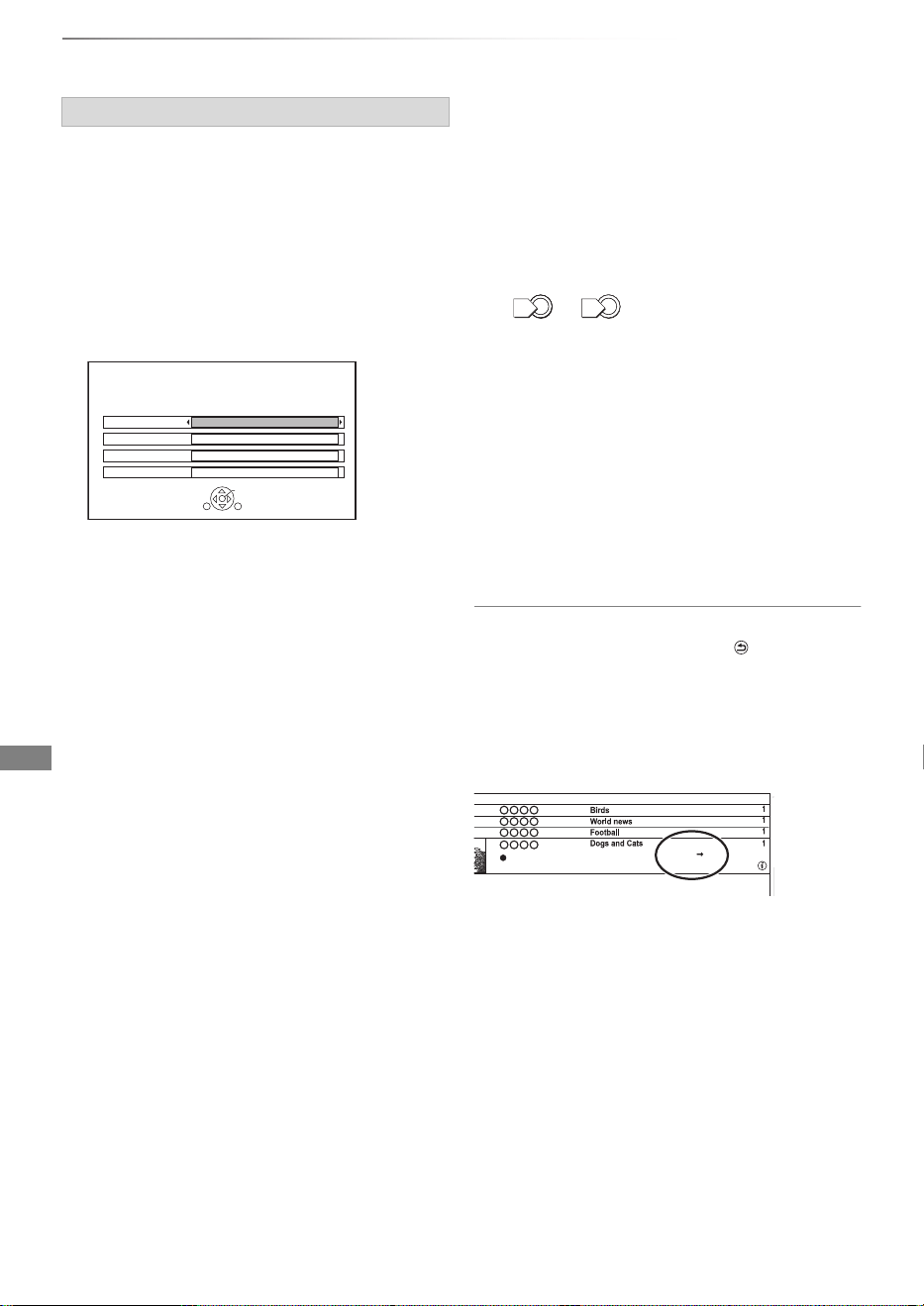
Editing video
SQT1119
44
Deleting/Editing titles
[HDD] [USB_HDD]
File Conversion is a function to convert the
recording mode of the title in DR mode and
AVCHD contents. The size of the converted title
will be small regularly. It will take about the same
time as the recorded duration.
To cancel a “Now” conversion
Press and hold [BACK/RETURN ] for more
than 3 seconds.
To confirm whether the conversion is
completed
Press [VIDEO MENU].
e.g.,
When “±± > ±± (Recording mode for
conversion)” is displayed, the conversion has not
finished.
To cancel a “During standby” conversion
After performing steps 1–2 (> 42, Editing
recorded titles)
1 Select “File Conversion” in “Edit”, then press
[OK].
2 Select “Yes”, then press [OK].
File Conversion
1 Select “File Conversion” in “Edit”, then press
[OK].
e.g.,
2 Set the conversion options, then press [OK].
Recording Mode (> 9):
• [USB_HDD] You cannot select XP, SP, LP and
EP mode.
Subtitles:
•Automatic
Subtitles will be recorded if they are included
in the title.
•Off
Subtitle will not be recorded.
Audio Description:
•Automatic
Audio Description will be recorded if they are
included in the title, and will not be recorded
if they are not included.
•Off
Audio Description will not be recorded.
Timing:
•Now
Conversion begins immediately after step 4.
• Timer recording will not be performed
during conversion.
• During standby
Conversion will be performed after the unit is
switched to standby mode.
File Conversion
Convert the selected title by changing its recording mode.
Please select recording mode and other options, then press OK.
Subtitles
Off
Audio Description
Off
Recording Mode
HL -- Longer Play
Timing
During standby
RETURN
OK
3 Select the item, then press [OK].
Convert & Delete:
The original title will be deleted to save HDD
capacity after conversion.
Convert Only:
The original title remains after conversion.
• When converting to HG, HX, HE, HL or HM
mode, if the selected title is indicated with
or , you cannot select “Convert
Only”. (> 35)
4 “Now” conversion:
Select “Start”, then press [OK].
“During standby” conversion:
Press [OK].
• Conversion will be performed after the unit is
switched to standby mode.
“COPY” or “CONV” on the front panel display
remains lighted during conversion.
0
1
Start Time
Prog.Type:
Rec time
Channel Date Title Name Titles
Movie
9:00
1h00m(DR HL)
04/10
04/10
29/10
29/10
DMR-BWT850EB_eng_SQT1119-2.book 44 ページ 2023年1月11日 水曜日 午後1時37分
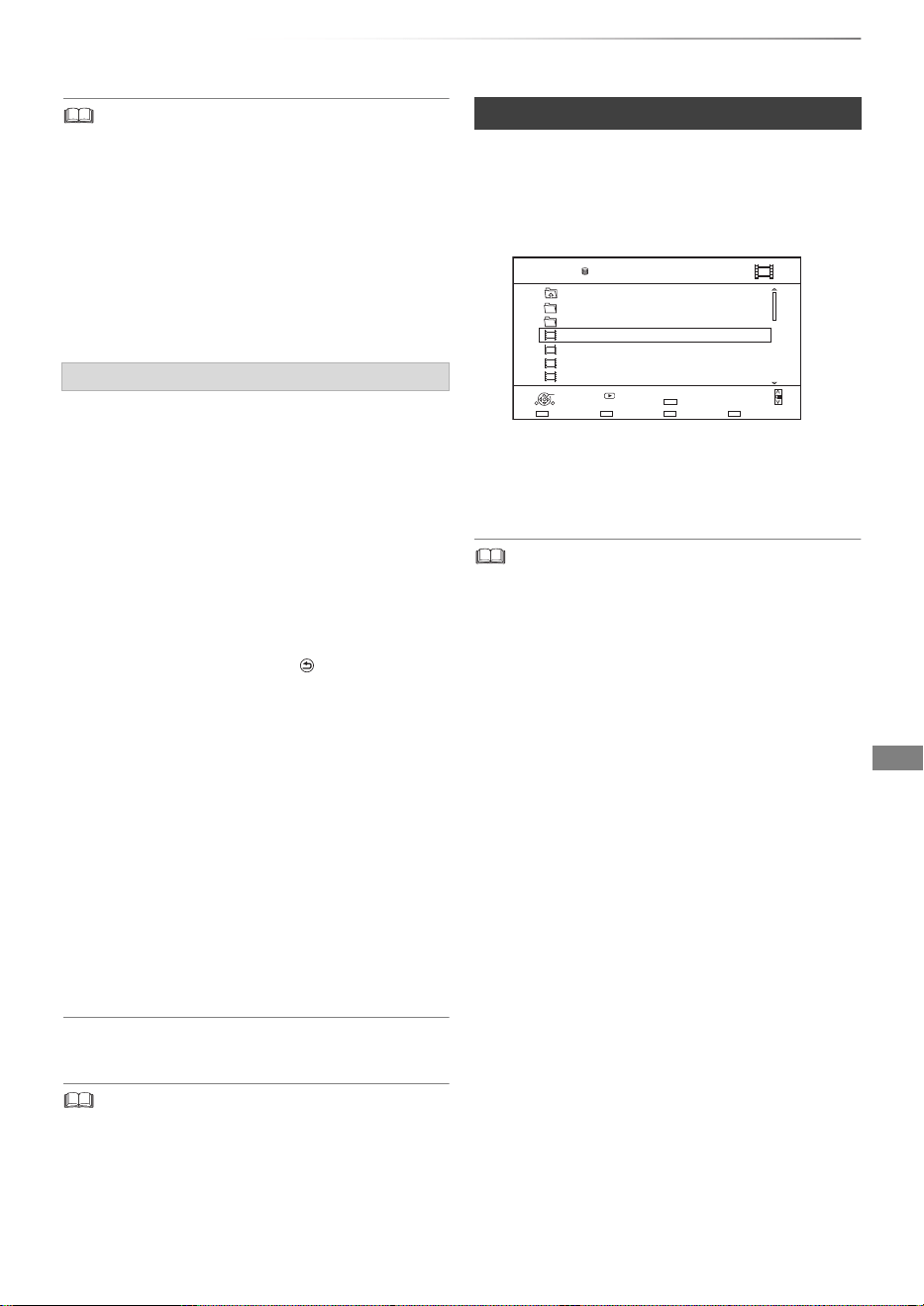
Editing video
SQT1119
45
• To use “File Conversion”, the HDD needs enough storage
capacity.
• File Conversion is stopped when this unit is turned on
during performing “During standby” conversion. Conversion
will start from the beginning again once the unit is switched
to standby mode.
• When converted, the audio content and subtitle language
will be selected according to the following settings:
- “Multi Audio” of “Preferred Multi Audio” (> 71)
- “Subtitles” of “Preferred Subtitles” (> 71)
• When converted, 3D information may not be retained.
[HDD] [USB_HDD] [BD-RE] [BD-R] [RAM]
1 Select “Chapter View”, then press [OK].
2 Perform the editing operations.
Playback from Chapter View
Refer to “Playback from Chapter View”. (> 36)
• The maximum number of chapters:
(Depends on the state of recording.)
[HDD] [USB_ HDD]: Approx. 1000 per title
[BD-R E] [BD- R] [RAM]: Approx. 1000 per disc
• [HDD] [USB_HDD] When the title has the maximum number of
chapters, you cannot perform the Resume play function
(> 39) with the title.
[HDD]
2 Press [DELETE].
3 Select “Yes”, then press [OK].
• All files in the folder will be deleted.
Editing chapters
Edit Chapter Mark:
Select the point where you want to start a new
chapter while viewing the title.
1 Press the green button.
2 Press [OK] at the point you want to divide.
• Repeat this step.
3 Press [BACK/RETURN ] to go to
Chapter View screen.
To delete the chapter:
1 Select the chapter, then press [DELETE].
• Multiple selection (> 42)
2 Select “Delete”, then press [OK].
To combine chapters (Delete chapter
mark):
1 Select the chapter, then press [OPTION].
2 Select “Combine Chapters”, then press [OK].
3 Select “Combine”, then press [OK].
The selected chapter is combined to the
next chapter.
Deleting video files on the HDD
1 On the video list screen:
Select the file or folder.
• Multiple selection (> 42)
e.g.,
Parent Folder
Videos \ Video \
Folder 01
Folder 02
video01.mpeg
video02.mpeg
video03.mpeg
video04.mpeg
HDD
Page 0001/0003
Select CopyParent Folder
Play
RETURN
Delete
Page Up
Page Down
DELETE
Play
08/02/2012 13:46
08/03/2011 11:46
08/03/2010 12:46
08/03/2009 10:46
DMR-BWT850EB_eng_SQT1119-2.book 45 ページ 2023年1月11日 水曜日 午後1時37分
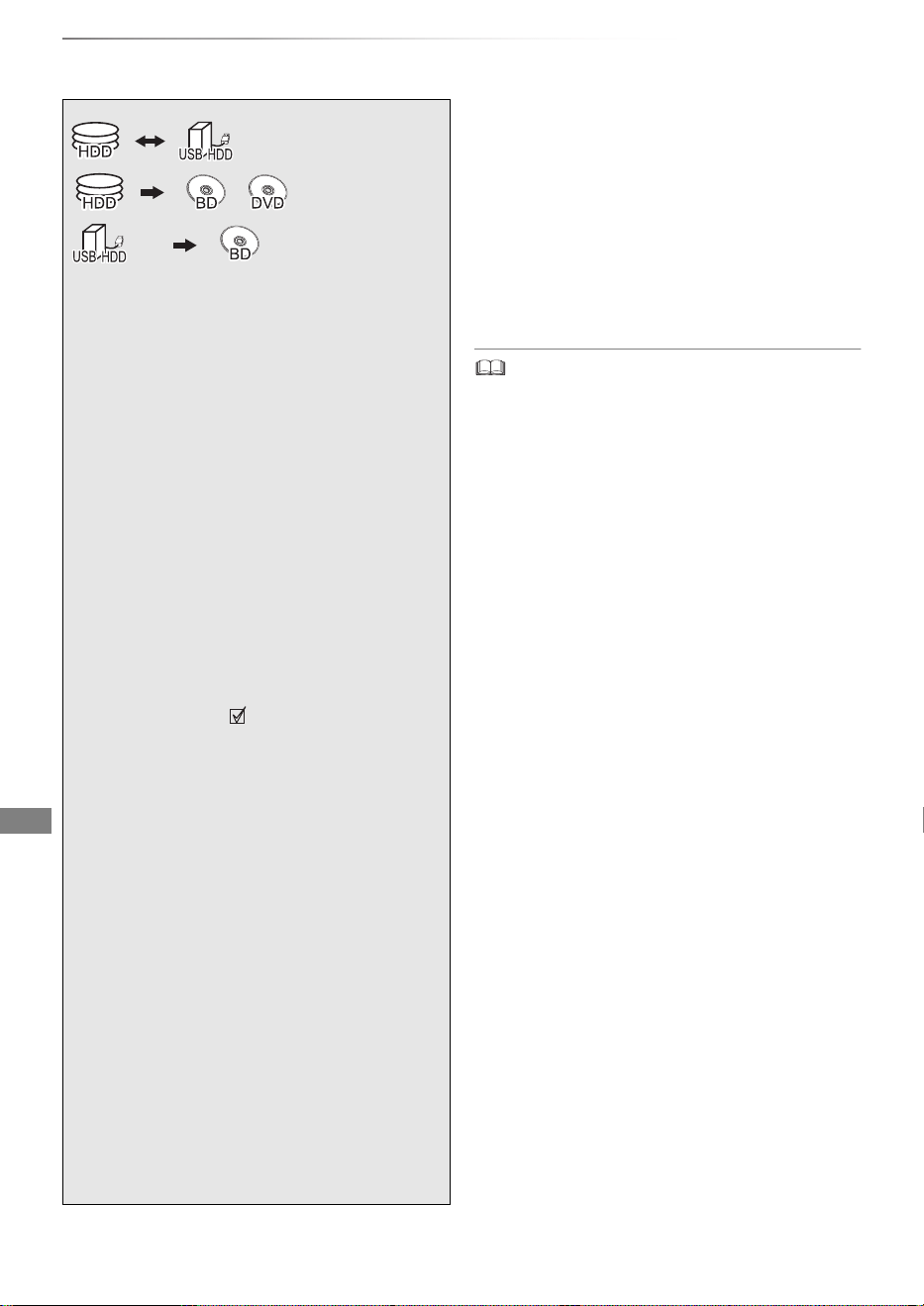
Copying video
SQT1119
46
Copying titles
Copying video
To register the external HDD (USB HDD)
(> 66)
To copy HD Video (AVCHD) to the DVD-R in
High Definition (> 53)
To copy video files (> 53)
Release the disc protection (> 82)
• If you wish to choose the audio language, select the
language from “Multi Audio” of “Preferred Multi Audio”
before copying (> 71).
• Simultaneous operation is not possible while copying with
finalising or creating Top Menu.
• You cannot copy the following titles.
- [USB_HDD] Protected titles
- [USB_HDD] HD Video (AVCHD)
§1
“For recorded titles (> 9)” only
§2
The title in the source media will be deleted.
§3
The recording mode cannot be changed.
1 Insert or connect the media.
2 Press [FUNCTION MENU].
3 Select “Recorded Programmes” or
“Video ( AVCHD )” in “Contents on
HDD”, then press [OK].
4 Select the title.
• Multiple selection
Select the title, then press the yellow
button.
A check mark
is displayed. Repeat this
step.
• Press the yellow button again to cancel.
5 Press the blue button.
If the copy direction selection screen is
displayed:
Select the copying direction, then press
[OK].
6 Select “Yes”, then press [OK].
• If you select “No”, you can change the
selection. (> 47, To change the selection)
7 Set other settings, then press [OK].
(> 47, Setting the copying options)
8 Select “Yes”, then press [OK].
§1, 2, 3
§1, 3
DMR-BWT850EB_eng_SQT1119-2.book 46 ページ 2023年1月11日 水曜日 午後1時37分
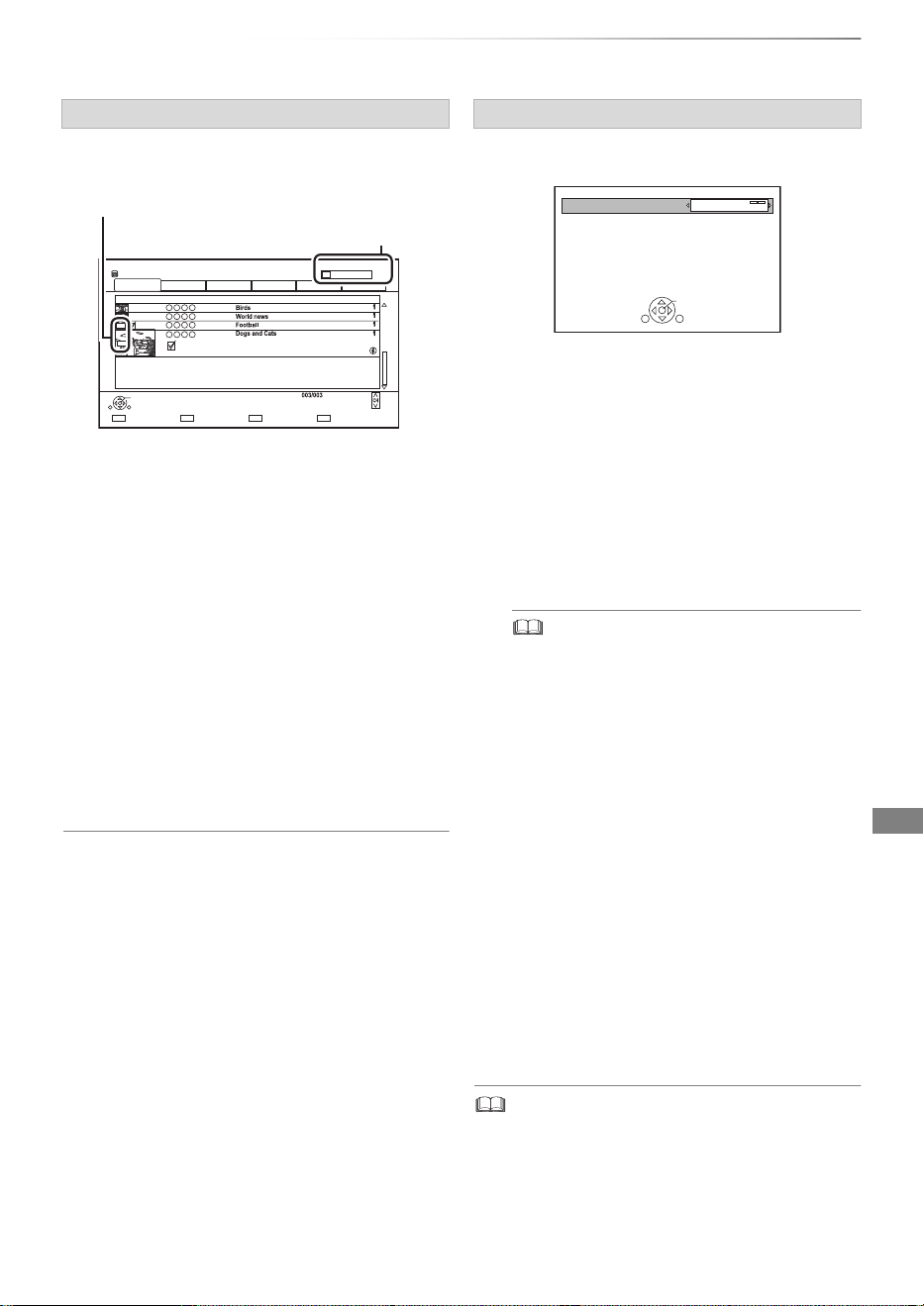
Copying video
SQT1119
47
3 Press the blue button.
4 Go to step 6. (> 46)
About screen icons on the Video Menu
Refer to “Screen icons”. (> 35)
1 Select the item in step 7 (> 46).
e.g.,
2 Press [2, 1] to change the settings.
• You can perform “Finalise” or “Create Top Menu” later.
(> 83)
To change the selection
1 Select “No”, then press [OK] in step 6 (> 46).
e.g., [HDD] > [BD-RE]
2 To change the selected titles:
Select the title, then press the yellow button.
Repeat this step to select titles.
To change the picture quality:
[HDD] > [BD-RE] [BD-R] [RAM] [DVD-R] [DVD-RW]
[+R] [+RW]
1 Select the title, then press [OPTION].
2 Select “Conversion Select”, then press
[OK].
3 Select the picture quality, then press [OK].
Repeat steps if necessary.
HDD
Page
Select Copy
Grouped Titles BD-RE Remain
Start Time
Prog.Type:
Rec time
OK
RETURN
Drama
AVCHDMovieNot Viewed
Copy
Channel Date Title Name Titles
All
Page Up
Page Down
Movie
9:00 0h01m(DR)
1
2
90%
Sport
04/10
04/10
29/10
29/10
Remaining space
The order of copying
Setting the copying options
• Automatic Standby after Copy
On:
This unit is turned to standby mode when it is
not operated for approximately 5 minutes
after completing copy.
• Subtitles
Automatic:
Subtitles will be recorded if they are included
in the title.
• If you wish to choose the subtitle, select the language
from “Subtitles” of “Preferred Subtitles” before
copying (> 71).
• Audio Description
Automatic:
Audio Description will be recorded if they are
included in the title, and will not be recorded
if they are not included.
•Finalise
On:
[DVD-R] [DVD-RW] [+R] The discs become
play-only and you can also play them on
other DVD equipment.
• Create Top Menu
On:
[+RW] You can play the disc on other DVD
equipment.
Standby status can be changed if required.
Please press OK to start copying.
OK
RETURN
Automatic Standby after Copy
Off
DMR-BWT850EB_eng_SQT1119-2.book 47 ページ 2023年1月11日 水曜日 午後1時37分
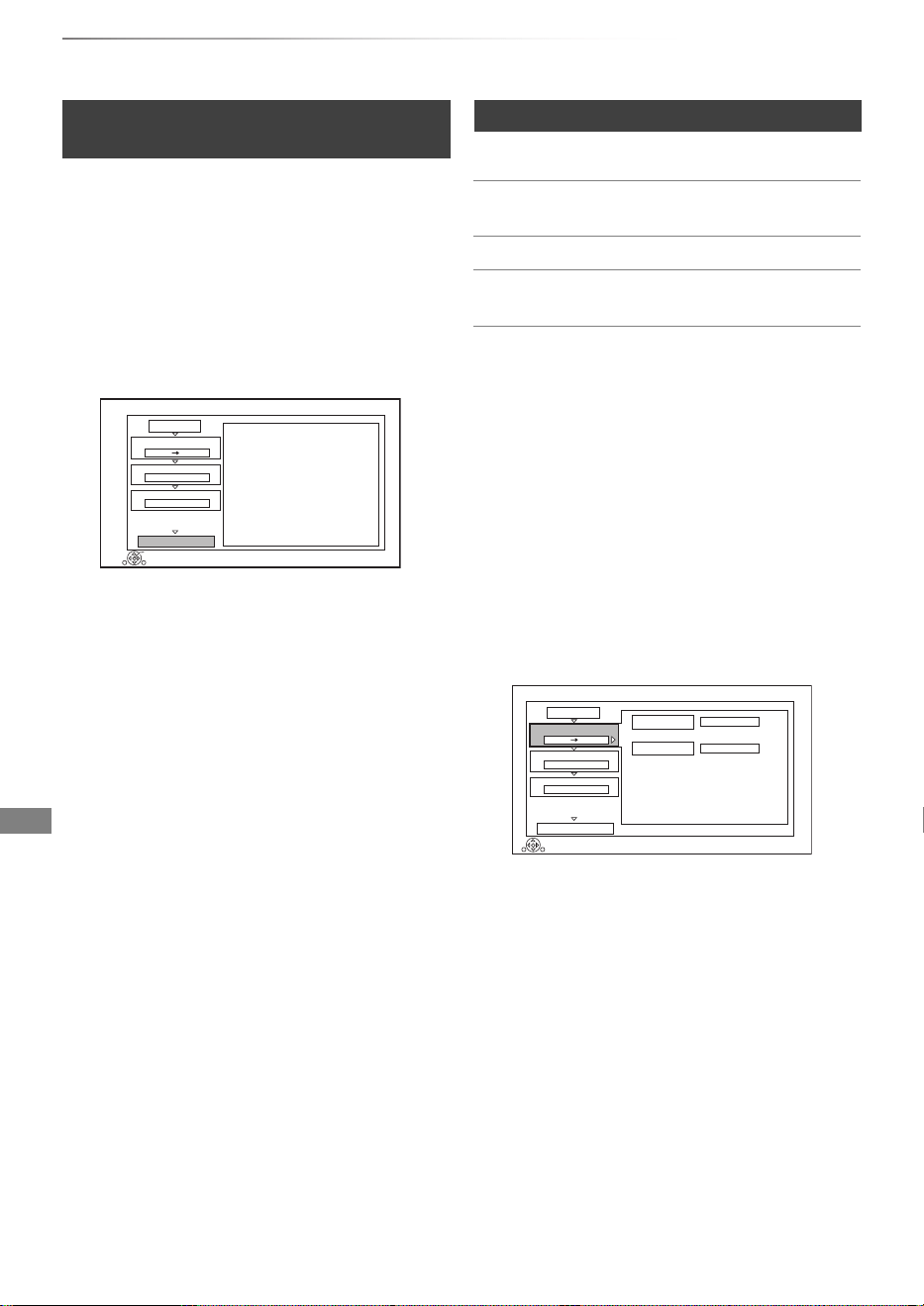
Copying video
SQT1119
48
Copying titles
[BD-RE] [BD- R] [RAM] [+RW] > [HDD]
2 Select “Play Video”, then press [OK].
5 Select “Start Copying”, then press [OK].
6 Select “Yes”, then press [OK].
Copying from media other than HDD
with Video Menu
1 Insert a disc.
The menu screen appears. (> 37)
3 Select the title.
• Multiple selection (> 46)
4 Press the blue button.
• To change the detailed settings for copy,
refer to “Copying titles with copying list”.
(> right)
Copy
1
2
3
Cancel All
Copy Direction
Copy Mode
Create List
Start Copying
HDD
High Speed
RETURN
OK
2
Press OK to start copying.
Disc
Copying titles with copying list
[HDD] ,.
[USB_HDD]
[HDD] >
[BD-RE] [BD-R] [RAM] [DVD-R]
[DVD-RW] [+R] [+RW]
[USB_HDD]
>
[BD-RE] [BD-R]
[BD-RE] [BD-R]
[RAM] [+RW]
> [HDD]
1 [HDD] ,. [USB_HDD]:
1 Press [FUNCTION MENU].
2 Select “Copy Menu” in “Copy Video”, then
press [OK].
Except “[HDD] ,. [USB_HDD]”:
1 Insert a disc.
The menu screen appears. (> 37)
2 Select “Copy”, then press [OK].
2 Set the copy direction.
1 Select “Copy Direction”, then press
[1] (right).
2 Set “Source” and “Destination”.
3Press [2].
3 Set the recording mode (> 9).
1 Select “Copy Mode”, then press
[1] (right).
2 Set “Recording Mode”.
3Press [2].
Copy
HDD
Disc
2
3
Source
Destination
Cancel All
Copy Mode
Create List
Start Copying
High Speed
Select the copy direction.
RETURN
0
Information of the copy destination
- BD-RE
- Copy restricted titles can be
copied on to disc
1
Copy Direction
HDD Disc
DMR-BWT850EB_eng_SQT1119-2.book 48 ページ 2023年1月11日 水曜日 午後1時37分
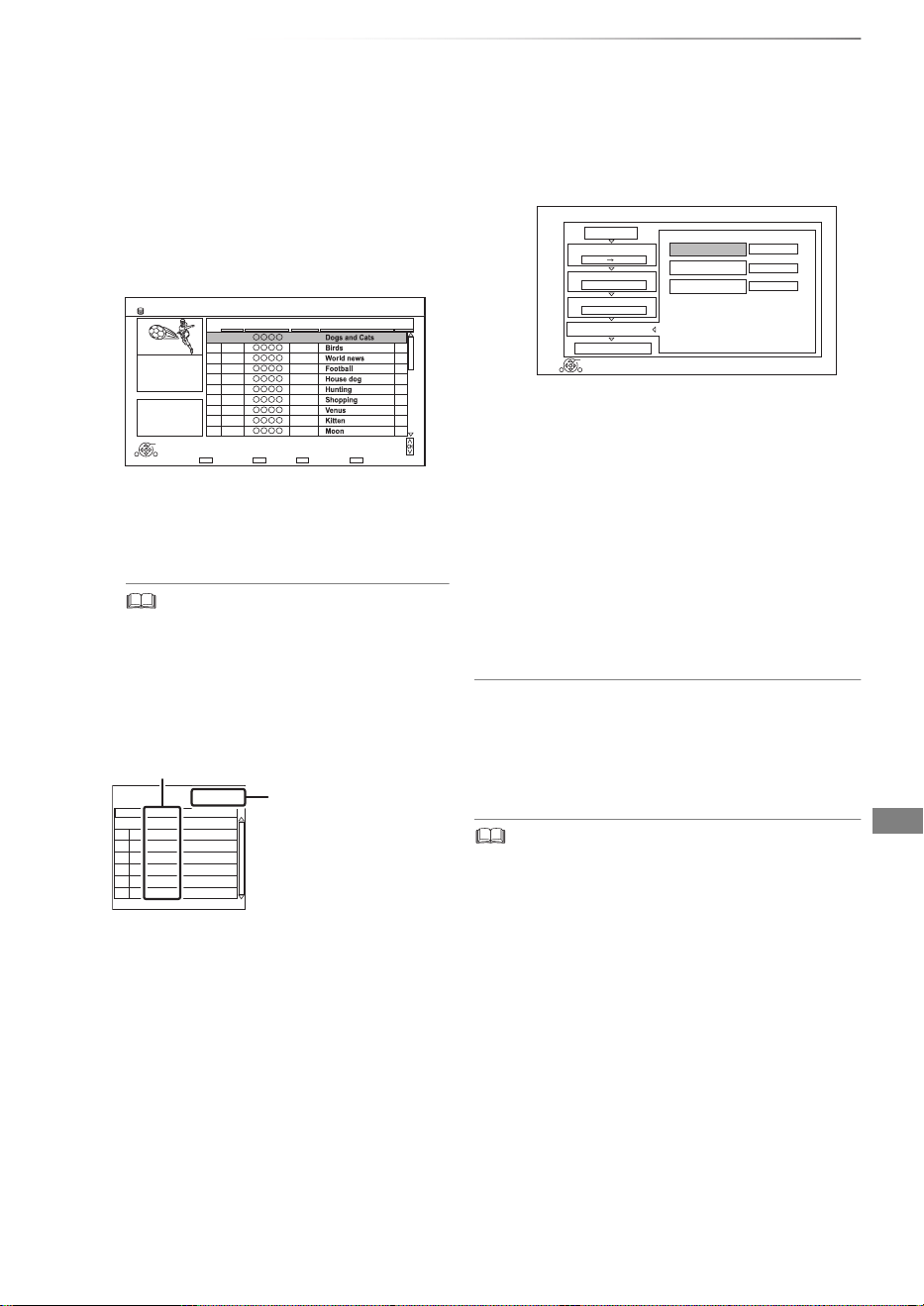
Copying video
SQT1119
49
1 Press [OPTION].
2 Select the item, then press [OK].
6 Select “Start Copying”, then press [OK].
7 Select “Yes”, then press [OK].
To cancel all registered copying settings and
lists
After performing step 1
1 Select “Cancel All”, then press [OK].
2 Select “Yes”, then press [OK].
• Titles in the grouped titles and other titles cannot be
registered simultaneously.
• [RAM] Radio programme cannot copy.
4 Register titles for copy.
1 Select “Create List”, then press
[1] (right).
2 Select “New item”, then press [OK].
3 Select the title, then press the yellow
button.
Repeat this step to select titles.
e.g., [HDD]
• To change the appearance of the list
or show information of the title
• The titles will be copied in the order of the
copying list. If you want to specify the order, edit
the copying list after the titles are selected.
(> 50, Editing the copying list)
4 Press [OK].
5Press [2].
Data size of each title
Data size recorded to
the copy destination
RETURN
Time
Rec time
Size 1360 MB
0:30 (DR)
9:00
Page
Select
Page Up
Page Down
HDD
OK
001/003
Create List Grouped Titles
01/01
15:00
1
02/01
9:30
1
03/01
10:00
1
03/01
18:30
1
04/01
2:00
1
05/01
11:0 0
1
05/01
15:00
1
06/01
3:45
1
06/01
9:00
1
01/01
9:00
1
Date Channel
Time
Title Name
Titles
Page 01/01
Size:
Destination Capacity:
No. Size
New item (Total=0)
Title
( 0% )
0 MB
3200 MB
5 Make other settings.
1 Select “Other Settings”, then press
[1] (right).
e.g.,
• This screen does not appear depending
on the copying mode. (> go to step 6)
2 Select the copying option, then press
[OK].
(> 47, Setting the copying options)
3 Select the item, then press [OK].
4Press [2].
Copy
1
2
3
Cancel All
Copy Direction
Copy Mode
Create List
4
Other Settings
Start Copying
HDD Disc
SP
Press OK to change the setting.
1
Subtitles
Finalise
Off
Off
Audio Description
Off
RETURN
OK
DMR-BWT850EB_eng_SQT1119-2.book 49 ページ 2023年1月11日 水曜日 午後1時37分
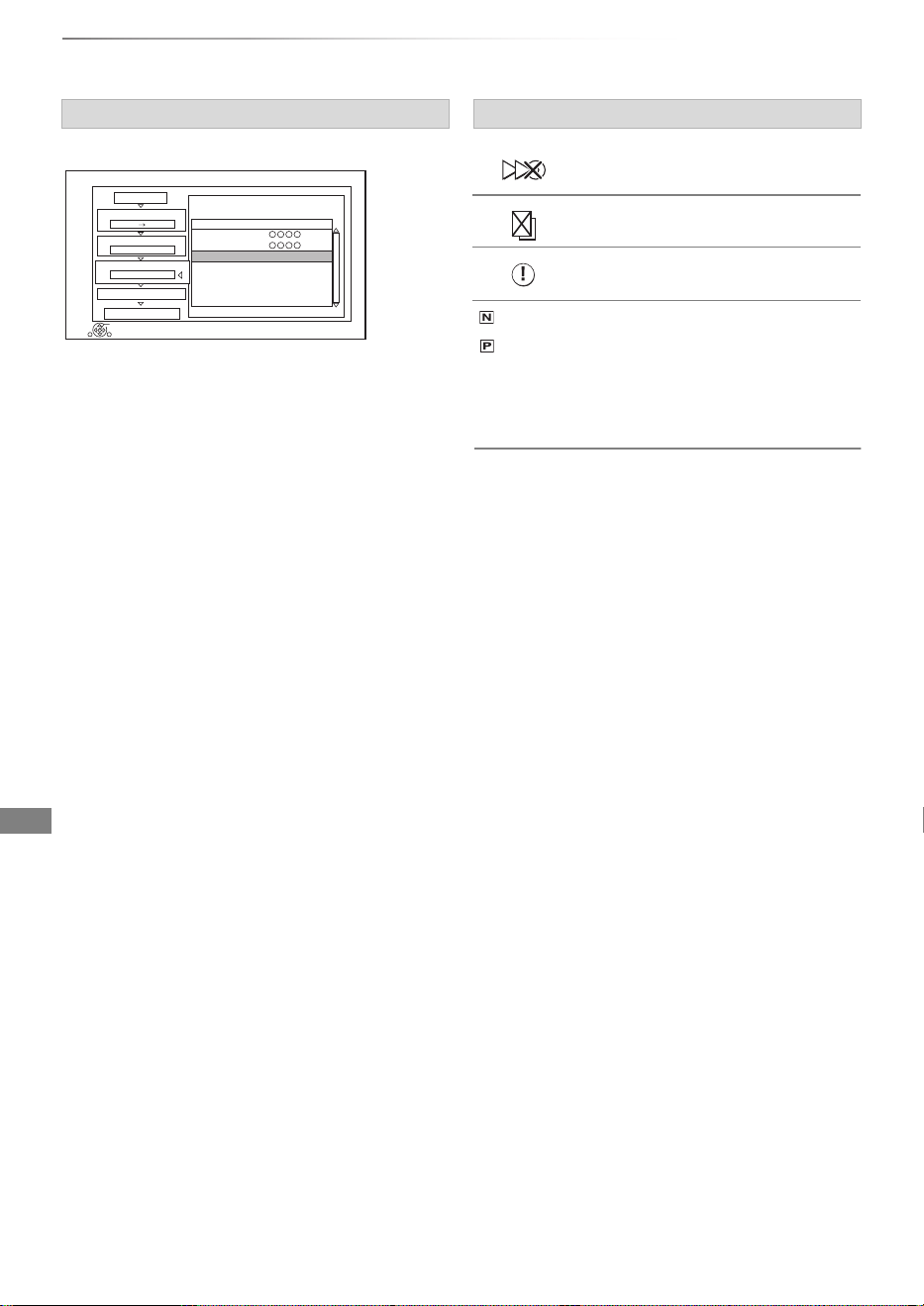
Copying video
SQT1119
50
Copying titles
1 Select the title after step 4-4 (> 49).
2 Press [OPTION].
3 Select the item, then press [OK].
About other screen icons (> 35)
Editing the copying list
Delete All:
All titles that you registered to copy are
deleted.
Add:
Add new items to the copying list.
1 Select the titles with the yellow button.
2 Press [OK].
Delete:
Selected titles are deleted.
• Select the title, then press the yellow button
before step 2.
Repeat this step to select titles.
Move:
Change the order of items on the copying list.
• Select the title to move before step 2.
Select the destination, then press [OK].
Copy
1
2
3
Cancel All
Copy Direction
Copy Mode
Create List
4
Other Settings
Start Copying
HDD Disc
HG
Create copy list.
2
Page 01/01
Size:
Destination Capacity:
No. Size
New item (Total=2)
Title
( 50% )
1:00
2:00
01
0:30 DR (25%)
0:30 DR (25%)
02
RETURN
OK
Screen icons
Titles that cannot be copied in high
speed mode
Titles that cannot be copied
Title contains photos
• Photos cannot be copied.
(NTSC)
(PAL)
Title recorded using a different
encoding system from that of the
unit.
• Titles displaying these marks
cannot be selected.
DMR-BWT850EB_eng_SQT1119-2.book 50 ページ 2023年1月11日 水曜日 午後1時37分
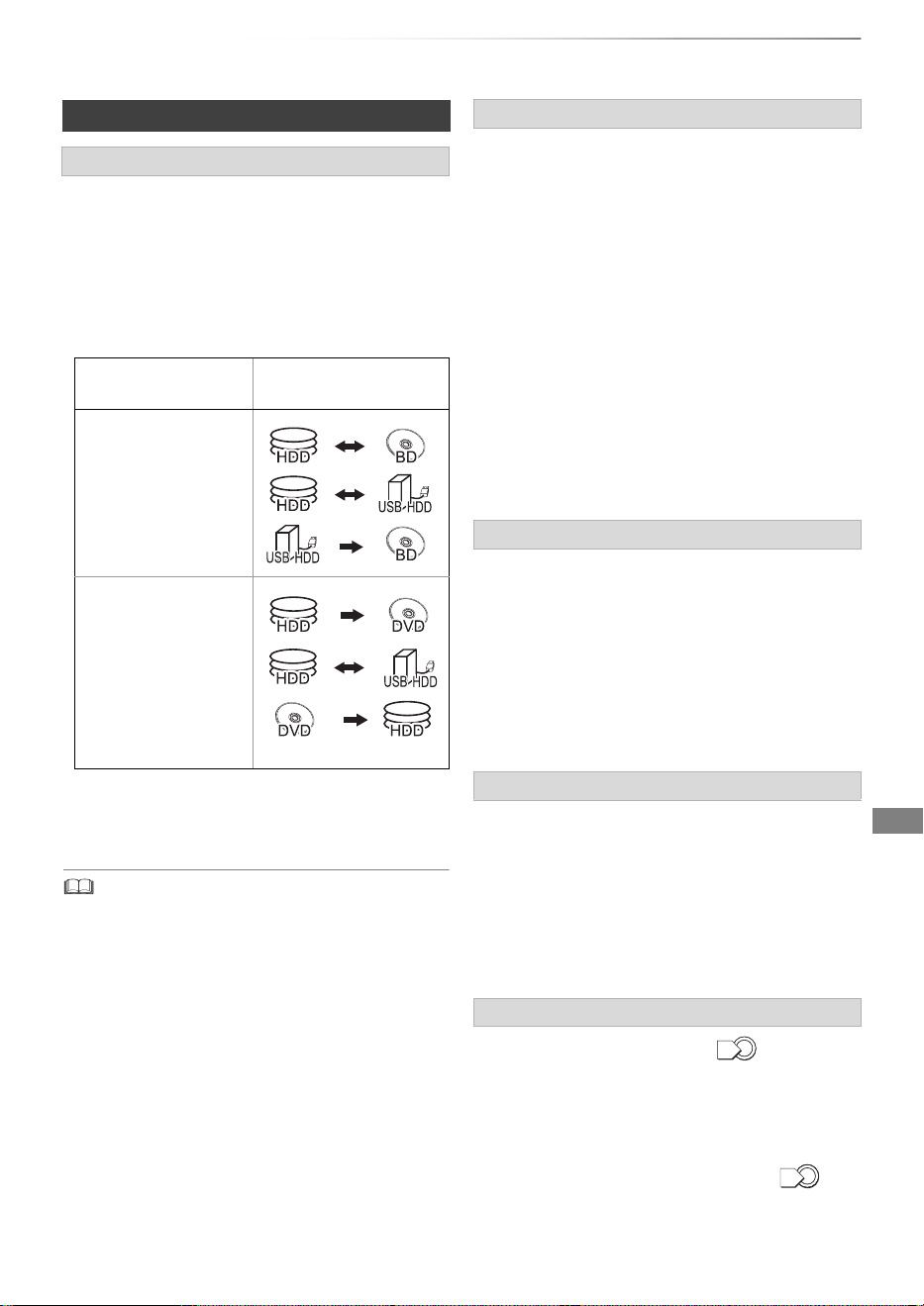
Copying video
SQT1119
51
High Speed Copying is the process of copying a
title to disc in high speed while maintaining the
original record mode and recording length.
• Converting the recording mode will result in a
normal speed copy.
• The following recording mode and media
combinations support high speed copying.
• High speed copy is possible only when there is
enough recording capacity on the destination
media.
• When copying title recorded in 1080/50p or
1080/60p, it cannot copy in progressive.
• It may not display correctly in 3D when a copied
3D programme is played back. In such a case,
change the “Signal Format” during the playback
of the title. (> 41)
• 3D information may not be copied.
• If you want to copy 3D AVCHD video to the disc
in 3D, use BD-R or BD-RE and copying speed
must be high speed.
The recorded titles indicated with “ ” icon can be
copied to the disc in high definition quality mode
(Original Picture Quality, HG, HX, HE, HL or HM) once.
After completing copy, the titles on the HDD cannot
be copied to the disc anymore in high definition
quality mode and the icon is changed to “ ”.
The titles copied to the discs cannot be copied
again.
Notes for copying
High speed copy
Original title’s
recording mode
Media
DR
HG
HX
HE
HL
HM
XP
SP
LP
EP
FR
§
DVD-RAM only
• It is impossible to copy at high speed in the following cases:
- [HDD] > [BD-RE] [BD-R] :
• Copying radio programmes
- [HDD] > [DVD-R] [DVD-RW] [+R] [+RW] :
• Titles that contain many deleted segments
- [HDD] > [+R] [+RW] :
• Titles recorded in “EP” mode and “FR (recordings
5 hours or longer)” mode
• Titles recorded in 16:9 aspect
§
Normal speed copy
• [DVD-R] [DVD-RW] [+R] [+RW] You cannot copy to
the disc in the following cases.
- When there is not enough free space on the HDD.
- When the number of titles recorded on the disc
will exceed its maximum limit if copying is
performed. (> 8)
• Copying will continue up to the point cancelled.
- [DVD-R] [DVD-RW] [+ R] [+RW] If copy is cancelled
during the step while temporarily copying to
the HDD, then nothing will be copied.
- [BD-R] [DVD-R] [DVD-RW] [+R] [+RW] Even if the
title was not copied to the disc, the amount of
remaining writable disc space becomes less.
Copying 3D programmes
About maintaining the chapter mark
• The position of the chapter might shift slightly.
• Maximum number of chapters on the disc is
limited.
- [BD-RE] [BD- R] [ RAM] [DVD- R] [DVD-RW] :
Approx. 1000
- [+R] [+RW] : Approx. 254
(Depends on the state of recording.)
About copy-restricted programmes
1
0
DMR-BWT850EB_eng_SQT1119-2.book 51 ページ 2023年1月11日 水曜日 午後1時37分
Copying video
SQT1119
52
Copying titles
[DVD-V] > [HDD]
While playing a disc, the content being played is
copied to the HDD according to the set time.
1 Press [FUNCTION MENU].
2 Select “Copy Menu” in “Copy Video”, then
press [OK].
5 Select “Start Copying”, then press [OK].
To stop copying
Press [STOP ∫].
• If stopped partway, copying will be up to that
point.
• Operations and on-screen displays during copy are also
recorded.
2 Press [OPTION].
3 Select “Copy Title Playing”, then press [OK].
To stop copying
Press and hold [BACK/RETURN ] for
3 seconds.
• You can record to or play HDD while high speed copying.
Press [OK] to exit the screen display.
• Press [STATUS ] to confirm the current progress.
Copying a finalised disc
3 Set “Copy Mode”.
1 Select “Copy Mode”, then press
[1] (right).
2 Press [OK], then select the recording
mode (XP/SP/LP/EP).
3Press [2].
4 Set “Copy Time”.
1 Select “Copy Time”, then press
[1] (right).
2 Select “Time Setting”, then press [OK].
3 Select “On” or “Off”.
On:
Set the copying time.
• Set a few minutes longer than the
source title, in order to include the
operation time before play begins.
Off:
Copying all the content on the disc.
4Press [2].
6 Select “Yes”, then press [OK].
• When the Top Menu is displayed:
Select the title you want to start copying,
then press [OK].
After the last title on the disc has finished
playing the Top Menu is recorded until the
set time is reached.
01/02
01
Mouse
03
02
04
Cattle
Copying Title Playing
[HDD] > [BD- RE] [BD-R] [RAM] [DVD-R] [DVD-RW] [+ R]
[+RW]
1 Play back the title to copy.
• Multiple audio, subtitle displayed during
playback will be copied.
- Select the multiple audio with “Multi
Audio” in the Basic Operation menu
(> 68)
- Select the subtitles with “Subtitle
Language” in the Basic Operation menu.
(> 68)
4 Select “Start”, then press [OK].
Copying will start from the beginning of the
title regardless of the playing position.
• Speed and recording mode when copying
The high speed copy is performed if available.
Refer to “Notes for copying”. (> 51)
• [BD-RE] [BD-R] When copying the titles in DR, HG, HX, HE,
HL or HM modes and the copy destination does not have
enough space, one from HG, HX, HE, HL or HM modes
will be selected to match the available space.
• [RAM] [DVD-R] [DVD-RW] [+R] [+RW] When copying the titles
in DR, HG, HX, HE, HL or HM modes, copy will be
performed at normal speed in FR mode.
• When copying the titles in XP, SP, LP, EP or FR modes
and the copy destination does not have enough space,
copy will be performed at normal speed in FR mode.
DMR-BWT850EB_eng_SQT1119-2.book 52 ページ 2023年1月11日 水曜日 午後1時37分
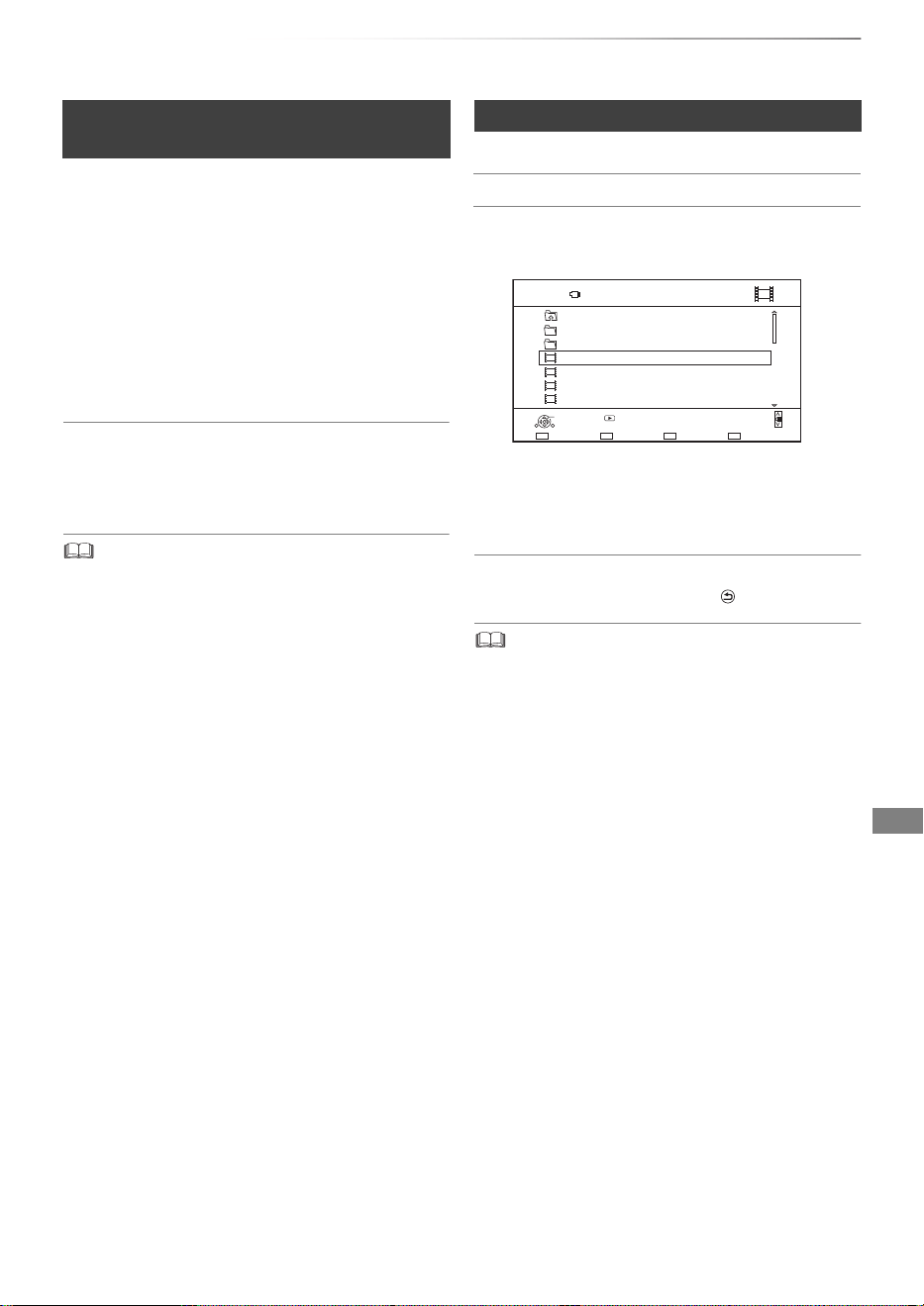
Copying video
SQT1119
53
You can copy HD Video (AVCHD) recorded on
HDD to a DVD-R in High Definition quality.
[HDD] > [DVD-R]
1 Insert an unformatted DVD-R or DVD-R DL.
The menu screen appears. (> 37)
2 Select “Copy Video ( AVCHD ) to Disc”, then
press [OK].
3 Go to step 4 on page 49, “Copying titles with
copying list”.
To copy HD Video (AVCHD) from other
equipment
Refer to “Copying the HD Video (AVCHD)”.
(> 65)
• When a disc is named, formatting will be automatically
performed. Therefore, do not name a disc before this
operation. (> 82, Disc Name)
• Discs will be automatically finalised after copy.
• The following HD Videos (AVCHD) cannot be copied to the
disc in high definition.
- Exceeding 18 Mbps
- 1080/50p or 1080/60p
- Without the AVCHD information (video recorded with
certain non-Panasonic equipment, video copied to the
HDD after copying it to BD-R or BD-RE once, etc.)
• 3D video may not be copied correctly.
2 Press the blue button.
3 Select “Yes”, then press [OK].
To stop copying
Press and hold [BACK/RETURN ] for 3 seconds.
• All files in the folder will be copied.
• The names of folders/files cannot be changed after they are
copied to the HDD. We recommend that you create a folder
with an easily identifiable name on a PC or other device first
and use the folder to perform copying.
• Up to 1000 files can be copied at once.
• Xvid and MKV: Copying from the HDD to the SD card is
not possible.
• While copying, no other operations can be performed.
Timer recordings will not proceed.
Copying HD Video (AVCHD) to the
DVD-R in High Definition
Copying video files
[HDD] ,. [SD]
[USB] > [HDD]
1
On the video list screen:Select the file or folder.
• Multiple selection (> 46)
e.g.,
USB
Parent Folder
Videos \ Video \
Folder 01
Folder 02
video01.mpeg
video02.mpeg
video03.mpeg
video04.mpeg
Page 0001/0003
Select CopyParent Folder
Play
RETURN
Page Up
Page Down
Play
08/02/2012 13:46
08/03/2011 11:46
08/03/2010 12:46
08/03/2009 10:46
DMR-BWT850EB_eng_SQT1119-2.book 53 ページ 2023年1月11日 水曜日 午後1時37分
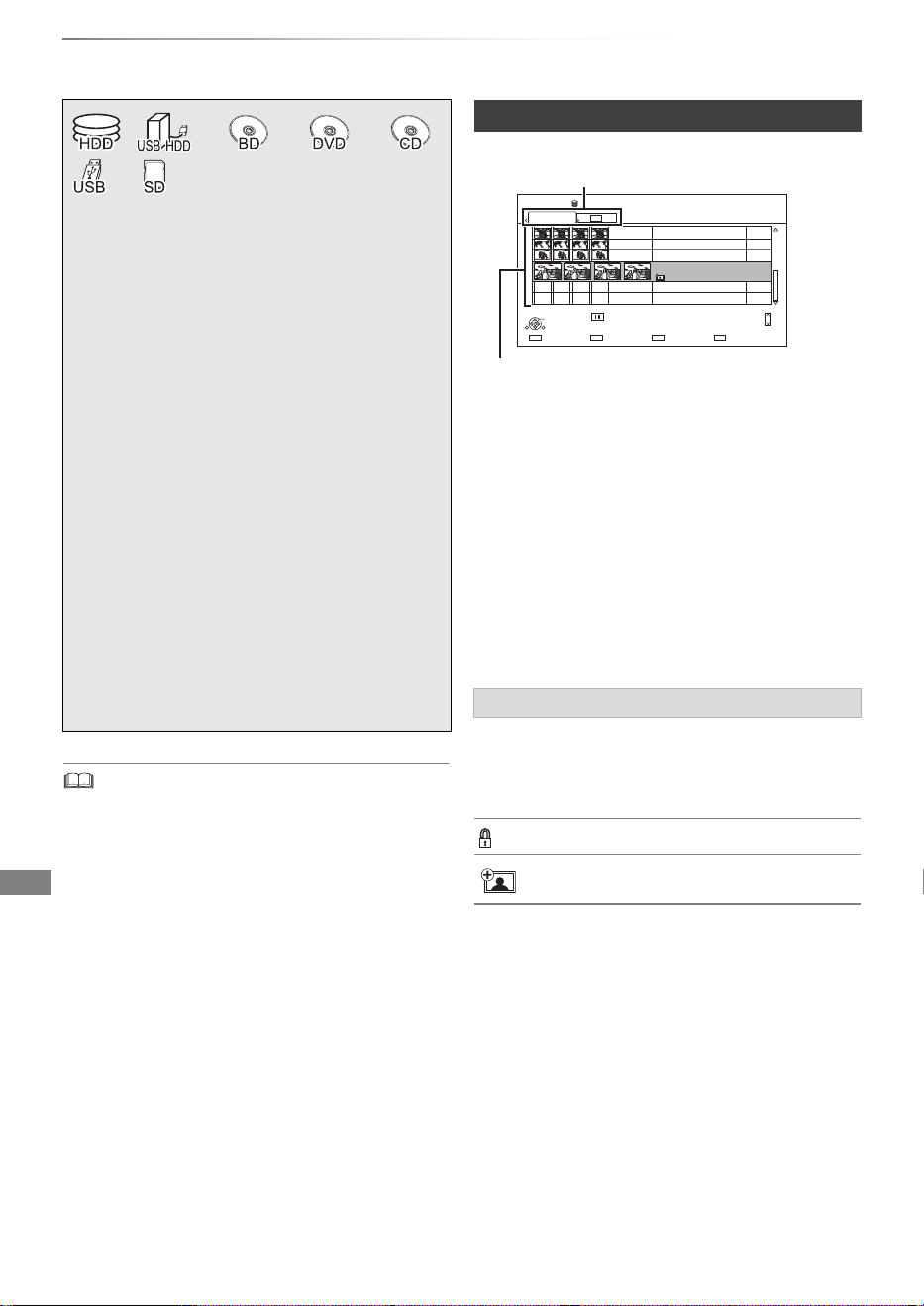
Photo and Music
SQT1119
54
Playing photos
Photo and Music
• When the following conditions are met, photos are played
back in 4K regardless of the image quality:
- When this unit is connected to a TV that is 4K and 30p
compatible
- When “HDMI Video Format” is set to “Automatic” (> 75)
This unit can not output 4K image when playing back in 3D.
Photos imported to the HDD (> 57) are
managed using folders.
Folders and photos can be edited by pressing
[OPTION]. (> 56)
• To select the tab
Press [2, 1].
• To start Slideshow
Refer to “Slideshow settings”. (> 55)
• [HDD]
To display or exit the Calendar screen
Press [PAUSE ;].
§1
“For data files (> 9)” only (JPEG, MPO)
§2
[BD-RE] only
§3
[RAM] [DVD-R] [+R] only
1 [HDD]
1 Press [FUNCTION MENU].
2 Select “Photo” in “Contents on HDD”,
then press [OK].
Except [HDD]
1 Insert or connect the media.
The menu screen appears. (> 37)
2 Select “View Photos”, then press
[OK].
2 Select the folder, then press [OK].
3 Select the photo, then press [OK].
•Press [2, 1] to display the previous or
next photo.
§2 §3§1
Photo Menu screen
Screen icons
3D
(Tab)
3D photos (MPO)
• Select from this tab to play back in
3D.
Photo protected
New photo which is not viewed
HDD
Page
SelectSlideshow
Calendar
03/01/2012
29/10/2012
25/02/2013
15/03/2013
0002/0002
Copy
OK
RETURN
8
12
18
4
Photo Menu
All
3D
Page Up
Page Down
CH
e.g., [HDD]
Tab
DMR-BWT850EB_eng_SQT1119-2.book 54 ページ 2023年1月11日 水曜日 午後1時37分
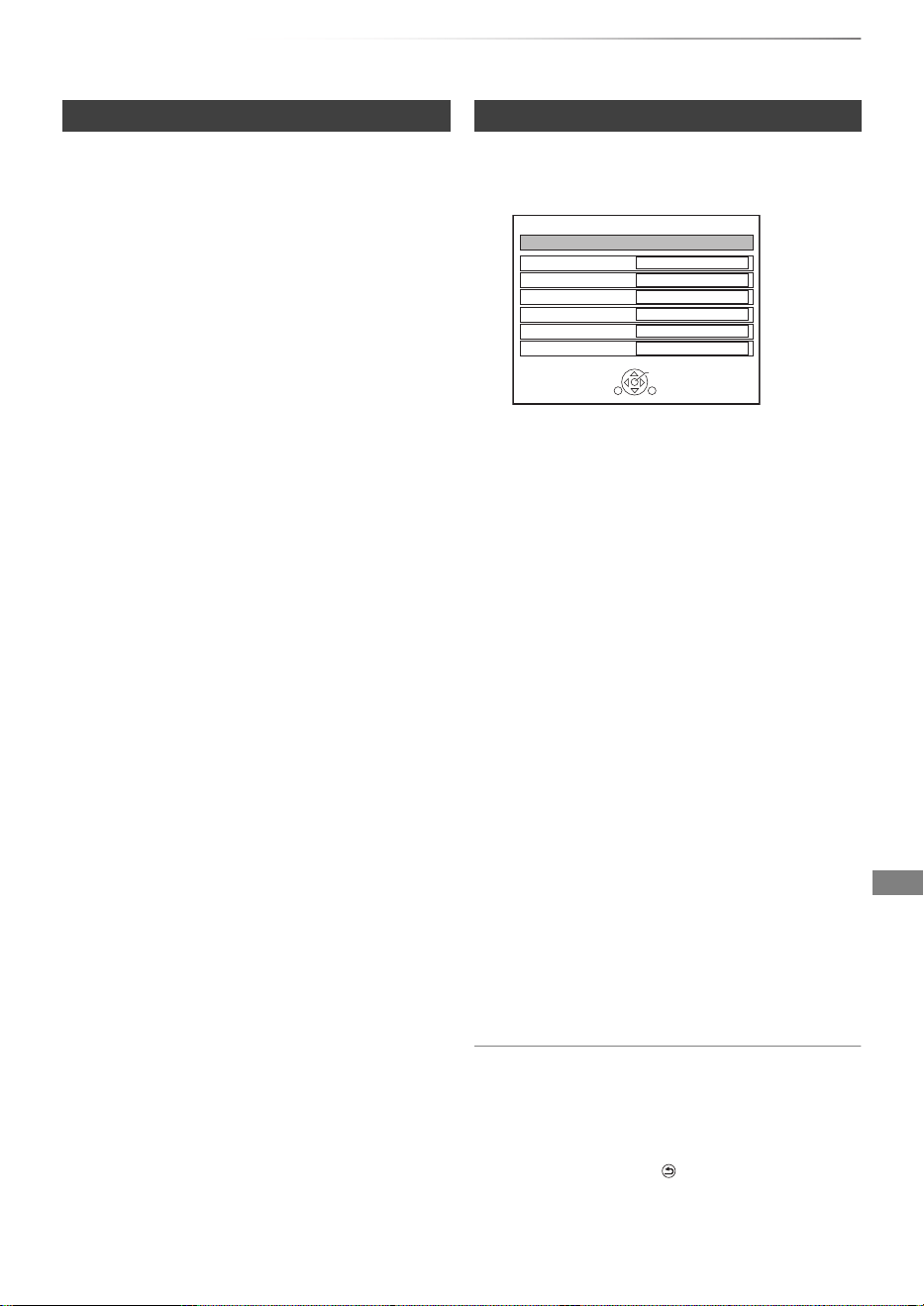
Photo and Music
SQT1119
55
1 While displaying a photo:
Press [OPTION].
2 Select the item, then press [OK].
1 On the Photo Menu screen:
Press the green button.
2 Select the item, then press [OK].
To pause the Slideshow
Press [PAUSE ;].
• Press [PAUSE ;] again to restart.
To stop the Slideshow
Press [BACK/RETURN ].
Photo play option
Graphic Display Level
You can change the 3D position of the
screen display, etc., during the 3D photo
playback.
Photo Menu
• Start Slideshow
You can start a slideshow.
• Rotate RIGHT/Rotate LEFT
• The information of the rotated photos will
not be stored depending on the media.
• This function is not available during the
3D photo playback.
• Information
Information (shooting date etc.) is shown.
• Wallpaper
A photo being played back is registered as
wallpaper on the FUNCTION MENU
screen. (> 21)
Slideshow settings
Start Slideshow
Interval
Set up the time until the next photo is to
display.
Transition Effect
§
Effect for the next photo to display can be
set.
Repeat Play
Music Selection
§
Select background music on (either from
HDD or USB) or off.
Background Music
§
Select background music from HDD or USB
(Folder).
Random BGM
§
Play back the BGM (Background Music) in
random order.
§
This function is not available during the
3D photo playback.
Slideshow
OK
RETURN
Start Slideshow
Interval
Transition Effect
Repeat Play
Normal
Fade
On
Music Selection
No background music
Background Music
No List
Random BGM
Off
DMR-BWT850EB_eng_SQT1119-2.book 55 ページ 2023年1月11日 水曜日 午後1時37分

Photo and Music
SQT1119
56
Editing photos
§1
[BD-RE] only
§2
[RAM] only
2 Press [OPTION].
• Selectable items will change depending on
the media and the type of file.
3 Select the item, then press [OK].
1 On the Photo Menu screen:
To edit the folder:
Select the folder.
To edit the photo:
1 Select the folder, then press [OK].
2 Select the photo to edit.
• To select multiple folders or photos
Press the yellow button when selecting the
folder or photo.
A check mark
is displayed. Repeat this
step.
• Press the yellow button again to cancel.
§1 §2
Enter Folder Name
Refer to “Entering text”. (> 84)
Combine Folders
[HDD]
Delete Folder
Move Photos
[HDD]
Select “Move to new folder” or “Move to
another folder”, then press [OK].
• If “Move to another folder” is selected, set a
destination folder.
Delete Photos
Set up Protection
[BD-RE] [RAM] [SD]
appears.
• Even if the protection is set, the photo may
be deleted by another unit.
Cancel Protection
[BD-RE] [RAM] [SD]
DMR-BWT850EB_eng_SQT1119-2.book 56 ページ 2023年1月11日 水曜日 午後1時37分
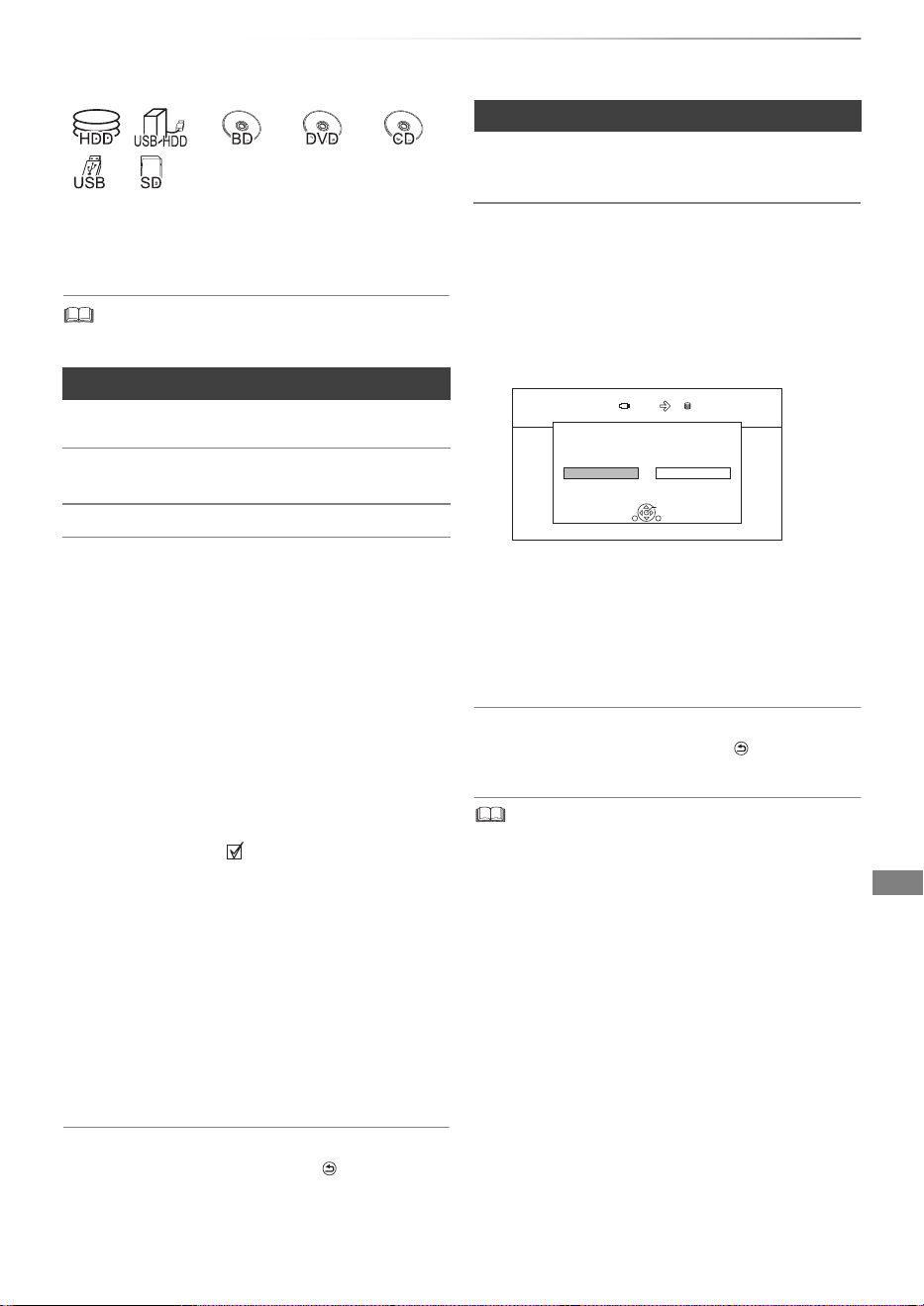
Photo and Music
SQT1119
57
Copying photos
§1
“For data files (> 9)” only (JPEG, MPO)
§2
[BD-RE] only
§3
[RAM] [DVD-R] [+R] only
• The name of the copied photos will be changed.
If the copy destination selection screen is
displayed:
Select the copying destination, then press
[OK].
To stop copying
Press and hold [BACK/RETURN ] for
3 seconds.
Newly added photos will automatically be copied
to the HDD.
4 Once the copy is completed, select “Yes” or
“No”, then press [OK].
To stop copying
Press and hold [BACK/RETURN ] for
3 seconds.
• Photos without shooting date will be categorised using the
creation date.
Selecting and copying the photos
[HDD] > [BD- RE] [RAM] [SD]
[BD-RE] [RAM] [DVD-R] [+R]
[CD]
> [HDD] [SD]
[USB_HDD] [USB] [SD] > [HDD] [BD-R E ] [RAM]
1 On the Photo Menu screen:
To copy the folder:
Select the folder, then press the blue button.
To copy the photo:
1 Select the folder, then press [OK].
2 Select the photos to copy, then press the
blue button.
• To select multiple folders or photos
Press the yellow button when selecting the
folder or photo.
A check mark is displayed. Repeat this
step.
• Press the yellow button again to cancel.
2 Select “Yes”, then press [OK].
Copying starts.
§2 §3§1
Copying automatically
[USB_HDD] [BD-RE] [RAM]
[DVD-R] [+R] [CD] [USB] [SD]
> [HD D]
1 Insert the media.
The menu screen appears. (> 37)
2 Select “Copy New Photos”, then press [OK].
e.g., [USB]
3 Select “Yes”, then press [OK].
Copying starts.
Yes No
Start copying ?
Copy New Photos
OK
RETURN
HDD
USB
DMR-BWT850EB_eng_SQT1119-2.book 57 ページ 2023年1月11日 水曜日 午後1時37分
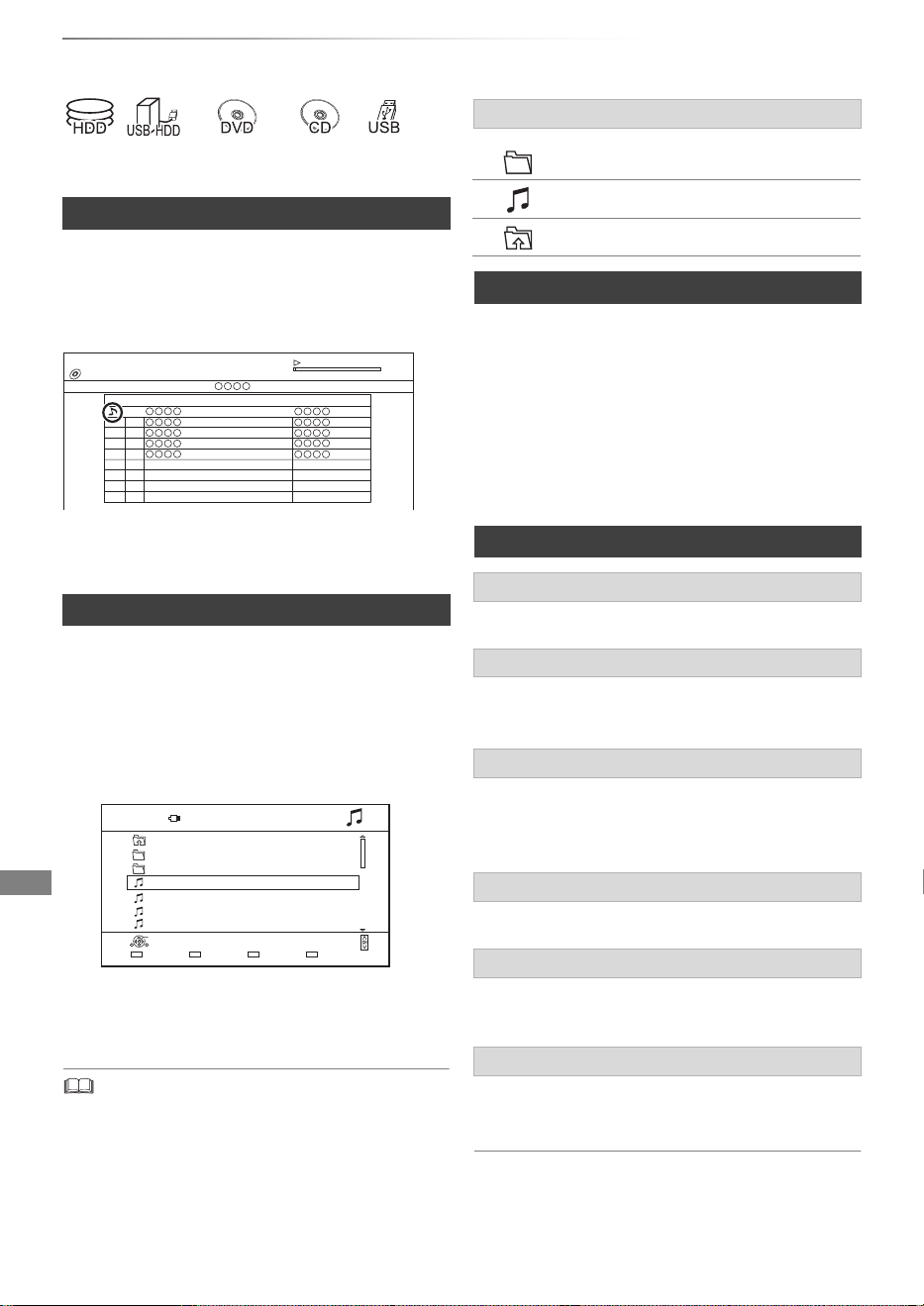
Photo and Music
SQT1119
58
Playing music
§1
“For data files (> 9)” only
§2
[DVD-R] [+R] only
[CD] (CD-DA)
Insert the disc.
Playback will automatically start.
To play other music (track)
Select the item, then press [OK].
[USB_HDD] [DVD-R] [+R] [CD] [USB]
1 Insert or connect the media.
The menu screen appears. (> 37)
• The track/artist/album name will be displayed if the
information is contained in music file.
[HDD]
1 Press [FUNCTION MENU].
2 Select “Music” in “Contents on HDD”, then
press [OK].
The music list screen appears.
3 Go to step 3 (> left), “Playing music file on
the media”.
Press [STOP ∫].
Press [PAUSE ;].
• Press [PLAY/a1.3 1] to restart play.
Press [SLOW/SEARCH 6] or
[SLOW/SEARCH 5].
• Press [PLAY/a1.3 1] to restart play.
Press [SKIP :] or [SKIP 9].
Refer to “Repeat Play” or “Random” in Basic
Operation menu (> 68).
Refer to “Sound Effects” in Sound Effect
Settings/Sound Settings menu (> 69).
To play music continuously even if the Power
off link works
Refer to “Playing music continuously even after
turning off power to the TV”. (> 67)
Playing music CD (CD-DA)
Playing music file on the media
2 Select “Play / Copy Music”, then press [OK].
The music list screen appears.
3 Select the item, then press [OK].
• Repeat this step if necessary.
Playback will start.
§1
§2
Music Menu
No.
Track Name Play Time
Track List
01
02
03
04
05
CD
3.43
0.02
Track 1
e.g.,
e.g.,
Parent Folder
Music \ Music \
Folder 01
Folder 02
music01.mp3
music02.mp3
music03.mp3
music04.mp3
Page 0001/0003
Select Copy
Play
RETURN
Parent Folder
USB
Page Up
Page Down
Screen icons
Folder
Music
Move to the parent folder
Playing music file on the HDD
Operations during music play
Stop
Pause
Search
Skip
Repeat Play/Random
Sound Effects
DMR-BWT850EB_eng_SQT1119-2.book 58 ページ 2023年1月11日 水曜日 午後1時37分
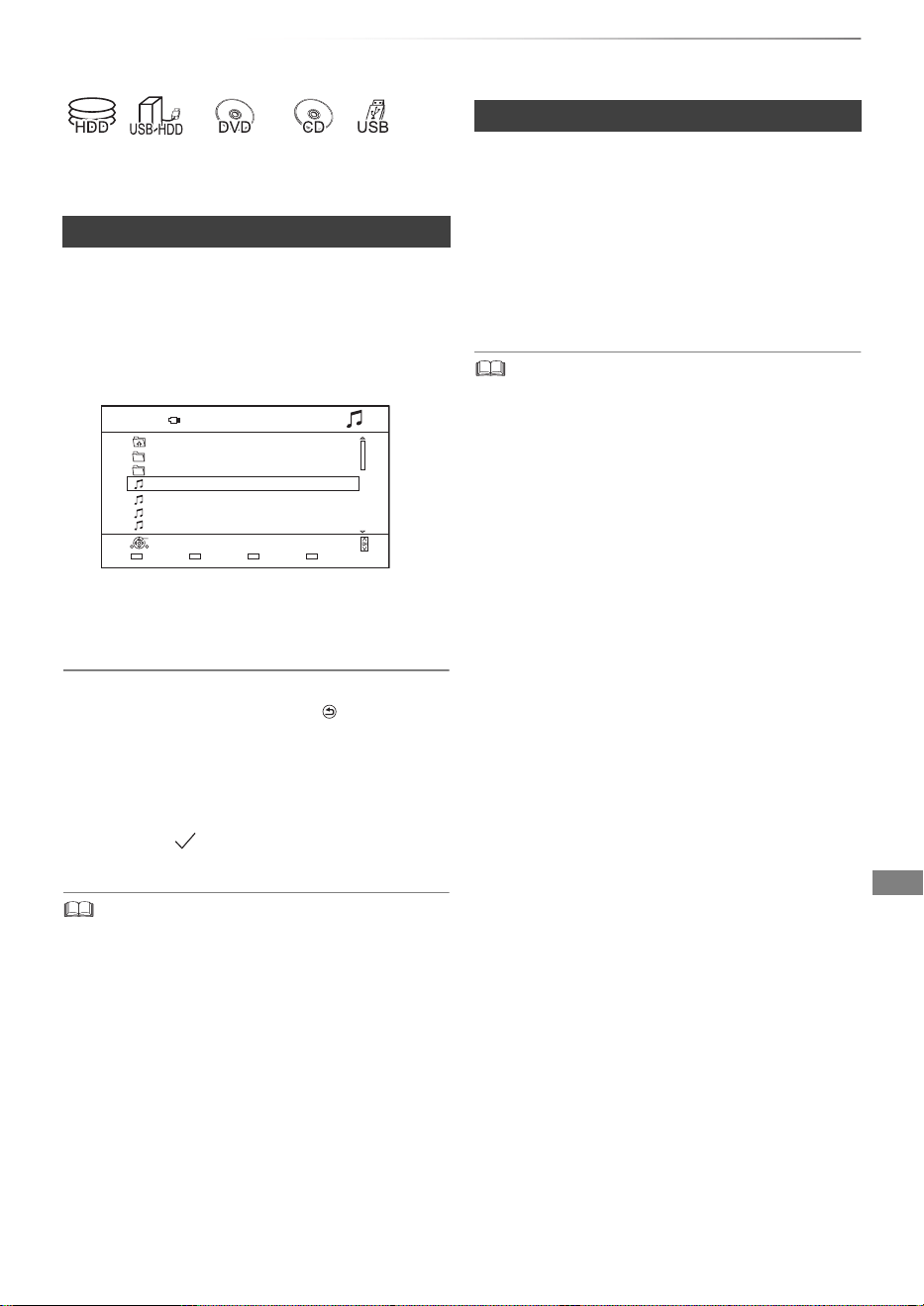
Photo and Music
SQT1119
59
Copying/Deleting music
§1
§2
§1
“For data files (> 9)” only
§2
[DVD-R] [+R] only
[USB_HDD] [DVD-R] [+R] [CD]
§3
[USB] > [HDD]
§3
Except [CD] (CD-DA)
2 Press the blue button.
3 Select “Yes”, then press [OK].
To stop copying
Press and hold [BACK/RETURN ] for
3 seconds.
Multiple selection
Select the file or folder, then press the yellow
button.
A check mark
is displayed. Repeat this step.
• Press the yellow button again to cancel.
• While copying, no other operations can be performed.
Timer recordings will not proceed.
• All files in the folder will be copied.
• Up to 1000 files can be copied at once.
[HDD]
1 On the music list screen:
Select the file or folder.
• Multiple selection (> left)
2 Press [DELETE].
3 Select “Yes”, then press [OK].
• All files in the folder will be deleted.
Copying
1 On the music list screen:
Select the file or folder.
e.g.,
Parent Folder
Music \ Music \
Folder 01
Folder 02
music01.mp3
music02.mp3
music03.mp3
music04.mp3
Page 0001/0003
Select Copy
Play
RETURN
Parent Folder
USB
Page Up
Page Down
Deleting
DMR-BWT850EB_eng_SQT1119-2.book 59 ページ 2023年1月11日 水曜日 午後1時37分
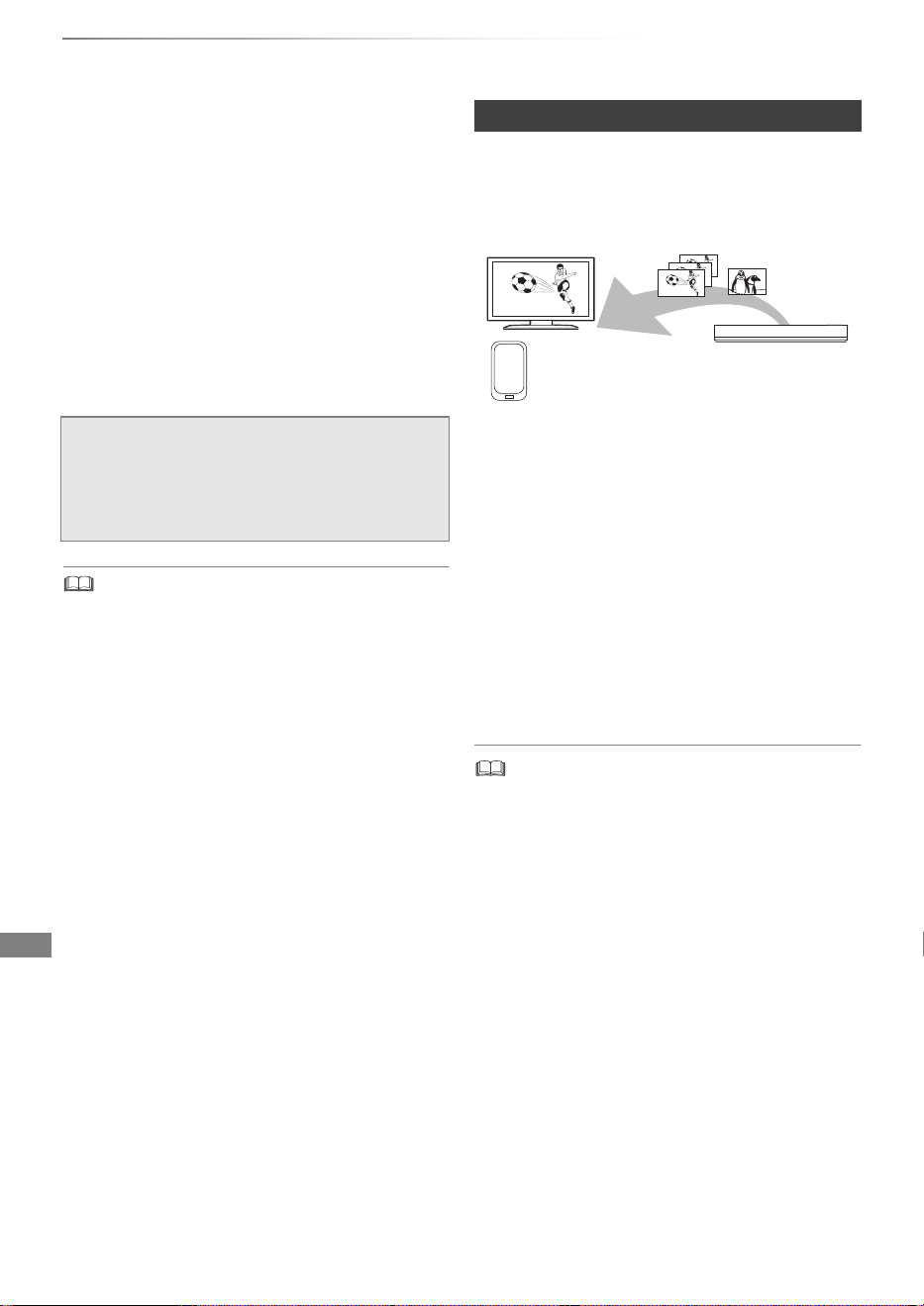
Network
SQT1119
60
Smart Home Networking (DLNA)
Network
Smart Home Networking (DLNA) allows you to
watch the contents and broadcasts on Server
equipment connected on the same network from
Client equipment.
This unit can be used both as Server and Client.
Additionally, if used as Client, this unit can also be
used as Media Renderer, which can be controlled
by a Smartphone, etc.
Preparation
• Perform network connection and settings.
(> 16, 19)
• Perform Home Network settings of the DLNA
compatible equipment.
• Ensure that the router for your home network has adequate
security system to prevent unauthorised access.
• If using slow network connection, the video may not be
displayed correctly. A high-speed home network with a
speed of at least 20 Mbps is recommended.
• Some video or broadcasts cannot be enjoyed depending on
the DLNA (Client) compatible equipment, the condition of
this unit, or the file type.
You can watch broadcasts received by this unit
(Multiroom TV Streaming), videos and photos
saved on HDD of this unit on DLNA (Client)
compatible equipment.
For details regarding the connection and
operation of equipment connected via a network,
refer to their respective operating instructions.
§
DLNA function compatible software should be
installed.
Preparation
• Perform Home Network settings. (> 78)
2 Select the item, then press [OK].
• The DLNA compatible device that is to be connected to the
unit should be connected to the same hub or broadband
router as the unit.
• The titles with access restriction (e.g., copy restriction)
signals sent from broadcasters are not available for this
function.
• You cannot play back music from the playback equipment
(Client).
• If video frames are dropped, change the following settings.
- Conversion Setting for DLNA (> 78)
- Resolution Setting for DLNA (> 78)
• Files not on the HDD cannot be played back.
• Playing back 3D video recorded on this unit may not work
properly.
• 3D photos copied to this unit cannot be played back in 3D.
• We recommend that you set “Networked Standby” to “Off”.
(> 79)
For more details, refer to the following website
and the operating instructions for each item of
equipment.
https://panasonic.jp/support/global/cs/
(This site is in English only.)
Using this unit as Server
1 Operate the playback equipment (Client) to
display the list of contents on this unit.
This unit (Server)
DLNA compatible
equipment (Client)
§
DMR-BWT850EB_eng_SQT1119-2.book 60 ページ 2023年1月11日 水曜日 午後1時37分
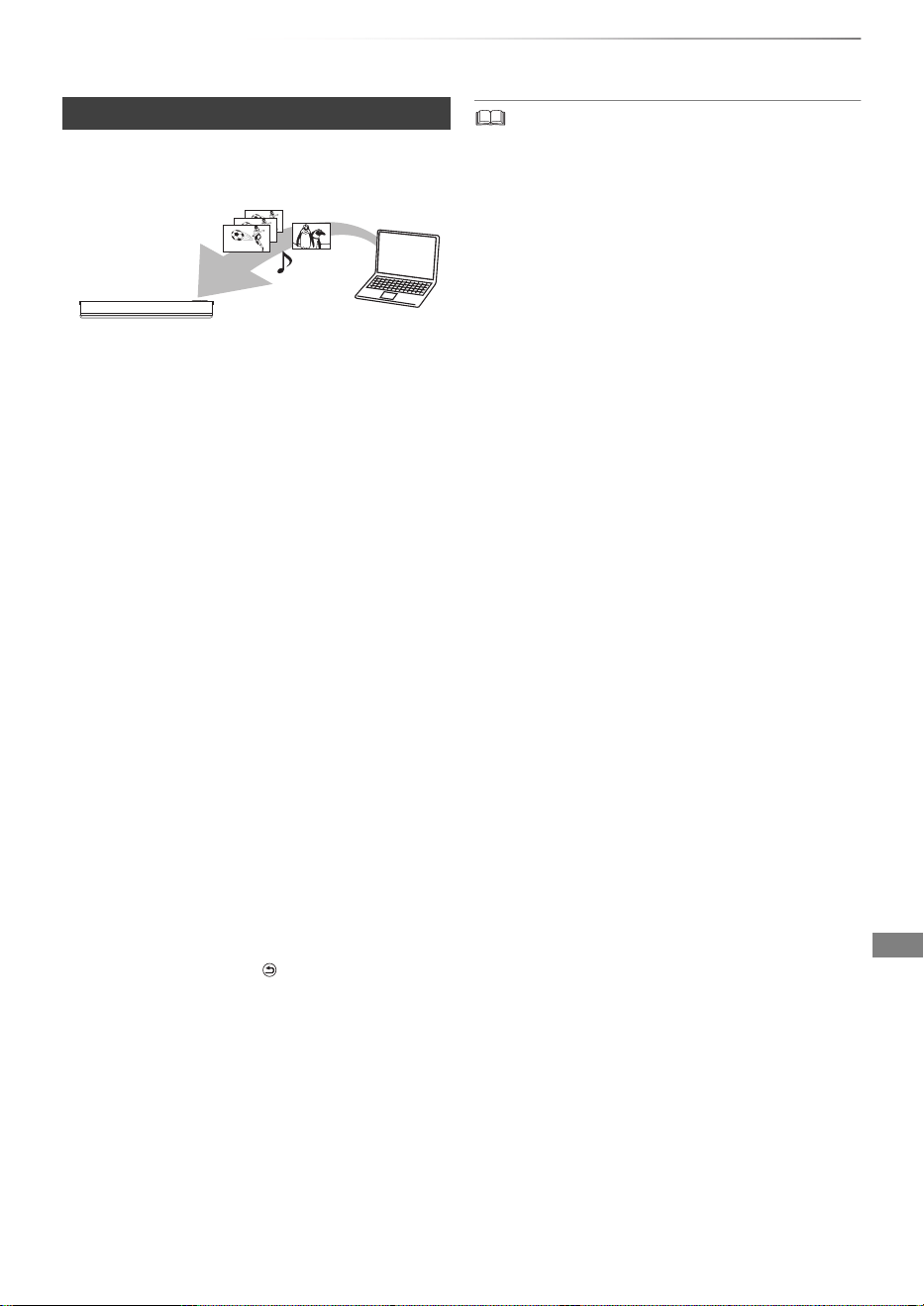
Network
SQT1119
61
You can share videos, photos and music stored in
the DLNA Certified media server.
1 Press [FUNCTION MENU].
3 Select the equipment, then press [OK].
• Playlist of Windows Media
®
Player can play back only the
contents that are stored in the libraries.
• While playing back the 3D programme, you cannot set “3D
Settings”. (> 41)
Using this unit as Client
2 Select “DLNA Client” in “Home Network”,
then press [OK].
A list of equipment connected via the
network is displayed.
• This list can be updated by pressing the red
button.
4 Select the item, then press [OK].
• Menu structure will be different depending
on the equipment. Select the contents by
repeating the operation.
• Convenient functions can be used by
pressing [OPTION] depending on the
contents.
• Control Panel
Control Panel is displayed once the
playback starts.
• Press [OK] if the Control Panel is not
displayed. (It may not be displayed
depending on the conditions of use.)
• (While playing video or photo) Press
[BACK/RETURN ] to hide the Control
Panel.
This unit (Client)
DLNA compatible
equipment (Server)
DMR-BWT850EB_eng_SQT1119-2.book 61 ページ 2023年1月11日 水曜日 午後1時37分
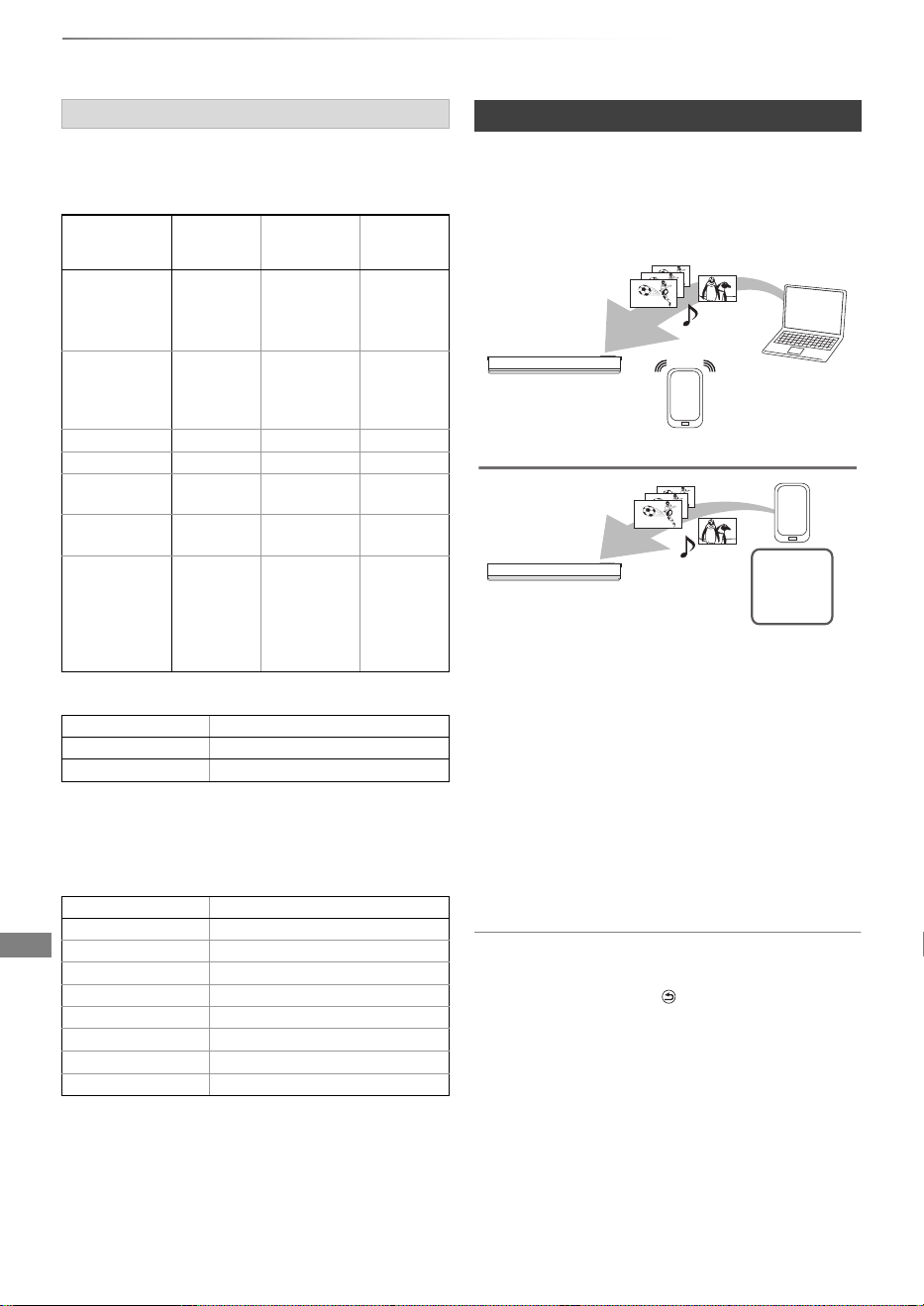
Network
SQT1119
62
Smart Home Networking (DLNA)
When this unit works as a DLNA client, following
contents are playable.
Video
Photo
§1
Only when the server is another Panasonic
Blu-ray Disc Recorder, etc.
§2
2D playback only.
Audio
• Depending on the server, the contents other
than stated above can be played back.
This unit works as Media Renderer, which allows
you to play back the contents on DLNA Server by
operating a Digital Media Controller (a
smartphone, etc.).
§
Digital Media Controller compatible software
should be installed.
Following steps are necessary to use this unit as
Media Renderer.
1 Press [FUNCTION MENU].
2 Select “Media Renderer” in “Home Network”,
then press [OK].
3 Operate the Digital Media Controller
compatible equipment.
To exit from Home Network ( Media Renderer )
screen
Press [BACK/RETURN ].
Playable contents
Container
Video
codec
Audio codec
Example of
file
extension
Recorded
programmes
(XP/SP/LP/
EP/FR)
§
1
MPEG2
Dolby
®
Digital
Linear PCM
.mpg
.mpeg
Recorded
programmes
(DR/HG/HX/
HE/HL/HM)
§1
MPEG2
H.264
MPEG
HE-AAC
Dolby
®
Digital
.m2ts
.ts
AVCHD
§1
H.264
Dolby
®
Digital
.mts
MP4 H.264 AAC .mp4
MPEG2 MPEG2
Dolby
®
Digital
Linear PCM
.mpg
.mpeg
Xvid H.264 MP3
Dolby
®
Digital
.avi
MKV H.264 AAC-LC
MP3
Dolby
®
Digital
PCM
Vorbis
FLAC
.mkv
Format Example of file extension
JPEG .jpg
MPO
§1, 2
.mpo
Audio codec Example of file extension
MP3 .mp3
WAV .wav
AAC .m4a, .adts
WMA .wma
FLAC .flac
DSD
.dsf, .dff
ALAC
.m4a
Linear PCM –
Using this unit as Media Renderer
This unit
(Media Renderer)
Server
+
Controller
Controller
§
Server
This unit
(Media Renderer)
§
DMR-BWT850EB_eng_SQT1119-2.book 62 ページ 2023年1月11日 水曜日 午後1時37分
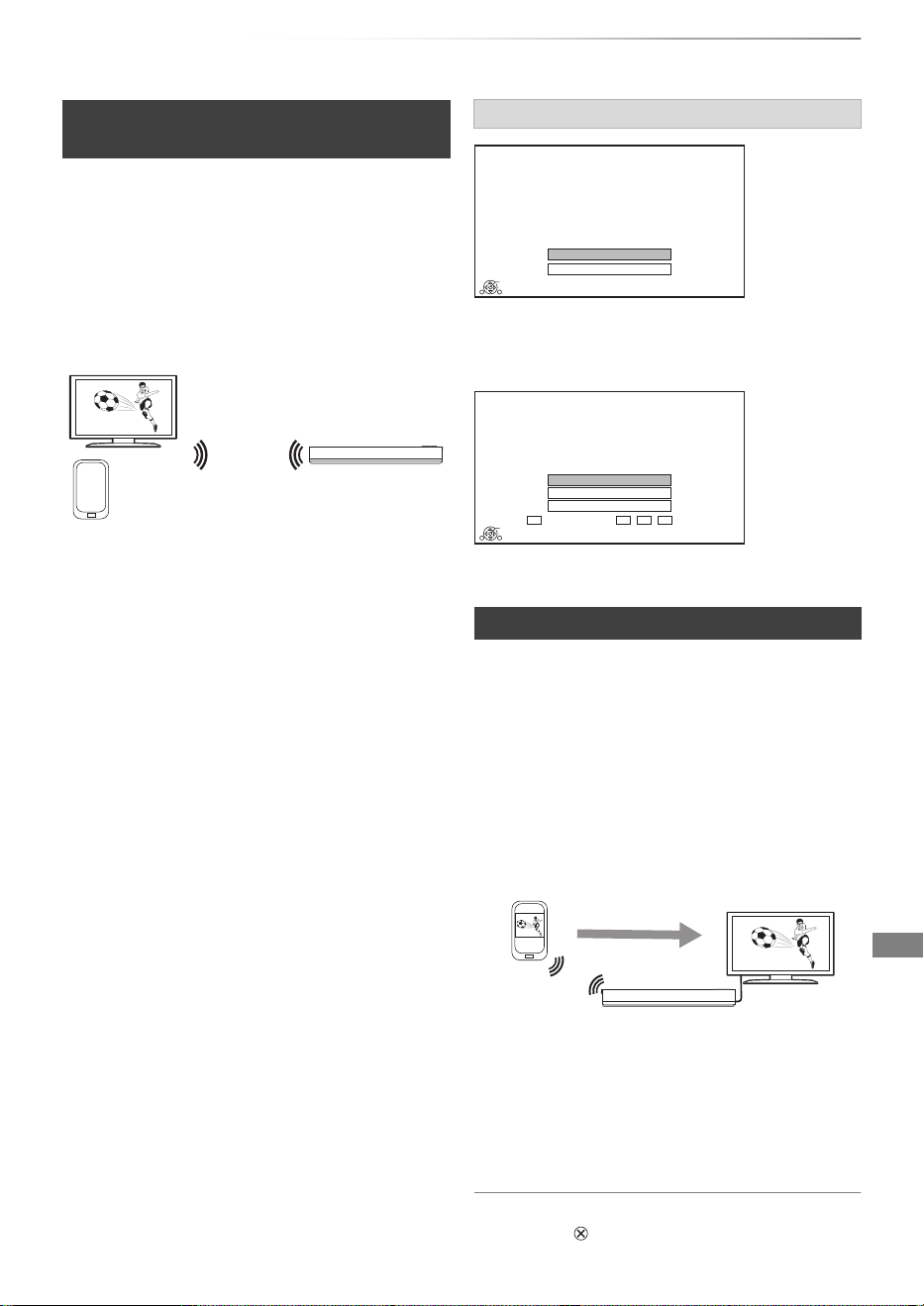
Network
SQT1119
63
Wi-Fi Direct is a standard that enables wireless
LAN devices to communicate each other directly
without a wireless broadband router.
This unit can be connected wirelessly and directly
to other DLNA compatible equipment on a
temporary basis, regardless of the network
connection and settings of this unit.
1 Press [FUNCTION MENU].
2 Select “Wi-Fi Direct” in “Home Network”,
then press [OK].
3 Select the item, then press [OK].
• Set up the device to be connected so that a
Wi-Fi Direct connection can be made. For
details, refer to the operating instructions
for the device to be connected.
4 Select the device to be connected, then
press [OK].
• If the device you want to connect to is not
displayed, switch the connection method
by pressing the yellow button.
If the corresponding device is not found even after
the search is run again, select “Next” and change
the connection method.
Select the connection method according to the
device to be connected.
You can enjoy the content you are viewing on a
Miracast-compatible smartphone, etc. on the big
screen of your TV.
• Compatible with Android
TM
device, ver. 4.2 and
above and Miracast certified.
For information on whether the smartphone, etc.
supports Miracast, contact the manufacturer of
the device.
1 Press [FUNCTION MENU].
2 Select “Miracast” in “Home Network”, then
press [OK].
3 Operate the Miracast compatible equipment.
To exit from Miracast
Press [EXIT ].
Using Smart Home Networking
(DLNA) with Wi-Fi Direct
®
5 When selected “DLNA Client”:
Go to step 4 on page 61.
When selected “DLNA Server”:
Operate the playback equipment (Client).
When selected “Media Renderer”:
Operate the Digital Media Controller.
Wi-Fi Direct compatible equipment
This unit
Connecting temporarily
When no devices are found
Using Miracast
TM
Wi-Fi Direct Connection
Device not found.
To connect with a Wi-Fi Direct compatible device,
please check connection mode of pairing device and
select “Search again”.
To connect with a Wi-Fi Direct incompatible device,
please select “Next”.
OK
Search again
Next
Wi-Fi Direct Connection
Please select connection method. Press RED button to
change the wireless type of connection with
the pairing device.
Press RETURN to finish.
Current Wireless type :
Wireless type
802.11n/g/b (2.4GHz)
OK
RETURN
WPS (PUSH button)
Manual setting
WPS (PIN code)
Miracast compatible
equipment
This unit
DMR-BWT850EB_eng_SQT1119-2.book 63 ページ 2023年1月11日 水曜日 午後1時37分
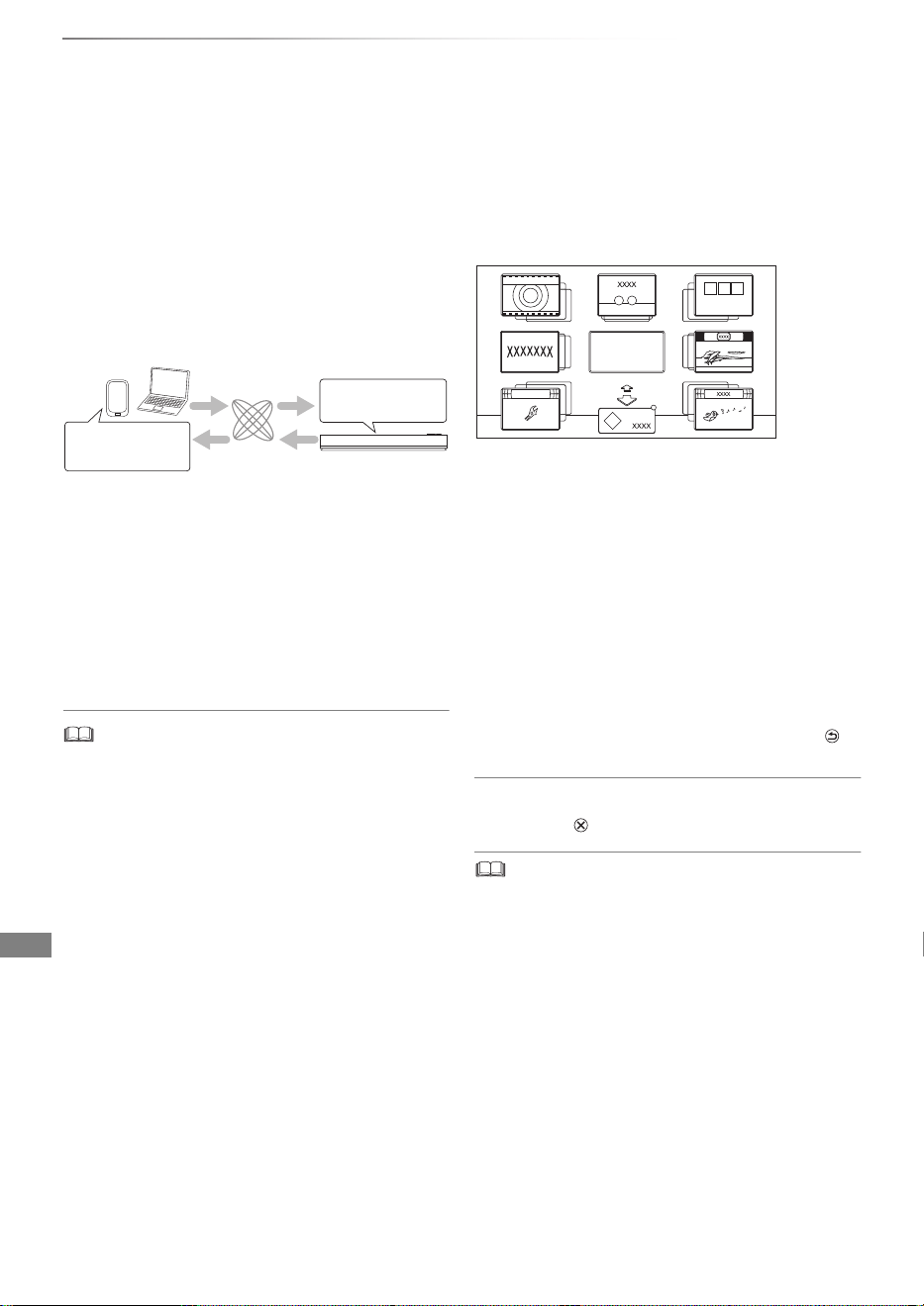
Network
SQT1119
64
TV Anywhere
You can use the following functions, etc.
anywhere using a smartphone, tablet or PC.
- Setting a recording
- Watching TV with this unit’s tuner
§
- Playing back titles recorded on this unit
§
§
Not available for PCs.
(You must register to a service to use these
functions.)
For details, please check the following website.
https://panasonic.jp/support/global/cs/
(This site is in English only.)
Preparation
• Perform network connection and settings.
(> 16, 19)
• TV Anywhere Settings (> 77)
• This unit will always be connected to the Internet when this
function is activated.
• Please note that a regular maintenance or unexpected
trouble may interrupt the service, and that the service
content may be changed or revoked and operation menu
screens may be changed with or without a prior notice.
• We recommend that you use a high-speed connection,
such as LTE or Wi-Fi.
Network Service allows you to access some
specific websites supported by Panasonic, and
enjoy Internet contents such as photos, videos,
etc. from Network Service home screen.
To exit
Press [EXIT ].
• Some features of websites or content of the service may
not be available.
• This unit does not support 4K streaming.
• If using slow Internet connection, the video may not be
displayed correctly. A high-speed Internet service with a
speed of at least 6 Mbps is recommended.
• The services through Network Service are operated by their
respective service providers, and service may be
discontinued either temporarily or permanently without
notice. Therefore, Panasonic will make no warranty for the
content or the continuity of the services.
• In the following cases, settings are possible using “Network
Service Settings”. (> 77)
- When restricting the use of Network Service.
- When the audio is distorted.
• A separate subscription is required to watch Netflix.
This unit
Smartphone, tablet or PC
Internet
Timer recording
Watching TV
Playback titles
e.g.,
Preparation
• Perform network connection and settings.
(> 16, 19)
1 Press [NET].
• When the message is displayed. Please
read it carefully and then press [OK].
• NETFLIX can be accessed directly by
pressing [NETFLIX] button.
2 Select the item, then press [OK].
• Operable buttons:
[3, 4, 2, 1], [OK], [BACK/RETURN ],
colour buttons and number buttons.
MORE
BACK
XXXXXX
Featured Videos
Setup & Help
XXXXXX
XXXXXX
Enjoying Network
Service
DMR-BWT850EB_eng_SQT1119-2.book 64 ページ 2023年1月11日 水曜日 午後1時37分
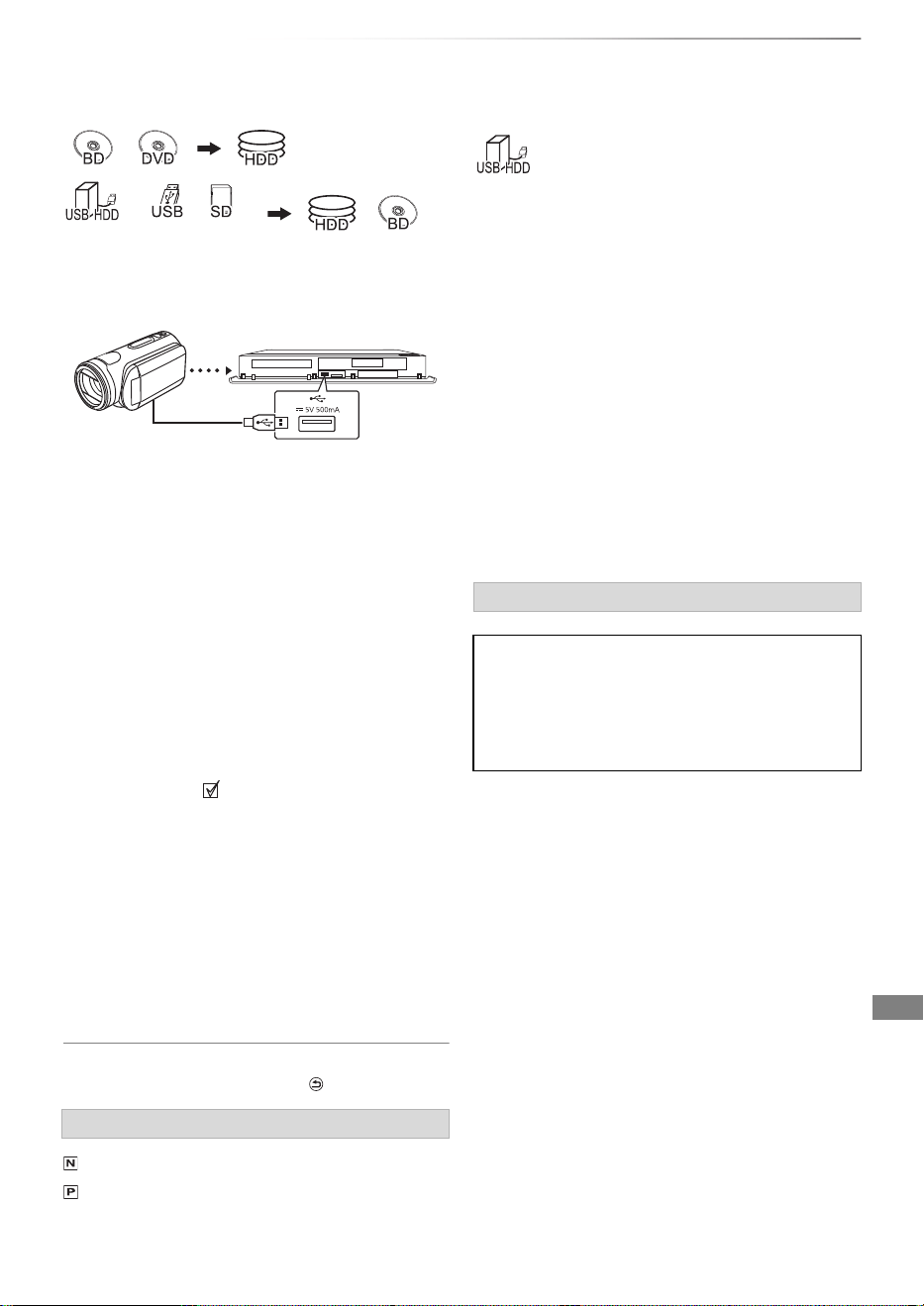
With Other Equipment
SQT1119
65
Copying the HD Video
(AVCHD)
With Other
Equipment
§
“For data files (> 9)” only
e.g., Connecting to the Panasonic video camera
2
Select “Copy Video ( AVCHD )”, then press [OK].
3 When copying from an SD card or video
equipment:
Select “Copy to HDD” or “Copy to Blu-ray
Disc”, then press [OK].
5 Press [OK].
To stop copying
Press and hold [BACK/RETURN ] for 3 seconds.
§
“For recorded titles (> 9)” only
If you intend to move recorded titles to a
USB HDD, the USB HDD must be registered to
this unit first.
Limitation information
• A USB HDD with a capacity of less than 160 GB
cannot be used.
• Registering of a USB HDD will format the
USB HDD and all the content already recorded
will be deleted.
• Up to eight USB HDDs can be registered on this
unit. If you have already registered eight
USB HDDs, it will be necessary to delete one or
more of them before registering a new USB HDD.
• Registered USB HDDs cannot be used with
devices other than this unit.
• Certain non-confirmed USB HDDs cannot be
used with this unit.
• If a problem occurs with the USB HDD, please
contact the manufacturer of the device.
USB connection cable (optional)
1
Connect the video camera or insert the media.
• Make the video camera ready for data transfer.
The menu screen appears. (> 37)
4 Select the title, then press the yellow button.
A check mark is displayed. Repeat this step.
• Press the yellow button again to cancel.
(All the recordings on the same date
become a title.)
6 Select “Start”, then press [OK].
It will automatically format the unformatted
disc, such as a new disc.
• It may take time for the copying to start.
Screen icons
(NTSC)
(PAL)
Title recorded using a different
encoding system from that of the unit.
• Titles displaying these marks
cannot be selected.
§
video camera, etc.
Regarding the external HDD (USB HDD)
Please use a confirmed USB HDD.
For the latest information on confirmed USB
HDDs, please check the following website.
https://panasonic.jp/support/global/cs/
§
Registering the external
HDD (USB HDD)
DMR-BWT850EB_eng_SQT1119-2.book 65 ページ 2023年1月11日 水曜日 午後1時37分
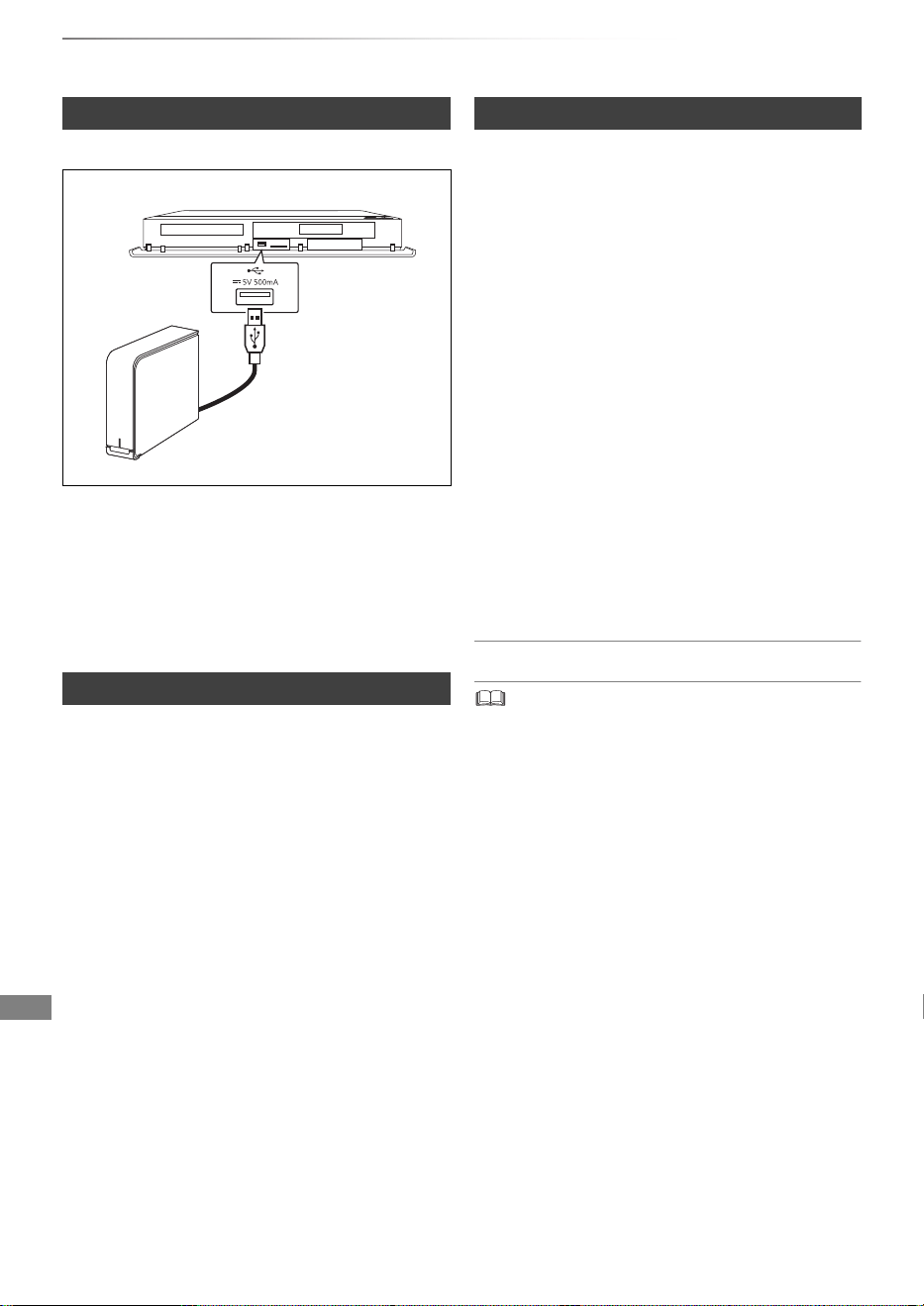
With Other Equipment
SQT1119
66
Registering the external HDD (USB HDD)
Connect this unit with optional USB HDD.
• Only one USB HDD (For recorded titles, > 9)
can be connected at the same time.
• Do not connect additional HDDs using a USB hub.
• For details about connection method, refer to
the instructions supplied with the USB HDD.
• The USB HDD can be connected to the USB
port on either the front or rear of this unit.
Disconnecting without following this procedure
may result in the loss of recorded content from
the USB HDD or the internal HDD.
1 Press [FUNCTION MENU].
2 Select “Basic Settings” in “Setup”, then press
[OK].
3 Select “Settings for USB HDD” in “HDD /
Disc / USB HDD”, then press [OK].
4 Select “USB HDD Disconnection”, then
press [OK].
5 Select “Yes”, then press [OK].
6 Disconnect the USB HDD from this unit.
• If the registering screen appears when
connecting the USB HDD, go to step 5.
1 Press [FUNCTION MENU].
2 Select “Basic Settings” in “Setup”, then press
[OK].
3 Select “Settings for USB HDD” in “HDD /
Disc / USB HDD”, then press [OK].
4 Select “USB HDD Registration”, then press
[OK].
6 When the registering is complete, message
screen appears.
Press [OK].
7 The confirmation screen appears.
Press [OK].
To cancel all USB HDD registrations (> 73)
• It is not possible to play back the content on the USB HDD
whose registration has been cancelled.
• You can check the registration number of the USB HDD on
the Video Menu. (> 34)
Connecting the USB HDD
Disconnecting the USB HDD
This unit
e.g.,
USB HDD
Registering the USB HDD
5 Select “Yes”, then press [OK].
DMR-BWT850EB_eng_SQT1119-2.book 66 ページ 2023年1月11日 水曜日 午後1時37分

Convenient functions
SQT1119
67
VIERA Link functions
Convenient
functions
What is VIERA Link?
VIERA Link is a convenient function which will link
the operations of this unit and a Panasonic TV
(VIERA) or an amplifier/receiver. You can use this
function by connecting the equipment with the
HDMI cable. See the operating instructions for
connected equipment.
When the following operations are performed, the
input channel of the TV will be automatically
switched and the screen of this unit will be
displayed. Additionally when the TV is off, the TV
will automatically turn on.
- When play starts on this unit
- When an action that uses Video Menu etc, is
performed
When you set the TV to standby mode, this unit is
also automatically set to standby mode.
• Power off link function does not work when
manual recording, copying etc.
The following operations make it possible to keep
the power of the unit on and to play music
continuously.
When the unit is directly connected to an
amplifier/receiver.
1 While playing music
Press [OPTION].
2 Select “TV Power Off”, then press [OK].
• Sound may be discontinued for several seconds
when the power to the TV is turned off.
You can operate this unit using the TV remote
control.
Refer to the operating instructions of the TV about
the buttons that you can use.
• VIERA Link, based on the control functions provided by
HDMI which is an industry standard known as HDMI CEC
(Consumer Electronics Control), is a unique function that
we have developed and added. As such, its operation with
other manufacturers’ equipment that supports HDMI CEC
cannot be guaranteed.
• These functions may not work normally depending on the
equipment condition.
• Use the remote control supplied with this unit if you cannot
operate this unit using buttons on the TV remote control.
Automatic input switching/
Power on link
Power off link
Playing music continuously even after
turning off power to the TV
Easy control only with Panasonic TV’s
remote control
DMR-BWT850EB_eng_SQT1119-2.book 67 ページ 2023年1月11日 水曜日 午後1時37分
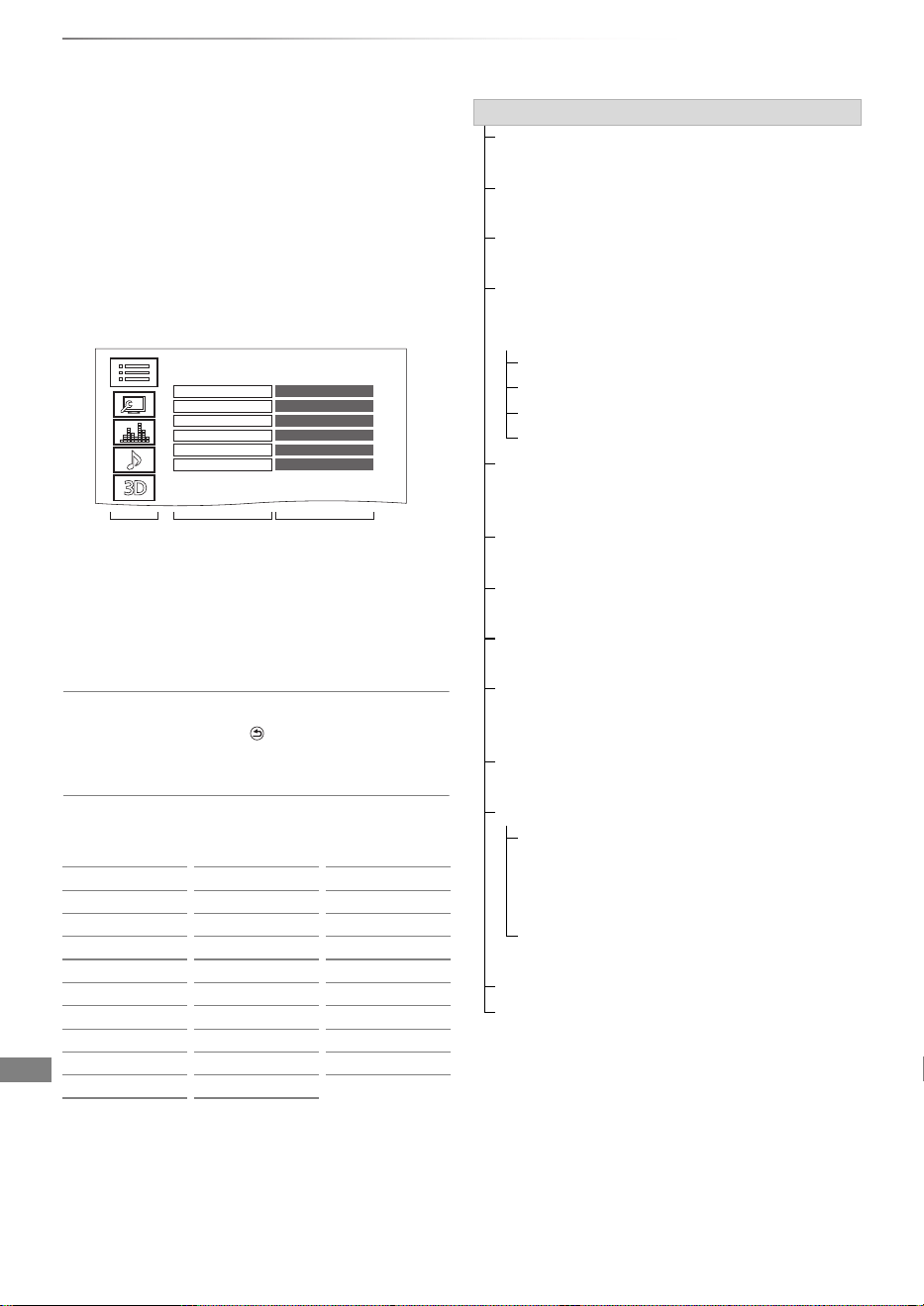
Convenient functions
SQT1119
68
Playback menu
A variety of playback operations and settings can
be performed from this menu.
Available options differ depending on the playing
contents and the condition of the unit.
1 Press [OPTION].
2 Select “Playback Settings” in “Playback
Menu” or select “Playback Settings”, then
press [OK].
3 Select the menu, then press [OK].
4 Select the item, then press [OK].
5 Change the setting.
To clear the Playback menu
Press [BACK/RETURN ] until the Playback
menu disappears.
Language
ENG English JPN Japanese ARA Arabic
FRA French CHI Chinese HIN Hindi
DEU German KOR Korean PER Persian
ITA Italian MAL Malay IND Indonesian
ESP Spanish VIE Vietnamese MRI Maori
NLD Dutch THA Thai BUL Bulgarian
SVE Swedish POL Polish RUM Romanian
NOR Norwegian CES Czech GRE Greek
DAN Danish SLK Slovak TUR Turkish
POR Portuguese HUN Hungarian ¢ Others
RUS Russian FIN Finnish
Basic Operation
Multi Audio Audio1 (Dolby D)
Subtitle Language eng (MPEG)
Subtitle Settings On
Audio Channel LR
Repeat Play Off
Aspect Normal
Menu
Item
Setting
Basic Operation
Soundtrack
§
Show or change the soundtrack.
Multi Audio
Switch in the case of multiple audio.
Audio Channel
Change audio (LR/L/R) during playback.
Subtitle Settings
§
Turn the subtitle on/off, and change the
language depending on the media.
Subtitle Settings
Subtitle Style
Subtitle Position
Subtitle Luminance
Subtitle Language
Select the subtitle language in the case of
multiple languages.
Angle
§
Change the number to select an angle.
Repeat Play
Select the item which you want to repeat.
Random
Select whether to play random or not.
Video
The original video recording method
(MPEG-4 AVC etc.) appears.
Primary Video
The original video recording method appears.
Secondary Video
Video
Select on/off of images.
The original video recording method
appears.
Soundtrack
Select on/off of audio and the language.
Aspect (> 85)
Reception
The radio wave status during the playback of
Smart Home Networking (DLNA) is displayed.
(Only when a wireless connection is used)
§
With some discs, you may only be able to
make changes using the menus on the disc.
DMR-BWT850EB_eng_SQT1119-2.book 68 ページ 2023年1月11日 水曜日 午後1時37分
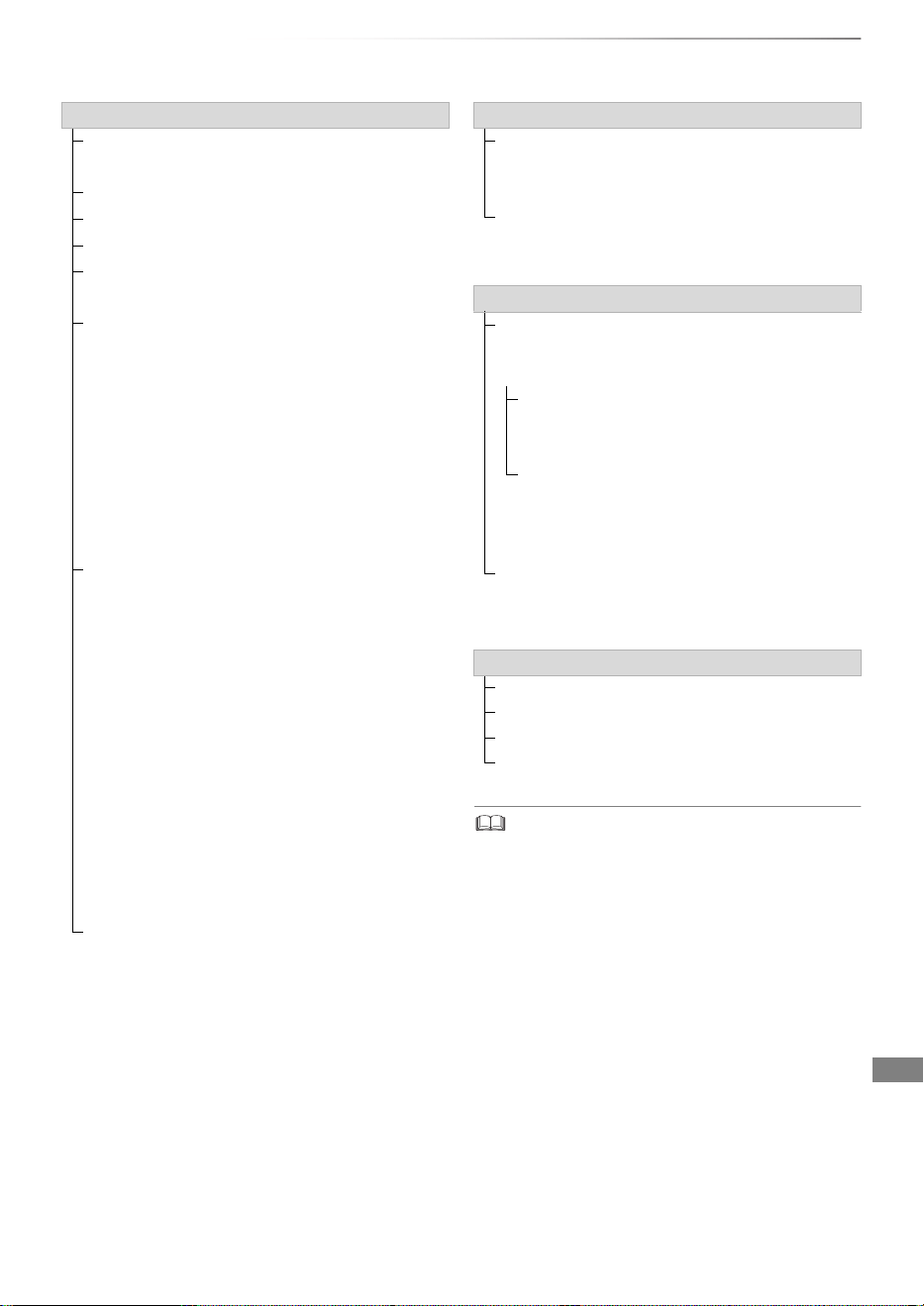
Convenient functions
SQT1119
69
Sound Effects
• The menu is not displayed when playing photos.
Picture Settings
Picture Type
Select the picture type.
Sharpness Adjustment
Noise Reduction
Luminance/Colour Adjustment
Bandwidth Limitation
Adjusts the bandwidth limitations.
24p / 25p Conversion
Plays back videos with film-like motion.
• This function is available on the following
conditions:
- “HDMI Video Format” set to “Automatic”,
“1080i
§
” or “1080p
§
” (> 75)
§
Only for 24p Conversion
- Connect 24p/25p compatible TV.
• Noise may appear on the image when you
switch the setting.
Progressive
Select the method of conversion for
progressive output to suit the type of title being
played.
•Auto
Automatically detects the film and video
content, and appropriately converts it.
•Video
Select this setting when the content is
distorted if “Auto” is selected.
•Film
Select this if the edges of the film content
appear jagged or rough when “Auto” is
selected. However, if the video content is
distorted, then select “Auto”.
Reset to Default Picture Settings
Restores the default settings of the Picture
Settings menu.
Sound Effect Settings
DSD Decode Sampling Frequency
Select the settings that suit your sound quality
preferences.
DSD LPF Setting
Select the settings that suit your sound quality
preferences.
Sound Settings
Sound Effects
• This function is effective when “Digital Audio
Output” is set to “PCM”. (> 74)
Night Surround
Enjoy a movie with powerful sound even
when the volume is kept low at night.
Re-master 1-2
Sound becomes more natural by adding
higher frequency signals not recorded on
the track.
Dialogue Enhancer
The volume of the centre channel is raised to
make dialogue easier to hear.
3D Settings (> 41)
Signal Format
3D Picture Mode
Manual Settings
Graphic Display Level
DMR-BWT850EB_eng_SQT1119-2.book 69 ページ 2023年1月11日 水曜日 午後1時37分
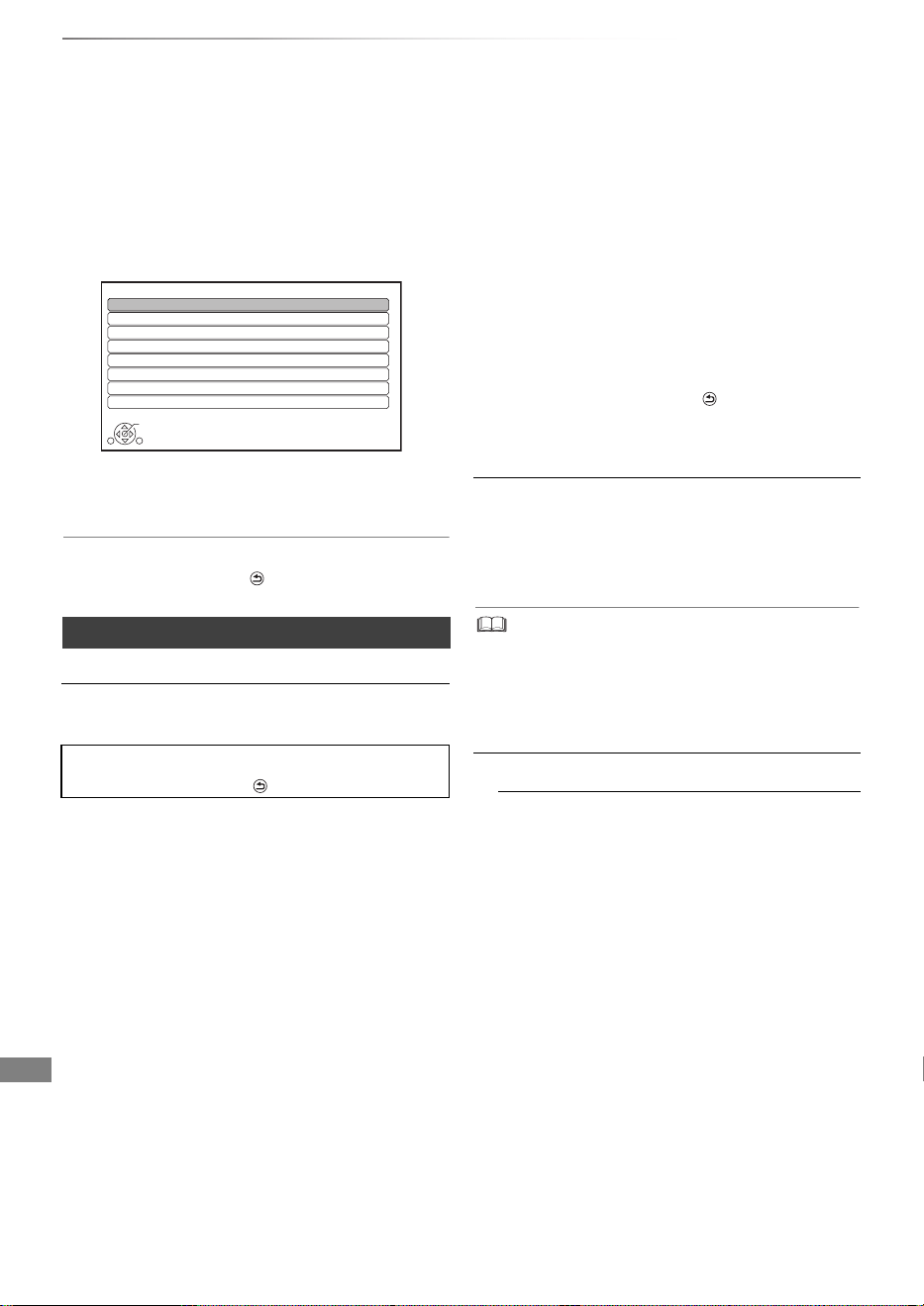
Convenient functions
SQT1119
70
Basic Settings
You can change the unit’s settings of Digital TV
Tuning, Sound, Display, Connection, Network etc.
in the menu.
1 Press [FUNCTION MENU].
2 Select “Basic Settings” in “Setup”, then press
[OK].
3 Select the menu, then press [OK].
To return to the previous screen
Press [BACK/RETURN ].
4 Select the item, then make the setting.
Tuning
Favourites Edit
You can create four favourites of channels for
making viewing and recording easier.
After editing as follows, save the Favourites.
Press [BACK/RETURN ], then press [OK].
• To select the other Favourites list:
Press the green button.
• To add channels to the Favourites list:
Select the channel in the “All DVB Channels”
column, then press [OK]. Repeat this step.
• Yellow: Add all the available channels to the
Favourites. (This function is available only
when there are no channels in the
“Favourites”.)
• To change the order of the channels list:
1 Select the channel in the “Favourites”
column to move, then press the green
button.
2 Select the new position, then press the
green button.
Basic Settings
OK
RETURN
Tuning
HDD / Disc / USB HDD
Picture
Sound
Display
Connection
Network
Others
• To delete channels:
Select the channel in the “Favourites” column,
then press [OK].
• Yellow: Delete all channels.
• To change the name of the Favourites list:
1 Press the red button in the “Favourites”
column.
2Press [3, 4, 2, 1] to select a character,
then press [OK].
Repeat this step to enter other characters.
• Red: Delete a character.
• Blue: Delete all characters.
3 Press [BACK/RETURN ].
Auto Setup
You can restart the Auto Setup. (> 17)
PIN is required when you have locked channels.
(> 71, Child Lock List)
Select “Yes”, then press [OK].
• The timer recording programmes are cancelled.
• If you perform “Channel Sorting by Region” (> 71), you
can sort the channel list best suited to your region after
Auto tuning is finished.
Settings for Channels
Channel List
You can edit the channel list.
• To hide unwanted channels
1 Select the channel.
2 Press [OK].
The check mark is removed.
• Yellow: Reveal all channels.
• To change the channel number assignment
1 Select the channel to change, then press
the green button.
2 Enter the channel number to reassign
with the number buttons.
3 Press [OK].
• To set the channel manually
1 Press the red button.
2 Refer to “Manual Tuning”. (> 71)
DMR-BWT850EB_eng_SQT1119-2.book 70 ページ 2023年1月11日 水曜日 午後1時37分
Convenient functions
SQT1119
71
Channel Sorting by Region
If you want to sort the channel list best suited
to your region, follow the on-screen
instructions to select the region you live in.
Normally, you should select “Best signal
quality (All Regions)”.
Manual Tuning
You can add new channels manually.
1Press [3, 4] to select the frequency.
• Adjust the frequency by checking the
signal strength and signal quality
displays.
2 Press [OK] to start scan.
• The set channel is displayed in the table.
Update Channel List
You can update the channel list to the latest
one.
Signal Condition
You can check the quality and strength of
signals.
Press [CH WX] to select the channel.
• The channels you can receive are affected by weather
conditions, seasons, time (day/night), region, length of
the cable that is connected to the aerial, etc.
• When the signal is too strong (red bar), reduce the
signal amplification at your aerial. (For details, consult
your dealer.)
New Channel Message
Set whether to obtain the information
automatically when a new DVB channel is
added.
Child Lock
You can restrict the viewing/playback/recording
of channels unsuitable to children.
• PIN is required to change. (> 22)
Child Lock List
1 Select the channel to lock.
2 Press [OK].
is displayed.
• Press [OK] again to cancel.
• Green: Lock all channels.
• Yellow: Unlock all channels.
Player PIN Control
You can restrict the viewing of Digital teletext
(MHEG) unsuitable to children.
Preferred Multi Audio
Multi Audio
Select the language for multi broadcast.
If the selected language is not available, the
original language will be selected.
Audio Description
(When Audio Description is available in the
programme)
When “Automatic” is selected, Audio
Description will be set as default while
watching.
• When “Dolby D / Dolby D + / Dolby True HD”,
“DTS/ DTS-HD”, “MPEG” or “HE-AAC” is set to
“Bitstream”, the Audio Description may not work. Set
them to “PCM” (> 74, Digital Audio Output).
Preferred Subtitles
Subtitles
Choose the subtitle language for broadcast. If
the selected language is not available, then
the original language will be selected.
HbbTV Setting
Turn on/off the HbbTV service.
• When “On” is selected, HbbTV service are
available.
DMR-BWT850EB_eng_SQT1119-2.book 71 ページ 2023年1月11日 水曜日 午後1時37分

Convenient functions
SQT1119
72
Basic Settings
HDD / Disc / USB HDD
Settings for Playback
3D BD-Video Playback
Select the playback method of 3D compatible
video software.
Soundtrack
Select the audio language.
• Enter a code with the number buttons when
you select “Other ¢¢¢¢”.
(> 85, Language code list)
Subtitles
Select the language for subtitle.
• Enter a code with the number buttons when
you select “Other ¢¢¢¢”.
(> 85, Language code list)
Menu
Select the language for disc menus.
• Enter a code with the number buttons when
you select “Other ¢¢¢¢”.
(> 85, Language code list)
BD-Live
You can restrict Internet access when
BD-Live functions are used.
• If “On ( Limit )” is selected, Internet access
is permitted only for BD-Live contents which
have content owner certificates.
BD-Video Parental Control
Set an age limit of BD-Video play.
• PIN is required to change. (> 22)
DVD-Video Parental Control
Set a rating level to limit DVD-Video play.
• PIN is required to change. (> 22)
Child Lock
You can restrict playback of the following titles:
- Titles that are recorded with guidance
information
- Titles restricted by Child Lock List (> 71)
(Titles with
icon in Video Menu, etc.)
• PIN is required to change. (> 22)
Pure Sound mode
You can enjoy movies or music in an environment
more suitable for viewing by stopping the rotation of
the HDD when playing back commercial
BD-Videos, DVD-Videos or music CDs.
• If “On” is selected, timer recording does not
start while playing back BD-Video,
DVD-Video or music CD.
Settings for Recording
REWIND LIVE TV
Turn on/off the REWIND LIVE TV function.
• When “Automatic Standby” is set to “Off”
(> 79), “On” cannot be selected.
Aspect for Recording
Sets the aspect ratio when recording or
copying except in DR mode.
• “HG”, “HX”, “HE”, “HL” or “HM” mode:
If “Automatic” is selected, the title will be
recorded with the original aspect ratio.
• “XP”, “SP”, “LP” or “FR (recordings less
than 5 hours)” mode:
If “Automatic” is selected, the title will be
recorded with the original aspect ratio at the
time when recording started (including when
recording started at a commercial, etc.).
• “EP” or “FR (recordings 5 hours or longer)”
mode:
If “Automatic” is selected, aspect is fixed to
4:3.
• In the following cases, the programme will
be recorded with the original aspect ratio.
- [BD-RE] [BD-R] When the recording mode is
set to “XP”, “SP”, “LP”, “EP” or “FR”.
• In the following cases, aspect is fixed to 4:3.
- When copying to a +R, +R DL and +RW.
DMR-BWT850EB_eng_SQT1119-2.book 72 ページ 2023年1月11日 水曜日 午後1時37分
Convenient functions
SQT1119
73
Chapter Creation
Set the Chapter Creation method.
• Even if “Automatic” is selected, depending
on the programme to be recorded, the
chapter may not be created correctly.
Disc Speed for High Speed Copy
Select the speed of high-speed copying.
HDD Management
Press and hold [OK] for 3 seconds to show the
following settings.
Delete all titles
Delete all recorded programmes and AVCHD
on the built-in HDD.
• Delete does not work if one or more titles
are protected.
Delete all videos ( MP4 / Xvid / MKV )
Delete all videos (MP4/Xvid/MKV) on the
built-in HDD.
Delete all photos
Delete all photos on the built-in HDD.
Delete all music
Delete all Music on the built-in HDD.
Format HDD
Formatting deletes all contents on the
built-in HDD, and they cannot be restored.
Check carefully before proceeding.
Settings for USB HDD
USB HDD Registration
Register the USB HDD. (> 66)
USB HDD Disconnection
This function puts the USB HDD in a state in
which it can be safely disconnected. (> 66)
USB HDD Management
Press and hold [OK] for 3 seconds to show
the following settings.
Delete all titles
Delete all titles on the USB HDD.
• Delete does not work if one or more
titles are protected.
Format USB HDD
Formatting deletes all contents, and
they cannot be restored. Check
carefully before proceeding.
Cancellation of all USB HDD Registrations
This function cancels the registrations of all
the USB HDDs registered on this unit.
Only do this if you are going to dispose of this unit.
• Before operation, perform “USB HDD Disconnection”
(> above) and remove the USB HDD.
DMR-BWT850EB_eng_SQT1119-2.book 73 ページ 2023年1月11日 水曜日 午後1時37分

Convenient functions
SQT1119
74
Basic Settings
Picture
Still Mode
Select the type of picture shown when you pause play.
•Field:
Select if jittering occurs when “Automatic” is
selected. (The picture is coarser.)
•Frame:
Select if small text or fine patterns cannot be
seen clearly when “Automatic” is selected.
(The picture is clearer and finer.)
Sound
Dynamic Range Compression
To lower the dynamic range for playback (e.g., at
night).
• This does not work depending on broadcasts
and recorded titles.
Downmix
Select the downmix system of multi-channel to
2-channels sound.
• Select “Surround encoded”, when the
connected equipment supports the virtual
surround function.
• There is no effect on “Bitstream” via HDMI AV
OUT and DIGITAL AUDIO OUT terminal.
• The audio will be output in “Stereo” in the
following cases.
- AVCHD playback
- [BD-V] : Playback of clicking sound on the
menu and audio with secondary video in
picture-in-picture mode.
Bilingual Audio Selection
Select whether to record the audio type (“M1” or
“M2”) when:
- File Conversion (> 44)
- Copying to a DVD-R, DVD-RW, +R and +RW.
Digital Audio Output
PCM Down Conversion
Select how to output audio with a sampling
frequency of 96 kHz.
•On:
Signals are converted to 48 kHz.
(Choose when the connected equipment
cannot process signals with a sampling
frequency of 96 kHz.)
•Off:
Signals are output as 96 kHz.
• The signals will be converted to 48 kHz
regardless of the setting in the following
cases.
- When the signals have a sampling
frequency of over 96 kHz.
- When the disc has copy protection.
- When “BD-Video Secondary Audio” is
set to “On”. ([BD-V]) (> below)
Dolby D / Dolby D + / Dolby TrueHD
DTS / DTS-HD
MPEG
HE-AAC
Select the audio signal to output.
• Select “PCM” when the connected
equipment cannot decode the respective
audio format.
• Not making the proper settings may result in
noise.
System Volume Adjustment
If the volume of a programme being watched
through this unit is different than the volume
of a programme being watched directly on the
TV, changing this setting may reduce the gap.
(This function works only while you are
watching a programme or playing back a
programme recorded in DR mode with this
unit.)
BD-Video Secondary Audio
Turn on/off the clicking sound on the menu
and audio with secondary video.
DMR-BWT850EB_eng_SQT1119-2.book 74 ページ 2023年1月11日 水曜日 午後1時37分
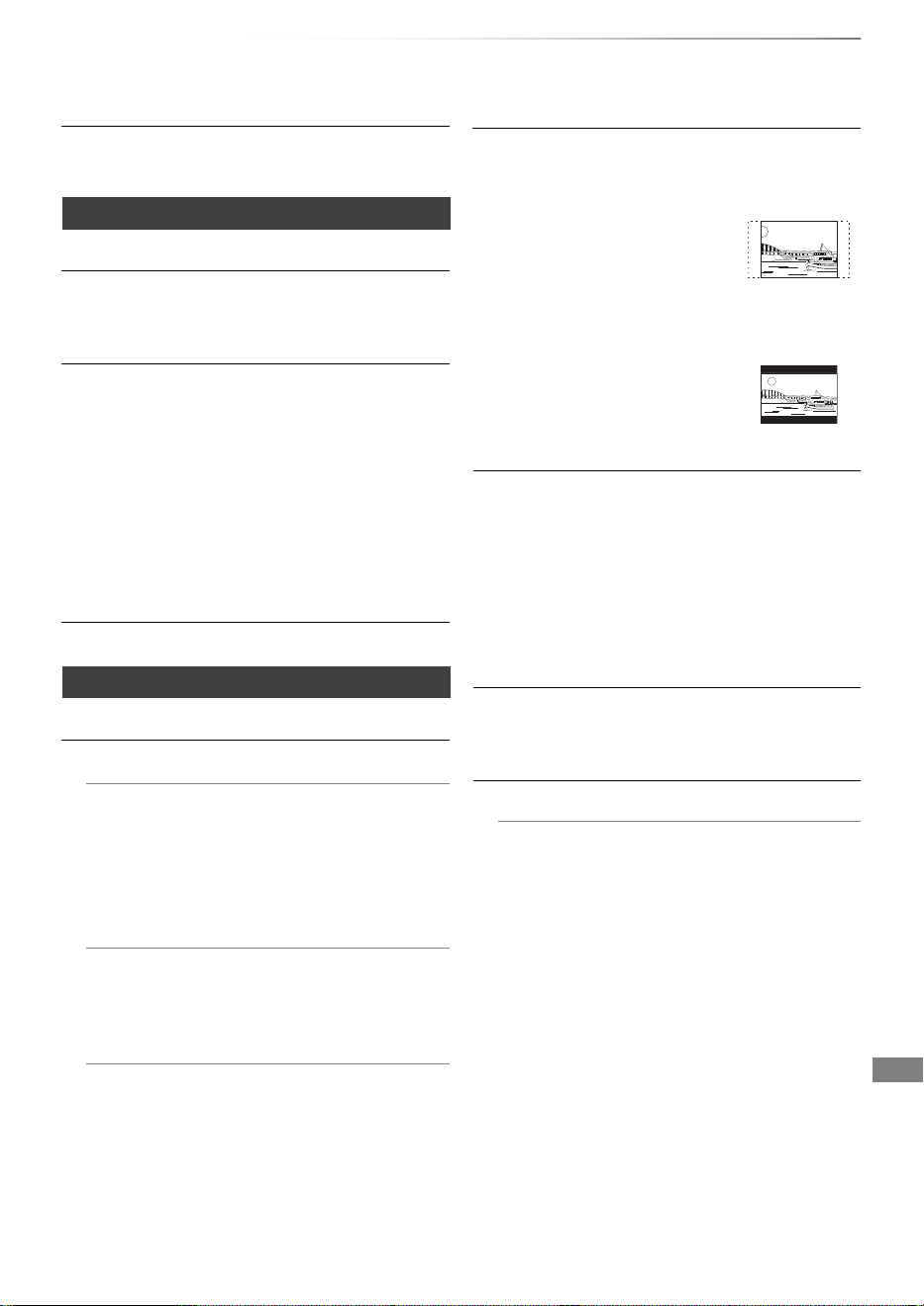
Convenient functions
SQT1119
75
Audio Delay
Mis-sync between the video and audio is
corrected by delaying the audio output.
Display
On-Screen Information
Select the time until the channel information
screen (> 22) disappears automatically.
Front Panel Display
Changes the brightness of the front panel
display.
• If “Automatic” is selected, the display turns dark
during play and disappears when the unit is in
standby mode. While using this mode, the
standby power consumption can be reduced.
• When “Quick Start” is set to “Off” or “Timer
Setting for Quick Start” (> 79), this function is
fixed to “Automatic”.
Screen Saver
This is to prevent image retention on the screen.
Connection
3D Settings
3D Type
If 3D video cannot be played back in 3D, you
may be able to play it in 3D by changing the
setting.
• Change the settings for 3D on the TV also
when “Side by side” is selected.
3D AVCHD Output
If 2D AVCHD video is recognised as 3D video
and cannot be played back correctly, you may
be able to play it by changing the setting.
3D Playback Message
Set to display or hide the 3D viewing warning
screen.
TV Aspect
Set to match the type of TV connected.
•16:9:
When connected to a 16:9 widescreen TV.
•4:3:
Side picture is trimmed for 16:9
picture.
The pictures may be shown in
the letterbox style depending
on the content.
• Letterbox:
Black bands appear for 16:9
picture.
Aspect for 4:3 Video
To play a 4:3 title, set how to show pictures on a
16:9 TV.
•4:3:
Picture output expands left or right.
• 16:9:
Picture is output as original aspect with side
panels.
TV System
Set in accordance with the TV System for the
connected TV.
HDMI Connection
HDMI Video Format
You can only select items compatible with the
connected equipment.
• If “Automatic” is selected, the output
resolution best suited to the connected TV
(1080p, 1080i, 720p or 576p/480p) is
automatically selected.
• To enjoy High Quality Video up-converted to
1080p, you need to connect the unit to
1080p compatible HDTV. If this unit is
connected to an HDTV through other
equipment, it must also be 1080p
compatible.
DMR-BWT850EB_eng_SQT1119-2.book 75 ページ 2023年1月11日 水曜日 午後1時37分
Convenient functions
SQT1119
76
Basic Settings
24p Output
When playing BD-Video recorded in
24 frames, this unit displays each frame at
1/24 second intervals–the same interval
originally shot with the film movie.
• When this unit is connected to TV
compatible with 4K/24p and “HDMI Video
Format” is set to “Automatic”, images will be
output in 4K/24p.
• When this unit is connected to a TV
compatible with 1080/24p and “HDMI Video
Format” is set to “Automatic”, “1080i” or
“1080p”, images will be output in 1080/24p.
• When BD-Video images other than 24p are played,
images are output at 60p.
• This unit cannot output 4K image when playing back in
3D.
Deep Colour Output
Deep Colour output when a TV that supports
Deep Colour is connected.
HDMI Audio Output
Select “Off” when connected to an
amplifier/receiver with a DIGITAL AUDIO
OUT terminal.
• To enjoy BD-Video that supports
Dolby Atmos or
DTS:X
TM
Connect this unit to an AV amplifier or similar device
that
supports it with an HDMI cable, and select the
following settings:
- Dolby D / Dolby D + / Dolby TrueHD: “Bitstream”
- DTS / DTS-HD: “Bitstream”
- BD-Video Secondary Audio: “Off”
Dolby Atmos is a trademark of Dolby Laboratories.
Contents Type Flag
If “Automatic” is selected, the optimal method
of playback depending on the TV (e.g.
cinema) will automatically be selected (only
when the TV supports Contents Type Flag).
VIERA Link
Select “Off” when you do not want to use
VIERA Link.
Network
Easy Network Setting
Press [OK] to start Easy Network Setting. (> 19)
Network Settings
LAN Connection Mode
Select the LAN connection method.
• When not using wireless LAN (when turning
it off), select “Wired”.
Wireless Settings
This allows to set and check the connection
settings of the Wireless router.
Search for wireless network
WPS (PUSH button)
WPS (PIN code)
Manual Setting
Select a connection method to wireless
access point.
IP Address / DNS Settings
Check the connection of the network or set
the IP address and DNS.
• To set the IP address and DNS
1 Set “IP Address Auto-assignment” and
“DNS-IP Auto-assignment” to “Off”.
2 Select the item, then press [OK] to show
the respective setting.
• When the router’s DHCP server function is
not activated, check the numbers of other
connected devices such as personal
computers, then assign a number different
from those of other devices for the “IP
Address” and assign the same number for
“Subnet Mask” and “Gateway Address”.
DMR-BWT850EB_eng_SQT1119-2.book 76 ページ 2023年1月11日 水曜日 午後1時37分

Convenient functions
SQT1119
77
Proxy Server Settings
Check and set the connection to the Proxy
server.
• Press [OK] to show the respective setting.
Network Service Settings
Second Screen Browsing
When this function is set to “On”, you can
enjoy the content you are viewing on a
Network Service application of
smartphone, etc. with the home network
on the big screen of your TV.
Lock
You can restrict using Network Service.
• PIN is required to change. (> 22)
Automatic Volume Control
Volume is adjusted automatically to the
standard volume while using Network
Service.
• Depending on contents, this function will
not work.
• Select “Off” when the audio is warped.
Notice
Displays the terms of service for the cloud
services.
• You must agree to the terms of use for
the Internet function and the privacy
policy.
TV Anywhere Settings
You must register to a service to use this
function. (> 64)
TV Anywhere
When you control this unit from a
smartphone or a tablet away from home,
set this function to “On”. (> 64)
Device ID
This is the device ID and device password
required for registering to and using a
service.
Initialize Device Password
The device password for this unit is
initialized.
• When you initialize the device password,
you will not be able to use TV Anywhere.
To use the TV Anywhere again, you must
re-register to the service.
DMR-BWT850EB_eng_SQT1119-2.book 77 ページ 2023年1月11日 水曜日 午後1時37分
Convenient functions
SQT1119
78
Basic Settings
Home Network Settings
You can set the DLNA (Server) function.
(> 60)
Home Network function
You can switch between enable/disable of
the DLNA (Server) and DMR (Media
Renderer) function.
• If “On” is selected, the setting for “Quick
Start” is fixed to “On”. (> 79)
• If “Off” is selected, the setting for “TV
Anywhere” and “Networked Standby” is
fixed to “Off”. (> 77, 79)
• When you set “Networked Standby” to
“On”, the setting for this function will also
be changed to “On”, but “Quick Start” will
remain set to “Off”.
• This cannot be set to “On” if the
connection with the wireless broadband
router is not encrypted in the wireless
connection.
Setting device name
It is also possible to change the name of
this unit on the network.
• Select from a preset list
Select the preset name, then press [OK].
• Create name
Enter the name.
Refer to “Entering text”. (> 84)
Conversion Setting for DLNA
•On:
When playing back on DLNA (Client)
compatible equipment, this setting
reduces the chance of break-ups and
freezing of an image by lowering the
image quality.
• When this is set to “On”, switching the channel or
starting playback will take longer.
Resolution Setting for DLNA
When “Conversion Setting for DLNA” is set
to “On”, select the image quality.
Registration type for remote devices
• Automatic:
All connected devices on the same
network can access this unit.
• Manual:
Only registered devices can access this
unit.
Remote device list
• To register equipment manually
1 Select the device name or the MAC
Address for the device you want to
register, then press [OK].
2 Select “Yes”, then press [OK].
• To deregister equipment
1 Select the registered equipment,
then press [OK].
2 Select “Yes”, then press [OK].
• This function cannot be enabled when
“Automatic” is selected in “Registration type for
remote devices”. (> above)
• The maximum number of equipment that can be
registered is 16.
DMR-BWT850EB_eng_SQT1119-2.book 78 ページ 2023年1月11日 水曜日 午後1時37分
Convenient functions
SQT1119
79
Others
Standby Settings
Quick Start
•On:
It is possible to start quickly from standby
mode.
•Off:
Power consumption in standby mode is
minimised. (> 92)
However, startup time from standby mode
will be longer.
• Timer Setting for Quick Start:
“Quick Start” is activated when the set time
comes.
• When “Home Network function” (> 78) or “TV
Anywhere” (> 77) is set to “On”, the setting for this
function is fixed to “On”.
• If “Off” or “Timer Setting for Quick Start” is selected, the
setting for “Front Panel Display” in “Display” is fixed to
“Automatic”. (> 75)
Automatic Standby
Set the time to turn the unit to standby mode
automatically.
When the unit is not operating, the unit will be
turned to standby mode once the set time has
passed.
• When “REWIND LIVE TV” is set to “On”
(> 72), “Off” cannot be selected.
Automatic Standby after OTR
•On:
This unit is turned to standby mode when it
is not operated for approximately 5 minutes
after completing “Automatic Stop” or
“Recording Time” (> 27).
Automatic Standby after Copy
•On:
This unit is turned to standby mode when it
is not operated for approximately 5 minutes
after completing copy (> 48, Copying from
media other than HDD with Video Menu,
Copying titles with copying list).
RF OUT (AerialSignal)
Set whether to output the broadcasting signal
from RF OUT or not while in standby mode
(When “Quick Start” is not activated).
• If “On” is selected, the broadcasting signal
is output from this unit.
Networked Standby
This unit can be turn on using a wake-up
message sent from the network device in the
home network. (Available only when “Quick
Start” is set to “Off”.)
•On:
- Power consumption increases when this
unit is in standby mode. (> 92)
- This unit can be used as a DLNA Server
when this unit is in standby mode. (This is
possible if you have ever connected your
client Panasonic recorder to the network
using this unit as a server.)
• Off:
- Power consumed when this unit is in
standby mode becomes smaller than that
consumed when “On” is selected. (> 92)
- When this unit is in standby mode, it
cannot be used as a DLNA Server.
• When you change the “On/Off” setting of this
function, the “On/Off” setting of “Home
Network function” also changes.
• If “Quick Start” and “Home Network function”
are set to “On”, even when this unit is turned
off, it can be used as a DLNA Server.
• This function can be used with Panasonic recorders to
be released from September 2015 and beyond.
• This function may not work correctly depending on
network environment,
DMR-BWT850EB_eng_SQT1119-2.book 79 ページ 2023年1月11日 水曜日 午後1時37分
Convenient functions
SQT1119
80
Basic Settings
Remote Control
Change the remote control code on the main unit
and the remote control if you place other
Panasonic products close together.
• Use “BD 1”, the factory set code, under normal
circumstances.
1 Select the code, then press [OK].
2 While pressing [OK], press and hold the
number button ([1] to [6]) for more than
5 seconds.
3 Press and hold [OK] for more than 5 seconds.
4 Press [OK].
Clock
If the time is not set correctly, use the settings
listed in the method below.
• Manual Setting
1 Select “Off” of “Automatic”, then press [OK].
2 Select the item you want to change.
3 Change the setting.
4 Press [OK] when you have finished the
settings.
Owner ID
In order to prevent another person from using this
unit if it is stolen, you can set a PIN and input
your personal information (NAME, HOUSE NO,
POSTCODE).
Once the PIN has been set, you cannot return
to the factory preset. Make sure not to forget
this.
PIN Entry
You can set/change the PIN for parental control.
1 Enter your 4-digit PIN with the number buttons.
2 Enter the new 4-digit PIN with the number
buttons.
• Make a note of PIN in case you forget it.
e.g.,
3 Press [OK].
OK
Remember the PIN.
PIN Entry
0 0 0 0
System Update
Software Update in Standby
When you set this unit to standby mode,
software (firmware) updates (> 81) are
downloaded automatically at the time you
have specified.
Software Update Now ( Broadcast )
Refer to “Software (Firmware) Update”.
(> 81)
Software Update Now ( Internet )
Refer to “Software (Firmware) Update”.
(> 81)
Software Licence
Information about the software licence is
displayed.
System Information
Display Software (firmware) version and
Wireless Module version (When using wireless
connection only) of this unit.
Initialize
Shipping Condition
All the settings except for some settings
return to the factory preset.
• The timer recording programmes are also
cancelled.
• The device password is also initialized.
(> 77)
Default Settings
All the settings other than the tuning settings,
clock settings, disc language settings,
parental control settings, remote control
code, etc. return to the factory presets.
DMR-BWT850EB_eng_SQT1119-2.book 80 ページ 2023年1月11日 水曜日 午後1時37分
Convenient functions
SQT1119
81
4K Networking
You can save 4K videos/photos recorded with
digital cameras and other 4K-compatible devices
to the HDD of this unit and play them back.
∫ 4K videos
[HDD]
Refer to “Playing titles on the HDD”. (> 34)
[USB] [SD]
Refer to “Playing titles on the media”. (> 37)
∫ Photos
Refer to “Playing photos”. (> 54)
• Video may not be played back smoothly depending on the
USB device.
• You can also watch the 4K contents stored in the DLNA Certified
media server. (
>
60, Smart Home Networking (DLNA))
∫ 4K videos
Refer to “Copying video files”. (> 53)
∫ Photos
Refer to “Copying photos”. (> 57)
Software of this unit can be updated automatically
by the following methods at the specified time.
• From Internet
Network connection and setting are required. (
>
16, 19)
If a software (firmware) update is available, a
notification is displayed.
Update of the software (firmware) will start when
the unit is turned to standby mode.
• It may take up to a few hours until the update is completed
depending on the network environment.
• The timer recording always takes preference over the
software (firmware) download; if the timer recording is
scheduled to start, the downloading will be performed at the
next opportunity.
• For the latest firmware update information, please refer to
the Panasonic support site below.
• You can also download the latest software (firmware) from
the following website.
https://panasonic.jp/support/global/cs/
Compatible 4K content
• MP4/MOV (4K/24p, 25p and 30p)
- bit rate up to 100 Mbps
- resolution up to 3840k2160 25p/30p,
4096k2160 24p
• JPEG, MPO
- resolution 3840k2160
Photos with a resolution greater than
3840k2160 are played back in 3840k2160.
Preparation
• Connect a 4K-compatible TV to this unit. (> 14)
Playing back 4K content
Copying 4K content
[HDD] ,. [SD]
[USB] > [HDD]
You cannot operate the unit until the update
is complete. Don’t remove the AC mains lead
during the update. Removing the AC mains
lead while the update is in progress may
damage the unit.
Update software (firmware) of this unit
• From broadcasts
(Default setting is 3 a.m. > 80, Software
Update in Standby)
To update the software (firmware)
immediately
Use the “Software Update Now ( Broadcast )”
function or “Software Update Now ( Internet )”
function. (> 80)
New software version has been found.
The software will be updated automatically
after this unit is switched to standby.
Do not disconnect the AC mains lead.
Software (Firmware)
Update
DMR-BWT850EB_eng_SQT1119-2.book 81 ページ 2023年1月11日 水曜日 午後1時37分
Convenient functions
SQT1119
82
Other operations
[BD-RE] [BD- R] [RAM] [DVD-R] [DVD-R W] [+R] [+RW]
[SD]
1 Press [FUNCTION MENU].
2 Select “Media”, then press [OK].
[BD-RE] [BD- R] [RAM] [DVD-R] [DVD-R W] [+R] [+RW]
This function is to name a disc.
Refer to “Entering text”. (> 84)
• The disc name is displayed in the Blu-ray Disc
Management/DVD Management window.
• [DVD-R] [DVD-RW] [+R] With a finalised disc, the
name is displayed on the Top Menu.
• [+RW] The disc name is displayed only if you
play the disc on other equipment after creating
Top Menu.
• Do not perform this operation before copying HD Video
(AVCHD) to DVD-R or DVD-R DL. (> 53)
[BD-RE] [BD- R] [RAM]
Select “Yes”, then press [OK].
e.g.,
[BD-RE] [BD-R] [RAM]
• Photo data (JPEG/MPO) or computer data cannot be
deleted.
[BD-RE] [RAM] [DV D -RW] [+RW] [SD ]
[BD-R] [+R] (New disc only)
Formatting deletes all contents (including
computer data), and they cannot be restored.
Check carefully before proceeding.
1 Select “Yes”, then press [OK].
2 Select “Start”, then press [OK].
3 Press [OK].
[RAM] To stop formatting
Press [BACK/RETURN ].
• You can cancel formatting if it takes more than
2 minutes. The disc must be reformatted if you
do this.
• Do not disconnect the AC mains lead while formatting.
This can cause the disc or the card unusable.
• The contents are deleted when you format a disc or card
even if you have set protection.
• [RAM] Formatting normally takes a few minutes; however, it
may take up to a maximum of 70 minutes.
• When a disc or card has been formatted using this unit, it
may not be possible to use it on any other equipment.
• It will become DVD Video format when a DVD-RW recorded
in DVD Video Recording format is formatted with this unit.
Media management
3 Select the media, then press [OK].
4 Select the management item, then press
[OK].
• Selectable items will change depending on
the selected item and inserted media.
Disc Name
Disc Protection
• To release the protection
Repeat the same steps.
• The screen icon will be switched to “Off”.
On
Disc Name
Delete all titles
Disc Protection
Delete all titles
1 Select “Yes”, then press [OK].
2 Select “Start”, then press [OK].
Format Disc/Format SD Card
DMR-BWT850EB_eng_SQT1119-2.book 82 ページ 2023年1月11日 水曜日 午後1時37分

Convenient functions
SQT1119
83
[DVD-R] [DVD-RW] [+R] [+RW]
You can select the background for DVD-Video
Top Menu.
Select the background, then press [OK].
[DVD-R] [DVD-RW] [+R] [+RW]
You can select whether to show the Top Menu
after finalising or creating Top Menu.
Select “Top Menu” or “Title 1”, then press [OK].
Top Menu:
The Top Menu appears first.
Title 1:
The disc content is played without displaying the
Top Menu.
[DVD-R] [DVD-RW] [+R] (You can play the disc on
compatible DVD players by finalising it on the
unit.)
[BD-R] (Finalising BD-R prevents accidental
recording or editing.)
1 Select “Yes”, then press [OK].
2 Select “Start”, then press [OK].
3 Press [OK].
After finalising
• [BD-R] [DVD-R] [+R] The disc becomes play-only
and you can no longer record or edit.
• [DVD-RW] You can record and edit the disc after
formatting.
• Do not disconnect the AC mains lead while finalising.
This can cause the disc unusable.
• You cannot cancel finalising.
• Finalising takes up to 15 minutes (Up to 60 minutes in case
of DVD-R DL and +R DL).
• Depending on the disc, it may take longer than displayed on
the confirmation screen (approximately four times longer).
• You cannot finalise discs recorded on other manufacturer’s
equipment.
• [DVD-R] [DVD-RW] [+R] If you finalise discs recorded on
Panasonic equipment other than this unit, the background
selected as “Top Menu” may not be displayed.
• Discs finalised on this unit may not be playable on other
players due to the condition of the recording.
[+RW]
You can create Top Menu for displaying on other
equipment.
Make selections from “Top Menu” and “Auto-Play
Select” before creating Top Menu.
1 Select “Yes”, then press [OK].
2 Select “Start”, then press [OK].
3 Press [OK].
• You cannot use the Top Menu for playing on this unit.
• The created menu is deleted when you record or edit the
disc.
Top Menu
Auto-Play Select
Finalise
Create Top Menu
DMR-BWT850EB_eng_SQT1119-2.book 83 ページ 2023年1月11日 水曜日 午後1時37分
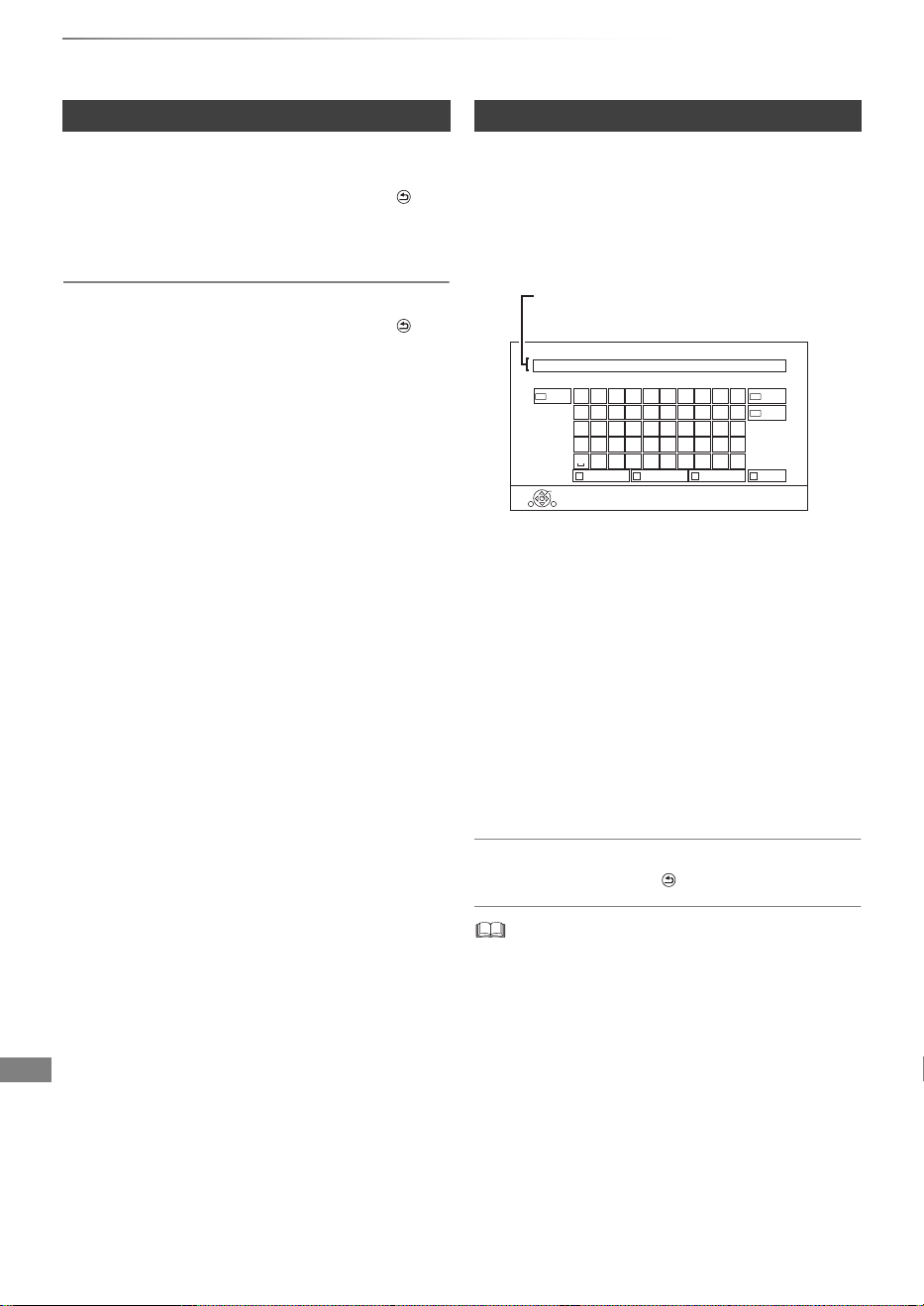
Convenient functions
SQT1119
84
Other operations
The HOLD function deactivates all buttons on the
unit and remote control.
Press and hold [OK] and [BACK/RETURN ]
simultaneously until “X HOLD” appears on the
front panel display.
To cancel the HOLD function
Press and hold [OK] and [BACK/RETURN ]
simultaneously until “X HOLD” disappears.
Preparation
• Show the “Enter Title Name” screen, etc.
To end partway
Press [BACK/RETURN ]. (Text is not added.)
• The maximum number of characters depends on the
media.
HOLD function Entering text
1 Select a character, then press [OK].
Repeat this step to enter other characters.
• Green: Enter Alphanumeric characters
• Red: Enter Symbols
• Yellow: Enter Other Characters, such as
umlaut mark or accent grave
•[PAUSE;]: Delete a character
•[PLAY/a1.3 1]: Shift the alphabetic
characters on the screen to upper
case/lower case
2 Press [STOP ∫] (Finish).
“Writing...” appears then the screen returns
to the previous screen and so on.
OK
RETURN
1
q
a
z
Delete
2
w
x
/
3
e
c
:
4
r
v
~
5
t
b
_
6
y
n
-
7
u
m
,
8
i
@
;
9
o
*
‘
0
p
s d f g h j k l .
#
“
Symbols
Alphanumeric
Shift
Enter Title Name
Finish
Other Characters
Name field: shows the text you have
entered
e.g.,
DMR-BWT850EB_eng_SQT1119-2.book 84 ページ 2023年1月11日 水曜日 午後1時37分

Convenient functions
SQT1119
85
When the image does not match the screen size
of the TV, you can enlarge the image to fill the
screen.
1 Press [OPTION].
2 Select “Playback Settings” in “Playback
Menu”, then press [OK].
3 Select “Aspect” in “Basic Operation”, then
press [OK].
4 Select the item, then press [OK].
• This function does not work on 3D contents.
• The screen mode is switched to “Normal” in the following
situations:
- when you change the channel
- when you start or end the playback of a title
- when you switch the unit on or to standby mode.
• [BD-V] [DVD-V] “Side cut” does not have any effect.
• When “TV Aspect” (> 75) is set to “4:3” or “Letterbox”, the
“Zoom” effect is disabled.
Switching the aspect ratio of the
screen
Normal:
Normal output
Side cut:
The black bars on the right and left sides of
the 16:9 image disappear and the image is
enlarged.
Zoom:
The black bars on the top and bottom sides
of the 4:3 image disappear and the image is
enlarged.
Language code list
Abkhazian: 6566
Afar: 6565
Afrikaans: 6570
Albanian: 8381
Amharic: 6577
Arabic: 6582
Armenian: 7289
Assamese: 6583
Aymara: 6589
Azerbaijani: 6590
Bashkir: 6665
Basque: 6985
Bengali; Bangla: 6678
Bhutani: 6890
Bihari: 6672
Breton: 6682
Bulgarian: 6671
Burmese: 7789
Byelorussian: 6669
Cambodian: 7577
Catalan: 6765
Chinese: 9072
Corsican: 6779
Croatian: 7282
Czech: 6783
Danish: 6865
Dutch: 7876
English: 6978
Esperanto: 6979
Estonian: 6984
Faroese: 7079
Fiji: 7074
Finnish: 7073
French: 7082
Frisian: 7089
Galician: 7176
Georgian: 7565
German: 6869
Greek: 6976
Greenlandic: 7576
Guarani: 7178
Gujarati: 7185
Hausa: 7265
Hebrew: 7387
Hindi: 7273
Hungarian: 7285
Icelandic: 7383
Indonesian: 7378
Interlingua: 7365
Irish: 7165
Italian: 7384
Japanese: 7465
Javanese: 7487
Kannada: 7578
Kashmiri: 7583
Kazakh: 7575
Kirghiz: 7589
Korean: 7579
Kurdish: 7585
Laotian: 7679
Latin: 7665
Latvian, Lettish: 7686
Lingala: 7678
Lithuanian: 7684
Macedonian: 7775
Malagasy: 7771
Malay: 7783
Malayalam: 7776
Maltese: 7784
Maori: 7773
Marathi: 7782
Moldavian: 7779
Mongolian: 7778
Nauru: 7865
Nepali: 7869
Norwegian: 7879
Oriya: 7982
Pashto, Pushto: 8083
Persian: 7065
Polish: 8076
Portuguese: 8084
Punjabi: 8065
Quechua: 8185
Rhaeto-Romance: 8277
Romanian: 8279
Russian: 8285
Samoan: 8377
Sanskrit: 8365
Scots Gaelic: 7168
Serbian: 8382
Serbo-Croatian: 8372
Shona: 8378
Sindhi: 8368
Singhalese: 8373
Slovak: 8375
Slovenian: 8376
Somali: 8379
Spanish: 6983
Sundanese: 8385
Swahili: 8387
Swedish: 8386
Tagalog: 8476
Tajik: 8471
Tamil: 8465
Tatar: 8484
Telugu: 8469
Thai: 8472
Tibetan: 6679
Tigrinya: 8473
Tonga: 8479
Turkish: 8482
Turkmen: 8475
Twi: 8487
Ukrainian: 8575
Urdu: 8582
Uzbek: 8590
Vietnamese: 8673
Volapük: 8679
Welsh: 6789
Wolof: 8779
Xhosa: 8872
Yiddish: 7473
Yo r u b a : 8 9 7 9
Zulu: 9085
DMR-BWT850EB_eng_SQT1119-2.book 85 ページ 2023年1月11日 水曜日 午後1時37分
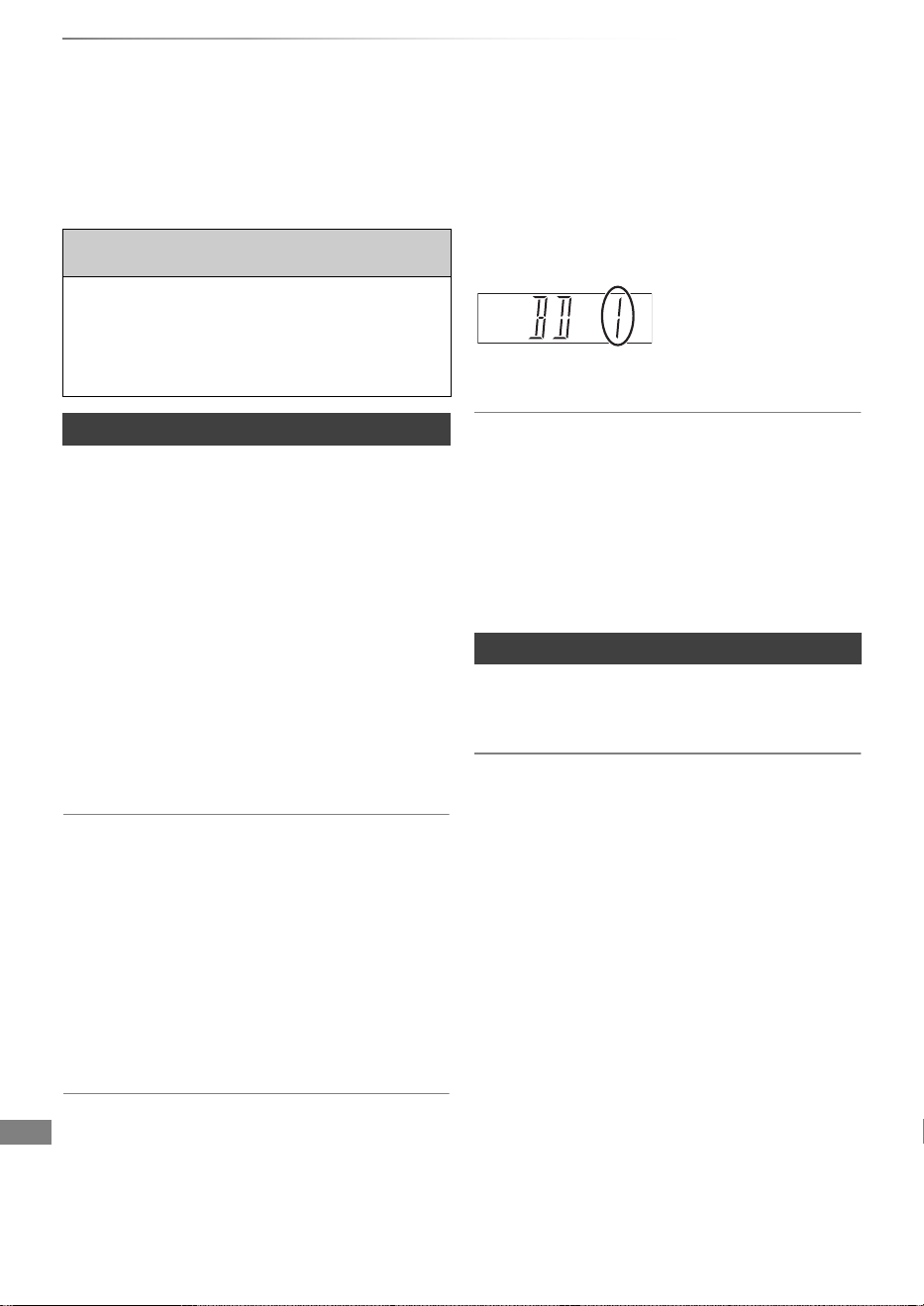
Troubleshooting
SQT1119
86
Troubleshooting guide
Troubleshooting
Before requesting service, make the following
checks. If the problem still persists, consult
your dealer for instructions.
Updating to the latest software (firmware) may
solve the problem. (> 81)
The remote control does not work.
• The remote control and main unit are using
different codes. Change the code on the remote
control.
“Remote Control ” appears on the right side of
the screen.
(“∑” stands for a number.)
“0:00” is flashing on the front panel display.
• Set the clock. (> 80)
The clock does not display on the unit when
switched to standby.
• The clock does not display when “Front Panel
Display” is set to “Automatic”. (> 75)
The followings do not indicate a problem
with this unit:
• Regular disc rotating sounds or HDD rotating
sounds.
• Poor reception due to atmospheric conditions.
• When you switch the unit on or to standby
mode, there may be an unexpected sound.
General operation
The unit does not work.
• Check the connections. (> 14)
• One of the unit’s safety devices may have been
activated.
Reset the unit as follows:
1Press [Í/I] on the main unit to switch the unit
to standby.
• If the unit does not switch to standby, press
[Í/I] on the main unit for about 3 seconds.
The unit is forcibly switched to standby.
Alternatively, disconnect the AC mains
lead, wait one minute, then reconnect it.
2Press [Í/I] on the main unit to switch it on. If
the unit still cannot be operated, consult the
dealer.
Cannot eject a disc.
1 Press and hold [Í/I] on the main unit for at
least 3 seconds when it is turned off.
2 Press and hold [OK], the yellow button and the
blue button at the same time for more than
5 seconds.
• “00 RET” is displayed on the front panel
display.
3 Repeatedly press [1] (right) until “06 FTO” is
displayed on the front panel display.
4 Press [OK].
Front panel display
Press and hold [OK] and
the indicated number
button at the same time
for more than 5 seconds.
(> 80, Remote Control)
Startup is slow.
• Startup takes time in the following situations:
- A disc is inserted.
- The clock is not set.
- Immediately after a power failure or the AC
mains lead is connected.
- When a BD-J application is executing.
- When the “Quick Start” is not activated. (> 79)
Displays
DMR-BWT850EB_eng_SQT1119-2.book 86 ページ 2023年1月11日 水曜日 午後1時37分

Troubleshooting
SQT1119
87
Screen size is wrong.
• Check the “TV Aspect” or “Aspect for 4:3 Video”.
(> 75)
• Adjust the aspect ratio setting on TV.
• Adjust the aspect ratio setting on this unit.
(> 85)
• Check “Aspect for Recording” before recording
or file conversion. (> 72)
The black screen appears on the TV.
• This phenomenon may occur, depending on the TV
setting, when “Quick Start” is activated. Depending on
the TV, this phenomenon may be prevented by
reconnecting to a different HDMI input terminal.
TV reception is not displayed.
• Broadcast signals are not output from this unit’s
RF OUT terminal. Select “On” in “RF OUT
( Aerial Signal )”. (> 79)
The screen changes automatically.
• If “Screen Saver” is set to “On”, the screen saver
function will be activated when there is no
operation for 5 minutes or more. (> 75)
There is a lot of image lag when playing video.
• Set to “0” all items in the “Noise Reduction”. (
>
69)
• Set “Audio Delay”. (> 75)
• The unit’s TV System is different from that of the
disc. Change the TV System. (
>
75, TV System)
• The picture may be distorted or a black screen
may appear between scenes recorded with
different aspect ratios.
• Set “Deep Colour Output” (> 76) or “Contents
Type Flag” (> 76) to “Off”.
3D video is not output correctly.
• 3D video may be output correctly by changing
the following settings:
- “3D Type” of “3D Settings” (> 75)
- “Signal Format” (> 41, 3D settings during
playback)
• Check the settings of the connected TV.
• When a non-3D compatible amplifier/receiver is
connected between this unit and a TV, 3D video
is not output. (> 15)
• When “HDMI Audio Output” is set to “Off”, 3D
video may not be output correctly. (> 76)
No sound.
Distorted sound.
• Check the connections. (> 14)
• Check the settings of the connected TV, etc.
• Select the audio with “Multi Audio”. (> 22, 40)
• To output audio from a device connected with an
HDMI cable, set “HDMI Audio Output” to “On”.
(> 76)
Cannot change audio channel.
• You cannot change the audio channel if “Digital
Audio Output” is set to “Bitstream” (> 74)
TV screen and video
The images do not appear on the TV.
The picture is distorted during play, or video
is not played correctly.
• Check the connections. (> 14)
• Check the settings of the connected TV, etc.
• An incorrect resolution is selected in “HDMI
Video Format”. (> 75) Reset the setting as
follows:
1 While the unit is on, press and hold [OK], the
yellow button and the blue button at the
same time for more than 5 seconds.
• “00 RET” is displayed on the front panel
display.
2 Repeatedly press [1] (right) until “04 PRG”
is displayed on the front panel display.
3 Press and hold [OK] for at least 3 seconds.
Set the item again.
• When Dolby Digital Plus, Dolby TrueHD,
and DTS-HD
®
audio are not output
properly, select “Yes” in “Default Settings”
and make proper settings. (> 80)
Sound
DMR-BWT850EB_eng_SQT1119-2.book 87 ページ 2023年1月11日 水曜日 午後1時37分
Troubleshooting
SQT1119
88
Troubleshooting guide
Cannot record.
Cannot copy.
• Some broadcasts are copyright protected.
• You cannot record to the disc by pressing the
[REC ¥] or timer recording.
• The disc is protected. (> 82)
• [DVD-R] [DVD-RW] [+R] [+RW] Since it will copy to
HDD temporarily, copying is not possible if there
is insufficient available capacity on the HDD.
• This unit cannot record/copy NTSC signals to
discs that already have PAL signal recordings.
The timer recording programmed via Network
Service does not work properly.
• Timer recording programmed via Network
Service will be recorded with the same
conditions as those of manual timer recording,
and some functions such as “Guide Link” (> 30)
does not work.
A part or whole of a recorded title has been lost.
If there is a power failure or the AC mains lead is
disconnected from the household mains socket
while recording or editing, the title may be lost or
the HDD may become unusable. We cannot offer
any guarantee regarding lost programmes.
An unusually loud sound is coming from the
rotating disc.
• If you want copy to perform more quietly, select
“Normal ( Silent )” in “Disc Speed for High
Speed Copy”. (> 73)
The time recorded on the disc and the
available time shown do not add up.
• [DVD-R] [+R] If you record or edit many times, the
remaining capacity is reduced and then
recording or editing may be disabled.
• Available disc space display may be different
from actual.
Recording, timer recording and
copying
Timer recording does not work properly.
• When is displayed on the screen. (> 33)
• Because the actual broadcast time may be
different from the time displayed on the TV
Guide, we recommend you set the start time
earlier and the end time later by some minutes,
up to a maximum of 10 minutes.
Auto Renewal Recording does not work
properly.
• The programme will not be overwritten in the
following cases:
- the programme is protected
- any programme is being played back or copied
- a screen such as Video Menu is displayed
Instead, the programme will be saved as a
separate programme and that will be
overwritten.
DMR-BWT850EB_eng_SQT1119-2.book 88 ページ 2023年1月11日 水曜日 午後1時37分

Troubleshooting
SQT1119
89
Cannot play back.
• The disc is dirty. (> 10)
• The disc is scratched or marked.
• The disc may not be able to play back if it was
not finalised or a Top Menu was not created on
the equipment used for recording.
• Refer to “Screen icons”. (> 35)
Audio and video momentarily pause.
• DVD-R DL and +R DL discs have two writable layers
on one side. Video and audio may momentarily cut
out when the unit is switching layers.
Image for the Quick View is not smooth.
• Image may not be played back smoothly in case
of high definition titles.
Cannot play the disc on other players.
• Refer to “Play on other players”. (> 10)
Cannot edit.
• You may not be able to edit on the HDD if there
is no available space. Delete any unwanted
titles to create empty space. (> 42)
The contents of the SD card cannot be read.
• Remove the card from the slot and then insert
again. If this does not solve the problem, switch
the unit to standby mode and turn it on again.
Photos do not play back normally.
• The images that were edited on the PC, such as
Progressive JPEG, etc., may not play back.
(> 8)
This unit does not recognize the USB device
correctly.
• If inserted during playback the USB device may
not be recognized by this unit.
Disconnect and reconnect the USB device. If it
still does not recognize the connection, switch
the unit to standby mode and turn it on again.
• USB devices connected using a USB extension
cable other than a dedicated one or a USB hub
may not be recognized by this unit.
Play
You have forgotten your rating PIN number for
parental control.
• The PIN number for parental control and the
rating level return to the factory preset.
The default PIN number is “0000”.
1 While the unit is on, press and hold [OK], the
yellow button and the blue button at the
same time for more than 5 seconds.
• “00 RET” is displayed on the front panel
display.
2 Repeatedly press [1] (right) until “03 VL” is
displayed on the front panel display.
3 Press [OK].
• “INIT” is displayed on the front panel
display.
Edit
Photo
USB
DMR-BWT850EB_eng_SQT1119-2.book 89 ページ 2023年1月11日 水曜日 午後1時37分

Troubleshooting
SQT1119
90
Troubleshooting guide
The TV Guide information is not displayed
properly.
• Set the clock correctly. (> 80, Clock)
• There was a programme change, or TV Guide
information from a broadcast station was
possibly not correctly transmitted.
• If signal quality is bad, the TV Guide may not be
able to receive any data.
• It may take time until the TV Guide screen is
displayed correctly. Wait for about a day.
Picture regularly breaks up on some
channels.
• Adjust the reception with “Manual Tuning”.
(> 71)
You cannot access this unit from DLNA
compatible equipment on the network.
• Check the network connection and the network
settings. (> 16, 19)
• It may not be possible to connect depending on
the types of the equipment or the status of the
equipment.
When using this unit as a server, video frames
are dropped.
• Change the following settings:
- Conversion Setting for DLNA (> 78)
- Resolution Setting for DLNA (> 78)
To return all the settings to the factory preset
Perform “Shipping Condition” or “Default
Settings”. (> 80)
TV Guide
Broadcast
Network
You cannot play contents properly from DLNA
compatible equipment on the network.
• There may be some video that cannot be played
back on DLNA compatible equipment
depending on the equipment.
• Following titles may not be played back:
- A title with access restriction
- A title with incompatible format
• Playback via DLNA compatible equipment may
not be performed when this unit is in the
following conditions:
- While playing back a BD-Video
- While simultaneously performing High speed
copy and recording
- While displaying the Basic Settings menu
- While executing functions using a network,
such as Network Service
• If the DLNA compatible equipment is not
capable of outputting HE-AAC audio format,
etc., sound may not be played back.
• When “Automatic” is set for “Audio Description”
(> 23), some parts of Home Network function
cannot be used.
Set “Audio Description” to “Off”.
When using Wireless LAN connection, video
from the DLNA Certified media server is not
played back or video frames are dropped
during playback.
• Use 802.11n (2.4 GHz or 5 GHz) Wireless
router.
Simultaneous use with a microwave, cordless
telephone etc. at 2.4 GHz may result in
connection interruptions or other problems.
• On the “Wireless Settings” screen (
>
76), the
continuous lighting of at least four “Reception”
indicators is the target for a stable connection. If
three or fewer indicators are lit or the connection is
being interrupted, change the position or angle of
your Wireless router. If there is no improvement,
connect to a wired network and perform the “Easy
Network Setting” (
>
19, 76) again.
Reset
DMR-BWT850EB_eng_SQT1119-2.book 90 ページ 2023年1月11日 水曜日 午後1時37分

Troubleshooting
SQT1119
91
The following messages or service numbers appear on the
front panel display when something unusual is detected.
The remote control and main unit are using different codes.
Change the code on the remote control. (> 86)
Selected titles in the USB HDD are being converted.
Do not disconnect the USB HDD from this unit.
TV Guide data is being downloaded.
You cannot delete items on this disc.
The disc may be damaged.
• The disc is dirty. (> 10) The unit cannot record, play, or
edit.
• The lens cleaner has finished cleaning.
Press [< OPEN/CLOSE] on the main unit to eject the disc.
You cannot write to this disc.
The disc may be damaged. Use a new disc.
• Displayed when the unit is started and is switched to
standby mode.
• There was a power failure or the AC plug was disconnected
while the unit was on. The unit is carrying out its recovery
process. Wait until the message disappears.
There are already 32 timer programmes. Delete unnecessary
timer programmes. (> 33)
The USB device is drawing too much power. Remove the
USB device.
Update of the software (firmware) is started.
You cannot operate the unit until the update is complete.
(> 81)
Software (firmware) is downloading.
Download will stop when the unit is turned on, or the timer
recording starts. (> 81)
When “FINISH” is displayed, update of the software
(firmware) has completed.
The media is not supported.
The software (firmware) is being updated.
You cannot operate the unit until the update is complete.
(> 81)
The unit is hot.
The unit switches to standby for safety reasons. Wait for
about 30 minutes until the message disappears.
Install or place this unit with good ventilation.
(When a disc is not inserted) A malfunction has occurred. The
unit is trying to restore to the normal operation. Once the
message disappears you can use the unit again.
If it remains displayed, consult the dealer.
HDMI cannot be output because it is connected to a model
that does not support copyright protection.
Due to the current disc not having authorised copyright
information, video output is not performed.
(When a disc is inserted) There was something unusual
detected with the disc or the unit. The unit is trying to restore
to the normal operation. Once the message disappears you
can use the unit again.
If it remains displayed, consult the dealer.
The unit fails to operate properly. Press [Í/I] on the main unit
to switch the unit to standby mode. Now press [Í/I] on the
main unit again to turn the unit on.
The HOLD function is activated. (> 84)
Messages on the front panel display
BD
(“∑” stands for a number.)
CONV
GUIDE
NoERAS
NoREAD
NoWRIT
PLEASE WAIT
PROG FULL
REMOVE
START
SW-DL
UNSUPPORT
UPD /
(“∑” stands for a number.)
U59
U61
U76
U77
U88
U99
XHOLD
DMR-BWT850EB_eng_SQT1119-2.book 91 ページ 2023年1月11日 水曜日 午後1時37分
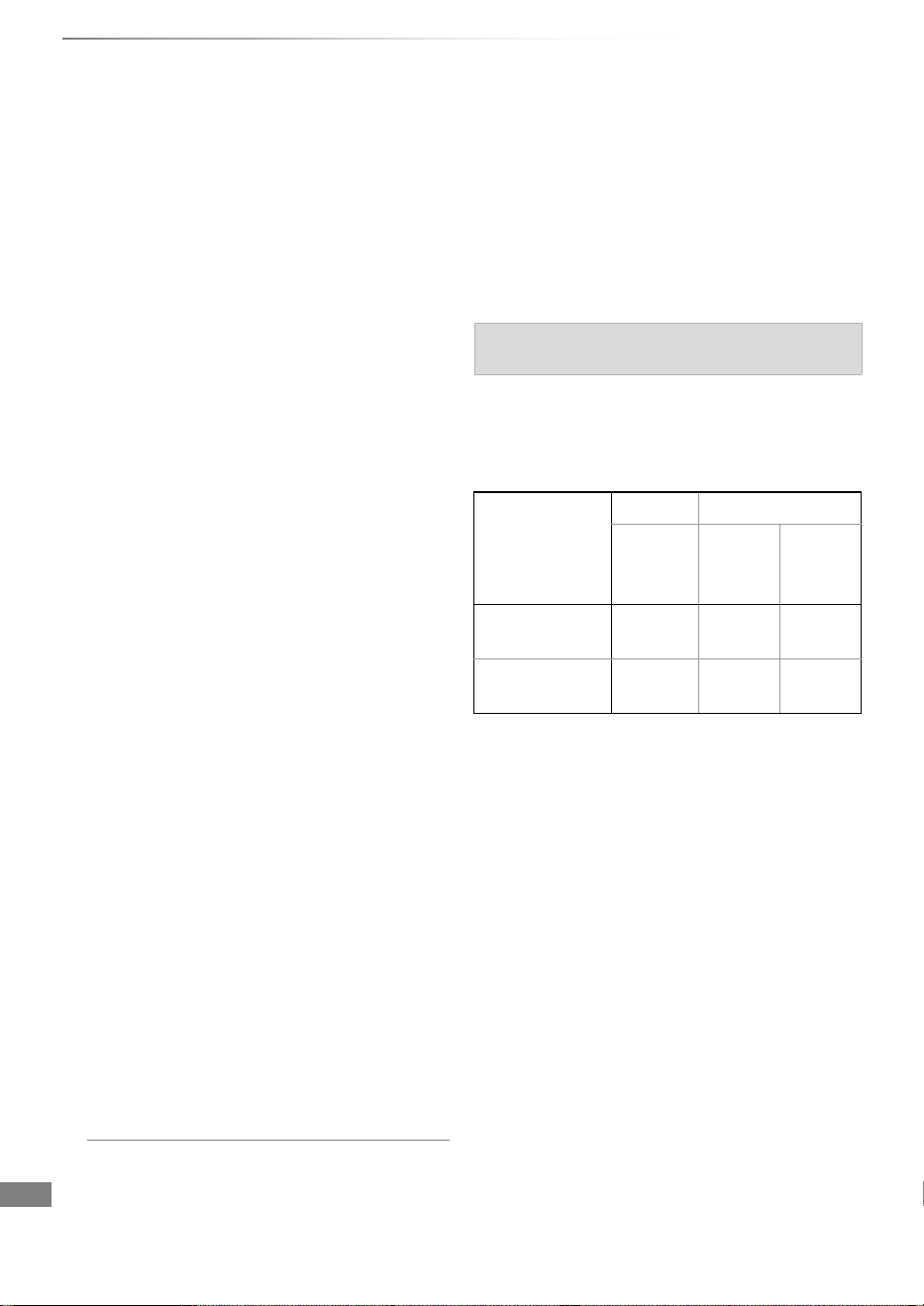
Reference
SQT1119
92
Specifications
Reference
Specifications are subject to change without
notice.
∫ General
Dimensions: 430 mm (W)
59 mm (H)
(including the projecting parts)
210 mm (D)
Mass: Approx. 2.4 kg
Power supply: AC 220 V to 240 V, 50 Hz
Power consumption: Approx. 28 W
Power consumption in Networked Standby
mode :
“Quick Start” is not activated and “Networked
Standby” is set to “On”.
Approx. 1 W
Power consumption in Standby mode :
“Quick Start” is not activated,
“Networked Standby” is set to “Off” and
“RF OUT ( Aerial Signal )” is set to “Off”.
Approx. 0.2 W
Operating temperature: 5 oC to 40 oC
Operating humidity range: 10 % to 80 % RH
(no condensation)
∫ TV system
Tuner System: DVB-T/T2
Country: UK
Channel Coverage: UHF 21~68
∫ Video/Audio terminals
Digital audio out (coaxial): 1 pc.
HDMI out (19 pin type A): 1 pc.
∫ Internal HDD capacity
1TB
∫ Other terminals
USB Port (Type A): USB2.0
2 pcs.
SD Card Slot: 1 pc.
LAN (Ethernet) Port: 1 pc.
10BASE-T/100BASE-TX
∫ Wireless LAN
Standard compliance: IEEE802.11a/b/g/n
Frequency range: 2.4 GHz/5 GHz band
Security
§
:
WPA™/WPA2™
(Encryption type: TKIP/AES,
Authentication type: PSK)
WEP (64 bit/128 bit)
∫ LASER specification
Class 1 LASER Product
Wave length: 405 nm (BDs)
661 nm (DVDs)
783 nm (CDs)
Laser power:
Depending on the content being recorded, the
recording time may become shorter than
indicated.
∫ DR mode
§
This unit supports WPA™ and WPA2™
encryption.
No hazardous radiation is emitted with
the safety protection
Recording modes and approximate recording
times
Recording Mode
HDD BD-RE, BD-R
(1 TB) Single
Layer
(25 GB)
Dual
Layer
(50 GB)
DR (HD quality) 259
hours
6 hours
30 min.
13 hours
DR (SD quality) 518
hours
13 hours 26 hours
• Recording time of DR mode may vary
depending on the bit rate of broadcasting:
• High Definition (HD) quality: estimated bit rate
is 8 Mbps
• Standard Definition (SD) quality: estimated bit
rate is 4 Mbps
• Regarding recording time remaining:
Remaining time in the DR mode is calculated
with a bit rate of 8 Mbps. But the bit rate differs
depending on the broadcast, so the displayed
remaining time might be different from the actual
remaining time.
DMR-BWT850EB_eng_SQT1119-2.book 92 ページ 2023年1月11日 水曜日 午後1時37分
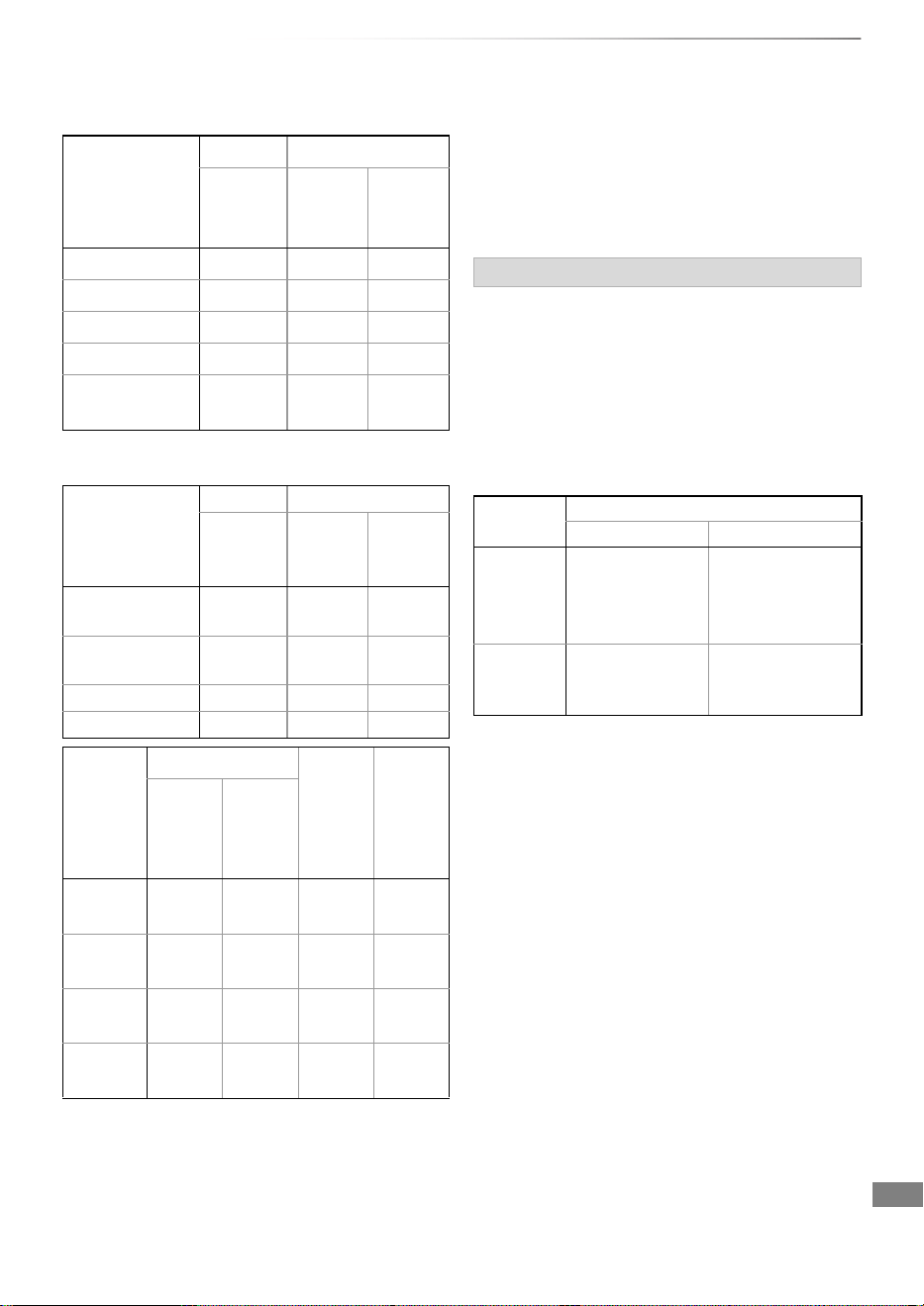
Reference
SQT1119
93
∫ HG, HX, HE, HL, HM modes
∫ XP, SP, LP, EP modes
The audio output differs depending on which
terminals are connected to the amplifier/receiver,
and the setting on this unit. (> 74, Digital Audio
Output)
• The number of channels listed is the maximum
possible number of output channels when
connected to amplifier/receiver compatible with
the respective audio format.
§1
The maximum possible number of Dolby
®
sound is 2ch PCM.
§2
When “BD-Video Secondary Audio” is set to
“On”, the audio will be output as Dolby Digital,
DTS Digital Surround
TM
or 5.1ch PCM.
§3
The audio output is amplified from 5.1ch or
6.1ch to 7.1ch depending on the DTS, Inc.
specifications.
Recording Mode
HDD BD-RE, BD-R
(1 TB) Single
Layer
(25 GB)
Dual
Layer
(50 GB)
HG 157 hours 4 hours 8 hours
HX 235 hours 6 hours 12 hours
HE 353 hours 9 hours 18 hours
HL
472
hours 12 hours 24 hours
HM 684 hours 17 hours
30 min.
35 hours
Recording Mode
HDD BD-RE, BD-R
(1 TB) Single
Layer
(25 GB)
Dual
Layer
(50 GB)
XP 215 hours 5 hours
15 min.
10 hours
30 min.
SP 431 hours 10 hours
30 min.
21 hours
LP 862 hours 21 hours 42 hours
EP
1724
hours
42 hours 84 hours
Recording
Mode
DVD-RAM DVD-R,
DVD-RW
,
+R,
+RW
(4.7 GB)
DVD-R
DL,
+R DL
(8.5 GB)
Single-
sided
(4.7 GB)
Double-
sided
(9.4 GB)
XP 1 hour 2 hours 1 hour 1 hour
45 min.
SP 2 hours 4 hours 2 hours 3 hours
35 min.
LP 4 hours 8 hours 4 hours 7 hours
10 min.
EP 8 hours 16 hours 8 hours 14 hours
20 min.
• Regarding recording time remaining:
This unit records using a VBR (Variable bit rate)
data compression system to vary recorded data
segments to match video data segments which
may cause differences in the displayed amount
of time and space remaining for recording.
Audio information
Terminal
Digital Audio Output
Bitstream
PCM
§1
HDMI AV
OUT
Output using
original audio
§2
BD-Video:
7.1ch PCM
§2, 3
DVD-Video:
5.1ch PCM
DIGITAL
AUDIO
OUT
Dolby Digital/
DTS Digital
Surround
TM
Down-mixed 2ch
PCM
DMR-BWT850EB_eng_SQT1119-2.book 93 ページ 2023年1月11日 水曜日 午後1時37分
Reference
SQT1119
94
Reference
Declaration of Conformity (DoC)
Hereby, “Panasonic Entertainment & Communication Co., Ltd.” declares that this product is in
compliance with the essential requirements and other relevant provisions of the Radio Equipment
Regulations 2017 No.1206.
Customers can download a copy of the original DoC to our RE products from our DoC server:
https://www.ptc.panasonic.eu/compliance-documents
Contact in the UK: Panasonic Testing Centre on behalf of Panasonic UK, a branch of Panasonic
Marketing Europe GmbH (Importer) Maxis 2, Western Road, Bracknell, Berkshire, RG12 1RT
5.15 - 5.35 GHz band is restricted to indoor operations only in the United Kingdom.
Type of wireless Frequency band
Maximum power
(dBm e.i.r.p.)
WLAN
2412-2472 MHz
5180-5320 MHz
5500-5700 MHz
20 dBm
23 dBm
23 dBm
The recording and playback of content on this or any other device may require permission from the
owner of the copyright or other such rights in that content. Panasonic has no authority to and does
not grant you that permission and explicitly disclaims any right, ability or intention to obtain such
permission on your behalf. It is your responsibility to ensure that your use of this or any other device
complies with applicable copyright legislation in your country. Please refer to that legislation for
more information on the relevant laws and regulations involved or contact the owner of the rights in
the content you wish to record or playback.
Personal information handling
To provide functions and services of this unit, a device ID, device password and usage history
information are stored and managed securely in an appropriate security environment of Panasonic.
Please note that usage history and other information may be collected for purposes such as
improving products and services in such a way that individuals cannot be identified.
Indemnity concerning recorded content
Panasonic does not accept any responsibility for damages directly or indirectly due to any type of
problems that result in loss of recording or edited content (data), and does not guarantee any
content if recording or editing does not work properly. Likewise, the above also applies in a case
where any type of repair is made to the unit (including any other non-HDD related component).
DMR-BWT850EB_eng_SQT1119-2.book 94 ページ 2023年1月11日 水曜日 午後1時37分
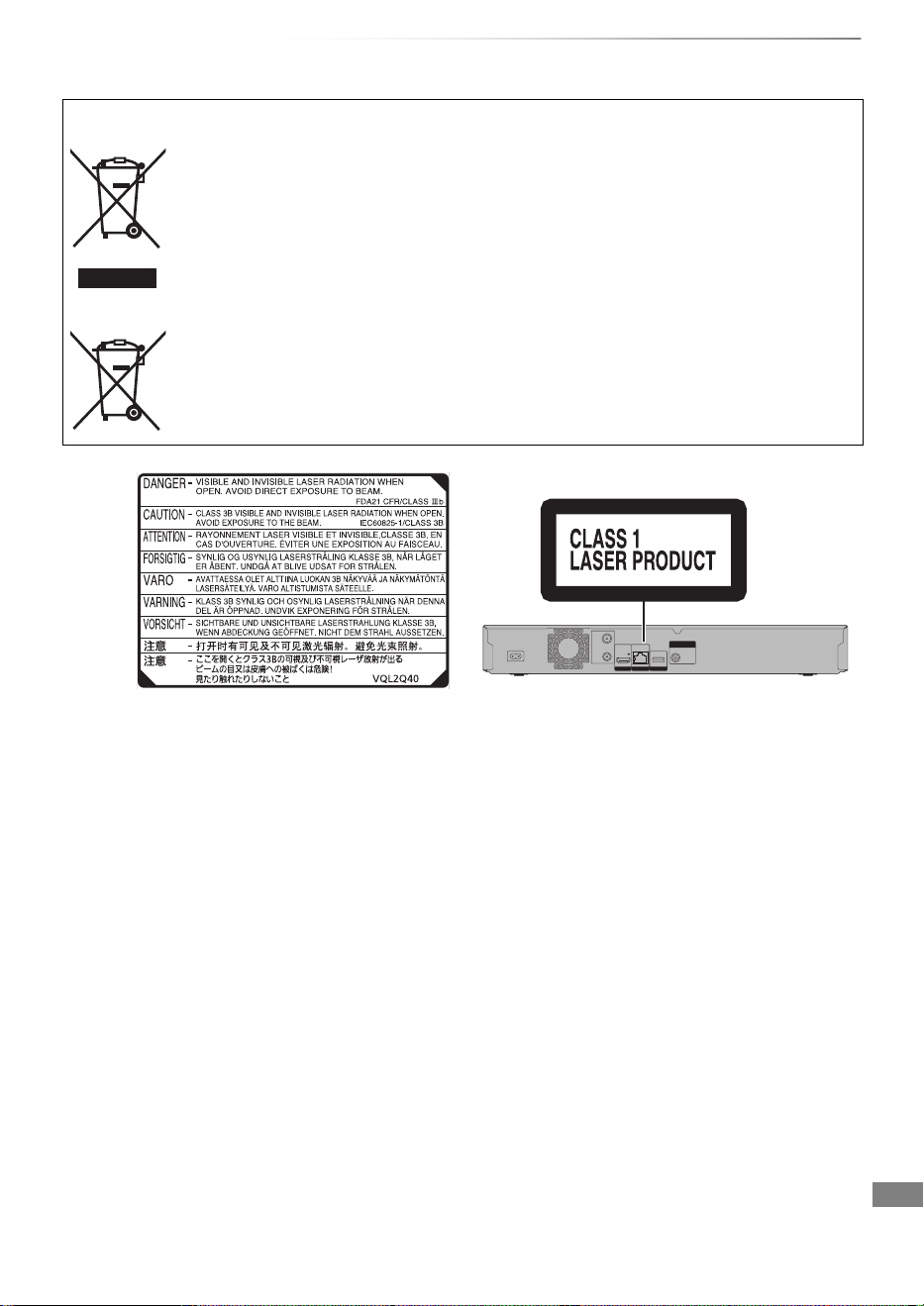
Reference
SQT1119
95
Disposal of Old Equipment and Batteries
Only for European Union and countries with recycling systems
These symbols on the products, packaging, and/or accompanying documents mean that used electrical and
electronic products and batteries must not be mixed with general household waste.
For proper treatment, recovery and recycling of old products and used batteries, please take them to
applicable collection points in accordance with your national legislation.
By disposing of them correctly, you will help to save valuable resources and prevent any potential negative
effects on human health and the environment.
For more information about collection and recycling, please contact your local municipality.
Penalties may be applicable for incorrect disposal of this waste, in accordance with national legislation.
Note for the battery symbol (bottom symbol):
This symbol might be used in combination with a chemical symbol. In this case it complies with the
requirement set by the Directive for the chemical involved.
(Inside of product)
(Back of product)
DMR-BWT850EB_eng_SQT1119-2.book 95 ページ 2023年1月11日 水曜日 午後1時37分
Reference
SQT1119
96
Licenses
“AVCHD”, “AVCHD 3D”, “AVCHD Progressive” and “AVCHD 3D/Progressive” are trademarks of Panasonic Holdings
Corporation and Sony Corporation.
Copyright 2004-2014 Verance Corporation. Cinavia
TM
is a Verance Corporation trademark. Protected by U.S. Patent 7,369,677
and worldwide patents issued and pending under license from Verance Corporation. All rights reserved.
DLNA, the DLNA Logo and DLNA CERTIFIED are trademarks, service marks, or certification marks of the Digital Living
Network Alliance.
DVB and the DVB logos are trademarks of the DVB Project.
MPEG Layer-3 audio coding technology licensed from Fraunhofer IIS and Thomson.
Manufactured under license from Dolby Laboratories.
Dolby and the double-D symbol are trademarks of Dolby Laboratories.
For DTS patents, see http://patents.dts.com. Manufactured under license from DTS
Licensing Limited. DTS, DTS-HD, the Symbol, & DTS and the Symbol together are
registered trademarks, and DTS-HD Master Audio | Essential is a trademark of DTS, Inc.
© DTS, Inc. All Rights Reserved.
“DVD Logo” is a trademark of DVD Format/Logo Licensing Corporation.
This product is licensed under the AVC patent portfolio license for the personal use of a consumer or other uses in which it
does not receive remuneration to (i) encode video in compliance with the AVC Standard (“AVC Video”) and/or (ii) decode AVC
Video that was encoded by a consumer engaged in a personal activity and/or was obtained from a video provider licensed to
provide AVC Video.
No license is granted or shall be implied for any other use.
Additional information may be obtained from MPEG LA, L.L.C.
See http://www.mpegla.com
This product is licensed under the VC-1 patent portfolio license for the personal and non-commercial use of a consumer to (i)
encode video in compliance with the VC-1 Standard (“VC-1 Video”) and/or (ii) decode VC-1 Video that was encoded by a
consumer engaged in a personal and non-commercial activity and/or was obtained from a video provider licensed to provide
VC-1 video.
No license is granted or shall be implied for any other use. Additional information may be obtained from MPEG LA, L.L.C.
See http://www.mpegla.com
SDXC Logo is a trademark of SD-3C, LLC.
The Wi-Fi CERTIFIED
TM
Logo is a certification mark of Wi-Fi Alliance
®
.
The Wi-Fi Protected Setup
TM
Identifier mark is a certification mark of Wi-Fi Alliance
®
.
“Wi-Fi
®
” and “Wi-Fi Direct
®
” are registered trademarks of Wi-Fi Alliance
®
.
“Wi-Fi Protected Setup
TM
”, “Miracast
TM
”, “WPA
TM
”, and “WPA2
TM
” are trademarks of Wi-Fi Alliance
®
.
HDMI, the HDMI Logo, and High-Definition Multimedia Interface are trademarks or registered trademarks of HDMI Licensing
LLC in the United States and other countries.
Vorbis, FLAC, WPA Supplicant
The software licenses are displayed when “Software Licence” in the Basic Settings menu is selected. (> 80)
Windows is a trademark or a registered trademark of Microsoft Corporation in the United States and other countries.
Java is a registered trademark of Oracle and/or its affiliates.
DMR-BWT850EB_eng_SQT1119-2.book 96 ページ 2023年1月11日 水曜日 午後1時37分
Reference
SQT1119
97
This product incorporates the following software:
(1) the software developed independently by or for Panasonic Entertainment & Communication Co., Ltd.,
(2) the software owned by third party and licensed to Panasonic Entertainment & Communication Co., Ltd.,
(3) the software licensed under the GNU General Public License, Version 2.0 (GPL V2.0),
(4) the software licensed under the GNU LESSER General Public License, Version 2.1 (LGPL V2.1), and/or
(5) open source software other than the software licensed under the GPL V2.0 and/or LGPL V2.1.
The software categorized as (3) - (5) are distributed in the hope that it will be useful, but WITHOUT ANY WARRANTY, without
even the implied warranty of MERCHANTABILITY or FITNESS FOR A PARTICULAR PURPOSE. Please refer to the detailed
terms and conditions thereof shown in the Basic Settings menu.
At least three (3) years from delivery of this product, Panasonic will give to any third party who contacts us at the contact
information provided below, for a charge no more than our cost of physically performing source code distribution, a complete
machine-readable copy of the corresponding source code covered under GPL V2.0, LGPL V2.1 or the other licenses with the
obligation to do so, as well as the respective copyright notice thereof.
Contact Information: [email protected]
The source code and the copyright notice are also available for free in our website below.
http://panasonic.net/avc/oss/
The Freeview service and channels are subject to coverage and may be changed from time to time. Aerial upgrade and/or
receiver may be required. Visit freeview.co.uk/availability.
The FREEVIEW words and logos are trade marks of DTV Services LTD. © DTV Services Ltd
Minimum broadband speed of 2mbps required for catch up and on demand services.
Watching on demand and catch up programmes will count towards any monthly broadband data allowance.
Android is a trademark of Google Inc.
MS/PlayReady/Final Product Labeling
This product contains technology subject to certain intellectual property rights of Microsoft. Use or distribution of this
technology outside of this product is prohibited without the appropriate license(s) from Microsoft.
MS/PlayReady/End User Notices
Content owners use Microsoft PlayReady™ content access technology to protect their intellectual property, including
copyrighted content. This device uses PlayReady technology to access PlayReady-protected content and/or
WMDRM-protected content. If the device fails to properly enforce restrictions on content usage, content owners may require
Microsoft to revoke the device’s ability to consume PlayReady-protected content.
Revocation should not affect unprotected content or content protected by other content access technologies. Content owners
may require you to upgrade PlayReady to access their content. If you decline an upgrade, you will not be able to access
content that requires the upgrade.
Restriction on use of unauthorized copied content
This unit adopts the following technology for copyright protection.
Cinavia Notice
This product uses Cinavia technology to limit the use of unauthorized copies of some
commercially-produced film and videos and their soundtracks. When a prohibited use of an
unauthorized copy is detected, a message will be displayed and playback or copying will be
interrupted. More information about Cinavia technology is provided at the Cinavia Online
Consumer Information Center at http://www.cinavia.com
. To request additional information about
Cinavia by mail, send a postcard with your mailing address to:
Cinavia Consumer Information Center, P.O.
Box 86851, San Diego, CA, 92138, USA.
DMR-BWT850EB_eng_SQT1119-2.book 97 ページ 2023年1月11日 水曜日 午後1時37分

Reference
SQT1119
98
Index
A
Aspect . . . . . . . . . . . . . . . . . . . . . . . . . . . . 75, 85
Audio . . . . . . . . . . . . . . . . . . . . . . . . . . 22, 40, 93
Audio Description (AD) . . . . . . . . . . . 23, 40, 71
Auto Setup . . . . . . . . . . . . . . . . . . . . . . . . 17, 70
AVCHD . . . . . . . . . . . . . . . . . . . . . 34, 37, 53, 65
B
Basic Settings . . . . . . . . . . . . . . . . . . . . . . . . 70
BD-Video . . . . . . . . . . . . . . . . . . . . . . . . . . . . . 37
BD-Live . . . . . . . . . . . . . . . . . . . . . . . . . . 38, 72
3D . . . . . . . . . . . . . . . . . . . . . . . . . . . . . . . . . 41
C
Channel information . . . . . . . . . . . . . . . . . . . 22
Channel List . . . . . . . . . . . . . . . . . . . . . . . . . . 70
Chapter . . . . . . . . . . . . . . . . . . . . . 36, 40, 45, 73
Child Lock . . . . . . . . . . . . . . . . . . . . . . . . 71, 72
BD-Video Parental Control . . . . . . . . . . . . . . 72
DVD-Video Parental Control . . . . . . . . . . . . . 72
HOLD function . . . . . . . . . . . . . . . . . . . . . . . . 84
Clock . . . . . . . . . . . . . . . . . . . . . . . . . . . . . . . .80
Connection
Network . . . . . . . . . . . . . . . . . . . . . . . . . . . . . 16
Copy . . . . . . . . . . . . . . . . . . . . . . . . . . . . . . . . 46
AVCHD . . . . . . . . . . . . . . . . . . . . . . . . . . . . .65
D
Delete
Music . . . . . . . . . . . . . . . . . . . . . . . . . . . . . . . 59
Photo . . . . . . . . . . . . . . . . . . . . . . . . . . . . . . . 56
Video . . . . . . . . . . . . . . . . . . . . . . . . . . . . . . . 42
Delete BD-Video data . . . . . . . . . . . . . . . . . . 38
Disc
Finalise . . . . . . . . . . . . . . . . . . . . . . . . . . . . . 83
Format . . . . . . . . . . . . . . . . . . . . . . . . . . . . . . 82
Media information . . . . . . . . . . . . . . . . . . . . . . 6
Protection . . . . . . . . . . . . . . . . . . . . . . . . . . . 82
DVD-Video . . . . . . . . . . . . . . . . . . . . . . . . . . . 37
E
Easy setting . . . . . . . . . . . . . . . . . . . . . . . . . . 17
Entering text . . . . . . . . . . . . . . . . . . . . . . . . . . 84
F
Favourites . . . . . . . . . . . . . . . . . . . . . . . . . . . 70
Finalise . . . . . . . . . . . . . . . . . . . . . . . . . . . . . . 83
Format
Disc . . . . . . . . . . . . . . . . . . . . . . . . . . . . . . . . 82
HDD . . . . . . . . . . . . . . . . . . . . . . . . . . . . . . . 73
SD Card . . . . . . . . . . . . . . . . . . . . . . . . . . . .82
USB HDD . . . . . . . . . . . . . . . . . . . . . . . . . . . 73
Freeview . . . . . . . . . . . . . . . . . . . . . . . . . . . . . 30
Freeview Play Catch Up . . . . . . . . . . . . . . . . . 26
FUNCTION MENU . . . . . . . . . . . . . . . . . . . . . 21
H
HDD
Format . . . . . . . . . . . . . . . . . . . . . . . . . . . . . . 73
Media information . . . . . . . . . . . . . . . . . . . . . . 6
L
Language code list . . . . . . . . . . . . . . . . . . . . 85
M
Manual Tuning . . . . . . . . . . . . . . . . . . . . . . . . 71
Media Renderer . . . . . . . . . . . . . . . . . . . . . . . 62
Menu screen . . . . . . . . . . . . . . . . . . . . . . . . . . 37
Miracast
TM
. . . . . . . . . . . . . . . . . . . . . . . . . . . . 63
Music . . . . . . . . . . . . . . . . . . . . . . . . . . . . . . . 58
N
Network
BD-Live . . . . . . . . . . . . . . . . . . . . . . . . . . . . . 38
Connection . . . . . . . . . . . . . . . . . . . . . . . . . . 16
Easy Network Setting . . . . . . . . . . . . . . . 19, 76
Miracast
TM
. . . . . . . . . . . . . . . . . . . . . . . . . . . 63
Network Service . . . . . . . . . . . . . . . . . . . . . . 64
Smart Home Networking (DLNA) . . . . . . 60, 78
Wi-Fi Direct
®
. . . . . . . . . . . . . . . . . . . . . . . . . 63
DMR-BWT850EB_eng_SQT1119-2.book 98 ページ 2023年1月11日 水曜日 午後1時37分

Reference
SQT1119
99
P
PAUSE LIVE TV . . . . . . . . . . . . . . . . . . . . . . . 24
Photo . . . . . . . . . . . . . . . . . . . . . . . . . . . . . . . .54
PIN . . . . . . . . . . . . . . . . . . . . . . . . . . . . . . . 22, 80
Playback menu . . . . . . . . . . . . . . . . . . . . . . . . 68
Protection
Disc . . . . . . . . . . . . . . . . . . . . . . . . . . . . . . . . 82
Photo . . . . . . . . . . . . . . . . . . . . . . . . . . . . . . . 56
Video . . . . . . . . . . . . . . . . . . . . . . . . . . . . . . . 43
Pure Sound Mode . . . . . . . . . . . . . . . . . . . . . 72
Q
Quick Start . . . . . . . . . . . . . . . . . . . . . . . . . . . 79
R
Recording . . . . . . . . . . . . . . . . . . . . . . . . . . . . 27
Recording mode . . . . . . . . . . . . . . . . . . . . . . 92
Timer recording . . . . . . . . . . . . . . . . . . . . . . . 29
Recording mode . . . . . . . . . . . . . . . . . . . . . . 92
Recording time . . . . . . . . . . . . . . . . . . . . . . . . 92
Remote control . . . . . . . . . . . . . . . . . . . . . . . 12
HOLD function . . . . . . . . . . . . . . . . . . . . . . . . 84
Remote control code . . . . . . . . . . . . . . . . . . . 80
TV operation . . . . . . . . . . . . . . . . . . . . . . . . . 17
Reset . . . . . . . . . . . . . . . . . . . . . . . . . . 80, 89, 90
REWIND LIVE TV . . . . . . . . . . . . . . . . . . . 24, 72
S
SD Card
Format . . . . . . . . . . . . . . . . . . . . . . . . . . . . . . 82
Media information . . . . . . . . . . . . . . . . . . . 6, 10
miniSD / microSD . . . . . . . . . . . . . . . . . . . . . 10
Setting
Auto Setup . . . . . . . . . . . . . . . . . . . . . . . 17, 70
Easy setting . . . . . . . . . . . . . . . . . . . . . . . . . .17
Slideshow . . . . . . . . . . . . . . . . . . . . . . . . . . . . 55
Smart Home Networking (DLNA) . . . . . . 60, 78
Client . . . . . . . . . . . . . . . . . . . . . . . . . . . . . . . 61
Media Renderer . . . . . . . . . . . . . . . . . . . . . . 62
Server . . . . . . . . . . . . . . . . . . . . . . . . . . . . . . 60
Software (Firmware) Update . . . . . . . . . . . . . 81
T
Timer recording . . . . . . . . . . . . . . . . . . . . . . . 29
Top Menu. . . . . . . . . . . . . . . . . . . . . . . . . . . . . 83
Create Top Menu . . . . . . . . . . . . . . . . . . . . . 83
Troubleshooting guide . . . . . . . . . . . . . . . . . 86
Messages . . . . . . . . . . . . . . . . . . . . . . . . . . . 91
Tuning
Channel List . . . . . . . . . . . . . . . . . . . . . . . . . 70
Channel Sorting by Region . . . . . . . . . . . . . . 71
Child Lock . . . . . . . . . . . . . . . . . . . . . . . . . . .71
Manual Tuning . . . . . . . . . . . . . . . . . . . . . . . 71
Signal condition . . . . . . . . . . . . . . . . . . . . . . . 71
TV Anywhere . . . . . . . . . . . . . . . . . . . . . . . . . 64
TV Guide
Operation . . . . . . . . . . . . . . . . . . . . . . . . . . .25
Timer recording . . . . . . . . . . . . . . . . . . . . . . . 29
TV System . . . . . . . . . . . . . . . . . . . . . . . . . . . 75
U
USB HDD
Cancellation of all USB HDD Registrations
. . . . 73
Disconnection . . . . . . . . . . . . . . . . . . . . . 66, 73
Format . . . . . . . . . . . . . . . . . . . . . . . . . . . . . . 73
Media information . . . . . . . . . . . . . . . . . . . . 6, 9
Registration . . . . . . . . . . . . . . . . . . . . . . . 66, 73
USB memories
Media information . . . . . . . . . . . . . . . . . . . . 6, 9
V
Video
AVCHD . . . . . . . . . . . . . . . . . . . . . . . . . . 34, 37
BD-Video . . . . . . . . . . . . . . . . . . . . . . . . . . . .37
Copy . . . . . . . . . . . . . . . . . . . . . . . . . . . . . . . 46
Delete . . . . . . . . . . . . . . . . . . . . . . . . . . . . . . 42
MKV . . . . . . . . . . . . . . . . . . . . . . . . . . . . . . . 37
Playback . . . . . . . . . . . . . . . . . . . . . . . . . 34, 37
Protection . . . . . . . . . . . . . . . . . . . . . . . . . . . . 43
Recording . . . . . . . . . . . . . . . . . . . . . . . . . . .27
Video Menu . . . . . . . . . . . . . . . . . . . . . . . . . . 34
Xvid . . . . . . . . . . . . . . . . . . . . . . . . . . . . . . . . . 8
3D . . . . . . . . . . . . . . . . . . . . . . . . . . . . . . . . . 41
VIERA Link . . . . . . . . . . . . . . . . . . . . . . . . 67, 76
W
Wi-Fi Direct
®
. . . . . . . . . . . . . . . . . . . . . . . . . 63
X
Xvid . . . . . . . . . . . . . . . . . . . . . . . . . . . . . . . . . . 8
3D . . . . . . . . . . . . . . . . . . . . . . . . . . . . . . . . . . 41
4K Networking . . . . . . . . . . . . . . . . . . . . . . . . 81
7 days back function . . . . . . . . . . . . . . . . . . . 26
DMR-BWT850EB_eng_SQT1119-2.book 99 ページ 2023年1月11日 水曜日 午後1時37分

Sales and Support Information
Customer Communications Centre
• For customers within the UK: 0344 844 3899
• For customers within Ireland: 01 289 8333
• Monday - Friday 9:00 am - 5:00 pm (Excluding public holidays).
• For further support on your product, please visit our website: www.panasonic.co.uk
Direct Sales at Panasonic UK
• Order accessory and consumable items for your product with ease and confidence by phoning our
Customer Communications Centre Monday - Friday 9:00 am - 5:00 pm (Excluding public holidays).
• Or go on line through our Internet Accessory ordering application at www.pas-europe.com
.
• Most major credit and debit cards accepted.
• All enquiries transactions and distribution facilities are provided directly by Panasonic UK.
• It couldn’t be simpler!
• Also available through our Internet is direct shopping for a wide range of finished products. Take a
browse on our website for further details.
To get the most up to date service from Freeview it is important for Freeview customers to retune from
time to time.
How do I re-tune my Freeview Box?
The below instructions are a quick reference. If you have any problems, check your instruction manual
or ask a friend or family member to show you how. Alternatively, go to your local electrical retailer,
contact your manufacturer or visit freeview.co.uk/retune
Re-tuning only takes a few minutes, just follow the steps below:
1 Press [FUNCTION MENU].
2 Select “Basic Settings” in “Setup”, then press [OK].
3 Select “Auto Setup” in “Tuning”, then press [OK].
4 Select “Yes”, then press [OK].
Please note: most digital TV recorders will keep your original recordings after running a re-tune but
you will need to reset any future recordings.
For detailed information on re-tuning your receiver please refer to page 70 of this instruction book.
Manufactured by: Panasonic Entertainment & Communication Co., Ltd.
1-10-12 Yagumo-higashi-machi, Moriguchi City,
Osaka 570-0021, Japan
Importer for UK:
Panasonic UK, a branch of Panasonic Marketing Europe GmbH
Maxis 2, Western Road, Bracknell, Berkshire, RG12 1RT
EU
Panasonic Entertainment & Communication Co., Ltd.
Web Site: https://www.panasonic.com
© Panasonic Entertainment & Communication Co., Ltd. 2015-2022
p
SQT1119-2
F0915TA2013
DMR-BWT850EB_eng_SQT1119-2.book 100 ページ 2023年1月11日 水曜日 午後1時37分