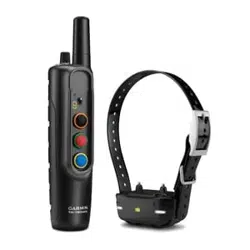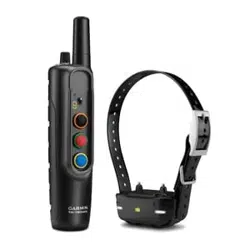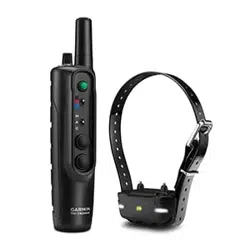
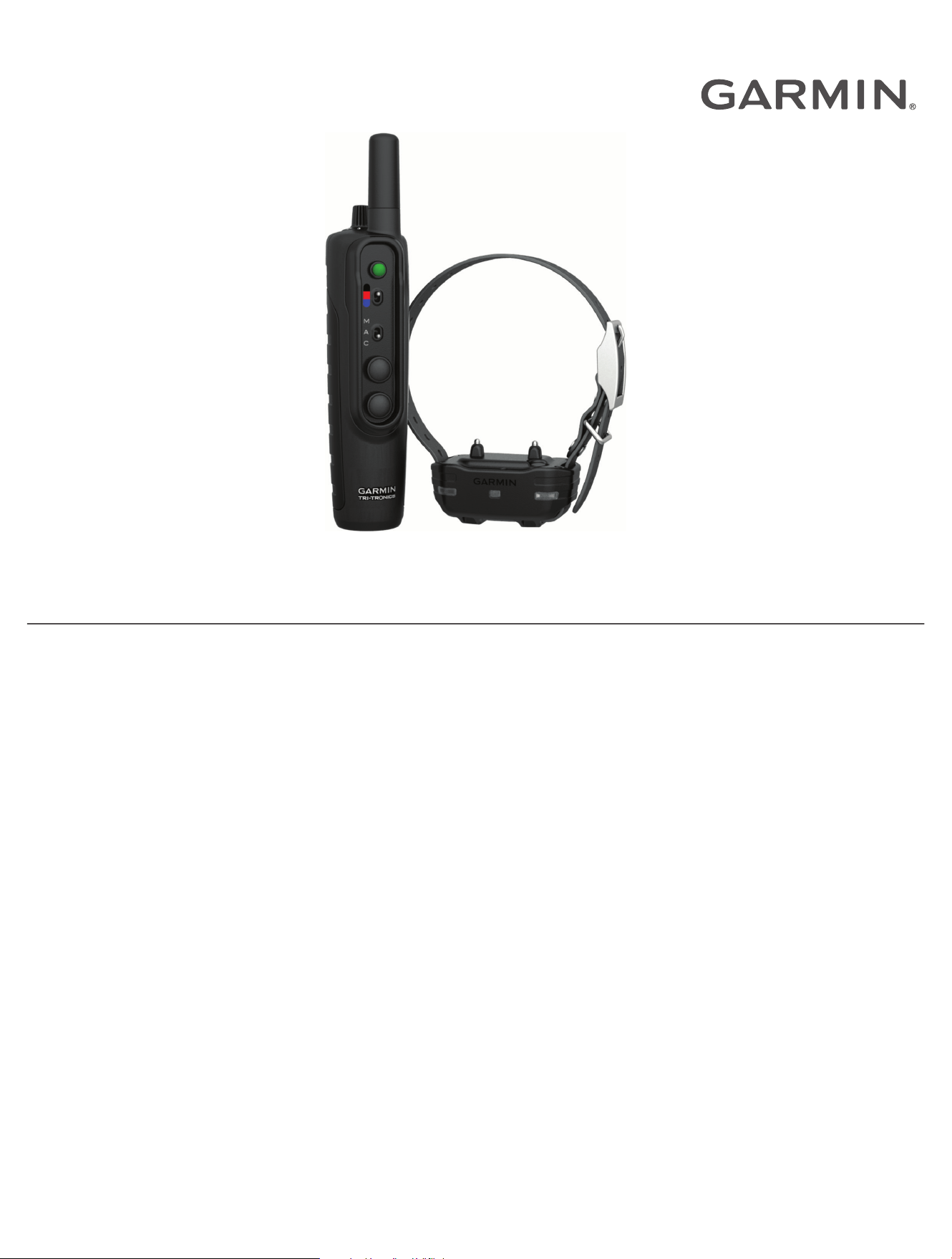
PRO 550
Owner’s Manual

© 2014 Garmin Ltd. or its subsidiaries
All rights reserved. Under the copyright laws, this manual may not be copied, in whole or in part, without the written consent of Garmin. Garmin reserves the right to change
or improve its products and to make changes in the content of this manual without obligation to notify any person or organization of such changes or improvements. Go to
www.garmin.com for current updates and supplemental information concerning the use of this product.
Garmin
®
and the Garmin logo are trademarks of Garmin Ltd. or its subsidiaries, registered in the USA and other countries. BarkLimiter
™
and Bark Odometer
™
are trademarks of
Garmin Ltd. or its subsidiaries. These trademarks may not be used without the express permission of Garmin.
CAN ICES-3(B)/NMB-3(B)

Table of Contents
Getting Started................................. 1
Setting Up the Pro 550 System.............. 1
Device Overviews.................................... 1
Attaching the Dog Collar Device to the
Collar Strap.............................................. 2
Charging the Handheld Device............... 3
Charging the Collar................................. 4
Turning On the Dog Collar Device.......... 4
Dog Collar Device.................................... 4
Dog Training.....................................5
Fitting the Collar on Your Dog................ 5
Selecting and Installing the Contact
Points....................................................... 6
Training Intensities and Methods.......... 6
Training Key Functions........................... 7
Choosing the Correct Intensity Level..... 7
BarkLimiter.............................................. 7
Bark Odometer™...................................... 8
Using the Light.........................................8
Beeper Device.......................................... 8
Device Information........................... 8
Pro 550 Handheld Device
Specifications.......................................... 8
Dog Collar Device Specifications........... 9
Checking the Battery Level..................... 9
Pro 550 Battery Replacement
Instructions.............................................. 9
Getting More Information..................... 13
Registering Your Device........................13
Table of Contents i

Getting Started
WARNING
See the Important Safety and Product Information guide in the product box for product warnings and other
important information.
Setting Up the Pro 550 System
Before you can use the Pro 550 system, you must set up the devices.
1 Attach the dog collar device to the collar strap (Attaching the Dog Collar Device to the Collar Strap, page2).
2 Charge the handheld device (Charging the Handheld Device, page3).
3 Charge the dog collar device (Charging the Collar, page4).
4 Turn on the devices (Turning On the Dog Collar Device, page4).
5 If necessary, pair the dog collar device with the handheld device (Pairing a Dog Collar Device with the
Handheld Device, page5).
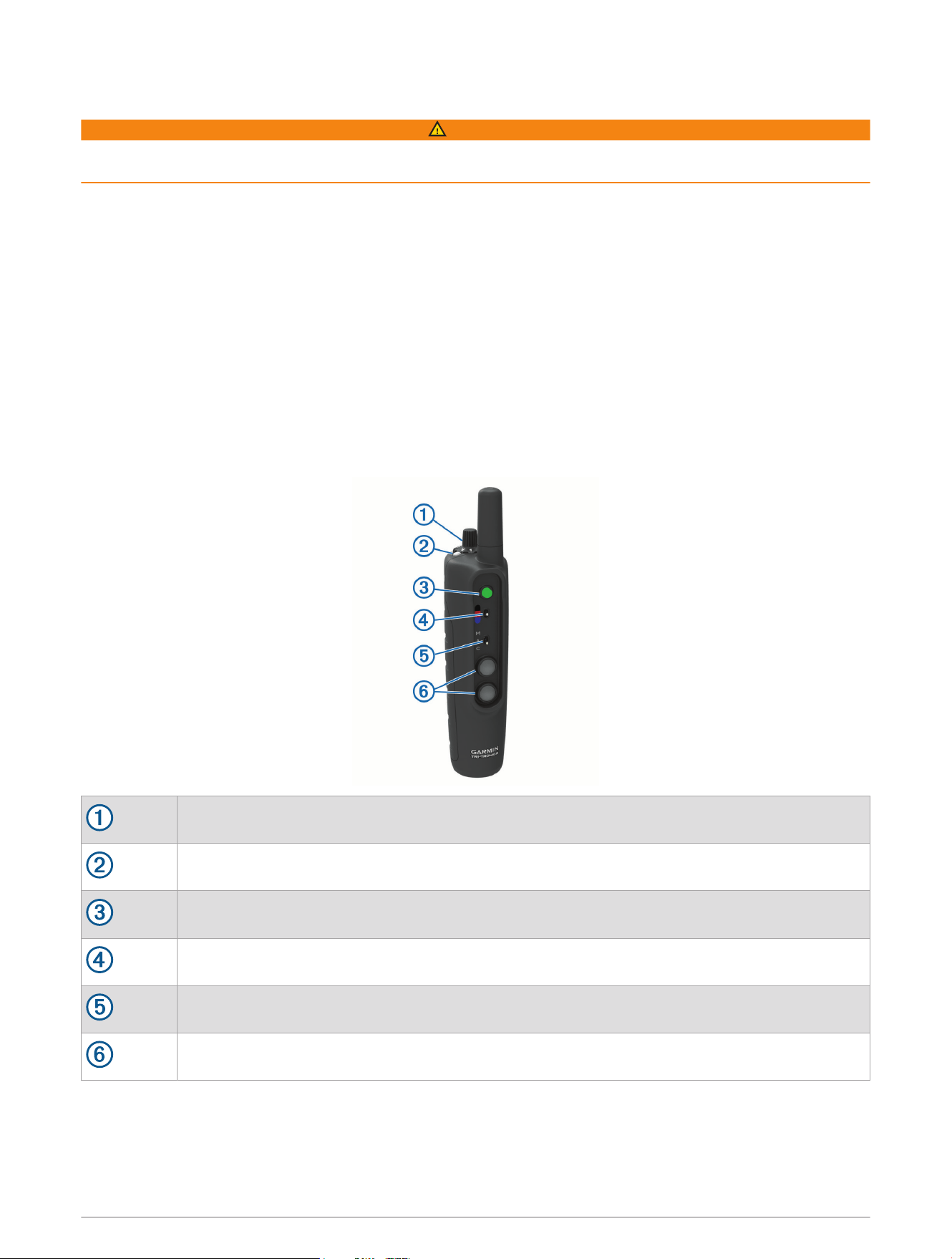
Device Overviews
Pro 550 Handheld Device
Intensity level and training mode dial
Battery level
Tone key
Dog collar device toggle switch
Mode toggle switch
Training keys
Getting Started 1
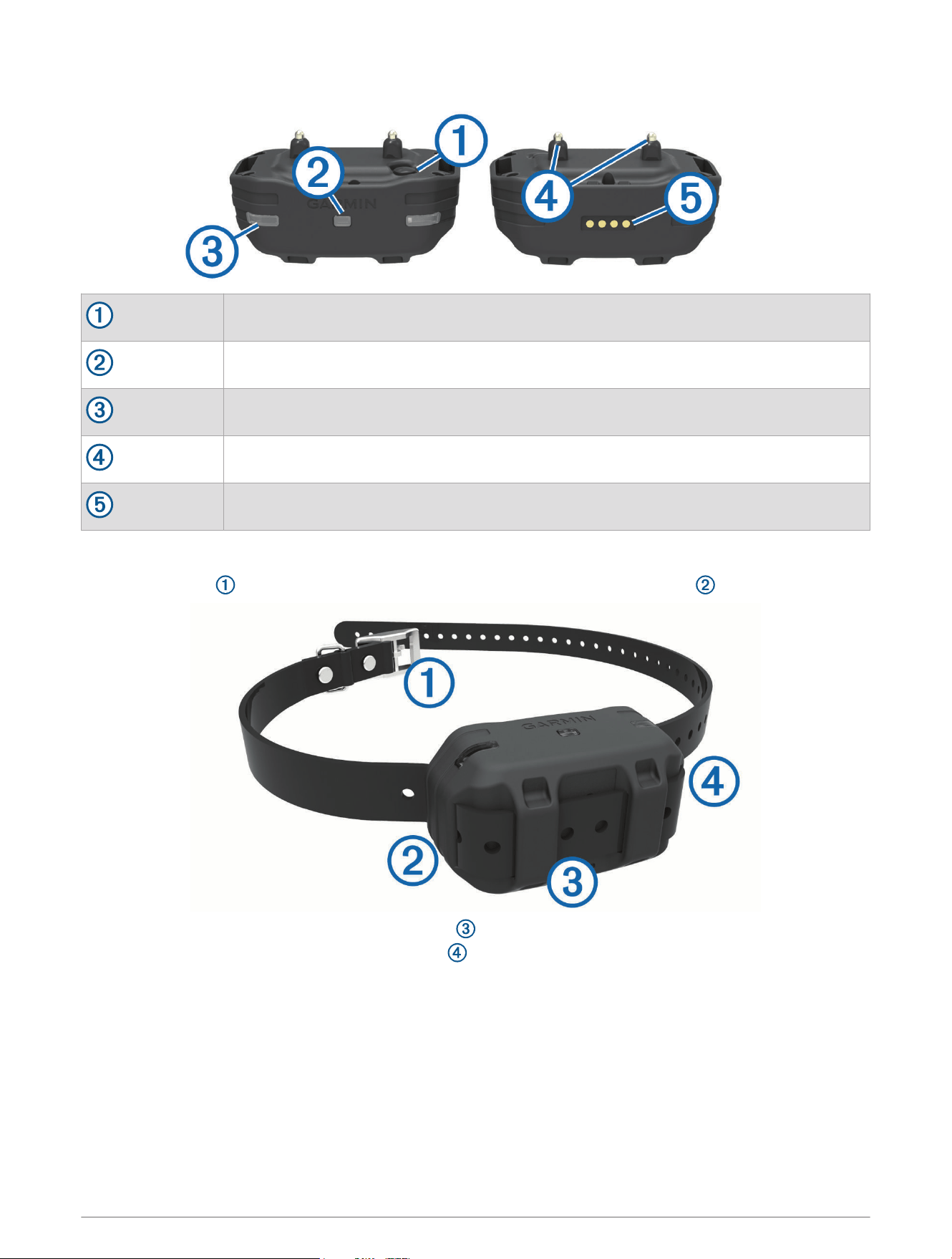
Pro 550 Dog Device
Power key
Status LED
Lights
Contact points
Charging clip contacts
Attaching the Dog Collar Device to the Collar Strap
1 With the buckle facing outward, insert the end of the collar strap through the slot on the collar device.
2 Pull most of the collar strap through the two slots on the dog device.
3 Insert the end of the collar strap through the slot on the opposite side of the device.
4 Pull the strap until it is tight across the front of the device.
2 Getting Started
Charging the Handheld Device
You should fully charge the battery before you use the device for the first time or whenever the battery is low
(Checking the Battery Level, page9). It is normal for the battery to discharge in approximately 7 to 10 weeks
when the device is not in use. Charging a fully depleted battery takes about 2 hours.
NOTE: The device will not charge when it is outside the temperature range of 32° to 104°F (0° to 40°C).
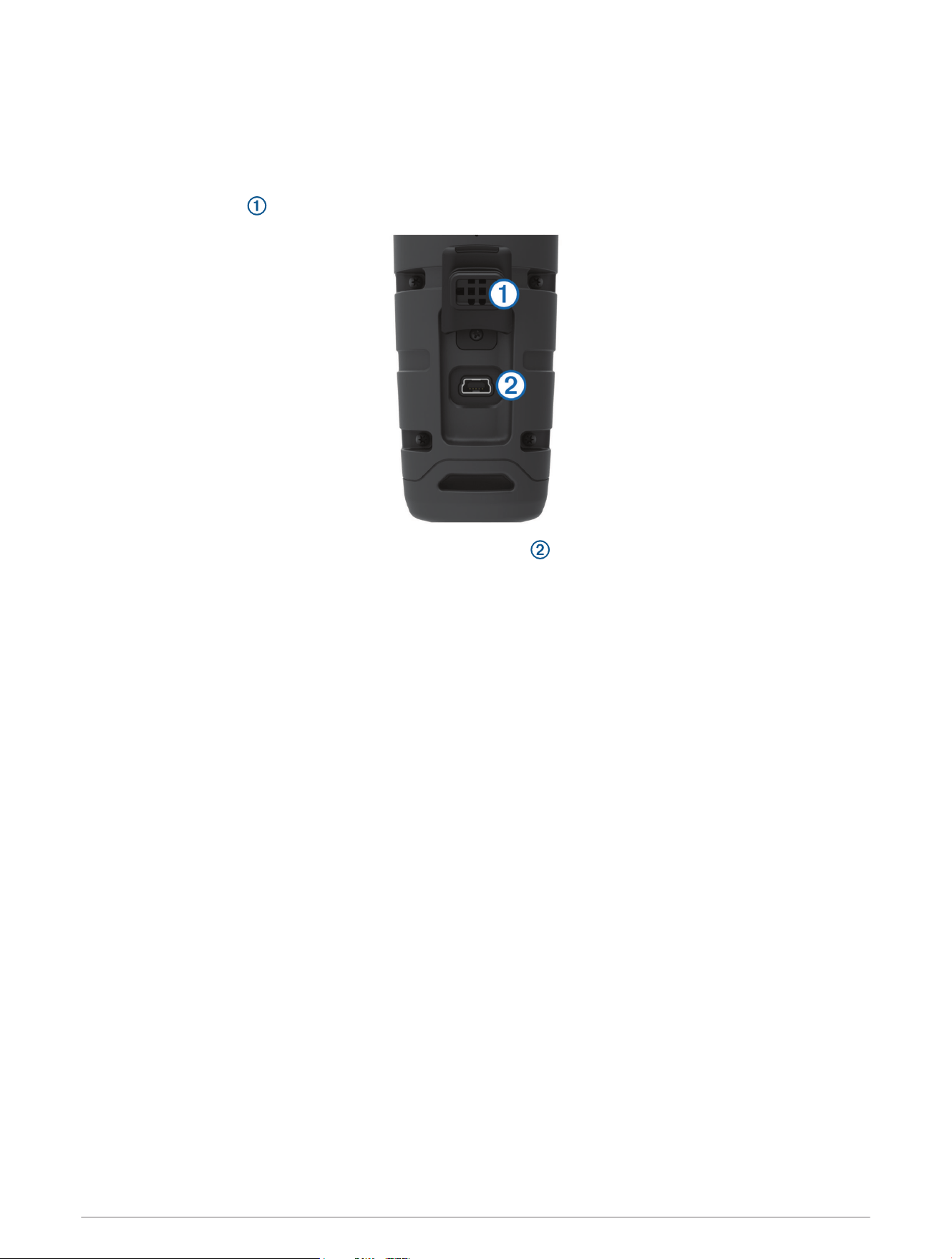
1 Lift the weather cap .
2 Plug the small end of the power cable into the mini-USB port on the device.
3 Plug the other end of the power cable into an appropriate power source.
The status LED is solid red when the device is charging.
4 After the status LED turns solid green, unplug the power cable from the device.
Getting Started 3
Charging the Collar
NOTICE
To prevent corrosion, thoroughly dry the contacts on the collar and the surrounding area before connecting the
charging clip.
You should fully charge the battery before you use the device for the first time or whenever the battery is low
(Checking the Battery Level, page9). It is normal for the battery to discharge in approximately 7 to 10 weeks
when the device is not in use. Charging a fully depleted battery takes about 2 hours.
NOTE: The device will not charge when outside the temperature range of 32° to 104°F (0° to 40°C).
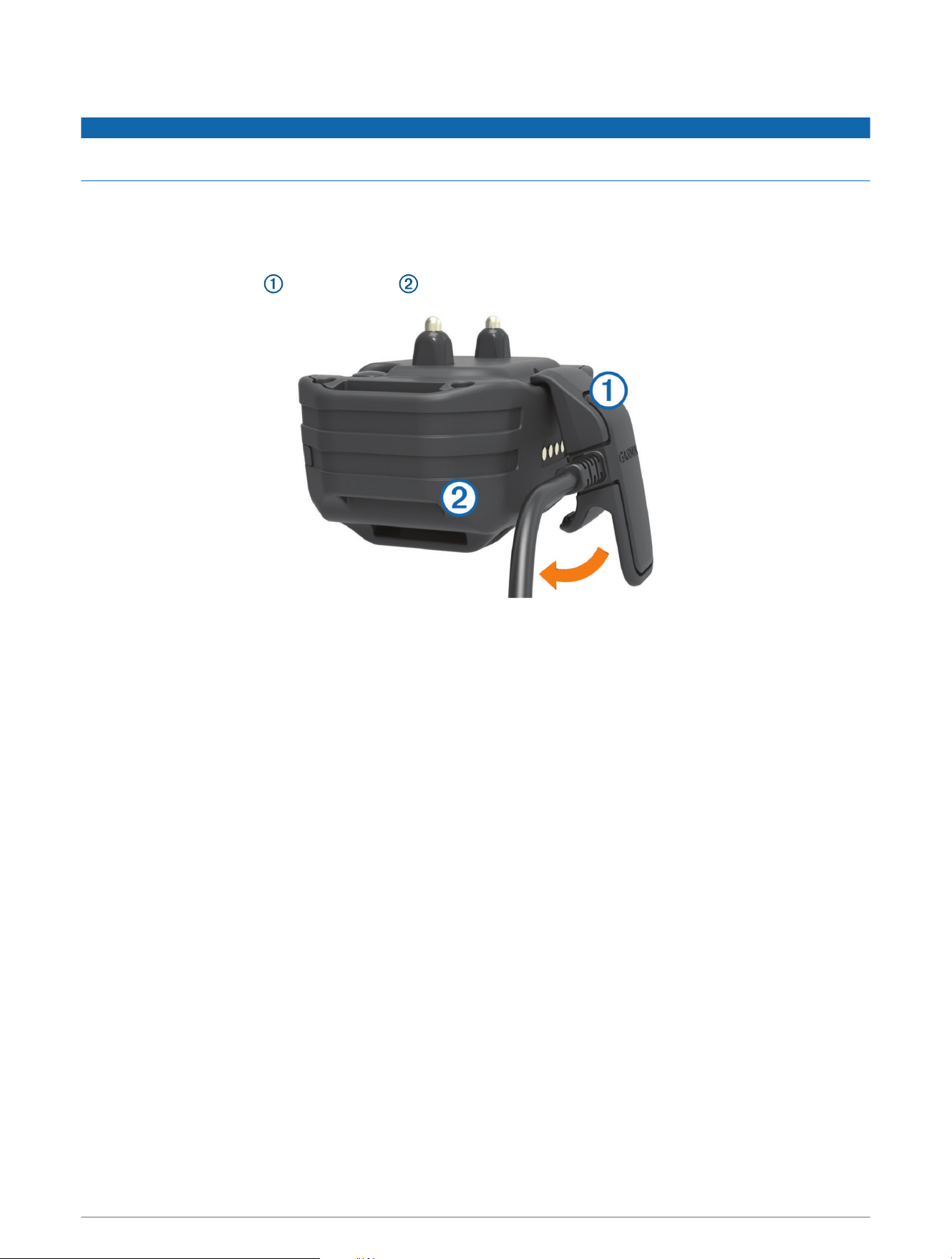
1 Snap the charging clip onto the device .
2 Plug the power cable into a power source.
The status LED is solid red when the collar is charging.
3 After the status LED turns solid green, remove the charging clip from the collar.
Turning On the Dog Collar Device
• On the dog collar device, hold the power key until the status LED turns green and the collar beeps to turn it on
in training mode.
• On the dog collar device, hold the power key until the status LED turns blue to turn on the BarkLimiter
™
feature
(BarkLimiter, page7).
• On the dog collar device, hold the power key until the status LED turns yellow to enter pairing mode (Pairing a
Dog Collar Device with the Handheld Device, page5).
Turning Off the Device
1 On the dog collar device, hold the power key until the red LED appears.
2 Release the power key.
The dog collar device beeps to confirm powering off.
NOTE: If the device is powered off in BarkLimiter mode, the LED flashes the number of corrected barks
before powering off (Checking the Bark Odometer, page8).
Dog Collar Device
You can use up to 3 dog collar devices with a single handheld device.
Each dog collar device must be paired with the handheld device before it can be used. During the pairing
process, each dog collar device is associated with a different color on the handheld device.
4 Getting Started

Pairing a Dog Collar Device with the Handheld Device
NOTE: If your handheld device and dog collar device were included in the same package, the devices are paired
from the factory.
1 On the handheld device, move the toggle switch and select a key to choose the color associated with the dog
collar device.
2 On the handheld device, set the intensity level to a numbered position (Changing the Intensity Level,
page7).
3 On the dog collar device, hold the power key for about 5 seconds until the status LED changes to yellow.
4 On the handheld device, select a training key.
The dog collar device beeps when the devices have paired successfully. If the device does not beep, pairing has
not been successful.
TIP: If the devices did not pair successfully, you should verify the batteries in both devices are fully charged and
the intensity level is set to a numbered position.
Selecting a Dog Collar Device
Before you can select and control a dog collar device, you must pair the dog collar device with the handheld
device (Pairing a Dog Collar Device with the Handheld Device, page5).
Move the dog collar device toggle switch to select the color associated with a dog collar device.
The training keys control the dog collar device associated with the selected color.
Dog Training
You should research and investigate the training methods best suited for you, your dog, and your needs.
When used properly, the Pro 550 training system is an effective training tool to aid your dog in reaching its full
potential. The use of the training system should be part of an overall training program.
Fitting the Collar on Your Dog
CAUTION
To prevent irritation from the contact points, remove the collar for at least eight hours out of every 24-hour
period.
This device is not intended for human use. Do not attempt to use on any person.
In order to properly correct the dog, the collar and device must fit the dog properly. If the collar is too loose or
positioned incorrectly, corrections may be inconsistent. This can delay or prevent successful training.
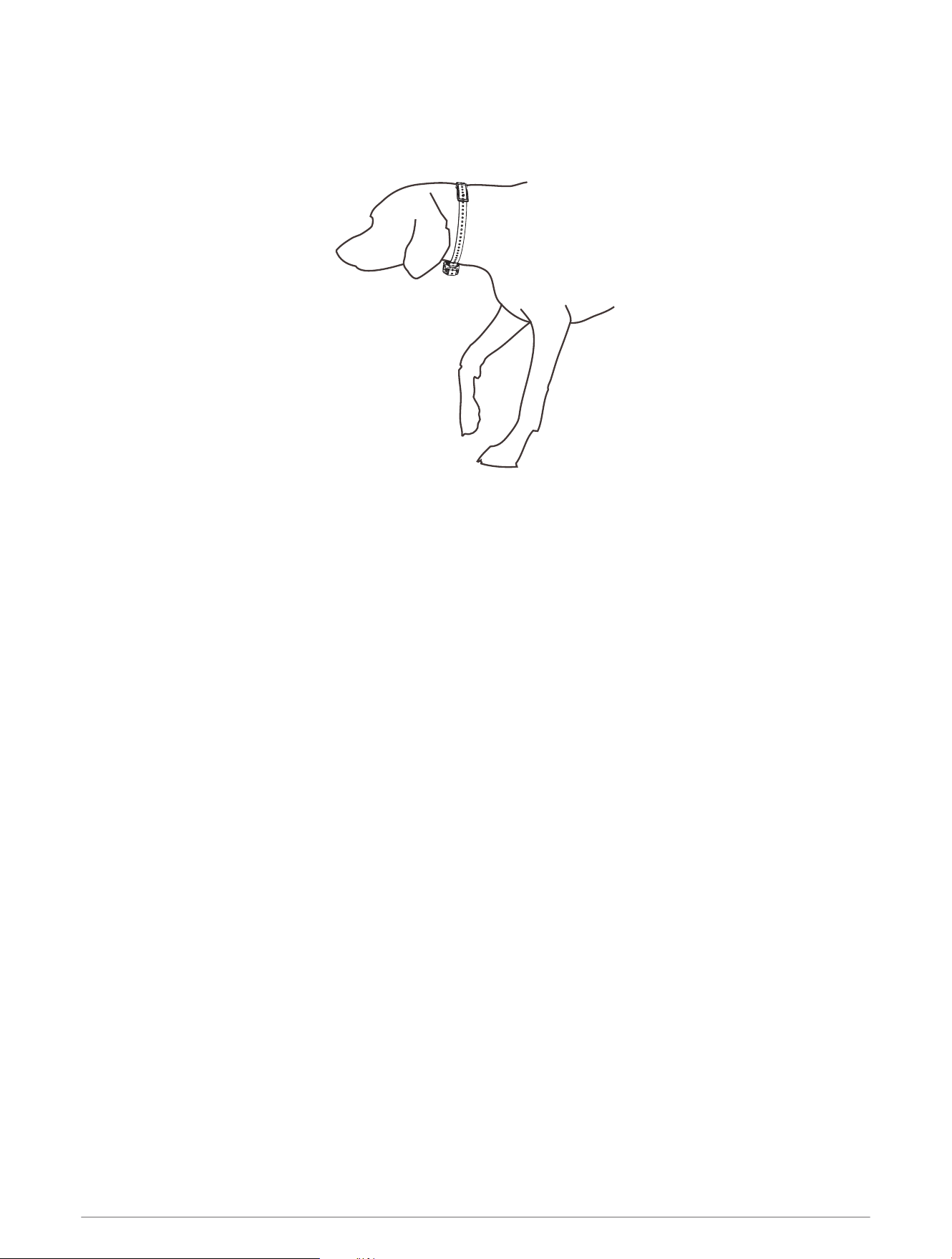
1 Place the collar around the middle of the dog's neck.
2 Position the device at the front of the dog's neck, with the status LEDfacing toward the dog's chin and the
contact points against the throat.
Dog Training 5
3 Tighten the strap so that it is very snug around the dog's neck, and fasten the buckle.
NOTE: The collar should fit tightly and should not be able to rotate or slide on the dog's neck. The dog must
be able to swallow food and water normally. You should observe your dog's behavior to verify the collar is
not too tight.
4 Wiggle the device to work the contact points through the dog's coat.
NOTE: The contact points must have contact with the dog's skin to be effective.
5 If the strap is too long, cut off the excess, leaving at least 3in. (8cm) to spare.
6 Mark the hole used to fasten the buckle for future reference (optional).
Selecting and Installing the Contact Points
For best results, select the correct contact points based on your dog's coat.
1 Select the correct contact point length for your dog's coat type:
• For dogs with thicker coats, use the longer contact points.
• For dogs with shorter coats, use the shorter contact points.
2 If necessary, use the included wrench to remove the contact points.
3 Twist the contact points into the collar.
4 Tighten with the included wrench, but do not overtighten.
When you put the collar on the dog, make sure the contact points are tight against the neck.
Training Intensities and Methods
You can use several methods to train your dog. The Pro 550 system provides 7 stimulation intensity levels,
which increase sequentially from 1 to 7.
Momentary stimulation: Applies a brief stimulation when you press the training key, regardless of how long the
key is depressed.
Continuous stimulation: Applies stimulation to the dog the entire time you press the training key, for a
maximum of 8 seconds. Your stimulations should typically be much shorter than 8 seconds.
Tone: Activates an audible tone instead of stimulation. A tone can be used as either a positive or negative
training cue, depending on your training program.
Vibration: Applies vibration instead of stimulation to the dog the entire time you press the training key, for
a maximum of 8 seconds. The effectiveness of vibration may vary based on the dog's temperament and
experience.
6 Dog Training
Training Key Functions
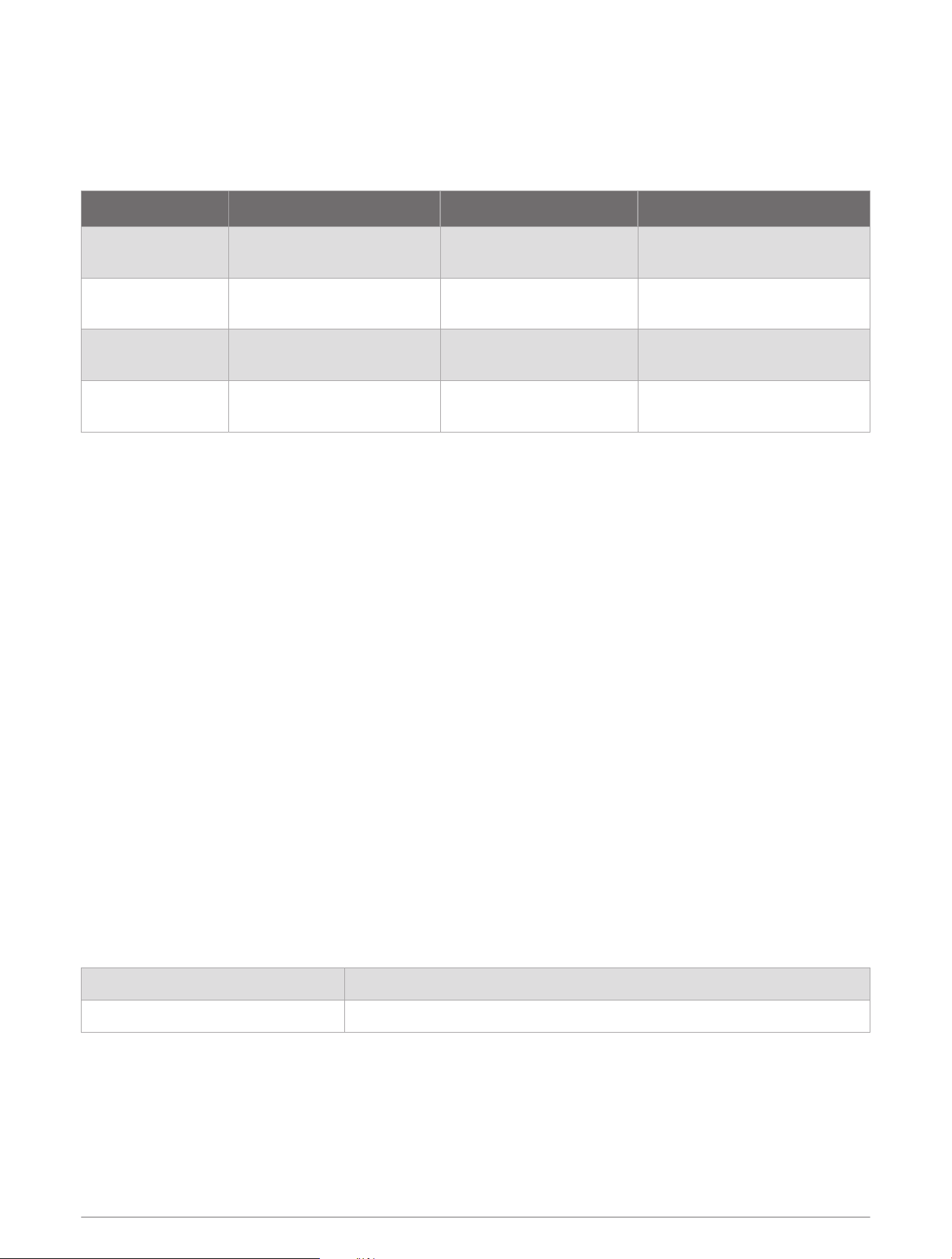
The Pro 550 system provides several training modes, which assign different combinations of momentary
stimulation, continuous stimulation, and tone to the training keys. The three vertical letters next to the mode
toggle switch correspond to the training key functions, from top to bottom.
Key Momentary (M) Accessory (A) Continuous (C)
Tone key Tone
Accessory (for example, a
beeper)
Tone
Top training key
Momentary stimulation
(medium)
Light on
Continuous stimulation
(medium)
Bottom training key
Momentary stimulation
(low)
Light off Continuous stimulation (low)
Both training keys
Momentary stimulation
(high)
Not Applicable Continuous stimulation (high)
Choosing the Correct Intensity Level
1 Set the intensity to the lowest level (Changing the Intensity Level, page7).
2 Select a training key.
3 Observe the dog for a reaction, such as a head shake, neck movement, or just a change in expression.
Sometimes dogs will vocalize due to the surprise of the electrical stimulation. If the dog vocalizes more than
once, the intensity level is too high for beginning training.
4 If there is no reaction, increase the intensity level by one level until the dog has a slight but recognizable
reaction to the stimulation.
The intensity level that causes a slight but recognizable reaction is your dog's baseline level for beginning collar
training. You do not need to, and should not, apply this intensity selection test again.
After you begin training, the dog’s performance guides your intensity selection. As the dog advances in training,
you may need to change the level depending upon the training situation.
Changing the Intensity Level
You can select a different intensity level for each dog collar device.
1 Select a dog collar device (Selecting a Dog Collar Device, page5).
2 Adjust the intensity dial to increase or decrease the intensity level.
BarkLimiter
When the dog collar device is active and properly fitted on the dog, it detects and corrects barks automatically.
The dog collar device starts at the lowest intensity level and increases the intensity level gradually until the dog
stops barking. When the dog is quiet, the intensity decreases over time.
The status LEDflashes briefly when the dog collar device detects motion or corrects a bark.
Green, amber, or red flash Motion was detected, and no correction was applied.
Blue flash A bark was detected, and a correction was applied.
NOTE: A green, amber, or red flash denotes how much charge is left in the dog device battery, ranging from high
to low.
Enabling the BarkLimiter Feature
On the dog collar device, hold the power key until the LED flashes blue.
Dog Training 7

Bark Odometer
™
When you turn off the device, the LED flashes red and green to report the number of times the device detected a
bark since it was last turned on. This can help you track your dog's barking behavior.
Red flash 10 barks
Green flash 1 bark
For example, one red flash followed by four green flashes indicates the device detected 14 barks.
Zero flashes indicates the device detected zero barks.
Checking the Bark Odometer
1 Remove the device from the dog.
2 Position the device so that you can see the status LED.
3 Hold the power key until the status LED turns red, and release.
4 Count the red and green flashes.
Using the Light
You can use the light feature on your device to verify pairing, help locate your dog, and provide safety for your
dog at night.
1 Select a dog collar device (Selecting a Dog Collar Device, page5).
2 Move the mode toggle switch to A.
3 Select the top training key to turn the light on.
4 Select the bottom training key to turn the light off.
Beeper Device
The Pro 550 system works with optional accessories, including a beeper device. The beeper device emits
high-volume sounds to provide information about the location and status of your dogs. You can operate the
beeper device remotely using the Pro 550 system. For more information or to purchase accessories, go to
http://buy.garmin.com.
Device Information
Pro 550 Handheld Device Specifications
Battery type Rechargeable, replaceable lithium-ion
Battery life 60 hours typical use
Operating temperature range From -4° to 140°F (from -20° to 60°C)
Charging temperature range From 32° to 104°F (from 0° to 40°C)
Storage temperature range (less than 1 month) From -4° to 122°F (from -20° to 50°C)
Storage temperature range (less than 3 months) From -4° to 104°F (from -20° to 40°C)
Storage temperature range (less than 1 year) From -4° to 68°F (from -20° to 20°C)
Wireless frequency/protocol 27 MHz @ -10 dBm nominal
Water rating IEC 60529 IPX7
1
Wireless range 2mi. (3.2km)
1
The device withstands incidental exposure to water of up to 1m for up to 30min. For more information, go to www.garmin.com/waterrating.
8 Device Information
Dog Collar Device Specifications
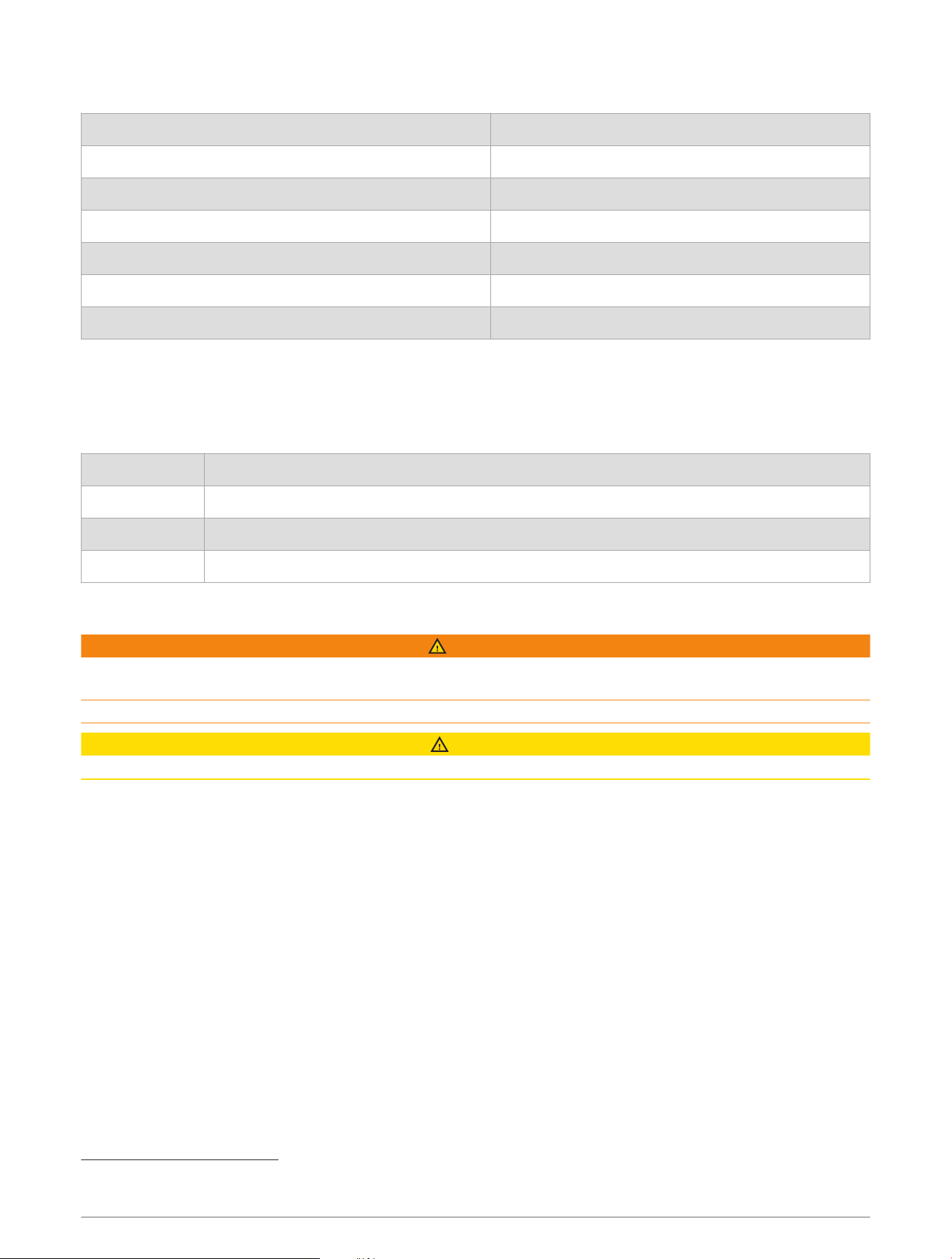
Battery type Rechargeable, replaceable lithium-ion
Battery life Up to 60 hr. of typical use
Operating temperature range From -20° to 60°C (from -4° to 140°F)
Charging temperature range From 0° to 40°C (from 32° to 104°F)
Storage temperature range (up to 1 mo.) From -20° to 50°C (from -4° to 122°F)
Storage temperature range (up to 3 mo.) From -20° to 35°C (from -4° to 95°F)
Water rating 1ATM
2
Checking the Battery Level
Turn on the dog collar device (Turning On the Dog Collar Device, page4).
The status LED flashes every few seconds while the device is on. The color of the status LED indicates the
battery charge level.
Green The battery has a good charge.
Yellow The battery should be charged soon.
Red The battery is very low and should be charged immediately.
Flashing Red The battery is depleted and must be charged. Training features are disabled.
Pro 550 Battery Replacement Instructions
WARNING
This product contains a lithium-ion battery. To prevent the possibility of personal injury or product damage
caused by battery exposure to extreme heat, store the device out of direct sunlight.
Do not use a sharp object to remove batteries.
CAUTION
Contact your local waste disposal department to properly recycle the batteries.
2
The device withstands pressure equivalent to a depth of 10m. For more information, go to www.garmin.com/waterrating.
Device Information 9
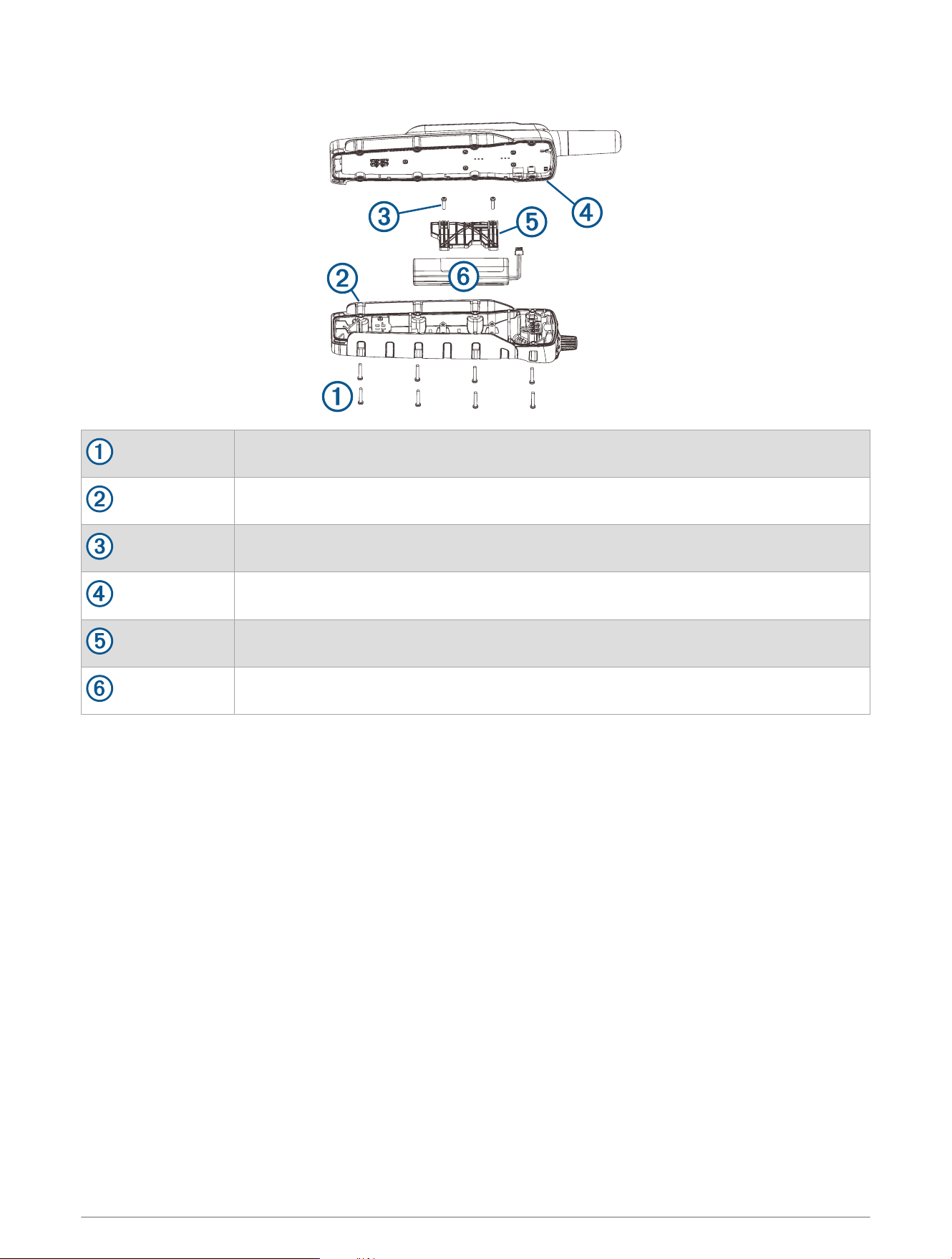
Pro 550 Handheld Device Components
Security screws
Back plate
Battery plate screws
Gasket
Battery plate
Battery
10 Device Information

Replacing the Pro 550 Handheld Device Battery
Before you replace the battery, you must remove all dirt, water, and debris from the device. You also need a
small Phillips screwdriver and the security screwdriver included with the battery replacement kit.
You can purchase a replacement battery at http://buy.garmin.com. You should use only an official Garmin
®
replacement part.
1 Remove the eight security screws from the back of the device.
2 Lift up the back plate.
3 Grip the battery connector wires close to the connector, and pull the connector perpendicular to the circuit
board to disconnect the battery connector from the device.
4 Grip the rotary switch connector wires close to the connector, and pull the connector perpendicular to the
circuit board to disconnect the rotary switch connector from the device.
5 Remove the two screws from the battery plate.
6 Lift up the battery plate.
7 Remove the old battery from the back plate, noting the orientation of the battery.
The battery fits tightly. It may be necessary to pry the battery out of the back plate using a non-sharp,
non-metal object.
8 Install the new battery into the back plate with the label side up, using the same orientation as the old
battery.
The battery orientation is noted graphically inside the back plate.
9 Replace the battery plate to its original position.
10 Replace and tighten the battery plate screws.
11 With the new battery, connect the battery connector to the device.
When properly installed, the connector plug snaps into the port.
12 Reconnect the rotary switch connector to the device.
When properly installed, the connector plug snaps into the port.
13 Verify the gasket is not damaged and is completely seated in the groove on the front half of the device.
14 While ensuring the battery and rotary switch wires are not pinched, hold the back plate and the device firmly
together, and replace all eight security screws without tightening.
15 Verify the back plate and the device are aligned with no gaps.
16 Tighten the screws evenly.
17 Verify the gasket is not sticking out of the device.
Device Information 11
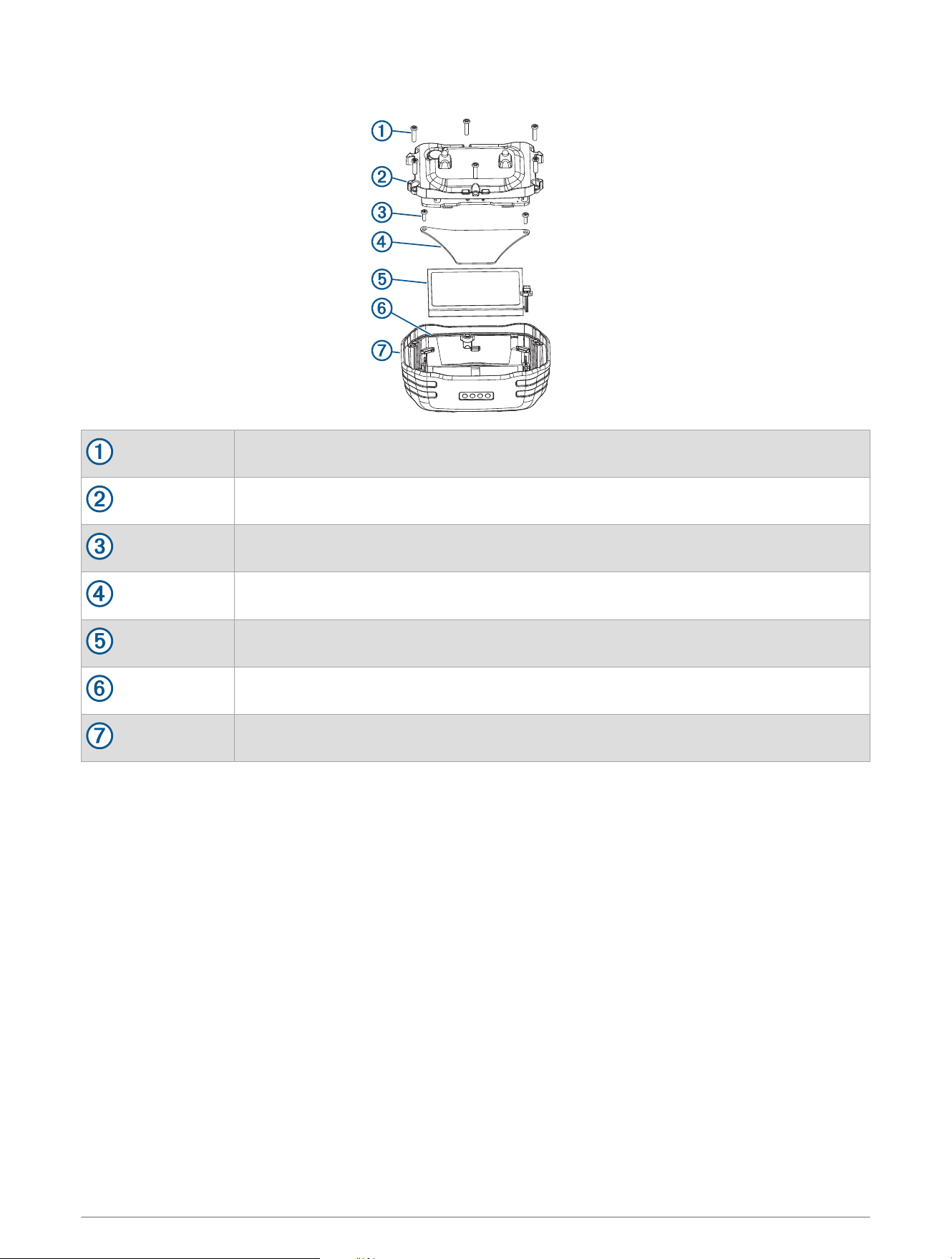
Pro 550 Dog Collar Device Components
Security screws
Top plate
Battery plate screws
Battery plate
Battery
Gasket
Front enclosure
Replacing the Pro 550 Dog Collar Device Battery
Before you replace the battery, you must remove all dirt, water, and debris from the device. You also need a
small Phillips screwdriver and the security screwdriver included with the battery replacement kit.
You can purchase a replacement battery at http://buy.garmin.com. You should use only an official Garmin
replacement part.
1 Remove the six screws from the top plate, and remove the top plate.
2 Remove the two screws from the battery plate, and remove the battery plate.
3 Grip the battery connector wires close to the connector, and pull the connector parallel to the circuit board to
disconnect the battery connector from the device.
4 Remove the battery.
The battery fits tightly. It may be necessary to pry the battery out of the back plate using a non-sharp,
non-metal object.
5 Install the new battery into the front enclosure with the label side of the battery facing up, and the leading
edge of the battery placed under the charging contact ledge of the device.
12 Device Information
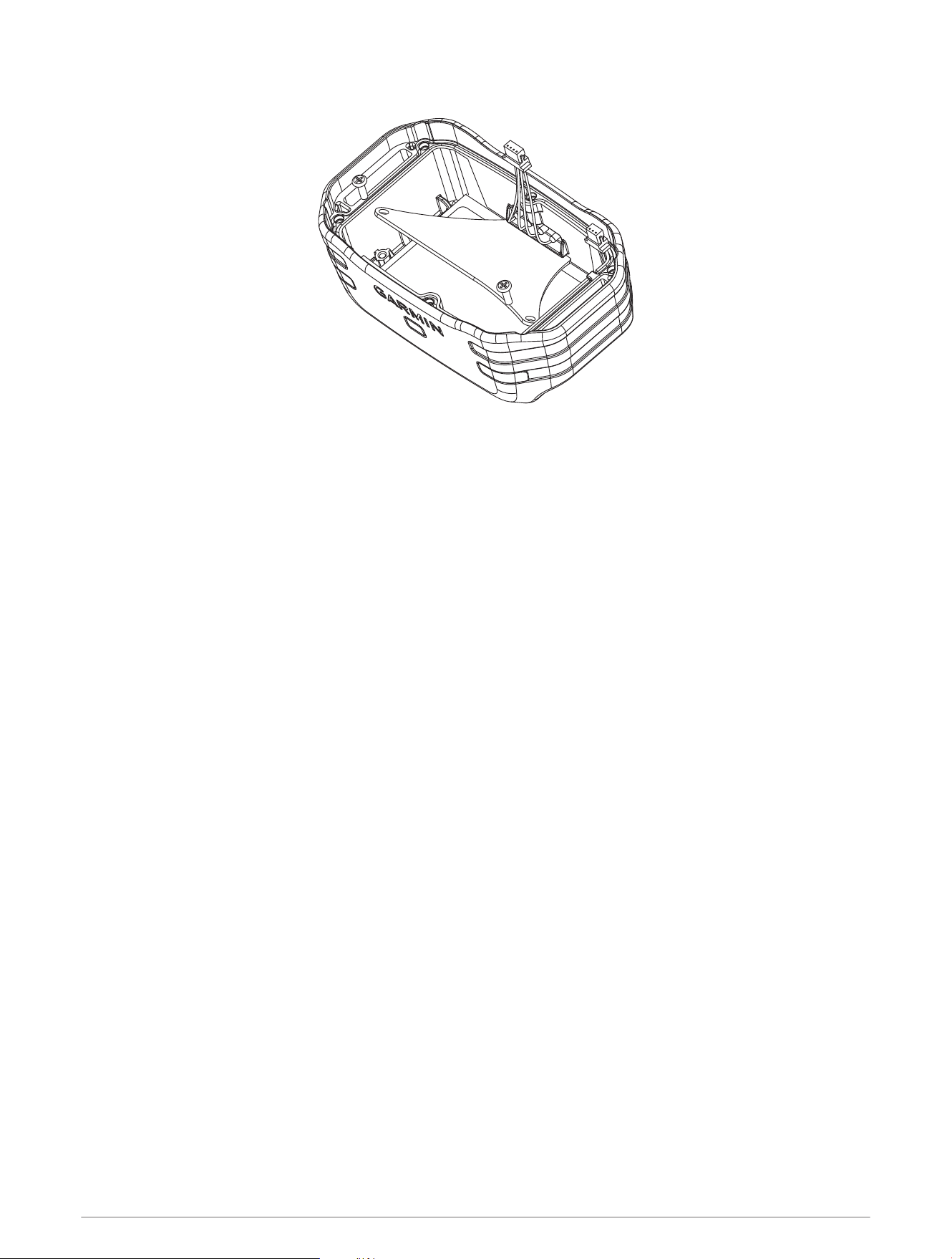
6 Replace the battery plate, and replace and tighten the two screws.
7 Verify the gasket is not damaged and is completely seated in the groove.
8 With the new battery, connect the battery connector to the device.
When properly installed, the connector plug snaps into the port.
9 Replace the front plate, and replace and tighten the six screws to secure the front plate.
10 Verify the gasket is not sticking out of the device.
Getting More Information
You can find more information about this product on the Garmin website.
• Go to www.garmin.com/outdoor.
• Go to www.garmin.com/learningcenter.
• Go to http://buy.garmin.com, or contact your Garmin dealer for information about optional accessories and
replacement parts.
Registering Your Device
Help us better support you by completing our online registration today.
• Go to http://my.garmin.com.
• Keep the original sales receipt, or a photocopy, in a safe place.
Device Information 13

support.garmin.com
GUID-BAE7EA92-0BC4-4FBE-B7A0-20230308239D
v5
July 2025