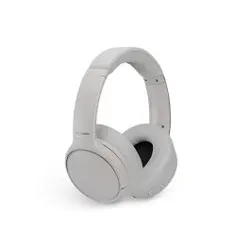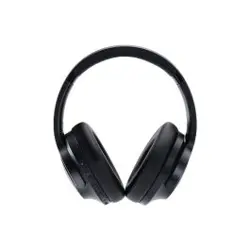
Operating Instructions
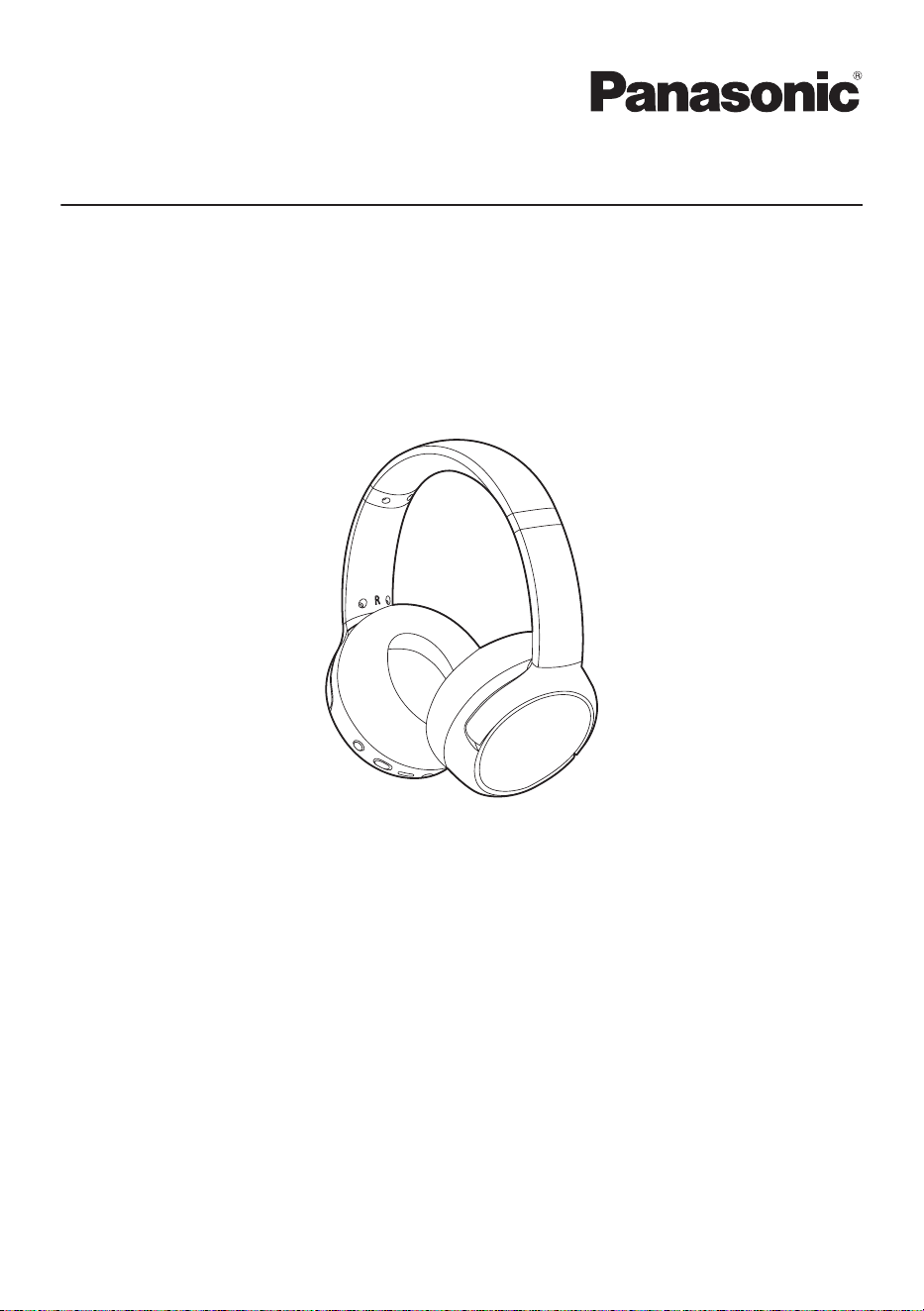
Digital Wireless Stereo Headphones
Model No. RB-M600B
Thank you for purchasing this product.

Let’s Get Started
Accessories ........................................................3
Part names and functions ...................................3
LED .............................................................................3
Charging .............................................................4
Pair for the first time ............................................4
Pair a subsequent device ...................................5
Turn the unit on/off ..............................................6
Convenient Function
Listen to music ....................................................7
Talk .....................................................................7
Activate voice assistant features ........................7
Establish multi-point connections .......................8
Using remote control ...........................................8
Enhancing the bass (Bass enhancer) .................9
Use external sound control .................................9
Resetting the unit ................................................9
Auto power off .....................................................9
Battery level notification ....................................10
Guidance messages .........................................10
Using the detachable cord (supplied) ...............10
FAQ
Troubleshooting ................................................11
Reset to factory settings ...................................12
Firmware updates .............................................12
Maintenance .....................................................12
Removing the batteries when disposing of this
unit ....................................................................12
Specifications ....................................................14
Other Information
About Bluetooth
®
..............................................16
Disposal of Old Equipment and Batteries (Only for
European Union and countries with recycling
systems) ...........................................................17
Trademarks .......................................................17
2
Table of Contents
Expressions used in this document
R The product illustrations may differ from the actual product.
Accessories
1 ´ USB charging cord
(Input plug: USB Type-A Shape, Output plug: USB Type-C Shape)
1 ´ Detachable cord (Page 10)
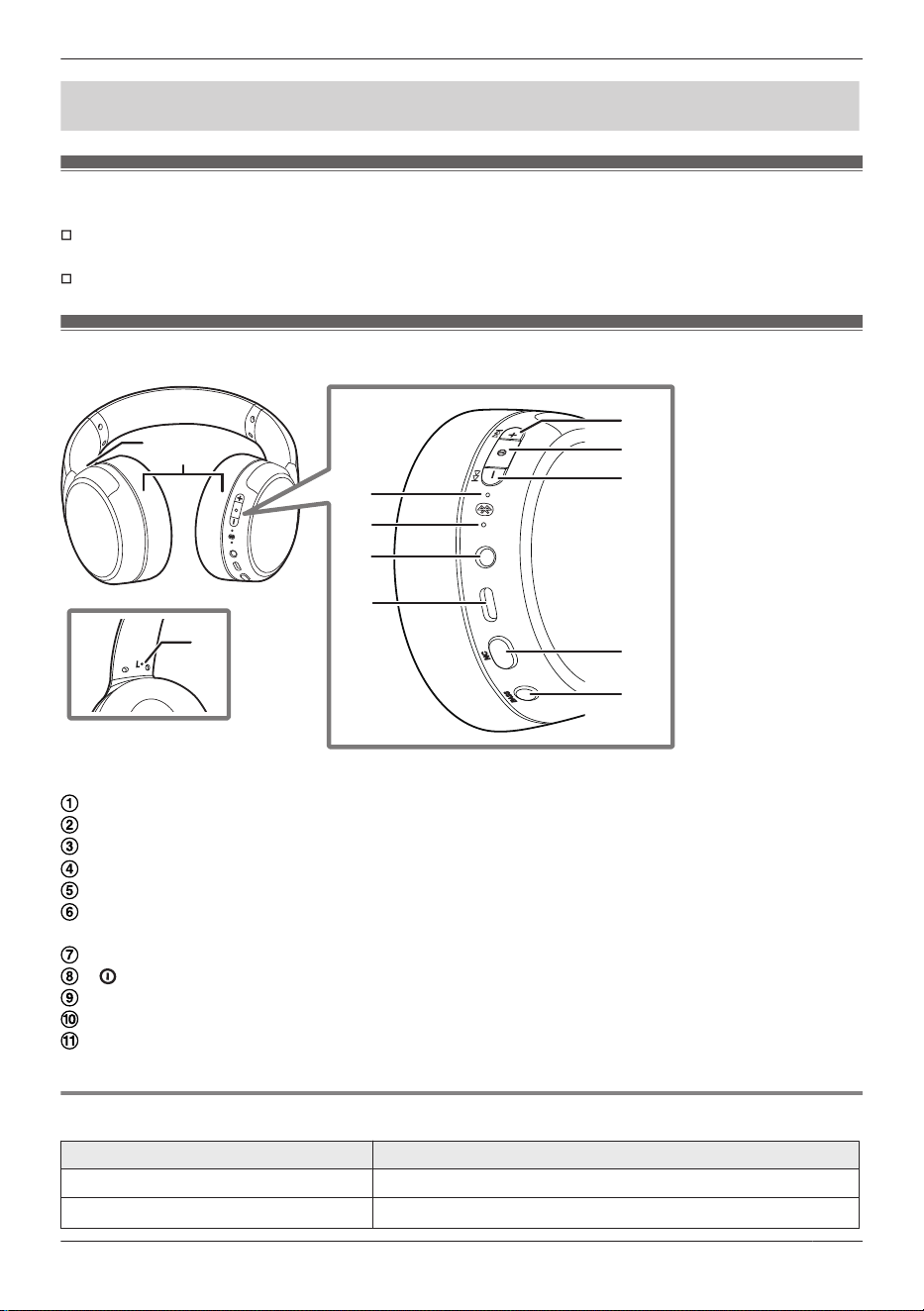
Part names and functions
2
1
1
j
k
6
7
8
9
3
4
5
Raised dot indicating the left side
Ear pads
Power/pairing LED
*1
Microphone
Audio input terminal
Charging terminal (DC IN)
R Connect the USB charging cord (supplied) to this terminal when charging. (Page 4)
MJN (Volume Up, Next track)
M N (Pairing, Standby/ON)
MKN (Volume Down, Previous track)
MNCN (Noise cancelling, Ambient, Off) (Page 9)
MBASSN (Bass enhancer) (Page 9)
*1 Hereafter referred to as “LED”
LED
LED colour/pattern Status description
Lighting (red) Charging is in progress
Blinking alternately red and blue
Standing by for Bluetooth
®
pairing (registration)
3
Let’s Get Started
LED colour/pattern Status description
Blinking slowly (blue)
*1
Standing by for a Bluetooth
®
connection
Blinking blue twice every two seconds
*1
Bluetooth
®
pairing (registration) has been established, or a call is in
progress
Blinking (blue)
*1
A call is being received
Blinking blue briefly every two seconds
*1
The detachable cord (supplied) is connected
*1 The battery is low when it is blinking red. (Page 10)
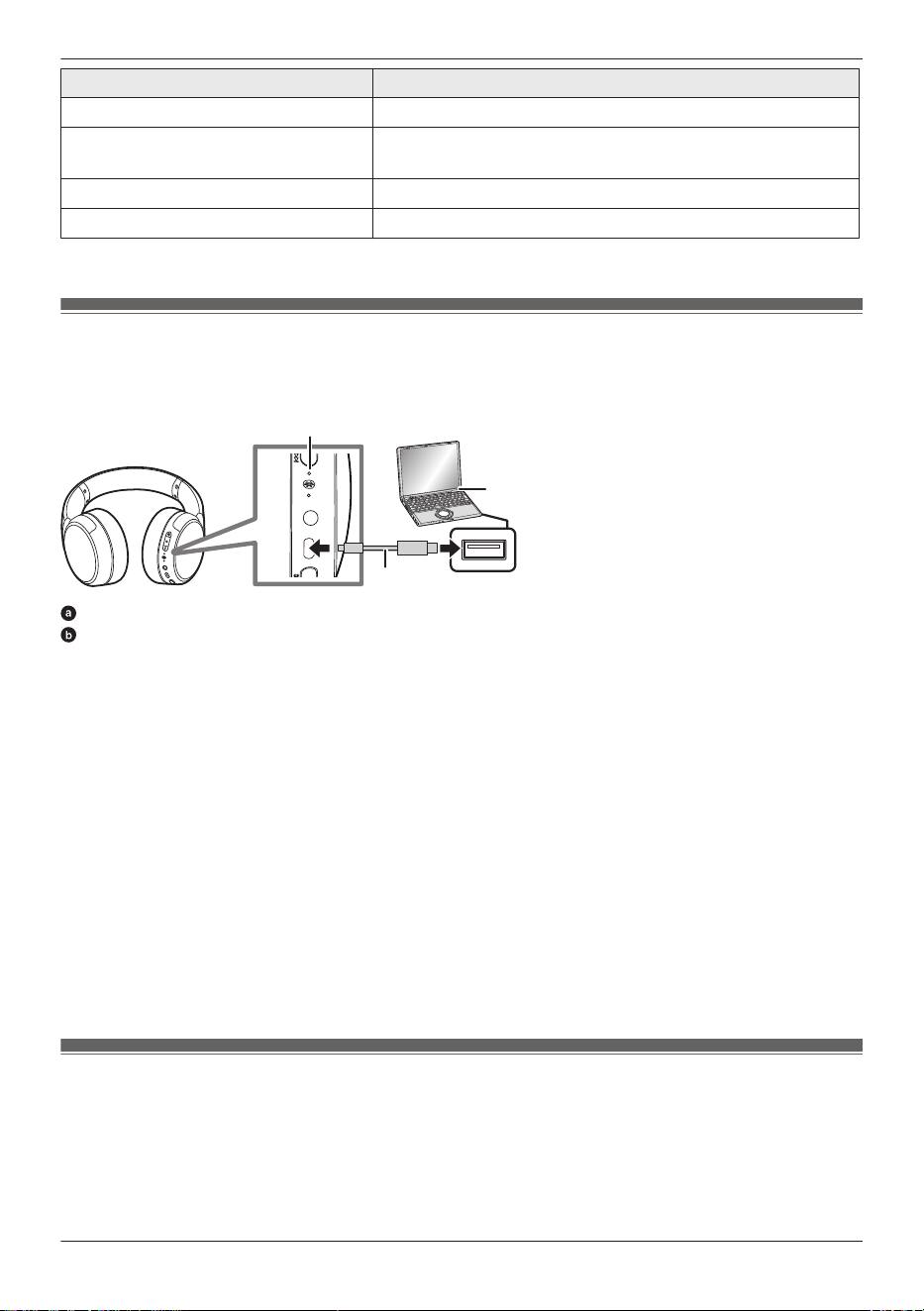
Charging
The built-in rechargeable battery is not charged initially. Charge the battery before using the unit.
6
7
8
: USB charging cord (supplied)
: Power source (e.g., PC)
8
: LED
1 Use the USB charging cord (supplied) to connect the unit to a 5.0 V power source (0.5 A or higher).
R Check the direction of the USB charging cord and plug the cable straight in. If you plug the cord in at an angle
or the wrong way up, the connectors may be damaged resulting in a malfunction.
R The LED lights up (red), and charging starts.
R Charging is complete when the LED turns off.
R It takes approx. 4.0 hours to charge the battery from empty to full.
Note:
R You cannot use the Bluetooth
®
feature when the unit is connected to a computer using the USB charging cord.
R Charge at a room temperature between 10 °C and 35 °C (50 °F and 95 °F). Outside of this temperature range,
charging may stop and the LED may blink red.
R You cannot turn on the power while charging.
R Do not use any other USB charging cords except the supplied one. Doing so may cause a malfunction.
R Charging may not occur or may stop if the computer is in standby mode, sleep mode, or switches to one of these
modes.
Pair for the first time
Important:
R When pairing, keep the Bluetooth
®
device and unit close together. (Within about 1 m (3.3 ft))
R Depending on the connected Bluetooth
®
device, a loud sound may be output during playback. Check the volume
setting of the Bluetooth
®
device before starting playback.
4
Let’s Get Started
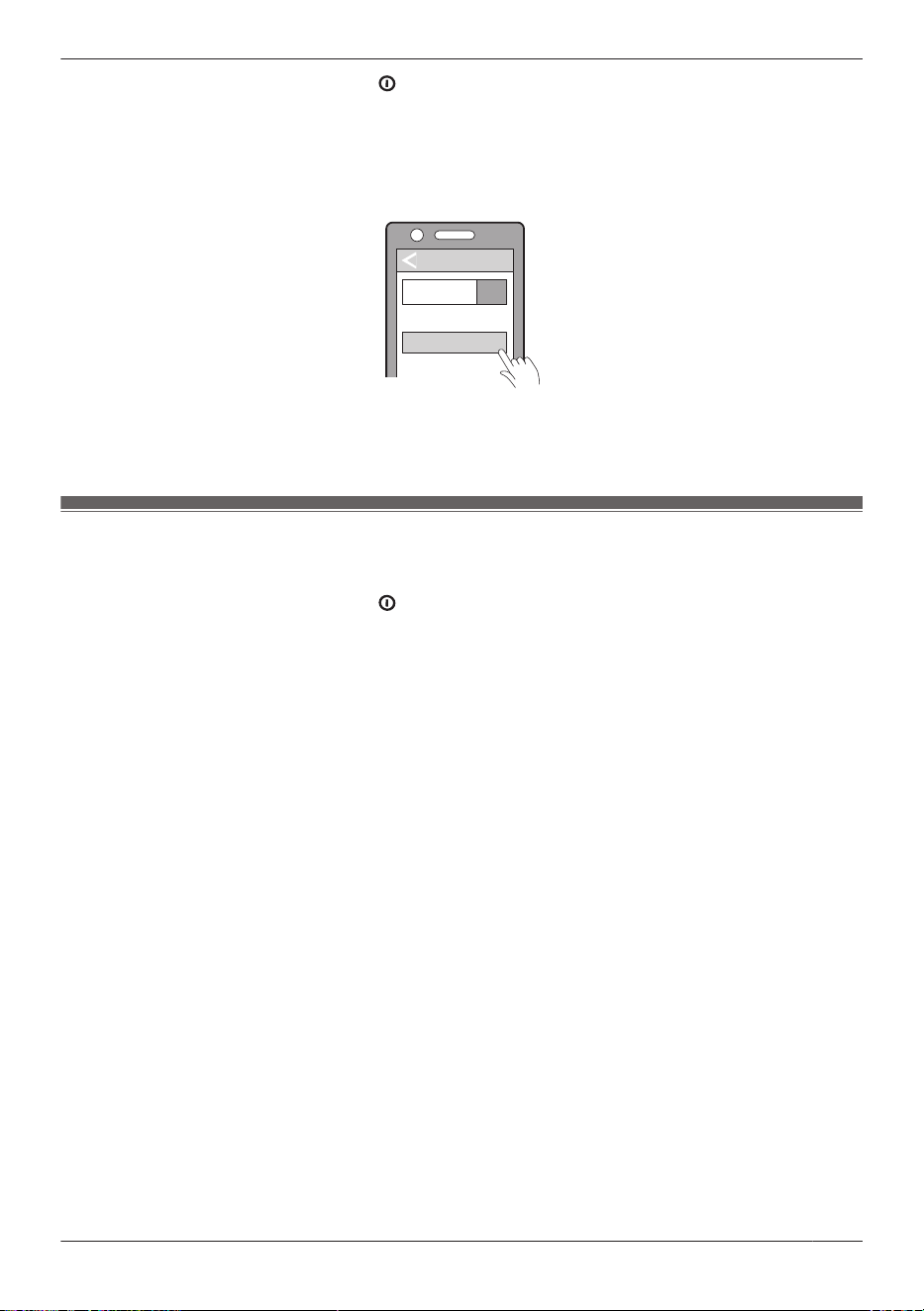
1 In the power-off state, press and hold M N for about 3 seconds until the LED starts blinking alternately
red and blue.
2 Turn on Bluetooth
®
in the Bluetooth
®
device.
3 From the Bluetooth
®
menu in the Bluetooth
®
device, select the unit.
R If you are asked to input a passkey, input the passkey “0000” (four zeros).
R For details about setting up Bluetooth
®
, please refer to the manual of the Bluetooth
®
device.
Bluetooth
Bluetooth
Device
ON
RB-M600B
4 Check that the unit and the Bluetooth
®
device are connected.
R When the LED blinks blue twice every 2 seconds, a connection has been established, and pairing is
completed.
Pair a subsequent device
You can pair up to 8 Bluetooth
®
devices with the unit.
1 In the power-off state, press and hold M N for about 5 seconds until the LED starts blinking alternately
red and blue.
2 Turn on Bluetooth
®
in the Bluetooth
®
device.
3 From the Bluetooth
®
menu in the Bluetooth
®
device, select the unit.
R If you are asked to input a passkey, input the passkey “0000” (four zeros).
R For details about setting up Bluetooth
®
, please refer to the manual of the Bluetooth
®
device.
4 Check that the unit and the Bluetooth
®
device are connected.
R When the LED blinks blue twice every two seconds, a connection has been established, and pairing is
completed.
Note:
R If you pair a device when the maximum number of paired Bluetooth
®
devices is exceeded, previously paired
devices will be overwritten. To use overwritten devices again, pair them again.
R Pairing a subsequent device is easier if you turn off Bluetooth
®
in the first device.
R The unit turns off if the device is not connected within 5 minutes. Turn on the unit and pair again.
R The unit remembers the last connected device. The unit may connect automatically after it is turned on.
R The unit can connect to up to 2 Bluetooth
®
devices at the same time. (Page 8)
5
Let’s Get Started
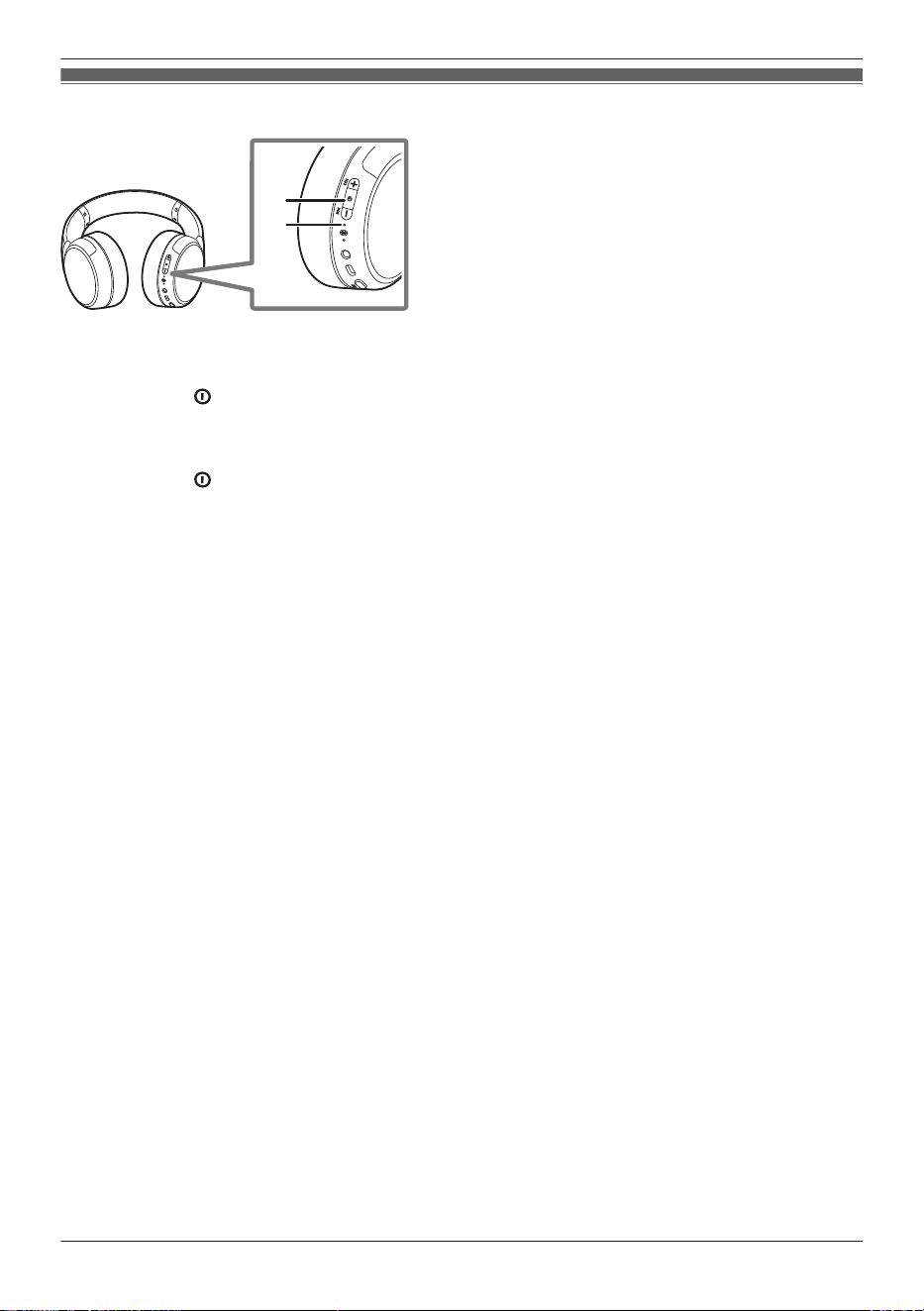
Turn the unit on/off
6
7
n Turning on
Press and hold M N (
66
) for about 2 seconds until the LED (
7
) blinks blue.
R A beep will sound, and the LED blinks blue twice every 2 seconds.
n Turning off
Press and hold M N (
66
) for about 2 seconds until the LED turns off.
R A beep will sound, and the power turns off.
n Auto power off
You will hear a disconnection message when the unit is disconnected from the Bluetooth
®
device. After about 5
minutes of inactivity, you will hear a beep, and the unit turns off.
6
Let’s Get Started
Listen to music
If the Bluetooth
®
device supports the “A2DP” and “AVRCP” Bluetooth
®
profiles, you can use the unit to
play music and videos.
1 Connect the Bluetooth
®
device and unit.
2 On the Bluetooth
®
device, select and play the music or video.
R The unit will play the audio of the music or video.
R You can adjust the volume by pressing the buttons on the right side of the unit. (Page 8)
R Operating time (Page 14)
Note:
R A2DP (Advanced Audio Distribution Profile): Transmits audio to the unit.
R AVRCP (Audio/Video Remote Control Profile): Allows remote control with the unit.
R Be aware that sound may leak from the unit depending on the volume.
R Music may sound distorted if you increase the volume to near maximum. Decrease the volume.
Talk
If a Bluetooth
®
phone (mobile phone or smartphone) supports the “HFP” Bluetooth
®
profile, you can use
the unit to talk.
1 Connect the Bluetooth
®
phone and unit.
2 When receiving a call, press M
N to answer.
R When receiving a call, the ringtone plays from the unit.
R To reject a call, press M N twice quickly.
3 Talk.
R You can adjust the volume by pressing the buttons on the right side of the unit. (Page 8)
4 Press M
N to end the call.
R A beep will sound.
Note:
R HFP (Hands-Free Profile): This profile provides an incoming and outgoing calls function. (These units
do not have a function that allows you to make phone calls independently of a Bluetooth
®
enabled
phone.)
R You may have to configure hands-free settings on the Bluetooth
®
phone.
R Depending on the Bluetooth
®
phone, you may hear incoming and outgoing ringtones from the unit.
R You can use the microphone on the unit and the app on a Bluetooth
®
device to have the Bluetooth
®
device make a call. (Page 7)
R It may be difficult to hear phone conversations when using the unit in locations with loud ambient
noise, outdoors, or in other places exposed to powerful winds. In that case, try moving to another
location or switching the call back to the Bluetooth
®
enabled phone to continue the call. Press M
N on
the unit twice quickly to switch the device.
Activate voice assistant features
You can activate voice assistant features (such as Siri) with a button on the unit.
1 Connect the Bluetooth
®
phone and unit.
2 Press M
N of this unit twice quickly.
R The voice assistant feature in the Bluetooth
®
device is activated.
7
Convenient Function
Note:
R Voice assistant features may not activate depending on the smartphone specifications and the app
version.
R For details about voice commands for the voice assistant feature, please refer to the manual of the
Bluetooth
®
device that uses the voice assistant feature.
Establish multi-point connections
Multi-point allows the unit to connect up to 2 Bluetooth
®
devices at the same time.
Note:
R Multi-point connections are established only with the last device connected via Bluetooth
®
(up to 2).
R For information about using the Bluetooth
®
devices, please refer to the manuals of the Bluetooth
®
devices.
R This feature may not work with some apps or software.
1 Confirm that the unit is paired with the Bluetooth
®
devices.
2 Connect the first Bluetooth
®
device and unit.
R From the Bluetooth
®
menu in the Bluetooth
®
device, select your unit.
3 Connect the subsequent Bluetooth
®
device and unit.
R From the Bluetooth
®
menu in the Bluetooth
®
device, select your unit.
Using remote control
You can control the Bluetooth
®
device using the unit.
Function Operation
Playback/Pause Press M N.
Increase volume Press MJN.
Next track Press and hold MJN for about 1 second.
Decrease volume Press MKN.
Previous track Press and hold MKN for about 1 second.
Note:
R Depending on the Bluetooth
®
device or the app, even if you press buttons on the unit, some functions
may not respond or may operate differently from the descriptions above.
R You can adjust the volume within 17 levels.
R A beep will play to indicate that you have reached the maximum or minimum volume level.
8
Convenient Function

Enhancing the bass (Bass enhancer)
You can enjoy music with enhanced bass.
1 Connect the Bluetooth
®
device and unit.
2 On the Bluetooth
®
device, select and play the music or video.
3 Press MBASSN.
R The mode switches between ON and OFF every time you press MBASSN.
(A voice prompt will notify you of the mode you switched to.)
Note:
R This may not be effective depending on the music or video being played back.
Use external sound control
External sound control switches between noise cancelling, ambient sound, and off.
1 Connect the Bluetooth
®
device and unit.
2 On the Bluetooth
®
device, select and play the music or video.
3 Press MNCN.
R The mode switches between noise cancelling, ambient sound, and off every time you press MNCN.
(A voice prompt will notify you of the mode you switched to.)
R The default setting is “Noise cancelling”.
Note:
R Howling may occur if you push the ear pads too strongly into your ears. Do not use the ear pads while
continuously pushing them in.
R Noise Cancelling: Reduces sound (noise) from the surroundings. While using noise cancelling, you
may hear a slight noise from the noise reduction circuit, but this is not a malfunction. (You may hear
this slight noise in quiet places or during the silence between songs.)
R Ambient Sound: The microphones capture sound from the surroundings and play it on the unit. You
can hear sounds from your surroundings such as train announcements while wearing the unit.
Resetting the unit
You can reset the unit if they are not responding.
1 Use the USB charging cord (supplied) to connect the unit to a 5.0 V power source (0.5 A or
higher).
R Information about paired devices will not be deleted.
Auto power off
You will hear a disconnection message when the unit is disconnected from the Bluetooth
®
device. After
about 5 minutes of inactivity, you will hear a beep, and the unit turns off.
R Auto power off does not work when the detachable cord (supplied) is connected.
9
Convenient Function
Battery level notification
R When the battery level starts to run low, the blinking LED will turn from blue to red, and as it drops
further, you will be notified by guidance messages every 5 minutes.
Guidance messages
The unit is equipped with a function that provides an audio notification when you connect a Bluetooth
®
device or perform operations such as changing settings.
R The audio notification function cannot be disabled.
R The volume of the guidance messages cannot be adjusted.
R The guidance language can be switched.
English/Canadian French
Switching the guidance language
1 Press and hold MkN and M N for at least 5 seconds.
R The language is switched each time this operation is performed.
Using the detachable cord (supplied)
You can use this unit by connecting the detachable cord (supplied).
1 Connect the detachable cord (supplied) to the unit.
2 Press and hold M
N for about 2 seconds until the LED blinks blue.
Note:
R Before connecting the detachable cord (supplied), lower the volume on the connected device.
R If you connect the detachable cord (supplied) during Bluetooth
®
connection, the Bluetooth
®
connection
will be lost.
R Noise may occur due to dirt on the plug. Clean the plug with a soft dry cloth if this occurs.
R Do not use any other detachable cords except the supplied one.
R Playback/Pause, Next track, and Previous track will not work when using a detachable cord. (Page 8)
10
Convenient Function

Troubleshooting
Before requesting service, check the following points. If you are unsure about some of the check points,
or if the solutions indicated do not solve the problem, consult your dealer for instructions.
Cannot connect to a Bluetooth
®
device.
R Up to 8 Bluetooth
®
devices can be paired with the unit. If you pair a device when the maximum
number of paired Bluetooth
®
devices is exceeded, previously paired devices will be overwritten. To
use overwritten devices again, pair them again. (Page 5)
R Unpair this unit from the Bluetooth
®
menu in the Bluetooth
®
device, and pair again. (Page 5)
There is no sound.
R Check if the unit and the Bluetooth
®
device are connected.
R Check if music is playing on the Bluetooth
®
device.
R Check if the unit are on and if the volume is not too low. (Page 8)
R Pair/connect the unit and the Bluetooth
®
device again. (Page 5)
R Check if the Bluetooth
®
device supports the “A2DP” profile. (Page 7) For details, please refer to the
manual of the Bluetooth
®
device.
The sound cuts out./Lots of noise./Poor audio quality.
R Are you covering the unit or Bluetooth
®
device with your palm? The signals and audio may be
interrupted.
R Are you out of the Bluetooth
®
communication range (about 10 m (33 ft))? Bring the unit and the
Bluetooth
®
device closer together.
R Are there any obstacles between the unit and the Bluetooth
®
device? Avoid obstacles.
R Turn off wireless LAN devices that you are not using.
R A communication problem may arise if the battery is not fully charged. Charge the unit. (Page 4)
R Using devices that interfere with radio waves, such as microwaves, may affect communication.
R Depending on the signal conditions, radio waves in the same 2.4 GHz band as Bluetooth
®
may
interfere and cause sound skipping.
My voice doesn’t go through during a call.
R Check if the Bluetooth
®
device supports the “HFP” profile. (Page 7) For details, please refer to the
manual of the Bluetooth
®
phone.
R Check that the audio settings of the Bluetooth
®
phone are set to communicate with this unit.
The volume is low./The other party’s voice is low.
R The volume of Bluetooth
®
devices such as smartphones and the volume of the unit may be controlled
separately. Increase the volume of both the unit and the Bluetooth
®
device. (Page 8)
The unit does not respond.
R You can reset the unit if they are not responding. Use the USB charging cord (supplied) to connect the
unit to a 5.0 V power source (0.5 A or higher). (Information about paired devices will not be deleted.)
Cannot charge.
R If the charging time and operating time become shortened, the battery may have run down. (Number
of charging times of the installed battery: Approximately 500)
R If you are using a computer USB port, confirm that the computer supplying power is on. It will not
charge if the computer is in standby or sleep mode. (If it still does not charge, try another USB port on
your computer.)
11
FAQ
R If this unit does not charge even after trying the measures above, remove the USB charging cord and
insert it again.
LED does not light during charging./Charging takes longer.
R Is the USB charging cord connected firmly to the USB port on the computer?
R Charge at a room temperature between 10 °C and 35 °C (50 °F and 95 °F). Outside of this
temperature range, charging may stop and the LED may blink red.
The power does not turn on.
R Is the unit being charged? The power cannot be turned on during charging.
Reset to factory settings
You can reset to the factory settings (default settings upon purchase) when you want to delete all pairing
information in the unit.
Charge the battery before resetting the unit.
1 In the power-off state, press and hold M
N for at least 5 seconds until the LED starts blinking
alternately red and blue.
2 While the LED is blinking alternately red and blue, press and hold MJN and MKN at the same
time for at least 5 seconds.
R The default settings are restored after the LED blinks blue quickly and the unit turn off.
Note:
R To pair a Bluetooth
®
device with the unit again, delete the pairing information (device name) on the
Bluetooth
®
device that was paired with the unit, and then pair the unit with the Bluetooth
®
device
again. (Page 4)
Firmware updates
If it is necessary to update the firmware for the unit, we will post a notification on the following website.
https://panasonic.jp/support/global/cs/audio/download/index.html#headphone
Maintenance
R Wipe with a soft, dry cloth.
R Do not use solvents such as benzine, thinner, alcohol, kitchen detergent, or chemical wipes because
they may alter or damage the exterior.
R If you will not use the unit for long periods, fully charge it once every 6 months to maintain the
performance of the internal battery.
Removing the batteries when disposing of this unit
When disposing of this unit, remove the batteries installed in this unit and recycle them.
When disposing of the batteries, please contact your local authorities or dealer and ask for the correct
method of disposal.
Important:
R The following instructions are not intended for repairing purposes but for disposal of this unit.
12
FAQ
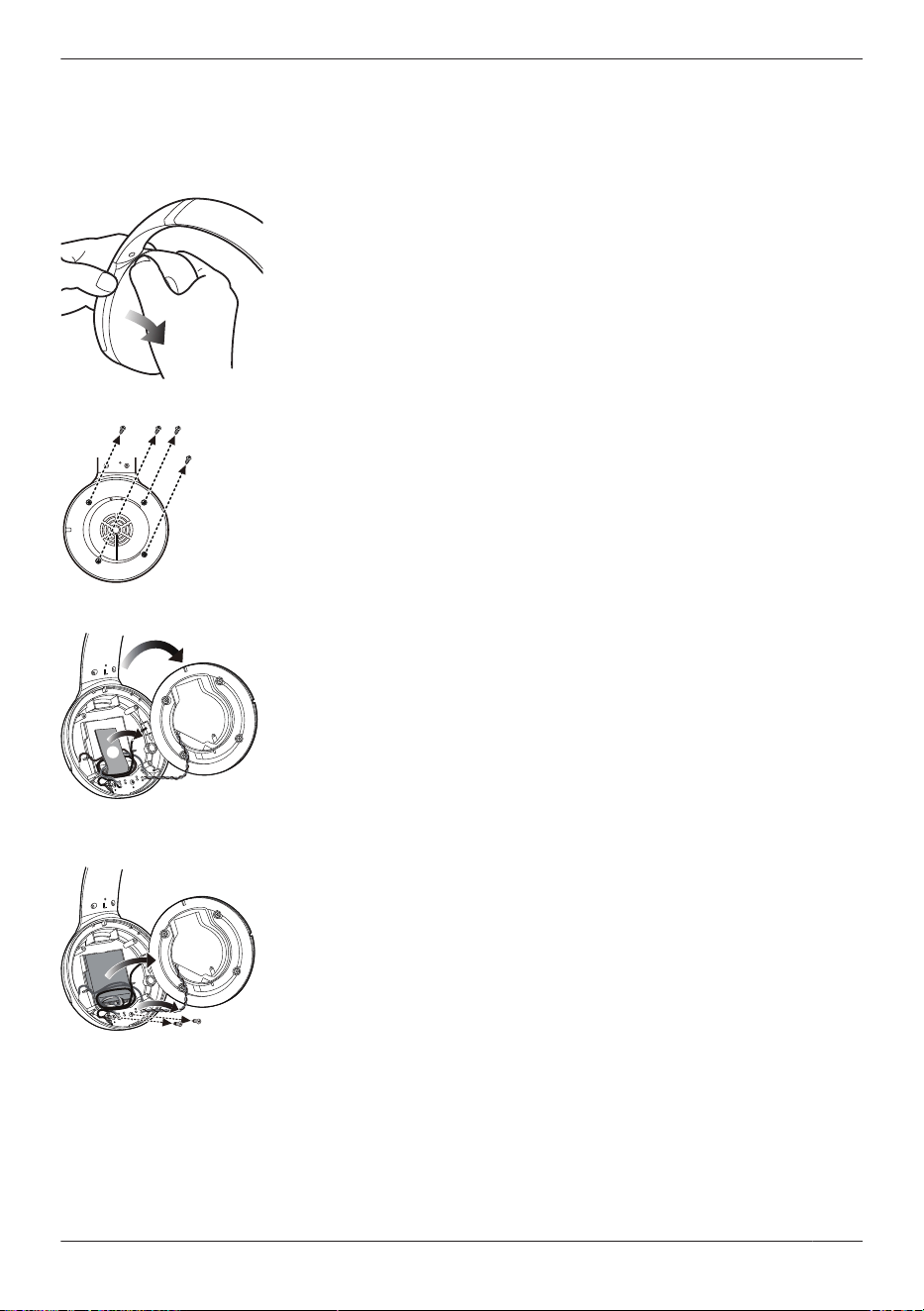
R Wait until the battery has fully run out before disassembling.
R Regarding handling of the used battery:
– Insulate the terminals with adhesive tape or similar material.
– Do not disassemble the battery itself.
1 Remove the left ear pad.
2 Remove the 4 screws and then the plate.
ᵪ
ᵪ
3 Open the case and remove the cushion.
1
2
4 Remove the 2 screws, and then remove the battery and board.
R Take care not to damage the battery.
13
FAQ
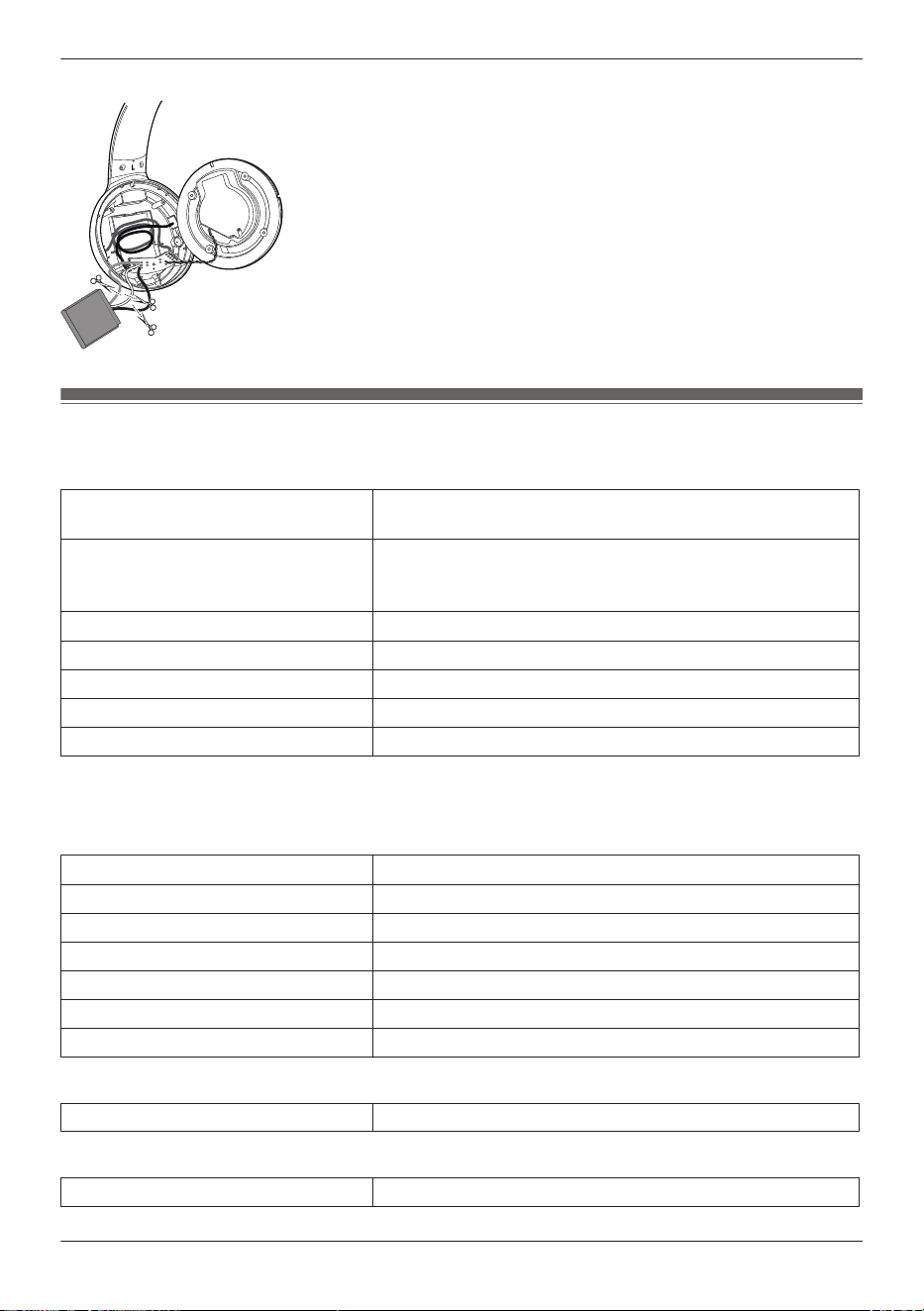
5 Cut the cords coming out of the battery one by one, and then take out the battery.
Specifications
n General
Power supply DC 5 V, 0.5 A
(Internal battery: 3.7 V (Li-polymer))
Operating time
*1
Approx. 65 hours (Noise cancelling: ON, AAC)
Approx. 65 hours (Noise cancelling: ON, SBC)
Approx. 50 hours (Noise cancelling: ON, with detachable cord)
Charging time
*2
(25 °C (77 °F))
Approx. 4.0 hours
Charging temperature range 10 °C to 35 °C (50 °F to 95 °F)
Operating temperature range 0 °C to 40 °C (32 °F to 104 °F)
Operating humidity range 35 %RH to 80 %RH (no condensation)
Mass Approx. 265 g (9.3 oz) (without cord)
*1 It may be shorter depending on the operating conditions.
*2 The time required to charge the batteries from empty to full.
n Bluetooth
®
section
Bluetooth
®
system specification
Ver. 5.3
Wireless equipment classification Class 2 (2.5 mW)
Max RF Power 4 dBm
Frequency band 2402 MHz to 2480 MHz
Supported profiles A2DP, AVRCP, HFP
Supported codec SBC, AAC
Operating distance Up to 10 m (33 ft)
n Speaker section
Driver units 30 mm (1-3/16 in)
n Terminal section
DC IN DC 5 V, 0.5 A
14
FAQ

n Microphone section
Microphone Mono
n Accessory section
USB Charging Cord
(Input Plug: USB Type-A Shape,
Output Plug: USB Type-C Shape)
Approx. 0.2 m (0.7 ft)
Detachable cord Approx. 1.2 m (3.9 ft)
R Specifications are subject to change without notice.
15
FAQ

About Bluetooth
®
Panasonic bears no responsibility for data and/or information that is compromised during a
wireless transmission.
Frequency band used
This unit uses the 2.4 GHz frequency band.
Certification of this unit
R This unit conforms to frequency restrictions and has received certification based on frequency laws.
Thus, a wireless permit is not necessary.
R The actions below are punishable by law in some countries:
– Taking apart/modifying this unit.
– Removing specification indications.
Restrictions of use
R Wireless transmission and/or usage with all Bluetooth
®
equipped devices is not guaranteed.
R All devices must conform to standards set by Bluetooth SIG, Inc.
R Depending on the specifications and settings of a device, it can fail to connect or some operations can
be different.
R This unit supports Bluetooth
®
security features. But depending on the operating environment and/or
settings, this security may not be sufficient. Transmit data wirelessly to this unit with caution.
R This unit cannot transmit data to a Bluetooth
®
device.
Range of use
Use this unit at a maximum range of 10 m (33 ft).
The range can decrease depending on the environment, obstacles or interference.
Interference from other devices
R This unit may not function properly and troubles such as noise and sound jumps may arise due to
radio wave interference if this unit is located too close to other Bluetooth
®
devices or the devices that
use the 2.4 GHz band.
R This unit may not function properly if radio waves from a nearby broadcasting station, etc. is too strong.
Intended usage
R This unit is for normal, general use only.
R Do not use this system near an equipment or in an environment that is sensitive to radio frequency
interference (example: airports, hospitals, laboratories, etc).
16
Other Information

Disposal of Old Equipment and Batteries (Only for
European Union and countries with recycling systems)
These symbols on the products, packaging, and/or accompanying documents mean that used electrical
and electronic products and batteries must not be mixed with general household waste. For proper
treatment, recovery and recycling of old products and used batteries, please take them to applicable
collection points in accordance with your national legislation.
By disposing of them correctly, you will help to save valuable resources and prevent any potential
negative effects on human health and the environment.
For more information about collection and recycling, please contact your local authority. Penalties may be
applicable for incorrect disposal of this waste, in accordance with national legislation.
Note for the battery symbol (bottom symbol):
This symbol might be used in combination with a chemical symbol. In this case it complies with the
requirement set by the Directive for the chemical involved.
Trademarks
The Bluetooth
®
word mark and logos are registered trademarks owned by Bluetooth SIG, Inc. and any
use of such marks by Panasonic Entertainment & Communication Co., Ltd. is under license.
Other trademarks and trade names are those of their respective owners.
Siri is a trademark of Apple Inc., registered in the U.S. and other countries.
Other system names and product names appearing in this document are in general the registered
trademarks or trademarks of the respective developer companies. Note that the
TM
mark and
®
mark do
not appear in this document.
17
Other Information

18
Notes

19
Notes

http://www.panasonic.com
© Panasonic Entertainment & Communication Co., Ltd. 2024
PNQP1865ZA PP0624AA0