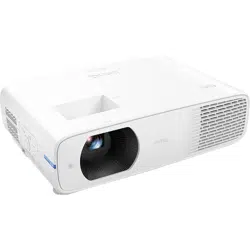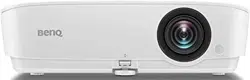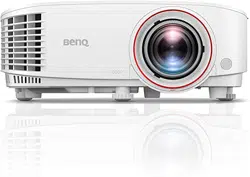
MX731/MW732/MH733
Digital Projector
User Manual
V 1.02

2 Warranty and Copyright information
Warranty and Copyright information
Limited warranty
BenQ warrants this product against any defects in material and workmanship, under normal usage and
storage.
Proof of purchase date will be required with any warranty claim. In the event this product is found to be
defective within the warranty period, BenQ's only obligation and your exclusive remedy shall be
replacement of any defective parts (labor included). To obtain warranty service, immediately notify the
dealer from which you purchased the product of any defects.
Important: The above warranty shall be void if the customer fails to operate the product in accordance
with BenQ's written instructions, especially the ambient humidity must be in-between 10% and 90%,
temperature in-between 0°C and 35°C, altitude lower than 4920 feet, and avoiding to operate the
projector in a dusty environment. This warranty gives you specific legal rights, and you may have other
rights which vary from country to country.
For other information, please visit
www.BenQ.com.
Copyright
Copyright © 2017 by BenQ Corporation. All rights reserved. No part of this publication may be
reproduced, transmitted, transcribed, stored in a retrieval system or translated into any language or
computer language, in any form or by any means, electronic, mechanical, magnetic, optical, chemical,
manual or otherwise, without the prior written permission of BenQ Corporation.
Disclaimer
BenQ Corporation makes no representations or warranties, either expressed or implied, with respect
to the contents hereof and specifically disclaims any warranties, merchantability or fitness for any
particular purpose. Further, BenQ Corporation reserves the right to revise this publication and to make
changes from time to time in the contents hereof without obligation to notify any person of such
revision or changes.
*DLP, Digital Micromirror Device and DMD are trademarks of Texas Instruments. Others are
copyrights of their respective companies or organizations.
Patents
Please go to http://patmarking.benq.com/ for the details on BenQ projector patent coverage.

3 Table of Contents
Table of Contents
Warranty and Copyright information ................................................................................ 2
Important safety instructions .............................................................................................. 4
Introduction .......................................................................................................................... 7
Shipping contents ....................................................................................................................................... 7
Projector exterior view ............................................................................................................................ 8
Controls and functions.............................................................................................................................. 9
Positioning your projector ................................................................................................. 12
Choosing a location .................................................................................................................................12
Obtaining a preferred projected image size....................................................................................... 13
Mounting the projector ..........................................................................................................................16
Adjusting the projected image ..............................................................................................................17
Connection .......................................................................................................................... 19
Connecting video source devices .........................................................................................................20
Connecting smart devices ...................................................................................................................... 21
Connecting a USB flash drive ................................................................................................................22
Operation ............................................................................................................................ 23
Starting up the projector ........................................................................................................................23
Using the menus ....................................................................................................................................... 24
Securing the projector ............................................................................................................................25
Switching input signal ...............................................................................................................................26
Controlling the projector through a LAN environment ................................................................27
Using web control lock ...........................................................................................................................27
Displaying image via QCast application through a LAN environment ........................................27
Presenting from a USB Reader .............................................................................................................27
Shutting down the projector .................................................................................................................29
Direct power off ......................................................................................................................................29
Menu operation ................................................................................................................... 30
Basic menu ...............................................................................................................................................30
Advanced menu ..................................................................................................................................... 32
Maintenance ........................................................................................................................ 41
Care of the projector ..............................................................................................................................41
Lamp information .....................................................................................................................................41
Troubleshooting ................................................................................................................. 47
Specifications ...................................................................................................................... 48
Projector specifications ..........................................................................................................................48
Dimensions ................................................................................................................................................49
Timing chart............................................................................................................................................... 50
4 Important safety instructions
Important safety instructions
Your projector is designed and tested to meet the latest standards for safety of information technology
equipment. However, to ensure safe use of this product, it is important that you follow the instructions
mentioned in this manual and marked on the product.
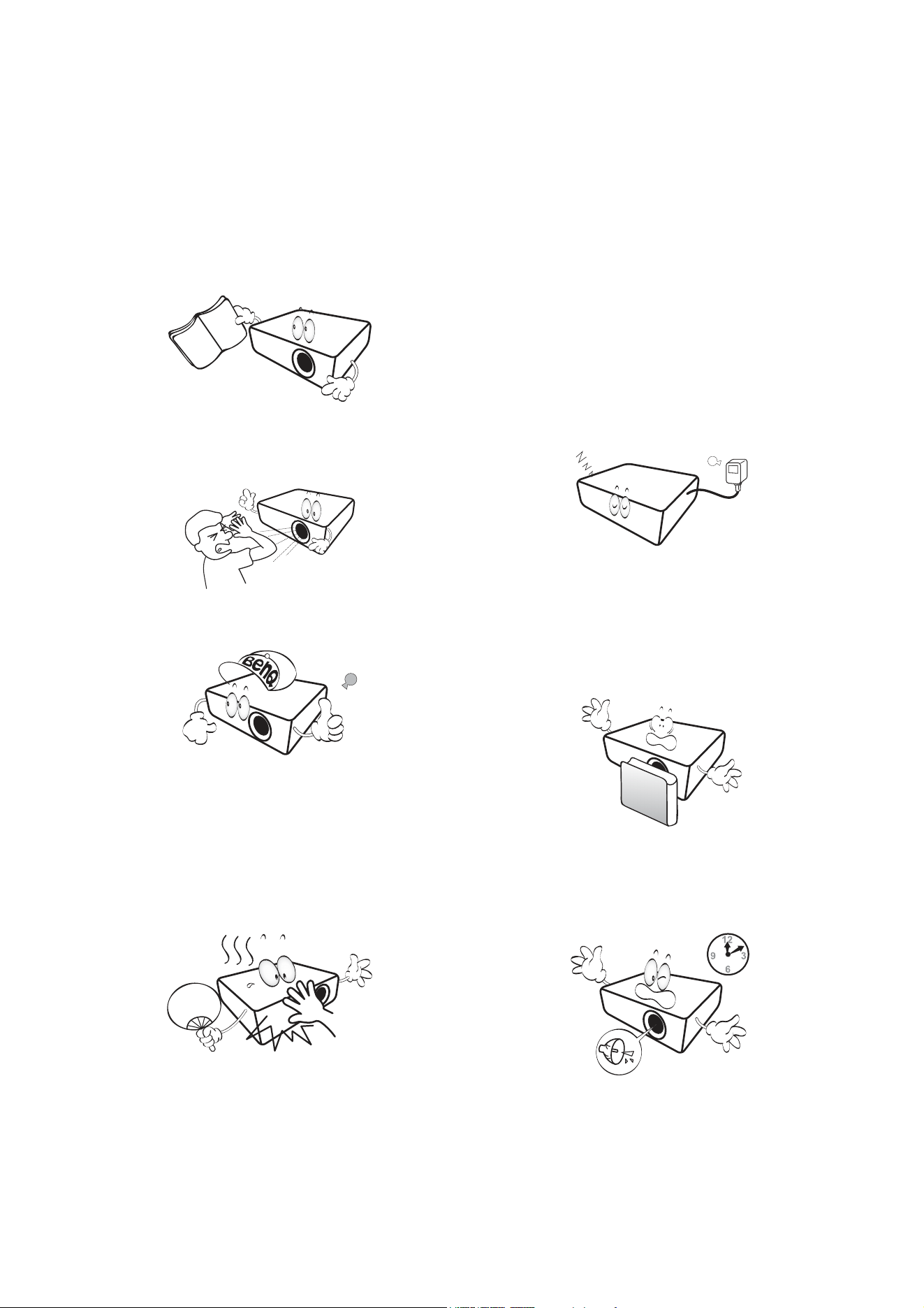
1. Please read this manual before you
operate your projector. Save it for future
reference.
2. Do not look straight at the projector
lens during operation. The intense light
beam may damage your eyes.
3. Refer servicing to qualified service
personnel.
4. Always open the lens shutter (if any) or
remove the lens cap (if any) when the
projector lamp is on.
5. The lamp becomes extremely hot during
operation. Allow the projector to cool for
approximately 45 minutes prior to removing
the lamp assembly for replacement.
6. In some countries, the line voltage is NOT
stable. This projector is designed to operate
safely within a mains voltage between 100 to
240 volts AC, but could fail if power cuts or
surges of ±10 volts occur. In areas where
the mains voltage may fluctuate or cut
out, it is recommended that you
connect your projector through a power
stabilizer, surge protector or
uninterruptible power supply (UPS).
7. Do not block the projection lens with any
objects when the projector is under
operation as this could cause the objects to
become heated and deformed or even cause a
fire. To temporarily turn off the lamp, use the
blank function.
8. Do not operate lamps beyond the rated lamp
life. Excessive operation of lamps beyond the
rated life could cause them to break on rare
occasions.
5 Important safety instructions
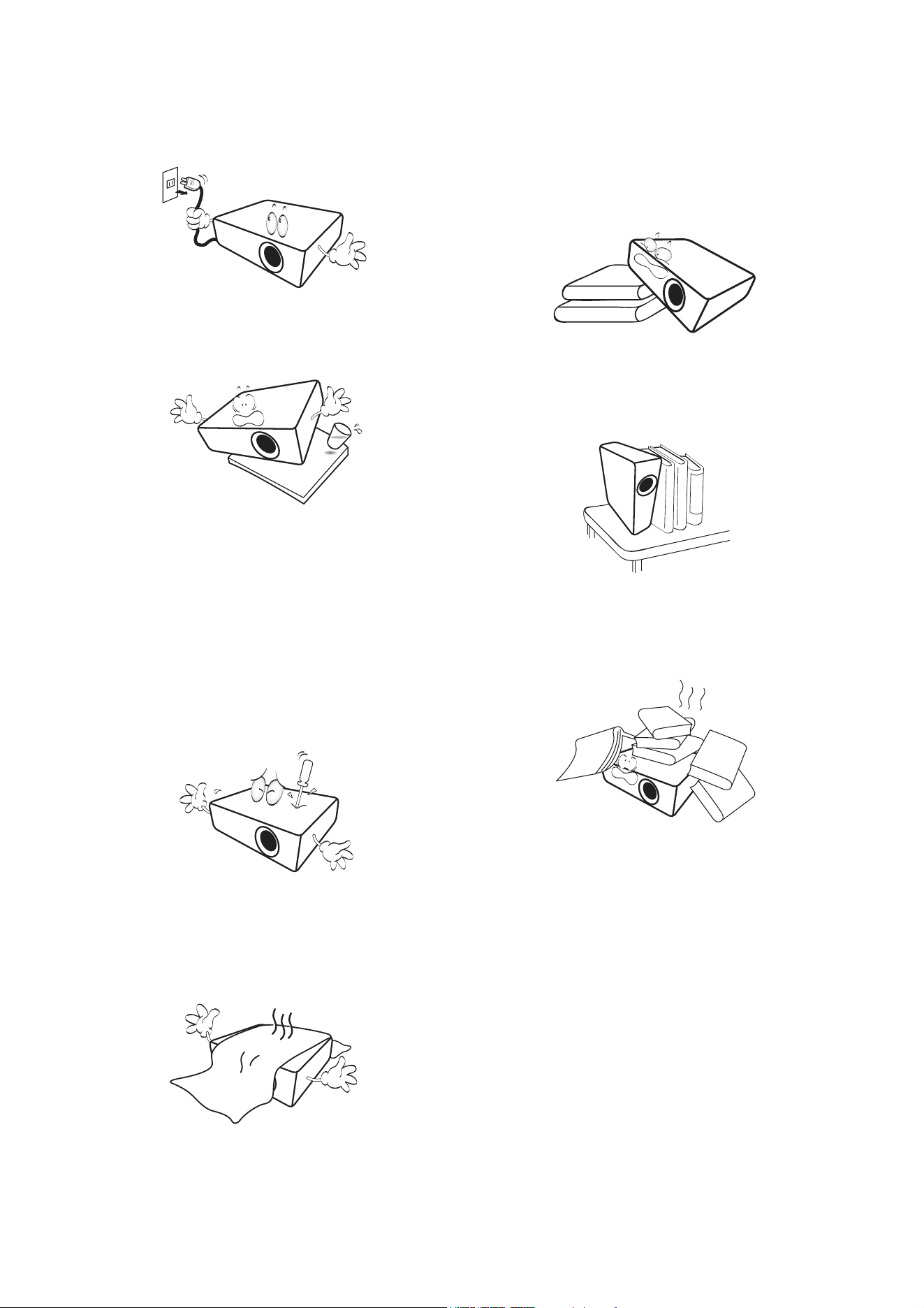
9. Never replace the lamp assembly or any
electronic components unless the projector is
unplugged.
10. Do not place this product on an unstable cart,
stand, or table. The product may fall,
sustaining serious damage.
11. Do not attempt to disassemble this projector.
There are dangerous high voltages inside
which may cause death if you should come
into contact with live parts. The only user
serviceable part is the lamp which has its own
removable cover.
Under no circumstances should you ever
undo or remove any other covers. Refer
servicing only to suitably qualified professional
service personnel.
12. Do not block the ventilation holes.
- Do not place this projector on a blanket, bedding or
any other soft surface.
- Do not cover this projector with a cloth or any other
item.
- Do not place inflammables near the projector.
If the ventilation holes are seriously
obstructed, overheating inside the projector
may result in a fire.
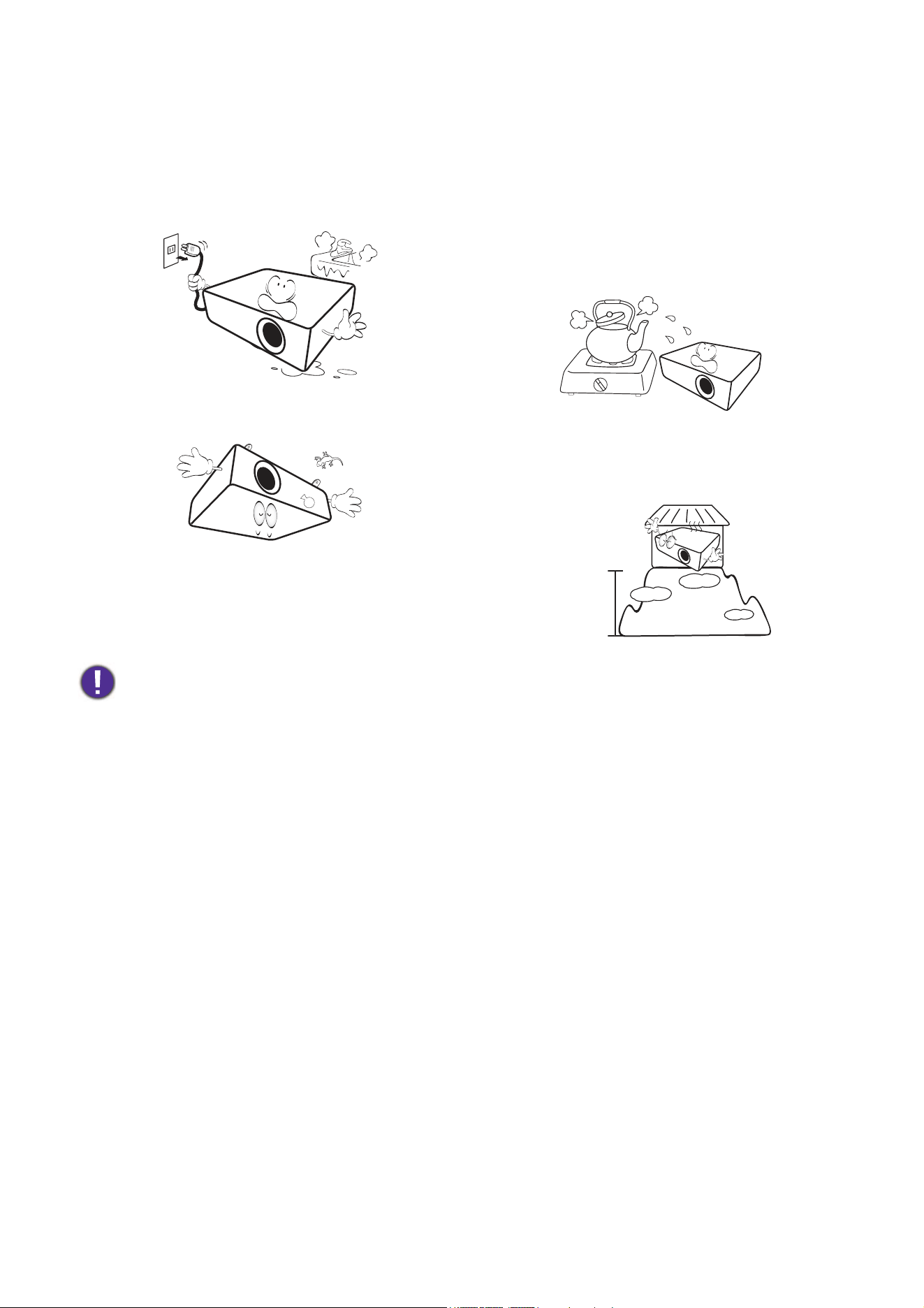
13. Always place the projector on a level,
horizontal surface during operation.
- Do not use if tilted at an angle of more than 10
degrees left to right, nor at angle of more than 15
degrees front to back. Using the projector when it is
not fully horizontal may cause a malfunction of, or
damage to, the lamp.
14. Do not stand the projector on end vertically.
Doing so may cause the projector to fall over,
causing injury or resulting in damage to the
projector.
15. Do not step on the projector or place any
objects upon it. Besides probable physical
damage to the projector, doing so may result
in accidents and possible injury.
16. When the projector is under operation, you
may sense some heated air and odor from its
ventilation grill. It is a normal phenomenon
and not a product defect.
6 Important safety instructions
17. Do not place liquids near or on the projector.
Liquids spilled into the projector may cause it
to fail. If the projector does become wet,
disconnect it from the power supply's power
outlet and call BenQ to have the projector
serviced.
18. This product is capable of displaying inverted
images for ceiling/wall mount installation.
19. This apparatus must be earthed.
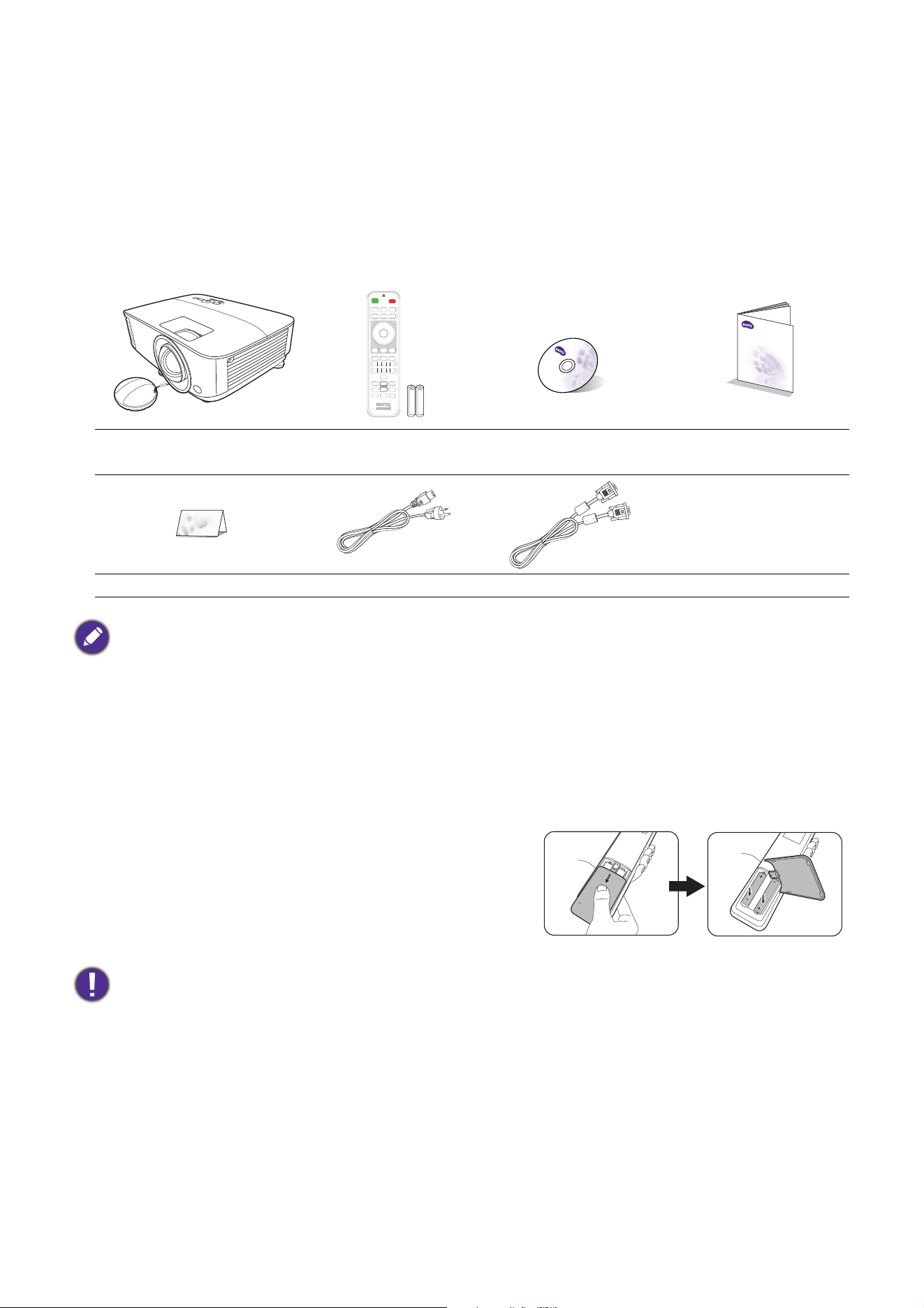
20. Do not place this projector in any of the
following environments.
- Space that is poorly ventilated or confined. Allow at
least 50 cm clearance from walls and free flow of air
around the projector.
- Locations where temperatures may become
excessively high, such as the inside of a car with all
windows rolled up.
- Locations where excessive humidity, dust, or cigarette
smoke may contaminate optical components, shorten
the projector's life span and darken the image.
- Locations near fire alarms
- Locations with an ambient temperature above 40°C /
104°F
- Locations where the altitudes are higher than 3000 m
(10000 feet).
Hg - Lamp contains mercury. Manage in accordance with local disposal laws. See www.lamprecycle.org.
3000 m
(10000 feet)
0 m
(0 feet)
7 Introduction
Introduction
Shipping contents
Carefully unpack and verify that you have all of the items shown below. If any of these items are missing,
please contact your place of purchase.
Standard accessories
Optional accessories
Replacing the remote control batteries
1. Press and slide off the battery cover, as illustrated.
2. Remove the old batteries (if applicable) and install two
AAA batteries. Make sure that the positive and negative
ends are positioned correctly, as illustrated.
3. Slide the battery cover in until it clicks into place.
Projector
Remote control with
batteries
User manual CD Quick start guide
Warranty card* Power cord VGA cable
• The supplied accessories will be suitable for your region, and may differ from those illustrated.
• *The warranty card is only supplied in some specific regions. Please consult your dealer for detailed information.
1. Spare lamp kit
2. 3D glasses
3. Wireless Dongle: WDRT8192 USB Dongle,
QCast (QP01),QCast mirror (QP20)
4. Dust filter
• Avoid leaving the remote control and batteries in an excessive heat or humid environment like the kitchen,
bathroom, sauna, sunroom or in a closed car.
• Replace only with the same or equivalent type recommended by the battery manufacturer.
• Dispose of the used batteries according to the manufacturer's instructions and local environment regulations for
your region.
• Never throw the batteries into a fire. There may be danger of an explosion.
• If the batteries are dead or if you will not be using the remote control for an extended period of time, remove the
batteries to avoid damage to the remote control from possible battery leakage.
Digital Projector
Quick Start Guide
8 Introduction
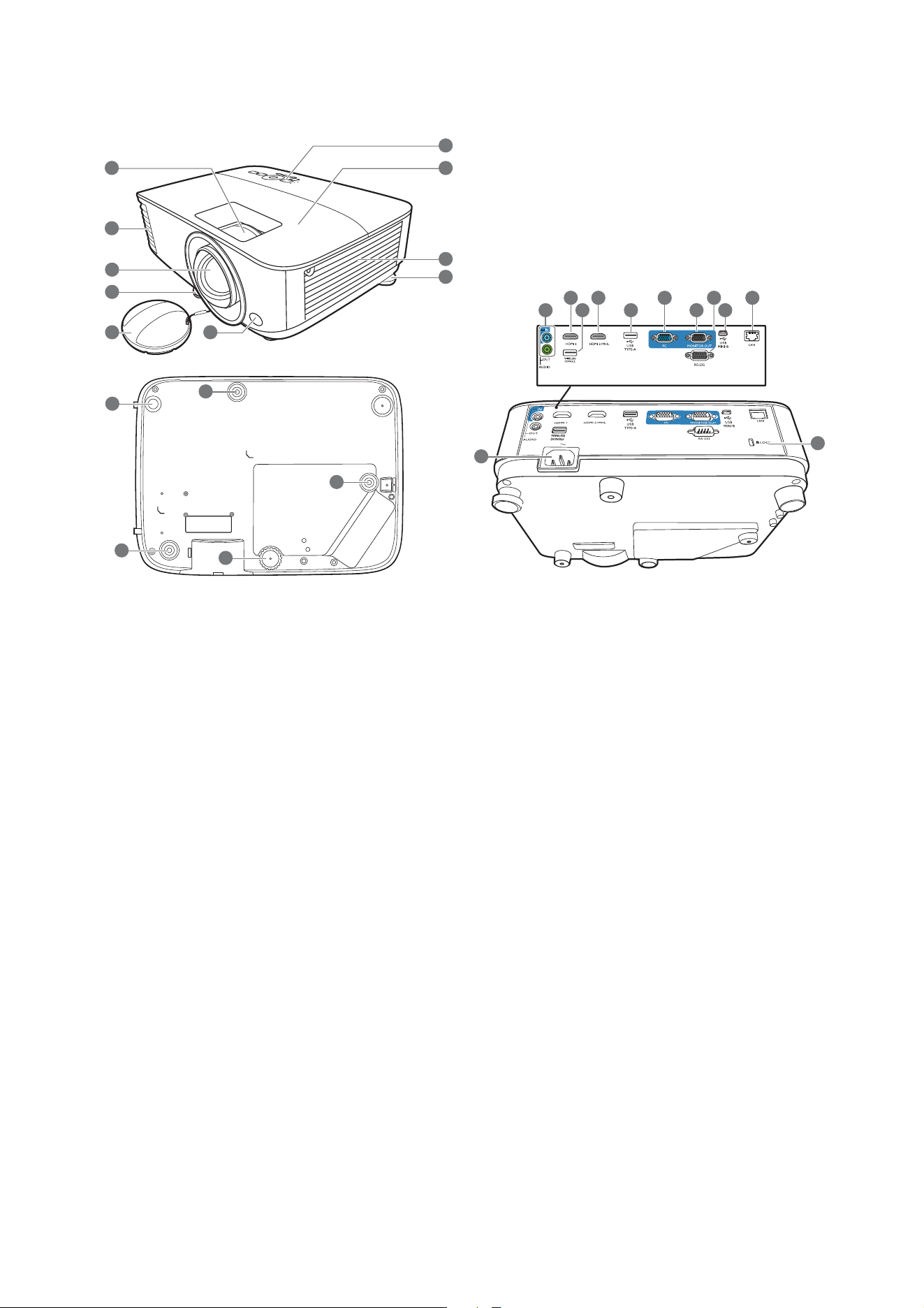
Projector exterior view
1. Focus ring
2. Vent (air exhaust)
3. Projection lens
4. Adjuster feet
5. Lens cap
6. IR remote sensor
7. External control panel
(See
Controls and functions on page 9.)
8. Lamp cover
9. Vent (air inlet)
10. Audio input jacks
Audio output jack
11. HDMI input port
12. USB Type A port (for USB wireless dongle)
13. HDMI/MHL-input port
14. USB Type A port (for USB flash drive / power
for HDMI dongle)
15. RGB (PC) signal input jacks
16. RGB (PC) signal output jack
17. RS-232 control port
18. USB Mini-B port
19. RJ-45 LAN input jack
20. AC power jack
21. Kensington anti-theft lock slot
22. Ceiling mount holes
8
7
20
21
22
22
22
9
4
4
3
4
4
6
1
11 13
12
2
5
15 19
16 18
17
14
10
9 Introduction
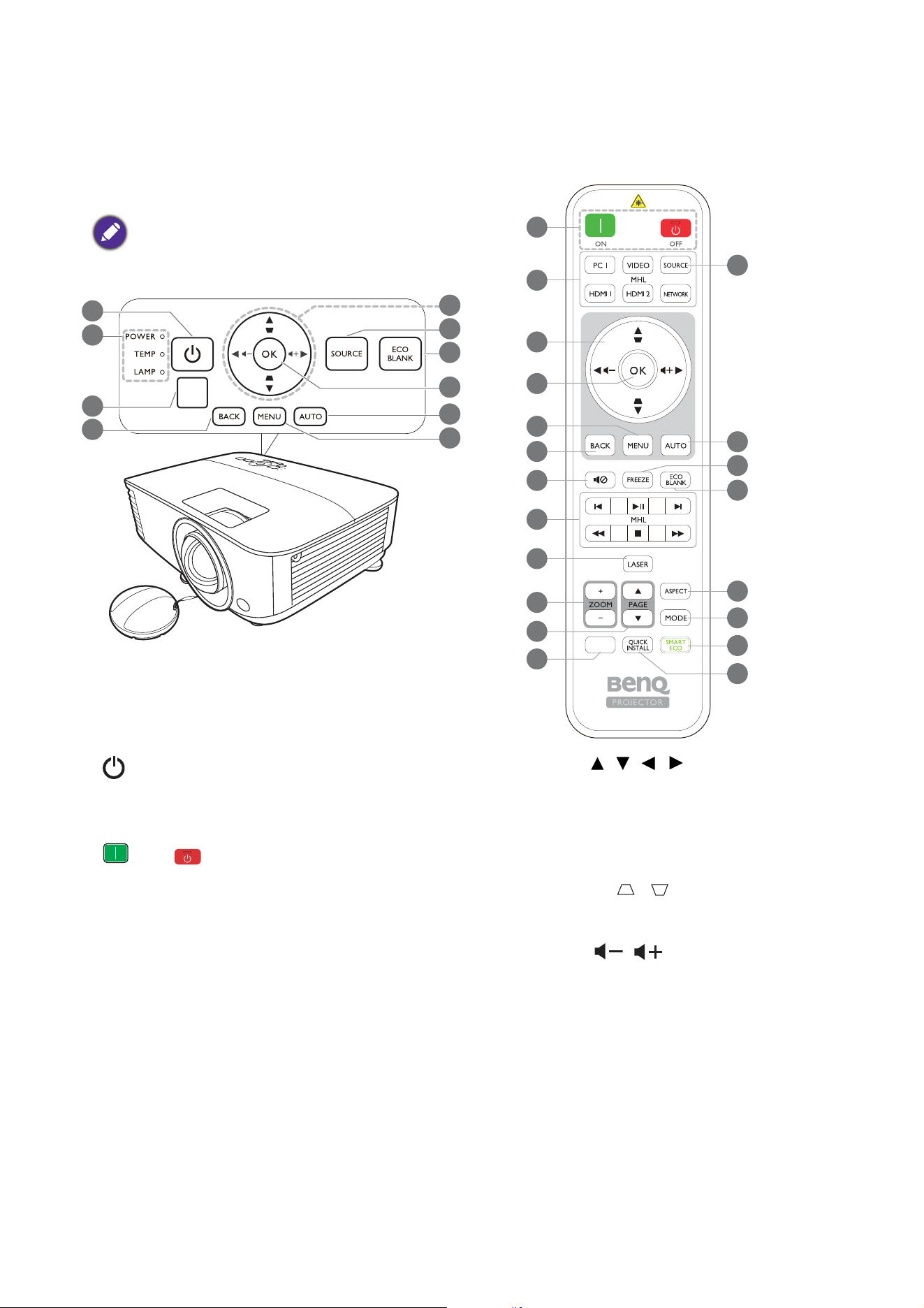
Controls and functions
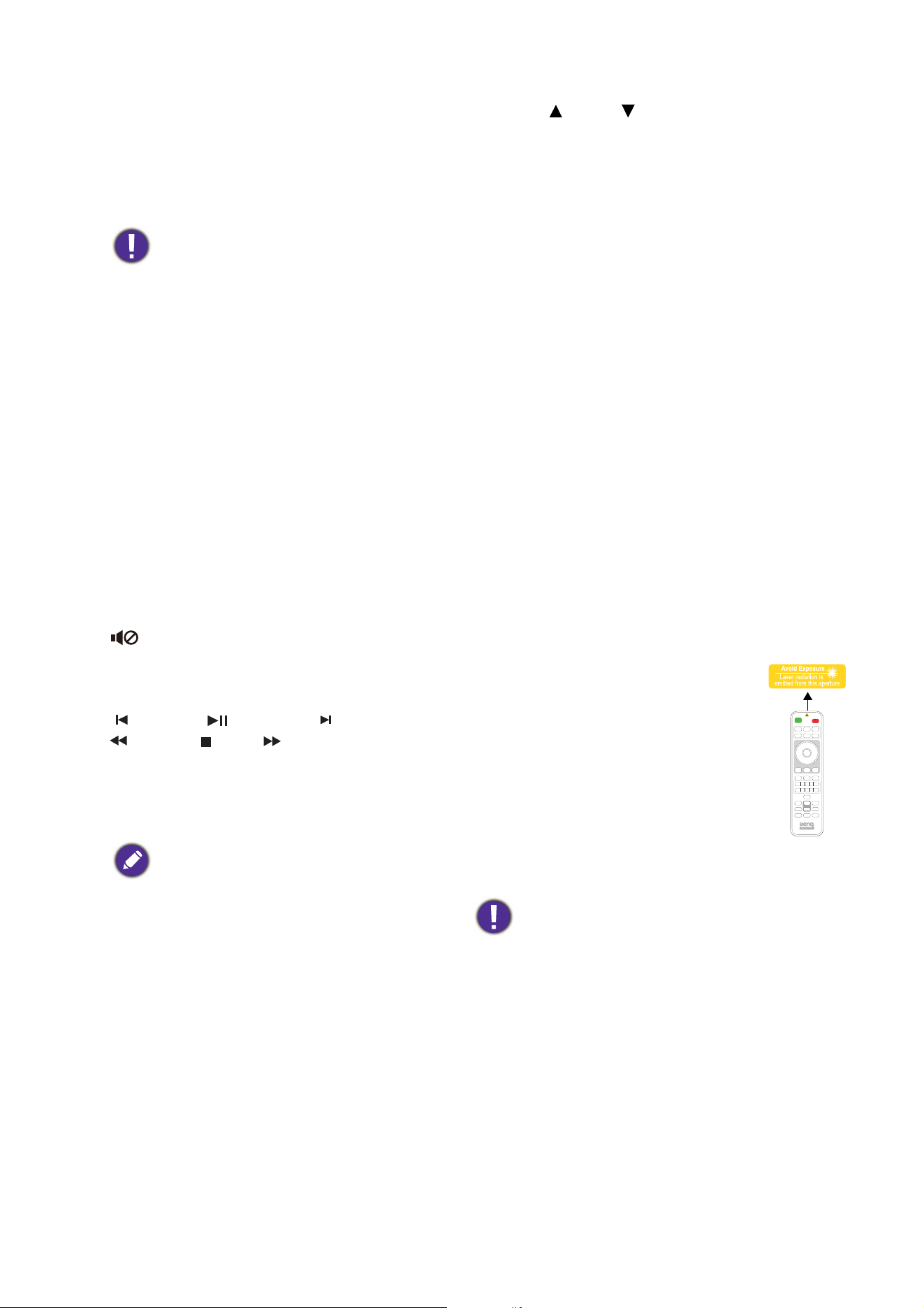
Projector & Remote control
1. POWER
Toggles the projector between standby mode
and on.
ON/ Off
Toggles the projector between standby mode
and on.
2. POWER indicator light/TEMPerature
warning light/LAMP indicator light
(See
Indicators on page 46.)
3. IR remote sensor
4. BACK
Goes back to previous OSD menu, exits and
saves menu settings.
5. Arrow keys ( , , , )
When the On-Screen Display (OSD) menu is
activated, these keys are used as directional
arrows to select the desired menu items and
to make adjustments.
Keystone keys ( , )
Displays the keystone correction page.
Volume keys /
Decreases or increase the projector volume.
2
9
7
6
8
5
1
3
4
10
• All the key presses described in this
document are available on the remote control
or projector.
• The remote control is without laser pointer
in Japan
11
1
5
4
14
8
12
13
16
15
6
9
19
20
22
18
7
17
10
21
INFO
10 Introduction
6. SOURCE
Displays the source selection bar.
7. ECO BLANK
Used to hide the screen picture.
Do not block the projection lens from
projecting as this could cause the blocking
object to become heated and deformed or
even cause a fire.
8. OK
Confirms the selected On-Screen Display
(OSD) menu item.
9. AUTO
Automatically determines the best picture
timings for the displayed image when PC signal
(analog RGB) is selected.
10. MENU
Turns on the On-Screen Display (OSD) menu.
11. Source selection buttons: PC 1, VIDEO,
HDMI 1, MHL/HDMI 2, NETWORK
Selects an input source for display.
12.
Toggles projector audio between on and off.
13. MHL control buttons
( Previous, Play/Pause, Next,
Rewind, Stop, Fast-forward)
Goes to the previous file/Plays/Pauses/Goes to
the next file/Rewinds/Stops/Fast-forwards
during media playback.
Only available when controlling your smart
device in MHL mode.
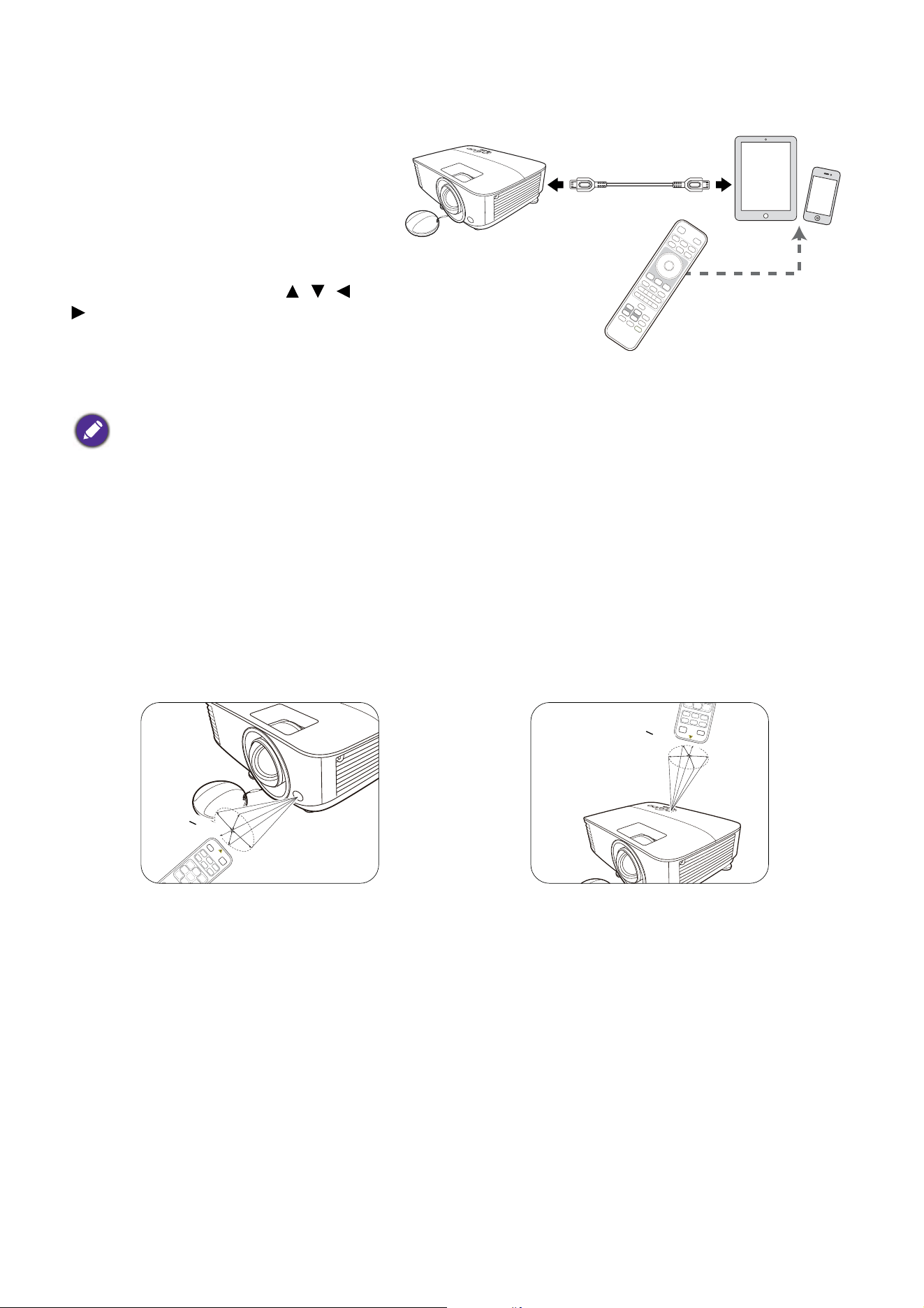
14. LASER
Emits visible laser pointer light for
presentation purposes.
15. ZOOM+/ZOOM-
Magnifies or reduces the projected picture
size.
16. PAG E /PAG E
Operate your display software program (on a
connected PC) which responds to page
up/down commands (like Microsoft
PowerPoint).
17. INFO
Displays the projector information.
18. FREEZE
Freezes the projected image.
19. ASPECT
Selects the display aspect ratio.
20. MODE
Selects an available picture setup mode.
21. SMART ECO
Displays the Lamp Mode menu for selecting
a suitable lamp operating mode.
22. QUICK INSTALL
Quickly selects several functions to adjust the
projected image and displays the test pattern.
Operating the LASER pointer
The Laser Pointer is a presentation
aid for professionals. It emits red
colored light when you press it. The
laser beam is visible. It is necessary to
press and hold LASER for
continuous output.
The laser pointer is not a toy. Parents
should be mindful of the dangers of
laser energy and keep this remote
control out of the reach of children.
Do not look into the laser light window or shine
the laser light beam on yourself or others. See the
warning messages on the back of the remote
control prior to using it.
11 Introduction
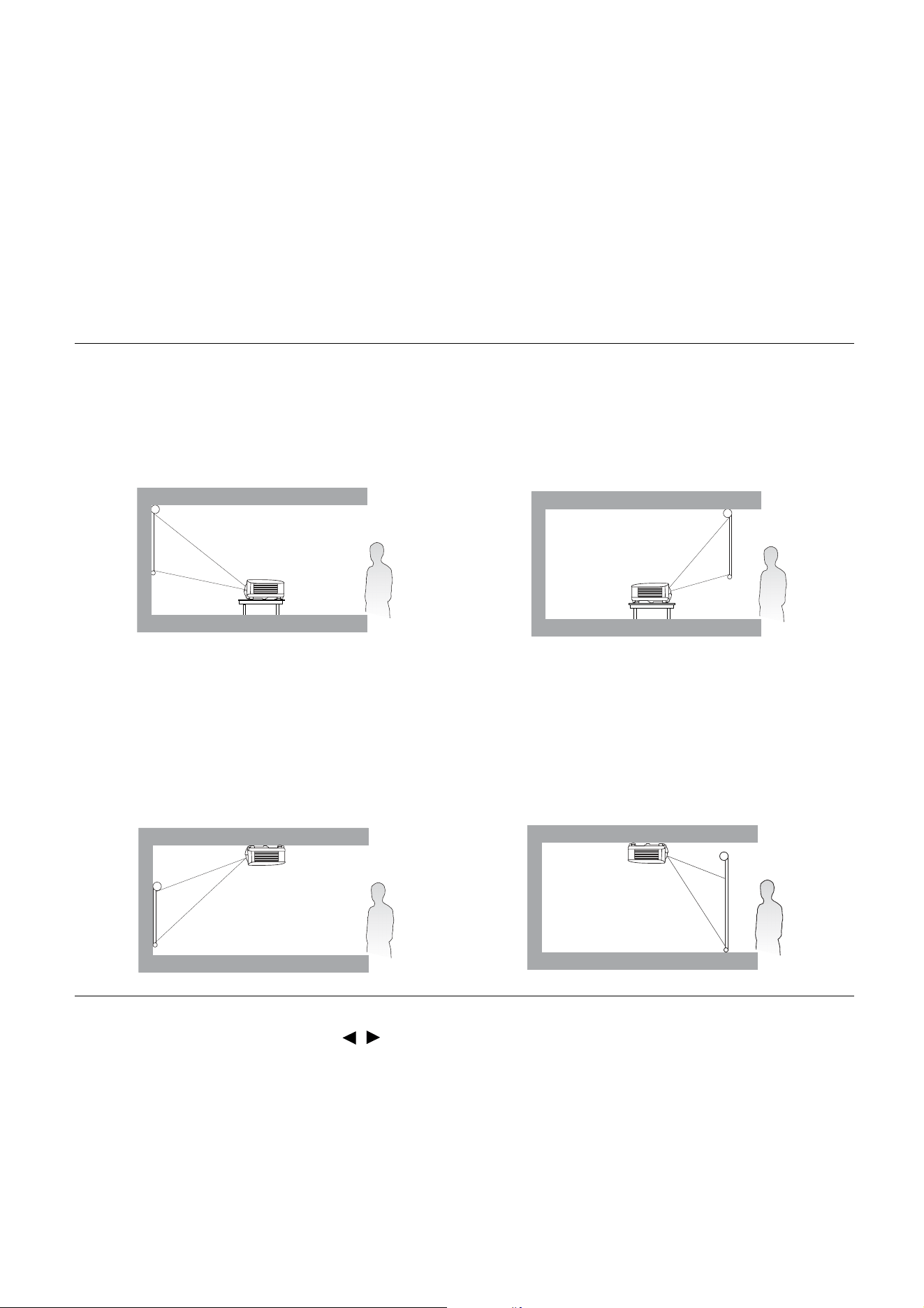
Controlling your smart device with the remote control
When the projector projects the content
from your MHL compatible smart device,
you can use the remote control to
control your smart device.
To enter the MHL mode, press and hold
AUTO for 3 seconds. The following
buttons are available for controlling your
smart device: Arrow keys ( , , ,
), MENU, BACK, OK, MHL
control buttons.
To leave the MHL mode, press and hold
AUTO for 3 seconds.
Remote control effective range
The remote control must be held at an angle within 30 degrees perpendicular to the projector's IR
remote control sensor(s) to function correctly. The distance between the remote control and the
sensor(s) should not exceed 8 meters (~ 26 feet).
Make sure that there are no obstacles between the remote control and the IR sensor(s) on the
projector that might obstruct the infra-red beam.
When the projector is under MHL mode, the keypad on the projector should be with the same definition of the
keys on the remote control.
• Operating the projector from the front • Operating the projector from the top
A
p
p
r
o
x
.
+
3
0
º
A
p
p
r
o
x
.
+
3
0
º
12 Positioning your projector
Positioning your projector
Choosing a location
Before choosing an installation location for your projector, take the following factors into consideration:
• Size and position of your screen
• Electrical outlet location
• Location and distance between the projector and the rest of your equipment
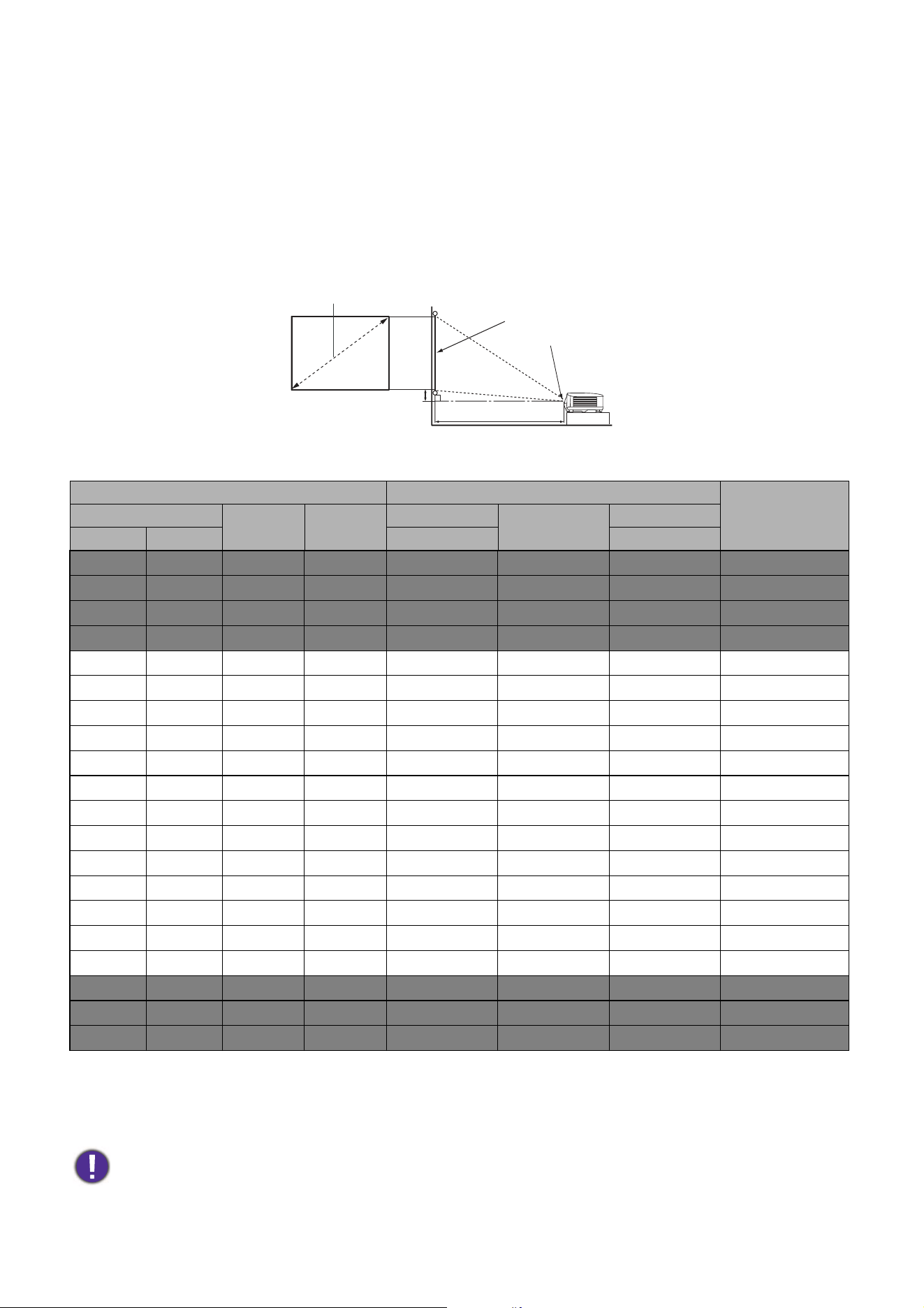
You can install your projector in the following ways.
After turning on the projector, go to Advanced Menu - Settings > Projector Installation >
Projector Installation and press / to select a setting.
You can also use QUICK INSTALL on the remote control to access this menu.
1. Front Table
Select this location with the projector placed on
the table in front of the screen. This is the most
common way to position the projector for quick
setup and portability.
2. Rear Table
Select this location with the projector placed on
the table behind the screen. Note that a special
rear projection screen is required.
3. Front Ceiling
Select this location with the projector suspended
upside-down from the ceiling in front of the
screen. Purchase the BenQ Projector Ceiling
Mount Kit from your dealer to mount your
projector on the ceiling.
4. Rear Ceiling
Select this location with the projector suspended
upside-down from the ceiling behind the screen.
Note that a special rear projection screen and the
BenQ Projector Ceiling Mount Kit are required
for this installation location.
13 Positioning your projector
Obtaining a preferred projected image size
The distance from the projector lens to the screen, the zoom setting (if available), and the video format
each factors in the projected image size.
Projection dimensions
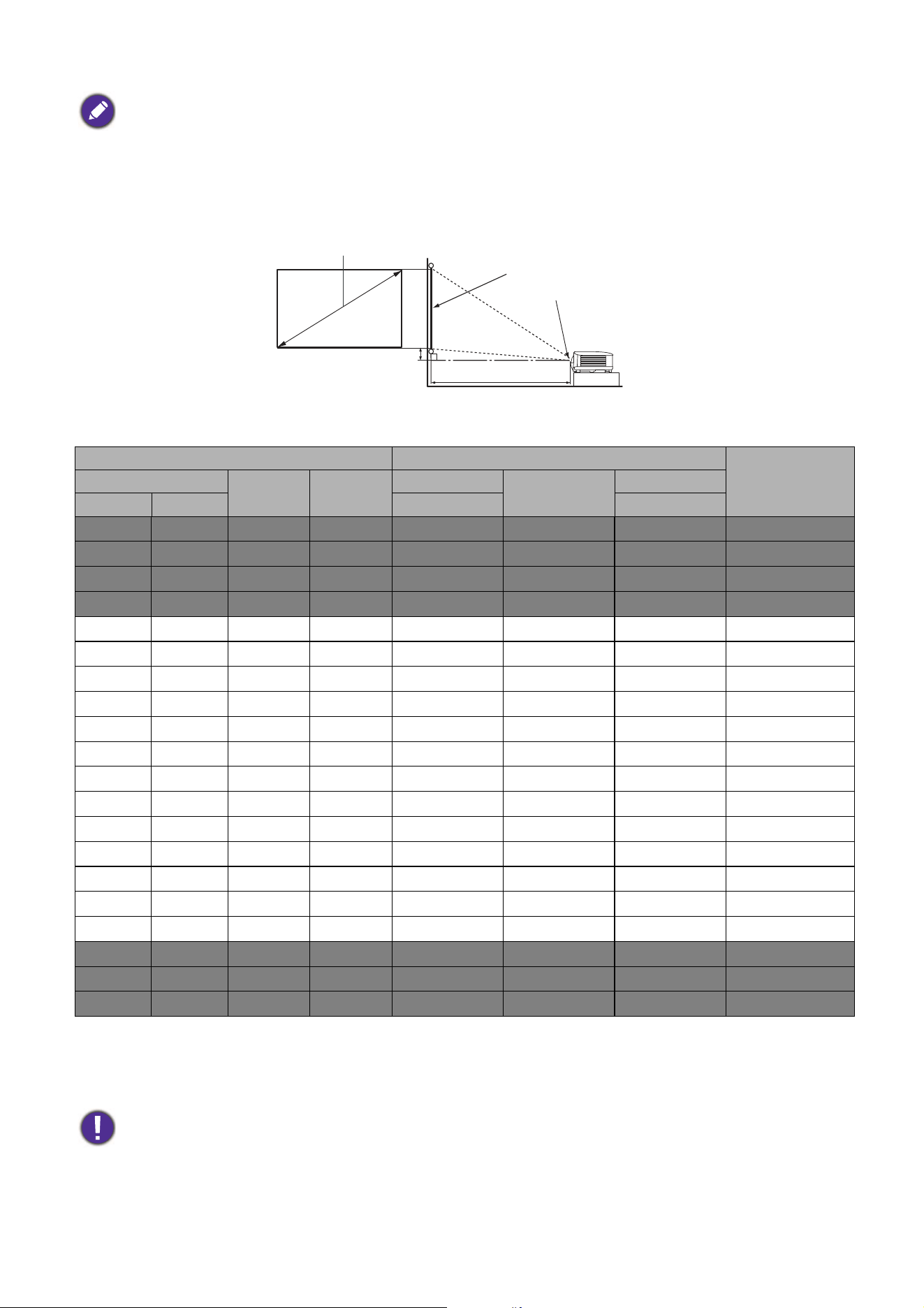
MX731
• The screen aspect ratio is 4:3 and the projected picture is in a 4:3 aspect ratio
For example, if you are using a 120-inch screen, the recommended projection distance is 4243 mm.
If your measured projection distance is 5000 mm, the closest match in the "Projection distance (mm)"
column is 4950 mm. Looking across this row shows that a 140'' (about 3.6 m) screen is required.
Screen size Projection distance (mm)
Offset (mm)Diagonal
H (mm) W (mm)
Min distance
Average
Max distance
Inch mm (max. zoom) (min. zoom)
30 762 457 610 920 1061 1201 34
35 889 533 711 1074 1237 1401 40
40 1016 610 813 1227 1414 1601 46
50 1270 762 1016 1534 1768 2002 57
60 1524 914 1219 1841 2121 2402 69
70 1778 1067 1422 2148 2475 2802 80
80 2032 1219 1626 2455 2829 3202 91
90 2286 1372 1829 2761 3182 3603 103
100 2540 1524 2032 3068 3536 4003 114
110 2794 1676 2235 3375 3889 4403 126
120 3048 1829 2438 3682 4243 4804 137
130 3302 1981 2642 3989 4596 5204 149
140 3556 2134 2845 4296 4950 5604 160
150 3810 2286 3048 4602 5304 6005 171
160 4064 2438 3251 4909 5657 6405 183
170 4318 2591 3454 5216 6011 6805 194
180 4572 2743 3658 5523 6364 7205 206
200 5080 3048 4064 6137 7071 8006 229
250 6350 3810 5080 7671 8839 10008 286
300 7620 4572 6096 9205 10607 12009 343
To optimize your projection quality, we suggest you do the projection within non-gray area.
H
W
Projection distance
Center of lens
Screen
4:3 Screen diagonal
Offset
14 Positioning your projector
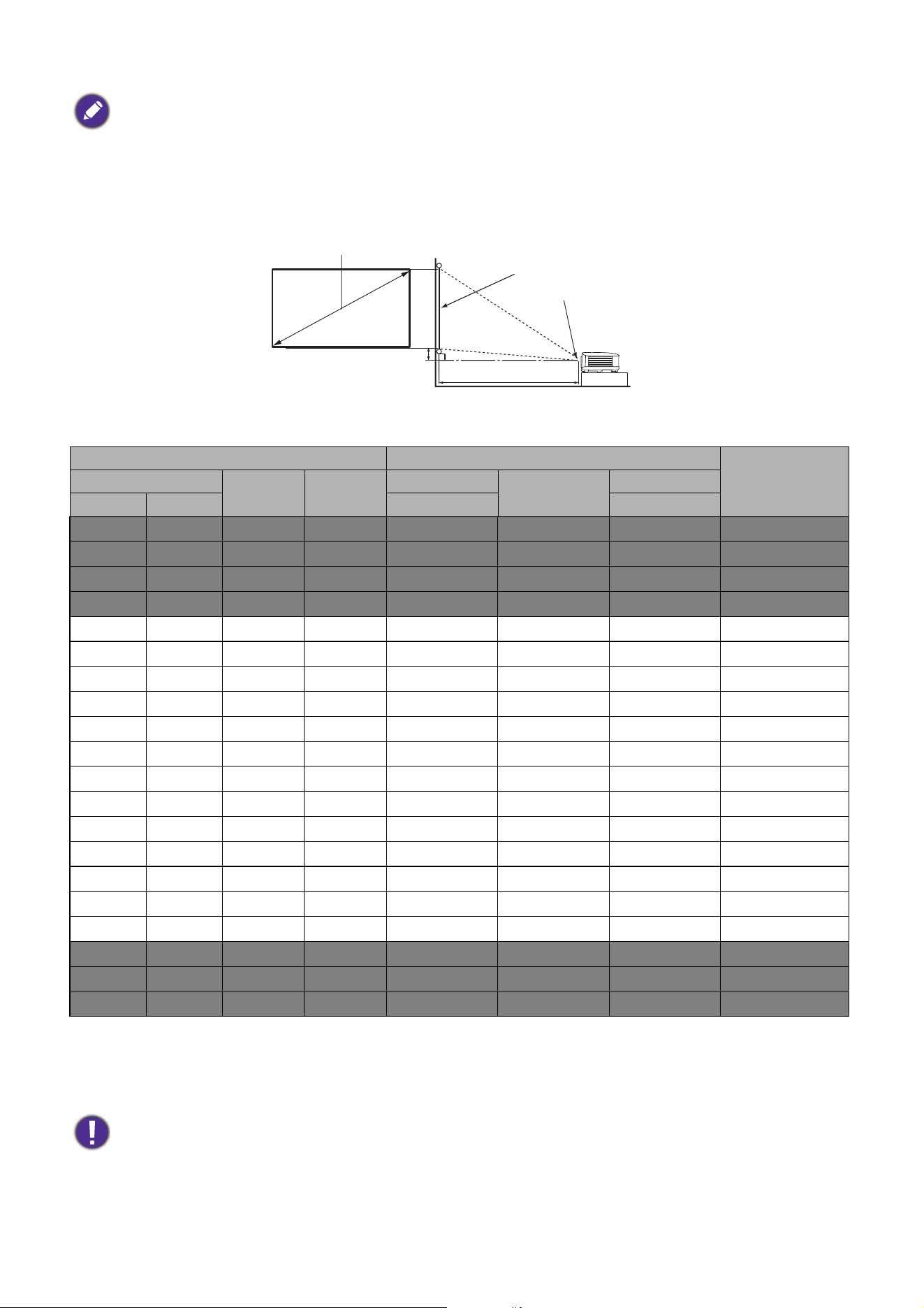
MW732
• The screen aspect ratio is 16:10 and the projected picture is in a 16:10 aspect ratio
For example, if you are using a 120-inch screen, the recommended projection distance is 3593 mm.
If your measured projection distance is 5000 mm, the closest match in the
"Projection distance (mm)"
column is 5090 mm. Looking across this row shows that a 170'' (about 4.3 m) screen is required.
All measurements are approximate and may vary from the actual sizes.
BenQ recommends that if you intend to permanently install the projector, you should physically test the projection
size and distance using the actual projector in situ before you permanently install it, so as to make allowance for this
projector's optical characteristics. This will help you determine the exact mounting position so that it best suits your
installation location.
Screen size Projection distance (mm)
Offset (mm)Diagonal
H (mm) W (mm)
Min distance
Average
Max distance
Inch mm (max. zoom) (min. zoom)
30 762 404 646 782 898 1014 40
35 889 471 754 912 1048 1184 47
40 1016 538 862 1042 1198 1353 54
50 1270 673 1077 1303 1497 1691 67
60 1524 808 1292 1564 1796 2029 81
70 1778 942 1508 1824 2096 2367 94
80 2032 1077 1723 2085 2395 2705 108
90 2286 1212 1939 2346 2695 3043 121
100 2540 1346 2154 2606 2994 3382 135
110 2794 1481 2369 2867 3293 3720 148
120 3048 1615 2585 3127 3593 4058 162
130 3302 1750 2800 3388 3892 4396 175
140 3556 1885 3015 3649 4192 4734 188
150 3810 2019 3231 3909 4491 5072 202
160 4064 2154 3446 4170 4790 5411 215
170 4318 2289 3662 4431 5090 5749 229
180 4572 2423 3877 4691 5389 6087 242
200 5080 2692 4308 5212 5988 6763 269
250 6350 3365 5385 6516 7485 8454 337
300 7620 4039 6462 7819 8982 10145 404
To optimize your projection quality, we suggest you do the projection within non-gray area.
H
W
Projection distance
Center of lens
Screen
16:10 Screen diagonal
Offset
15 Positioning your projector
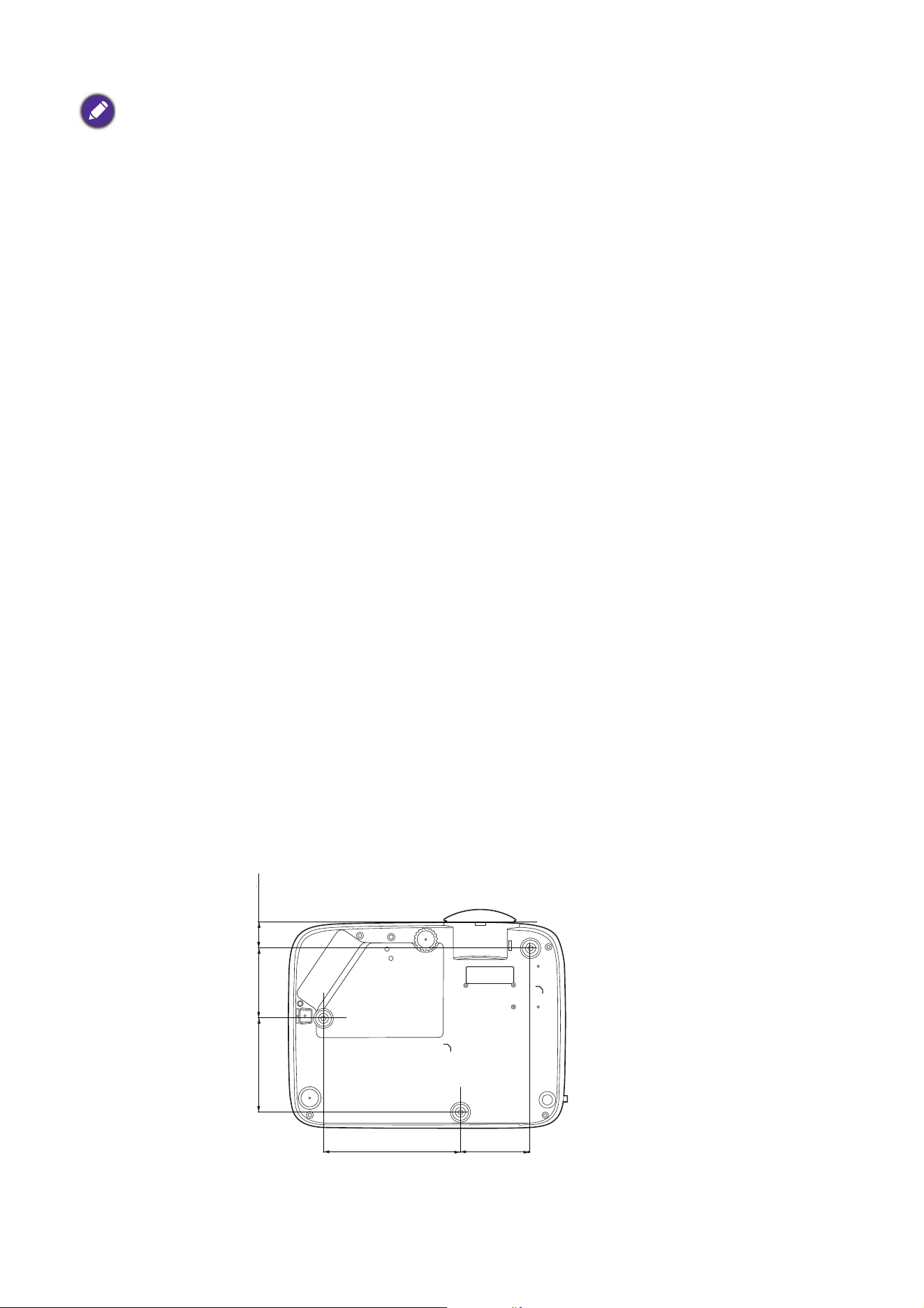
MH733
• The screen aspect ratio is 16:9 and the projected picture is in a 16:9 aspect ratio
For example, if you are using a 120-inch screen, the recommended projection distance is 3520 mm.
If your measured projection distance is 5000 mm, the closest match in the "Projection distance (mm)"
column is 4987 mm. Looking across this row shows that a 170'' (about 4.3 m) screen is required.
All measurements are approximate and may vary from the actual sizes.
BenQ recommends that if you intend to permanently install the projector, you should physically test the projection
size and distance using the actual projector in situ before you permanently install it, so as to make allowance for this
projector's optical characteristics. This will help you determine the exact mounting position so that it best suits your
installation location.
Screen size Projection distance (mm)
Offset (mm)Diagonal
H (mm) W (mm)
Min distance
Average
Max distance
Inch mm (max. zoom) (min. zoom)
30 762 374 664 764 880 996 19
35 889 436 775 891 1027 1162 22
40 1016 498 886 1018 1173 1328 25
50 1270 623 1107 1273 1467 1660 31
60 1524 747 1328 1528 1760 1992 37
70 1778 872 1550 1782 2053 2324 44
80 2032 996 1771 2037 2347 2657 50
90 2286 1121 1992 2291 2640 2989 56
100 2540 1245 2214 2546 2933 3321 62
110 2794 1370 2435 2800 3227 3653 68
120 3048 1494 2657 3055 3520 3985 75
130 3302 1619 2878 3310 3813 4317 81
140 3556 1743 3099 3564 4107 4649 87
150 3810 1868 3321 3819 4400 4981 93
160 4064 1992 3542 4073 4693 5313 100
170 4318 2117 3763 4328 4987 5645 106
180 4572 2241 3985 4583 5280 5977 112
200 5080 2491 4428 5092 5867 6641 125
250 6350 3113 5535 6365 7333 8302 156
300 7620 3736 6641 7638 8800 9962 187
To optimize your projection quality, we suggest you do the projection within non-gray area.
H
W
Projection distance
Center of lens
Screen
16:9 Screen diagonal
Offset
16 Positioning your projector
Mounting the projector
If you intend to mount your projector, we strongly recommend that you use a proper fitting BenQ
projector mounting kit and that you ensure it is securely and safely installed.
If you use a non-BenQ brand projector mounting kit, there is a safety risk that the projector may fall
down due to an improper attachment through the use of the wrong gauge or length screws.
Before mounting the projector
• Purchase a BenQ projector mounting kit from the place you purchased your BenQ projector.
• BenQ recommends that you also purchase a separate Kensington lock compatible security cable and
attach it securely to both the Kensington lock slot on the projector and the base of the mounting
bracket. This will perform the secondary role of restraining the projector should its attachment to the
mounting bracket become loose.
• Ask your dealer to install the projector for you. Installing the projector on your own may cause it to
fall and result in injury.
• Take necessary procedures to prevent the projector from falling off such as during an earthquake.
• The warranty doesn’t cover any product damage caused by mounting the projector with a non-BenQ
brand projector mounting kit.
• Consider the surrounding temperature where the projector is ceiling/wall mounted. If a heater is used,
the temperature around the ceiling may be higher than expected.
• Read the user manual for the mounting kit about the range of torque. Tightening with torque
exceeding the recommended range may cause damage to the projector and subsequently falling off.
• Make sure the power outlet is at an accessible height so that you can easily shut down the projector.
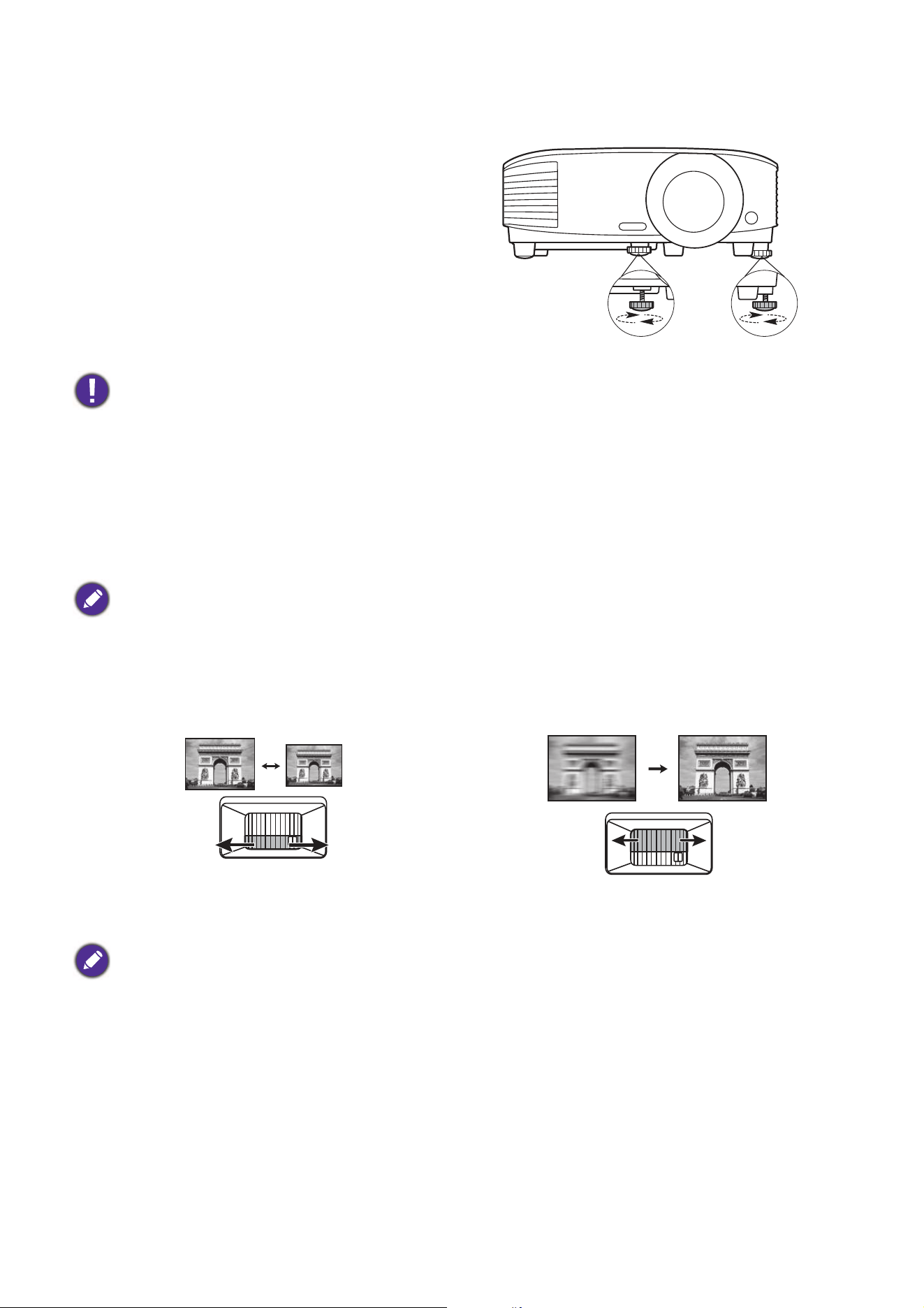
Ceiling/Wall mount installation diagram
All measurements are approximate and may vary from the actual sizes.
BenQ recommends that if you intend to permanently install the projector, you should physically test the projection
size and distance using the actual projector in situ before you permanently install it, so as to make allowance for this
projector's optical characteristics. This will help you determine the exact mounting position so that it best suits your
installation location.
Ceiling/Wall mount screw: M4
(Max L = 25 mm; Min L = 20 mm)
Unit: mm
75146
100
75 27
17 Positioning your projector
Adjusting the projected image
Adjusting the projection angle
If the projector is not placed on a flat surface or the
screen and the projector are not perpendicular to
each other, the projected image becomes
trapezoidal. You can screw the adjuster feet to
fine-tune the horizontal angle.
To retract the feet, screw the adjuster feet in a
reverse direction.
Auto-adjusting the image
In some cases, you may need to optimize the picture quality. To do this, press AUTO. Within 3
seconds, the built-in Intelligent Auto Adjustment function will re-adjust the values of Frequency and
Clock to provide the best picture quality.
The current source information will be displayed in the corner of the screen for 3 seconds.
Fine-tuning the image size and clarity
Correcting keystone
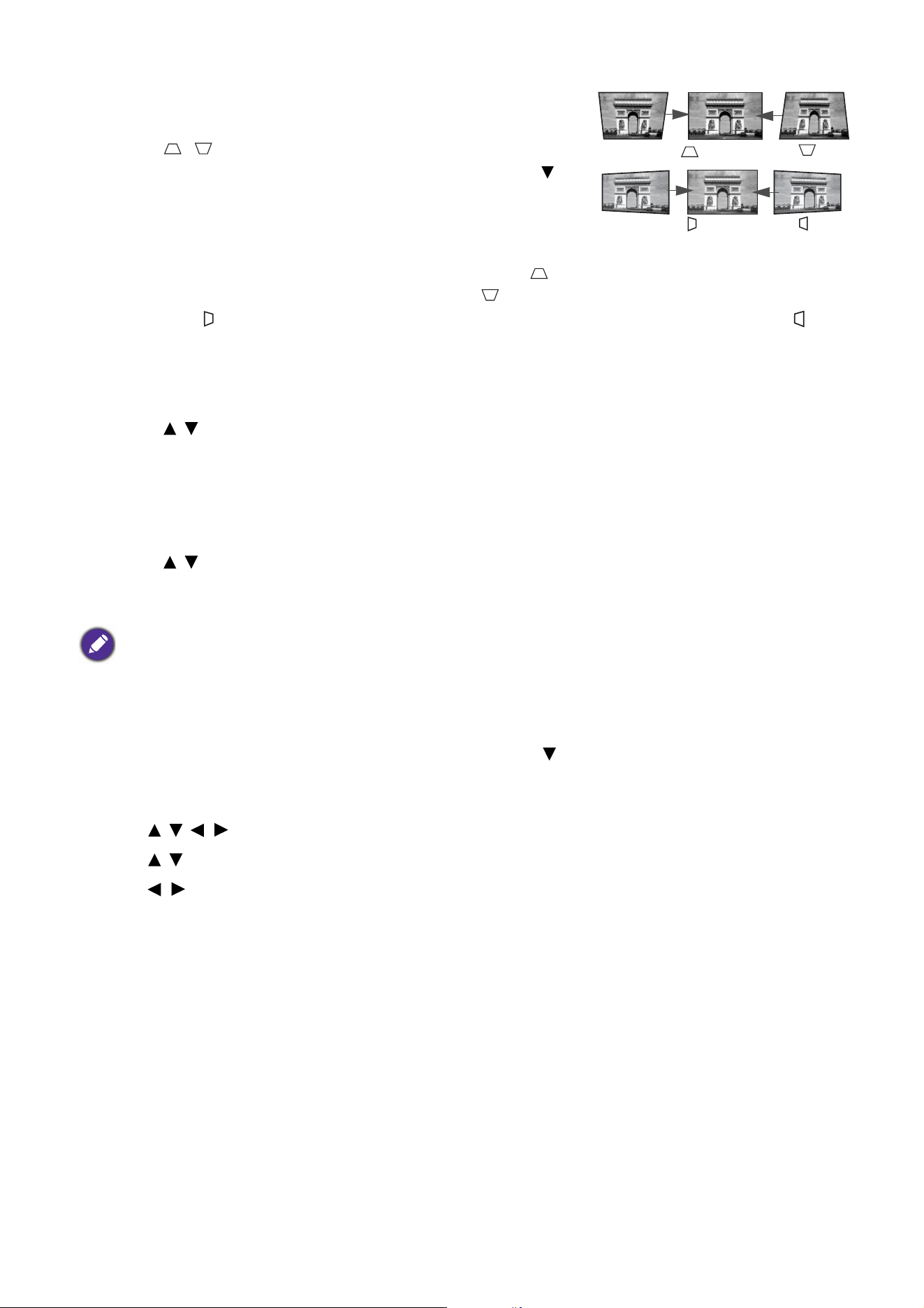
Keystoning refers to the situation where the projected image becomes a trapezoid due to angled
projection.
To correct this, you will need to manually correct it following these steps.
Do not look into the lens while the lamp is on. The strong light from the lamp may cause damage to your eyes.
This function is only available when PC signal (analog RGB) is selected.
Adjust the projected image to the size that you
need using the zoom ring.
Sharpen the image by rotating the focus ring.
This function is not available when there is no input signal. If you wish to use this function when there is no input
signal, activate Test Pattern first.
18 Positioning your projector
1. Do one of the following steps to display the keystone
correction page.
• Press / on the projector or remote control.
• Press QUICK INSTALL on the remote control. Press to
highlight 2D Keystone and press OK.
• Go to Advanced Menu - Display > 2D Keystone and
press OK.
2. After the 2D Keystone correction page displays. Press to
correct keystoning at the top of the image. Press to correct keystoning at the bottom of the
image. Press on the projector to correct keystoning at the right side of the image. Press on
the projector to correct keystoning at the left side of the image.
3. When 2D Keystone correction page displays, you can also do the following settings:
• Press AUTO to reset the keystone values.
• Press / to disable the auto vertical keystone function.
Auto Vertical Keystone function
• Go to Advanced Menu - Display > Auto Vertical Keystone and press OK to turn on the
auto vertical keystone function. The image keystoning is corrected automatically and the keystone
value displays.
• Press / to disable the function.
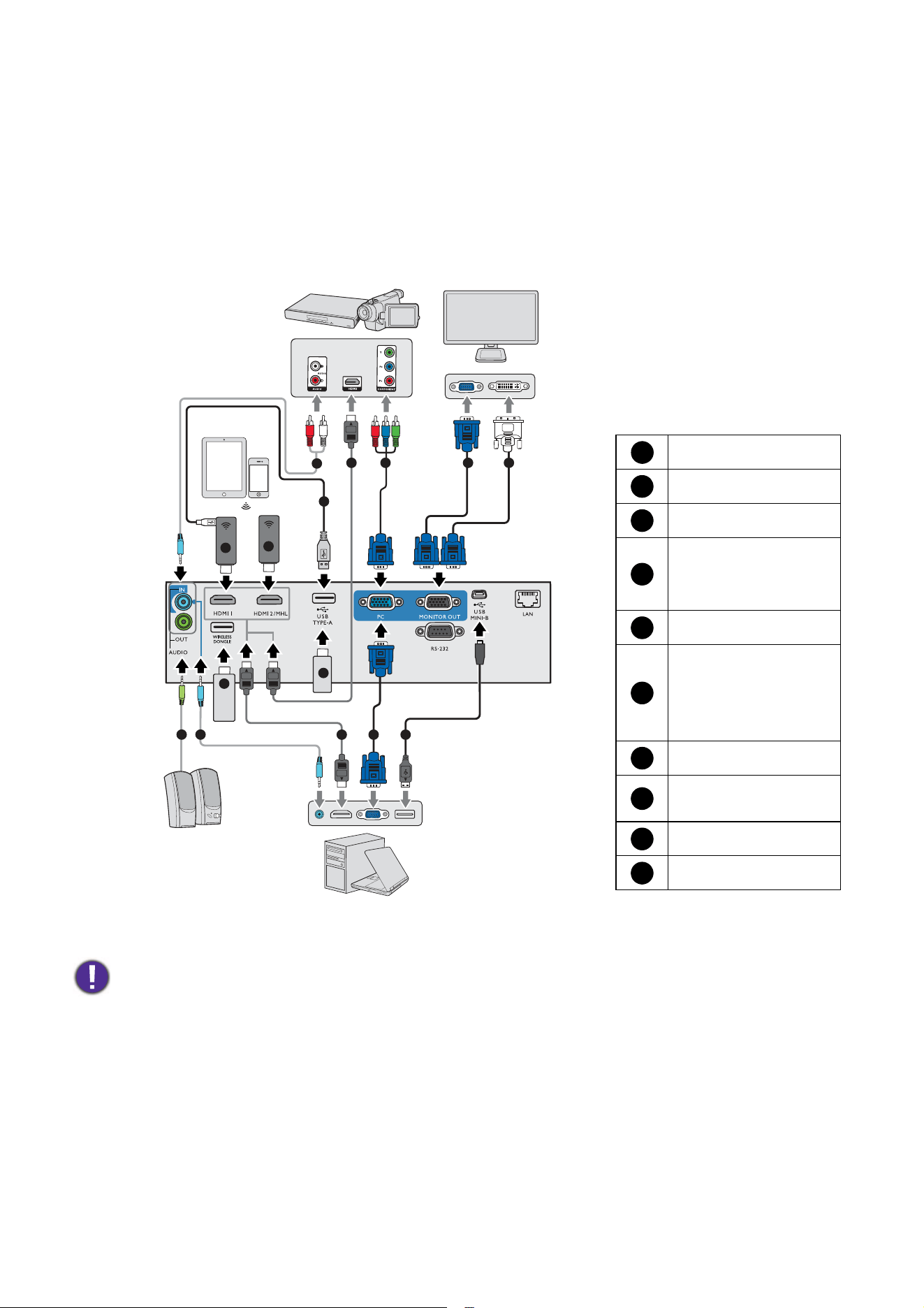
Adjusting Corner Fit
You can manually adjust four corners of the image by setting the horizontal and vertical values.
1. Do one of the following steps to display the corner fit correction page.
• Press QUICK INSTALL on the remote control. Press to highlight Corner Fit and press
OK.
• Go to Advanced Menu - Display > Corner Fit and press OK.
2. Press / / / to select one corner and press OK.
3. Press / to adjust vertical values.
4. Press / to adjust horizontal values.
This function is not available when there is no input signal. If you wish to use this function when there is no input
signal, activate Test Pattern first.
Press .
Press .
Press .
Press .
19 Connection
Connection
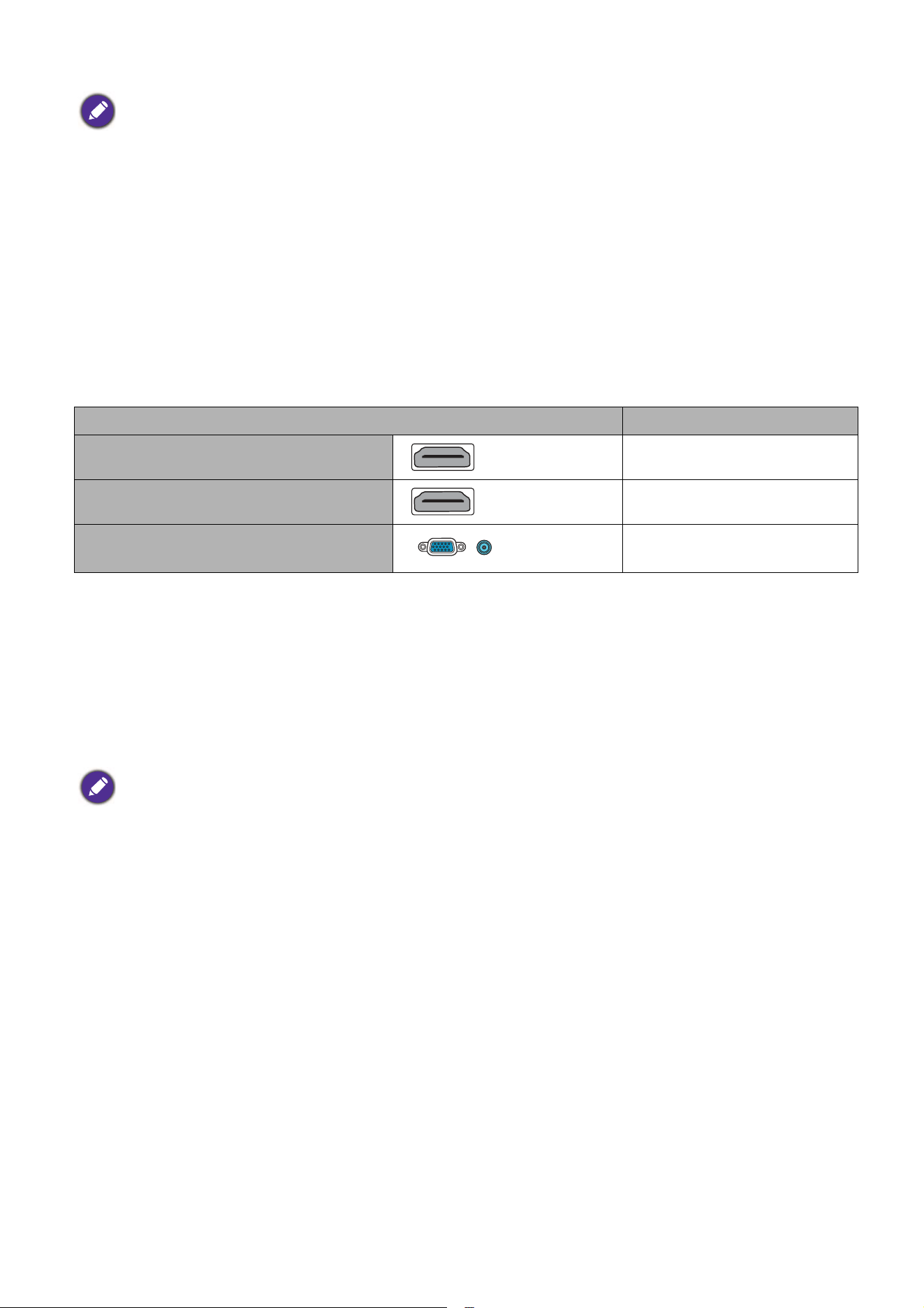
When connecting a signal source to the projector, be sure to:
1. Turn all equipment off before making any connections.
2. Use the correct signal cables for each source.
3. Ensure the cables are firmly inserted.
• To ensure a stable power supply, do not connect both USB Type A ports simultaneously.
• The HDMI2/MHL and USB TYPE-A port cannot provide power supply simultaneously. The power output is
either through HDMI2/MHL or USB TYPE-A port. Note that the default power output is through the USB
TYPE-A port. When connecting to HDMI2/MHL port, set MHL Power Switch to On in the OSD menu to
ensure the dongle is powered, see
MHL Power Switch on page 38. After that, when connecting to USB TYPE-A
port (including WIRELESS DONGLE), remember to set MHL Power Switch to Off in the OSD menu.
5
5
1
7
7
3
5
4
8
8
6
9
10
2
1
Notebook or
desktop computer
VGA cable
VGA to DVI-A cable
USB cable
Component Video to
VGA (D-Sub)
adapter cable
Audio cable
USB cable (A to micro
B type) connect
to HDMI dongle for
power supply
HDMI cable
HDMI dongle (QCast,
QCast Mirror, etc.)
USB Wireless dongle
USB flash drive
1
2
3
4
5
6
7
8
9
10
Speakers
Monitor
Smart device
A/V device
20 Connection
Connecting video source devices
You need only connect the projector to a video source device using just one of the connecting methods,
however each provides a different level of video quality.
Connecting audio
The projector has built-in mono speaker(s) which are designed to provide basic audio functionality
accompanying data presentations for business purposes only. They are not designed for, nor intended
for stereo audio reproduction use as might be expected in home theater or home cinema applications.
Any stereo audio input (if provided), is mixed into a common mono audio output through the projector
speaker(s).
The built-in speaker(s) will be muted when the AUDIO OUT jack is connected.
• In the connections above, some cables may not be included with the projector (see Shipping contents on page 7).
They are commercially available from electronics stores.
• The connection illustrations are for reference only. The rear connecting jacks available on the projector vary with
each projector model.
• Many notebooks do not turn on their external video ports when connected to a projector. Usually a key combo
like FN + function key with a monitor symbol turns the external display on/off. Press FN and the labeled function
key simultaneously. Refer to your notebook's documentation to find your notebook's key combination.
• If the selected video image is not displayed after the projector is turned on and the correct video source has been
selected, check that the video source device is turned on and operating correctly. Also check that the signal cables
have been connected correctly.
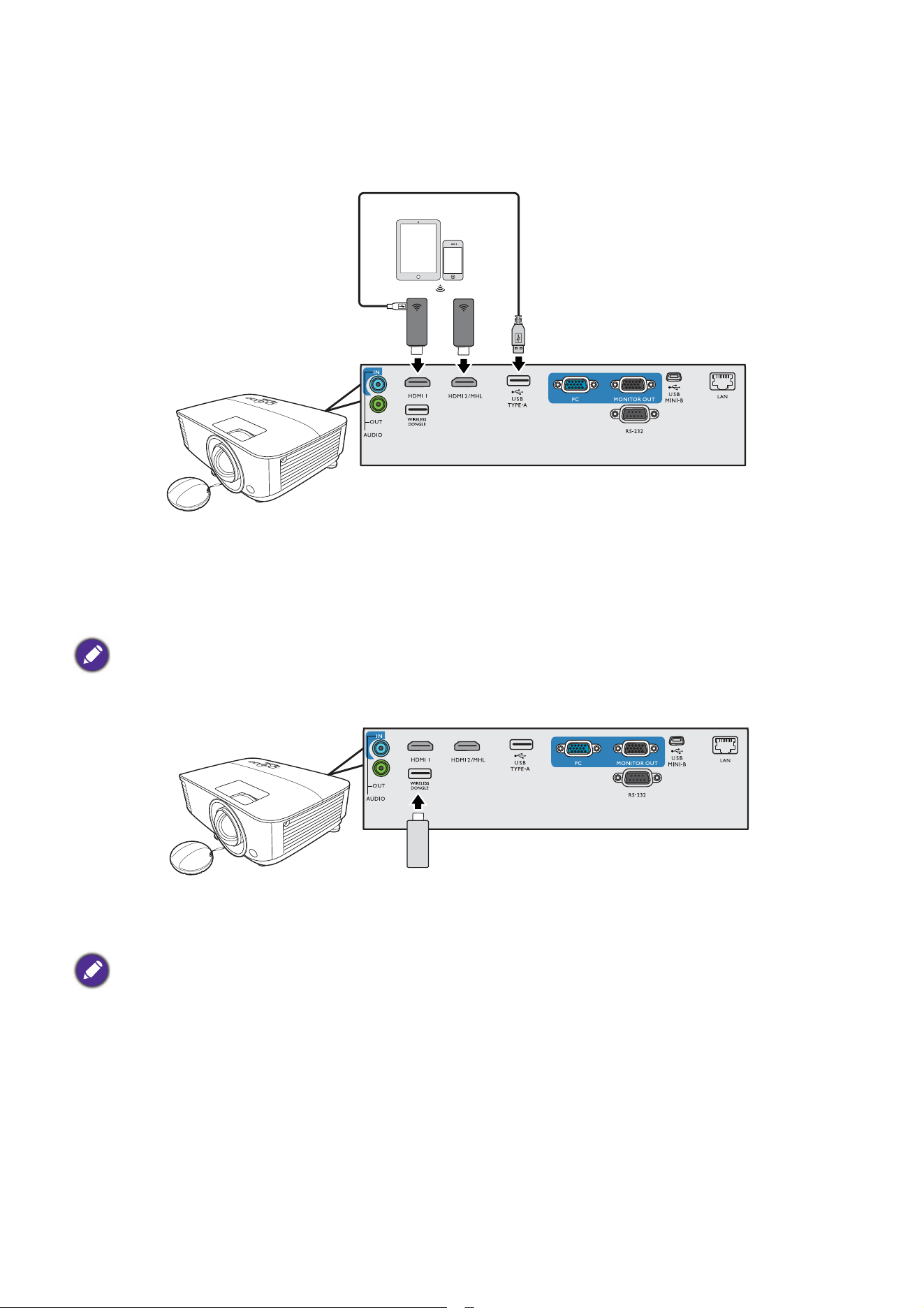
Te r m i n a l Picture quality
HDMI
Best
HDMI2/MHL
Best
Component Video (through RGB
input)
Better
• The projector is only capable of playing mixed mono audio, even if a stereo audio input is connected.
• If the selected video image is not displayed after the projector is turned on and the correct video source has been
selected, check that the video source device is turned on and operating correctly. Also check that the signal cables
have been connected correctly.
21 Connection
Connecting smart devices
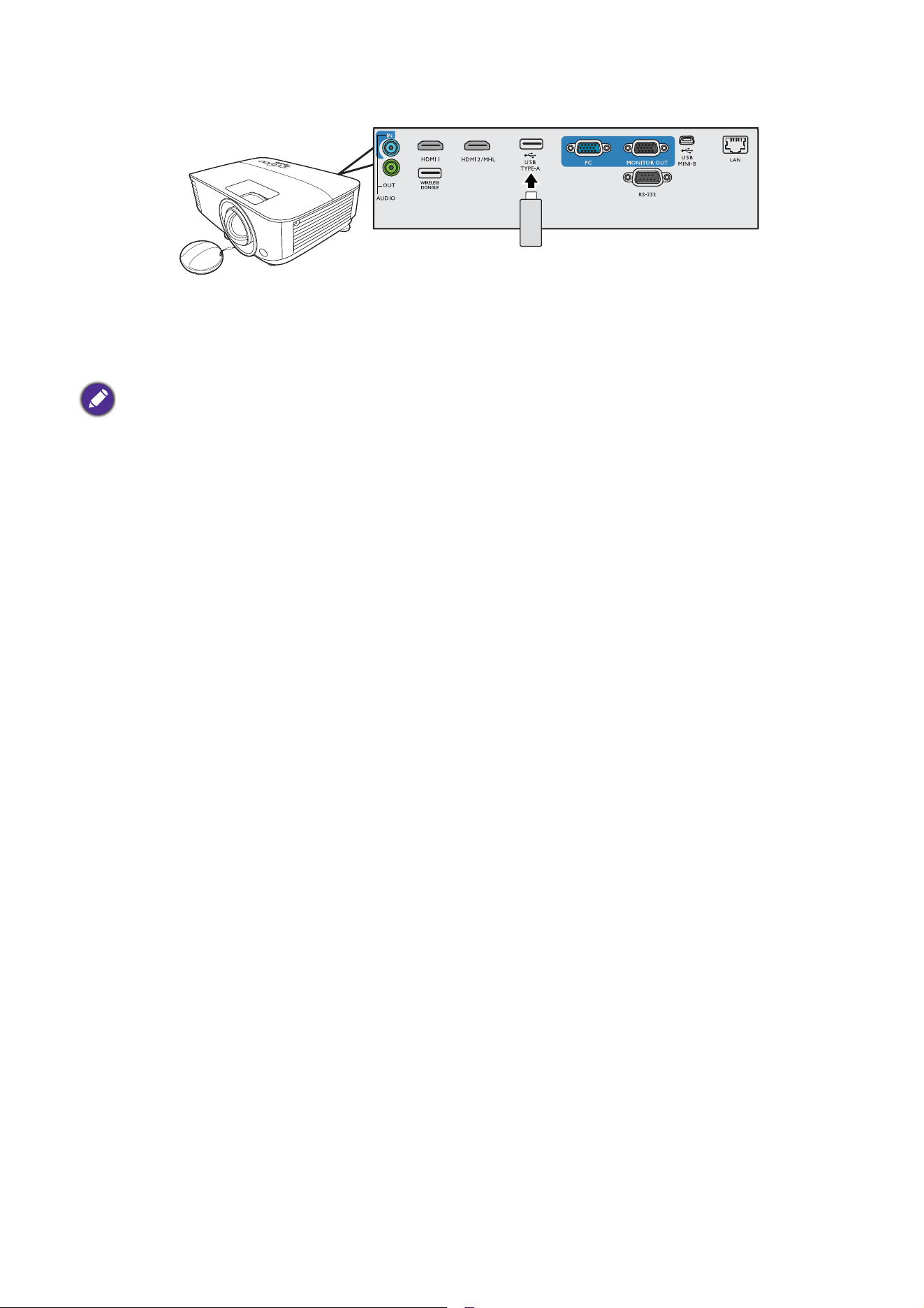
The projector can project the content directly from a smart device by using a wireless dongle.
HDMI wireless dongle (e.g. BenQ QCastMirror, QCast)
• Connect the dongle to HDMI and USB TYPE-A ports on the projector and switch the input signal
to HDMI-1.
• Connect the dongle to HDMI2/MHL port on the projector and switch the input signal to
HDMI-2/MHL.
USB wireless dongle (e.g. WDRT8192 USB Dongle)
Connect the USB wireless dongle to WIRELESS DONGLE port on the projector and switch the
input signal to Network Display.
Set MHL Power Switch to On in the OSD menu to ensure the dongle is powered, see MHL Power Switch on page
38.
For details, see BenQ Network Projector Operation Guide, which can be downloaded from BenQ product webpage.
22 Connection
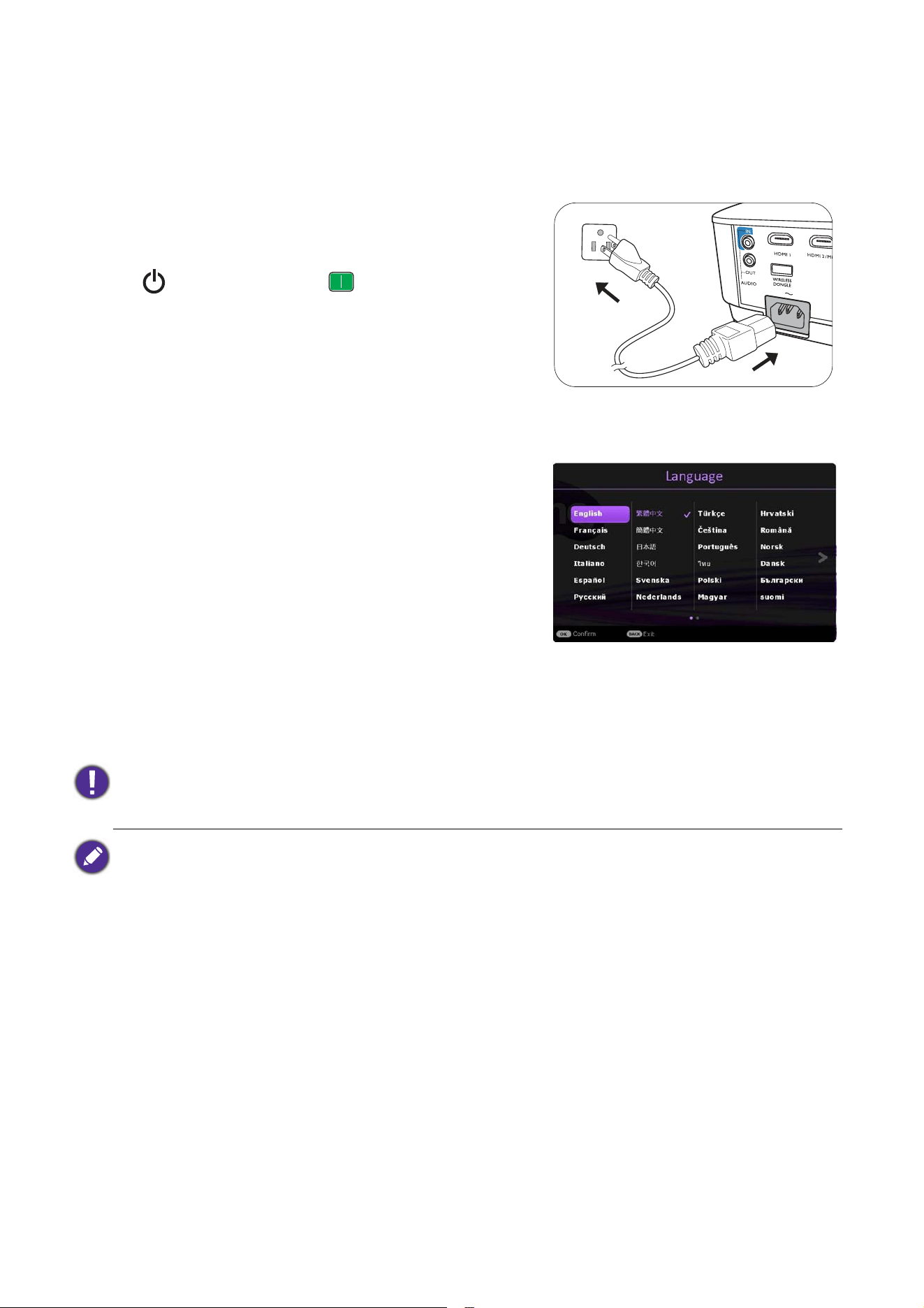
Connecting a USB flash drive
1. Plug the USB flash drive into the USB TYPE-A port of the projector.
2. A dialog is shown for quick source switching. Select Yes to enter USB Reader source. Or you
can manually select USB Reader from the source selection bar.
For details, see Presenting from a USB Reader on page 27.
23 Operation
Operation
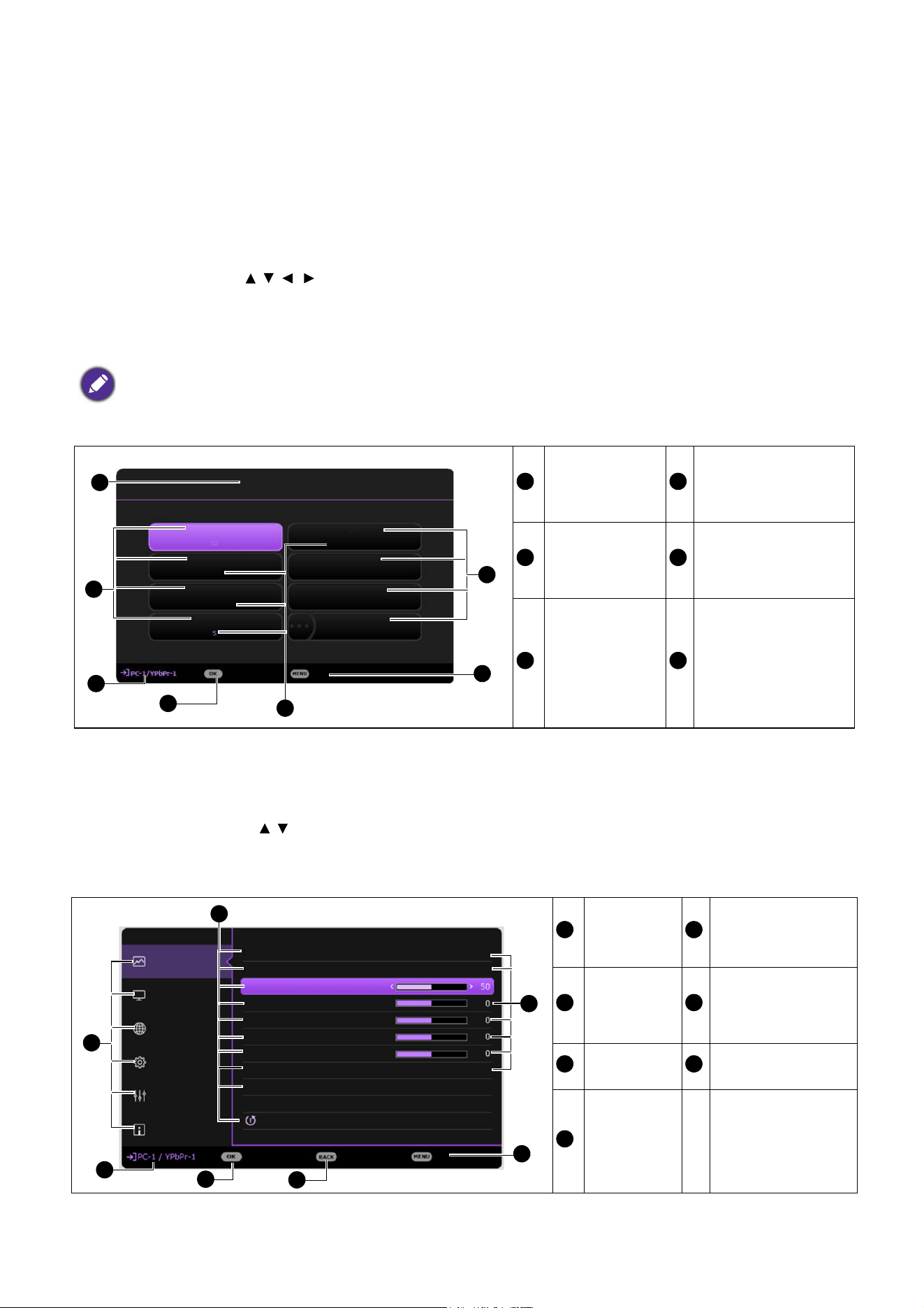
Starting up the projector
1. Plug the power cord. Turn on the power outlet switch
(where fitted). The power indicator on the projector
lights orange after power has been applied.
2. Press on the projector or on the remote
control to start the projector. The power indicator
flashes green and stays green when the projector is on.
The start up procedure takes about 30 seconds. In the
later stage of start up, a startup logo is projected.
(If necessary) Rotate the focus ring to adjust the image
clearness.
3. If the projector is activated for the first time, select your
OSD language following the on-screen instructions.
4. If you are prompted for a password, press the arrow keys
to enter a 6-digit password. See
Utilizing the password
function on page 25
.
5. Switch all of the connected equipment on.
6. The projector will search for input signals. The current
input signal being scanned appears. If the projector does
not detect a valid signal, the message “No Signal” will
continue displaying until an input signal is found.
You can also press SOURCE to select your desired input signal. See Switching input signal on page
26
.
• Please use the original accessories (e.g. power cord) to avoid possible dangers such as electric shock and fire.
• If the projector is still hot from previous activity, it will run the cooling fan for approximately 90 seconds before
energizing the lamp.
• The Setup Wizard screenshots are for reference only and may differ from the actual design.
• If the frequency/resolution of the input signal exceeds the projector's operating range, you will see the message
“Out of Range”
displayed on the background screen. Please change to an input signal which is compatible with
the projector's resolution or set the input signal to a lower setting. See Timing chart on page 50.
• If no signal is detected for 3 minutes, the projector automatically enters saving mode.
24 Operation
Using the menus
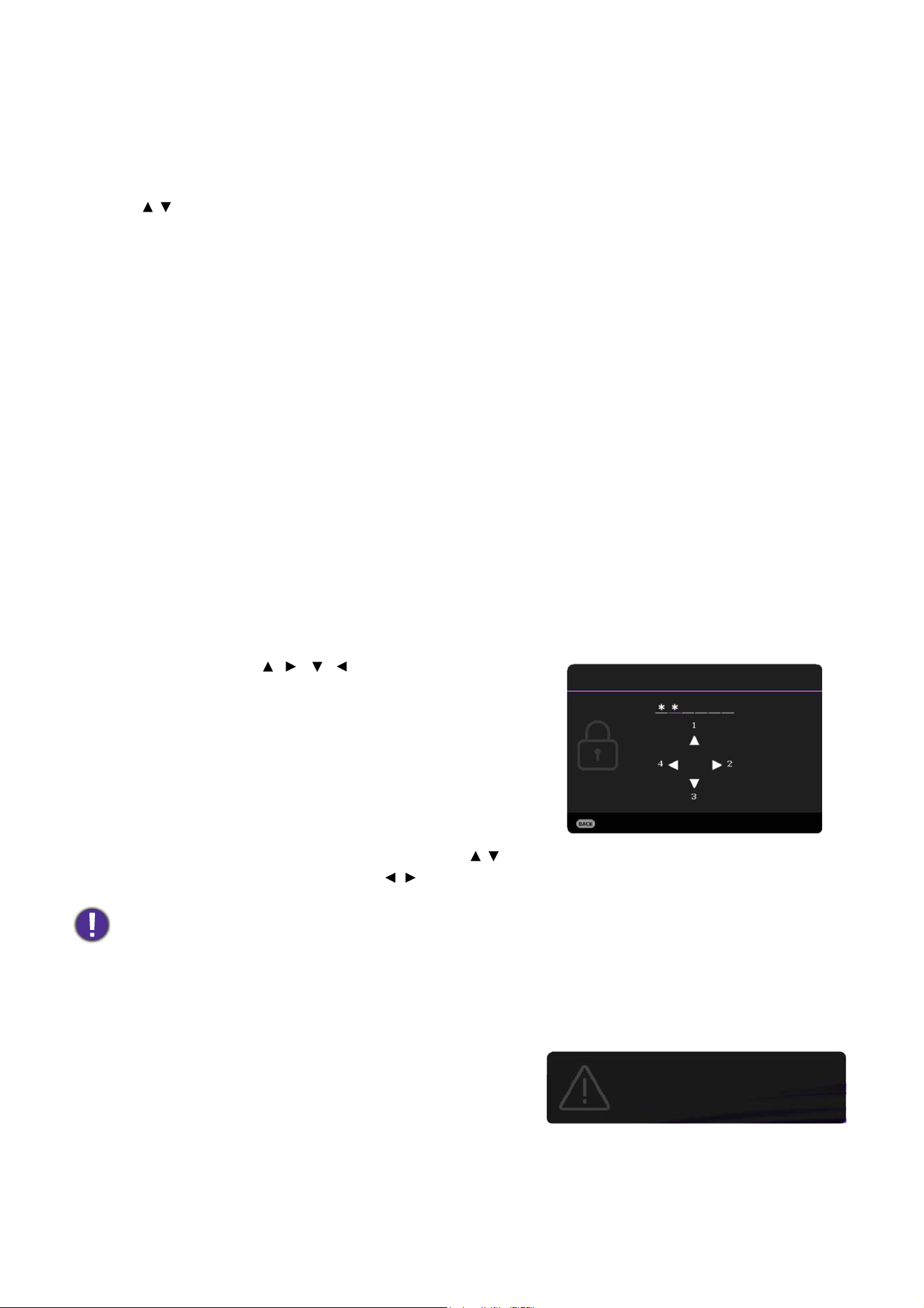
The projector is equipped with 2 types of On-Screen Display (OSD) menus for making various
adjustments and settings.
• Basic OSD menu: provides primary menu functions. (See Basic menu on page 30)
• Advanced OSD menu: provides full menu functions. (See
Advanced menu on page 32)
To access the OSD menu, press MENU on the projector or remote control.
• Use the arrow keys ( / / / ) on the projector or remote control to move through the menu items.
• Use OK on the projector or remote control to confirm the selected menu item.
The first time you use the projector (after finishing the initial setup), Basic OSD menu displays.
Below is the overview of the Basic OSD menu.
If you intend to switch from the Basic OSD menu to the Advanced OSD menu, follow the
instructions below:
1. Go to Basic Menu > Menu Type.
2. Press OK and press / to select Advanced. Next time when you turn on the projector, you
may access the Advanced OSD menu by pressing MENU.
Below is the overview of the Advanced OSD menu.
The OSD screenshots below are for reference only, and may differ from the actual design.
Menu Type
Press OK to enter
the menu.
Main menu Status
Current input
signal
Press MENU to go
to the previous page
or to exit.
Main menu
& Main
menu icon
Press BACK to go
to the previous
page.
Sub-menu
Press MENU to
go to the previous
page or to exit.
Current
input signal
Status
Press OK
to enter the
menu.
Basic Menu
Wireless LAN
Brightness
Aspect Ratio
2
1
2
6
Lamp Mode
Picture Mode
Volume
Information
Menu Type
Auto
Presentation
SmartEco
Enter
Exit
5
3
4
1
4
2
5
3
6
Picture
Picture Mode
Brightness
Contrast
Color
Tint
Sharpness
Off
Reference Mode
1
7
6
Brilliant Color
Advanced Color Settings
Display
Network
Settings
Information
Enter Exit
Return
Presentation
Presentation
Reset Picture
System
2
3
4
5
1
5
2
6
3
7
4
25 Operation
Likewise, when you wish to switch from the Advanced OSD menu to the Basic OSD menu, follow
the instructions below:
1. Go to Advanced Menu - System > Menu Settings and press OK.
2. Select Menu Type and OK.
3. Press / to select Basic. Next time when you turn on the projector, you may access the Basic
OSD menu by pressing MENU.
Securing the projector
Using a security cable lock
The projector has to be installed in a safe place to prevent theft. Otherwise, purchase a lock, such as
the Kensington lock, to secure the projector. You can locate a Kensington lock slot on the rear side of
the projector. See item 21 on
page 8.
A Kensington security cable lock is usually a combination of key(s) and the lock. Refer to the lock’s
documentation for finding out how to use it.
Utilizing the password function
Setting a password
1. Go to Advanced Menu - Settings > Security Settings. Press OK. The Security Settings
page appears.
2. Highlight Change Password and press OK.
3. The four arrow keys ( , , , ) respectively represent
4 digits (1, 2, 3, 4). According to the password you desire
to set, press the arrow keys to enter six digits for the
password.
4. Confirm the new password by re-entering the new
password.
Once the password is set, the OSD menu returns to the
Security Settings page.
5. To activate the Power On Lock function, press / to
highlight Power On Lock and press / to select On. Input the password again.
If you forget the password
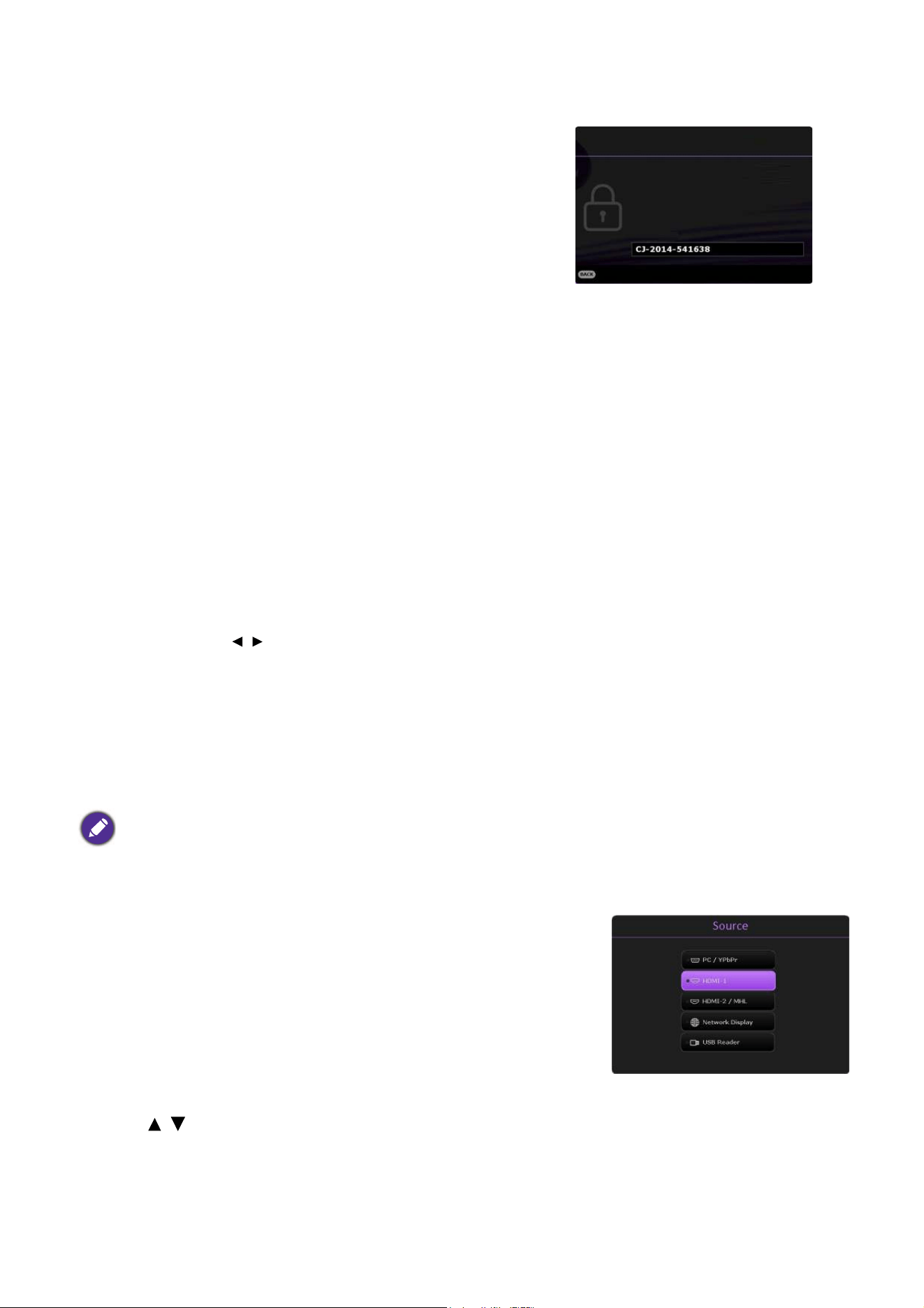
If you enter the wrong password, the password error
message will appear, and the Input Current Password
message follows. If you absolutely do not remember the
password, you can use the password recall procedure. See
Entering the password recall procedure on page 26.
If you enter an incorrect password 5 times in succession, the
projector will automatically shut down in a short time.
• The digits being input will display as asterisks on-screen. Make a note of your selected password and keep it in a
safe place in advance or right after the password is entered so that it is available to you should you ever forget it.
• Once a password has been set and the power on lock is activated, the projector cannot be used unless the
correct password is entered every time the projector is started.
Input New Password
Return
Password Error
Please try again.
26 Operation
Entering the password recall procedure
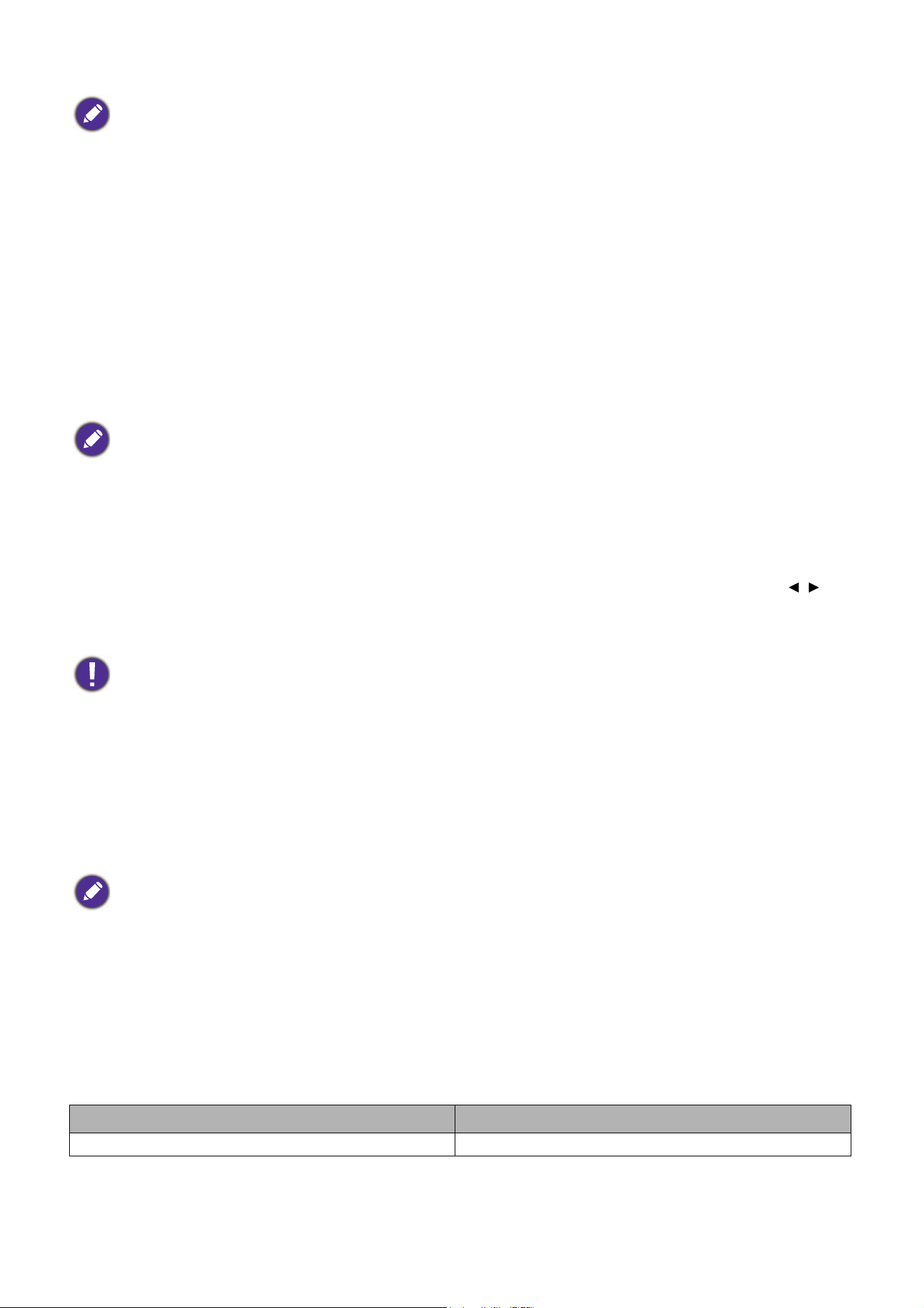
1. Press and hold AUTO for 3 seconds. The projector will
display a coded number on the screen.
2. Write down the number and turn off your projector.
3. Seek help from the local BenQ service center to decode
the number. You may be required to provide proof of
purchase documentation to verify that you are an
authorized user of the projector.
Changing the password
1. Go to Advanced Menu - Settings > Security Settings > Change Password.
2. Press OK. The message “Input Current Password” appears.
3. Enter the old password.
• If the password is correct, another message “Input New Password” appears.
• If the password is incorrect, the password error message will appear, and the message “Input
Current Password” appears for your retry. You can press BACK to cancel the change or try
another password.
4. Enter a new password.
5. Confirm the new password by re-entering the new password.
Disabling the password function
To disable password protection, go to Advanced Menu - Settings > Security Settings > Power
On Lock and press / to select Off. The message “Input Current Password” appears. Enter the
current password.
• If the password is correct, the OSD menu returns to the Security Settings page. You will not
have to enter the password next time turning on the projector.
• If the password is incorrect, the password error message will appear, and the message “Input
Current Password” appears for your retry. You can press BACK to cancel the change or try
another password.
Switching input signal
The projector can be connected to multiple devices at the same time.
However, it can only display one full screen at a time. When starting
up, the projector automatically searches for the available signals.
Be sure the Advanced Menu - Settings > Auto Source Search
menu is On if you want the projector to automatically search for the
signals.
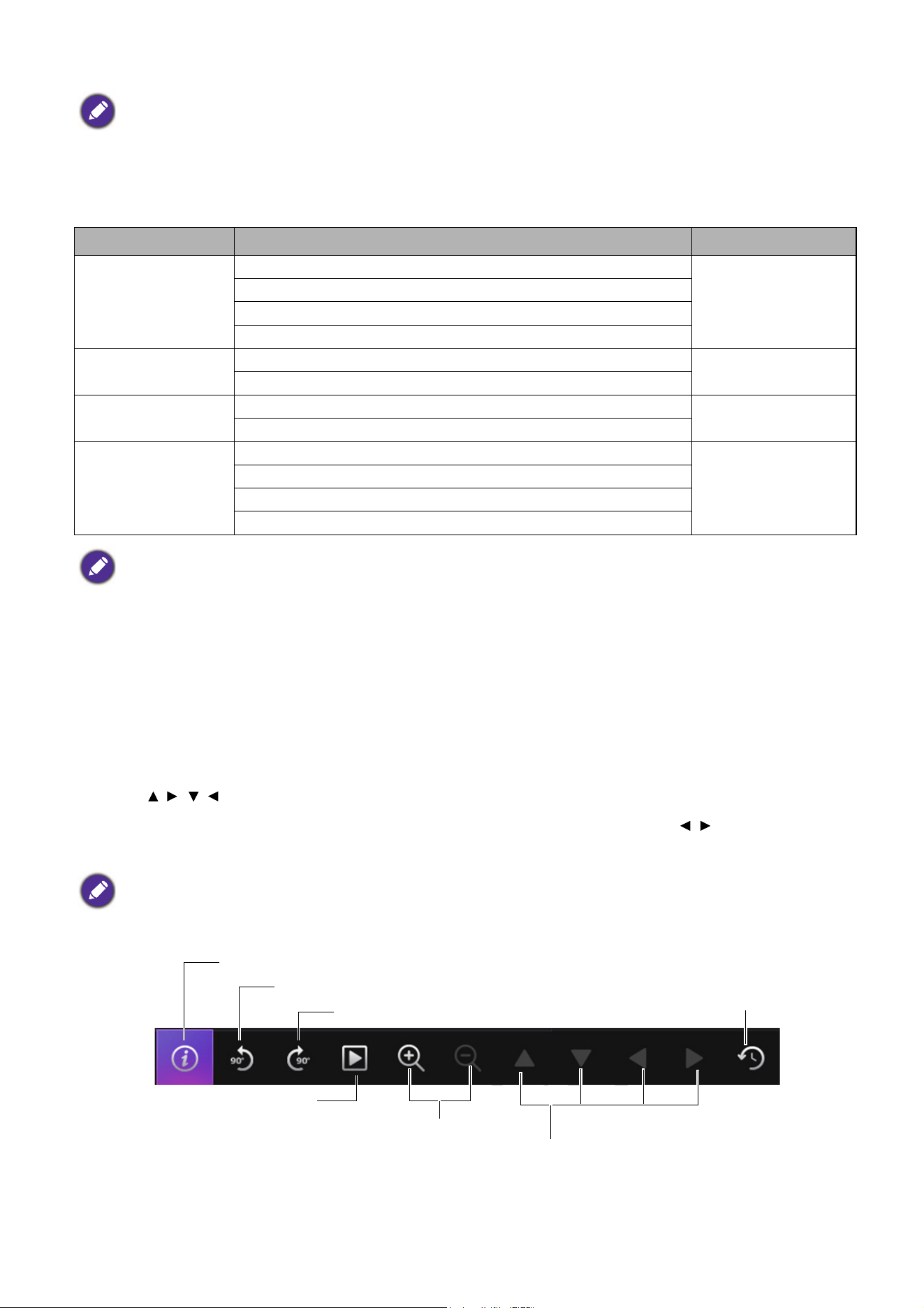
To select the source:
1. Press SOURCE. A source selection bar appears.
2. Press / until your desired signal is selected and press OK.
Once detected, the selected source information will appear at the corner of the screen for seconds.
If there is multiple equipment connected to the projector, repeat steps 1-2 to search for another
signal.
Though the password function is disabled, you need to keep the old password in hand should you ever need to
re-activate the password function by entering the old password.
Please write down the recall code, and contact
BenQ Customer Center.
Recall Code:
Recall Password
Return
27 Operation
Controlling the projector through a LAN environment
You can remotely control the projector from a computer by using a Web browser when the computer
and the projector are properly connected to the same local area network. There are 2 ways of
connection: Wired connection and Wireless connection. Go to Advanced Menu - Network for
LAN settings.
Once the projector and your computer are on the same local area network, you can access “BenQ
Projector Control System” through Web browser and start to control the projector. See BenQ
Network Projector Operation Guide for more details.
Using web control lock
This function is designed to prevent unauthorized people from maliciously changing the projector
settings through Web browser.
Go to Advanced Menu - Settings > Security Settings > Web Control Lock, and press / to
select On. Once enabled, it is required to enter the correct Account/ Password for changing the
projector settings through “BenQ Projector Control System” by a web browser.
Displaying image via QCast application through a LAN
environment
The QCast is an application running on the computer or your smart device. It helps to display your
content to the projector via a local network connection.See
BenQ Network Projector Operation
Guide for more details.
Presenting from a USB Reader
This feature allows you to browse the image and document files stored on a USB flash drive connected
to the projector. It can eliminate the need for a computer source.
Supported file formats
• Photo
• The brightness level of the projected image will change accordingly when you switch between different input
signals.
• For best display picture results, you should select and use an input signal which outputs at the projector’s native
resolution. Any other resolutions will be scaled by the projector depending upon the “aspect ratio” setting,
which may cause some image distortion or loss of picture clarity. See
Aspect Ratio on page 30.
BenQ Network Projector Operation Guide can be downloaded from BenQ product webpage.
For security reasons, the setting cannot be adjusted after it is set to On. The only way to disable it is enter “BenQ
Projector Control System” by a web browser and set Web Control Lock to Off.
BenQ Network Projector Operation Guide can be downloaded from BenQ product webpage.
Image format Size limitation
JPEG 8000 x 6000
28 Operation
• Document
Viewing the files
1. Plug the USB flash drive into the USB TYPE-A port of the projector.
2. A dialog is shown for quick source switching. Select Yes to enter USB Reader source.
3. Main menu will show up. Storages are classified as Photo and Document.
4. Choose Photo or Document and press OK to view files or folders.
5. Press / / / to select and press OK to enter the subfolder or display a file.
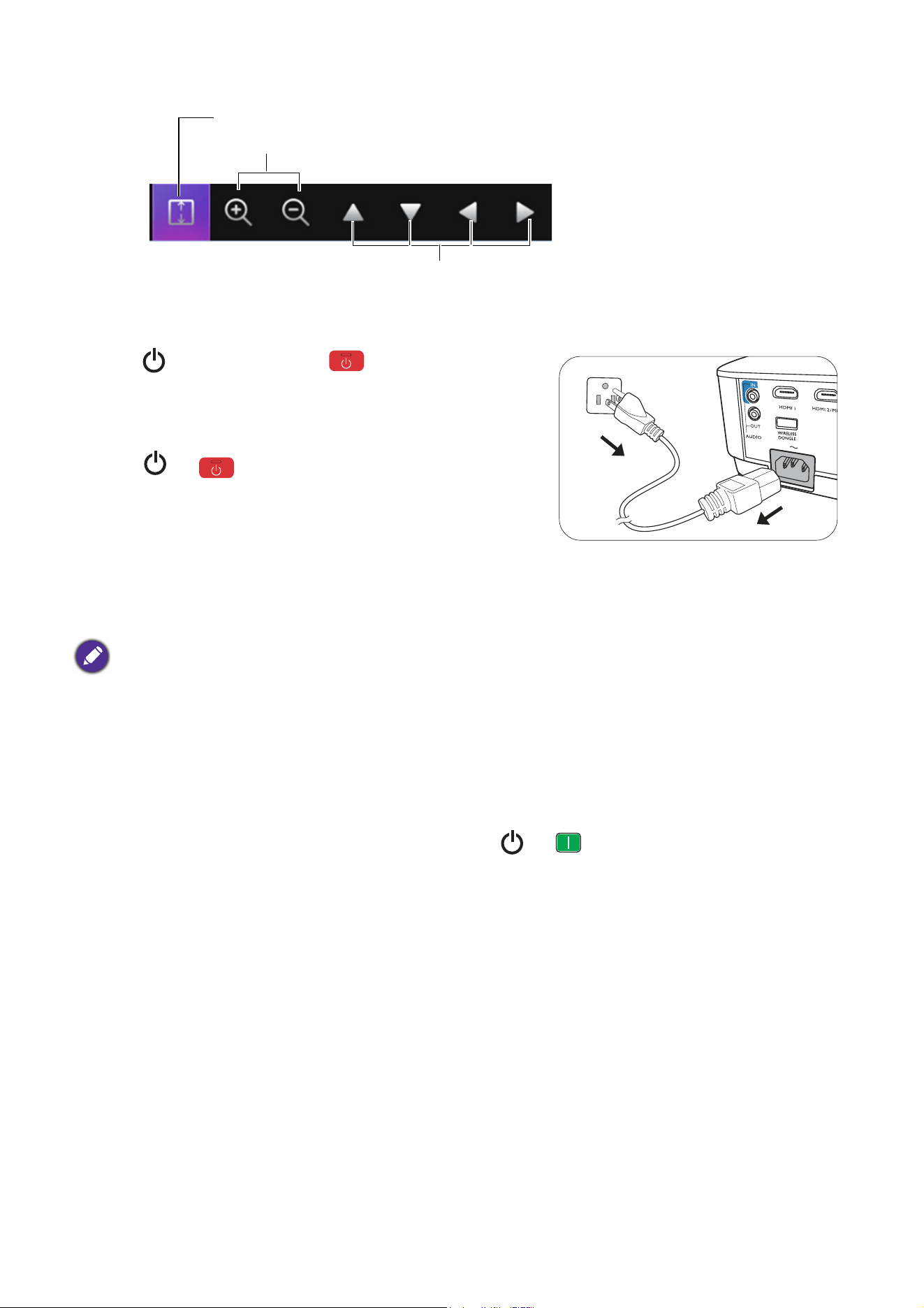
6. After a file is displayed, press OK to call out the function bar. You can press / select the
function and press OK to enact the selected item in the function bar.
• Function bar for viewing photos
• BMP resolution supports up to 1600x1200(3.2 seconds).
• JPEG progressive resolution supports up to 1600 x 120.
• BMP and JPEG progressive (SW decode) only show icon.
• Unsupported BMP and JPGE file will show unsupported icon.
Image format Support version Size limitation
Adobe PDF
PDF 1.3
Up to 75MB
PDF 1.4
PDF 1.5
PDF 1.6
MS Word
Word 97, 2000, 2002, 2003.
Up to 100MB
Word 2007 (.docx), 2010 (.docx)
MS Excel
Excel 97, 2000, 2002, 2003.
Up to 15MB
Excel 2007 (.xlsx), 2010 (.xlsx).
MS PowerPoint
British PowerPoint 97.
Up to 19MB
PowerPoint 2000, 2002, 2003.
PowerPoint 2007 (.pptx).
PowerPoint 2010 (.pptx),.
• MS Word does not support Bold Text in Simplified Chinese front.
• MS Excel does not support password-protected sheets.
• MS PowerPoint does not support SlideShow order.
The storage limit on the USB flash drive is 64GB.
Shows the information of photo size, name and type
Rotates the file 90 degrees counterclockwise
Rotates the file 90 degrees clockwise
Starts the slideshow
Zooms in/out the file for details
Navigates the file after it is magnified
Reloads the file
29 Operation
• Function bar for viewing documents
Shutting down the projector
1. Press on the projector or on the remote
control and a confirmation message will appear
prompting you. If you don't respond in a few seconds, the
message will disappear.
2. Press or a second time. The power indicator
flashes orange, the projection lamp shuts down, and the
fans will continue to run for approximately 90 seconds to
cool down the projector.
3. Once the cooling process finishes, the power indicator
becomes a steady orange and fans stop. Disconnect the
power cord from the power outlet.
Direct power off
The AC power cord can be pulled out right after the projector is turned off. To protect the lamp, wait
about 10 minutes before re-starting the projector. If you attempt to re-start the projector, the fans may
run for a few minutes to cool down. In such cases, press or again to start the projector after
the fans stop and the power indicator turns orange.
• To protect the lamp, the projector will not respond to any commands during the cooling process.
• To shorten the cooling time, you can also activate the Quick cooling function. See
Quick Cooling on page 36.
• Avoid turning on the projector immediately after turning it off as excessive heat may shorten lamp life.
• Lamp life results will vary depending on environmental conditions and usage.
Fits the width/height of the page with the screen
Zooms in/out the file for details
Navigates the file after it is magnified
30 Menu operation
Menu operation
Please note that the on-screen display (OSD) menus vary according to the signal type selected and the
projector model you are using.
The menu items are available when the projector detects at least one valid signal. If there is no
equipment connected to the projector or no signal detected, limited menu items are accessible.
Basic menu
Brightness
The higher the value, the brighter the image. Adjust this control so the black areas
of the image appear just as black and that detail in the dark areas is visible.
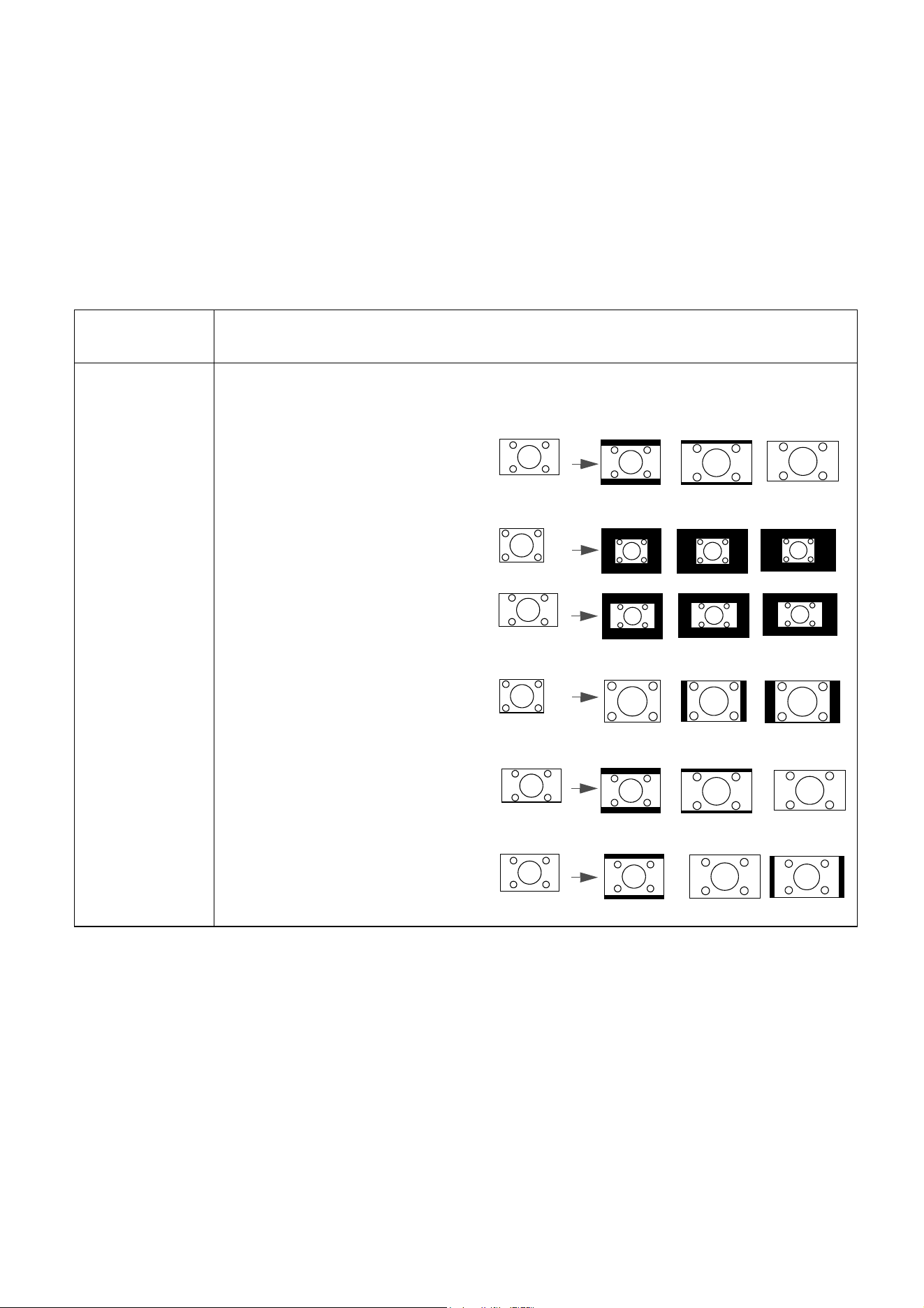
Aspect Ratio
There are several options to set the image's aspect ratio depending on your input
signal source.
• Auto: Scales an image
proportionally to fit the
projector's native resolution in its
horizontal or vertical width.
• Real: Projects an image as its
original resolution and resizes it to
fit within the display area. For
input signals with lower
resolutions, the projected image
will be displayed in its original size.
• 4:3: Scales an image so that it is
displayed in the center of the
screen with a 4:3 aspect ratio.
• 16:9: Scales an image so that it is
displayed in the center of the
screen with a 16:9 aspect ratio.
• 16:10: Scales an image so that it is
displayed in the center of the
screen with a 16:10 aspect ratio.
16:9 picture
(MX731)
(MW732) (MH733)
4:3 picture
16:9 picture
4:3 picture
16:9 picture
16:10 picture
31 Menu operation
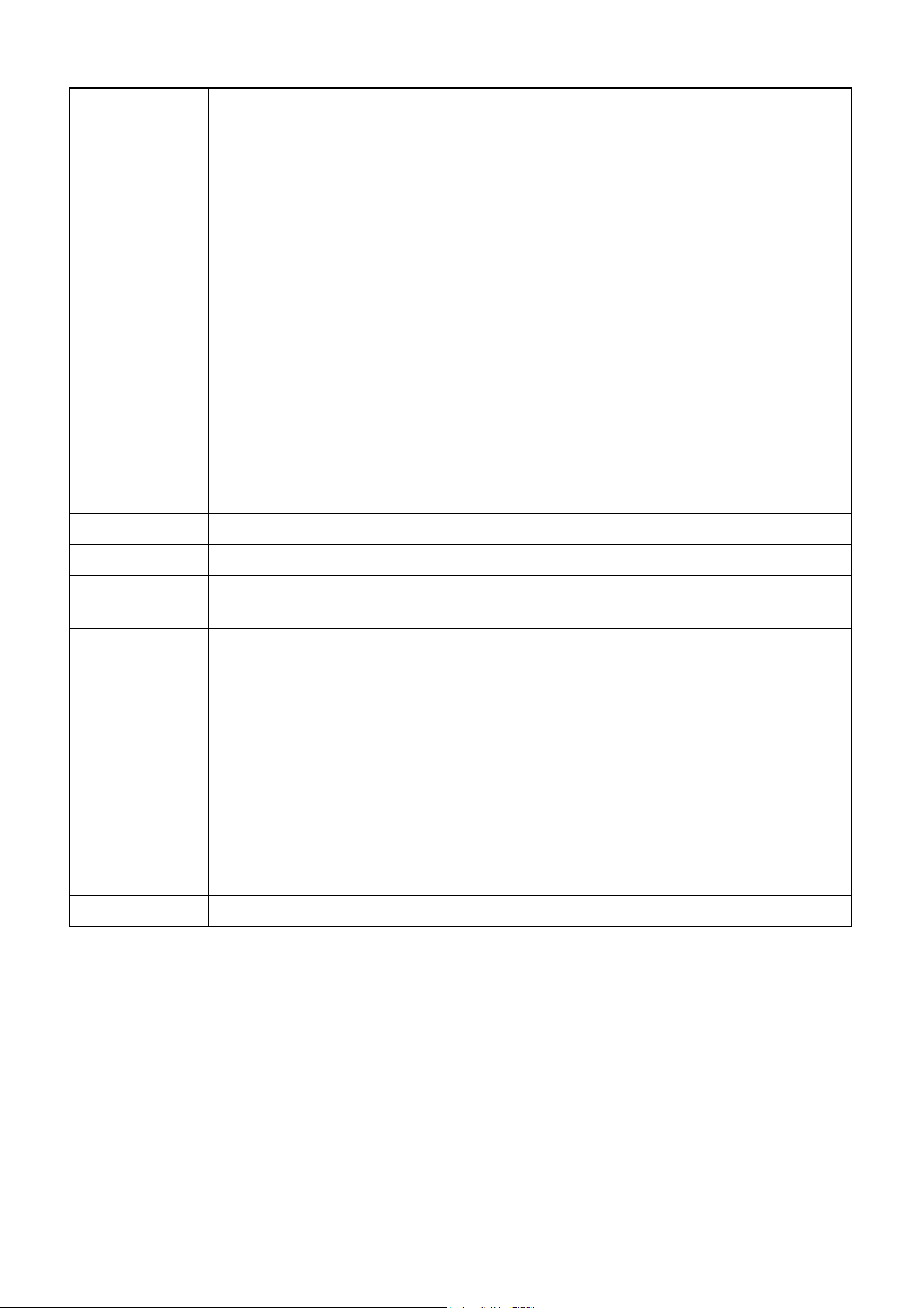
Picture Mode
The projector is preset with several predefined picture modes so that you can
choose one to suit your operating environment and input signal picture type.
• Bright: Maximizes the brightness of the projected image. This mode is suitable for
environments where extra-high brightness is required, such as using the projector
in well lit rooms.
• Presentation: Is designed for presentations. The brightness is emphasized in this
mode to match PC and notebook coloring.
• sRGB: Maximizes the purity of RGB colors to provide true-to-life images
regardless of brightness setting. It is most suitable for viewing photos taken with an
sRGB compatible and properly calibrated camera, and for viewing PC graphic and
drawing applications such as AutoCAD.
• Infographic: Is perfect for presentations with the mixture of text and graphics
due to its high color brightness and better color gradation to see the details
clearly.
• 3D: Is appropriate for playing 3D images and 3D video clips.
• User 1/User 2: Recalls the settings customized based on the current available
picture modes. See
Reference Mode on page 32.
Volume Adjusts the sound level.
Lamp Mode See Setting the Lamp Mode on page 42.
Wireless LAN
See BenQ Network Projector Operation Guide, which can be downloaded from
BenQ product webpage.
Information
• Native Resolution: Shows the native resolution of the projector.
• Detected Resolution: Shows the native resolution of the input signal.
• Source: Shows the current signal source.
• Picture Mode: Shows the selected mode in the Picture menu.
• Lamp Mode: Shows the selected mode in the Lamp Settings menu.
• 3D Format: Shows the current 3D mode.
• Color System: Shows input system format.
• Lamp Usage Time: Shows the number of hours the lamp has been used.
• Firmware Version: Shows the firmware version of your projector.
Menu Type Switches to the Advanced OSD menu. See Using the menus on page 24.
32 Menu operation
Advanced menu
Picture
Picture Mode
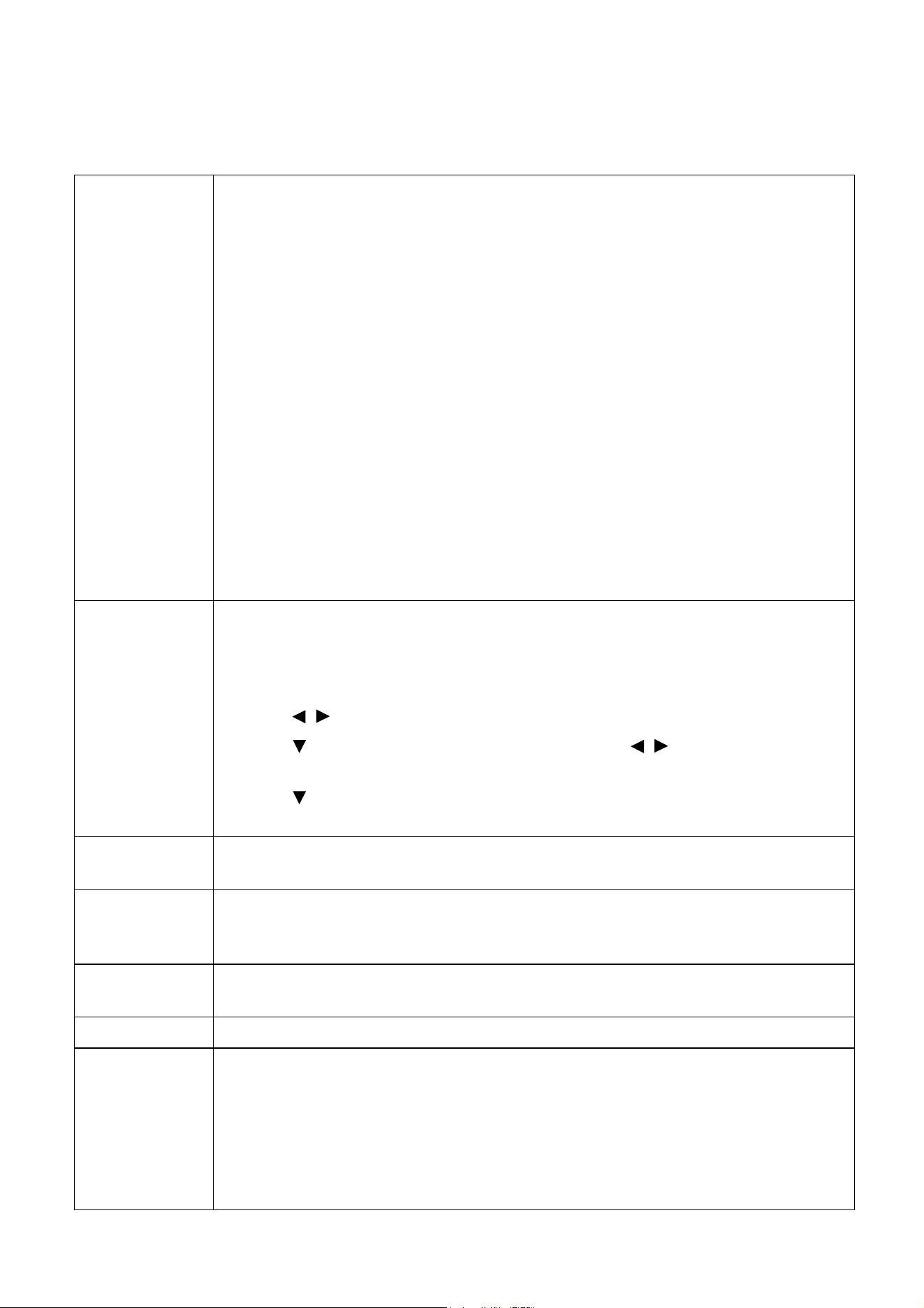
The projector is preset with several predefined picture modes so that you can
choose one to suit your operating environment and input signal picture type.
• Bright: Maximizes the brightness of the projected image. This mode is suitable
for environments where extra-high brightness is required, such as using the
projector in well lit rooms.
• Presentation: Is designed for presentations. The brightness is emphasized in this
mode to match PC and notebook coloring.
• sRGB: Maximizes the purity of RGB colors to provide true-to-life images
regardless of brightness setting. It is most suitable for viewing photos taken with
an sRGB compatible and properly calibrated camera, and for viewing PC graphic
and drawing applications such as AutoCAD.
• Infographic: Is perfect for presentations with the mixture of text and graphics
due to its high color brightness and better color gradation to see the details
clearly.
• 3D: Is appropriate for playing 3D images and 3D video clips.
• User 1/User 2: Recalls the settings customized based on the current available
picture modes. See
Reference Mode on page 32.
Reference
Mode
There are 2 user-definable modes if the current available picture modes are not
suitable for your need. You can use one of the picture modes (except the User
1/User 2) as a starting point and customize the settings.
1. Go to Picture > Picture Mode.
2. Press / to select User 1 or User 2.
3. Press to highlight Reference Mode, and press / to select a picture
mode that is closest to your need.
4. Press to select a menu item to be changed and adjust the value. The
adjustments define the selected user mode.
Brightness
The higher the value, the brighter the image. Adjust this control so the black areas
of the image appear just as black and that detail in the dark areas is visible.
Contrast
The higher the value, the greater the contrast. Use this to set the peak white level
after you have previously adjusted the Brightness setting to suit your selected input
and viewing environment.
Color
Lower setting produces less saturated colors. If the setting is too high, colors on
the image will be overpowering, which makes the image unrealistic.
Sharpness The higher the value, the sharper the picture becomes.
Brilliant Color
This feature utilizes a new color-processing algorithm and system level
enhancements to enable higher brightness while providing truer, more vibrant
colors in picture. It enables a greater than 50% brightness increase in mid-tone
images, which are common in video and natural scenes, so the projector
reproduces images in realistic and true colors. If you prefer images with that quality,
select On.
When Off is selected, the Color Temperature function is not available.
33 Menu operation
Advanced
Color Settings
Color Temperature
There are several preset color temperature settings available. The available settings
may vary according to the signal type selected.
• Normal: Maintains normal colorings for white.
• Cool: Makes images appear bluish white.
• Warm: Makes images appear reddish white.
Color Temperature Tuning
You can also set a preferred color temperature by adjusting the following options.
• R Gain/G Gain/B Gain: Adjusts the contrast levels of Red, Green, and Blue.
• R Offset/G Offset/B Offset: Adjusts the brightness levels of Red, Green,
and Blue.
Color Management
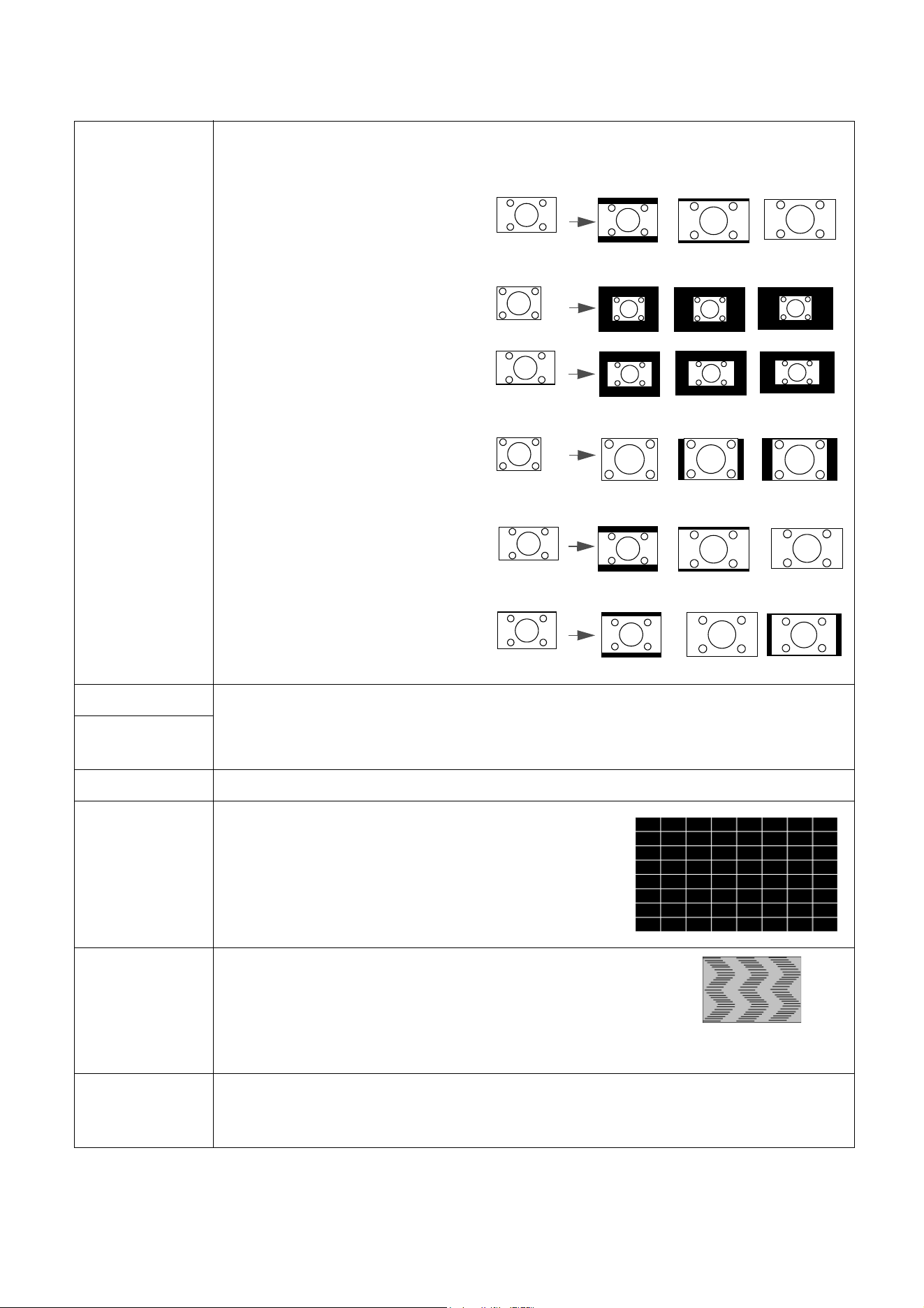
This function provides six sets (RGBCMY) of colors to be adjusted. When you
select each color, you can independently adjust its range and saturation according
to your preference.
• Primary Color: Selects a color from among R (Red), G (Green), B (Blue), C
(Cyan), M (Magenta), or Y (Yellow).
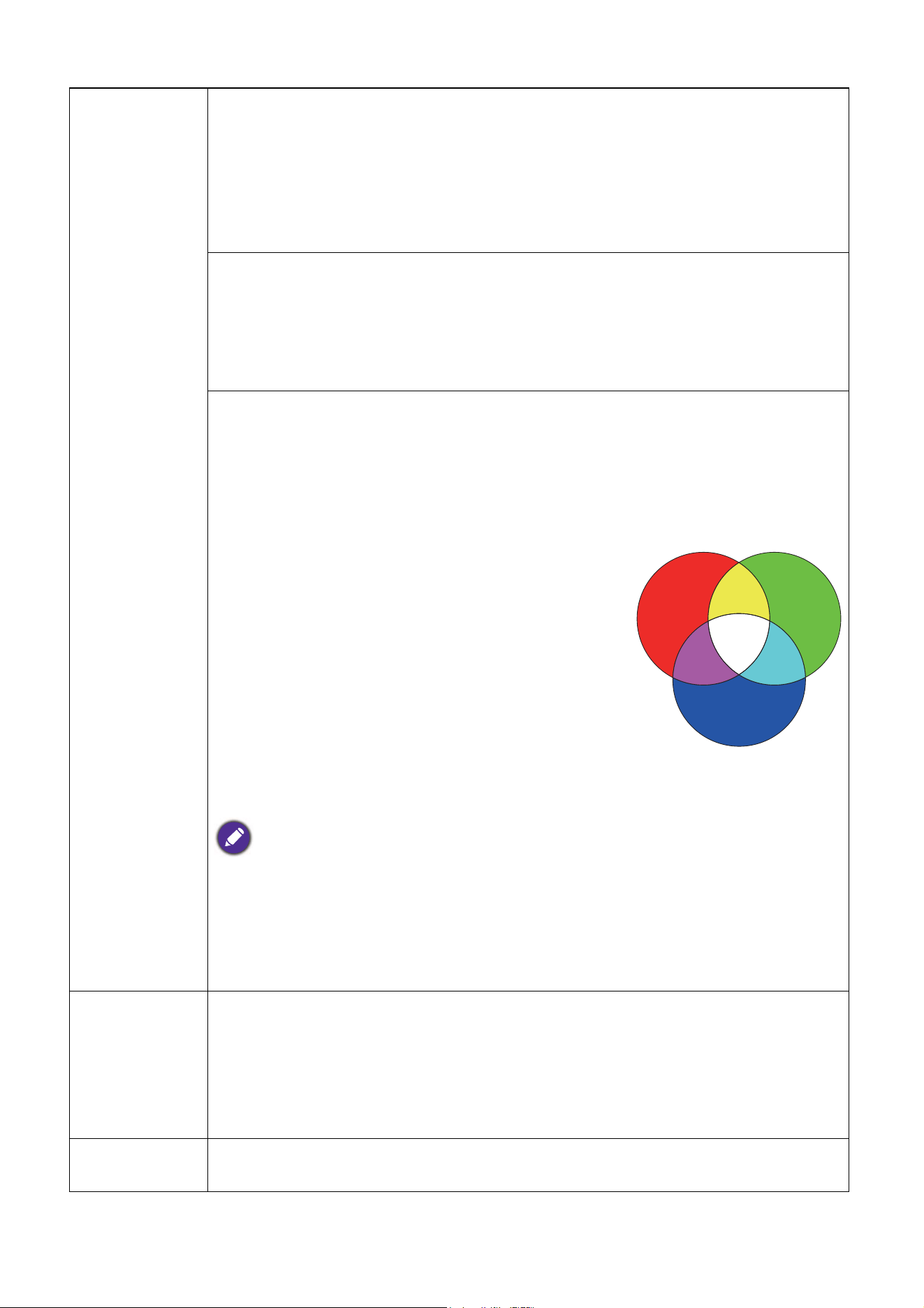
• Hue: Increase in the range will include colors
consisted of more proportions of its two
adjacent colors. Please refer to the illustration
for how the colors relate to each other.
For example, if you select Red and set its range
at 0, only pure red in the projected picture will
be selected. Increasing its range will include red
close to yellow and red close to magenta.
• Saturation: Adjusts the values to your
preference. Every adjustment made will reflect to
the image immediately. For example, if you select Red and set its value at 0,
only the saturation of pure red will be affected.
Saturation is the amount of that color in a video picture. Lower settings produce less saturated
colors; a setting of “0” removes that color from the image entirely. If the saturation is too high, that
color will be overpowering and unrealistic.
• Gain: Adjusts the values to your preference. The contrast level of the
primary color you select will be affected. Every adjustment made will reflect to
the image immediately.
Advanced
Color Settings
Wall Color
Corrects the projected picture’s color when the projection surface such as a
painted wall which may not be white, the Wall Color feature can help correct the
projected picture’s colors to prevent possible color difference between the source
and projected pictures. There are several precalibrated colors to choose from:
Light Yellow, Pink, Light Green, Blue, and Blackboard.
Reset Picture
Returns all of the adjustments you’ve made for the Picture menu to the factory
preset values.
RED
BLUE
GREEN
Yellow
Cyan
Magenta
34 Menu operation
Display
Aspect Ratio
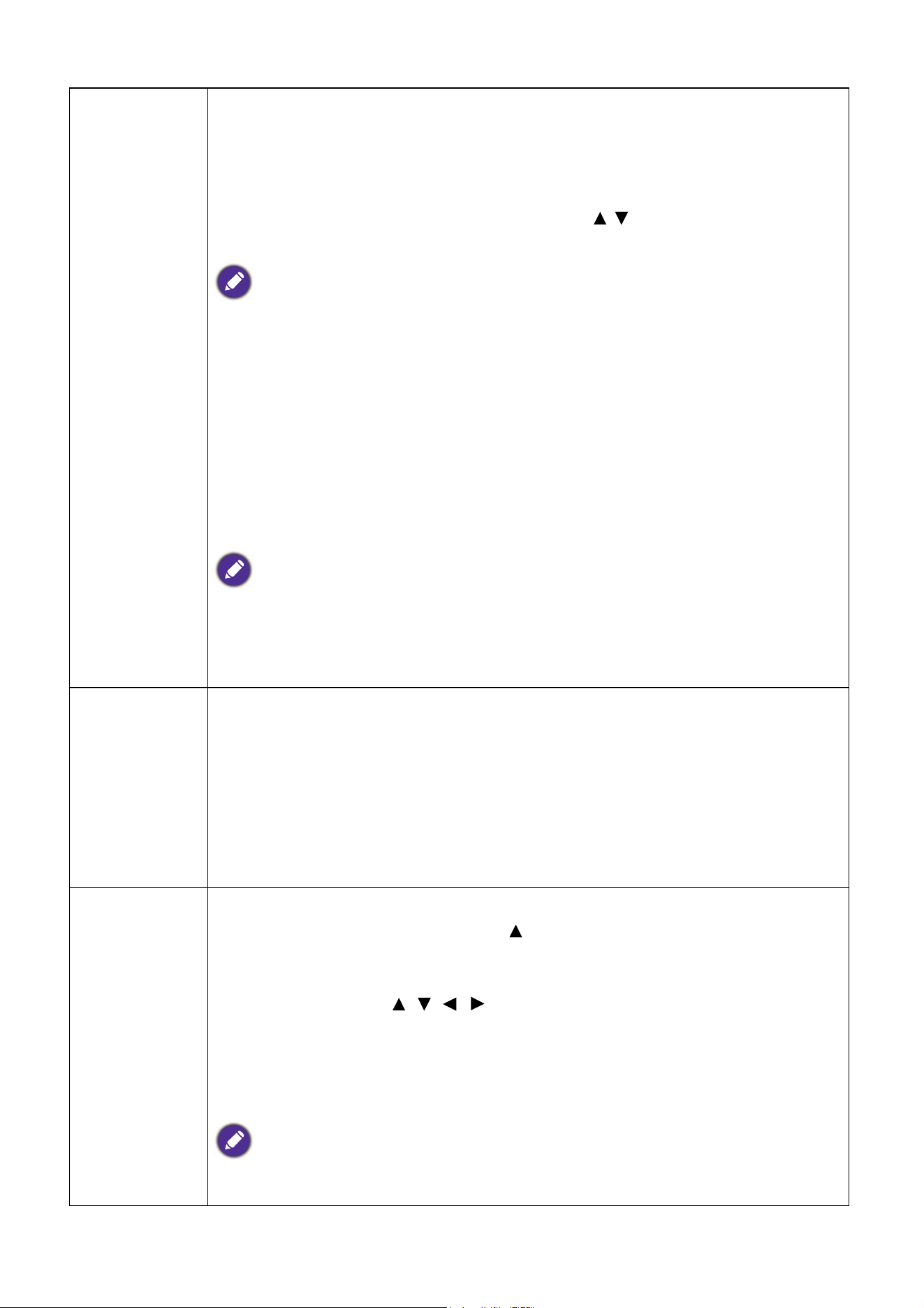
There are several options to set the image's aspect ratio depending on your input
signal source.
• Auto: Scales an image
proportionally to fit the
projector's native resolution in its
horizontal or vertical width.
• Real: Projects an image as its
original resolution and resizes it to
fit within the display area. For
input signals with lower
resolutions, the projected image
will be displayed in its original size.
• 4:3: Scales an image so that it is
displayed in the center of the
screen with a 4:3 aspect ratio.
• 16:9: Scales an image so that it is
displayed in the center of the
screen with a 16:9 aspect ratio.
• 16:10: Scales an image so that it is
displayed in the center of the
screen with a 16:10 aspect ratio.
2D Keystone
See Correcting keystone on page 17.
Auto Vertical
Keystone
Corner Fit
See Adjusting Corner Fit on page 18.
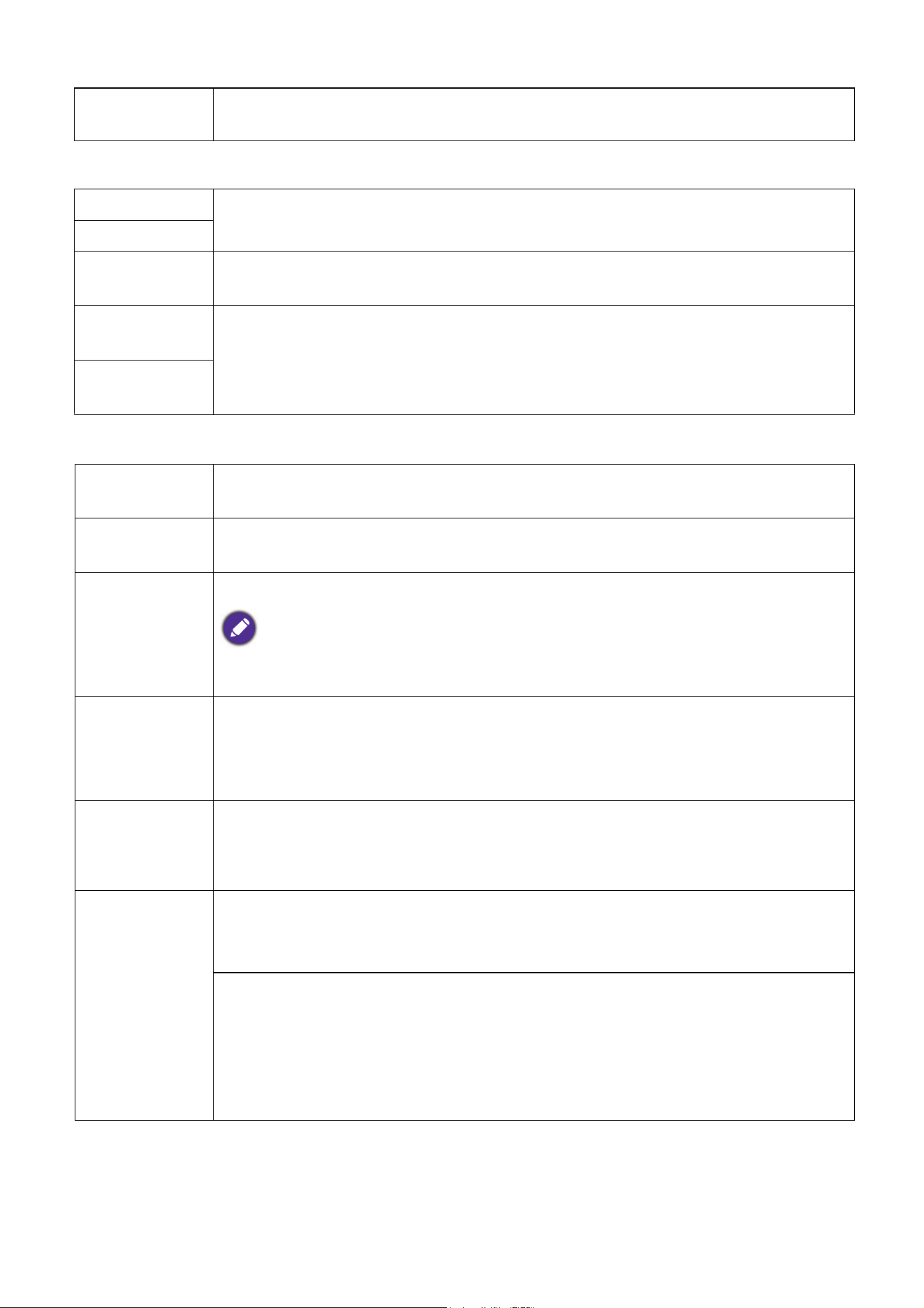
Test Pattern
Adjusts the image size and focus and check that the
projected image is free from distortion.
PC &
Component
YPbPr Tuning
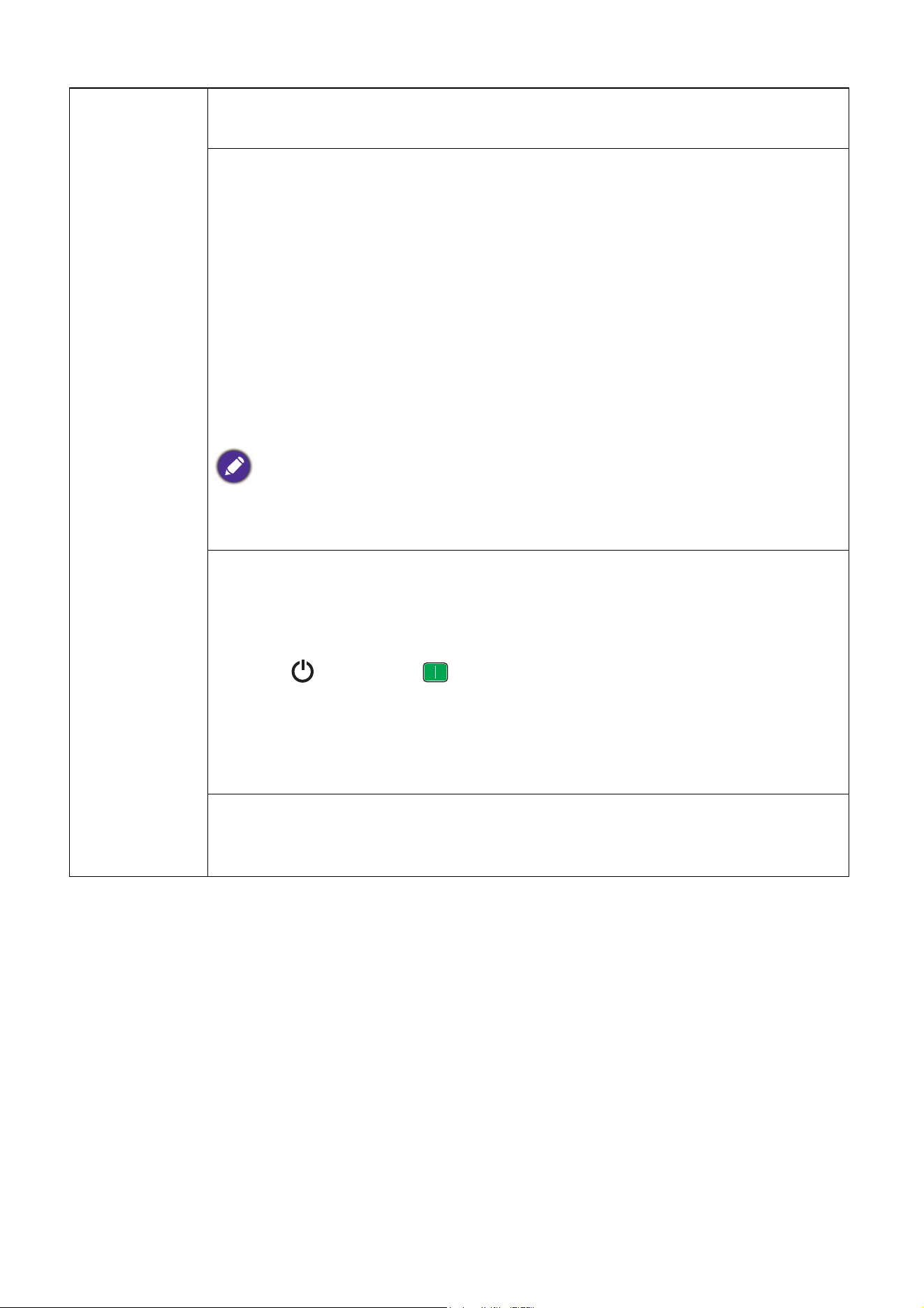
• Phase: Adjusts the clock phase to reduce image
distortion. This function is only available when a PC
signal (analog RGB) or YPbPr signal is selected.
• H. Size: Adjusts the horizontal width of the image.
This function is only available when a PC signal (analog RGB) is selected.
Position
Displays the position adjustment page. To move the projected image, use the
directional arrow keys. This function is only available when a PC signal (analog RGB)
is selected.
16:9 picture
(MX731)
(MW732) (MH733)
4:3 picture
16:9 picture
4:3 picture
16:9 picture
16:10 picture
35 Menu operation
3D
This projector features a 3D function which enables you to enjoy the 3D movies,
videos, and sporting events in a more realistic way by presenting the depth of the
images. You need to wear a pair of 3D glasses to view the 3D images.
• 3D Mode: The default setting is Off. If you want the projector to automatically
choose an appropriate 3D format when detecting 3D contents, select Auto. If the
projector cannot recognize the 3D format, press / to choose a 3D mode from
among Top Bottom, Frame Sequential, Frame Packing and Side by Side.
When 3D function is activated:
• The brightness level of the projected image will decrease.
• The following settings cannot be adjusted: Picture Mode, Reference Mode.
• The 2D Keystone can only be adjusted within limited degrees.
• 3D Sync Invert: When you discover the inversion of the image depth, enable
this function to correct the problem.
• Apply 3D Settings: After the 3D settings are saved, you can decide if you would
like to apply them by choosing a set of 3D settings that you have saved. Once
applied, the projector will automatically play the incoming 3D contents if it
matches the 3D settings saved.
Only the set(s) of 3D settings with memorized data is available.
• Save 3D Settings: When you have successfully displayed the 3D contents after
making the appropriate adjustments, you can enable this function and choose a set
of 3D settings to memorize current 3D settings.
HDMI Format
Selects a suitable color format to optimize display quality.
• Auto: Automatically selects a suitable color space and gray level for the incoming
HDMI signal.
• RGB Limited: Utilizes the Limited range RGB 16-235.
• RGB Full: Utilizes the Full range RGB 0-255.
• YUV Limited: Utilizes the Limited range YUV 16-235.
• YUV Full: Utilizes the Full range YUV 0-255.
Digital Zoom
Magnifies or reduces the projected image.
1. After the Zoom bar displays, press repeatedly to magnify the picture to a
desired size.
2. To navigate the picture, press OK to switch to the panning mode and press the
directional arrows ( , , , ) on the projector or remote control to
navigate the picture.
3. To reduce size of the picture, press OK to switch back to the zoom in/out
function, and press AUTO to restore the picture to its original size. You can
also press repeatedly until it is restored to the original size.
The picture can only be navigated after it is magnified. You can further magnify the picture while
searching for details.
36 Menu operation
Network
Settings
Reset Display
Returns all of the adjustments you’ve made for the Display menu to the factory
preset values.
Wireless LAN
See BenQ Network Projector Operation Guide, which can be downloaded from
BenQ product webpage.
Wired LAN
AMX Device
Discovery
When this function is On, the projector can be detected by AMX controller.
MAC Address
(Wireless)
Displays the mac address for this projector.
MAC Address
(Wired)
Projector
Installation
The projector can be installed on a ceiling or behind a screen, or with one or more
mirrors. See
Choosing a location on page 12.
Remote
Receiver
Allows you to enable all the remote receivers or one specific remote receiver on
the projector.
Auto Source
Search
• Allows the projector to automatically search for a signal.
The following signal source(s) will not be automatically detected by the projector, and you’ll have to
manually select it from the source selection bar: Network Display, USB Reader.
Auto Signal
Adjustment
• On: Allows the projector to automatically determines the best picture timings for
the displayed image when PC signal (analog RGB) is selected and AUTO is
pressed.
• Off: The projector will not respond when AUTO is pressed.
Lamp Settings
• Lamp Mode: See Setting the Lamp Mode on page 42.
• Reset Lamp Timer: See
Resetting the lamp timer on page 45.
• Lamp Timer: Displays the number of hours the lamp has been used.
Operation
Settings
Quick Cooling:
Selecting On enables the function and projector cooling time will be shortened
from a normal 90-second duration to approximately 15 seconds.
Blank Timer
Sets the image blank time when there is no action taken on the blank screen, once
elapsed the image will return to the screen. If the preset time spans are not suitable
for your need, select Disable. No matter Blank Timer is activated or not, you
can press most of the keys on the projector or remote control to restore the
picture.
37 Menu operation
Operation
Settings
Reminder Message
Sets the reminder messages on or off.
High Altitude Mode
We recommend you use the High Altitude Mode when your environment is
between 1500 m –3000 m above sea level, and ambient temperature is between
0°C–30°C.
Operation under "High Altitude Mode" may cause a higher decibel operating
noise level because of increased fan speed necessary to improve overall system
cooling and performance.
If you use this projector under other extreme conditions excluding the above, it
may display auto shut-down symptoms, which is designed to protect your projector
from over-heating. In cases like this, you should switch to High Altitude mode to
solve these symptoms. However, this is not to state that this projector can operate
under any and all harsh or extreme conditions.
Do not use the High Altitude Mode if your altitude is between 0 m and 1500 m and ambient
temperature is between 0°C and 35°C. The projector will be over cooled, if you turn the mode on
under such a condition.
Power On/Off Settings
• Direct Power On: Allows the projector to turn on automatically once the
power is fed through the power cord.
• Signal Power On: Sets whether to turn the projector directly on without
pressing POWER or ON when the projector is in standby mode and
detects a VGA signal.
• Auto Power Off: Allows the projector to turn off automatically if no input signal
is detected after a set period of time to prevent unnecessary waste of lamp life.
• Power Off Timer: Sets the auto-shutdown timer.
Instant Restart
Allows you to restart the projector immediately within 90 seconds after turning it
off.
38 Menu operation
Security
Settings
Panel Key Lock
With the control keys on the projector locked, you can prevent your projector
settings from being changed accidentally (by children, for example). When the
Panel Key Lock is on, no control keys on the projector will operate except
POWER.
To release panel key lock, press and hold (the right key) for 3 seconds on the
projector or turn this function off using the remote control.
If you turn off the projector without disabling panel key lock, the projector will still be in locked
status the next time it is turned on.
Change Password
See Utilizing the password function on page 25.
Power On Lock
See Utilizing the password function on page 25.
Web Control Lock
See Using web control lock on page 27.
Baud Rate
Selects a baud rate that is identical with your computer’s so that you can connect
the projector using a suitable RS-232 cable and update or download the projector’s
firmware. This function is intended for qualified service personnel.
HDMI
Equalizer
Adjusts the equalizer gain settings for an HDMI signal. The higher the setting, the
stronger the gain value. If there are more than one HDMI port on the projector,
select the HDMI port first before adjusting the value.
MHL Power
Switch
Disables or enables 5V power output for HDMI2/MHL port. When selecting Off,
the projector provides 5V power through the USB TYPE-A port.
Reset Settings
Returns all of the adjustments you’ve made for the Settings menu to the factory
preset values.
39 Menu operation
System
Language
Sets the language for the On-Screen Display (OSD) menus.
Standby
Settings
• Network: Allows you to make following settings:
• Monitor Out: Allows the projector to output a VGA signal when it is in standby
mode and the PC 1 jack and the MONITOR OUT jack are correctly connected
to devices.
• Audio Pass Through: The projector can play sound when it is in standby mode
and the corresponding jacks are correctly connected to devices. Press / to
choose the source that you wish to use. See
Connection on page 19 for how to
make the connection.
Background
Settings
• Background: Sets the background color for the projector.
• Splash Screen
: Allows you to select which logo screen will be displayed during
projector start-up.
Menu Settings
• Menu Type: Switches to the Basic OSD menu.
• Menu Display Time: Sets the length of time the OSD will remain active after
your last key press.
Audio
Settings
• Mute: Temporarily turns off the sound.
• Volume: Adjusts the sound level.
• Power On/Off Ring Tone: Turns on or off the ring tone when the projector is
in startup and shutdown process.
The only way to change Power On/Off Ring Tone is setting On or Off here. Setting the sound
mute or changing the sound level will not affect the Power On/Off Ring Tone.
Factory
Default
Returns all settings to the factory preset values.
The following settings will still remain: 2D Keystone, Auto Vertical Keystone, Corner Fit,
Wireless LAN, Wired LAN, Projector Installation, Lamp Timer, High Altitude Mode,
Security Settings, Baud Rate.
Reset System
Returns all of the adjustments you’ve made for the System menu to the factory
preset values.
Enable Network
Standby Mode
Allows the projector to provide the network function in
standby mode when Monitor Out or Audio Pass
Through is activated.
Switch to Normal
Standby Mode
Allows the projector to disable the network function
after a set period of time after it enters standby mode.
For instance, if 20 min is selected, the projector is able to
provide the network function for 20 minutes after it
enters standby mode. When 20 minutes is up, the
projector enters normal standby mode.
40 Menu operation
Information
Information
• Native Resolution: Shows the native resolution of the projector.
• Detected Resolution: Shows the native resolution of the input signal.
• Source: Shows the current signal source.
• Picture Mode: Shows the selected mode in the Picture menu.
• Lamp Mode: Shows the selected mode in the Lamp Settings menu.
• 3D Format: Shows the current 3D mode.
• Color System: Shows input system format.
• Lamp Usage Time: Shows the number of hours the lamp has been used.
• Firmware Version: Shows the firmware version of your projector.

41 Maintenance
Maintenance
Care of the projector
Cleaning the lens
Clean the lens whenever you notice dirt or dust on the surface. Please be sure to turn off the projector
and let it cool down completely before cleaning the lens.
• Use a canister of compressed air to remove dust.
• If there is dirt or smears, use lens-cleaning paper or moisten a soft cloth with lens cleaner and gently
wipe the lens surface.
• Never use any type of abrasive pad, alkaline/acid cleaner, scouring powder, or volatile solvent, such as
alcohol, benzene, thinner or insecticide. Using such materials or maintaining prolonged contact with
rubber or vinyl materials may result in damage to the projector surface and cabinet material.
Cleaning the projector case
Before you clean the case, turn the projector off using the proper shutdown procedure as described in
Shutting down the projector on page 29 and unplug the power cord.
• To remove dirt or dust, wipe the case with a soft, lint-free cloth.
• To remove stubborn dirt or stains, moisten a soft cloth with water and a neutral pH detergent. Then
wipe the case.
Storing the projector
If you need to store the projector for an extended time, please follow the instructions below:
• Make sure the temperature and humidity of the storage area are within the recommended range for
the projector. Please refer to Specifications on page 48 or consult your dealer about the range.
• Retract the adjuster feet.
• Remove the battery from the remote control.
• Pack the projector in its original packing or equivalent.
Transporting the projector
It is recommended that you ship the projector with its original packing or equivalent.
Lamp information
Getting to know the lamp hour
When the projector is in operation, the duration (in hours) of lamp usage is automatically calculated by
the built-in timer. The method of calculating the equivalent lamp hour is as follows:
Lamp Usage Time = (hours used in Normal mode) + (hours used in Economic mode) + (hours used
in SmartEco mode) + (hours used in LampSave mode)
Total (equivalent) lamp hour = 3.75 x (hours used in Normal mode) + 1.875 x (hours used in
Economic mode) + 1.875 x (hours used in SmartEco mode) + 1 x (hours used in LampSave mode)
Never use wax, alcohol, benzene, thinner or other chemical detergents. These can damage the case.
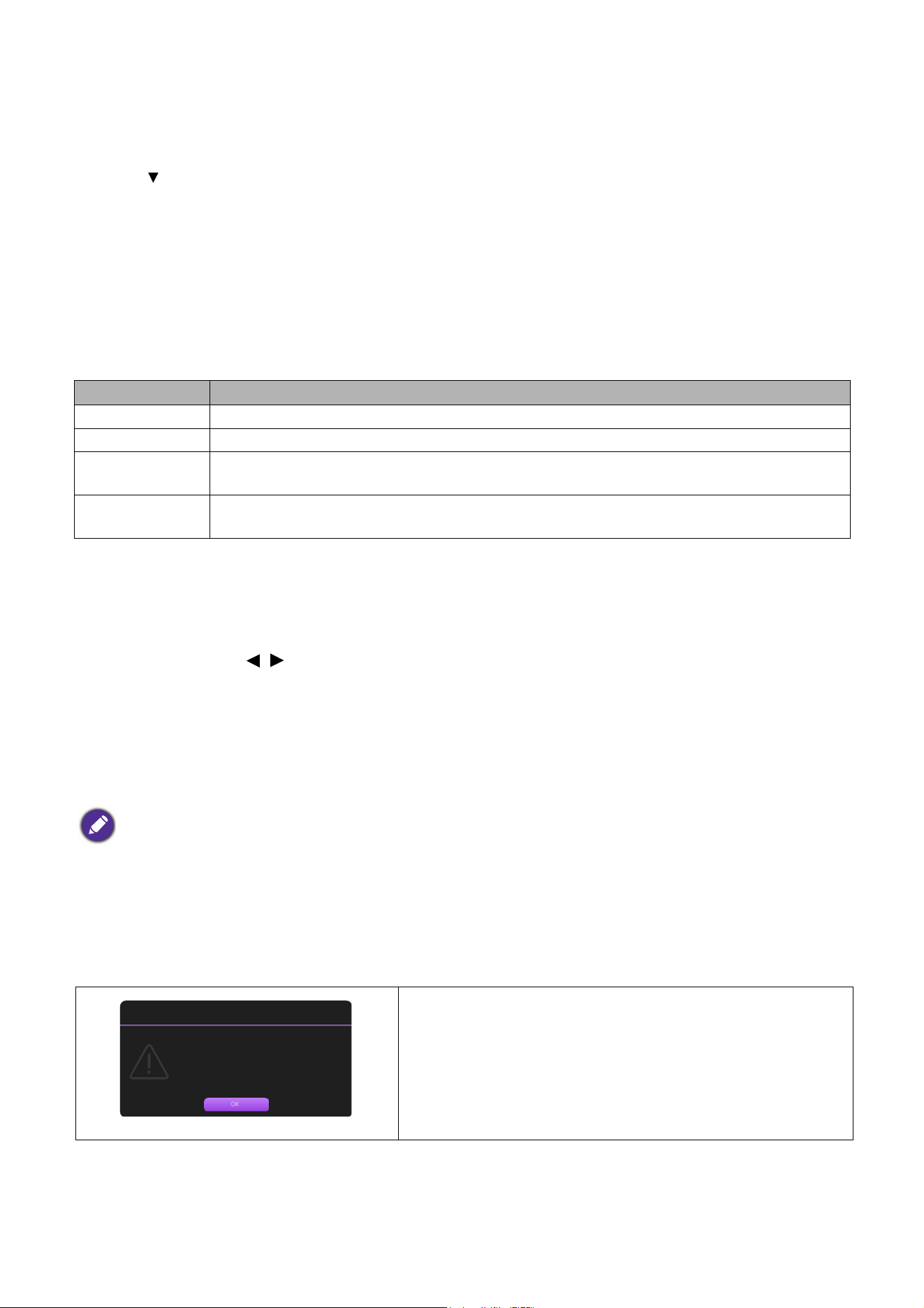
42 Maintenance
To obtain the lamp hour information:
1. Go to Advanced Menu - Settings > Lamp Settings and press OK. The Lamp Settings page
appears.
2. Press to select Lamp Timer and press OK. The Lamp Timer information is displayed.
You can also get the lamp hour information on the Information menu.
Extending lamp life
• Setting the Lamp Mode
Go to Advanced Menu - Settings > Lamp Settings > Lamp Mode and select a suitable lamp
power from among the provided modes.
Setting the projector in Economic, SmartEco or LampSave mode extends lamp life.
• Setting Auto Power Off
This function allows the projector to turn off automatically if no input signal is detected after a set
period of time to prevent unnecessary waste of lamp life.
To s e t Auto Power Off, go to Advanced Menu - Settings > Power On/Off Settings > Auto
Power Off and press / .
Timing of replacing the lamp
When the Lamp indicator lights up or a message appears suggesting it is time to replace the lamp,
please consult your dealer or go to
http://www.BenQ.com before installing a new lamp. An old lamp
may cause a malfunction in the projector and in some instances the lamp may explode.
The following Lamp warning displays will remind you to change the lamp.
Lamp mode Description
Normal Provides full lamp brightness
Economic Lowers brightness to extend the lamp life and decreases the fan noise
SmartEco
Adjusts the lamp power automatically depending on the content brightness level while
optimizing display quality
LampSave
Adjusts the lamp power automatically depending on the content brightness level while
offering a longer lamp life
• The apparent brightness of the projected image will vary depending on the ambient lighting conditions, selected
input signal contrast/brightness settings, and is directly proportional to projection distance.
• The lamp brightness will decline over time and may vary within the lamp manufacturers specifications. This is
normal and expected behavior.
• The LAMP indicator light and TEMPerature warning light will light up if the lamp becomes too hot. Turn
the power off and let the projector cool for 45 minutes. If the Lamp or Temp indicator still lights up after turning
the power back on, please contact your dealer. See
Indicators on page 46.
Install a new lamp for optimal performance. Press OK to
dismiss the message.
Order a replacement lamp
Equivalent lamp hour >XXXX hours
Order a new lamp at www.BenQ.com
Notice
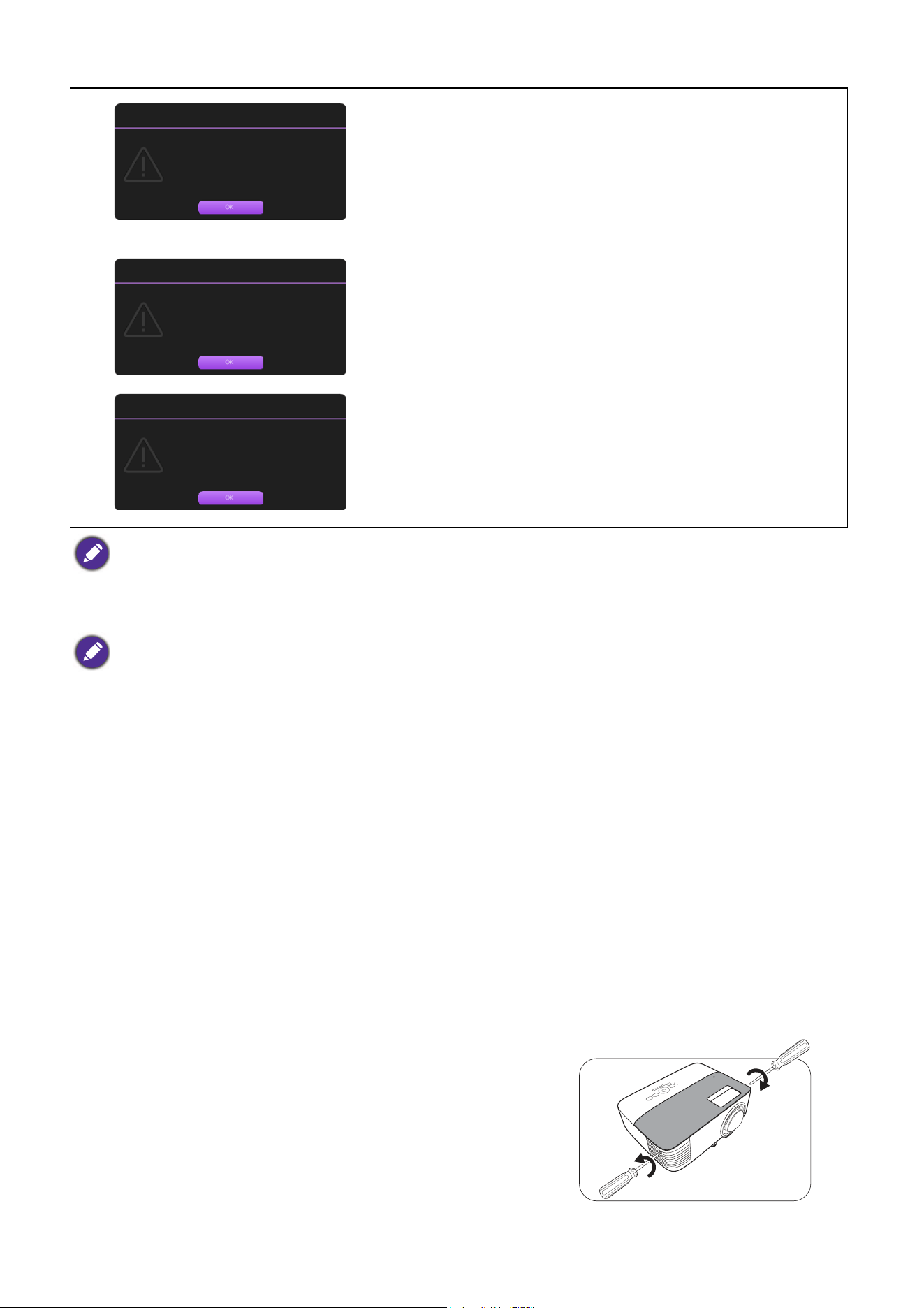
43 Maintenance
Replacing the lamp
1. Turn the power off and disconnect the projector from the power outlet. If the lamp is hot, avoid
burns by waiting for approximately 45 minutes until the lamp has cooled.
2. Loosen the screw(s) that secure the lamp cover on the
side of the projector until the lamp cover loosens.
It is strongly recommended that you replace the lamp at this
age. The lamp is a consumable item. The lamp brightness
diminishes with use. This is normal lamp behavior. You can
replace the lamp whenever you notice that the brightness level
has significantly diminished.
Press OK to dismiss the message.
The lamp MUST be replaced before the projector will operate
normally.
Press OK to dismiss the message.
"XXXX" shown in the above messages are numbers that vary depending on different models.
• To reduce the risk of electrical shock, always turn the projector off and disconnect the power cord before
changing the lamp.
• To reduce the risk of severe burns, allow the projector to cool for at least 45 minutes before replacing the lamp.
• To reduce the risk of injuries to fingers and damage to internal components, use caution when removing lamp
glass that has shattered into sharp pieces.
• To reduce the risk of injuries to fingers and/or compromising image quality by touching the lens, do not touch the
empty lamp compartment when the lamp is removed.
• This lamp contains mercury. Consult your local hazardous waste regulations to dispose of this lamp in a proper
manner.
• To assure optimal performance from the projector, it is recommended that you purchase a qualified projector
lamp for lamp replacement.
• If lamp replacement is performed while the projector is suspended upside-down from the ceiling, make sure that
no one is underneath the lamp socket to avoid any possible injury or damage to the human eyes caused by
fractured lamp.
• Ensure good ventilation when handling broken lamps. We recommend that you use respirators, safety glasses,
goggles or face shield and wear protective clothing such as gloves.
Replace lamp soon
Equivalent lamp hour >XXXX hours
Order a new lamp at www.BenQ.com
Notice
Out of lamp usage time
Replace lamp (refer to user manual)
then reset the lamp timer
Order a new lamp at www.BenQ.com
Notice
Replace lamp now
Equivalent lamp hour > XXXX Hours
Order a new lamp at www.BenQ.com
Notice
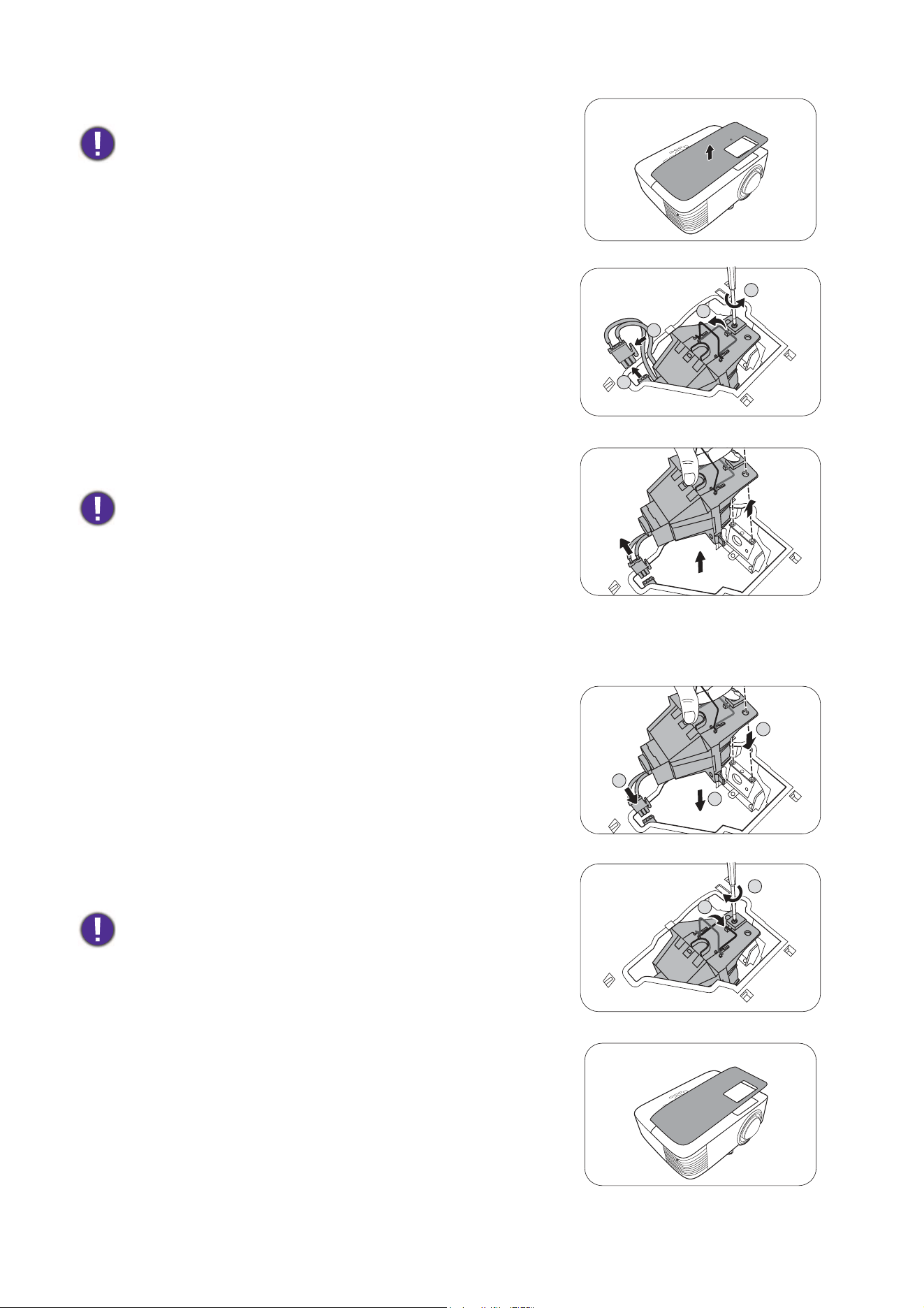
44 Maintenance
3. Remove the lamp cover from the projector.
4. Disconnect the lamp connector.
5. Loosen the screw(s) that secure the inner lamp.
6. Lift the handle so that it stands up.
7. Use the handle to slowly pull the lamp out of the
projector.
8. As shown in the figure, insert the new lamp. Align the
lamp connector and 2 sharp points with the projector
and push the lamp a bit into the locked position.
9. Insert the lamp connector.
10. Tighten the screw(s) that secures the lamp.
11. Ensure the handle is fully laid flat and locked in place.
12. Replace the lamp cover on the projector.
• Do not turn the power on with the lamp cover open.
• Do not insert your fingers between the lamp and the
projector. The sharp edges inside the projector may cause
injuries
• Pulling it too quickly may cause the lamp to break and scatter
broken glass in the projector.
• Do not place the lamp in locations where water might splash
on it, children can reach it, or near flammable materials.
• Do not insert your hands into the projector after the lamp is
removed. The sharp edges inside the projector may cause
injuries. If you touch the optical components inside, it could
cause color unevenness and distortion of the projected
images.
• Loose screw may cause a bad connection, which could
result in malfunction.
• Do not over tighten the screw.
4
5
6
4
8
8
9
10
11
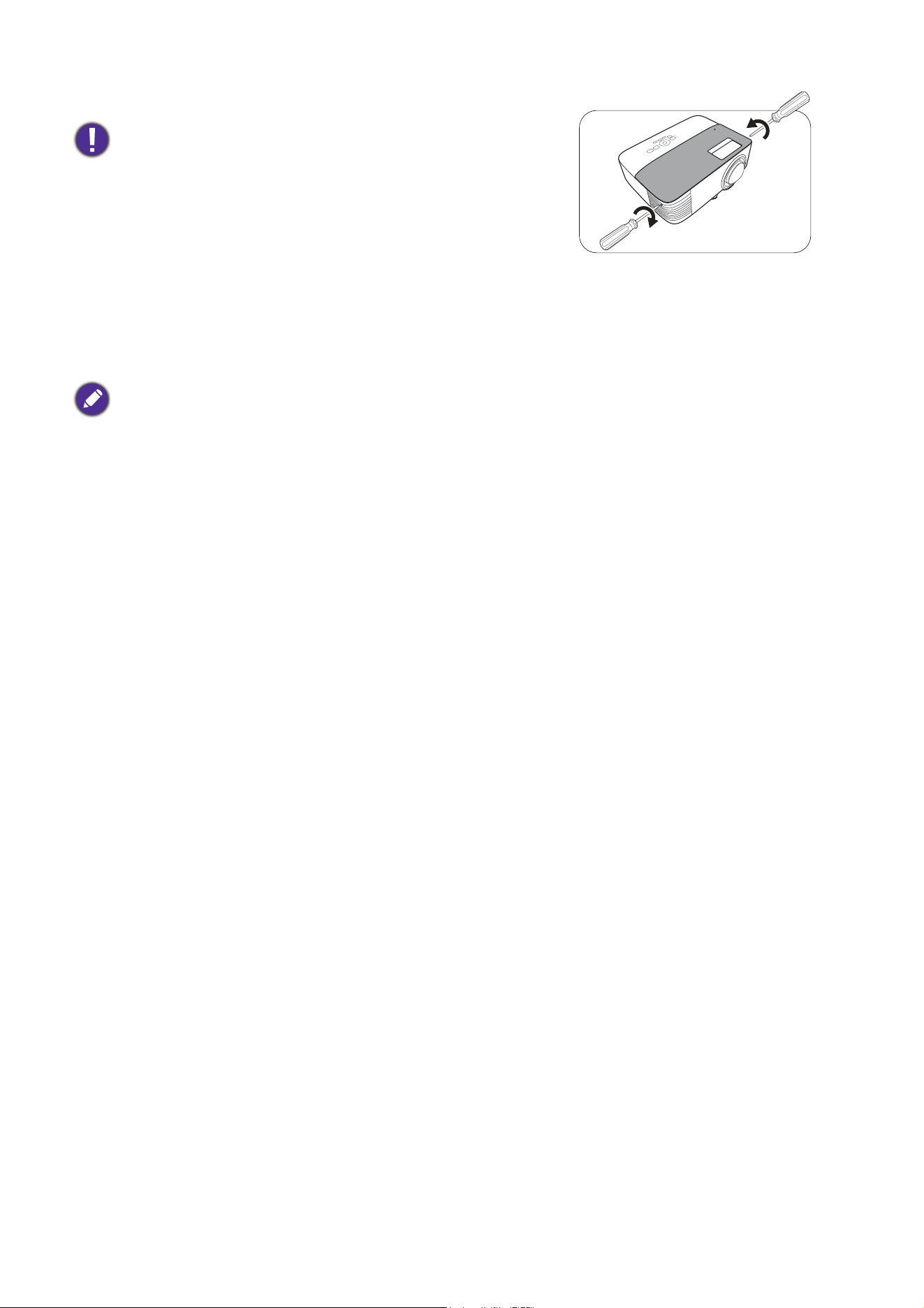
45 Maintenance
13. Tighten the screw that secures the lamp cover.
14. .Connect the power and restart the projector.
Resetting the lamp timer
15. After the startup logo, open the On-Screen Display
(OSD) menu. Go to Advanced Menu - Settings > Lamp Settings and press OK. The Lamp
Settings page appears. Highlight Reset Lamp Timer and press OK. A warning message is
displayed asking if you want to reset the lamp timer. Highlight Reset and press OK. The lamp time
will be reset to “0”.
• Loose screw may cause a bad connection, which could
result in malfunction.
• Do not over tighten the screw.
Do not reset if the lamp is not new or replaced as this could cause damage.
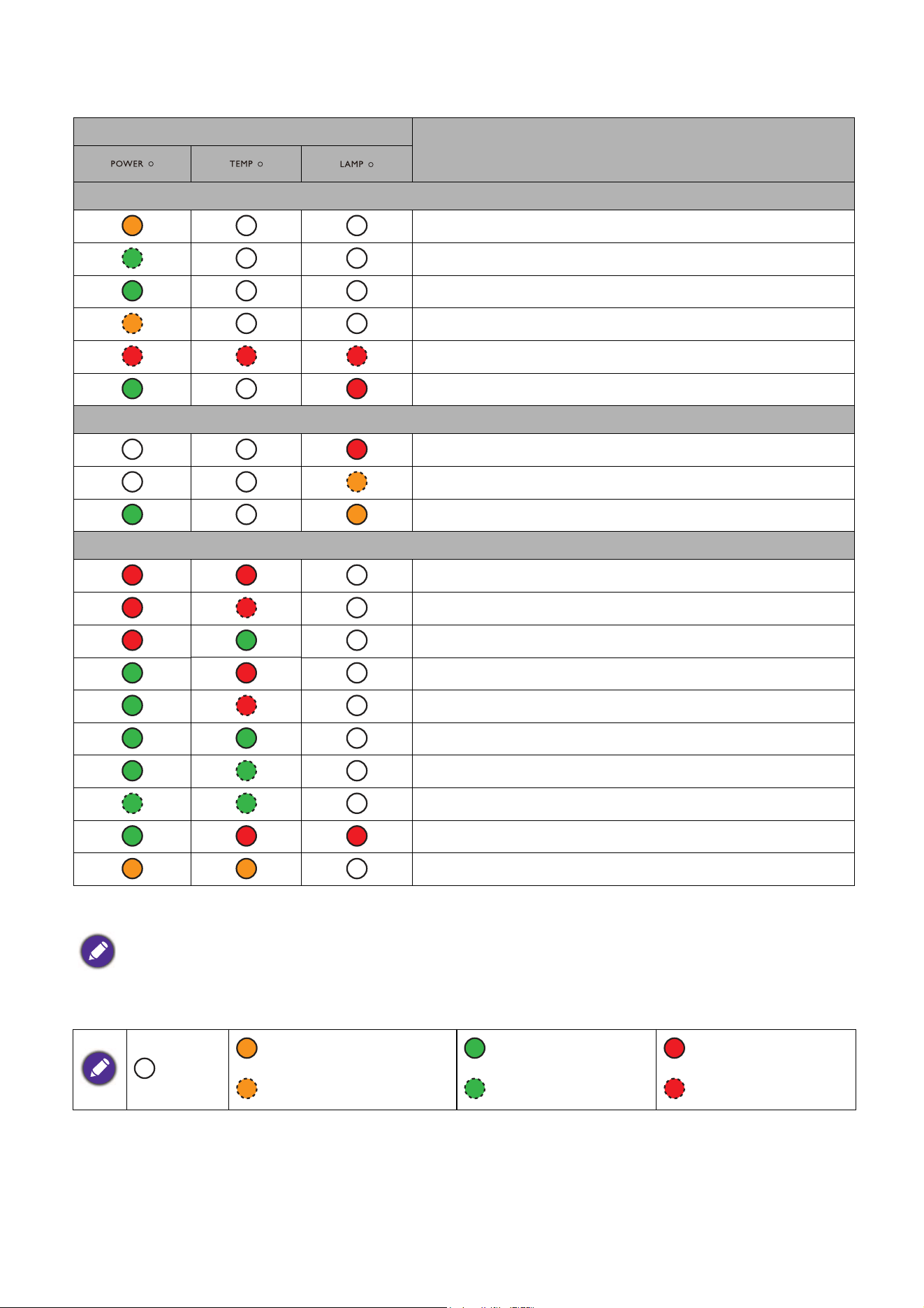
46 Maintenance
Indicators
Light
Status & Description
Power events
Stand-by mode
Powering up
Normal operation
Normal power-down cooling
Download
CW start fail
Lamp events
Lamp error in normal operation
Lamp is not lit up
Lamp life exhausted
Thermal events
Fan 1 error (the actual fan speed is outside the desired speed)
Fan 2 error (the actual fan speed is outside the desired speed)
Fan 3 error (the actual fan speed is outside the desired speed)
Temperature 1 error (over limited temperature)
Thermal sensor 1 open error
Thermal sensor short error
Thermal IC #I 12C connection error
Thermal IC #2 12C connection error
Thermal break error
Ambient temperature above 40 ºC
*
*The projector will initiate a self-security mechanism from full power stand-by mode to low power stand-by mode
when the environment temperature is over 40 degrees. Please note that the projector’s Wake On LAN function will
be limited. We suggest you to turn on the projector manually if needed.
: Off
: Orange On : Green On : Red On
: Orange Flashing : Green Flashing : Red Flashing
47 Troubleshooting
Troubleshooting
The projector does not turn on.
Cause Remedy
There is no power from the power cord.
Plug the power cord into the AC power jack on the
projector, and plug the power cord into the power outlet. If
the power outlet has a switch, make sure that it is switched
on.
Attempting to turn the projector on again during
the cooling process.
Wait until the cooling down process has completed.
No picture
Cause Remedy
The video source is not turned on or connected
correctly.
Turn the video source on and check that the signal cable is
connected correctly.
The projector is not correctly connected to the
input signal device.
Check the connection.
The input signal has not been correctly selected. Select the correct input signal with the SOURCE key.
The lens cover is still closed. Open the lens cover.
Blurred image
Cause Remedy
The projection lens is not correctly focused. Adjust the focus of the lens using the focus ring.
The projector and the screen are not aligned
properly.
Adjust the projection angle and direction as well as the
height of the projector if necessary.
The lens cover is still closed. Open the lens cover.
Remote control does not work.
Cause Remedy
The batteries are out of power. Replace both of the batteries with new ones.
There is an obstacle between the remote control
and the projector.
Remove the obstacle.
You are too far away from the projector. Stand within 8 meters (26 feet) of the projector.
The password is incorrect.
Cause Remedy
You do not remember the password. See
Entering the password recall procedure on page 26.

48 Specifications
Specifications
Projector specifications
All specifications are subject to change without notice.
Optical
Resolution
1024 x 768 XGA (MX731)
1280 x 800 WXGA (MW732)
1920 (H) x 1080 (V) (MH733)
Display system
1-CHIP DMD
Lens
F = 2.59 ~ 2.87, f = 16.88 ~ 21.88 mm
Lamp
240 W lamp
Electrical
Power supply
AC100–240V, 3.5 A, 50–60 Hz (Automatic)
Power consumption
355 W (Max); < 0.5 W (Standby);
< 2 W (when the Network function in the Standby
Settings is on)
Mechanical
Weight
2.5 Kg +
100 g
Output terminals
RGB output
D-Sub 15-pin (female) x 1
Speaker
10 watt x 1
Audio signal output
PC audio jack x 1
Control
RS-232 serial control
9 pin x 1
LAN control
RJ45 x 1
IR receiver x 2
Input terminals
Computer input
RGB input
D-Sub 15-pin (female) x 1
Video signal input
SD/HDTV signal input
Analog - Component
(through RGB input)
Digital - HDMI x 1;
HDMI/MHL x 1
Audio signal input
Audio in
PC audio jack x 1
USB
Mini-B x 1
Type-A x 1 (optional for USB wireless dongle)
Type-A (power supply 5V /1A, optional for USB flash
drive)
Environmental Requirements
Operating temperature
0°C–40°C at sea level
Operating relative humidity
10%–90% (without condensation)
Operating altitude
0–1499 m at 0°C–35°C
1500–3000 m at 0°C–30°C (with
High Altitude Mode on)
Storage temperature
-20°C–60°C at sea level
Storage humidity
10%–90% RH (without condensation)
Storage altitude
30°C@ 0~12,200m above sea level
Transporting
Original packing or equivalent is recommended
Repairing
Please visit below website and choose your country to
find your service contact window.
http://www.benq.com/welcome
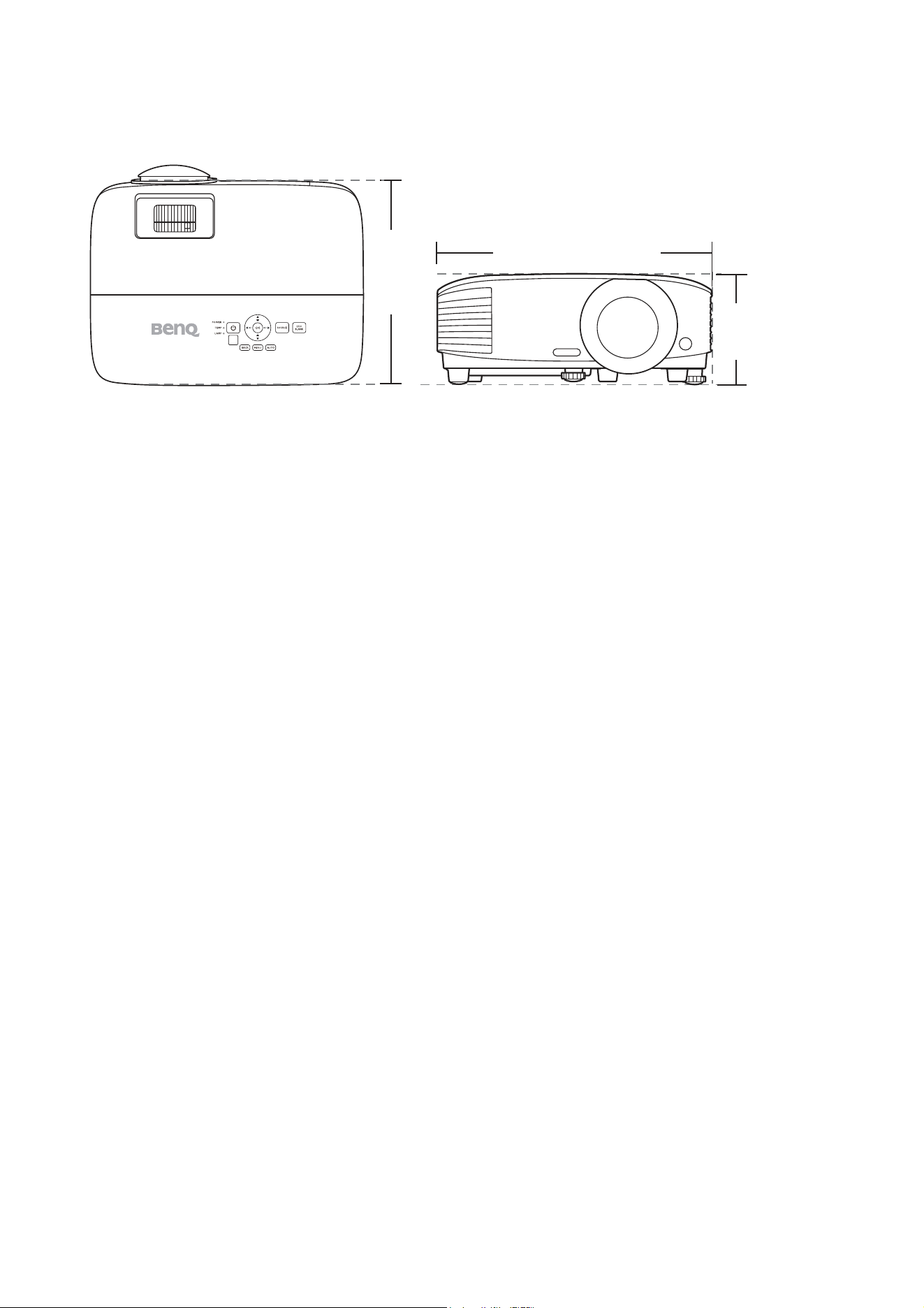
49 Specifications
Dimensions
296 mm (W) x 120 mm (H) x 221 mm (D)
296
221
120
Unit: mm
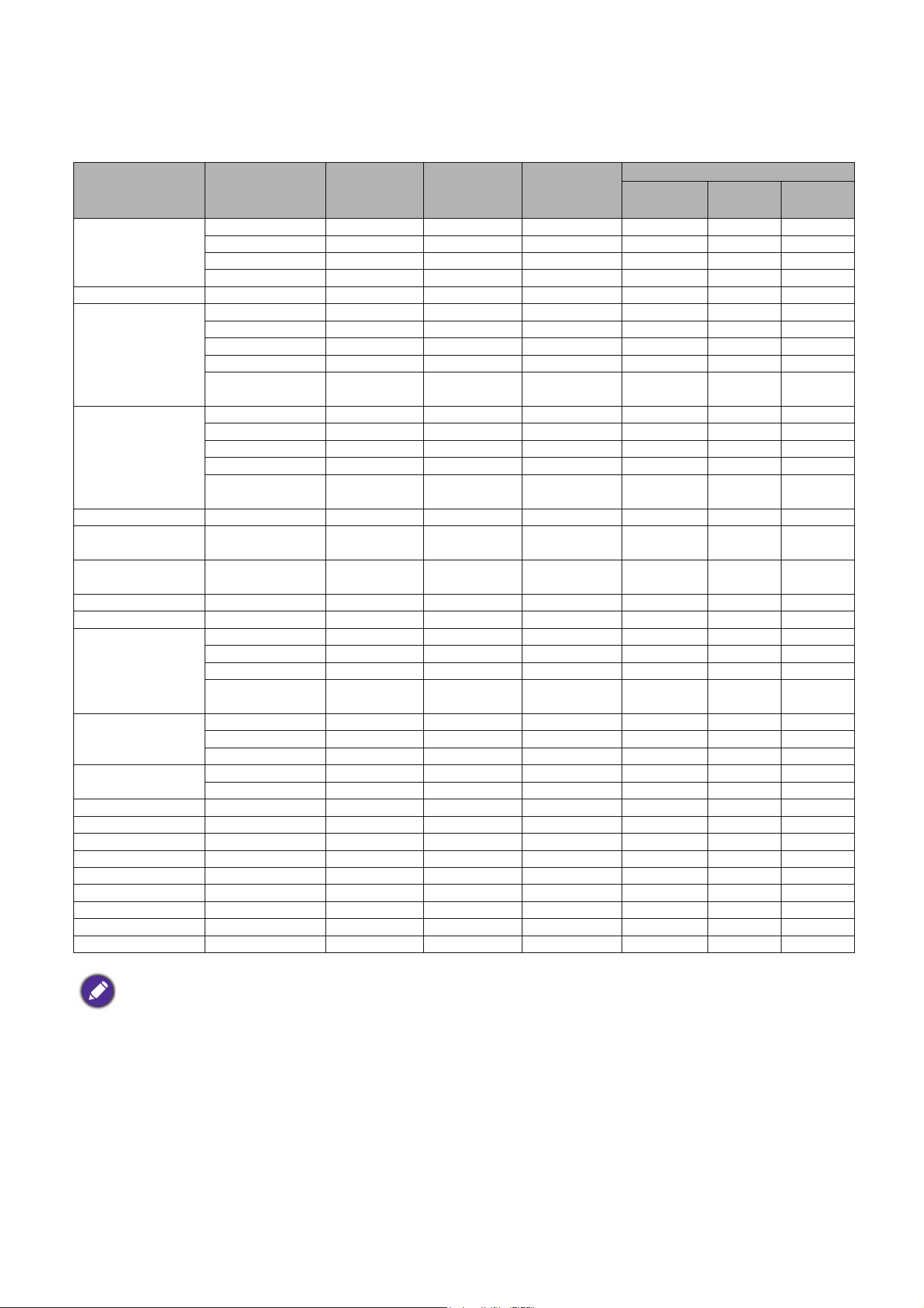
50 Specifications
Timing chart
Supported timing for PC input
Resolution Mode
Ver ti cal
Frequency
(Hz)
Horizontal
Frequency
(kHz)
Pixel
Frequency
(MHz)
Supported 3D format
Frame
Sequential
Top
Bottom
Side by
Side
640 x 480
VGA_60 59.940 31.469 25.175 V V V
VGA_72 72.809 37.861 31.500
VGA_75 75.000 37.500 31.500
VGA_85 85.008 43.269 36.000
720 x 400 720 x 400_70 70.087 31.469 28.3221
800 x 600
SVGA_60 60.317 37.879 40.000 V V V
SVGA_72 72.188 48.077 50.000
SVGA_75 75.000 46.875 49.500
SVGA_85 85.061 53.674 56.250
SVGA_120
(Reduce Blanking)
119.854 77.425 83.000 V
1024 x 768
XGA_60 60.004 48.363 65.000 V V V
XGA_70 70.069 56.476 75.000
XGA_75 75.029 60.023 78.750
XGA_85 84.997 68.667 94.500
XGA_120 (Reduce
Blanking)
119.989 97.551 115.5 V
1152 x 864 1152 x 864_75 75 67.5 108
1024 x 576
BenQ
Notebook_timing
60.0 35.820 46.966
1024 x 600
BenQ
Notebook_timing
64.995 41.467 51.419
1280 x 720 1280 x 720_60 60 45.000 74.250 V V V
1280 x 768 1280 x 768_60 59.87 47.776 79.5 V V V
1280 x 800
WXGA_60 59.810 49.702 83.500 V V V
WXGA_75 74.934 62.795 106.500
WXGA_85 84.880 71.554 122.500
WXGA_120
(Reduce Blanking)
119.909 101.563 146.25 V
1280 x 1024
SXGA_60 60.020 63.981 108.000 V V
SXGA_75 75.025 79.976 135.000
SXGA_85 85.024 91.146 157.500
1280 x 960
1280 x 960_60 60.000 60.000 108.000 V V
1280 x 960_85 85.002 85.938 148.500
1360 x 768 1360 x 768_60 60.015 47.712 85.5 V V
1400 x 1050 SXGA+_60 59.978 65.317 121.750 V V
1440 x 900 WXGA+_60 59.887 55.935 106.500 V V
1600 x 1200 UXGA 60.000 75.000 162.000 V V
1680 x 1050 1680 x 1050_60 59.954 65.290 146.250 V V
640 x 480@67Hz MAC13 66.667 35.000 30.240
832 x 624@75Hz MAC16 74.546 49.722 57.280
1024 x 768@75Hz MAC19 74.93 60.241 80.000
1152 x 870@75Hz MAC21 75.060 68.680 100.000
The timings showing above may not be supported due to EDID file and VGA graphic card limitations. It is possible
that some timings cannot be chosen.
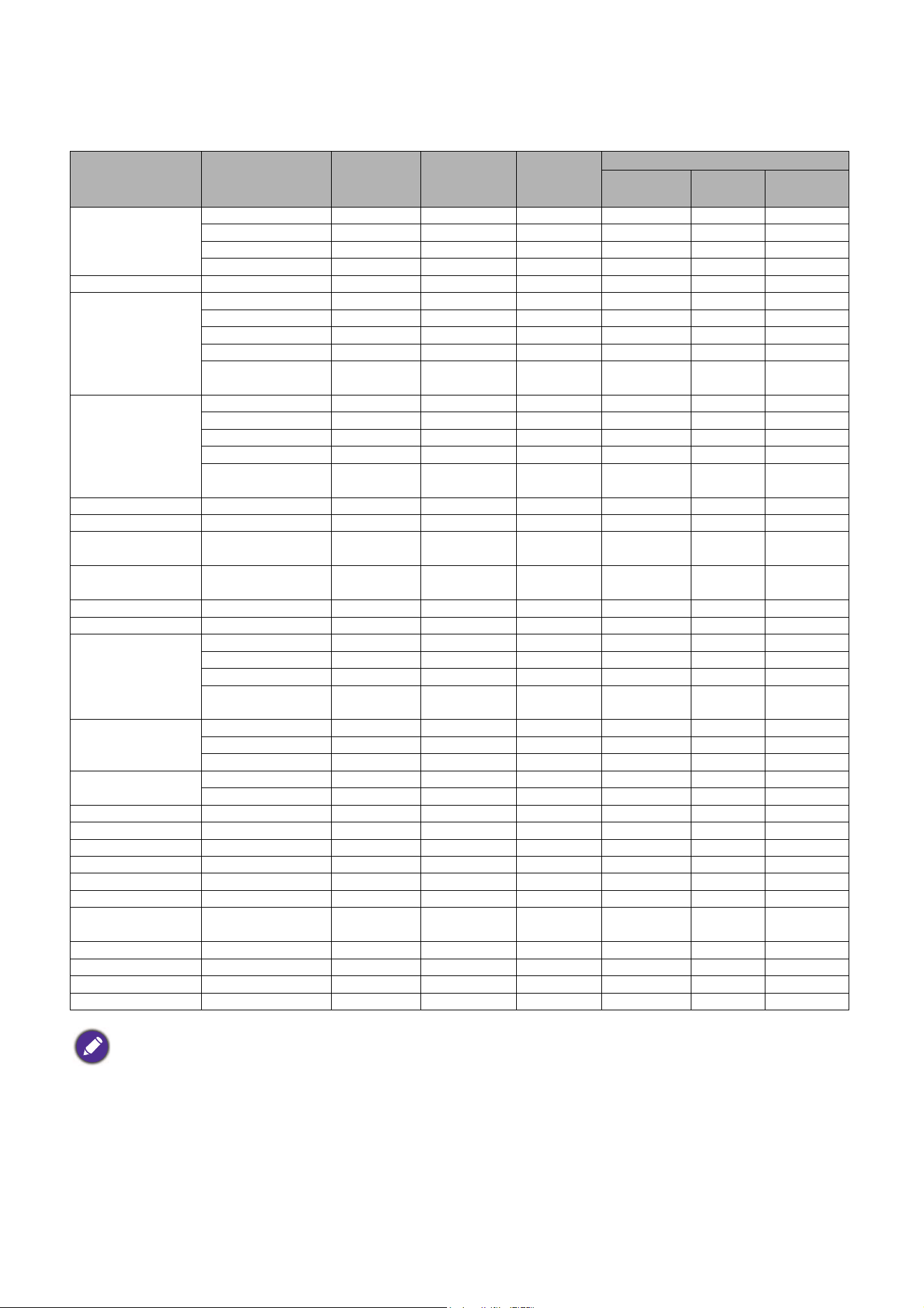
51 Specifications
Supported timing for HDMI (HDCP) input
• PC timings
Resolution Mode
Ver ti cal
Frequency
(Hz)
Horizontal
Frequency
(kHz)
Pixel
Frequency
(MHz)
Supported 3D format
Frame
Sequential
Top
Bottom
Side by
Side
640 x 480
VGA_60 59.940 31.469 25.175 V V V
VGA_72 72.809 37.861 31.500
VGA_75 75.000 37.500 31.500
VGA_85 85.008 43.269 36.000
720 x 400 720 x 400_70 70.087 31.469 28.3221
800 x 600
SVGA_60 60.317 37.879 40.000 V V V
SVGA_72 72.188 48.077 50.000
SVGA_75 75.000 46.875 49.500
SVGA_85 85.061 53.674 56.250
SVGA_120 (Reduce
Blanking)
119.854 77.425 83.000 V
1024 x 768
XGA_60 60.004 48.363 65.000 V V V
XGA_70 70.069 56.476 75.000
XGA_75 75.029 60.023 78.750
XGA_85 84.997 68.667 94.500
XGA_120 (Reduce
Blanking)
119.989 97.551 115.5 V
1152 x 864 1152 x 864_75 75 67.5 108
1280 x 768 1280 x 768_60 59.87 47.776 79.5
1024 x 576@60Hz
BenQ Notebook
Timing
60.00 35.820 46.996
1024 x 600@65Hz
BenQ Notebook
Timing
64.995 41.467 51.419
1280 x 720 1280 x 720_60 60 45.000 74.250 V V V
1280 x 768 1280 x 768_60 59.870 47.776 79.5 V V V
1280 x 800
WXGA_60 59.810 49.702 83.500 V V V
WXGA_75 74.934 62.795 106.500
WXGA_85 84.880 71.554 122.500
WXGA_120
(Reduce Blanking)
119.909 101.563 146.25 V
1280 x 1024
SXGA_60 60.020 63.981 108.000 V V
SXGA_75 75.025 79.976 135.000
SXGA_85 85.024 91.146 157.500
1280 x 960
1280 x 960_60 60.000 60.000 108 V V
1280 x 960_85 85.002 85.938 148.500
1360 x 768 1360 x 768_60 60.015 47.712 85.500 V V
1440 x 900 WXGA+_60 59.887 55.935 106.500 V V
1400 x 1050 SXGA+_60 59.978 65.317 121.750 V V
1600 x 1200 UXGA 60.000 75.000 162.000 V V
1680 x 1050 1680 x 1050_60 59.954 65.290 146.250 V V
1920 x 1080@60Hz 1920 x 1080_60 60 67.5 148.5 V V
1920 x 1200
1920 x 1200_60
(Reduce Blanking)
59.950 74.038 154.0000 V V
640 x 480@67Hz MAC13 66.667 35.000 30.240
832 x 624@75Hz MAC16 74.546 49.722 57.280
1024 x 768@75Hz MAC19 75.020 60.241 80.000
1152 x 870@75Hz MAC21 75.06 68.68 100.00
The timings showing above may not be supported due to EDID file and VGA graphic card limitations. It is possible
that some timings cannot be chosen.
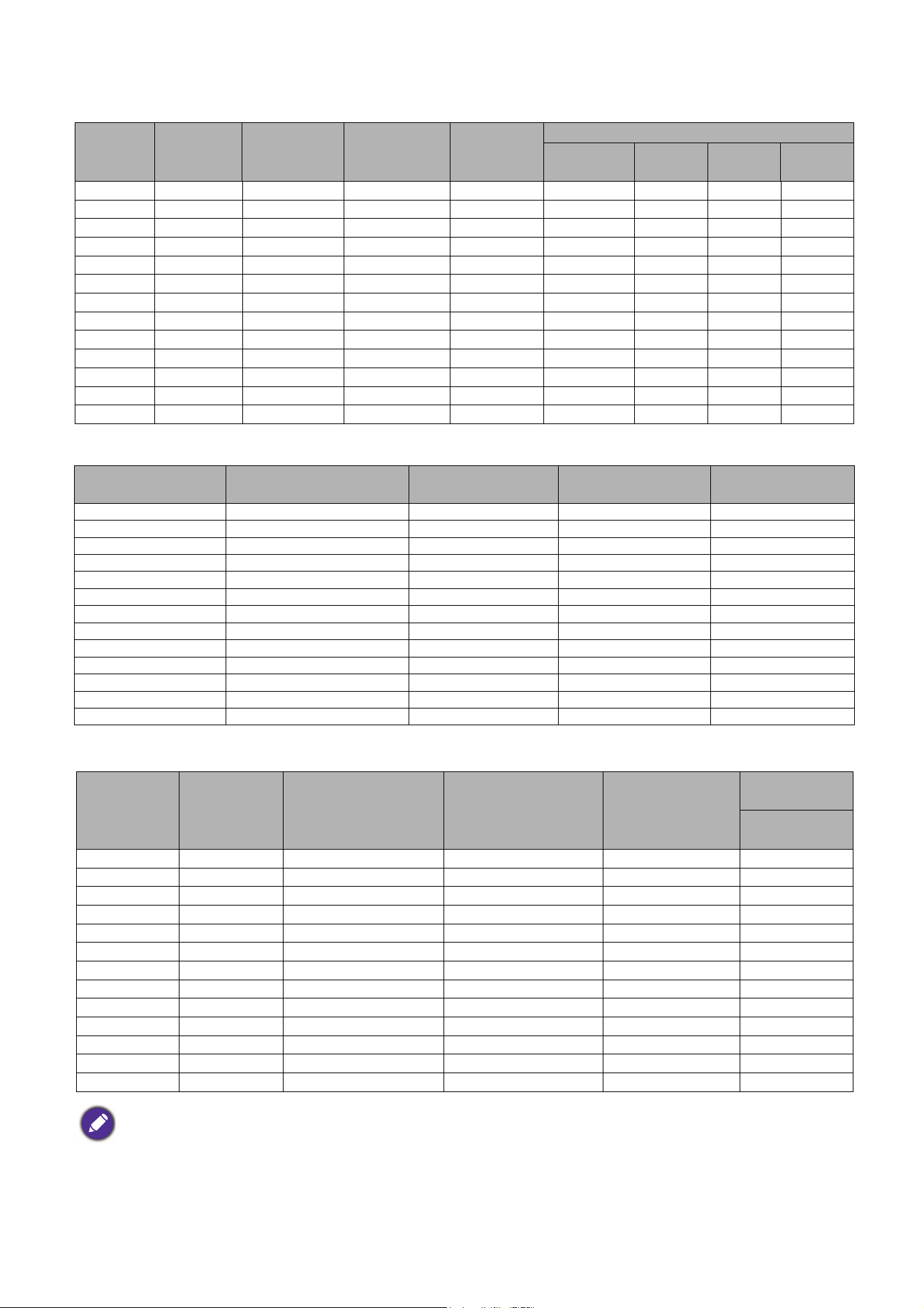
52 Specifications
• Video timings
Supported timing for MHL input
Supported timing for Component-YPbPr input
Timing Resolution
Ver t ica l
Frequency
(Hz)
Horizontal
Frequency
(kHz)
Pixel
Frequency
(MHz)
Supported 3D format
Frame
Sequential
Frame
Packing
Top
Bottom
Side by
Side
480i 720 x 480 59.94 15.73 27 V
480p 720 x 480 59.94 31.47 27 V
576i 720 x 576 50 15.63 27
576p 720 x 576 50 31.25 27
720/50p 1280 x 720 50 37.5 74.25 V V V
720/60p 1280 x 720 60 45.00 74.25 V V V V
1080/50i 1920 x 1080 50 28.13 74.25 V
1080/60i 1920 x 1080 60 33.75 74.25 V
1080/24P 1920 x 1080 24 27 74.25 V V V
1080/25P 1920 x 1080 25 28.13 74.25
1080/30P 1920 x 1080 30 33.75 74.25
1080/50P 1920 x 1080 50 56.25 148.5 V V
1080/60P 1920 x 1080 60 67.5 148.5 V V
Timing Resolution
Vertical Frequency
(Hz)
Horizontal
Frequency (kHz)
Pixel Frequency
(MHz)
480i 720 (1440) x 480 59.94 15.73 27
480p 720 x 480 59.94 31.47 27
576i 720 (1440) x 576 50 15.63 27
576p 720 x 576 50 31.25 27
720/50p 1280 x 720 50 37.5 74.25
720/60p 1280 x 720 60 45.00 74.25
1080/24P 1920 x 1080 24 27 74.25
1080/25P 1920 x 1080 25 28.13 74.25
1080/30P 1920 x 1080 30 33.75 74.25
1080/50i 1920 x 1080 50 28.13 74.25
1080/60i 1920 x 1080 60 33.75 74.25
1080/50p 1920 x 1080 50 56.25 148.5
1080/60p 1920 x 1080 60 67.5 148.5
Timing Resolution
Vertical Frequency
(Hz)
Horizontal Frequency
(kHz)
Pixel Frequency
(MHz)
Supported 3D
format
Frame
Sequential
480i 720 x 480 59.94 15.73 13.5 V
480p 720 x 480 59.94 31.47 27 V
576i 720 x 576 50 15.63 13.5
576p 720 x 576 50 31.25 27
720/50p 1280 x 720 50 37.5 74.25
720/60p 1280 x 720 60 45.00 74.25 V
1080/50i 1920 x 1080 50 28.13 74.25
1080/60i 1920 x 1080 60 33.75 74.25
1080/24P 1920 x 1080 24 27 74.25
1080/25P 1920 x 1080 25 28.13 74.25
1080/30P 1920 x 1080 30 33.75 74.25
1080/50P 1920 x 1080 50 56.25 148.5
1080/60P 1920 x 1080 60 67.5 148.5
Displaying a 1080i(1125i)@60Hz or 1080i(1125i)@50Hz signal may result in slight image vibration.