
Maintenance and Service Guide
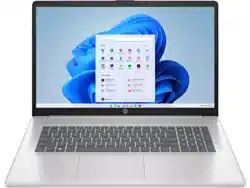
HP OmniBook 3 14 inch Laptop
Model numbers: 14-hy0xxx/14-hu0xxx
SUMMARY
This guide provides maintenance information about such topics as spare parts, removal and replacement of
parts, security, and backing up.

Legal information
© Copyright 2026 HP Development
Company, L.P.
AMD is a trademark of Advanced Micro
Devices, Inc. Bluetooth is a trademark
owned by its proprietor and used by HP
Inc. under license. Intel, Celeron, and Core
are trademarks of Intel Corporation or
its subsidiaries in the U.S. and/or other
countries. Microsoft and Windows are either
registered trademarks or trademarks of
Microsoft Corporation in the United States
and/or other countries. USB Type-C and
USB-C are registered trademarks of USB
Implementers Forum. DisplayPort and the
DisplayPort logo are trademarks owned by
the Video Electronics Standards Association
(VESA) in the United States and other
countries. Miracast and Wi-Fi are registered
trademarks of Wi-Fi Alliance.
The information contained herein is subject
to change without notice. The only
warranties for HP products and services are
set forth in the express warranty statements
accompanying such products and services.
Nothing herein should be construed as
constituting an additional warranty. HP shall
not be liable for technical or editorial errors
or omissions contained herein.
First Edition: January 2026
Document Part Number: P75216-001
Product notice
This guide describes features that are
common to most models. Some features
may not be available on your computer.
Not all features are available in all
editions or versions of Windows. Systems
may require upgraded and/or separately
purchased hardware, drivers, software
or BIOS update to take full advantage
of Windows functionality. Windows is
automatically updated, which is always
enabled. High-speed internet and Microsoft
account required. ISP fees may apply and
additional requirements may apply over time
for updates. See
http://www.windows.com.
If your product ships with Windows in S
Mode: Windows in S Mode works exclusively
with apps from the Microsoft Store within
Windows. Certain default settings, features,
and apps cannot be changed. Some
accessories and apps that are compatible
with Windows may not work (including some
antivirus, PDF writers, driver utilities, and
accessibility apps), and performance may
vary, even if you switch out of S Mode. If you
switch to Windows, you cannot switch back
to S Mode. Learn more at Windows.com/
SmodeFAQ.
To access the latest user guides, go to
http://www.hp.com/support, and follow the
instructions to find your product. Then select
Manuals.
Software terms
By installing, copying, downloading, or
otherwise using any software product
preinstalled on this computer, you agree
to be bound by the terms of the HP End
User License Agreement (EULA). If you
do not accept these license terms, your
sole remedy is to return the entire unused
product (hardware and software) within 14
days for a full refund subject to the refund
policy of your seller.
For any further information or to request
a full refund of the price of the computer,
please contact your seller.

Safety warning notice
Reduce the possibility of heat-related injuries or of overheating the computer by following the practices
described.
WARNING! To reduce the possibility of heat-related injuries or of overheating the mobile computer, do
not place the mobile computer directly on your lap or obstruct the computer air vents. Use the mobile
computer only on a hard, flat surface. Do not allow another hard surface, such as an adjoining optional
printer; or a soft surface, such as pillows, rugs, or clothing, to block airflow. Also, do not allow the AC
adapter to contact the skin or a soft surface, such as pillows or rugs or clothing, during operation. The
computer and AC adapter provided by HP comply with the user-accessible surface temperature limits
defined by applicable safety standards.
iii

Important notice about Customer Self-Repair parts
Your computer includes Customer Self-Repair parts and parts that should be accessed only by an
authorized service provider.
IMPORTANT: See Removal and replacement procedures for Customer Self-Repair parts on page 35
for details.
Accessing parts described in Removal and replacement procedures for authorized service provider
parts on page 45 can damage the computer or void your warranty.
iv Important notice about Customer Self-Repair parts

Table of contents
1 Product description............................................................................................................................................................................................................................. 1
2 Getting to know your computer.................................................................................................................................................................................................7
Right side .............................................................................................................................................................................................................................................7
Left side................................................................................................................................................................................................................................................8
Display ................................................................................................................................................................................................................................................10
Low blue light mode (select products only)...................................................................................................................................................10
Wake-on-voice (select products only)...............................................................................................................................................................10
Keyboard area................................................................................................................................................................................................................................11
Touchpad settings and components ................................................................................................................................................................. 11
Touchpad settings ................................................................................................................................................................................................ 11
Adjusting touchpad settings.............................................................................................................................................................. 11
Turning on the touchpad.......................................................................................................................................................................11
Touchpad components .................................................................................................................................................................................... 12
Lights ........................................................................................................................................................................................................................................ 12
Button and fingerprint reader ................................................................................................................................................................................14
Special keys......................................................................................................................................................................................................................... 15
Bottom ...............................................................................................................................................................................................................................................16
Labels ...................................................................................................................................................................................................................................................17
3 Illustrated parts catalog ..............................................................................................................................................................................................................18
Computer major components...........................................................................................................................................................................................18
Display assembly subcomponents.............................................................................................................................................................................. 23
Miscellaneous parts................................................................................................................................................................................................................ 25
4 Removal and replacement procedures preliminary requirements..............................................................................................................27
Tools required ................................................................................................................................................................................................................................27
Service considerations..........................................................................................................................................................................................................27
Plastic parts.........................................................................................................................................................................................................................27
Cables and connectors...............................................................................................................................................................................................27
Drive handling ....................................................................................................................................................................................................................27
Electrostatic discharge information............................................................................................................................................................................ 28
Generating static electricity................................................................................................................................................................................... 28
Preventing electrostatic damage to equipment...................................................................................................................................... 29
Personal grounding methods and equipment........................................................................................................................................... 29
Grounding the work area...........................................................................................................................................................................................30
Recommended materials and equipment....................................................................................................................................................30
Cleaning your computer........................................................................................................................................................................................................31
Enabling HP Easy Clean (select products only).........................................................................................................................................31
Removing dirt and debris from your computer..........................................................................................................................................31
Cleaning your computer with a disinfectant............................................................................................................................................... 32
v

Caring for wood veneer (select products only) ........................................................................................................................................33
Packaging and transporting guidelines.....................................................................................................................................................................33
Accessing support information ...................................................................................................................................................................................... 33
5 Removal and replacement procedures for Customer Self-Repair parts ...............................................................................................35
Component replacement procedures ....................................................................................................................................................................... 35
Preparation for disassembly..................................................................................................................................................................................35
Bottom cover ..................................................................................................................................................................................................................... 35
Battery....................................................................................................................................................................................................................................38
Removing and reinstalling the same battery..................................................................................................................................38
Installing a new battery...................................................................................................................................................................................40
6 Removal and replacement procedures for authorized service provider parts................................................................................. 45
Component replacement procedures ....................................................................................................................................................................... 45
Preparation for disassembly.................................................................................................................................................................................. 45
Solid-state drive............................................................................................................................................................................................................... 45
Memory modules.............................................................................................................................................................................................................47
WLAN module.................................................................................................................................................................................................................... 49
Speakers...............................................................................................................................................................................................................................50
Touchpad ............................................................................................................................................................................................................................... 51
Fan............................................................................................................................................................................................................................................. 53
Display assembly............................................................................................................................................................................................................54
System board ....................................................................................................................................................................................................................59
Heat sink ...............................................................................................................................................................................................................................62
USB board............................................................................................................................................................................................................................64
Keyboard with top cover............................................................................................................................................................................................64
7 Troubleshooting guide..................................................................................................................................................................................................................66
Resources.......................................................................................................................................................................................................................................66
General troubleshooting steps.........................................................................................................................................................................................67
Identify the issue..............................................................................................................................................................................................................67
1. Understand the issue...................................................................................................................................................................................68
Startup sequence....................................................................................................................................................................................68
Failure classification..............................................................................................................................................................................68
2. Examine the environment..........................................................................................................................................................................70
3. Perform a visual inspection of hardware.......................................................................................................................................70
4. Update BIOS and drivers............................................................................................................................................................................71
Manually updating BIOS and drivers...........................................................................................................................................71
Remotely deploying the BIOS and drivers ...............................................................................................................................71
Analyze the issue..............................................................................................................................................................................................................71
5. Remove or uninstall recently added hardware, software ...................................................................................................71
6. HP Hardware Diagnostics and Tools.................................................................................................................................................72
HP PC Hardware Diagnostics UEFI...............................................................................................................................................72
HP BIOS Configuration Utility (BCU)............................................................................................................................................73
HP Image Diagnostic Tool ...................................................................................................................................................................74
HP Thermal Monitor.................................................................................................................................................................................74
Non-HP diagnostics tools....................................................................................................................................................................74
7. Status lights, blinking light codes, troubleshooting lights, and POST error messages................................74
vi

Status lights ..................................................................................................................................................................................................74
Blinking light codes..................................................................................................................................................................................75
POST error messages...........................................................................................................................................................................76
Resolve the issue.............................................................................................................................................................................................................77
8. Hard reset.............................................................................................................................................................................................................77
9. Soft reset (Default Settings)....................................................................................................................................................................78
10. Reseat cables and connections ........................................................................................................................................................78
11. Test with minimum configuration....................................................................................................................................................... 79
Essential hardware configuration................................................................................................................................................ 79
Safe mode .....................................................................................................................................................................................................80
12. Test with verified working configuration (hardware or operating system).........................................................80
13. Replace the system board.....................................................................................................................................................................80
Verify solution.....................................................................................................................................................................................................................81
Helpful Hints .................................................................................................................................................................................................................................. 82
At startup.............................................................................................................................................................................................................................. 82
During operation ............................................................................................................................................................................................................. 82
Consulting with HP Service.....................................................................................................................................................................................83
Common issues and possible solutions...................................................................................................................................................................83
Power-on issues...............................................................................................................................................................................................................83
No power....................................................................................................................................................................................................................84
Intermittent power-on, shutdown, restart ..........................................................................................................................................86
AC adapter issue..................................................................................................................................................................................................87
Battery not recognized, not charging....................................................................................................................................................87
Battery discharges too fast.........................................................................................................................................................................90
Burnt smell ...............................................................................................................................................................................................................90
POST .........................................................................................................................................................................................................................................91
No video (with power) ........................................................................................................................................................................................91
Blinking lights.......................................................................................................................................................................................................... 92
Diagnostic error messages.........................................................................................................................................................................93
BIOS password .....................................................................................................................................................................................................93
Performance (OS)...........................................................................................................................................................................................................94
Intermittent shutdown......................................................................................................................................................................................94
Blue screen ..............................................................................................................................................................................................................95
Freeze at Windows Logo (hang or lockup)..........................................................................................................................................97
Electromagnetic Interference (EMI).......................................................................................................................................................98
No wake up...............................................................................................................................................................................................................99
Unresponsive........................................................................................................................................................................................................100
Slow performance .............................................................................................................................................................................................101
HP Smart Adapter warning message..................................................................................................................................................101
Incorrect time and date ................................................................................................................................................................................102
Display..................................................................................................................................................................................................................................103
Display anomalies.............................................................................................................................................................................................103
Symptom ......................................................................................................................................................................................................103
Quick check................................................................................................................................................................................................104
HP PC Hardware Diagnostics (UEFI) for video test........................................................................................................104
Display assembly diagram..............................................................................................................................................................104
Dead pixel................................................................................................................................................................................................................105
No video (internal) .............................................................................................................................................................................................105
vii

No video (external)............................................................................................................................................................................................105
DisplayPort/VGA ................................................................................................................................................................................................106
HDMI ...........................................................................................................................................................................................................................106
No or bad external video via docking...................................................................................................................................................107
Incorrect or missing color/distorted image.....................................................................................................................................107
Touch screen.........................................................................................................................................................................................................108
I/O devices.........................................................................................................................................................................................................................109
Keyboard..................................................................................................................................................................................................................109
Keyboard pointing stick (select products only).............................................................................................................................110
Keyboard backlight.............................................................................................................................................................................................111
Touchpad ................................................................................................................................................................................................................... 111
Network connectivity (RJ-45 jack).......................................................................................................................................................... 112
Network connectivity wireless (WLAN) .............................................................................................................................................. 112
WWAN.........................................................................................................................................................................................................................113
USB ............................................................................................................................................................................................................................... 113
Smart card reader .............................................................................................................................................................................................114
Speaker, headphone - audio issues...................................................................................................................................................... 115
Thunderbolt (TB) ...................................................................................................................................................................................................117
Storage...................................................................................................................................................................................................................................117
Hard drive or SSD not recognized .........................................................................................................................................................118
No boot to operating system (no read-write error) ....................................................................................................................119
Read-write error .................................................................................................................................................................................................120
Slow performance ............................................................................................................................................................................................ 120
Blue screen (BSOD) error............................................................................................................................................................................. 121
Noisy hard drive................................................................................................................................................................................................... 121
Mechanical........................................................................................................................................................................................................................ 122
Noise (sound)........................................................................................................................................................................................................ 122
Fan runs constantly ......................................................................................................................................................................................... 123
Thermal shutdown (hot).................................................................................................................................................................................124
Additional information...........................................................................................................................................................................................................124
Acronyms............................................................................................................................................................................................................................ 125
Blinking lights and startup error codes ........................................................................................................................................................ 125
Processor not executing code.................................................................................................................................................................126
BIOS recovery code unable to find valid BIOS recovery image......................................................................................126
Memory module error.................................................................................................................................................................................... 126
Graphics Controller Error (No Controller).........................................................................................................................................127
Failure System Board Error.........................................................................................................................................................................127
Intel Trusted Execution Technology (TXT) Error ............................................................................................................................127
Sure Start unable to find valid BIOS Boot Block image..........................................................................................................127
Sure Start has identified a problem (Manual Recovery Policy Set).............................................................................. 128
POST error messages and user actions.....................................................................................................................................................128
Routine maintenance for performance improvement ......................................................................................................................129
Common blue screen error messages ........................................................................................................................................................130
Error message list.............................................................................................................................................................................................130
Bug check symbolic names.......................................................................................................................................................................130
Microsoft general troubleshooting of Windows bug check codes...............................................................................130
Use Windows Debugging Tool.............................................................................................................................................................................. 131
Windows Software Development Kit (SDK) .....................................................................................................................................131
viii

Display issue: pixel anomalies.............................................................................................................................................................................135
Cable management....................................................................................................................................................................................................136
Connector types ............................................................................................................................................................................................................137
Flex cable..................................................................................................................................................................................................................137
Horizontal cable insertion...........................................................................................................................................................................138
Multiple-pin horizontal connector (LVDS cable to display panel)...................................................................................138
Multiple-pin vertical connector (LVDS cable to system board)........................................................................................138
8 Using Setup Utility (BIOS).........................................................................................................................................................................................................140
Starting Setup Utility (BIOS).............................................................................................................................................................................................140
Updating Setup Utility (BIOS)...........................................................................................................................................................................................140
Determining the BIOS version.............................................................................................................................................................................140
Preparing for a BIOS update ................................................................................................................................................................................. 141
Downloading a BIOS update...................................................................................................................................................................... 141
Installing a BIOS update............................................................................................................................................................................... 142
9 Computer Setup (BIOS), TPM, and HP Sure Start ..................................................................................................................................................143
Using Computer Setup ........................................................................................................................................................................................................ 143
Navigating and selecting in Computer Setup ........................................................................................................................................143
Restoring factory settings in Computer Setup.......................................................................................................................................143
Updating the BIOS .......................................................................................................................................................................................................144
Determining the BIOS version .................................................................................................................................................................144
Preparing for a BIOS update.....................................................................................................................................................................144
Downloading a BIOS update.......................................................................................................................................................... 145
Installing a BIOS update....................................................................................................................................................................145
Changing the boot order using the f9 prompt ........................................................................................................................................146
TPM BIOS settings (select products only) ............................................................................................................................................................146
Using HP Sure Start (select products only)...........................................................................................................................................................146
10 Backing up, restoring, and recovering...........................................................................................................................................................................147
Backing up information and creating recovery media..................................................................................................................................147
Using Windows tools for backing up................................................................................................................................................................147
Using the HP Cloud Recovery Download Tool to create a recovery USB flash drive (select products
only)..........................................................................................................................................................................................................................................147
Restoring and recovering your system.....................................................................................................................................................................147
Creating a system restore ....................................................................................................................................................................................148
Restoring and recovery methods.....................................................................................................................................................................148
Recovering using the HP Recovery USB flash drive...........................................................................................................................148
Changing the computer boot order ................................................................................................................................................................149
Using HP Sure Recover (select products only)........................................................................................................................................149
11 Using HP PC Hardware Diagnostics...............................................................................................................................................................................150
Using HP PC Hardware Diagnostics Windows (select products only)..............................................................................................150
Using an HP PC Hardware Diagnostics Windows hardware failure ID code.....................................................................150
Accessing HP PC Hardware Diagnostics Windows............................................................................................................................150
Accessing HP PC Hardware Diagnostics Windows from HP Support Assistant (select products
only) .............................................................................................................................................................................................................................150
Accessing HP PC Hardware Diagnostics Windows from the Start menu (select products only)........... 151
ix

Downloading HP PC Hardware Diagnostics Windows....................................................................................................................... 151
Downloading the latest HP PC Hardware Diagnostics Windows version from HP............................................ 151
Downloading the HP PC Hardware Diagnostics Windows from the Microsoft Store...................................... 151
Downloading HP Hardware Diagnostics Windows by product name or number (select products
only) ............................................................................................................................................................................................................................. 152
Installing HP PC Hardware Diagnostics Windows................................................................................................................................ 152
Using HP PC Hardware Diagnostics UEFI .............................................................................................................................................................. 152
Using an HP PC Hardware Diagnostics UEFI hardware failure ID code................................................................................ 152
Starting HP PC Hardware Diagnostics UEFI............................................................................................................................................. 152
Starting HP PC Hardware Diagnostics UEFI through HP Hotkey Support software (select products
only)......................................................................................................................................................................................................................................... 153
Downloading HP PC Hardware Diagnostics UEFI to a USB flash drive.................................................................................153
Downloading the latest HP PC Hardware Diagnostics UEFI version...........................................................................154
Downloading HP PC Hardware Diagnostics UEFI by product name or number (select products
only) .............................................................................................................................................................................................................................154
Using Remote HP PC Hardware Diagnostics UEFI settings (select products only).................................................................154
Downloading Remote HP PC Hardware Diagnostics UEFI .............................................................................................................154
Downloading the latest Remote HP PC Hardware Diagnostics UEFI version.......................................................154
Downloading Remote HP PC Hardware Diagnostics UEFI by product name or number.............................. 155
Customizing Remote HP PC Hardware Diagnostics UEFI settings..........................................................................................155
12 Specifications ................................................................................................................................................................................................................................156
Computer specifications...................................................................................................................................................................................................156
Display specifications...........................................................................................................................................................................................................157
Solid-state drive specifications .....................................................................................................................................................................................157
13 Statement of memory volatility.........................................................................................................................................................................................159
Nonvolatile memory usage .............................................................................................................................................................................................. 159
Current BIOS steps ................................................................................................................................................................................................................160
Questions and answers ......................................................................................................................................................................................................162
Using HP Sure Start (select products only)...........................................................................................................................................................163
14 Power cord set requirements .............................................................................................................................................................................................165
Requirements for all countries ......................................................................................................................................................................................165
Requirements for specific countries and regions...........................................................................................................................................165
15 Swelling or deformation of notebook battery.........................................................................................................................................................168
Swollen notebook batteries .............................................................................................................................................................................................168
Swollen battery is not a safety issue .............................................................................................................................................................168
Discontinue using a swollen battery ..............................................................................................................................................................168
Replace a swollen battery......................................................................................................................................................................................168
Minimize battery swelling...................................................................................................................................................................................................168
Adaptive Battery Optimizer (consumer notebooks)...........................................................................................................................169
HP Battery Health Manager (commercial notebooks)......................................................................................................................169
16 Recycling............................................................................................................................................................................................................................................ 170
Index................................................................................................................................................................................................................................................................171
x

Product description1
This table provides detailed product information.
NOTE: For the latest specifications related to your computer, go to http://www.hp.com/support and
follow the instructions to find your product. Select Specifications & Accessories, select Product
information, and then select the specifications link.
Table 1-1 Product components and their descriptions
Category Description
Product Name HP OmniBook 3 14 inch Laptop PC
Model number: 14-hy0xxx/14-hu0xxx
CTO model number: 14-hy000/14-hu000
Processors AMD® processors
AMD Athlon™ Gold 20 processor
AMD Athlon Silver 10 processor
AMD Ryzen 3 processor
AMD Ryzen 5 processor
AMD Ryzen 7 processor
AMD Ryzen AI 5 processor
AMD Ryzen AI 7 processor
APU AMD Ryzen 3 processor
Intel® Core™ processors
Intel Core i3 N355 processor
Intel Core 5 processor
Intel Core 9 processor
Intel Core i5 processor
Intel Core i7 processor
Intel Core Ultra 5 processor
Intel Core Ultra 7 processor
Intel Core Ultra 9 processor
Intel N150 processor
Intel N250 processor
Graphics AMD Internal graphics
AMD Radeon 760 M
AMD Radeon 780 M
Product description 1

Table 1-1 Product components and their descriptions (continued)
Category Description
AMD Radeon Integrated Graphics
Intel Internal Graphics
Intel Iris® Xe Graphics
Intel UHD Graphics
Intel Arc 130T Graphics
Intel Arc 140T Graphics
Display Full high definition (fFHDC) (2240x1400), 14.0 in, narrow bezel, anti-glare, low blue light, ultrawide viewing
angle (UWVA), 100% sRGB color coverage, embedded DisplayPort™ (eDP) 1.4, flat, 300 nits
14 inch, (1920 × 1200), Widescreen Ultra Extended Graphics Array (WUXGA), antiglare, LED, 100% sRGB
color coverage, True 8-bit color depth, embedded DisplayPort™ (eDP) 1.2, 400 nits, Without Panel Self
Refresh, 60 Hz, Low Power design, LCD slim Panel
14 inch, (1920 × 1200), Widescreen Ultra Extended Graphics Array (WUXGA), Bright View, OLED, Ultra Wide
Viewing Angel, DCI-P3 95 95% sRGB color coverage, embedded DisplayPort™ (eDP) 1.2, 300 nits, Without
Panel Self Refresh, 60 Hz, OLED bent Panel
Memory Memory
DDR5-5200 dual-channel support
DDR5-5600 dual-channel support
LPDDR5-5500 single-channel support
LPDDR5-4800 4 GB
double data rate (DDR)
Supports the following configurations:
● 4 GB
● 8 GB
● 12 GB
● 16 GB
● 24 GB
● 32 GB
Primary storage M.2 2280 solid-state drive, PCIe-4 × 4 nonvolatile memory express (NVMe
● 1 TB
● 1 TB (the People's Republic of China [PRC])
● 512 GB
● 512 GB (PRC)
● 256 GB
● 256 GB (PRC)
Audio Dual speakers
Supports XiaoWei
2 Chapter 1 Product description

Table 1-1 Product components and their descriptions (continued)
Category Description
Video HP True Vision FHD camera – indicator LED, USB 2.0, fixed focus, HDR support, BSI sensor, f2.0, 80°
NFOV
1080p by 30 frames per second (fps)
Dual-array digital microphone with appropriate software – beam forming, echo cancellation, noise
suppression
HP True Vision FHD IR camera – indicator LED, USB 2.0, fixed focus, HDR support, BSI sensor, f2.0, 80°
NFOV, dual infrared emitters
(Windows Hello facial recognition)
1080p by 30 frames per second (fps)
Dual-array digital microphone with appropriate software – beam forming, echo cancellation, noise
suppression
Wireless Wireless Local Area Network (WLAN)
Intel models
Realtek Cass 8852BE-VT Wi-Fi® 6 (2×2) and Bluetooth® 5.4
Realtek Chivas 8922AE-VS Wi-Fi 7 (2×2) and Bluetooth 6.0
AMD models
Mediatek Terra MT 7920 M.2 2230 Wi-Fi 6 (2×2) and Bluetooth 5.4
Realtek Chivas 8922AE-VS Wi-Fi 7 (2×2) and Bluetooth 6.0
Dual antennas
Ports Audio-out (headphone)/audio-in (microphone) combo jack
AC Smart Pin adapter plug
Audio-out (headphone)/audio-in (microphone) combo jack
HDMI v1.4b + HDCP 1.4 (1 port), supports up to 1920 × 1080 @ 60 Hz
HDMI v2.1 (1 port), supports up to 4K @ 60 Hz
USB3.2 Gen1 Type A (2)
USB 3.2 Gen 2 Type-C ports (2), support:
● Data transfer
● Power Delivery (PD) charging
● DisplayPort™ 1.4 (up to 4K @ 60 Hz
● HDMI 2.0 out (up to 4K @ 60 Hz) via adapter
● HP Sleep & Charge
Keyboard/pointing
devices
Canvas or Iron Gray, island-style, with Image Sensor clickpad
Backlit
Not backlit
Clickpad with image sensor
Product description 3

Table 1-1 Product components and their descriptions (continued)
Category Description
Supports modern touchpad gestures
Multitouch gestures enabled
Precision touchpad support
Taps enabled as default
Power requirements Battery
3 cell, 60 Whr
Long life
Fast charge
3 cell, 41 Whr
Long life
Fast charge
HP Smart AC adapter (4.5 mm, non-power correction factor [nPFC]) (select products only)
100 W
65 W
45 W
Power cord
USB-C
Security Microphone mute (on/off key on keyboard)
Fingerprint reader (select products only)
Camera privacy cover
Trusted Platform Module (TPM) 2.0
Operating system Windows 11 Pro 64
Windows 11 Pro 64 Chinese Market
Windows 11 Pro 64 Copilot+ Premium
Windows 11 Pro 64 Copilot+ Standard
Windows 11 Pro 64 High End
Windows 11 Pro 64 High End Chinese Market
Windows 11 Pro 64 Value
Windows 11 Pro 64 Value Chinese Market
Windows 11 Home 64
Windows 11 Home 64 Advanced
Windows 11 Home 64 Advanced Single Language
Windows 11 Home 64 Chinese Market CPPP
Windows 11 Home 64 Copilot+ Premium
4 Chapter 1 Product description

Table 1-1 Product components and their descriptions (continued)
Category Description
Windows 11 Home 64 Copilot+ Premium Chinese Market CPPP
Windows 11 Home 64 Copilot+ Premium Single Language Africa Market PPP
Windows 11 Home 64 Copilot+ Premium Single Language APAC EM PPP
Windows 11 Home 64 Copilot+ Premium Single Language India Market PPP
Windows 11 Home 64 Copilot+ Premium Single Language Indonesia Market PPP
Windows 11 Home 64 Copilot+ Standard
Windows 11 Home 64 Copilot+ Standard Chinese Market CPPP
Windows 11 Home 64 Copilot+ Standard Single Language Africa Market PPP
Windows 11 Home 64 Copilot+ Standard Single Language APAC EM PPP
Windows 11 Home 64 Copilot+ Standard Single Language India Market PPP
Windows 11 Home 64 Copilot+ Standard Single Language Indonesia Market PPP
Windows 11 Home 64 Entry
Windows 11 Home 64 Entry Single Language
Windows 11 Home 64 High-end Chinese Market CPPP
Windows 11 Home 64 Plus
Windows 11 Home 64 Plus Single Language
Windows 11 Home 64 Plus Single Language Africa Market PPP
Windows 11 Home 64 Plus Single Language APAC EM PPP
Windows 11 Home 64 Plus Single Language India Market PPP
Windows 11 Home 64 Plus Single Language Indonesia Market PPP
Windows 11 Home 64 Single Language
Windows 11 Home 64 Single Language Africa Market PPP
Windows 11 Home 64 Single Language APAC EM PPP
Windows 11 Home 64 Single Language Entry Africa Market PPP
Windows 11 Home 64 Single Language Entry APAC EM PPP
Windows 11 Home 64 Single Language Entry India Market PPP
Windows 11 Home 64 Single Language Entry Indonesia Market PPP
Windows 11 Home 64 Single Language India Market PPP
Windows 11 Home 64 Single Language Indonesia Market PPP
Windows 11 Home 64 Single Language Value Africa Market PPP
Windows 11 Home 64 Single Language Value APAC EM PPP
Windows 11 Home 64 Single Language Value India Market PPP
Windows 11 Home 64 Single Language Value Indonesia Market PPP
Windows 11 Home 64 Value
Product description 5

Table 1-1 Product components and their descriptions (continued)
Category Description
Windows 11 Home 64 Value Single Language
Windows 11 Home S 64
Windows 11 Home S 64 Advanced
Windows 11 Home S 64 Entry
Windows 11 Home S 64 Plus
Windows 11 Home S 64 Value
FreeDOS 3.0
Serviceability AC adapter
Bottom cover
Battery
Power cord
6 Chapter 1 Product description
Getting to know your computer2
Your computer features top-rated components. This chapter provides details about your components,
where they are located, and how they work.
Right side
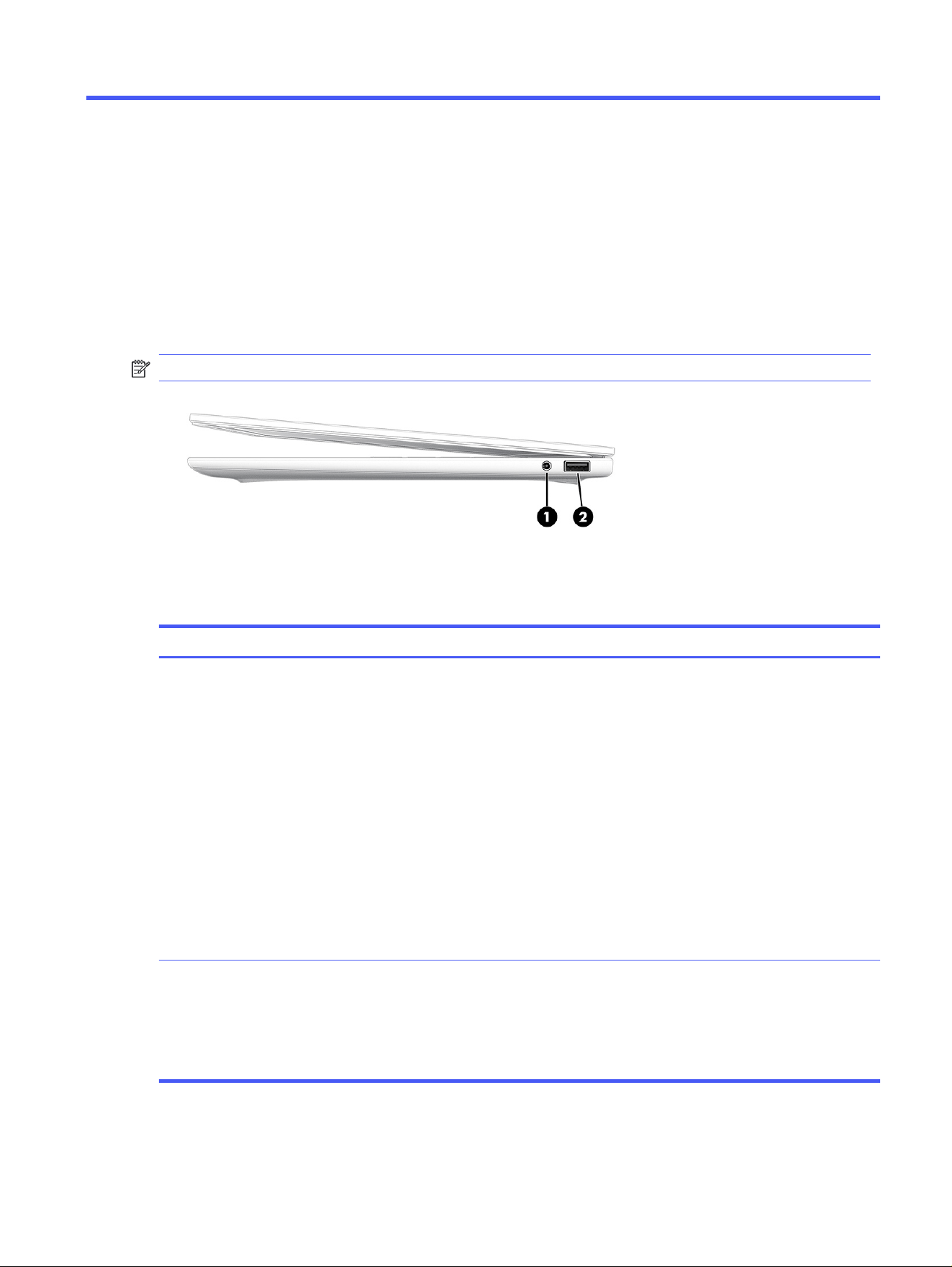
Use this illustration and table to identify the components on the right side of the computer.
NOTE: See the illustration that most closely matches your computer.
Table 2-1
Right-side components and their descriptions (select products only)
Component Description
(1) Audio-out (headphone)/Audio-in
(microphone) combo jack
Connects optional powered stereo speakers, headphones,
earbuds, a headset, or a television audio cable. Also
connects an optional headset microphone. This jack does
not support optional standalone microphones.
WARNING! To reduce the risk of personal injury, adjust the
volume before putting on headphones, earbuds, or a
headset. For additional safety information, see the
Regulatory, Safety, and Environmental Notices
.
To access this guide:
■
Select the Search icon in the taskbar, type HP
Documentation in the search box, and then select HP
Documentation.
NOTE: When a device is connected to the jack, the
computer speakers are disabled.
(2) USB port Connects a USB device, provides data transfer, and
(for select products) charges small devices (such as a
smartphone) when the computer is on or in sleep mode.
NOTE: Use a standard USB Type-A charging cable or cable
adapter (purchased separately) when charging a small
external device.
Getting to know your computer 7
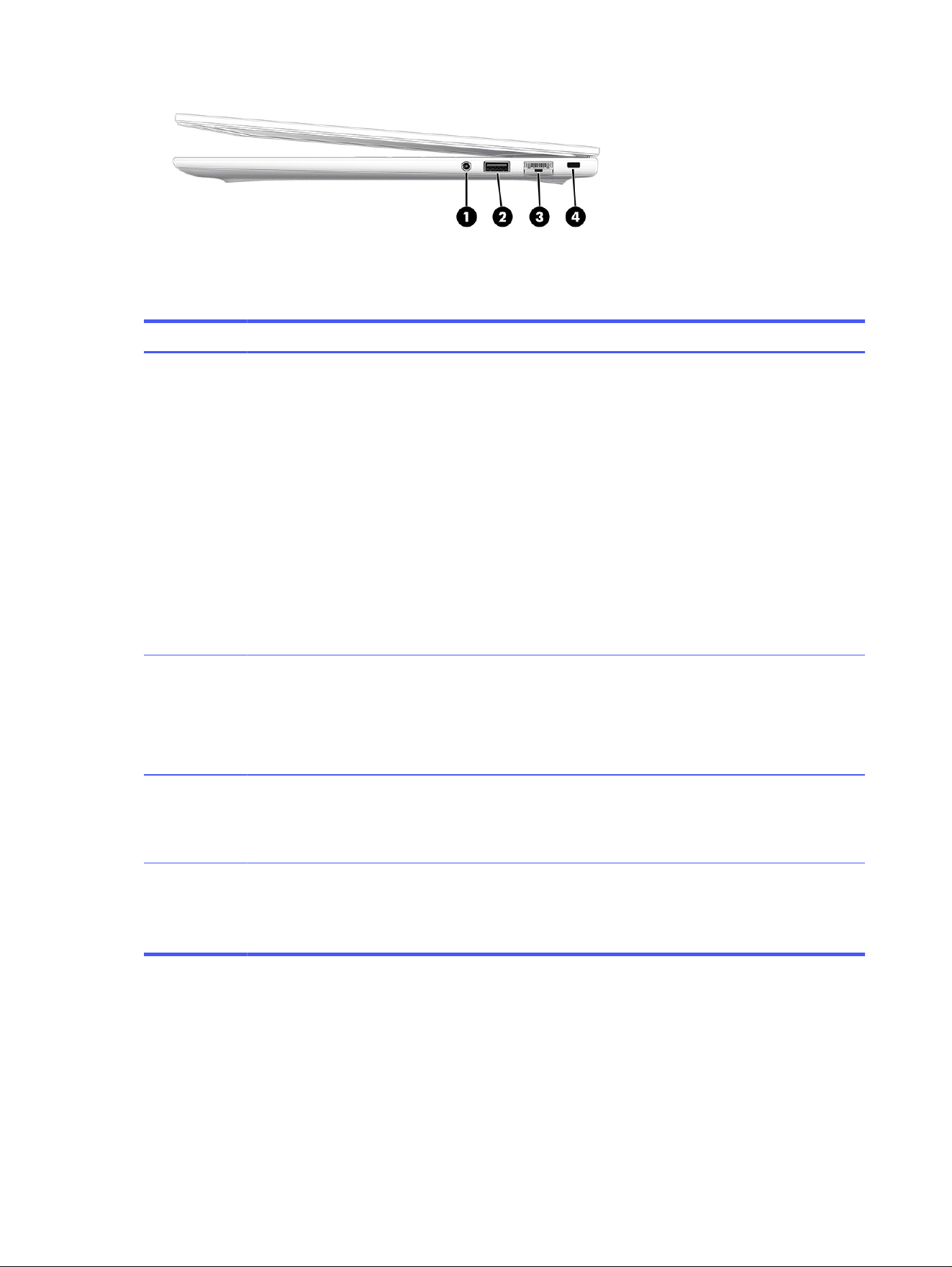
Table 2-2 Right-side components and their descriptions (select products only)
Component Description
(1) Audio-out (headphone)/Audio-in
(microphone) combo jack
Connects optional powered stereo speakers, headphones,
earbuds, a headset, or a television audio cable. Also
connects an optional headset microphone. This jack does
not support optional standalone microphones.
WARNING! To reduce the risk of personal injury, adjust the
volume before putting on headphones, earbuds, or a
headset. For additional safety information, see the
Regulatory, Safety, and Environmental Notices
.
To access this guide:
■
Select the Search icon in the taskbar, type HP
Documentation in the search box, and then select HP
Documentation.
NOTE: When a device is connected to the jack, the
computer speakers are disabled.
(2) USB port Connects a USB device, provides data transfer, and
(for select products) charges small devices (such as a
smartphone) when the computer is on or in sleep mode.
NOTE: Use a standard USB Type-A charging cable or cable
adapter (purchased separately) when charging a small
external device.
(3) RJ-45 (network) jack/status lights Connects a network cable.
● White: The network is connected.
● Amber: Activity is occurring on the network.
(4) Security cable slot Attaches an optional security cable to the computer.
NOTE: The security cable is designed to act as a deterrent,
but it might not prevent the computer from being mishandled
or stolen.
Left side
Use this illustration and table to identify the components on the left side of the computer.
8
Chapter 2 Getting to know your computer
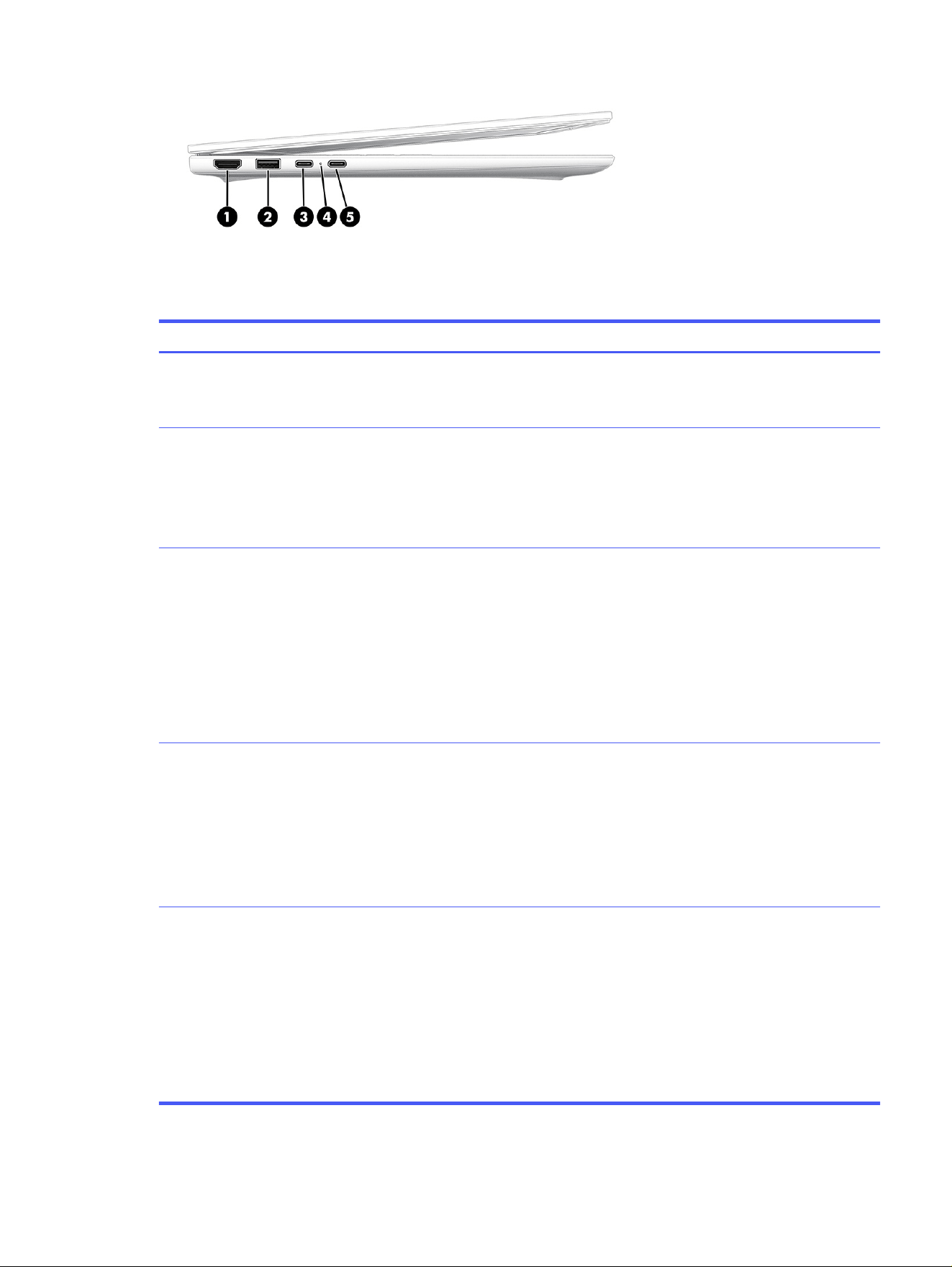
Table 2-3 Left-side components and their descriptions
Component Description
(1) HDMI port Connects an optional video or audio device, such as a
high-definition television, any compatible digital or audio
component, or a high-speed High-Definition Multimedia
Interface (HDMI) device.
(2) USB port Connects a USB device, provides data transfer, and
(for select products) charges small devices (such as a
smartphone) when the computer is on or in Sleep mode.
NOTE: Use a standard USB Type-A charging cable or cable
adapter (purchased separately) when charging a small
external device.
(3) USB Type-C® 10 Gbps port Connects a USB device, provides high-speed data transfer,
and charges small devices (such as a smartphone), even
when the computer is off.
NOTE: Use a standard USB Type-C charging cable or cable
adapter (purchased separately) when charging a small
external device.
– and –
Connects a display device that has a USB Type-C connector,
providing DisplayPort output.
(4) AC adapter and battery light ● White: The AC adapter is connected and the battery is
fully charged.
● Blinking amber: The AC adapter is disconnected and
the battery has reached a low battery level.
● Amber: The AC adapter is connected and the battery is
charging.
● Off: The battery is not charging.
(5) USB Type-C 10 Gbps port Connects a USB device, provides high-speed data transfer,
and charges small devices (such as a smartphone), even
when the computer is off.
NOTE: Use a standard USB Type-C charging cable or cable
adapter (purchased separately) when charging a small
external device.
– and –
Connects a display device that has a USB Type-C connector,
providing DisplayPort output.
Left side 9
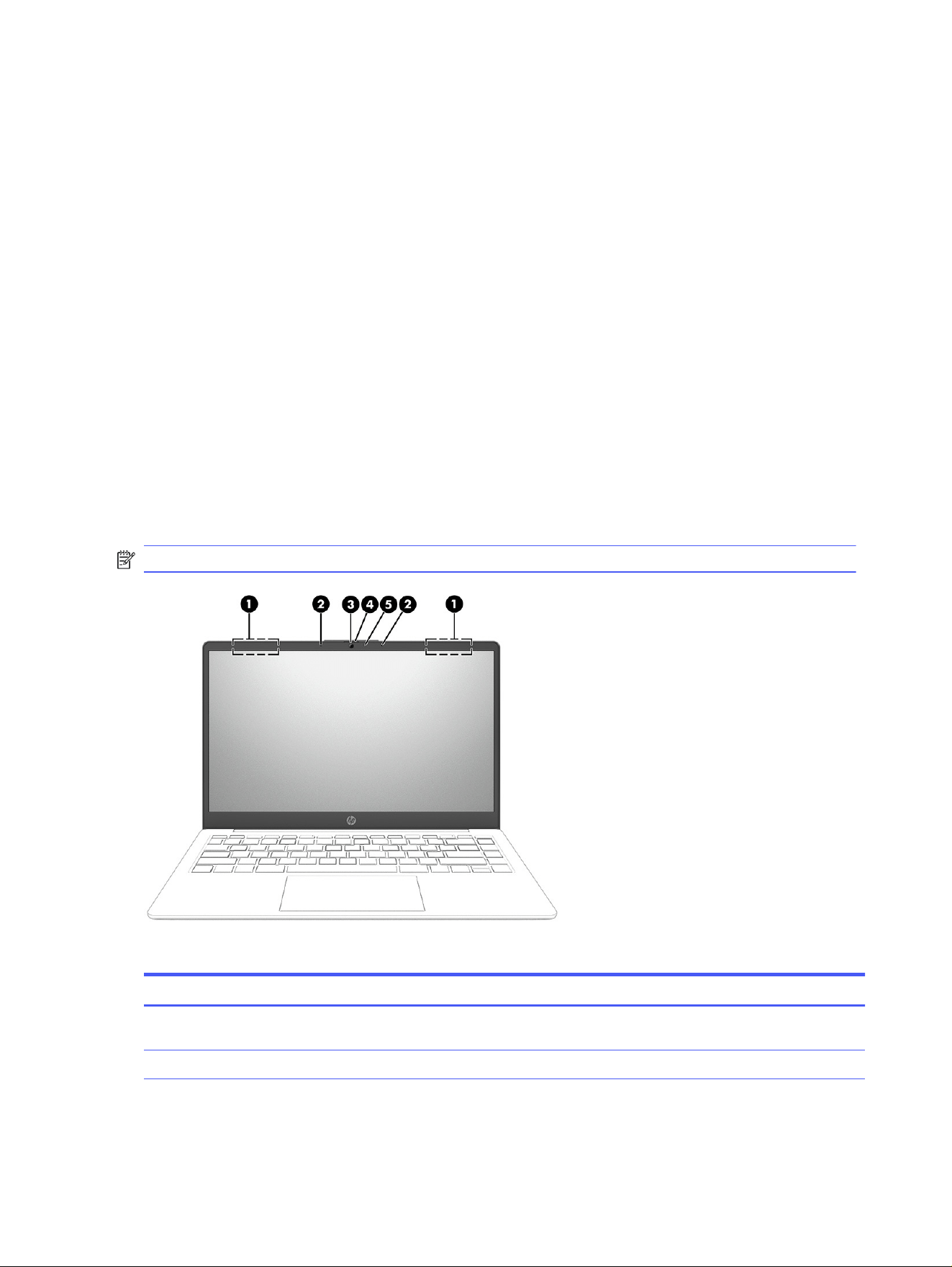
Display
The computer display can include essential components such as speakers, antennas, cameras, and
microphones.
Low blue light mode (select products only)
Your computer display is shipped from the factory in low blue light mode for improved eye comfort and
safety. Also, blue light mode automatically adjusts blue light emissions when you are using the computer
at night or for reading.
Wake-on-voice (select products only)
Use the wake-on-voice feature to bring the computer out of the Sleep state quickly.
To access the wake-on-voice settings, follow these steps:
1. Select the Search icon in the taskbar, type XiaoWei in the search box, and then select XiaoWei.
2. When the tool opens, scan the QR code with your mobile device, which takes you to the settings
page, where you can select your wake-on-voice features.
3. Follow the on-screen instructions.
NOTE: Allow the XiaoWei app to continue running on the computer.
Table 2-4
Display components and their descriptions
Component Description
(1) WLAN antennas* (2) Send and receive wireless signals to communicate with wireless
local area networks (WLANs).
(2) Internal microphones (2) Record sound.
10 Chapter 2 Getting to know your computer

Table 2-4 Display components and their descriptions (continued)
Component Description
(3) Camera Allows you to video chat, record video, and record still images.
Some cameras also allow a facial recognition logon to Windows®,
instead of a password logon.
NOTE: Camera functions vary depending on the camera
hardware and software installed on your product.
(4) Camera privacy cover By default, the camera lens is uncovered, but you can slide the
camera privacy cover to block the camera’s view. To use the
camera, slide the camera privacy cover in the opposite direction
to reveal the lens.
(5) Camera light On: The camera is in use.
*The antennas are not visible from the outside of the computer. For optimal transmission, keep the areas
immediately around the antennas free from obstructions.
For wireless regulatory notices, see the section of the
Regulatory, Safety, and Environmental Notices
that applies to your country or region.
To access this guide:
■
Select the Search icon in the taskbar, type HP Documentation in the search box, and then select
HP Documentation.
Keyboard area
Keyboards can vary by language.
NOTE: The keyboard area, including the function keys and (select products only) power key, is
disabled in stand, tent, and tablet modes. To enable the keyboard, including the power key, change to
the clamshell mode.
Touchpad settings and components
Learn the touchpad settings and components.
Touchpad settings
Learn how to adjust touchpad settings.
Adjusting touchpad settings
Use these steps to adjust touchpad settings and gestures.
1. Select the Search icon in the taskbar, type touchpad settings in the search box, and then
press enter.
2. Choose a setting.
Turning on the touchpad
Follow these steps to turn on the touchpad.
Keyboard area
11
1. Select the Search icon in the taskbar, type touchpad settings in the search box, and then
press enter.
2. Using an external mouse, click the touchpad button.
If you are not using an external mouse, press the Tab key repeatedly until the pointer rests on the
touchpad button. Then press the spacebar to select the button.
Touchpad components
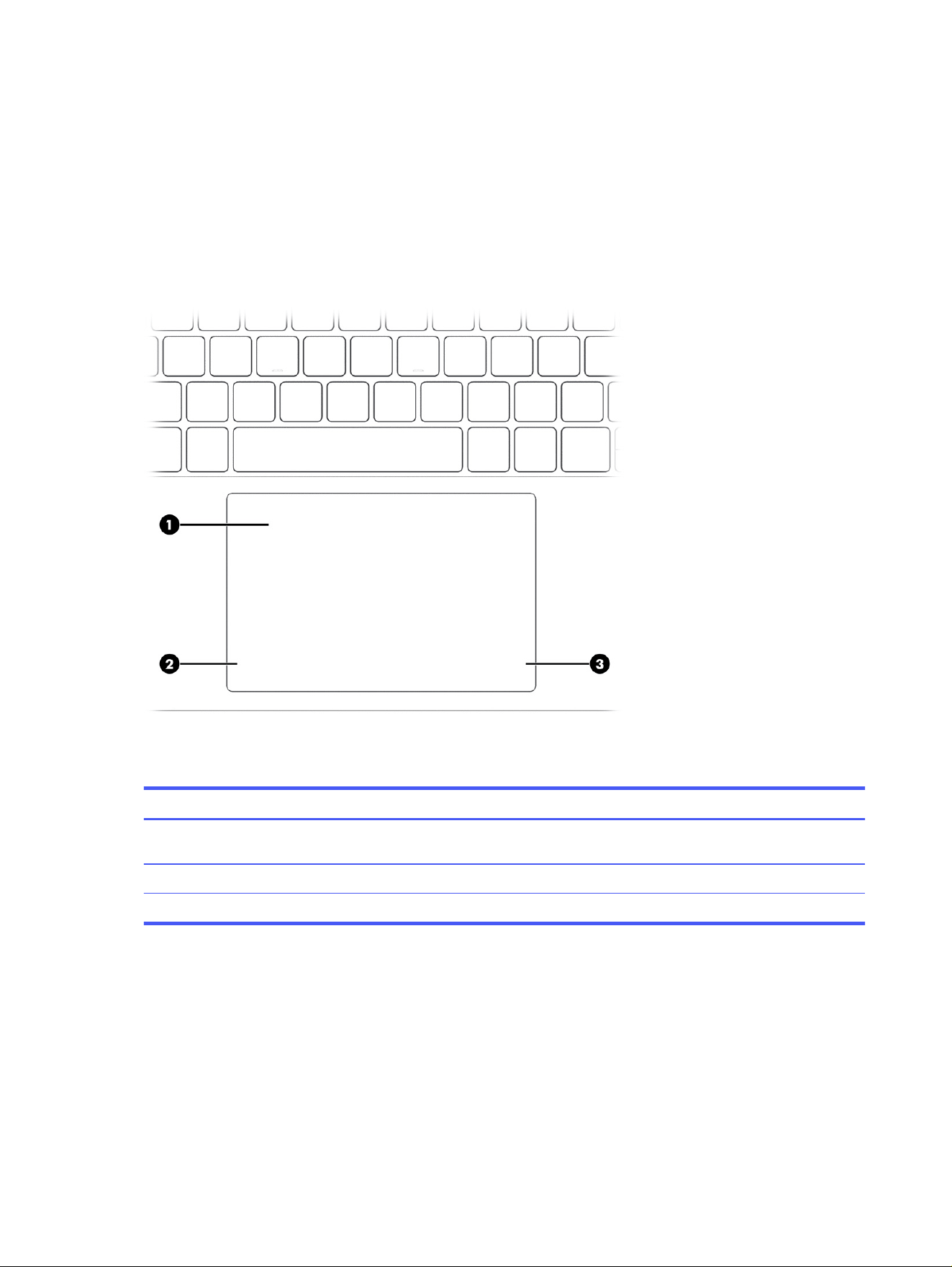
Use this illustration and table to identify the touchpad components.
Table 2-5 Touchpad components and their descriptions
Component Description
(1) Touchpad zone Reads your finger gestures to move the pointer or activate items
on the screen.
(2) Left touchpad button Functions like the left button on an external mouse.
(3) Right touchpad button Functions like the right button on an external mouse.
Lights
Use this illustration and table to identify the lights on the computer.
12
Chapter 2 Getting to know your computer
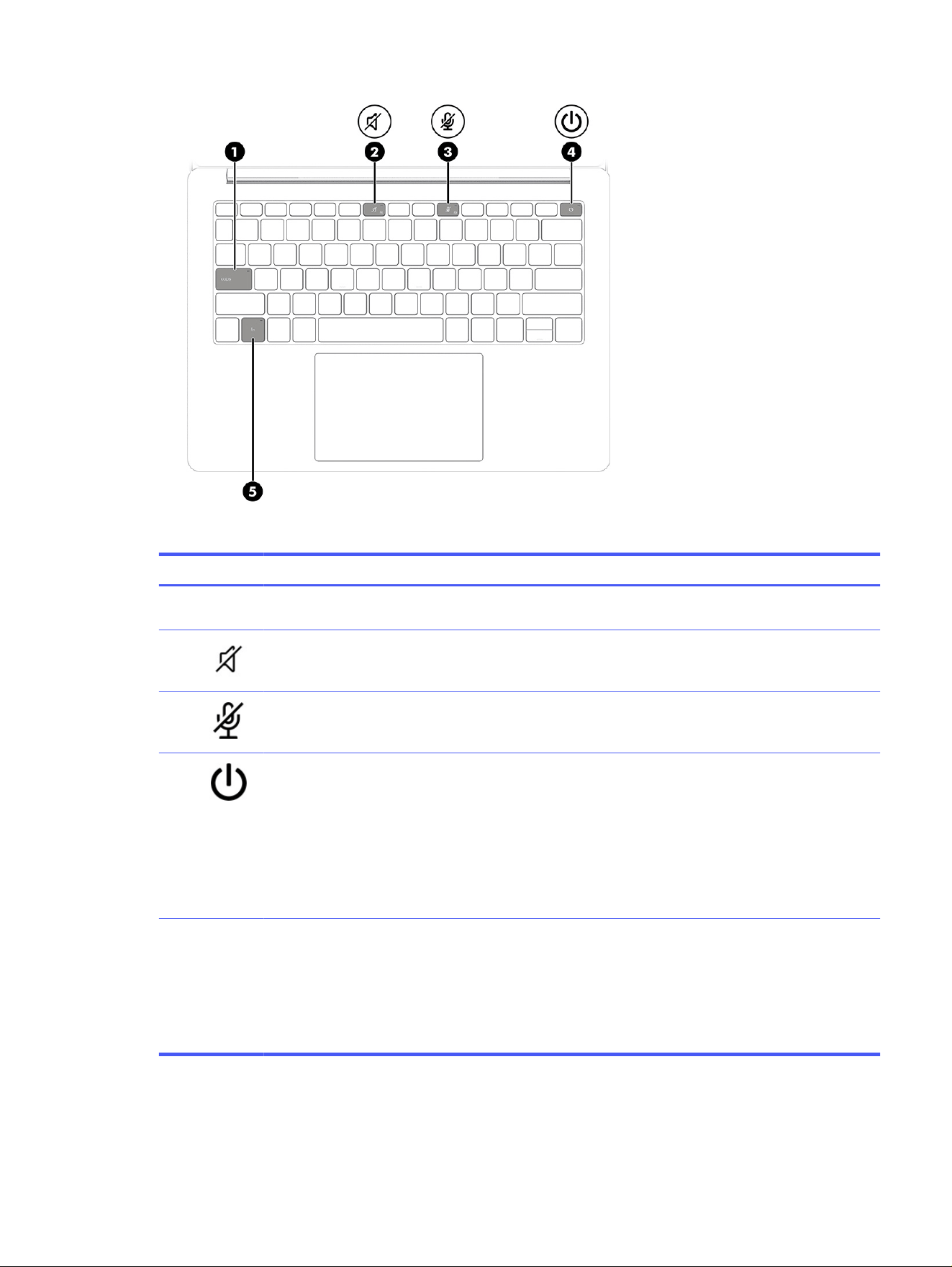
Table 2-6 Lights and their descriptions
Component Description
(1) Caps lock light On: Caps lock is on, which switches the key input to all capital
letters.
(2) Mute light ● On: Computer sound is off.
● Off: Computer sound is on.
(3) Microphone mute light ● On: Microphone is off.
● Off: Microphone is on.
(4) Power light ● On: The computer is on.
● Blinking (select products only): The computer is in
the Sleep state, a power-saving state. The computer
shuts off power to the display and other unnecessary
components.
● Off: Depending on your computer model, the computer
is off, in Hibernation, or in Sleep. Hibernation is the
power-saving state that uses the least amount of power.
(5) Fn lock light ● On: FN Lock in enabled.
● Off: FN Lock in disabled.
NOTE: On some products, FN Lock is assigned as the
secondary function of the left Shift key. To enable FN Lock,
press fn + left Shift. Repeat the same key combination again
to disable FN Lock.
Lights 13
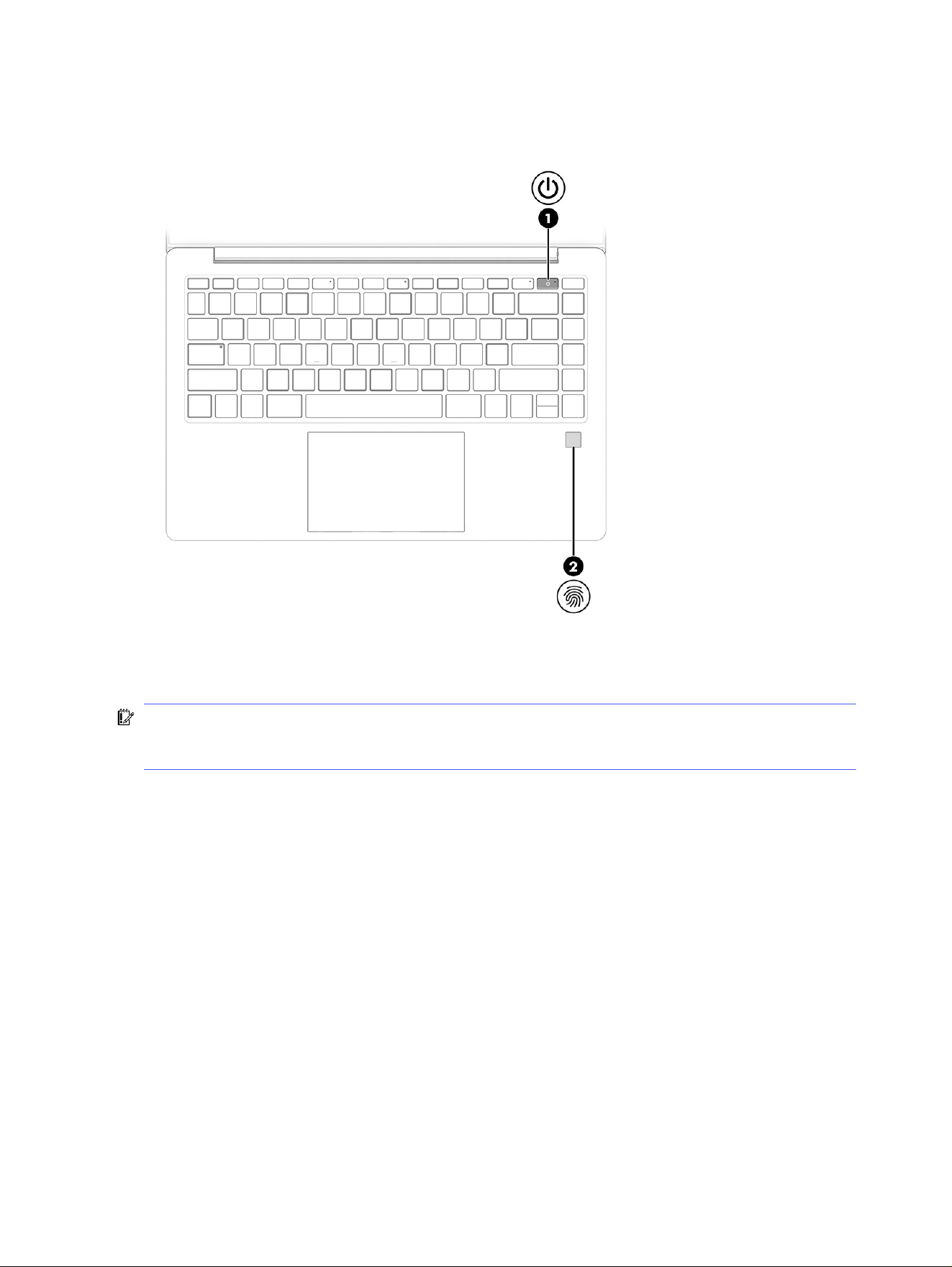
Button and fingerprint reader
Identify the computer button and fingerprint reader.
Fingerprint readers, which enable a fingerprint logon, can be located on the touchpad, on a side panel of
the computer, or on the top cover below the keyboard.
IMPORTANT: To verify that your computer supports fingerprint reader sign-in, select the Search icon
in the taskbar, type Sign-in options in the search box and press enter. If Fingerprint recognition is
not listed as an option, then your computer does not include a fingerprint reader.
14
Chapter 2 Getting to know your computer
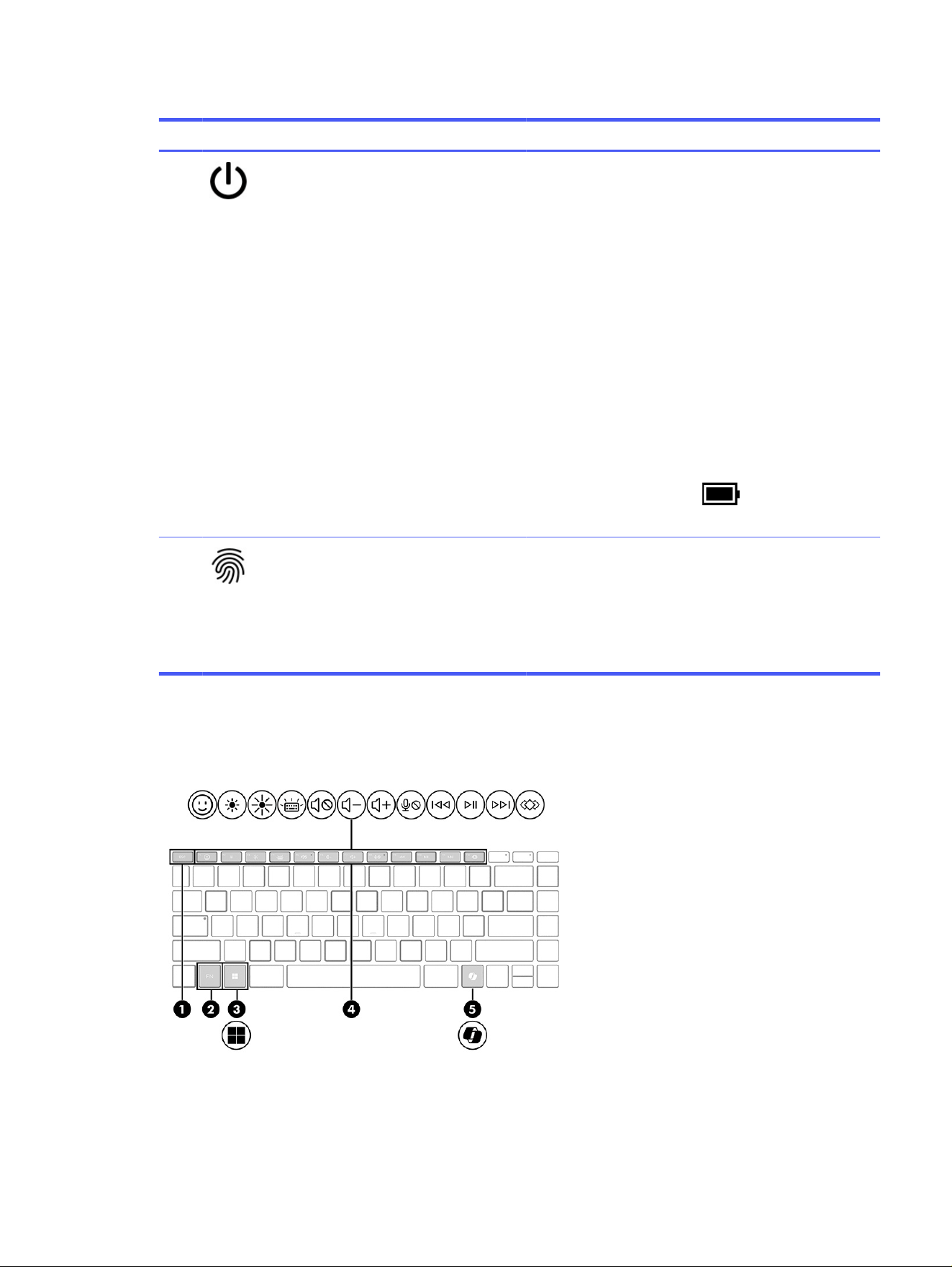
Table 2-7 Button and fingerprint reader and their descriptions
Component Description
(1) Power button ● When the computer is off, press the button briefly to
turn on the computer.
● When the computer is on, press the button briefly to
initiate sleep.
● When the computer is in the sleep state, press the
button briefly to exit sleep (select products only).
● When the computer is in hibernation, press the button
briefly to exit hibernation.
IMPORTANT: Pressing and holding down the power button
results in the loss of unsaved information.
If the computer has stopped responding and shutdown
procedures are ineffective, press and hold the power button
down for at least 10 seconds to turn off the computer.
To learn more about your power and sleep settings:
■
Right-click the Power icon , and then select Power
and sleep settings.
(2) Fingerprint reader (select products only) Allows a fingerprint logon to Windows, instead of a password
logon.
■
Touch your finger to the fingerprint reader.
IMPORTANT: To prevent fingerprint logon issues, make
sure when you register your fingerprint that all sides of
your finger are registered by the fingerprint reader.
Special keys
Identify the special keys.
Special keys
15
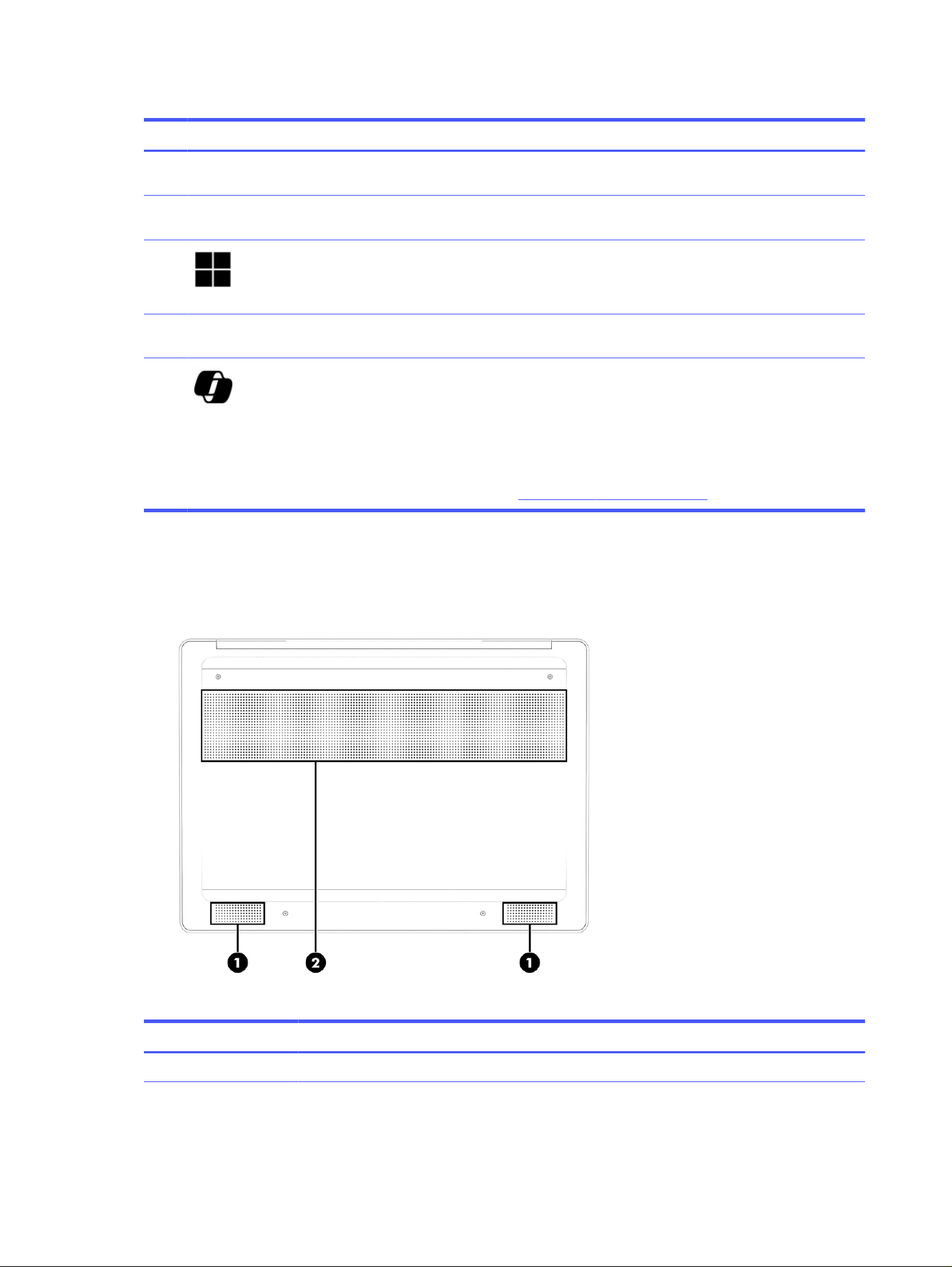
Table 2-8 Special keys and their descriptions
Component Description
(1) esc key Displays system information when pressed in combination
with the fn key.
(2) fn key Executes specific functions when pressed in combination
with another key.
(3) Windows key Opens the Start menu.
NOTE: Pressing the Windows key again will close the Start
menu.
(4) Action keys Execute frequently used system functions as defined by the
icon symbols on f1 through f12 function keys.
(5) Windows Copilot key Opens Windows Copilot (select products only).
NOTE: Copilot in Windows (select products only) requires
Windows 11. Some features require a neural processing unit
(NPU). The timing of feature delivery and availability varies by
market and device. You must have a Microsoft account to use
the Copilot feature. When the Copilot feature is not available,
pressing the Copilot key opens the Bing search engine. See
http://aka.ms/WindowsAIFeatures.
Bottom
Identify the bottom components.
Table 2-9
Bottom components and their descriptions
Component Description
(1) Speakers (2) Produce sound.
16 Chapter 2 Getting to know your computer
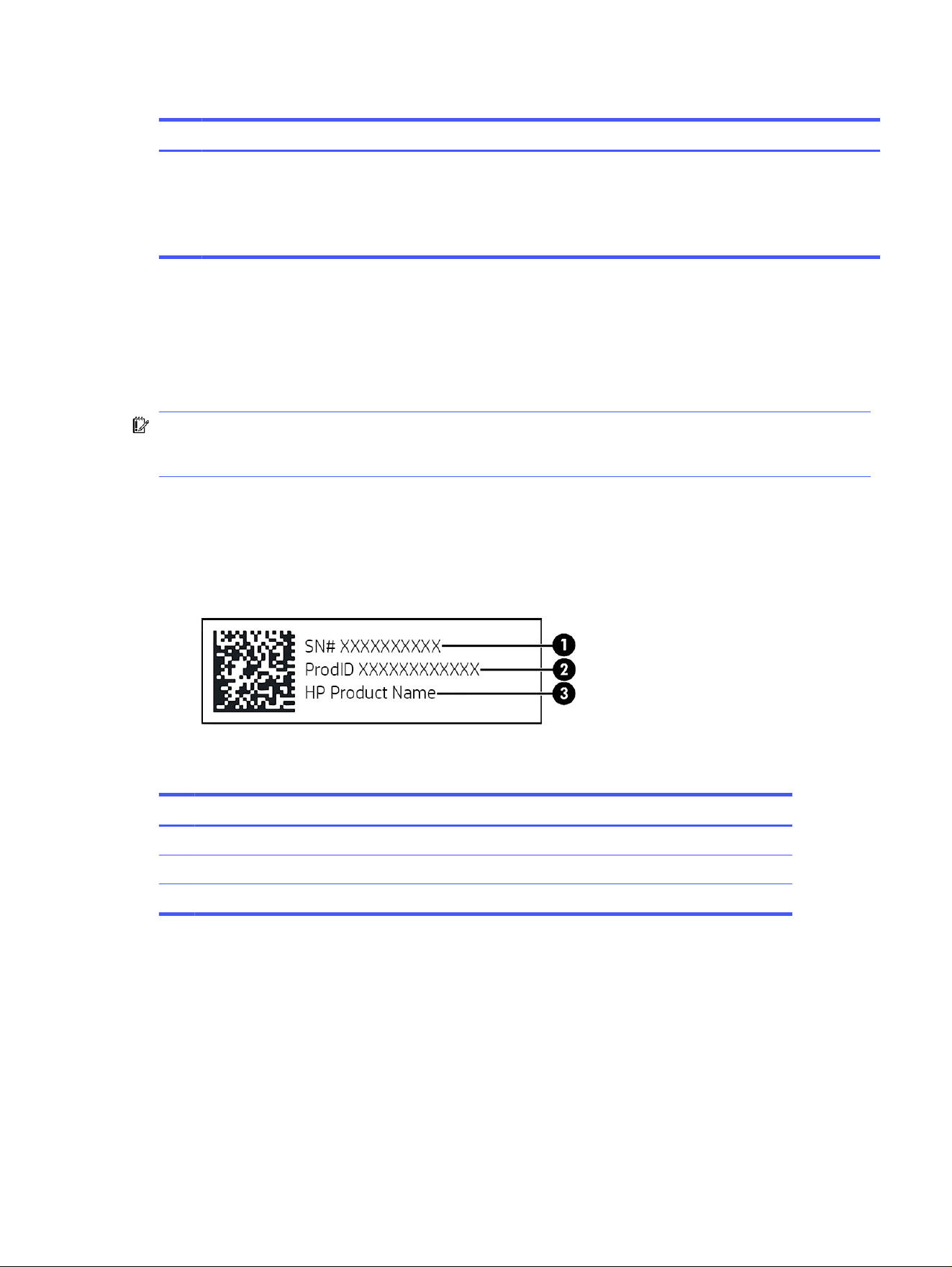
Table 2-9 Bottom components and their descriptions (continued)
Component Description
(2) Vent Enables airflow to cool internal components.
NOTE: The computer fan starts up automatically to
cool internal components and prevent overheating. It is
normal for the internal fan to cycle on and off during
routine operation.
Labels
The labels affixed to the computer provide information that you might need when you troubleshoot
system problems or travel internationally with the computer. Labels can be in paper form or imprinted on
the product.
IMPORTANT: Check the following locations for the labels described in this section: the bottom of the
computer, inside the battery bay, under the service door, on the back of the display, or on the bottom of
a tablet kickstand.
● Service label—Provides important information to identify your computer. When contacting support,
you might be asked for the serial number, the product number, or the model number. Locate this
information before you contact support.
Your service label will resemble the following example.
Table 2-10
Service label components
Component
(1) Serial number
(2) Product ID
(3) HP product name and model number
● Regulatory labels—Provide regulatory information about the computer.
● Wireless certification labels—Provide information about optional wireless devices and the approval
markings for the countries or regions in which the devices have been approved for use.
Labels
17

Illustrated parts catalog3
Use this chapter to determine the spare parts that are available for the computer.
Computer major components
To identify the computer major components, use this illustration and table.
NOTE: HP continually improves and changes product parts. For complete and current information
about supported parts for your computer, go to https://partsurfer.hp.com/, select your country or
region, and then follow the on-screen instructions.
NOTE: Details about your computer, including model, serial number, product key, and length of
warranty, are on the service tag at the bottom of your computer.
18
Chapter 3 Illustrated parts catalog
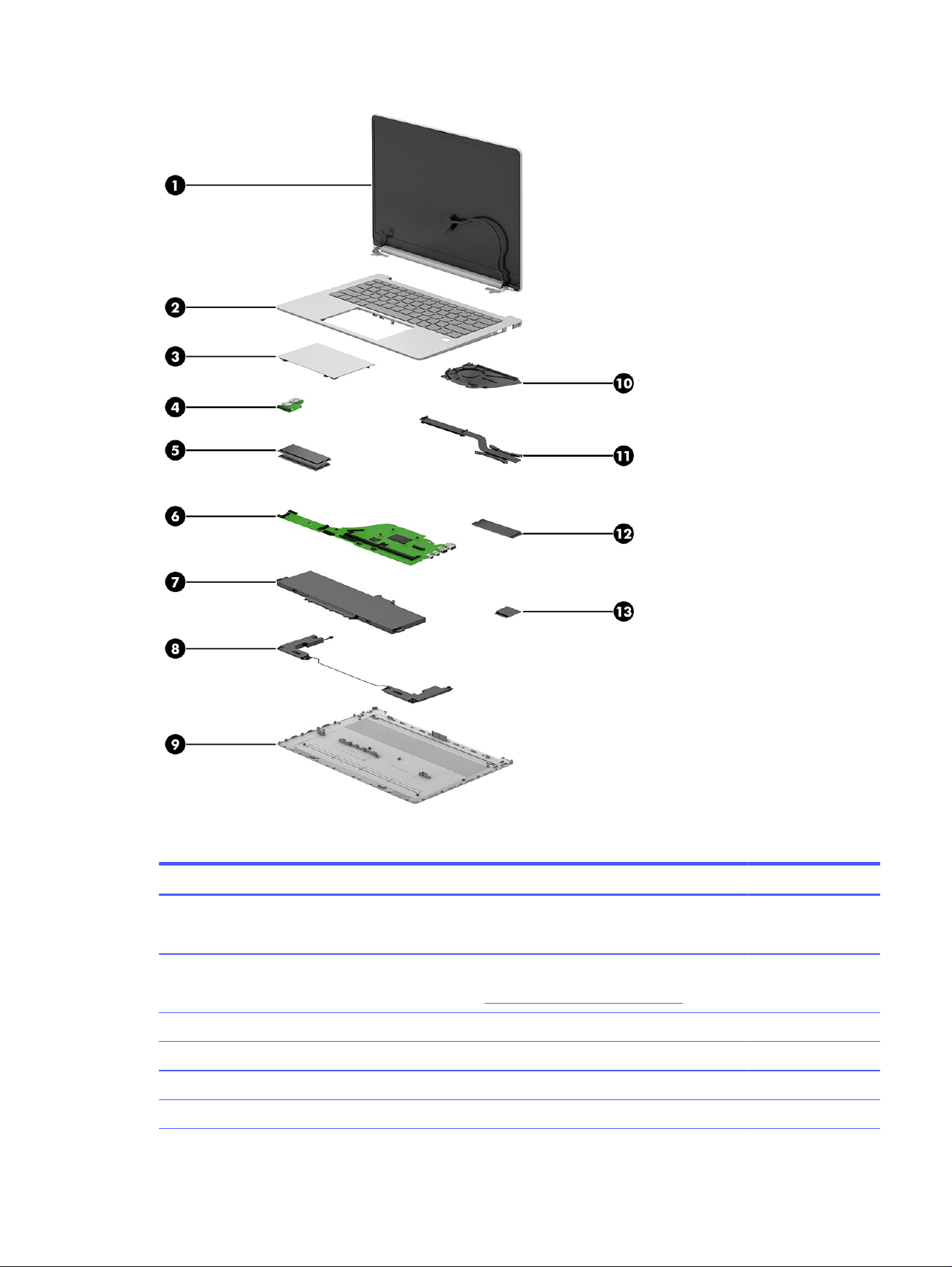
Table 3-1 Computer major component descriptions and part numbers
Item Component Spare part number
(1) Display assembly
NOTE: Display assemblies are offered as spare parts only at subcomponent level.
not available as a
spare part
(2) Top cover/keyboard
NOTE: For a detailed list of country codes, see Keyboard with top cover on page 64.
Glacier silver with canvas gray touchpad, backlit P80838-001
Jet black with jet black touchpad, not backlit P80839-001
Mica silver with iron gray touchpad, backlit P80840-001
Starlit blue with iron gray touchpad, backlit P80841-001
Computer major components 19

Table 3-1 Computer major component descriptions and part numbers (continued)
Item Component Spare part number
Warm gold with iron gray touchpad, backlit P80842-001
(3) Touchpad
Glacier silver P80886-001
Jet black P80887-001
Mica silver P80888-001
Starlit blue P80889-001
Warm gold P80890-001
(4) USB audio board P80872-001
(5) Memory module (DDR5-5200/5600)
32 GB N77400-005
24 GB P55196-005
16 GB N77399-005
8 GB N77398-005
(6) System board for use in models with an AMD processor
NOTE: All system board spare part kits include replacement thermal material.
All system boards use the following part numbers:
xxxxxx-001: Non-Windows operating systems
xxxxxx-601: Windows operating system
System boards for use in models with an AMD processor
AMD Ryzen AI 5 430 processor P80721-601
AMD Ryzen AI 7 445 processor P80722-601
AMD Ryzen 3 30 processor, 8 GB of system memory P80723-601
AMD Ryzen 5 40 processor, 16 GB of system memory P80724-601
AMD Ryzen 5 40 processor, 8 GB of system memory P80725-601
AMD Ryzen 5 130 processor P80726-601
AMD Ryzen 5 230 processor P80727-601
AMD Ryzen 7 160 processor P80728-601
AMD Ryzen 7 250 processor P80729-601
AMD Ryzen 3 30 processor, 8 GB of system memory (PRC) P80730-601
AMD Ryzen 5 40 processor, 16 GB of system memory (PRC) P80731-601
AMD Ryzen 5 40 processor, 8 GB of system memory (PRC) P80732-601
AMD Ryzen AI 5 H 430 processor (PRC) P80733-601
AMD Ryzen AI 7 H 445 processor (PRC) P80734-601
AMD Ryzen 7 H 255 processor, 16 GB of system memory (PRC) P80735-601
20 Chapter 3 Illustrated parts catalog

Table 3-1 Computer major component descriptions and part numbers (continued)
Item Component Spare part number
AMD Ryzen 7 H 255 processor, 24 GB of system memory (PRC) P80736-601
AMD Ryzen 7 H 255 processor, 32 GB of system memory (PRC) P80737-601
AMD Athlon Gold 20 processor, 4 GB of system memory P93945-601
AMD Athlon Gold 20 processor, 8 GB of system memory P93946-601
AMD Athlon Silver 10 processor, 4 GB of system memory P93947-601
AMD Athlon Silver 10 processor, 8 GB of system memory P93948-601
System boards for use in models with an Intel processor
Intel Core 3 100U processor P80802-601
Intel Core 3 N355 processor 8 GB with 128 GB UFS memory P80803-601
Intel Core 3 N355 processor 8 GB of system memory P80804-601
Intel Core 5 120U processor P80805-601
Intel Core 5 210H processor 16 GB of system memory P80806-601
Intel Core 5 210H processor 24 GB of system memory P80807-601
Intel Core 7 150U processor P80808-601
Intel Core 7 240H processor 16 GB of system memory P80809-601
Intel Core 7 240H processor 24 GB of system memory P80810-601
Intel Core 7 240H processor 32 GB of system memory P80811-601
Intel N150 processor 4GB 128 GB UFS memory P80812-601
Intel N150 processor 8GB 128 GB UFS memory P89586-601
Intel N150 processor 4 GB of system memory P80813-601
Intel N150 processor with 8 GB of eMMC memory P80814-601
Intel N250 processor 4GB 128 GB UFS memory P80815-601
Intel N250 processor 8GB of system memory P80816-601
Intel Core 9 270H processor 16 GB of system memory P80820-601
Intel Core 9 270H processor 32 GB of system memory P80821-601
Intel Core 5 210H processor 16 GB of system memory P80826-601
Intel Core 5 210H processor 24 GB of system memory P80827-601
Intel Core 7 240H processor 16 GB of system memory P80828-601
Intel Core 7 240H processor 24 GB of system memory P80829-601
Intel Core 7 240H processor 32 GB of system memory P80830-601
Intel Core 9 270H processor 16 GB of system memory P80831-601
Intel Core 9 270H processor 32 GB of system memory P80832-601
Intel Core i5 1334U processor P82087-601
Intel Core i7 1355U processor P82088-601
Computer major components 21

Table 3-1 Computer major component descriptions and part numbers (continued)
Item Component Spare part number
(7) Battery
(3 cell, 60 Whr) P53583-001
(3 cell, 41 Whr) N21969-001
(8) Speakers P80880-001
(9) Bottom cover
Jet black, plastic model P80864-001
Iron gray, plastic model P80865-001
Glacier silver, plastic model, defeatured P80866-001
Glacier silver, plastic model, full featured P80867-001
Glacier silver, aluminum model P80869-001
Glacier silver, full featured, aluminum (40 W) P80868-001
P80870-001
For use in models in the People’s Republic of China (PRC)
Iron gray, plastic model P81273-001
Glacier silver, plastic, defeatured P81274-001
Glacier silver, plastic, full featured P81275-001
Glacier silver, plastic model, full featured (40 W) P81276-001
(10) Fan
40W P80879-001
15W P80878-001
9W P80877-001
(11) Heat sink
40W P81304-001
15W P81305-001
MDC P84305-001
(12) SSD
1 TB N77394-005
512 GB N77392-005
256 GB P90856-005
128 GB N42382-005
(13) WLAN module
Realtek Cass 8852BE-VT Wi-Fi® 6 and Bluetooth® 5.4 P17386-005
Realtek Chivas 8922AE-VS Wi-Fi 7 and Bluetooth 6.0 P44408-005
Mediatek Terra MT 7920 M.2 2230 Wi-Fi 6 and Bluetooth 5.4 P17386-001
22 Chapter 3 Illustrated parts catalog
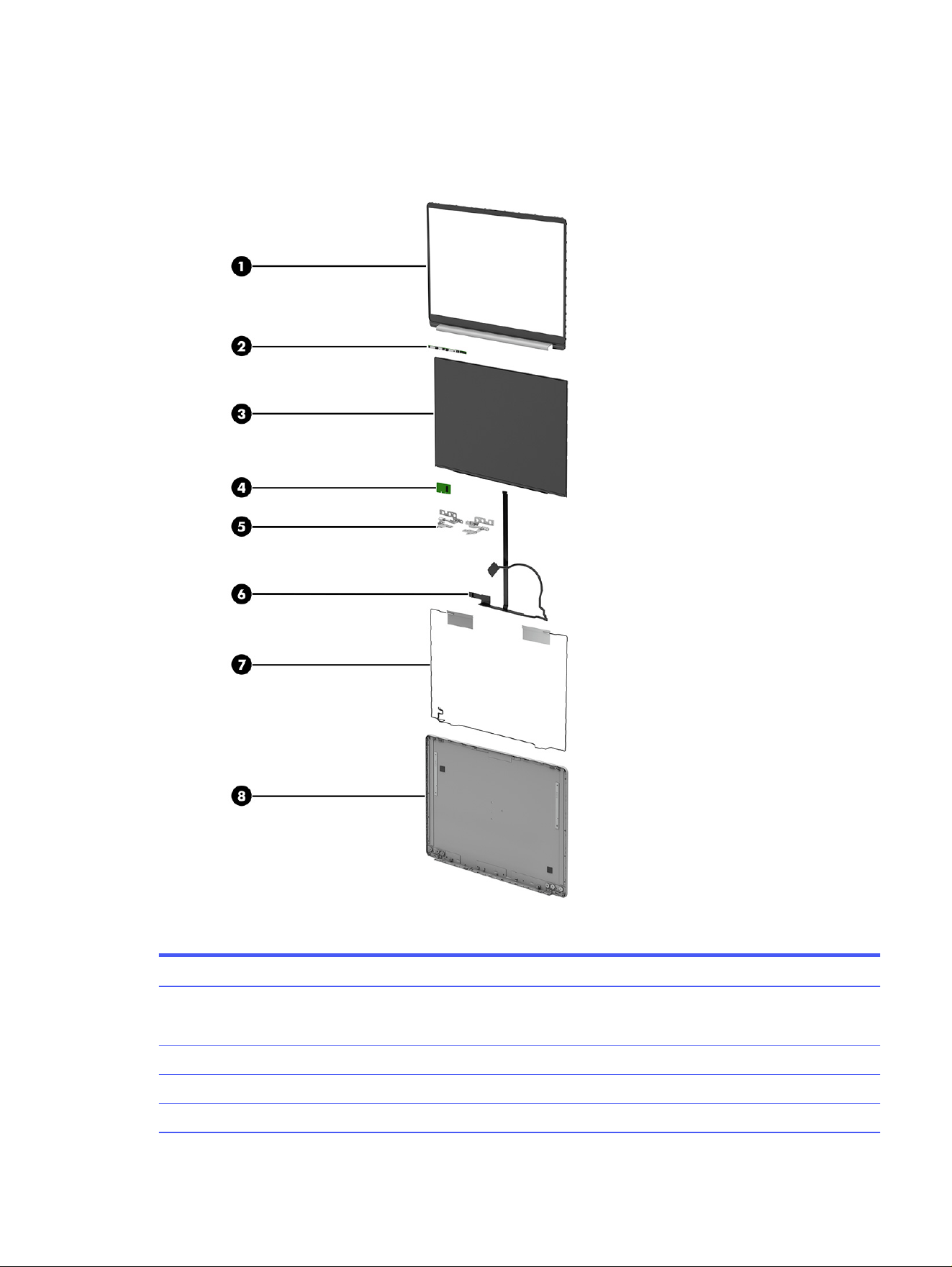
Display assembly subcomponents
To identify the display assembly subcomponents, use this illustration and table.
Table 3-2 Display component descriptions and part numbers
Item Component Spare part number
(1) Display bezel
NOTE: Display bezel adhesive is available as spare part numnber N44094-001
Jet black, non ir P80855-001
Glacier silver, ir P80856-001
Mica silver, ir P80857-001
Display assembly subcomponents 23

Table 3-2 Display component descriptions and part numbers (continued)
Item Component Spare part number
Starlit blue, ir P80858-001
Warm gold, ir P80859-001
Glacier silver, non ir P80860-001
Mica silver, non ir P80861-001
Starlit blue, non ir P80862-001
Warm gold, non ir P80863-001
(2) Camera module (includes rubber piece)
Full HD, plastic P80891-001
Webcam IR, plastic P80892-001
Full HD, aluminum P97695-001
Webcam IR, aluminum P97696-001
(3) Display panel
NOTE: Display panel adhesive is available as spare part number N44094-001.
FHD, antiglare, UWVA, 300 nits, low blue light P80833-001
FHD, antiglare, UWVA, 300 nits, low blue light, top hinge P80834-001
FHD, antiglare, UWVA, 400 nits, low blue light P80835-001
WUXGA, antiglare, LED, UWVA, 400 nits P80836-001
WUXGA, brightview, OLED, UWVA, 300 nits, low blue light P80837-001
(4) OLED printed circuit assembly P80871-001
(5) Display hinges (includes left and right hinges)
Hinge - plastic P80884-001
Hinge - aluminum P80885-001
(6) Display/camera cable P80881-001
(7) WLAN antenna kit (includes antenna cables and transceivers) P80882-001
(8) Display back cover
Glacier silver, plastic P80843-001
Jet black, plastic P80844-001
Mica silver, plastic P80845-001
Starlit blue, plastic P80846-001
Warm gold, plastic P80847-001
Glacier silver, aluminum P80853-001
Glacier silver, aluminum, w/ antenna P80854-001
24 Chapter 3 Illustrated parts catalog

Miscellaneous parts
To identify the miscellaneous parts, use this table.
Table 3-3 Miscellaneous part descriptions and part numbers
Component Spare part number
AC adapters
45 W, USB Type-C, straight P38778-001
65 W, USB Type-C, straight P38779-001
100W, USB Type-C, straight, slim (PRC) P55546-001
65 W, USB Type-C,straight, wall mount, 2 prong P68491-001
65 W, USB Type-C, straight, GaN, wall mount, 2 prong (India) P73759-001
Screw Kit P80883-001
Power cords (C5, 1.0 m [3.3 ft], conventional with sticker)
For use in Argentina L19357-001
For use in Australia L19358-001
For use in Denmark L19360-001
For use in Europe L19361-001
For use in Israel L19362-001
For use in India L19363-001
For use in Italy L19364-001
For use in Japan L19365-001
For use in South Korea L19366-001
For use in North America L19367-001
For use in the People's Republic of China L19368-001
For use in South America L19369-001
For use in Switzerland L19370-001
For use in Thailand L19371-001
For use in Taiwan L19372-001
For use in the United Kingdom L19373-001
For use in Thailand (bundle) M85418-001
Power cord (Duckhead, non-standard, straight, high-frequency
For use in Europe P57782-001
For use in the United Kingdom P57783-001
For use in Australia P57784-001
For use in South Korea P57785-001
For use in Thailand P57786-001
Miscellaneous parts 25

Table 3-3 Miscellaneous part descriptions and part numbers (continued)
Component Spare part number
For use in the People's Republic of China P57787-001
For use in Argentina P57788-001
For use in India P57790-001
26 Chapter 3 Illustrated parts catalog

Removal and replacement procedures
preliminary requirements
4
Use this information to properly prepare to disassemble and reassemble the computer.
Tools required
You need the following tools to complete the removal and replacement procedures.
● Tweezers
● Nonconductive, nonmarking pry tool
● Magnetic Phillips P1 screwdriver
Service considerations
The following sections include some of the considerations that you must keep in mind during
disassembly and assembly procedures.
NOTE: As you remove each subassembly from the computer, place the subassembly and all
accompanying screws away from the work area to prevent damage.
Plastic parts
Using excessive force during disassembly and reassembly can damage plastic parts.
Cables and connectors
Handle cables with extreme care to avoid damage.
IMPORTANT: When servicing the computer, be sure that cables are placed in their proper locations
during the reassembly process. Improper cable placement can damage the computer.
Apply only the tension required to unseat or seat the cables during removal and insertion. Handle cables
by the connector whenever possible. In all cases, avoid bending, twisting, or tearing cables. Be sure that
cables are routed so that they cannot be caught or snagged as you remove or replace parts. Handle flex
cables with extreme care; these cables tear easily.
Drive handling
Note the following guidelines when handling drives.
IMPORTANT: Drives are fragile components. Handle them with care. To prevent damage to the
computer, damage to a drive, or loss of information, observe these precautions:
● Before removing or inserting a hard drive, shut down the computer. If you are unsure whether
the computer is off or in hibernation or sleep mode, turn the computer on, and then shut it down
through the operating system.
Removal and replacement procedures preliminary requirements
27

● Before handling a drive, be sure that you are discharged of static electricity. While handling a drive,
avoid touching the connector.
● Before removing an optical drive, be sure that a disc is not in the drive, and be sure that the optical
drive tray is closed.
● Handle drives on surfaces covered with at least 2.54 cm (1 inch) of shock-proof foam.
● Avoid dropping drives from any height onto any surface.
● After removing a hard drive or an optical drive, place it in a static-proof bag.
● Avoid exposing an internal hard drive to products that have magnetic fields, such as monitors or
speakers.
● Avoid exposing a drive to temperature extremes or liquids.
● If a drive must be mailed, place the drive in a bubble pack mailer or other suitable form of
protective packaging, and label the package “FRAGILE.”
Electrostatic discharge information
A sudden discharge of static electricity from your finger or other conductor can destroy static-sensitive
devices or microcircuitry. Often the spark is neither felt nor heard, but damage occurs. An electronic
device exposed to electrostatic discharge (ESD) might not appear to be affected at all and can work
perfectly throughout a normal cycle. The device might function normally for a while, but it has been
degraded in the internal layers, reducing its life expectancy.
Networks built into many integrated circuits provide some protection, but in many cases, the discharge
contains enough power to alter device parameters or melt silicon junctions.
IMPORTANT: To prevent damage to the device when you remove or install internal components,
observe these precautions:
● Keep components in their electrostatic-safe containers until you are ready to install them.
● Before touching an electronic component, discharge static electricity by using the guidelines
described in Personal grounding methods and equipment on page 29.
● Avoid touching pins, leads, and circuitry. Handle electronic components as little as possible.
● If you remove a component, place it in an electrostatic-safe container.
Generating static electricity
Follow these static electricity guidelines.
● Different activities generate different amounts of static electricity.
● Static electricity increases as humidity decreases.
28
Chapter 4 Removal and replacement procedures preliminary requirements

Table 4-1 Static electricity occurrence based on activity and humidity
Event 55% relative
humidity
40% relative
humidity
10% relative
humidity
Walking across carpet
Walking across vinyl floor
Motions of bench worker
Removing dual in-line packages (DIPs) from plastic tube
7500 V
3000 V
400 V
400 V
15,000 V
5000 V
800 V
700 V
35,000 V
12,000 V
6000 V
2000 V
Removing DIPs from vinyl tray
Removing DIPs from polystyrene foam
Removing bubble pack from PCB (printed circuit board)
Packing PCBs in foam-lined box
2000 V
3500 V
7000 V
5000 V
4000 V
5000 V
20,000 V
11,000 V
11,500 V
14,500 V
26,500 V
21,000 V
NOTE: Multiple electric components can be packaged together in plastic tubes, trays, or polystyrene
foam.
NOTE: As little as 700 V of static electricity can degrade a product.
Preventing electrostatic damage to equipment
Many electronic components are sensitive to ESD. Circuitry design and structure determine the degree
of sensitivity.
The following packaging and grounding precautions are necessary to prevent static electricity damage
to electronic components:
● To avoid hand contact, transport products in static-safe containers such as tubes, bags, or boxes.
● Protect all electrostatic parts and assemblies with conductive or approved containers or packaging.
● Keep electrostatic-sensitive parts in their containers until they arrive at static-free stations.
● Place items on a grounded surface before removing them from their container.
● Always be properly grounded when touching a sensitive component or assembly.
● Avoid contact with pins, leads, or circuitry.
● Place reusable electrostatic-sensitive parts from assemblies in protective packaging or conductive
foam.
Personal grounding methods and equipment
Using certain equipment can prevent static electricity damage to electronic components.
● Wrist straps are flexible straps with a maximum of 1 MΩ ±10% resistance in the ground cords. To
provide proper ground, wear a strap snug against bare skin. Verify that the ground cord is connected
and fits snugly into the banana plug connector on the grounding mat or workstation.
● You can use heel straps, toe straps, and boot straps at standing workstations. These straps are
compatible with most types of shoes or boots. On conductive floors or dissipative floor mats, use
them on both feet with a maximum of 1 MΩ ±10% resistance between the operator and ground.
Preventing electrostatic damage to equipment
29

Table 4-2 Static shielding protection levels
Method Voltage
Antistatic plastic
Carbon-loaded plastic
Metalized laminate
1500
7500
15,000
Grounding the work area
To prevent static damage at the work area, follow these precautions.
● Cover the work surface with approved static-dissipative material.
● Use a wrist strap connected to a properly grounded work surface and use properly grounded tools
and equipment.
● Use static-dissipative mats, foot straps, or air ionizers to give added protection.
● Handle electrostatic sensitive components, parts, and assemblies by the case or PCB laminate.
Handle them only at static-free work areas.
● Turn off power and input signals before inserting and removing connectors or test equipment.
● Use fixtures made of static-safe materials when fixtures must directly contact dissipative surfaces.
● Keep the work area free of nonconductive materials, such as ordinary plastic assembly aids and
polystyrene foam.
● Use conductive field service tools, such as cutters, screwdrivers, and vacuums.
● Avoid contact with pins, leads, or circuitry.
Recommended materials and equipment
HP recommends certain materials and equipment to prevent static electricity.
● Antistatic tape
● Antistatic smocks, aprons, or sleeve protectors
● Conductive bins and other assembly or soldering aids
● Conductive foam
● Conductive tabletop workstations with ground cord of 1 MΩ ±10% resistance
● Static-dissipative table or floor mats with hard tie to ground
● Field service kits
● Static awareness labels
● Wrist straps and footwear straps providing 1 MΩ ±10% resistance
● Material handling packages
● Conductive plastic bags
30
Chapter 4 Removal and replacement procedures preliminary requirements

● Conductive plastic tubes
● Conductive tote boxes
● Opaque shielding bags
● Transparent metallized shielding bags
● Transparent shielding tubes
Cleaning your computer
Cleaning your computer regularly removes dirt and debris so that your device continues to operate at its
best. Use the following information to safely clean the external surfaces of your computer.
Enabling HP Easy Clean (select products only)
HP Easy Clean helps you to avoid accidental input while you clean the computer surfaces. This software
disables devices such as the keyboard, touch screen, and touchpad for a preset amount of time so that
you can clean all computer surfaces.
1. Start HP Easy Clean in one of the following ways:
● Select the Start menu, and then select HP Easy Clean.
● Select the HP Easy Clean icon in the taskbar.
● Select Start, and then select the HP Easy Clean tile.
2. Now that your device is disabled for a short period, see Removing dirt and debris from your
computer on page 31 for the recommended steps to clean the high-touch, external surfaces
on your computer. After you remove the dirt and debris, you can also clean the surfaces with a
disinfectant. See Cleaning your computer with a disinfectant on page 32 for guidelines to help
prevent the spread of harmful bacteria and viruses.
Removing dirt and debris from your computer
Here are the recommended steps to clean dirt and debris from your computer.
For computers with wood veneer, see Caring for wood veneer (select products only) on page 33.
1. Wear disposable gloves made of latex (or nitrile gloves, if you are latex-sensitive) when cleaning the
surfaces.
2. Turn off your device and unplug the power cord and other connected external devices. Remove any
installed batteries from items such as wireless keyboards.
CAUTION: To prevent electric shock or damage to components, never clean a product while it is
turned on or plugged in.
3. Moisten a microfiber cloth with water. The cloth should be moist, but not dripping wet.
IMPORTANT: To avoid damaging the surface, avoid abrasive cloths, towels, and paper towels.
Cleaning your computer
31
4. Wipe the exterior of the product gently with the moistened cloth.
IMPORTANT: Keep liquids away from the product. Avoid getting moisture in any openings. If liquid
makes its way inside your HP product, it can cause damage to the product. Do not spray liquids
directly on the product. Do not use aerosol sprays, solvents, abrasives, or cleaners containing
hydrogen peroxide or bleach that might damage the finish.
5. Start with the display (if applicable). Wipe carefully in one direction, and move from the top of the
display to the bottom. Finish with any flexible cables, like power cord, keyboard cable, and USB
cables.
6. Be sure that surfaces have completely air-dried before turning the device on after cleaning.
7. Discard the gloves after each cleaning. Clean your hands immediately after you remove the gloves.
See Cleaning your computer with a disinfectant on page 32 for recommended steps to clean the
high-touch, external surfaces on your computer to help prevent the spread of harmful bacteria and
viruses.
Cleaning your computer with a disinfectant
The World Health Organization (WHO) recommends cleaning surfaces, followed by disinfection, as a
best practice for preventing the spread of viral respiratory illnesses and harmful bacteria.
After cleaning the external surfaces of your computer using the steps in Removing dirt and debris from
your computer on page 31, Caring for wood veneer (select products only) on page 33, or both, you
might also choose to clean the surfaces with a disinfectant. A disinfectant that is within HP’s cleaning
guidelines is an alcohol solution consisting of 70% isopropyl alcohol and 30% water. This solution is also
known as rubbing alcohol and is sold in most stores.
Follow these steps when disinfecting high-touch, external surfaces on your computer:
1. Wear disposable gloves made of latex (or nitrile gloves, if you are latex-sensitive) when cleaning the
surfaces.
2. Turn off your device and unplug the power cord and other connected external devices. Remove any
installed batteries from items such as wireless keyboards.
CAUTION: To prevent electric shock or damage to components, never clean a product while it is
turned on or plugged in.
3. Moisten a microfiber cloth with a mixture of 70% isopropyl alcohol and 30% water. The cloth should
be moist, but not dripping wet.
CAUTION: Do not use any of the following chemicals or any solutions that contain them, including
spray-based surface cleaners: bleach, peroxides (including hydrogen peroxide), acetone, ammonia,
ethyl alcohol, methylene chloride, or any petroleum-based materials, such as gasoline, paint thinner,
benzene, or toluene.
IMPORTANT: To avoid damaging the surface, avoid abrasive cloths, towels, and paper towels.
4. Wipe the exterior of the product gently with the moistened cloth.
IMPORTANT: Keep liquids away from the product. Avoid getting moisture in any openings. If liquid
makes its way inside your HP product, it can cause damage to the product. Do not spray liquids
directly on the product. Do not use aerosol sprays, solvents, abrasives, or cleaners containing
hydrogen peroxide or bleach that might damage the finish.
32
Chapter 4 Removal and replacement procedures preliminary requirements

5. Start with the display (if applicable). Wipe carefully in one direction, and move from the top of the
display to the bottom. Finish with any flexible cables, like power cord, keyboard cable, and USB
cables.
6. Be sure that surfaces have completely air-dried before turning the device on after cleaning.
7. Discard the gloves after each cleaning. Clean your hands immediately after you remove the gloves.
Caring for wood veneer (select products only)
Your product might feature high-quality wood veneer. As with all natural wood products, proper care is
important for best results over the life of the product. Because of the nature of natural wood, you might
see unique variations in the grain pattern or subtle variations in color, which are normal.
● Clean the wood with a dry, static-free microfiber cloth or chamois.
● Avoid cleaning products containing substances such as ammonia, methylene chloride, acetone,
turpentine, or other petroleum-based solvents.
● Do not expose the wood to sun or moisture for long periods of time.
● If the wood becomes wet, dry it by dabbing with an absorbent, lint-free cloth.
● Avoid contact with any substance that might dye or discolor the wood.
● Avoid contact with sharp objects or rough surfaces that might scratch the wood.
See Removing dirt and debris from your computer on page 31 for the recommended steps to clean
the high-touch, external surfaces on your computer. After you remove the dirt and debris, you can also
clean the surfaces with a disinfectant. See Cleaning your computer with a disinfectant on page 32 for
sanitizing guidelines to help prevent the spread of harmful bacteria and viruses.
Packaging and transporting guidelines
Follow these grounding guidelines when packaging and transporting equipment.
● To avoid hand contact, transport products in static-safe tubes, bags, or boxes.
● Protect ESD-sensitive parts and assemblies with conductive or approved containers or packaging.
● Keep ESD-sensitive parts in their containers until the parts arrive at static-free workstations.
● Place items on a grounded surface before removing items from their containers.
● Always be properly grounded when touching a component or assembly.
● Store reusable ESD-sensitive parts from assemblies in protective packaging or
nonconductive foam.
● Use transporters and conveyors made of antistatic belts and roller bushings. Be sure that
mechanized equipment used for moving materials is wired to ground and that proper materials
are selected to avoid static charging. When grounding is not possible, use an ionizer to dissipate
electric charges.
Accessing support information
Use this information to find the HP support that you need.
Caring for wood veneer (select products only)
33

Table 4-3 Support information locations
Service consideration Path to access information
Records of reported failure incidents stored
on the computer
Windows:
Pre-operating system failures are logged in the BIOS Event Log. To view the BIOS
Event Log:
1. Press the power button.
2. Immediately and repeatedly press esc when the power button light turns
white.
NOTE: If you do not press esc at the appropriate time, you must restart the
computer and again repeatedly press esc when the power button light turns
white to access the utility.
3. Press f10 to enter the BIOS setup.
4. Complete one of these tasks:
● (On commercial products) Under the Main tab, select BIOS event log,
and then select
View BIOS Event Log.
● (On consumer products) Under the Main tab, select System Log.
Post-operating system failures are logged in the Event Viewer.
1. Turn on the computer and allow the operating system to open.
2. Select the search icon in the taskbar.
3. Type Event Viewer, and then press enter.
4. Select the log from the left panel. Details display in the right panel.
ChromeOS™:
1. Go to support.google.com/chrome.
2. Search collect Chrome device logs.
Technical bulletins and alerts
To find technical bulletins, alerts, guides, and whitepapers:
1. Go to www.hp.com/support.
2. Follow the instructions to find your product.
3. Select Bulletins and Alerts to view technical bulletins.
Repair professionals To locate repair professionals:
1. Go to www.hp.com.
2. Select Authorized service providers.
3. Select your location.
Component and diagnosis information,
failure detection, and required action
To locate diagnosis information and actions:
1. Go to http://www.hp.com/go/techcenter/pcdiags.
2. Select the issue you want to diagnose.
34 Chapter 4 Removal and replacement procedures preliminary requirements

Removal and replacement procedures for
Customer Self-Repair parts
5
This chapter provides removal and replacement procedures for Customer Self-Repair parts.
NOTE: The Customer Self-Repair program is not available in all locations. Installing a part that is not
supported by the Customer Self-Repair program can void your warranty. Check your warranty to
determine whether Customer Self-Repair is supported in your location.
NOTE: The HP Support YouTube Channel (in English) has videos that provide step-by-step removal
and replacement instructions for many common parts and models.
Component replacement procedures
Use these procedures to remove and replace computer components.
NOTE: Details about your computer, including model, serial number, product key, and length of
warranty, are on the service tag at the bottom of your computer.
NOTE: HP continually improves and changes product parts. For complete and current information
about supported parts for your computer, go to https://partsurfer.hp.com/, select your country or
region, and then follow the on-screen instructions.
Make special note of each screw size and location during removal and replacement.
Preparation for disassembly
Use these procedures to remove and replace computer components.
For initial safety procedures, see Removal and replacement procedures preliminary requirements on
page 27.
1. Turn off the computer. If you are unsure whether the computer is off or in hibernation or sleep
mode, turn the computer on, and then shut it down through the operating system.
2. Disconnect the power from the computer by unplugging the power cord from the computer.
3. Disconnect all external devices from the computer.
Bottom cover
To remove the bottom cover, use this procedure and illustration.
Table 5-1
Bottom cover description and part number
Description Spare part number
Jet black, plastic model P80864-001
Iron gray, plastic model P80865-001
Glacier silver, plastic model, defeatured P80866-001
Removal and replacement procedures for Customer Self-Repair parts 35
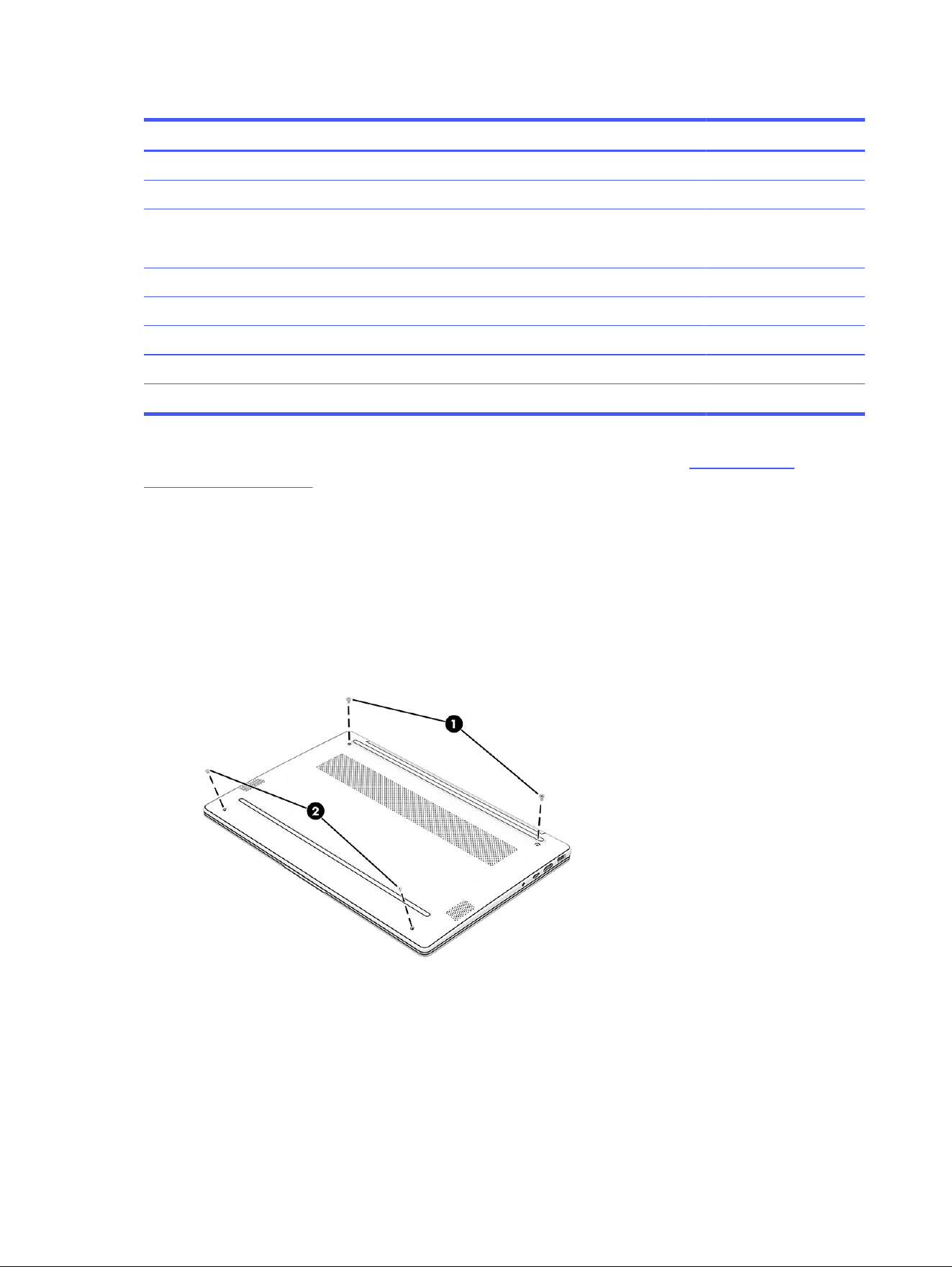
Table 5-1 Bottom cover description and part number (continued)
Description Spare part number
Glacier silver, plastic model, full featured P80867-001
Glacier silver, aluminum model P80869-001
Glacier silver, full featured, aluminum (40 W) P80868-001
P80870-001
For use in models in the People’s Republic of China (PRC)
Iron gray, plastic model P81273-001
Glacier silver, plastic, defeatured P81274-001
Glacier silver, plastic, full featured P81275-001
Glacier silver, plastic model, full featured (40 W) P81276-001
Before removing the bottom cover, prepare the computer for disassembly (see Preparation for
disassembly on page 35).
Remove the bottom cover:
1. Close the computer and rest it upside down on a flat work surface with the front toward you.
2. Remove the top two captive Phillips M2.5 × 6.0 screws (1) that secure the bottom cover to the
computer.
3. Remove the bottom two captive Phillips M2.0 × 4.0 screws (2) that secure the bottom cover to the
computer.
36
Chapter 5 Removal and replacement procedures for Customer Self-Repair parts
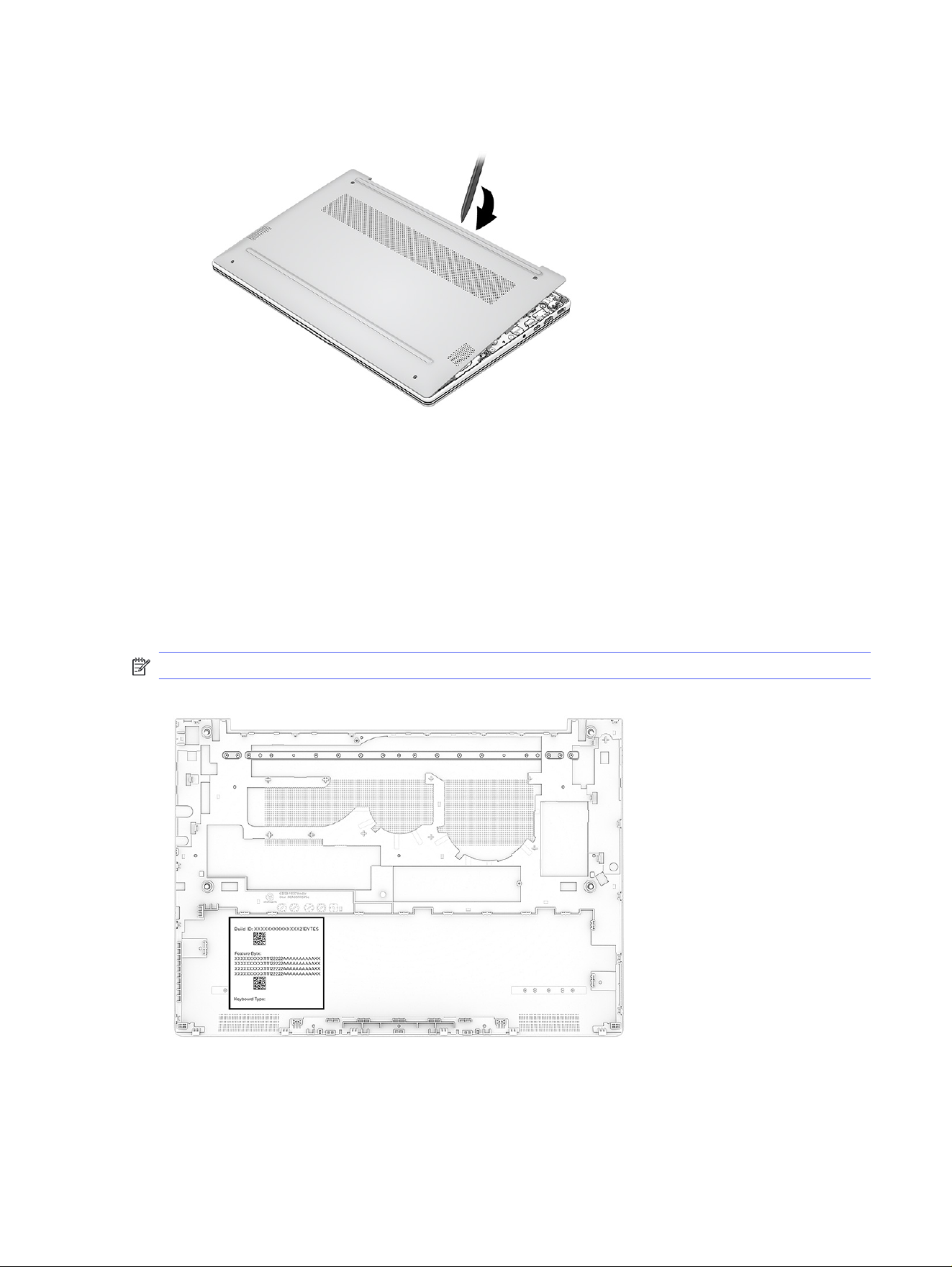
4. Insert a thin, plastic tool in the seam at the top between the bottom cover and computer to release
the bottom cover, and then remove the bottom cover from the computer.
To replace the bottom cover, reverse the removal procedures.
When replacing the bottom cover, remove the Feature Byte label from the inside of the old bottom cover
and place it on the inside of the new bottom cover. Be sure to keep this label with the computer, as the
label is required for any future repairs.
You can locate product labels:
● Laser etched on the old bottom cover.
● In HP System Information by pressing fn + esc when you turn on the computer.
NOTE: Bottom cover appearance might vary.
Hand write the product information onto the label of the new bottom cover. Use a ballpoint pen or marker
to avoid smudging.
Example of label information
Bottom cover
37
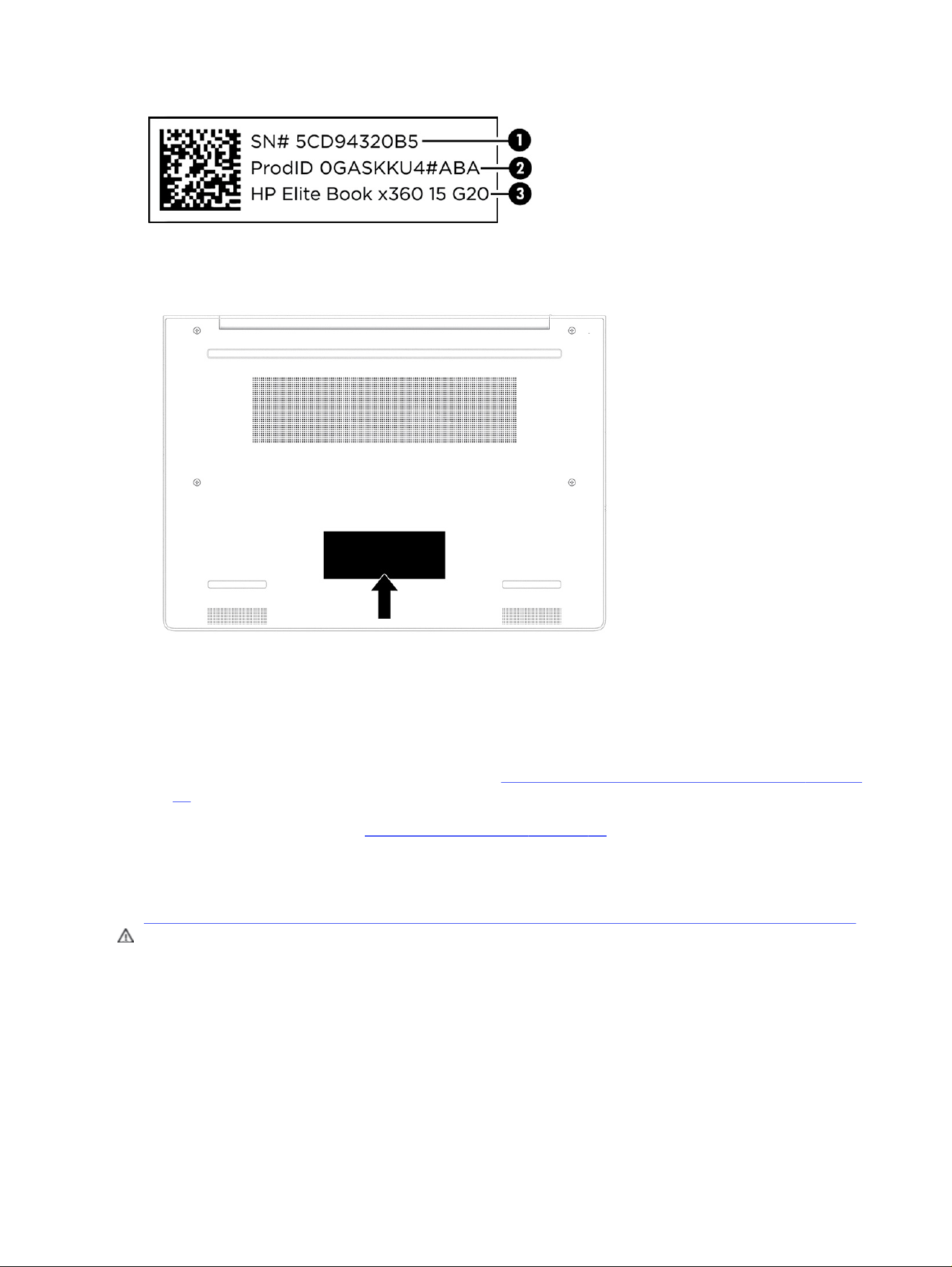
New bottom cover label location
Battery
The battery removal procedure differs depending on whether you are removing and replacing the
existing battery or installing a new battery. To install a new battery, you must use a revive kit.
● To remove and replace the existing battery, see Removing and reinstalling the same battery on page
38.
● To install a new battery, see Installing a new battery on page 40.
Removing and reinstalling the same battery
Use this procedure and illustration to remove the battery.
WARNING! To avoid personal injury and damage to the product:
● Do
not
puncture, twist, or crack the battery.
● Do
not
cause an external puncture or rupture to the battery, which can cause a short inside the
battery that can result in battery thermal runaway.
● Do
not
handle or touch the battery enclosure with sharp objects such as tweezers or pliers, which
might puncture the battery.
● Do
not
compress or squeeze the battery case with tools or heavy objects stacked on top of the
case. These actions can apply undue force on the battery.
38
Chapter 5 Removal and replacement procedures for Customer Self-Repair parts
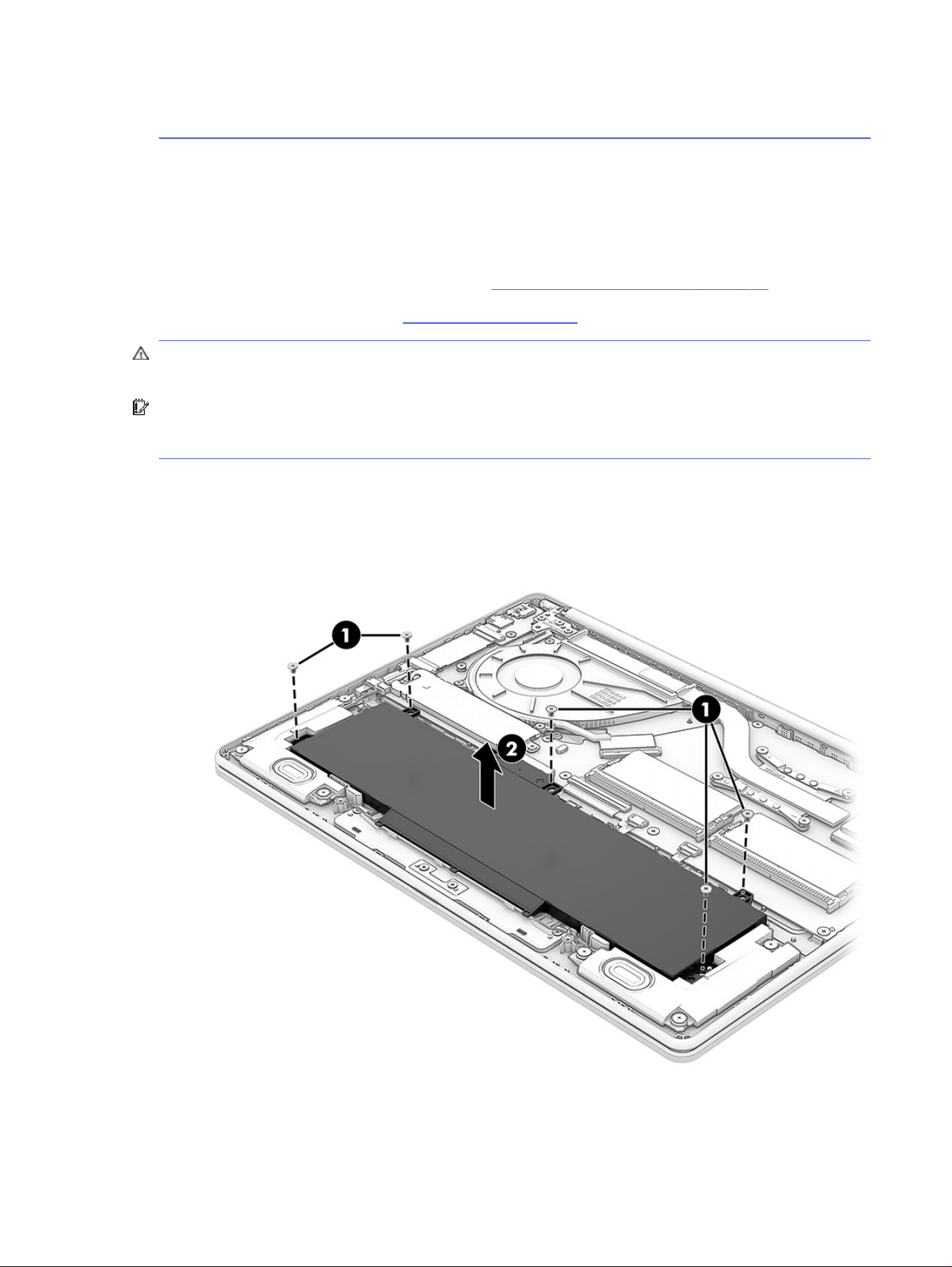
● Do
not
touch the connectors with any metallic surface or object, such as metal tools, screws, or
coins, which can cause shorting across the connectors.
For additional battery information, see the
Regulatory, Safety, and Environmental Notices
. To access
this guide, select the Search icon in the taskbar, type HP Documentation in the search box, and then
select HP Documentation.
Before removing the battery, follow these steps:
1. Prepare the computer for disassembly (see Preparation for disassembly on page 35).
2. Remove the bottom cover (see Bottom cover on page 35).
WARNING! To reduce potential safety issues, use only the user-replaceable battery provided with the
computer, a replacement battery provided by HP, or a compatible battery purchased from HP.
IMPORTANT: Removing a battery that is the sole power source for the computer can cause loss of
information. To prevent loss of information, save your work or shut down the computer through
Windows before you remove the battery.
Remove the battery:
1. Remove the five Phillips M2.0 × 4.0 screws (1) that secure the battery to the computer.
2. Remove the battery from the computer (2).
Removing and reinstalling the same battery
39
Reverse this procedure to install the battery.
NOTE: When reinstalling the battery, be sure to completely reassemble the computer and plug in the
AC adapter before turning the computer on.
Installing a new battery
To replace the battery, use these procedures and illustrations. You must use a revive kit to remove the
old battery and install a new one. The revive kit includes an empty containment tray and a containment
tray with a battery preinstalled.
Table 5-2 Battery description and part number
Description Spare part number
Battery (3 cell, 60 Whr) P53583-001
Battery (3 cell, 41 Whr) N21969-005
Before starting this replacement procedure:
● Ensure other individuals are sufficiently clear of your workspace.
● Ensure your workspace is clear of any flammable material such as paper or oils.
● Locate the nearest ABC dry chemical fire-extinguisher for use in an emergency.
WARNING! This procedure requires removing the battery or disconnecting the battery cable. Use
care to avoid bending, twisting, or puncturing the battery regardless of its condition. Failure to follow
this replacement guide or to use HP recommended tools might damage the system and/or cause a
safety hazard.
● Do
not
remove the battery from the containment tray.
● Do
not
handle or touch the battery enclosure with sharp objects such as tweezers or pliers, which
might puncture the battery.
● Do
not
touch the connectors with any metallic surface or object, such as metal tools, screws, or
coins, which can cause shorting across the connectors.
Should a part become stuck or difficult to remove when opening a unit where a swollen battery is
suspected, or if the battery becomes stuck in the unit, stop, and contact HP Support for assistance. Do
not try to remove a battery by force.
NOTE: Screw locations, latch locations, and internal components might vary.
Before removing the battery, follow these steps:
1. Prepare the computer for disassembly (see Preparation for disassembly on page 35).
40
Chapter 5 Removal and replacement procedures for Customer Self-Repair parts
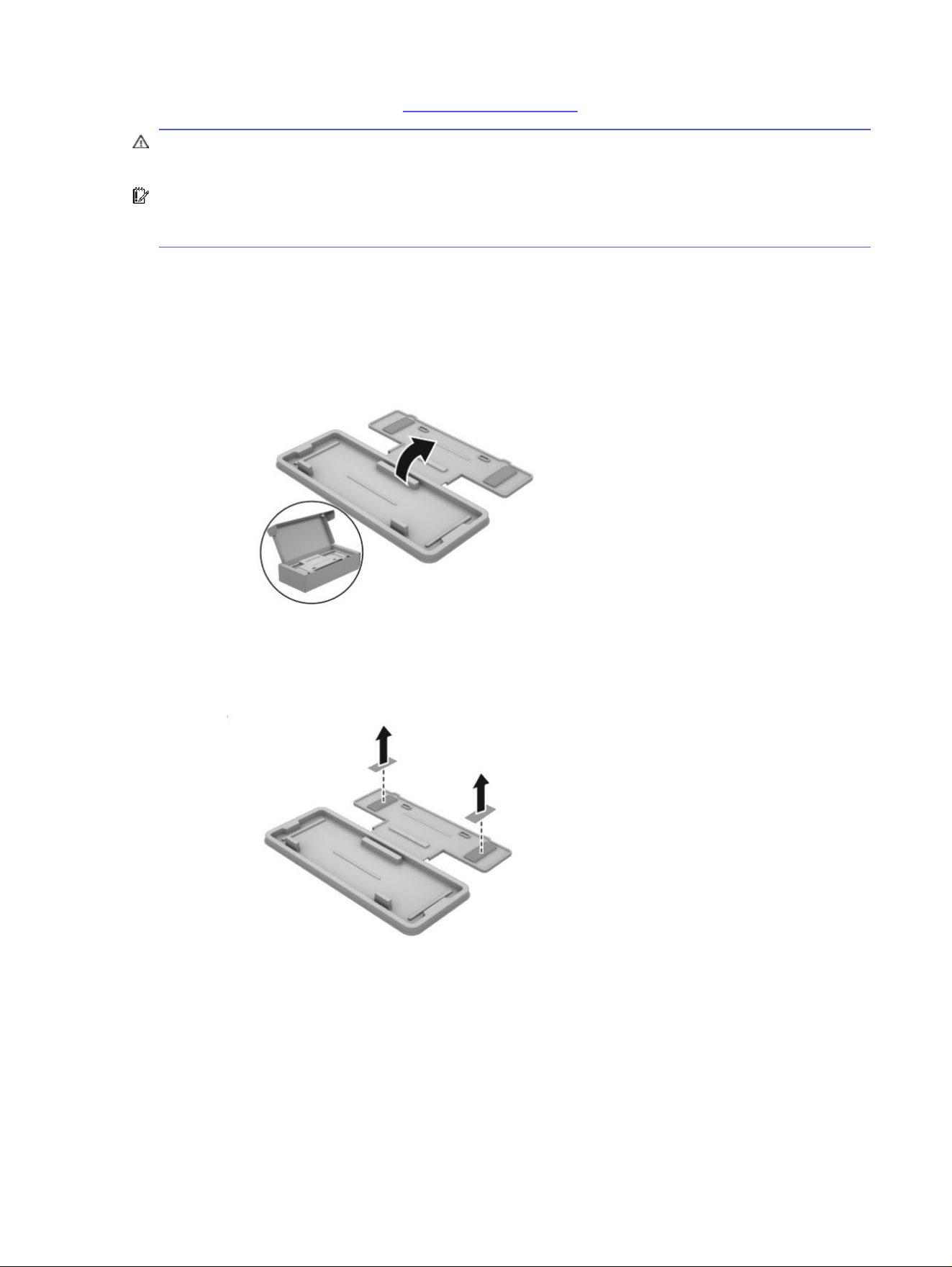
2. Remove the bottom cover (see Bottom cover on page 35).
WARNING! To reduce potential safety issues, use only the user-replaceable battery provided with the
computer, a replacement battery provided by HP, or a compatible battery purchased from HP.
IMPORTANT: Removing a battery that is the sole power source for the computer can cause loss of
information. To prevent loss of information, save your work or shut down the computer through
Windows before you remove the battery.
Remove the battery:
1. To remove the battery using the revive kit:
a. Open the empty battery containment tray.
b. Remove the paper backing layer from the adhesive on the tray.
c. Turn the tray (1) over so that the adhesive is facing down.
d. Place the tray (2) centered on the battery.
Installing a new battery
41
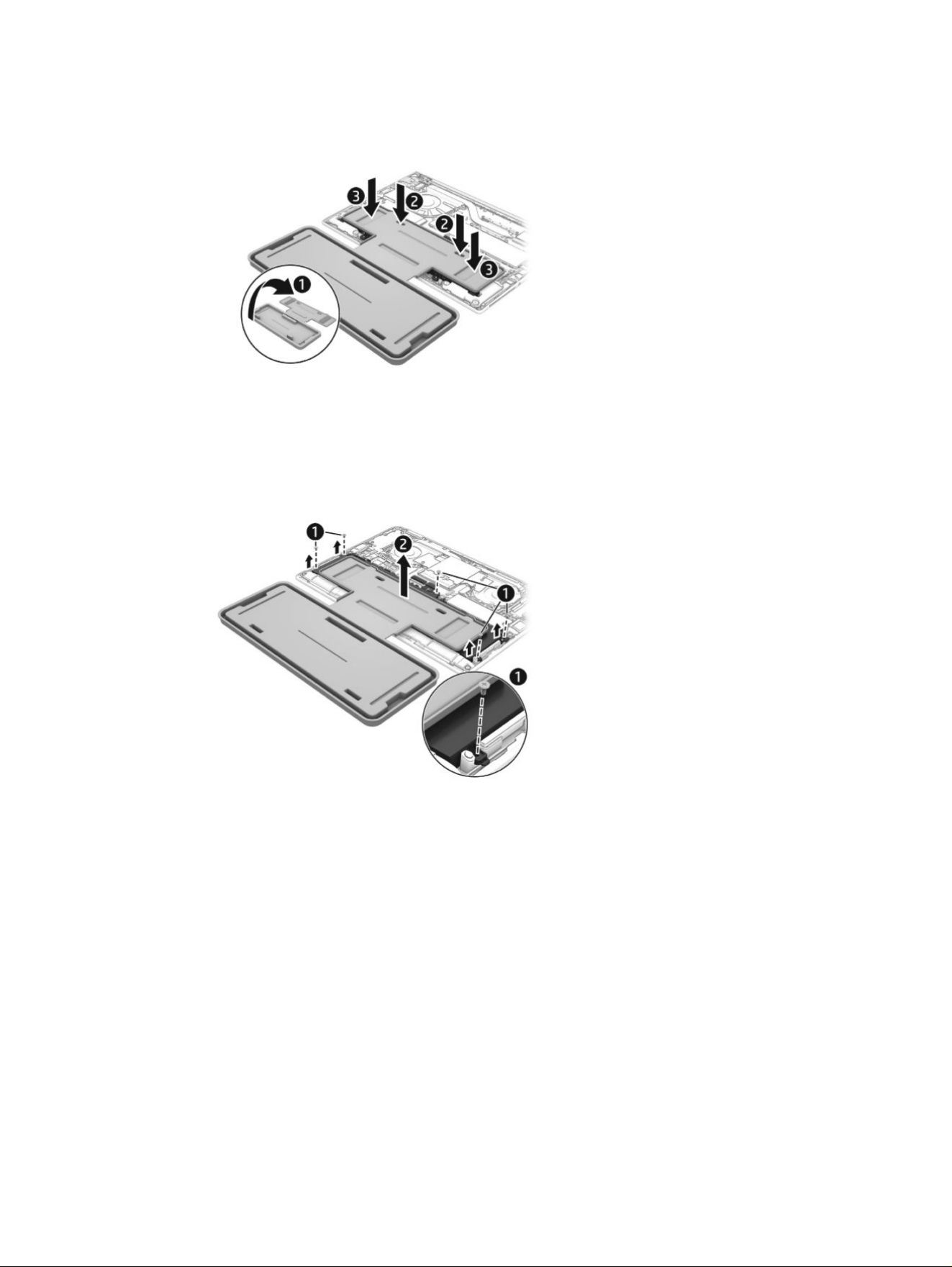
e. Press down on the indentations on the tray (3) to adhere it to the battery.
f. Remove the Phillips screws (1) that secure the battery to the computer. Screw locations might
vary.
g. Lift the top of the tray (2) to remove the battery from the computer.
42
Chapter 5 Removal and replacement procedures for Customer Self-Repair parts
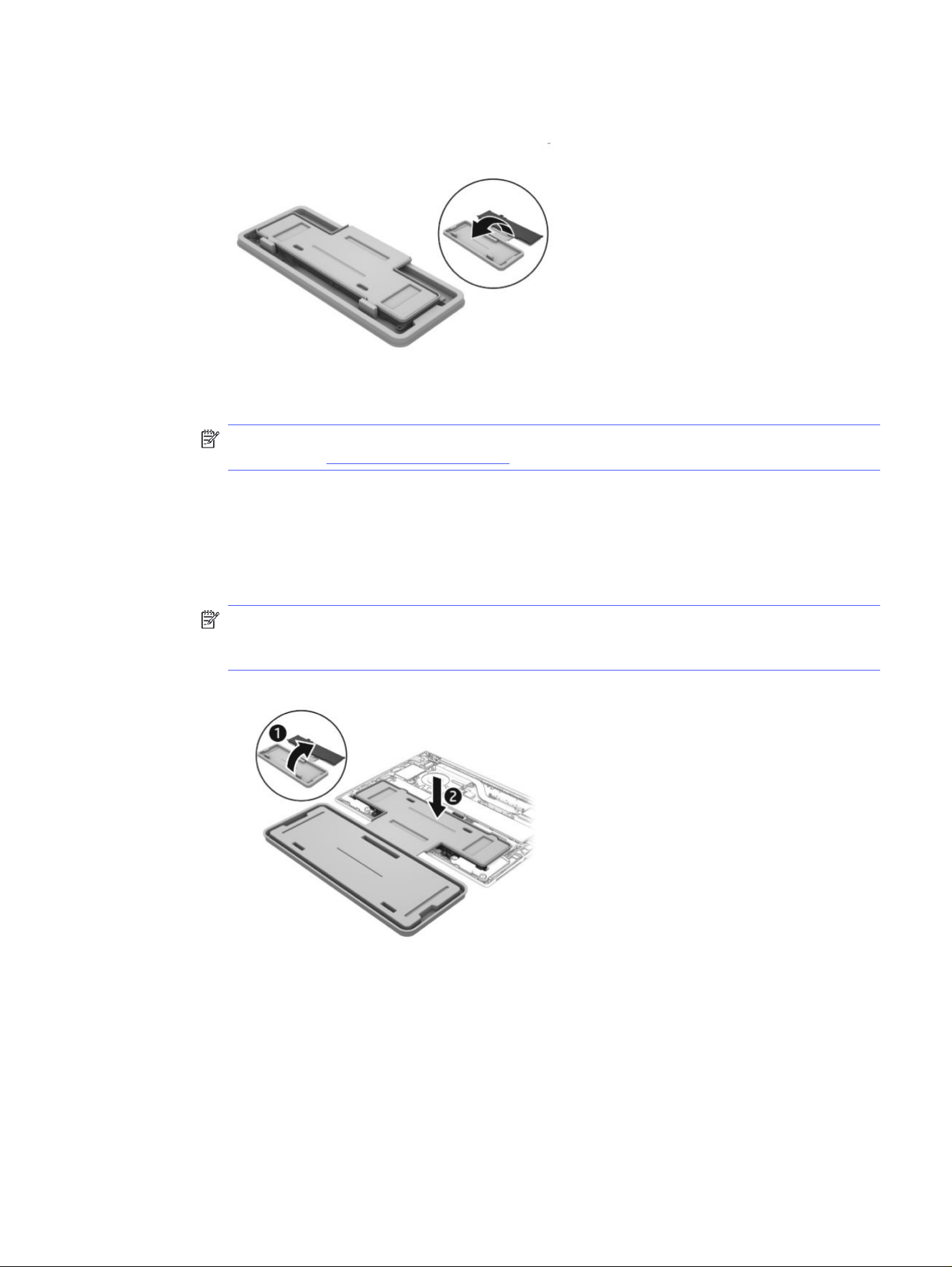
h. Rotate the battery up and over into the cavity of the containment tray.
NOTE: Please recycle responsibly. For more information about recycling programs, see the
HP website at http://www.hp.com/recycle.
2. To install the battery using the revive kit:
a. Open the containment tray that includes the new battery.
b. Turn the tray (1) over so the battery is facing downward, and then insert the battery (2) into the
computer. Adhesive secures the battery to the tray.
NOTE: To avoid damage when inserting the battery into the computer, be sure that the power
connector on the battery lines up and successfully mates with the connector on the system
board.
c. Install the screws (1) to secure the battery. Screw locations might vary.
Installing a new battery
43
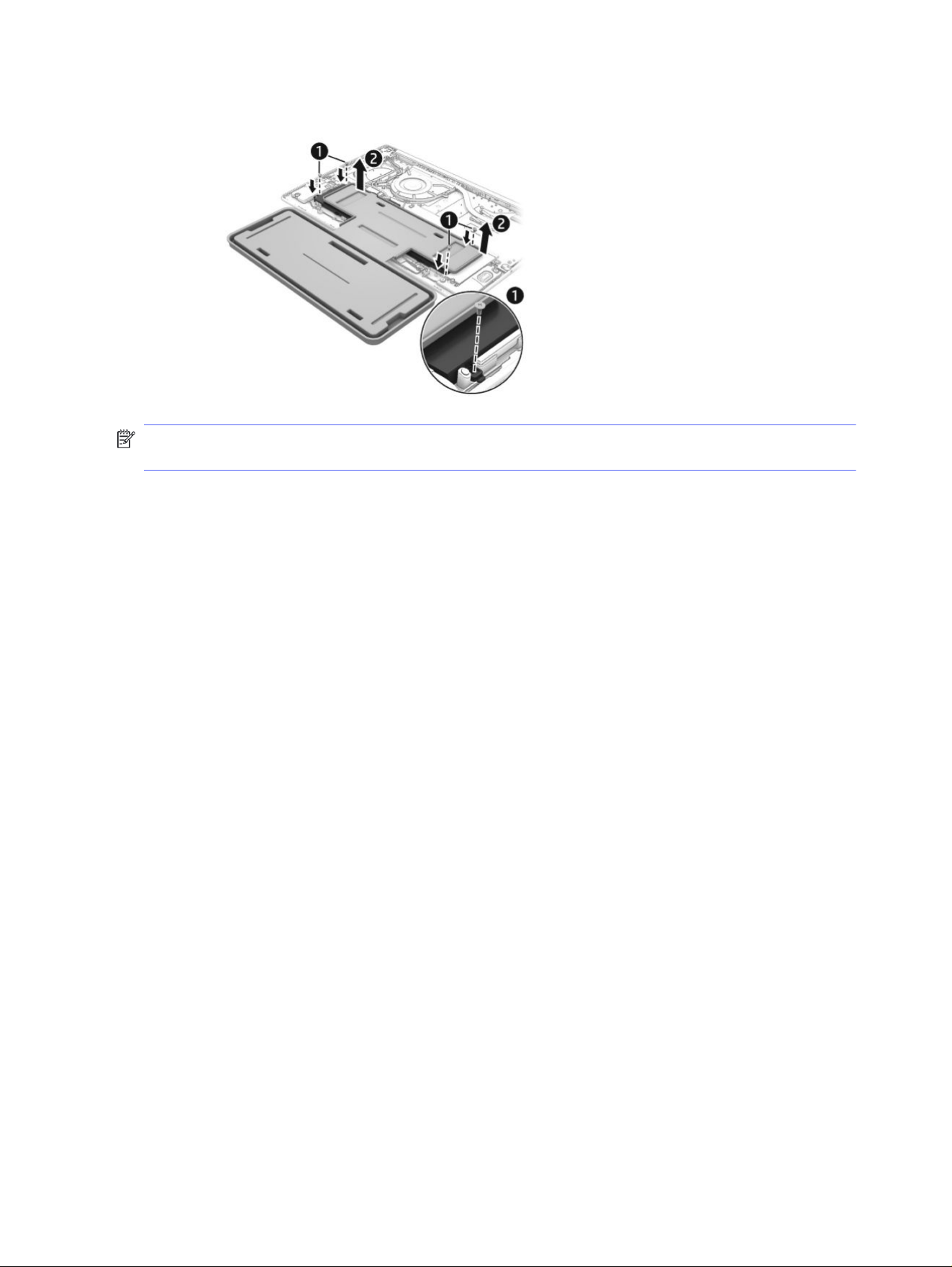
d. Lift the containment tray (2) off the battery,
NOTE: When replacing the battery, be sure to completely reassemble the computer and plug in the
AC adapter before turning the computer on.
44
Chapter 5 Removal and replacement procedures for Customer Self-Repair parts

Removal and replacement procedures for
authorized service provider parts
6
This chapter provides removal and replacement procedures for authorized service provider parts.
IMPORTANT: Only an authorized service provider should access the components described in this
chapter. Accessing these parts can damage the computer or void the warranty.
NOTE: Details about your computer, including model, serial number, product key, and length of
warranty, are on the service tag at the bottom of your computer.
NOTE: The HP Support YouTube Channel (in English) has videos that provide step-by-step removal
and replacement instructions for many common parts and models.
Component replacement procedures
Use the procedures described in this section to remove and replace computer components.
NOTE: HP continually improves and changes product parts. For complete and current information
about supported parts for your computer, go to https://partsurfer.hp.com/, select your country or
region, and then follow the on-screen instructions.
Make special note of each screw size and location during removal and replacement.
Preparation for disassembly
Use these procedures to remove and replace computer components.
For initial safety procedures, see Removal and replacement procedures preliminary requirements on
page 27.
1. Turn off the computer. If you are unsure whether the computer is off or in hibernation or sleep
mode, turn the computer on, and then shut it down through the operating system.
2. Disconnect the power from the computer by unplugging the power cord from the computer.
3. Disconnect all external devices from the computer.
Solid-state drive
Use this procedure and illustration to remove the SSD.
Table 6-1
SSD descriptions and part numbers
Description Spare part number
1 TB, PCIe 4x4 N77391-005
512 GB PCIe 4x4 N77392-005
256GB PCIe 4x4 N77394-005
Removal and replacement procedures for authorized service provider parts 45
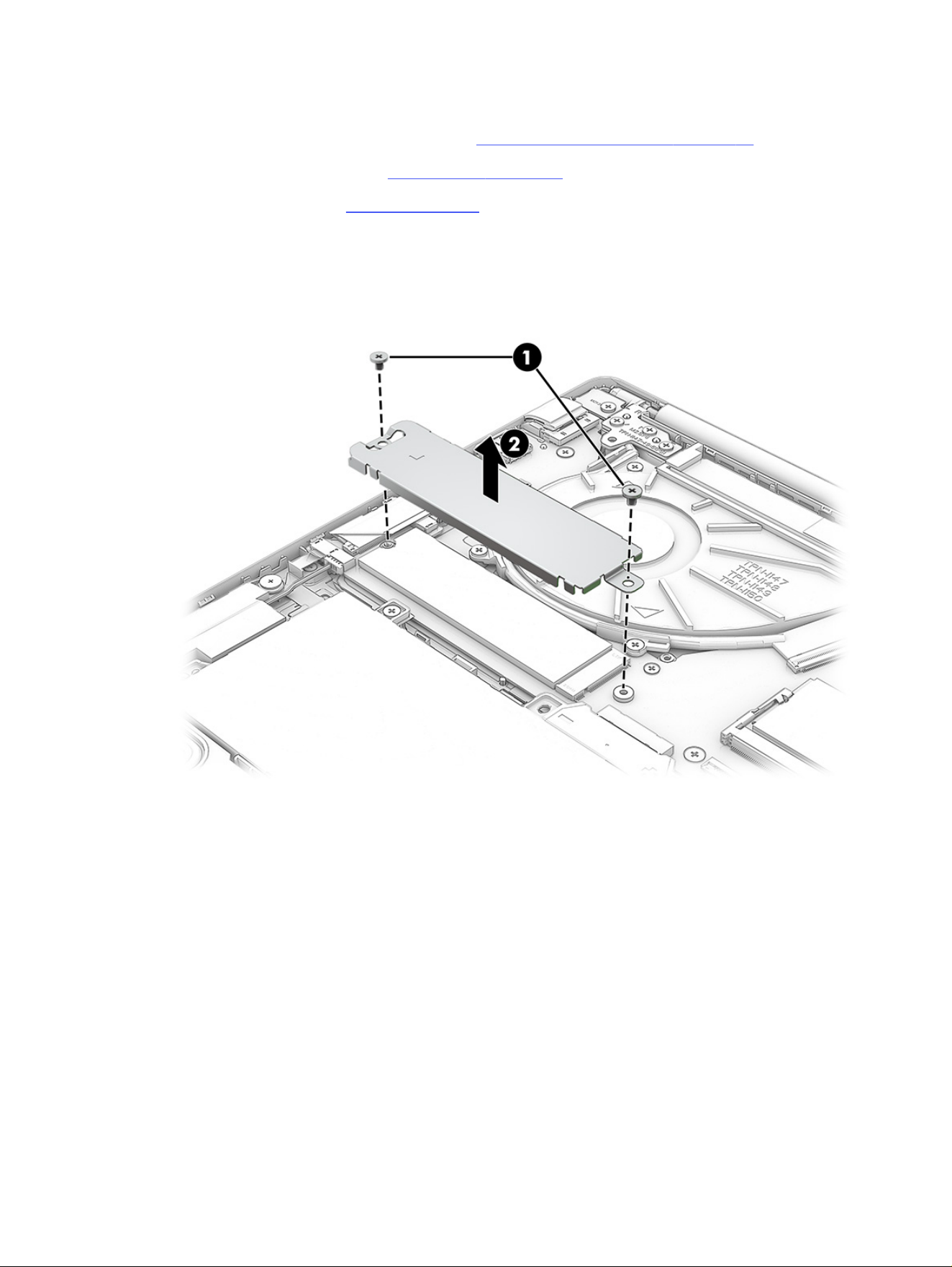
Before removing the SSD, follow these steps:
1. Prepare the computer for disassembly (see Preparation for disassembly on page 35).
2. Remove the bottom cover (see Bottom cover on page 35).
3. Remove the battery (see Battery on page 38).
Remove the SSD:
1. Remove the Phillips M2.0 × 2.5 screws (1) that secure the metal cover plate over the SSD, and then
remove the metal cover plate (2).
2. Remove the Phillips M2.0 × 2.5 screw (1) that secures the drive to the computer.
46
Chapter 6 Removal and replacement procedures for authorized service provider parts
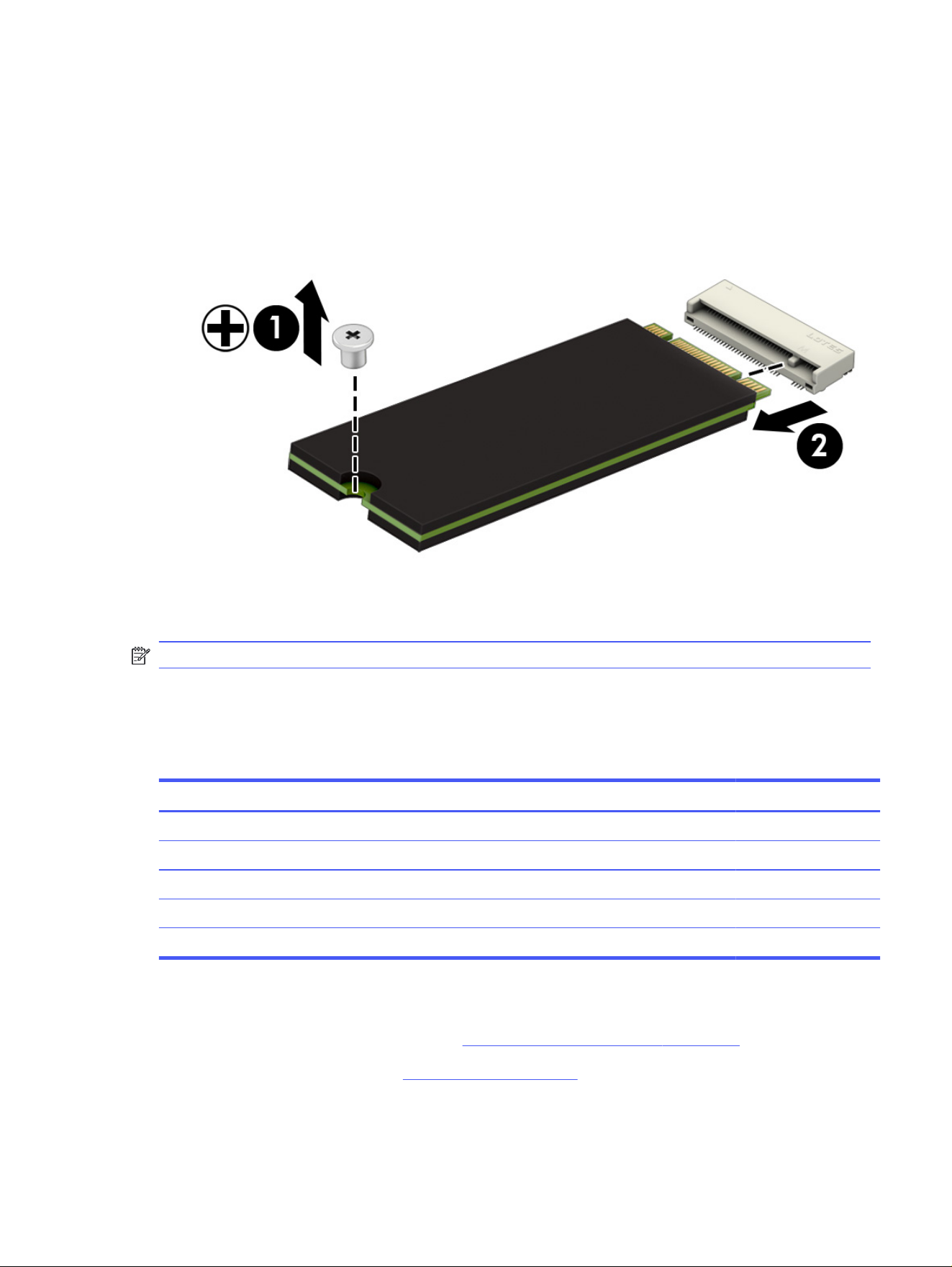
3. Pull the drive (2) away from the socket to remove it.
Reverse this procedure to install the SSD.
NOTE: SSDs are designed with a notch to prevent incorrect insertion.
Memory modules
To remove the memory modules, use this procedure and illustration.
Table 6-2
Memory module descriptions and part numbers
Description Spare part number
Memory module (DDR5-5600)
32 GB (for use worldwide) N77398-005
24 GB (for use worldwide) N77399-005
16 GB (for use worldwide) N77400-005
8 GB (for use worldwide) P55196-005
Before removing a memory module, follow these steps:
1. Prepare the computer for disassembly (Preparation for disassembly on page 35).
2. Remove the bottom cover (see Bottom cover on page 35).
Memory modules
47
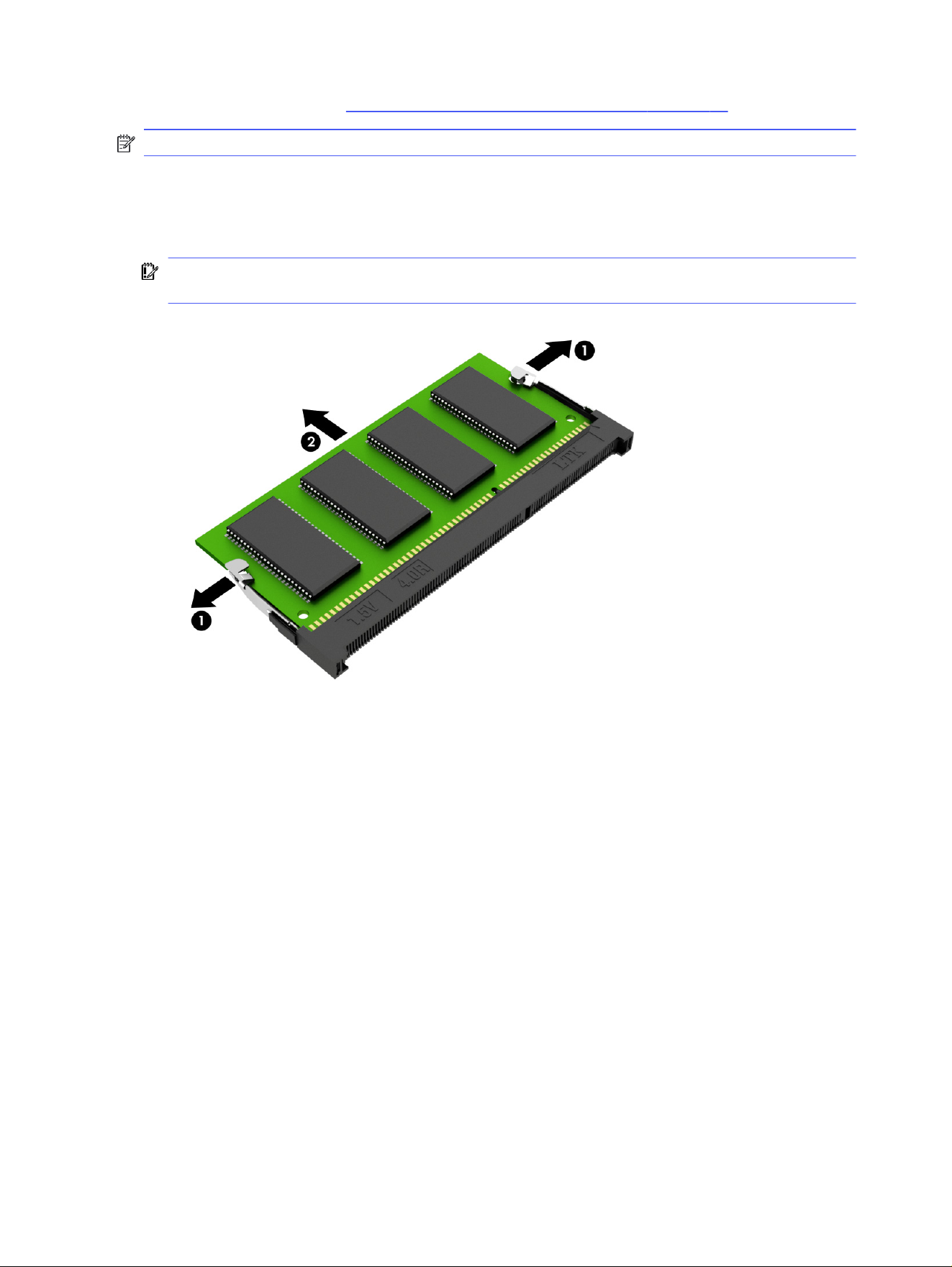
3. Remove the battery (see Removing and reinstalling the same battery on page 38).
NOTE: Before removing the memory module, remove any absorber tape that covers the module.
If you are replacing a memory module, remove the existing memory module:
■
Spread the two retention clips outward (1) until the memory module tilts up at a 45° angle, and then
remove the module (2). Use the same procedure to remove all memory modules.
IMPORTANT: To prevent damage to the memory module, hold the memory module by the edges
only. Do not touch the components on the memory module.
To protect a memory module after removal, place it in an electrostatic-safe container.
To install a memory module:
1. Align the notched edge of the module with the tab in the slot (1), and then press the module into the
slot at an angle until it is seated (2).
48
Chapter 6 Removal and replacement procedures for authorized service provider parts
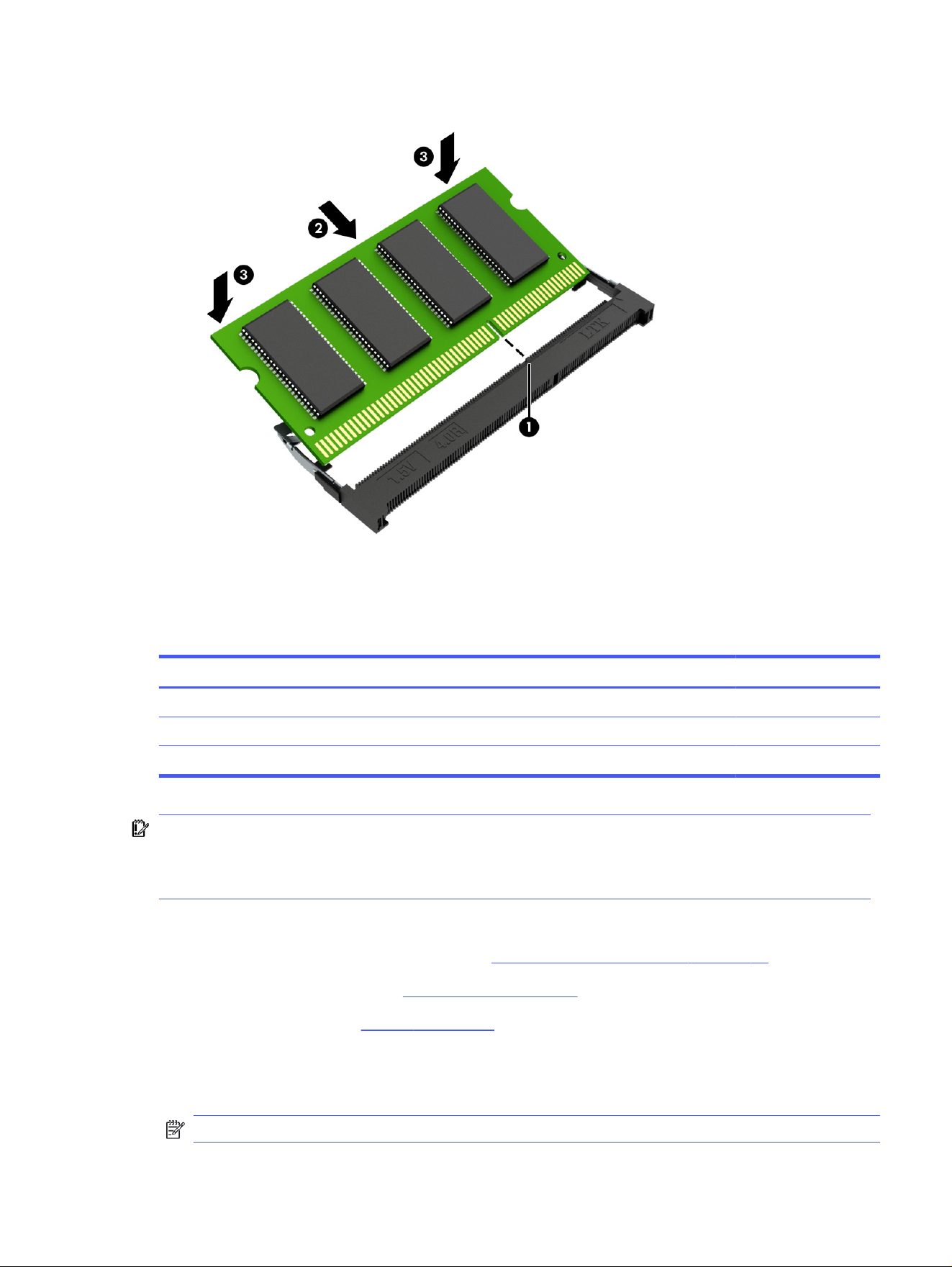
2. Press down on the module until the side retention clips snap into place (3).
WLAN module
Use this procedure and illustration to install the WLAN module.
Table 6-3
WLAN module descriptions and part numbers
Description Spare part number
Realtek TRL8852BE-VT + Bluetooth 5.4 P06350-005
MediaTek M.2 2230 8922AE-VS + Bluetooth 5.4 P44408-005
Mediatek Terra MT 7920 M.2 2230 Wi-Fi 6 and Bluetooth 5.4 P17386-001
IMPORTANT: To prevent an unresponsive system, replace the wireless module only with a wireless
module authorized for use in the computer by the governmental agency that regulates wireless
devices in your country or region. If you replace the module and then receive a warning message,
remove the module to restore device functionality, and then contact technical support.
Before removing the WLAN module, follow these steps:
1. Prepare the computer for disassembly (see Preparation for disassembly on page 35).
2. Remove the bottom cover (see Bottom cover on page 35).
3. Remove the battery (see Battery on page 38).
Remove the WLAN module:
1. Peel off the black mylar tape (1) from the the WLAN module.
NOTE: Make sure to also remove the transparent plastic cover from the antenna cable connector.
WLAN module
49
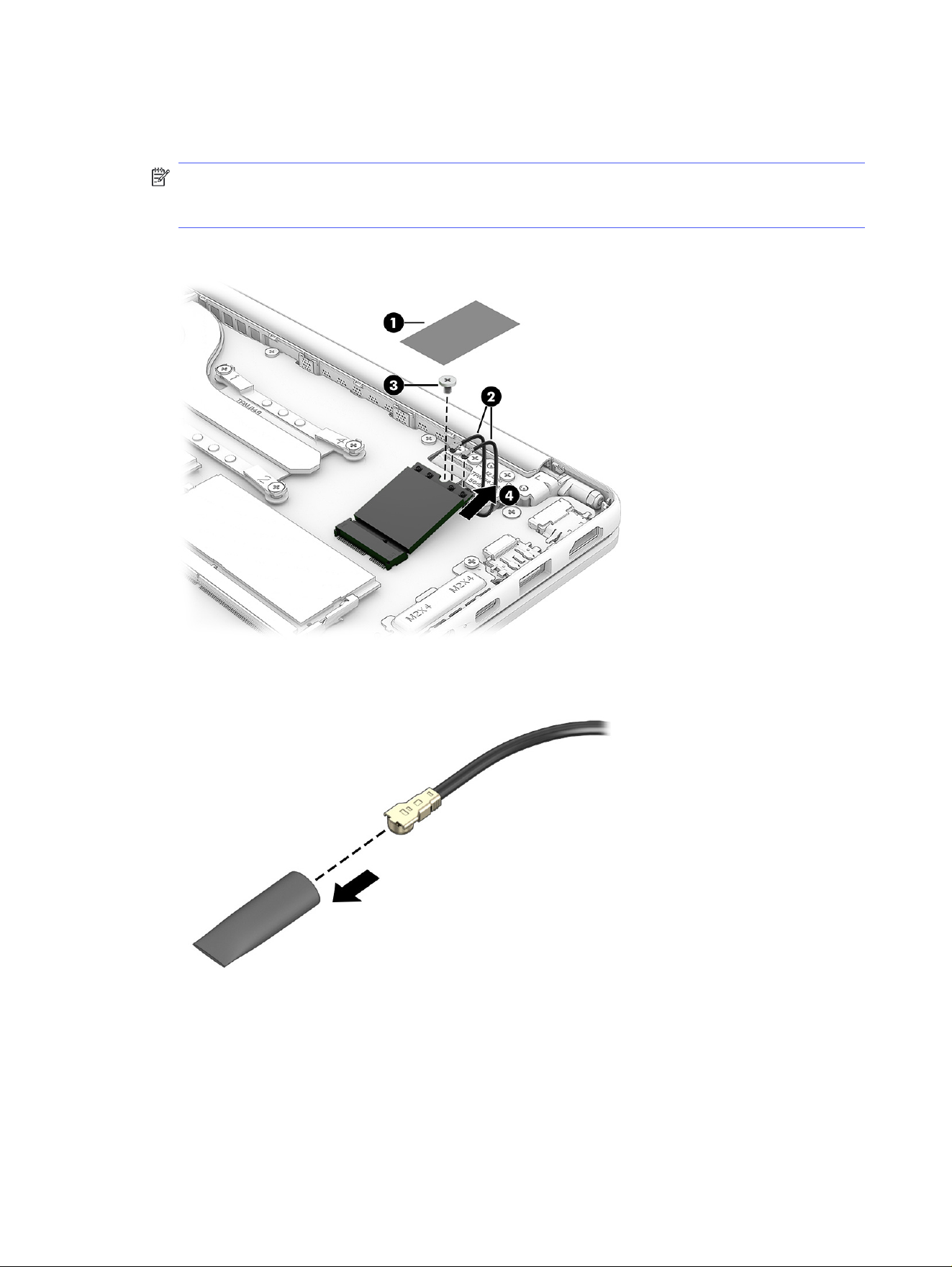
2. Carefully disconnect the two antenna cables (2) from the module.
3. Remove the Phillips M2.0 × 2.5 screw (3), and then remove the WLAN module (4).
NOTE: Models have either one or two WLAN antennas. On models with two antennas, the #1 white
WLAN antenna cable connects to the WLAN module #1 Main terminal. The #2 black WLAN antenna
cable connects to the WLAN module #1 Aux terminal.
4. Pull the WLAN module (4) away from the board.
5. If the WLAN antenna is not connected to the terminal on the WLAN module, install a protective
sleeve on the antenna connector, as shown in the following illustration.
Reverse this procedure to install the WLAN module.
Speakers
Use this procedure and illustration to remove the speakers.
50
Chapter 6 Removal and replacement procedures for authorized service provider parts
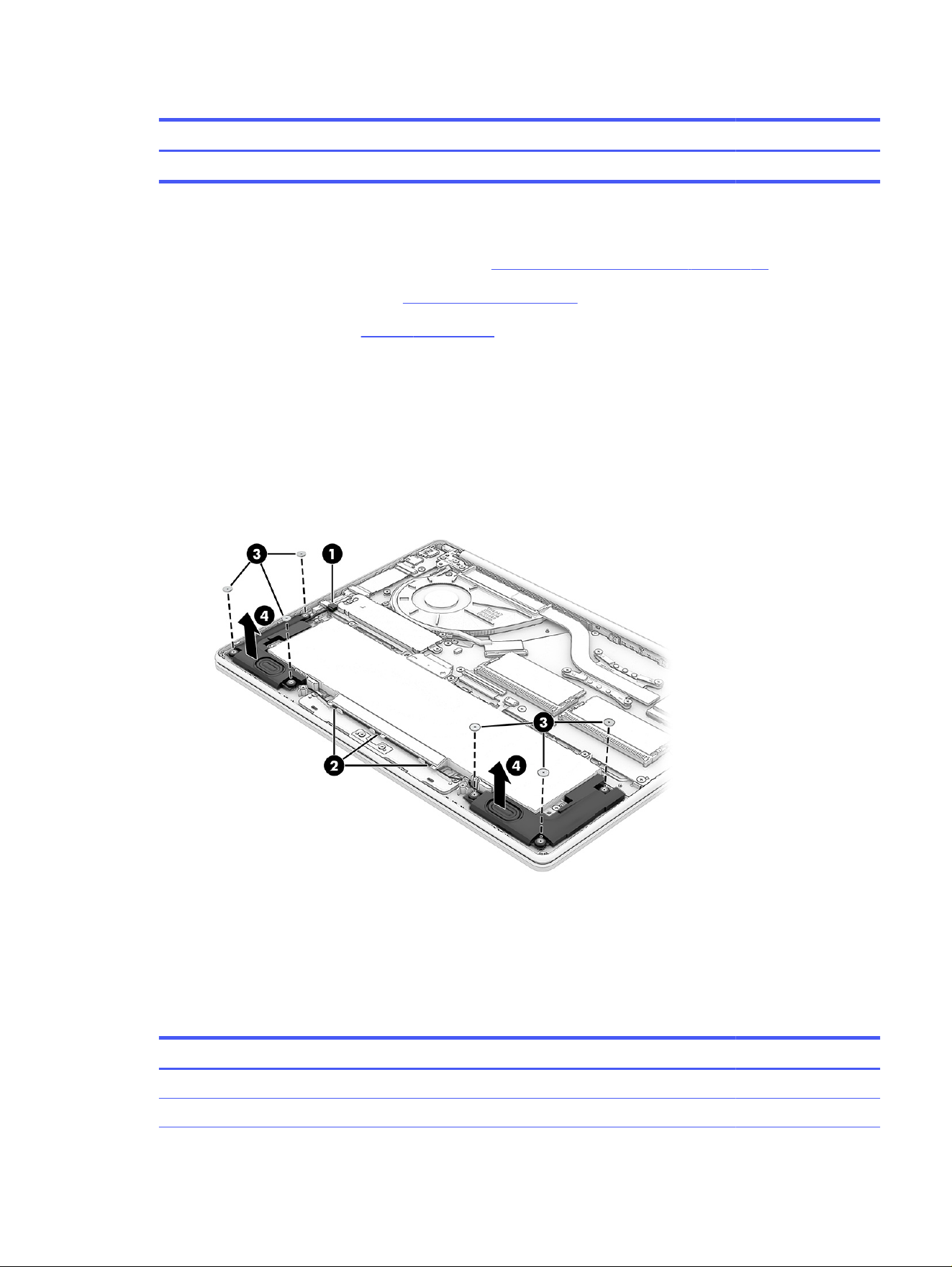
Table 6-4 Speaker description and part number
Description Spare part number
Speaker Kit P80880-001
Before removing the speakers, follow these steps:
1. Prepare the computer for disassembly (see Preparation for disassembly on page 35).
2. Remove the bottom cover (see Bottom cover on page 35).
3. Remove the battery (see Battery on page 38).
Remove the speakers:
1. Disconnect the speaker cable from USB/audio (1).
2. Remove cable from routing path along bottom of computer (2).
3. Remove the Phillips M2.0 × 4.0 screws (3) that secures each speaker to the computer.
4. Remove the speakers (4) from the computer.
Reverse this procedure to install the speakers.
Touchpad
Use this procedure and illustration to remove the touchpad.
Table 6-5
Touchpad description and part number
Description Spare part number
Touchpad, glacier silver P80886-001
Touchpad, jet black P80887-001
Touchpad 51
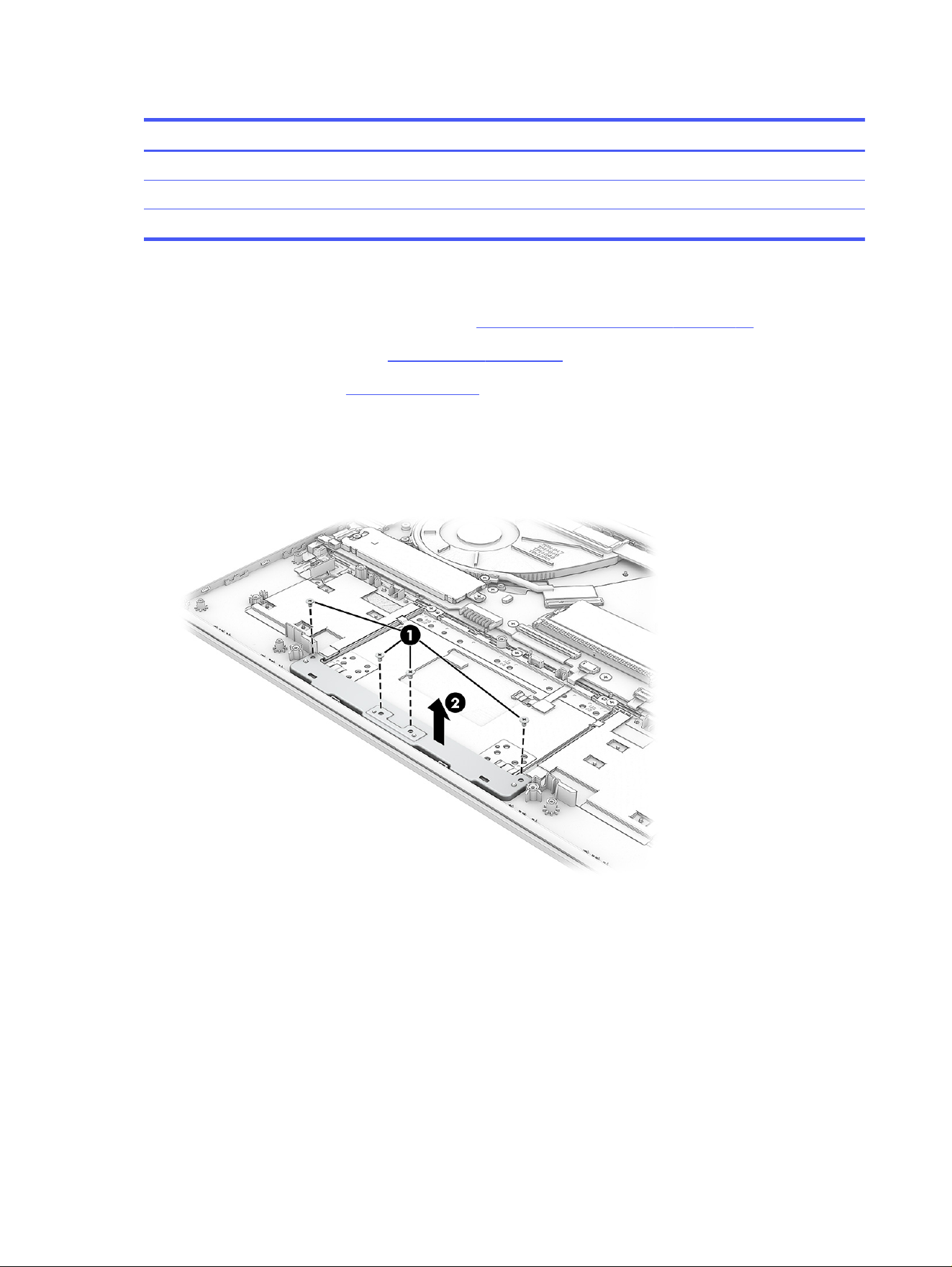
Table 6-5 Touchpad description and part number (continued)
Description Spare part number
Touchpad, mica silver P80888-001
Touchpad, starlit blue P80889-001
Touchpad, warm gold P80890-001
Before removing the touchpad, follow these steps:
1. Prepare the computer for disassembly (see Preparation for disassembly on page 35).
2. Remove the bottom cover (see Bottom cover on page 35).
3. Remove the battery (see Battery on page 38).
Remove the touchpad:
1. Remove the four Phillips M2.0 × 3.0 screws (1) that secure the touchpad bracket to the computer.
2. Remove the touchpad bracket from the computer (2).
3. Disconnect the cable from the ZIF connector (1) on the touchpad.
4. Remove the three Phillips M2.0 × 3.0 screws (2) that secure the touchpad to the computer.
52
Chapter 6 Removal and replacement procedures for authorized service provider parts
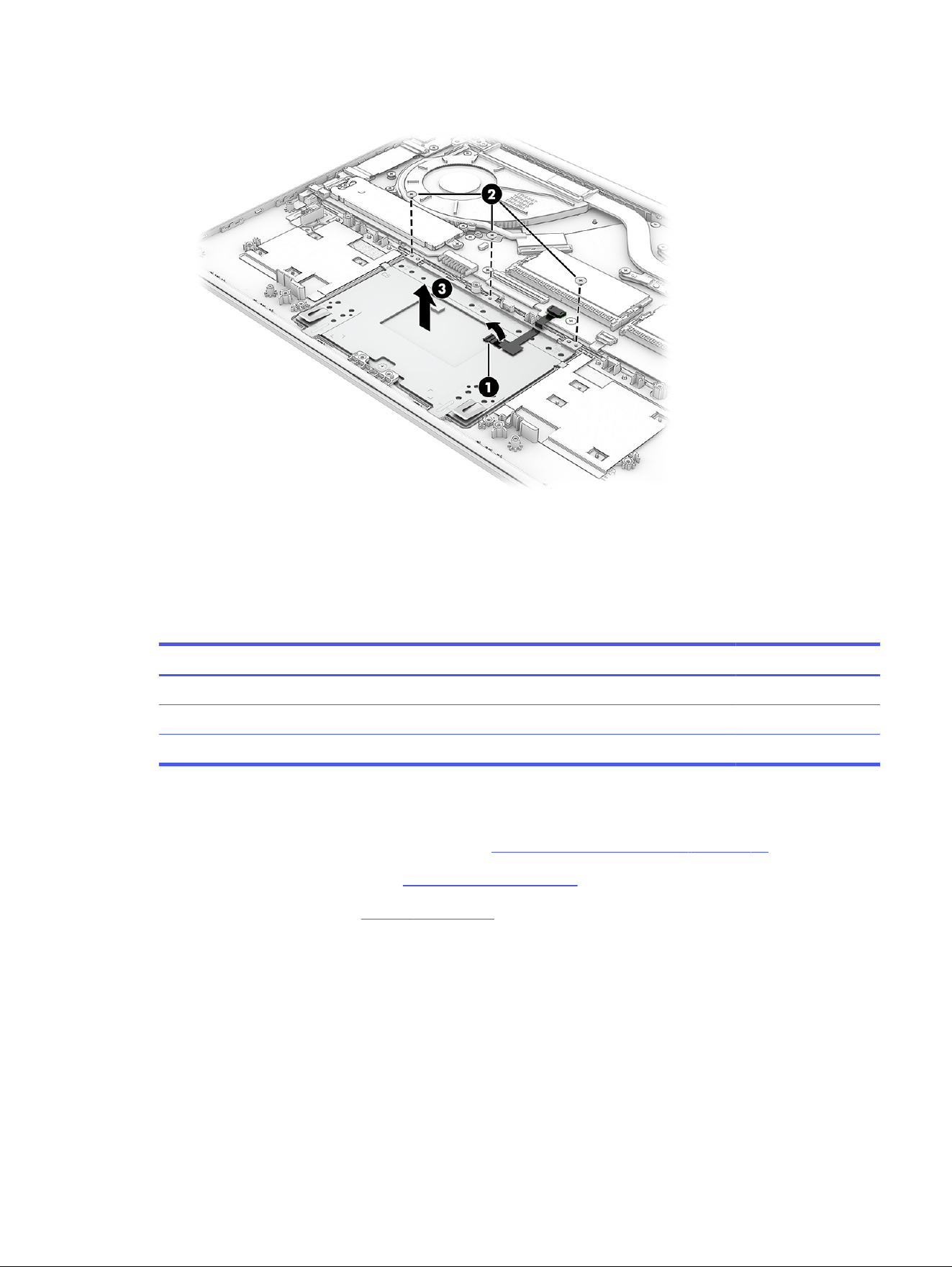
5. Remove the touchpad (3) from the computer.
Reverse this procedure to install the touchpad.
Fan
Use this procedure and illustration to remove the fan.
Table 6-6
Fan description and part number
Description Spare part number
Fan, 9W P80877-001
Fan, 15 W P80878-001
Fan, 40W P80879-001
Before removing the fan, follow these steps:
1. Prepare the computer for disassembly (see Preparation for disassembly on page 35).
2. Remove the bottom cover (see Bottom cover on page 35).
3. Remove the battery (see Battery on page 38).
Remove the fan assembly:
1. Disconnect the fan cable (1) from the system board.
Fan
53
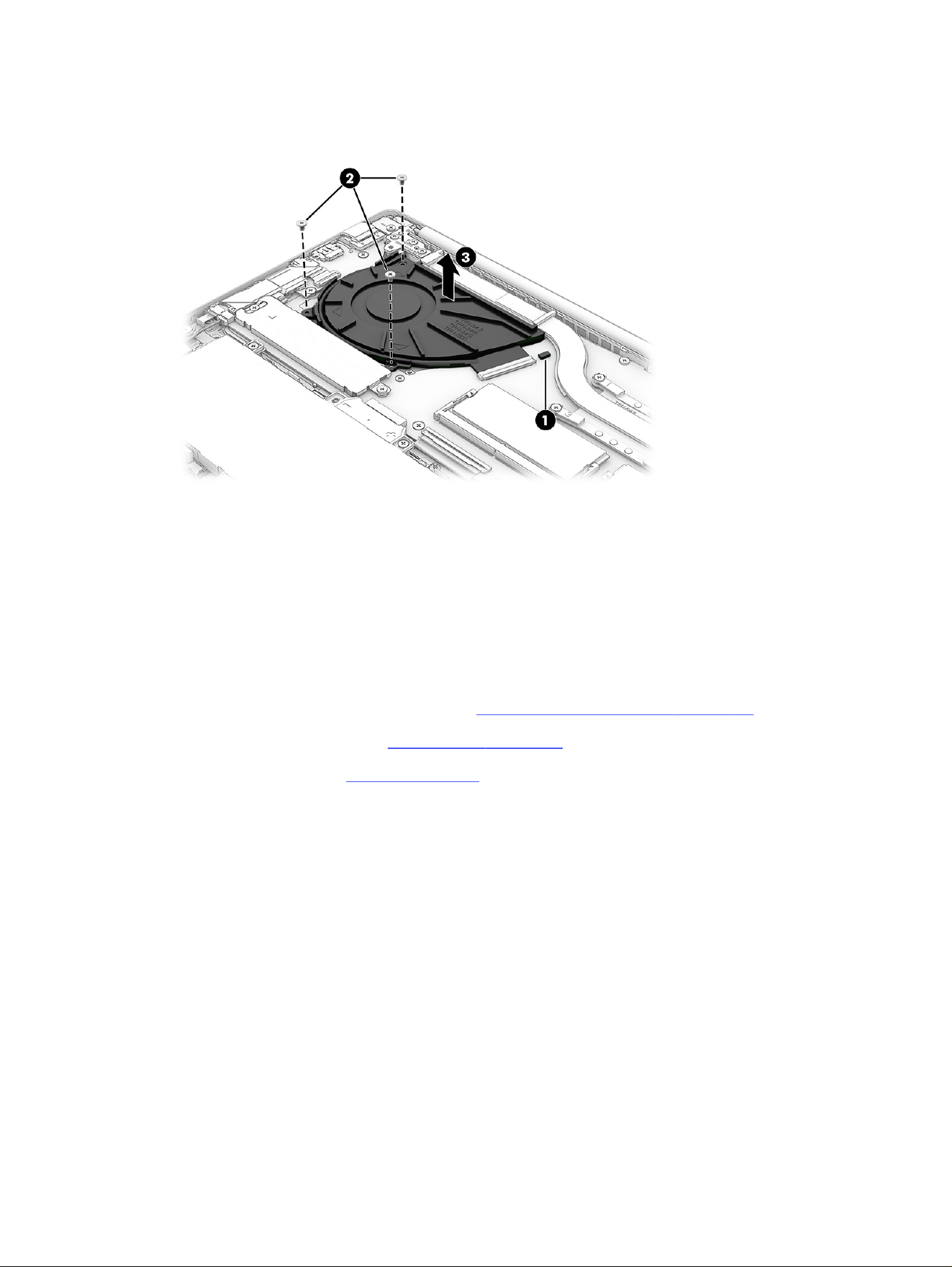
2. Remove the three Phillips M2.0 × 5.0 screws (2) that secure the fan to the computer, and then
remove the fan (3) from the computer.
Reverse this procedure to install the fan.
Display assembly
Use these procedures and illustrations to remove and disassemble the display assembly.
Full hinge-up displays are not available as spare parts. Spare parts for displays are available only at the
subcomponent level.
Before removing the display panel, follow these steps:
1. Prepare the computer for disassembly (see Preparation for disassembly on page 35).
2. Remove the bottom cover (see Bottom cover on page 35).
3. Remove the battery (see Battery on page 38).
Remove the display assembly:
54
Chapter 6 Removal and replacement procedures for authorized service provider parts
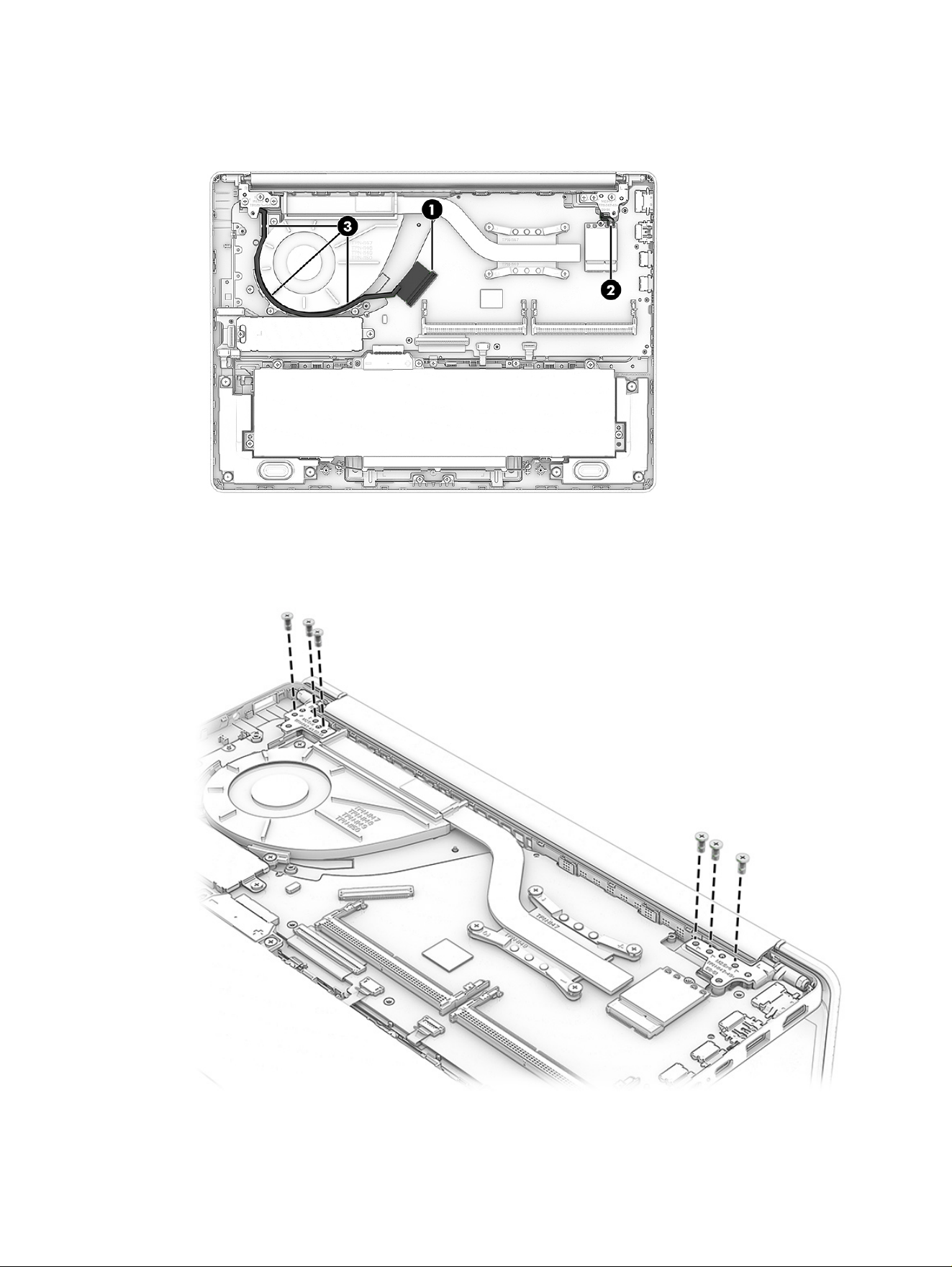
1. Disconnect the display cable (1) and disconnect the antenna cables from the WLAN module (2).
Remove the display cable from the fan area (3).
2. Rotate the display upward to open the hinges, and then remove the six Phillips M2.5 × 5.0 screws
that secure the display assembly to the computer.
Display assembly
55
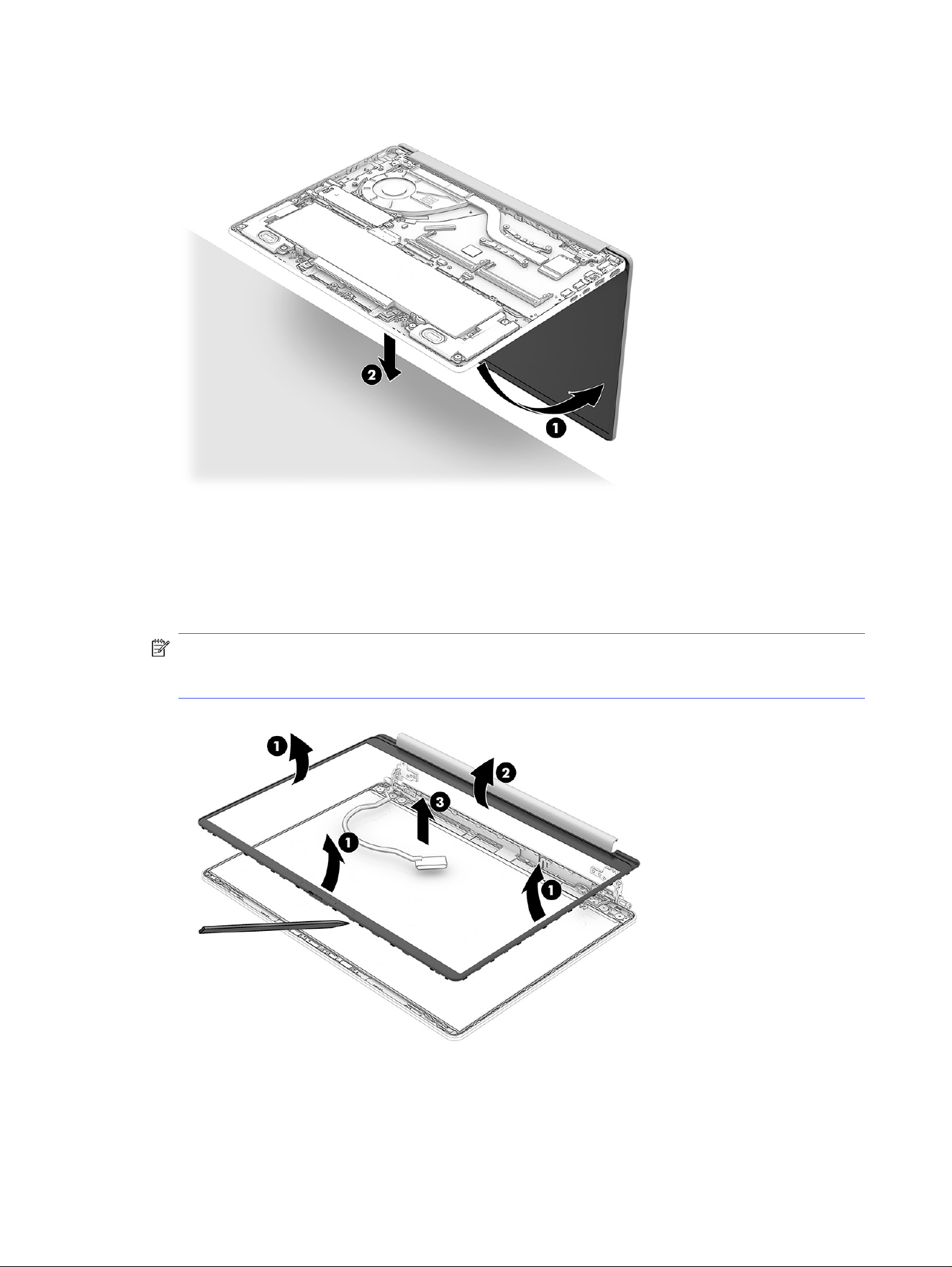
3. Rotate the display panel (1), and then separate the display panel from the computer (2).
4. To replace display assembly subcomponents:
a. Flex the top (1) and the inside edges of the left and right sides (2) of the bezel to release it.
b. Slide a flat tool (3) across the inside of the bottom of the bezel to release it, and then remove
the bezel from the display.
NOTE: To avoid damaging the panel, do not use a tool to release the inside of the bezel. You can
use a tool only when you insert it from the outside of the top, left, and right sides of the bezel. Use
your fingers to lift up on the bezel. Avoid pressing down on the panel during removal.
5. To remove the hinges from the display enclosure:
a. Remove the six Phillips broadhead M2.0 × 2.0 screws (1) from each hinge.
56
Chapter 6 Removal and replacement procedures for authorized service provider parts
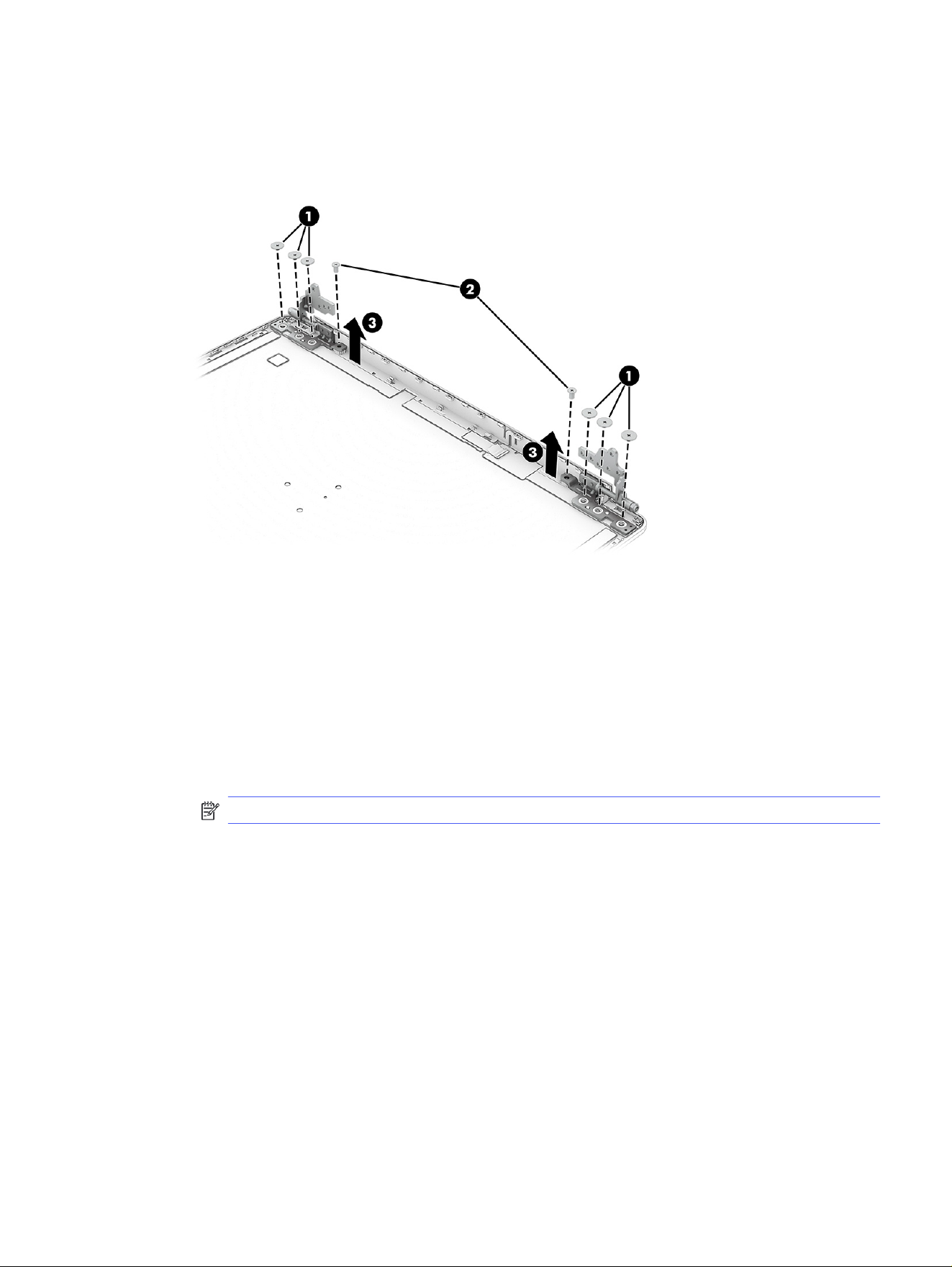
b. Remove the two Phillips M2.5 × 5.0 screws (2) from the edge.
c. Remove the hinges (3) from the display.
The display hinges are available as spare part number P80885-001.
6. To remove the display panel:
a. The display panel is secured to the display enclosure with tape that is installed under the left
and right sides of the panel. To remove the panel, use tweezers to grasp the end of the tape (1).
b. Disconnect the OLED cable (2).
c. Tilt and lift out the display. Remove the cover tape (3).
d. Lift the retainer bar (4).
e. Disconnect the display cable (5).
NOTE: Be sure that the pull tabs on the adhesive strips are visible before replacing the cover.
Display assembly
57
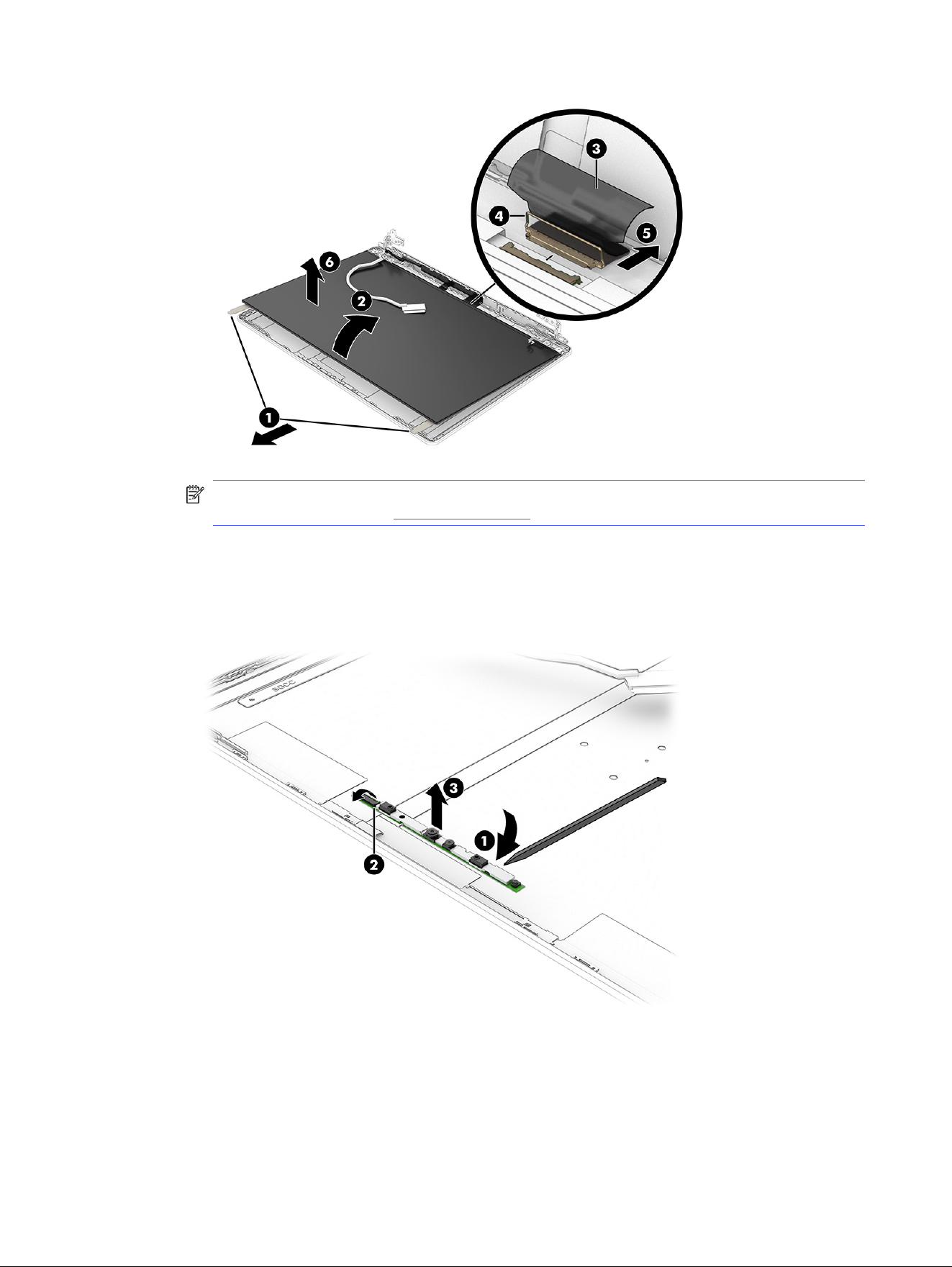
NOTE: When replacing the touch control board or display panel, be sure to update the touch
firmware, available on the HP product support page.
7. To remove the camera module:
■
Lift up evenly across the module (1) and peel the module up from the display back cover,
and then disconnect the cable from the reverse ZIF connector (2) on the module. Remove the
module (3).
8. To remove the display/camera cable, peel the cable (1) off the inside of the display back cover,
remove the cable from the clips (2) at the bottom of the display back cover, and then remove the
cable (3).
Display panel cables are available as the following spare part numbers:
58
Chapter 6 Removal and replacement procedures for authorized service provider parts
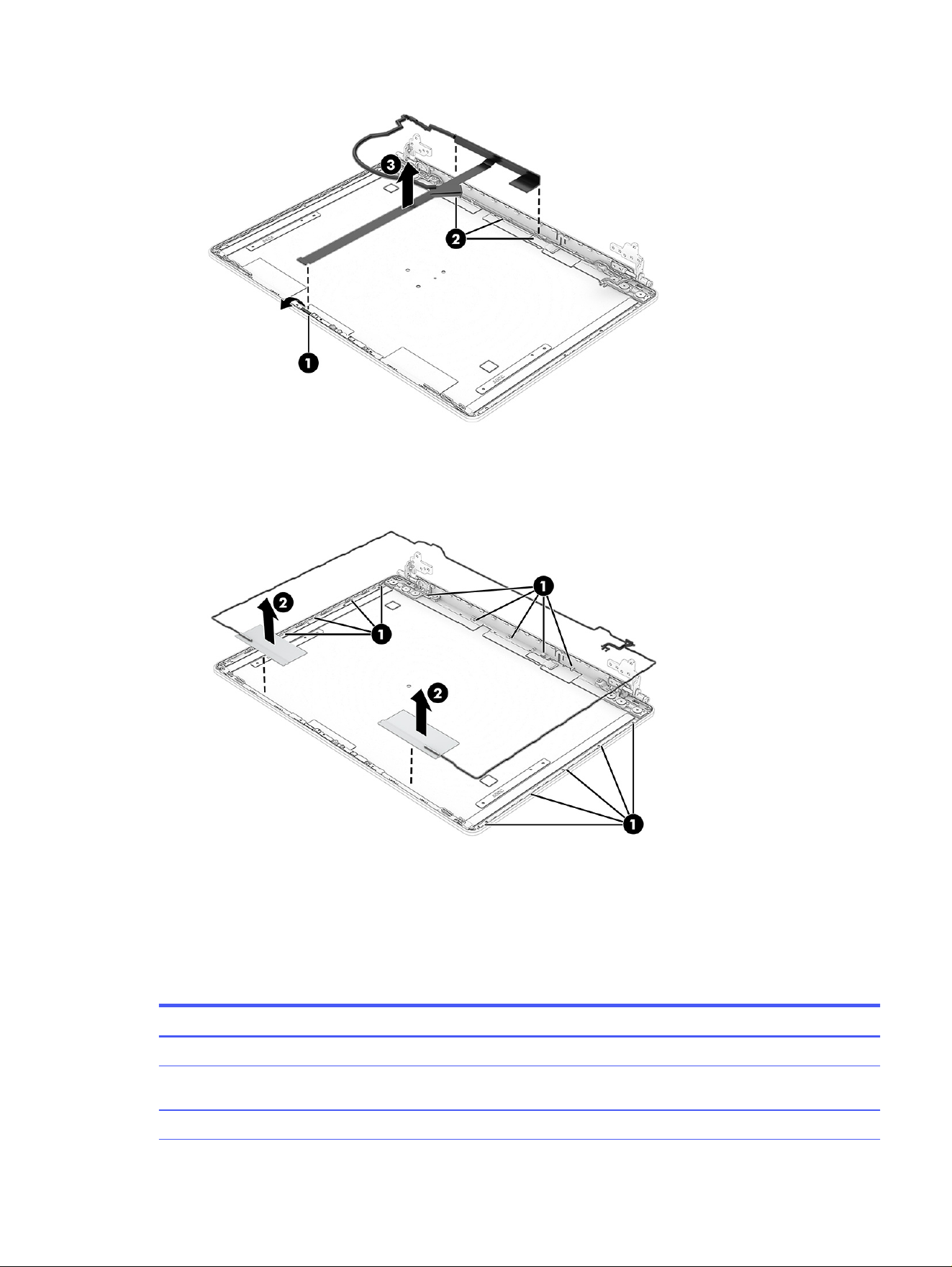
9. To remove the antenna cables, peel the antennas (1) off the inside of the display back cover, remove
the cables from the clips (2) at the bottom of the cover, and then remove the antennas and cables.
Reverse this procedure to reassemble and replace the display assembly.
System board
To remove the system board, use these procedures and illustrations.
Table 6-7
System board descriptions and part numbers
Description Spare part number
System board (includes processor):
System board for use in models with an AMD processor (includes integrated processor, the
Windows operating system, and 4, 8, 16, 24, or 32 GB of integrated memory)
AMD Ryzen AI 5 430 processor P80721-601
System board 59

Table 6-7 System board descriptions and part numbers (continued)
Description Spare part number
AMD Ryzen AI 7 445 processor P80722-601
AMD Ryzen 3 30 processor, 8 GB of system memory P80723-601
AMD Ryzen 3 30 processor, 8 GB of system memory P80724-601
AMD Ryzen 5 40 processor, 8 GB of system memory P80725-601
AMD Ryzen 5 130 processor P80726-601
AMD Ryzen 5 230 processor P80727-601
AMD Ryzen 7 160 processor P80728-601
AMD Ryzen 7 250 processor P80729-601
AMD Ryzen 3 30 processor, 8 GB of system memory, People’s Republic of China (PRC) P80730-601
AMD Ryzen 5 40 processor, 16 GB of system memory (PRC) P80731-601
AMD Ryzen 5 40 processor, 8 GB of system memory (PRC) P80732-601
AMD Ryzen AI 5 H 430 processor (PRC) P80733-601
AMD Ryzen AI 7 H 445 processor (PRC) P80734-601
AMD Ryzen 7 H 255 processor, 16 GB of system memory (PRC) P80735-601
AMD Ryzen 7 H 255 processor, 24 GB of system memory (PRC) P80736-601
AMD Ryzen 7 H 255 processor, 32 GB of system memory (PRC) P80737-601
AMD Athlon Gold 20 processor, 4 GB of system memory P93945-601
AMD Athlon Gold 20 processor, 8 GB of system memory P93946-601
AMD Athlon Silver 10 processor, 4 GB of system memory P93947-601
AMD Athlon Silver 10 processor, 8 GB of system memory P93948-601
System board for use in models with an Intel processor (includes integrated processor, the Windows
operating system, and 8, 16, 24, or 32 GB of integrated memory)
Intel Core 3 100U processor P80802-601
Intel Core 3 N355 processor 8 GB 128 GB UFS memory P80803-601
Intel Core 3 N355 processor 8 GB of system memory P80804-601
Intel Core 5 120U processor P80805-601
Intel Core 5 210H processor 16 GB of system memory P80806-601
Intel Core 5 210H processor 24 GB of system memory P80807-601
Intel Core 7 150U processor P80808-601
Intel Core 7 240H processor 16 GB of system memory P80809-601
Intel Core 7 240H processor 24 GB of system memory P80810-601
Intel Core 7 240H processor 32 GB of system memory P80811-601
Intel N150 processor 4GB 128 GB UFS memory P80812-601
Intel N150 processor 8GB 128 GB UFS memory P89586-601
Intel N150 processor 4 GB of system memory P80813-601
60 Chapter 6 Removal and replacement procedures for authorized service provider parts

Table 6-7 System board descriptions and part numbers (continued)
Description Spare part number
Intel N150 processor 8 GB of system memory P80814-601
Intel N250 processor 4GB 128 GB UFS memory P80815-601
Intel N250 processor 8GB of system memory P80816-601
Intel Core 9 270H processor 16 GB of system memory P80820-601
Intel Core 9 270H processor 32 GB of system memory P80821-601
Intel Core 5 210H processor 16 GB of system memory P80826-601
Intel Core 5 210H processor 24 GB of system memory P80827-601
Intel Core 7 240H processor 16 GB of system memory P80828-601
Intel Core 7 240H processor 24 GB of system memory P80829-601
Intel Core 7 240H processor 32 GB of system memory P80830-601
Intel Core 9 270H processor 16 GB of system memory P80831-601
Intel Core 9 270H processor 32 GB of system memory P80832-601
Intel Core i5 1334U processor P82087-601
Intel Core i7 1355U processor P82088-601
Before removing the system board, follow these steps:
1. Prepare the computer for disassembly (see Preparation for disassembly on page 35).
2. Remove the bottom cover (see Bottom cover on page 35).
3. Remove the battery (see Battery on page 38).
When you replace the system board, be sure to remove the following components (as applicable) from
the defective system board and install them on the replacement system board:
● Memory modules (see Memory module on page 47).
● WLAN module (see WLAN module on page 49).
● Heat sink (see Heat sink on page 62).
● Solid-state drive (SSD) (see Solid-state drive on page 45 ).
Remove the system board:
1. Disconnect the following cables from the system board:
● Backlight cable (1)
● Touchpad cable (2)
● Keyboard cable (3)
● Speaker cable (4)
● I/O daughter board cable(5)
System board
61
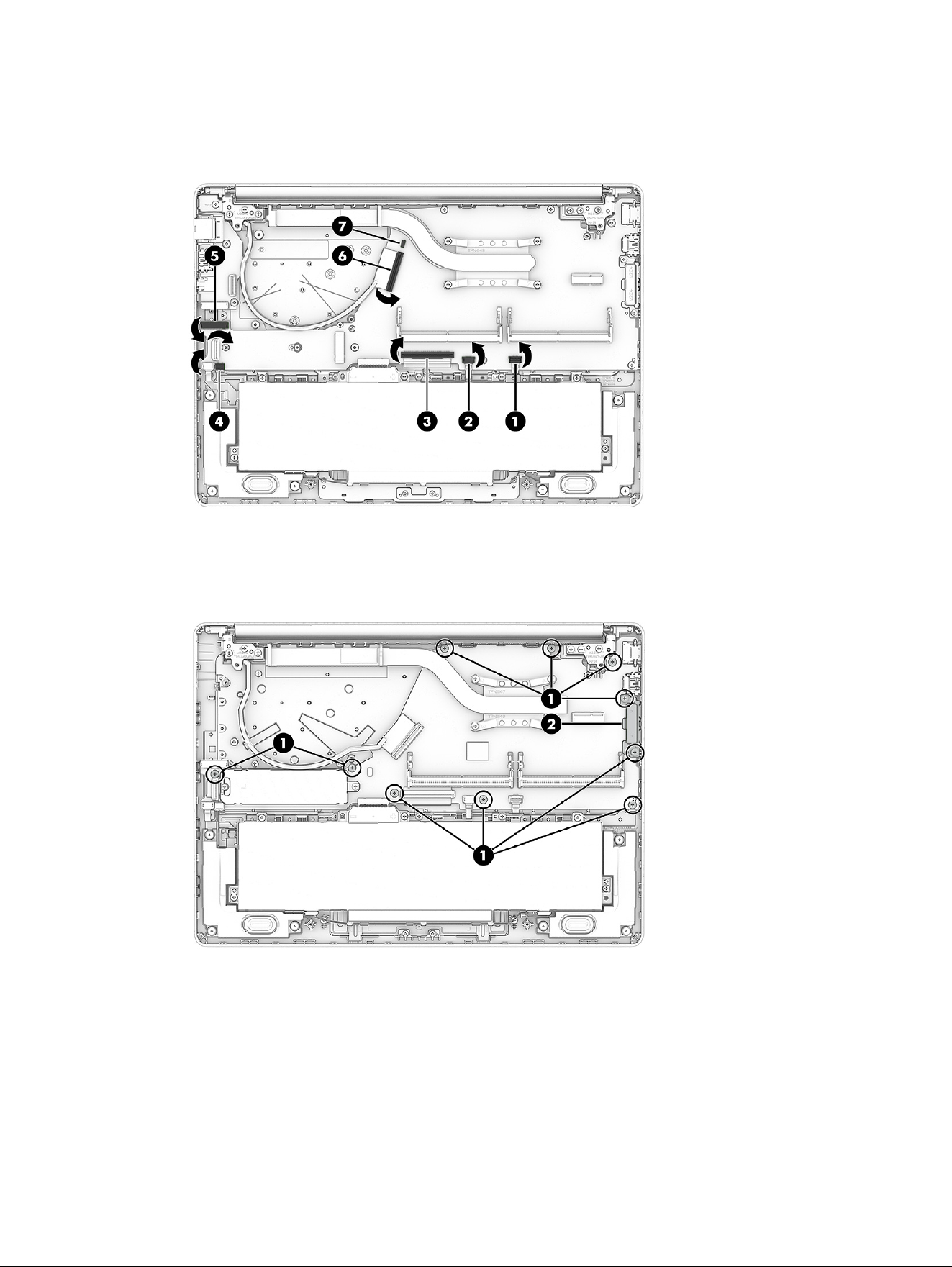
● Display cable (6)
● Fan cable (7)
2. Remove the seven Phillips M2.0 × 5.0 screws (1) that secure the system board to the computer, and
then one (2).
Reverse this procedure to install the system board.
Heat sink
To remove the heat sink, use this procedure and illustration.
62
Chapter 6 Removal and replacement procedures for authorized service provider parts
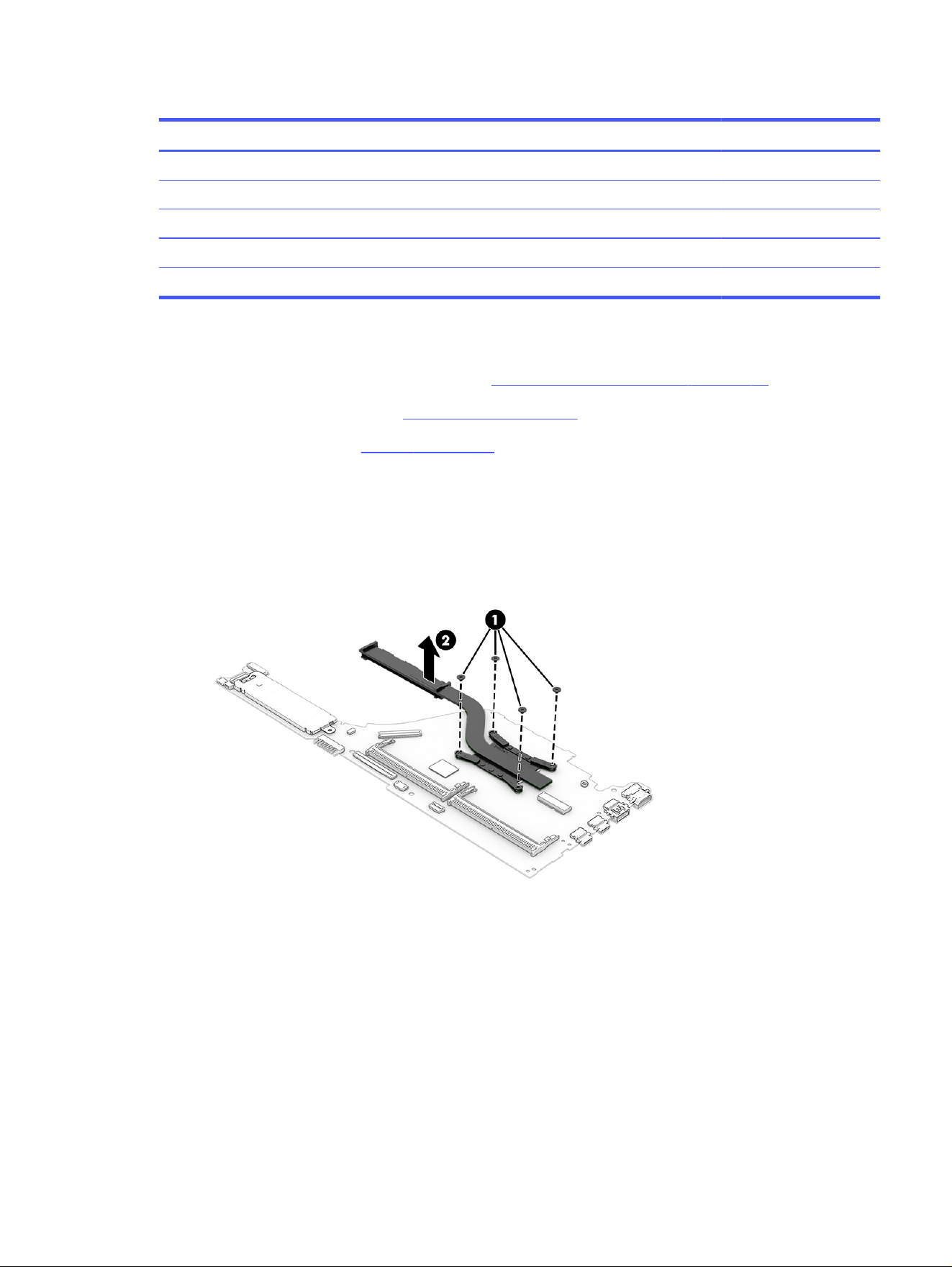
Table 6-8 Heat sink descriptions and part numbers
Description Spare part number
9W P80874-001
RPLU 15W P80875-001
40W P80876-001
TWL 15W P84303-001
PTL 15W P84304-001
Before removing the heat sink, follow these steps:
1. Prepare the computer for disassembly (see Preparation for disassembly on page 35).
2. Remove the bottom cover (see Bottom cover on page 35).
3. Remove the battery (see Battery on page 38).
Remove the heat sink:
1. In the order indicated on the heat sink, remove the four Phillips M2.0 × 4.0 screws (1) that secure the
heat sink to the computer.
2. Remove the heat sink (2) from the computer.
3. Thoroughly clean the thermal material from the surfaces of the heat sink and the system board
components each time the heat sink is removed. Replacement thermal material is included with
the heat sink and system board spare part kits. The following illustration shows the replacement
thermal material locations.
Thermal paste is used on the system board components (1), (3) and on the heat sink areas (2), (4)
that service them.
Reverse this procedure to install the heat sink.
Heat sink
63
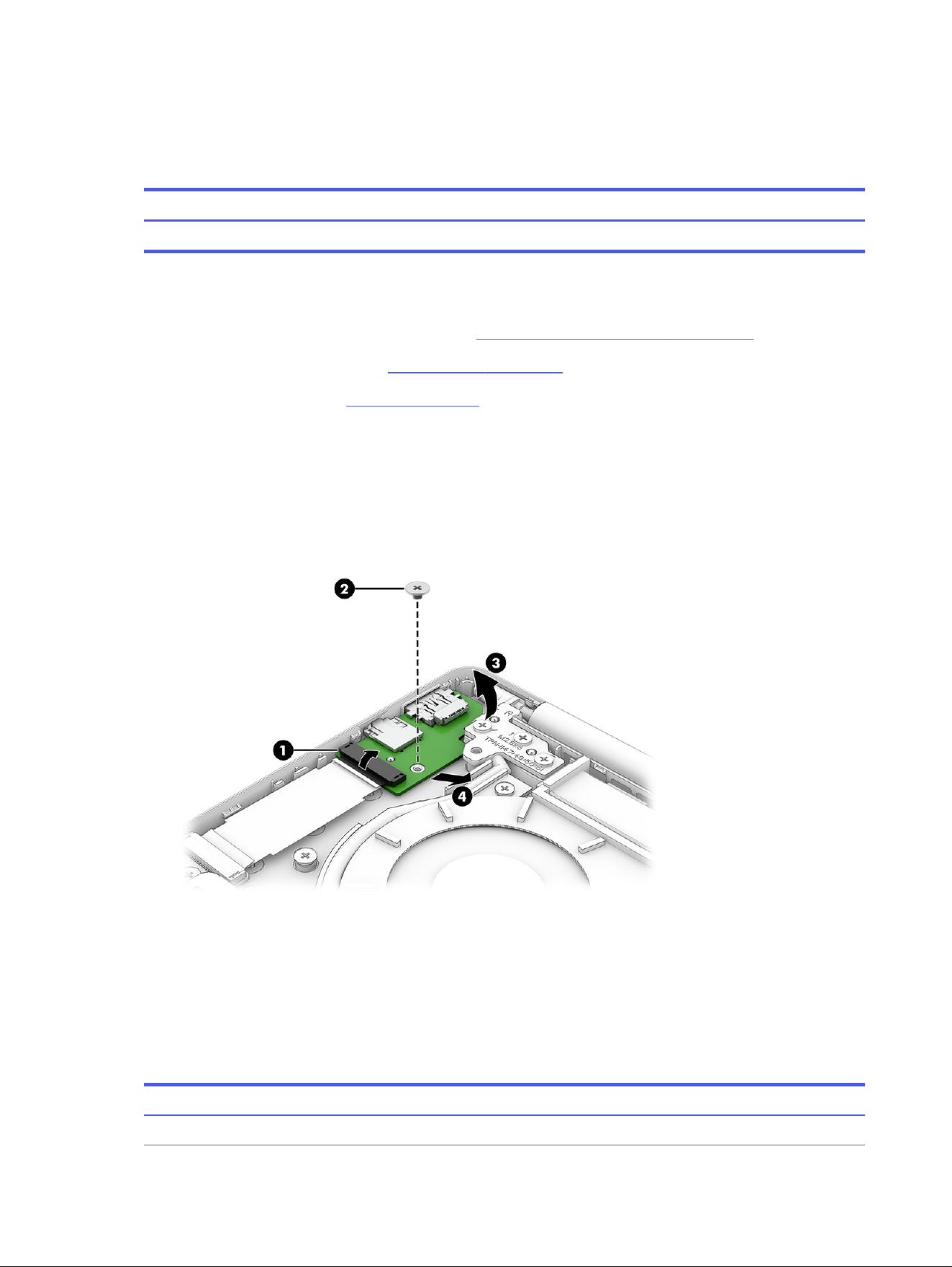
USB board
To remove the USB board, use this procedure and illustration.
Table 6-9 USB board description and part number
Description Spare part number
USB board w/ cable P80872-001
Before removing the USB board, follow these steps:
1. Prepare the computer for disassembly (see Preparation for disassembly on page 35).
2. Remove the bottom cover (see Bottom cover on page 35).
3. Remove the battery (see Battery on page 38).
Remove the USB board:
1. Disconnect the cable from the system board ZIF connector (1).
2. Remove the Phillips M2.0 × 3.0 screw (2) that secures the board to the computer.
3. Remove the board (3) from the computer.
Reverse this procedure to install the USB board.
Keyboard with top cover
The top cover with keyboard remains after removing all other spare parts from the computer. In this
section, the first table provides the main spare part numbers for the top cover with keyboards. The
second table provides the country codes.
Table 6-10
Top cover with keyboard descriptions and part numbers
Description Spare part number
Glacier silver with canvas gray touchpad, backlit P80838-001
64 Chapter 6 Removal and replacement procedures for authorized service provider parts

Table 6-10 Top cover with keyboard descriptions and part numbers (continued)
Description Spare part number
Jet black with jet black touchpad, not backlit P80839-001
Mica silver with iron gray touchpad, backlit P80840-001
Serenity blue with iron gray touchpad, backlit P80841-001
Wedgewood blue with iron gray touchpad, backlit P80842-001
Table 6-11 Spare part country codes
For use in country or
region
Spare part
number
For use in country or
region
Spare part
number
For use in country or
region
Spare part
number
Belgium -A41 Iceland -DD1 Saudi Arabia -171
Brazil -201 India -D61 Slovenia -BA1
Bulgaria -261 Israel -BB1 South Korea -AD1
Chile -161 Italy -061 Spain -071
Czech Republic/Slovakia -FL1 Japan -291 Switzerland -BG1
Denmark, Finland, and
Norway
-DH1 Kazakhstan -DF1 Taiwan -AB1
French Canada -DB1 The Netherlands -B31 Thailand -281
France -051 Northern Africa -FP1 Turkey -141
Germany -041 Portugal -131 Ukraine -BD1
Greece -151 Romania -271 United Kingdom -031
Hungary -211 Russia -251 United States -001
Keyboard with top cover 65
Troubleshooting guide7
This chapter primarily focuses on troubleshooting HP Mobile Workstations. The information is provided
so that you can solve problems yourself or at least narrow down the number of possible causes.
Based on some of the most common symptoms, this chapter identifies logical steps and available
resources or tools for resolving an issue. HP recommends that you follow the instructions carefully,
observe safety precautions, and note any observations or results. Capturing this information can help
identify and resolve the problem more quickly.
WARNING! To reduce the risk of electric shock or damage to the equipment:
● Do not disable the power cord grounding plug. The grounding plug is an important safety feature.
● Plug the power cord into a grounded (earthed) outlet that is easily accessible at all times.
● Disconnect power from the equipment by unplugging the power cord from the AC outlet.
● Before disassembling notebooks, always disconnect power and remove the battery.
IMPORTANT: Static electricity can damage the electronic components of the computer. To prevent
damage to the computer, carefully observe the electrostatic discharge precautions.
● Discharge static electricity by briefly touching a grounded metal object before you begin.
● Work on a static-free mat.
● Wear a static strap to ensure that any accumulated electrostatic charge is discharged from your
body to the ground.
● Create a common ground for the equipment that you are working on by connecting the static-free
mat, static strap, and peripheral units to that piece of equipment.
● For more information, see Electrostatic discharge information on page 28.
IMPORTANT: The computer includes customer self-repair parts and parts that should be accessed
only by an authorized service provider. Accessing parts described in Removal and replacement
procedures for authorized service provider parts on page 45 can damage the computer or void the
computer warranty.
Resources
Use this table to locate troubleshooting resources.
66
Chapter 7 Troubleshooting guide
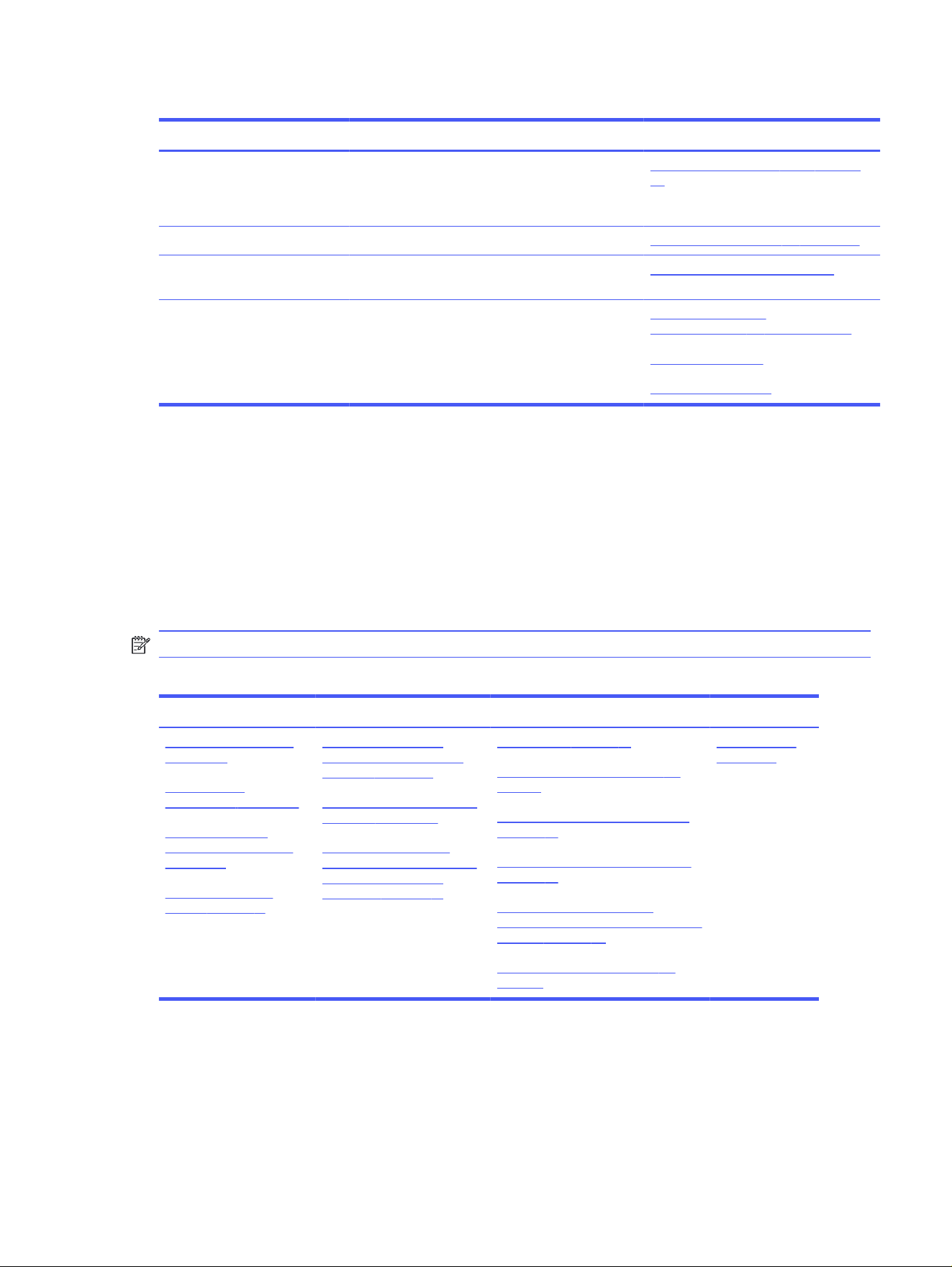
Table 7-1 Troubleshooting resources and their descriptions
HP Resource Tool Description Link
HP Customer Support Provides important support, such as warranty,
support cases, drivers, Customer Advisories,
Customer and Security Bulletins, and Product
Change Notices.
https://support.hp.com/us-en/contact-
hp
Subscribers Choice Allows you to sign up for HP product updates. http://www8.hp.com/us/en/subscribe/
HP Support Forums Provide discussions about HP products and
issues.
http://h30434.www3.hp.com/psg/
Vendors’ websites Provide additional information for associated
components such as Intel® (processor, WLAN),
Microsoft (Windows), AMD®/NVIDIA® (GPU), and so
on.
http://www.intel.com/
content/www/us/en/homepage.html
http://www.amd.com
http://www.nvidia.com
General troubleshooting steps
This section helps you become familiar with troubleshooting methodology and efficiently resolve
problems.
Proceed through the steps in the following table until the issue is resolved, and then move on to the
next step that is relevant to the issue. For example, if you resolve a memory issue using the HP PC
Diagnostics, or Unified Extensible Firmware Interface (UEFI), tool in step 6, you can then move on to step
10 to reseat the memory into its memory slot.
NOTE: You can ignore troubleshooting steps that do not apply to your issue.
Table 7-2
Troubleshooting methodology and general troubleshooting steps
Identify issue Analyze issue Resolve issue Verify solution
1. Understand the issue
on page 68
2. Examine the
environment on page 70
3. Perform a visual
inspection of hardware
on page 70
4. Update BIOS and
drivers on page 71
5. Remove or uninstall
recently added hardware,
software on page 71
6. HP Hardware Diagnostics
and Tools on page 72
7. Status lights, blinking
light codes, troubleshooting
lights, and POST error
messages on page 74
8. Hard reset on page 77
9. Soft reset (Default Settings) on
page 78
10. Reseat cables and connections
on page 78
11. Test with minimum configuration
on page 79
12. Test with verified working
configuration (hardware or operating
system) on page 80
13. Replace the system board on
page 80
Verify solution
on page 81
Identify the issue
Use these guidelines to correctly determine the problem.
General troubleshooting steps
67

1. Understand the issue
It is important to understand the issue that occurred, including related symptoms. It helps to understand
the basic computer startup sequence as well as the failure itself.
Startup sequence
The computer performs several steps after you press the power button or restart the computer.
It is important to understand where in the startup sequence the symptoms occur. The following table
lists the phases of the startup sequence and explains the symptoms that might occur in each phase. For
example, a blue screen error (BSOD) often occurs during the performance phase.
Table 7-3 Startup sequence and associated failures
Item Procedure
Startup After you press the power button, the computer starts after all internal power rails (such as 5 V, 3.3 V) are
stable.
Confirm that power lights are on and fan is spinning.
Common issues: all lights are off; troubleshooting lights are on; computer does not start; video is absent.
POST (UEFI/BIOS) Power-On Self-Test (POST) verifies that hardware components (such as processor, hard drive, memory)
are functional. When POST is complete, the HP logo appears briefly and then disappears.
If there are errors, the computer might exhibit blinking lights, POST error messages, or similar
notifications.
Common issues: lights blink; error message appears; system hangs (lock up or freezes)
Performance
(operating system)
System boots to operating system, and Windows logo screen appears.
Common issues: hangs, blue screen, distorted video, driver conflict, slow performance, display issue
(dead pixel), I/O issue (no speaker sound), wireless/audio unavailable, noise.
See Analyze the issue on page 71 table for detailed troubleshooting information.
Failure classification
Failure classification
is a breakdown of different types of failures and symptoms that could occur during
the boot-up sequence.
Table 7-4 Failure classification by startup sequence on page 69 and Table 7-5 Failure classification by
hardware devices on page 70 represent the failure classification for common notebook failures.
Table 7-4 Failure classification by startup sequence on page 69 categorizes failures by the startup
sequence.
1. Power-on: Common issues are no power, recycle, or restart.
2. POST: Common issues are no boot (despite power), light flash, or diagnostics error.
3. Performance: Common issues are Intermittent Loss of Power, Blue Screen, Hang. In many cases,
issues can be identified and associated with particular hardware (for example, display or storage).
Table 7-5 Failure classification by hardware devices on page 70 categorizes failures by hardware:
● Display
● I/O (input/output) devices
68
Chapter 7 Troubleshooting guide
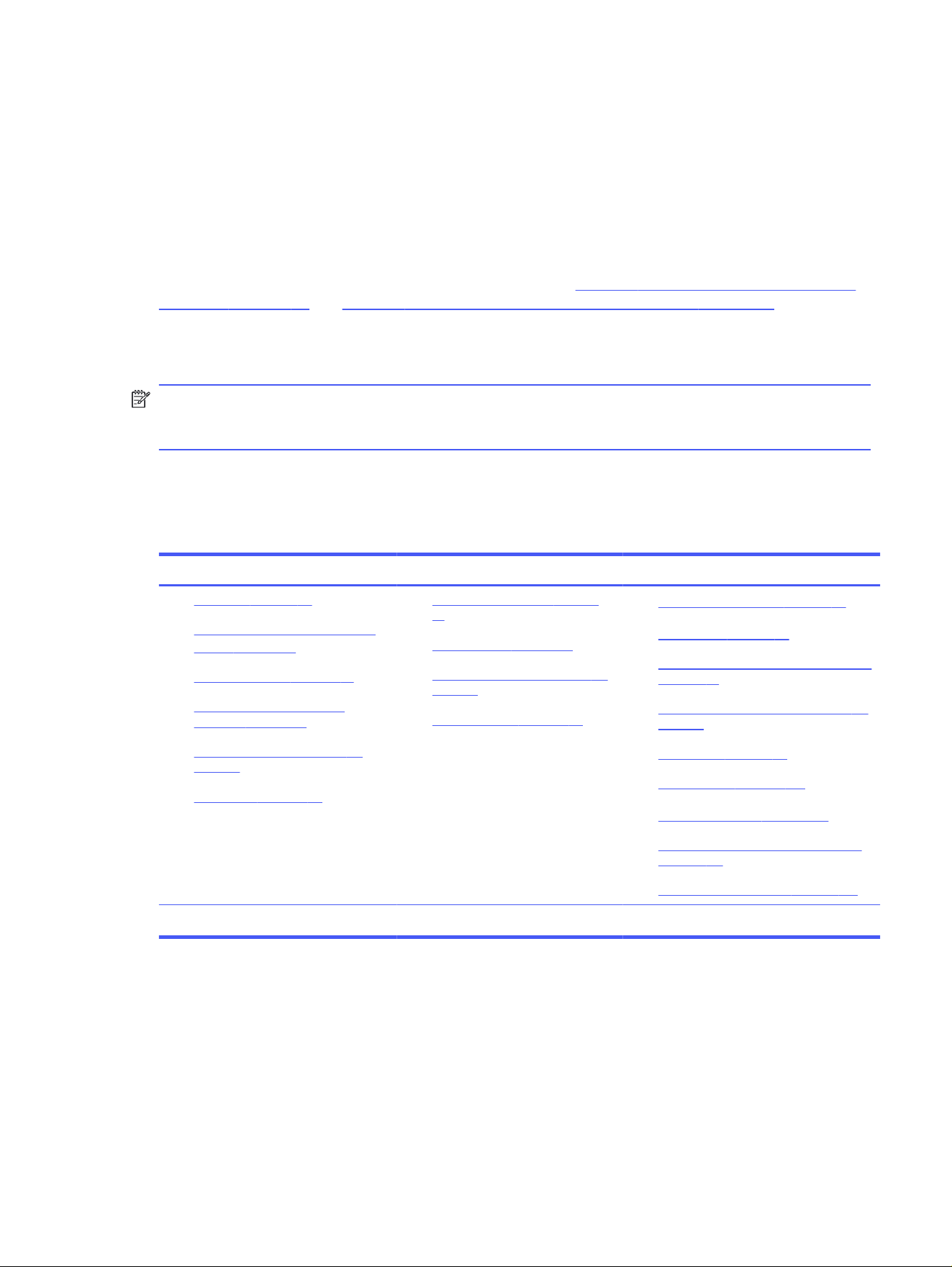
● Storage
● Mechanical
A single symptom can be listed under different groups. For example, No Video can belong to (1) power-on
or (4) display; but flickering when turned on should be listed in (4) display. Or, in another example, a blue
screen can be caused by a driver conflict in performance (4), but it can also be caused by a defective
hard drive under (6) storage. Therefore, failures that share similar symptoms are noted.
If possible, make a record of the failure symptom, the phase of the startup sequence where the
failure occurs, and the most likely location in the failure tree (Table 7-4 Failure classification by startup
sequence on page 69 and Table 7-5 Failure classification by hardware devices on page 70). This
record helps isolate the issue and indicate the next steps. For example, when the computer is running
the operating system, it can experience an issue with (4) display, (5) I/O devices (keyboard, wireless, and
so on), (6) storage, or (7) mechanical components (stuck buttons, thermal shutdown, and so on).
NOTE:
Uncategorized
is used if an issue found is not listed. For example, Bluetooth is offered on
certain hardware configurations; therefore, you can classify a Bluetooth issue under I/O Device if
needed.
Failure classification by startup sequence
Use this table to locate failure classification information.
Table 7-4
Failure classification by startup sequence
1. Power-on 2. POST 3. Performance
1. No power on page 84
2. Intermittent power-on, shutdown,
reboot on page 86
a
3. AC adapter issue on page 87
4. Battery not recognized, not
charging on page 87
5. Battery discharges too fast on
page 90
6. Burnt smell on page 90
1. No video (with power) on page
91
2. Blinking lights on page 92
3. Diagnostics error messages on
page 93
4. BIOS password on page 93
1. Intermittent shutdown on page 94
a
2. Blue screen on page 95
b
3. Freeze at Windows Logo (hang/lockup)
on page 97
4. Electromagnetic Interference (EMI) on
page 98
5. No wake up on page 99
6. Unresponsive on page 100
7. Slow performance on page 101
c
8. HP Smart Adapter warning message
on page 101
9. Incorrect time and date on page 102
a,b,c
similar symptoms
Failure classification by hardware devices
To determine failure by device, use this table.
Failure classification by startup sequence
69

Table 7-5 Failure classification by hardware devices
4. Display 5. I/O devices 6. Storage 7. Mechanical
1. Display anomalies on
page 103
2. Dead pixel on page 105
3. No video (internal) on
page 105
c
4. No video (external) on
page 105
c
5. DisplayPort/VGA on
page 106
6. HDMI on page 106
7. No or bad external video
via docking on page 107
8. Incorrect or missing
color/distorted image on
page 107
9. Touch screen on page
108
1. Keyboard on page 109
2. Keyboard point stick on
page 110
3. Keyboard backlight on
page 111
4. Touchpad on page 111
5. Network Connectivity
Ethernet (RJ-45 jack) on
page 112
6. Network connectivity
wireless (WLAN) on page
112
7. WWAN on page 113
8. USB on page 113
9. Smart card reader on
page 114
10. Speaker, headphone -
audio issues on page
115
11. Thunderbolt (TB) on
page 117
1.
Hard drive or solid-state
drive not recognized on
page 118
2. No boot to operating
system (no read/write
error) on page 119
3. Read-write error on
page 120
4. Slow performance on
page 120
b
5. Blue screen (BSOD)
error on page 121
a
6. Noisy hard drive on page
121
1. Noise (sound) on page
122
2. Fan runs constantly on
page 123
3. Thermal Shutdown on
page 124
a,b,c
similar symptoms
2. Examine the environment
It is important to examine the computer’s environment. If you can quickly identify the cause of the issue,
fewer resolution steps might be needed.
Perform the following environment inspections:
● Check all cables and connections to be sure that no connections are loose.
● Confirm that power sources are good, such as AC outlet or adapter (110 V/220 V AC), power strip.
Test with a verified working AC outlet.
● Check for compatibility issues between the computer and third-party devices, peripherals,
uncertified devices, incompatible hardware (for instance, Mac OS device). Incompatibility can result
in blue screen errors, improper operation, and so on.
● Isolate the computer from sources of electromagnetic interference (EMI), such as cell phones,
two-way radios, floor mats, fans (and other electronic motors). EMI might contribute to a display
freeze issue or lockup.
3. Perform a visual inspection of hardware
Perform a physical inspection of the computer.
70
Chapter 7 Troubleshooting guide

● Look for abnormalities such as a cracked display, dented battery, broken latches for battery bay,
keyboard key caps popped out, dust over connectors, liquid spill over keyboard.
● Look for signs of drop, movement, or vibration that might cause internal and external loose
connections.
4. Update BIOS and drivers
Whenever possible, update to the latest BIOS, firmware, and drivers before troubleshooting.
IMPORTANT: Note that some customer company policies prohibit updates. Check your company
policy before taking action.
The updates might include fixes for your computer issues, and they might also enhance system
performance. HP continually improves the update process to make it easier. You can update the BIOS
locally through a manual process, through an automatic installation, or through a remote installation on
multiple units.
Manually updating BIOS and drivers
Use this information to update the BIOS.
● To manually update the BIOS and drivers, see the Setup Utility (BIOS) chapter.
● See the specific BIOS update installation instructions that accompany the download.
Remotely deploying the BIOS and drivers
Instead of manually searching for and downloading each SoftPaq, users and IT personnel can use two
tools to identify and download all appropriate SoftPaqs for the selected HP models.
● HP SoftPaq Download Manager (SDM) is a software tool that streamlines the download, extraction,
and installation process of SoftPaqs, including BIOS and drivers.
● HP System Software Manager (SSM) is a software tool that simplifies the deployment of SoftPaqs to
HP computers.
Analyze the issue
Use these steps to evaluate and interpret the problem.
5. Remove or uninstall recently added hardware, software
HP has designed this computer and validated it using a full-range hardware and software qualification
matrix. If an issue appears to have started recently, it might be related to the recent addition of hardware
or software.
A good method to determine the root cause is to remove recently added components or uninstall
applications one at a time and restart the computer when necessary.
IMPORTANT: After you have completed the process of uninstalling hardware or software and are
ready to reinstall, be sure that the new device is seated properly and all cables are correctly connected.
After installing the device, restart the computer, and be sure that the new device is turned on. In
addition, if the new device is a root cause of a problem, it could cause a conflict in drivers or
incompatibility issues with other installed programs. For any new hardware you have added, be sure to
install the latest drivers available from the device vendor website.
4. Update BIOS and drivers
71

6. HP Hardware Diagnostics and Tools
HP offers diagnostics and tools to diagnose hardware failure. This section describes how to use some of
these tools. Check for the latest versions before use.
HP PC Hardware Diagnostics UEFI
HP PC Hardware Diagnostics is a Unified Extensible Firmware Interface (UEFI) that allows you to run
diagnostic tests to determine whether the computer hardware is functioning properly.
The HP PC Hardware Diagnostics UEFI tool is built within BIOS (basic memory and hard drive diagnostics
only), or within new hard drives themselves. These drives contain more advanced versions of the
diagnostic tool than the BIOS-based version.
In addition, for HP authorized service partners and IT professionals who need to support a
mixed environment of older and newer HP/Compaq PCs, the HP PC Hardware Diagnostics
Tool (https://support.hp.com/us-en/help/hp-pc-hardware-diagnostics) supports a wide range of HP
computers.
The tool runs outside the operating system so that it can isolate hardware failures from software issues,
whether caused by the operating system or applications. In reality, you can determine many problems
using this tool if the issue is a defective part or a loose connection.
The tool has three major functions:
● System Tests check the computer’s hardware to verify that everything is functioning properly. If your
system won’t boot into Windows, try the Quick System Test. For more comprehensive testing, use
the Extensive System Test option. If the System Test did not detect a hardware problem, continue
with the Component Tests.
● Component Tests focus on selected hardware components in your computer.
● Firmware Management updates your computer’s BIOS to the latest version (available separately) or
rolls back to a previous version.
1. Turn on or restart the computer, quickly press the esc key on the computer, and then press f2.
The BIOS searches three places for the diagnostic tools, in the following order:
a. Connected USB drive
b. Hard drive
c. BIOS
2. When the diagnostic tool opens, use the keyboard arrow keys to select the type of diagnostic test
you want to run, and then follow the on-screen instructions.
Screen capture appearance might vary.
72
Chapter 7 Troubleshooting guide
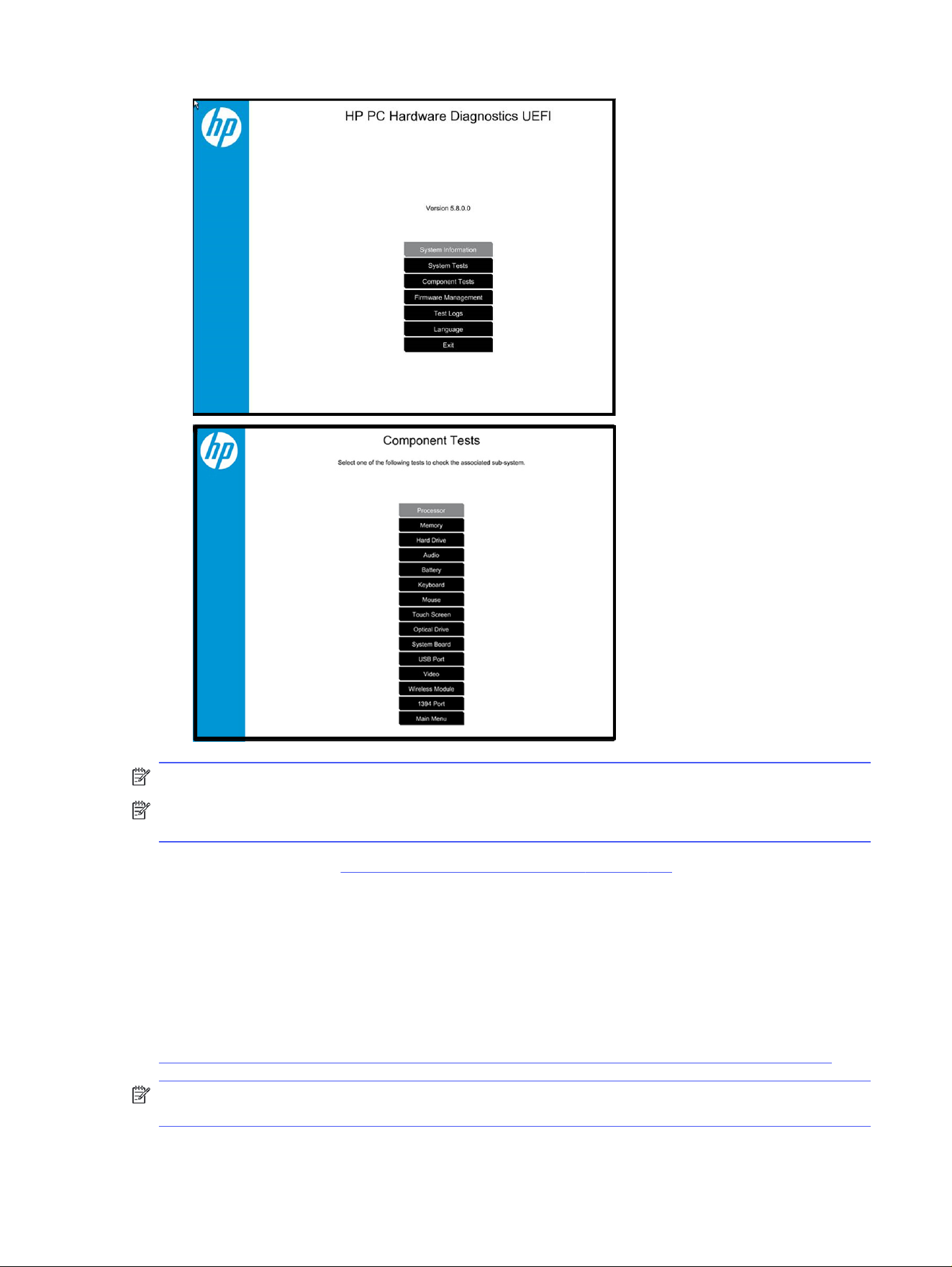
NOTE: Using this tool can be especially helpful when the computer cannot boot to Windows.
NOTE: If a component fails a test, write down the information so that it is available when you contact
support. The information is also available in Test Logs on the Main Menu.
For more information, see Using HP PC Hardware Diagnostics on page 150.
HP BIOS Configuration Utility (BCU)
HP BCU is a free utility that captures the BIOS settings and their values. This tool provides a text file
of the computer’s BIOS configuration. This file can help identify any settings that are contributing to an
issue.
In some cases, it might help to compare this BIOS text file to the default settings of the computer.
For more information, see
http://ftp.hp.com/pub/caps-softpaq/cmit/whitepapers/BIOS_Configuration_Utility_User_Guide.pdf.
NOTE: HP recommends that you reset BIOS before trying BCU. Resetting the BIOS is always available
and relatively quick to try, whereas BCU takes extra time and effort.
HP BIOS Configuration Utility (BCU)
73

HP Image Diagnostic Tool
Available to HP Authorized Support Partners (ASPs) and users, this tool collects information about the
current state of the computer, including product serial number, platform and BIOS information, and
information about user-installed software and hardware components.
Access this tool at ftp://ftp.hp.com/pub/idr/ImageDiags/. HP encourages you to review the report before
sending it to support. The report can assist you with diagnostics and solutions to problems you
encounter.
HP Thermal Monitor
You can use HP Thermal Monitor to stress the processor and GPU and monitor the temperature values
of various components in the system.
NOTE: Available only to authorized service providers and technicians.
The components that are currently monitored include the processor, GPU, ACPI thermal zones, hard
drive, and battery. The tool reads the temperatures of the components, logs the data, and helps to
determine whether the computer would overheat in the event of thermal shutdown, fan spinning loud,
and so on.
Non-HP diagnostics tools
Refer to the following diagnostic tools for troubleshooting help.
Windows-To-Go USB
Windows-To-Go USB is a Microsoft-based tool for Enterprise editions of Windows that can help in
troubleshooting. You can find a process online about how to create a live Windows USB drive.
Intel Processor Diagnostic Tool
Determine what processor is in your computer and verify the processor
operating frequency. The tool also tests specific processor features and
performs a stress test on the processor. For more information, see
http://www.intel.com/support/processors/sb/CS-031726.htm?iid=subhdr+tools_procdiagtool.
7. Status lights, blinking light codes, troubleshooting lights, and POST error messages
Carefully observe any behavior that the computer is exhibiting: status lights, blinking lights, and POST
error messages during boot. It is important to understand what these indicators mean.
Status lights
The following table describes basic lights on the computer.
74
Chapter 7 Troubleshooting guide

Table 7-6 Power button functions and lights and their descriptions
Component Description
Power button When the computer is off, press the button to turn on the computer.
When the computer is on, press the button briefly to initiate Sleep (Windows) or
Suspend (Linux®).
When the computer is in the Sleep state, press the button briefly to exit Sleep (Windows)
or Suspend (Linux).
When the computer is in Hibernation, press the button briefly to exit Hibernation.
IMPORTANT: Pressing and holding down the power button results in the loss of
unsaved information.
If the computer stops responding and operating system shutdown procedures are
ineffective, press and hold the power button.
Front power light On: The computer is on.
Blinking: The computer is in the Sleep state.
Off: The computer is off.
Front AC adapter and battery light White: The computer is connected to external power, and the battery is charged from
90% to 99%.
Amber: The computer is connected to external power, and the battery is charged from
0% to 90%.
Blinking amber: A battery that is the only available power source has reached a low
battery level. When the battery reaches a critical battery level, the battery light blinks
rapidly. By default, the critical battery level is defined in Power Options as 5%.
Off: The battery is fully charged.
Front hard drive light Blinking white: The hard drive is being accessed.
Amber: HP 3D DriveGuard has temporarily parked the hard drive.
Rear AC adapter light White: The computer is connected to external power.
Off: The computer is not connected to external power.
Blinking light codes
During startup, the computer might not start properly. If this occurs, blinking light codes can help identify
the cause.
The computer uses the following blinking lights to identify a hardware component that reports an error
during startup. For more information, see Blinking lights and boot error codes on page 125.
Table 7-7
Blinking light codes and what they mean
Blink codes Error
Amber battery light: blinks 1 Hz continuously Embedded controller unable to load firmware
Caps and num lock lights = 1 blink Processor not executing code
Caps and num lock lights = 2 blinks BIOS recovery code unable to find valid BIOS recovery image
Caps and num lock lights = 3 blinks Memory module error
Caps and num lock lights = 4 blinks Graphics controller error
Blinking light codes
75

Table 7-7 Blinking light codes and what they mean (continued)
Blink codes Error
Caps and num lock lights = 5 blinks System board error
Caps and num lock lights = 6 blinks Intel Trusted Execution Technology (TXT) Error
Caps and num lock lights = 7 blinks Sure Start unable to find valid BIOS Boot Block image
Caps and num lock lights = 8 blinks Sure Start has identified a problem (Manual Recovery Policy Set)
POST error messages
The Power-On Self-Test (POST) is a series of diagnostic tests that runs automatically when the computer
is turned on. If the POST encounters a problem, visual error messages are displayed before the
operating system starts.
POST checks the following items to ensure that the computer system is functioning properly:
● Memory
● Processors
● BIOS
● Mass storage devices
● Fans
The following table describes errors encountered during HP PC Hardware Diagnostics UEFI.
Table 7-8
System diagnostics failure codes and actions to address the failure
Test description Failure description Error
code
Suggested user actions
Startup Test Memory module 200 Attempt to reseat the memory module, and then repeat the
test.
For details on troubleshooting issues related to the
memory module, search for support documentation at
http://www.hp.com/support.
Startup Test Hard Disk 1 SMART 301 Attempt to reseat the hard drive, and repeat the test. The hard
drive might have failed.
Boot Device Manager Boot device not found 3F0 Reset BIOS. Then reseat the hard drive, and repeat the test.
BIOS Recovery BIOS Recovery Occurred 500 This message indicates that BIOS recovery was completed
successfully. No further action is required.
BIOS Application BIOS Application Error 501 The BIOS installation might have become corrupted.
Download the latest version of the BIOS and install it.
If reinstalling the BIOS fails, contact support for further
assistance.
CMOS Recovery CMOS Recovery
Occurred
502 This message indicates that CMOS recovery was completed
successfully. No further action is required.
76 Chapter 7 Troubleshooting guide

Table 7-8 System diagnostics failure codes and actions to address the failure (continued)
Test description Failure description Error
code
Suggested user actions
Battery Check Primary Battery Replace 601 This message indicates that the primary battery has
very low capacity. Search for support documentation at
http://www.hp.com/support for details on using the HP
Support Assistant to verify the battery capacity and, if
necessary, order a replacement.
Wireless Modules Not installed or
responding
701 Reseat the wireless LAN adapter module and antennas.
Because seating or reseating a wireless LAN adapter is
unique to each computer model, see the WLAN module
removal section in the removal and replacement chapter for
further details.
Contact support if third-party wireless adapters are installed
in the computer.
Fan Fan not operating
correctly
90B The system fan might be malfunctioning. Replace the fan.
Resolve the issue
The following sections help you fix the issue.
8. Hard reset
A hard reset (or forced reset) erases all information in the computer's memory and might restore
functionality. Resetting the computer forces the system to clear and reestablish the connections
between the BIOS and the hardware.
Performing a hard reset might fix the following common conditions:
● Windows stops responding.
● Computer stops before Windows loads, indicated by incomplete startup, blinking cursor on a black
background, and errors relating to operating system not found or a missing drive.
● Display suddenly goes blank and stays blank.
● Software freezes.
● Keyboard stops responding.
● The computer does not exit Sleep or Suspend state.
● An external device stops responding. Turn off the power to that device in addition to performing the
steps in this document.
Before performing a hard reset, you must disconnect or remove all peripheral devices. Start and test
the computer by itself, and if the problem is not resolved, reconnect one peripheral device at a time.
To resolve the startup or operational problem, run HP Support Assistant, or manually install all updated
drivers from Microsoft and HP.
Before beginning, turn the computer over and look for a battery compartment door or service door. On
some platforms, the battery is considered removable but not accessible.
1. Turn off the computer.
Resolve the issue
77
2. Remove the computer from any port replicator or docking station.
3. Disconnect all external connected peripheral devices such as USB storage devices, external
displays, and printers.
4. Unplug the AC adapter from the computer.
5. Disconnect the battery.
6. Press the power button + Windows logo + V.
7. Reconnect the battery and plug the AC adapter back into the computer, but do not connect any of
the peripheral devices.
8. Press the power button to turn on the computer.
9. If a startup menu appears, use the arrow keys to select Start Windows Normally, and then press the
enter key.
10. After reconnecting each of the peripheral devices, run Windows Update and HP Support Assistant
to update all device drivers.
CMOS refers to the battery-powered semiconductor chip located on computer's system board.
Notebooks store low-level settings like the system time and hardware settings in CMOS. Sometimes
you must clear CMOS, which requires removing and reinserting the 3 V RTC battery for a short time (a
few minutes before reinserting), in addition to removing the AC adapter and battery.
NOTE: Clearing the CMOS should only be performed for troubleshooting purposes. There is no
reason to clear CMOS if the computer is working properly.
You must remove the notebook service door to access the CMOS battery. If the computer has
a replaceable RTC battery, see the RTC battery replacement section for the battery removal or
replacement.
9. Soft reset (Default Settings)
If your computer has issues starting up, has errors during startup, has issues after you add hardware, or
has other abnormal system behaviors that you cannot resolve through any other methods (for example,
hard reset), it might be necessary to reset the system BIOS to default settings.
NOTE: Some company policies prohibit updates or changes. Check whether the computer has
custom BIOS settings before taking action.
To load BIOS to default settings: Restart the computer, and then press f10 > Main > Restore defaults.
For more information, see http://support.hp.com, and then search for BIOS Setup Utility Information and
Menu Options.
10. Reseat cables and connections
Many problems are caused by improper connections or loose connections because of abnormal
movement and vibration.
NOTE: Before disassembling the computer to reseat cables and connections, always disconnect
power and remove the battery, or disconnect a nonremovable battery.
See Cable management on page 136 and Connector types on page 137 for suggested cable
management practices when you remove and install components.
78
Chapter 7 Troubleshooting guide

You can access and reseat connections for Customer Self-Repair (CSR) parts. Examples of reseating
hardware include:
● Reseating the battery into the battery bay can resolve no-battery found and no-charging issues.
● Reseating memory modules can resolve memory error, startup, and blue screen issues.
● Reseating the hard drive can resolve a POST error 3F0 (no boot device) issue (see POST error
messages and user actions on page 128).
● Reseating the keyboard cable can resolve an unrecognized keys error.
● Reseating the wireless module and antenna cable can resolve a wireless connection issue.
For field replaceable units (FRUs), authorized service providers can try the following steps. For more
information, see Removal and replacement procedures for authorized service provider parts on page
45.
● Reseating the fan cable can fix POST error 90B (no fan detected) issue (see POST error messages
and user actions on page 128).
● Reseating the power cable can fix a startup issue.
● Reseating the daughterboards can resolve their functional issues. Some models might have other
items such as a power button board or VGA board.
● Reseating graphics cables and panel connectors can fix distorted or flickering video.
● Replacing thermal pads might resolve thermal power-down issue.
11. Test with minimum configuration
The factory-shipped computer (hardware configuration and preinstalled operating system image) is well
tested and ready for use. Therefore, using the original factory hardware configuration or booting to
operating system safe mode often resolves issues quickly.
● Disconnect any external USB storage, remove any discs in optical drives, remove the computer from
a docking station, remove external video, and others.
● In addition to removing recently added components, you can narrow the issue down further with a
minimum configuration. For example, if HP PC Diagnostics reports a memory error, test one memory
module at a time to isolate the defective module.
● If the computer does not successfully boot the operating system, booting to safe mode might help
identify the following possible causes of the issue.
Essential hardware configuration
If none of the previous steps resolve the issue, start the computer with essential hardware only. The
purpose is to remove as much as hardware as possible while still maintaining the computer’s ability to
turn on.
NOTE: This step is to be used by authorized service providers only. HP will not honor the warranty for
a system tested with the system board removed without the heat sink or fan.
This essential configuration is often used to troubleshoot power-on related issues, such as no-boot,
reboot, and freezing issues.
11. Test with minimum configuration
79

The essential hardware consists of the following components:
● System board
● AC adapter (unplug nonremovable battery or remove battery)
● Processor and heat sink or fan
The processor might be integrated into the system board.
● Memory (one verified working memory DIMM)
● Graphics card, if no VGA port is available on the system board
Platform might have both Intel integrated graphics and discrete graphics. Therefore, you might not
need a discrete graphics card.
● External VGA monitor
● External USB keyboard
● External mouse
NOTE: After you remove the service door, disconnect all connections (internal keyboard, display,
discrete GPU, hard drive or SSD, daughterboards, and so on) to achieve the essential hardware
configuration. Do not disassemble the system board from its enclosure at this time.
Reverse the previous procedure by reinstalling each piece of hardware removed, one piece at a
time, and testing your computer after each installation. Because your computer works with only the
essential hardware installed, those parts must be working properly. This means that one of the hardware
components removed is causing the computer to fail. By installing each device back into the computer
and testing each time, you eventually identify the failing hardware.
Safe mode
A driver conflict often results in a blue screen error message. Starting in safe mode can resolve many
issues in Windows because safe mode forces the computer to load a limited version of Windows which
contains only essential files.
Safe mode is useful for troubleshooting problems with programs and drivers that might not start
correctly or that might prevent Windows from starting correctly. If a problem does not reappear when
you start in safe mode, eliminate the default settings and basic device drivers as possible causes.
12. Test with verified working configuration (hardware or operating system)
One troubleshooting technique that can quickly isolate an issue is using a verified working part while
testing. A good example is to use an external keyboard, mouse, or VGA monitor when you have issues
with an internal keyboard, touchpad, or display.
Testing with a verified working AC adapter can identify an error caused by a faulty one. Similarly, testing
with a verified working operating system can determine bad behaviors of the current operating system.
NOTE: In some situations, more than one item might contribute to a problem.
13. Replace the system board
Only authorized service providers may replace the system board. This should not be considered an
initial step taken to resolve an issue.
80
Chapter 7 Troubleshooting guide

Review and perform all steps discussed previously before replacing the system board. 4. Update BIOS
and drivers on page 71, 7. Status lights, blinking light codes, troubleshooting lights, and POST error
messages on page 74, 8. Hard reset on page 77, and 9. Soft reset (Default Settings) on page 78, or 10.
Reseat cables and connections on page 78 can resolve many system board issues without requiring the
effort of replacing unnecessary hardware.
IMPORTANT: System board failure is not common. Do not replace the system board until you have
tried all other troubleshooting options.
NOTE: Determine whether a previous service case might be related to the current problem. For
example, a fan detection issue could be caused by a loose connection resulting from previous service.
TIP: Without an RTC battery (3 V coin-cell battery), the computer automatically reboots. This feature is
useful when the power connector cable (between external AC adapter and system board) is defective.
NOTE: Most of the time, effective troubleshooting can prevent a system board replacement.
Situations that can prevent resolution of the issue:
● The information provided about the issue omits key details, including any actions taken before the
issue occurred.
● BIOS, software, and drivers have not been updated.
● Cables or connections are loose.
● Technician is unaware of information available from the HP Support website (CA - Customer
Advisory).
● The issue is related to existing or known issues that might be identified in existing support articles.
● Technician might have omitted steps in the provided repair instructions (for example, Spare Part
Replacement Instructions).
● Skipping one of the steps from the Troubleshooting Methodology table results in No Defect Found
(NDF)/No Fault Found (NFF)/No Issue Detected (NID) messages.
Verify solution
Confirm that the implemented solution works.
● Reboot the system or device, and try to complete the task that produced the issue.
● If a part has been replaced, verify other basic functions. For example, GPU replacement requires
keyboard removal. Therefore, it is good practice to verify all basic components to be sure that the
solution is complete.
● Explain to the customer why the issue occurred and what was done to resolve it. If the solution you
used was in an HP public document, provide the document information to the customer, letting them
know they can locate it on http://www.hp.com. Also, tell them that there are other solutions available
on the website. Advise the customer to check the website first when they have an issue. It might
save them time calling in.
● Document the correct issue. Update the case with as many details as possible for other agents and
engineers to analyze and study for lessons learned.
Verify solution
81

Helpful Hints
After you become familiar with the troubleshooting steps, use the helpful hints before running
diagnostics and troubleshooting.
At startup
These steps provide simple, useful checks that you can perform when troubleshooting.
TIP: If you have installed an operating system other than the factory-installed operating system, go to
http://www.hp.com/go/quickspecs and verify that it is supported on your system.
1. Be sure that the computer is plugged into a working AC outlet.
2. Be sure that power is connected to the docking station if you use a dock.
3. Be sure that the AC adapter light is on.
4. Be sure that the AC adapter is connected when you update BIOS to avoid BIOS corruption.
5. Be sure that the computer is turned on, the rear power light is solid white (connected to an external
power source), and the front power light is solid white (normal operation).
6. Remove all optical and flash drives from your system before turning it on.
7. Be sure that the boot option is set to a working operating system drive.
8. Be sure that externally connected monitors are turned on and their power lights are on. Not all
monitors are equipped with lights to indicate their functionality.
9. Turn up the brightness and contrast controls of a display or external display device if the screen is
dim.
During operation
The following steps provide simple, useful checks that you can perform when troubleshooting.
1. To wake the computer:
a. Press the power button or any key on the keyboard.
b. If the system remains in the Sleep (Windows), Suspend (Linux), or Hibernate state, shut down the
system by pressing and holding the power button for at least four seconds.
c. If the system does not shut down, unplug the power cord, wait a few seconds, and then plug it in
again. Press the power button again to restart the system.
2. Look for blinking lights on the computer. The blinking lights could be error codes that help diagnose
the problem.
3. Check all cables for loose or incorrect connections, such as external devices, power cords, or
docking stations.
4. After installing a non–Plug and Play expansion board or other option, reconfigure the computer. For
example, if you upgrade to an SSD, you might have to reconfigure the boot order.
5. Be sure that all required device drivers have been installed. For example, if you have connected a
printer, you must install a printer driver.
82
Chapter 7 Troubleshooting guide

6. If there is a network connection issue, plug another computer with a different cable into the network
connection. There might be a problem with the network plug or cable.
7. If hardware has recently been installed, remove it and determine whether the computer functions
properly.
8. If software has recently been installed, uninstall it and determine whether the computer functions
properly.
9. If the screen is blank, confirm the display choice by pressing Windows logo + p and set to
screen only. You can also plug an external monitor into a different video port on the computer, if one
is available, and close the computer lid.
10. Verify that the latest version of BIOS, drivers, and software are installed. A new release might
support new features or fix the problem.
11. Press the caps lock or num lock key. If the caps lock or num lock light toggles on or off, the keyboard
is likely operating correctly.
12. Press the touchpad On/Off button light. If the light toggles on or off, the touchpad is likely operating
correctly.
Consulting with HP Service
If further HP support is required, the following information might be requested when you call. It might be
helpful to take notes.
● Technical support registration number (if applicable)
● Product serial number
● Product model name and number
● Product identification number
● Applicable error messages
● Add-on boards or hardware
● Third-party hardware or software
● Operating system type and revision level
● Description of symptom or failure
Common issues and possible solutions
This section contains common issues, symptoms, and a series of tables that describe possible solutions
to issues from Failure Classification tables. The following sections identify the issue with symptoms and
solutions to resolve an issue.
Power-on issues
Use the following sections to troubleshoot power issues.
Consulting with HP Service
83

No power
When a unit experiences no power, there are several contributing factors to consider. Be sure to
consider all symptoms related to this behavior when troubleshooting.
Table 7-9 Issues, possible causes, and fixes
Items Procedures
Symptoms
● Computer does not start
● Display is black or blank
● No fan noise
● No hard drive spinning
● Lights do not glow
Possible causes
Failed power input to the computer (external power source, AC adapter, faulty
battery).
Bad connection to the computer (bad power button, power connector).
Defective parts (memory, hard drive, graphics) or failed system board.
Troubleshooting steps
Perform quick check
Remove all external devices, including docking station.
Verify external power source (2. Examine the environment on page 70).
Perform a hard reset (8. Hard reset on page 77).
Verify AC adapter
Verify the battery before verifying the AC adapter. However, you can verify the AC
adapter first, before opening the service door for a battery check.
● Verify AC adapter is compatible with product. Verify that the part number is
for this computer if possible.
● Verify AC adapter and power cord are good (no physical damage, bent
middle ID pin).
● Verify AC adapter works on a verified working computer.
● Plug in AC adapter and power on computer without battery.
● Inspect power port on computer side for any damage, dust, or debris.
● Check power light (7. Status lights, blinking light codes, troubleshooting lights,
and POST error messages on page 74). Rear power light indicates external
power to the computer is good.
84
Chapter 7 Troubleshooting guide
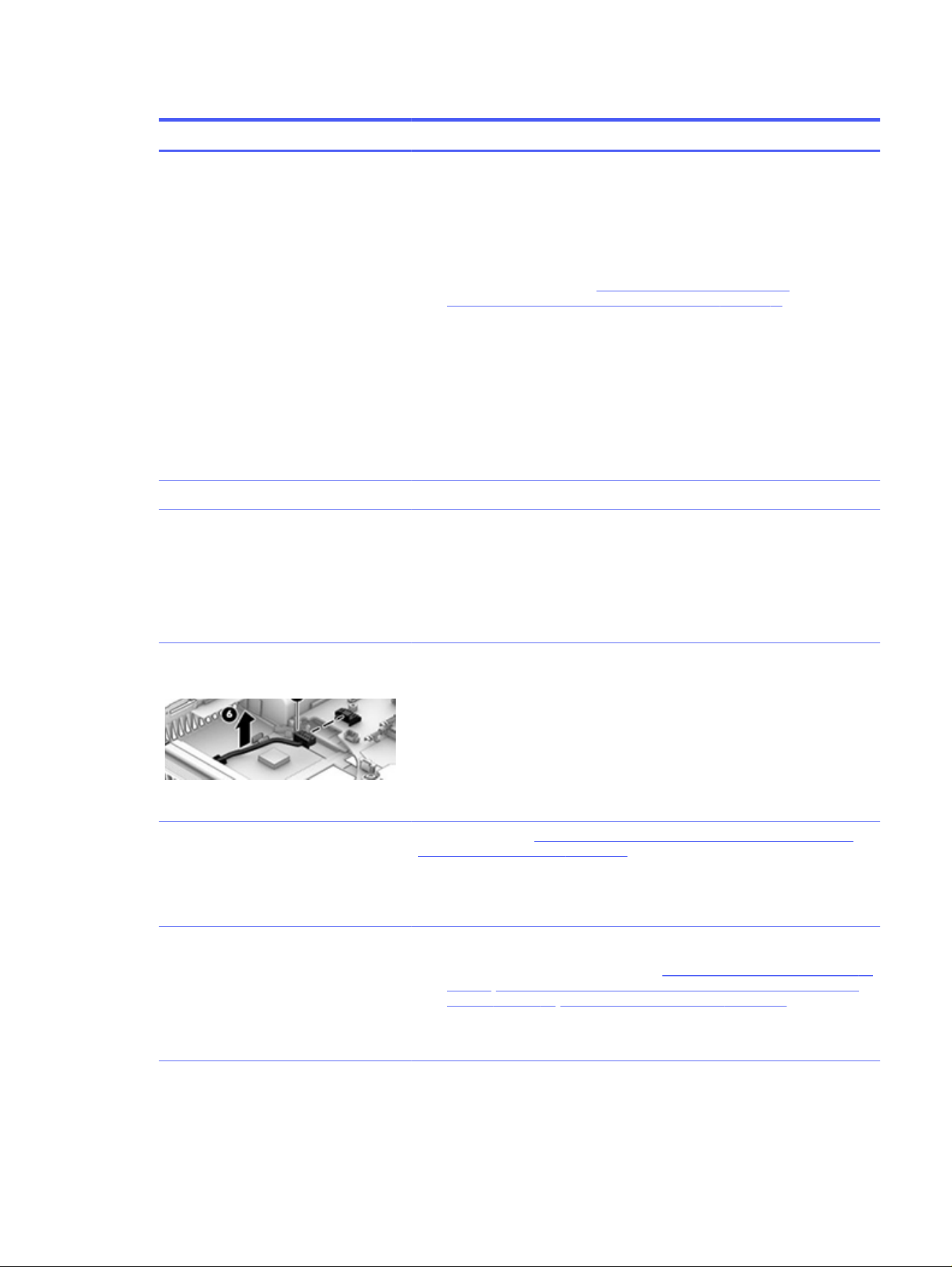
Table 7-9 Issues, possible causes, and fixes (continued)
Items Procedures
Verify battery condition and status
1. Check battery condition (overall result, cycle life, voltage) using HP PC
Hardware Diagnostics UEFI tool.
2. Verify that battery is installed properly in battery bay without a gap and that
latch locks are tight (for models with removable batteries).
3. Check battery status light (7. Status lights, blinking light codes,
troubleshooting lights, and POST error messages on page 74). Be sure that
battery is not fully discharged, preventing system from booting.
4. Determine whether the computer can turn on with battery only.
5. Remove service door and test with a verified working battery. If the computer
boots, inspect original battery before replacement.
6. Test battery with a verified working computer to verify that it works.
7. If the computer still does not boot, remove battery and boot on AC power
only.
The following steps are for authorized providers or technicians.
Verify AC adapter voltage
1. Measure DC voltage output, which should be approximately 19.5 V DC.
Acceptable voltage range is from 18.5 to 20.5 V DC.
2. If the DC voltage is out of range, replace the AC adapter.
NOTE: This action requires a digital voltmeter.
NOTE: Select models include a power
cable between the system board and
chassis power connector.
Verify power button, power connector
1. Be sure that power button is not stuck.
2. Reseat power connector cable (if applicable).
3. Replace new power connector cable (if the cable exists and is defective)
4. To isolate faulty power connector cable and power button, technicians can
short power-on pads or pins to turn on the computer. Contact HP Engineering
for this information.
Verify blinking lights (7. Status lights, blinking light codes, troubleshooting lights,
and POST error messages on page 74)
At this point, there should be sufficient power from the AC adapter to the system
board. Expect to hear the fan spinning and see blinking lights or error messages
(for example, faulty memory, HDD).
Verify system board
1. Test essential hardware configuration (11. Test with minimum configuration on
page 79, 12. Test with verified working configuration (hardware or operating
system) on page 80, 13. Replace the system board on page 80) by removing
nonessential parts.
2. If the computer still does not boot, replace system board.
No power 85

Table 7-9 Issues, possible causes, and fixes (continued)
Items Procedures
Tips Computer automatically boots without pressing power button when the RTC 3 V
battery is removed. Therefore, after the service door and RTC 3 V battery are
removed, you do not have to press power button from top side.
In essential hardware configuration, mWS G1 and G2 might require discrete
graphics processing unit (GPU) to boot. However, mWS G3 can boot with
integrated graphics.
Intermittent power-on, shutdown, restart
Use this information to troubleshoot power-on, shutdown, and restart issues.
Table 7-10
Issues, possible causes, and fixes
Items Procedures
Symptoms
● Does not always turn on
● Intermittently hangs
● Intermittently shuts down
● Spontaneously restarts
Possible causes
Electrical short, fluctuating power source, unstable power rails, loose connections, bent
pins, stray wires, dust, obvious damage, nearly faulty parts (bulging or leaking capacitor).
Potentially turn into a no-power issue (No power on page 84).
Troubleshooting steps
1. Visually check power ports on both AC adapter and computer sides.
2. Inspect power sources:
a. Verify that the AC adapter is working correctly. Use a confirmed working adapter
to test.
b. Verify that battery is not depleted while system is in the Sleep state. Test with a
confirmed working battery.
The following steps are for authorized providers or technicians.
1. Follow actions in No power on page 84.
a. Be sure that AC adapter has correct DC voltage.
b. Verify battery: test with a confirmed working battery.
c. Verify that power button is not stuck.
d. Verify that power connector is not loose.
e. Remedy loose connections and reseat major components (processor, memory,
GPU, hard drive, SSD, and others).
2. Perform visual check for loose connections, bent pins, stray wires, dust, nearly faulty
parts (bulging or leaking capacitor).
3. Test essential hardware configuration (11. Test with minimum configuration on page 79)
a. If system starts, reinstall nonessential hardware one component at a time to
isolate issue.
b. If system does not start, replace essential hardware with verified working parts,
one component at a time. If system still does not start, replace system board.
86
Chapter 7 Troubleshooting guide

AC adapter issue
Use this information to troubleshoot AC adapter issues.
Table 7-11 Issues, possible causes, and fixes
Solution
Symptoms
● No sign of power
● No boot
● No rear power light
● No front power light
● Battery does not charge when AC
adapter is connected
Possible causes
AC adapter and others (for example, external power source).
Troubleshooting steps
Quick check
1. Verify external power source (2. Examine the environment on page 70).
2. Remove all external devices, including docking station.
3. Perform a hard reset for the computer (8. Hard reset on page 77).
4. Disconnect and reassemble the power cord and adapter in case the adapter
experienced short circuit, over current, over temperature events.
5. Use a verified working adapter. If the computer operates normally, there is a
problem with the original adapter.
6. Verify that the AC adapter works on a verified working computer. If the
computer operates normally, there is no problem with the adapter. See HP
Smart Adapter warning message on page 101 for further information.
Verify AC adapter
1. Remove working battery.
2. Verify that AC adapter is compatible with product. Verify that part number is
for this computer if possible.
3. Inspect AC adapter and power cord for physical damage, bent middle ID pin.
4. Plug in AC adapter and power the computer without battery.
5. Inspect the power port on computer side for any damage, dust, debris.
6. Check power light (7. Status lights, blinking light codes, troubleshooting lights,
and POST error messages on page 74). Rear power light indicates that
external power to the computer is good.
7. If there is still no rear power light or no startup, replace the AC adapter.
Tips The HP Smart AC adapter has a special pin in the middle, called the ID pin, for
power rating and throttling. If this pin is broken, the rear power light turns on, but
the power button and front power lights blink continuously, and the computer does
not turn on. Third-party AC adapters do not work with the computer.
Use the AC adapter that came with the computer for better performance.
Battery not recognized, not charging
Use this information to troubleshoot battery issues.
AC adapter issue
87

Table 7-12 Issues, possible causes, and fixes
Items Procedures
Symptoms
● No battery status light
● Blinking amber (critically low
battery level)
● No startup without AC adapter
Possible causes
Defective AC adapter, battery, or both.
NOTE: Before proceeding, verify that the computer can start to BIOS or Windows with
a good AC adapter.
88 Chapter 7 Troubleshooting guide

Table 7-12 Issues, possible causes, and fixes (continued)
Items Procedures
Troubleshooting steps
Visual inspections
1. Inspect battery connectors for any signs of damage.
2. Verify that battery is installed properly in battery bay without gap or obstructions
and latch locks are tight. Reseat battery (for models with removable batteries).
3. Determine whether battery gets hot (batteries heat up when charging, but not too
hot to touch).
Check battery warranty to see whether the battery is new or its warranty is expired.
Battery capacity degrades over time.
Verify front battery status light
1. Battery status light is off: battery not recognized.
2. Battery status light is blinking amber: critically low battery level.
Reset
1. Hard reset (8. Hard reset on page 77)
2. Soft reset (9. Soft reset (Default Settings) on page 78)
Verify AC adapter
1. Determine whether the computer needs the AC adapter to boot and operate.
Sometimes, an intermittently bad AC adapter and loose connection between
adapter and computer results in inability to charge battery, which causes short
run time.
2. Inspect AC adapter to verify that it is functioning.
3. Test with a working AC adapter and confirm whether battery is charging.
4. Be sure that battery is fully charged (AC adapter plugged in at least 2.5 hours).
Diagnostics: HP tools report results such as passed, calibrate, weak, replace, no battery,
and unknown, and they suggest corresponding actions.
HP PC Hardware Diagnostics UEFI is a good tool to use to isolate and determine faulty
battery, especially for quickly discharging (short life) battery.
1. Verify that battery is recognized and charging.
2. Verify battery condition if battery cycle life is past its life expectancy (that is, past
1000-cycle life and 3-year warranty). Battery might need to be replaced.
3. If issue remains, test with a verified working battery and verify battery status lights
and battery conditions.
4. If issue remains, replace system board.
5. Verify the new replacement.
Tips
See the computer user guide for instructions regarding battery maintenance and
increasing battery life.
Battery not recognized, not charging 89

Battery discharges too fast
Use this information to troubleshoot battery issues.
Table 7-13 Issues, possible causes, and fixes
Items Procedures
Symptoms
Battery has good status light but
discharges too fast
Possible causes
AC adapter, battery, or both.
Troubleshooting steps
Verify AC adapter
Determine whether the computer needs the AC adapter to boot and operate.
Sometimes an intermittently bad AC adapter and loose connection between
adapter and computer results in the inability to charge the battery and causes
short runtime.
1. Inspect AC adapter to verify that it is working.
2. Test with AC adapter alone and with a verified working AC adapter.
Verify battery: Because battery capacity can degrade over time, check the
warranty coverage. Run a battery test to confirm whether issue is hardware
related.
1. Review battery power plans in Control Panel > Power Options that might
consume more energy and discharge battery faster. Resetting default to
Power Saver option can conserve battery power.
2. Determine whether any graphics are processing.
3. Verify battery maintenance and operations. Leaving the battery at a high
level of charge in a high-temperature environment for extended periods
accelerates the loss of capacity.
4. Test and calibrate battery using HP PC Hardware Diagnostics UEFI.
5. Verify battery life cycle using HP Support Assistant tool.
If battery cycle life is past its life expectancy (past the 1000-cycle life and
3-year warranty), the battery might need to be replaced.
6. Compare discharge time with a verified working battery (remove AC adapter)
using
Hardware Diagnostics UEFI>Hard Drive Tests>Extensive Test>Loop
until error.
Tips To conserve battery power, turn off Wireless On-Off button and other peripherals
and USB devices, applications, processes (in Task Manager) when not in use; also,
reduce screen brightness.
Follow HP instructions about how to maintain battery and increase battery life.
Burnt smell
Use this information to troubleshoot burnt-odor issues.
90
Chapter 7 Troubleshooting guide

Table 7-14 Issues, possible causes, and fixes
Items Procedures
Symptoms
Emits smoke, burnt smell
Possible causes
Defective on-board components.
Troubleshooting steps
General visual inspection
1. Disconnect the computer from power source (AC adapter and battery).
2. Inspect for visual damage on AC adapter and battery. Test on a known working
computer to isolate issue. If issue follows AC adapter or battery, replace it.
3. Inspect any sign of liquid spill on the computer (back of keyboard).
The following steps are for authorized providers or technicians.
Further inspection on components
1. Inspect further sources internally after disassembling chassis, such as burnt
or damaged components.
2. If the issue persists, replace boards, AC adapter, and battery for safety
concern, and report issues to HP.
POST
Use the following sections to troubleshoot Power-on Self Test issues.
No video (with power)
Use this information to troubleshoot video issues.
Table 7-15
Issues, possible causes, and fixes
Items Procedures
Symptoms
● No video (black or blank image)
but have power
● Light activity
● No error messages
● Fan noise
● Hard drive light blinking and
hard drive noise
Possible causes
Failed display
Failed critical components (memory, hard drive, system board)
Loose connection
Recently added hardware
NOTE: These suggestions assume that the computer has not previously been set up
for multiple displays.
POST 91

Table 7-15 Issues, possible causes, and fixes (continued)
Items Procedures
Troubleshooting steps
Quick check
1. Verify that system light activity is OK.
2. Remove all external devices, including docking station. Recently added hardware or
applications might cause graphics driver conflict and result in loss of video.
3. Perform hardware reset (8. Hard reset on page 77) and verify that HP Logo is
presented correctly on display screen when pressing f10.
4. Test with external monitor via VGA port (or DisplayPort, HDMI, or other). Press
power button and close the computer lid to force video output to external video. If
unsuccessful, contact HP service.
5. If external video is OK, update BIOS, software, and drivers (4. Update BIOS and
drivers on page 71), and perform soft reset (9. Soft reset (Default Settings) on page
78) if needed. Go to next step to verify display.
Verify display
● When booting to Windows, determine whether image appears on display screen
(via Windows Screen Solutions or Windows logo + p for display switcher).
● If there is video on the display, disconnect external display device, open the
computer lid, and restart.
The following steps are for authorized providers or technicians.
1. Reseat display cable connection on system board.
2. Reseat display cable connection on display panel side.
3. Examine and reseat major components, such as hard drive and memory.
4. Test with minimum configuration (11. Test with minimum configuration on page 79)
by removing hard drive to isolate operating system issues and testing video in F10
Setup.
5. If video is present, restart and retest the computer.
6. If video is present but bad, go to Display on page 103 section.
7. If issue persists (no video), test with external video.
8. If issue persists, test or replace with a confirmed working display.
9. If issue persists, replace discrete graphics card.
10. If issue persists, replace system board because of defective video function.
Tips Swipe a metal piece (screwdriver) over wireless or mute buttons to act as if closing lid to
force video output to external display device.
Blinking lights
Use this information to interpret blinking lights on the computer.
92
Chapter 7 Troubleshooting guide

Table 7-16 Issues, possible causes, and fixes
Items Procedures
Symptoms
Lights blink on keyboard caps
lock/num lock keys
Possible causes
Blinking lights on startup usually indicate a problem with basic functionality of a critical
component (processor, BIOS, graphics cards, memory, and so on) because of a loose
connection, defective parts, or recently added parts.
Troubleshooting steps
1. Check for any blink patterns. Count the number of blinks in a sequence, followed by
a pause for a few seconds.
2. See status, blinking lights, and error message (7. Status lights, blinking light codes,
troubleshooting lights, and POST error messages on page 74) for corrective
actions.
3. If internal hardware components (such as memory, hard drive) have been recently
added, a component might not be connected properly. Remove and reseat new
components (10. Reseat cables and connections on page 78) one at a time.
Note Because the display might not be functional, lights are used to indicate an error.
Diagnostic error messages
Use the information in the table to help you understand diagnostic error messages.
Table 7-17
Issues, possible causes, and fixes
Items Procedures
Symptoms
● Computer has power
● POST error message displays
(Windows logo has not yet
appeared)
Possible causes
Diagnostic error messages indicate a problem. There might be a problem with the
instruction being sent from the BIOS to a hardware component (for example, keyboard
failures), or incompatible hardware. Can usually be resolved by installing updated
firmware for the component.
Troubleshooting steps
1. See 7. Status lights, blinking light codes, troubleshooting lights, and POST error
messages on page 74 for corrective actions. An example of a POST error
message might be "Boot Device Not Found."
2. If there is power, you might be able to access BIOS. Reset BIOS to its default
condition. (9. Soft reset (Default Settings) on page 78)
3. Restore hardware to its original condition (for example, bootable SSD instead of
hard drive).
4. Reseat suspected components and verify connection.
5. Test suspected components using HP PC Hardware Diagnostics (UEFI) tool.
Note An Error Message means that the system has finished BIOS hardware validation and
is ready to launch the Startup Menu. To access the Startup Menu for further options,
press the esc key while restarting the computer.
BIOS password
Use the information in the table to troubleshoot BIOS password issues.
Diagnostic error messages
93

Table 7-18 Issues, possible causes, and fixes
Items Procedures
Symptoms
Some sections are unavailable
(grayed out)
Possible causes
You must use an administrator password.
Troubleshooting steps
1. Review F10 BIOS Setup Overview to determine which features must be enabled.
2. Your BIOS settings might be managed by a BIOS administrator password setup.
3. If you lost or forgot the user password, contact your IT personnel.
Reference HP F10 Setup Overview
See the HP PC BIOS F10 Setup Guide at http://support.hp.com.
Performance (OS)
Most software problems occur as a result of certain situations.
● The application was not installed or configured correctly.
● There is insufficient memory available to run the application.
● There is a conflict between applications.
Be sure that all the necessary device drivers are installed.
If an operating system other than the factory operating system is installed, check whether the operating
system is supported and the application is certified for the version of the operating system.
Intermittent shutdown
Use this information to troubleshoot shutdown issues.
Table 7-19
Issues, possible causes, and fixes
Items Procedures
Symptoms
● Shutdown during startup
● Shutdown during operation
Possible causes
It is often difficult to troubleshoot an intermittent issue. Possible causes include:
Power-related issue: defective or insufficient power sources, poor connection.
OS Custom Setting: Energy Saver (Power Management).
Thermal-related issue: thermal sensors reach limits.
Hardware related issue, voltage, out-of-range current, electrical short.
Troubleshooting steps
1. Update BIOS and drivers. (4. Update BIOS and drivers on page 71)
2. Perform hard reset (8. Hard reset on page 77)
3. Perform soft reset (9. Soft reset (Default Settings) on page 78)
94 Chapter 7 Troubleshooting guide

Table 7-19 Issues, possible causes, and fixes (continued)
Items Procedures
Power-related issue
1. Verify functionality of AC adapter alone. If it does not work, test with a verified
working adapter.
2. Verify battery alone. Verify that battery is not depleted. Test battery using HP PC
Hardware Diagnostics (UEFI) tool.
3. Verify connection of power button and cable.
OS custom settings
1. Advise users to reset power options and close all applications that are not in use,
including applications in the background.
2. Test with a confirmed working operating system to isolate custom settings by
users or any conflicting applications that cause shutdown.
The following steps are for authorized providers or technicians.
Thermal-related issue
1. Verify thermal condition:
a. Test fan using HP PC Hardware Diagnostics (UEFI) tool.
b. Check fan and connection. Reseat fan cable.
c. Be sure that no obstructions or dust are in heat sink fan, fin, or vent.
d. Test with a verified working fan.
e. Remove old thermal compound and pads and replace with new compound
and pads.
2. Verify thermal solution:
Use Thermal Monitor tool (available only to authorized service providers/
technicians) to perform stress test (processor and GPU), and verify that thermal
sensors are within limits after thermal condition is serviced.
Hardware-related issue
1. Check for any signs of loose connections, bent pins, stray wires, dust, nearly faulty
parts (bulging/leaking capacitor).
2. Verify that lights are solid.
3. If shutdown is reproducible, test essential hardware configuration:
a. If no issue with hardware configuration, reinstall one nonessential component
at a time to determine faulty hardware.
b. If issue persists, replace essential hardware with a confirmed working part,
one at a time. If the computer does not boot, replace system board.
Tips Intermittent issues are difficult to reproduce and troubleshoot. It is important to record
details about shutdown frequencies, system configuration (3D video application), and
operating conditions.
Blue screen
Use this information to troubleshoot blue screen issues.
Blue screen
95
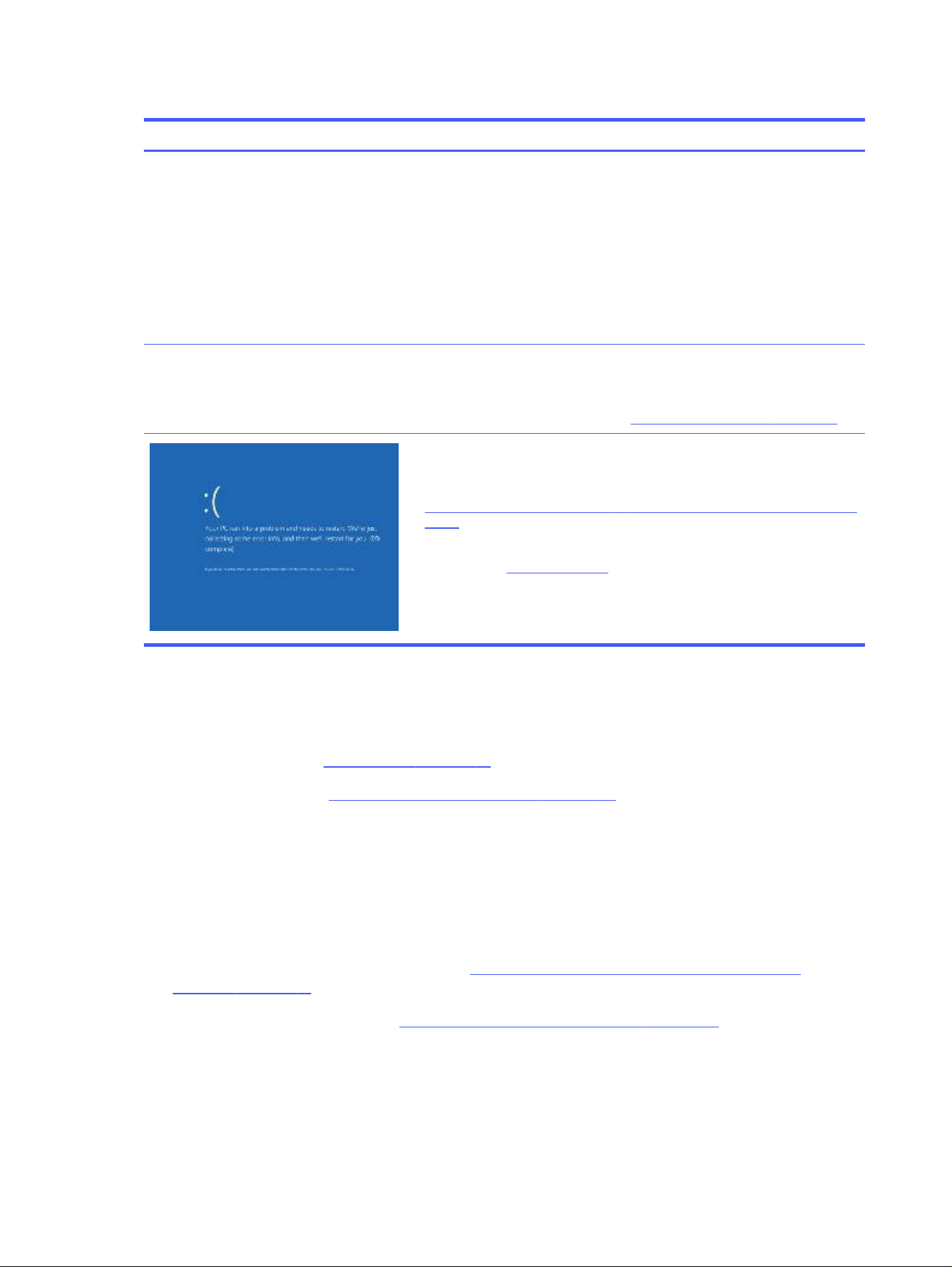
Table 7-20 Issues, possible causes, and fixes
Items Procedures
Symptoms
● Has power, light activity, fan spinning
● HP Logo displays briefly
● Fails to boot into Windows operating
system, displays blue screen, and then
crashes, restarts, or stops responding
Possible causes
Recent changes: conflict of instructions from multiple programs or just added
hardware.
Incompatible hardware and driver.
Poor connection (hard drive, memory).
Hardware malfunctioning due to overheating (GPU, processor).
Defective hardware (memory, hard drive).
Important Notes & Resources
Troubleshooting steps
There are many different ways to troubleshoot a blue screen error. Therefore,
you need to identify working configuration and specific symptoms of the
failure to narrow down the issue. See Blue screen (BSOD) error on page 121.
Recommended resources
Microsoft knowledge base:
http://windows.microsoft.com/en-us/windows-8/resolve-windows-blue-screen-
errors
For more information, search for HP Troubleshooting Error Messages on a
blue screen at http://www.hp.com.
Overview of general troubleshooting steps for a blue screen error
1. Note the blue screen error message and what activity was performed at the time.
2. Perform a hard reset (8. Hard reset on page 77) after disconnecting all external peripherals.
3. Reset BIOS to default (9. Soft reset (Default Settings) on page 78) to prevent booting to another
device.
4. Run HP Hardware Diagnostics to isolate major faulty hardware issues.
● HP PC Hardware Diagnostics (UEFI) tool to test hard drive, memory, and system.
● Thermal Monitor (available only to authorized service providers and technicians) tool to monitor
temperature limits of processor and GPU.
5. Remove or undo recently added hardware (5. Remove or uninstall recently added hardware,
software on page 71). For example, incompatible memory or new SSD storage.
6. Reseat cables and connections (10. Reseat cables and connections on page 78). Pay attention to
proper installation of memory and hard drive.
7. Verify that a minimum of at least 100 MB of free space is available on your Windows partition.
8. If you can start Windows:
96
Chapter 7 Troubleshooting guide

a. Update BIOS and drivers (4. Update BIOS and drivers on page 71) to support updates for
incompatibilities.
b. Get all the latest updates, using Windows Update.
c. Undo recent changes:
● Startup using Last Known Good Configuration.
● Use System Restore.
● Roll back device driver in Device Manager.
d. Check for specific Error Message. See Common blue screen error messages on page 130.
e. Start in safe mode (11. Test with minimum configuration on page 79) to troubleshoot issues.
9. If you cannot start Windows:
a. Start in safe mode. (11. Test with minimum configuration on page 79)
b. Use Startup Repair to fix Windows startup files.
c. Undo recent changes using System Restore to revert to a previous working state.
d. Check for specific STOP error by analyzing Crash Dump (retrieved via a bootable USB). See Use
Windows Debugging Tool on page 131.
e. Restore computer using System Recovery or image backup to factory settings.
10. Test with essential hardware configuration (11. Test with minimum configuration on page 79) with
a verified working operating system (for instance, USB Windows-To-Go), if available, to isolate the
software issue.
Freeze at Windows Logo (hang or lockup)
Use the following information to troubleshoot hang or lockup issues.
Freeze at Windows Logo (hang or lockup)
97

Table 7-21 Issues, possible causes, and fixes
Items Procedures
Symptoms
● Has power, light activity, fan spinning
● HP Logo displays briefly
● Attempt to start to operating system
and freeze/hang at Windows logo
● No response to pressing num lock or
caps lock key
Possible causes
Conflict of instructions from multiple programs or drivers; installing a new
hardware or program that is not compatible (might also cause a blue screen
error—see blue screen issue).
Troubleshooting steps
Perform the following steps to verify normal boot process:
1. Disconnect all external peripherals, and perform a hard reset (8. Hard
reset on page 77).
2. Perform soft reset (9. Soft reset (Default Settings) on page 78).
3. Update BIOS and drivers (4. Update BIOS and drivers on page 71).
a. Rollback to previous version might be necessary.
b. Go to safe mode to install drivers.
4. Run Hardware Diagnostics to isolate hardware issue.
5. Undo recent changes in Windows (5. Remove or uninstall recently added
hardware, software on page 71).
6. Reseat cables and connections (10. Reseat cables and connections on
page 78).
7. Start Windows in safe mode (11. Test with minimum configuration on page
79).
8. Use Startup Repair Windows to fix Windows damaged files.
9. Test with essential hardware configuration (11. Test with minimum
configuration on page 79) with a verified working operating system (for
instance, USB Windows-To-Go), if available, to isolate the software issue.
Electromagnetic Interference (EMI)
Use this information to troubleshoot EMI issues.
98
Chapter 7 Troubleshooting guide

Table 7-22 Issues, possible causes, and fixes
Items Procedures
Symptoms
System locks up, freezes in certain
physical area or location
Possible causes
Electromagnetic interference (EMI).
Troubleshooting steps
1. See (2. Examine the environment on page 70). Pay attention to external power
source, high-frequency signals such as cell phones, microwave ovens.
2. Move the computer to different locations nearby to determine where it fails and
where it does not fail.
3. Test with a verified working computer in original factory configuration.
4. Consult with support.
No wake up
Use this information to troubleshoot wake-up issues.
Table 7-23
Issues, possible causes, and fixes
Items Procedures
Symptoms
When resuming from a power
management state the computer
might display:
● Blank screen
● Some light activity
Possible causes
Power-saving mode; multiple-display setting.
No wake up 99
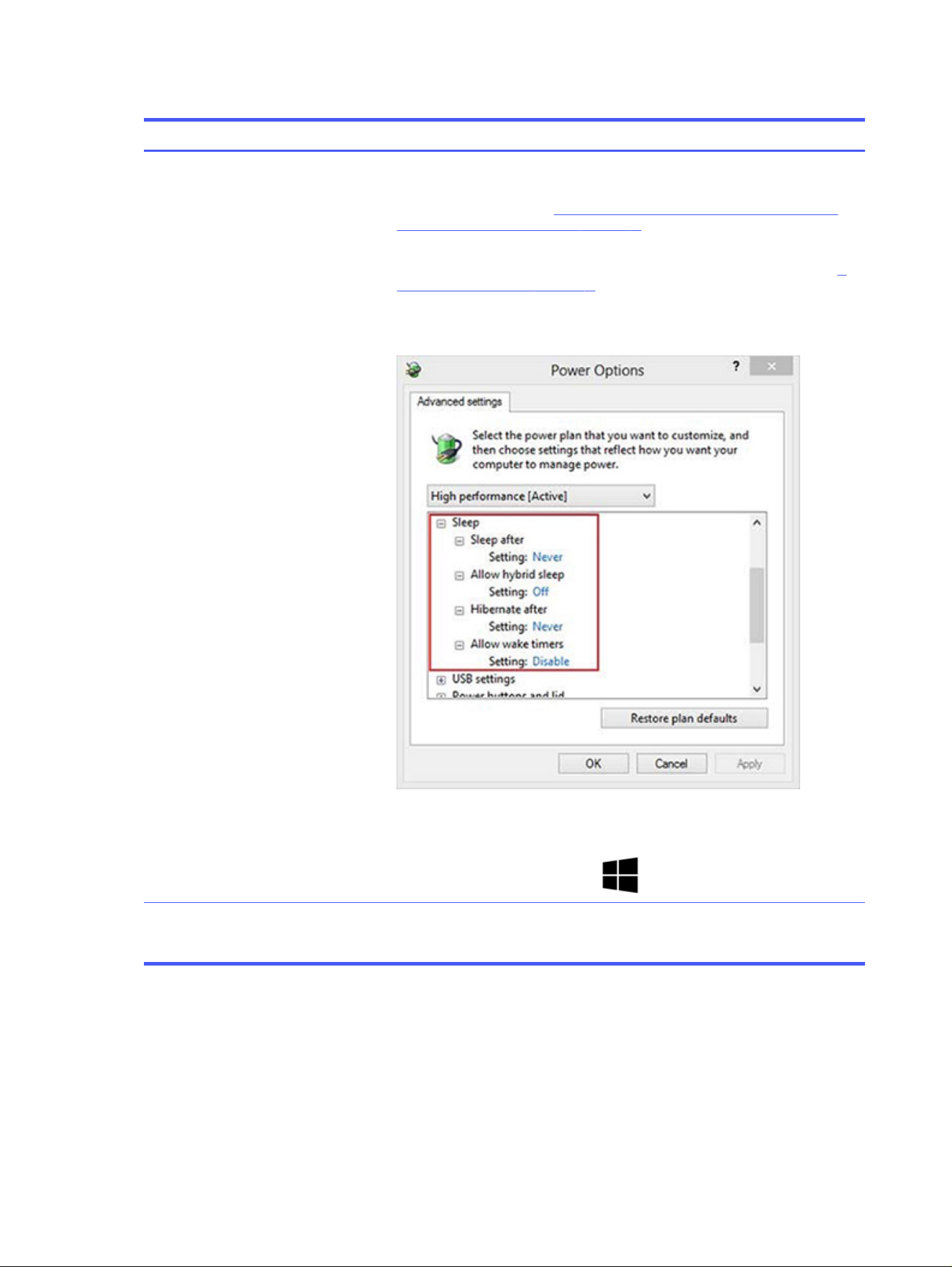
Table 7-23 Issues, possible causes, and fixes (continued)
Items Procedures
Troubleshooting steps
1. Verify that front power light (7. Status lights, blinking light codes, troubleshooting
lights, and POST error messages on page 74) is blinking (indicating Sleep state).
Press power button to exit Sleep.
2. Reset BIOS to default (associated with OS Power Management in Power Menu) (4.
Update BIOS and drivers on page 71)
3. Check power management settings in Windows Power Options. Disable Sleep
options if the issue is resolved.
4. Screen saver is set. Press any key or touch touchpad to resume.
5. Verify that Display Choice is set to external video only. Toggle screen control key
combination fn + f4 or Windows logo
+P.
Tips
If you are using a docking station, set your notebook display as a primary display. When
the computer is undocked, you might think it is in a power-saving state, but the screen
image could actually appear on an external display device in the docking configuration.
Unresponsive
Use this information to troubleshoot issues with responsiveness.
100
Chapter 7 Troubleshooting guide

Table 7-24 Issues, possible causes, and fixes
Items Procedures
Symptom
Unresponsive
Possible causes
Program in use has stopped responding to commands.
Troubleshooting steps
1. If possible, use the Windows Task Manager to isolate and terminate the offending
process.
2. Attempt the normal Windows shutdown procedure.
3. Restart the computer using the power button.
Slow performance
Use this information to troubleshoot performance issues.
Table 7-25
Issues, possible causes, and fixes
Items Procedures
Symptom
Slow performance when performing
small tasks, or even in idle mode
Possible causes
Processor is hot or hard drive is full.
Troubleshooting steps
Processor is hot
1. Verify that airflow to the computer is not blocked.
2. Verify that chassis fans are connected and working properly. Some fans operate
only when needed.
3. Verify that the processor heat sink is installed properly.
Hard drive is full
1. Transfer data from the hard drive to create more space on the hard drive. Microsoft
recommends at least 200 MB to sync system files.
2. Perform disk defragmentation to consolidate fragmented data on the hard drive so
it works more efficiently.
Tips See Routine maintenance for performance improvement on page 129.
See http://windows.microsoft.com/en-us/windows-8/free-up-disk-space.
See http://windows.microsoft.com/en-us/windows/optimize-windows-better-
performance#optimize-windows-better-performance=windows-vista.
HP Smart Adapter warning message
Use this information to troubleshoot power adapter warning messages.
Slow performance
101
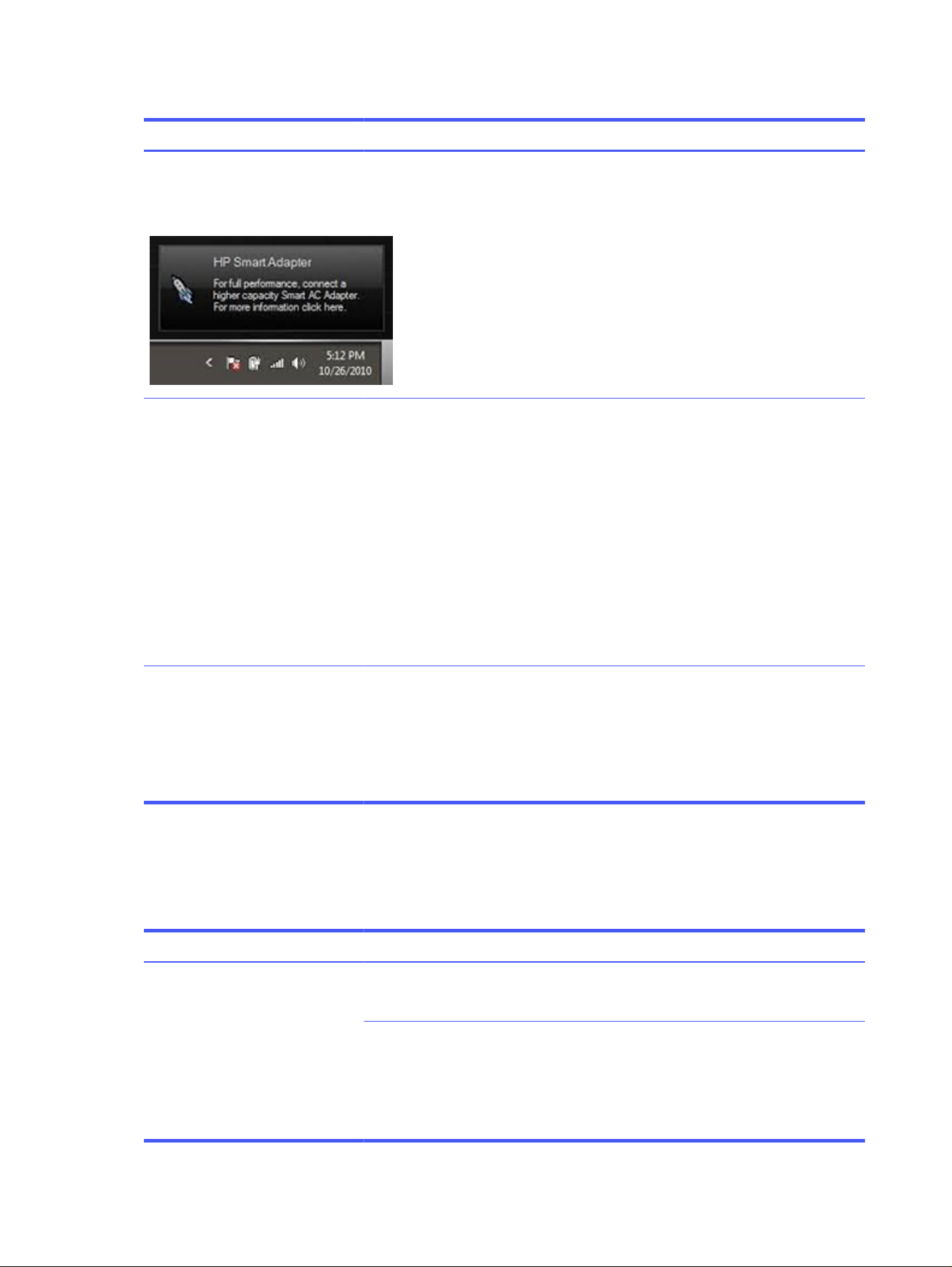
Table 7-26 Issues, possible causes, and fixes
Items Procedures
Symptom
Warning message appears in
window
Possible causes
Less powerful AC adapter, BIOS out of date.
Troubleshooting steps
1. Update BIOS, which might contain information that assigns an appropriate adapter
for the configuration.
2. Update the latest HP Hotkey Support software from Drivers website.
3. Be sure that the power source is sufficient (where adapter is connected).
4. Use appropriate AC adapter (often supplied with system) for optimum system
performance.
5. Test with a verified working AC adapter.
6. Test the adapter on a verified working computer.
7. Contact HP for configuration details.
Note HP Smart AC adapter warning message: informs you that as power demands increase,
the notebook might not perform at full capacity, which might result in longer battery-
charging time. In cases of extreme power demands, the system might also throttle back
the processor, or with systems that have a discrete video subsystem, a video balance
mode might occur to further balance the power needs of the system.
Because system processor functions always have priority over battery charging,
charging delays occur first.
Incorrect time and date
Use the following information to troubleshoot time and date issues.
Table 7-27
Issues, possible causes, and fixes
Item Procedure
Symptom
Incorrect date and time
Possible cause
Real-time clock (RTC) battery might need replacement.
Troubleshooting steps
1. Reset the date and time in the operating system Control Panel.
2. Replace the RTC battery.
3. Verify that date and time are correct.
102 Chapter 7 Troubleshooting guide
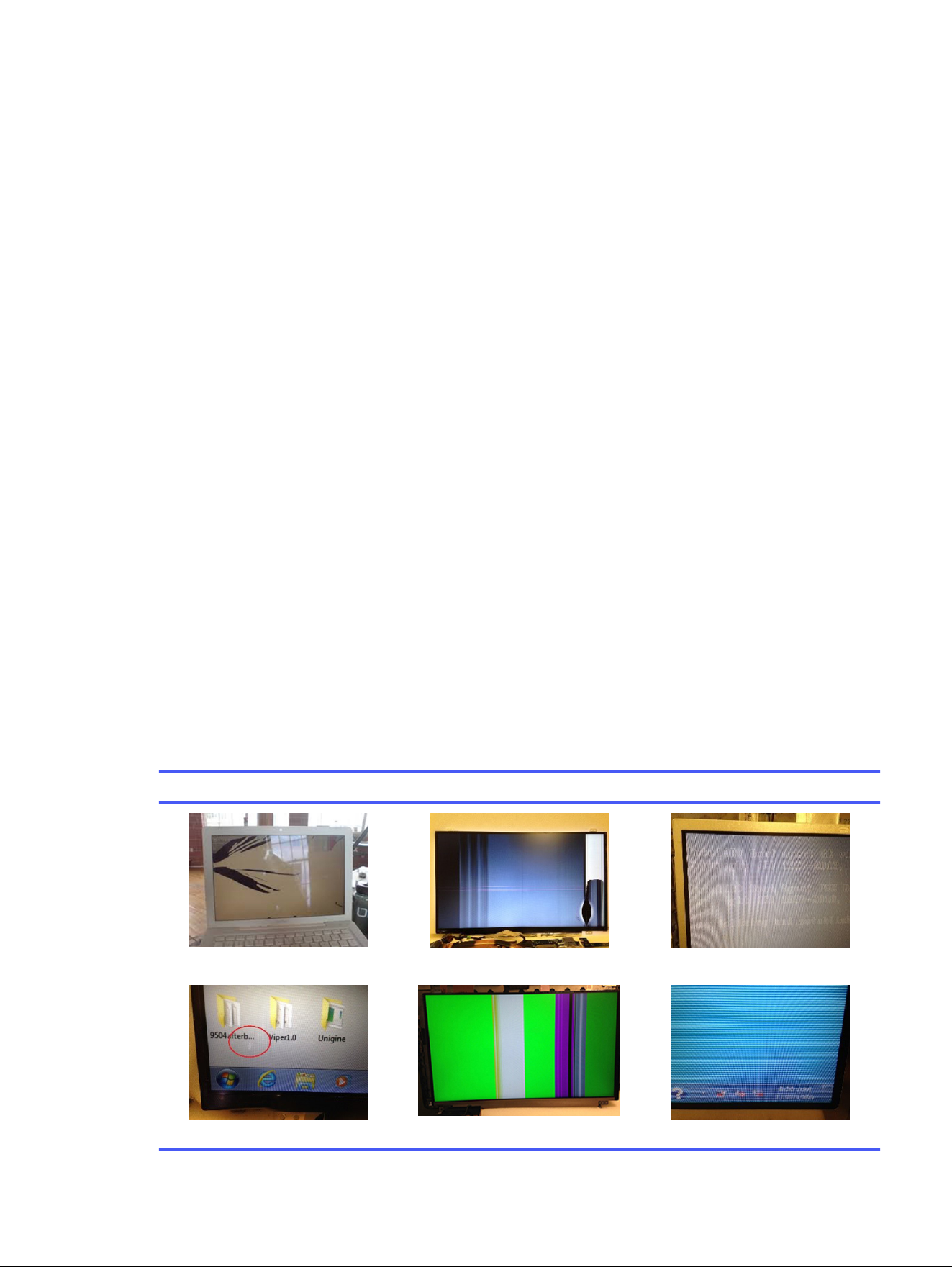
Display
Use these sections to troubleshoot display issues.
Display anomalies
The display panel is a field-replaceable unit (FRU) and must be replaced by only authorized technicians.
However, HP highly recommends that users and technicians observe symptoms and use the HP PC
Hardware Diagnostics (UEFI) tool before any replacement.
Symptom
This section includes common display issues with symptoms.
● Blank or black video
● Incorrect color, missing color, distorted image
● Flickering image
● Vertical lines (because of LDVS, decreased signal integrity, and data loss)
● Dead pixel (because of display liquid, internal transistor, and others)
● Horizontal lines (because of video memory)
● Distorted when hot (because of thermal issue)
● Cracked screen/image (physical damage)
● Light leakage/bleeding
Contact support for assistance.
● Humming noise (due to frequency settings)
Contact support for assistance.
Table 7-28
Display anomaly illustrations
Display anomalies
Cracked screen
Cracked image
Blurred image
Dead pixel
Vertical lines
Horizontal lines
Display 103

Quick check
Use these steps to check the display.
● Visually examine the display for cracked screen, liquid crystal leak, dirty spots on glass, and other
issues.
● Reset and update BIOS and docking firmware.
● Update operating system (OS), graphics or video drivers (Intel, AMD, NVIDIA, and others).
For custom images, HP highly recommends upgrading or installing Windows in UEFI mode or Legacy
disabled to fully support hybrid graphics and avoid unexpected behaviors, for example, blue screen
error, graphics or video issues, in the BIOS Legacy setting.
● Configure Windows settings (Power options, Screen brightness, Personalization, Screen resolution,
and so on).
● Test with a verified working external display.
● Boot to Windows in safe mode.
● Test with a verified working operating system (for instance, shipping image).
HP PC Hardware Diagnostics (UEFI) for video test
Use this tool to quickly determine if the display issue is related to a real hardware issue.
To start HP PC Hardware Diagnostics (UEFI), when the computer is starting up, press the f2 key, select
Component Tests, and then select Video.
There are three options:
● Video Memory Check: to test video memory
● Palette Check: to test the three video color components (red, green, blue)
● Dead Pixel Check: to check dead pixels in eight different colors (Dead Pixel Check is available with
the HP PC Diagnostics 3-in-1 USB Key tool)
Review the video troubleshooting in the following Display section for specific issues and possible
solutions. For additional information about display problems, see documentation provided by the
product manufacturer.
Display assembly diagram
The display assembly diagram shows basic video components: system board, graphics cards, display
cables, display connectors, operating system (OS), graphics driver, and LCD display panel. Any
component or a combination of these components can contribute to a video issue.
104
Chapter 7 Troubleshooting guide
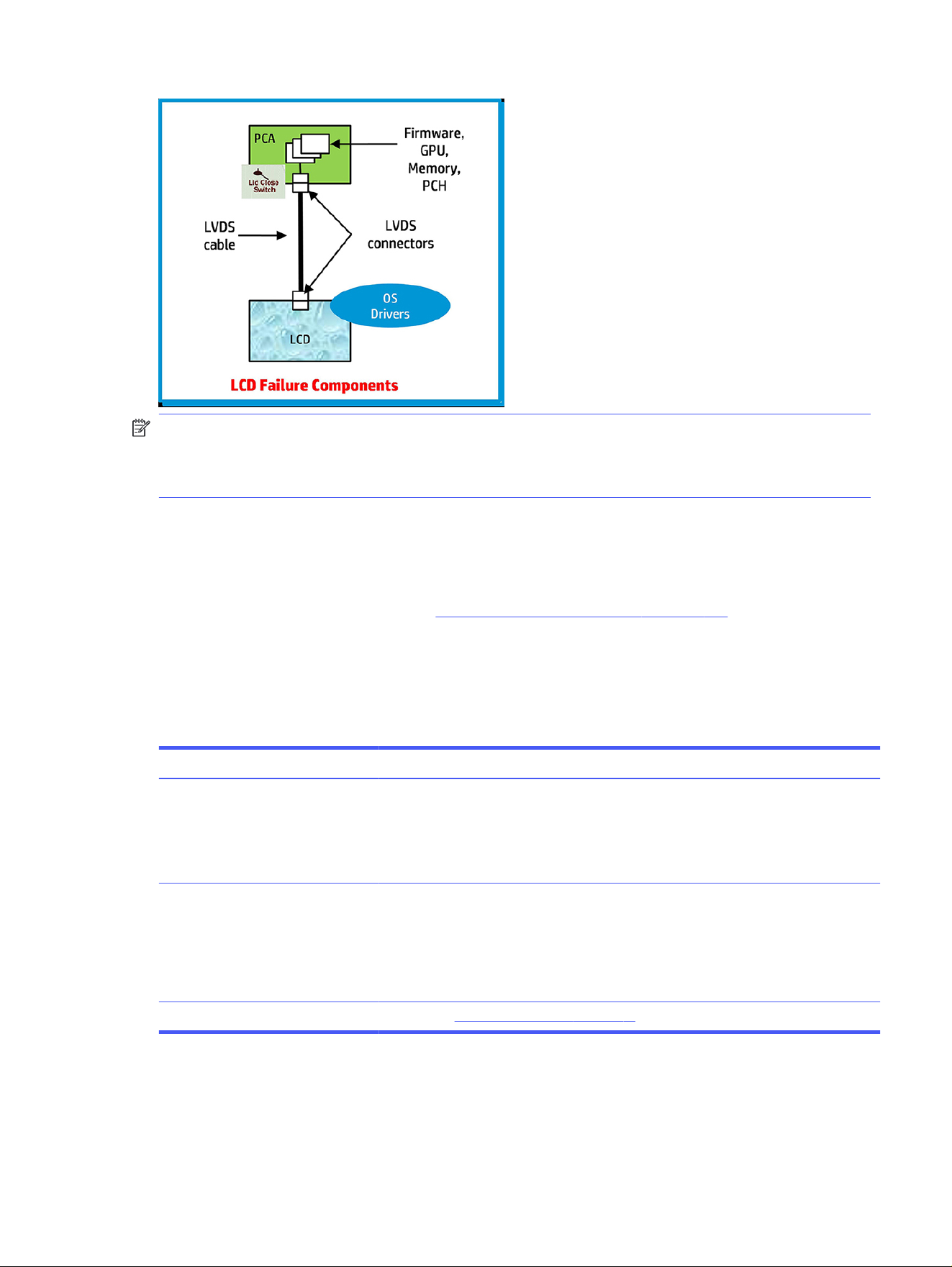
NOTE: The lid close switch is a Hall-effect sensor located in the top cover. When the display is closed,
the sensor acts like a switch is closed. A notebook can force a video output to an external monitor, or
go to hibernation or standby mode through power management. If the display screen does not light up
when the display is open, the lid close switch (Hall-effect sensor) could be faulty.
Dead pixel
Display panel might show one or more pixels that are not properly lit when displaying a single color over
the screen area. Use HP PC Hardware Diagnostics (UEFI) tool to determine those defective pixels.
There is no solution for dead pixels. See Display issue: pixel anomalies on page 135 for the HP dead pixel
policy.
No video (internal)
Use this information to troubleshoot video issues.
Table 7-29
Issues, possible causes, and fixes
Items Procedures
Symptoms
No internal video with certain
programs (for example, video-
intensive games)
Possible causes
Display resolution, brightness, faulty lid switch, running a program requiring a higher
resolution than the display screen can support.
Faulty lid switch might put the system into Sleep or Hibernation mode.
Troubleshooting steps
Use an external monitor with higher resolution.
Test with external monitor using HDMI or HP port. Press the power button and close the
computer lid to force video output to external video. If there is still no video, contact
support.
References See section No video (with power) on page 91 for display information.
No video (external)
Use this information to troubleshoot external video issues.
Dead pixel
105

Table 7-30 Issues, possible causes, and fixes
Items Procedures
Symptom
No image on external monitor
Possible causes
External monitor, resolution, display configuration, drivers.
Troubleshooting steps
1. Be sure external monitor is compatible with the computer.
2. Be sure that external monitor is turned on.
3. Press any key to exit the power-saving mode.
4. Adjust the brightness of the monitor.
5. Test with a verified working monitor.
6. Test the monitor via internal ports (VGA, DP ports).
7. Install latest video driver.
8. Reset the screen resolution as described in the documentation.
9. Configure display choice, and then force output to external video by closing the
notebook lid or pressing fn + f4 to switch screen output.
DisplayPort/VGA
Use this information to troubleshoot DisplayPort and VGA issues.
See No video (external) on page 105.
HDMI
Use this information to troubleshoot HDMI issues.
Table 7-31
Issues, possible causes, and fixes
Items Procedures
Symptoms
● Display issue
● Sound issue
Possible causes
Cable, connection, settings.
Troubleshooting steps
Quick Check
1. Verify that the HDMI device input source is set correctly (for example, HDMI1).
2. Be sure you are using the correct HDMI cable.
3. Check connection and reconnect the HDMI cable.
4. Verify whether sound output is configured correctly in Control Panel > Sound Manager.
1. Perform hard reset (4. Update BIOS and drivers on page 71).
2. Update BIOS and drivers (4. Update BIOS and drivers on page 71) when you hear sound
but do not see video on HDTV.
106 Chapter 7 Troubleshooting guide

No or bad external video via docking
Use this information to troubleshoot video issues while docking.
Table 7-32 Issues, possible causes, and fixes
Items Procedures
Symptoms
No or bad image on external monitor
via ports of docking station (such as
VGA, DP, TB, display port, and others)
Possible causes
Rooted from system board, software or drivers, dock connectors, docking station
hardware or firmware, dock video ports (DP, VGA, and others).
Troubleshooting steps
1. Be sure that external monitor is turned on.
2. Be sure that external monitor is compatible with the computer.
3. If applicable, plug the dock in different Type-C ports.
For more information, see the technical white paper titled ”HP Elite Dock with
Thunderbolt 3 & HP ZBook Dock with Thunderbolt 3.” Go to http://www.hp.com/ and
search for HP ZBook Thunderbolt 3 Dock User Guide.
4. If the screen image is distorted, try a DP-to-VGA adapter. Connect the adapter to
each DisplayPort and VGA port of the dock.
5. Test the monitor via internal ports (such as VGA, DP, HDMI, and others).
6. Verify that dock connectors of the notebook and the dock are clean, without dust,
debris (for example, using air duster).
7. Ideally, use a verified working operating system or system connected to the dock to
isolate the issue of the current operating system.
8. Ideally, use a verified working docking station to isolate the faulty dock.
9. Update to latest dock firmware. Follow the installation instructions carefully. You
may want to try a DP-to-VGA adapter if you have a distorted screen image.
Connect the adapter to each DisplayPort of the dock. If you still cannot update
the dock, attempt to update it on a confirmed working notebook before having the
dock replaced.
Note
See the technical white paper titled “Multiple displays on HP ZBook Mobile
Workstations” from HP platform support website. Go to http://h20195.www2.hp.com/v2/
getpdf.aspx/4aa5-2657enw.
Incorrect or missing color/distorted image
Use this information to troubleshoot image issues.
Table 7-33
Issues, possible causes, and fixes
Items Procedures
Symptoms
System works normally but the
display shows:
● Missing or strange color
● Image distortion
Possible causes
Loose connection, display cable, display, graphics card.
No or bad external video via docking 107

Table 7-33 Issues, possible causes, and fixes (continued)
Items Procedures
Troubleshooting steps
Verify with external monitor
1. Use combination fn + f4 to enable output to external monitor.
2. Close the lid.
If the external monitor also shows incorrect color, it is a graphics card issue. Test with a
verified working graphics card.
Verify monitor cable and cable connection (monitor disassembly required).
Be sure the monitor cables are not pinched or damaged.
Be sure the monitor cables have good connection at both ends (system board and
display panel).
● If moving cables affects the image, the monitor cable is the cause of the issue. Test
with a confirmed working cable.
● If moving cables does not affect the image, the monitor has an issue. Test with a
confirmed working monitor.
Touch screen
Use this information to troubleshoot touch screen issues.
Table 7-34
Issues, possible causes, and fixes
Items Procedures
Symptoms
Unresponsive
Inaccurate
Possible causes
Dirt and smudge, driver, touch display configuration, power management.
Troubleshooting steps
Quick check
Turn off the computer, spray glass cleaner onto a soft, damp cloth, and gently
wipe the screen to remove dirt and smudge.
NOTE: Do not spray cleaner directly onto the screen.
108 Chapter 7 Troubleshooting guide
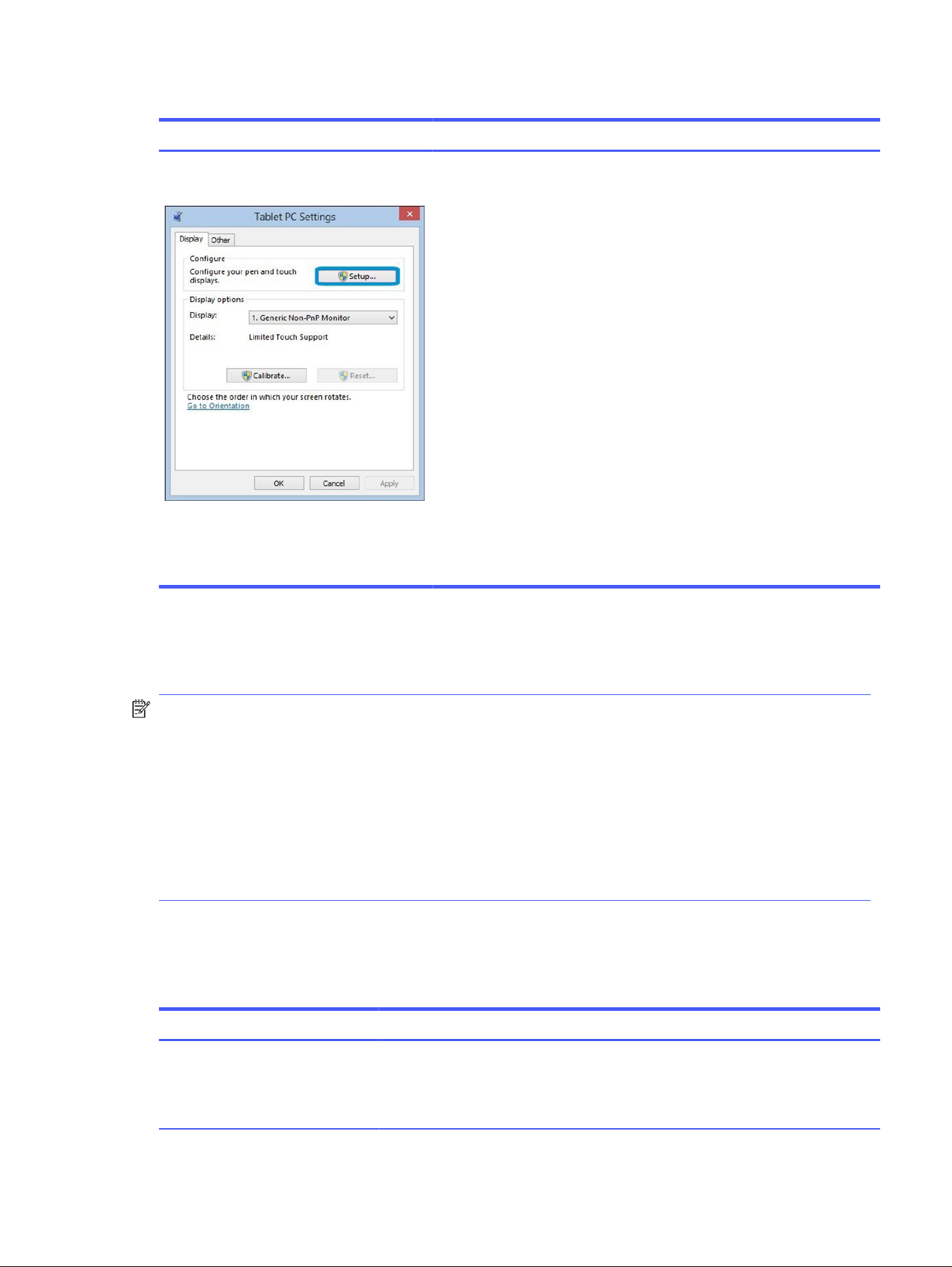
Table 7-34 Issues, possible causes, and fixes (continued)
Items Procedures
Configure the touch display in Control Panel >
Tablet PC Settings
1. Restart the computer.
2. Verify touch screen and graphics drivers.
3. Configure the touch display to identify the screen as a touch screen, as
shown in the image at left.
4. Calibrate the screen and reset if touch functionality is still not working
correctly.
5. Perform diagnostic test in HP Hardware Diagnostics under Component
Tests > Touch Screen.
If the diagnostics tests pass but the touch screen still does not respond,
continue following the steps.
6. Adjust the power management settings for your touch screen.
If the touch screen stops working after waking from sleep, adjust the
power management settings so that the touch screen device stays
active while the computer is in Sleep mode.
7. Perform Microsoft System Restore, and restore to a time when the
system was working.
8. Perform HP System Recovery if none of the previous actions resolve the
issue.
I/O devices
Use this information to troubleshoot I/O device issues.
NOTE:
● Be sure that external devices are supported and compliant (for example, USB Type-C, Thunderbolt,
PCI Express).
● If you have problems with external devices not provided by HP, contact device manufacturers for
compatibility and latest drivers before troubleshooting (for example, USB devices, Thunderbolt
devices, PCI express card reader, VGA, display, HDMI monitors, speakers).
● Be sure I/O devices are properly inserted into the I/O ports, and then be sure that Windows Device
Manager recognizes the I/O devices.
Keyboard
Use this information to troubleshoot keyboard issues.
Table 7-35
Issues, possible causes, and fixes
Items Procedures
Symptoms
Keystrokes not recognized
Characters not matched
Possible causes
Dust trapped under keycap, loose keycap, loose keyboard connection, defective
keyboard.
I/O devices 109

Table 7-35 Issues, possible causes, and fixes (continued)
Items Procedures
Troubleshooting steps
1. Inspect the keyboard for any signs of dust, liquid, or debris trapped under sticky
keys that might prevent keystroke recognition.
2. Check for incomplete connection between keyboard and system board by verifying
that caps lock or num lk light turns on when you press the key.
3. Verify whether the keyboard is recognized in Windows Device Manager, and verify
whether the keyboard driver is installed properly.
4. Test with a working external keyboard (such as a USB keyboard).
Also test in Windows for special keys (caps lock, shift, ctrl, fn, Windows, alt) if
necessary.
5. Test with HP PC Hardware Diagnostics (UEFI) to isolate a hardware issue from a
software issue.
6. Verify that BIOS is up to date. If so, resetting BIOS to default might help.
7. Test with a verified working operating system, or restore the operating system to
be sure that the issue is not caused by items such as different language settings,
sticky keys feature, and so on.
8. Verify that keyboard flex cables are fully inserted and in good condition.
The following steps are for authorized providers and technicians.
1. Verify that keyboard flex cable is in good condition (no delamination or torn cable
end, no missing or cracked tracks, pads).
2. Verify that keyboard flex cable ends are fully inserted and aligned with connectors
on system board, and those connector tabs are properly closed. Reseat cables.
3. Replace new internal keyboard and retest.
Tips If a key works only when pressed with force, inspect and remove debris trapped under
keycap.
Keyboard pointing stick (select products only)
Use this information to troubleshoot pointing stick issues.
Table 7-36
Issues, possible causes, and fixes
Items Procedures
Symptom
Point stick not working properly
Possible causes
Dust trapped under point stick, loose point stick cap.
Troubleshooting steps
1. Inspect for any signs of dust or liquid spill that prevent point stick from working.
2. Check whether point stick cap is loose, and reseat it if necessary.
The following steps are for authorized providers and technicians.
110 Chapter 7 Troubleshooting guide
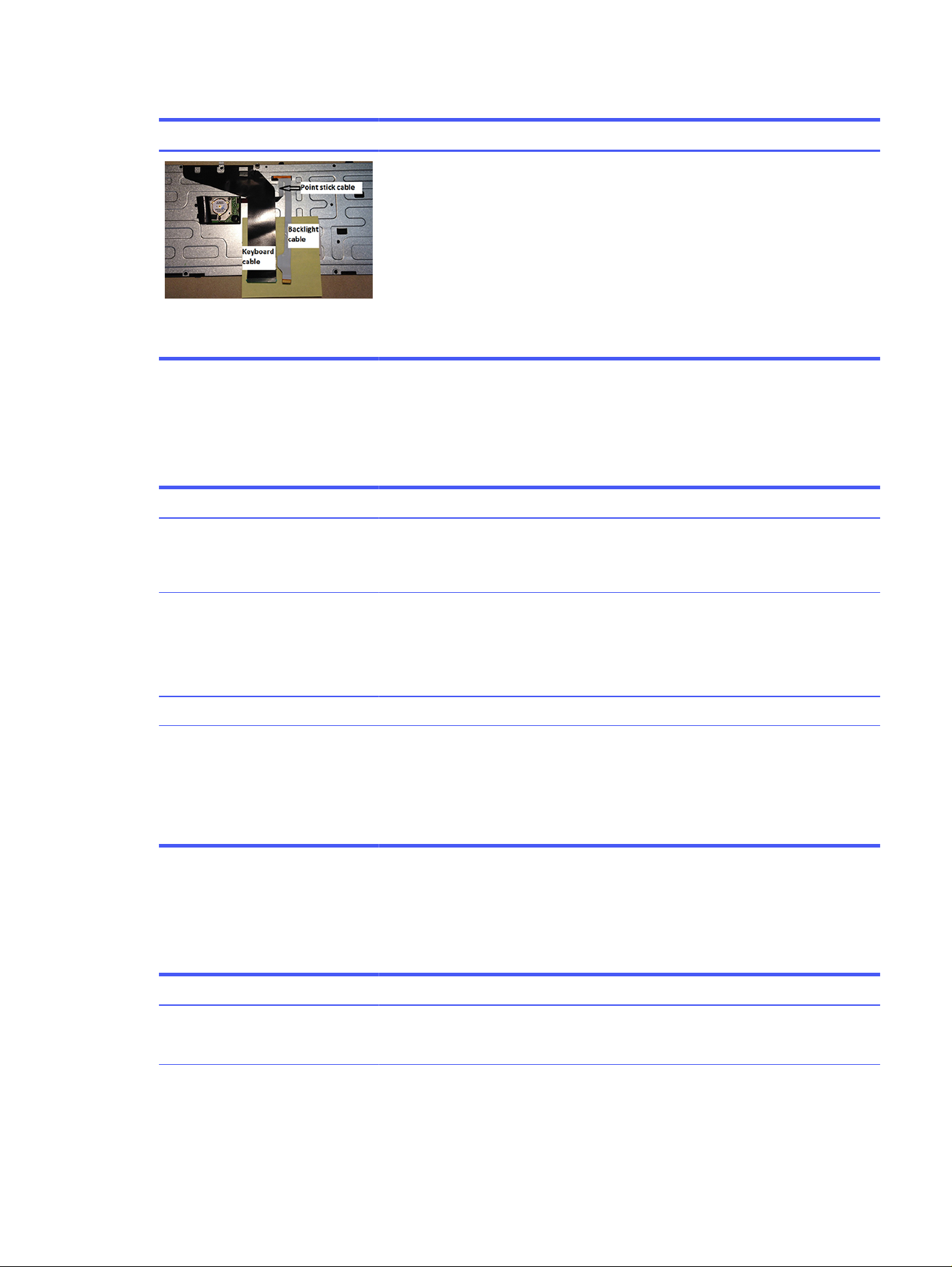
Table 7-36 Issues, possible causes, and fixes (continued)
Items Procedures
Example of back of keyboard,
including keyboard, point stick, and
backlight cables.
1. Verify whether keyboard flex cables are in good condition (no delamination or torn
cable end, no missing or cracked tracks, pads).
2. Verify that keyboard flex cable ends are fully inserted and aligned with connectors
on system board and back of keyboard, and that connector tabs are properly
closed.
3. Reseat point stick cables.
Keyboard backlight
Use this information to troubleshoot keyboard backlight issues.
Table 7-37
Issues, possible causes, and fixes
Items Procedures
Symptom
Backlight function not working
properly
Possible causes
Backlight disabled, loose connection.
Troubleshooting steps
NOTE: Not all notebook computers have backlit keyboards.
A keyboard function key lets you turn the light on and off. Verify whether backlit feature
is not disabled by pressing a combination of fn + backlit key.
The following steps are for authorized providers or technicians.
1. Verify whether backlight flex cables are in good condition (no delamination or torn
cable end, no missing or cracked tracks or pads).
2. Verify that backlight flex cable ends are fully inserted and aligned with connectors
on system board and that connector tabs are properly closed.
3. Reseat backlight cable.
Touchpad
Use this information to troubleshoot touchpad issues.
Table 7-38
Issues, possible causes, and fixes
Items Procedures
Symptoms
Not working properly
Possible causes
Touchpad turned off, driver, settings.
Keyboard backlight 111
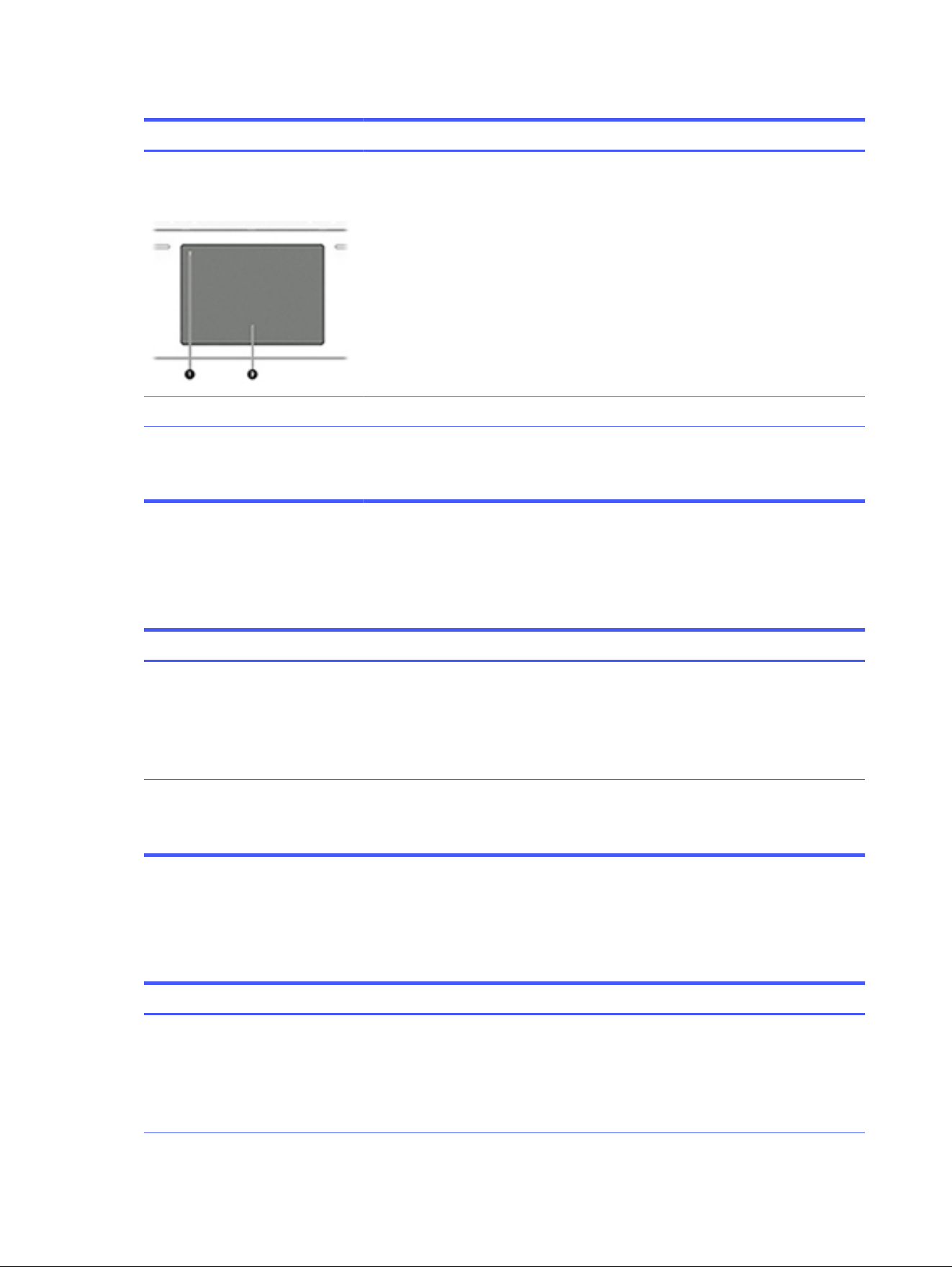
Table 7-38 Issues, possible causes, and fixes (continued)
Items Procedures
(1) Touchpad on/off button
(2) Touchpad
Troubleshooting steps
1. Ensure touchpad on/off light is not amber (disabled). Double tap to enable.
2. Verify whether touchpad device is listed in Device Manager > Mice and other
pointing devices.
3. Install the latest touchpad driver.
4. Adjust touchpad settings (Control Panel > Mouse).
5. Test touchpad controller using the HP PC Hardware Diagnostics (UEFI) tool (f2>
Component Tests > Mouse Test > Pointer Test & Drag and Drop Test).
The following steps are for authorized service providers/technicians.
1. Check the touchpad cable for damage or a loose connection, and then reseat the
touchpad cable.
2. If issue persists, replace the touchpad and verify the change.
Network connectivity (RJ-45 jack)
Use this information to troubleshoot network issues.
Table 7-39
Issues, possible causes, and fixes
Items Procedures
Symptoms
● Unable to find networks (yellow bang)
● Connection dropouts
● Slow performance
Possible causes
Network source, cable, connection, RJ-45 (network) jack, driver, settings.
Troubleshooting steps
Quick Check: verify the network status lights that are supposed to flash
when there is network activity.
Network connectivity wireless (WLAN)
Use this information to troubleshoot wireless connectivity issues.
Table 7-40
Issues, possible causes, and fixes
Items Procedures
Symptoms
● Unable to find networks (yellow bang)
● Connection dropouts
● Slow performance
Possible causes
Network source, cable, connection, wireless module, driver, settings.
112 Chapter 7 Troubleshooting guide
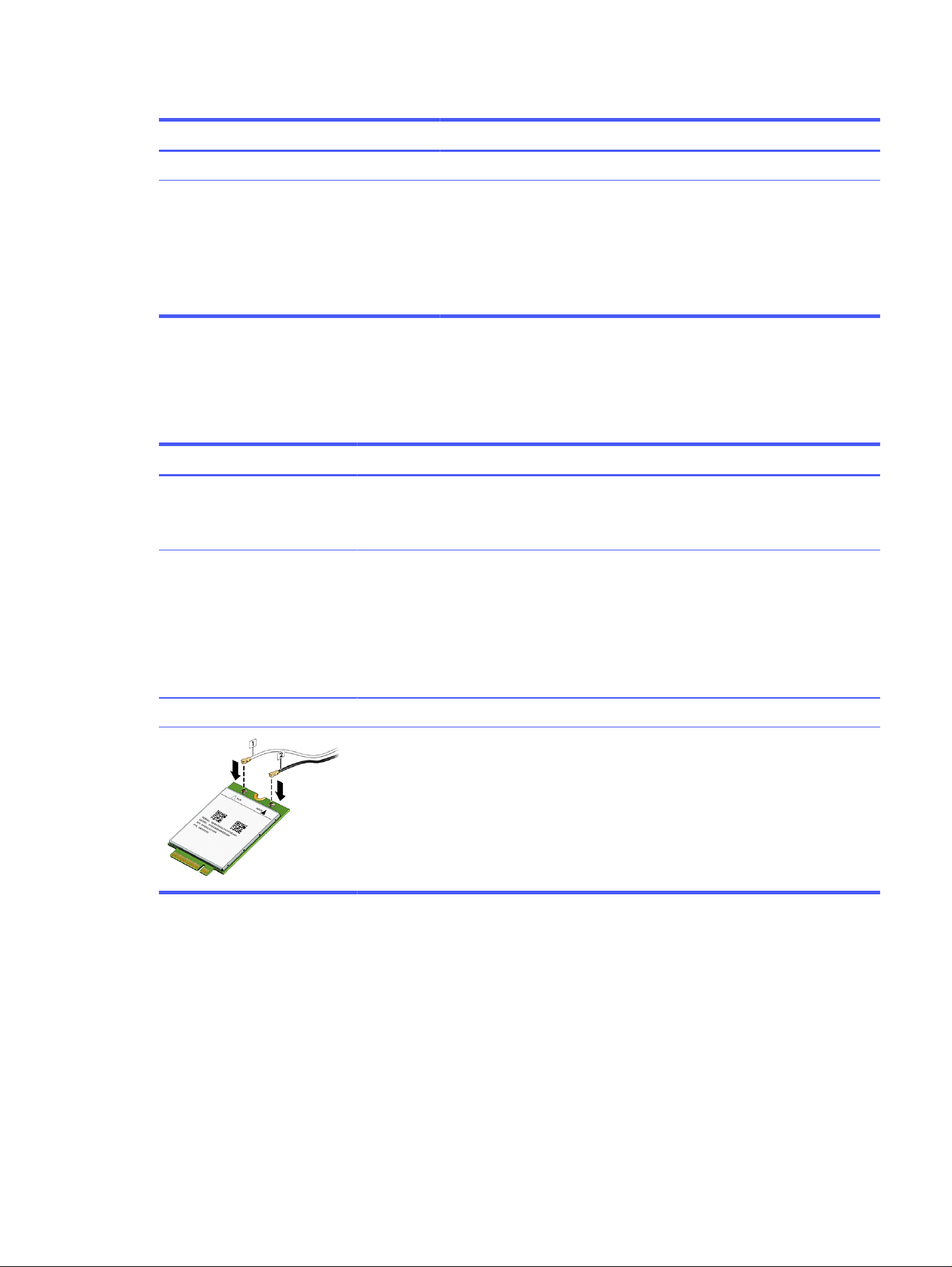
Table 7-40 Issues, possible causes, and fixes (continued)
Items Procedures
The following steps are for authorized providers or technicians.
1. Verify that the wireless module and its antenna cables are fully inserted
and in good condition (see WLAN module removal and replacement
section). Reseat wireless module and antenna connection.
2. Verify the module antenna cable connection is not loose.
3. Verify that antenna cables are properly connected to the MAIN and AUX
terminals (see WLAN module removal and replacement section).
WWAN
Use this information to troubleshoot WWAN issues.
Table 7-41
Issues, possible causes, and fixes
Items Procedures
Symptom
Unable to find networks or
service
Possible causes
Network source, cable, connection, driver, settings.
Troubleshooting steps
1. Update to the latest driver and utility.
2. Check with network service provider for signal coverage.
3. Be sure signal strength is good.
4. Be sure that your service is active.
The following steps are for authorized providers or technicians.
● Verify module and antenna cable connections are not loose.
● Verify antenna cables are properly connected to the correct terminals. For example,
the antenna cable labeled 1 connects to the Main terminal labeled 1. The antenna cable
labeled 2 connects to the Aux terminal labeled 2.
USB
Use this information to troubleshoot USB port issues.
WWAN
113
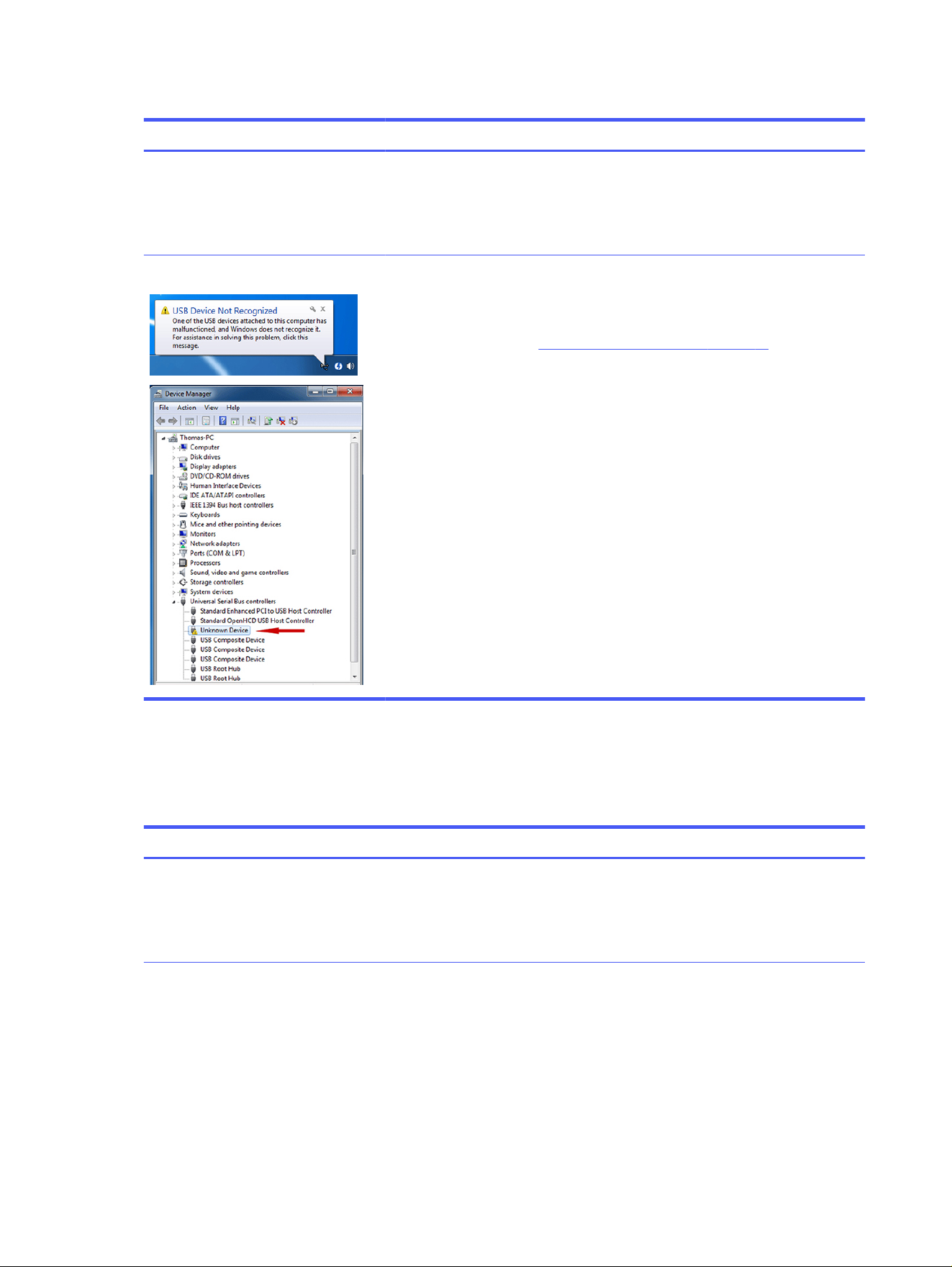
Table 7-42 Issues, possible causes, and fixes
Items Procedures
Symptoms
● USB devices are not recognized
● USB devices are not charging
Possible causes
USB devices do not have the latest software drivers, port has insufficient power, or
the devices are not compliant.
NOTE: USB Type-C uses a different connector.
Examples of USB device Not Recognized
Troubleshooting steps
1. Unplug the USB device. Restart the computer (wait for 2–5 minutes) to reset the
USB port or hub in case of a power surge.
2. Perform a soft reset (9. Soft reset (Default Settings) on page 78), and verify if
the USB device is recognized.
3. Verify whether the USB device is recognized in Device Manager > Universal
Serial Bus Controller, or the USB is recognized without a yellow warning
symbol, or bang.
4. Verify whether the latest USB driver, USB chipset driver, or both are installed.
You can remove or reinstall the USB driver.
5. Be sure the USB device is supported, for example, USB 3.0 device requires
more power draw (0.9 A) from a USB port than a USB 2.0 device (0.5 A). As a
result, identify the USB charging port to be used for charging a USB device, or
an external AC power adapter might be required for an external USB storage
device to work properly.
6. Test with verified working USB devices (keyboard, mouse, USB key) to be sure
USB ports are functional.
7. Test the USB device on a verified working computer to be sure the USB device
is not malfunctioning.
Smart card reader
Use this information to troubleshoot smart card reader issues.
Table 7-43
Issues, possible causes, and fixes
Items Procedures
Symptoms
● Not recognized
● Unable to write
Possible causes
Physical damage, incorrect insertion, dirt, driver, malfunctioning card reader.
NOTE: Some cards have a read-write security switch on the card. Be sure that
switch is set to Write Enabled before attempting to write data to it.
114 Chapter 7 Troubleshooting guide
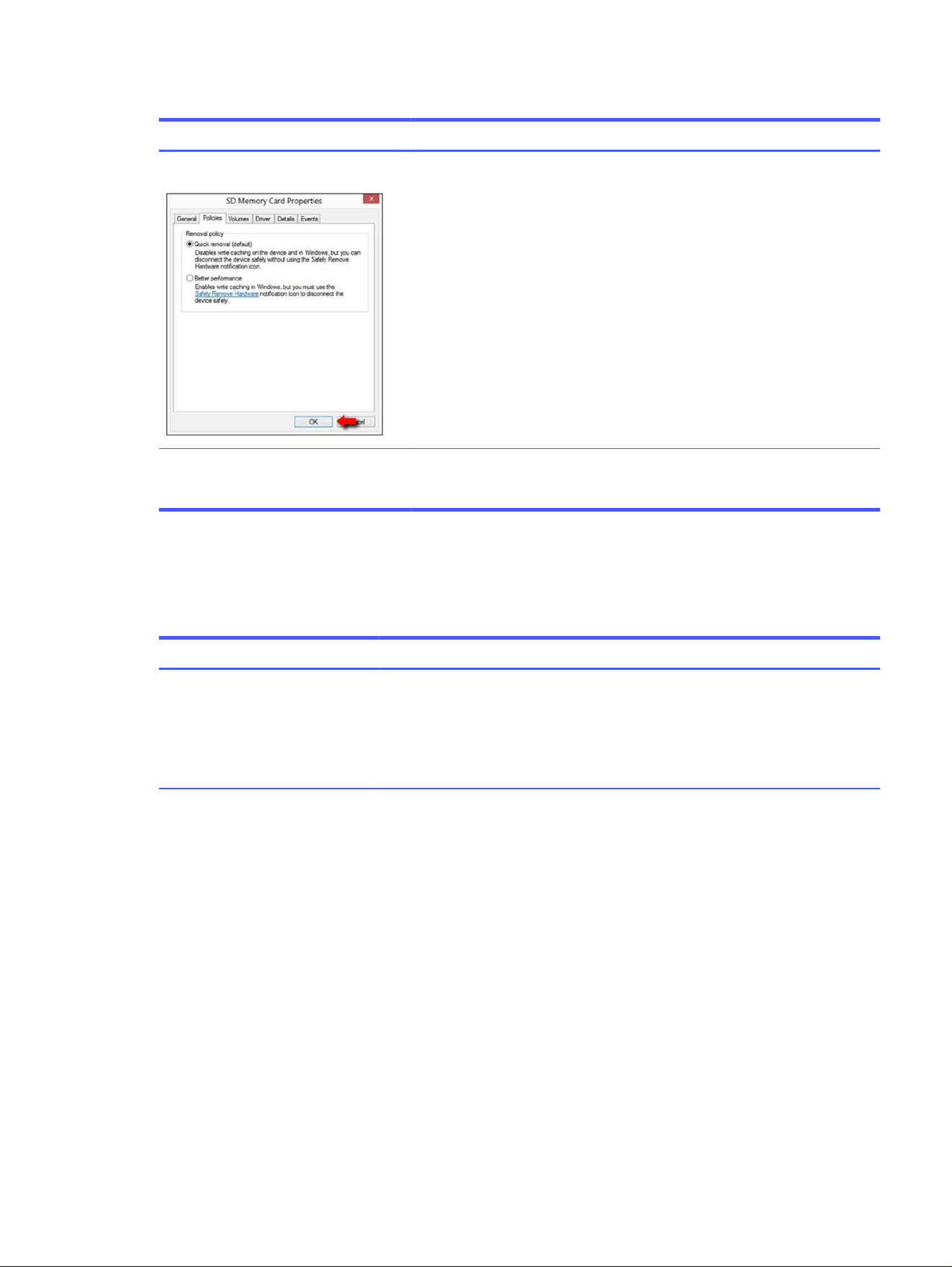
Table 7-43 Issues, possible causes, and fixes (continued)
Items Procedures
Card Reader Removal Policy
Troubleshooting steps
1. Verify card reader removal policy.
2. Be sure that the card has no physical damage.
3. Inspect the ends of the memory cards for dirt or material closing a hole or
spoiling a metal contact. Clean the contacts with a lint-free cloth and small
amounts of isopropyl alcohol. Replace the memory card if necessary.
4. Reinstall and update the drivers for the card reader.
5. Be sure that the smart card reader is compliant with ISO 7816 Class A, B, and
C.
6. Reinsert the card reader with correct face as described in its documentation.
7. Check reader function with a verified working card.
IMPORTANT: If the card reader has an in-use indicator light, do not insert or
remove memory cards while the light is flashing. Doing so might cause loss of
data on the card or might permanently damage the card reader.
Speaker, headphone - audio issues
Use this information to troubleshoot audio issues.
Table 7-44
Issues, possible causes, and fixes
Items Procedures
Symptoms
● No sound from external or
internal speakers
● Distorted sound, too soft, too
loud, intermittent
Possible causes
Volume turned down, sound card not recognized, malfunctioning hardware, electronic
interference.
Speaker, headphone - audio issues 115

Table 7-44 Issues, possible causes, and fixes (continued)
Items Procedures
Troubleshooting steps
1. Remove any device connected to the audio jack to enable the internal speaker.
2. Close all open programs.
3. Perform one of these tasks:
● Adjust volume by pressing fn + f6 or f7. Be sure that volume button light is not
amber (mute).
● Adjust Windows volume control by selecting the speaker icon on the Windows
taskbar. Be sure that the sound is not muted.
4. Verify that the sound card is detected in Windows Device Manager.
5. Reinstall the latest audio driver.
6. Test audio device using the HP PC Hardware Diagnostics (UEFI) tool (f2 >
Component Tests > Audio).
7. Test with a verified working operating system. If issue is resolved, restore full
operating system.
8. Test with verified working external speakers or headset.
9. Reseat internal speaker connections.
10. Test with verified working internal speakers.
11. Replace internal speakers.
No sound from headphones
1. Perform one of these tasks:
● Adjust volume by pressing fn + f6 or f7. Be sure that volume button light is not
amber (mute).
● Adjust Windows volume control by selecting the speaker icon on the Windows
taskbar. Be sure that the sound is not muted.
2. Check headphone cable connection.
3. Test with a verified working audio board.
4. Replace audio board and verify the change.
No sound from external speakers 1. Verify that external speakers are turned on.
2. Disconnect headphones from headphone jack.
3. Perform one of these tasks:
● Adjust volume by pressing fn + f6 or f7. Be sure that volume button light is not
amber (mute).
● Adjust Windows volume control by selecting the speaker icon on the Windows
taskbar. Be sure that the sound is not muted.
4. Check for possible interference from devices nearby that might affect the audio
(cell phone or portable communications handset).
116 Chapter 7 Troubleshooting guide
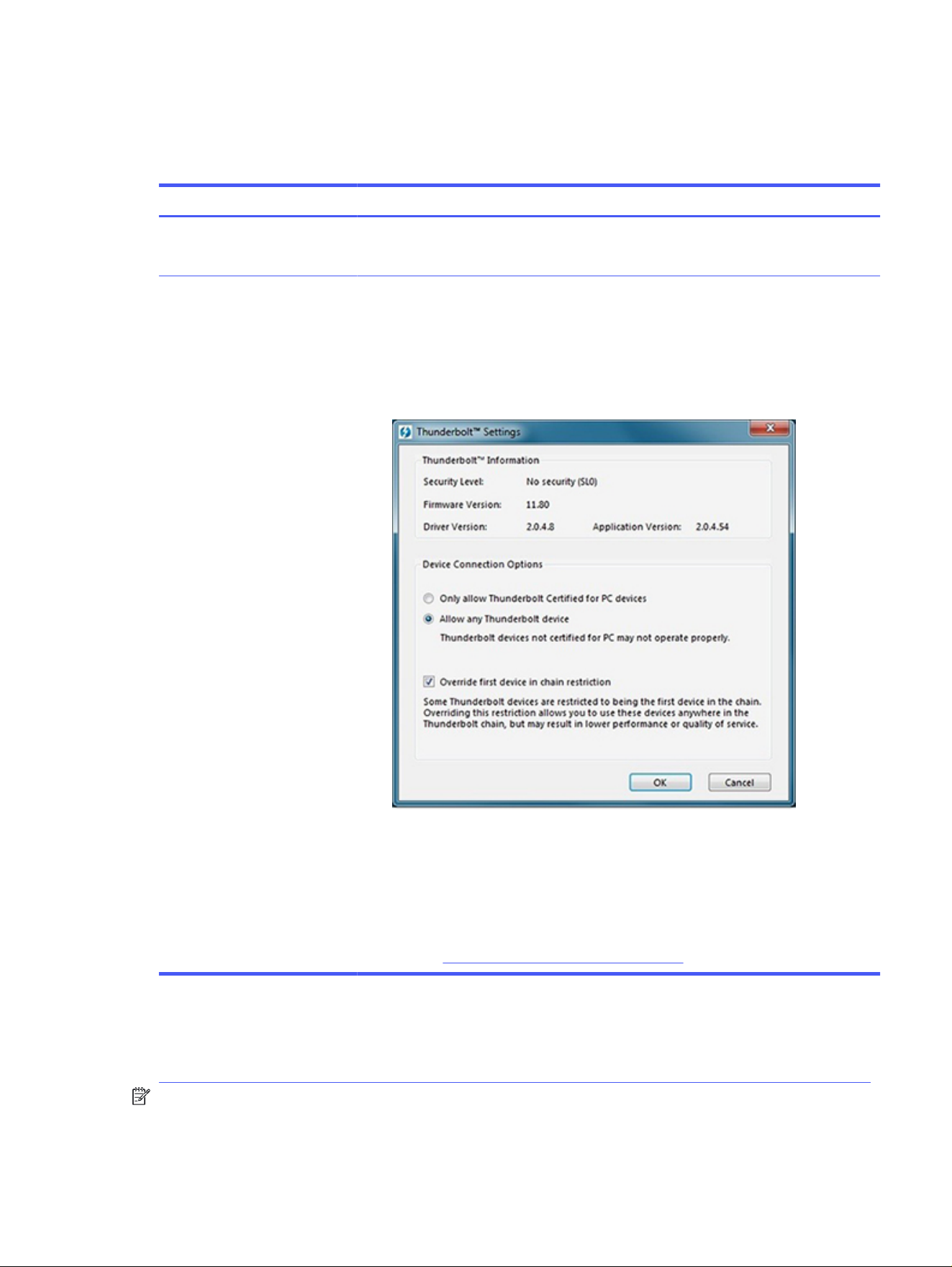
Thunderbolt (TB)
Use this information to troubleshoot Thunderbolt issues.
Table 7-45 Issues, possible causes, and fixes
Items Procedures
Symptom
Thunderbolt device not working
Possible causes
BIOS, drivers, and user settings.
Troubleshooting steps
1. Update to the latest BIOS and choose appropriate TB Port settings.
2. Reset User Account Settings to default.
3. Update Intel Thunderbolt software that includes firmware version (for TB controller),
driver version (operating system driver), and application version.
4. Verify that Windows Device Manager detects the TB device.
5. Verify cable connection to TB port.
6. Test with a verified working TB board, if possible.
NOTE: Thunderbolt is new technology. Thunderbolt cable and Thunderbolt device must be
compatible with Windows. To determine whether your device is Thunderbolt Certified for
Windows, see
https://thunderbolttechnology.net/products.
Storage
Use this information to troubleshoot storage issues.
NOTE:
● Back up all critical data before troubleshooting the drive.
Thunderbolt (TB)
117
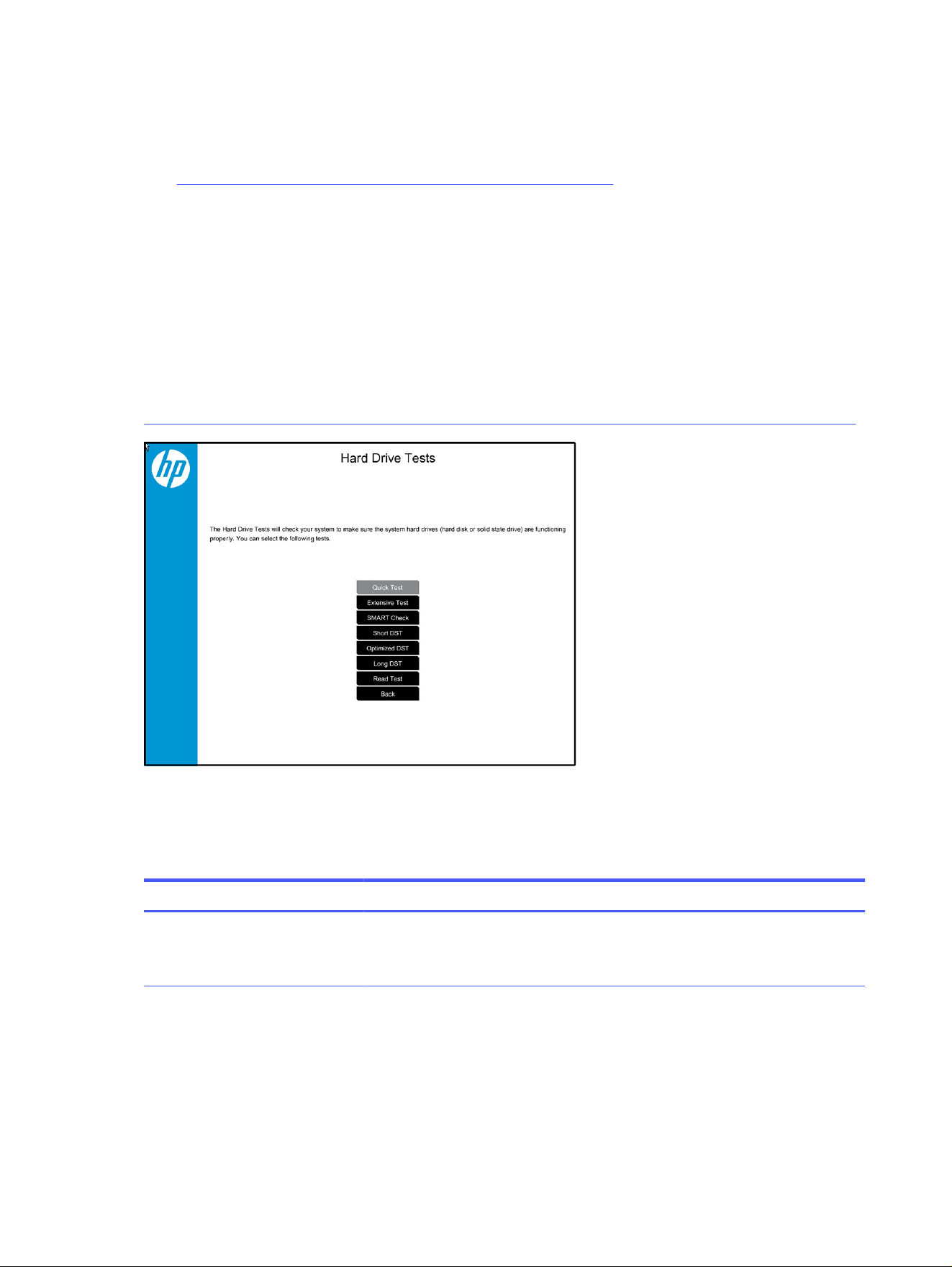
● Before contacting support, HP recommends that you run a drive (HDD, SSD, M.2 drive) test using
the HP PC Hardware Diagnostics (UEFI) tool on the suspected failed drive.
● Diagnose the hard drive using BIOS, Diagnostics built in the shipping image, or an external USB
(https://support.hp.com/us-en/help/hp-pc-hardware-diagnostics).
● HP recommends the drive quick test to quickly (less than 10 minutes) identify the malfunctioning
drive. If the issue still exists, run Extensive Test (more than two hours, or loop mode, which runs until
an error occurs).
● If any test fails, record failure code and contact support for instructions about how to order a
replacement hard drive.
● If all of the tests pass, the hard drive is not damaged. As a rule, HP will not replace a hard drive
under warranty that does not fail the HP Hard Drive Self-Test.
● If there is no physical problem with the hard drive or memory, then try reinstalling the Windows
operating system to troubleshoot the problem.
Hard drive or SSD not recognized
Use this information to troubleshoot storage device issues.
Table 7-46
Issues, possible causes, and fixes
Items Procedures
Symptom
Hard drive is not recognized during
POST
Possible causes
Loose connection, faulty hard drive, faulty drive configuration/BIOS setting.
118 Chapter 7 Troubleshooting guide

Table 7-46 Issues, possible causes, and fixes (continued)
Items Procedures
Troubleshooting steps
1. Perform a hard reset (8. Hard reset on page 77).
2. Reset BIOS to default.
3. Verify hard drive connection and flex cable. Reseat hard drive and cable
connection. For multiple storage devices, keep the primary drive with the operating
system and remove other devices.
4. Use the HP Hardware Diagnostics tool to verify that the drive is recognized and
test it.
5. If the hard drive fails diagnostics, record failure and have the drive replaced.
6. Identify when the issue is related to software. If the hard drive passes diagnostics,
test the drive on a verified working computer. If the failure follows the drive, reinstall
the operating system to be sure that software is not an issue.
7. Test with a verified working hard drive. If it is still not recognized, the system board
is faulty.
NOTE: If the drive is seen in BIOS and Diagnostics, try a secure erase before replacing
a drive as this might resolve related issues.
No boot to operating system (no read-write error)
Use this information to troubleshoot issues with booting to the operating system.
Table 7-47
Issues, possible causes, and fixes
Items Procedures
Symptoms
● POST error message: Boot
Device not found (3F0)
● Hang when booting to operating
system
Possible causes
Operating system, loose connection, faulty hard drive, BIOS configuration, Secure Boot.
Troubleshooting steps
1. Verify whether Secure Boot is enabled in BIOS. Secure Boot prevents legacy boot
devices from starting the computer, including bootable CDs and DVDs.
2. Reset BIOS to default. Be sure that BIOS Boot Mode in Boot Option is set up
properly for bootable device and its operating system (for example, UEFI Native for
an older Windows OS).
Another example, choosing Legacy Boot Order for an UEFI device causes "Boot
Device not found (3F0)" error.
3. Verify hard drive connection and flex cable. Reseat connection. For multiple
storage devices, keep the primary drive with the operating system and remove
other devices.
4. Use PC Hardware Diagnostics tool to test. Record failure code and have the hard
drive replaced.
5. If there is no error, reinstall the operating system using HP Restore.
6. Test with a verified working operating system hard drive, if available.
No boot to operating system (no read-write error)
119

Table 7-47 Issues, possible causes, and fixes (continued)
Items Procedures
Note If there is a hard drive POST error message, see POST error messages and user actions
on page 128.
Read-write error
Use this information to troubleshoot read and write errors.
Table 7-48 Issues, possible causes, and fixes
Items Procedures
Symptoms
● POST error message (for
example, error code 301)
● Hang when working on data,
files, documents
Possible causes
Loose connection, faulty hardware.
Troubleshooting steps
1. Perform a hard reset (8. Hard reset on page 77).
2. Reset BIOS to default (9. Soft reset (Default Settings) on page 78).
3. Verify the drive connection and flex cable. Reseat connection (10. Reseat cables
and connections on page 78).
4. Use the HP Hardware Diagnostics tool to test. If failed, record failure code and have
the hard drive replaced.
5. If no error with HP PC Hardware Diagnostics (UEFI) tool, try to repair the hard drive
and its files in Windows (using command “CHKDSK /f /r /x”). Use HP Restore
to reinstall the operating system, if needed.
6. Test with a verified working hard drive. If it is not recognized, the system board is
faulty.
Note If there is a hard drive POST error message, see POST error messages and user actions
on page 128.
Slow performance
Use this information to troubleshoot performance issues.
Table 7-49
Issues, possible causes, and fixes
Items Procedures
Symptoms
Slow performance even when
performing small read-write
operations
Possible causes
Operating system files, hard drive is full.
Troubleshooting steps
1. Transfer data from the hard drive to create more space. Microsoft recommends at
least 200 MB to sync system files.
2. Perform disk defragmentation to consolidate fragmented data on the hard drive so
that it works more efficiently.
NOTE: Do not defragment an SSD.
120 Chapter 7 Troubleshooting guide

Table 7-49 Issues, possible causes, and fixes (continued)
Items Procedures
Tips & tricks For optimal system performance, place your operating system and all of your most
commonly used applications and files on the fastest hard drive (SSD) and fastest areas
on the drive (primary partition of 200 GB max).
See Routine maintenance for performance improvement on page 129.
Blue screen (BSOD) error
A faulty hard drive can cause a blue screen error. Perform the drive tests using the HP Diagnostics Tool
to be sure that the drive is functional.
If all of the tests are successful, see Common blue screen error messages on page 130 for detailed
troubleshooting steps.
Noisy hard drive
Use this information to troubleshoot a noisy hard drive.
IMPORTANT: Because an SSD has no moving parts, it does not make loud or clicking noises.
Depending on type and rotational speed, some hard drives make more noise than others.
Not all noises are related to the fan or hard drive.
Table 7-50
Issues, possible causes, and fixes
Items Procedures
Symptoms
● Loud noise from hard drive
● Clicking noise from hard drive
● Still boots to operating system
and operates normally
Possible causes
BIOS, hard drive firmware, driver, faulty drive, power supply (AC adapter).
Troubleshooting steps
1. Update BIOS and hard drive firmware.
2. Examine AC adapter to be sure that it is not faulty or overloaded. Disconnect all
peripherals (USB storages, dock, and others.
3. Remove hard drive to isolate the noise.
4. Test the hard drive on a verified working computer if the noise continues. If the
hard drive makes the same noise or clicking sounds, the sounds are either normal
sounds for the hard drive or a fault with the hard drive.
5. Verify original hard drive connection and flex cable. Reseat hard drive and
connection.
6. Run HP PC Hardware Diagnostics (UEFI). If failed, record failure code and replace
hard drive.
7. If you find no error with HP PC Hardware Diagnostics (UEFI), perform disk
defragmentation. Some hard drives make a clicking noise when highly fragmented.
Blue screen (BSOD) error
121

Table 7-50 Issues, possible causes, and fixes (continued)
Items Procedures
Tips For optimal system performance, place your operating system and all of your most
commonly used applications and files on the fastest hard drive or SSD and on the
fastest areas on the drive (primary partition of 200 GB max).
See Routine maintenance for performance improvement on page 129.
Mechanical
Use this information to troubleshoot mechanical issues.
Noise (sound)
Use this information to troubleshoot abnormal noise issues.
Table 7-51
Issues, possible causes, and fixes
Items Procedures
Symptoms
Computer emits abnormal noise
Possible causes
Aside from basic components (power adapter, supply, fan, speaker, hard drive, optical
drive, display panel, external devices), it is also common for electronic components to
produce noise.
Troubleshooting steps
1. Inspect external power source and change to verified working one.
2. Determine whether the noise comes from AC power adapter. Test with a verified
working AC adapter.
Disconnect external devices and all cables connected to the computer to isolate issue
to computer only.
Noisy fan Determine whether the noise comes from the fan. Disconnect the fan briefly to isolate
whether noise originates from fan. If noise is absent with fan disconnected, see Fan
runs constantly on page 123.
Noisy hard drive Determine whether the noise comes from the hard drive.
See Noisy hard drive on page 121.
Noisy optical drive 1. Determine whether the noise comes from an optical drive.
2. Remove CD/DVD from the optical drive.
Noisy speaker 1. Determine whether the noise comes from speaker.
2. Test with a verified working external headset/speaker.
Noisy display Determine whether the noise comes from display panel (humming noise). Change
display frequency settings. See Display on page 103.
The section below is intended for authorized service providers and technicians.
1. After disassembling the chassis, inspect components of the interior for excessive
wear or damage.
2. If noise issues persist, proceed with process of elimination for battery, AC adapter,
or boards.
122 Chapter 7 Troubleshooting guide

Fan runs constantly
Use this information to troubleshoot a constantly running fan.
Table 7-52 Issues, possible causes, and fixes
Items Procedures
Symptoms
● Fan never stops running
● Generates heat
● Decreased computer
performance
Possible causes
● BIOS not up to date.
● Thermal condition (fan, air flow)—fan might not be defective but must run constantly
to remove excess heat generated by electrical components.
● Inappropriate configuration.
Troubleshooting steps
General actions
1. Verify whether BIOS is set to Fan Always on while on AC Power F10 Setup. When
starting the computer, press f10 to open Setup, and then select Advanced > Built-In
Device Options Menu.
2. Update BIOS and drivers (4. Update BIOS and drivers on page 71) and reset BIOS
to default. BIOS can implement new fan characteristics and updates for other
components.
3. Perform a hard reset (8. Hard reset on page 77). Performing a hard reset can reset
recorded thermal values in memory.
Thermal-related issue
1. Verify that fan is spinning. Reseat fan cable before moving to next step.
a. Check fan and connection. Reseat fan cable.
b. Be sure that no obstructions or dust are in heat sink fan, heat sink fin, or vent.
c. Test fan using HP PC Hardware Diagnostics (UEFI) tool. Be sure that the fan is
not producing loud noise and that fan blades spin correctly.
d. Test with a verified working fan.
e. Replace the fan.
2. Verify thermal solution
Use the Thermal Monitor tool in HP PC Hardware Diagnostics (UEFI), which is
available only to authorized service providers and technicians, to run a stress test
(processor and GPU) and verify that thermal sensors are within limits after thermal
condition is serviced.
User configuration
Change Power Options in Windows (for example, choosing Balanced mode instead of
High performance). High performance and extensive graphics might cause the fan to
run constantly to release the heat.
Notes BIOS currently omits fan presence detection to shorten startup time delay to less
than four seconds. Therefore, the fan error is generated based on previous startup to
operating system that found system fan error.
Fan often is part of thermal solution, including heat sink, heat sink fin/muffler, and
thermal grease. Fan replacement requires restart and fan function verification using HP
PC Hardware Diagnostics (UEFI) tool.
Fan runs constantly 123

Thermal shutdown (hot)
Use this information to troubleshoot a thermal shutdown.
Table 7-53 Issues, possible causes, and fixes
Items Procedures
Symptoms
Similar to fan runs constantly issue
(Fan runs constantly on page 123)
● System shutdown
● Abnormal heat
● Continually running fan
● Decreased computer
performance
Possible causes
BIOS not up to date, thermal condition (fan, air flow)
Troubleshooting steps
1. Update BIOS and drivers (4. Update BIOS and drivers on page 71) and reset BIOS
to default. BIOS can implement new fan characteristics and updates for other
components.
2. Perform a hard reset (8. Hard reset on page 77). Performing a hard reset can reset
recorded thermal values in memory.
3. Determine whether you are using a correct AC adapter.
4. Be sure to turn power off completely when putting a notebook in a travel bag.
Thermal-related issue
1. Verify thermal condition:
a. Check fan and connection. Check if fan is spinning when computer is on.
Reseat fan cable.
b. Be sure that no obstructions or dust are in heat sink fan, fin, or vent.
c. Be sure that the notebook is not sitting on a hot surface that blocks vent
intakes.
d. Test fan using HP PC Hardware Diagnostics UEFI tool. Be sure that the fan is
not producing a loud noise and that fan blades spin correctly.
e. Test with a verified working fan.
f. Remove old thermal compound and pads, and replace properly with new pads.
2. Verify thermal solution:
Use Thermal Monitor tool (available only to authorized service providers and
technicians) to run stress test (processor and GPU), and verify that thermal sensors
are within limits after thermal condition is serviced.
Additional information
The following sections provide additional information that you can use during the troubleshooting
process.
124
Chapter 7 Troubleshooting guide

Acronyms
These acronyms are used in this chapter.
Blue screen (BSOD): A Windows error screen that can occur if a problem causes your computer to shut
down or restart unexpectedly.
When you experience this type of error, you cannot see items such as the Start menu or the taskbar
when your computer is turned on. Instead you might see a blue screen with a message that your
computer ran into a problem and needs to restart.
CPU: Central processing unit
DIMM: Dual in-line memory module
Daughter board: Type of circuit board that plugs into or is attached to the system board or similar
expansion card to extend its features and services
GPU: Graphics processor unit
GTS: General Troubleshooting Step
HDD: Hard drive
KB: Keyboard
LVDS: Low-Voltage Differential Signaling
MSG: Maintenance and Service Guide
mWS: Mobile Workstations
OS: Operating system
PC: Personal computer
POST: Power-On Self-Test
SSD: Solid-state drive
TSG: Troubleshooting Guide
UEFI: Unified Extensible Firmware Interface
WLAN: Wireless local area network
WS: Workstations
WWAN: Wireless wide area network
Blinking lights and startup error codes
In some cases, when the host processor is not executing code or does not have the necessary code to
drive the display, light blink codes inform you of a problem.
Table 7-54
Blinking lights and boot error codes
Blink codes Error
Amber battery light: blinks 1 Hz continuously Embedded Controller unable to load firmware
Acronyms 125

Table 7-54 Blinking lights and boot error codes (continued)
Blink codes Error
Caps and num lock lights = 1 blink Processor not executing code
Caps and num lock lights = 2 blinks BIOS recovery code unable to find valid BIOS recovery image
Caps and num lock lights = 3 blinks Memory module error
Caps and num lock lights = 4 blinks Graphics controller error
Caps and num lock lights = 5 blinks System board error
Caps and num lock lights = 6 blinks Intel Trusted Execution Technology (TXT) Error
Caps and num lock lights = 7 blinks Sure Start unable to find valid BIOS Boot Block image
Caps and num lock lights = 8 blinks Sure Start has identified a problem (Manual Recovery Policy
Set)
Processor not executing code
This computer experienced a problem due to the failure of certain code to execute, resulting in a failed
startup of the processor.
The issue could be related to the processor or the system board in the computer. If the processor is
socketed, be sure that the processor is seated correctly in the socket. If this error reoccurs, see General
troubleshooting steps on page 67.
NOTE: The computer attempts to notify you of this problem through a series of blinking lights. When
you attempt to turn on the computer from an Off or Hibernated state, lights associated with the caps
lock and num lk keys both blink once, followed by a pause, and then continue in a repeating pattern.
BIOS recovery code unable to find valid BIOS recovery image
This computer has experienced a problem in locating a valid BIOS image, resulting in a failed startup.
You can resolve this problem by placing a clean copy of the system BIOS on a USB key or in
the appropriate hard drive directory and performing a restart. If this error reoccurs, see General
troubleshooting steps on page 67.
NOTE: The computer attempts to notify you of this problem through a series of blinking lights. When
you attempt to turn on the computer from an Off or Hibernated state, lights associated with the caps
lock and num lock keys both blink twice, followed by a pause, and then continue in a repeating pattern.
Memory module error
This computer has experienced a memory initialization problem resulting in a failed startup. This issue
might be related to the memory modules in the computer. You can resolve this problem by ensuring that
memory modules are correctly inserted and seated.
If this error reoccurs, you must use a service event to determine the source of the error (memory
modules or system board) and take the appropriate corrective action.
NOTE: The computer attempts to notify you of this problem through a series of blinking lights. When
you attempt to turn on the computer from an Off or Hibernated state, lights associated with the caps
lock and num lock keys both blink three times, followed by a pause, and then continue in a repeating
pattern.
126
Chapter 7 Troubleshooting guide

Graphics Controller Error (No Controller)
This computer has experienced a graphics controller initialization problem resulting in a failed startup.
This issue might be related to the graphics controller in your machine.
You can resolve this problem by ensuring that the graphics controller module is seated correctly in
machines with modular graphics. If this error reoccurs, you must use a service event to identify the
source of the error and take the appropriate corrective action.
NOTE: The computer attempts to notify you of this problem through a series of blinking lights. When
you attempt to turn on the computer from an Off or Hibernated state, lights associated with the caps
lock and num lock keys both blink four times, followed by a pause, and then continue in a repeating
pattern.
Failure System Board Error
This computer has experienced a system board initialization problem resulting in a failed startup. This
issue might be related to the system board in the computer. You must use a service event to identify the
source of the error and take the appropriate corrective action.
NOTE: The computer attempts to notify you of this problem through a series of blinking lights. When
you attempt to turn on the computer from an Off or Hibernated state, lights associated with the caps
lock and num lock keys both
blink five times, followed by a pause, and then continue in a repeating
pattern.
Intel Trusted Execution Technology (TXT) Error
This computer has experienced a problem related to the Intel Trusted Execution Technology resulting in
a failed startup. The error occurs when three situations are true:
● The Intel Trusted Execution Technology (TXT) has been enabled on the computer.
● Policies have been set to prevent startup if the BIOS measurement has changed.
● The BIOS measurement has changed.
For more information about Intel TXT, go to Intel Trusted Execution Technology .
You must use a service event to resolve this issue.
NOTE: The computer attempts to notify you of this problem through a series of blinking lights. When
you attempt to turn on the computer from an Off or Hibernated state, lights associated with the caps
lock and num lock keys both blink six times, followed by a pause, and then continue in a repeating
pattern.
Sure Start unable to find valid BIOS Boot Block image
This computer has experienced a problem in locating a valid BIOS image, resulting in a failed startup.
You must use a service event to identify the source of the error and take appropriate corrective action.
NOTE: The computer attempts to notify you of this problem through a series of blinking lights. When
you attempt to turn on the computer from an Off or Hibernated state, lights associated with the caps
lock and num lock keys both blink seven times, followed by a pause, and then continue in a repeating
pattern.
Graphics Controller Error (No Controller)
127

Sure Start has identified a problem (Manual Recovery Policy Set)
This computer has experienced a problem in locating a valid BIOS image, resulting in a failed startup.
HP Sure Start normally repairs this type of issue; however, on this computer HP Sure Start has been
configured to operate in manual mode key sequence.
To proceed with the repair, press and hold the following keys: esc + up arrow + down arrow. To avoid
the need for this manual recovery step, set the HP Sure Start recovery policy to automatic. If this
error reoccurs, you must use a service event to identify the source of the error and take appropriate
corrective action.
NOTE: The computer attempts to notify you of this problem through a series of blinking lights. When
you attempt to turn on the computer from an Off or Hibernated state, lights associated with the caps
lock and num lk keys both blink eight times, followed by a pause, and then continue in a repeating
pattern.
POST error messages and user actions
Use this information to determine the meaning of POST error messages.
Table 7-55
POST error messages and user actions to address the error
Test description Failure descriptions Error code Possible user actions
Product
information
Invalid value 00A Contact support for assistance.
Startup test Memory module 200 Attempt to reseat the memory module and then repeat the test.
Search http://www.hp.com/support for details about troubleshooting
issues related to the memory module.
If the memory module still fails, contact support.
Startup test Hard Disk 1 SMART 301 Attempt to reseat the hard drive and repeat the test.
The hard disk drive might have failed. Contact support for assistance.
Startup test Hard Disk 2 SMART 302 The hard drive might have failed. Contact support for assistance.
Startup test Hard Disk 1 Quick 303 The hard drive might have failed. Contact support for assistance.
Startup test Hard Disk 2 Quick 304 The hard drive might have failed. Contact support for assistance.
Run-in test Memory module 200 Attempt to reseat the memory module and then repeat the test.
Search http://www.hp.com/support for details about troubleshooting
issues related to the memory module.
If the memory module still fails, contact support.
Run-in test Hard Disk 1 SMART 301 Attempt to reseat the hard drive and repeat the test.
The hard drive might have failed. Contact support for assistance.
Run-in test Hard Disk 2 SMART 302 The hard drive might have failed. Contact support for assistance.
Run-in test Hard Disk 1 Quick 303 The hard drive might have failed. Contact support for assistance.
Run-in test Hard Disk 2 Quick 304 The hard drive might have failed. Contact support for assistance.
Hard Disk Test Hard Disk 1 SMART 301 Attempt to reseat the hard drive and repeat the test.
The hard drive might have failed. Contact support for assistance.
Hard Disk Test Hard Disk 2 SMART 302 The hard drive might have failed. Contact support for assistance.
128 Chapter 7 Troubleshooting guide

Table 7-55 POST error messages and user actions to address the error (continued)
Test description Failure descriptions Error code Possible user actions
Hard Disk Test Hard Disk 1 Quick 303 The hard drive might have failed. Contact support for assistance.
Hard Disk Test Hard Disk 2 Quick 304 The hard drive might have failed. Contact support for assistance.
Hard Disk Test Hard Disk 1 Full 305 The hard drive might have failed. Contact support for assistance.
Hard Disk Test Hard Disk 2 Full 306 The hard drive might have failed. Contact support for assistance.
Boot Device
Manager
Boot device not
found
3F0 This code indicates a potential problem with the hard drive. Run the
hard drive test.
Boot Device
Manager
Hard Disk 1 Error 3F1 Indicates a potential problem with the hard drive. Run the hard drive
test.
Boot Device
Manager
Hard Disk 2 Error 3F2 This code indicates a potential problem with the hard drive. Run the
hard drive test.
Boot Device
Manager
Hard Disk 1 SMART 301 This code indicates a potential problem with the hard drive. Run the
hard drive test.
Boot Device
Manager
Hard Disk 2 SMART 302 This code indicates a potential problem with the hard drive. Run the
hard drive test.
BIOS Recovery BIOS Recovery
Occurred
500 This message indicates that BIOS recovery was completed
successfully. No further action is required.
BIOS Application BIOS Application
Error
501 The BIOS installation might have become corrupted. Download the
latest version of the BIOS and install it. See 4. Update BIOS and drivers
on page 71 for more information.
If reinstalling the BIOS fails, contact support for further assistance.
CMOS Recovery CMOS Recovery
Occurred
502 This message indicates that CMOS recovery was completed
successfully. No further action is required.
Battery Check Primary Battery
Replace
601 This code indicates that the primary battery has very low capacity.
Search http://www.hp.com/support for details about using the HP
Support Assistant to verify the battery capacity and, if necessary,
order a replacement.
Battery Check Secondary Battery
Replace
602 This indicates that the secondary battery has very low capacity.
Search http://www.hp.com/support for details about using the HP
Support Assistant to verify the battery capacity and, if necessary,
order a replacement.
Wireless Module Not installed or
responding
701 Reseat the wireless LAN adapter module, if your notebook supports it.
Seating or reseating a wireless LAN adapter is unique to each
computer model.
Fan Fan not operating
correctly
90B The system fan might be malfunctioning.
A hard reset can sometimes restore the system fan to working order.
If the system fan continues to malfunction, contact support.
Routine maintenance for performance improvement
The table presents a summary of the suggested times for performing the routine maintenance tasks
that are described in this document.
Routine maintenance for performance improvement
129
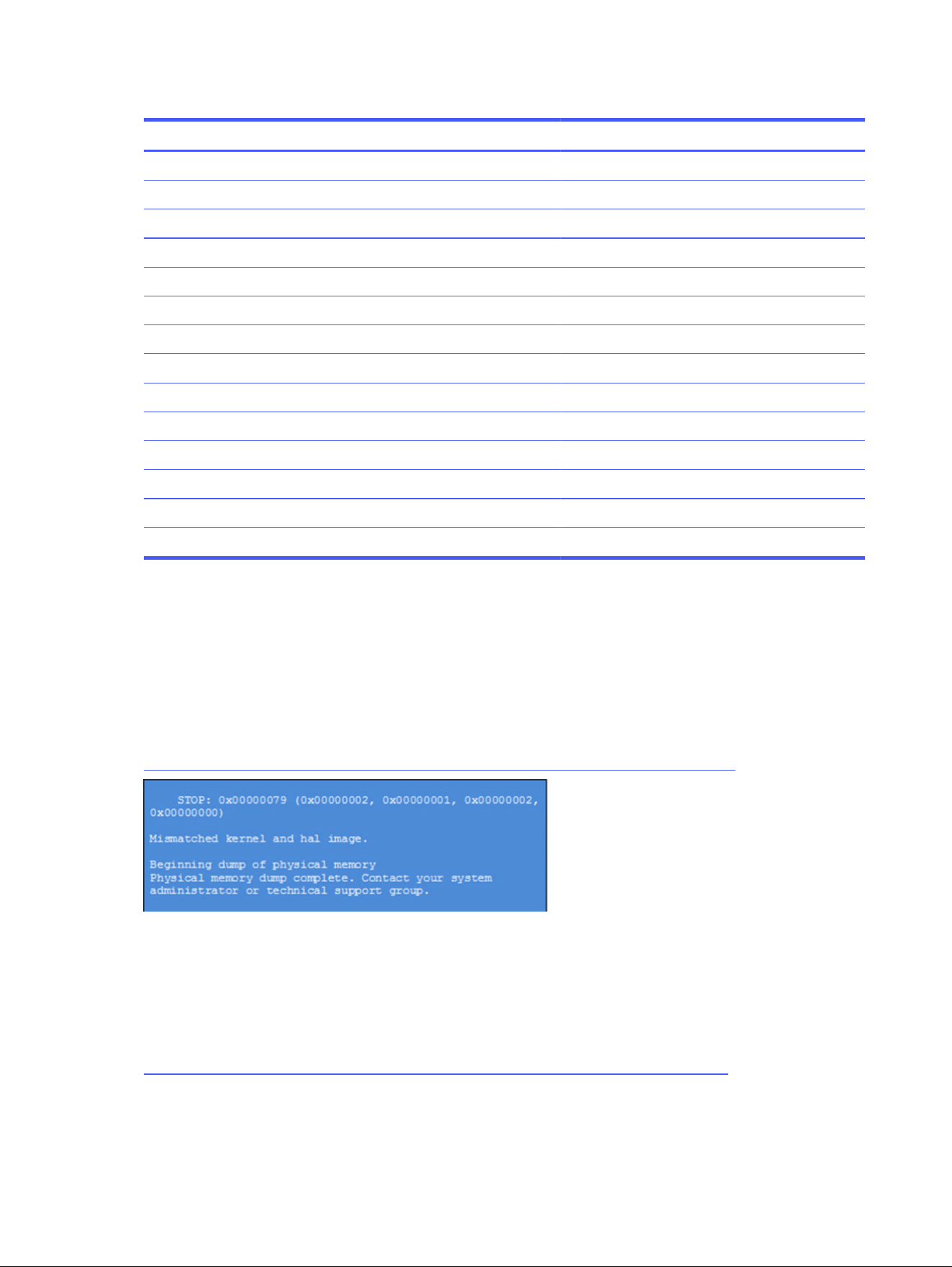
Table 7-56 Routine maintenance tasks to improve performance
Tasks Weekly Monthly Occasionally
Perform a system tuneup. X
Run Windows Update. X
Scan for and remove viruses. X
Scan for and remove spyware and adware. X
Empty the Recycle Bin. X
Delete temporary Internet files. X
Back up user files. X
Create a restore point. X
Defragment the hard drive. X
Run Scan Disk. X
Clean the exterior of the computer. X
Close programs that are not being used. X
Prevent programs from loading at startup. X
Remove rear cover and clean fan blades and vents with compressed air. X
Common blue screen error messages
The following sections define blue screen error messages.
Error message list
For an example of a Bug Check Code Reference, use this image.
For more information, see
https://msdn.microsoft.com/en-us/library/windows/hardware/hh994433(v=vs.85).aspx.
Note that the hexadecimal number following the word
STOP
is called the bug check code or Stop code.
Bug check symbolic names
Each bug check code also has an associated symbolic name.
In the example, the screen shows
https://msdn.microsoft.com/en-us/library/windows/hardware/ff559209(v=vs.85).aspx
Microsoft general troubleshooting of Windows bug check codes
Use this information to troubleshoot Windows bug codes.
130
Chapter 7 Troubleshooting guide

● If you recently added hardware to the system, try removing or replacing it. You can also check with
the manufacturer to see if any patches are available.
● Try running HP PC Hardware Diagnostics UEFI.
● Check with the manufacturer to see if an updated system BIOS or firmware is available.
● Be sure that any expansion board is properly seated and all cables are completely connected.
● Confirm that any new hardware that is installed is compatible with the installed version of Windows.
● If new device drivers or system services have been added recently, try removing or updating them.
NOTE: Use safe mode when removing or disabling components. Safe mode loads only the
minimum required drivers and system services during the Windows startup. To enter safe mode,
restart your computer and press f8 at the menu that displays the operating system choices. At the
resulting Windows Advanced Options menu, choose Safe Mode.
● Run a virus detection program. Viruses can infect all types of hard drives formatted for Windows,
and resulting drive corruption can generate system bug check codes. Be sure that the virus
detection program checks the Master Boot Record for infections.
● Verify that the system has the latest service pack installed.
● Disable BIOS memory options such as caching or shadowing.
● Check the System Log and Application Log in Event Viewer to see if any additional error messages
have been logged recently. These might pinpoint the cause of the error.
Use Windows Debugging Tool
Debugging Tools for Windows are the primary tools used by Microsoft software developers to analyze
and resolve errors that result in memory dumps.
Use the tool (https://msdn.microsoft.com/library/windows/hardware/ff551063%20(v=vs.85).aspx) to
determine the cause of the error. Follow general steps for downloading, setting up, and using the
Windows 10 debugging tool.
NOTE: The following screenshots provide only an example of the tool. Specifics shown are not
representative of all applications of the debugging tool. This is a Microsoft tool supported by Microsoft.
Windows Software Development Kit (SDK)
Use these steps to download and use the Windows SDK.
1. Download the SDK from the following link:
https://dev.windows.com/en-US/downloads/windows-10-sdk
Use Windows Debugging Tool
131
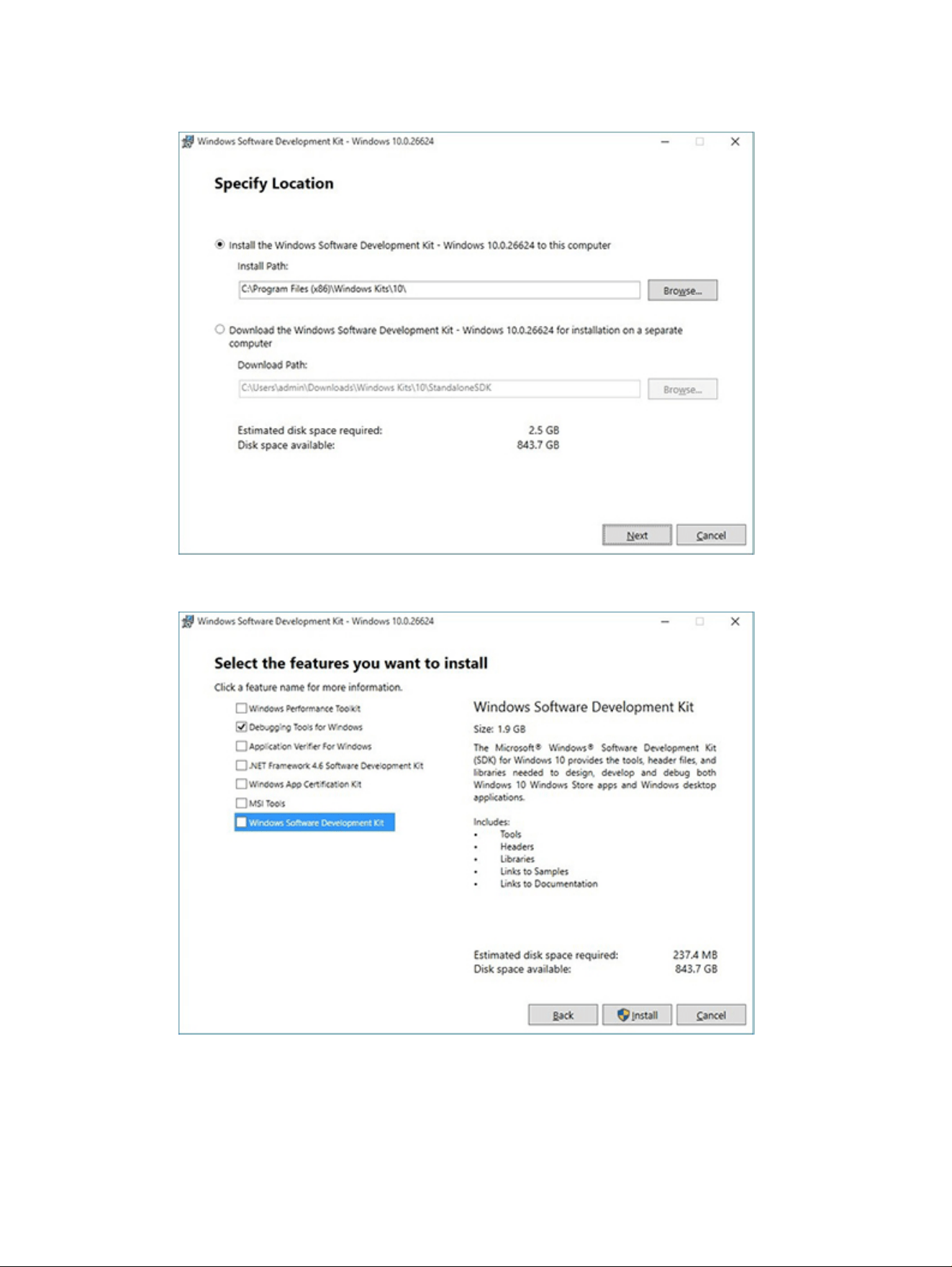
2. Set up the SDK in the configuration window (Windows 10 shown).
3. Select features to install.
132
Chapter 7 Troubleshooting guide
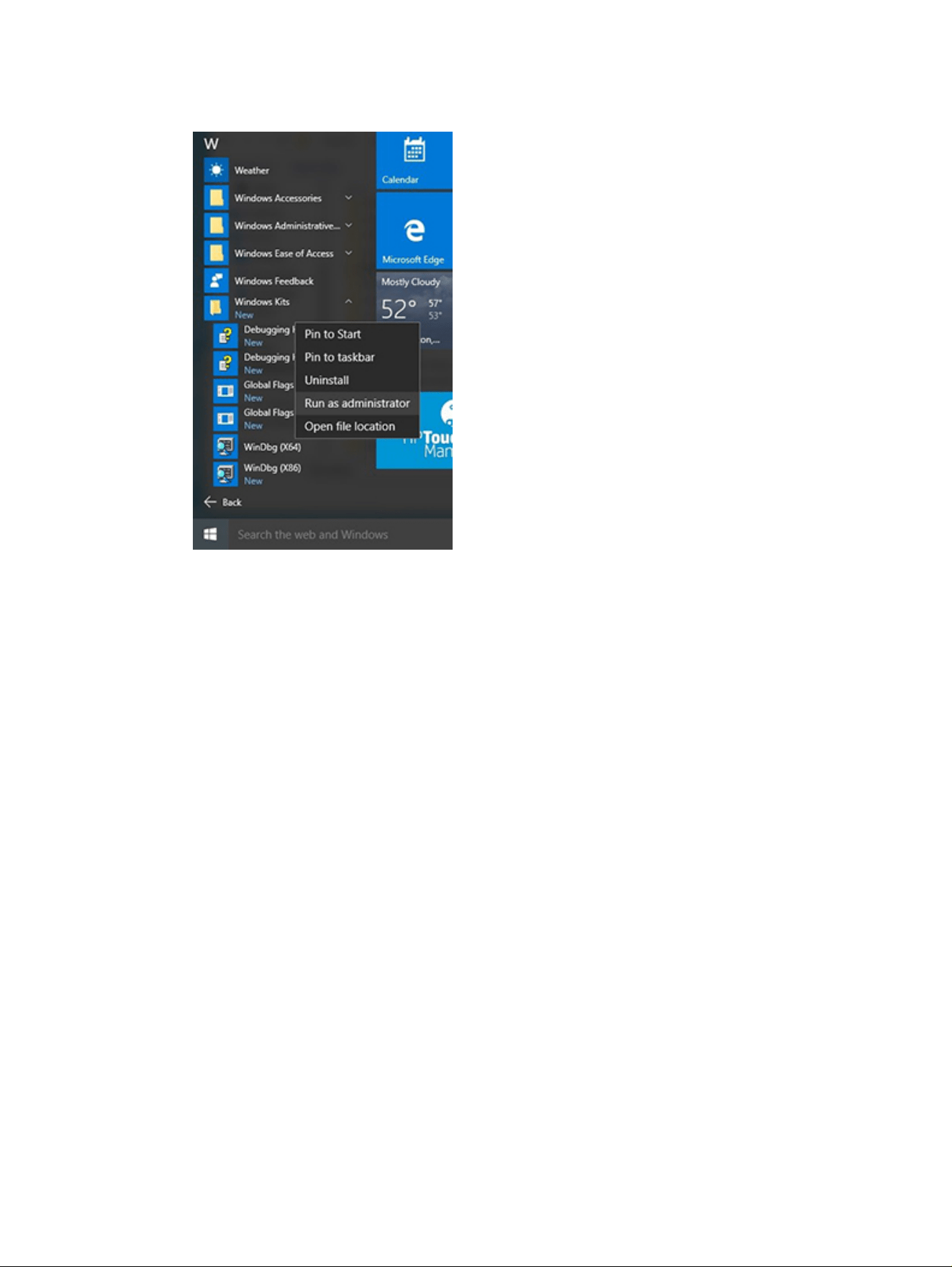
4. Run the SDK as an administrator.
5. Set the symbol path. Select File > Symbol File Path.
● In the Symbol path box,
type SRV*C:\Windows\symbol_cache*http://msdl.microsoft.com/download/
symbols.
● Save the workspace.
Windows Software Development Kit (SDK)
133
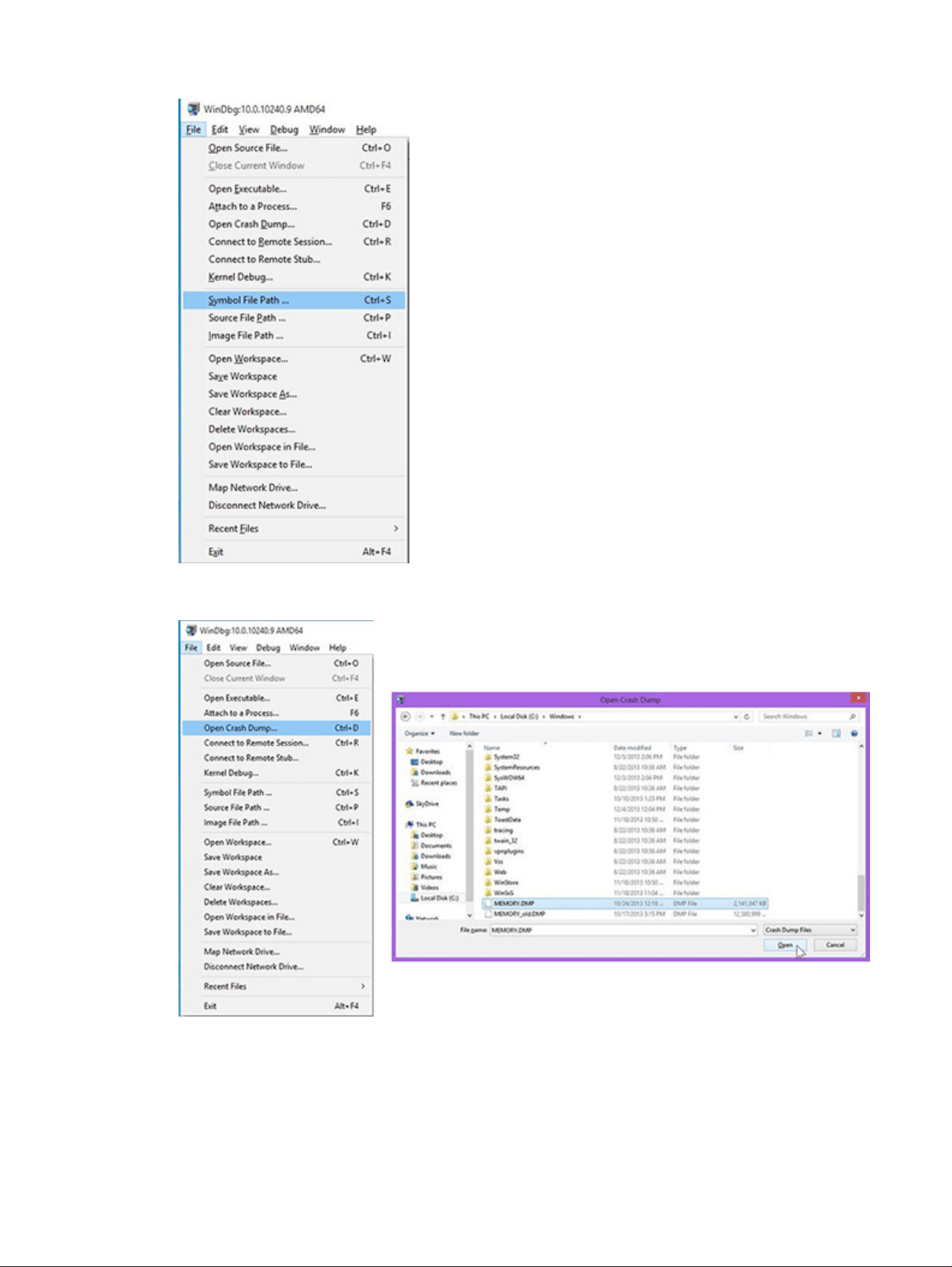
6. Open the crash dump file.
7. Analyze the file. In the following memory dump sample, look for Bug Check 0x3B. The ATIKMAG
driver needs to be investigated for further root cause.
Lookup for Bug Check 0xC2.
134
Chapter 7 Troubleshooting guide
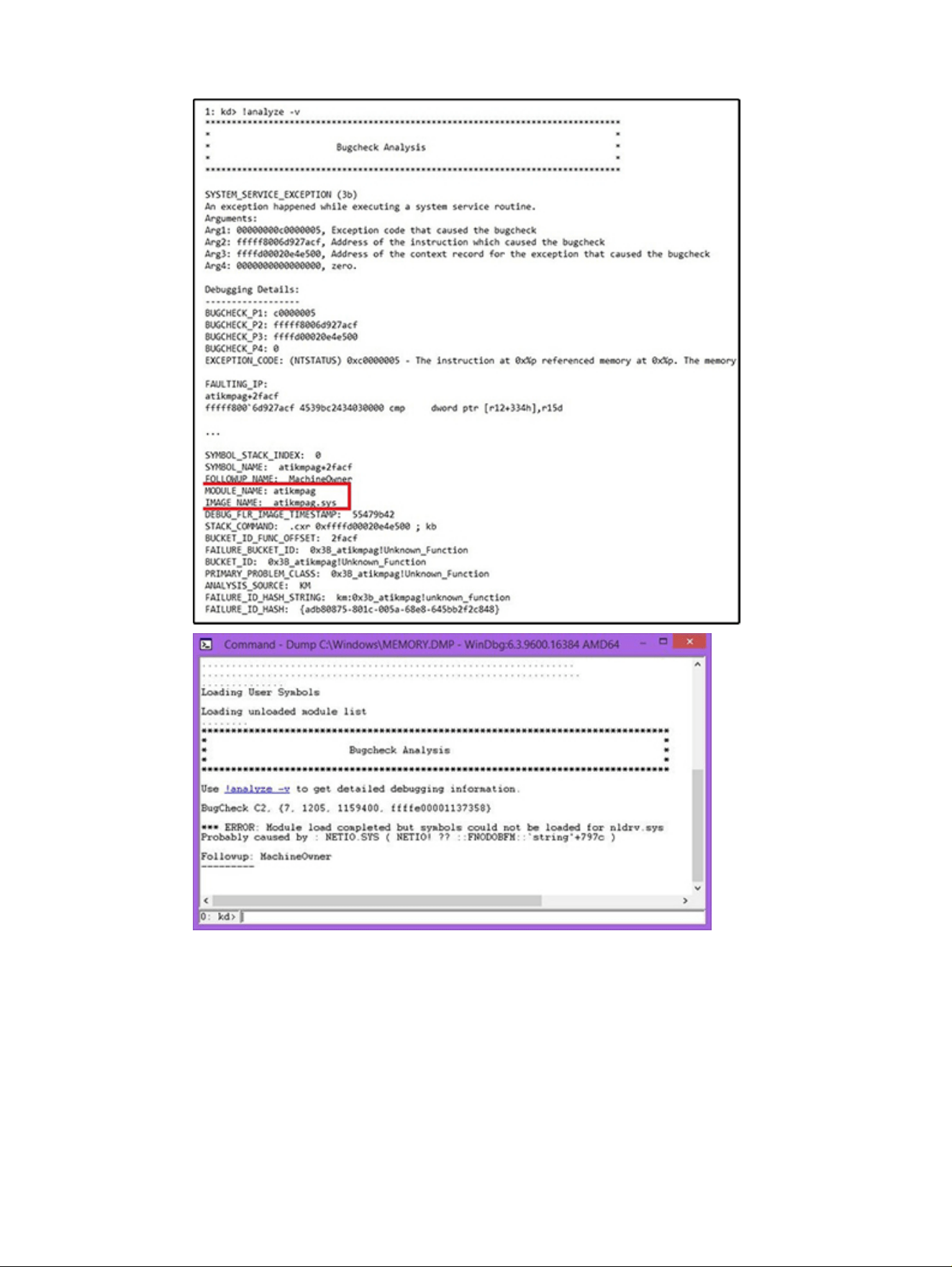
Display issue: pixel anomalies
All HP notebook displays adhere to strict quality and reliability specifications. A small percentage of
display panels might have minor cosmetic manufacturing anomalies or irregularities such as bright or
dark dots in the viewable area. These cosmetic imperfections are common to all display panel types, not
specifically HP products.
All display panel defects should be examined at the highest possible resolution using both the brightest
and darkest possible backgrounds, because some subpixel failures might not be readily visible under
certain conditions.
Display issue: pixel anomalies
135

● Type 1: Bright dot on a dark background = Always On
● Type 2: Dark dot on a bright background = Always Off
● Combination = in any combination and any color that are always on or off
Use the HP PC Hardware Diagnostics (UEFI) tool to determine numbers of pixels and their distance. HP
uses the following set of criteria when damaged displays are submitted for warranty coverage.
Table 7-57 Electrical defect criteria
Panel resolution Accept Reject
Subpixel faults
VGA, SVGA, SD, WSVGA, XGA, 720p, SD+, WXGA, HD N ≤ 2 Type 1
N ≤ 2 Type 2
N ≥ 3 Type 1
WXGA+, SXGA+, HD+, SXGA+ N ≤ 3 Type 1
N ≤ 3 Type 2
N ≥ 4 Type 1
WSXGA+, UXGA, FHD, WUXGA N ≤ 4 Type 1
N ≤ 4 Type 2
N ≥ 5 Type 1
QHD, QHD+, WQXGA, UD N ≤ 5 Type 1
N ≤ 5 Type 2
N ≥ 6 Type 1
Electrical defect clusters (defects within a 5 × 5 pixel block)
Minimum distance between ANY allowable defects (unless otherwise specified) S ≥ 25 mm S < 25 mm
Cluster with 2 or more subpixels with subpixel faults Not allowed
Dim lines Not allowed
Cross lines on/off Not allowed
Horizontal lines on/off Not allowed
Vertical lines on/off Not allowed
NOTE: Examine all LCD panel defects at the highest possible resolution using both the brightest and
darkest possible backgrounds, because some subpixel failures might not be readily visible under
certain conditions.
NOTE: Contact support for assistance if issues are not listed.
Cable management
Proper routing of the internal cables is critical to the operation of the computer. Follow good cable
management practices when you have to remove and install components.
● Handle cables with care to avoid damage.
● Apply only the tension required to seat or unseat cables during insertion or removal from the
connector.
● When possible, handle cables by the connector or pull-strap.
136
Chapter 7 Troubleshooting guide
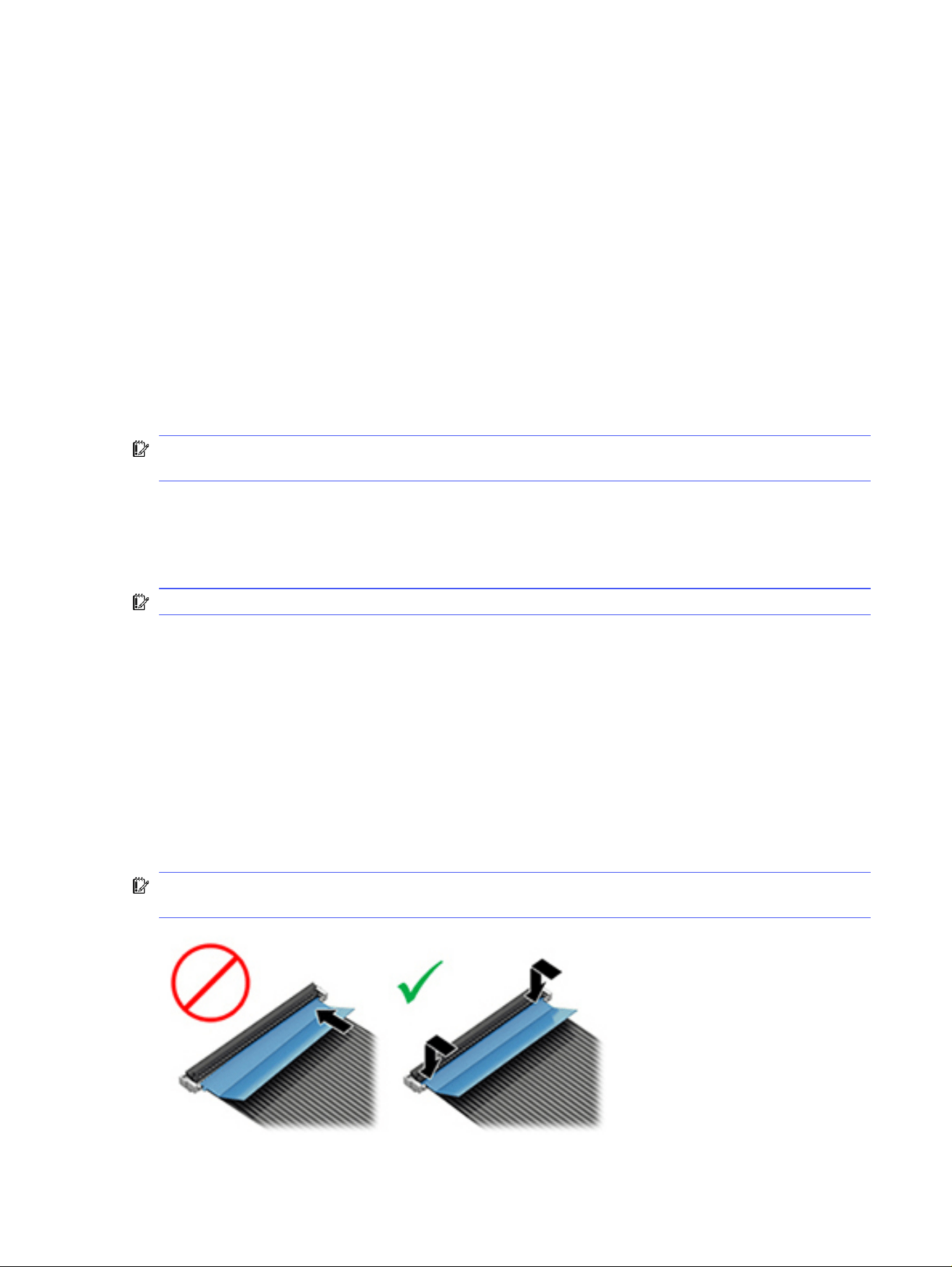
● Route cables in such a way that they cannot be caught or snagged by parts being removed or
replaced.
● Keep cables away from direct contact with major heat sources, such as the heat sink. Some air flow
guides have a cable guide that lets you route cables safely around the heat sink.
● Do not jam cables on top of daughter boards or memory modules (DIMMs). Circuit cards and DIMMs
are not designed to take excessive pressure.
● Keep cables clear of any movable or rotating parts (such as a fan) to prevent them from being cut or
crimped when the component is lowered into its normal position.
● In all cases, avoid bending or twisting the cables. Do not bend any cable sharply. A sharp bend can
break the internal wires.
● Do not rely on components like the keyboard or service door to push cables down internally. Always
position the cables to lie properly by themselves or in the cable guides and chassis areas designed
for cable routing.
IMPORTANT: Always release the connector latch before removing the cable. Otherwise, pulling the
cable could damage the cable pins and result in a failed device.
Connector types
There are several types of connectors on the system board with different requirements for cable
removal or insertion.
IMPORTANT: Do not touch connector pins and connector gold fingers directly with bare hands.
Flex cable
Use this information to properly use flex cables.
When connecting flex cables to a ZIF connector, rotate the latch to 90°, push the cable completely,
evenly into the connector, and then close the latch.
When removing flex cables from a ZIF connector on the system board, you must release the latch before
removing the cable. Always follow these steps:
1. Flip the connector latch 90° to release the cable.
2. Grasp the cable end of the connector and pull it straight out.
IMPORTANT: Always release the connector latch before removing the cable. Otherwise, pulling the
cable could damage the cable pins and result in a failed device.
Connector types
137
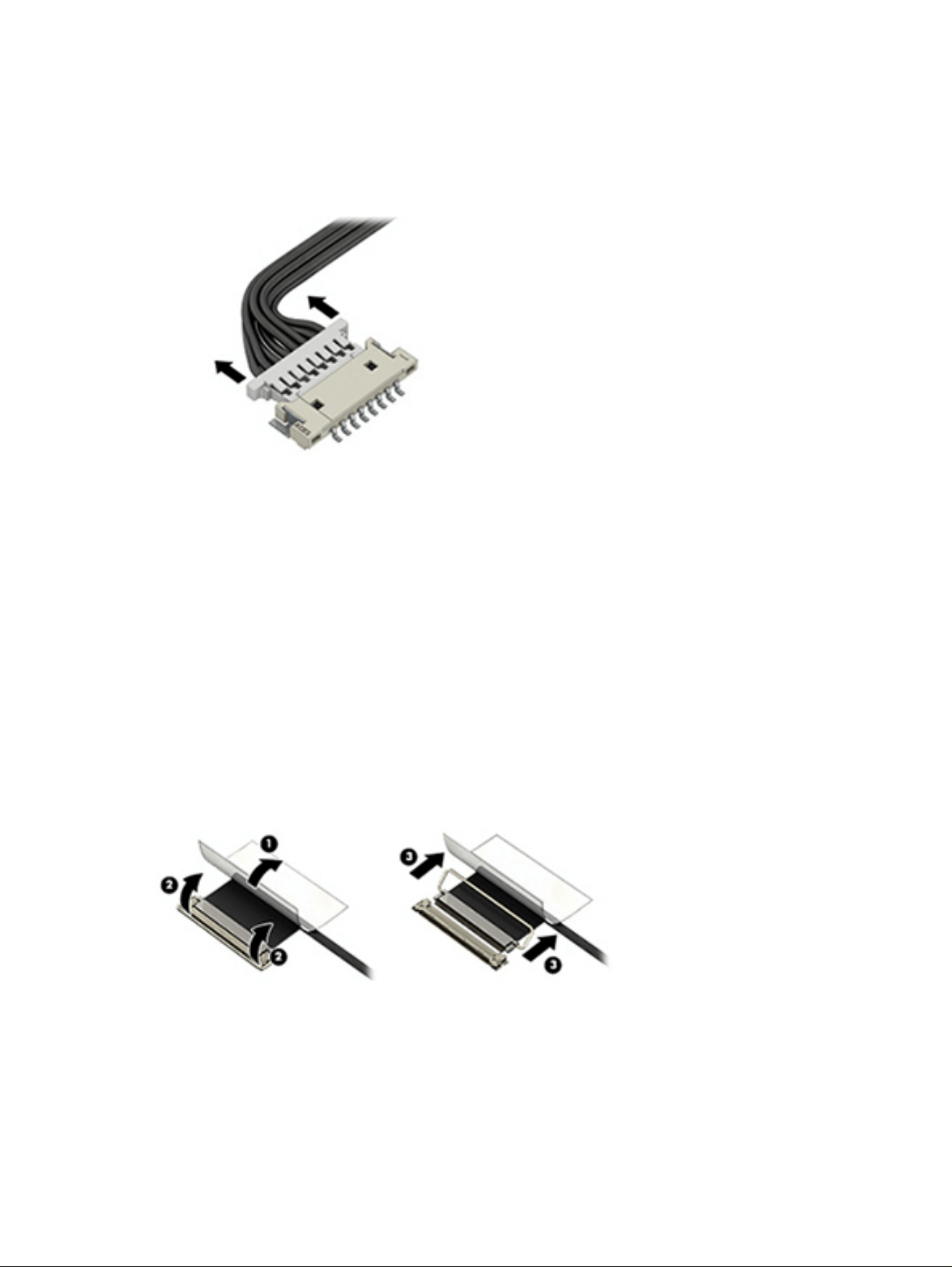
Horizontal cable insertion
Use a flat tool to pull the connector evenly. Do not pull on cable to remove.
Slide connector into receptacle on same horizontal plane as board and use a flat tool to push evenly into
receptacle.
Multiple-pin horizontal connector (LVDS cable to display panel)
Use these procedures to properly insert and remove a multiple-pin horizontal connector.
Insert procedure:
1. Slide connector evenly into receptacle on same horizontal plane as PCB connector.
2. Pull lock bar to insert and push both sides of connector horizontally to firmly lock.
3. Tape down lock bar over the panel to hold in position.
Reverse the previous procedure to remove the connector:
1. Remove tape.
2. Pull up bar (pull tape) and release the lock with the PCB connector.
3. Pull to the direction in parallel with PCB to withdraw the connector.
Multiple-pin vertical connector (LVDS cable to system board)
Use this procedure to properly insert and remove a multiple-pin vertical connector.
● Remove the connector gasket before removing the connector.
138
Chapter 7 Troubleshooting guide
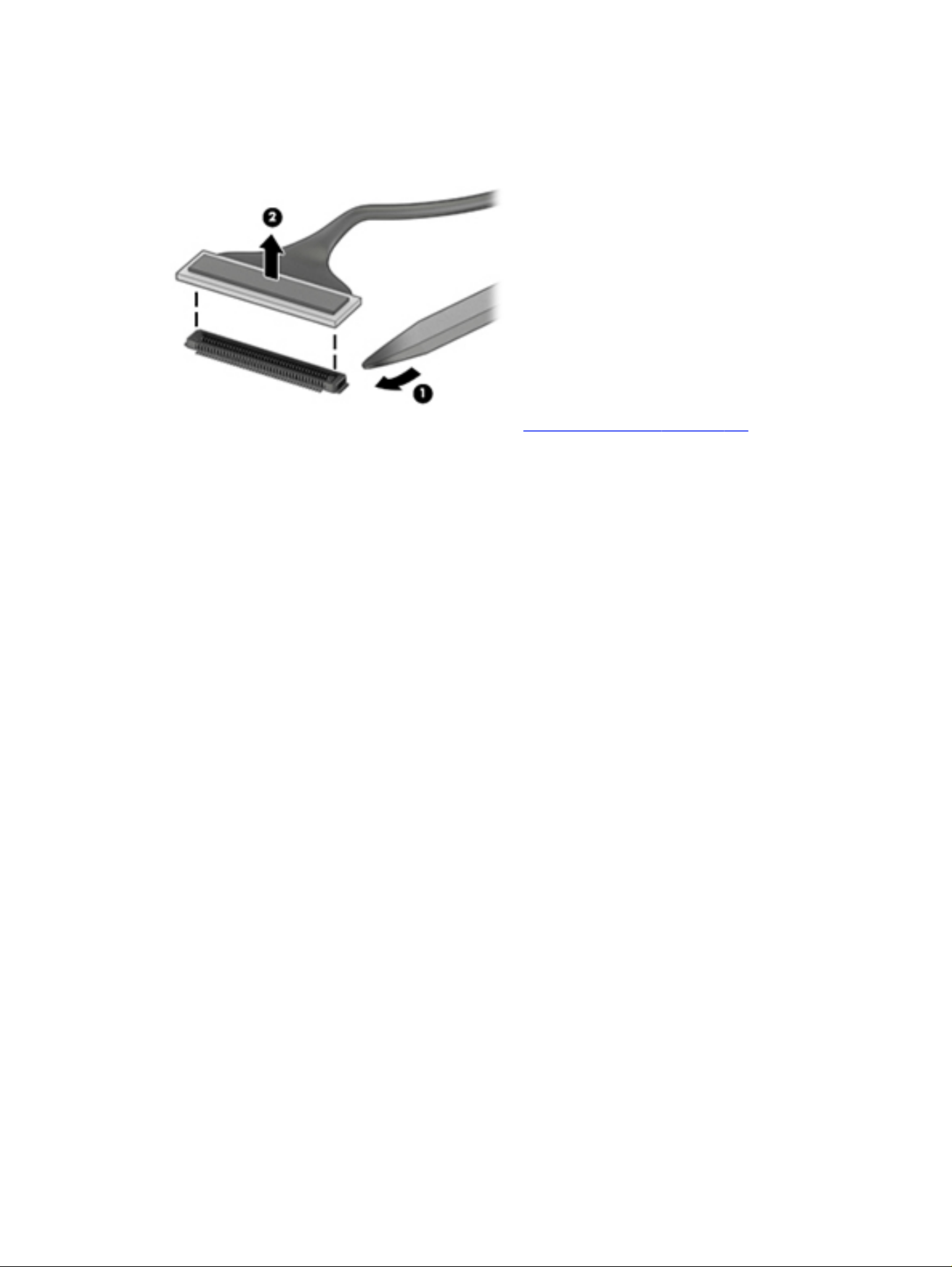
● If the connector has a plastic pull tab, pull the tab to disconnect. Otherwise, use a flat tool under the
connector to remove evenly. Do not pull on the cable to remove.
● Press evenly when reseating, reconnecting, or installing the connector.
For more information about cable management, see Cable management on page 136.
Multiple-pin vertical connector (LVDS cable to system board)
139
Using Setup Utility (BIOS)8
Setup Utility, or Basic Input/Output System (BIOS), controls communication between all the input and
output devices on the system (such as disk drives, display, keyboard, mouse, and printer). Setup Utility
(BIOS) includes settings for the types of devices installed, the startup sequence of the computer, and
the amount of system and extended memory.
NOTE: To start Setup Utility on convertible computers, your computer must be in notebook mode and
you must use the keyboard attached to your notebook.
Starting Setup Utility (BIOS)
You have several ways to access the Setup Utility (BIOS).
IMPORTANT: Use extreme care when making changes in Setup Utility (BIOS). Errors can prevent the
computer from operating properly.
Use one of these options:
● Turn on or restart the computer and quickly press f10.
● Turn on or restart the computer, quickly press esc, and then press f10 when the Start menu is
displayed.
Updating Setup Utility (BIOS)
Updated versions of Setup Utility (BIOS) might be available on the HP website. Most BIOS updates on the
HP website are packaged in compressed files called
SoftPaqs
. Some download packages contain a file
named Readme.txt, which contains information regarding installing and troubleshooting the file.
Determining the BIOS version
To decide whether you need to update Setup Utility (BIOS), first determine the BIOS version on your
computer.
To reveal the BIOS version information (also known as
ROM date
and
System BIOS
), use one of these
options.
● HP Support Assistant
1. Perform one of these tasks:
– Select the Search icon in the taskbar, type support in the search box, and then select the
HP Support Assistant app.
– Select the question mark icon in the taskbar.
2. Under My notebook, select Specifications.
● Setup Utility (BIOS)
140
Chapter 8 Using Setup Utility (BIOS)
1. Start Setup Utility (BIOS) (see Starting Setup Utility (BIOS) on page 140).
2. Select Main, and then make note of the BIOS version.
3. Select Exit, select one of the options, and then follow the on-screen instructions.
● In Windows, press ctrl+alt+s.
To check for later BIOS versions, see Preparing for a BIOS update on page 141.
Preparing for a BIOS update
Be sure to follow all prerequisites before downloading and installing a BIOS update.
IMPORTANT: To reduce the risk of damage to the computer or an unsuccessful installation, download
and install a BIOS update only when the computer is connected to reliable external power using the HP
AC adapter provided with the computer (select products only), a replacement AC adapter provided by
HP, or an AC adapter with the power rating specified on the product label. Do not download or install a
BIOS update while the computer is running on battery power, docked in an optional docking device, or
connected to an optional power source. During the download and installation, follow these instructions:
● Do not disconnect power from the computer by unplugging the power cord from the AC outlet.
● Do not shut down the computer or initiate Sleep.
● Do not insert, remove, connect, or disconnect any device, cable, or cord.
NOTE: If your computer is connected to a network, consult the network administrator before installing
any software updates, especially system BIOS updates.
Downloading a BIOS update
After you review the prerequisites, you can check for and download BIOS updates.
1. Perform one of these tasks:
● Select the Search icon in the taskbar, type support in the search box, and then select the HP
Support Assistant app.
● Select the question mark icon in the taskbar.
2. Select Updates. The Checking for Updates window opens, and Windows checks for updates.
3. Follow the on-screen instructions.
4. At the download area, follow these steps:
a. Identify the most recent BIOS update and compare it to the BIOS version currently installed on
your computer. If the update is more recent than your BIOS version, make a note of the date,
name, or other identifier. You might need this information to locate the update later, after it has
been downloaded to your hard drive.
b. Follow the on-screen instructions to download your selection to the hard drive.
Make a note of the path to the location on your hard drive where the BIOS update is
downloaded. You will need to access this path when you are ready to install the update.
Preparing for a BIOS update
141

Installing a BIOS update
BIOS installation procedures vary. Follow any instructions that appear on the screen after the download
is complete. If no instructions appear, follow these steps.
1. Select the Search icon in the taskbar, type file in the search box, and then select File Explorer.
2. Select your hard drive designation. The hard drive designation is typically Local Disk (C:).
3. Using the hard drive path you recorded earlier, open the folder that contains the update.
4. Double-click the file that has an .exe extension (for example,
filename
.exe).
The BIOS installation begins.
5. Complete the installation by following the on-screen instructions.
NOTE: After a message on the screen reports a successful installation, you can delete the
downloaded file from your hard drive.
142
Chapter 8 Using Setup Utility (BIOS)

Computer Setup (BIOS), TPM, and HP Sure
Start
9
HP provides several tools to help set up and protect your computer.
Using Computer Setup
Computer Setup, or Basic Input/Output System (BIOS), controls communication between all the input
and output devices on the system (such as hard drives, display, keyboard, mouse, and printer). Computer
Setup includes settings for types of devices installed, the startup sequence of the computer, and
amount of system and extended memory.
NOTE: Use extreme care when making changes in Computer Setup. Errors can prevent the computer
from operating properly.
To start Computer Setup, turn on or restart the computer, and when the HP logo appears, press f10 to
enter Computer Setup.
Navigating and selecting in Computer Setup
You can navigate and select in Computer Setup using one or more methods.
● To select a menu or a menu item, use the tab key and the keyboard arrow keys and then press enter,
or use a pointing device to select the item.
● To scroll up and down, select the up arrow or the down arrow in the upper-right corner of the screen,
or use the up arrow key or the down arrow key on the keyboard.
● To close open dialog boxes and return to the main Computer Setup screen, press esc, and then
follow the on-screen instructions.
To exit Computer Setup, choose one of the following methods:
● To exit Computer Setup menus without saving your changes, select Main, select Ignore Changes
and Exit, and then select Yes.
NOTE: If you are using arrow keys to highlight your choice, you must then press enter.
● To save your changes and exit Computer Setup menus, select Main, select Save Changes and Exit,
and then select Yes.
NOTE: If you are using arrow keys to highlight your choice, you must then press enter.
Your changes go into effect when the computer restarts.
Restoring factory settings in Computer Setup
To return all settings in Computer Setup to the values that were set at the factory, follow these steps.
NOTE: Restoring defaults will not change the hard drive mode.
Computer Setup (BIOS), TPM, and HP Sure Start
143

1. Start Computer Setup. See Using Computer Setup on page 143.
2. Select Main, select Apply Factory Defaults and Exit, and then select Yes.
NOTE: If you are using arrow keys to highlight your choice, you must then press enter.
NOTE: On select products, the selections might display Restore Defaults instead of Apply Factory
Defaults and Exit.
Your changes go into effect when the computer restarts.
NOTE: Your password settings and security settings are not changed when you restore the factory
settings.
Updating the BIOS
Updated versions of the BIOS might be available on the HP website. Most BIOS updates on the HP
website are packaged in compressed files called
SoftPaqs
.
Some download packages contain a file named Readme.txt, which contains information regarding
installing and troubleshooting the file.
Determining the BIOS version
To decide whether you need to update Computer Setup (BIOS), first determine the BIOS version on your
computer.
If you are already in Windows, you can access BIOS version information (also known as
ROM date
and
System BIOS
) by pressing fn+esc (select products only). Or you can use Computer Setup.
1. Start Computer Setup. See Using Computer Setup on page 143.
2. Select Main, and then select System Information.
3. To exit Computer Setup menus without saving your changes, select Main, select Ignore Changes
and Exit, and then select Yes.
NOTE: If you are using arrow keys to highlight your choice, you must then press enter.
To check for later BIOS versions, see Preparing for a BIOS update on page 144.
Preparing for a BIOS update
Be sure to follow all prerequisites before downloading and installing a BIOS update.
IMPORTANT: To reduce the risk of damage to the computer or an unsuccessful installation, download
and install a BIOS update only when the computer is connected to the following types of reliable
external power:
● The HP AC adapter provided with the computer (select products only)
● A replacement AC adapter provided by HP
● An AC adapter with the power rating specified on the product label
Do not download or install a BIOS update while the computer is operating under these circumstances:
● Running on battery power
144
Chapter 9 Computer Setup (BIOS), TPM, and HP Sure Start

● Docked in an optional docking device
● Connected to an optional docking power source
During the download and installation, follow these instructions:
● Do not disconnect power on the computer by unplugging the power cord from the AC outlet.
● Do not shut down the computer or initiate Sleep.
● Do not insert, remove, connect, or disconnect any device, cable, or cord.
Downloading a BIOS update
After you review the prerequisites, you can check for and download BIOS updates.
1. Perform one of these tasks:
● Select the Search icon in the taskbar, type support in the search box, and then select the HP
Support Assistant app.
● Select the question mark icon (select products only) in the taskbar.
2. Select Updates, and then select Check for updates and messages.
3. Follow the on-screen instructions.
4. At the download area, follow these steps:
a. Identify the most recent BIOS update and compare it to the BIOS version currently installed
on your computer. Make a note of the date, name, or other identifier. You might need this
information to locate the update later, after it has been downloaded to your hard drive.
b. Follow the on-screen instructions to download your selection to the hard drive.
Make a note of the path to the location on your hard drive where the BIOS update is
downloaded. You will need to access this path when you are ready to install the update.
NOTE: If you connect your computer to a network, consult the network administrator before
installing any software updates, especially system BIOS updates.
Installing a BIOS update
BIOS installation procedures vary. Follow any instructions that are displayed on the screen after the
download is complete. If no instructions are displayed, follow these steps.
1. Select the Search icon in the taskbar, type file in the search box, and then select File Explorer.
2. Select your hard drive designation. The hard drive designation is typically Local Disk (C:).
3. Using the hard drive path you recorded earlier, open the folder that contains the update.
4. Double-click the file that has an .exe extension (for example,
filename
.exe).
The BIOS installation begins.
5. Complete the installation by following the on-screen instructions.
NOTE: After a message on the screen reports a successful installation, you can delete the
downloaded file from your hard drive.
Downloading a BIOS update
145

Changing the boot order using the f9 prompt
To dynamically choose a boot device for the current startup sequence, follow these steps.
1. Access the Boot Device Options menu:
● Turn on or restart the computer, and when the HP logo appears, press f9 to enter the Boot
Device Options menu.
2. Select a boot device, press enter, and then follow the on-screen instructions.
TPM BIOS settings (select products only)
Trusted Platform Module (TPM) provides additional security for your computer. You can modify the TPM
settings in Computer Setup (BIOS).
IMPORTANT: Before enabling TPM functionality on this system, you must ensure that your intended
use of TPM complies with relevant local laws, regulations and policies, and approvals or licenses must
be obtained if applicable. For any compliance issues arising from your operation or usage of TPM that
violates the previously mentioned requirement, you shall bear all the liabilities wholly and solely. HP will
not be responsible for any related liabilities.
NOTE: If you change the TPM setting to Hidden, TPM is not visible in the operating system.
To access TPM settings in Computer Setup:
1. Start Computer Setup. See Using Computer Setup on page 143.
2. Select Security, select TPM Embedded Security, and then follow the on-screen instructions.
Using HP Sure Start (select products only)
Select computer models are configured with HP Sure Start, a technology that monitors the computer's
BIOS for attacks or corruption. If the BIOS becomes corrupted or is attacked, HP Sure Start
automatically restores the BIOS to its previously safe state, without user intervention.
HP Sure Start is configured and already enabled so that most users can use the HP Sure Start default
configuration. Advanced users can customize the default configuration.
To access the latest documentation on HP Sure Start, go to http://www.hp.com/support. Select Find your
product, and then follow the on-screen instructions.
146
Chapter 9 Computer Setup (BIOS), TPM, and HP Sure Start

Backing up, restoring, and recovering10
You can use Windows tools or HP software to back up your information, create a restore point, reset
your computer, create recovery media, or restore your computer to its factory state. Performing these
standard procedures can return your computer to a working state faster.
IMPORTANT: If you are performing recovery procedures on a tablet, the tablet battery must be at
least 70% charged before you start the recovery process.
IMPORTANT: For a tablet with a detachable keyboard, connect the tablet to the keyboard base before
beginning any recovery process.
Backing up information and creating recovery media
These methods of creating recovery media and backups are available on select products only.
Using Windows tools for backing up
HP recommends that you back up your information immediately after initial setup. You can do this task
either using Windows Backup locally with an external USB flash drive or using online tools.
NOTE: If computer storage is 32 GB or less, Microsoft System Restore is disabled by default.
Using the HP Cloud Recovery Download Tool to create a recovery USB flash drive
(select products only)
You can use the HP Cloud Recovery Download Tool to create an HP Recovery bootable USB flash drive.
For details:
■
Go to http://www.hp.com, search for HP Cloud Recovery, and then select the result that matches the
type of computer that you have and follow the on-screen instructions.
NOTE: In select countries, if you cannot create the HP Recovery USB flash drive yourself, contact
support. Go to http://www.hp.com/support, select your country or region, and then follow the on-screen
instructions.
IMPORTANT: HP recommends that you follow the Restoring and recovery methods on page 148 to
restore your computer before you obtain and use the HP USB flash drive. Using a recent backup can
return your machine to a working state sooner than using the HP USB flash drive. After the system is
restored, reinstalling all the operating system software released since your initial purchase can be a
lengthy process.
Restoring and recovering your system
You have several tools available to recover your system both within and outside of Windows if the
desktop cannot load.
Backing up, restoring, and recovering
147

HP recommends that you attempt to restore your system using the Restoring and recovery methods on
page 148.
Creating a system restore
System Restore is available in Windows. The System Restore software can automatically or manually
create restore points, or snapshots, of the system files and settings on the computer at a particular
point.
When you use System Restore, it returns your computer to its state at the time you made the restore
point. Your personal files and documents should not be affected.
Restoring and recovery methods
After you run the first method, test to see whether the issue still exists before you proceed to the next
method, which might now be unnecessary.
1. Run a Microsoft System Restore.
2. Run Reset this PC.
NOTE: The options Remove everything and then Fully clean the drive can take several hours to
complete and leave no information on your computer. It is the safest way to reset your computer
before you recycle it.
3. Recover using the HP Recovery USB flash drive. For more information, see Recovering using the HP
Recovery USB flash drive on page 148.
For more information about the first two methods, see the Get Help app:
■
Select the Start button, select All apps, select the Get Help app, and then enter the task you want to
perform.
NOTE: You must be connected to the internet to access the Get Help app.
Recovering using the HP Recovery USB flash drive
You can use the HP Recovery USB flash drive to recover the operating system and drivers that were
installed at the factory. On select products, you can create recovery media on a bootable USB flash
drive using the HP Cloud Recovery Download Tool.
For details, see Using the HP Cloud Recovery Download Tool to create a recovery USB flash drive (select
products only) on page 147.
NOTE: In select countries, if you cannot create the HP Recovery USB flash drive yourself, contact
support. Go to http://www.hp.com/support, select your country or region, and then follow the on-screen
instructions.
To recover your system:
■
Insert the HP Recovery USB flash drive, and then restart the computer.
NOTE: HP recommends that you follow the Restoring and recovery methods on page 148 to restore
your computer before you obtain and use the HP USB flash drive. Using a recent backup can return
your machine to a working state sooner than using the HP USB flash drive. After the system is restored,
reinstalling all the operating system software released since your initial purchase can be a lengthy
process.
148
Chapter 10 Backing up, restoring, and recovering

Changing the computer boot order
If your computer does not restart using the HP Recovery USB flash drive, you can change the computer
boot order, which is the order of devices listed in BIOS for startup information.
IMPORTANT: For a tablet with a detachable keyboard, connect the tablet to the keyboard base before
beginning these steps.
To change the boot order:
1. Insert the HP Recovery USB flash drive.
2. Access the system Startup menu.
● For computers or tablets with keyboards attached, turn on or restart the computer or tablet,
quickly press esc, and then press f9 for boot options.
● For tablets without keyboards, turn on or restart the tablet, and then quickly press and hold one
of the following buttons:
– Volume up
– Volume down
Then select f9.
3. Select the USB flash drive to boot from, and then follow the on-screen instructions.
Using HP Sure Recover (select products only)
Select computer models are configured with HP Sure Recover, a PC operating system (OS) recovery
solution built into the hardware and software. HP Sure Recover can fully restore the HP OS image
without installed recovery software.
Using HP Sure Recover, an administrator or user can restore the system and install:
● Latest version of the OS
● Platform-specific device drivers
● Software applications, in the case of a custom image
To access the latest documentation for HP Sure Recover, go to http://www.hp.com/support. Follow the
on-screen instructions to find your product and locate your documentation.
Changing the computer boot order
149

Using HP PC Hardware Diagnostics11
You can use the HP PC Hardware Diagnostics utility to determine whether your computer hardware
is running properly. The three versions are HP PC Hardware Diagnostics Windows, HP PC Hardware
Diagnostics UEFI (Unified Extensible Firmware Interface), and (for select products only) Remote HP PC
Hardware Diagnostics UEFI, a firmware feature.
Using HP PC Hardware Diagnostics Windows (select products
only)
HP PC Hardware Diagnostics Windows is a Windows-based utility that allows you to run diagnostic tests
to determine whether the computer hardware is functioning properly. The tool runs within the Windows
operating system to diagnose hardware failures.
If HP PC Hardware Diagnostics Windows is not installed on your computer, you must download and
install it. To download HP PC Hardware Diagnostics Windows, see Downloading HP PC Hardware
Diagnostics Windows on page 151.
Using an HP PC Hardware Diagnostics Windows hardware failure ID code
When HP PC Hardware Diagnostics Windows detects a failure that requires hardware replacement, a
24-digit failure ID code is generated for select component tests. For interactive tests, such as keyboard,
mouse, or audio and video palette, you must perform troubleshooting steps before you can receive a
failure ID.
You have several options after you receive a failure ID:
● Select Next to open the Event Automation Service (EAS) page, where you can log the case.
● Scan the QR code with your mobile device, which takes you to the EAS page, where you can log the
case.
● Select the box next to the 24-digit failure ID to copy your failure code and send it to support.
Accessing HP PC Hardware Diagnostics Windows
After HP PC Hardware Diagnostics Windows is installed, you can access it from HP Support Assistant or
the Start menu.
Accessing HP PC Hardware Diagnostics Windows from HP Support Assistant (select products
only)
After HP PC Hardware Diagnostics Windows is installed, follow these steps to access it from HP Support
Assistant.
1. Complete one of the following tasks:
● Select the Search icon in the taskbar, type support in the search box, and then select the HP
Support Assistant app.
● Select the question mark icon in the taskbar.
150
Chapter 11 Using HP PC Hardware Diagnostics

2. Select Fixes & Diagnostics.
3. Select Run hardware diagnostics, and then select Launch.
4. When the tool opens, select the type of diagnostic test that you want to run, and then follow the
on-screen instructions.
NOTE: To stop a diagnostic test, select Cancel.
Accessing HP PC Hardware Diagnostics Windows from the Start menu (select products only)
After HP PC Hardware Diagnostics Windows is installed, follow these steps to access it from the Start
menu.
1. Select the Start button, and then select All apps.
2. Select HP PC Hardware Diagnostics Windows.
3. When the tool opens, select the type of diagnostic test that you want to run, and then follow the
on-screen instructions.
NOTE: To stop a diagnostic test, select Cancel.
Downloading HP PC Hardware Diagnostics Windows
The HP PC Hardware Diagnostics Windows downloading instructions are provided in English only. You
must use a Windows computer to download this tool because only .exe files are provided.
Downloading the latest HP PC Hardware Diagnostics Windows version from HP
To download HP PC Hardware Diagnostics Windows from HP, follow these steps.
1. Go to http://www.hp.com/go/techcenter/pcdiags. The HP PC Diagnostics home page is displayed.
2. Select Diagnose PC Hardware issues in Windows, scroll down to the expanded window that
appears, and then select Download.
3. A pop-up that asks what you want to do with the file opens. Select Open or Save As. The latest
version of the diagnostics tool opens or downloads to the selected location.
Downloading the HP PC Hardware Diagnostics Windows from the Microsoft Store
You can download the HP PC Hardware Diagnostics Windows from the Microsoft Store.
1. Select the Microsoft Store app on your desktop or select the Search icon in the taskbar, and then
type Microsoft Store in the search box.
2. Type HP PC Hardware Diagnostics Windows in the Microsoft Store search box.
3. Follow the on-screen directions.
The tool downloads to the selected location.
Accessing HP PC Hardware Diagnostics Windows from the Start menu (select products only)
151

Downloading HP Hardware Diagnostics Windows by product name or number (select products
only)
You can download HP PC Hardware Diagnostics Windows by product name or number.
NOTE: For some products, you might have to download the software to a USB flash drive by using the
product name or number.
1. Go to http://www.hp.com/support.
2. Select Software and Drivers, select your type of product, and then enter the product name or
number in the search box that is displayed.
3. In the Diagnostics section, select Download, and then follow the on-screen instructions to select
the specific Windows diagnostics version to be downloaded to your computer or USB flash drive.
The tool downloads to the selected location.
Installing HP PC Hardware Diagnostics Windows
To install HP PC Hardware Diagnostics Windows, navigate to the folder on your computer or the USB
flash drive where the .exe file downloaded, double-click the .exe file, and then follow the on-screen
instructions.
Using HP PC Hardware Diagnostics UEFI
HP PC Hardware Diagnostics Unified Extensible Firmware Interface (UEFI) allows you to run diagnostic
tests to determine whether the computer hardware is functioning properly. The tool runs outside the
operating system so that it can isolate hardware failures from issues that are caused by the operating
system or other software components.
NOTE: For some products, you must use a Windows computer and a USB flash drive to download and
create the HP UEFI support environment because only .exe files are provided. For more information,
see Downloading HP PC Hardware Diagnostics UEFI to a USB flash drive on page 153.
If your PC does not start in Windows, you can use HP PC Hardware Diagnostics UEFI to diagnose
hardware issues.
Using an HP PC Hardware Diagnostics UEFI hardware failure ID code
When HP PC Hardware Diagnostics UEFI detects a failure that requires hardware replacement, a 24-digit
failure ID code is generated.
For assistance in solving the problem, complete one of these tasks:
● Select Contact HP, accept the HP privacy disclaimer, and then use a mobile device to scan the
failure ID code that appears on the next screen. The HP Customer Support - Service Center
page appears with your failure ID and product number automatically filled in. Follow the on-screen
instructions.
● Contact support, and provide the failure ID code.
Starting HP PC Hardware Diagnostics UEFI
To start HP PC Hardware Diagnostics UEFI, follow this procedure.
152
Chapter 11 Using HP PC Hardware Diagnostics

1. Turn on or restart the computer, and quickly press esc.
2. Press f2.
The BIOS searches three places for the diagnostic tools, in the following order:
a. Connected USB flash drive
NOTE: To download the HP PC Hardware Diagnostics UEFI tool to a USB flash drive, see
Downloading the latest HP PC Hardware Diagnostics UEFI version on page 154.
b. Hard drive
c. BIOS
3. When the diagnostic tool opens, select the type of diagnostic test that you want to run, and then
follow the on-screen instructions.
Starting HP PC Hardware Diagnostics UEFI through HP Hotkey Support software
(select products only)
This section describes how to start HP PC Hardware Diagnostics UEFI through HP Hotkey Support
software.
NOTE: You must disable Fast Boot to access HP PC Hardware Diagnostics UEFI from the HP System
Information application.
To disable Fast Boot:
1. Turn on or restart the computer, and when the HP logo appears, press f10 to enter Computer Setup.
2. Select Advanced, and then select Boot Options.
3. Clear Fast Boot.
4. Select Save Changes and Exit, and then select Yes.
To start HP PC Hardware Diagnostics UEFI through HP Hotkey Support software, follow this procedure:
1. From the Start menu, open the HP System Information Application or press fn+esc.
2. In HP System Information screen, select Run System Diagnostics, select Yes to run the application,
and then select Restart.
IMPORTANT: To prevent loss of data, save your work in all open apps before restarting your computer.
NOTE: When the restart is complete, the computer opens the HP PC Hardware Diagnostics UEFI
Application. Proceed with the troubleshooting tests.
Downloading HP PC Hardware Diagnostics UEFI to a USB flash drive
Downloading HP PC Hardware Diagnostics UEFI to a USB flash drive can be useful in some situations.
● HP PC Hardware Diagnostics UEFI is not included in the preinstallation image.
● HP PC Hardware Diagnostics UEFI is not included in the HP Tool partition.
Starting HP PC Hardware Diagnostics UEFI through HP Hotkey Support software (select products only)
153

● The hard drive is damaged.
NOTE: The HP PC Hardware Diagnostics UEFI downloading instructions are provided in English only,
and you must use a Windows computer to download and create the HP UEFI support environment
because only .exe files are provided.
Downloading the latest HP PC Hardware Diagnostics UEFI version
To download the latest HP PC Hardware Diagnostics UEFI version to a USB flash drive, follow these
steps.
1. Go to http://www.hp.com/go/techcenter/pcdiags. The HP PC Diagnostics home page is displayed.
2. Select Diagnose PC Hardware Issues outside of the OS, scroll down to the expanded window that
appears, and then select Download.
3. A pop-up that asks what you want to do with the file opens. Select Open or Save As. The latest
version of the diagnostics tool opens or downloads to the selected location.
Downloading HP PC Hardware Diagnostics UEFI by product name or number (select products
only)
You can download HP PC Hardware Diagnostics UEFI by product name or number (select products only)
to a USB flash drive.
NOTE: For some products, you might have to download the software to a USB flash drive by using the
product name or number.
1. Go to http://www.hp.com/support.
2. Enter the product name or number, select your computer, and then select your operating system.
3. In the Diagnostics section, follow the on-screen instructions to select and download the specific
UEFI Diagnostics version for your computer.
Using Remote HP PC Hardware Diagnostics UEFI settings
(select products only)
Remote HP PC Hardware Diagnostics UEFI is a firmware (BIOS) feature that downloads HP PC Hardware
Diagnostics UEFI to your computer. It can then run the diagnostics on your computer, and it might upload
results to a preconfigured server.
For more information about Remote HP PC Hardware Diagnostics UEFI, go to
http://www.hp.com/go/techcenter/pcdiags, select Diagnose Other Potential Issues, scroll down to
Remote PC Hardware Diagnostics UEFI, and then select Learn More.
Downloading Remote HP PC Hardware Diagnostics UEFI
Remote HP PC Hardware Diagnostics UEFI is also available as a SoftPaq that you can download to a
server.
Downloading the latest Remote HP PC Hardware Diagnostics UEFI version
You can download the latest Remote HP PC Hardware Diagnostics UEFI version to a USB flash drive.
1. Go to http://www.hp.com/go/techcenter/pcdiags. The HP PC Diagnostics home page is displayed.
154
Chapter 11 Using HP PC Hardware Diagnostics

2. Select Diagnose PC Hardware Issues outside of the OS, scroll down to the expanded window that
appears, and then select Download.
3. A pop-up that asks what you want to do with the file opens. Select Open or Save As. The latest
version of the diagnostics tool opens or downloads to the selected location.
Downloading Remote HP PC Hardware Diagnostics UEFI by product name or number
You can download Remote HP PC Hardware Diagnostics UEFI by product name or number.
NOTE: For some products, you might have to download the software by using the product name or
number.
1. Go to http://www.hp.com/support.
2. Select Software and Drivers, select your type of product, enter the product name or number in the
search box that is displayed, select your computer, and then select your operating system.
3. In the Diagnostics section, follow the on-screen instructions to select and download the Remote
UEFI version for the product.
Customizing Remote HP PC Hardware Diagnostics UEFI settings
Using the Remote HP PC Hardware Diagnostics setting in Computer Setup (BIOS), you can perform
several customizations.
● Set a schedule for running diagnostics unattended. You can also start diagnostics immediately in
interactive mode by selecting Execute Remote HP PC Hardware Diagnostics UEFI.
● Set the location for downloading the diagnostic tools. This feature provides access to the tools
from the HP website or from a server that has been preconfigured for use. Your computer does
not require the traditional local storage, such as a hard drive or USB flash drive, to run remote
diagnostics.
● Set a location for storing the test results. You can also set the user name and password that you use
for uploads.
● Display status information about the diagnostics run previously.
To customize Remote HP PC Hardware Diagnostics UEFI settings, follow these steps:
1. Turn on or restart the computer, and when the HP logo appears, press f10 to enter Computer Setup.
2. Select Advanced, and then select Settings.
3. Make your customization selections.
4. Select Main, then select Save Changes and Exit to save your settings.
Your changes take effect when the computer restarts.
Downloading Remote HP PC Hardware Diagnostics UEFI by product name or number
155

Specifications12
This chapter provides specifications for your computer system.
Computer specifications
This section provides specifications for your computer. When you travel with your computer, the
computer dimensions and weights, as well as input power ratings and operating specifications, provide
helpful information.
Table 12-1
Computer specifications
Metric U.S.
Dimensions
Width 314.5 mm 12.38 in
Depth 226.0 mm 8.89 in
Height for TWL/RPL-UR/PTL
DF/DF+ 9W 17.95 mm 0.71 in
FF+40W 18.85 mm 0.74 in
FF+15W 17.15 mm 0.68 in
DF/DF+15W 17.95 mm 0.71 in
FF 15W 17.45 mm 0.69 in
FF 40W 17.45 mm 0.69 in
Weight 1422 g 3.14 lb
Input power
Operating voltage and current 19.5 V DC @ 3.33 A – 65 W
19.5 V DC @ 2.31 A – 45 W
Temperature
Operating 5°C to 35°C 41°F to 95°F
Nonoperating –20°C to 60°C –4°F to 140°F
Relative humidity (noncondensing)
Operating 10% to 90%
Nonoperating 5% to 95%
Maximum altitude (unpressurized)
Operating –15 m to 3,048 m –50 ft to 10,000 ft
156 Chapter 12 Specifications

Table 12-1 Computer specifications (continued)
Metric U.S.
Nonoperating –15 m to 12,192 m –50 ft to 40,000 ft
NOTE: Applicable product safety standards specify thermal limits for plastic surfaces. The device
operates well within this range of temperatures.
Display specifications
This section provides specifications for your display.
Table 12-2
Display specifications
Metric U.S.
Active diagonal size 39.6 cm 15.6 in
Resolution 1920 × 1080 (FHD)
3840 × 2160 (UHD)
Surface treatment Antiglare (FHD, UHD panels)
Brightview (OLED panel)
Brightness 250 nits (FHD, 45% NTSC panel)
300 nits (FHD, 72% NTSC/100% sRGB
panels)
400 nits (UHD panel)
Viewing angle UWVA
Backlight WLED
AMOLED
Display panel interface eDP
Solid-state drive specifications
This section provides specifications for your SSDs.
Table 12-3
SSD specifications
256 GB* 256 GB
OPAL2*
512 GB* 512 GB TLC* 1 TB/2 TB*
Dimensions
Height 2.3 mm 2.3 mm 2.3 mm 2.3 mm 2.3 mm
Length 80 mm 80 mm 80 mm 80 mm 80 mm
Width 22 mm 22 mm 22 mm 22 mm 22 mm
Weight < 10 g < 10 g < 10 g < 10 g < 10 g
Display specifications 157

Table 12-3 SSD specifications (continued)
256 GB* 256 GB
OPAL2*
512 GB* 512 GB TLC* 1 TB/2 TB*
Interface type PCIe PCIe PCIe PCIe PCIe
Ready time, maximum (to not busy) 1.0 ms 1.0 ms < 1.0 ms < 1.0 ms 1.0 ms
Access times, logical 0.1 ms 0.1 ms 0.1 ms 0.1 ms 0.1 ms
Transfer rate
Sequential read Up to 3100
MBps
Up to 3100
MBps
Up to 3500
MBps
Up to 6450
MBps
Up to 6400 MBps
Random read Up to 300,000
IOPs
Up to 300,000
IOPs
Up to 300,000
IOPs
Up to 300,000
IOPs
Up to 300,000 IOPs
Sequential write Up to 1200
MBps
Up to 1200
MBps
Up to 1600
MBps
Up to 3500
MBps
Up to 5000 MBps
Random write Up to 100,000
IOPs
Up to 100,000
IOPs
Up to 100,000
IOPs
Up to 100,000
IOPs
Up to 100,000 IOPs
Total logical sectors 500,118,192 1,000,215,216 1,000,215,216 1,000,215,216 1 TB: 2,000,409,264
2 TB: 4,000,797,360
Operating temperature 0°C to 70°C
(32°F to 158°F)
0°C to 70°C
(32°F to 158°F)
0°C to 70°C
(32°F to 158°F)
0°C to 70°C
(32°F to 158°F)
0°C to 70°C (32°F to
158°F)
*Actual accessible capacity is less. Actual drive specifications might differ slightly.
NOTE: Certain restrictions and exclusions apply. Contact support for details.
158
Chapter 12 Specifications
Statement of memory volatility13
For general information regarding nonvolatile memory in HP business computers, and to restore
nonvolatile memory that can contain personal data after the system has been turned off and the hard
drive has been removed, use these instructions.
HP business computer products that use Intel-based or AMD-based system boards contain volatile
DDR memory. The amount of nonvolatile memory present in the system depends upon the system
configuration. Intel-based and AMD-based system boards contain nonvolatile memory subcomponents
as originally shipped from HP, with the following assumptions:
● No subsequent modifications were made to the system.
● No applications, features, or functionality were added to or installed on the system.
Following system shutdown and removal of all power sources from an HP business computer system,
personal data can remain on volatile system memory (DIMMs) for a finite period of time and also
remains in nonvolatile memory. Use the following steps to remove personal data from the computer,
including the nonvolatile memory found in Intel-based and AMD-based system boards.
NOTE: If your tablet has a keyboard base, connect to the keyboard base before beginning steps in this
chapter.
Nonvolatile memory usage
Use this table to troubleshoot nonvolatile memory usage.
Table 13-1
Troubleshooting information for nonvolatile memory usage
Description Volatility description Storage user data How to erase
Primary storage device, holds the
OS, applications, and application
settings
Nonvolatile, 8-256 GB of NVMe
SSD storage, removable
Yes
1
See Current BIOS steps on
page 160 for information
about erasing the primary
storage device.
System memory (RAM), holds
transient data during system
operation
Volatile, SODIMM socket.
Removable (4 GB/8 GB/16 GB)
Yes Unplug unit from power.
Permanent system BIOS settings Nonvolatile, 16 KB, stored
No
2
See Current BIOS steps on
page 160 for information
about clearing BIOS settings.
System boot ROM (BIOS) Nonvolatile memory, 128 Mbit
(16 MB) socketed, removable
No Download the latest BIOS
for your model from the
HP website and follow the
instructions to flash the BIOS
that are on the website.
Statement of memory volatility 159

Table 13-1 Troubleshooting information for nonvolatile memory usage (continued)
Description Volatility description Storage user data How to erase
RTC (CMOS) RAM Volatile memory, 256 bytes
located in AMD embedded
System on Chip (SoC)
No Desktop computers with a
CMOS button:
Unplug unit from main power,
remove top cover and press
the Clear CMOS button.
Notebook and desktop
computers without a CMOS
button:
1. Press and hold power
button for 12 seconds.
2. Press Windows key + V,
and then press power
button.
Keyboard/mouse (ROM) Nonvolatile, 2 KB embedded in
the super I/O controller (SIO2)
Yes N/A
Keyboard/mouse (RAM) Volatile, 256 bytes embedded in
the super I/O controller (SIO2)
No Unplug unit from main power.
LOM EEPROM Nonvolatile, 2 MB embedded in
LAN controller
No N/A
TPM Nonvolatile, 51 KB ROM for
firmware and 38 KB system
parametric data
No
3
See Current BIOS steps on
page 160 for information
about clearing TPM.
1
Under typical operation, the only user data stored on the primary storage device are preferences for
device configuration and settings for connections. However, the administrator can configure the system
to allow users to store data locally.
2
The only user data potentially stored in BIOS Settings are the ownership and asset tags, administrator
password, and startup password.
3
The TPM might contain encrypted passwords or certificates generated from user or administrator
input.
Current BIOS steps
Use these instructions to restore nonvolatile memory.
1. Follow these steps to restore the nonvolatile memory that can contain personal data. Restoring
or reprogramming nonvolatile memory that does not store personal data is neither necessary nor
recommended.
a. Turn on or restart the computer, and then quickly press esc.
NOTE: If the system has a BIOS administrator password, type the password at the prompt.
b. Select Main, select Apply Factory Defaults and Exit, and then select Yes to load defaults. The
computer restarts.
160
Chapter 13 Statement of memory volatility

c. During the restart, press esc while the "Press the ESC key for Startup Menu" message is
displayed at the bottom of the screen.
NOTE: If the system has a BIOS administrator password, type the password at the prompt.
d. Select the Security menu, select Restore Security Settings to Factory Defaults, and then
select Yes to restore security level defaults. The computer restarts.
e. During the restart, press esc while the "Press the ESC key for Startup Menu" message is
displayed at the bottom of the screen.
NOTE: If the system has a BIOS administrator password, type the password at the prompt.
f. If an asset or ownership tag is set, select the Security menu and scroll down to the Utilities
menu. Select System IDs, and then select Asset Tracking Number. Clear the tag, and then
make the selection to return to the prior menu.
g. If a DriveLock password is set, select the Security menu, and scroll down to Hard Drive Utilities
under the Utilities menu. Select Hard Drive Utilities, select DriveLock, and then clear the check
box for DriveLock password on restart. Select OK to proceed.
h. Select the Main menu, and then select Reset BIOS Security to factory default. Select Yes at
the warning message. The computer restarts.
i. During the restart, press esc while the "Press the ESC key for Startup Menu" message is
displayed at the bottom of the screen.
NOTE: If the system has a BIOS administrator password, type the password at the prompt.
j. Select the Main menu, select Apply Factory Defaults and Exit, select Yes to save changes and
exit, and then select Shutdown.
k. Restart the system. If the system has a TPM, fingerprint reader, or both, one or two prompts
will appear—one to clear the TPM and the other to Reset Fingerprint Sensor. Press or tap f1 to
accept or f2 to reject.
l. Remove all power and system batteries for at least 24 hours.
2. Complete one of the following tasks:
● Remove and retain the storage drive.
● Clear the drive contents by using a third-party utility designed to erase data from an SSD.
● Clear the contents of the drive by using the following BIOS Setup Secure Erase command
option steps:
NOTE: If you clear data using Secure Erase, you cannot recover it.
a. Turn on or restart the computer, and then quickly press esc.
b. Select the Security menu and scroll down to the esc menu.
c. Select Hard Drive Utilities.
Current BIOS steps
161

d. Finish by completing one of these tasks:
● Under Utilities, select Secure Erase, select the hard drive storing the data you want to
clear, and then follow the on-screen instructions to continue.
● Clear the contents of the drive using the following Disk Sanitizer commands steps:
i. Turn on or restart the computer, and then quickly press esc.
ii. Select the Security menu and scroll down to the Utilities menu.
iii. Select Hard Drive Utilities.
iv. Under Utilities, select Disk Sanitizer, select the hard drive with the data that you want
to clear, and then follow the on-screen instructions to continue.
NOTE: The amount of time it takes for Disk Sanitizer to run can be several hours.
Plug the computer into an AC outlet before starting.
Questions and answers
Use this section to answer your questions about nonvolatile memory.
1. How can the BIOS settings be restored (returned to factory settings)?
IMPORTANT: The restore defaults feature does not securely erase any information on your hard
drive. See question and answer 6 for steps to securely erase information.
The restore defaults feature does not reset the Custom Secure Boot keys. See question and
answer 7 for information about resetting the keys.
a. Turn on or restart the computer, and then quickly press esc.
b. Select Main, and then select Apply Factory Defaults and Exit.
c. Follow the on-screen instructions.
d. Select Main, select Save Changes and Exit, and then follow the on-screen instructions.
2. What is a UEFI BIOS?
The Unified Extensible Firmware Interface (UEFI) BIOS is an industry-standard software interface
between the platform firmware and an operating system (OS). It replaces the older legacy BIOS
architecture.
The UEFI BIOS provides an interface to display the system information and configuration settings
and to change the configuration of your computer before an OS is loaded. BIOS provides a secure
runtime environment that supports a GUI. In this environment, you can use either a pointing device
(touch screen, touchpad, pointing stick, or USB mouse) or the keyboard to navigate and make menu
and configuration selections. The UEFI BIOS also contains basic system diagnostics.
In addition, the UEFI BIOS works to initialize the computer’s hardware before loading and executing
the OS; the runtime environment allows the loading and execution of software programs from
storage devices to provide more functionality, such as advanced hardware diagnostics (with the
ability to display more detailed system information) and advanced firmware management and
recovery software.
3. Where is the UEFI BIOS located?
162
Chapter 13 Statement of memory volatility

The UEFI BIOS is located on a flash memory chip. You must use a utility to write to the chip.
4. What kind of configuration data is stored on the DIMM Serial Presence Detect (SPD) memory
module? How would this data be written?
The DIMM SPD memory contains information about the memory module, such as size, serial
number, data width, speed and timing, voltage, and thermal information. This information is written
by the module manufacturer and stored on an EEPROM. You cannot write to this EEPROM when the
memory module is installed in a computer. Third-party tools do exist that can write to the EEPROM
when the memory module is not installed in a computer. Various third-party tools are available to
read SPD memory.
5. What is meant by “Restore the nonvolatile memory found in Intel-based system boards”?
This message relates to clearing the Real Time Clock (RTC) CMOS memory that contains computer
configuration data.
6. How can the BIOS security be reset to factory defaults and erase the data?
IMPORTANT: Resetting results in the loss of information.
These steps do not reset Custom Secure Boot Keys. See question and answer 7 for information
about resetting the keys.
a. Turn on or restart the computer, and then quickly press esc.
b. Select Main, and then select Reset Security to Factory Defaults.
c. Follow the on-screen instructions.
d. Select Main, select Save Changes and Exit, and then follow the on-screen instructions.
7. How can the Custom Secure Boot Keys be reset?
Secure Boot is a feature to ensure that only authenticated code can start on a platform. If you
enabled Secure Boot and created Custom Secure Boot Keys, disabling Secure Boot does not clear
the keys. You must also select to clear the Custom Secure Boot Keys. Use the same Secure Boot
access procedure that you used to create the Custom Secure Boot Keys, but select to clear or
delete all Secure Boot Keys.
a. Turn on or restart the computer, and then quickly press esc.
b. Select the Security menu, select Secure Boot Configuration, and then follow the on-screen
instructions.
c. At the Secure Boot Configuration window, select Secure Boot, select Clear Secure Boot Keys,
and then follow the on-screen instructions to continue.
Using HP Sure Start (select products only)
Select computer models are configured with HP Sure Start, a technology that monitors the computer's
BIOS for attacks or corruption. If the BIOS becomes corrupted or is attacked, HP Sure Start
automatically restores the BIOS to its previously safe state, without user intervention.
HP Sure Start is configured and already enabled so that most users can use the HP Sure Start default
configuration. Advanced users can customize the default configuration.
Using HP Sure Start (select products only)
163


Power cord set requirements14
This chapter provides power cord requirements for countries and regions.
The wide-range input feature of the computer permits it to operate from any line voltage from 100 V AC
to 120 V AC, or from 220 V AC to 240 V AC.
The 3-conductor power cord set included with the computer meets the requirements for use in the
country or region where the equipment is purchased.
Power cord sets for use in other countries or regions must meet the requirements of the country and
region where the computer is used.
Requirements for all countries
These power cord requirements are applicable to all countries and regions.
● The length of the power cord set must be at least 1.0 m (3.3 ft) and no more than 2.0 m (6.5 ft).
● All power cord sets must be approved by an acceptable accredited agency responsible for
evaluation in the country or region where the power cord set will be used.
● The power cord sets must have a minimum current capacity of 10 A and a nominal voltage rating of
125 V AC or 250 V AC, as required by the power system of each country or region.
● The appliance coupler must meet the mechanical configuration of an EN 60 320/IEC 320 Standard
Sheet C13 connector for mating with the appliance inlet on the back of the computer.
Requirements for specific countries and regions
To determine power cord requirements for specific countries and regions, use this table.
Table 14-1
Power cord requirements for specific countries and regions
Country/region Accredited agency Applicable note number
Argentina IRAM 1
Australia SAA 1
Austria OVE 1
Belgium CEBEC 1
Brazil ABNT 1
Canada CSA 2
Chile IMQ 1
Denmark DEMKO 1
Finland FIMKO 1
France UTE 1
Power cord set requirements 165

Table 14-1 Power cord requirements for specific countries and regions (continued)
Country/region Accredited agency Applicable note number
Germany VDE 1
India BIS 1
Israel SII 1
Italy IMQ 1
Japan JIS 3
Netherlands KEMA 1
New Zealand SANZ 1
Norway NEMKO 1
The People’s Republic of China CCC 4
Saudi Arabia SASO 7
Singapore PSB 1
South Africa SABS 1
South Korea KTL 5
Sweden SEMKO 1
Switzerland SEV 1
Taiwan BSMI 6
Thailand TISI 1
United Kingdom ASTA 1
United States UL 2
1. The flexible cord must be Type HO5VV-F, 3-conductor, 0.75 mm² conductor size. Power cord set
fittings (appliance coupler and wall plug) must bear the certification mark of the agency responsible
for evaluation in the country or region where it will be used.
2. The flexible cord must be Type SVT/SJT or equivalent, No. 18 AWG, 3-conductor. The wall plug must
be a 2-pole grounding type with a NEMA 5-15P (15 A, 125 V AC) or NEMA 6-15P (15 A, 250 V AC)
configuration. CSA or C-UL mark. UL file number must be on each element.
3. The appliance coupler, flexible cord, and wall plug must bear a T mark and registration number in
accordance with the Japanese Dentori Law. The flexible cord must be Type VCTF, 3-conductor, 0.75
mm² or 1.25 mm² conductor size. The wall plug must be a 2-pole grounding type with a Japanese
Industrial Standard C8303 (7 A, 125 V AC) configuration.
4. The flexible cord must be Type RVV, 3-conductor, 0.75 mm² conductor size. Power cord set fittings
(appliance coupler and wall plug) must bear the CCC certification mark.
5. The flexible cord must be Type H05VV-F 3-conductor, 0.75 mm² conductor size. KTL logo and
individual approval number must be on each element. Approval number and logo must be printed on
a flag label.
6. The flexible cord must be Type HVCTF 3-conductor, 1.25 mm² conductor size. Power cord set fittings
(appliance coupler, cable, and wall plug) must bear the BSMI certification mark.
166
Chapter 14 Power cord set requirements

7. For 127 V AC, the flexible cord must be Type SVT or SJT 3-conductor, 18 AWG, with plug NEMA 5-15P
(15 A, 125 V AC), with UL and CSA or C-UL marks. For 240 V AC, the flexible cord must be Type
H05VV-F 3-conductor, 0.75 mm² or 1.00 mm² conductor size, with plug BS 1363/A with BSI or ASTA
marks.
Requirements for specific countries and regions 167

Swelling or deformation of notebook
battery
15
To protect your hardware from potential damage, HP recommends that if you are experiencing battery
swelling, stop using the notebook until you can replace the battery.
You can contact HP to understand what battery replacement options are available. To learn
more about lithium-ion batteries and the factors that can accelerate battery swelling, see
https://support.hp.com/us-en/document/ish_6824662-6824706-16.
Swollen notebook batteries
You might notice that your notebook battery has become somewhat deformed or swollen over time.
In some cases, the battery swelling might be significant enough to impact other components of the
system including the touchpad, keyboard, and chassis.
Swollen battery is not a safety issue
A swollen battery does not present a safety issue. It is the result of the generation of gases per the
normal degradation of the battery cell over time.
HP has worked closely with our battery cell suppliers and third-party industry experts to help minimize
the potential for HP batteries to swell over time and to identify that swollen batteries are not a safety
issue.
Discontinue using a swollen battery
To protect your hardware from potential damage, HP recommends that, if you are experiencing battery
swelling, you stop using the notebook until the battery can be replaced.
You can contact https://www.hp.com/go/contacthp to understand what battery replacement options are
available.
Replace a swollen battery
If a battery is under warranty, HP will replace the battery per the terms and conditions of the HP
Worldwide Limited Warranty or applicable HP Care Packs.
For batteries no longer under warranty, contact HP to purchase a genuine HP replacement battery.
Minimize battery swelling
Multiple factors can accelerate battery swelling.
To help mitigate battery swelling over time, you can use either HP Adaptive Battery Optimizer (consumer
notebooks) or HP Battery Health Manager (commercial notebooks) settings to improve battery longevity
and performance for various use scenarios.
168
Chapter 15 Swelling or deformation of notebook battery

Adaptive Battery Optimizer (consumer notebooks)
Adaptive Battery Optimizer technology can help mitigate the factors that cause the battery to swell. It is
available on select HP OMEN, HP Spectre, HP Pavilion, and HP ENVY notebook computers.
Adaptive Battery Optimizer has been available on select gaming notebooks since 2019 and select
consumer notebooks since 2020. To learn more about enabling Adaptive Battery Optimizer on your HP
notebook, see https://support.hp.com/us-en/document/ish_9908083-9908127-16.
HP Battery Health Manager (commercial notebooks)
HP Battery Health Manager provides an easy-to-manage solution to help mitigate factors that cause the
battery to swell. It is available on select HP ProBook and HP EliteBook notebook computers.
HP Battery Health Manager is available on select commercial notebooks
manufactured since 2016. To learn more about HP Battery Health Manager, see
https://support.hp.com/us-en/document/ish_4449597-3519507-16.
Adaptive Battery Optimizer (consumer notebooks)
169

Recycling16
When a nonrechargeable or rechargeable battery has reached the end of its useful life, do not dispose
of the battery in general household waste. Follow the local laws and regulations in your area for battery
disposal.
HP encourages customers to recycle used electronic hardware, HP original print cartridges,
and rechargeable batteries. For more information about recycling programs, see the HP website at
http://www.hp.com/recycle.
170
Chapter 16 Recycling

Index
A
AC adapter and battery light,
identifying 9
AC adapter, spare part
number 25
AC adapters, spare part
numbers 25
action key, identifying 16
antenna
illustrated 24
spare part number 24
audio-out (headphone)/audio-in
(microphone) combo jack,
identifying 7, 8
audio, product description 2
B
backup, creating 147
backups 147
battery swelling 168
BIOS
determining version 140, 144
downloading an update 141,
142, 145
preparing for an update 144
starting the Setup Utility 140
updating 140, 144
Bluetooth label 17
boot order
changing using the f9
prompt 146
boot order, changing 149
bottom components 16
bottom cover
illustrated 22
removal 35
spare part number 22, 35
buttons
left touchpad 11, 12
power 15
right touchpad 11, 12
C
camera
identifying 11
Camera light, identifying 11
camera privacy cover,
identifying 11
camera/microphone module
illustrated 24
spare part number 24
caps lock light 13
caring for your computer 31
cautions
electrostatic discharge 27, 28
cleaning your computer 31
caring for wood veneer 33
disinfecting 32
HP Easy Clean 31
removing dirt and debris 31
components
bottom 16
display 10
keyboard area 11
left side 8
lights 12
right side 7
touchpad 11, 12
computer major components 18
Computer Setup
navigating and selecting 143
restoring factory settings 143
starting 143
computer specifications 156
connectors
power 9
control zone 11
D
display
specifications 156, 157
display assembly
subcomponents 23
display back cover
illustrated 23
spare part number 23
spare part numbers 24
display bezel
illustrated 23
spare part number 23
spare part numbers 23
display cable
illustrated 23
spare part number 23
display components 10
display panel
illustrated 23, 24
product description 2
spare part number 23
spare part numbers 24
display panel cable
illustrated 24
spare part number 24
E
electrostatic discharge (ESD) 27,
28
preventing damage 27-29
esc key, identifying 16
F
fan
removal 53
spare part number 53
fingerprint reader 15
illustrated 22
spare part number 22
fn key, identifying 16
G
graphics, product description 1
grounding methods 27-29
guidelines
packaging 27, 33
transporting 27, 33
workstation 27
H
hard drive
product description 2
specifications 156
HDMI port
identifying 9
heat sink
illustrated 22
removal 62
spare part number 22, 62
hinge
illustrated 23, 24
spare part number 23
spare part numbers 24
Index
171

hinge cover
illustrated 23
spare part number 23
HP PC Hardware Diagnostics UEFI
downloading 153
failure ID code 152
HP Hotkey Support
software 153
starting 152, 153
using 152
HP PC Hardware Diagnostics
Windows
accessing 150, 151
downloading 151
failure ID code 150
installing 152
using 150
HP Recovery media
recovery 148
HP Sure Recover 149
HP Sure Start 159
I
illustrated parts catalog 18
internal microphones,
identifying 10
J
jacks
audio-out (headphone)/audio-in
(microphone) 7, 8
network 8
RJ-45 (network) 8
K
keyboard
product description 3
keyboard with top cover
spare part numbers 64
keys
action 16
esc 16
fn 16
Windows 16
Windows Copilot 16
L
labels
Bluetooth 17
regulatory 17
serial number 17
service 17
wireless certification 17
WLAN 17
left control zone, identifying 11
left side components 8
lights
AC adapter and battery 9
camera 11
caps lock 13
microphone mute 13
power 13
RJ-45 (network) status 8
touchpad 11
low blue light mode 10
M
memory
nonvolatile 159
volatile 159
memory module
illustrated 47
product description 2
spare part number 47
memory modules
removal 47
spare part numbers 47
microphone
product description 2
microphone mute light,
identifying 13
model name 1
N
network jack, identifying 8
nonvolatile memory 159
O
operating system, product
description 4
P
packaging guidelines 27, 33
pointing device, product
description 3
ports
HDMI 9
product description 3
USB port 7-9
USB Type-C® 10 Gbps por 9
UUSB Type-C® 10 Gbps port 9
power button, identifying 15
power connector
identifying 9
power cord
requirements for all
countries 165
requirements for specific
countries and regions 165
set requirements 165
spare part numbers 25
power cords, spare part
numbers 25
power light, identifying 13
power requirements, product
description 4
primary storage
product description 2
processor
product description 1
product description
audio 2
display panel 2
graphics 1
hard drive 2
keyboard 3
memory module 2
microphone 2
operating system 4
pointing device 3
ports 3
power requirements 4
primary storage 2
processors 1
product name 1
security 4
serviceability 6
solid-state drive 2
video 2, 3
wireless 3
product name 1
product name and number,
computer 17
R
recovery 147
discs 148
media 148
USB flash drive 148
recovery media 147
creating using HP Cloud
Recovery Download
Tool 147
creating using Windows
tools 147
regulatory information
regulatory label 17
wireless certification labels 17
172
Index

Remote HP PC Hardware
Diagnostics UEFI settings
customizing 155
using 154
removal and replacement
procedures 35, 45
SSD 45
removing personal data from
volatile system memory 159
restoring 147
restoring and recovery
methods 148
right control zone, identifying 11
right side components 7
RJ-45 (network) jack, identifying 8
RJ-45 (network) status lights,
identifying 8
S
Screw Kit, spare part number 25
security cable slot, identifying 8
security, product description 4
serial number, computer 17
service labels, locating 17
serviceability, product
description 6
setup utility
navigating and selecting 143
restoring factory settings 143
slots
security cable 8
solid-state drive
product description 2
specifications 157
spare part country codes 64
speaker
illustrated 20, 22
removal 50
spare part number 20, 22, 50
speakers, identifying 16
special keys
identifying 15
using 15
specifications
computer 156
display 156, 157
hard drive 156
solid-state drive 157
SSD
illustrated 22
removal and replacement 45
spare part number 22
static electricity 27, 28
support information 33
Sure Start
using 146, 163
swelling or deformation of
notebook battery 168
system board
illustrated 20, 21
removal 59
spare part number 20, 21
spare part numbers 59
system memory, removing
personal data from
volatile 159
system restore 148
system restore point,
creating 147
T
top cover/keyboard
illustrated 19
spare part number 19
touchpad
illustrated 20
removal 51
settings 11
spare part number 20
spare part numbers 51
touchpad buttons
identifying 11, 12
touchpad components 11
touchpad light, identifying 11
touchpad settings, adjusting 11
touchpad zone, identifying 11, 12
TPM settings 146
transporting guidelines 27, 33
traveling with the computer 17
U
USB board
removal 64
spare part number 64
USB port, identifying 7-9
USB Type-C 10 Gbps por,
identifying 9
USB Type-C® 10 Gbps port,
identifying 9
V
vents, identifying 17
video, product description 2, 3
W
Windows
backup 147
recovery media 147
system restore point 147
Windows Copilot key,
identifying 16
Windows key, identifying 16
Windows tools, using 147
wireless antennas
illustrated 23
spare part number 23
wireless antennas, identifying 10
wireless certification label 17
wireless, product description 3
WLAN antenna kit
illustrateds 24
spare part number 24
WLAN antennas, identifying 10
WLAN device 17
WLAN label 17
WLAN module
removal 49
spare part numbers 49
workstation guidelines 27
Index
173