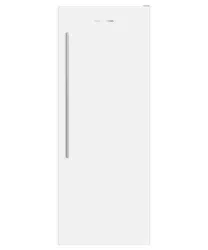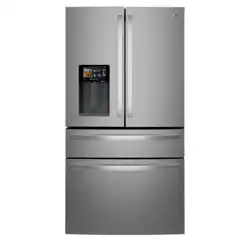
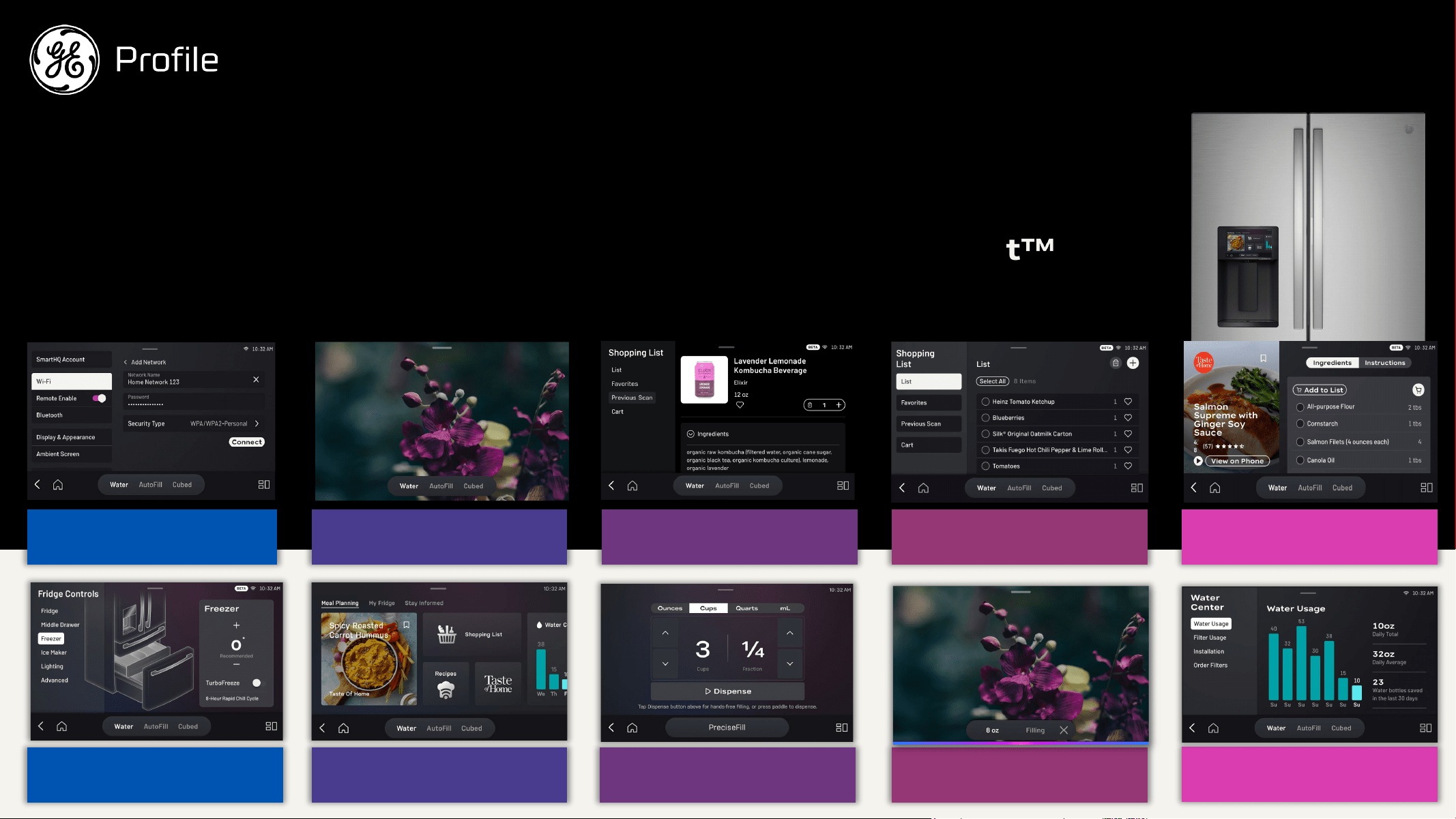
*Select Models Only
ENGLISH/FRANÇAIS/
ESPAÑOL
Write the model and serial
numbers here:
Model # _________________
Serial # _________________
Find these numbers on a label
on the left side, near the middle
of the refrigerator compartment.
49-1000332 Rev. 10 03-26
Models PVD and PXD
OWNER’S MANUAL &
INSTALLATION
INSTRUCTIONS
REFRIGERATORS
Bottom Freezer
GE is a trademark of the General Electric Company. Manufactured under trademark license.
SAFETY INFORMATION .....3
OPERATING INSTRUCTIONS
Features ..........................6
Controls .........................10
Dispenser ........................ 12
Autofill* ......................... 12
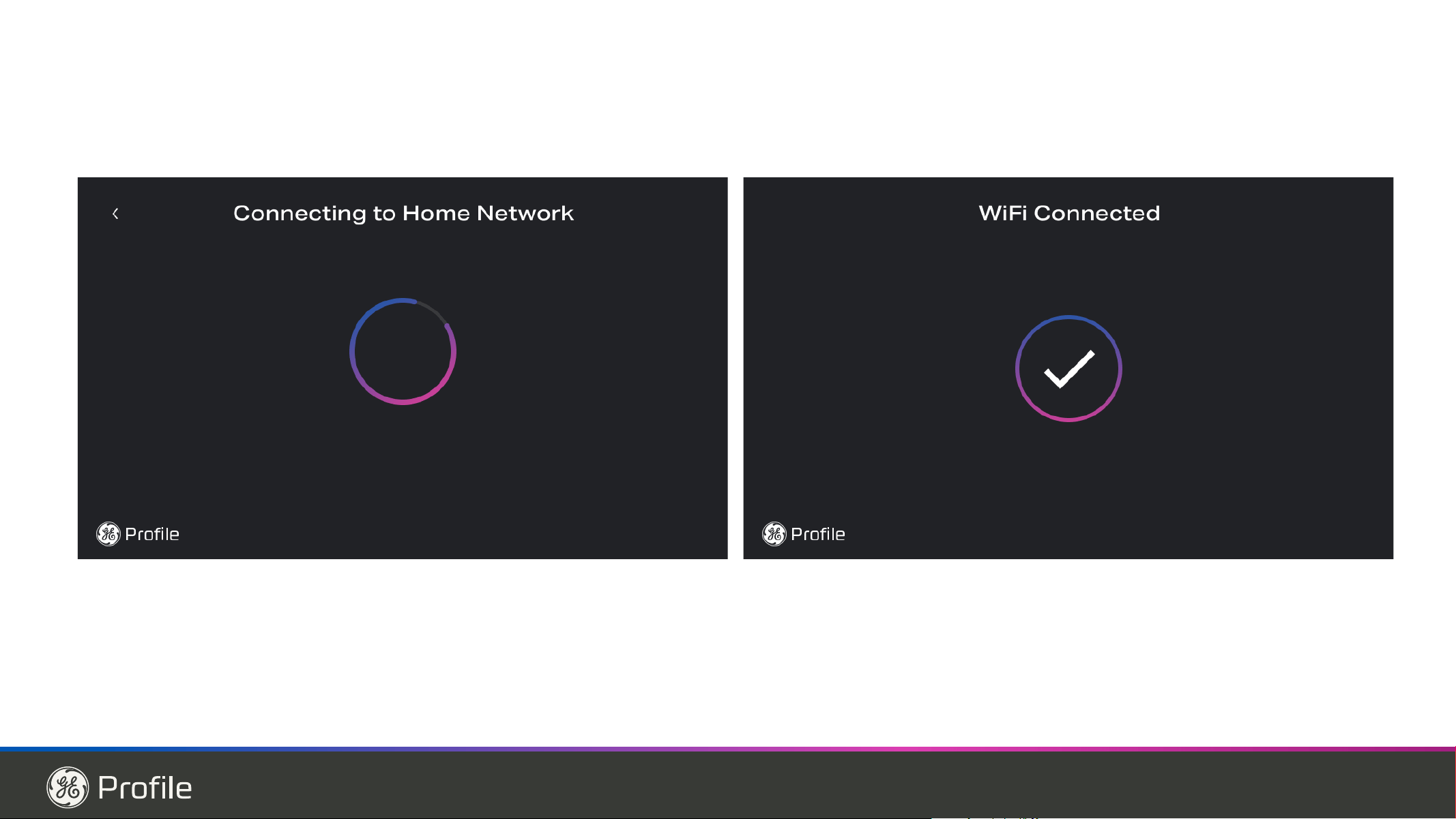
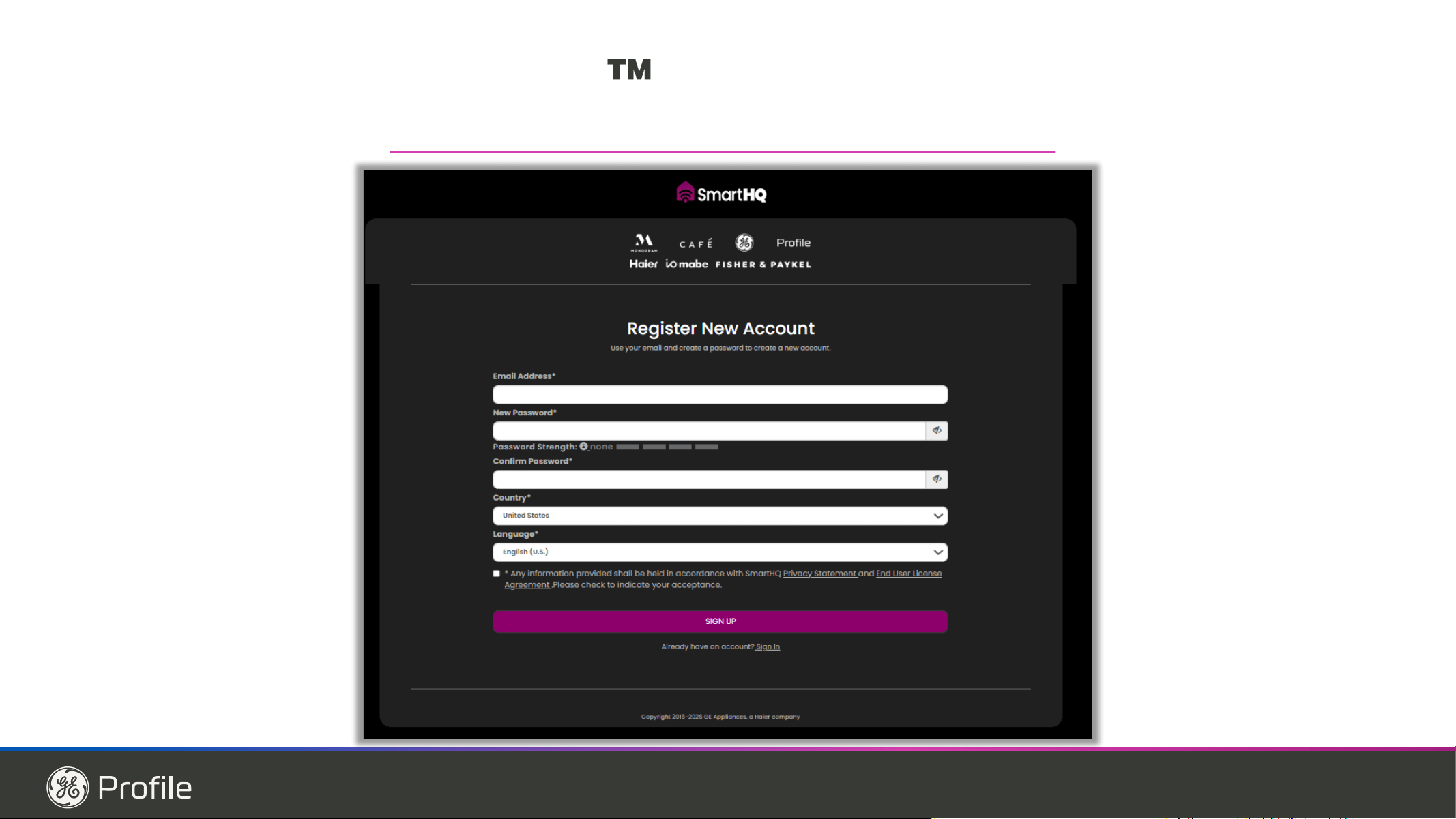
WiFi ............................ 13
Demand Response ................ 14
Water Filter ...................... 15
Refrigerator Storage Options. . . . . . . 16
Climate Zone ..................... 18
Convertible Drawer ............... 18
Freezer .......................... 19
Automatic Icemaker ...............20
CARE AND CLEANING ...... 21
Replacing the Lights ..............22
INSTALLATION INSTRUCTIONS
Preparing to Install the
Refrigerator ......................23
Installing the Refrigerator ..........26
Installing the Water Line ...........35
TROUBLESHOOTING ........38
Normal Operating Conditions ......38
Troubleshooting Tips ..............39
Truth or Myth .................... 41
LIMITED WARRANTY .......43
CONSUMER SUPPORT
XWFE Water Filter Cartridge
Limited Warranty .................44
Performance Data Sheet ...........45
Consumer Support ................48
2 49-1000332 Rev. 10
THANK YOU FOR MAKING GE APPLIANCES A PART OF YOUR HOME.
Whether you grew up with GE Appliances, or this is your first, we’re happy to have you in the family.
We take pride in the craftsmanship, innovation and design that goes into every GE Appliances
product, and we think you will too. Among other things, registration of your appliance ensures that we
can deliver important product information and warranty details when you need them.
Register your GE appliance now online. Helpful websites and phone numbers are available in the
Consumer Support section of this Owner’s Manual. You may also mail in the pre-printed registration
card included in the packing material.
49-1000332 Rev. 10 3
SAFETY INFORMATION
READ AND SAVE THESE INSTRUCTIONS
IMPORTANT SAFETY INFORMATION
READ ALL INSTRUCTIONS BEFORE USING THE APPLIANCE
WARNING
To reduce the risk of fire, explosion, electric shock, or injury when using your refrigerator, follow
these basic safety precautions:
Ŷ 7KLVUHIULJHUDWRUPXVWEHSURSHUO\LQVWDOOHG
and located in accordance with the Installation
Instructions before it is used.
Ŷ 8QSOXJWKHUHIULJHUDWRUEHIRUHPDNLQJUHSDLUVRU
cleaning.
NOTE: Power to the refrigerator cannot be
disconnected by any setting on the cont rol panel.
NOTE: Repairs must be performed by a qualified
Service Professional.
Ŷ 5HSODFHDOOSDUWVDQGSDQHOVEHIRUHRSHUDWLQJ
Ŷ 'RQRWXVHDQH[WHQVLRQFRUG
Ŷ .HHSIODPPDEOHPDWHULDOVDQGYDSRUVDZD\IURPWKH
refrigerator.
Ŷ 'RQRWVWRUHH[SORVLYHVXEVWDQFHVVXFKDVDHURVRO
cans with a flammable propellant in this appliance.
Ŷ 7RSUHYHQWVXIIRFDWLRQDQGHQWUDSPHQWKD]DUGV
WRFKLOGUHQUHPRYHWKHUHIULJHUDWRUDQGIUHH]HU
doors from any refrigerator before disposing of it or
discontinuing its use.
Ŷ 7RDYRLGVHULRXVLQMXU\RUGHDWKFKLOGUHQVKRXOGQRW
stand on, or play in or with the appliance.
Ŷ &KLOGUHQDQGSHUVRQVZLWKUHGXFHGSK\VLFDOVHQVRU\
or mental capabilities or lack of experience and
knowledge can use this appliance only if they are
supervised or have been given instructions on safe
XVHDQGXQGHUVWDQGWKHKD]DUGVLQYROYHG
Ŷ 7KLVDSSOLDQFHLVLQWHQGHGWREHXVHGLQKRXVHKROG
and similar applications such as: staff kitchen areas
in shops, offices and other working environments;
farm houses; by clients in hotels, motels, bed
& breakfast and other residential environments;
catering and similar non-retail applications.
Ŷ &RQQHFWWRSRWDEOHZDWHUVXSSO\RQO\$FROGZDWHU
supply is required for automatic icemaker operation.
The water pressure must be between 40 and 120 psi
(275-827 kilopascals).
Ŷ 'RQRWDSSO\KDUVKFOHDQHUVWRWKHUHIULJHUDWRU
Certain cleaners will damage plastic which may
cause parts such as the door or door handles to
detach unexpectedly. See the Care and Cleaning
section in your Owner’s Manual for detailed
instructions.
CAUTION
To reduce the risk of injury when using your refrigerator, follow these basic safety precautions.
Ŷ'RQRWFOHDQJODVVVKHOYHVRUFRYHUVZLWKZDUPZDWHU
when they are cold. Glass shelves and covers may
break if exposed to sudden temperature changes or
impact, such as bumping or dropping. Tempered
glass is designed to shatter into many small pieces if
it breaks.
Ŷ.HHSILQJHUVRXWRIWKH³SLQFKSRLQW´DUHDV
clearances between the doors and between the doors
and cabinet are necessarily small. Be careful closing
doors when children are in the area.
Ŷ'RQRWWRXFKWKHFROGVXUIDFHVLQWKHIUHH]HU
compartment when hands are damp or wet, skin may
stick to these extremely cold surfaces.
Ŷ'RQRWUHIUHH]HIUR]HQIRRGVZKLFKKDYHWKDZHG
completely.
Ŷ In refrigerators with automatic icemakers, avoid
contact with the moving parts of the ejector
mechanism, or with the heating element that
UHOHDVHVWKHFXEHV'RQRWSODFHILQJHUVRUKDQGV
on the automatic ice making mechanism while the
refrigerator is plugged in.
WARNING
FIRE OR EXPLOSION HAZARD
.HHSIODPPDEOHPDWHULDOVDQGYDSRUVDZD\IURPUHIULJHUDWRU)DLOXUHWRGRVRFDQUHVXOWLQILUHH[SORVLRQRU
death.
WARNING
Tip Over Hazard.
0RGHOV3-'3-(3;'&-(DQG&;(DUHWRSKHDY\HVSHFLDOO\ZLWKGRRUVRSHQ7KHVHPRGHOVKDYHDQDQWLWLS
bracket packaged with your refrigerator which must be installed and properly secured to the home’s structure
to prevent tipping forward, which could result in death or serious injury. Read and follow the entire installation
instructions for installing the anti-tip floor bracket provided with your refrigerator.
4 49-1000332 Rev. 10
SAFETY INFORMATION
IMPORTANT SAFETY INFORMATION
READ ALL INSTRUCTIONS BEFORE USING THE APPLIANCE
READ AND SAVE THESE INSTRUCTIONS
Do not, under any circumstances, cut or remove the third (ground) prong from the power cord. For
personal safety, this appliance must be properly grounded.
The power cord of this appliance is equipped with a
3-prong (grounding) plug which mates with a standard
SURQJJURXQGLQJZDOORXWOHWWRPLQLPL]HWKH
SRVVLELOLW\RIHOHFWULFVKRFNKD]DUGIURPWKLVDSSOLDQFH
Have the wall outlet and circuit checked by a qualified
electrician to make sure the outlet is properly
grounded.
Where a standard 2-prong wall outlet is encountered, it
is your personal responsibility and obligation to have it
replaced with a properly grounded 3-prong wall outlet.
'RQRWXVHDQDGDSWHU
The refrigerator should always be plugged into its own
individual electrical outlet which has a voltage rating
that matches the rating plate.
$9ROW$&+]RUDPSIXVHGJURXQGHG
electrical supply is required. This provides the best
performance and also prevents overloading house
ZLULQJFLUFXLWVZKLFKFRXOGFDXVHDILUHKD]DUGIURP
overheated wires.
Never unplug your refrigerator by pulling on the power
cord. Always grip plug firmly and pull straight out from
the outlet.
Immediately discontinue use of a damaged supply
cord. If the supply cord is damaged, it must be
replaced by a qualified service professional with an
DXWKRUL]HGVHUYLFHSDUWIURPWKHPDQXIDFWXUHU
When moving the refrigerator away from the wall, be
careful not to roll over or damage the power cord.
CONNECTING ELECTRICITY
WARNING
ELECTRICAL SHOCK HAZARD
Plug into a grounded 3-prong outlet
'RQRWUHPRYHWKHJURXQGSURQJ
'RQRWXVHDQDGDSWHU
'RQRWXVHDQH[WHQVLRQFRUG
)DLOXUHWRIROORZWKHVHLQVWUXFWLRQVFDQUHVXOWLQGHDWKILUHRUHOHFWULFDOVKRFN
WARNING
FIRE OR EXPLOSION HAZARD Flammable Refrigerant
This appliance contains isobutane refrigerant,
also known as R600a, a natural gas with high
environmental compatibility. However, it is also
combustible. Adhere to the warnings below to
reduce the risk of injury or property damage.
1. When handling, installing and operating the
appliance, care should be taken to avoid damage to
the refrigerant tubing.
2. 6HUYLFHVKDOORQO\EHSHUIRUPHGE\DXWKRUL]HG
VHUYLFHSHUVRQQHO8VHRQO\PDQXIDFWXUHUDXWKRUL]HG
service parts.
3. 'LVSRVHRIUHIULJHUDWRULQDFFRUGDQFHZLWK)HGHUDO
DQG/RFDO5HJXODWLRQV)ODPPDEOHUHIULJHUDQWDQG
insulation material used require special disposal
procedures. Contact your local authorities for the
environmentally safe disposal of your refrigerator.
4. .HHSYHQWLODWLRQRSHQLQJVLQWKHDSSOLDQFH
enclosures or in the built-in structure clear of
obstruction.
5. To remove frost,scrape with a plastic or wood
VSDWXODRUVFUDSHU'RQRWXVHDQLFHSLFNPHWDO
or sharp-edged instrument as it may puncture the
IUHH]HUOLQHUDQGWKHQWKHIODPPDEOHUHIULJHUDQW
tubing behind it.
6. 'RQRWXVHHOHFWULFDODSSOLDQFHVLQVLGHWKHIRRG
storage compartment of the appliance.
7. 'RQRWXVHDQ\HOHFWULFDOGHYLFHLQGHIURVWLQJ\RXU
IUHH]HU
49-1000332 Rev. 10 5
IMPORTANT SAFETY INFORMATION
READ ALL INSTRUCTIONS BEFORE USING THE APPLIANCE
SAFETY INFORMATION
READ AND SAVE THESE INSTRUCTIONS
PROPER DISPOSAL OF YOUR OLD REFRIGERATOR
DANGER
SUFFOCATION AND ENTRAPMENT HAZARD
)DLOXUHWRIROORZWKHVHGLVSRVDOLQVWUXFWLRQVFDQUHVXOWLQGHDWKRUVHULRXVLQMXU\
IMPORTANT: Child entrapment and suffocation
are not problems of the past. Junked or abandoned
refrigerators are still dangerous even if they will sit
IRU³MXVWDIHZGD\V´,I\RXDUHJHWWLQJULGRI\RXUROG
refrigerator, please follow the instructions below to help
prevent accidents.
Before You Throw Away Your Old Appliance
Ŷ7DNHRIIWKHUHIULJHUDWRUDQGIUHH]HUGRRUV
Ŷ Leave the shelves in place so that children may not
easily climb inside.
Refrigerant and Foam Disposal:
'LVSRVHRIDSSOLDQFHLQDFFRUGDQFHZLWK)HGHUDODQG/RFDO5HJXODWLRQV)ODPPDEOHUHIULJHUDQWDQGLQVXODWLRQ
material used requires special disposal procedures. Contact your local authorities for the environmentally safe
disposal of your refrigerator.
6 49-1000332 Rev. 10
Features
USING THE REFRIGERATOR: )HDWXUHV
Space-saving ice maker
Ice maker and bin are located on the door creating
more usable storage space.
Showcase LED lighting
/(' OLJKWLQJ LV SRVLWLRQHG WKURXJKRXW WKH LQWHULRU WR
VSRWOLJKW DUHDV LQ WKH UHIULJHUDWRU /('V DUH ORFDWHG
under the refrigerator door to light the convertible
GUDZHU DQG /('V DUH XQGHU WKH FRQYHUWLEOH GUDZHU WR
OLJKW WKH IUHH]HU GUDZHU
QuickSpace shelf
)XQFWLRQV DV D QRUPDO IXOOVL]HG VKHOI ZKHQ QHHGHG
and easily slides back to store tall items below.
Spillproof shelves
'HVLJQHG WR FDSWXUH \RXU VSLOOV IRU HDVLHU FOHDQ XS
Removable door bin
Can be removed for those with a wall limiting the
door opening.
Climate zone bin
Separate bins for produce storage.
Water filter
)LOWHUV ZDWHU DQG LFH &HUWLILHG WR UHGXFH FKORULQH
resistant cysts, lead, select pharmaceuticals, and
PRUH )RU HDV\ ILOWHU UHSODFHPHQW LQVWUXFWLRQV VHH
page 14.
Rotating Bin (on some models)
Can be rotated out for easy access.
Door in Door Latch (on some models)
6TXHH]H WKH ODWFK RQ WKH XQGHUVLGH RI WKH KDQGOH WR
open the outer door.
Convertible drawer
Select the best temperature to store your food.
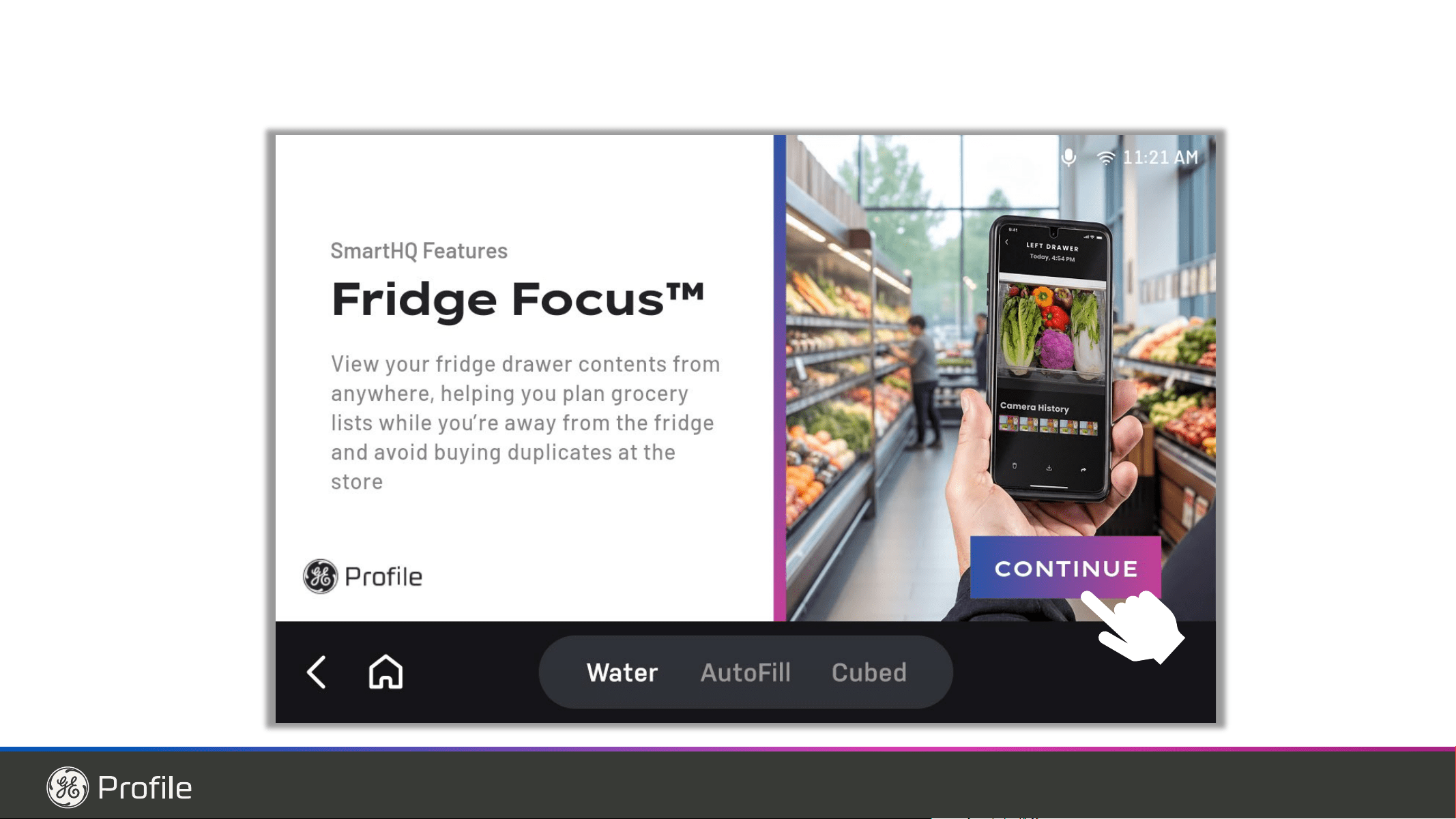
Fridge Focus camera (on PVD28H & PXD22H)
Position of camera adjusts front to back, and privacy
shutter can be used by sliding to the side.
Speaker(on PVD28H & PXD22H)
Produces sharp and detailed sound, making voices,
music, and notifications easy to hear.
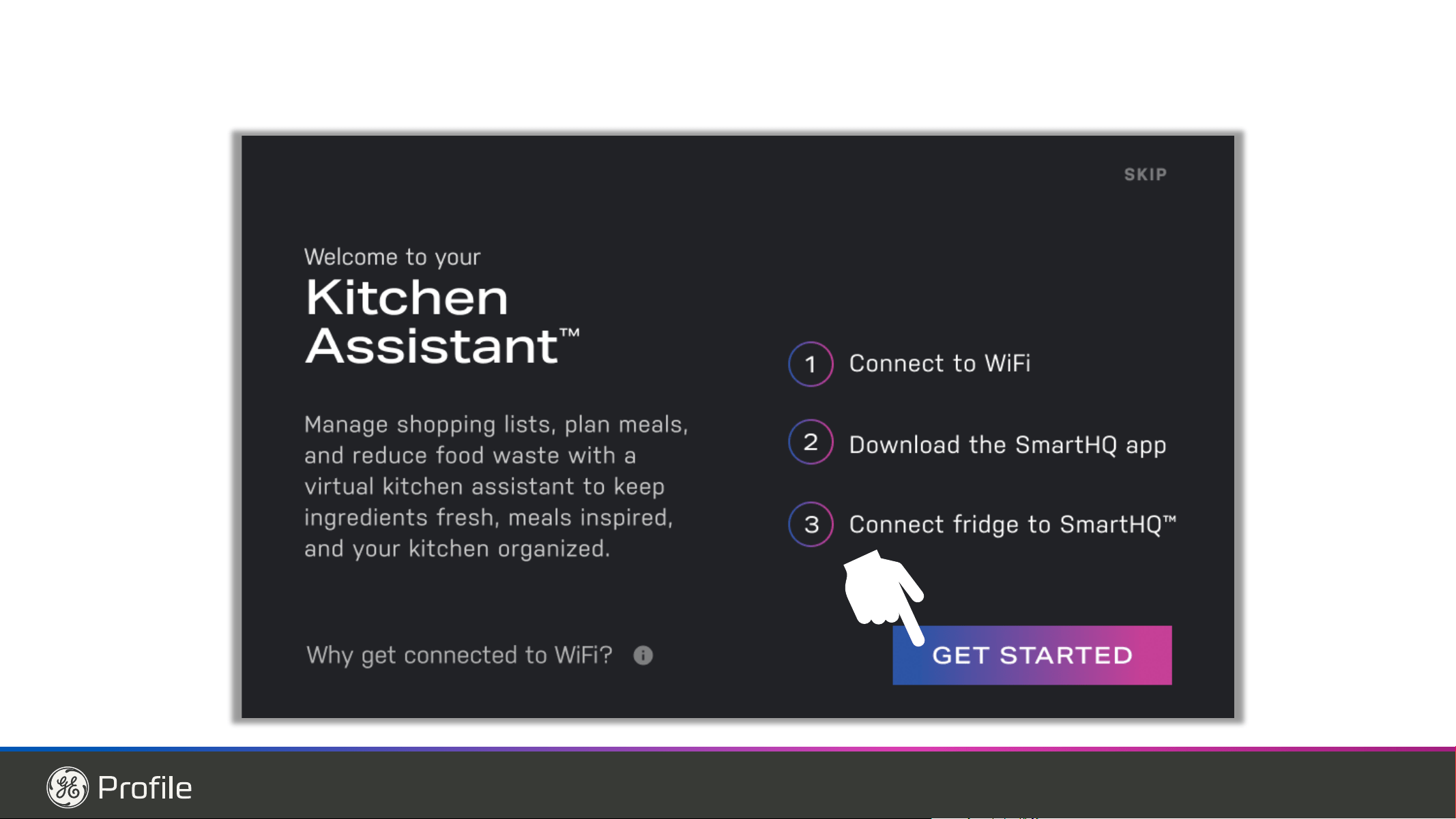
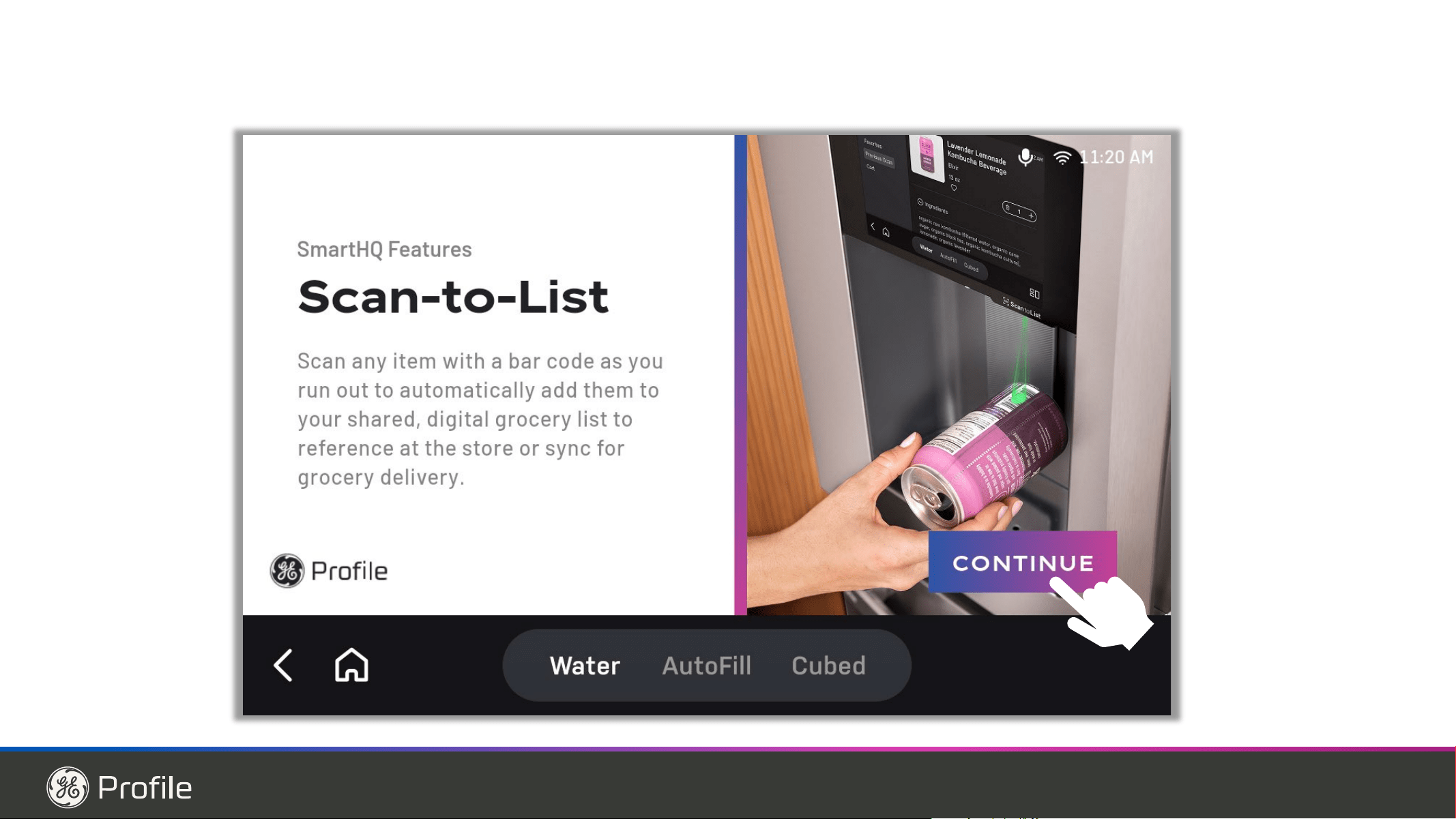
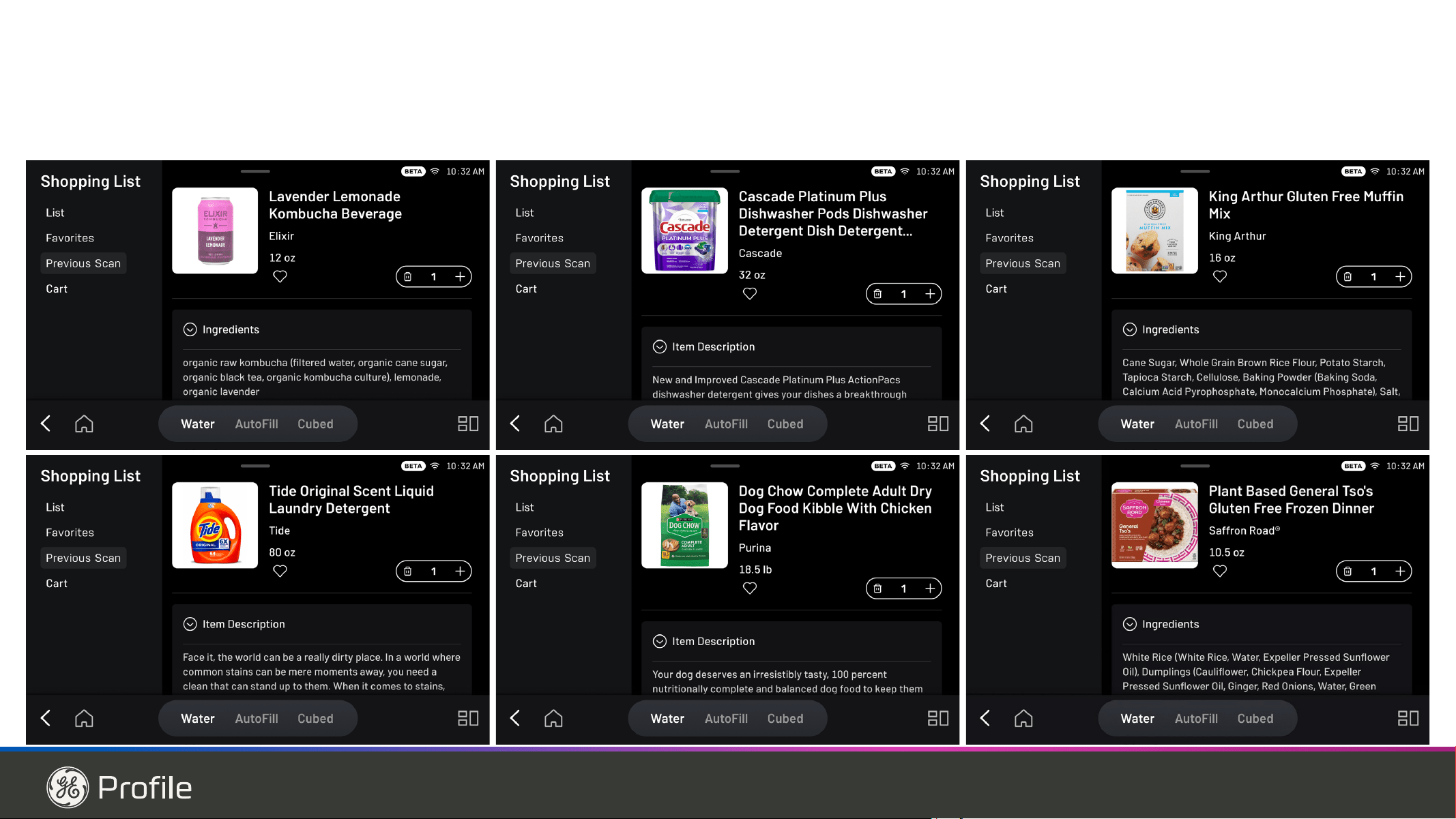
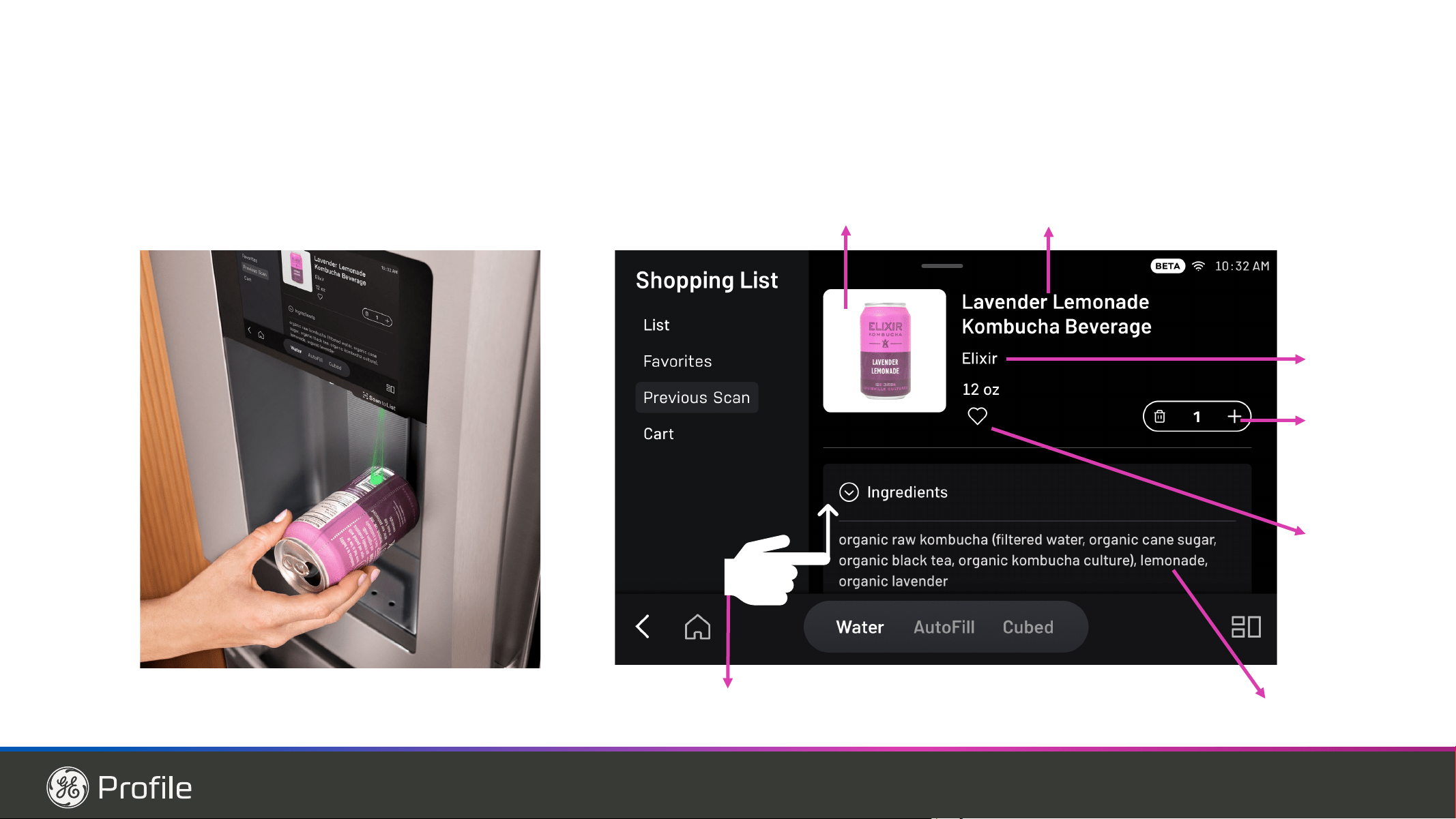
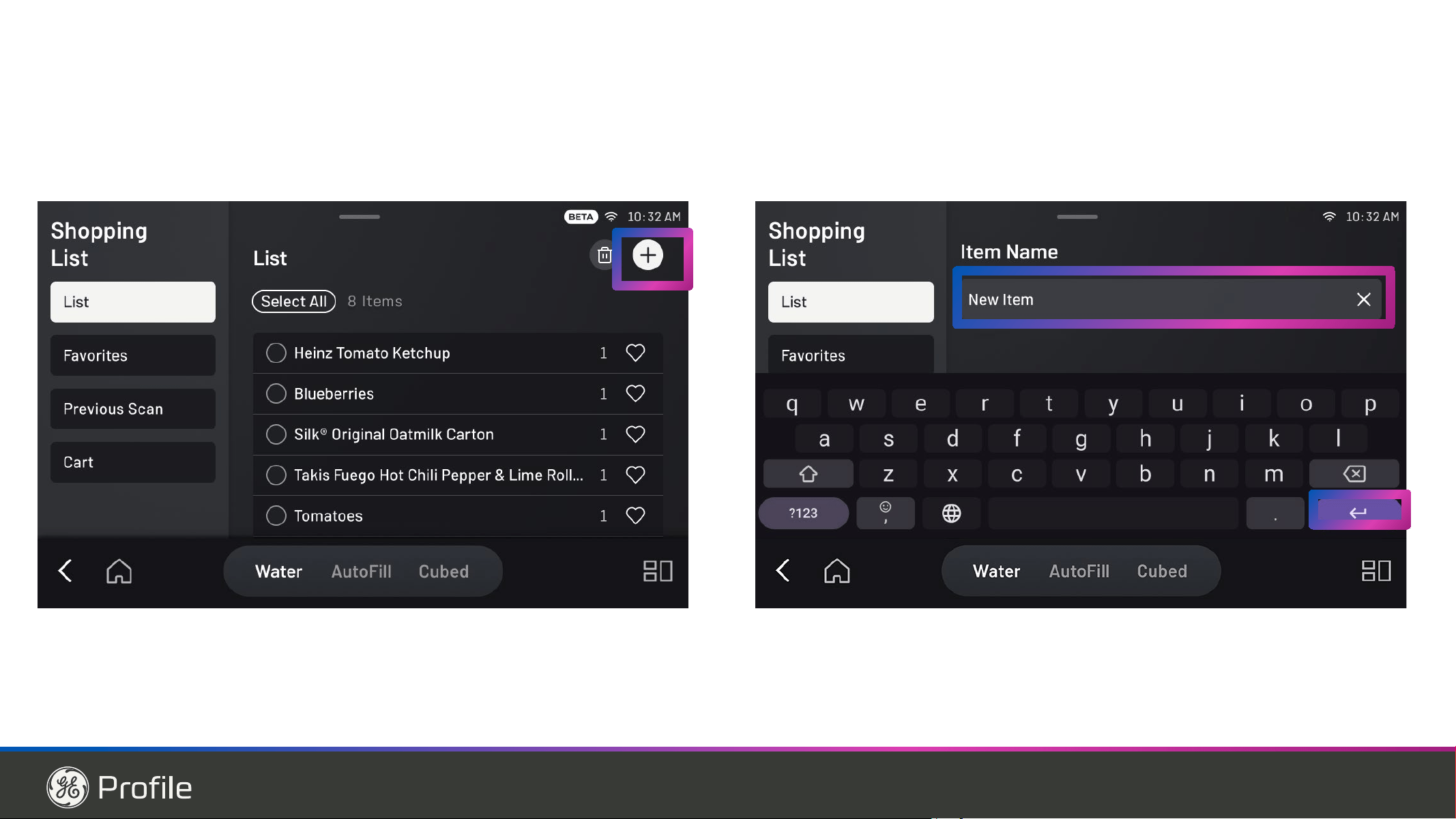
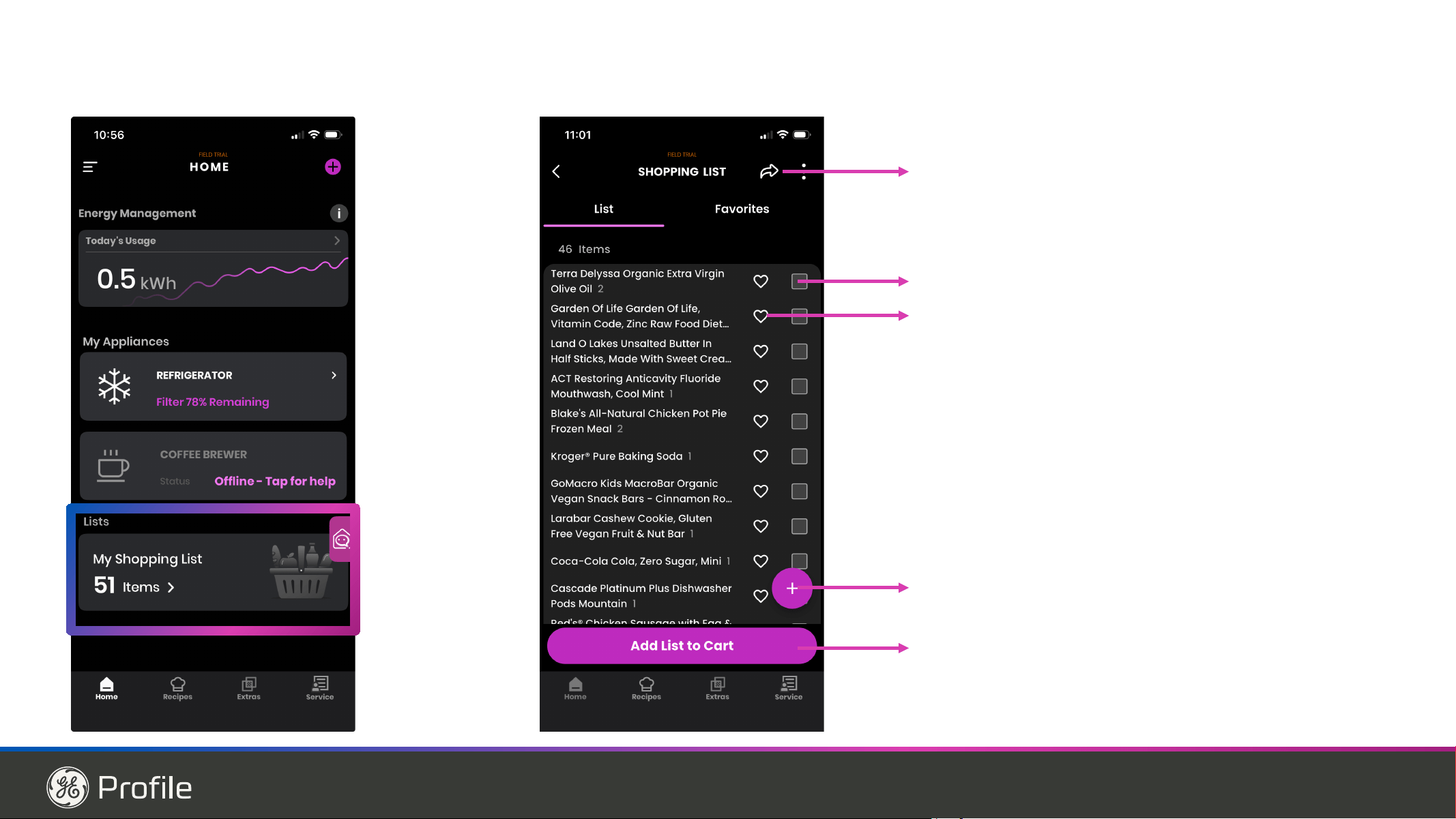
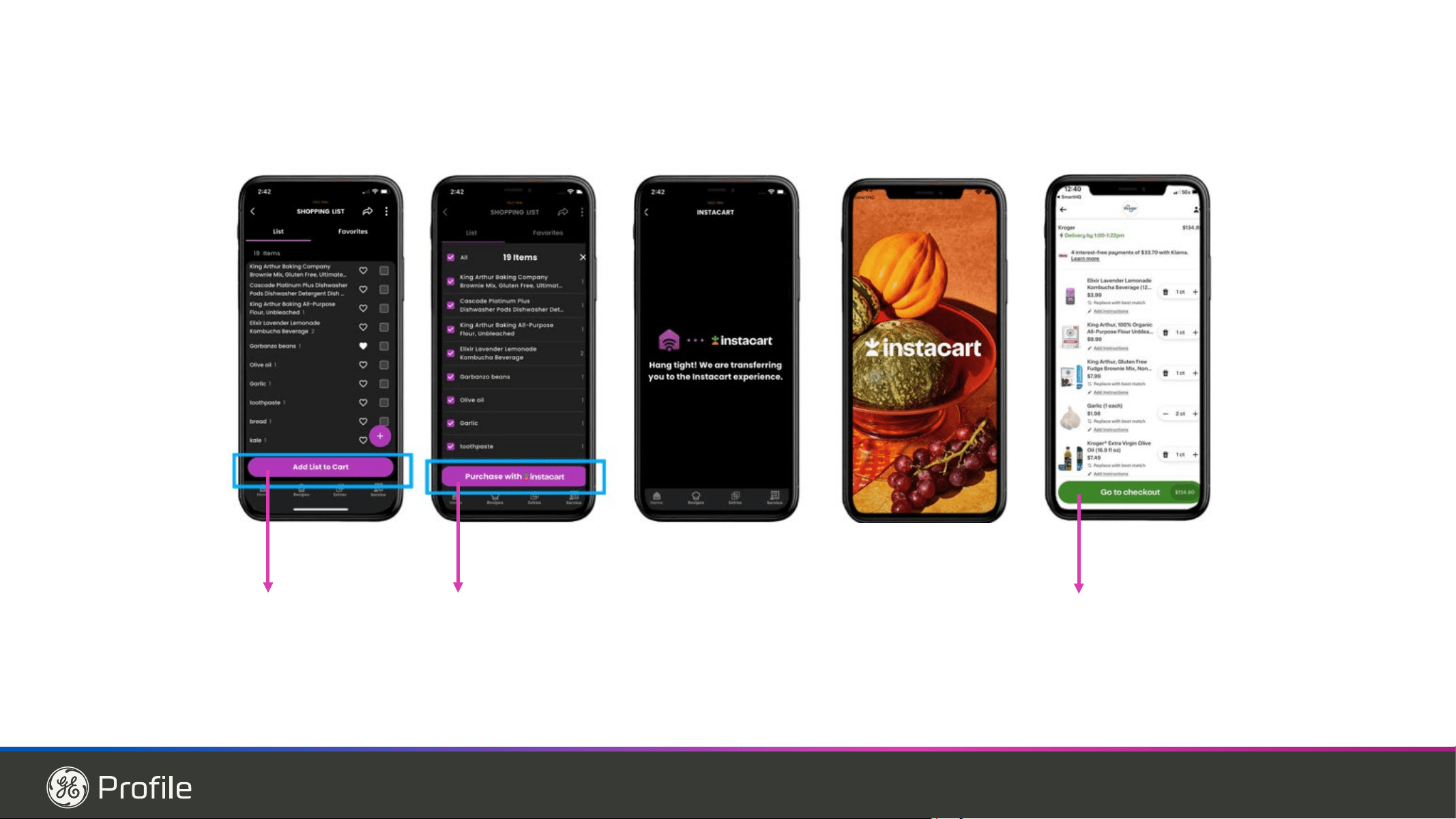
Scan-to-List (on PVD28H & PXD22H)
Barcode Scanner to scan Barcodes.
Profile Models PVD28, PXD22, PVD28H, PXD22H
Door Display Assembly
49-1000332 Rev. 10 7
Personalizing Your Refrigerator
Accessing Settings
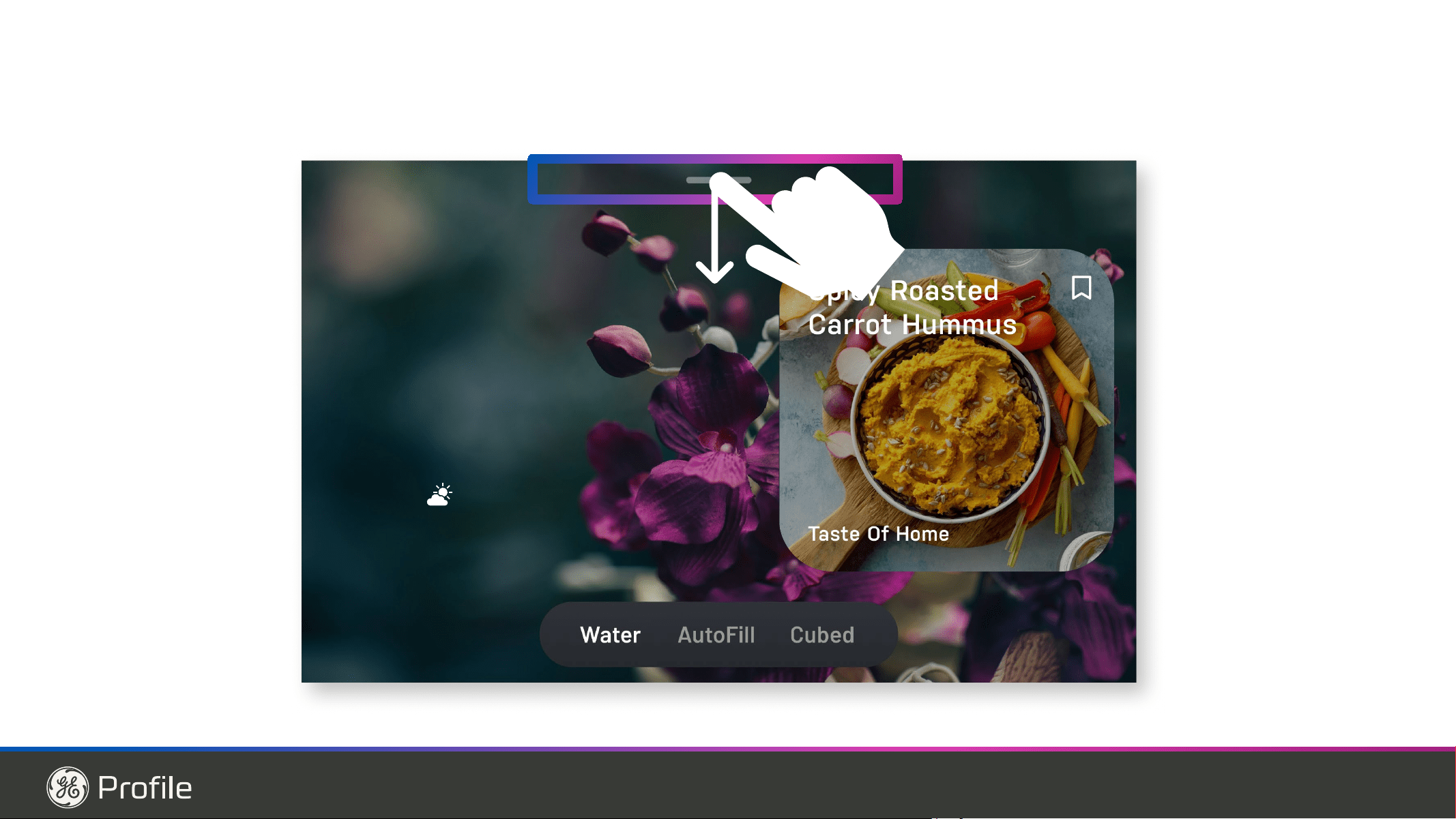
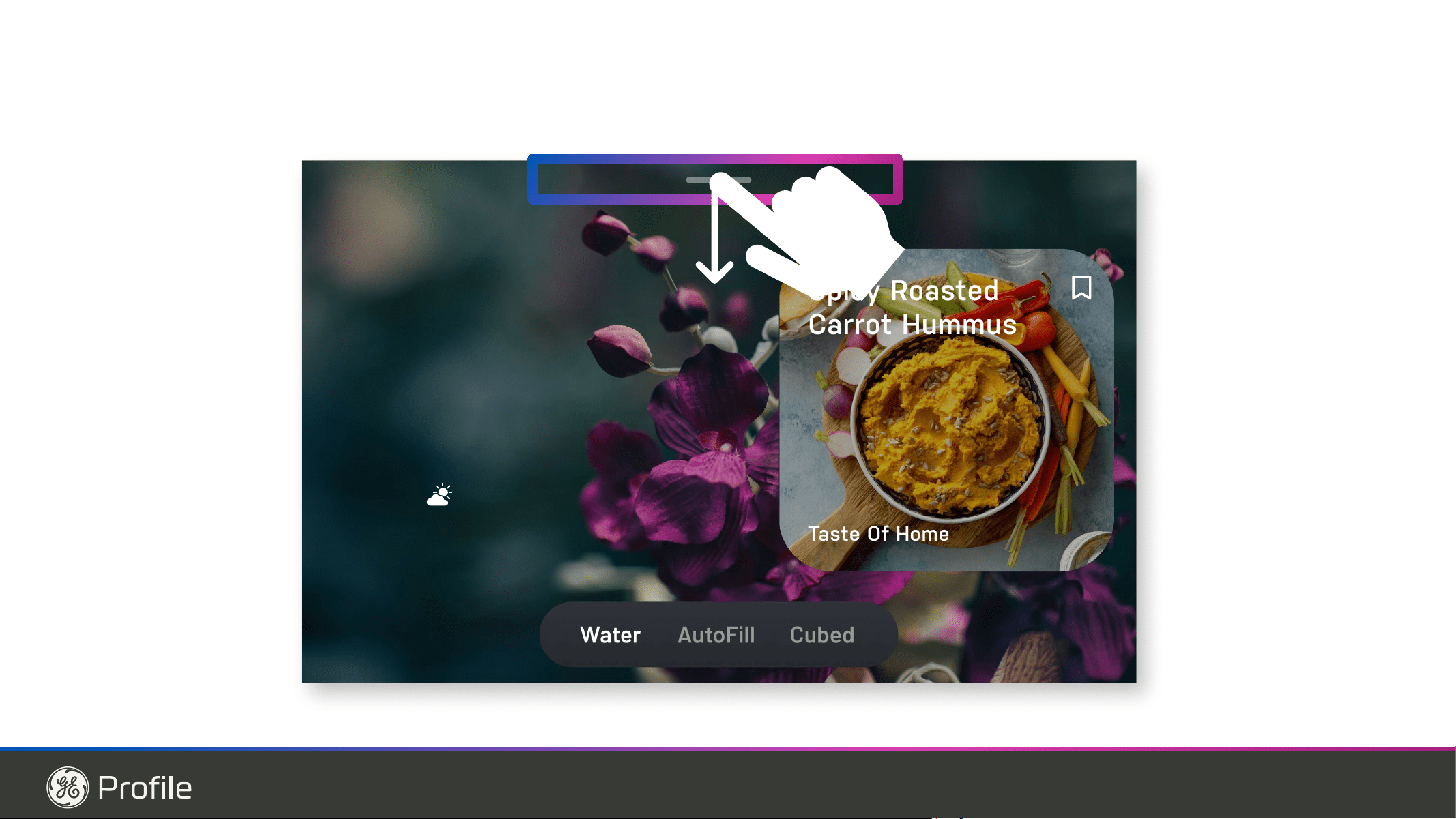
• Touch and hold the gray bar at the top of the display.
• Swipe downward to open the Settings panel.
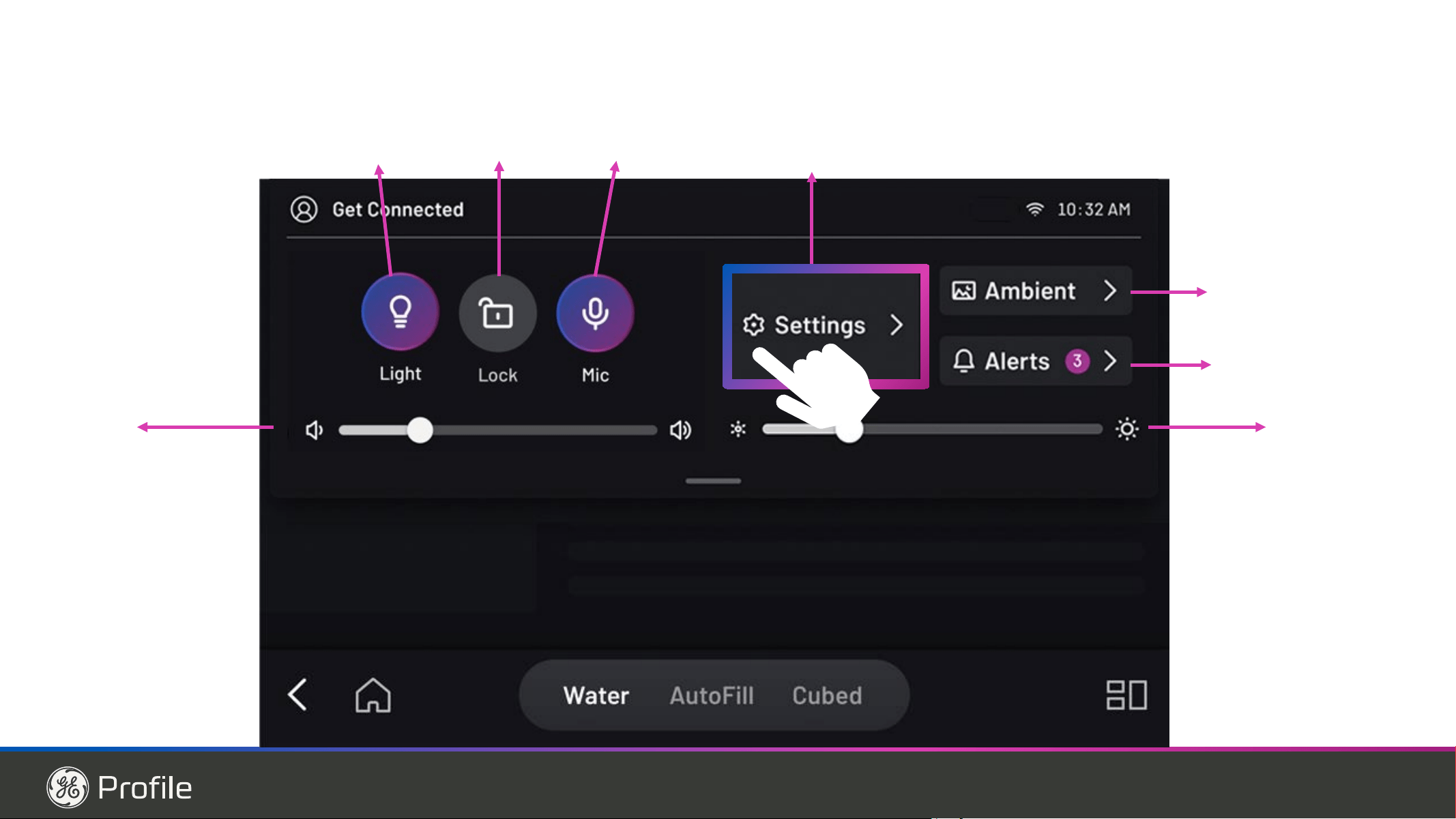
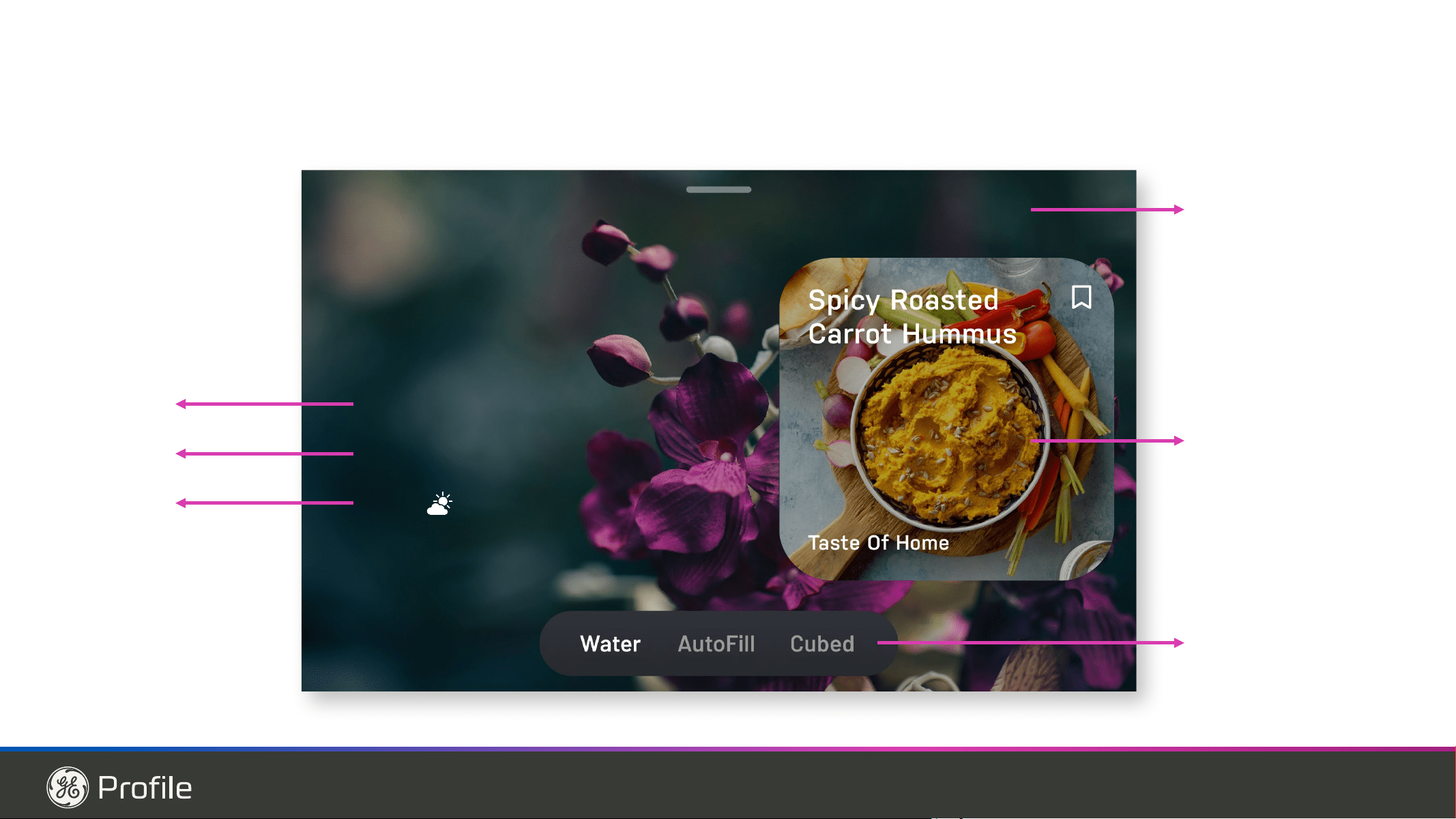
Quick Controls
• SmartHQ Status : View the icon in the upper
left corner for your connected status in SmartHQ.
• Light : Touch the Light icon to turn the dispenser
light On or Off.
• Lock : Touch the Lock icon to enable or disable the
Control Lock.
• Microphone : Touch the Microphone icon to turn the
microphone On or Off.
• (Turning Off the microphone disables voice
commands.
• Volume : Adjust the media volume by moving the
Volume slider to the desired level.
• Screen Brightness: Adjust the display brightness by
moving the Brightness slider.
• Settings: Adjust any settings on appliance or screen.
(see more details below.)
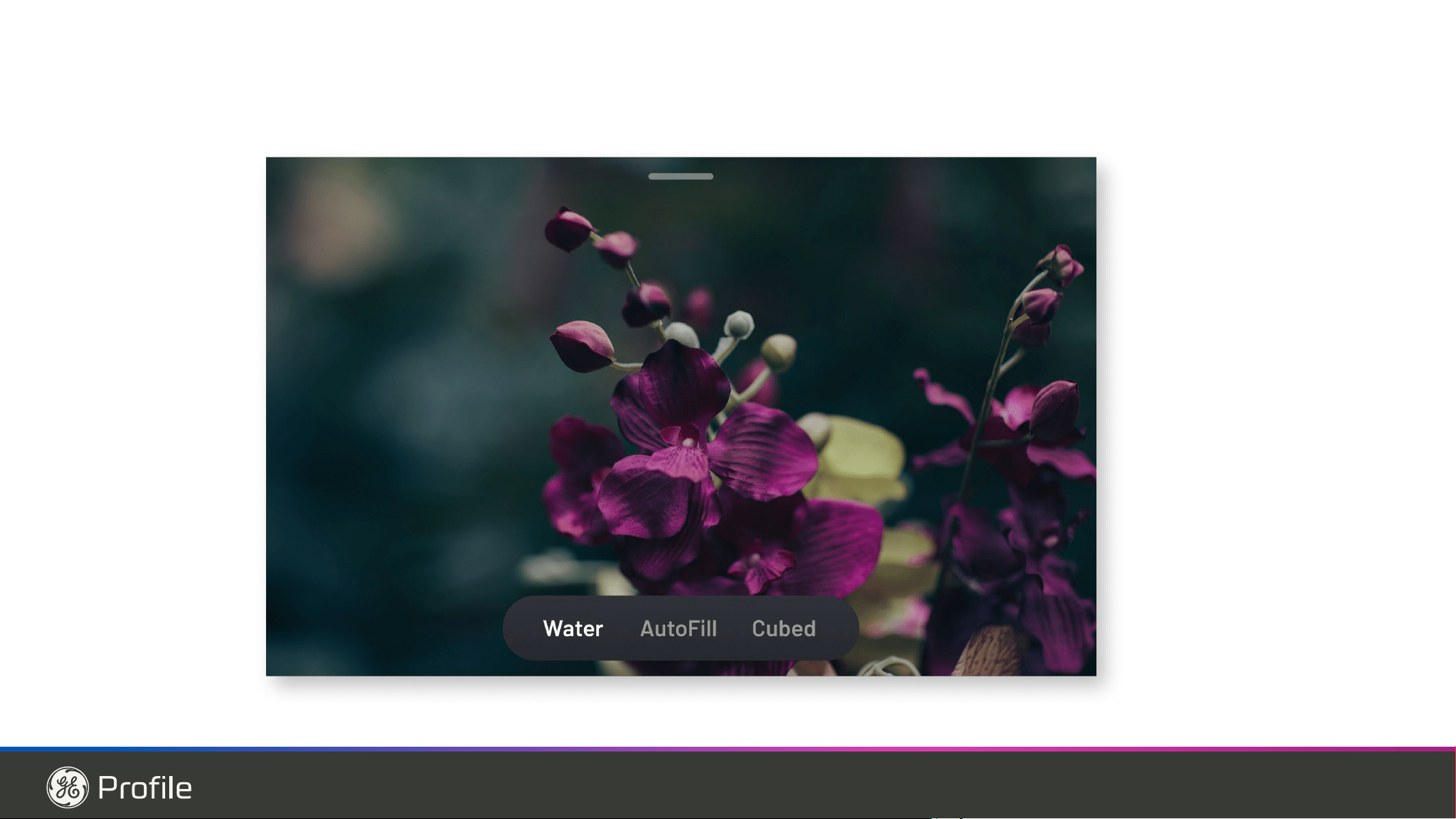
• Ambient: Quickly active the Ambient screen to see your
FXVWRPL]HG EDFNGURSV DQG ZLGJHWV
• Alerts: Access your historical list of notifications that
show on your appliance.
Fridge Controls:
• Refrigerator Temperature: Press + or – to adjust
EHWZHHQ ) & DQG ) &
• Drawer Settings: Select one of the following modes:
0HDW ) %HYHUDJHV ) 6QDFNV ) :LQH )
• Freezer Temperature: Press + or – to adjust between
±) ±& DQG ) ±&,FH 0DNHU 7XUQ 2Q RU
Off to start or stop ice production.
Lighting:
• Showcase LED Light wall: Turn On or Off and Adjust
brightness using the dimming slide
• Presence Sensor: Turn On or Off
• Dispenser Sensor Lighting: Turn On or Off (When
enabled, the dispenser light turns on automatically
when you approach the refrigerator)
Advanced:
• Temperature Units: 6HOHFW )DKUHQKHLW ) RU
Celsius (°C)
• Sabbath Mode: Go to Settings > Sabbath to activate
Sabbath Mode. Press and hold the screen for 10
seconds to exit.
• Cooling Systems: Turn cooling systems On or Off
(Before turning Off the cooling system, empty the
refrigerator. This feature is recommended for long idle
periods such as vacations or deep cleaning to help
conserve energy.)
Profile Models PVD28H, PXD22H
Features
USING THE REFRIGERATOR: )HDWXUHV
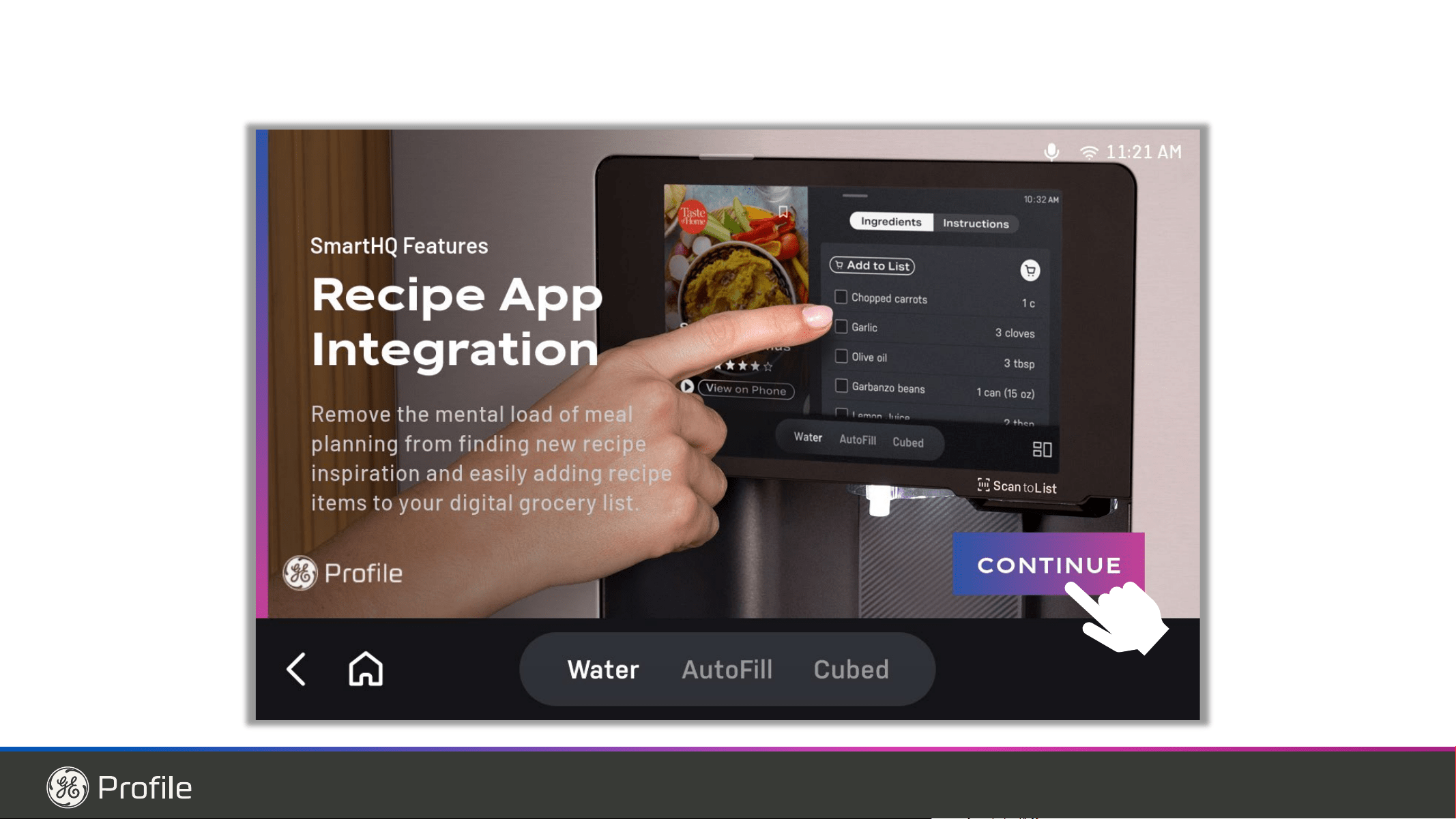
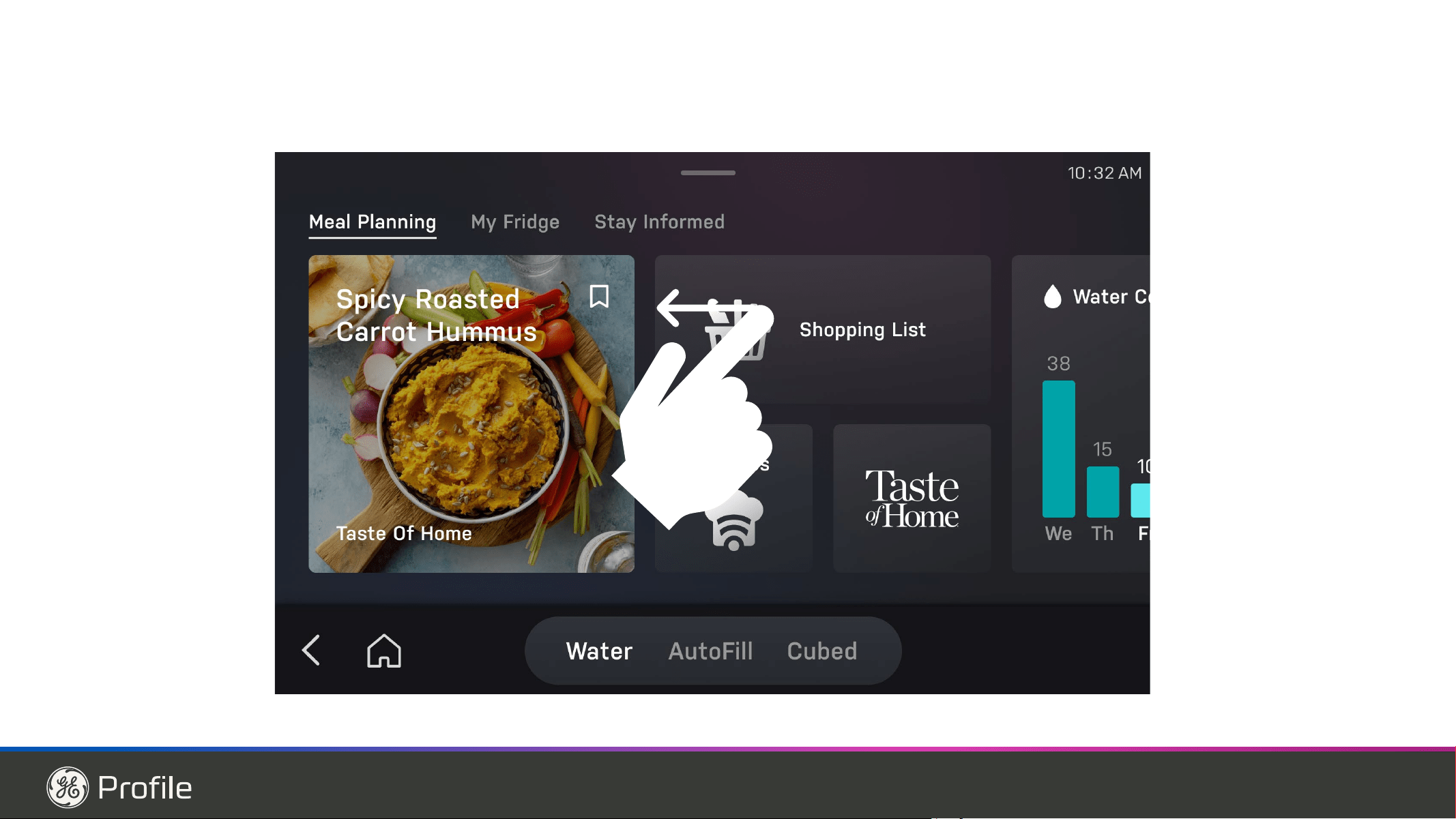
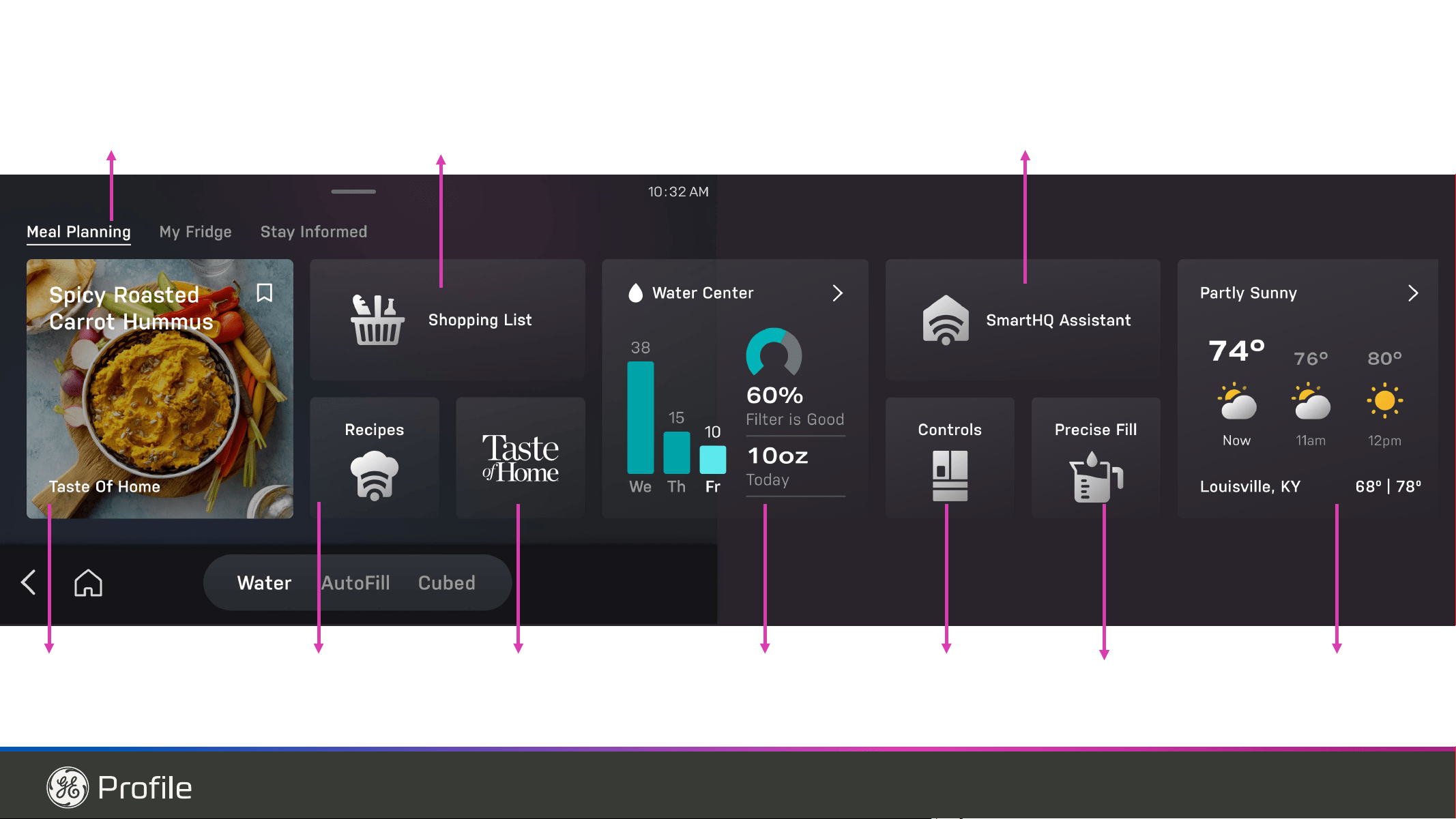
Meal Planning
Scan toList
10:32 AM
Recipes
App
Taste of
Home
App
Cubed/Crushed Ice
(Toggle button)
$XWR)LOO
water
'LVSHQVH
water
Home
Back
Quick
access
Apps
Shopping
List App
System TrayShade (swipe down Quick Controls)
8 49-1000332 Rev. 10
Features
USING THE REFRIGERATOR:)HDWXUHV
Profile Models PVD28H, PXD22H
FridgeFocus: Turn On or Off internal refrigerator
snapshots
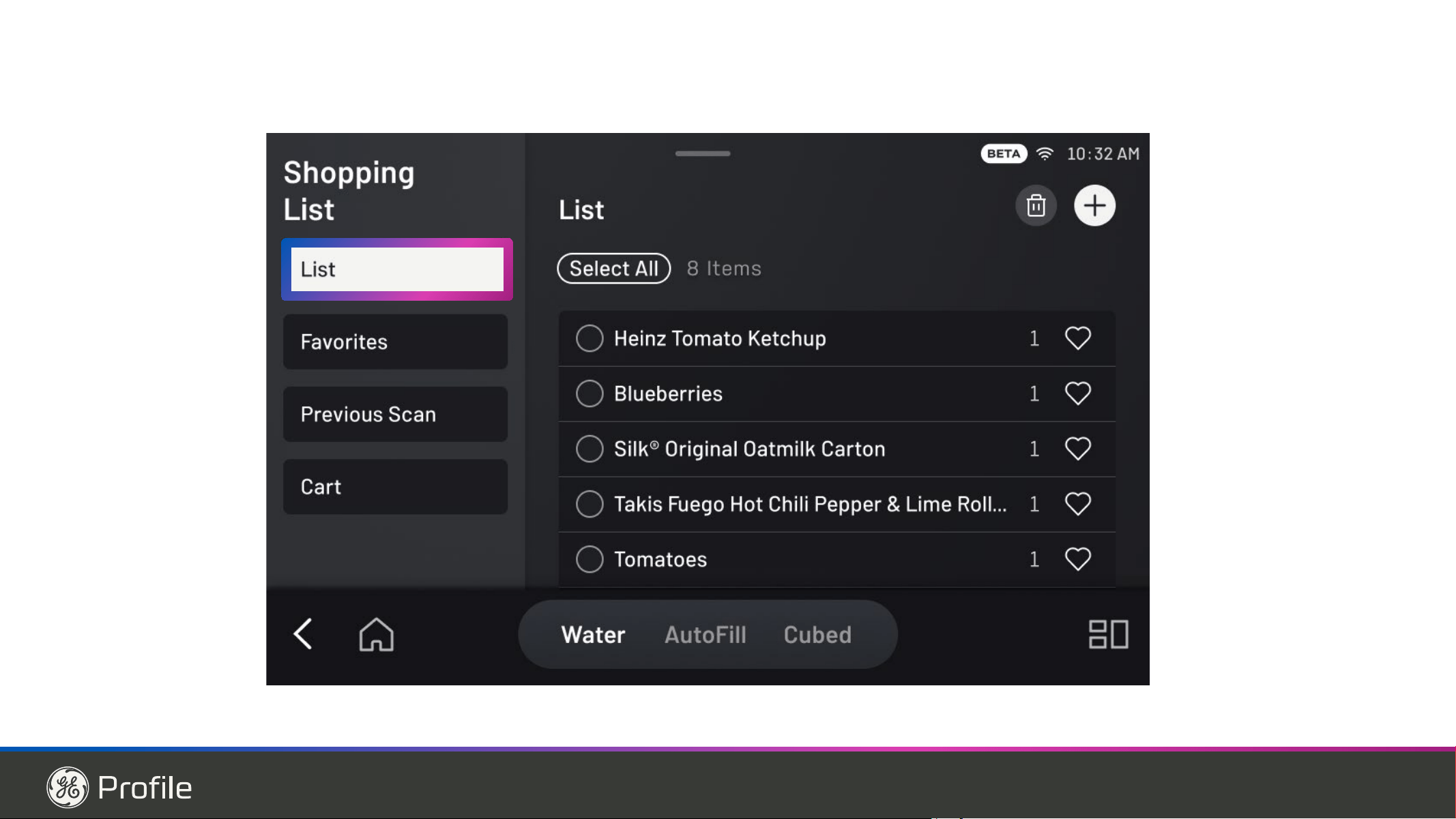
Scan-to-List (Requires Wi-Fi and SmartHQ Login)
• Scan-to-List: Enable or disable the barcode scanner.
• Scanner Target Light: Turn barcode scanner light
On or Off
• Auto-Add to List after Scanning: Turn On or Off
Automatically add scanned items to your list
System:
• About – find details about software versions.
• Location
7LPHDQG'DWHVHWWLQJV
• Service Mode – for Service Technicians.
• Showroom Mode – Only for retailers.
• Clear User Data – Quickly clear all the user data stored
on the appliance and disconnect from Wifi.
UI Reset – if a reset is needed simply unlock the
&RQYHUWLEOH'UDZHU8,WKHQSUHVVWKHMeat and Snack
EXWWRQVVLPXOWDQHRXVO\IRUVHFRQGVWRWULJJHUD8,
restart. This will take a few minutes.
Get Connected to SmartHQ
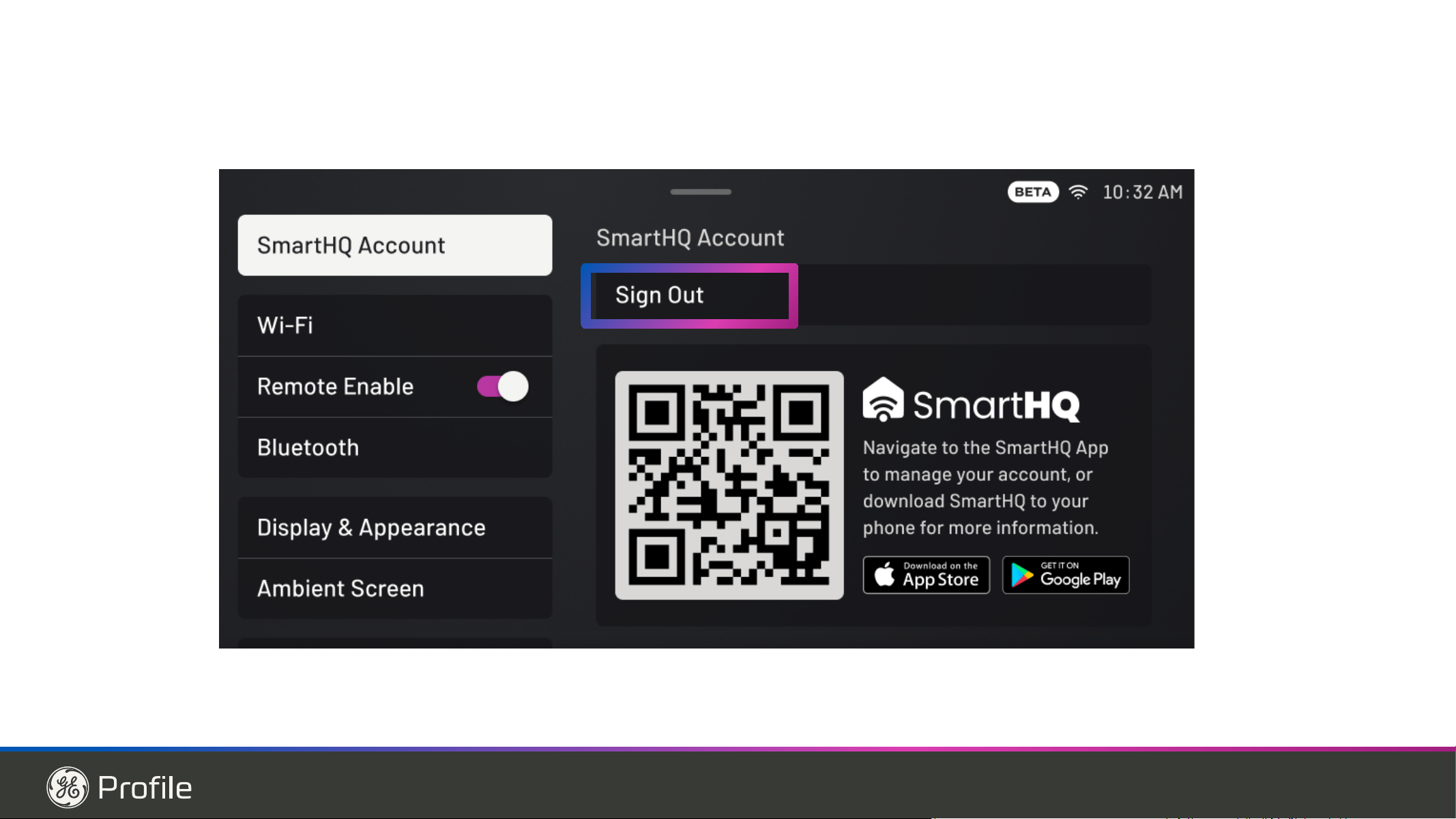
• Download the SmartHQ app from the app store.
• Sign In to SmartHQ to see your refrigerator in the app
to get the full benefits of connecting.
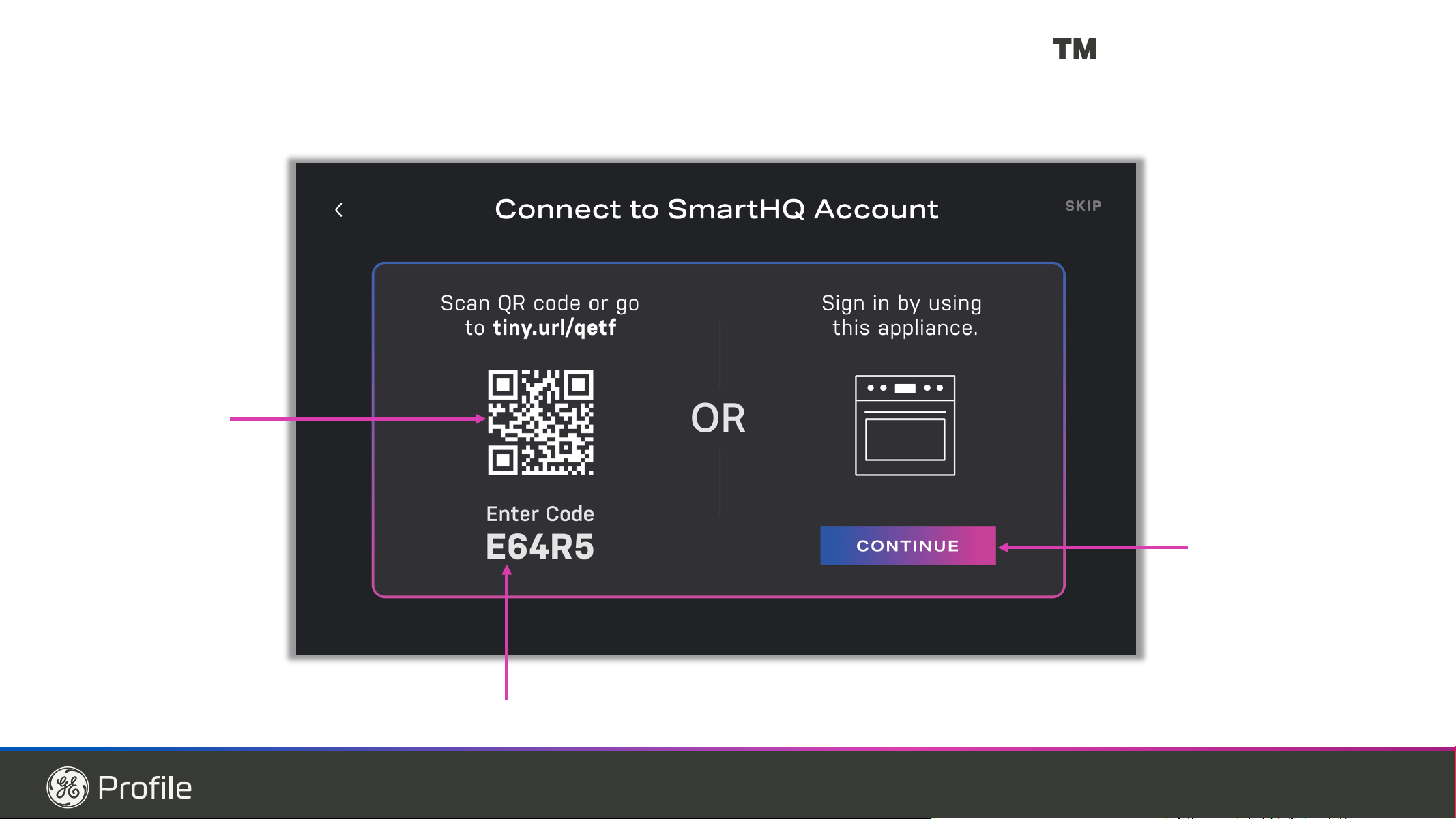
• Connect your refrigerator from the display by selecting
ANY feature that requires connection to start, such as
6KRSSLQJ/LVWRU5HFLSHV)ROORZRQVFUHHQLQVWUXFWLRQ
to connect your refrigerator to you SmartHQ Account.
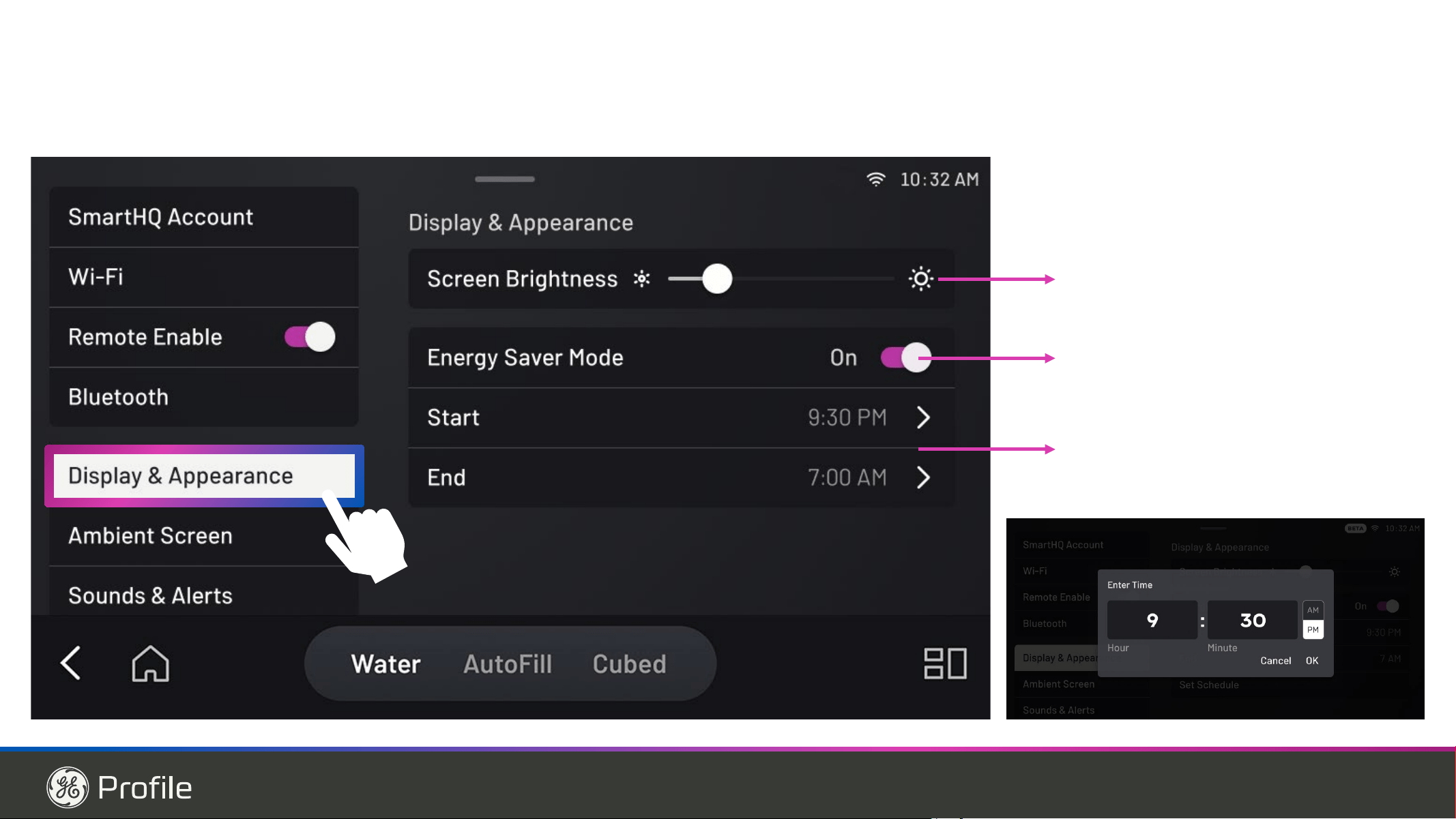
Display and Appearance
• Brightness: Adjust the Screen Brightness level by
Adjusting Brightness bar found in the Shade settings
• Energy Saver Touch on/off icon for Energy saver
PRGHRQRII7KLVPRGHDOORZVFXVWRPL]DWLRQIRU\RXU
display’s scheduled Energy saver mode on/off times)
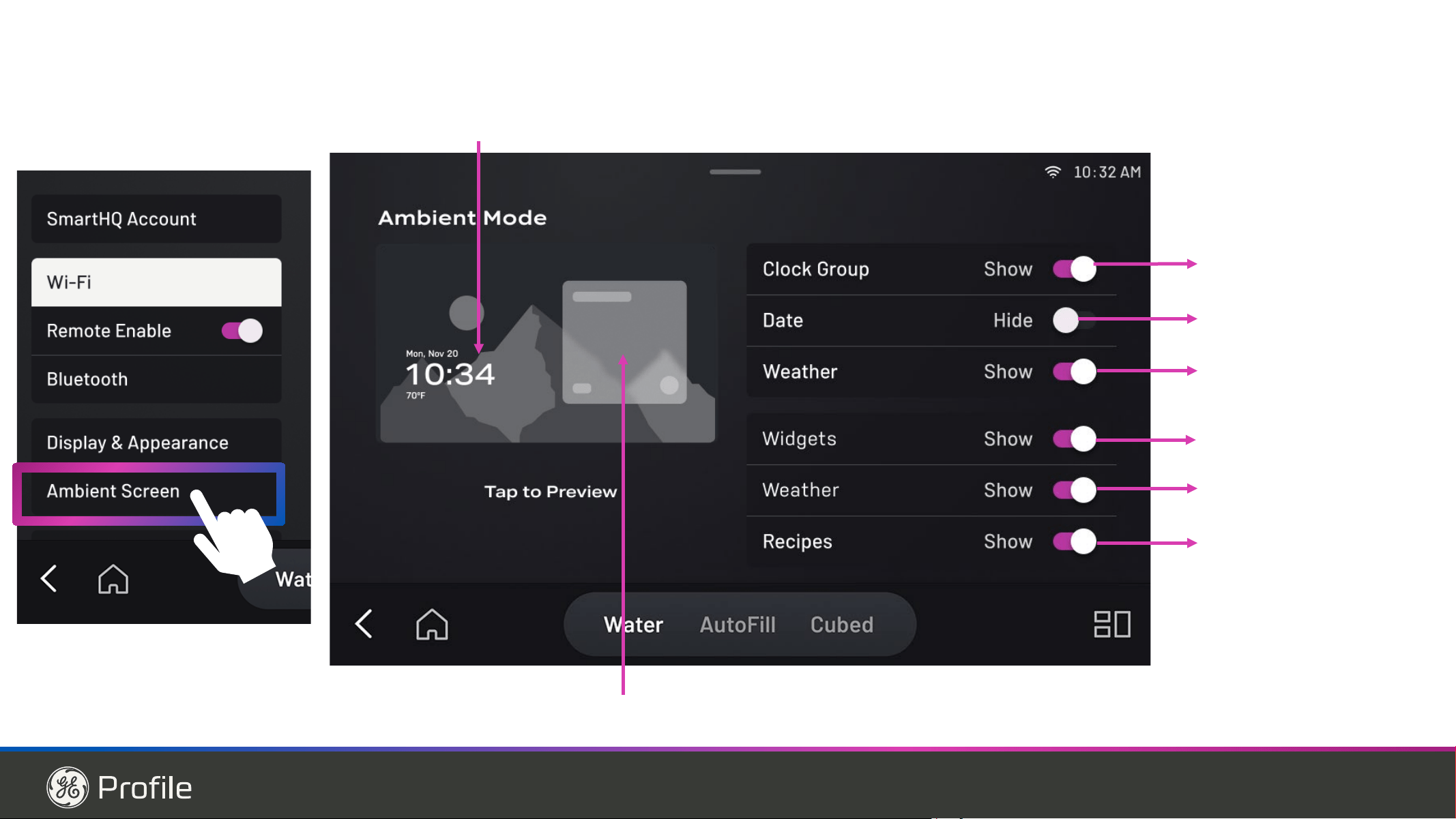
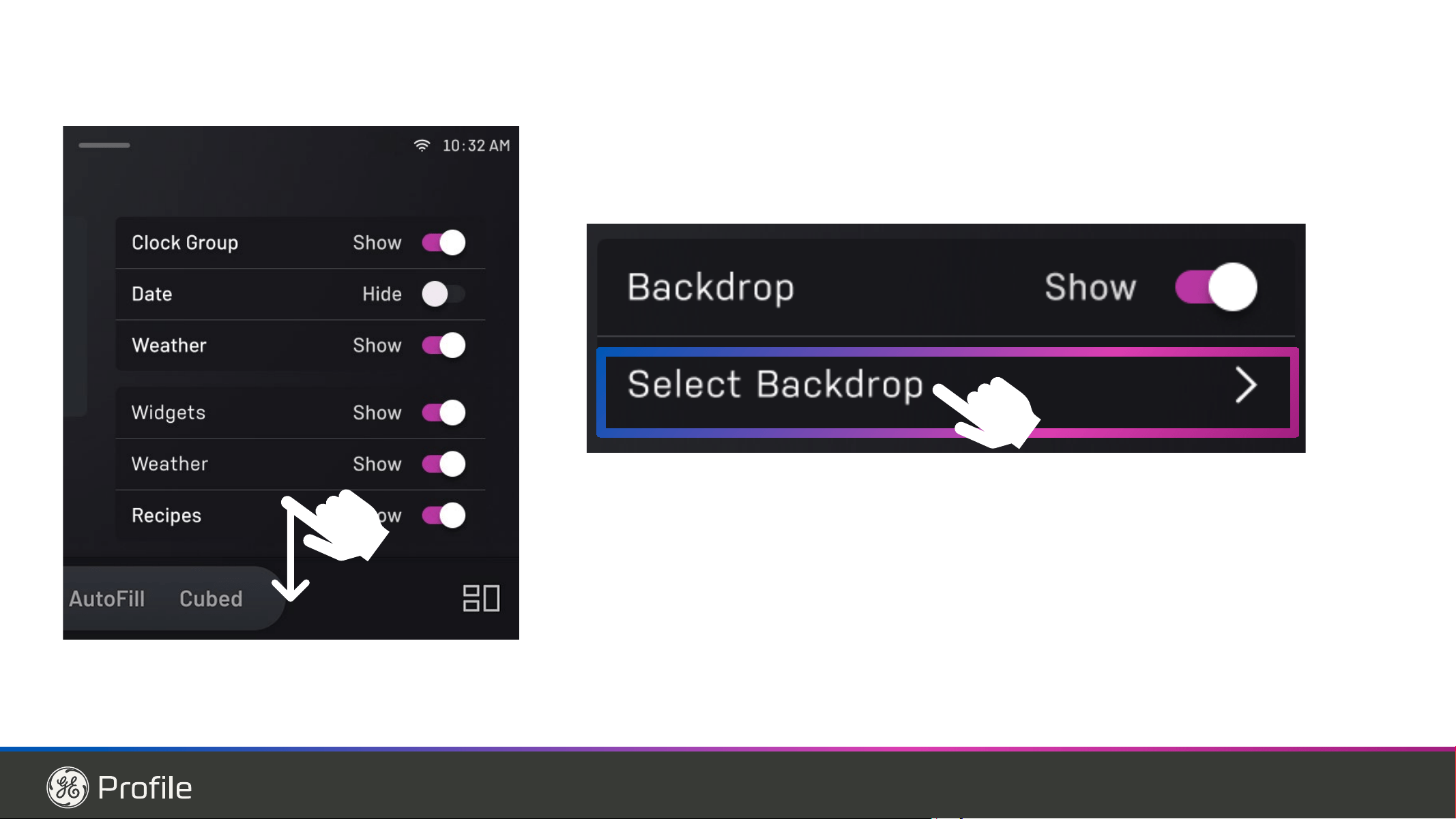
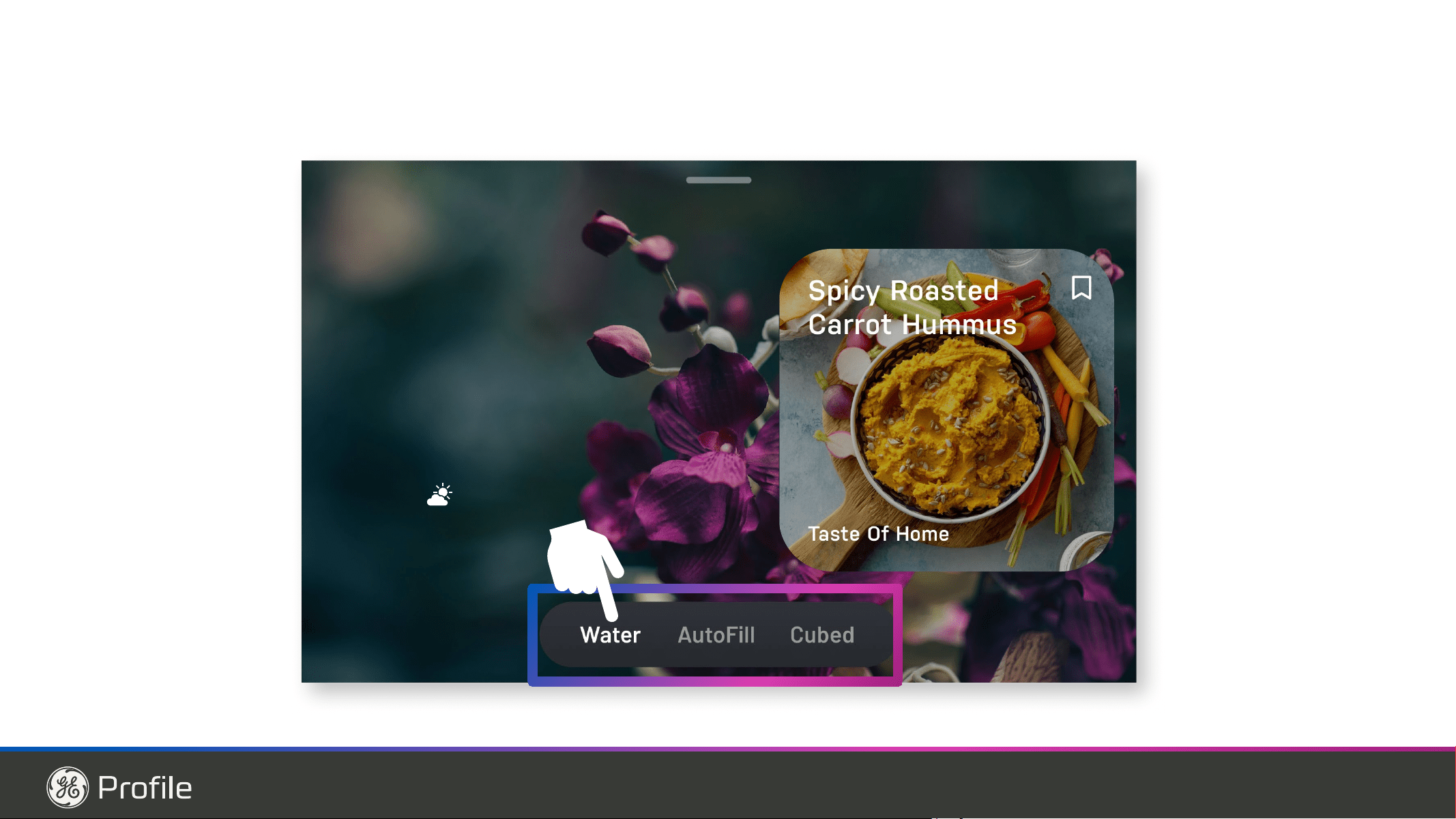
Ambient Mode:
&ORFN*URXS$GG5HPRYH'DWHDQGZHDWKHUWRJHWKHU
or individually)
• Widgets( Add/Remove Weather and Recipes widgets
together or individually to Home screen)
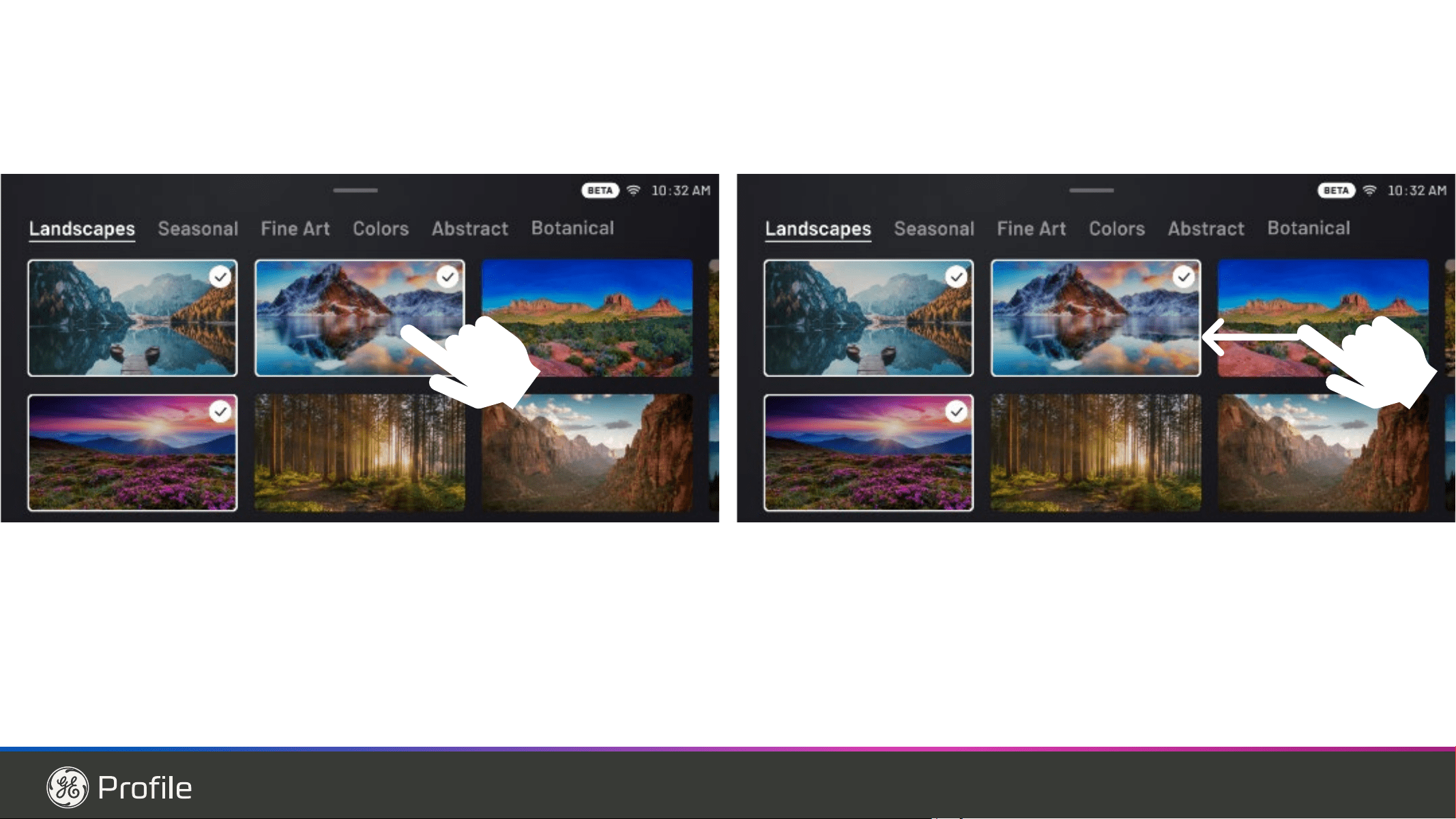
Backdrop:
6HOHFW%DFNGURSVIURPWKHRSWLRQVWRSHUVRQDOL]H\RXU
ambient screen image.
Sounds and Alerts
• Media Volume: Adjust the Volume as needed by
adjusting Volume bar
• Interface Volume: Change interface Volume to Off,
Low, Med or High as needed
• Touch Tone: Turn On/Off touch tone
• Time Alert: Sets the sound level for system tones,
timers and alerts.
Voice & Microphone:
• Microphone: Turn On/Off Microphone ( Turning Off will
disable Voice commands)
• If there are 2 appliances in the same kitchen that
VXSSRUW³+H\+4´\RXVKRXOGPXWHRQHWRDYRLGERWK
responding.
8VH³+H\+4´DVWKHZDNHZRUGWRH[HFXWHFRPPDQGV
³ZKDWILOWHUGR,QHHGWREX\´
³$GGDSSOHVWRP\VKRSSLQJOLVW´
³*LYHPHR]RIZDWHU´
³6WDUW7XUER&RRO´
Barcode Scanning:
7KHEDUFRGHVFDQQHULQFOXGHVDQLQGLFDWRU/('WRKHOS
users align the barcode with the reader.
7KLV/('LVQRWDODVHUDQGLWKDVEHHQWHVWHGLQ
accordance with the industry standard IEC 62471,
which evaluates the photobiological safety of lamps and
lamp systems—even under extended retinal exposure.
7KH/('LVQRWUHTXLUHGIRUWKHEDUFRGHVFDQQHUWR
function. If you prefer to turn it off for any reason, you
may do so through the unit’s settings menu without
affecting the scanner’s performance.
6FDQWR/LVWWRJJOHZLOOWXUQWKHVFDQQHU21RU2))
• Scanner Target Light - A green dot that will help you
align the barcode to the scanner.
• Auto-Add to List: Automatically adds items to your
shopping list when you scan.
• Only 1 dimensional bar code labels are supported. QR
Codes and some other formats are not supported.
49-1000332 Rev. 10 9
Features
USING THE REFRIGERATOR:)HDWXUHV
Door ice bin removal
1. Open left refrigerator door.
2. Pull down latch to release bin door.
8VLQJKDQGKROGOLIWLFHEXFNHWXSDQGRXWWRFOHDU
locators in bottom of bin.
4. To replace the ice bucket, set it on the guide
brackets and push until the ice bucket seats properly.
5. If bucket cannot be replaced, rotate the Ice Bucket
)RUNWXUQFORFNZLVH
Ice/water filter
Certified to reduce chlorine-resistant cysts, lead, select
SKDUPDFHXWLFDOVDQGPRUH)RUHDV\ILOWHUUHSODFHPHQW
instructions see page 13.
Ice bucket
Latch
Ice bin door
Ice bin door
10 49-1000332 Rev. 10
Controls
Changing the Temperature
To Change the Refrigerator Temperature:
Press the Settings button ( ) XQWLO³)ULGJH´LV
KLJKOLJKWHG3UHVVWKH8SRU'RZQDUURZEXWWRQVWR
increase or decrease temperature settings.
To Change the Freezer Temperature:
Press the Settings button ( ) XQWLO³)UHH]HU´LV
KLJKOLJKWHG3UHVVWKH8SRU'RZQDUURZEXWWRQVWR
increase or decrease temperature settings.
The cooling system can be turned off by pressing the
Settings button ( ) XQWLOHLWKHU³)ULGJH´RU³)UHH]HU´
LVKLJKOLJKWHG3UHVVDQGKROGERWKWKH8SDQG'RZQ
DUURZEXWWRQVIRUVHFRQGV³´ZLOOEHGLVSOD\HGZKHQ
the system is off. Turning the cooling system off stops
the cooling to the refrigerator, but it does not shut off
the electrical power. The cooling system can be turned
RQE\UHWXUQLQJWRWKH³)ULGJH´RU³)UHH]HU´VHWWLQJDQG
pressing the On button.
REFRIGERATOR/FREEZER CONTROLS
We are continuously updating our software. Please reference the full owner’s manual online for the latest
functionality at GEAppliances.com. In Canada, visit GEAppliances.ca.
The refrigerator is shipped with protective film covering the controls. If the film was not removed during installation,
remove it now.
7KHUHFRPPHQGHGWHPSHUDWXUHVHWWLQJVSUHVHWIURPWKHIDFWRU\DUH)&IRUWKHUHIULJHUDWRUDQG)&
IRUWKHIUHH]HU
PVD28B, PXD22B
USING THE REFRIGERATOR: Controls
49-1000332 Rev. 10 11
Controls
USING THE REFRIGERATOR: Controls
Settings ( ) - Press to scroll through the refrigerator
functions.
ƔControl Lock - Press ON to lock out ice and water
dispenser and all feature and temperature buttons.
3UHVVDQGKROG2))IRUVHFRQGVWRGHDFWLYDWH
Ɣ Fridge3UHVV8SRU'RZQEXWWRQWRLQFUHDVHRU
GHFUHDVHWHPSHUDWXUHIURP)&WR)&
Ɣ Freezer3UHVV8SRU'RZQEXWWRQWRLQFUHDVH
RUGHFUHDVHWHPSHUDWXUHIURP)&WR)
(-15°C).
ƔDoor Alarm6RXQGVDQDOHUWZKHQWKHIUHH]HU
RUUHIULJHUDWRUGRRUVKDYHEHHQOHIWRSHQ6QRR]H
the alert by pressing any key. Press On or Off to
DFWLYDWHRUGHDFWLYDWH'RRU$ODUPZKLOHDQDOHUWLV
not active.
ƔIce Maker - Press On or Off to start/stop Ice Maker.
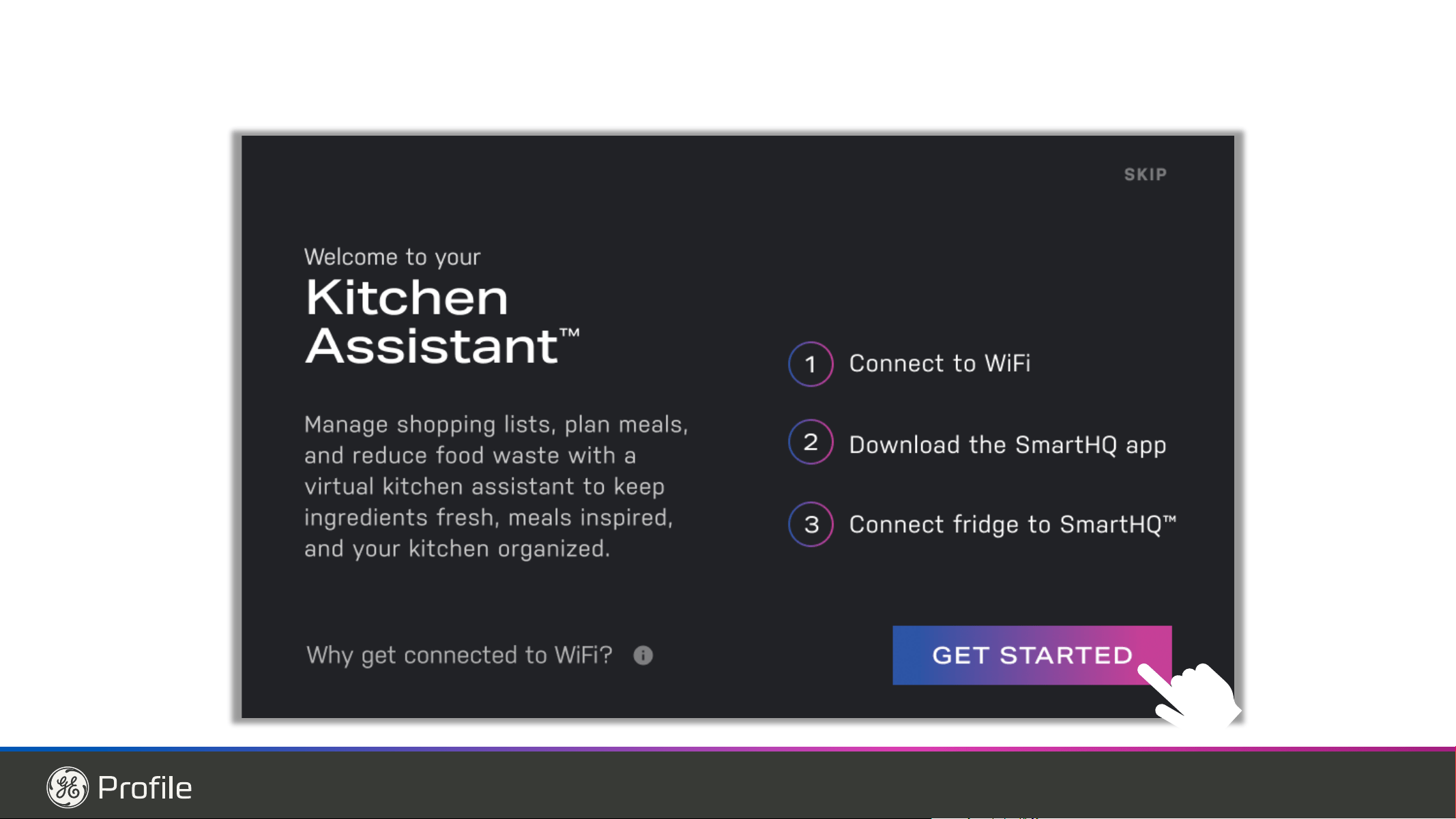
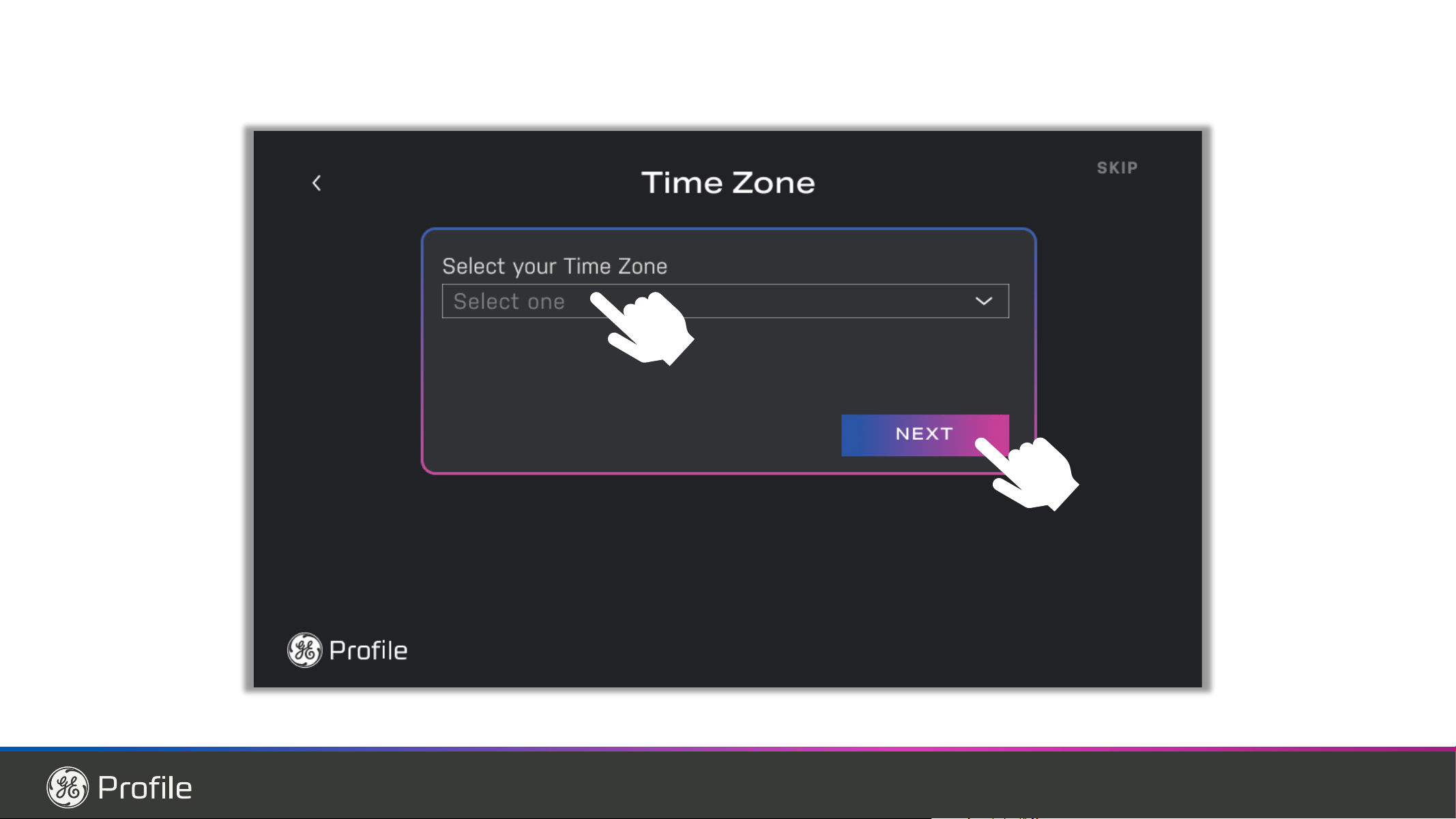
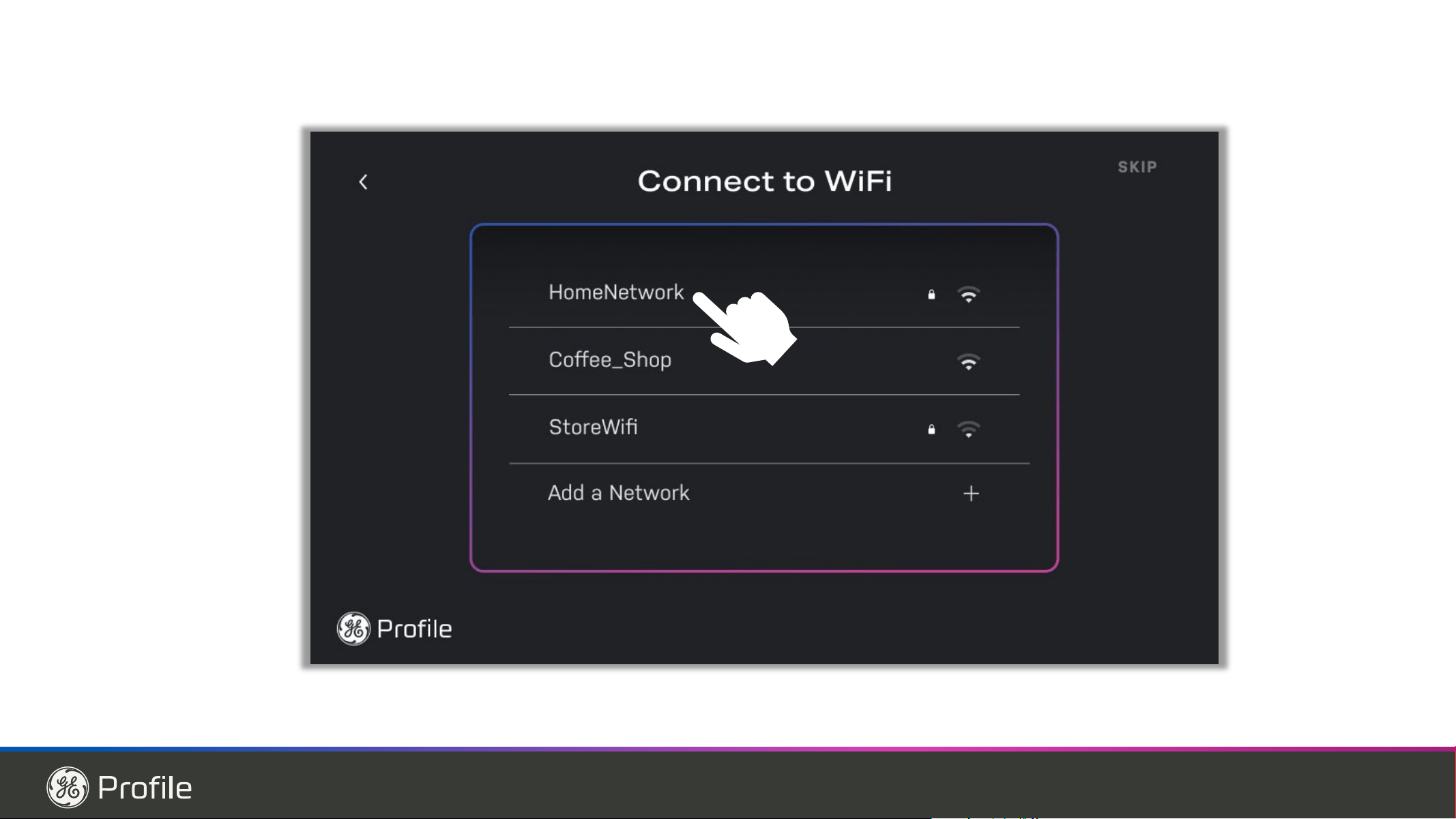
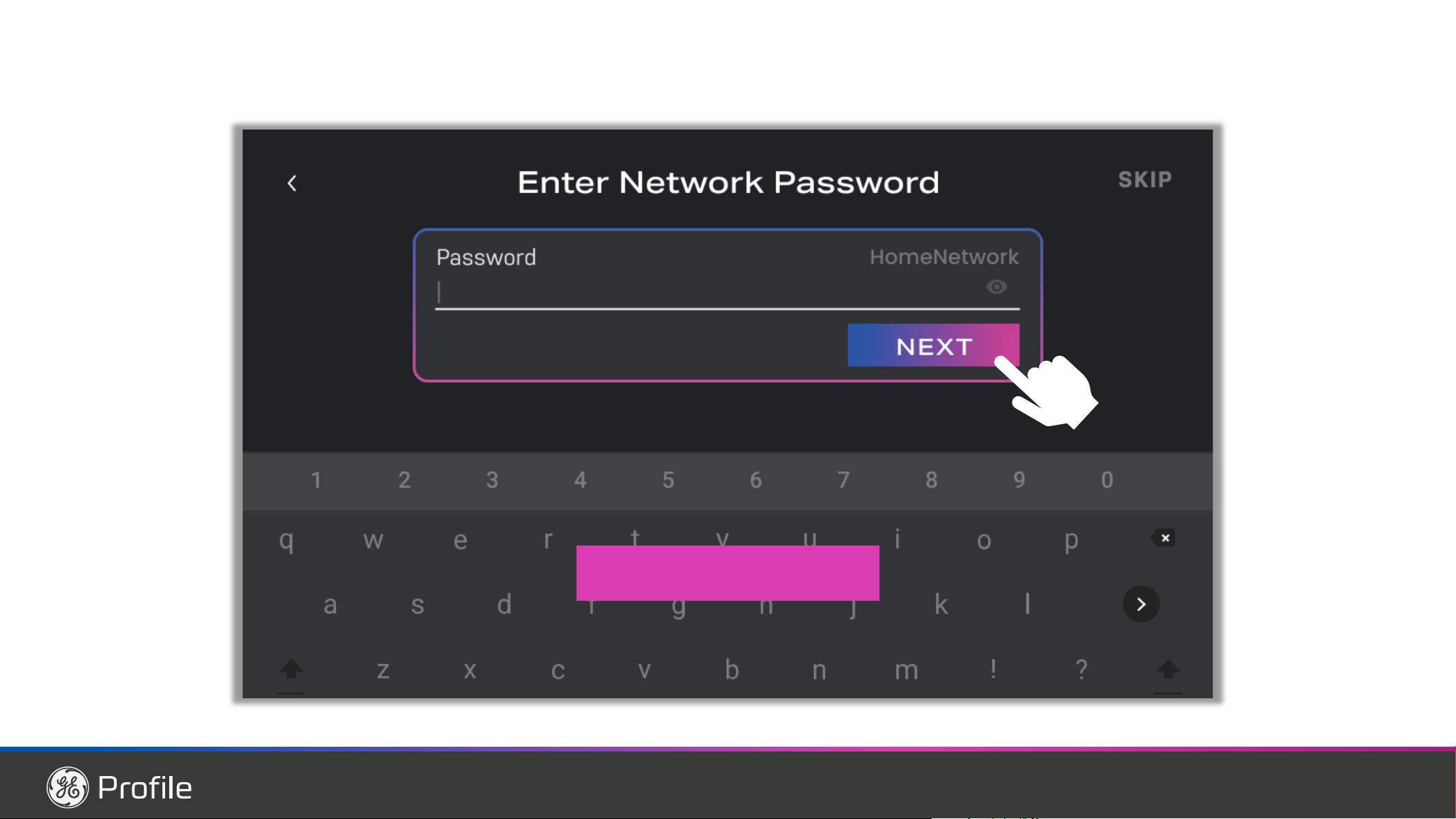
ƔWiFi RQVRPHPRGHOV3UHVV2QWRVWDUWWKH:L)L
connection process per the instructions on Page 12.
3UHVV2IIWRGLVDEOH:L)L1RWHWKDWUHVWDUWLQJ:L)L
UHTXLUHVUHSHDWLQJWKH:L)LFRQQHFWLRQSURFHVV
*(3URILOH'RRULQ'RRUPRGHOV39'3;'
have built-in Wifi
GEA models GVE28 are Connect Plus Ready
Water ( ) - Press to select Water to dispense when the
paddle is pressed.
AutoFill* - Press to initiate automatic sensing to fill from
dispenser.
Ice ( ) - Press to select crushed or cubed ice when the
paddle is pressed.
Light ( ) - Press to control dispenser lighting. Chime
will accompany each press.
Fahrenheit / Celsius:
Temperature display can be switched between
)DKUHQKHLWDQG&HOVLXV3UHVV6HWWLQJVEXWWRQ( ) to
QDYLJDWHWR³)ULGJH´RU³)UHH]HU´WKHQSUHVVDQGKROGWKH
Ice button and Light button for three seconds.
Volume Control:
Alert volume can be adjusted from High to Low and Off.
Press Settings button ( ) WRQDYLJDWHWR³,FHPDNHU´
then press and hold the Ice button and Light button for
three seconds.
Sabbath Mode:
Simultaneously hold the Settings ( ), Water, and
Light buttons for three seconds to enter and exit
Sabbath mode.
*Select models only
CONVERTIBLE DRAWER
7HPSHUDWXUHLQWKH&RQYHUWLEOH'UDZHULVVHOHFWHGE\
pressing the food item to be kept in the drawer. The
corresponding temperatures are:
0HDW )°C)
%HYHUDJHV )°C)
6QDFNV )°C)
:LQH )°C)
The temperature setting is locked by default. Button
must be pressed for 3 seconds to unlock.
3UHVVLQJDQGKROGLQJPXOWLSOHNH\VZLOOUHVHWWKH'LVSOD\
12 49-1000332 Rev. 10
USING THE REFRIGERATOR: 'LVSHQVHU
Dispenser
*Select models only
Important Facts About Your Dispenser
Ŷ'RQRWDGGLFHIURPWUD\VRUEDJVWRWKHGRRULFH
maker bucket. It may not crush or dispense.
Ŷ Avoid overfilling glass with ice and use of narrow
glasses. Backed-up ice can jam the chute or cause the
GRRULQWKHFKXWHWRIUHH]HVKXW,ILFHLVEORFNLQJWKH
chute remove the ice bucket, poke it through with a
wooden spoon.
Ŷ Beverages and foods should not be quick-chilled in the
door ice maker bin. Cans, bottles or food packages in
the storage drawer may cause the ice maker or auger
to jam.
Ŷ To keep dispensed ice from missing the glass, put the
glass close to, but not touching, the dispenser opening.
Ŷ Some crushed ice may be dispensed even though you
selected CUBED. This happens occasionally when a
few cubes accidentally get directed to the crusher.
Ŷ After crushed ice is dispensed, some water may drip
from the chute.
Ŷ Sometimes a small mound of snow will form on the
door in the ice chute. This condition is normal and
usually occurs when you have dispensed crushed ice
repeatedly. The snow will eventually evaporate.
Water & Ice Dispenser
(See About the controls
with temperature
settings & About the
control features)
WARNING
Laceration Hazard
Ŷ Never put fingers or any other object into ice crusher
GLVFKDUJHRSHQLQJ'RLQJVRFDQUHVXOWLQFRQWDFWLQJ
the ice crushing blades and lead to serious injury or
amputation
Ŷ8VHDVWXUG\JODVVZKHQGLVSHQVLQJLFH$GHOLFDWH
glass may break and result in personal injury.
If no water is dispensed when the refrigerator is first
installed, there may be air in the water line system.
Press the dispenser paddle for at least five minutes to
remove trapped air from the water line and to fill the
water system. To flush out impurities in the water line,
throw away the first six full glasses of water.
AUTOFILL*
To Use HANDS FREE AUTOFILL:
Ŷ &HQWHUFRQWDLQHURQ5HFHVV'LVSHQVHU7UD\DVIDU
back as possible without activating paddle and remove
hand from container
Ŷ Press AUTOFILL
To Stop AUTOFILL
Ŷ Press ANY key, including AutoFill, to stop.
Important Facts about AUTOFILL
Ŷ)RURSWLPXPUHVXOWVXVHDXQLIRUPFRQWDLQHUEHWZHHQ
´FPWDOODQG´FPZLGH
Ŷ)LOOOHYHODQGIXQFWLRQDOLW\PD\YDU\RQFRQWDLQHUVWDOOHU
WKDQ´FPRUZLGHUWKDQ´FP
Ŷ&RQWDLQHUYROXPHVPD\YDU\,I³(5525´PHVVDJHLV
given, try a different container.
Ŷ AUTOFILL will time out.
Ŷ Handles, straws, and garnishes on the rim of
the container my cause overfilling or variation in
fill volumes. If using powdered drink mix prior to
AUTOFILL may result in reduced performance.
Ŷ Splashing may occur depending on the location of the
container, water flow rate, container shape, and ice
cubes.
Ŷ.HHSVHQVRUVFOHDQZLWKDFOHDQGDPSFORWKDQGGR
not spray liquid or cleaners directly on sensors
Ŷ AUTOFILL works best with household water pressure
of 60 to 100 psi (414 to 689 kPa).
Ŷ Ice in container may affect fill volume. If issues are
experienced, use less ice.
$XWR)LOO6HQVRUV
49-1000332 Rev. 10 13
Dispenser
USING THE REFRIGERATOR: %$5&2'(6&$11(5:L)L
WiFi (on some models)
(for customers in the United States, its territories, and Canada)
REGULATORY INFORMATION
FCC/IC Compliance Statement:
7KLVGHYLFHFRPSOLHVZLWK3DUWRIWKH)&&5XOHV2SHUDWLRQLVVXEMHFWWRWKHIROORZLQJWZRFRQGLWLRQV
1. This device may not cause harmful interference, and
2. This device must accept any interference received, including interference that may cause undesired operation.
NOTICE: Changes or modifications to this unit not expressly approved by the manufacturer could void the user’s
authority to operate the equipment.
7KLVGHYLFHFRPSOLHVZLWK,QQRYDWLRQ6FLHQFHDQG(FRQRPLF'HYHORSPHQW&DQDGD¶VOLFHQVHH[HPSW566V
Operation is subject to the following two conditions:
(1) This device may not cause interference; and
(2) This device must accept any interference, including interference that may cause undesired operation of the
device.
If your refrigerator has a Connected Appliance Information ODEHOWKHQLWFDQEHFRQQHFWHGWR\RXU:L)LQHWZRUN
allowing it to communicate with your mobile device for remote monitoring, control and notifications.
Please visit GEAppliances.com/connect to learn more about connected appliance features and learn what
connected appliance apps work with your mobile device.
PRECISE FILL SECTION
$IWHUVHWWLQJYROXPHIURPWKH3UHFLVH)LOO0HQX\RXFDQSURFHHGLQWZRPHWKRGV
8VLQJ+DQGV)UHH3UHFLVH)LOO:LWK&RQWDLQHU
fully inserted into recess and stationary press the
'LVSHQVHEXWWRQIURPWKH3UHFLVH)LOO0HQX7KHXQLW
will dispense until the set volume or level sense limit
is reached. See Autofill description (page 12) for
description of compatible vessels.
8VLQJ3DGGOH'HSUHVVLQJSDGGOHZLWKFRQWDLQHUZLOO
dispense water until the target is reached or the paddle
is released. If the vessel is filled before the target
volume is reached you can replace the vessel or empty
the vessel and depress the paddle again to continue
until selected amount is reached.
Bar Code Scanner
Important Facts about Barcode Scanning
• Splashing may occur depending on the location of the
container, water flow rate, container shape and ice
cubes.
.HHSWKHEDUFRGHVFDQQHUOHQVFOHDQZLWKDFOHDQ
damp cloth, and do not spray liquid or cleaners directly
on the lens.
• The optimal distance for the label scan will vary
GHSHQGLQJRQODEHOW\SHVL]HDQGDPELHQWOLJKW
Barcode Scanner
14 49-1000332 Rev. 10
USING THE REFRIGERATOR: 'HPDQG5HVSRQVH
Demand Response (some models)
7KLV3URGXFWKDV:L)LFDSDELOLW\DQGUHTXLUHV
Internet connectivity and a wireless router to enable
interconnection with an Energy Management System,
and/or with other external devices, systems or
applications.
What is Demand Response?
Some utilities vary their electricity rates based on the
WLPHRIGD\6RPHXWLOLWLHVRIIHU'HPDQG5HVSRQVH
programs to reduce energy usage during certain times
of the day. Some utilities may do both things. This
UHIULJHUDWRUKDVD'HPDQG5HVSRQVHIHDWXUHWRKHOS
control energy usage.
Using Demand Response without a Utility
Program
7KH'HPDQG5HVSRQVHIHDWXUHDOORZVWKHXVHUWRVKLIW
high energy features, like defrost, for a 4-hour window.
This window corresponds to the average peak energy
usage. This feature is enabled or disabled with the
SmartHQ
TM
and requires the SmartHQ
TM
to operate. It
does not depend on the local utility, or whether it varies
the electricity rates.
Demand Response with your Utility
,I\RXUXWLOLW\KDVDFRPSDWLEOH'HPDQG5HVSRQVH
program, and you are signed up with the utility, this
refrigerator can modify its energy usage based on
commands received from the utility. The SmartHQ
TM
can
EHXVHGWRRYHUULGHWKH'HPDQG5HVSRQVHSURJUDP
if desired. Please note that there are many different
'HPDQG5HVSRQVHSURJUDPVDQGPDQ\DUHQRW
compatible with kitchen appliances. Please check with
your local utility.
The demand response level is displayed in the mobile
DSS'HOD\DSSOLDQFHORDGPRGH'$/UHGXFHVSRZHU
consumption by delaying defrost and ice production for
4 hours. Temporary appliance load reduction (TALR)
reduces the power consumption by delaying defrost, ice
production, and stopping cooling for 10 minutes.
Estimated energy consumption in Watt-hour(Wh) is
reported in the mobile app.
Installing Demand Response
Install the SmartHQ
TM
per the instructions on the previous
SDJH6HOHFWWKH'HPDQG5HVSRQVHSDJHDQGFKRRVH
IURPWKHDYDLODEOH'HPDQG5HVSRQVHRSWLRQV7KH
app provides more information on the operation of each
'HPDQG5HVSRQVHRSWLRQ
Demand Response Communication Protocols
7KLVUHIULJHUDWRUXVHVWKHIROORZLQJ,(7)RSHQVWDQGDUG
SURWRFROVIRUWKH:L)LFRPPXQLFDWLRQ&RQVXOWWKHRQOLQH
user manual for the latest protocol updates:
Ŷhttps://mqtt.org/mqtt-specification/
Ŷhttp://docs.oasis-open.org/mqtt/mqtt/v3.1.1/os/
mqtt-v3.1.1-os.html
GEA API for demand response:
Ŷ:ULWHGHPDQGUHVSRQGVWDWXV,QDFWLYH'$/DQG
TALR)
Ŷ*HWGHPDQGUHVSRQVHVWDWXV,QDFWLYH'$/7$/5RU
'HOD\'HIURVW
Ŷ*HWHVWLPDWHGHQHUJ\FRQVXPSWLRQLQ:DWWKRXU
Ŷ*HWHYHQWIRU'RRU2SHQ
Ŷ*HWHYHQWIRU+LJKWHPSHUDWXUHDOHUW
Ŷ:ULWHGHPDQGUHVSRQVH'$/RU7$/5VWDUWWLPHDQG
duration time period.
Ŷ*HWGHPDQGUHVSRQVH'$/RU7$/5VWDUWWLPHDQG
duration time period.
Ŷ'HOHWHGHPDQGUHVSRQVH'$/RU7$/5VFKHGXOH
49-1000332 Rev. 10 15
USING THE REFRIGERATOR: ;:)(:DWHU)LOWHU
XWFE Water Filter
Water Filter Cartridge
The water filter cartridge is located in the left-hand
refrigerator door behind the rectangular access panel.
When to Replace the Filter Cartridge
The Replace Water Filter message on the control panel
will illuminate when the water filter cartridge needs to
be replaced soon. The Water Filter Expired message
will illuminate when the water filter cartridge needs to be
replaced. The water filter can be replaced earlier if the
flow of water to the dispenser or icemaker decreases.
Once either message is illuminated, dispensing water
will show Confirm Filter Change; do not confirm until
the water filter is replaced
REMOVING THE FILTER
If you are replacing the filter,
first remove the previous one
by gently grasping the filter and
slowly turning it to the left,
about a ¼ turn. The filter
should automatically release
itself when you have rotated it
far enough to the left. A small
amount of water may drip
down.
CAUTION
If air has been trapped in the system, the filter cartridge
PD\EHHMHFWHGDVLWLVUHPRYHG8VHFDXWLRQZKHQ
removing.
FILTER BYPASS PLUG
To reduce the risk of property damage due to water leakage,
\RX0867XVHWKHILOWHUE\SDVVSOXJZKHQDUHSODFHPHQW
filter cartridge is not available. Some models do not come
equipped with the filter bypass plug. To obtain a free bypass
SOXJFDOO%2'(:(//DQGUHTXHVW
:5;ILOWHUE\SDVVSOXJ,Q&DQDGDFDOO
800.561.3344. The dispenser and icemaker will not operate
without either the filter or bypass plug installed. The bypass
plug is installed in the same way as a filter cartridge.
INSTALLING THE FILTER IN A BOTTOM
FREEZER REFRIGERATOR
1. Open the filter cartridge
housing by pulling the door
open.
2. Line up the ports on the filter
with the ports on the filter
cartridge holder, and gently
insert the filter.
3. Slowly turn the filter to the
ULJKWXQWLOLWVWRSV'212729(57,*+7(1$V\RX
turn the filter, it will automatically adjust itself into
position. The filter will move about a ¼ turn or 90
degrees, until the filter cannot be turned, and the label
faces outward.
4. Slowly push the filter up into
the clips.
5. Close the filter cartridge
housing by gently pushing
the door closed until the tabs
lock into place.
6. Run water from the
dispenser for 2 gallons or approximately 5 minutes to
clear the system. Water may spurt out and air bubbles
may be visible during this process. If water is not
flowing, check to make sure the filter has been fully
rotated to the right.
7. When dispensing water, press the button underneath
the Confirm Filter Change message. If replacing
the water filter before the message appeared,
press the Settings ( ) EXWWRQXQWLO³,FHPDNHU´LV
highlighted, then hold down the Water and Ice buttons
simultaneously for 3 seconds.
Application Guidelines/Water Supply
WARNING
To reduce the risk associated with choking, do not allow children under 3 years of age to
have access to small parts during the installation of this product. The disposable filter cartridge should be
replaced every 6 months at the rated capacity, or sooner if a noticeable reduction in flow rate occurs.
)RUWKHPD[LPXPEHQHILWRI\RXUILOWUDWLRQV\VWHP*($SSOLDQFHVUHFRPPHQGVWKHXVHRI*($SSOLDQFHVEUDQGHG
ILOWHUVRQO\8VLQJ*($SSOLDQFHVEUDQGHGILOWHUVLQ*($SSOLDQFHVDQG+RWSRLQW
®
refrigerators provides optimal
SHUIRUPDQFHDQGUHOLDELOLW\*($SSOLDQFHVILOWHUVPHHWULJRURXVLQGXVWU\16)VWDQGDUGVIRUVDIHW\DQGTXDOLW\WKDW
are important for products that are filtering your water. GE Appliances has not qualified non-GE Appliances-branded
filters for use in GE Appliances and Hotpoint refrigerators and there is no assurance that non-GE Appliances-
branded filters meet GE Appliances standards for quality, performance and reliability.
If you have questions, or to order additional filter cartridges, visit our website at gewaterfilters.com or call
GE Appliances Parts and Accessories, 877.959.8688.
Customers in Canada should consult the yellow pages for the nearest Camco Service Center.
6HUYLFH)ORZ 0.5 gpm (1.89 lpm)
Water Supply Potable Water
Water Pressure 25-120 psi (172-827 kPa)
Water Temperature ))&&
Capacity 170 gallons (643.5 liters)
Sign-up for TEXT REMINDERS by
texting REPLACE to 70543.
16 49-1000332 Rev. 10
USING THE REFRIGERATOR: Refrigerator Storage Options
Refrigerator Storage Options
Rearranging the Shelves
Shelves in the refrigerator compartment are adjustable.
To remove:
Remove all items from the shelf.
Tilt the shelf up at the front.
Lift the shelf up at the back and bring the shelf out.
To replace:
While tilting the shelf up, insert the top hook at the
back of the shelf in a slot on the track.
Lower the front of the shelf until the bottom of the
shelf locks into place.
Spillproof Shelves
Spillproof shelves have special edges to help prevent
spills from dripping to lower shelves.
Quick Space Shelf
This shelf splits in half and slides under itself for storage of
tall items on the shelf below.
This shelf can be removed and replaced or relocated (just
like spillproof shelves).
49-1000332 Rev. 10 17
USING THE REFRIGERATOR: Refrigerator Storage Options
Left Door Bins
FIXED BIN
To remove: Lift the bin straight up, then pull out.
The ice maker door bins are not interchangeable, note the
location upon removal and replace the bin in its proper
location.
Right Door Bins
FIXED BINS can easily be carried from refrigerator to
work area.
To remove: Lift bin straight up, then pull out.
ROTATING BIN:
To remove: Rotate bin outward then lift straight up. To
remove Place hand under metal base and lift up.
To remove Metal Base: Place hand under metal base
and lift up.
)L[HG%LQV
Remove
Rotating Bin
5HPRYH)L[HG%LQV
Remove
Metal Base
)L[HG%LQ
Refrigerator Storage Options
18 49-1000332 Rev. 10
USING THE REFRIGERATOR:&OLPDWH=RQH&RQYHUWLEOH'UDZHU
How to Remove and Replace Drawer Organizer
To remove:
1. Pull the drawer out to the stop position.
6OLJKWO\UDLVHWKHRUJDQL]HUWKHQURWDWHWRUHPRYH
To replace:
1. Place the back of the divider on the rear wall of the drawer.
5RWDWHWKHRUJDQL]HULQWRWKHGHVLUHGSRVLWLRQ
How to Remove and Replace Drawer
To remove:
1. Pull the drawer out to the stop position.
2. Remove the convertible drawer basket by lifting while
rotating the basket upward.
To replace:
1. Place drawer back in first and rotate drawer front down to
seat on slide.
2. Push the drawer in to closed position.
Convertible drawer basket will be loose if re-installed
EDFNZDUGV/RRNIRU³)5217´HPERVVWRKHOSZLWK
re-installation.
Convertible Drawer
Climate Zone
.HHSIUXLWVDQGYHJHWDEOHVRUJDQL]HGLQVHSDUDWH
compartments for easy access.
Excess water that may accumulate in the bottom of the
drawers or under the drawers should be wiped dry.
49-1000332 Rev. 10 19
USING THE REFRIGERATOR:%DVNHWV'UDZHUVDQG%LQV
Freezer Basket and Drawer
Basket.
'UDZHU
Tilt-Out Bin in the Freezer
To remove:
Press the tab on the right side bracket to remove the
IUHH]HUGUDZHUELQ
To replace:
Slide bin into location until it locks into place.
Basket Removal
To remove:
3XOOWKHWRSIUHH]HUGUDZHUEDVNHWIRUZDUGXQWLOLWLV
RXWRIWKHWUDFNLQWKHIUHH]HUFRPSDUWPHQW/LIWZKLOH
rotating the basket upward to remove.
2. Press the tab on the right side bracket to remove the
IUHH]HUGRRUELQ
/LIWWKHERWWRPIUHH]HUGUDZHUEDVNHWVOLJKWO\EDFN
then up and out of the drawer.
To replace, reverse removal steps.
Baskets, Drawers, and Bins
20 49-1000332 Rev. 10
Sabbath Mode OU (Orthodox Union) and CRC (Central Rabbinical Congress)
7KLVUHIULJHUDWRURIIHUVDQ28DQG&5&6DEEDWKPRGHWKDW
FRPSOLHVZLWKVWDQGDUGVVHWIRUWKE\2UWKRGR[8QLRQWKH
Central Rabbinical Congress, and Halacha Tech, and is
100% certified to the highest halacha standards. In order
WRHQDEOHWKH28DQG&5&6DEEDWKPRGHWKHUHDUHWZR
methods: a manual entry and an automatic Sabbath Mode.
The first (manual) method can be activated using the
LQVWUXFWLRQVLQWKH)ULGJH&RQWUROV6HFWLRQ3DJH
Sabbath mode will exit automatically after 96 hours.
The second (automatic) method uses a separate Shabbos
.HHSHUIRU5HIULJHUDWRUVWKDWPXVWEHFRQQHFWHGWRWKH
UHIULJHUDWRU7KH6KDEERV.HHSHUFDQEHSXUFKDVHGIURP
]PDQWHFKQRORJLHVFRPRUJHDSSOLDQFHVFRP7KHRQO\ZD\
WRHQDEOHWKHDXWRPDWLF28DQG&5&6DEEDWKPRGHLV
ZLWKWKHSXUFKDVHRIWKH6KDEERV.HHSHUIRU5HIULJHUDWRUV
7KH6KDEERV.HHSHUFRQQHFWVWR\RXUUHIULJHUDWRUWR
automatically enable Shabbos compatible modes each
week and before every holiday. The appropriate mode will
automatically activate based on the Jewish calendar date
IRU\RXUORFDWLRQ:KHQWKH6KDEERV.HHSHULVSURSHUO\
FRQQHFWHGWRWKHUHIULJHUDWRUWKHGLVSOD\ZLOOVKRZD)L[HG
Screen featuring an Exit Sabbath mode Button.
USING THE FREEZER: Automatic Icemaker
Ice Bucket and Dispenser
• Open the ice box door on inside of the left door.
• Pull up and out on the ice bucket in the left hand door
to remove it from the compartment .
• To replace the ice bucket, set it on the guide brackets
and push until the ice bucket seats properly.
Automatic Icemaker
A newly installed refrigerator may take 12 to 24 hours to
begin making ice.
Automatic Ice maker
The ice maker will produce seven cubes per cycle
approximately 112-140 cubes in a 12-hour period,
GHSHQGLQJRQIUHH]HUFRPSDUWPHQWWHPSHUDWXUHURRP
temperature, number of door openings and other use
conditions.
7KHLFHPDNHUZLOOILOOZLWKZDWHUZKHQLWFRROVWR)
(-10°C). A newly installed refrigerator may take 12 to 24
hours to begin making ice cubes.
If the refrigerator is operated before the water line
connection is made to the unit or if the water supply to
an operating refrigerator is turned off, make sure that
the ice maker is turned off. Once the water has been
connected to the refrigerator, the ice maker may be
turned on. See the table below for details.
<RXPD\KHDUDEX]]LQJVRXQGHDFKWLPHWKHLFHPDNHU
fills with water.
To fill the bucket to maximum capacity after installation,
dispense 3-4 cubes at 12 hours and 18 hours. Allow 1-2
days for the bucket to
completely fill with ice.
Throw away the first few
batches of ice to allow
the water line to clear.
Be sure nothing
interferes with the sweep
of the feeler arm.
When the bin fills to the level of the feeler arm, the ice
maker will stop producing ice. It is normal for several
cubes to be joined together.
If ice is not used frequently, old ice cubes will become
cloudy, taste stale and shrink.
NOTE: In homes with lower-than-average water
pressure, you may hear the ice maker cycle multiple
times when making one batch of ice.
CAUTION
7RPLQLPL]HWKHULVNRISHUVRQDOLQMXU\
avoid contact with the moving parts of the ejector
mechanism, or with the heating element that releases the
FXEHV'RQRWSODFHILQJHUVRUKDQGVRQWKHDXWRPDWLFLFH
making mechanism while the refrigerator is plugged in.
To turn the icemaker ON/OFF, use the Settings button
to navigate to the Icemaker selection. See CONTROLS,
page 10.
WARNING
Connect to potable water supply
only.
A cold water supply is required for automatic icemaker
operation. The water pressure must be between 40
and 120 psi (275-827 kilopascals).
ZMAN
TECH
NOLOGIES
¯¶·¯¬Ã²¹·º°¶¹¯Ã°´
49-1000332 Rev. 10 21
CARE AND CLEANING
Care and Cleaning
Cleaning the Inside
To help prevent odors, leave an open box of baking
VRGDLQWKHUHIULJHUDWRUDQGIUHH]HUFRPSDUWPHQWV
Unplug the refrigerator before cleaning.
If this is not practical, wring excess moisture out of
sponge or cloth when cleaning around switches, lights or
controls.
8VHDQDSSOLDQFHZD[SROLVKRQWKHLQVLGHVXUIDFH
between the doors.
8VHZDUPZDWHUDQGEDNLQJVRGDVROXWLRQ²DERXWD
tablespoon (15 ml) of baking soda to a quart (1 liter) of
ZDWHU7KLVERWKFOHDQVDQGQHXWUDOL]HVRGRUV5LQVHDQG
wipe dry.
To clean the inside metal panel*, open the outer door
XVLQJWKH'RRULQ'RRU/DWFK&OHDQWKHSDQHOZLWKD
PLOGGHWHUJHQWDQGWKHQZLSHGU\ZLWKDVRIWFORWK'RQRW
use any stainless steel cleaner on the panel as it may
damage the surrounding plastic.
CAUTION
'RQRWFOHDQJODVVVKHOYHVRUFRYHUV
with warm water when they are cold. Glass shelves and
covers may break if exposed to sudden temperature
changes or impact such as bumping or dropping.
Tempered glass is designed to shatter into many small
pieces if it breaks.
'RQRWZDVKDQ\SODVWLFUHIULJHUDWRUSDUWVLQWKH
dishwasher.
DO USE DO NOT USE
Soft, clean cloth or sponge
Microfiber cloth
Abrasive cloths, paper towels, scrubbing sponges (with or without soap),
scouring or steel wool pads
Mild detergent mixed with warm
water
Abrasive powders, liquids, or sprays
Window sprays, ammonia, or bleach
Citrus or plant oil-based cleaners
Acidic or vinegar-based cleaners
Oven cleaners
Alkaline cleaners
Stainless steel cleaners
DO NOT use Stainless Steel cleaners on the door surfaces.
IMPORTANT:7KHXVHRILQFRUUHFWSURGXFWVPD\GDPDJHWKHRXWHUILQLVKRI)LQJHUSULQW5HVLVWDQW6WDLQOHVVDQG
Black Stainless models. Please follow these instructions and use only the appropriate items below to clean your
appliance surfaces.
Ɣ&OHDQLQWHULRUH[WHULRUVXUIDFHVZLWKZDUPZDWHUPLOGVRDSRUGHWHUJHQWDQGDVRIWRUPLFURILEHUFORWKWRDYRLG
damage.
Ɣ:LSHWKHDSSOLDQFHVXUIDFHGU\ZLWKDVRIWFOHDQFORWKRUPLFURILEHUWRZHOWRDYRLGVWUHDNLQJRUZDWHUVSRWWLQJ
FINGERPRINT RESISTANT STAINLESS STEEL*, - Outside surfaces, door handles,
and trim
Cleaning the Outside
*Easily wipe away smudges and fingerprints.
22 49-1000332 Rev. 10
Behind the Refrigerator
Be careful when moving the refrigerator away from
the wall. All types of floor coverings can be damaged,
particularly cushioned coverings and those with
embossed surfaces.
Raise the leveling legs located at the bottom front of the
refrigerator.
Pull the refrigerator straight out and return it to position
by pushing it straight in. Moving the refrigerator in a side
direction may result in damage to the floor covering or
refrigerator.
Lower the leveling legs until they touch the floor.
WARNING
ELECTRICAL SHOCK HAZARD
When pushing the refrigerator back, make sure you
don’t roll over the power cord or water supply line.
Shutting Down and Restarting your Refrigerator for Prolonged Periods
)RUORQJYDFDWLRQVRUDEVHQFHVUHPRYHIRRGDQG
unplug the refrigerator. Clean the interior with a baking
soda solution of one tablespoon (15 ml) of baking soda
to one quart (1 liter) of water. Leave the doors open.
,IWKHWHPSHUDWXUHFDQGURSEHORZIUHH]LQJKDYHD
qualified service technician drain the water supply
system to prevent serious property damage due to
flooding.
1. Turn refrigerator off (see CONTROLS, page 10) or
unplug the refrigerator.
2. Empty ice bucket
3. Turn water supply off
If you cut the water supply off, turn off the ice
maker.
8SRQUHWXUQLQJIURPYDFDWLRQ
1. Replace the water filter.
2. Run 2 gallons (7.57 liters) of water through the cold
water dispenser (about 5 minutes) to flush the system.
Preparing to Move
Secure all loose items such as shelves and drawers by
taping them securely in place to prevent damage.
When using a hand truck to move the refrigerator, do not
rest the front or back of the refrigerator against the hand
truck. This could damage the refrigerator.
Handle only from the sides of the refrigerator.
Be sure the refrigerator stays in an upright position
during moving.
Care and Cleaning
Replacing the Lights
Refrigerator Lights (LEDs)
Appearance may vary by model.
7KHUHLV/('OLJKWLQJLQWKHUHIULJHUDWRUFRPSDUWPHQWWKH
bottom of the left-hand refrigerator door, and the bottom
of the convertible drawer.
$QDXWKRUL]HGWHFKQLFLDQZLOOQHHGWRUHSODFHWKH
/('OLJKW
If this assembly needs to be replaced, visit
GEAppliances.com/service RUFDOO%2'(:(//
(833.426.3393). In Canada, visit GEAppliances.ca/
service or call 800.561.3344.
CARE AND CLEANING
49-1000332 Rev. 10 23
TOOLS YOU MAY NEED
BEFORE YOU BEGIN
Read these instructions completely and carefully.
WARNING
Tip Over Hazard.
0RGHOV3-'3-(3;'&-(DQG&;(DUHWRSKHDY\
especially with doors open. These models have an
anti-tip bracket packaged with your refrigerator which
must be installed and properly secured to the home’s
structure to prevent tipping forward, which could result
in death or serious injury. Read and follow the entire
installation instructions for installing the anti-tip floor
bracket provided with your refrigerator.
NOTE: ,I\RXKDYHPRGHO3-'3-(3;'&-(RU
&;(DQGGLGQRWUHFHLYHDQDQWLWLSEUDFNHWZLWK\RXU
SXUFKDVHFDOO%2'(:(//
to receive one at no cost (In Canada, call
)RULQVWDOODWLRQLQVWUXFWLRQVRIWKH
bracket, visit: www.GEAppliances.com (In Canada,
www.GEAppliances.ca.)
•
IMPORTANT — Observe all governing codes
and ordinances. Save these instructions for local
inspector’s use.
• Note to Installer – Be sure to leave these
instructions with the Consumer.
• Note to Consumer –.HHSWKHVHLQVWUXFWLRQVIRU
future reference.
• Skill level – Installation of this appliance requires
basic mechanical skills.
IMPORTANT — (cont.)
• Completion time – Refrigerator Installation
can vary. Water Line
Installation 30 minutes.
• Proper installation is the responsibility of the
installer.
• Product failure due to improper installation is not
covered under the Warranty.
PREPARATION
MOVING THE REFRIGERATOR INDOORS
If the refrigerator will not fit through a doorway,
WKHUHIULJHUDWRUGRRUVDQGIUHH]HUGUDZHUFDQEH
removed.
• To remove the refrigerator doors, see the Installing
the Refrigerator section.
7RUHPRYHWKHIUHH]HUGUDZHUVHHWKH5HPRYLQJ
WKH)UHH]HU'UDZHUVHFWLRQ
WATER SUPPLY TO THE ICEMAKER AND
DISPENSER
If the refrigerator has an ice maker, it will have to
be connected to a cold water line. A GE Appliances
water supply kit (containing tubing, shutoff valve,
fittings and instructions) is available at extra
cost from your dealer, by visiting our website at
GEAppliances.com (in Canada at GEAppliances.
ca) or from Parts and Accessories, 833.426.3393 (in
Canada 1.800.661.1616).
Adjustable Wrench
1/4´2XWHU'LDPHWHU
Compression Nut
DQG)HUUXOHVOHHYH
Phillips-Head Screwdriver
´6RFNHW5DWFKHW
'ULYHU
1/8´´1/4´& ´
Allen (Hex) Wrenches
Pencil
1/8´'ULOO%LWDQG
(OHFWULFRU+DQG'ULOO
Tape Measure
1/4´1XW'ULYHU
Pliers
Level
)ODW+HDG6FUHZGULYHU
Torx T20, T25
Installation
Instructions
Refrigerator
Questions? Call 833.4BODEWELL (833.426.3393) or visit our Website at: GEAppliances.com
In Canada, call 1.800.561.3344 or visit our Website at: GEAppliances.ca
INSTALLATION INSTRUCTIONS
24 49-1000332 Rev. 10
DIMENSIONS
Installation Instructions
NOTE: It is recommended that the floor be protected with a plastic covering throughout the installation process.
NOTE: Not recommended for installation on carpeted flooring.
NOTE: 3RZHUFRUGOHQJWKLV´PP
HK
I
J
G
L
X
D
E
F
Y
CBA
PVD28 PXD22
Inches mm Inches mm
2YHUDOO+HLJKWWR7RSRIWKH'RRU$ 70 1778 70 1778
Height to Top of Hinge Cover (B) 69 7/8 1775 69 7/8 1775
Height to Top of Case (C) 68 5/8 1743 68 5/8 1743
&DVH'HSWKZLWKRXW'RRU' 29 1/2 749 24 1/2 622
&DVH'HSWKZLWK'RRUOHVV'RRU+DQGOH( 34 1/4 870 29 1/4 743
&DVH'HSWKZLWK'RRUDQG+DQGOH) 36 3/4 933 31 3/4 806
'HSWKZLWK5HIULJHUDWRU'RRU2SHQ* 48 3/8 1229 ´ 1102
Width (H) 35 3/4 908 35 3/4 908
:LGWKZLWK'RRU2SHQZLWK+DQGOH, 44 3/8 1127 44 3/8 1127
:LGWKZLWK'RRUV)XOO\2SHQ- 63 1600 63 1600
0LQ'LVWDQFH%HWZHHQ&DVHDQG:DOOWR$OORZ
'RRUVWR)XOO\2SHQ.
13 5/8 346 13 5/8 346
'LVWDQFH%HWZHHQ&DVHDQG'RRUZLWK'RRU
Open 90° (L)
4 3/8 111 4 3/8 111
'HSWKZLWK)UHH]HU'RRU&RPSOHWHO\2SHQ
ZLWKRXW+DQGOH;
53 1/2 1359 46 1168
'HSWKZLWK)UHH]HU'RRU&RPSOHWHO\2SHQZLWK
Handle (Y)
56 1422 48 1/2 1232
INSTALLATION INSTRUCTIONS
49-1000332 Rev. 10 25
MOVING THE REFRIGERATOR
8VLQJWKHFKDUWEHORZGHWHUPLQHLIWKHZLGWKRI\RXUSDVVDJHZD\FDQDFFRPPRGDWHWKHGHSWKRIWKH
refrigerator. Ensure you have clearance to prevent damage to the refrigerator before safely moving it to the final
location.
• If passageways are large enough to accommodate the refrigerator without removing the handles skip to Step 6.
Leave tape, film and all packaging on doors until the refrigerator is in the final location.
• NOTE: Use a padded hand truck or moving straps to move this refrigerator. Place the refrigerator on the
hand truck with a side against the truck. We strongly recommend that two people move and complete
this installation.
Installation Instructions
If your opening is less than the following dimensions, remove door parts in order until dimension is less
than the opening.
39' 3;'
Remove Handles ´PP ´PP
5HPRYH'RRUV ´PP ´PP
Remove Center Hinge ´PP ´PP
REFRIGERATOR LOCATION
Ŷ'RQRWLQVWDOOWKHUHIULJHUDWRUZKHUHWKH
WHPSHUDWXUHZLOOJREHORZ)&EHFDXVH
it will not run often enough to maintain proper
temperatures.
Ŷ'RQRWLQVWDOOWKHUHIULJHUDWRUZKHUHWKH
WHPSHUDWXUHZLOOJRDERYH)&EHFDXVH
it will not perform properly.
Ŷ 'RQRWLQVWDOOWKHUHIULJHUDWRULQDORFDWLRQH[SRVHG
to water (rain, etc.) or direct sunlight.
Ŷ Install it on a floor strong enough to support it fully
loaded.
CLEARANCES
Allow the following clearances for ease of
installation, proper air circulation and plumbing and
electrical connections.
6LGHV ´PP
7RS ´PP
%DFN ´PP
REMOVING THE REFRIGERATOR
DOORS
Ŷ IMPORTANT NOTE: If passageways are less
than the depth of your refrigerator, the refrigerator
doors and handles can easily be scratched and
damaged. The doors can be removed to allow
the refrigerator to be safely moved indoors. If
passageways are less than the depth of your
refrigerator and the handles are installed, start by
reversing Step 1 to remove the handles.
Ŷ If it is not necessary to remove handles or doors,
skip to Step 13. Leave tape and all packaging on
doors until the refrigerator is in the final location.
Ŷ NOTE:8VHDSDGGHGKDQGWUXFNWRPRYHWKLV
refrigerator. Place the refrigerator on the hand
truck with a side against the truck. We strongly
recommend that TWO PEOPLE move and
complete this installation.
INSTALLATION INSTRUCTIONS
26 49-1000332 Rev. 10
Installation Instructions
INSTALLING THE REFRIGERATOR
1
REFRIGERATOR AND
FREEZER HANDLE
INSTALLATION
Before You Start….
Ŷ To avoid injury, wear closed-toe shoes when
installing the handles.
Ŷ While installing the handle, grasp the handle
firmly to ensure it does not fall or scratch the
appliance’s finish.
Ŷ IMPORTANT: To make sure the handles are
accurately installed, please review the instructions
and graphics before you begin installation.
Ŷ IMPORTANT:'RQRWXVHSRZHUWRROVWRWLJKWHQ
set screws.
Tools Provided:
Ŷ´KH[NH\
Handle appearance may vary based on model;
however, the installation process is the same.
1. Remove any protective film from the door
or drawer fronts before installing handles (if
applicable).
2. Remove handle from packaging and locate the
SURYLGHG´KH[NH\
3. Place the handle over the mounting fasteners
until it is flush against the surface of the door.
4. Tighten both set screws in the handle end
FDSVE\WXUQLQJWKH´KH[NH\FORFNZLVHXQWLO
the handle will not hang loose or fall from its
PRXQWLQJ'RQRWIXOO\WLJKWHQ\HW
5. IMPORTANT: Hold the handle firmly against
the door, make
sure there are no
gaps between the
handle end caps
and the door, and
fully tighten the
set screws.
To remove the
handles, reverse the
installation process.
2
REFRIGERATOR HANDLE
INSTALLATION FOR DOOR-IN-
DOOR MODELS ONLY
Handle appearance may vary based on model;
however, the installation process is the same.
1. Remove any protective film from the door
or drawer fronts before installing handles (if
applicable). Do not remove the tape that
secures the inner door to the outer door until
after the handle is installed.
2. Remove handle from packaging and locate the
SURYLGHG´KH[NH\
3. Align the lever with the opening on the outer door.
Make sure the hook is pointed up.
4. Insert the latch lever into the opening and place
the handle over the mounting fasteners until it is
flush against the surface of the door.
5. Tighten both set screws in the handle end caps by
WXUQLQJWKH´KH[NH\FORFNZLVHXQWLOWKHKDQGOH
ZLOOQRWKDQJORRVHRUIDOOIURPLWVPRXQWLQJ'RQRW
fully tighten yet.
6. IMPORTANT: Hold the handle firmly against the
door, make sure there are no gaps between the
handle end caps and the door, and fully tighten the
set screws.
To remove the handles, reverse the installation
process.
Latch Lever with
Hook pointed up
'RRULQ
'RRU
Latch
INSTALLATION INSTRUCTIONS
49-1000332 Rev. 10 27
INSTALLATION INSTRUCTIONS
3
REMOVE REFRIGERATOR DOORS
(cont.)
For proper installation later, please follow
these next steps carefully:
Ŷ Remove the tape keeping the door as straight as
possible, then lift up to remove.
CAUTION
Lifting Hazard.
A single person lift could cause injury. Gain
assistance when handling, moving, or lifting
refrigerator doors.
4
REMOVE THE RIGHT-HAND DOOR (if
necessary)
Ŷ Remove right hinge cover. (If necessary)
Ŷ Securely tape the door shut with masking tape or
have a second person support the door.
Ŷ5HPRYHVFUHZVKROGLQJKLQJHZLWKD´VRFNHW
Lift hinge from refrigerator and door.
For proper installation later, please follow
these next steps carefully:
Ŷ Remove the tape keeping the door as straight as
possible, then lift up to remove.
CAUTION
Lifting Hazard.
A single person lift could cause injury. Gain
assistance when handling, moving, or lifting
refrigerator doors.
To reassemble doors, reverse removal steps.
5
REMOVE CENTER HINGE (if necessary)
Remove screws that secure hinge to the cabinet.
,QQHUVFUHZVQHHGD´VRFNHW2XWHUVFUHZ
needs a Phillips #2 or T25 Torx.
Installation Instructions
INSTALLING THE REFRIGERATOR (Cont.)
3
REMOVE THE LEFT-HAND DOOR
(if necessary)
WARNING
)ROORZDOOVWHSVIRUUHPRYLQJDQGUHLQVWDOOLQJWKHGRRU
)DLOXUHWRIROORZWKHVHLQVWUXFWLRQVOHDYLQJRIISDUWV
or overtightening screws, can lead to the door falling
off and result in injury and property damage.
Ŷ/RRVHQWKHLFHPDNHUZDWHUVXSSO\WXEH
Ɣ/RRVHQDQGUHPRYHWKHWXELQJFODPSZKLFK
holds the water supply tube to the back of the
refrigerator.
Ɣ5HPRYHWKHWRSEODFNFROODUIURPZDWHUVXSSO\
tube connector at the top right back of the
refrigerator.
Ɣ3UHVVWKHZKLWHIODQJHGRZQDQGVHSDUDWHWKH
water supply line from the connector.
Ŷ5HPRYHWKHOHIWKLQJHFRYHUE\UHPRYLQJKLQJH
cover screws with a Phillips head, 7mm hex,
or T20 Torx driver and lifting from the left side.
'LVFRQQHFWHOHFWULFDOFRQQHFWRUVDQGSXOOWKHZDWHU
supply tube through the case.
Ŷ6HFXUHO\WDSHWKHGRRUVKXWZLWKPDVNLQJWDSHRU
have a second person support the door.
Ŷ5HPRYHVFUHZVKROGLQJKLQJHZLWKD´VRFNHW
Lift hinge from refrigerator and door.
Collar
Connector
Water Supply Tube
Tubing Clamp
Electrical
Connections
Hinge
Screws
Ground
Screws
Remove
center screw
Loosen outer
screws
28 49-1000332 Rev. 10
Installation Instructions
INSTALLING THE REFRIGERATOR (Cont.)
REINSTALLING THE LEFT-HAND
AND RIGHT-HAND DOORS
WARNING
)ROORZDOOVWHSVIRUUHPRYLQJ
DQGUHLQVWDOOLQJWKHGRRU)DLOXUHWRIROORZWKHVH
instructions, leaving off parts, or overtightening
screws, can lead to the door falling off and result in
injury and property damage.
1. Reinstall center hinge first and
WRUTXHWKHó´VFUHZWRLQOEV
(7.34 N-m) and small screw to
25 in-lbs (2.82 N-m). Rotating the
screw by 1/3 turn after it is flush
with mating surface will achieve
these torques.
2. Lower the refrigerator door onto the center hinge.
3. Securely tape the door shut with masking tape
or have a second person support the door.
4. Reinstallation is the reverse of the removal
instructions.
5. Be sure to reinstall the ground wire and strain relief
to the top hinge.
6. Reinstall hinge cover. NOTE: Ensure wires are not
pinched or under screw bosses before tightening
screws.
6
7
REMOVING CONVERTIBLE
DRAWER
1. Remove the convertible drawer basket by lifting
while rotating the basket upward.
'LVFRQQHFWWKHFRQWUROFRQQHFWLRQIRUWKH
convertible drawer.
Ɣ8VLQJDIODWKHDGVFUHZGULYHUUHPRYHFRYHU
over electric connectors on inside right of
the drawer frame. The cover hooks through
the drawer frame toward the inside of the
refrigerator.
Ɣ3UHVVWKHWDELQWKHFHQWHURIWKHFRQQHFWRUWR
separate.
3. Remove 2 screws from each side of the frame with
D´VRFNHW
4. Remove door by lifting off hooks.
Control Connection Cover
Remove these screws
INSTALLATION INSTRUCTIONS
49-1000332 Rev. 10 29
INSTALLATION INSTRUCTIONS
Installation Instructions
INSTALLING THE REFRIGERATOR (Cont.)
8
REMOVE LOWER FREEZER
BASKET
Ŷ 3XOOWKHWRSIUHH]HUGUDZHUEDVNHWIRUZDUGXQWLOLWLV
RXWRIWKHWUDFNLQWKHIUHH]HUFRPSDUWPHQW/LIWZKLOH
rotating the basket upward to remove.
Ŷ 3UHVVWKHWDERQWKHULJKWVLGHEUDFNHWWRUHPRYHWKH
IUHH]HUGRRUELQ
Ŷ 3XOOWKHIUHH]HUGUDZHUWRIXOOH[WHQVLRQ
Ŷ /LIWWKHERWWRPIUHH]HUGUDZHUEDVNHWVOLJKWO\EDFNWKHQ
up and out of the drawer.
9
REMOVE THE FREEZER
DRAWER
3XOOWKHIUHH]HUGUDZHURSHQWRIXOOH[WHQVLRQ
2. Remove two screw from each side of the frame
ZLWKD´VRFNHW
CAUTION
Lifting Hazard
Freezer door is heavy Use both hands to
secure the door before lifting.
3. Remove the door by lifting off hooks.
30 49-1000332 Rev. 10
10
RE-INSTALL CONVERTIBLE
DRAWER
To reassemble doors, reverse removal steps.
Convertible drawer basket will be loose if re-installed
EDFNZDUGV/RRNIRU³)5217´HPERVVWRKHOSZLWK
re-installation.
Installation Instructions
INSTALLING THE REFRIGERATOR (Cont.)
REPLACE FREEZER DRAWER
CAUTION
Lifting Hazard
Freezer door is heavy Use both hands to secure
the door before lifting.
1. Pull the lower basket slide mechanism to full
extension with both hands.
/LIWWKHIUHH]HUGRRUDQGDOLJQWKHKRRNVZLWKWKH
notches on the slide mechanisms. NOTE: Place
one side in first, then align the other side.
3. Replace the attachment screws and torque the
screws to 65 in-lb (7.34 N-m).
11
)UHH]HUGRRU
hook and slide
mechanism notch
RE-INSTALL FREEZER BASKETS
5HLQVWDOOORZHUIUHH]HUEDVNHW
5HLQVWDOOWRSIUHH]HUGUDZHUE\SODFLQJWKH
drawer wheels onto the top of the tracks on the
VLGHRIWKHIUHH]HUZDOOV7KHIURQWZKHHOVRQWKH
IUHH]HUGUDZHUVKRXOGEHRQWRSRIWKHERWWRP
basket.
3. Check for smooth operation of baskets.
12
INSTALLATION INSTRUCTIONS
49-1000332 Rev. 10 31
INSTALLATION INSTRUCTIONS
13
CONNECTING THE REFRIGERATOR TO THE HOUSE WATER LINE
A cold water supply is required for automatic
ice maker operation. If there is not a cold water
supply, you will need to provide one. See
Installing the Water Line section.
NOTES:
• Before making the connection to the
refrigerator, be sure the refrigerator power
cord is not plugged into the wall outlet.
• If your refrigerator does not have a water
filter, we recommend installing one if your
water supply has sand or particles that
could clog the screen of the refrigerator’s
water valve. Install it in the water line near
the refrigerator. If using SmartConnect
™
5HIULJHUDWRU7XELQJ.LW\RXZLOOQHHGDQ
DGGLWLRQDOWXEH:;;WRFRQQHFWWKH
ILOWHU'RQRWFXWSODVWLFWXEHWRLQVWDOOILOWHU
• Before connecting the water line to the house,
purge the house line for at least 2 minutes.
If you are using copper tubing, place a
compression nut and ferrule (sleeve) onto the
end of the tubing coming from the house cold
water supply.
If you are using the SmartConnect
™
tubing, the
nuts are already assembled to the tubing.
If you are using copper tubing, insert the end
of the tubing into the refrigerator connection, at
the back of the refrigerator, as far as possible.
While holding the tubing, tighten the fitting.
If you are using SmartConnect
™
tubing,
insert the molded end of the tubing into the
refrigerator connection, at the back of the
refrigerator, and tighten the compression nut
until it is hand tight. Then tighten one additional
turn with a wrench. Over tightening may cause
leaks.
)DVWHQWKHWXELQJLQWRWKHFODPSSURYLGHGWR
hold it in position. You may need to pry open
the clamp.
A
B
C
Installation Instructions
INSTALLING THE REFRIGERATOR (Cont.)
WARNING
Electrical Shock Hazard.
$WWDFKWXELQJFODPSXVLQJH[LVWLQJKROHRQO\'2
NOT drill into the refrigerator.
WARNING
Connect to potable water supply
only. A cold water supply is required for automatic
icemaker operation. The water pressure must be
between 40 and 120 psi (275-827 kilopascals)
SmartConnect
™
Tubing
Refrigerator
Connection
´&RPSUHVVLRQ1XW
)HUUXOH
(sleeve)
32 49-1000332 Rev. 10
TURN ON THE WATER SUPPLY
Turn the water on at the shutoff valve (house
water supply) and check for any leaks.
14
PLUG IN THE REFRIGERATOR
See the grounding information attached to the
power cord.
15
LEVEL THE REFRIGERATOR
The leveling legs have 2 purposes:
1. Leveling legs adjust so the refrigerator is
firmly positioned on the floor and does not
wobble.
/HYHOLQJOHJVVHUYHDVDVWDELOL]LQJEUDNH
to hold the refrigerator securely in position
during operation and cleaning. The leveling
legs also prevent the refrigerator from tipping.
ŶTurn the leveling legs clockwise to raise the
refrigerator, counterclockwise to lower it.
NOTICE: To avoid possible property damage,
the leveling legs must be firmly touching the
floor.
16
Installation Instructions
INSTALLING THE REFRIGERATOR (Cont.)
Raise
)ODW+HDG
Screwdriver
INSTALLATION INSTRUCTIONS
49-1000332 Rev. 10 33
INSTALLATION INSTRUCTIONS
LEVEL THE REFRIGERATOR
DOORS
Remember a level refrigerator is necessary
for getting the doors perfectly even. If you
need help, review the previous section on
leveling the refrigerator.
A. Access the hinge screws by opening the
convertible drawer.
% ,QVHUW´$OOHQZUHQFKLQWRWKHVKDIWRI
the center hinge.
C. Adjust the height by turning clockwise
or counterclockwise. When you turn
counterclockwise, the door will move up.
17
Installation Instructions
INSTALLING THE REFRIGERATOR (Cont.)
When the
left door is
lower than
the right
door.
When the
left door
is higher
than the
right door.
Adjustment
points
34 49-1000332 Rev. 10
INSTALLING THE REFRIGERATOR (Cont.)
Installation Instructions
To place adjustable bins into door:
Position the bins over the bin locators and
push down until locked in position.
To place rotating bin into door:
1. Slide bin base assembly onto the
bracket on the door.
2. Slide the bin onto the bin base
Bin
Bin locators
Bin
Bin
base
Install
metal
base
Profile Four Door, Door-in-Door Models
INSTALLATION INSTRUCTIONS
49-1000332 Rev. 10 35
INSTALLATION INSTRUCTIONS
Installation Instructions
INSTALLING THE WATER LINE
WARNING
Connect to potable water supply only.
A cold water supply is required for automatic icemaker
operation. The water pressure must be between 40
and 120 psi (275-827 kilopascals)
BEFORE YOU BEGIN
Recommended copper water supply kits are
:;;:;;RU:;;GHSHQGLQJRQWKH
amount of tubing you need. Approved plastic water
supply lines are SmartConnect
™
Refrigerator Tubing
:;;:;;DQG:;;
When connecting your refrigerator to a GE
Appliances Reverse Osmosis Water System, the
only approved installation is with a GE Appliances
59.LW)RURWKHUUHYHUVHRVPRVLVZDWHUV\VWHPV
follow the manufacturer’s recommendations.
If the water supply to the refrigerator is from a
5HYHUVH2VPRVLV52:DWHU)LOWUDWLRQ6\VWHP
$1'WKHUHIULJHUDWRUDOVRKDVDZDWHUILOWHUXVH
WKHUHIULJHUDWRU¶VILOWHUE\SDVVSOXJ8VLQJWKH
refrigerator’s water filtration cartridge in conjunction
with the RO water filter can result in hollow ice
cubes. Some models do not come equipped with
the filter bypass plug. To obtain a free bypass plug,
FDOO%2'(:(//DQGUHTXHVW
:5;ILOWHUE\SDVVSOXJ,Q&DQDGDFDOO
800.561.3344.
This water line installation is not warranted by the
UHIULJHUDWRURULFHPDNHUPDQXIDFWXUHU)ROORZ
WKHVHLQVWUXFWLRQVFDUHIXOO\WRPLQLPL]HWKHULVNRI
expensive water damage.
Water hammer (water banging in the pipes) in
house plumbing can cause damage to refrigerator
parts and lead to water leakage or flooding. Call a
qualified plumber to correct water hammer before
installing the water supply line to the refrigerator.
To prevent burns and product damage, do not hook
up the water line to the hot water line.
If the refrigerator is operated before the water
connection is made to the ice maker, see Controls
section on page 10 to turn ice maker off.
'RQRWLQVWDOOWKHLFHPDNHUWXELQJLQDUHDVZKHUH
WHPSHUDWXUHVIDOOEHORZIUHH]LQJ
When using any electrical device (such as a power
drill) during installation, be sure the device is double
insulated or grounded in a manner to prevent the
KD]DUGRIHOHFWULFVKRFNRULVEDWWHU\SRZHUHG
All installations must be in accordance with local
plumbing code requirements.
WHAT YOU WILL NEED
• Copper or SmartConnect
™
Refrigerator Tubing
NLW´RXWHUGLDPHWHUWRFRQQHFWWKHUHIULJHUDWRU
to the water supply. If using copper, be sure both
ends of the tubing are cut square.
To determine how much tubing you need: measure
the distance from the water valve on the back of the
refrigerator to the water supply pipe. Be sure there
is sufficient extra tubing to allow the refrigerator to
move out from the wall after installation.
SmartConnect
™
5HIULJHUDWRU7XELQJ.LWVDUH
available in the following lengths:
¶P ±:;;
¶P ±:;;
¶P ±:;;
36 49-1000332 Rev. 10
NOTE: The only Café approved plastic tubing is
that supplied in SmartConnect
™
Refrigerator Tubing
NLWV'RQRWXVHDQ\RWKHUSODVWLFZDWHUVXSSO\OLQH
because the line is under pressure at all times.
Certain types of plastic will crack or rupture with age
and cause water damage to your home.
• A GE Appliances water supply kit (containing
tubing, shutoff valve and fittings listed below) is
available at extra cost from your dealer or from
Parts and Accessories, 877-959-8688 (in Canada
1.800.661.1616).
• A cold water supply. The water pressure must be
between 20 and 120 p.s.i. (1.4–8.1 bar).
• Power drill.
´RUDGMXVWDEOHZUHQFK
• Straight and Phillips blade screwdriver.
7ZR´RXWHUGLDPHWHUFRPSUHVVLRQQXWV
and 2 ferrules (sleeves)—to connect the copper
tubing to the shutoff valve and the refrigerator
water valve.
OR
• If you are using a SmartConnect
™
Refrigerator
Tubing kit, the necessary fittings are preassembled
to the tubing.
• If your existing copper water line has a flared fitting
at the end, you will need an adapter (available
at plumbing supply stores) to connect the water
line to the refrigerator OR you can cut off the
flared fitting with a tube cutter and then use a
FRPSUHVVLRQILWWLQJ'RQRWFXWIRUPHGHQGIURP
SmartConnect
™
Refrigerator tubing.
• Shutoff valve to connect to the cold water line.
The shutoff valve should have a water inlet
ZLWKDPLQLPXPLQVLGHGLDPHWHURI´DWWKH
SRLQWRIFRQQHFWLRQWRWKH&2/':$7(5/,1(
Saddle-type shutoff valves are included in many
water supply kits. Before purchasing, make sure
a saddle-type valve complies with your local
plumbing codes.
Install the shutoff valve on the nearest frequently
used drinking water line.
Installation Instructions
INSTALLING THE WATER LINE (Cont.)
WHAT YOU WILL NEED (Cont.)
1
SHUT OFF THE MAIN WATER
SUPPLY
Turn on the nearest faucet long enough to clear
the line of water.
2
CHOOSE THE VALVE
LOCATION
Choose a location for the valve that
is easily accessible. It is best to
connect into the side of a vertical
water pipe. When it is necessary to
FRQQHFWLQWRDKRUL]RQWDOZDWHUSLSH
make the connection to the top or
side, rather than at the bottom, to
avoid drawing off any sediment from
the water pipe.
3
DRILL THE HOLE FOR THE
VALVE
'ULOOD´KROHLQWKHZDWHUSLSHHYHQLIXVLQJD
self-piercing valve), using a sharp bit. Remove any
burrs resulting from drilling the hole in the pipe.
Take care not to allow water to drain into the drill.
)DLOXUHWRGULOOD´KROHPD\UHVXOWLQUHGXFHGLFH
production or smaller cubes.
INSTALLATION INSTRUCTIONS
49-1000332 Rev. 10 37
INSTALLATION INSTRUCTIONS
Place the compression nut and ferrule (sleeve)
for copper tubing onto the end of the tubing and
connect it to the shutoff valve.
Make sure the tubing is fully inserted into the valve.
Tighten the compression nut securely.
)RUSODVWLFWXELQJIURPD6PDUW&RQQHFW
™
Refrigerator Tubing kit, insert the molded end
of the tubing into the shutoff valve and tighten
compression nut until it is hand tight, then tighten
one additional turn with a wrench. Over tightening
may cause leaks.
NOTE: Commonwealth of Massachusetts
Plumbing Codes 248CMR shall be adhered to.
Saddle valves are illegal and use is not permitted
in Massachusetts. Consult with your licensed
plumber.
CONNECT THE TUBING TO THE
VALVE
7
Saddle-Type
Shutoff Valve
Compression Nut
Packing Nut
Outlet Valve
)HUUXOHVOHHYH
SmartConnect
™
Tubing
Installation Instructions
INSTALLING THE WATER LINE (Cont.)
5
TIGHTEN THE PIPE CLAMP
Tighten the clamp screws until the sealing washer
begins to swell.
NOTE:'RQRWRYHUWLJKWHQRU\RXPD\FUXVK
the tubing.
Washer
Inlet End
Pipe Clamp
Clamp Screw
4
FASTEN THE SHUTOFF VALVE
)DVWHQWKHVKXWRIIYDOYHWRWKHFROGZDWHUSLSH
with the pipe clamp.
NOTE: Commonwealth of Massachusetts
Plumbing Codes 248CMR shall be adhered to.
Saddle valves are illegal and use is not permitted
in Massachusetts. Consult with your licensed
plumber.
6
ROUTE THE TUBING
Route the tubing between the cold water line and
the refrigerator.
Route the tubing through a hole drilled in the wall
or floor (behind the refrigerator or adjacent base
cabinet) as close to the wall as possible.
Pipe Clamp
Vertical Cold
Water Pipe
Saddle-Type
Shutoff Valve
8
FLUSH OUT THE TUBIN
Turn the main water supply on and flush out the
tubing until the water is clear.
Shut the water off at the water valve after about
one quart (1 liter), or 2 minutes, of water has been
flushed through the tubing.
To complete the installation of the refrigerator, go
back to Step 12 in Installing the Refrigerator.
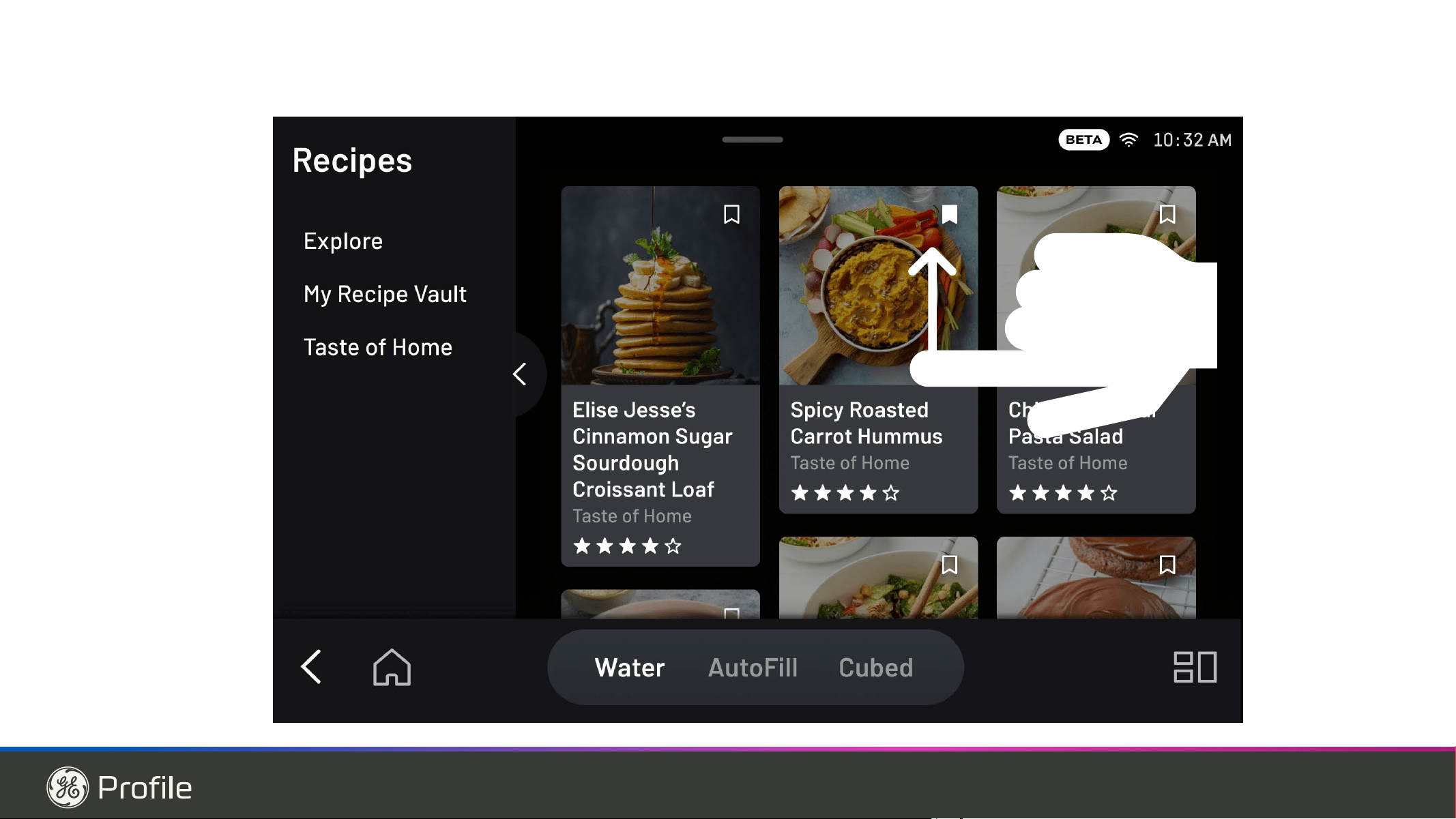
38 49-1000332 Rev. 10
Newer refrigerators sound different from older refrigerators.
Modern refrigerators have more features and use newer technology.
HUMMM...
WHOOSH...
Ŷ The new high efficiency compressor may run faster
and longer than your old refrigerator and you may
hear a high-pitched hum or pulsating sound while it
is operating.
Ŷ <RXPD\KHDUDZKRRVKLQJVRXQGZKHQWKHGRRUV
FORVH7KLVLVGXHWRSUHVVXUHHTXDOL]LQJZLWKLQWKH
refrigerator.
Ŷ $IWHUGLVSHQVLQJLFHDPRWRUZLOOFORVHWKHLFHFKXWH
to keep warn room air from entering the ice bucket,
PDLQWDLQLQJLFHDWDIUHH]LQJWHPSHUDWXUH
The hum of the motor closing the ice chute is
normal, shortly after dispensing ice.
Ŷ
You may hear the fans spinning at high speeds.
This happens when the refrigerator is first plugged
in, when the doors are opened frequently or when
a large amount of food is added to the refrigerator
RUIUHH]HUFRPSDUWPHQWV7KHIDQVDUHKHOSLQJWR
maintain the correct temperatures.
Ŷ
The fans change speeds in order to provide optimal
cooling and energy savings.
CLICKS, POPS,
CRACKS and SNAPS
Ŷ You may hear cracking or popping sounds when
the refrigerator is first plugged in. This happens as
the refrigerator cools to the correct temperature.
Ŷ The compressor may cause a clicking or chirping
sound when attempting to restart (this could take
up to 5 minutes).
Ŷ Expansion and contraction of cooling coils during
and after defrost can cause a cracking or popping
sound.
Ŷ On models with an ice maker, after an ice making
cycle, you may hear the ice cubes dropping into the
ice bucket.
Ŷ After dispensing ice, a motor will close the ice chute
to keep warm room air from entering the ice bucket,
PDLQWDLQLQJLFHDWDIUHH]LQJWHPSHUDWXUH
WATER SOUNDS
Ŷ The flow of refrigerant through the cooling coils may
make a gurgling noise like boiling water.
Ŷ Water dropping on the defrost heater can cause
DVL]]OLQJSRSSLQJRUEX]]LQJVRXQGGXULQJWKH
defrost cycle.
Ŷ A water dripping noise may occur during the defrost
cycle as ice melts from the evaporator and flows
into the drain pan.
Ŷ Closing the door may cause a gurgling sound due to
SUHVVXUHHTXDOL]DWLRQ
Do you hear what I hear? These conditions are normal.
START UP COOLING
It can take up to 24 hours for the refrigerator and
IUHH]HUWHPSHUDWXUHVWRPDWFKWKHGLVSOD\'XULQJWKDW
WLPHUHIULJHUDWRUDQGIUHH]HUGRRURSHQLQJVVKRXOGEH
PLQLPL]HG
TIPS
Ŷ )UHH]HUFRROVILUVW
Ŷ 5HIULJHUDWRUFRPSDUWPHQWFRROVODVWLWPD\WDNH
VHYHUDOKRXUVDIWHUWKHIUHH]HU
Ŷ 7XUQLQJRIILFHPDNHUPDNHVERWKUHIULJHUDWRUDQG
IUHH]HUIRRGFRROIDVWHU
Normal Operating Conditions.
TROUBLESHOOTING: Normal Operating Conditions
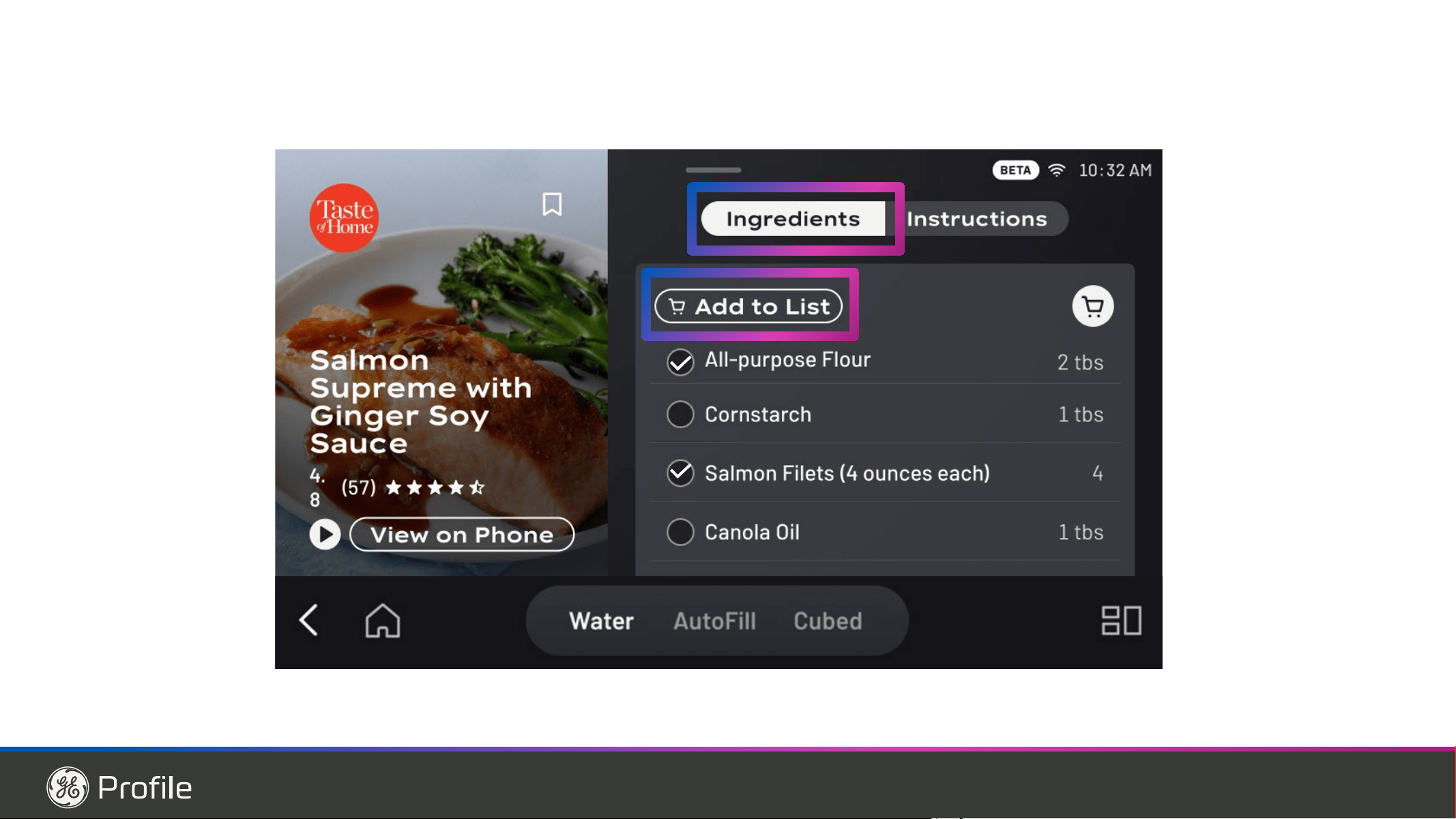
49-1000332 Rev. 10 39
6RPHPRGHOVGRQRWFRPHHTXLSSHGZLWKWKHILOWHUE\SDVVSOXJ7RREWDLQDIUHHE\SDVVSOXJFDOO%2'(:(//DQGUHTXHVW
:5;ILOWHUE\SDVVSOXJ,Q&DQDGDFDOO
Troubleshooting Tips... Before you call for service
Save time and money! Review the charts on the following pages first and you may not need to schedule service.
TROUBLESHOOTING TIPS
Problem Possible Causes What to Do
Not filtering )LOWHUE\SDVVLQVWDOOHG Install correct water filter
5HVHW:DWHU)LOWHU
:DWHU)LOWHU([SLUHG
Water filter leaking or needs replacing Replace water filter, or install filter bypass *
To reset filter timer, press the Settings (
) EXWWRQXQWLO³,FHPDNHU´LVKLJKOLJKWHG
then hold down the Water and Ice buttons
VLPXOWDQHRXVO\IRUVHFRQGV´
/HDN'HWHFWHGDW)LOWHU Water filter leaking or needs replacing. Replace water filter or install filter bypass
plug.
Water filter indicator light remains lit after
replacing filter
Water filter or bypass plug installed
backward or wrong filter installed.
Remove filter or bypass plug, rotate it 180
degrees and reinstall.
Water filter indicator light is not lit This is normal. This indicator will turn on
to tell you that you need to replace the
filter soon.
6HH:DWHU)LOWHUIRUPRUHLQIRUPDWLRQ
Handle is loose/handle has a gap. Handle needs adjusting See Installing the Refrigerator section for
detailed instructions.
Refrigerator beeping This is door alarm -Turn off or disable with door closed
-If door open and alarm is sounding, you
FDQRQO\VQRR]HWKHDODUP
Not cooling The cooling system is off See Controls.
Water has poor taste/odor Water dispenser has not been used for
a long time
'LVSHQVHZDWHUXQWLODOOZDWHULQV\VWHPLV
replenished.
Water in glass is warm Normal when refrigerator is first
installed
Wait 24 hours for the refrigerator to
completely cool down.
Water dispenser has not been used for
a long time
'LVSHQVHZDWHUXQWLODOOZDWHULQV\VWHPLV
replenished
Water system has drained Allow several hours for replenished
supply to chill
Water dispenser does not work Water supply line turned off or not
connected
See Installing the Water Line
Water filter clogged or filter/bypass plug
not installed
Replace filter cartridge or remove filter and
install bypass plug*
Air may be trapped in the water system Press the dispenser arm for at least 5
minutes.
:DWHULQUHVHUYRLULVIUR]HQEHFDXVHWKH
controls are set too cold
Set the refrigerator control to a warmer
setting and wait 24 hours. If the water does
not dispense after 24 hours, call for service
Water spurting from dispenser Newly installed filter cartridge Run water from the dispenser for 5
minutes (about 2 gallons)
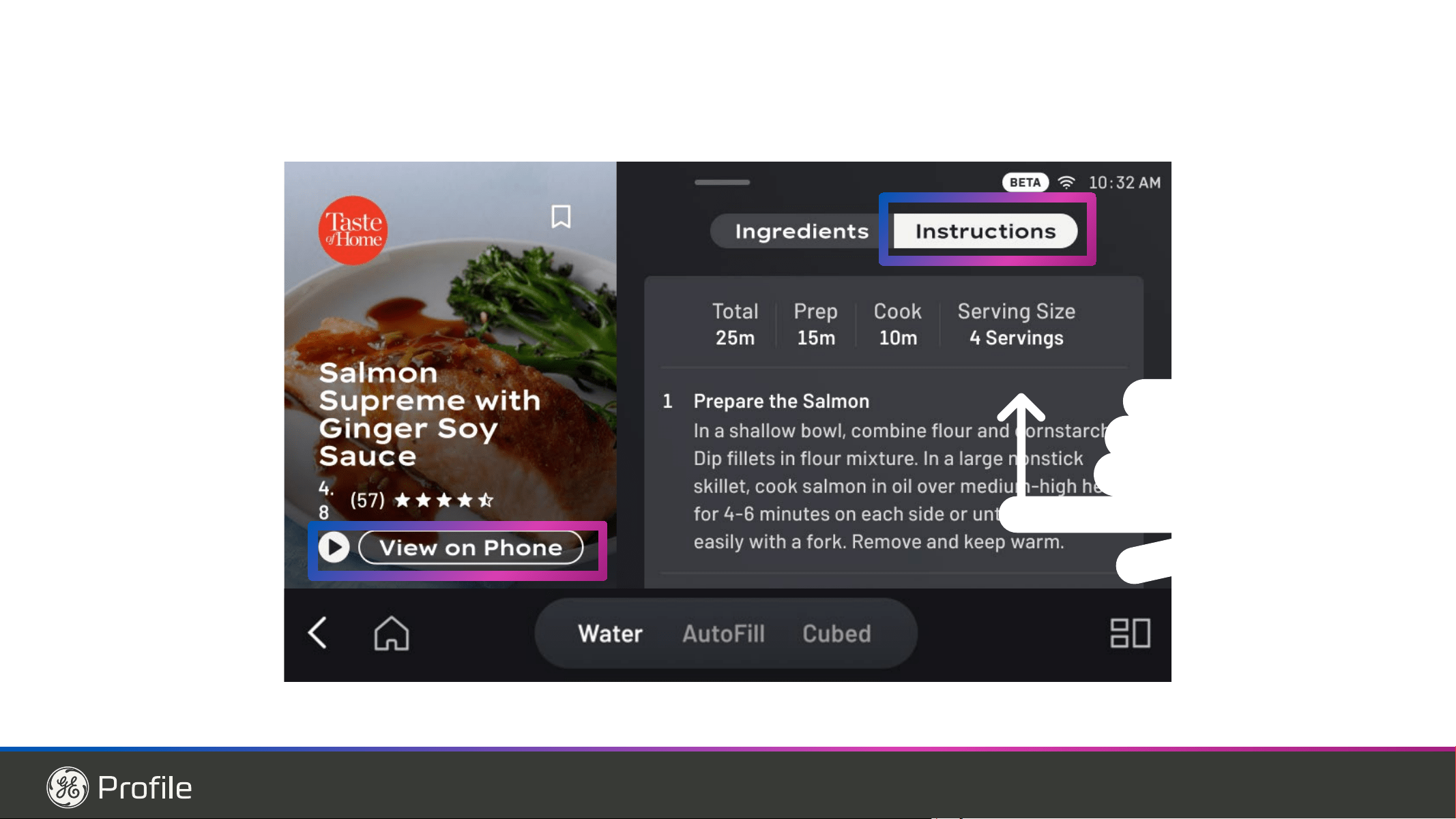
40 49-1000332 Rev. 10
Problem Possible Causes What to Do
No water or ice cube production Supply line or shutoff valve is clogged Call a plumber
Water filter is clogged Replace filter cartridge or remove filter and install
bypass plug*
)LOWHUFDUWULGJHQRWSURSHUO\LQVWDOOHG Remove and reinstall filter cartridge,
being certain that it locks in place.
Ice maker is turned off Check that the ice maker is turned on. See
Controls
Water is leaking from dispenser Air may be present in the water line system,
causing water to drip after being dispensed
'LVSHQVHZDWHUIRUDWOHDVWPLQXWHVWRUHPRYH
air from system
AUTO FILL under fill/no fill Not all containers work with AUTOFILL Try different container
If container is not stationary may result in error
or underfill.
8VDJHRIDFORJJHGRUH[SLUHGZDWHUILOWHU
See page 11
Clean sensor. See page 11.
AUTO FILL overfills Not all containers work with
AUTOFILL
Try different container
8VHOHVVLFH
Ensure hands are away from the cup prior to
SUHVVLQJWKH$XWR)LOONH\
Hands Free Precise Fill Not all containers work with
AUTOFILL
Try different container
8VHOHVVLFH
Ensure hands are away from the cup prior to
SUHVVLQJWKH$XWR)LOONH\
)UHH]HUFRROLQJUHIULJHUDWRUQRWFRROLQJ Normal, when refrigerator first plugged in or
after extended power outage
Wait 24 hours for temperature in both compartments
to reach selected temperatures.
,FHGLVSHQVHURSHQVDIWHUFORVLQJIUHH]HU
drawer
Normal The ice dispenser door may open after closing
IUHH]HUGRRUWRDOORZDFFHVV
My refrigerator door squeaks 'LPLQLVKHGOXEULFDQWEHFDXVHRIDFFLGHQWDO
cleaning of the lubricant on the hinge
It is best to order GEA lubricant service part
number
:5; and apply on the hinge at
specified location.
It is possible to spray some non-toxic lubricant
such as silicone based non-stick cooking spray,
SHWUROHXPMHOO\RU16)DSSURYHGIRRGJUDGH
lubricants.
IMPORTANT: 'RQRWXVH:'DVLWZLOOUHPRYH
any remaining grease in or around the hinge
Improper leveling Make sure the unit is leveled
If doors were removed and re-assembled
during installation process, waterliwne and/
harness under Top Hinge cover may get out
of position and rub against door while door
swivels.
Remove the Top Hinge cover and make sure the
waterline and harness that passes through the
hinge pin has been properly seated and does not
touch the any of the door parts during rotation.
Applying some food grade lubricant around door
thimble area will also help.
No item found after scanning Not all labels are compatible with scanner.
3RRUFRQQHFWLRQWR:L)L
• &KHFN:L)LVWUHQJWKRISKRQHQHDU
DSSOLDQFH5HVHW:L)L5HSRVLWLRQ:L)L
router.
Add shopping list item via Voice function.
5HVHW6%&8,XVHULQWHUIDFHZLWKFRQYHUWLEOH
GUDZHU8,PXOWLSUHVV
No scan is read Obstruction on scanner Clean Sensor. See Page 12(?)
Check position of label. See Page 12(?)
Troubleshooting Tips... Before you call for service
TROUBLESHOOTING TIPS
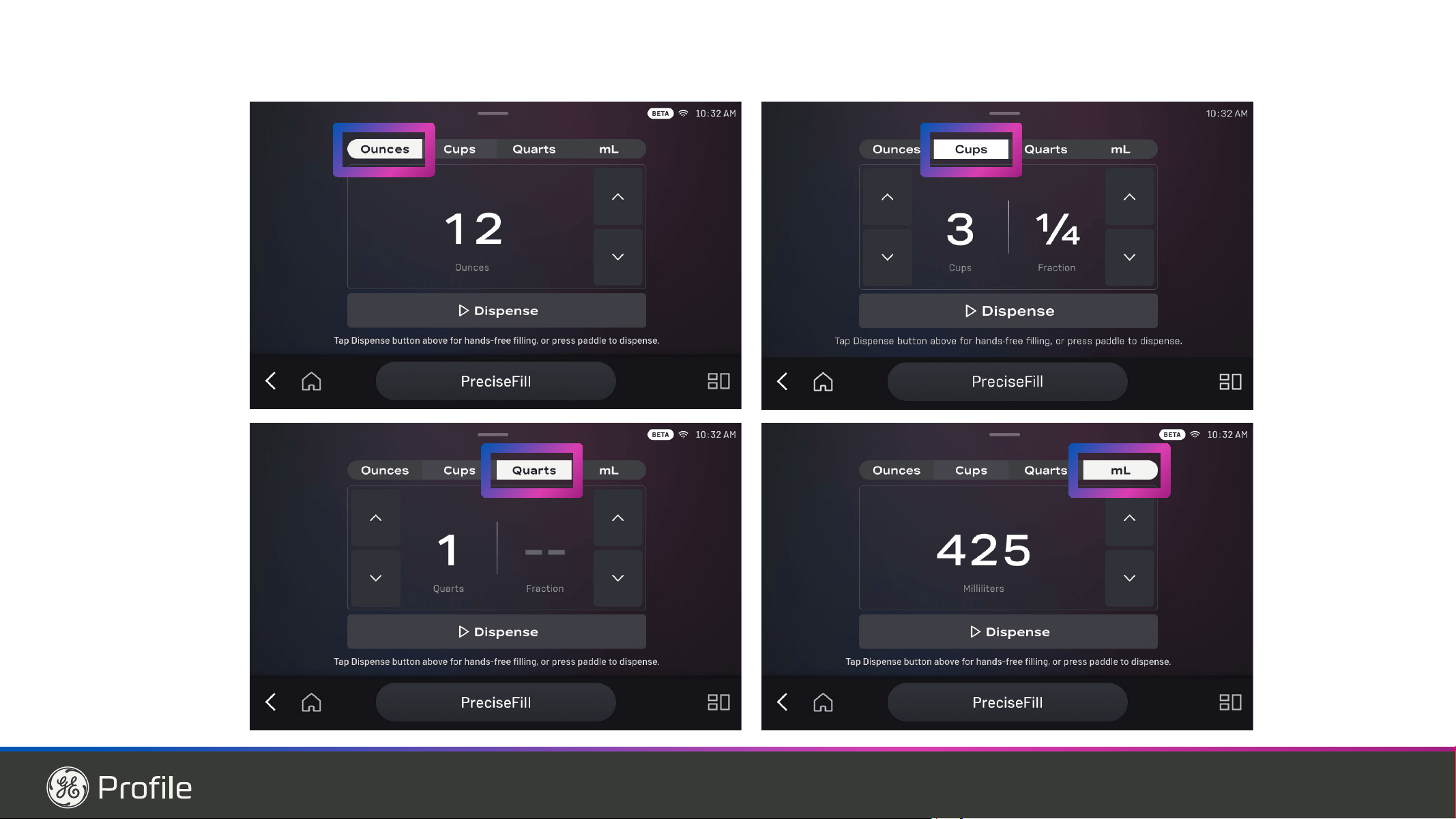
49-1000332 Rev. 10 41
Troubleshooting Tips... Before you call for service
TROUBLESHOOTING TIPS
Problem Possible Causes What to Do
'LVSOD\6KRZVLWHPQRWIRXQGZKHQ
scanning
Item not found in database. Attempt to rescan.
Scan a known compatible product.
Add item via Voice.
Add item manually from fridge or SmartHQ app.
%DUFRGH6FDQQHU,QGLFDWRU/('
not active
%DUFRGH6FDQQHU'LVDEOHG Enable from Settings Menu
,QGLFDWRU/('GLVDEOHG Enable from Settings Menu
Presence Sensing Issue See Presence Sensing Section
:L¿&RQQHFWLRQ 9HULI\ZL¿FRQQHFWLRQRQ'LVSOD\
Item does not scan (no response on
screen)
Label Not Supported Certain Barcode formats are not supported such
as QR.
Some manufacturer barcodes may not be in
supported database.
Add item via Voice.
Add via SmartHQ App
Ambient Lighting Increase lighting in kitchen or Activate the Recess
light and rescan.
Try changing label distance either further or closer to
VFDQQHUZLWKLQGLFDWRU/('VKLQLQJRQODEHO
/DEHOVL]H )RUVPDOOHUODEHOVPRYHFORVHU
)RUODUJHUODEHOVPRYHIXUWKHUDZD\
)RU&XUYHGVXUIDFHVDWWHPSWWRÀDWWHQODEHO
Attempt to reset unit via Multi-key
Label damage Inspect label for dirt, damage, curvature or crinkle.
5HÀHFWLYLW\ Check for glare on the label surface and remove/
obscure source of extra light
Orientation of label Move label so that widest area is presented towards
Bar Code Scanner Lens.
Adjust so that label is oriented around 45 degrees
from the display surface.
Try changing label distance either further or closer to
VFDQQHUZLWKLQGLFDWRU/('VKLQLQJRQODEHO
Lens Obstruction Check for any material obstruction the bar code
VFDQQHUOHQV:LSHJHQWO\ZLWKGDPSFORWK6HH8VH
and Care Cleaning Section
:L¿&RQQHFWLRQ Attempt to rescan.
9HULI\ZL¿FRQQHFWLRQRQ'LVSOD\
Software Lockup 5HVHWWKHXQLWE\XVLQJWKH&RQYHUWLEOH'UDZHU8,
2SHQGUDZHU8QORFN&RQWURODQGKROG0HDWDQG
Snacks keys simultaneously for 3 seconds. All con-
trols in unit should reset.
'RRUV2SHQ Ensure all doors are closed for scanner to be active.
:URQJ,WHP'LVSOD\HG 'DWDEDVHXVHVWKHVDPHSURGXFWQXPEHUIRU
multiple items
Attempt to rescan.
Attempt to change orientation and distance of label
before rescan.
Add Item Via Voice or SmartHQ.
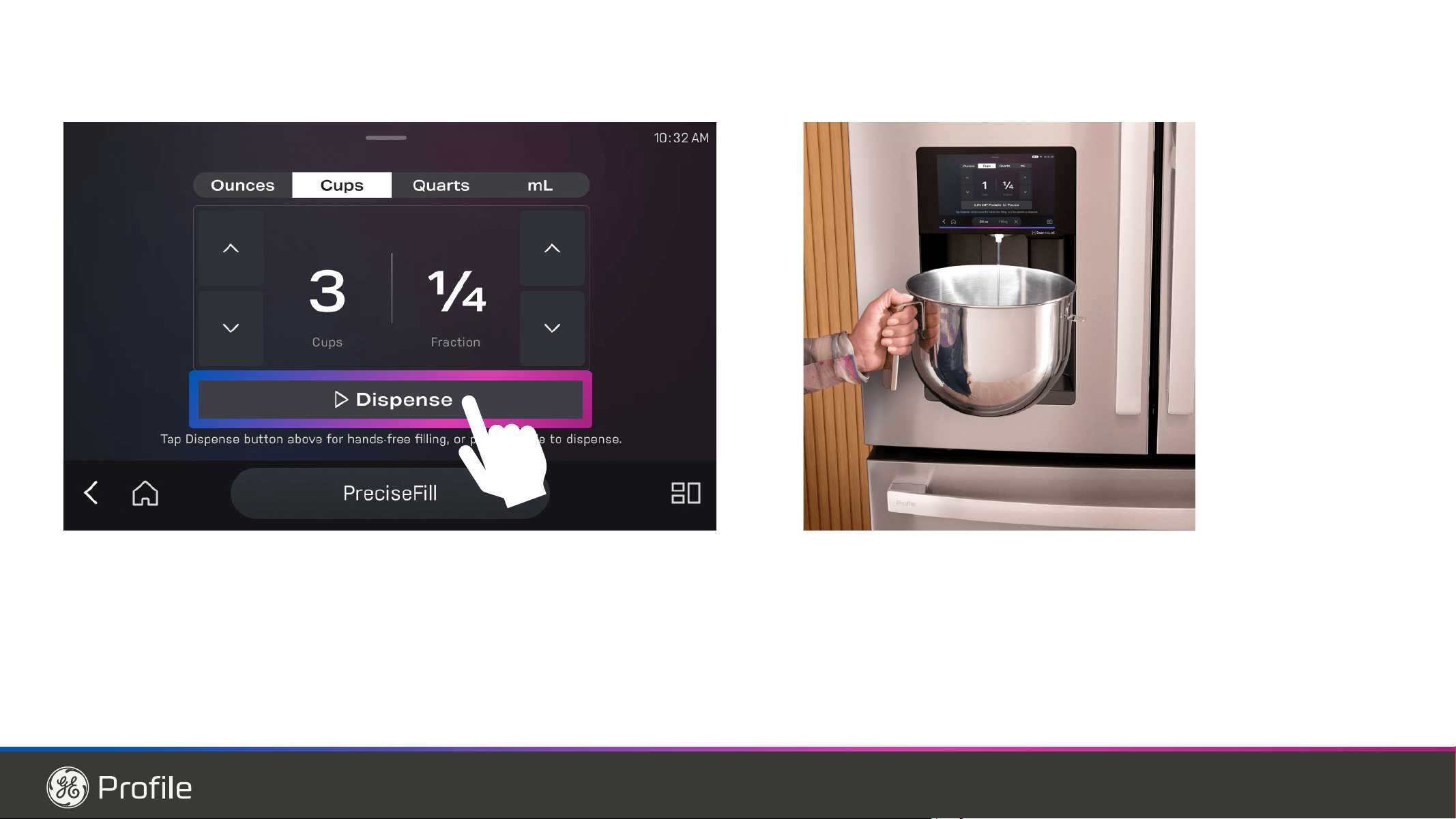
42 49-1000332 Rev. 10
TROUBLESHOOTING TIPS
Troubleshooting Tips... Before you call for service
Problem Possible Causes What to Do
)ULGJH)RFXVFDPHUDLPDJHVDUHQRWVKRZLQJ
up in the SmartHQ app
Check the state of the camera shutter Open the shutter or remove obstructions
Check for camera position and obstructions Adjust camera and any intervening items
to give best view of drawers
Remaining packing material Remove all packing material from drawers
that could onbstruct the silver trim of the
&ULVSHU'UDZHUV
Check for lens cleanliness :LSHJHQWO\ZLWKGDPSFORWK6HH8VHDQG
Care Cleaning Section
&DPHUD'LVDEOHG Ensure that camera is enabled in Settings
Menu
'XUDWLRQ Generally having drawers open for 4-5
seconds will give best results for drawer
images. Open door for 10 seconds, open
crisper for 20 seconds, close everything,
wait for few minutes and check SmartHQ
to see if images are shown.
:L¿&RQQHFWLRQ 9HULI\ZL¿FRQQHFWLRQRQ'LVSOD\
&KHFN:L¿6LJQDO6WUHQJWKLQ6HWWLQJV
Menu. <-90 db may result in poor perfor-
mance
Additionally verify that your SmartHQ app
shows that your unit is connected to your
account.
No audible noise Settings Check that speaker is enabled and
increase volume from settings menu.
'LVWRUWHGDXGLR Settings Check that speaker are enabled and
increase volume from settings menu.
Obstruction Check that no obstruction or material is on
speaker surface.
Software Lockup Reset the unit by using the Convertible
'UDZHU8,2SHQGUDZHU8QORFN&RQWURO
and hold Meat and Snacks keys simulta-
neously for 3 seconds. All controls in unit
should reset.
1RUHVSRQVHWRWRXFKVFUHHQRUVFUHHQIUR]HQ Software lockup Reset the unit by using the Convertible
'UDZHU8,2SHQGUDZHU8QORFN&RQWURO
and hold Meat and Snacks keys simulta-
neously for 3 seconds. All controls in unit
should reset.
5HFHVV/LJKW'LVSOD\$LPLQJ/('GRQRW
activate when I'm in front of the unit
Obstructing item Long Term presence of an object (such as
DNLWFKHQLVODQGRUWDOOFKDLUZLWKLQ
of front of unit may cause the presence
sensing algorithm to be disabled. Move the
obstructing object and algorithm should
reset within ~8 hours.
7RXFKWKHVFUHHQDQGWKH$LPLQJ/('
should activate
Material Certain clothing materials/colors may be
PRUHGLႈFXOWWRGHWHFW6XFKDVGDUN
URXJKÀHHFH
3UHFLVH¿OO6WRSVSUHPDWXUHO\ Container positioning 6HH$XWR¿OO6HFWLRQ
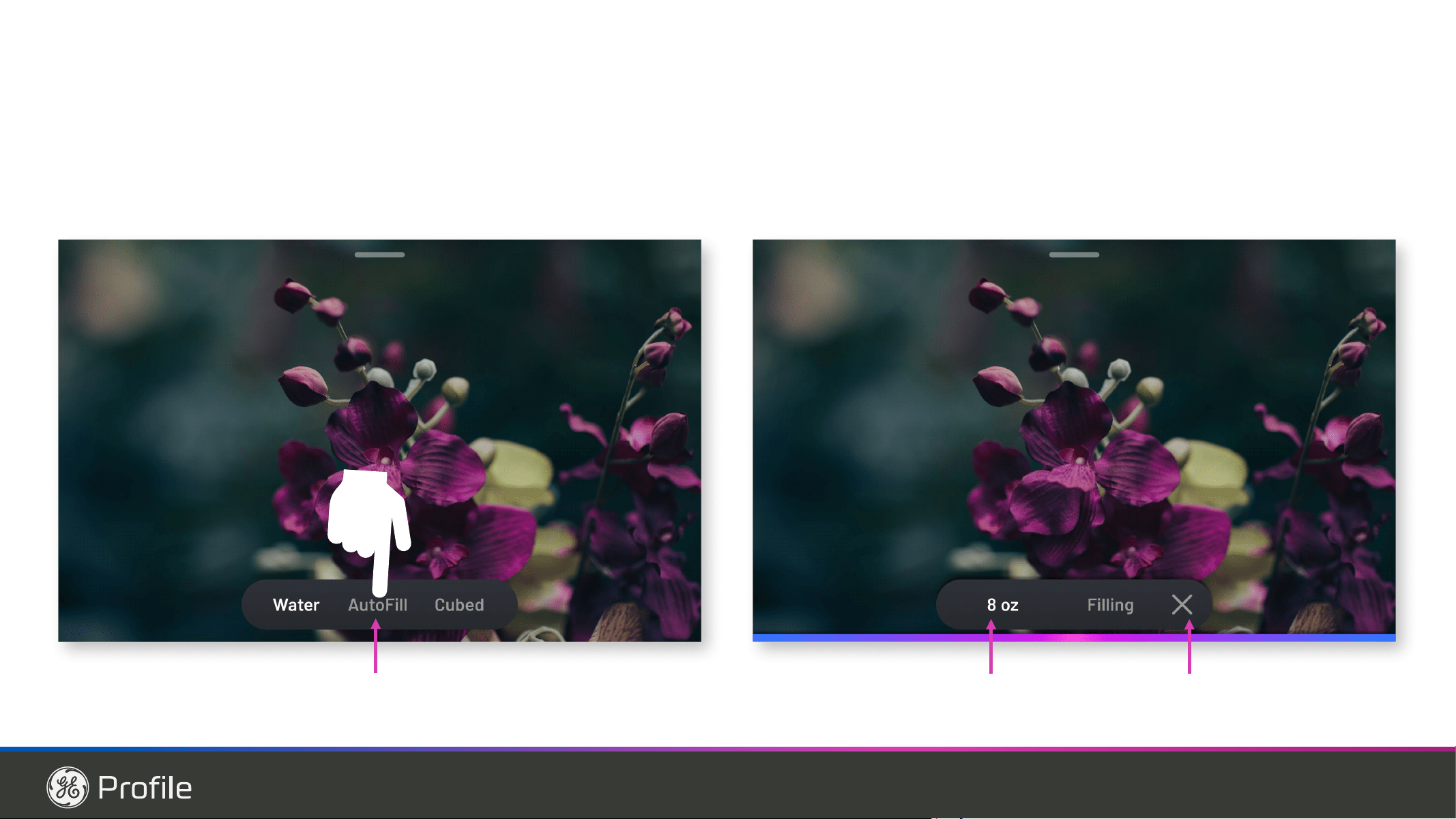
49-1000332 Rev. 10 43
Truth or Myth? Answer Explanation
The refrigerator water filter may require
replacement, even though the filter indicator
KDVQRWWXUQHGUHGRUUHDGV³)LOWHU([SLUHG´
758( The water filter indicator will indicate the need to replace the water
filter every six months. Water quality varies from city to city; if water
flow from the dispenser slows, or ice production decreases, the
water filter should be replaced, even though the filter indicator may
not indicate the need for replacement.
The automatic ice maker in my refrigerator will
produce ice when the refrigerator is plugged
in to a power receptacle.
MYTH The refrigerator must be connected to water, and the ice maker
must be turned on. Make sure the ice maker is turned on, only after
the water line is connected and water is turned on. The ice maker
can be turned on/off from the controls and ensure the ice maker is
on, as indicated on the refrigerator control panel. See Automatic Ice
Maker section in the full owner’s manual available online.
After the refrigerator has been plugged in and
connected to water, I will immediately have
unlimited chilled water available from the water
dispenser.
MYTH The water dispenser tank located inside the refrigerator stores water
for dispensing. The water in this tank requires 24 hours to chill after
installation. High usage conditions will not allow time for the water
to chill.
After water dispenses, a few drops of water
are normal.
758( A few drops of water may fall from the dispenser, after the dispenser
SDGGOHKDVEHHQUHOHDVHG7RPLQLPL]HWKHGURSVUHPRYHWKHJODVV
slowly from the dispenser.
,ZLOOQHYHUVHHIURVWLQVLGHWKHIUHH]HU
compartment.
MYTH )URVWLQVLGHWKHIUHH]HUW\SLFDOO\LQGLFDWHVWKDWWKHGRRULVQRW
properly sealed, or has been left open. If frost is found, clear the
frost using a plastic spatula and towel, then check to ensure that no
IRRGSDFNDJHVRUFRQWDLQHUVDUHSUHYHQWLQJWKHIUHH]HUGRRUIURP
closing. Check the refrigerator control panel to ensure the door
alarm is on.
When the refrigerator is installed, or after
replacing the water filter, I must dispense
water for five minutes.
758(
A newly installed refrigerator or water filter contains air in the water
lines. Press the dispenser paddle and dispense cold water for at
least 5 minutes to remove air from the water line, and flush the filter.
To fill the ice bucket to the maximum capacity,
I should dispense 12 and 18 hours after
installation.
758( 'LVSHQVLQJFXEHVKRXUVDQGKRXUVDIWHULQVWDOODWLRQ
allows ice to disperse within the ice bucket, which in turns calls on
the ice maker to produce additional ice. Normal ice production = 100
cubes in 24 hours.
I can use the water filter bypass plug to
determine if the filter requires replacement.
758( 'HFUHDVHLQIORZIURPWKHZDWHUGLVSHQVHURUGHFUHDVHGLFH
production, may indicate the need to replace the water filter. Install
the water filter bypass plug (provided with the refrigerator on some
models*), and check flow from the dispenser. If water flow returns to
normal with the bypass plug in place, replace the water filter.
The top of the refrigerator doors will always be
aligned.
MYTH Several things can affect the refrigerator door alignment, including
the floor the refrigerator is installed on and loading of doors. If the
WRSRIWKHUHIULJHUDWRUGRRUVDUHQRWDOLJQHGXVHD´DOOHQZUHQFK
to adjust the right/left hand door. The adjustment screw is located
on the bottom right or left hand side of the door. Refrigerator doors
VKRXOGEHRSHQGXULQJKHLJKWDGMXVWPHQW2SHQWKHIUHH]HUGRRUWR
access the screw. See Step 8.
Refrigerator door handles can be easily
tightened.
758( If door handles are loose or have a gap, the handle can be adjusted
XVLQJD´DOOHQZUHQFKRQVHWVFUHZVORFDWHGRQWKHHQGVRIWKH
handles.
There may be odor and taste problems with
your ice.
758( After starting the ice maker throw away 24 hours of ice production to
avoid odor and taste problems.
I can make fine adjustments to the
5HIULJHUDWRU'RRUVWRDOLJQWKHP
758(
,IWKHUHIULJHUDWRUGRRUVDUHQRWDOLJQHGXVHD´$OOHQZUHQFKWR
adjust the right hand door. The adjustment screw is located on the
ERWWRPRIWKHULJKWGRRU2SHQWKHIUHH]HUGRRUWRDFFHVV6HHVWHS
Truth or Myth
Truth or Myth
SERVICE
Before you call for service, review the detailed troubleshooting tips in the Owner’s manual.
If needed, service can be scheduled by visiting us online GEAppliances.com or calling
800.GE.CARES 800.432.2737. In Canada visit GEAppliances.ca or call 800.561.3344.
TROUBLESHOOTING TIPS/TRUTH OR MYTH
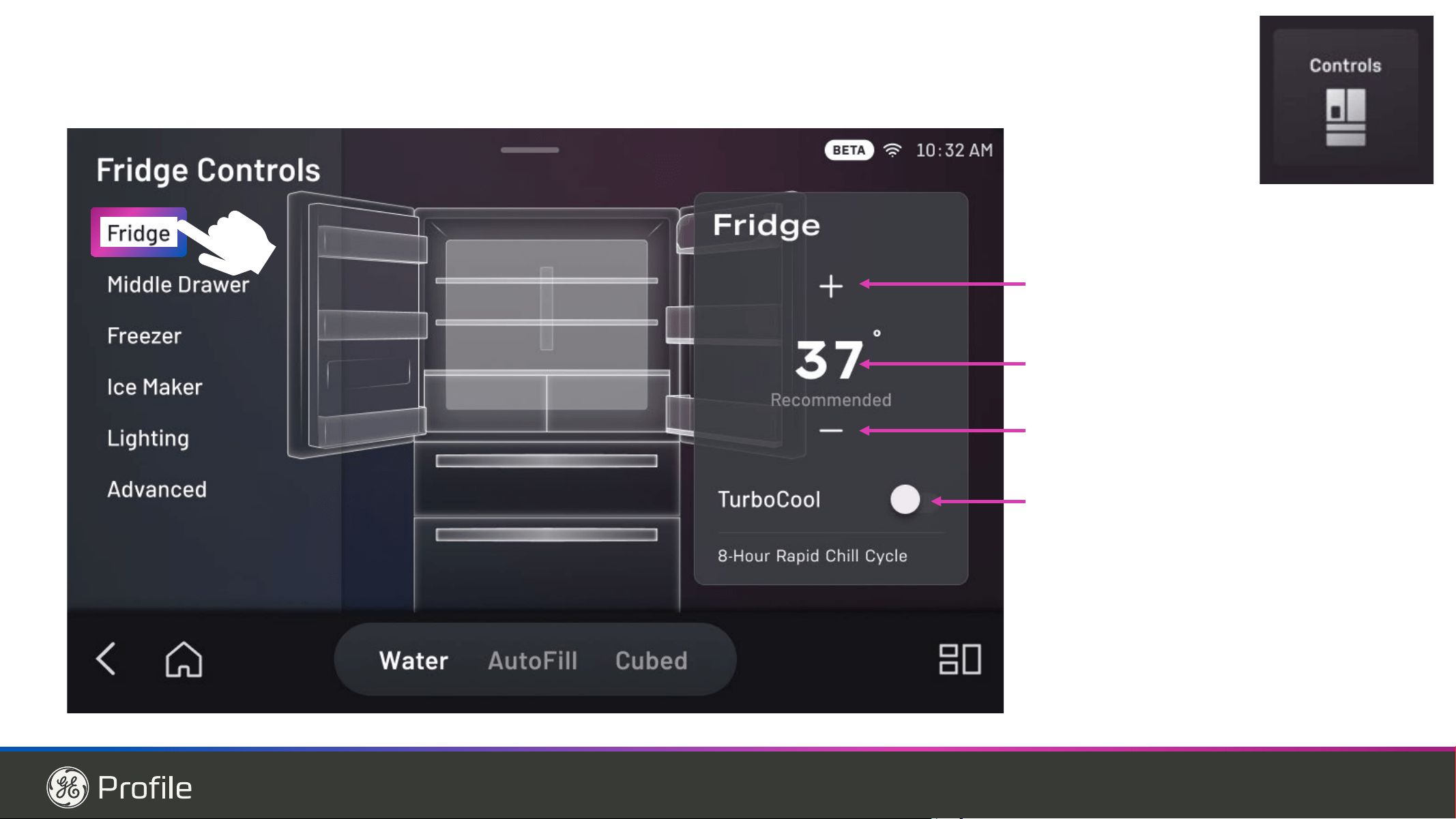
44 49-1000332 Rev. 10
TROUBLESHOOTING TIPS/TRUTH OR MYTH
Truth or Myth
SERVICE
Before you call for service, review the detailed troubleshooting tips in the Owner’s manual.
If needed, service can be scheduled by visiting us online GEAppliances.com or calling
800.GE.CARES 800.432.2737. In Canada visit GEAppliances.ca or call 800.561.3344.
Truth or Myth? Answer Explanation
'RRUKDQGOHVVKRXOGDOZD\VEHUHPRYHGIRU
installation.
MYTH Check chart on reverse side of this instruction. If the
doors must be removed do not remove the handles, or
if the refrigerator will fit easily through the passage way
opening. Adjust handles that are loose or have a gap,
E\DGMXVWLQJ´VHWVFUHZVRQHLWKHUHQGRIKDQGOHV
'RRUUHPRYDOLVDOZD\VUHTXLUHGIRU
installation.
MYTH &KHFNFKDUWRQUHYHUVHVLGHRIWKLVLQVWUXFWLRQ'RRUV
should only be removed when necessary to prevent
damage from passage way or access to final location.
Refrigerator doors will self-close if left open.
MYTH Refrigerator doors need to be closed by consumer.
A gentle bounce back is a designed feature on some
models that gives a positive feedback to the user so that
they can initiate and complete the door closing action.
There is an adjustment to rear wheels. MYTH )URQWOHYHOLQJOHJVDUHDGMXVWDEOHDQGVKRXOGEHXVHGWR
balance the refrigerator. Leveling legs are used to make
initial refrigerator door adjustment.
Check for leaks after all water connections
are made.
758( While purging the air from the water system, check all
water line connections for leaks. Check the connection
to the household water supply at back of refrigerator,
and door water line connect.
Any packaging residue can be cleaned off the
refrigerator using any cleaner.
MYTH 'RQRWXVHZD[SROLVKEOHDFKRURWKHUSURGXFWV
containing chlorine on Stainless Steel panels, door
KDQGOHVDQGWULP&KHFNWKLVLQVWUXFWLRQXQGHU³&OHDQLQJ
WKH2XWVLGH´IRUIXOOGHWDLOV
6RPHPRGHOVGRQRWFRPHHTXLSSHGZLWKWKHILOWHUE\SDVVSOXJ7RREWDLQDIUHHE\SDVVSOXJFDOO%2'(:(//DQGUHTXHVW
:5;ILOWHUE\SDVVSOXJ,Q&DQDGDFDOO
Truth or Myth
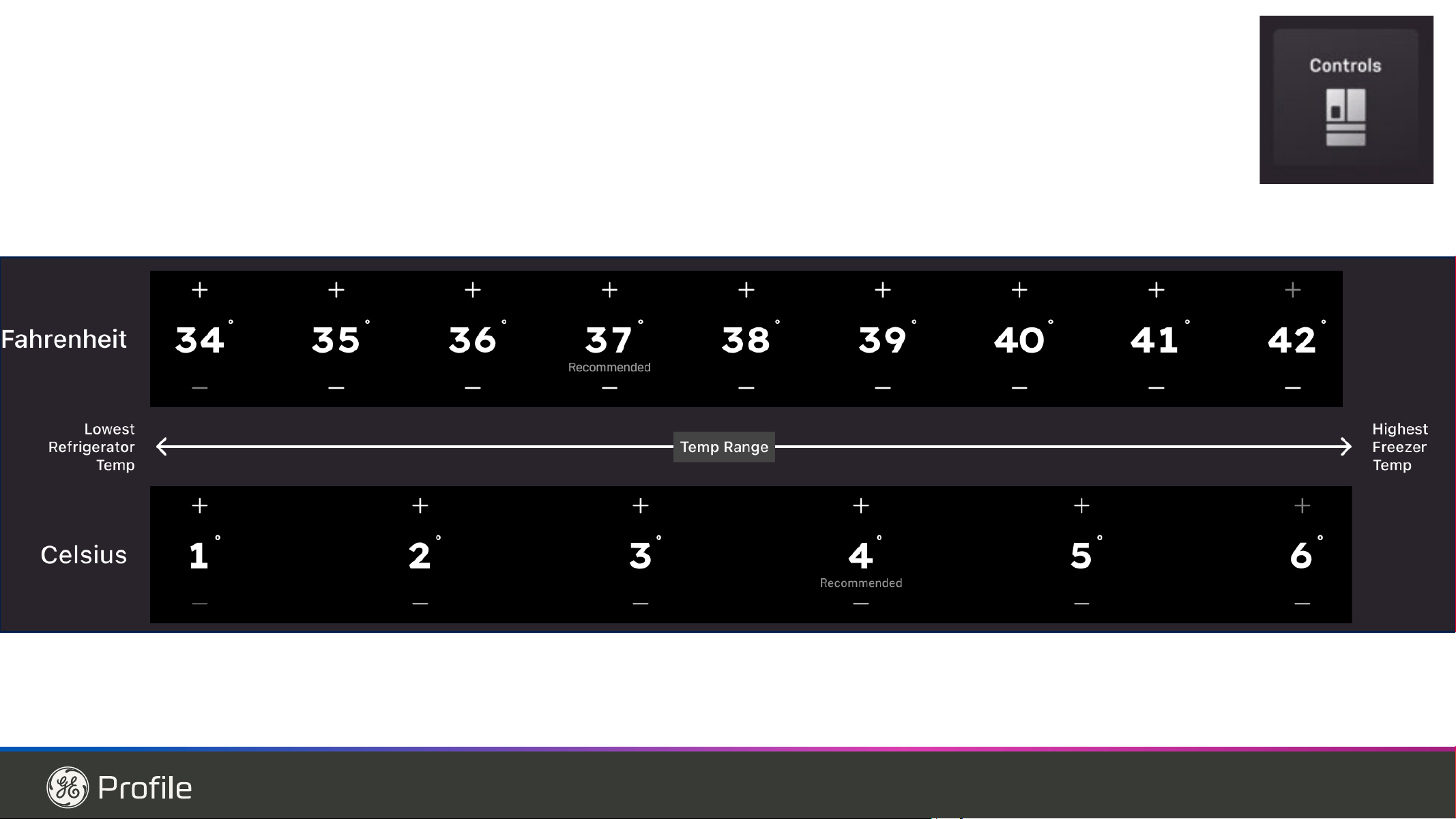
49-1000332 Rev. 10 45
LIMITED WARRANTY
Staple your receipt here. Proof of the original purchase
date is needed to obtain service under the warranty.
Ŷ Service trips to your home to teach you how to use the
product.
Ŷ ,PSURSHULQVWDOODWLRQGHOLYHU\RUPDLQWHQDQFH
Ŷ )DLOXUHRIWKHSURGXFWLILWLVDEXVHGPLVXVHGRUXVHGIRU
other than the intended purpose or used commercially.
Ŷ /RVVRIIRRGGXHWRVSRLODJH
Ŷ 5HSODFHPHQWRIKRXVHIXVHVRUUHVHWWLQJRIFLUFXLW
breakers.
Ŷ 'DPDJHWRILQLVKVXFKDVVXUIDFHUXVWWDUQLVKRUVPDOO
blemishes not reported within 48 hours of delivery.
Ŷ 5HSODFHPHQWRIWKHZDWHUILOWHUFDUWULGJHLILQFOXGHGGXH
to water pressure that is outside the specified operating
range or due to excessive sediment in the water supply.
Ŷ 5HSODFHPHQWRIWKHOLJKWEXOEVLILQFOXGHGRUZDWHUILOWHU
cartridge, if included, other than as noted above.
Ŷ 'DPDJHWRWKHSURGXFWFDXVHGE\DFFLGHQWILUHIORRGVRU
acts of God.
Ŷ ,QFLGHQWDORUFRQVHTXHQWLDOGDPDJHFDXVHGE\SRVVLEOH
defects with this appliance.
Ŷ3URGXFWQRWDFFHVVLEOHWRSURYLGHUHTXLUHGVHUYLFH
Ŷ'DPDJHFDXVHGE\DQRQ*($SSOLDQFHV%UDQGZDWHU
filter.
What GE Appliances Will Not Cover:
For the Period of: GE Appliances Will Replace
One Year
)URPWKHGDWHRIWKHRULJLQDO
purchase
Any part of the refrigerator which fails due to a defect in materials or workmanship.
'XULQJWKHlimited one-year warranty, GE Appliances will also provide, free of charge, all
labor and related service to replace the defective part.
Thirty Days
(Water filter, if included)
)URPWKHRULJLQDOSXUFKDVH
date of the refrigerator
Any part of the water filter cartridge which fails due to a defect in materials or workmanship.
'XULQJWKLV limited thirty-day warranty, GE Appliances will also provide, free of charge, a
replacement water filter cartridge.
GE PROFILE™ MODELS ONLY
Five Years
)URPWKHGDWHRIWKHSXUFKDVH
Any part of the sealed refrigerating system (the compressor, condenser, evaporator an all
connecting tubing) which fails due to a defect in materials or workmanship.
'XULQJWKLVOimited five-year sealed refrigerating system warranty, GE Appliances will also
provide, free of charge, all labor and related service to replace the defective part in the sealed
refrigerating system.
GEAppliances.com
For US Customers, DOOZDUUDQW\VHUYLFHLVSURYLGHGE\RXU)DFWRU\6HUYLFH&HQWHUVRUDQDXWKRUL]HG&XVWRPHU&DUH
®
technician. To
schedule service online, visit us at geappliances.comRUFDOO*($SSOLDQFHVDW%2'(:(//3OHDVHKDYH\RXU
serial number and your model number available when calling for service.
In Canada, call 800.661.1616.
GE Appliances Refrigerator Limited Warranty
EXCLUSION OF IMPLIED WARRANTIES
Your sole and exclusive remedy is product repair as provided in this Limited Warranty. Any implied warranties, including the implied
warranties of merchantability or fitness for a particular purpose, are limited to one year or the shortest period allowed by law.
For US Customers: This limited warranty is extended to the original purchaser and any succeeding owner for products purchased
IRUKRPHXVHZLWKLQWKH86$,IWKHSURGXFWLVORFDWHGLQDQDUHDZKHUHVHUYLFHE\D*($SSOLDQFHV$XWKRUL]HG6HUYLFHULVQRW
DYDLODEOH\RXPD\EHUHVSRQVLEOHIRUDWULSFKDUJHRU\RXPD\EHUHTXLUHGWREULQJWKHSURGXFWWRDQ$XWKRUL]HG*($SSOLDQFHV
Service location for service. In Alaska, the limited warranty excludes the cost of shipping or service calls to your home.
Some states do not allow the exclusion or limitation of incidental or consequential damages. This warranty gives you specific
legal rights, and you may also have other rights which vary from state to state. To know what your legal rights are, consult your
local or state consumer affairs office or your state’s Attorney General.
Warrantor: GE Appliances, a Haier company Louisville, KY 40225
In Canada (including the province of Québec): This limited warranty is extended to the original purchaser and any
succeeding owner for products purchased in Canada including Québec for home use within Canada including Québec. If the
SURGXFWLVORFDWHGLQDQDUHDZKHUHVHUYLFHE\D*($SSOLDQFHV$XWKRUL]HG6HUYLFHULVQRWDYDLODEOH\RXPD\EHUHVSRQVLEOHIRU
DWULSFKDUJHRU\RXPD\EHUHTXLUHGWREULQJWKHSURGXFWWRDQ$XWKRUL]HG*($SSOLDQFHV6HUYLFHORFDWLRQ
Some provinces including Québec do not allow the exclusion or limitation of incidental or consequential damages. This limited
warranty gives you specific legal rights, and you may also have other rights which vary from province to province including
Québec. To know what your legal rights are, consult your local or provincial consumer affairs office.
For Québec consumers only - Notice on the warranty of availability of spare parts, repair services and information
necessary for repair or maintenance (s. 39 of the Consumer Protection Act): Please be advised that MC Commercial Inc.
³0&&RPPHUFLDO´GRHVQRWJXDUDQWHHZLWKLQWKHPHDQLQJRIVHFWLRQRIWKH&RQVXPHU3URWHFWLRQ$FW&4/5F3
and sections 79.18 to 79.20 of the Regulation respecting the application of the Consumer Protection Act, CQLR, c P-40.1, r.
3, the availability of replacement parts, repair services, or the information necessary for the maintenance or repair of goods
manufactured, imported, advertised, or sold by MC Commercial.
Please note that MC Commercial Inc. continues to offer the manufacturer’s limited warranty as stated in the Owner’s Manual or
Quick Guide, and that this limited warranty is distinct from the statutory warranty of availability provided for under section 39 of
the Consumer Protection Act.
Warrantor: MC Commercial Inc., Burlington, ON, L7L 6B2
Servicing your refrigerator may require the use of the onboard data port for diagnostics. This gives a GE Appliances
Factory Service technician the ability to quickly diagnose any issues with your appliance and helps GE Appliances improve
its products by providing GE Appliances with information on your appliance. If you do not want your appliance data to be
sent to GE Appliances, please advise your technician NOT to submit the data to GE Appliances at the time of service.
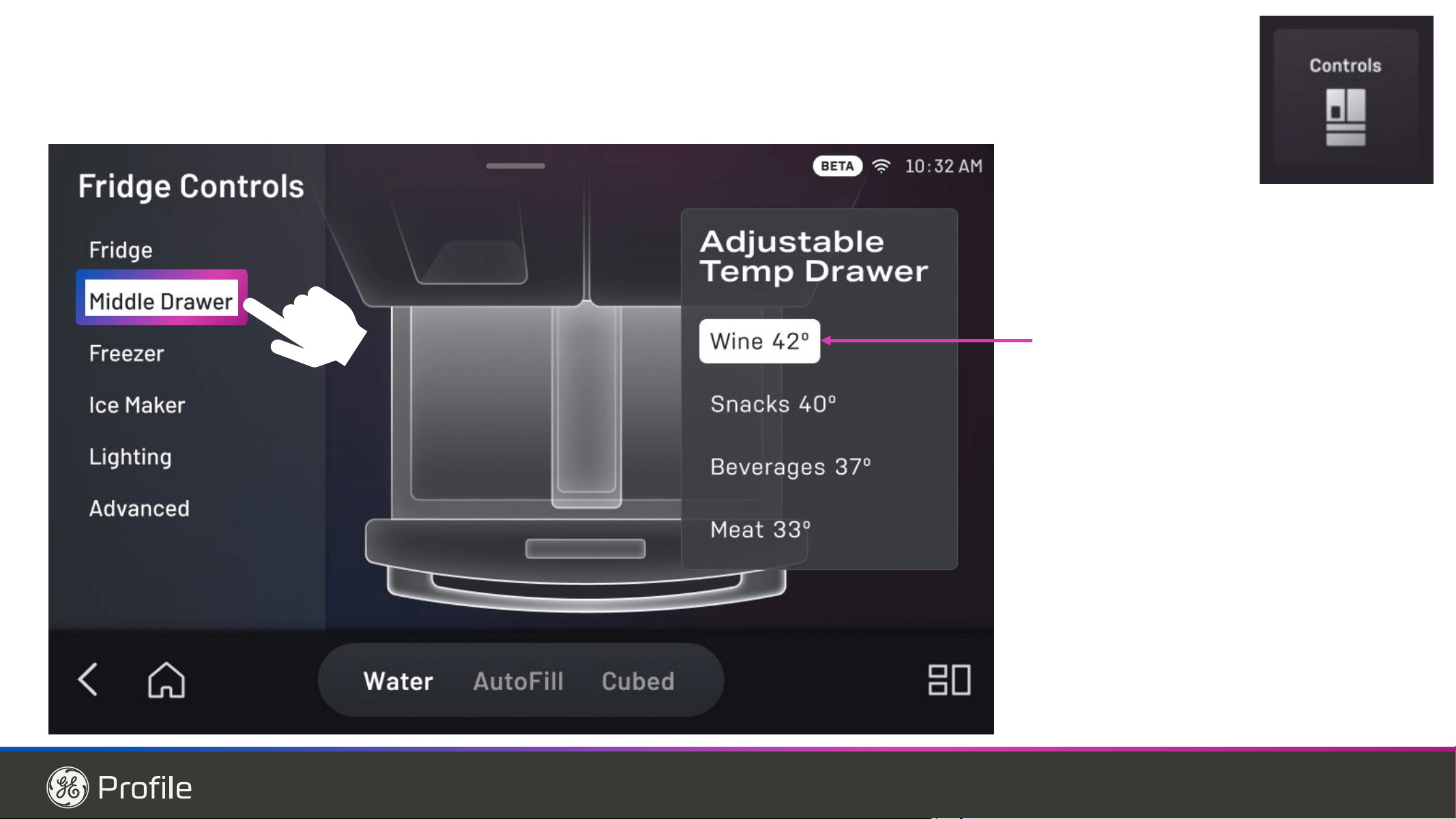
46 49-1000332 Rev. 10
* If your GE Appliances part fails because of a manufacturing defect within thirty days from the date of original purchase for use, we will give you
a new or, at our option, a rebuilt part without charge. Return the defective part to the parts supplier from whom it was purchased together with a
FRS\RIWKH³SURRIRISXUFKDVH´IRUWKHSDUW,IWKHSDUWLVGHIHFWLYHDQGVKRZVQRVLJQVRIDEXVHLWZLOOEHH[FKDQJHG7KHZDUUDQW\GRHVQRW
cover the failure of parts which are damaged while in your possession, are abused, or have been installed improperly. It does not cover the cost
of returning the part to the supplier from whom it was purchased nor does it cover the cost of labor to remove or install it to diagnose the fault. It
does not cover parts used in products in commercial use except in the case of air conditioning equipment. In no event shall GE Appliances be
liable for consequential damages. Warrantor: GE Appliances, a Haier company
Seller:
Name
Address
City State Zip
Signature 'DWH
Buyer:
Name
Address
City State Zip
Signature 'DWH
What GE Appliances will not cover:
Ŷ Service trips to your home to teach you how to use the product.
Ŷ Improper installation.
Ŷ )DLOXUHRIWKHSURGXFWLILWLVDEXVHGPLVXVHGXVHGIRURWKHUWKDQWKHLQWHQGHGSXUSRVHRUXVHGFRPPHUFLDOO\
Ŷ Replacement of house fuses or resetting of circuit breakers.
Ŷ 'DPDJHWRWKHSURGXFWFDXVHGE\DFFLGHQWILUHIORRGVRUDFWVRI*RG
Ŷ Incidental or consequential damage caused by possible defects with this appliance.
XWFE Water Filter Cartridge Limited Warranty
This warranty is extended to the original purchaser and any succeeding owner for products purchased for home use
ZLWKLQWKH86$,Q$ODVNDWKHZDUUDQW\H[FOXGHVWKHFRVWRIVKLSSLQJRUVHUYLFHFDOOVWR\RXUKRPH
Some states do not allow the exclusion or limitation of incidental or consequential damages. This warranty gives you
specific legal rights, and you may also have other rights which vary from state to state. To know what your legal rights
are, consult your local or state consumer affairs office or your state’s Attorney General.
For Purchases Made In Iowa: This form must be signed and dated by the buyer and seller prior to the
consummation of this sale.
This form should be retained on file by the seller for a minimum of two years.
For the period of GE Appliances will replace
Thirty Days
)URPWKHGDWH
of the original
purchase
Any part of the water filter cartridge which fails due to a defect in materials
or workmanship during this limited thirty-day warranty.*
Contact us at geapplianceparts.com, or call 800.GE.CARES.
EXCLUSION OF IMPLIED WARRANTIES
Your sole and exclusive remedy is part exchange as provided in this Limited Warranty. Any implied warranties,
including the implied warranties of merchantability or fitness for a particular purpose, are limited to six months or
the shortest period allowed by law.
Staple your receipt here. Proof of the original purchase
date is needed to obtain service under the warranty.
XWFE Water Filter Cartridge:Limited Wrranty
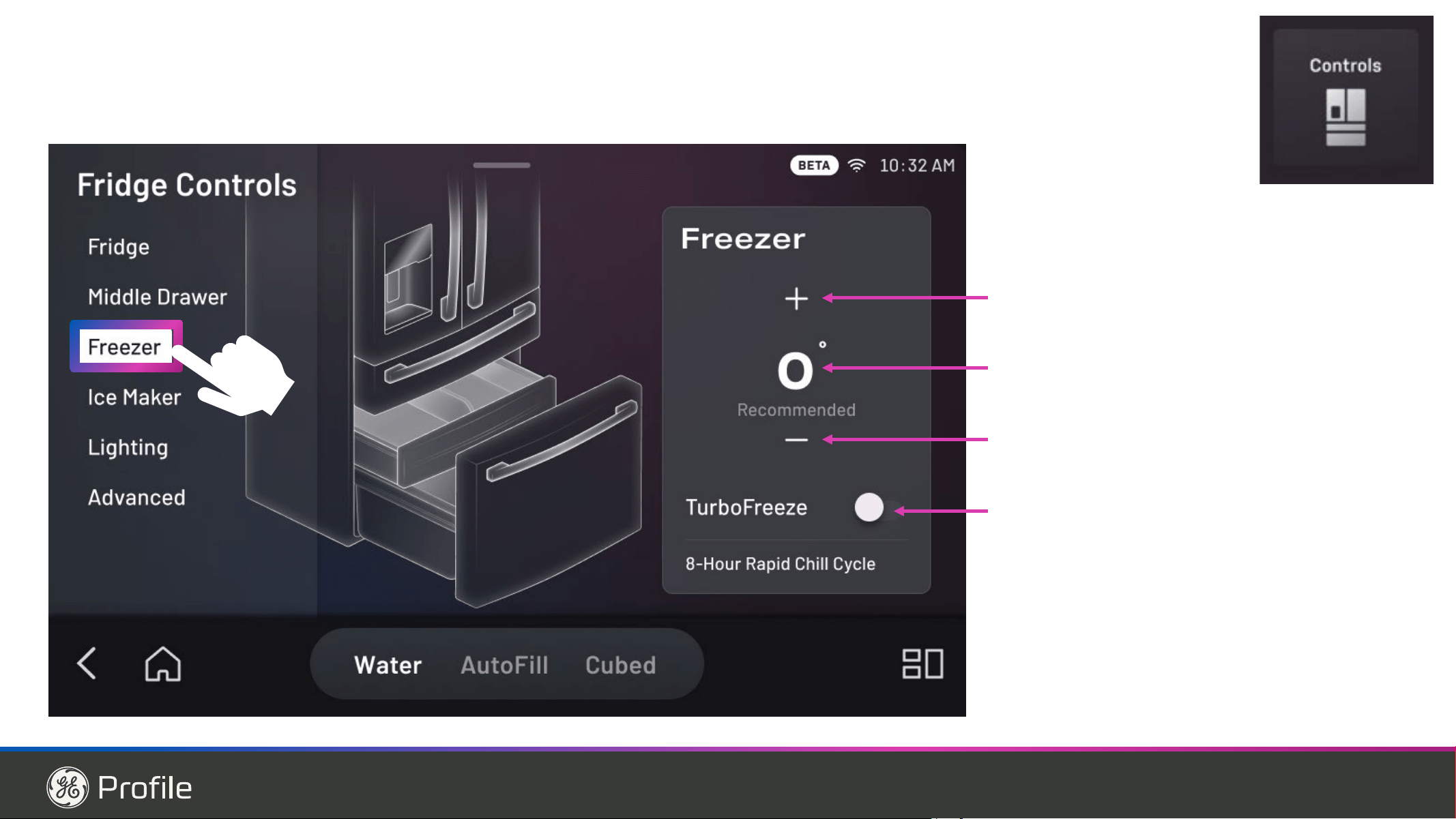
49-1000332 Rev. 10 47
Performance Data Sheet
Model: GE Appliances XWFE
Ŷ6\VWHPFHUWLILHGE\,$30257DJDLQVW16)$16,6WDQGDUGVDQG3IRUWKHUHGXFWLRQRIFODLPVVSHFLILHGRQWKH
performance data sheet and at iapmort.org.
Ŷ$FWXDOSHUIRUPDQFHPD\YDU\ZLWKORFDOZDWHUFRQGLWLRQV
It is essential that the manufacturer’s recommended installation,
maintenance and filter replacement requirements be carried out for the
product to perform as advertised. See Installation Manual for Warranty
information.
Application Guidelines/Water Supply Parameters
6HUYLFH)ORZ 0.5 gpm (1.89 lpm)
Water Supply Potable Water
Water Pressure 25-120 psi (172-827 kPa)
Water Temperature ))&&
Capacity 170 gallons (643.5 liters)
Substance Tested for Reduction
Influent challenge
concentration
(mg/L)
Maximum permissible
product water
concentration (mg/L)
Avg %
Reduction
Chlorine Taste and Odor 2.0 mg/L +/- 10% N/A 96.9
Chloramine Taste and Odor 3.0 mg/L +/- 10% 0.5 96.9
Particulate, Class I At least 10,000/mL N/A 91.4
Cysts 50,000/L N/A >99.99
Lead 0.15 0.01 98.85
Mercury 0.006 0.002 96.3
Asbestos 107 to 108 fibers/ L N/A >99
Toxaphene 0.015 +/- 10% 0.003 86.95
VOC (Chloroform surrogate chemical) 0.300 0.015 99.7
Alachlor 0.050 0.001 > 98
$WUD]LQH 0.100 0.003 > 97
%HQ]HQH 0.081 0.001 > 99
Carbofuran 0.190 0.001 > 99
carbon tetrachloride 0.078 0.0018 98
FKORUREHQ]HQH 0.077 0.001 > 99
chloropicrin 0.015 0.0002 99
' 0.110 0.0017 98
GLEURPRFKORURSURSDQH'%&3 0.052 0.00002 > 99
R'LFKORUREHQ]HQH 0.08 0.001 > 99
S'LFKORUREHQ]HQH 0.040 0.001 > 98
1,2-dichloroethane 0.088 0.0048 95
1,1-dichloroethylene 0.083 0.001 > 99
cis-1,2-dichloroethylene 0.170 0.0005 > 99
trans-1,2-dichloroethylene 0.086 0.001 > 99
1,2-dichloropropane 0.080 0.001 > 99
cis-1,3-dichloropropylene 0.079 0.001 > 99
dinoseb 0.170 0.0002 99
Endrin 0.053 0.00059 99
(WK\OEHQ]HQH 0.088 0.001 > 99
HWK\OHQHGLEURPLGH('% 0.044 0.00002 > 99
bromochloroacetonitrile 0.022 0.0005 98
dibromoacetonitrile 0.024 0.0006 98
dichloroacetonitrile 0.0096 0.0002 98
trichloroacetonitrile 0.015 0.0003 98
1,1-dichloro-2-propanone 0.0072 0.0001 99
1,1,1-trichloro-2-propanone 0.0082 0.0003 96
heptachlor (H-34, Heptox) 0.025 0.00001 >99
heptachlor epoxide 0.0107 0.0002 98
hexachlorobutadiene 0.044 0.001 > 98
hexachlorocyclopentadiene 0.060 0.000002 > 99
Lindane 0.055 0.00001 > 99
methoxychlor 0.050 0.0001 > 99
pentachlorophenol 0.096 0.001 > 99
VLPD]LQH 0.120 0.004 > 97
Styrene 0.150 0.0005 > 99
1,1,2,2-tetrachloroethane 0.081 0.001 > 99
Tetrachloroethylene 0.081 0.001 > 99
Toluene 0.078 0.001 > 99
2,4,5-TP (silvex) 0.270 0.0016 99
tribromoacetic acid 0.042 0.001 > 98
7ULFKORUREHQ]HQH 0.160 0.0005 > 99
1,1,1-trichloroethane 0.084 0.0046 95
1,1,2-trichloroethane 0.150 0.0005 > 99
trichloroethylene 0.180 0.0010 > 99
bromoform 0.300 0.015 95
bromodichloromethane 0.300 0.015 95
chlorodibromomethane 0.300 0.015 95
xylenes 0.070 0.001 >99
Meprobamate 400 +/- 20% 60 95.5
Atenolol 200 +/- 20% 30 95.9
&DUEDPD]HSLQH 1400 +/- 20% 200 98.6
'((7 1400 +/- 20% 200 98.6
Metolachlor 1400 +/- 20% 200 98.7
Trimethoprim 140 +/- 20% 20 96.1
Linuron 140 +/- 20% 20 96.6
TCEP 5000 +/- 20% 700 98.1
TCPP 5000 +/- 20% 700 98.1
Phenytoin 200 +/- 20% 30 96
Ibuprofen 400 +/- 20% 60 95.9
Naproxen 140 +/- 20% 20 96.5
Estrone 140 +/- 20% 20 97.1
Bisphenol A 2000 +/- 20% 300 99.1
Nonyl phenol 1400 +/- 20% 200 97.3
NOTE: While the testing was performed under standard
laboratory conditions, actual performance may vary.
5HSODFHPHQW&DUWULGJH;:)()RUHVWLPDWHGFRVWV
of replacement elements please visit our website at
gewaterfilters.com.
WARNING
To reduce the risk associated with
ingestion of contaminants:
• Do not use with water that is microbiologically unsafe
or of unknown quality without adequate disinfection
before and after the system. Systems certified for cyst
reduction may be used on disinfected water that may contain
filterable cysts.
NOTICE
To reduce the risk of water leakage or flooding, and to
ensure optimal filter performance:
• Read and follow use instructions before installation and
use of this system.
• Installation and use MUST comply with all state and local
plumbing codes.
• Do not install if water pressure exceeds 120 psi (827
kPa). If your water pressure exceeds 80 psi (552 kPa), you
must install a pressure-limiting valve. Contact a plumbing
professional if you are uncertain how to check your water
pressure.
• Do not install where water hammer conditions may occur.
If water hammer conditions exist you must install a water
hammer arrester. Contact a plumbing professional if you are
uncertain how to check for this condition.
• Do not install on hot water supply lines. The maximum
RSHUDWLQJZDWHUWHPSHUDWXUHRIWKLVILOWHUV\VWHPLV)
(38º C).
• Protect filter from freezing. 'UDLQILOWHUZKHQWHPSHUDWXUHV
GURSEHORZ)&
• Change the disposable filter cartridge every six months or
sooner if you observe a noticeable reduction in water flow
rate.
)DLOXUHWRUHSODFHWKHGLVSRVDEOHILOWHUFDUWULGJHDW
recommended intervals may lead to reduced filter
performance and cracks in the filter housing, causing water
leakage or flooding.
7KLV6\VWHPKDVEHHQWHVWHGDFFRUGLQJWR16)$16,
53, 401, and P473 for the reduction of the substances listed
below. The concentration of the indicated substances in
water entering the system was reduced to a concentration
less than or equal to the permissible limit for water leaving
WKHV\VWHPDVVSHFLILHGLQ16)$16,DQG3
XWFE System is certified by IAPMO R&T
against NSF/ANSI Standards 42, 53,
401, and P473 for the reduction of claims
specified on the performance data sheet and
at iapmort.org.
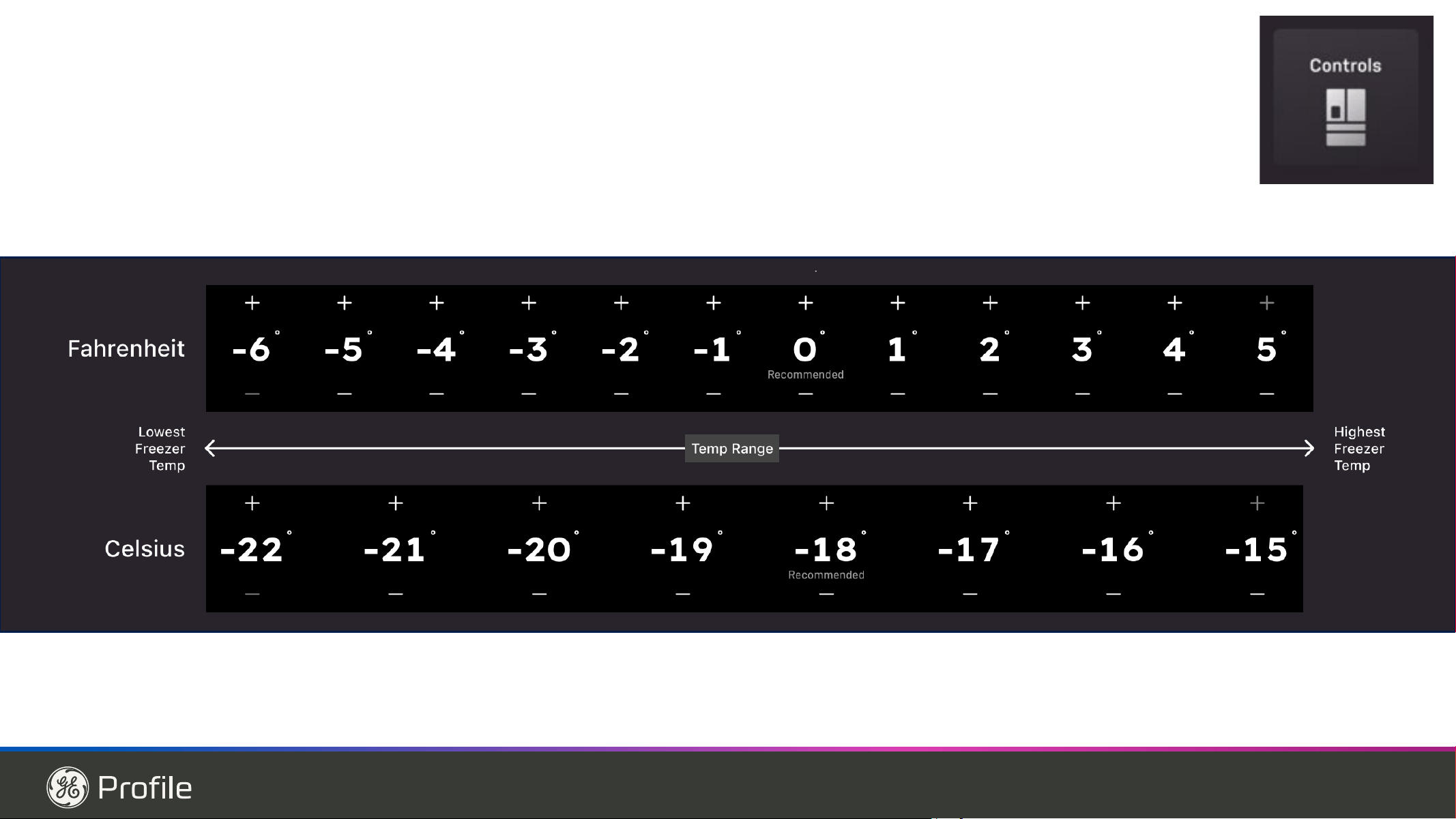
48 49-1000332 Rev. 10
CONSUMER SUPPORT
Consumer Support
GE Appliances Website
Have a question or need assistance with your appliance? Try the GE Appliances Website 24 hours a day, any day of the year!
You can also shop for more great GE Appliances products and take advantage of all our on-line support services designed for
\RXUFRQYHQLHQFH,QWKH86GEAppliances.com In Canada: GEAppliances.ca
Register Your Appliance
Register your new appliance on-line at your convenience! Timely product registration will allow for enhanced communication and
prompt service under the terms of your warranty, should the need arise. You may also mail in the pre-printed registration card
included in the packing material.
,QWKH86GEAppliances.com/register
In Canada: GEAppliances.ca/after-sales-support
Schedule Service
Expert GE Appliances repair service is only one step away from your door. Get on-line and schedule your service at your
FRQYHQLHQFHDQ\GD\RIWKH\HDU,QWKH86bodewell.com/schedule-repair-service RUFDOO%2'(:(//
during normal business hours.
In Canada: GEAppliances.ca/parts-filters-accessories or call 800.561.3344
Extended Warranties
Purchase a GE Appliances extended warranty and learn about special discounts that are available while your warranty is still
LQHIIHFW<RXFDQSXUFKDVHLWRQOLQHDQ\WLPH*($SSOLDQFHV6HUYLFHVZLOOVWLOOEHWKHUHDIWHU\RXUZDUUDQW\H[SLUHV,QWKH86
bodewellcareplan.com RUFDOO%2'(:(//GXULQJQRUPDOEXVLQHVVKRXUV
In Canada: GEAppliances.ca/purchase-extended-warranty or call 866.277.9842.
Parts and Accessories
Individuals qualified to service their own appliances can have parts or accessories sent directly to their homes
9,6$0DVWHU&DUGDQG'LVFRYHUFDUGVDUHDFFHSWHG2UGHURQOLQHWRGD\KRXUVHYHU\GD\
,QWKH86bodewell.com/schedule-repair-serviceRUE\SKRQHDW%2'(:(//GXULQJQRUPDOEXVLQHVVKRXUV
Instructions contained in this manual cover procedures to be performed by any user. Other servicing generally should
be referred to qualified service personnel. Caution must be exercised, since improper servicing may cause unsafe
operation.
Customers in Canada should consult the yellow pages for the nearest Mabe service center, visit our website at
GEAppliances.ca/parts-filters-accessories or call 800.661.1616.
Contact Us
If you are not satisfied with the service you receive from GE Appliances, contact us on our Website with all the details including
your phone number, or write to:
,QWKH86*HQHUDO0DQDJHU&XVWRPHU5HODWLRQV_*($SSOLDQFHV$SSOLDQFH3DUN_/RXLVYLOOH.<
GEAppliances.com/contact or call 800.626.2000.
,Q&DQDGD'LUHFWRU&XVWRPHU5HODWLRQV_0&&RPPHUFLDO,QF_%XUORDN'U6XLWH_%XUOLQJWRQ21//%
GEAppliances.ca/contact-us or call 877.994.5366.
3ULQWHGLQ8QLWHG6WDWHV
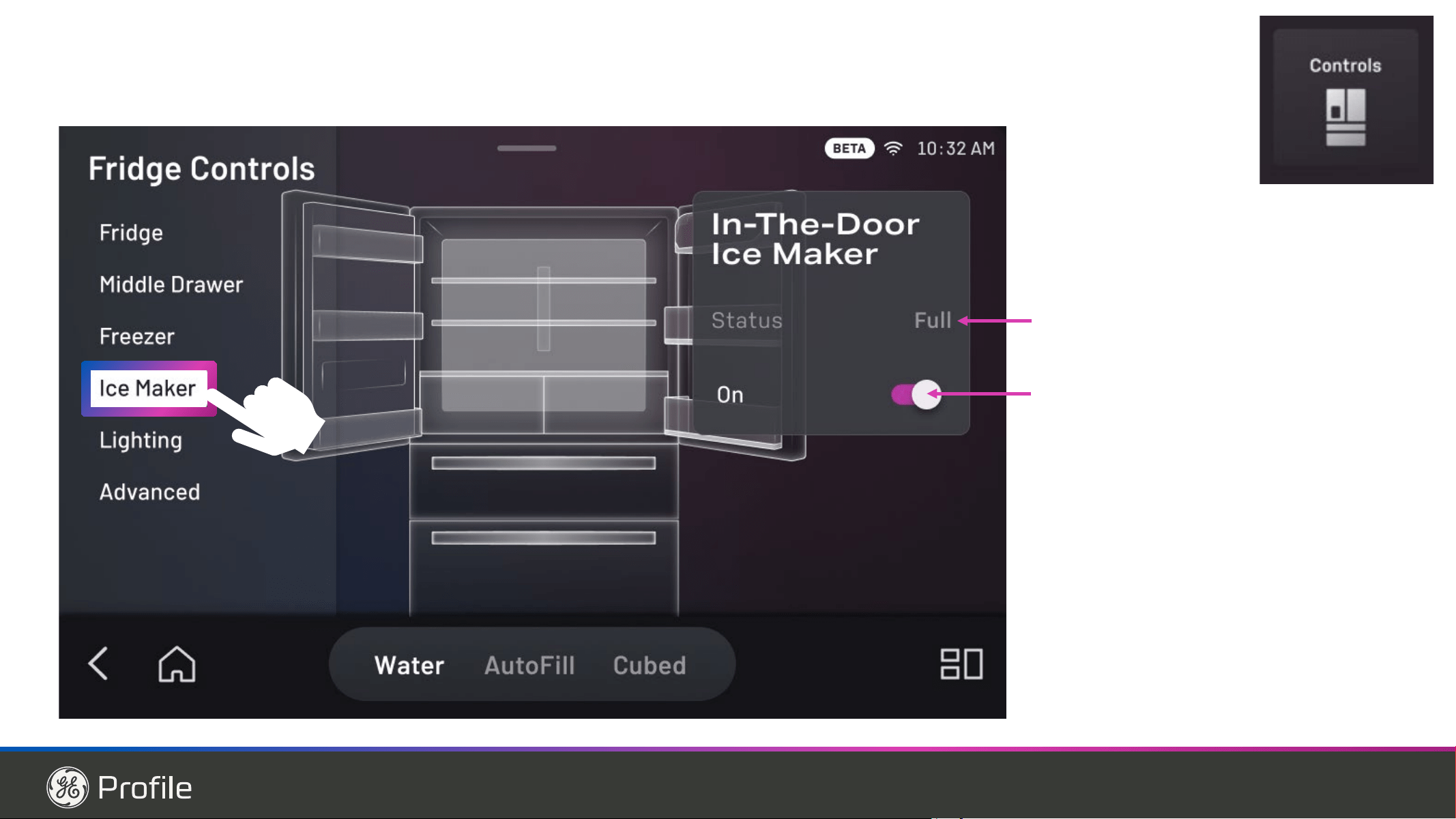
*Modèles sélectionnés seulement
FRANÇAIS
49-1000332 Rev. 10 03-26
Modelos PVD et PXD
Manuel d’utilisation
et d’installation
RÉFRIGÉRATEURS
Congélateur au bas
MESURES DE SÉCURITÉ ........ 3
CONSIGNES D’UTILISATION
Fonctions ............................ 6
Commandes .........................10
Distributeur ..........................12
Autofill* (Remplissage automatique) ....12
Communications des électroménagers . .13
Réponse à la demande ................14
Filtre à eau ..........................15
Stockage des produits frais ............16
Rangement à contrôle climatique .......18
Tiroir convertible .....................18
Congélateur ..........................19
Machine à glaçons automatique .......20
ENTRETIEN ET NETTOYAGE . . 21
Remplacement des ampoules ......... 22
INSTRUCTIONS
D’INSTALLATION
Préparation avant installation
du réfrigérateur ..................... 23
Installation du réfrigérateur ...........26
Installation de l’alimentation en eau .... 35
CONSEILS DE DÉPANNAGE .... 38
Bruits normaux de fonctionnement ....38
conseils de dépannages ..............39
Entretien - Mythe ou réalité ............41
GARANTIE LIMITÉE ............43
SOUTIEN
AU CONSOMMATEUR
Certificat de garantie du filtre à eau à
cartouche XWFE ....................44
Données de performance .............45
Assistance à la clientèle ..............48
Écrivez ici le numéro de modèle et
le numéro de série :
Modèle # ________________
Série # __________________
Vous les trouvez sur une étiquette
dans le coin supérieur gauche du
compartiment réfrigérateur.
GE est une marque déposée de General Electric Company. Fabriqué sous licence de marque.
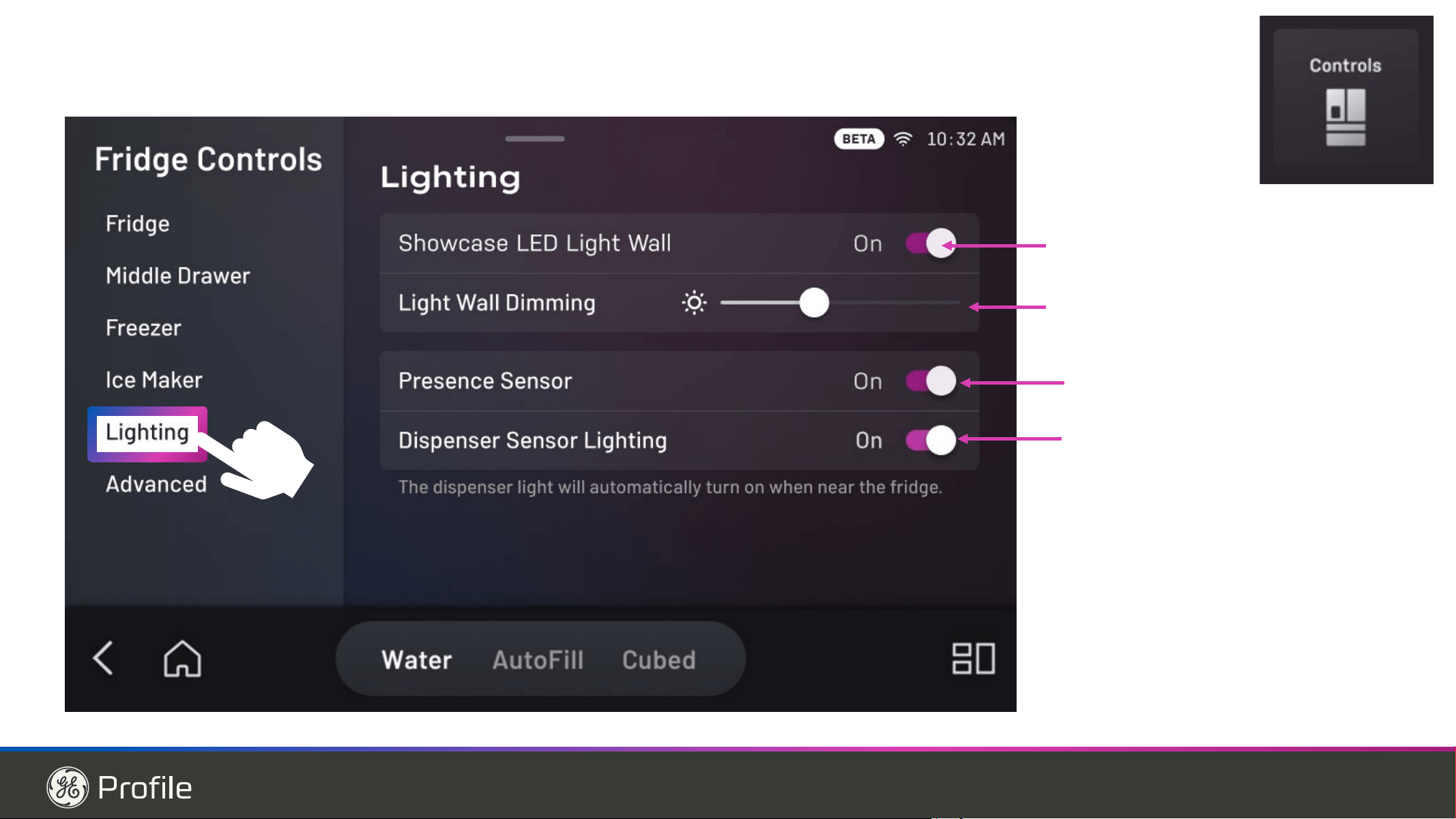
2 49-1000332 Rev. 10
NOUS VOUS REMERCIONS D’ACCUEILLIR GE APPLIANCES CHEZ VOUS
Que vous ayez grandi avec GE Appliances ou qu’il s’agisse de votre première acquisition, nous
sommes heureux de vous accueillir dans notre famille.
Nous sommes fiers du savoir-faire, de l’innovation et de l’esthétique qui composent chaque appareil
GE Appliances, et nous pensons que vous le serez aussi. Dans cette optique, nous vous rappelons
que l’enregistrement de votre électroménager vous assure la communication de renseignements
importants sur le produit et la garantie lorsque vous en avez besoin.
Enregistrez votre électroménager GE en ligne dès maintenant. Des sites Web et des numéros de
téléphone utiles figurent dans la section Soutien au consommateur de ce manuel d’utilisation.
Vous pouvez aussi poster la fiche de garantie pré-imprimée incluse dans l’emballage.
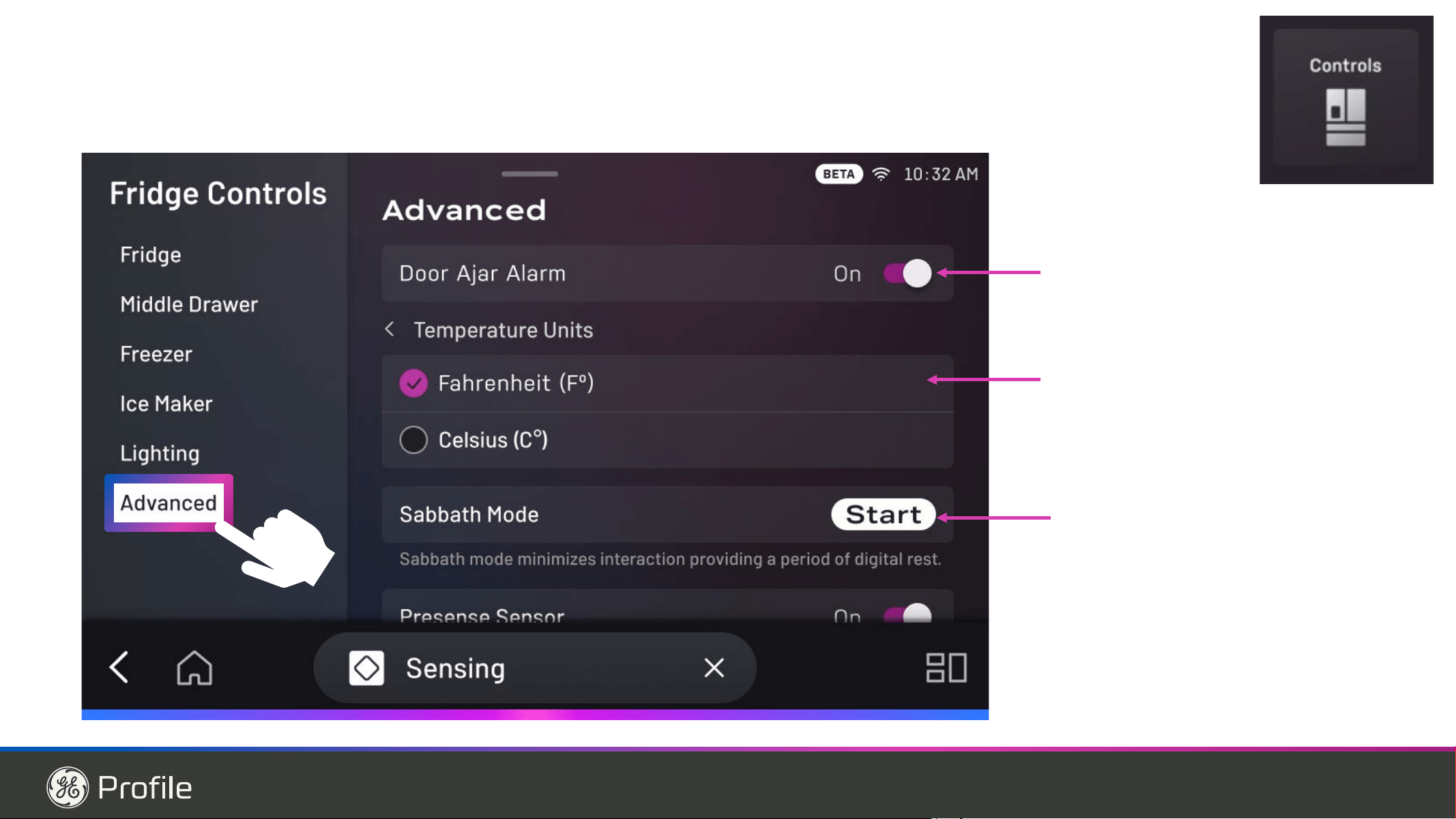
49-1000332 Rev. 10 3
LIRE ET CONSERVER CES INSTRUCTIONS
INFORMATION DE SÉCURITÉ
INFORMATION DE SÉCURITÉ IMPORTANTES
LISEZ TOUTES LES DIRECTIVES AVANT D'UTILISER L'APPAREIL
ATTENTION
Pour réduire le risque de blessures lorsque vous utilisez votre réfrigérateurde , veuillez suivre ces
consignes de sécurité.
ŶNe nettoyez pas les clayettes ou les couvercles en verre
avec de l’eau tiède quand ceux-ci sont froids. Les clayettes
et couvercles en verre peuvent se casser s’ils sont exposés
à des changements soudains de température ou si vous
les cognez ou les faites tomber. Le verre trempé est conçu
pour se briser en petits morceaux en cas de casse
ŶÉloignez les doigts des parties du congélateur où l’on
peut facilement se pincer : les espaces entre les portes,
et entre les portes et les placards sont toujours étroits.
Soyez prudent lorsque vous fermez les portes en présence
d’enfants.
ŶNe recongelez pas les aliments surgelés qui ont
complètement dégelé.
ŶNe touchez pas les surfaces froides du congélateur lorsque
vous avez les mains humides ou mouillées. La peau risque
d’adhérer à ces surfaces extrêmement froides.
ŶSi votre réfrigérateur est doté d’une machine à glaçons
automatique, évitez le contact avec les pièces mobiles du
mécanisme éjecteur, ou avec l’élément chauffant qui libère
les glaçons. Ne posez pas les doigts ou les mains sur le
mécanisme de la machine à glaçons automatique pendant
que le réfrigérateur est branché.
AVERTISSEMENT
Pour réduire le risque d’incendie, d’explosion, de choc électrique ou de blessures lorsque vous
utilisez votre réfrigérateurde , veuillez suivre ces consignes de sécurité :
Ŷ &HUpIULJpUDWHXUGRLWrWUHFRUUHFWHPHQWLQVWDOOp
FRQIRUPpPHQWDX[&RQVLJQHVG¶,QVWDOODWLRQDYDQWWRXWH
utilisation.
Ŷ 'pEUDQFKH]OHUpIULJpUDWHXUDYDQWG¶HIIHFWXHUXQH
réparation ou de le nettoyer.
Remarque : L’alimentation du réfrigérateur ne peut être
déconnectée par aucune des fonctions sur le panneau de
commande.
Remarque : Les réparations doivent être effectuées par un
professionnel qualifié.
Ŷ 5HPHWWH]WRXWHVOHVSLqFHVHWSDQQHDX[HQSODFHDYDQW
d’utiliser l’appareil.
Ŷ
N’utilisez pas un cordon de rallonge.
Ŷ*DUGH]OHVPDWpULDX[HWYDSHXUVLQIODPPDEOHVORLQGX
réfrigérateur.
Ŷ1¶HQWUHSRVH]SDVGDQVFHWpOHFWURPpQDJHUGHVVXEVWDQFHV
explosives telles que des bombes aérosols qui contiennent
un gaz propulseur.
Ŷ 3RXUpYLWHUOHVULVTXHVG¶DVSK\[LHHWG¶HQIHUPHPHQWSRXU
les enfants. Démontez les portes du congélateur et du
compartiment de réfrigération avant de le mettre au rebut
ou d’interrompre son utilisation.
Ŷ $ILQGHSUpYHQLUOHVDFFLGHQWVJUDYHVRXODPRUWOHV
enfants ne doivent pas se tenir ni jouer dans ou sur
l’électroménager.
Ŷ/HVHQIDQWVHWOHVSHUVRQQHVGRQWOHVFDSDFLWpVVRQW
réduites sur le plan physique, sensoriel ou mental, ou qui
manquent d’expérience ou de connaissances, peuvent
utiliser cet électroménager seulement si elles sont
surveillées ou ont reçues des consignes de sécurité sur
son usage et les risques y sont associés.
Ŷ&HWpOHFWURPpQDJHUHVWFRQoXSRXUXQHXWLOLVDWLRQ
domestique et applications similaires : salle du personnel
dans une usine, un bureau ou d’autres lieux de travail;
maison de ferme; clients dans un hôtel, un motel, un gîte
touristique et d’autres lieux résidentiels; approvisionnement
et applications similaires non reliées au commerce de
détail.
Ŷ 5DFFRUGH]YRXVjXQHDOLPHQWDWLRQHQHDXSRWDEOH
seulement. Une alimentation en eau potable est requise
pour le fonctionnement de la machine à glaçons. La
pression d’eau doit se situer entre 40 et 120 psi (275 à
827 kilopascals).
Ŷ 1¶DSSOLTXH]SDVGHQHWWR\DQWVFRUURVLIVVXUOHUpIULJpUDWHXU
&HUWDLQVQHWWR\DQWVHQGRPPDJHQWOHSODVWLTXHHWSHXYHQW
ainsi causer le détachement inopiné de pièces telles que
porte ou poignées de porte. Voyez la section Entretien et
nettoyage pour des instructions détaillées.
AVERTISSEMENT
RISQUE D’INCENDIE OU D’EXPLOSION
&RQVHUYH]OHVPDWpULDX[HWOHVYDSHXUVLQIODPPDEOHVjO¶pFDUWGXUpIULJpUDWHXU8QHH[SORVLRQXQLQFHQGLHYRLUHODPRUW
pourrait en résulter.
AVERTISSEMENT
RISQUE DE BASCULEMENT
/HVPRGqOHV3-'3-(3;'&-(HW&;(VRQWORXUGVGXKDXWVXUWRXWORUVTXHOHVSRUWHVVRQWRXYHUWHV&HVPRGqOHVVRQW
munis d’un support antibasculement fourni avec votre réfrigérateur, lequel doit être installé et solidement fixé à la structure
de la maison afin de prévenir un basculement vers l’avant, ce qui pourrait entraîner des blessures graves ou la mort. Lisez
et observez la totalité des instructions d’installation pour installer le support antibasculement de plancher fourni avec votre
réfrigérateur.
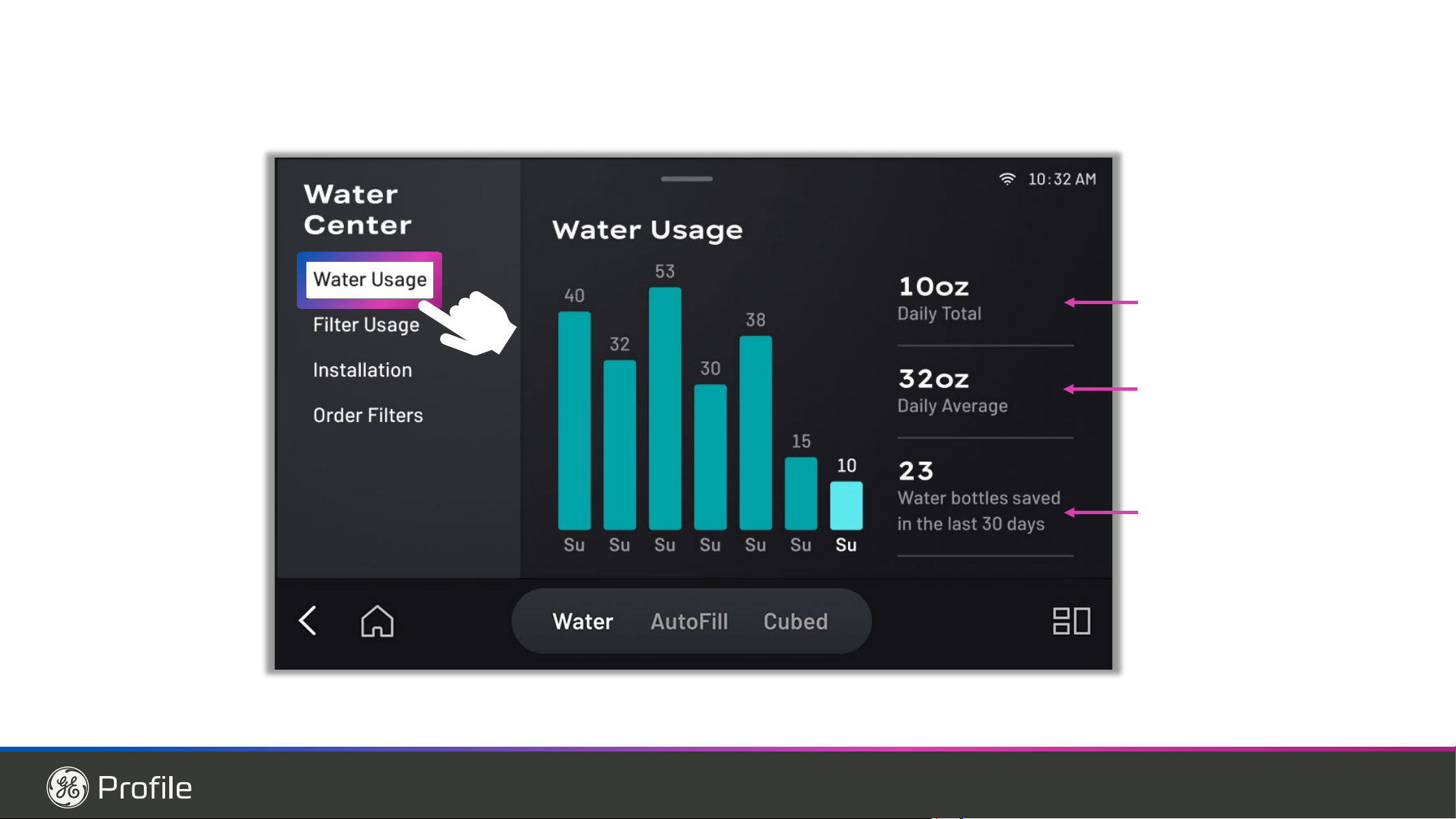
4 49-1000332 Rev. 10
INFORMATION DE SÉCURITÉ
LIRE ET CONSERVER CES INSTRUCTIONS
AVERTISSEMENT
RISQUE D’INCENDIE OU D’EXPLOSION
Fluide frigorigène inflammable
Cet électroménager contient le réfrigérant isobutane, aussi connu comme R600a, un gaz naturel à compatibilité élevée
avec l’environnement. Il s’agit cependant d’un combustible. Observez les consignes de sécurité ci-dessous afin de
réduire le risque de blessure ou de dommage à la propriété.
1. Lors de la manipulation, de l’installation et de l’utilisation de
cet appareil, prenez soin de ne pas endommager les tubes
de circulation du fluide frigorigène.
2. L’entretien ou la réparation doivent être effectués par un
personnel de service autorisé. Utilisez seulement des
pièces de rechange autorisées par le fabricant.
3. Mettez le réfrigérateur au rebut conformément aux
réglementations fédérales et locales. Le fluide frigorigène
inflammable et le matériel isolant utilisés nécessitent des
SURFpGXUHVGHPLVHDXUHEXWVSpFLDOHV&RPPXQLTXH]
avec les autorités locales compétentes pour la mise
au rebut de votre réfrigérateur sans danger pour
l’environnement.
4. N’obstruez pas les évents dans l’enceinte prévue pour
l’appareil.
5. Pour retirer le givre, grattez à l’aide d’un grattoir ou d’une
spatule en plastique ou en bois. N’utilisez pas un pic à
glace ni un instrument métallique ou aux arêtes coupantes
car il y a risque de percer la doublure du congélateur et la
tubulure du réfrigérant inflammable derrière elle.
6. N’utilisez pas d’appareils électriques dans le compartiment
réfrigérateur de cet appareil.
7. N’utilisez aucun appareil électrique pour dégivrer votre
congélateur.
Ne coupez pas ou n’enlevez pas, sous aucun prétexte, la troisième broche de mise à la terre du cordon
d’alimentation. Pour des raisons de sécurité, cet appareil doit être correctement mis à la terre.
Le cordon d’alimentation de cet appareil est équipé d’une
fiche à trois broches (pour une mise à la terre) qui s’adapte à
la prise de courant standard à 3 broches (pour une mise à la
terre) pour minimiser les risques de chocs électriques par cet
appareil.
Faites vérifier la prise murale et le circuit électrique par
un électricien qualifié pour s’assurer que le système est
correctement mis à la terre.
Dans le cas d’une prise biphasée, l’installateur a la
responsabilité et l’obligation de la remplacer par une prise
triphasée correctement mise à la terre. N’utilisez pas
d’adaptateur.
Le réfrigérateur doit toujours être branché à sa propre prise
électrique d’une tension nominale correspondant à celle
indiquée sur sa plaque signalétique.
8QHDOLPHQWDWLRQpOHFWULTXHjYROWV&$+]DYHF
un fusible de 15 ou 20 ampères et une mise à la terre est
QpFHVVDLUH&HFLSHUPHWG¶REWHQLUXQPHLOOHXUUHQGHPHQWHW
évite de surcharger les circuits électriques du domicile qui
risque d’occasionner un incendie en surchauffant.
Ne débranchez jamais le réfrigérateur en tirant sur le cordon
d’alimentation. Prenez toujours fermement la fiche en main et
tirez pour la sortir de la prise.
5pSDUH]RXUHPSODFH]LPPpGLDWHPHQWWRXWFRUGRQpOHFWULTXH
usé ou endommagé. N’utilisez pas un cordon fissuré ou
présentant des dommages dus aux frottements soit sur sa
longueur ou aux extrémités.
Lorsque vous éloignez votre réfrigérateur du mur, faites
attention à ne pas le faire rouler sur le cordon d’alimentation
afin de ne pas l’endommager.
BRANCHEMENTS ÉLECTRIQUES
AVERTISSEMENT
RISQUE DE CHOC ÉLECTRIQUE
Branchez l’appareil dans une prise triple avec terre.
Ne retirez pas la broche de terre.
N’utilisez pas d’adaptateur.
N’utilisez pas un cordon de rallonge.
Le non-respect de ces instructions peut entraîner des risques d’incendies, des chocs électriques ou la mort.
INFORMATION DE SÉCURITÉ IMPORTANTES
LISEZ TOUTES LES DIRECTIVES AVANT D'UTILISER L'APPAREIL
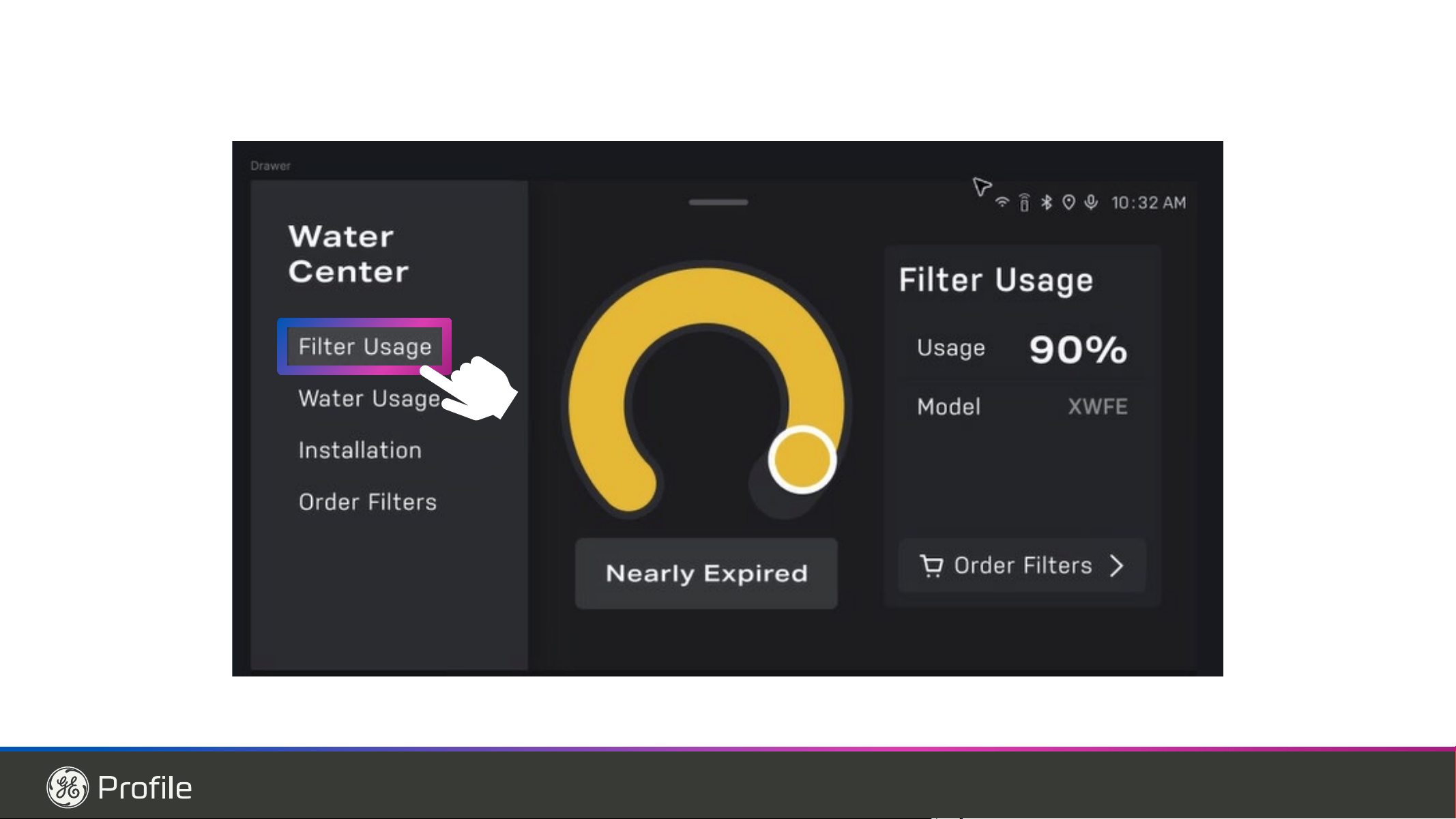
49-1000332 Rev. 10 5
LIRE ET CONSERVER CES INSTRUCTIONS
Mise au rebut des produits réfrigérants et en mousse
Mettez l’électroménager au rebut conformément à la réglementation fédérale et locale. Le réfrigérant inflammable ainsi que le
matériau d’isolation utilisés exigent des procédures d’élimination particulières..&RPPXQLTXH]DYHFOHVDXWRULWpVORFDOHVSRXU
connaître la façon de mettre votre électroménager au rebut qui soit respectueuse de l’environnement.
INFORMATION DE SÉCURITÉ IMPORTANTES
LISEZ TOUTES LES DIRECTIVES AVANT D'UTILISER L'APPAREIL
INFORMATION DE SÉCURITÉ
MISE AU REBUT APPROPRIÉE DE VOTRE ANCIEN RÉFRIGÉRATEUR
DANGER
RISQUE DE SUFFOQUER OU D’Y ÊTRE EMPRISONNÉ
Le non-respect de ces instructions d'élimination peut entraîner la mort ou des blessures graves.
IMPORTANT: Les enfants pris au piège ou morts d’asphyxie
sont toujours d’actualité. Les réfrigérateurs et congélateurs
abandonnés sont toujours aussi dangereux, même si on
n’attend que «quelques jours» pour s’en débarrasser. Si vous
ne gardez pas votre ancien réfrigérateur ou congélateur,
veuillez suivre les directives ci-dessous afin de prévenir les
accidents.
Avant de vous débarrasser de votre ancien appareil :
Ŷ'pPRQWH]OHVSRUWHVGXFRPSDUWLPHQWGHUpIULJpUDWLRQHWGX
compartiment de congélation.
Ŷ Laissez les clayettes en place afin d’empêcher les enfants
de grimper à l’intérieur.
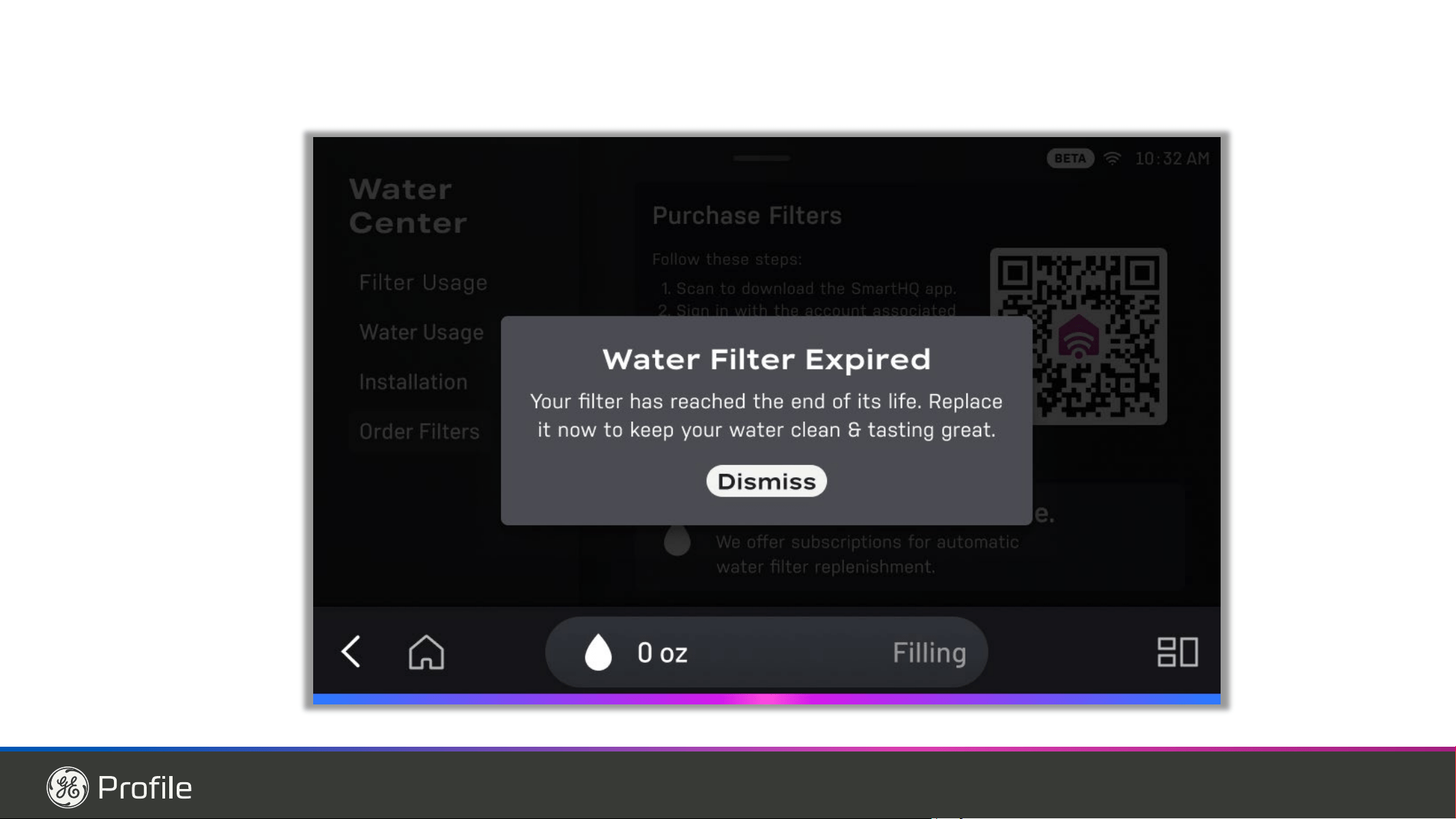
49-1000332 Rev. 10
Fonctions
UTILISATION DU RÉFRIGÉRATEUR: Fonctions
Machine à glaçons à faible encombrement
La machine à glaçons et son bac sont situés sur la porte
permettant d’avoir un espace de stockage plus spacieux.
Éclairage DEL général
L’éclairage à DEL est placé dans tout le compartiment pour
éclairer différentes zones du réfrigérateur. Des DEL sont
situées sous la porte réfrigérateur afin d’éclairer le tiroir
convertible, et des DEL se trouvent sous le tiroir convertible
pour éclairer le tiroir congélateur.
Clayette QuickSpace
Elle s’utilise comme une clayette normale de pleine largeur.
Elle se glisse vers l’arrière pour stocker des produits hauts.
Clayettes anti-débordements
&RQoXHV SRXU HPSrFKHU OHV DOLPHQWV UHQYHUVpV GH FRXOHU
et permettre ainsi un nettoyage facile.
Balconnet amovible
On peut le retirer lorsque l’ouverture de porte est limitée
par un mur.
Bac climatisé
SBacs distincts pour le stockage de fruits et légumes frais.
Filtre à eau
)LOWUH O¶HDX HW OD JODFH &HUWLILp SRXU UpGXLUH OHV N\VWHV
résistants au chlore, le plomb, certains produits
pharmaceutiques, et plus encore. Pour obtenir des
instructions de remplacement du filtre, reportez-vous à la
page 14.
Bac pivotant (certains modèles)
&H EDF SLYRWH YHUV O¶H[WpULHXU SRXU IDFLOLWHU O¶DFFqV
Loquet pour porte dans la porte (sur certains modèles)
Appuyez sur le loquet sous la poignée pour ouvrir la porte
extérieure.
Tiroir convertible
5pJOH] OD PHLOOHXUH WHPSpUDWXUH SRXU UDQJHU YRV DOLPHQWV
Caméra Fridge Focus (sur PVD28H et PXD22H)
La position de la caméra s’ajuste d’avant en arrière, et le volet
de confidentialité peut être utilisé en le faisant glisser sur le côté.
Haut-parleur (sur PVD28H et PXD22H)
Produit un son net et précis, ce qui facilite l’écoute des
voix, de la musique et des notifications.
Numérisation vers liste (sur PVD28H et PXD22H)
Lecteur de codes-barres pour numériser les codes-barres.
Modèles Profile PVD28, PXD22, PVD28H, PXD22H
assemblage de
l’affichage de porte
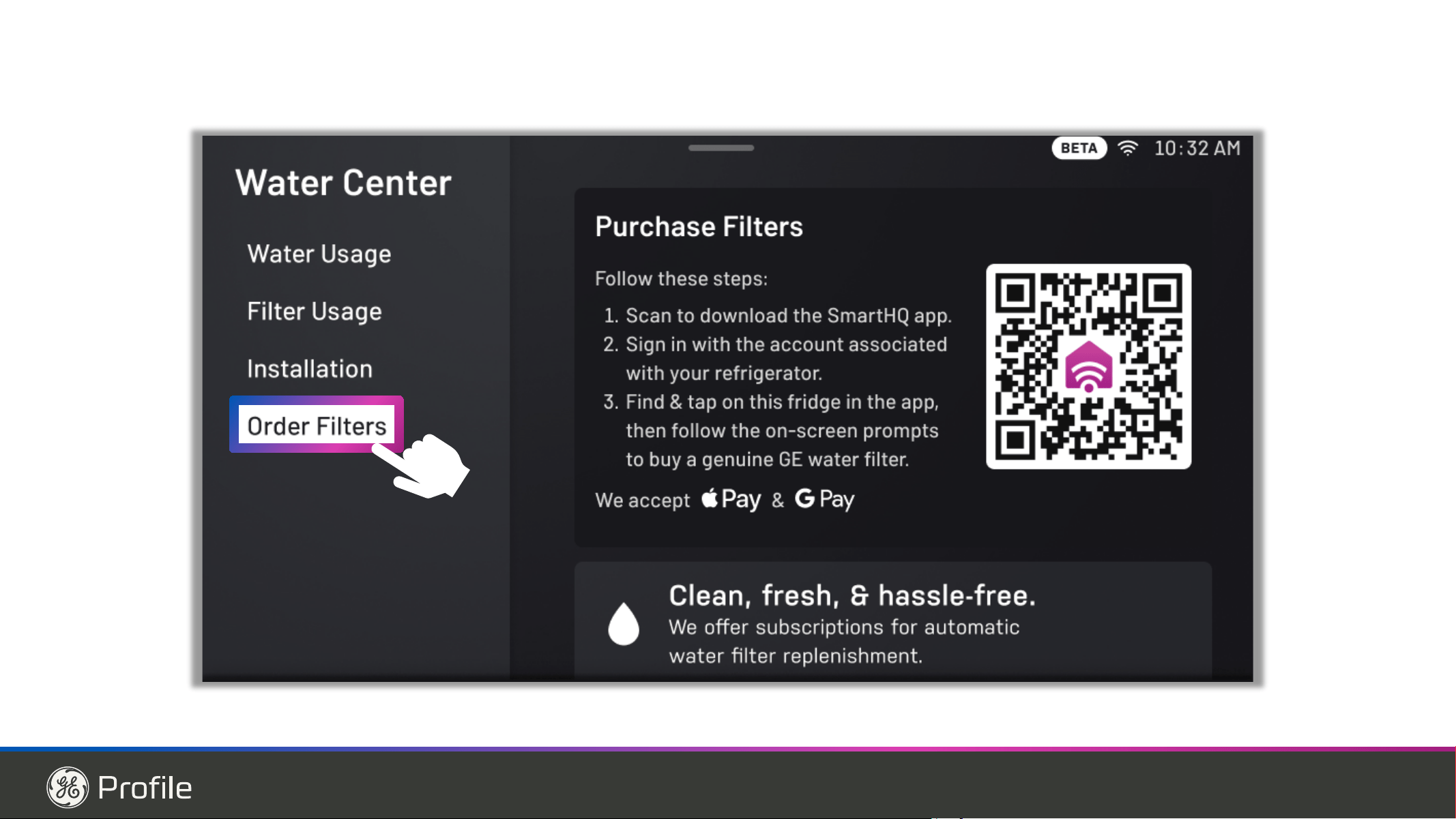
49-1000332 Rev. 10 7
Fonctions
UTILISATION DU RÉFRIGÉRATEUR: Fonctions
Modèles Profile PVD28H, PXD22H
Personnalisation de Votre Réfrigérateur
Accès aux Réglages
• Touchez et maintenez la barre grise en haut de l’affichage.
• Faites glisser vers le bas pour ouvrir le panneau des paramètres.
Commandes Rapides
• Statut SmartHQ
: &RQVXOWH] O¶LF{QH GDQV OH FRLQ VXSpULHXU
JDXFKH SRXU YpULILHU YRWUH pWDW GH FRQQH[LRQ GDQV 6PDUW+4
• Lumière
: Touchez l’icône « Light » pour allumer ou
éteindre la lumière du distributeur.
• Verrouiller
: Touchez l’icône Lock (verrouillage) pour
DFWLYHU RX GpVDFWLYHU OH &RQWURO /RFN YHUURXLOODJH GHV
commandes).
• Microphone : Touchez l’icône Microphone pour activer ou
désactiver le microphone.
• (Désactiver le microphone désactive les commandes vocales.)
• Volume : Ajustez le volume du média en déplaçant le
curseur Volume au niveau souhaité.
• Luminosité de l’écran: Ajustez la luminosité de l’affichage en
déplaçant le curseur Brightness (« Luminosité »).
• Réglages: Ajustez tous les réglages sur l’appareil ou à
l’écran. (voir plus de détails ci-dessous.)
• Ambient: Activez rapidement l’écran Ambient pour voir vos
arrière-plans personnalisés et vos widgets.
• Alertes: Accédez à votre liste historique de notifications qui
s’affichent sur votre appareil.
Commandes du Réfrigérateur:
• Température du Réfrigérateur: Appuyez sur « + » ou « – »
SRXU UpJOHU HQWUH I F HW I F
• Réglages du Tiroir:
Sélectionnez l’un des modes suivants :
0HDW YLDQGH ) í & %HYHUDJHV ERLVVRQV )
& 6QDFNV FROODWLRQV ) & :LQH YLQ ) &
• Température du Congélateur: Appuyez sur « + » ou « – »
SRXU UpJOHU HQWUH ± ) ± & HW ) ± &
,FH 0DNHU VpOHFWLRQQH] 2Q PDUFKH RX 2II DUUrW SRXU
démarrer ou arrêter la production de glace.
Éclairage:
• Mur d’Éclairage à DEL Showcase: Allumez ou éteignez et
réglez la luminosité à l’aide du curseur de gradation.
• Capteur de Présence:
Sélectionnez On (marche) ou Off (arrêt)
• Éclairage du Capteur du Distributeur: Sélectionnez On
(marche) ou Off (arrêt) (Lorsqu’elle est activée, la lumière
du distributeur s’allume automatiquement lorsque vous vous
approchez du réfrigérateur)
Avancé:
• Unités de Température: Sélectionnez Fahrenheit (°F) ou
&HOVLXV &
• Mode Sabbath (Sabbat): Accédez à Paramètres > Sabbath
pour activer le mode Sabbath. Maintenez une pression sur
l’écran pendant 10 secondes pour quitter.
• Systèmes de Refroidissement: Activez ou désactivez les
systèmes de refroidissement (avant de désactiver le système
GH UHIURLGLVVHPHQW YLGH] OH UpIULJpUDWHXU &HWWH IRQFWLRQ
est recommandée pour les longues périodes d’inutilisation,
comme les vacances ou un nettoyage en profondeur, afin
d’aider à économiser l’énergie.)
Meal Planning
Scan toList
10:32 AM
5HFLSHV
App
Taste of
+RPH
App
&XEHG&UXVKHG ,FH
(Toggle button)
AutoFill
water
Dispense
water
+RPH
Back
Quick
access
Apps
Shopping
List App
System Tray6KDGH VZLSH GRZQ 4XLFN &RQWUROV
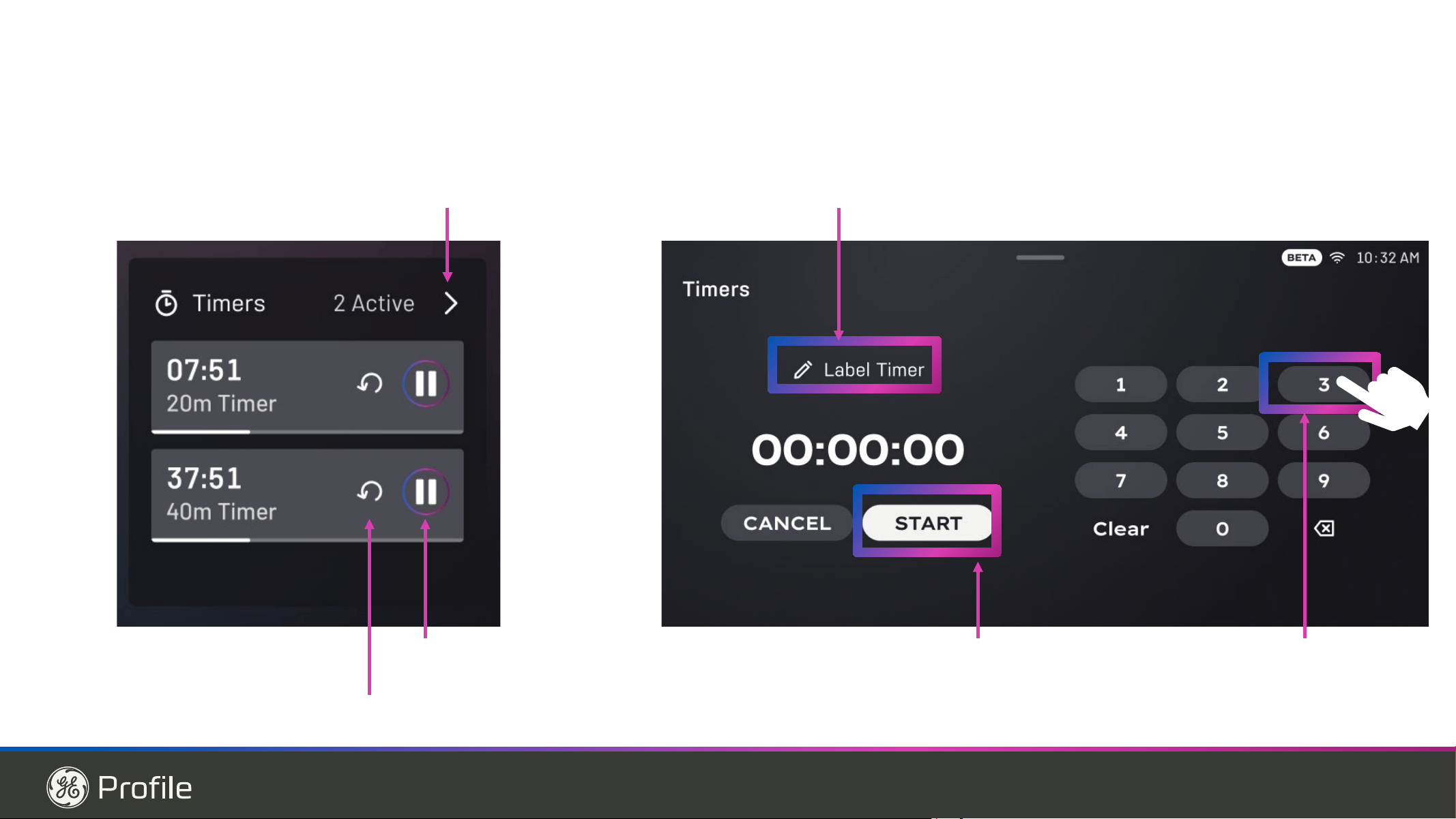
8 49-1000332 Rev. 10
UTILISATION DU RÉFRIGÉRATEUR: Fonctions
Fonctions
Modèles Profile PVD28H, PXD22H
FridgeFocus : Activer ou désactiver les instantanés
internes du réfrigérateur
Scan-to-List (Nécessite une connexion Wi-Fi et un
identifiant SmartHQ)
• Scan-to-List: Activez ou désactivez le lecteur de codes-
barres.
• Scanner Target Light: Allumer ou éteindre la lumière du
lecteur de codes-barres
• Ajout Automatique à la Aiste Après la Numérisation:
Activer ou désactiver l’ajout automatique des articles
numérisés à votre liste.
Système:
• À propos
– trouvez des détails sur les versions logicielles.
• Emplacement
5pJODJHVGHO¶KHXUHHWGHODGDWH
• Mode service – réservé aux techniciens de service.
• Mode salle d’exposition – réservé uniquement aux
détaillants.
• Effacer les données utilisateur – effacez rapidement
toutes les données utilisateur enregistrées sur l’appareil et
déconnectez-vous du Wifi.
Réinitialisation de l’interface – si une réinitialisation est
nécessaire, déverrouillez simplement l’interface utilisateur
GX&RQYHUWLEOH'UDZHUWLURLUFRQYHUWLEOHSXLVDSSX\H]
simultanément sur les boutons Meat (viande) et Snack
(collation) pendant 3 secondes pour lancer le redémarrage
GHO¶LQWHUIDFH&HWWHRSpUDWLRQSUHQGUDTXHOTXHVPLQXWHV
Connectez-vous à SmartHQ
7pOpFKDUJH]O¶DSSOLFDWLRQ6PDUW+4jSDUWLUGHO¶$SS6WRUH
&RQQHFWH]YRXVj6PDUW+4SRXUYRLUYRWUHUpIULJpUDWHXU
dans l’application et profiter pleinement des avantages de
la connexion.
&RQQHFWH]YRWUHUpIULJpUDWHXUjSDUWLUGHO¶DIILFKDJHHQ
sélectionnant TOUTE fonctionnalité nécessitant une
connexion pour commencer, comme « Shopping List
ªOLVWHG¶DFKDWVRX©5HFLSHVªUHFHWWHV6XLYH]OHV
instructions à l’écran pour connecter votre réfrigérateur à
YRWUHFRPSWH6PDUW+4
Affichage et Apparence
• Luminosité:
5pJOH]OHQLYHDXGHOXPLQRVLWpGHO¶pFUDQHQ
ajustant la barre de luminosité dans les paramètres Shade.
•
,F{QHWDFWLOH0DUFKH$UUrWSRXUOHPRGH(QHUJ\VDYHU
pFRQRPLHG¶pQHUJLH0DUFKH$UUrW&HPRGHSHUPHWGH
personnaliser les heures programmées d’activation et de
désactivation du mode Energy saver sur votre affichage)
Mode Ambiant:
*URXSH+RUORJHDMRXWH]RXUHWLUH]ODGDWHHWODPpWpR
ensemble ou individuellement)
•
:LGJHWVDMRXWH]RXUHWLUH]OHVZLGJHWV0pWpRHW5HFHWWHV
ensemble ou individuellement à l’écran d’accueil)
Arrière-plan:
•
Sélectionnez « Backdrop(s) » parmi les options pour
personnaliser l’image d’arrière-plan de votre écran ambiant.
Sons et Alertes
• Volume du média:5pJOH]OHYROXPHDXEHVRLQHQ
ajustant la barre de volume.
• Volume de l’interface: Modifiez le volume de l’interface
j2IIDUUrW/RZIDLEOH0HGPR\HQRX+LJKpOHYp
selon vos besoins.
• Signal Sonore Tactile: Activez ou désactivez le signal
sonore tactile
• Time Alert:5qJOHOHQLYHDXVRQRUHGHVWRQDOLWpVGX
système, des minuteries et des alertes.
Voix et Microphone:
• Microphone:$FWLYHUGpVDFWLYHUOHPLFURSKRQHOD
désactivation empêchera l’utilisation des commandes vocales)
• S’il y a 2 appareils dans la même cuisine qui prennent en
FKDUJH©+H\+4ªYRXVGHYULH]HQPHWWUHXQHQPRGH
sourdine afin d’éviter que les deux ne répondent en même
temps.
8WLOLVH]©+H\+4ªFRPPHPRWG¶DFWLYDWLRQSRXUH[pFXWHU
des commandes :
• « quel filtre dois-je acheter »
• « ajoutez des pommes à ma liste d’achats. »
• « donnez-moi 591 ml (20 oz) d’eau »
©GpPDUUH]7XUER&RROª
Numérisation de Code-Barres:
• Le lecteur de codes-barres comprend un témoin lumineux
DEL pour aider les utilisateurs à aligner le code-barres
avec le lecteur.
&HWWH'(/Q¶HVWSDVXQODVHUHWDpWpWHVWpHFRQIRUPpPHQW
jODQRUPHLQGXVWULHOOH,(&TXLpYDOXHODVpFXULWp
photobiologique des lampes et des systèmes de lampes,
même en cas d’exposition rétinienne prolongée.
• La DEL n’est pas nécessaire au fonctionnement du lecteur
de codes-barres. Si vous préférez l’éteindre pour quelque
raison que ce soit, vous pouvez le faire dans le menu des
paramètres de l’appareil sans nuire à la performance du
lecteur.
• L’option « Scan-to-List » permet d’activer ou de désactiver
le lecteur.
• Lumière de ciblage du lecteur – Un point vert qui vous
aide à aligner le code-barres avec le lecteur.
• Ajout automatique à la liste : ajoute automatiquement les
articles à votre liste d’achats lors de la numérisation.
• Seules les étiquettes à code-barres unidimensionnel sont
SULVHVHQFKDUJH/HVFRGHV45HWFHUWDLQVDXWUHVIRUPDWV
ne sont pas pris en charge.
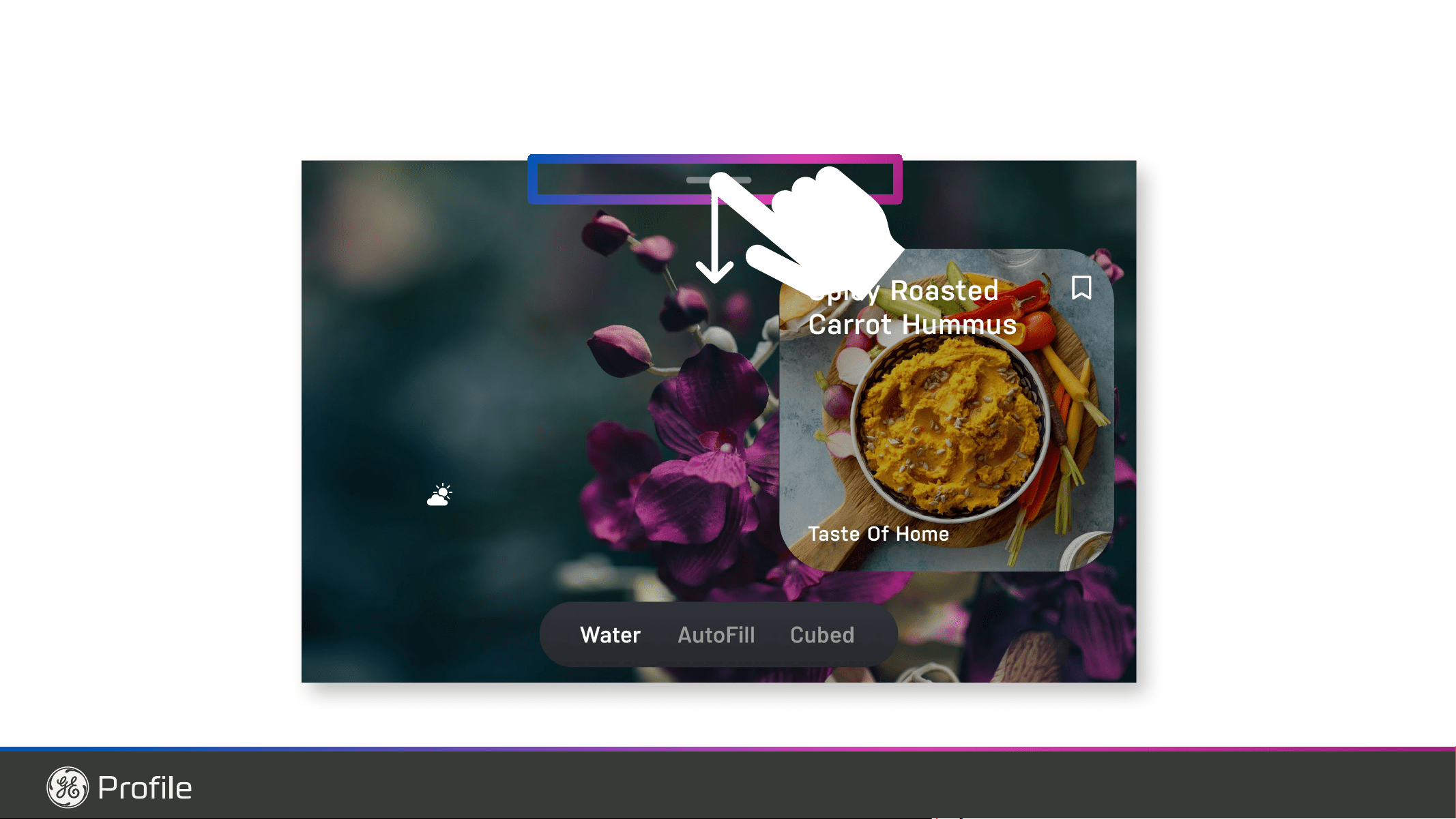
49-1000332 Rev. 10 9
UTILISATION DU RÉFRIGÉRATEUR: Fonctions
Fonctions
Retrait du Bac à Glaçons de la Porte
1. Ouvrez la porte gauche du compartiment de
réfrigération.
2. Tirez le loquet vers le bas pour ouvrir la porte du bac.
3. A l’aide de la poignée, soulevez le seau à glace pour
libérer les repères au fond du bac.
4. Pour remettre le seau à glace, placez-le sur les guides
et enfoncez-le jusqu’à ce qu’il soit correctement en
place.
5. Si vous n’arrivez pas à le remettre, faites tourner la
IRXUFKHG¶GHWRXUGDQVOHVHQVGHVDLJXLOOHVG¶XQH
montre.
Filtre à eau/à glace
&HUWLILpSRXUODUpGXFWLRQGHVRRF\VWHVUpVLVWDQWVDXFKORUH
du plomb, de produits pharmaceutiques choisis et plus.
Pour des instructions sur le remplacement aisé du filtre,
voyez la page 13.
Seau à glace
Loquet
Porte du bac à glace
Porte du bac à glace
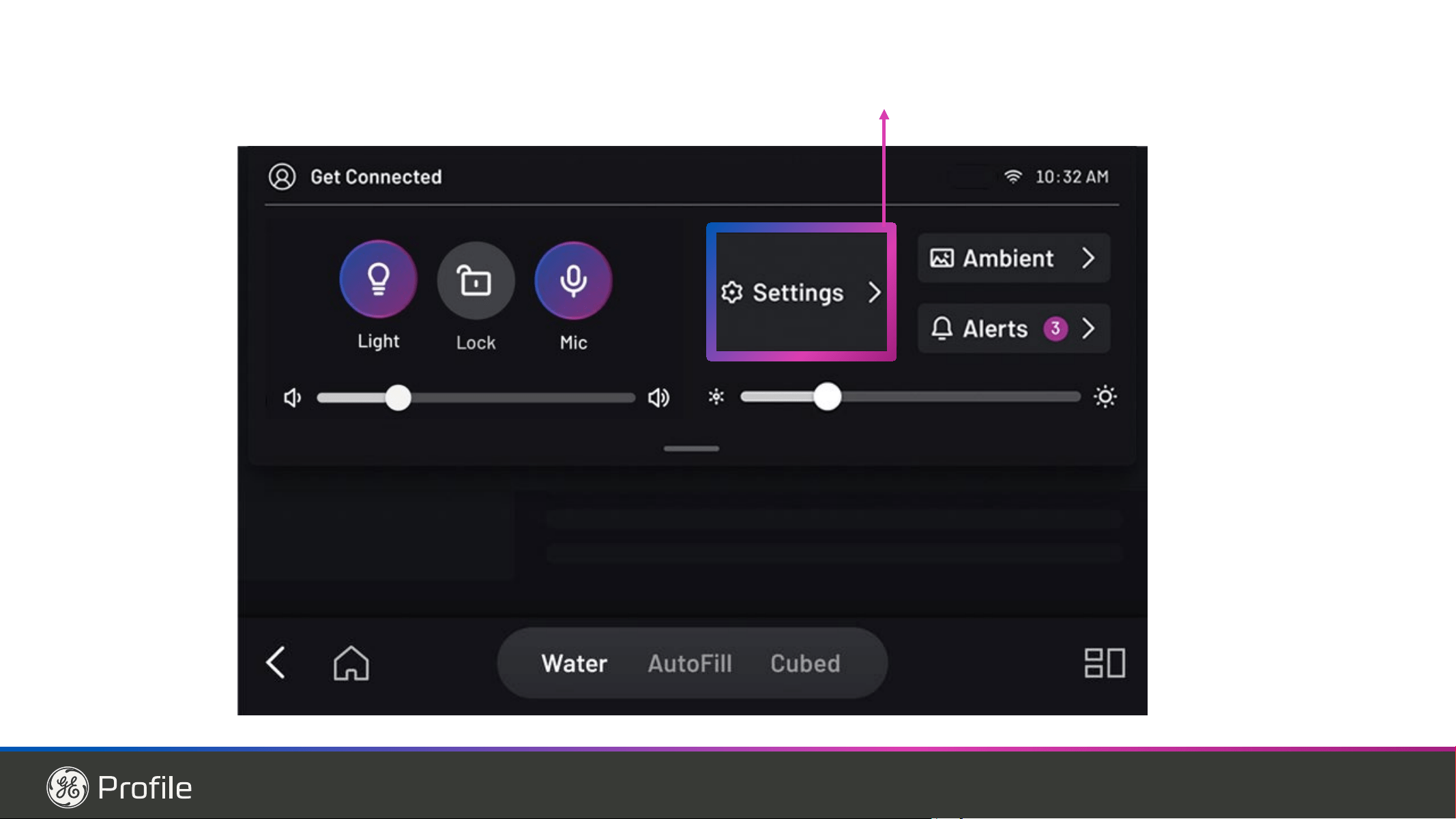
10 49-1000332 Rev. 10
Contrôless
Modification de la température
Pour modifier la température du réfrigérateur :
Pressez le bouton Settings (fonctions) (
) jusqu’à ce que le
mot « Fridge » (réfrigérateur) s’illumine. Pressez les boutons
des flèches vers le haut ou le bas pour augmenter ou diminuer
les réglages de température.
Pour modifier la température du congélateur :
Pressez le bouton Settings (fonctions) (
) jusqu’à ce que «
Freezer » (congélateur) s’illumine. Pressez les boutons des
flèches vers le haut ou le bas pour augmenter ou diminuer les
réglages de température.
On peut désactiver le système de refroidissement en pressant
le bouton Settings (fonctions) ( ) jusqu’à ce que le mot «
Fridge » (réfrigérateur) ou « Freezer » (congélateur) s’illumine.
Maintenez simultanément une pression sur les boutons des
flèches vers le haut et le bas durant 3 secondes. Le signe « - -
» s’affiche lorsque le système est désactivé. La désactivation
du système de refroidissement fait cesser le refroidissement du
réfrigérateur, mais ne coupe pas l’alimentation électrique. On
peut activer le système de refroidissement en retournant à la
fonction « Fridge » (réfrigérateur) ou « Freezer » (congélateur)
et en pressant le bouton On (marche).
MODÈLES CAFÉ PRO QUATRE PORTES ET CAFÉ MINIMAL QUATRE PORTES
À L’ASPECT VITRIFIÉ
Nous mettons constamment à jour notre logiciel. Veuillez vous reporter au manuel d’utilisation complet en ligne pour connaître la
fonction la plus récente sur visitez Electromenagersge.ca
Le réfrigérateur est livré avec une pellicule protectrice qui recouvre les commandes. Si la pellicule n’a pas été retirée lors de
l’installation, retirez-la maintenant.
/HVUpJODJHVGHWHPSpUDWXUHUHFRPPDQGpVSUpUpJOpVjO¶XVLQHVRQW)&SRXUOHUpIULJpUDWHXUHW)&SRXUOH
congélateur.
PVD28B, PXD22B
UTILISATION DU RÉFRIGÉRATEUR: &RQWU{OHV
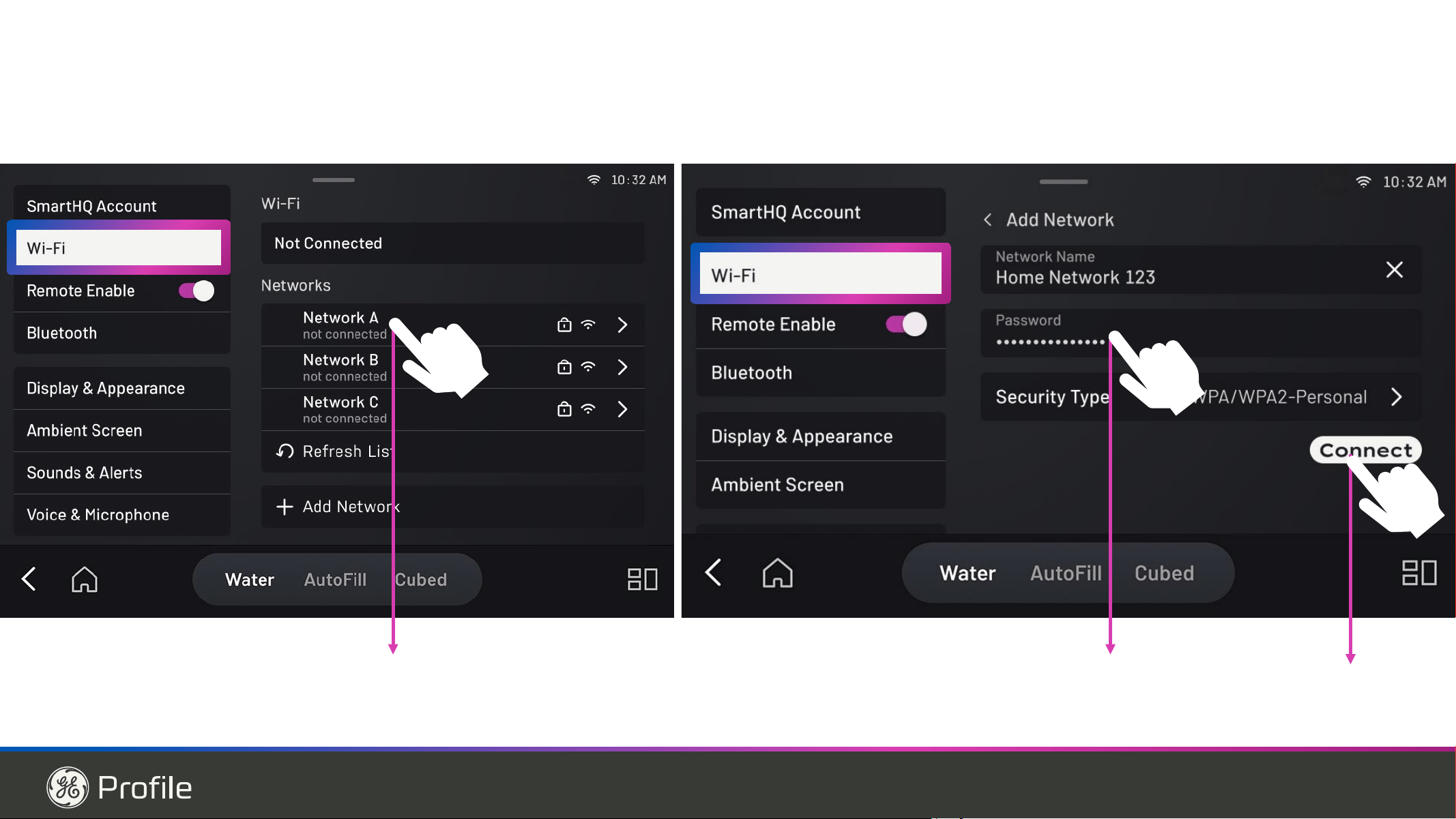
49-1000332 Rev. 10 11
Contrôles
UTILISATION DU RÉFRIGÉRATEUR:&RQWU{OHV
Fonctions ( ) (icône roue dentelée) - Pressez pour faire
défiler les fonctions du réfrigérateur..
ƔControl Lock (verrouillage des commandes) - Pressez
ON (marche) ou OFF (arrêt) pour activer. Maintenez une
pression sur Off durant 3 secondes pour désactiver.
Ɣ Fridge (réfrigérateur) - 3UHVVH]OHVERXWRQV+DXWRX%DV
pour augmenter ou diminuer la température de 34 °F(1
&j)&
Ɣ Freezer (congélateur) - 3UHVVH]OHVERXWRQV+DXWRX%DV
SRXUDXJPHQWHURXGLPLQXHUODWHPSpUDWXUHGH)
&j)&
ƔDoor Alarm (alarme de porte) -
Déclenche une alarme
lorsque les portes du congélateur ou du réfrigérateur sont
laissées ouvertes. Éteignez l’alarme en appuyant sur l’une
des touches. Appuyez sur « ON » ou « Off » pour activer
ou désactiver l’alarme de porte pendant qu’une alarme est
inactive.
ƔIce Maker (machine à glaçons) - 3UHVVH]2QRX2ႇSRXU
GpPDUUHUDUUrWHUODPDFKLQHjJODoRQV
ƔWiFi (Wi-Fi) -
Appuyez sur « On » pour commencer la
procédure de connexion Wi-Fi selon les instructions de
la page 12. Appuyez sur « Off » pour désactiver le Wi-
Fi. Notez que le redémarrage du Wi-Fi exige que vous
recommenciez la procédure de connexion Wi-Fi.
Modèles porte dans la porte Profile PVD18, PXD22
GE avec Wi-Fi intégré
Modèles GVE28 de GE prêt pour la connexion
Water ( ) (eau)- 3UHVVH]SRXUVpOHFWLRQQHU,FHJODFHRX
Water (eau) à distribuer sur pression de la palette.
AutoFill* (remplissage automatique) - Pressez pour activer la
détection automatique qui activera le distributeur.
Ice (
) (glace) - 3UHVVH]SRXUVpOHFWLRQQHU&UXVKHGJODFH
SLOpHRX&XEHGJODoRQVjGLVWULEXHUVXUSUHVVLRQGHOD
palette.
Light (
) (éclairage) - Pressez pour éclairer le distributeur. Un
carillon accompagnera chaque pression.
Fahrenheit / Celsius:
On peut basculer l’affichage de la température entre Fahrenheit
HW&HOVLXV3UHVVH]OHERXWRQ6HWWLQJVIRQFWLRQV
) pour
naviguer à « Fridge » (réfrigérateur) ou « Freezer » (congélateur),
SXLVPDLQWHQH]XQHSUHVVLRQVXUOHVERXWRQV,FHJODFHHW/LJKW
(lampe) durant trois secondes.
Contrôle du volume sonore :
2QSHXWUpJOHUOHYROXPHGHO¶DOHUWHGH+LJKKDXWj/RZEDVHW
Off (désactivé). Pressez le bouton Settings (fonctions) ( ) pour
QDYLJXHUj©,FHPDNHUªPDFKLQHjJODoRQVSXLVPDLQWHQH]
XQHSUHVVLRQVXUOHVERXWRQV,FHJODFHHW/LJKWODPSHGXUDQW
trois secondes.
Mode Sabbat :
Pressez simultanément les boutons Settings (fonctions) (
),
Water (eau) et Light (lampe) durant trois secondes pour entrer
dans le mode Sabbat et en sortir.
*Modèles sélectionnés seulement
TIROIR CONVERTIBLE
La température dans le tiroir convertible est sélectionnée
en pressant le type d’aliment à conserver dans le tiroir.
Les températures correspondantes sont :
0HDWPRLj )&
%HYHUDJHVEUHXYDJHV )&
6QDFNVGHVFROODWLRQV )&
:LQHYLQ )&
/HUpJODJHGHWHPSpUDWXUHHVWYHUURXLOOpSDUGpIDXW,OIDXW
presser le bouton durant 3 secondes pour déverrouiller.
Le fait de maintenir plusieurs touches enfoncées réinitialisera
l’affichage.
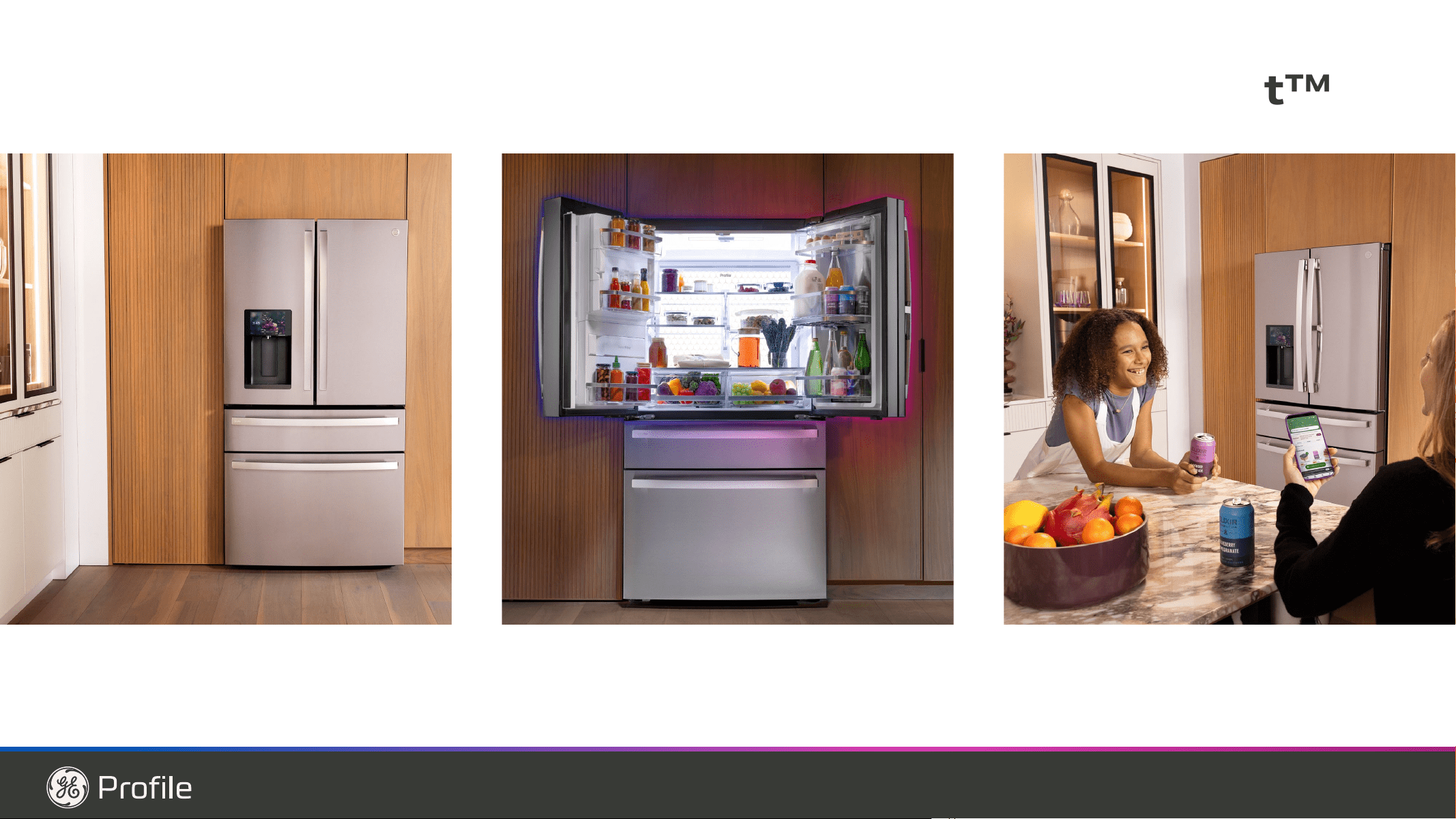
12 49-1000332 Rev. 10
UTILISATION DU RÉFRIGÉRATEUR: Distributeur
Distributeur
Informations importantes concernant votre distributeur
Ŷ N’ajoutez pas de glaçons provenant des bacs ou de sac à
JODoRQVDXVHDXGHODPDFKLQHjJODoRQVGHODSRUWH,OV
peuvent être difficile à piler ou à distribuer.
Ŷ Évitez de trop remplir les verres de glaçons et d’utiliser des
verres étroits. La glace accumulée peut bloquer le conduit
ou peut geler le volet en position fermée. Si des glaçons
bloquent le conduit, retirer le seau à glace et faites-les
passer à l’aide d’une cuillère en bois.
Ŷ Ne placez pas de boisson ou d’aliment dans le bac de
la machine à glaçons pour les refroidir rapidement. Les
canettes, bouteilles et paquets alimentaires peuvent bloquer
la machine à glaçons ou la vis sans fin.
Ŷ Pour éviter que la glace distribuée ne manque le verre,
placez ce dernier à proximité de l’ouverture du distributeur,
mais sans la toucher.
Ŷ,OHVWSRVVLEOHTXHGHODJODFHSLOpHVRLWGLVWULEXpHPrPHVL
YRXVDYH]FKRLVL&8%('&HODVHSURGXLWGHWHPSVjDXWUH
lorsque plusieurs glaçons sont accidentellement acheminés
vers le broyeur.
Ŷ Après distribution de glace pilée, de l’eau peut s’écouler du
conduit.
Ŷ Parfois, un peu de givre se forme sur le volet du conduit à
JODFH&HSKpQRPqQHHVWQRUPDOHWVHSURGXLWHQJpQpUDO
après des distributions répétées de glace pilée. Le givre va
éventuellement s’évaporer.
Distributeur d’eau et
de glace
(&RQVXOWHUODVHFWLRQ
sur les paramètres
de température et les
fonctions de contrôle)
AVERTISSEMENT
Risque de lacération
Ŷ N’introduisez jamais les doigts ou tout autre objet dans
l’ouverture de sortie du broyeur de glace. Vous risqueriez
de toucher les lames du broyeur de glace et entraîner des
blessures graves, voire une amputation.
Ŷ Utilisez un verre robuste lorsque vous prenez les glaçons.
Un verre fragile pourrait se casser et occasionner une
blessure.
Si l’eau n’est pas distribuée lorsque le réfrigérateur vient d’être
installé, il y a peut-être de l’air dans le conduit d’eau. Appuyez
sur le bras du distributeur pendant au moins cinq minutes pour
purger l’air contenu dans le conduit d’alimentation en eau et
ainsi remplir ce dernier d’eau. Afin d’éliminer les impuretés du
système, jetez les six premiers verres d’eau.
AUTOFILL* (Remplissage Automatique)
Pour utiliser le remplissage automatique mains libres :
• &HQWUH]OHUpFLSLHQWVXUODJULOOHGXGLVWULEXWHXUDXVVLORLQTXH
possible sans activer le bras palpeur, puis retirez la main du
récipient.
• Appuyer sur AUTOFILL
Pour arrêter le Remplissage automatique
• Appuyez sur l’une des touches, y compris AutoFill
(remplissage automatique), pour arrêter.
Faits importants à propos du AUTOFILL
(Remplissage automatique)
• Pour obtenir des résultats optimaux, utiliser un récipient
uniforme d’une hauteur de 10 à 20 cm (4 à 8 po.) et d’une
ODUJHXUGHjFPjSR
• Le niveau de remplissage et la fonctionnalité peuvent varier
dans le cas de récipients dont la longueur excède 20 cm (8
SRRXODODUJHXUFPSR
• Le volume des récipients pourrait également varier.
Si le
PRW©(5525ªHUUHXUDSSDUDvWHVVD\H]XQFRQWHQDQW
différent.
• Le remplissage automatique prendra fin automatiquement
après un certain temps.
• Une poignée, des pailles, ou d’autres garnitures sur le
rebord du récipient pourraient entraîner un débordement
ou des variations du volume de remplissage. L’utilisation
G¶XQPpODQJHjERLVVRQHQSRXGUHDYDQW$872),//SHXW
entraîner une diminution de la performance.
• Des éclaboussures pourraient se produire selon la position
du récipient, le débit d’eau, la forme du récipient et la
présence de glaçons
• Nettoyer les capteurs régulièrement à l’aide d’un chiffon
propre et humide, et ne pas vaporiser de liquide ni de
nettoyant directement sur les capteurs.
• Le remplissage automatique fonctionne mieux si la pression
G¶HDXGHODUpVLGHQFHVHWURXYHHQWUHHWN3DHW
100 psi).
• La glace dans le récipient peut influencer le volume de
remplissage. En cas de problème, utilisez moins de glace.
*Modèles sélectionnés seulement
&DSWHXUV$XWR)LOO
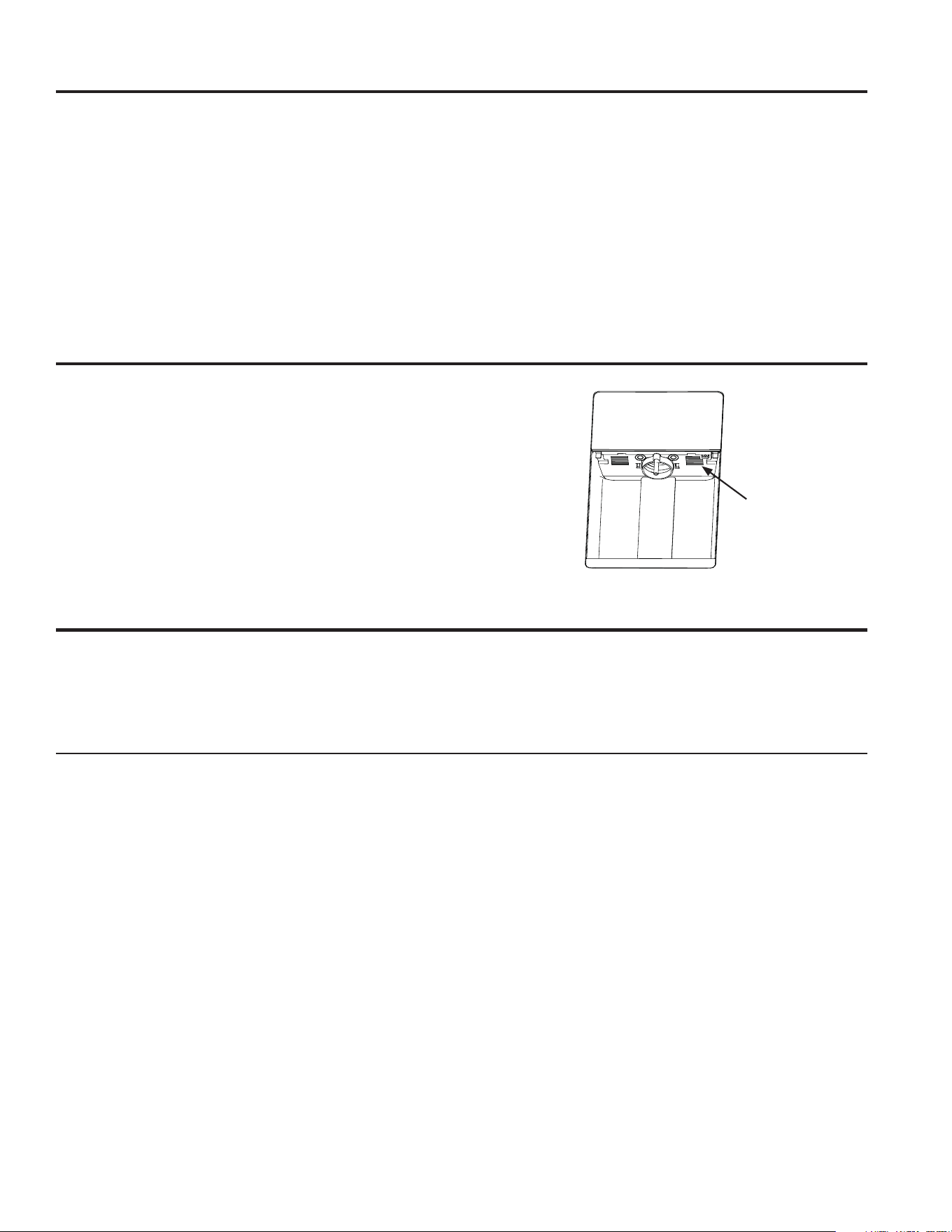
49-1000332 Rev. 10 13
Distributeur
UTILISATION DU RÉFRIGÉRATEUR: 'LVWULEXWHXU/HFWHXUGH&RGH%DUUHV:L)L
WiFi (pour les clients aux États-Unis, ses territoires et au Canada)
RENSEIGNEMENTS RÉGLEMENTAIRES
Déclaration de conformité de la FCC/IC :
&HWDSSDUHLOHVWFRQIRUPHDX[SUHVFULSWLRQVGHODSDUWLHGHVUqJOHVGHOD)&&/HIRQFWLRQQHPHQWGHFHWpTXLSHPHQWHVW
assujetti aux deux conditions suivantes :
&HWDSSDUHLOQHGRLWSDVFDXVHUGHEURXLOODJHSUpMXGLFLDEOH
&HWDSSDUHLOGRLWDFFHSWHUWRXWEURXLOODJHTX¶LOUHoRLW\FRPSULVFHOXLSRXYDQWHQWUDvQHUXQIRQFWLRQQHPHQWLQGpVLUDEOH
AVIS : Les modifications non explicitement approuvées par le fabricant peuvent annuler le droit de l’utilisateur de se servir de cet
équipement.
&HWDSSDUHLOHVWFRQIRUPHDX[FDKLHUVGHVFKDUJHVVXUOHVQRUPHVUDGLRpOHFWULTXHV&15H[HPSWVGHOLFHQFHG¶,QQRYDWLRQ
6FLHQFHVHW'pYHORSSHPHQWpFRQRPLTXH&DQDGD/¶XWLOLVDWLRQGHFHWpTXLSHPHQWHVWDVVXMHWWLHDX[GHX[FRQGLWLRQVVXLYDQWHV
&HWDSSDUHLOQHGRLWSDVFDXVHUGHEURXLOODJHHW
&HWDSSDUHLOGRLWDFFHSWHUWRXWEURXLOODJH\FRPSULVFHOXLSRXYDQWHQWUDvQHUXQIRQFWLRQQHPHQWLQGpVLUDEOHGHO¶DSSDUHLO
,/DSUpVHQFHG¶XQHpWLTXHWWHLQWLWXOpHConnected Appliance Information sur votre réfrigérateur indique qu’il peut être connecté à
votre réseau Wi-Fi et ainsi communiquer avec votre appareil mobile pour la surveillance, le contrôle et les notifications à distance.
Veuillez visiter GEAppliances.com/connect en apprendre davantage sur les fonctions de connexion pour électroménagers et les
applications compatibles avec votre appareil mobile.
SECTION DE REMPLISSAGE PRÉCIS
Après avoir réglé le volume dans le menu Precise Fill (menu
5HPSOLVVDJHSUpFLVYRXVSRXYH]FRQWLQXHUGHGHX[IDoRQV
1. Utilisation du remplissage précis mains libres : lorsque le
contenant est complètement inséré dans le renfoncement
et immobile, appuyez sur le bouton Dispense (« Dispenser
ªGDQVOHPHQX3UHFLVH)LOO©5HPSOLVVDJHSUpFLVª
L’appareil distribuera jusqu’à ce que le volume programmé
RXODOLPLWHGHGpWHFWLRQGXQLYHDXVRLWDWWHLQW&RQVXOWH]
ODGHVFULSWLRQGHODIRQFWLRQ$XWRILOO©5HPSOLVVDJH
automatique ») à la page 12 pour connaître les contenants
compatibles.
2. Utilisation de la palette — Appuyer sur la palette avec un
contenant distribuera de l’eau jusqu’à ce que la quantité cible
soit atteinte ou que la palette soit relâchée. Si le récipient
est rempli avant d’atteindre le volume cible, vous pouvez
remplacer le récipient ou le vider, puis appuyer de nouveau
sur la palette pour continuer jusqu’à ce que la quantité
sélectionnée soit atteinte.
Bar Code Scanner
Faits Importants Concernant la Lecture de Codes-Barres
• Des éclaboussures peuvent se produire selon l’emplacement
du contenant, le débit d’eau, la forme du contenant et la
présence de glaçons.
• Gardez la lentille du lecteur de codes-barres propre à l’aide
d’un chiffon propre et humide, et ne vaporisez pas de liquide
ni de nettoyant directement sur la lentille.
• La distance optimale pour la numérisation de l’étiquette
variera selon le type d’étiquette, la taille et la lumière
ambiante.
Lecteur de code-barres

14 49-1000332 Rev. 10
UTILISATION DU RÉFRIGÉRATEUR: WiFi
Réponse à la demande (pour certains modèles)
&HSURGXLWHVWGRWpG¶XQHFRPSDWLELOLWp:L)LHWQpFHVVLWH
XQHFRQQH[LRQ,QWHUQHWHWXQURXWHXUVDQVILOSRXUSHUPHWWUH
O¶LQWHUFRQQH[LRQDYHFXQV\VWqPHGHJHVWLRQG¶pQHUJLHHWRX
d’autres périphériques, systèmes ou applications extérieurs.
Qu’est-ce que la réponse à la demande?
&HUWDLQVIRXUQLVVHXUVYDULHQWOHXUVWDULIVG¶pOHFWULFLWpHQIRQFWLRQ
du moment de la journée. D’autres offrent des programmes
de réponse à la demande afin de réduire la consommation
d’énergie durant certaines périodes de la journée. Et certains
SHXYHQWRIIULUOHVGHX[W\SHVGHVHUYLFH&HUpIULJpUDWHXUHVW
doté d’une fonction de réponse à la demande pour faciliter la
gestion de la consommation d’énergie.
Utilisation de la réponse à la demande sans
programme d’un fournisseur d’énergie
La fonction de réponse à la demande permet à l’utilisateur
de déplacer les processus à haute consommation d’énergie
SH[OHGpJLYUDJHSRXUXQHSpULRGHGHKHXUHV&HWWH
période correspond à la consommation moyenne d’énergie
de pointe. La fonction de réponse à la demande est activée
par l’application 6PDUW+4
TM
et nécessite cette dernière pour
IRQFWLRQQHU&HWWHIRQFWLRQQHGpSHQGSDVGXIRXUQLVVHXUORFDO
ni de sa capacité à varier ses tarifs d’électricité.
Réponse à la demande avec votre fournisseur
d’énergie
Si votre fournisseur offre un programme de réponse à la
demande compatible, ce réfrigérateur peut modifier sa
consommation d’énergie en fonction des commandes
reçues de ce fournisseur. On peut utiliser l’6PDUW+4
TM
pour
outrepasser le programme de réponse à la demande, le cas
échéant. Veuillez noter qu’il existe différents programmes de
réponse à la demande, plusieurs n’étant pas compatibles avec
les électroménagers de cuisine. Veuillez vérifier auprès de
votre fournisseur d’énergie local.
Le niveau de réponse à la demande est affiché sur
l’application mobile. Le mode temporisation de la charge de
l’électroménager (DAL - Delay appliance load mode) réduit
la consommation d’énergie en reportant le dégivrage et la
production de glace de 4 heures. La réduction temporaire de
ODFKDUJHGHO¶pOHFWURPpQDJH7$/57HPSRUDU\DSSOLDQFH
load reduction) réduit la consommation d’énergie en reportant
le dégivrage, la production de glace et le refroidissement de 10
minutes.
La consommation d’énergie estimée en Watt-heure (Wh) est
affichée dans l’application mobile.
Installation de la fonction de réponse à la
demande
,QVWDOOH]O¶6PDUW+4
TM
d’après les instructions de la page
SUpFpGHQWH6pOHFWLRQQH]ODSDJH'HPDQG5HVSRQVHUpSRQVH
à la demande) et choisissez les options disponibles pour ce
service. L’application fournit plus de renseignements sur le
fonctionnement de chaque option de la réponse à la demande.
Protocoles de communication de la réponse à la
demande
/HUpIULJpUDWHXUXWLOLVHOHVSURWRFROHVVWDQGDUGVRXYHUWV,(7)
VXLYDQWVSRXUODFRPPXQLFDWLRQ:L)L&RQVXOWH]OHPDQXHOGH
l’utilisateur pour les dernières mises à jour des protocoles :
Ŷhttps://mqtt.org/mqtt-specification/
Ŷhttp://docs.oasis-open.org/mqtt/mqtt/v3.1.1/os/
mqtt-v3.1.1-os.htm
l
$3,*($SRXUODUpSRQVHjODGHPDQGH
ŶeFULUHO¶pWDWGHODUpSRQVHjODGHPDQGH,QDFWLI'$/HW
7$/5
Ŷ2EWHQLUO¶pWDWGHODUpSRQVHjODGHPDQGH,QDFWLI'$/
7$/5RX'HOD\'HIURVW>GpJLYUDJHGLIIpUp@
Ŷ2EWHQLUODFRQVRPPDWLRQG¶pQHUJLHHVWLPpHHQZDWWKHXUH
Ŷ2EWHQLUO¶pYpQHPHQWSRXU©'RRU2SHQªSRUWHRXYHUWH
Ŷ2EWHQLUO¶pYpQHPHQWSRXU©+LJKWHPSHUDWXUHDOHUWªDOHUWH
haute température).
ŶeFULUHO¶KHXUHGHGpSDUWHWODGXUpHGHODUpSRQVHjOD
GHPDQGH'$/RX7$/5
Ŷ2EWHQLUO¶KHXUHGHGpSDUWHWODGXUpHGHODUpSRQVHjOD
GHPDQGH'$/RX7$/5
Ŷ6XSSULPHUO¶KRUDLUHGHODUpSRQVHjODGHPDQGH'$/RX
7$/5
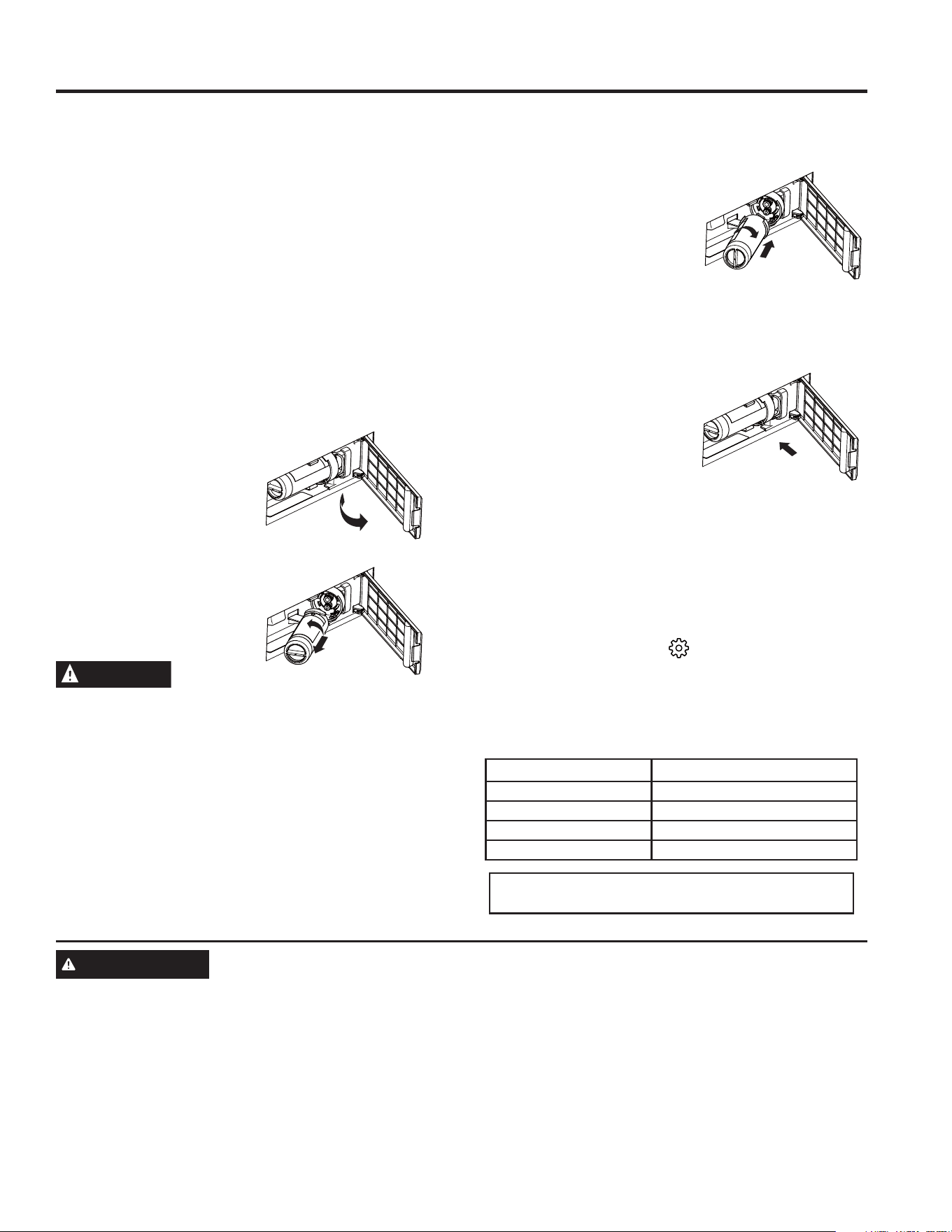
49-1000332 Rev. 10 15
Cartouche XWFE du filtre
UTILISATION DU RÉFRIGÉRATEUR: &DUWRXFKH;:)(GXILOWUH
Cartouche de filtre à eau
La cartouche de filtre à eau est située dans la porte
réfrigérateur gauche derrière le panneau d’accès
rectangulaire.
Quand remplacer la cartouche de filtre à eau
Le message Replace Water Filter (remplacer le filtre à
eau) sur le panneau de commande va s’illuminer lorsque la
cartouche de filtre à eau devra être remplacée bientôt. Le
message Water Filter Expired (filtre à eau périmé) sur le
panneau de commande va s’illuminer lorsque la cartouche
de filtre à eau doit être remplacée à brève échéance. La
cartouche de filtre à eau peut être remplacée plus tôt si
le débit d’eau du distributeur ou de la machine à glaçons
diminue. Une fois que l’un ou l’autre message est illuminé, la
distribution d’eau affichera Confirm Filter Change (confirmer
le remplacement du filtre); ne confirmez que si le filtre a été
remplacé.
RETRAIT DU FILTRE
Si vous remplacez le filtre,
retirez d’abord le précédent en
agrippant le filtre avec soin et le
tournant lentement vers la
gauche sur environ ¼ de tour.
Le filtre va se libérer
automatiquement une fois
tourné suffisamment vers la
gauche. Une petite quantité
d’eau pourrait dégoutter.
ATTENTION
Si de l’air est emprisonné dans le système, la cartouche de
filtre peut être éjectée lors de son retrait.
BOUCHON DE DÉRIVATION DU FILTRE
Pour réduire le risque de dommage à la propriété en raison de
fuites d’eau, vous DEVEZ utiliser un bouchon de dérivation du filtre
lorsqu’une cartouche filtrante de rechange n’est pas disponible.
&HUWDLQVPRGqOHVQHVRQWSDVGRWpVG¶XQERXFKRQGHGpULYDWLRQ
du filtre. Pour obtenir une prise de dérivation, appelez au 1-800-
HWGHPDQGH]ODSULVHGHGpULYDWLRQQR:5;$X
&DQDGDDSSHOH]DX/HGLVWULEXWHXUHWODPDFKLQH
à glaçons ne fonctionneront pas sans que ne soient installés le
filtre ou le bouchon de dérivation. Le bouchon de dérivation
s’installe de la même manière que la cartouche de filtre.
INSTALLATION DU FILTRE DANS UN
RÉFRIGÉRATEUR À CONGÉLATEUR EN BAS
1. Ouvrez le logement de la cartouche de filtre en tirant pour
ouvrir la porte.
2. Alignez les points d’accès du
filtre sur ceux porte-filtre puis
insérez délicatement le filtre.
3. Tournez lentement le filtre
vers la droite jusqu’à ce qu’il
V¶DUUrWH1(3$66(55(5
(;&(66,9(0(17/HILOWUHV¶DMXVWHUDDXWRPDWLTXHPHQWj
sa position à mesure que vous le tournez. Le filtre tournera
d’environ ¼ de tour ou 90 degrés jusqu’à ce qu’il ne puisse
plus tourner, étiquette orientée vers l’extérieur.
4. Poussez lentement le filtre dans
les pinces.
5. Fermez le logement de la
cartouche de filtre en poussant
délicatement la porte jusqu’à
ce que les languettes se
verrouillent en place.
)DLWHVFRXOHUJDOORQVOLWUHVG¶HDXSDUOHGLVWULEXWHXU
(environ 5 minutes) pour nettoyer le système. De l’eau peut
jaillir et des bulles d’air peuvent être visibles pendant la
procédure. Si l’eau ne s’écoule pas, assurez-vous que le
filtre a été complètement tourné vers la droite.
7. Lors de la distribution d’eau, pressez le bouton en
GHVVRXVGXPHVVDJH&RQILUP)LOWHU&KDQJHFRQILUPHU
le remplacement du filtre). Si vous souhaitez changer le
filtre à eau avant l’apparition du message, appuyez sur le
bouton Settings (réglages) (
) jusqu’à ce que le mot «
,FHPDNHUªPDFKLQHjJODoRQVV¶DOOXPHSXLVPDLQWHQH]
VLPXOWDQpPHQWOHVERXWRQV©:DWHUªHW©,FHªHQIRQFpV
pendant trois (3) secondes.
Conditions d’application/Paramètres
d’alimentation d’eau
Débit de service JP/P
Alimentation d’eau Eau potable
Pression d’eau 25-120 psi (172-827 kPa)
Température de l’eau ))&&
&DSDFLWp JDOORQVOLWUHV
Enregistrez-vous pour recevoir des RAPPELS
TEXTUELS en textant REPLACE au 70543.
AVERTISSEMENT
Pour réduire le risque d’étouffement, ne laissez pas les enfants âgés de moins de 3 ans atteindre
les petites pièces pendant l’installation du produit. /HILOWUHjFDUWRXFKHMHWDEOHGRLWrWUHUHPSODFpWRXVOHVPRLVGDQVOHV
conditions d’utilisation prescrites, ou plus tôt si une diminution évidente de son débit est observée.
Pour bénéficier au maximum de votre système de filtration, GE Appliances recommande l’utilisation de filtres de marque GE
$SSOLDQFHVVHXOHPHQW/¶XWLOLVDWLRQGHILOWUHVGHPDUTXH*($SSOLDQFHVDYHFGHVUpIULJpUDWHXUV*($SSOLDQFHVHW+RWSRLQW
procure un rendement et une fiabilité optimaux. Les filtres GE Appliances satisfont les normes NSF rigoureuses de l’industrie
relative à la sécurité et la qualité, facteur important pour les produits qui filtrent votre eau. GE Appliances n’a pas évalué le
UHQGHPHQWGHVILOWUHVG¶DXWUHVPDUTXHVGDQVOHVUpIULJpUDWHXUV*($SSOLDQFHVHW+RWSRLQWHWLOQ¶H[LVWHDXFXQHDVVXUDQFHTX¶LOV
satisferont les normes de qualité, de rendement et de fiabilité GE Appliances.
Pour toute question, ou pour commander des filtres à cartouche de rechange, visitez notre site Web au gewaterfilters.
com, ou pour joindre le service des Pièces et accessoires GE Appliances composez le 877.959.8688. (Canada
1.800.661.1616 ou electromenagersge.ca/fr/produits/filtres-et-accessoires).
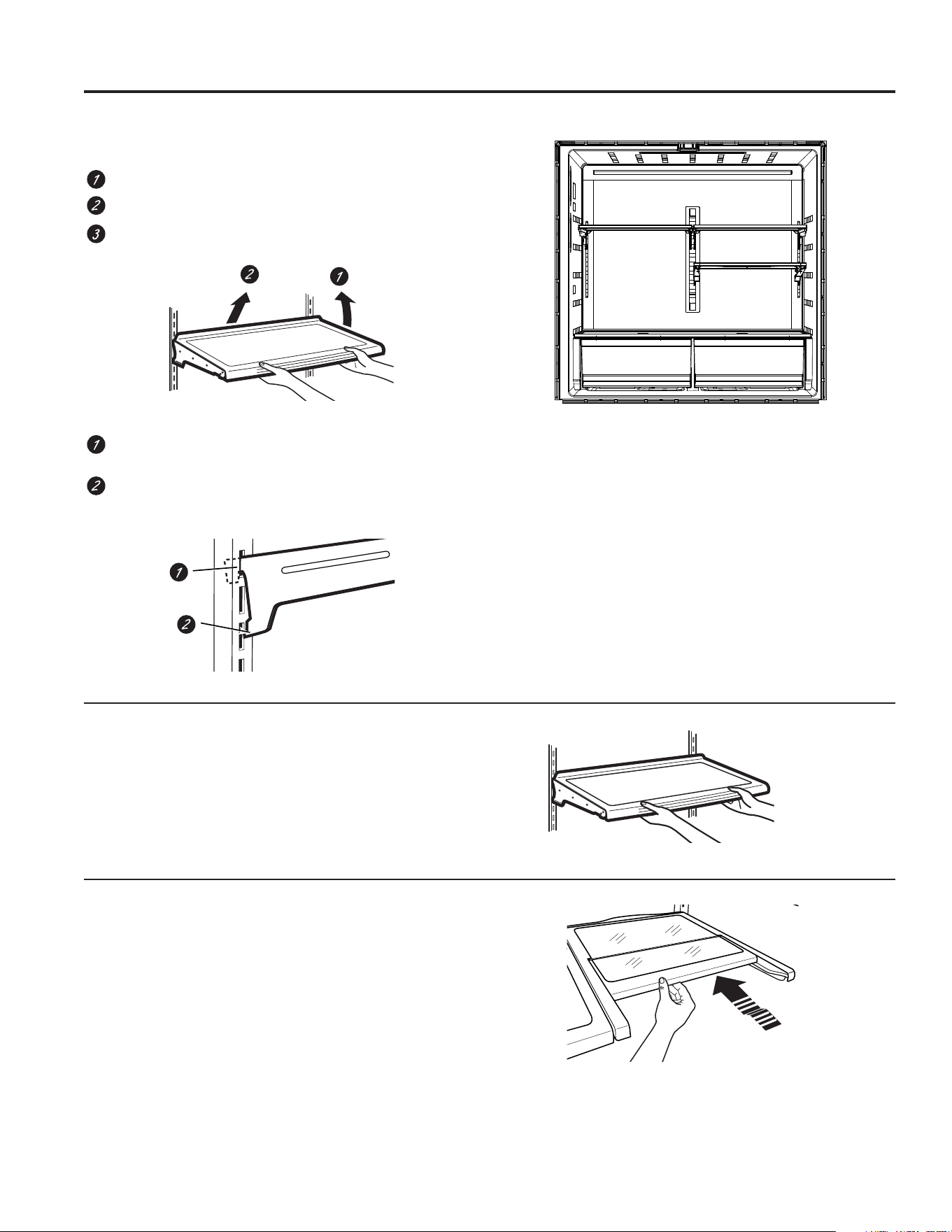
49-1000332 Rev. 10
UTILISATION DU RÉFRIGÉRATEUR: Stockage des produits frais
Stockage des produits frais
Réorganisation des clayettes
Les clayettes du réfrigérateur sont réglables.
Pour les retirer :
5HWLUH]WRXVOHVDOLPHQWVGHODFOD\HWWH
Soulevez l’avant de la clayette.
Soulevez l’arrière de la clayette et sortez-la du
réfrigérateur.
Pour le remettre en place :
Tout en inclinant la clayette, insérez le crochet supérieur à
l’arrière de cette même clayette dans une fente du rail.
Abaissez l’avant de la clayette jusqu’à ce que le bas de
celle-ci se positionne correctement.
Clayettes anti-déversement
Les clayettes anti-déversement ont des bords adaptés pour
éviter que les déversements ne s’écoulent sur les clayettes
inférieures.
Clayette QuickSpace
&HWWHFOD\HWWHVHSDUWDJHHQGHX[DYHFXQHSDUWLHTXLV¶HVFDPRWH
sous l’autre pour permettre le stockage des articles de grande taille
posés sur la clayette inférieure.
&HWWHFOD\HWWHSHXWrWUHUHWLUpHHWUHPSODFpHRXGpSODFpHWRXW
comme les clayettes anti-déversement).
REMARQUE : La partie arrière de la clayette QuickSpace n’est
pas réglable.
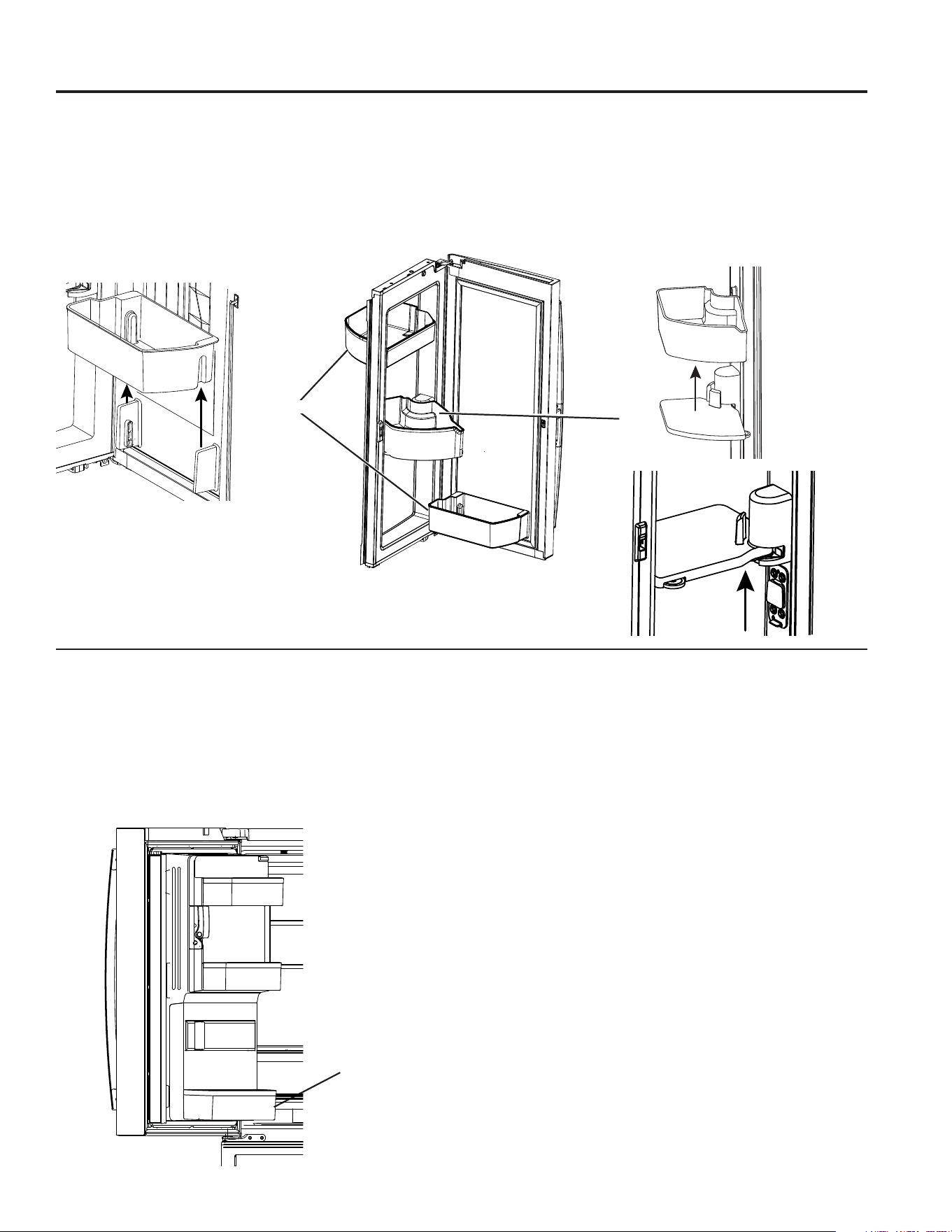
49-1000332 Rev. 10 17
UTILISATION DU RÉFRIGÉRATEUR: Options de stockage du réfrigérateur
Options de stockage du réfrigérateur
Bacs de la porte gauche
BAC FIXE
Pour retirer : Soulevez le bac à la vertical puis tirez-le
vers l’extérieur.
Les bacs à glace de la porte ne sont pas interchangeables.
Mémorisez l’emplacement lors du retrait et réinstallez le bac
au même endroit.
Bacs de la porte droite
BACS FIXES pouvant facilement être transportés du
réfrigérateur vers la surface de travail.
Pour retirer : Soulevez le bac à la verticale puis tirez-le vers
l’extérieur.
BAC ROTATIF :
Pour retirer : Tournez le bac vers l’extérieur puis soulevez-le
à la verticale. Pour le retirer, placez une main sous la base
métallique puis soulevez le bac.
Pour retirer la base métallique : Placez une main sous la
base métallique puis soulevez.
Bacs fixes
Bacs fixes
5HWUDLWGX
bac rotatif
5HWUDLWGHVEDFVIL[HV
5HWUDLWGH
la base
métallique
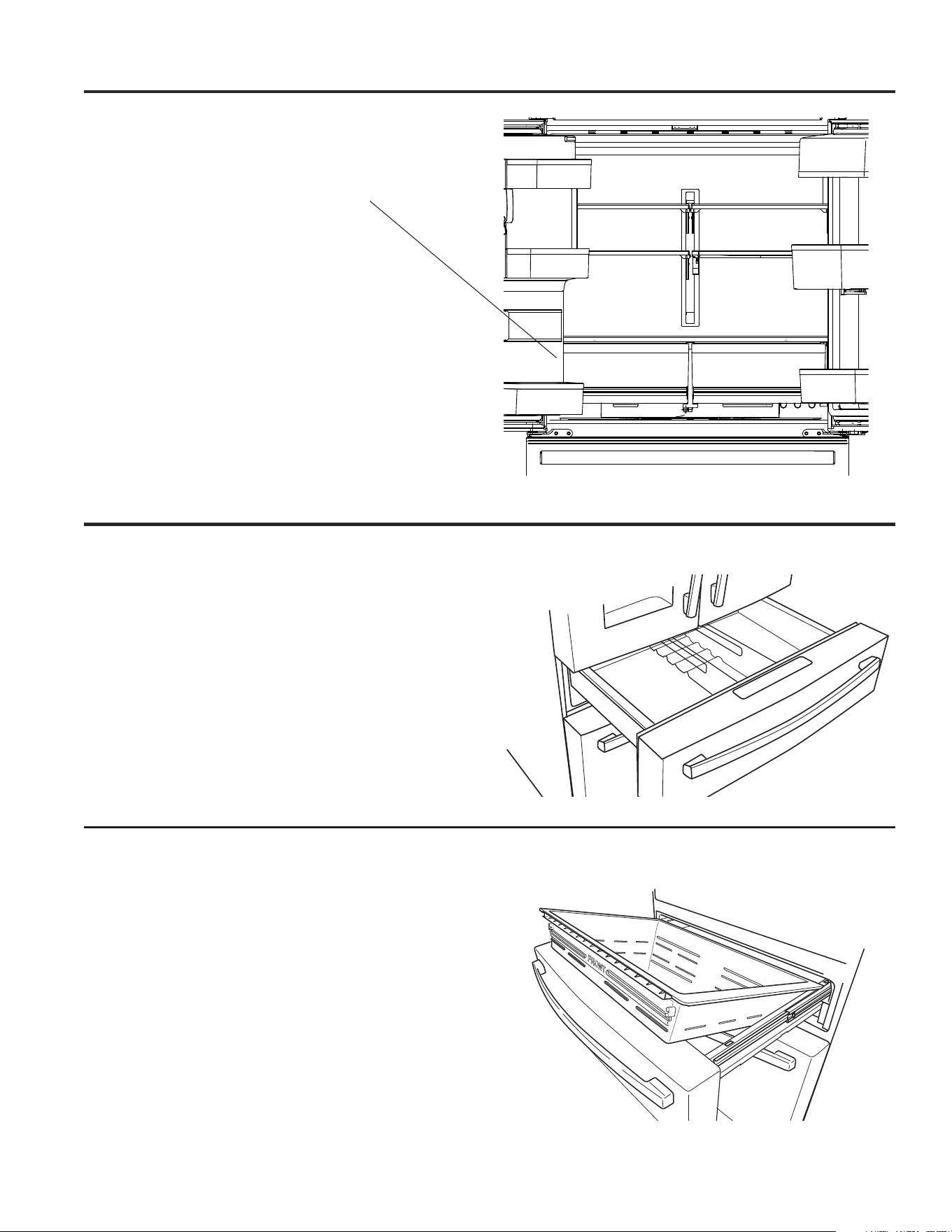
18 49-1000332 Rev. 10
Comment retirer et replacer le tiroir
Pour retirer :
1. Tirez le tiroir vers l’extérieur jusqu’à la position d’arrêt.
5HWLUH]OHSDQLHUGXWLURLUFRQYHUWLEOHHQOHVRXOHYDQWWRXWHQ
faisant pivoter le panier vers le haut.
Pour replacer :
5HSODFH]G¶DERUGO¶DUULqUHGXWLURLUHWIDLWHVSLYRWHUOHGHYDQW
pour le déposer sur les glissières.
2. Poussez le tiroir jusqu’à la position fermée.
Le panier de tiroir convertible sera lâche s’il est réinstallé à
O¶HQYHUV5HSpUH]OHPRWHPERVVp©)5217ªGHYDQWSRXU
faciliter la réinstallation.
UTILISATION DU RÉFRIGÉRATEUR: Zone climatisée Tiroir convertible
Comment retirer et réinstaller la cloison séparatrice
Pour retirer :
1. Ouvrez le tiroir jusqu’à ce qu’il s’immobilise
2. Soulevez légèrement la cloison séparatrice puis
tournez-la pour la retirer.
Pour réinstaller :
1. Placez le dos de la cloison séparatrice sur la paroi
arrière du tiroir.
2. Tournez la cloison séparatrice dans la position désirée.
Tiroir convertible
Zone climatisée
Pour organiser les fruits et les légumes dans des
compartiments distincts pour faciliter l’accès.
L’excès d’eau pouvant s’accumuler au fond ou sous les
tiroirs doit être épongé.
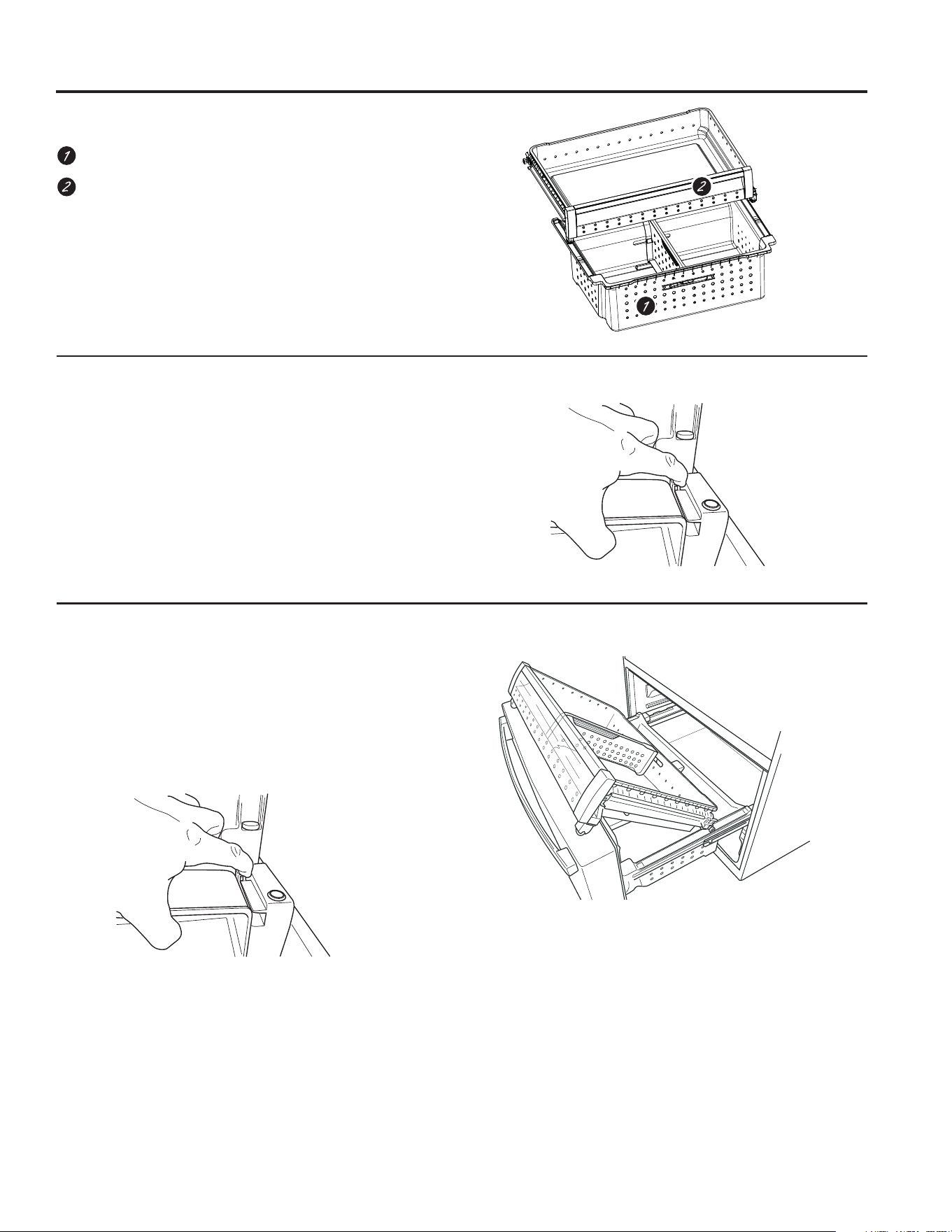
49-1000332 Rev. 10 19
UTILISATION DU RÉFRIGÉRATEUR: Paniers, tiroirs et bacs
Panier et tiroir du congélateur
Panier.
Tiroir
Bac à bascule dans le congélateur
Pour retirer :
Pressez la languette sur le support droit pour retirer le bac du
tiroir du congélateur.
Pour replacer :
Glissez le bac à sa position jusqu’à ce qu’il se verrouille en
place.
Paniers, tiroirs et bacs
Retrait du panier
Pour retirer :
1. Tirez le panier du tiroir de congélateur supérieur vers l’avant
jusqu’à ce qu’il sorte du rail du compartiment congélateur.
Soulevez, tout en faisant pivoter le panier vers le haut pour
le retirer.
2. Pressez la languette sur le support droit pour retirer le bac
de la porte du congélateur.
3. Soulevez le panier du tiroir congélateur inférieur légèrement
vers l’arrière, puis vers le haut et hors du tiroir.
Pour réinstaller, faites les étapes de retrait à l’inverse.
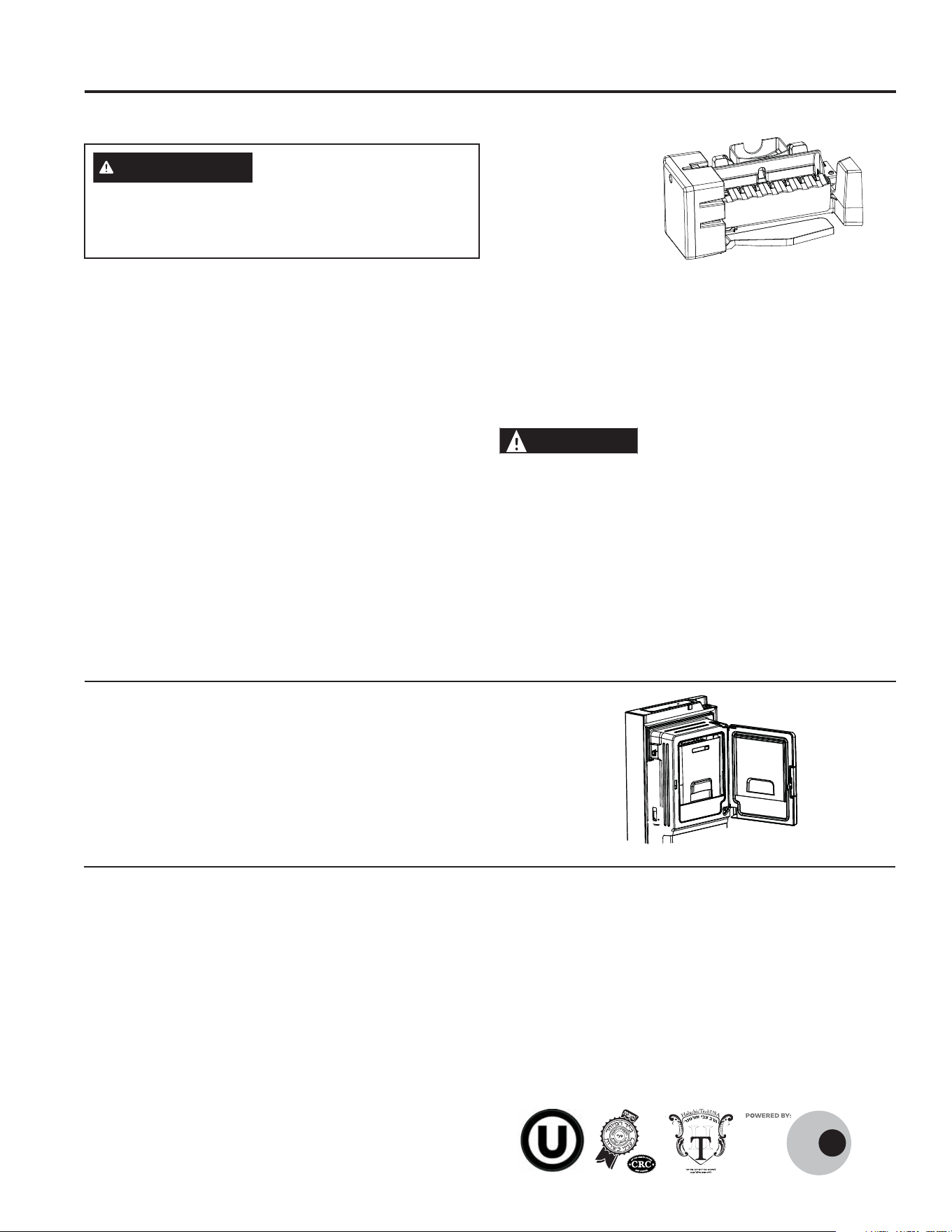
20 49-1000332 Rev. 10
Seau à glaçons et distributeur
• Ouvrez la porte du bac à glace à l’intérieur de la porte de
gauche.
• Tirez le seau à glaçons vers le haut dans la porte de gauche
pour le sortir du compartiment.
• Pour remettre le seau à glace, placez-le sur les guides et
enfoncez-le jusqu’à ce qu’il soit correctement en place.
UTILISATION DU CONGÉLATEUR : Machine à glaçons automatique
Machine à glaçons automatique
,OIDXWSUpYRLUHQWUHHWKHXUHVDYDQWTX¶XQUpIULJpUDWHXU
nouvellement installé commence à produire des glaçons.
Machine à glaçons automatique
La machine à glaçons produit sept glaçons par cycle - environ
112-140 cycles par 12 heures, selon la température du
compartiment de congélation, la température de la pièce,
le nombre d’ouverture de porte et les autres conditions
d’utilisation.
La machine à glaçons se remplit d’eau lorsque sa température
DWWHLQW)&,OIDXWSUpYRLUHQWUHHWKHXUHVDYDQW
qu’un réfrigérateur nouvellement installé commence à produire
des glaçons.
Si le réfrigérateur est mis en marche avant que la machine
à glaçons ne soit raccordée à l’alimentation en eau ou si
l’alimentation en eau du réfrigérateur est fermée, assurez-vous
que la machine à glaçons est éteinte. Une fois l’eau raccordée
au réfrigérateur, on peut mettre la machine à glaçons sous
tension (On) à l’aide des contrôles.
Vous entendrez un bourdonnement à chaque fois que la
machine à glaçons se remplit d’eau.
Pour remplir le bac à sa capacité maximale après l’installation,
distribuez 3 ou 4 glaçons au bout de 12 heures et 18 heures.
Allouez 1 à 2 jours pour que le bac se remplisse complètement
de glaçons
Jetez les premiers bacs de glaçons pour bien nettoyer le
conduit d’eau.
Vérifiez que rien
n’interfère avec le
déplacement du bras de
détection.
Quand le bac se remplit
jusqu’au niveau du bras
de détection, la machine
à glaçons s’arrête de
SURGXLUHGHVJODoRQV,O
est normal de trouver des glaçons qui soient soudés ensemble.
Si vous n’utilisez pas souvent vos glaçons, les vieux glaçons
deviennent opaques, prennent un mauvais goût et rétrécissent.
REMARQUE : Dans les maisons qui ont une pression d’eau
plus faible que la moyenne, vous entendrez peut-être la
machine à glaçons recommencer plusieurs fois son cycle pour
produire un lot de glaçons.
ATTENTION
Pour minimiser les risques de blessures,
évitez le contact avec les pièces mobiles du mécanisme
éjecteur, ou avec l’élément chauffant qui libère les glaçons.
Ne posez pas les doigts ou les mains sur le mécanisme de la
machine à glaçons automatique pendant que le réfrigérateur
est branché.
Pour allumer ou éteindre la machine à glaçons, utilisez le
bouton Paramètres pour accéder aux sélection de la machine à
JODoRQV9RLU&200$1'(6SDJH
AVERTISSEMENT
5DFFRUGH]O¶DSSDUHLOjXQH
alimentation d’eau potable seulement. Une alimentation
d’eau froide est requise pour faire fonctionner la machine à
glaçons et le pichet à remplissage automatique. La pression
d’eau doit se situer entre 40 et 120 psi. (275 à 827 kPa).
Mode Sabbat - OU (Orthodox Union) et CRC (Central Rabbinical Congress)
&HUpIULJpUDWHXURIIUHXQPRGH6DEEDWK28HW&5&FRQIRUPH
DX[QRUPHVpWDEOLHVSDU2UWKRGR[8QLRQOH&HQWUDO5DEELQLFDO
&RQJUHVVHW+DODFKD7HFKHWLOHVWFHUWLILpjVHORQOHV
normes halachiques les plus strictes. Pour activer le mode
6DEEDWK28HW&5&GHX[PpWKRGHVVRQWSRVVLEOHVXQH
activation manuelle et un mode Sabbath automatique.
La première méthode (manuelle) peut être activée en suivant les
LQVWUXFWLRQVGHODVHFWLRQ&RPPDQGHVGXUpIULJpUDWHXU3DJH
Le mode Sabbath se désactivera automatiquement après
KHXUHV
La deuxième méthode (automatique) nécessite l’utilisation
G¶XQ6KDEERV.HHSHUIRU5HIULJHUDWRUVGLVWLQFWTXLGRLWrWUH
branché au réfrigérateur. Le Shabbos Keeper peut être acheté
sur zmantechnologies.com ou geappliances.com. La seule
façon d’activer automatiquement le mode Sabbath OU et
&5&HVWG¶DFKHWHUOH6KDEERV.HHSHUIRU5HIULJHUDWRUV/H
Shabbos Keeper se connecte à votre réfrigérateur pour activer
automatiquement les modes compatibles Shabbos chaque
semaine et avant chaque fête. Le mode approprié s’activera
automatiquement selon la date du calendrier juif correspondant à
votre emplacement. Lorsque le Shabbos Keeper est correctement
branché au réfrigérateur, l’affichage présentera un écran fixe
comportant un bouton « Exit Sabbath mode » (quitter le mode
Sabbath).
ZMAN
TECH
NOLOGIES
¯¶·¯¬Ã²¹·º°¶¹¯Ã°´
49-1000332 Rev. 10 21
Entretien et nettoyage
Nettoyage de l’extérieur
Nettoyage de l’intérieur
Pour prévenir les odeurs, laissez ouverte une boîte de
bicarbonate de soude dans les compartiments réfrigérateur et
congélateur.
Débranchez l’appareil avant de le nettoyer.
S’il est trop difficile de débrancher l’appareil, essorez bien votre
chiffon ou votre éponge pour enlever l’excès d’eau lorsque
vous nettoyez autour des interrupteurs, des lampes ou des
commandes. Utilisez une cire pour appareil ménager sur la
surface intérieure entre les portes.
Utilisez une solution d’eau tiède et de bicarbonate de soude
(environ une cuillère à soupe (15 ml) de bicarbonate de soude
dans un litre d’eau) afin de nettoyer tout en neutralisant les
RGHXUV5LQFH]HWVpFKH]
Pour nettoyer le panneau métallique intérieur*, ouvrez la
porte extérieure à l’aide du verrou entre les portes extérieure
et intérieure. Nettoyez le panneau à l’aide d’un détergent doux
puis essuyez avec un chiffon souple pour sécher. N’utilisez pas
un nettoyant pour acier inoxydable sur le panneau car il pourrait
endommager le plastique du pourtour.
ATTENTION
Ne nettoyez pas les clayettes ou les
couvercles en verre avec de l’eau tiède quand ceux-ci sont
froids. Les clayettes et couvercles en verre peuvent se casser
s’ils sont exposés à des changements soudains de
température ou si vous les cognez ou les faites tomber. Le
verre trempé est conçu pour se briser en petits morceaux en
cas de casse.
Ne lavez aucune pièce en plastique du réfrigérateur au lave-
vaisselle.
UTILISER NE PAS UTILISER
Linge ou éponge doux et propres
&KLIIRQHQPLFURILEUHV
Linges abrasifs, essuie-tout, éponges à récurer (avec ou sans savon), tampons à récurer
ou en laine d’acier.
Détergent doux dans eau chaude. Poudres, liquides, ou vaporisateurs abrasifs.
Vaporisateurs pour fenêtres, ammoniac ou javel
Nettoyants à base d’agrumes ou de plantes.
Nettoyants acides ou à base de vinaigre.
Nettoyants pour le four.
Nettoyants alcalins
Nettoyants pour acier inoxydable
ACIER INOXYDABLE RÉSISTANT AUX EMPREINTES DIGITALES*, -
Directives pour nettoyer les
surfaces extérieures, les poignées de porte et les garnitures
N’utilisez PAS de nettoyants pour acier inoxydable sur les surfaces de porte.
IMPORTANT : L’utilisation de produits inappropriés peut endommager le fini extérieur de l’acier inoxydable résistant aux
empreintes digitales et de l’acier inoxydable noir. Veuillez suivre ces instructions et utiliser seulement les articles appropriés
ci-dessous pour nettoyer les surfaces de votre électroménager.
Ɣ$ILQGHSUpYHQLUOHXUGpWpULRUDWLRQQHWWR\H]OHVVXUIDFHVLQWpULHXUHH[WpULHXUHDYHFGHO¶HDXWLqGHXQVDYRQRXXQGpWHUJHQW
doux, et un linge doux ou en microfibres.
Ɣ$ILQGHSUpYHQLUOHVUD\XUHVHWOHVWDFKHVG¶HDXVpFKH]OHVVXUIDFHVGHO¶pOHFWURPpQDJHUHQOHVHVVX\DQWDYHFXQFKLIIRQGRX[
propre ou un linge en microfibres.
*Nettoie facilement les taches et les empreintes de doigt.
ENTRETIEN ET NETTOYAGE
22 49-1000332 Rev. 10
ENTRETIEN ET NETTOYAGE
Arrêt et redémarrage du réfrigérateur pendant des périodes prolongées
Lors de vacances ou d’absences prolongées, retirez les
aliments et débranchez le réfrigérateur. Nettoyez l’intérieur
avec une solution d’une cuillère à table (15 ml) de bicarbonate
de soude dans une pinte (1 litre) d’eau. Laissez les portes
ouvertes.
Si la température risque de descendre sous le point de
congélation, faites appel à un technicien qualifié pour vidanger
le système d’alimentation d’eau afin de prévenir les dommages
à la propriété causés par inondation.
1. Mettez le réfrigérateur hors tension (Off) ou débranchez-le.
(9RLU&200$1'(6SDJH
2. Videz le bac à glaçons.
&RXSH]O¶DOLPHQWDWLRQG¶HDX
Si vous coupez l’alimentation d’eau, mettez la machine à
glaçons hors tension (Off).
Au retour de vacances :
5HPSODFH]OHILOWUHjHDX
2. Faites circuler deux gallons (7,57 litres) d’eau dans le
distributeur d’eau froide (environ 5 minutes) afin de rincer le
système.
Entretien et nettoyage
Remplacement des ampoules
Ampoules du réfrigérateur (DEL)
L’aspect peut varier selon le modèle.
Le compartiment de réfrigération est équipé d’un éclairage à
DEL. De plus, le bas de la porte du compartiment réfrigérateur
est également équipé de DEL pour éclairer le compartiment de
congélation.*
Le remplacement des ampoules à DEL doit être effectué par
un technicien autorisé.
Si cet assemblage doit être remplacé, visitez
Electromenagersge.ca/fr/soutien/demande-de-service pour
programmer une visite de service.
Derrière le réfrigérateur
Soyez prudent lorsque vous éloignez votre réfrigérateur du
mur. Tous les types de revêtements de sol peuvent être
endommagés, en particulier les revêtements matelassés et
ceux dont la surface est gaufrée.
5HOHYH]OHVSLHGVGHPLVHjQLYHDXVLWXpVVXUODSDUWLH
inférieure avant du réfrigérateur.
Tirez le réfrigérateur en ligne droite et lorsque vous le
remettez en place, poussez-le vers le mur en ligne droite. Les
déplacements latéraux du réfrigérateur pourraient endommager
le revêtement de sol ou le réfrigérateur.
Abaissez les pieds de mise à niveau jusqu’à ce qu’ils touchent
le sol.
AVERTISSEMENT
RISQUE DE CHOC
ÉLECTRIQUE Lorsque vous remettez le réfrigérateur en
place en le poussant, veillez à ne pas le faire rouler sur le
cordon d’alimentation.
Déménagement
,PPRELOLVH]WRXWHVOHVSLqFHVDPRYLEOHVWHOOHVTXHOHV
clayettes et les bacs, à l’aide de ruban gommé pour éviter de
les endommager.
Lorsque vous utilisez un diable pour déplacer le réfrigérateur,
ne faites pas reposer le devant ou l’arrière du réfrigérateur
contre le diable, sous peine d’endommager votre réfrigérateur.
Ne le manipulez que par les côtés.
Assurez-vous que le réfrigérateur reste en position verticale
pendant son déménagement.
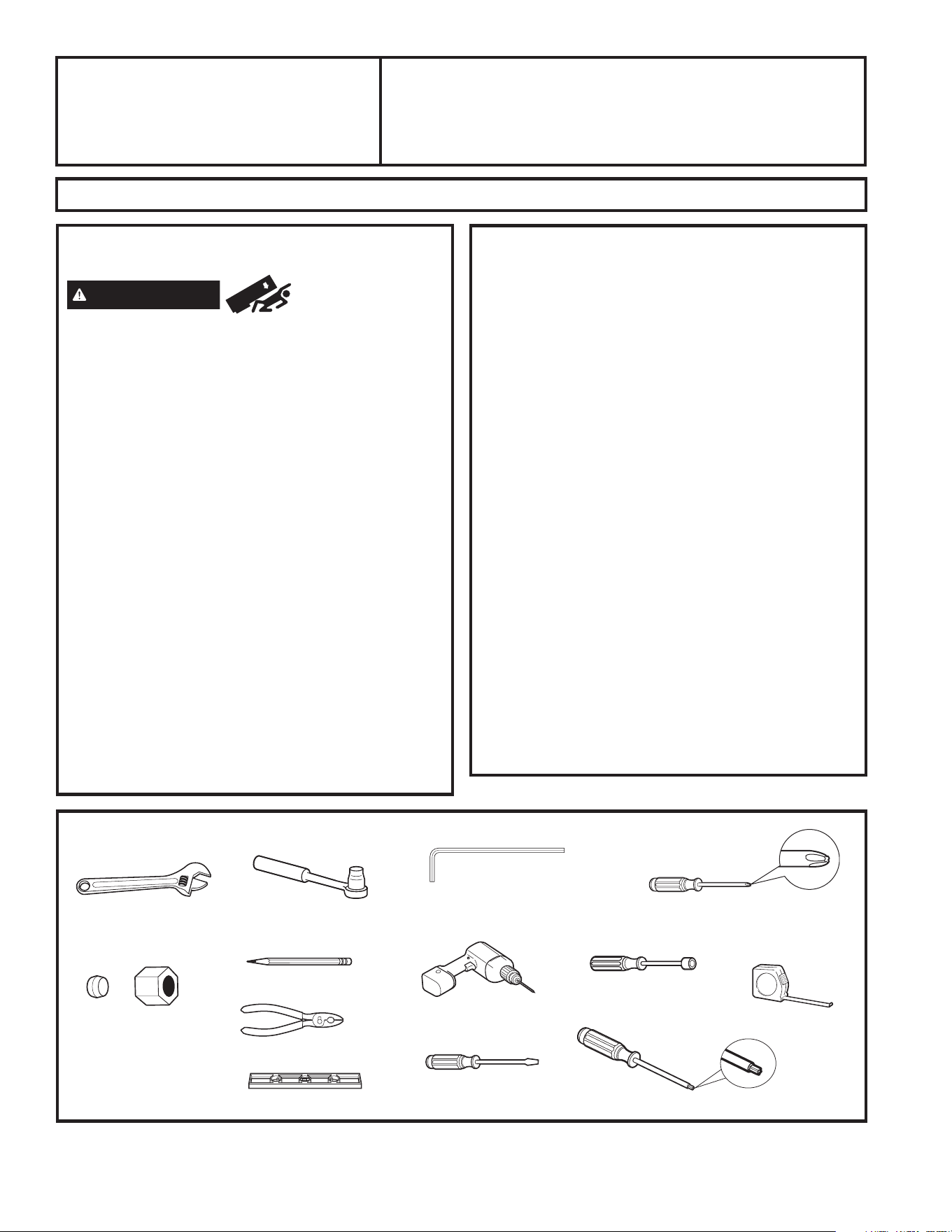
49-1000332 Rev. 10 23
•
IMPORTANT — (cont.)
• Délai d’exécution– Variable pour l’installation du
réfrigérateur
30 minutes pour l’installation de
l’alimentation en eau
• L’installateur est responsable de l’installation correcte de
l’appareil.
• La panne de l’appareil due à une mauvaise installation
n’est pas couverte par la garantie.
PRÉPARATION
DÉPLACEMENT DU RÉFRIGÉRATEUR À L’INTÉRIEUR
DE LA MAISON
Si le réfrigérateur ne peut pas passer par la porte, vous
pouvez enlever la portes du compartiment de réfrigération
et le tiroir du compartiment de congélation.
• Pour enlever la portes du compartiment de réfrigération,
FRQVXOWH]ODVHFWLRQ©,QVWDOODWLRQGXUpIULJpUDWHXUª
• Pour enlever la porte du compartiment de congélation,
FRQVXOWH]ODVHFWLRQ©5HWUDLWGXWLURLUGHFRQJpODWLRQª
ALIMENTATION EN EAU DE LA MACHINE À GLAÇONS
ET DU DISTRIBUTEUR
Si le réfrigérateur est équipé d’une machine à glaçons,
il devra être branché à une alimentation en eau froide.
Vous pouvez vous procurer une trousse GE Appliances
de branchement à l’alimentation d’eau (contenant
tuyau, robinet, raccords et instructions) auprès de
votre fournisseur, en consultant notre site internet
Electromenagersge.ca/fr/produits/filtres-et-accessoires.
Instructions
d’installation
Réfrigérateur
Des Questions ? consultez notre site internet Electromenagersge.ca
AVANT DE COMMENCER
Lisez ces instructions entièrement et attentivement.
AVERTISSEMENT
Risque de
basculement
/HVPRGqOHV3-'3-(3;'&-(HW&;(VRQWORXUGVGX
KDXWVXUWRXWORUVTXHOHVSRUWHVVRQWRXYHUWHV&HVPRGqOHV
sont fournis avec un support antibasculement qui doit être
installé et solidement fixé à la structure de la maison afin
de prévenir un basculement vers l’avant, ce qui pourrait
entraîner des blessures graves ou la mort. Lisez et observez
la totalité des instructions d’installation pour installer le
support de plancher antibasculement fourni avec votre
réfrigérateur.
5(0$548(6LYRXVSRVVpGH]XQPRGqOH3-'3-(
3;'&-(RX&;(HWTXHYRXVQ¶DYH]SDVUHoXGH
support antibasculement lors de votre achat, composez
le 833.4BODEWELL pour en obtenir un gratuitement
DX&DQDGDFRPSRVH]OH3RXUOHV
instructions d’installation du support, visitez : www.
*($SSOLDQFHVFRPDX&DQDGDZZZ*($SSOLDQFHVFD
•
IMPORTANT — 5HVSHFWH]WRXVOHVFRGHVHW
UqJOHPHQWVHQYLJXHXU&RQVHUYH]FHVLQVWUXFWLRQVSRXU
l’inspecteur local.
5HPDUTXHSRXUO¶,QVWDOODWHXU±$VVXUH]YRXVGHUHPHWWUH
ces instructions à l’utilisateur.
5HPDUTXHSRXUO¶XWLOLVDWHXU&RQVHUYH]FHVLQVWUXFWLRQV
pour toute référence future.
• Niveau de compétence - L’installation de cet appareil
demande des connaissances de base en mécanique.
OUTILLAGE DONT VOUS POUVEZ AVOIR BESOIN
&OpjPROHWWH
Écrou à compression de
diamètre externe d’¼ po
et d’une bague
Tournevis cruciforme
Tournevis à cliquet
de po
&OpKH[DJRQDOHGHW\SH
$OOHQGHSRSR
óSRHWGHSR
&UD\RQ
0qFKHGHSRHW3HUFHXVH
manuelle ou électrique
Mètre
Tournevis à tête plate
Pinces
Niveau
Tournevis à tête plate
Tournevis Torx T20, T25
INSTRUCTIONS D’INSTALLATION
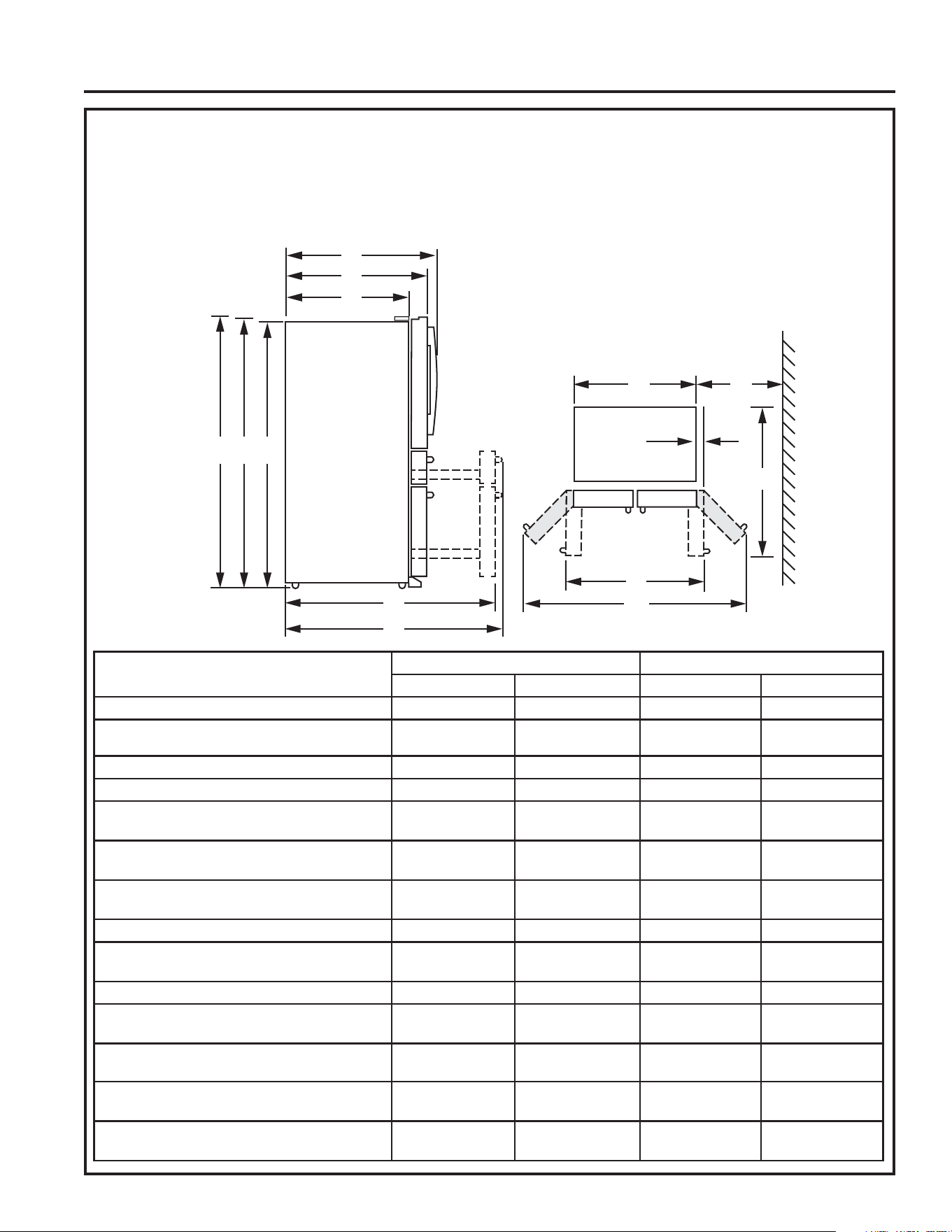
24 49-1000332 Rev. 10
DIMENSIONS
Instructions d’installation
REMARQUE : ,OHVWUHFRPPDQGpTXHOHSODQFKHUVRLWSURWpJpSDUXQUHFRXYUHPHQWSODVWLTXHGXUDQWWRXWHODGXUpHGH
l’installation.
REMARQUE : Non recommandé pour une installation sur moquette.
REMARQUE : /DORQJXHXUGXFRUGRQG¶DOLPHQWDWLRQHVWGHPPSR
HK
I
J
G
L
X
D
E
F
Y
CBA
PVD28 PXD22
pouces millimètres pouces millimètres
+DXWHXUWRWDOHMXVTX¶DXGHVVXVGHODSRUWH$
70 1778 70 1778
+DXWHXUMXVTX¶DXGHVVXVGXFRXYHUFOHGHFKDUQLqUH
(B)
1775 1775
+DXWHXUMXVTX¶DXGHVVXVGHODFDUURVVHULH& 1743 1743
Profondeur de carrosserie sans porte (D) 749
Profondeur carrosserie avec porte, moins
poignée porte (E)
870 743
Profondeur carrosserie avec porte et poignée
(F)
933
Profondeur avec porte réfrigérateur ouverte à
90° (G)
1229 ´ 1102
/DUJHXU+ 908 908
Largeur avec porte ouverte à 90°, avec poi-
JQpH,
1127 1127
Largeur avec portes totalement ouvertes (J)
Dist. min. entre carrosserie et mur pour portes
totalement ouvertes (K)
Distance entre le caisson et la porte, porte
ouverte à 90° (L)
111 111
Profondeur avec porte congélateur totalement
ouverte, avec poignée (X)
1359
Profondeur avec porte congélateur totalement
ouverte, sans poignée (Y)
1422 1232
INSTRUCTIONS D’INSTALLATION
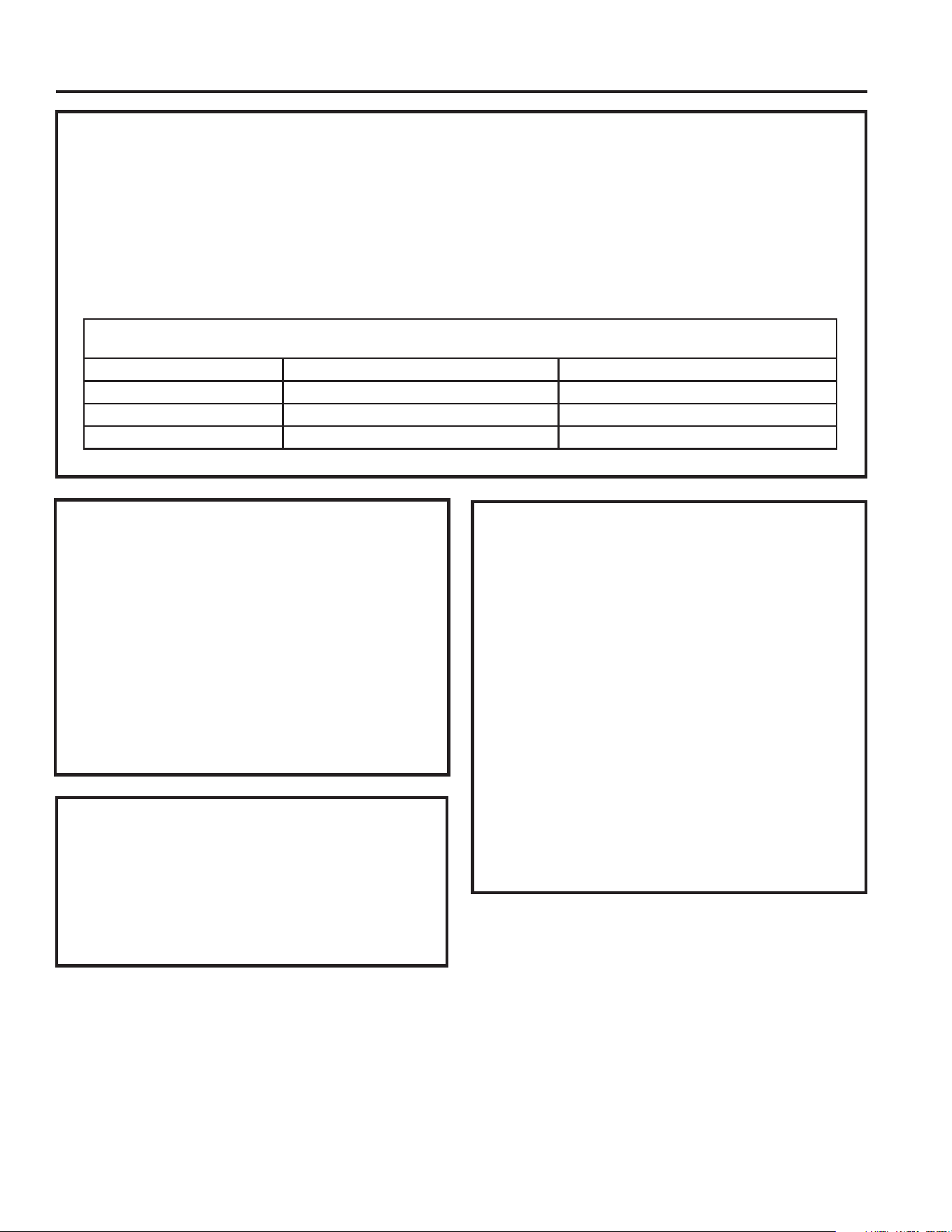
49-1000332 Rev. 10 25
INSTRUCTIONS D’INSTALLATION
DÉPLACEMENT DU RÉFRIGÉRATEUR
• En utilisant le tableau ci-dessous, déterminez si la largeur de votre couloir et embrasures de porte peuvent accommoder la
profondeur du réfrigérateur. Assurez-vous d’avoir assez d’espace pour éviter d’endommager le réfrigérateur avant de le déplacer
en toute sécurité vers son emplacement final.
• Si votre couloir et embrasures de porte sont assez large pour laisser passer le réfrigérateur sans enlever les poignées, passez
GLUHFWHPHQWjO¶pWDSH/DLVVHUOHVEDQGHVDGKpVLYHVOHILOPHWWRXVOHVHPEDOODJHVVXUOHVSRUWHVMXVTX¶jFHTXHOHUpIULJpUDWHXU
soit dans sa position finale.
• REMARQUE : Utilisez un diable rembourré ou des sangles de déménagement pour déplacer ce réfrigérateur. Placez
le réfrigérateur sur le diable en appuyant un des côtés contre le diable. Il est fortement recommandé que DEUX
PERSONNES déplacent le réfrigérateur et effectuent cette installation.
Instructions d’installation
Si votre ouverture est inférieure aux dimensions suivantes, retirez les pièces de la porte dans l’ordre indiqué jusqu’à ce
que les dimensions soient inférieures à l’ouverture.
PVD28 PXD22
5HWLUHUOHVSRLJQpHV ´PP
´PP
5HWLUHUOHVSRUWHV ´PP ´PP
5HWLUHUODFKDUQLqUHFHQWUDOH ´PP ´PP
RETRAIT DES PORTES DU
RÉFRIGÉRATEUR
ŶREMARQUE IMPORTANTE : Si les passages sont
moins profonds que votre réfrigérateur, les portes et les
poignées du réfrigérateur peuvent être facilement rayées
et endommagées. Les portes peuvent être retirés pour
permettre de déplacer le réfrigérateur à l’intérieur en
toute sécurité. Si les passages sont moins profonds que
la profondeur de votre réfrigérateur et que les poignées
sont installées, commencez par inverser l’étape 1 pour
retirer les poignées.
ŶS’il n’est pas nécessaire de retirer les poignées ou les
portes, passez directement à l’étape 13. Laisser les
bandes adhésives et tous les emballages sur les portes
jusqu’à ce que le réfrigérateur soit dans sa position finale.
Ŷ REMARQUE : Utilisez un diable rembourré pour
déplacer ce réfrigérateur. Placez le réfrigérateur sur
OHGLDEOHHQDSSX\DQWXQGHVF{WpVFRQWUHOHGLDEOH,O
HVWIRUWHPHQWUHFRPPDQGpTXH'(8;3(56211(6
déplacent le réfrigérateur et effectuent cette installation.
EMPLACEMENT DU
RÉFRIGÉRATEUR
• N’installez pas le réfrigérateur dans une pièce où les
WHPSpUDWXUHVGHVFHQGHQWHQGHVVRXVGH)&
parce qu’il serait difficile d’y maintenir une température
correcte.
• N’installez pas le réfrigérateur dans un endroit où la
WHPSpUDWXUHDPELDQWHVHUDVXSpULHXUHj)&
il ne fonctionnera pas correctement.
• N’installez pas le réfrigérateur dans un endroit exposé à
l’eau (pluie, etc.) ou directement aux rayons solaires.
,OGRLWrWUHLQVWDOOpVXUXQHVXUIDFHVXIILVDPPHQWVROLGH
pour supporter le poids d’un réfrigérateur rempli.
DÉGAGEMENTS
Prévoyez les dégagements suivants pour faciliter
l’installation, la circulation d’air et les raccordements
hydrauliques et électriques.
&{WpV SRPP
Dessus 1 po (25mm)
Arrière 2 po (50 mm)
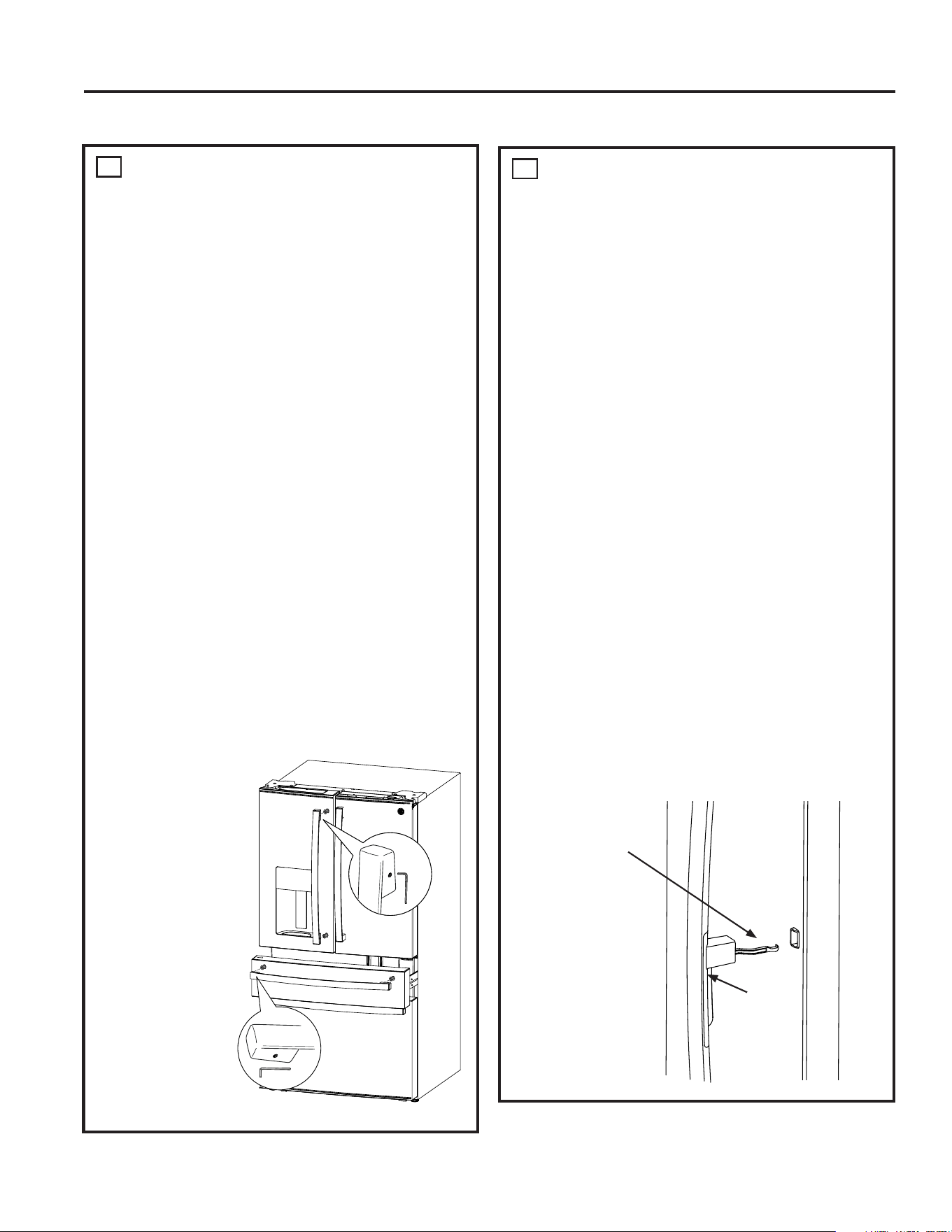
49-1000332 Rev. 10
Instructions d’installation
INSTALLATION DU RÉFRIGÉRATEUR
1
INSTALLATION DE LA POIGNÉE
DU RÉFRIGÉRATEUR ET DU
CONGÉLATEUR
Avant de commencer…
Ŷ Pour éviter les blessures, portez des chaussures
fermées lors de l’installation des poignées.
Ŷ Lors de l’installation, saisissez la poignée fermement
pour vous assurer qu’elle ne tombe pas et ne raye pas
la finition de l’appareil.
Ŷ IMPORTANT: Pour vous assurer que les poignées
seront correctement installées, veuillez lire les instructions
et examiner les illustrations attentivement avant de
commencer l’installation.
Ŷ IMPORTANT: N’utilisez pas d’outils électriques pour
serrer les vis de pression.
Outils fournis:
Ŷ&OpKH[DJRQDOHSR
L’apparence de la poignée peut varier en fonction du
modèle; cependant, la procédure d’installation est la même.
1. 5HWLUH]WRXWHSHOOLFXOHSURWHFWULFHGHODSRUWHRXGX
devant des tiroirs avant d’installer les poignées (s’il y
a lieu).
2. 5HWLUH]ODSRLJQpHGHO¶HPEDOODJHHWUHSpUH]ODFOp
KH[DJRQDOH´IRXUQLH
3. Placez la poignée sur les fixations de montage jusqu’à
ce qu’elle affleure la surface de la porte.
4. Serrez les deux vis de pression dans les capuchons
d’extrémité de la poignée en tournant la clé
KH[DJRQDOHGH´GDQVOHVHQVGHVDLJXLOOHVG¶XQH
montre jusqu’à ce que la poignée ne branle pas
ou ne tombe pas de son support. Ne serrez pas
complètement pour
le moment.
5. IMPORTANT:
Maintenez
fermement la
poignée contre la
porte, assurez-
vous qu’il n’y a
pas d’espace entre
les capuchons
d’extrémité de
la poignée et la
porte, et serrez
complètement les
vis de pression.
Pour retirer les
poignées, inversez
la procédure
d’installation.
2
INSTALLATION DE LA
POIGNÉE DU
RÉFRIGÉRATEUR POUR
MODÈLES À PORTE
INTÉRIEURE (DOOR-IN-DOOR)
SEULEMENT
L’apparence de la poignée peut varier en fonction du
modèle; cependant, la procédure d’installation est la
même.
1. 5HWLUH]WRXWHSHOOLFXOHSURWHFWULFHGHODSRUWHRXGXGHYDQW
des tiroirs avant d’installer les poignées (s’il y a lieu). Ne
retirez pas le ruban adhésif qui fixe la porte intérieure à
la porte extérieure avant d’avoir installé la poignée.
5HWLUH]ODSRLJQpHGHO¶HPEDOODJHHWUHSpUH]ODFOp
KH[DJRQDOH´IRXUQLH
3. Alignez le levier sur l’ouverture de la porte la porte
extérieure. Assurez-vous que le crochet est orienté vers
la haut.
,QVpUH]OHOHYLHUGXORTXHWGDQVO¶RXYHUWXUHHWSODFH]OD
poignée sur les fixations de montage jusqu’à ce qu’elle
affleure la surface de la porte.
5. Serrez les deux vis de pression dans les capuchons
d’extrémité de la poignée en tournant la clé hexagonale de
´GDQVOHVHQVGHVDLJXLOOHVG¶XQHPRQWUHMXVTX¶jFHTXH
la poignée ne branle pas ou ne tombe pas de son support.
Ne serrez pas complètement pour le moment.
IMPORTANT: Maintenez fermement la poignée contre
la porte, assurez-vous qu’il n’y a pas d’espace entre
les capuchons d’extrémité de la poignée et la porte, et
serrez complètement les vis de pression.
Pour retirer les poignées, inversez la procédure
d’installation.
Levier de loquet
avec crochet
orienté vers
le haut
Loquet
de porte
INSTRUCTIONS D’INSTALLATION
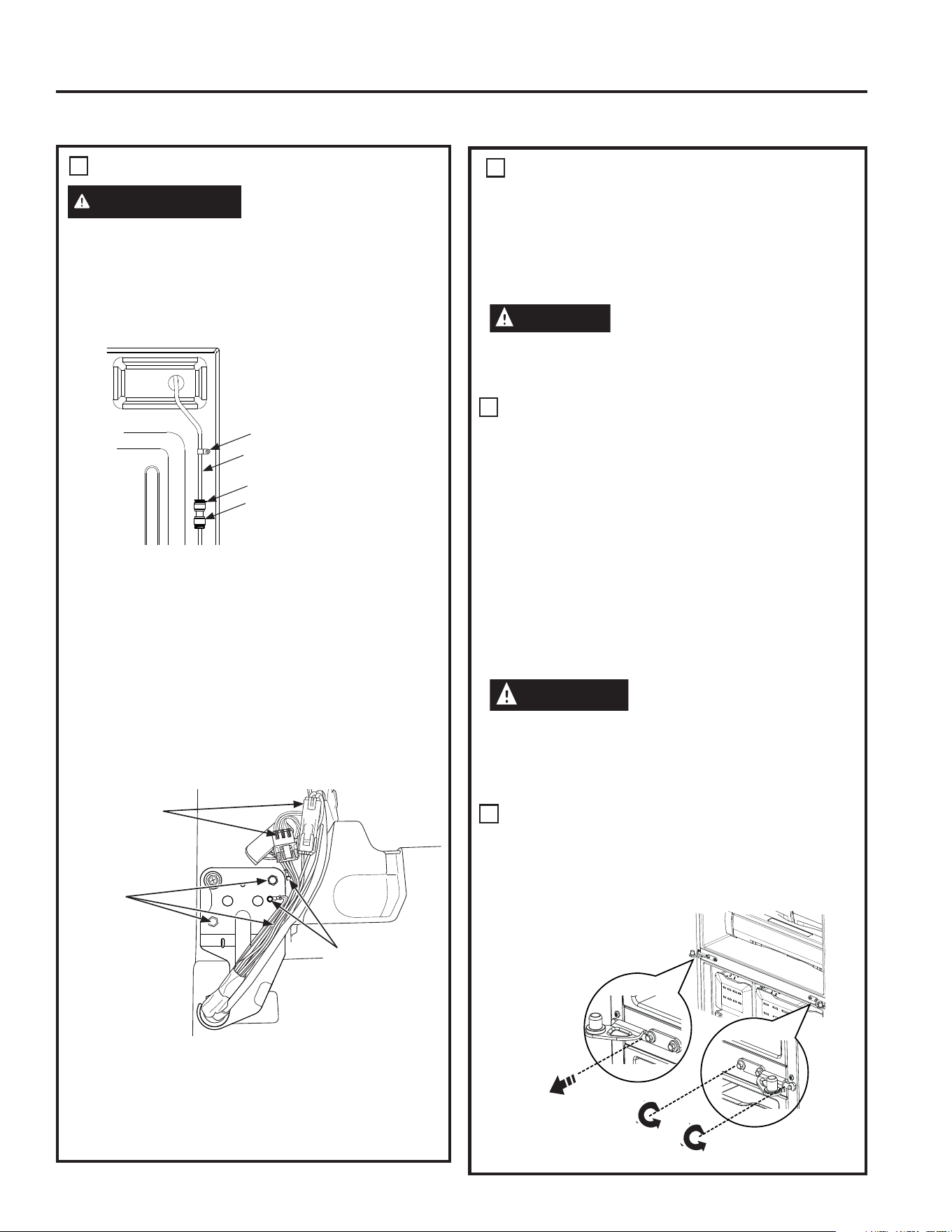
49-1000332 Rev. 10 27
INSTRUCTIONS D’INSTALLATION
3
RETIRER LA PORTE GAUCHE
(suite)
Pour une installation correcte plus tard, veuillez
suivre les étapes suivantes attentivement :
Ŷ5HWLUH]OHUXEDQHQJDUGDQWODSRUWHDXVVLGURLWHTXH
possible, puis soulevez-la pour l’enlever.
ATTENTION
Risques lors du levage
Un levage avec une seule personne peut provoquer des
blessures. Utilisez de l’aide lors de la manipulation, le
déplacement ou le levage des portes du réfrigérateur.
4
RETIRER LA PORTE DROITE (si
nécessaire)
Ŷ5HWLUH]OHFRXYHUFOHGHFKDUQLqUHGURLW (si nécessaire)
Ŷ)L[H]IHUPHPHQWODSRUWHHQSRVLWLRQIHUPpHDYHFGXUXEDQ
cache ou demandez à une autre personne de supporter la
porte.
Ŷ5HWLUH]OHVYLVTXLIL[HQWODFKDUQLqUHjO¶DLGHG¶XQH
GRXLOOHSR/HYH]ODFKDUQLqUHSRXUODGpJDJHUGX
réfrigérateur et de la porte.
Pour une installation correcte plus tard, veuillez
suivre les étapes suivantes attentivement :
Ŷ5HWLUH]OHUXEDQHQJDUGDQWODSRUWHDXVVLGURLWHTXH
possible, puis soulevez-la pour l’enlever.
ATTENTION
Risques lors du levage
Un levage avec une seule personne peut provoquer des
blessures. Utilisez de l’aide lors de la manipulation, le
déplacement ou le levage des portes du réfrigérateur.
Pour remonter les portes, inversez les étapes du retrait.
5
RETIRER LA CHARNIÈRE
CENTRALE (si nécessaire)
5HWLUH]OHVYLVSRXUIL[HUODFKDUQLqUHVXUODFDUURVVHULH
/HVYLVLQWpULHXUHVQpFHVVLWHQWXQHGRXLOOHSR/HV
vis extérieures nécessitent une vis Phillips no 2 ou
Tournevis Torx T25.
Instructions d’installation
INSTALLATION DU RÉFRIGÉRATEUR (suite)
3
RETIRER LA PORTE GAUCHE
AVERTISSEMENT
(si nécessaire)
Suivez toutes les étapes pour enlever et réinstaller la
porte.
La porte risque de tomber en plus de causer des
blessures ou des dommages si vous ne respectez pas ces
instructions, oubliez des pièces ou effectuez un serrage
excessif des vis.
Ŷ Desserrez le tube d’alimentation d’eau de la machine à
glaçons.
Ɣ'pYLVVH]HWUHWLUH]OHFROOHWjWX\DXTXLIL[HOHWX\DX
d’eau sur la face arrière du réfrigérateur.
Ɣ5HWLUH]OHFROOHWQRLUVXSpULHXUGXFRQQHFWHXUGX
tuyau d’eau sur la face arrière supérieure droite du
réfrigérateur.
Ɣ3UHVVH]ODFROOHUHWWHEODQFKHYHUVOHEDVHWVpSDUH]OD
conduite d’alimentation d’eau du connecteur.
Ŷ
5HWLUH]OHFRXYHUFOHGHODFKDUQLqUHJDXFKHHQUHWLUDQW
vis du couvercle de la charnière avec une tête Phillips,
un tournevis hexagonal de 7 mm ou un tournevis Torx
T20 et en le soulevant du côté gauche Débranchez les
connecteurs électriques et tirez le tube d’alimentation
d’eau de la machine à glaçons à travers la carrosserie.
ŶFixez fermement la porte en position fermée avec du
ruban cache ou demandez à une autre personne de
supporter la po
rte.
Ŷ5HWLUH]OHVYLVTXLIL[HQWODFKDUQLqUHjO¶DLGHG¶XQH
GRXLOOHSR/HYH]ODFKDUQLqUHSRXUODGpJDJHUGX
réfrigérateur et de la porte.
&ROOHW
&RQQHFWHXU
Tube d’alimentation d’eau
&ROOHWjWX\DX
&RQQH[LRQV
électriques
Vis de
charnière
Vis de
terre
5HWLUHUODYLV
centrale
Desserrer les
vis extérieures
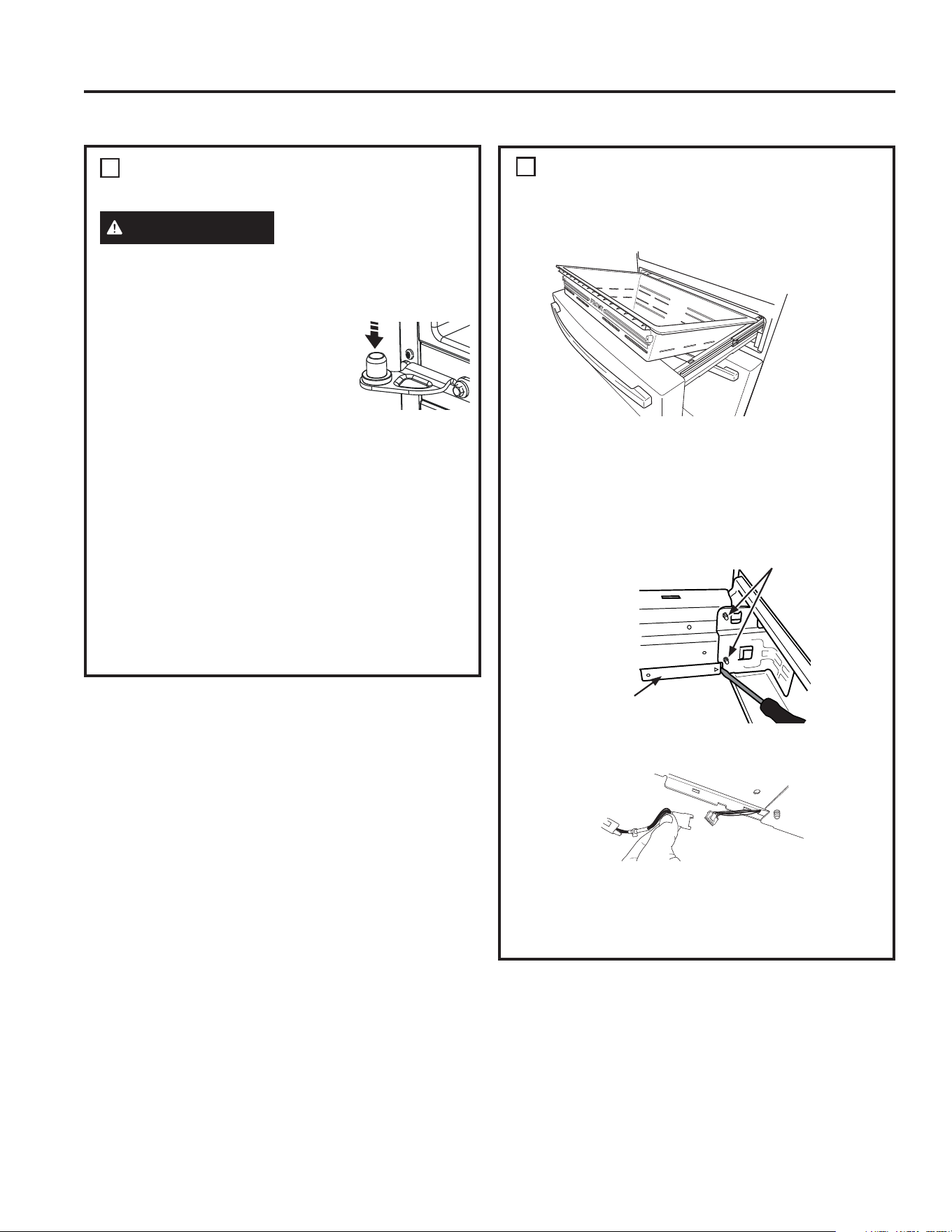
28 49-1000332 Rev. 10
RÉINSTALLATION DES PORTES
DES CÔTÉS GAUCHE ET DROIT
AVERTISSEMENT
Suivez toutes les étapes pour
enlever et réinstaller la porte.
La porte risque de tomber en
plus de causer des blessures ou des dommages si vous
ne respectez pas ces instructions, oubliez des pièces ou
effectuez un serrage excessif des vis.
5pLQVWDOOH]G¶DERUGODFKDUQLqUHFHQWUDOH
HWVHUUH]ODYLVSRDXFRXSOHGH
OESR1PHWODSHWLWHYLVDX
couple de 25 lb-po (2,82 N m). On
peut obtenir ces couples de serrage en
WRXUQDQWODYLVGHGHWRXUXQHIRLV
qu’elle est à égalité avec la surface correspondante.
2. Abaissez la porte du compartiment réfrigérateur sur la
charnière centrale.
3. Fixez fermement la porte en position fermée avec du ruban
cache ou demandez à une autre personne de supporter la
porte.
4. Les réinstallation s’effectue à l’inverse des instructions de
retrait.
5. Assurez-vous de réinstaller le fil de terre et le détendeur sur
la charnière supérieure.
5pLQVWDOOH]OHFRXYHUFOHGHFKDUQLqUH5(0$548(
Assurez-vous que les fils ne sont pas pincés ni qu’ils se
trouvent en-dessous des blocs de fixation avant de serrer
les vis.
Instructions d’installation
INSTALLATION DU RÉFRIGÉRATEUR (suite)
7
RETRAIT DU TIROIR
CONVERTIBLE
1. 5HWLUH]OHSDQLHUGXWLURLUFRQYHUWLEOHHQVRXOHYDQWSXLV
faisant pivoter le panier vers le haut.
2. Débranchez la connexion de contrôle pour le tiroir
convertible.
Ɣ¬O¶DLGHG¶XQWRXUQHYLVjWrWHpWRLOpHUHWLUH]OH
couvercle au-dessus des connecteurs électriques
sur l’intérieur droit du cadre du tiroir. Les crochets de
couvercle à travers le cadre de tiroir vers l’intérieur du
réfrigérateur.
Ɣ3UHVVH]ODODQJXHWWHDXFHQWUHGXFRQQHFWHXUSRXU
séparer.
3.
5HWLUH]YLVGHFKDTXHF{WpGXFDGUHjO¶DLGHG¶XQH
GRXLOOHSR
5HWLUH]ODSRUWHHQODVRXOHYDQWSRXUODGpJDJHUGHV
crochets
&RXYHUFOHGHODFRQQH[LRQ
de la commande
5HWLUH]FHVYLV
INSTRUCTIONS D’INSTALLATION
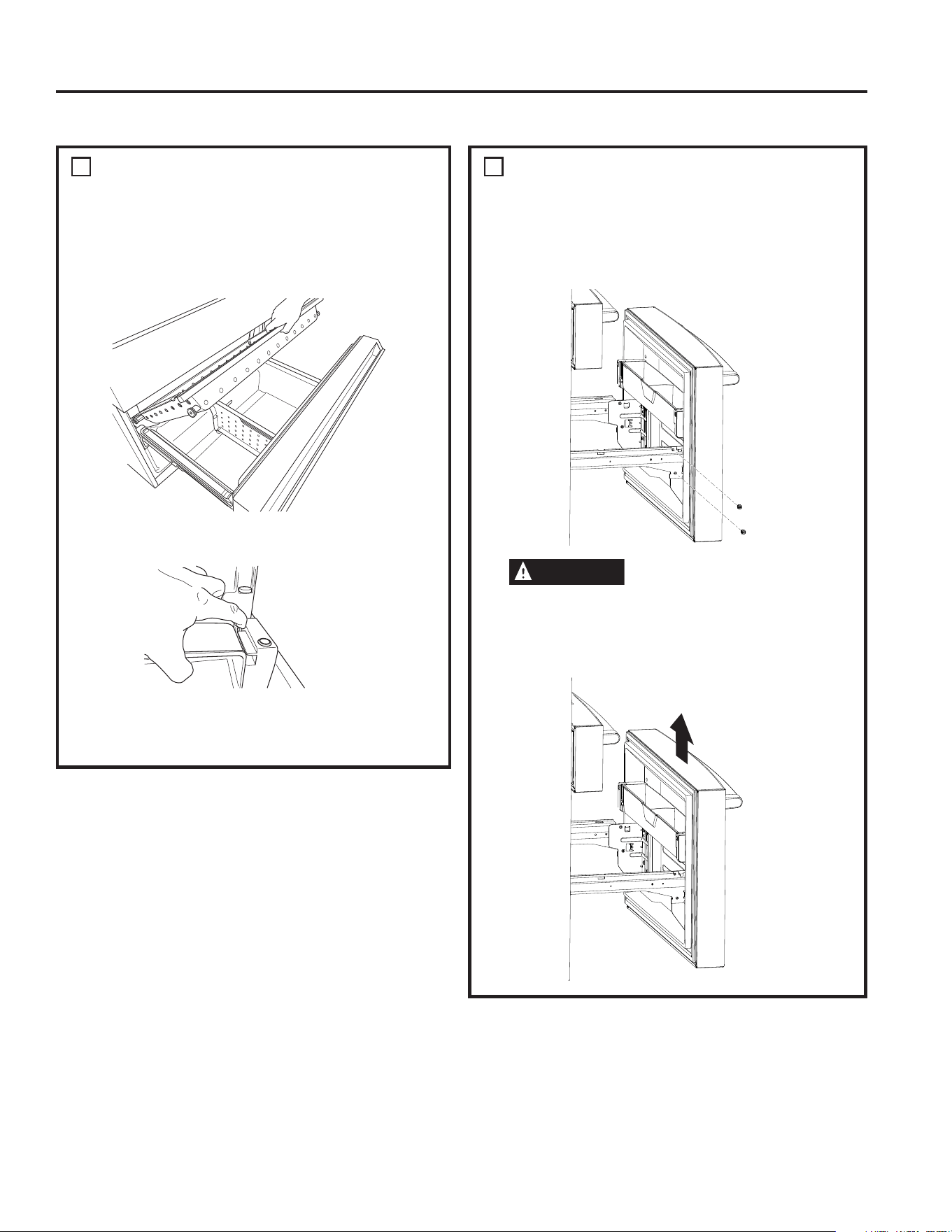
49-1000332 Rev. 10 29
INSTRUCTIONS D’INSTALLATION
9
RETRAIT DE LA PORTE DU
CONGÉLATEUR
1. Tirez sur la porte du congélateur jusqu’à ce qu’elle soit
complètement ouverte.
2.
5HWLUH]GHX[YLVGHFKDTXHF{WpGXFDGUHjO¶DLGHG¶XQH
GRXLOOHSR
ATTENTION
Risque lors du levage de
charge
La porte du congélateur est lourde. Utilisez les
deux mains pour maintenir la porte avant de la
soulever.
3. 5HWLUH]ODSRUWHHQODVRXOHYDQWSRXUODGpJDJHUGHV
crochets.
8
RETRAIT CONGÉLATEUR
INFÉRIEUR
Ŷ7LUH]OHSDQLHUGXWLURLUGHFRQJpODWHXUVXSpULHXUYHUV
l’avant jusqu’à ce qu’il sorte du rail du compartiment
congélateur. Soulevez, tout en faisant pivoter le panier
vers le haut pour le retirer.
Ŷ3UHVVH]ODODQJXHWWHVXUOHVXSSRUWGURLWSRXUUHWLUHUOH
balconnet de congélateur.
Ŷ7LUH]OHWLURLUGXFRQJpODWHXUMXVTX¶jVDSOHLQHH[WHQVLRQ
Ŷ6RXOHYH]OpJqUHPHQWYHUVO¶DUULqUHOHSDQLHUGXWLURLUGH
congélateur inférieur, puis vers le haut et l’extérieur.
Instructions d’installation
INSTALLATION DU RÉFRIGÉRATEUR (suite)
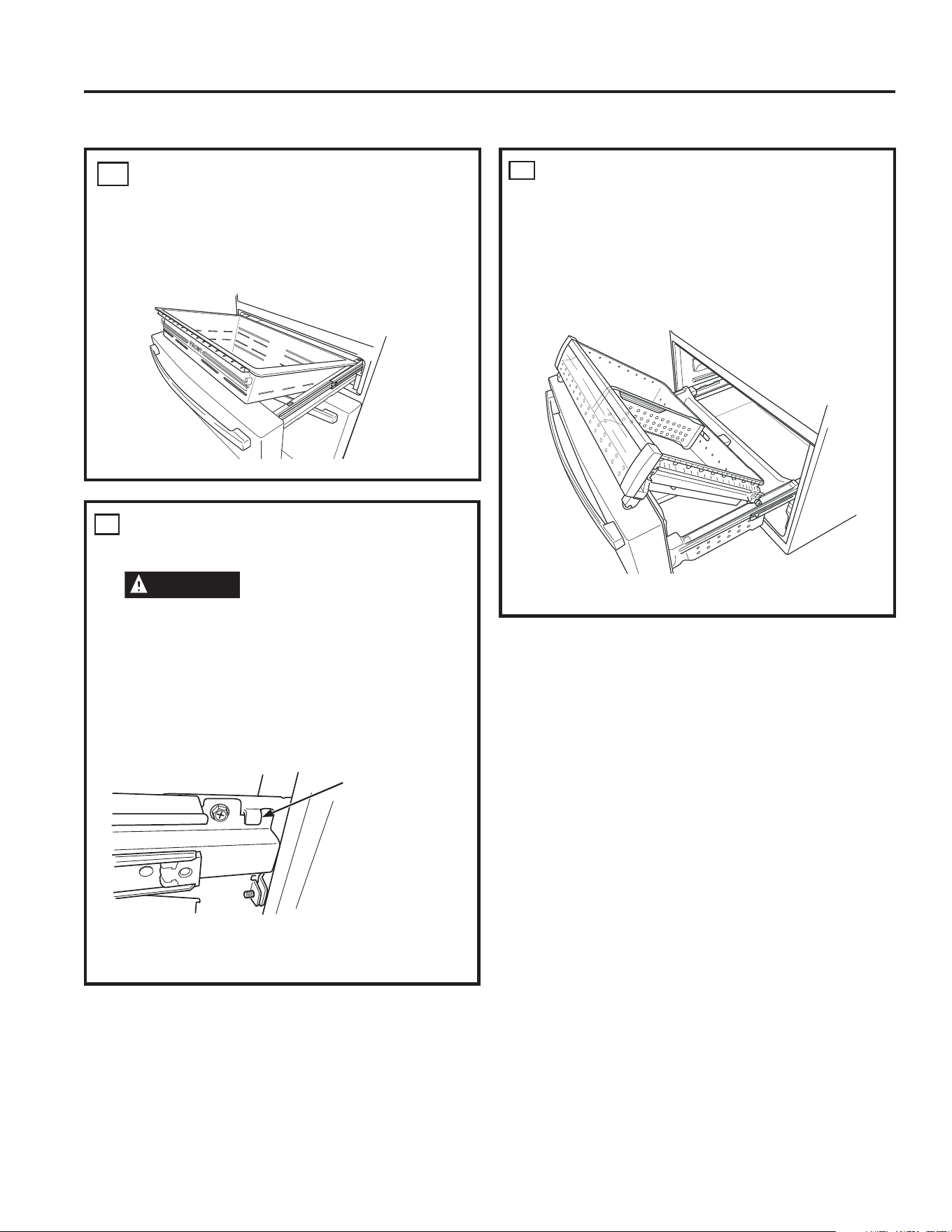
30 49-1000332 Rev. 10
RÉINSTALLATION DES PANIERS
DE CONGÉLATEUR
5pLQVWDOOH]OHSDQLHULQIpULHXUGXFRQJpODWHXU
5pLQVWDOOH]OHWLURLUGHFRQJpODWHXUVXSpULHXUHQSODoDQW
les roulettes du tiroir sur le dessus des rails situés sur
les parois latérales du congélateur. Les roulettes avant
du tiroir de congélateur doivent être sur le dessus du
panier inférieur.
3. Vérifiez le bon fonctionnement des paniers.
10
RÉINSTALLATION DU TIROIR
CONVERTIBLE
Pour remonter les portes, inversez les étapes de retrait.
Le panier de tiroir convertible sera lâche s’il est réinstallé à
O¶HQYHUV5HSpUH]OHPRWHPERVVp©)5217ªGHYDQWSRXU
faciliter la réinstallation.
12
REINSTALLATION DE LA PORTE
DU CONGÉLATEUR
ATTENTION
Risque lors du levage de
charge
La porte du congélateur est lourde. Utilisez les
deux mains pour maintenir la porte avant de la
soulever.
1. Tirez le mécanisme coulissant du panier inférieur à sa
pleine extension à l’aide des deux mains.
2. Soulevez la porte congélateur et alignez les
crochets sur les encoches du mécanisme coulissant.
REMARQUE : Placez un côté d’abord, puis alignez
l’autre côté.
5pLQVWDOOH]OHVYLVGHIL[DWLRQHWYLVVH]OHVDXFRXSOHGH
OESR1P
11
&URFKHWGHOD
porte congélateur
et encoche du
mécanisme
coulissant
Instructions d’installation
INSTALLATION DU RÉFRIGÉRATEUR (suite)
INSTRUCTIONS D’INSTALLATION
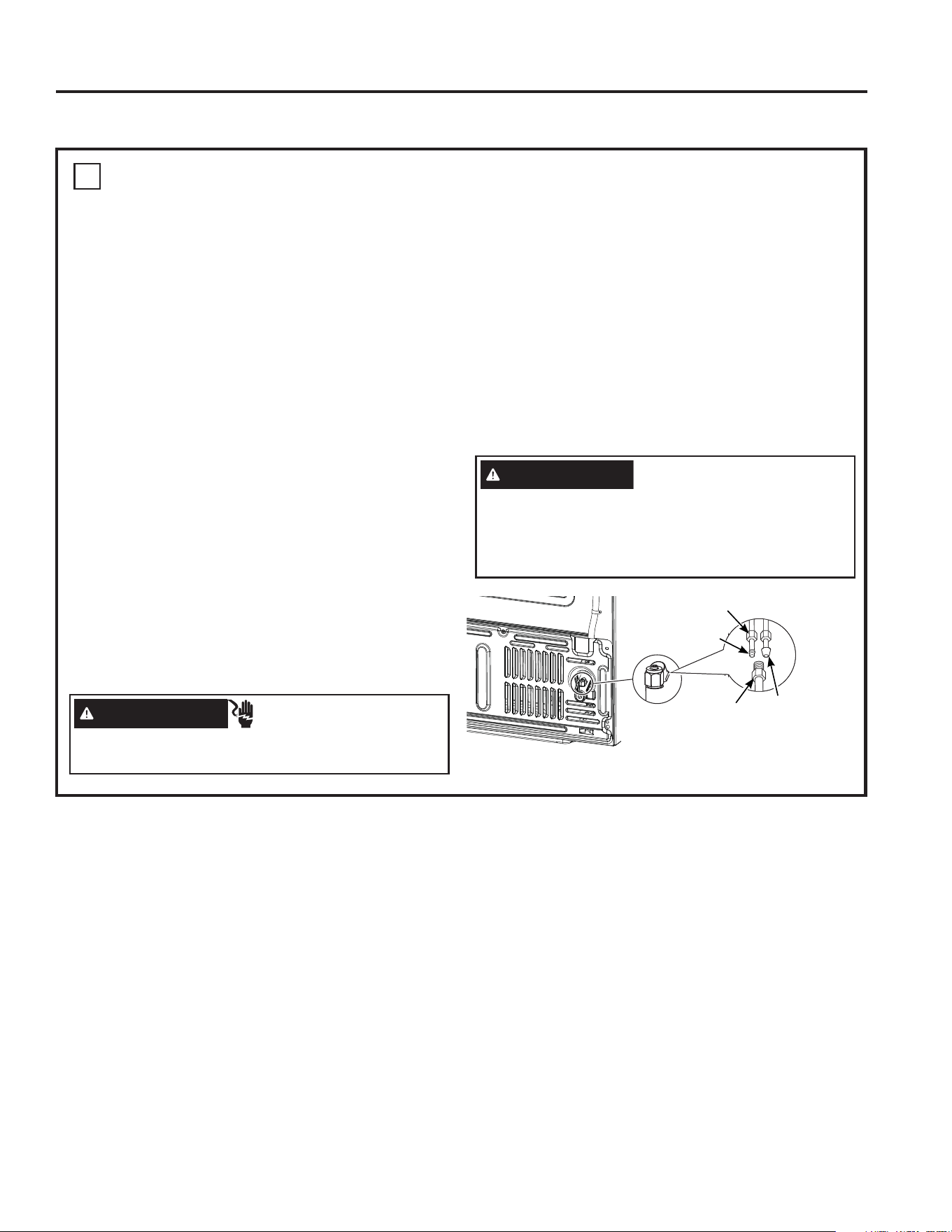
49-1000332 Rev. 10 31
INSTRUCTIONS D’INSTALLATION
13
RACCORDEMENT DU RÉFRIGÉRATEUR À LA CONDUITE D’EAU DE LA
MAISON
Une alimentation d’eau froide est requise pour faire
fonctionner la machine à glaçons automatique. Vous
GHYUH]HQIRXUQLUXQHVLHOOHQ¶H[LVWHSDV&RQVXOWH]OD
VHFWLRQ©,QVWDOODWLRQGHO¶DOLPHQWDWLRQHQHDXª
5(0$548(6
• Avant de raccorder la conduite d’eau au réfrigérateur,
assurez-vous que le cordon d’alimentation électrique du
réfrigérateur n’est pas branché à la prise murale.
• Si votre réfrigérateur n’est pas équipé de filtre à
eau, nous recommandons d’en monter un si votre
alimentation d’eau contient du sable ou des particules
qui peuvent boucher la grille du robinet d’eau du
UpIULJpUDWHXU,QVWDOOH]OHGDQVODFRQGXLWHG¶DOLPHQWDWLRQ
d’eau froide près du réfrigérateur. Si vous utilisez une
WURXVVH6PDUW&RQQHFW5HIULJHUDWRU7XELQJYRXV
aurez besoin d’un tuyau supplémentaire (WX08X10002)
pour brancher le filtre. Ne coupez pas le tuyau en
plastique pour installer le filtre.
• Avant de raccorder la conduite d’eau à la maison,
purgez la ligne de la maison pendant au moins 2
minutes.
1. Si vous utilisez un tuyau de cuivre, placez un écrou
de compression et une bague (manchon) à l’extrémité
du tuyau qui vient de l’alimentation d’eau froide de la
maison.
6LYRXVXWLOLVH]OHWX\DX6PDUW&RQQHFWOHVpFURXV
sont déjà assemblés au tuyau.
2. Si vous utilisez un tuyau de cuivre, insérez aussi loin
que possible l’extrémité du tuyau dans le raccord
à l’arrière du réfrigérateur. Tout en tenant le tuyau,
serrez le raccord.
6LYRXVXWLOLVH]XQWX\DX6PDUW&RQQHFWLQVpUH]
l’extrémité moulée du tuyau dans le raccord à l’arrière
du réfrigérateur, puis serrez l’écrou à compression à
la main. Serrez ensuite d’un autre tour à l’aide d’une
clé. Des fuites peuvent survenir si l’écrou est trop
serré.
3. Fixez le tuyau dans le collier de serrage fourni pour
le maintenir en position. Vous aurez peut être besoin
d’écarter la bride.
Instructions d’installation
INSTALLATION DU RÉFRIGÉRATEUR (suite)
AVERTISSEMENT
RISQUE DE DÉCHARGE
ÉLECTRIQUE Fixez le collier de serrage dans le trou
SUpVHQWVHXOHPHQW1(3(5&(=3$6GDQVOHUpIULJpUDWHXU
AVERTISSEMENT
5DFFRUGH]YRXVjXQH
alimentation en eau potable seulement.
Une alimentation en eau potable est requise pour le
fonctionnement de la machine à glaçons. La pression
d’eau doit se situer entre 40 et 120 psi (275 à 827
kilopascals).
Tuyau
6PDUW&RQQHFW
5DFFRUGGX
réfrigérateur
eFURXGHFRPSUHVVLRQG¶SR
Embout
(manchon)
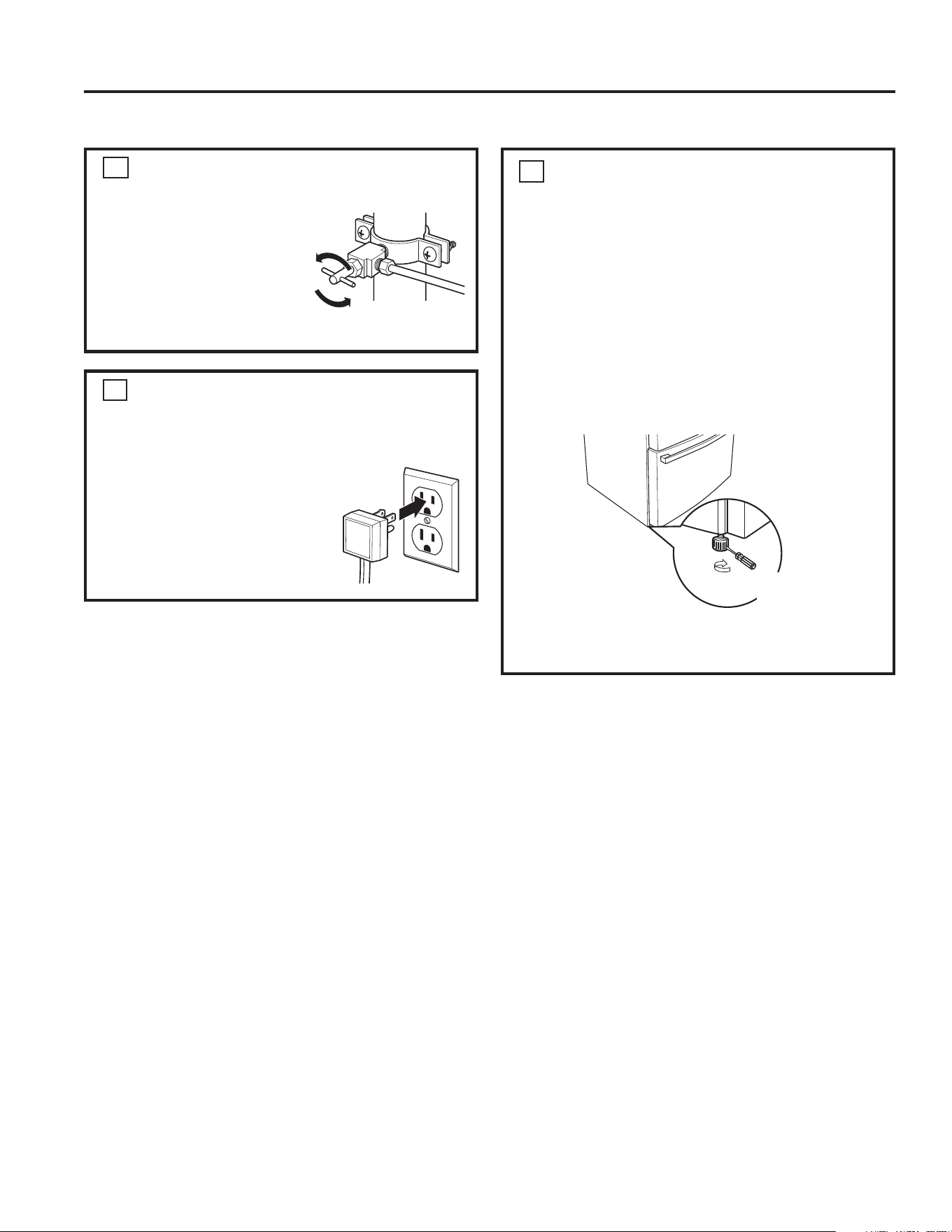
32 49-1000332 Rev. 10
14
OUVRIR L’ALIMENTATION EN
EAU
Ouvrez l’alimentation d’eau
au niveau du robinet d’arrêt
(alimentation en eau de la
maison) et vérifiez qu’il n’y a
pas de fuite.
15
BRANCHEMENT DU CORDON
D’ALIMENTATION DU
RÉFRIGÉRATEUR
Veuillez lire les informations de
mise à la terre fixées au cordon
d’alimentation.
16
MISE À NIVEAU DU
RÉFRIGÉRATEUR
Les pieds de mise à niveau servent :
1. à ajuster le réfrigérateur pour que celui-ci soit
correctement positionné sur le sol et ne vacille pas
2. de frein pour stabiliser le réfrigérateur pendant son
utilisation et son nettoyage. Les pieds de mise à
niveau permettent aussi d’empêcher le réfrigérateur de
basculer.
Ŷ Tournez les pieds de mise à niveau dans le sens des
aiguilles d’une montre pour relever le réfrigérateur et
dans le sens inverse des aiguilles d’une montre pour
l’abaisser.
REMARQUE : Pour éviter tout dommage matériel, les
pieds de mise à niveau doivent bien reposer sur le sol.
Monter
Tournevis à
tête plate
Instructions d’installation
INSTALLATION DU RÉFRIGÉRATEUR (suite)
INSTRUCTIONS D’INSTALLATION
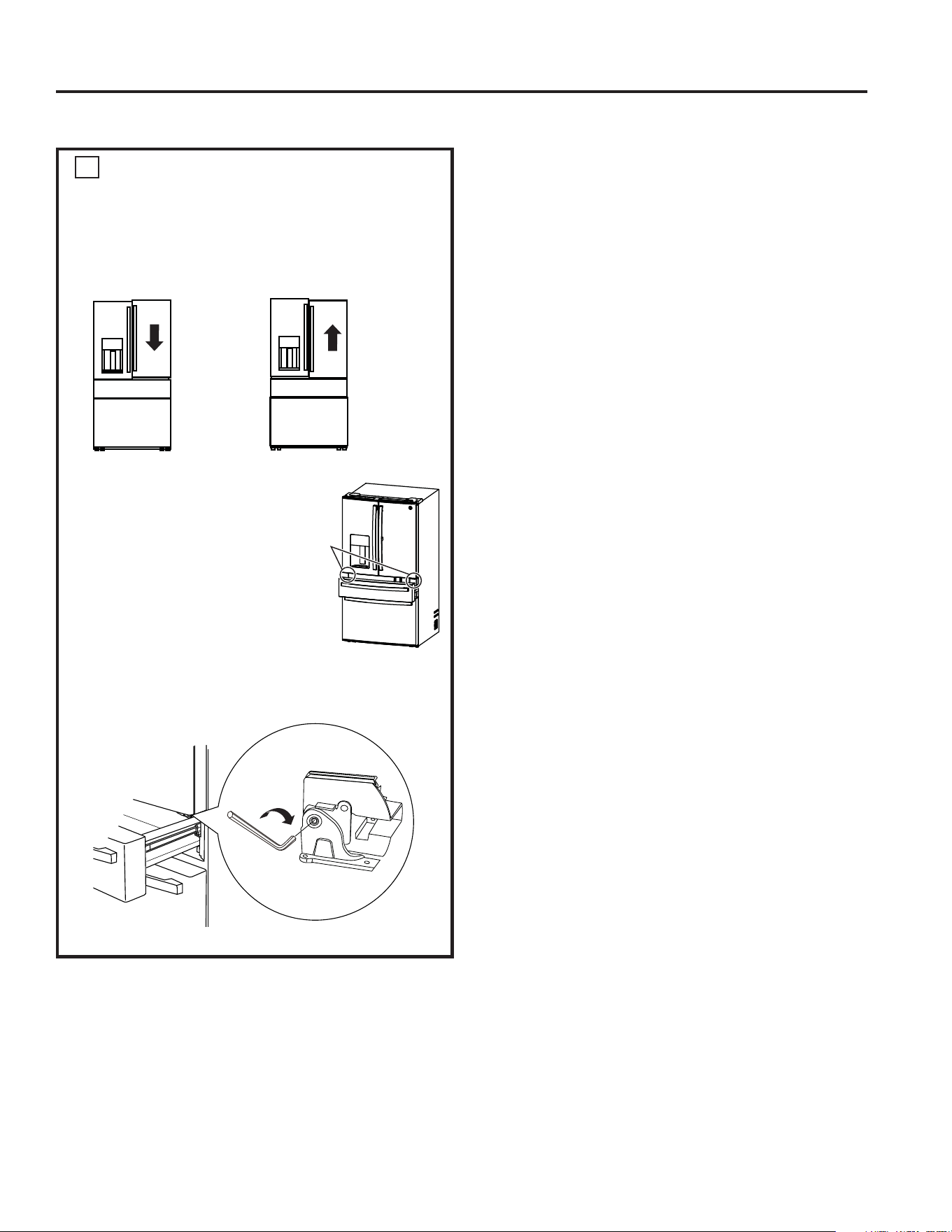
49-1000332 Rev. 10 33
INSTRUCTIONS D’INSTALLATION
17
MISE À NIVEAU DES PORTES
DU RÉFRIGÉRATEUR
5DSSHOH]YRXVTX¶LOHVWQpFHVVDLUHTXHOHUpIULJpUDWHXU
soit de niveau pour que les portes soient parfaitement de
niveau. Si vous avez besoin d’aide, consultez la section
précédente sur la mise à niveau du réfrigérateur.
A. Accédez aux vis de
charnière en ouvrant le tiroir
convertible.
B.,QVpUH]XQHFOp$OOHQG¶óSR
dans l’axe de la charnière
centrale.
C. Ajustez la hauteur en
tournant dans le sens des
aiguilles d’une montre ou
dans le sens inverse des
aiguilles d’une montre.
Lorsque vous tournez dans
le sens inverse des aiguilles d’une montre, la porte se
déplace vers le haut.
Lorsque la
porte de
gauche est
plus basse
que la porte
de droite.
Lorsque la
porte de
gauche est
plus haute
que la porte
de droite.
Point de
réglage
Instructions d’installation
INSTALLATION DU RÉFRIGÉRATEUR (suite)
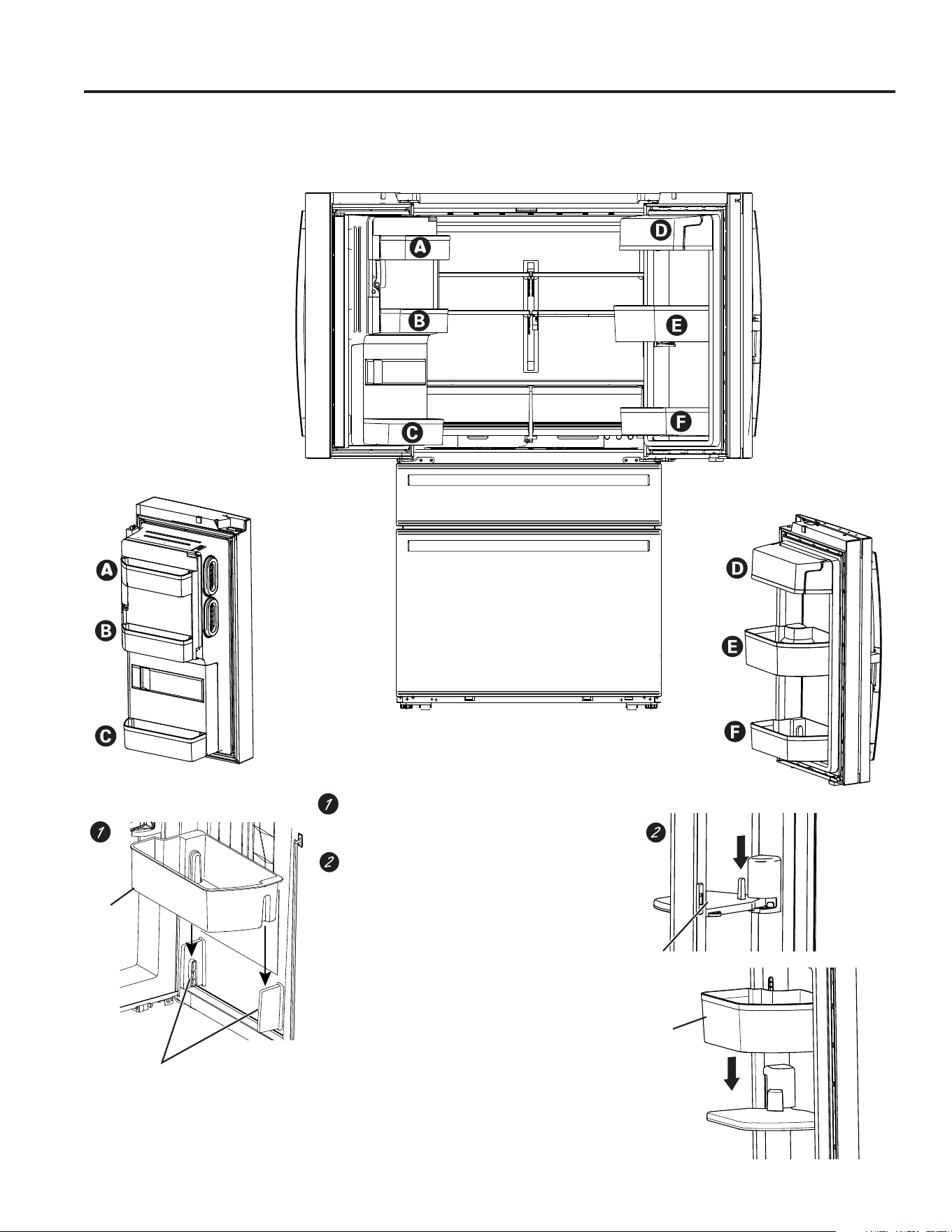
34 49-1000332 Rev. 10
Instructions d’installation
INSTALLATION DU RÉFRIGÉRATEUR (suite)
Pour positionner les bacs dans les
portes :
Placez les bacs au dessus des supports de
position et poussez vers le bas jusqu’à ce
qu’ils se verrouillent en position.
Pour placer le bac pivotant dans la porte :
1. Glissez la base du bac sur le support de la
porte.
2. Glissez le bac sur sa base.
Bac
Supports de
position
Bac
Base
du bac
,QVWDOOHU
la base
métallique
Modèle Profile quatre portes, modèles avec une porte double
INSTRUCTIONS D’INSTALLATION
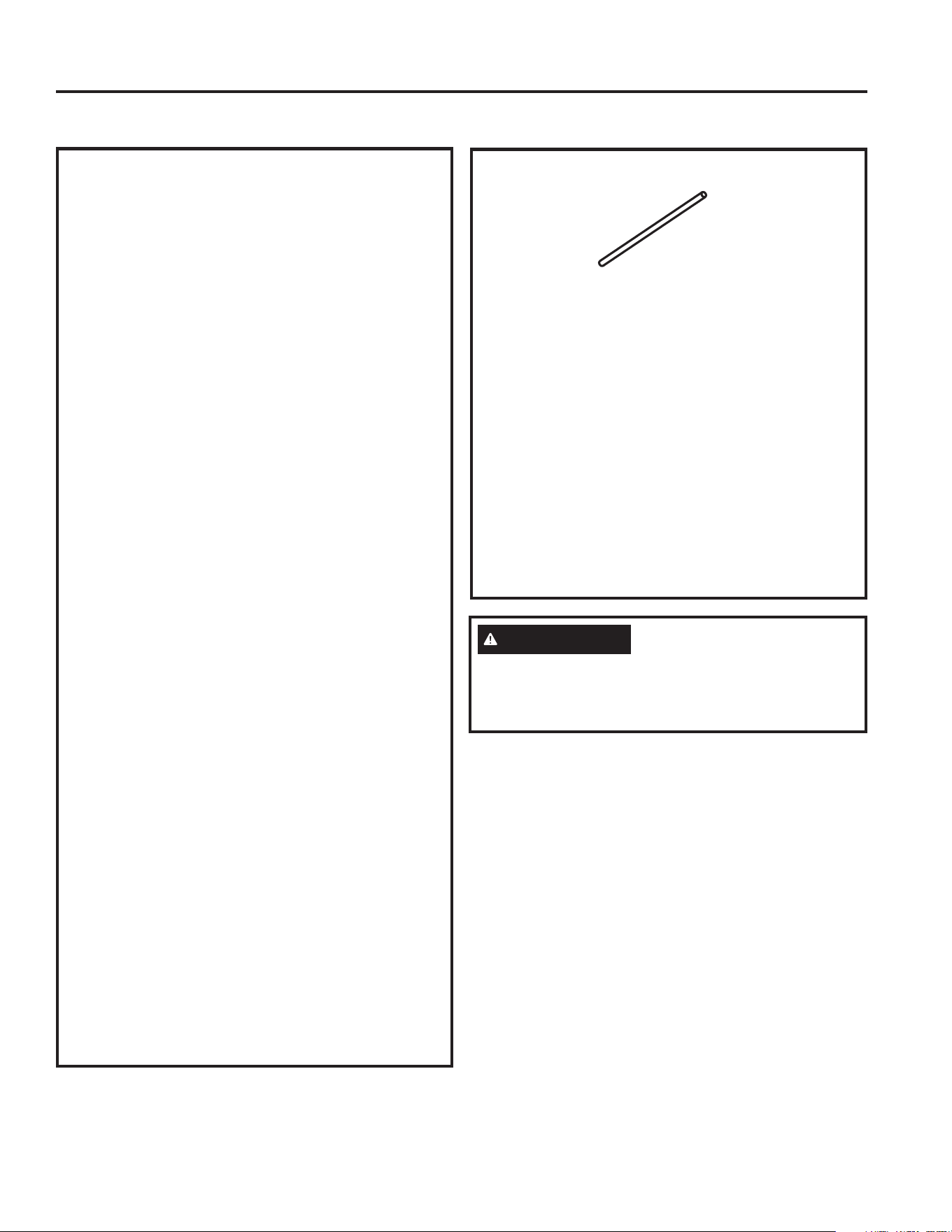
49-1000332 Rev. 10 35
INSTRUCTIONS D’INSTALLATION
Instructions d’installation
PIÈCES NÉCESSAIRES
7X\DX[HQFXLYUHRXWURXVVH6PDUW&RQQHFW
5HIULJHUDWRU7XELQJGLDPqWUHH[WpULHXUG¶óSRSRXU
brancher le réfrigérateur à l’alimentation d’eau. Si vous
utilisez un tuyau en cuivre, les deux extrémités du tuyau
doivent être coupées bien droit.
Pour déterminer la longueur de tuyau dont vous avez
besoin : mesurez la distance entre le robinet d’eau à
l’arrière du réfrigérateur et le tuyau d’alimentation en eau.
Assurez-vous d’avoir une longueur de tuyau suffisante
pour permettre d’éloigner le réfrigérateur du mur après
l’installation.
Les trousses de tuyauterie pour réfrigérateur
6PDUW&RQQHFWVRQWGLVSRQLEOHVGDQVOHVORQJXHXUV
suivantes :
SLP:;;
SLP:;;
SLP:;;
AVANT DE COMMENCER
Nous recommandons les trousses d’alimentation d’eau
en cuivre WX8X2, WX8X3, WX8X4, selon la longueur
de tuyau dont vous avez besoin. Nous approuvons les
FRQGXLWHVG¶HDXHQPDWLqUHSODVWLTXH6PDUW&RQQHFW
5HIULJHUDWRU7XELQJ:;;:;;HW
WX08X10025).
Si vous installez un système d’eau à osmose inverse
GE Appliances dans votre réfrigérateur, la trousse GE
$SSOLDQFHV59.,7HVWODVHXOHLQVWDOODWLRQDSSURXYpH
Pour les autres systèmes à osmose inverse, suivez les
recommandations du fabricant.
Si l’alimentation d’eau du réfrigérateur provient d’un
V\VWqPHGHILOWUDWLRQGHO¶HDXSDURVPRVHLQYHUVH2,(7
si votre réfrigérateur est équipé d’un filtre à eau, utilisez
le bouchon de dérivation du filtre du réfrigérateur. En
cas d’utilisation de la cartouche de filtration d’eau du
UpIULJpUDWHXUDVVRFLpHjXQILOWUHj2,SHXWSURGXLUHGHV
JODoRQVFUHX[&HUWDLQVPRGqOHVQHVRQWSDVpTXLSpVG¶XQ
bouchon de dérivation de filtre. Pour obtenir une prise de
GpULYDWLRQDSSHOH]DXHWGHPDQGH]OD
SULVHGHGpULYDWLRQQR:5;$X&DQDGDDSSHOH]
DX
L’installation de cette conduite d’eau n’est pas garantie
par le fabricant du réfrigérateur ou de la machine à
glaçons. Suivez attentivement ces instructions afin de
minimiser le risque de fuite d’eau et de dommages
onéreux.
Les coups de bélier (coups dans les tuyaux) dans la
tuyauterie de la maison peuvent endommager les pièces
de votre réfrigérateur et provoquer des fuites d’eau ou des
inondations. Appelez un plombier certifié pour corriger les
coups de bélier avant de brancher l’alimentation en eau
au réfrigérateur.
Pour prévenir les brûlures et éviter d’endommager votre
produit, ne branchez pas le tuyau d’eau à une conduite
d’eau chaude.
Si le réfrigérateur est mis en marche avant le
raccordement de l’alimentation d’eau à la machine à
JODoRQVYRLUODVHFWLRQ&RPPDQGHVGHODSDJHSRXUOD
désactivation de la machine à glaçons.
Ne pas installer la tubulure de la machine à glaçons à
des endroits où la température baisse sous le point de
congélation.
Lors de l’utilisation d’un appareil électrique (tel qu’une
perceuse) durant l’installation, s’assurer que celui-ci est
doublement isolé et qu’il est mis à la terre de façon à
prévenir les chocs électriques, ou qu’il est alimenté par
batterie.
Toutes les installations doivent être conformes aux codes
de plomberie locaux.
INSTALLATION DE LA CONDUITE D’EAU
AVERTISSEMENT
5DFFRUGH]YRXVjXQHDOLPHQWDWLRQHQHDXSRWDEOHVHXOHPHQW
Une alimentation en eau potable est requise pour le
fonctionnement de la machine à glaçons. La pression d’eau doit
se situer entre 40 et 120 psi (275 à 827 kilopascals).
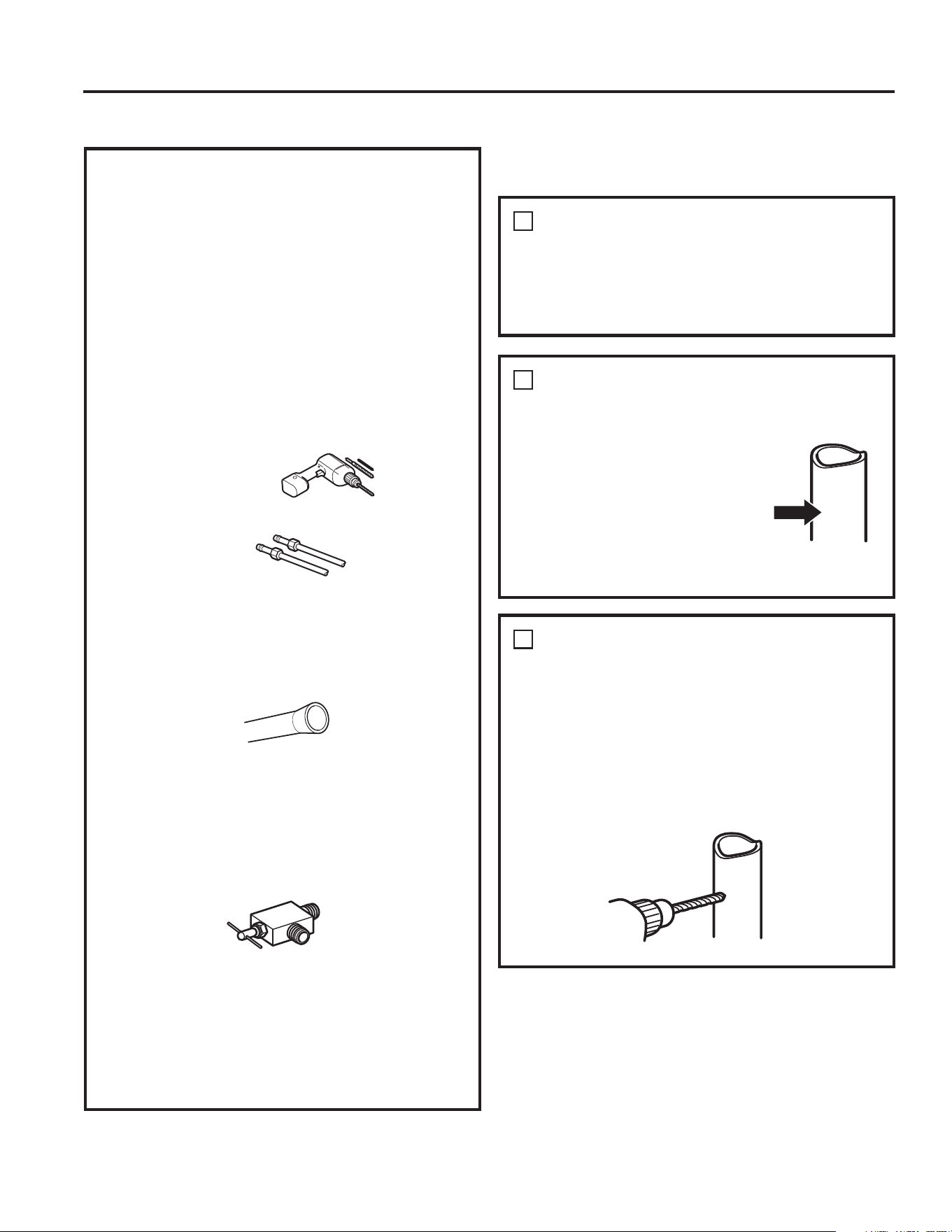
49-1000332 Rev. 10
PIÈCES NÉCESSAIRES (suite)
REMARQUE : Les seuls tuyaux en plastique autorisés
par GE Appliances sont fournis avec la trousse
6PDUW&RQQHFW5HIULJHUDWRU7XELQJ1¶XWLOLVH]SDV
d’autres tuyaux d’alimentation d’eau en plastique, cette
OLJQHpWDQWVRXVSUHVVLRQHQSHUPDQHQFH&HUWDLQVW\SHV
de plastique peuvent se fissurer ou se rompre avec le
vieillissement et causer des dégâts d’eau dans votre
maison.
• Vous pouvez vous procurer une trousse de branchement
à l’alimentation d’eau (contenant tuyau, robinet,
raccords et instructions) auprès de votre fournisseur
ou Electromenagersge.ca/fr/produits/filtres-et-
accessoires.
• Alimentation en eau froide La pression de l’alimentation
d’eau doit être entre 20 et 120 psi (1,4 à 8,1 bar).
• Perceuse électrique.
&OpG¶òSRRXFOpUpJODEOH
• Un tournevis à tête plate et un tournevis cruciforme.
• Deux écrous à compression d’un diamètre extérieur de
¼ po et deux bagues (manchons)—pour brancher le
tuyau en cuivre au robinet d’arrêt et au robinet d’eau du
réfrigérateur.
OU
6LYRXVXWLOLVH]XQHWURXVVH6PDUW&RQQHFW5HIULJHUDWRU
Tubing, les raccords nécessaires sont déjà assemblés
au tuyau.
• Si votre canalisation d’eau actuelle en cuivre est
équipée d’un raccord évasé à une extrémité, vous aurez
besoin d’un adaptateur (que vous trouverez dans votre
magasin de matériel de plomberie) pour brancher le
WX\DXG¶HDXDXUpIULJpUDWHXU28%,(1YRXVSRXYH]
couper le raccord évasé à l’aide d’un coupe-tube, puis
utiliser un raccord à compression. Ne coupez jamais
O¶H[WUpPLWpILQLHG¶XQWX\DXGHODWURXVVH6PDUW&RQQHFW
5HIULJHUDWRU7XELQJ
5RELQHWG¶DUUrWSRXUEUDQFKHUOHWX\DXG¶HDXIURLGH
Le robinet d’arrêt doit avoir une entrée d’eau avec
XQGLDPqWUHLQWpULHXUPLQLPDOGHSRDXSRLQWGH
MRQFWLRQDYHFOH78<$8'¶($8)52,'('HVURELQHWV
d’arrêt de type vanne à étrier sont souvent inclus dans
les trousses d’alimentation d’eau. Avant d’en acheter,
assurez-vous que ce type de robinet est conforme à vos
codes de plomberie locaux.
1
FERMETURE DE
L’ALIMENTATION D’EAU
PRINCIPALE
Ouvrez le robinet le plus proche pour purger l’eau des
tuyauteries.
2
CHOISISSEZ L’EMPLACEMENT
DU ROBINET
&KRLVLVVH]XQHPSODFHPHQWSRXUOH
robinet qui soit facilement accessible.
,OHVWSUpIpUDEOHGHVHFRQQHFWHUVXUOH
côté d’un tuyau vertical. Si vous devez
vous connecter à un tuyau horizontal,
faites le branchement vers le haut ou
sur le côté, plutôt qu’en bas du tuyau
pour éviter de recevoir des sédiments
provenant de la conduite d’eau.
3
PERCAGE D’UN TROU POUR
LE ROBINET
3HUFH]XQWURXGHSRGDQVOHWX\DXG¶HDXjO¶DLGHG¶XQ
foret dur, même si vous utilisez un robinet auto-forant.
Enlevez toutes les bavures dues au perçage du trou dans
le tuyau.
Veillez à ne pas laisser l’eau couler dans votre perceuse.
Si vous ne percez un trou d’ ¼ po, votre production de
glace ainsi que la taille des glaçons seront réduites.
Instructions d’installation
,QVWDOOH]OHURELQHWG¶DUUrWVXUODFDQDOLVDWLRQG¶HDXSRWDEOHOD
plus proche.
INSTALLATION DE LA CONDUITE D’EAU (suite)
INSTRUCTIONS D’INSTALLATION
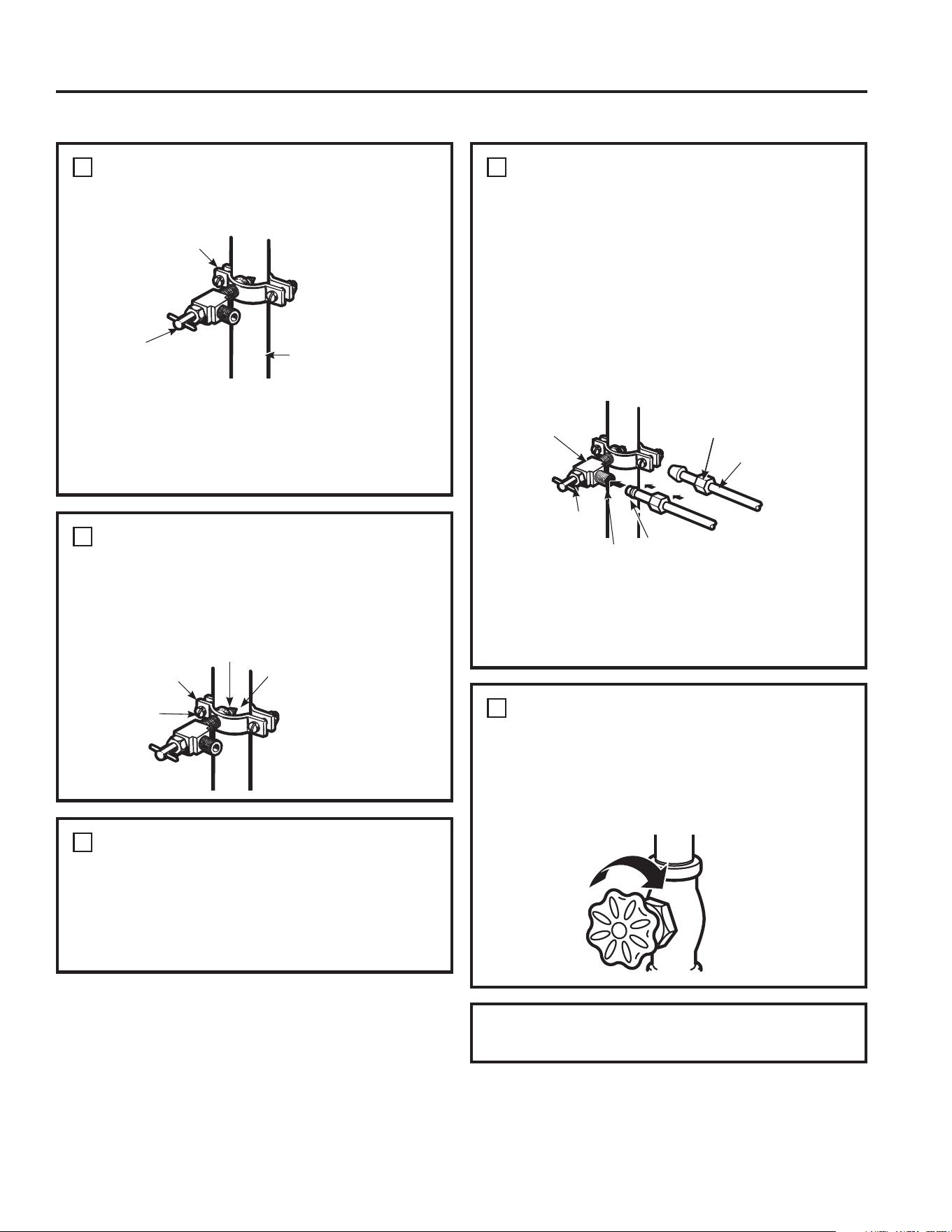
49-1000332 Rev. 10 37
INSTRUCTIONS D’INSTALLATION
5
SERRAGE DU COLLIER
Serrez les vis du collier jusqu’à ce que la rondelle
d’étanchéité commence à enfler.
REMARQUE : Ne serrez pas trop, vous risquez d’écraser
le tuyau.
5RQGHOOH
Entrée
&ROOLHUGHVHUUDJH
Vis du
collier
4
FASTEN THE SHUTOFF VALVE
1. Fixez le robinet d’arrêt à la canalisation d’eau froide à
l’aide du collier de serrage.
REMARQUE : L’installation sera conforme aux
FRGHVGHSORPEHULH&05GX&RPPRQZHDOWKGX
Massachusetts. L’utilisation de robinets-vannes à étrier
sont interdites au Massachusetts. Demandez l’avis de
votre plombier qualifié.
7
BRANCHEMENT DU TUYAU
AU ROBINET
Placez un écrou de compression et une bague (manchon)
à l’extrémité du tuyau et branchez-les au robinet d’arrêt.
Assurez-vous que le tuyau soit bien inséré dans le robinet.
Serrez bien l’écrou de compression.
Pour le tuyau en matière plastique d’une trousse
6PDUW&RQQHFW5HIULJHUDWRU7XELQJLQVpUH]O¶H[WUpPLWp
moulée du tuyau dans le robinet d’arrêt et serrez
l’écrou de compression à la main, puis serrez d’un tour
supplémentaire avec une clé. Des fuites peuvent survenir
si l’écrou est trop serré.
REMARQUE : L’installation sera conforme aux codes de
SORPEHULH&05GX&RPPRQZHDOWKGX0DVVDFKXVHWWV
L’utilisation de robinets-vannes à étrier sont interdites
au Massachusetts. Demandez l’avis de votre plombier
qualifié.
6
PASSAGE DU TUYAU
Faites passer le tuyau entre la conduite d’eau froide et le
réfrigérateur.
Faites passer le tuyau par un trou percé dans le mur ou le
plancher (derrière le réfrigérateur ou au niveau du placard
adjacent) aussi près du mur que possible.
8
PURGE DU TUYAU
Ouvrez le robinet d’alimentation principale d’eau et purgez
le tuyau jusqu’à ce que l’eau soit claire.ear.
Fermez l’eau au niveau du robinet d’eau après
écoulement d’environ 1 litre (1 quart) d’eau par le tuyau ou
au bout de 2 minutes.
Pour terminer l’installation du réfrigérateur, retournez à
O¶pWDSHGHODVHFWLRQ,QVWDOODWLRQGXUpIULJpUDWHXU
&ROOLHUGHVHUUDJH
Tuyau vertical
d’eau froide
5RELQHWG¶DUUrW
de type vanne à
étrier
Instructions d’installation
INSTALLATION DE LA CONDUITE D’EAU (suite)
5RELQHWG¶DUUrWGH
type vanne à étrier
Écrou de compression
Presse-joint
5RELQHWGHVRUWLH
Bague (manchon)
Tuyau
6PDUW&RQQHFW
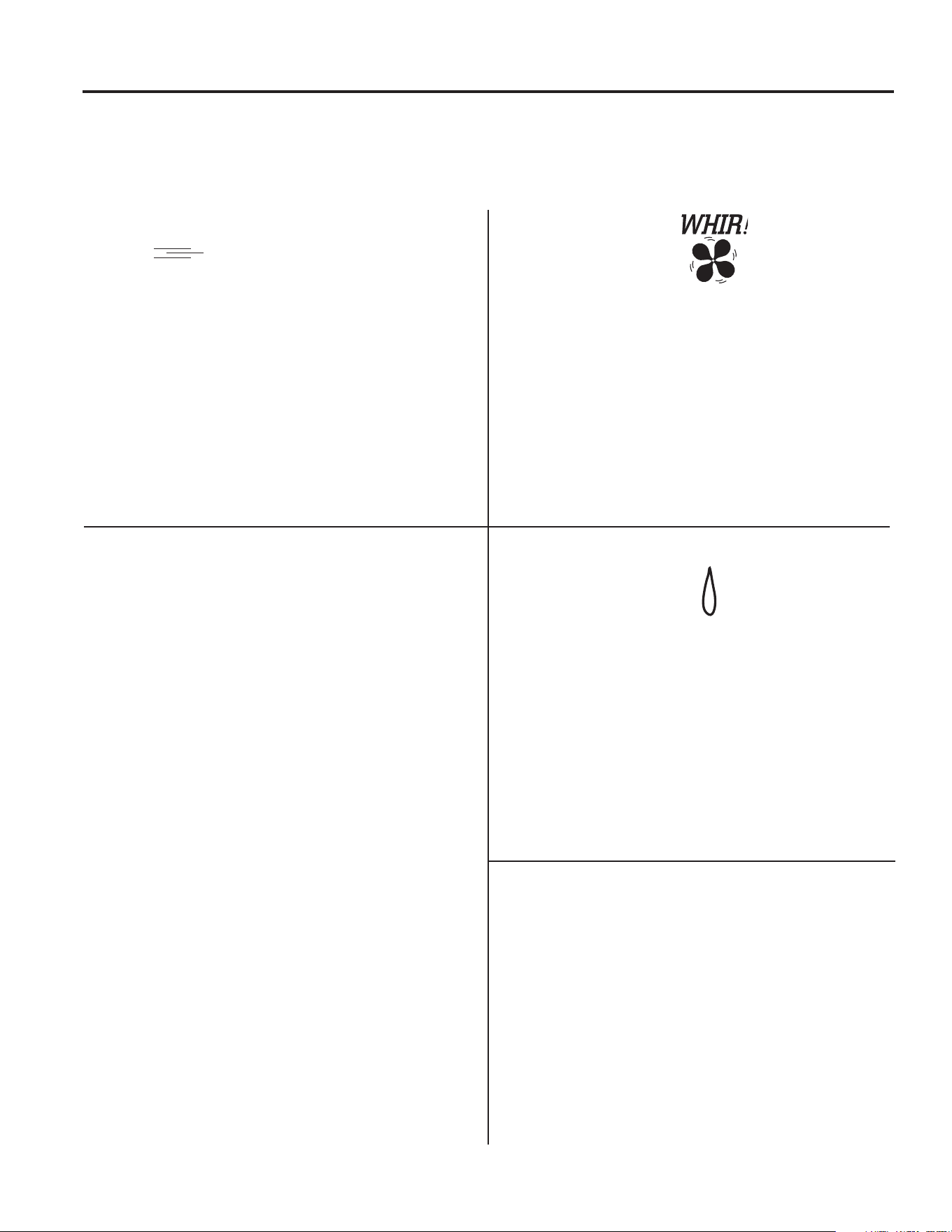
38 49-1000332 Rev. 10
CONSEILS DE DÉPANNAGE : &RQGLWLRQVQRUPDX[GHIRQFWLRQQHPHQW
Les réfrigérateurs plus récents font des bruits différents de ceux des anciens.
Les réfrigérateurs modernes proposent plus de fonctions et sont plus avancés sur le plan technologique.
HUMMM...
WHOOSH...
Ŷ /HQRXYHDXFRPSUHVVHXUjUHQGHPHQWpOHYpSHXW
fonctionner plus longtemps et plus vite que votre ancien
réfrigérateur et vous pouvez entendre un son modulé ou
un ronflement aigu pendant son fonctionnement.
Ŷ 9RXVHQWHQGUH]SHXWrWUHXQVLIIOHPHQWORUVTXHOHVSRUWHV
se ferment.
Ŷ &HFLHVWGjO¶pTXLOLEUDJHGHODSUHVVLRQGDQVOH
réfrigérateur. Après distribution de glace, un moteur ferme
la goulotte de glace pour empêcher l’air tiède ambiant
d’entrer dans le seau à glace, permettant ainsi de
maintenir la glace à une température en dessous de zéro.
Le ronronnement du moteur fermant la goulotte de
glaçons est normal, quelques instants après la distribution
de glace.
Ŷ
Vous pouvez entendre les ventilateurs tourner à
KDXWHVYLWHVVHV&HODVHSURGXLWORUVTXHOHUpIULJpUDWHXU
vient d’être branché, lorsque les portes sont ouvertes
fréquemment ou lors de l’ajout d’une grande quantité
d’aliments dans le réfrigérateur ou le congélateur.
Les ventilateurs permettent de maintenir les bonnes
températures.
Ŷ La vitesse des ventilateurs varie pour fournir un
refroidissement et une économie d’énergie optimum.
CLICS, CRAQUEMENTS ET
CLAQUEMENTS
Ŷ Vous entendrez peut-être des craquements ou des bruits
VHFVORUVTXHOHUpIULJpUDWHXUYLHQWG¶rWUHEUDQFKp&HFLVH
produit lorsque le réfrigérateur se refroidit pour atteindre
la bonne température.
Ŷ L’expansion et la contraction des serpentins de
refroidissement pendant et après le dégivrage peuvent
provoquer des craquements ou des claquements.
Ŷ Sur les modèles équipés d’une machine à glaçons, après
un cycle de fabrication de glaçons, vous entendrez les
glaçons tomber dans le seau à glace.
Ŷ Sur les modèles équipés d’un distributeur, au cours
de la distribution d’eau, vous entendrez peut-être le
déplacement des tuyaux d’eau au début de la distribution
et après avoir relâché le bouton du distributeur.
Ŷ &HFLHVWGjO¶pTXLOLEUDJHGHODSUHVVLRQGDQVOH
réfrigérateur. Après distribution de glace, un moteur
ferme la goulotte de glace pour empêcher l’air tiède
ambiant d’entrer dans le seau à glace, permettant ainsi
de maintenir la glace à une température en dessous de
zéro.
BRUITS D’EAU
Ŷ La circulation du liquide frigorigène dans le système
provoque parfois des gargouillements comme de l’eau en
ébullition.
Ŷ L’eau qui tombe sur le chauffage de dégivrage peut
parfois provoquer des crépitements, des bourdonnements
pendant le cycle de dégivrage.
Ŷ Vous entendrez peut-être des bruits de ruissellement
pendant le cycle de dégivrage quand la glace sur
l’évaporateur fond et coule dans le bac collecteur.
Ŷ La fermeture de la porte peut provoquer un
gargouillement dû à l’équilibrage de la pression.
Entendez-vous ce que j’entends ? Ces conditions sont normaux.
REFROIDISSEMENT AU
DÉMARRAGE
24 heures peuvent être nécessaires pour que les
températures dans le réfrigérateur et le congélateur
correspondent à celles affichées à l’écran. Pendant ce
temps, il est préférable de réduire au maximum l’ouverture
des portes du réfrigérateur et du congélateur.
CONSEILS
Ŷ /HFRQJpODWHXUVHUHIURLGLWHQSUHPLHU
Ŷ /HFRPSDUWLPHQWGHUpIULJpUDWLRQVHUHIURLGLWHQGHUQLHU
cela peut prendre plusieurs heures après le congélateur.
Ŷ (QpWHLJQDQWODPDFKLQHjJODoRQVOHVDOLPHQWVGDQV
le congélateur et le réfrigérateur se refroidissent plus
rapidement.aa
Conditions normaux de fonctionnement
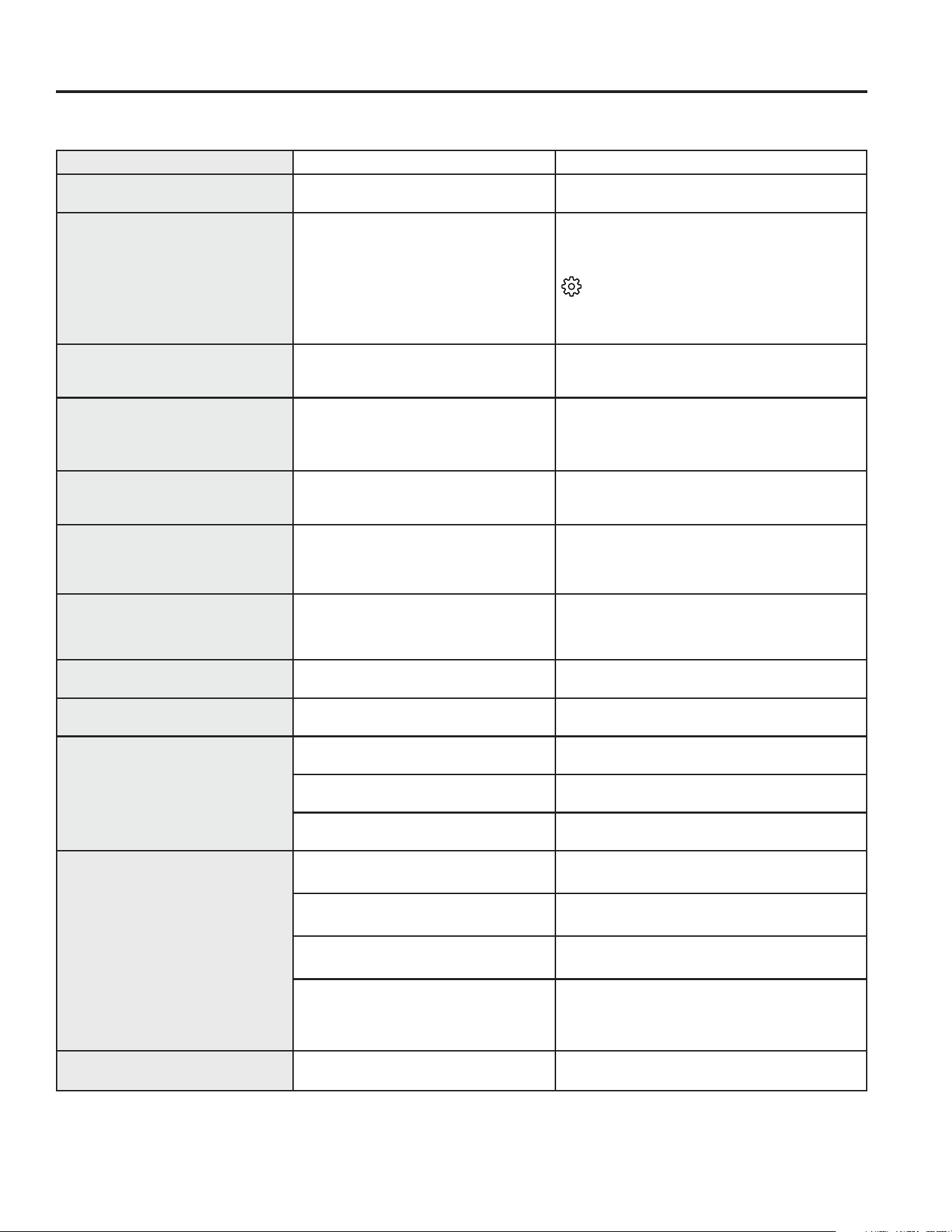
49-1000332 Rev. 10 39
Problème Causes Possibles Solution
Il n’y a pas de filtrage Le bouchon de filtration du filtre est
LQVWDOOp&RQWU{OHV%HW&
,QVWDOOH]XQILOWUHjHDXDSSURSULp
Réinitialisation du filtre à eau
Filtre à eau périmé
Le filtre à eau fuit ou doit être remplacé. 5HPSODFH]OHILOWUHjHDXRXLQVWDOOH]OH
bouchon de dérivation*.
Pour réinitialiser le temporisateur du filtre,
appuyez sur le bouton Settings (réglages) (
MXVTX¶jFHTXHOHPRW©,FHPDNHUª
(machine à glaçons) s’allume puis maintenez
VLPXOWDQpPHQWOHVERXWRQV©:DWHUªHW©,FHª
enfoncés pendant trois (3) secondes.
Le voyant du filtre à eau reste
allumé après le remplacement du
filtre
Filtre à eau ou bouchon de dérivation
installé à l’envers ou mauvais type de
filtre installé.
5HWLUH]OHILOWUHRXOHERXFKRQGHGpULYDWLRQ
faites-le tourner de 180 degrés et réinstallez-le.
La poignée est lâche/Il y a un
espace vide au niveau de la
poignée.
La poignée doit être ajustée.
&RQVXOWH]OHVVHFWLRQV)L[DWLRQGHOD3RLJQpHGX
&RPSDUWLPHQWGH5pIULJpUDWLRQHW)L[DWLRQGHOD
3RLJQpHGX&RQJpODWHXUSRXUGHVLQVWUXFWLRQV
détaillées.
Le voyant lumineux du filtre à
eau est éteint
&HFLHVWQRUPDO&HYR\DQWV¶DOOXPH
pour vous signaler que le filtre devra
bientôt être remplacé.
&RQVXOWH]ODVHFWLRQA propos du Filtre à Eau
pour de plus amples informations.
La poignée est lâche/Il y a un
espace vide au niveau de la
poignée.
La poignée doit être ajustée.
&RQVXOWH]OHVVHFWLRQV)L[DWLRQGHOD3RLJQpHGX
&RPSDUWLPHQWGH5pIULJpUDWLRQHW)L[DWLRQGHOD
3RLJQpHGX&RQJpODWHXUSRXUGHVLQVWUXFWLRQV
détaillées.
Le réfrigérateur bipe ,OV¶DJLWGHO¶DODUPHGHODSRUWH Arrêtez-la ou désactivez-la avec la porte
fermée. Si la porte est ouverte et l’alarme
retentit, vous ne pouvez qu’arrêter l’alarme.
Pas de refroidissement Le système de refroidissement est
éteint
&RQVXOWH]ODVHFWLRQA propos des commandes
L’eau a un mauvais goût ou une
mauvaise odeur
Le distributeur d’eau n’a pas été utilisé
pendant une longue période.
Tirez de l’eau jusqu’à ce que toute l’eau du
système soit remplacée.
L’eau dans le verre est tiède* &HFLHVWQRUPDOORUVTXHOHUpIULJpUDWHXU
vient d’être branché
Attendez 24 heures pour que le réfrigérateur
refroidisse complètement
Le distributeur d’eau n’a pas été utilisé
pendant une longue période
Tirez de l’eau jusqu’à ce que toute l’eau du
système soit remplacée.
Le système d’eau a été vidangé Attendez quelques heures pour que l’eau se
refroidisse.
Le distributeur d’eau ne
fonctionne pas
Le robinet d’eau est fermé ou n’est pas
branché.
&RQVXOWH]ODVHFWLRQ Installation de la conduite
d’eau
/HILOWUHjHDXHVWERXFKpRXOHILOWUHOH
bouchon de dérivation n’est pas installé
5HPSODFH]ODFDUWRXFKHGHILOWUHRXUHWLUH]OHILOWUHHW
installez le bouchon de dérivation**.
De l’air peut être piégé dans le système
d’eau.
Appuyez sur le bras de distribution pendant au
moins 5 minutes.
L’eau dans le réservoir est gelée parce
que les commandes sont réglées sur
une température trop froide.
5pJOH]ODFRPPDQGHGXUpIULJpUDWHXUVXUXQH
température plus élevée et attendez 24 heures.
Si le distributeur ne donne pas d’eau au bout de
24 heures, contactez un réparateur
L’eau jaillit du distributeur La cartouche du filtre vient d’être
installée
Faites couler l’eau du distributeur pendant 5
minutes (environ 2 gallons ou 7,5 litres).
&HUWDLQVPRGqOHVQHVRQWSDVpTXLSpVG¶XQERXFKRQGHGpULYDWLRQGHILOWUH3RXUREWHQLUXQHSULVHGHGpULYDWLRQDSSHOH]DX
HWGHPDQGH]ODSULVHGHGpULYDWLRQQR:5;$X&DQDGDDSSHOH]DX
Conseils de dépannage... Avant de faire un appel de service
eFRQRPLVH]WHPSVHWDUJHQW&RQVXOWH]G¶DERUGOHVWDEOHDX[GHVSDJHVVXLYDQWHVHWYRXVSRXUULH]YRXVpYLWHUXQDSSHOGH
service.
CONSEILS DE DÉPANNAGE
40 49-1000332 Rev. 10
CONSEILS DE DÉPANNAGE
Problème Causes Possibles Solution
Pas de production d’eau ou de
glaçons
La ligne d’alimentation ou le robinet
d’arrêt est bouché
Appelez un plombier
Le filtre à eau est bouché 5HPSODFH]ODFDUWRXFKHGHILOWUHRXUHWLUH]OH
filtre et installez le bouchon de dérivation**.
La cartouche du filtre n’est pas
correctement installée
5HWLUH]HWUpLQVWDOOH]ODFDUWRXFKHGHILOWUH
en étant certain qu’elle est bien verrouillée
La machine à glaçons est éteinte Vérifier que la machine à glaçons est en
PDUFKH&RQVXOWH]ODVHFWLRQÀ propos de la
machine à glaçons automatique
L’eau jaillit du distributeur* L’air est peut être présent dans le
système d’alimentation en eau, amenant
l’eau à goutter après distribution
Distribuez de l’eau pendant au moins 5
minutes pour éliminer l’air du système
AUTO FILL (Remplissage
automatique) : Remplissage
manquant/Pas de remplissage*
Tout récipient ne peut pas servir pour le
AUTO FILL (remplissage automatique).
Essayer un récipient différent
Message d’erreur. Voir p.11
Nettoyez le capteur. Voir p.11
Débordements dus au AUTO FILL
(remplissage automatique) *
Tout récipient ne peut pas servir pour le
AUTO FILL (remplissage automatique).
Essayez un contenant différent.
Utilisez moins de glace.
Assurez-vous que vos mains sont éloignées
de la tasse avant d’appuyer sur la touche
AutoFill (remplissage automatique).
Le congélateur refroidit mais pas le
compartiment de réfrigération
&HFLHVWQRUPDOORUVTXHOHUpIULJpUDWHXU
vient d’être branché ou après une panne
d’électricité d’une longue durée.
Attendez 24 heures pour que la température
dans les deux compartiments atteigne les
températures sélectionnées.
Le distributeur de glace s’ouvre
après la fermeture du tiroir du
congélateur*
Normal La porte du distributeur de glace peut
s’ouvrir après la fermeture de la porte du
congélateur pour permettre l’accès
La porte de mon réfrigérateur grince Diminution de lubrifiant causée par son
nettoyage accidentel sur la charnière.
,OHVWSUpIpUDEOHGHFRPPDQGHUOHOXEULILDQW
GEA, numéro de pièce :5;, et de
l’appliquer sur la charnière à l’endroit indiqué.
,OHVWSRVVLEOHGHYDSRULVHUFHUWDLQV
lubrifiants non toxiques tels que l’enduit à
cuisson antiadhésif à base de silicone, la
gelée de pétrole ou un lubrifiant alimentaire
approuvé NSF.
IMPORTANT : N’utilisez pas le WD-40 car
il éliminera toute graisse résiduelle dans et
autour de la charnière.
Nivellement incorrect Assurez-vous que l’appareil est de niveau
Si les portes ont été enlevées et
remontées lors de l’installation, le
tuyau d’eau et le faisceau de fils sous
le couvercle de charnière supérieure
peuvent s’être déplacés et frotter contre
la porte lorsqu’elle pivote.
5HWLUH]OHFRXYHUFOHGHFKDUQLqUHVXSpULHXUHHW
assurez-vous que le tuyau d’eau et le faisceau
de fils qui passent à travers l’axe de charnière
ont été correctement placés et qu’ils ne touchent
aucune pièce de porte pendant la rotation.
L’application d’un lubrifiant de qualité alimentaire
autour du manchon de porte peut aussi aider.
Aucun article trouvé après la
numérisation
Toutes les étiquettes ne sont pas
compatibles avec le scanneur..
Mauvaise connexion au Wi-Fi
Vérifiez la puissance du signal WiFi de votre
WpOpSKRQHSUqVGHO¶DSSDUHLO5pLQLWLDOLVH]OH
:L)L5HSRVLWLRQQH]OHURXWHXU:L)L
Ajoutez un article à la liste d’achats à l’aide
de la fonction vocale.
5pLQLWLDOLVH]O¶LQWHUIDFHXWLOLVDWHXU6%&XVHU
interface) avec une pression multiple sur
l’interface utilisateur du tiroir convertible.
Aucun balayage n’est lu Obstruction sur le scanner
Nettoyez le capteur. Voir à la page 12
9pUL¿H]ODSRVLWLRQGHO¶pWLTXHWWH9RLUjODSDJH
Conseils de dépannage... Avant de faire un appel de service
49-1000332 Rev. 10 41
Problème Causes Possibles Solution
/¶DႈFKDJHLQGLTXH©LWHPQRW
found » (élément non trouvé)
lors de la numérisation.
Article non trouvé dans la base de données. Tentez de relancer la numérisation.
Numérisez un produit compatible reconnu.
Ajoutez un article par commande vocale.
Ajoutez l’article manuellement à partir du réfrigérateur ou de
O¶DSSOLFDWLRQ6PDUW+4
Le témoin DEL du lecteur de
codes-barres n’est pas activé
Lecteur de codes-barres désactivé Activer à partir du menu Settings (paramètres)
DEL désactivée Activer à partir du menu Settings (paramètres)
Problème de détection de présence Voir la section Détection de Présence
&RQQH[LRQ:L)L 9pUL¿H]ODFRQQH[LRQ:L)LVXUO¶DႈFKDJH
L’article ne se numérise pas
(aucune réponse à l’écran)
Étiquette non prise en charge &HUWDLQVIRUPDWVGHFRGHEDUUHVQHVRQWSDVSULVHQFKDUJH
FRPPHOH45
&HUWDLQVFRGHVEDUUHVGHIDEULFDQWSHXYHQWQHSDV¿JXUHUGDQV
la base de données prise en charge.
Ajoutez l’article par commande vocale.
$MRXWH]OHYLDO¶DSSOLFDWLRQ6PDUW+4.
Éclairage ambiant Augmentez l’éclairage dans la cuisine ou activez la lumière «
5HFHVVªOXPLqUHHQFDVWUpHSXLVUHODQFH]ODQXPpULVDWLRQ
(VVD\H]GHPRGL¿HUODGLVWDQFHGHO¶pWLTXHWWHVRLWHQ
l’éloignant, soit en la rapprochant du numériseur,
en vous
assurant que le témoin DEL éclaire l’étiquette.
Format de l’étiquette Pour les petites étiquettes, rapprochez-vous.
Pour les grandes étiquettes, éloignez-vous.
Pour les surfaces courbes, essayez d’aplatir l’étiquette.
Essayez de réinitialiser l’appareil à l’aide de « Multi-key »
(touche multi).
Dommages à l’étiquette ,QVSHFWH]O¶pWLTXHWWHSRXUGpWHFWHUODVDOHWpOHVGRPPDJHVOD
courbure ou les plis.
5pÀHFWLYLWp 9pUL¿H]ODSUpVHQFHGHUHÀHWVVXUODVXUIDFHGHO¶pWLTXHWWHHW
éliminez ou masquez la source de lumière supplémentaire.
Orientation de l’étiquette
Déplacez l’étiquette de façon à ce que la zone la plus large soit
orientée vers la lentille du lecteur de codes à barres.
Ajustez l’étiquette pour qu’elle soit inclinée d’environ 45 degrés
SDUUDSSRUWjODVXUIDFHG¶DႈFKDJH
(VVD\H]GHPRGL¿HUODGLVWDQFHGHO¶pWLTXHWWHVRLWHQ
l’éloignant, soit en la rapprochant du lecteur, avec la DEL
indicatrice éclairant l’étiquette.
Obstruction de la lentille Déplacez l’étiquette de façon à présenter la zone la plus large
vers la lentille du lecteur de code-barres. Essuyez délicatement
avec un linge humide. Voir la section Utilisation et entretien –
Nettoyage.
&RQQH[LRQ:L)L Tentez de relancer la numérisation.
9pUL¿H]ODFRQQH[LRQZL¿VXUO¶DႈFKDJH
Blocage Logiciel
5pLQLWLDOLVH]O¶DSSDUHLOjO¶DLGHGHO¶LQWHUIDFHXWLOLVDWHXU&RQYHUW-
ible Drawer. Ouvrez le tiroir, déverrouillez la commande et
maintenez simultanément les touches Meat (viande) et Snacks
(collations) enfoncées pendant 3 secondes. Tous les réglages
de l’appareil seront réinitialisés.
Portes Ouvertes Assurez-vous que toutes les portes sont fermées pour que le
scanner soit actif..
0DXYDLVDUWLFOHDႈFKp La base de données utilise le même numéro
de produit pour plusieurs articles.
Tentez de relancer la numérisation.
(VVD\H]GHPRGL¿HUO¶RULHQWDWLRQHWODGLVWDQFHGHO¶pWLTXHWWH
avant de relancer la numérisation.
$MRXWHUXQDUWLFOHSDUFRPPDQGHYRFDOHRXYLD6PDUW+4
Conseils de dépannage... Avant de faire un appel de service
CONSEILS DE DÉPANNAGE
42 49-1000332 Rev. 10
Problème Causes Possibles Solution
Les images de la caméra Fridge Focus ne
V¶DႈFKHQWSDVGDQVO¶DSSOLFDWLRQ6PDUW+4
9pUL¿H]O¶pWDWGHO¶REWXUDWHXUGHODFDPpUD Ouvrez le volet ou retirez les obstructions
9pUL¿H]ODSRVLWLRQGHODFDPpUDHWO¶DEVHQFH
d’obstructions.
Ajustez la caméra et tout objet
LQWHUPpGLDLUHD¿QG¶REWHQLUODPHLOOHXUH
vue possible des tiroirs.
Matériau d’emballage restant
5HWLUH]WRXWOHPDWpULHOG¶HPEDOODJHGHVWLURLUV
qui pourrait obstruer la garniture argentée des
tiroirs à fruits et légumes.
9pUL¿H]ODSURSUHWpGHODOHQWLOOH Essuyez délicatement avec un linge
humide. Voir la section Nettoyage dans
Utilisation et entretien.t
&DPpUDGpVDFWLYpH Assurez-vous que la caméra est activée
dans le menu Settings (paramètres).
Durée
En général, laisser les tiroirs ouverts
pendant 4 à 5 secondes donnera les
meilleurs résultats pour les images
des tiroirs. Ouvrez la porte pendant 10
secondes, ouvrez le bac à légumes
pendant 20 secondes, refermez tout,
DWWHQGH]TXHOTXHVPLQXWHVSXLVYpUL¿H]
GDQV6PDUW+4VLOHVLPDJHVV¶DႈFKHQW
&RQQH[LRQ:L)L 9pUL¿H]ODFRQQH[LRQ:L)LVXUO¶DႈFKDJH
9pUL¿H]ODSXLVVDQFHGXVLJQDO:L)LGDQV
le menu Settings (« Paramètres »). Un
signal inférieur à -90 dB peut entraîner une
performance réduite.
9pUL¿H]pJDOHPHQWTXHO¶DSSOLFDWLRQ6P-
DUW+4LQGLTXHTXHYRWUHDSSDUHLOHVWELHQ
connecté à votre compte.
Aucun bruit audible Paramètres 9pUL¿H]TXHOHKDXWSDUOHXUHVWDFWLYpHW
augmentez le volume à partir du menu «
Settings » (paramètres).
Audio déformé Paramètres 9pUL¿H]TXHOHKDXWSDUOHXUHVWDFWLYpHW
augmentez le volume à partir du menu «
Settings » (paramètres).
Obstruction 9pUL¿H]TX¶DXFXQREVWDFOHQLPDWpULDXQH
se trouve sur la surface du haut-parleur.
Verrouillage logiciel 5pLQLWLDOLVH]O¶DSSDUHLOjO¶DLGHGHO¶LQWHUIDFH
XWLOLVDWHXU&RQYHUWLEOH'UDZHU2XYUH]
le tiroir, déverrouillez la commande et
maintenez simultanément les touches
Meat (viande) et Snacks (collations)
enfoncées pendant 3 secondes. Toutes
les commandes de l’appareil seront
réinitialisées.
$XFXQHUpSRQVHjO¶pFUDQWDFWLOHRXpFUDQ¿Jp Verrouillage logiciel 5pLQLWLDOLVH]O¶DSSDUHLOjO¶DLGHGHO¶LQWHUIDFH
XWLOLVDWHXU&RQYHUWLEOH'UDZHU2XYUH]
le tiroir, déverrouillez la commande et
maintenez simultanément les touches
Meat (viande) et Snacks (collations)
enfoncées pendant 3 secondes. Toutes
les commandes de l’appareil seront
réinitialisées.
/HVYR\DQWV©5HFHVV/LJKWª©'LVSOD\ªHW©
Aiming LED » ne s’activent pas lorsque vous
êtes devant l’appareil.
Article obstruant Long Term presence of an object (such as
DNLWFKHQLVODQGRUWDOOFKDLUZLWKLQ
of front of unit may cause the presence
sensing algorithm to be disabled. Move the
obstructing object and algorithm should
reset within ~8 hours.
Material &HUWDLQVWLVVXVRXFRXOHXUVGHYrWHPHQWV
SHXYHQWrWUHSOXVGLႈFLOHVjGpWHFWHU
comme la laine polaire foncée ou
rugueuse.
Touchez l’écran et la DEL de visée devrait
s’activer.
$UUrWSUpPDWXUpGH3UHFLVH¿OO Positionnement du contenant 9RLUODVHFWLRQ$XWR¿OO
CONSEILS DE DÉPANNAGE
Conseils de dépannage... Avant de faire un appel de service
49-1000332 Rev. 10 43
Mythe ou réalité ? Réponse Explication
Le filtre à eau du réfrigérateur peut nécessiter
un remplacement en-deçà de six mois.
95$, Le voyant du filtre à eau indiquera la nécessité de remplacer le filtre tous
OHVVL[PRLVRXVXLWHjODGLVWULEXWLRQGHOLWUHVJDOORQVG¶HDX
(certains modèles seulement). Si le débit d’eau du distributeur ralentit ou si
la production de glace diminue, le filtre à eau doit être remplacé, même si
l’indicateur de filtre peut ne pas indiquer la nécessité d’un remplacement.
La machine à glaçons automatique dans mon
réfrigérateur produira de la glace lorsque le
réfrigérateur est branché à une prise secteur.
0<7+( Le réfrigérateur doit être raccordé à une alimentation en eau et la machine
à glaçons doit être allumée. Assurez-vous que la machine à glaçons est en
marche, mais seulement après avoir raccordé le système à l’alimentation
en eau et que celle-ci est ouverte. La machine à glaçons peut être
allumée ou éteinte à partir des commandes. Veillez à ce que la machine
à glaçons soit en marche, comme indiqué sur le panneau de commande
GXUpIULJpUDWHXU&RQVXOWH]ODVHFWLRQÀ propos de la machine à glaçons
automatique.
Une fois que le réfrigérateur est branché à une
prise électrique et raccordé à une alimentation en
eau, j’aurai immédiatement des quantités illimitées
d’eau glacée disponibles au distributeur d’eau.
0<7+( Le bac du distributeur d’eau situé à l’intérieur du réfrigérateur sert à
stocker l’eau à distribuer. 24 heures sont nécessaires pour que l’eau de ce
réservoir soit refroidie après l’installation. Une utilisation trop importante ne
permet pas à l’eau de se refroidir.
Après distribution d’une quantité d’eau, la présence
de quelques gouttes d’eau est normale.
95$, Quelques gouttes d’eau peuvent tomber du distributeur après que le bras
de distribution ait été relâché. Pour minimiser les pertes, retirez lentement
votre verre du distributeur.
,OQ¶\DXUDMDPDLVGHJLYUHGDQVOHFRPSDUWLPHQWGH
congélation.
0<7+( La présence de givre dans le congélateur indique généralement que la
porte n’est pas bien fermée ou a été laissée ouverte. En cas de givre,
éliminez le l’aide d’une spatule en plastique et d’un torchon. Puis vérifiez
qu’aucun aliment ou conteneur empêche la fermeture de la porte du
congélateur. Vérifiez sur le panneau de contrôle du réfrigérateur si l’alarme
de la porte est activée.
Après installation du réfrigérateur ou après le
remplacement de la cartouche filtrante, je dois tirer
de l’eau pendant cinq minutes.
95$, Un réfrigérateur ou un filtre à eau nouvellement installé contient de l’air
dans les tuyaux d’eau. Appuyez sur le bras du distributeur pour tirer
de l’eau froide pendant au moins 5 minutes pour éliminer l’air du tuyau
d’alimentation en eau et rincer le filtre.
Pour remplir le seau à glace jusqu’à sa capacité
maximale, je dois distribuer des glaçons environ 12 à
18 heures après l’installation.
95$, La distribution de 3 ou 4 glaçons, entre 12 heures et 18 heures après
l’installation, permet à la glace de se disperser dans le seau à glace.
&HOXLFLLQGLTXHjODPDFKLQHjJODoRQVGHSURGXLUHGHVJODoRQV
supplémentaires. Production normale de glaçons = 100 glaçons en 24
heures.
Je peux utiliser le bouchon de dérivation du filtre à
eau pour déterminer si le filtre doit être remplacé.
95$, La réduction de débit du distributeur d’eau ou de la production de glace
SHXWLQGLTXHUODQpFHVVLWpGHUHPSODFHUOHILOWUHjHDX,QVWDOOH]OHERXFKRQ
de dérivation du filtre à eau
(fourni avec le réfrigérateur sur certains
modèles*),
et vérifiez le débit au niveau du distributeur. Si le débit d’eau
revient à la normale avec le bouchon de dérivation en place, remplacez le
filtre à eau.
La partie supérieure de la porte du réfrigérateur
sera toujours alignée.
0<7+( Plusieurs facteurs peuvent affecter l’alignement des portes du
compartiment de réfrigération, y compris le sol sur lequel le réfrigérateur
est installé et la quantité d’aliment (charge) dans les portes. Si les parties
supérieures des portes du compartiment de réfrigération ne sont pas
DOLJQpHVXWLOLVH]XQHFOp$OOHQGHPPSRSRXUDMXVWHUOHVSRUWHV
gauche et droite. La vis de réglage se trouve sur le côté inférieur gauche ou
droit de la porte. Ouvrez la porte du congélateur pour accéder à cette vis.
Les poignées de porte du réfrigérateur peuvent
être facilement resserrées.
95$, Si les poignées de porte sont lâches ou s’il y a un espace vide au niveau de
ODSRLJQpHFHOOHFLSHXWrWUHDMXVWpHjO¶DLGHG¶XQFOp$OOHQG¶SRVXUOHVYLV
de réglage situées sur les extrémités des poignées.
,OSHXW\DYRLUGHVSUREOqPHVG¶RGHXUHWGHJRW
avec votre glace.
95$, Après la mise en marche de la machine à glaçons, jetez les premières 24
heures de production de glace pour éviter tous problème d’odeur et de
goût.
Je peux effectuer des réglages précis des portes
du compartiment de réfrigération pour les aligner.
95$, Si les portes du compartiment de réfrigération ne sont pas alignées, utilisez
une clé Allen d’ ¼ po pour ajuster la porte de droite. La vis de réglage
est située au bas de les portes gauche et droite. Ouvrez la porte du
congélateur pour y accéder.
Mythe ou réalité
Mythe ou réalité
ENTRETIEN
Avant d’appeler un technicien, consultez les conseils de dépannage détaillées dans le mode d’emploi.
Si nécessaire, le service peut être prévue en nous visitant notre site web electromenagersge.ca.
CONSEILS DE DÉPANNAGE/MYTHE OU RÉALITÉ
44 49-1000332 Rev. 10
CONSEILS DE DÉPANNAGE/MYTHE OU RÉALITÉ
Mythe ou réalité
ENTRETIEN
Avant d’appeler un technicien, consultez les conseils de dépannage détaillées dans le mode d’emploi.
Si nécessaire, le service peut être prévue en nous visitant notre site web electromenagersge.ca.
Truth or Myth? Answer Explanation
Les poignées de porte doivent toujours être
retirées pour l’installation.
0<7+( Si les portes doivent être retirées ou si le réfrigérateur passe
facilement dans les ouvertures, ne retirez pas les poignées.
Ajustez les poignées qui sont lâches ou s’il y a un espace vide
au niveau de celles-ci, en ajustant les vis de réglage à chaque
extrémité des poignées.
Les portes doivent toujours être retirées pour
l’installation.
0<7+( &RQVXOWH]OHWDEOHDXDXYHUVRGHFHVLQVWUXFWLRQV/HVSRUWHV
doivent uniquement être enlevées lorsque cela est nécessaire
pour prévenir les dommages provoqués par des ouvertures
trop étroites ou pour accéder à l’emplacement final.
Les portes du réfrigérateur vont se fermer d’elles-
mêmes si elles sont laissées ouvertes.
0<7+( Les portes du réfrigérateur doivent être fermées par
O¶XWLOLVDWHXU&HUWDLQVPRGqOHVVRQWGRWpVG¶XQHIRQFWLRQ
procurant un léger rebond qui génère une réaction
positive de l’utilisateur afin qu’il puisse compléter la
fermeture de la porte.
Les roues arrière peuvent être ajustées. 0<7+( Les pieds de nivellement avant sont réglables et doivent
être utilisés pour équilibrer le réfrigérateur. Les pieds de
nivellement sont utilisés pour procéder au réglage initial de la
porte réfrigérateur.
Vérifiez l’absence de fuites d’eau après avoir
effectué tous les raccordements.
95$, Lorsque vous purgez l’air du système, vérifiez l’absence
de fuites au niveau de toutes les connexions. Vérifiez la
connexion à l’alimentation en eau du domicile à l’arrière du
réfrigérateur ainsi que la connexion de ce tuyau au niveau de
la porte.
Tout résidu d’emballage peut être nettoyé à l’aide
de n’importe quel détergent.
0<7+( N’utilisez pas de cire, de javellisant ou de tout autre produit
contenant du chlore sur les panneaux, les poignées de porte
et les garnitures en acier inoxydable. Vérifiez ces instructions
dans la section Nettoyage de l’extérieur du réfrigérateur pour
plus de détails.
&HUWDLQVPRGqOHVQHVRQWSDVpTXLSpVG¶XQERXFKRQGHGpULYDWLRQGHILOWUH3RXUREWHQLUXQHSULVHGHGpULYDWLRQDSSHOH]DXHW
GHPDQGH]ODSULVHGHGpULYDWLRQQR:5;$X&DQDGDDSSHOH]DX
Mythe ou réalité
49-1000332 Rev. 10 45
Pour bénéficier du service de réparation sous garantie,
une preuve de la date d’achat initial est nécessaire.
GARANTIE LIMITÉE
Ŷ Les déplacements à votre domicile pour vous expliquer
l’utilisation de ce produit
Ŷ 8QHLQVWDOODWLRQOLYUDLVRQRXPDLQWHQDQFHGpIHFWXHXVH
Ŷ 8QHSDQQHGXSURGXLWSDUDEXVG¶XWLOLVDWLRQSDU
mauvaise utilisation, par modification ou s’il a été utilisé
dans un but autre que celui pour lequel il a été fabriqué.
Ŷ 'pWpULRUDWLRQGHVDOLPHQWV
Ŷ /HUHPSODFHPHQWGHVIXVLEOHVRXOHUpHQFOHQFKHPHQWGX
disjoncteur du domicile.
Ŷ /HVGRPPDJHVjODILQLWLRQWHOVTXHURXLOOHGHVXUIDFH
ternissement ou petites taches, non signalés dans un
délai de 48 heures suivant la livraison.
Ŷ /HUHPSODFHPHQWGHODFDUWRXFKHILOWUDQWHVLLQFOXVH
à cause d’une pression d’eau en dehors de la gamme
de fonctionnement recommandée ou à cause d’une
concentration excessive de sédiments dans l’eau
d’alimentation.
Ŷ /HUHPSODFHPHQWGHVDPSRXOHVVLLQFOXVHVRXOD
cartouche filtrante, si incluse, et dans des conditions
autres que celles susmentionnées.
Ŷ 7RXWGRPPDJHFDXVpSDUDFFLGHQWLQFHQGLHLQRQGDWLRQ
ou une catastrophe naturelle.
Ŷ 7RXWGRPPDJHIRUWXLWRXLQGLUHFWFDXVpSDUGHVGpIDXWV
éventuels de cet appareil.
Ŷ/HVHUYLFHV¶LOHVWLPSRVVLEOHG¶DYRLUDFFqVDXSURGXLW
Ŷ'RPPDJHVFDXVpVSDUO¶XWLOLVDWLRQG¶XQILOWUHTXLQ¶HVW
pas de marque GE Appliances.
Ce qui n’est pas couvert par GE Appliances :
Pendant la période de
garantie de : GE Appliances remplacera :
Un An
A compter de la date d’achat
initial
Toute pièce du réfrigérateur qui s’avère défectueuse en raison d’un défaut de matériau ou de fabrication.
Pendant la validité de la présente garantie limitée d’un an, GE Appliances fournira également
gratuitement la main d’œuvre et le service pour réparer la pièce défectueuse.
Trente jours
(
filtre à eau, si inclus) A compter
de la date d’achat initial
Toute pièce de la cartouche filtrante qui ne fonctionne pas à cause d’un vice de matériau ou de main
d’œuvre. Pendant la validité de la présente garantie limitée de 30 jours, GE Appliances fournira
gratuitement une cartouche filtrante de remplacement.
SEULEMENT MODÈLES GE PROFILE™
Cinq Ans
A compter de la date
d’achat
Toute pièce du système fermé du réfrigérateur (compresseur, condenseur, évaporateur et tous les tuyaux
de raccordement) qui s’avère défectueuse en raison d’un défaut de matériau ou de fabrication. Pendant
la validité de la présente garantie limitée de cinq an, GE Appliances fournira également gratuitement la
main d’œuvre et le service pour réparer la pièce défectueuse dans le système fermé du réfrigérateur.
electromenagersge.ca
7RXWHVOHVUpSDUDWLRQVHQYHUWXGHODJDUDQWLHVRQWIRXUQLVSDUQRV&HQWUHGH6HUYLFHG¶8VLQHRXSDUXQWHFKQLFLHQDXWRULVp&XVWRPHU
&DUH3RXUSUpYRLUXQHUpSDUDWLRQFRQVXOWH]QRWUHVLWHHOHFWURPHQDJHUVJHFDIUVRXWLHQGHPDQGHGHVHUYLFHRXDSSHOH]OH
Veuillez avoir votre numéro de série et votre numéro de modèle à portée de main lorsque vous appelez pour obtenir un service.
GE Appliances Garantie Limitée du Réfrigérateur
EXCLUSION DES GARANTIES TACITES
Votre recours exclusif est l’échange du produit suivant les modalités de la Garantie Limitée. Toutes garanties tacites, y compris
les garanties de valeurs marchandes ou d’adéquation à des fins particulières, sont limitées à une durée d’un an ou à la durée la
plus courte autorisée par la loi.
Pour les clients des États-Unis : &HWWHJDUDQWLHOLPLWpHHVWpWHQGXHjO¶DFKHWHXUG¶RULJLQHHWDX[SURSULpWDLUHVVXLYDQWVSRXUWRXWSURGXLW
acheté pour une utilisation domestique aux États-Unis. Si le produit est installé dans une région où ne se trouve aucun réparateur autorisé
GE Appliances, vous devrez peut-être assumer les frais de transport ou apporter l’appareil à un centre de service autorisé GE Appliances. En
Alaska, cette garantie limitée exclut le coût d’expédition ou de dépannage à votre domicile.
&HUWDLQVpWDWVQ¶DFFHSWHQWSDVG¶H[FOXVLRQRXGHOLPLWHVDX[GRPPDJHVLQGLUHFWVFRQVpFXWLIV&HUWDLQVGURLWVSDUWLFXOLHUVYRXVVRQWGpYROXV
en vertu de la présente garantie et peuvent s’accompagner d’autres droits qui varient selon votre lieu de résidence. Pour connaître vos droits
juridiques, veuillez consulter le bureau local ou le bureau d’état des affaires aux consommateurs ou le Procureur Général de votre état.
Garant : États-Unis : GE Appliances, a Haier company Louisville, KY 40225
Au Canada (incluant la province de Québec) : &HWWHJDUDQWLHOLPLWpHV¶pWHQGjO¶DFKHWHXULQLWLDOHWjWRXVOHVSURSULpWDLUHVXOWpULHXUV
SRXUOHVSURGXLWVDFKHWpVDX&DQDGD\FRPSULVDX4XpEHFHWTXLVRQWGHVWLQpVjXQXVDJHGRPHVWLTXHDX&DQDGD\FRPSULVDX
Québec. Toutefois, si le produit se trouve dans une région où un réparateur agréé GE Appliances n’est pas disponible, vous pourriez
être tenu de payer des frais de déplacement ou de vous rendre dans un centre de service agréé GE Appliances.
&HUWDLQVWHUULWRLUHVFRPPHOH4XpEHFLQWHUGLVHQWO¶H[FOXVLRQRXODUHVWULFWLRQGHVGRPPDJHVFROODWpUDX[RXLQGLUHFWV&HWWHJDUDQWLH
limitée vous confère des droits légaux spécifiques ; vous pouvez également bénéficier d’autres droits qui varient d’une province
à l’autre, y compris au Québec. Pour en savoir plus sur vos droits légaux, adressez-vous à votre bureau régional ou provincial de
protection des consommateurs.
À l’intention des consommateurs québécois uniquement - Avis sur la garantie de disponibilité des pièces de rechange, des
services de réparation et des renseignements nécessaires à la réparation ou à l’entretien (art. 39 de la Loi sur la protection
du consommateur): 9HXLOOH]QRWHUTXH0&&RPPHUFLDO,QF©0&&RPPHUFLDOªQHJDUDQWLWSDVDXVHQVGHO¶DUWLFOHGHOD
/RLVXUODSURWHFWLRQGXFRQVRPPDWHXU5/54F3HWGHVDUWLFOHVjGX5qJOHPHQWG¶DSSOLFDWLRQGHOD/RLVXU
ODSURWHFWLRQGXFRQVRPPDWHXU5/54F3UODGLVSRQLELOLWpGHVSLqFHVGHUHFKDQJHGHVVHUYLFHVGHUpSDUDWLRQRXGHV
UHQVHLJQHPHQWVQpFHVVDLUHVjO¶HQWUHWLHQRXjODUpSDUDWLRQGHVELHQVIDEULTXpVLPSRUWpVDQQRQFpVRXYHQGXVSDU0&&RPPHUFLDO
9HXLOOH]QRWHUTXH0&&RPPHUFLDO,QFFRQWLQXHG¶RIIULUODJDUDQWLHOLPLWpHGXIDEULFDQWWHOOHTX¶pQRQFpHGDQVOHPDQXHOGX
SURSULpWDLUHRXOHJXLGHUDSLGH&HWWHJDUDQWLHOLPLWpHGLIIqUHGHODJDUDQWLHOpJDOHGHGLVSRQLELOLWppQRQFpHjO¶DUWLFOHGHOD/RLVXUOD
protection du consommateur.
Garant : MC Commercial Inc., Burlington, ON, L7L 6B2
Pour le diagnostic, la réparation de votre réfrigérateur peut nécessiter l’utilisation du port de données embarqué. Celui-ci
permet au technicien de réparation GE Appliances de diagnostiquer rapidement des problèmes avec votre appareil. Il
permet également à GE Appliances d’améliorer ses produits en fournissant à ces derniers des informations sur votre
appareil. Si vous ne voulez pas que les données de votre appareil soient envoyées à GE Appliances, veuillez demander à
votre technicien de NE PAS soumettre les données à GE Appliances pendant la réparation.
49-1000332 Rev. 10
Garantie limitée de la cartouche filtrante d’eau
*Si votre pièce GE Appliances s’avère défectueuse en raison d’un vice de fabrication durant la période de trente jours suivant la date d’achat
G¶RULJLQHQRXVYRXVRIIULURQVjQRWUHGLVFUpWLRQHWVDQVIUDLVXQHSLqFHQHXYHRXUHFRQVWUXLWH5HWRXUQH]ODSLqFHGpIHFWXHXVHDXIRXUQLVVHXU
où s’est effectué l’achat accompagnée d’une copie de la preuve d’achat de la pièce. Si la pièce s’avère défectueuse et qu’elle ne présente aucun
signe d’usage abusif, elle sera remplacée. La garantie ne couvre pas la défectuosité de pièces qui ont été endommagées alors qu’elles étaient
en votre possession, dont l’usage a été abusif, ou dont l’installation est incorrecte. Elle ne couvre pas les frais de retour de la pièce au
fournisseur où l’achat a eu lieu, ni les coûts de main-d’œuvre pour la retirer ou l’installer afin de diagnostiquer la défectuosité. Elle ne couvre pas
les pièces dont l’usure découle d’une utilisation commerciale, à l’exception des équipements de climatisation. En aucune circonstance GE
Appliances ne sera tenue responsable des dommages indirects.
Débiteur de la garantie : GE Appliances, a Haier company
Louisville, KY 40225
Brochez votre reçu ici. La preuve d’achat d’origine est
obligatoire pour obtenir le service en vertu de la garantie.
Ce que la garantie ne couvre pas :
Ŷ Déplacement d´un technicien au domicile pour des
explications sur le produit.
Ŷ ,QVWDOODWLRQLQFRUUHFWH
Ŷ La défectuosité du produit s’il a été utilisé abusivement, a
été mal utilisé ou utilisé à d’autres fins que celle prévues ou
à des fins commerciales.
Ŷ Le remplacement des fusibles ou le réenclenchement du
disjoncteur du domicile.
Ŷ
Le remplacement de la cartouche filtrante à cause d’une
pression d’eau en dehors de la gamme de fonctionnement
recommandée ou à cause d’une concentration excessive de
sédiments dans l’eau d’alimentation.
Ŷ 'pWpULRUDWLRQGXSURGXLWLPSXWDEOHjDFFLGHQWLQFHQGLH
inondation ou catastrophe naturelle.
Ŷ 'RPPDJHVDFFHVVRLUHVRXLQGLUHFWVUpVXOWDQWGHSRVVLEOHV
défectuosités de cet appareil.
Pendant une
période de :
GE Appliances remplacera :
Trente jours
¬SDUWLUGHODGDWH
d’achat d’origine
Toute pièce défectueuse de la cartouche filtrante en raison d’un vice de matière ou de fabrication
durant cette garantie limitée de trente jours.*
&RQWDFWH]QRXVDXElectromenagersge.ca.
EXCLUSION DES GARANTIES IMPLICITES
Votre seul et unique recours consiste dans le remplacement de la pièce telle que décrite dans cette Garantie
limitée. Toute garantie implicite, y compris les garanties relatives à la qualité marchande ou à l’adéquation à un
usage particulier, est limitée à six mois ou à la période la plus courte autorisée par la loi.
Vendeur :
Nom
Adresse
Ville État &RGHSRVWDO
Signature Date
Acheteur :
Nom
Adresse
Ville État &RGHSRVWDO
Signature Date
&HWWHJDUDQWLHHVWGHVWLQpHjO¶DFKHWHXUG¶RULJLQHHWjWRXWSURSULpWDLUHVXEVpTXHQWSRXUOHVSURGXLWVDFTXLVjGHVILQV
d’utilisation domestique à l’intérieur des États-Unis. En Alaska, la garantie exclut les frais de livraison et les appels
de service depuis votre domicile.
&HUWDLQVeWDWVQ¶DXWRULVHQWSDVO¶H[FOXVLRQRXODOLPLWDWLRQGHVGRPPDJHVDFFHVVRLUHVRXLQGLUHFWV&HUWDLQVGURLWV
particuliers vous sont dévolus en vertu de la présente garantie et peuvent s’accompagner d’autres droits qui
varient d’un État à l’autre. Pour connaître vos droits, consultez l’autorité locale ou de l’État en matière de droits des
consommateurs, ou encore le Procureur général de votre État.
Achats effectués en Iowa : &HIRUPXODLUHGRLWrWUHVLJQpHWGDWpSDUO¶DFKHWHXUHWOHYHQGHXUDYDQWODFRQVRPPDWLRQ
du produit.
&HIRUPXODLUHGRLWrWUHFRQVHUYpGDQVOHVGRVVLHUVGXYHQGHXUSHQGDQWXQPLQLPXPGHGHX[DQV
GARANTIE LIMITÉE
49-1000332 Rev. 10 47
Fiche technique de performance
Modèle : GE Appliances XWFE
Ŷ6\VWqPHFHUWLILpSDUO¶,$30257HQYHUWXGHVQRUPHVHW3GHOD16)$16,UHODWLYHVjODUpGXFWLRQGHVDOOpJDWLRQV
spécifiées sur la fiche technique de rendement et le site iapmort.org.
Ŷ/HUHQGHPHQWUpHOSHXWYDULHUVHORQOHVFRQGLWLRQVORFDOHVGHO¶HDX
Le rendement du produit sera conforme à ce qui est promis à condition
que l'installation, l'entretien et le remplacement du filtre s'effectuent
selon les recommandations du fabricant.
Conditions d'application/Paramètres d'alimentation d'eau
Débit de service JDOPLQOPLQ
Alimentation d'eau Eau potable
Pression d'eau 25-120 psi (172-827 kPa)
Température de l'eau ))&&
&DSDFLWp JDOORQVOLWUHV
Substance testé e
pour réduction
&RQFHQWUDWLRQ
d’essai de
O¶LQIOXHQWPJ/
&RQFHQWUDWLRQPD[
admissible dans l’eau
GXSURGXLWPJ/
5pGXFWLRQ
PR\
Goût et odeur chlore PJ/ 1$
Goût et odeur chloramine PJ/ 0.5
3DUWLFXOHV&ODVVH, $XPRLQVP/ 1$ 91.4
Oocystes / 1$ >99.99
Plomb 0.15 0.01 98.85
Mercure 0.002
Amiante jILEUHV/ 1$ >99
Toxaphène 0.003
6&&VXEVWLWXWGHFKORURIRUPH& 0.300 0.015 99.7
Alachlore 0.050 0.001 > 98
Atrazine 0.100 0.003 > 97
Benzène 0.081 0.001 > 99
&DUERIXUDQ 0.190 0.001 > 99
tétrachlorure de carbone 0.078 0.0018 98
chlorobenzène 0.077 0.001 > 99
chloropicrine 0.015 0.0002 99
2, 4-D 0.110 0.0017 98
GLEURPRFKORURSURSDQH'%&3 0.052 0.00002 > 99
o-Dichlorobenzene 0.08 0.001 > 99
p-Dichlorobenzène 0.040 0.001 > 98
1,2-dichloroéthane 0.088 0.0048 95
1,1-dichloroéthylène 0.083 0.001 > 99
cis-1,2-dichloroéthylène 0.170 0.0005 > 99
trans-1,2-dichloroéthylène 0.001 > 99
1,2-dichloropropane 0.080 0.001 > 99
cis-1,3-dichloropropylène 0.079 0.001 > 99
dinosèbe 0.170 0.0002 99
Endrine 0.053 0.00059 99
Éthylbenzène 0.088 0.001 > 99
éthylène dibromide (EDB) 0.044 0.00002 > 99
bromochloroacétonitrile 0.022 0.0005 98
dibromoacétonitrile 0.024 98
dichloroacétonitrile 0.0002 98
trichloroacétonitrile 0.015 0.0003 98
1,1-dichloro-2-propanone 0.0072 0.0001 99
1,1,1-trichloro-2-propanone 0.0082 0.0003
KHSWDFKORUH++HSWR[ 0.025 0.00001 >99
heptachloreépoxide 0.0107 0.0002 98
hexachlorobutadiène 0.044 0.001 > 98
hexachlorocyclopentadiène 0.000002 > 99
Lindane 0.055 0.00001 > 99
méthoxychlore 0.050 0.0001 > 99
pentachlorophénole 0.001 > 99
simazine 0.120 0.004 > 97
Styrène 0.150 0.0005 > 99
1,1,2,2-tétrachloroéthane 0.081 0.001 > 99
Tétrachloroéthylène 0.081 0.001 > 99
Toluène 0.078 0.001 > 99
2,4,5-TP (silvex) 0.270 99
Acide tribromoacétique 0.042 0.001 > 98
1,2,4-Trichlorobenzène 0.0005 > 99
1,1,1-trichloroéthane 0.084 95
1,1,2-trichloroéthane 0.150 0.0005 > 99
trichloroéthylène 0.180 0.0010 > 99
bromoforme 0.300 0.015 95
bromodichlorométhane 0.300 0.015 95
chlorodibromométhane 0.300 0.015 95
xylènes 0.070 0.001 >99
Méprobamate 95.5
Aténolol 30 95.9
&DUEDPD]pSLQH 200
diéthyltoluamide (DEET) 200
Métolachlore 200 98.7
Triméthoprime 20
Linuron 20
7&(3 700 98.1
7&33 700 98.1
Phénytoïne 30
,EXSURIqQH 95.9
Naproxène 20
Estrone 20 97.1
Bisphénol A 300 99.1
Nonylphénol 200 97.3
REMARQUE : Bien que les tests aient été réalisés dans
des conditions Bien que les tests aient été réalisés dans des
conditions de laboratoire.
&DUWRXFKHGHUHFKDQJH;:)(3RXUXQHHVWLPDWLRQ
du coût des pièces de rechange, visitez notre site Web
Electromenagersge.ca/fr/produits/filtres-et-accessoires.
AVERTISSEMENT
Pour réduire le risque associé à
l'ingestion de contaminants :
• N'utilisez pas l'appareil avec de l'eau d'une qualité
incertaine ou non potable sur le plan microbiologique
sans une désinfection en amont et en aval du système. Les
systèmes homologués relativement à la réduction d'oocystes
peuvent être utilisés avec de l'eau désinfectée pouvant contenir
des oocystes filtrables.
AVIS
Pour réduire le risque de fuite ou d'inondation et pour
garantir un rendement optimal du filtre :
• Lisez et observez les instructions d'utilisation avant l'installation
et l'utilisation de ce système.
/LQVWDOODWLRQHWOXWLOLVDWLRQ'2,9(17VDWLVIDLUHWRXVOHVFRGHV
de plomberie locaux et nationaux.
• Ne procédez pas à l'installation si la pression d'eau excède 120
psi (827 kPa). Si votre pression d'eau excède 80 psi (552 kPa),
vous devez poser une valve de limitation de pression. Faites
appel à un plombier si vous avez des doutes sur la façon de
mesurer votre pression d'eau.
• Ne procédez pas à l'installation si une condition de coup de
bélier est susceptible de survenir. Si cette condition existe, vous
devez poser un antibélier. Faites appel à un plombier si vous
avez des doutes sur la manière d'identifier cette condition.
• Ne procédez pas à l'installation sur des conduites d'eau
chaude. La température température de service maximale de
OHDXSRXUFHV\VWqPHGHILOWUHHVWGH)&
• Protégez le filtre contre le gel. Drainez le filtre lorsque la
WHPSpUDWXUHWRPEHVRXV)&
5HPSODFH]ODFDUWRXFKHILOWUDQWHMHWDEOHWRXVOHVVL[PRLVRX
plus tôt si vous vous constatez une réduction appréciable du
débit d'eau.
• L'omission de remplacer la cartouche filtrante jetable aux
intervalles recommandés peut mener à une réduction du
rendement du filtre et au fendillement du boîtier du filtre,
entraînant ainsi des fuites ou l'inondation.
&HV\VWqPHDpWpPLVjOHVVDLFRQIRUPpPHQWDX[QRUPHV
HW3GHOD16)$16,UHODWLYHVjODUpGXFWLRQ
des substances énumérées ci-dessous. La concentration des
substances mentionnées dans l'eau entrant dans le système
a été réduite à une valeur inférieure ou égale à la limite
admissible pour l'eau quittant le système, tel que stipulé dans
OHVQRUPHVHW3GHOD16)$16,
Le système XWFE est certifié par l’IAPMO
R&T en vertu des normes 42, 53, 401,
anetd P473 de la NSF/ANSI relatives à la
réduction des allégations spécifiées sur
la fiche technique de rendement et le site
iapmort.org.
48 49-1000332 Rev. 10
,PSULPpDX[eWDWV8QLV
SOUTIEN AU CONSOMMATEUR
Soutien au consommateur
Site Web de GE Appliances
Vous avez une question ou vous avez besoin d’aide pour votre appareil électroménager? Visitez le site Web de GE Appliances
24 heures par jour, tous les jours de l’année! Vous pouvez aussi y trouver d’autres formidables produits GE Appliances et tirer
avantage de tous nos services d’assistance en ligne. ElectromenagersGE.ca/fr
Enregistrez votre électroménager
Enregistrez votre nouvel appareil en ligne au moment qui vous convient le mieux! L’enregistrement de votre produit dans les
délais prescrits permet une meilleure communication et un service rapide, selon les modalités de votre garantie, si besoin est.
Vous pouvez également envoyer par courrier la carte d’enregistrement pré-imprimée qui se trouve dans l’emballage de votre
appareil.
Electromenagersge.ca/soutien-apres-vente
Service de réparation
8QVHUYLFHGHUpSDUDWLRQH[SHUW*($SSOLDQFHVVHWURXYHjTXHOTXHVSDVGHFKH]YRXV5HQGH]YRXVVXUQRWUHVLWHHW
programmez, à votre convenance, une visite de réparation à n’importe quel jour de l’année.
Electromenagersge.ca/soutien-apres-venteRXFRPSRVH]OH
Prolongation de garantie
Procurez-vous une prolongation de garantie GE Appliances et informez-vous des rabais spéciaux en vigueur pendant la durée
de votre garantie. Vous pouvez vous la procurer en ligne en tout temps. Les services GE Appliances seront toujours disponibles
après l’expiration de la garantie.
Electromenagersge.ca/achat-dune-garantie-prolongeeRXFRPSRVH]OH
Pièces et accessoires
Les personnes ayant les compétences requises pour réparer elles-mêmes leurs appareils peuvent recevoir directement à la maison
GHVSLqFHVRXDFFHVVRLUHVOHVFDUWHV9,6$0DVWHU&DUGHW'LVFRYHUVRQWDFFHSWpHV&RPPDQGH]HQOLJQHKHXUHVSDUMRXU
Les instructions contenues dans le présent manuel comportent des procédures que tout utilisateur peut effectuer. Les
autres types de réparation doivent généralement être confiés à un technicien qualifié. Usez de prudence : une réparation
ou un entretien mal effectués peuvent rendre l’utilisation de l’appareil dangereuse.
/HVFRQVRPPDWHXUVDX&DQDGDGRLYHQWFRQVXOWHUOHVSDJHVMDXQHVSRXUFRQQDvWUHOHFHQWUHGHVHUYLFH0DEHOHSOXVSURFKH
visiter notre site Web au electromenagersge.ca/pieces-filtres-et-accessoiresRXFRPSRVHUOH
Communiquez avec nous
Si vous n’êtes pas satisfait du service après-vente de GE Appliances, communiquez avec nous depuis notre site Web en fournissant
tous les détails dont votre numéro de téléphone, ou écrivez à :
$X&DQDGD'LUHFWRU&XVWRPHU5HODWLRQV_0&&RPPHUFLDO,QF_%XUORDN'U6XLWH_%XUOLQJWRQ21//%
Electromenagersge.ca/contactez-nous RXFRPSRVHUOH
49-1000332 Rev. 10 03-26
REFRIGERADORES
Congelador Inferior
ESPAÑOL
Modelos PVD y PXD
MANUAL DEL
PROPIETARIO E
INSTRUCCIONES DE
INSTALACIÓN
INFORMACIÓN DE SEGURIDAD ..3
INSTRUCCIONES
DE FUNCIONAMIENTO
Funciones ..............................6
Controles ..............................10
Dispensador ...........................12
Autollenado* ...........................12
WiFi ..................................13
Respuesta a la Demanda .................14
Filtro de Agua ..........................15
Opciones de Almacenamiento
del Refrigerador .......................16
Área Climática ......................... 18
Cajón Convertible. . . . . . . . . . . . . . . . . . . . . . . 18
Freezer ................................19
Máquina de Hacer Hielo Automática ......20
CUIDADO Y LIMPIEZA ............ 21
Reemplazo de las Luces .................22
INSTRUCCIONES PARA
LA INSTALACIÓN
Preparación para Instalar el Refrigerador . . 23
Instalación del Refrigerador ..............26
Instalación del Suministro de Agua .......35
SOLUCIÓN DE PROBLEMAS .....38
Condiciones de Funcionamiento Normal . . . 38
Consejos para la Solución de Problemas . . . 39
Verdad o Mito ..........................41
GARANTÍA LIMITADA ...............43
SOPORTE AL CONSUMIDOR
Certificado Limitado del Dispositivo
del Cartucho del Filtro de Agua XWFE ....44
Ficha Técnica de Rendimiento ............45
Soporte al Cliente ......................48
Escriba los números de modelo
y de serie aquí:
Nº de Modelo ____________
Nº de Serie ______________
Busque estos números en una etiqueta
del lado izquierdo, cerca de la parte
intermedia del compartimiento del
refrigerador.
GE es una marca registrada de General Electric Company. Fabricado bajo licencia de marca.
*Modelos Selectos Únicamente
2 49-1000332 Rev. 10
GRACIAS POR HACER QUE GE APPLIANCES SEA PARTE DE SU HOGAR.
Ya sea que haya crecido usando GE Appliances, o que ésta es su primera vez, nos complace
tenerlo en la familia.
Sentimos orgullo por el nivel de arte, innovación y diseño de cada uno de los electrodomésticos de
GE Appliances, y creemos que usted también. Entre otras cosas, el registro de su electrodoméstico
asegura que podamos entregarle información importante del producto y detalles de la garantía
cuando los necesite.
Registre su electrodoméstico GE ahora a través de Internet. Sitios Web y números telefónicos útiles
están disponibles en la sección de Soporte para el Consumidor de este Manual del Propietario.
También puede enviar una carta en la tarjeta de inscripción preimpresa que se incluye con
el material embalado.
49-1000332 Rev. 10 3
LEA Y GUARDE ESTAS INSTRUCCIONES
PRECAUCIÓN
A fin de reducir el riesgo de lesiones al usar el refrigerador, siga estas precauciones básicas.
Ŷ 1ROLPSLHHVWDQWHVGHYLGULRQLWDSDVFRQDJXDFDOLHQWH
cuando estén fríos. Los estantes de vidrio y las tapas
se pueden romper si son expuestos a cambios de
temperatura repentinos o impactos, tales como sacudones
o caídas. El vidrio templado está diseñado para destruirse
en pequeñas piezas en caso de rotura.
Ŷ 0DQWHQJDORVGHGRVIXHUDGHORVHVSDFLRVGH³ULHVJRGH
lastimaduras”; los despejes entre las puertas y entre las
puertas y el gabinete son necesariamente pequeños.
Tenga el cuidado de cerrar las puertas cuando los niños
se encuentren en el área.
Ŷ 1RWRTXHODVVXSHUILFLHVIUtDVGHOFRPSDUWLPLHQWRGHO
freezer cuando las manos estén húmedas o mojadas,
ya que la piel se podrá adherir a estas superficies
extremadamente frías.
Ŷ 1RYXHOYDDFRQJHODUFRPLGDVTXHKD\DQHVWDGR
totalmente congeladas en forma previa.
Ŷ (QUHIULJHUDGRUHVFRQPiTXLQDVGHKDFHUKLHOR
automáticas, evite el contacto con las partes móviles del
mecanismo eyector o con el elemento de calefacción que
OLEHUDORVFXERV1RFRORTXHORVGHGRVQLODVPDQRVHQHO
mecanismo de la máquina de hielo automática mientras el
refrigerador esté enchufado.
ADVERTENCIA
A fin de reducir el riesgo de incendio, explosión, descargas eléctricas o lesiones al usar su
refrigerador, siga estas precauciones básicas de seguridad:
Ŷ (VWHUHIULJHUDGRUVHGHEHUiLQVWDODU\XELFDU
adecuadamente de acuerdo con las Instrucciones de
Instalación antes de ser usado.
Ŷ 'HVHQFKXIHHOUHIULJHUDGRUDQWHVGHKDFHUUHSDUDFLRQHVR
hacer una limpieza.
Nota: La corriente que va al refrigerador no puede ser
desconectada por ninguna configuración del panel de
control.
Nota: Las reparaciones deberán ser realizadas por un
Profesional del Servicio Técnico calificado.
Ŷ 5HHPSODFHWRGDVODVSLH]DV\SDQHOHVDQWHVGHOXVR
Ŷ 1RXVHXQSURORQJDGRU
Ŷ 0DQWHQJDFXDOTXLHUPDWHULDO\YDSRUHVLQIODPDEOHV
alejados del refrigerador.
Ŷ 1RJXDUGHVXVWDQFLDVH[SORVLYDVWDOHVFRPRODWDV
de aerosoles con propelentes inflamables en este
electrodoméstico.
Ŷ $ILQGHHYLWDUULHVJRVGHTXHORVQLxRVVXIUDQDVIL[LDR
queden atrapados, retire las puertas de comidas frescas y
del freezer de cualquier refrigerador antes de deshacerse
o dejar de usar el mismo.
Ŷ 3DUDHYLWDUOHVLRQHVJUDYHVRODPXHUWHORVQLxRVQRVH
deberán parar sobre ni jugar en o con el electrodoméstico.
Ŷ /RVQLxRV\ODVSHUVRQDVFRQFDSDFLGDGItVLFD
sensorial o mental reducida o con falta de experiencia y
conocimiento podrán usar este electrodoméstico sólo si
son supervisados o les fueron dadas instrucciones sobre
un uso seguro y entienden los riesgos involucrados.
Ŷ (VWHHOHFWURGRPpVWLFRIXHGLVHxDGRSDUDXVRKRJDUHxR
y para aplicaciones similares tales como: áreas de
personal de cocina en tiendas, oficinas y otros espacios
laborales; casas de campo; por clientes en hoteles,
moteles, hostales y otros espacios residenciales, catering
y aplicaciones no minoristas similares.
Ŷ
Realice la conexión a un suministro de agua potable
únicamente. Se requiere un suministro de agua fría para
el funcionamiento de la máquina de hielos automática. La
presión del agua deberá estar entre 40 y 120 psi (275-827
kilopascales).
Ŷ 1RDSOLTXHOLPSLDGRUHViVSHURVVREUHHOUHIULJHUDGRU
Ciertos limpiadores dañarán el plástico, lo cual podrá
hacer que ciertas piezas tales como la puerta o las
manijas de las puertas se separen de forma inesperada.
Para acceder a instrucciones detalladas, lea la sección de
Cuidado y Limpieza.
ADVERTENCIA
RIESGO DE INCENDIO O EXPLOSIÓN
Mantenga cualquier material y vapores inflamables alejados del refrigerador. Si no se cumple con esto se podrá producir una
explosión, incendio o la muerte.
INFORMACIÓN DE SEGURIDAD
INFORMACIÓN IMPORTANTE DE SEGURIDAD
LEA TODAS LAS INSTRUCCIONES ANTES DE USAR
ADVERTENCIA
RIESGO DE CAÍDAS
/RVPRGHORV3-'3-(3;'&-(\&;(VRQLQHVWDEOHVHVSHFLDOPHQWHFXDQGRODVSXHUWDVVHHQFXHQWUDQDELHUWDV
Estos modelos incluyen un soporte anti volcaduras que viene empaquetado con su refrigerador y que debe instalarse y
asegurarse correctamente a la estructura de la vivienda para evitar caídas hacia adelante, lo que podría ocasionar la muerte
o lesiones graves. Lea y siga las instrucciones de instalación en su totalidad para instalar el soporte de piso anti volcaduras
proporcionado con su refrigerador.
4 49-1000332 Rev. 10
INFORMACIÓN DE SEGURIDAD
LEA Y GUARDE ESTAS INSTRUCCIONES
CONEXIÓN DE LA ELECTRICIDAD
Nunca, bajo ninguna circunstancia, corte o elimine el tercer cable (tierra) del cable de corriente. Para su seguridad
personal, este electrodoméstico debe estar adecuadamente conectado a tierra.
El cable de corriente de este electrodoméstico contiene un
enchufe de 3 cables (conexión a tierra) que se conecta a un
tomacorriente de pared estándar de 3 cables (conexión a
tierra) para minimizar la posibilidad de riesgos de descargas
eléctricas por parte del mismo.
Contrate a un electricista calificado para que controle el
tomacorriente y el circuito eléctrico, a fin de asegurar que el
enchufe esté correctamente conectado a tierra.
En caso de contar con un tomacorriente de pared de 2
cables, es su responsabilidad y obligación reemplazarlo
por un tomacorriente de pared de 3 cables correctamente
FRQHFWDGRDWLHUUD1RXVHXQDGDSWDGRU
El refrigerador debería estar siempre conectado a un
enchufe específico con un índice de voltaje equivalente al
que figura en su etiqueta de características técnicas.
Se requiere un suministro eléctrico con fusible y conexión
a tierra de 115 voltios de CA, 60 Hz, 15 o 20 amperes.
Esto garantiza el mejor funcionamiento y además previene
la sobrecarga de los circuitos del hogar, lo cual podría
ocasionar riesgos de incendio debido al recalentamiento de
cables.
1XQFDGHVHQFKXIHHOUHIULJHUDGRUWLUDQGRGHOFDEOHGH
corriente. Siempre tome su enchufe firmemente y empuje el
mismo hacia afuera para retirarlo.
Repare o reemplace de inmediato todos los cables de
FRUULHQWHSHODGRVRFRQFXDOTXLHUWLSRGHGDxR1RXVH
un cable con cortaduras o abrasión sobre su extensión o
extremos.
Al alejar el refrigerador de la pared, se deberá tener cuidado
de que no ruede sobre ni dañe el cable de corriente.
ADVERTENCIA
RIESGO DE DESCARGA ELÉCTRICA
Enchufe en un tomacorriente con conexión a tierra de 3
cables.
1RHOLPLQHHOFDEOHGHFRQH[LyQDWLHUUD
1RXVHXQDGDSWDGRU
1RXVHXQSURORQJDGRU
Si no se siguen estas instrucciones se podrá producir a
muerte, incendios o descargas eléctricas.
ADVERTENCIA
RIESGO DE INCENDIO O EXPLOSIÓN Refrigerantes Inflamables
Este electrodoméstico cuenta con refrigerante isobutano,
también conocido como R600a, un gas natural con alto
nivel de compatibilidad medioambiental. Sin embargo,
también es combustible. Siga las advertencias que
figuran a continuación, a fin de reducir el riesgo de
lesiones o daños sobre la propiedad.
1. Al mover, instalar y operar el electrodoméstico, se deberá
tener cuidado de no dañar la tubería del refrigerante.
2. El servicio técnico sólo debe ser realizado por personal
autorizado del servicio. Use sólo piezas del servicio
autorizadas por el fabricante
3. 'HVFDUWHHOHOHFWURGRPpVWLFRGHDFXHUGRFRQODV
Regulaciones Federales y Locales. El refrigerante
inflamable y el material aislante inflamable usados
requieren procedimientos de descarte especiales.
Comuníquese con las autoridades locales para descartar
su refrigerador de forma ambientalmente segura.
4. Mantenga las aberturas de ventilación en el espacio
de protección del electrodoméstico o en la estructura
incorporada libres de obstrucción.
5
. A fin de eliminar la escarcha, raspe con una espátula o
UDVSDGRUGHSOiVWLFRRPDGHUD1RXVHXQLQVWUXPHQWR
con pico de hielo, metal, o con forma puntiaguda, ya que
esto podrá perforar el revestimiento del freezer y luego la
tubería refrigerante inflamable detrás de éste.
6. 1RXVHGLVSRVLWLYRVHOpFWULFRVGHQWURGHOFRPSDUWLPLHQWRGH
almacenamiento de comida del electrodoméstico.
7. 1RXVHQLQJ~QGLVSRVLWLYRHOpFWULFRSDUDGHVFRQJHODUVX
refrigerador.
INFORMACIÓN IMPORTANTE DE SEGURIDAD
LEA TODAS LAS INSTRUCCIONES ANTES DE USAR
49-1000332 Rev. 10 5
INFORMACIÓN DE SEGURIDAD
LEA Y GUARDE ESTAS INSTRUCCIONES
INFORMACIÓN IMPORTANTE DE SEGURIDAD
LEA TODAS LAS INSTRUCCIONES ANTES DE USAR
PELIGRO
PELIGRO DE SUFFOCATION Y ENTRAPMENT
El incumplimiento de estas instrucciones de eliminación puede causar la muerte o lesiones graves.
IMPORTANTE: Que un niño quede atrapado o que sufra
una asfixia no son problemas del pasado. Los refrigeradores
antiguos o abandonados aún son peligrosos, incluso aunque
VHFRQVHUYHQSRU³VyORXQRVSRFRVGtDV´6LVHGHVKDUiGH
su antiguo refrigerador, siga las siguientes instrucciones a fin
de evitar accidentes.
Antes de Descartar su Antiguo Aparato:
Ŷ Retire las puertas de comidas frescas y del freezer.
Ŷ'HMHORVHVWDQWHVHQVXOXJDUGHPRGRTXHORVQLxRVQR
puedan trepar dentro con facilidad.
Cómo Eliminar Refrigerantes y Gomaespumas:
'HVFDUWHHOHOHFWURGRPpVWLFRGHDFXHUGRFRQODV5HJXODFLRQHV)HGHUDOHV\/RFDOHV(OPDWHULDODLVODQWHLQIODPDEOHXVDGR
requiere procedimientos de descarte especiales. Comuníquese con las autoridades locales para descartar su electrodoméstico
de forma ambientalmente segura.
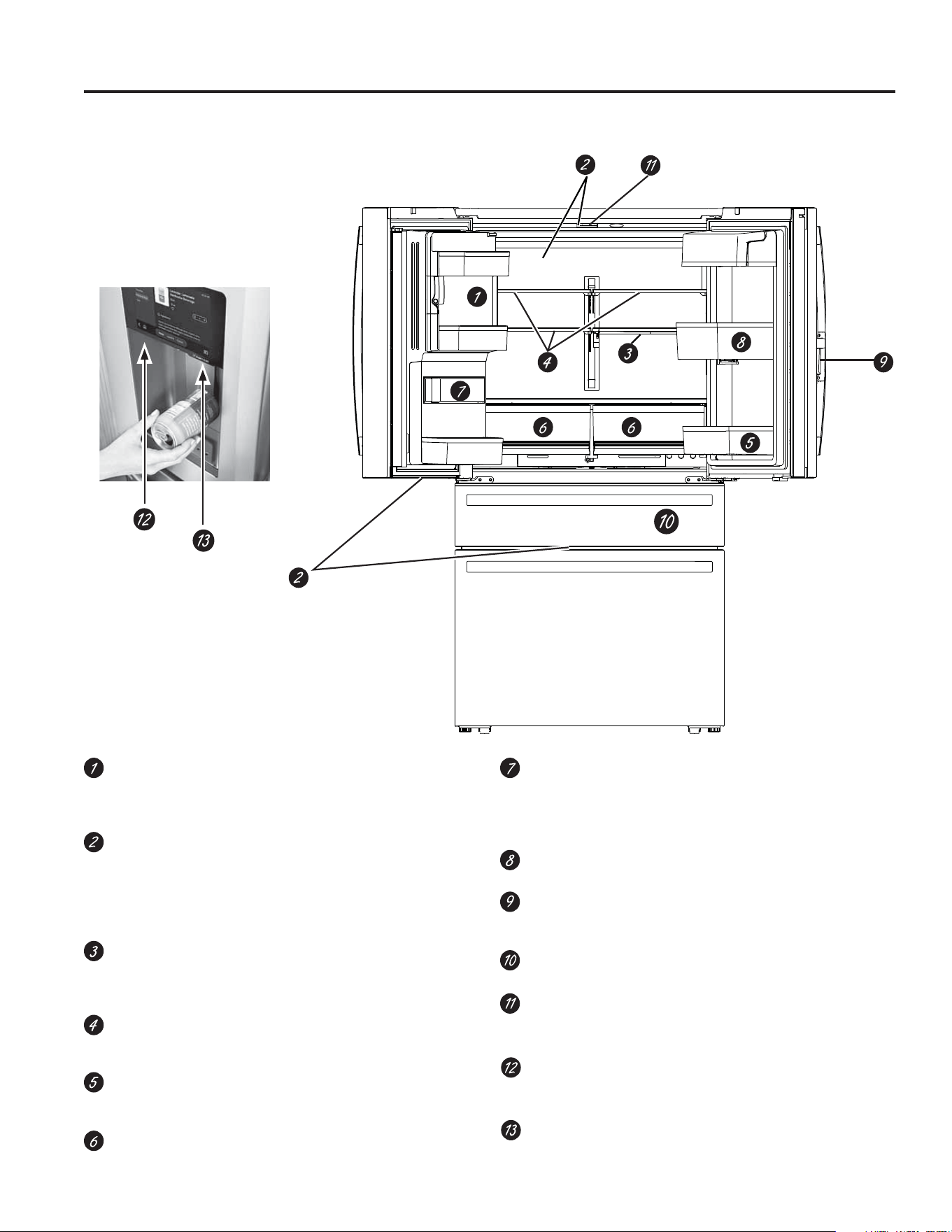
6 49-1000332 Rev. 10
Funciones
OPERACIÓN DEL REFRIGERADORE: Funciones
Máquina de hacer hielo con ahorro de espacio
La máquina de hacer hielo y el recipiente están ubicados
en la puerta, creando un espacio de almacenamiento con
mayor uso.
Luz LED de exhibición
/D OX] /(' HVWi SRVLFLRQDGD D WUDYpV GHO LQWHULRU SDUD
LOXPLQDU iUHDV GHO UHIULJHUDGRU 'HEDMR GH OD SXHUWD GH
FRPLGDV IUHVFDV VH HQFXHQWUDQ XELFDGDV OXFHV /(' SDUD
iluminar el cajón convertible, y debajo del cajón convertible
VH HQFXHQWUDQ OXFHV /(' SDUD LOXPLQDU HO FDMyQ GHO IUHH]HU
Estante de QuickSpace
Funciona como un estante normal de tamaño completo
cuando lo necesite y se desliza fácilmente hacia adentro
para guardar artículos altos en la parte inferior.
Estantes a prueba de derrames
'LVHxDGRV SDUD FDSWXUDU GHUUDPHV \ SHUPLWLU XQD OLPSLH]D
más fácil.
Recipiente con puerta desmontable
Puede ser retirado cuando haya una pared que limite la
apertura de la puerta.
Recipiente de Climate zone
Recipientes aparte para almacenar productos alimenticios.
Filtro de Agua
Filtra agua y hielo. Certificado para reducir quistes
resistentes al cloro, plomo, fármacos selectos, y más. A
fin de acceder a instrucciones para un reemplazo fácil del
filtro, consulte la página 14.
Bandeja Giratoria (en algunos modelos)
Puede ser rotada para un fácil acceso.
Traba para Puerta en la Puerta (en algunos modelos)
Presione la traba desde el lado inferior de la manija para
abrir la puerta externa.
Cajón Convertible
Seleccione la mejor temperatura para guardar su comida.
Cámara Fridge Focus (en PVD28H y PXD22H)
La posición de la cámara se ajusta de adelante hacia atrás, y la
tapa de privacidad puede utilizarse deslizándola hacia un lado.
Altavoz (en PVD28H y PXD22H)
Produce un sonido nítido y detallado, lo que facilita
escuchar voces, música y notificaciones.
Escanear para Lista (en PVD28H y PXD22H)
Escáner de códigos de barras para escanear códigos de
barras
Modelos de Profile PVD28, PXD22, PVD28H, PXD22H
Ensamblaje de la
pantalla de la puerta
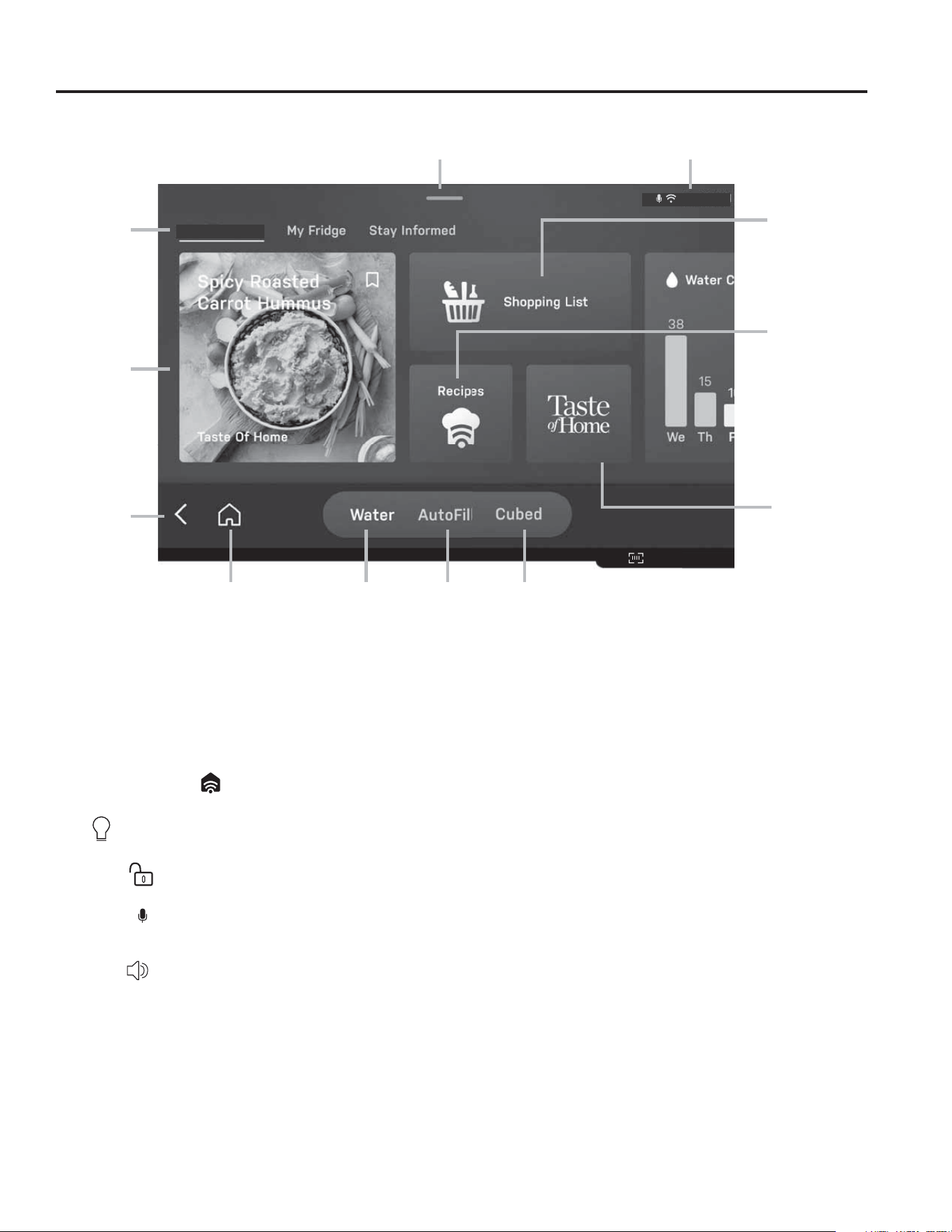
49-1000332 Rev. 10 7
Funciones
OPERACIÓN DEL REFRIGERADORE: Funciones
Modelos de Profile PVD28H, PXD22H
Personalización de su Refrigerador
Acceso a la Configuración
• Toque y mantenga presionada la barra gris en la parte
superior de la pantalla.
'HVOLFH KDFLD DEDMR SDUD DEULU HO SDQHO GH 6HWWLQJV
(Configuración).
Controles Rápidos
• Estado de SmartHQ
: Vea el icono en la esquina superior
izquierda para conocer su estado de conexión en SmartHQ.
• Luz
: Toque el ícono Light (Luz) para encender o apagar la
luz del dispensador.
• Bloquear
: Toque el ícono Lock (bloqueo) para activar o
desactivar el bloqueo del control.
• Micrófono
: Toque el ícono de Microphone (Micrófono)
para encender o apagar el micrófono.
• (Apagar el micrófono desactiva los comandos de voz.)
• Volumen
: Ajuste el volumen de los medios moviendo el
control deslizante de Volume (Volumen) al nivel deseado.
• Brillo de la Pantalla: Ajuste el brillo de la pantalla moviendo
el control deslizante Brightness (brillo).
• Ajustes: Ajuste cualquier configuración en el electrodoméstico
o en la pantalla (vea más detalles a continuación).
• Ambient: Active rápidamente la pantalla Ambient para ver
sus fondos personalizados y widgets.
• Alertas: Acceda a su lista histórica de notificaciones que
aparecen en su electrodoméstico.
Controles del Refrigerador:
• Temperatura del Refrigerador: Presione + o – para ajustar
entre 34°F (1°C) y 42°F (6°C).
• Configuraciones del Cajón: Seleccione uno de los
siguientes modos: Carne: 29 °F Bebidas: 33 °F Bocadillos: 37
°F Vino: 42 °F
• Temperatura del congelador: Presione + o – para ajustar
entre –6°F (–21°C) y 5°F (–15°C). Fabricador de hielo: Encienda
o apague para iniciar o detener la producción de hielo.
Iluminación:
• Pared de luz LED Showcase: encienda o apague y ajuste el
brillo usando el control deslizante de atenuación.
• Sensor de Presencia: activar o desactivar
• Iluminación del Sensor del Dispensador: Encender o
apagar (Cuando está habilitada, la luz del dispensador se
enciende automáticamente al acercarse al refrigerador).
Avanzado:
• Unidades de Temperatura: Seleccione Fahrenheit (°F) o
Celsius (°C).
• Modo Sabbath: Vaya a Settings > Sabbath (Configuración >
Sabbath) para activar el Modo Sabbath. Mantenga presionada
la pantalla durante 10 segundos para salir.
• Sistemas de Enfriamiento: Encienda o apague los sistemas
de enfriamiento (antes de apagar el sistema de enfriamiento,
vacíe el refrigerador. Esta función se recomienda para
períodos prolongados de inactividad, como vacaciones o
limpieza profunda, para ayudar a conservar energía.)
Meal Planning
Scan toList
10:32 AM
Recipes
App
Taste of
Home
App
Cubed/Crushed Ice
(Toggle button)
AutoFill
water
'LVSHQVH
water
Home
Back
Quick
access
Apps
Shopping
List App
System TrayShade (swipe down Quick Controls)
8 49-1000332 Rev. 10
Funciones
OPERACIÓN DEL REFRIGERADORE: Funciones
Modelos de Profile PVD28H, PXD22H
FridgeFocus: Activar o desactivar capturas internas del
refrigerador.
Scan-to-List (Requiere Wi-Fi e inicio de sesión en
SmartHQ)
• Scan-to-List: active o desactive el escáner de códigos de
barras.
• Luz objetivo del escáner: encienda o apague la luz del
escáner de códigos de barras
• Agregar automáticamente a la lista después de
escanear: active o desactive la función para agregar
automáticamente los artículos escaneados a su lista.
Sistema:
• Acerca de – encuentre detalles sobre las versiones de
software.
• Ubicación
• Configuración de hora y fecha
• Modo de Servicio – para técnicos de servicio.
• Modo de Exhibición – solo para minoristas.
• Borrar Datos de Usuario – borre rápidamente todos los
datos de usuario almacenados en el electrodoméstico y
desconéctese de Wifi.
Restablecimiento de la interfaz de usuario (UI Reset):
si
es necesario un reinicio, simplemente desbloquee la interfaz
GHXVXDULR&RQYHUWLEOH'UDZHU&DMyQ&RQYHUWLEOH\OXHJR
presione los botones Meat (Carne) y Snack (Bocadillo)
simultáneamente durante 3 segundos para iniciar un reinicio
de la interfaz de usuario. Esto tomará unos minutos.
Conéctese a SmartHQ
• 'HVFDUJXHODDSOLFDFLyQ6PDUW+4GHVGHODWLHQGDGH
aplicaciones.
• Inicie sesión en SmartHQ para ver su refrigerador en la
aplicación y obtener todos los beneficios de la conexión.
• Conecte su refrigerador desde la pantalla seleccionando
CUALQUIER función que requiera conexión para
comenzar, como Lista de compras o Recetas. Siga las
instrucciones en pantalla para conectar su refrigerador a
su cuenta SmartHQ.
Pantalla y apariencia
• Brillo: ajuste el nivel de brillo de la pantalla mediante
la barra de ajuste de brillo que se encuentra en la
configuración de Sombra.
• Energy saver: Icono táctil de encendido/apagado para
Energy saver (Ahorro de energía) para activar/desactivar
el modo Energy saver (Ahorro de energía) (Este modo
permite personalizar los horarios programados de
encendido/apagado del modo Energy saver (Ahorro de
energía) en su pantalla).
Modo Ambiente:
• Grupo de reloj (Agregar/Quitar fecha y clima juntos o
individualmente)
• Widgets (Agregar/Quitar widgets de Clima y Recetas
juntos o individualmente a la pantalla de inicio)
Fondo:
• Seleccione Backdrop(s) (Fondos) de las opciones para
personalizar la imagen de su pantalla ambiental.
Sonidos y Alertas
• Volumen de Medios: Ajuste el volumen según sea
necesario ajustando la barra de Volumen.
• Volumen de la interfaz: Cambie el volumen de la interfaz
a Off (Apagado), Low (Bajo), Med (Medio) o High (Alto)
según sea necesario.
• Tono táctil: Encienda o apague el tono táctil
• Alerta de tiempo: Establece el nivel de sonido para los
tonos del sistema, temporizadores y alertas.
Voz y micrófono:
• Micrófono: Encender/Apagar Micrófono (Apagar
desactivará los comandos de voz)
• Si hay 2 electrodomésticos en la misma cocina que
DGPLWHQ³+H\+4´GHEHVLOHQFLDUXQRSDUDHYLWDUTXH
ambos respondan.
8VH³+H\+4´FRPRSDODEUDGHDFWLYDFLyQSDUDHMHFXWDU
comandos:
³TXpILOWURGHERFRPSUDU´
³$JUHJXHPDQ]DQDVDPLOLVWDGHFRPSUDV´
³'HPHR]GHDJXD´
³,QLFLH7XUER&RRO´
Escaneo de Código de Barras:
(OHVFiQHUGHFyGLJRVGHEDUUDVLQFOX\HXQLQGLFDGRU/('
para ayudarle a alinear el código de barras con el lector.
(VWH/('QRHVXQOiVHU\KDVLGRSUREDGRFRQIRUPHDOD
norma industrial IEC 62471, la cual evalúa la seguridad
fotobiológica de lámparas y sistemas de lámparas, incluso
bajo exposición retiniana prolongada.
(O/('QRHVQHFHVDULRSDUDTXHIXQFLRQHHOHVFiQHU
de códigos de barras. Si prefiere apagarlo por cualquier
motivo, puede hacerlo desde el menú de configuración de
la unidad sin afectar el rendimiento del escáner.
• El interruptor Scan-to-List (Escanear para agregar a la
lista) encenderá o apagará el escáner.
• Luz de objetivo del escáner: un punto verde que le
ayudará a alinear el código de barras con el escáner.
• Auto-Add to List (Agregar automáticamente a la lista):
agrega automáticamente los artículos a su lista de
compras cuando los escanea.
• Solo se admiten etiquetas de código de barras
unidimensionales. Los códigos QR y algunos otros
formatos no son compatibles.
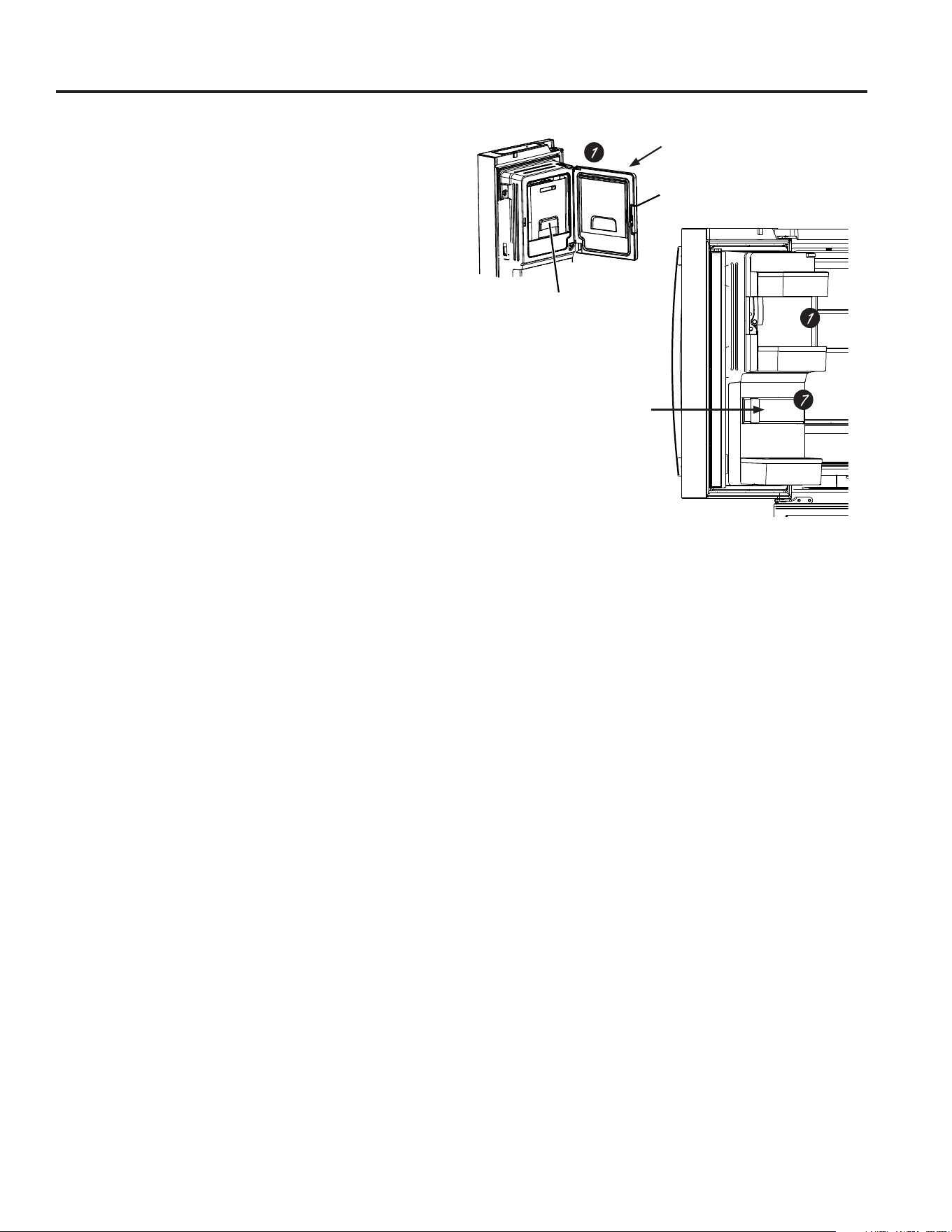
49-1000332 Rev. 10 9
OPERACIÓN DEL REFRIGERADORE: Funciones
Funciones
Extracción del depósito de hielo de la puerta
1. Abra la puerta izquierda de comidas frescas.
2. Baje la traba para abrir la puerta del recipiente.
3. Uso del recipiente con sujeción manual hacia arriba y afuera
para despejar los localizadores en la parte inferior del
recipiente.
4. Para reemplazar la hielera, ajuste la misma a los soportes
de la guía y empuje hasta que la misma se ubique
correctamente.
5. Si la hielera no se puede reemplazar, gire la Horquilla de la
Hielera ¼ en dirección de las agujas del reloj.
Hielo/ filtro de agua
Se certifica que reduce quistes resistentes al cloro, plomo,
ciertos productos farmacéuticos y más. Para un reemplazo
sencillo del filtro, ver la página 9.
Hielera
Traba
Puerta del compartimiento
de la bandeja de hielo
Puerta del compartimiento
de la bandeja de hielo
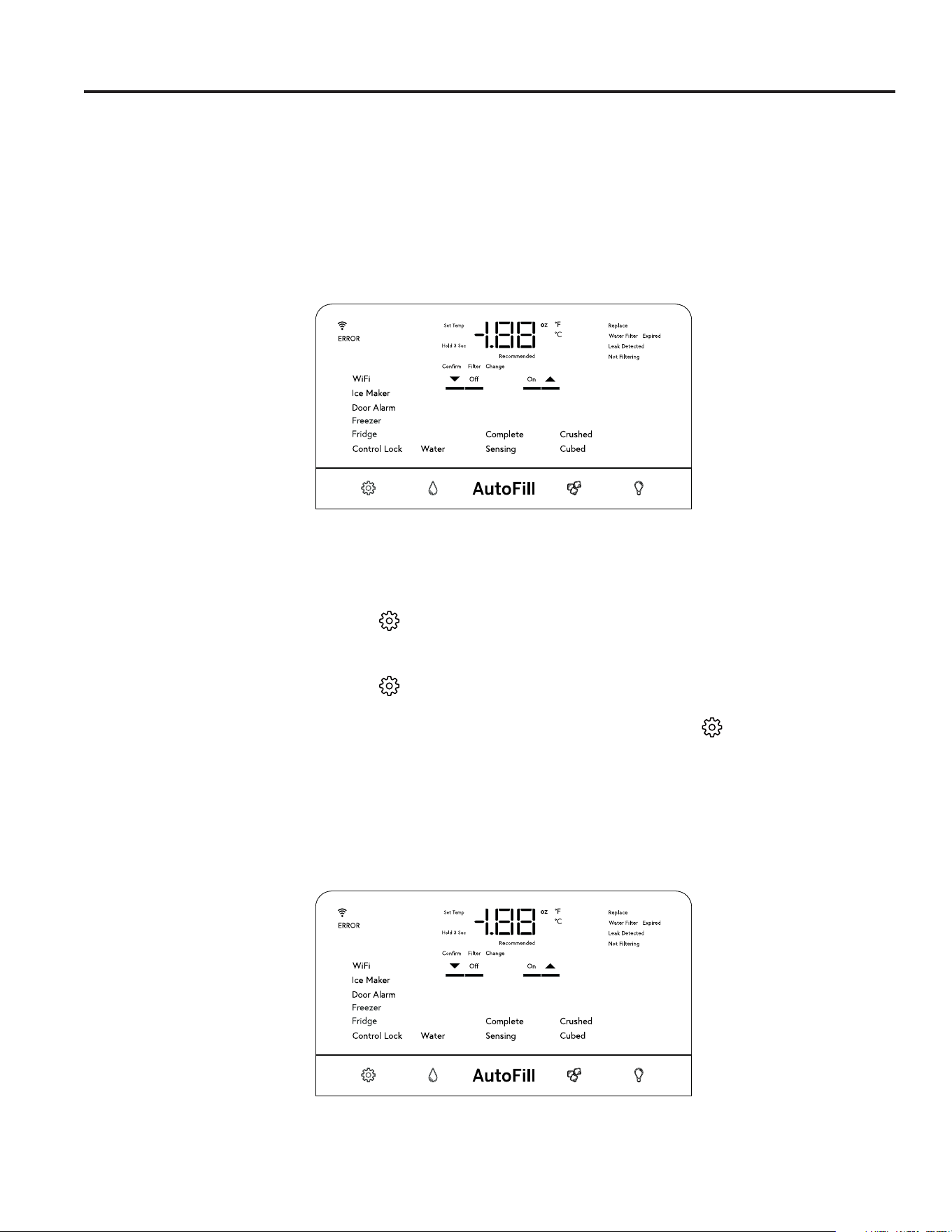
10 49-1000332 Rev. 10
Controles
OPERACIÓN DEL REFRIGERADORE: Controles
CUATRO PUERTAS Y DOOR-IN-DOOR DE CUATRO PUERTAS
Actualizamos nuestro software de forma constante. Por favor, use como referencia el manual del propietario completo a
través de Internet para conocer las últimas funcionalidades en GEAppliances.com. En Canadá, visite GEAppliances.ca.
El refrigerador se envía con una película protectora que cubre los controles. Si la película no fue retirada durante la instalación,
retire la misma ahora.
Las configuraciones de temperatura recomendadas y la preconfiguración de fábrica son de 37°F (3°C) para el refrigerador y de
0°F (-18°C) para el freezer.
PVD28B, PXD22B
Cómo Cambiar la Temperatura
Para Cambiar la Temperatura del Refrigerador:
Presione el botón Settings (Configuraciones) ( KDVWDTXH³)ULGJH´5HIULJHUDGRUDSDUH]FDLOXPLQDGR3UHVLRQHORVERWRQHV
GHODVIOHFKDV8S$UULED\'RZQ$EDMRSDUDLQFUHPHQWDURUHGXFLUODVFRQILJXUDFLRQHVGHWHPSHUDWXUD
Para Cambiar la Temperatura del Freezer:
Presione el botón Settings (Configuraciones) ( KDVWDTXH³)UHH]HU´)UHH]HUDSDUH]FDLOXPLQDGR3UHVLRQHORVERWRQHVGH
ODVIOHFKDV8S$UULED\'RZQ$EDMRSDUDLQFUHPHQWDURUHGXFLUODVFRQILJXUDFLRQHVGHWHPSHUDWXUD
El sistema de refrigeración puede ser apag ado presionando el botón Settings (Configuraciones) ( KDVWDTXH³)ULGJH´
5HIULJHUDGRUR³)UHH]HU´)UHH]HUDSDUH]FDQLOXPLQDGRV0DQWHQJDSUHVLRQDGRVDPERVERWRQHVGHODVIOHFKDV8S$UULED
\'RZQ$EDMRGXUDQWHVHJXQGRV³´VHUiH[KLELGRFXDQGRHOVLVWHPDHVWpDSDJDGR$SDJDUHOVLVWHPDGHUHIULJHUDFLyQ
detiene la refrigeración del refrigerador, pero no corta la corriente eléctrica. El sistema de refrigeración puede ser encendido
UHJUHVDQGRDODFRQILJXUDFLyQ³)ULGJH´5HIULJHUDGRUR³)UHH]HU´)UHH]HU\SUHVLRQDQGRHOERWyQ2Q(QFHQGLGR
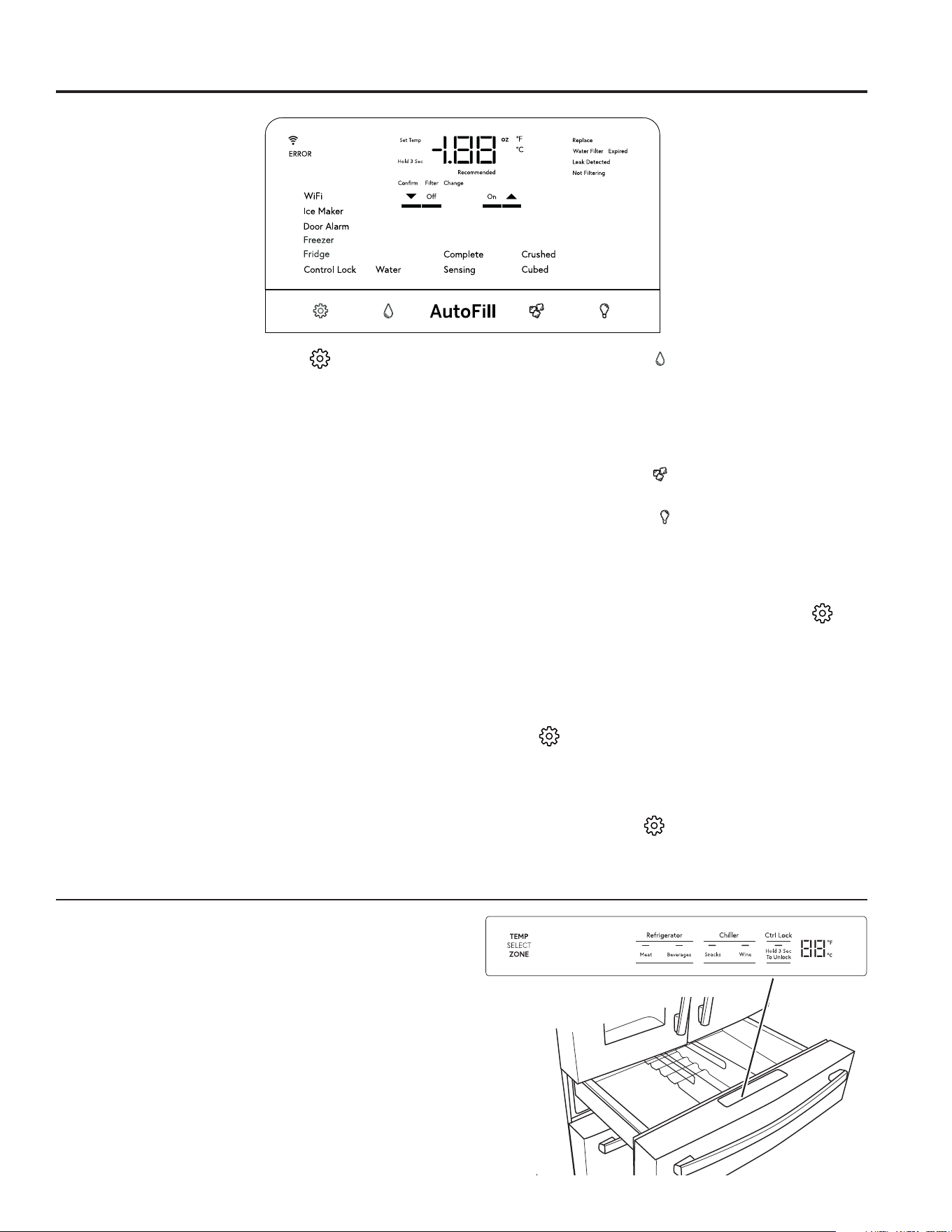
49-1000332 Rev. 10 11
Controles
OPERACIÓN DEL REFRIGERADORE: Controles
Símbolo de Configuraciones (Settings) ( ) – Presione este
símbolo para pasar a través de las funciones del refrigerador.
Ɣ%ORTXHR&RQWURO/RFN3UHVLRQHHVWDIXQFLyQSDUD
bloquear el dispensador de hielo y agua y todos
los botones de funciones y temperatura. Mantenga
SUHVLRQDGRHOERWyQ2II$SDJDGRGXUDQWHVHJXQGRV
para desactivarlo.
Ɣ5HIULJHUDGRU)ULGJH±3UHVLRQHHOERWyQ8S$UULEDR
'RZQ$EDMRSDUDLQFUHPHQWDURUHGXFLUODWHPSHUDWXUD
desde 34°F (1°C) hasta 42°F (6°C).
Ɣ)UHH]HU)UHH]HU±3UHVLRQHHOERWyQ8S$UULEDR'RZQ
(Abajo) para incrementar o reducir la temperatura desde
-6°F (-21°C) hasta 5°F (-15°C).
Ɣ$ODUPDGHOD3XHUWD'RRU$ODUP±6XHQDXQDDOHUWD
cuando las puertas del freezer o del refrigerador se dejan
DELHUWDV'HVDFWLYHHVWDDOHUWDSUHVLRQDQGRFXDOTXLHU
tecla.
3UHVLRQH2Q(QFHQGHUX2II$SDJDUSDUDDFWLYDU
RGHVDFWLYDU'RRU$ODUP$ODUPDGHOD3XHUWDPLHQWUDVOD
alerta no se encuentra activa.
Ɣ0iTXLQDGH+LHOR,FHPDNHU3UHVLRQH2Q(QFHQGLGRX
2II$SDJDGRSDUDLQLFLDUGHWHQHUODPiTXLQDGHKLHOR
Ɣ:L)L
3UHVLRQH2Q(QFHQGHUSDUDLQLFLDUHOSURFHVR
de conexión WiFi de acuerdo con las instrucciones que
ILJXUDQHQODSiJLQD3UHVLRQH2II$SDJDUSDUD
GHVDFWLYDUHO:L)L2EVHUYHTXHUHLQLFLDUHO:L)LUHTXLHUH
la repetición del proceso de conexión WiFi.
/RVPRGHORV39'3;''RRULQ'RRUGH*(
Profile cuentan con WiFi.
Los modelos GE Appliances GVE28 están Preparados
para Connect Plus.
Símbolo de Goteo de Agua ( ) – Presione esta función para
seleccionar Ice (Hielo) o Water (Agua) a fin de dispensar los
mismos cuando se presione la paleta. .
Llenado Automático (AutoFill) – Presione esta función a
fin de iniciar el sensor automático para el llenado desde el
dispensador.
Símbolo de Cubos de Hielo (
) - Presione para seleccionar la
función de hielo picado o en cubos al presionar la paleta.
Símbolo de Lámpara de Luz (
) – Presione esta función
para iluminar el dispensador. Se producirá un sonido de
campanadas cada vez que presione.
Fahrenheit / Celsius:
La pantalla de temperatura se podrá mostrar en Fahrenheit o
Celsius. Presione el botón de Configuraciones (Settings) ( ) para
DFFHGHUD³)ULGJH´5HIULJHUDGRUR³)UHH]HU´)UHH]HU\OXHJR
mantenga presionados los botones Ice (Hielo) y Light (Luz) durante
tres segundos.
Control de Volumen:
El volumen de alerta podrá ser ajustado de High (Alto) a Low
%DMR\2II$SDJDGR3UHVLRQHHOERWyQGH&RQILJXUDFLRQHV
(Settings)
( )
SDUDDFFHGHUD³,FHPDNHU´0iTXLQDGH+LHOR
y luego mantenga presionados los botones Ice (Hielo) y Light
(Luz) durante tres segundos.
Modo Sabático:
'HIRUPDVLPXOWiQHDPDQWHQJDSUHVLRQDGRVORVERWRQHV
Settings (Configuraciones)
( )
, Water (Agua) y Light (luz)
durante tres segundos para ingresar o salir del modo Sabbath
(Sabático).
CAJÓN CONVERTIBLE
La temperatura del Cajón Convertible es seleccionada
presionando el ítem de comida que se guardará en el cajón.
Las temperaturas correspondientes son:
Congelación Baja 23°F (-5°C)
Carne 29°F (-2°C)
Bebidas 33°F (1°C)
Aperitivos 37°F (3°C)
Vino 42°F (6°C)
La configuración de temperatura está bloqueada por omisión.
Se deberá presionar el botón durante 3 segundos para
desbloquear esta función.
Mantener presionadas varias teclas restablecerá la pantalla.
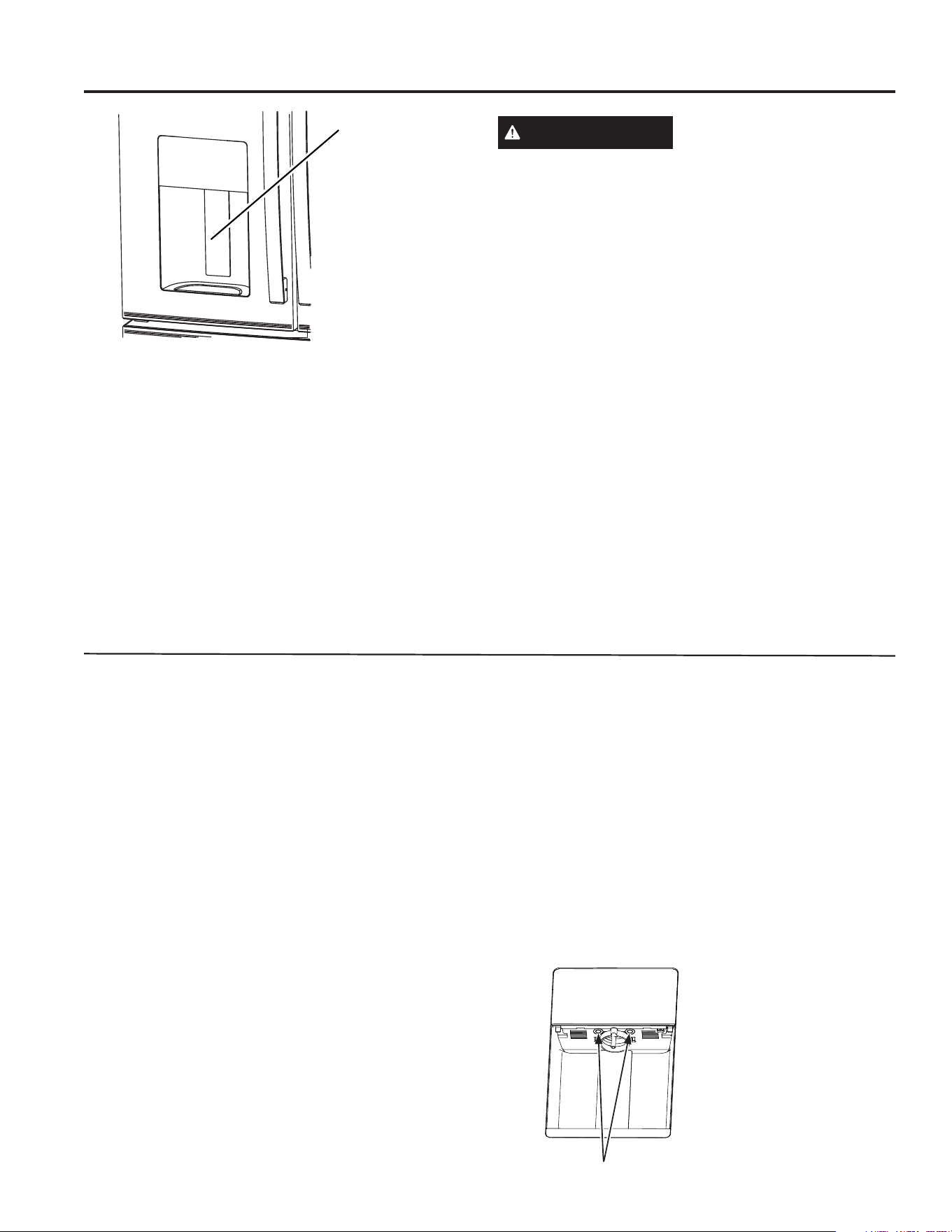
12 49-1000332 Rev. 10
OPERACIÓN DEL REFRIGERADORE: 'LVSHQVDGRU
Dispensador
Acerca del
dispensador
(Consulte Controles)
ADVERTENCIA
RIESGO DE LACERACIÓN
Ŷ1XQFDFRORTXHORVGHGRVRFXDOTXLHURWURREMHWRHQOD
abertura de descarga de la picadora de hielo. Hacer esto
puede resultar en el contacto entre los filos de la picadora
de hielo y ocasionar lesiones graves o una amputación.
Ŷ8VHXQYLGULRUHVLVWHQWHDOGLVSHQVDUKLHOR8QYLGULRQR
resistente se podrá romper y ocasionar lesiones personales.
Si no se dispensa agua cuando el refrigerador se instala por
primera vez, es posible que la tubería de agua posea aire.
Presione la paleta dispensadora durante por lo menos cinco
minutos para eliminar el aire atrapado de la tubería de agua y
para llenar el sistema de agua. A fin de limpiar las impurezas
en la tubería de agua, descarte los seis primeros vasos de
agua.
AUTOFILL* (Llenado Automático)
Para Usar LLENADO AUTOMÁTICO CON
MANOS LIBRES:
&HQWUHHOHQYDVHHQOD%DQGHMDGHO'LVSHQVDGRUFRQOD
'HSUHVLyQWDQDWUiVFRPRVHDSRVLEOHVLQDFWLYDUODSDOHWD\
retire la mano del envase.
• Presione AUTO FILL//(1$'2$8720È7,&2
Para Detener AUTO FILL (LLENADO
AUTOMÁTICO)
• Presione CUALQUIER tecla, incluyendo AutoFill (Llenado
Automático), para detener esta función.
Factor Importante acerca del LLENADO
AUTOMÁTICO
• Para obtener resultados óptimos, use un envase uniforme
entre 10-20 cm (4 y 8”) de alto y entre 5-15 cm (2 y 6”) de
ancho. El envase ser tan alto como los sensores inferiores.
• El nivel y funcionalidad del llenado pueden variar en envases
más altos que 20 cm (8”) o más anchos que 15 cm (6”).
• Los volúmenes de los envases podrán variar. Si aparece el
PHQVDMH³(5525´(UURUSUXHEHHQXQHQYDVHGLIHUHQWH
• El tiempo de AUTO FILL//(1$'2$8720È7,&2
concluirá.
• Las manijas, sorbete y decoraciones sobre el borde del
envase podrán ocasionar desbordes o variaciones en los
volúmenes de llenado. Si utiliza mezcla de bebida en polvo
DQWHVGH$872),///OHQDGRDXWRPiWLFRSXHGHUHVXOWDUHQ
un rendimiento reducido.
• Se podrán producir salpicaduras dependiendo de la
ubicación del envase, el nivel de flujo del agua, la forma del
envase, y los cubos de hielo.
• Conserve los sensores limpios con una tela húmeda y
limpia, y no rocíe líquido ni limpiadores directamente sobre
los sensores.
• AUTO FILL//(1$'2$8720È7,&2IXQFLRQDPHMRUFRQXQD
presión de agua del hogar de 414 a 689 kPa (40 a 100 psi).
• El hielo en el envase puede afectar el volumen de llenado.
Si se experimentan problemas, use menos hielo.
Hechos Importantes sobre Su Dispensador
Ŷ1RDJUHJXHKLHORGHEDQGHMDVREROVDVDODKLHOHUDGHOD
máquina de hacer hielo de la puerta. Es posible que no lo
pique o vierta correctamente.
Ŷ Evite llenar el vaso con hielo de forma excesiva y use
vasos angostos. El hielo estancado puede trabar el vertedor
o hacer que la puerta del vertedor quede cerrada por
congelación. Si el hielo bloquea el vertedor, retire la hielera y
desbloquee el mismo con una cuchara de madera.
Ŷ Las bebidas y las comidas no se deberán enfriar de
forma rápida en el cajón de almacenamiento de hielo.
Las latas, botellas o paquetes de comida en el cajón de
almacenamiento pueden hacer que la máquina de hacer
hielo o el taladro se bloqueen.
Ŷ Para que el hielo dispensado no caiga afuera del vaso,
coloque el vaso cerca de, pero sin que tenga contacto con,
la abertura del dispensador.
Ŷ Es posible que cierta cantidad de hielo picado sea
GLVSHQVDGDLQFOXVRDXQTXHKD\DVHOHFFLRQDGR&8%('
ICE (Hielo en Cubos). Esto sucede ocasionalmente cuando
algunos cubos son dirigidos accidentalmente a la picadora.
Ŷ Una vez que el hielo picado es dispensado, es posible que
parte del agua gotee del vertedor.
Ŷ A veces se formará una pequeña cantidad de nieve en la
puerta del vertedor de hielo. Esta condición es normal y
habitualmente sucede cuando se dispensó hielo picado en
forma repetida. La nieve finalmente se evaporará.
*Modelos selectos únicamente
Sensores AutoFill
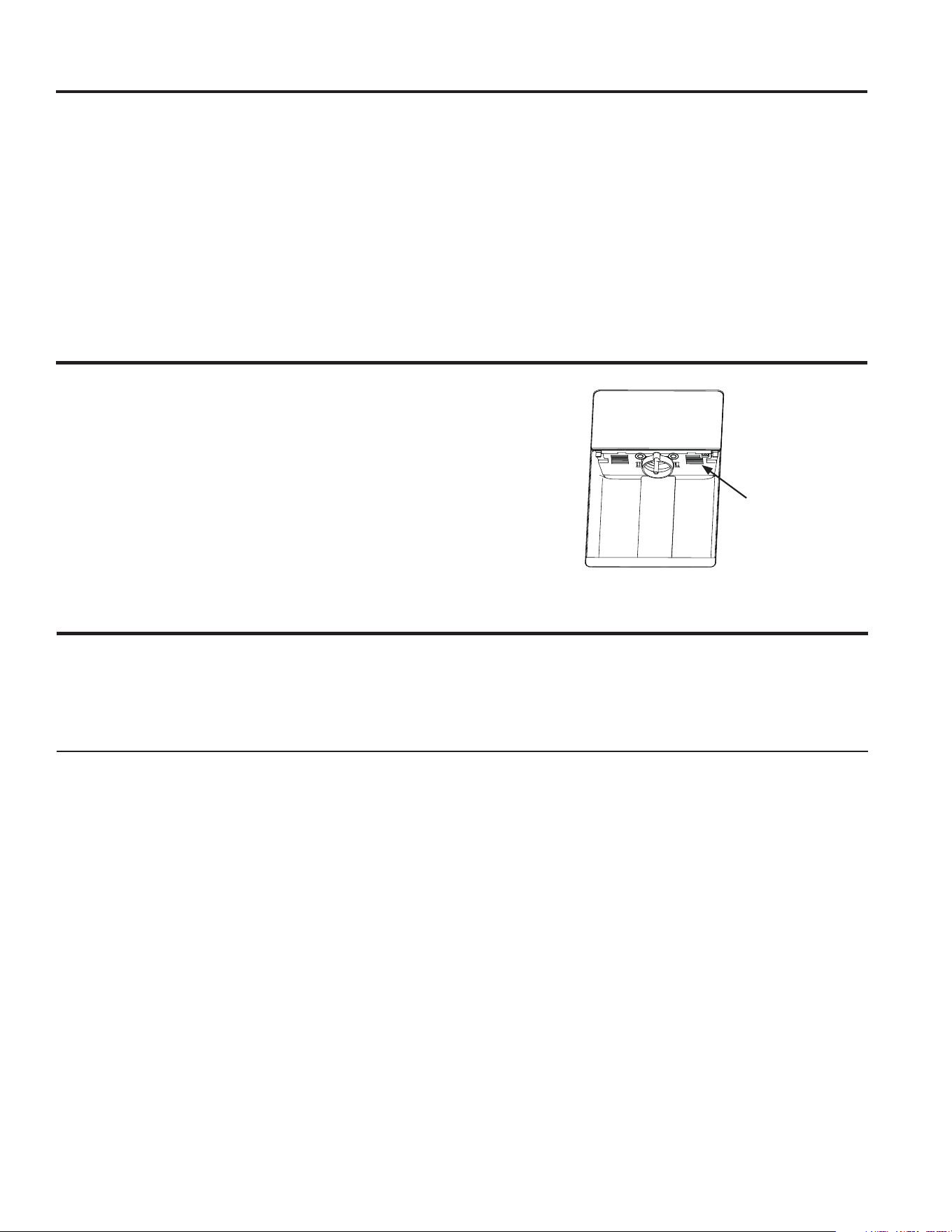
49-1000332 Rev. 10 13
Dispensador
OPERACIÓN DEL REFRIGERADORE: 'LVSHQVDGRU(VFiQHUGH&yGLJRGH%DUUDV:L)L
WiFi (
para clientes en Estados Unidos, sus territorios, y Canadá
)
INFORMACIÓN REGULATORIA
Declaración de Cumplimiento con FCC/IC:
(VWHGLVSRVLWLYRFXPSOHFRQOD3DUWHGHOD1RUPDWLYDGHOD)&&6XIXQFLRQDPLHQWRHVWiVXMHWRDODVGRVFRQGLFLRQHV
siguientes:
1. Este dispositivo no podrá causar interferencias perjudiciales.
2. Este dispositivo debe aceptar cualquier interferencia recibida, incluidas las interferencias que puedan provocar un
funcionamiento no deseado.
ATENCIÓN: Las modificaciones sobre esta unidad no aprobadas expresamente por parte del fabricante podrían anular la
autoridad del usuario para utilizar el equipo.
(VWHGLVSRVLWLYRFXPSOHFRQODH[HQFLyQGHOLFHQFLD566VVREUH,QQRYDFLyQ&LHQFLD\'HVDUUROOR(FRQyPLFRGH&DQDGi6X
funcionamiento está sujeto a las dos condiciones siguientes:
(1) Es posible que este dispositivo no cause interferencias, y
(2) Este dispositivo deberá aceptar cualquier interferencia recibida, incluidas las interferencias que puedan provocar un
funcionamiento no deseado del dispositivo.
Si su refrigerador cuenta con una etiqueta de Información del Electrodoméstico Conectado, entonces es posible conectarlo
a su red WiFi, lo cual le permitirá la comunicación con su dispositivo móvil para realizar el monitoreo, control y notificaciones de
forma remota.
Para conocer más sobre las funciones del electrodoméstico conectado y para saber qué aplicaciones de electrodomésticos
conectados funcionan con su teléfono inteligente, por favor visite GEAppliances.com/connect.
SECCIÓN DE LLENADO PRECISO
'HVSXpVGHFRQILJXUDUHOYROXPHQGHVGHHOPHQ~3UHFLVH)LOO
(Llenado Preciso), puede continuar de dos maneras:
1. Usando Hands Free Precise Fill (Llenado Preciso Manos
Libres): Con el recipiente completamente insertado en
HOKXHFR\HQSRVLFLyQILMDSUHVLRQHHOERWyQ'LVSHQVH
'LVSHQVDUGHVGHHOPHQ~3UHFLVH)LOO/OHQDGR3UHFLVR
La unidad dispensará hasta que se alcance el volumen
establecido o el límite de detección de nivel. Consulte la
descripción de Autofill (Llenado Automático) (página 12) para
la descripción de los recipientes compatibles.
2. Usando Paddle (Palanca): Al presionar la palanca con el
recipiente, se dispensará agua hasta que se alcance el
objetivo o se suelte la palanca. Si el recipiente se llena
antes de alcanzar el volumen objetivo, puede reemplazar
el recipiente o vaciarlo y volver a presionar la palanca para
continuar hasta alcanzar la cantidad seleccionada.
Escáner de Código de Barras
Datos Importantes sobre el Escaneo de Códigos de Barras
• Puede producirse salpicadura según la ubicación del
recipiente, el caudal de agua, la forma del recipiente y los
cubos de hielo.
• Mantenga limpia la lente del escáner de código de barras con
un paño limpio y húmedo, y no rocíe líquido ni limpiadores
directamente sobre la lente.
• La distancia óptima para el escaneo de la etiqueta variará
según el tipo de etiqueta, el tamaño y la luz ambiental.
Escáner de
Código de
Barras

14 49-1000332 Rev. 10
Respuesta a la Demanda (en algunos modelos)
OPERACIÓN DEL REFRIGERADORE: 5HVSXHVWDDOD'HPDQGD
Este producto cuenta con capacidad WiFi y requiere de
conectividad a Internet y un enrutador inalámbrico a fin
de permitir la interconexión con un Sistema de Manejo de
Energía, y/o con otros dispositivos, sistemas o aplicaciones
externas.
¿Qué es la Respuesta a la Demanda?
Algunas empresas de servicios podrán variar sus índices
eléctricos dependiendo de la hora del día. Algunas empresas
GHVHUYLFLRVRIUHFHQSURJUDPDVGH5HVSXHVWDDOD'HPDQGD
a fin de reducir el uso de la energía durante ciertos momentos
del día. Algunas empresas de servicios ofrecen ambas cosas.
Este refrigerador cuenta con una función de Respuesta a la
'HPDQGDSDUDD\XGDUDFRQWURODUHOXVRGHODHQHUJtD
Uso de la Respuesta a la Demanda sin un
Programa de una Empresa de Servicios
/DIXQFLyQGH5HVSXHVWDDOD'HPDQGDSHUPLWHTXHHOXVXDULR
cambie funciones de alto consumo de corriente, tales como
descongelar, durante un espacio de 4 horas. Esta función
corresponde al promedio de uso pico de la corriente. Esta
función es activada o desactivada a través de la aplicación
SmartHQ
TM
y requiere de la aplicación SmartHQ
TM
para
funcionar. Esto no depende de las empresas de servicios
locales, ni de si éstas varían los índices de electricidad.
Respuesta a la Demanda de su Empresa de
Servicios
Si su empresa de servicios cuenta con un programa de
5HVSXHVWDDOD'HPDQGDFRPSDWLEOH\XVWHGHVWiUHJLVWUDGR
en la empresa de servicios, este refrigerador podrá modificar
su uso de energía en base a comandos recibidos desde la
empresa de servicios. La aplicación SmartHQ
TM
se podrá usar
SDUDDQXODUHOSURJUDPDGH5HVSXHVWDDOD'HPDQGDVLDVt
se desea. Por favor, observe que existen muchos programas
GLIHUHQWHVGH5HVSXHVWDDOD'HPDQGD\PXFKRVQRVRQ
compatibles con los electrodomésticos de cocina. Por favor,
consulte a su empresa de servicios local.
El nivel de respuesta a la demanda es exhibido a través de la
aplicación móvil. El modo de carga del electrodoméstico con
UHWUDVR'$/VHJ~QVXVVLJODVHQLQJOpVUHGXFHHOFRQVXPR
de energía, al retrasar la congelación y producción de hielo
por 4 horas. La reducción de la carga del electrodoméstico de
forma temporaria (TALR, según sus siglas en inglés) reduce el
consumo de energía, al retrasar la congelación, producción de
hielo, y la interrupción de la refrigeración por 10 minutos.
El consumo de energía estimado en Watt-hora (Wh) es
informado a través de la aplicación móvil.
Instalación de Respuesta a la Demanda
Instale la aplicación SmartHQ
TM
de acuerdo con las
instrucciones que figuran en la página previa. Seleccione la
SiJLQDGH5HVSXHVWDDOD'HPDQGD\HOLMDHQWUHODVRSFLRQHV
GH5HVSXHVWDDOD'HPDQGDGLVSRQLEOHV/DDSOLFDFLyQEULQGD
más información sobre el funcionamiento de cada opción de
5HVSXHVWDDOD'HPDQGD
Protocolos de Comunicación sobre la
Respuesta a la Demanda
Este refrigerador utiliza los siguientes protocolos de estándares
de apertura IETF para la comunicación WiFi. Para conocer
las actualizaciones de protocolos más recientes, consulte el
manual del usuario a través de Internet:
Ŷhttps://mqtt.org/mqtt-specification/
Ŷhttp://docs.oasis-open.org/mqtt/mqtt/v3.1.1/os/
mqtt-v3.1.1-os.htm
l
API de GEA para la respuesta a la demanda:
Ŷ(VFULEDHOHVWDGRGHODUHVSXHVWDDODGHPDQGD,QDFWLYR
'$/\7/$5
Ŷ$FFHGDDOHVWDGRGHODUHVSXHVWDDODGHPDQGD,QDFWLYR
'$/7/$5R'HVFRQJHODFLyQFRQ5HWUDVR
Ŷ$FFHGDDOFRQVXPRGHHQHUJtDHVWLPDGRHQ:DWWKRUD
Ŷ$FFHGDDOHYHQWRGH©3XHUWD$ELHUWDª
Ŷ$FFHGDDOHYHQWRGH©$OHUWDGHWHPSHUDWXUDDOWDª
Ŷ(VFULEDHOWLHPSRGHLQLFLR\SHUtRGRGHWLHPSRGHGXUDFLyQ
GHODUHVSXHVWDDODGHPDQGD'$/R7$/5
Ŷ$FFHGDDOWLHPSRGHLQLFLR\SHUtRGRGHWLHPSRGHGXUDFLyQ
GHODUHVSXHVWDDODGHPDQGD'$/R7$/5
Ŷ%RUUHODSURJUDPDFLyQGHODUHVSXHVWDDODGHPDQGD'$/
o TALR).
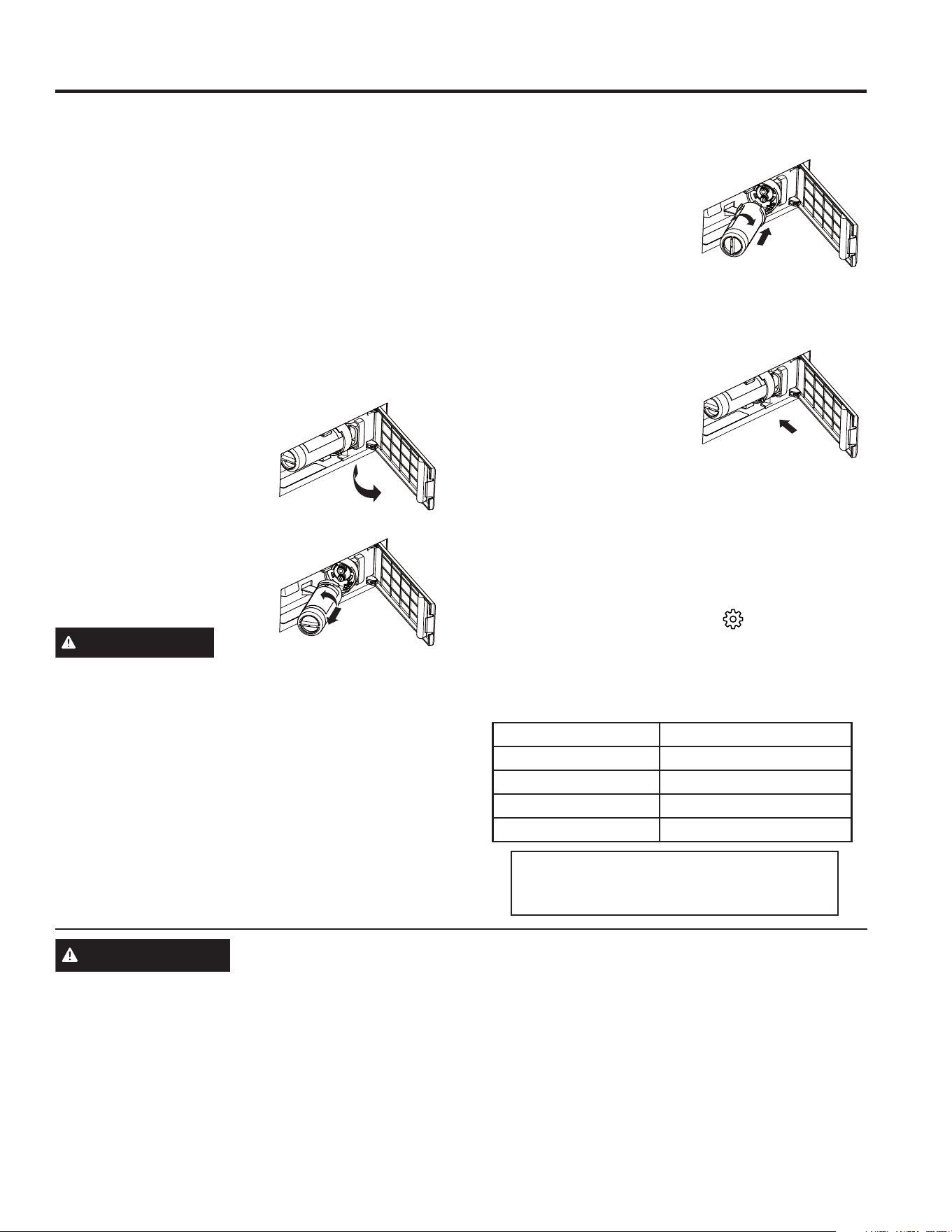
49-1000332 Rev. 10 15
OPERACIÓN DEL REFRIGERADORE: ;:)(:DWHU)LOWHU
Cartucho del Filtro de Agua - XWFE
Cartucho del filtro de agua
El cartucho del filtro de agua se encuentra ubicado en la
puerta de refrigerador del lado izquierdo, detrás del panel de
acceso rectangular.
Cuándo Reemplazar el Cartucho del Filtro
El mensaje Reemplazar el Filtro de Agua en el panel de
control se iluminará cuando el cartucho del filtro de agua deba
ser reemplazado pronto. El mensaje Filtro de Agua Vencido
se iluminará cuando el cartucho del filtro de agua deba ser
reemplazado. El filtro de agua podrá ser reemplazado antes
si el flujo de agua hasta el dispensador o a la máquina de
hielo se reduce. Una vez que cualquiera de ambos mensajes
se encuentre iluminado, al dispensar agua se mostrará el
mensaje Confirme el Cambio de Filtro; no realice dicha
confirmación hasta que el filtro de agua sea reemplazado.
RETIRO DEL FILTRO
Si reemplazará el filtro, primero
retire el anterior tomando el mismo
de forma suave y lentamente
girándolo hacia la izquierda, dando
aproximadamente ¼ de giro. El
filtro deberá liberarse de forma
automática cuando lo haya rotado
lo suficiente hacia la izquierda. Es
posible que gotee una pequeña
cantidad de agua.
PRECAUCIÓN
Si quedó aire atrapado en el sistema, es posible que el
cartucho sea eyectado en el momento en que se retire. Retire
el mismo con cuidado.
TAPÓN DEL BYPASS DEL FILTRO:
A fin de reducir el riesgo de daños sobre la propiedad debido a
SpUGLGDVGHDJXDXVWHG'(%(5ÈXVDUHOWDSyQGHOE\SDVVGHO
filtro cuando no se disponga de un cartucho del filtro de
reemplazo. Algunos modelos no vienen equipados con el tapón
del bypass del filtro. Para acceder a un tapón del bypass
gratuito, llame al 800.692.6630 y solicite el tapón del bypass del
ILOWUR:5;(Q&DQDGiOODPHDO(O
dispensador y la máquina de hielo no funcionarán si el filtro o el
tapón del bypass del filtro no están instalados. El tapón del
bypass se instala del mismo modo que un cartucho del filtro.
INSTALACIÓN DEL FILTRO EN UN
REFRIGERADOR CON FREEZER INFERIOR
1. Abra el armazón del cartucho
del filtro empujando la puerta
para abrirla.
2. Alinee los puertos del filtro con
los puertos de la carcasa del
cartucho del filtro, e inserte el
filtro de forma suave.
3. Lentamente, gire el filtro
hacia la derecha hasta que se
GHWHQJD12/2$-867((1(;&(620LHQWUDVJLUDHO
filtro, el mismo se ajustará automáticamente en su posición.
El filtro dará aproximadamente 1/4 de giro o 90 grados,
hasta que no se pueda girar y la etiqueta mire hacia afuera.
4. Lentamente empuje el
filtro hacia arriba sobre los
sujetadores.
5. Cierre la carcasa del cartucho
del filtro presionando la puerta
cerrada de forma suave, hasta
que las lengüetas queden
bloqueadas en su posición.
'HMHFRUUHUXQDFDQWLGDG
de agua desde el dispensador de 2 galones o durante
aproximadamente 5 minutos para limpiar el sistema. Es
posible que el agua salga a chorros o se podrán visualizar
burbujas de aire durante este proceso. Si no fluye agua,
realice un control para asegurarse de que el filtro haya sido
girado completamente hacia la derecha.
7. Al dispensar agua, presione el botón que se encuentra
debajo del mensaje Confirmar el Cambio de Filtro. Si
reemplazará el filtro de agua antes de que aparezca el
mensaje, presione el botón Settings (
) (Configuraciones)
KDVWDTXHVHLOXPLQH³,FHPDNHU´0iTXLQDGH+LHORV\
luego presione los botones Water (Agua) y Ice (Hielo) de
forma simultánea durante 3 segundos.
Pautas de Aplicación/ Suministro de Agua
Flujo de Servicio 0.5 gpm (1.89 lpm)
Suministro de Agua Agua Potable
Presión del Agua 25-120 psi (172-827 kPa)
Temperatura del Agua 33°F-100°F (0.6°C-38°C)
Capacidad 170 galones (643.5 litros)
Regístrese para RECORDATORIOS DE
TEXTO, enviando REPLACE (Reemplazar)
por mensaje de texto al 70543.
ADVERTENCIA
A fin de reducir el riesgo asociado con asfixia, no permita que los niños menores de 3 años
tengan acceso a las partes pequeñas durante la instalación de este producto. El cartucho del filtro descartable deberá
ser reemplazado cada 6 meses luego de agotar su capacidad, o antes si se produce una reducción notoria en el caudal.
Para obtener el máximo beneficio de su sistema de filtrado, GE Appliances recomienda el uso de los filtros de la marca GE
Appliances únicamente. El uso de filtros de la marca GE Appliances en refrigeradores GE Appliances y Hotpoint® brinda un
ySWLPRIXQFLRQDPLHQWR\FRQILDELOLGDG/RVILOWURV*($SSOLDQFHVFXPSOHQFRQULJXURVRVHVWiQGDUHV16)GHODLQGXVWULDVREUH
seguridad y calidad, que son importantes para los productos que están filtrando su agua. GE Appliances no posee filtros de la
marca GE Appliances que no estén calificados para su uso en refrigeradores GE Appliances y Hotpoint, y no existe seguridad
de que los filtros que no son de la marca GE Appliances cumplan con los estándares de GE Appliances en relación a calidad,
funcionamiento y confiabilidad.
Ante cualquier consulta, o para ordenar cartuchos de filtros adicionales, visite nuestro sitio Web en gewaterfilters.com,
o llame a GE Appliances Parts and Accessories (Piezas y Accesorios de GE Appliances), 877.959.8688.
Los clientes de Canadá deberán buscar el Centro de Servicio Técnico Camco en las páginas amarillas
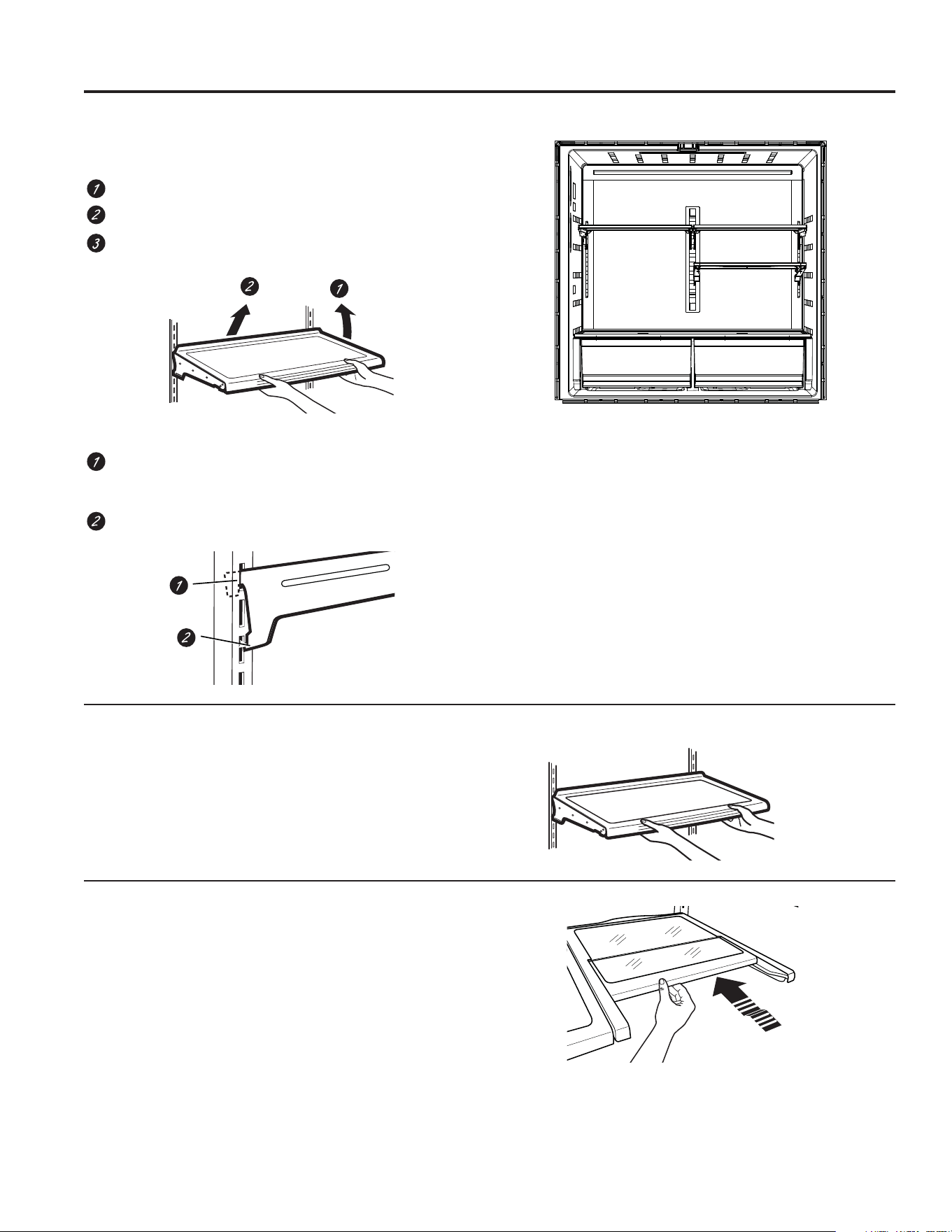
16 49-1000332 Rev. 10
OPERACIÓN DEL REFRIGERADORE:2SFLRQHVGHDOPDFHQDPLHQWR
Opciones de almacenamiento de comidas frescas
Cómo Reorganizar los Estantes
Los estantes del compartimiento del refrigerador son ajustables.
Para retirar:
Retire todos los artículos del estante.
Incline el estante hacia arriba en la parte frontal.
Levante el estante hacia arriba desde la parte trasera y
retire el mismo.
Para reemplazar:
Al inclinar el estante hacia arriba, inserte el gancho
superior en la parte trasera del estante en una ranura del
soporte.
Incline hacia abajo la parte frontal del estante, hasta que
la parte inferior del mismo quede bloqueada.
Estantes a Prueba de Derrames
Los estantes a prueba de derrames poseen extremos
especiales que ayudan a evitar derrames sobre estantes
inferiores.
Estante Quick Space*
Este estante se divide a la mitad y se desliza por debajo de sí
mismo para almacenar productos altos en el estante de abajo.
Este estante puede ser retirado y reemplazado o reubicado (al
igual que los estantes a prueba de derrames).
NOTA: La mitad trasera del Estante Quick Space no es ajustable.
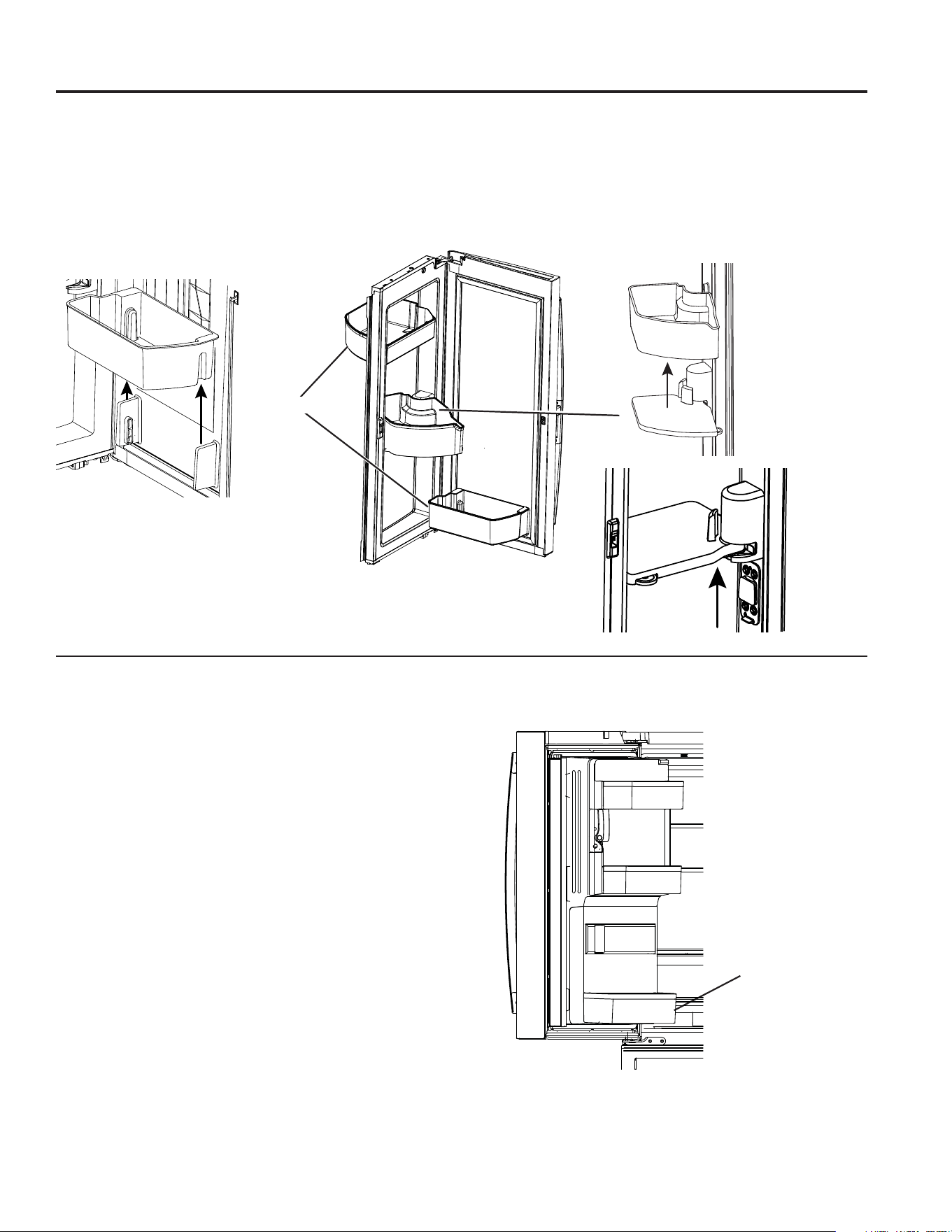
49-1000332 Rev. 10 17
OPERACIÓN DEL REFRIGERADORE: 2SFLRQHVGH$OPDFHQDPLHQWRGHO5HIULJHUDGRU
Opciones de almacenamiento de comidas frescas
Bandejas de la Puerta Izquierda
BANDEJA FIJA
Para retirar: Levante el recipiente de forma recta y
luego empuje hacia afuera.
Las bandejas de la puerta de la máquina de hielo no son
intercambiables; observe la ubicación al retirar las mismas y
vuelva a colocar las mismas en sus ubicaciones correctas.
Bandejas de la Puerta Derecha
Las BANDEJAS FIJAS pueden ser llevadas fácilmente del
refrigerador al área de trabajo.
Para retirar: Levante la bandeja de forma recta y luego
empuje hacia afuera.
BANDEJA GIRATORIA:
Para retirar: Gire la bandeja hacia afuera y luego levante la
misma de forma recta. Para retirar la misma, coloque la mano
debajo de la base metálica y levante la misma.
Para retirar la Base Metálica: Coloque la mano debajo de la
base metálica y levante la misma.
Bandejas Fijas
Bandeja Fija
Retire la
Bandeja
Giratoria
Retire las Bandejas Fijas
Retire
la Base
Metálica
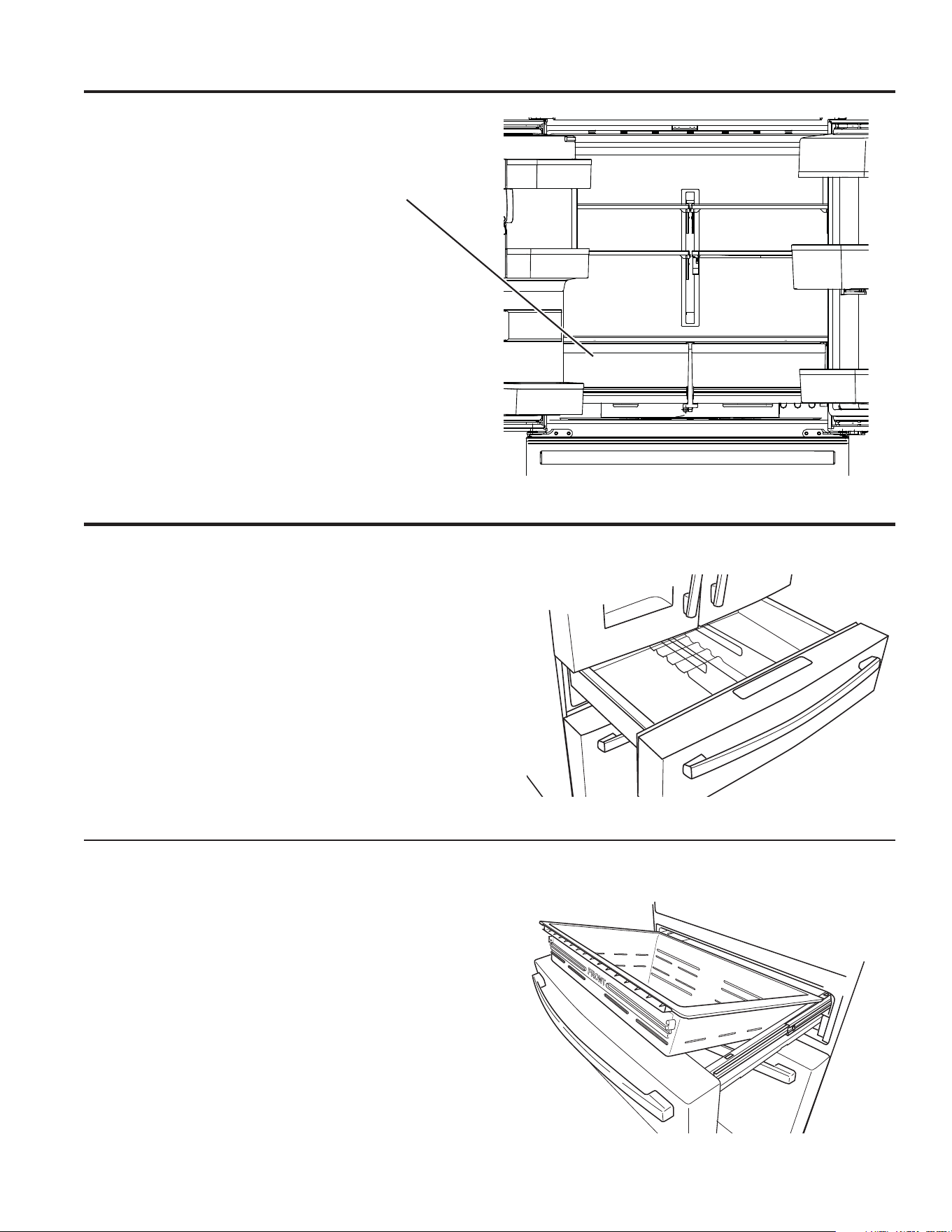
18 49-1000332 Rev. 10
OPERACIÓN DEL REFRIGERADORE:ÈUHD&OLPiWLFDCajón Convertible
Cómo Retirar y Reemplazar el Cajón
Para retirar:
1. Empuje el cajón fuera de su posición final.
2. Retire la canasta del cajón convertible levantando la misma
mientras gira la canasta hacia arriba.
Para reemplazar:
1. Primero vuelva a colocar el cajón nuevamente y gire el
mismo del frente hacia abajo para que se apoye en el
deslizador.
2. Empuje el cajón hacia adentro hasta la posición cerrada.
La canasta del cajón convertible quedará floja si se vuelve a
instalar en la dirección contraria. Como ayuda para volver a
UHDOL]DUODLQVWDODFLyQREVHUYHHOHVWDPSDGR³)5217$/´
Cómo Retirar y Reemplazar el Organizador del Cajón
Para retirar:
1. Empuje el cajón hacia afuera hasta la posición de detención.
'HIRUPDVXDYHOHYDQWHHORUJDQL]DGRU\OXHJRJLUHHO
mismo para su retiro.
Para reemplazar:
1. Coloque la parte trasera del divisor sobre la pared trasera
del cajón.
2. Gire el organizador hasta la posición deseada.
Cajón Convertible
Área Climática
Mantenga las frutas y verduras organizadas en
compartimientos separados para un fácil acceso.
El exceso de agua que se puede acumular en la parte inferior
de los cajones o debajo de los mismos se deberá limpiar.
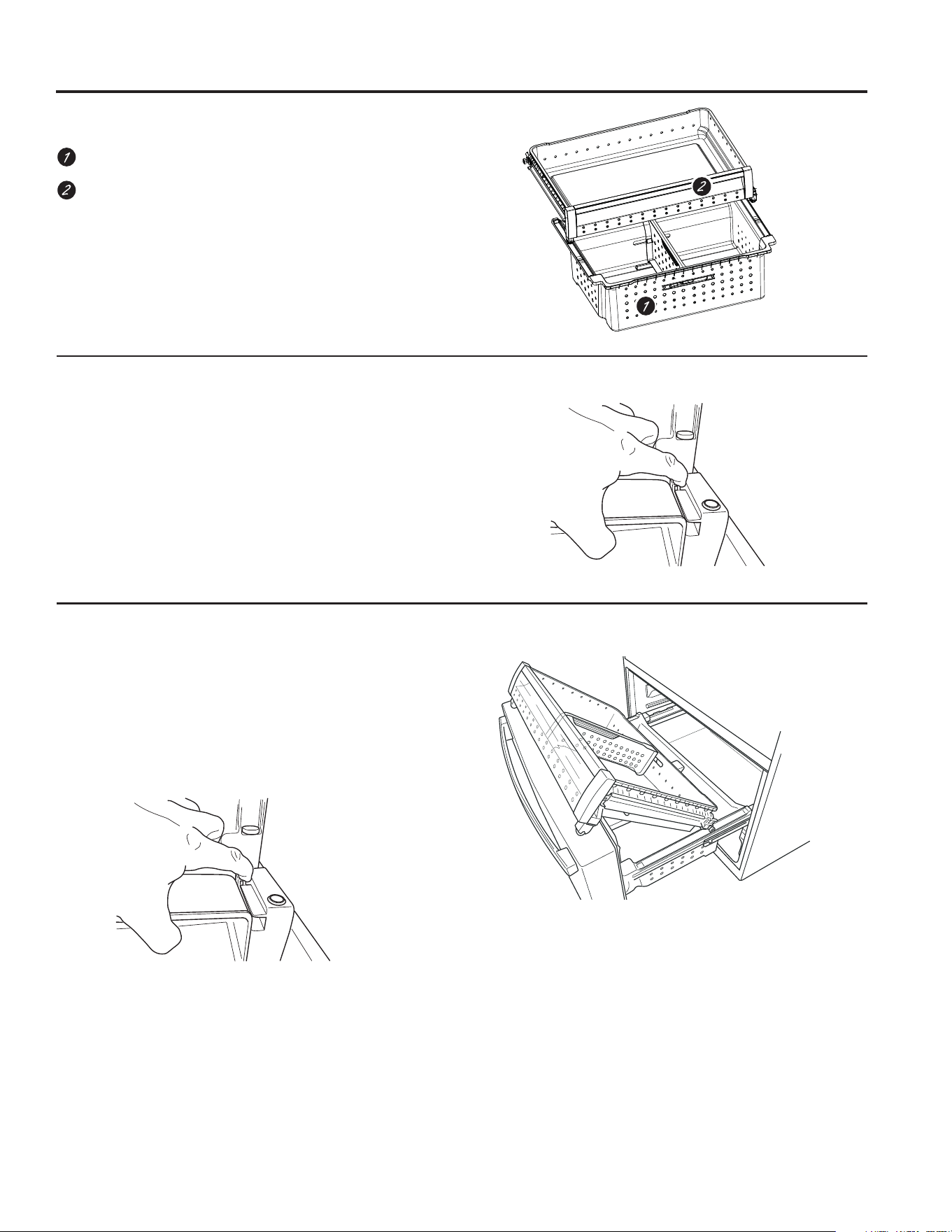
49-1000332 Rev. 10 19
USO DEL FREEZER: Cestos, Cajones y Cubos
Canasta y Cajón del Freezer
Canasta
Cajón
Recipiente Tipo Tolva en el Freezer
Para retirar:
Presione la lengüeta sobre el soporte lateral derecho para
retirar el estante de la puerta del freezer..
Para reemplazar:
'HVOLFHHOHVWDQWHHQODXELFDFLyQKDVWDTXHTXHGHEORTXHDGR.
Cestos, Cajones y Cubos
Retiro de la Cesto
Para retirar:
1. Empuje la canasta del cajón superior del freezer hacia
adelante hasta que esté fuera del carril en el compartimiento
del freezer. Levante, mientras gira la canasta hacia arriba
para su retiro.
2. Presione la lengüeta sobre el soporte lateral derecho para
retirar el estante de la puerta del freezer.
3. Levante suavemente la canasta del cajón inferior del freezer
hacia atrás, luego hacia arriba y afuera del cajón.
Para realizar el reemplazo, invierta los pasos de retiro.
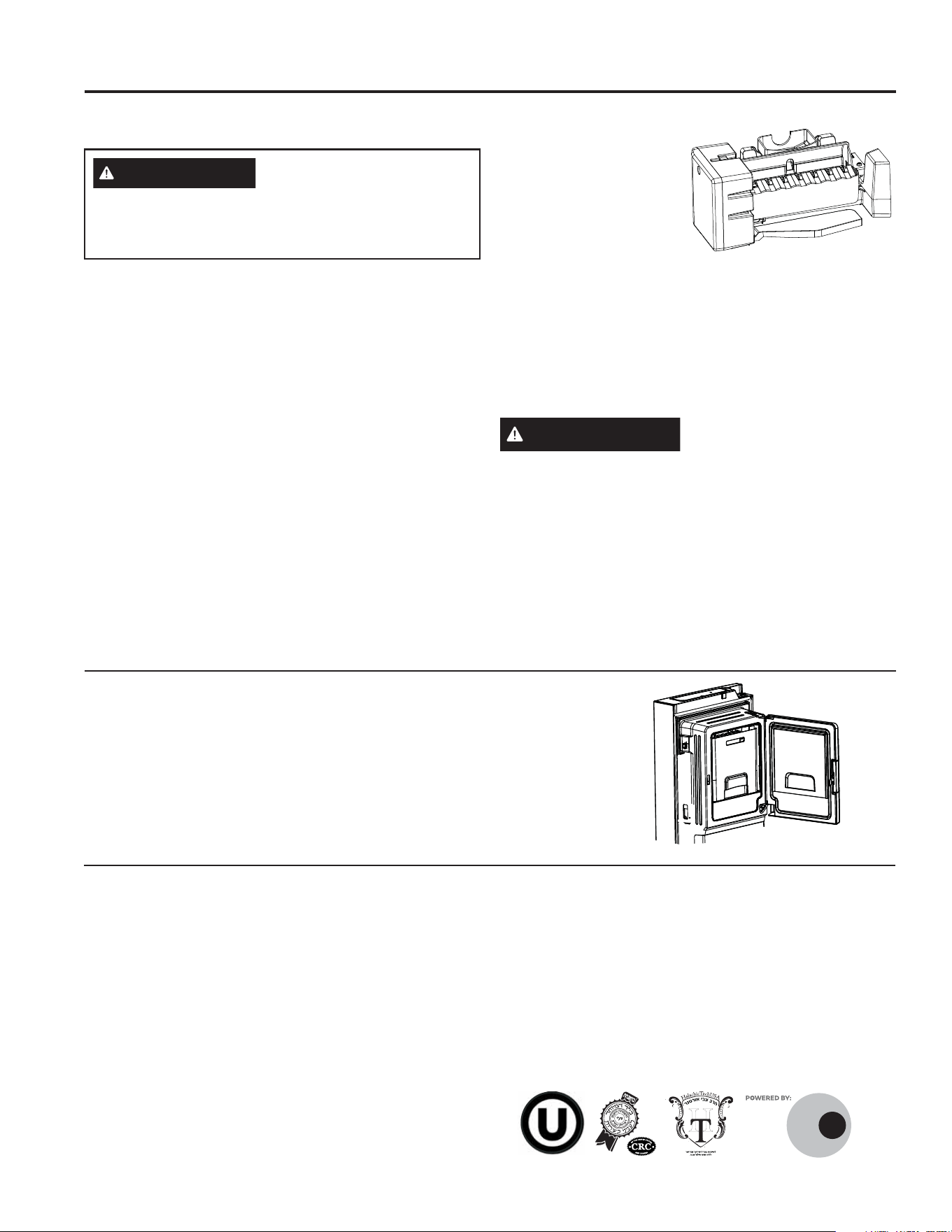
20 49-1000332 Rev. 10
USO DEL FREEZER: Hacer Hielo Automática
Hielera y Dispensador
• Abra la puerta de la caja de hielos dentro de la puerta
izquierda.
• Empuje hacia arriba y afuera la hielera en la puerta del lado
izquierdo para retirar la misma del compartimiento.
• Para reemplazar la hielera, ajuste la misma a los soportes
de la guía y empuje hasta que la hielera se ubique
correctamente.
Hacer Hielo Automática
Puede llevar entre 12 y 24 horas que un refrigerador
recién instalado comience a fabricar hielo.
Máquina de Hacer Hielo Automática*
La máquina de hacer hielo producirá siete cubos por ciclo, y
aproximadamente entre 112 y 140 cubos en un período de 24
horas, dependiendo de la temperatura del compartimiento del
freezer, la temperatura ambiente, la cantidad de veces que se
abra la puerta y otras condiciones de uso.
La máquina de hacer hielo se llenará de agua cuando se enfríe
y llegue a los 15°F (–10°C). Puede llevar entre 12 y 24 horas
que un refrigerador recién instalado comience a fabricar hielo.
Si el refrigerador es utilizado antes de realizar las conexiones
de la tubería de agua a la unidad o si el suministro de agua a
un refrigerador en funcionamiento es apagado, asegúrese de
que la máquina de hacer hielo esté apagada. Una vez que el
agua haya sido conectada al refrigerador, la máquina de hacer
hielo podrá ser encendida. Para más detalles, lea la tabla que
aparece más abajo.
Es posible que escuche un zumbido cada vez que la máquina
de hacer hielo se llene de agua.
Para llenar la canasta hasta su capacidad máxima luego de la
instalación, suministre 3 o 4 cubos en 12 y 18 horas. Espere 1
o 2 días hasta que el balde se llene completamente de hielo.
'HVFDUWHODVSULPHUDVFDQWLGDGHVGHKLHORSDUDSHUPLWLUTXH
el suministro de agua se
despeje.
Asegúrese de que nada
interfiera con la extensión
del brazo indicador.
Cuando el cubo se llene
hasta el nivel del interruptor
de energía, la máquina
de hacer hielo dejará de
producir hielo. Es normal
que varios cubos queden juntos.
Si el hielo no se usa con frecuencia, los cubos de hielo viejos
se volverán turbios, con sabor rancio y su tamaño se reducirá.
NOTA: En hogares con un nivel de presión inferior a la normal,
es posible que escuche que la válvula de agua de la máquina
de hacer hielo realice varios ciclos para producir una cantidad
de hielo.
PRECAUCIÓN
Para minimizar el riesgo de
lesiones personales, evite el contacto con las partes móviles
del mecanismo eyector o con el elemento de calefacción que
OLEHUDORVFXERV1RFRORTXHORVGHGRVQLODVPDQRVHQHO
mecanismo de la máquina de hielo automática mientras el
refrigerador esté enchufado.
Para Encender/ Apagar la máquina de hielo, use el botón
Settings (Configuraciones) para navegar a través de las
VHOHFFLRQHGHODPLVPD&RQVXOWHODVHFFLyQGH&21752/(6
en la página 10.
ADVERTENCIA
Realice la conexión a un
suministro de agua potable únicamente. Se requiere
un suministro de agua fría para el funcionamiento de la
máquina de hielos automática. La presión del agua deberá
estar entre 40 y 120 psi (275-827 kilopascales).
Modo Sabático - OU (Unión Ortodoxa) y CRC (Congreso Rabínico Central)
(VWHUHIULJHUDGRURIUHFHXQPRGR6DEEDWK28\&5&TXH
FXPSOHFRQORVHVWiQGDUHVHVWDEOHFLGRVSRU2UWKRGR[8QLRQHO
Central Rabbinical Congress y Halacha Tech, y cuenta con una
certificación del 100 % conforme a los más altos estándares de
KDODMi3DUDKDELOLWDUHOPRGR6DEEDWK28\&5&H[LVWHQGRV
métodos: una activación manual y un Modo Sabbath automático.
El primer método (manual) puede activarse siguiendo las
instrucciones de la Sección de Controles del Refrigerador
(Página 7). El modo Sabbath saldrá automáticamente después de
96 horas.
El segundo método (automático) utiliza un Shabbos Keeper para
Refrigeradores independiente que debe conectarse al refrigerador.
El Shabbos Keeper puede adquirirse en zmantechnologies.
com o geappliances.com. La única manera de habilitar el modo
6DEEDWK28\&5&DXWRPiWLFRHVPHGLDQWHODFRPSUDGHO
Shabbos Keeper para Refrigeradores. El Shabbos Keeper se
conecta a su refrigerador para habilitar automáticamente los
modos compatibles con Shabbos cada semana y antes de cada
festividad. El modo correspondiente se activará automáticamente
según la fecha del calendario judío para su ubicación. Cuando el
Shabbos Keeper está correctamente conectado al refrigerador,
la pantalla mostrará una Pantalla Fija con un botón Exit Sabbath
mode (Salir del modo Sabbath).
ZMAN
TECH
NOLOGIES
¯¶·¯¬Ã²¹·º°¶¹¯Ã°´
49-1000332 Rev. 10 21
CUIDADO Y LIMPIEZA
Cuidado y Limpieza
Limpieza de la Parte Interior
Para evitar olores, deje abierta una caja de bicarbonato de
sodio en los compartimientos del refrigerador y del freezer.
Desenchufe el refrigerador antes de limpiar.
Si esto no resulta práctico, estruje el exceso de humedad
para eliminarlo de la esponja o tela al limpiar alrededor de los
interruptores, luces o controles.
Use un pulidor de cera para electrodomésticos en la superficie
interior entre las puertas.
Use agua caliente y solución de bicarbonato de sodio —
aproximadamente una cuchara sopera (15 ml) de bicarbonato
de sodio para un cuarto de galón (1 litro) de agua. Esto limpia y
neutraliza los olores. Enjuague y seque.
Para limpiar el panel metálico interno*, abra la puerta externa
usando la Traba de Puerta en Puerta. Limpie el panel con un
GHWHUJHQWHVXDYH\OXHJRVHTXHFRQXQDWHODVXDYH1RXVH
ningún limpiador de acero inoxidable sobre el panel, ya que
estos podrán dañar el plástico circundante.
PRECAUCIÓN
1ROLPSLHHVWDQWHVGHYLGULRQLWDSDV
con agua caliente cuando estén fríos. Los estantes de vidrio
y las tapas se pueden romper si son expuestos a cambios de
temperatura repentinos o impactos tales como sacudones o
caídas. El vidrio templado está diseñado para destruirse en
pequeñas piezas en caso de rotura.
1RODYHQLQJXQDSDUWHSOiVWLFDGHOUHIULJHUDGRUHQODODYDGRUD
de platos.
Limpieza de la Parte Exterior
SÍ USE NO USE
Paño o esponja suave y limpia. 3DxRGHPLFUR¿EUD3DxRVDEUDVLYRVWRDOODVGHSDSHOHVSRQMDVSDUDIUHJDUFRQRVLQ
jabón), almohadillas de estropajo o de lana de acero
'HWHUJHQWHVXDYHPH]FODGRFRQDJXD
tibia
Polvos, líquidos o aerosoles abrasivos
Limpiadores para vidrios, amoníaco o
blanqueador
Limpiadores a base de aceites cítricos o
vegetales.
Limpiadores ácidos o a base de vinagre
Limpiadores para hornos.
Limpiadores alcalinos.
Limpiadores para acero inoxidable
$FHURLQR[LGDEOH6XSHU¿FLHV
exteriores, manijas de puertas y
molduras
ACERO INOXIDABLE RESISTENTE A HUELLAS DACTILARES*, -
6XSHU¿FLHVH[WHULRUHVPDQLMDV
de puertas y molduras
NO utilice limpiadores para acero inoxidable en las superficies de las puertas.
IMPORTANTE: El uso de productos incorrectos puede dañar el acabado exterior de los modelos de Acero Inoxidable Resistente
D+XHOODV'DFWLODUHV\$FHUR,QR[LGDEOH1HJUR6LJDHVWDVLQVWUXFFLRQHV\XWLOLFH~QLFDPHQWHORVDUWtFXORVDSURSLDGRVLQGLFDGRVD
continuación para limpiar las superficies de su electrodoméstico.
Ɣ/LPSLHODVVXSHUILFLHVLQWHULRUHVH[WHULRUHVFRQDJXDWLELDMDEyQVXDYHRGHWHUJHQWH\XQSDxRVXDYHRGHPLFURILEUDSDUDHYLWDUGDxRV
Ɣ6HTXHODVXSHUILFLHGHOHOHFWURGRPpVWLFRFRQXQSDxRVXDYH\OLPSLRRXQDWRDOODGHPLFURILEUDSDUDHYLWDUPDUFDVRPDQFKDV
de agua.
*Elimine fácilmente manchas y huellas dactilares.
22 49-1000332 Rev. 10
CUIDADO Y LIMPIEZA / EEMPLAZO DE LAS LUCES
Detrás del Refrigerador
Tenga cuidado al alejar el refrigerador de la pared. Cualquie
tipo de cobertura de piso puede ser dañada, particularmente
las coberturas acolchonadas y aquellas con superficies con
relieves.
Levante las patas niveladoras ubicadas en la parte frontal
interior del refrigerador.
Empuje el refrigerador hacia afuera de forma recta y regrese
el mismo a su posición empujándolo hacia adentro. Mover el
refrigerador hacia una ubicación lateral podrá ocasionar daños
sobre la cobertura del piso o el refrigerador.
Baje las patas niveladoras hasta que toquen el piso.
ADVERTENCIA
RIESGO DE
DESCARGA ELÉCTRICA Al volver a empujar el
refrigerador, asegúrese de que no atraviese el cable de
corriente ni la tubería de suministro de agua.
Apagado y Reinicio del Refrigerador por Períodos Prolongados
Si estará de vacaciones o ausente por tiempo prolongado,
retire la comida y desenchufe el refrigerador. Limpie el interior
con una solución de bicarbonato de sodio de una cuchara
sopera (15 ml) de bicarbonato de sodio para un cuarto de
JDOyQOLWURGHDJXD'HMHODVSXHUWDVDELHUWDV
Si la temperatura puede llegar a estar por debajo de la
congelación, solicite a un técnico calificado que drene el
sistema de suministro de agua a fin de prevenir daños graves
sobre la propiedad debido a una inundación.
1) Apague el refrigerador o desenchufe el refrigerador.
{
&RQVXOWHODVHFFLyQGH&21752/(6HQODSiJLQD
2) Vacíe la hielera
3) Cierre el suministro de agua
Si cierra el suministro de agua, apague la máquina de
hacer hielo
Al regresar de sus vacaciones:
1) Reemplace el filtro de agua.
'HMHFRUUHUOLWURVJDORQHVGHDJXDDWUDYpVGHO
dispensador de agua fría (aproximadamente 5 minutos) a fin
de eliminar el aire del sistema.
Preparación para la mudanza
Asegure todos los ítems tales como estantes y cajones,
pegando los mismos de forma segura en sus respectivos
lugares a fin de evitar daños.
Al usar un carro manual para mover el refrigerador, no deje
que la parte frontal ni la parte trasera descansen contra el
carro manual. Esto podría dañar el refrigerador.
Lleve el mismo sólo sobre los costados del refrigerador.
Asegúrese de que el refrigerador permanezca en una posición
erguida durante el movimiento.
Cuidado y Limpieza
Reemplazo de las luces
Luces del Refrigerador (LEDs)
El aspecto puede variar dependiendo del modelo.
+D\XQDOX]/('HQHOFRPSDUWLPLHQWRGHUHIULJHUDGRU\HQOD
parte inferior de las puertas de comidas frescas para iluminar
el compartimiento del freezer.*
Será necesario que un técnico autorizado reemplace las
OXFHV/('
Si es necesario reemplazar este ensamble, visite
*($SSOLDQFHVFRPVHUYLFHROODPHDO%2'(:(//
(833.426.3393). En Canadá, visite GEAppliances.ca/
service o llame al 800.561.3344.
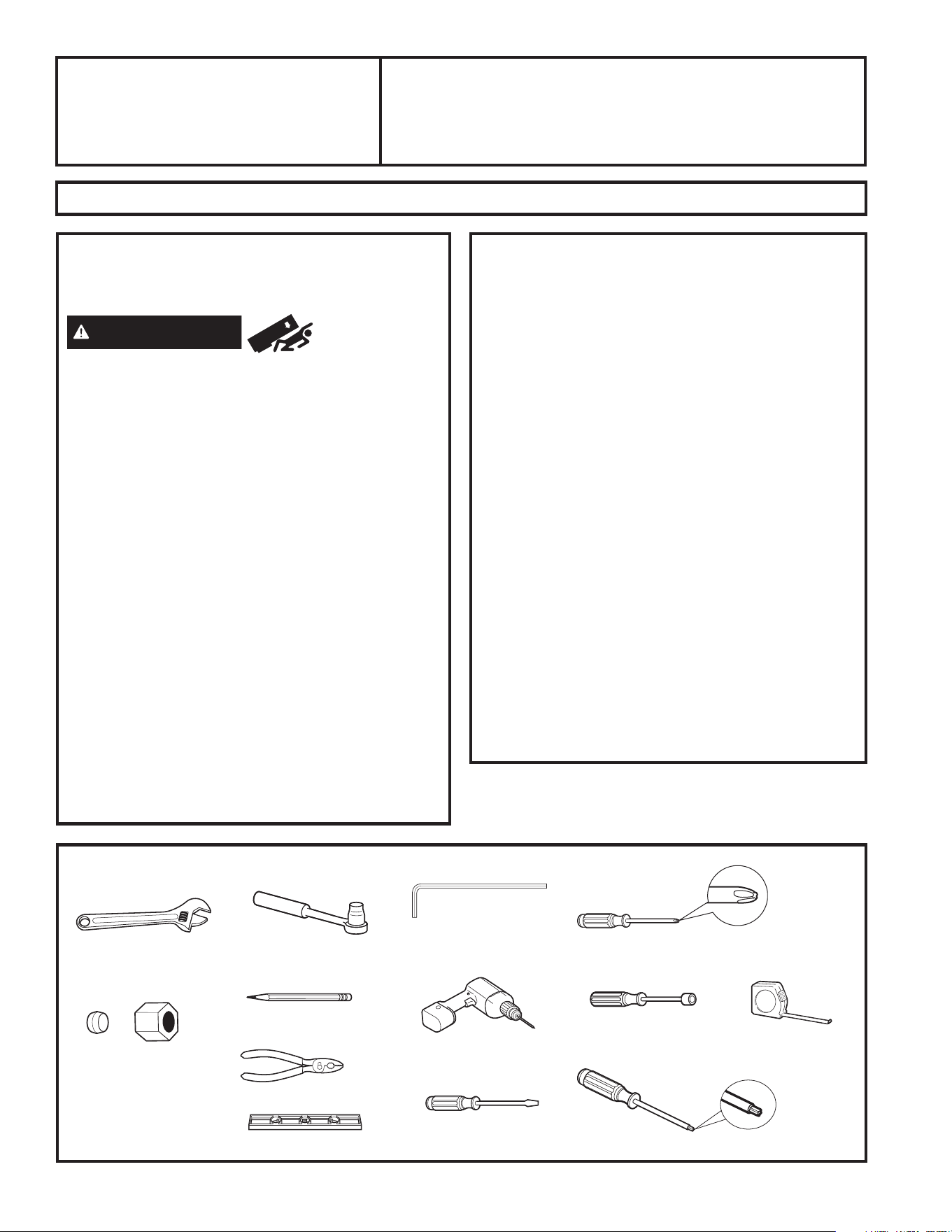
49-1000332 Rev. 10 23
INSTRUCCIONES DE INSTALACIÓN
•
IMPORTANTE — (cont.)
• Tiempo de Instalación – La instalación del refrigerador
puede variar de acuerdo con la Instalación de la Tubería
de Agua en unos 30 minutos
• La correcta instalación del producto es responsabilidad
del instalador.
• Si se producen fallas en el producto debido a una
instalación inadecuada la Garantía no cubrirá las
mismas.
PREPARACIÓN
CÓMO MOVER EL REFRIGERADOR EN UN
ESPACIO INTERNO
Si el refrigerador no pasa por una puerta, la puertas del
refrigerador y el cajón del freezer podrán ser retirados.
• Para retirar la puertas del refrigerador, consulte la sección
Cómo Instalar el Refrigerador.
• Para retirar el cajón del freezer, consulte la sección Cómo
Retirar el Cajón del Freezer.
SUMINISTRO DE AGUA A LA MAQUINA DE
HACER HIELO Y EL DISPENSADOR
Si el refrigerador cuenta con una máquina de hacer hielo,
deberá ser conectada al suministro de agua fría. Un kit
de suministro de agua de GE Appliances (que contenga
tubería, válvula de cierre, uniones e instrucciones) está
disponible por un costo adicional a nivel minorista, visitando
nuestro sitio web en bodewell.com/parts-search o llamar
%2'(:(//833.426.3393.
Instrucciones
de Instalación
Refrigerador
¿Preguntas? Visite nuestro sitio web en: GEAppliances.com
ANTES DE COMENZAR
Lea estas instrucciones en su totalidad y
atentamente.
ADVERTENCIA
Riesgo de
Caída.
/RVPRGHORV3-'3-(3;'&-(\&;(VRQLQHVWDEOHV
especialmente cuando las puertas se encuentran abiertas.
Estos modelos incluyen un soporte de anti volcaduras
empaquetado con su refrigerador, el cual debe instalarse
y asegurarse correctamente a la estructura de la vivienda
para evitar caídas hacia adelante, lo que podría ocasionar
la muerte o lesiones graves. Lea y siga las instrucciones de
instalación en su totalidad para instalar el soporte de anti
volcaduras para piso proporcionado con su refrigerador.
127$6LXVWHGWLHQHHOPRGHOR3-'3-(3;'&-(R
&;(\QRUHFLELyXQVRSRUWHGHDQWLYROFDGXUDVFRQVX
FRPSUDOODPHDO%2'(:(//SDUDUHFLELUXQRVLQ
costo. Para obtener las instrucciones de instalación del
soporte, visite: www.GEAppliances.com.
•
IMPORTANTE — Cumpla con todos los
códigos y ordenanzas gubernamentales. Conserve estas
instrucciones para uso del inspector local.
1RWDSDUDHO,QVWDODGRU±$VHJ~UHVHGHTXHHO
Consumidor conserve estas instrucciones.
1RWDSDUDHO&RPSUDGRU±&RQVHUYHHVWDVLQVWUXFFLRQHV
para referencia futura.
1LYHOGHKDELOLGDG±/DLQVWDODFLyQGHHVWH
electrodoméstico requiere un nivel básico de habilidades
mecánicas.
HERRAMIENTAS QUE PUEDE NECESITAR
Llave Ajustable
Tuerca de Compresión
GH'LiPHWUR([WHUQR\
Abrazadera de Refuerzo
(manga) de ¼”
'HVWRUQLOODGRUFRQ&DEH]D3KLOOLSV
7ULQTXHWH'HVWRUQLOODGRU
de
5/16”
Llaves Allen (Hex.) de 1/8”,
3/32”, 1/4” y 5/32”
Lápiz
Broca y Taladro Eléctrico o
Manual de 1/8”
Cinta métrica
Llave de Tuercas de ¼”
Pinzas
1LYHO
'HVWRUQLOODGRUFRQFDEH]D
aplanada
Llave Torx T20, T25
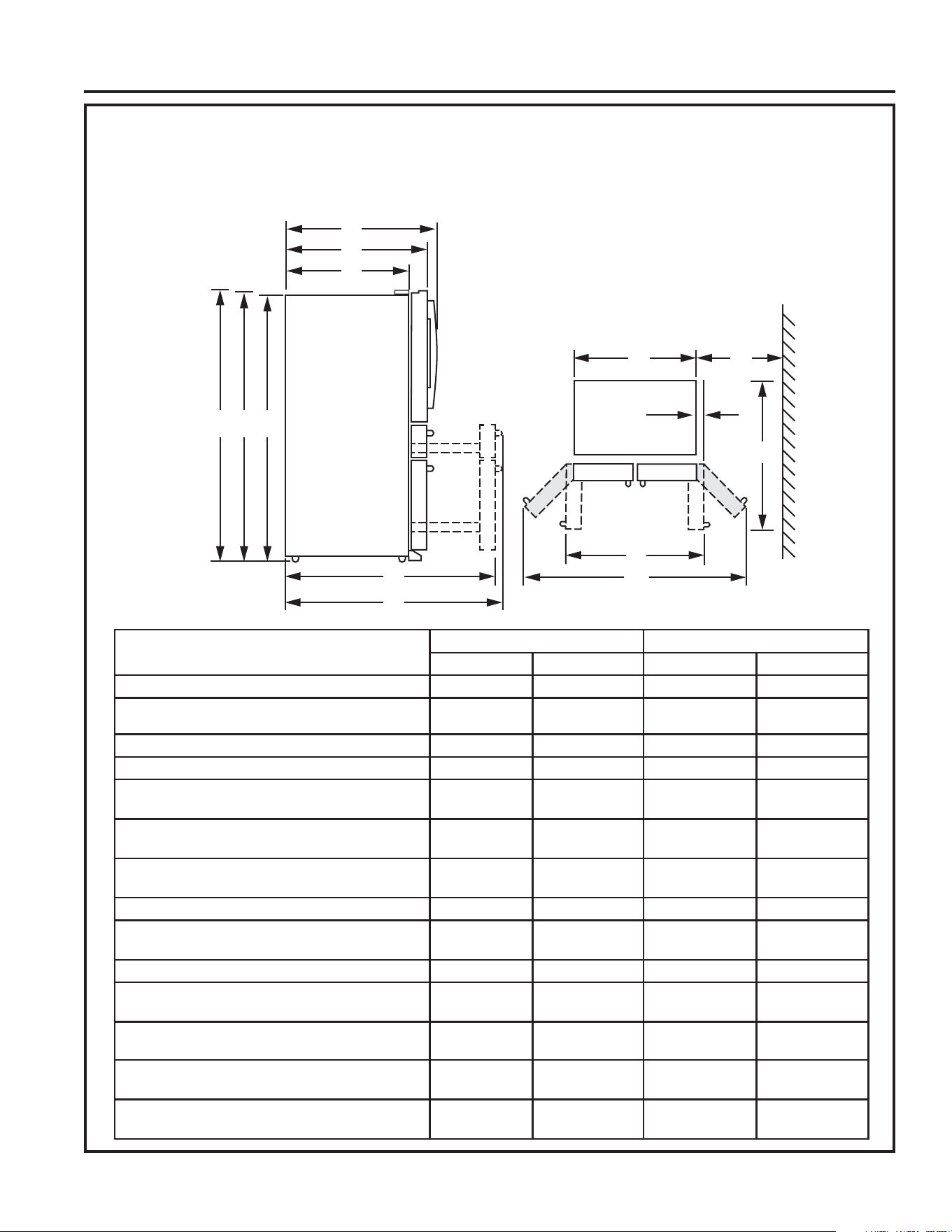
24 49-1000332 Rev. 10
DIMENSIONES
Instrucciones de Instalación
NOTA: Se recomienda que el piso esté protegido por una cobertura plástica a través del proceso de instalación.
NOTA: 1RUHFRPHQGDGRSDUDODLQVWDODFLyQHQSLVRVDOIRPEUDGRV
NOTA: /DORQJLWXGGHOFDEOHGHFRUULHQWHHVGHƎPP
HK
I
J
G
L
X
D
E
F
Y
CBA
PVD28 PXD22
pulgadas milímetros pulgadas milímetros
Altura Total hasta la Parte Superior de la Puerta (A)
70 1778 70 1778
Altura hasta la Parte Superior de la Tapa de la Bisagra
(B)
69 7/8 1775 69 7/8 1775
Altura hasta la Parte Superior de la Carcasa (C) 68 5/8 1743 68 5/8 1743
3URIXQGLGDGGHOD&DMDVLQ3XHUWD' 29 1/2 749 24 1/2 622
Profundidad de la Carcasa con Puerta, menos la
Manija de la Puerta (E)
34 1/4 870 29 1/4 743
Profundidad de la Carcasa con Puerta y Manija
(F)
36 3/4 933 31 3/4 806
Profundidad con la Puerta de Comidas Frescas
Abierta a 90° (G)
48 3/8 1229 48 3/8 1102
Ancho (H) 35 3/4 908 35 3/4 908
Profundidad con la Puerta Abierta a 90°, con la
Manija (I)
44 3/8 1127 44 3/8 1127
Ancho con las Puertas Totalmente Abiertas (J) 63 1600 63 1600
'LVWDQFLD0tQHQWUHOD&DUFDVD\OD3DUHGSDUD
Permitir que las Puertas se Abran Totalmente (K)
13 5/8 346 13 5/8 346
'LVWDQFLDHQWUHHOJDELQHWH\ODSXHUWDFRQOD
puerta abierta 90°(L)
4 3/8 111 4 3/8 111
Profundidad con la Puerta del Freezer Comple-
WDPHQWH$ELHUWDFRQOD0DQLMD;
53 1/2 1359 46 1168
Profundidad con la Puerta del Freezer Comple-
tamente Abierta, sin la Manija (Y)
56 1422 48 1/2 1232
INSTRUCCIONES DE INSTALACIÓN
49-1000332 Rev. 10 25
INSTRUCCIONES DE INSTALACIÓN
CÓMO MOVER EL REFRIGERADOR
• Usando el siguiente cuadro, determine si el ancho de su pasillo es suficiente para la profundidad del refrigerador.
Asegúrese de contar con espacio para evitar daños sobre el refrigerador antes de moverlo de forma segura hasta su
ubicación final.
• Si los pasillos son los suficientemente grandes como para ubicar el refrigerador sin retirar las manijas, continúe con el
3DVR'HMHODFLQWDODHQYROWXUD\WRGRHOHPEDODMHHQODVSXHUWDVKDVWDTXHHOUHIULJHUDGRUVHHQFXHQWUHHQODXELFDFLyQ
final.
• NOTA: Use un carro manual con almohadillas o correas móviles para transportar el refrigerador. Coloque el refrigerador
en el carro manual, apoyando un costado contra este último. Recomendamos enfáticamente que dos personas realicen el
traslado y completen la instalación.
Instrucciones de Instalación
Si la abertura posee dimensiones inferiores a la siguientes, retire las piezas de la puerta en orden, hasta que la dimen-
sión sea inferior a la abertura.
39' 3;'
Retire las Manijas 38” (965 mm)
33” (8389 mm)
Retire las Puertas 36” (914 mm) 32” (813 mm)
Retire la Bisagra Central 34” (864 mm) 29” (737 mm)
REFRIGERATOR LOCATION
Ŷ'RQRWLQVWDOOWKHUHIULJHUDWRUZKHUHWKH
temperature will go below 60°F (16°C) because
it will not run often enough to maintain proper
temperatures.
Ŷ'RQRWLQVWDOOWKHUHIULJHUDWRUZKHUHWKH
temperature will go above 100°F (37°C) because it
will not perform properly.
Ŷ 'RQRWLQVWDOOWKHUHIULJHUDWRULQDORFDWLRQH[SRVHG
to water (rain, etc.) or direct sunlight.
Ŷ Install it on a floor strong enough to support it fully
loaded.
CÓMO RETIRAR LAS PUERTAS
DEL REFRIGERADOR
ŶNOTA IMPORTANTE: Si los pasillos son de menor
profundidad que su refrigerador, las puertas y las
manijas del refrigerador se podrán rayar y dañar
fácilmente. Las puertas podrán ser retiradas, a fin de
permitir que el refrigerador sea movido de forma segura
en áreas interiores.
Si los pasillos son menores que la
profundidad de su refrigerador y las manijas están instaladas,
comience invirtiendo el Paso 1 para quitar las manijas.
Ŷ6LQRHVQHFHVDULRUHWLUDUODVPDQLMDVRODVSXHUWDV
FRQWLQ~HFRQHO3DVR'HMHODFLQWD\WRGRHOHPEDODMH
en las puertas hasta que el refrigerador se encuentre en
su ubicación final.
Ŷ NOTA: Use un carro manual para transportar el
refrigerador. Coloque el refrigerador en el carro
manual, apoyando un costado contra este último.
5HFRPHQGDPRVHQIiWLFDPHQWHTXH'263(5621$6
realicen el traslado y completen la instalación.
ESPACIO NECESARIO
'HMHHOVLJXLHQWHHVSDFLRSDUDIDFLOLWDUODLQVWDODFLyQXQD
adecuada circulación de aire y plomería y conexiones
eléctricas.
Costados 1/8” (3 mm)
Parte superior 1” (25 mm)
Parte trasera 2” (50 mm)
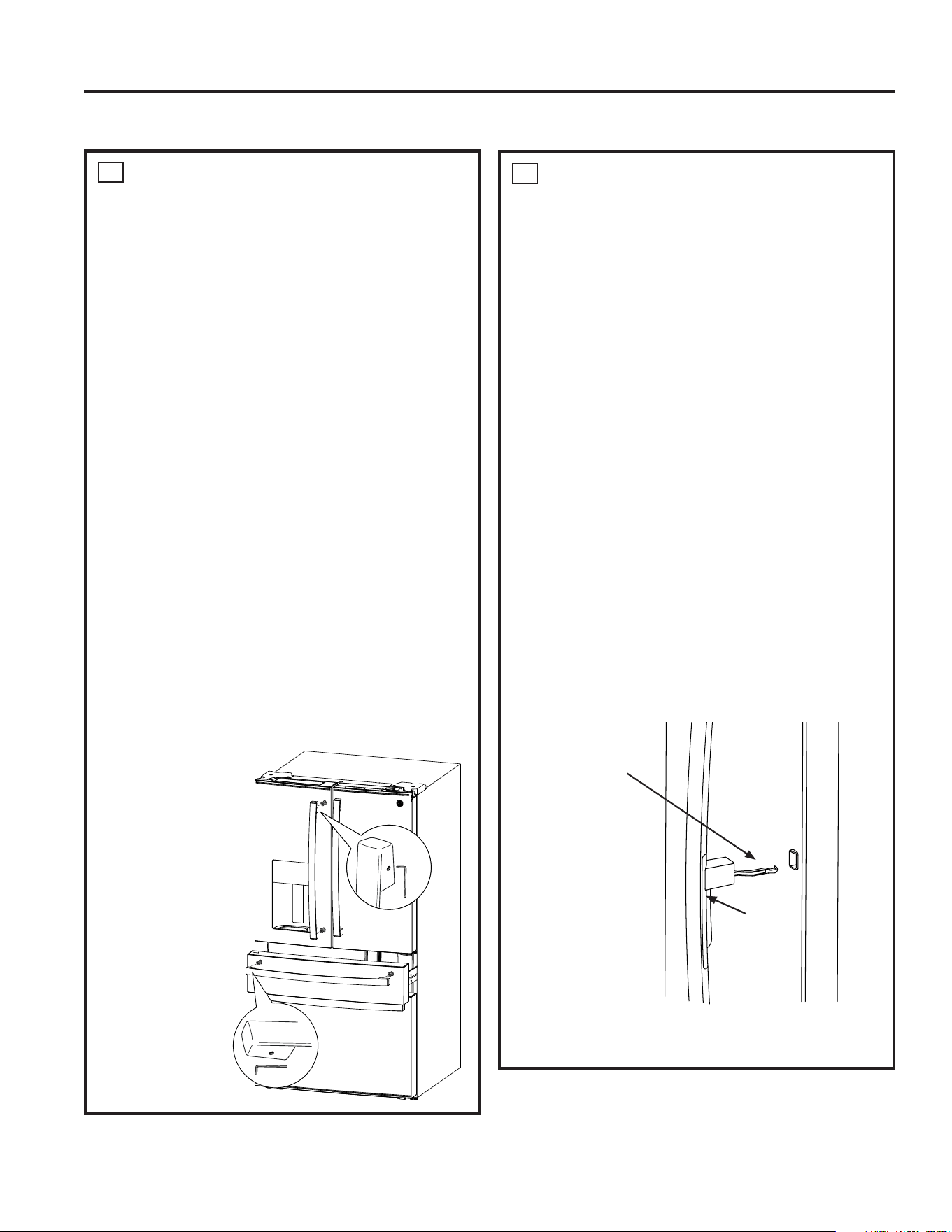
26 49-1000332 Rev. 10
Instrucciones de Instalación
CÓMO INSTALAR EL REFRIGERADOR
1
INSTALACIÓN DE LAS
MANIJAS DEL REFRIGERADOR
Y DEL FREEZER
Antes de Comenzar…
Ŷ Para evitar lesiones, use un calzado cerrado en la
parte de los dedos de los pies al instalar las manijas.
Ŷ Al instalar la manija, tome la misma de manera firme
para asegurarse de que no caiga ni raye el acabado
del electrodoméstico.
Ŷ IMPORTANTE: Para asegurarse de que las manijas
se encuentren instaladas de forma precisa, por favor
revise las instrucciones y gráficos antes de comenzar
con las instalación.
Ŷ IMPORTANTE: 1RXVHKHUUDPLHQWDVHOpFWULFDVSDUD
colocar los tornillos de ajuste.
Herramientas Provistas:
Ŷ Llave hexagonal de 1/8”
La estética de las manijas podrá variar de acuerdo al
modelo; sin embargo, el proceso de instalación es el mismo.
1. Retire cualquier película protectora de los frentes de
puertas o cajones antes de realizar la instalación de
las manijas (si corresponde).
2. Retire la manija del embalaje y encuentre la llave
hexagonal de 1/8” provista.
3. Coloque la manija sobre los suspensores de montaje
hasta que se encuentre nivelada contra la superficie
de la puerta.
4. Ajuste ambos tornillos en las capas de terminación de
la manija, girando la llave hexagonal 1/8” en sentido
horario, hasta que la manija deje de estar floja o caiga
de su montaje.
Aún no ajuste
completamente.
5. IMPORTANTE:
Sostenga la manija
de manera firme
contra la puerta,
asegúrese de que
no haya brechas
entre las tapas de
terminación de la
manija y la puerta,
y entonces ajuste
completamente los
tornillos.
Para retirar las
manijas, invierta
el proceso de
instalación.
2
INSTALACIÓN DE LA MANIJA
DEL REFRIGERADOR PARA
MODELOS CON PUERTA
INTERIOR
La estética de las manijas podrá variar de acuerdo al
modelo; sin embargo, el proceso de instalación es el
mismo.
1. Retire cualquier película protectora de los frentes de
puertas o cajones antes de realizar la instalación de
las manijas (si corresponde). No retire la cinta que
asegura la puerta interior con relación a la puerta
exterior hasta haber instalado la manija.
2. Retire la manija del embalaje y encuentre la llave
hexagonal de 1/8” provista.
3. Alinee la palanca con la abertura sobre la puerta exterior.
Asegúrese de que el gancho apunte hacia arriba.
4. Inserte la palanca de la traba en la abertura y coloque
la manija sobre los suspensores de montaje hasta que
quede nivelada contra la superficie de la puerta.
5. Ajuste ambos tornillos en las capas de terminación de
la manija, girando la llave hexagonal 1/8” en sentido
horario, hasta que la manija deje de estar floja o caiga
de su montaje. Aún no ajuste completamente.
6. IMPORTANTE: Sostenga la manija de manera firme
contra la puerta, asegurándose que no haya brechas
entre las tapas de terminación de la manija y la puerta, y
entonces ajuste completamente los tornillos.
Para retirar las manijas, invierta el proceso de instalación.
Trabe la palanca
con el gancho
hacia arriba.
Traba
de la
Puerta
Interior
INSTRUCCIONES DE INSTALACIÓN
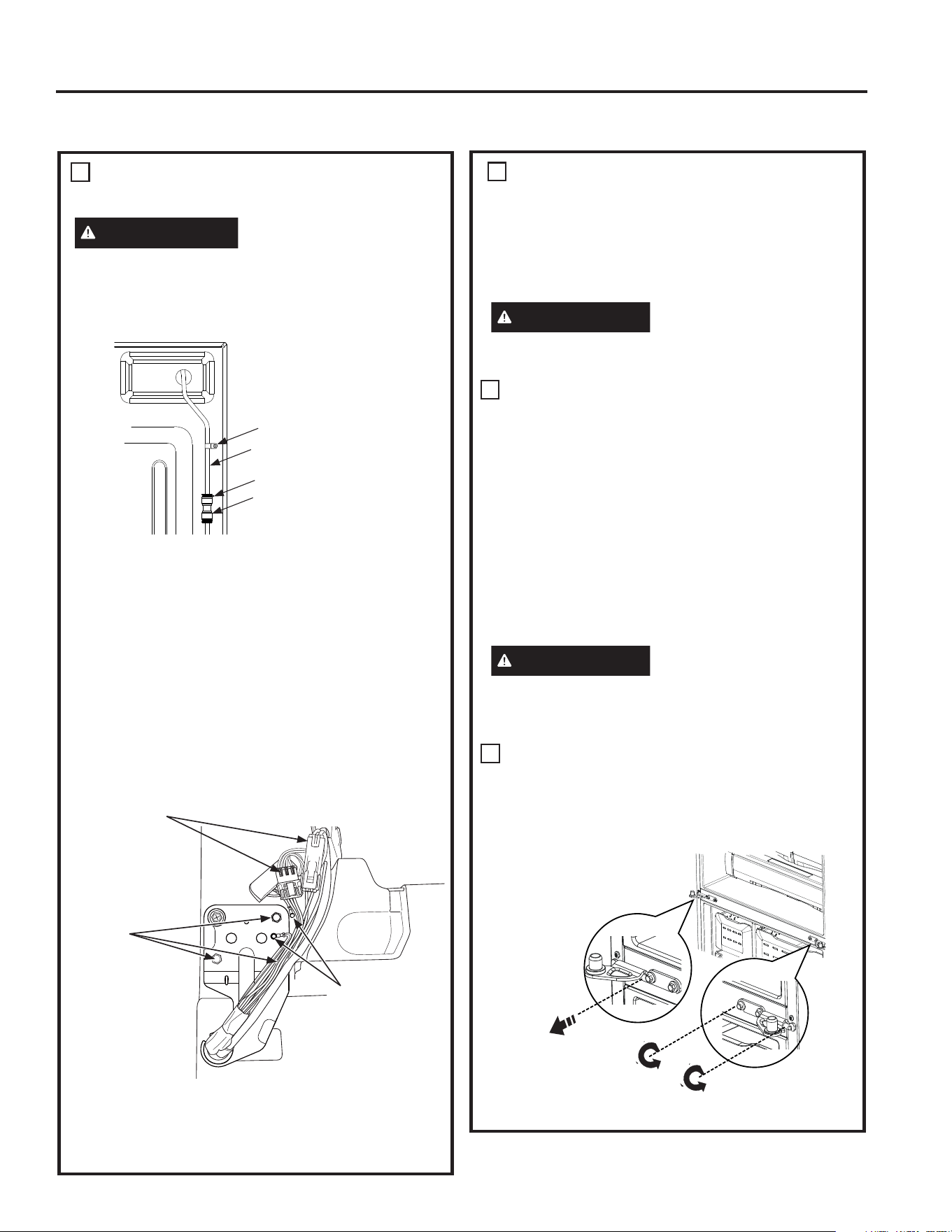
49-1000332 Rev. 10 27
INSTRUCCIONES DE INSTALACIÓN
3
RETIRE LA PUERTA DEL LADO
IZQUIERDO (cont.)
NOTA: Para una instalación posterior adecuada,
siga el siguiente paso de forma cuidadosa.
Ŷ Retire la cinta manteniendo la puerta lo más derecha
posible, y luego levante la misma para retirarla.
PRECAUCIÓN
Riesgo al levantar la puerta
La puerta del freezer es pesada. Use ambas manos para
asegurar la puerta antes de levantar la misma.
4
RETIRE LA PUERTA DEL LADO
DERECHO (si es necesario)
Ŷ5HWLUHODWDSDGHODELVDJUDGHUHFKD (si es necesario)
Ŷ'HIRUPDVHJXUDHQFLQWHODSXHUWDFHUUDGDFRQFLQWDGH
mascarar o pídale a otra persona que sostenga la puerta.
Ŷ5HWLUHORVWRUQLOORVTXHVRVWLHQHQODELVDJUDFRQXQ
adaptador de 5/16”. Levante la bisagra del refrigerador y
de la puerta.
Para una instalación posterior adecuada, siga los
próximos pasos de forma cuidadosa:
Ŷ Retire la cinta manteniendo la puerta lo más derecha
posible, y luego levante la misma para retirarla.
PRECAUCIÓN
Riesgo al levantar la puerta
La puerta del freezer es pesada. Use ambas manos para
asegurar la puerta antes de levantar la misma.
To reassemble doors, reverse removal steps.
5
RETIRE LA BISAGRA CENTRAL
Retire los tornillos que aseguran la bisagra al gabinete. Los
tornillos interiores necesitan un adaptador de 5/16”. Para el
tornillo exterior es necesaria una llave Phillips nº2
o Llave
Torx T25.
Instrucciones de Instalación
CÓMO INSTALAR EL REFRIGERADOR (Cont.)
3
RETIRE LA PUERTA DEL LADO
IZQUIERDO
ADVERTENCIA
(si es necesario)
Siga todos los pasos para retirar y volver a instalar la
puerta. Si no se siguen estas instrucciones, dejando piezas
sin uso o ajustando tornillos en exceso, esto podrá hacer
que la puerta se caiga y producir lesiones y daños sobre la
propiedad.
Ŷ
Afloje la tubería de suministro de agua de la máquina de hielo.
Ɣ$IORMH\UHWLUHODDEUD]DGHUDGHOWXERTXHVRVWLHQHOD
tubería de suministro de agua sobre la parte trasera del
refrigerador.
Ɣ5HWLUHHOFXHOORQHJURVXSHULRUGHOFRQHFWRUGHOD
tubería de suministro de agua, en la parte trasera
superior derecha del refrigerador.
Ɣ3UHVLRQHODOHQJHWDEODQFDKDFLDDEDMR\VHSDUHOD
tubería del suministro de agua del conector.
Ŷ Retire la tapa de la bisagra izquierda, retirando los 2
tornillos de la tapa de la bisagra con un destornillador
de cabeza Phillips, hexagonal de 7 mm o Llave Torx
T20 y levantando la misma desde el lado izquierdo.
'HVFRQHFWHORVFRQHFWRUHVHOpFWULFRV\HPSXMHODWXEHUtD
de suministro de agua de la máquina de hielo a través de
la carcasa.
Ŷ'HIRUPDVHJXUDHQFLQWHODSXHUWDFHUUDGDFRQFLQWDGH
mascarar o pídale a otra persona que sostenga la puerta.
ŶRetire los tornillos que sostienen la bisagra con un
adaptador de 5/16”. Levante la bisagra del refrigerador y
de la puerta.
Retire el tornillo
central
Afloje los tornillos
exteriores
Cuello
Conector
Tubería de Suministro
de Agua
Abrazadera de Tubería
Conexiones
Eléctricas
Tornillos de
Bisagra
Tornillos de
Conexión a
Tierra
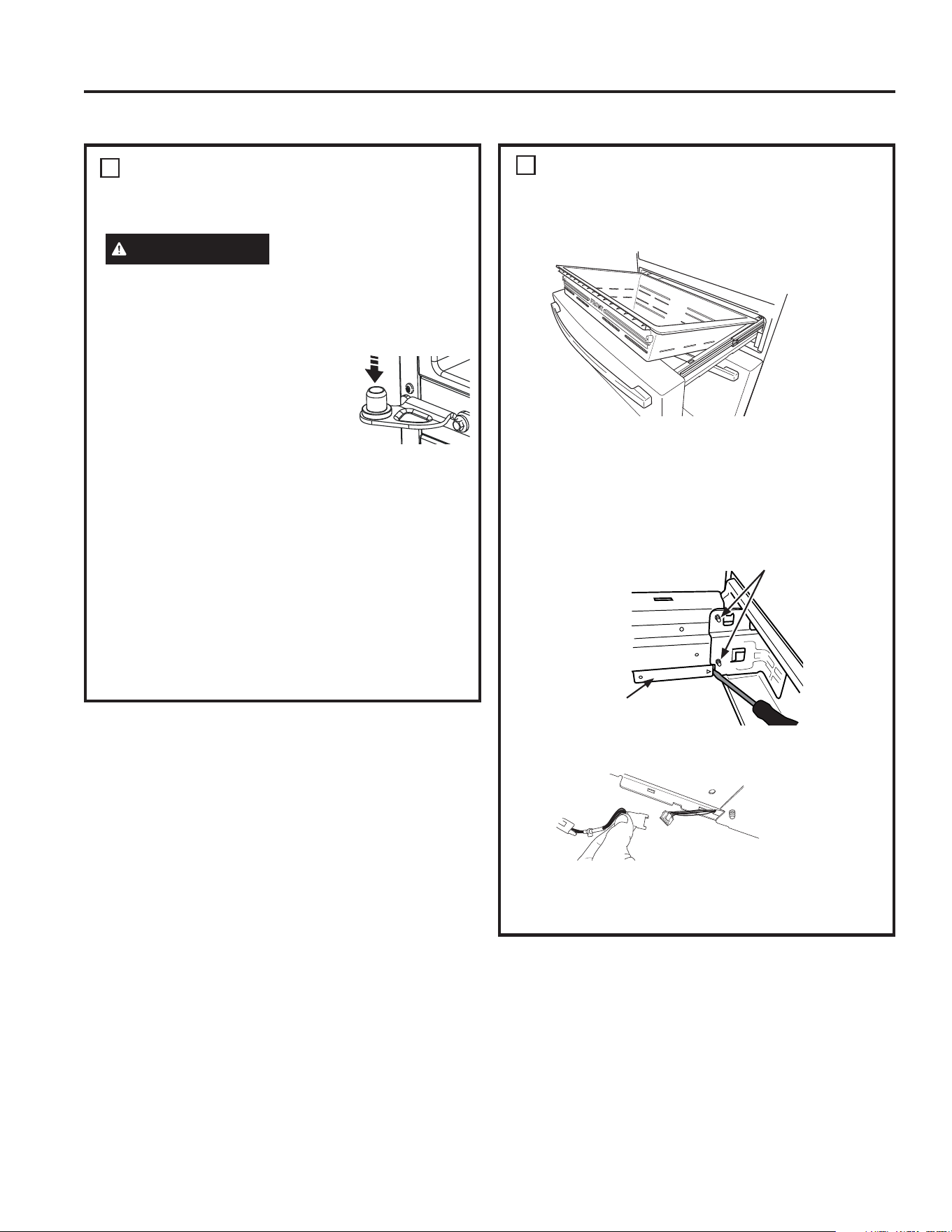
28 49-1000332 Rev. 10
REINSTALACIÓN DE LAS
PUERTAS DEL LADO IZQUIERDO
Y DERECHO
ADVERTENCIA
Siga todos los pasos para
retirar y volver a instalar la puerta. Si no se siguen estas
instrucciones, dejando piezas sin uso o ajustando tornillos
en exceso, esto podrá hacer que la puerta se caiga y
producir lesiones y daños sobre la propiedad.
1. Vuelva a instalar la bisagra central
primero y gire el tornillo de ¼” a
OLEUDVSRUSXOJDGD1P\
el tornillo pequeño a 25 libras por
SXOJDGD1P'iQGROHDO
tornillo un 1/3 de giro luego de que
quede nivelado con la superficie de
contacto se lograrán realizar estos giros.
2. Ba
je la puerta del refrigerador sobre la bisagra central.
3. De forma segura encinte el cierre de la puerta
con cinta de mascarar o pida a otra persona que
sostenga la puerta.
4. Reinstallation is the reverse of the removal instructions.
5. Asegúrese de reinstalar el cable a tierra y el
amortiguador de refuerzo a la bisagra superior.
6. Vuelva a instalar la tapa de la bisagra.
NOTA: Asegúrese de que los cables no sufran cortes
ni queden debajo de tornillos antes de ajustar estos
últimos.
6
Instrucciones de Instalación
CÓMO INSTALAR EL REFRIGERADOR (Cont.)
7
RETIRO DEL CAJÓN
CONVERTIBLE
1. Retire la canasta del cajón convertible levantando la
misma mientras gira la canasta hacia arriba.
'HVFRQHFWHODFRQH[LyQGHOFRQWUROGHOFDMyQ
convertible.
Ɣ8WLOL]DQGRXQWRUQLOORGHFDEH]DSODQDUHWLUHODWDSD
sobre los conectores eléctricos en la parte interior
derecha del marco del cajón. La tapa se engancha a
través del mar co del cajón hacia la parte interior del
refrigerador.
Ɣ3UHVLRQHODOHQJHWDHQHOFHQWURGHOFRQHFWRUSDUD
realizar la separación.
3. Retire los 2 tornillos a cada lado del marco con un
adaptador de 5/16”.
4.
Retire la puerta levantando los ganchos.
Tapa de Conexión del Control
Retire estos tornillos
INSTRUCCIONES DE INSTALACIÓN
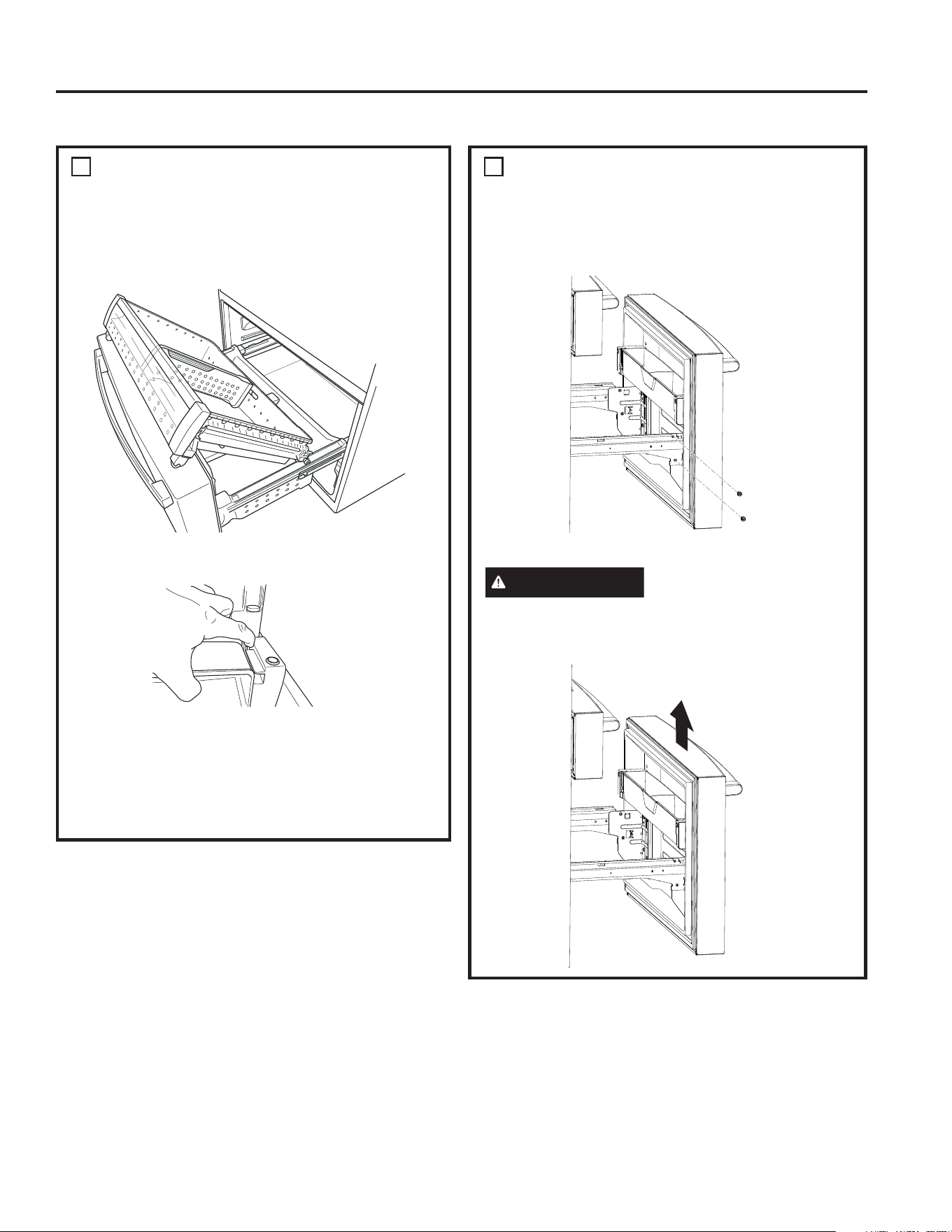
49-1000332 Rev. 10 29
INSTRUCCIONES DE INSTALACIÓN
9
RETIRE EL CAJÓN DEL
FREEZER
1. Abra el cajón del freezer hasta su extensión completa.
2. Retire los dos tornillos a cada lado del marco con un
adaptador de 5/16”.
PRECAUCIÓN
Riesgo al levantar la puerta
La puerta del freezer es pesada. Use ambas manos para
asegurar la puerta antes de levantar la misma.
3. Retire la puerta levantando los ganchos.
8
RETIRE LA CANASTA INFERIOR
DEL FREEZER
Ŷ(PSXMHODFDQDVWDGHOFDMyQVXSHULRUGHOIUHH]HU
hacia adelante hasta que esté fuera del carril en el
compartimiento del freezer. Levante, mientras gira la
canasta hacia arriba para su retiro.
Ŷ3UHVLRQHODOHQJHWDVREUHHOVRSRUWHODWHUDOGHUHFKR
para retirar el estante de la puerta del freezer.
Ŷ (PSXMHKDFLDXVWHGHOFDMyQGHOIUHH]HUKDVWDVX
extensión completa.
Ŷ Levante la canasta del cajón del freezer inferior
levemente hacia atrás, y luego hacia arriba y afuera del
cajón.
Instrucciones de Instalación
CÓMO INSTALAR EL REFRIGERADOR (Cont.)
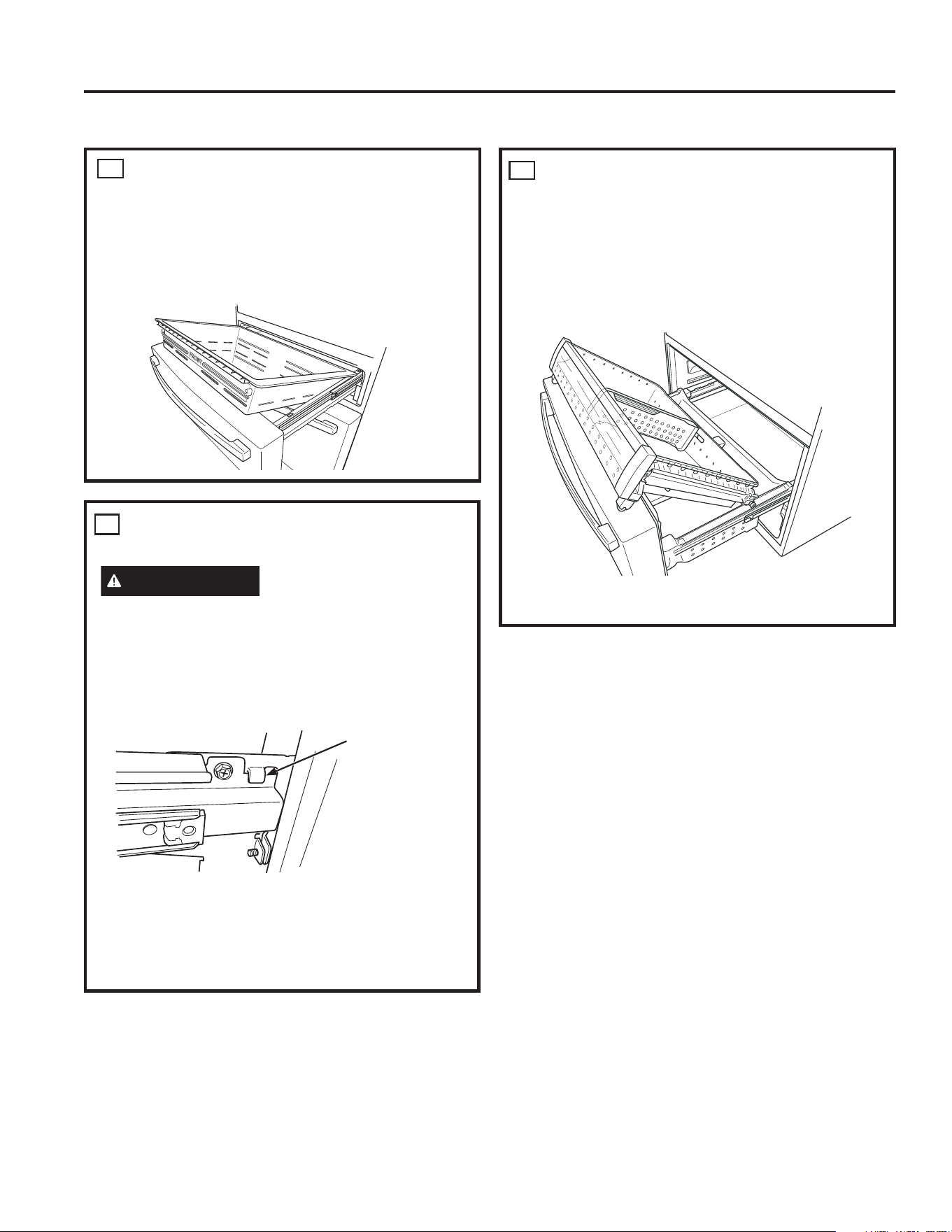
30 49-1000332 Rev. 10
VUELVA A INSTALAR LAS
CANASTAS DEL FREEZER
1. Vuelva a instalar la canasta inferior del freezer.
2. Vuelva a instalar el cajón superior del freezer,
colocando las ruedas del cajón en la parte superior de
los rieles sobre el costado de las paredes del freezer.
Las ruedas frontales del cajón del freezer deberán estar
en la parte superior de la canasta inferior.
3. Controle que el funcionamiento de las canastas sea el
adecuado
.
10
VUELVA A INSTALAR EL CAJÓN
CONVERTIBLE
Para volver a ensamblar las puertas, invierta los pasos de
retiro. La canasta del cajón convertible quedará floja si se
vuelve a instalar en la dirección contraria. Como ayuda
para volver a realizar la instalación, observe el estampado
³)5217´IURQWDO
12
Instrucciones de Instalación
CÓMO INSTALAR EL REFRIGERADOR (Cont.)
REEMPLAZO DE LA PUERTA DEL
FREEZER
PRECAUCIÓN
Riesgo al levantar la puerta
La puerta del freezer es pesada. Use ambas manos para
asegurar la puerta antes de levantar la misma.
1. Empuje la canasta inferior y deslice el mecanismo
hasta su extensión completa usando ambas manos.
2. Levante la puerta del freezer y alinee los ganchos con
las ranuras sobre los mecanismos de deslizamiento.
NOTA: Coloque un lado primero, y luego alinee el otro
lado.
3. Reemplace los tornillos adheridos y ajuste los mismos
FRQJLURVGHWRUVLyQGHOLEUDVSXOJDGD1P
11
Gancho de la puerta
del freezer y ranura
del mecanismo de
deslizamiento
INSTRUCCIONES DE INSTALACIÓN
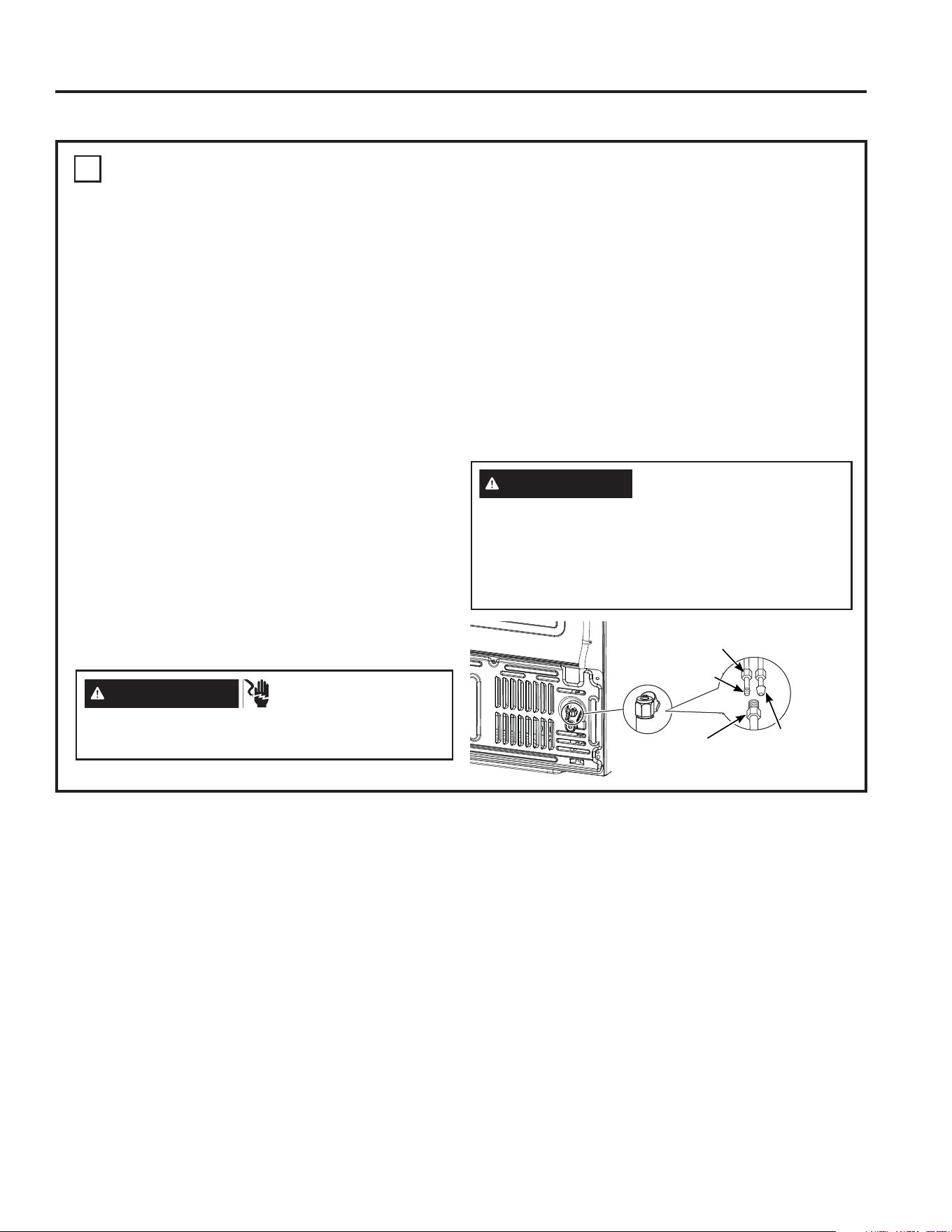
49-1000332 Rev. 10 31
INSTRUCCIONES DE INSTALACIÓN
13
CÓMO CONECTAR EL REFRIGERADOR AL SUMINISTRO DE AGUA DEL
HOGAR
Se requiere un suministro de agua fría para el
funcionamiento de la máquina de hielo automática. Si
no se cuenta con un suministro de agua fría, deberá
proveer uno. Consulte la sección sobre Cómo Instalar el
Suministro de Agua.
NOTAS:
• Antes de realizar la conexión al refrigerador, asegúrese
de que el cable de corriente del mismo no se encuentre
enchufado al tomacorriente.
• Si su refrigerador no cuenta con un filtro de agua, le
recomendamos que instale uno si el suministro de agua
posee arena o partículas que podrían atascar la rejilla
de la válvula de agua del refrigerador. Instale el mismo
en la tubería de agua más cercana al refrigerador.
Si usará el Kit de Tuberías para Refrigeradores de
SmartConnect™, necesitará una tubería adicional
:;;SDUDUHDOL]DUODFRQH[LyQDOILOWUR1R
corte la tubería de plástico para instalar el filtro.
• Antes de conectar la tubería de agua al hogar, purgue
la cañería del hogar durante por lo menos 2 minutos.
1. Si usará una tubería de cobre, coloque una tuerca de
compresión y una abrazadera de refuerzo (mango) en
el extremo de la tubería proveniente del suministro de
agua fría del hogar.
Si usará tuberías de SmartConnect™, las tuercas ya
están ensambladas en la tubería.
2. Si usará tuberías de cobre, inserte el extremo de la
tubería en la conexión del refrigerador, en la parte
trasera del refrigerador, lo más lejos posible. Al
sostener la tubería, ajuste la unión.
Si usará tuberías de SmartConnect™ , inserte el
extremo moldeado de la tubería en la conexión del
refrigerador, en la parte trasera del refrigerador, y
ajuste la tuerca de compresión hasta que quede
ajustada manualmente. Luego realice un ajuste
adicional con un giro de llave. Un ajuste excesivo
podrá ocasionar pérdidas.
3. Ajuste la tubería en la abrazadera provista para
sostener la misma en la posición correcta. Será
necesario que abra la abrazadera haciendo palanca.
Instrucciones de Instalación
CÓMO INSTALAR EL REFRIGERADOR (Cont.)
ADVERTENCIA
PELIGRO DE
DESCARGA ELÉCTRICA
Adhiera la abrazadera de la tubería usando el agujero
H[LVWHQWH~QLFDPHQWH12SHUIRUHHOUHIULJHUDGRU
ADVERTENCIA
Realice la conexión a un suministro de agua potable
únicamente.
Se requiere un suministro de agua fría para el
funcionamiento de la máquina de hielos automática. La
presión del agua deberá estar entre 40 y 120 psi (275-827
kilopascales).
Tubería de
SmartConnect
TM
Conexión del
Refrigerador
Tuerca de Compresión de ¼”
Ferrule
(sleeve)
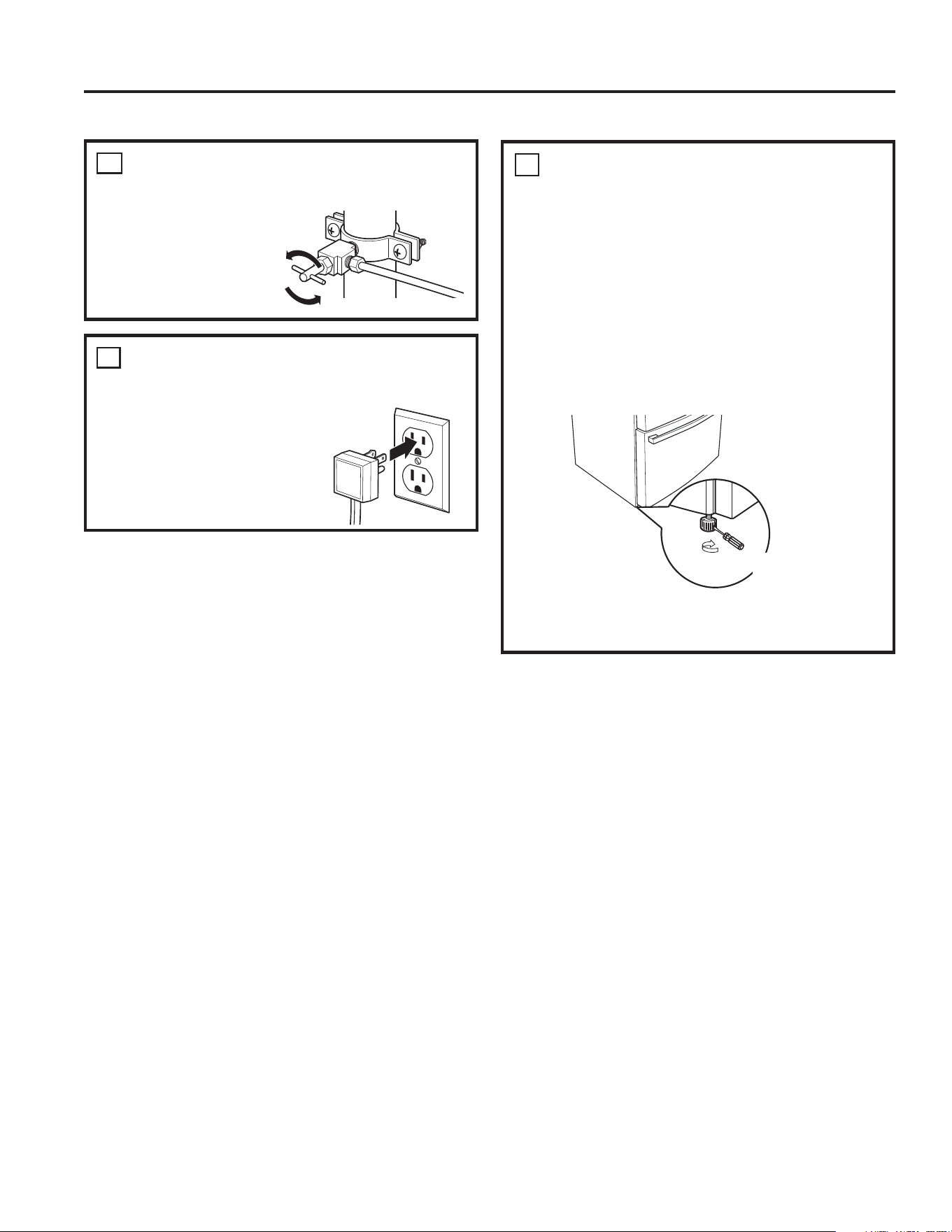
32 49-1000332 Rev. 10
Instrucciones de Instalación
ABRA EL SUMINISTRO DE
AGUA
Abra el suministro
de agua usando la
válvula de cierre
(suministro de agua
hogareño) y controle
que no haya pérdidas.
14
ENCHUFE EN EL
REFRIGERADOR
Consulte la información de
conexión a tierra adjunta con
el cable de corriente.
15
NIVELACIÓN DEL
REFRIGERADOR
Las patas niveladoras poseen 2 propósitos:
1. Las patas niveladoras se ajustan de modo que el
refrigerador quede posicionado de manera firme
en el piso y no se tambalee.
2. Las patas niveladoras sirven como freno
estabilizador para sostener el refrigerador
de forma segura en su posición durante
el funcionamiento y la limpieza. Las patas
niveladoras también evitan la caída del
refrigerador.
ŶGire las patas niveladoras en dirección de las
agujas del reloj para levantar el refrigerador, en
contra de las agujas del reloj para bajarlo.
AVISO: A fin de evitar posibles daños sobre la
propiedad, las patas niveladoras deberán estar
tocando el piso de manera firme.
16
CÓMO INSTALAR EL REFRIGERADOR (Cont.)
Raise
Flat-Head
Screwdriver
INSTRUCCIONES DE INSTALACIÓN
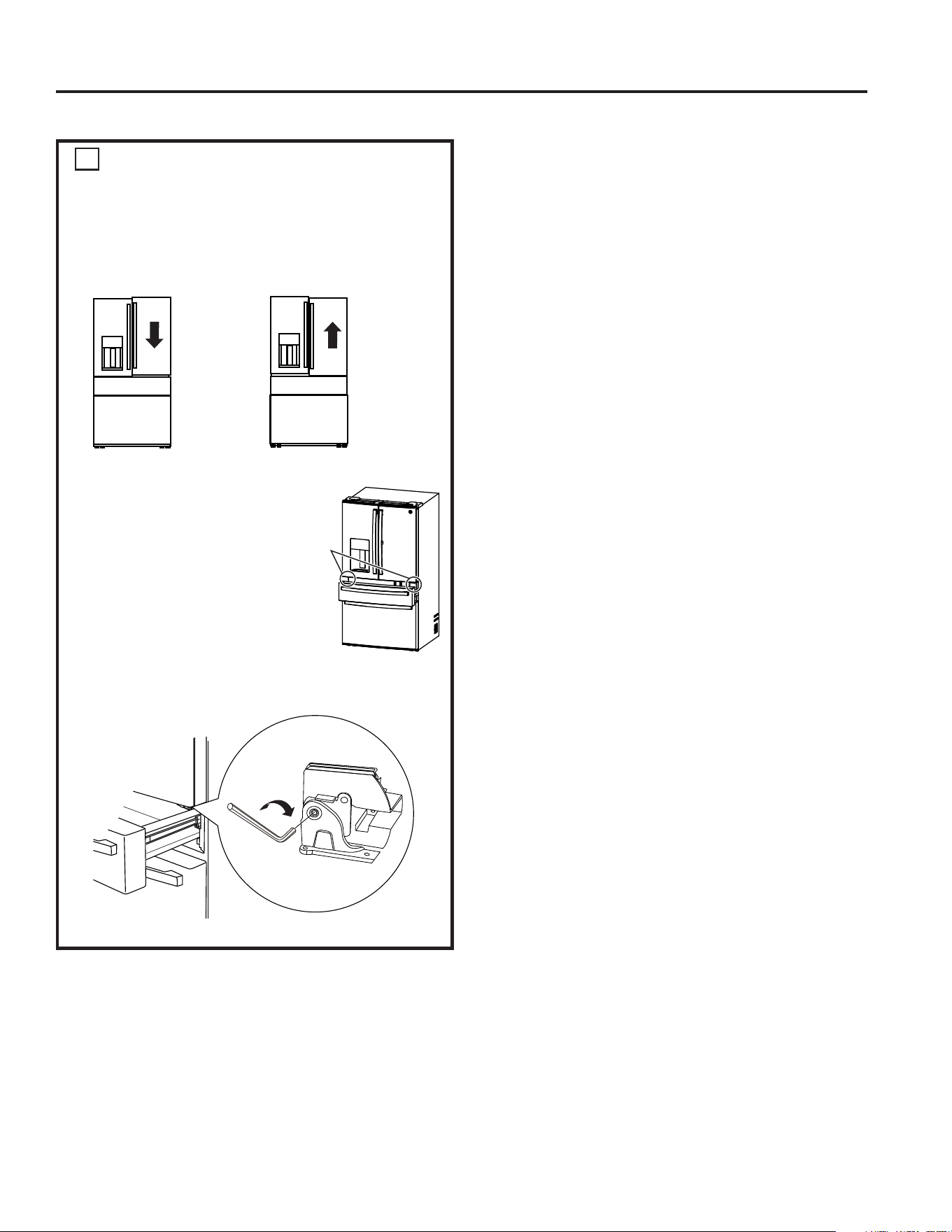
49-1000332 Rev. 10 33
INSTRUCCIONES DE INSTALACIÓN
Instrucciones de Instalación
17
NIVELACIÓN DE LAS PATAS
DEL REFRIGERADOR
Recuerde que es necesario que el refrigerador esté
nivelado para que las puertas estén perfectamente
apoyadas. Si necesita ayuda, revise la sección previa
sobre nivelación del refrigerador.
A. Acceda a los tornillos de la
bisagra abriendo el cajón
convertible.
B. Inserte una llave Allen de
¼” en el hueco de la bisagra
central.
C. Ajuste la altura girando en
dirección a favor o en contra
de las agujas del reloj.
Al girar en contra de las
agujas del reloj, la puerta se
moverá.
Lorsque la
porte de
gauche est
plus basse
que la porte
de droite.
Lorsque la
porte de
gauche est
plus haute
que la porte
de droite.
Point de
réglage
CÓMO INSTALAR EL REFRIGERADOR (Cont.)
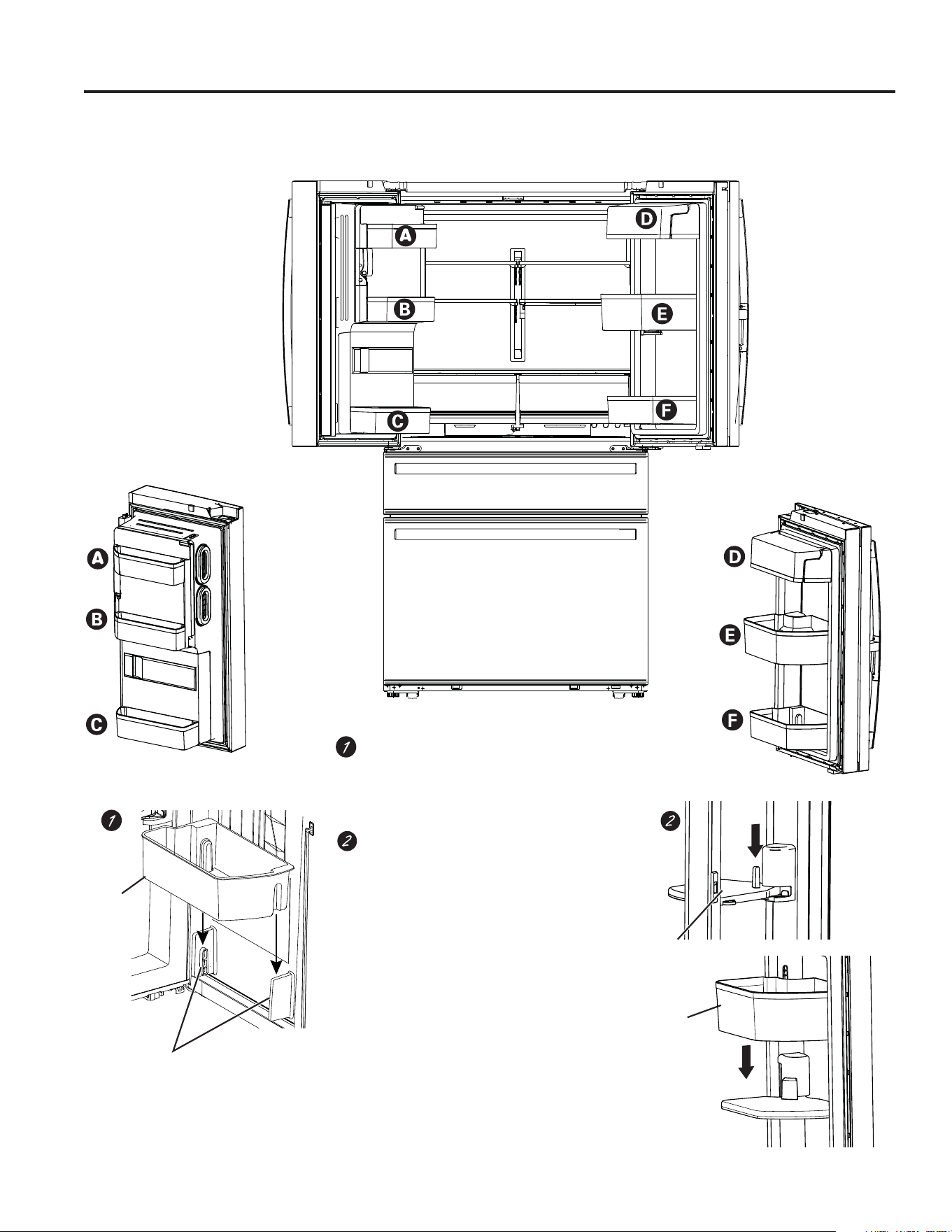
34 49-1000332 Rev. 10
Para colocar las bandejas ajustables
en la puerta:
Posicione las bandejas sobre los porta
bandejas y empuje hacia abajo hasta que se
ajusten en sus posiciones.
Para colocar la bandeja giratoria en la
puerta:
'HVOLFHHOHQVDPEOHGHODEDVHGHOD
bandeja en el soporte de la puerta.
'HVOLFHODEDQGHMDVREUHODEDVHGHOD
bandeja.
Bandeja
Porta bandejas
Bandeja
Base de la bandeja
Instale
la base
metálica
Modelos Profile de Cuatro Puertas Door-in-Door
Instrucciones de Instalación
CÓMO INSTALAR EL REFRIGERADOR (Cont.)
INSTRUCCIONES DE INSTALACIÓN
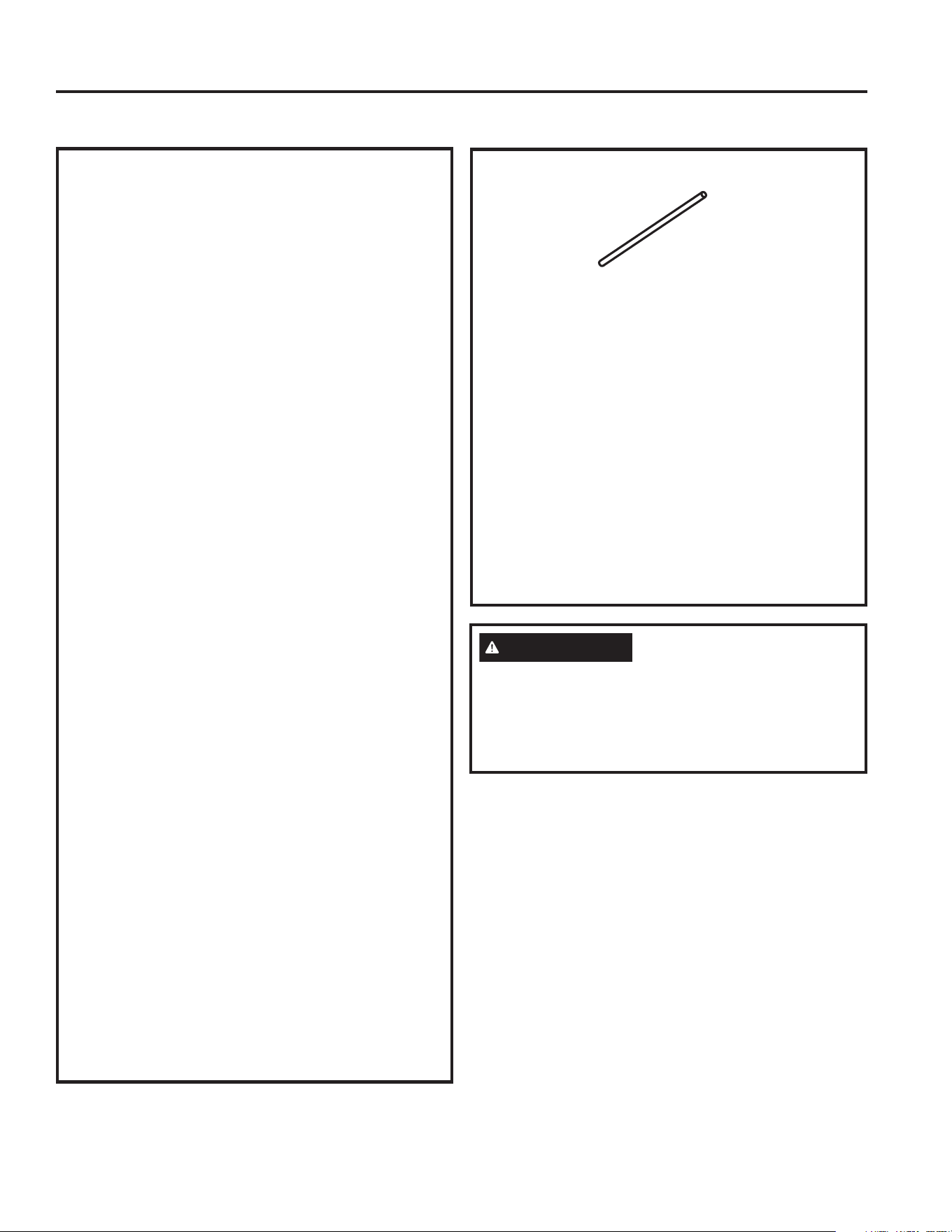
49-1000332 Rev. 10 35
INSTRUCCIONES DE INSTALACIÓN
Instrucciones de Instalación
LO QUE NECESITARÁ
• Kit de Tubería para Refrigerador de Cobre o
SmartConnect™ de ¼” de diámetro externo para
conectar el refrigerador al suministro de agua. Si usará
cobre, asegúrese de que ambos extremos de la tubería
hayan sido cortados de forma recta.
A fin de determinar cuánta tubería es necesaria: mida
la distancia desde la válvula de agua en la parte trasera
del refrigerador hasta la tubería del suministro de agua.
Asegúrese de que haya suficiente tubería adicional para
permitir que el refrigerador pueda ser retirado de la pared
luego de la instalación.
Los Kits de Tuberías para Refrigerador de
SmartConnecté™ están disponibles en las siguientes
longitudes:
¶P ±:;;
¶P ±:;;
¶P ±:;;
ANTES DE COMENZAR
Los kits de suministro de agua de cobre recomendados
VRQ:;;:;;R:;;GHSHQGLHQGRGHOD
cantidad de tubería necesaria. Las tuberías de suministro
de agua de plástico aprobadas son las Tuberías para
5HIULJHUDGRUGH6PDUW&RQQHFW:;;
:;;\:;;
Al conectar su refrigerador a un Sistema de Agua por
Ósmosis Inversa de GE Appliances, la única instalación
aprobada es con el Kit GE Appliances RV. Con otros
sistemas de agua por ósmosis inversa, siga las
recomendaciones del fabricante.
Si el suministro de agua al refrigerador es de un Sistema
GH)LOWUDFLyQGH$JXDSRUÏVPRVLV,QYHUVD52<HO
refrigerador también cuenta con un filtro de agua, use el
tapón del bypass del filtro del refrigerador. Cómo usar
el tapón del bypass del filtro del Refrigerador. El uso
del cartucho de filtración de agua del refrigerador junto
FRQXQILOWURGHDJXD52SRGUiSURGXFLUFXERVGHKLHOR
huecos. Algunos modelos no están equipados con el
tapón del bypass del filtro. Para acceder a un tapón del
bypass gratuito, llame al 800.692.6630 y solicite el tapón
GHOE\SDVVGHOILOWUR:5;(Q&DQDGiOODPHDO
800.561.3344.
Esta instalación de la tubería de agua no posee garantía
del fabricante del refrigerador o de la máquina de hacer
hielo. Siga estas instrucciones con cuidado, a fin de
minimizar el riesgo de daños caros sobre el agua.
Los golpes de ariete (agua que golpea las tubería) en
la plomería del hogar pueden ocasionar daños sobre
las piezas del refrigerador y generar pérdidas de agua o
inundación. Llame a un plomero calificado para corregir
los golpes de ariete antes de instalar la tubería de
suministro de agua al refrigerador.
A fin de evitar quemaduras y daños sobre los productos,
no adhiera la tubería de agua a la tubería de agua
caliente.
Si el refrigerador es utilizado antes de haber realizado la
conexión de agua a la máquina de hacer hielo,consulte
la sección de Controles en la página 10 para apagar la
máquina de hacer hielo.
1RLQVWDOHODWXEHUtDGHODPiTXLQDGHKDFHUKLHORHQ
áreas donde las temperaturas lleguen a estar bajo cero.
Al usar un dispositivo eléctrico (tal como un taladro
eléctrico) durante la instalación, asegúrese de que
el dispositivo cuente con doble aislación o que esté
conectado a tierra de modo que se eviten riesgos de
descargas eléctricas, o que sea cargados a través del uso
de una batería.
Todas las instalaciones de deben realizar de acuerdo con
los requisitos indicados en el código local de plomería.
CÓMO INSTALAR LA TUBERÍA DE AGUA
ADVERTENCIA
Realice la conexión a un suministro de agua potable
únicamente.
Se requiere un suministro de agua fría para el
funcionamiento de la máquina de hielos automática. La
presión del agua deberá estar entre 40 y 120 psi (275-827
kilopascales).
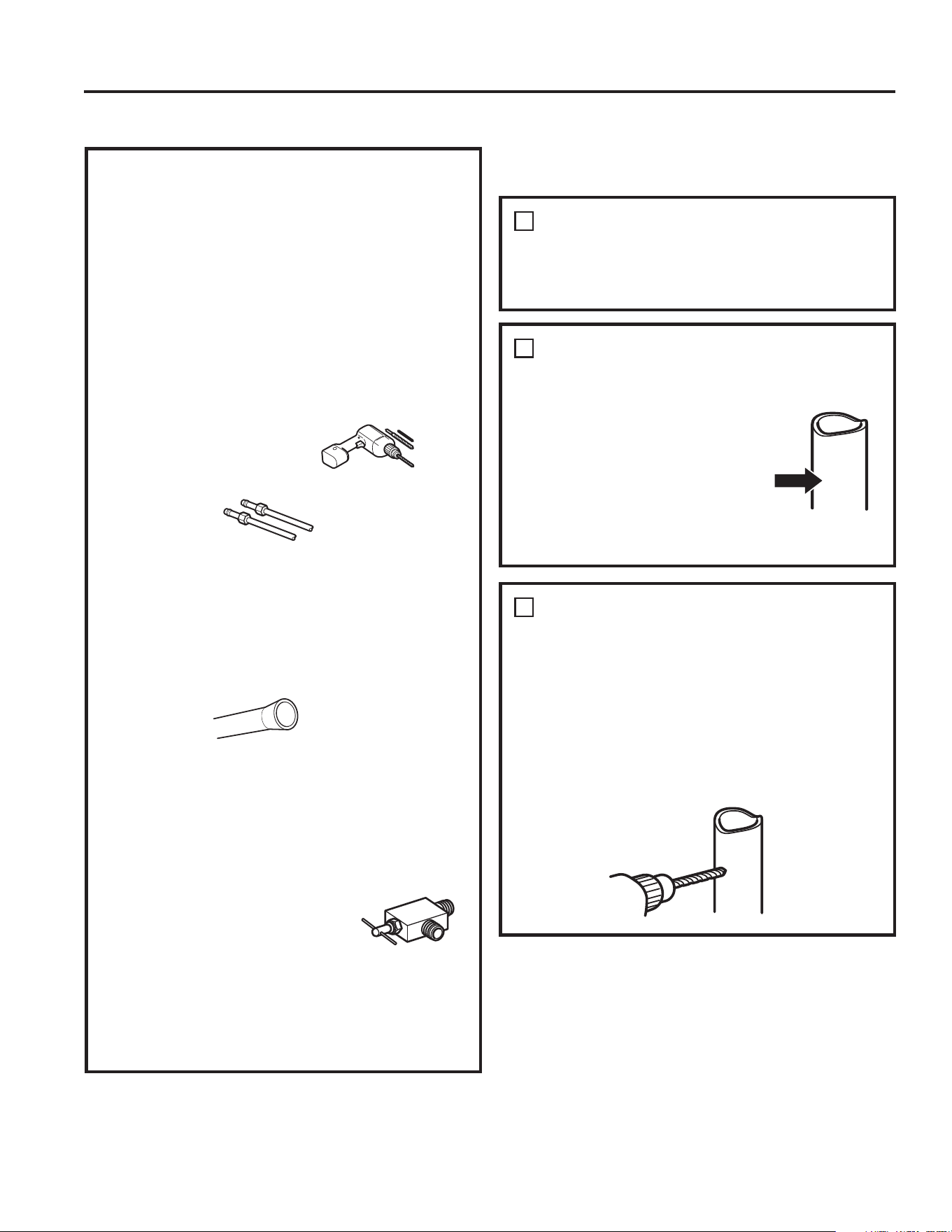
36 49-1000332 Rev. 10
LO QUE NECESITARÁ (Cont.)
NOTA: La única tubería plástica aprobada es aquella
provista con los Kits de Tuberías para Refrigerador de
SmartConnect
TM
1RXVHQLQJ~QRWURVXPLQLVWURGHDJXD
plástico, ya que el suministro se encuentra bajo presión
en todo momento. Ciertos tipos de plásticos podrán sufrir
fisuras o roturas con el paso del tiempo y ocasionar
problemas con el agua en su hogar.
• Un kit de suministro de agua (el cual contiene tubería,
válvula de cierre y uniones que figuran en la lista
siguiente) está disponible por un costo adicional a través
de su vendedor minorista o cafeappliances.com/parts.
(En Canadá, cafeappliances.ca/parts).
• Un suministro de agua fría. La presión del agua deberá
estar entre 20 y 120 p.s.i. (barra 1.4-8.1).
• Taladro eléctrico.
• 1/2” o llave ajustable.
'HVWRUQLOODGRUGHSXQWDSODQDR3KLOOLSV
• 2 abrazaderas de compresión (mangas) y dos tuercas
de compresión de ¼” de diámetro externo – para
conectar la tubería de cobre a la válvula de cierre y a la
válvula de agua del refrigerador.
2
• Si usará un kit de Tuberías para Refrigerador de
SmartConnect
TM
, las uniones necesarias están
preensambladas a la tubería.
• Si su tubería de agua de cobre existente posee una
unión con avellanado en su extremo, necesitará un
adaptador (disponible en las tiendas de suministros)
SDUDFRQHFWDUODWXEHUtDGHDJXDDOUHIULJHUDGRU2SXHGH
cortar la unión con avellanado con un cortador de tubo
\OXHJRXVDUXQDXQLyQGHFRPSUHVLyQ1RFRUWHORV
extremos con forma de la tubería para refrigerador de
SmartConnect
TM
.
• Cierre la válvula para conectar a la
tubería de agua fría. La válvula de
cierre debería tener una entrada de
agua con un diámetro interior mínimo
GH´HQHOSXQWRGHFRQH[LyQDOD78%(5Ë$'(
AGUA FRÍA. Las válvulas de cierre tipo montura están
incluidas en muchos kits de suministro de agua. Antes
de su adquisición, asegúrese de que la válvula tipo
montura cumpla con los códigos de plomería locales.
1
CIERRE EL SUMINISTRO DE
AGUA PRINCIPAL
Encienda la canilla más cercana que sea lo
suficientemente larga para despejar la tubería de agua.
2
ELIJA LA UBICACIÓN DE LA
VÁLVULA
Elija una ubicación para la válvula que
sea de fácil acceso. Es mejor conectar
la misma en el lateral de una tubería
de agua vertical. Cuando sea necesario
conectarla en una tubería de agua
horizontal, realice la conexión a la parte
superior o lateral, en vez de la parte
inferior, a fin de evitar el drenaje de
cualquier sedimento de la tubería de
agua.
3
TALADRE EL AGUJERO DE LA
VÁLVULA
Taladre un agujero de ¼” en la tubería de agua (incluso
si usará una válvula auto-perforante), usando una punta
afilada. Elimine cualquier zumbido que resulte de haber
taladrado el agujero en la tubería.
Tenga cuidado de no permitir que el agua se drene en el
taladro.
Si no se taladra un agujero de ¼” se podrá ver reducida la
producción de hielo o los cubos de hielo podrán ser más
pequeños.
Instrucciones de Instalación
Instale la válvula de cierre en la tubería de agua potable de
uso frecuente más cercana.
CÓMO INSTALAR LA TUBERÍA DE AGUA (Cont.)
INSTRUCCIONES DE INSTALACIÓN
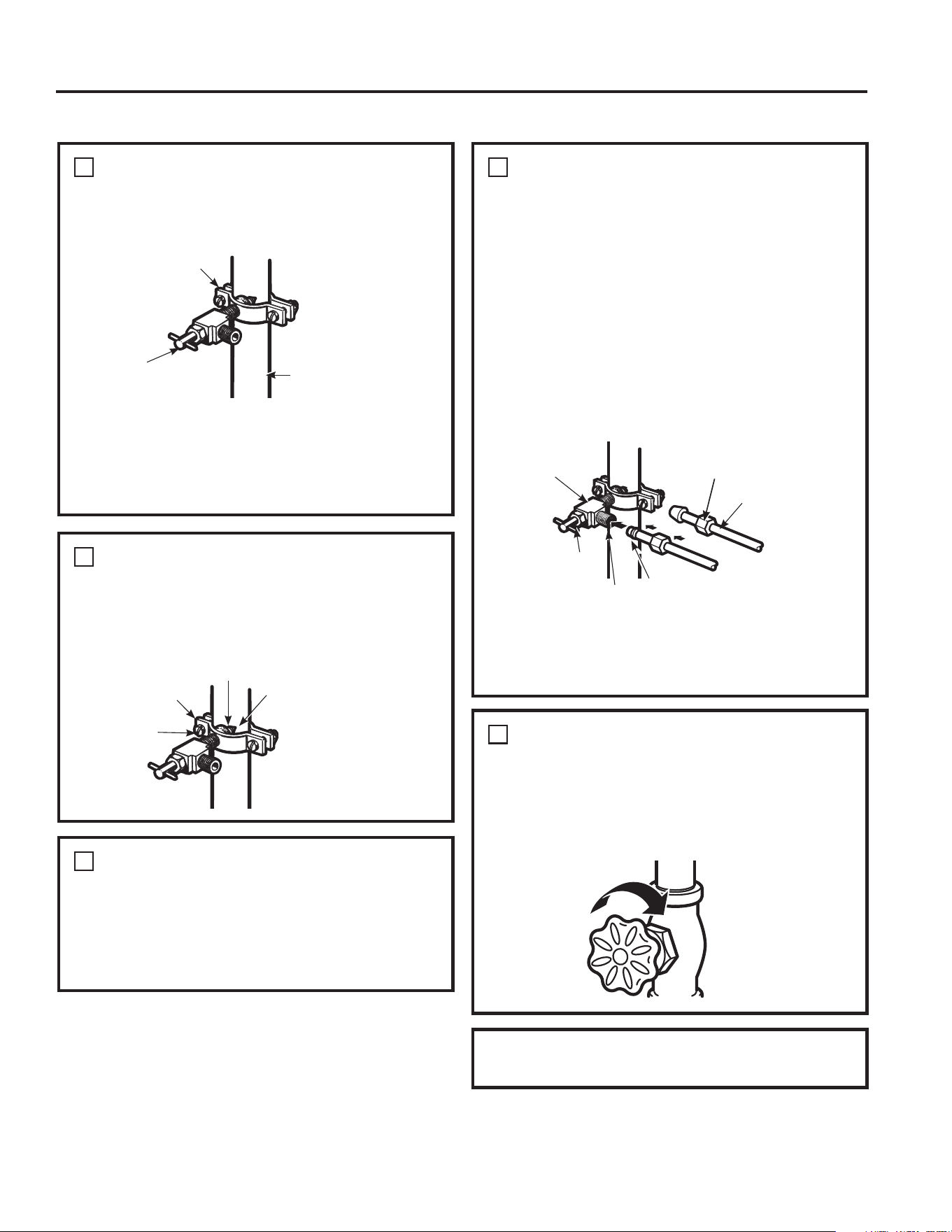
49-1000332 Rev. 10 37
INSTRUCCIONES DE INSTALACIÓN
5
AJUSTE LA ABRAZADERA DE
LA TUBERÍA
Ajuste los tornillos de la abrazadera hasta que la arandela
de sellado comience a hincharse.
NOTA:1RDMXVWHHQH[FHVRRVHSRGUiURPSHUODWXEHUtD
Instrucciones de Instalación
Lavadora
Extremo de la
Entrada
Abrazadera de
la tubería
Tornillos con
Abrazadera
CÓMO INSTALAR LA TUBERÍA DE AGUA (Cont.)
4
AJUSTE LA VÁLVULA DE
CIERRE
Ajuste la válvula de cierre de la tubería de agua fría
con la abrazadera de la tubería.
NOTA: Se deberá cumplir con los Códigos de
Plomería del Commonwealth de Massachusetts
248CMR. Las válvulas tipo montura son ilegales y su
uso está prohibido en Massachusetts. Consulte a un
plomero matriculado.
7
CONECTE LA TUBERÍA A LA
VÁLVULA
Coloque la tuerca de compresión y la abrazadera de
refuerzo (manga) para colocar la tubería de cobre en el
extremo de la tubería y conecte la misma a la válvula de
cierre.
Asegúrese de que la tubería esté completamente
insertada en la válvula. Ajuste la tuerca de compresión de
forma segura.
Para usar una tubería de plástico del kit de Tuberías
para Refrigerador SmartConnectTM, inserte el extremo
moldeado de la tubería en la válvula de cierre y ajuste
la tuerca de compresión hasta que quede ajustada
manualmente, y luego dé un giro de ajuste adicional con
una llave. Un ajuste excesivo podrá ocasionar pérdidas.
NOTA: Se deberá cumplir con los Códigos de Plomería
del Commonwealth de Massachusetts 248CMR. Las
válvulas tipo montura son ilegales y su uso está prohibido
en Massachusetts. Consulte a un plomero matriculado.
6
ENRUTE LA TUBERÍA
Enrute la tubería entre la entrada de agua fría y el
refrigerador.
Enrute la tubería a través de un agujero perforado en la
pared o el piso (detrás del refrigerador o del gabinete con
base adyacente) tan cerca a la pared como sea posible.
8
DESPEJE LA TUBERÍA
Abra el suministro de agua principal y despeje la tubería
hasta que el agua esté limpia.
Cierre el agua usando la válvula de agua luego de haber
dejado correr aproximadamente un galón (1 litro), o 2
minutos, de agua a través de la tubería.
Para completar la instalación del refrigerador, vuelva al
Paso 12 en Cómo Instalar el Refrigerador.
Abrazadera de la
tubería
Tubería de Agua
Fría Vertical
Válvula de Cierre
Tipo Montura
Válvula de Cierre
Tipo Montura
Tuerca de Compresión
Tuerca de
Embalaje
Válvula de Salida
Abrazadera de refuerzo
(manga)
Tubería de
SmartConnect
TM
38 49-1000332 Rev. 10
COMIENZO DEL ENFRIAMIENTO
Es posible que pasen hasta 24 horas para que las
temperaturas del refrigerador y del freezer igualen la
SDQWDOOD'XUDQWHGLFKRWLHPSRVHGHEHUtDQPLQLPL]DUODV
aperturas de las puertas del refrigerador y del freezer.
CONSEJOS
Ŷ (OIUHH]HUVHHQIUtDSULPHUR
Ŷ (OFRPSDUWLPLHQWRGHOUHIULJHUDGRUVHHQIUtDHQ~OWLPR
lugar; es posible que alcance el nivel de frío luego de
varias horas después que el freezer.
Ŷ $SDJDUODPiTXLQDGHKDFHUKLHORSHUPLWHTXHWDQWROD
comida fresca como la comida del freezer se enfríen con
mayor rapidez.
Condiciones de Funcionamiento Normal
El sonido de los refrigeradores nuevos es diferente al de aquellos más antiguos.
Los refrigeradores modernos cuentan con más funciones y utilizan una tecnología más nueva.
HUMMM...
WHOOSH...
Ŷ Es posible que el nuevo compresor de alta efectividad
funcione más rápido y por más tiempo que aquel de
su refrigerador antiguo, y es posible que escuche un
zumbido o sonido de pulsación en un tono alto mientras
está funcionando.
Ŷ Es posible que escuche gorgoteos al cerrar la puerta.
Esto se debe al equilibrio de la presión dentro del
refrigerador.
Ŷ
Es posible que escuche los ventiladores girar en altas
velocidades. Esto sucede cuando el refrigerador se
enchufa por primera vez, cuando las puertas se abren
con frecuencia o cuando una gran cantidad de comida
es agregada a los compartimientos del refrigerador o del
freezer. Los ventiladores están ayudando a mantener las
temperaturas correctas.
SONIDOS DE CLIC, ESTALLIDOS
ROTURAS y CHASQUIDOS
Ŷ Es posible que escuche sonidos de roturas o estallidos
cuando se enchufe el refrigerador por primera vez.
Esto sucede mientras el refrigerador se enfría hasta la
temperatura correcta.
Ŷ
El compresor puede causar un sonido de chasquido o
chirrido al intentar reiniciar (esto podría tomar hasta 5
minutos).
Ŷ La expansión y contracción de las bobinas de
enfriamiento durante y después de la descongelación
pueden producir sonidos de roturas o estallidos.
Ŷ
En los modelos con máquina de hielo, luego de un ciclo
de producción de hielo, es posible que escuche los
cubos de hielo caer al recipiente del hielo.
Ŷ En los modelos con máquina de hacer hielo, luego de
un ciclo de producción de hielo, es posible que escuche
los cubos de hielo caer al recipiente del hielo.
SONIDOS DEL AGUA
Ŷ Es posible que el flujo de refrigerante a través de las
bobinas de enfriamiento produzca un gorgoteo similar a
agua hirviendo.
Ŷ – El agua que cae sobre el calentador de descongelamiento
puede producir un chisporroteo, estallido o zumbido durante
el ciclo de descongelamiento.
Ŷ Es posible que se escuche un sonido de goteo durante el
ciclo de descongelación, a medida que el hielo se derrite
desde el evaporador y fluye hasta la olla de drenaje.
Ŷ Cerrar la puerta podrá provocar un sonido de burbujeo
debido a la igualación de la presión.
¿Escuchas lo que yo escucho? Estos condiciones son normales.
CONSEJOS PARA LA SOLUCIÓN DE PROBLEMAS
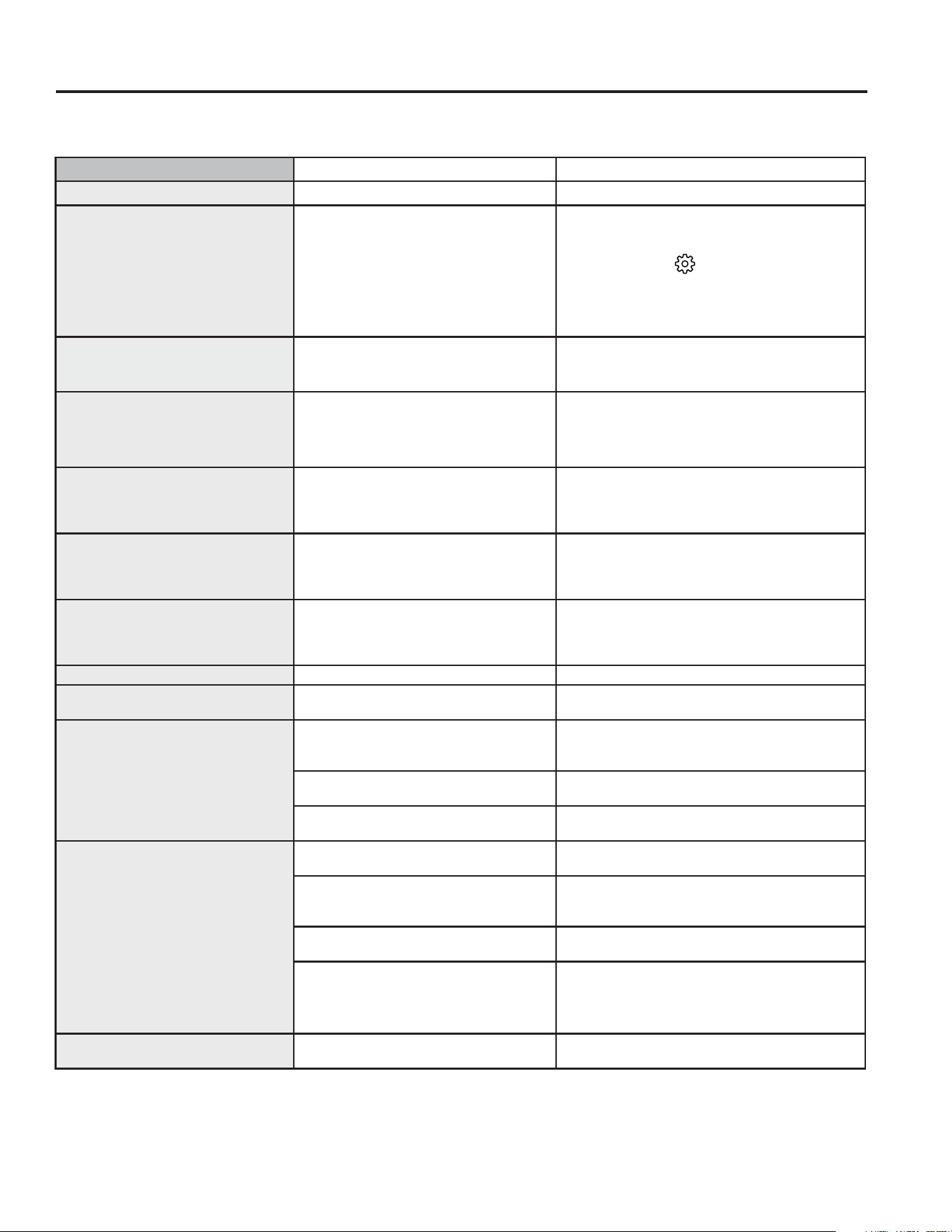
49-1000332 Rev. 10 39
CONSEJOS PARA LA SOLUCIÓN DE PROBLEMAS
Problema Causas Posibles Qué Hacer
1RHVWiILOWUDQGR Bypass del filtro instalado Instale el filtro de agua correcto.
Reinicie el Filtro de Agua
Filtro de Agua Vencido
El filtro de agua está goteando o debe
ser reemplazado
Reemplace el filtro de agua, o instale el bypass
del filtro**
Para reiniciar el temporizador del filtro, presione
el botón Settings (
) (Configuraciones) hasta
TXHVHLOXPLQH³,FHPDNHU´0iTXLQDGH+LHORV
y luego presione los botones Water (Agua)
y Ice (Hielo) de forma simultánea durante 3
segundos.
La luz indicadora del filtro
permanece encendida luego de
reemplazar el filtro
El filtro de agua o el tapón del bypass
se instalaron al revés o el filtro se
instaló de forma incorrecta.
Retire el filtro o el tapón del bypass, gire el
mismo 180 grados y vuelva a realizar su
instalación.
La manija está floja/ la manija tiene
un espacio de separación.
Es necesario ajustar la manija Para acceder a instrucciones detalladas,
consulte las secciones Cómo Ajustar la Manija
de Comidas Frescas y Cómo Ajustar la Manija
del Freezer.
La luz del indicador del filtro de agua
no está iluminada
Esto es normal. Este indicador se
encenderá para indicarle que es
necesario reemplazar el filtro de forma
rápida.
Para más información, consulte Acerca del
Filtro de Agua.
La manija está floja/ la manija tiene
un espacio de separación.
Es necesario ajustar la manija Para acceder a instrucciones detalladas,
consulte las secciones Cómo Ajustar la Manija
de Comidas Frescas y Cómo Ajustar la Manija
del Freezer.
Pitido del refrigerador Se trata de la alarma de la puerta Apague o desactive la misma con la puerta
cerrada**. Si la puerta está abierta y la alarma
está sonando, sólo podrá detener la alarma.
1RHQIUtD Consulte Acerca de los Controles. Consulte Acerca de los Controles
El agua tiene mal gusto/ olor* El dispensador de agua no fue usado
durante un tiempo prolongado
'LVSHQVHDJXDKDVWDTXHWRGDHODJXDHQHO
sistema sea repuesta.
El agua en el vaso está caliente* Es normal cuando el refrigerador es
usado por primera vez luego de su
instalación
Espere 24 horas hasta que el refrigerador se
enfríe completamente.
El dispensador de agua no fue usado
durante un tiempo prolongado
'LVSHQVHDJXDKDVWDTXHWRGDHODJXDHQHO
sistema sea repuesta.
El sistema de agua fue drenado Espere varias horas hasta que el suministro
repuesto se haya enfriado.
El dispensador de agua no funciona* El suministro de agua está apagado o
no está conectado
Consulte Cómo Instalar el Suministro de Agua.
El filtro de agua está atascado o
el enchufe del filtro/ bypass no fue
instalado
Reemplace el cartucho del filtro o retire el filtro e
instale el tapón del bypass**.
Es posible que haya aire atrapado en el
sistema de agua
Presione el brazo dispensador durante por lo
menos 5 minutos.
El agua en la reserva está congelada
debido a que los controles están
configurados en una temperatura
demasiado fría
Configure el control del refrigerador en una
configuración más caliente y espere 24 horas.
Si el agua no es dispensada luego de 24 horas,
comuníquese al servicio técnico.
Chorrea agua del dispensador* El cartucho del filtro fue instalado en
forma reciente
'HMHFRUUHUDJXDGHOGLVSHQVDGRUGXUDQWH
minutos (aproximadamente 2 galones).
Algunos modelos no están equipados con el tapón del bypass del filtro. Para acceder a un tapón del bypass gratuito, llame al 800.692.6630 y
VROLFLWHHOWDSyQGHOE\SDVVGHOILOWUR:5;(Q&DQDGiOODPHDO
Consejos para la Solución de Problemas... Antes de solicitar el servicio técnico
¡Ahorre tiempo y dinero! Primero revise los cuadros que aparecen en las siguientes páginas y es posible que no necesite solicitar
reparaciones. ¡Ahorre tiempo y dinero! Primero revise los cuadros que aparecen en las siguientes páginas y es posible que no
necesite solicitar reparaciones.
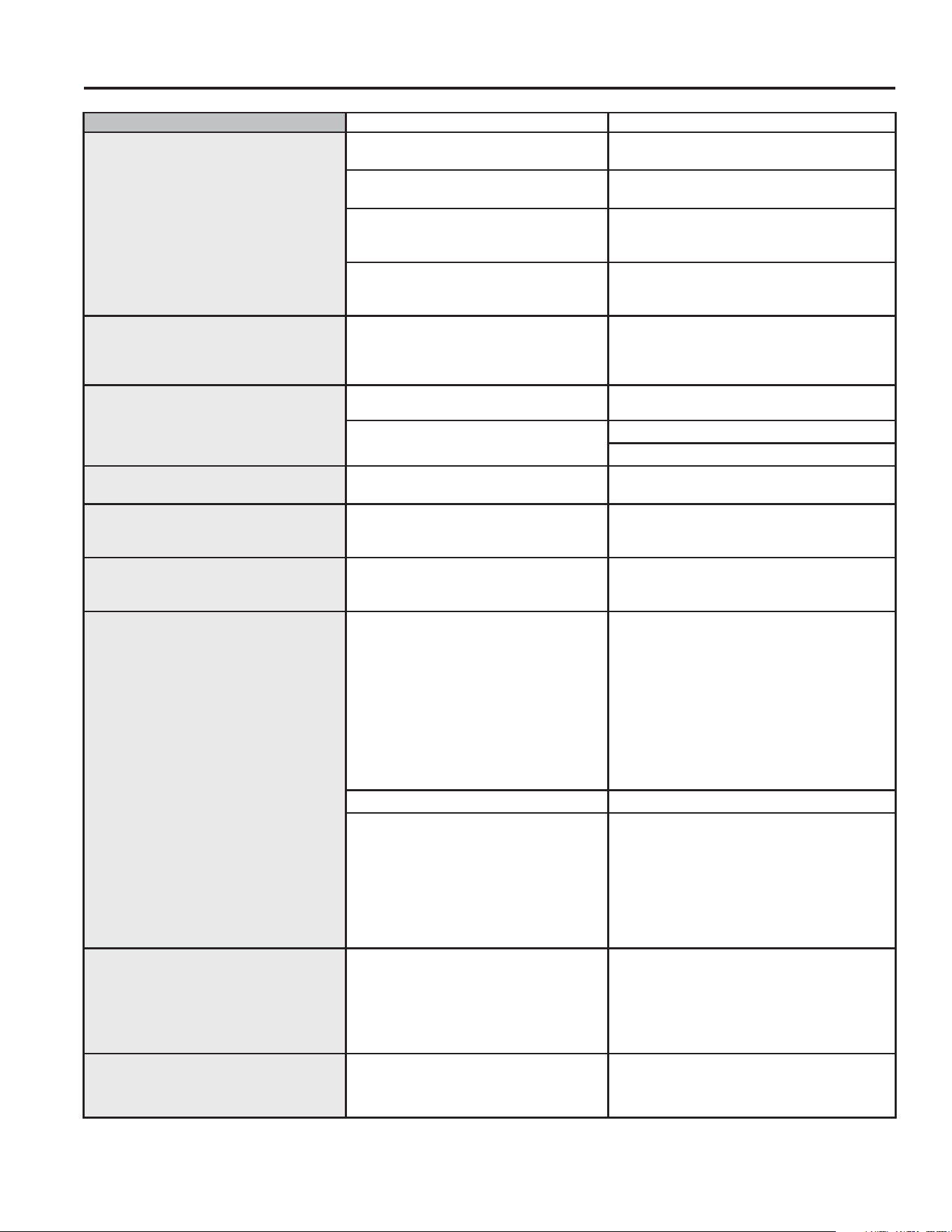
40 49-1000332 Rev. 10
CONSEJOS PARA LA SOLUCIÓN DE PROBLEMAS
Problema Causas Posibles Qué Hacer
1RKD\SURGXFFLyQGHDJXDQLGHFXERVGH
hielo*
La línea de suministro o la válvula de cierre
están atascadas
Llame a un plomero
El filtro de agua está atascado Reemplace el cartucho del filtro o retire el filtro e
instale el tapón del bypass**.
El cartucho del filtro no está instalado de
forma apropiada
Retire y vuelva a instalar el cartucho del filtro,
asegurándose de que se puede bloquear
correctamente en su lugar.
La máquina de hacer hielo está apagada Controle que la máquina de hacer hielo esté
encendida. Consulte Acerca de la Máquina de
Hacer Hielo Automática.
Gotea agua desde el dispensador* Puede haber aire presente en el sistema de
entrada de agua, haciendo que gotee agua
luego de ser dispensada
'LVSHQVHDJXDGXUDQWHSRUORPHQRVPLQXWRV
para eliminar el aire del sistema
$872),////(1$'2$8720È7,&2EDMR
llenado/ sin llenado*
1RWRGRVORVHQYDVHVIXQFLRQDQFRQAUTO
FILL (Llenado Automático)
Intente con un envase diferente
Mensaje de error Consulte la pág. 11
Sensor de limpieza. Consulte la pág. 11
$872),///OHQDGR$XWRPiWLFRVH
desborda*
1RWRGRVORVHQYDVHVIXQFLRQDQFRQAUTO
FILL (Llenado Automático)
Intente con un envase diferente
Enfriamiento del freezer, la comida fresca no
se enfría
Es normal, cuando el refrigerador se enchufa
por primera vez o luego de un corte de
energía prolongado
Espere 24 horas para que la temperatura en
ambos compartimiento alcance las temperaturas
seleccionadas.
El dispensador de hielo se abre luego de
cerrar el cajón del freezer*
1RUPDO La puerta del dispensador de agua se podrá abrir
luego de cerrar la puerta del freezer para permitir
el acceso
La puerta de mi refrigerador hace un chirrido 'LVPLQXFLyQGHOXEULFDQWHGHELGRDXQD
limpieza accidental del lubricante sobre la
bisagra
Es mejor ordenar la pieza del servicio de
lubricante de GEA número :5; y aplicar
el mismo sobre la bisagra en la ubicación
especificada
Es posible rociar un poco de lubricante no tóxico
tal como espráis de cocción no adherente a
base de silicona, vaselina o lubricantes de grado
DOLPHQWLFLRDSUREDGRVSRU16)
IMPORTANTE: 1RXVH:'\DTXHHVWH
eliminará cualquier grasa restante en o alrededor
de la bisagra.
1LYHODFLyQLQDGHFXDGD Asegúrese de que la unidad esté nivelada.
Si las puertas fueron retiradas y
ensambladas nuevamente durante el
proceso de instalación, la línea de flotación
y el arnés debajo de la tapa de la bisagra
superior se podrán salir de su posición y
frotar contra la puerta mientras la puerta gira.
Retire la tapa de la bisagra superior y asegúrese
de que la línea de flotación y el arnés que pasa a
través del perno de la bisagra se hayan colocado
apropiadamente y no toquen ninguna de las
partes de la puerta durante la rotación.
También ayudará la aplicación de lubricante de
grado alimenticio alrededor del área del buje en
la puerta.
1RVHHQFRQWUyQLQJ~QHOHPHQWRGHVSXpVGH
escanear
• 1RWRGDVODVHWLTXHWDVVRQFRPSDWLEOHVFRQ
el escáner.
• Conexión deficiente a WiFi
• Verifique la intensidad de la señal WiFi
del teléfono cerca del electrodoméstico.
Restablezca WiFi. Reubique el enrutador
WiFi.
Agregue un artículo a la lista de compras
mediante la función Voice (Voz).
Restablezca la SBC UI (interfaz de usuario) con
la función de pulsación múltiple de la interfaz de
usuario del cajón convertible.
1RVHOHHQLQJ~QHVFDQHR 2EVWUXFFLyQHQHOHVFiQHU Limpie el sensor. Consulte la página 12
Compruebe la posición de la etiqueta. Consulte
la página 12
Consejos para la Solución de Problemas... Antes de solicitar el servicio técnico
49-1000332 Rev. 10 41
Consejos para la Solución de Problemas... Antes de solicitar el servicio técnico
Problema Causas Posibles Qué Hacer
/DSDQWDOODPXHVWUD³LWHPQRWIRXQG´
(artículo no encontrado) al escanear
Elemento no encontrado en la base de datos. Intentar volver a escanear.
Escanee un producto compatible conocido.
Agregue el artículo mediante Voz.
Agregue el artículo manualmente desde el
refrigerador o la aplicación SmartHQ.
,QGLFDGRU/('GHOHVFiQHUGHFyGLJRV
de barras no activo
Escáner de código de barras desactivado +DELOLWHGHVGHHOPHQ~6HWWLQJV&RQ¿JXUDFLyQ
/('LQGLFDGRUGHVDFWLYDGR +DELOLWHGHVGHHOPHQ~6HWWLQJV&RQ¿JXUDFLyQ
Problema de detección de presencia Consulte la sección de detección de presencia
&RQH[LyQ:L¿ 9HUL¿TXHODFRQH[LyQZL¿HQSDQWDOOD
El artículo no se escanea (no hay
respuesta en la pantalla)
Etiqueta no admitida Ciertos formatos de código de barras no son
compatibles, como QR. Es posible que algunos
códigos de barras de fabricantes no estén en la
base de datos compatible. Agregue el artículo
mediante Voz (Voice). Agregue mediante la
aplicación SmartHQ (SmartHQ App)..
Iluminación ambiental Aumente la iluminación en la cocina o active la luz
empotrada (Recess light) y vuelva a escanear.
Intente cambiar la distancia de la etiqueta, ya sea
DOHMiQGRODRDFHUFiQGRODDOHVFiQHUFRQHO/('
indicador iluminando la etiqueta.
Tamaño de etiqueta Para etiquetas más pequeñas, acérquese.
Para etiquetas más grandes, aléjese.
3DUDVXSHU¿FLHVFXUYDVLQWHQWHDSODQDUODHWLTXHWD
Intente restablecer la unidad mediante Multi-key.
'DxRHQODHWLTXHWD Inspeccione la etiqueta para detectar suciedad,
daños, curvatura o arrugas.
5HÀHFWLYLGDG 9HUL¿TXHVLKD\UHÀHMRHQODVXSHU¿FLHGHODHWLTXHWD
y elimine u oculte la fuente de luz adicional
2ULHQWDFLyQGHODHWLTXHWD
Mueva la etiqueta de modo que el área más ancha quede
orientada hacia la lente del escáner de código de barras.
Ajuste para que la etiqueta esté orientada
aproximadamente a 45 grados respecto a la
VXSHU¿FLHGHODSDQWDOOD
Intente cambiar la distancia de la etiqueta, ya sea
DOHMiQGRODRDFHUFiQGRODDOHVFiQHUFRQHO/('
indicador iluminando la etiqueta.
2EVWUXFFLyQGHOFULVWDO Mueva la etiqueta de modo que el área más ancha
quede orientada hacia la lente del escáner de código
de barras. Limpie suavemente con un paño húmedo.
Consulte la sección de limpieza de Uso y Cuidado.
&RQH[LyQ:L¿ Intente volver a escanear.
9HUL¿TXHODFRQH[LyQZL¿HQSDQWDOOD
Bloqueo del Software
Restablezca la unidad utilizando la interfaz Con-
YHUWLEOH'UDZHU&DMyQ&RQYHUWLEOH$EUDHOFDMyQ
desbloquee el control y mantenga presionadas
simultáneamente las teclas Meat (Carnes) y Snacks
(Bocadillos) durante 3 segundos. Todos los controles
de la unidad deberían restablecerse.
Puertas abiertas Asegúrese de que todas las puertas estén cerradas
para que el escáner esté activo.
Artículo incorrecto mostrado La base de datos utiliza el mismo número de
producto para varios artículos.
Intente volver a escanear.
Intente cambiar la orientación y la distancia de la
etiqueta antes de volver a escanear.
Agregue elemento mediante voz o SmartHQ.
CONSEJOS PARA LA SOLUCIÓN DE PROBLEMAS
42 49-1000332 Rev. 10
Problema Causas Posibles Qué Hacer
Las imágenes de la cámara Fridge Focus no
aparecen en la aplicación SmartHQ.
9HUL¿TXHHOHVWDGRGHOREWXUDGRUGHODFiPDUD Abra la contraventana o retire las
obstrucciones
Check for camera position and obstructions 9HUL¿TXHODSRVLFLyQGHODFiPDUD\OD
presencia de obstrucciones
Material de embalaje restante Retire todo el material de embalaje de
los cajones que pudiera obstruir el ribete
plateado de los Cajones para Verduras.
9HUL¿TXHODOLPSLH]DGHOFULVWDO Limpie suavemente con un paño húmedo.
Consulte la sección de Limpieza de Uso y
Cuidado.
Cámara desactivada Asegúrese de que la cámara esté
KDELOLWDGDHQHO0HQ~GH&RQ¿JXUDFLyQ
'XUDFLyQ Generalmente, mantener los cajones
abiertos durante 4-5 segundos
proporcionará los mejores resultados
para las imágenes de los cajones. Abra la
puerta durante 10 segundos, abra el cajón
para verduras durante 20 segundos, cierre
WRGRHVSHUHXQRVPLQXWRV\YHUL¿TXHHQ
SmartHQ si se muestran las imágenes.
&RQH[LyQ:L¿ 9HUL¿TXHODFRQH[LyQZL¿HQSDQWDOOD
9HUL¿TXHODLQWHQVLGDGGHODVHxDO:L¿
HQHOPHQ~6HWWLQJV&RQ¿JXUDFLyQ8Q
valor inferior a -90 dB puede resultar en un
UHQGLPLHQWRGH¿FLHQWH
$GHPiVYHUL¿TXHTXHODDSOLFDFLyQ6P-
artHQ (SmartHQ) muestre que su unidad
está conectada a su cuenta.
Sin ruido audible Ajustes 9HUL¿TXHTXHHODOWDYR]HVWpKDELOLWDGR\
aumente el volumen desde el menú de
FRQ¿JXUDFLyQ
'LVWRUWHGDXGLR Ajustes 9HUL¿TXHTXHHODOWDYR]HVWpKDELOLWDGR\
aumente el volumen desde el menú de
FRQ¿JXUDFLyQ
2EVWUXFFLyQ 9HUL¿TXHTXHQRKD\DQLQJXQDREVWUXFFLyQ
QLPDWHULDOVREUHODVXSHU¿FLHGHODOWDYR]
Bloqueo del software Restablezca la unidad utilizando la interfaz
GHXVXDULR&RQYHUWLEOH'UDZHU&DMyQ
Convertible). Abra el cajón, desbloquee
el control y mantenga presionadas
simultáneamente las teclas Meat (Carnes)
y Snacks (Bocadillos) durante 3 segundos.
Todos los controles de la unidad deberían
restablecerse.
1RUHVSRQGHODSDQWDOODWiFWLORODSDQWDOODHVWi
congelada
Bloqueo del software Restablezca la unidad utilizando la interfaz
GHXVXDULR&RQYHUWLEOH'UDZHU&DMyQ
Convertible). Abra el cajón, desbloquee
el control y mantenga presionadas
simultáneamente las teclas Meat (Carnes)
y Snacks (Bocadillos) durante 3 segundos.
Todos los controles de la unidad deberían
restablecerse.
/DOX]5HFHV'LVSOD\/('GHHQIRTXHQRVH
activa cuando estoy frente a la unidad
Elemento que obstruye La presencia prolongada de un objeto
(como una isla de cocina o una silla alta)
DXQDGLVWDQFLDGHƎƎSXOJGHO
frente de la unidad puede provocar que
el algoritmo de detección de presencia se
desactive. Mueva el objeto que obstruye
y el algoritmo debería restablecerse en
aproximadamente 8 horas.
Material Algunos materiales o colores de ropa
pueden ser más difíciles de detectar. Por
ejemplo, forro polar oscuro o áspero.
7RTXHODSDQWDOOD\HO/('GHSXQWHUtD
debería activarse.
3UHFLVH¿OOVHGHWLHQHDQWHVGHWLHPSR Posicionamiento del contenedor &RQVXOWHODVHFFLyQGH$XWR¿OO
CONSEJOS PARA LA SOLUCIÓN DE PROBLEMAS
Consejos para la Solución de Problemas... Antes de solicitar el servicio técnico
49-1000332 Rev. 10 43
CONSEJOS PARA LA SOLUCIÓN DE PROBLEMAS/VERDAD O MITO
Verdad o Mito? Respuesta Explicación
Es posible que se requiera un cambio del filtro
de agua del refrigerador antes de los seis
meses.
9(5'$'(52
El indicador del filtro de agua indicará la necesidad de reemplazar
el filtro de agua cada seis meses o que se dispensen 170 galones
(643.52 litros) de agua (modelos selectos únicamente).
La calidad
del agua varía de una ciudad a otra; si el flujo del agua del dispensador
disminuye, o la producción de hielo decrece, el filtro de agua debería ser
reemplazado, incluso aunque el indicador del filtro no indique la necesidad
del reemplazo
La máquina de hacer hielo automática de
mi refrigerador produce hielo cuando el
refrigerador se encuentra enchufado a un
receptáculo de corriente.
0,72
El refrigerador debe ser conectado al agua, y la máquina de hacer hielo debe
ser encendida. Asegúrese de que la máquina de hacer hielo esté encendida,
sólo después de que la cañería de agua esté conectada y que el agua esté
abierta. La máquina de hacer hielo puede ser encendida/ apagada desde
los controles y asegurar que la misma está encendida, como se indica en el
panel de control del refrigerador. Consulte
Acerca de las funciones de los
controles
.
Luego de que el refrigerador haya sido
enchufado y conectado al agua, tendré
inmediatamente agua fría disponible desde el
dispensador de agua.
0,72
El tanque del dispensador de agua ubicado dentro del refrigerador guarda
agua para dispensar. El agua del tanque necesita 24 horas para enfriarse
luego de la instalación. Las altas condiciones de uso no permitirán que haya
tiempo para que el agua se enfríe.
Luego de dispensar agua, es normal que
caigan unas pocas gotas de agua. .
9(5'$'(52 Es posible que caigan unas pocas gotas de agua del dispensador, luego de
que la paleta del mismo se haya liberado. A fin de minimizar los goteos, retire
el vidrio lentamente del dispensador.
1XQFDYHUpHVFDUFKDGHQWURGHO
compartimiento del freezer.
0,72
La escarcha dentro del freezer típicamente indica que la puerta no está
correctamente sellada, o se dejó abierta. Si se encuentra escarcha, despeje
la misma utilizando una espátula de plástico y una toalla, luego asegúrese de
que no haya paquetes ni envases de comida que impidan que la puerta del
freezer se cierre. Controle el panel de control del refrigerador para asegurar
que la alarma de la puerta esté activada.
Cuando se instala el refrigerador, o luego de
reemplazar el filtro de agua, debo dispensar
agua por cinco minutos.
9(5'$'(52 Un refrigerador o filtro de agua instalado en forma reciente contiene aire en
las cañerías de agua. Presione la paleta del dispensador y dispense agua
durante por lo menos 5 minutos para eliminar el aire de la cañería de agua y
despejar el filtro.
Para llenar la hielera hasta su capacidad
máxima, debería dispensar entre 12 y 18
horas después de la instalación.
9(5'$'(52 'LVSHQVDURFXERVHQWUH\KRUDVOXHJRGHODLQVWDODFLyQSHUPLWH
que el hielo se dispense dentro de la hielera, que a su vez requiere de la
máquina de hacer hielo para producir hielo adicional. Producción normal de
hielo = 100 cubos en 24 horas.
Puede usar el tapón del bypass del filtro de
agua para determinar si el filtro requiere un
reemplazo.
9(5'$'(52 Una reducción en el flujo del dispensador de agua o una reducción en la
producción de hielo podrán indicar la necesidad de reemplazar el filtro
de agua. Instale el tapón del bypass del filtro de agua (provisto con el
refrigerador sur certains modèles*), y controle el flujo desde el dispensador.
Si el flujo de agua regresa a la normalidad con la colocación del tapón del
bypass, reemplace el filtro de agua.
La parte superior de las puertas del
refrigerador siempre estará alineada.
0,72
Varias cosas pueden afectar la alineación de la puerta de alimentos frescos,
incluyendo el piso sobre el cual el refrigerador está instalado, y la carga
de las puertas. Si la parte superior de las puertas de alimentos frescos no
están alineadas, u se una llave Allen de ¼” para ajustar la puerta derecha o
izquierda. El tornillo de ajuste está ubicado en el costado inferior derecho o
izquierdo de la puerta; abra la puerta del freezer para acceder al tornillo.
Las manijas de la puerta del refrigerador se
pueden ajustar fácilmente.
9(5'$'(52 Si las manijas de la puerta están flojas o tienen una separación con la puerta,
se podrán ajustar usando una llave Allen de 1/8”, sobre los tornillos ubicados
en los extremos de las manijas.
Es posible que el hielo presente problemas
con su olor y sabor.
9(5'$'(52 Luego de iniciar la máquina de hacer hielo, deshágase de 24 horas de
producción de hielo para evitar problemas de olor y sabor.
Puedo hacer ajustes finos sobre las puertas
de alimentos frescos para alinearlas.
9(5'$'(52 Si las puertas de alimentos frescos no están alineadas, use una llave Allen
de ¼” para ajustar la puerta de la derecha. El tornillo de ajuste se encuentra
en la parte inferior de la derecha / izquierda de la puerta. Abra la puerta del
freezer para tener acceso.
Verdad o Mito
Verdad o Mito
SERVICIO
¡Ahorre tiempo y dinero! Primero revise los cuadros que aparecen en las siguientes
páginas y es posible que no necesite solicitar reparaciones.
44 49-1000332 Rev. 10
CONSEJOS PARA LA SOLUCIÓN DE PROBLEMAS/VERDAD O MITO
Verdad o Mito
SERVICIO
¡Ahorre tiempo y dinero! Primero revise los cuadros que aparecen en las siguientes
páginas y es posible que no necesite solicitar reparaciones.
Verdad o Mito? Respuesta Explicación
Las manijas de la puerta siempre se deben retirar
para la instalación.
0,72
Controle el cuadro sobre el lado inverso de esta instrucción.
Si las puertas se deben retirar, no retire las manijas, o si el
refrigerador cabe cómodamente a través de la abertura del
pasillo. Ajuste las manijas que estén flojas o que posean un
espacio, ajustando el conjunto de tornillos de 1/8” en cada
extremo de las manijas.
Siempre se requiere el retiro de la puerta para la
instalación.
0,72
Controle el cuadro sobre el lado inverso de esta instrucción.
Las puertas sólo se deben retirar cuando sea necesario para
evitar daños en el pasillo o en el acceso hasta la ubicación
final.
Las puertas del refrigerador se cerrarán solas
si se las deja abiertas.
0,72 Las puertas del refrigerador deberán ser cerradas por
el usuario. Un rebote suave hacia atrás es una función
diseñada en algunos modelos que brinda una respuesta
positiva al usuario, de modo que pueda iniciar y
completar la acción del cierre de puertas.
Hay un ajuste a las ruedas traseras. 0,72
Las patas niveladoras frontales son ajustables y se deberían
usar para equilibrar el refrigerador. Las patas niveladoras se
usan para hacer el ajuste inicial de la puerta de alimentos
frescos.
Controle pérdidas una vez realizadas todas las
conexiones del agua.
9(5'$'(52 Al purgar el aire del sistema de agua, controle pérdidas en
todas las conexiones de las cañerías de agua. Controle la
conexión con el suministro de agua del hogar en la parte
trasera del refrigerador, y en la conexión de la tubería de agua
de la puerta.
Cualquier residuo del embalaje se podrá eliminar
del refrigerador con un limpiador.
0,72
1RXVHFHUDSXOLGRUEODQTXHDGRUXRWURVSURGXFWRVTXH
contengan cloro sobre los paneles de Acero Inoxidable, manijas
de puertas y componentes. Para acceder a detalles completos,
FRQWUROHHVWDVLQVWUXFFLRQHVHQ³/LPSLH]DGHOD3DUWH([WHULRU´
*Algunos modelos no están equipados con el tapón del bypass del filtro. Para acceder a un tapón del bypass gratuito, llame al 800.692.6630 y
VROLFLWHHOWDSyQGHOE\SDVVGHOILOWUR:5;(Q&DQDGiOODPHDO
Verdad o Mito
49-1000332 Rev. 10 45
GARANTÍA LIMITADA
Abroche su recibo aquí. Para acceder al servicio técnico de acuerdo con la
garantía deberá contar con la prueba de la fecha original de compra.
GE Appliances Garantía Limitada del Refrigerador
Ŷ Viajes del técnico del servicio a su hogar para enseñarle sobre
cómo usar el producto.
Ŷ ,QVWDODFLyQHQWUHJDRPDQWHQLPLHQWRLQDGHFXDGRV
Ŷ )DOODVGHOSURGXFWRHQFDVRGHDEXVRPDOXVRRXVRSDUD
propósitos diferentes al original o uso comercial.
Ŷ 3pUGLGDGHDOLPHQWRVSRUPDOHVWDGR
Ŷ 5HHPSOD]RGHIXVLEOHVGHODFDVDRUHLQLFLRGHGLV\XQWRUHV
Ŷ 'DxRVVREUHHODFDEDGRWDOHVFRPRy[LGRVREUHODVXSHUILFLH
deslustres o manchas pequeñas no informadas dentro de las 48
horas luego de la entrega.
Ŷ 5HHPSOD]RGHOFDUWXFKRGHOILOWURGHDJXDVLVHLQFOX\H
debido a la presión del agua que está fuera del rango de
funcionamiento específico o debido a exceso de sedimentos en
el suministro de agua.
Ŷ 5HHPSOD]RGHERPELOODVGHOX]VLVHLQFOX\HQRGHOFDUWXFKR
del filtro de agua, si se incluye, a diferencia de lo detallado
anteriormente.
Ŷ 'DxRVRFDVLRQDGRVVREUHHOSURGXFWRSRUDFFLGHQWHLQFHQGLR
inundaciones o catástrofes naturales.
Ŷ 'DxRVFRQVHFXHQWHVRLQFLGHQWDOHVFDXVDGRVSRUSRVLEOHV
defectos de este producto.
Ŷ3URGXFWRQRDFFHVLEOHSDUDEULQGDUHOVHUYLFLRUHTXHULGR
Ŷ'DxRRFDVLRQDGRSRUXQILOWURGHDJXDGHXQDPDUFDTXHQRHV
GE Appliances.
Qué No Está Cubierto:
Por el período de GE Appliances reemplazará:
Un Año
'HVGHODIHFKDGHOD
compra original
Cualquier parteGHOUHIULJHUDGRUTXHIDOOHGHELGRDXQGHIHFWRHQORVPDWHULDOHVRODIDEULFDFLyQ'XUDQWH
esta garantía limitada de un año, GE Appliances también proveerá, sin costo, todo el trabajo y el
servicio relacionado con el reemplazo de la parte que presente defectos.
Treinta Días
(Filtro de Agua, si está
LQFOXLGR'HVGHODIHFKD
de la compra original del
refrigerador
Cualquier parte del cartucho del filtro de Agua que falle debido a un defecto en los materiales o la
IDEULFDFLyQ'XUDQWHOD garantía limitada por treinta días, GE Appliances también le brindará, sin costo,
el reemplazo de un cartucho del filtro de agua.
Sólo Modelos GE PROFILE™
Cinco Años
'HVGHODIHFKDGHOD
compra original
Cualquier parte del sistema de refrigeración sellado (el compresor, condensador, evaporador
y todas las tuberías de conexión) que falle debido a un defecto en los materiales o la fabricación.
'XUDQWHHVWDgarantía de cinco años del sistema de refrigeración sellado, GE Appliances
también proveerá, sin costo, todo el trabajo y el servicio relacionado con el reemplazo de la parte
que presente defectos en el sistema de refrigeración sellado.
GEAppliances.com
Todo el servicio de garantía limitada es provisto por nuestros Centros de Servicio de Fabricación, o un técnico autorizado de Servicio al Cliente
&XVWRPHU&DUH3DUDSURJUDPDUXQDYLVLWDGHOVHUYLFLRWpFQLFRYLVtWHQRVHQ*($SSOLDQFHVFRPRFRPXQtTXHVHDO%2'(:(//
(833.426.3393). Cuando llame para solicitar el servicio, tenga los números de serie y modelo disponibles.
EXCLUSIÓN DE GARANTÍAS IMPLÍCITAS—Su única y exclusiva alternativa es la reparación del producto, como se indica en la
Garantía Limitada. Las garantías implícitas, incluyendo garantías implícitas de comerciabilidad o conveniencia sobre un propósito
particular, se limitan a un año o al período más corto permitido por la ley.
Esta garantía limitada se extiende al comprador original y a cualquier dueño subsiguiente de productos comprados para uso hogareño dentro
de EE.UU. Si el producto está en un área donde no se encuentra disponible un Proveedor Autorizado del Servicio Técnico de GE Appliances,
usted será responsable por el costo de un viaje o se podrá requerir que traiga el producto a una ubicación del Servicio Técnico de GE Appliances
Autorizado para recibir el servicio. En Alaska, la garantía limitada excluye el costo de envío o llamadas del servicio a su hogar.
Algunos estados no permiten la exclusión o limitación de daños fortuitos o consecuentes. Esta garantía le da derechos legales específicos y
es posible que tenga otros derechos legales que varían entre un estado y otro. Para conocer cuáles son sus derechos legales, consulte a la
oficina de asuntos del consumidor local o estatal o al Fiscal de su estado.
Garante: GE Appliances, a Haier company Louisville, KY 40225
En Canadá (incluida la provincia de Quebec):
Esta garantía limitada se entrega al comprador original y a cualquier dueño futuro para cubrir
productos comprados en Canadá, incluido Quebec, para su uso doméstico dentro de Canadá e incluso Quebec. Si el producto se encuentra en una
zona donde no haya servicio disponible por parte de un Reparador Autorizado de GE Appliances, es posible que deba asumir los costos de traslado
o llevar el producto a un Centro de Servicio Autorizado de GE Appliances.
En algunas provincias, entre las que se incluye Quebec, no se permite la exclusión o limitación de daños incidentales o consecuentes. Esta
garantía le otorga derechos legales específicos, y usted puede tener otros derechos que varían según la jurisdicción, incluida la provincia de
Quebec. Consulte la oficina de defensa al consumidor de su ciudad o provincia para conocer sus derechos
.
Solo para consumidores de Quebec. Aviso de la garantía de disponibilidad de repuestos, servicios de reparación e información
necesaria para reparaciones o mantenimiento (sección 39 de la Ley de Defensa al Consumidor): Recuerde que MC Commercial Inc.
©0&&RPPHUFLDOªQRJDUDQWL]DGHDFXHUGRFRQHOFRQWHQLGRGHODVHFFLyQGHOD/H\GH'HIHQVDDO&RQVXPLGRU&4/5F3\ODV
VHFFLRQHVDGHOD5HJXODFLyQUHVSHFWRGHODDSOLFDFLyQGHOD/H\GH'HIHQVDDO&RQVXPLGRU&4/5F3UODGLVSRQLELOLGDG
de repuestos, servicios de reparación o la información necesaria para el mantenimiento o la reparación de bienes manufacturados, importados,
publicitados o vendidos por MC Commercial.
MC Commercial Inc. ofrece la garantía limitada del fabricante tal como se expresa en el Manual o la Guía Rápida del Propietario, que es distinta
GHODJDUDQWtDOHJDOGHGLVSRQLELOLGDGSURYLVWDGHDFXHUGRFRQODVHFFLyQGHOD/H\GH'HIHQVDDO&RQVXPLGRU
Garante: MC Commercial Inc., Burlington, ON, L7L 6B2
Para realizar el servicio técnico de su refrigerador se podrá requerir el uso de datos del puerto de abordaje para su diagnóstico. Esto da al técnico del Servicio
de Fábrica de GE Appliances la habilidad de diagnosticar de forma rápida cualquier problema con su electrodoméstico, y de ayudar a GE Appliances a mejorar
sus productos al brindarle a GE Appliances la información sobre su electrodoméstico. Si no desea que los datos de su electrodoméstico sean enviados a GE
Appliances, solicitamos que le indique a su técnico NO entregar los datos a GE Appliances en el momento del servicio.
46 49-1000332 Rev. 10
Garantía Limitada del Cartucho del Filtro de Agua XWFE
Qué No Está Cubierto:
Ŷ Viajes del técnico del servicio a su hogar para
enseñarle sobre cómo usar el producto.
Ŷ Instalación inadecuada.
Ŷ Fallas del producto en caso de abuso, mal uso, o uso
para propósitos diferentes a l original o uso comercial
Ŷ Reemplazo de fusibles de la casa o reinicio de
disyuntores.
Ŷ Reemplazo del cartucho del filtro de agua debido
a la presión del agua que está fuera del rango de
funcionamiento específico o debido a exceso de
sedimentos en el suministro de agua
Ŷ 'DxRVRFDVLRQDGRVVREUHHOSURGXFWRSRUDFFLGHQWH
incendio, inundaciones o catástrofes naturales.
Ŷ 'DxRVFRQVHFXHQWHVRLQFLGHQWDOHVFDXVDGRVSRU
posibles defectos de este producto.
Esta garantía se extiende al comprador original y a cualquier dueño subsiguiente de productos adquiridos para uso hogareño
dentro de EE.UU. En Alaska, la garantía excluye el costo de envío o llamadas al servicio técnico desde su hogar.
Algunos estados no permiten la exclusión o limitación de daños fortuitos o consecuentes. Esta garantía le da derechos legales
específicos y es posible que tenga otros derechos legales que varían entre un estado y otro. Para conocer cuáles son sus
derechos legales, consulte a la oficina de asuntos del consumidor local o estatal o al Fiscal de su estado.
Para Adquisiciones Realizadas en Iowa: Este formulario debe poseer la firma y fecha del comprador y del vendedor
antes de la consumación de esta venta.
Este formulario debería ser retenido por el vendedor en un archivo durante un mínimo de dos años.
Por el Período de: Reemplazaremos, Sin Costo:
Treinta Días 'HVGH
la fecha de compra
original.
Cualquier parte del cartucho del filtro de agua que falle debido a un defecto en los materiales o la
fabricación durante esta garantía limitada de treinta días.*
Comuníquese con nosotros en cafeappliances.com
EXCLUSIÓN DE GARANTÍAS IMPLÍCITAS:
Su única y exclusiva alternativa es el cambio de la pieza, como se indica en esta Garantía Limitada. Las garantías implícitas,
incluyendo garantías implícitas de comerciabilidad o conveniencia sobre un propósito particular, se limitan a seis meses o al
período más corto permitido por la ley.
* Si su pieza de GE Appliances falla debido a un defecto en la fabricación dentro de los treinta días desde la fecha de compra original, le
HQWUHJDUHPRVXQDSLH]DQXHYDRDVXHOHFFLyQXQDSLH]DUHFRQVWUXLGDVLQFDUJR'HYXHOYDODSLH]DGHIHFWXRVDDOSURYHHGRUGHSLH]DVDTXLHQ
OHUHDOL]yODFRPSUDMXQWRFRQXQDFRSLDGHOD³SUXHEDGHFRPSUD´GHODSLH]D6LODSLH]DHVGHIHFWXRVD\QRPXHVWUDVLJQRVGHDEXVRVHUi
cambiada. La garantía no cubre la falla de las piezas que están dañadas mientras están en su posesión, si son abusadas, o si fueron instaladas
GHIRUPDLQFRUUHFWD1RFXEUHHOFRVWRGHUHJUHVDUODSLH]DDOSURYHHGRUDTXLHQOHUHDOL]yODFRPSUDQLFXEUHHOFRVWRGHOWUDEDMRSDUDUHWLUDUR
LQVWDODUODPLVPDDILQGHGLDJQRVWLFDUODIDOOD1RFXEUHODVSLH]DVXVDGDVHQSURGXFWRVGHXVRFRPHUFLDOH[FHSWRHQHOFDVRGHHTXLSRV
acondicionadores de aire. En ningún caso GE Appliances será responsable por daños consecue ntes.
Garante: GE Appliances, a Haier company
Louisville, KY 40225
Vendedor:
1RPEUH
'RPLFLOLR
Ciudad Estado Código
Postal
Firma 'DWH
Comprador:
1RPEUH
'RPLFLOLR
Ciudad Estado Código
Postal
Firma Fecha
Abroche su recibo aquí. Para acceder al servicio técnico de acuerdo con la
garantía deberá contar con la prueba de la fecha original de compra.
GARANTÍA LIMITADA
49-1000332 Rev. 10 47
Ficha Técnica de Funcionamiento del Modelo: XWFE
Ŷ6LVWHPDFHUWLILFDGRSRU,$30257FRQWUDORV(VWiQGDUHV\3GH16)$16,SDUDODUHGXFFLyQGHGHPDQGDVHVSHFLILFDGDVHQODILFKD
técnica de rendimiento y en iapmort.org.
Ŷ(OUHQGLPLHQWRUHDOSRGUiYDULDUHQUHODFLyQDODVFRQGLFLRQHVORFDOHVGHODJXD
Es esencial que se cumpla con los requisitos de instalación,
mantenimiento y reemplazo de filtros recomendados por el fabrican
te, a fin de que el producto funcione de acuerdo a como fue
promocionado. Para acceder a información sobre la Garantía, consulte
el Manual de Instalación.
Pautas de Aplicación/ Parámetros de Suministro de Agua
Flujo de Servicio 0.5 gpm (1.89 lpm)
Suministro de Agua Agua Potable
Presión del Agua 25-120 psi (172-827 kPa)
Temperatura del agua 33°F-100°F (0.6°C-38°C)
Capacidad 170 galones (643.5 litros)
Sustancia Evalu ada
para la Reducción
Concentración del
peligro de intrusión
(mg/L)
Concentración de
aguas máximas
permitidas sobre el
producto (mg/L)
%
Promedio
de
Reducción
*XVWR\2ORUD&ORUR 2.0 mg/L +/- 10% 1$ 96.9
*XVWR\2ORUD&ORUDPLQD 3.0 mg/L +/- 10% 0.5 96.9
Partícula, Clase I Por lo menos 10,000
partículas/mL
1$ 91.4
Partícula, Clase I 50,000/L 1$ >99.99
Plomo 0.15 0.01 98.85
Mercurio 0.006 0.002 96.3
Mercurio 107 to 108 fibras/ L 1$ >99
Toxafeno 0.015 +/- 10% 0.003 86.95
92&TXtPLFRVXVWLWXWRGHO
cloroformo)
0.300 0.015 99.7
Alacloro 0.050 0.001 > 98
Atrazina 0.100 0.003 > 97
Benceno 0.081 0.001 > 99
Carbofurano 0.190 0.001 > 99
Tetracloruro de carbono 0.078 0.0018 98
Clorobenceno 0.077 0.001 > 99
Cloropincrina 0.015 0.0002 99
' 0.110 0.0017 98
'LEURPRFORURSURSDQR'%&3 0.052 0.00002 > 99
R'LFORUREHQFHQR 0.08 0.001 > 99
3'LFORUREHQFHQR 0.040 0.001 > 98
1,2-dicloroetano 0.088 0.0048 95
1,2-dicloroetano 0.083 0.001 > 99
Cis-1,2-dicloroetileno 0.170 0.0005 > 99
Trans-1,2-dicloroetileno 0.086 0.001 > 99
1,2-dicloropropano 0.080 0.001 > 99
cis-1,3-dicloropropileno 0.079 0.001 > 99
'LQRVHE 0.170 0.0002 99
Endrina 0.053 0.00059 99
Etilbenceno 0.088 0.001 > 99
'LEURPXURGHHWLOHQR('% 0.044 0.00002 > 99
Bromocloroacetonitrilo 0.022 0.0005 98
'LEURPRDFHWRQLWULOR 0.024 0.0006 98
dichloroacetonitrile 0.0096 0.0002 98
'LFORURDFHWRQLWULOR 0.015 0.0003 98
1,2-dicloro-2-propanona 0.0072 0.0001 99
1,1,1-trichloro-2-propanona 0.0082 0.0003 96
Heptacloro (H-34, Heptox) 0.025 0.00001 >99
Epóxido de heptacloro 0.0107 0.0002 98
Hexaclorociclopentadieno 0.044 0.001 > 98
Hexaclorociclopentadieno 0.060 0.000002 > 99
Lindano 0.055 0.00001 > 99
Metoxicloro 0.050 0.0001 > 99
Pentaclorofenol 0.096 0.001 > 99
Simazina 0.120 0.004 > 97
Tetracloroetileno 0.150 0.0005 > 99
1,1,2,2-Tetracloroetileno 0.081 0.001 > 99
Tetracloroetileno 0.081 0.001 > 99
Tolueno 0.078 0.001 > 99
2,4,5-TP (silvex) 0.270 0.0016 99
ÈFLGRWULEURPRDFpWLFR 0.042 0.001 > 98
1,2,4-Triclorobenceno 0.160 0.0005 > 99
1,1,1-tricloroetano 0.084 0.0046 95
1,1,2-tricloroetano 0.150 0.0005 > 99
Tricloroetileno 0.180 0.0010 > 99
Bromoformo 0.300 0.015 95
Bromodiclorometano 0.300 0.015 95
clorodibromometano 0.300 0.015 95
;LOHQR 0.070 0.001 >99
Meprobamato 400 +/- 20% 60 95.5
Atenolol 200 +/- 20% 30 95.9
carbamazepina 1400 +/- 20% 200 98.6
'((7 1400 +/- 20% 200 98.6
Metolacloro 1400 +/- 20% 200 98.7
Trimetoprima 140 +/- 20% 20 96.1
Linuron 140 +/- 20% 20 96.6
TCEP 5000 +/- 20% 700 98.1
TCPP 5000 +/- 20% 700 98.1
Fenitoína 200 +/- 20% 30 96
1DSUR[HQR 400 +/- 20% 60 95.9
1DSUR[HQR 140 +/- 20% 20 96.5
Estrona 140 +/- 20% 20 97.1
Bisfenol A 2000 +/- 20% 300 99.1
1RQ\OSKHQRO 1400 +/- 20% 200 97.3
NOTA:2EVHUYHTXHDXQTXHODHYDOXDFLyQVHUHDOL]yGH
acuerdo con condiciones estándares de laboratorio, el
desempeño puede variar Reemplazo del Cartucho: ;:)(
Para conocer costos estimados de elementos de reemplazo,
visite nuestro sitio Web en geapplianceparts.com.
ADVERTENCIA
A fin de reducir el riesgo asociado
con la ingestión de contaminantes:
1RVHGHEHQXVDUFRQDJXDTXHQRVHD
microbiológicamente segura o de calidad desconocida sin
una desinfección adecuada, antes o después, del sistema.
Los sistemas certificados para la reducción de quistes se
podrían usar en aguas desinfectadas que puedan contener
quistes filtrables.
AVISO
A fin de reducir el riesgo de pérdidas de agua o inundación,
y para asegurar un rendimiento óptimo del filtro:
• Lea y siga las Instrucciones de uso antes de la instalación y
uso de este sistema.
/DLQVWDODFLyQ\XVR'(%(5È1FXPSOLUFRQWRGRVORV
códigos estatales y locales de plomería.
1RVHGHEHUiLQVWDODUVLODSUHVLyQGHODJXDVXSHUDORV
psi (827 kPa). Si la presión del agua es superior a los 80 psi
(552 kPa), deberá instalar una válvula limitadora de presión.
Si no está seguro sobre cómo controlar la presión del agua,
comuníquese con un plomero profesional.
1RLQVWDOHFXDQGRVHSXHGDQSURGXFLUFRQGLFLRQHVGHJROSH
de ariete. Si existen condiciones de golpe de arieted,e berá
instalar un suspensor de golpes de ariete.
• Si no está seguro sobre cómo controlar esta condición,
comuníquese con un plomero profesional.
1RLQVWDOHHQOtQHDVGHVXPLQLVWURGHDJXDFDOLHQWH/D
temperatura máxima de funcionamiento del agua para este
sistema de filtro es de 100°F (37.8°C).
3URWHMDHOILOWURGHKHODGDV'UHQHHOILOWURFXDQGRODV
temperaturas sean inferiores a 33ºF (0.6ºC).
• Cambie el cartucho del filtro descartable cada seis meses o
antes, si observa una reducción notoria en el promedio del
flujo de agua.
• Si no se reemplaza el cartucho del filtro descartable en
intervalos recome-nda os, se podrá producir un rendimiento
inferior del filtro y quebraduras en el espacio de colocación
del filtro, ocasionando pérdidas de agua o inundación.
•
(VWHVLVWHPDIXHHYDOXDGRGHDFXHUGRFRQ16)$16,
401, y P473 para la reducción de las sustancias que figuran a
continuación. La concentración de las sustancias indicadas en
agua que ingresa al sistema fue reducida a una concentración
inferior o igual al límite permitido de agua que deja el sistema,
GHDFXHUGRFRQORHVSHFLILFDGRHQ16)$16,\
P473.
Sistema XWFE certificado por IAPMO
R&T contra los Estándares 42, 53, 401, y
P473de NSF/ANSI para la reducción de
demandas especificadas en la ficha técnica
de rendimiento en iapmort.org.
48 49-1000332 Rev. 10
Impreso en Estados Unidos
Soporte para el Consumidor
SOPORTE PARA EL CONSUMIDOR
Sitio Web de GE Appliances
¢'HVHDUHDOL]DUXQDFRQVXOWDRQHFHVLWDD\XGDFRQVXHOHFWURGRPpVWLFR"£,QWHQWHDWUDYpVGHO6LWLR:HEGH*($SSOLDQFHVODV
24 horas del día, cualquier día del año! Usted también puede comprar más electrodomésticos maravillosos de GE Appliances y
aprovechar todos nuestros servicios de soporte a través de Internet, diseñados para su conveniencia.
En EE.UU.: GEAppliances.com
Registre su Electrodoméstico
¡Registre su electrodoméstico nuevo a través de Internet, según su conveniencia! Un registro puntual de su producto permitirá
una mejor comunicación y un servicio más puntual de acuerdo con los términos de su garantía, en caso de surgir la necesidad.
También puede enviar una carta en la tarjeta de inscripción preimpresa que se incluye con el material embalado.
En EE.UU.: GEAppliances.com/register
Servicio Programado
El servicio de reparación de expertos de GE Appliances está a sólo un paso de su puerta. Conéctese a través de Internet y programe
su servicio a su conveniencia cualquier día del año. En EE.UU.: GEAppliances.com/service
o comuníquese al 800.432.2737 durante el horario de atención comercial.
Garantías Extendidas
Adquiera una garantía extendida de GE Appliances y conozca los descuentos especiales que están disponibles mientras su
garantía aún está vigente. La puede adquirir en cualquier momento a través de Internet. Los servicios de GE Appliances aún
estarán allí cuando su garantía caduque.
En EE.UU.: GEAppliances.com/extended-warranty o comuníquese al 800.626.2224 durante el horario de atención comercial.
Piezas y Accesorios
Aquellos individuos calificados para realizar el servicio técnico de sus propios electrodomésticos podrán solicitar el envío de
SLH]DVRDFFHVRULRVGLUHFWDPHQWHDVXVKRJDUHVVHDFHSWDQODVWDUMHWDV9,6$0DVWHU&DUG\'LVFRYHU2UGHQHKR\DWUDYpVGH
Internet durante las 24 horas, todos los días. En EE.UU.: GEApplianceparts.com o de forma telefónica al 877.959.8688 durante
el horario de atención comercial.
Las instrucciones que figuran en este manual cubren los procedimientos que serán realizados por cualquier usuario.
Otros servicios técnicos generalmente deben ser derivados a personal calificado del servicio. Se deberá tener cuidado,
ya que una reparación indebida podrá hacer que el funcionamiento no sea seguro.
Contáctenos
Si no se encuentra satisfecho con el servicio que recibió de GE Appliances, comuníquese con nosotros a través de nuestro sitio
Web con todos los detalles, incluyendo su número telefónico, o escriba a:
En EE.UU.: General Manager, Customer Relations | GE Appliances, Appliance Park | Louisville, KY 40225
GEAppliances.com/contact