WIRELESS MOUSE
User Manual
M500
BY NULAXY
1 2 3
4
5
6
02
US UK CA
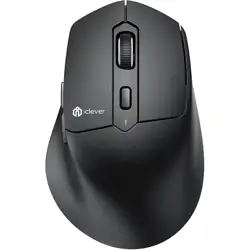
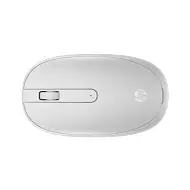
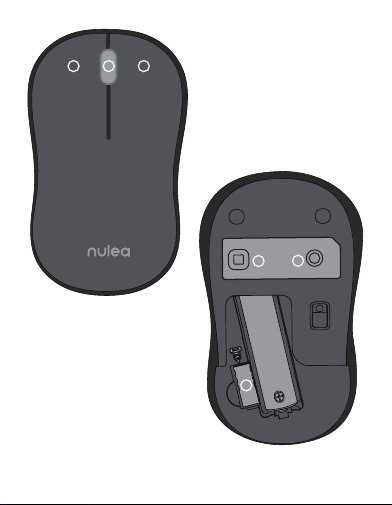
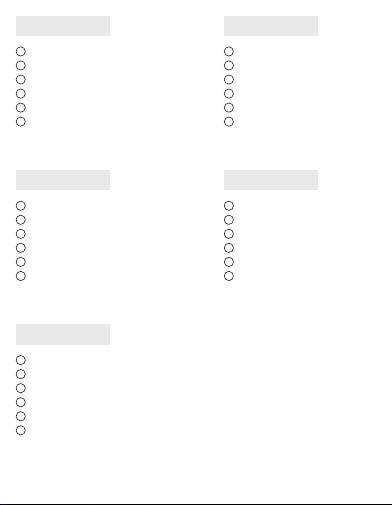
Left Button
Scroll Wheel
Right Button
Power Button
Code Button
USB Receiver (Stored
in battery compartment)
1
2
3
4
5
6
FR
Bouton gauche
Roue de défilement
Bouton droit
Bouton dalimentation
Bouton de code
Récepteur USB(Stocké
dans le compartiment a piles)
1
2
3
4
5
6
ES
Botón izquierdo
Rueda de desplazamiento
Botón derecho
Botón de encendido
Botón de codigo
Receptor USB(almacenado
en el compartimento de la bateria)
1
2
3
4
5
6
IT
Pulsante sinistro
Wheel Ruota a scorrimento
Pulsante destro
Pulsante di accensione
Codice codice
Ricevitore USB(memorizzato
nel vano batteria)
1
2
3
4
5
6
DE
Linke Taste
Scrollrad
Rechter Knopf
Power-Taste
Code-Taste
USB-Empfanger(im
Batteriefach aufbewahrt)
1
2
3
4
5
6
03

Insert an AA dry cell into the mouse with the correct
polarity and turn on the power button.
1.
2.
The mouse will be in 2.4G mode by default. The mouse mode
indicator light will flash green light three times at 0.5 Hz/s.
Then, plug the USB receiver into the computer's port. The
indicator will stay on for 2 seconds and then go out, indicating
that the mouse is automatically paired with the computer
and ready to use.
3.
Short-press the code button to switch to Bluetooth mode, and
the mouse will enter Bluetooth mode. Press the code button for
about 3 seconds to enter pairing mode. The mouse mode
indicator light will flash blue light at 1 Hz/s. Turn on Bluetooth on
the device you want to connect, select "BT3.0 Mouse" or "BT5.0
Mouse," and connect.
04
US UK CA
Instructions
First Use

Solutions for 2.4G Connecting Problems
1.
If you are in 2.4G Wireless Mode, short-press the code button
to switch to Bluetooth mode. Press the code button for about
3 seconds to enter pairing mode. The indicator light will flash
blue light, and then turn on Bluetooth on the device, select
"BT3.0 Mouse" or "BT5.0 Mouse," and connect.
2.
If you are in Bluetooth mode, short-press the code button to
switch to 2.4G wireless pairing mode. The mouse mode
indicator light will flash green light three times at 0.5 Hz/s.
Then, plug the USB receiver into the computer's port. The
indicator will stay on for 2 seconds and then go out, indicating
that the mouse is automatically paired with the computer
and ready to use.
If you encounter any problems connecting in 2.4G
mode, try the following steps:
1.
Confirm that the mouse is in 2.4G mode.
2.
Press the left button, right button, and scroll wheel
simultaneously for 3 seconds, and release them after the
indicator light flashes quickly.
3.
Plug the USB receiver into the computer's port for pairing.
05
Switch Between 2.4G Wireless Mode and
Bluetooth Mode
06
Any changes or modifications not expressly approved by the party
responsible for compliance could void the user's authority to operate the
equipment.
This device complies with part 15 of the FCC Rules. Operation is subject to
the following two conditions: (1) this device may not cause harmful
interference, and (2) this device must accept any interference received,
including interference that may cause undesired operation.
FCC Radiation Exposure Statement:
This equipment complies with FCC radiation exposure limits set forth for
an uncontrolled environment.
FCC ID Statement
(Waste Electrical & Electronic Equipment)
This Marking shown on the product or its literature, indicate that it
should not be disposed with other household wastes at the end of its
working life.
To prevent possible harm to the environment or human health from
uncontrolled waste disposal, please separate this from other types of
wastes and recycle it responsibly to promote the sustainable reuse of
material resources Household user should contact either the retailer where
they purchased this product or their local government office, for details of
where and hew they can take this item for environmentally safe recycling.
Business users should contact their supplier and check the terms and
conditions of the purchase contact This product should not be mixed with
other commercial wastes for disposal.
Correct Disposal of This Product
07
support@nulea.com
www.nulea.com
Visit www.nulea.com for our 24/7
live chat or send an email to
[email protected] for support.
24
7
UAB Qixiang Europe
Pranciškonų g. 6-46, LT-01133 Vilnius, Lithuania
Technical Information Center
Trakehner Str. 7-9, 60487 Frankfurt am Main, Germany
Email: [email protected]
Phone: +496976895074
EC
REP
CET PRODUCT SERVICE LTD.
Beacon House Stokenchurch Business Park,
Ibstone Rd, Stokenchurch
High Wycombe HP14 3FE UK
Email: [email protected]
Phone: +447419325266
UK
REP
BY NULAXY