Help Guide
Wireless Noise Canceling Gaming Headset
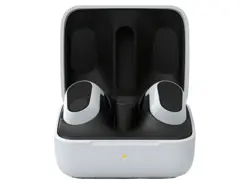
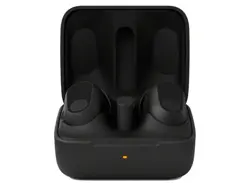
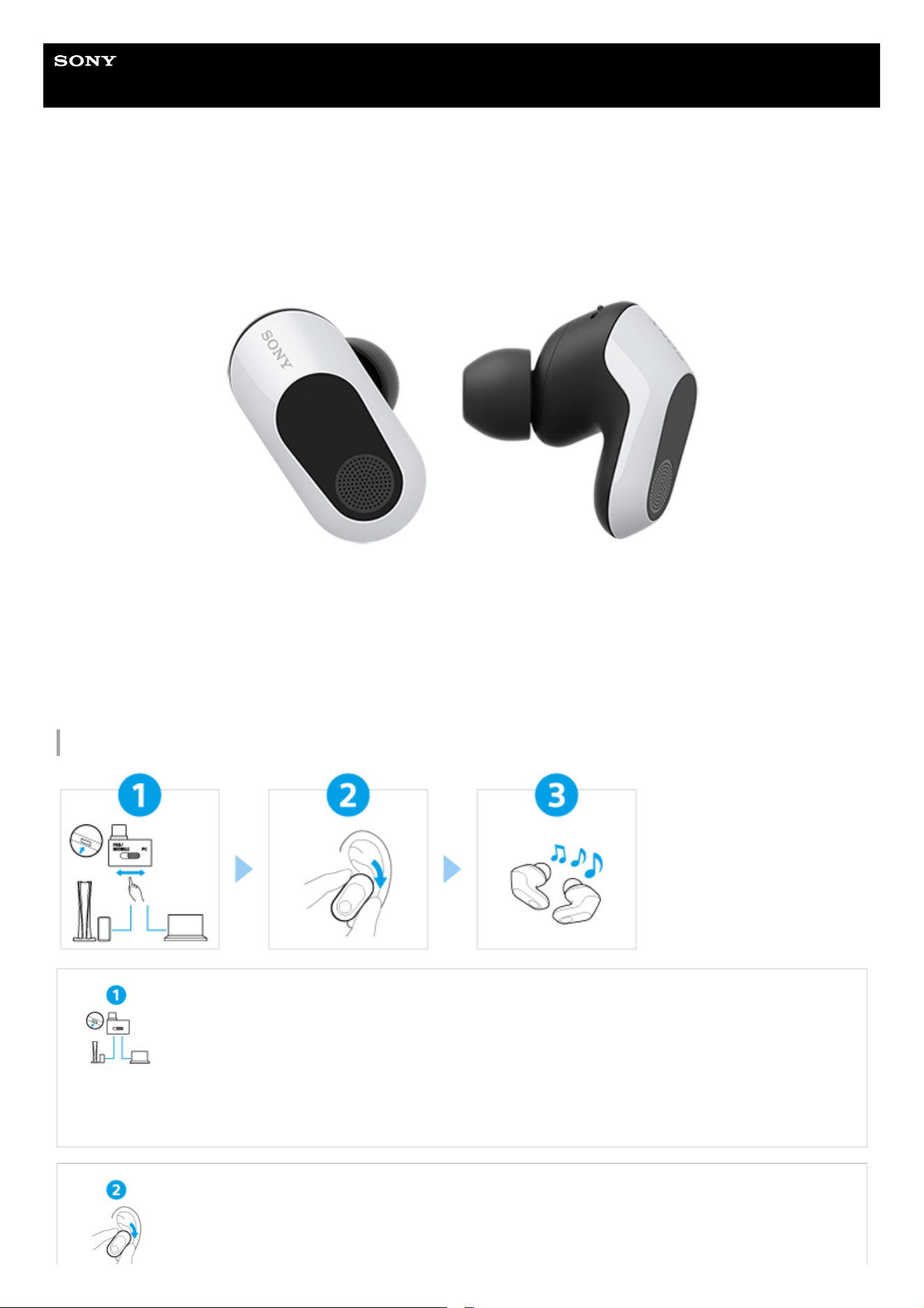
INZONE Buds
Model: YY2977
Let’s start to use
Connecting the USB transceiver properly
Set the slide switch on the USB transceiver correctly to match the connected device, and then insert
the USB transceiver into the USB port.
When connected to a computer: Set the slide switch to “PC”
When connected to a PS5™ or a USB Type-C compatible smartphone: Set the slide switch to
“PS5/MOBILE”
Wearing the headset
Twist the headset unit to slide the earbud tip deep into your ear canal.
1
To use all functions and improved performances
Update the headset software and computer software “INZONE Hub” to the latest version.
For details on “INZONE Hub”, refer to the following URL.
https://www.sony.net/inzonehub-support
To prevent burning or malfunction due to getting wet
Related information
Charging the headset
WF-G700N
Operating the headset
Tap the center of the touch sensor with the pad of your index finger.
Left
: To switch the noise canceling function and Ambient Sound Mode
: To switch the microphones on/off
Right
: To increase the volume (If the volume does not increase when operating the headset, adjust the
volume using the connected device)
: To lower the volume
Getting started
What you can do with the gaming headset
About the voice guidance
Supplied accessories
Included items
Replacing the earbud tips
Parts and controls
Location and function of parts
About the indicator
Wearing the headset
Wearing the headset
2
Changing the headset mode (Bluetooth mode/USB transceiver mode)
Using only one headset unit
Operating the headset
About the touch sensor
Power/Charging
Charging
Available operating time
Checking the remaining battery charge
Turning on the headset
Turning off the headset
Using by connecting to a game console
Connecting to a computer, PlayStation®5, or USB Type-C compatible smartphone via the USB transceiver
Using the headset via the USB transceiver
Using by connecting to a Bluetooth device
How to make a wireless connection to Bluetooth devices
Easy setup with app
Connecting with the “Sony | Headphones Connect” app
Android smartphone
Pairing and connecting with an Android smartphone using LE Audio
Connecting to a paired Android smartphone
Using the headset via a Bluetooth connection
Making phone calls
Receiving a call
Making a call
Functions for a phone call
Disconnecting Bluetooth connection (after use)
Listening to music
Listening to music from a device via a Bluetooth connection
Controlling the audio device (Bluetooth connection)
3
Disconnecting Bluetooth connection (after use)
About 360 Reality Audio
About the LE Audio connection quality
Supported codecs
Customizing the headset
Using “INZONE Hub”
What you can do with “INZONE Hub”
Installing “INZONE Hub”
Using the “Sony | Headphones Connect” app
What you can do with the “Sony | Headphones Connect” app
Installing the “Sony | Headphones Connect” app
Accessing support information from the “Sony | Headphones Connect” app
How to keep the software up-to-date (for comfortable use of the headset)
Using the Ambient Sound Control function
Noise canceling function
What is noise canceling?
Using the noise canceling function
Listening to ambient sound
Listening to ambient sound (Ambient Sound Mode)
Listening to ambient sound quickly (Quick Attention Mode)
Important information
Precautions
When you have finished using the headset
Maintenance
To prevent burning or malfunction due to getting wet
When the headset units, charging case or USB transceiver gets wet
Licenses
Trademarks
Customer support websites
4
Troubleshooting
What can I do to solve a problem?
Power/Charging
Unable to turn on the headset.
The headset is turned off automatically.
Charging cannot be done.
The available operating time is short, the battery power does not last long.
Charging time is too long.
Sound
No sound, no sound from one side, low sound level
Sound skips frequently, noise can be heard, distorted sound
Cannot hear the other person or the call volume is low during calls/The other person cannot hear you or their call volume is low
during calls.
Low sound quality of the device connected via Bluetooth connection.
The noise canceling effects are not sufficient.
The way the audio sounds changes when the noise canceling function is on.
Connection
Pairing cannot be done.
Unable to make a connection with a game console (PC, PlayStation®5, or USB Type-C compatible smartphone) via the USB
transceiver.
Unable to make a connection with a Bluetooth device.
Video being received via a smartphone’s Wi-Fi is disturbed or cannot be connected.
Operation
The headset cannot be operated.
Others
Earbud tips are damaged or lost.
An earache occurs.
Resetting or initializing the headset
Resetting the headset
Initializing the headset to restore factory settings
5

Help Guide
Wireless Noise Canceling Gaming Headset
INZONE Buds
What you can do with the gaming headset
Enjoying gaming by connecting the USB transceiver
You can connect the headset to a computer, PS5™, or USB Type-C compatible smartphone via a wireless 2.4 GHz
connection.
Hint
If your BLUETOOTH® device supports LE Audio (sound communication standard for Bluetooth technology), you can establish a
Bluetooth connection. If the Bluetooth device does not support LE Audio, the headset does not produce sound even if connected
via a Bluetooth connection. Be sure to connect a USB transceiver.
Related Topic
Connecting to a computer, PlayStation®5, or USB Type-C compatible smartphone via the USB transceiver
Pairing and connecting with an Android smartphone using LE Audio
5-052-425-11(3) Copyright 2023 Sony Corporation
7
Help Guide
Wireless Noise Canceling Gaming Headset
INZONE Buds
About the voice guidance
In the factory settings, when the headset is worn in your ears, you will hear the English voice guidance via the headset.
You can change the language of the voice guidance and turn the voice guidance on/off using “INZONE Hub” or the “Sony
| Headphones Connect” app.
When the headset units are removed from the charging case during pairing mode and then put into your ears:
“Pairing”
When the headset turns into the Bluetooth mode: “Bluetooth mode”
When the headset turns into the USB transceiver mode: “USB Transceiver mode”
When the headset cannot be switched from a USB transceiver connection to a Bluetooth connection: “Connection
switching is not completed. Please check the connecting device.”
When the remaining battery charge of the headset is low: “Low battery”
When automatically turning off due to low battery of the headset: “Battery is empty”
When the headset microphones are turned on: “Mic On”
When the headset microphones are turned off: “Mic Off”
Hint
For more details on the “Sony | Headphones Connect” app, refer to the “Sony | Headphones Connect” app help guide.
https://rd1.sony.net/help/mdr/hpc/h_zz/
Note
When you initialize the headset to restore to the factory settings after you change the language of the voice guidance, the
language will also return to the factory settings.
If the voice guidance is not heard after changing the voice guidance language or updating the software of the headset, set the
headset units into the charging case, and close the charging case lid to turn them off, then remove the headset units from the
charging case to turn them on again.
5-052-425-11(3) Copyright 2023 Sony Corporation
8
Help Guide
Wireless Noise Canceling Gaming Headset
INZONE Buds
Included items
After opening the package, check that all of the items in the list are included. If any items are missing, contact your
dealer.
Numbers in ( ) indicate the item amount.
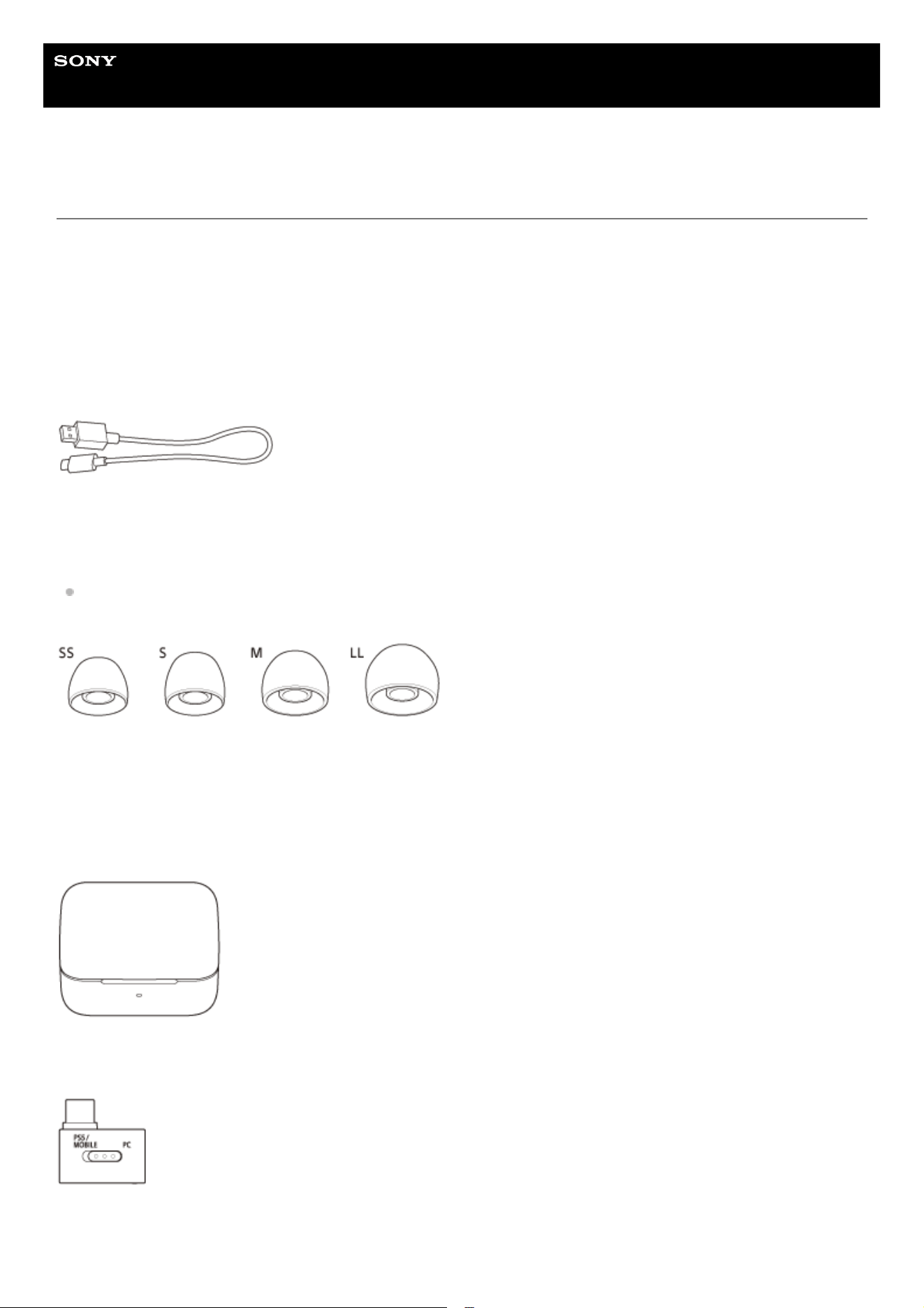
Wireless Noise Canceling Gaming Headset (1)
USB Type-C® cable (USB-A to USB-C®) (1)
Hybrid silicone rubber earbud tips (SS/S/M/LL 2 each)
M-sized earbud tips come attached to the left and right headset units at the time of purchase.
The size of the earbud tips can be determined based on the color of the inside of the earbud tips.
SS size: red
S size: orange
M size: green
LL size: purple
Charging case (1)
USB Type-C® Transceiver: YY2980 (1)
Documents (1 set)
9

Note
Earbud tips are consumables. If the earbud tips are damaged and need replacing, contact your nearest Sony dealer or purchase
the EP-EX11 series
*
, sold separately.
Related Topic
Earbud tips are damaged or lost.
5-052-425-11(3) Copyright 2023 Sony Corporation
May not be supported in some countries or regions.
*
10
Help Guide
Wireless Noise Canceling Gaming Headset
INZONE Buds
Replacing the earbud tips
M-sized earbud tips come attached to the left and right headset units at the time of purchase.
If the size of the earbud tips does not match the size of your ear canals or the headset is not being worn properly in your
ears, tap operations may not work correctly, or you may not obtain the correct sound qualities, noise canceling effects, or
call performance.
If any of this is the case, try the following.
Change the earbud tips to ones that fit more snugly in your ears. When changing the earbud tips, try the earbud tip
sizes in order from the larger ones to the smaller ones. The most suitable size of the earbud tips for left and right ears
may be different.
“INZONE Hub” or the “Sony | Headphones Connect” app will help you to determine which earbud tips suit you best to
achieve the optimal noise canceling effect, sound quality, etc.
Check that you are wearing the headset properly in your ears. Wear the headset so that the earbud tip is comfortably
situated as deep in the ear canal as possible.
Hint
The function that determines the optimal earbud tips for you measures the air-tightness of the earbud tips and determines
whether or not the headset units are being worn in your ears correctly. Select a size that fits comfortably.
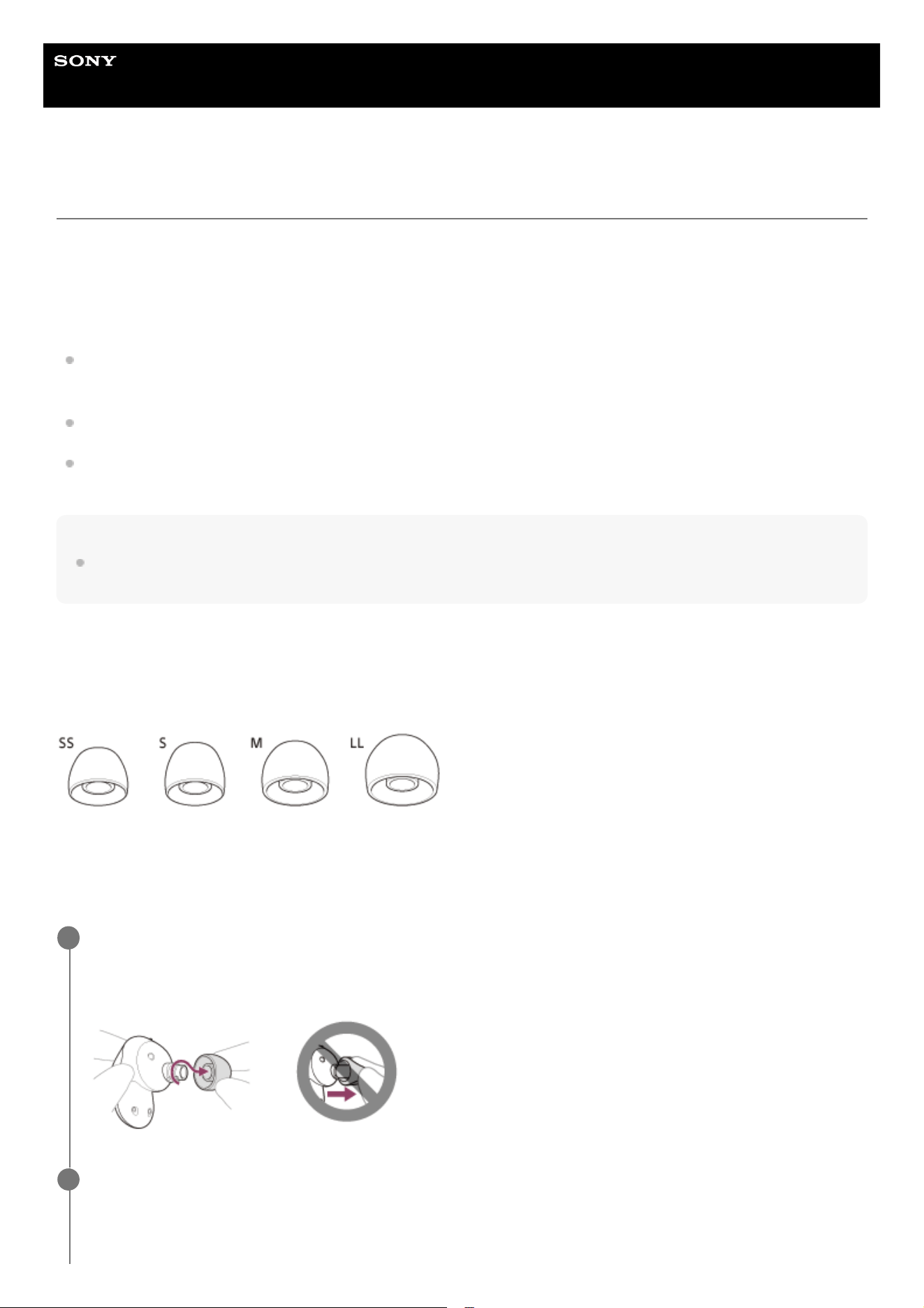
Hybrid silicone rubber earbud tips
The size of the earbud tips can be determined based on the color of the inside of the earbud tips.
SS size: red
S size: orange
M size: green
LL size: purple
Remove the earbud tip.
Hold the headset unit and twist the earbud tip while rotating it to pull it out.
Do not pinch the end of the earbud tip when removing it.
1
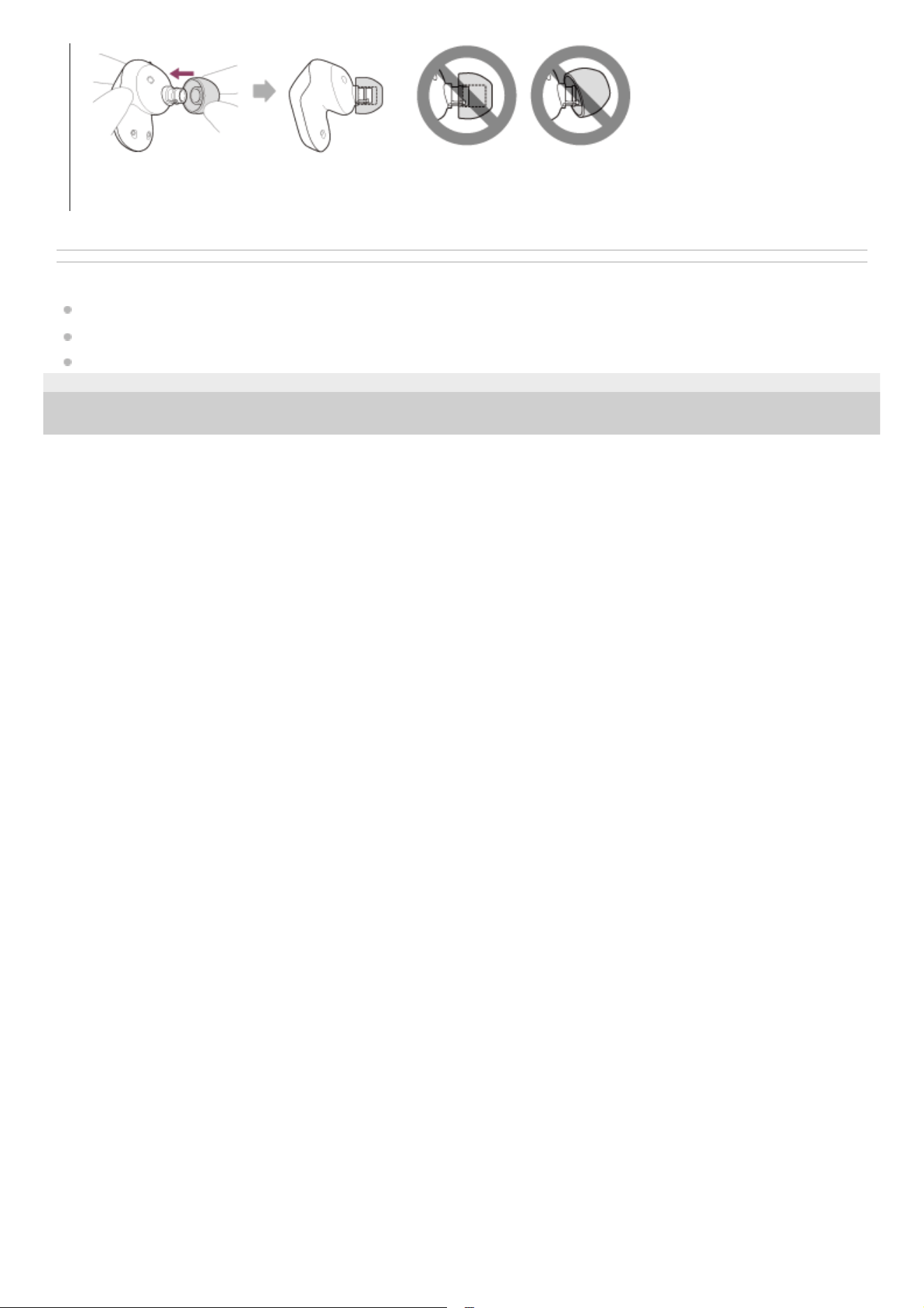
Attach the earbud tip.
Push the earbud tip firmly onto the sound conduit (sound output tube) on the headset so that the earbud tip covers
the inner end of the sound conduit. Do not attach the earbud tip in a loose or skewed manner.
2
11
Related Topic
Wearing the headset
What you can do with “INZONE Hub”
What you can do with the “Sony | Headphones Connect” app
5-052-425-11(3) Copyright 2023 Sony Corporation
If the earbud tip is not completely attached, the earbud tip may be removed from the headset and the sound quality,
noise canceling effects, and wearability may be impaired.
12
Help Guide
Wireless Noise Canceling Gaming Headset
INZONE Buds
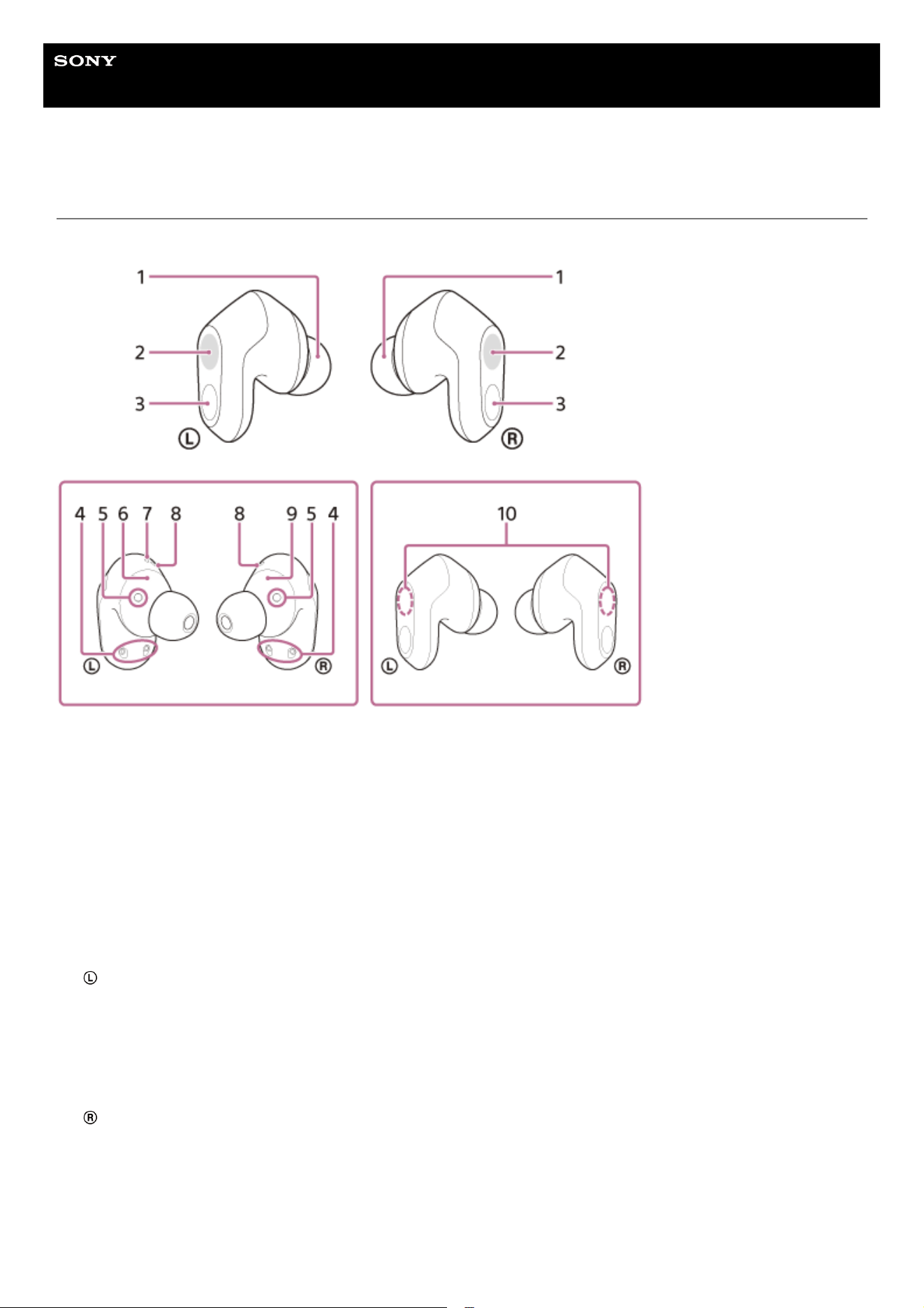
Location and function of parts
Headset
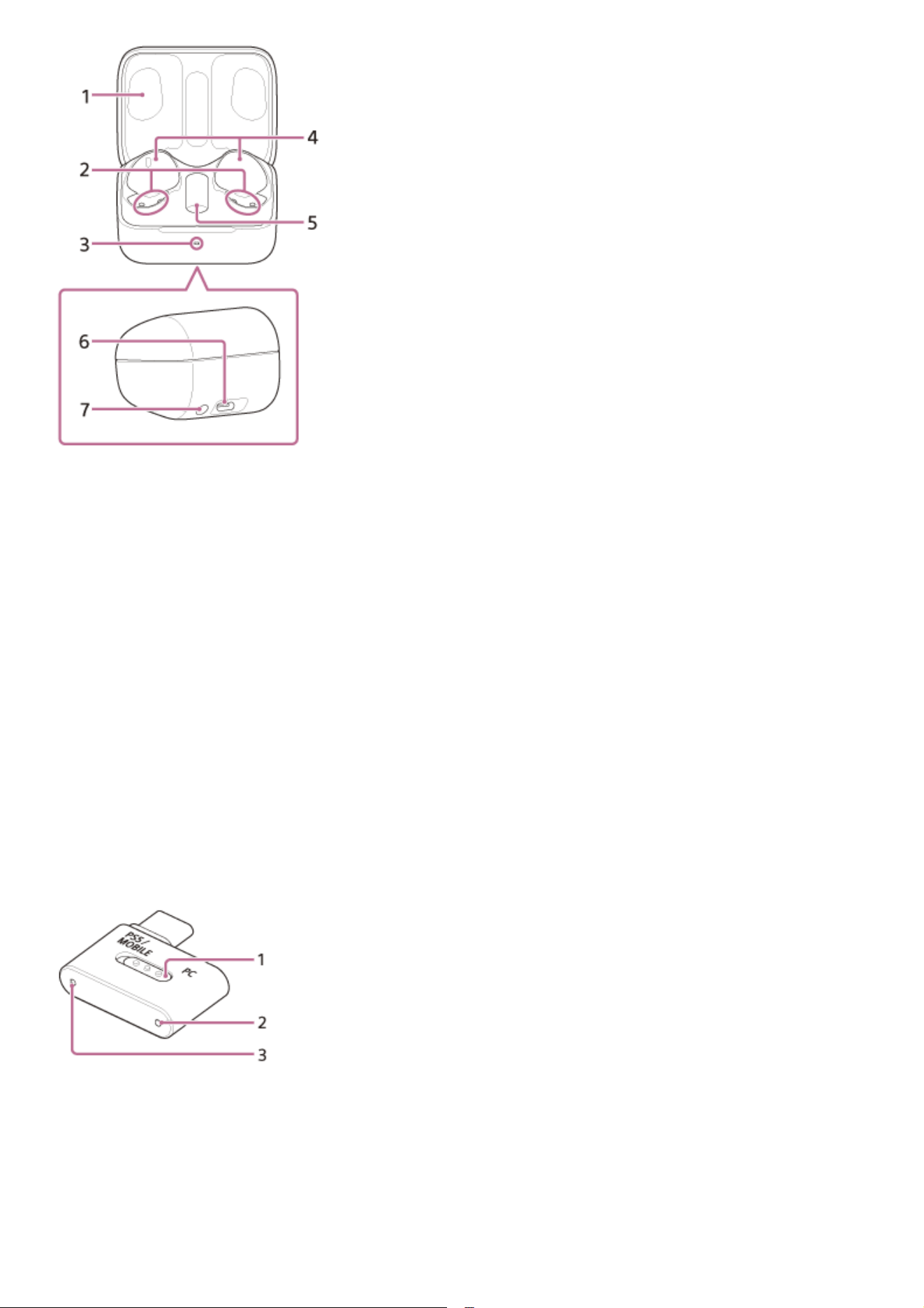
Charging case
Earbud tips (left, right)1.
Touch sensors (left, right)2.
Microphones (left, right)
Picks up the sound of your voice (when you are talking on the phone or using voice chat) and noise (when you are
using the noise canceling function/Ambient Sound Mode).
3.
Charging ports (left, right)4.
IR sensors (left, right)5.
(left) mark6.
Tactile dot
There is a tactile dot on the left unit.
7.
Air holes (left, right)8.
(right) mark9.
Built-in antenna
A Bluetooth antenna is built into each left or right unit of the headset.
10.
13
USB transceiver
Lid1.
Charging ports (left, right)2.
Indicator (green/orange/blue)
Indicates the remaining battery life of the headset units and charging case, the charging status, or the status of the
pairing mode.
3.
Headset unit storage compartments (left, right)4.
USB transceiver storage compartment5.
USB Type-C port
Using the supplied USB Type-C cable, connect the charging case to a computer or to an AC outlet via a commercially
available USB AC adaptor to simultaneously charge both the headset and the charging case.
6.
Pairing/reset/initialize button
Used when entering pairing mode, resetting or initializing the headset.
7.
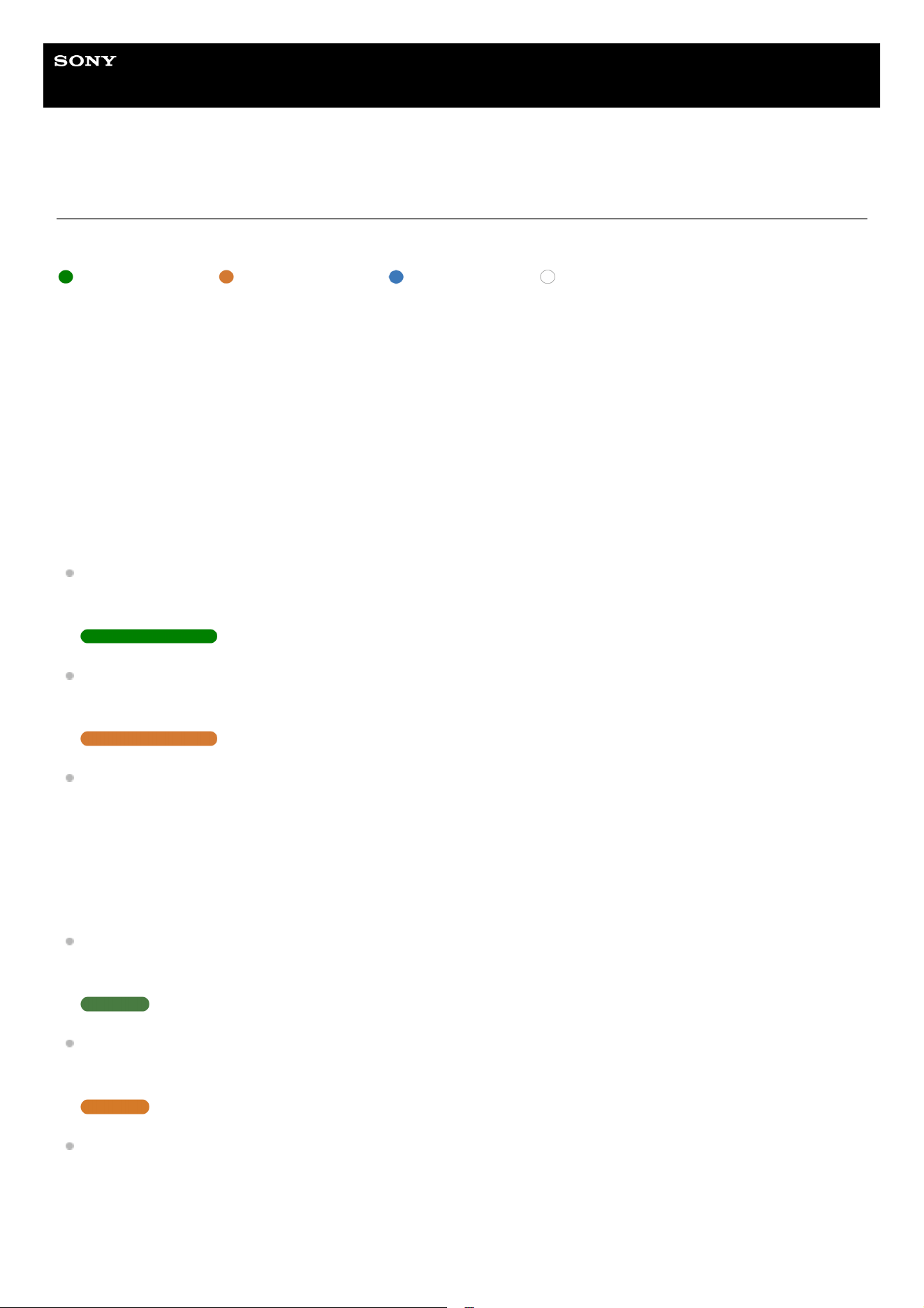
Slide switch
Switches the headset connection to a computer, PS5™, or USB Type-C compatible smartphone.
1.
Connection indicator (white)2.
Connect button3.
14

Help Guide
Wireless Noise Canceling Gaming Headset
INZONE Buds
About the indicator
You can check the operating status of the headset/charging case/USB transceiver with the indicators.
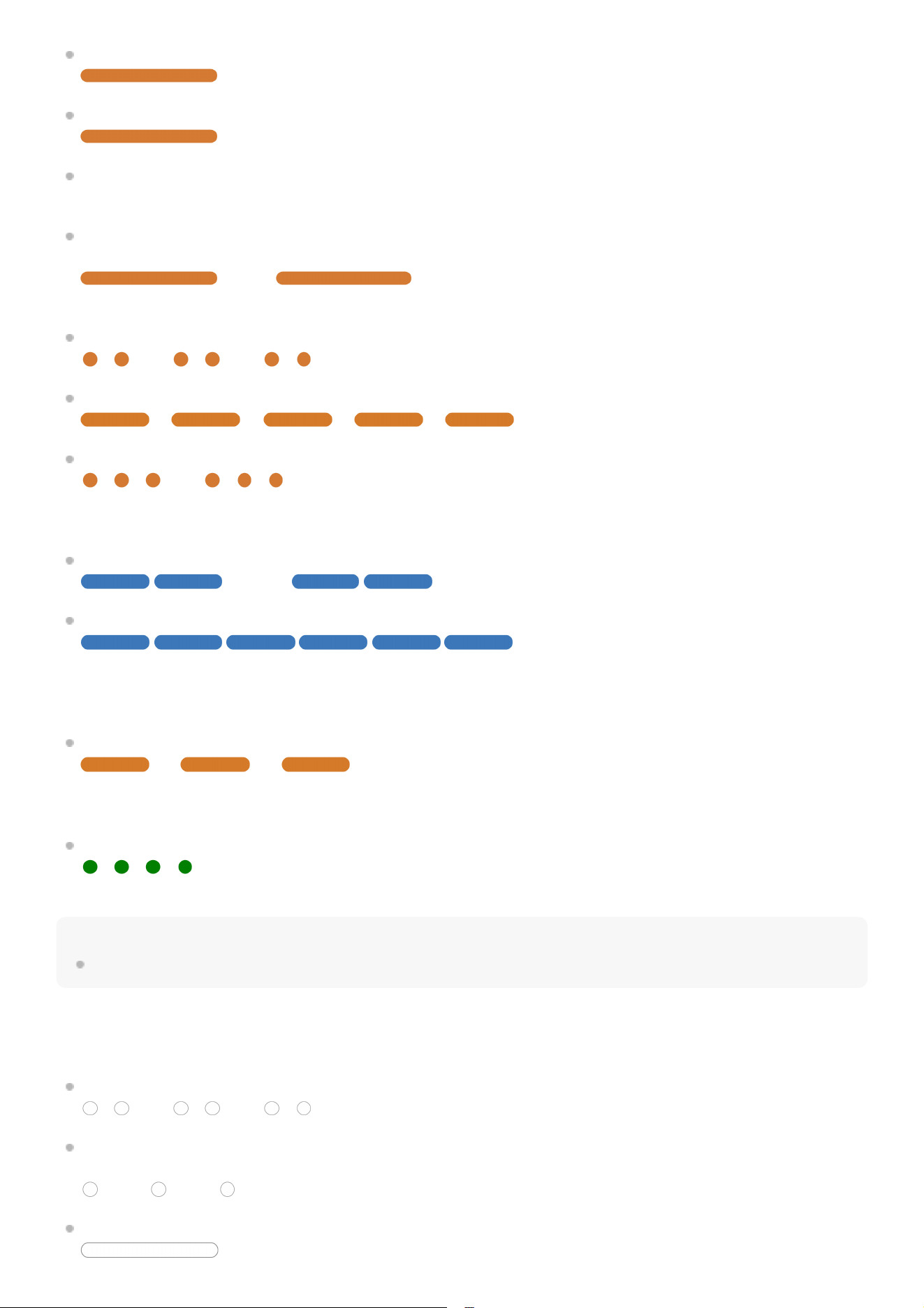
: Turns on in green / : Turns on in orange / : Turns on in blue / : Turns on in white / -: Turns off
The indicator on the charging case
Indication of the remaining battery charge
When both headset units are stored in the charging case: Displays the remaining battery charge of the headset unit with
less remaining battery charge between the left and right headset units.
When either the left or right headset unit is stored in the charging case: Displays the remaining battery charge of the
headset unit stored in the charging case.
When both headset units are removed from the charging case: Displays the remaining battery charge of the charging
case.
When the charging case lid is opened or closed, or when the USB Type-C cable is removed after charging is complete,
the indicator lights up as follows depending on the remaining battery charge.
When the headset units are stored in the charging case and the remaining battery charge of the headset units are
95% or higher / When the headset units are not stored in the charging case and the remaining battery charge of the
charging case is 31% or higher
- - - - - - - (lights up in green for about 6 seconds)
When the headset units are stored in the charging case and the remaining battery charge of the headset units are
between 94% and 1% / When the headset units are not stored in the charging case and the remaining battery charge
of the charging case is between 30% and 1%
- - - - - - - (lights up in orange for about 6 seconds)
When the headset units are stored in the charging case and the remaining battery charge of the headset units are at
less than 1% / When the headset units are not stored in the charging case and the remaining battery charge of the
charging case is at less than 1%
- - - - - - - (turns off)
When the headset units are removed from the charging case, or when the headset units are set in the charging case, the
indicator lights up as follows depending on the remaining battery charge.
When the headset units are stored in the charging case and the remaining battery charge of the headset units are
95% or higher / When the headset units are not stored in the charging case and the remaining battery charge of the
charging case is 31% or higher
- - - - - - - (lights up in green for about 3 seconds)
When the headset units are stored in the charging case and the remaining battery charge of the headset units are
between 94% and 1% / When the headset units are not stored in the charging case and the remaining battery charge
of the charging case is between 30% and 1%
- - - - - - - (lights up in orange for about 3 seconds)
When the headset units are stored in the charging case and the remaining battery charge of the headset units are at
less than 1% / When the headset units are not stored in the charging case and the remaining battery charge of the
charging case is at less than 1%
- - - - - - - (turns off)
Charging status
16
While charging the headset units / While charging the charging case
(lights up in orange)
When the battery is fully charged when charging starts on the headset units/charging case
- - - - - (lights up in orange for about 1 minute, and then turns off)
When the battery becomes fully charged and charging is complete
- - - - - - - (turns off)
During charging, when the charging case lid is opened or closed / When the headset units are set in or removed from
the charging case
- - - - - - (lights up in orange while charging. turns off for about 0.5 seconds,
and then lights up in orange again)
Abnormal charging temperature
- - - - - - - - - - - - - - - (repeatedly flashes twice in orange)
When an error occurs while charging and charging cannot be performed
- - - - - - - - - - (repeatedly flashes slowly in orange)
Abnormal combination of left and right headset units
- - - - - - - - - - - - (repeatedly flashes 3 times in orange)
Pairing connection status
Pairing mode
- - - - - - - - - - - - - - (repeatedly flashes twice in blue)
Connection process completed
... (flashes 10 times in blue)
Indicates when one or both headset units are stored in the charging case.
Others
Reset start preparation / Initialization start preparation
- - - - - - - - - (repeatedly flashes slowly in orange for up to about 5 seconds about 15
seconds after you first press the reset/initialize button on the back of the charging case)
For details, see “Resetting the headset” or “Initializing the headset to restore factory settings”.
Initialization completed
- - - (flashes 4 times in green)
For details, see “Initializing the headset to restore factory settings”.
Hint
When the headset is worn, you can check various statuses of the headset by the notification sound or voice guidance.
The connection indicator on the USB transceiver
Wireless 2.4 GHz connection and software update status
Pairing mode of the wireless 2.4 GHz connection
- - - - - - - - - - - - - - - (repeatedly flashes twice in white for up to 5 minutes)
When a wireless 2.4 GHz connection is not established/wireless 2.4 GHz connection is established and the mode
switches to the Bluetooth mode
- - - - - - - - - - - - - - - (repeatedly flashes in white at about 1.4-second intervals for about 30 seconds)
The wireless 2.4 GHz connection is established
(lights up in white)
17

Help Guide
Wireless Noise Canceling Gaming Headset
INZONE Buds
Wearing the headset
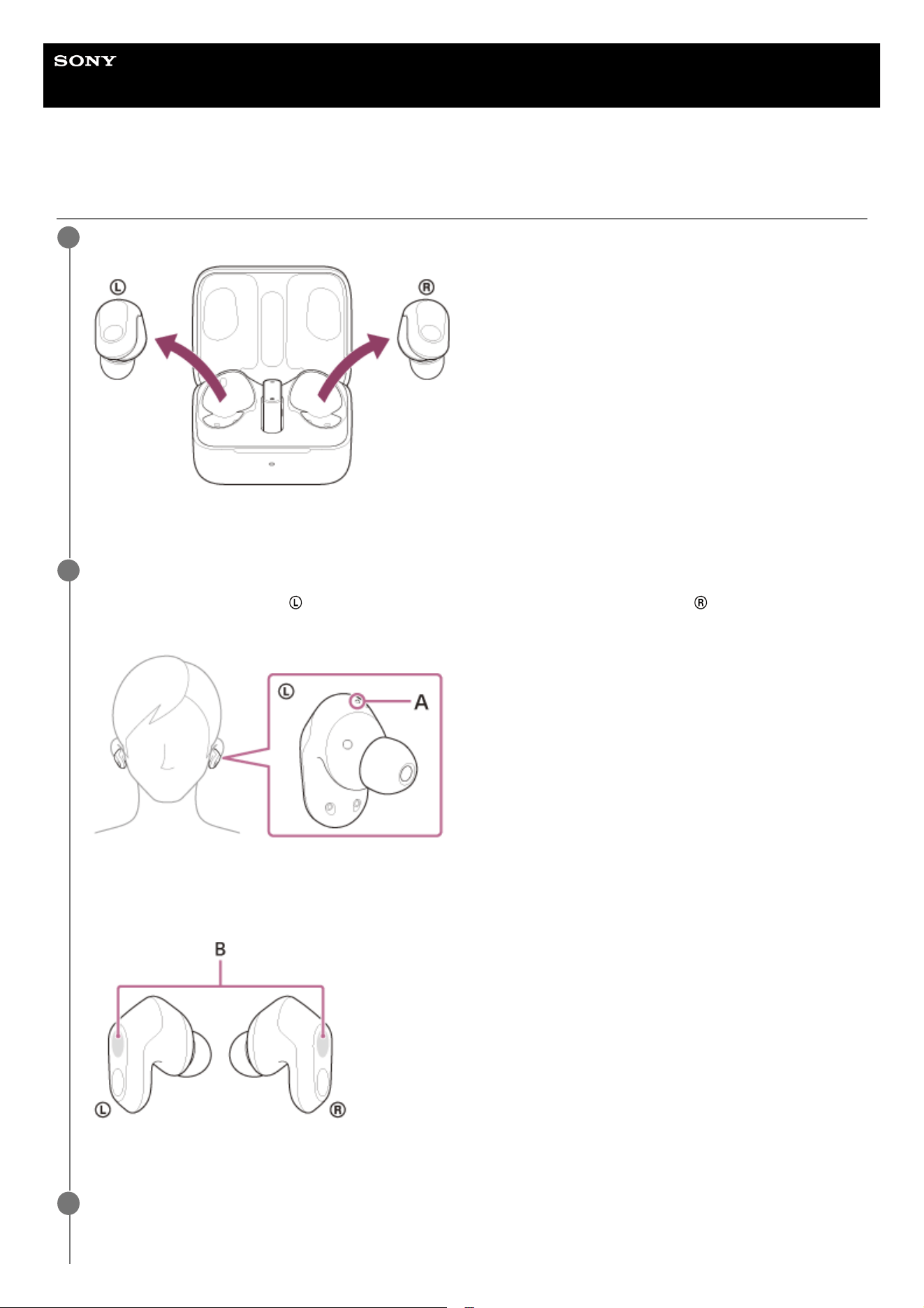
Remove the headset units from the charging case.
The headset turns on automatically.
1
Put the headset units into your ears.
Put the headset unit with the (left) mark into your left ear and the headset unit with the (right) mark into your
right ear. The left headset unit has a tactile dot.
A: Tactile dot
Be careful not to come in contact with the touch sensor when you put the headset units into your ears.
B: Touch sensors (left, right)
2
Adjust the fit of the headset units to your ears.
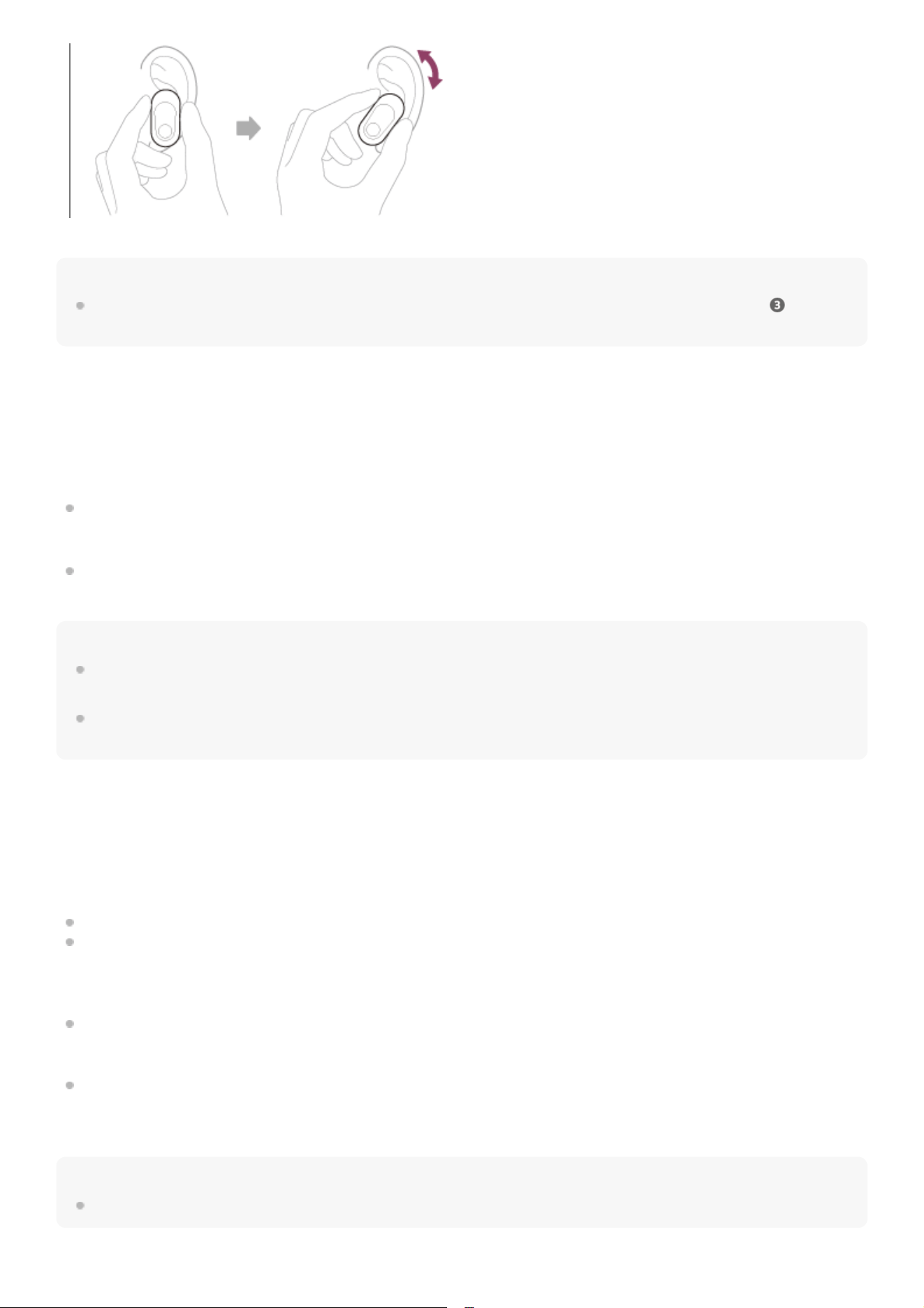
Twist the headset unit to slide the earbud tip deep into your ear canal.
3
19
Hint
When you put the headset unit into your ear or adjust the positioning of the headset unit, see the illustration in step for how to
hold the headset unit.
For the proper sound quality, noise canceling function, and call sound quality to be effective
If the size of the earbud tips does not match the size of your ear canals or the headset is not being worn properly in your
ears, tap operations may not work correctly, or you may not obtain the correct sound qualities, noise canceling effects, or
call performance.
If any of this is the case, try the following.
Change the earbud tips to ones that fit more snugly in your ears. When changing the earbud tips, try the earbud tip
sizes in order from the larger ones to the smaller ones. The most suitable size of the earbud tips for left and right ears
may be different.
“INZONE Hub” or the “Sony | Headphones Connect” app will help you to determine which earbud tips suit you best to
achieve the optimal noise canceling effect, sound quality, etc.
Hint
The function that determines the optimal earbud tips for you measures the air-tightness of the earbud tips and determines
whether or not the headset units are being worn in your ears correctly. Select a size that fits comfortably.
By using “INZONE Hub” or the “Sony | Headphones Connect” app, you can change settings such as the setting for the headset to
turn off automatically.
When attaching and removing the headset
In the factory settings, the built-in IR sensors detect if the headset units are inserted or removed from your ears to control
the touch sensors and voice guidance.
When the headset is worn
You can use the touch sensors to play music, make and receive calls, etc.
You will hear a notification or voice guidance corresponding to the operation and status.
When the headset is removed
When the headset units are not worn for about 15 minutes after being removed from the charging case, the headset
turns off automatically to save battery. Turn the headset on by tapping the touch sensor or by putting the headset
units into your ears.
As a means of preventing the headset from reacting incorrectly, it is not possible to play back music, make or receive
calls, or perform other operations by tapping the touch sensors of the headset units when they are removed from your
ears.
Hint
You can also play music, make and receive calls, etc. when only one headset unit is worn in your ear.
20

Help Guide
Wireless Noise Canceling Gaming Headset
INZONE Buds
Changing the headset mode (Bluetooth mode/USB transceiver mode)
You can change the headset mode when the headset and the Android smartphone are connected via a Bluetooth
connection.
About the instruction manual video
Watch the video for how to switch to the “Bluetooth mode” or “USB transceiver mode” by holding your fingers to the touch
sensors on both the left and right headset units.
https://rd1.sony.net/help/mdr/mov0067/h_zz/
Related Topic
Wearing the headset
How to make a wireless connection to Bluetooth devices
5-052-425-11(3) Copyright 2023 Sony Corporation
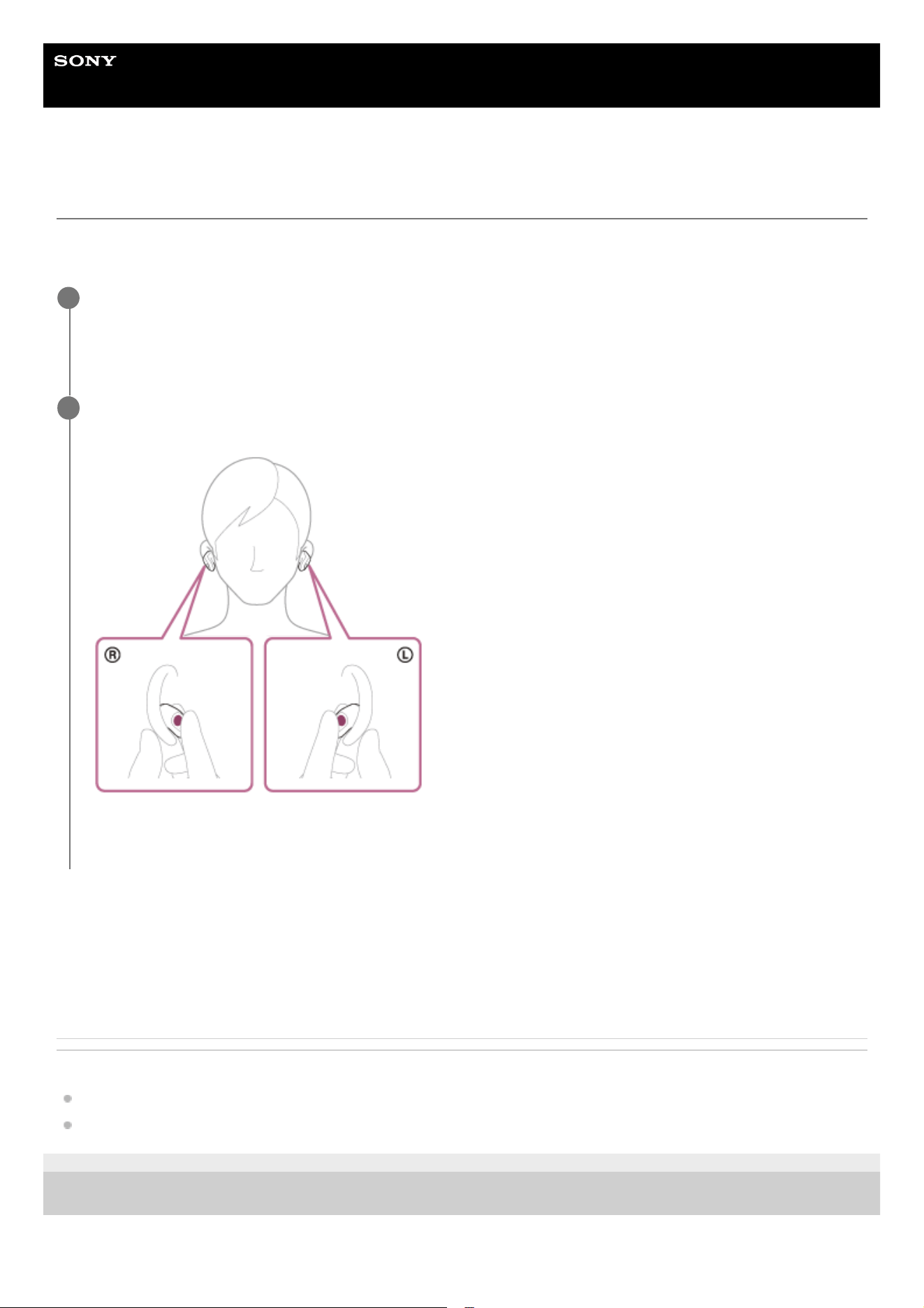
Put the headset units into your ears.
See “Wearing the headset” for how to wear the headset in your ears.
You will hear the voice guidance say, “Bluetooth mode” or “USB Transceiver mode”.
1
Hold your fingers to the touch sensors on both the left and right headset units for about 1 second to
change to the Bluetooth mode or USB transceiver mode.
When the mode change is complete, you will hear the voice guidance say, “Bluetooth mode” or “USB Transceiver
mode”.
2
22
Help Guide
Wireless Noise Canceling Gaming Headset
INZONE Buds
Using only one headset unit
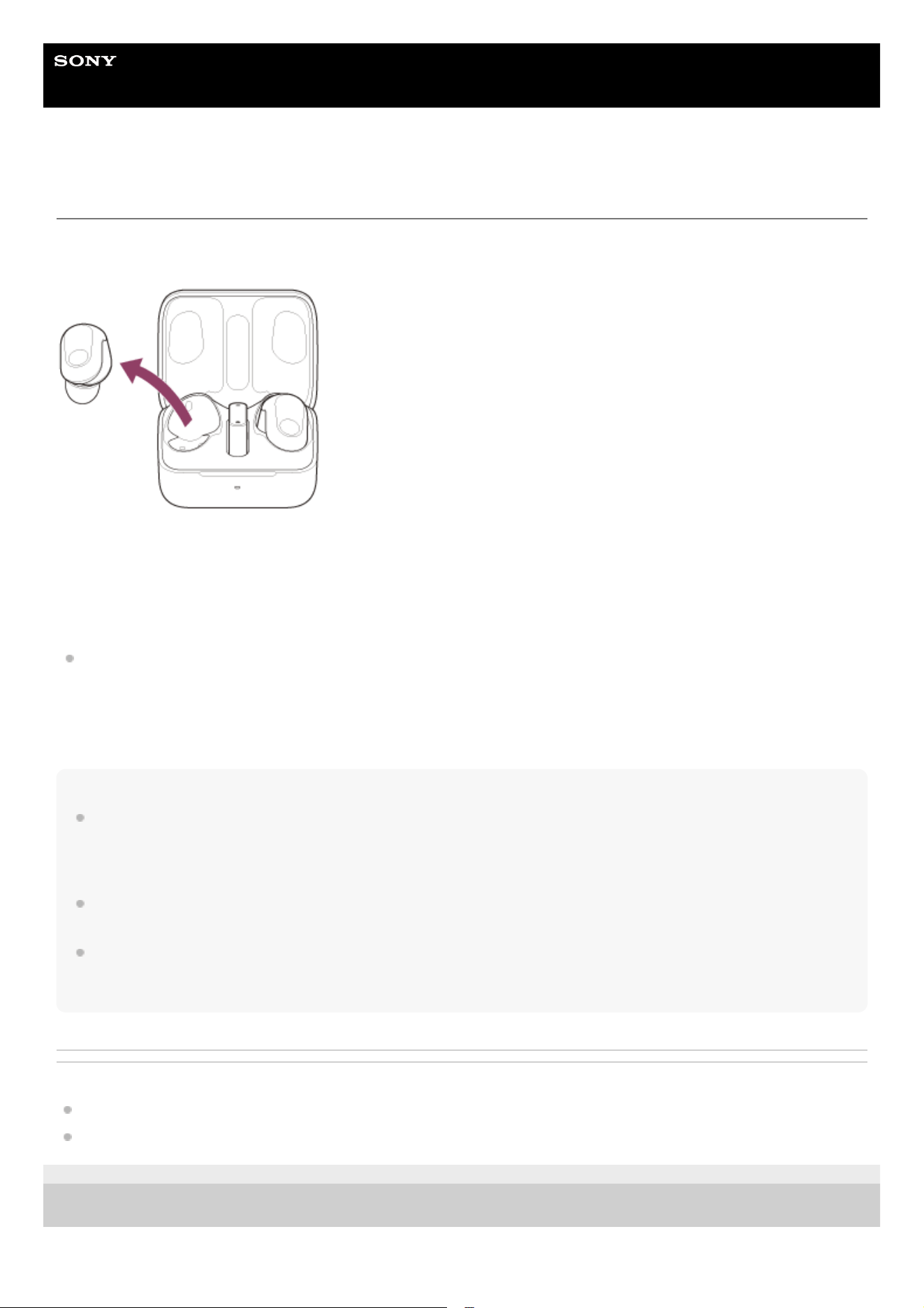
You can remove one headset unit from the charging case and use the headset unit by itself.
In this case, only the headset unit that has been removed from the charging case will turn on.
When you put on the other headset unit
The left and right headset units are automatically connected, and you can hear the audio from the game, voice chat,
music or call from both units.
Assigning functions to the touch sensors
Depending on the headset unit you are wearing, some functions may not be available in the factory settings. In this
case, you can change the function assignments to the touch sensors using “INZONE Hub” or the “Sony |
Headphones Connect” app.
Hint
In the factory settings, the volume adjustment function is assigned to the right headset unit.
When listening to music with one ear, if only the right headset unit is worn in your ear, use the touch sensor on the right headset
unit to adjust the volume.
If only the left headset unit is worn in your ear, operate the connected device to adjust the volume.
When you play music or other stereo audio while wearing only one headset unit, you will hear the sound of either left or right
channel depending on the headset unit you are wearing. You cannot hear monaural sound with the left and right channels mixed.
You can also talk hands-free even when you are wearing only one headset unit. When you receive an incoming call, answer the
call using the headset unit you are wearing. If you put the other headset unit into the other ear while you are talking with only one
headset unit, you can talk with both headset units.
Related Topic
Functions for a phone call
Controlling the audio device (Bluetooth connection)
5-052-425-11(3) Copyright 2023 Sony Corporation
23
Help Guide
Wireless Noise Canceling Gaming Headset
INZONE Buds
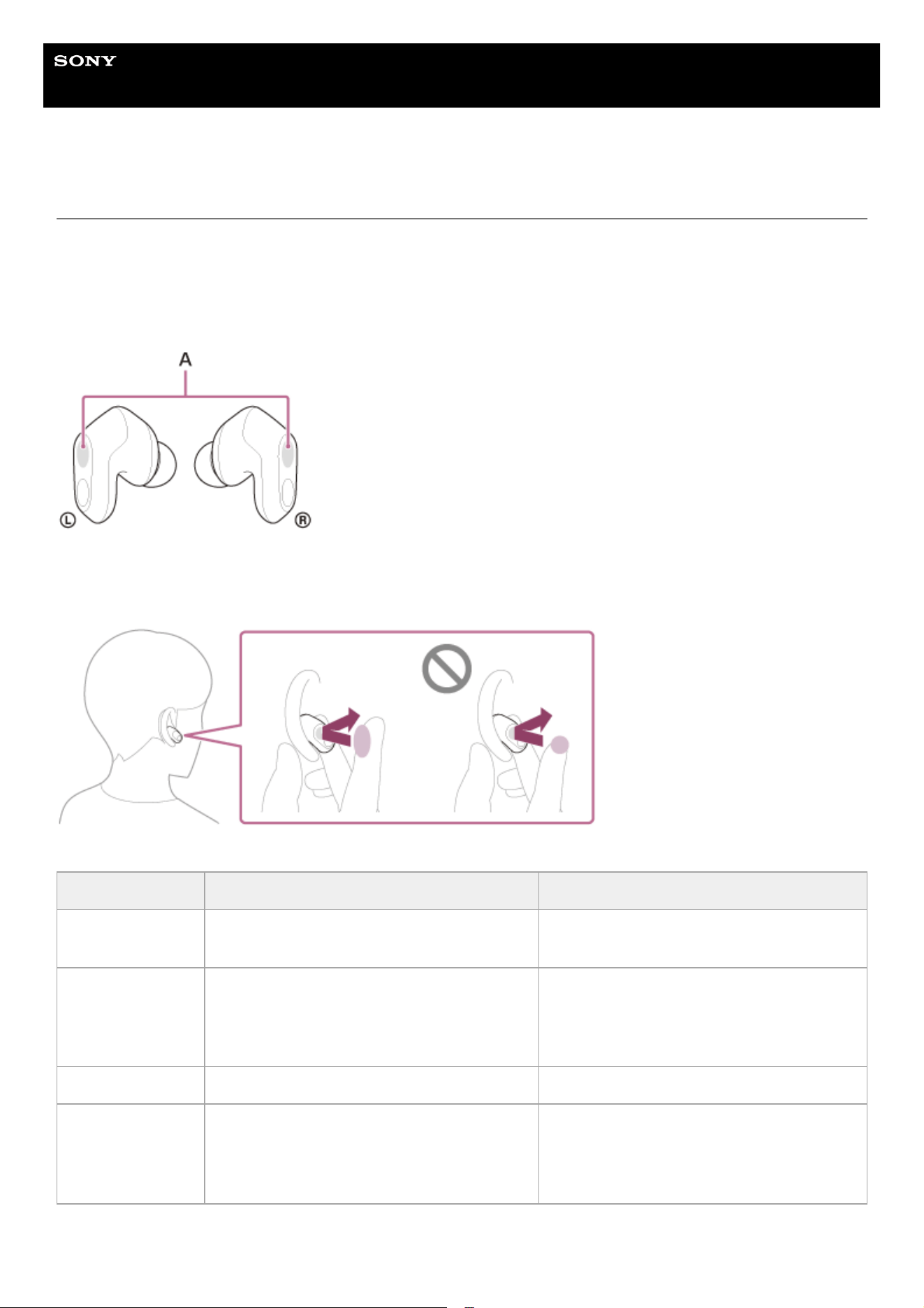
About the touch sensor
Tap the touch sensor for various operations, such as music playback, phone calls, or changing the setting of the noise
canceling function.
You can change the function assignments to the touch sensors of the left and right headset units using “INZONE Hub” or
the “Sony | Headphones Connect” app.
Some assigned functions may not be available depending on the connection method or connecting device.
A: Touch sensors (left, right)
To operate the touch sensor, tap the center of the touch sensor with the pad of your index finger.
Default settings
Left: [Ambient Sound Control + Mic] Right: [Volume Control]
Tap
To switch the noise canceling function and
Ambient Sound Mode
To increase the volume
Tap twice
When connected to a Bluetooth device: To
receive a call/end a call/cancel an outgoing call
When connected to the USB transceiver: —
When connected to a Bluetooth device: To
receive a call/end a call/cancel an outgoing
call
When connected to the USB transceiver: —
Tap 3 times — —
Hold your finger to
the touch sensor
When connected to a Bluetooth device: To
reject a call/switch the microphones on or off
When connected to the USB transceiver: Turn
the microphones on/off
When connected to a Bluetooth device: To
reject a call/lower the volume
When connected to the USB transceiver: To
lower the volume
24
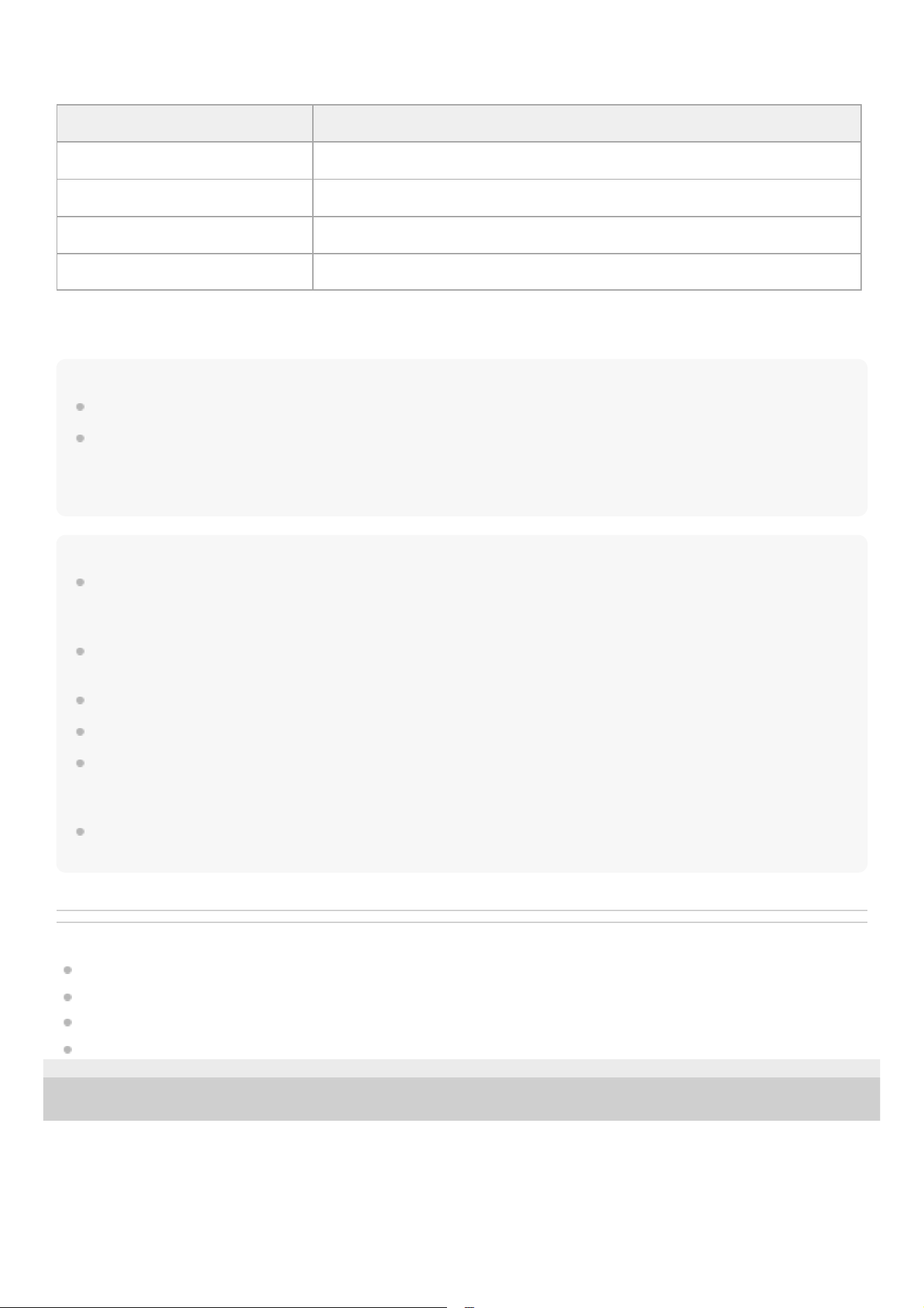
You can assign the [Game/Chat Balance Control] function to either the left or right headset unit using “INZONE Hub” or
the “Sony | Headphones Connect” app.
Hint
When tapping the touch sensor multiple times, tap it quickly with an interval of about 0.3 seconds between taps.
You can change the functions assigned to the touch sensors on the left and right headset units using “INZONE Hub” or the “Sony
| Headphones Connect” app. For example, the volume adjustment function that is assigned to the touch sensor of the right unit in
the factory settings can be changed to the touch sensor of the left unit.
You can also choose not to assign any functions.
Note
You cannot operate the touch sensors when not wearing the headset. If you disable the wearing detection automatic power off
function with “INZONE Hub” or the “Sony | Headphones Connect” app, the touch sensors can be operated even when the
headset is not being worn.
Be careful that the [Game/Chat Balance Control] function cannot be used while connected to a smartphone regardless of the
connection method.
The [Playback control] function cannot be used while connected to the USB transceiver, regardless of the connected device.
While connected via a Bluetooth connection, the [Mic ON/OFF] function can be used when in a call status.
If the volume is turned down on the computer or USB Type-C compatible smartphone while connected via the USB transceiver,
the volume cannot be turned up very high using the headset. To turn the volume up higher, adjust the volume on the computer or
USB Type-C compatible smartphone.
If the volume is turned down on the connected device while connected via a Bluetooth connection, the volume cannot be turned
up very high using the headset. To turn the volume up higher, adjust the volume on the connected device.
Related Topic
Controlling the audio device (Bluetooth connection)
Functions for a phone call
What you can do with “INZONE Hub”
What you can do with the “Sony | Headphones Connect” app
5-052-425-11(3) Copyright 2023 Sony Corporation
[Game/Chat Balance Control]
Tap To lower the volume of the voice chat sound to make game audio easier to hear
Tap twice —
Tap 3 times —
Hold your finger to the touch sensor To lower the volume of the game audio to make voice chat sound easier to hear
25
Help Guide
Wireless Noise Canceling Gaming Headset
INZONE Buds
Charging
The headset and the charging case contain built-in lithium-ion rechargeable batteries. Use the supplied USB Type-C
cable to charge the headset before use.
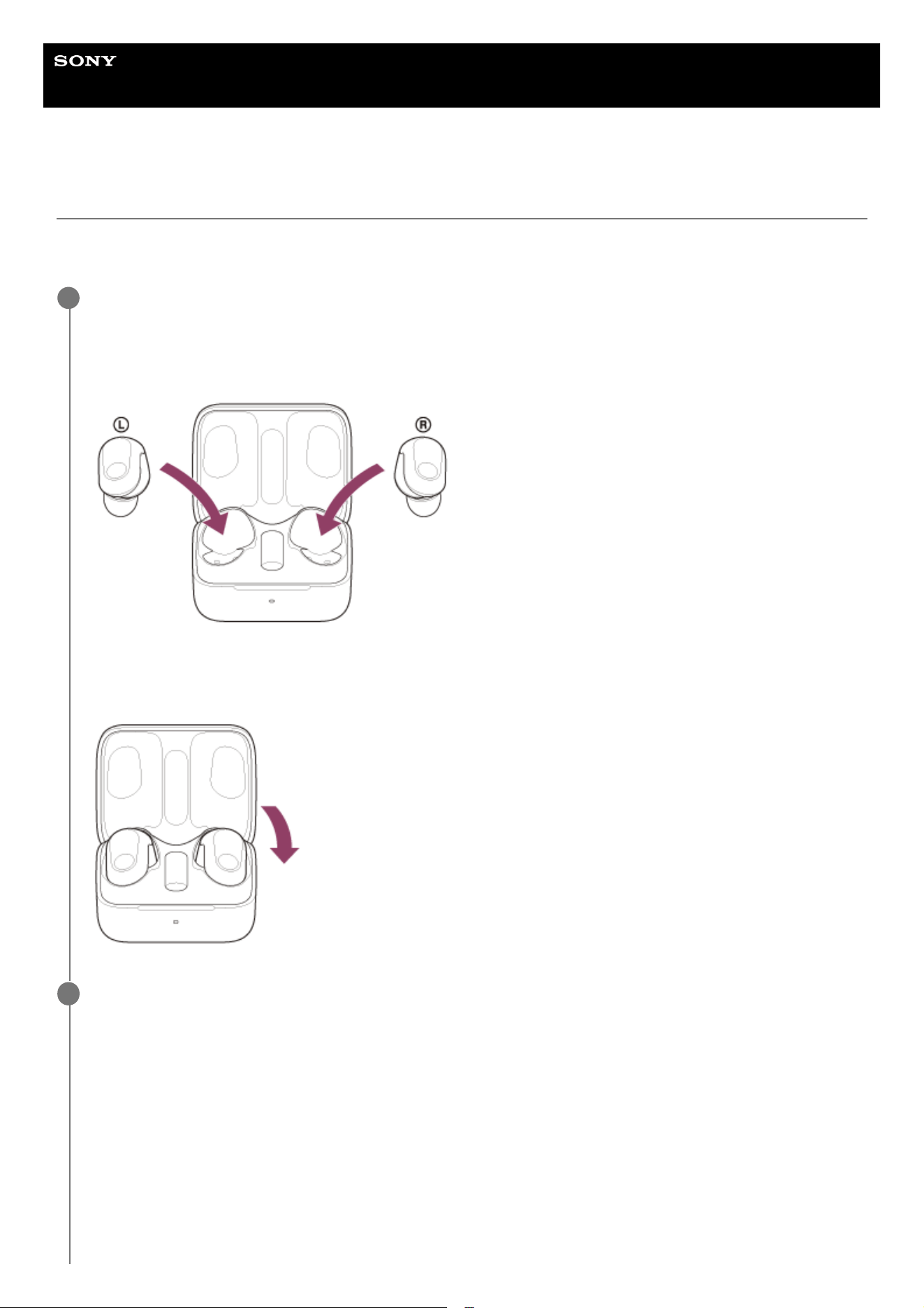
Set the headset units into the charging case.
Put the left headset unit (the headset unit with the tactile dot) back into the left hole of the charging case, and put
the right headset unit back into the right hole of the charging case. Each headset unit will be set to the correct
position in the charging case by the built-in magnet.
When the rechargeable battery of the charging case still has power, the indicator (orange or green) on the charging
case lights up for about 3 seconds.
The charging starts on the headset. Close the charging case lid.
1
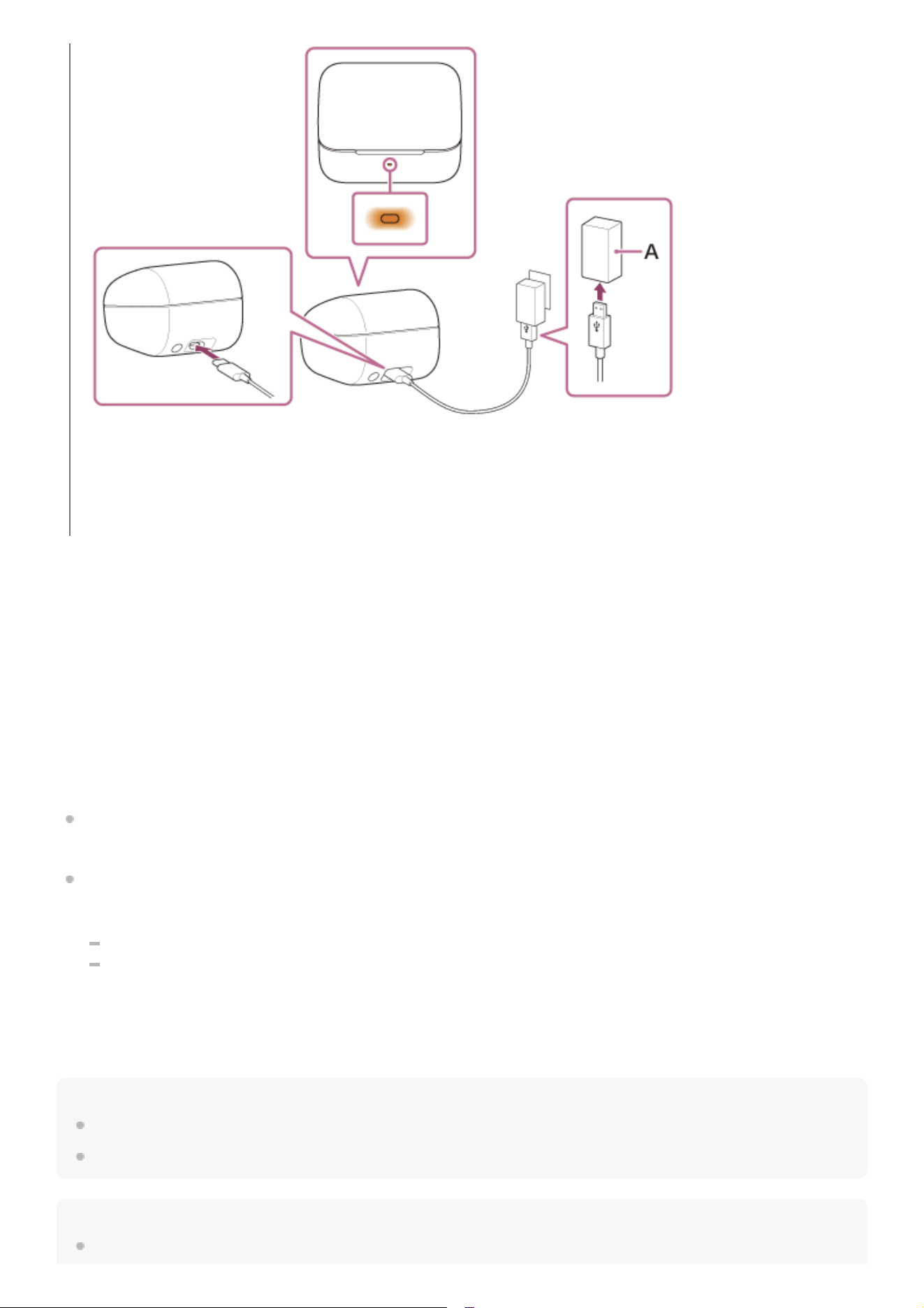
Connect the charging case to an AC outlet.
Use the supplied USB Type-C cable and a commercially available USB AC adaptor.
2
26
About the charging time
The required time for fully charging the headset and the charging case is about 3 hours
*
.
Charging the headset when you are outside
A rechargeable battery is built into the charging case. If you charge the charging case in advance, you can use it to
charge the headset when you go out without a power supply.
The required time for fully charging the left and right units of the headset is about 2 hours.
System requirements for battery charge using USB
USB AC adaptor
A commercially available USB AC adaptor capable of supplying an output current of 0.5 A (500 mA) or more
Personal computer
Personal computer with a standard USB port
We do not guarantee operation on all computers.
Operations using a custom-built or homebuilt computer are not guaranteed.
Recommended personal computer OS version
Windows®: Windows 10 or later
Mac: macOS 11 or later
Hint
The headset can be also charged by connecting the charging case to a running computer using the supplied USB Type-C cable.
The headset can be charged even when the USB transceiver is set in the charging case.
Note
When charging via USB, be sure to use the supplied USB Type-C cable. Using a different cable may prevent charging.
A: USB AC adaptor
Charging starts on the headset and charging case. The indicator (orange) on the charging case lights up.
After charging is complete, the indicator on the charging case turns off.
Remove the USB Type-C cable.
Time required for charging the empty battery to its full capacity. The charging time may differ depending on the conditions of use.
*
27
Charging may not be successful depending on the type of USB AC adaptor.
Depending on the settings for the headset functions and usage conditions, the speed of energy consumption for the rechargeable
battery may vary between the left and right headset units.
As a result, the charging time of the rechargeable batteries for the left and right headset units may differ. However, this is not a
malfunction.
The headset cannot be charged when the computer goes into standby (sleep) or hibernation mode. In this case, change the
computer settings, and start charging once again.
If the indicator (orange) on the charging case lights up for about 3 seconds and then turns off when the left and right headset units
are removed from the charging case, the remaining battery charge of the charging case is low. Charge the charging case.
If the indicator on the charging case does not turn on even when the left and right headset units are removed from the charging
case, the battery charge of the charging case is empty. Charge the charging case.
If the headset is not used for a long time, the rechargeable battery usage hours may be reduced. However, the battery life will
improve after charging and discharging several times. If you store the headset for a long time, charge the battery once every 6
months to avoid over-discharge.
If the headset is not used for a long time, it may take longer to charge the battery.
Be sure to close the charging case lid to prevent the battery of the charging case from being consumed.
If there is a problem with the rechargeable battery of the headset or the charging case and something unusual is detected during
charging, the indicator (orange) on the charging case flashes.
It is recommended to charge in a place with an ambient temperature between 15 °C and 35 °C (59 °F - 95 °F). Charging outside
of this range may result in less efficient charging.
If the problem persists, consult your nearest Sony dealer.
If the headset is not used for a long time, the indicator (orange) on the charging case may not immediately light up when
charging. Wait a moment until the indicator (orange) lights up.
If the usage hours of the built-in rechargeable battery decrease significantly, the battery should be replaced. Consult your nearest
Sony dealer.
Avoid exposure to extreme temperature changes, direct sunlight, moisture, sand, dust, and electrical shock. Never leave the
headset in a parked vehicle.
When connecting the charging case to a computer, use only the supplied USB Type-C cable, and be sure to directly connect
them. Charging will not be properly completed when the charging case is connected through a USB hub.
The headset and the charging case may become warm during charging or for a while after charging. However, this is not a
malfunction.
Related Topic
About the indicator
Checking the remaining battery charge
5-052-425-11(3) Copyright 2023 Sony Corporation
28
Help Guide
Wireless Noise Canceling Gaming Headset
INZONE Buds
Available operating time
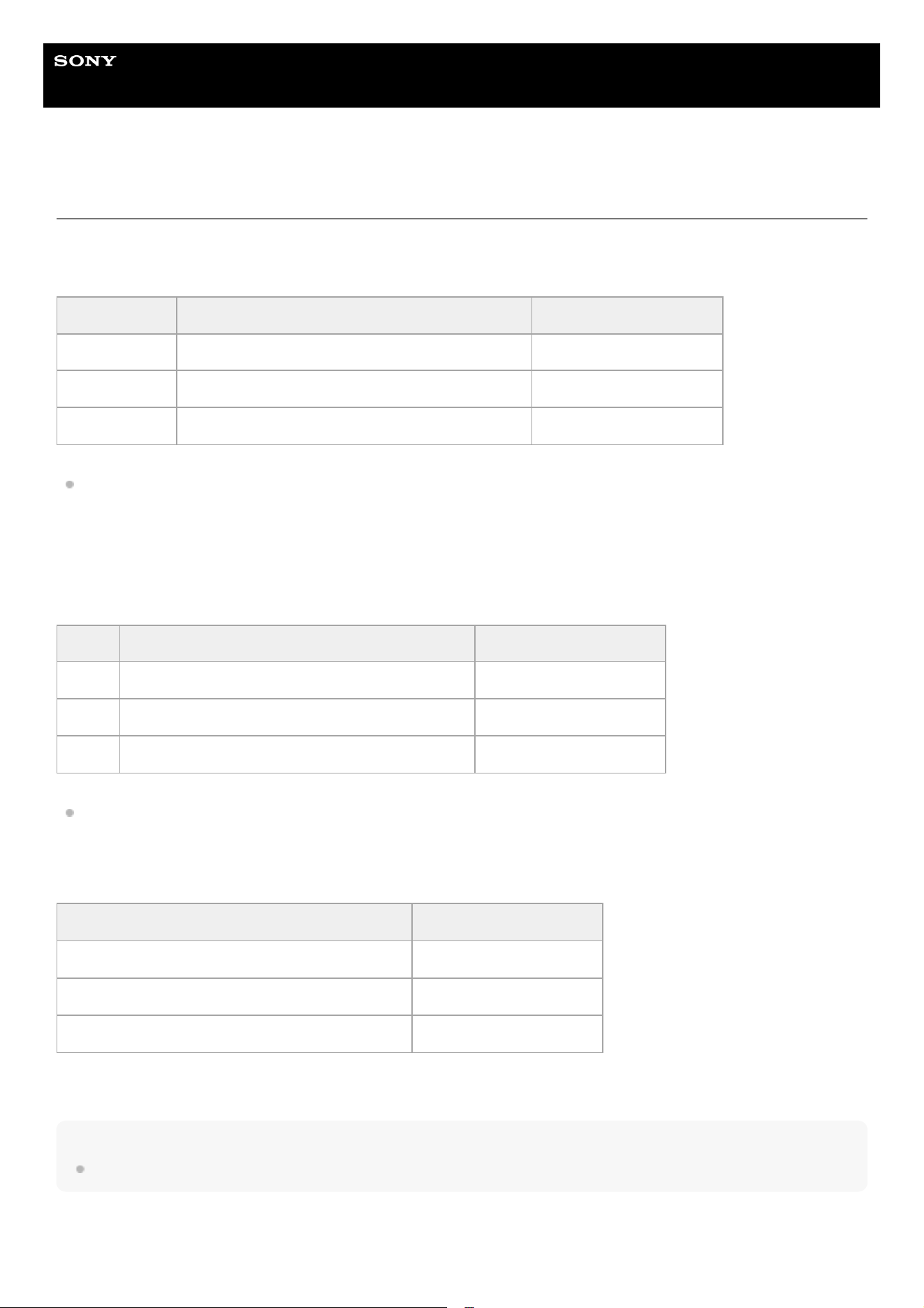
The available operating times of the headset with the battery fully charged are as follows:
Gaming headset:
The headset can be used for about 1 hour after 5 minutes of charging.
Bluetooth connection:
Music playback time
The headset can be used for about 1 hour after 5 minutes of charging.
Communication time
Note
Usage hours may be different from the time described above depending on the conditions of use.
Status Noise canceling function/Ambient Sound Mode Available operating time
Game and chat Noise canceling function: ON Max. 11 hours
Game and chat Ambient Sound Mode: ON Max. 11 hours
Game and chat OFF Max. 12 hours
Codec Noise canceling function/Ambient Sound Mode Available operating time
LC3 Noise canceling function: ON Max. 18 hours
LC3 Ambient Sound Mode: ON Max. 18 hours
LC3 OFF Max. 24 hours
Noise canceling function/Ambient Sound Mode Available operating time
Noise canceling function: ON Max. 10 hours
Ambient Sound Mode: ON Max. 10 hours
OFF Max. 11 hours
29

Help Guide
Wireless Noise Canceling Gaming Headset
INZONE Buds
Checking the remaining battery charge
You can check the remaining battery charge of the rechargeable batteries of the headset and the charging case by the
following operations.
Checking the remaining battery charge of the headset
If the indicator (orange) on the charging case lights up when the headset units are set in the charging case or when
the charging case lid is opened or closed while both headset units are set in the charging case, the remaining battery
charge of the headset units is between 94% and 1%.
If the indicator on the charging case does not light up when the headset units are set in the charging case or when
the charging case lid is opened or closed while both headset units are set in the charging case, the remaining battery
charge of the headset units is at less than 1%.
When the remaining battery charge of the headset units drops to 20% or less while the headset
units are in use, or when the remaining battery charge of the headset units is at 20% or less when
the headset is turned on
If you hear a notification sound and the voice guidance say, “Low battery”, charge the headset as soon as possible.
When the battery becomes completely empty, you will hear a notification sound and the voice guidance say, “Battery is
empty”. Then, the headset automatically turns off.
When using the headset by connecting to a computer
When the headset is connected to a computer, the icon indicating the remaining battery charge is displayed on the
“INZONE Hub” screen in 4 levels: “100%”, “70%”, “50%”, and “20%”.
The remaining battery charge is also displayed over 100 levels in [Device Information] on “INZONE Hub”.
Checking the remaining battery charge of the charging case
If the indicator (orange) on the charging case lights up when both headset units are removed from the charging case,
or when the charging case lid is opened or closed with no headset units stored, the remaining battery charge of the
charging case is between 30% and 1%. The charging case cannot sufficiently charge the headset with this remaining
level of battery charge.
If the indicator on the charging case does not light up when both headset units are removed from the charging case,
or when the charging case lid is opened or closed with no headset units stored, the remaining battery charge of the
charging case is at less than 1%. The headset cannot be charged with the charging case in this case.
Hint
You can also check the remaining battery charge of the headset unit and the charging case with the “Sony | Headphones
Connect” app.
Note
The remaining battery charge may not be properly displayed immediately after a software update or if the headset has not been
used for a long time. In this case, repeatedly charge and discharge the battery multiple times to properly display the remaining
battery charge.
Related Topic
31

Help Guide
Wireless Noise Canceling Gaming Headset
INZONE Buds
Turning on the headset
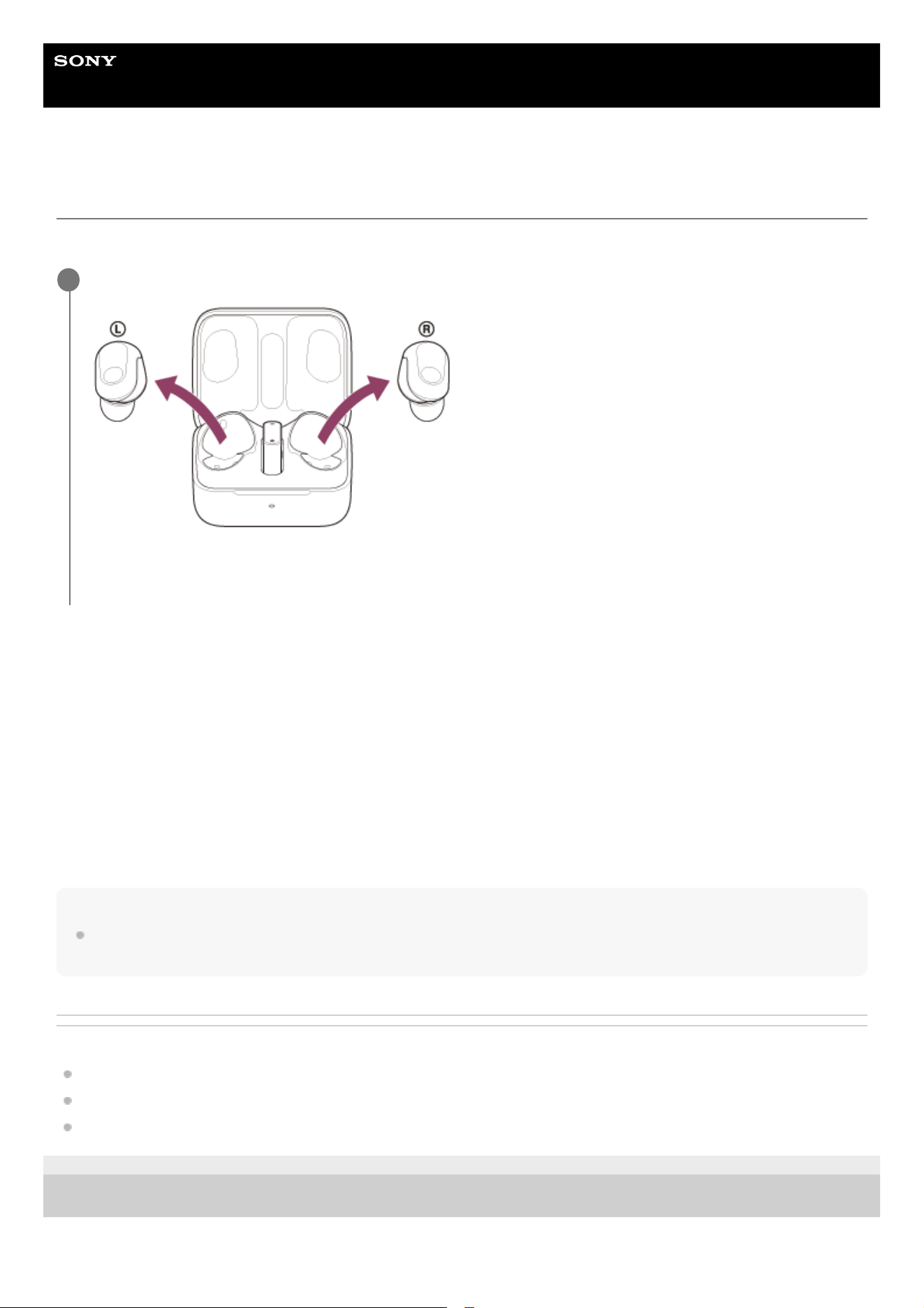
When the headset is stored in the charging case
When the headset is not stored in the charging case
When the headset is not being worn in your ears for about 15 minutes after being removed from the charging case, the
headset turns off automatically. In this case, turn the headset on by tapping the touch sensor of the headset or by putting
the headset into your ears. The headset units will also turn on when they are set in the charging case and then removed
from the charging case.
When the headset is turned on
When both headset units are removed from the charging case, the connection is established between the left and right
headset units.
If the noise canceling settings were changed previously, the settings are retained.
Hint
You can use “INZONE Hub” or the “Sony | Headphones Connect” app to change the setting of the headset so that it will not be
turned off automatically.
Related Topic
Turning off the headset
What you can do with “INZONE Hub”
What you can do with the “Sony | Headphones Connect” app
5-052-425-11(3) Copyright 2023 Sony Corporation
Remove the headset units from the charging case.
The headset turns on automatically.
When you remove only one headset unit from the charging case, only the removed unit turns on.
1
33
Help Guide
Wireless Noise Canceling Gaming Headset
INZONE Buds
Turning off the headset
When the headset is left removed
When the headset is not being worn in your ears for about 15 minutes after being removed from the charging case, the
headset turns off automatically.
To turn off the power before the headset turns off automatically, set the headset units into the charging case, and close
the charging case lid.
Hint
You can use “INZONE Hub” or the “Sony | Headphones Connect” app to change the setting of the headset so that it will not be
turned off automatically.
You can also turn off the headset with the “Sony | Headphones Connect” app.
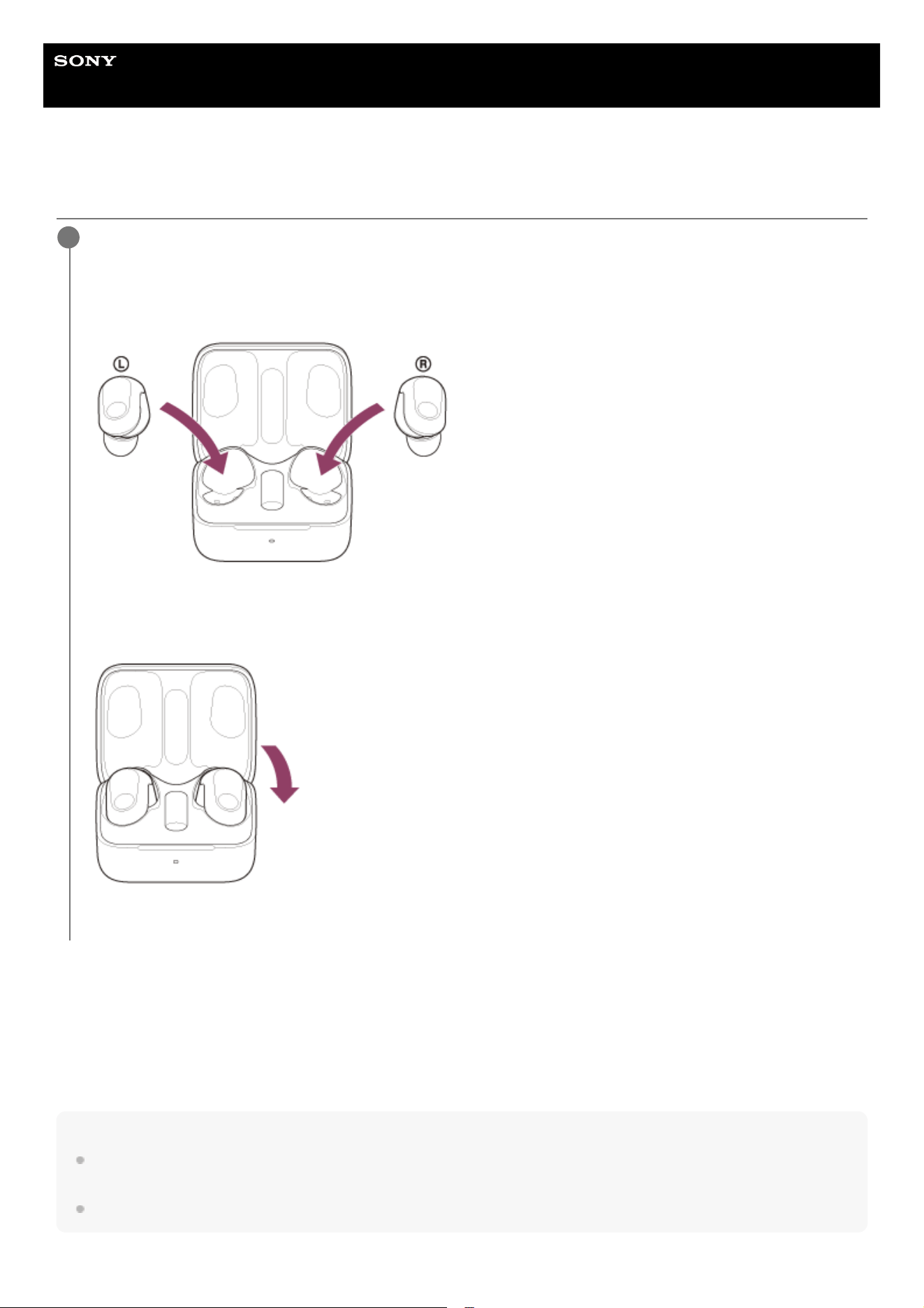
Set the headset units into the charging case.
Put the left headset unit (the headset unit with the tactile dot) back into the left hole of the charging case, and put
the right headset unit back into the right hole of the charging case. Each headset unit will be set to the correct
position in the charging case by the built-in magnet.
When the rechargeable battery of the charging case still has power, the indicator (orange or green) on the charging
case lights up for about 3 seconds.
The charging starts on the headset. Close the charging case lid.
The headset turns off.
1
34

Note
When the remaining battery charge of the charging case is not sufficient, the charging of the headset will not start. Charge the
charging case.
Related Topic
Turning on the headset
What you can do with “INZONE Hub”
What you can do with the “Sony | Headphones Connect” app
5-052-425-11(3) Copyright 2023 Sony Corporation
35
Help Guide
Wireless Noise Canceling Gaming Headset
INZONE Buds
Connecting to a computer, PlayStation®5, or USB Type-C compatible smartphone via
the USB transceiver
If your computer or smartphone does not support LE Audio (sound communication standard for Bluetooth technology),
use this USB transceiver connection method.
Before starting the operation, make sure of the following:
The computer, PS5™, or USB Type-C compatible smartphone is placed within 1 m (3.2 ft) of the headset.
The headset is charged sufficiently.
The operating instructions of the computer, PS5, or USB Type-C compatible smartphone is at hand.
Note
If the device does not recognize the headset microphone, make sure the slide switch of the USB transceiver is set correctly.
If the headset cannot connect to a computer, PS5, or USB Type-C compatible smartphone via a wireless 2.4 GHz connection,
press and hold the connect button on the USB transceiver for about 5 seconds or more to pair.
Press the connect button with an object with a thin tip that will not break, like a paperclip.
For details, see the “When the headset cannot pair with a computer, PS5™, or USB Type-C compatible smartphone” section
within the topic “Pairing cannot be done.”.
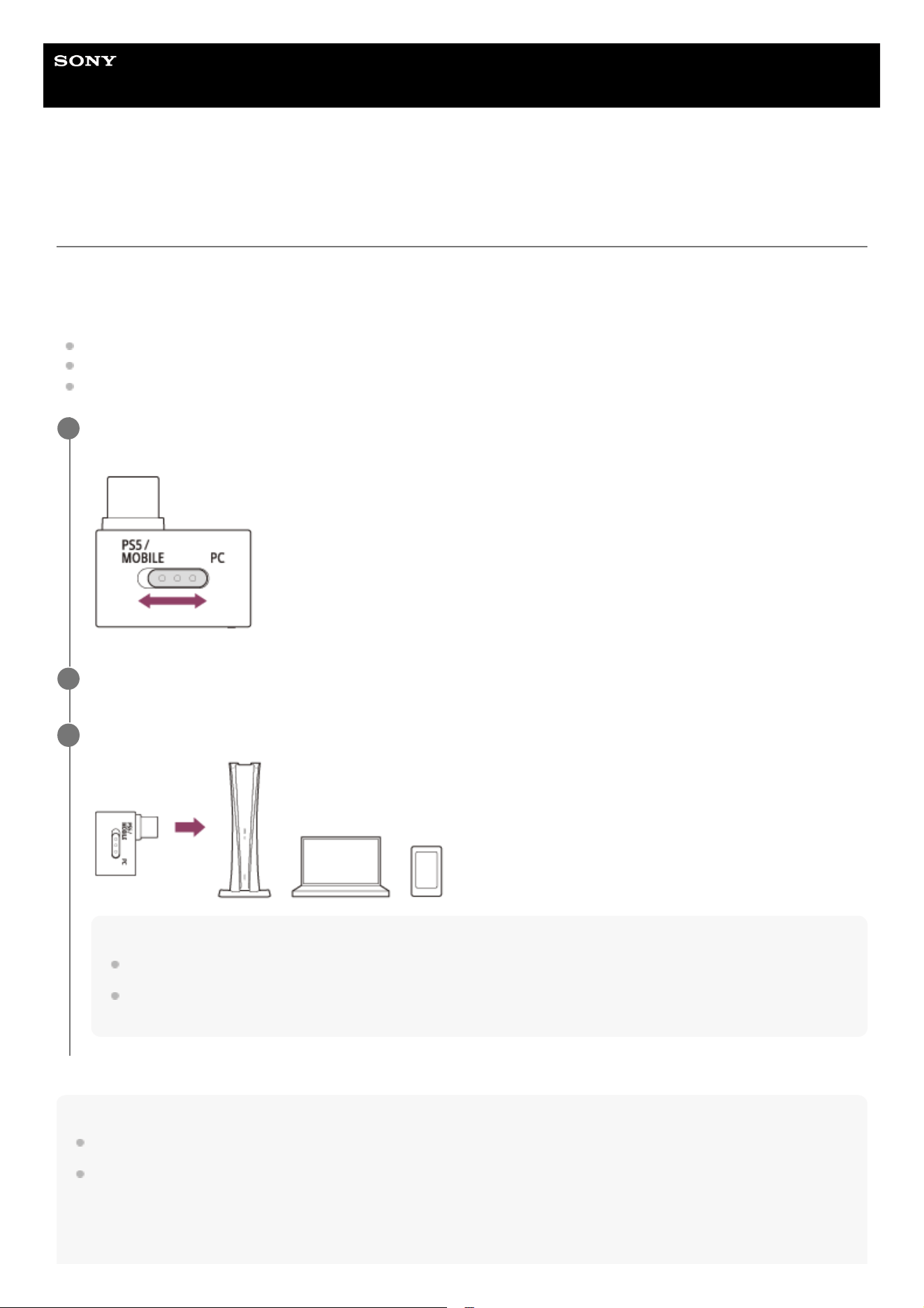
Switch the slide switch of the USB transceiver to “PC” or “PS5/MOBILE” according to the connected
device.
1
Turn on the computer, PS5, or USB Type-C compatible smartphone.
2
Connect the USB transceiver to a USB port of the computer, PS5, or USB Type-C compatible smartphone.
Note
Connect the USB transceiver directly to the computer, PS5, or USB Type-C compatible smartphone, and not via a USB hub.
When connecting the USB transceiver to a computer, connect it to the USB Type-C port on the computer without using a
USB Type-A conversion adaptor.
3
36

During a call, there may be noise in the voice that the other party hears. Connecting the USB transceiver to a different USB port
may improve the situation.
5-052-425-11(3) Copyright 2023 Sony Corporation
37
Help Guide
Wireless Noise Canceling Gaming Headset
INZONE Buds
Using the headset via the USB transceiver
When connected to a PS5
You can do the following with the PS5.
Check the volume balance between a game and chat
Display the on/off status of the microphone
Check the headset volume
Display the remaining battery charge of the headset
Check the connection status of the headset
Note
If the device does not recognize the headset microphone, make sure the slide switch of the USB transceiver is set correctly.
If the headset cannot connect to a computer, PS5, or USB Type-C compatible smartphone via a wireless 2.4 GHz connection,
press and hold the connect button on the USB transceiver for about 5 seconds or more to pair.
Press the connect button with an object with a thin tip that will not break, like a paperclip.
For details, see the “When the headset cannot pair with a computer, PS5™, or USB Type-C compatible smartphone” section
within the topic “Pairing cannot be done.”.
If the functions listed above cannot be used when connected to a PS5, make sure the slide switch of the USB transceiver is
switched to the PS5 side.
When connected to a PS5, you may not be able to use the above functions unless the PS5 is updated. Update the system
software of the PS5 to the latest version.
Put the headset units into your ears.
See “Wearing the headset” for how to wear the headset in your ears.
1
Check the connection status of the USB transceiver.
Plug the USB transceiver into the USB port on a computer, PS5™, or USB Type-C compatible smartphone and the
headset will automatically connect to the USB transceiver (wireless 2.4 GHz connection). When the connection is
complete, the indicator (white) on the USB transceiver lights up.
When a wireless 2.4 GHz connection is not established, the indicator (white) on the USB transceiver repeatedly
flashes at about 1.4-second intervals for about 30 seconds.
2
When connected to a computer, select the headset as the audio device.
Audio output device such as games: [INZONE Buds - Game]
Audio input/output device such as voice chat: [INZONE Buds - Chat]
3
Check the function that can be operated with the touch sensors.
You can turn the microphone on/off and adjust the volume. In addition, to change the volume balance between a
game and chat while using a computer or PS5, change the touch sensor assignment to [Game/Chat Balance
Control] on “INZONE Hub”.
For details, see “About the touch sensor”.
4
38

If the volume is turned down on the computer or USB Type-C compatible smartphone while connected via the USB transceiver,
the volume cannot be turned up very high using the headset. To turn the volume up higher, adjust the volume on the computer or
USB Type-C compatible smartphone.
5-052-425-11(3) Copyright 2023 Sony Corporation
39
Help Guide
Wireless Noise Canceling Gaming Headset
INZONE Buds
How to make a wireless connection to Bluetooth devices
You can enjoy hands-free calling, voice chat, etc. with the headset wirelessly by using your Bluetooth device’s Bluetooth
function.
Only Bluetooth devices that support LE Audio
*
(sound communication standard for Bluetooth technology) can be used. If
your Bluetooth device does not support LE Audio, connect the supplied USB transceiver.
Pairing
To use the Bluetooth function, both of the connecting devices must be registered in advance. The operation to register a
device is called “pairing”.
Pair the headset with the device manually.
Connecting to a paired device
Once a device is paired, it is not necessary to pair it again. Connect to devices already paired with the headset using the
methods necessary for each device.
Related Topic
Pairing and connecting with an Android smartphone using LE Audio
Connecting to a paired Android smartphone
Connecting to a computer, PlayStation®5, or USB Type-C compatible smartphone via the USB transceiver
5-052-425-11(3) Copyright 2023 Sony Corporation
Xperia 1 Ⅳ / Xperia 5 Ⅳ / Xperia 1 V / Xperia 5 V (as of November 2023)
*
40
Help Guide
Wireless Noise Canceling Gaming Headset
INZONE Buds
Connecting with the “Sony | Headphones Connect” app
Launch the “Sony | Headphones Connect” app on your Android smartphone to connect the headset to a smartphone. For
more details, refer to the “Sony | Headphones Connect” app help guide.
https://rd1.sony.net/help/mdr/hpc/h_zz/
Note
The connection with some smartphones may become unstable when connecting using the “Sony | Headphones Connect” app. In
that case, follow the procedures in “Connecting to a paired Android smartphone” to connect to the headset.
Related Topic
Pairing and connecting with an Android smartphone using LE Audio
Connecting to a paired Android smartphone
What you can do with the “Sony | Headphones Connect” app
Installing the “Sony | Headphones Connect” app
5-052-425-11(3) Copyright 2023 Sony Corporation
41
Help Guide
Wireless Noise Canceling Gaming Headset
INZONE Buds
Pairing and connecting with an Android smartphone using LE Audio
The operation to register the device that you wish to connect to is called “pairing”. When using the device with the
headset via a Bluetooth connection for the first time, pair the device first.
Your Android smartphone must support LE Audio (sound communication standard for Bluetooth technology). Use the
supplied USB transceiver to connect to an Android smartphone that does not support LE Audio. It is not possible to hear
audio from the Bluetooth connected device and the USB transceiver connected device at the same time.
Before starting the operation, make sure of the following:
The Android smartphone is placed within 1 m (3.2 ft) of the headset.
The headset is charged sufficiently.
The operating instructions for the Android smartphone is at hand.
Devices supporting LE Audio (as of November 2023)
Android smartphone Xperia 1 Ⅳ / Xperia 5 Ⅳ / Xperia 1 V / Xperia 5 V (use the latest version of the smartphone
software)
For the latest information on the compatible devices, refer to the support website.
About LE Audio
LE Audio supports the “LC3” codec.
Enter pairing mode on this headset.
1
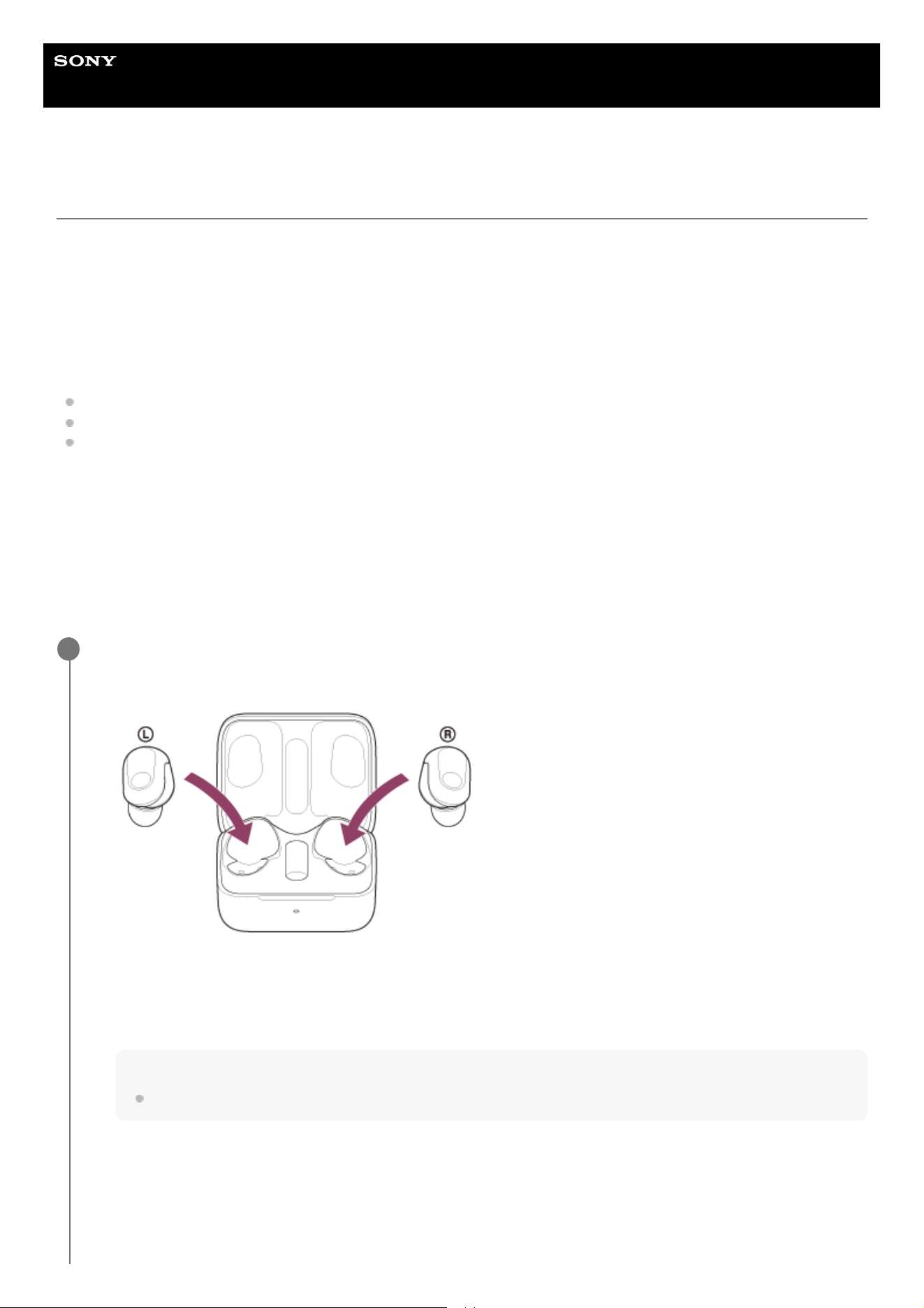
Set the headset units into the charging case.
Leave the charging case lid open.
1.
With the charging case lid open, press and hold the pairing button on the back of the charging case for about 5
seconds or more.
Note
The headset does not enter pairing mode with the charging case lid closed.
2.
42
The indicator (blue) on the charging case repeatedly flashes twice in a row and the headset goes into pairing
mode.
You can remove the headset from the charging case after entering pairing mode.
When you put the headset units into both ears, you will hear a notification sound and the voice guidance say,
“Pairing” from both headset units (or from the headset unit you are wearing) at the same time.
0:00
Unlock the screen of the Android smartphone if it is locked.
2
Find the headset on the Android smartphone.
3
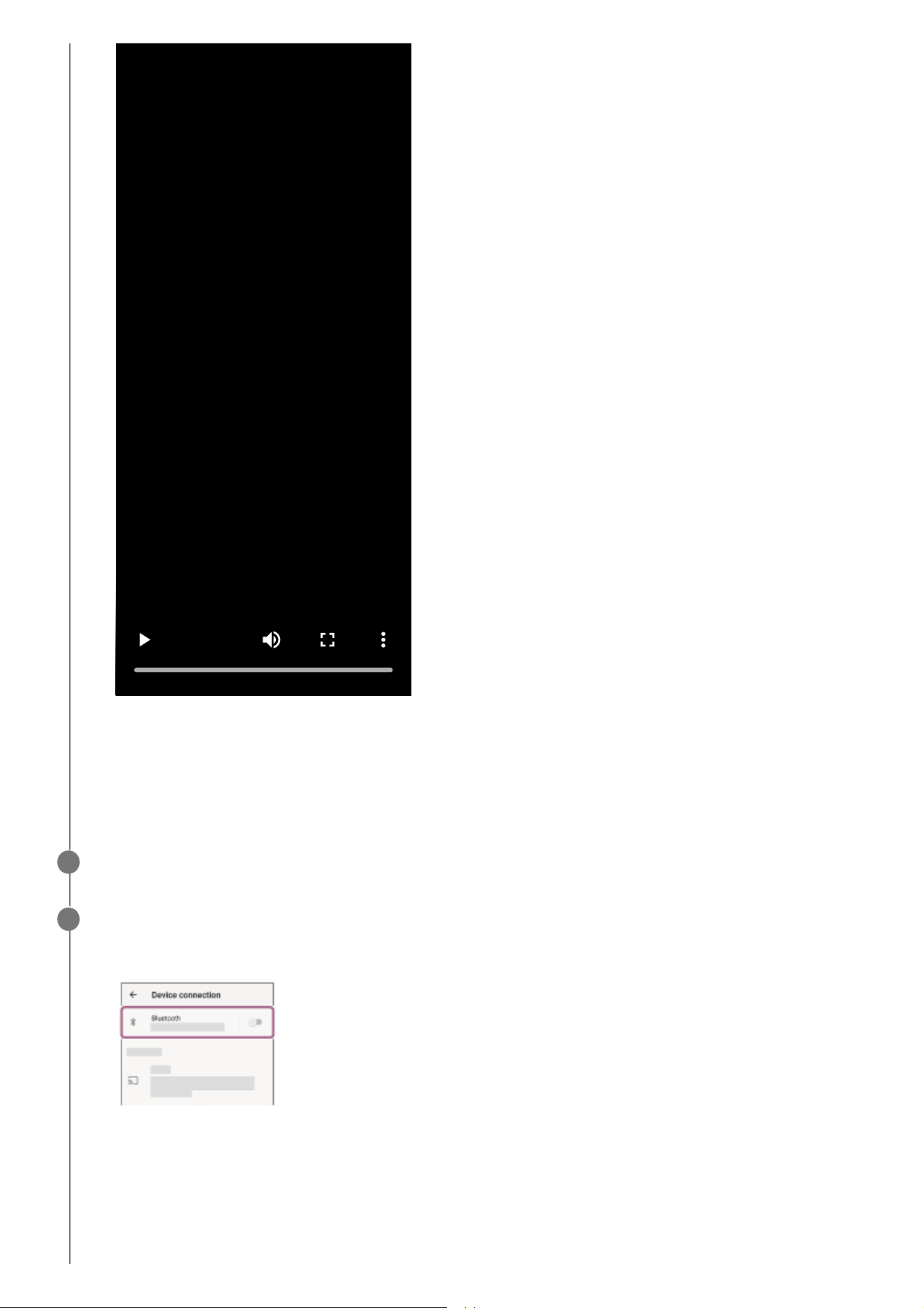
Select [Settings] - [Device connection] - [Bluetooth].
1.
Touch the switch to turn on the Bluetooth function.
2.
43
When switching from a Bluetooth connection to a USB transceiver connection
About the instruction manual video
Watch the video for how to perform pairing for the first time.
https://rd1.sony.net/help/mdr/mov0062/h_zz/
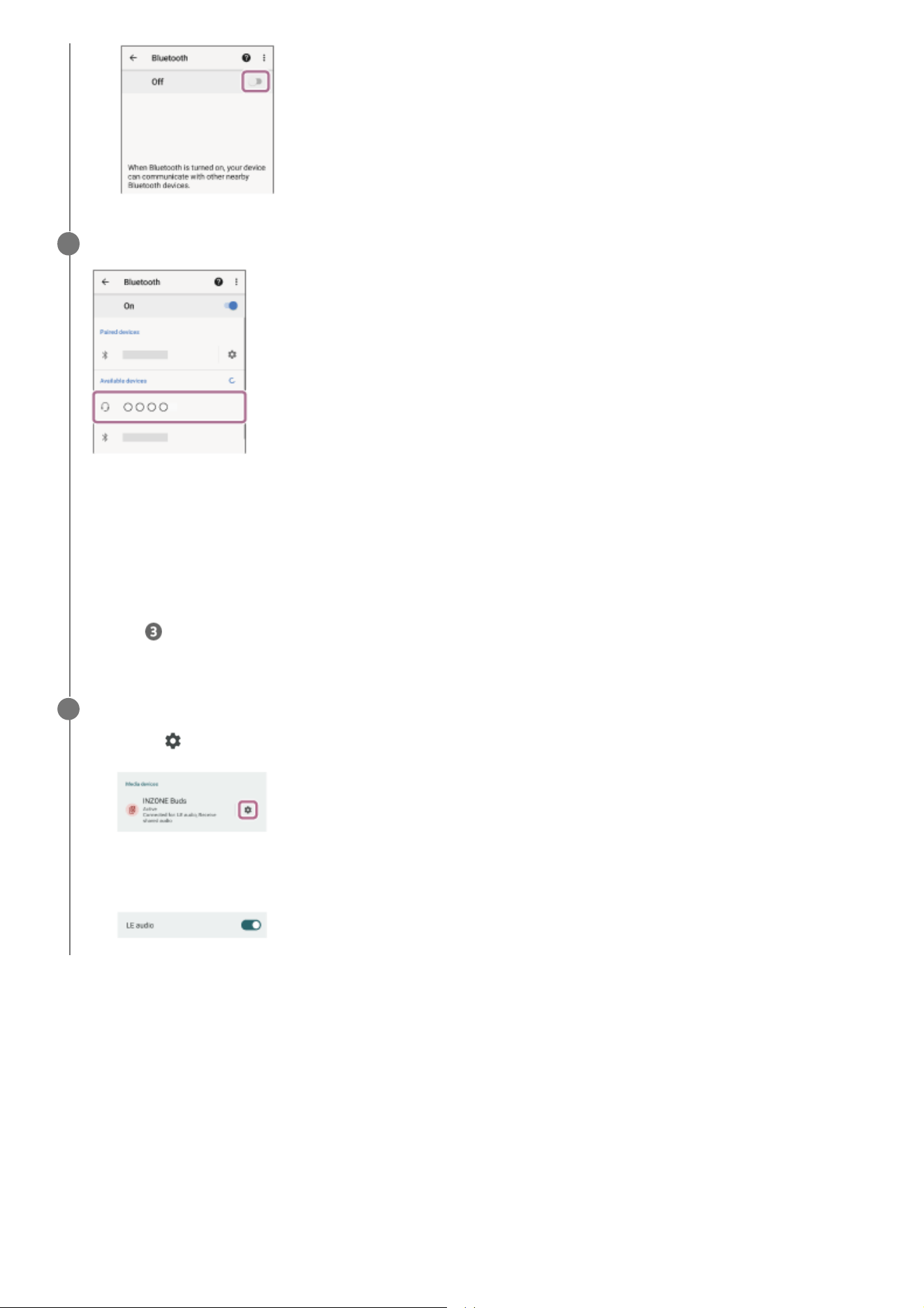
Touch [INZONE Buds].
If Passkey
*
input is required, input “0000”.
The headset and smartphone are paired and connected with each other.
When the headset is placed in the charging case, the indicator (blue) on the charging case flashes 10 times.
When you are wearing the headset, you will hear a notification sound indicating that the connection is established
from both headset units (or from the headset unit you are wearing) at the same time.
If they are not connected, see “Connecting to a paired Android smartphone”.
If [INZONE Buds] does not appear on your Android smartphone screen, start the operation again from the beginning
of step .
4
A Passkey may be called “Passcode”, “PIN code”, “PIN number”, or “Password”.
*
On the Android smartphone, check the LE Audio setting.
5
Touch (settings) displayed next to the connected [INZONE Buds].1.
Check that [LE audio] is turned on.
If it is turned off, touch the switch to turn on [LE audio].
2.
Put the headset units into your ears.
See “Wearing the headset” for how to wear the headset in your ears.
1.
Hold your fingers to the touch sensors on both the left and right headset units for about 1 second to switch to the USB
transceiver mode.
You will hear the voice guidance say, “USB Transceiver mode”.
2.
44
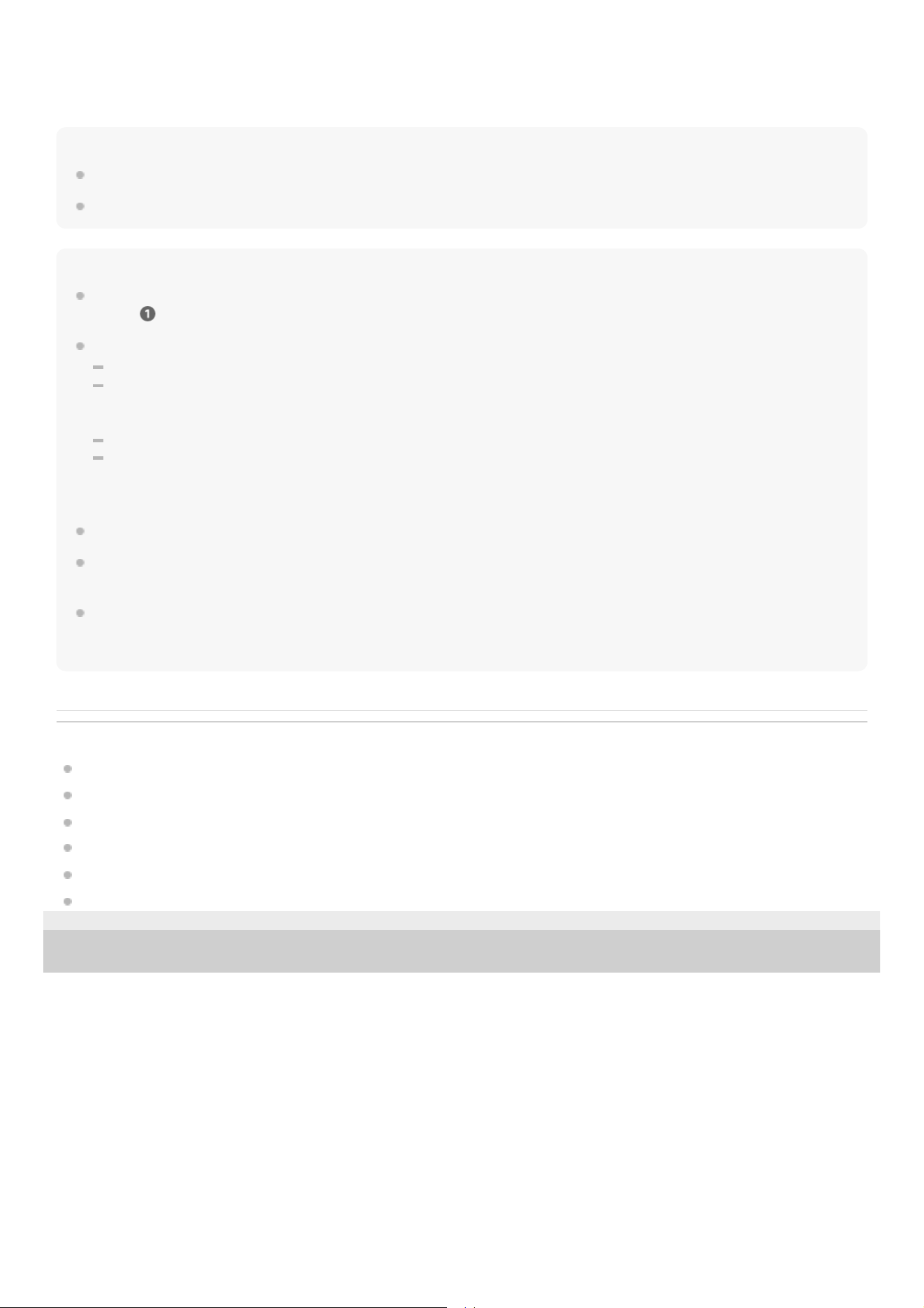
Watch the video for how to switch to the “Bluetooth mode” or “USB transceiver mode” by holding your fingers to the touch
sensors on both the left and right headset units.
https://rd1.sony.net/help/mdr/mov0067/h_zz/
Hint
The operation above is an example. For more details, refer to the operating instructions supplied with the Android smartphone.
To delete all Bluetooth pairing information, see “Initializing the headset to restore factory settings”.
Note
If pairing is not established within 5 minutes, pairing mode is canceled. In this case, start the operation again from the beginning
of step .
Once Bluetooth devices are paired, there is no need to pair them again, except in the following cases:
Pairing information has been deleted after repair, etc.
When a 6th device is paired
The headset can be paired with up to 5 devices. If a new device is paired after 5 devices are already paired, the registration
information of the paired device with the oldest connection date is overwritten with the information for the new device.
When the pairing information for the headset has been deleted from the connected Bluetooth device
When the headset is initialized
All of the pairing information will be deleted. In this case, remove the headset pairing information from the connected device
and pair it again.
The headset can be paired with multiple devices, but can only play music from 1 paired device at a time.
If there is no pairing history between the headset and the Bluetooth connected device, even when you try to change the mode on
the headset, it is not possible to switch from the Bluetooth connection to the USB transceiver connection.
If the last connected Bluetooth device is placed near the headset, the headset may automatically connect to the device when you
turn on the headset and may not connect to another device.
If this occurs, cancel the connection on the last connected Bluetooth device or turn off the Bluetooth function on that device.
Related Topic
How to make a wireless connection to Bluetooth devices
Connecting to a paired Android smartphone
Listening to music from a device via a Bluetooth connection
Disconnecting Bluetooth connection (after use)
Customer support websites
Initializing the headset to restore factory settings
5-052-425-11(3) Copyright 2023 Sony Corporation
45
Help Guide
Wireless Noise Canceling Gaming Headset
INZONE Buds
Connecting to a paired Android smartphone
Unlock the screen of the Android smartphone if it is locked.
1
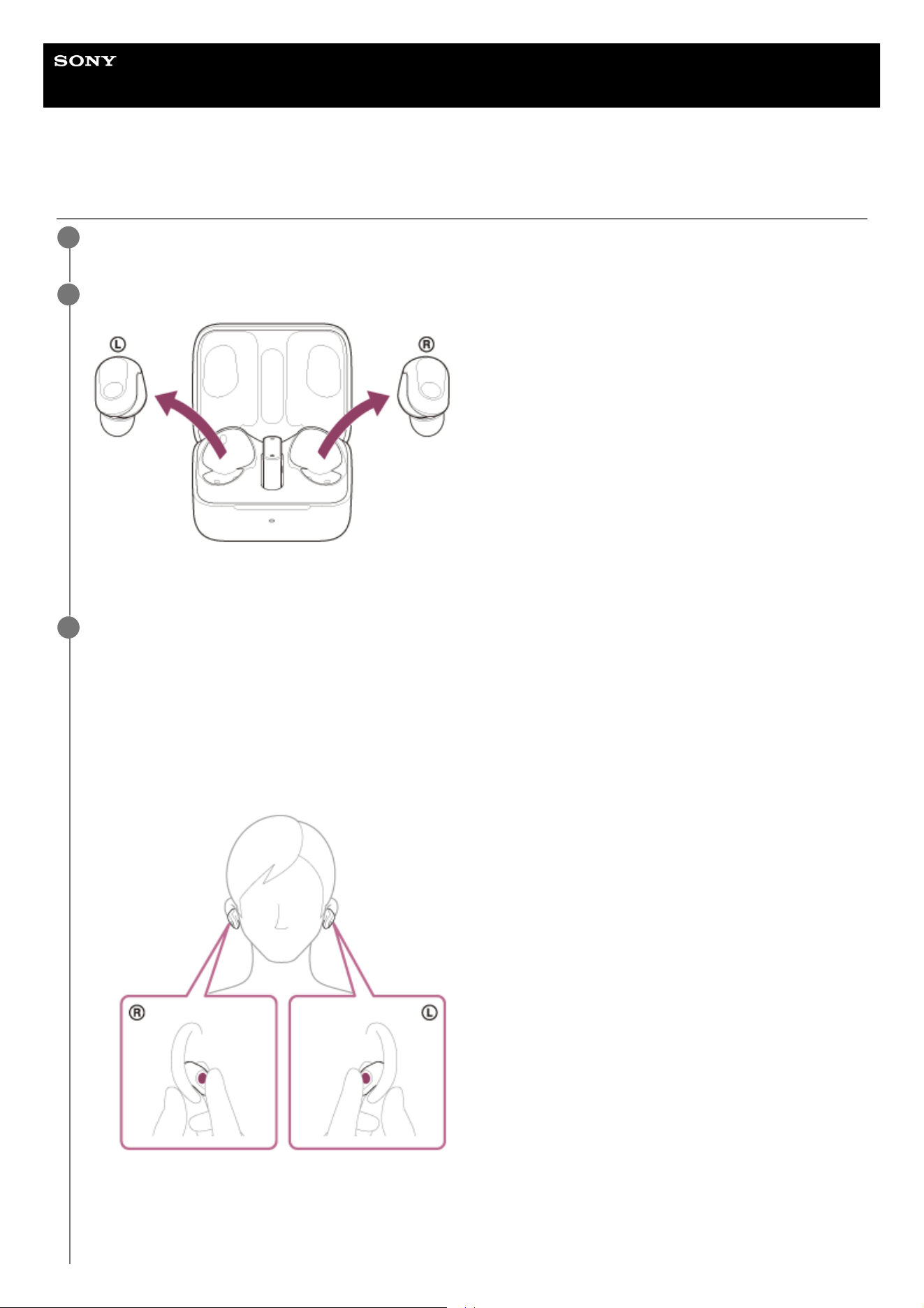
Remove the headset units from the charging case.
The headset turns on automatically.
2
Put the headset units into your ears and switch the mode.
3
Put the headset units into your ears.
See “Wearing the headset” for how to wear the headset in your ears.
You will hear the voice guidance say, “Bluetooth mode” or “USB Transceiver mode”.
1.
When the headset is in the USB transceiver mode, put on both headset units and change the headset mode to
the Bluetooth mode by holding your fingers to the touch sensors on both the left and right headset units for
about 1 second.
You will hear the voice guidance say, “Bluetooth mode”.
2.
46
About the instruction manual video
Watch the video for how to switch to the “Bluetooth mode” or “USB transceiver mode” by holding your fingers to the touch
sensors on both the left and right headset units.
https://rd1.sony.net/help/mdr/mov0067/h_zz/
Hint
The operation above is an example. For more details, refer to the operating instructions supplied with the Android smartphone.
Note
If the last connected Bluetooth device is placed near the headset, the headset may automatically connect to the device when you
turn on the headset and may not connect to another device.
If this occurs, cancel the connection on the last connected Bluetooth device or turn off the Bluetooth function on that device.
When the headset has automatically connected to the last connected device, you will hear a notification sound
indicating that the connection is established from both headset units at the same time. When you are wearing only
one headset unit, you will hear the notification sound from the headset unit you are wearing.
Check the connection status on the Android smartphone. If it is not connected, proceed to step .
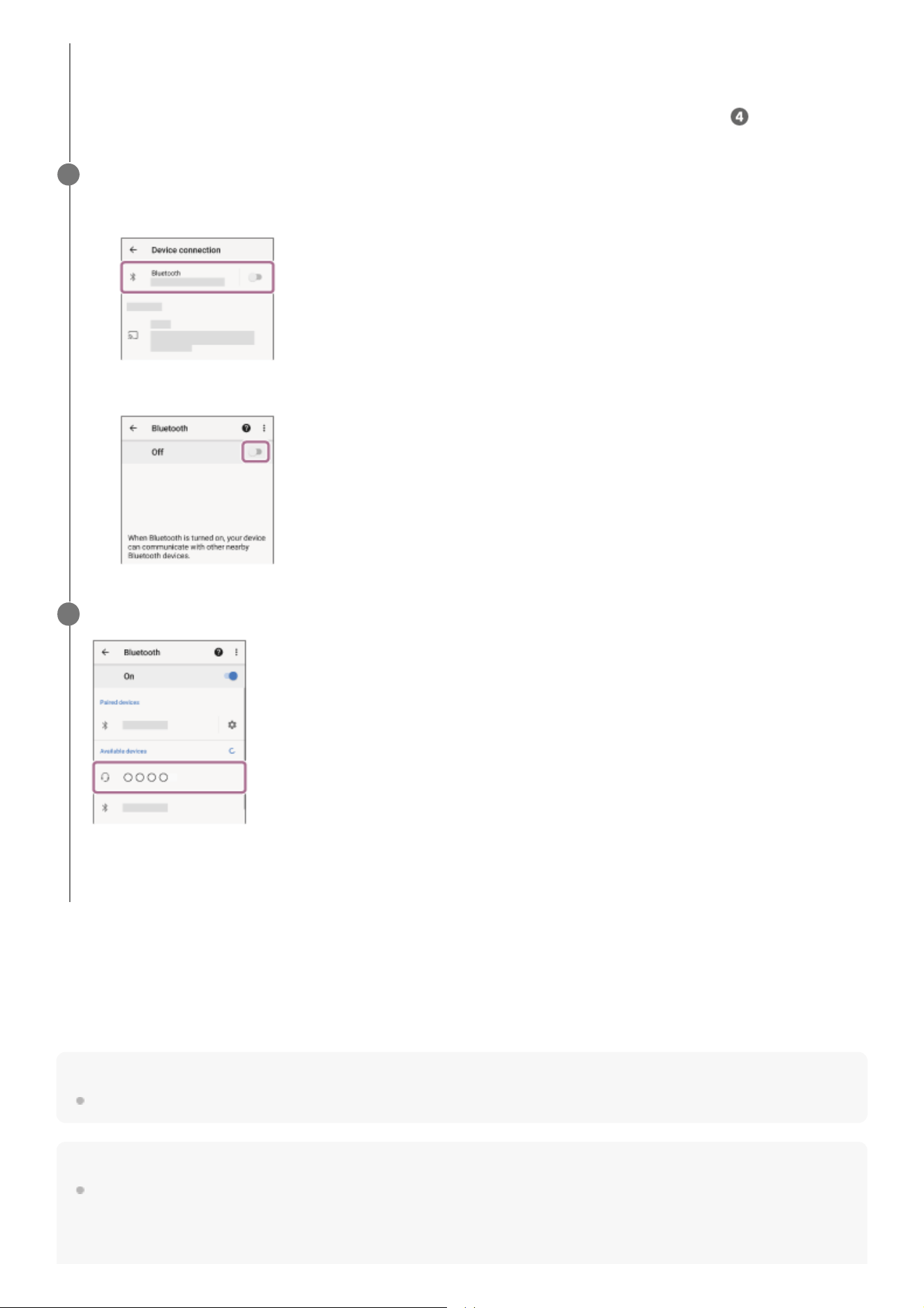
Display the devices paired with the Android smartphone.
4
Select [Settings] - [Device connection] - [Bluetooth].
1.
Touch the switch to turn on the Bluetooth function.
2.
Touch [INZONE Buds].
You will hear a notification sound from both headset units (or from the headset unit you are wearing) at the same
time.
5
47

If you cannot connect your Android smartphone to the headset, delete the headset pairing information on your Android
smartphone and perform pairing again. As for the operations on your Android smartphone, refer to the operating instructions
supplied with the Android smartphone.
If there is no pairing history between the headset and the Bluetooth connected device, even when you try to change the mode on
the headset, it is not possible to switch from the Bluetooth connection to the USB transceiver connection.
Related Topic
How to make a wireless connection to Bluetooth devices
Pairing and connecting with an Android smartphone using LE Audio
Listening to music from a device via a Bluetooth connection
Disconnecting Bluetooth connection (after use)
5-052-425-11(3) Copyright 2023 Sony Corporation
48
Help Guide
Wireless Noise Canceling Gaming Headset
INZONE Buds
Using the headset via a Bluetooth connection
The headset does not produce sound
The headset does not produce sound when it is connected to a Bluetooth device that does not support LE Audio. If this is
the case, initialize the headset and then connect the supplied USB transceiver.
Related Topic
Wearing the headset
About the touch sensor
What you can do with “INZONE Hub”
Connecting to a computer, PlayStation®5, or USB Type-C compatible smartphone via the USB transceiver
Initializing the headset to restore factory settings
What you can do with the “Sony | Headphones Connect” app
5-052-425-11(3) Copyright 2023 Sony Corporation
Put the headset units into your ears.
See “Wearing the headset” for how to wear the headset in your ears.
1
Check the function that can be operated with the touch sensors.
You can adjust the volume.
To control the playback of a Bluetooth device during music playback, change the function assignment of the touch
sensor to [Play/Pause] on “INZONE Hub” or the “Sony | Headphones Connect” app. For details, see “About the
touch sensor”.
2
49
Help Guide
Wireless Noise Canceling Gaming Headset
INZONE Buds
Receiving a call
You can talk hands-free via a Bluetooth connection on a smartphone or mobile phone that supports the Bluetooth profile
CCP (Call Control Profile).
The operation may vary depending on the smartphone or mobile phone. Refer to the operating instructions supplied
with the smartphone or mobile phone.
Depending on the connected device or the application you are using, the functions may not work properly even if you
try to operate them with the headset.
Ring tone
When you receive an incoming call, a ring tone will be heard from the headset.
You will hear either of following ring tones, depending on your smartphone or mobile phone.
Ring tone set on the headset
Ring tone set on the smartphone or mobile phone
Ring tone only for a Bluetooth connection set on the smartphone or mobile phone
Connect the headset to a smartphone or mobile phone via a Bluetooth connection beforehand.
1
When you hear a ring tone, tap the touch sensor on the left or right headset unit twice quickly (at about 0.3-
second intervals between taps) to receive the call.
Sound will be heard from the headset.
When you receive an incoming call while listening to music, playback pauses automatically and a ring tone will be
heard from the headset.
If playback is not paused, operate the headset to pause playback.
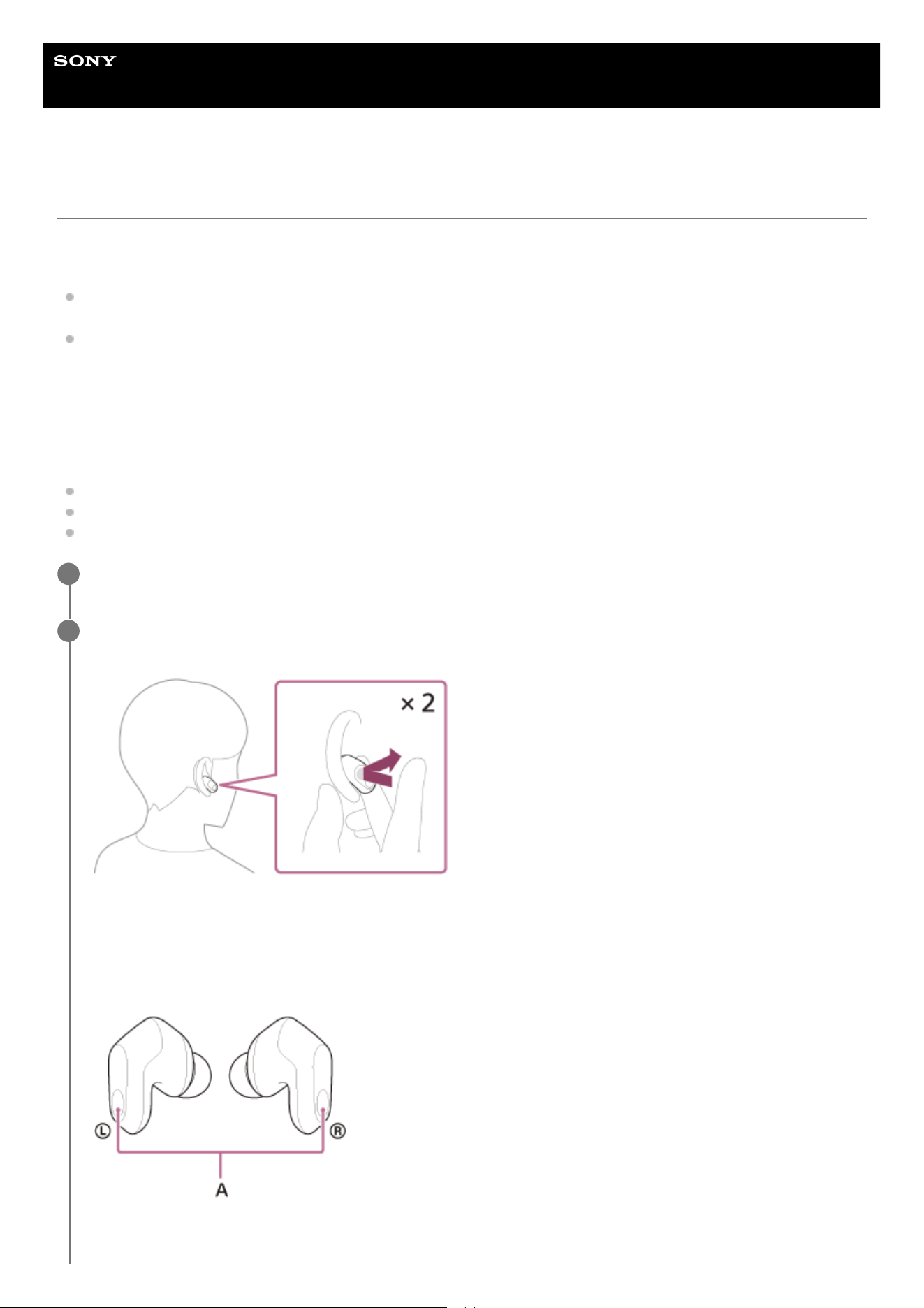
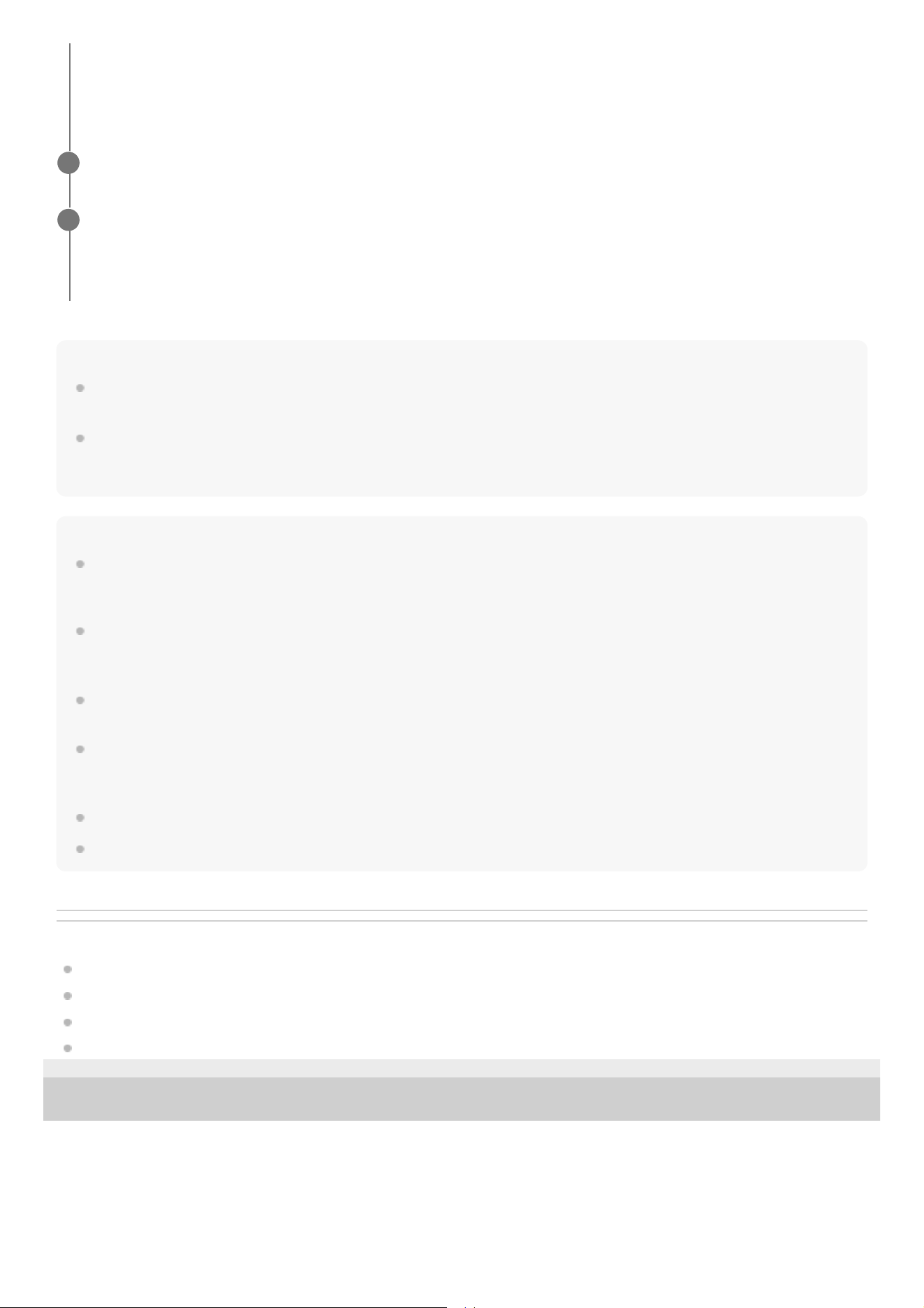
You can talk using the microphones on the left and right headset units.
A: Microphones (left, right)
2
50
Hint
When receiving a call when using a smartphone or mobile phone, some smartphones or mobile phones may receive a call on the
phone instead of the headset. Transfer the call to the headset on your smartphone or mobile phone.
You can also talk hands-free even when you are wearing only one headset unit. When you receive an incoming call, answer the
call using the headset unit you are wearing. If you put the other headset unit into the other ear while you are talking with only one
headset unit, you can talk with both headset units.
Note
In the factory settings, the headset does not accept incoming calls from Bluetooth connected devices when the headset is in the
USB transceiver mode. “INZONE Hub” allows you to switch modes to accept incoming calls even when the headset is in the USB
transceiver mode.
Depending on the connected device or playback application you are using, playback may not pause even when you receive an
incoming call while playing back music. When you receive an incoming call while playing back music, playback may not resume
automatically even if you finish the call.
Use a smartphone or mobile phone at least 50 cm (1.6 ft) away from the headset. Noise may result if the smartphone or mobile
phone is too close to the headset.
In order to make it easier for you to hear your own voice during a phone call, the microphones work to capture ambient sounds
(Sidetone function). If your voice sounds too loud or the sounds in your surroundings are bothering you, turn off [SIDETONE] on
“INZONE Hub”.
The volume during calls cannot be adjusted with the headset. Adjust the volume on the connected device.
Depending on the caller’s voice characteristics or the ambient environmental noises, the call sound quality may be reduced.
Related Topic
Using only one headset unit
How to make a wireless connection to Bluetooth devices
Making a call
Functions for a phone call
5-052-425-11(3) Copyright 2023 Sony Corporation
If no ring tone is heard via the headset
The headset may not be connected with the smartphone or mobile phone over CCP. Check the connection status
on the smartphone or mobile phone.
Operate the smartphone or mobile phone to adjust the volume.
3
When you have finished your call, tap the touch sensor on the left or right headset unit twice quickly (at
about 0.3-second intervals between taps) to end the call.
If you received a call during music playback, music playback resumes automatically after ending the call.
4
51
Help Guide
Wireless Noise Canceling Gaming Headset
INZONE Buds
Making a call
You can talk hands-free via a Bluetooth connection on a smartphone or mobile phone that supports the Bluetooth profile
CCP (Call Control Profile).
The operation may vary depending on the smartphone or mobile phone. Refer to the operating instructions supplied
with the smartphone or mobile phone.
Depending on the connected device or the application you are using, the functions may not work properly even if you
try to operate them with the headset.
Connect the headset to a smartphone or mobile phone via a Bluetooth connection.
1
Operate your smartphone or mobile phone to make a call.
When you make a call, the dial tone is heard from the headset.
If you make a call while listening to music, playback pauses automatically.
If playback is not paused, operate the headset to pause playback.
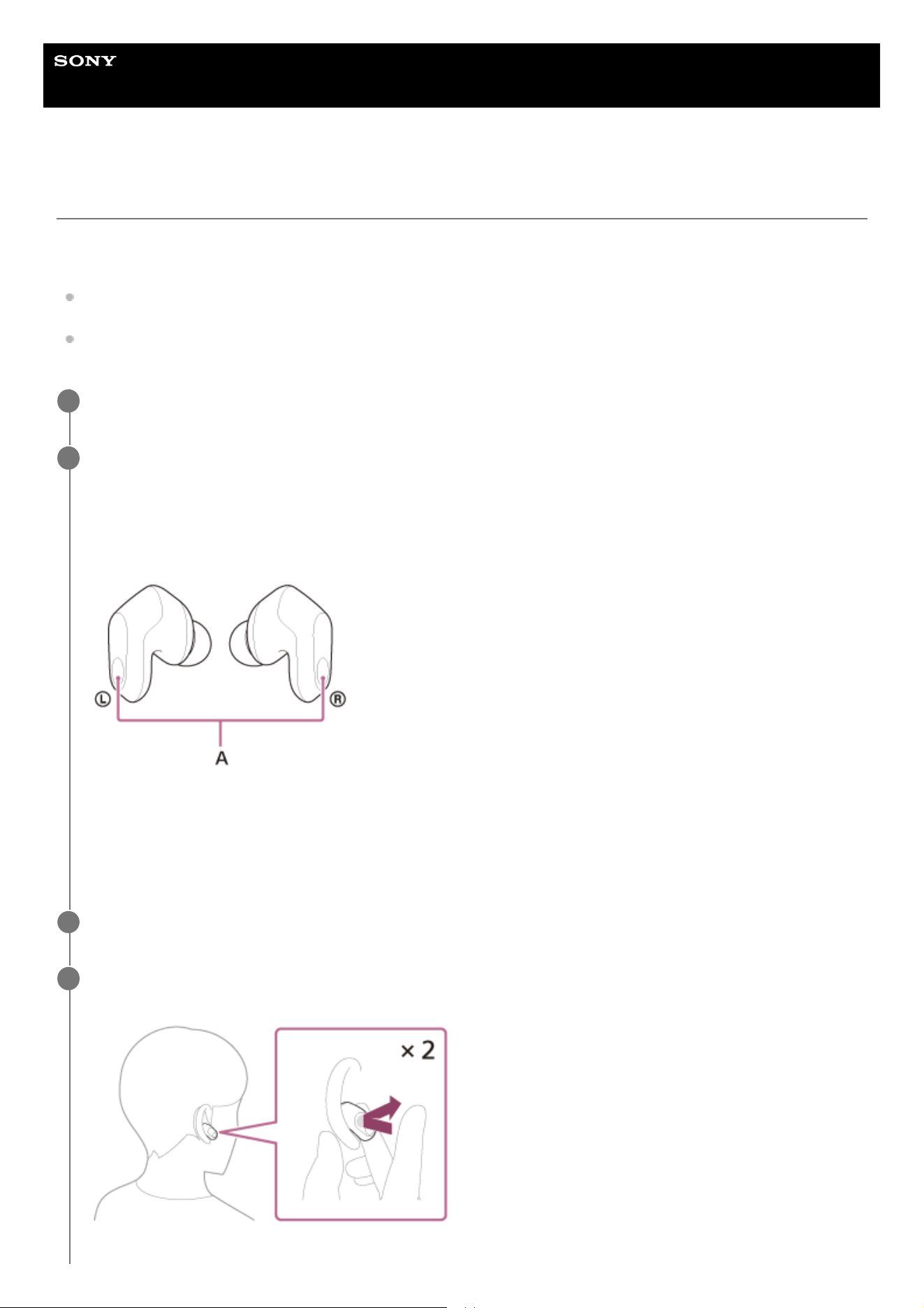
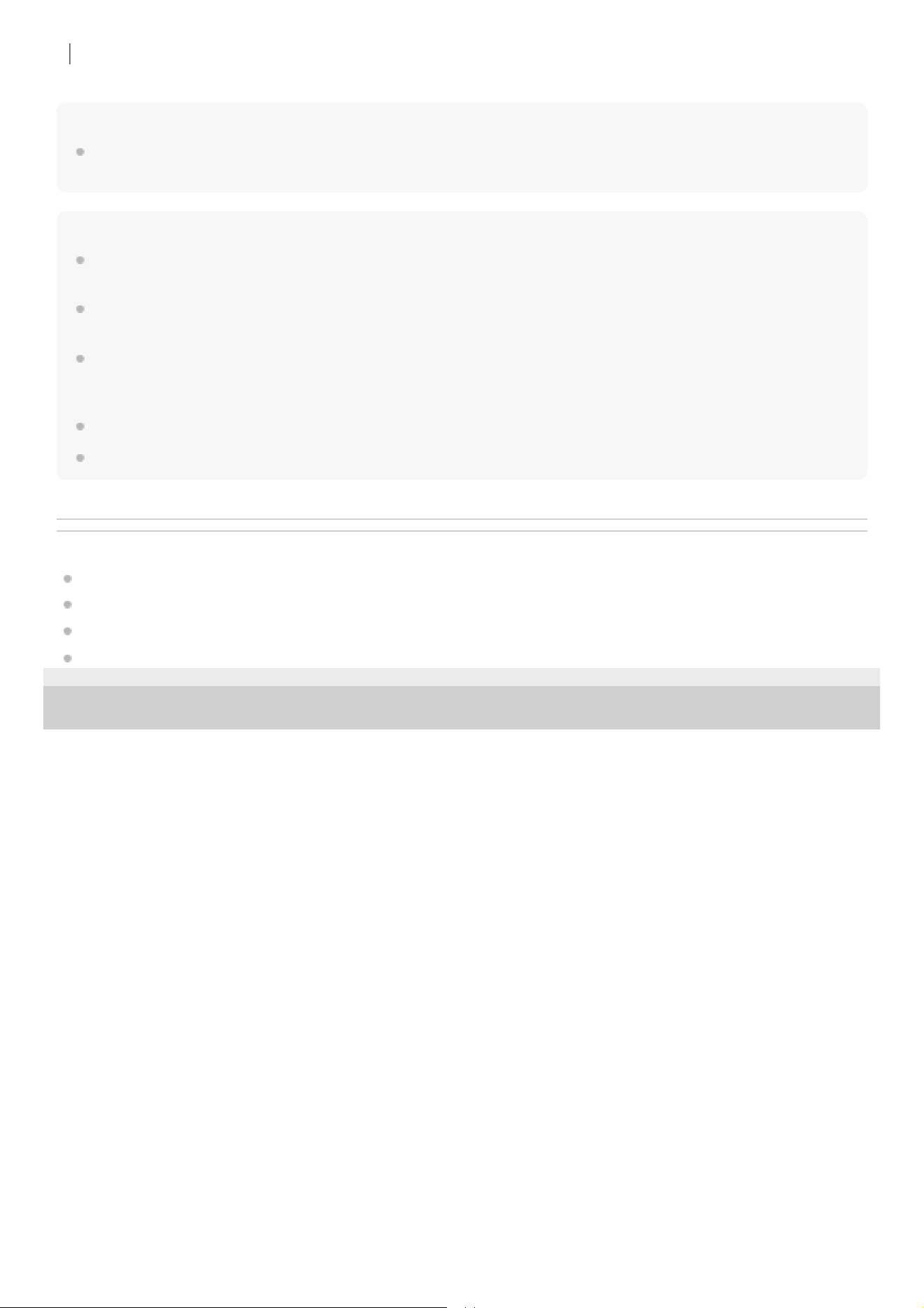
You can talk using the microphones on the left and right headset units.
A: Microphones (left, right)
If no dial tone is heard via the headset
Use your smartphone or mobile phone to transfer the call to the headset.
2
Operate the smartphone or mobile phone to adjust the volume.
3
When you have finished your call, tap the touch sensor on the left or right headset unit twice quickly (at
about 0.3-second intervals between taps) to end the call.
4
52
Hint
You can also talk hands-free even when you are wearing only one headset unit. If you put the other headset unit into the other ear
while you are talking with only one headset unit, you can talk with both headset units.
Note
Depending on the connected device or playback application you are using, when you make a call during music playback,
playback may not resume automatically even after you finish the call.
Use a smartphone or mobile phone at least 50 cm (1.6 ft) away from the headset. Noise may result if the smartphone or mobile
phone is too close to the headset.
In order to make it easier for you to hear your own voice during a phone call, the microphones work to capture ambient sounds
(Sidetone function). If your voice sounds too loud or the sounds in your surroundings are bothering you, turn off [SIDETONE] on
“INZONE Hub”.
The volume during calls cannot be adjusted with the headset. Adjust the volume on the connected device.
Depending on the caller’s voice characteristics or the ambient environmental noises, the call sound quality may be reduced.
Related Topic
Using only one headset unit
How to make a wireless connection to Bluetooth devices
Receiving a call
Functions for a phone call
5-052-425-11(3) Copyright 2023 Sony Corporation
If you made a call during music playback, music playback resumes automatically after ending the call.
53
Help Guide
Wireless Noise Canceling Gaming Headset
INZONE Buds
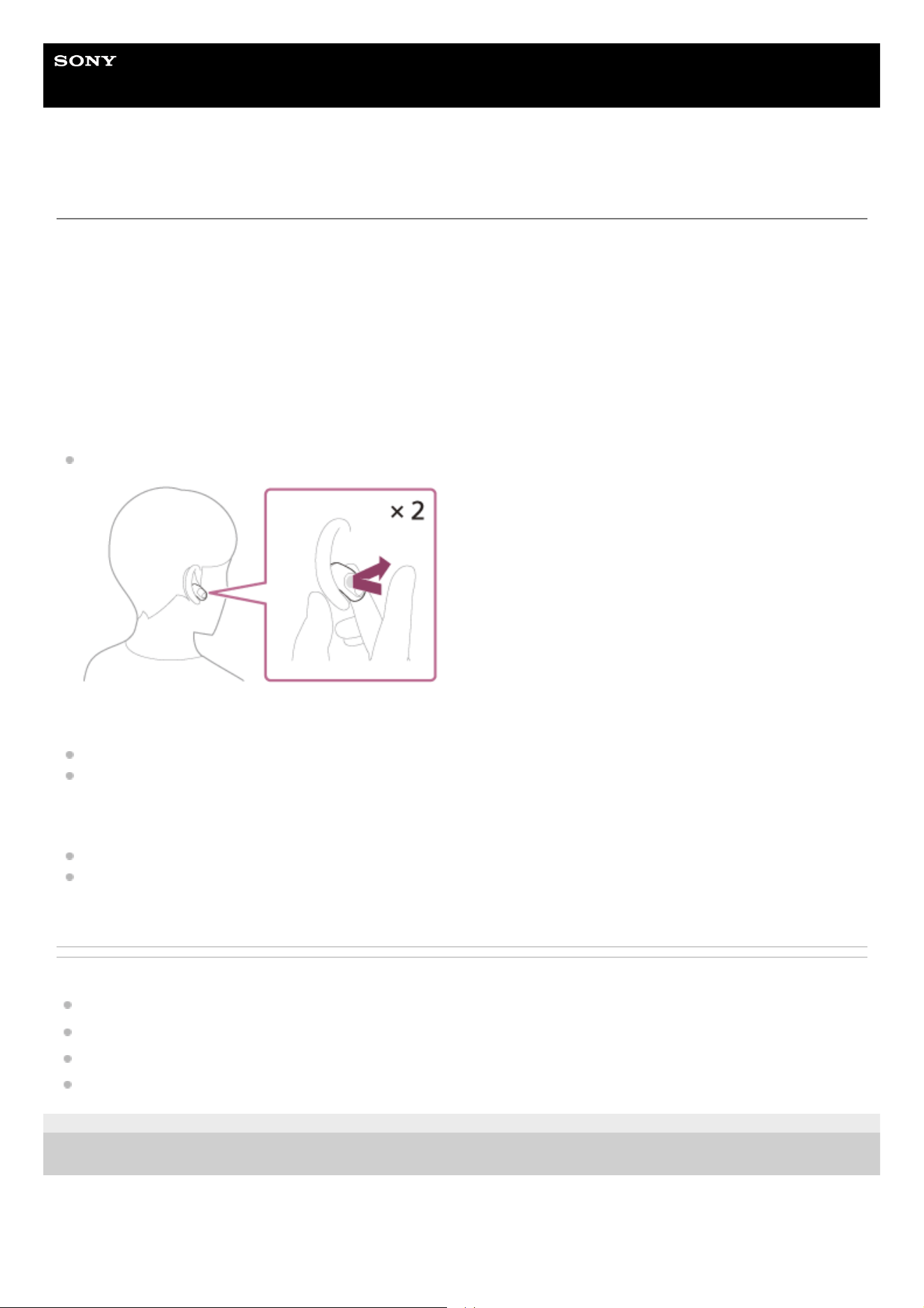
Functions for a phone call
The available functions may vary depending on the smartphone or mobile phone.
Depending on the connected device or the application you are using, the functions may not work properly even if you try
to operate them with the headset.
Refer to the operating instructions supplied with the smartphone or mobile phone.
You can use either the left or right headset unit to perform the following operations.
When only one headset unit is worn in your ear, operate the headset unit that is worn.
Outgoing call
Cancel an outgoing call: Tap the touch sensor twice quickly (with an interval of about 0.3 seconds between taps).
Incoming call
Receive a call: Tap the touch sensor twice quickly (with an interval of about 0.3 seconds between taps).
Reject a call: Hold your finger to the touch sensor for about 1 second or more.
During call
End a call: Tap the touch sensor twice quickly (with an interval of about 0.3 seconds between taps).
Switch the microphones on/off: Hold your finger to the touch sensor (in the factory settings, only the touch sensor on
the left headset unit).
Related Topic
Using only one headset unit
About the touch sensor
Receiving a call
Making a call
5-052-425-11(3) Copyright 2023 Sony Corporation
54
Help Guide
Wireless Noise Canceling Gaming Headset
INZONE Buds
Disconnecting Bluetooth connection (after use)
Hint
When you finish playing music, the Bluetooth connection may terminate automatically depending on the Bluetooth device.
Related Topic
Turning off the headset
5-052-425-11(3) Copyright 2023 Sony Corporation
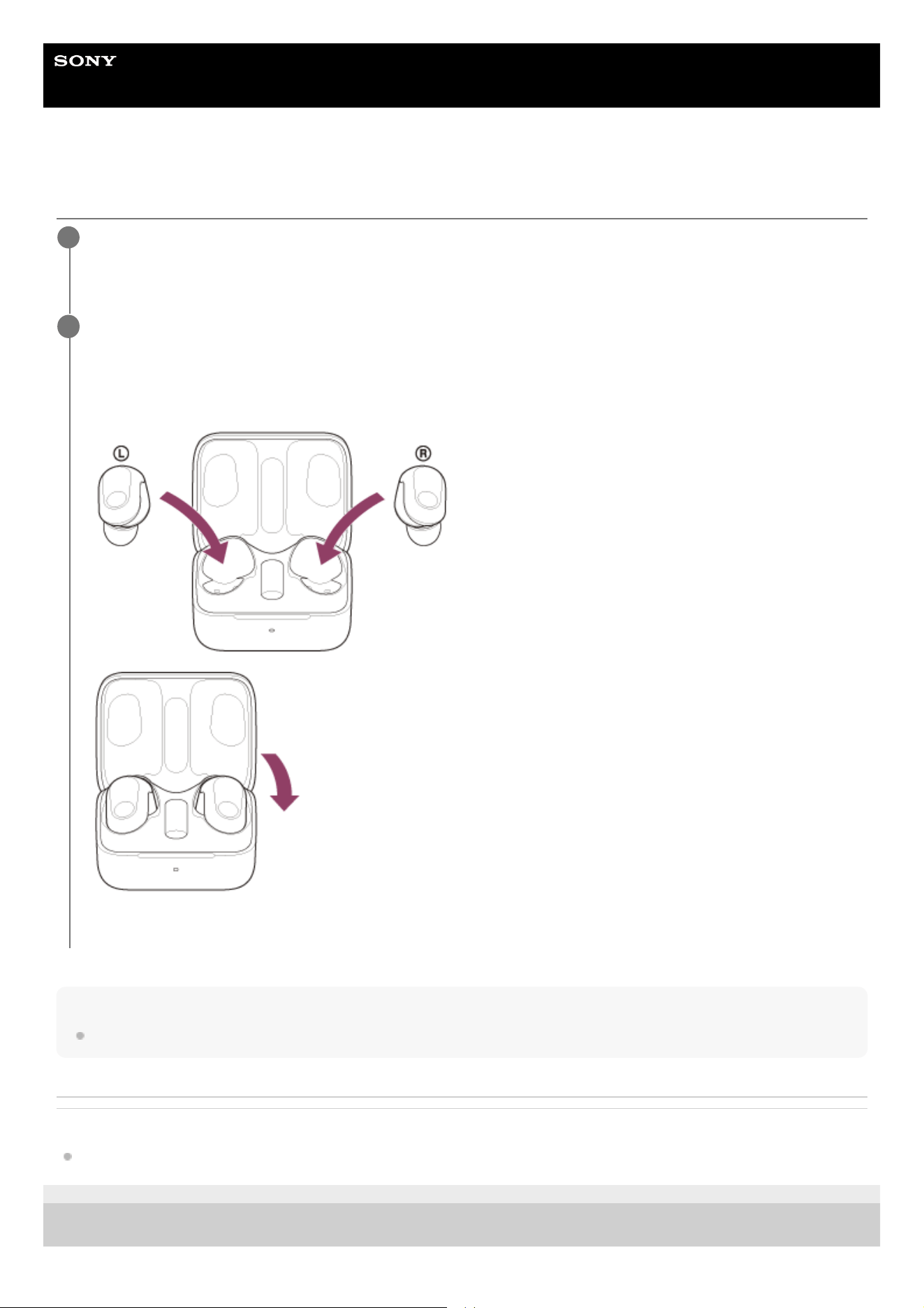
Disconnect the Bluetooth connection by operating the Bluetooth device.
You will hear a notification sound indicating that the Bluetooth connection is disconnected.
1
Set the headset units into the charging case, and close the charging case lid.
Put the left headset unit (the headset unit with the tactile dot) back into the left hole of the charging case, and put
the right headset unit back into the right hole of the charging case. Each headset unit will be set to the correct
position in the charging case by the built-in magnet.
The headset turns off.
2
55
Help Guide
Wireless Noise Canceling Gaming Headset
INZONE Buds
Listening to music from a device via a Bluetooth connection
If your Bluetooth device supports the following profiles, you can enjoy listening to music and control the device from your
headset via a Bluetooth connection.
TMAP (Telephony and Media Audio Profile)
You can control the streaming for smartphones, headset, left and right standalone earbuds, speakers, TVs, and more.
MCP (Media Control Profile)
You can play or stop music.
VCP (Volume Control Profile)
You can adjust the volume, etc.
The operation may vary depending on the Bluetooth device. Refer to the operating instructions supplied with the
Bluetooth device.
Put the headset units into your ears.
See “Wearing the headset” for how to wear the headset in your ears.
1
Connect the headset to a Bluetooth device.
2
Operate the Bluetooth device to start playback and adjust the volume to a moderate level.
3
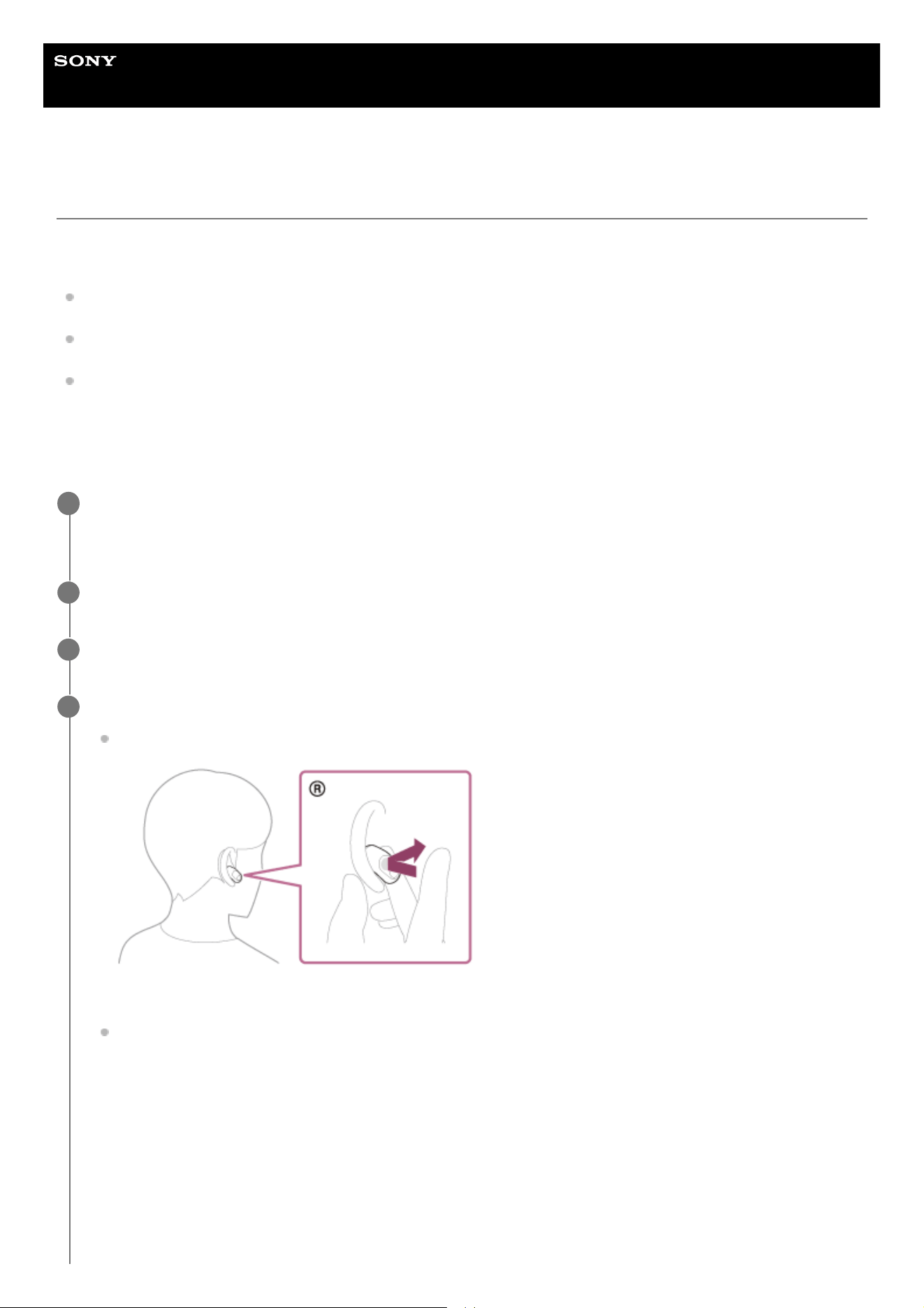
Tap the touch sensor on the right headset unit to adjust the volume.
Increase the volume: Tap the touch sensor on the right headset unit during music playback.
As you repeatedly tap the touch sensor, the volume increases step by step according to the number of taps.
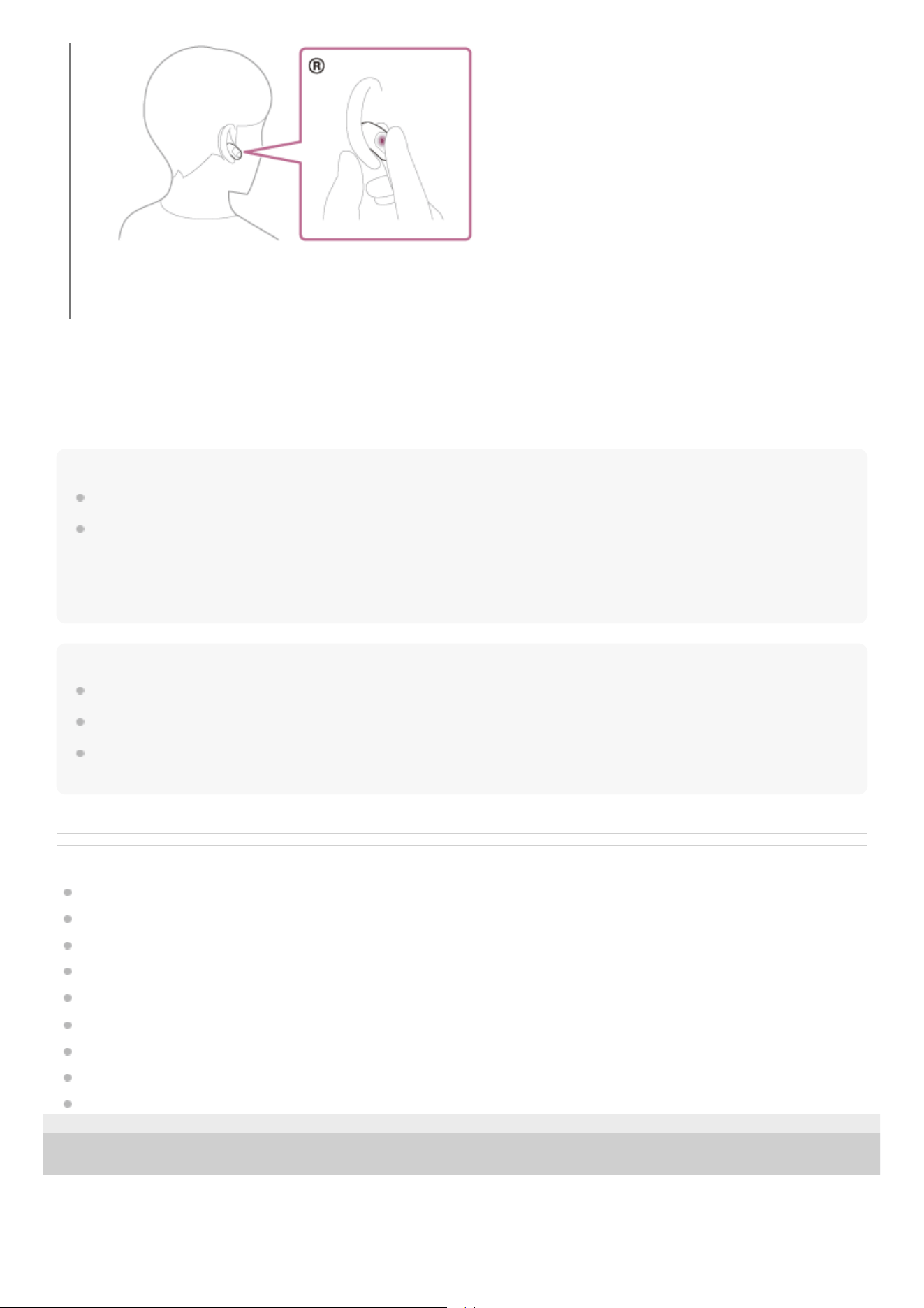
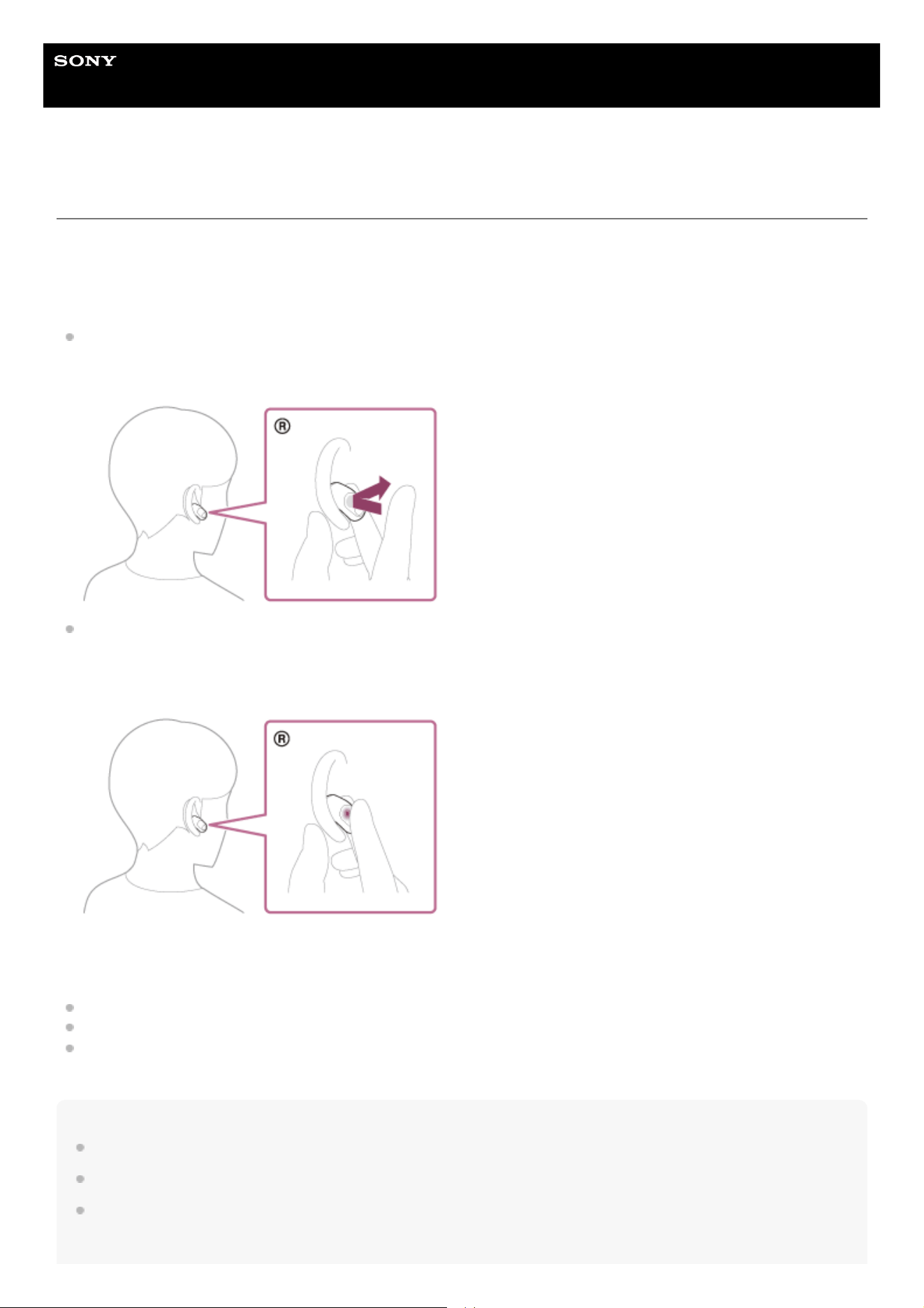
Lower the volume: Hold your finger to the touch sensor on the right headset unit during music playback to lower
the volume continuously. Release your finger from the touch sensor at the desired volume level.
4
56
The headset does not produce sound
The headset does not produce sound when it is connected to a Bluetooth device that does not support LE Audio. If this is
the case, initialize the headset and then connect the supplied USB transceiver.
Hint
Depending on the Bluetooth device, it may be necessary to adjust the volume or set the audio output setting on the device.
You can also listen to music by removing only one headset unit from the charging case and putting it into your ear.
Assign the music playback function to the touch sensor using “INZONE Hub” or the “Sony | Headphones Connect” app when
operating music playback with the headset.
When you are listening to music with only one headset unit, if you put the other headset unit into the other ear, you can listen to
music with both headset units.
Note
You cannot adjust the volume with the headset when no music is playing.
If the communication condition is poor, the Bluetooth device may react incorrectly to the operation on the headset.
If the volume is turned down on the connected device while connected via Bluetooth connection, the volume cannot be turned up
very high using the headset. To turn the volume up higher, adjust the volume on the connected device.
Related Topic
Wearing the headset
Using only one headset unit
How to make a wireless connection to Bluetooth devices
Controlling the audio device (Bluetooth connection)
About the touch sensor
What you can do with “INZONE Hub”
Connecting to a computer, PlayStation®5, or USB Type-C compatible smartphone via the USB transceiver
Initializing the headset to restore factory settings
What you can do with the “Sony | Headphones Connect” app
5-052-425-11(3) Copyright 2023 Sony Corporation
While touching the touch sensor, the volume lowers step by step.
When the volume reaches the maximum or minimum, an alarm sounds.
57
Help Guide
Wireless Noise Canceling Gaming Headset
INZONE Buds
Controlling the audio device (Bluetooth connection)
When playing music, the following operations are available. The available functions may vary depending on the Bluetooth
device, so refer to the operating instructions supplied with the device.
You can use the right headset unit to perform the following operations.
Increase the volume: Tap the touch sensor on the right headset unit continuously during music playback.
As you repeatedly tap the touch sensor, the volume increases step by step according to the number of taps.
When the volume reaches the maximum, an alarm sounds.
Lower the volume: Hold your finger to the touch sensor on the right headset unit during music playback to lower the
volume continuously. Release your finger from the touch sensor at the desired volume level.
While touching the touch sensor, the volume lowers step by step.
When the volume reaches the minimum, an alarm sounds.
If the function of the headset unit is changed to [Playback control] on “INZONE Hub” or the “Sony | Headphones
Connect” app, you can perform the following operations using the headset unit to which the function is assigned.
Play/Pause: Tap the touch sensor.
Skip to the beginning of the next track: Tap the touch sensor twice quickly.
Skip to the beginning of the previous track (or the current track during playback): Tap the touch sensor 3 times
quickly.
Note
You cannot adjust the volume with the headset when no music is playing.
If the communication condition is poor, the Bluetooth device may react incorrectly to the operation on the headset.
The available operations may vary depending on the connected device, the music software, or app used. In some cases, it may
operate differently or may not work even when the operations described above are performed.
58

If the volume is turned down on the connected device while connected via Bluetooth connection, the volume cannot be turned up
very high using the headset. To turn the volume up higher, adjust the volume on the connected device.
Related Topic
About the touch sensor
What you can do with “INZONE Hub”
What you can do with the “Sony | Headphones Connect” app
5-052-425-11(3) Copyright 2023 Sony Corporation
59
Help Guide
Wireless Noise Canceling Gaming Headset
INZONE Buds
Disconnecting Bluetooth connection (after use)
Hint
When you finish playing music, the Bluetooth connection may terminate automatically depending on the Bluetooth device.
Related Topic
Turning off the headset
5-052-425-11(3) Copyright 2023 Sony Corporation
Disconnect the Bluetooth connection by operating the Bluetooth device.
You will hear a notification sound indicating that the Bluetooth connection is disconnected.
1
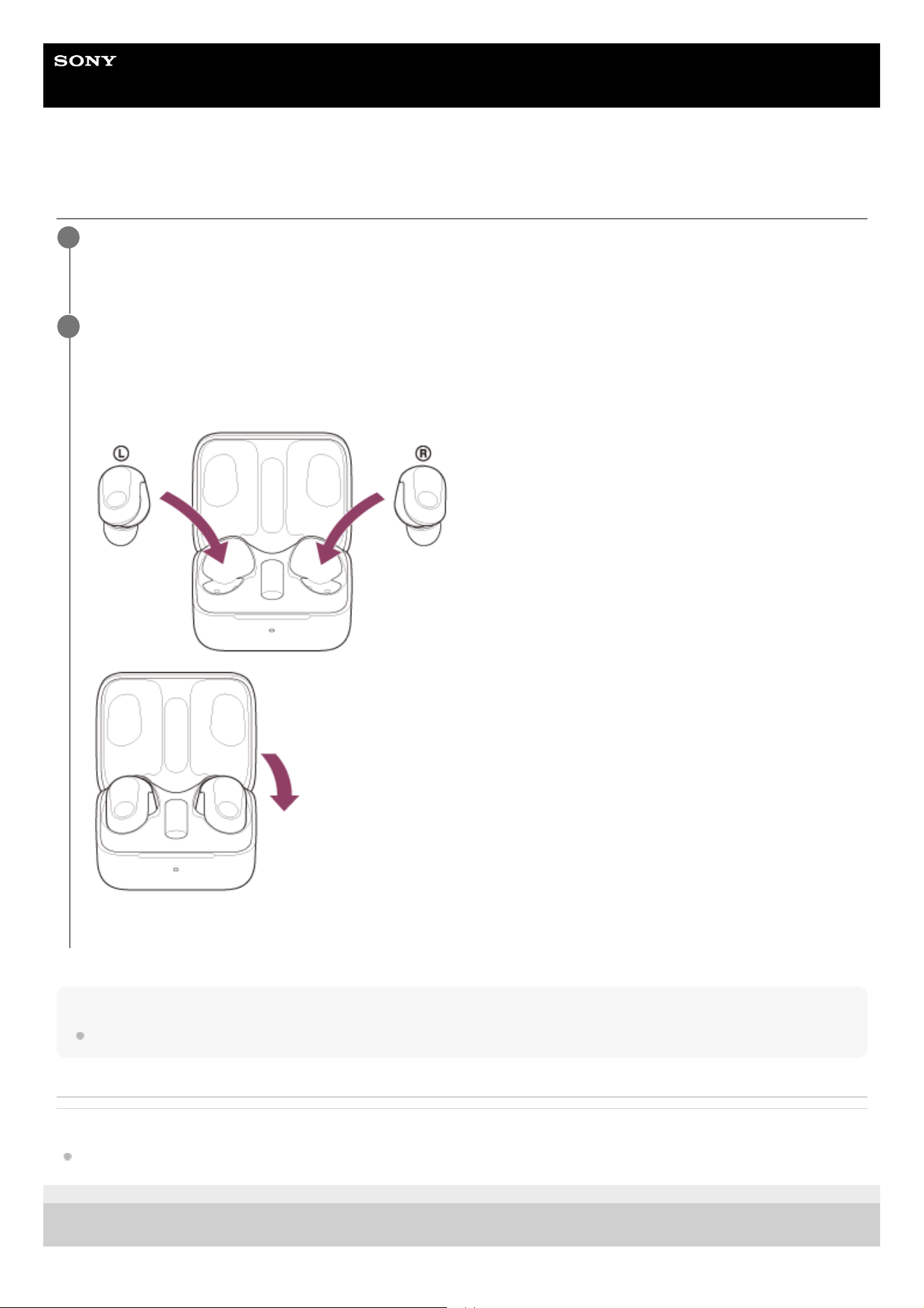
Set the headset units into the charging case, and close the charging case lid.
Put the left headset unit (the headset unit with the tactile dot) back into the left hole of the charging case, and put
the right headset unit back into the right hole of the charging case. Each headset unit will be set to the correct
position in the charging case by the built-in magnet.
The headset turns off.
2
60
Help Guide
Wireless Noise Canceling Gaming Headset
INZONE Buds
About 360 Reality Audio
What is 360 Reality Audio?
360 Reality Audio is a new music experience using Sony’s 360 three-dimensional audio technology.
Positional information is attached to each sound source such as vocals, chorus, and musical instruments, and are placed
in a spherical space.
Listeners can experience a three-dimensional sound field as if they are immersed in a live performance of the artists.
Conditions of use
Download and use a music streaming service (charged) app that supports 360 Reality Audio on your Android
smartphone.
By optimizing the sound field and the acoustic feature of headset with the “Sony | Headphones Connect” app, you can
enjoy a more realistic sense of reality.
For details on 360 Reality Audio, refer to the following website:
https://www.sony.net/360RA/
Note
Service is not available in certain countries and regions.
5-052-425-11(3) Copyright 2023 Sony Corporation
61
Help Guide
Wireless Noise Canceling Gaming Headset
INZONE Buds
About the LE Audio connection quality
The following 2 kinds of connection qualities for LE Audio can be selected on the “Sony | Headphones Connect” app
when the headset is connected via a Bluetooth connection to a smartphone that supports LE Audio.
[Low Latency]: Prioritizes minimizing the sound latency.
[High Reliability]: Prioritizes a stable connection (default).
When you want to minimize the sound latency, select [Low Latency].
If the connection is unstable, such as when only intermittent sound is being produced, select [High Reliability].
Note
Depending on the ambient conditions in the area where you are using the headset, intermittent sound may still occur even if [High
Reliability] is selected.
Related Topic
What you can do with the “Sony | Headphones Connect” app
5-052-425-11(3) Copyright 2023 Sony Corporation
62

Help Guide
Wireless Noise Canceling Gaming Headset
INZONE Buds
Supported codecs
A codec is an “audio coding algorithm” used when transmitting sound wirelessly via a Bluetooth connection.
The headset supports the following codecs.
LC3
This is an abbreviation for Low Complexity Communication Codec.
LC3 is a codec for LE Audio and achieves low latency transmission.
Refer to the operating instructions supplied with the device regarding setting the codec.
5-052-425-11(3) Copyright 2023 Sony Corporation
63
Help Guide
Wireless Noise Canceling Gaming Headset
INZONE Buds
What you can do with “INZONE Hub”
When a computer with “INZONE Hub” installed and the headset are connected via a USB transceiver, you can do the
following.
Check/update the headset software version
Automatic connection switching for outgoing and incoming calls
Set the wearing detection automatic power off function
Display the remaining battery charge of the headset
Display the remaining battery charge of the charging case
Adjust volume
Set the volume balance between a game and chat
Select the Equalizer setting
Customize the Equalizer setting
Adjust the dynamic range (DYNAMIC RANGE CONTROL)
Turn spatial sound on/off
Personalize the spatial sound settings
Analyze ear shape
Adjust the noise canceling function and Ambient Sound Mode (ambient sound control)
Select the switching pattern when switching the noise canceling function/Ambient Sound Mode on the headset
Set the noise cancelling function/Ambient Sound Mode when turning on the headset
Adjust the microphone volume
Adjust the sidetone volume
Turn the microphones on/off
Microphone test
Set the microphone input volume to be constant (AUTO GAIN CONTROL)
Create/save sound profile
Export/import sound profile
Integrate with gaming apps
Assist to determine the optimal earbud tips for you
Register the product
Change the function of the touch sensor
Switch the voice guidance language
Turn the notification sound and voice guidance on/off
For details on “INZONE Hub”, refer to the following URL.
https://www.sony.net/inzonehub-support
Note
When the audio output device of the computer is set to [INZONE Buds - Chat], the sound settings are disabled. Check that it is
set to [INZONE Buds - Game].
5-052-425-11(3) Copyright 2023 Sony Corporation
64
Help Guide
Wireless Noise Canceling Gaming Headset
INZONE Buds
Installing “INZONE Hub”
5-052-425-11(3) Copyright 2023 Sony Corporation
Download “INZONE Hub” from the support site and install it on your computer.
For details, refer to the following URL:
https://www.sony.net/inzonehub-support
Compatible OS: Windows 10 or later
1
After installing, launch “INZONE Hub”.
2
65
Help Guide
Wireless Noise Canceling Gaming Headset
INZONE Buds
What you can do with the “Sony | Headphones Connect” app
When you connect the smartphone with the “Sony | Headphones Connect” app installed and the headset via a Bluetooth
connection, you can do the following.
Check the headset software version
Set the wearing detection automatic power off function
Set the wearing detection automatic music playback pause/resume function
Display the remaining battery charge of the headset
Display the remaining battery charge of the charging case
Display notifications alerting you to charge the headset (when the remaining battery charge of the charging case is
low)
Adjust volume
Set the Equalizer/CLEAR BASS function
Customize the Equalizer setting
Set the 360 Reality Audio function
Adjust the noise canceling function and Ambient Sound Mode (ambient sound control)
Select the switching pattern when switching the noise canceling function/Ambient Sound Mode on the headset
Use auto adjustment of the noise canceling function by behavior recognition (Adaptive Sound Control)
Assist to determine the optimal earbud tips for you
Set the LE Audio connection quality
Display the Bluetooth connection codec
Turn off the headset
Initialize the headset
Display the Bluetooth connection status between the left or right headset units and the smartphone
Set the volume balance between a game and chat
Change the function of the touch sensor
Switch the voice guidance language
Turn the notification sound and voice guidance on/off
Record and display information on the usage of the headset
Play/pause music or skip to the beginning of the previous track (or the current track during playback)/skip to the
beginning of the next track
Back up and restore the settings
For details on the “Sony | Headphones Connect” app, refer to the following URL.
https://rd1.sony.net/help/mdr/hpc/h_zz/
Hint
The operation of the “Sony | Headphones Connect” app differs depending on the audio device. The app specifications and screen
design may change without prior notice.
Related Topic
Installing the “Sony | Headphones Connect” app
About the voice guidance
About the touch sensor
Wearing the headset
Supported codecs
66

Help Guide
Wireless Noise Canceling Gaming Headset
INZONE Buds
Installing the “Sony | Headphones Connect” app
Install the “Sony | Headphones Connect” app on your Android smartphone that supports LE Audio.
Related Topic
How to make a wireless connection to Bluetooth devices
Pairing and connecting with an Android smartphone using LE Audio
What you can do with the “Sony | Headphones Connect” app
5-052-425-11(3) Copyright 2023 Sony Corporation
Download the “Sony | Headphones Connect” app from the Google Play store, and install the app on your
smartphone.
For details on the “Sony | Headphones Connect” app, refer to the following URL.
https://rd1.sony.net/help/mdr/hpc/h_zz/
1
After installing the app, launch the “Sony | Headphones Connect” app.
2
68
Help Guide
Wireless Noise Canceling Gaming Headset
INZONE Buds
Accessing support information from the “Sony | Headphones Connect” app
You can access the latest support information from the “Sony | Headphones Connect” app.
5-052-425-11(3) Copyright 2023 Sony Corporation
Select [Help] on the “Sony | Headphones Connect” app screen.
1
The [Headphones Connect Help] screen appears and support information is displayed.
2
Select the desired item.
3
69
Help Guide
Wireless Noise Canceling Gaming Headset
INZONE Buds
How to keep the software up-to-date (for comfortable use of the headset)
Install the latest headset software using “INZONE Hub” to enjoy new functions or to resolve a certain number of issues
with the headset.
Always use the headset with the latest software installed.
For details on the latest headset software and how to update the software, refer to the information on the support
website.
https://www.sony.net/inzonehub-support
Note
You cannot update your headset software using the “Sony | Headphones Connect” app.
5-052-425-11(3) Copyright 2023 Sony Corporation
70
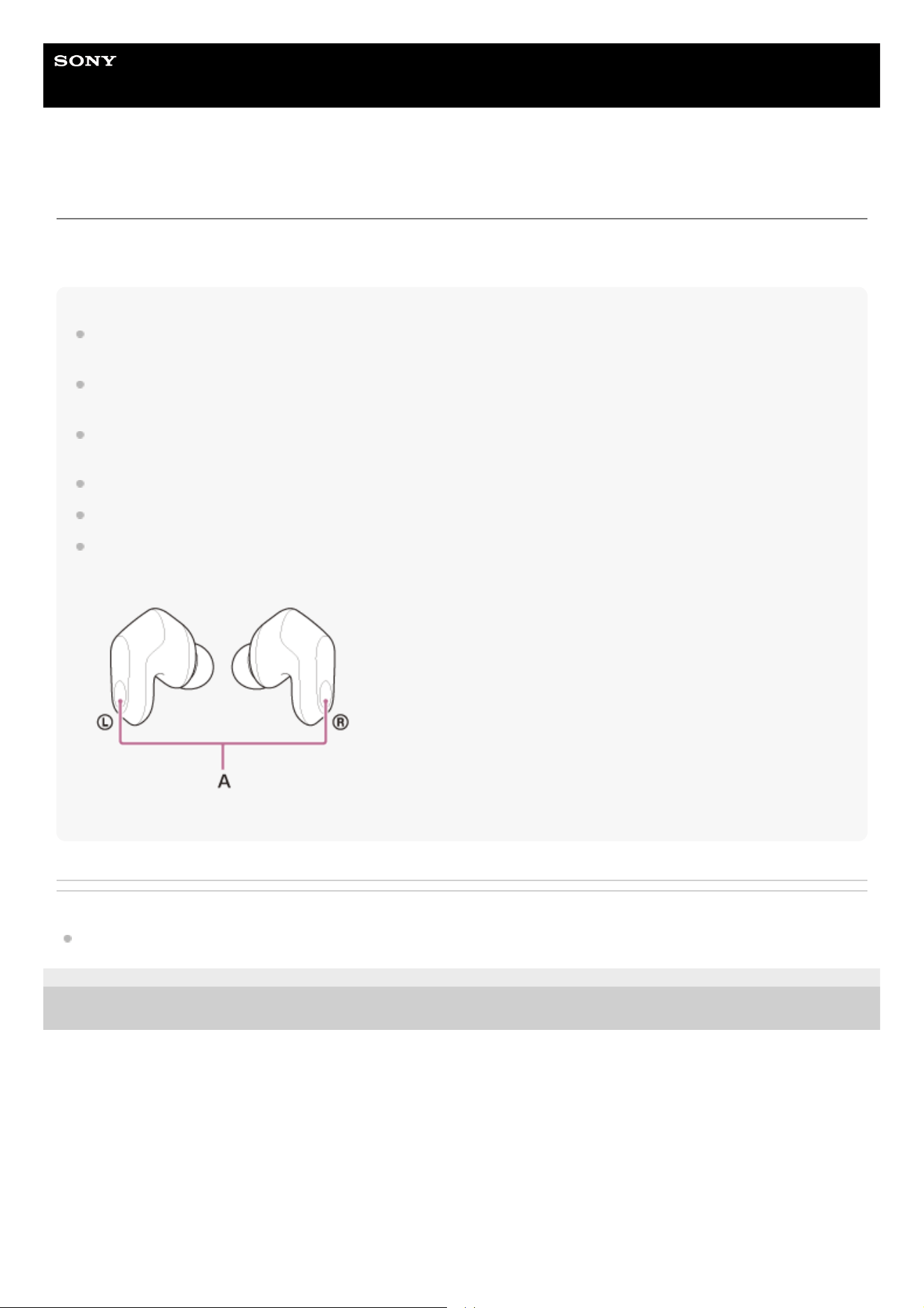
Help Guide
Wireless Noise Canceling Gaming Headset
INZONE Buds
What is noise canceling?
The noise canceling function generates antiphase sound against outside surrounding noises (such as noises in vehicles
or noises from air conditioners indoors) to reduce the surrounding noises by canceling them out.
Note
Depending on the type of noise or if it is used in a very quiet environment, you may not feel the noise canceling effects, or you
may feel that some noise is increased.
When you are wearing the headset, depending on how you wear the headset, the noise canceling effects may be decreased or a
beeping sound (feedback) may be heard. In this case, take off the headset and put it on again.
The noise canceling function works primarily on noise in the low frequency band such as vehicles and air conditioning. While
noise is reduced, it is not completely canceled.
When you use the headset in a car or a bus, noise may occur depending on street conditions.
Mobile phones may cause interference and noise. Should this occur, move the headset further away from the mobile phone.
Do not cover the microphone part on the left or right headset unit with your hand, etc. The effect of the noise canceling function or
Ambient Sound Mode may not work properly or a beeping sound (feedback) may occur. If any of this is the case, remove your
hand, etc. from the left or right microphone part.
A: Microphones (left, right)
Related Topic
Using the noise canceling function
5-052-425-11(3) Copyright 2023 Sony Corporation
71
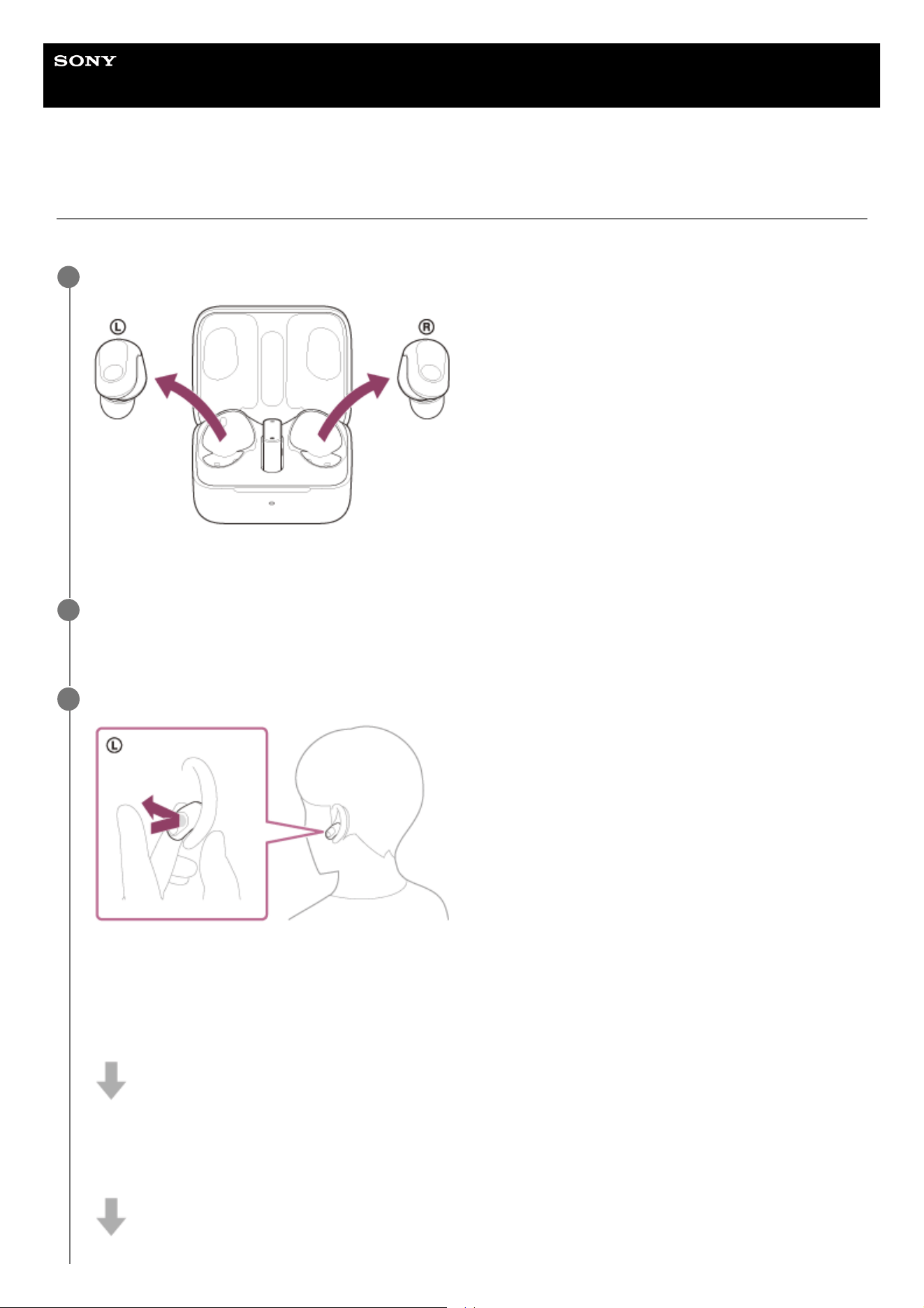
Help Guide
Wireless Noise Canceling Gaming Headset
INZONE Buds
Using the noise canceling function
You can use the noise canceling function to enjoy gaming or music without being disturbed by ambient noise.
Remove the headset units from the charging case.
The headset turns on automatically.
1
Put the headset units into your ears.
See “Wearing the headset” for how to wear the headset in your ears.
2
Tap the touch sensor on the left headset unit to change the settings of the noise canceling function.
Each time you tap, the function switches as follows.
Noise canceling function: ON
You will hear a notification sound from both headset units (or from the left headset unit when only the left headset
unit is worn) at the same time.
Ambient Sound Mode: ON
You will hear a notification sound from both headset units (or from the left headset unit when only the left headset
unit is worn) at the same time.
3
72
About the instruction manual video
Watch the video for how to use the noise canceling function.
https://rd1.sony.net/help/mdr/mov0063/h_zz/
Hint
You can also turn the noise canceling function on/off, and change the settings of the noise canceling function and Ambient Sound
Mode with “INZONE Hub” or the “Sony | Headphones Connect” app.
You can select one of the following on “INZONE Hub” or the “Sony | Headphones Connect” app to set how you want the functions
to change when you tap the left headset unit.
Noise canceling function: ON Ambient Sound Mode: ON Noise canceling function: OFF/Ambient Sound Mode: OFF
Noise canceling function: ON Ambient Sound Mode: ON
Ambient Sound Mode: ON Noise canceling function: OFF/Ambient Sound Mode: OFF
Noise canceling function: ON Noise canceling function: OFF/Ambient Sound Mode: OFF
When only one headset unit is worn, the Ambient Sound Mode is set to ON, even if the headset was set to the noise canceling
function when you used the headset last. Putting on both headset units will turn on the noise canceling function.
Note
The headset cannot fully perform the noise canceling function unless the supplied earbud tips are used.
If the headset is not being worn properly in your ears, the noise canceling function may not work correctly. Twist the headset to
put it into your ears properly.
Do not cover the microphone part on the left or right headset unit with your hand, etc. The effect of the noise canceling function or
Ambient Sound Mode may not work properly or a beeping sound (feedback) may occur. If any of this is the case, remove your
hand, etc. from the left or right microphone part.
Related Topic
Turning on the headset
Wearing the headset
What is noise canceling?
Listening to ambient sound (Ambient Sound Mode)
What you can do with “INZONE Hub”
What you can do with the “Sony | Headphones Connect” app
5-052-425-11(3) Copyright 2023 Sony Corporation
Noise canceling function: OFF/Ambient Sound Mode: OFF
You will hear a notification sound from both headset units (or from the left headset unit when only the left headset
unit is worn) at the same time.
73
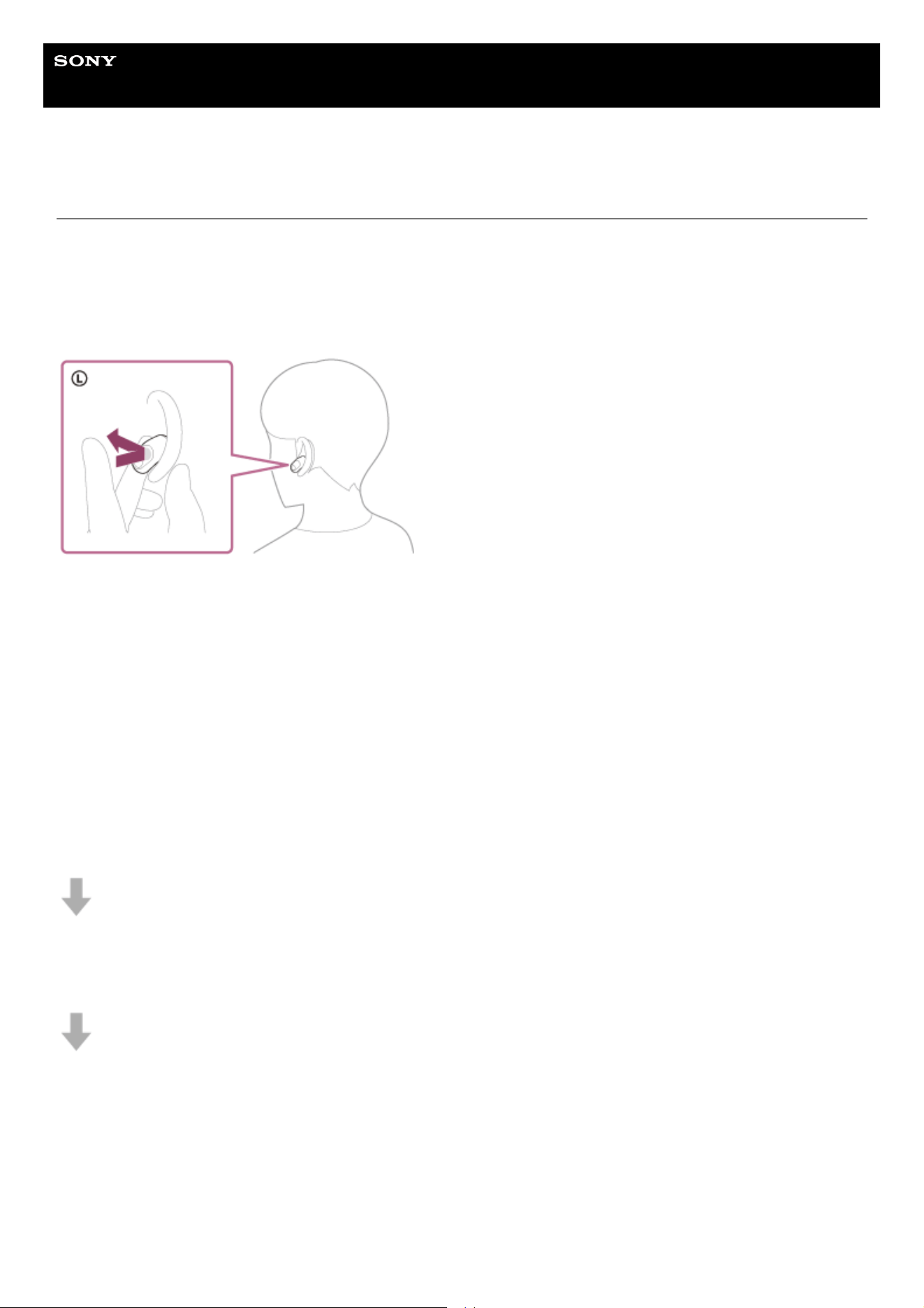
Help Guide
Wireless Noise Canceling Gaming Headset
INZONE Buds
Listening to ambient sound (Ambient Sound Mode)
The microphones built into the left and right headset units make it easier for you to hear ambient sound and allow you to
hear ambient sound while enjoying gaming or music.
To activate the Ambient Sound Mode
Tap the touch sensor on the left headset unit while the noise canceling function is on.
To change the setting of the Ambient Sound Mode
You can change the settings of the Ambient Sound Mode by connecting the smartphone (with the “Sony | Headphones
Connect” app installed) and the headset via a Bluetooth connection.
Voice focus: Unwanted noise will be suppressed while announcements or people’s voices are picked up, allowing you to
hear them as you listen to music.
To turn off the Ambient Sound Mode
Tap the touch sensor on the left headset unit to turn off the Ambient Sound Mode.
Each time you tap, the function switches as follows.
Noise canceling function: ON
You will hear a notification sound from both headset units (or from the left headset unit when only the left headset unit is
worn) at the same time.
Ambient Sound Mode: ON
You will hear a notification sound from both headset units (or from the left headset unit when only the left headset unit is
worn) at the same time.
Noise canceling function: OFF/Ambient Sound Mode: OFF
You will hear a notification sound from both headset units (or from the left headset unit when only the left headset unit is
worn) at the same time.
About the instruction manual video
Watch the video for how to use the Ambient Sound Mode.
https://rd1.sony.net/help/mdr/mov0063/h_zz/
74
Hint
Ambient Sound Mode settings changed with “INZONE Hub” or the “Sony | Headphones Connect” app are saved by the headset.
Once you have changed the settings, by simply turning on the Ambient Sound Mode, you can listen to audio with these saved
settings even on devices that do not have “INZONE Hub” or the “Sony | Headphones Connect” app installed.
You can select one of the following on “INZONE Hub” or the “Sony | Headphones Connect” app to set how you want the functions
to change when you tap the left headset unit.
Noise canceling function: ON Ambient Sound Mode: ON Noise canceling function: OFF/Ambient Sound Mode: OFF
Noise canceling function: ON Ambient Sound Mode: ON
Ambient Sound Mode: ON Noise canceling function: OFF/Ambient Sound Mode: OFF
Noise canceling function: ON Noise canceling function: OFF/Ambient Sound Mode: OFF
Note
Depending on the ambient conditions and the type/volume of audio playback, ambient sounds may not be heard even when using
the Ambient Sound Mode. Do not use the headset in places where it would be dangerous if you are unable to hear ambient
sounds, such as on a road with car and bicycle traffic.
Depending on the surrounding environment, wind noise may increase when the Ambient Sound Mode is turned on. In this case,
set the Ambient Sound Mode to OFF.
If the headset is not being worn properly in your ears, the Ambient Sound Mode may not work correctly. Twist the headset to put it
into your ears properly.
Do not cover the microphone part on the left or right headset unit with your hand, etc. The effect of the noise canceling function or
Ambient Sound Mode may not work properly or a beeping sound (feedback) may occur. If any of this is the case, remove your
hand, etc. from the left or right microphone part.
If the Ambient Sound Mode is enabled in a rather noisy environment, a noise may be heard. This is not a malfunction. In this
case, set the noise canceling function to ON or set the noise canceling function and the Ambient Sound Mode to OFF.
Related Topic
Wearing the headset
Using the noise canceling function
What you can do with “INZONE Hub”
What you can do with the “Sony | Headphones Connect” app
5-052-425-11(3) Copyright 2023 Sony Corporation
75
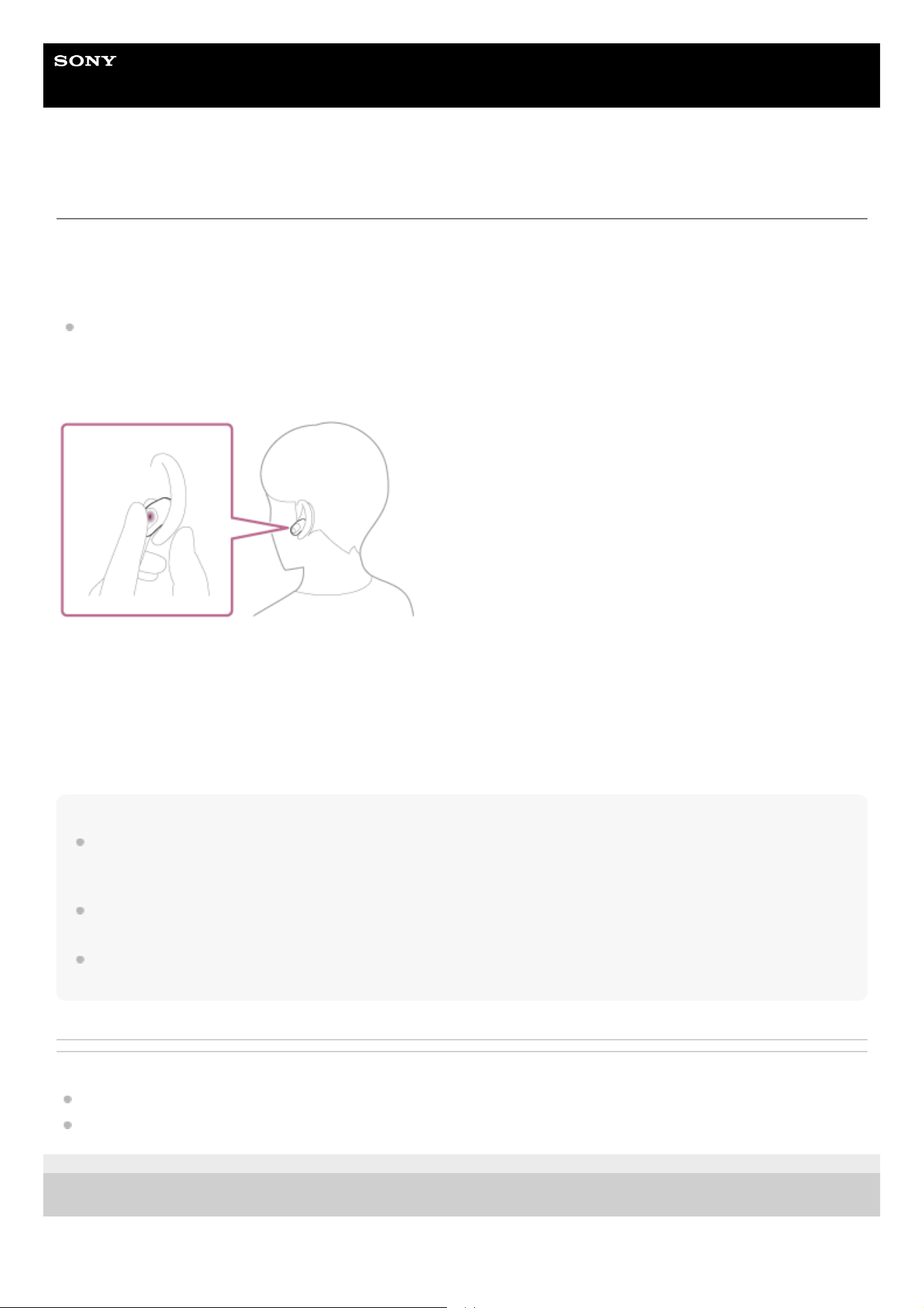
Help Guide
Wireless Noise Canceling Gaming Headset
INZONE Buds
Listening to ambient sound quickly (Quick Attention Mode)
This function lowers the volume of the audio being played (game audio, music, call audio, ringtones) to allow ambient
sound to be easily heard. The Quick Attention Mode is useful for quickly listening to train announcements, etc.
To activate the Quick Attention Mode
On “INZONE Hub” or the “Sony | Headphones Connect” app, change the function of either the left or right headset
unit to [Custom], and set [Quick Attention] for [Long Press]. Hold your finger to the touch sensor on the headset unit
to which you assigned the function. The Quick Attention Mode is activated only when you are touching the touch
sensor.
To deactivate the Quick Attention Mode
Release your finger from the touch sensor.
About the instruction manual video
Watch the video for how to use the Quick Attention Mode.
https://rd1.sony.net/help/mdr/mov0064/h_zz/
Note
Depending on the ambient conditions and the type/volume of audio playback, ambient sounds may not be heard even when using
the Quick Attention Mode. Do not use the headset in places where it would be dangerous if you are unable to hear ambient
sounds, such as on a road with car and bicycle traffic.
If the headset is not being worn properly in your ears, the Quick Attention Mode may not work correctly. Twist the headset to put it
into your ears properly.
Depending on the size of the earbud tips you use, the Quick Attention Mode may not be fully effective. Choose the size that
allows you to hear the least ambient sounds.
Related Topic
Replacing the earbud tips
Wearing the headset
5-052-425-11(3) Copyright 2023 Sony Corporation
76
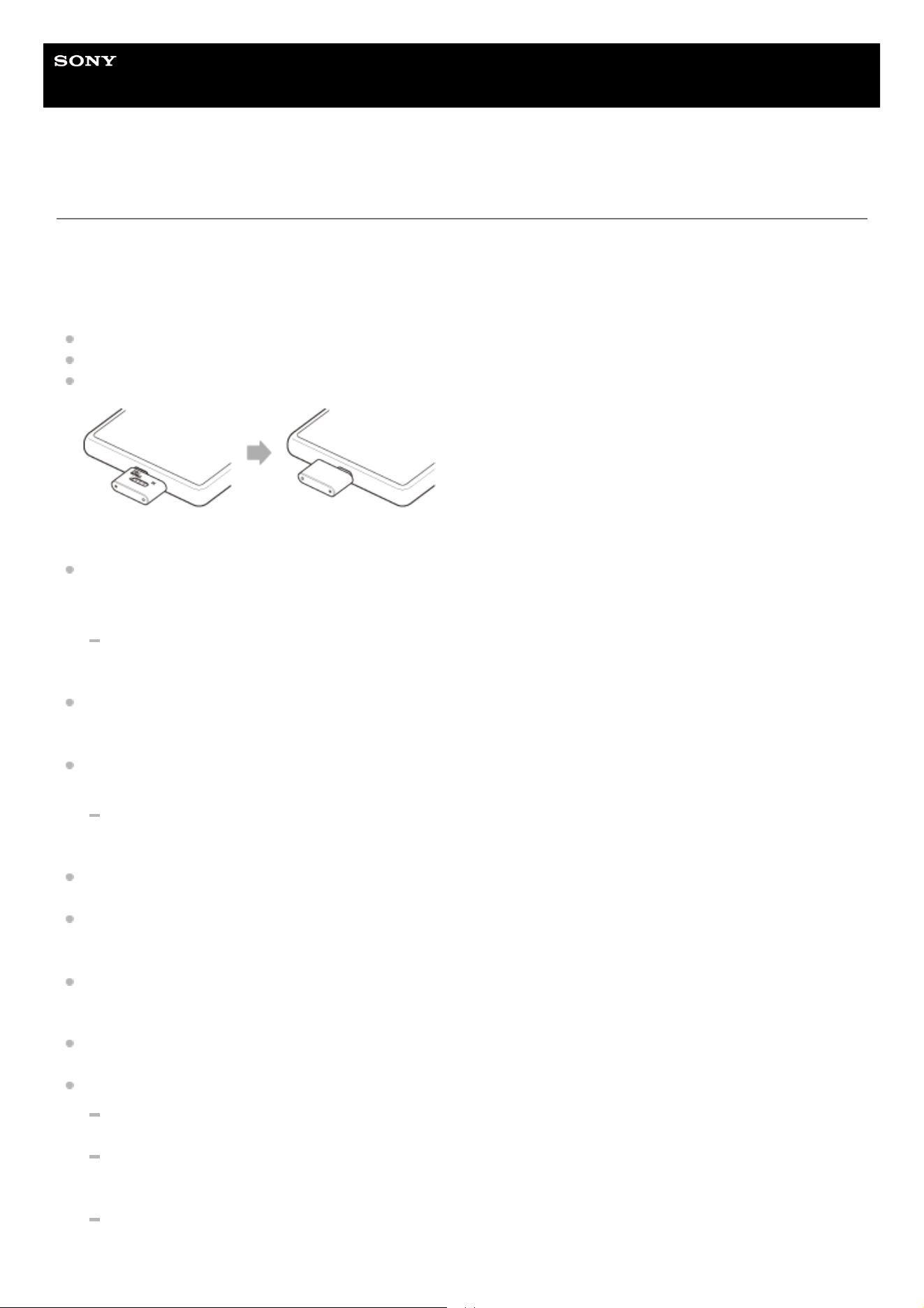
Help Guide
Wireless Noise Canceling Gaming Headset
INZONE Buds
Precautions
About smartphone radio waves and USB transceiver communication
When the USB transceiver is connected to a smartphone, depending on the radio wave situation of the smartphone,
radio wave interference to the USB transceiver may occur, and noise or audio dropout may occur, or connection may not
be possible. In such a case, perform the following steps.
Move to a location where your smartphone’s signal situation improves.
Move the headset closer to the smartphone.
Flip the side of the USB transceiver that has the slide switch and plug it back in.
On the USB transceiver/Bluetooth communications
Because USB transceiver/Bluetooth devices use the same frequency band (2.4 GHz) as wireless LAN (IEEE
802.11ax/b/g/n), microwave interference may occur and result in noise, audio dropouts, or disabled connection if this
headset is used near a wireless LAN device. In such a case, perform the following steps.
Change the frequency band of your smartphone and wireless LAN device to 5 GHz (IEEE 802.11ac).
For details, refer to the operating instructions supplied with the wireless LAN device.
Bluetooth wireless technology operates within a range of about 10 m (32.8 ft). The maximum communication distance
may vary depending on the presence of obstacles (people, metal objects, walls, etc.) or the electromagnetic
environment.
Microwaves emitting from a Bluetooth device may affect the operation of electronic medical devices. Turn off the
headset and other Bluetooth devices in the following locations, as it may cause an accident:
in hospitals, near priority seating in trains, locations where inflammable gas is present, near automatic doors, or
near fire alarms.
This product emits radio waves when used in wireless mode. When used in wireless mode on an airplane, follow
flight crew directions regarding permissible use of products in wireless mode.
When connected with a Bluetooth device, the audio playback on the headset may be delayed from that on the
transmitting device due to the characteristics of Bluetooth wireless technology. As a result, the sound may not be in
sync with the image when playing games or viewing movies.
The headset supports security functions that comply with the Bluetooth standard as a means of ensuring security
during communication using Bluetooth wireless technology. However, depending on the configured settings and other
factors, this security may not be sufficient. Be careful when communicating using Bluetooth wireless technology.
Sony shall assume no responsibility for any damages or loss resulting from information leaks that occur when using
Bluetooth communications.
Bluetooth connections with all Bluetooth devices cannot be guaranteed.
Bluetooth devices connected with the headset must comply with the Bluetooth standard prescribed by Bluetooth
SIG, Inc., and must be certified as compliant.
Even when a connected device complies with the Bluetooth standard, there may be cases where the
characteristics or specifications of the Bluetooth device make it unable to connect, or result in different control
methods, display, or operation.
When using the headset to perform hands-free talking on the phone, noise may occur depending on the
connected device or the communication environment.
77

Depending on the device to be connected, it may require some time to start communications.
Note on temperature rise
While charging the headset units or charging case, or when using the headset for a long time, the temperature of the
headset units or charging case may rise, but this is not a malfunction.
Note on static electricity
If you use the headset when the air is dry, you may experience discomfort due to static electricity accumulated on
your body. This is not a malfunction of the headset. You can reduce the effect by wearing clothes made of natural
materials that do not easily generate static electricity.
Notes on wearing the headset
After use, remove the headset from your ears slowly.
Because the headset achieves a tight seal over the ears, forcibly pressing it against your ears or quickly pulling it off
can result in eardrum damage. When wearing the headset, the speaker diaphragm may produce a click sound. This
is not a malfunction.
The long-term use of the headset may cause symptoms such as itching and irritation in the ears.
If you experience any of the above symptoms while the headset is in use, stop using it immediately and consult a
doctor or your nearest Sony dealer.
For long-term use, it is recommended that you remove the headset from your ears on a regular basis.
Other notes
Do not subject the headset to excessive shock as it is a precision device.
Do not put a smartphone with the USB transceiver connected into pants pocket or other clothing pocket. A strong
external force applied to the transceiver may cause deformation or malfunction of the USB port part of your
smartphone.
The touch sensors may not operate properly if you apply stickers or other adhesive items to the touch sensors.
The Bluetooth function may not work with a mobile phone, depending on the signal conditions and the surrounding
environment.
Do not breathe into the sound conduit (sound output tube) or microphone.
If you experience discomfort while the headset is in use, stop using it immediately.
The earbud tips may be damaged or deteriorate with long-term use and storage.
If water or foreign matter enters the headset, it may result in fire or electric shock. If water or foreign matter enters the
headset, stop use immediately and consult your nearest Sony dealer. In particular, be careful in the following cases.
When using the headset near a sink or liquid container
Be careful that the headset does not fall into a sink or container filled with water.
When using the headset in the rain or snow, or in humid locations
Do not drop the headset or expose it to mechanical shock. Doing so may deform or damage the headset, resulting in
deterioration of water resistance performance.
When the charging ports of the headset units or charging case get dirty, wipe them clean with a soft dry cloth.
Cleaning the headset
When the headset exterior is dirty, wipe it clean with a soft dry cloth. If the headset is particularly dirty, soak a cloth in
diluted neutral detergent, and wring it well before using it to clean the headset. Do not use solvents such as alcohol,
thinner, or benzene, as they may damage the finish on the surface of the headset or cause other damages.
Do not use the headset units, charging case or USB transceiver near medical devices
Radio waves can affect cardiac pacemakers and medical devices. Do not use the headset units, charging case or
USB transceiver in crowded places such as crowded trains or inside a medical institution.
The headset units, charging case and USB transceiver contain magnets which may interfere with pacemakers,
programmable shunt valves for hydrocephalus treatment, or other medical devices. Do not place the headset units,
charging case or USB transceiver close to persons who use such medical devices. Consult your doctor before using
the headset if you use any such medical devices.
78

Keep the headset units, charging case or USB transceiver away from magnetic cards
The headset units, charging case and USB transceiver use magnets. If a magnetic card comes near the headset,
charging case or USB transceiver, the card magnet may be affected or become deactivated.
Keep out of reach of infants
There is a risk that an infant may swallow the headset units or small parts. After use, store the headset units in the
charging case and keep all the small parts out of the reach of infants.
5-052-425-11(3) Copyright 2023 Sony Corporation
79
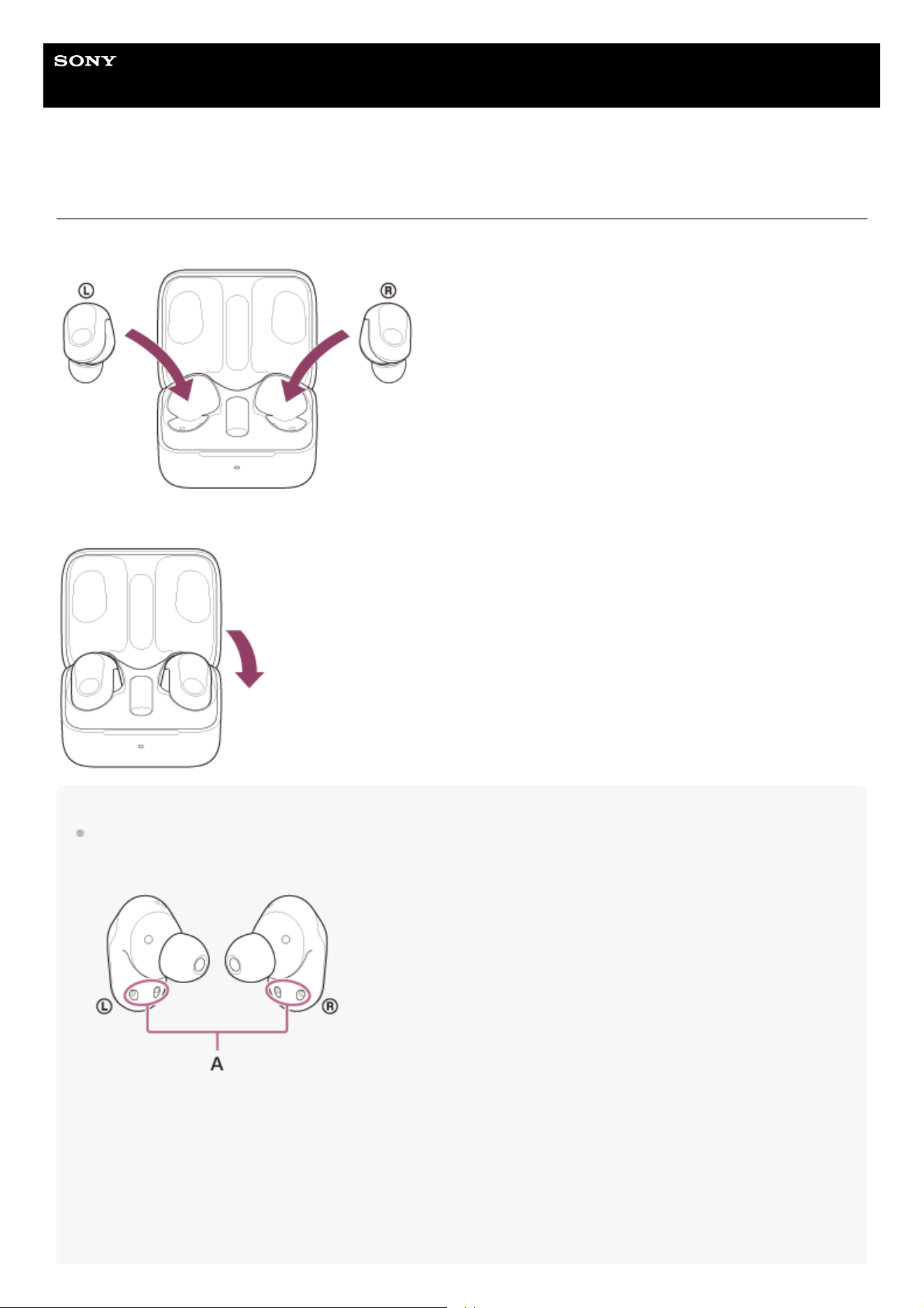
Help Guide
Wireless Noise Canceling Gaming Headset
INZONE Buds
When you have finished using the headset
When you have finished using the headset, be sure to set the headset units into the charging case.
Close the charging case lid.
Note
If perspiration or water is left on the charging port, it may impair the ability to charge the headset. Immediately wipe off any
perspiration or water on the charging port after use. When the charging ports of the headset units or charging case get dirty, wipe
them clean with a soft dry cloth.
80
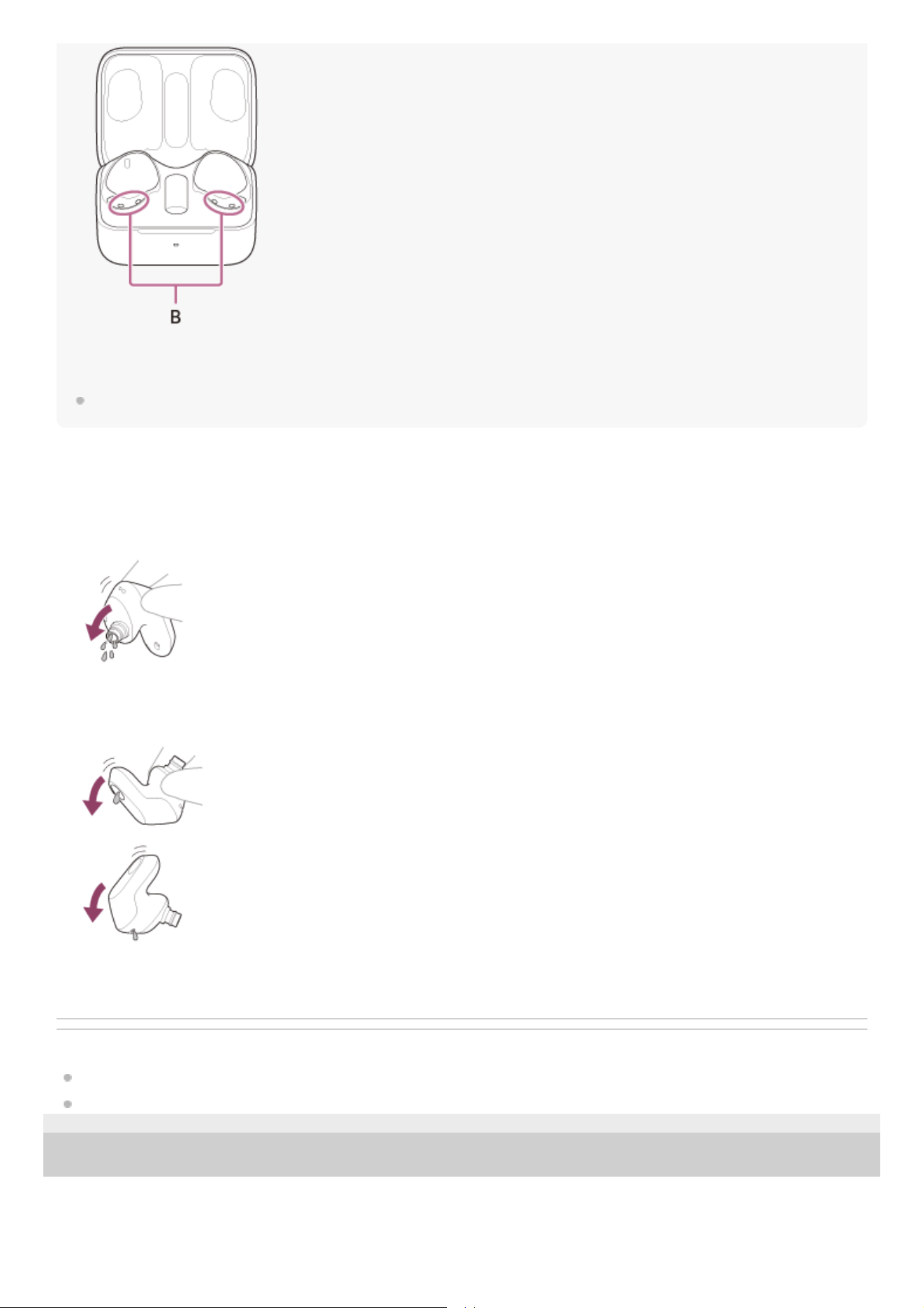
A: Charging ports of the headset units (left, right)
B: Charging ports of the charging case (left, right)
Also see the “Maintenance”, “To prevent burning or malfunction due to getting wet”, and “When the headset units, charging case
or USB transceiver gets wet” sections.
When the headset units get wet
Related Topic
Maintenance
To prevent burning or malfunction due to getting wet
5-052-425-11(3) Copyright 2023 Sony Corporation
Use a soft dry cloth to wipe off any water that gets on the headset units.1.
Remove the earbud tips, turn the sound conduits (sound output tubes) downward, and shake several times to get the
water out.
2.
Turn the microphone part or air hole part downward and gently tap it about 20 times on a dry cloth, etc. to remove any
water collected inside.
3.
Leave the headset to dry at room temperature.4.
81
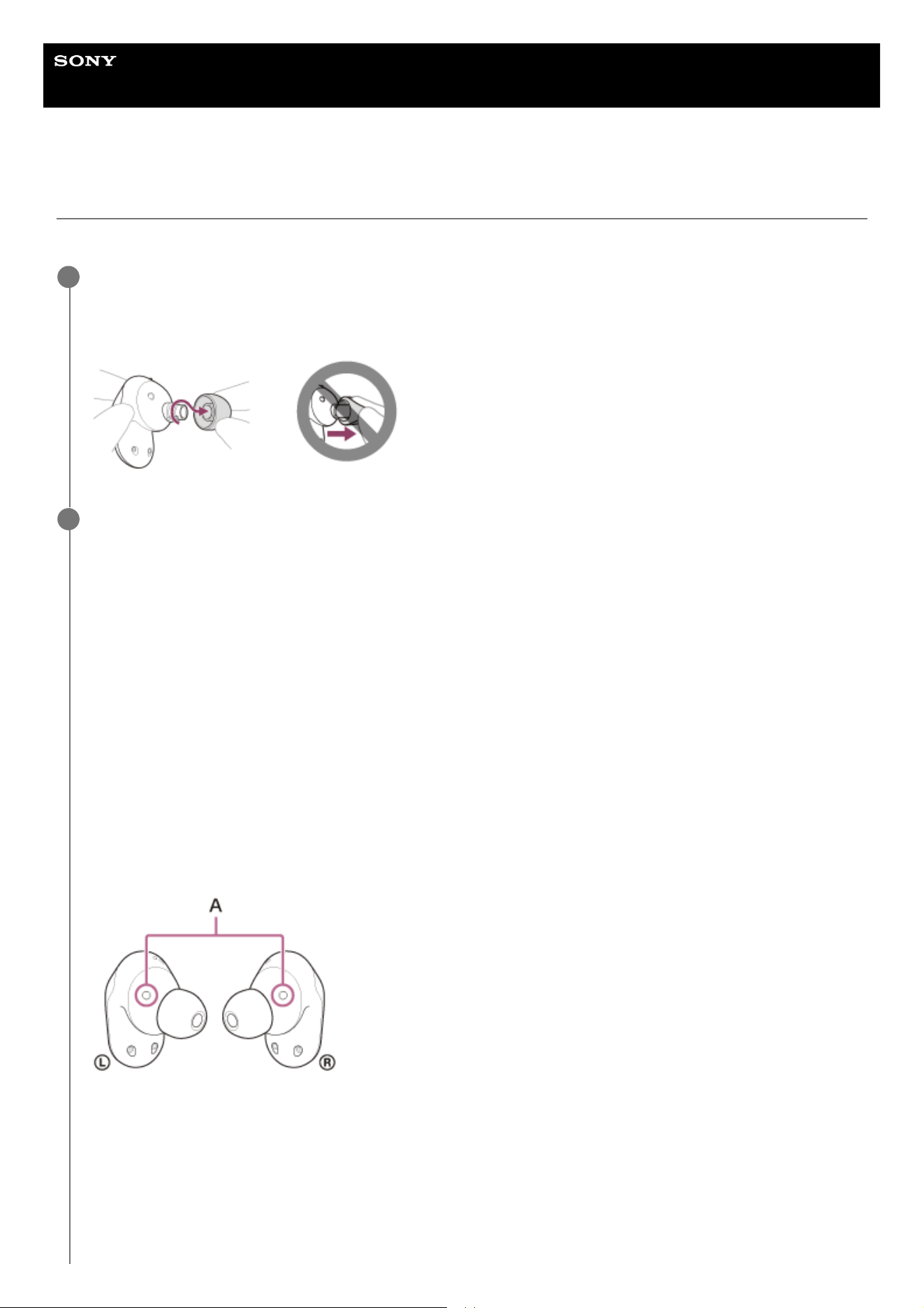
Help Guide
Wireless Noise Canceling Gaming Headset
INZONE Buds
Maintenance
Perform regular maintenance by following the procedures below.
Remove the earbud tip.
Hold the headset unit and twist the earbud tip while rotating it to pull it out.
Do not pinch the end of the earbud tip when removing it.
1
Clean the headset.
Cleaning the headset units
When the headset exterior is dirty, wipe it clean with a soft dry cloth. If the headset is particularly dirty, soak a cloth
in diluted neutral detergent, and wring it well before using it to clean the headset. Do not use solvents such as
alcohol, thinner, or benzene, as they may damage the finish on the surface of the headset or cause other damages.
Use a soft dry cloth to wipe off any water that gets on the headset units.
Do not allow the headset to remain with water droplets attached in a cold environment as the water may freeze.
Cleaning the microphone parts
Wipe off any dirt on the mesh part of the headset unit with a cloth that has been moistened with water and wrung
out tightly.
Remove the dirt so that it does not push into the mesh part of the headset unit deeply.
Cleaning the IR sensors
If the IR sensors are dirty, wearing of the headset may not be detected and the headset may not work properly.
Wipe off any dirt on the IR sensors with a soft dry cloth, etc.
A: IR sensors (left, right)
Cleaning the charging ports
If foreign matter or moisture, such as sweat, etc., is left on the charging ports of the headset units or charging case,
charging port corrosion may occur and prevent charging.
When you have finished using the headset, make sure to gently clean the charging ports with a soft dry cloth or
cotton swab.
2
82
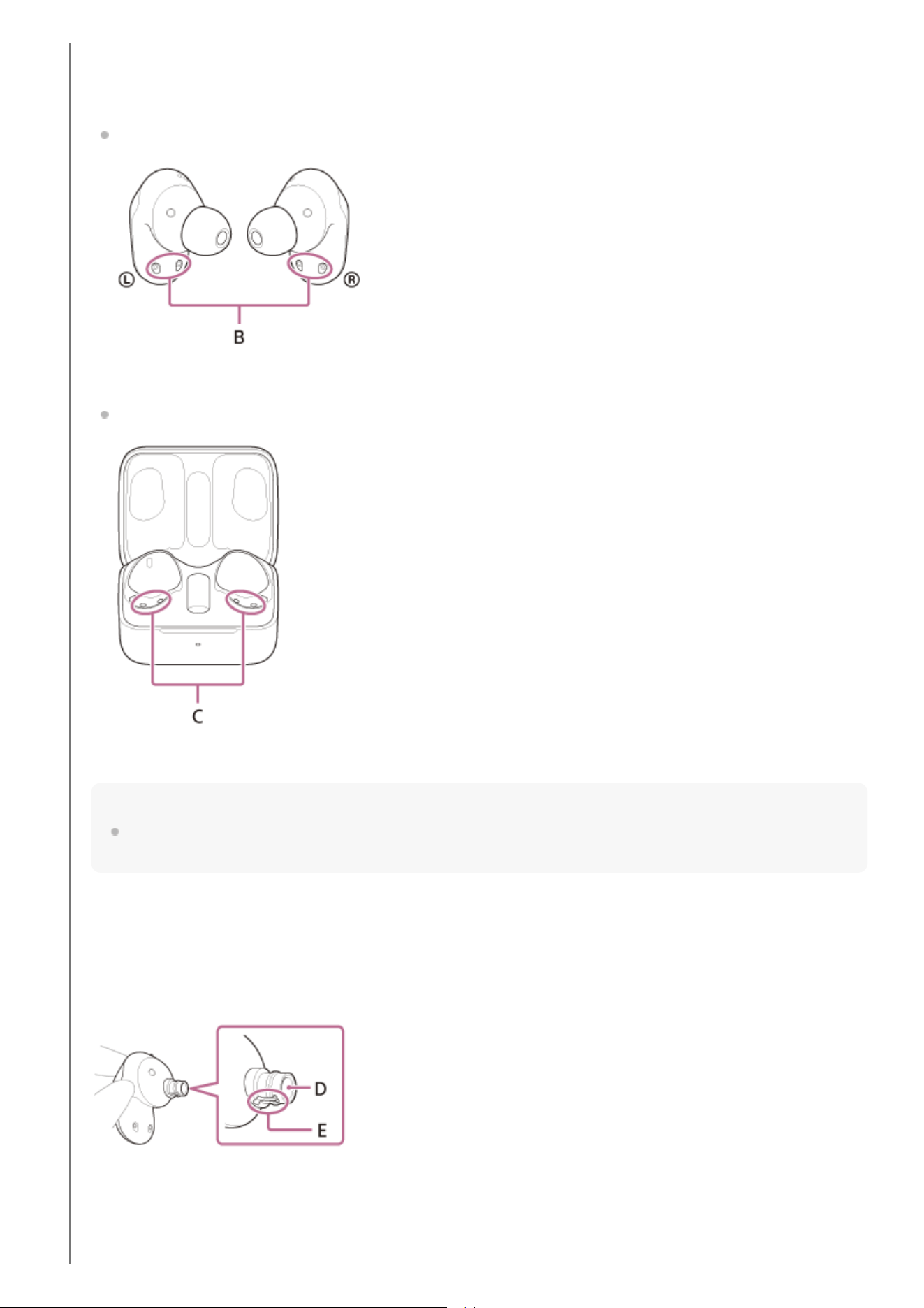
When the headset cannot be charged, it may help to try thoroughly cleaning the charging ports.
Charging ports that needs maintenance
Headset
B: Charging ports of the headset units (left, right)
Charging case
C: Charging ports of the charging case (left, right)
Note
Do not use an air duster, etc. to remove dust, etc.
Dust, etc. may enter the sound output part of the headset, which may lead to malfunction.
Cleaning the sound output parts
The sound output part of the headset unit is designed with a mesh-like structure.
Wipe off any dirt or earwax on the mesh and groove parts of the headset unit with a cloth that has been moistened
with water and wrung out well.
Remove the dirt so that it does not push into the mesh part of the headset unit deeply.
D: Mesh
E: Groove
83
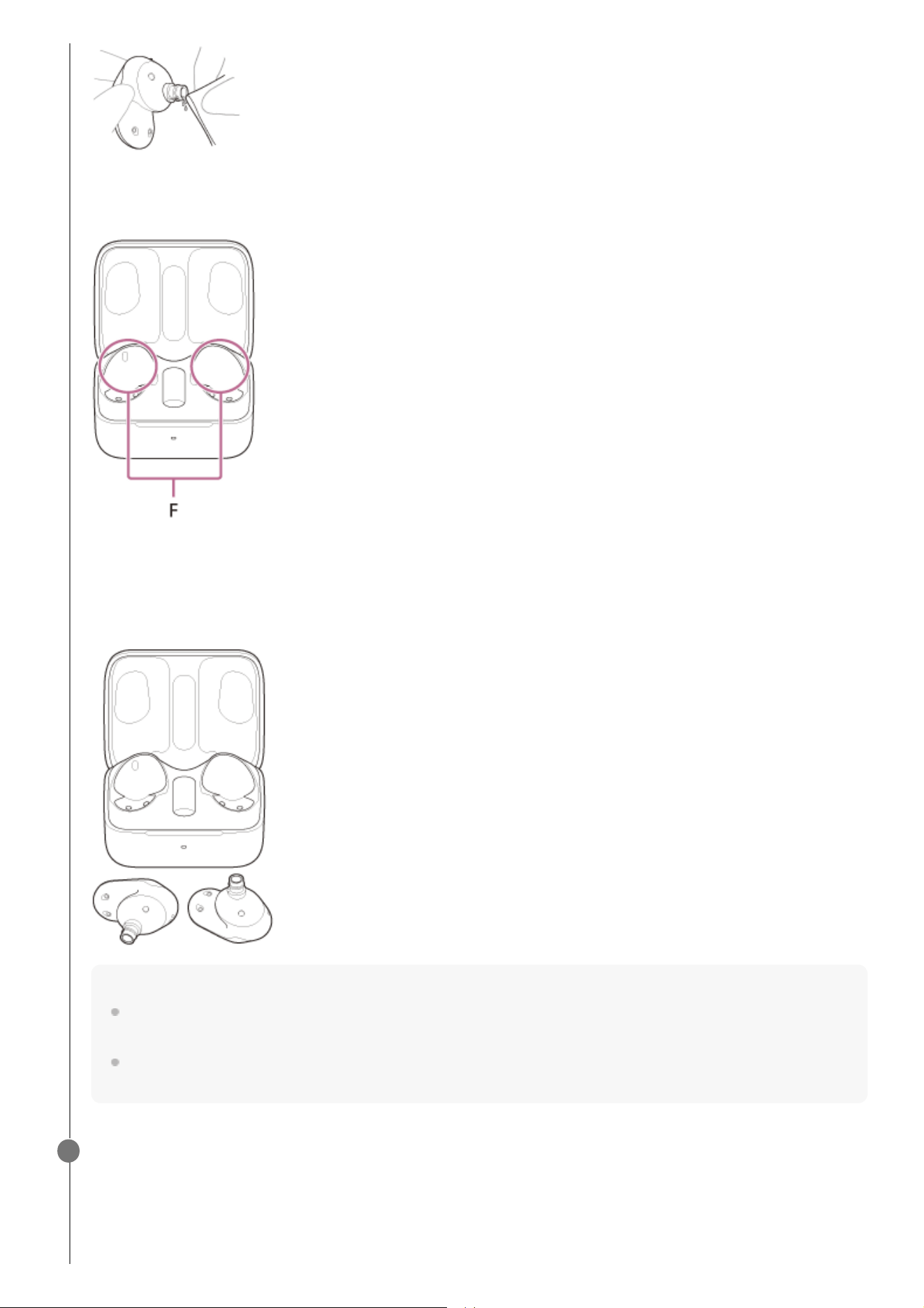
Cleaning the holes of the charging case
Clean the holes where the earbud tips fit with a cotton swab, etc.
F: Holes of the charging case (left, right)
Drying the headset
After cleaning is complete, leave the headset to dry thoroughly at room temperature.
Note
When drying the headset, if the IR sensors touch the table, the headset will be considered worn and the rechargeable
battery may continue to be consumed. Place the headset units with the IR sensors facing sideways or upwards.
The mesh part at the sound output part of the headset unit may peel off or break if it is rubbed forcefully. Do not rub this part
with too much force.
Attach the earbud tip.
Push the earbud tip firmly onto the sound conduit (sound output tube) on the headset so that the earbud tip covers
the inner end of the sound conduit. Do not attach the earbud tip in a loose or skewed manner.
3
84
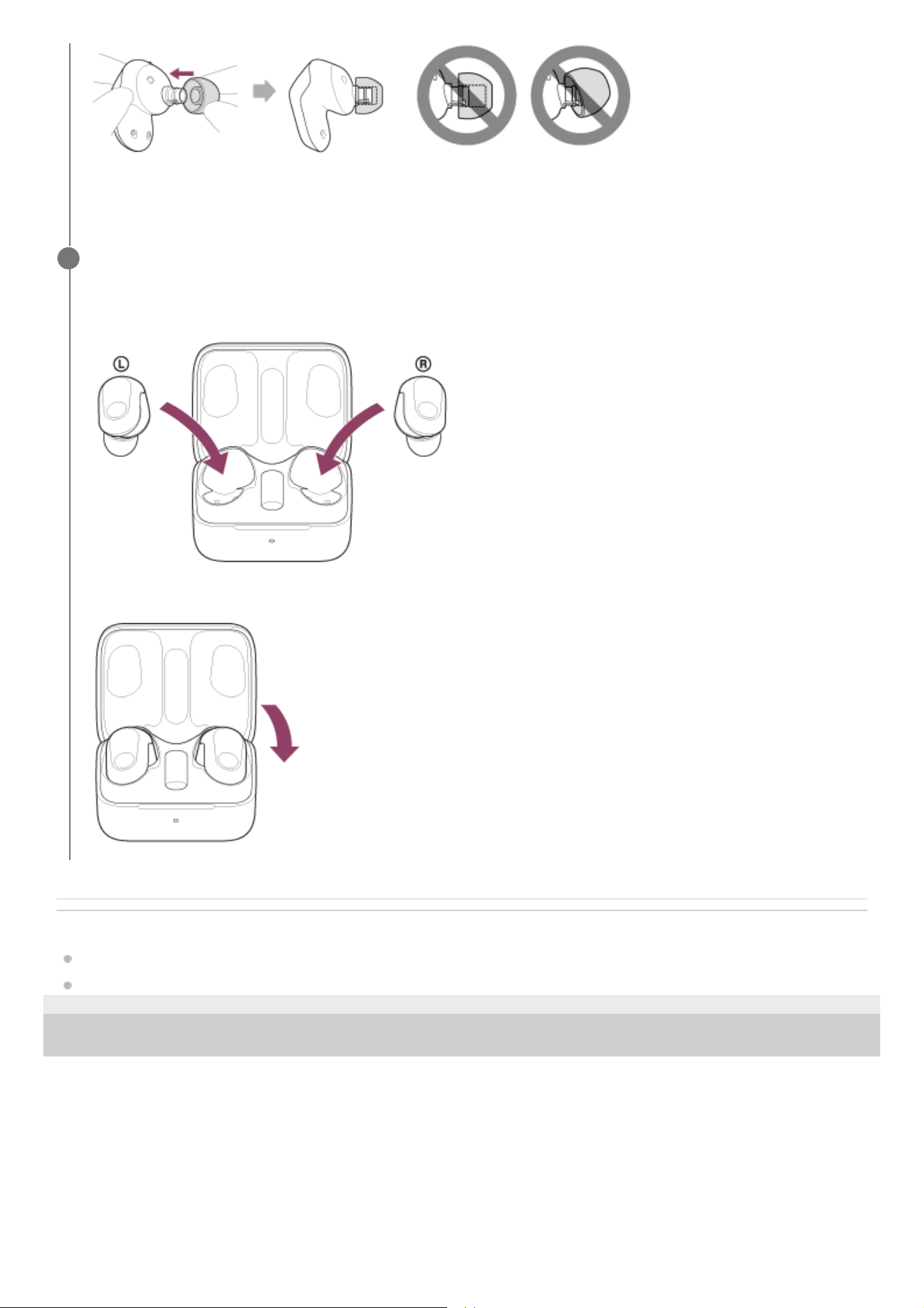
Related Topic
To prevent burning or malfunction due to getting wet
When the headset units, charging case or USB transceiver gets wet
5-052-425-11(3) Copyright 2023 Sony Corporation
If the earbud tip is not completely attached, the earbud tip may be removed from the headset and the sound quality,
noise canceling effects, and wearability may be impaired.
Set the headset in the charging case.
After maintenance as well as after cleaning and drying the headset, be sure to set the headset units in the charging
case.
Be sure to close the charging case lid.
4
85
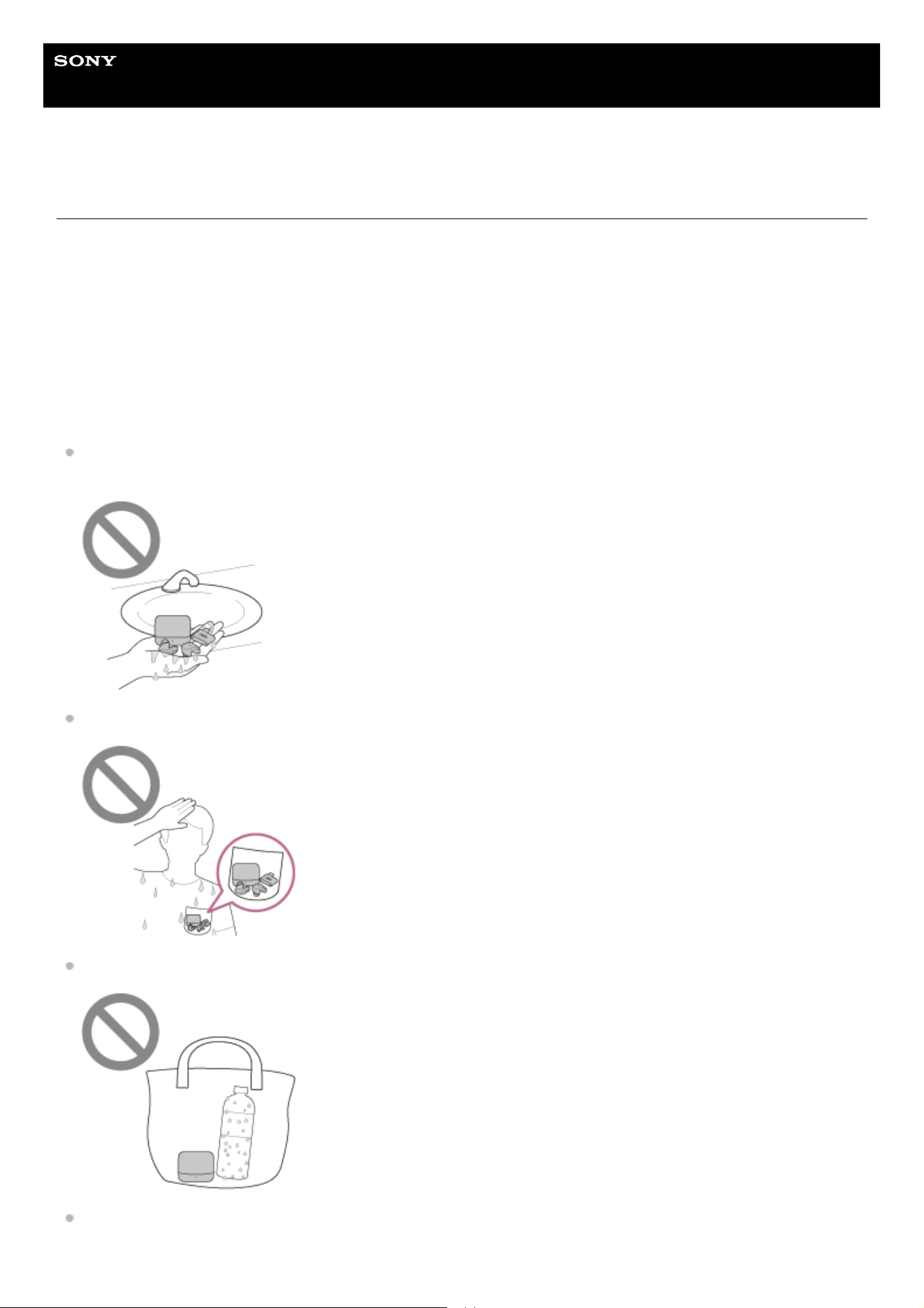
Help Guide
Wireless Noise Canceling Gaming Headset
INZONE Buds
To prevent burning or malfunction due to getting wet
Be sure to clean after use
Charging with liquid such as water or sweat or foreign objects such as dust attached to the USB Type-C port of the
charging case or charging port of the headset may cause an accident such as burns or serious wounds due to fire,
electrocution, heat generation, smoke, or ignition. It may also cause a malfunction.
Avoid the following situations and be careful not to expose the headset units, charging case or USB transceiver to
moisture or dirt.
If the headset units or charging case get wet or dirty, see “When the headset units, charging case or USB transceiver
gets wet” and clean them as described before use.
Touching the headset units, charging case or USB transceiver without drying wet hands after doing housework in the
kitchen or washing your hands in a washroom.
Putting the headset units, charging case or USB transceiver in the chest pocket of a damp article of clothing.
Putting the headset units, charging case or USB transceiver in a bag with a cold PET bottle.
Spilling a drink while eating or drinking.
86
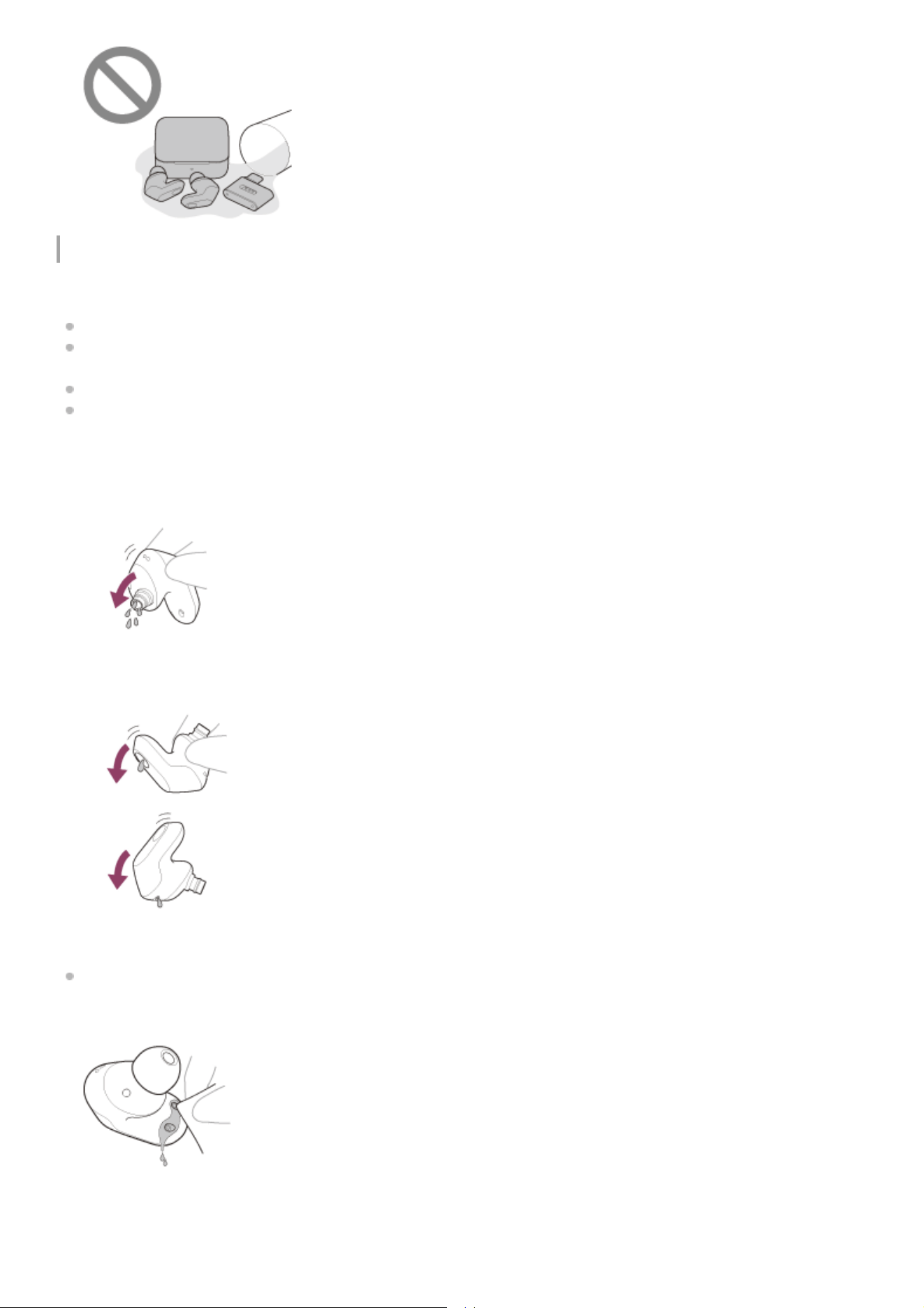
To protect the headset units, charging case and USB transceiver from damage
Carefully note the precautions below to ensure proper use of the headset.
Do not splash water forcibly into the sound output parts, air holes, or microphone parts of the headset units.
Do not allow the headset units or charging case to remain wet in a cold environment, as the water may freeze. To
prevent malfunction, make sure to wipe off any water after use.
Do not place the headset in water or use it in a humid place such as a bathroom.
When the headset units get wet,
If the headset units and charging case are charged while they are wet with sweat, etc., the charging ports will
corrode. Before charging, wipe off any moisture with a soft dry cloth and leave to dry at room temperature.
Repairs in the case of malfunction due to negligence are not covered by the free warranty.
Use a soft dry cloth to wipe off any water that gets on the headset units.1.
Remove the earbud tips, turn the sound conduits (sound output tubes) downward, and shake several times to get
the water out.
2.
Turn the microphone part or air hole part downward and gently tap it about 20 times on a dry cloth, etc. to remove
any water collected inside.
3.
Leave the headset to dry at room temperature.4.
87
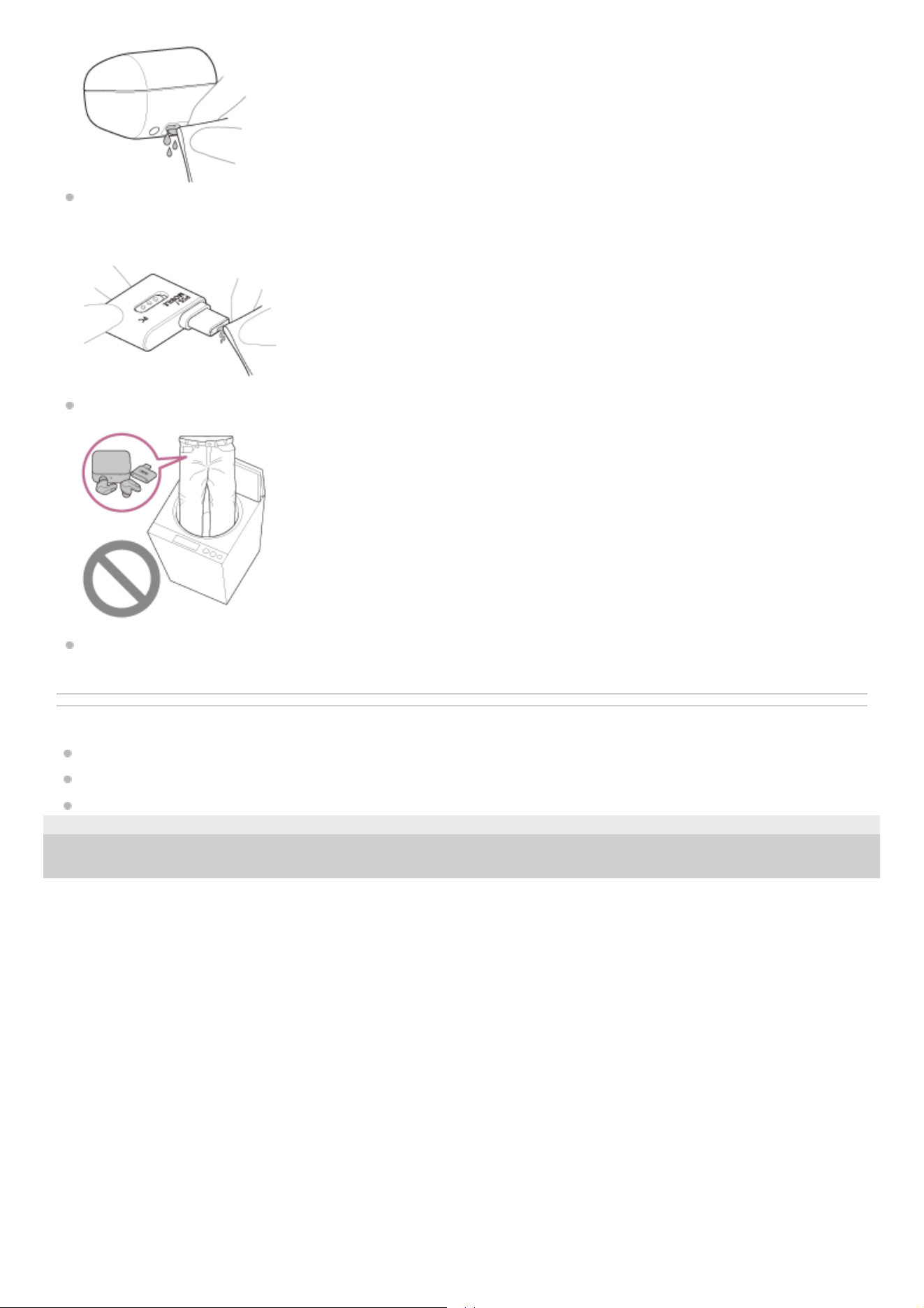
If the USB transceiver is used while it is wet with sweat, etc., the terminal will corrode. Before using, wipe off any
moisture with a soft dry cloth and leave to dry at room temperature. Repairs in the case of malfunction due to
negligence are not covered by the free warranty.
Do not wash pants or shirts with the headset units, charging case or USB transceiver left in the pockets.
If the headset is cracked or deformed, refrain from using the headset near water, or contact your nearest Sony dealer.
Related Topic
Replacing the earbud tips
Maintenance
When the headset units, charging case or USB transceiver gets wet
5-052-425-11(3) Copyright 2023 Sony Corporation
88
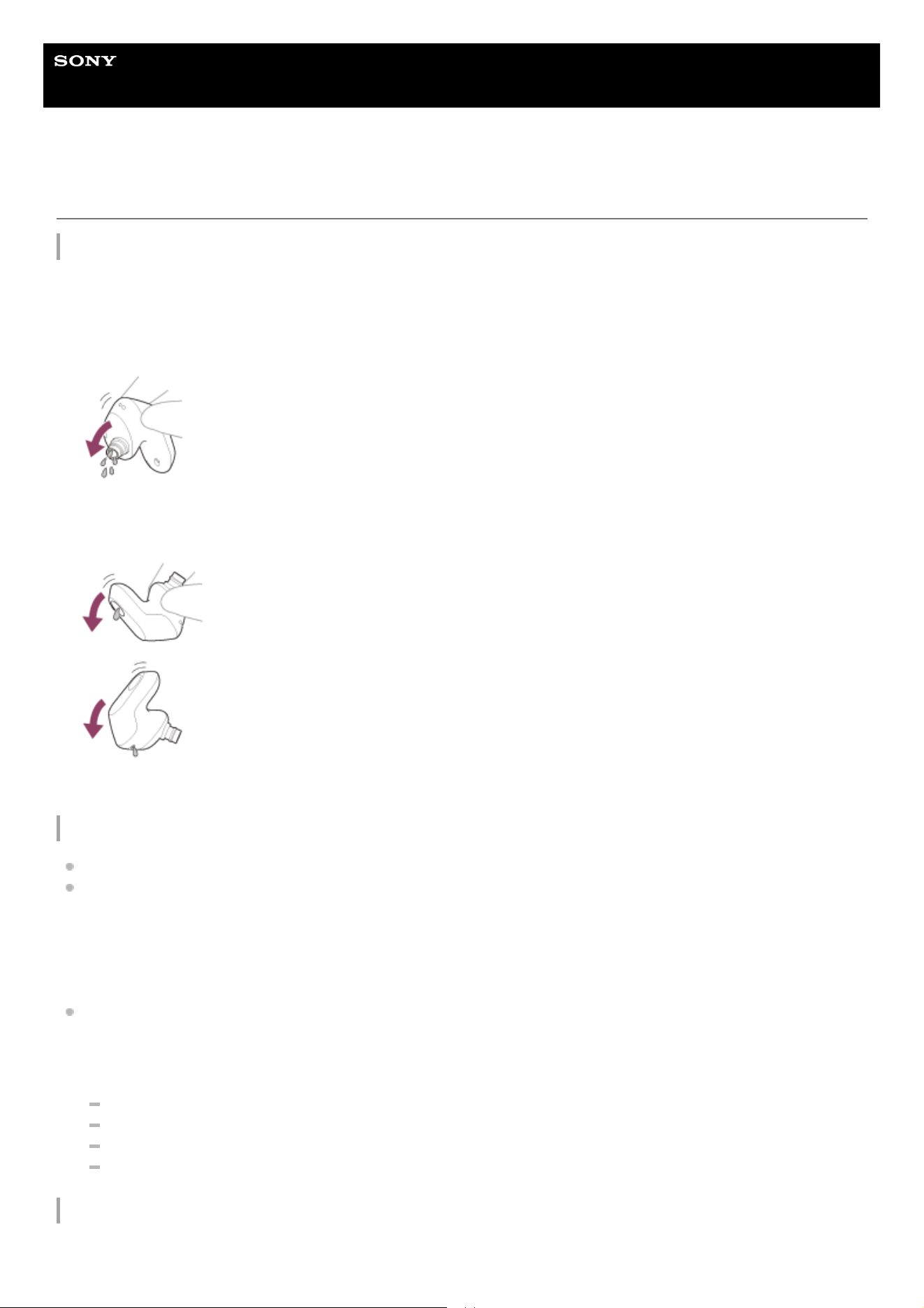
Help Guide
Wireless Noise Canceling Gaming Headset
INZONE Buds
When the headset units, charging case or USB transceiver gets wet
When the headset units get wet
On water resistant performance of the headset
The charging case and USB transceiver are not water resistant.
The water resistant specifications of this headset are equivalent to IPX4 in IEC 60529 “Degrees of protection against
ingress of water (IP Code)”, which specifies the degree of protection provided against the entry of water. The headset
cannot be used in water.
Unless the headset is used correctly, water may get into the headset and cause fire, electrocution, or malfunctions.
Note the following cautions carefully and use the headset correctly.
IPX4: Protected against water splashing from any direction.
The sound conduits (sound output tubes), air holes, and microphone part of the headset are not completely
watertight.
If any water droplets are left in the sound conduits, air holes, or microphone part, the following issues may occur
temporarily. However, they are not malfunctions.
Sounds become difficult to hear.
The noise canceling effect is weakened.
Unusual sounds are heard.
Voices during phone calls become difficult to hear.
Liquids that the water resistant performance specifications of the headset apply to
Use a soft dry cloth to wipe off any water that gets on the headset units.1.
Remove the earbud tips, turn the sound conduits (sound output tubes) downward, and shake several times to get the
water out.
2.
Turn the microphone part or air hole part downward and gently tap it about 20 times on a dry cloth, etc. to remove any
water collected inside.
3.
Leave the headset to dry at room temperature.4.
89
The water resistant performance of the headset is based on measurements performed by Sony under the conditions
described above. Note that malfunctions resulting from water immersion caused by customer misuse are not covered by
the warranty.
Related Topic
Replacing the earbud tips
Maintenance
To prevent burning or malfunction due to getting wet
5-052-425-11(3) Copyright 2023 Sony Corporation
Applicable: Fresh water, tap water, perspiration
Not
applicable:
Liquids other than those above (examples: soapy water, detergent water, water with bath agents,
shampoo, hot spring water, hot water, pool water, seawater, etc.)
90

Help Guide
Wireless Noise Canceling Gaming Headset
INZONE Buds
Licenses
This product contains software that Sony uses under a licensing agreement with the owner of its copyright. We are
obligated to announce the contents of the agreement to customers under requirement by the owner of copyright for
the software. Please access the following URL and read the contents of the license.
https://rd1.sony.net/help/mdr/sl/23/
Services offered by third parties may be changed, suspended, or terminated without prior notice. Sony does not bear
any responsibility in these sorts of situations.
5-052-425-11(3) Copyright 2023 Sony Corporation
91
Help Guide
Wireless Noise Canceling Gaming Headset
INZONE Buds
Trademarks
Microsoft and Windows are registered trademarks or trademarks of Microsoft Corporation in the United States and/or
other countries.
macOS and Mac are trademarks of Apple Inc., registered in the U.S. and other countries.
Android and Google Play are trademarks of Google LLC.
The Bluetooth® word mark and logos are registered trademarks owned by Bluetooth SIG, Inc. and any use of such
marks by Sony Group Corporation and its subsidiaries is under license.
USB Type-C® and USB-C® are registered trademarks of USB Implementers Forum.
“PlayStation” and “PS5” are registered trademarks or trademarks of Sony Interactive Entertainment Inc.
Sony and INZONE are registered trademarks or trademarks of Sony Group Corporation or its affiliates.
All other trademarks and registered trademarks are trademarks or registered trademarks of their respective holders.
In this manual, TM and ® marks are not specified.
5-052-425-11(3) Copyright 2023 Sony Corporation
92

Help Guide
Wireless Noise Canceling Gaming Headset
INZONE Buds
Customer support websites
For customers in the U.S.A, Canada, and Latin America:
https://www.sony.com/am/support
For customers in European countries:
https://www.sony.eu/support
For customers in China:
https://service.sony.com.cn
For customers in other countries/regions:
https://www.sony-asia.com/support
5-052-425-11(3) Copyright 2023 Sony Corporation
93
Help Guide
Wireless Noise Canceling Gaming Headset
INZONE Buds
What can I do to solve a problem?
Before asking for repair, check the following items again.
Find the symptoms of the issue in this Help Guide, and try any corrective actions listed.
Set the headset units into the charging case, and close the charging case lid.
You may be able to resolve some issues by setting the headset units into the charging case.
Charge the headset.
You may be able to resolve some issues by charging the headset battery.
Restart the device that is being connected to the headset.
You may be able to resolve some issues by restarting the connected device such as your computer, smartphone, or
PS5™.
Reset the headset.
Initialize the headset.
This operation resets volume settings, etc. to the factory settings, and deletes all pairing information.
Look up information on the issue on the customer support website.
If the operations above do not work, consult your nearest Sony dealer.
Related Topic
Charging
Customer support websites
Resetting the headset
Initializing the headset to restore factory settings
5-052-425-11(3) Copyright 2023 Sony Corporation
94
Help Guide
Wireless Noise Canceling Gaming Headset
INZONE Buds
Unable to turn on the headset.
Make sure the battery is fully charged.
You cannot turn on the headset when the headset is stored and being charged in the charging case. Remove the
headset from the charging case to turn on.
Charge the charging case.
Set the headset units into the charging case, and close the charging case lid.
You may be able to resolve some issues by setting the headset units into the charging case.
Clean the charging ports of the headset units and charging case, then set the headset units into the charging case
and check the status of the indicator on the charging case. For details, see “Maintenance”.
Reset the headset.
Initialize the headset. All of the pairing information will be deleted. Pair the headset and the Bluetooth device again.
Related Topic
Charging
Checking the remaining battery charge
Resetting the headset
Initializing the headset to restore factory settings
5-052-425-11(3) Copyright 2023 Sony Corporation
95
Help Guide
Wireless Noise Canceling Gaming Headset
INZONE Buds
The headset is turned off automatically.
If the IR sensor of the headset cannot detect that the headset is being worn because the headset is not being worn
properly, the earbud tips are not attached properly to the headset or the IR sensor is dirty, the automatic power off
function may be activated and automatically turn off the headset. Put the headset units into your ears so that they fit
snugly in your ears. If the IR sensors are dirty, clean them with a soft dry cloth.
When the automatic power off function is set to [OFF] on “INZONE Hub”, wearing detection will continue to work and
the symptom may be improved.
When the automatic power off function is set to [Do not turn off] on the [System] tab of the “Sony | Headphones
Connect” app, wearing detection will continue to work and the symptom may be improved.
Make sure the battery is fully charged.
Related Topic
Location and function of parts
Wearing the headset
Charging
Checking the remaining battery charge
5-052-425-11(3) Copyright 2023 Sony Corporation
96
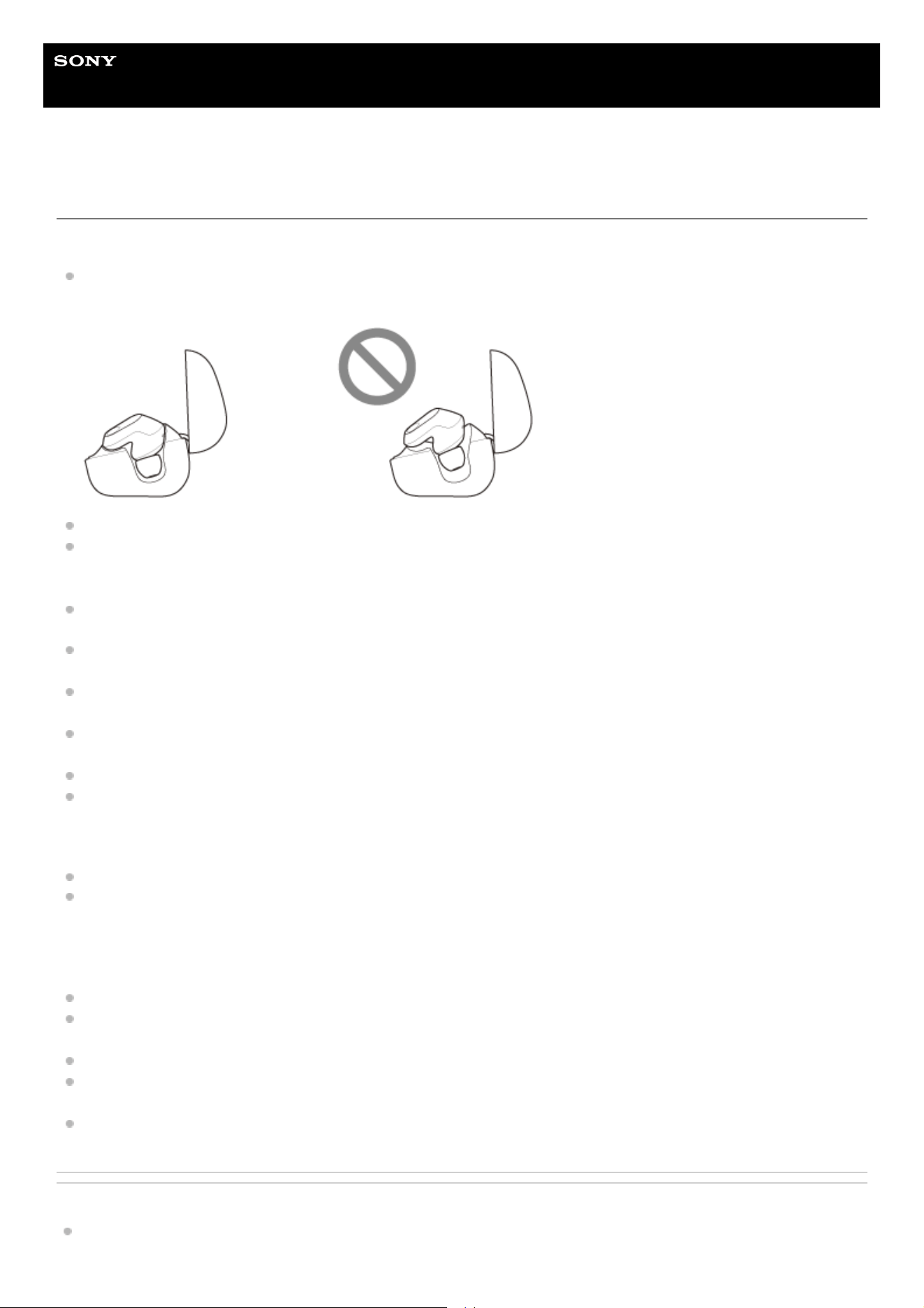
Help Guide
Wireless Noise Canceling Gaming Headset
INZONE Buds
Charging cannot be done.
Common
Make sure the headset units are stored securely in the supplied charging case. If the headset units are floating in the
charging case, the headset units may not be charged.
Be sure to use the supplied USB Type-C cable and check that the cable is firmly connected to the charging case.
If the earbud tips are not properly attached to the headset, the headset may not be charged with the supplied
charging case. Check that the earbud tips are attached properly when you set the headset units into the charging
case.
If earbud tips by other manufacturers are used, the headset may not be charged with the supplied charging case. Be
sure to use the supplied earbud tips when charging.
When the charging ports of the headset units or the charging case get dirty, the headset units may not be charged.
Clean the charging ports with a soft dry cloth. For details, see “Maintenance”.
It is recommended to charge in a place with an ambient temperature between 15 °C and 35 °C (59 °F - 95 °F).
Efficient charging may not be possible beyond this range.
While charging, be sure to keep the charging case lid closed to prevent the battery of the charging case from being
wasted.
Reset the headset.
Initialize the headset. All of the pairing information will be deleted. Pair the headset and the Bluetooth device again.
When charging with a USB AC adaptor
Make sure that the USB AC adaptor is firmly connected to the AC outlet.
When using a commercially available USB AC adaptor, use one capable of supplying an output current of 0.5 A (500
mA) or more.
When charging with a computer
Check that the USB Type-C cable is firmly connected to the computer.
Check that the computer is turned on. Wake the computer up if the computer is in standby (sleep) or hibernation
mode.
Check that the charging case and the computer are directly connected and not via a USB hub.
There may be a problem with the USB port of the connected computer. Try connecting to another USB port on the
computer if one is available.
Update the OS of the computer.
Related Topic
Charging
97

Help Guide
Wireless Noise Canceling Gaming Headset
INZONE Buds
The available operating time is short, the battery power does not last long.
The available operating time of the battery is shorter when the noise canceling function/Ambient Sound Mode is on.
Depending on the settings for the headset functions and usage conditions, the speed of energy consumption for the
rechargeable battery may vary between the left and right headset units. However, this is not a malfunction.
When you have finished using the headset, be sure to set the headset units into the charging case. If the headset is
placed in the pockets, etc., the headset recognizes that the headset is worn, and it may not turn off after a period of
time has passed.
Be sure to close the charging case lid to prevent the battery of the charging case from being consumed.
When you are talking on the phone on the headset via a Bluetooth connection, the available battery operating time
becomes shorter than when listening to music.
Related Topic
Available operating time
5-052-425-11(3) Copyright 2023 Sony Corporation
99
Help Guide
Wireless Noise Canceling Gaming Headset
INZONE Buds
Charging time is too long.
When charging with a computer, check that the charging case and the computer are directly connected and not via a
USB hub. Also, this may be improved by restarting the computer and trying the USB connection again.
Check that you are using the supplied USB Type-C cable.
Depending on the settings for the headset functions and usage conditions, the speed of energy consumption for the
rechargeable battery may vary between the left and right headset units.
As a result, the charging time of the rechargeable batteries for the left and right headset units may differ. However,
this is not a malfunction.
It is recommended to charge in a place with an ambient temperature between 15 °C and 35 °C (59 °F - 95 °F).
Efficient charging may not be possible beyond this range.
When using a commercially available USB AC adaptor, use one capable of supplying an output current of 0.5 A (500
mA) or more.
Restart the computer, PS5™, or USB Type-C compatible smartphone and try the USB connection procedure again in
cases other than those stated above.
If the problem is not improved even after restarting the computer, PS5, or USB Type-C compatible smartphone as
well as by trying the USB connection procedure again, connect the headset to an AC outlet to charge it.
Related Topic
Charging
Resetting the headset
Initializing the headset to restore factory settings
5-052-425-11(3) Copyright 2023 Sony Corporation
100
Help Guide
Wireless Noise Canceling Gaming Headset
INZONE Buds
No sound, no sound from one side, low sound level
Common
Check that both the headset and the connected device are turned on.
Adjust the volume of the headset and the connected device. Turn up the volume if it is too low.
When the computer’s volume setting is muted or low, change the computer’s volume setting.
When the chat volume is low, ask the chat partner to change the microphone volume.
The volume balance between a game and chat may be leaning toward either the game volume or the chat volume
being louder. You can adjust the volume balance between the game and chat using “INZONE Hub” or the PS5™. You
can also adjust the volume balance between the game and chat using the headset by changing the function assigned
to the touch sensor to [Game/Chat Balance Control] on “INZONE Hub” or the “Sony | Headphones Connect” app.
Make sure that the output setting of the computer is set to [INZONE Buds - Game] or [INZONE Buds - Chat].
Make sure the in-game output setting is set to [INZONE Buds - Game] or [INZONE Buds - Chat].
Restart your computer, PS5, or USB Type-C compatible smartphone.
The sound conduits (sound output tubes), air holes, and microphone part of the headset are not completely
watertight. If any water droplets are left in the sound conduits, air holes, or microphone parts, the sound level
becomes low temporarily. However, this is not a malfunction. See “When you have finished using the headset” and
dry the headset as described before use.
Set the headset units into the charging case, and close the charging case lid. You may be able to resolve some
issues by setting the headset units into the charging case.
Reset the headset.
Initialize the headset. All of the pairing information will be deleted. Pair the headset and the Bluetooth device again.
When connected with the USB transceiver
Check that the USB transceiver is inserted as firmly as needed.
If the smartphone is in a phone case, the USB transceiver may not be inserted as firmly as needed. If the issue
persists, remove the phone case and check the USB transceiver again.
Switch the slide switch of the USB transceiver to “PC” or “PS5/MOBILE” according to the connected device.
If the headset is in the Bluetooth mode, hold your fingers to the touch sensors on both the left and right headset units
and switch to USB transceiver mode.
Connect the USB transceiver directly to the computer, PS5, or USB Type-C compatible smartphone, and not via a
USB hub.
Make sure that the headset is connected to the USB transceiver connected to the computer, PS5, or USB Type-C
compatible smartphone.
Whether the connection indicator (white) on the USB transceiver is lit
Whether the headset is displayed on “INZONE Hub” and various settings can be made when connected to a
computer
When connected to a Bluetooth device that does not support LE Audio via the USB transceiver, sound may not be
produced on one side or the headset may remain in Bluetooth mode. Initialize the headset, and then connect the
USB transceiver again.
If the headset cannot be connected to the USB transceiver connected to a computer, PS5, or USB Type-C compatible
smartphone, follow the procedure below to perform pairing again with the USB transceiver.
Connect the USB transceiver to a computer or game console such as a PS5.1.
Set both headset units correctly into the charging case and leave the charging case lid open.2.
With the charging case lid open, press and hold the pairing button of the charging case for about 5 seconds or
more.
The headset goes into pairing mode and the indicator (blue) on the charging case repeatedly flashes twice in a
row.
3.
101
Note
If the last connected Bluetooth device is placed near the headset, the headset may automatically connect to the device when
you turn on the headset and may not connect to another device.
If this occurs, cancel the connection on the last connected Bluetooth device or turn off the Bluetooth function on that device.
You cannot use a wireless 2.4 GHz connection with a computer or PS5 and Bluetooth connection at the same time.
Depending on your USB Type-C compatible smartphone, you may need to configure some settings to connect with
the USB transceiver. The name of the settings displayed on the connected smartphone may vary depending on the
connected smartphone and can include names, such as “Detect USB device” or “Enable USB On-The-Go
connection”. For details, refer to the operating instructions for the USB Type-C compatible smartphone.
When connected via a Bluetooth connection
If the connected Bluetooth device does not support LE Audio, the headset does not produce sound.
If the headset is connected to this type of device via a Bluetooth connection, initialize the headset. After initializing the
headset, connect the supplied USB transceiver.
If the headset is in the USB transceiver mode, hold your fingers to the touch sensors on both the left and right
headset units and switch to the Bluetooth mode.
When playing music, check that the headset and the transmitting Bluetooth device are connected via a Bluetooth
connection.
Check that the connected device is playing back.
Connect the Bluetooth device to the headset once again.
Pair the headset and the Bluetooth device again.
Restart the Bluetooth device such as the smartphone you are using.
Restart the music app or video app.
Note
Connection is not guaranteed with the USB ports of TVs, etc.
If the volume is turned down on the computer or USB Type-C compatible smartphone while connected via the USB transceiver,
the volume cannot be turned up very high using the headset. To turn the volume up higher, adjust the volume on the computer or
USB Type-C compatible smartphone.
If the volume is turned down on the connected device while connected via Bluetooth connection, the volume cannot be turned up
very high using the headset. To turn the volume up higher, adjust the volume on the connected device.
When there is no sound on only one side
Depending on the smartphone app or computer application (which requires a CCP profile), you may hear sound from
only one headset unit.
Check if the Bluetooth connection has been terminated. If terminated, make the Bluetooth connection again.
Check if the Bluetooth device supports LE Audio. If LE Audio is not supported, initialize the headset and then connect
the supplied USB transceiver.
Related Topic
Video being received via a smartphone’s Wi-Fi is disturbed or cannot be connected.
Using only one headset unit
Using the headset via the USB transceiver
Press and hold the connect button on the USB transceiver for about 5 seconds or more.
Press the connect button with an object with a thin tip that will not break, like a paperclip.
The USB transceiver goes into pairing mode, and the connection indicator (white) on the USB transceiver
repeatedly flashes twice in a row.
4.
Remove both headset units from the charging case and then put the headset units into your ears.
When pairing is complete, a notification sound is emitted from the headset and the connection indicator (white) on
the USB transceiver lights up.
5.
102

Help Guide
Wireless Noise Canceling Gaming Headset
INZONE Buds
Sound skips frequently, noise can be heard, distorted sound
Common
If the size of the earbud tips does not match the size of your ear canals or the headset is not being worn properly in
your ears, tap operations may not work correctly, or you may not obtain the correct sound qualities, noise canceling
effects, or call performance.
If any of this is the case, try the following.
Change the earbud tips to ones that fit more snugly in your ears. When changing the earbud tips, try the earbud
tip sizes in order from the larger ones to the smaller ones. The size of the left and right earbud tips may be
different.
“INZONE Hub” or the “Sony | Headphones Connect” app will help you to determine which earbud tips suit you
best to achieve the optimal noise canceling effect, sound quality, etc.
Check that you are wearing the headset properly in your ears. Wear the headset so that the earbud tip is
comfortably situated as deep in the ear canal as possible.
Hint
The function that determines the optimal earbud tips for you measures the air-tightness of the earbud tips and determines
whether or not the headset units are being worn in your ears correctly. Select a size that fits comfortably.
When connected with the USB transceiver
Under the following conditions, noise or audio dropout may occur, or the connection may be disabled.
When there is a part of the body acting as an obstacle between the headset and the game console
When this is the case, turn the game console to face the same direction as the antenna of the headset to improve
the communications.
When there is an obstacle, such as metal or a wall, between the headset and the game console
When there is a distance between the headset and the game console
When there is a part of the body acting as an obstacle between the headset and the smartphone
When there is a distance between the headset and the smartphone
If your smartphone is in your pants pocket or other clothing pocket, removing it from the pocket and placing it near
the headset may improve the connection quality.
When using in places with wireless LAN, where a microwave oven is used, electromagnetic waves are generated,
etc.
In places where there are other wireless communication audio devices or other people nearby
When your hand is covering the USB transceiver
Sometimes, the sound may be distorted or interrupted by external radio interference and other factors. If any of this is
the case, try the following.
If connected to a computer, remove the USB transceiver from the USB port and then insert it into another USB
port on your computer.
If connected to a PS5™, connect the USB transceiver to the USB port on the front of the PS5.
Move USB 3.0 compatible devices, cables, etc. connected to the computer or PS5 away from the USB
transceivers.
If there are unused USB devices or USB cables, remove them from the computer or PS5.
If there is metal nearby, connect the USB transceiver as far away from the metal as possible.
Use the headset and USB transceiver as close together as possible.
104
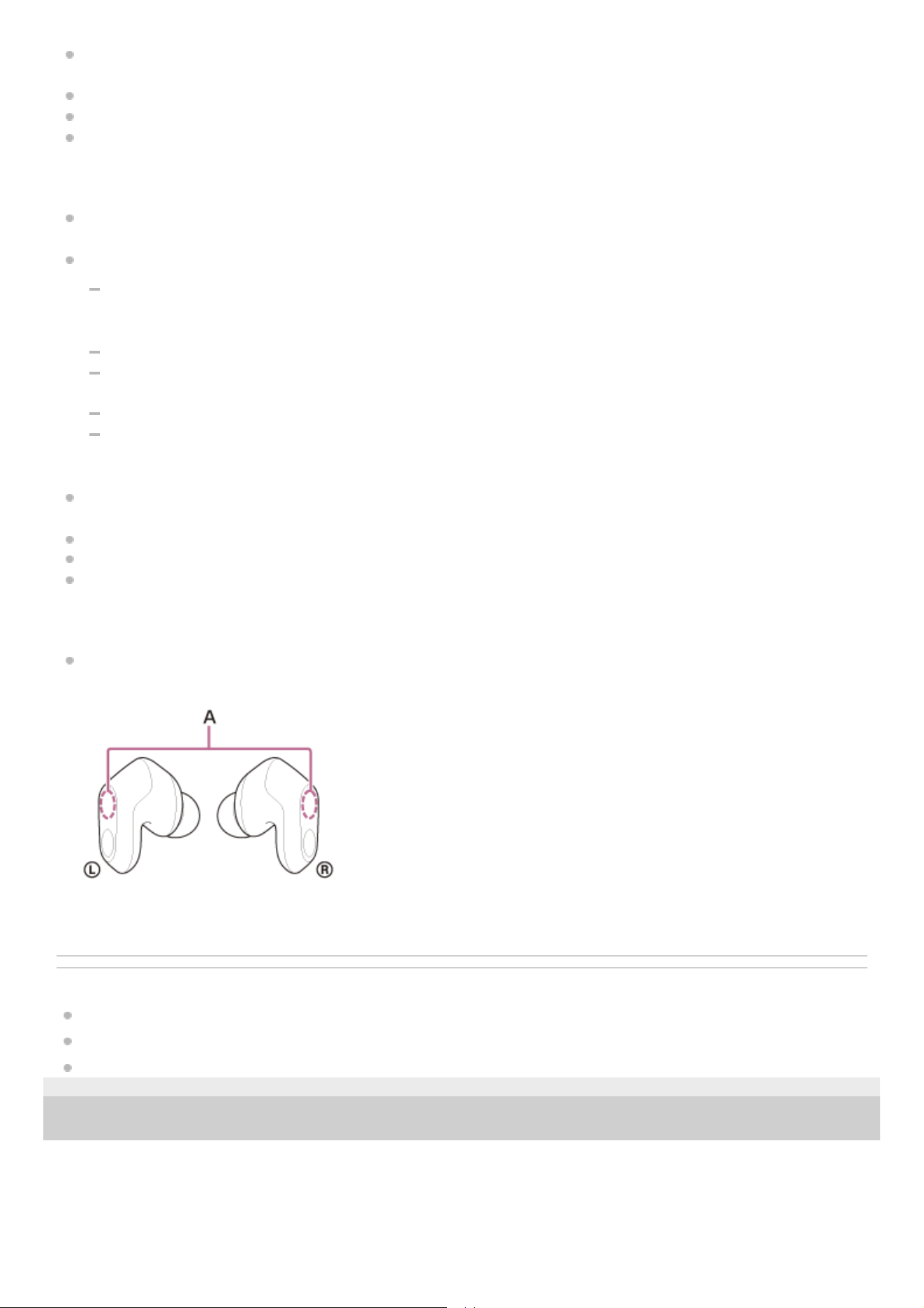
When playing games on your computer, this issue can be improved by closing unnecessary applications or windows,
or restarting your computer.
Connect the headset to the USB transceiver again.
Reset the headset.
Initialize the headset.
While connected to a Bluetooth device
This issue can be improved by changing the wireless playback quality settings on the transmitting device. For details,
refer to the operating instructions supplied with the transmitting device.
Bluetooth communications may be disabled, or noise or audio dropout may occur under the following conditions.
When there is a part of the body acting as an obstacle between the headset and the Bluetooth device
When this is the case, turn the Bluetooth device to face the same direction as the antenna of the headset to
improve the Bluetooth communications.
When there is an obstacle, such as metal or a wall, between the headset and the Bluetooth device
When using in places with wireless LAN, where a microwave oven is used, electromagnetic waves are generated,
etc.
When there is a distance between the headset and the Bluetooth device
Where there are other wireless communication audio devices or other people nearby, such as in train station
premises or on a crowded train
If you are talking on the phone or using voice chat with your smartphone, this issue can be improved by closing
unnecessary applications or restarting your smartphone.
Connect the headset and the Bluetooth device once again.
Reset the headset.
Initialize the headset. All of the pairing information will be deleted. Pair the headset with the Bluetooth device again.
About the antennas
Remove any obstacles between the antenna of the connecting game console and Bluetooth device and the built-in
antenna of the headset. The antenna of the headset is built into the part shown in the dotted line below.
A: Locations of the built-in antennas (left, right)
Related Topic
Video being received via a smartphone’s Wi-Fi is disturbed or cannot be connected.
Resetting the headset
Initializing the headset to restore factory settings
5-052-425-11(3) Copyright 2023 Sony Corporation
105
Help Guide
Wireless Noise Canceling Gaming Headset
INZONE Buds
Cannot hear the other person or the call volume is low during calls/The other person
cannot hear you or their call volume is low during calls.
Common
If the size of the earbud tips does not match the size of your ear canals or the headset is not being worn properly in
your ears, tap operations may not work correctly, or you may not obtain the correct sound qualities, noise canceling
effects, or call performance.
If any of this is the case, try the following.
Change the earbud tips to ones that fit more snugly in your ears. When changing the earbud tips, try the earbud
tip sizes in order from the larger ones to the smaller ones. The size of the left and right earbud tips may be
different.
“INZONE Hub” or the “Sony | Headphones Connect” app will help you to determine which earbud tips suit you
best to achieve the optimal noise canceling effect, sound quality, etc.
Check that you are wearing the headset properly in your ears. Wear the headset so that the earbud tip is
comfortably situated as deep in the ear canal as possible.
Hint
The function that determines the optimal earbud tips for you measures the air-tightness of the earbud tips and determines
whether or not the headset units are being worn in your ears correctly. Select a size that fits comfortably.
Set the headset units in the charging case and close the charging case lid. Then remove the headset and reconnect
to the device you are trying to connect to.
The sound conduits (sound output tubes), air holes, and microphone part of the headset are not completely
watertight. If any water droplets are left in the sound conduits, air holes, or microphone parts, the sound level
becomes low temporarily. However, this is not a malfunction. See “When you have finished using the headset” and
dry the headset as described before use.
Set the headset units into the charging case, and close the charging case lid. You may be able to resolve some
issues by setting the headset units into the charging case.
Check that both the headset and the connected device are turned on.
Adjust the volume of the headset and the connected device. Turn up the volume if it is too low.
Reset the headset.
Initialize the headset, and pair the headset with the device again.
When connected with the USB transceiver
Make sure the in-game voice chat output setting is set to [INZONE Buds - Chat].
Check the call settings of the in-game voice chat and video calling application.
The microphones on the headset units may be turned off. Turn on the microphones on “INZONE Hub”. If the function
assigned to the touch sensor is set to [Ambient Sound Control + Mic] (default setting), you can also switch the
microphones on/off using the headset.
The volume balance between a game and chat may be leaning toward either the game volume or the chat volume
being louder. You can adjust the volume balance between the game and chat using “INZONE Hub” or the PS5™. You
can also adjust the volume balance between the game and chat using the headset by changing the function assigned
to the touch sensor to [Game/Chat Balance Control] on “INZONE Hub”.
Make sure that the microphone setting is set to [INZONE Buds - Chat] in the sound settings of the computer.
When connected to a computer, adjust the microphone volume with “INZONE Hub”.
Connect the headset to the USB transceiver again.
While connected to a Bluetooth device
106

Operate the Bluetooth device to re-establish the connection. Select CCP for the profile.
While listening to music with the headset, stop playback and respond to an incoming call.
The microphones on the headset units may be turned off. If the function assigned to the touch sensor is set to
[Ambient Sound Control + Mic] (default setting), operate it on the headset.
Related Topic
How to make a wireless connection to Bluetooth devices
Receiving a call
Making a call
Resetting the headset
Initializing the headset to restore factory settings
5-052-425-11(3) Copyright 2023 Sony Corporation
107
Help Guide
Wireless Noise Canceling Gaming Headset
INZONE Buds
Low sound quality of the device connected via Bluetooth connection.
Turn down the volume of the playback device if it is too loud.
Use the connected device to confirm if the device and headset are connected via a TMAP Bluetooth connection.
Related Topic
Listening to music from a device via a Bluetooth connection
Supported codecs
5-052-425-11(3) Copyright 2023 Sony Corporation
108
Help Guide
Wireless Noise Canceling Gaming Headset
INZONE Buds
The noise canceling effects are not sufficient.
Make sure the noise canceling function is turned on. You can check the noise canceling settings with “INZONE Hub”
or the “Sony | Headphones Connect” app.
If the size of the earbud tips does not match the size of your ear canals or the headset is not being worn properly in
your ears, tap operations may not work correctly, or you may not obtain the correct sound qualities, noise canceling
effects, or call performance.
If any of this is the case, try the following.
Change the earbud tips to ones that fit more snugly in your ears. When changing the earbud tips, try the earbud
tip sizes in order from the larger ones to the smaller ones. The size of the left and right earbud tips may be
different.
“INZONE Hub” or the “Sony | Headphones Connect” app will help you to determine which earbud tips suit you
best to achieve the optimal noise canceling effect.
Hint
The function that determines the optimal earbud tips for you measures the air-tightness of the earbud tips and determines
whether or not the headset units are being worn in your ears correctly. Select a size that fits comfortably.
Check that you are wearing the headset properly in your ears. Wear the headset so that the earbud tip is comfortably
situated as deep in the ear canal as possible.
The noise canceling function is effective for noise in low frequency ranges in locations such as offices, near air
conditioners, on trains, and on planes and is not as effective for noise in higher frequencies, such as human voices.
Related Topic
What is noise canceling?
Using the noise canceling function
What you can do with “INZONE Hub”
Wearing the headset
What you can do with the “Sony | Headphones Connect” app
5-052-425-11(3) Copyright 2023 Sony Corporation
109
Help Guide
Wireless Noise Canceling Gaming Headset
INZONE Buds
The way the audio sounds changes when the noise canceling function is on.
Audio may sound different depending on whether the noise canceling function is on or off. If there is a difference, this
can be improved by adjusting the way the headset is worn so that the headset fits snugly over your ears.
Related Topic
Using the noise canceling function
Wearing the headset
5-052-425-11(3) Copyright 2023 Sony Corporation
110
Help Guide
Wireless Noise Canceling Gaming Headset
INZONE Buds
Pairing cannot be done.
When the headset cannot pair with a computer, PS5™, or USB Type-C compatible smartphone
Bring the headset and the game console that the USB transceiver is connected within 1 m (3.2 ft) of each other.
Restart the connected device such as your computer, PS5, or USB Type-C compatible smartphone, and pair the
headset with the device again.
If the headset cannot be connected to the USB transceiver connected to a computer, PS5, or USB Type-C compatible
smartphone, follow the procedure below to perform pairing again with the USB transceiver.
Note
If the last connected Bluetooth device is placed near the headset, the headset may automatically connect to the device when
you turn on the headset and may not connect to another device.
If this occurs, cancel the connection on the last connected Bluetooth device or turn off the Bluetooth function on that device.
Reinsert the USB transceiver.
Reset the headset.
Initialize the headset, and pair the headset and the device again.
When the headset cannot pair with a Bluetooth device
Bring the headset and the Bluetooth device within 1 m (3.2 ft) of each other.
After purchasing, initializing, or repairing the headset, pair the headset with a device before connecting. To enter
pairing mode, set the headset units into the charging case, leave the charging case lid open, and press and hold the
pairing button on the back of the charging case for about 5 seconds or more.
Set the headset units into the charging case, and close the charging case lid. You may be able to resolve some
issues by setting the headset units into the charging case.
When pairing a device once again after initializing or repairing the headset, you may be unable to pair the device if it
retains pairing information for the headset. In this case, delete the pairing information for the headset from the
connected device and then pair them again.
If there is a device nearby that has been connected with the headset using LE Audio before, the device may be
automatically connected with the headset when the headset enters pairing mode. Turn off the Bluetooth setting of the
device with the connection history, and then pair the headset with a new device.
Restart the smartphone, or other connected device, and pair it with the headset again.
Reset the headset.
Initialize the headset. All of the pairing information will be deleted. Pair the headset and the Bluetooth device again.
Connect the USB transceiver to a computer, PS5, or USB Type-C compatible smartphone.1.
Set both headset units correctly into the charging case and leave the charging case lid open.2.
With the charging case lid open, press and hold the pairing button of the charging case for about 5 seconds or
more.
The headset goes into pairing mode and the indicator (blue) on the charging case repeatedly flashes twice in a
row.
3.
Press and hold the connect button on the USB transceiver for about 5 seconds or more.
Press the connect button with an object with a thin tip that will not break, like a paperclip.
The USB transceiver goes into pairing mode, and the connection indicator (white) on the USB transceiver
repeatedly flashes twice in a row.
4.
Remove both headset units from the charging case and then put the headset units into your ears.
When pairing is complete, a notification sound is emitted from the headset and the connection indicator (white) on
the USB transceiver lights up.
5.
111

Help Guide
Wireless Noise Canceling Gaming Headset
INZONE Buds
Unable to make a connection with a game console (PC, PlayStation®5, or USB Type-C
compatible smartphone) via the USB transceiver.
Check that both the headset and the connected device are turned on.
Check that the slide switch on the USB transceiver is set correctly to match the connected device. If it does not match
the connected device, set the switch to “PC” or “PS5/MOBILE” to match the connected device.
Check that the USB transceiver is inserted as firmly as needed.
Connect the USB transceiver directly to the computer, PS5™, or USB Type-C compatible smartphone, and not via a
USB hub.
If the headset is in the Bluetooth mode, hold your fingers to the touch sensors on both the left and right headset units
and switch to USB transceiver mode.
If connected to a computer, remove the USB transceiver from the USB port and then insert it into another USB port
on your computer.
If the headset cannot be connected to the USB transceiver connected to the computer, PS5, or USB Type-C
compatible smartphone, follow the procedure below to perform pairing again with the USB transceiver.
Note
If the last connected Bluetooth device is placed near the headset, the headset may automatically connect to the device when
you turn on the headset and may not connect to another device.
If this occurs, cancel the connection on the last connected Bluetooth device or turn off the Bluetooth function on that device.
Restart your computer, PS5, or USB Type-C compatible smartphone and connect the USB transceiver again.
Depending on your USB Type-C compatible smartphone, you may need to configure some settings to connect with
the USB transceiver. The name of the settings displayed on the connected smartphone may vary depending on the
connected smartphone and can include names, such as “Detect USB device” or “Enable USB On-The-Go
connection”. For details, refer to the operating instructions for the USB Type-C compatible smartphone.
If your Bluetooth device does not support LE Audio, the headset may not produce sound properly even if connected
via the USB transceiver. After initializing the headset, connect the USB transceiver again.
If the operations above do not work, try the following.
Set the headset units into the charging case, and close the charging case lid. You may be able to resolve some
issues by setting the headset units into the charging case.
Reset the headset.
Initialize the headset, and pair the headset and the device again.
Connect the USB transceiver to a computer, PS5, or USB Type-C compatible smartphone.1.
Set both headset units correctly into the charging case and leave the charging case lid open.2.
With the charging case lid open, press and hold the pairing button of the charging case for about 5 seconds or
more.
The headset goes into pairing mode and the indicator (blue) on the charging case repeatedly flashes twice in a
row.
3.
Press and hold the connect button on the USB transceiver for about 5 seconds or more.
Press the connect button with an object with a thin tip that will not break, like a paperclip.
The USB transceiver goes into pairing mode, and the connection indicator (white) on the USB transceiver
repeatedly flashes twice in a row.
4.
Remove both headset units from the charging case and then put the headset units into your ears.
When pairing is complete, a notification sound is emitted from the headset and the connection indicator (white) on
the USB transceiver lights up.
5.
Turn off the connected devices such as your computer, PS5, or USB Type-C compatible smartphone.1.
Remove the USB transceiver and reconnect it.2.
Turn on the computer, PS5, or USB Type-C compatible smartphone.3.
113

Help Guide
Wireless Noise Canceling Gaming Headset
INZONE Buds
Unable to make a connection with a Bluetooth device.
If your Bluetooth device does not support LE Audio, the headset does not produce sound even when a Bluetooth
connection is established. If the headset is connected to this type of device via a Bluetooth connection, initialize the
headset and then connect the USB transceiver.
Check that the headset is turned on.
If the headset is in the USB transceiver mode, hold your fingers to the touch sensors on both the left and right
headset units and switch to the Bluetooth mode.
Check that the Bluetooth device is turned on and the Bluetooth function is on.
If the headset automatically connects to the last connected Bluetooth device, you may fail to connect the headset to
other devices via a Bluetooth connection. If this is the case, operate the last connected Bluetooth device and
disconnect the Bluetooth connection.
Check if the Bluetooth device is in sleep mode. If the device is in sleep mode, cancel the sleep mode.
Check if the Bluetooth connection has been terminated. If terminated, make the Bluetooth connection again.
If the pairing information for the headset has been deleted on the Bluetooth device, pair the headset with the device
again.
Set the headset units into the charging case, and close the charging case lid. You may be able to resolve some
issues by setting the headset units into the charging case.
Reset the headset.
Initialize the headset. All of the pairing information will be deleted. Pair the headset and the Bluetooth device again.
Related Topic
How to make a wireless connection to Bluetooth devices
Resetting the headset
Initializing the headset to restore factory settings
5-052-425-11(3) Copyright 2023 Sony Corporation
115

Help Guide
Wireless Noise Canceling Gaming Headset
INZONE Buds
Video being received via a smartphone’s Wi-Fi is disturbed or cannot be connected.
As the USB transceiver (wireless 2.4 GHz connection) has the same frequency band as the wireless LAN (2.4 GHz), the
video on the smartphone may be stopped or may not be displayed due to radio interference. If any of this is the case, try
the following.
Move to a location with a good wireless LAN radio environment, such as near a wireless LAN device.
Change the frequency band used for the smartphone and wireless LAN device to 5 GHz (IEEE 802.11ac). For details,
refer to the operating instructions supplied with the wireless LAN device.
5-052-425-11(3) Copyright 2023 Sony Corporation
116
Help Guide
Wireless Noise Canceling Gaming Headset
INZONE Buds
The headset cannot be operated.
You cannot operate the headset when you are not wearing the headset. Put the headset units into your ears to
operate.
When you change the assignment of the functions to the touch sensors with “INZONE Hub” or the “Sony |
Headphones Connect” app, confirm on “INZONE Hub” or the “Sony | Headphones Connect” app that the correct
functions are assigned to the touch sensors.
When the automatic power off function is set to [OFF] on “INZONE Hub”, wearing detection will continue to work and
the symptom may be improved.
When the automatic power off function is set to [Do not turn off] on the [System] tab of the “Sony | Headphones
Connect” app, wearing detection will continue to work and the symptom may be improved.
Charge the charging case.
Set the headset units into the charging case, and close the charging case lid. You may be able to resolve some
issues by setting the headset units into the charging case.
Note the following when tapping the touch sensor.
Hold the headset firmly between your thumb and middle finger to keep the headset from moving when tapping.
Tap the center of the touch sensor with the pad of your index finger.
If you tap with your nail or fingertip, tap the rim of the touch sensor, or forcibly press the touch sensor, the headset
may not operate.
If you are wearing gloves, remove them before operating.
If the surface of your index finger is wet, greasy, dirty, too dry, etc., the headset may not respond well to tapping.
If the touch sensor is in the following states, it may not work or may react incorrectly.
It is wet with water, sweat, etc.
It is touched by hair, wet towels, etc.
Reset the headset. This operation does not delete pairing information.
If the headset does not operate properly even if you reset the headset, initialize the headset. The pairing information
will be deleted. Pair the headset and the device again.
Related Topic
Resetting the headset
Initializing the headset to restore factory settings
What you can do with the “Sony | Headphones Connect” app
5-052-425-11(3) Copyright 2023 Sony Corporation
117

Help Guide
Wireless Noise Canceling Gaming Headset
INZONE Buds
Earbud tips are damaged or lost.
Earbud tips are consumables. If the earbud tips are damaged and need replacing, contact your nearest Sony dealer
or purchase the EP-EX11 series
*
, sold separately.
5-052-425-11(3) Copyright 2023 Sony Corporation
May not be supported in some countries or regions.
*
118
Help Guide
Wireless Noise Canceling Gaming Headset
INZONE Buds
An earache occurs.
If you feel the size of the earbud tips does not fit your ears, change the earbud tips. When changing the earbud tips,
try the earbud tip sizes in order from the larger ones to the smaller ones. The most suitable size of the earbud tips for
left and right ears may be different.
“INZONE Hub” or the “Sony | Headphones Connect” app will help you to determine which earbud tips suit you best to
achieve the optimal noise canceling effect, sound quality, etc.
Check that you are wearing the headset properly in your ears.
If you wear the headset for a long time, your ears may start hurting. Use the headset while taking breaks periodically.
Hint
The function that determines the optimal earbud tips for you measures the air-tightness of the earbud tips and determines
whether or not the headset units are being worn in your ears correctly. Select a size that fits comfortably.
Related Topic
Replacing the earbud tips
Wearing the headset
5-052-425-11(3) Copyright 2023 Sony Corporation
119
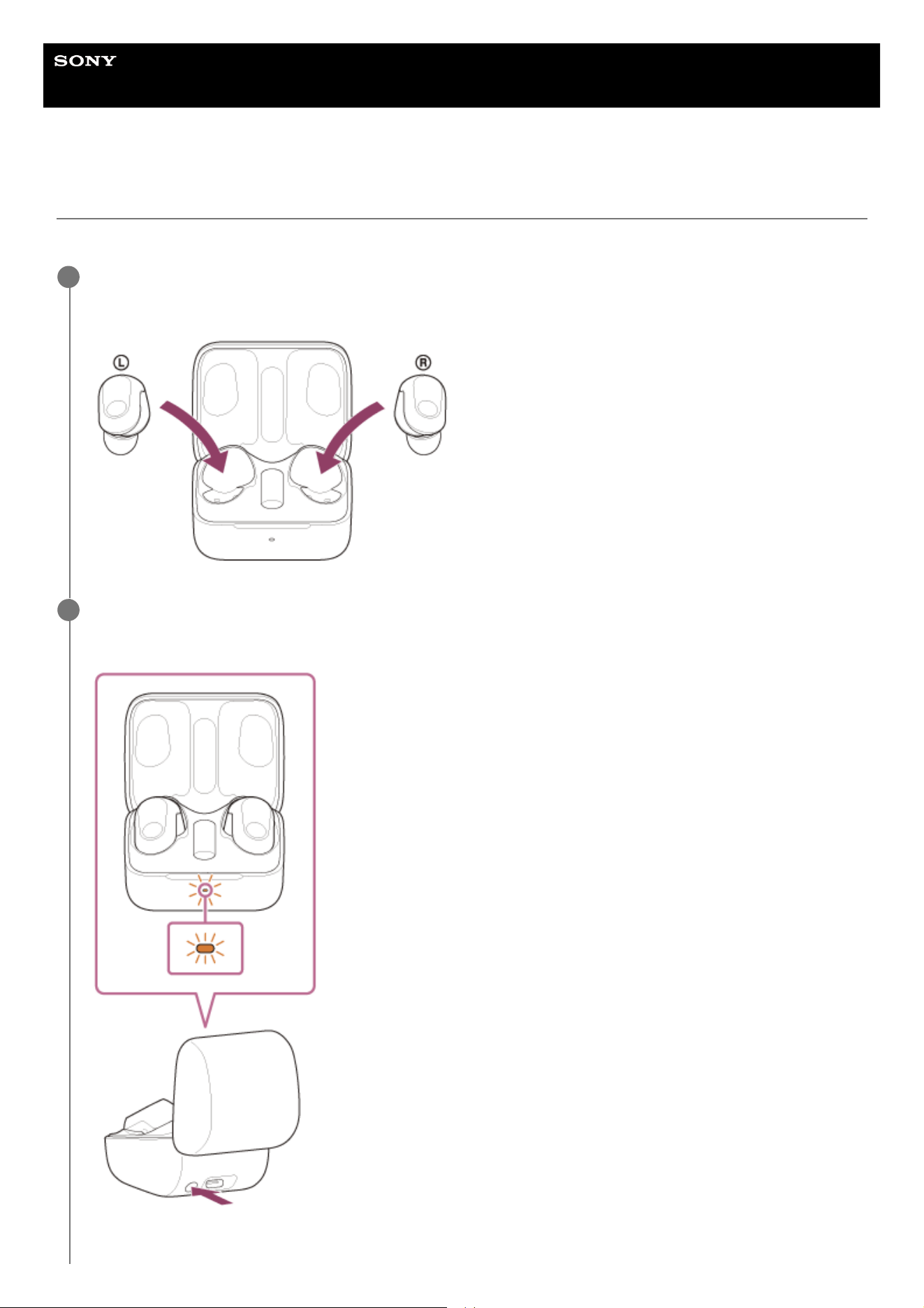
Help Guide
Wireless Noise Canceling Gaming Headset
INZONE Buds
Resetting the headset
If the headset cannot be turned on or cannot be operated even when it is turned on, reset the headset.
Set the headset units into the charging case.
Leave the charging case lid open.
1
Press and hold the reset button on the back of the charging case for about 20 seconds or more.
After about 15 seconds, the indicator (orange) on the charging case flashes for about 5 seconds.
Then, the indicator on the charging case turns off and the headset will be reset.
2
120
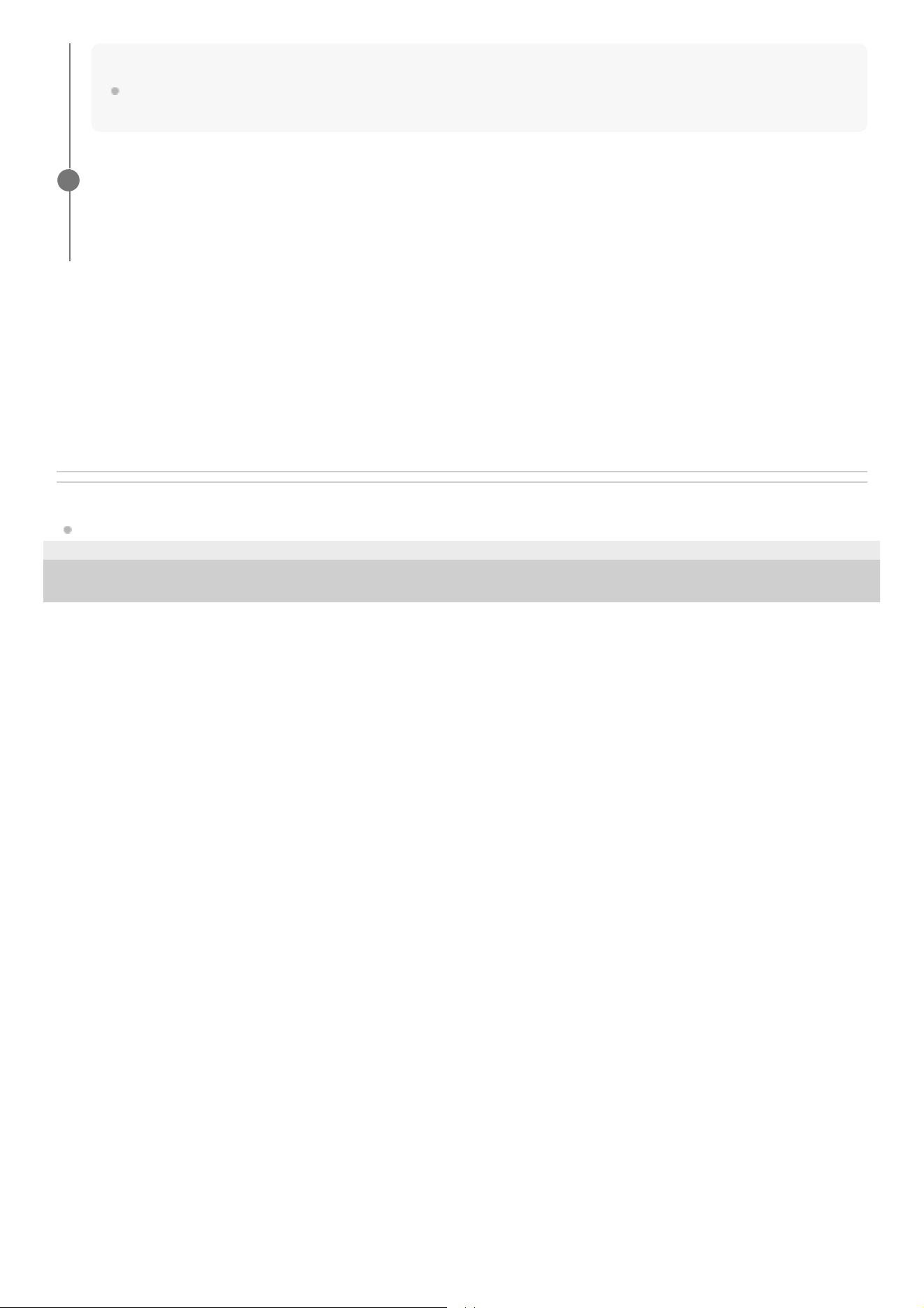
The pairing information and other settings are retained.
If the headset does not operate correctly even after resetting, initialize the headset to restore factory settings.
About the instruction manual video
Watch the video for how to reset.
https://rd1.sony.net/help/mdr/mov0065/h_zz/
Related Topic
Initializing the headset to restore factory settings
5-052-425-11(3) Copyright 2023 Sony Corporation
Note
Do not release your finger from the reset button on the charging case while the indicator (orange) is flashing. If you release
your finger, the headset will be initialized.
Check that the indicator turns off and then release your finger.
When the reset is complete, the headset begins charging and the indicator (orange or green) on the charging case
lights up.
3
121
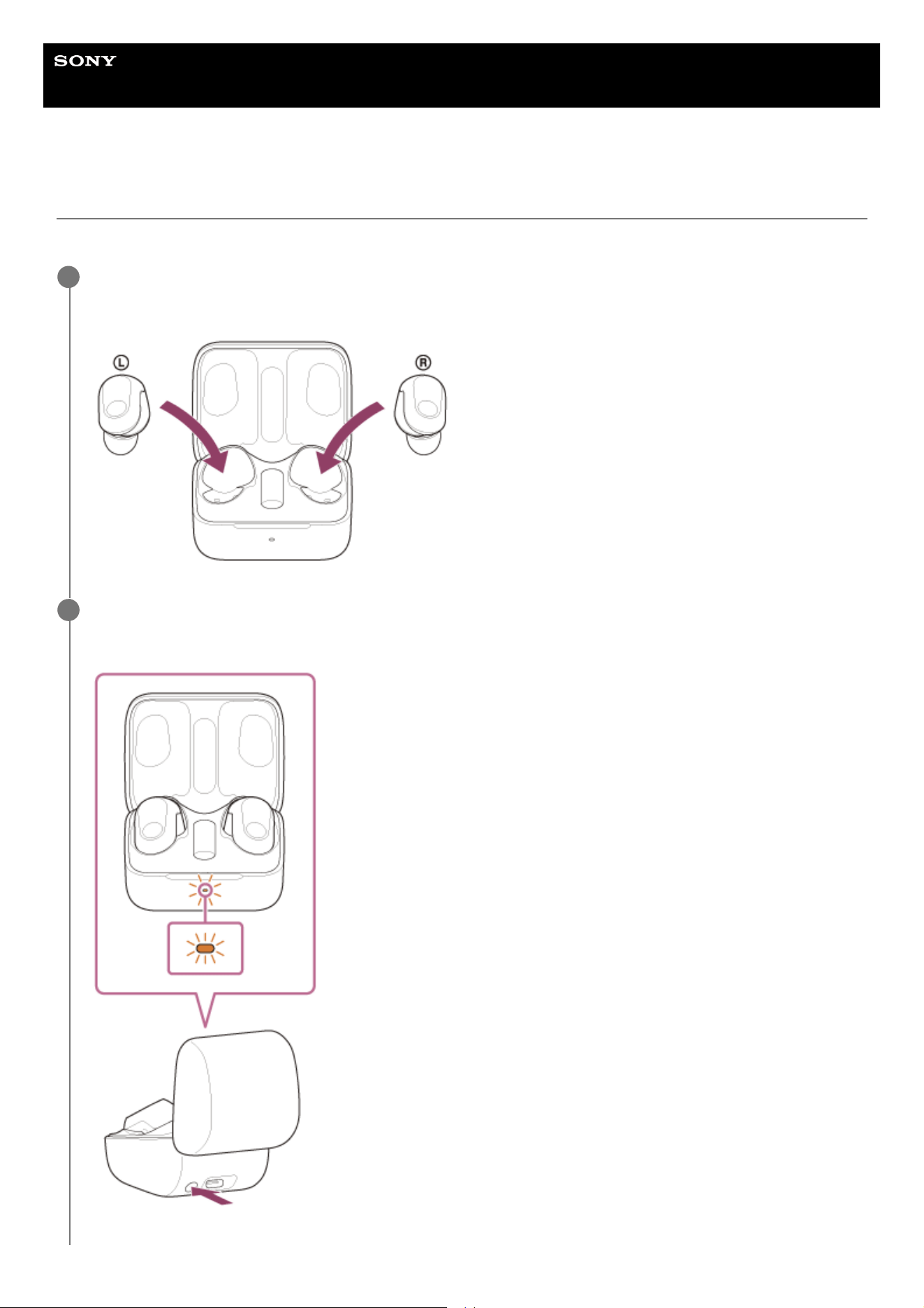
Help Guide
Wireless Noise Canceling Gaming Headset
INZONE Buds
Initializing the headset to restore factory settings
If the headset does not operate correctly even after resetting, initialize the headset.
Set the headset units into the charging case.
Leave the charging case lid open.
1
Press and hold the initialize button on the back of the charging case for about 15 seconds or more.
After about 15 seconds, the indicator (orange) on the charging case flashes for about 5 seconds.
2
122
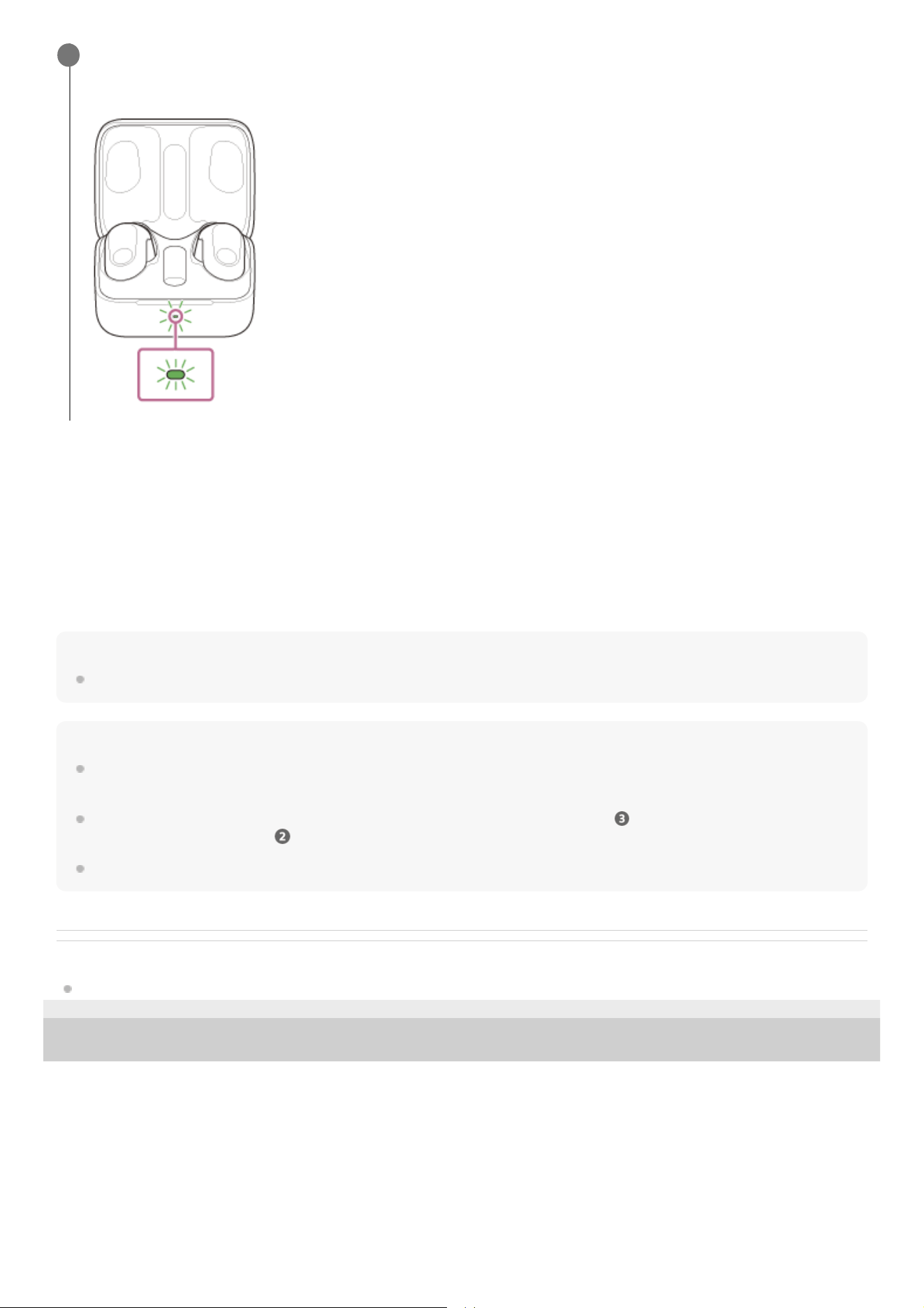
This operation resets volume settings, etc. to the factory settings, and deletes all pairing information. In this case, remove
the headset pairing information from the connected device and pair it again.
If the headset does not operate correctly even after initializing, consult your nearest Sony dealer.
About the instruction manual video
Watch the video for how to initialize.
https://rd1.sony.net/help/mdr/mov0066/h_zz/
Hint
You can also initialize the headset with the “Sony | Headphones Connect” app.
Note
When the remaining battery charge of the charging case is not sufficient, the headset will not start initializing. Charge the charging
case.
If the indicator (green) on the charging case does not flash 4 times after performing step , the headset has not been
initialized. Try again from step .
If you have updated the software after purchasing the headset, the software is retained updated even if you initialize the headset.
Related Topic
Resetting the headset
5-052-425-11(3) Copyright 2023 Sony Corporation
Release your finger within 5 seconds after the indicator (orange) on the charging case starts flashing.
When the initializing is complete, the indicator (green) on the charging case flashes 4 times.
3
123
Help Guide
Wireless Noise Canceling Gaming Headset
INZONE Buds
Specifications
Headset
Power source:
DC 5 V (Using a commercially available USB AC Adaptor)
Using built-in lithium-ion batteries (Product Operation Power: DC 3.85 V)
Operating temperature:
0 °C to 40 °C (32 °F to 104 °F)
Charging time:
Approx. 2 hours (Headset)
Approx. 3 hours (Charging case)
Note
Charging and usage hours may be different depending on the conditions of use.
Charging temperature:
5 °C to 35 °C (41 °F to 95 °F)
Mass:
Approx. 6.5 g × 2 (0.23 oz × 2) (Headset (including earbud tips (M)))
Approx. 50 g (1.77 oz) (Charging case)
Approx. 2.9 g (0.11 oz) (USB Transceiver)
Communication specification
1)
Communication system:
Bluetooth Specification version 5.3
Output:
Bluetooth Specification Power Class 1.5
Maximum communication range:
Line of sight approx. 10 m (32.8 ft)
2)
Frequency band:
Bluetooth: 2.4 GHz band (2.400 0 GHz - 2.483 5 GHz)
Wireless Transmitter Receiver Section: 2.4 GHz band (2.400 0 GHz - 2.483 5 GHz)
Compatible Bluetooth profiles
3)
:
TMAP/CSIP/MCP/VCP/CCP
Supported Codec
4)
:
LC3
124

Transmission range:
20 Hz - 20 000 Hz (Sampling frequency 48 kHz)
Design and specifications are subject to change without notice.
5-052-425-11(3) Copyright 2023 Sony Corporation
Excluding communication with the USB transceiver
1)
The actual range will vary depending on factors such as obstacles between devices, magnetic fields around a microwave oven, static electricity,
reception sensitivity, antenna’s performance, operating system, software application, etc.
2)
Bluetooth standard profiles indicate the purpose of Bluetooth communications between devices.
3)
Codec: Audio signal compression and conversion format
4)
125