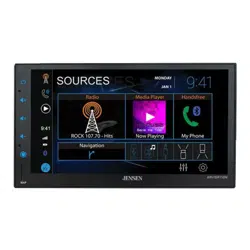
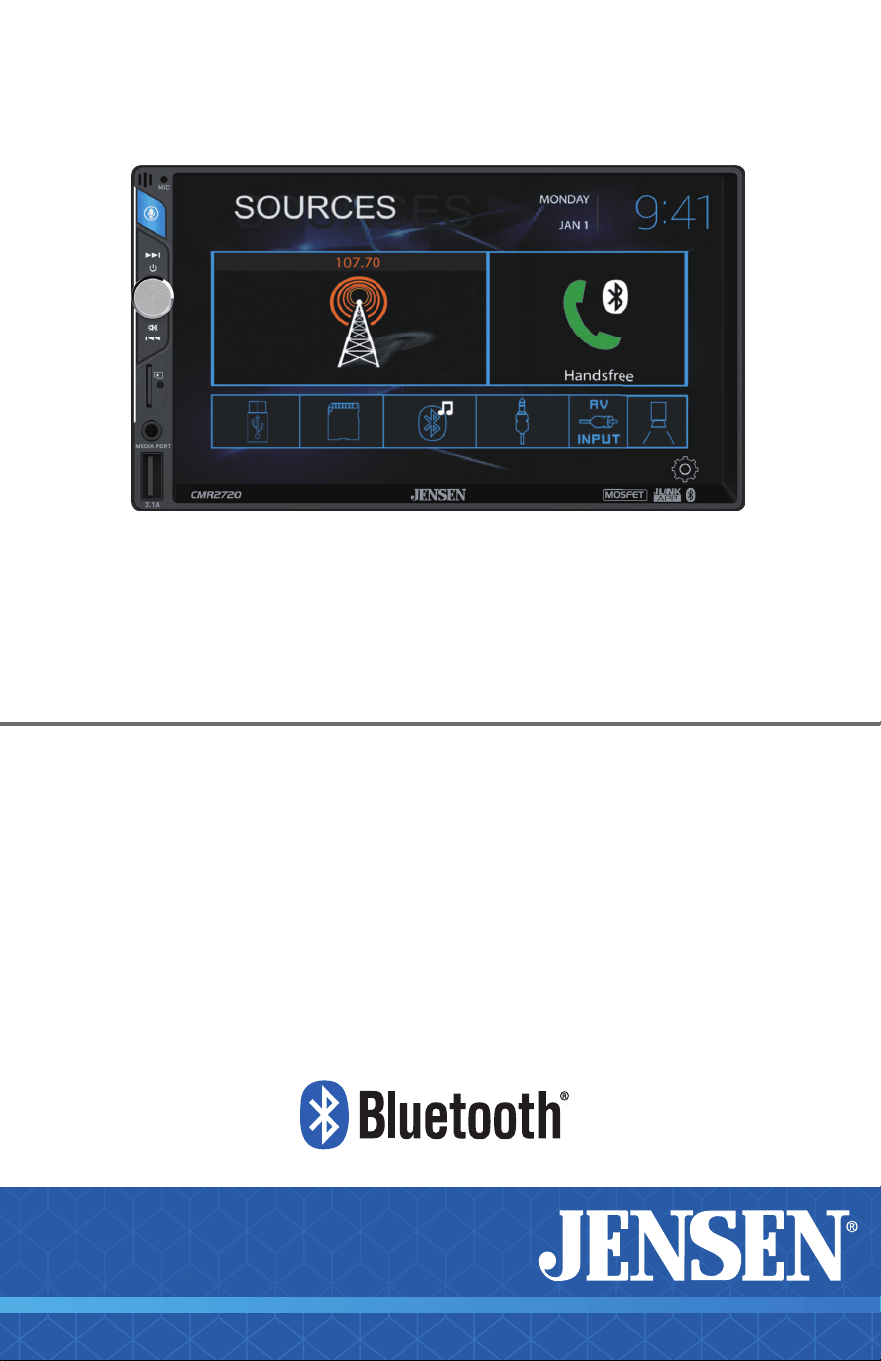
CMR2720
7” TOUCH SCREEN
MECHLESS RECEIVER
AM-FM, Bluetooth
INSTALLATION &
OWNER’S MANUAL

CMR2720
2
2
INFORMATION
The Bluetooth® word mark and logos are registered trademarks owned by Bluetooth
SIG, Inc.
microSD Logo is a registered trademark of SD-3C, LLC.
Siri and Apple are registered trademarks owned by Apple, Inc.
Google Assistant and Android are trademarks owned by Google LLC.
Other trademarks and trade names are those of their respective owners.
FCC Compliance
This device complies with Part 15 of the FCC Rules. Operation is subject to the
following two conditions:
(1) this device may not cause harmful interference, and
(2) this device must accept any interference received, including interference that may
cause undesired operation.
Warning: &KDQJHVRUPRGL¿FDWLRQVWRWKLVXQLWQRWH[SUHVVO\DSSURYHGE\WKHSDUW\
responsible for compliance could void the user’s authority to operate the equipment.
Note: This equipment has been tested and found to comply with the limits for
a Class B digital device, pursuant to Part 15 of the FCC Rules. These limits are
designed to provide reasonable protection against harmful interference in a
residential installation. This equipment generates, uses and can radiate radio
frequency energy and, if not installed and used in accordance with the instructions,
may cause harmful interference to radio communications. However, there is no
guarantee that interference will not occur in a particular installation. If this equipment
does cause harmful interference to radio or television reception, which can be
GHWHUPLQHGE\WXUQLQJWKHHTXLSPHQWRႇDQGRQWKHXVHULVHQFRXUDJHGWRWU\WR
correct the interference by one or more of the following measures:
• Reorient or relocate the receiving antenna.
• Increase the separation between the equipment and receiver.
&RQQHFWWKHHTXLSPHQWLQWRDQRXWOHWRQDFLUFXLWGLႇHUHQWIURPWKDWWRZKLFKWKH
receiver is connected.
&RQVXOWWKHGHDOHURUDQH[SHULHQFHGUDGLR79WHFKQLFLDQIRUKHOS
Copyright and Trademark

3
3
CMR2720 INFORMATION
Please read all instructions carefully before attempting to install or
operate.
Due to its technical nature, it is highly recommended that your JENSEN CAR2720 is installed by a
professional installer or an authorized dealer. This product is only for use in vehicles with 12VDC
negative ground only.
To prevent damage or injury:
• Make sure to ground the unit securely to the vehicle chassis ground.
• Do not remove the top or bottom covers of the unit.
'RQRWLQVWDOOWKHXQLWLQDVSRWH[SRVHGWRGLUHFWVXQOLJKWRUH[FHVVLYHKHDWRUWKHSRVVLELOLW\
of water splashing.
'RQRWVXEMHFWWKHXQLWWRH[FHVVLYHVKRFN
• When replacing a fuse, only use a new one with the prescribed rating. Using a fuse with the
wrong rating may cause the unit to malfunction.
7RSUHYHQWVKRUWFLUFXLWVZKHQUHSODFLQJDIXVHGLVFRQQHFWWKHZLULQJKDUQHVV¿UVW
• Use only the provided hardware and wire harness.
• You cannot view video while the vehicle is moving. Find a safe place to park and engage the
parking brake.
,I\RXH[SHULHQFHSUREOHPVGXULQJLQVWDOODWLRQFRQVXOW\RXUQHDUHVW-(16(1GHDOHU
,IWKHXQLWPDOIXQFWLRQVUHVHWWKHXQLWDVGHVFULEHGRQSDJH¿UVW,IWKHSUREOHPVWLOO
persists, consult your nearest JENSEN dealer or call tech assistance @ 1-888-921-4088.
7RFOHDQWKHPRQLWRUZLSHRQO\ZLWKDGU\VLOLFRQHFORWKRUVRIWFORWK'RQRWXVHDVWLႇFORWK
or volatile solvents such as paint thinner and alcohol. They can scratch the surface of the
SDQHODQGRUUHPRYHWKHSULQWLQJ
• When the temperature of the unit falls (as in winter), the liquid crystal inside the screen will
become darker than usual. Normal brightness will return after using the monitor for a while.
:KHQH[WHQGLQJWKHLJQLWLRQEDWWHU\RUJURXQGFDEOHVPDNHVXUHWRXVHDXWRPRWLYHJUDGH
cables or other cables with an area of 0.75mm (AWG 18) or more to prevent voltage drops.
'RQRWWRXFKWKHOLTXLGFU\VWDOÀXLGLIWKH/&'LVGDPDJHGRUEURNHQ7KHOLTXLGFU\VWDOÀXLG
PD\EHKD]DUGRXVWR\RXUKHDOWKRUIDWDO,IWKHOLTXLGFU\VWDOÀXLGIURPWKH/&'FRQWDFWV\RXU
ERG\RUFORWKLQJZDVKLWRႇZLWKVRDSLPPHGLDWHO\
Safety Notice
INSTALLATIONCMR2720
4
4
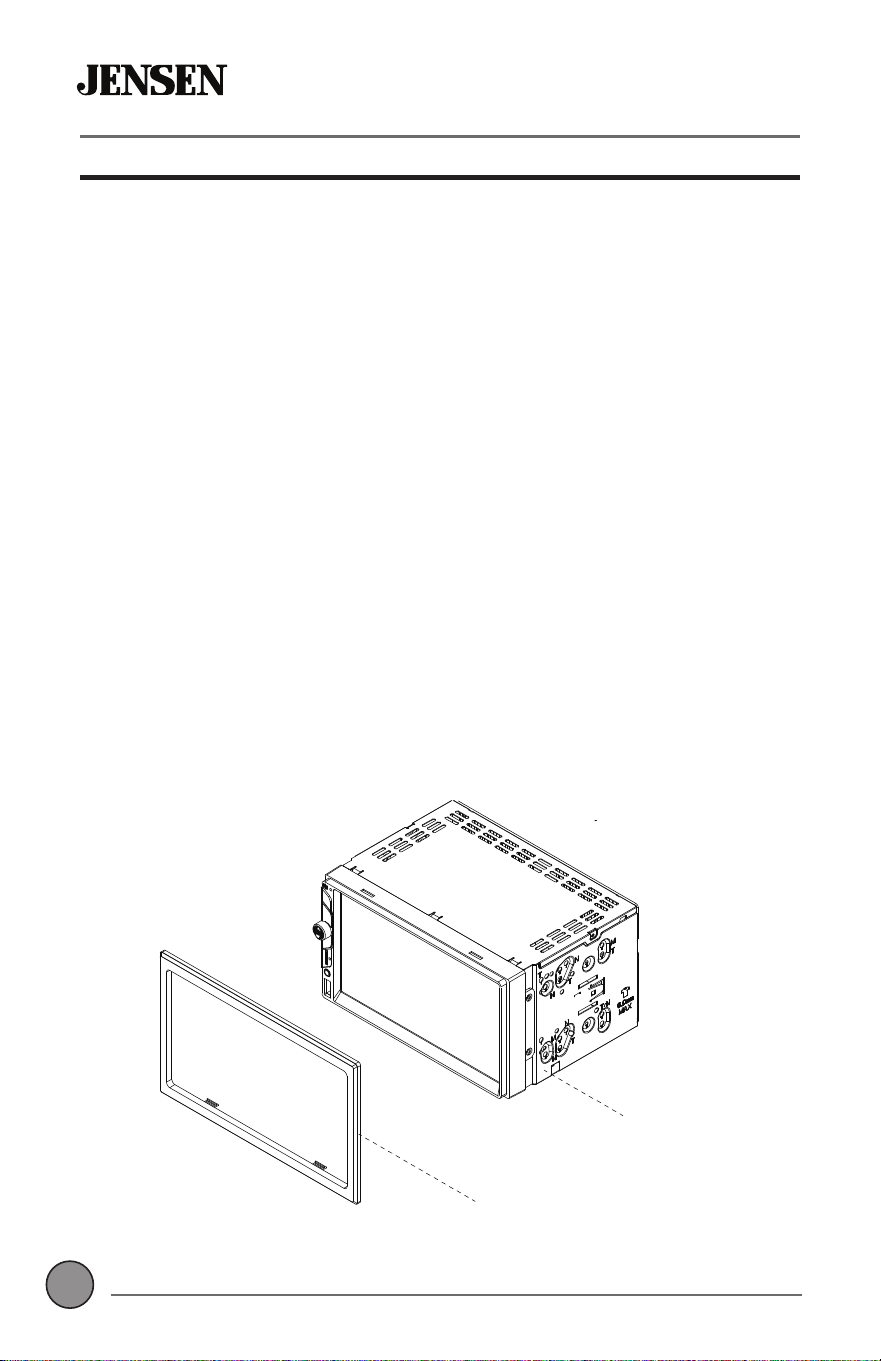
Please read and understand entire manual before
installation.
&RQVXOWDTXDOL¿HGWHFKQLFLDQIRUGHWDLOHGLQVWUXFWLRQVRU
installation assistance.
Before You Start
• Disconnect negative battery terminal.
• Avoid installing the unit where it would be subject to high
temperatures, such as from direct sunlight, or where it would be
VXEMHFWWRGXVWGLUWRUH[FHVVLYHYLEUDWLRQ
Getting Started
• Unpack unit from its protective packaging.
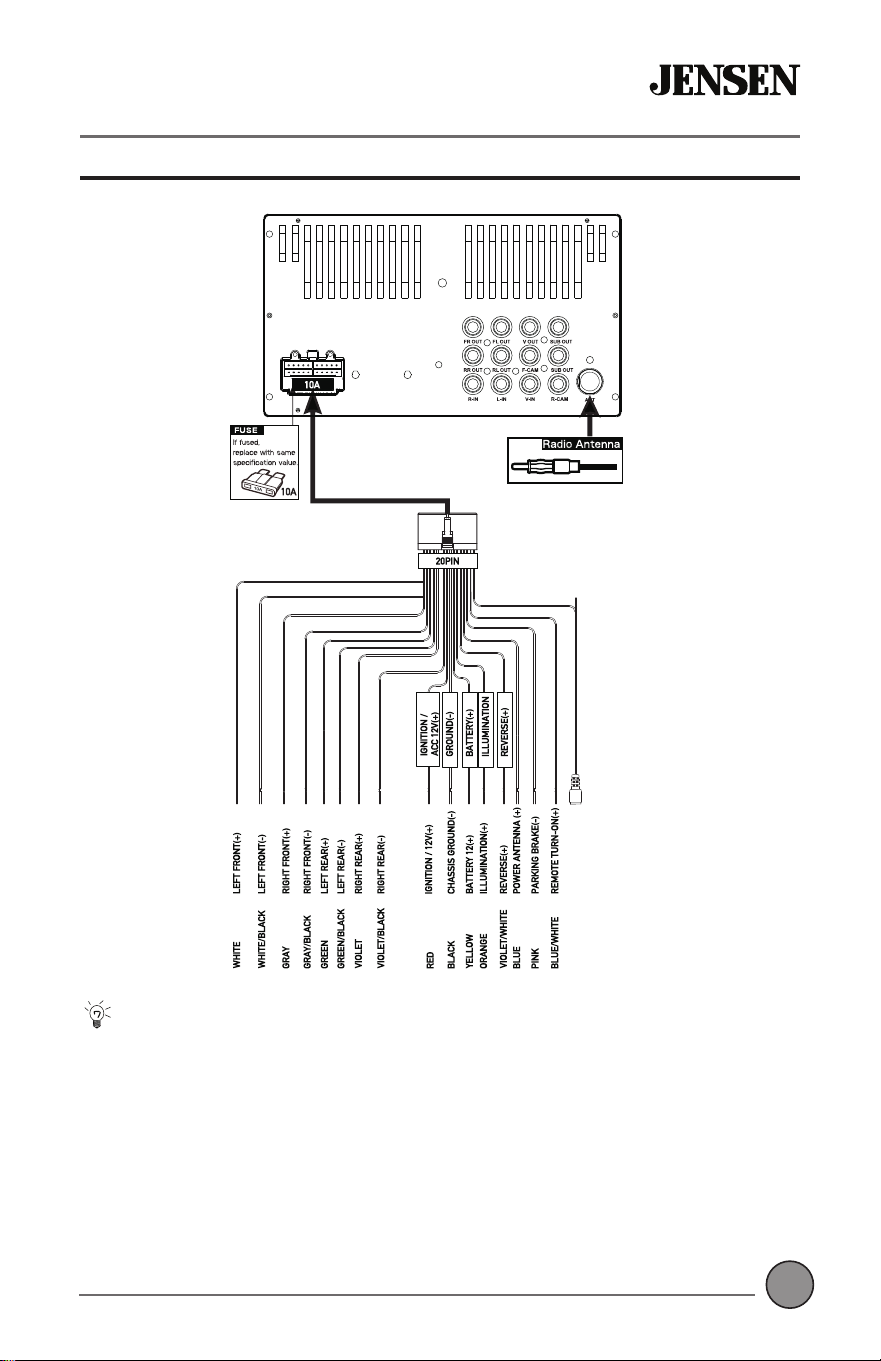
• Connect vehicle wiring harness and antenna to this receivers
KDUQHVV6HHZLULQJLQVWUXFWLRQV&RQVXOWDTXDOL¿HGWHFKQLFLDQLI
you are unsure.
&HUWDLQYHKLFOHVPD\UHTXLUHDQLQVWDOODWLRQGDVKNLWDQGRUZLULQJ
harness adapter (sold separately).
• Reconnect battery negative terminal.
• Test for correct operation and secure back into dashboard.
• Snap trim ring into place if needed.
Preparation
Typical ISO-DIN Installation
Unit
Trim Ring
5
5
CMR2720 INSTALLATION
Tips
When replacing a fuse, make sure to use the correct type and
amperage. Using an incorrect fuse could cause damage. The unit
uses (1) 10 amp ATC blade-type fuse located on the back of the unit.
Front / Rear camera inputs
Up to two cameras (not included) can be used. We recommend
JENSEN Part # BUCAM200J for front camera and BUCAM300AJ or
BUCAM400AJ for rear camera.
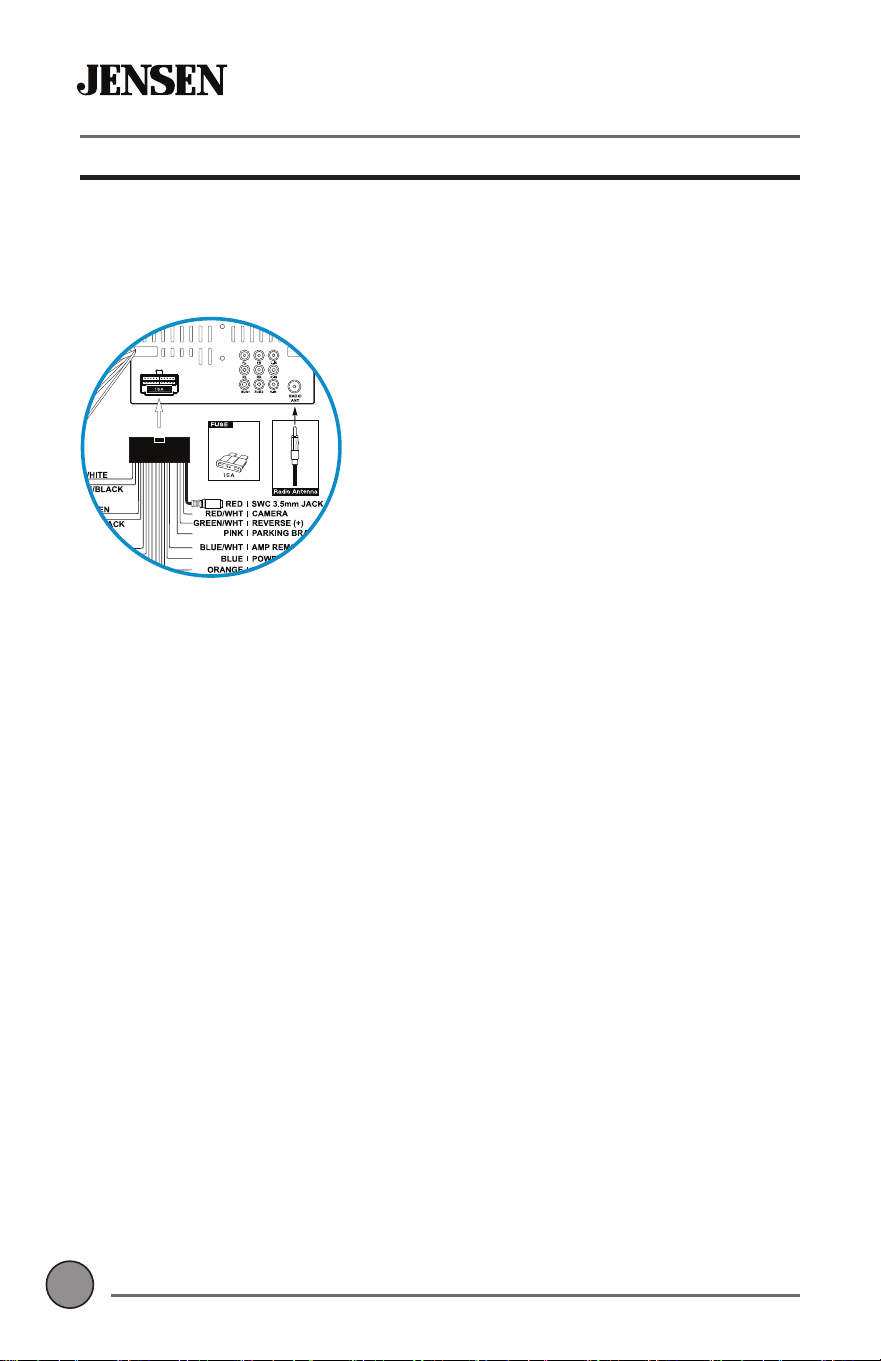
Input / Output Wiring Diagram
SWC INPUTGRAY/RED
OPERATIONCMR2720
6
6
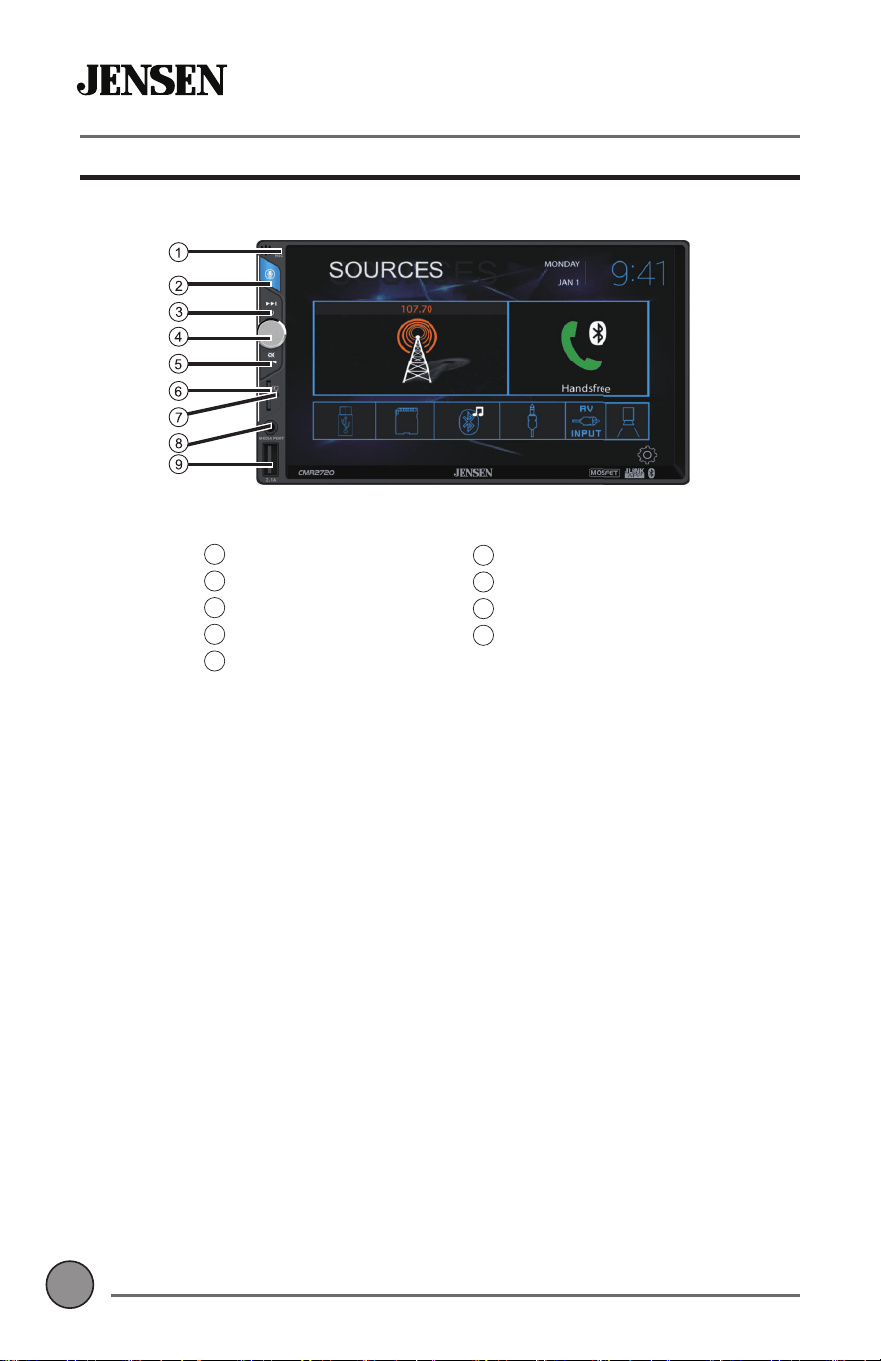
Main Control Locations
1
Microphone
2
0RGH9RLFH$VVLVWDQW
3
7XQH7UDFN8S
4
9ROXPH3RZHU0XWH
5
7XQH7UDFN'RZQ
6
microSD Card Slot
7
Reset
8
$X[LOLDU\,QSXW
9
USB Slot
7
7
OPERATIONCMR2720
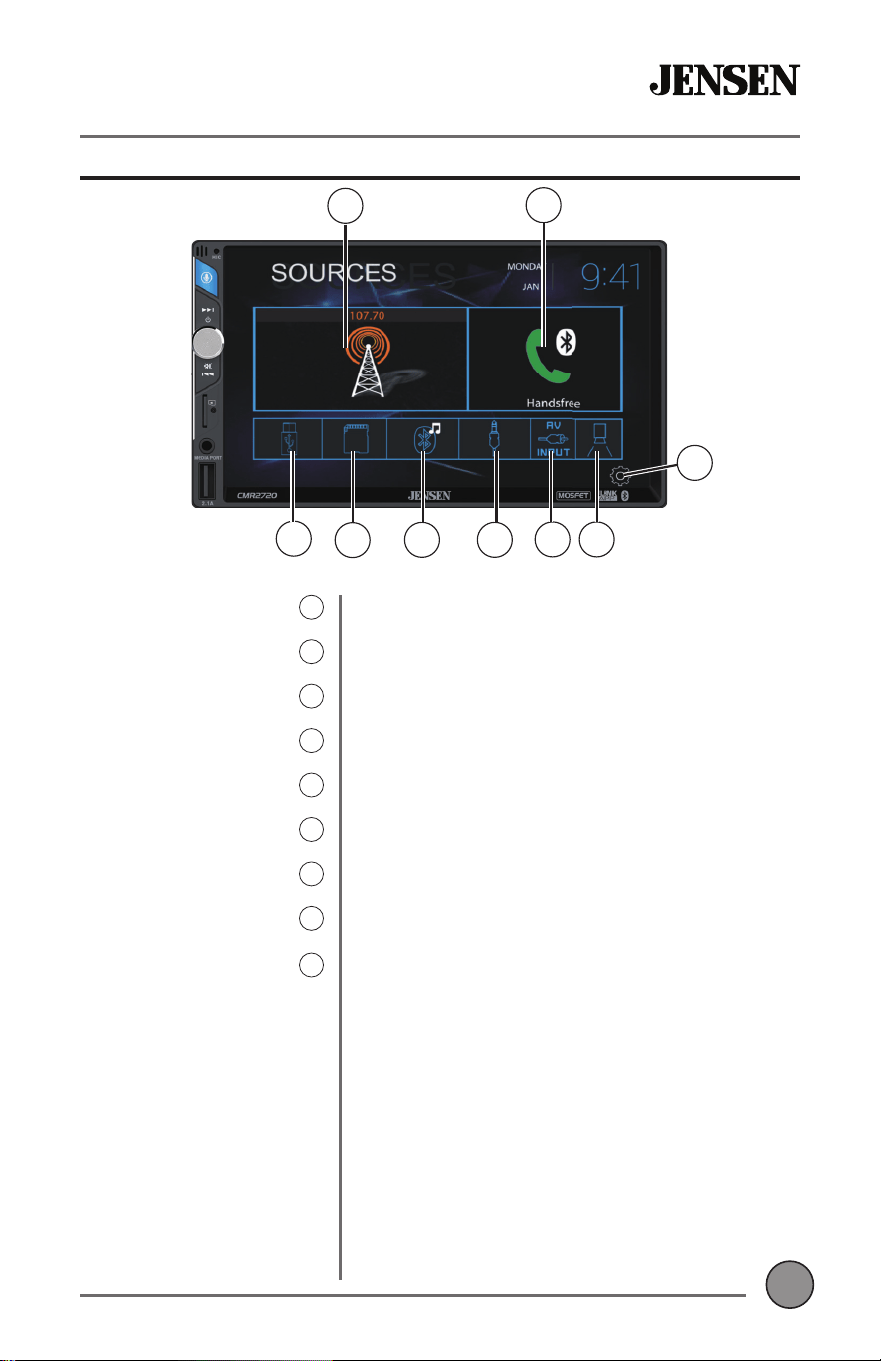
Source Menu Operation
Press to access Radio.
Press to access Bluetooth phone.
Press to display and adjust system settings.
Press to display the rear and front cameras.
Press to access AV input.
3UHVVWRDFFHVVDX[LOLDU\LQSXW
Press to access the Bluetooth music.
3UHVVWRDFFHVV¿OHVRQPLFUR6'FDUG
3UHVVWRDFFHVV¿OHVRQ86%GHYLFH
Radio
1
Bluetooth Phone
2
Settings
3
Camera
4
AV Input
5
$X[LOLDU\,QSXW
6
BT Music
7
microSD
8
USB
9
1
2
9
3
5
8
7 6
4
OPERATIONCMR2720
8
8
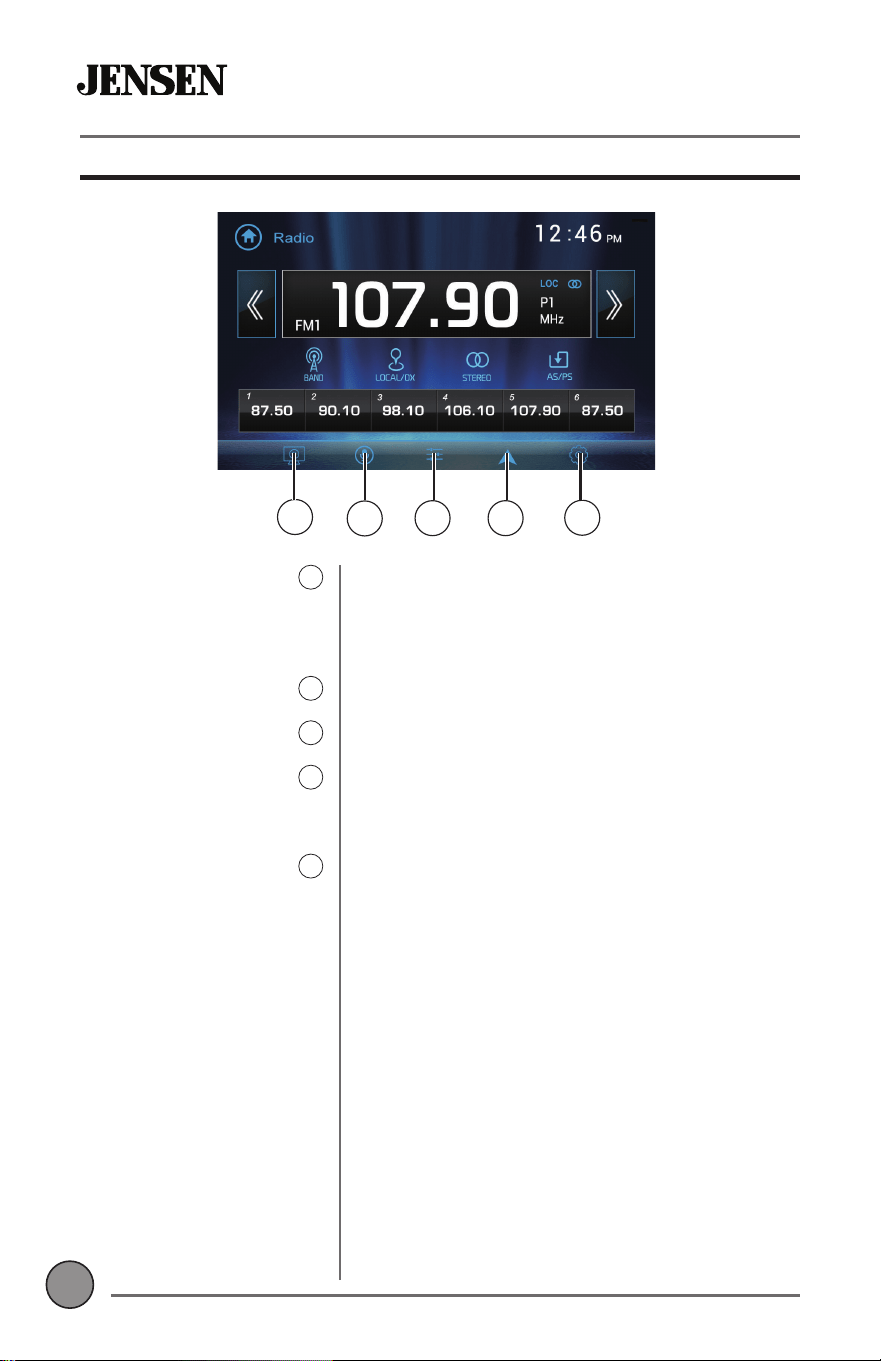
On Screen Controls
1
5
2
3 4
Press up to two times to dim the screen. Press
a third time to put the unit in standby mode
(screen will go black). Press anywhere on the
screen to return to normal screen operation.
Press to activate the voice assistant feature.
Press to access and adjust audio settings.
Press to directly access your phone’s
navigation app (refer to Navigation Hot Button
section of the manual for setup instructions).
Press to display and adjust system settings.
Screen Brightness
1
Voice Assistant
2
Audio
3
Navigation Hot Button
4
Settings
5
9
9
OPERATIONCMR2720
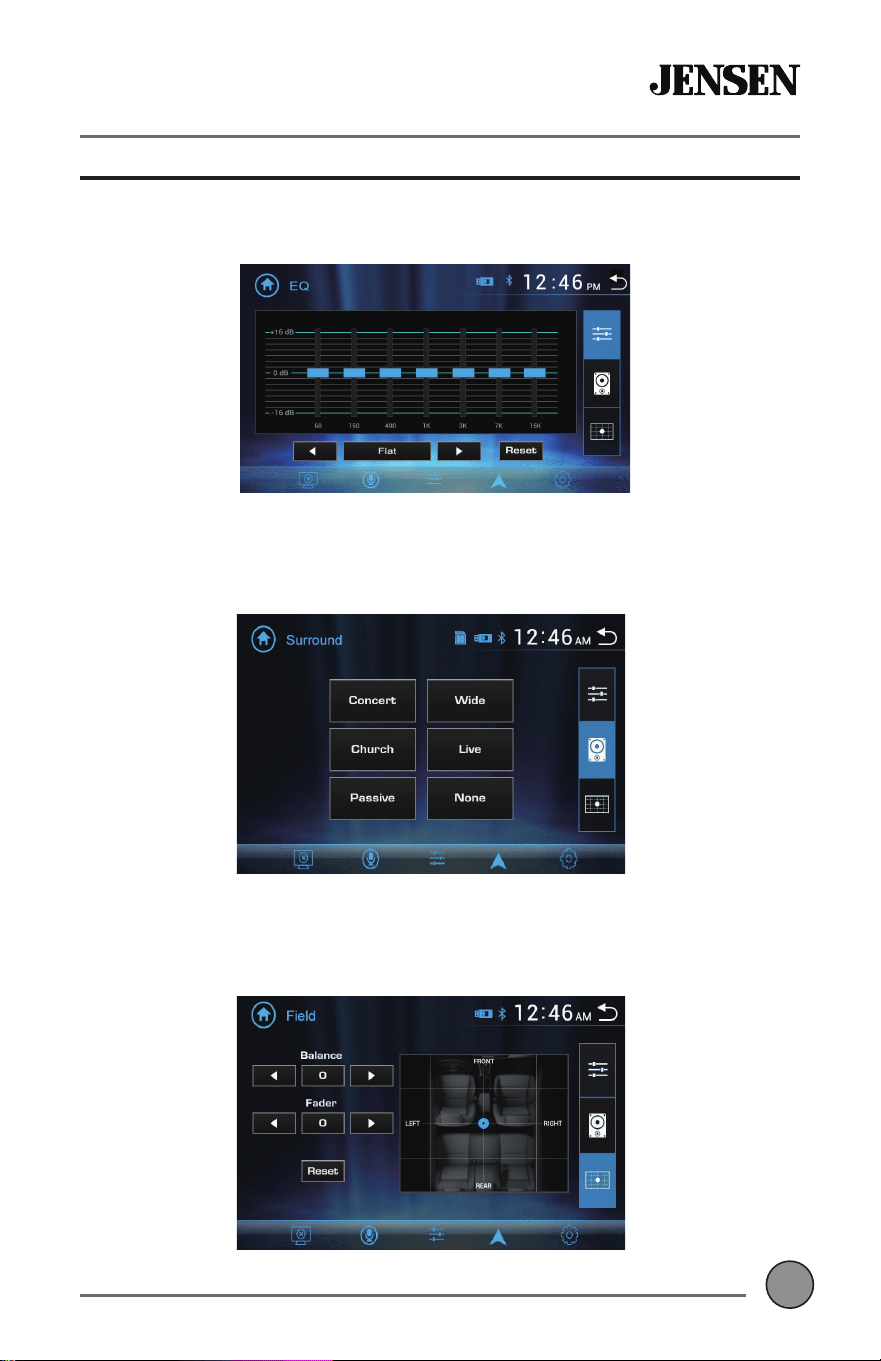
Select any of the preset EQ settings (Flat, Classic, Rock, Pop, Jazz, Beat or
User) or use the touch screen to manually adjust EQ settings.
Select any of the preset Surround settings: Concert, Church, Passive,
Wide, Live or None.
Adjust balance (8L to 8R) and fader (8F to 8R), or use the touch screen to
manually adjust balance and fader settings.
Audio Settings
OPERATIONCMR2720
10
10
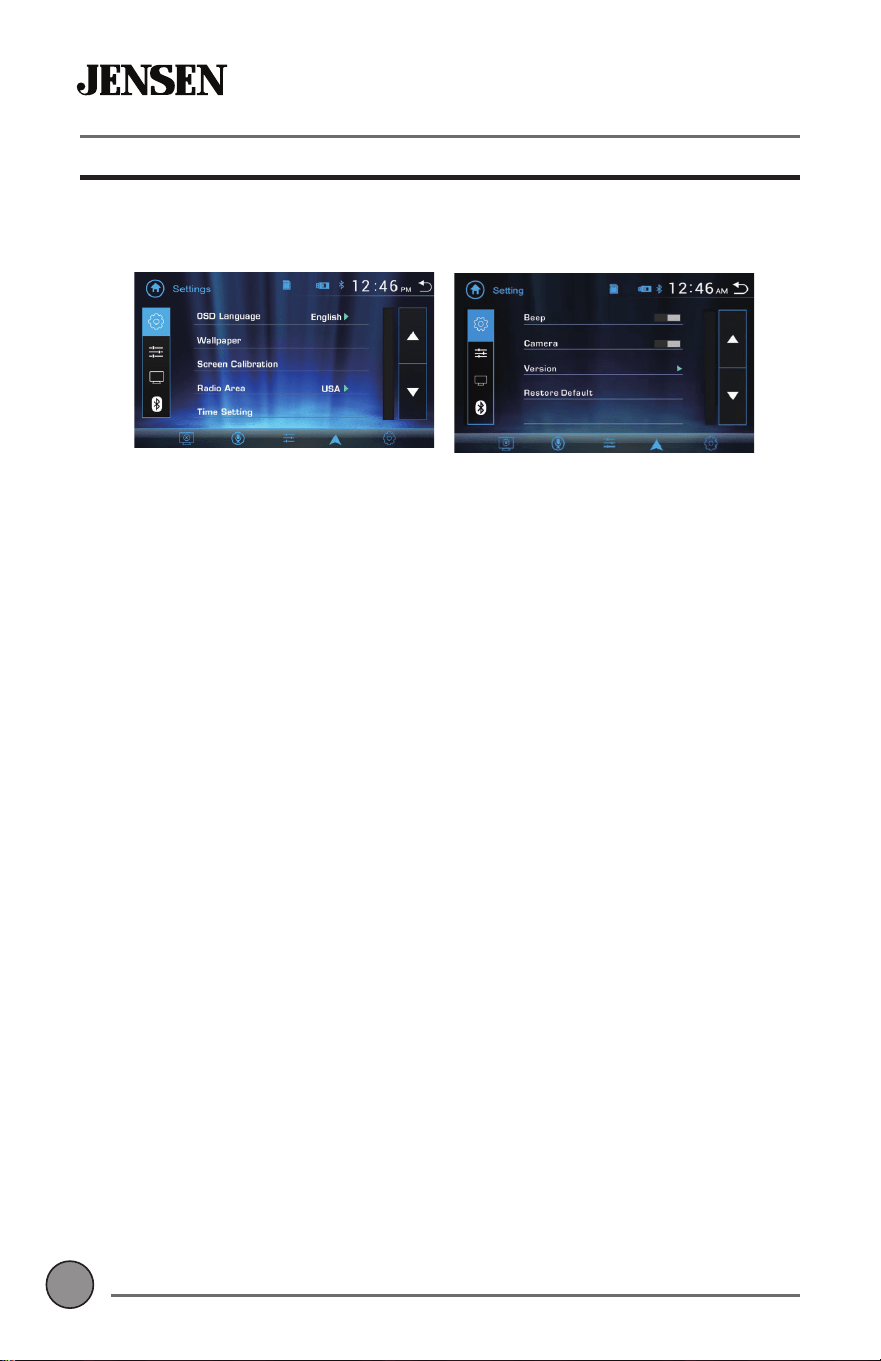
Settings Menu
From the Main Menu, press the gear icon to access the Setup menu and
adjust the following: General, Audio, Display and Bluetooth.
General:
• OSD Language - Select English.
• Wallpaper - Select from three different wallpaper options.
• Radio Area - Select Europe, USA, South America or Asia.
• Time Setting - Set the date (month, day, year) and time (hours,
PLQXWHV$030DQGKRXURUKRXUFORFN.
• Beep - Enable or disable the audible beep.
• Camera - Enable or disable the rear camera input.
• Version - Press to display version numbers.
• Restore Default - Press to restore unit to default factory settings.
Audio:
• Audio Settings - Press to access and adjust audio settings.
• Subwoofer- Press to adjust subwoofer frequency and volume.
• Loudness - Enable or disable the loudness feature.
Display:
• Aspect Ratio - Select desired region (America, Europe or Latin).
• Adjust - Press to adjust screen brightness, contrast, hue, saturation
and shaprness.
• Panel - Select from the following Backlight settings: Off, 10 seconds,
20 seconds or 30 seconds.
Bluetooth:
• Bluetooth - Turn Bluetooth signal on or off.
• Auto Answer - Turn auto answer feature on or off.
11
11
OPERATIONCMR2720
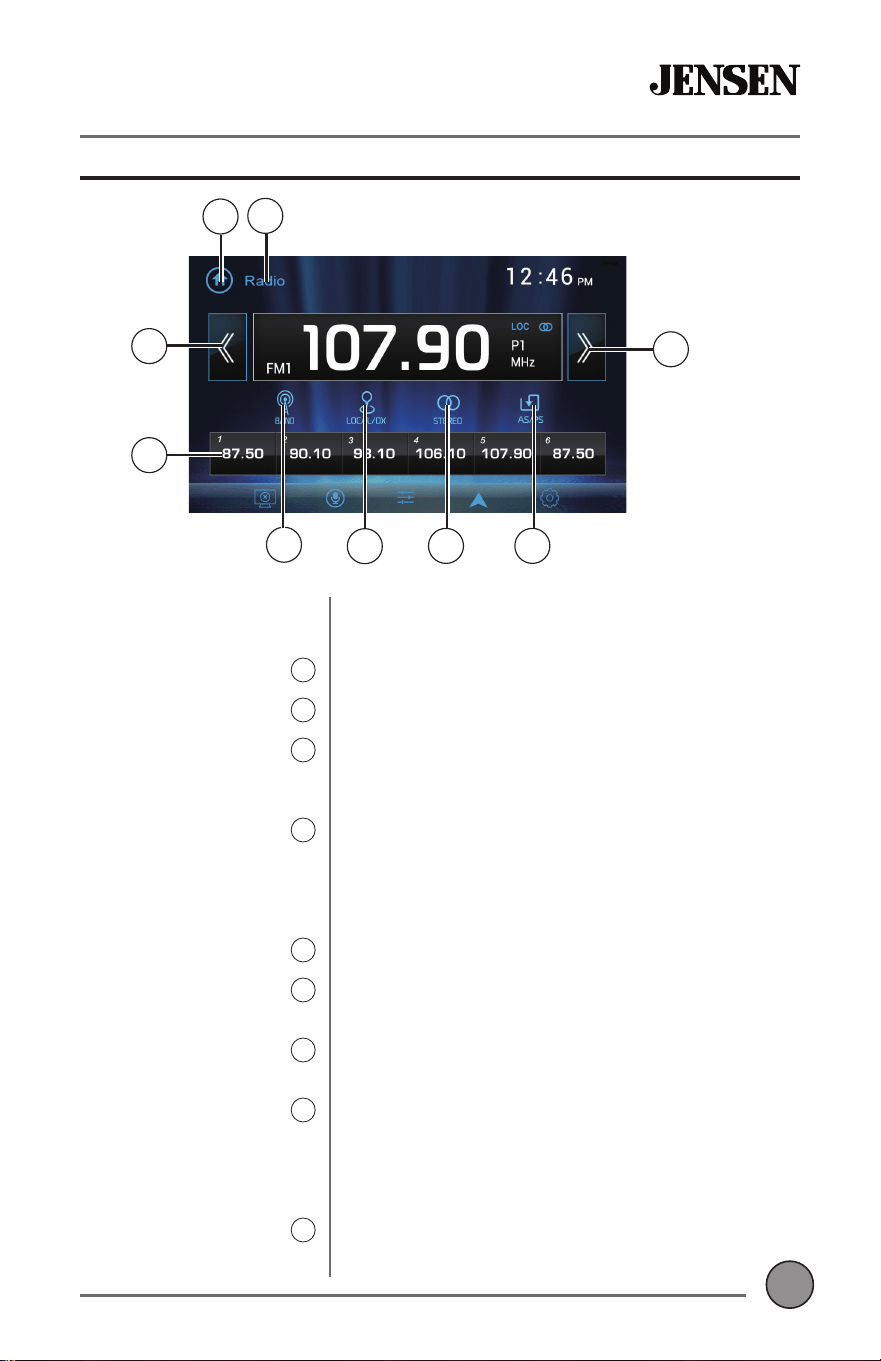
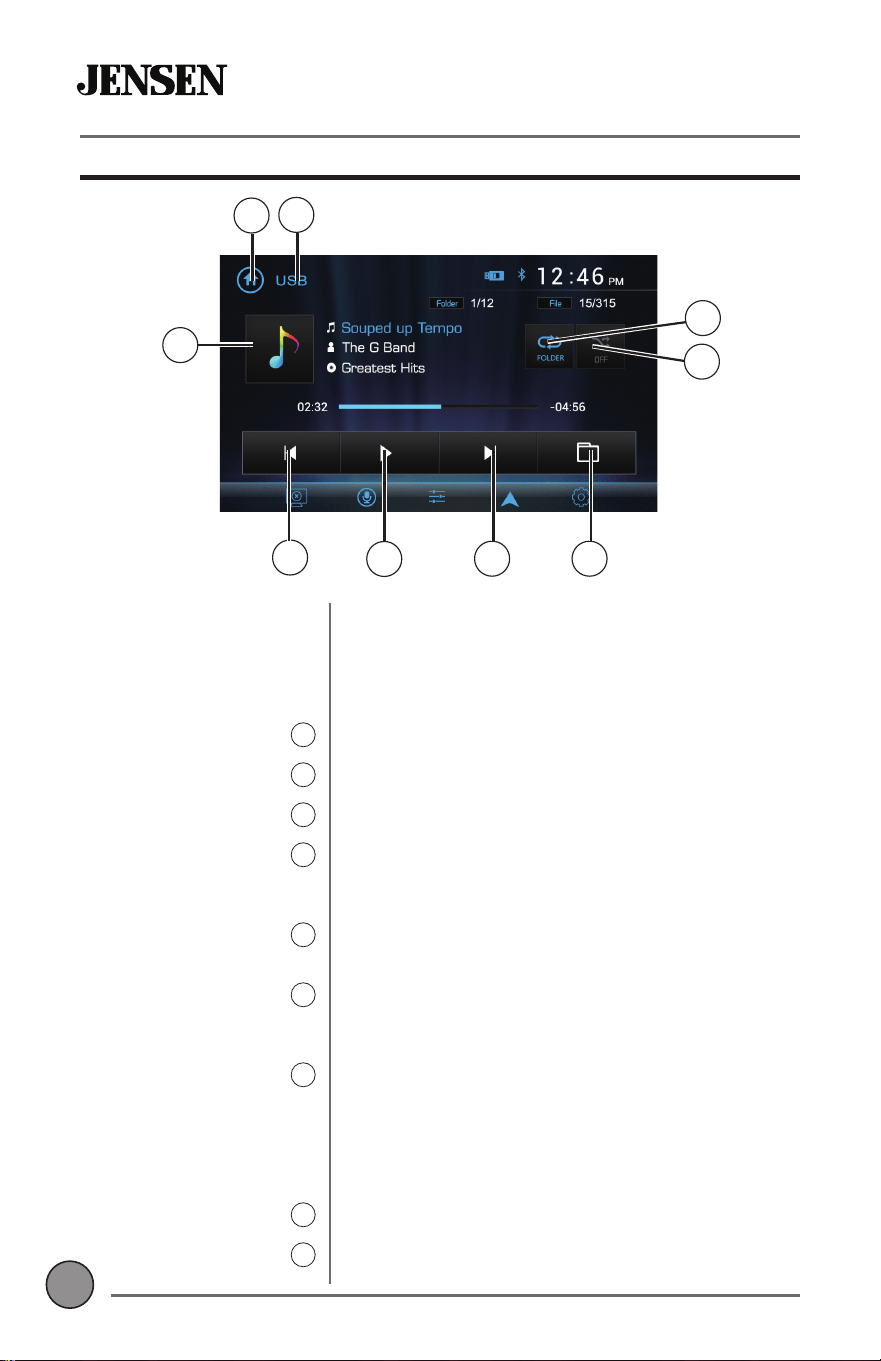
Tuner Operation
Radio Operation
Main Menu
1
Mode Indicator
2
Tune Down
3
Preset Stations
4
Band
5
Local | Distance
6
Stereo | Mono
7
AS | PS
8
Tune Up
9
Select the Radio icon from the Main Menu
screen.
Press to return to Main Menu screen.
Displays the current mode of operation.
Press to tune to a lower frequency one step at
a time. Press and hold to automatically tune to
the last strong station.
Press any preset station stored in the current
band to tune radio to saved frequency. To save
presets, tune the radio to desired station, then
press and hold the desired preset button to
save the station.
Press to select between 2 AM and 3 FM bands.
Press to toggle between local and distance
tuning.
Press to toggle between Stereo and Mono
tuning.
3UHVVWRVFDQSUHVHWVDQGOLVWHQWRWKH¿UVW
seconds of each. Press again to stop scanning
and listen to the station. Press and hold to
DXWRPDWLFDOO\¿QGDQGVWRUHWKHVWURQJHVW
stations as presets,
Press to tune to a higher frequency one step at
a time. Press and hold to automatically tune to
the last strong station.
1
2
5
6
7 8
3
4
9
OPERATIONCMR2720
12
12
USB/microSD Operation
1
2
4
5
6 7
3
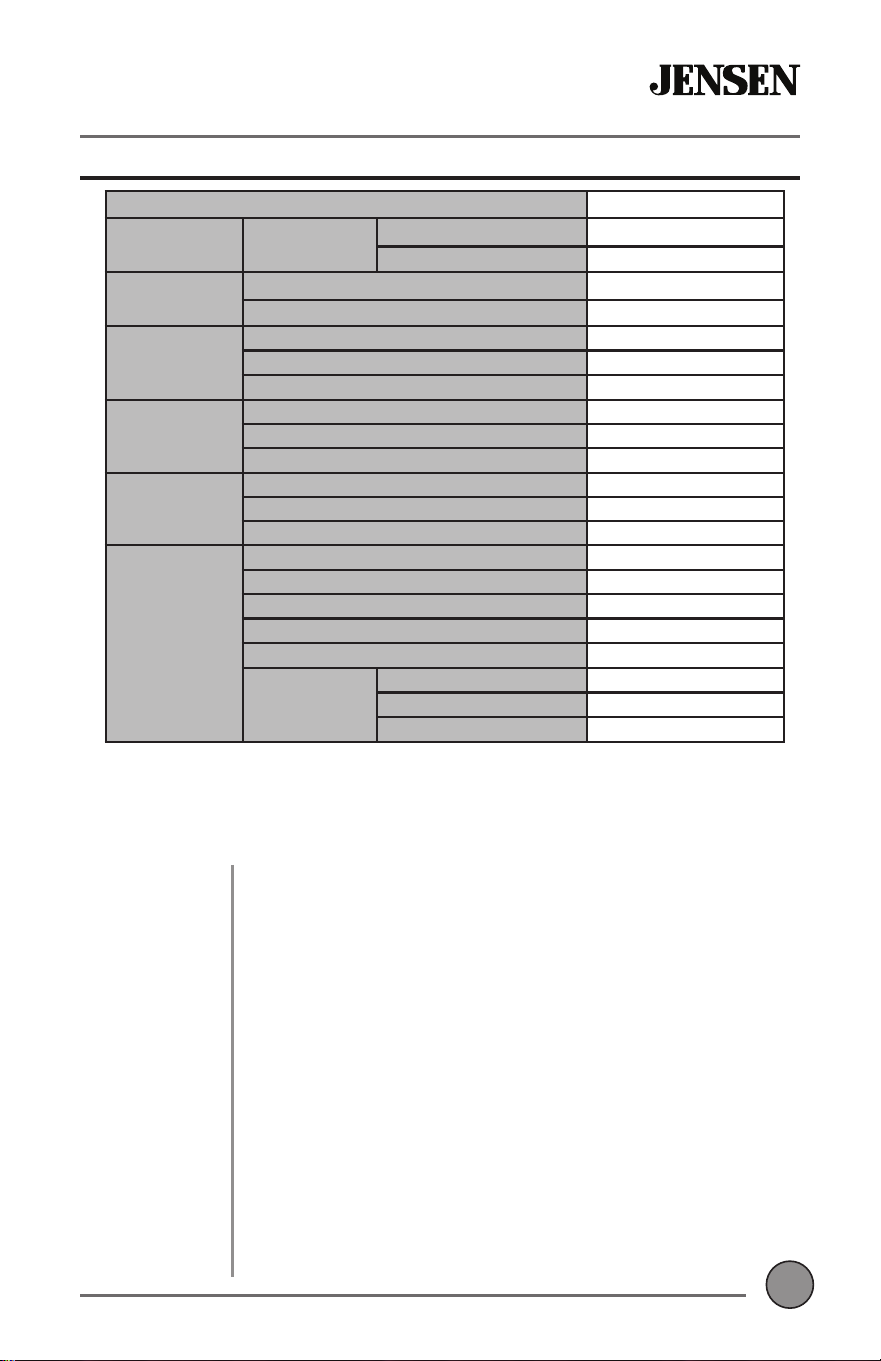
86%PLFUR6'2SHUDWLRQ
Main Menu
1
Mode Indicator
2
File Information
3
Previous Track
4
3OD\3DXVH
5
1H[W7UDFN
6
Folder Search
7
Random
8
Repeat
9
7RSOD\03¿OHVIURPD86%GHYLFHRUPLFUR6'FDUG
insert a USB device or microSD card, and playback
will begin automatically. To return to USB or microSD
playback from another mode of operation, select the
corresponding icon from the Main Menu.
Press to return to Main Menu screen.
Displays the current mode of operation.
'LVSOD\VLQIRUPDWLRQDERXWWKHFXUUHQW¿OH
Press to go back to the previous track. Press and hold
to fast reverse the current track, then press PLAY /
PAUSE to resume playback.
Press to pause the current track, then press again to
resume playback.
3UHVVWRDGYDQFHWRWKHQH[WWUDFN3UHVVDQGKROG
to fast forward the current track, then press PLAY /
PAUSE to resume playback.
3UHVVWRDFFHVVWKHGLUHFWRU\RIIROGHUVDQG¿OHV
8VHWKHXSGRZQDUURZVWRVFUROOWKURXJKWKHIROGHU
list, then press on the name of the desired folder to
DFFHVVLW8VHWKHXSGRZQDUURZVWRVFUROOWKURXJK
WKH¿OHOLVWWKHQSUHVVRQWKHQDPHRIWKHGHVLUHG¿OH
to access it.
3UHVVWRWXUQ5DQGRPIHDWXUHRQRURႇ
6HOHFWD5HSHDWRSWLRQ$OO2QH)ROGHURU2ႇ
8
9
13
13
OPERATIONCMR2720
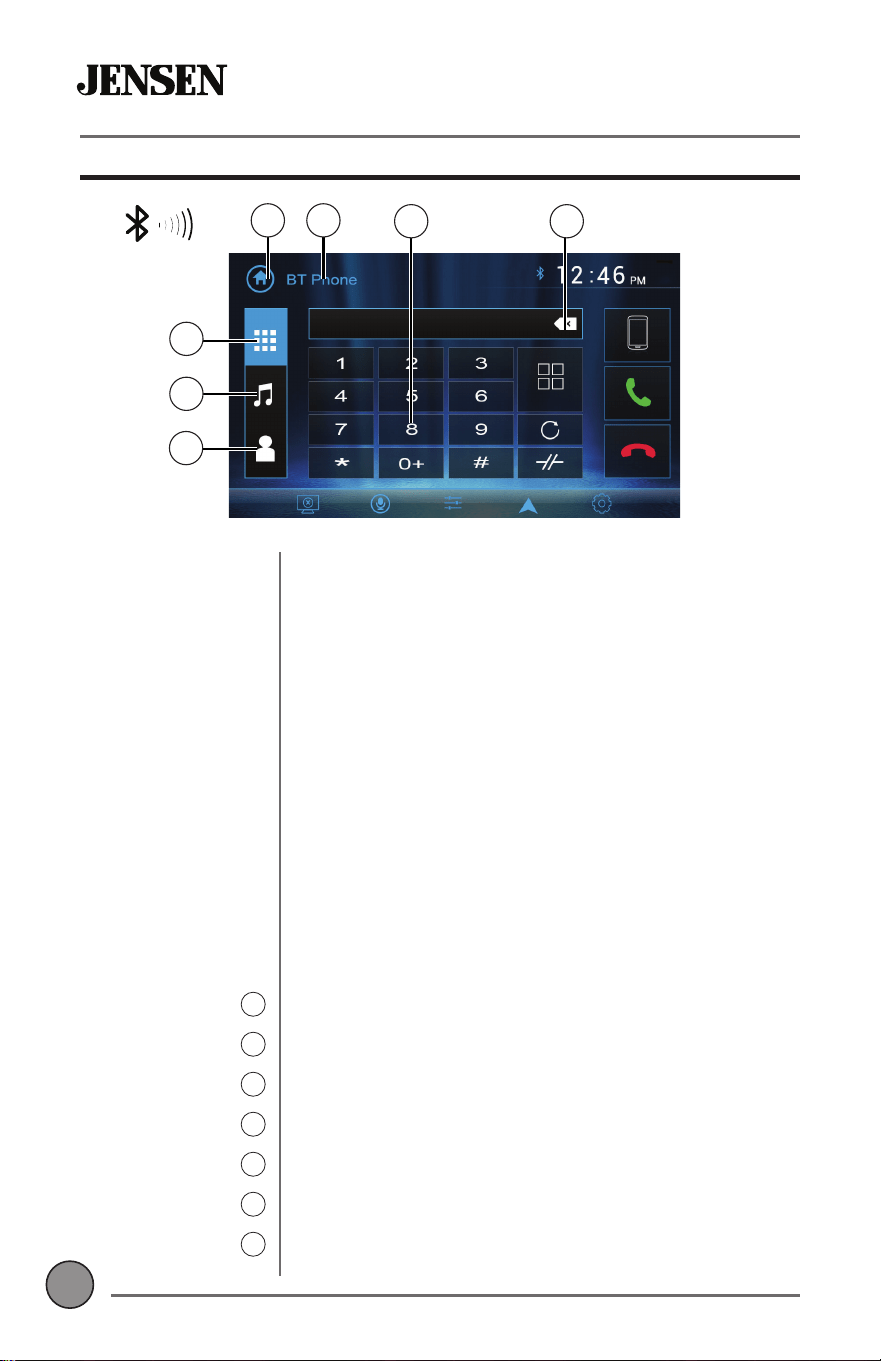
Media Compatibility
The following types of files are not compatible:
• MP3 PRO format, MP3 playlists
• RMP format
• WAV format
• WMV format
• AAC, protected AAC, M4A format
MP3 playback sequence begins in the root folder. Any folders
WKDWGRQRWLQFOXGH03-3*ILOHVDUHVNLSSHG
ISO9660 standards:
0D[LPXPQHVWHGIROGHUGHSWKLVLQFOXGLQJWKHURRWIROGHU
9DOLGFKDUDFWHUVIRUIROGHUILOHQDPHVDUHOHWWHUV$=DOOFDSV
numbers 0-9, and “_” (underscore). Some characters may not
be displayed correctly, depending on the character type.
Some files may not play, depending on sampling rates and bit
rates. For best results, use the following settings when ripping
MP3 files: 128kbps or higher constant bit rate; 44.1kHz or higher
sampling frequency.
Media
Compatibility
Playback Order
Compatible
Recording
Formats
Notes
File Type MP3
File System FAT
FAT 12 X
)$7)$7
9
File
([WHQVLRQ
PS030SP3
9
UPSPD X
MPEG
Format
MPEG 1
9
MPEG 2
9
MPEG 2.5
9
Sampling
Frequency
MPEG 1 N+]
MPEG 2 N+]
MPEG 2.5 N+]
Bitrate
MPEG 1 32 ~ 320kbps
MPEG 2 8 ~ 160kbps
MPEG 2.5 8 ~ 160kbps
Other
Information
Directory Depth Unlimited
File Name Length 32 bytes
Total File Number 2000 files
Total Folder Number 200 folders
File Number via Folder 2000 files
MP3 ID3 TAG
YHU[
9
YHU[
9
Title, Artist, Album
9
Notes:
• It is not possible to view JPG files on the in-dash monitor while the vehicle is
moving. This is a safety feature to prevent driver distraction.
• The JPG image viewer function will only operate when vehicle is in park and the
parking brake is engaged.
OPERATIONCMR2720
14
14
Preparation
Pairing a New
Device
Connecting a
Paired Device
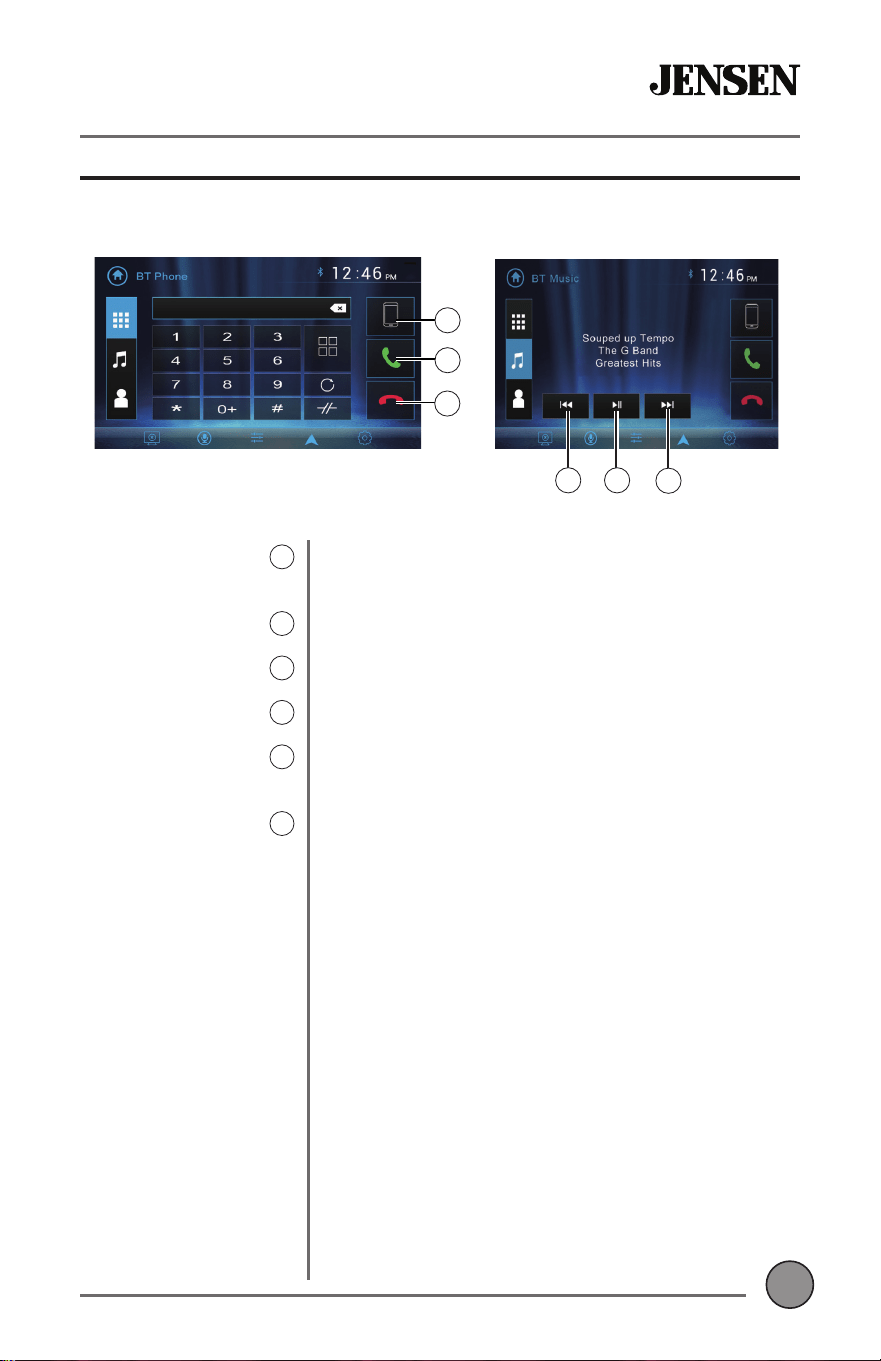
Bluetooth Phone
Main Menu
1
Mode Indicator
2
Keypad
3
Backspace
4
Keypad Display
5
Music Display
6
Contact Display
7
Before using a Bluetooth device, it must be paired
and connected. Make sure that Bluetooth is activated
on your device before you begin the pairing process.
The unit broadcasts the pairing signal constantly
when no devices are currently connected. Complete
the pairing sequence from your Bluetooth device.
Refer to the owner’s manual for your device for more
details. The device name is “JENSEN CMM2720”. The
unit can be in any mode of operation when pairing is
performed. On certain phones, pairing may need to
be done more than once.
Most Bluetooth devices support the auto-connect
feature and will connect automatically if the device is
in range when the unit is powered-on. If your device
was previously paired but does not connect, enter
the Bluetooth setup menu and turn Auto Connect on.
To access the phone, select Bluetooth Phone from
the Main Menu or from any operational mode.
Press to return to Main Menu screen.
Displays the current mode of operation.
Use the keypad to dial a phone number.
Press to backspace when using the keypad.
Press to display the keypad.
Press to display Bluetooth music.
Press to display Contact list, then press desired
contact to initiate a call.
1 2
Bluetooth Operation
6
7
5
3 4
15
15
OPERATIONCMR2720
Bluetooth Operation
Paired Device List
8
Talk
9
End Call
10
Previous Track
11
3OD\3DXVH
12
1H[W7UDFN
13
Press to display a list of paired devices, and
select desired device to connect.
Press to connect a call to the number entered.
Press to end a call.
Press to go back to the previous track.
Press to pause the current track, then press again
to resume playback.
3UHVVWRDGYDQFHWRWKHQH[WWUDFN
11 12
13
9
10
8
OPERATIONCMR2720
16
16
App Operation
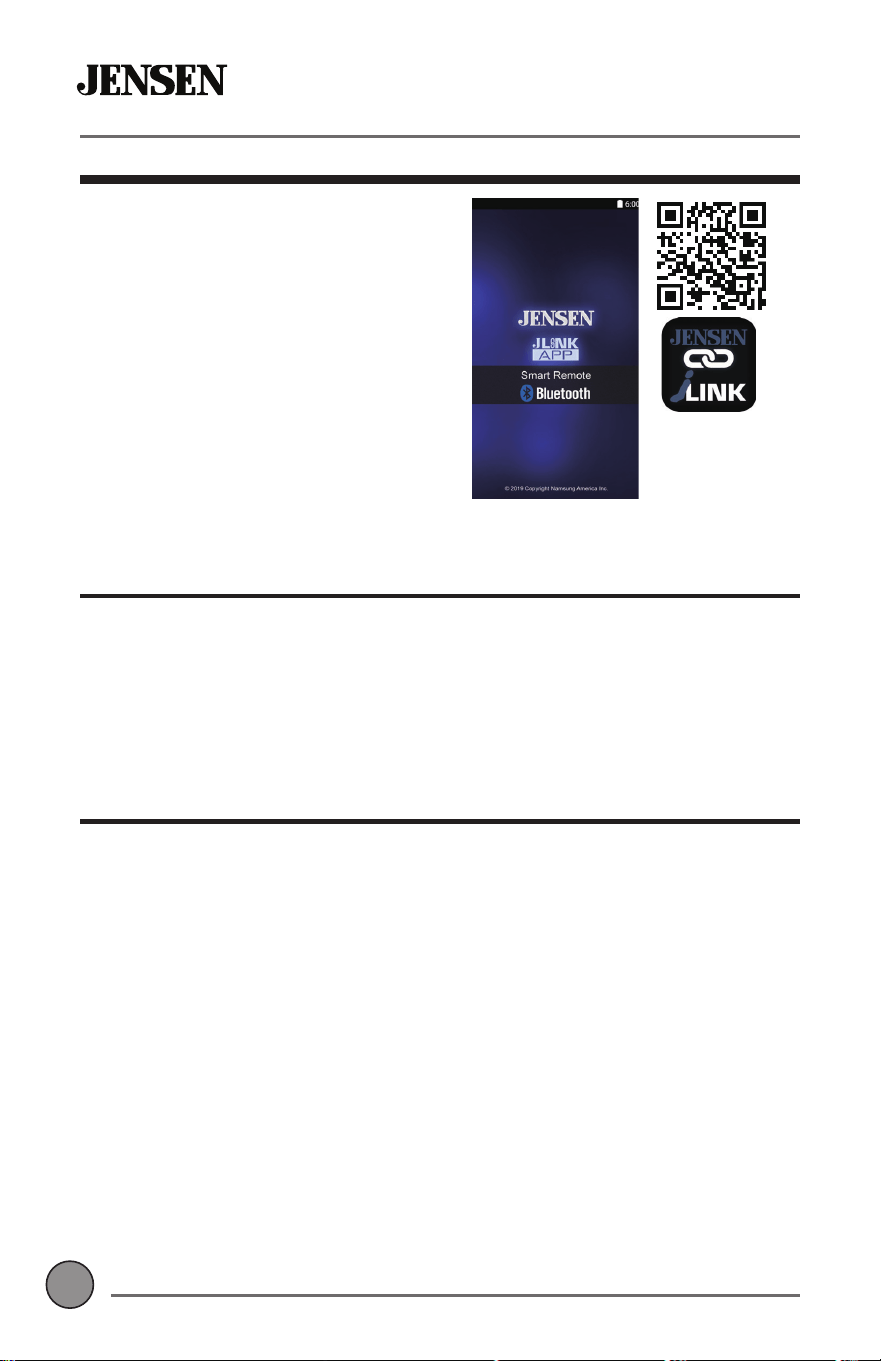
The Jensen Smart app is the ultimate
wireless remote control for your
receiver. You can download the
Jensen Smart app from the Apple App
Store or Google Play Store and install
it on your smartphone or tablet. Scan
the following QR code to download
the Jensen J-Link P1 application on
your smartphone.
Voice Assistant
Your receiver is designed with an easy access voice activation button to
use Siri® or the Google Assistant™ via your car’s Bluetooth. Interact with
your smartphone assistant while you drive with only the push of a button!
Bluetooth should be paired between your smartphone and the receiver.
Press the voice activation button, and the receiver will switch into
Bluetooth mode, This will activate Siri® or Google Assistant™ on your
smartphone. You will need to manually switch back to the previous or
desired mode once this operation is terminated.
Navigation Hot Button
Once the Jensen Smart app is installed, press the Navi hot button to
connect your receiver to your phone through the on-screen UI. Instantly
stream audio from your favorite navigation apps on a connected
smartphone through your car’s receiver vla Bluetooth.
Note: A smartphone with data is required to stream navigation.
17
17
OPERATIONCMR2720
Rear Camera
Connect an optional rear camera to the Rear Camera inputs (Yellow RCA
connector for video and Black RCA connector for audio). Refer to the
wiring diagram for details.
Manual selection - Touch the REAR CAMERA icon from the Main Menu or
from any operational mode (when enabled) to select camera mode. Touch
WKHWRSOHIWDUHDRQWKHVFUHHQWRH[LWFDPHUDPRGH
Note: The manual mode is for dedicated cameras that are ALWAYS on while
driving, it is not meant for cameras that are connected to the vehicle’s
reverse light. The unit will automatically select camera mode when
connected to the reverse lamp circuitry.
1RWH([WHUQDOYLGHRRXWSXWLVQRWDFWLYHZKHQXVLQJWKHUHDUFDPHUDLQSXW
&RQQHFWDQRSWLRQDODXGLRVRXUFHLQWRWKHDX[LOLDU\LQSXWRQWKHULJKWVLGH
of the front panel.
6HOHFWWKHDX[LOLDU\LQSXWLFRQIURPWKH0DLQ0HQXWROLVWHQWRDXGLR
$GMXVWYROXPHRQWKHH[WHUQDODXGLRVRXUFHDVQHHGHGLIFRQQHFWHGWRWKH
headphone output of the device).
Auxiliary Input
&RQQHFWDQRSWLRQDODXGLRVRXUFHLQWRWKHUHDU$9LQSXW
6HOHFW$9,QSXWIURPWKH0DLQ0HQXWROLVWHQWRDXGLR
$GMXVWYROXPHRQWKHH[WHUQDODXGLRVRXUFHDVQHHGHGLIFRQQHFWHGWRWKH
headphone output of the device).
A/V Input
Front Camera
Connect an optional front camera
to the Front Camera inputs (Yellow
RCA connector for video; there
is no audio connection for a front
camera. Refer to the wiring diagram
for details.
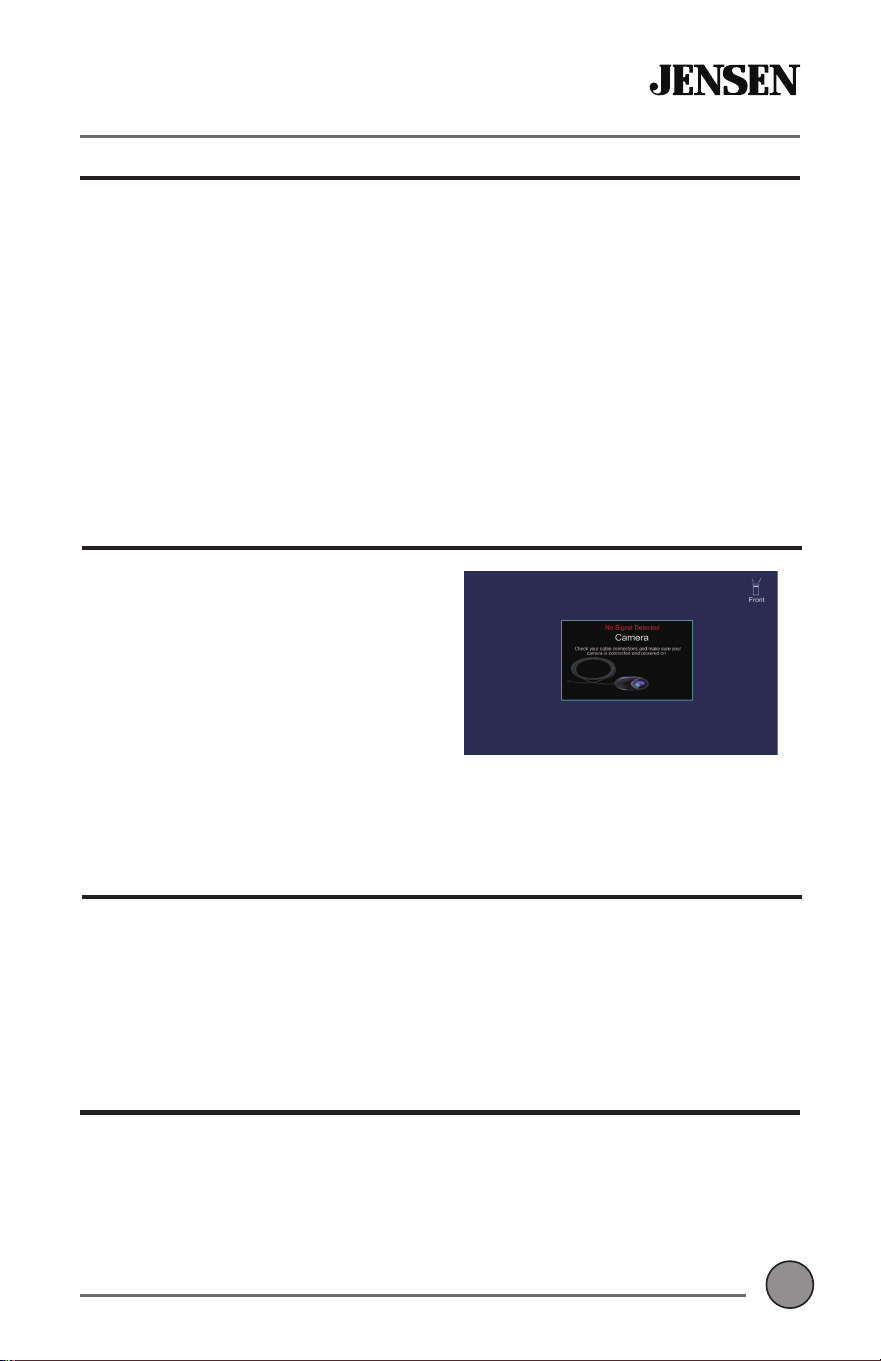
To access the front camera, touch the
CAMERA icon in the Main Menu. The
unit displays rear camera by default.
Press the Front Camera icon in the top right corner to switch to front
camera view.
OPERATIONCMR2720
18
18
Steering Wheel Controls
We recommend the PAC SWI-RC .
6HW5DGLR6HOHFW6ZLWFK6HWWKH6:,5&WRSRVLWLRQ3LRQHHU2WKHU6RQ\
7RSURJUDPXVHWKH3LRQHHU6RQ\2WKHUUDGLRIXQFWLRQPDSSLQJRUGHU
3. When programming the SWI-RC, if a function is not supported (or not desired),
then the function MUST be skipped as per the PAC SWI-RC instructions.
4. The SWC function MUST be programmed in the correct order per the PAC SWI-RC
radio function mapping order instructions.
A third-party adapter must be used in order for the CMM7720 to be compatible with
any OEM steering wheel controls.
The CMM7720 has a built-in 3.5mm SWC interface that compatible with many popular
3rd party SWC control modules, such as PAC, METRA, and others.
The following controls are available for most vehicles.
Volume +
Volume -
Mute
6HHN7UDFN
6HHN7UDFN
Band
Mode
BT Talk
BT End Call
Note: Not all OE steering wheel functions may be supported by the CMM7720
POWER
M
Replace with
ATO Type fuse
Only
3.5mm SWC port located on the rear of the unit, on the
0$,132:(5,2+DUQHVV

19
19
OPERATIONCMR2720
Limited One Year Warranty
7KLVZDUUDQW\JLYHV\RXVSHFL¿FOHJDOULJKWV<RXPD\DOVRKDYHRWKHUULJKWVZKLFK
vary from state to state.
Namsung America Inc. warrants this product to the original purchaser to be free
from defects in material and workmanship for a period of one year from the date of
the original purchase.
Namsung America Inc. agrees, at our option, during the warranty period, to repair
any defect in material or workmanship or to furnish an equal new, renewed or
FRPSDUDEOHSURGXFWZKLFKHYHULVGHHPHGQHFHVVDU\LQH[FKDQJHZLWKRXWFKDUJHV
VXEMHFWWRYHUL¿FDWLRQRIWKHGHIHFWRUPDOIXQFWLRQDQGSURRIRIWKHGDWHRISXUFKDVH
Subsequent replacement products are warranted for the balance of the original
warranty period.
Who is covered?
7KLVZDUUDQW\LVH[WHQGHGWRWKHRULJLQDOUHWDLOSXUFKDVHUIRUSURGXFWVSXUFKDVHG
from an authorized Dual dealer and used in the U.S.A.
What is covered?
This warranty covers all defects in material and workmanship in this product. The
IROORZLQJDUHQRWFRYHUHGVRIWZDUHLQVWDOODWLRQUHPRYDOFRVWVGDPDJHUHVXOWLQJ
IURPDFFLGHQWPLVXVHDEXVHQHJOHFWSURGXFWPRGL¿FDWLRQLPSURSHULQVWDOODWLRQ
incorrect line voltage, unauthorized repair or failure to follow instructions supplied
with the product, or damage occurring during return shipment of the product.
6SHFL¿FOLFHQVHFRQGLWLRQVDQGFRS\ULJKWQRWLFHVIRUWKHVRIWZDUHFDQEHIRXQGYLD
www.jensenmobile.com
What to do?
1. Before you call for service, check the troubleshooting guide in your owner’s
manual. A slight adjustment of any custom controls may save you a service call.
2. If you require service during the warranty period, you must carefully pack the
product (preferably in the original package) and ship it by prepaid transportation
with a copy of the original receipt from the retailer to an authorized service center.
3. Please describe your problem in writing and include your name, a return UPS
VKLSSLQJDGGUHVV32%R[QRWDFFHSWDEOHDQGDGD\WLPHSKRQHQXPEHUZLWK\RXU
shipment.
4. For more information and for the location of the nearest authorized service center
please contact us by one of the following methods:
• Call us toll-free at 1-888-921-4088
• E-mail us at cs@dualav.com
([FOXVLRQRI&HUWDLQ'DPDJHV7KLVZDUUDQW\LVH[FOXVLYHDQGLQOLHXRIDQ\
DQGDOORWKHUZDUUDQWLHVH[SUHVVHGRULPSOLHGLQFOXGLQJZLWKRXWOLPLWDWLRQWKH
LPSOLHGZDUUDQWLHVRIPHUFKDQWDELOLW\DQG¿WQHVVIRUDSDUWLFXODUSXUSRVHDQGDQ\
obligation, liability, right, claim or remedy in contract or tort, whether or not arising
from the company’s negligence, actual or imputed. No person or representative is
authorized to assume for the company any other liability in connection with the sale
of this product. In no event shall the company be liable for indirect, incidental or
consequential damages.
CMR2720
20
20
OPTIONS
General
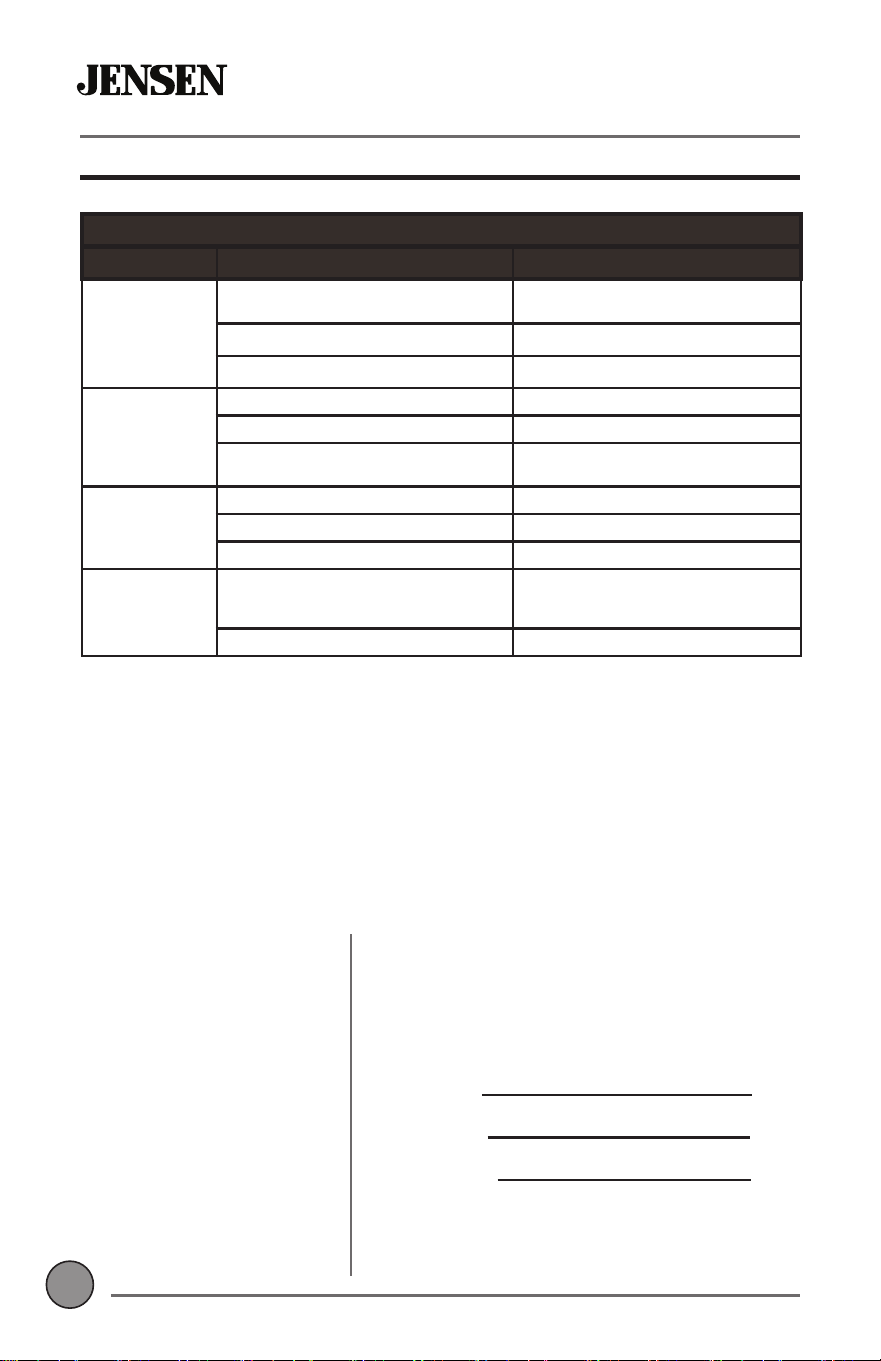
PROBLEM CAUSE ACTION
Unit will not
turn on
(no power)
5HGDQGRU<HOORZZLUHQRWFRQQHFWHGRU
incorrect voltage
Check connections for proper voltage
(11~16VDC)
Black wire not connected Check ground connection
Blown fuse on unit or vehicle Replace fuse(s)
Unit has power
(but no sound)
Speaker wires not connected Check all connections, including speakers
Speakers are blown Replace speakers
One or more speaker wires touching each
other or touching chassis ground
Insulate all bare speaker wires from each
other and chassis ground
Unit blows
fuse(s)
Yellow or red wire touching chassis ground Check for pinched or shorted wires
Speaker wires touching chassis ground Check for pinched or shorted wires
Incorrect fuse rating Use fuse with correct rating
Unit has audio
(but no video)
Parking brake safety circuit not connected
Parking brake not applied
Check connections at parking brake
Apply parking brake as described in
manual
Video Playback Codec is not supported See Media Codec Support section
Please keep your original sales receipt and be
prepared to provide this receipt in the event
you require service, as your original receipt
is considered the best proof of purchase and
indicates the date you purchased your JENSEN
product.
Dealer Name:
Dealer Phone:
Purchase Date:
For Your Records
Dealer Info
Troubleshooting
Customer Support
1-888-921-4088
(Monday-Friday, 9AM-5PM EST)
9LVLWKWWSVZZZMHQVHQPRELOHFRP
21
21
CMR2720 WARRANTY
6SHFL¿FDWLRQV
87.5MHz-107.9MHz
87.50MHz-108.00MHz
8.5dBf
10dBf
30dB
30Hz-13kHz
530kHz-1710kHz
<42dBu
30Hz-2.2kHz
4.1 + EDR
+)3$'33%$3
8SWRIWP
500 nit
[
LED
Capacitive
6SHFL¿FDWLRQV
11~16VDC
2.1A
4~8 ohms
2 Volts RMS
´[´[´'[:[+PP
FM Tuner
US Tuning Range:
EU Tuning Range:
Usable Sensitivity:
50dB Quieting Sensitivity:
Stereo Separation@ 1kHz:
Frequency Response:
AM Tuner
Tuning Range:
Usable Sensitivity:
Frequency Response:
Bluetooth
Version:
3UR¿OHV
Range:
Monitor
Brightness:
TFT Resolution:
TFT Backlighting:
Touch Screen Type:
General
Operation Voltage Input:
USB 1 Charge Output:
Speaker Nominal Impedance:
Line Output Voltage:
Dimensions:
CEA-2006 Power Standard Specifications
(reference: 14.4VDC +/- 0.2V, 20Hz~20kHz)
Power Output: 16 Watts RMS x 4 channels at 4 ohms and 1% THD+N
Signal to Noise Ratio: 75dBA (reference: 1 watt into 4 ohms)
'HVLJQDQGVSHFL¿FDWLRQVVXEMHFWWRFKDQJHZLWKRXWQRWLFH

CMR2720
INSTALLATION &
OWNER’S MANUAL
Customer Support
1-888-921-4088
(Monday-Friday, 9AM-5PM EST)
9LVLWKWWSVZZZMHQVHQPRELOHFRP
Designed and Engineered in USA
NSA0420
Printed in China
Namsung America Inc.
©2020 Namsung America Inc.
All rights reserved.
All rights reserved. No part of this publication may be
reproduced, distributed, or transmitted in any form or
by any means, including photocopying, recording, or
other electronic or mechanical methods, without the
prior written permission of NAMSUNG AMERICA INC.