
HP LaserJet Print Media Guide

Legal information
Copyright and License
© Copyright 2018 HP Development Company, L.P.
Reproduction, adaptation, or translation without prior written permission is prohibited, except as allowed
under the copyright laws.
The information contained herein is subject to change without notice.
The only warranties for HP products and services are set forth in the express warranty statements
accompanying such products and services. Nothing herein should be construed as constituting an
additional warranty. HP shall not be liable for technical or editorial errors or omissions contained herein.
Edition 3, 5/2025
iii

Table of contents
1 Overview ..................................................................................................................................................................................................................................................... 1
How HP LaserJet printers work........................................................................................................................................................................................... 1
Other resources ............................................................................................................................................................................................................................ 2
2 Guidelines for using print media.............................................................................................................................................................................................. 3
Using print media.......................................................................................................................................................................................................................... 3
Preparing print media for use................................................................................................................................................................................... 3
Using paper............................................................................................................................................................................................................................ 3
Reading a ream label ........................................................................................................................................................................................... 4
Opening and loading paper ............................................................................................................................................................................ 4
Setting the correct media type and size............................................................................................................................................... 5
Paper types................................................................................................................................................................................................................. 6
Guidelines for using paper ............................................................................................................................................................................10
Using envelopes ................................................................................................................................................................................................................ 11
Envelope construction...................................................................................................................................................................................... 12
Summary of HP envelope testing............................................................................................................................................................. 13
Guidelines for using envelopes.................................................................................................................................................................. 14
Using labels.......................................................................................................................................................................................................................... 15
Guidelines for using labels ............................................................................................................................................................................ 15
Recommendations for using labels........................................................................................................................................................16
Using overhead transparencies...........................................................................................................................................................................16
Guidelines for using overhead transparencies...............................................................................................................................17
Printing on both sides of the paper.....................................................................................................................................................................17
Shipping and storing print media....................................................................................................................................................................................18
Environmental considerations...............................................................................................................................................................................18
3 Troubleshooting print media problems............................................................................................................................................................................ 20
Basic troubleshooting tasks.............................................................................................................................................................................................. 20
Types of print media to avoid ............................................................................................................................................................................................. 21
Paper problems............................................................................................................................................................................................................................ 21
Frequent paper jams.................................................................................................................................................................................................... 22
Frequent multiple-sheet feeds.............................................................................................................................................................................. 22
Reducing post-image curl......................................................................................................................................................................................... 23
Envelope problems ....................................................................................................................................................................................................................24
Frequent envelope jams.............................................................................................................................................................................................24
Gray areas on envelopes.......................................................................................................................................................................................... 25
Wrinkles on envelopes................................................................................................................................................................................................ 25
Print-quality problems ............................................................................................................................................................................................................ 25
4 Specifications.....................................................................................................................................................................................................................................27
U.S. paper grades........................................................................................................................................................................................................................27
iv

Common paper grades and basis weights..............................................................................................................................................................27
Weight equivalence table.....................................................................................................................................................................................................28
Standard media sizes used in laser printers......................................................................................................................................................... 29
Paper sizes and dimensions...................................................................................................................................................................................29
Envelope sizes and dimensions........................................................................................................................................................................... 29
Cardstock sizes and dimensions........................................................................................................................................................................30
Comparisons of paper smoothness ...........................................................................................................................................................................30
5 Ordering HP print media............................................................................................................................................................................................................. 32
Glossary....................................................................................................................................................................................................................................................... 33
Index................................................................................................................................................................................................................................................................38
v

Overview1
The HP LaserJet Print Media Guide provides guidelines and troubleshooting information for print media
to help optimize use of your HP LaserJet printer.
HP LaserJet printers quickly and quietly produce documents of excellent print quality. Print media such
as paper, envelopes, labels, and overhead transparencies can be used in your HP LaserJet printer.
However, to ensure consistent performance and long-term reliability, the print media must be designed
for use with laser printers. There are several types of high-quality print media available.
NOTE: Digital multimedia projectors are now the preferred technology for projecting images, resulting
in a decline in use of overhead transparency (OHT) projectors. HP no longer produces overhead
transparencies and does not perform extensive testing of overhead transparencies for its products.
HP will verify that overhead transparencies designed for laser printers will not damage your HP
LaserJet printer and will meet minimum performance requirements.
This manual provides guidelines for selecting and using print media to help you get the best
performance from your HP LaserJet printer. It also contains information to help troubleshoot HP
LaserJet printer problems that might be caused by poor-quality print media.
You might encounter some terms that are unfamiliar to you. For more information about these terms,
see the Glossary.
The standards discussed in this manual do
not
apply to paper that is being scanned, copied, or faxed
through the scan path on an HP LaserJet MFP (multifunction peripheral). Check the individual product
manuals for that information.
NOTE: When HP LaserJet printers are discussed in this guide, the information pertains to HP
Monochrome LaserJet printers, HP color LaserJet printers, and HP LaserJet MFPs unless otherwise
noted. For specific information about what media your printer or MFP supports, see the documentation
that came with your product.
How HP LaserJet printers work
The print process for HP LaserJet printers involves several steps.
HP LaserJet printers use laser and electrophotographic technologies to reproduce images and text
on paper. On a laser printer, the print media is picked from the input tray one sheet at a time and
transported through the paper path. While passing through the paper path, a scanning laser beam
writes an electrostatic image onto a rotating photosensitive drum. As this image passes the developing
station, a dry, powdery toner is attracted to the image areas. In an HP color LaserJet printer, this process
is similar for each of the four toner colors.
The developed image then advances to the transfer station, where the drum contacts the paper or other
print media and the toner image is electrostatically transferred onto the paper. After transfer, the print
media passes through the fuser, where heat and pressure are applied and the toner fuses (melts) onto
the print media. The print media is then delivered to the output bin, ready for use.
In summary, to create the printed image, the print media is transported through the printer, charged
electrostatically, and heated. This is why print media properties such as cleanliness, electrical
Overview
1

resistivity, caliper, finish, moisture content, and stiffness can affect the print quality and media-handling
performance of your HP LaserJet printer.
Other resources
For assistance with your HP LaserJet printer or print media, you can consult other resources.
To determine if the print media is suitable for an HP LaserJet printer, check the media manufacturer's
website for specifications. You can also check the specifications provided in this document and in the
printer user guide.
Printing issues can have multiple causes. Switching to a different print media is often the quickest way
to resolve issues with print quality and media transport. If you have tried the suggestions provided in
this document and in the printer user guide, and you still need assistance, contact the dealer from whom
you purchased the printer. You can also obtain support through the worldwide network of HP Sales and
Service Offices. (See the sales and service listings in the HP LaserJet printer user guide.)
For more information about your HP printer and HP print media, see the HP website at
http://www.hp.com.
2
Chapter 1 Overview

Guidelines for using print media2
Follow these guidelines for selecting print media that is most suitable for your HP LaserJet printer and
any accessories.
HP LaserJet printers are designed to use many types of print media, but it is advisable to use high-
quality print media. HP paper is recommended for use in your HP LaserJet printer. See Ordering HP print
media.
HP LaserJet printers can use non-HP brand media that meets or exceeds the specifications for
supported media. Using non-HP brand media that meets HP specifications should not damage the
printer or void the warranty.
NOTE: Properties of non-HP brand media, over which HP has no control, are subject to change. The
customer assumes all responsibility for the quality and performance of media. Although testing media
helps to characterize its performance, long-term satisfaction requires manufacturer process-quality
control as well as proper handling and storage by the customer.
If you are planning a large purchase of print media, it is important to test a small quantity of the media in
the environment (temperature, humidity and application) in which it will be used.
Using print media
Understanding print media and following the HP recommendations will help to ensure proper operation
of your HP LaserJet printer.
Preparing print media for use
Print media must be prepared properly before using it with your HP LaserJet printer.
Print media needs some time to stabilize in a new environment. To prepare print media, keep it in its
protective packaging and store it in the environment in which it will be used. For small quantities, such as
one or two reams, store the print media for one to two days. For larger quantities or if the change in the
environment is significant, a week or more might be needed. For more information, see Environmental
considerations.
CAUTION: If print media is not prepared properly, the edges in the ream can become wavy or the
sheets can curl soon after the package is opened, which can cause paper jams.
Using paper
Understanding the types and quality of paper and following the HP recommendations will help to ensure
proper operation of your HP LaserJet printer and any accessories.
All papers are designed and manufactured for a specific use. Papers that are designed for the
electrophotographic process, which laser printers and copy machines use, are typically called laser-
or copier-grade papers. High-quality laser and copier papers are usually made from 100% chemical
wood pulp and are characterized by a smooth surface, controlled electrical properties, heat stability,
Guidelines for using print media
3
and cleanliness. These characteristics ensure good image transfer, fusing without excessive curl, and
reliable printer operation.
NOTE: The current trend is to add higher quantities of filler to paper. Fillers are small particulates of
things like calcium carbonate, clay, and talc. These particulates must be properly bound or sealed in
the sheet during the paper-making process to prevent them from "dusting off" and contaminating the
printer. For more information, see the definition of coated paper in Paper types.
Some print jobs require a paper that has a more prestigious look or feel. For example, letterhead papers
generally have a watermark and often use cotton fiber. These papers tend to have a rougher surface,
and their properties might not be controlled as well as those of photocopier papers. Poor toner adhesion
and poor print quality can occur if the paper roughness is excessive. Different print settings might be
required to print on these media. If poor print quality occurs, try another media to determine if the media
or the printer is at fault.
Paper manufacturers make premium laser-grade bond papers that are optimized for laser printing.
NOTE: For print quality issues, see Troubleshooting print media problems.
Reading a ream label
The ream label identifies the characteristics of the paper.
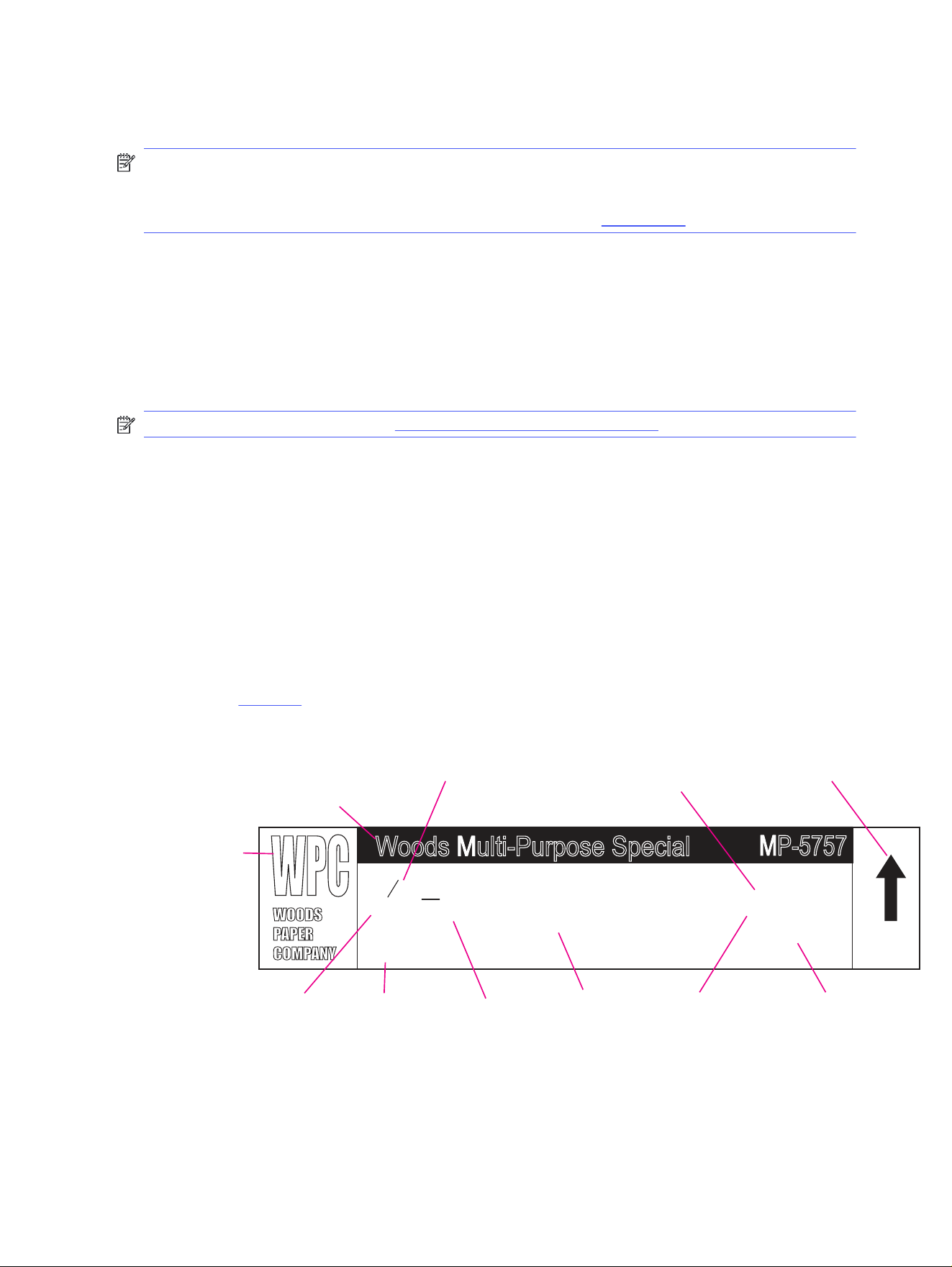
A ream label is typically placed or printed on the outside of the paper wrapping. The ream label should
list the weight, size, quantity of sheets, grain direction, and other information. The preferred side for
printing might also be indicated by an arrow on the ream label, although some manufacturers do not
specify a print side. If a preferred side is indicated, the paper should be loaded into the printer so that
the preferred side will be printed (or printed first for duplexing). The preferred side might face up or
face down in the input tray, depending on the printer model and the input source. (See the support
documentation for your printer model to determine the orientation in the input tray.)
The following illustration shows an example of a ream label. For more information about the items on the
label, see the Glossary.
Figure 2-1 Reading a ream label
Woods Multi-Purpose Special
®
MP-5757
8
500 Sheets
X 11
(216 x 279 mm)
Sub 20/50 (75 g/m2)
Long Grain
Multi-Purpose for Office Copiers, Laser Printers and Offset Printing
Smooth Finish
10M
1
2
Print This
Side First
White
90 Brightness
basis
weight
paper
type
grammage
paper color brightness level
surface
finish
manufacturer
name
brand
name
paper size (bold or underline
indicates grain direction)
quantity
orientation of preferred side
for printing (if applicable)
Opening and loading paper
Follow this process when you open paper and load it into the printer input tray.
1. Place the wrapped ream of paper on a flat surface, with the seam side up.
4
Chapter 2 Guidelines for using print media
2. Read the ream label that is located on the outside of the paper wrapping and note the direction of
the arrow that indicates the preferred print side (if one is included). See Reading a ream label.
3. Open the paper wrapping and inspect for any damage to the sheets such as bent corners, wrinkles,
nicked edges, or glue contamination. Discard any damaged sheets.
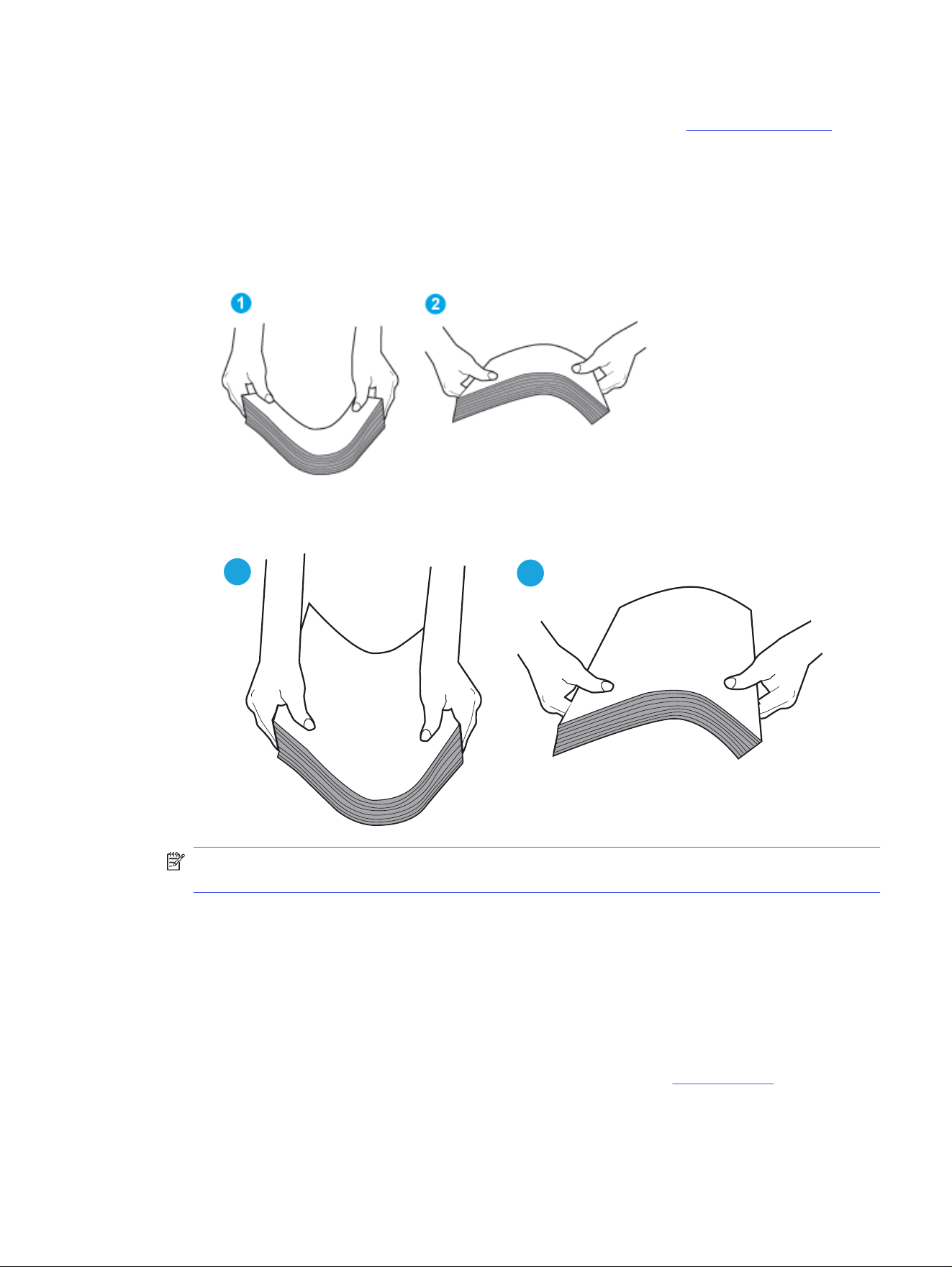
4. Before loading the paper into the tray, flex the stack in both directions.
● A4 printer: Letter/A4 media is fed short edge first, so grasp the media along the short edge and
flex it back and forth.
● A3 printer: Letter/A4 media is fed long edge first, so grasp the media along the long edge and
flex it back and forth.
1
2
NOTE: Do not fan or separate the paper into several stacks. Doing so creates air pockets between
the sheets that can cause jams or multiple-sheet feeds.
Setting the correct media type and size
To ensure optimal performance, it is critical to set the correct media type and size.
Not all HP LaserJet printers have media width and length sensors. If the incorrect size is specified, this
can cause printer jams or result in error codes. Also, not all HP LaserJet printers have media sensors
to properly adjust the print speed, fusing temperature, and transfer bias. This can result in poor print
quality such as flaking toner or light prints.
A list of common media sizes and types follows. For more information, see Specifications or consult the
user guide for your product.
Common media sizes:
Setting the correct media type and size
5

● Letter
● Legal
● A4
● A3
● B5
Common media types:
● Plain
● Letterhead
● Bond
● Heavy
● Preprinted
Paper types
Several types of paper are available.
● Archival paper
● Bond paper or letterhead
● Coated paper
● Colored paper
● Copier paper (plain paper)
● Embossed and debossed paper
● Glossy paper
● Heavy paper, cover paper, and cardstock
● Laser paper
● Preprinted forms and letterhead
● Recycled paper
● Special print media
Archival paper
Paper that is used for archiving must meet the same specifications as standard paper with a pH greater
than 7.0. Some archival demands are more stringent than others, requiring a specific degree of alkalinity
and chemical stability. Toner is chemically stable and should last as long as the paper does. Toner can
be degraded by petroleum-based solvents or plasticizers, such as those found in vinyl folders.
NOTE: There are no universal standards for what constitutes archival paper, but there are some
generally accepted properties. Archival paper should be acid free, should not contain groundwood or
unbleached pulp, should meet strict limits on metallic content, and should be free of optical brighteners
6
Chapter 2 Guidelines for using print media

that artificially make the paper whiter. For more information, see
https://www.strathmoreartist.com/blog-reader/what-is-the-difference-between-acid-free-and-archival.html
.
Avoid folding archival documents across printed areas or handling archival documents roughly. Discuss
archival requirements with your paper supplier.
Bond paper or letterhead
Bond paper or letterhead is premium paper that is often watermarked, sometimes uses cotton fiber,
and is available in a wide range of colors and finishes with matching envelopes. Many manufacturers
now design these grades of paper with properties optimized for laser printing and advertise the paper
as laser compatible or laser guaranteed. Some of the rougher surface finishes, such as cockle, laid,
or linen, might require the special fuser modes that are available on some printer models in order
to achieve adequate toner adhesion. For more information about your printer specifications, see
https://support.hp.com/us-en/products/.
Coated paper
Clay- or other pigment-coated papers must be specifically designed for laser printers. The electrical
properties must be controlled and the surface designed not to blister during fusing. The coating must
not flake or shed particles that can contaminate the printer.
Some preprinted media contains a specially prepared starch called press powder to assist the press
operator in the printing process. If you are using preprinted media and there is excessive dusting,
contact your supplier to determine if the product contains press powder. If so, request a press-powder-
free version of the product.
Colored paper
You can use colored paper in your HP LaserJet printer if the paper meets the same specifications as
standard paper. See Guidelines for using paper.
Print quality from the HP color LaserJet printers is optimal when printing on white paper. You also can
use an HP color LaserJet printer to print on colored paper that meets all of the specifications that are
listed in this guide. However, colored paper can change the appearance of the printed colors. This is
because HP color LaserJet printers create colors by printing a pattern of dots, overlaying and varying
their spacing to produce various colors. When these colors are printed on colored media, the shade or
color of the media will vary the shades of your printed colors. Because the printer cannot sense the
color of the paper that you are using, it cannot adjust the output colors for colored paper. To manually
adjust the output colors, see the support documentation for your printer.
Copier paper (plain paper)
Although copier paper is often referred to as "plain," the paper is optimized to work well with the
electrophotographic process that is used in photocopiers and laser printers. Copier-grade paper
commands the largest volume for printing and copying, and can be relatively inexpensive. However,
keep in mind that the quality and consistency of paper can vary depending on the materials, processes,
and controls that the manufacturer uses. These variations can significantly affect the quality of the
printed output.
A very inexpensive paper might not save you money if it frequently causes multiple-sheet feeds or
jams, or if it causes print-quality problems. If you are having these types of problems, you might want to
consider using a different paper type or brand.
Paper types
7

Embossed and debossed paper
Avoid heavily embossed or debossed papers to prevent multiple-sheet feeding that results from
nesting. To prevent poor print quality and fusing (toner adhesion), do not print closer than 15 mm (0.59
inch) from the embossment. The heat of the fuser tends to flatten the embossed or debossed images.
NOTE: Embossed media that is pastelled or that has a metallic or shiny coating can be conductive
and cause damage to the printer.
Glossy paper
Glossy paper that is designed for color laser printers creates vibrant photo images and graphics. With
other types of glossy paper, the top coating might blister and there might be poor toner adhesion due to
steam release during fusing.
Heavy paper, cover paper, cardstock, and postcards
Heavy paper generally refers to paper that is greater than 105 g/m2 in weight (heavier than 28-lb bond)
and cardstock generally refers to paper that is greater than 163 g/m2 in weight (heavier than 60-lb
cover, or 90-lb index). The heavier weight of these papers gives them more stiffness, which can degrade
feeding reliability (typically as a result of poor pickup from the input tray). Using short-grain heavy paper
in printers that feed in the portrait direction might help to avoid feed problems, because the paper is less
stiff in the short-grain direction. Also, using the straightest paper path in your printer might also improve
feeding reliability and print quality.
Heavy paper and cardstock might require higher fuser temperatures to adequately anchor the toner
to the surface. Using the printer menu to select the paper type ensures that the appropriate fuser
temperature will be used.
NOTE:
● Small form factor cardstock (in particular, preprinted, such as postcards) can cause jamming and
missed picks. If the feed rotation of 90 degrees does not resolve the problem, then the media might
not be compatible with the printer.
● Print postcards from tray 1 unless your product specifies to print from tray 2. If a jam occurs due to
postcard curl, flip the postcard over.
● If your printer has a face-up printer bin, print from that. It provides a straight-through paper path.
CAUTION: Different HP LaserJet printer models and their input trays support various ranges of paper
weights. Some models provide optimized settings that are available in the printer driver or at the
control panel. Please see the support documentation that came with your HP LaserJet printer for
specific information about its capabilities and settings.
Laser paper
Laser paper is another premium-quality paper grade that is typically characterized by very smooth and
uniform surfaces, excellent formation, heavier bond weights of 24 lb or 32 lb, and very high brightness
and whiteness. These optimized properties can enhance color and monochrome halftone reproductions
by providing a very uniform substrate for image transfer and fusing.
Preprinted forms and letterhead
To avoid problems when using preprinted forms, embossed paper, and letterhead paper, observe the
following guidelines:
8
Chapter 2 Guidelines for using print media

● Avoid using low-temperature inks (the kind used with some types of thermography).
● Use forms and letterhead paper that have been printed by offset lithography or engraving.
● Use forms that have been created with heat-resistant inks that will not melt, vaporize, or release
undesirable emissions when heated to 205°C (401°F) for 0.1 second (0.2 second for HP color LaserJet
printers). Typically, oxidation-set or oil-based inks meet this requirement.
● Maintain the moisture content of preprinted forms by sealing them in moisture-proof wrap and
storing them in a cool, dry location. Do not use materials that change the paper’s electrical or
handling properties.
● Avoid processing preprinted forms that have a finish or coating.
● Avoid using heavily embossed or raised-letterhead papers.
● Avoid papers that have heavily textured surfaces.
● Avoid using offset powders or other materials that prevent printed forms from sticking together.
Recycled paper
Recycled paper is a combination of unused fibers and pre- and post-consumer waste paper. Printed
waste paper is usually washed to remove most of the inks and other contaminants. A recycled sheet of
paper might contain dark specks or appear gray or dirty. Choose recycled paper that meets the same
specifications as standard paper (see Guidelines for using paper) and that has a suitable appearance
for your needs. HP products allow for the use of office paper with 100% post-consumer recycled
content. HP has tested a variety of recycled copier papers on HP LaserJet printers and has found that
they perform similarly to virgin-fiber grades.
Special print media
Paper that undergoes converting processes before it is used in your laser printer must be properly
designed and manufactured to ensure acceptable performance. Converting processes include
preprinting, engraving, die-cutting, perforating, folding, gluing, embossing, and debossing. Because
these processes use many different inks, materials, tools, and techniques, HP recommends that you
make sure your converter or supplier knows that the media will be used in a laser printer. Ask for a
guarantee of acceptable performance.
Examples of special print media are paper label combinations, plastic paper combinations, self-sealing
media, tear-resistant media, 100% synthetic media, business card media, hospital multicomponent
media, and blank embossed certificates.
Media that has perforations or cutouts can be printed successfully on your HP LaserJet printer, but it
must be properly designed and manufactured to avoid feed or contamination problems and to prevent
wear on the printer. Perforations or cutouts must not affect the media's flatness, stiffness, or be large
enough to interact with adjacent sheets in a stack. Misfeeds and loose, unfused toner can affect the
print quality.
● Cutout: The area where material has been removed by punching or die-cutting. Cutouts can interact
with paper-path sensors or can result in contamination from toner if printing is too close to a cutout
location.
● Perforations: A series of holes or slits in media that provide a controlled tear for separating one
portion of the sheet from another. HP recommends that micro-perforations be used, because they
provide better strength and reduce nesting, debris, and dusting.
Paper types
9

Consider the following guidelines when working with a knowledgeable vendor to develop media with
perforations or die-cuts:
● Punch cutouts and perforations from the side to be printed. This prevents edge trimmings from
scratching the photosensitive drum.
● Round all corners of a cutout to prevent snagging or, in the case of labels, peeling.
● Ensure that die-cutting of labels does not penetrate the liner sheet.
● Ensure that cutouts are not made at a position where paper-path sensors are located.
● All cuts should be clean (no burrs) and free of edge rollover to prevent nesting, poor feeding,
contamination, or wear on the printer.
● Orient perforations in the direction of paper feeding to minimize tenting or feeding problems from
reduced stiffness.
● Do not run perforations closer than 2 mm (0.08 inch) from the paper edge or 25 mm (1 inch) from the
leading edge, or jamming and feeding problems can result.
Guidelines for using paper
Follow these guidelines for using paper to ensure optimal performance.
For most printing, use conventional white laser-printer paper. It must be high-quality paper that is free of
the following defects:
● Cuts
● Tears
● Grease spots
● Loose particles
● Dust
● Wrinkles and voids
● Curled or bent edges
CAUTION: Avoid using extremely heavy or light paper. Use paper that is within your printer’s specified
basis-weight range, as indicated in the support documentation that came with the printer. To
troubleshoot paper problems, see Paper problems.
The paper properties and specifications provided in this table generally apply to all HP LaserJet printers.
See the support documentation that came with your printer for product-specific information.
Table 2-1
Paper properties and specifications
Property Specifications
Basis weight
60 g/m
2
to 160 g/m
2
(16 lb to 43 lb).
See the support documentation that came with your printer
for specific information.
10 Chapter 2 Guidelines for using print media
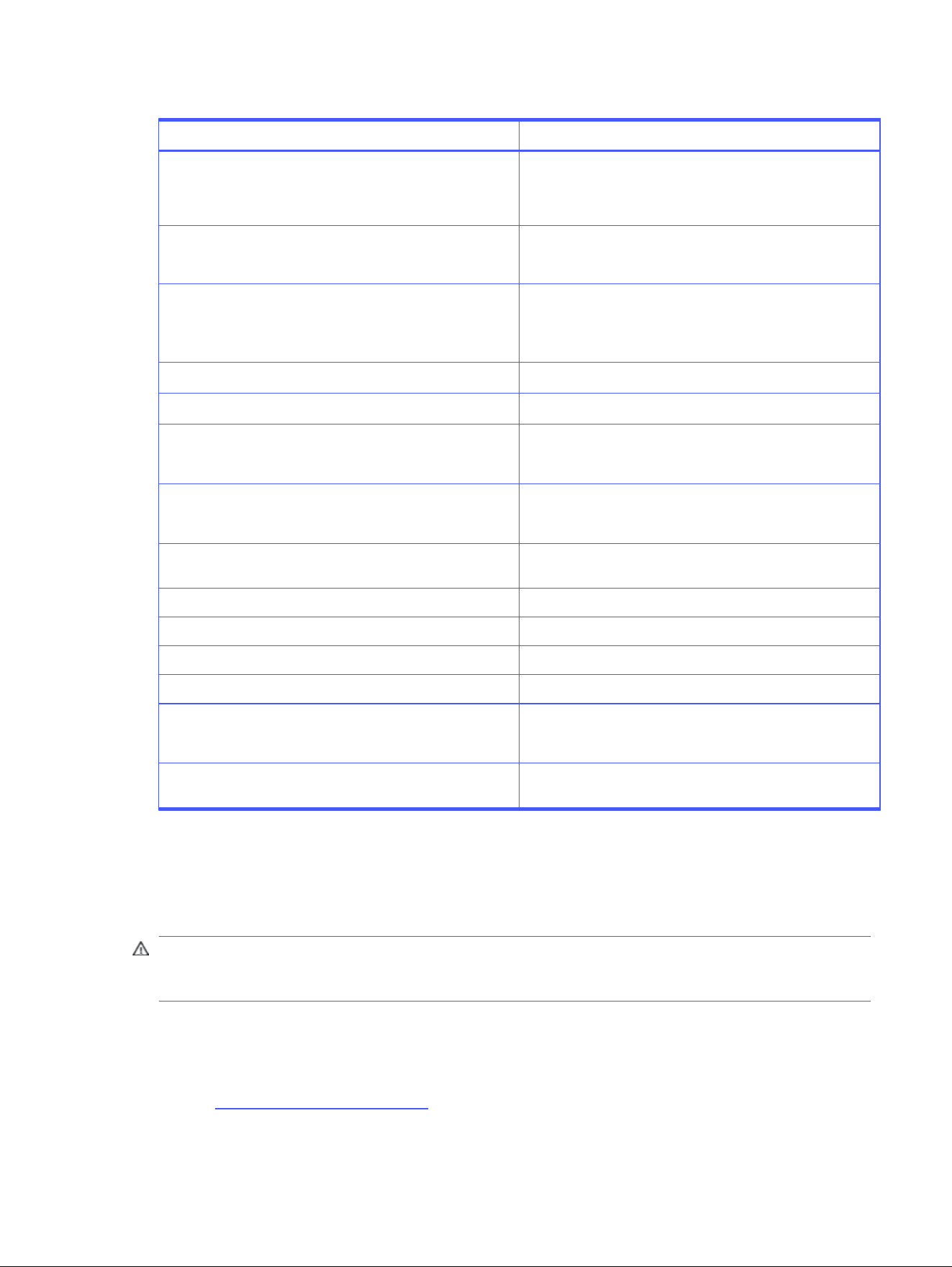
Table 2-1 Paper properties and specifications (continued)
Property Specifications
Caliper 0.09 mm to 0.226 mm (3.5 mil to 9.0 mil)
See the support documentation that came with your printer
for specific information.
Minimum stiffness 1.2 minimum Taber or 140 mN for machine direction.
0.8 minimum Taber or 90 mN for cross direction.
Grain
Portrait feeding: long grain up to 135 g/m
2
(36 lb); short grain
for weights greater than 135 g/m
2
.
Landscape feeding: long grain.
Electrical surface resistivity
10
9
to 10
15
ohms/square.
Electrical volume resistivity
10
9
to 10
15
ohms - cm.
Surface roughness 100 to 190 Sheffield optimal; up to 250 Sheffield extended
(fusing or feeding performance can be degraded at outer
ranges).
Fusing compatibility Must not scorch, melt, ignite, offset materials, or release
undesirable emissions when heated to 205°C (401°F) for 0.1
second (0.2 second for HP color LaserJet printers).
Furnish (composition) 100% chemical pulp and/or cotton content; recycled paper
with up to 100% post-consumer content can be used.
Dimensional accuracy Cut sheet within ±0.80 mm (±0.03 inch) of nominal.
Cut edge quality Cuts must be smooth and clean with no fray or edge roll.
Curl Must lie flat within 5 mm (0.2 inch).
Moisture content 4% to 6%t by weight.
Packaging Moisture-proof ream wrap with no exposed adhesive.
Adhesive should remain firmly attached to packaging after
opening.
Ash content Ash content should be less than 20% when determined by
combustion process at 525°C for uncoated media.
Using envelopes
Understanding the types and quality of envelopes and following the HP recommendations will help to
ensure proper operation of your HP LaserJet printer.
CAUTION: Due to product designs, not all products support envelopes from all trays. Printing on
envelopes can damage the printer. See the user guide that came with your printer for detailed
instructions about printing on envelopes.
Most HP LaserJet printers can print on many sizes and styles of envelopes by using the manual feed
feature, an optional envelope tray, an optional envelope feeder, or another tray. Whichever input method
you use, envelopes should meet all of the specifications that are discussed in this document. Your
envelope vendor should provide you with a satisfactory envelope that complies with the specifications
listed in Guidelines for using envelopes. However, inconsistencies in folds or other process-control
Using envelopes
11

problems can result in some envelopes feeding well and others jamming. Purchase envelopes that have
the quality and consistency that your printer requires.
NOTE:
● Optional envelope feeders are specific to products and are not interchangeable. For more
information, see your product user guide.
● Envelopes can meet the general specifications listed in Guidelines for using envelopes and still not
print satisfactorily because of the printing environment or other variables over which HP has no
control.
CAUTION: Envelopes with windows, clasps, snaps, or a glued surface can cause severe damage to
the printer. See the support documentation for your printer before using envelopes in your HP LaserJet
printer.
Envelope construction
Because of their construction, some envelopes do not feed through the printer dependably. Observe
these guidelines when purchasing and using envelopes.
● Make sure that the envelope’s leading edge, which enters the printer first, is straight, with a sharp,
well-creased fold that has no more than two thicknesses of paper. Envelopes that exceed 90-g/m
2
(24-lb) basis weight can cause jamming.
● Avoid using flimsy envelopes that have thick or curved leading edges; they will not feed reliably.
● Envelopes should lie flat and should not be wrinkled, nicked, or otherwise damaged.
● Avoid envelopes that have baggy construction; they might wrinkle while passing through the
printer’s fuser area.
● Make sure that the adhesive labels and all other materials used on envelopes will not scorch, melt,
offset, or release undesirable emissions when heated to 205°C (401°F) for 0.1 second (0.2 second for
HP color LaserJet printers).
● Avoid using envelopes that have encapsulated adhesives that do not require moistening but instead
use pressure for sealing.
● Do not use envelopes that have clasps, snaps, tie strings, transparent windows, holes, perforations,
or cutouts.
● Do not use envelopes that have any adhesive surfaces exposed to the printer.
● Envelopes with woven or smooth finishes ensure good toner adhesion.
● Protect envelopes in humid environments. High moisture content can cause some envelopes to seal
shut due to elevated temperatures when steam is released during fusing.
Many envelopes will feed through your HP LaserJet printer without problems. However, some envelope
constructions (as shown in the following illustration) might not feed reliably. Problems can occur when
the envelopes are folded more tightly than normal, which creates a thick leading edge near a corner.
Inconsistencies in folding during manufacturing can cause some envelopes to feed well and others to
jam. Purchase envelopes that have the quality and consistency that you require.
NOTE: For optimal print quality, make sure the paper type is set to envelope.
12
Chapter 2 Guidelines for using print media
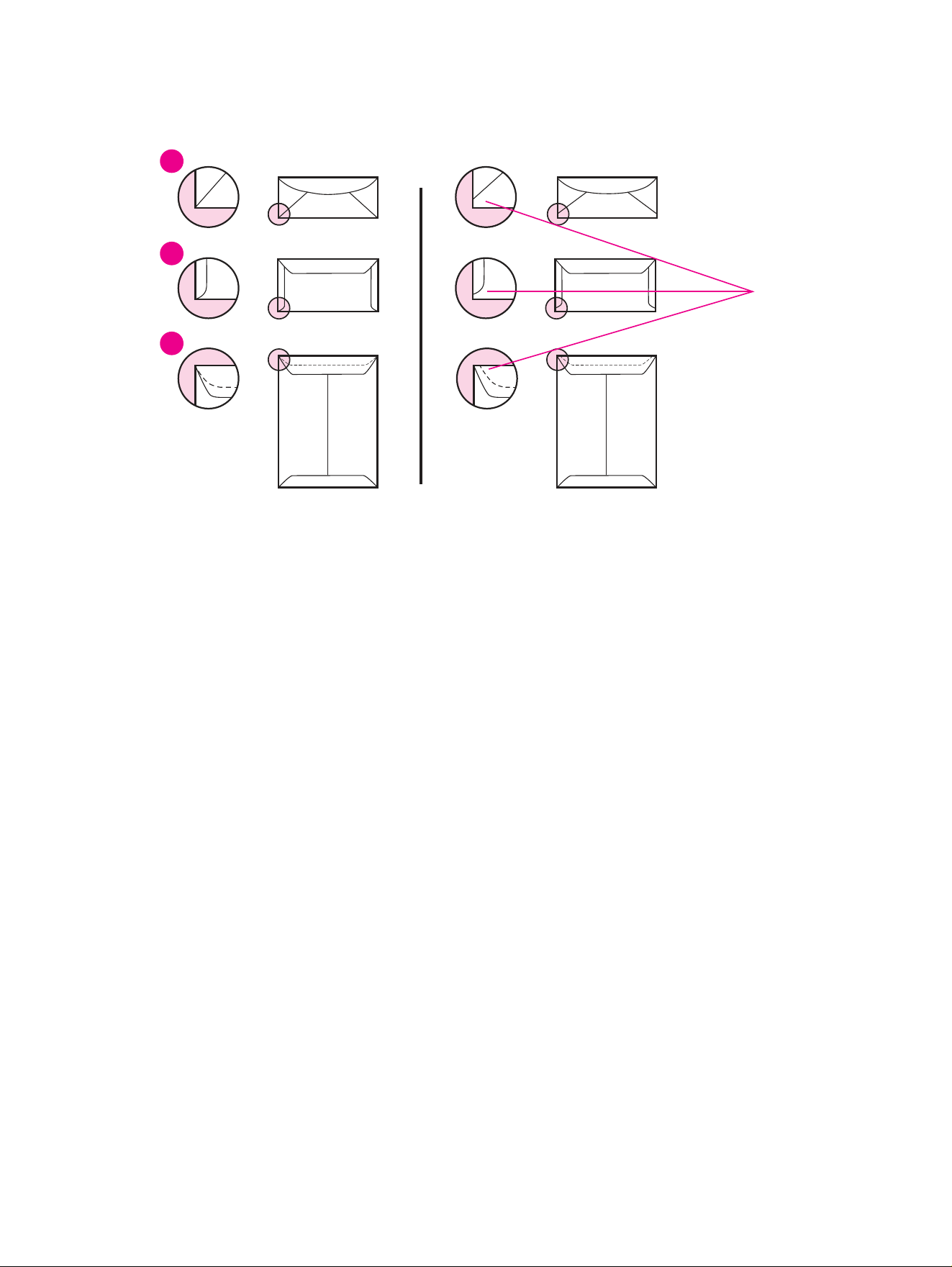
Figure 2-2 Examples of good and bad envelope construction
1
2
3
Good construction Bad construction
1
2
3
Diagonal-seam envelope
Double-sided seam envelope
Manila envelope
inconsistent
leading edge
Summary of HP envelope testing
HP tests many types of envelopes to determine which ones print acceptably in an HP LaserJet printer.
This is a summary of the test results.
● Commercial or Official envelopes (also called Business or Regular), which have diagonal seams and
standard gummed flaps, performed the most reliably.
● Envelopes that have double-sided seam construction, which creates vertical seams at both ends
of the envelope instead of diagonal seams, tend to be more flimsy than diagonal-seam envelopes.
Double-sided seam envelopes tend to jam or wrinkle unless the edges are thin and sharply creased.
However, a variety of double-sided seam envelopes have performed acceptably during testing.
● Envelopes that have a peel-off adhesive strip or that have more than one flap that folds over for
sealing, must use adhesives compatible with the heat and pressure of the printer’s fusing process.
Several varieties of this type of envelope performed satisfactorily in HP testing. However, the extra
flaps and strips can result in increased jamming or wrinkling and poor toner adhesion due to the
increased thickness of the envelope.
● Generally, feeding problems increase with envelope size. Larger envelope sizes (C5, B5) cannot have
a basis weight greater than 105 g/m
2
(28 lb).
● Rougher finishes such as laid, linen, or cockle can result in poor fusing.
● The multiple layers in envelopes construction might result in a noticeable background effect (small
toner particles scattered in the non-imaged areas). You can reduce this effect by increasing the
toner density setting on your printer.
Summary of HP envelope testing
13
● When running very large envelope jobs (several hundred to thousands), the fuser life might be
reduced due to accelerated wear.
● The location of the envelope flap can cause feed problems. If the flap location is the same as the
pick roller location (that is, the pick roller picks up the envelope by the flap), then the flap can move
but the envelope cannot, causing a jam. In this situation, try rotating the envelope 180 degrees so
you do not feed the envelop flap at the pick roller.
Guidelines for using envelopes
Follow these guidelines for using envelopes to ensure optimal performance.
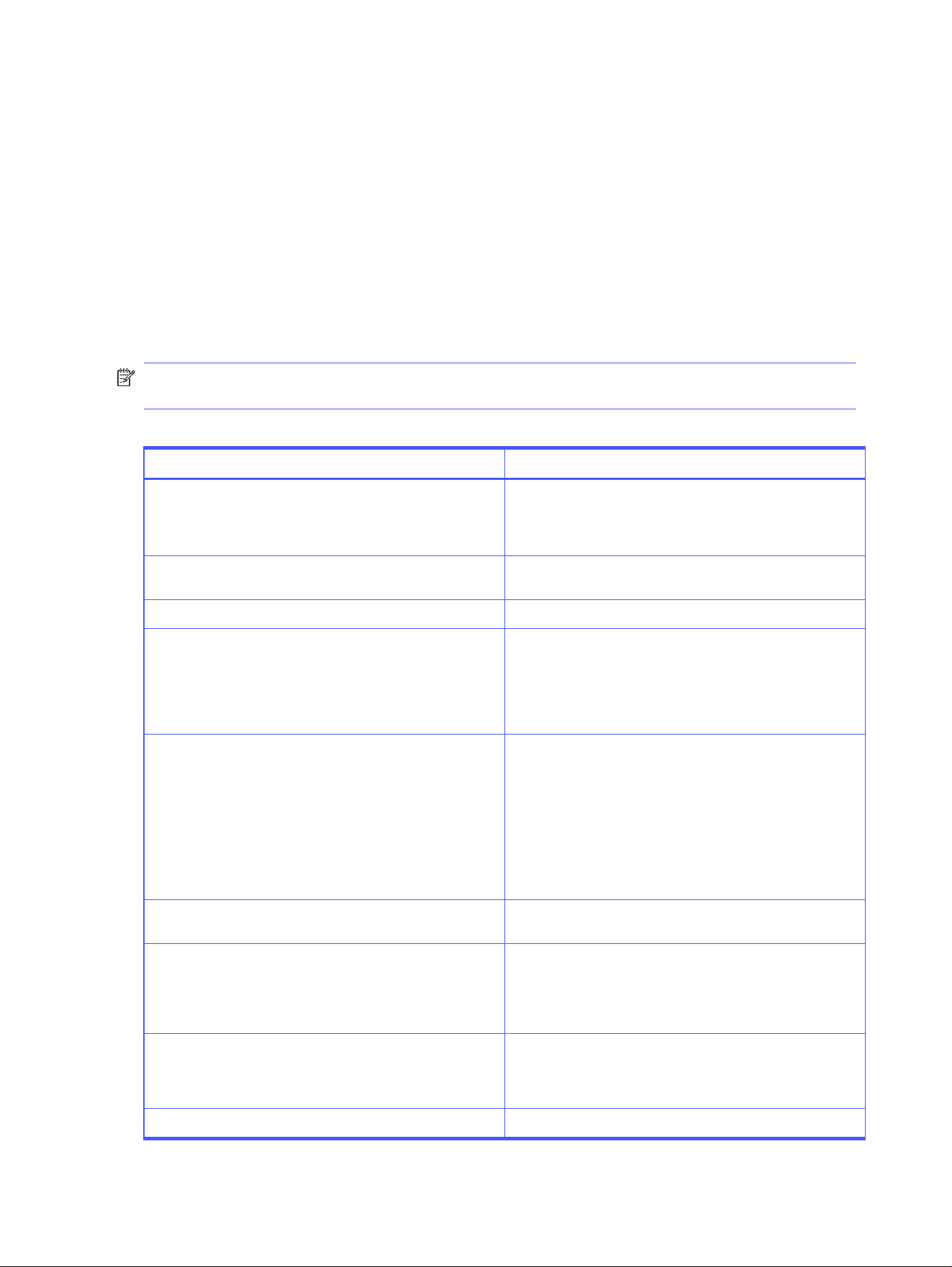
The envelope properties and specifications provided in this table generally apply to all HP LaserJet
printers. See the support documentation that came with your printer for product-specific information.
NOTE: For optimal results, print envelopes using the straightest paper path possible (for example,
tray 1 to the face-up output bin).
Table 2-2
Envelope properties and specifications
Property Specifications
Basis weight
60 g/m
2
to 105 g/m
2
(17 lb to 28 lb).
See the support documentation that came with your printer
for specific information.
Caliper 0.09 mm to 0.14 mm (3.6 mil to 5.5 mil) for a single-layer
thickness.
Surface roughness 100 to 200 Sheffield.
Fusing compatibility All inks, adhesives, and other materials that are used in the
envelope construction must be compatible with the heat and
pressure of the fusing process. Materials must not scorch,
melt, ignite, offset materials, or release undesirable emissions
when heated to 205°C (401°F) for 0.1 second (0.2 second for HP
color LaserJet printers).
Dimensional accuracy and construction quality Envelopes must be folded within ±1 mm (±0.04 inch) of nominal
size and have no more than two thickness of paper anywhere
along the leading edge.
All folds must be sharply creased and construction must be
tight (not baggy) to avoid wrinkling.
Envelopes must not be stuck together from excess seam
adhesive. The envelope flap must lie flat (within 1.5 mm [0.059
inch] over the width where the adhesive is applied).
Curl Envelopes must lie flat, with no more than 6 mm (0.25 inch) curl
across the entire surface.
Moisture content 4% to 6% by weight.
High moisture content can cause some envelopes to seal shut
due to elevated temperatures when steam is released during
fusing.
Grain Different types of envelope construction might require
different grain orientations for best performance, which is left
to the discretion of the converter. For more information, see
the support documentation that came with your printer.
Packaging Protective box to prevent edge damage and maintain flatness.
14 Chapter 2 Guidelines for using print media

Using labels
Understanding the types and quality of labels and following the HP recommendations will help to ensure
proper operation of your HP LaserJet printer.
Labels are a type of multiple-layer media that typically consists of a face sheet (the printable surface),
pressure-sensitive adhesive, and a liner (a carrier sheet coated with a release agent). Labels to be
used in your HP LaserJet printer must be specifically designed for laser printers. If labels other
than those compatible with laser printers are used, a significant risk exists for labels peeling or for
adhesive contamination that can severely damage your printer. All materials in laser label stock must be
compatible with the heat and pressure of the fusing process, and must not melt or release undesirable
emissions when heated to 205°C (401°F) for 0.1 second (0.2 second for HP color LaserJet printers).
CAUTION:
● The liner or release layer should not be exposed. Open spaces and gaps might trap toner and
prevent it from fusing properly.
● Not all HP color LaserJet printers support printing on labels from all trays. Please see the support
documentation that came with your product to determine if your product supports labels.
Guidelines for using labels
Follow these guidelines for using labels to ensure optimal performance.
The label properties and specifications provided in this table generally apply to all HP LaserJet printers.
See the support documentation that came with your printer for product-specific information.
Table 2-3
Label properties and specifications
Property Specifications
Adhesives Adhesives must not be on any external surfaces of the label
before, during, or after printing. Label construction, adhesive
release strength, and appropriate die-cutting must prevent
labels from peeling off during printing.
Different adhesives can provide removable, permanent, or
semi-permanent fixing of the face sheet onto the item being
labeled. Generally, acrylic-based adhesives are preferred for
laser printing because they can be applied in very thin layers
to prevent oozing and contamination, and can be made
compatible with the heat and pressure of fusing.
Improved processes are being developed to minimize
adhesive contamination, such as zone coating or stripped
matrix. Zone coating recesses the adhesive around the border
of a die-cut, and stripped matrix prevents adhesive from
oozing between the die-cut labels. The adhesive and liner must
provide adequate release strength so that labels will not peel
off during printing.
Caliper The caliper must not exceed 0.23 mm (9.0 mils).
Face sheet The face sheet is the printable surface on a sheet of adhesive
labels and can be made from different materials, including
paper, polyester, and vinyl. It is common for a face sheet to
be die-cut so that individual shapes can be removed after
printing. Polyester and vinyl labels require a topcoat to provide
the proper electrical and toner adhesion properties. It is
important to purchase labels from a knowledgeable converter
who is familiar with these processes and laser printing.
Using labels 15
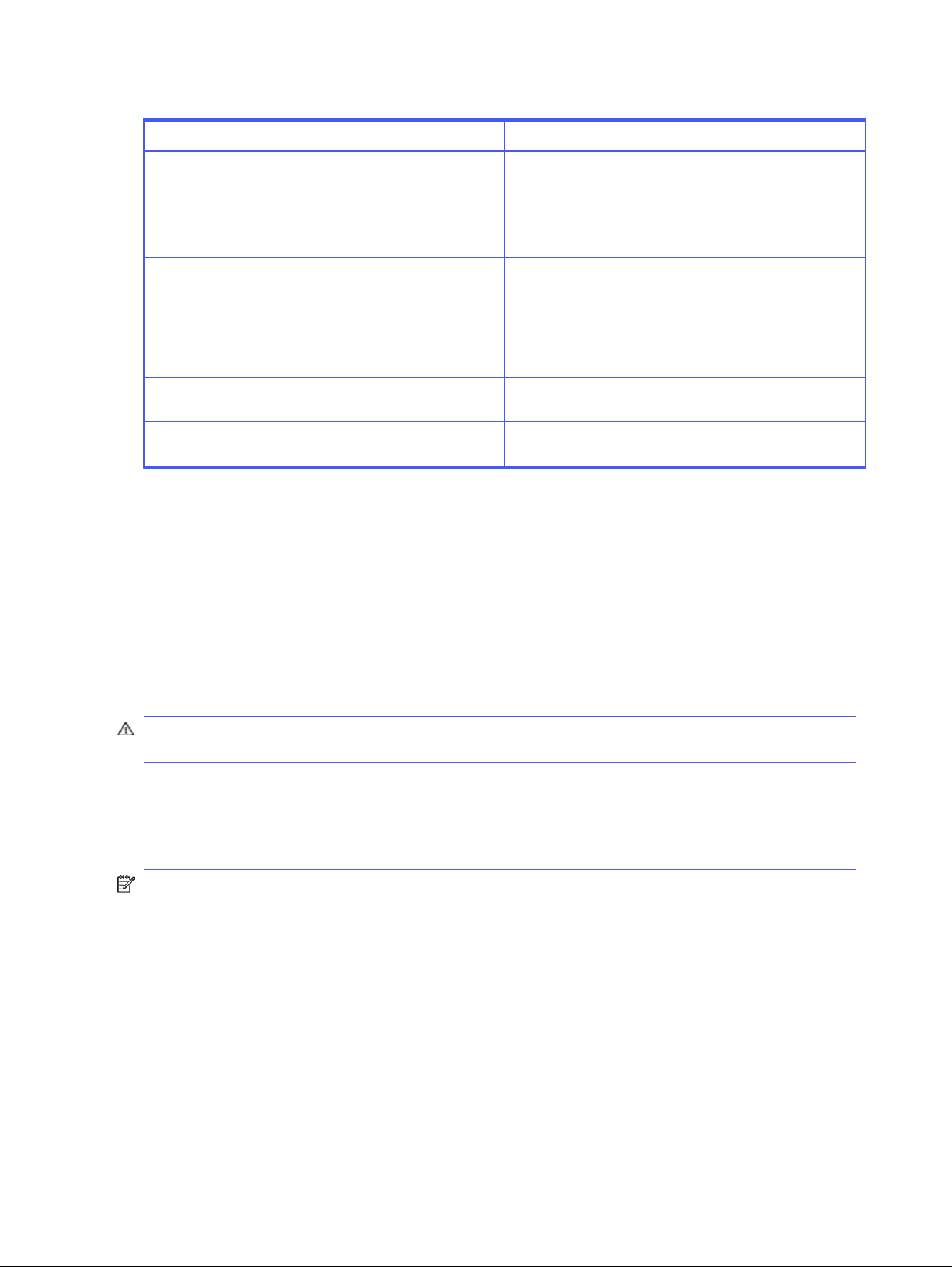
Table 2-3 Label properties and specifications (continued)
Property Specifications
Fusing compatibility All inks, adhesives, and other materials that are used in the
label construction must be compatible with the heat and
pressure of the fusing process. Materials must not scorch,
melt, ignite, offset materials, or release undesirable emissions
when heated to 205°C (401°F) for 0.1 second (0.2 second for HP
color LaserJet printers).
Liner The liner is the carrier sheet for the label material. The liner
must provide stability for the reliable pickup and transport of
the label stock through the printer.
CAUTION: The liner or release layer should not be exposed
on the front. Open spaces and gaps might trap toner and
prevent it from fusing properly.
Packaging The labels should be delivered in moisture-proof wrap to
preserve their properties.
Shelf life The labels should have a minimum shelf life of one year, when
stored at 23°C (73°F) and 50 percent relative humidity.
Recommendations for using labels
Follow these HP recommendations for using labels.
● Regularly inspect your labels after printing for any indication that the label edges are lifting or that
adhesive contamination is occurring on the print surface. If either of these problems is observed,
HP recommends that you discontinue use of that box or lot-number of labels and discuss the
problem with your label supplier.
● If many sheets of labels are being continuously run, periodically run several sheets of paper through
the printer to clean any contamination or label-stock adhesive that might have deposited.
CAUTION: Be sure to run full sheets of labels. Reprinting unused portions can increase the risk of the
labels peeling and the occurrence of adhesive contamination.
Using overhead transparencies
Understanding the types and quality of overhead transparencies and following the HP
recommendations will help to ensure proper operation of your HP LaserJet printer.
NOTE: Digital multimedia projectors are now the preferred technology for projecting images, resulting
in a decline in use of overhead transparency (OHT) projectors. HP no longer produces overhead
transparencies and does not perform extensive testing of overhead transparencies for its products.
HP will verify that overhead transparencies designed for laser printers will not damage your HP
LaserJet printer and will meet minimum performance requirements.
Overhead transparency film must be designed specifically for use with laser printers. Photocopy
transparency film might not be compatible with laser printers because of higher temperature and
stiffness requirements. Color laser printers also require different film from that used in monochrome
printers to ensure proper color reproduction and meet fusing requirements.
Overhead transparency film is very smooth and must have a topcoat to provide the proper electrical
and toner adhesion properties. A transparency that is made of incompatible material or that is too thin
can easily melt in or wrap around the fuser and damage your printer. The thickness requirement for
16
Chapter 2 Guidelines for using print media
monochrome overhead transparency film is 0.10 mm to 0.11 mm (4.0 mils to 4.4 mils). For color overhead
transparency film, the thickness requirement is 0.12 mm to 0.13 mm (4.8 mils to 5.2 mils).
Overhead transparency materials must be able to withstand the heat and pressure of the fusing
process. Materials must not discolor, offset, or release undesirable emissions when heated to 205°C
(401°F) for 0.1 second (0.4 second for HP color LaserJet printers). See your HP LaserJet printer user guide
for detailed instructions on using overhead transparencies.
CAUTION: Not all HP LaserJet printers support overhead transparencies. To determine if overhead
transparencies are supported for your product, see the product user guide.
Guidelines for using overhead transparencies
Follow these guidelines for using overhead transparencies to ensure optimal performance.
The following table summarizes the overhead transparency properties and specifications.
CAUTION: To prevent jamming or poor-quality output, HP recommends using monochrome
transparencies with HP LaserJet monochrome printers and color transparencies with HP color
LaserJet printers.
NOTE: The specifications listed in this section generally apply to all HP LaserJet printers. See the
support documentation that came with your printer for product-specific information.
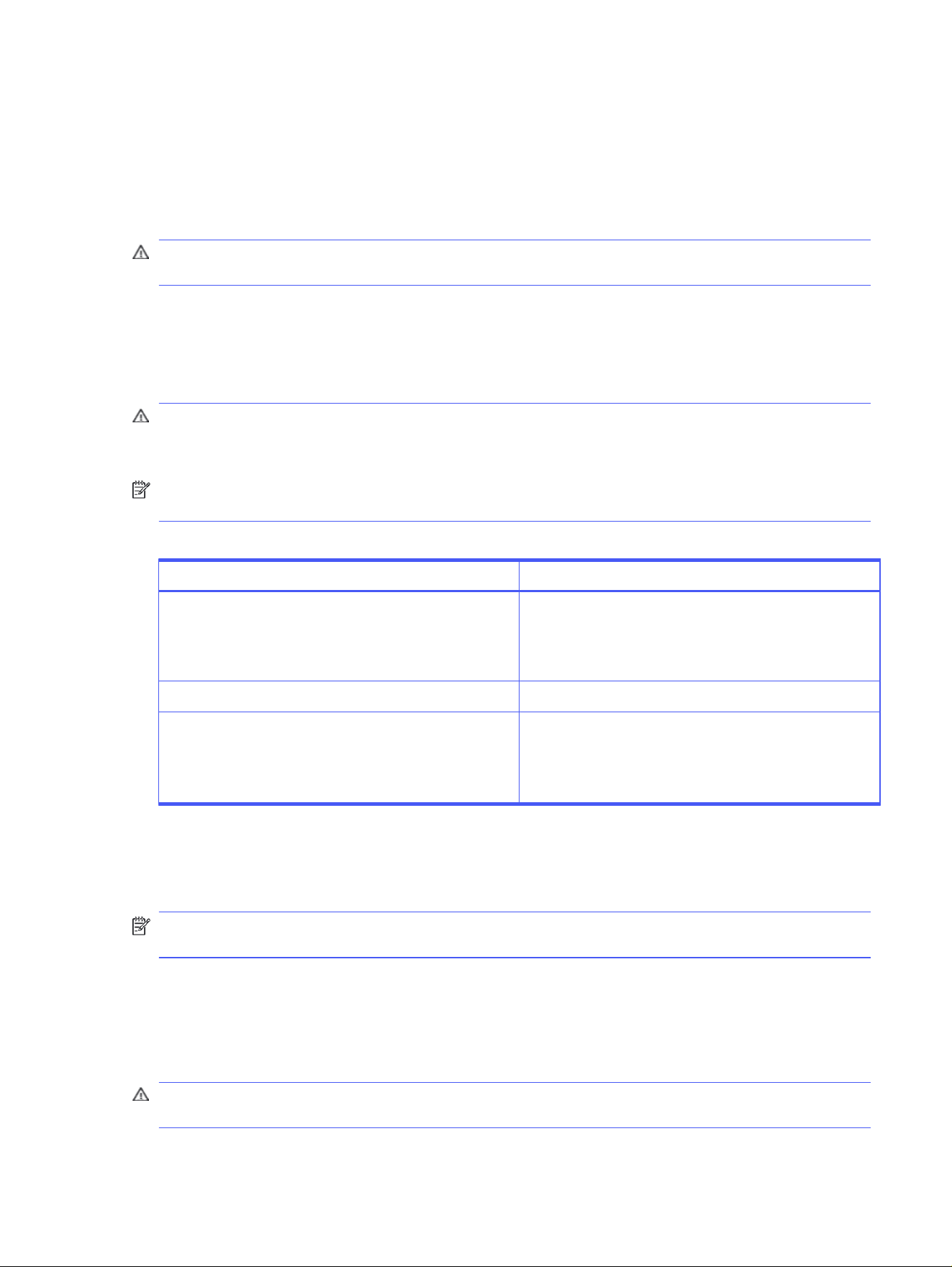
Table 2-4
Overhead transparency properties and specifications
Property Specifications
Caliper 0.12 mm to 0.13 mm (4.8 mils to 5.2 mils) for HP color LaserJet
printers.
0.10 mm to 0.11 mm (4.0 mils to 4.4 mils) for HP monochrome
LaserJet printers.
Electrical surface resistivity
10
10
to 10
13
ohms/square.
Fusing compatibility Overhead transparency materials must be compatible with
the heat and pressure of the fusing process. Materials must
not discolor, melt, offset, or release undesirable emissions
when heated to 205° C (401 ° F) for 0.1 second (0.4 second for
HP color LaserJet printers).
Printing on both sides of the paper
Two-sided printing, also known as duplex printing or duplexing, can be an automatic or manual process.
NOTE: Consult your product user guide to determine the supported size, type, weight, and orientation
for best results.
Automatic duplexing
Automatic duplexing requires an HP LaserJet printer that is designed especially for duplex printing. See
the support documentation for your printer model or duplex accessory for information about supported
paper.
CAUTION: Duplexing on adhesive labels, envelopes, or overhead transparencies can damage your
printer.
Guidelines for using overhead transparencies
17

Manual duplexing
Manual duplex printing, in which sheets that have already been printed are fed again into the
printer, requires operator intervention. For more information, see the software application support
documentation.
NOTE: HP recommends manually refeeding sheets only through the manual feed slot, the
multipurpose (MP) tray, or tray 1.
Shipping and storing print media
The performance of HP LaserJet printers depends on the condition of the print media that is used.
Follow the HP recommendations for shipping and storing media and understand the environmental
effects on media.
Shipping media
When you are shipping print media through different environments, use plastic wrap to wrap all cartons
on the shipping pallet. When you are shipping media across bodies of water, also wrap individual
cartons. Packaging must protect the media from physical damage.
Storing media
Follow these guidelines when stacking and storing print media:
● Do not store cartons or reams directly on the floor. Place cartons on a pallet or on shelves.
● Do not store individual reams in a manner that will result in curling or warping.
● Rewrap and seal partially used packages of media before storing them.
● Do not stack more than six cartons on top of each other.
● Stack each carton squarely on top of the one underneath.
● Stack each carton upright.
● Do not place anything on top of media, regardless of whether the paper is packaged or unpackaged.
● Store envelopes in a protective box to avoid damaging the envelope edges.
● Avoid storing paper near direct sunlight (close to windows) or close to air-conditioned vents. This
can cause damage to the paper over time.
● Do not store printed documents in vinyl folders (which can contain plasticizers) and do not expose
the documents to petroleum-based solvents.
Environmental considerations
HP LaserJet printers are designed to operate in a wide range of environmental conditions.
For best performance, store and use media at 20°C to 24°C (68°F to 75°F), with a relative humidity of 45%
to 55%. Follow these guidelines when media is used in an environment outside those temperature and
humidity ranges:
18
Chapter 2 Guidelines for using print media

● Do not expose the media to extremes in humidity or temperature. If media is left unwrapped or in the
printer input tray, extreme changes in the environment will cause the media to assume unwanted
characteristics.
● In the case of extreme humidity, keep paper and envelopes tightly wrapped in plastic. High moisture
content can cause some envelopes to seal shut due to elevated temperatures when steam is
released during fusing.
If a significant temperature difference exists between the media storage area and the printer’s
operating environment, allow the media time to adjust to the temperature in the printer’s operating
environment before unwrapping it. The greater the temperature difference and the greater the amount
of media to acclimate, the longer this time period should be. Allow one day for every 10°C (20°F)
difference in temperature between the storage environment and the printing environment.
Environmental considerations
19

Troubleshooting print media problems3
Problems with print quality and media handling typically result from print media that does not meet the
specifications, that has been stored improperly, or that is not in good condition. This chapter explains
the possible causes of and solutions to print media problems.
Troubleshooting checklist
Ask the following questions to determine if the print media is causing print-quality problems:
● Does your media meet the specifications outlined in this document? (See Types of print media to
avoid and Guidelines for using print media.)
● Is the media in good condition? Is it curled or wrinkled?
● Are you using the printing procedures that are described in the printer user guide?
● Are you observing correct practices when handling and loading media? (See the support
documentation for your printer for guidelines to load media.)
● Are your print-quality problems isolated to a specific type of media?
● Did you check the following aspects of the environment in which the printer operates or in which the
print media is stored? (See Environmental considerations.)
– Temperature
– Humidity
– Cleanliness
Basic troubleshooting tasks
If you cannot determine the cause of print defects by using the troubleshooting checklist, perform these
basic troubleshooting tasks.
● Inspect the print media for obvious defects, such as torn sheets, contamination from glue, or ragged
cut edges.
● Use print media from another lot or from a different manufacturer.
NOTE: If a print problem develops when using certain print media, switch to a known good print
media, preferably HP branded.
● Turn the paper stack over in the input tray and/or turn it 180° in the tray. Alternatively, try using
another tray.
● If you have a print-quality problem that is related to envelopes, print a sheet of paper to determine if
the problem is caused by the variable thickness of your envelope.
– If the print quality of the single-sheet sample is good, re-examine your envelope and see
Envelope construction.
20
Chapter 3 Troubleshooting print media problems

– If the print quality of the single-sheet sample is poor, you might have a printer problem. See the
support documentation for your printer to see further troubleshooting information.
● Read the remainder of this troubleshooting section for further troubleshooting information, perform
the maintenance procedures that are recommended in your printer user guide, or see the
troubleshooting section in your printer user guide.
Types of print media to avoid
To ensure proper performance of your HP LaserJet printer, use paper or other print media specifically
designed to work with your printer.
Avoid using print media with the following characteristics:
● Print media, media coatings, dyes, or inks that contain materials that melt, vaporize, offset, discolor,
or release undesirable emissions when exposed to 205°C (401°F) for 0.1 second (0.2 second for HP
color LaserJet printers).
● Print media that is very rough, highly textured, or heavily embossed.
● Multipart forms.
● Carbonless media.
● Print media that offsets or discolors.
● Print media that is damaged, curled, wrinkled, or irregularly shaped.
● Print media that has not been stored or shipped properly. (See Shipping and storing print media.)
● Overhead transparency film that produces undesirable emissions or melts when exposed to a
fusing temperature of 205°C (401°F) for 0.1 second (0.4 second for HP color LaserJet printers). An
example would be overhead transparencies that are designed for printing on an ink printer.
● Envelopes that have encapsulated adhesives that do not require moistening but instead use
pressure for sealing.
● Envelopes that have clasps, snaps, tie strings, windows, or synthetic materials. These materials can
severely damage the printer.
● Envelopes that are not square, straight, or constructed correctly. (See Envelope construction.)
● Envelopes of a basis weight less than 60 g/m
2
(16 lb) or greater than 105 g/m
2
(28 lb).
● Envelopes that have baggy construction or folds that are not sharply creased.
Paper problems
Common symptoms of paper-quality issues include a high occurrence of jams, multiple-sheet feeds, and
paper curl.
CAUTION: Do not reuse jammed paper. Doing so can damage the printer.
Types of print media to avoid
21

Frequent paper jams
Frequent paper jams can have several possible causes and can be corrected by following the
suggested actions.
NOTE: To recover from a paper jam, follow the directions provided in the HP LaserJet printer user
guide.
Table 3-1 Paper jams: causes and corrective actions
Cause Actions
Paper is too stiff or heavy. Heavy or stiff paper might not be
able to negotiate the paper path or be picked up from the input
tray.
● Make sure that the paper does not exceed the basis
weight that is specified in the user documentation for
your printer.
● Feed from the multipurpose tray. See Guidelines for
using paper to ensure that the media meets the
requirements for bond weight and thickness.
● Use the correct output bin, as shown in your printer user
guide.
● Use a lighter-weight paper.
Paper is too smooth or too rough. Change the paper type or manually feed the paper into the
printer. See your printer user guide for the correct output tray
selection.
Paper is not cut to specification. This can cause poor print
alignment, mis-stacking, improper fit in the input tray, or
problems with the paper sensors.
Change the paper type or try another ream of paper.
Paper is too light or too flimsy. Make sure that the paper meets the specifications that are
listed for basis weight in Guidelines for using paper.
Paper guides in the tray are set incorrectly in the printer. Make sure that all of the paper guides have been set
correctly. See the user documentation for your printer for
more information.
Paper is too dry or too moist. ● Make sure that the paper is not near a window or a heat
or air vent.
● Replace the paper in the unit with paper from a newly
opened ream.
Paper might contain higher filler levels of talc and calcium
carbonate. If the talc or calcium carbonate are not well-bound
to the paper fibers, they can build up in the paper path and
cause print quality (PQ) defects and frequent paper jams.
● Try a different paper brand.
● Perform the printer cleaning procedures that are
appropriate for your printer. For most HP LaserJet
printers you can use a cleaning page to remove build-up
in the fuser. For more information, see the documentation
that came with your printer.
Frequent multiple-sheet feeds
Frequent multiple-sheet feeds can have several possible causes and can be corrected by following the
suggested actions.
22
Chapter 3 Troubleshooting print media problems
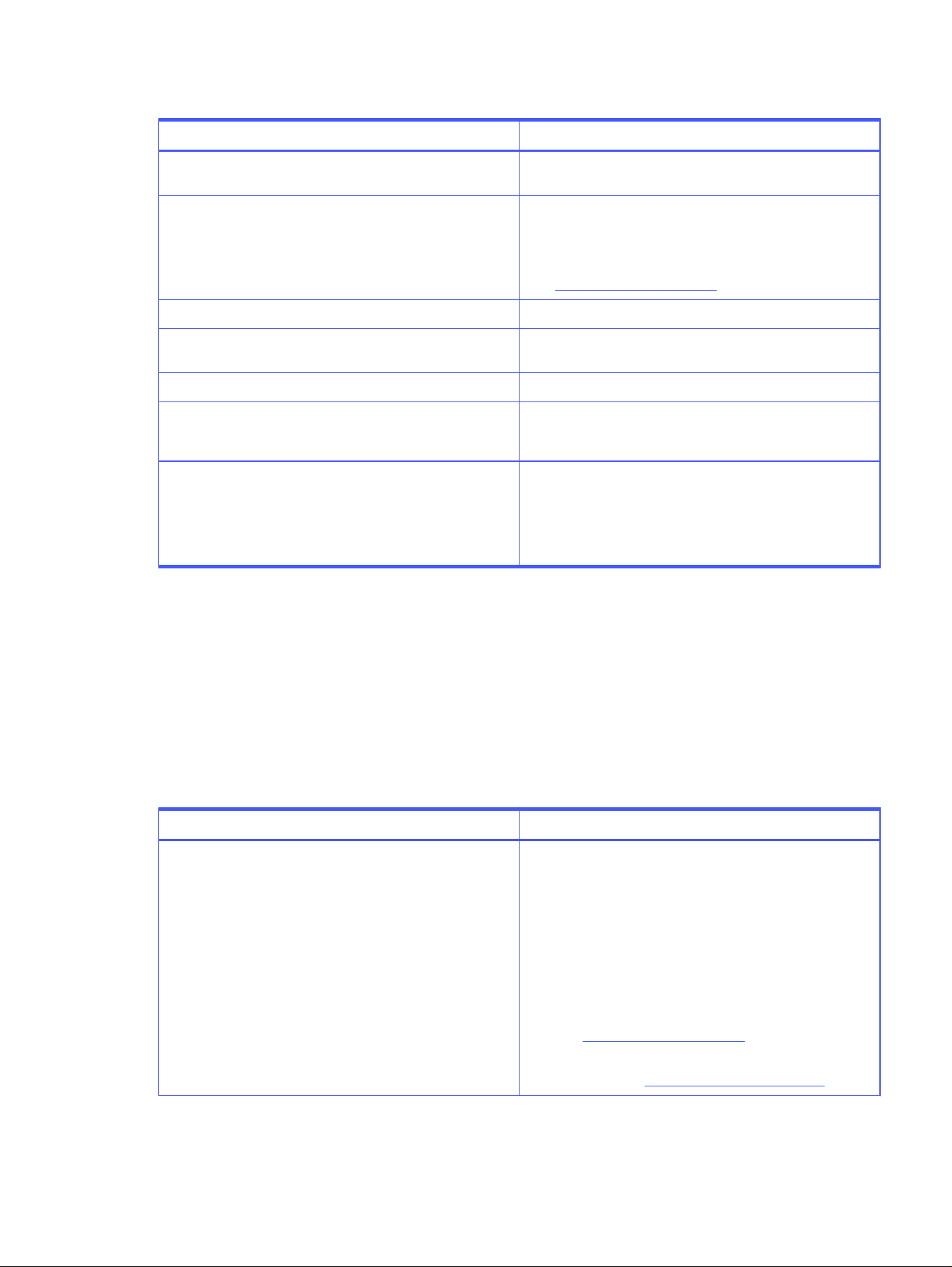
Table 3-2 Frequent multiple-sheet feeds: causes and corrective actions
Cause Actions
Paper is added in small amounts to the input tray. Add only full reams of paper to the input tray, and avoid mixing
paper types in the input tray.
Paper is too dry or is not moist enough. (Insufficient moisture
makes paper less conductive and creates static buildup.)
● Try another ream of paper.
● Change the paper type.
● Make sure that the paper is properly prepared. See
Preparing print media for use.
Paper is too light or too thin. Change the paper type.
Paper is too smooth or too rough. Surfaces tend to interlock or
stick together.
Change the paper type.
Paper is embossed or has raised letterhead. Change the paper type.
Paper guides in the trays are set incorrectly. Make sure that all of the paper guides have been set
correctly. See the user documentation for your printer for
more information.
Paper sticks together at the edges (edgeweld). Edgeweld
is caused by the use of dull cutting blades during the
manufacturing process.
● Flex the stack in both directions to "break" any locked
edges.
● Try a different ream of paper.
● Try a paper from a different paper manufacturer.
Reducing post-image curl
When an HP LaserJet printer prints a sheet of paper, the sheet can develop a curvature that is called
post-image curl. Generally, the higher the moisture content of the paper, the greater the curl.
Both the paper and the printer affect the amount of post-image curl. In the papermaking process,
stresses that can cause curl are a result of the paper manufacturing process, so different papers will
have differing amounts of post-image curl. In the printing process, the paper is subjected to the heat and
pressure of the fuser as well as to the contours of the paper path.
Table 3-3
Post-image curl: causes and corrective actions
Cause Actions
Paper is too moist, resulting in waviness or curl. ● Print to the another output bin, for example, the face-
up output bin. (This option is not available with some
printers.)
● Change to a different type or brand of paper.
● If possible, set the paper type to a lighter-weight paper.
For more information, see the support documentation
that came with your printer.
● You might need to acclimate the paper to your
environment to diminish differences in heat and moisture.
(See Preparing print media for use.)
● Follow the storage and handling specifications in this
document. (See Shipping and storing print media.)
Reducing post-image curl
23
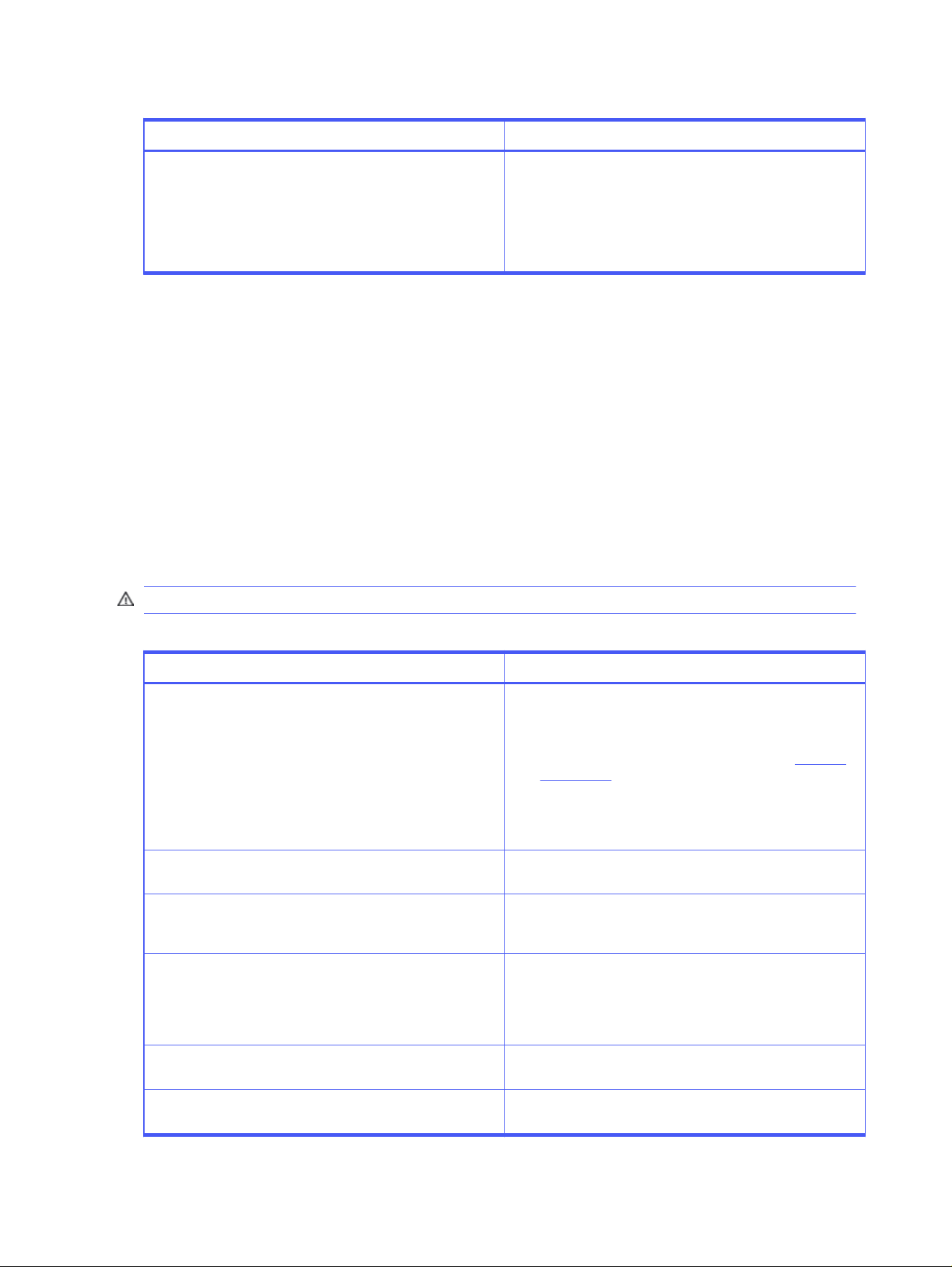
Table 3-3 Post-image curl: causes and corrective actions (continued)
Cause Actions
Paper orientation (direction in which the paper is fed into the
printer) is incorrect, resulting in excessive curl.
● Turn the paper stack over or turn it around in the input
tray to reverse the direction of the paper.
● The grain of the paper can affect the curl of the paper.
Therefore, if you are feeding the paper in landscape
mode and you are experiencing curl, try feeding the
paper in portrait mode, if possible.
Envelope problems
Certain conditions can indicate envelope problems, such as high rates of jams, gray areas printing on
envelopes, and wrinkling.
Frequent envelope jams
Frequent envelope jams can have several possible causes and can be corrected by following the
suggested actions.
Overfilling the envelope tray and misadjusting its guides are the most common causes of jams.
However, if the envelope tray is properly loaded, the envelopes might be causing the problems.
To recover from an envelope jam, follow the directions provided in the HP LaserJet printer user guide.
CAUTION: Do not reuse jammed envelopes. Doing so can damage the printer.
Table 3-4
Frequent envelope jams: causes and corrective actions
Cause Actions
Envelopes are poorly manufactured. ● Make sure that the leading edge is straight, and has a
sharp, well-creased fold. The envelope must not have
more than two thicknesses of paper along any leading
edge. The folded layers of paper should come to a point
at the leading-edge corners. (See the figure in Envelope
construction.)
● Purchase envelopes that are manufactured correctly, or
run the side of a pen or pencil over the envelope edges to
flatten them.
Envelopes are not creased sufficiently to have sharp edges. Crease the leading edge of the envelope with the side of a pen
or pencil, or change to a different type or brand.
Envelopes are wrinkled, bent, or curled. Make sure that the envelope’s leading edge, which enters the
printer first, is straight, and that it has a sharp, well-creased
fold that has no more than two thicknesses of paper.
Envelopes are too stiff or heavy. Stiff or heavy envelopes
cannot negotiate the paper path or be picked up from the
envelope tray.
● Use a lighter-weight envelope. Do not exceed the basis
weight of 105 g/m
2
(28 lb).
● Use the printer’s most direct (straight-through) paper
path.
Envelopes are too smooth (do not have enough friction for
transport) or too rough.
Change to a different type of envelope.
Envelopes are jamming on the flap because the flap is at the
pick roller contact point.
Feed the envelope so that it is not flap first.
24 Chapter 3 Troubleshooting print media problems
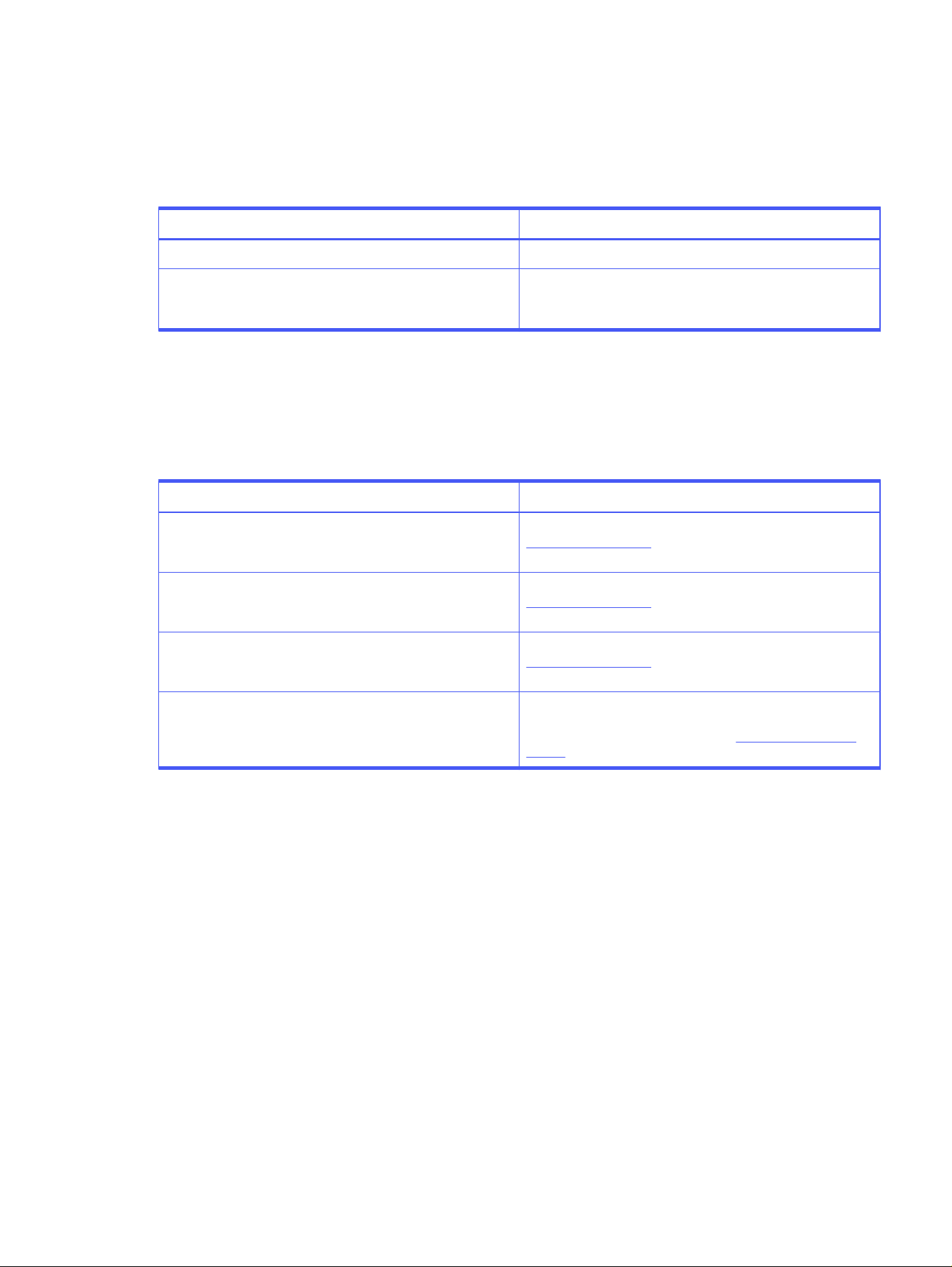
Gray areas on envelopes
Gray areas on envelopes have some possible causes and can be corrected by following the suggested
actions.
Table 3-5 Gray areas on envelopes: causes and corrective actions
Cause Actions
Envelope has seams or multiple layers. Avoid printing over seams or other multiple-layer areas.
The toner density setting is too light. Reduce background (gray shading in non-imaged areas) by
adjusting the toner density setting to a darker setting. See the
documentation that came with your printer.
Wrinkles on envelopes
Wrinkles that form on envelopes after printing have several possible causes and can be corrected by
following the suggested actions.
Table 3-6
Wrinkles on envelopes: causes and corrective actions
Cause Actions
Loose envelope construction. Try different envelopes that are better constructed. See
Envelope construction for characteristics of good envelope
construction.
Folds are not sharply creased. Try different envelopes that are better constructed. See
Envelope construction for characteristics of good envelope
construction.
Low-weight/low-strength paper used in the envelope
construction.
Try different envelopes that are better constructed. See
Envelope construction for characteristics of good envelope
construction.
High moisture content. You might need to acclimate the envelope from the storage
environment to your environment in order to diminish
differences in heat and moisture. See Preparing print media
for use.
Print-quality problems
Print-quality problems can be caused by the print media. Use this information to troubleshoot the
problems.
Background toner particles
If the amount of background particles becomes unacceptable, the following procedures might help to
clear the condition:
● Increase the toner density setting. This decreases the amount of background particles.
● Change the paper to a lighter basis weight.
● Check the printer’s environment. Very dry (low humidity) conditions can increase the amount of
background particles.
Gray areas on envelopes
25

Dropouts
If faded-out areas or character voids (partial print) occur randomly on the page:
● The moisture content of the paper might be uneven, or the paper might have moist spots on its
surface as a result of environmental humidity. Store the paper in a moisture-proof container. Try
removing the top few sheets of paper from the paper tray or use paper from a different source
(such as another ream), or try a different brand of paper.
● The paper lot is bad. The manufacturing processes can cause some areas to reject toner. Try a
different kind or brand of paper.
Improperly formed or wavy characters
If characters are improperly formed or if the printer is producing hollow images, the paper stock might
be too smooth. Try a different paper if characters are improperly formed.
Toner smear
● If toner smears appear on the leading edge of the paper, the paper stock might be too slick. Try a
different paper if the toner is smearing on the paper.
● If toner is not fusing properly (and is smearing), try a higher fuser mode setting (if available). For
more information, see the support documentation that came with your printer.
Toner specks (background scatter)
Toner specks are black dots that appear randomly on either side of the page. If the toner specks appear,
the media might not meet the specifications for your printer (for example, the paper is too moist or too
rough). For more information, see the support documentation that came with your printer.
26
Chapter 3 Troubleshooting print media problems

Specifications4
This appendix provides paper specifications.
U.S. paper grades
The U.S. paper-grading system defines the sizes and weights of different grades of paper.
The U.S. paper-grading system has evolved through custom and usage, resulting in similar papers having
differently stated weights. For example, a 24-lb bond paper is exactly the same weight as a 60-lb book
paper, or a 60-lb text, or a 33-lb cover. This is because basis weight is defined as the weight of 500
sheets of paper cut to basic size. The basic size for bond, book/text, cover, index, bristol, and tag are all
different, so the given weights for these paper grades can be different although the physical weight is
virtually identical.
Common paper grades and basis weights
This table identifies the basis weights for common paper grades. The basic size for each paper grade is
unique, which affects the weight.
Paper grade
Basic size Basic area Factor Equivalent basis
weights (example)
Bond 17 by 22 inches (432 by
559 mm)
374.0 sq. inches (.241
m
2
)
1.00 24-lb bond
Text 25 by 38 inches (635 by
965 mm)
950.0 sq. inches (.613
m
2
)
2.54 61-lb text
Book (coated or
uncoated)
25 by 38 inches (635 by
965 mm)
950.0 sq. inches (.613
m
2
)
2.54 61-lb book
Cover 20 by 26 inches (508 by
660 mm)
520.0 sq. inches (.335
m
2
)
1.39 33-lb cover
Bristol 22.5 by 28.5 inches (571
by 724 mm)
641.25 sq. inches (.414
m
2
)
1.71 41-lb Bristol
Index 25.5 by 30.5 inches
(648 by 775 mm)
777.75 sq. inches (.502
m
2
)
2.08 50-lb index
Tag 24 by 36 inches (610 by
910 mm)
864.0 sq. inches (.557
m
2
)
2.31 55-lb tag
Metric weight 39.37 by 39.37 inches
(1000 by 1000 mm)
1550.0 sq. inches (1.0
m
2
)
3.76
90 g/m
2
Specifications 27
Weight equivalence table
This table identifies equivalent weights for different grades of paper.
NOTE: A bold value indicates a commonly available standard weight for that grade. Text and book
grades marked with an asterisk (*) actually calculate to 51, 61, 71, and 81 but are rounded to standard
book/text weights of 50, 60, 70, and 80.
Bond wt. (17 by
22 inches)
Text/Book wt.
(25 by 38
inches)
Cover wt. (20 by
26 inches)
Bristol wt. (22.5
by 28.5 inches)
Index wt. (25.5
by 30.5 inches)
Tag wt. (24 by 36
inches)
Metric wt.
16 lb 41 lb 22 lb 27 lb 33 lb 37 lb
60 g/m
2
17 lb 43 lb 24 lb 29 lb 35 lb 39 lb
64 g/m
2
20 lb 50 lb * 28 lb 34 lb 42 lb 46 lb
75 g/m
2
21 lb 54 lb 30 lb 36 lb 44 lb 49 lb
80 g/m
2
24 lb 60 lb * 33 lb 41 lb 50 lb 55 lb
90 g/m
2
27 lb 68 lb 37 lb 45 lb 55 lb 61 lb
100 g/m
2
28 lb 70 lb * 39 lb 49 lb 58 lb 65 lb
105 g/m
2
29 lb 74 lb 41 lb 50 lb 61 lb 68 lb
110 g/m
2
32 lb 80 lb * 44 lb 55 lb 67 lb 74 lb
120 g/m
2
36 lb 90 lb 50 lb 62 lb 75 lb 83 lb
135 g/m
2
39 lb 100 lb 55 lb 67 lb 82 lb 91 lb
148 g/m
2
40 lb 101 lb 55 lb 68 lb 83 lb 92 lb
150 g/m
2
43 lb 110 lb 60 lb 74 lb 90 lb 100 lb
163 g/m
2
45 lb 115 lb 63 lb 77 lb 94 lb 104 lb
170 g/m
2
47 lb 119 lb 65 lb 80 lb 97 lb 108 lb
176 g/m
2
51 lb 128 lb 70 lb 86 lb 105 lb 117 lb
190 g/m
2
53 lb 134 lb 74 lb 90 lb 110 lb 122 lb
199 g/m
2
54 lb 137 lb 75 lb 93 lb 113 lb 125 lb
203 g/m
2
58 lb 146 lb 80 lb 98 lb 120 lb 133 lb
216 g/m
2
65 lb 165 lb 90 lb 111 lb 135 lb 150 lb
244 g/m
2
66 lb 169 lb 92 lb 114 lb 138 lb 154 lb
250 g/m
2
67 lb 171 lb 94 lb 115 lb 140 lb 155 lb
253 g/m
2
70 lb 178 lb 98 lb 120 lb 146 lb 162 lb
264 g/m
2
72 lb 183 lb 100 lb 123 lb 150 lb 166 lb
271 g/m
2
28 Chapter 4 Specifications
Standard media sizes used in laser printers
The tables in this section provide the English and metric dimensions of the most commonly used paper,
envelopes, and cardstock.
NOTE: See the support documentation that came with your HP LaserJet printer for details about the
media that the printer supports. Use only media that is supported.
Paper sizes and dimensions
This table lists the sizes and the English and metric dimensions of the most commonly used paper.
Size English dimension Metric dimension
Letter 8.5 by 11.0 inches 215.9 by 279.4 mm
Legal 8.5 by 14.0 inches 215.9 by 355.6 mm
Folio/foolscap 8.50 by 13.00 inches 215.9 by 330.2 mm
Executive 7.25 by 10.50 inches 184.2 by 266.7 mm
Tabloid/ledger 11.0 by 17.0 inches 279.4 by 431.8 mm
Ledger full bleed 12.0 by 18.0 inches 304.8 by 457.2 mm
A3 11.69 by 16.54 inches 297 by 420 mm
RA3 12.01 by 16.93 inches 305 by 430 mm
A3 full bleed 12.28 by 17.32 inches 312 by 440 mm
A4 8.27 by 11.70 inches 210 by 297 mm
A5 5.83 by 8.27 inches 148 by 210 mm
B4 (JIS) 10.12 by 14.33 inches 257 by 364 mm
B4 (ISO) 9.84 by 13.90 inches 250 by 353 mm
B5 (JIS) 7.17 by 10.12 inches 182 by 257 mm
B5 (ISO) 6.93 by 9.84 inches 176 by 250 mm
8K 10.63 by 15.35 inches 270 by 390 mm
16K 7.68 by 10.63 inches 195 by 270 mm
32K 5.32 by 7.68 inches 135 by 195 mm
Envelope sizes and dimensions
This table lists the sizes and the English and metric dimensions of the most commonly used envelopes.
Size
English dimension Metric dimension
U.S. #6 3/4 (personal) 3.63 by 6.50 inches 92.1 by 465.1 mm
U.S. #8 5/8 (check) 3.63 by 8.63 inches 92.1 by 219.1 mm
U.S. #9 3.88 by 8.88 inches 98.4 by 225.4 mm
Standard media sizes used in laser printers 29
Size English dimension Metric dimension
U.S. #10 (com10) 4.13 by 9.50 inches 104.9 by 241.3 mm
U.S. #11 4.50 by 10.38 inches 114.3 by 263.5 mm
U.S. #5 1/2 baronial 4.38 by 5.75 inches 111.1 by 146.1 mm
U.S. #6 baronial 4.75 by 6.50 inches 120.7 by 165.1 mm
U.S. #7 3/4 (Monarch) 3.88 by 7.50 inches 98.4 by 190.5 mm
U.S. A2 announcement 4.38 by 5.75 inches 111.1 by 146.1 mm
U.S. A6 announcement 4.75 by 6.50 inches 120.7 by 165.1 mm
ISO B5 6.93 by 9.84 inches 176 by 250 mm
ISO C5 6.38 by 9.02 inches 162 by 229 mm
ISO C5/6 4.49 by 9.02 inches 114 by 229 mm
ISO C6 4.49 by 6.38 inches 114 by 162 mm
ISO DL 4.33 by 8.66 inches 110 by 220 mm
Cardstock sizes and dimensions
This table lists the sizes and the English and metric dimensions of the most commonly used cardstock.
Size
English dimension Metric dimension
Index card (3x5) 3.00 by 5.00 inches 76.2 by 127 mm
Index card (4x6) 4.00 by 6.00 inches 101.6 by 152.4 mm
Index card (5x8) 5.00 by 8.00 inches 127 by 203.2 mm
U.S. postcard 3.50 by 5.50 inches 88.9 by 139.7 mm
European postcard 4.13 by 5.83 inches 105 by 148 mm
J postcard (hagaki) 3.94 by 5.83 inches 100 by 148 mm
J double postcard (oufuku hagaki) 5.83 by 7.87 inches 148 by 200 mm
Comparisons of paper smoothness
Smoothness is typically expressed in terms of Sheffield, Gurley, Bekk, or Bendtsen units. HP LaserJet
printers generally require a smoothness of between 100 and 200 Sheffield.
30
Chapter 4 Specifications
Figure 4-1 Comparisons of paper smoothness
60
70
80
90
100
300
200
100
90
80
70
60
50
40
30
30
100
80
70
60
50
40
30
20
10
9
8
7
6
5
60
70
80
90
100
150
200
300
400
500
600
700
800
900
100
200
250
300
400
60
70
80
90
100
100
200
250
300
400
Gurley S-P-S
(S PSI)
(SEC/100 CC)
Sheffield
(CC by 10
-2
/MIN)
Bendtsen
(1 KG/CM
2
)
(CC/MIN)
Bekk
(SEC/10 CC)
Comparisons of paper smoothness 31

Ordering HP print media5
You can order HP print media from HP or from a local reseller.
If you are interested in purchasing HP print media, go to the website https://hppaper.com/.
NOTE: When ordering media, reference GSM or grams/square meter. There can be confusion about
the meaning of "lb" (for example, 75 GSM is 20lb Bond, 28lb Cover, and 42lb Index). If you are unsure,
refer to the GSM specifications when ordering media. See also Weight equivalence table for the
equivalent weights for different grades of paper.
To order HP print media outside the U.S., contact your local sales office.
32
Chapter 5 Ordering HP print media

Glossary
A-series of paper sizes
The ISO A-series of paper sizes is based on the Lichtenberg Ratio, which is an aspect ratio of 1 to the
square root of 2. A0 size paper is 841 by 1,189 mm in size, which is 1 square meter in area and has a 1.414:1
aspect ratio. Each subsequent size is half the area (determined by halving the long dimension). If the
value is an odd number (for example, 1,189 mm), then the subsequent value after halving is truncated (for
example, 594 mm). The aspect ratio of 1:1.414 is maintained throughout the A-series of paper sizes.
basic size
Basic size is a specified size for a grade of paper. Basic sizes have evolved from custom and usage.
basis weight
Basis weight is the weight of a ream of paper (500 sheets) that has been cut to the basic size. Basis
weight is an important characteristic of paper. Paper that is too light or too heavy can cause misfeeds,
misstacking, jams, poor print quality, or excessive mechanical wear to the printer.
brightness
Brightness refers to the reflectance and whiteness of a sheet of paper. Higher brightness papers are
more expensive to produce and are usually associated with higher quality.
caliper
Caliper is the thickness of a sheet of paper or other print media. It is typically specified in mils
(one-thousandth of an inch) or millimeters. It is closely associated with paper weight but not directly
associated, because some papers have more bulk (more density) than others.
carrier sheet
The carrier sheet is the sheet to which labels are temporarily attached. Usually this sheet has a “slick”
feeling or appears shiny.
composition
Composition (furnish) is the mixture of various materials, such as fiber, filler, sizing materials, and other
additives, that are used to make the paper stock. Fillers such as calcium carbonate, clay, or talc are
added to paper to fill in the spaces between fibers.
For optimum performance of your HP LaserJet printer, use paper that is made from 100 percent
chemical wood pulp or cotton fiber. Recycled paper, made with no more than 5 percent groundwood, is
also acceptable. To ensure that paper of a special fiber composition will work correctly in your printer,
test it before purchasing large quantities.
copier paper
A grade of paper that is suitable for printing in the electrophotographic process. This paper is
characterized by having a smooth finish, heat stability, non-curling qualities, and good aesthetic
properties (such as color, brightness, and cleanliness).
Glossary
33

curl
The amount of curvature or wave in a sheet before or after printing. Sheets might curl before printing
if they are exposed to humid conditions or very dry conditions. Residual stresses in the sheet or high
moisture content can also affect the level of curl after printing. Good process control by the paper
manufacturer and proper paper storage and handling will minimize curl problems.
Curl is typically measured by laying the sheet of paper on a flat surface and measuring the height of the
corners. There are two types of curl:
● In-ream curl is the amount of curl in a sheet of paper before printing. In-ream curl results from the paper-
manufacturing process or from exposure to the environment. Paper with excessive in-ream curl might lead to
feeding and print-quality problems.
● Post-image curl is the amount of curl in a sheet of paper after printing. Post-image curl results from exposure
to the fusing process and the paper path in the printer. Paper that has excessive post-image curl can be
difficult to handle or to use in automatic-feed photocopiers.
cut-edge condition
Condition of the edges of paper, which can affect paper’s ability to feed properly.
cutouts
Any portion of the media that has been removed, including binder holes, notches, square cuts.
density
Relative darkness of the print.
die-cuts
Cuts between individual labels. Die-cuts are made by a machine in a predefined pattern.
duplexing
Printing on both the front and back sides of a sheet of paper.
electrical properties
The electrical resistivity of the print media. The electrical resistivity of the paper is one of the most
important properties for copier- and laser-grade papers. If resistance is too high, static buildup problems
can occur with paper handling and print quality. If electrical resistivity is too low, poor image transfer and
low density can result. Generally, paper has very high resistance, so paper manufacturers add salts or
other materials to lower the resistivity.
face sheet
The face sheet is the printable surface on a sheet of adhesive labels. It can be made from different
materials, including paper, polyester, and vinyl. It is common for a face sheet to be die-cut so that
individual shapes can be removed after printing. Polyester and vinyl labels require a topcoat to
provide the proper electrical and toner adhesion properties. It is important to purchase labels from
a knowledgeable supplier who is familiar with these processes and with laser printing.
felt side versus wire side
Some methods of manufacturing paper result in two-sided paper that has properties that differ from
one side to the other. Along with other process variations, these properties can make one side of the
paper the preferred side on which to print. The “top” side of the paper sheet, as it is formed, is known
as the felt side. The “bottom” side is known as the wire side. Most manufacturers indicate the preferred
printing side on the package. See Reading a ream label.
34
Glossary

finish/smoothness
Characterizes a paper’s finish. Textured paper causes inconsistent or blotchy print and can wrinkle.
Printed output on textured paper might have broken character edges and show poor toner adhesion.
Glossy-smooth paper tends to highlight defects and might not hold toner. For best results, use smooth
paper.
Paper for laser printers should not have a heavy texture or a glossy smoothness unless the paper is
specifically designed to work with your HP LaserJet printer. If you want to use a glossy paper in the HP
color LaserJet printer, try HP’s soft gloss and high gloss paper (see Ordering HP print media). For sharp
resolution or detail, use a smooth paper.
Paper finish is typically measured by using air-leak methods. We recommend a range for smoothness
that uses the Sheffield method. Equivalent values for other methods can be found in Comparisons of
paper smoothness.
Avoid using paper that has embossed or raised surfaces, because spotty printing and misfeeding can
occur. It is possible to print satisfactorily on paper that has embossed areas in the leading edge, trailing
edge, or areas where print will not appear on the paper; however, misfeeding or jamming can occur.
finishing precision
Dimensions (length and width) of a piece of media, how closely it is cut to the stated size, and how
square it is. Use media that is accurately cut, so that it can be handled properly.
furnish (composition)
Composition (furnish) is the mixture of various materials, such as fiber, filler, sizing materials, and other
additives, that is used to make the paper stock.
fusing compatibility
Compatibility of print media used in the printer and how it reacts when exposed to the fuser temperature
of:
● 205°C (401°F) for 0.1 second (0.2 second for HP color LaserJet printers) for paper, labels, and envelopes; and
● 205°C (401°F) for 0.1 second (0.4 second for HP color LaserJet printers) for overhead transparency materials.
Print media should not discolor, melt, offset, release undesirable emissions, or break down in any way
when exposed to these temperatures for the specified time period.
grain
The orientation of paper fibers in paper. Fibers tend to align themselves in the process direction of the
paper machine. Papers are stiffer in the grain direction. Most cut sheet papers are cut long grain (that is,
with the grain direction parallel with the long edge of the sheet). For heavier-weight papers (greater than
135 g/m
2
in weight), HP recommends using short-grain paper, if available, to improve feeding and reduce
wear to the paper path.
grammage
Grammage is the metric standard for specifying paper weight and is expressed in grams per square
meter.
gray background
Paper looks gray or appears dirty because small toner particles are transferred to non-printed areas
(white space), and can be corrected by changing paper or increasing the toner density setting on your
printer. This condition is a symptom of a print-quality problem.
Glossary
35

groundwood
Wood fibers that are extracted using a mechanical rather than a chemical process. Groundwood papers
are generally weaker than chemical-wood papers.
ISO
International Standards Organization.
JIS
Japanese Industrial Standards.
MFP
Multifunction peripheral; also known as multifunction product or multifunction printer.
mils
One mil equals 0.001 inches.
moisture content
How much moisture print media will absorb or lose, depending on the humidity in the surrounding air.
Paper is hygroscopic, that is, it will absorb or lose moisture depending on the humidity in the air around
it. The moisture content of paper has a great effect on its resistivity. Paper will absorb moisture in a
high-humidity environment and lose moisture in a low humidity environment. Small increases in moisture
content greatly reduce resistivity while small decreases in moisture content greatly increase resistivity.
Moisture content can also affect other paper properties such as curl, stiffness, and dimensional size.
Higher moisture content can make paper prone to curl and wrinkling during printing, make a sheet limp,
and increase the dimensions of a cut sheet. Paper performance can change significantly with seasonal
or weather changes, which affect the humidity in the printing environment.
packaging
Packaging is an important consideration when using paper in an HP LaserJet printer, because adequate
packaging maintains the correct level of moisture and protects paper from damage during transport
and storage.
perforations and micro-perforations
A hole or series of holes punched through the paper to aid in the separation of one piece of paper from
another.
pH
Refers to the acidity/alkalinity of paper as determined by the TAPPI (Technical Association of the Pulp
and Paper Industry) cold-extraction method.
photocopy paper
See
copier paper
.
post-consumer waste
Manufactured material that the customer has used. Post-consumer waste can be office paper, mail,
used boxes, old newspapers, or magazines.
pre-consumer waste
Material that never reaches the customer after it has been manufactured. Pre-consumer waste can
be unused paper stock, bindery trimmings, envelope cuttings, business forms, or unsold books or
magazines.
36
Glossary

print media
Paper, envelopes, cardstock, overhead transparencies, and labels that are used with printers. Print
media used in HP LaserJet printers must meet the guidelines and specifications listed in this guide.
ream
A ream is a quantity of 500 sheets of paper. Paper is often packaged and sold in reams.
simplex
Printing on one side of a sheet of paper.
smoothness
Surface smoothness is determined by measuring the rate of air flow between the sheet surface and a
flat reference surface. Smoothness usually is expressed in Sheffield or Bekk units.
stiffness
How resistant print media is to bending or flexing. A minimum stiffness is required in order for paper
to separate from the rollers inside of the printer. Most long-grain papers that are heavier than 60 g/m
2
will have adequate stiffness to transport through the printer. Generally, stiffness increases with paper
weight.
surface roughness
Surface roughness of papers can affect print quality, feeding, and fusing (toner adhesion). If paper is
very smooth, background particles are more easily seen, and sheets tend to stick together and create
multiple-sheet feeds. Very rough papers can degrade transfer of toner onto the page, causing jagged
edges or toner scatter. Fusing (toner adhesion) can also be drastically reduced on very rough papers.
Roughness is usually measured using an air leak method such as the Sheffield method. Typical Sheffield
values for different paper surfaces are in the following approximate ranges:
● 120 to 150 for photocopy grades (wove or regular finishes)
● 40 to 60 for very smooth laser or coated grades
● 250 to 300 for cockle finishes
● greater than 350 for traditional linen and laid finishes
waste paper
A generic term used for post-consumer waste and some pre-consumer waste.
watermark
An impression made in a wet sheet of paper as it is being manufactured. Watermarks are visible when
the sheet is held up to light. They appear as a word, symbol, or other impression.
Glossary
37

Index
A
acclimating media 3, 18
accuracy specifications,
dimensional 10
acylic-based adhesives 15
adhesive labels
See
labels, adhesive
alignment, troubleshooting 22
alkalinity
archival paper 6
archival paper
alkalinity 6
automatic duplexing 17
B
background toner particles,
troubleshooting 25
basis weight 28
envelope specifications 14
equivalence tables 27
paper specifications 10
Bekk units 30
Bendtsen units 30
bond grade 27, 28
bond paper 3, 6
book grade 27, 28
Bristol grade 27, 28
C
calcium carbonate fillers 3, 22
caliper
envelope specifications 14
label specifications 15
overhead transparency
specifications 17
paper specifications 10
carbonless papers, avoiding 6
cardstock 6
standard sizes 30
troubleshooting 22
carrier sheets
labels 15
carrier sheets, labels 15
cartons, storing 18
characters, malformed or wavy,
troubleshooting 25
checklist, troubleshooting 20
chemical stability
specifications 6
clasps, avoiding envelopes
with 11
coated paper 3, 6, 21
cockle finishes 6
colored paper 6
composition, paper
specifications 10
conditioning media 3, 18
converted media 6
copier-grade paper 6
cotton fiber papers 3, 6
cover grade 27, 28
cover stock
See
cardstock
curl 6
envelope specifications 14
paper specifications 10
preventing 18
customer support 2
cutouts, specifications 6, 10
D
debossed paper 6
defective paper 6
Dennison scale 10
density, toner
settings 25
die-cuts, specifications 6
dimensions
accuracy specifications 10
cardstock 30
envelopes 13, 29
paper 29
double-sided printing 17
dropouts, troubleshooting 25
duplex printing
automatic 17
manual 17
dyes, temperature
specifications 21
E
edgeweld, troubleshooting 22
electrical surface resistivity
overhead transparency
specifications 17
paper specifications 10
electrostatic transfer
operations 1
embossed paper 6
encapsulated adhesives,
avoiding 12
engraved paper 6
envelope feeders 11
envelopes
feeding, troubleshooting 20
frequent jams 24
gray areas,
troubleshooting 25
guidelines for using 14
large 13
printers supporting 11
specifications 12-14
standard sizes 29
storing 18
testing 13
trays 11
troubleshooting problems 24
wrinkled, troubleshooting 25
environmental considerations
acclimating media 18
storing and using media 18
environments
acclimating media 18
storing media 18
equivalence tables
basis weight 27
cardstock sizes 30
envelope sizes 29
paper sizes 29
paper smoothness 30
Sheffield method 30
F
face sheets
labels 15
fanning paper 4
feeding problems
duplexing 17
envelopes 24
paper 22
38
Index

preprinted paper 6
fillers 3, 22
film, transparency
See
overhead transparencies
flimsy paper, troubleshooting 22
folders, vinyl 6, 18
forms
multipart, avoiding 21
preprinted 6
furnish, specifications 10
fuser 1
buildup on 6
temperature specifications 10
G
glossary 33
glossy paper 6
glued paper 6
grades, paper 28
grain
curling, affects on 23
envelopes 14
identifying 4
paper specifications 10
gray areas on envelopes
troubleshooting 25
guidelines
for using envelopes 14
for using labels 15
for using media 3
for using overhead
transparencies 17
for using paper 10
Gurley units 30
H
heat, fuser 1
temperature specifications 10
heavy paper 6
standard sizes 30
troubleshooting 22
hollow images,
troubleshooting 25
HP color LaserJet printers
media designed for 1
HP envelope testing 13
HP LaserJet printers
bond paper, using 3
HP monochrome LaserJet
printers 1
HP print media, ordering 32
HP Sales and Services offices 2
HP website 2
humidity, storing media 18
I
index cards, sizes 30
index grade 27, 28
inks, heat-resistant 6
input tray, loading 4, 22
J
jams
envelopes 24
paper 22
troubleshooting 22
L
labels
recommendations for
using 16
selecting 15
using 15
labels, adhesive
die-cut 6
guidelines for using 15
specifications 15
storing 15
labels, ream 4
laid finishes 6
landscape orientation 23
laser printers, standard media
sizes 29
laser-grade paper 6
LaserJet printers, how they
work 1
letterhead
specifications 6
types 3, 6
light paper, troubleshooting 22
linen paper 6
liner, labels 15
loading
envelopes 24
paper 4, 22
low-temperature inks, avoiding 6
M
manual duplexing 17
margins
die-cut paper 6
embossed images 6
media
acclimating 3
conditioning 3
preparing 3
storing 3
media type and size, setting 5
metric system
envelope sizes 29, 30
paper sizes 29
weight equivalence table 28
misalignment,
troubleshooting 22
moisture
envelope specifications 14
paper specifications 10
monochrome printers 1
multipart forms
avoiding 21
multiple-sheet feeds
causes of 4
troubleshooting 22
N
non-HP media 3
O
offset powders 6
oil-based inks 6
opening
paper 4
reams 4
ordering HP print media 32
orientation
landscape 23
loading paper 4
portrait 23
overhead transparencies
guidelines for using 17
specifications 16, 17
supported 16
oxidation-set inks 6
P
packaging
ream labels 4
specifications 10
storing paper in 18
pallets, shipping 18
paper
basic size 27
basis weights 27
common grades 27
guidelines for using 10
jammed 21
problems 21
specifications 27
paper grades, U.S. 27
paper jams
duplexing 17
Index
39

envelopes 24
frequent 22
preprinted paper 6
troubleshooting 22
paper smoothness, comparisons
of 30
perforations, paper
specifications 6
petroleum-based solvents,
avoiding 6
pH specifications 6
photosensitive drum 1, 6
pigment-coated paper 6
plain paper 3, 6
plasticizers, avoiding 6
portrait orientation 23
post-image curl
reducing 23
troubleshooting 23
postcards 6
sizes 30
powders, offset 6
preparing media 3, 18
preprinted paper 6
jams 6
prepunched paper 6
pressure-sensitive adhesives,
avoiding 12
print media
activities 3
problems, troubleshooting 20
types 3
types to avoid 21
using 3
print-quality problems,
troubleshooting 25
printing on both sides of the
paper 17
punched paper 6
R
reams
acclimating 3, 18
labels 4
opening 4
storing 18
recycled paper
specifications 6
reducing post-image curl 23
resistivity, electrical
overhead transparency
specifications 17
paper specifications 10
rough paper 3, 6
roughness
envelope specifications 14
paper specifications 10
S
Sales and Services Offices, HP 2
scanning laser beam 1
sealers, envelopes 12
separating paper 4, 22
setting
media size and type 5
Sheffield method 30
shipping media 18
sides of paper
loading correctly 4
printing on both 17
sizes
accuracy specifications 10
cardstock 30
envelopes 13, 29
index cards 30
paper 29
postcards 30
smeared toner,
troubleshooting 25
specialty paper 6
specifications, paper 27
standard media sizes used in laser
printers 29
standard sizes
cardstock 30
envelopes 29
paper 29
static transfer operations 1
stiffness
specifications 6
troubleshooting 22
storing media 3
acclimating 18
environment for 18
environments for 18
labels, adhesive 15
support, customer 2
surface resistivity, electrical
overhead transparency
specifications 17
paper specifications 10
surface roughness
envelope specifications 14
paper specifications 10
T
tag grade 27, 28
talc fillers 3, 22
temperature specifications
preprinted paper 6, 10
storing and using media 18
terminology definitions 33
testing media
envelopes 13
non-HP 3
text grade 27, 28
thermography 6
thick paper
See
heavy paper
thin paper, troubleshooting 22
toner 1
chemical stability of 6
density 25
toner smear, troubleshooting 25
toner specks (background scatter),
troubleshooting 25
torn paper 10
transfer, electrostatic 1
transparencies, overhead
specifications 17
troubleshooting
alignment 22
background toner particles 25
cardstock 22
checklist 20
dropouts 25
edgeweld 22
envelopes 20, 24
flimsy paper 22
gray areas on envelopes 25
heavy paper 22
hollow images 25
light paper 22
malformed or wavy
characters 25
misalignment 22
multiple-sheet feeds 22
paper jams 22
post-image curl 23
print defects 20
print media 20, 21
print-quality problems 25
smeared toner 25
stiffness 22
tasks, basic 20
thin paper 22
toner smear 25
toner specks (background
scatter) 25
wrinkled envelopes 25
two-sided printing 17
types of paper 6
40
Index

U
U.S. paper grades 27, 28
V
vinyl folders, avoiding 6, 18
volume resistivity, specifications
for 10
W
warping, preventing 18
warranty, HP 3
watermarks, paper with 3, 6
wave
See
curl
websites
HP 2
weight
basis, equivalence tables 27
envelope specifications 12, 14
equivalence table 28
heavy paper 6, 22
paper specifications 10
ream label 4
windows, avoiding envelopes
with 11
wrapping
ream labels 4
specifications 10
storing media 18
wrinkled envelopes,
troubleshooting 25
Z
zone coating, adhesives 15
Index
41