Contents
Precautions
Operating Precautions
User Maintenance
Battery Replacement
Before Getting Started
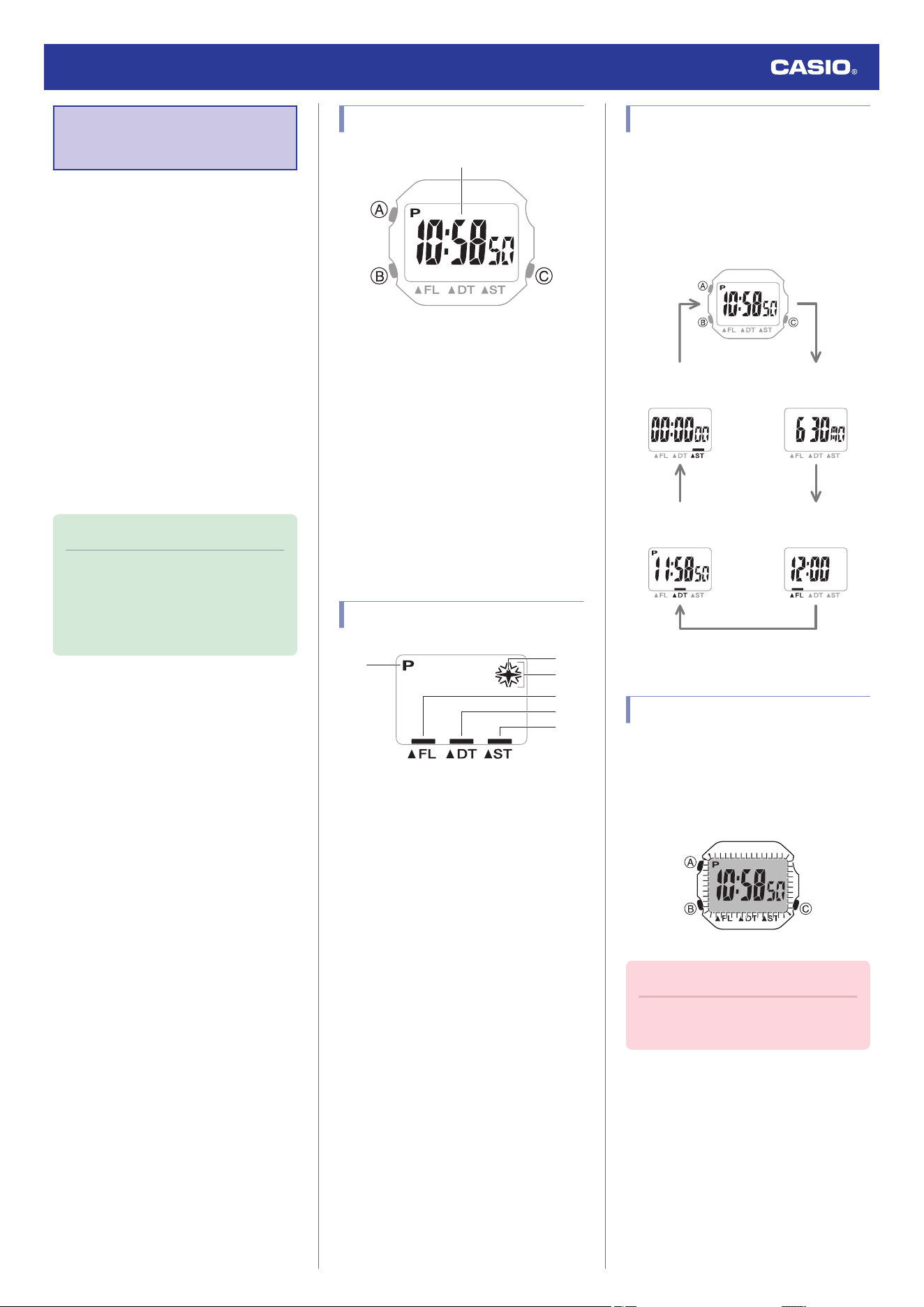
General Guide
Indicators
Navigating Between Modes
Viewing the Time in the Dark
Time Adjustment
Adjusting the Current Time Setting
Dual Time
Configuring Dual Time Settings
Time Flash
Turning On Time Flash
Turning Off Time Flash
Stopwatch
Measuring Elapsed Time
Other Information
Specifications
Troubleshooting
Operation Guide 3573
1
MA2411-EA © 2024 CASIO COMPUTER CO., LTD.
Precautions
Operating Precautions
●
Water Resistance
●
This product is water resistant under normal
daily use.
Water Resistance Under Daily Use
On the front or on the back
cover of the product
No BAR
mark
Example of Daily Use
Rain Yes
Hand washing, water-related
work, swimming
No
Windsurfing No
Skin diving No
●
Do not use this product for scuba diving or
other types of diving that require air tanks.
●
Avoid using the product when sweating
profusely, in locations where humidity is
high, and in areas where it may come into
direct contact with water or seawater.
●
Note the usage precautions described
below.
Such types of use reduce water resistance
performance and can cause fogging of the
glass.
ー
Do not operate buttons while the product
is under water or wet.
ー
Avoid wearing the product while in the
bath.
ー
Do not wear this product while in a heated
swimming pool, sauna, or any other high-
temperature/high-humidity environment.
ー
Do not wear this product while using
soaps or detergents to wash your hands
or face, while doing housework, etc.
●
A trained technician will inspect the product
for proper water resistance whenever you
have its battery replaced. Battery
replacement also requires the use of special
tools. Always request battery replacement
from your original retailer or from an
authorized CASIO service center.
●
The inside surface of the product's glass
may fog when the product is exposed to a
sudden drop in temperature. No problem is
indicated if the fogging clears up relatively
quickly.
Sudden and extreme temperature changes
(such as coming into an air conditioned
room in the summer and standing close to
an air conditioner outlet, or leaving a heated
room in the winter and allowing the product
to come into contact with snow) can cause
it to take longer for glass fogging to clear up.
If glass fogging does not clear up or if you
notice moisture inside of the glass,
immediately stop using the product and
take it to your original retailer or to an
authorized CASIO service center.
●
This product has been tested in accordance
with International Organization for
Standardization regulations.
●
Take off the product before performing
household chores or heavy work. Wearing
the product while performing household
chores or heavy work creates the risk of
product damage.
●
Take off the product before taking part in
sports activities. Wearing the product while
playing sports creates the risk of product
damage and personal injury.
●
Temperature
●
Never leave the product on the dashboard
of a car, near a heater, or in any other
location that is subject to very high
temperatures. Do not leave the product
where it will be exposed to very low
temperatures. Temperature extremes can
cause the product to lose or gain time, to
stop, or otherwise malfunction.
●
Leaving the product in an area hotter than
+60 °C (140 °F) for long periods can lead to
problems with its LCD. The LCD may
become difficult to read at temperatures
lower than 0 °C (32 °F) and greater than
+40 °C (104 °F).
●
Impact
●
This product is designed to withstand
impact incurred during normal daily use and
light activities such as catching, tennis, etc.
However, dropping the product or
otherwise subjecting it to strong impact can
lead to malfunction.
●
Magnetism
●
Though the digital timekeeping of this
product is normally not affected by
magnetism, very strong magnetism (from
medical equipment, etc.) should be avoided
because it can cause malfunction and
damage to electronic components.
●
Electrostatic Charge
●
Exposure to very strong electrostatic
charge can cause the product to display the
wrong time. Very strong electrostatic
charge even can damage electronic
components.
●
Electrostatic charge may cause temporary
blotching in blank areas of the LCD.
●
Chemicals
●
Do not allow this product to come into
contact with thinner, gasoline, solvents,
oils, or fats, or with any cleaners, adhesives,
paints, medicines, or cosmetics that contain
such ingredients. Doing so can cause
product discoloration or damage.
●
Storage
●
Keep the product and its accessories out of
the reach of children.
ー
This product is not intended to be used by
children.
Should a child ever swallow this product
or one of its accessories, contact a
physician immediately.
●
If you do not plan to use the product for a
long time, thoroughly wipe it free of all dirt,
sweat, and moisture, and store it in a cool,
dry place.
●
Resin Components
●
Daily use and long-term storage of the
product can lead to deterioration, breaking,
or bending of resin components. The extent
of such damage depends on usage
conditions and storage conditions.
●
Liquid Crystal Display
●
Display figures may be difficult to read when
viewed from an angle.
Note that CASIO Computer Co., Ltd.
assumes no responsibility for any
damage or loss suffered by you or any
third party arising through the use of this
product or its malfunction.
Operation Guide 3573
2
User Maintenance
●
Metal Components
●
Failure to clean dirt from metal components
can lead to formation of rust, even if
components are stainless steel or plated. If
metal components are exposed to sweat or
water, wipe thoroughly with a soft,
absorbent cloth and then place the product
in a well-ventilated location to dry.
●
Not operating the buttons for long periods
could lead to later problems with their
operation. Periodically press buttons to
maintain proper operation.
●
Dangers of Poor Product Care
Rust
●
Though the metal material used in the
manufacturing of this product is highly rust-
resistant, rust can form if the product is not
cleaned after it becomes dirty.
ー
Dirt on the product can make it impossible
for oxygen to come into contact with the
metal, which can lead to breakdown of
the oxidization layer on the metal surface
and the formation of rust.
●
Rust can cause sharp areas to form on
metal components. If you ever notice any
abnormality immediately stop using the
product and take it to your original retailer or
to an authorized CASIO service center for
(charged) servicing.
●
Even if the surface of the metal appears
clean, sweat and rust in crevasses can soil
clothing, cause skin irritation, and even
interfere with product performance.
Skin Irritation
●
Individuals with sensitive skin or in poor
physical condition may experience skin
irritation when wearing a product. Should
you ever experience a rash or other skin
irritation, immediately take off the product
and contact a skin care professional.
Battery Replacement
●
Leave battery replacement up to your
original retailer or authorized CASIO
service center.
●
Have the battery replaced only with the type
specified in the “Specifications”. Use of a
different battery type can cause
malfunction.
●
When replacing the battery, also request a
check for proper water resistance.
●
The battery that comes loaded in the
product when you purchase it is used for
function and performance testing at the
factory.
●
The test battery may go dead quicker than
the normally rated battery life as noted in the
“Specifications”. Note that you will be
charged for replacement of this battery,
even if replacement is required within the
product warranty period.
●
Low Battery Power
●
Low battery power is indicated by large
timekeeping error, by dim display contents,
or by a blank display.
●
Operation while battery power is low can
result in malfunction. Replace the battery as
soon as possible.
Operation Guide 3573
3
Before Getting
Started
This section provides an overview of the
product and introduces convenient ways it can
be used.
●
Product Features
●
Time Flash
The light flashes for about 20 seconds when
the specified time is reached.
The light also flashes at the top of every hour
on the hour.
●
Dual Time
Dual Time lets you keep track of the current
time in another time zone in addition to your
current location’s time.
●
Stopwatch
Measure up to 60 minutes of elapsed time
in units of 1/100 of a second.
Note
●
The illustrations included in this
operation guide have been created to
facilitate explanation. An illustration
may differ somewhat from the item it
represents.
General Guide
①
A Hour, minute, second
A button
Holding down this button for at least two
seconds in any mode displays the setting
screen.
B button
Each press cycles from one mode to the next.
Pressing this button while any setting screen
is displayed will change the setting.
C button
Press to turn on illumination.
Indicators
③
④
⑤
⑥
②
①
A Displayed during p.m. times while 12-hour
timekeeping is being used.
B Displayed when Hourly Time Flash is
turned on.
C Displayed when Time Flash is turned on.
D Displayed while in the Time Flash Mode.
E Displayed while in the Dual Time Mode.
F Displayed while in the Stopwatch Mode.
Navigating Between Modes
Each press of (B) cycles between modes.
●
Changing modes causes the light to turn on
momentarily.
The light may not be visible when ambient
lighting is bright.
B
B
B
B
Calendar Mode
Dual Time Mode
Stopwatch Mode
Time Flash Mode
Timekeeping Mode
B
Viewing the Time in the Dark
A light illuminates the face for viewing in the
dark.
●
Turning On Display Illumination
Press (C) to turn on illumination.
Important!
●
Frequent use of illumination will run
down the battery.
Operation Guide 3573
4
Time Adjustment
Use the procedures in this section to adjust the
date and time settings.
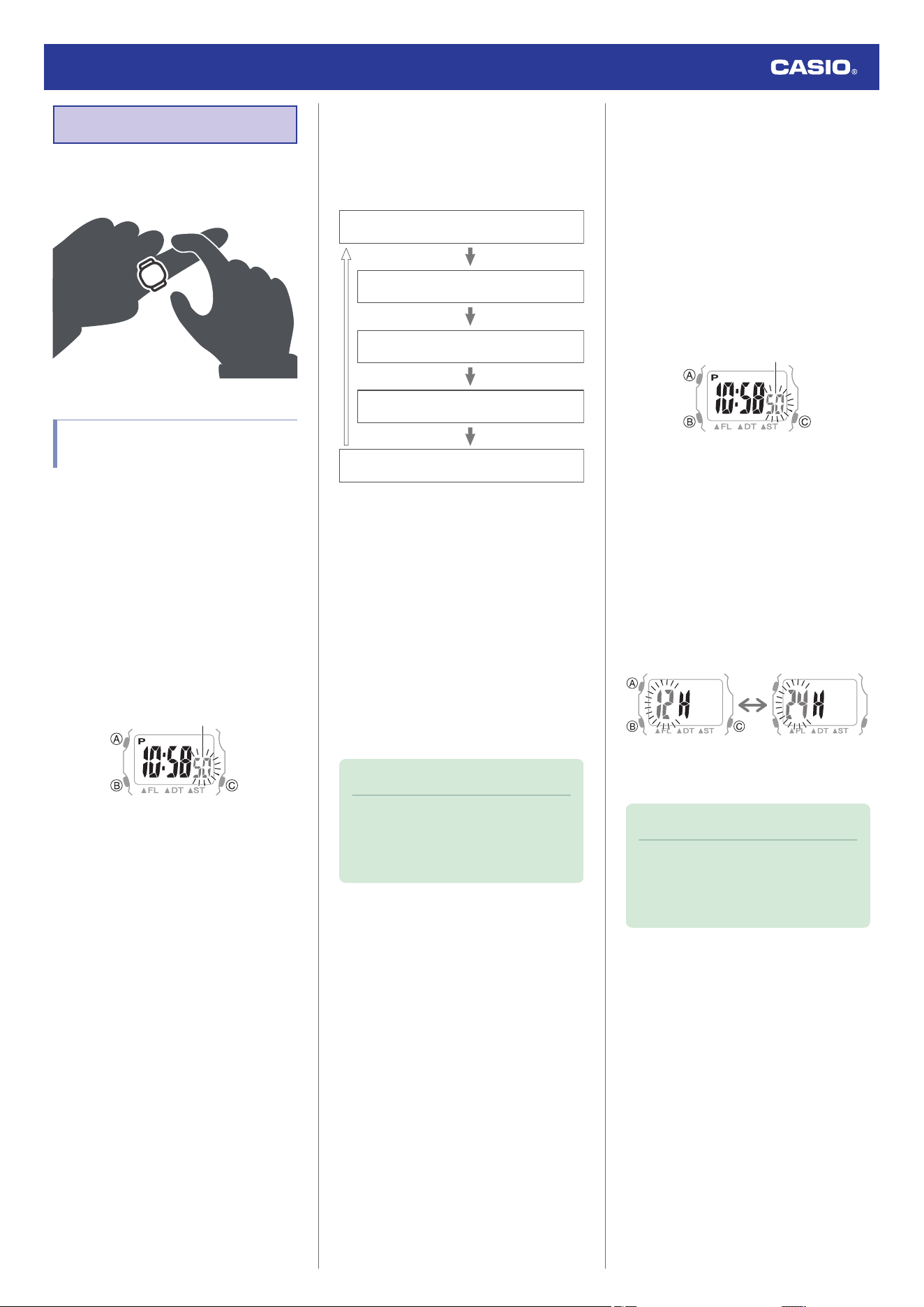
Adjusting the Current Time
Setting
Use the procedure below to change the time
and date settings.
●
To set the time
1. Enter the Timekeeping Mode.
l
Navigating Between Modes
2. Hold down (A) for at least two seconds.
This causes the light to turn on
momentarily and the seconds to flash.
●
The light may not be visible when
ambient lighting is bright.
Seconds
3. Use (A) to display the setting you want to
change.
●
Each press of (A) cycles through
settings in the sequence shown below.
Timekeeping Mode
12/24-hour timekeeping
Minutes
Hours
(At least 2 seconds)
Seconds
4. Configure the current time setting.
●
While the seconds are flashing,
pressing (B) resets them to 00. 1 is
added to the minutes when the current
count is between 30 and 59 seconds.
●
For all the other values, use (B) to
change the flashing setting.
Holding down (B) scrolls through
settings at high speed.
5. Repeat steps 3 and 4 to set the time.
6. Press (A) to return to the Timekeeping
Mode.
Note
●
While a setting is being configured, the
setting operation will be exited
automatically after about one or two
minutes of non-operation.
●
Switching between 12-hour and 24-
hour Timekeeping
You can specify either 12-hour format or 24-
hour format for the time display.
1. Enter the Timekeeping Mode.
l
Navigating Between Modes
2. Hold down (A) for at least two seconds.
This causes the light to turn on
momentarily and the seconds to flash.
●
The light may not be visible when
ambient lighting is bright.
Seconds
3. Press (A) three times.
Either [12H] or [24H] will flash on the
display.
4. Press (B) to select 12-hour or 24-hour
timekeeping.
Each press of (B) toggles between 12-
hour and 24-hour timekeeping.
●
[P] is displayed during p.m. times while
12-hour timekeeping is being used.
24-hour timekeeping12-hour timekeeping
5. Press (A) to return to the Timekeeping
Mode.
Note
●
While a setting is being configured, the
setting operation will be exited
automatically after about one or two
minutes of non-operation.
Operation Guide 3573
5
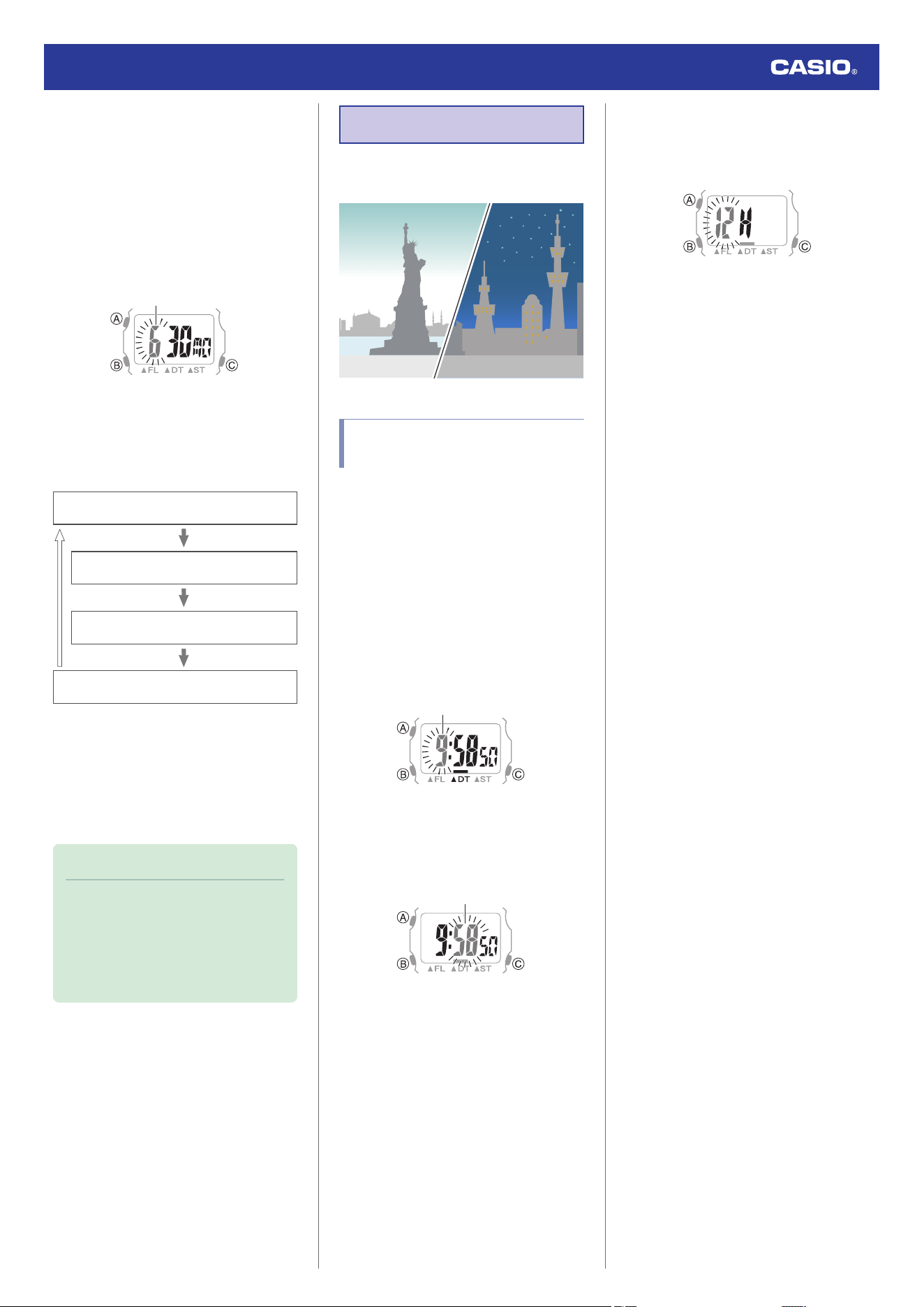
●
To set the day
1. Enter the Calendar Mode.
l
Navigating Between Modes
2. Hold down (A) for at least two seconds.
This causes the light to turn on
momentarily and the month to flash.
●
The light may not be visible when
ambient lighting is bright.
Month
3. Use (A) to display the setting you want to
change.
●
Each press of (A) cycles through
settings in the sequence shown below.
Calendar Mode
Day of week
Day
Month
(At least 2 seconds)
4. Configure the day setting.
●
Use (B) to change the value.
Holding down (B) scrolls through
settings at high speed.
5. Press (A) to return to the Calendar Mode.
Note
●
The Auto Calendar automatically
distinguishes between months of
different lengths. You do not need to
change the current time setting except
for leap years or after replacing the
battery.
Dual Time
Dual Time lets you look up the current time in
various time zones around the globe.
Configuring Dual Time
Settings
Dual Time lets you set the current time in
another time zone in addition to your current
location time.
1. Enter the Dual Time Mode.
l
Navigating Between Modes
2. Hold down (A) for at least two seconds.
This causes the light to turn on
momentarily and the hour to flash.
●
The light may not be visible when
ambient lighting is bright.
Hours
3. Use (B) to change the hour setting.
4. Press (A).
This causes the minutes digits to flash.
Minutes
5. Use (B) to change the minute setting.
6. Press (A).
Either [12H] or [24H] will flash on the
display.
7. Press (B) to select 12-hour or 24-hour
timekeeping.
Each press of (B) toggles between 12-
hour and 24-hour timekeeping.
●
[P] is displayed during p.m. times while
12-hour timekeeping is being used.
8. Press (A) to complete the setting
operation.
Operation Guide 3573
6
Time Flash
The light flashes for about 20 seconds when
the specified time is reached.
The light also flashes at the top of every hour
on the hour.
Note
●
The Time Flash light may not be visible
when ambient lighting is bright.
●
Time Flash is intended for
entertainment purposes.
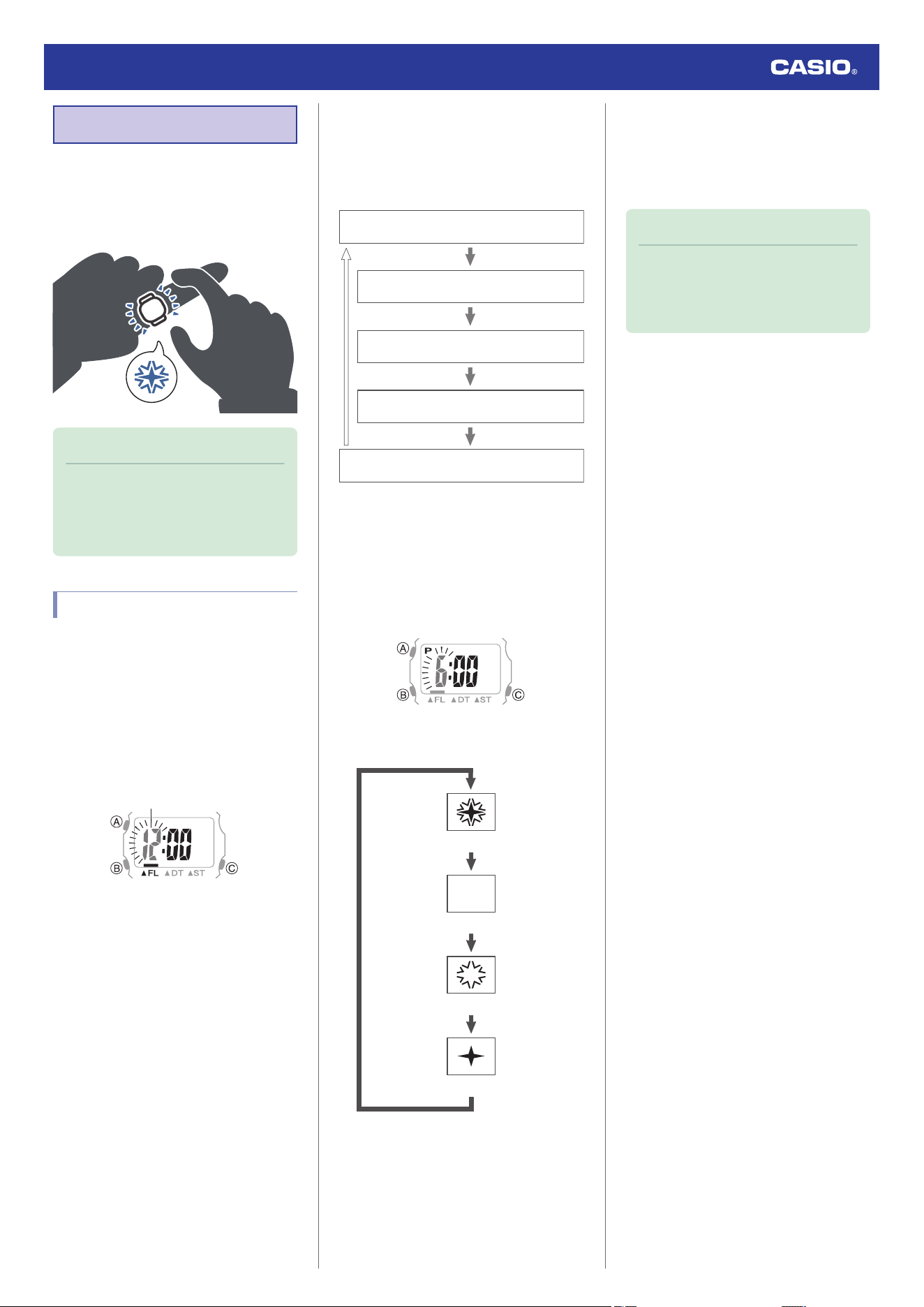
Turning On Time Flash
1. Enter the Time Flash Mode.
l
Navigating Between Modes
2. Hold down (A) for at least two seconds.
This causes the light to turn on
momentarily and the hour to flash.
●
The light may not be visible when
ambient lighting is bright.
Hours
3. Use (A) to display the setting you want to
change.
●
Each press of (A) cycles through
settings in the sequence shown below.
Time Flash Mode
Time Flash On/Off
Minute (ones digit)
Minute (tens digit)
Hours
(At least 2 seconds)
4. Use (B) to change the value.
●
Holding down (B) scrolls through
settings at high speed.
●
When setting the hour: If you are using
12-hour timekeeping, [P] indicates a
p.m. time.
●
Press (B) to cycle the Time Flash setting
in the sequence shown below.
Flash at a preset time and every hour on the hour.
OFF
Flash at a preset time.
Flash every hour on the hour
5. Repeat steps 3 and 4 to set the Time Flash
time.
6. Press (A) to complete the setting
operation.
Note
●
While a setting is being configured, the
setting operation will be exited
automatically after about one or two
minutes of non-operation.
●
To check Time Flash operation
In any mode, hold down (B) to view Time Flash
operation.
●
To stop Time Flash operation
After a Time Flash operation starts at a preset
time, press (A) or (B) to stop it.
Operation Guide 3573
7
Turning Off Time Flash
You can use the procedure below to turn off
Time Flash.
●
To turn Time Flash back on, perform the
procedure below again to select the desired
Time Flash setting.
1. Enter the Time Flash Mode.
l
Navigating Between Modes
2. Hold down (A) for at least two seconds.
3. Press (A) three times.
4. Press (B) to turn off Time Flash.
●
Press (B) to cycle the Time Flash setting
in the sequence shown below.
Flash at a preset time and every hour on the hour.
OFF
Flash at a preset time.
Flash every hour on the hour
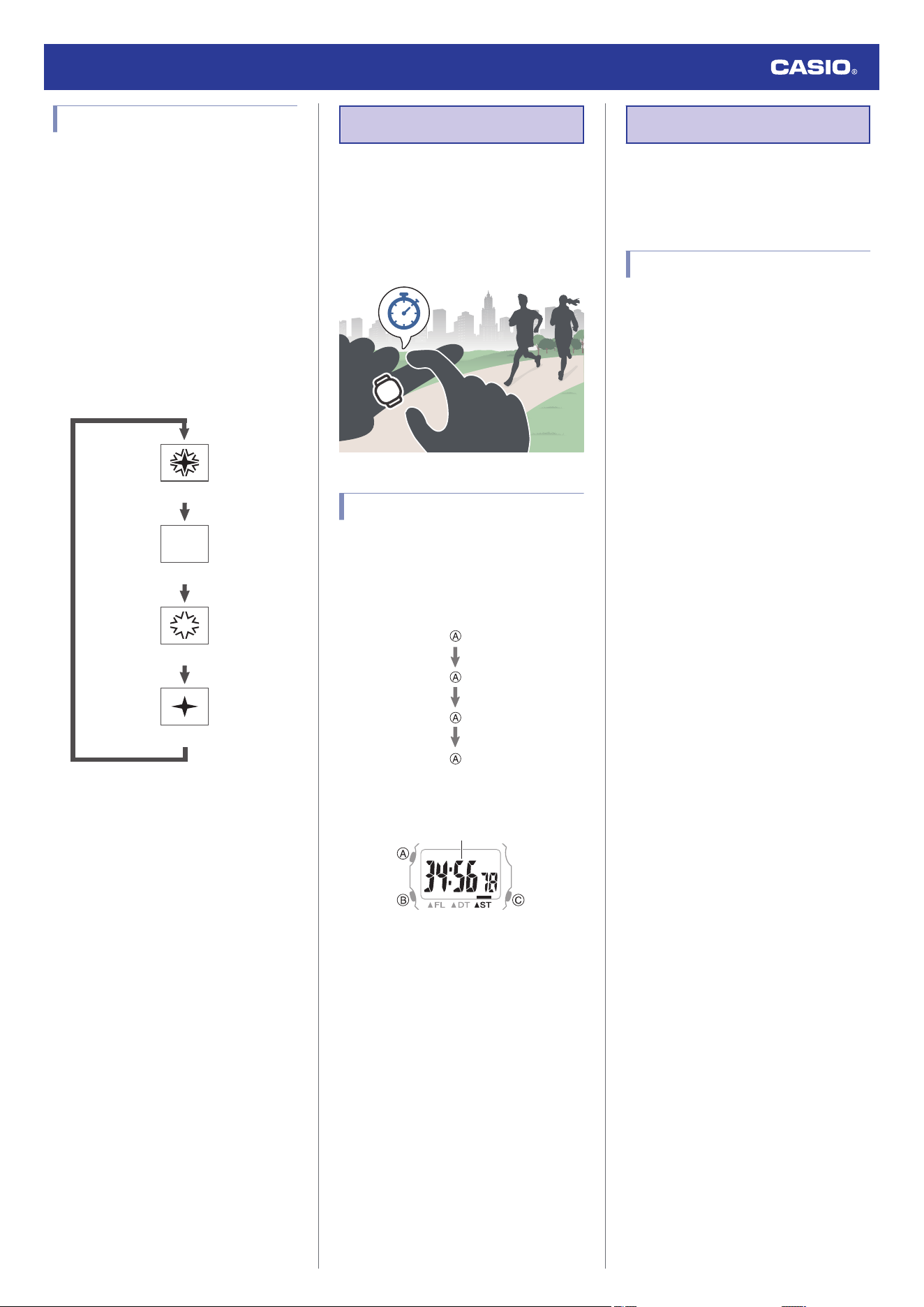
Stopwatch
The stopwatch lets you measure times up to
59 minutes, 59.99 seconds (60 minutes) long.
●
Take off the product before taking part in
sports activities. Wearing the product while
playing sports creates the risk of product
damage and personal injury.
Measuring Elapsed Time
1. Enter the Stopwatch Mode.
l
Navigating Between Modes
2. Use the operations below to measure
elapsed time.
Stop
Resume
Stop
Start
●
Elapsed time is displayed in 1/100-
second units.
Minutes, seconds, 1/100 seconds
3. To reset the elapsed time to all zeros, hold
down (A) for at least two seconds.
Other Information
This section provides non-operational
information you also need to know. Refer to
this information as required.
Specifications
Accuracy at normal temperature :
±30 seconds per month
Timekeeping :
Hour, minute, second, month, day, day of
the week
a.m./p.m. (P)/24-hour timekeeping
Auto Calendar (28 days for February)
Time Flash :
Flashing light at a preset time
Setting units: Hours, minutes
Flashing duration: 20 seconds
Flashing every hour on the hour
Dual Time :
Hours, minutes
12-/24-hour Time Switching
Stopwatch :
Measuring unit: 1/100 seconds
Measuring range: 59’59.99” (60 minutes)
Other :
Auto-return, LED light
Power Supply :
SR621SW x 1
Battery nominal voltage: 1.55V
Battery life: Approximately 2 years
Conditions:
Time Flash: 20 seconds/day
Illumination: 5 seconds/day
Ring size :
62 (ISO)
Accessories :
Size adjustment spacers: Large, small, 2
each
When unpackaging, check to make sure
everything is included. If something is
missing, contact your original retailer.
Specifications are subject to change without
notice.
Operation Guide 3573
8