Roomba 700 Series Owner’s Manual 1
UK
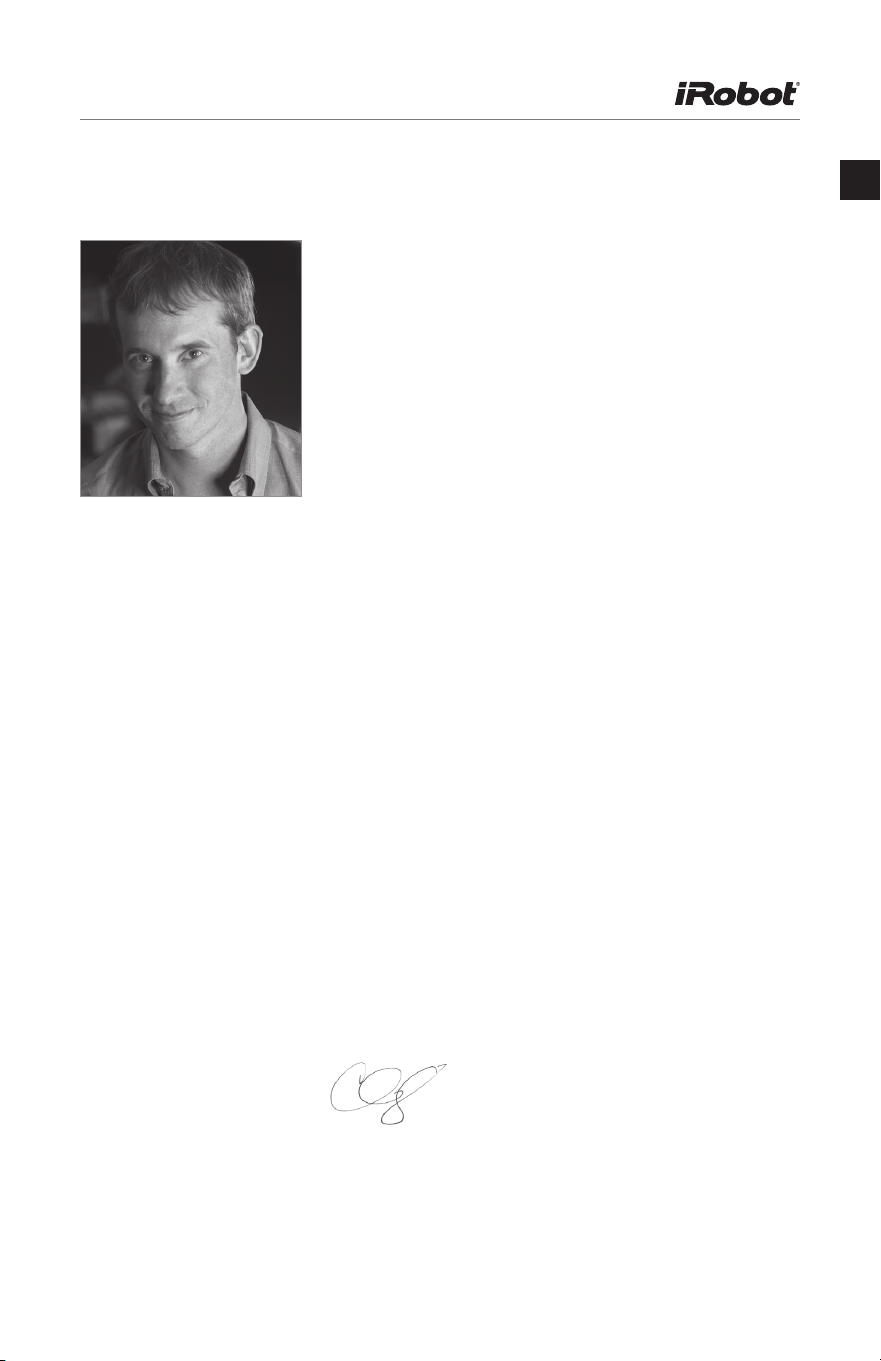
Dear iRobot
®
Roomba
®
Owner,
Thank you for purchasing an iRobot Roomba vacuum
cleaning robot. You’ve joined the millions of people who
clean with robots — the smarter way to get it done.
To get the best performance from your Roomba, please
take a few moments to read this manual and get
acquainted with it. If you have any questions, please
visit www.irobot.com/support for more information.
I also encourage you to register your Roomba straight
away at global.irobot.com/register.
By registering your robot, you’ll instantly activate your
warranty and start enjoying these exclusive benefits:
• Take advantage of iRobot’s award-winning
customer service: Get support tailored to your
specific robot, including answers to questions,
maintenance tips, video demos, live chat and more.
• Get product updates and other valuable
information: Be among the first to find out about new
robots, exclusive discounts and special promotions.
When you register, you can also tell us about your
experience with your Roomba; iRobot listens to our
customers and makes enhancements to our robots
based on your valued feedback. We’d love to hear from
you! On behalf of the entire team, thank you for choosing
iRobot. We appreciate your business, feedback and
loyalty. Here’s to robots that make a difference!
Yours for less chores and more life,
Colin Angle
Chairman, CEO and Co-Founder
iRobot Corporation
Welcome!

Roomba 700 Series Owner’s Manual 3
UK
Table of Contents
Important Safety Information ...................................................................................... 5
Getting Started ...........................................................................................................8
Home Base
™
..............................................................................................................9
Setting the Language ............................................................................................... 10
Important Tips ......................................................................................................... 11
How Roomba Cleans ...............................................................................................12
Cleaning Modes ....................................................................................................... 13
iRobot
®
Roomba
®
Anatomy .....................................................................................14
Auto Virtual Wall
®
.....................................................................................................18
Virtual Wall
®
Lighthouse
™
.........................................................................................19
Virtual Wall
®
Halo ......................................................................................................20
Cleaning Schedules .................................................................................................21
Remote Control ........................................................................................................22
Wireless Command Centre ......................................................................................23
Battery Storage and Charging ..................................................................................24
Maintenance ............................................................................................................25
Problems While Cleaning .........................................................................................27
Problems While Charging ......................................................................................... 28
Frequently Asked Questions.....................................................................................29
Declaration of Conformity .........................................................................................30
iRobot
®
Customer Care ...........................................................................................31

Roomba 700 Series Owner’s Manual 5
UK
Safety first: As your Roomba contains electrical parts, don’t submerge or spray
it with water – clean with a dry cloth only. Before using your product for the first
time please refer to the important safety instructions.
THIS APPLIANCE CAN BE USED BY CHILDREN AGED FROM
8 YEARS AND ABOVE AND PERSONS WITH REDUCED
PHYSICAL, SENSORY OR MENTAL CAPABILITIES OR LACK
OF EXPERIENCE AND KNOWLEDGE IF THEY HAVE BEEN
GIVEN SUPERVISION OR INSTRUCTION CONCERNING USE
OF THE APPLIANCE IN A SAFE WAY AND UNDERSTAND THE
HAZARDS INVOLVED. CHILDREN SHALL NOT PLAY WITH THE
APPLIANCE. CLEANING AND USER MAINTENANCE SHALL
NOT BE MADE BY CHILDREN WITHOUT SUPERVISION.
CAUTION: DO NOT EXPOSE THE ELECTRONICS OF
YOUR ROBOT, ITS BATTERY OR THE INTEGRATED DOCK-
CHARGER KNOWN AS HOME BASE. THERE ARE NO
USER SERVICEABLE PARTS INSIDE. REFER SERVICING
TO QUALIFIED SERVICE PERSONNEL. PLEASE ENSURE
VOLTAGE RATING FOR ENCLOSED HOME BASE MATCHES
STANDARD MAINS VOLTAGE.
Important Safety Information
Notice: Your robot contains a software interface for the purpose of enabling the manu-
facturer to provide updates to the internal firmware if any such updates are made
available to users. Any attempt to access, retrieve, copy, modify, distribute or otherwise
use any of the robot software is strictly prohibited.
Always exercise caution when operating your robot. To reduce the risk of injury or
damage, keep these safety precautions in mind when setting up, using and maintaining
your robot:
GENERAL SAFETY INSTRUCTIONS
• Read all safety and operating instructions before operating your robot.
• Retain the safety and operating instructions for future reference.
• Heed all warnings on your robot, battery, Home Base and in the owner’s manual.
• Follow all operating and use instructions.
• Refer all non-routine servicing to iRobot.
6 Roomba 700 Series Owner’s Manual
UK
Important Safety Information
The symbol on the product or its packaging indicates:
Do not dispose of electrical appliances as unsorted municipal waste, use
separate collection facilities. Contact your local government for information
regarding the collection systems available. If electrical appliances are disposed of
in landfills or dumps, hazardous substances can leak into the groundwater and
get into the food chain, damaging your health and well-being. When replacing
old appliances with new ones, the retailer is legally obliged to take back your old
appliance for disposal at least free of charge.
USE RESTRICTIONS
• Your robot is for indoor use only.
• Your robot is not a toy. Do not sit or stand on this device. Small children
and pets should be supervised when your robot is operating.
• Store and operate your robot in room temperature environments only.
• Clean with a cloth dampened with water only.
• Do not use this device to pick up anything that is burning or smoking.
• Do not use this device to pick up spills of bleach, paint or other chemicals
or anything wet.
• Before using this device, pick up objects like clothing, loose papers, pull
cords for blinds or curtains, power cables and any fragile objects. If the
device passes over a power cable and drags it, there is a chance an object
could be pulled off a table or shelf.
• If the room to be cleaned contains a balcony, a physical barrier should be
used to prevent access to the balcony and ensure safe operation.
• This appliance is not intended for use by persons (including children) with
reduced physical, sensory or mental capabilities, or lack of experience and
knowledge, unless they have been given supervision or instruction
concerning use of the appliance by a person responsible for their safety.
• Children should be supervised to ensure they do not play with the robot.
Cleaning and maintenance shall not be performed by children
without supervision.
• Do not place anything on top of your robot.
• Be aware that the robot moves on its own. Take care when walking in the
area that the robot is operating in to avoid stepping on it.
• Do not operate the robot in areas with exposed electrical outlets in the floor.
Roomba 700 Series Owner’s Manual 7
UK
Important Safety Information
BATTERY AND CHARGING
• Charge using a standard plug socket only. Product may not be used with
any type of power converter. Use of other power converters will immediately
void the warranty.
• Use only the Home Base supplied by the manufacturer to charge this device.
• Do not use a Home Base with a damaged cable or plug. If the cable or
plug is damaged, it must be serviced by the manufacturer or similarly
qualified persons.
• Use only rechargeable battery packs approved by iRobot.
• Always charge and remove the battery from your robot and accessories
before long-term storage or transportation.
• Charge indoors only.
• Your robot’s Home Base may be protected with a surge protector in the
event of severe electrical storms.
• Never handle the Home Base with wet hands.
• Always disconnect your robot from the mains before cleaning or
maintaining it.
• Please ensure voltage rating for enclosed Home Base matches standard
mains voltage.
• Used battery packs should be placed in a sealed plastic bag and disposed
of safely according to local environmental regulations.
• Before every use, check the battery pack for any sign of damage or
leakage. Do not charge damaged or leaking battery packs.
• If the battery pack is leaking, return it to your local authorised iRobot
Service Centre for disposal.
• The battery pack must be removed from the robot before disposal.
• Only use original battery packs with the correct specification and supplied
by iRobot.
• Do not crush or dismantle battery packs. Do not heat or place the battery
pack near any heat source.
• Do not incinerate the battery pack. Do not short-circuit the battery pack.
• Do not immerse the battery pack in any liquid.
ROOMBA
®
USE RESTRICTIONS AND SAFETY INFORMATION
• Use Roomba only in dry environments.
• Do not spray or pour liquids on Roomba.
8 Roomba 700 Series Owner’s Manual
UK
Getting Started
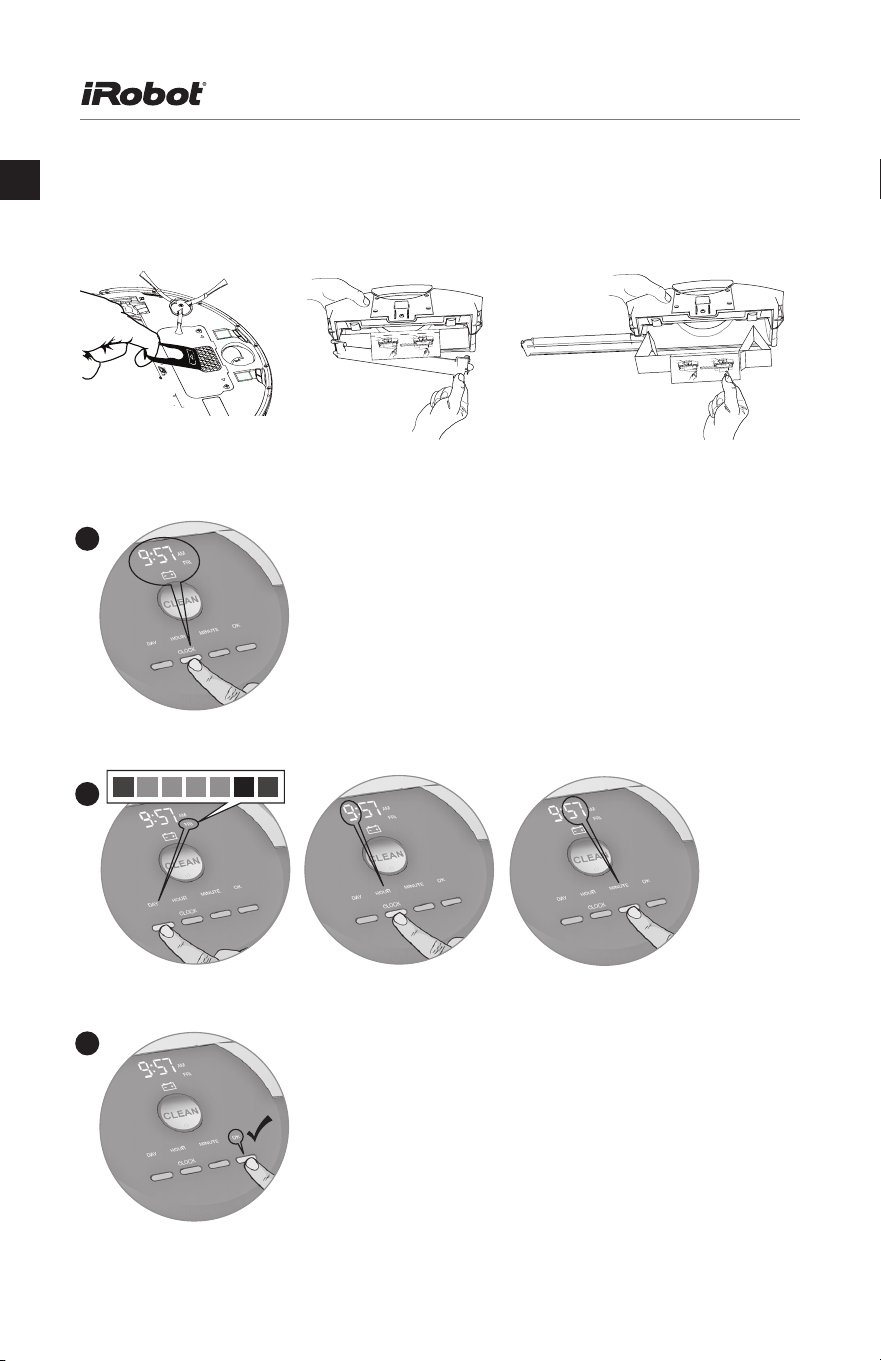
Before first use, turn Roomba upside down and remove the battery and bin pull tabs.
Setting the Clock
You must set the clock before scheduling Roomba to clean. To set the time:
SUN MON TUES WED THRS FRI SAT
1 2 3 4 5 6 7
Use the DAY, HOUR and MINUTE buttons individually to set the correct time.
2
Press OK, Roomba will beep to indicate the time and date has been set.
3
Press CLOCK.
1
Roomba 700 Series Owner’s Manual 9
UK
Setting the Clock
You must set the clock before scheduling Roomba to clean. To set the time:
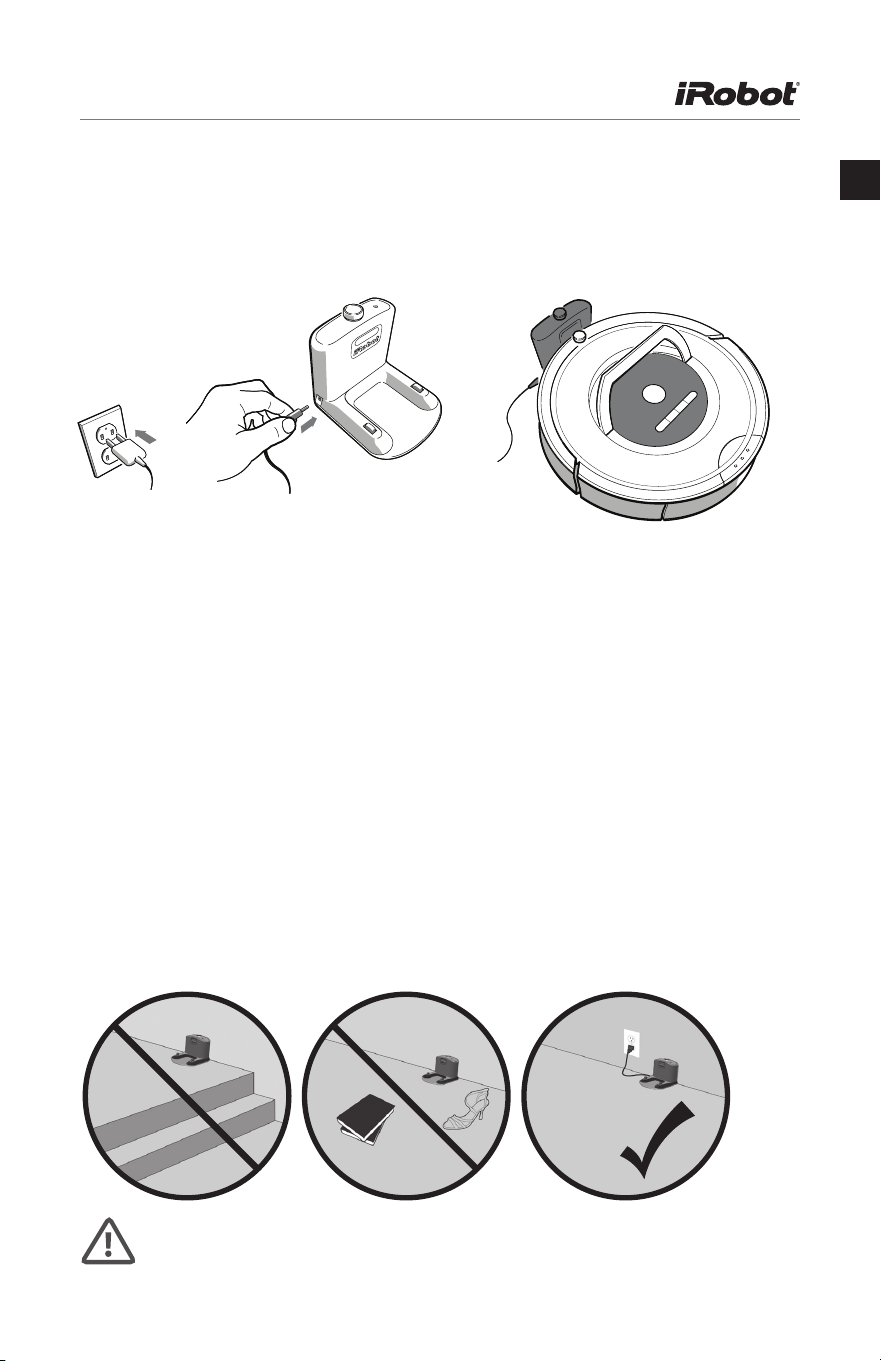
Use the Home Base
™
to charge the battery overnight before the first use.
At the end of a cleaning cycle or when Roomba’s battery is running low, it returns
to the Home Base to charge. Roomba needs to find the infra-red signal of the
Home Base in order to return.
• Always keep the Home Base plugged in. When the Home Base is plugged in, its
power light blinks to indicate the Home Base is connected to the
power source.
• If Roomba returns to the Home Base and is unable to dock, it will try again until
it docks successfully.
• When Roomba makes a connection and docks successfully, the Home Base
power light stops blinking and turns solid green.
Home Base Location
Position the Home Base on a hard, level surface against a wall. Make sure it’s at least
1.2 metres from any stairs and that Roomba has a clear path to reach it.
Home Base
™
Do not place the Home Base within 1.2 metres of a staircase.
10 Roomba 700 Series Owner’s Manual
UK
Roomba can provide troubleshooting messages in English, French, German, Spanish,
Italian, Dutch, Danish, Swedish, Norwegian, Finnish, Polish, Russian, Portuguese,
Japanese, Korean and Chinese.
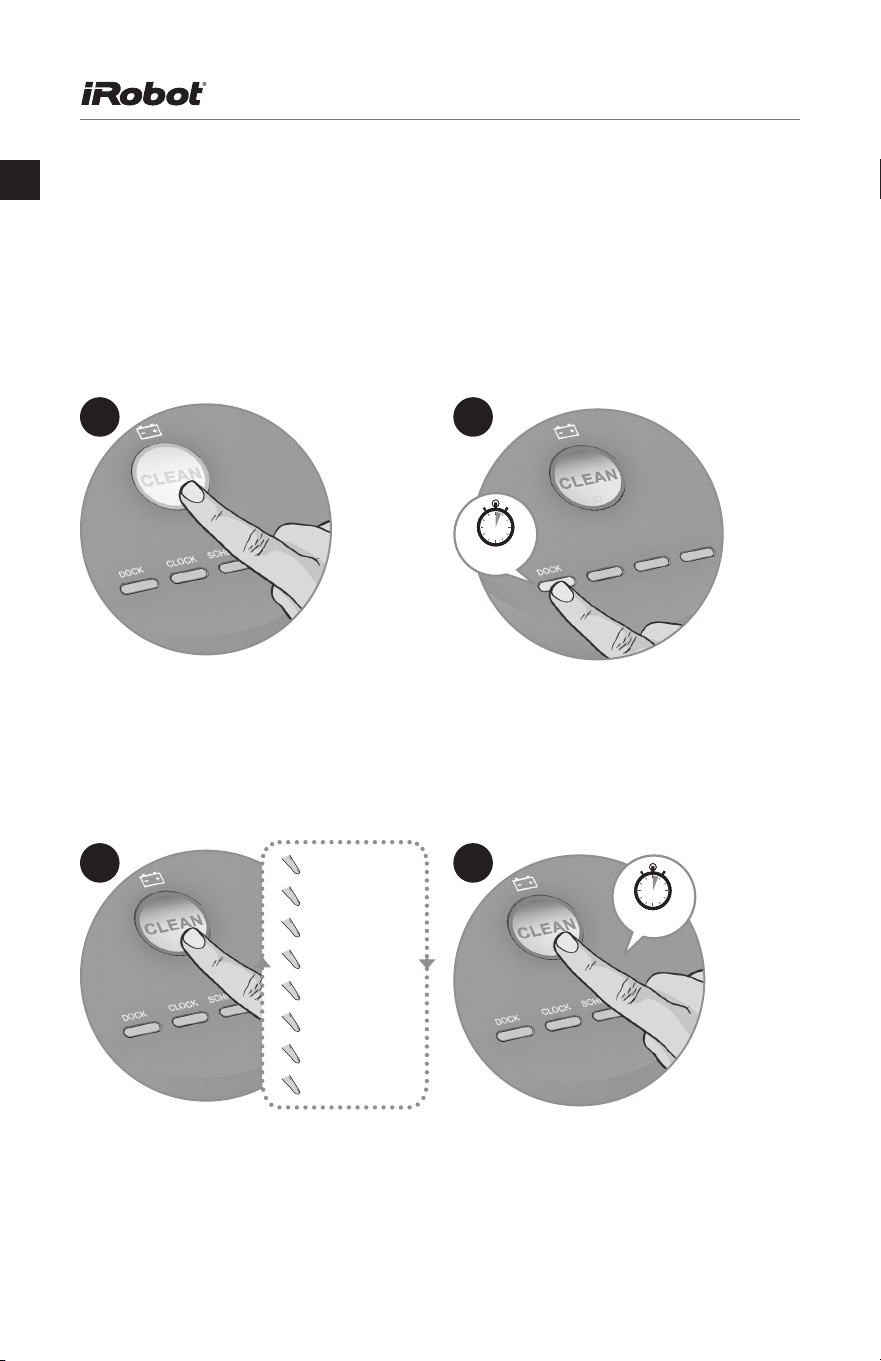
Roomba’s default language is English. To change the default language:
Setting the Language
1
x1
4
3 sec
x1
Take Roomba off the Home Base.
Turn on Roomba by pressing CLEAN,
the lights will turn on.
2
3 sec
Press and hold DOCK until Roomba
beeps and says the current language.
Release DOCK. Roomba is now in
Language Selection Mode.
3
English (x1)
Français (x2)
Deutsch (x3)
Español (x4)
Italiano (x5)
Pусский (x6)
普通话 (x7)
…(x16)
Press CLEAN repeatedly until you hear
the language you want.
Press and hold CLEAN to turn off Roomba
and confirm your language choice.
Roomba 700 Series Owner’s Manual 11
UK
Important Tips
Turning Roomba on and off
• To turn Roomba on, press CLEAN once. You will hear a beep, and the
CLEAN button will light up.
• To start a cleaning cycle, press CLEAN again. Roomba will start a cleaning cycle.
• To pause Roomba, press CLEAN while Roomba is cleaning.
• To resume the cleaning cycle, press CLEAN again.
• To turn Roomba off, press and hold CLEAN until Roomba’s lights turn off.
For Best Performance
• Empty Roomba’s bin and clean its filter after every use.
• Use an Auto Virtual Wall or Virtual Wall Lighthouse (optional accessories) to keep
Roomba cleaning where you want it.
• Wipe all sensors with a clean, dry, soft cloth every week.
• Use Roomba frequently.
Battery Life
To extend Roomba’s battery life and keep Roomba cleaning at peak performance:
• Always keep Roomba charged when not in use.
• Recharge Roomba as soon as possible following use; waiting several days can
damage the battery.
• For storage off of the Home Base, remove the battery from Roomba and store in
a cool, dry place.
Roomba contains electronic parts. DO NOT submerge Roomba or spray it with
water. Clean with a dry cloth only.
12 Roomba 700 Series Owner’s Manual
UK
Roomba cleans floors differently than the way most people do, using its robot intelli-
gence to efficiently clean the whole floor, under and around furniture and along walls.
As it cleans, Roomba calculates the optimal cleaning path and determines when to
use its various cleaning behaviours:
Room Crossing
Roomba criss-crosses the room to ensure full cleaning coverage.
Dirt Detection
When Roomba senses dirt, the Dirt Detect
™
light lights up and Roomba cleans more
intensely in that area.
How Roomba
®
Cleans
For the most efficient cleaning, clear your floor of clutter and use a Virtual Wall
to confine Roomba to one room.
Spiralling
Roomba uses a spiral motion to clean
a concentrated area.
Wall Following
Roomba cleans the full perimeter of the
room and navigates around furniture and
obstacles.
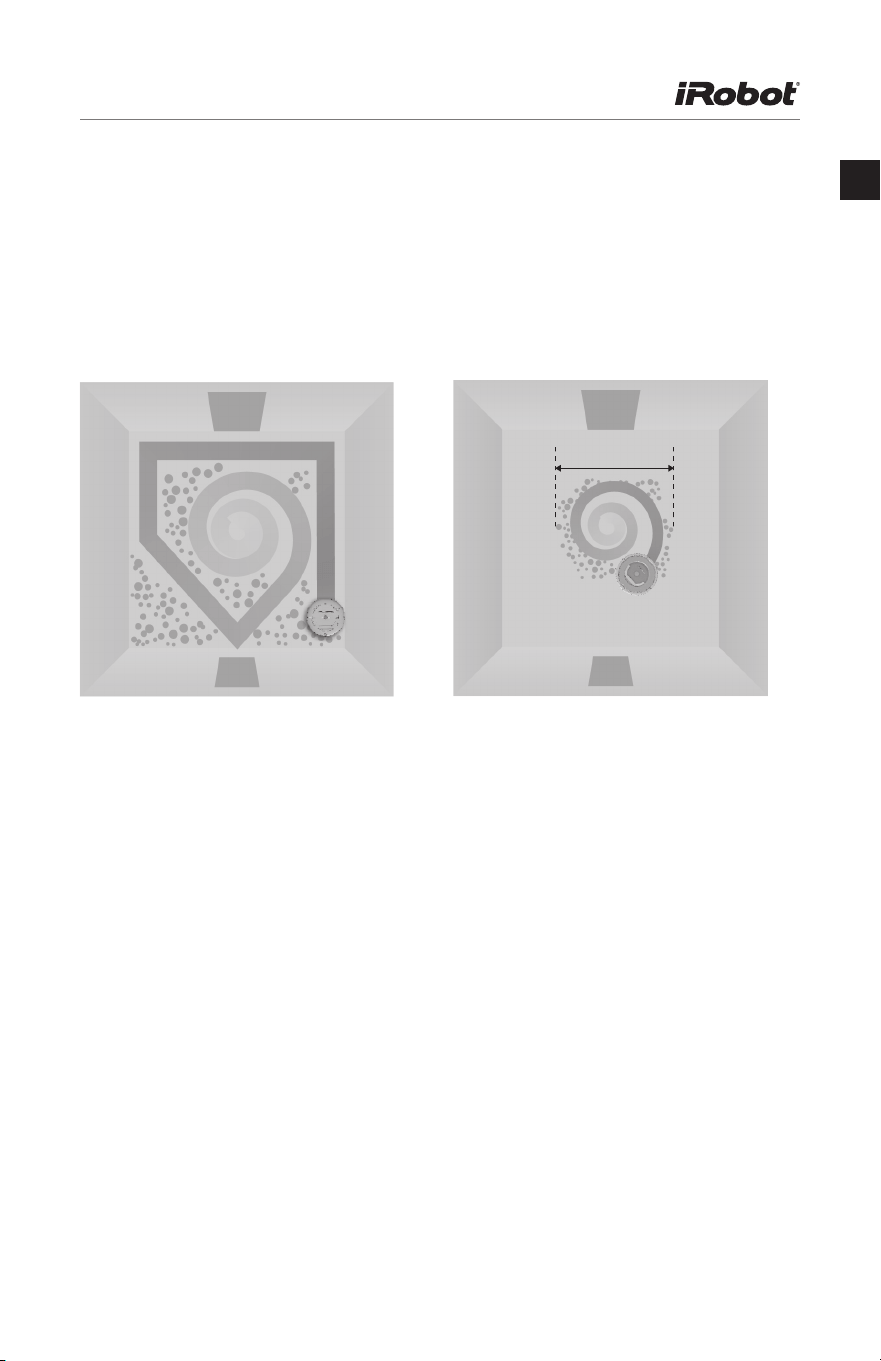
Roomba 700 Series Owner’s Manual 13
UK
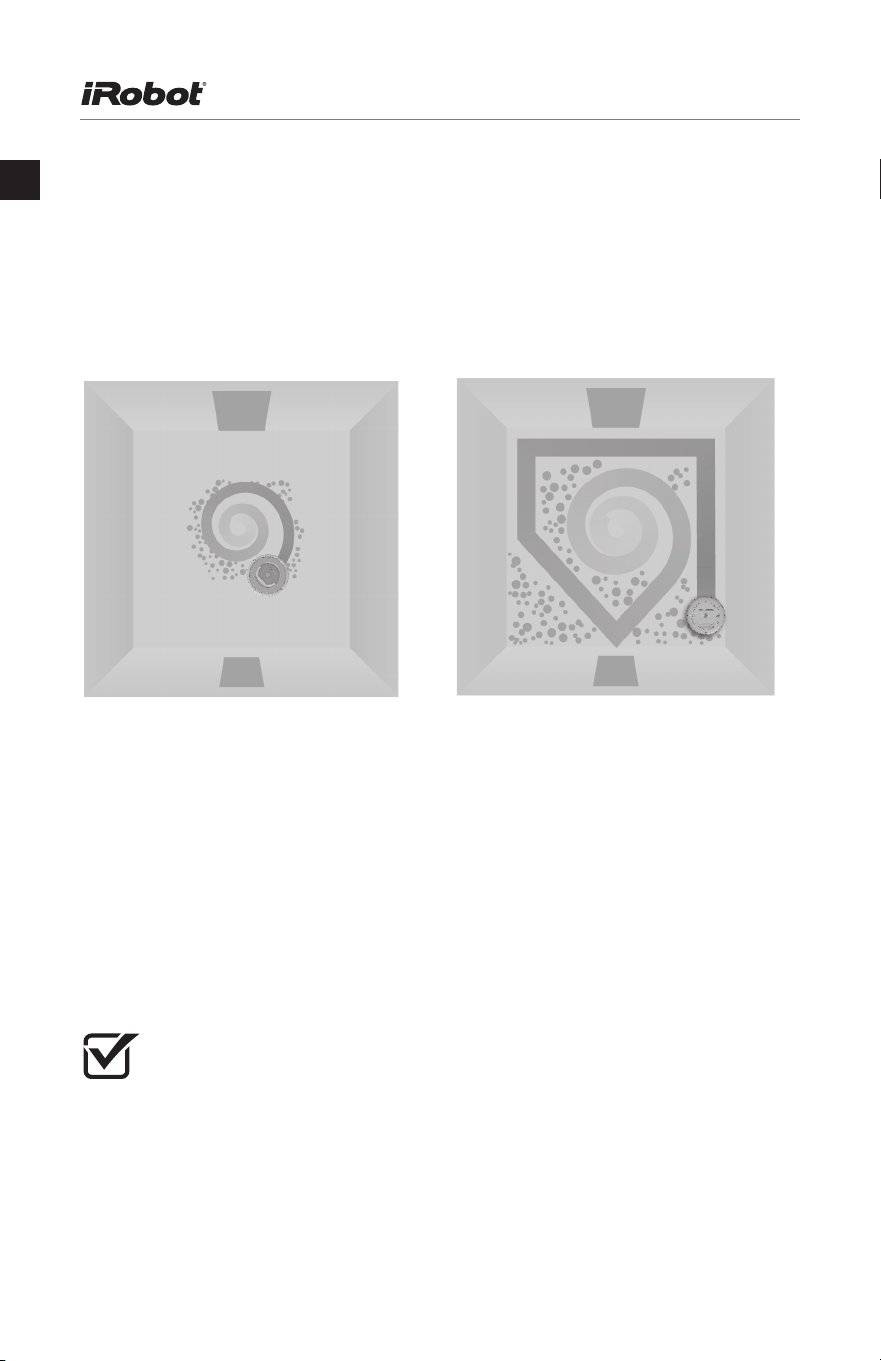
Roomba cleans based on the cleaning mode you select.
Roomba has three cleaning modes:
Scheduled Cleaning Mode
When a future cleaning time is programmed, Roomba enters this mode. At the
specified time, Roomba leaves its Home Base, cleans and then returns to the
Home Base to recharge when it’s done.
Cleaning Modes
1 m
Clean Mode
Roomba automatically calculates
the room size and adjusts its
cleaning time appropriately.
Spot Mode
Roomba spirals approximately one
meter in diameter and then spirals back
to where it started, intensely cleaning a
localised area.
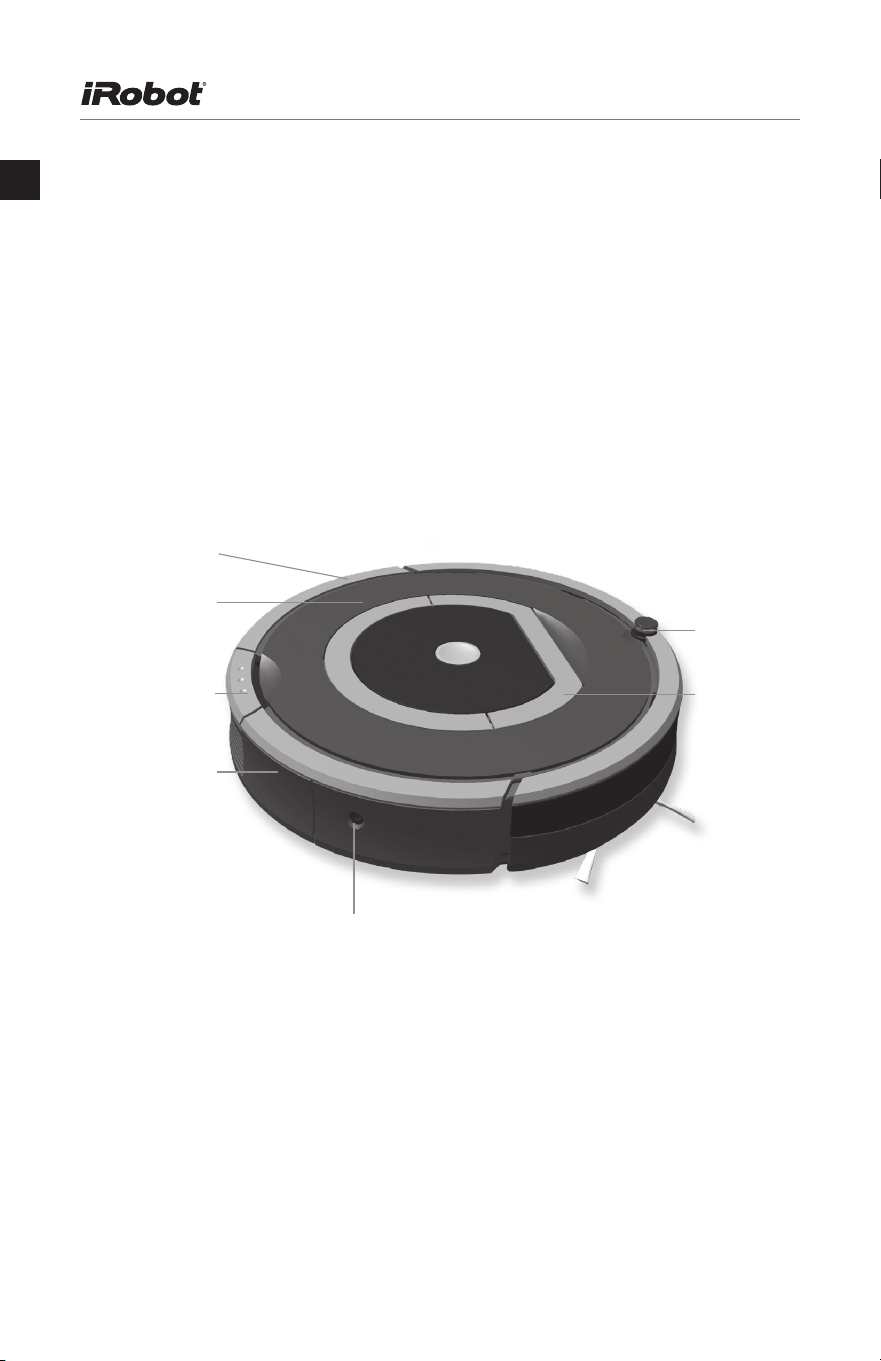
14 Roomba 700 Series Owner’s Manual
UK
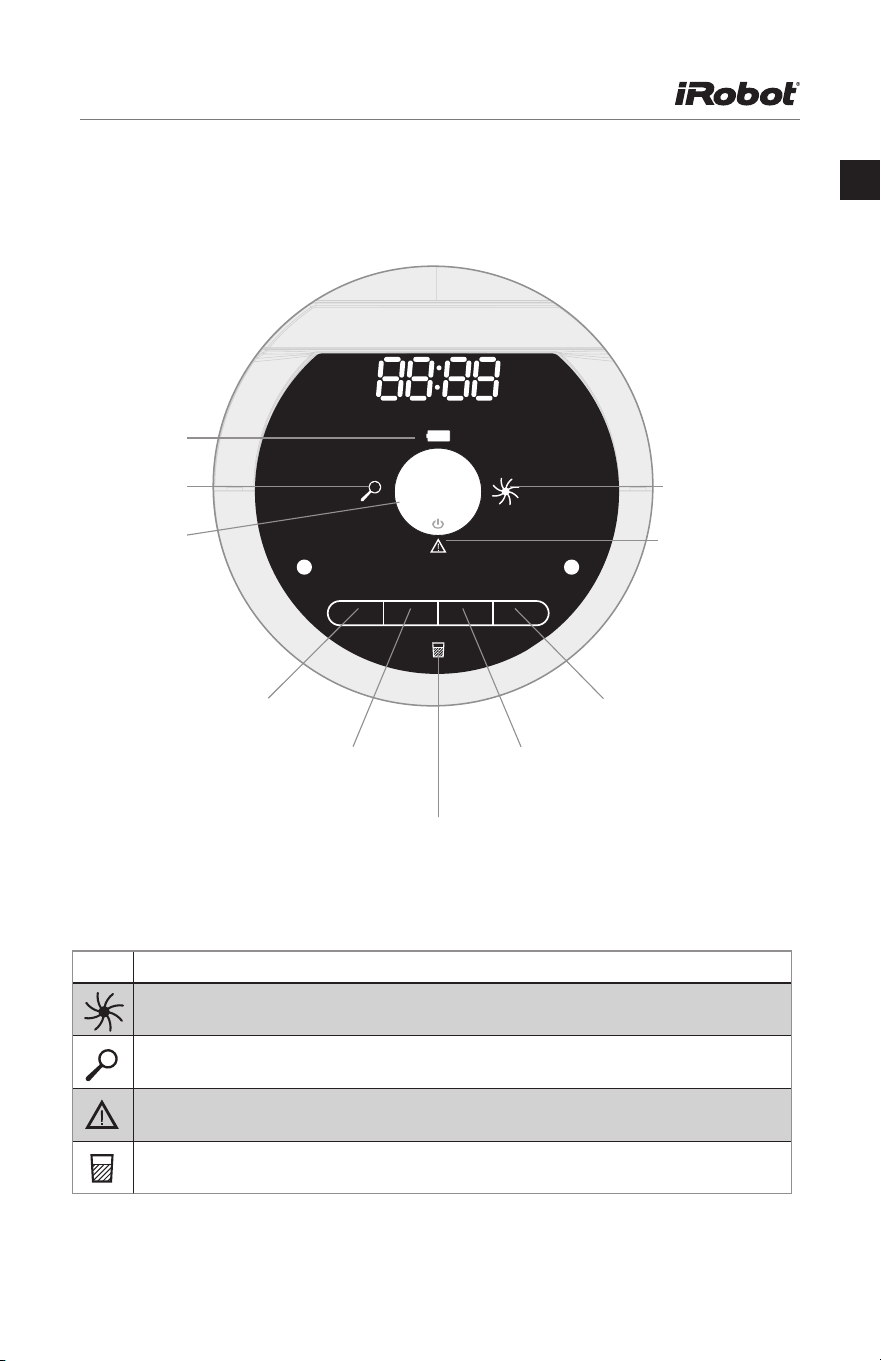
Top View
iRobot
®
Roomba
®
Anatomy
Faceplate
Bin Release
Button
Dust Bin
Trim
Infra-red
Sensor
Carry
Handle
Battery Charger Socket
(if applicable)
Battery Light
Dirt Detect™
Indicator
CLEAN/
Power Button
Roomba 700 Series Owner’s Manual 15
UK
Infra-red
Sensor
Carry
Handle
iRobot
®
Roomba
®
Anatomy
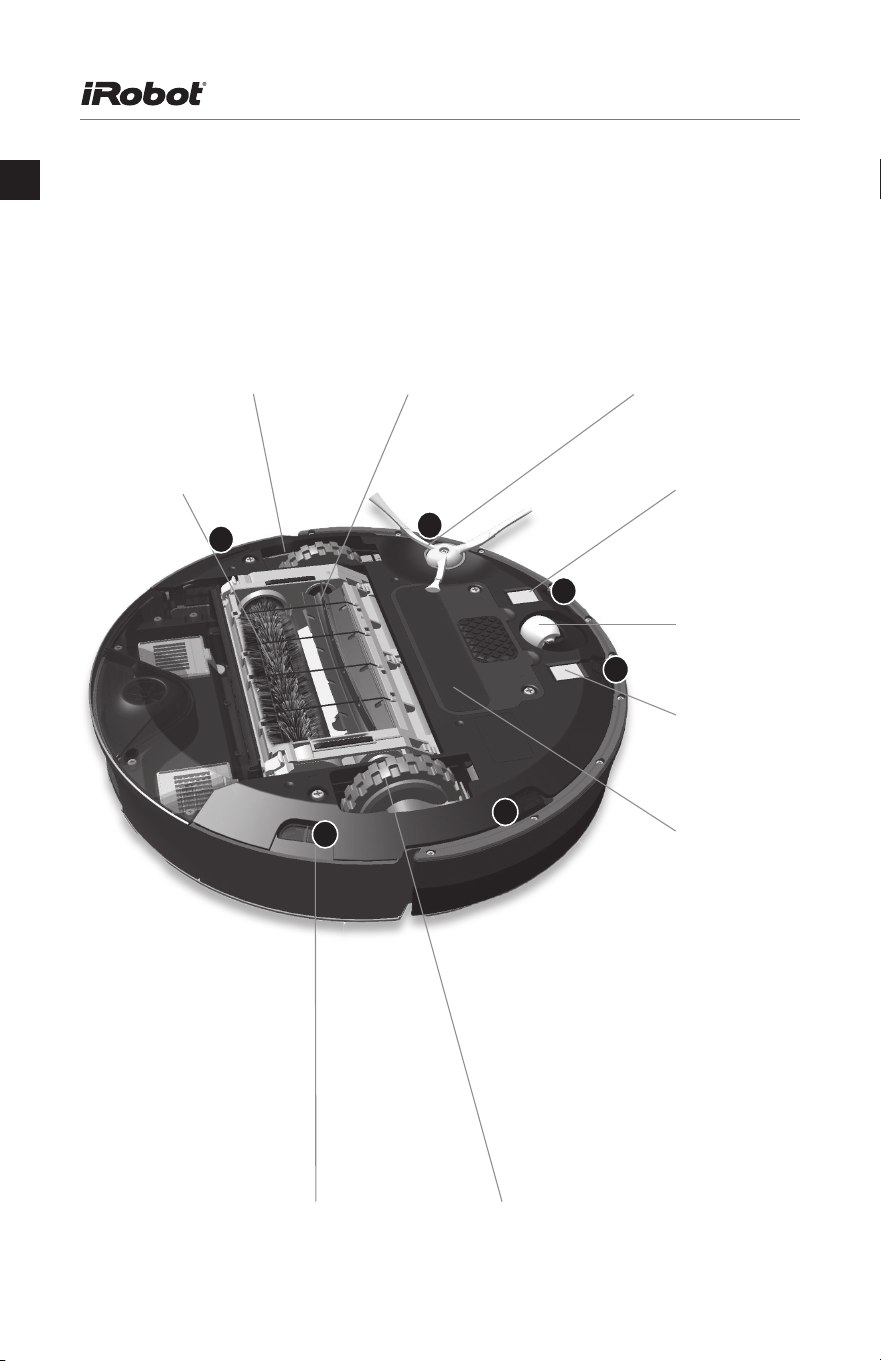
Buttons & Lights
AM
PM
MON
TUES
WED
THRS FRI SATSUN
OK
SPOT
MINUTE
SCHEDULE
HOUR
CLOCK
DAY
DOCK
Battery Light
Dirt Detect™
Indicator
CLEAN/
Power Button
Hour/Clock
Full Bin Light
Anti-Tangle Indicator
Troubleshooting Light
Day/Dock
Minute/Schedule
OK/Spot
CLEAN
Icon What does it mean?
The Anti-tangle Indicator turns on while Roomba is freeing itself from a tangle.
The Dirt Detect Indicator flashes when dirt is detected and persistent pass
cleaning pattern is initiated.
The Troubleshooting Light blinks when there is an issue
(see pages 27 and 28).
The Full Bin Indicator (models 770 and above) lets you know when the dust bin is full
and needs to be emptied.
16 Roomba 700 Series Owner’s Manual
UK
iRobot
®
Roomba
®
Anatomy
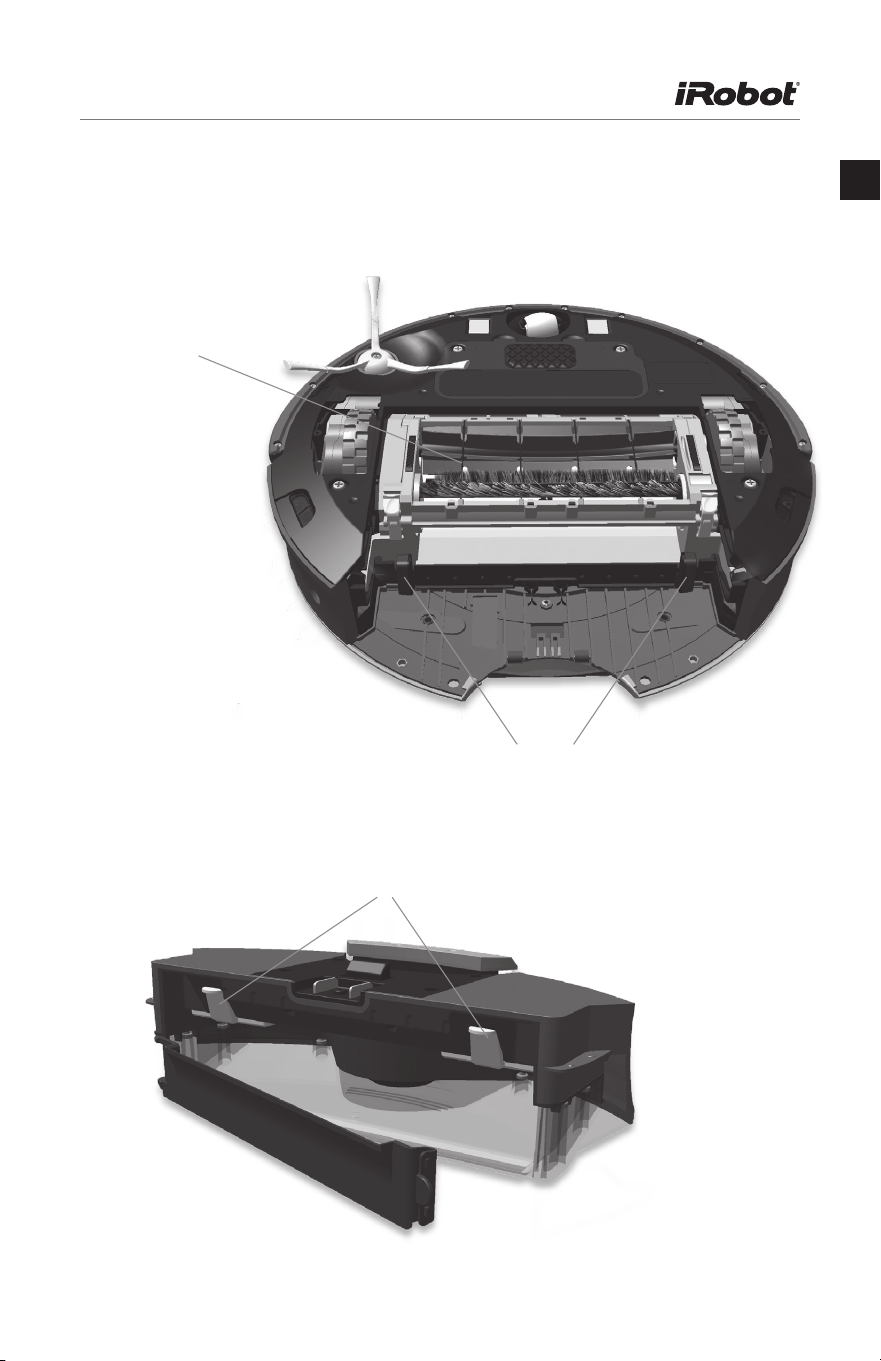
Bottom View
Right Wheel Module Rubber Brush Spinning Side Brush
Cliff Sensors (A-F) Left Wheel Module
Bristle Brush
Home Base
™
Contact Point
Removable
Caster Wheel
Battery Door
Home Base
™
Contact Point
A
B
C
E
F
D
Roomba 700 Series Owner’s Manual 17
UK
Home Base
™
Contact Point
Removable
Caster Wheel
Home Base
™
Contact Point
iRobot
®
Roomba
®
Anatomy
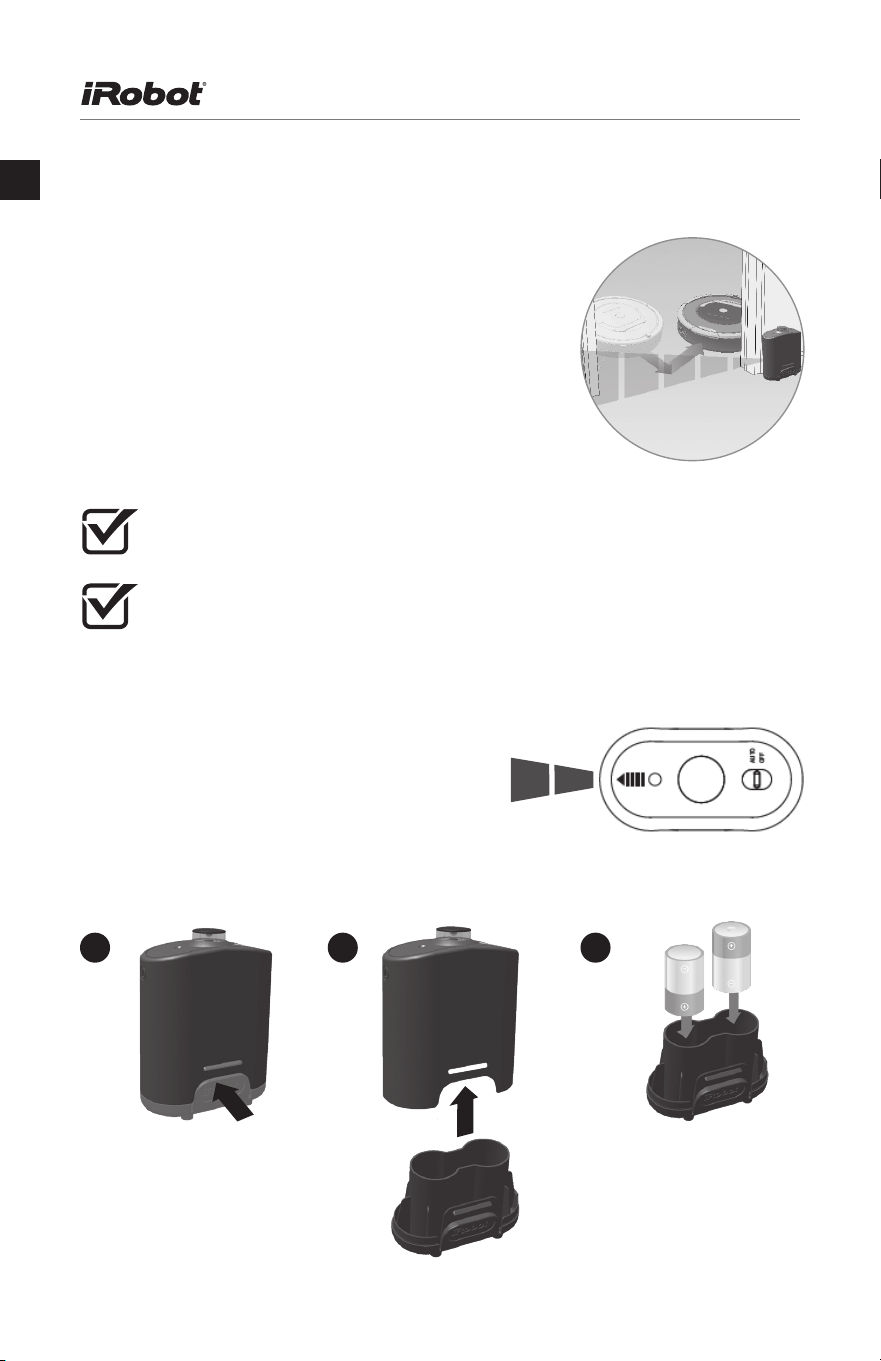
Cleaning Head
High-Capacity Sealed Bin
Brush Guard
Bin Sensors
HEPA Filters
18 Roomba 700 Series Owner’s Manual
UK
A Virtual Wall
®
creates an invisible barrier that Roomba
won’t cross. That makes it easy to confine Roomba to
a particular room or area, and prevent it from getting
too close to anything delicate or dangerous.
Set a Virtual Wall to block openings of up to
approximately two metres. It creates a cone-shaped
barrier, so the beam gradually gets wider. The Virtual Wall
also creates a halo of protection around itself, preventing
Roomba from getting too close.
Auto Virtual Wall
When a Virtual Wall is set to Auto mode, the power
light blinks continuously to indicate it is on. When
battery levels are low, the Virtual Wall blinks twice
repeatedly to indicate it needs new batteries.
When in Auto mode, the batteries should last for
about six months. To save battery power, turn
the Virtual Wall off.
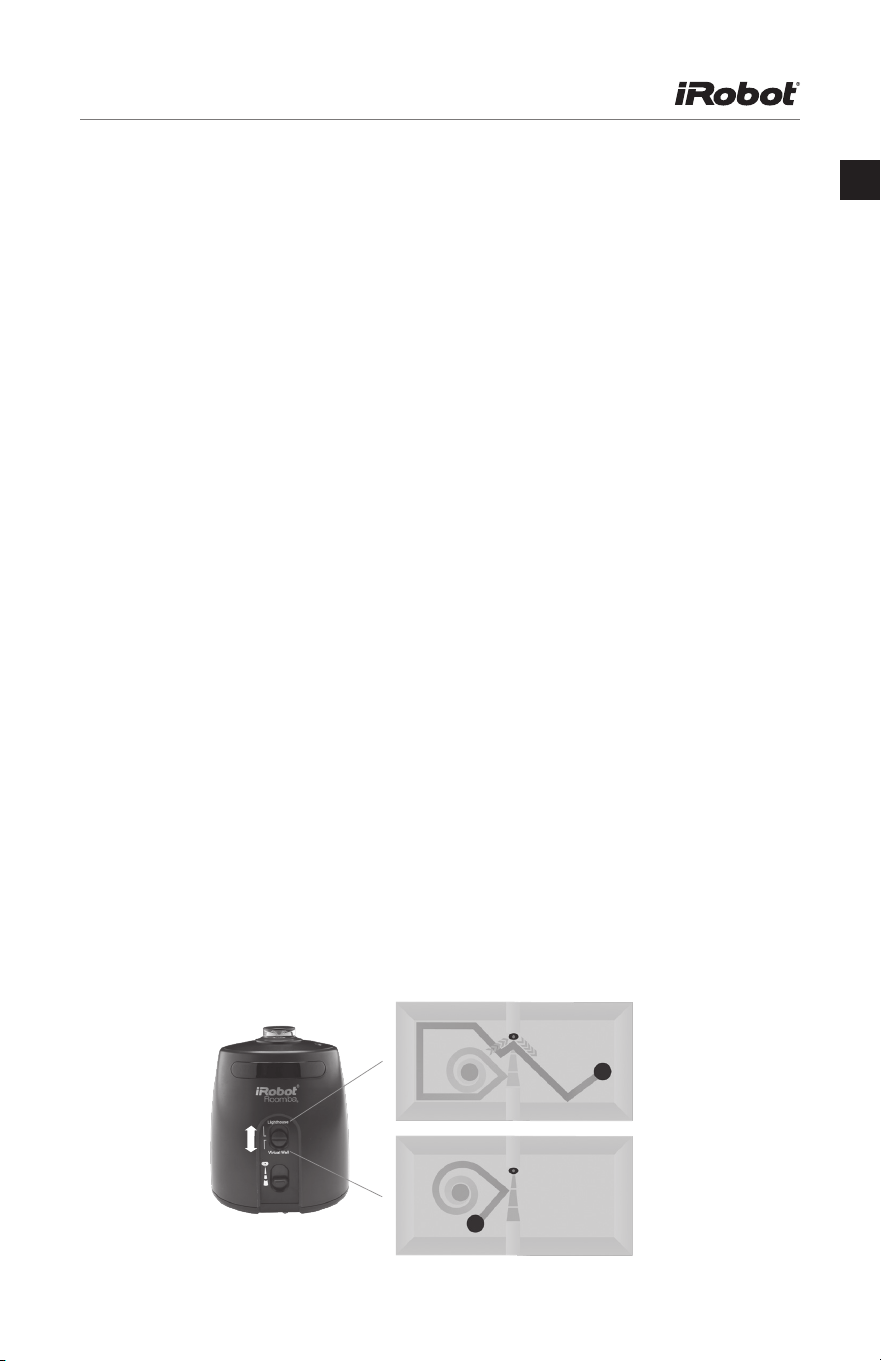
Battery Installation
Auto Virtual Wall
®
For best performance, place a Virtual Wall on the outside of the doorway you
want to block.
Point the arrows on top of the Virtual Wall across the opening you want to block.
(optional accessory compatible with all models)
Battery Compartment Two C Alkaline Batteries
1 2 3
Roomba 700 Series Owner’s Manual 19
UK
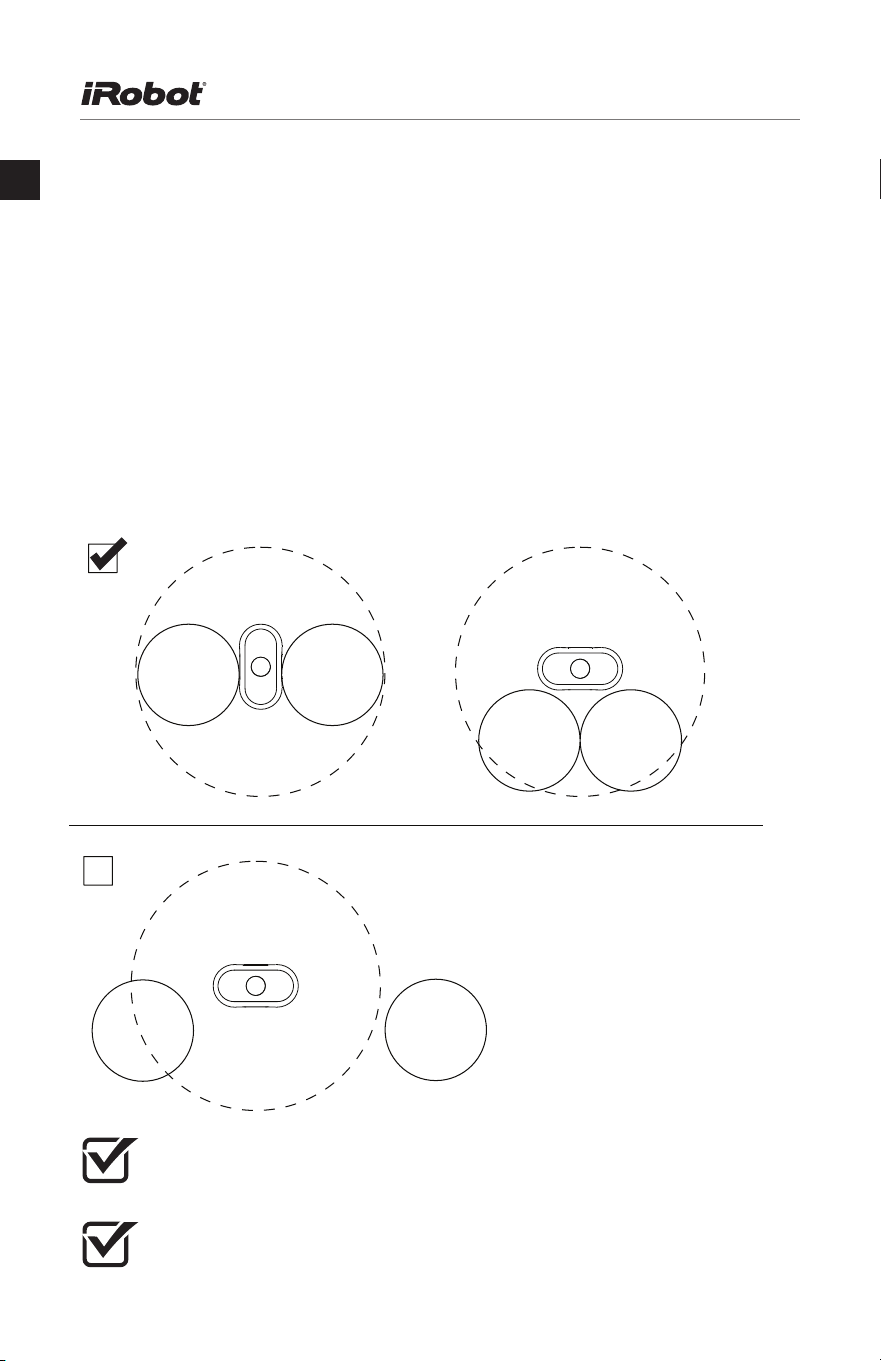
A Virtual Wall
®
Lighthouse
™
can be used in two ways.
• In Lighthouse mode, it allows Roomba to efficiently clean multiple rooms before
returning to the Home Base.
• In Virtual Wall mode, it blocks off areas you don’t want cleaned.
Simply use the Mode Selector to make your choice. Either way, the Lighthouse turns on
and off automatically as you turn Roomba on and off. When on, the light on top is lit.
Each Lighthouse runs on two C alkaline batteries. A flashing power light means the
batteries need replacing soon.
How to use the Lighthouse mode
Simply place a Lighthouse in the doorway with the logo facing forward. When Room-
ba has completed the first room, the Lighthouse will help it navigate around your
home, allowing it to clean room-to-room. When Roomba has completed cleaning, the
Lighthouse will direct it back to its Home Base for recharging.
You can use Lighthouse devices and Virtual Wall barriers at the same time. However,
please avoid placing them too close to each other, to the Home Base or to furniture
that could block the invisible beams. Otherwise, Roomba might not recognise the
Lighthouses or be able to return to its Home Base.
How to use the Virtual Wall mode
In Virtual Wall mode, the Lighthouse creates an invisible barrier that Roomba won’t
cross. It automatically turns off when Roomba is turned off.
Simply place the Lighthouse in the centre of the doorframe. Unlike a Virtual Wall, a
Lighthouse features a range selector that lets you adjust the length of the barrier —
up to 2.4 metres. Please note: setting a longer range will drain the battery faster.
Virtual Wall
®
Lighthouse
™
(optional accessory for some models)
20 Roomba 700 Series Owner’s Manual
UK
The Virtual Wall
®
Halo makes Roomba perfect for homes with pets. By setting up a
protective zone around the Virtual Wall, the Halo prevents Roomba from bumping into
and disturbing your pet’s food and water bowls.
Follow these steps to set up the Virtual Wall Halo:
1. Once you have installed batteries in the Virtual Wall, insert it all the way into the
Halo. The circular lens of the Virtual Wall should be completely visible at the top.
2. Place the Halo on the floor, level with Roomba and close to the bowls
(as shown below).
3. If you have one bowl, place it beside the Halo, almost touching the wall.
If you have two bowls, place one on either side of the Halo.
Virtual Wall
®
Halo
x
protective zone
bowlbowl
bowl bowl
Halo
Halo
protective zone
bowl
bowl
Halo
protective zone
The Virtual Wall Halo works on non-metal bowls less than 25 centimetres
in diameter and up to 8.9 centimetres tall.
As the Virtual Wall’s battery levels get low, the field may not be strong enough
to protect your bowl(s). If that happens, change the batteries.
(optional accessory compatible with all models)
Protective zone approximately
50 centimetres in diameter
Roomba 700 Series Owner’s Manual 21
UK
Cleaning Schedules
Roomba’s clock can be viewed in either the 12-hour (AM/PM) format or the
24-hour format. To toggle between the two views, press and hold CLOCK for 5
seconds. Toggle between 12-hour and 24-hour format using the CLOCK button.
Press OK to save. Roomba beeps and the clock briefly illuminates to indicate
the clock format has been switched.
Roomba’s clock will switch back to the default 12-hour (AM/PM) format when
the battery is disconnected or very low on power.
Viewing Schedules
To view Roomba’s scheduled cleaning times:
1. Press SCHEDULE.
2. Press DAY to cycle through the scheduled cleaning times.
3. Press OK.
Deleting a Schedule
To delete a scheduled cleaning time:
1. Press SCHEDULE.
2. Press DAY to cycle through the scheduled cleaning times.
3. When Roomba displays the scheduled cleaning time you’d like to delete,
press and hold DAY for five seconds. Roomba will beep to indicate the
cleaning time has been deleted.
4. Press OK.
Changing the Schedule
To change the cleaning schedule:
1. Press SCHEDULE.
2. Press DAY to cycle through the scheduled cleaning times.
3. When Roomba displays the scheduled cleaning time you’d like to change,
press HOUR and/or MINUTE to make the change.
4. Press OK, Roomba will beep to indicate the schedule has been set.
22 Roomba 700 Series Owner’s Manual
UK
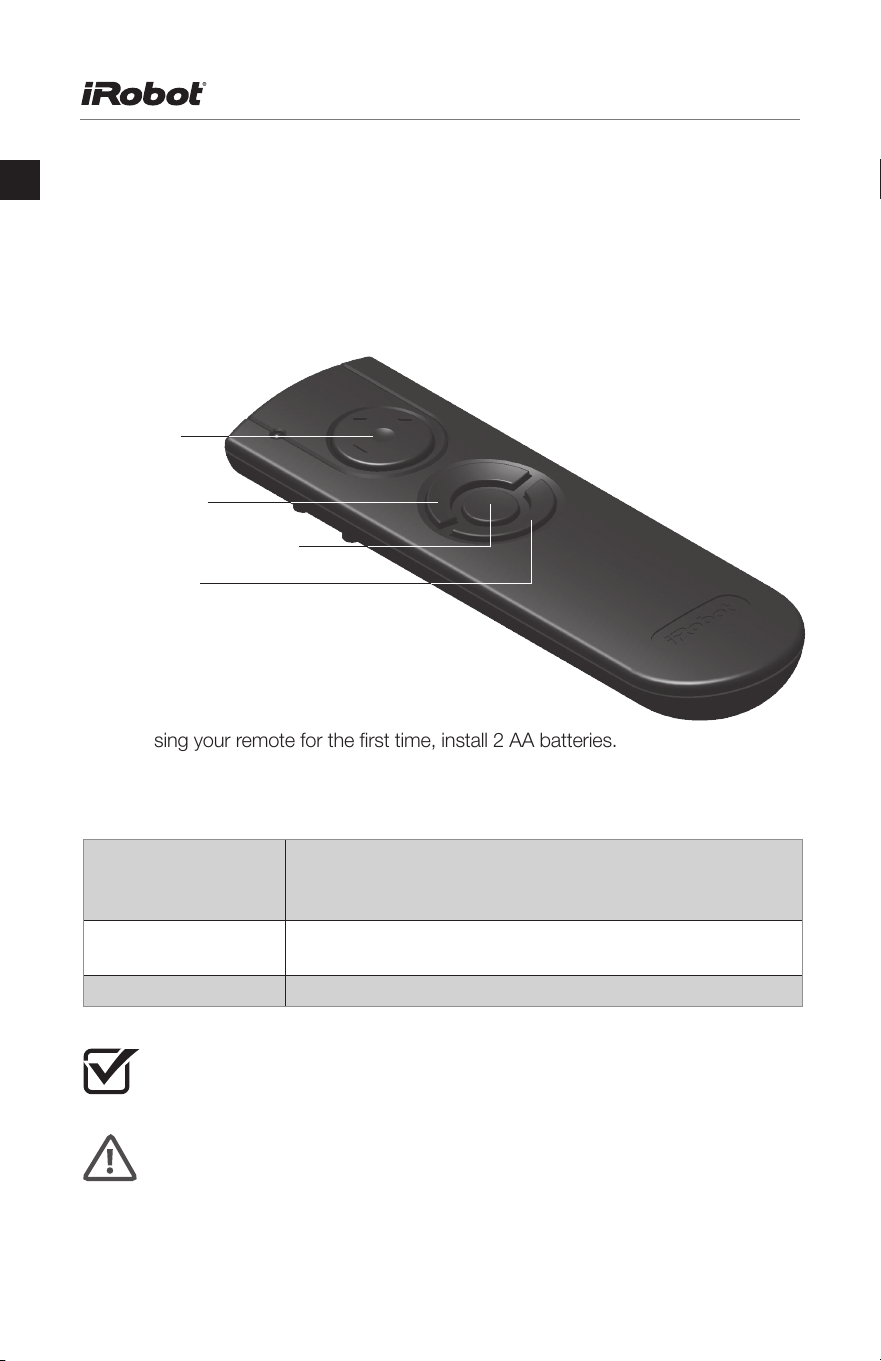
The Remote Control lets you conveniently control Roomba’s functions. You can use
it to turn Roomba on and off and steer it around your room without bending down.
It also gives you remote access to these commands:
Before using your remote for the first time, install 2 AA batteries.
Remote Control
SPOT Roomba spirals approximately 1 metre in diameter and
then spirals back to where it started, intensely cleaning a
local area.
CLEAN Roomba automatically calculates the room size and adjusts its
cleaning time appropriately.
Dock Roomba attempts to dock on the Home Base, if present.
Make sure there is a direct line of sight from the remote control to Roomba and
that the remote is pointed at Roomba.
The remote control, Virtual Wall, Lighthouse and Home Base operate using an
invisible infra-red beam. If they are all used in the same area, Roomba may see
multiple infra-red signals and will not operate. The remote WILL NOT work when
Roomba is near a Virtual Wall.
Directional
Buttons
SPOT Button
CLEAN/Power Button
Dock Button
(optional accessory for all models)
Roomba 700 Series Owner’s Manual 23
UK
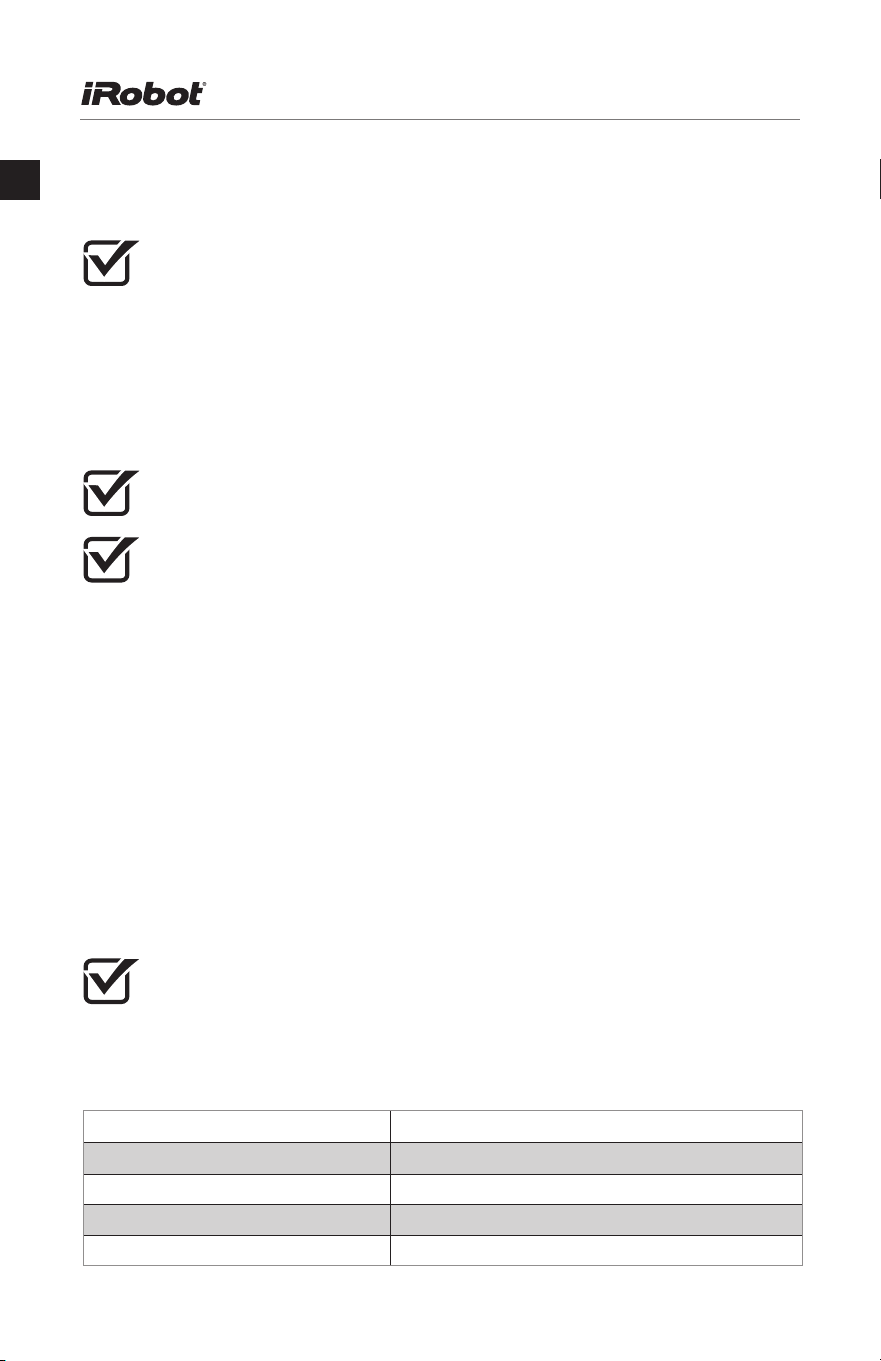
The Wireless Command Centre lets you control all Roomba functions from up to
7.6 metres away. Use the Wireless Command Centre to turn Roomba on and off,
schedule up to seven cleaning times a week and steer Roomba around the room.
To schedule Roomba to clean, use the buttons on the Wireless Command Centre
as if they were on the robot itself. See page 8 for details on setting Roomba’s clock.
See page 21 for viewing, changing and deleting the cleaning schedule.
Before using your Wireless Command Centre for the first time, install 4 AA batteries.
If you purchase a Wireless Command Centre, visit www.irobot.com/support for details
on setting up the Wireless Command Centre with Roomba.
Wireless Command Centre
(optional accessory for the 780, 785, 790 models)
24 Roomba 700 Series Owner’s Manual
UK
Battery Storage and Charging
Roomba is powered by a rechargeable battery. Roomba’s battery can last for hundreds
of cleaning cycles if cared for properly.
Battery Life
iRobot recommends always keeping Roomba charged to extend the battery life. For
more details on how to maintain Roomba’s battery life, visit www.irobot.com/support.
Cleaning Time
You should fully charge Roomba’s battery before each cleaning cycle. When fully
charged, the Battery light will be green and Roomba’s battery will last for at least one full
clean cycle.
16-Hour Refresh Charge
If Roomba has been left off the Home Base for an extended period, it will initiate a
special 16-hour charge cycle. This extensive charge refreshes Roomba’s battery and
extends battery life. While charging, Roomba’s CLEAN button pulses quickly.
Note: For best results, do not interrupt the refresh charge.
Charging Roomba
To charge Roomba, connect the line cable to the Home Base and then dock your robot.
Charging Lights
Roomba uses the battery icon light to indicate it is charging. Use this chart to deter-
mine the status of the battery.
Recharge Roomba as soon as possible following use; waiting several days can
damage the battery.
For storage away from the Home Base, remove the charged battery from
Roomba and store in a cool, dry place.
When Roomba is on the Home Base, always make sure that the Home Base
power light is on.
BATTERY ICON BATTERY STATUS
Solid red
Battery empty
Amber pulse Charging
Solid green Fully charged
Quick amber pulse 16-hour refresh charge
For best performance, charge Roomba’s battery overnight before using
Roomba for the first time.
Roomba 700 Series Owner’s Manual 25
UK
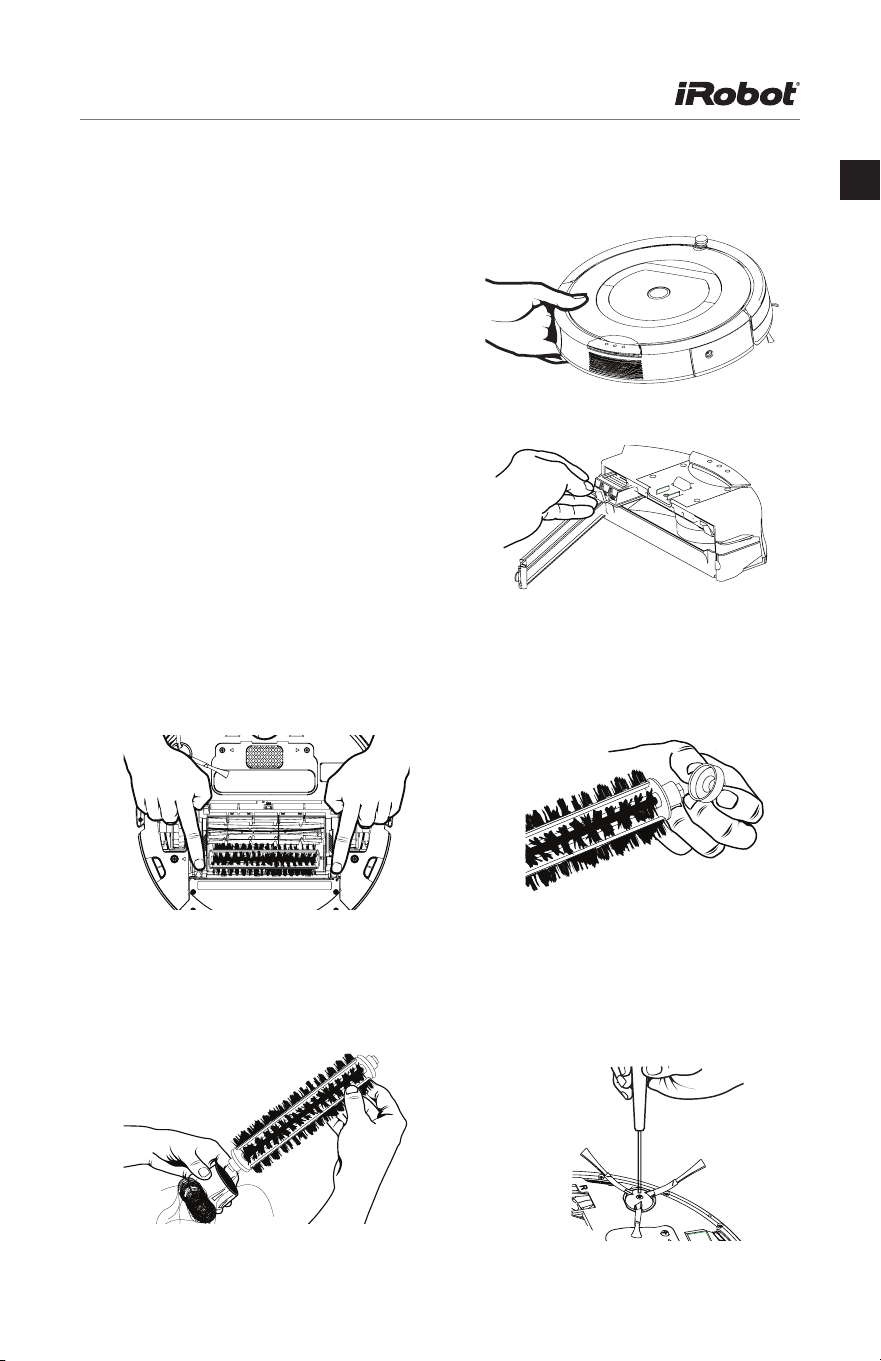
Maintenance
Emptying the bin
You should do this after each use.
Ensure the proper insertion of the bin each
time as Roomba will not run without it.
Cleaning the two filters
Regular cleaning is important and you
should replace the filters after two months of
regular use.
3. Use the included cleaning tool to
remove hair easily from the bristle
brush by pulling it over the brush.
4. To clean the side brush, use a
small Phillips screwdriver to remove
the screw from the centre. Remove
the brush, clean, reinstall.
2. Remove and clean the two
brushes and brush bearings.
1. Remove brush guard by lifting
both yellow tabs.
Cleaning the brushes and associated parts
26 Roomba 700 Series Owner’s Manual
UK
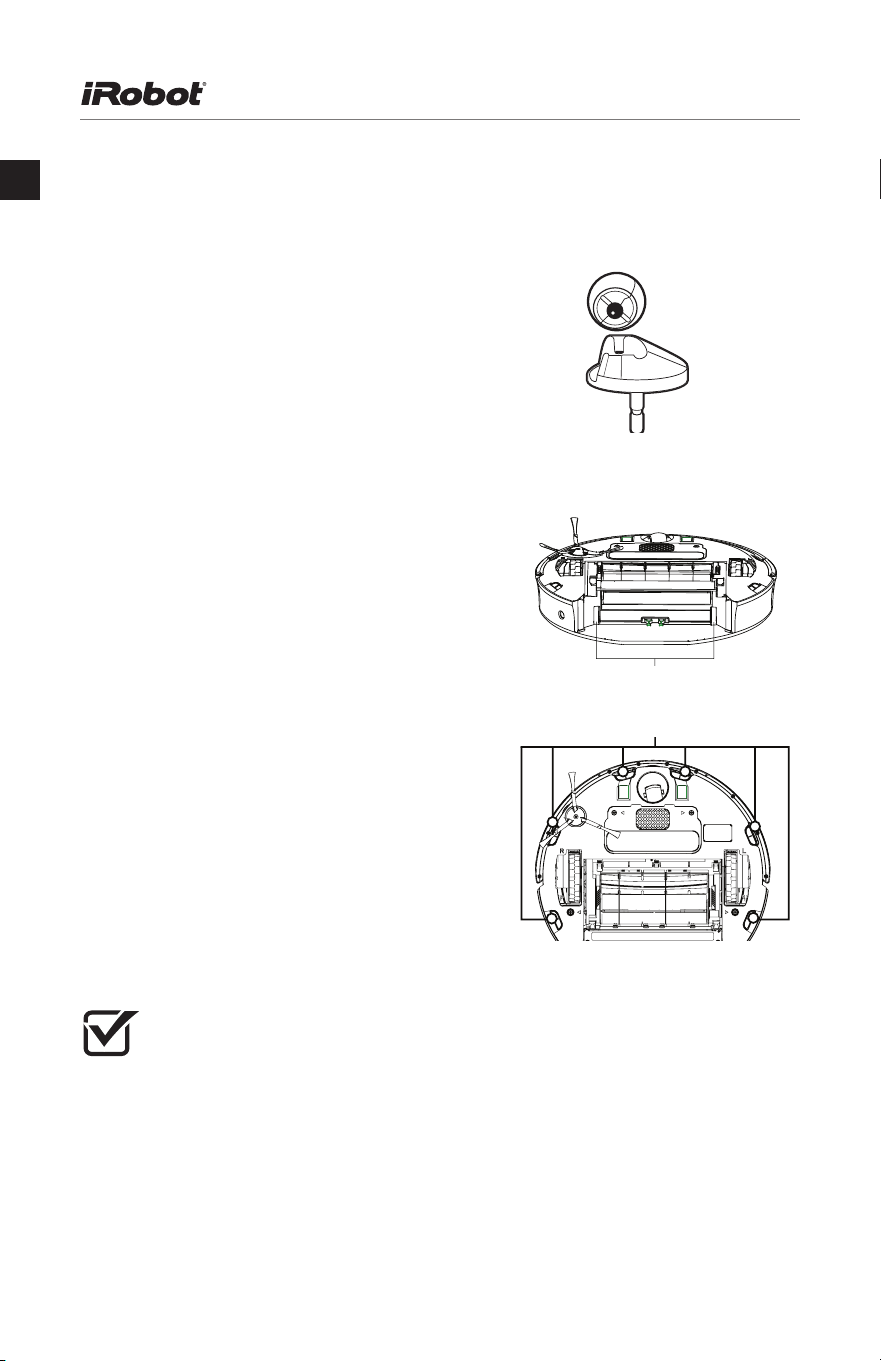
Cleaning the front wheel
1. Pull firmly on the front wheel to remove it.
2. Remove any debris from inside the
wheel cavity.
3. Remove the wheel from its housing and
wipe clean. Pull firmly to remove the axle
and clear any hair wrapped around it.
Cleaning the bin sensors
(Roomba 770 and above only)
Remove the bin and wipe the two optical
bin sensors with a clean, dry cloth.
Cleaning the cliff sensors
1. Simply wipe all six cliff sensor openings
with a clean, dry cloth.
Troubleshooting
Occasionally, something can go wrong.
But don’t worry - there’s an early warning system.
Roomba will tell you what the problem is.
The troubleshooting light will also blink.
To repeat an error message, just press CLEAN.
Cliff sensor openings
Bin sensors
A little maintenance goes a long way. To keep your Roomba working perfectly,
it’s a good idea to do a little maintenance regularly. In particular, please note
the following:
• Look for the yellow parts – these are designed to be removed and cleaned.
• You should empty the bin and clean the brushes after each use, if possible.
• Excessive hair build-up could permanently damage your Roomba or
your floor, so clean the brush bearings and brush caps regularly.
Maintenance (continued)
Roomba 700 Series Owner’s Manual 27
UK
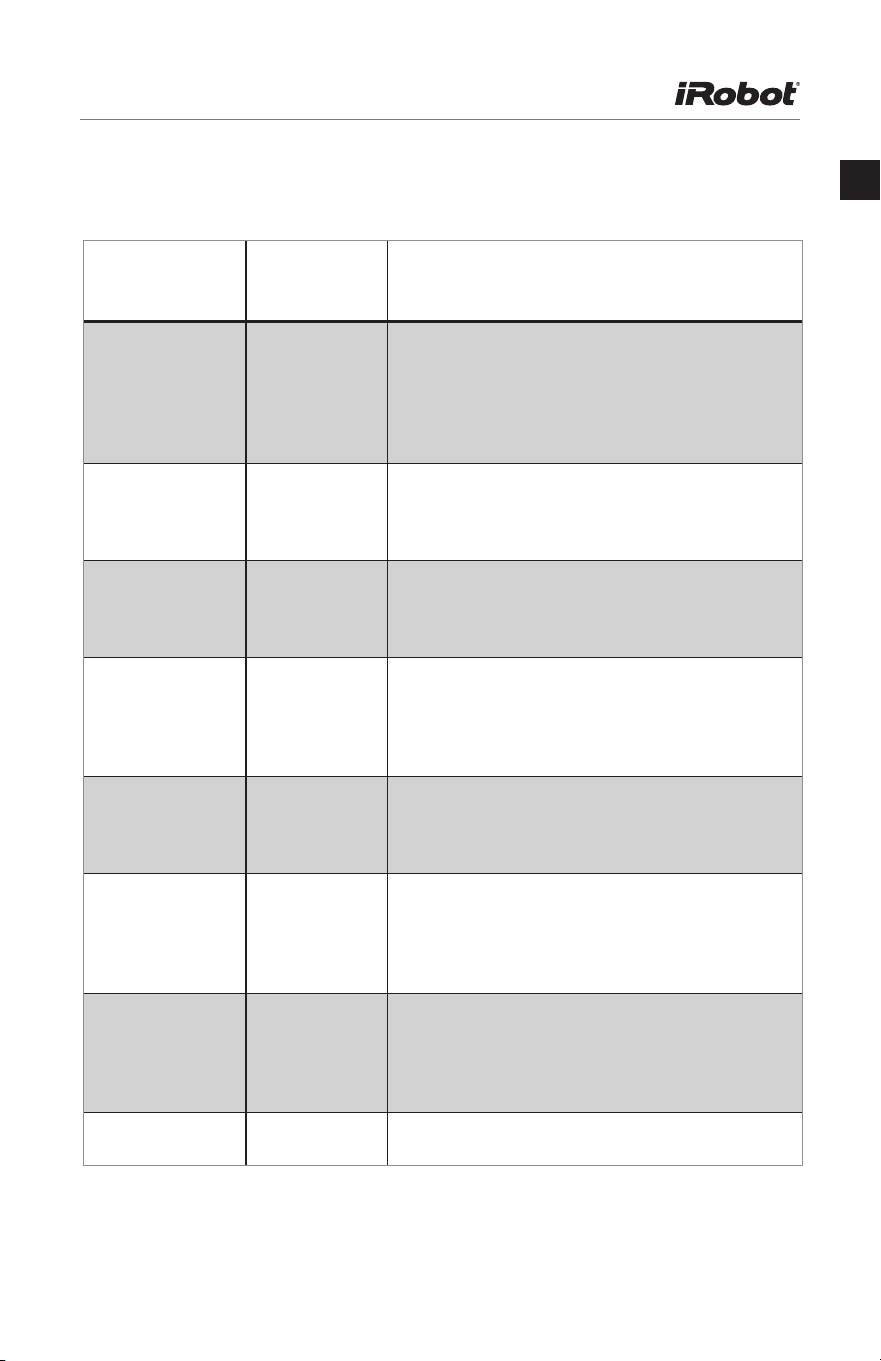
Problems While Cleaning
Your Roomba
blinks and
says…
Likely cause What to do
Error 1.
Move Roomba to a
new location, then
press CLEAN
to restart.
Roomba is
stuck with a
wheel hanging
down.
Ensure Roomba’s wheels are firmly on the floor. If
Roomba is stuck, start in a new location. If Roomba
is not stuck, clean its side wheels of hair and debris.
Push the wheels in and out, and check that they
both turn freely.
Error 2.
Open Roomba’s
brush cage and
clean brushes.
Roomba’s main
brushes can’t
turn.
Remove and clean Roomba’s brushes.
Error 5.
Spin Roomba’s
side wheels to
clean.
Roomba’s side
wheel is stuck.
Clean Roomba’s side wheels. Push them in and
out and check that they both turn freely. Start in
a new location.
Error 6.
Move Roomba to a
new location then
press CLEAN to
restart.
Roomba’s cliff
sensors are dirty
or your Roomba
is hanging over
a drop.
Wipe Roomba’s cliff sensors with a dry cloth.
Start in a new location.
Error 7.
Spin Roomba’s
side wheels to
clean.
Roomba’s side
wheel is stuck.
Clean Roomba’s side wheels of hair and debris.
Push them in and out and check that they both turn
freely. Start in a new location.
Error 9.
Tap Roomba’s
bumper to clean.
Roomba’s
bumper is
compressed
or the bumper
sensor is dirty.
Briskly tap Roomba’s bumper several times to
dislodge any debris that may be trapped underneath.
Error 10.
Spin Roomba’s
side wheels to
clean.
Roomba’s side
wheel is stuck
or its bumper
isn’t detecting
obstacles.
If your Roomba is circling in one place, clean side
wheels. Push them in and out and check that they
both turn. If it’s not circling in one place, Roomba
may be in a very large room. Use a Virtual Wall to
create a smaller cleaning area.
Please charge
Roomba.
Roomba’s
battery is dead.
Plug Roomba into the charger or place it on the
Home Base to charge.
28 Roomba 700 Series Owner’s Manual
UK
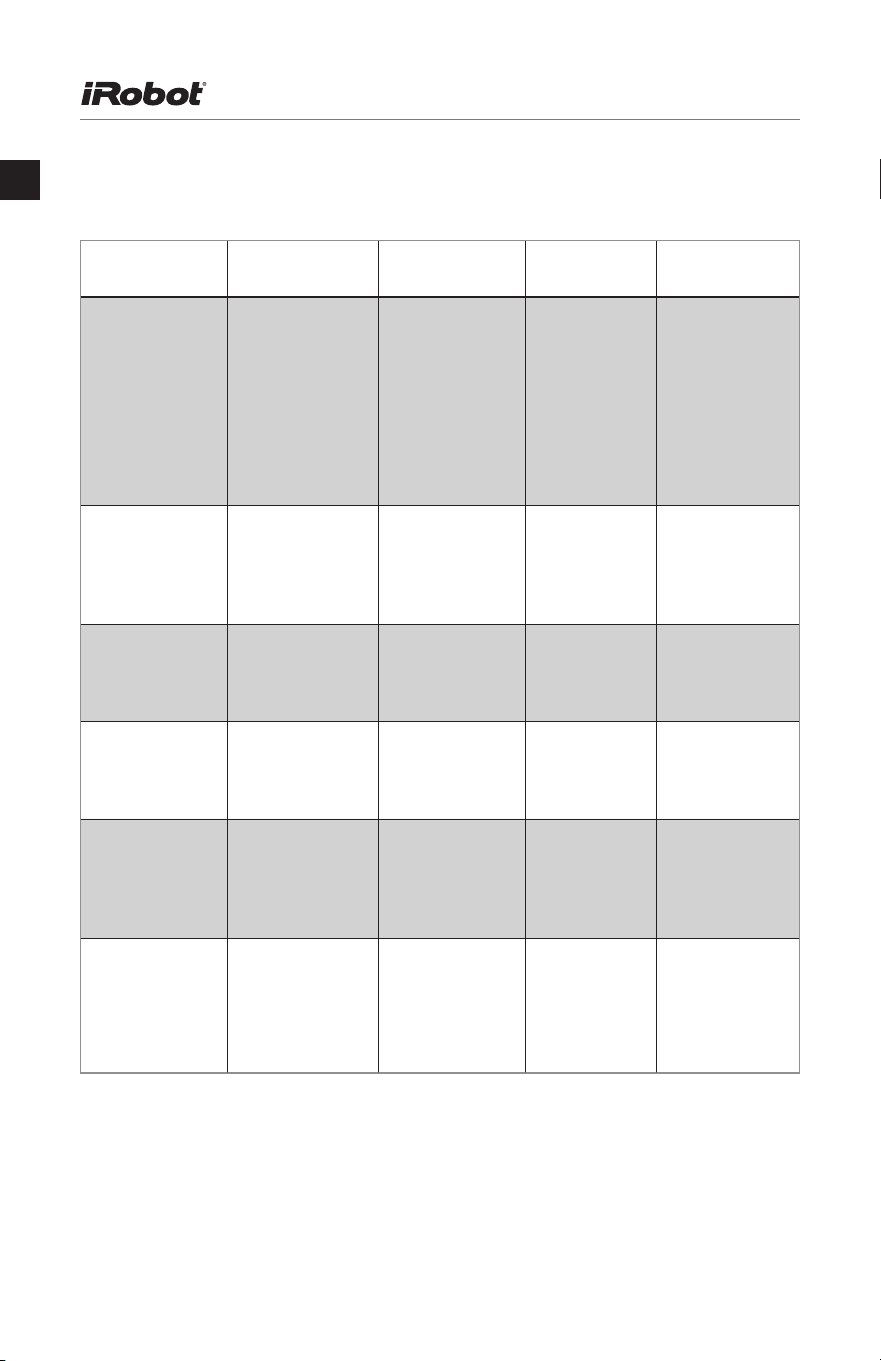
Problems While Charging
Your Roomba
blinks...
Your Roomba
displays...
Your Roomba
says...
Likely
cause...
What to do
1 blink - Charging error 1 Roomba’s
battery isn’t
connected.
Check that you
have removed
the pull-tab from
the battery.
Remove the
battery cover of
Roomba
to remove &
reinstall battery.
2 blinks Err 2 Charging error 2 Roomba has a
charging error.
Let Roomba
cool down for
at least an hour
& try charging
again.
3 blinks Err 3 Charging error 3 Roomba has a
charging error.
Reset Roomba’s
software (below)
and try charging
again.
5 blinks Err 5 Charging error 5 Roomba has a
charging error.
Reset Roomba’s
software (below)
and try charging
again.
6 blinks Err 6 Charging error 6 Roomba has a
charging error.
Let Roomba
cool down for
at least an hour
& try charging
again.
7 blinks Err 7 Charging error 7 Roomba’s
battery isn’t
cooling.
Let Roomba
cool down for
at least an hour
& try charging
again.
How to Reset the Software
Hold down CLEAN for ten seconds. This will clear the clock and may disrupt successful
docking for the first few charge cycles.
Roomba 700 Series Owner’s Manual 29
UK
Frequently Asked Questions
Why does Roomba’s side brush occasionally spin backwards?
When caught on items such as carpet tassels or wires, the side brush may spin
slowly or even backwards to free itself. This may also occur on thick carpets.
If it does this at other times, you should clean the brush.
Why does Roomba occasionally make a thumping sound?
When Roomba’s brushes encounter items such as carpet tassels or wires, the
brushes will briefly reverse direction to get free. This makes a thumping sound.
If you hear a thumping sound at any other time, you should clean the main brushes.
Why doesn’t Roomba slow down as it approaches certain obstacles?
Your Roomba usually identifies obstacles quickly, allowing it to slow down and
gently touch the obstacle with its bumper before changing direction. However,
it may be less effective at sensing extremely dark surfaces, or objects under
5 centimetres wide.
30 Roomba 700 Series Owner’s Manual
UK
Declaration of Conformity
iRobot
®
Roomba
®
Vacuum Cleaning Robot and Accessories
Manufacturer: iRobot Corporation, 8 Crosby Drive, Bedford, MA 01730, USA
Declares that Roomba along with Model 17062, 17063, and 17064 Battery Chargers
and the Home Base, conform to the requirements of:
Low Voltage Directive 73/23/EEC as amended by 93/68/EEC and EMC
Directive 89/336/EEC as amended by 92/31/EEC.
It is further declared that the Roomba and Roomba SE Robotic Vacuum Cleaner and
Accessories conform to the following harmonised European standards:
Year of CE Marking: 2004
EN 60335-1:2002 + A11:2004
Household and Similar Electrical Appliances - Safety Part 1 - General
Requirements
EN 60335-2-2:2003
Household and Similar Electrical Appliances - Safety Part 2 - Particular
Requirements for Vacuum Cleaners and Water-Suction Cleaning Appliances
EN 60335-2-29:2002
Household and Similar Electrical Appliances - Part 2-29 - Particular
Requirements for Battery Chargers
EN 55014-1:2000 + A1:2001 + A2:2002
Electromagnetic compatibility - Requirements for household appliances,
electric tools and similar apparatus -- Part 1: Emission
EN 55014-1:1997 + A2:2002
Electromagnetic compatibility - Requirements for household appliances,
electric tools and similar apparatus -- Part 2: Immunity - Product family standard
Low Voltage tests and EMC tests have been conducted by:
TUV Rheinland of North America
This equipment has been tested and found to comply with the limits for a Class B digital device,
pursuant to part 15 of the FCC Rules. These limits are designed to provide reasonable protection
against harmful interference when the equipment is operated in a commercial environment.
This equipment generates, uses, and can radiate radio frequency energy and, if not installed
and used in accordance with the instruction manual, may cause harmful interference to radio
communications. Operation of this equipment in a residential area is likely to cause harmful
interference in which case the user will be required to correct the interference at his own expense.
Roomba 700 Series Owner’s Manual 31
UK
Visit global.irobot.com to:
• Learn hints and tips to improve the performance of your robot
• Get answers to questions
• Download a detailed product manual
• Contact your local support centre
iRobot Customer Care
Outside USA & Canada