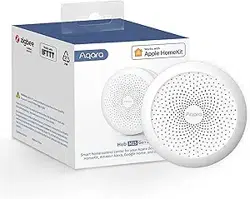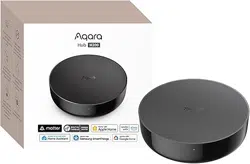
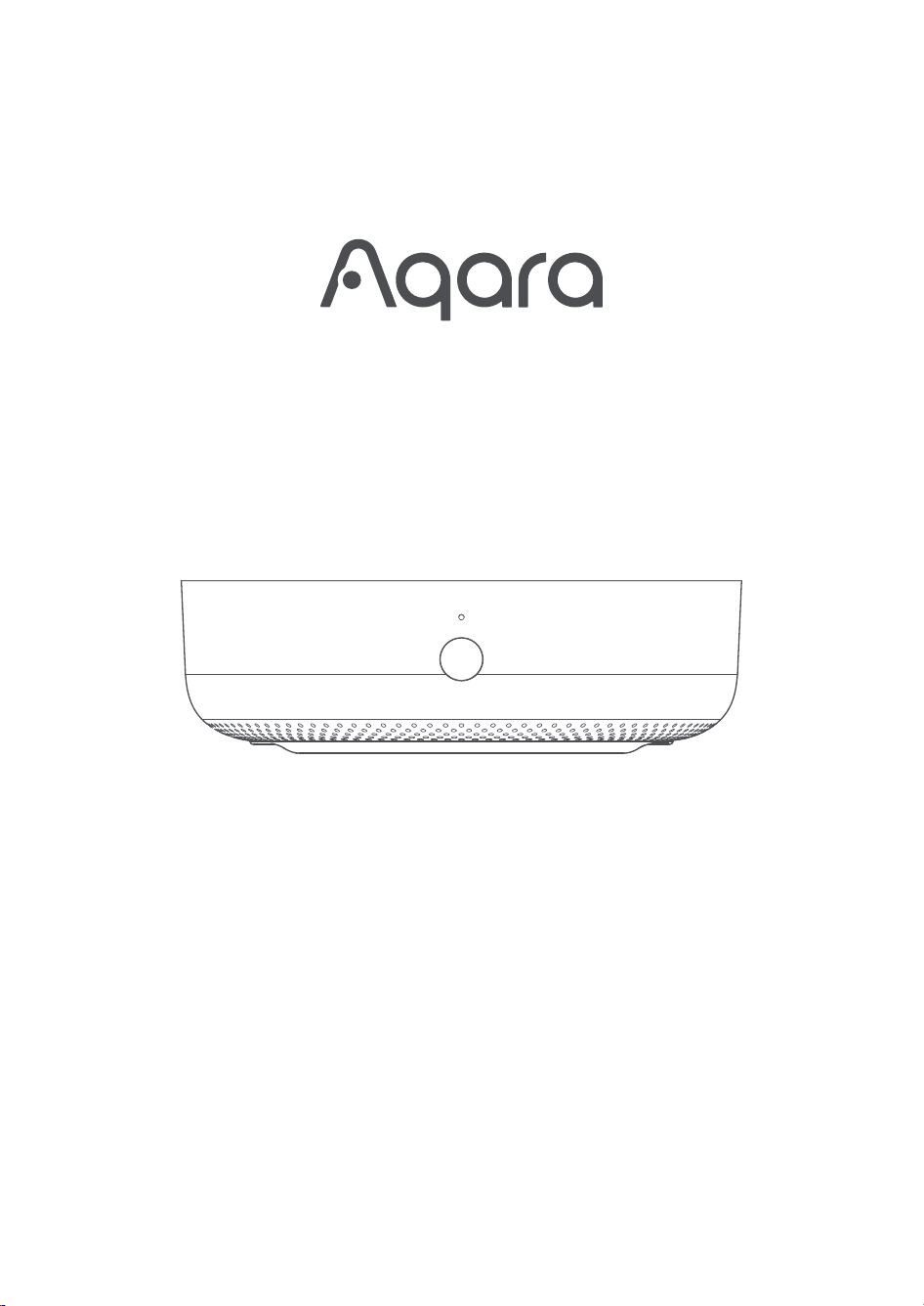
Hub M200 Online User Manual

Product Introduction
The Hub M200 is a smart home control hub by Aqara which supports multiple wireless protocols. It can connect Zigbee and
Thread child devices, and can act as a Matter Controller and Thread Border Router. It can connect paired Zigbee child devices to
third-party Matter ecosystems via a Matter bridge. It supports dual-band 2.4GHz and 5GHz Wi-Fi 6 wireless networking, and can
easily discover and bind devices through Aqara MagicPair technology. It also supports Bluetooth pairing to connect Aqara Voice
48V⎓
5V⎓2A
0.25A
Mate. It can be powered by either USB Type-C or PoE charging.
Device Connecting & Initialization
Search for "Aqara Home" in the Apple App Store, Google play, Xiaomi GetApps, Huawei App Gallery, or scan the following QR code
to download the Aqara Home App.
1.Download the Aqara APP
Please open the Aqara Home app, tap “Home” and then tap “+” in the top right corner to enter the “Add Device (Accessory)” page,
select “Hub M200”, and add it according to the instructions in the Aqara Home app. Aer a successful connection, the status
indicator light will be solid blue.
*This product supports the Aqara MagicPair technology and the device can be automatically discovered by the Aqara Home app
when it is powered on and in pairing mode. Please select the device and follow the instructions in the app to complete the
network configuration.
*Please place your phone as close to the hub as possible when pairing, and make sure that the phone and the hub are on the
same Wi-Fi network.
Open the Apple "Home" app, click "+" in the upper right corner to enter the Add Accessories page, scan or manually input the
HomeKit setup code (HomeKit QR code) on the product side, and bind the device to HomeKit.
Here are some common troubleshooting steps for HomeKit addition failures:
3.Add the product to the Aqara Home app
(1) Binding Zigbee and Bluetooth child devices
Please operate according to the child device’s user manual, and select the Hub M200 to complete for binding.
(2) Bind Matter Over Thread device
This product serves as a Thread Border Router and supports connecting sub-devices using the Matter Over Thread protocol.
Please connect the device according to the device’s user manual (Thread devices do not need to select to specify the Hub M200
during the binding process).
4.Binding a child device
Communication between iPhone, iPad, Apple Watch, HomePod,HomePod minior Mac and the HomeKit enabledHub M200is
secured by HomeKit technology.
Use of the “Works with Apple” badge means that an accessory has been designed to work specifically with the technology
identified in the badge and has been certified by the developer to meet Apple performance standards. Apple is not responsible for
the operation of this device or its compliance with safety and regulatory standards.
Apple, Apple Watch, HomeKit, HomePod, HomePod mini, Siri, iPad, iPad Air, and iPhone are trademarks of Apple Inc., registered in
the U.S. and other countries.
Online Customer Service: www.aqara.com/support
Manufacturer: Lumi United Technology Co., Ltd.
Address: Room 801-804, Building 1, Chongwen Park, Nanshan iPark, No. 3370, Liuxian Avenue, Fuguang Community, Taoyuan
Residential District, Nanshan District,
Shenzhen, China.
Email: [email protected]om
Made in China
Notice
Model: HM-G03E/HM-G03D
Power Input: 5V 2A
Dimensions: Φ100.5 × 30.75 mm
PoE Input: 48V 0.25A
Wireless Protocols: Wi-Fi IEEE 802.11 a/b/g/n/ac/ax 2.4 GHz / 5 GHz, Zigbee/Thread IEEE 802.15.4, Bluetooth
Operating Temperature: -10°C ~ 50°C
Operating Humidity: 0 ~ 95% RH, non-condensing
Product Specifications
For more device functions, please log in to the Aqara Home app and explore!
5.Other functions
Common reasons for binding failure:
Choose the installation location of the hub:the hub should be 2-6 meters away from the router in the house, and avoid metal
obstacles between the hub and router or around the hub.
2.Set up the hub
1
Aer powering on, please press the function button for more than 10s until the yellow light flashes, then retry pairing in the app.
1
Check if your router has enabled Wi-Fi anti-leeching settings, preventing the device from connecting to the network properly.
2
Check if your router has enabled AP isolation, preventing your phone from discovering the device within the local network.
3
Connecting to HomeKit
Please use the third-party Matter app to scan the Matter QR code on the User Manual or enter the 11-digit setup code to add the
device. If the Matter QR code is missing, it can be found in the Aqara Home app - Device page - Expose to Matter.
Connecting to a third-party Matter ecosystem
Error Message: "Unable to add accessory". Repeated connection failures have caused error data in the iOS cache. Please restart
the iOS device (iPhone or iPad) reset the hub and try again.
1
Error Message: "Accessory added". Please restart the iOS device and reset the hub, then manually enter the HomeKit setup code to
add the hub.
2
Error Message: "Accessory not found". Please reset the hub, wait for 3 minutes, and add it again by manually entering the HomeKit
setup code.
3
It is recommended not to connect to bridged networks.
4
Select power supply port:
2
2.4 / 5GHz WiFi
2m~6m
Type C: Please use a 5V 2A adapter (purchased separately) and a USB power cable to power the hub on.
Wireless connection: Connect your phone to a 2.4/5GHz Wi-Fi network. Aer powering on the hub, open the Aqara Home APP and
follow the instructions to complete the network configuration.
Wired connection: Using a wired network connection can effectively avoid connection instability caused by unstable Wi-Fi. If
possible, it is recommended to connect the hub via wired network. Aer powering on the hub, use a RJ45 cable to connect the
hub's RJ45 port to a LAN port on your router. Enter the Aqara Home APP and follow the instructions to complete the network
configuration.
Wait for the yellow hub indicator light to change from solid to flashing.
3
Select the networking method:
4
You can power the hub and connect it to your network using a PoE-enabled router or network switch with an RJ45 cable.
* When both Type C and RJ45 PoE power supply are connected, the device will prioritize power supply from the RJ45 PoE.
*Note: Please keep the QR code on the product or in the user manual in a safe place.
Button Operation Guide
Button Press Action Explanation
Press and hold for 10 seconds
Reset network and unbind sub-devices
Quick press 10 times
Restore factory settings
Quick press 3 times
Enter pairing mode for Zigbee sub-device
and long press 3~5s
(Wi-Fi/Zigbee/Thread/BLE). The wired network & IR functions remain active.
Quick press 3 times
Network Standby Mode: Disables all wireless signals
Press 1 time
Clears active alarms
Exits sub-device pairing mode
Stops voice announcements
Quick press 2 times
During Alarm (Home/Away/Sleep Mode):
Cancels alarm & deactivates the current Guard Mode
During Basic Guard Alarm (no mode change):
Cancels alarm without turning o Guard Mode
Guard Mode Active (No Alarm): Deactivates current Guard Mode (Home/Away/Sleep)
Description of Indicator Lights
Indicator Light Status Device Status
Solid yellow light
Starting up
Flashing yellow light
Waiting to connect
Flashing blue light
Network connecting
Slow flashing blue light
Connection successful and account connected
Solid blue light
Functioning normally
Solid white light
10 mins without network configuration
Solid purple light
Network standby mode
Flashing purple light Enables adding child devices
Slow flashing yellow light
Firmware upgrading
O
Indicator light turned o/power o/sleep mode
Indicator Light
Infrared Receiving Area
Infrared emitting area
Function Button
RJ45 Network Port
(supports PoE power supply)
USB-C port
USB-A port