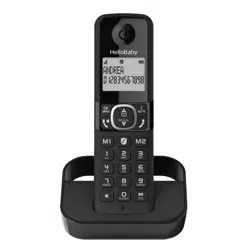
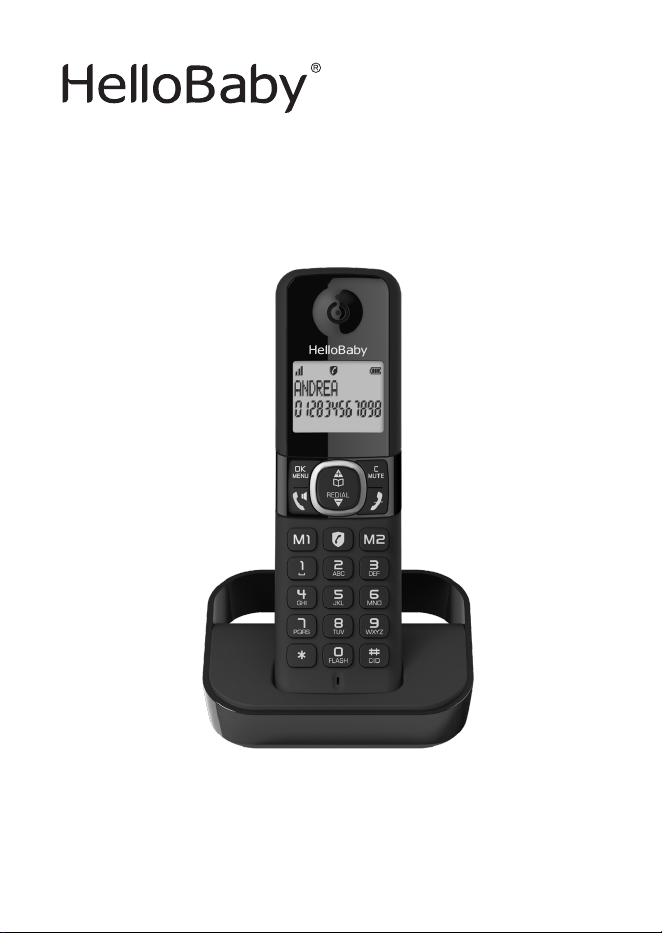
HB2688/HB2688-2/HB2688-3
Digital Cordless Telephone
USER'S GUIDE
Model: HB2688/HB2688-2/HB2688-3/HB2688-4
Warming: Charge the handset for 16 hours before use.
HB2688-4/HB2688RX/HB2688TX

2
1. IMPORTANT SAFETY INSTRUCTIONS ................................. 5
1.1. What’s in the box ....................................................................9
2. OVERVIEW ........................................................................ 10
2.1. Handset and Display Overview ................................................10
3. CONNECT ........................................................................... 12
3.1. Installing and Charging the Batteries .......................................13
3.2. Replace battery .....................................................................14
3.3. Connecting the Base Station ...................................................14
3.4. Connecting the Charger(s) (for HB2688-2/HB2688-3/HB2688-4
models) ..........................................................................................15
4. BEFORE USE ...................................................................... 16
4.1. Check for dial tone ................................................................16
4.2. Operating range .................................................................... 16
5.1. Using the handset menu ........................................................16
5.2. Set language ........................................................................16
5.3. Set date and time .................................................................17
5.3.1. Change Date/Time Format ......................................................17
5.3.2. Set the Time ........................................................................17
5.4. Dial mode ............................................................................17
5.5. Temporary tone dialing ..........................................................18
6.1. Make a Call ..........................................................................18
6.2. Predial a call .........................................................................18
6.3. Answer a Call .......................................................................18
6.4. End a Call ............................................................................18
6.5. Speakerphone ......................................................................19
6.6. Volume ................................................................................19
6.7. Mute ...................................................................................19
6.8. Join a call in progress ............................................................19
6.9. Chain Dialing ........................................................................20
6.9.1. To access a number from the phonebook while on a call: ............20
6.10. Temporary Ringer Silence ....................................................... 20
6.11. Redial List ............................................................................20
6.11.1. Review a redial list entry ........................................................20
6.11.2. Dial a redial list entry ............................................................20
6.11.3. Delete redial list entry ...........................................................20
6.11.4. Delete all redial entry ............................................................21
6.12. Multiple handset use .............................................................. 21

3
6.12.1. Intercom ..............................................................................21
6.13. Find the Handset ...................................................................21
7. CONTACTS (PHONEBOOK) ................................................ 22
7.1. Add a phonebook entry ..........................................................22
7.2. Edit a phonebook entry ..........................................................23
7.3. Delete a phonebook entry ......................................................23
7.4. View/Dial a contact ...............................................................23
8. SPEED DIAL....................................................................... 23
8.1. To register the direct memories in keys M1, M2, 1, 2 & 3 ............ 23
9. PHONE SETTINGS ............................................................. 24
9.1. Handset Settings ...................................................................24
9.1.1. Set Ringer melody and volume................................................24
9.1.2. Turnthehandsettonesonoro .............................................24
9.1.3. Rename the Handset .............................................................24
10. CALLER ID (NETWORK DEPENDENT) ................................ 24
10.1. View and dial out in the caller ID log ........................................ 25
10.2. View dialing options ...............................................................25
10.3. Save a caller ID log entry to your phonebook ............................25
10.4. Delete an entry or the entire caller ID log ................................. 26
11. CALL BLOCK ...................................................................... 26
11.1. Manual call block mode: ON ...................................................27
11.1.1. Enable MANUAL mode ............................................................27
11.1.2. Add numbers to Blocklist ........................................................ 27
11.1.3. Edit numbers in Blocklist ........................................................28
11.1.4. Delete numbers in Blocklist ....................................................28
11.2. Automatic call block mode ...................................................... 28
11.2.1. Contacts only .......................................................................28
11.2.2. VIPs only .............................................................................28
11.3. Anonymous call block mode .................................................... 29
12. HANDSET SETTING ........................................................... 29
12.1. Set the Ringer Melody and Volume ..........................................29
12.1.1. Set Ringer Melody for Internal Call ..........................................29
12.1.2. Set Ringer Melody for External Call .......................................... 29
12.1.3. Set Ringer Volume ................................................................30
12.2. Set Alert Tones .....................................................................30
12.3. Set Language on Handset .......................................................30
12.4. Rename the Handset .............................................................30

4
12.5. Set the Auto Answer .............................................................. 30
12.6. Date & Time .........................................................................31
12.7. Direct Mem ..........................................................................31
12.8. Alarm Settings ...................................................................... 31
13. TELEPHONE BASE SETTINGS ............................................ 31
13.1. De-register a Handset ............................................................31
13.2. Change the dial mode ............................................................ 32
13.3. Change the Flash Time ..........................................................32
13.4. Change the system PIN Code .................................................. 32
13.5. ECO Mode ............................................................................32
13.6. Home area code ....................................................................32
14. REGISTRATION ................................................................. 33
15. RESET THE PHONE ............................................................ 33
16. FREQUENTLY ASKED QUESTIONS ..................................... 34
17. GENERAL PRODUCT CARE ................................................. 36
17.1. Taking care of your telephone .................................................36
17.2. Avoid rough treatment ........................................................... 36
17.3. Avoid water ..........................................................................36
17.4. Electrical storms ...................................................................36
17.5. Cleaning your telephone.........................................................37
18. FCC, ACTA AND IC REGULATIONS .................................... 37
19. LIMITED WARRANTY ........................................................ 39
20. SAFETY .............................................................................. 41
21. CALIFORNIA ENERGY COMMISSION BATTERY CHARGING
TESTING INSTRUCTIONS ............................................................. 42
22. TECHNICAL SPECIFICATIONS .......................................... 43

5
1. IMPORTANT SAFETY INSTRUCTIONS
When using your telephone equipment, basic safety precautions should
alwaysbefollowedtoreducetheriskofre,electricshockandinjury,
including the following:
1) Read and understand all the instructions.
2) Follow all warnings and instructions marked on the product.
3) Unplug this product from the wall outlet before cleaning. Do not use
liquid cleaners or aerosol cleaners. Use a damp cloth for cleaning.
4) Do not use this product near water such as near a bath tub, wash bowl,
kitchen sink, laundry tub or swimming pool, or in a wet basement or
shower.
5) Do not place this product on an unstable table, shelf, stand or other
unstable surfaces.
6) Avoid placing the telephone system in places with extreme temperature,
direct sunlight, or other electrical devices. Protect your phone from
moisture, dust, corrosive liquids and fumes.
7) Slots and openings in the back or bottom of the telephone base and
handset are provided for ventilation. To protect them from overheating,
these openings must not be blocked by placing the product on a soft
surface such as a bed, sofa or rug. This product should never be placed
near or over a radiator or heat register. This product should not be
placed in any area where proper ventilation is not provided.
8) This product should be operated only from the type of power source
indicated on the marking label. If you are not sure of the type of power
supplyinyourhomeoroce,consultyourdealerorlocalpower
company.
9) Do not allow anything to rest on the power cord. Do not install this
product where the cord may be walked on.
10)Neverpushobjectsofanykindintothisproductthroughtheslotsin
the telephone base or handset because they may touch dangerous
voltage points or create a short circuit. Never spill liquid of any kind on
the product.

6
11) To reduce the risk of electric shock, do not disassemble this product, but
take it to an authorized service facility. Opening or removing parts of the
telephonebaseorhandsetotherthanspeciedaccessdoorsmayexpose
you to dangerous voltages or other risks. Incorrect reassembling can
cause electric shock when the product is subsequently used.
12) Do not overload wall outlets and extension cords.
13) Unplug this product from the wall outlet and refer servicing to an
authorized service facility under the following conditions:
• When the power supply cord or plug is damaged or frayed.
• If liquid has been spilled onto the product.
• If the product has been exposed to rain or water.
• If the product does not operate normally by following the operating
instructions.Adjustonlythosecontrolsthatarecoveredbythe
operationinstructions.Improperadjustmentofothercontrolsmay
result in damage and often requires extensive work by an authorized
technician to restore the product to normal operation.
• If the product has been dropped and the telephone base and/or handset
has been damaged.
• If the product exhibits a distinct change in performance.
14) Avoid using a telephone (other than cordless) during an electrical
storm. There is a remote risk of electric shock from lightning.
15) Do not use the telephone to report a gas leak in the vicinity of the leak.
Under certain circumstances, a spark may be created when the adapter
is plugged into the power outlet, or when the handset is replaced in its
cradle. This is a common event associated with the closing of any
electrical circuit. The user should not plug the phone into a power
outlet, and should not put a charged handset into the cradle, if the
phone is located in an environment containing concentrations of
ammableorame-supportinggases,unlessthereisadequate
ventilation.Asparkinsuchanenvironmentcouldcreateareor
explosion. Such environments might include: medical use of oxygen
without adequate ventilation; industrial gases (cleaning solvents;
gasoline vapors; etc.); a leak of natural gas; etc.
16) Only put the handset of your telephone next to your ear when it is in
normal talk mode.
17) The power adapters are intended to be correctly oriented in a vertical or
oormountposition.Theprongsarenotdesignedtoholdtheplugin
place if it is plugged into a ceiling, under-the-table or cabinet outlet.

7
SAVE THESE INSTRUCTIONS
Battery
• CAUTION: Use Only Supplied Battery.
• Donotdisposeofthebatteryinare.Checkwithlocalwaste
managment codes for special disposal instructions.
• Do not open or mutilate the battery. Released electrolyte is corrosive
andmaycauseburnsorinjurytotheeyesorskin.Theelectrolytemay
be toxic if swallowed.
• Exercise care in handling batteries in order not to create a short circuit
with conductive materials.
• Charge the battery provided with this product only in accordance with
theinstructionsandlimitationsspeciedinthismanual.
Precautions for users of implanted cardiac pacemakers
Cardiac pacemakers (applies only to digital cordless telephones):
Wireless Technology Research, LLC (WTR), an independent research entity,
led a multidisciplinary evaluation of the interference between portable
wireless telephones and implanted cardiac pacemakers. Supported by the
U.S. Food and Drug Administration, WTR recommends to physicians that:
Pacemaker patients
• Should keep wireless telephones at least six inches from the
pacemaker.
• Should NOT place wireless telephones directly over the pacemaker,
such as in a breast pocket, when it is turned ON.
• Should use the wireless telephone at the ear opposite the pacemaker.
WTR’s evaluation did not identify any risk to bystanders with pacemakers
from other persons using wireless telephones.
About cordless telephones
• Privacy: The same features that make a cordless telephone convenient
create some limitations. Telephone calls are transmitted between the
telephone base and the cordless handset by radio waves, so there
is a possibility that the cordless telephone conversations could be
intercepted by radio receiving equipment within range of the cordless
handset. For this reason, you should not think of cordless telephone
conversations as being as private as those on corded telephones.

8
• Electrical power: The telephone base of this cordless telephone must
be connected to a working electrical outlet. The electrical outlet should
not be controlled by a wall switch. Calls cannot be made from the
cordlesshandsetifthetelephonebaseisunplugged,switchedoorif
the electrical power is interrupted.
• Potential TV interference: Some cordless telephones operate at frequencies
that may cause interference to televisions and VCRs. To minimize or
prevent such interference, do not place the telephone base of the
cordless telephone near or on top of a TV or VCR. If interference is
experienced, moving the cordless telephone farther away from the TV
or VCR often reduces or eliminates the interference.
• Rechargeable batteries: Exercise care in handling batteries in order
not to create a short circuit with conducting material such as rings,
bracelets and keys. The battery or conductor may overheat and cause
harm. Observe proper polarity between the battery and the battery
charger.
• Nickel-metal hydride rechargeable batteries: Dispose of these batteries
in a safe manner. Do not burn or puncture the battery. Like other
batteries of this type, if burned or punctured, they could release caustic
materialwhichcouldcauseinjury.
9
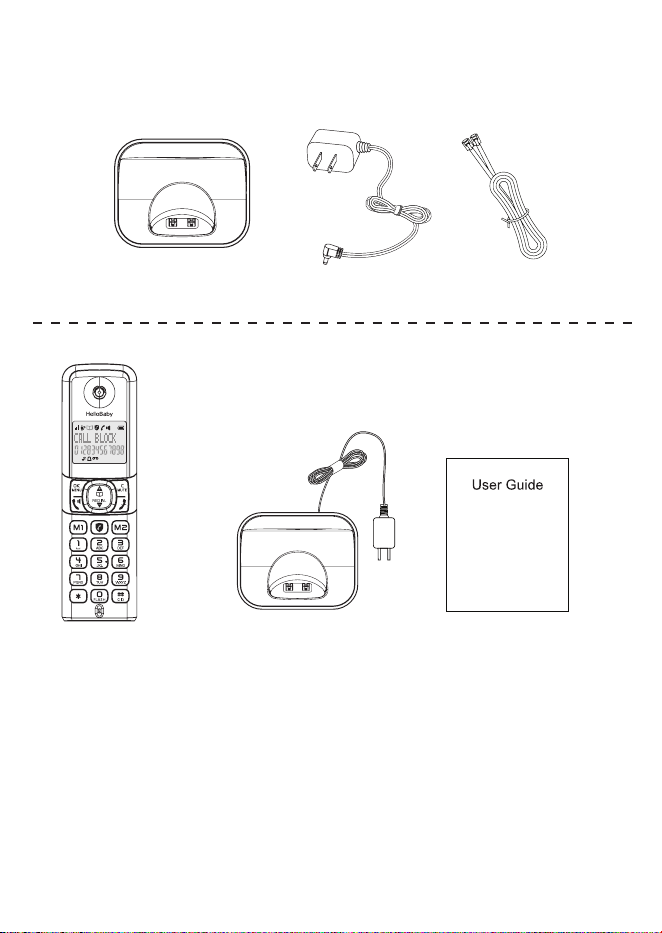
1.1. What’s in the box
Your telephone package contains the following items. Save your sales
receipt and original packaging in case it is necessary to ship your telephone
for warranty service:
1 set for HB2688/ HB2688-2/ HB2688-3/ HB2688-4
1 set for HB2688 1 set for HB2688-2 1 set for HB2688/
2 sets for HB2688-2 2 set for HB2688-3 HB2688-2/HB2688-3/
3 sets for HB2688-3 3 set for HB2688-4 HB2688-4
4 sets for HB2688-4
10
2. OVERVIEW
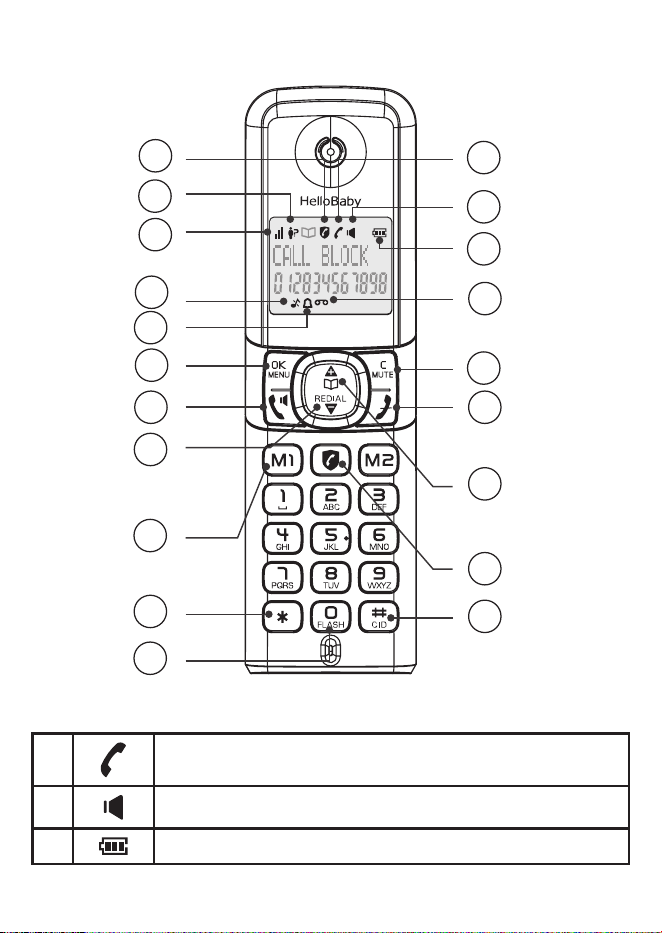
2.1. Handset and Display Overview
1
Indicates that an external call is connected or held.
Icon blinks when receiving an incoming call.
2 Displays when handset speakerphone is activated.
3 Indicates battery is full charges.
1
2
3
4
5
6
7
8
9
10
11
12
13
14
15
16
17
18
19
20
11
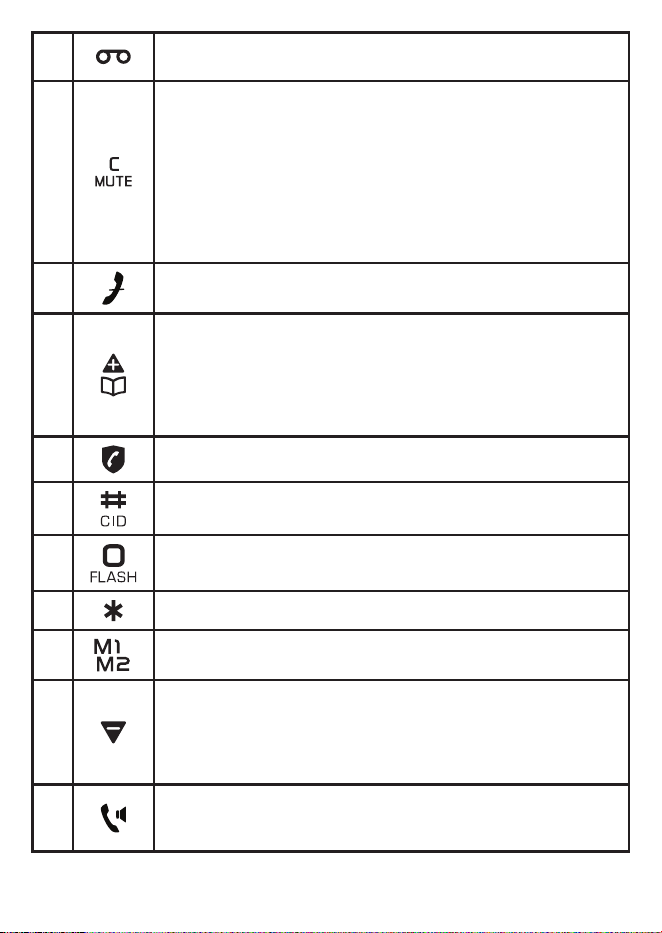
4
There are new voicemail received from your telephone
service provider*.
5
INT
• Press to start an intercom conversation or transfer a call
(for multi-handset models only).
Mute
• Mute the microphone during a call.
C
• Delete digits or characters while using the dialing keys.
• Return to previous menu.
6
Silence the ringer temporarily while the handset is
ringing.
7
• Review the phonebook when the phone is not in use.
• Increase the listening volume during a call.
• Scroll up while in a menu, phonebook, caller ID log, or
redial list.
• Move the cursor to the lift when entering numbers or
names.
8 Direct access to the Call Block menu.
9
Press and hold review the caller ID log when the phone is
not in use.
10
Press and hold to answer an incoming call when you hear
a call waiting alert.
11 View dialing options in Caller ID. (Refer to Section 10.2)
12
/
Press M1 or M2 to dial pre-recorded number stored in
direct memory.
13
• Decrease the listening volume during a call.
• Scroll down while in a menu, phonebook, caller ID log,
or redial list.
• Move the cursor to the right when entering numbers or
names.
14
Press to make or answer a call.
During a call: Press to activate/deactivate the handset
speakerphone.
12
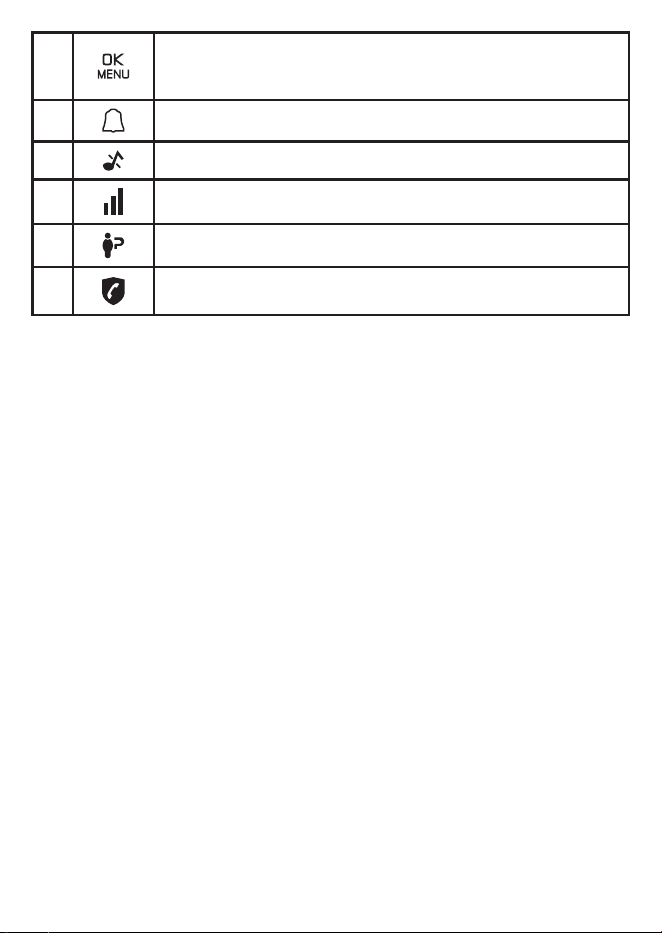
15
Enter the main menu.
While in a menu, press to select an item, or save an entry
or setting.
16 Displays when the alarm clock is activated.
17 Displays when ringer volume is turned o.
18 Indicates quality of reception’s signal.
19 There are new caller ID log entries*.
20
The Call Blocking function is activated.
(Refer to the Call Blocking part)
* Voicemail and Call ID Features available from most telephone service
providers. It may be included with your telephone service, or may be
optional. Fees may apply.
3. CONNECT
You can choose to connect the telephone base for desktop usage.
NOTES
• Use only the adapters provided.
• Make sure the electrical outlets are not controlled by wall switches.
• Theadaptersareintendedtobecorrectlyorientedinaverticaloroor
mount position. The prongs are not designed to hold the plug in place
if it is plugged into a ceiling, under-the-table or cabinet outlet.
TIP
• If you subscribe to digital subscriber line (DSL) high-speed Internet
service through your telephone line, make sure you install a DSL lter
(not included) between the telephone line cord and telephone wall
jack.ContactyourDSLserviceproviderformoreinformation.
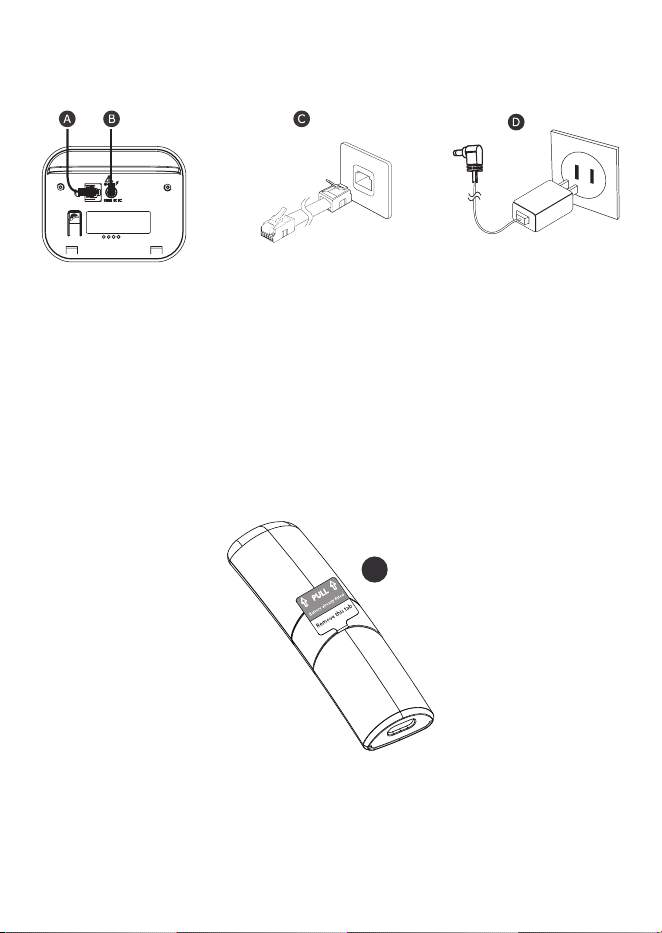
1. Plugoneendofthetelephonelinecordintothetelephonejackon
base bottom. (Fig. A)
2. Plugthesmallendofpoweradapterintoapowerjackonbasebottom.
(Fig. B)
3. Plugtheotherendofthetelephonelinecordintothetelephonejack
orDSLlter.(Fig.C)
4. Plug the large end of power adapter into a wall power outlet. (Fig. D)
13
5. Always use the cables provided in the box.
6. For HB2688-2, HB2688-3, HB2688-4, plug the power adaptor of the
charger into a wall power outlet.
3.1. Installing and Charging the Batteries
1) Battery already installed into handset, pull and remove the battery pull
Tab to turn ON the handset. Show in the Fig. E.
2) Put the handset on the base and charge for 15 hours before using the
handsetforthersttime.Thehandsetwillgiveabeepwhenitis
properly placed on the base or charger.
NOTES
1) Use only the battery provided.
2) Charge the battery provided with this product only in accordance with
theinstructionsandlimitationsspeciedinthismanual.
E
14
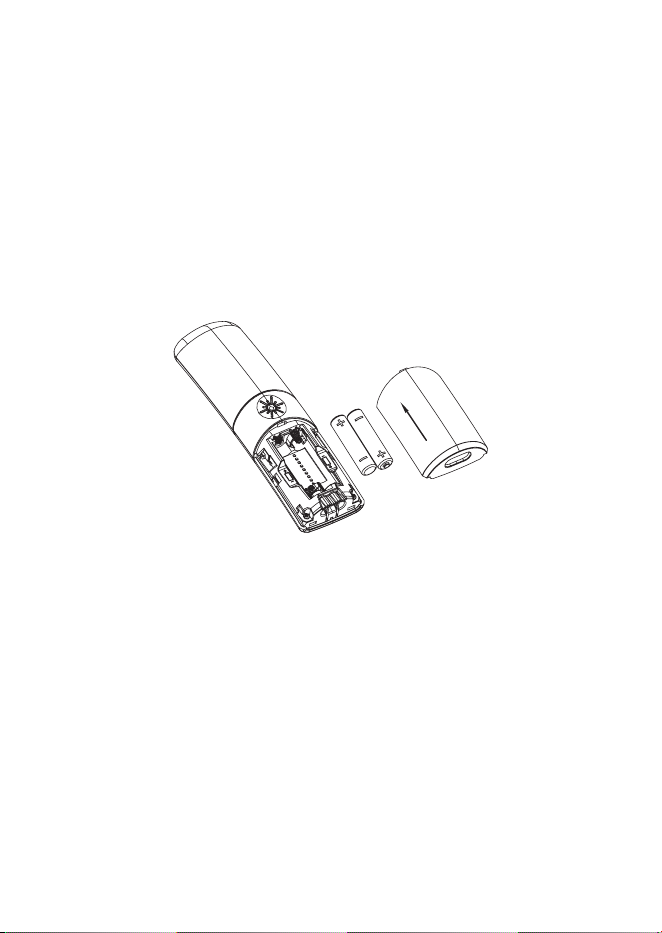
3.2. Replace battery
1. Slide down to open the battery compartment cover.
2. Place the 2 supplied rechargeable batteries as indicated. Pay extra
attention to direction of polarity.
3. Slide the battery compartment cover back.
4. Put the handset on the base and charge for 15 hours before using
thehandsetforthersttime.Thehandsetwillgiveabeepwhenitis
properly placed on the base or charger.
NOTES:
1) Use only the supplied NiMH rechargeable battery cells.
2) If the handset will not be used for a long time, disconnect and remove
the Battery pack to prevent possible leakage.
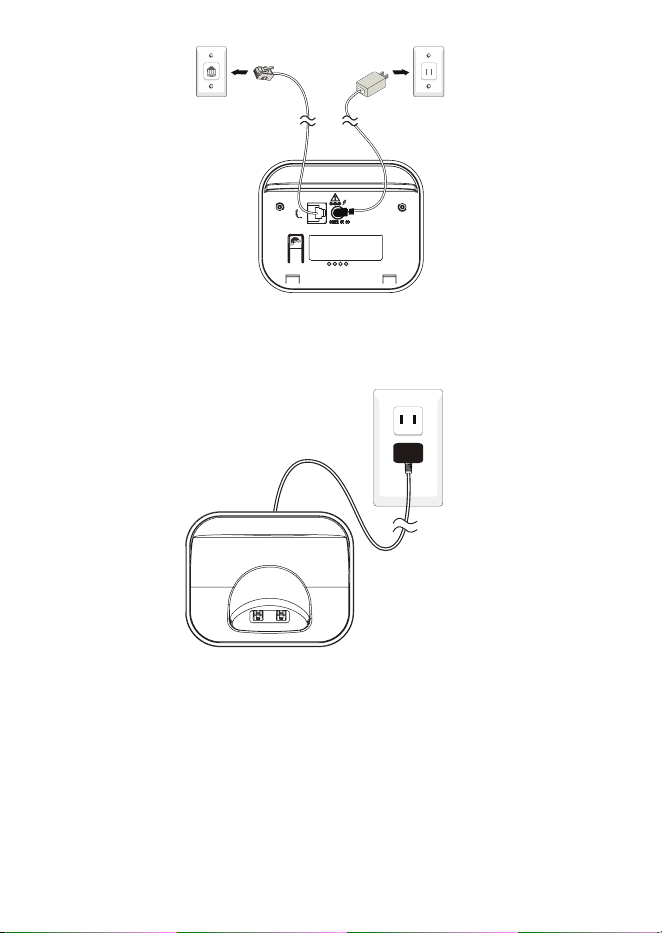
3.3. Connecting the Base Station
1. Plugoneendofthetelephonelinecordintothetelephonejackon
base bottom.
2. Plugthesmallendofpoweradapterintoapowerjackonbasebottom.
3. Plug the large end of power adapter into a wall power outlet.
4. Plugtheotherendofthetelephonelinecordintothetelephonejack.
5. Always use the cables provided in the box.
15
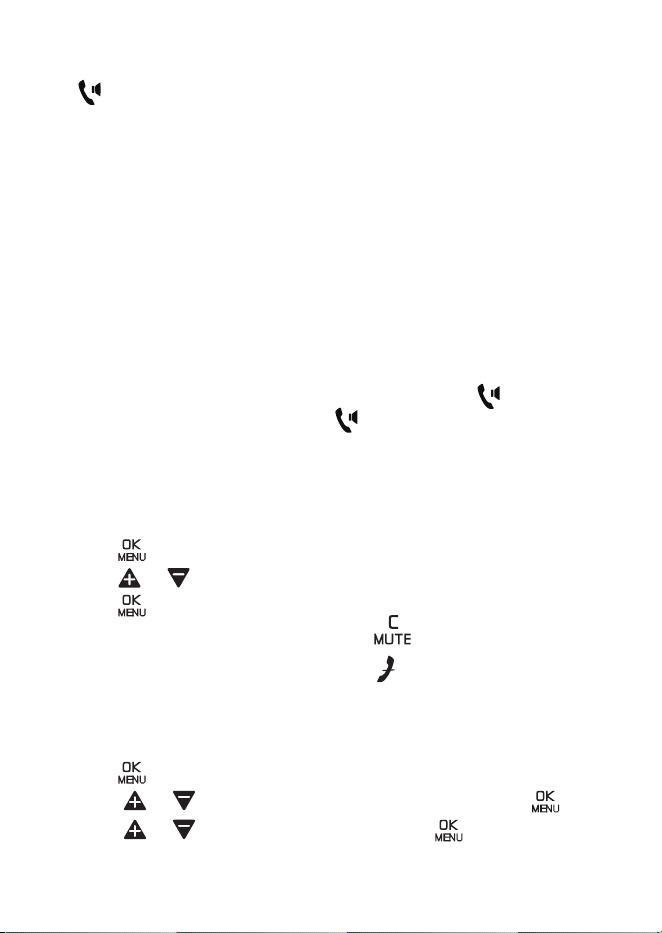
3.4. Connecting the Charger(s) (for HB2688-2/HB2688-3/
HB2688-4 models)
Plug the power adapter into a mains socket.
If you have a Broadband line
If you connect your telephone to a line with a broadband connection, you
willneedtoinsertaDSLlterbetweenthetelephoneandthetelephone
line, otherwise you may get interference between the telephone and the
broadband, which could cause problems.
Inaxedwithbroadband,everytelephonemusthaveaDSLlter
connected,notjusttheoneatthetelephonepointthatyourmodemis
connectedto.IfyouneedmorebroadbandDSLlters,contactyourbroad-
band supplier.
16
4. BEFORE USE
4.1. Check for dial tone
Press . If you hear a dial tone, the installation is successful.
If you do not hear a dial tone:
• Make sure the installation procedures described above are properly done.
• It may be a wiring problem. If you have changed your telephone service
to digital service from a cable company or a VoIP service provider, the
telephonelinemayneedtoberewiredtoallowallexistingtelephonejacks
to work. Contact your cable/VoIP service provider for more information.
4.2. Operating range
This cordless telephone operates with the maximum power allowed by the
Federal Communications Commission (FCC). Even so, this handset and
telephone base can communicate over only a certain distance - which can
vary with the locations of the telephone base and handset, the weather, and
thelayoutofyourhomeoroce.
When the handset is out of range, the handset displays Out of range.
If there is a call while the handset is out of range, it may not ring, or if it
does ring, the call may not connect well when you press . Move closer
to the telephone base, and then press to answer the call. If the handset
moves out of range during a telephone conversation, there may be
interference. To improve reception, move closer to the telephone base.
5. CONFIGURE YOUR TELEPHONE
5.1. Using the handset menu
1. Press when the phone is not in use.
2. Press or until the screen displays the desired feature menu.
3. Press to enter that menu.
• To return to the previous menu, press on the handset.
• To return to idle mode, press and hold on the handset.
5.2. Set language
The LCD language is preset to English. You can select English, French or
Spanish to be used in all screen displays.
1. Press when the phone is not in use.
2. Press or to choose HS SETTINGS, and then press .
3. Press or to choose LANGUAGE, press .
17
4. Press or to choose ENGLISH, FRANÇAIS OR ESPAÑOL, and
then press . Then the handset returns to the previous menu. You
hearaconrmationtone.
5.3. Set date and time
To set the correct time and date on the phone
1. Press when the handset is not in use.
2. Press or to choose HS SETTINGS, then press .
3. Press or to choose DATE & TIME, then press .
4. Press or to choose DATE FORMAT/TIME FORMAT/SET TIME.
5.3.1. Change Date/Time Format
1. Repeat Step 1 to 3 of Section 5.3.
2. Press to choose DATE FORMAT to set desired date format
between MM-DD-YY or DD-MM-YY. Press or to choose the
selected format, then press toconrm.
3. Press or to choose TIME FORMAT, then press ; choose
desired time format between 12 HR or 24HR. Press or to
choose the selected format, then press .
5.3.2. Set the Time
1. Repeat Step 1 to 3 of Section 5.3.
2. Press or to choose SET TIME.
3. Press , then display shows SET TIME. Enter correct time, press
.
4. After setting time, display shows SET DATE. Enter correct date, press
.
5.4. Dial mode
The dial mode is preset to touch-tone dialing. If you have pulse (rotary)
service, you need to change the dial mode to pulse dialing before using the
telephone to make a call.
1. Press when the handset is not in use.
2. Press or to choose BS SETTINGS, and then press .
18
3. Press or to choose DIAL MODE, and then press .
4. Press or to choose Tone or Pulse.
5. Press to save your selection. Then the handset returns to the
previous menu. Youhearaconrmationtone.
5.5. Temporary tone dialing
If you have pulse (rotary) service only, you can switch from pulse to
touch-tone dialing temporarily during a call. This is useful if you need to
send touch-tone signals to access your telephone banking or long distance
services.
1. During a call, press .
2. Use the dialing keys to enter the number. The telephone sends
touch-tone signals. The telephone automatically returns to pulse dialing
mode after you end the call.
6. TELEPHONE OPERATIONS
6.1. Make a Call
1. Press on the handset.
2. When you hear a dial tone, dial the number.
NOTES
The handset shows the elapsed time as you talk (in hours, minutes and
seconds).
6.2. Predial a call
1. Enter the telephone number.
2. Press to dial.
NOTES
• The handset shows the elapsed time as you talk (in hours, minutes
and seconds).
• While entering numbers, press to make corrections.
6.3. Answer a Call
Press to answer.
6.4. End a Call
Press on the handset, or place the handset in the telephone base or
handset charger.
19
6.5. Speakerphone
During a call, press to switch between the speakerphone and the handset
earpiece. When the speakerphone is active, the handset displays .
6.6. Volume
During a call, press or toadjustthelisteningvolume.
NOTES
• The handset and speakerphone volume settings are independent.
• When the volume reaches the minimum or maximum setting, you hear
two beeps.
6.7. Mute
The mute function allows you to hear the other party but the other party
cannot hear you.
During a call:
Select Mute by pressing to mute the microphone and Secrecy On will
display on the LCD. Your caller cannot hear you. Press MUTE to unmute the
microphone.
6.8. Join a call in progress
You can use up to two system handsets at a time on an outside call.
• When a handset is already on a call, press key on another handset
tojointhecall.
• Press or place the handset in the telephone base or handset
charger to exit the call. The call continues until all handsets hang up.
When you subscribe to call waiting service with your telephone service
provider, you hear an alert tone if there is an incoming call while you are on
another call.
• Press and hold to put the current call on hold and take the new
call.
• Press at any time to switch back and forth between calls.
If you also subscribe to caller ID service, it will let you see the name and
telephone number of the caller during call waiting.
It may be necessary to change your telephone service to use this feature.
Contact your telephone service provider if:
• You have both caller ID and call waiting, but as separate service (you
may need to combine these service);
• You have only caller ID service, or only call waiting service; or
• You do not subscribe to caller ID or call waiting services.
20
There are fees for caller ID services. In addition, services may not be
available in all areas.
6.9. Chain Dialing
Use this feature to initiate a dialing sequence from numbers stored in the
phonebook while you are on a call.
Chain dialing can be useful if you wish to access other numbers (such as
bank account numbers or access codes) from the phonebook.
6.9.1. To access a number from the phonebook while on a call:
1. Press , then press to choose PHONEBOOK, press to
conrm.
2. Press or to scroll to the desired entry.
3. Press to dial the displayed number.
6.10. Temporary Ringer Silence
When the telephone is ringing, you can temporarily silence the handset
ringer without disconnecting the call. The next call rings normally at the
preset volume.
To silence the ringer:
• Press on the handset during ringing.
6.11. Redial List
Each handset stores the last 20 dialed numbers (up to 24 digits each) in the
redial list and the last 50 incoming call numbers in incoming call list.
6.11.1. Review a redial list entry
1. Press to enter the redial list.
2. Press or to browse the list.
3. Press to exit.
6.11.2. Dial a redial list entry
1. Press to enter the redial list.
2. Press or to browse the list.
3. When the desired redial list entry display, press to dial the selected
number.
6.11.3. Delete redial list entry
1. Press to enter the redial list.
2. Press or to browse the list.
21
3. Press then press or to choose DELETE, press to
conrm.
6.11.4. Delete all redial entry
1. Press to enter the redial list.
2. Press or to browse the list.
3. Press then press or to choose DELETE ALL, press to
conrm.
6.12. Multiple handset use
6.12.1. Intercom
This feature is only applicable where at least two registered handsets.
You can register up to 4 handsets to the telephone base.
To make an internal call:
• If you have only two handsets, press .
• If you have more than two handsets, press / or to select
the handset number then press .
• To ring all handsets to intercom, press / or to select CALL
ALL then press .
Transfer a call or make a three-party conference call:
You can transfer an external call to another handset registered to the base,
or set up 3-way conference call between 2 internal handsets and 1 external
caller.
• During a call, press .
• Select INTERCOM , press / or to select handset number
and then press .
• Press on the called handset to answer.
• Long press on the calling hanset to establish conference call.
6.13. Find the Handset
You can locate the handset by pressing on the bottom of base station.
The handset registered to the base will produce the paging tone and
“PAGING” is displayed on the LCD.
You can stop the paging by pressing , or any dialing keys on any handset or
on the base again.
Note: If there is an incoming call during paging, the phone will ring with the
incoming call instead of paging.
22
7. CONTACTS (PHONEBOOK)
You can store up to 100 entries in your list of contacts.
Contact entries will automatically be copied to any other handsets you have
registered to the base. Any change made on one handset will be updated
on all other handsets.
7.1. Add a phonebook entry
1. In idle mode, press to choose PHONEBOOK.
2. Press twice to select ADD.
3. Enter the name of the contact and press , enter the number of the
contact and press again to save as VIP ( If you save the contact
as VIP, it shows "!" on the right hand side of the name of the contact
to indicate that it is VIP contact, while you view the contact) or to
save as contact, press or to select the melody and press .
NOTE: To save a number from Blocklist into Phonebook, it is not allowed
and shows DOUBLE NUM. If you decide to delete a number from Blocklist
and then save the number into Phonebook, please refer to Section 11.1.4. to
deletethenumberfromBlocklistrstly.
To save a existing name into Phonebook, it is not allowed and shows NAME
EXISTED. Use a new name to save the entry.
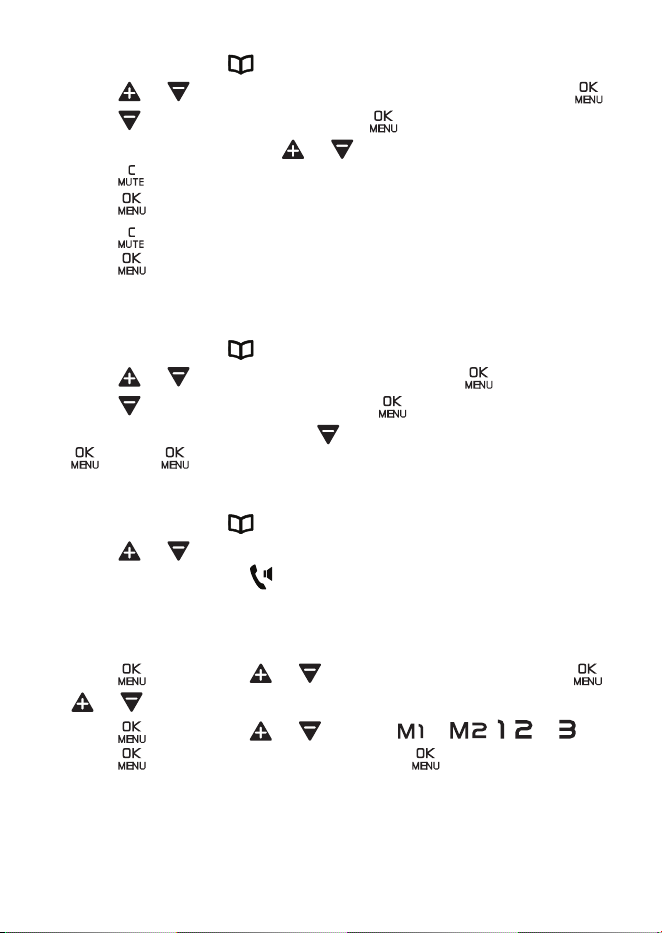
Character map
0
Space - 1
A B C 2
D E F 3
G H I 4
J K L 5
M N O 6
P Q R S 7
T U V 8
W X Y Z 9
* ? / \ ( )
# ' , - . &
23
7.2. Edit a phonebook entry
1. In idle mode, press to open your contact list.
2. Press or to scroll to the entry you want to edit and press .
3. Press to highlight EDIT and press .
4. Edit the name by pressing or to move cursor left or right.
• Press to delete characters and use the keypad to enter new ones.
5. Press to edit any of the numbers you have stored.
• Press to delete digits and re-enter any new ones.
6. Press toconrm.RepeatStep3ofSection7.1tochooseVIP and
Melody ringer.
7.3. Delete a phonebook entry
1. In idle mode, press to open your contact list.
2. Press or to select the contact and pressing .
3. Press to choose DELETE and press .
4. Or to delete all contacts, press to choose DELETE ALL, then press
. Press toconrmto delete all contacts.
7.4. View/Dial a contact
1. In idle mode, press to open your contact list.
2. Press or to scroll through and view the entries.
3. To dial an entry, press .
8. SPEED DIAL
8.1. To register the direct memories in keys M1, M2, 1, 2 & 3
1. Press , then press or to select HS SETTINGS, press ,
or to select DIRECT MEM.
2. Press , then press or to select or , , or .
3. Press , edit or enter the number, press . (For M1 or M2, edit
or enter the name and number, choose VIP and Melody same as phone
book entry).
24
9. PHONE SETTINGS
9.1. Handset Settings
9.1.1. Set Ringer melody and volume
1. Press and or to select HS SETTINGS.
2. Press and or to select RING SETUP.
3. Press and or to select RING VOLUME.
4. Press and or to select the desired ringer volume. There are
6 ringer volume levels including RINGER OFF.
5. Press toconrm.
9.1.2. Turn the handset tones on or o
1. Press and or to select HS SETTINGS.
2. Press to select TONE SETUP and then press .
3. Press to select KEY TONE, then press or to select ON or
OFF for KEY TONE, press toconrm.
9.1.3. Rename the Handset
1. Press , press or to select HS SETTINGS, and then press
.
2. Press to select RENAME HS and then press .
3. Edit the name by selecting to delete the characters, then enter
the new name, and then press toconrm.
10. CALLER ID (NETWORK DEPENDENT)
This feature is available if you have subscribed the caller ID service with
your telephone service provider.
If your caller’s name is stored in your contacts list and it matches the
number calling, you’ll see the caller’s name and where they are calling from
on the display instead.
If you receive a call from a number you have stored in your Blocked calls
list, BLOCKED CALL will be displayed with the number. (In the Call Blocker
ON Status)
The caller ID log can store up to 50 incoming (missed and answered) calls.
If you haven’t subscribed to a caller ID service, no number will be displayed
in the caller ID log for incoming calls but the time and date will be recorded.
Caller ID are listed in chronological order with the most recently received/
made call at the top of the caller ID log.
25
When the caller ID log is full and a new call is received/made, the oldest
entry will be deleted automatically. The caller ID log can hold numbers up
to 24 digits and names up to 12 characters.
Missed call notication
If an incoming call has been missed (i.e. not answered), the missed call
icon will be displayed on the idle screen with the number of missed calls
displayed, e.g. .Youcanclearthenoticationbyviewingthecallsliston
any handset registered to the base.
10.1. View and dial out in the caller ID log
1. Long press . The most recent entry is at the top of the list will be
displayed.
2. Press or to scroll through and view the list.
3. When the entry you want is highlighted, press to dial.
10.2. View dialing options
Although the caller ID log entries received have 10 digits (the area code
plus the seven-digit number), in some areas, you may dial a 1 plus the
seven digits, or a 1 plus the area code plus the seven digits. You can
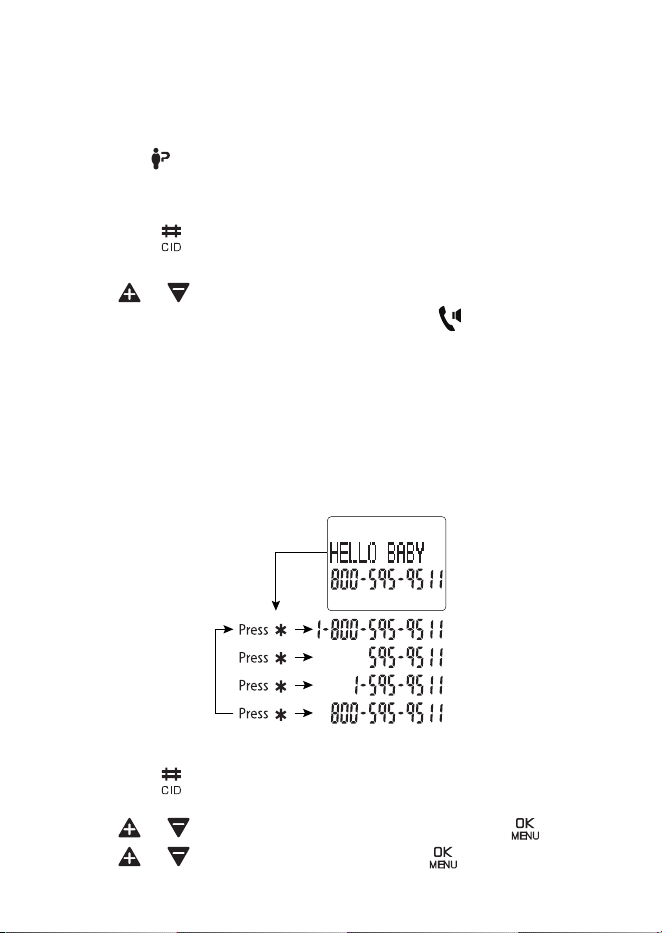
change the number of digits that you dial from or store to the phonebook.
WhilereviewingthecallerIDlog,press*keyrepeatedlytodisplaydierent
dialing options for local and long distance numbers before dialing or saving
the telephone number in the phonebook.
10.3. Save a caller ID log entry to your phonebook
1. Long press . The most recent entry is at the top of the list will be
displayed.
2. Press or to choose the entry you want and press .
3. Press or to choose ADD TO PB, press .
26
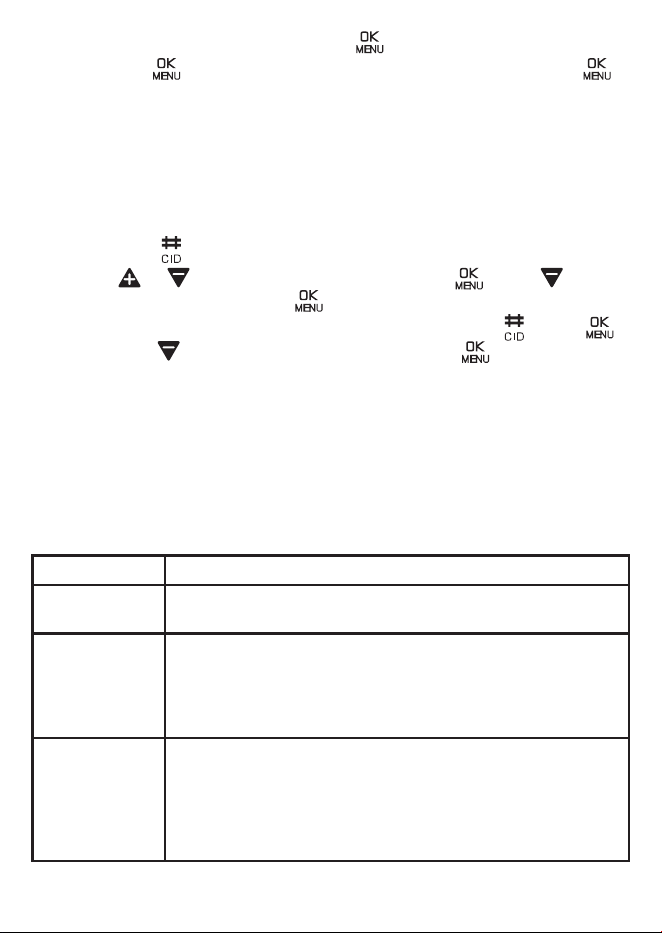
4. View and edit the name, then press . View and edit the number
and press . Choose VIP and MELODY RINGER, then press .
NOTE: To save a number from Blocklist into Phonebook, it is not allowed
and shows DOUBLE NUM. If you decide to delete a number from Blocklist
and then save the number into Phonebook, please refer to Section 11.1.4.
todeletethenumberfromBlocklistrstly.
To save a existing name into Phonebook, it is not allowed and shows NAME
EXISTED. Use a new name to save the entry.
10.4. Delete an entry or the entire caller ID log
1. Long press ,thenifyouwanttodeletejustoneentry.
2. Press or to to choose the entry and press . Press to
choose DELETE, then press toconrm.
3. If you want to delete the entire caller ID log, long press , press ,
then press to choose DELETE ALL, then press toconrm.
11. CALL BLOCK
This telephone is built-in with Smart Call Block feature*. This feature will
help you avoid nuisance calls by only allowing some numbers to make your
phone ring. Default setting Smart Call Block in this telephone if OFF but you
can enable it via your phone settings.
*ThisfeaturerequiresasubcriptionofCallerLineIdenticationservicefrom
your network service provider. Charges may apply.
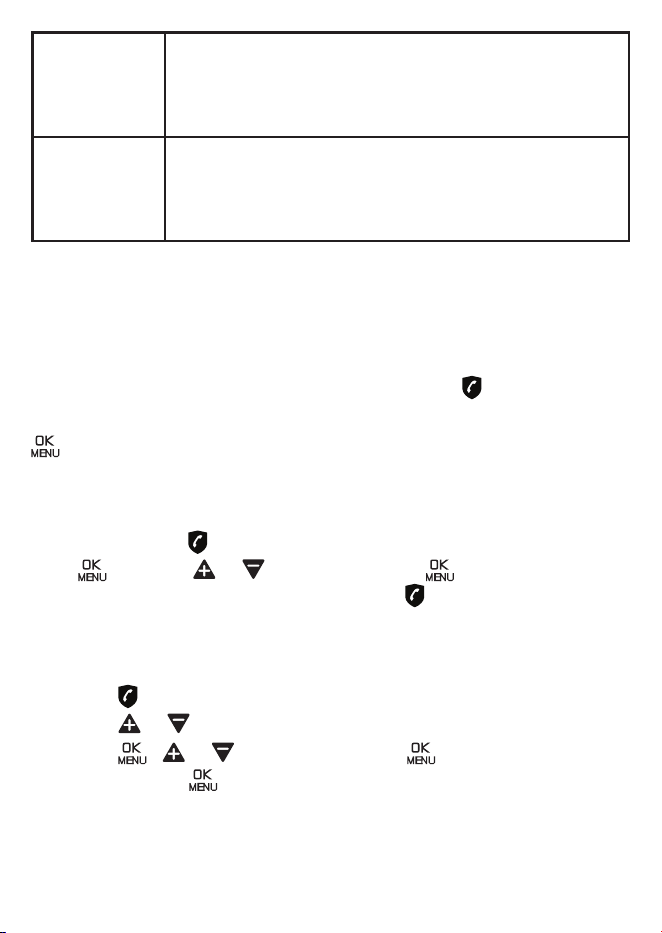
Follow below table to chose the Call Block mode you prefer
Setting Expectation
OFF Call Block function is Disabled.
This is the default mode.
ON Call Block function is set to Manual. Numbers registered
in the block list (up to 100 numbers) will not go through
and the phone will ring silently.
Numbers can be added to the list while the phone is
ringing and / or after a call.
CONTACTS In this automatic mode, any number not registered in
your phonebook will automatically be blocked and not
cause your phone to ring. All calls from contacts regis-
tered in your phonebook will proceed normally. When
this mode is chosen, Contacts OK is displayed on LCD in
idle mode unless you have missed call.
27
VIP In this second automatic mode, only calls from contacts
registered as VIP in your phonebook will go through and
cause you phone to ring. Any other number will not ring.
When this mode is chosen, VIPS OK is displayed on the
LCD in idle mode unless you have missed call.
ANONYMOUS This extra feature allows you to block calls that don’t
show their number (ie private calls, international calls,
etc).
This option can be enabled on top of any of the previous
four.
*This feature requires a subcription of Caller ID service from your network
service provider.
11.1. Manual call block mode: ON
When you chose ON in the call block settings, all calling numbers registered
in your blocklist will be blocked.
How to block an incoming call:
When the phone is ringing and before answering, press will terminate the
callandoeryoutheoptiontoregisterthenumbertotheblocklistinone
click.Thentoconrmtheregistrationofthisnumberintheblacklist,press
.
IMPORTANT: if you don’t conrm, the number will not be added to
the blocklist and the next call will go through normally.
11.1.1. Enable MANUAL mode
In idle mode, press to access BLOCK SET.
Press and press or to select ON. Press .
After you enable this option, the call block icon will be displayed on the
display.
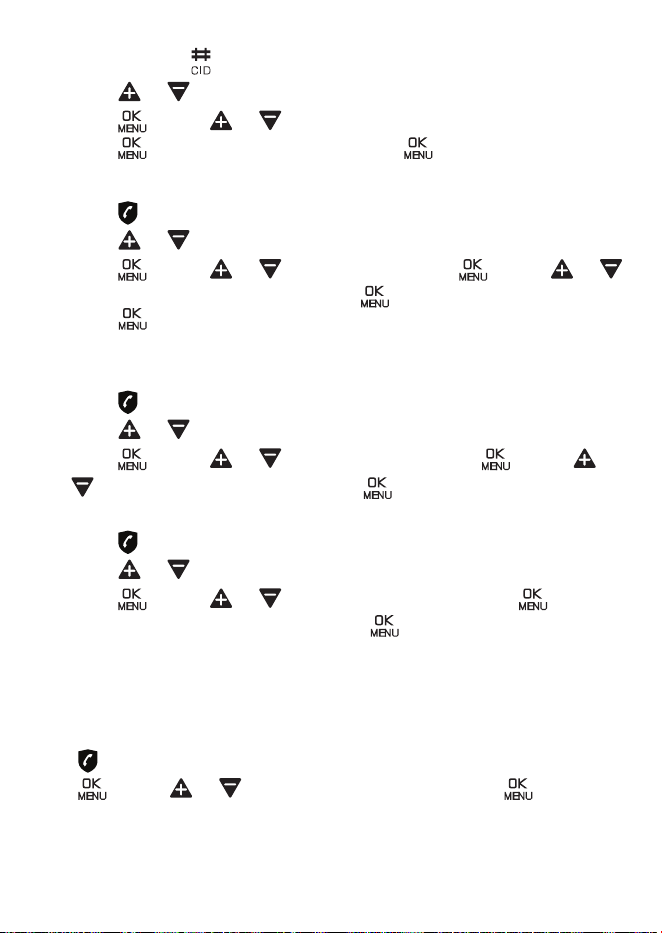
11.1.2. Add numbers to Blocklist
In idle mode,
• Press , BLOCK SET. is displayed.
• Press or to select BLOCKLIST .
• Press , or to select ADD, press ,enter number to be
blocked, press to save.
NOTE: To save a number from Phonebook into Blocklist, it is not allowed
and shows BLOCK DENIED. If you decide to delete a number from Phone-
book and then save the number into Blocklist, please refer to Section 7.3.
todeletethenumberfromPhonebookrstly.
28
From incoming call numbers list,
• Press and hold to access the call list.
• Press or to select a number.
• Press , press or to select ADD to BLIST.
• Press to show selected number, press to save to Blocklist.
11.1.3. Edit numbers in Blocklist
• Press , BLOCK SET. is displayed.
• Press or to select BLOCKLIST.
• Press , press or to select EDIT, press , press or
to select number to be edited, press to make corrections, and then
press to save.
11.1.4. Delete numbers in Blocklist
Delete a number from blocklist
• Press , BLOCK SET. is displayed.
• Press or to select BLOCKLIST.
• Press , press or to select DELETE, press , press or
to select number to delete, press toconrm.
Delete all numbers from blocklist
• Press , BLOCK SET. is displayed.
• Press or to select BLOCKLIST.
• Press , press or to select DELETE ALL, press ,
CONFIRM? is shown, and then press toconrm.
11.2. Automatic call block mode
11.2.1. Contacts only
Only calls from contacts registered in your phonebook (normal and VIP) will
go through and make your phone ring.
To activate this mode:
Press to access Block set.
Press , press or to select CONTACTS OK. Press to validate.
29
11.2.2. VIPs only
In this restrictive mode, only calls from numbers registered as VIP in your
phonebook will go through and make your phone ring.
Press to access Block set.
Press , press or to select VIP OK. Press to validate.
11.3. Anonymous call block mode
This feature allows you to block numbers that do not display a number on
your phone. It can be enabled or disabled independently from the previous
call block modes.
• Press , BLOCK SET. is displayed.
• Press or to select BLOCK ANONYM, then press .
• Press or to select one of the options: PRIVATE / ALL / OFF.
• Press to validate.
PRIVATE : This mode will block incoming calls that have purposely kept
their numbers private from you.
ALL : This mode will block all incoming calls, including private calls,
international calls, pay phone and other out-of-area calls.
12. HANDSET SETTING
Handset can be customized according to your preference by accessing
HS SETTINGS to select the settings.
1. Press to enter menu;
2. Press or to select HS SETTINGS, press .
3. Press or to select RING SETUP/ TONE SETUP/ LANGUAGE/
RENAME HS/ AUTO ANSWER/ DATE & TIME/ DIRECT MEM./
ALARM, , then press toconrmtheselection.
12.1. Set the Ringer Melody and Volume
RingermelodyandRingervolumecanbesetindierentscenarios,
INTERNAL RING and EXTERNAL RING.
Note:Total5dierentmelodiesand5dierenttones.
12.1.1. Set Ringer Melody for Internal Call
• Repeat Step 1 to 3 of Section 12 to select RING SETUP, then press
, press or to select INT. RING, then press toconrm.
Press or to select the desired ringer, the press toconrm.
30
12.1.2. Set Ringer Melody for External Call
• Repeat Step 1 to 3 of 12 to select RING SETUP, then press ,
press or to select EXT. RING, then press toconrm.
• Press or to select the desired ringer, then press toconrm.
12.1.3. Set Ringer Volume
• Repeat Step 1 to 3 of 12 to select RING SETUP, then press ,
press or to select RING VOLUME, then press toconrm.
• Press or to select the desired volume from Level 1~5 or
RINGER OFF, then press toconrm.
12.2. Set Alert Tones
Alert tone can be set ON or OFF when:
• Press a key <KEY TONE>.
• Battery is low and needs charge for handset <BATTERY TONE>.
• Handset and Base is out of range <OUT OF RANGE>.
To set Alert Tones ON/OFF:
• Repeat Step 1 to 3 of Section 12 to select TONE SETUP, then press
, press or to select KEY TONE/ BATTERY TONE/ OUT OF
RANGE to set alert tone, then press toconrmselection.
• Press or to select ON or OFF, then press toconrm.
12.3. Set Language on Handset
• Repeat Step 1 to 3 of Section 12 to select LANGUAGE, then press ,
press or to select the language, then press toconrm.
NOTE:Total3dierentlanguagesforselection.
12.4. Rename the Handset
• Repeat Step 1 to 3 of Section 12 to select RENAME HS, then press
, edit or enter name of the handset, then press .
31
12.5. Set the Auto Answer
When Auto Answer is on, call answers automatically when you pickup the
handset from cradle.
• Repeat Step 1 to 3 of Section 12 to select AUTO ANSWER, then press
, press or to select ON or OFF.
• Select ON, press to turn on Auto Answer.
• Select OFF, press toturnoAutoAnswer.
12.6. Date & Time
Refer to section 5.3.
12.7. Direct Mem
Refer to section 8.
12.8. Alarm Settings
Set an alarm clock on this phone. When an alarm is set, shows on
display. When the alarm time is reached, the phone rings with the
alarm melody for 2 minutes, and, the and “ALARM ON” on display
the alarm will alert again at then end of snooze period of 4 minutes.
Press and hold to stop the SNOOZE.
1. Press to enter menu;
2. Press or to select HS SETTINGS, then press .
3. Press or to select ALARM, press toconrm.
4. Press or to select ON/OFF for alarm function;
5. Select ON, then press toconrm.
6. Display shows SET TIME, enter alarm time (If the clock is 12 hours
time format, enter the time from 12:00am to 12:00pm, press up or
down to select "A" = AM or "P" = PM) then press to set;
7. Display shows SNOOZE, then press , use or to select ON/
OFF for snooze function, press toconrm.
32
13. TELEPHONE BASE SETTINGS
BASE can be customized according to your preference by accessing
BS SETTINGS to select the settings.
1. Press to enter the menu.
2. Press or to select BS SETTINGS, press toconrm.
3. Press or to select DELETE HS/ DIAL MODE/ FLASH TIME/
CHANGE PIN/ ECO MODE/ AREA CODE then press toconrm
the selection.
13.1. De-register a Handset
To de-registered a handset from the Base, 4-digit PIN need to be enterd.
Repeat Step 1 to 3 of Section 13 to select DELETE HS, press , then
enter 4-digit system PIN, press .
• Press or to select one of the handset when need to be
de-registered, then press toconrm.
NOTE: If PIN correct, handset will go to next step. If PIN incorrect, handset
will go back to previous level.
13.2. Change the dial mode
• Repeat Step 1 to 3 of Section 13 to select DIAL MODE, press ,
press or to select TONE or PULSE, then press toconrm.
13.3. Change the Flash Time
TheashtimesettingsiscountrydependentandneedstocontactLocal
Service Provider for the correct settings.
• Repeat Step 1 to 3 of Section 13 to select FLASH TIME, press ,
press or to select SHORT or MEDIUM or LONG, then press
toconrm.
13.4. Change the system PIN Code
A 4-digit system PIN code needs for changing the system settings of the
base station. The default system PIN code is 0000.
• Repeat Step 1 to 3 of Section 13 to select CHANGE PIN, press ,
then needs to enter the existing 4-digit system PIN, then press to
conrm.
• Enter new system PIN code, then press .
33
• Re-enter the new system PIN code, then press toconrm.
NOTE: If PIN correct, handset will go to next step. If PIN incorrect, handset
will go back to previous level.
13.5. ECO Mode
This power conserving technology reduces power consumption for optimal
battery performance.
• Repeat Step 1 to 3 of Section 13 to select ECO MODE, press .
• Press or to select ON/ O, then press toconrm.
13.6. Home area code
The phone can be store the home area code for CID view dialing option.
• Repeat Step 1 to 3 of Section 13 to select AREA CODE, press .
• Edit or enter home area code, then press toconrm.
14. REGISTRATION
The phone can be registered up to FIVE handsets to a single base station.
The handset is not registered to the base station, REGISTER is shown on
display.
To register new handset:
• Press and hold on the base station for about 8 seconds, the base
station is entered into registration mode.
• Press to enter menu, then or to select REGISTRATION.
REGISTRATION, press and 4-digist system PIN code need to enter,
then press toconrm.
Ifthehandsetregistrationissuccessful,aconrmationtonewillbeheard.
The handset will be assigned automatically to the next available handset
number. Handset number shows in the handset display during standby
mode.
34
15. RESET THE PHONE
The phone can be reset to the factory settings. After reset, all the settings
and caller ID log entries inside the phone will be deleted, except
PHONEBOOK remains unchanged.
• Press to enter the menu; then or to select DEFAULT, then
press .
• Display shows CONFIRM?, press toconrm.
16. FREQUENTLY ASKED QUESTIONS
Below are the questions most frequently asked about the cordless
telephone.
Problem Cause
My telephone does not
work at all.
Make sure the telephone base is installed
properly, and battery is installed and charged
correctly. For optimum daily performance,
return the handset to the telephone base after
use.
The display shows
“OUT OF RANGE”.
I cannot hear the dial
tone.
a. Disconnect the telephone line cord from
your telephone and connect it to another
telephone. If there is no dial tone on that other
telephone either, then the telephone line cord
may be defective. Try installing a new telephone
line cord.
If changing telephone line cord does not help,
thewalljack(orthewiringtothiswalljack)
may be defective. Contact your telephone
service provider.
b. You may be using a new cable or VoIP service,
theexistingtelephonejacksinyourhomemay
no longer work. Contact your service provider
for solutions.
I cannot dial out. a. Make sure there is a dial tone before dialing.
It is normal if the handset takes a second or
two to synchronize with the telephone base
before producing a dial tone. Wait an extra
second before dialing.
b. Eliminate any background noise. Mute the
handset before dialing, or dial from another
room in your home with less background
noise.
35
The battery does not
charge in the handset
or the handset battery
does not accept charge.
a. Make sure the handset is placed in the
telephone base or charger correctly.
b. If the battery is completely depleted, charge
the battery for at least 30 minutes before use.
c. You may need to purchase a new battery.
My handset beeps
and is not performing
normally.
Move the handset closer to the telephone
base. It may be out of range.
I hear other calls when
using the telephone.
Disconnect the telephone base from the telephone
walljack.Pluginadierenttelephone.Ifyou
still hear other calls, the problem is probably in
the wiring or telephone service. Contact your
telephone service provider.
There is interference
during a telephone con-
versation. My calls fade
out when I am using
the cordless handset.
a. The handset may be out of range. Move it
closer to the telephone base.
b. If you subscribe to high-speed Internet
service (DSL - digital subscriber line) through
your telephone line, you must install a DSL
lterbetweenthetelephonelinecordandthe
telephonewalljack.Thelterpreventsnoise
and caller ID problems caused by DSL inter-
ference. Contact your DSL service provider for
moreinformationaboutDSLlters.
c. Appliances or other cordless telephones
plugged into the same circuit as the telephone
base can cause interference. Try moving the
appliance or telephone base to another outlet.
d. The location of your telephone base can impact
the performance of your cordless phone. For
better reception, install the telephone base in
a centralized location within your home or
office, away from walls or other obstructions.
In many environments, elevating the telephone
base improves overall performance.
36
The telephone does
not receive caller ID or
the telephone does not
show caller ID during
call waiting.
a. Caller ID is a subscription service. You must
subscribe to this service from your telephone
service provider for this feature to work on
your telephone.
b. Both your and the caller’s telephone service
providers must use equipment compatible with
the caller ID service.
c. The caller may not be calling from an area
which supports caller ID.
d. The caller ID information displays after the
rstorsecondring.
The display shows "Out
of range".
a. The handset may be out of range. Move it
closer to the telephone base.
b. Make sure the power cord is securely
plugged into the telephone base. Use a working
electrical outlet not controlled by a wall switch.
I subscribe to a non-
traditional telephone
service that uses my
computer to establish
connections, and my
telephone doesn’t work.
a. Make sure your computer is powered on,
and your Internet is working properly.
b. Make sure to plug your USB telephone
adapter into a dedicated USB port on your
computer. Do not plug into a multiple port USB
hub (USB splitter) that is not powered.
c. In a few rare instances, the USB port on
your computer may not have enough power.
In these instances, try using a USB hub with
its own external power supply.
d.Ifyouareusingarewall,itmayprevent
access to your nontraditional telephone service.
Contact your service provider for more
information.
17. GENERAL PRODUCT CARE
17.1. Taking care of your telephone
Your cordless telephone contains sophisticated electronic parts, so it must
be treated with care.
17.2. Avoid rough treatment
Place the handset down gently. Save the original packing materials to
protect your telephone if you ever need to ship it.

37
17.3. Avoid water
Your telephone can be damaged if it gets wet. Do not use the handset
outdoors in the rain, or handle it with wet hands. Do not install the telephone
base near a sink, bathtub or shower.
17.4. Electrical storms
Electrical storms can sometimes cause power surges harmful to electronic
equipment. For your own safety, take caution when using electrical
appliances during storms.
17.5. Cleaning your telephone
Your telephone has a durable plastic casing that should retain its luster for
many years. Clean it only with a dry non-abrasive cloth. Do not use
dampened cloth or cleaning solvents of any kind.
18. FCC, ACTA AND IC REGULATIONS
FCC Part 15
This equipment has been tested and found to comply with the requirements
for a Class B digital device under Part 15 of the Federal Communications
Commission (FCC) rules. These requirements are intended to provide
reasonable protection against harmful interference in a residential installation.
This equipment generates, uses and can radiate radio frequency energy
and, if not installed and used in accordance with the instructions, may
cause harmful interference to radio communications. However, there is no
guarantee that interference will not occur in a particular installation. If this
equipment does cause harmful interference to radio or television reception,
whichcanbedeterminedbyturningtheequipmentoandon,theuseris
encouraged to try to correct the interference by one or more of the follow-
ing measures:
• Reorient or relocate the receiving antenna.
• Increase the separation between the equipment and receiver.
• Connecttheequipmentintoanoutletonacircuitdierentfromthatto
which the receiver is connected.
• Consult the dealer or an experienced radio/TV technician for help.
Changesormodicationstothisequipmentnotexpresslyapprovedbythe
party responsible for compliance could void the user’s authority to operate
the equipment.
This device complies with Part 15 of the FCC rules. Operation is subject
to the following two conditions: (1) this device may not cause harmful
interference, and (2) this device must accept any interference received,

38
including interference that may cause undesired operation. Privacy of
communications may not be ensured when using this telephone.
To ensure safety of users, the FCC has established criteria for the amount of
radio frequency energy that can be safely absorbed by a user or bystander
according to the intended usage of the product. This product has been tested
and found to comply with the FCC criteria. The handset may be safely held
against the ear of the user. The telephone base shall be installed and used
such that parts of the user’s body other than the hands are maintained at a
distance of approximately 20 cm (8 inches) or more.
FCC Part 68 and ACTA
This equipment complies with Part 68 of the FCC rules and with technical
requirements adopted by the Administrative Council for Terminal Attachments
(ACTA). The label on the back or bottom of this equipment contains, among
otherthings,aproductidentierintheformatUS:AAAEQ##TXXXX.This
identiermustbeprovidedtoyourtelephoneserviceprovideruponrequest.
Theplugandjackusedtoconnectthisequipmenttopremiseswiringand
the telephone network must comply with applicable Part 68 rules and
technical requirements adopted by ACTA. A compliant telephone cord and
modular plug is provided with this product. It is designed to be connected
toacompatiblemodularjackthatisalsocompliant.AnRJ11jackshould
normallybeusedforconnectingtoasinglelineandanRJ14jackfortwo
lines. See the installation instructions in the user’s manual.
The Ringer Equivalence Number (REN) is used to determine how many
devices you may connect to your telephone line and still have them ring
when you are called. The REN for this product is encoded as the 6th and
7thcharactersfollowingtheUS:intheproductidentier(e.g.,if##is03,
the REN is 0.3). In most, but not all areas, the sum of all RENs should be
ve(5.0)orless.Formoreinformation,contactyourtelephoneservice
provider.
This equipment may not be used with Party Lines. If you have specially
wired alarm dialing equipment connected to your telephone line, ensure
the connection of this equipment does not disable your alarm equipment. If
you have questions about what will disable alarm equipment, consult your
telephoneserviceprovideroraqualiedinstaller.
If this equipment is malfunctioning, it must be unplugged from the modular
jackuntiltheproblemhasbeencorrected.Replacementtothistelephone
equipment can only be made by the manufacturer or its authorized agents.
For replacement procedures, follow the instructions outlined under the
Limited warranty.

39
If this equipment is causing harm to the telephone network, the telephone
service provider may temporarily discontinue your telephone service. The
telephone service provider is required to notify you before interrupting
service.Ifadvancenoticeisnotpractical,youwillbenotiedassoonas
possible. You will be given the opportunity to correct the problem and the
telephoneserviceproviderisrequiredtoinformyouofyourrighttolea
complaint with the FCC. Your telephone service provider may make changes
initsfacilities,equipment,operation,orproceduresthatcouldaectthe
proper functioning of this product. The telephone service provider is required
to notify you if such changes are planned.
If this product is equipped with a corded or cordless handset, it is hearing
aid compatible.
If this product has memory dialing locations, you may choose to store
emergencytelephonenumbers(e.g.,police,re,medical)intheselocations.
If you do store or test emergency numbers, please:
Remainonthelineandbrieyexplainthereasonforthecallbeforehanging
up.Performsuchactivitiesino-peakhours,suchasearlymorningorlate
evening.
19. LIMITED WARRANTY
What does this limited warranty cover?
The manufacturer of this HelloBaby warrants to the holder of a valid proof
of purchase (“Consumer” or “you”) that the Product and all accessories
provided in the sales package (“Product”) are free from defects in material
and workmanship, pursuant to the following terms and conditions, when
installed and used normally and in accordance with the Product operating
instructions. This limited warranty extends only to the Consumer for
Products purchased and used in the United States of America.
What will HelloBaby do if the Product is not free from defects in
materials and workmanship during the limited warranty period
(“Materially Defective Product”)?
During the limited warranty period, HelloBaby’s authorized service
representative will replace at HelloBaby’s option, without charge, a
Materially Defective Product. If we replace the Product, we may use new or
refurbished replacement parts. If we choose to replace the Product, we may
replace it with a new or refurbished Product of the same or similar design.
We will retain defective parts, modules, or equipment. Replacement of the
Product, at HelloBaby’s option, is your exclusive remedy. HelloBaby will
return the replacement Products to you in working condition. You should
expect the replacement to take approximately 30 days.

40
How long is the limited warranty period?
The limited warranty period for the Product extends for ONE (1) YEAR from
the date of purchase. If HelloBaby replaces a Materially Defective Product
under the terms of this limited warranty, this limited warranty also applies
to the replacement Product for a period of either (a) 90 days from the date
the replacement Product is shipped to you or (b) the time remaining on the
original one-year warranty; whichever is longer.
What is not covered by this limited warranty?
This limited warranty does not cover:
1.Productthathasbeensubjectedtomisuse,accident,shippingorother
physical damage, improper installation, abnormal operation or handling,
neglect,inundation,re,waterorotherliquidintrusion.
2.Productthathasbeensubjectedtocontactwithliquid,water,rain,
extreme humidity or heavy perspiration, sand, dirt or the like; but then
only to the extent the damage was not caused by incorrectly securing the
waterproof handset’s protective elements, for example, failing to properly
close a seal), or such protective elements are damaged or missing (e.g.
acrackedbatterydoor),orsubjectingaProducttoconditionsbeyondits
statedspecicationsorlimits(e.g.30minutesin1meteroffreshwater).
3.Productthathasbeendamagedduetorepair,alterationormodication
by anyone other than an authorized service representative of HelloBaby;
4. Product to the extent that the problem experienced is caused by signal
conditions, network reliability, or cable or antenna systems;
5. Product to the extent that the problem is caused by use with non-
HelloBaby accessories;
6. Product whose warranty/quality stickers, product serial number plates or
electronic serial numbers have been removed, altered or rendered
illegible;
7. Product purchased, used, serviced, or shipped for repair from outside the
United States of America, or used for commercial or institutional purposes
(including but not limited to Products used for rental purposes); 8.
Product returned without a valid proof of purchase (see item 2 below); or
9.Chargesforinstallationorsetup,adjustmentofcustomercontrols,and
installation or repair of systems outside the unit.
What must you return with the Product to get warranty service?
1. Return the entire original package and contents including the Product to
the HelloBaby service location along with a description of the malfunction or
diculty;and
2. Include a “valid proof of purchase” (sales receipt) identifying the Product
purchased (Product model) and the date of purchase or receipt; and
3. Provide your name, complete and correct mailing address, and telephone
number.

41
Other limitations
This warranty is the complete and exclusive agreement between you and
HelloBaby. It supersedes all other written or oral communications related to
this Product. HelloBaby provides no other warranties for this Product. The
warranty exclusively describes all of HelloBaby’s responsibilities regarding
the Product. There are no other express warranties. No one is authorized to
makemodicationstothislimitedwarrantyandyoushouldnotrelyonany
suchmodication.
State/ProvincialLawRights:Thiswarrantygivesyouspeciclegalrights,
and you may also have other rights, which vary from state to state or
province to province.
Limitations:Impliedwarranties,includingthoseoftnessforaparticular
purposeandmerchantability(anunwrittenwarrantythattheProductist
for ordinary use) are limited to one year from the date of purchase. Some
states/provinces do not allow limitations on how long an implied warranty
lasts, so the above limitation may not apply to you. In no event shall
HelloBaby be liable for any indirect, special, incidental, consequential,
orsimilardamages(including,butnotlimitedtolostprotsorrevenue,
inability to use the Product or other associated equipment, the cost of
substitute equipment, and claims by third parties) resulting from the use of
this Product. Some states/provinces do not allow the exclusion or limitation
of incidental or consequential damages, so the above limitation or exclusion
may not apply to you.
Please retain your original sales receipt as proof of purchase.
Disclaimer and Limitation of Liability
HelloBaby and its suppliers assume no responsibility for any damage or loss
resulting from the use of this user’s manual. HelloBaby and its suppliers
assume no responsibility for any loss or claims by third parties that may
arise through the use of this product.
TheManufacturerreservestherighttomodifythespecicationsofits
products in order to make technical improvements or comply with new
regulations.

42
20. SAFETY
In the event of an electrical hazard, the mains adapter acts as 120V power
isolating device. It should therefore, as a precaution, be installed close to
the appliance and be easily accessible. To disconnect the device from the
primary power source, the mains adapter must be removed from the 120V
AC/60Hz socket.
If the mains adapter fails, it must be replaced by an identical model.
If not connected to the mains power or if there is a mains power failure,
telephones that use cordless handsets will not work.
You will then be unable to make or receive calls in the event of an emer-
gency.
Therefore, we recommend that you also keep a conventional telephone –
one that doesn’t require a power supply – as a backup.
! Do not use your telephone to notify a gas leak when standing in
the vicinity of the leak.
It is recommended that you avoid using this device during electrical storms.
Do not attempt to open the batteries, as they contain chemical substances.
In the event of leakage, avoid contact with the skin, eyes, nose and mouth.
Intheeventofcontact,rinsetheaectedpartforabouttwentyminutes
with running water and seek urgent medical attention. Clean the product
with absorbent paper or a dry cloth and contact your reseller for replacement
batteries.
21. CALIFORNIA ENERGY COMMISSION BATTERY
CHARGING TESTING INSTRUCTIONS
This telephone meets the California Energy Commission (CEC) regulations for
energy consumption. It is not necessary to activate the energy conserving
mode during normal usage, unless you want to charge the battery only and
disable all telephone functions.
To activate the CEC battery charging testing mode:
1. Unplug the telephone base power adapter from the power outlet. Make
sure all handsets are plugged with charged batteries before
proceeding.
2. While you press and hold , plug the telephone base power adapter
back to the power outlet.
3. After about 10 seconds, release and then press and hold it 10
seconds.
Then the phone successfully enters the CEC battery charging testing mode.
43
To deactivate the CEC battery charging testing mode:
Unplug the telephone base power adapter from the power outlet, and then
plug it back in. Then the telephone base is powered up as normal.
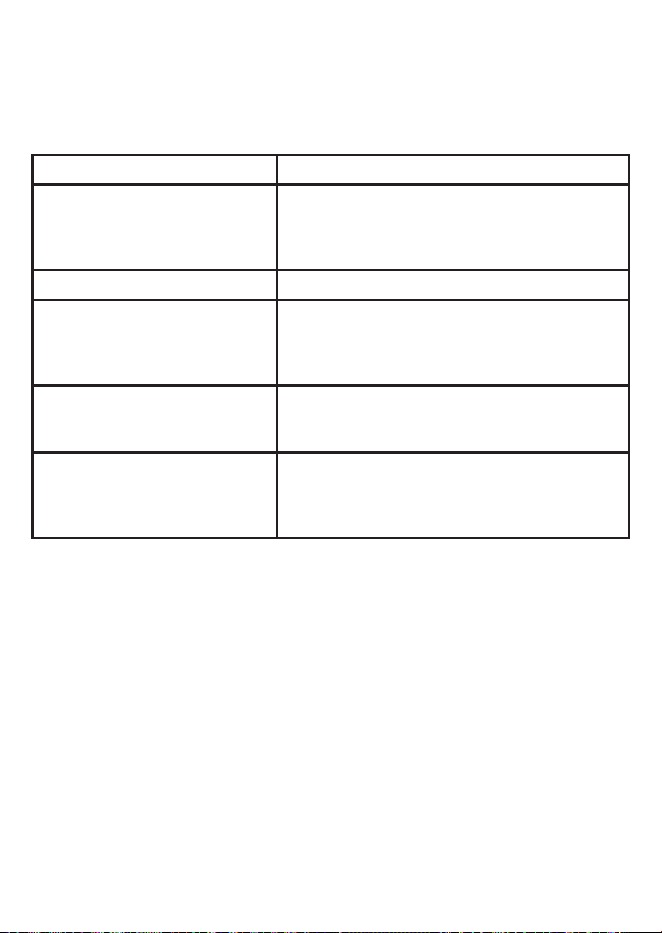
22. TECHNICAL SPECIFICATIONS
Frequency control Crystal controlled PLL synthesizer
Transmit frequency Handset:
1921.536-1928.448 MHz
Telephone base:
1921.536-1928.448 MHz
Channels 5
Nominaleectiverange Maximum power allowed by FCC and IC.
Actual operating range may vary according
to environment conditions at the time of
use.
Power requirements Handset: 1.2V AAA x 2 Ni-MH battery
Telephone base: 6V DC @ 450mA
Charger: 6V DC @ 450mA
Memory Phonebook Phonebook: 100 memory locations;
up to 24 digits and 12 characters
Caller ID log: 50 memory locations; up to
24 digits and 12 characters
Model No.: HB2688/ HB2688-2/ HB2688-3/ HB2688-4
Ver: 1.0 (EN)
Printed in China