User Guide
Quality, Design and Innovation
home.liebherr.com/fridge-manuals
Contents
1 General safety instructions.......................... 3
2 The appliance at a glance............................. 5
2.1 Delivered contents.............................................. 5
2.2 Overview of appliances and equipment.......... 6
2.3 SmartDevice......................................................... 6
2.4 Range of appliance use...................................... 6
2.5 Conformity............................................................ 7
2.6 Spare parts........................................................... 7
3 Functionality of the Touch&Swipe display. 7
3.1 Navigation and symbol explanation................ 7
3.2 Menus.................................................................... 8
3.3 Sleep mode.......................................................... 8
4 Start-up......................................................... 8
4.1 Switching on appliance (first use)................... 8
4.2 Starting the EasyTwist-Ice for the first time.. 9
5 Storage.......................................................... 9
5.1 Information regarding storage.......................... 9
5.2 Fridge compartment........................................... 9
5.3 EasyFresh............................................................ 9
5.4 Freezer compartment......................................... 10
5.5 Storage times...................................................... 10
6 Energy saving................................................ 11
7 Use................................................................. 11
7.1 Controls and displays......................................... 11
7.1.1 Status display................................................... 11
7.1.2 Display symbols................................................11
7.2 Appliance functions............................................ 11
7.2.1 Notes on the appliance functions................. 11
Switching appliance off and on....................12
Switching temperature zone off and on..... 12
WiFi....................................................................13
Temperature.....................................................14
Temperature unit.............................................14
D-Value............................................................. 15
SuperCool.........................................................15
PowerCool ....................................................... 15
VarioTemp......................................................... 16
SuperFrost........................................................ 17
Start defrost cycle..........................................18
PartyMode ....................................................... 18
HolidayMode.................................................... 19
SabbathMode...................................................19
EnergySaver ................................................... 20
CleaningMode................................................. 20
Display Brightness..........................................21
Door alarm........................................................21
Input lock......................................................... 22
Language......................................................... 22
Appliance information....................................22
Software...........................................................23
Reminder.......................................................... 23
Demo mode......................................................23
Resetting to factory settings........................24
7.3 Messages.............................................................. 24
7.3.1 Overview of warnings..................................... 24
7.3.2 Ending warnings.............................................. 25
7.3.3 Overview of reminders....................................26
7.3.4 Ending reminders.............................................26
8 Equipment...................................................... 26
8.1 Door racks............................................................ 26
8.2 Shelves................................................................. 29
8.3 Split shelf............................................................. 30
8.4 VarioSafe ............................................................. 30
8.5 Drawers................................................................. 33
8.6 Lid for EasyFresh-safe........................................ 34
8.7 Glass shelves....................................................... 35
8.8 EasyTwist-Ice....................................................... 35
8.9 VarioSpace*.......................................................... 37
8.10 Butter dish............................................................ 37
8.11 Egg rack................................................................ 37
8.12 Bottle rack............................................................ 37
9 Maintenance.................................................. 38
9.1 FreshAir carbon filter.......................................... 38
9.2 Disassembling / assembling pull-out
systems................................................................. 38
9.3 Lid for EasyFresh-safe........................................ 39
9.4 Defrosting the appliance................................... 39
9.5 Cleaning the appliance...................................... 39
10 Customer support......................................... 42
10.1 Technical specifications.................................... 42
2 * Depending on model and options
10.2 Operating noises................................................. 43
10.3 Technical faults................................................... 43
10.4 Customer Service................................................ 44
10.5 Rating plate.......................................................... 45
11 Decommissioning.......................................... 45
12 Disposal......................................................... 45
12.1 Preparing the appliance for disposal............... 45
12.2 Disposing of the appliance in an
environmentally friendly manner..................... 45
Congratulations on the purchase of your new appli‐
ance. With this purchase, you have chosen all the
advantages of the latest refrigeration technology, guar‐
anteeing you a high-quality appliance with a long life
span and high operating safety.
The equipment of your appliance gives you the highest
level of day-to-day ease of operation.
Together we are making an active contribution to the
conservation of our environment by purchasing this
appliance which is manufactured in an environmentally
friendly process with the use of recyclable materials.
We hope you enjoy your new appliance.
The manufacturer is constantly working to improve all
types and models. Therefore, please be aware that we
reserve the right to make changes to the shape, equip‐
ment and technology.
Symbol
Explanation
Read instructions
Please read the information in these
instructions carefully to understand all of
the benefits of your new appliance.
Additional information online
The digital manual with supplemental
information can be found online by scan‐
ning the QR code on the front page of this
manual or by entering the service number
at home.liebherr.com/fridge-manuals.
Check appliance
Check all parts for transport damage. If you
have any complaints, please contact your
agent or customer service.
Differences
These instructions apply to a range of
models, so there may be differences.
Sections that apply to certain models only
are indicated by an asterisk (*).
Instructions and results
Instructions are marked with a
.
Results are marked with a
.
Symbol Explanation
Videos
Videos about the appliances are available
on the YouTube channel of Liebherr-Hausg‐
eräte.
Open-source licenses:
The appliance includes software components that
make use of open-source licenses. You can find
information on the open-source licenses to be used
here: home.liebherr.com/open-source-licenses
These operating instructions apply to:
C5250
SC5781
SC7751
1 General safety instructions
Please keep these operating instructions in a safe
place so you can refer back to them at any time.
If you pass the appliance on, please hand these oper‐
ating instructions to the new owner.
Read and follow these instructions. They contain
safety information which is important for safe and
problem-free installation and operation. Always read
and follow the safety information.
Dangers for the user:
-
This appliance is not intended for use by persons
(including children) with reduced physical, sensory
or mental capabilities, or lack of experience and
knowledge, unless they have been given supervision
or instruction concerning use of the appliance by a
person responsible for their safety. Children should
be supervised to ensure that they do not play with
the appliance. Cleaning and user maintenance must
not be performed by children unless they are super‐
vised. Children between the ages of 3 and 8 may
load and unload the appliance. Children under the
age of 3 must be kept away from the appliance
unless they are constantly supervised.
-
IMPORTANT: The power plug must be easily acces‐
sible so that the appliance can be disconnected
from the mains quickly in an emergency. It must not
be behind the back of the appliance.
-
The socket must be easily accessible so that the
appliance can be disconnected quickly from the
electricity in an emergency. It must not be located in
the area behind the appliance.
-
Always hold the appliance at the plug when discon‐
necting it from the household power. Do not pull on
the cable.
-
Disconnect the power plug or fuse if there is a
malfunction.
-
Do not damage the power cable. Do not operate the
appliance with a faulty power cable. If the supply
General safety instructions
* Depending on model and options 3

cord is damaged, it must be replaced by the manu‐
facturer, its service agent or similarly qualified
persons in order to avoid a hazard. For Plug and Play
connections, the change may be carried out by the
customer.
-
Repairs and work on the appliance may only be
carried out by Customer Service or other specifically
trained qualified personnel.
-
Always follow the instructions when assembling,
connecting and disposing of the appliance.
Risk of fire:
-
The refrigerant contained within the appliance
(specifications on the identification plate) is environ‐
mentally friendly, but flammable. Leaking refrigerant
can ignite.
•
WARNING: Do not damage the refrigerant circuit.
•
Do not handle ignition sources inside the appli‐
ance.
•
WARNING: Do not use electrical appliances inside
the food storage compartments of the appliance,
unless they are of the type recommended by the
manufacturer (e.g. steam cleaning appliances,
heating appliances, ice cream makers).
•
If refrigerant leaks: Remove naked flames or igni‐
tion sources located near the area of the leak.
Ventilate the room well. Contact Customer
Service.
-
Do not operate the appliance near explosive gases.
-
Do not store or use gasoline or other flammable
gases and liquids near the appliance.
-
Do not store explosive substances such as aerosol
cans with a flammable propellant in this appliance.
You can recognize such spray cans by the printed list
of contents or by a flame symbol. Any leaking gases
can be ignited by electrical components.
-
Keep lit candles, lamps and other objects with naked
flames away from the appliance so they do not
cause a fire.
-
Alcoholic beverages or other containers holding
alcohol must always be tightly sealed for storage
purposes. Any leaking alcohol can be ignited by elec‐
trical components.
Risk of falling or toppling over:
-
WARNING: To avoid a hazard due to instability of the
appliance, it must be fixed in accordance with the
instructions.
-
Do not stand on the base, drawers, doors etc. or use
them as improper supports. This applies in particular
to children.
Danger of poisoning:
-
Do not consume spoiled food.
Danger of frostbite, feeling of numbness and pain:
-
Avoid prolonged skin contact with cold surfaces or
chilled/frozen food or take protective measures, e.g.
wear gloves.
Risk of injury and damage:
-
Hot steam may cause injuries. Do not use any elec‐
trical heating or steam cleaning equipment, naked
flames or defrosting sprays for defrosting measures.
-
WARNING: Do not use mechanical devices or other
means to accelerate the defrosting process, other
than those recommended by the manufacturer.
-
Do not remove ice using sharp objects.
-
WARNING: Keep clear of obstruction all ventilation
openings in the appliance enclosure or in the struc‐
ture for building-in.
-
WARNING: Risk of child entrapment. Before you
throw away your old refrigerator or freezer:
•
Take off the doors.
•
Leave the shelves in place so that children may
not easily climb inside.
Risk of crushing:
-
Do not hold onto the hinge when opening and
closing the door. Fingers may become trapped.
California Proposition 65
-
WARNING: This product can expose you to chemi‐
cals including Diisononyl Phthalate (DINP), which is
known to the State of California to cause cancer,
and Di-isodecyl Phthalate (DIDP), which is known to
the State of California to cause birth defects or
other reproductive harm. For more information, go to
www.P65Warnings.ca.gov
FCC Warning
-
Changes or modifications not expressly approved by
the party responsible for compliance could void the
user’s authority to operate the equipment.
FCC information
-
This appliance has been tested and found to comply
with the limits for a Class B digital device, pursuant
to part 15 of the FCC Rules. These limits are
designed to provide reasonable protection against
harmful interference from an installation in residen‐
tial areas. This appliance generates, uses and can
radiate radio-frequency energy and, if not installed
and used in accordance with the instructions, may
cause harmful interference to radio communications.
However, there is no guarantee that interference will
not occur in a particular installation. If this appliance
does cause harmful interference to radio or televi‐
sion reception, which can be determined by
switching the appliance on and off, the user should
try to correct the interference by one or more of the
following measures:
•
Reorient or relocate the receiving antenna.
•
Increase the distance between the appliance and
receiver.
•
Connect the appliance to an outlet on a circuit
different from that to which the receiver is
connected.
•
Consult the dealer or an experienced radio/TV
technician for help.
FCC Radio Frequency Exposure Statement
-
This appliance is found to comply with FCC radio
frequency (RF) exposure limits set for an uncon‐
General safety instructions
4 * Depending on model and options
trolled environment. This transmitter must not be set
up or operated in conjunction with another antenna
or another transmitter.
-
This appliance should be installed and operated with
a minimum space of 200 mm (7 7/8 in) between the
antenna and your body. The user must follow the
specific operating instructions to ensure compliance
with RF exposure.
IC information
-
This appliance has license-exempt transmitters/
receivers, which comply with the license-exempt
Radio Standards Specification (RSS) of Innovation,
Science and Economic Development Canada. Opera‐
tion is subject to the following two conditions:
•
This appliance may not cause interference.
•
This device must accept any interference,
including interference that may cause undesired
operation of the device.
IC Radio Frequency Exposure Statement
-
This appliance meets the IC RSS-102 limits for radia‐
tion exposure, which were defined for an uncon‐
trolled environment. This appliance should be
installed and operated so that there is a minimum
space of 200mm(7 7/8in) between the antenna and
your body.
Symbols on the device:
The symbol may be located on the
compressor. It refers to the oil in the
compressor and refers to the following
danger: Can be fatal if swallowed or
inhaled. This notice only applies for
recycling. There is no danger during
normal operation.
WARNING: Risk of fire / flammable
materials. The symbol is located on the
compressor and indicates the danger
from flammable materials. Do not
remove the label.
This label or a similar one may be
located on the rear of the appliance.
This label indicates that there are
vacuum insulation panels (VIP) or perlite
panels in the door and/or housing. This
notice only applies for recycling. Do not
remove the label.
Observe the warning messages and other detailed
information in the other sections:
DANGER
Indicates an immediately
hazardous situation, which if
not avoided, will result in death
or serious injury.
WARNING Indicates a hazardous situa‐
tion, which if not avoided,
could result in death or serious
injury.
CAUTION Indicates a hazardous situa‐
tion, which if not avoided,
could result in minor or
moderate injury.
NOTICE Indicates a hazardous situa‐
tion, which if not avoided,
could result in damage to prop‐
erty.
Note Indicates useful advice and
tips.
2 The appliance at a glance
2.1 Delivered contents
Check all parts for transport damage. If you have any
complaints, please contact the retailer or customer
service. (see 10.4 Customer Service)
Delivery contains the following parts:
-
Standalone appliance
-
Equipment (depending on your model)
-
Installation parts (depending on your model)
-
User Guide
-
Installation Guide
-
Warranty documents
The appliance at a glance
* Depending on model and options 5
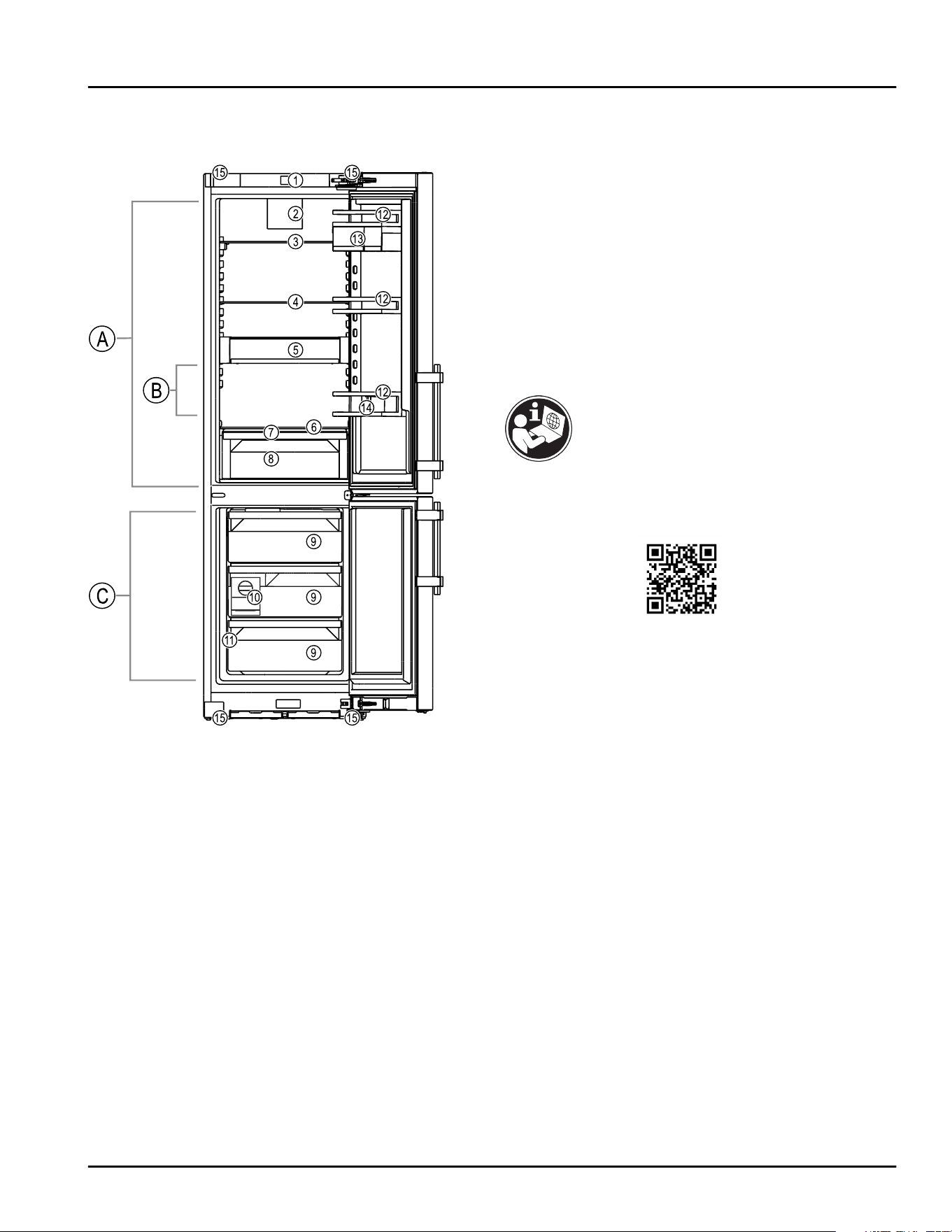
2.2 Overview of appliances and equip‐
ment
Fig. 1 Example illustration
Temperature range
(A)
Fridge section (C) Freezer section
(B) Coldest zone
Equipment
(1)
Controls (9) Drawer
(2) Fan with FreshAir
activated charcoal
filter
(10)EasyTwist-Ice
(3) Separable storage
shelf
(11) Type plate
(4) Shelf (12) Door racks
(5) VarioSafe (13) VarioBox
(6) Defrost water drain (14)Bottle holder
(7) Lid for EasyFresh-
safe
(15) Adjustable feet, front,
transport casters, rear,
top (rear) and bottom
(front) carrying straps
(8) EasyFresh-safe
2.3 SmartDevice
SmartDevice is the networking solution for your fridge-
freezer.
If your appliance is SmartDevice-enabled or compat‐
ible, you can quickly and easily connect your appliance
to your WiFi. With the SmartDevice app, you can
operate your appliance from a mobile device. Addi‐
tional functions and setting options are available in the
SmartDevice app.
SmartDevice-
enabled appli‐
ance:
Your appliance is capable of being
a SmartDevice. To be able to
connect your device to WiFi, you
need to download the SmartDevice
app.
More information
about SmartDe‐
vice:
smartdevice.liebherr.com
Downloading the
SmartDevice
app:
After you have installed and
configured the SmartDevice app,
you can connect your appliance to
your WLAN using your SmartDevice
app the WLAN device function
(seeWiFi) .
2.4 Range of appliance use
Normal use
This appliance is intended to be used in household and
similar applications such as,
-
staff kitchen areas in shops, offices and other
working environments;
-
farm houses and by clients in hotels, motels and
other residential type environments;
-
bed and breakfast type environments;
-
catering and similar non-retail applications.
The appliance is not suitable as a built-in unit;
All other types of uses are not permitted.
Foreseeable misuse
The following uses are specifically prohibited:
-
Storage and cooling of medication, blood plasma,
laboratory preparations or similar substances and
products in accordance with the CMDCAS and FDA
510(k)
-
Use outdoors
The appliance at a glance
6 * Depending on model and options
-
Use in moist areas exposed to the rain
-
Use in outdoor areas with very high humidity
-
Use in areas at risk of explosion
Incorrect appliance use can cause damage to the
stored products or cause them to spoil.
Climate ratings
The appliance is set to operate within specific ambient
temperature limits according to its climate rating The
climate rating for your appliance is printed on the
rating plate
Note
► To guarantee trouble-free operation, comply with the
indicated ambient temperatures.
Climate
rating
for ambient temperatures from
SN 10°C(50°F) to 32°C(90°F)
N 16°C(61°F) to 32°C(90°F)
ST 16°C(61°F) to 38°C(100°F)
T 16°C(61°F) to 43°C(109°F)
SN-ST 10°C(50°F) to 38°C(100°F)
SN-T 10°C(50°F) to 43°C(109°F)
2.5 Conformity
The refrigerant circuit has been tested for leaks. The
appliance complies with the applicable safety regula‐
tions and with the corresponding directives.
2.6 Spare parts
Spare parts for functional and storable parts of the
equipment are available for 15 years.
3 Functionality of the
Touch&Swipe display
You operate your appliance using the Touch & Swipe
display. You select appliance functions in the
Touch & Swipe display (hereafter referred to as display)
by tapping them. If you do not perform any action on
the display for 10 seconds, the display either jumps
back to the higher-level menu or directly to the status
display.
3.1 Navigation and symbol explana‐
tion
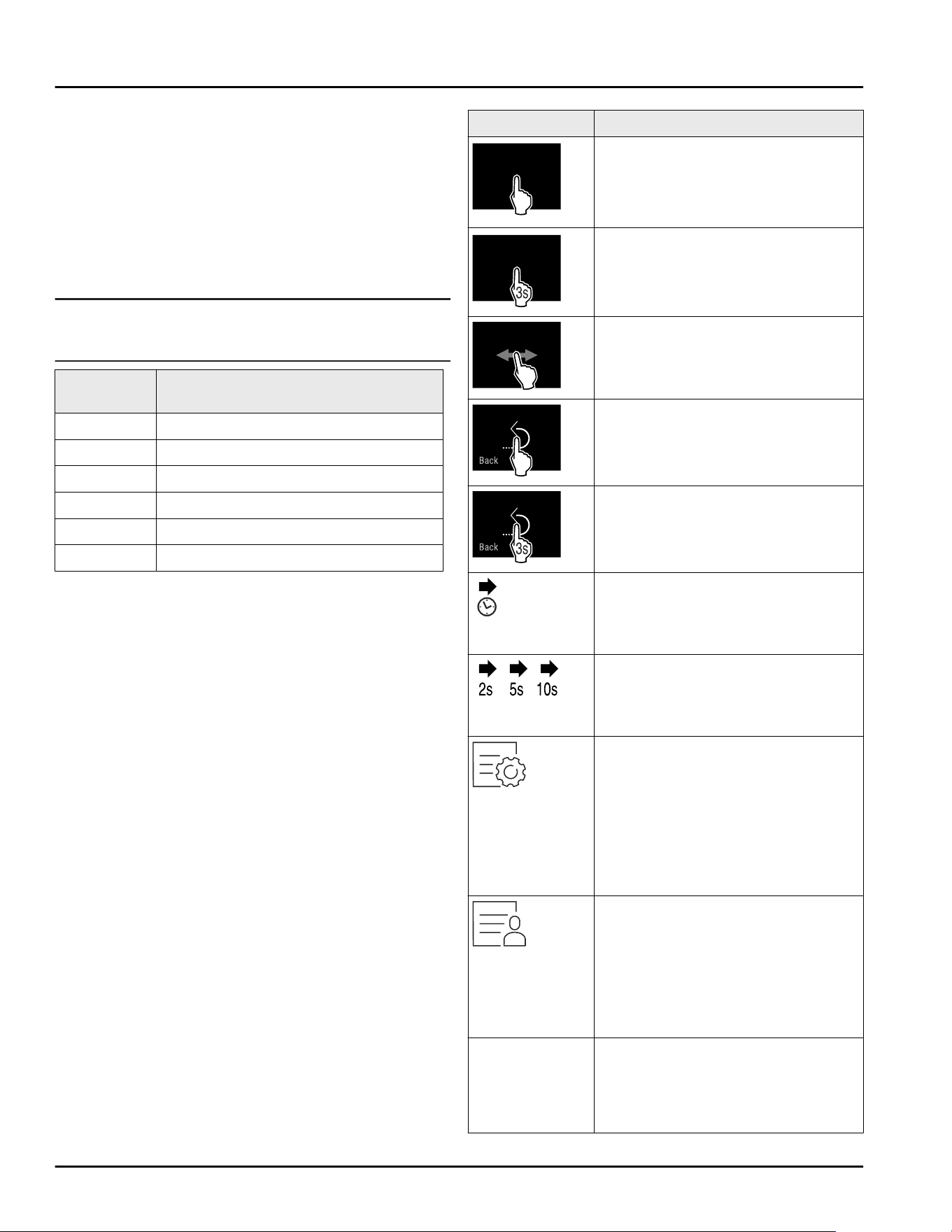
In the illustrations, different symbols are used to navi‐
gate the display. The following table describes these
symbols.
Symbol
Description
Briefly touch the display:
Activates/deactivates function.
Confirms selection.
Opens submenu.
Touch the display for a specified
time (e.g. 3seconds):
Activates/deactivates function or
value.
Swipe left or right:
Navigate in the menu.
Briefly touch the Back symbol:
Jumps back one menu level.
Press and hold the Back symbol for
3seconds:
Jumps back to the status display.
Arrow with clock:
It takes more than 10 seconds for
the following message to appear in
the display.
Arrow with a time indication:
It takes the specified amount of
time until the following message
appears in the display.
“Open Settings menu” symbol:
Navigates to the Settings menu and
opens the settings menu.
If necessary: Navigate to the
desired function in the Settings
menu.
(see 3.2.1 Opening the Settings
menu)
“Open Advanced menu” symbol:
Navigates to the Advanced menu
and opens the advanced menu.
If necessary: Navigate to the
desired function in the Advanced
menu.
(see 3.2.2 Opening expanded menu)
No action for
10seconds
If you do not perform any action on
the display for 10 seconds, the
display either jumps back to the
higher-level menu or directly to the
status display.
Functionality of the Touch&Swipe display
* Depending on model and options 7
Symbol Description
Open door and
close it again.
If you open the door and immedi‐
ately close it again, the display
jumps directly back to the status
display.
Note: Illustrations of the display are shown in the English
version.
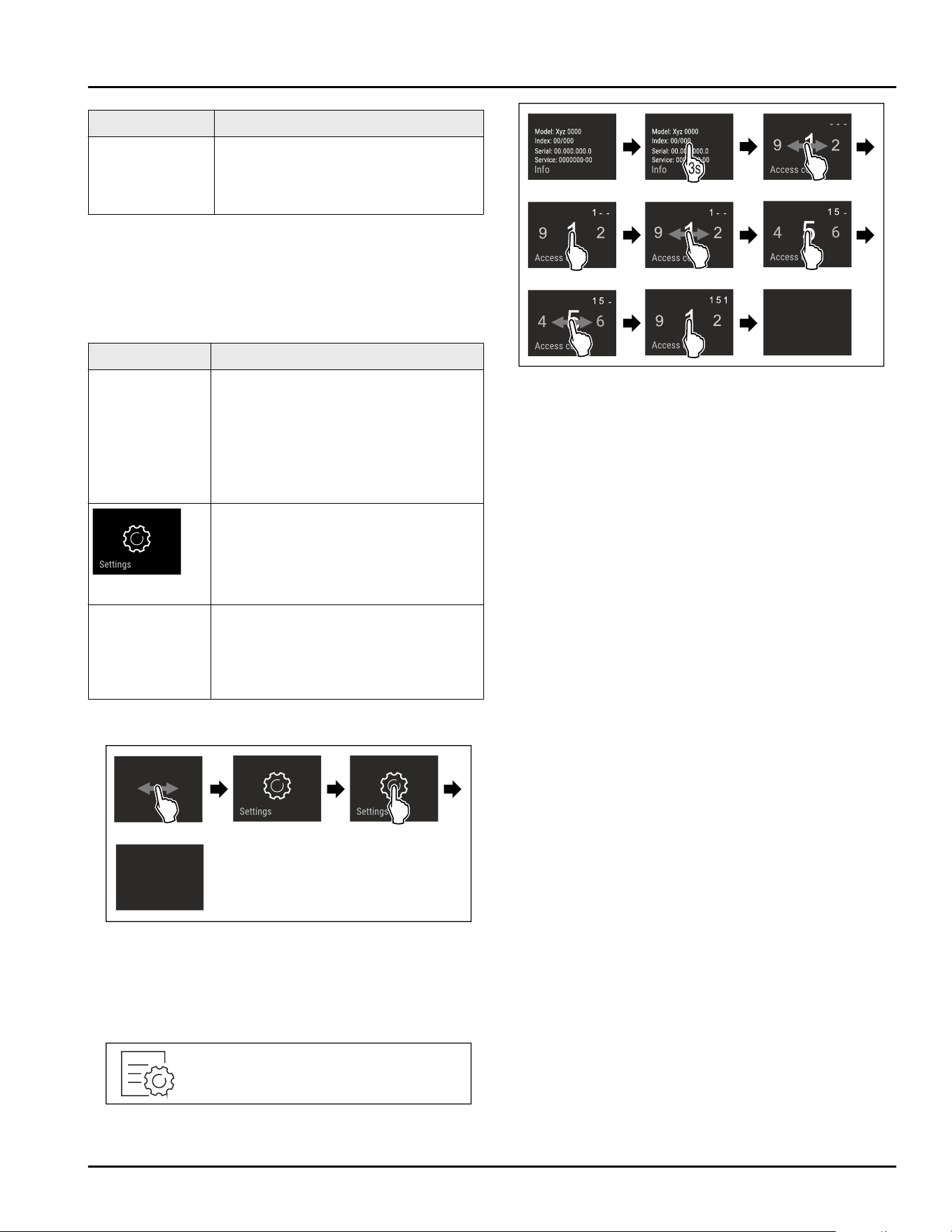
3.2 Menus
The appliance functions are distributed over various
menus:
Menu
Description
Main menu When you switch the appliance on,
you are automatically in the main
menu.
From here you can navigate to the
most important appliance functions,
to the Settings menu and to the
Advanced menu.
Settings menu
The Settings menu contains addi‐
tional appliance functions for
setting up your appliance.
Advanced
menu
The advanced menu contains
special appliance functions for
setting up your appliance. Access to
the Advanced menu is protected by
the numerical code 151.
3.2.1 Opening the Settings menu
Fig. 2 Example illustration
► Carry out action steps according to the illustration.
▷ Settings menu is open.
► If necessary: Navigate to the desired function.
3.2.2 Opening expanded menu
Fig.3
Fig. 4 Example illustration, access with numerical code
151
► Carry out action steps according to the illustration.
▷ Expanded menu is open.
► If necessary: Navigate to the desired function.
3.3 Sleep mode
If you do not touch the display for 1 minute, the display
switches to sleep mode. In sleep mode, the display
brightness is dimmed.
3.3.1 Ending sleep mode
► Touch the display briefly with your finger.
▷ Sleep mode is ended.
4 Start-up
4.1 Switching on appliance (first use)
Make sure that the following requirements are fulfilled:
❑
The appliance has been installed and connected in
accordance with the installation instructions.
❑
All adhesive strips, adhesive and protective films
and transport locks are removed from inside and on
the appliance.
❑
All marketing leaflets are removed from the drawers.
❑
You are familiar with the functionality of the
Touch & Swipe display. (see 3 Functionality of the
Touch&Swipe display)
Switch on the appliance using the Touch & Swipe
display.
► If the display is in sleep mode: Briefly touch the
display.
► Carry out action steps according to the illustration.
Start-up
8 * Depending on model and options
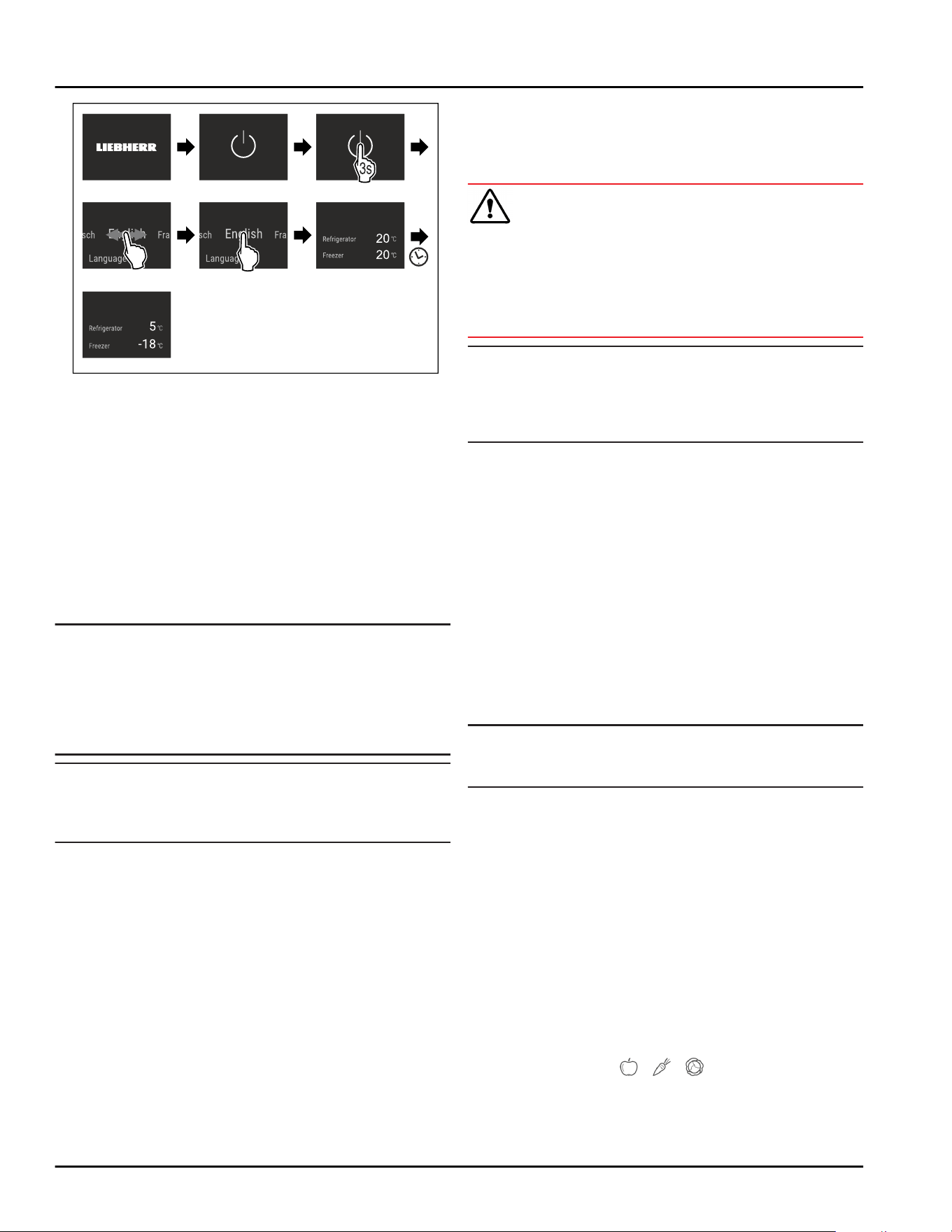
Fig. 5 Example illustration
▷ Status display appears.
▷ The appliance cools to the temperature set at the
factory.
▷ The appliance starts in demo mode (status display
with DEMO appears): If the appliance starts in demo
mode, you can deactivate demo mode within the
next 5 minutes. (seeDemo mode)
More information:
-
Start the EasyTwist-Ice for the first time.
(see4.2 Starting the EasyTwist-Ice for the first time)
-
Start the SmartDevice for the first time.
(see 2.3 SmartDevice) and (seeWiFi)
Note
The manufacturer recommends:
► Stock with food: Wait for around 6 hours until the
set temperature is reached.
► Store frozen foods at -18°C(-0°F) or colder.
► Observe the notes on storing food. (see 5.1 Informa‐
tion regarding storage)
Note
Accessories can be purchased from the Liebherr
Service Center. The address for your respective country
can be found on the back of the instructions.
4.2 Starting the EasyTwist-Ice for the
first time
If your appliance is equipped with EasyTwist-Ice, you
must clean the EasyTwist-Ice before using it for the
first time.
Make sure that the following requirements are fulfilled:
❑
The appliance is properly connected.
► Clean the EasyTwist-Ice. (see 9.5.5 Cleaning Easy‐
Twist-Ice)
► Fill the water tank. (see Filling the water tank)
5 Storage
5.1 Information regarding storage
WARNING
Risk of fire from electrical appliances!
If you use electrical devices in the food area of your
appliance, they may case a fire.
► Do not use electrical devices in the food area of the
appliance if they have not been recommended by the
manufacturer.
Note
Insufficient ventilation results in an increase in energy
consumption and reduction of the refrigerating
performance
► Always keep the air slots unobstructed.
Observe the following specifications for storage:
-
Keep the air vents on the fan free.
-
In the freezer compartment: Package food properly.
-
Package or cover foods that readily take on or give
off odors or taste in closed containers.
-
Package raw meat or fish in clean, closed
containers. This will prevent meat or fish from
touching or dripping onto other food.
-
Keep liquids in closed containers.
-
Leave space between goods to ensure good air
circulation.
-
Store food according to the instructions on the pack‐
aging.
-
Always observe the best-before date indicated on
the packaging.
Note
Failure to follow these guidelines can lead to food‐
stuffs spoiling.
5.2 Fridge compartment
The air circulation in the appliance creates different
temperature zones. You will find the different tempera‐
ture zones in the appliance and equipment overview.
(see2.2 Overview of appliances and equipment)
5.2.1 Arranging your food properly
► Upper area and door: Store butter, cheese, canned
food and tubes.
► Coldest temperature zone: Store perishable foods
such as pre-cooked meals, meat and lunch meats.
► Bottom shelf: Store raw meat or fish.
5.3 EasyFresh
EasyFresh is great for non-packaged foods, such as
fruit and vegetables.
Storage
* Depending on model and options 9
The humidity in the compartment depends on the
moisture content of the refrigerated goods and the
frequency with which it is opened. You can control the
humidity. (see8.6 Lid for EasyFresh-safe)
5.3.1 Arranging your food properly
► Store unpackaged fruit and vegetables.
If the humidity is too high:
► Regulate the humidity.
5.4 Freezer compartment
Here, a dry, frosty storage climate is created at
-18 °C (-0 °F). The frosty storage climate is suitable for
storing frozen food for several months, for making ice
cubes or freezing fresh food.
5.4.1 Freezing food
Freezing quantity
The maximum amount of fresh food that you can freeze
within 24 hours is specified on the type plate
(see 10.5 Rating plate) under “Freezing capacity ... kg/
24h.”
To ensure that food quickly freezes through, adhere to
the following quantities per package:
-
Fruit and vegetables up to 1 kg(2.20lb)
-
Meat up to 2.5 kg(5.51lb)
Freezing food using SuperFrost
Depending on the amount of food to be frozen, you can
activate SuperFrost before freezing to reach lower
freezing temperatures. (see SuperFrost)
► Activate SuperFrost if the amount of food you have
to freeze is more than approx. 2 kg(4.41lb).
The time at which you activate SuperFrost depends on
the amount of food you have to freeze:
Freezing quan‐
tity
Time at which you should activate
SuperFrost
Small amount
of food to
freeze
Activate SuperFrost about 6 hours
before freezing.
As soon as the appliance automati‐
cally deactivates SuperFrost you can
begin rearranging your food items.
Maximum
amount of food
to freeze
Activate SuperFrost about 24 hours
before freezing.
As soon as the appliance automati‐
cally deactivates SuperFrost you can
begin rearranging your food items.
Arranging your food properly
CAUTION
Risk of injury from broken glass!
Bottles and cans with beverages can burst during
freezing. This applies in particular to carbonated bever‐
ages.
► Only freeze bottles and cans with beverages if you
have activated the BottleTimer function in the
SmartDevice app.
Freezing quan‐
tity
Arranging your food properly
Small amount
of food to
freeze
Place packaged food in the top
drawer.
If possible, place groceries at the
back of the drawer near the rear
wall.
Maximum
amount of food
to freeze
Distribute packaged groceries
throughout all drawers, but only
store food that is already deep
frozen in the bottom drawer.
If possible, place groceries at the
back of the drawer near the rear
wall.
5.4.2 Defrosting food
WARNING
Danger of food poisoning!
► Do not re-freeze defrosted food.
► Use defrosted foodstuff as quickly as possible.
You can defrost food in several ways:
-
In the fridge compartment
-
In the microwave
-
In the oven/fan-assisted oven
-
At room temperature
► Take out only as much food as necessary.
5.5 Storage times
The storage times given are guidelines
Food with a “use by” date must still be consumed by
the date indicated on the package
5.5.1 Fridge
The best-before date stated on the packaging applies.
Storage
10 * Depending on model and options
5.5.2 Freezer
Guidelines for storage periods for various foods
Ice cream at
-18 °C
(-0°F)
2 to 6 months
Sausage, ham at
-18 °C
(-0°F)
2 to 3 months
Bread, bakery prod‐
ucts
at
-18 °C
(-0°F)
2 to 6 months
Game, pork at
-18 °C
(-0°F)
6 to 9 months
Fish, fatty at
-18 °C
(-0°F)
2 to 6 months
Fish, lean at
-18 °C
(-0°F)
6 to 8 months
Cheese at
-18 °C
(-0°F)
2 to 6 months
Poultry, beef at
-18 °C
(-0°F)
6 to 12 months
Vegetables, fruit at
-18 °C
(-0°F)
6 to 12 months
6 Energy saving
-
Always ensure good ventilation. Keep clear of
obstruction all ventilation openings in the appliance
enclosure or in the structure for building-in.
-
Never block air slits in the fan.
-
Do no set up the appliance in an area with direct
sunlight, next to a heating unit or similar.
-
If you set up the appliance directly next to an oven,
its energy consumption may increase slightly. This
depends on the service life and how often the oven
is used.
-
Energy consumption depends on installation condi‐
tions such as the ambient temperature
(see2.4 Range of appliance use) . A warmer ambient
temperature can increase the energy consumption.
-
Avoid opening the appliance door for any longer then
necessary
-
The lower the temperature is set the higher the
energy consumption.
-
Sort your food items: home.liebherr.com/food.
-
All food stored in the appliance should be well
wrapped and covered. This prevents frost buildup.
-
Only take food out for as long as necessary so that it
does not get too warm.
-
Insertion of warm foods: first let the food cool down
to room temperature.
-
Defrost frozen food in the fridge
-
For longer periods of absence, use HolidayMode
(seeHolidayMode) .
7 Use
7.1 Controls and displays
7.1.1 Status display
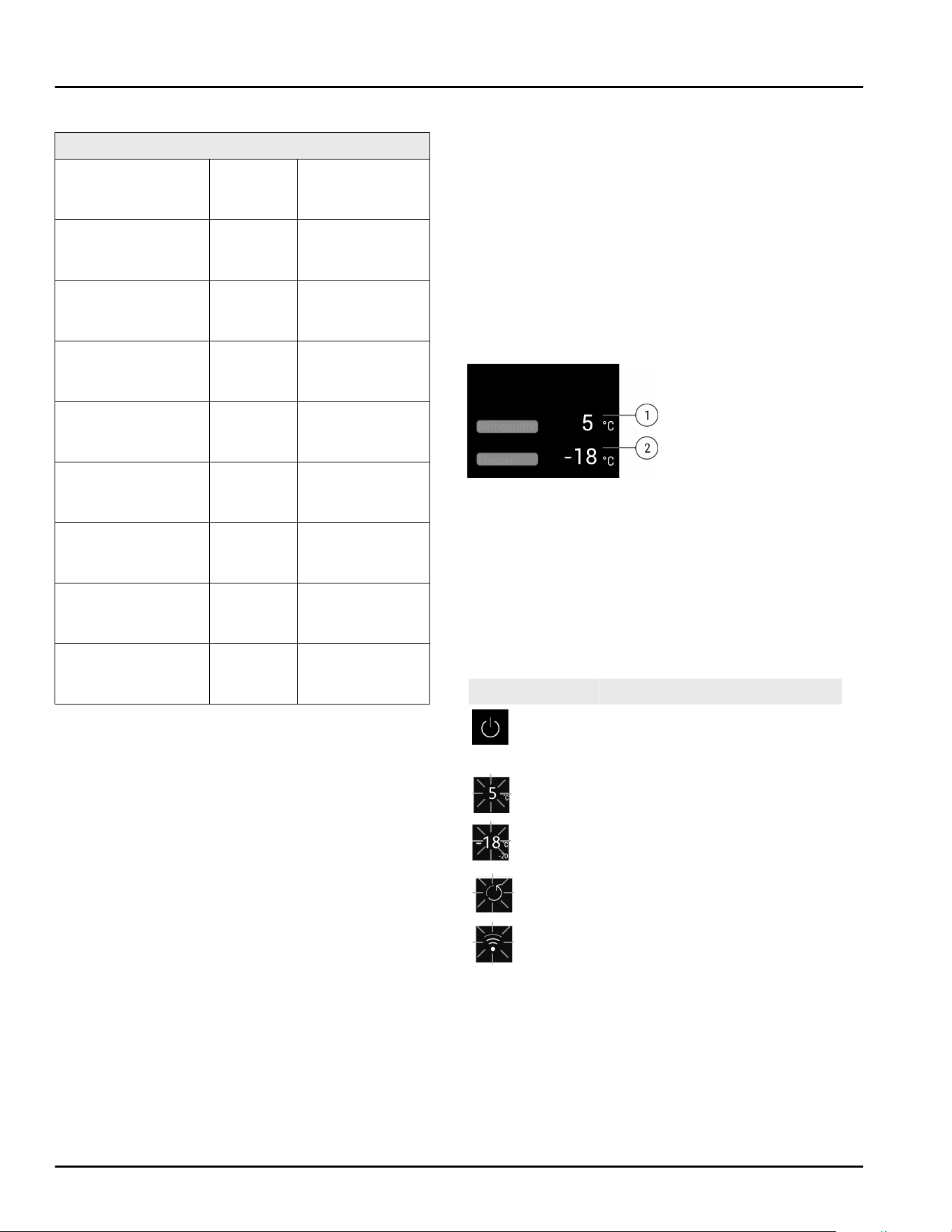
Fig. 6 Status display shows the actual temperature.
(1)
Fridge compartment
temperature display
(2) Freezer compartment
temperature display
The status display shows the actual temperature and
is the initial display. You can navigate from there to the
functions and settings.
7.1.2 Display symbols
The display symbols provide information about the
current appliance status.
Symbol
Appliance status
Standby
The appliance or temperature
zone is turned off.
Flashing number
Appliance is working. Tempera‐
ture flashes until the set
temperature is reached.
Flashing symbol
Appliance is working. Setting is
made.
7.2 Appliance functions
7.2.1 Notes on the appliance functions
The appliance functions are set at the factory so that
your appliance is fully functional.
Energy saving
* Depending on model and options 11
Before you alter, activate or deactivate the appliance
functions, make sure that the following requirements
are met:
❑
You have read and understood the descriptions of
how the display works. (see 3 Functionality of the
Touch&Swipe display)
❑
You have familiarized yourself with the operating
and display elements of your appliance.
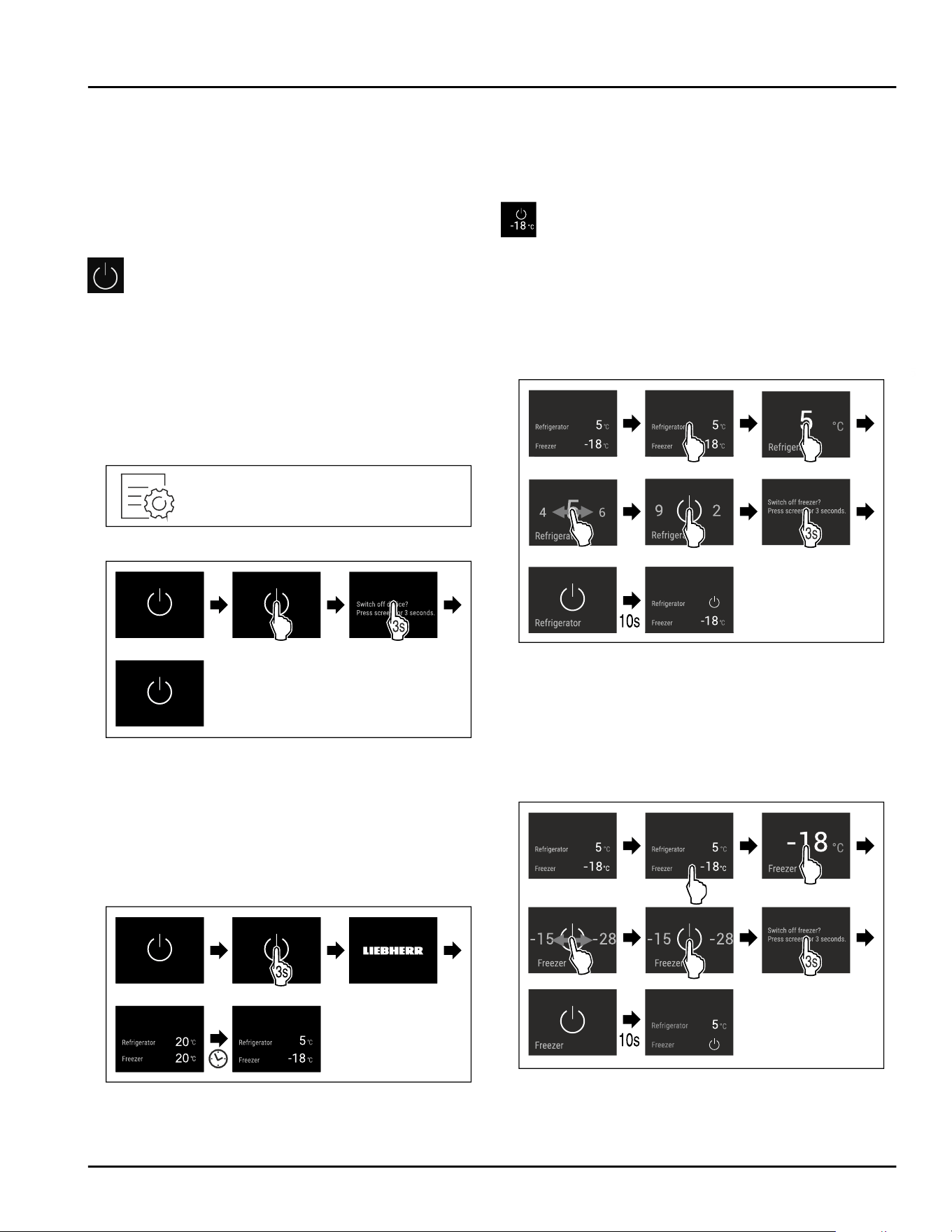
Switching appliance off and on
This function switches the entire appliance on and off.
Switching off the appliance
If you switch off the appliance, the settings that were
made before remain stored.
Make sure that the following requirements are fulfilled:
❑
Handling instructions (see 11 Decommissioning)
have been completed.
Fig.7
Fig.8
► Carry out action steps according to the illustration.
▷ Appliance is switched off.
▷ Standby symbol appears in the display.
▷ Display turns black.
Switching on the appliance
If the display is in sleep mode:
► Briefly touch the display.
Fig. 9 Example illustration
► Carry out action steps according to the illustration.
If the appliance starts in demo mode:
►
Deactivate demo mode. (see Deactivating demo
mode)
▷ Appliance is switched on.
▷ Previously made settings are re-established.
▷ The appliance cools to the set target temperature.
Switching temperature zone off and on
You can switch temperature zones of the appliance off
independently.
Switching the fridge compartment off
Make sure that the following requirements are fulfilled:
❑
Refrigerator compartment has been emptied.
Fig. 10 Example illustration
► Carry out action steps according to the illustration.
▷ Refrigerator compartment is switched off.
Switching the freezer compartment off
Make sure that the following requirements are fulfilled:
❑
Freezer compartment has been emptied.
❑
EasyTwist-Ice water tank is empty.
Fig. 11 Example illustration
► Carry out action steps according to the illustration.
▷ Freezer compartment is switched off.
Use
12 * Depending on model and options
Switching the fridge compartment on
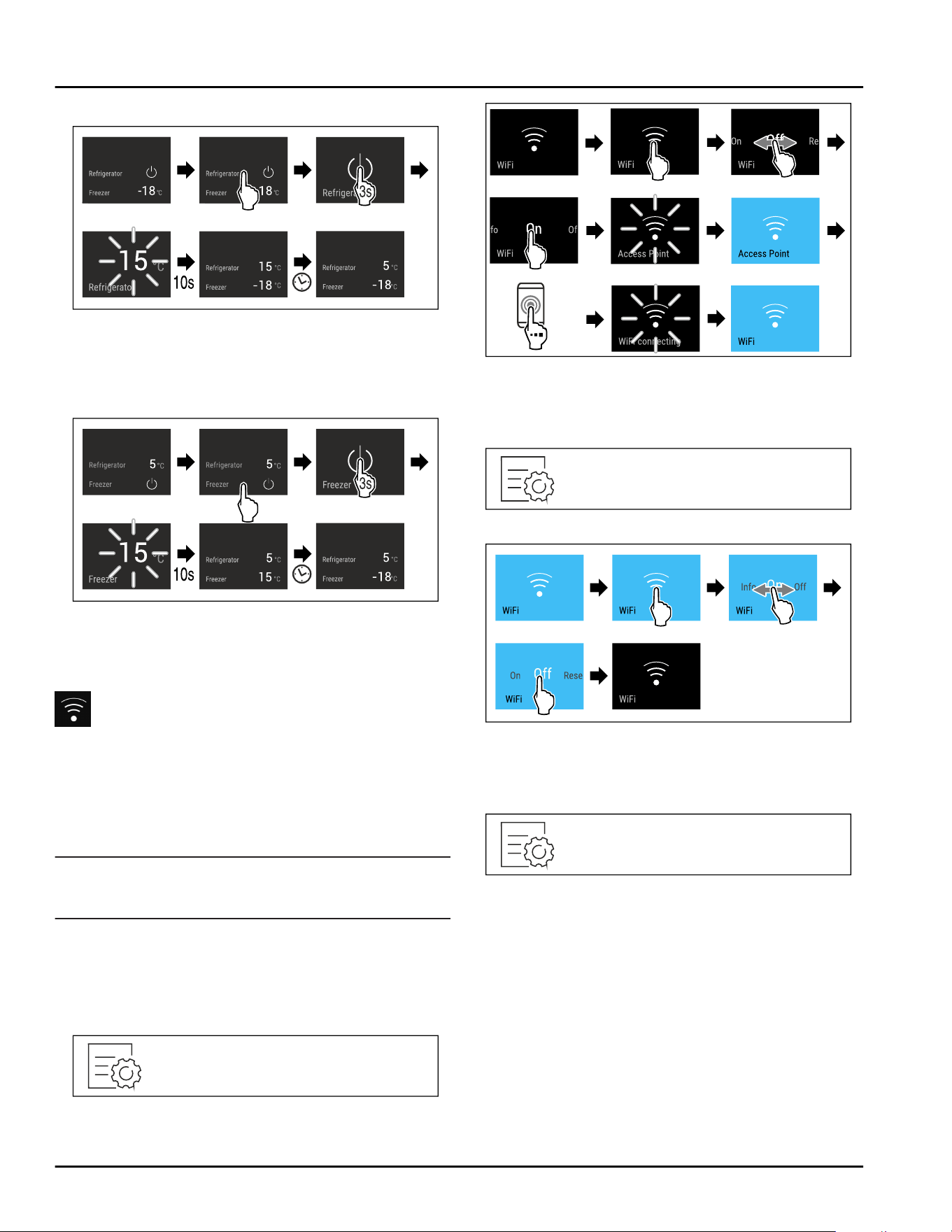
Fig. 12 Example illustration
► Carry out action steps according to the illustration.
▷ Refrigerator compartment is switched on.
▷ The appliance cools to the last set temperature.
Switching the freezer compartment on
Fig. 13 Example illustration
► Carry out action steps according to the illustration.
▷ Freezer compartment is switched on.
▷ The appliance cools to the last set temperature.
WiFi
Use this function to connect your appliance to WiFi.
You can then operate it via the SmartDevice app on a
mobile device. You can also use this function to
disconnect or reset the WiFi connection.
More information on the SmartDevice: (see 2.3 Smart‐
Device)
Note
The SmartDevice function is not available in the
following countries: Russia, Belarus, Kazakhstan.
Establishing the WiFi connection for the first time
Make sure that the following requirements are fulfilled:
❑
You have installed the SmartDevice app (see
apps.home.liebherr.com).
❑
Registration in the SmartDevice app is completed.
Fig. 14
Fig. 15
► Carry out action steps according to the illustration.
▷ Connection is established.
Disconnecting from the WiFi
Fig. 16
Fig.17
► Carry out action steps according to the illustration.
▷ There is no connection.
Resetting the WiFi connection
Fig. 18
Use
* Depending on model and options 13
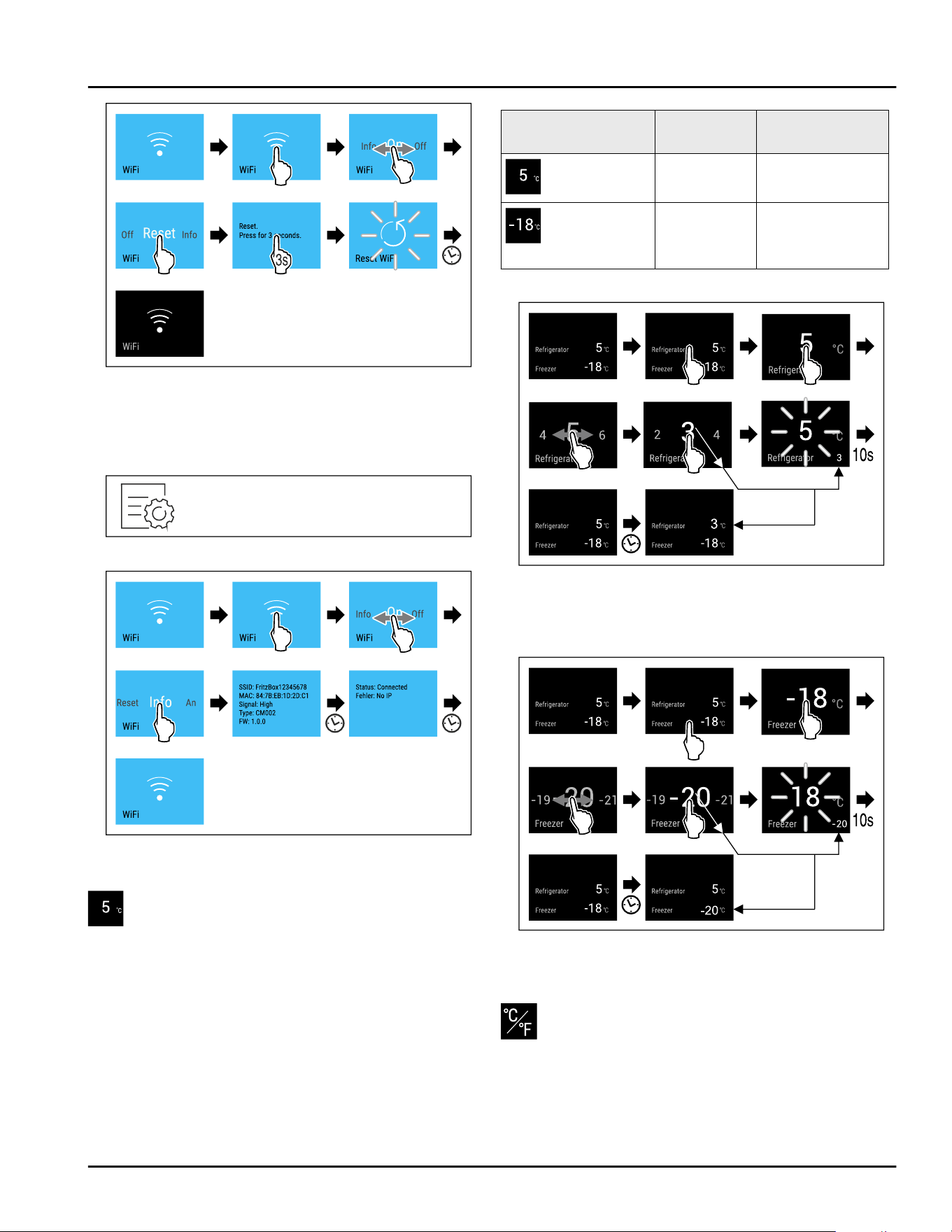
Fig. 19
► Carry out action steps according to the illustration.
▷ WiFi connection and other WiFi settings are reset to
factory settings.
Showing information about the WiFi connection
Fig.20
Fig.21
► Carry out action steps according to the illustration.
Temperature
Use this function to set the temperature.
The temperature depends on the following factors:
-
How often the door is opened
-
How long the door is open
-
The room temperature of the installation site
-
Type, temperature and amount of food
Temperature zone
Factory-set
temperature
Recommended
setting
Fridge section
5°C(41°F) 4°C(39°F)
Freezer
section
-18 °C
(-0°F)
-18°C(-0°F)
Setting the temperature in the fridge section
Fig. 22 Example illustration
► Carry out action steps according to the illustration.
▷ Temperature is set.
Setting the temperature in the freezer section
Fig.23
► Carry out action steps according to the illustration.
▷ Temperature is set.
Temperature unit
Use this function to set the temperature unit. You can
set the temperature unit in either degrees Celsius or
degrees Fahrenheit.
Use
14 * Depending on model and options
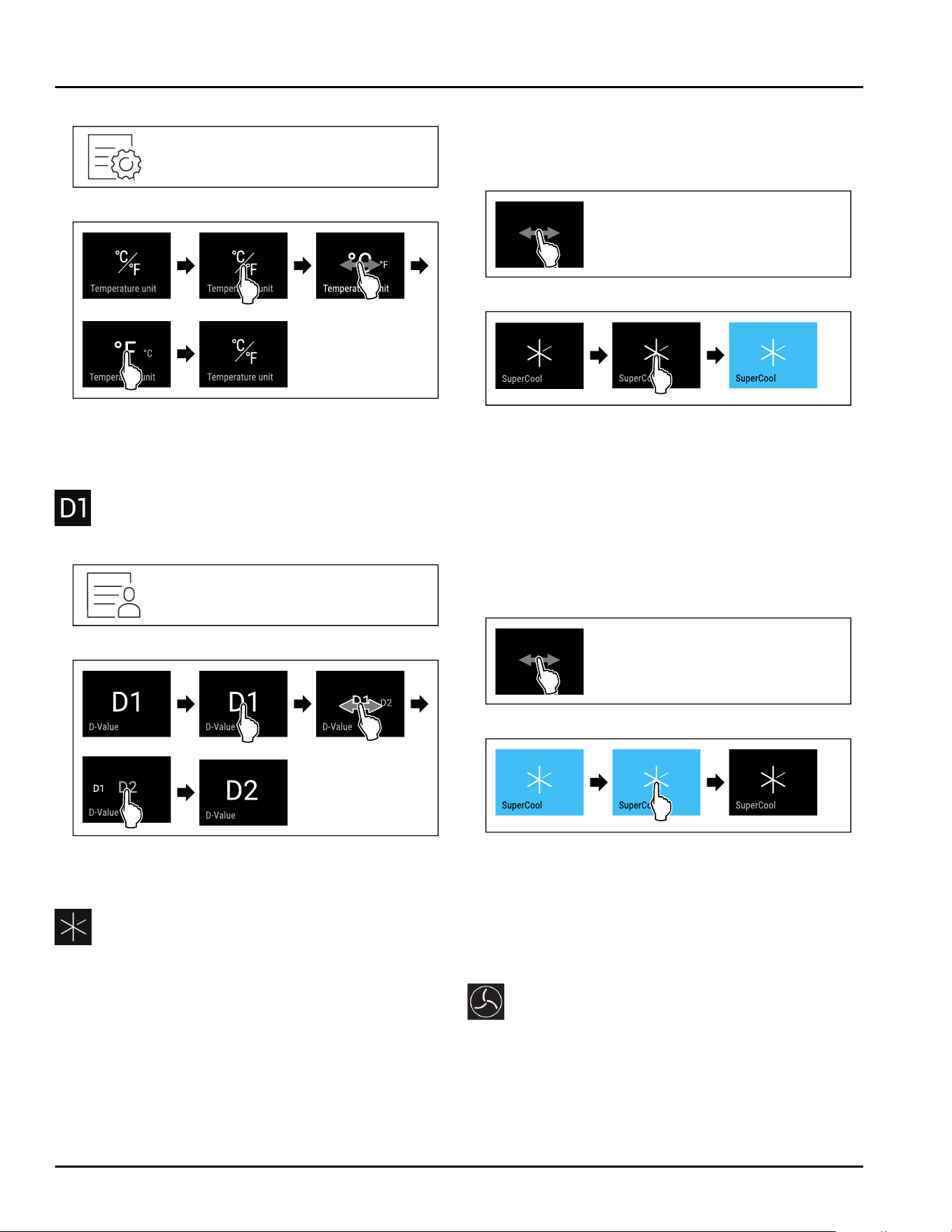
Setting the temperature unit
Fig. 24
Fig. 26 Example illustration: Switching between
degrees Celsius or degrees Fahrenheit.
► Carry out action steps according to the illustration.
▷ Temperature unit is set.
D-Value
Setting the D-Value
Fig.27
Fig. 29 Example illustration: Switching from D1 to D2.
► Carry out action steps according to the illustration.
▷ The D-Value is set.
SuperCool
This function activates or deactivates SuperCool. If you
activate SuperCool the appliance increases the cooling
capacity. This allows you to achieve lower cooling
temperatures. You can activate SuperCool if you want
to quickly cool large volumes of food.
If the function is active, the appliance operates at a
higher output. As a result, the operating noise of the
appliance may be temporarily louder, while energy
consumption increases.
Activating SuperCool
Time for activating the function:
-
If you want to store fresh food in the fridge section:
Activate the function when storing food.
Fig.30
Fig.31
► Carry out action steps according to the illustration.
-or-
► Activating with the SmartDevice app.
▷ SuperCool is activated.
▷ Temperature display turns blue.
Deactivating SuperCool
SuperCool is automatically deactivated after 18 hours.
However, you can also manually deactivate SuperCool
at any time:
Fig.32
Fig.33
► Carry out action steps according to the illustration.
-or-
► Deactivating with the SmartDevice app.
▷ SuperCool is deactivated.
▷ Appliance continues to run in normal operation.
▷ The appliance first cools to the set temperature.
PowerCool
This function activates or deactivates PowerCool.
PowerCool ensures optimum temperature layers to
keep your food cool.
This function relates to the fridge compartment.
Use
* Depending on model and options 15
Application:
-
At high room temperature (starting at
approx.35°C(95°F))
-
At high humidity, e. g. on summer days
-
While storing moist product to prevent condensation
in the interior
Note
The fan can run even if the function is deactivated. It
ensures optimum temperature distribution in the appli‐
ance.
If the function is active, the appliance operates at a
higher output. As a result, the operating noise of the
appliance may be temporarily louder, while energy
consumption increases.
Activating PowerCool
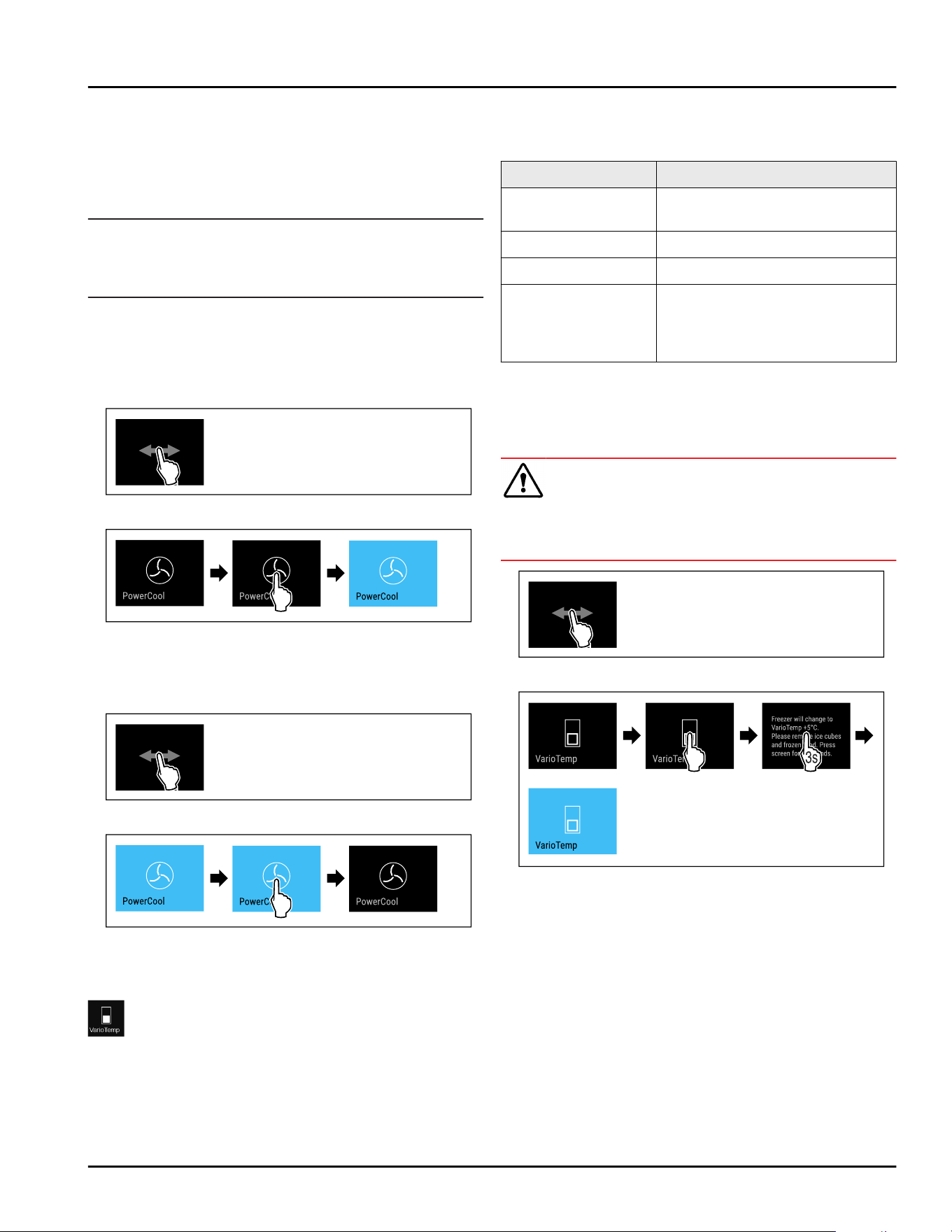
Fig.34
Fig.35
► Carry out action steps according to the illustration.
▷ PowerCool is activated.
Deactivating PowerCool
Fig.36
Fig.37
► Carry out action steps according to the illustration.
▷ PowerCool is deactivated.
VarioTemp
This function allows you to use the freezer compart‐
ment as an additional cooling zone. You can set the
temperature from -2 °C (28 °F) to 14 °C (57 °F). If you
activate this function, it may cause more noise.
However, the appliance is still fully functional.
For storage of foodstuff in the freezer compartment
with the VarioTemp function activated, Liebherr recom‐
mends:
Temperature range Foodstuff
4 °C (39 °F) to
9°C(46°F)
Cooked foods, cheese,
preserves
0°C(32°F) Packaged fruit and vegetables
-2°C(28°F) Fresh fish and seafood
10 °C (50 °F) to
14°C(57°F)
Cold-sensitive foodstuffs such
as sweet potatoes, pumpkin or
exotic fruits, food or drinks that
should not be eaten too cold
Activating VarioTemp
Make sure that the following requirements are fulfilled:
❑
The EasyTwist-Ice has been cleaned.
(see 9.5.5 Cleaning EasyTwist-Ice)
WARNING
Danger of food poisoning!
► Do not re-freeze defrosted food.
► Use defrosted foodstuff as quickly as possible.
Fig.38
Fig. 39
► Carry out steps according to the illustration.
▷ VarioTemp is activated.
▷ VarioTemp is set to the preselected value.
▷ The status display does not show the set tempera‐
ture until it is reached.
Adjusting VarioTemp
Make sure that the following requirements are fulfilled:
❑
The VarioTemp has been activated. (see Activating
VarioTemp)
Use
16 * Depending on model and options
WARNING
Danger of food poisoning!
► Do not re-freeze defrosted food.
► Use defrosted foodstuff as quickly as possible.
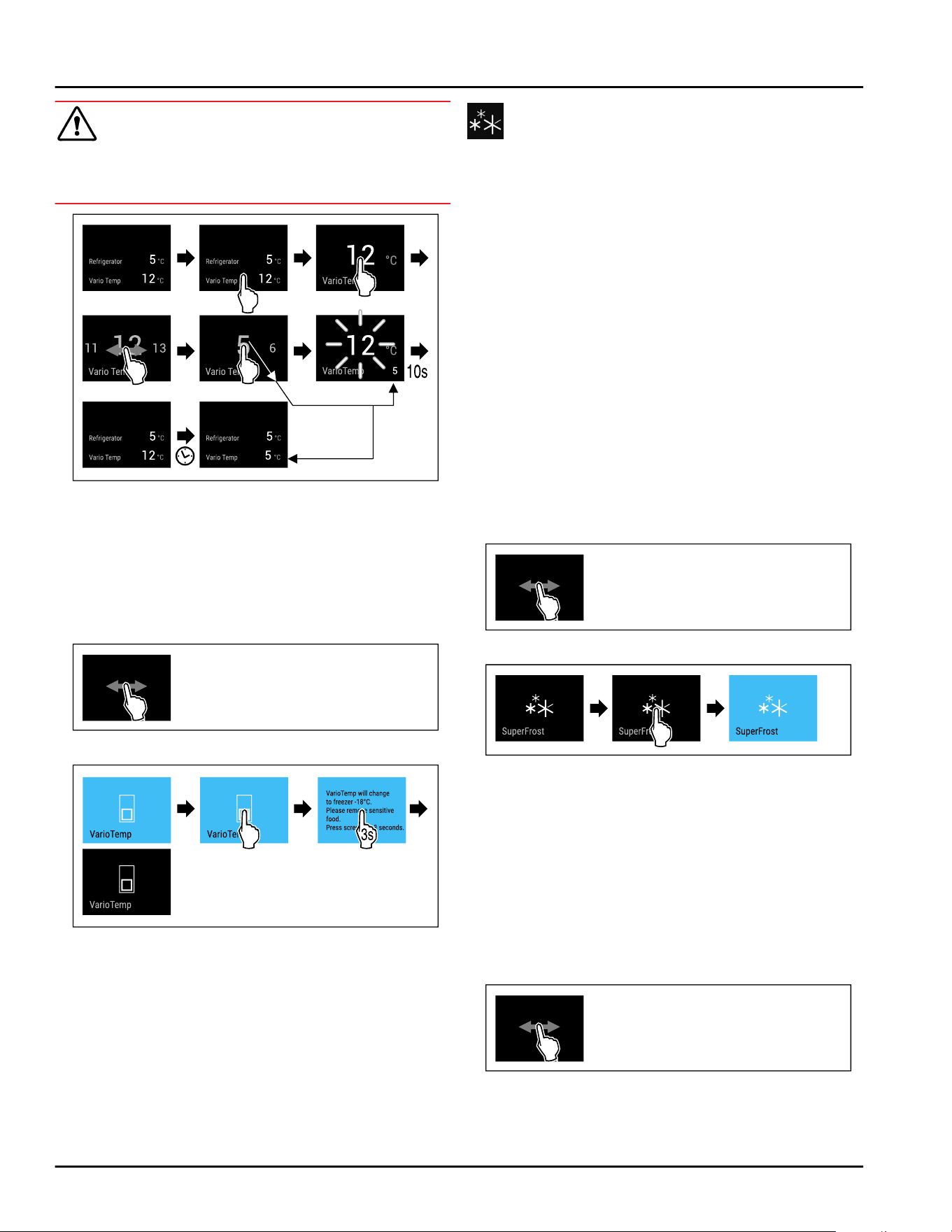
Fig. 40 Example illustration: Change VarioTemp from
12°C(54°F) to 5°C(41°F) for a fridge-freezer combination
with EasyFresh.
► Carry out steps according to the illustration.
▷ VarioTemp is adjusted.
▷ The status display does not show the new set
temperature until it is reached.
Deactivating VarioTemp
Fig. 41
Fig. 42
► Carry out steps according to the illustration.
▷ VarioTemp is deactivated.
▷ The freezer compartment is cooled to the preset
temperature.
SuperFrost
This function activates or deactivates SuperFrost. Acti‐
vating SuperFrost the appliance increases the freezing
capacity. This allows you to achieve lower freezer
temperatures.
Application:
-
Quickly freezing fresh food through to the core.
This ensures that the nutrition value, look, and taste
of the food is preserved.
-
Increasing cold reserves in stored frozen food before
defrosting the appliance.
If the function is active, the appliance operates at a
higher output. As a result, the operating noise of the
appliance may be temporarily louder, while energy
consumption increases.
Activating SuperFrost
Make sure that the following requirements are fulfilled:
❑
The freezing volume and time for SuperFrost activa‐
tion are taken into account. (see Freezing food using
SuperFrost)
❑
VarioTemp is deactivated. (see VarioTemp)
Fig.43
Fig.44
► Carry out action steps according to the illustration.
-or-
► Activating with the SmartDevice app.
▷ SuperFrost is activated.
▷ Temperature display turns blue.
Deactivating SuperFrost
SuperFrost is automatically deactivated after
56 to 72 hours depending on the volume of the stored
food. However, you can also manually deactivate
SuperFrost at any time:
Fig.45
Use
* Depending on model and options 17
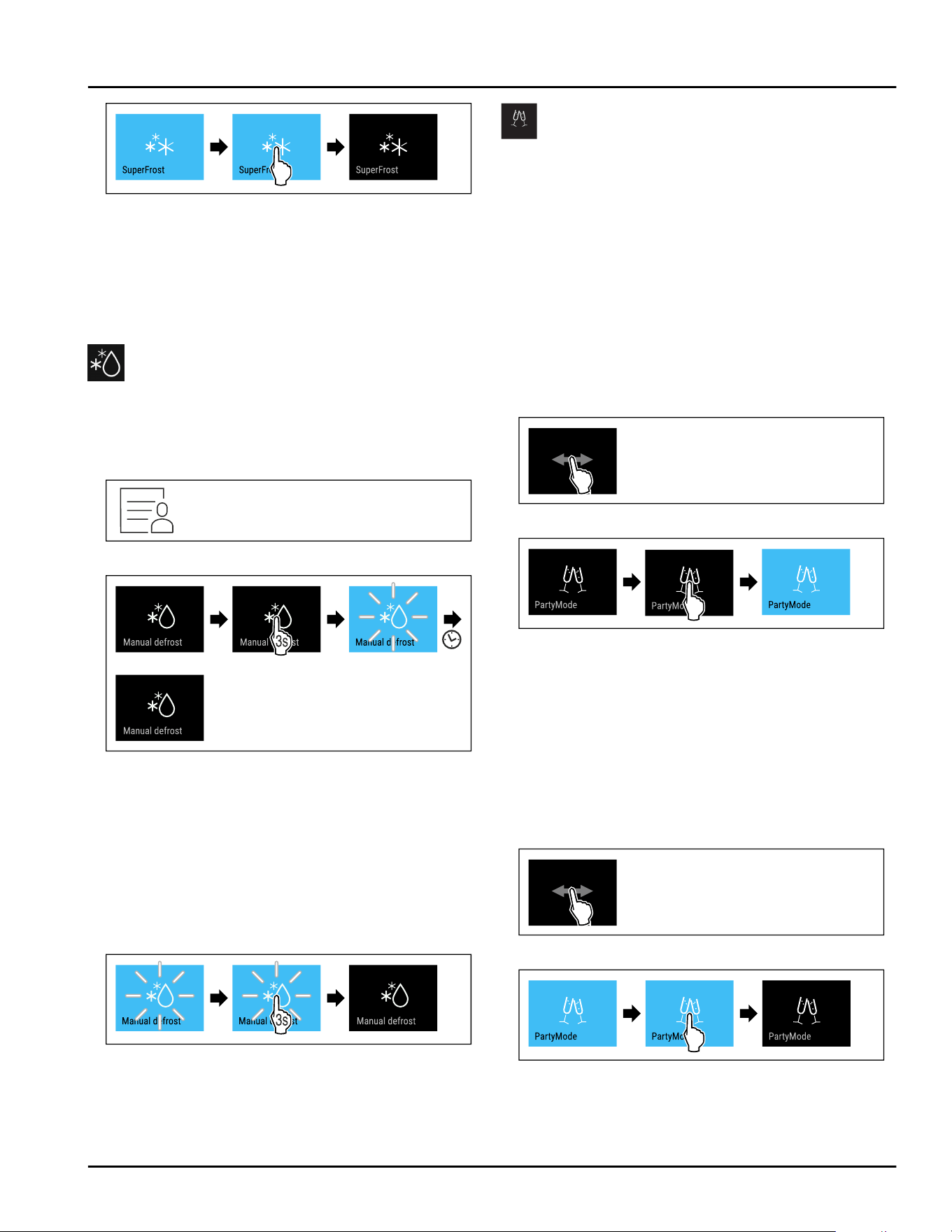
Fig.46
► Carry out action steps according to the illustration.
-or-
► Deactivating with the SmartDevice app.
▷ SuperFrost is deactivated.
▷ Appliance continues to run in normal operation.
▷ The appliance first cools to the set temperature.
Start defrost cycle
Use this function to start the automatic defrost cycle
manually if the defrost cycle does not start automati‐
cally in case of an error.
Starting the defrost cycle
Fig. 47
Fig.48
► Carry out action steps according to the illustration.
▷ Defrost cycle has started: Symbol flashes until the
defrost cycle is automatically completed.
▷ When the defrost cycle is completed: Appliance
continues to run in normal operation.
Canceling the defrost cycle
The defrost cycle is automatically completed. However,
you can also cancel the defrost cycle at any time
during the defrosting:
Fig. 49
► Carry out action steps according to the illustration.
▷ Defrost cycle is canceled.
▷ Appliance continues to run in normal operation.
PartyMode
This function activates and deactivates PartyMode.
PartyMode activates different functions that are useful
for a party.
PartyMode activates the following functions:
-
SuperCool (seeSuperCool)
-
SuperFrost (see SuperFrost)
You can set all listed functions individually and flexibly.
By deactivating PartyMode all changes are discarded.
If the function is active, the appliance operates at a
higher output. As a result, the operating noise of the
appliance may be temporarily louder, while energy
consumption increases.
Activating PartyMode
Fig.50
Fig.51
► Carry out action steps according to the illustration.
▷ PartyMode and the corresponding functions are acti‐
vated.
▷ Temperature display turns blue.
▷ The current temperature flashes until the target
temperature is reached.
Deactivating PartyMode
PartyMode is automatically deactivated after 24 hours.
However, you can also manually deactivate PartyMode
at any time:
Fig.52
Fig.53
► Carry out action steps according to the illustration.
▷ PartyMode is deactivated.
Use
18 * Depending on model and options
▷ The appliance first cools to the set temperature: The
current temperature flashes until the target temper‐
ature is reached.
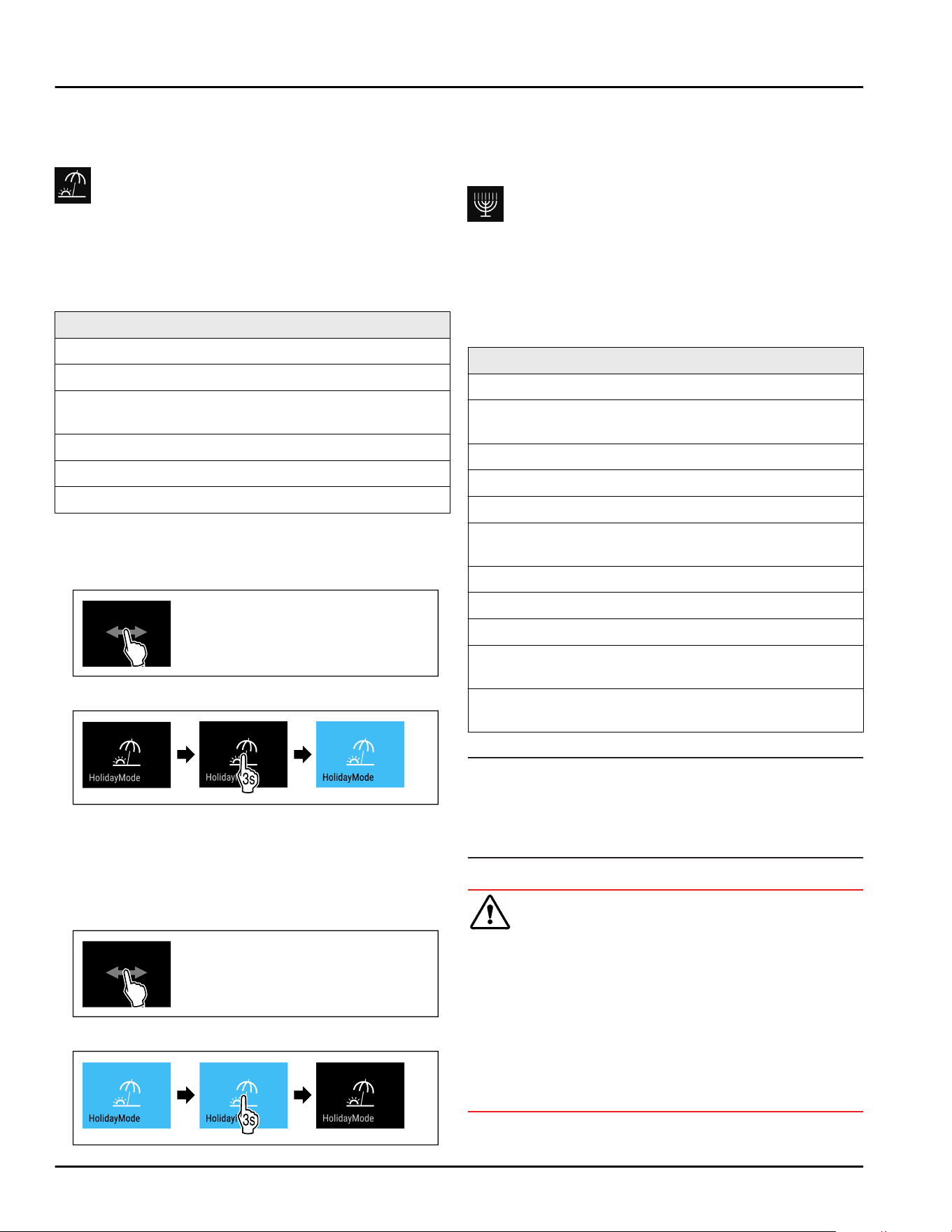
HolidayMode
Use this function to activate or deactivate Holiday‐
Mode. If you activate HolidayMode the fridge section is
set to 15 °C (59 °F). This helps you save energy if you
are away for a longer period of time and avoid bad
smells and mold formation.
Appliance status with active HolidayMode
Fridge section cools to 15°C(59°F).
EasyFresh cools down to 15°C(59°F).
The set temperature is maintained in the freezer
section.
PartyMode is deactivated.
SuperCool is deactivated.
PowerCool is deactivated.
Activating HolidayMode
► Empty the fridge section completely.
► Empty EasyFresh completely.
Fig.54
Fig.55
► Carry out action steps according to the illustration.
▷ HolidayMode is activated.
▷ Temperature display turns blue and shows the Holi‐
dayMode symbol.
Deactivating HolidayMode
Fig.56
Fig.57
► Carry out action steps according to the illustration.
▷ HolidayMode is deactivated.
▷ The appliance first cools to the set temperature.
SabbathMode
This function activates and deactivates SabbathMode.
If you activate this function, some electronic functions
are switched off. Your appliance thereby meets the reli‐
gious requirements of Jewish holidays such as the
Sabbath and complies with STAR-K Kosher certifica‐
tion.
Appliance status with active SabbathMode
The status display continuously shows SabbathMode.
All functions in the display except the Deactivating
SabbathMode function are disabled.
Active functions remain active.
The display remains bright when you close the door.
The interior lighting is deactivated.
Memories are not listed. The set time interval is
stopped.
Memories and warnings are not displayed.
There is no door alarm.
There is no temperature alarm.
The defrost cycle operates only for the specified time
without taking into account the appliance usage.
After a power failure, the device returns to
SabbathMode.
Appliance status
Note
This appliance has certification from the “Institute for
Science and Halacha”. (www.machonhalacha.co.il)
You can find a list of STAR-K-certified appliances at
www.star-k.org/appliances.
Activating SabbathMode
WARNING
Danger of poisoning from spoiled food!
If you have SabbathMode activated and a power failure
occurs, no message appears in the status display
about the power failure. Once the power is restored,
the appliance continues to operate in SabbathMode.
The power failure may mean that food spoils and the
consumption of this food could lead to food poisoning.
After a power failure:
► Do not consume food that has been frozen and
thawed.
Use
* Depending on model and options 19
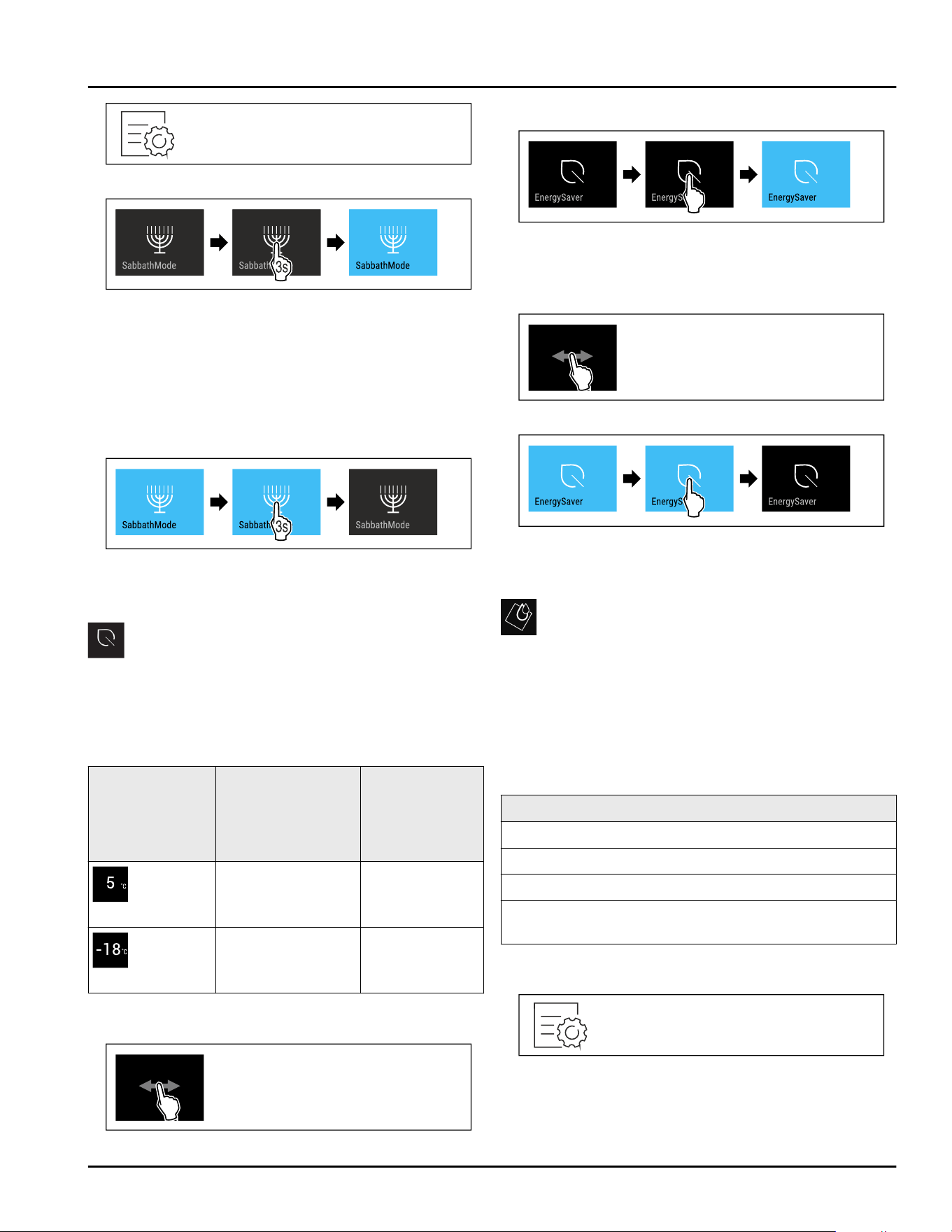
Fig.58
Fig. 59
► Carry out action steps according to the illustration.
▷ SabbathMode is activated.
▷ Status display continuously shows SabbathMode.
Deactivating SabbathMode
SabbathMode is automatically deactivated after
80 hours. However, you can also manually deactivate
SabbathMode at any time:
Fig.60
► Carry out action steps according to the illustration.
▷ SabbathMode is deactivated.
EnergySaver
Use this function to activate or deactivate energy
saving mode. If you activate energy saving mode,
energy consumption drops and the temperature in the
appliance increases. Food remains fresh, but shelf life
is reduced.
Temperature
zone
Recommended
setting
(see Setting the
temperature in the
fridge section)
Temperature
while Ener‐
gySaver is
active
Fridge
section
4°C(39°F) 7°C(45°F)
Freezer
section
-18°C(-0°F) -16°C(3°F)
Temperatures
Activating EnergySaver
Fig.61
Fig. 62
► Carry out action steps according to the illustration.
▷ Energy saving mode is activated.
Deactivating EnergySaver
Fig.63
Fig.64
► Carry out action steps according to the illustration.
▷ Energy saving mode is deactivated.
CleaningMode
This function activates and deactivates CleaningMode.
CleaningMode enables you to comfortably clean the
appliance.
This setting relates to the fridge compartment.
Application:
-
Clean the fridge compartment. (see 9.5 Cleaning the
appliance)
Appliance status with active CleaningMode
The status display continuously shows CleaningMode.
The fridge section is switched off.
The interior lighting is activated.
Reminders and warnings are not displayed. No signal
tone is sounded.
Appliance status
Activating CleaningMode
Fig.65
Use
20 * Depending on model and options
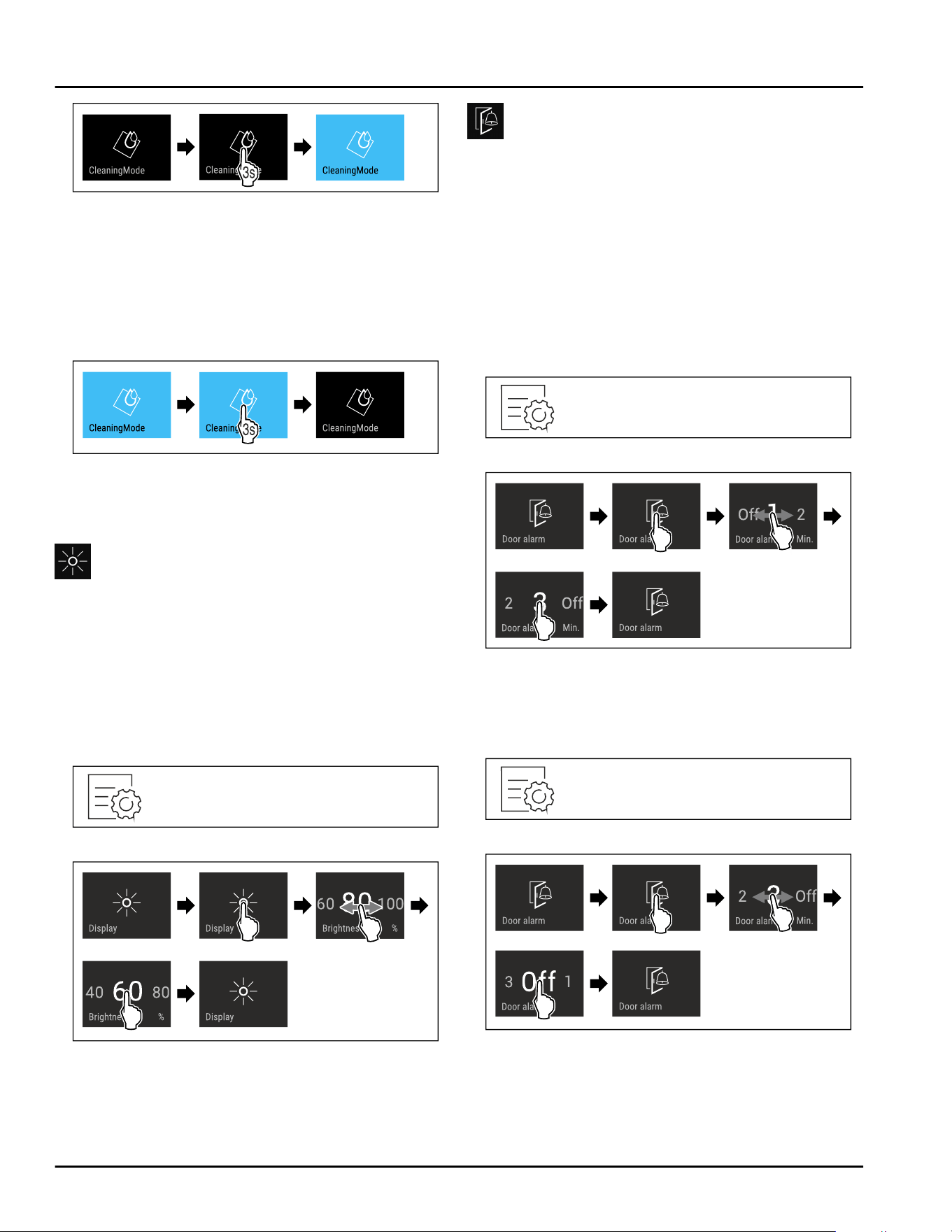
Fig.66
► Carry out action steps according to the illustration.
▷ CleaningMode is activated.
▷ Status display continuously shows CleaningMode.
Deactivating CleaningMode
CleaningMode is automatically deactivated after
60 minutes. However, you can also manually deactivate
CleaningMode at any time:
Fig. 67
► Carry out action steps according to the illustration.
▷ CleaningMode is deactivated.
▷ The appliance first cools to the set temperature.
Display Brightness
Use this function to set the brightness of the display
gradually.
You can set the following brightness levels:
-
40%
-
60%
-
80%
-
100% (default setting)
Setting the brightness
Fig.68
Fig. 69 Example illustration: Switching from 80 % to 60%.
► Carry out action steps according to the illustration.
▷ Brightness is set.
Door alarm
Use this function to activate or deactivate the door
alarm. The door alarm sounds if the door is open for
too long. The door alarm is activated upon delivery. You
can set how long to door can remain open until the
door alarm sounds.
You can set the following values:
-
1 minute
-
2 minutes
-
3 minutes
-
Off
Setting the door alarm
Fig.70
Fig. 71 Example illustration: Changing the door alarm from
1 minute to 3 minutes.
► Carry out action steps according to the illustration.
▷ Door alarm is set.
Deactivating door alarm
Fig.73
Fig. 74
► Carry out action steps according to the illustration.
▷ Door alarm is deactivated.
Use
* Depending on model and options 21
Input lock
This function activates and deactivates the input lock.
The input lock prevents the appliance from being oper‐
ated accidentally, e. g. by children.
Application:
-
Prevent unintentional changes of functions.
-
Prevent switching off of the appliance.
-
Prevent unintentional temperature setting.
Activating the input lock
If you activate the input lock, you can continue to navi‐
gate in the menus, however you cannot select or
modify other functions.
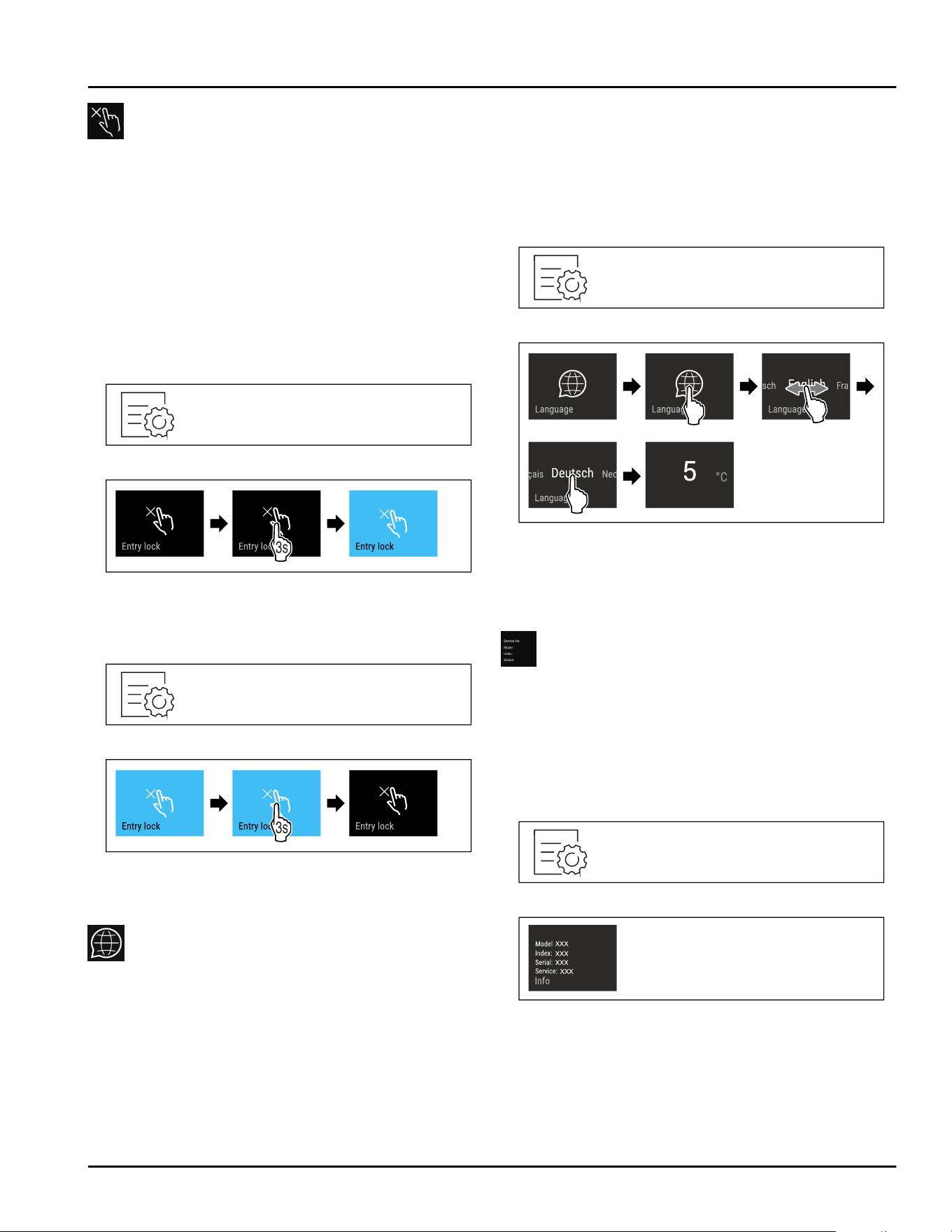
Fig.75
Fig. 76
► Carry out action steps according to the illustration.
▷ Input lock is activated.
Deactivating the input lock
Fig.77
Fig.78
► Carry out action steps according to the illustration.
▷ Input lock is deactivated.
Language
Use this function to set the display language.
You can set the following languages:
-
German
-
English
-
French
-
Spanish
-
Italian
-
Dutch
-
Czech
-
Polish
-
Portuguese
-
Bulgarian
-
Russian
-
Chinese
Setting the language
Fig.79
Fig. 80 Example illustration depending on the language and
temperature
► Carry out action steps according to the illustration.
▷ Language is set.
▷ Display jumps back to the status display.
Appliance information
Use this function to display the model name, index,
serial number and service number of your appliance.
You will need the appliance information when you
contact customer service. (see 10.4 Customer Service)
You also use this function to open the expanded menu.
(see3 Functionality of the Touch&Swipe display)
Display appliance information
Fig.81
Fig.82
► Carry out action steps according to the illustration.
▷ Display shows the appliance information.
Use
22 * Depending on model and options
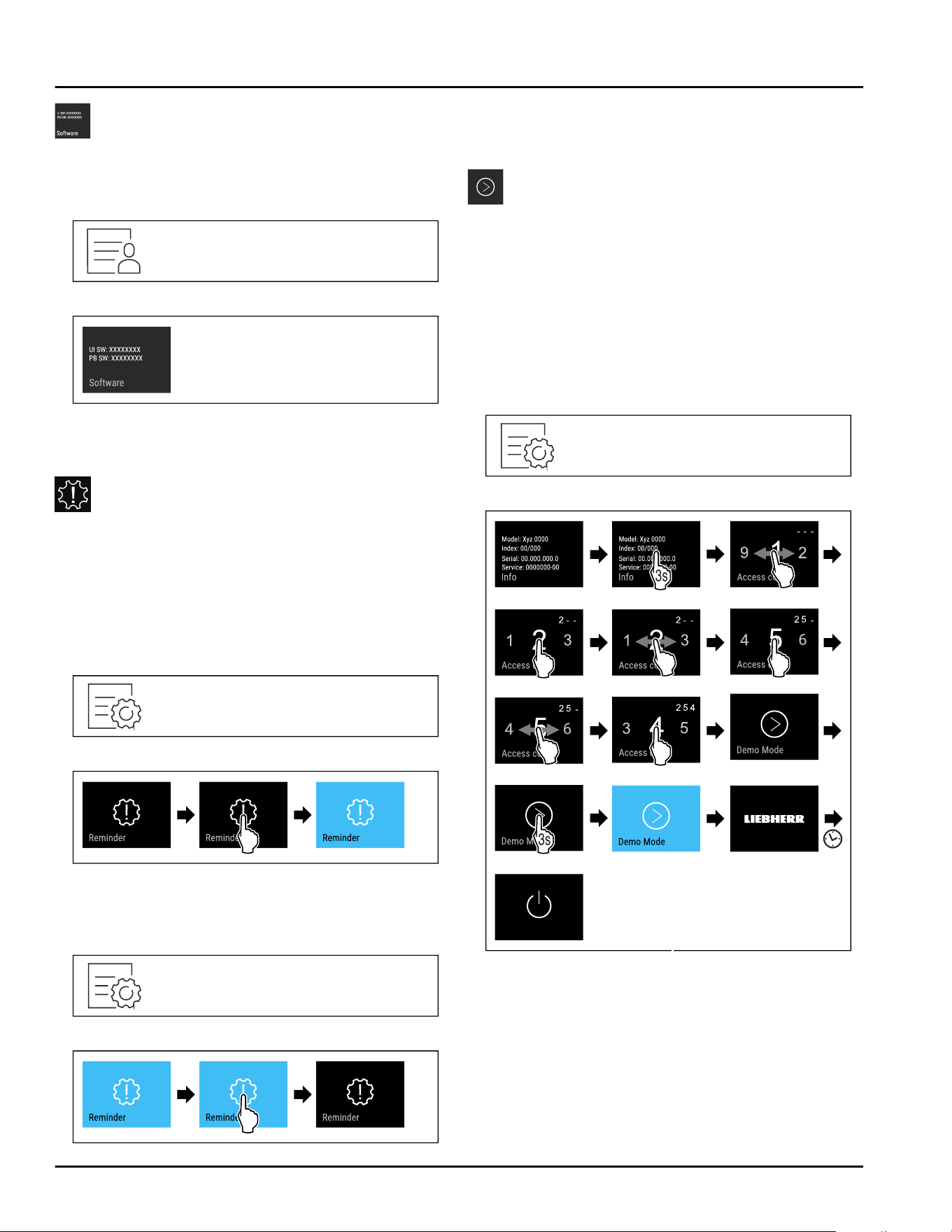
Software
Use this function to display the software version of
your appliance.
Display software version
Fig.83
Fig.84
► Carry out action steps according to the illustration.
▷ Display indicates the software version.
Reminder
Use this function to activate or deactivate reminder.
This function is activated upon delivery.
The following reminders will then appear if the func‐
tion is activated:
-
Replace the FreshAir activated charcoal filter
(see Replace FreshAir activated charcoal filter)
Activating reminder
Fig.85
Fig.86
► Carry out action steps according to the illustration.
▷ Reminder is activated.
Deactivating reminder
Fig. 87
Fig.88
► Carry out action steps according to the illustration.
▷ Reminder is deactivated.
Demo mode
Demo mode is a special feature for dealers who want
to demonstrate appliance features. If you activate
demo mode, all refrigeration functions are deactivated.
If you switch on your appliance and “Demo” appears in
the status display, then demo mode is already acti‐
vated.
If you activate and then deactivate demo mode, the
appliance will be reset to factory defaults. (see Reset‐
ting to factory settings)
Activating demo mode
Fig.89
Fig.90
► Carry out action steps according to the illustration.
▷ Demo mode is activated.
▷ Appliance is switched off.
► Switch on the appliance. (see4.1 Switching on appli‐
ance (first use))
▷ “DEMO” appears in the status display.
Use
* Depending on model and options 23
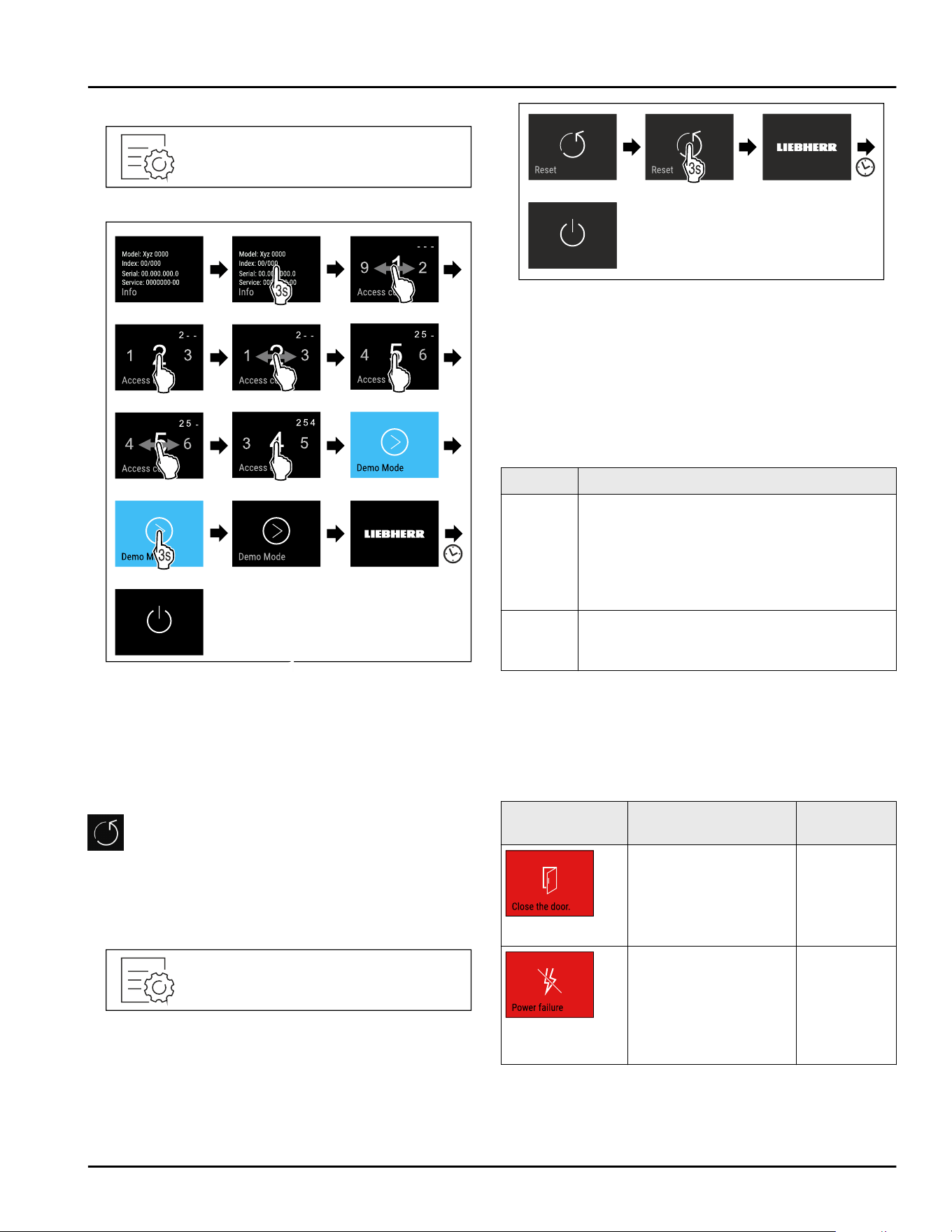
Deactivating demo mode
Fig. 91
Fig.92
► Carry out action steps according to the illustration.
▷ Demo mode is deactivated.
▷ Appliance is switched off.
► Switch on the appliance. (see4.1 Switching on appli‐
ance (first use))
▷ Appliance is reset to factory settings.
Resetting to factory settings
Use this function to reset all settings to factory
settings. All settings you have made so far are reset to
their original settings.
Performing a reset
Fig. 93
Fig. 94
► Carry out action steps according to the illustration.
▷ Appliance is reset.
▷ Appliance is switched off.
► Restart the appliance. (see 4.1 Switching on appli‐
ance (first use))
7.3 Messages
There are two categories of messages:
Category
Meaning
Warning Warnings are displayed if there is a door
alarm or a malfunction.
You can easily end warnings yourself. For
any major malfunction, you must contact
Customer Service. (see 10.4 Customer
Service)
Reminder Reminders remind you of general
processes. You can perform these
processes and end the message doing so.
7.3.1 Overview of warnings
The appliance’s behavior in the event of a warning:
-
Warning appears in the display in red.
-
Alarm sounds in increasing volume.
-
For some warnings the interior lighting pulses.
Message
Cause Ending the
message
Door alarm
The message appears
if the door is open for
too long.
Carry out
action steps
(see Door
alarm) .
Power failure
alarm
The message appears
if the freezing temper‐
ature increases due to
a power outage.
Use
24 * Depending on model and options
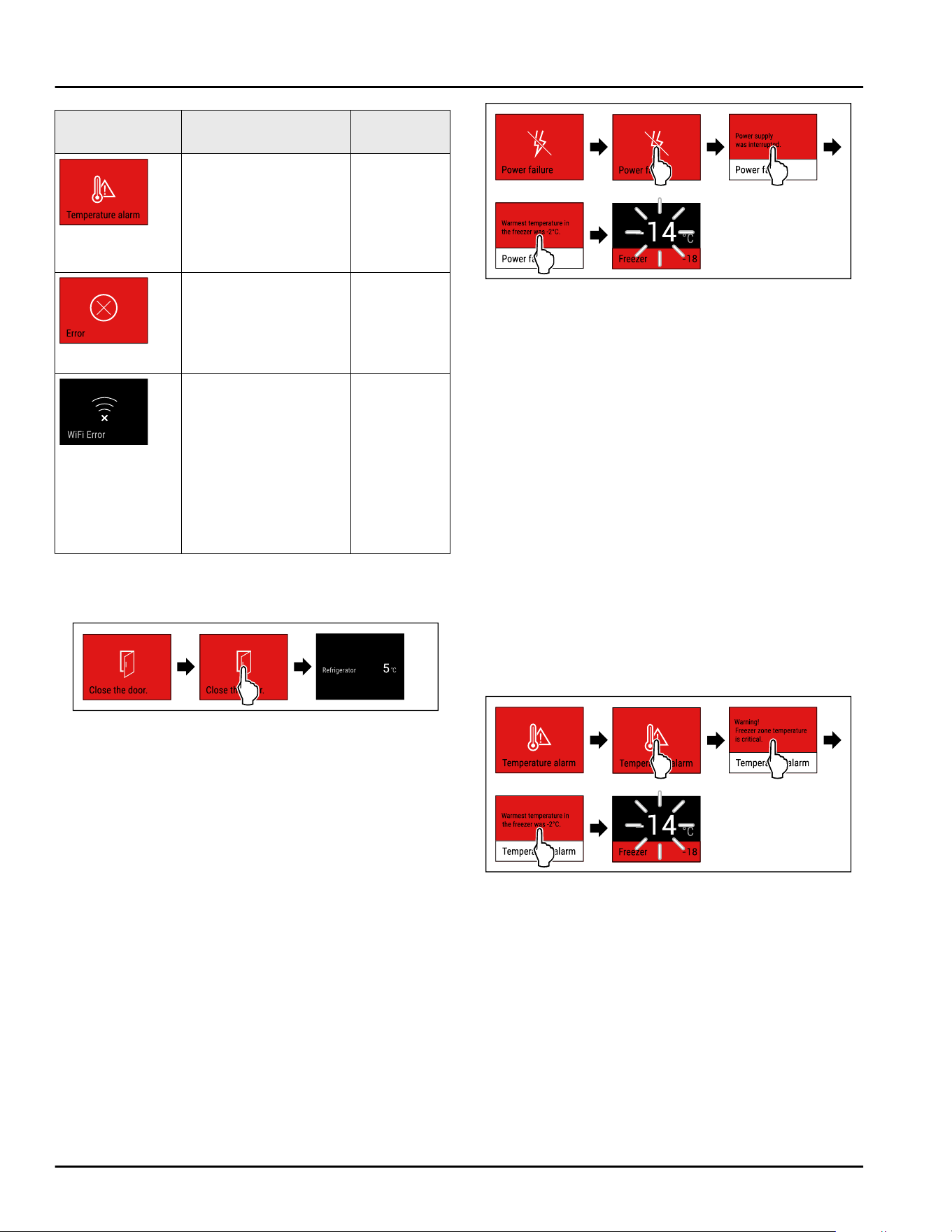
Message Cause Ending the
message
Temperature
alarm
The message appears
if the freezing temper‐
ature does not corre‐
spond to the set
temperature.
Carry out
action steps
(see Temper
ature
alarm) .
Error
This message appears
if there is an appli‐
ance error. An appli‐
ance module indi‐
cates an error.
Carry out
action steps
(see Error) .
WLAN error
This message appears
if the appliance could
not be connected to
WLAN. (see Estab‐
lishing the WiFi
connection for the
first time) This
message only appears
the first time the
appliance is set up.
Carry out
action steps
(see WLAN
error) .
7.3.2 Ending warnings
Door alarm
Fig. 95 Example illustration
► Carry out action steps according to the illustration.
-or-
► Close the door.
▷ Display skips to status display.
You can set how long to door may remain open until
the door alarm sounds. (see Setting the door alarm)
Power failure alarm
Once the power failure has ended, the appliance auto‐
matically cools to the target temperature set earlier
without you having to confirm the message. But you
must confirm it in order for the message to disappear
on the display.
Fig. 96 Example illustration
► Briefly touch the display.
▷ Display shows information about the warning.
► Briefly touch the display.
▷ The warmest freezing temperature is displayed.
▷ If the freezing temperature was below -9 °C (16 °F):
Food can still be eaten.
If the freezing temperature exceeded -9°C(16°F):
► Check the food.
► Briefly touch the display.
▷ Display skips to status display: The current tempera‐
ture and target temperature are displayed.
Temperature alarm
Causes for the temperature differences may be:
-
You have put in warm, fresh food.
-
Too much warm room air has flowed in during the
rearrangement and removal of food.
-
The power has been out for a longer period of time.
-
The appliance is defective.
► Remedy the cause.
▷ The appliance cools to the target temperature set
earlier:
Fig. 97 Example illustration
► Briefly touch the display.
▷ Display shows information about the warning.
► Briefly touch the display.
▷ The warmest freezing temperature is displayed.
▷ If the freezing temperature was below -9 °C (16 °F):
Food can still be eaten.
If the freezing temperature exceeded -9°C(16°F):
► Check the food.
► Briefly touch the display.
▷ Display skips to status display: The current tempera‐
ture and target temperature are displayed.
Use
* Depending on model and options 25
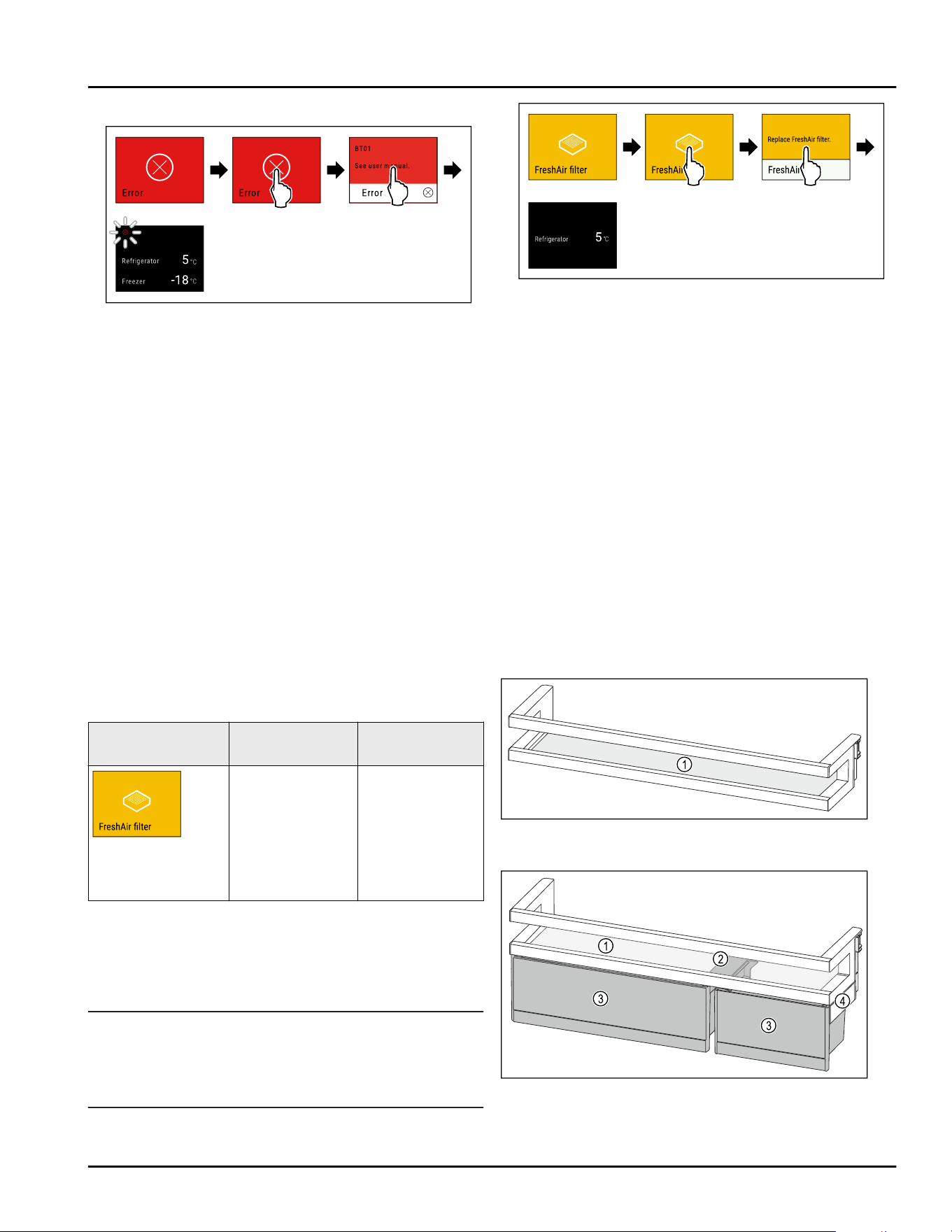
Error
Fig. 98 Example illustration
► Briefly touch the display.
▷ Error code is displayed.
► Make a note of the error code.
► Briefly touch the display.
▷ Display skips to status display.
► Contact Customer Service. (see 10.4 Customer
Service)
WLAN error
► Check the WLAN connection.
► Connect the appliance to the WLAN again.
(seeWiFi)
7.3.3 Overview of reminders
The appliance’s behavior in the event of a reminders:
-
Reminder appears in the display in yellow.
-
Alarm tone sounds.
-
For some reminders the interior lighting pulses.
You can deactivate the following reminders (see Deac‐
tivating reminder) :
-
Replace FreshAir activated charcoal filter
Message
Cause Ending the
message
Replace FreshAir
activated char‐
coal filter
This message
appears if you
have to replace
the FreshAir
activated char‐
coal filter.
Carry out action
steps
(see Replace
FreshAir acti‐
vated charcoal
filter) .
7.3.4 Ending reminders
Replace FreshAir activated charcoal filter
Liebherr recommends: Replace the FreshAir activated
charcoal filter every 6 months.
Note
FreshAir activated charcoal filters can be purchased
from the Liebherr Service Center. The address for your
respective country can be found on the back of the
instructions.
Fig. 99 Example illustration
► Briefly touch the display.
▷ Display shows information about the reminder.
► Briefly touch the display.
► Replace activated charcoal filter. (see 9.1 FreshAir
carbon filter)
▷ The activated charcoal filter ensures optimum air
quality in the refrigerator.
▷ Reminder appears again after 6 months.
If you no longer want to keep this reminder, you can
deactivate the reminder. (see Deactivating reminder)
8 Equipment
8.1 Door racks
Door racks are suitable for storing beverages and food.
You can move door racks for use as individually needed
and disassemble them for cleaning. However, Liebherr
recommends using the door racks in the position they
are in when delivered from the plant.
Fig. 100 Example illustration of the door racks
(1)
Shelf
Fig. 101 Example illustration of door racks with VarioBoxes
(1)
Shelf (3) VarioBoxes
Equipment
26 * Depending on model and options
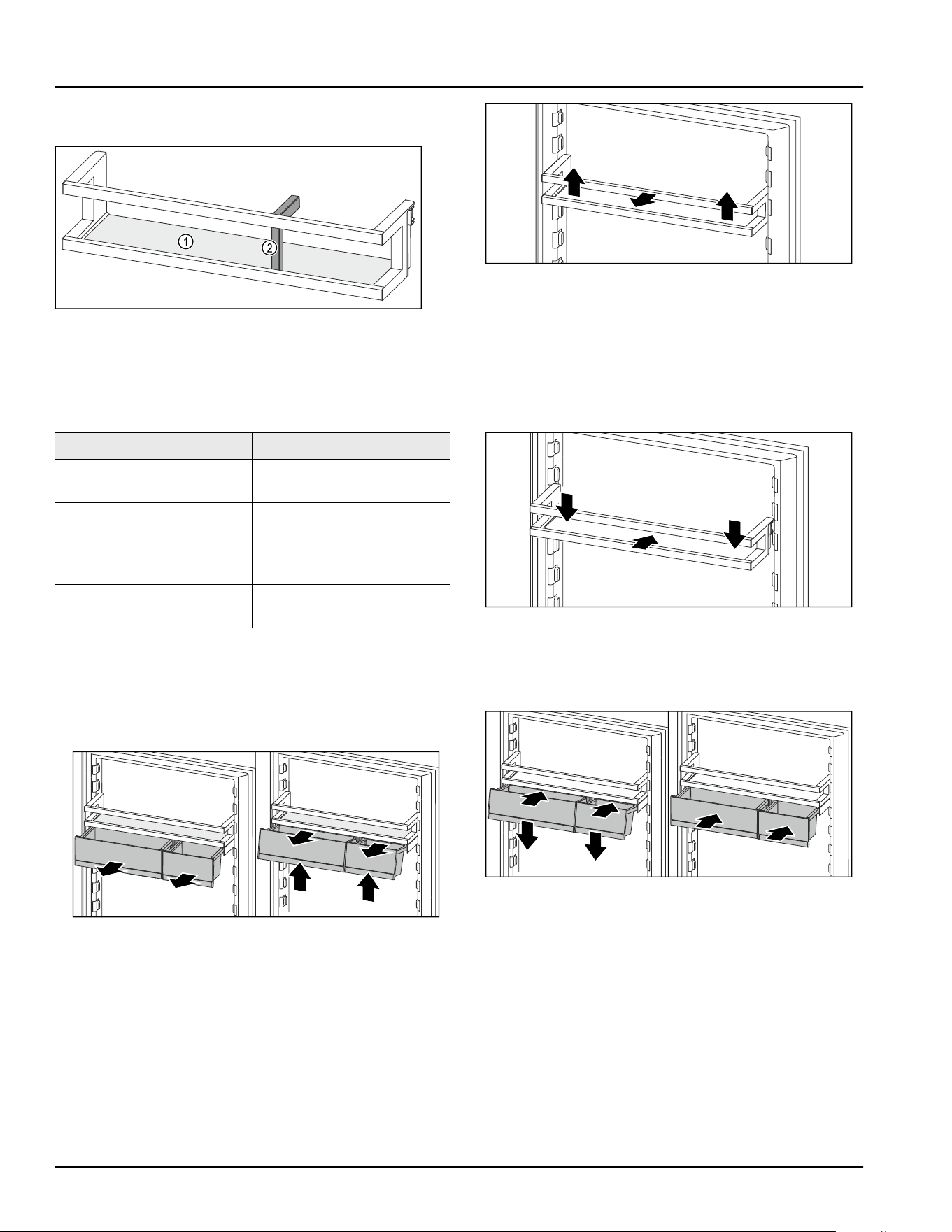
(2) Retaining part for
VarioBoxes
(4) Side section
Fig. 102 Example illustration of the door racks with bottle
holder
(1)
Shelf (2) Bottle holder
The following table shows examples of what you can
store in each door rack. Here, make sure that you do
not exceed the maximum loading weight for the door.
Door racks
Food
Door racks (see Fig. 100) Butter, cheese, canned
food, tubes
Door racks with bottle
holder (see Fig. 102)
Bottles
Use the movable bottle
holder to secure the
bottles in the door rack.
Door racks with Vario‐
Boxes (see Fig. 101)
small food items
8.1.1 Removing the VarioBoxes
You can use either one or both VarioBoxes. If you want
to place especially high bottles in the door rack below
the door rack with VarioBoxes, you can remove one or
both VarioBoxes.
Fig. 103
► Pull out the VarioBoxes as far as they go.
► Lift VarioBoxes at the front.
► Take the VarioBoxes out to the front.
8.1.2 Removing the door rack
Make sure that the following requirements are fulfilled:
❑
VarioBoxes are removed. (see 8.1.1 Removing the
VarioBoxes)
Fig. 104 Example illustration
► Move the door rack up.
► Move the door rack to the front.
8.1.3 Inserting the door rack
Make sure that the following requirements are fulfilled:
❑
VarioBoxes are removed. (see 8.1.1 Removing the
VarioBoxes)
Fig. 105 Example illustration
► Insert the door rack.
► Press the door rack down.
8.1.4 Inserting the VarioBoxes
Fig. 106
► Place the VarioBoxes at an angle on the ridge of the
door rack.
► Lower the VarioBoxes.
► Push in the VarioBoxes.
8.1.5 Repositioning the VarioBoxes
Make sure that the following requirements are fulfilled:
❑
VarioBoxes are removed. (see 8.1.1 Removing the
VarioBoxes)
❑
Door rack is removed. (see 8.1.2 Removing the door
rack)
Equipment
* Depending on model and options 27
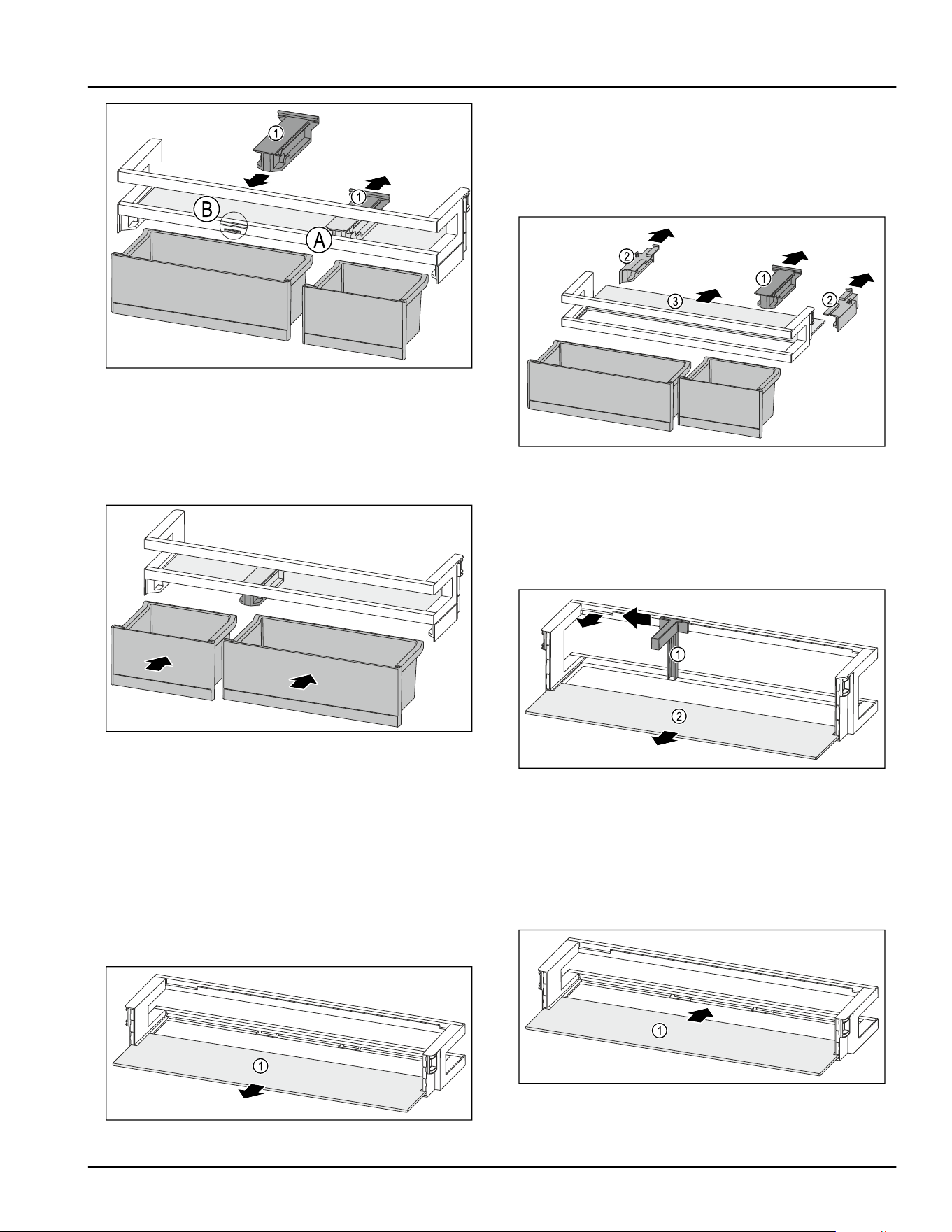
Fig. 107
► Pull off the retaining part Fig. 107 (1) in position
Fig. 107(A) downward.
► Insert the retaining part Fig. 107 (1) in position
Fig. 107(B).
► Insert the door rack. (see 8.1.3 Inserting the door
rack)
Fig. 108
► Insert the VarioBoxes opposite order. (see Fig. 108)
8.1.6 Disassembling the door rack
You can disassemble some of the door racks if you
want to clean the door rack or if you’d like to insert or
remove replacement parts.
Disassembling the door rack
Make sure that the following requirements are fulfilled:
❑
Door rack is removed. (see 8.1.2 Removing the door
rack)
Fig. 109 Door racks with shelf
►
Remove the shelf Fig. 109(1).
Disassembling the shelf with VarioBoxes
Make sure that the following requirements are fulfilled:
❑
Door rack is removed. (see 8.1.2 Removing the door
rack)
Fig. 110
► Remove theVarioBoxes. (see 8.1.1 Removing the Vari‐
oBoxes)
► Pull off the retaining part Fig. 110(1).
► Pull off the side part Fig. 110(2).
► Remove the shelf Fig. 110(3).
Disassembling the door racks with bottle holder
Fig. 111 Door racks with bottle holder and shelf
► Push the bottle holder Fig.111(1) to the side up to the
recess.
► Remove the bottle holder Fig.111(1).
► Remove the shelf Fig.111(2).
8.1.7 Assembling the door rack
Assembling the door rack
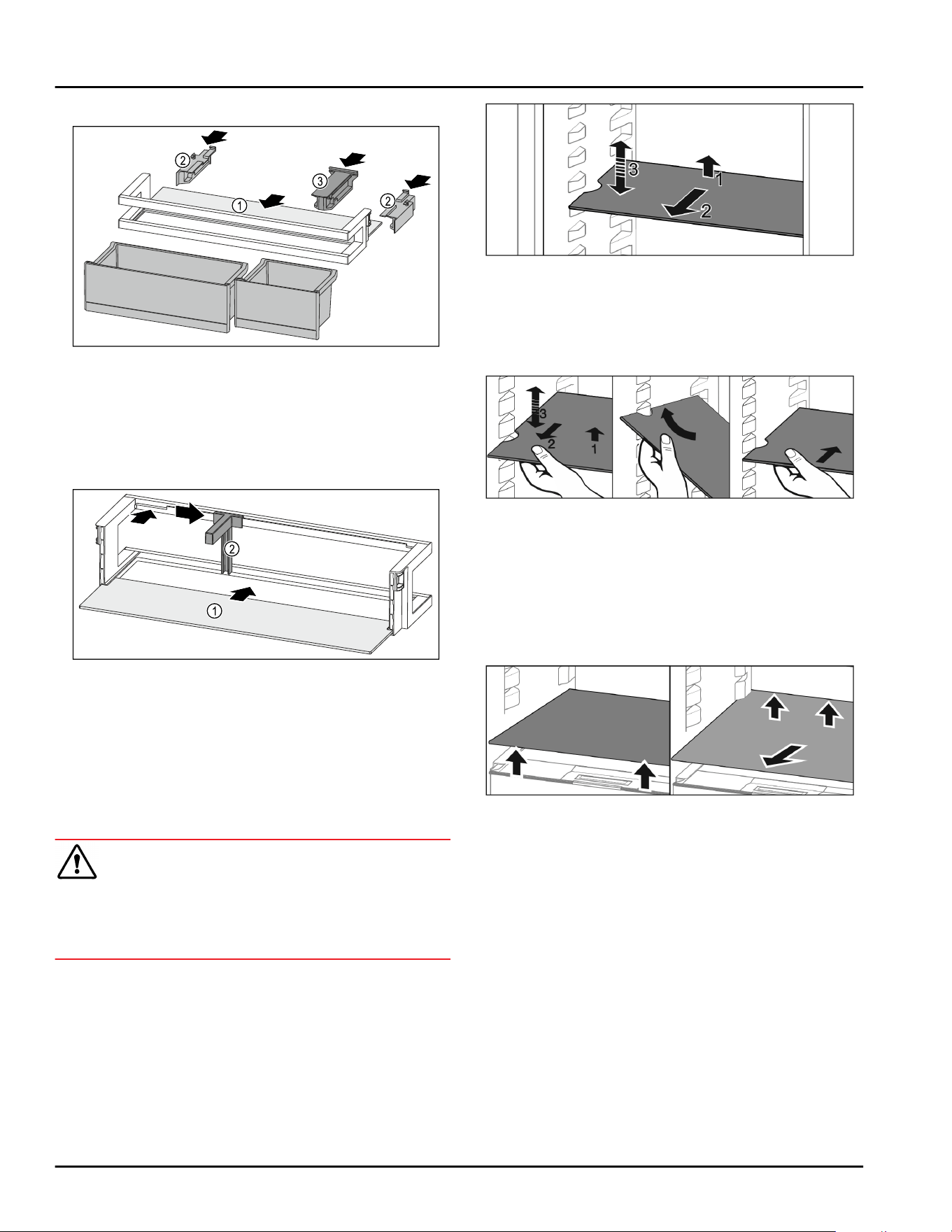
Fig. 112 Door racks with shelf
► Push the shelf Fig.112(1) into the side cutouts.
Equipment
28 * Depending on model and options
Assembling the door rack with VarioBoxes
Fig.113
► Push the shelf Fig.113(1) into the side cutouts.
► Insert the side parts Fig.113(2).
► Insert the retaining part Fig.113(3).
► Insert the VarioBoxes. (see 8.1.4 Inserting the Vario‐
Boxes)
Assembling the door racks with bottle holder
Fig. 114 Door racks with shelf
► Push the shelf Fig. 114(1) into the side cutouts.
► Insert the bottle holder Fig. 114(2) into the recess.
► Push the bottle holder Fig. 114 (2) to the side into the
desired position.
8.2 Shelves
8.2.1 Moving/removing shelves
CAUTION
Broken shelves!
Danger of cuts.
► Only remove storage shelves when there is nothing
on them
Extension stops secure the shelves against being acci‐
dentally pulled out
Fig. 115
► Lift the shelf and pull to the front.
▷ Side recess to shelf position.
► Reposition the shelf: Lift up or lower to the desired
height and insert.
-or-
Fig. 116
► Take out the shelf completely: Pull out to the front.
► Easier removal: Set the shelf at an angle.
► Reinsert the shelf: Push it in to its stop limit.
▷ Pull-out stoppers are pointing down.
▷ Pull-out stoppers are behind the front shelf.
You can also remove the shelf above the EasyFresh
compartments.
Fig.117
To remove shelf
► Lift the shelf at the front and back.
► Remove from the front.
Do not place any goods on the drawer cover below!
Slide the shelf in:
► Place the shelf at an angle, with the back tilted
downwards.
▷ Pull-out stoppers are pointing down.
► Slide the shelf into place.
Equipment
* Depending on model and options 29
8.3 Split shelf
8.3.1 Using the split shelf
CAUTION
Broken shelves!
Danger of cuts.
► Only remove storage shelves when there is nothing
on them
Extension stops secure the shelves against being acci‐
dentally pulled out
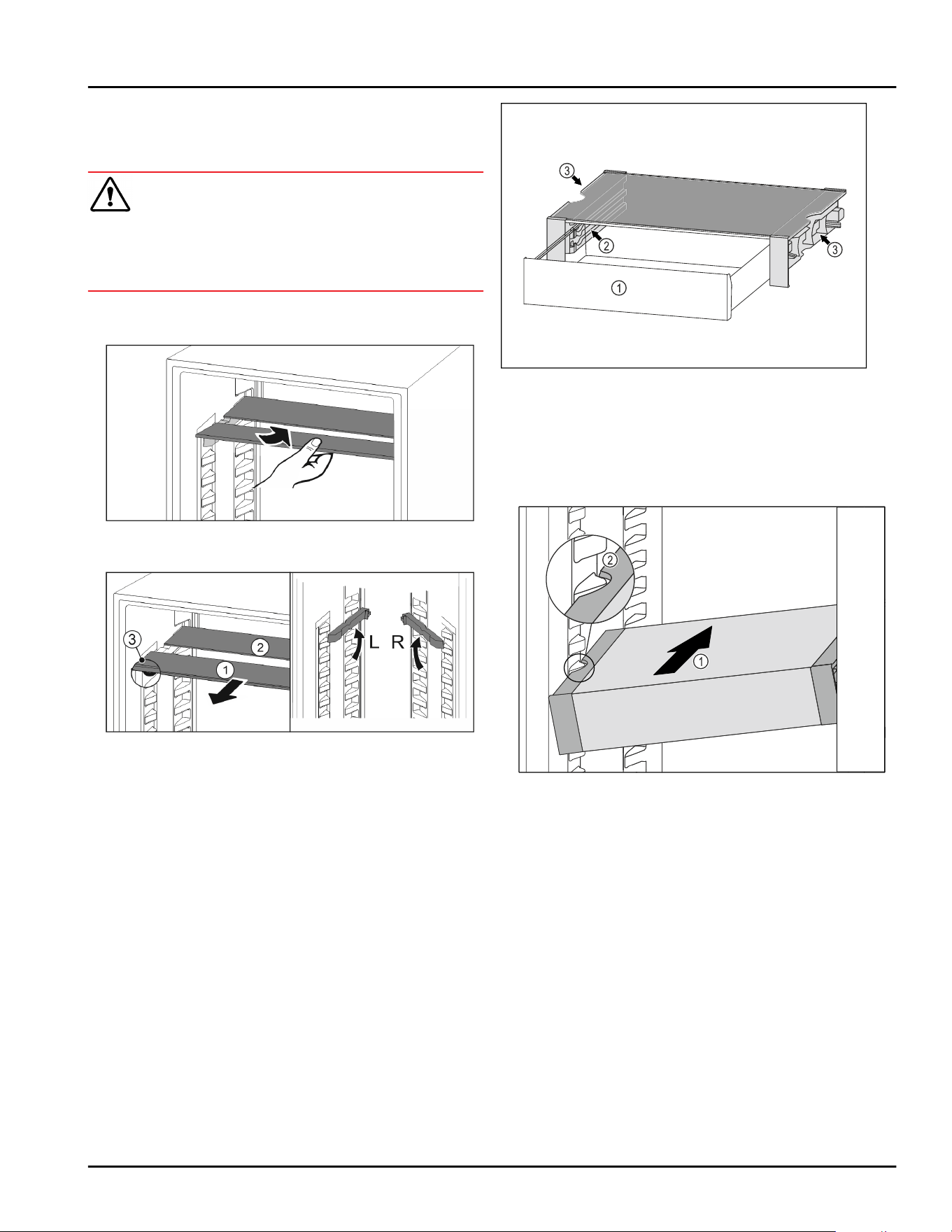
Fig. 118
► Push the split shelf underneath as in the illustration
Fig. 119
Adjusting heights:
► Pull the glass panels out Fig. 119 (1) from the front,
one at a time.
► Pull the support rails out of their retainers and snap
into place at the height you want them.
► Slide in the glass panels one at a time.
▷ Flat pull-out stoppers at the front, right behind the
support rail.
▷ Taller pull-out stoppers at the back.
Using both shelves:
► Hold the bottom glass panel with one hand and pull
it to the front.
▷ The glass panel Fig. 119(1) with the trim strip is at the
front.
▷ The stops Fig. 119(3) point downward.
8.4 VarioSafe
The VarioSafe offers space in the refrigerator compart‐
ment for small groceries, packages, tubes and jars, for
example.
Fig.120
(1)
VarioSafe drawer (3) Recesses on the left
and right side panel
(2) Side panels with ribs
for VarioSafe drawer
8.4.1 Inserting the VarioSafe
Fig.121
► Insert the VarioSafe into the refrigerator compart‐
ment at an angle Fig. 121 (1) until the recesses in the
side Fig.121(2) of the VarioSafe are at the level of the
support rib in the refrigerator compartment.
Equipment
30 * Depending on model and options
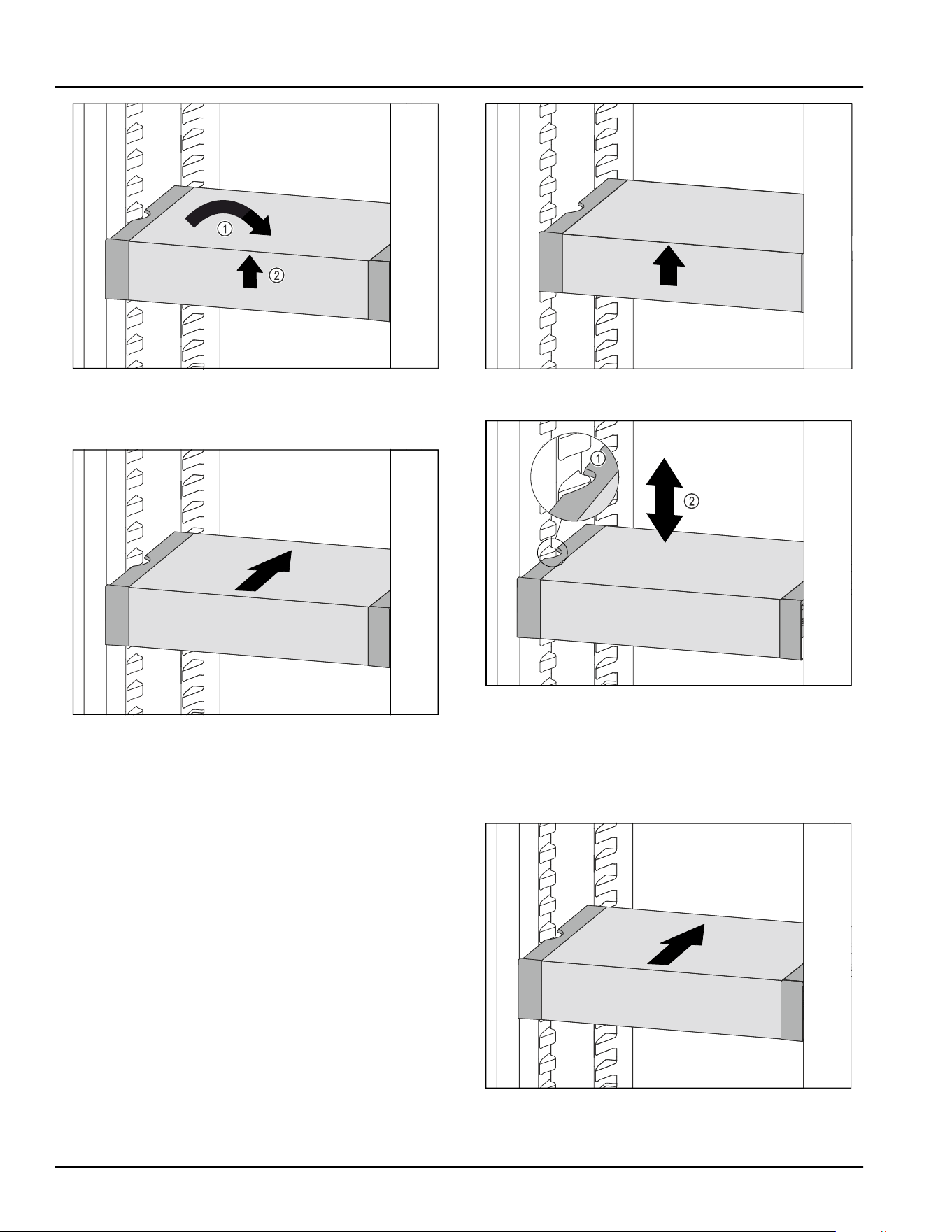
Fig.122
► Set VarioSafe straight. Fig.122(1)
► Lift VarioSafe at the front. Fig.122(2)
Fig.123
► Lift VarioSafe up toward the front.
► Push VarioSafe in to the rear.
► Lower VarioSafe.
▷ VarioSafe audibly engages.
▷ VarioSafe is inserted.
8.4.2 Repositioning the VarioSafe
You can move the VarioSafe as a whole in the refriger‐
ator compartment.
Fig. 124
► Lift VarioSafe at the front.
Fig.125
► Pull VarioSafe forwards until the recesses in the side
of the VarioSafe are at the level of the support rib in
the refrigerator compartment. Fig.125(1)
► Move VarioSafe up or down in the refrigerator
compartment until the desired height is reached.
Fig.125(2)
Fig. 126
► Lift VarioSafe at the front.
► Push VarioSafe in to the rear.
Equipment
* Depending on model and options 31
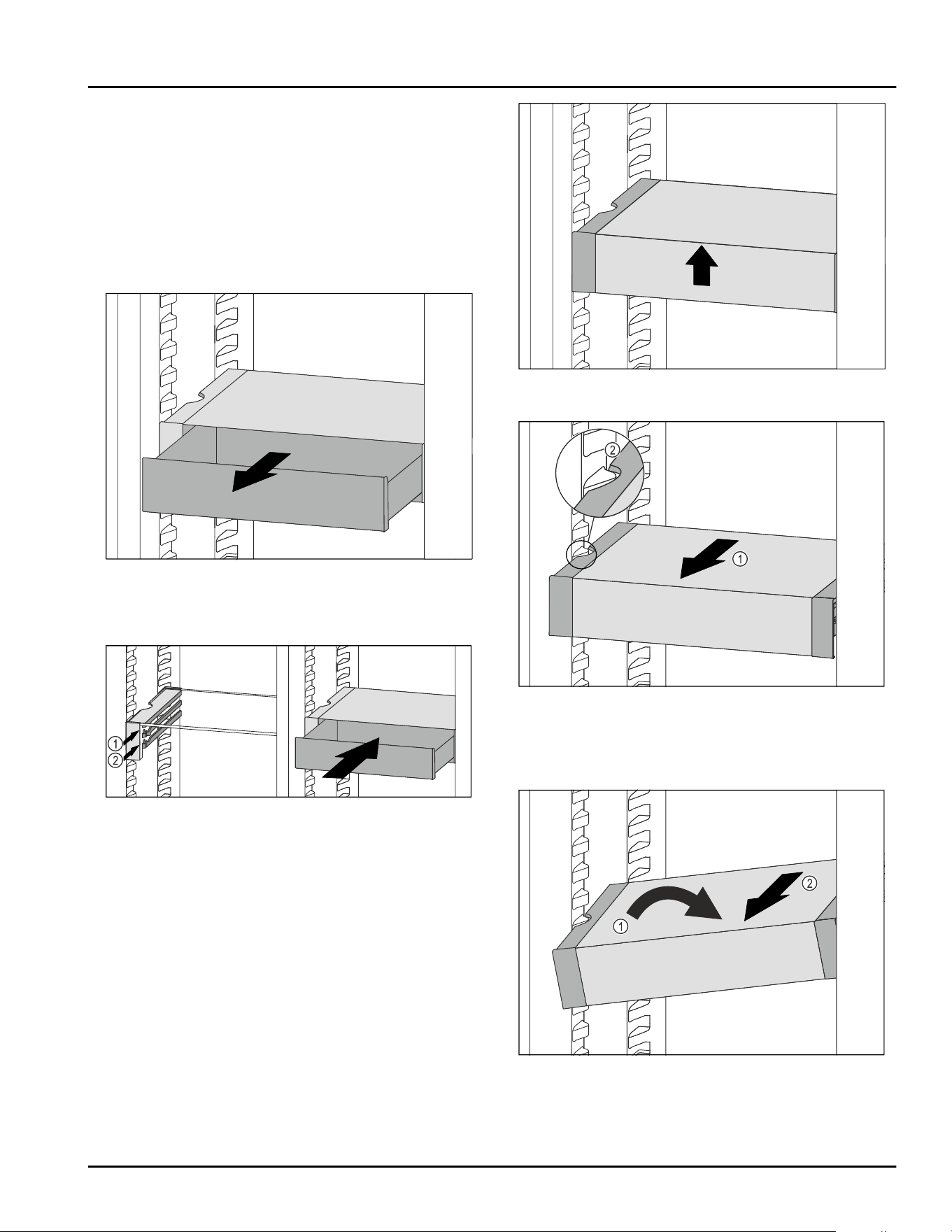
▷ VarioSafe audibly engages.
▷ VarioSafe is offset in height.
8.4.3 Moving the VarioSafe drawer
You can use the VarioSafe drawer at two different
heights. If you would like to store taller foodstuffs in
the VarioSafe drawer, slide the VarioSafe drawer in on
the bottom rib. If you would like to store smaller food‐
stuffs in the VarioSafe drawer, slide the VarioSafe
drawer in on the top rib.
Fig.127
► Pull out the VarioSafe drawer as far as it will go.
► Lift the VarioSafe drawer up at the front.
► Remove the VarioSafe drawer to the front.
Fig.128
► Lift the VarioSafe drawer up at the front.
► Place the VarioSafe drawer behind the stoppers on
desired rib Fig.128(1) or Fig.128(2).
▷ VarioSafe drawer is offset in height.
8.4.4 Removing the VarioSafe
You can remove the VarioSafe as a whole.
Fig.129
► Lift VarioSafe at the front.
Fig.130
► Pull VarioSafe forward Fig.130(1) until the recesses in
the side of the VarioSafe are at the level of the
support rib in the refrigerator compartment.
Fig.130(2)
Fig.131
► Set VarioSafe in refrigerator compartment at an
angle. Fig.131(1)
► Take VarioSafe out to the front. Fig.131(2)
▷ VarioSafe is removed.
Equipment
32 * Depending on model and options
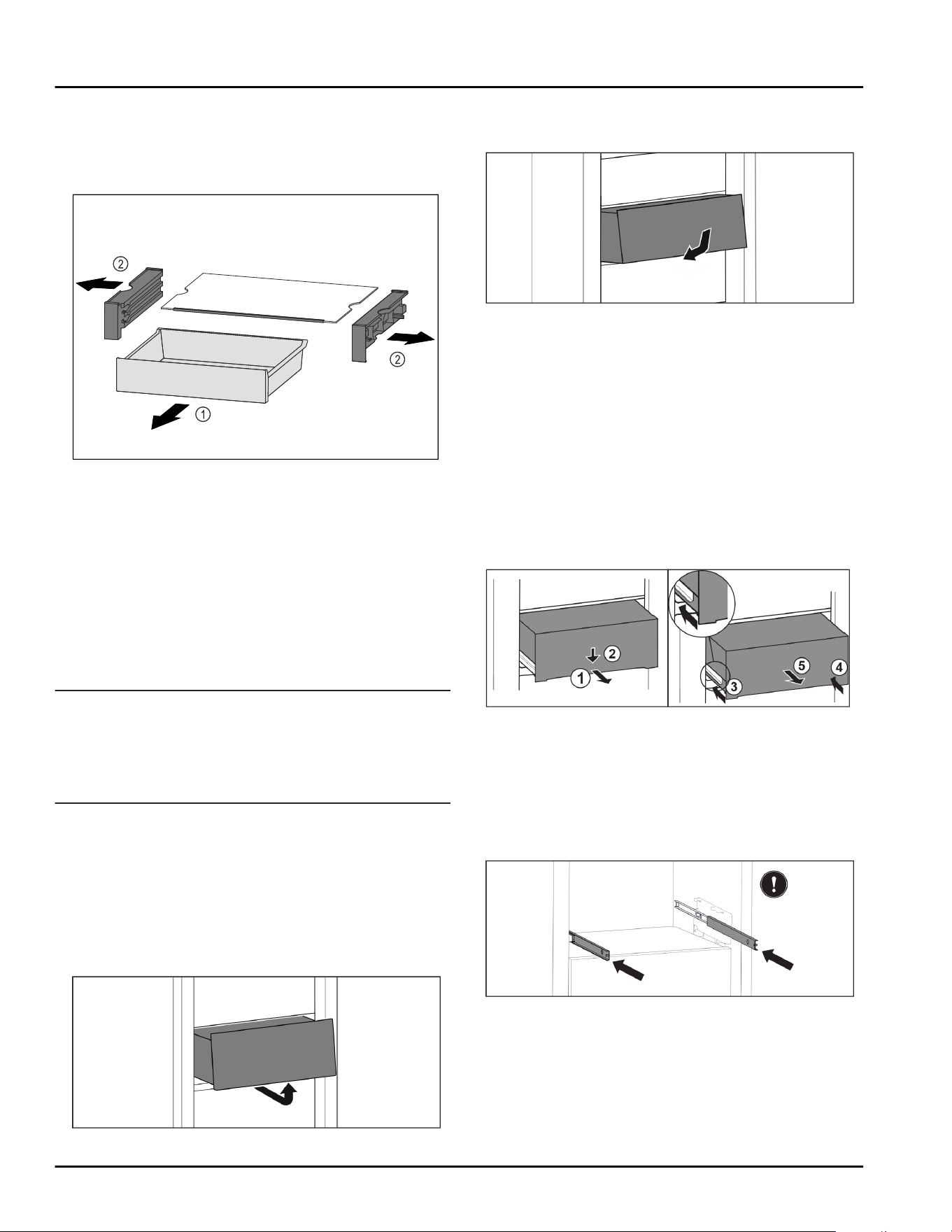
8.4.5 Disassembling the VarioSafe
You can disassemble the VarioSafe into its individual
parts if you want to clean the VarioSafe or if you need
to install or remove parts.
Fig.132
► Remove VarioSafe as a whole. (see 8.4.4 Removing
the VarioSafe )
► Disassemble VarioSafe according to the illustration.
8.5 Drawers
You can remove the drawers for cleaning.
You can remove the drawers to use VarioSpace.*
The way to remove/insert the drawers varies
depending on the pull-out system. Your appliance can
contain a variety of pull-out systems.
Note
Insufficient ventilation results in an increase in energy
consumption and reduction of the refrigerating
performance.
► Leave the bottom drawer in appliance!
► Never obstruct the vents on the interior rear wall!
8.5.1 Drawer on appliance base or glass
shelf*
The drawer runs directly on the appliance base or on a
glass shelf. There are no rails.
When you remove the drawers, you can use the glass
shelves below them as storage shelves.
Removing drawer
Fig.133
►
Remove drawer as shown in the diagram.
Inserting drawer
Fig.134
► Insert drawer as shown in the diagram.
8.5.2 Drawer on telescopic rails
The drawer runs on full-extension rails (telescopic
rails). There are full-extension telescopic rails and tele‐
scopic rails with partial pull-out. Drawers which are full
extension can be pulled out fully from the appliance.
Drawers with partial pull-out cannot be pulled out fully
from the appliance. The system in your appliance
depends on the type of appliance.
Partial pull-out fridge compartment
Removing drawer
Fig.135
► Pull out the drawer halfway. Fig.135(1)
► Press down the drawer on the front. Fig.135(2)
► Push in the left rail approximately 2 cm (13/16 in).
Fig.135(3)
► Push in the right rail approximately 2 cm (13/16 in).
Fig.135(4)
► Remove drawer to the front. Fig.135(5)
Fig.136
If the rails are not yet fully pushed in after removing
the drawer:
► Push the rails in completely.
Equipment
* Depending on model and options 33
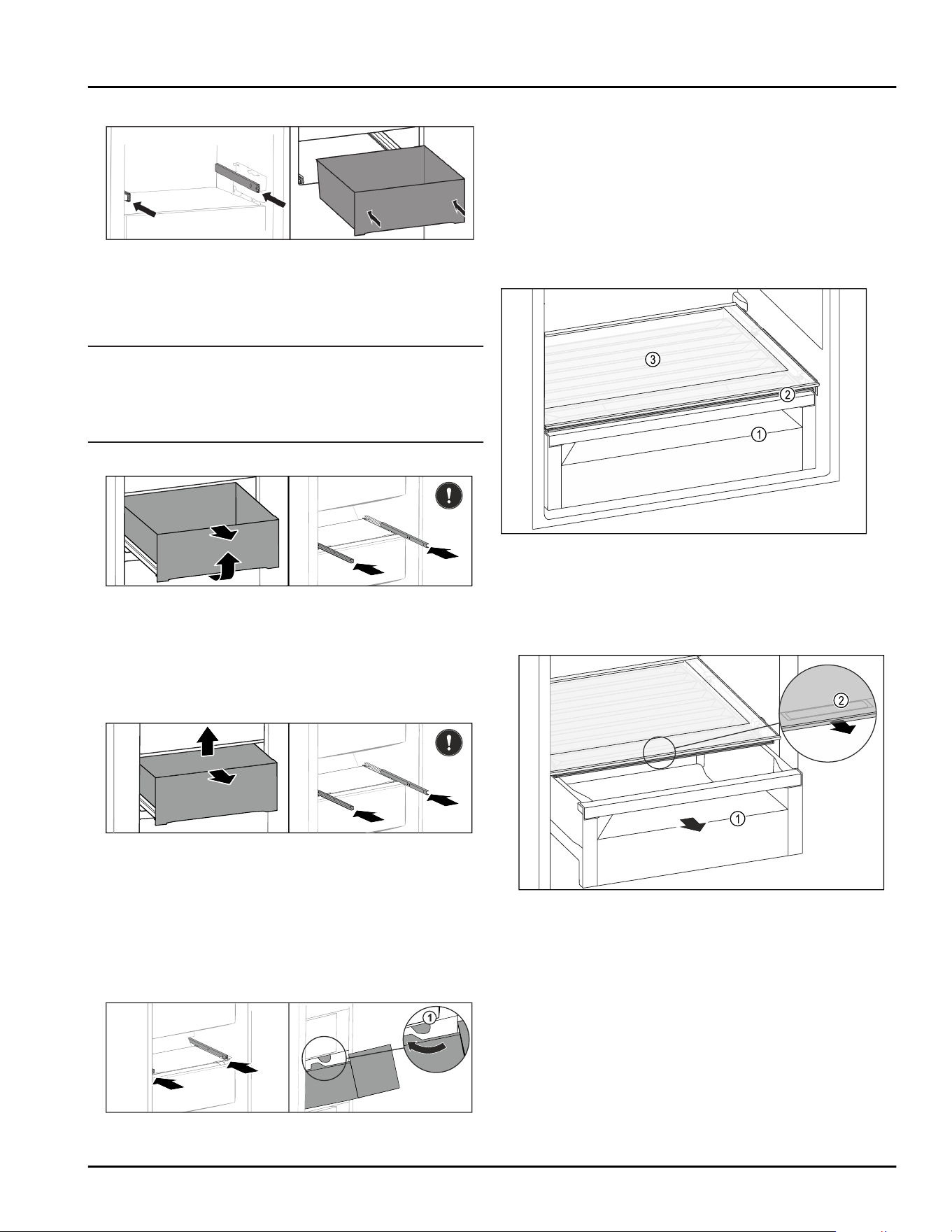
Inserting drawer
Fig.137
► Slide rails in.
► Place drawer on rails.
► Slide in drawer to the back.
Partial pull-out freezing compartment*
Note
If the magnet on the top drawer in the freezing
compartment is damaged or removed, the door sensor
will malfunction.
► Do not damage or remove the magnet.
Removing drawer
Fig.138
If the drawer is in the top freezer:
► Pull out drawer as far as it will go.
► Lift up the front of the drawer.
► Remove the drawer from the front.
► Slide rails in.
-or-
Fig. 139
If the drawer is in the middle of the freezing
compartment:
► Pull out drawer halfway.
► Lift the back of the drawer from the bottom.
► Remove the drawer from the front.
► Slide rails in.
Inserting drawer
Fig. 140
►
Slide rails in.
► Guide drawer around the stoppers Fig. 140(1).
► Place drawer on rails.
► Slide in drawer to the back.
8.6 Lid for EasyFresh-safe
The lid ensures constant levels of humidity.
The lid is located directly on the drawer and can be
covered by shelves or additional drawers.
Fig. 141 Example illustration of the lid for EasyFresh-safe
(1)
EasyFresh-safe (3) Shelf
(2) Lid for EasyFresh-
safe
8.6.1 Reducing humidity in the drawer
Fig. 142
► Pull out the drawer Fig. 142(1).
► Grip the handle recess Fig. 142 (2) on the lid while
pulling the lid forward at the same time.
▷ When the drawer is closed, there is a small gap
between the lid and the drawer.
Equipment
34 * Depending on model and options
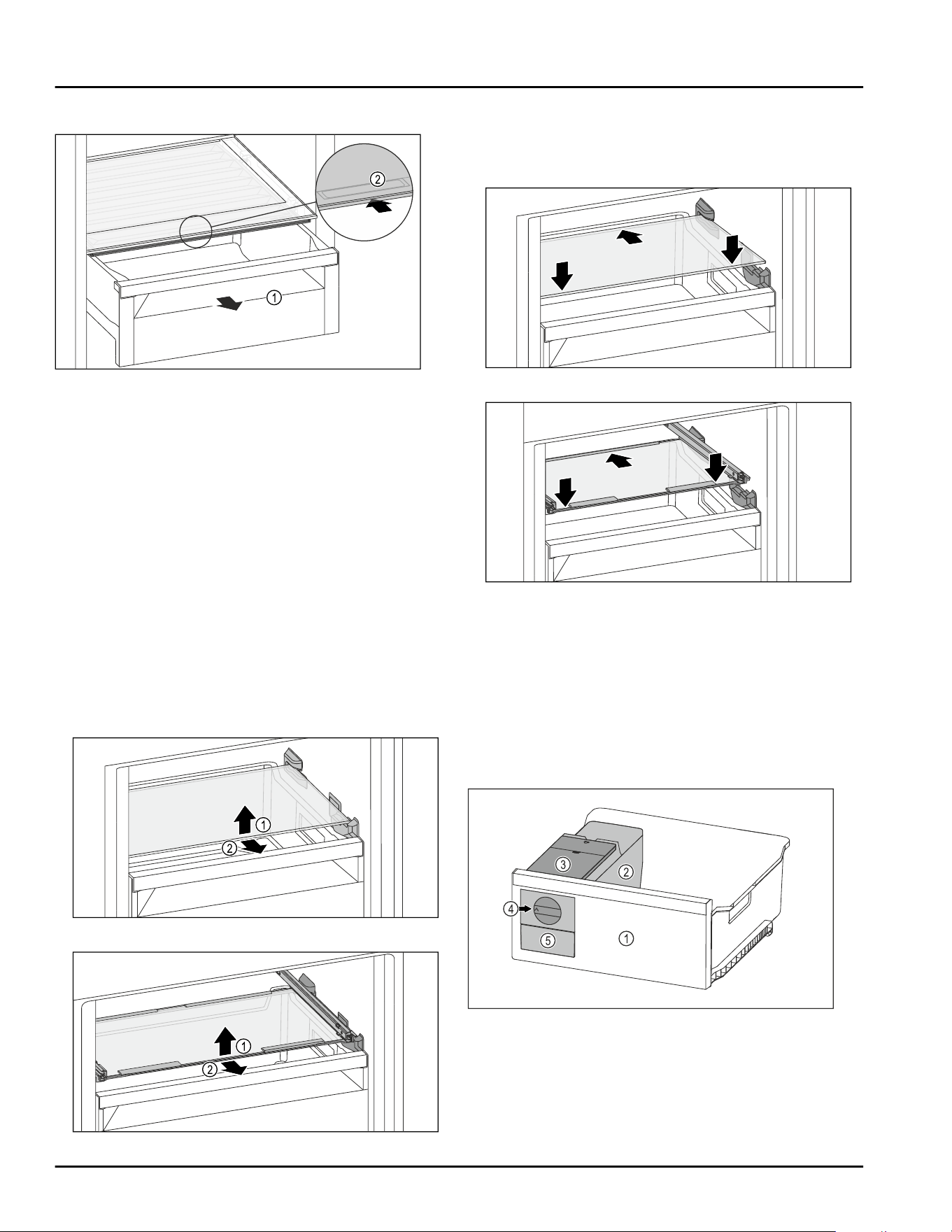
8.6.2 Increasing humidity in the drawer
Fig. 143
► Pull out the drawer Fig. 143(1).
► Grip the handle recess Fig. 143 (2) on the lid while
pulling the lid backward at the same time.
▷ When the drawer is closed, the lid closes tightly with
the drawer.
8.7 Glass shelves
You can remove the glass shelf under the drawers for
cleaning.
You can remove the glass shelf under the drawers to
use VarioSpace.*
8.7.1 Removing / inserting the glass shelf
Make sure that the following requirements are fulfilled:
❑
Glass shelf under the drawer: Drawer has been
removed. (see 8.5 Drawers)
Removing glass shelf
Fig. 144 Example illustration of the glass shelf*
Fig. 145 Example illustration of the glass shelf*
► Lift the front of the glass shelf.
► Remove the glass shelf from the front.
Inserting the glass shelf
Fig. 146 Example illustration of the glass shelf*
Fig. 147 Example illustration of the glass shelf*
► Set down the glass shelf diagonally behind the stop‐
pers.
► Lower glass shelf.
► Slide in glass shelf to the back.
8.8 EasyTwist-Ice
With the EasyTwist-Ice you can make enough ice cubes
for the whole household. The EasyTwist-Ice is supplied
with water via a water tank.
Fig. 148 Example illustration
(1)
Freezer drawer with
EasyTwist-Ice
(4) Rotary knob
(2) Body with ice cube
tray
(5) Ice cube drawer
(3) Water tank
Equipment
* Depending on model and options 35
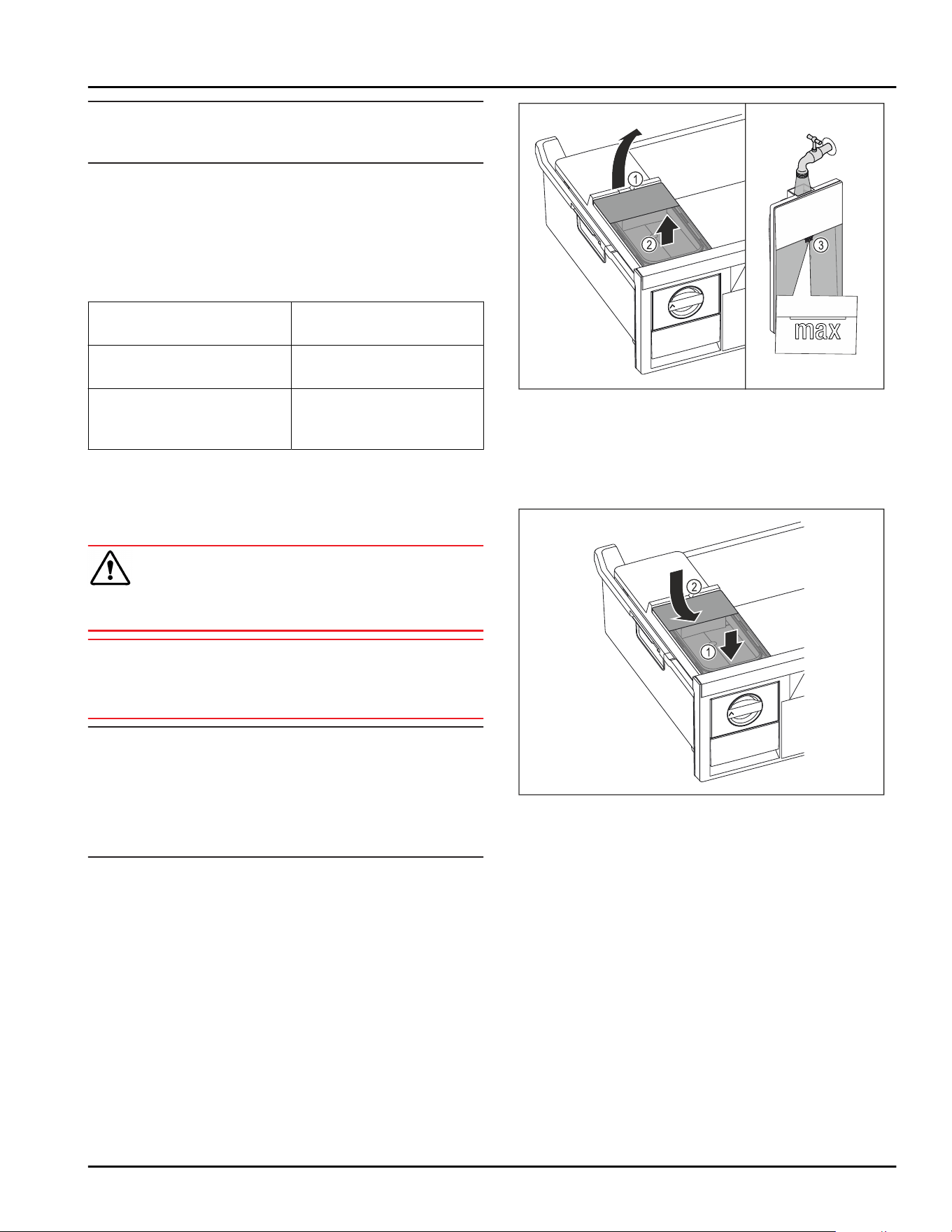
Note
Do not change the position of the freezer drawer with
the EasyTwist-Ice in the appliance.
8.8.1 Making ice cubes
The amount of ice cubes you can make in a given
period of time with the EasyTwist-Ice depends on the
freezer temperature of the appliance. The lower the
temperature in the appliance, the more ice cubes you
can make.
Maximum number of ice
cubes in the ice cube tray:
20 ice cubes
Maximum capacity of the
ice cube drawer:
40 ice cubes (equivalent
to two ice cube batches)
More information about
the time needed for ice
cube production:
(see 10.1 Technical speci‐
fications)
Make sure that the following requirements are fulfilled:
❑
Components of the EasyTwist-Ice have been
cleaned.
Filling the water tank
WARNING
Risk of poisoning due to contaminated water!
► Fill the water tank with potable water only.
NOTICE
Sugary liquids!
Damage to the EasyTwist-Ice.
► Fill with cold drinking water only.
Note
Using filtered, decarbonized water ensures the best-
tasting drinking water for your ice cubes.
This water quality can be achieved using a table water
filter of the kind available in trade retail outlets.
► Always fill the water tank only with filtered, decar‐
bonized drinking water.
Fig. 149
► Pull out freezer drawer as far as it will go.
► Lift the water tank at the recess Fig. 149(1).
► Remove the water tank by lifting it upward. Fig. 149(2)
► Fill the water tank with drinking water up to the
mark Fig. 149(3).
Fig. 150
► Position the water tank at the front. Fig. 150(1)
► Lower the water tank at the rear. Fig. 150(2)
► Slide in the freezer drawer.
Releasing the ice cubes
Make sure that the following requirements are fulfilled:
❑
The required time for the production of ice cubes has
been observed. (see 10.1 Technical specifications)
❑
Freezer drawer is fully inserted.
❑
Ice cube drawer is fully inserted.
► Turn the rotary knob Fig. 148 (4) clockwise as far as it
will go.
▷ Ice cubes fall from the ice cube tray into the ice
cube drawer Fig. 148(5).
If all the ice cubes do not come out of the ice cube
tray:
► Turn the rotary knob clockwise several times to the
stop.
Equipment
36 * Depending on model and options
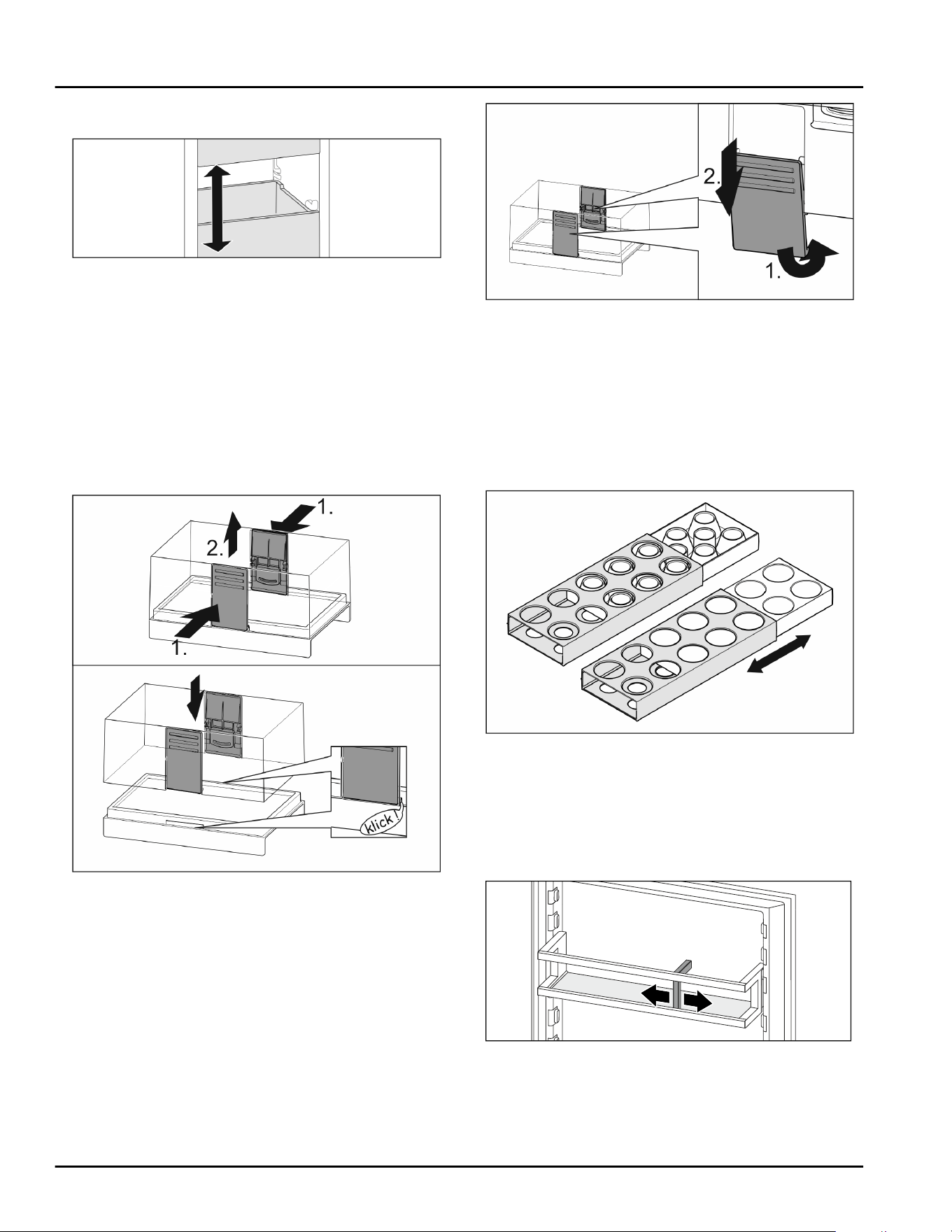
8.9 VarioSpace*
Fig. 151
You can remove drawers and glass panels from your
appliance. This provides more room for large food
items such as poultry, joints of meat, large game and
bulky baked goods. You can then freeze these items
whole for later preparation.
► Note the load limits on the drawers and glass panels
(see 10.1 Technical specifications) .
8.10 Butter dish
8.10.1 Opening/closing the butter dish
Fig. 152
8.10.2 Dismantling the butter dish
You can disassemble the butter dish for cleaning.
Fig. 153
► Disassemble the butter dish.
8.11 Egg rack
You can pull out and turn the egg rack. You can use
both sides of the egg rack so you can label specifics
like the purchase date.
8.11.1 Using the egg rack
Fig. 154
► Top section: store hen eggs.
► Bottom section: store quail eggs.
8.12 Bottle rack
8.12.1 Using the bottle rack
Fig. 155
► Slide the bottle rack at the edges.
▷ Stops bottles from tipping over.
Equipment
* Depending on model and options 37
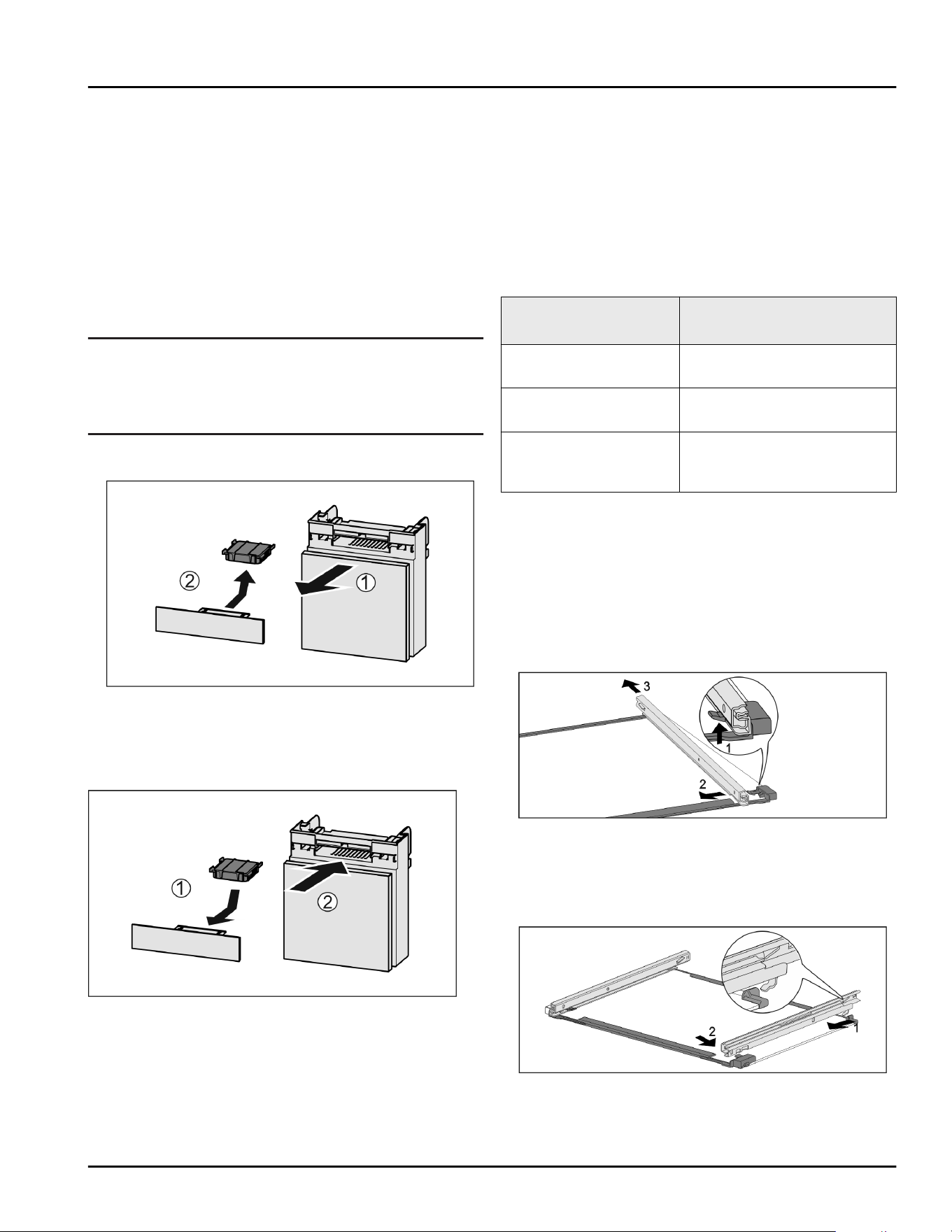
9 Maintenance
9.1 FreshAir carbon filter
The FreshAir carbon filter is located in the compart‐
ment above the fan.
It guarantees the best air quality.
❑
Change the carbon filter every 6 months.
When the reminder is set, a message on the display
prompts you to change it.
❑
You can dispose of the carbon filter with the regular
household waste.
Note
FreshAir activated charcoal filters can be purchased
from the Liebherr Service Center. The address for your
respective country can be found on the back of the
instructions.
9.1.1 Removing the FreshAir carbon filter
Fig. 156
► Pull out the compartment Fig. 156(1).
► Remove the carbon filter Fig. 156(2).
9.1.2 Inserting the FreshAir carbon filter
Fig. 157
► Insert the carbon filter as shown in the diagram
Fig. 157(1).
▷ The carbon filter clicks into place.
If the carbon filter is pointing downwards:
► Push the compartment in Fig. 157(2).
▷ The carbon filter is now ready for use.
9.2 Disassembling / assembling pull-
out systems
9.2.1 Notes on disassembly
You can disassemble some of the pull-out systems for
cleaning. Your appliance can contain a variety of pull-
out systems.
The following pull-out systems can be disassembled or
cannot be disassembled:
Pull-out system can be disassembled/
cannot be disassembled
Drawer on appliance
base or glass shelf*
cannot be disassembled*
Partial extension fridge
section
cannot be disassembled
Partial-extension in the
freezer section*
can be disassembled
(see Partial pull-out freezing
compartment*) *
9.2.2 Drawer on telescopic rails
Partial pull-out freezing compartment*
Disassembling pull-out system
Make sure that the following requirements are fulfilled:
❑
Drawer has been removed.
❑
Glass shelf has been removed. (see 8.7 Glass
shelves)
Fig. 158 Glass shelf with rails
► Push up front click-in hooks. Fig. 158(1)
► Slide pull-out rails to the side Fig. 158 (2) and back‐
wards Fig. 158(3).
Installing pull-out system
Fig. 159 Glass shelf with rails
► Hook in rail at the back. Fig. 159(1)
► Hook in rail at the front. Fig. 159(2)
Maintenance
38 * Depending on model and options
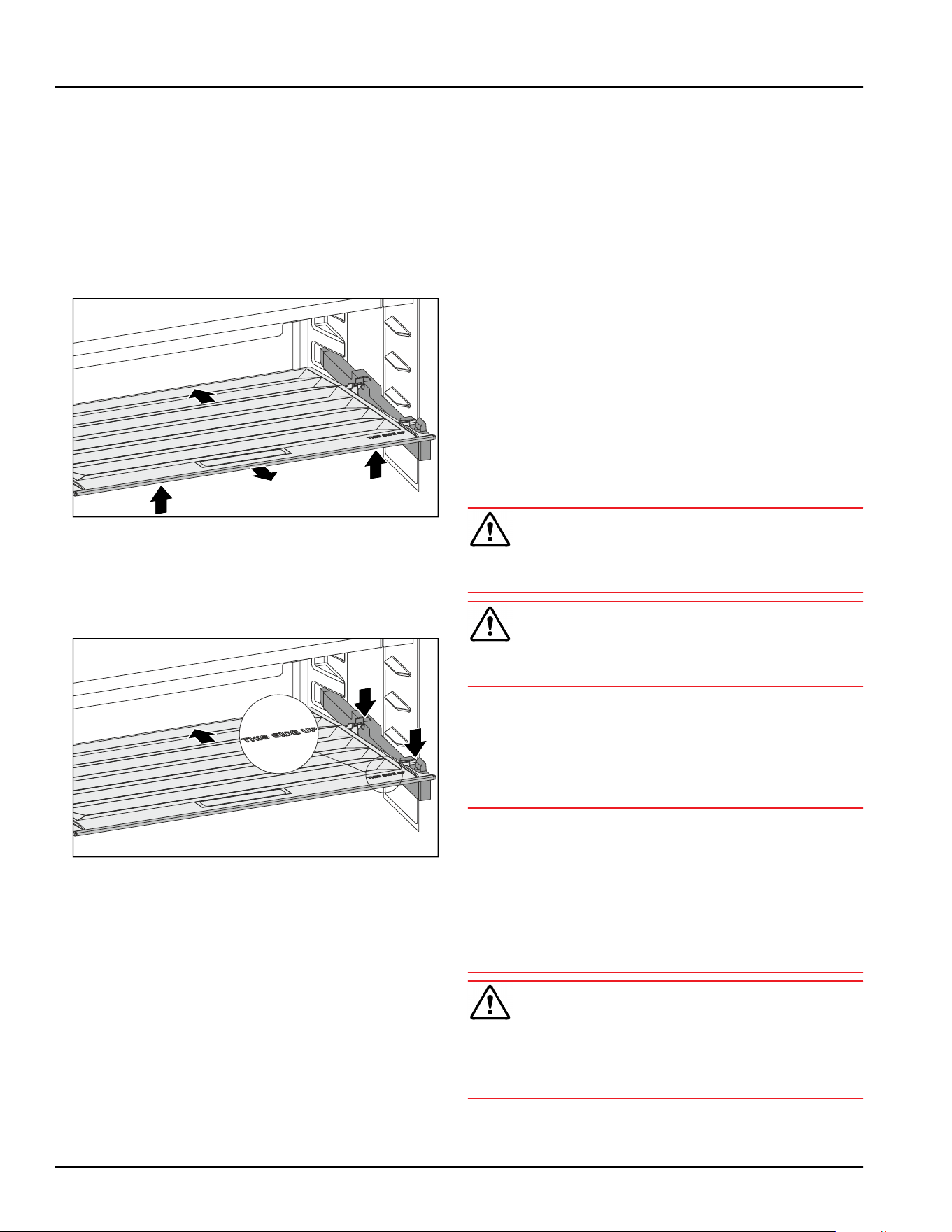
9.3 Lid for EasyFresh-safe
You can remove the lid for cleaning.
9.3.1 Removing the lid
Make sure that the following requirements are fulfilled:
❑
The shelf directly above the drawer has been
removed. (see8.2 Shelves)
❑
The drawer directly below the lid has been removed.
(see 8.5 Drawers)
Fig. 160
► Push the lid backward.
► Lift up the lid forward.
► Remove the front lid by lifting it up at an angle.
9.3.2 Inserting the lid
Fig. 161
If the lettering THIS SIDE UP is on top:
► Insert the rear bracket retainers in the corresponding
rear openings.
► Push the lid backward.
► Lower the lid at the front and latch the front bracket
retainers in the openings.
► Bring the lid to the desired position.
9.4 Defrosting the appliance
9.4.1 Defrosting the refrigerator compart‐
ment
Defrosting is performed automatically. The water from
the thawing process runs out via the drain opening and
is evaporated.
► Clean the drain hole regularly. (see 9.5 Cleaning the
appliance)
9.4.2 Defrosting the freezer compartment
with NoFrost
Defrosting is performed automatically by the NoFrost
system. The moisture condenses on the evaporator and
is periodically defrosted and evaporated.
The appliance does not need to be defrosted.
9.5 Cleaning the appliance
9.5.1 Preparation
WARNING
Danger of electric shock.
► Unplug refrigerator or disconnect power.
WARNING
Danger of fire
► Do not damage the refrigerant circuit.
► Empty appliance.
► Pull out the power plug.
-or-
► Activate CleaningMode. (seeCleaningMode)
9.5.2 Cleaning the housing
NOTICE
Improper cleaning!
Damage to the appliance.
► Only use soft cleaning cloths and ph-neutral all-
purpose cleaners.
► Do not use steel wool or sponges that scour or
scratch.
► Do not use caustic or abrasive cleaning materials or
those containing sand, chloride, or acids.
WARNING
Risk of injury or damage due to hot steam.
Hot steam can cause scalding/burns and damage to
surfaces.
► Do not use steam cleaners.
Maintenance
* Depending on model and options 39
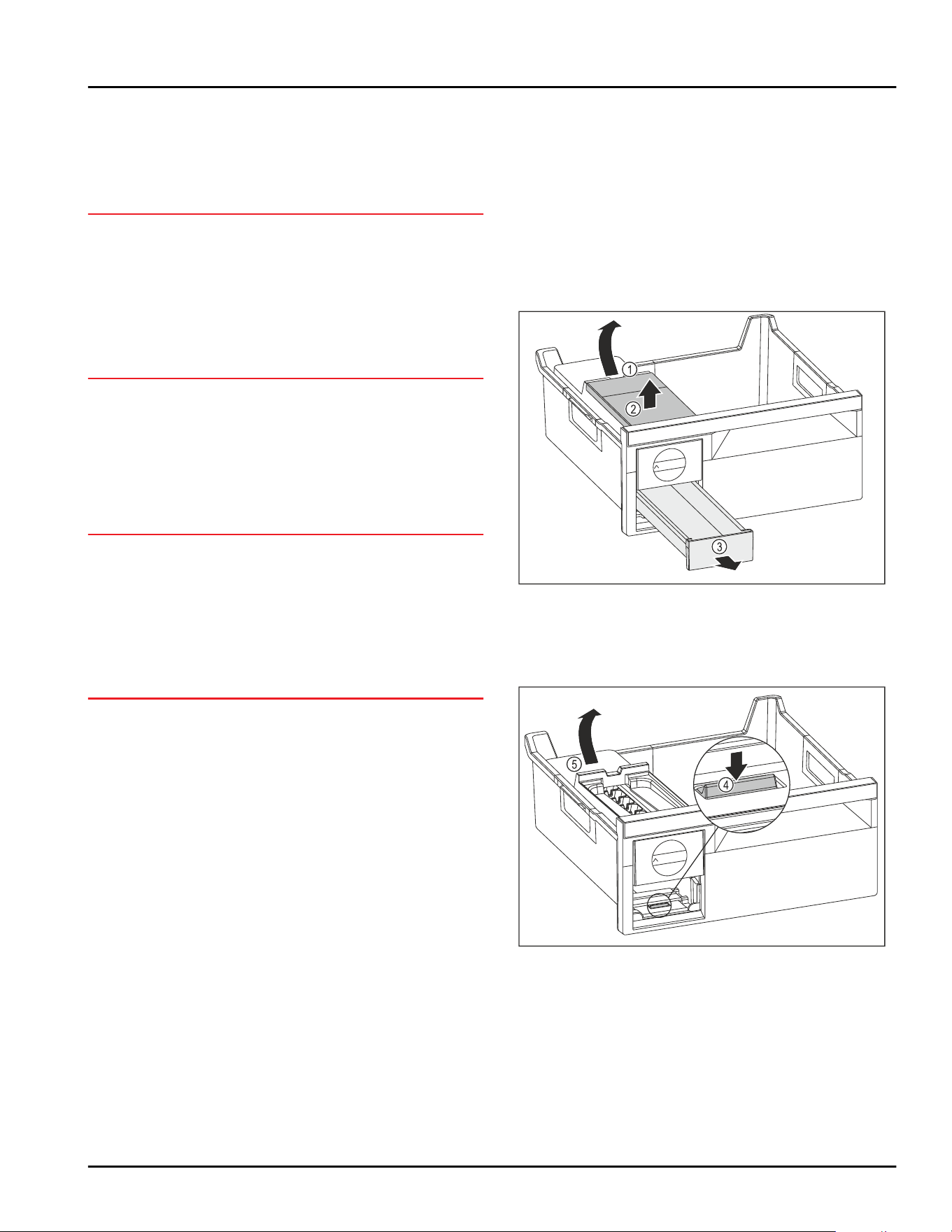
► Wipe the housing down with soft, clean cloth. If very
dirty, use lukewarm water with a neutral cleaner.
Glass surfaces can also be cleaned with glass
cleaner.
9.5.3 Cleaning the interior
NOTICE
Improper cleaning!
Damage to the appliance.
► Only use soft cleaning cloths and ph-neutral all-
purpose cleaners.
► Do not use steel wool or sponges that scour or
scratch.
► Do not use caustic or abrasive cleaning materials or
those containing sand, chloride, or acids.
► Plastic surfaces: clean by hand with a soft clean
cloth, lukewarm water and a little detergent.
► Metal surfaces: clean by hand with a soft clean
cloth, lukewarm water and a little detergent.
► Drain hole: remove any deposits with a thin item
such as a cotton bud.
9.5.4 Cleaning the equipment
NOTICE
Improper cleaning!
Damage to the appliance.
► Only use soft cleaning cloths and ph-neutral all-
purpose cleaners.
► Do not use steel wool or sponges that scour or
scratch.
► Do not use caustic or abrasive cleaning materials or
those containing sand, chloride, or acids.
Clean with a soft, clean cloth, lukewarm water and a
little washing up liquid:
- Shelf
- Split shelf
- VarioSafe
- Lid for EasyFresh-safe
- Drawer
- Components of the EasyTwist-Ice
Clean with a damp cloth:
- Retracting rails
Please note: the grease in the tracks is there for
lubrication purposes and must not be removed!
Clean in the dishwasher up to 60°C(140°F):
- Door racks
- VarioBox
- Bottle rack
- Holder for the split shelf
- Egg rack
- Butter dish
► Disassemble the equipment: see the relevant
section.
► Clean the equipment.
9.5.5 Cleaning EasyTwist-Ice
Clean EasyTwist-Ice in the following cases:
-
Initial commissioning
-
If not in use for more than 48 hours
-
If cleaning is needed
Disassembling EasyTwist-Ice
Make sure that the following requirements are fulfilled:
❑
Drawer is removed. (see 8.5 Drawers)
❑
Drawer is set down on a table.
Fig. 162
► Removing the water tank: Lift the water tank at the
recess Fig. 162(1).
► Remove the water tank Fig. 162(2) upwards.
► Remove the ice cube tray Fig. 162(3) from the front.
Fig. 163
► Removing the EasyTwist-Ice body: Use your finger to
press the tab Fig. 163(4) downward while at the same
time lifting the EasyTwist-Ice body Fig. 163 (5) from
behind with the other hand.
► Remove the EasyTwist-Ice body from the freezer
drawer.
Maintenance
40 * Depending on model and options
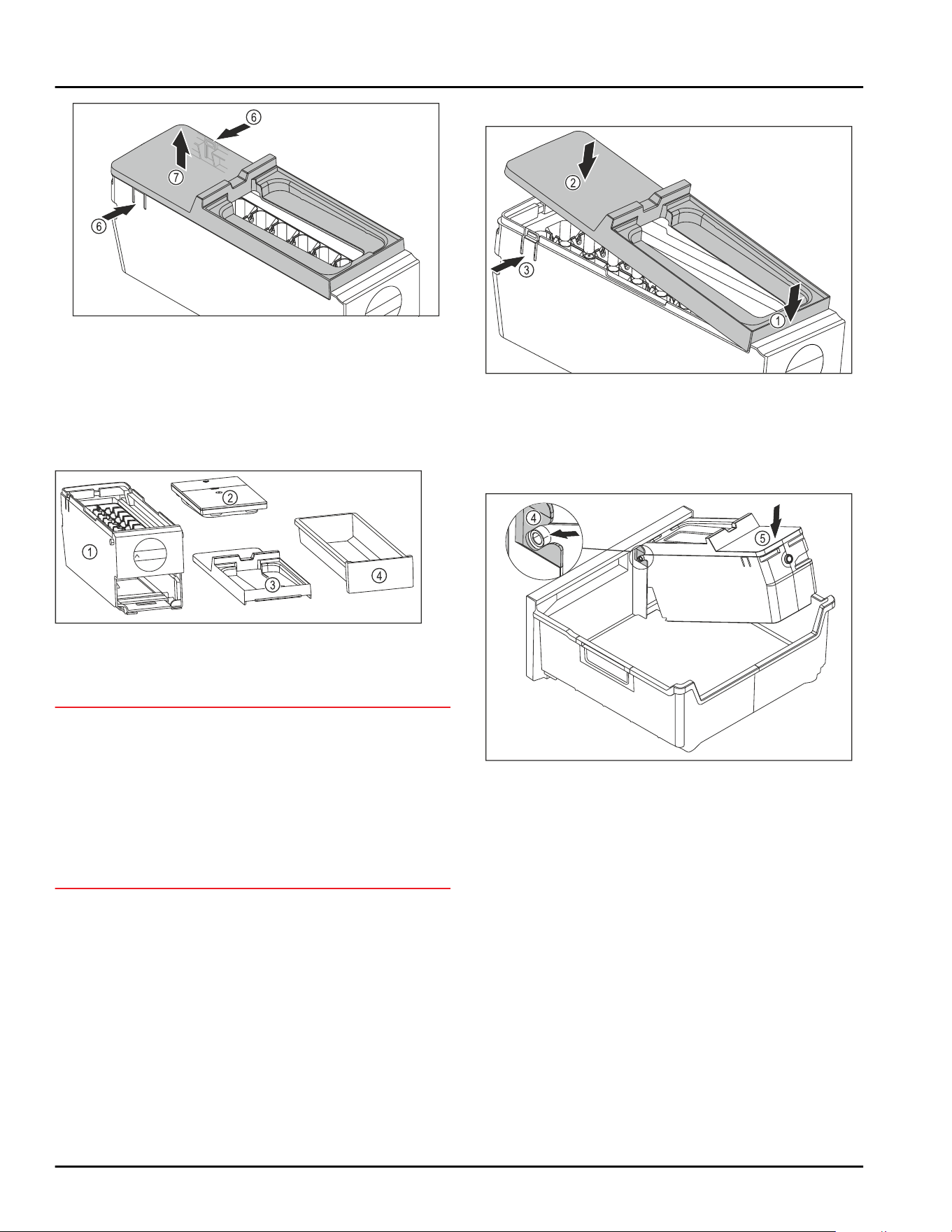
Fig. 164
► Removing the cover of the EasyTwist-Ice body: With
one hand, press the tabs Fig. 164 (6) on both sides of
the EasyTwist-Ice body.
► With the other hand, remove the cover Fig. 164 (7)
upward.
▷ EasyTwist-Ice is disassembled in four parts. (see
Fig.165)
Fig. 165 Components of the EasyTwist-Ice
(1)
EasyTwist-Ice body
with ice cube tray
(3) Cover
(2) Water tank (4) Ice cube tray
NOTICE
Danger of damage due to improper disassembly!
Breaking, jumping and splintering of the equipment. If
you continue to disassemble the EasyTwist-Ice body,
you might damage the rotary knob or other parts of the
EasyTwist-Ice body.
► Only disassemble the EasyTwist-Ice into the illus‐
trated components. (see Fig.165)
► Clean the EasyTwist-Ice body Fig. 165 (1) as a
complete unit.
Cleaning EasyTwist-Ice
Make sure that the following requirements are fulfilled:
❑
EasyTwist-Ice is disassembled. (see Disassembling
EasyTwist-Ice)
► Clean the ice cube tray, water tank, cover, and the
EasyTwist-Ice body with warm water with some dish‐
washing detergent.
► Dry all cleaned components with a dry cloth
completely.
▷ EasyTwist-Ice is cleaned.
Installing EasyTwist-Ice
Fig. 166
► Installing the cover of the EasyTwist-Ice body: Fit the
cover at the front. Fig. 166(1)
► Lower the cover at the rear. Fig. 166(2)
▷ The cover snaps audibly into place in both tabs
Fig. 166(3).
Fig. 167
► Installing the EasyTwist-Ice body: Insert the axes of
the EasyTwist-Ice body into the guides Fig. 167(4).
► Press down the EasyTwist-Ice body Fig. 167 (5) at the
rear.
▷ The EasyTwist-Ice body snaps in audibly.
Maintenance
* Depending on model and options 41
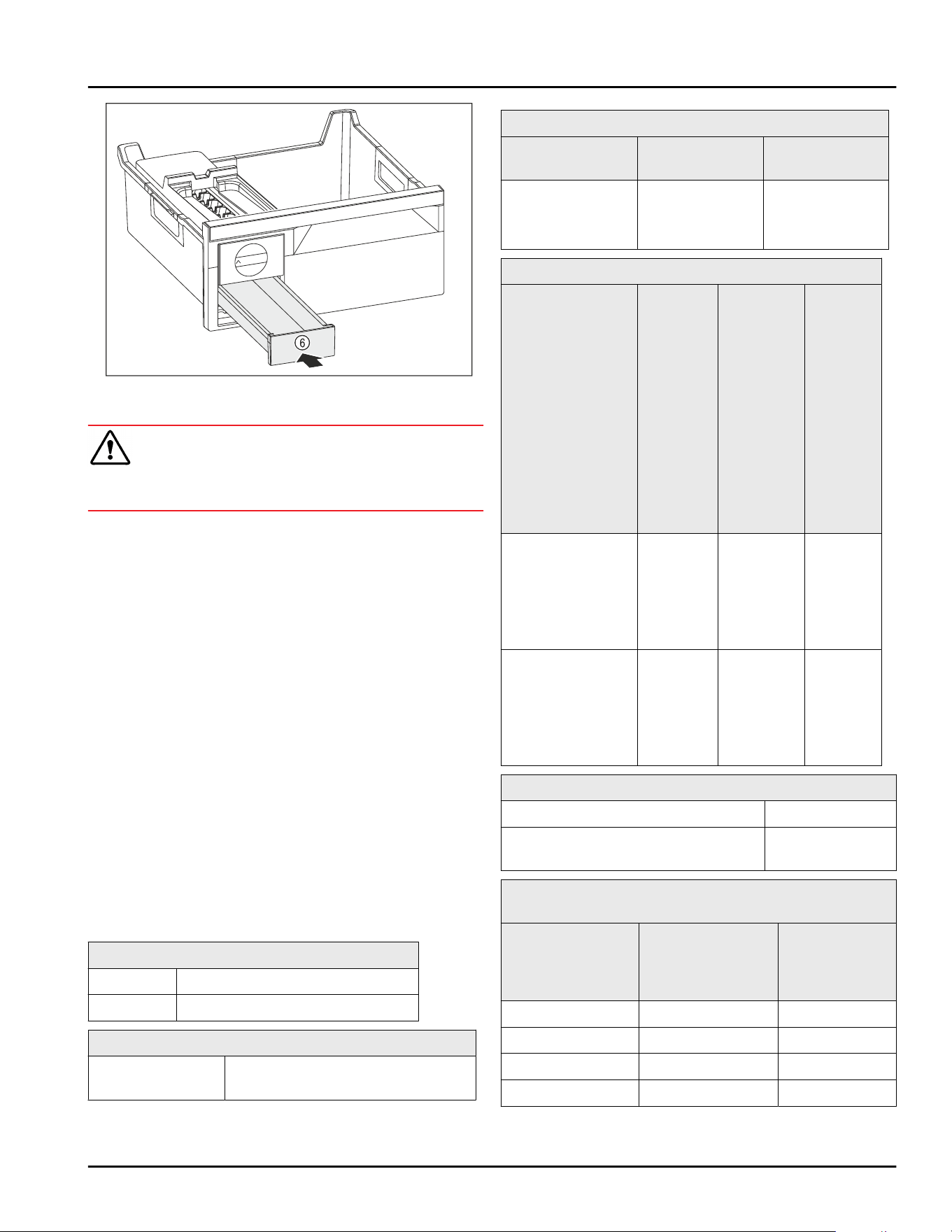
Fig. 168
► Insert the ice cube tray Fig. 168(6).
WARNING
Risk of poisoning due to contaminated water!
► Fill the water tank with potable water only.
► Fill the water tank with water.
► Insert the water tank.
► Insert the ice cube tray. (see 8.5 Drawers)
If using unfiltered water:
► Dispose of ice cubes that were made 24 hours after
the first ice cube production.
-or-
If using filtered water:
► Dispose of ice cubes that were made 48 hours after
the first ice cube production.
9.5.6 After cleaning
► Wipe dry the appliance and items of equipment
► Connect and switch on the appliance.
► Activate SuperFrost (see 7.2Appliance functions) .
When the temperature is sufficiently cold
► Place the food inside.
► Repeat cleaning regularly.
10 Customer support
10.1 Technical specifications
Temperature zone
Cool: 2°C(34°F) to 9°C(46°F)
Freezing -26°C(-15°F) to -15°C(5°F)
Maximum amount of food to freeze / 24 hours
Freezer See type plate under “freezer
capacity …/ 24 h”
Max. door capacity
Number of
drawers, freezer
Top door Bottom door
3 drawers 12 kg(26.46lb)
14 kg(30.86lb)
9 kg(19.84lb)
--
Maximum loading weight of the features
Equipment Appliance
width
600 mm
(23 1/2in)
(see
installa‐
tion
instruc‐
tions,
appliance
dimen‐
sions)
Appliance
width
700 mm
(27 9/16in)
(see
installa‐
tion
instruc‐
tions,
appliance
dimen‐
sions)
Appli‐
ance
width
750 mm
(29 1/2in)
(see
installa‐
tion
instruc‐
tions,
appli‐
ance
dimen‐
sions)
Drawer on glass
shelf*
(see 8.5.1 Drawer
on appliance
base or glass
shelf*) *
15 kg
(33.07 lb)
*
--* 23 kg
(50.71lb)
*
Partial-extension
in the freezer
section*
(see 8.5.2 Drawer
on telescopic
rails) *
15 kg
(33.07 lb)
*
22 kg
(48.50 lb)
*
22 kg
(48.50lb)
*
Ice cube production with EasyTwist-Ice
Time required at -18°C(-0°F) Approx. 5.5 hours
Time required with SuperFrost acti‐
vated
Approx. 3 hours
Time required to reach various temperatures with
VarioTemp
Initial tempera‐
ture
Target tempera‐
ture
Time until
target temper‐
ature is
reached
-18°C(-0°F) 0°C(32°F) > 8 hours
-18°C(-0°F) 8°C(46°F) > 12 hours
8°C(46°F) 14°C(57°F) > 6 hours
14°C(57°F) -18°C(-0°F) > 4 hours
For appliances with a WiFi connection:
Customer support
42 * Depending on model and options
Frequency specification
Frequency band 2.4GHz
Maximum radi‐
ated power
< 100 mW
Purpose of the
wireless equip‐
ment
Integration in the local WiFi
network for data communication
10.2 Operating noises
The appliance makes noises while in operation.
-
At less cooling output the appliance saves energy
but takes longer to cool items. The volume is lower.
-
At a higher cooling output the food cools more
quickly. The volume is higher.
Examples:
•
Activated functions (see 7.2Appliance functions)
•
Running fan
•
Freshly sorted food
•
High ambient temperature
•
Door opened for long periods
Noise
Possible cause Type of noise
Bubbling and
splashing
Coolant is
flowing into the
cooling circuit.
Normal noise
Spitting and
hissing
Coolant is
spraying into the
cooling circuit.
Normal noise
Humming The appliance
cools. The
volume depends
on the cooling
output.
Normal noise
Sipping noises The self-closing
door is being
opened and
closed.
Normal noise
Noise Possible cause Type of noise
Whirring and
murmuring
The fan is
running.
Normal oper‐
ating noise
Clicking Components are
being switched
on and off.
Normal
switching noise
Rattling or
humming
Valves are
active.
Normal
switching noise
Noise Possible
cause
Type of
noise
How to
resolve
Vibration Unsuitable
setup
Error noise Adjust the
feet to
make sure
the appli‐
ance is
horizontal.
Clattering Equipment,
Objects
inside the
appliance
Error noise Secure
equipment
parts.
Leave a gap
between
items.
10.3 Technical faults
Your appliance is designed and manufactured for reli‐
able operation and a long service life. If a malfunction
nonetheless occurs during operation, please check
whether the malfunction is due to an operating error. In
this case, you will have to be charged for the costs
incurred, even during the warranty period.
You may be able to rectify the following faults yourself.
10.3.1 Appliance function
Defect
Cause Remedy
The appliance
does not work.
The appliance is not switched on. ► Switch on the appliance.
The power plug is not properly
inserted in the wall socket.
► Check the power plug.
The powerfuse in the wall socket
is not OK.
► Check the fuse.
Power failure. ► Keep the appliance closed.
► Protect food: Place cold storage batteries on the
food or use another freezer appliance if the power
failure lasts longer.
Customer support
* Depending on model and options 43
Defect Cause Remedy
► Do not re-freeze defrosted food.
The IEC socket is not correctly
plugged into the appliance.
► Check the IEC socket.
The temperature
is not cold
enough
This means that the door of the
appliance is not closed properly
► Close the appliance door
The ambient temperature is too
high
► Problem solution: (see2.4 Range of appliance use)
The appliance was opened too
frequently or for too long
► Wait to see if the required temperature corrects
itself. If not, contact Customer Service.
(see 10.4 Customer Service)
Too much fresh food was placed
inside without SuperFrost.
► Solution: (see SuperFrost)
The temperature is incorrectly set ► Set to a colder temperature and check after 24
hours.
The appliance is too near to a heat
source (stove, heater etc).
► Change location of appliance or the heat source.
The door seal is
defective or
should be
replaced for
other reasons.
The door seal is interchangeable.
You can replace it without the use
of any special tools.
► Contact Customer Service. (see 10.4 Customer
Service)
The appliance is
iced up or
condensation is
building.
The door seal may have slipped
out of its groove.
► Check the door seal is well placed in the groove.
The appliance is
warm on the
exterior
surfaces.*
The heat of the refrigerant circuit
is used to prevent condensate
from forming
► This is normal.
10.3.2 Equipment
Defect Cause Remedy
The interior light
does not turn on.
The appliance is not switched on. ► Switch on the appliance.
The door was open for more than
15 minutes.
► If the door is open, the interior lighting switches
off automatically after about 15 minutes.
The LED interior light is faulty or
the lid is damaged.
► Contact Customer Service. (see 10.4 Customer
Service)
10.4 Customer Service
First check whether you can rectify the fault yourself
(see 10 Customer support) . If you cannot rectify the
problem, contact Customer Service.
You can find the address in the enclosed brochure
“Liebherr-Service” or at home.liebherr.com/service.
Customer support
44 * Depending on model and options
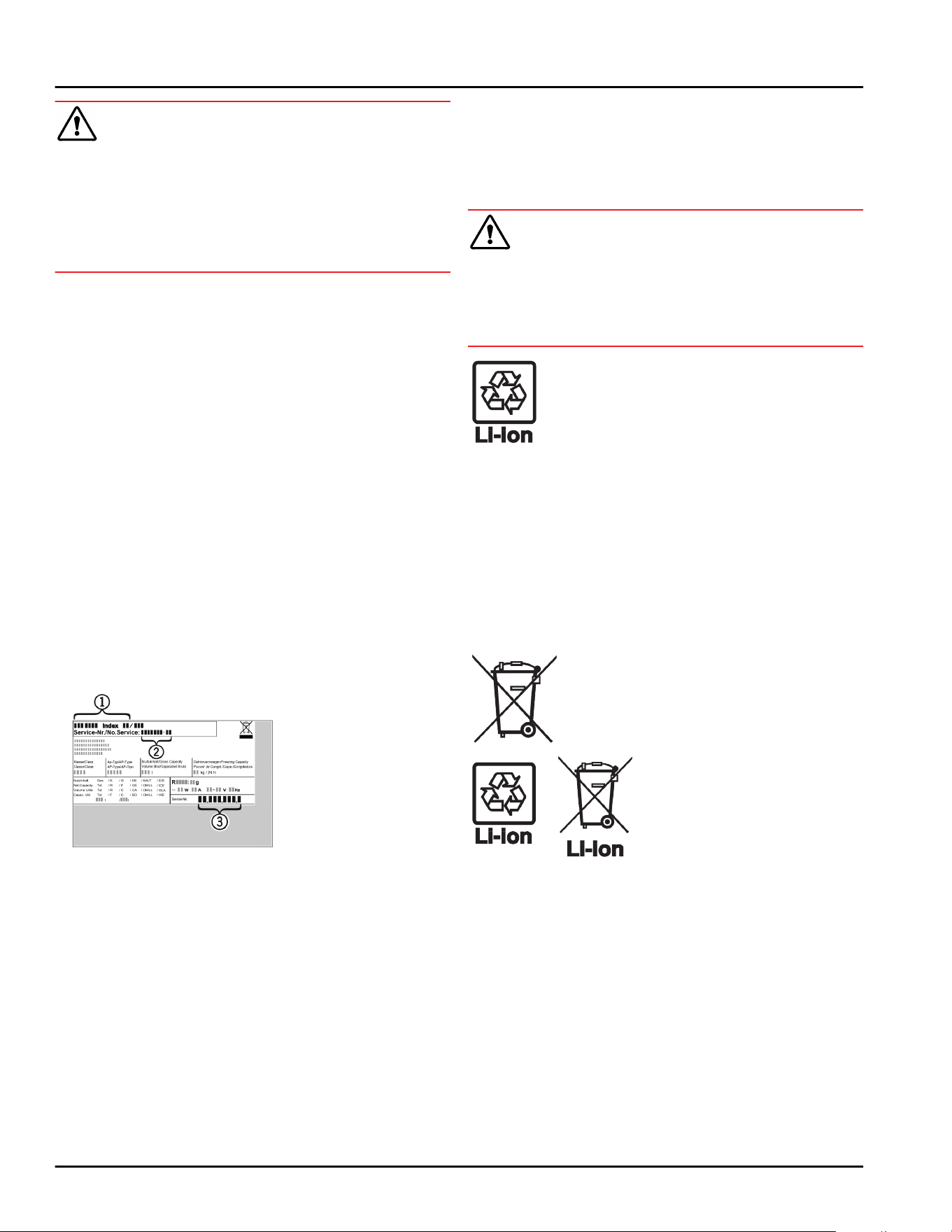
WARNING
Unprofessional repair!
Injuries.
► A damaged power cable may only be replaced by the
manufacturer, the manufacturer’s Customer Service
or a similarly qualified person.
► For appliances with plug and play connection cables,
the change can be made by the customer.
10.4.1 Contacting Customer Service
Make sure that the following appliance information is
available:
❑
Appliance name (model and index)
❑
Service no. (service)
❑
Serial no. (S no.)
► Call up the appliance information via the display.
(see Appliance information)
-or-
► Refer to the type plate for appliance information.
(see 10.5 Rating plate)
► Take note of the appliance information.
► Notify customer service: Report errors and the appli‐
ance information.
▷ This will help us give you fast and accurate support.
► Follow further instructions from Customer Service.
10.5 Rating plate
The nameplate is located behind the drawers on the
inside of the appliance.
Fig. 169
(1)
Appliance name (3) Serial no.
(2) Service no.
► Information from the nameplate.
11 Decommissioning
► Empty appliance.
► Switch off appliance. (see Switching appliance off
and on)
► Pull the power plug from the outlet.
► If necessary, remove the IEC socket: Pull the IEC
socket out of the appliance plug while turning it to
the left and right at the same time.
► Clean appliance. (see 9.5Cleaning the appliance)
► Leave the door open to prevent unpleasant odors.
12 Disposal
12.1 Preparing the appliance for
disposal
WARNING
Risk of child entrapment!
Before you throw away your old refrigerator or freezer:
► Take off the doors.
► Leave the shelves in place so that children may not
easily climb inside.
Liebherr uses batteries in some of its appli‐
ances. You should remove these before
disposal of the old appliance for environ‐
mental reasons. If your appliance contains
batteries, a corresponding notice is
attached to the appliance.
Lamps If you can remove the lamps yourself
without destroying them, also remove these
before disposal.
► Take the appliance out of operation.
► If possible: Remove lamps without destroying them.
12.2 Disposing of the appliance in an
environmentally friendly manner
The appliance still contains
valuable materials and must
be collected separately from
unsorted municipal waste so
it can be recycled.
Dispose of batteries sepa‐
rately from the old appliance.
Certain batteries should NOT
go in household garbage or
recycling bins. Waste
batteries can always be recy‐
cled or taken to household
hazardous waste collection
points. To prevent fires from
lithium-ion batteries, tape
battery terminals and/or
place batteries in separate
plastic bags and never put
these batteries in household
garbage or recycling bins.
Lamps
Dispose of removed lamps via
the respective collection
systems.
Decommissioning
* Depending on model and options 45
For USA: Check the Responsible Appli‐
ance Disposal (RAD) program
to find a RAD partner near
you.
For Canada: Follow your local guidance
about recycling and disposal
capabilities near you.
WARNING
Leaking refrigerant and oil!
Fire. The refrigerant contained within the appliance is
environmentally friendly, but flammable. The oil
contained within the appliance is flammable. Escaping
refrigerant and oil can ignite if they are of high enough
concentration and are exposed to an external heat
source.
► Do not damage the pipelines of the coolant circuit
and the compressor.
► Observe the notes on appliance transport.
► Transport the appliance away without damaging it.
► Dispose of batteries, lamps, and the appliance
according to the above specifications.
Disposal
46 * Depending on model and options

Disposal
* Depending on model and options 47
home.liebherr.com/fridge-manuals
Combined fridge-freezer
Issue date:20250904
Part number index:7086385-00
For Service in the U.S.: Liebherr Service Center
Toll Free: 1-866-LIEBHER or 1-866-543-2437
Service-appliances.us@liebherr.com
PlusOne Solutions, Inc.
3501 Quadrangle Blvd, Suite 120
Orlando, FL 32817
For Service in Canada: Liebherr Service Center
Toll Free: 1-888-LIEBHER or 1-888-543-2437
www.euro-parts.ca
EURO-PARTS CANADA
39822 Belgrave Road, Belgrave, Ontario, N0G 1E0
Phone: (519) 357-3320 | Fax: (519) 357-1326
User Guide
Quality, Design and Innovation
home.liebherr.com/fridge-manuals
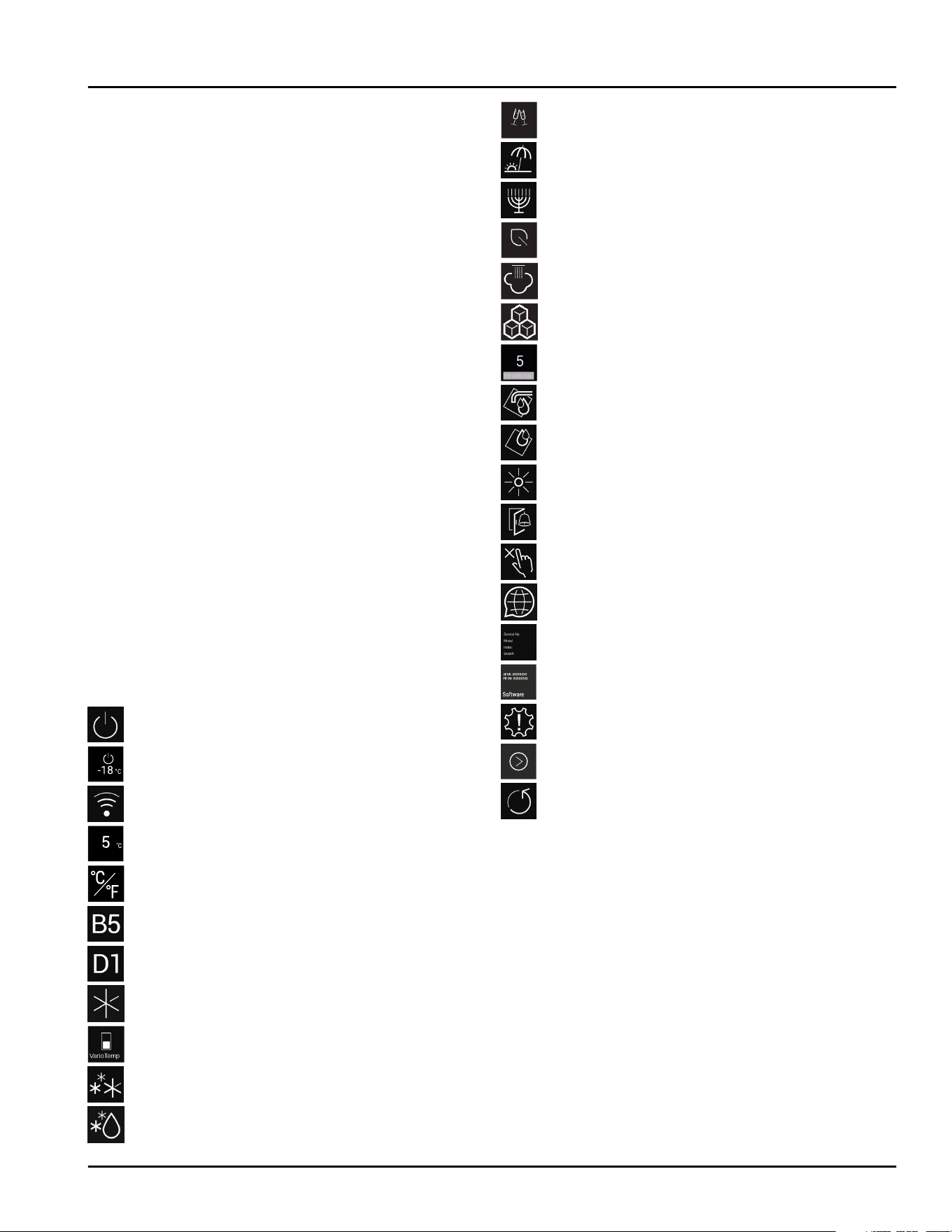
Contents
1 General safety instructions.......................... 3
2 The appliance at a glance............................. 5
2.1 Delivered contents.............................................. 5
2.2 Overview of appliances and equipment.......... 6
2.3 SmartDevice......................................................... 6
2.4 Range of appliance use...................................... 6
2.5 Conformity............................................................ 7
2.6 Spare parts........................................................... 7
3 Functionality of the Touch&Swipe display. 7
3.1 Navigation and symbol explanation................ 7
3.2 Menus.................................................................... 8
3.3 Sleep mode.......................................................... 8
4 Start-up......................................................... 8
4.1 Switching on appliance (first use)................... 8
4.2 Putting InfinitySpring into operation*............. 9
4.3 Starting the IceMaker for the first time.......... 9
4.4 Starting the HydroBreeze for the first time*.. 9
5 Storage.......................................................... 9
5.1 Information regarding storage.......................... 9
5.2 Fridge compartment........................................... 10
5.3 BioFresh................................................................ 10
5.4 Freezer compartment......................................... 11
5.5 Storage times...................................................... 11
6 Energy saving................................................ 14
7 Use................................................................. 14
7.1 Controls and displays......................................... 14
7.1.1 Status display...................................................14
7.1.2 Display symbols............................................... 14
7.2 Appliance functions............................................ 14
7.2.1 Notes on the appliance functions.................14
Switching appliance off and on....................14
Switching temperature zone off and on..... 15
WiFi....................................................................16
Temperature..................................................... 17
Temperature unit.............................................18
BioFresh B-Value *..........................................18
D-Value..............................................................19
SuperCool......................................................... 19
VarioTemp......................................................... 19
SuperFrost....................................................... 20
Start defrost cycle.......................................... 21
PartyMode ....................................................... 21
HolidayMode....................................................22
SabbathMode.................................................. 23
EnergySaver ....................................................23
HydroBreeze*.................................................. 24
IceMaker / MaxIce .........................................25
IceMaker water inflow................................... 26
TubeClean ....................................................... 26
CleaningMode..................................................27
Display Brightness..........................................27
Door alarm....................................................... 28
Input lock......................................................... 28
Language......................................................... 29
Appliance information....................................29
Software...........................................................29
Reminder.......................................................... 29
Demo mode..................................................... 30
Resetting to factory settings........................ 31
7.3 Messages.............................................................. 31
7.3.1 Overview of warnings......................................31
7.3.2 Ending warnings.............................................. 32
7.3.3 Overview of reminders....................................33
7.3.4 Ending reminders.............................................33
8 Equipment...................................................... 34
8.1 Door racks............................................................ 34
8.2 Shelves*................................................................ 37
8.3 Split shelf............................................................. 37
8.4 VarioSafe ............................................................. 38
8.5 InfinitySpring*..................................................... 40
8.6 Variable bottle shelf........................................... 40
8.7 Drawers................................................................. 41
8.8 Lid for Fruit & Vegetable-safe........................... 42
8.9 HydroBreeze*....................................................... 43
8.10 Glass shelves....................................................... 44
8.11 IceMaker............................................................... 45
8.12 VarioSpace........................................................... 45
2 * Depending on model and options
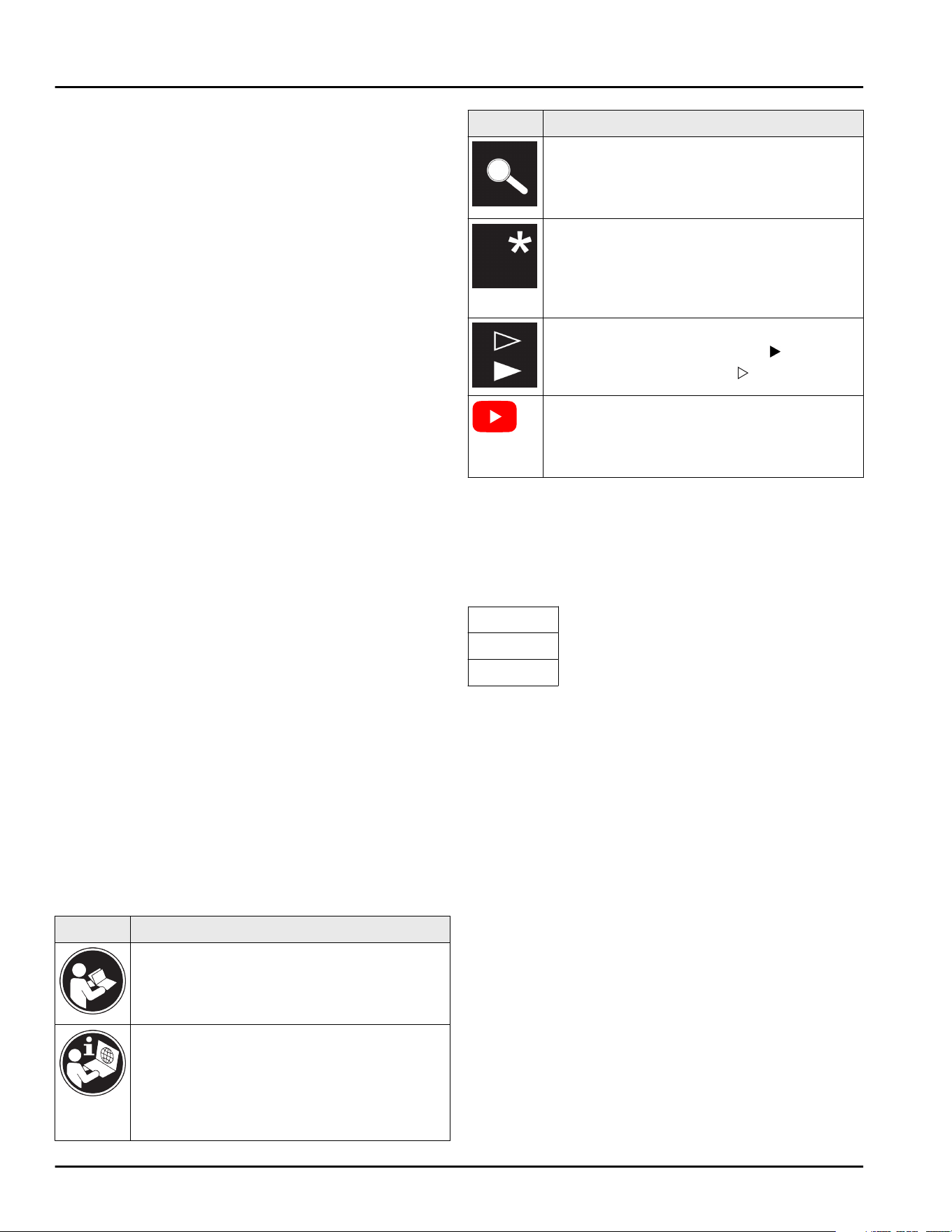
8.13 Butter dish............................................................ 46
8.14 Egg rack................................................................ 46
8.15 Bottle rack............................................................ 46
8.16 FlexSystem........................................................... 46
8.17 Flexible ice compartment divider..................... 47
9 Maintenance.................................................. 48
9.1 FreshAir carbon filter.......................................... 48
9.2 Water tank*.......................................................... 48
9.3 Water filter*......................................................... 49
9.4 Disassembling / assembling pull-out
systems................................................................. 49
9.5 Removing / inserting the variable bottle
shelf....................................................................... 50
9.6 Lid for Fruit & Vegetable-safe........................... 50
9.7 Defrosting the appliance................................... 51
9.8 Cleaning the appliance...................................... 51
10 Customer support......................................... 53
10.1 Technical specifications.................................... 53
10.2 Operating noises................................................. 54
10.3 Technical faults................................................... 54
10.4 Customer Service................................................ 56
10.5 Rating plate.......................................................... 56
11 Decommissioning.......................................... 56
12 Disposal......................................................... 57
12.1 Preparing the appliance for disposal............... 57
12.2 Disposing of the appliance in an
environmentally friendly manner..................... 57
Congratulations on the purchase of your new appli‐
ance. With this purchase, you have chosen all the
advantages of the latest refrigeration technology, guar‐
anteeing you a high-quality appliance with a long life
span and high operating safety.
The equipment of your appliance gives you the highest
level of day-to-day ease of operation.
Together we are making an active contribution to the
conservation of our environment by purchasing this
appliance which is manufactured in an environmentally
friendly process with the use of recyclable materials.
We hope you enjoy your new appliance.
The manufacturer is constantly working to improve all
types and models. Therefore, please be aware that we
reserve the right to make changes to the shape, equip‐
ment and technology.
Symbol
Explanation
Read instructions
Please read the information in these
instructions carefully to understand all of
the benefits of your new appliance.
Additional information online
The digital manual with supplemental
information can be found online by scan‐
ning the QR code on the front page of this
manual or by entering the service number
at home.liebherr.com/fridge-manuals.
Symbol Explanation
Check appliance
Check all parts for transport damage. If you
have any complaints, please contact your
agent or customer service.
Differences
These instructions apply to a range of
models, so there may be differences.
Sections that apply to certain models only
are indicated by an asterisk (*).
Instructions and results
Instructions are marked with a
.
Results are marked with a
.
Videos
Videos about the appliances are available
on the YouTube channel of Liebherr-Hausg‐
eräte.
Open-source licenses:
The appliance includes software components that
make use of open-source licenses. You can find
information on the open-source licenses to be used
here: home.liebherr.com/open-source-licenses
These operating instructions apply to:
SCB7760IM
CB7790IM
SCB5790IM
1 General safety instructions
Please keep these operating instructions in a safe
place so you can refer back to them at any time.
If you pass the appliance on, please hand these oper‐
ating instructions to the new owner.
Read and follow these instructions. They contain
safety information which is important for safe and
problem-free installation and operation. Always read
and follow the safety information.
Dangers for the user:
-
This appliance is not intended for use by persons
(including children) with reduced physical, sensory
or mental capabilities, or lack of experience and
knowledge, unless they have been given supervision
or instruction concerning use of the appliance by a
person responsible for their safety. Children should
be supervised to ensure that they do not play with
the appliance. Cleaning and user maintenance must
not be performed by children unless they are super‐
vised. Children between the ages of 3 and 8 may
load and unload the appliance. Children under the
age of 3 must be kept away from the appliance
unless they are constantly supervised.
General safety instructions
* Depending on model and options 3

-
IMPORTANT: The power plug must be easily acces‐
sible so that the appliance can be disconnected
from the mains quickly in an emergency. It must not
be behind the back of the appliance.
-
The socket must be easily accessible so that the
appliance can be disconnected quickly from the
electricity in an emergency. It must not be located in
the area behind the appliance.
-
Always hold the appliance at the plug when discon‐
necting it from the household power. Do not pull on
the cable.
-
Disconnect the power plug or fuse if there is a
malfunction.
-
Do not damage the power cable. Do not operate the
appliance with a faulty power cable. If the supply
cord is damaged, it must be replaced by the manu‐
facturer, its service agent or similarly qualified
persons in order to avoid a hazard. For Plug and Play
connections, the change may be carried out by the
customer.
-
Repairs and work on the appliance may only be
carried out by Customer Service or other specifically
trained qualified personnel.
-
Always follow the instructions when assembling,
connecting and disposing of the appliance.
-
The manufacturer is not liable for damage arising
from a defective fixed water connection.
Risk of fire:
-
The refrigerant contained within the appliance
(specifications on the identification plate) is environ‐
mentally friendly, but flammable. Leaking refrigerant
can ignite.
•
WARNING: Do not damage the refrigerant circuit.
•
Do not handle ignition sources inside the appli‐
ance.
•
WARNING: Do not use electrical appliances inside
the food storage compartments of the appliance,
unless they are of the type recommended by the
manufacturer (e.g. steam cleaning appliances,
heating appliances, ice cream makers).
•
If refrigerant leaks: Remove naked flames or igni‐
tion sources located near the area of the leak.
Ventilate the room well. Contact Customer
Service.
-
Do not operate the appliance near explosive gases.
-
Do not store or use gasoline or other flammable
gases and liquids near the appliance.
-
Do not store explosive substances such as aerosol
cans with a flammable propellant in this appliance.
You can recognize such spray cans by the printed list
of contents or by a flame symbol. Any leaking gases
can be ignited by electrical components.
-
Keep lit candles, lamps and other objects with naked
flames away from the appliance so they do not
cause a fire.
-
Alcoholic beverages or other containers holding
alcohol must always be tightly sealed for storage
purposes. Any leaking alcohol can be ignited by elec‐
trical components.
Risk of falling or toppling over:
-
WARNING: To avoid a hazard due to instability of the
appliance, it must be fixed in accordance with the
instructions.
-
Do not stand on the base, drawers, doors etc. or use
them as improper supports. This applies in particular
to children.
Danger of poisoning:
-
Do not consume spoiled food.
-
WARNING: Connect to potable water supply only.
-
Do not use any old or already premounted water
supply lines.
Danger of frostbite, feeling of numbness and pain:
-
Avoid prolonged skin contact with cold surfaces or
chilled/frozen food or take protective measures, e.g.
wear gloves.
Risk of injury and damage:
-
Hot steam may cause injuries. Do not use any elec‐
trical heating or steam cleaning equipment, naked
flames or defrosting sprays for defrosting measures.
-
WARNING: Do not use mechanical devices or other
means to accelerate the defrosting process, other
than those recommended by the manufacturer.
-
Do not remove ice using sharp objects.
-
WARNING: Keep clear of obstruction all ventilation
openings in the appliance enclosure or in the struc‐
ture for building-in.
-
WARNING: Risk of child entrapment. Before you
throw away your old refrigerator or freezer:
•
Take off the doors.
•
Leave the shelves in place so that children may
not easily climb inside.
Risk of crushing:
-
Do not hold onto the hinge when opening and
closing the door. Fingers may become trapped.
California Proposition 65
-
WARNING: This product can expose you to chemi‐
cals including Diisononyl Phthalate (DINP), which is
known to the State of California to cause cancer,
and Di-isodecyl Phthalate (DIDP), which is known to
the State of California to cause birth defects or
other reproductive harm. For more information, go to
www.P65Warnings.ca.gov
FCC Warning
-
Changes or modifications not expressly approved by
the party responsible for compliance could void the
user’s authority to operate the equipment.
FCC information
-
This appliance has been tested and found to comply
with the limits for a Class B digital device, pursuant
to part 15 of the FCC Rules. These limits are
designed to provide reasonable protection against
harmful interference from an installation in residen‐
tial areas. This appliance generates, uses and can
radiate radio-frequency energy and, if not installed
and used in accordance with the instructions, may
cause harmful interference to radio communications.
However, there is no guarantee that interference will
General safety instructions
4 * Depending on model and options
not occur in a particular installation. If this appliance
does cause harmful interference to radio or televi‐
sion reception, which can be determined by
switching the appliance on and off, the user should
try to correct the interference by one or more of the
following measures:
•
Reorient or relocate the receiving antenna.
•
Increase the distance between the appliance and
receiver.
•
Connect the appliance to an outlet on a circuit
different from that to which the receiver is
connected.
•
Consult the dealer or an experienced radio/TV
technician for help.
FCC Radio Frequency Exposure Statement
-
This appliance is found to comply with FCC radio
frequency (RF) exposure limits set for an uncon‐
trolled environment. This transmitter must not be set
up or operated in conjunction with another antenna
or another transmitter.
-
This appliance should be installed and operated with
a minimum space of 200 mm (7 7/8 in) between the
antenna and your body. The user must follow the
specific operating instructions to ensure compliance
with RF exposure.
IC information
-
This appliance has license-exempt transmitters/
receivers, which comply with the license-exempt
Radio Standards Specification (RSS) of Innovation,
Science and Economic Development Canada. Opera‐
tion is subject to the following two conditions:
•
This appliance may not cause interference.
•
This device must accept any interference,
including interference that may cause undesired
operation of the device.
IC Radio Frequency Exposure Statement
-
This appliance meets the IC RSS-102 limits for radia‐
tion exposure, which were defined for an uncon‐
trolled environment. This appliance should be
installed and operated so that there is a minimum
space of 200mm(7 7/8in) between the antenna and
your body.
Symbols on the device:
The symbol may be located on the
compressor. It refers to the oil in the
compressor and refers to the following
danger: Can be fatal if swallowed or
inhaled. This notice only applies for
recycling. There is no danger during
normal operation.
WARNING: Risk of fire / flammable
materials. The symbol is located on the
compressor and indicates the danger
from flammable materials. Do not
remove the label.
This label or a similar one may be
located on the rear of the appliance.
This label indicates that there are
vacuum insulation panels (VIP) or perlite
panels in the door and/or housing. This
notice only applies for recycling. Do not
remove the label.
Observe the warning messages and other detailed
information in the other sections:
DANGER Indicates an immediately
hazardous situation, which if
not avoided, will result in death
or serious injury.
WARNING Indicates a hazardous situa‐
tion, which if not avoided,
could result in death or serious
injury.
CAUTION Indicates a hazardous situa‐
tion, which if not avoided,
could result in minor or
moderate injury.
NOTICE Indicates a hazardous situa‐
tion, which if not avoided,
could result in damage to prop‐
erty.
Note Indicates useful advice and
tips.
2 The appliance at a glance
2.1 Delivered contents
Check all parts for transport damage. If you have any
complaints, please contact the retailer or customer
service. (see 10.4 Customer Service)
Delivery contains the following parts:
-
Standalone appliance
-
Equipment (depending on your model)
-
Installation parts (depending on your model)
-
User Guide
-
Installation Guide
-
Warranty documents
The appliance at a glance
* Depending on model and options 5
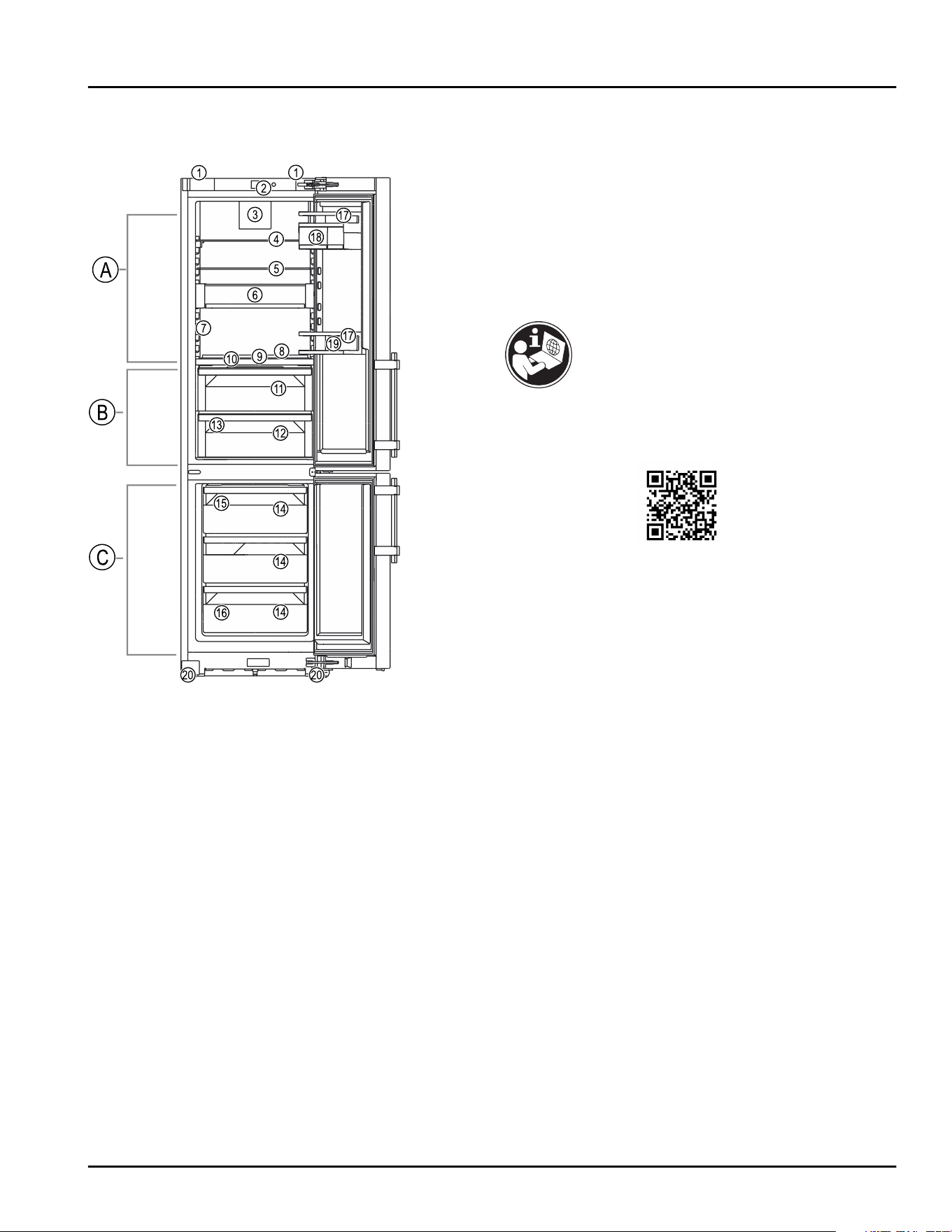
2.2 Overview of appliances and equip‐
ment
Fig. 1 Example illustration
Temperature range
(A)
Fridge section (C) Freezer section
(B) BioFresh
Equipment
(1)
Transport handle (12)Meat & Dairy-safe*
(2) Controls (12) Fish & Seafood-safe*
(3) Fan with FreshAir
activated charcoal
filter
(13) Defrost water drain
(4) Separable storage
shelf
(14)Drawer
(5) Shelf* (15) IceMaker
(6) VarioSafe (16)Type plate
(7) Variable bottle rack (17) Door racks
(8) HydroBreeze* (18)VarioBox
(9) InfinitySpring* (19)Bottle holder
(10)Lid for Fruit & Vege‐
table-safe
(20)Adjustable feet
(11) Fruit & Vegetable-
safe
2.3 SmartDevice
SmartDevice is the networking solution for your fridge-
freezer.
If your appliance is SmartDevice-enabled or compat‐
ible, you can quickly and easily connect your appliance
to your WiFi. With the SmartDevice app, you can
operate your appliance from a mobile device. Addi‐
tional functions and setting options are available in the
SmartDevice app.
SmartDevice-
enabled appli‐
ance:
Your appliance is capable of being
a SmartDevice. To be able to
connect your device to WiFi, you
need to download the SmartDevice
app.
More information
about SmartDe‐
vice:
smartdevice.liebherr.com
Downloading the
SmartDevice
app:
After you have installed and
configured the SmartDevice app,
you can connect your appliance to
your WLAN using your SmartDevice
app the WLAN device function
(seeWiFi) .
2.4 Range of appliance use
Normal use
This appliance is intended to be used in household and
similar applications such as,
-
staff kitchen areas in shops, offices and other
working environments;
-
farm houses and by clients in hotels, motels and
other residential type environments;
-
bed and breakfast type environments;
-
catering and similar non-retail applications.
The appliance is not suitable as a built-in unit;
All other types of uses are not permitted.
Foreseeable misuse
The following uses are specifically prohibited:
-
Storage and cooling of medication, blood plasma,
laboratory preparations or similar substances and
products in accordance with the CMDCAS and FDA
510(k)
-
Use outdoors
-
Use in moist areas exposed to the rain
-
Use in outdoor areas with very high humidity
-
Use in areas at risk of explosion
The appliance at a glance
6 * Depending on model and options
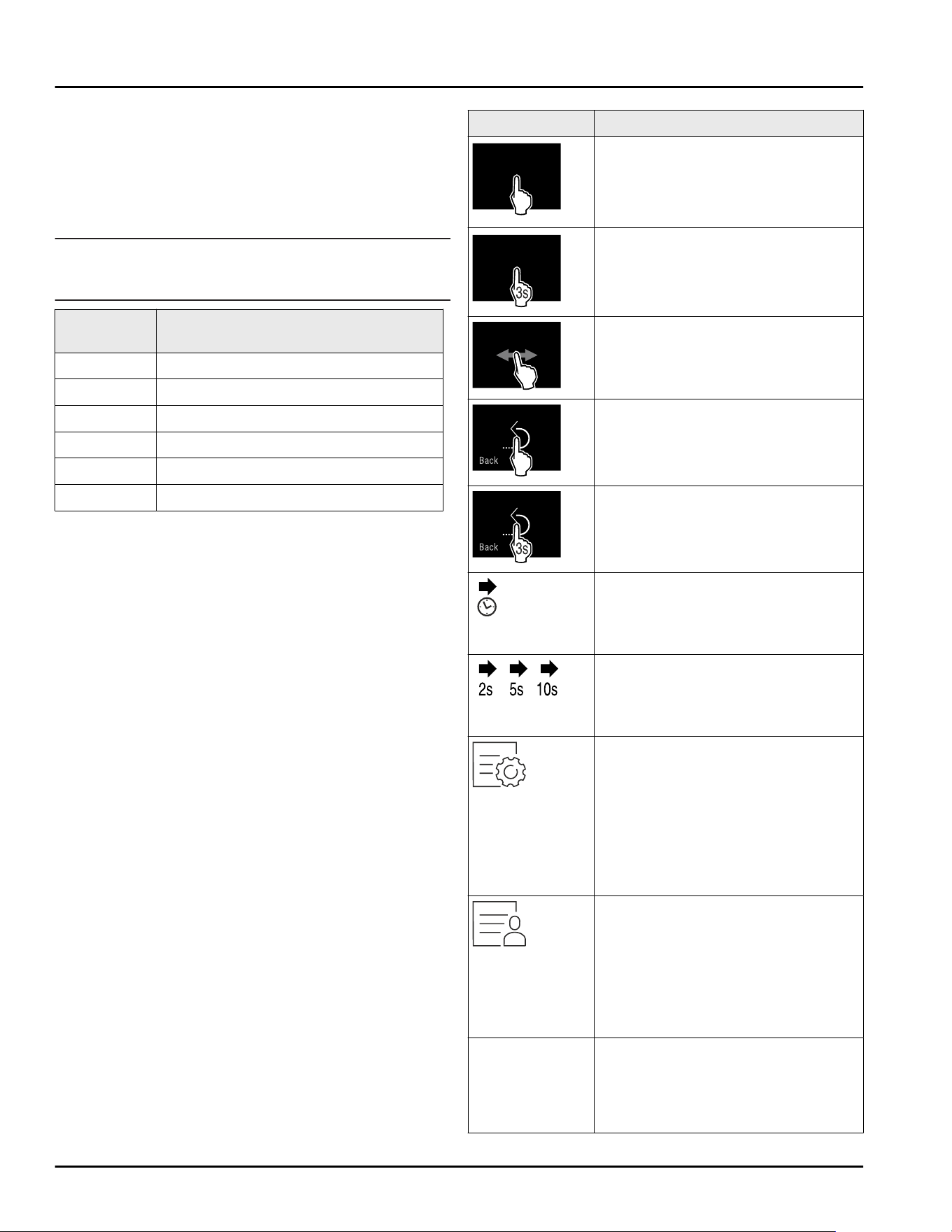
Incorrect appliance use can cause damage to the
stored products or cause them to spoil.
Climate ratings
The appliance is set to operate within specific ambient
temperature limits according to its climate rating The
climate rating for your appliance is printed on the
rating plate
Note
► To guarantee trouble-free operation, comply with the
indicated ambient temperatures.
Climate
rating
for ambient temperatures from
SN 10°C(50°F) to 32°C(90°F)
N 16°C(61°F) to 32°C(90°F)
ST 16°C(61°F) to 38°C(100°F)
T 16°C(61°F) to 43°C(109°F)
SN-ST 10°C(50°F) to 38°C(100°F)
SN-T 10°C(50°F) to 43°C(109°F)
2.5 Conformity
The refrigerant circuit has been tested for leaks. The
appliance complies with the applicable safety regula‐
tions and with the corresponding directives.
The BioFresh compartment meets the requirements of
a cold storage compartment as set out in EN ISO 8561.
2.6 Spare parts
Spare parts for functional and storable parts of the
equipment are available for 15 years.
3 Functionality of the
Touch&Swipe display
You operate your appliance using the Touch & Swipe
display. You select appliance functions in the
Touch & Swipe display (hereafter referred to as display)
by tapping them. If you do not perform any action on
the display for 10 seconds, the display either jumps
back to the higher-level menu or directly to the status
display.
3.1 Navigation and symbol explana‐
tion
In the illustrations, different symbols are used to navi‐
gate the display. The following table describes these
symbols.
Symbol
Description
Briefly touch the display:
Activates/deactivates function.
Confirms selection.
Opens submenu.
Touch the display for a specified
time (e.g. 3seconds):
Activates/deactivates function or
value.
Swipe left or right:
Navigate in the menu.
Briefly touch the Back symbol:
Jumps back one menu level.
Press and hold the Back symbol for
3seconds:
Jumps back to the status display.
Arrow with clock:
It takes more than 10 seconds for
the following message to appear in
the display.
Arrow with a time indication:
It takes the specified amount of
time until the following message
appears in the display.
“Open Settings menu” symbol:
Navigates to the Settings menu and
opens the settings menu.
If necessary: Navigate to the
desired function in the Settings
menu.
(see 3.2.1 Opening the Settings
menu)
“Open Advanced menu” symbol:
Navigates to the Advanced menu
and opens the advanced menu.
If necessary: Navigate to the
desired function in the Advanced
menu.
(see 3.2.2 Opening expanded menu)
No action for
10seconds
If you do not perform any action on
the display for 10 seconds, the
display either jumps back to the
higher-level menu or directly to the
status display.
Functionality of the Touch&Swipe display
* Depending on model and options 7
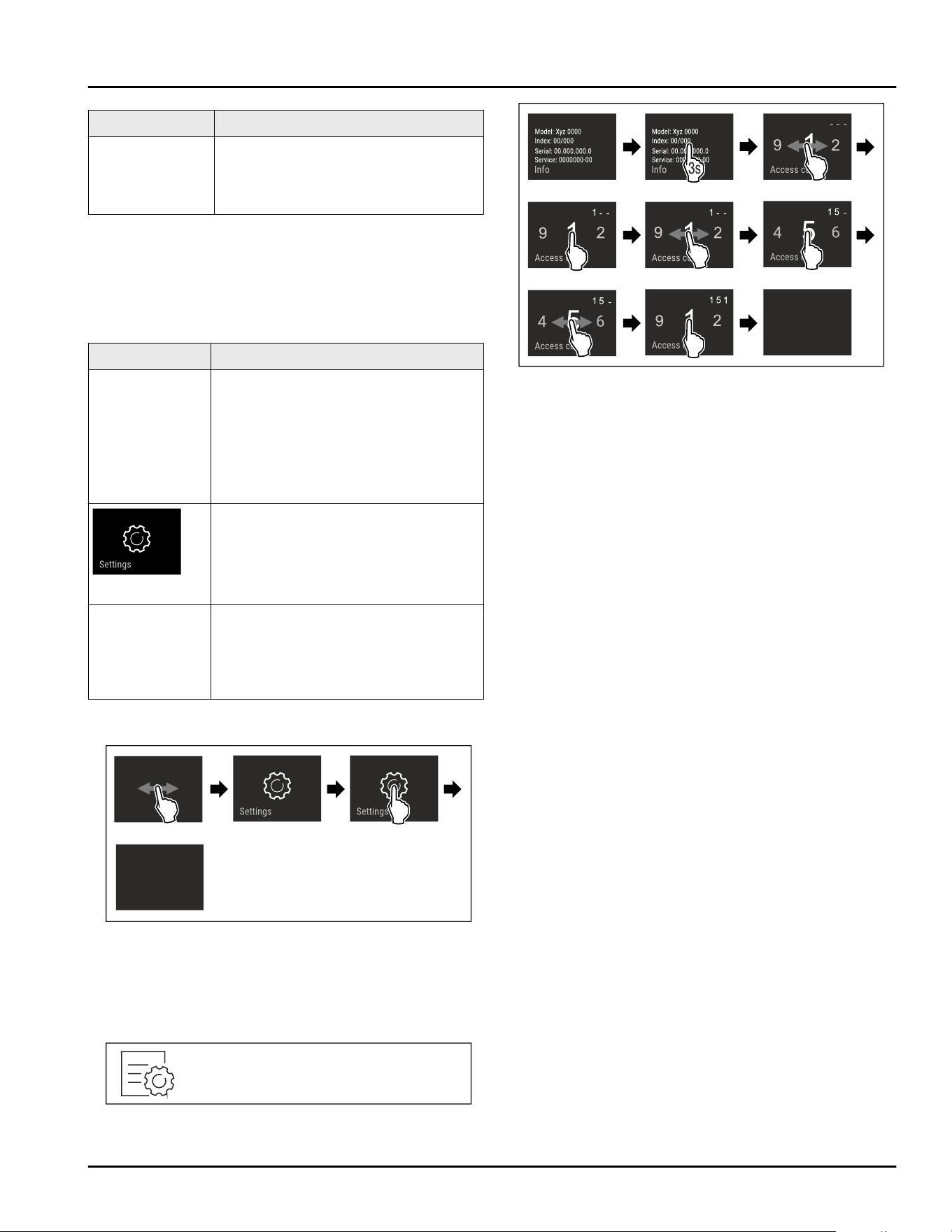
Symbol Description
Open door and
close it again.
If you open the door and immedi‐
ately close it again, the display
jumps directly back to the status
display.
Note: Illustrations of the display are shown in the English
version.
3.2 Menus
The appliance functions are distributed over various
menus:
Menu
Description
Main menu When you switch the appliance on,
you are automatically in the main
menu.
From here you can navigate to the
most important appliance functions,
to the Settings menu and to the
Advanced menu.
Settings menu
The Settings menu contains addi‐
tional appliance functions for
setting up your appliance.
Advanced
menu
The advanced menu contains
special appliance functions for
setting up your appliance. Access to
the Advanced menu is protected by
the numerical code 151.
3.2.1 Opening the Settings menu
Fig. 2 Example illustration
► Carry out action steps according to the illustration.
▷ Settings menu is open.
► If necessary: Navigate to the desired function.
3.2.2 Opening expanded menu
Fig.3
Fig. 4 Example illustration, access with numerical code
151
► Carry out action steps according to the illustration.
▷ Expanded menu is open.
► If necessary: Navigate to the desired function.
3.3 Sleep mode
If you do not touch the display for 1 minute, the display
switches to sleep mode. In sleep mode, the display
brightness is dimmed.
3.3.1 Ending sleep mode
► Touch the display briefly with your finger.
▷ Sleep mode is ended.
4 Start-up
4.1 Switching on appliance (first use)
Make sure that the following requirements are fulfilled:
❑
The appliance has been installed and connected in
accordance with the installation instructions.
❑
All adhesive strips, adhesive and protective films
and transport locks are removed from inside and on
the appliance.
❑
All marketing leaflets are removed from the drawers.
❑
You are familiar with the functionality of the
Touch & Swipe display. (see 3 Functionality of the
Touch&Swipe display)
Switch on the appliance using the Touch & Swipe
display.
► If the display is in sleep mode: Briefly touch the
display.
► Carry out action steps according to the illustration.
Start-up
8 * Depending on model and options
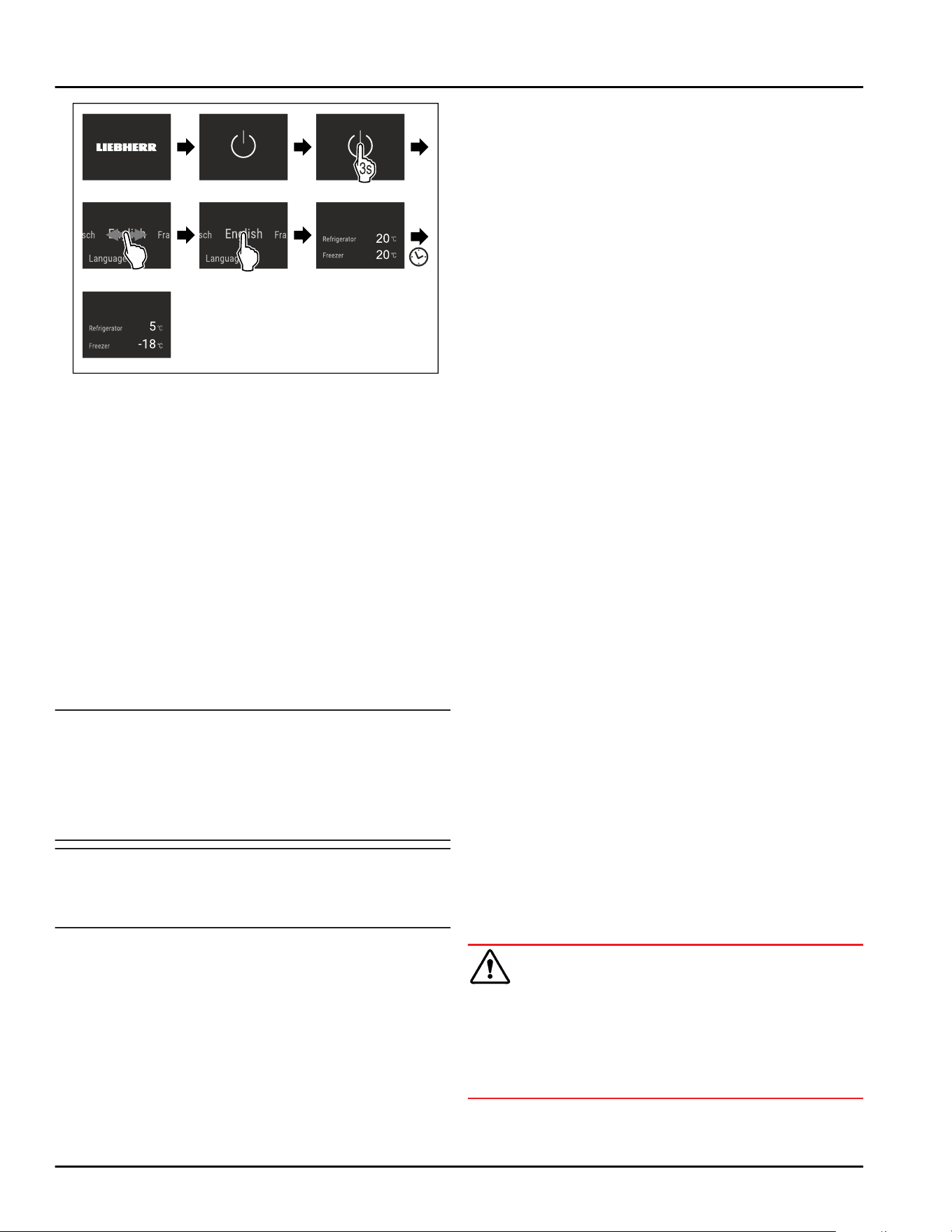
Fig. 5 Example illustration
▷ Status display appears.
▷ The appliance cools to the temperature set at the
factory.
▷ The appliance starts in demo mode (status display
with DEMO appears): If the appliance starts in demo
mode, you can deactivate demo mode within the
next 5 minutes. (seeDemo mode)
More information:
-
Start the InfinitySpring for the first time.
(see4.2 Putting InfinitySpring into operation*) *
-
Start the IceMaker for the first time. (see 4.3Starting
the IceMaker for the first time)
-
Start the HydroBreeze for the first time.
(see 4.4 Starting the HydroBreeze for the first time*)
*
-
Start the SmartDevice for the first time.
(see 2.3 SmartDevice) and (seeWiFi)
Note
The manufacturer recommends:
► Stock with food: Wait for around 6 hours until the
set temperature is reached.
► Store frozen foods at -18°C(-0°F) or colder.
► Observe the notes on storing food. (see 5.1 Informa‐
tion regarding storage)
Note
Accessories can be purchased from the Liebherr
Service Center. The address for your respective country
can be found on the back of the instructions.
4.2 Putting InfinitySpring into opera‐
tion*
If your appliance is equipped with an InfinitySpring,
before the first use you must bleed the water system
for the InfinitySpring and clean the InfinitySpring.
Make sure that the following requirements are fulfilled:
❑
The water supply is connected. See the Installation
Guide or installation instructions.
❑
The water tank is fitted. See the Installation Guide or
installation instructions.
❑
The water filter is fitted. See the Installation Guide
or installation instructions.*
❑
Appliance is fully connected.
4.2.1 Vent the water system
► Open the appliance door.
► Push a glass against the lower part of the Infinity‐
Spring dispenser.
▷ The upper part moves out and air escapes or water
flows into the glass.
► Continue until the water flows evenly into the glass.
▷ The water system is now bled.
4.2.2 Cleaning the InfinitySpring
(see 9.8.5 Cleaning the InfinitySpring *)
4.3 Starting the IceMaker for the first
time
If your appliance is equipped with IceMaker, you must
clean the IceMaker before using it for the first time.
Make sure that the following requirements are fulfilled:
❑
The water supply has been connected. See Installa‐
tion Guide or mounting instructions.
❑
The appliance is properly connected.
► Clean the IceMaker. (see 9.8.7 Cleaning the IceMaker)
4.4 Starting the HydroBreeze for the
first time*
If your appliance is equipped with HydroBreeze, you
must clean the HydroBreeze before using it for the
first time.
Make sure that the following requirements are fulfilled:
❑
The appliance is properly connected.
► Clean the HydroBreeze. (see 9.8.6 Cleaning the
HydroBreeze*)
► Fill the water tank. (see 8.9.1 Fill the water tank)
► Activate HydroBreeze. (see HydroBreeze*)
5 Storage
5.1 Information regarding storage
WARNING
Risk of fire from electrical appliances!
If you use electrical devices in the food area of your
appliance, they may case a fire.
► Do not use electrical devices in the food area of the
appliance if they have not been recommended by the
manufacturer.
Storage
* Depending on model and options 9
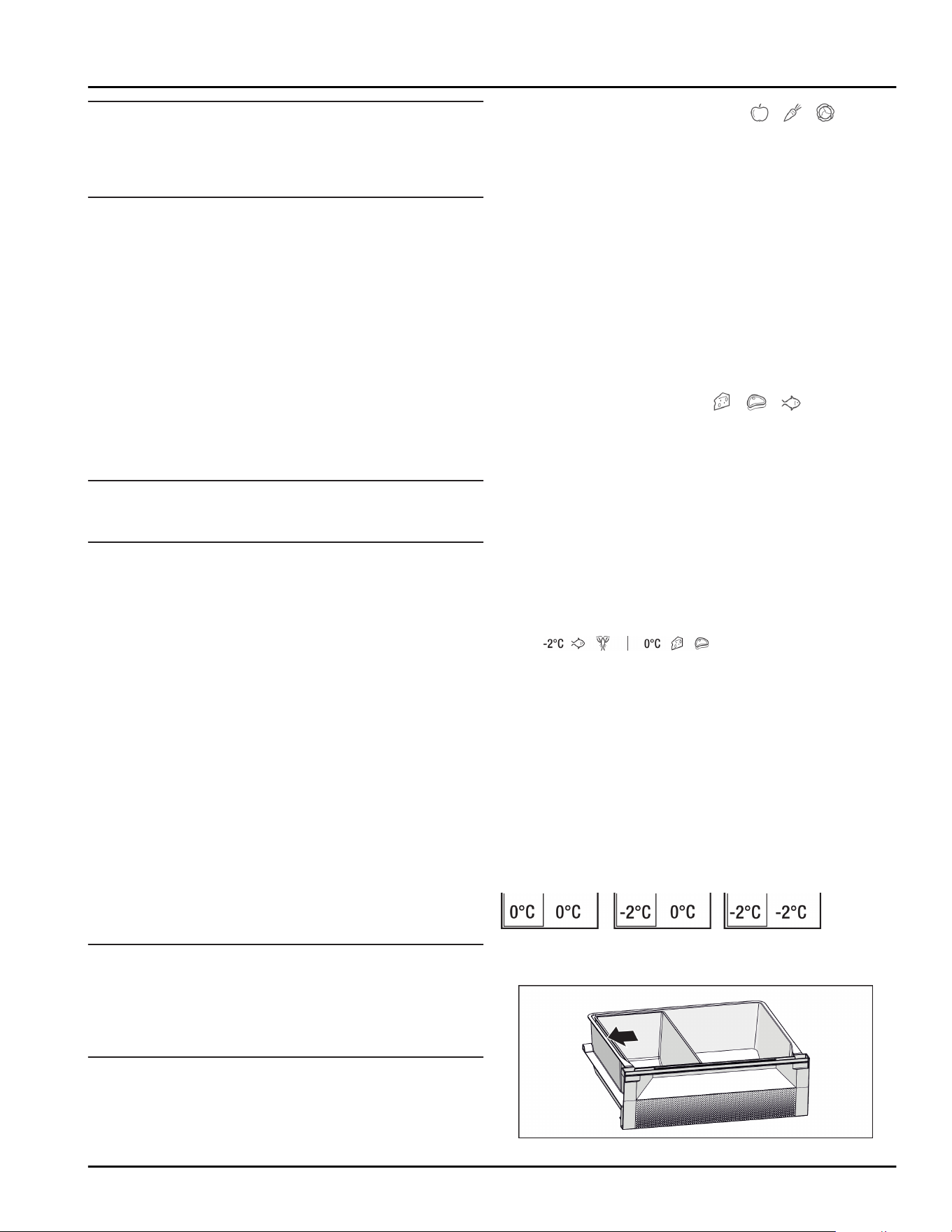
Note
Insufficient ventilation results in an increase in energy
consumption and reduction of the refrigerating
performance
► Always keep the air slots unobstructed.
Observe the following specifications for storage:
-
Keep the air vents on the fan free.
-
In the freezer compartment: Package food properly.
-
Package or cover foods that readily take on or give
off odors or taste in closed containers.
-
Package raw meat or fish in clean, closed
containers. This will prevent meat or fish from
touching or dripping onto other food.
-
Keep liquids in closed containers.
-
Leave space between goods to ensure good air
circulation.
-
Store food according to the instructions on the pack‐
aging.
-
Always observe the best-before date indicated on
the packaging.
Note
Failure to follow these guidelines can lead to food‐
stuffs spoiling.
5.2 Fridge compartment
The air circulation in the appliance creates different
temperature zones. You will find the different tempera‐
ture zones in the appliance and equipment overview.
(see2.2 Overview of appliances and equipment)
5.2.1 Arranging your food properly
► Upper area and door: Store butter, cheese, canned
food and tubes.
► Coldest temperature zone: Store perishable foods
such as pre-cooked meals.
5.3 BioFresh
BioFresh will extend the storage time for some fresh
foods compared to traditional refrigeration.
Taste, freshness and nutritional value (vitamin groups
B and C) are largely retained. Less spoilage and shriv‐
eling of fruit and vegetables. The food keeps fresher
and retains its natural goodness.
Note
The temperature can drop to 0 °C (32 °F) which means
foods could easily freeze.
► Store cold-sensitive produce such as cucumbers,
eggplants, zucchinis and tropical fruit in the fridge
compartment.
5.3.1 Fruit & Vegetable safe
This safe creates a climate of close to 0°C(32°F). The
compartment lid ensures constant levels of humidity.
This storage climate is suitable for storing unpackaged
food with high intrinsic moisture (for example, lettuce,
vegetables, fruit).
The humidity in the compartment depends on the
moisture content of the chilled goods placed in it, and
also depends on how often the compartment is
opened. You can regulate the humidity level.
Arranging your food properly
► Store unpackaged fruit and vegetables.
If the humidity is too high:
► Regulate the humidity.
5.3.2 Meat & Dairy safe
This safe creates a storage climate of close to
0 °C (32 °F). This storage climate is suitable for more
sensitive foods (e.g. dairy products, meat, fish,
sausage).*
This safe creates a storage climate of close to
0 °C (32 °F). This storage climate is suitable for more
sensitive foods (e.g. dairy products, meat, sausage).*
Arranging your food properly
► Store dry or packaged food.
5.3.3 Fish & Seafood
safe *
This safe creates a storage climate of between
-2 °C (28 °F) and 0 °C (32 °F). This storage climate is
great for dry or packaged groceries (for example, dairy
products, meat, fish, seafood, sausage).
This compartment includes a Fish & Seafood tray that
you can move or take away.
You can set the temperature via the Touch & Swipe
display. Dividing the compartment into different
temperature zones is only possible with the
Fish & Seafood tray inserted. (see Setting the tempera‐
ture in the fridge section)
The following temperature combinations are possible:
Fig.6
Arranging your food properly
Storage
10 * Depending on model and options
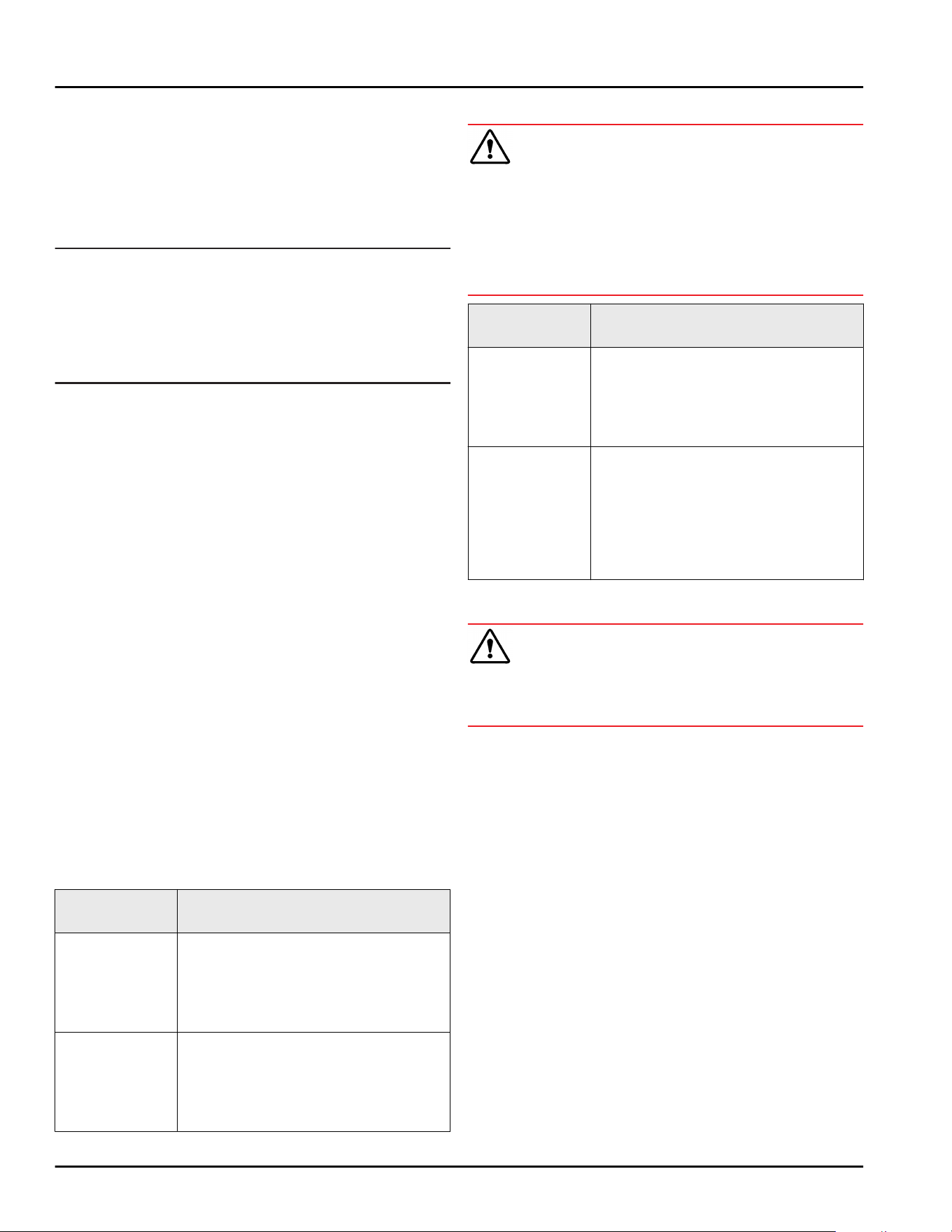
Fig.7
► For an optimum cooling function: Position
Fish & Seafood tray according to illustration (see
Fig.7) .
► Temperature zone -2 °C (28 °F): Store fresh seafood
or fish.
► Temperature zone 0 °C (32 °F): Store dairy products
or packaged meats.
Note
You can achieve the highest level of energy efficiency
using the temperature combination
0°C(32°F) /0°C(32°F).
Energy consumption is slightly higher using the
temperature combination -2 °C (28 °F) / 0 °C (32 °F)
and -2°C(28°F) /-2°C(28°F).
5.4 Freezer compartment
Here, a dry, frosty storage climate is created at
-18 °C (-0 °F). The frosty storage climate is suitable for
storing frozen food for several months, for making ice
cubes or freezing fresh food.
5.4.1 Freezing food
Freezing quantity
The maximum amount of fresh food that you can freeze
within 24 hours is specified on the type plate
(see 10.5 Rating plate) under “Freezing capacity ... kg/
24h.”
To ensure that food quickly freezes through, adhere to
the following quantities per package:
-
Fruit and vegetables up to 1 kg(2.20lb)
-
Meat up to 2.5 kg(5.51lb)
Freezing food using SuperFrost
Depending on the amount of food to be frozen, you can
activate SuperFrost before freezing to reach lower
freezing temperatures. (see SuperFrost)
► Activate SuperFrost if the amount of food you have
to freeze is more than approx. 2 kg(4.41lb).
The time at which you activate SuperFrost depends on
the amount of food you have to freeze:
Freezing quan‐
tity
Time at which you should activate
SuperFrost
Small amount
of food to
freeze
Activate SuperFrost about 6 hours
before freezing.
As soon as the appliance automati‐
cally deactivates SuperFrost you can
begin rearranging your food items.
Maximum
amount of food
to freeze
Activate SuperFrost about 24 hours
before freezing.
As soon as the appliance automati‐
cally deactivates SuperFrost you can
begin rearranging your food items.
Arranging your food properly
CAUTION
Risk of injury from broken glass!
Bottles and cans with beverages can burst during
freezing. This applies in particular to carbonated bever‐
ages.
► Only freeze bottles and cans with beverages if you
have activated the BottleTimer function in the
SmartDevice app.
Freezing quan‐
tity
Arranging your food properly
Small amount
of food to
freeze
Place packaged food in the top
drawer.
If possible, place groceries at the
back of the drawer near the rear
wall.
Maximum
amount of food
to freeze
Distribute packaged groceries
throughout all drawers, but only
store food that is already deep
frozen in the bottom drawer.
If possible, place groceries at the
back of the drawer near the rear
wall.
5.4.2 Defrosting food
WARNING
Danger of food poisoning!
► Do not re-freeze defrosted food.
► Use defrosted foodstuff as quickly as possible.
You can defrost food in several ways:
-
In the fridge compartment
-
In the microwave
-
In the oven/fan-assisted oven
-
At room temperature
► Take out only as much food as necessary.
5.5 Storage times
The storage times given are guidelines
Food with a “use by” date must still be consumed by
the date indicated on the package
5.5.1 Fridge
The best-before date stated on the packaging applies.
Storage
* Depending on model and options 11
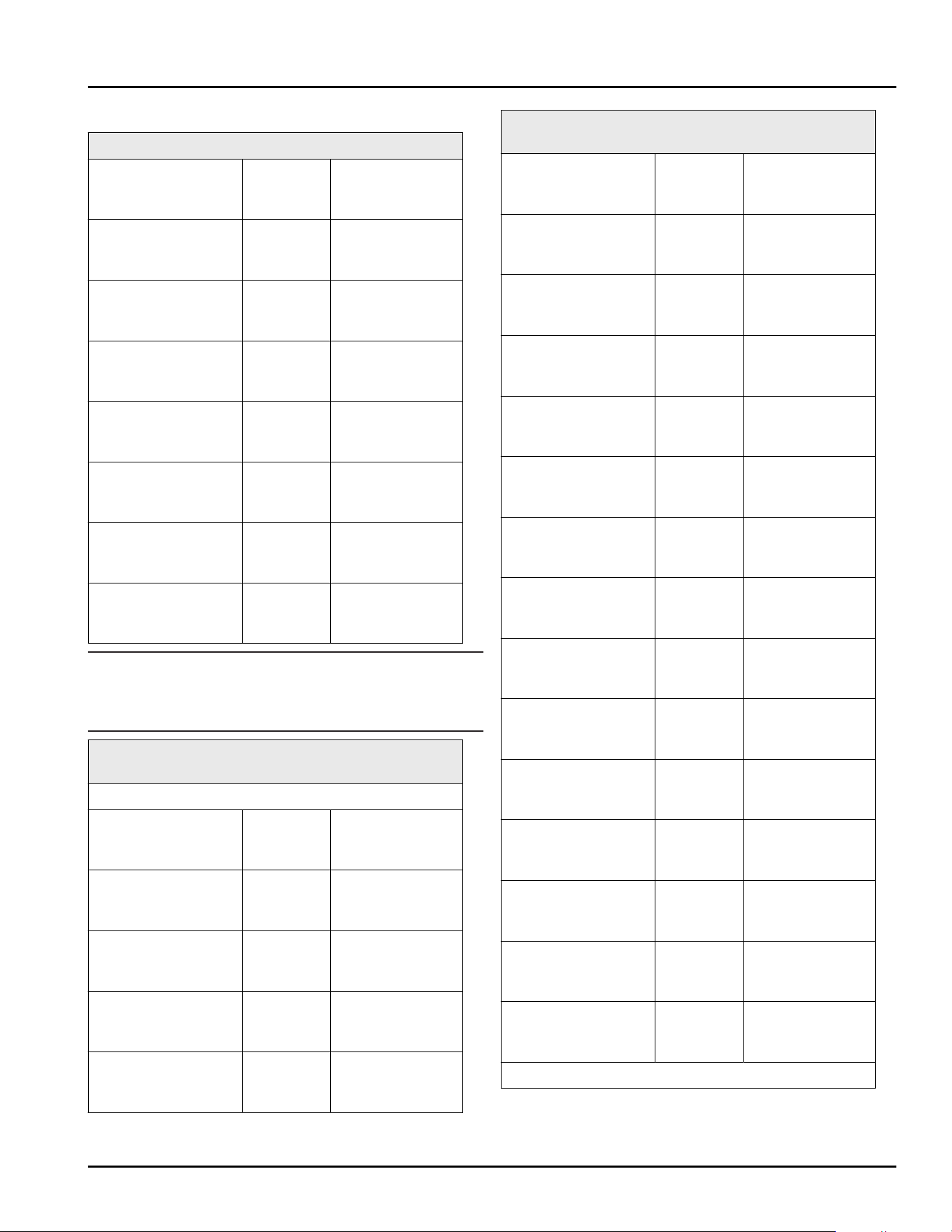
5.5.2 BioFresh
Guideline storage times for the Meat & Dairy-Safe
Butter at
1 °C
(34°F)
up to 90 days
Hard cheese at
1 °C
(34°F)
up to 110 days
Milk at
1 °C
(34°F)
up to 12 days
Sausage, cold cuts at
1 °C
(34°F)
up to 8 days
Poultry at
1 °C
(34°F)
up to 6 days
Pork at
1 °C
(34°F)
up to 6 days
Beef at
1 °C
(34°F)
up to 6 days
Game at
1 °C
(34°F)
up to 6 days
Note
► Note that higher-protein foods spoil more quickly So,
shellfish and crustaceans perish faster than fish,
and fish perishes faster than meat.
Guideline storage times for the Fruit & Vegetable-
Safe
Vegetables, lettuce
Artichokes at
1 °C
(34°F)
up to 14 days
Celery at
1 °C
(34°F)
up to 28 days
Cauliflower at
1 °C
(34°F)
up to 21 days
Broccoli at
1 °C
(34°F)
up to 13 days
Endives at
1 °C
(34°F)
up to 27 days
Guideline storage times for the Fruit & Vegetable-
Safe
Mâche at
1 °C
(34°F)
up to 19 days
Peas at
1 °C
(34°F)
up to 14 days
Kale at
1 °C
(34°F)
up to 14 days
Carrots at
1 °C
(34°F)
up to 80 days
Garlic at
1 °C
(34°F)
up to 160 days
Cabbage turnip at
1 °C
(34°F)
up to 14 days
Iceberg lettuce at
1 °C
(34°F)
up to 13 days
Herbs at
1 °C
(34°F)
up to 13 days
Leeks at
1 °C
(34°F)
up to 29 days
Mushrooms at
1 °C
(34°F)
up to 7 days
Radishes at
1 °C
(34°F)
up to 10 days
Brussels sprouts at
1 °C
(34°F)
up to 20 days
Asparagus at
1 °C
(34°F)
up to 18 days
Spinach at
1 °C
(34°F)
up to 13 days
Savoy cabbage at
1 °C
(34°F)
up to 20 days
Fruit
Storage
12 * Depending on model and options
Guideline storage times for the Fruit & Vegetable-
Safe
Apricots at
1 °C
(34°F)
up to 13 days
Apples at
1 °C
(34°F)
up to 80 days
Pears at
1 °C
(34°F)
up to 55 days
Blackberries at
1 °C
(34°F)
up to 3 days
Dates at
1 °C
(34°F)
up to 180 days
Strawberries at
1 °C
(34°F)
up to 7 days
Figs at
1 °C
(34°F)
up to 7 days
Blueberries at
1 °C
(34°F)
up to 9 days
Raspberries at
1 °C
(34°F)
up to 3 days
Red currants at
1 °C
(34°F)
up to 7 days
Cherries, sweet at
1 °C
(34°F)
up to 14 days
Kiwi at
1 °C
(34°F)
up to 80 days
Peaches at
1 °C
(34°F)
up to 13 days
Plums at
1 °C
(34°F)
up to 20 days
Cranberries at
1 °C
(34°F)
up to 60 days
Rhubarb at
1 °C
(34°F)
up to 13 days
Guideline storage times for the Fruit & Vegetable-
Safe
Gooseberries at
1 °C
(34°F)
up to 13 days
Grapes at
1 °C
(34°F)
up to 29 days
Guideline storage times for the Fish & Seafood-
Safe*
Seafood
Crab at
-2 °C
(28°F)
up to 4 days
Mussels at
-2 °C
(28°F)
up to 6 days
Sushi at
-2 °C
(28°F)
up to 4 days
Fish at
-2 °C
(28°F)
up to 4 days
5.5.3 Freezer
Guidelines for storage periods for various foods
Ice cream at
-18 °C
(-0°F)
2 to 6 months
Sausage, ham at
-18 °C
(-0°F)
2 to 3 months
Bread, bakery prod‐
ucts
at
-18 °C
(-0°F)
2 to 6 months
Game, pork at
-18 °C
(-0°F)
6 to 9 months
Fish, fatty at
-18 °C
(-0°F)
2 to 6 months
Fish, lean at
-18 °C
(-0°F)
6 to 8 months
Cheese at
-18 °C
(-0°F)
2 to 6 months
Storage
* Depending on model and options 13
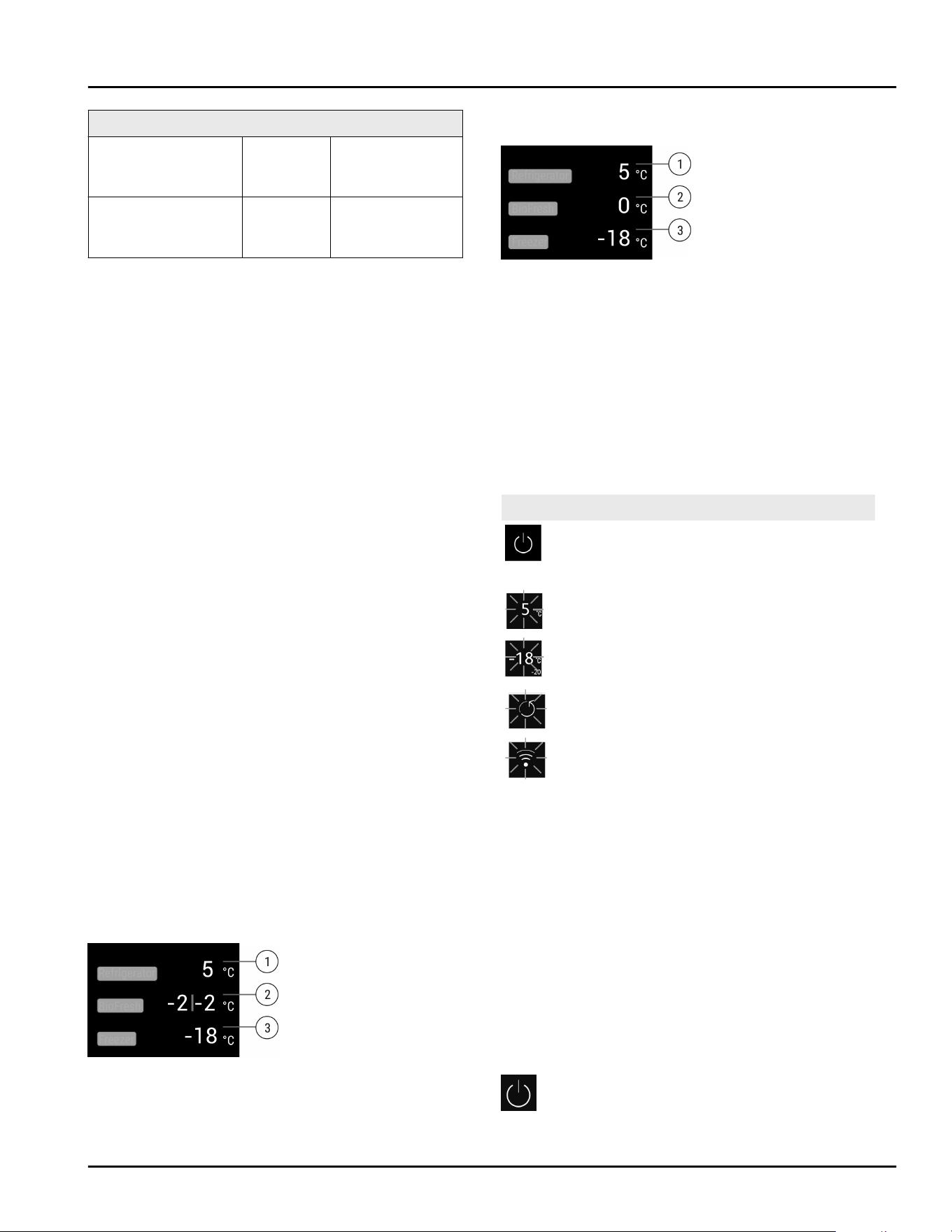
Guidelines for storage periods for various foods
Poultry, beef at
-18 °C
(-0°F)
6 to 12 months
Vegetables, fruit at
-18 °C
(-0°F)
6 to 12 months
6 Energy saving
-
Always ensure good ventilation. Keep clear of
obstruction all ventilation openings in the appliance
enclosure or in the structure for building-in.
-
Never block air slits in the fan.
-
Do no set up the appliance in an area with direct
sunlight, next to a heating unit or similar.
-
If you set up the appliance directly next to an oven,
its energy consumption may increase slightly. This
depends on the service life and how often the oven
is used.
-
Energy consumption depends on installation condi‐
tions such as the ambient temperature
(see2.4 Range of appliance use) . A warmer ambient
temperature can increase the energy consumption.
-
Avoid opening the appliance door for any longer then
necessary
-
The lower the temperature is set the higher the
energy consumption.
-
Sort your food items: home.liebherr.com/food.
-
All food stored in the appliance should be well
wrapped and covered. This prevents frost buildup.
-
Only take food out for as long as necessary so that it
does not get too warm.
-
Insertion of warm foods: first let the food cool down
to room temperature.
-
Defrost frozen food in the fridge
-
For longer periods of absence, use HolidayMode
(seeHolidayMode) .
7 Use
7.1 Controls and displays
7.1.1 Status display
Fig. 8 Status display shows the actual temperature.*
(1)
Fridge compartment
temperature display
(3) Freezer compartment
temperature display
(2) Temperature display
BioFresh
(Fish & Seafood-
safe)
Fig. 9 Status display shows the actual temperature.*
(1) Fridge compartment
temperature display
(3) Freezer compartment
temperature display
(2) Temperature display
BioFresh
The status display shows the actual temperature and
is the initial display. You can navigate from there to the
functions and settings.
7.1.2 Display symbols
The display symbols provide information about the
current appliance status.
Symbol
Appliance status
Standby
The appliance or temperature
zone is turned off.
Flashing number
Appliance is working. Tempera‐
ture flashes until the set
temperature is reached.
Flashing symbol
Appliance is working. Setting is
made.
7.2 Appliance functions
7.2.1 Notes on the appliance functions
The appliance functions are set at the factory so that
your appliance is fully functional.
Before you alter, activate or deactivate the appliance
functions, make sure that the following requirements
are met:
❑
You have read and understood the descriptions of
how the display works. (see 3 Functionality of the
Touch&Swipe display)
❑
You have familiarized yourself with the operating
and display elements of your appliance.
Switching appliance off and on
This function switches the entire appliance on and off.
Energy saving
14 * Depending on model and options
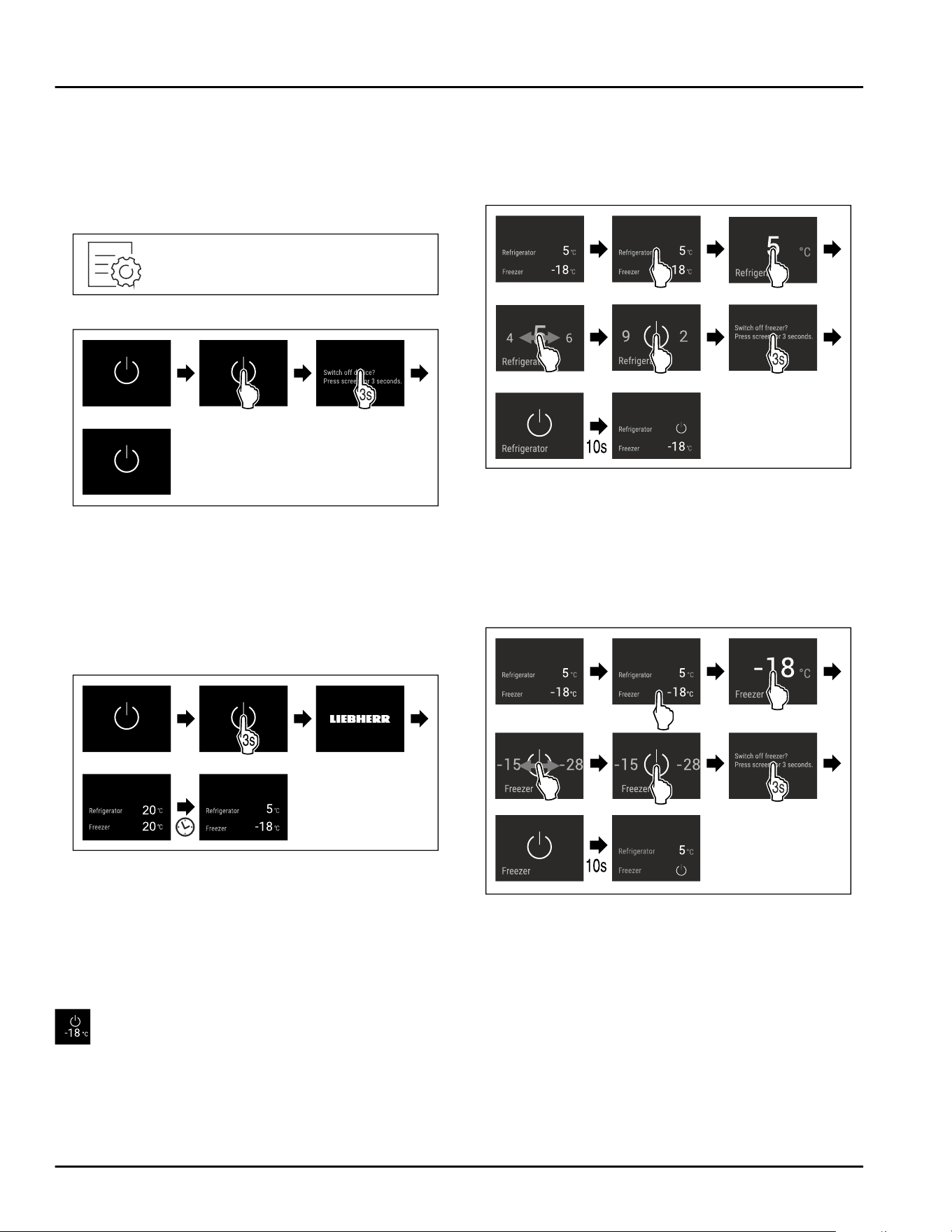
Switching off the appliance
If you switch off the appliance, the settings that were
made before remain stored.
Make sure that the following requirements are fulfilled:
❑
Handling instructions (see 11 Decommissioning)
have been completed.
Fig. 10
Fig.11
► Carry out action steps according to the illustration.
▷ Appliance is switched off.
▷ Standby symbol appears in the display.
▷ Display turns black.
Switching on the appliance
If the display is in sleep mode:
► Briefly touch the display.
Fig. 12 Example illustration
► Carry out action steps according to the illustration.
If the appliance starts in demo mode:
► Deactivate demo mode. (see Deactivating demo
mode)
▷ Appliance is switched on.
▷ Previously made settings are re-established.
▷ The appliance cools to the set target temperature.
Switching temperature zone off and on
You can switch temperature zones of the appliance off
independently.
Switching the fridge compartment off
Make sure that the following requirements are fulfilled:
❑
Refrigerator compartment has been emptied.
❑
InfinitySpring water tank is empty.*
Fig. 13 Example illustration
► Carry out action steps according to the illustration.
▷ Refrigerator compartment is switched off.
Switching the freezer compartment off
Make sure that the following requirements are fulfilled:
❑
Freezer compartment has been emptied.
❑
IceMaker is deactivated.
Fig. 14 Example illustration
► Carry out action steps according to the illustration.
▷ Freezer compartment is switched off.
Use
* Depending on model and options 15

Switching the fridge compartment on
Fig. 15 Example illustration
► Carry out action steps according to the illustration.
▷ Refrigerator compartment is switched on.
▷ The appliance cools to the last set temperature.
Switching the freezer compartment on
Fig. 16 Example illustration
► Carry out action steps according to the illustration.
▷ Freezer compartment is switched on.
▷ The appliance cools to the last set temperature.
WiFi
Use this function to connect your appliance to WiFi.
You can then operate it via the SmartDevice app on a
mobile device. You can also use this function to
disconnect or reset the WiFi connection.
More information on the SmartDevice: (see 2.3 Smart‐
Device)
Note
The SmartDevice function is not available in the
following countries: Russia, Belarus, Kazakhstan.
Establishing the WiFi connection for the first time
Make sure that the following requirements are fulfilled:
❑
You have installed the SmartDevice app (see
apps.home.liebherr.com).
❑
Registration in the SmartDevice app is completed.
Fig.17
Fig. 18
► Carry out action steps according to the illustration.
▷ Connection is established.
Disconnecting from the WiFi
Fig. 19
Fig.20
► Carry out action steps according to the illustration.
▷ There is no connection.
Resetting the WiFi connection
Fig.21
Use
16 * Depending on model and options
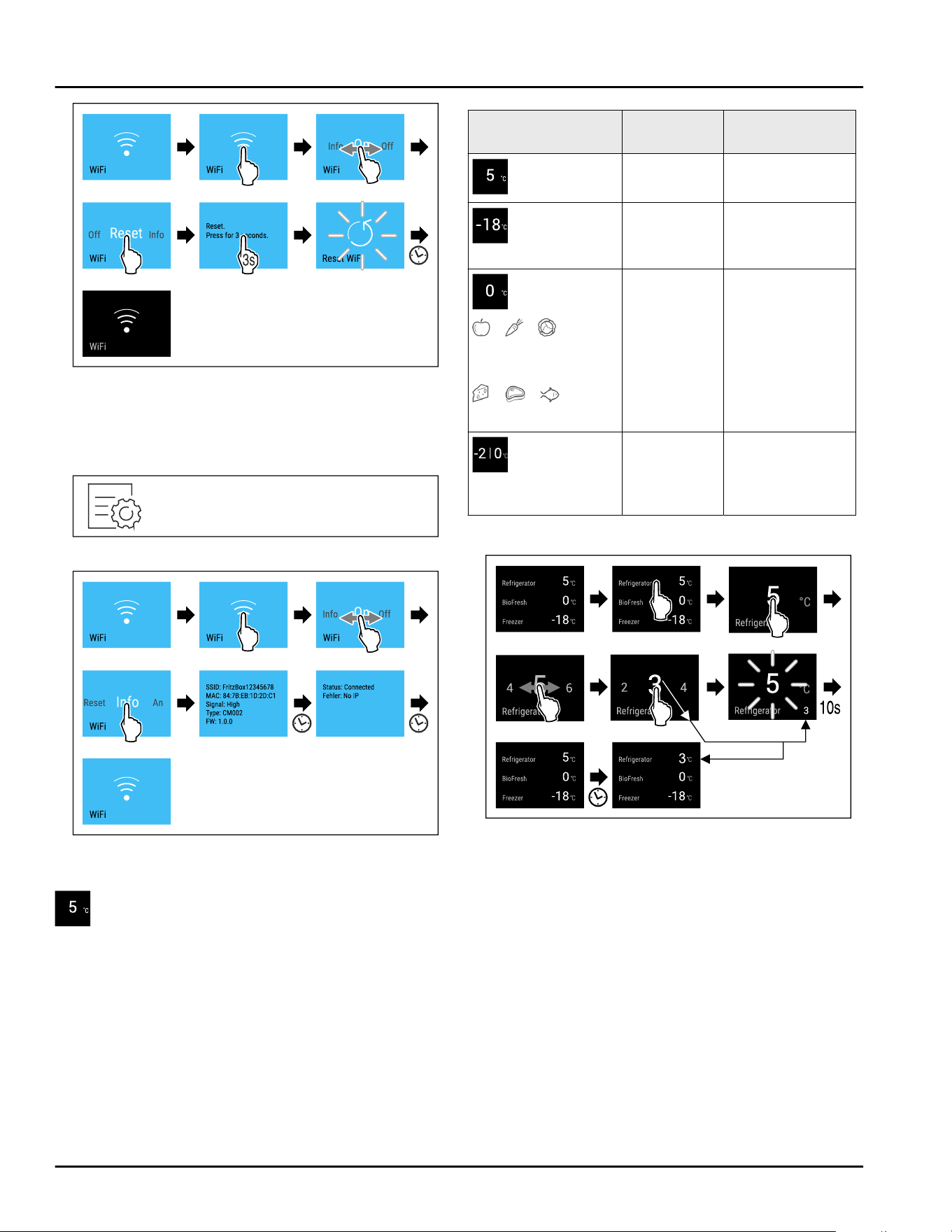
Fig.22
► Carry out action steps according to the illustration.
▷ WiFi connection and other WiFi settings are reset to
factory settings.
Showing information about the WiFi connection
Fig.23
Fig. 24
► Carry out action steps according to the illustration.
Temperature
Use this function to set the temperature.
The temperature depends on the following factors:
-
How often the door is opened
-
How long the door is open
-
The room temperature of the installation site
-
Type, temperature and amount of food
Temperature zone
Factory-set
temperature
Recommended
setting
Fridge section
5°C(41°F) 4°C(39°F)
Freezer
section
-18 °C
(-0°F)
-18°C(-0°F)
BioFresh*
*
Fruit & Vegetable
safe*
*
Meat & Dairy safe*
0°C(32°F) B-Value (see
BioFresh B-
Value *)
Fish & Seafood
safe*
-2 °C
(28 °F) |
0°C(32°F)*
(see 5.3.3 Fish &
Seafood safe *) *
Setting the temperature in the fridge section
Fig. 25 Example illustration
► Carry out action steps according to the illustration.
▷ Temperature is set.
Use
* Depending on model and options 17
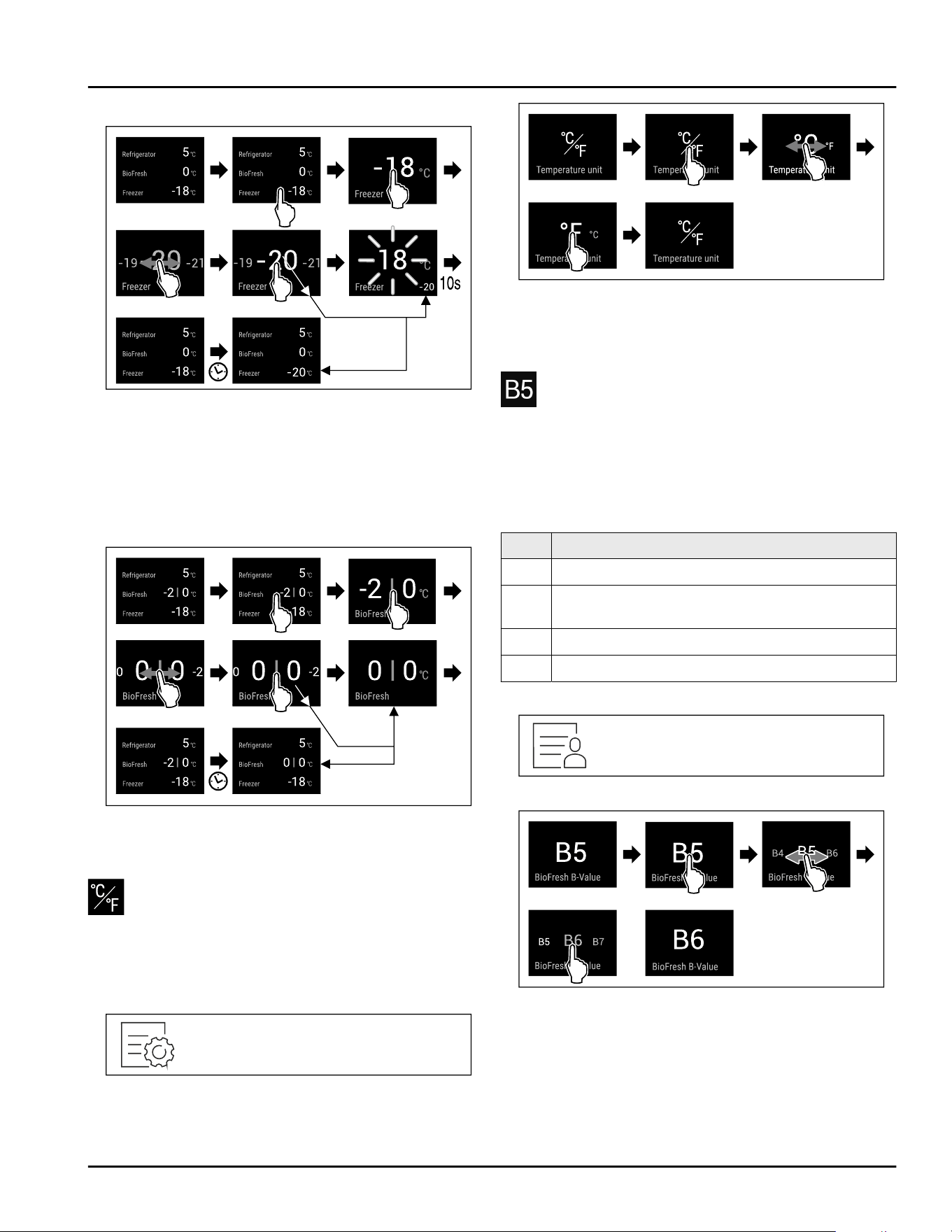
Setting the temperature in the freezer section
Fig. 26
► Carry out action steps according to the illustration.
▷ Temperature is set.
Setting the temperature in BioFresh
You set the temperature using the BioFresh B-Value.
(see BioFresh B-Value *)
Setting the temperature in the Fish & Seafood safe*
Fig. 27 Example illustration
► Carry out action steps according to the illustration.
▷ Temperature is set.
Temperature unit
Use this function to set the temperature unit. You can
set the temperature unit in either degrees Celsius or
degrees Fahrenheit.
Setting the temperature unit
Fig.28
Fig. 30 Example illustration: Switching between
degrees Celsius or degrees Fahrenheit.
► Carry out action steps according to the illustration.
▷ Temperature unit is set.
BioFresh B-Value *
Use this function to set the BioFresh B-Value. Use the
BioFresh B-Value to adjust BioFresh slightly warmer or
colder if a higher or lower ambient temperature makes
it necessary. Upon delivery, the BioFresh B-Value is set
to the value B5. If you adjust the B-Value, please
observe the following table:
Value
Description
B1 Lowest temperature
B1-B4 The temperature can drop to 0°C(32°F) which
means foods could easily freeze.
B5 Pre-set temperature
B9 Highest temperature
Setting the BioFresh B-Value
Fig.31
Fig. 33 Example illustration: Switching from B5 to B6.
► Carry out action steps according to the illustration.
▷ The BioFresh B-Value is set.
▷ Status display shows the target temperature.*
Use
18 * Depending on model and options
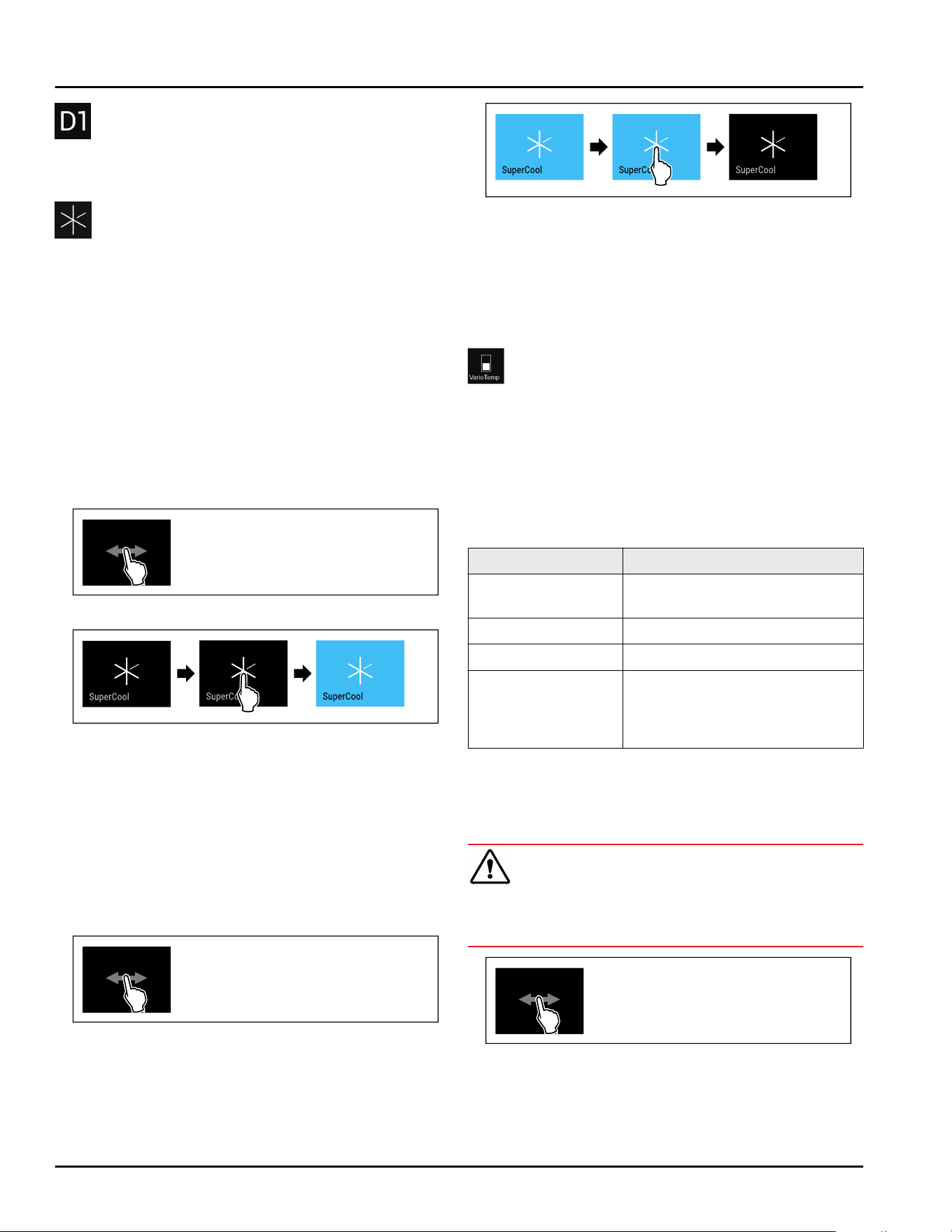
D-Value
The D-Value is preset for your appliance and must not
be changed.
SuperCool
This function activates or deactivates SuperCool. If you
activate SuperCool the appliance increases the cooling
capacity. This allows you to achieve lower cooling
temperatures. You can activate SuperCool if you want
to quickly cool large volumes of food.
If the function is active, the appliance operates at a
higher output. As a result, the operating noise of the
appliance may be temporarily louder, while energy
consumption increases.
Activating SuperCool
Time for activating the function:
-
If you want to store fresh food in the fridge section:
Activate the function when storing food.
Fig.34
Fig.35
► Carry out action steps according to the illustration.
-or-
► Activating with the SmartDevice app.
▷ SuperCool is activated.
▷ Temperature display turns blue.
Deactivating SuperCool
SuperCool is automatically deactivated after 18 hours.
However, you can also manually deactivate SuperCool
at any time:
Fig.36
Fig.37
► Carry out action steps according to the illustration.
-or-
► Deactivating with the SmartDevice app.
▷ SuperCool is deactivated.
▷ Appliance continues to run in normal operation.
▷ The appliance first cools to the set temperature.
VarioTemp
This function allows you to use the freezer compart‐
ment as an additional cooling zone. You can set the
temperature from -2 °C (28 °F) to 14 °C (57 °F). If you
activate this function, it may cause more noise.
However, the appliance is still fully functional.
For storage of foodstuff in the freezer compartment
with the VarioTemp function activated, Liebherr recom‐
mends:
Temperature range
Foodstuff
4 °C (39 °F) to
9°C(46°F)
Cooked foods, cheese,
preserves
0°C(32°F) Packaged fruit and vegetables
-2°C(28°F) Fresh fish and seafood
10 °C (50 °F) to
14°C(57°F)
Cold-sensitive foodstuffs such
as sweet potatoes, pumpkin or
exotic fruits, food or drinks that
should not be eaten too cold
Activating VarioTemp
Make sure that the following requirements are fulfilled:
❑
The IceMaker has been cleaned. (see 9.8.7 Cleaning
the IceMaker)
WARNING
Danger of food poisoning!
► Do not re-freeze defrosted food.
► Use defrosted foodstuff as quickly as possible.
Fig.38
Use
* Depending on model and options 19
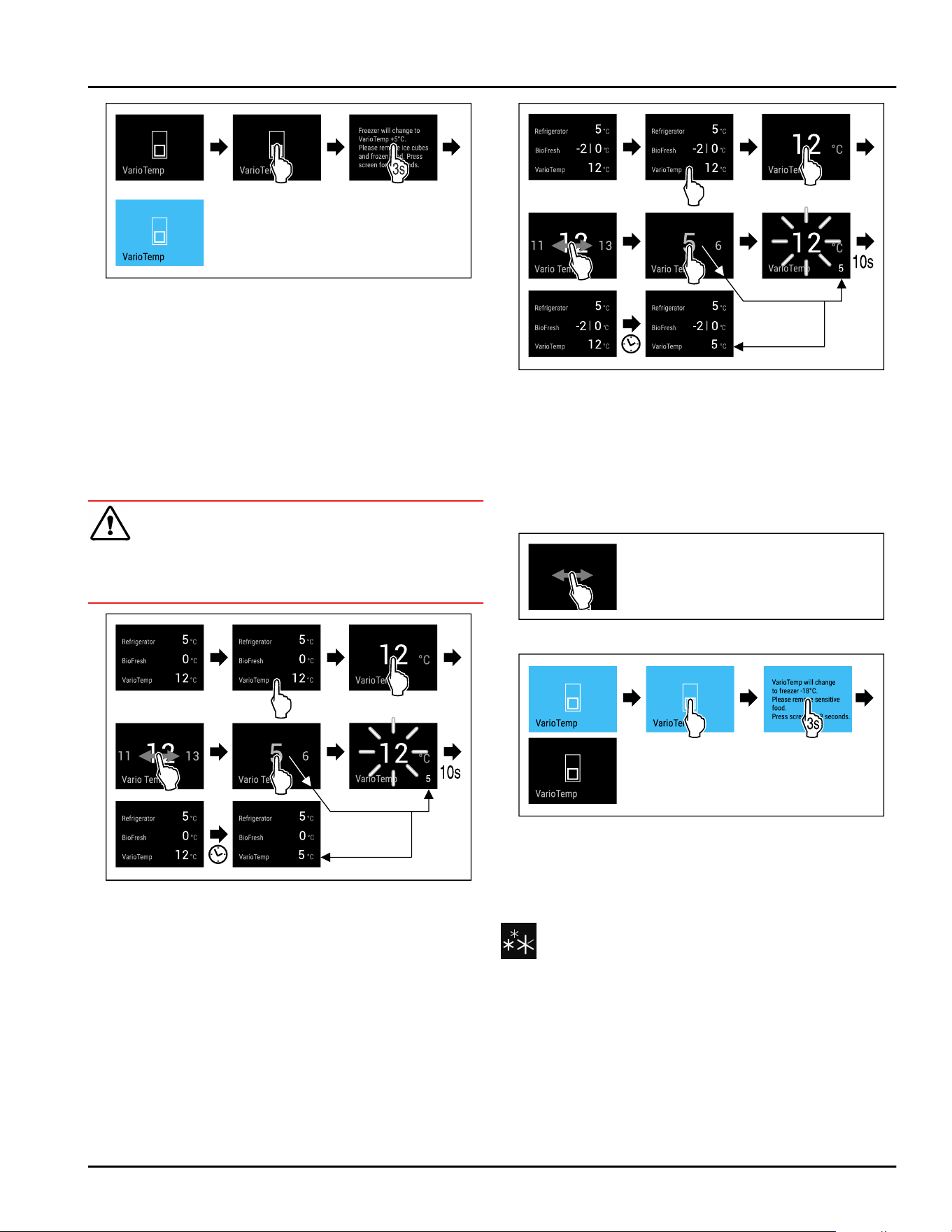
Fig. 39
► Carry out steps according to the illustration.
▷ VarioTemp is activated.
▷ IceMaker is deactivated.
▷ VarioTemp is set to the preselected value.
▷ The status display does not show the set tempera‐
ture until it is reached.
Adjusting VarioTemp
Make sure that the following requirements are fulfilled:
❑
The VarioTemp has been activated. (see Activating
VarioTemp)
WARNING
Danger of food poisoning!
► Do not re-freeze defrosted food.
► Use defrosted foodstuff as quickly as possible.
Fig. 40 Example illustration: Change VarioTemp from
12°C(54°F) to 5°C(41°F) for a fridge-freezer combination
with BioFresh.*
Fig. 41 Example illustration: Change VarioTemp from
12°C(54°F) to 5°C(41°F) for a fridge-freezer combination
with Fish & Seafood safe.*
► Carry out steps according to the illustration.
▷ VarioTemp is adjusted.
▷ The status display does not show the new set
temperature until it is reached.
Deactivating VarioTemp
Fig. 42
Fig.43
► Carry out steps according to the illustration.
▷ VarioTemp is deactivated.
▷ The freezer compartment is cooled to the preset
temperature.
SuperFrost
This function activates or deactivates SuperFrost. Acti‐
vating SuperFrost the appliance increases the freezing
capacity. This allows you to achieve lower freezer
temperatures.
Application:
-
Quickly freezing fresh food through to the core.
Use
20 * Depending on model and options
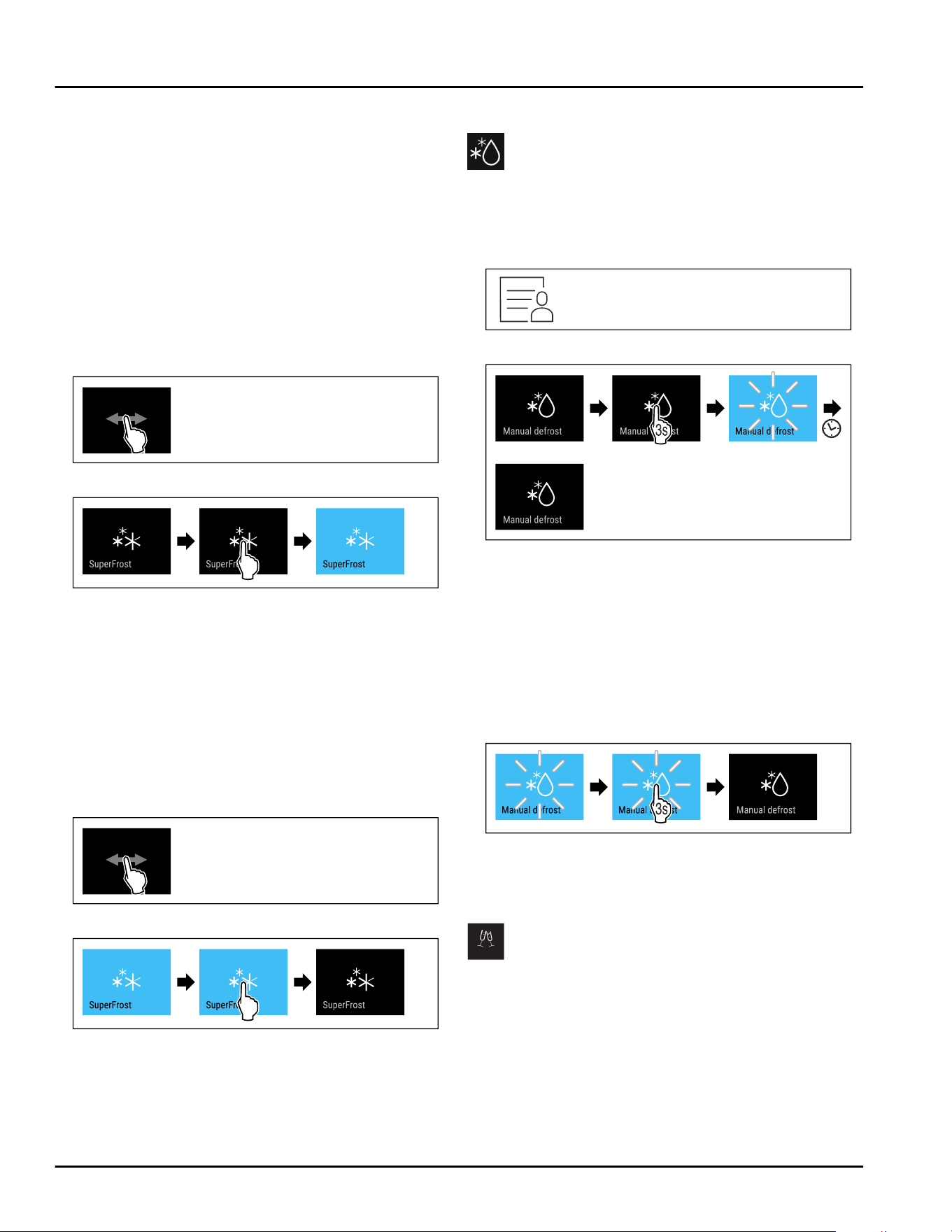
This ensures that the nutrition value, look, and taste
of the food is preserved.
-
Increasing cold reserves in stored frozen food before
defrosting the appliance.
If the function is active, the appliance operates at a
higher output. As a result, the operating noise of the
appliance may be temporarily louder, while energy
consumption increases.
Activating SuperFrost
Make sure that the following requirements are fulfilled:
❑
The freezing volume and time for SuperFrost activa‐
tion are taken into account. (see Freezing food using
SuperFrost)
❑
VarioTemp is deactivated. (see VarioTemp)
Fig.44
Fig.45
► Carry out action steps according to the illustration.
-or-
► Activating with the SmartDevice app.
▷ SuperFrost is activated.
▷ Temperature display turns blue.
Deactivating SuperFrost
SuperFrost is automatically deactivated after
56 to 72 hours depending on the volume of the stored
food. However, you can also manually deactivate
SuperFrost at any time:
Fig.46
Fig. 47
► Carry out action steps according to the illustration.
-or-
► Deactivating with the SmartDevice app.
▷ SuperFrost is deactivated.
▷ Appliance continues to run in normal operation.
▷
The appliance first cools to the set temperature.
Start defrost cycle
Use this function to start the automatic defrost cycle
manually if the defrost cycle does not start automati‐
cally in case of an error.
Starting the defrost cycle
Fig.48
Fig. 49
► Carry out action steps according to the illustration.
▷ Defrost cycle has started: Symbol flashes until the
defrost cycle is automatically completed.
▷ When the defrost cycle is completed: Appliance
continues to run in normal operation.
Canceling the defrost cycle
The defrost cycle is automatically completed. However,
you can also cancel the defrost cycle at any time
during the defrosting:
Fig.50
► Carry out action steps according to the illustration.
▷ Defrost cycle is canceled.
▷ Appliance continues to run in normal operation.
PartyMode
This function activates and deactivates PartyMode.
PartyMode activates different functions that are useful
for a party.
PartyMode activates the following functions:
-
SuperCool (seeSuperCool)
-
SuperFrost (see SuperFrost)
-
IceMaker with MaxIce (see IceMaker / MaxIce )
You can set all listed functions individually and flexibly.
By deactivating PartyMode all changes are discarded.
Use
* Depending on model and options 21
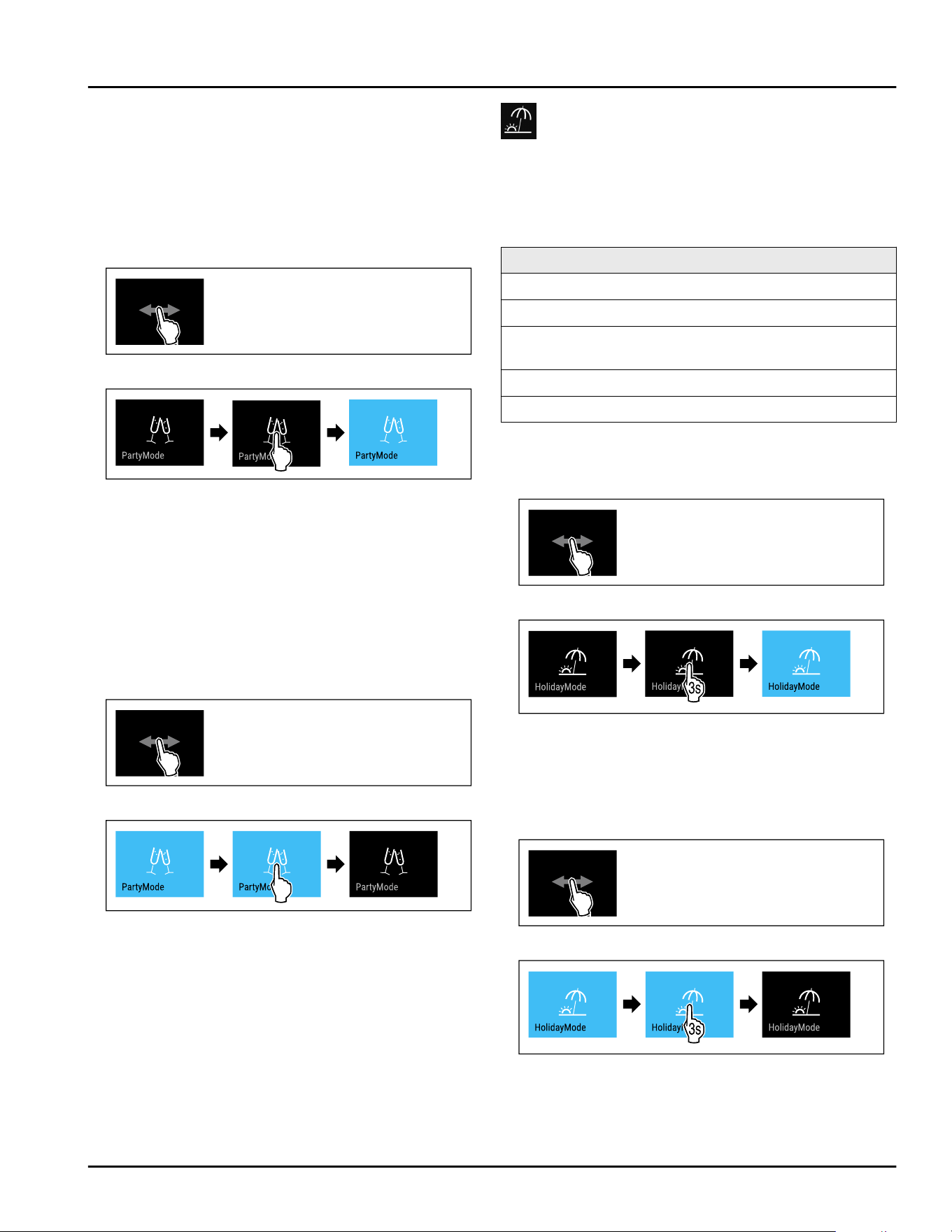
If the function is active, the appliance operates at a
higher output. As a result, the operating noise of the
appliance may be temporarily louder, while energy
consumption increases.
Activating PartyMode
Make sure that the following requirements are fulfilled:
❑
IceMaker has been started for the first time.
(see 4.3 Starting the IceMaker for the first time)
Fig.51
Fig.52
► Carry out action steps according to the illustration.
▷ PartyMode and the corresponding functions are acti‐
vated.
▷ Temperature display turns blue.
▷ The current temperature flashes until the target
temperature is reached.
Deactivating PartyMode
PartyMode is automatically deactivated after 24 hours.
However, you can also manually deactivate PartyMode
at any time:
Fig.53
Fig.54
► Carry out action steps according to the illustration.
▷ PartyMode is deactivated.
▷ The appliance first cools to the set temperature: The
current temperature flashes until the target temper‐
ature is reached.
HolidayMode
Use this function to activate or deactivate Holiday‐
Mode. If you activate HolidayMode the fridge section is
set to 15 °C (59 °F). This helps you save energy if you
are away for a longer period of time and avoid bad
smells and mold formation.
Appliance status with active HolidayMode
Fridge section cools to 15°C(59°F).
BioFresh cools down to 15°C(59°F).
The set temperature is maintained in the freezer
section.
PartyMode is deactivated.
SuperCool is deactivated.
Activating HolidayMode
► Empty the fridge section completely.
► Empty BioFresh completely.
Fig.55
Fig.56
► Carry out action steps according to the illustration.
▷ HolidayMode is activated.
▷ Temperature display turns blue and shows the Holi‐
dayMode symbol.
Deactivating HolidayMode
Fig.57
Fig.58
► Carry out action steps according to the illustration.
▷ HolidayMode is deactivated.
▷ The appliance first cools to the set temperature.
Use
22 * Depending on model and options
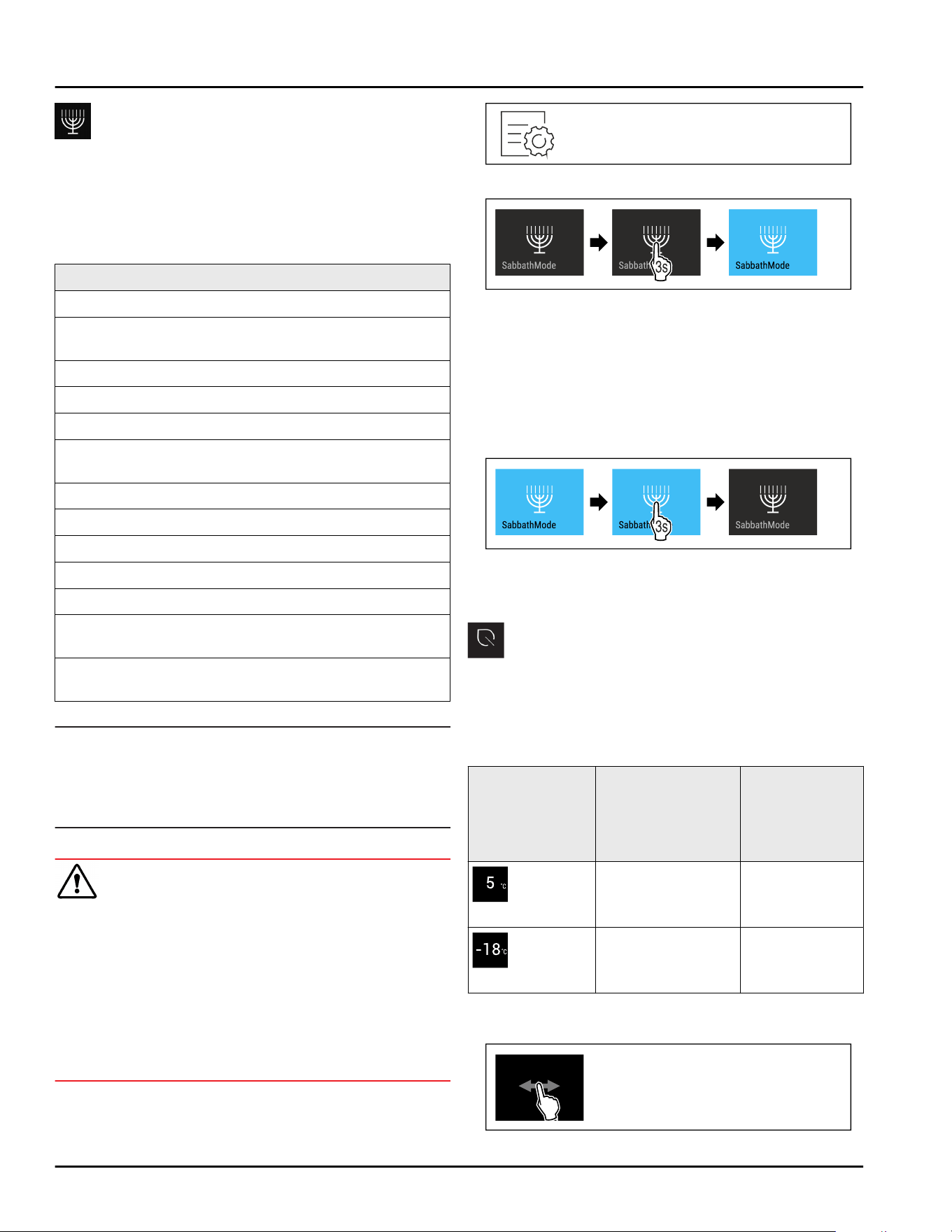
SabbathMode
This function activates and deactivates SabbathMode.
If you activate this function, some electronic functions
are switched off. Your appliance thereby meets the reli‐
gious requirements of Jewish holidays such as the
Sabbath and complies with STAR-K Kosher certifica‐
tion.
Appliance status with active SabbathMode
The status display continuously shows SabbathMode.
All functions in the display except the Deactivating
SabbathMode function are disabled.
Active functions remain active.
The display remains bright when you close the door.
The interior lighting is deactivated.
Memories are not listed. The set time interval is
stopped.
Memories and warnings are not displayed.
There is no door alarm.
There is no temperature alarm.
The IceMaker is out of order.
The InfinitySpring is out of order.*
The defrost cycle operates only for the specified time
without taking into account the appliance usage.
After a power failure, the device returns to
SabbathMode.
Appliance status
Note
This appliance has certification from the “Institute for
Science and Halacha”. (www.machonhalacha.co.il)
You can find a list of STAR-K-certified appliances at
www.star-k.org/appliances.
Activating SabbathMode
WARNING
Danger of poisoning from spoiled food!
If you have SabbathMode activated and a power failure
occurs, no message appears in the status display
about the power failure. Once the power is restored,
the appliance continues to operate in SabbathMode.
The power failure may mean that food spoils and the
consumption of this food could lead to food poisoning.
After a power failure:
► Do not consume food that has been frozen and
thawed.
Fig. 59
Fig.60
► Carry out action steps according to the illustration.
▷ SabbathMode is activated.
▷ Status display continuously shows SabbathMode.
Deactivating SabbathMode
SabbathMode is automatically deactivated after
80 hours. However, you can also manually deactivate
SabbathMode at any time:
Fig.61
► Carry out action steps according to the illustration.
▷ SabbathMode is deactivated.
EnergySaver
Use this function to activate or deactivate energy
saving mode. If you activate energy saving mode,
energy consumption drops and the temperature in the
appliance increases. Food remains fresh, but shelf life
is reduced.
Temperature
zone
Recommended
setting
(see Setting the
temperature in the
fridge section)
Temperature
while Ener‐
gySaver is
active
Fridge
section
4°C(39°F) 7°C(45°F)
Freezer
section
-18°C(-0°F) -16°C(3°F)
Temperatures
Activating EnergySaver
Use
* Depending on model and options 23
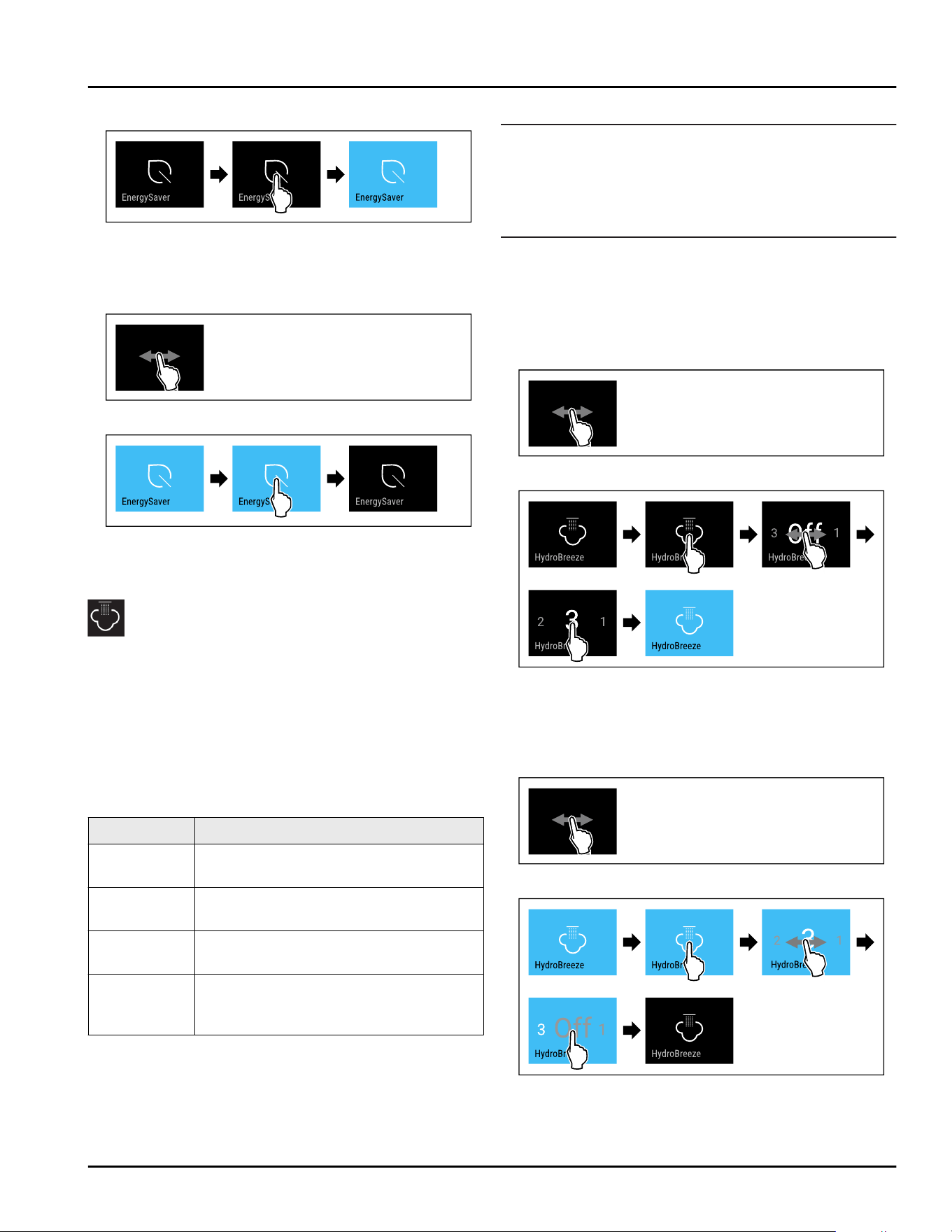
Fig. 62
Fig.63
► Carry out action steps according to the illustration.
▷ Energy saving mode is activated.
Deactivating EnergySaver
Fig.64
Fig.65
► Carry out action steps according to the illustration.
▷ Energy saving mode is deactivated.
HydroBreeze*
This function activates or deactivates HydroBreeze. If
you activate this function, HydroBreeze creates a fine,
cold mist in the BioFresh safe. This increases the shelf
life of unpackaged lettuce, vegetables, and fruit with a
high intrinsic moisture content.
If you activate this function, HydroBreeze activates
itself every 90 minutes for 4 seconds with the door
closed. If you open the door, HydroBreeze activates
itself depending on the setting:
Value
Description
1 HydroBreeze is active for 4 seconds
while the door is open.
2 HydroBreeze is active for 6 seconds
while the door is open.
3 HydroBreeze is active for 8 seconds
while the door is open.
Deactivated
(default
setting)
HydroBreeze is deactivated.
HydroBreeze duration while the door is open
Activating HydroBreeze
Note
If you activate HydroBreeze but are not storing food in
the drawer, condensate forms on the floor of the
drawer.
► Only activate HydroBreeze if you store food in the
drawer.
Make sure that the following requirements are fulfilled:
❑
HydroBreeze is cleaned. (see 9.8.6 Cleaning the
HydroBreeze*)
❑
Water tank is filled. (see 8.9.1 Fill the water tank)
You activate HydroBreeze by selecting a value for the
HydroBreeze duration:
Fig.66
Fig. 67 Example illustration: HydroBreeze, activate with
value 3.
► Carry out action steps according to the illustration.
▷ HydroBreeze is activated.
Deactivating HydroBreeze
Fig.68
Fig. 69
► Carry out action steps according to the illustration.
▷ HydroBreeze is deactivated.
Use
24 * Depending on model and options
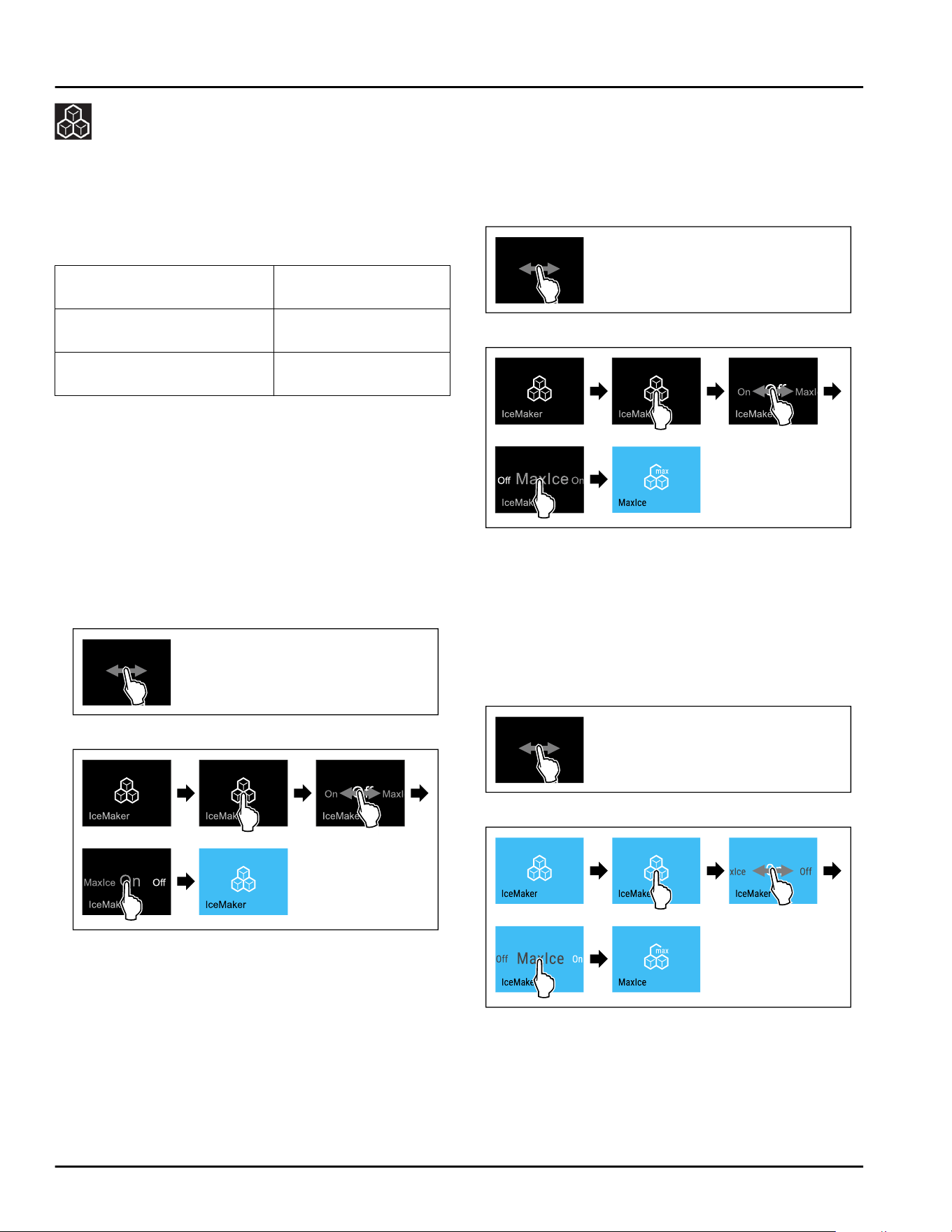
IceMaker / MaxIce
This function activates and deactivates the IceMaker
that produces ice cubes. Use the MaxIce function to
increase the amount of ice cubes that the IceMaker
produces. MaxIce is automatically deactivated after
48 hours. However, you can also manually deactivate
MaxIce at any time: (see Deactivating MaxIce)
More information on the
number of ice cubes:
(see 10.1 Technical
specifications)
More information on the
IceMaker water inflow:
(see IceMaker water
inflow)
More information on cleaning
the lines of the IceMaker:
(see TubeClean )
If the function is active, the appliance operates at a
higher output. As a result, the operating noise of the
appliance may be temporarily louder, while energy
consumption increases.
If you activate the VarioTemp function, the IceMaker is
automatically deactivated. (see VarioTemp)
Activating IceMaker
Make sure that the following requirements are fulfilled:
❑
The water supply is established at the fixed water
connection. See Assembly Manual.
❑
IceMaker is put into operation. (see8.11 IceMaker)
Fig.70
Fig.71
► Carry out action steps according to the illustration.
-or-
► Activate with the SmartDevice app.
▷ IceMaker is activated. It can take up to 24 hours for
the IceMaker to produce the first ice cubes.
Activating the IceMaker with MaxIce
If you have not activated the IceMaker function before,
make sure that the following requirements are met:
❑
The water supply is established at the fixed water
connection. See Assembly Manual.
❑
IceMaker is put into operation. (see8.11 IceMaker)
Fig.72
Fig.73
► Carry out action steps according to the illustration.
-or-
► Activate with the SmartDevice app.
▷ The IceMaker is activated with MaxIce.
Changing between the IceMaker and MaxIce
If you have activated IceMaker and would like to
change to MaxIce:
Fig. 74
Fig.75
► Carry out action steps according to the illustration.
▷ The IceMaker is activated with MaxIce.
If you have activated MaxIce and would like to change
to IceMaker:
Use
* Depending on model and options 25
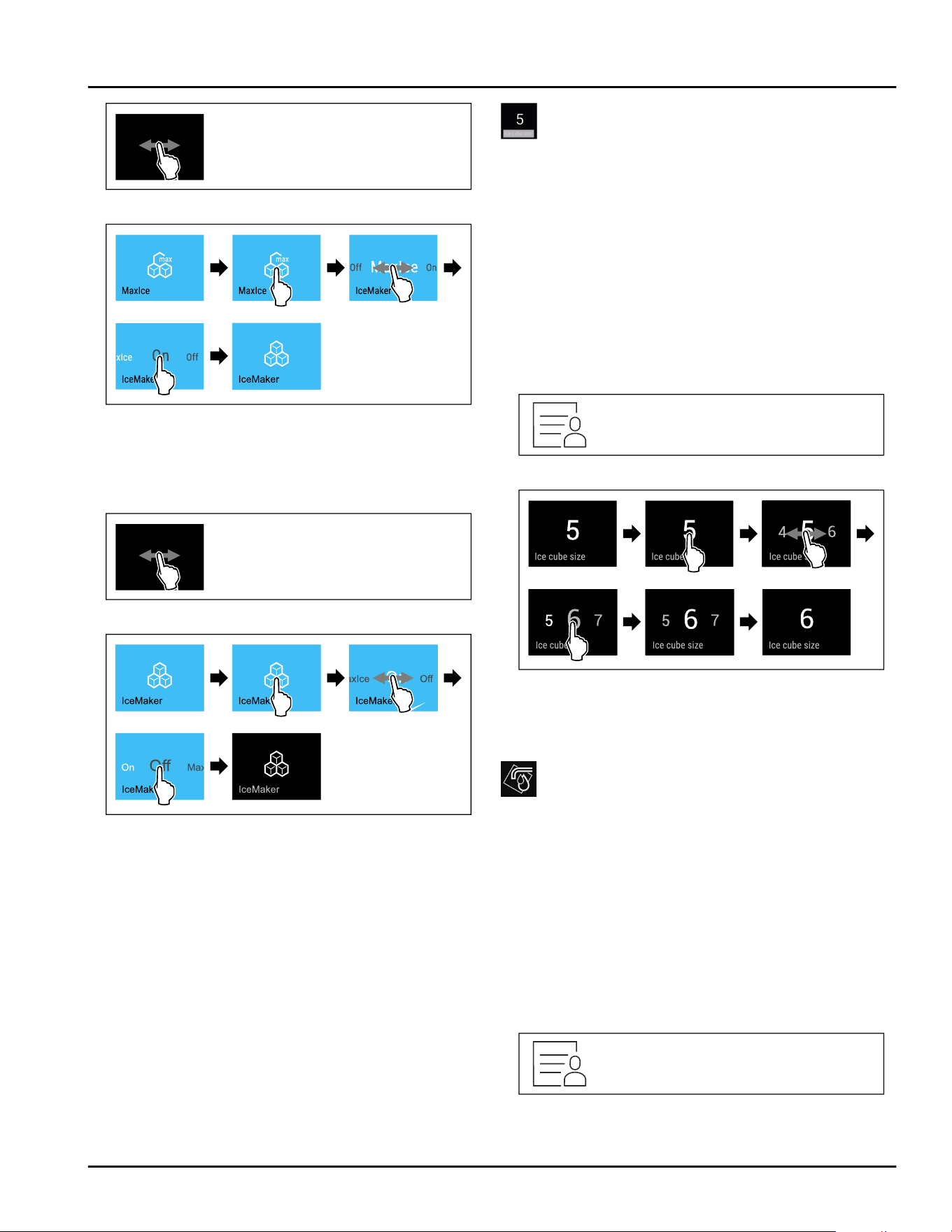
Fig. 76
Fig.77
► Carry out action steps according to the illustration.
▷ IceMaker is activated.
▷ MaxIce is deactivated.
Deactivating IceMaker and MaxIce
Fig.78
Fig. 79 Example illustration of the active IceMaker function
► Carry out action steps according to the illustration.
-or-
► Deactivate with the SmartDevice app.
▷ IceMaker and MaxIce are deactivated.
▷ If ice cubes are currently being made, the system
completes the process.
▷ The IceMaker goes off automatically.
Deactivating MaxIce
► Activate IceMaker. (see Activating IceMaker )
▷ MaxIce is deactivated.
▷ IceMaker is activated.
▷ Deactivating IceMaker and MaxIce: (see Deactivating
IceMaker and MaxIce)
IceMaker water inflow
Set the water inflow with this function. The water
inflow regulates the water inflow volume. You can
adjust the water inflow if it does not match the water
pressure and the size of the ice cubes dispensed.
Upon delivery, the water inflow is set to value 4. You
can select a value of between 1 (smallest inflow
volume) and 8 (largest inflow volume).
Setting the water inflow
Make sure that the following requirements are fulfilled:
❑
IceMaker has been started for the first time.
(see 4.3 Starting the IceMaker for the first time)
❑
IceMaker is activated. (see IceMaker / MaxIce )
Fig.80
Fig. 81 Example illustration: Switching from value 5 to
value6.
► Carry out action steps according to the illustration.
▷ Water inflow is set.
TubeClean
This function activates or deactivates TubeClean. Acti‐
vating TubeClean cleans the IceMaker lines.
Activating TubeClean
Make sure that the following requirements are fulfilled:
❑
IceMaker cleaning is prepared. (see 9.8.7 Cleaning
the IceMaker)
❑
Empty container with a capacity of 1.5 l (1.59 qt) and
with a maximum height of 10 cm (3 15/16 in) is
ready.
► Place the container into the drawer below the
IceMaker.
Fig.82
Use
26 * Depending on model and options
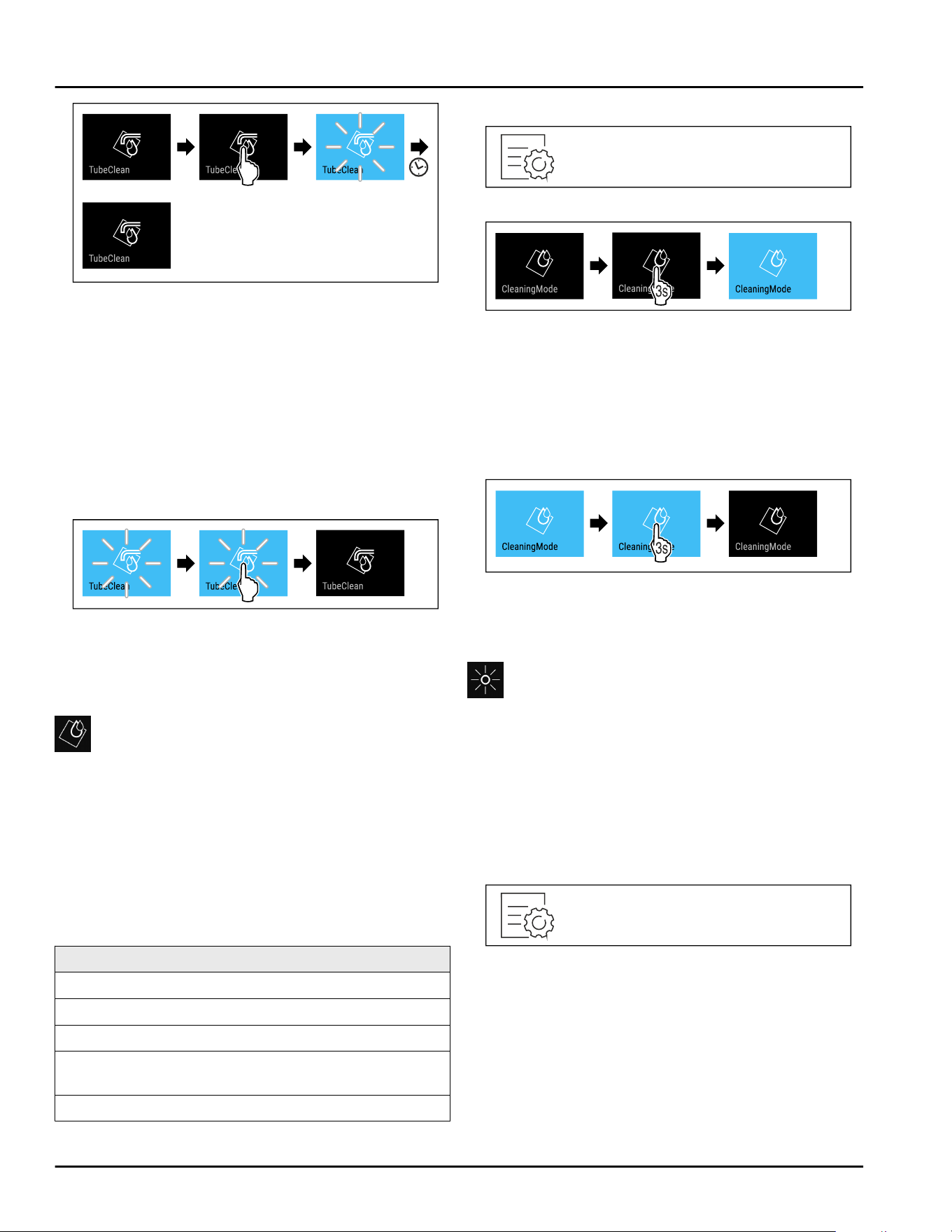
Fig.83
► Carry out action steps according to the illustration.
▷ TubeClean is activated.
▷ Cleaning process has started: Symbol flashes until
the cleaning process is automatically completed
after 60 minutes.
▷ When the cleaning process is completed: Appliance
continues to run in normal operation.
Deactivating TubeClean
TubeClean is automatically completed after
60 minutes. However, you can also deactivate Tube‐
Clean at any time during the cleaning process:
Fig.84
► Carry out action steps according to the illustration.
▷ TubeClean is deactivated: Cleaning process is
canceled.
▷ Appliance continues to run in normal operation.
CleaningMode
This function activates and deactivates CleaningMode.
CleaningMode enables you to comfortably clean the
appliance.
This setting relates to the fridge compartment.
Application:
-
Clean the fridge compartment. (see 9.8 Cleaning the
appliance)
-
Clean the InfinitySpring. (see 9.8.5 Cleaning the
InfinitySpring *) *
Appliance status with active CleaningMode
The status display continuously shows CleaningMode.
The fridge section is switched off.
The interior lighting is activated.
Reminders and warnings are not displayed. No signal
tone is sounded.
The InfinitySpring is out of order.*
Appliance status
Activating CleaningMode
Fig.85
Fig.86
► Carry out action steps according to the illustration.
▷ CleaningMode is activated.
▷ Status display continuously shows CleaningMode.
Deactivating CleaningMode
CleaningMode is automatically deactivated after
60 minutes. However, you can also manually deactivate
CleaningMode at any time:
Fig. 87
► Carry out action steps according to the illustration.
▷ CleaningMode is deactivated.
▷ The appliance first cools to the set temperature.
Display Brightness
Use this function to set the brightness of the display
gradually.
You can set the following brightness levels:
-
40%
-
60%
-
80%
-
100% (default setting)
Setting the brightness
Fig.88
Use
* Depending on model and options 27
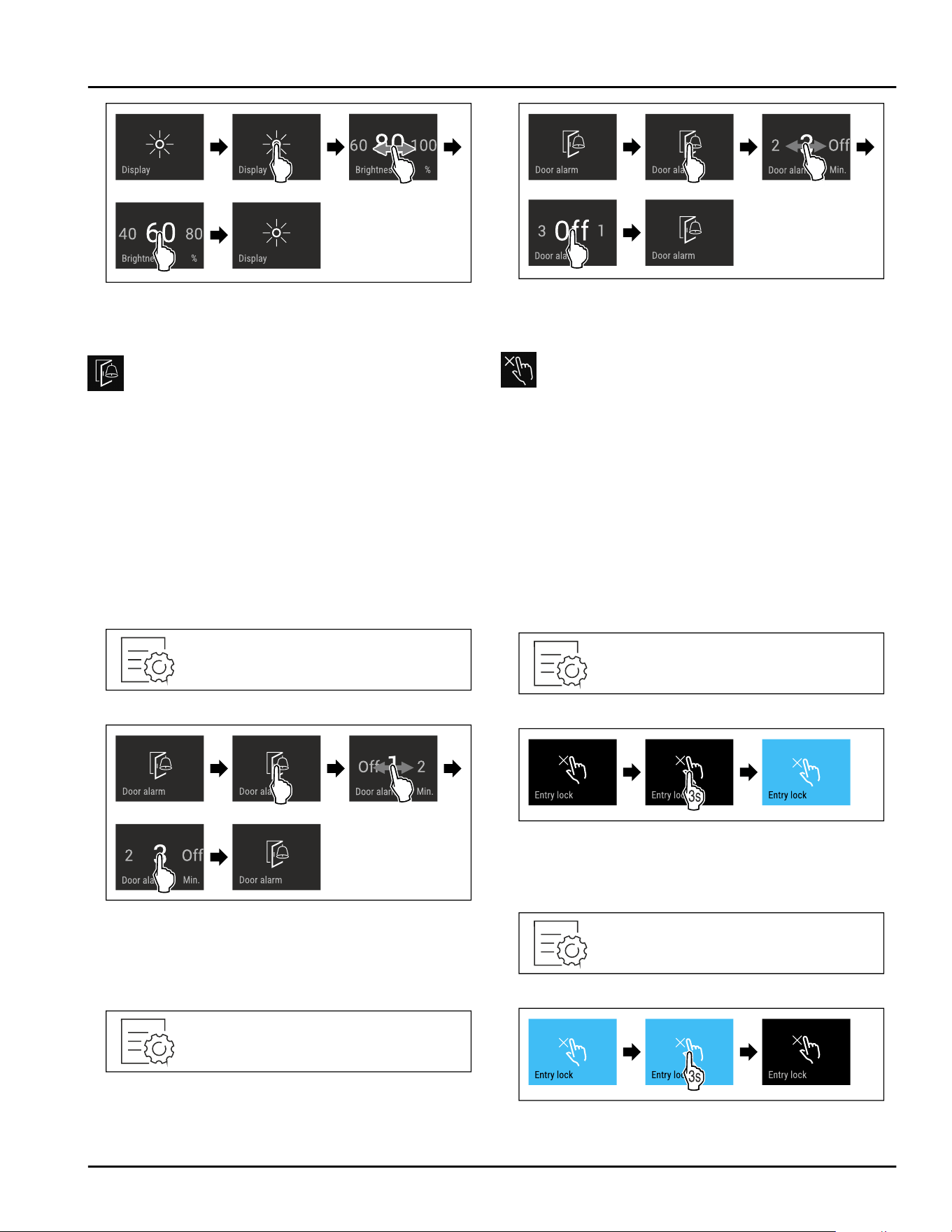
Fig. 89 Example illustration: Switching from 80 % to 60%.
► Carry out action steps according to the illustration.
▷ Brightness is set.
Door alarm
Use this function to activate or deactivate the door
alarm. The door alarm sounds if the door is open for
too long. The door alarm is activated upon delivery. You
can set how long to door can remain open until the
door alarm sounds.
You can set the following values:
-
1 minute
-
2 minutes
-
3 minutes
-
Off
Setting the door alarm
Fig.90
Fig. 91 Example illustration: Changing the door alarm from
1 minute to 3 minutes.
► Carry out action steps according to the illustration.
▷ Door alarm is set.
Deactivating door alarm
Fig. 93
Fig. 94
► Carry out action steps according to the illustration.
▷ Door alarm is deactivated.
Input lock
This function activates and deactivates the input lock.
The input lock prevents the appliance from being oper‐
ated accidentally, e. g. by children.
Application:
-
Prevent unintentional changes of functions.
-
Prevent switching off of the appliance.
-
Prevent unintentional temperature setting.
Activating the input lock
If you activate the input lock, you can continue to navi‐
gate in the menus, however you cannot select or
modify other functions.
Fig.95
Fig.96
► Carry out action steps according to the illustration.
▷ Input lock is activated.
Deactivating the input lock
Fig.97
Fig.98
► Carry out action steps according to the illustration.
Use
28 * Depending on model and options
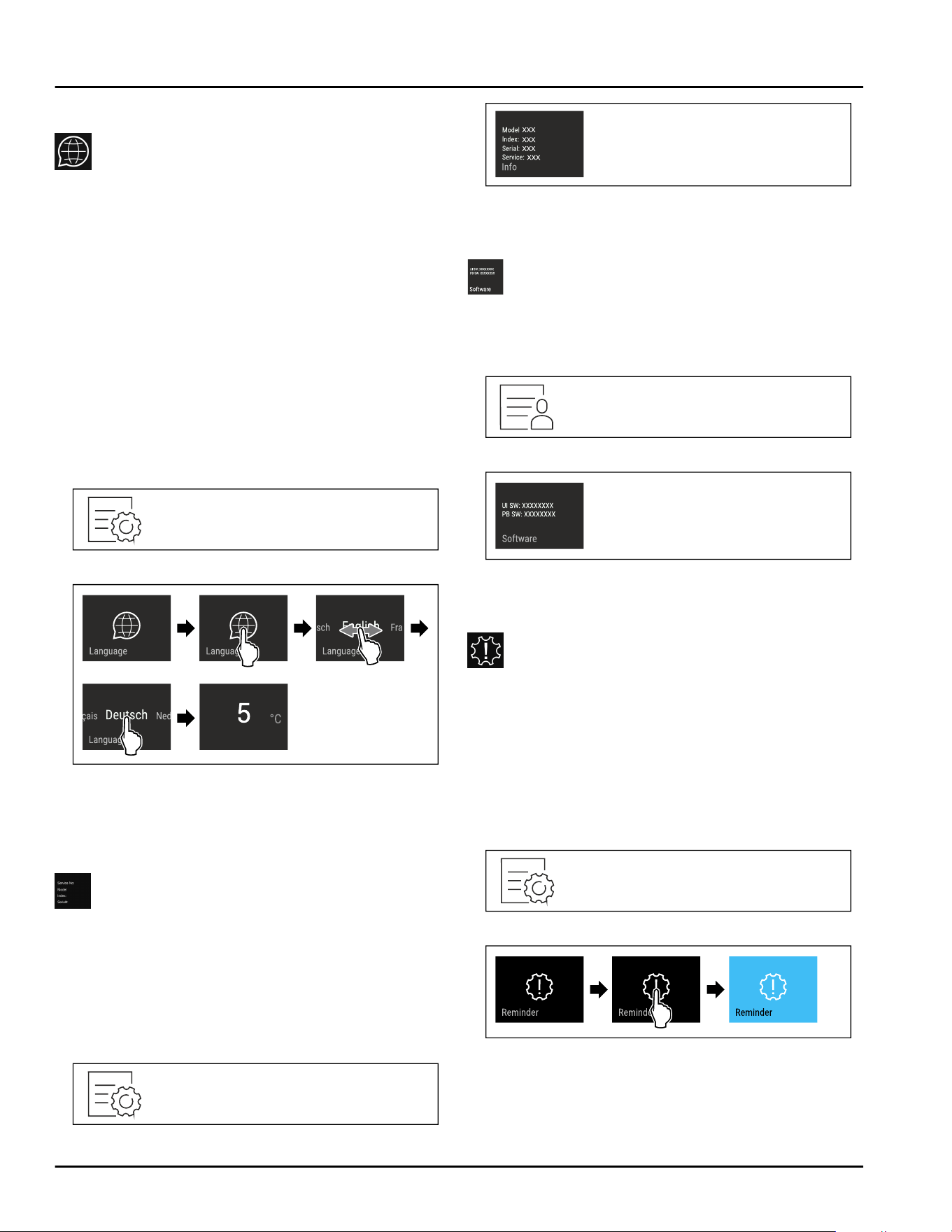
▷ Input lock is deactivated.
Language
Use this function to set the display language.
You can set the following languages:
-
German
-
English
-
French
-
Spanish
-
Italian
-
Dutch
-
Czech
-
Polish
-
Portuguese
-
Bulgarian
-
Russian
-
Chinese
Setting the language
Fig.99
Fig. 100 Example illustration depending on the language
and temperature
► Carry out action steps according to the illustration.
▷ Language is set.
▷ Display jumps back to the status display.
Appliance information
Use this function to display the model name, index,
serial number and service number of your appliance.
You will need the appliance information when you
contact customer service. (see 10.4 Customer Service)
You also use this function to open the expanded menu.
(see3 Functionality of the Touch&Swipe display)
Display appliance information
Fig. 101
Fig. 102
► Carry out action steps according to the illustration.
▷ Display shows the appliance information.
Software
Use this function to display the software version of
your appliance.
Display software version
Fig. 103
Fig. 104
► Carry out action steps according to the illustration.
▷ Display indicates the software version.
Reminder
Use this function to activate or deactivate reminder.
This function is activated upon delivery.
The following reminders will then appear if the func‐
tion is activated:
-
Replace water filter (see Replace water filter*) *
-
Replace the FreshAir activated charcoal filter
(see Replace FreshAir activated charcoal filter)
Activating reminder
Fig. 105
Fig. 106
► Carry out action steps according to the illustration.
▷ Reminder is activated.
Use
* Depending on model and options 29
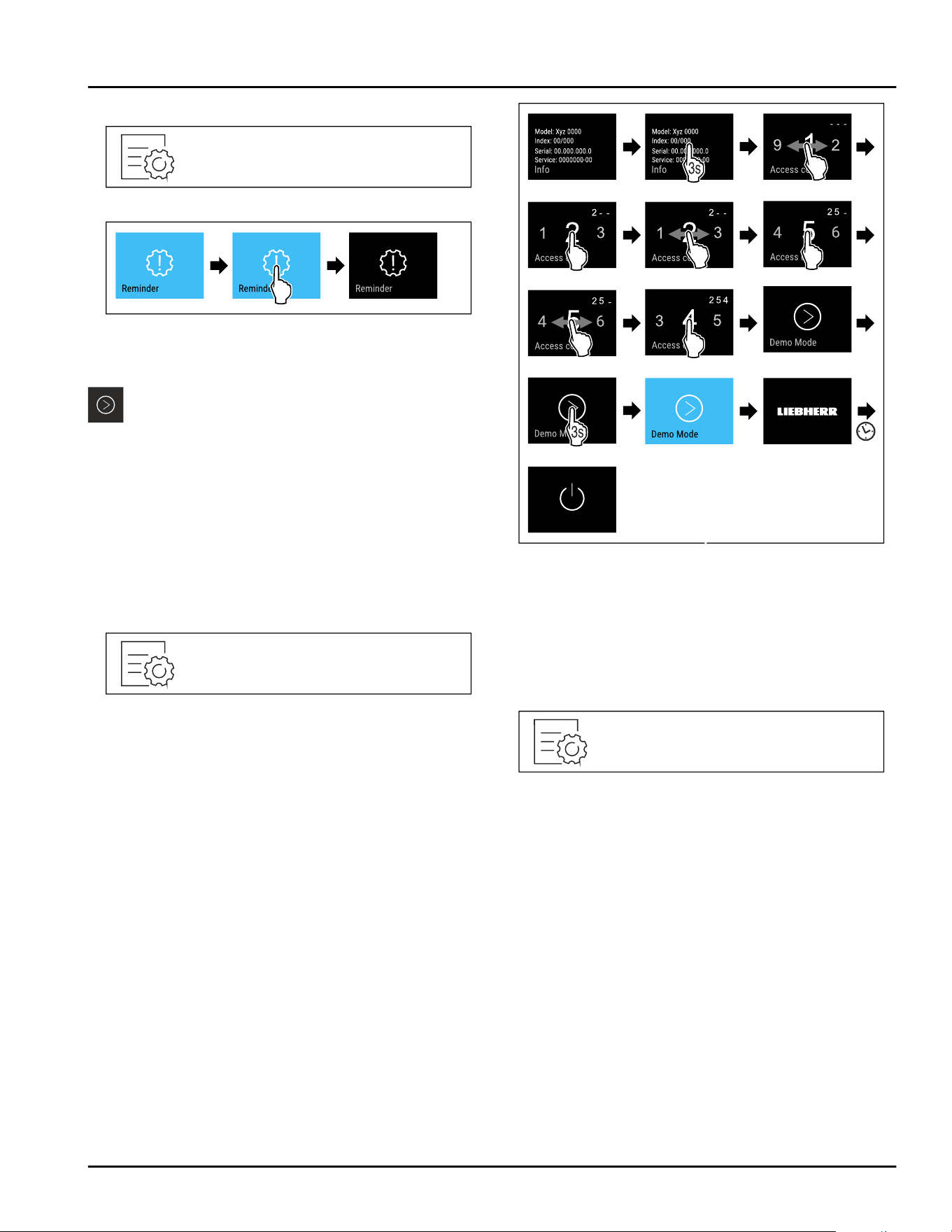
Deactivating reminder
Fig. 107
Fig. 108
► Carry out action steps according to the illustration.
▷ Reminder is deactivated.
Demo mode
Demo mode is a special feature for dealers who want
to demonstrate appliance features. If you activate
demo mode, all refrigeration functions are deactivated.
If you switch on your appliance and “Demo” appears in
the status display, then demo mode is already acti‐
vated.
If you activate and then deactivate demo mode, the
appliance will be reset to factory defaults. (see Reset‐
ting to factory settings)
Activating demo mode
Fig. 109
Fig. 110
► Carry out action steps according to the illustration.
▷ Demo mode is activated.
▷ Appliance is switched off.
► Switch on the appliance. (see4.1 Switching on appli‐
ance (first use))
▷ “DEMO” appears in the status display.
Deactivating demo mode
Fig.111
Use
30 * Depending on model and options
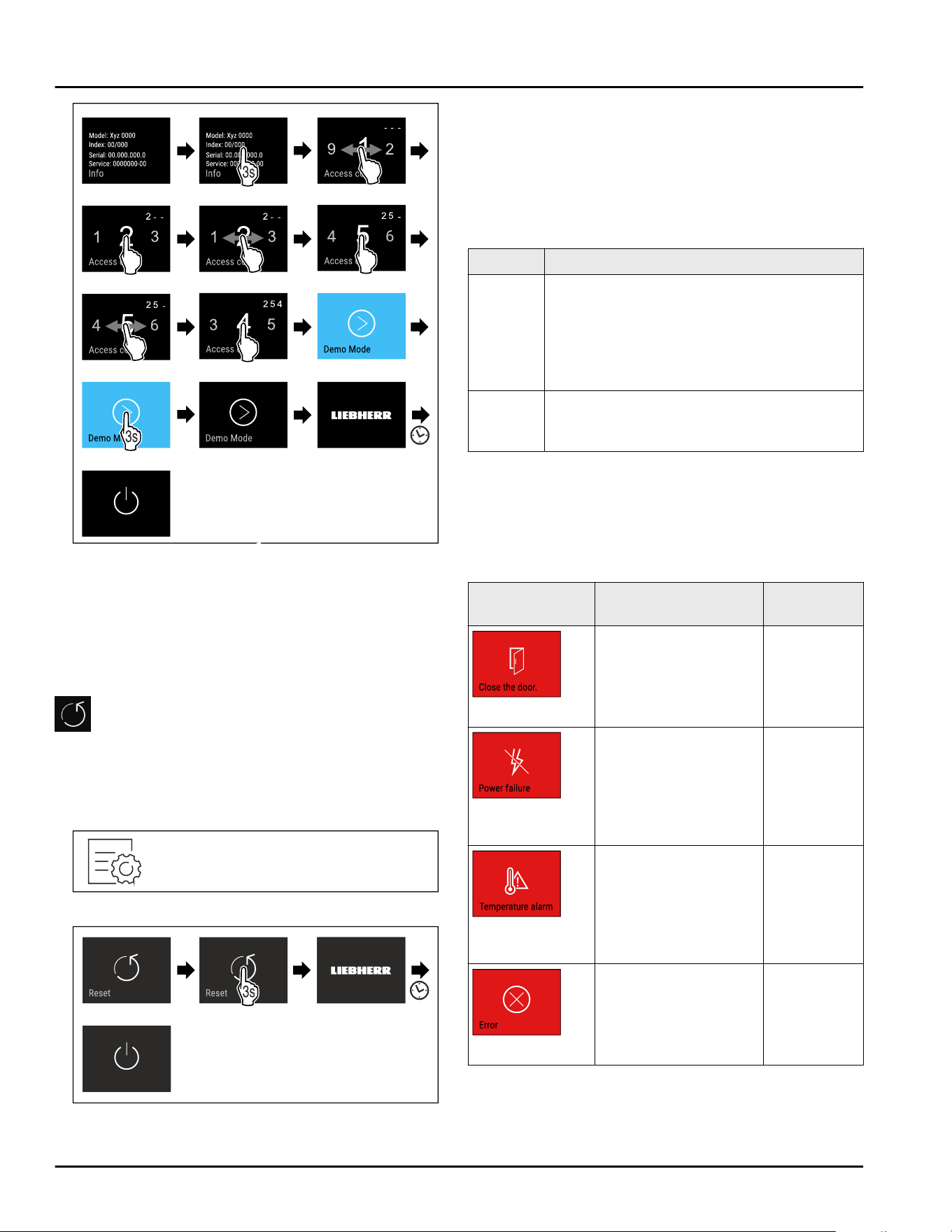
Fig.112
► Carry out action steps according to the illustration.
▷ Demo mode is deactivated.
▷ Appliance is switched off.
► Switch on the appliance. (see4.1 Switching on appli‐
ance (first use))
▷ Appliance is reset to factory settings.
Resetting to factory settings
Use this function to reset all settings to factory
settings. All settings you have made so far are reset to
their original settings.
Performing a reset
Fig.113
Fig. 114
► Carry out action steps according to the illustration.
▷
Appliance is reset.
▷ Appliance is switched off.
► Restart the appliance. (see 4.1 Switching on appli‐
ance (first use))
7.3 Messages
There are two categories of messages:
Category Meaning
Warning Warnings are displayed if there is a door
alarm or a malfunction.
You can easily end warnings yourself. For
any major malfunction, you must contact
Customer Service. (see 10.4 Customer
Service)
Reminder Reminders remind you of general
processes. You can perform these
processes and end the message doing so.
7.3.1 Overview of warnings
The appliance’s behavior in the event of a warning:
-
Warning appears in the display in red.
-
Alarm sounds in increasing volume.
-
For some warnings the interior lighting pulses.
Message
Cause Ending the
message
Door alarm
The message appears
if the door is open for
too long.
Carry out
action steps
(see Door
alarm) .
Power failure
alarm
The message appears
if the freezing temper‐
ature increases due to
a power outage.
Temperature
alarm
The message appears
if the freezing temper‐
ature does not corre‐
spond to the set
temperature.
Carry out
action steps
(see Temper
ature
alarm) .
Error
This message appears
if there is an appli‐
ance error. An appli‐
ance module indi‐
cates an error.
Carry out
action steps
(see Error) .
Use
* Depending on model and options 31
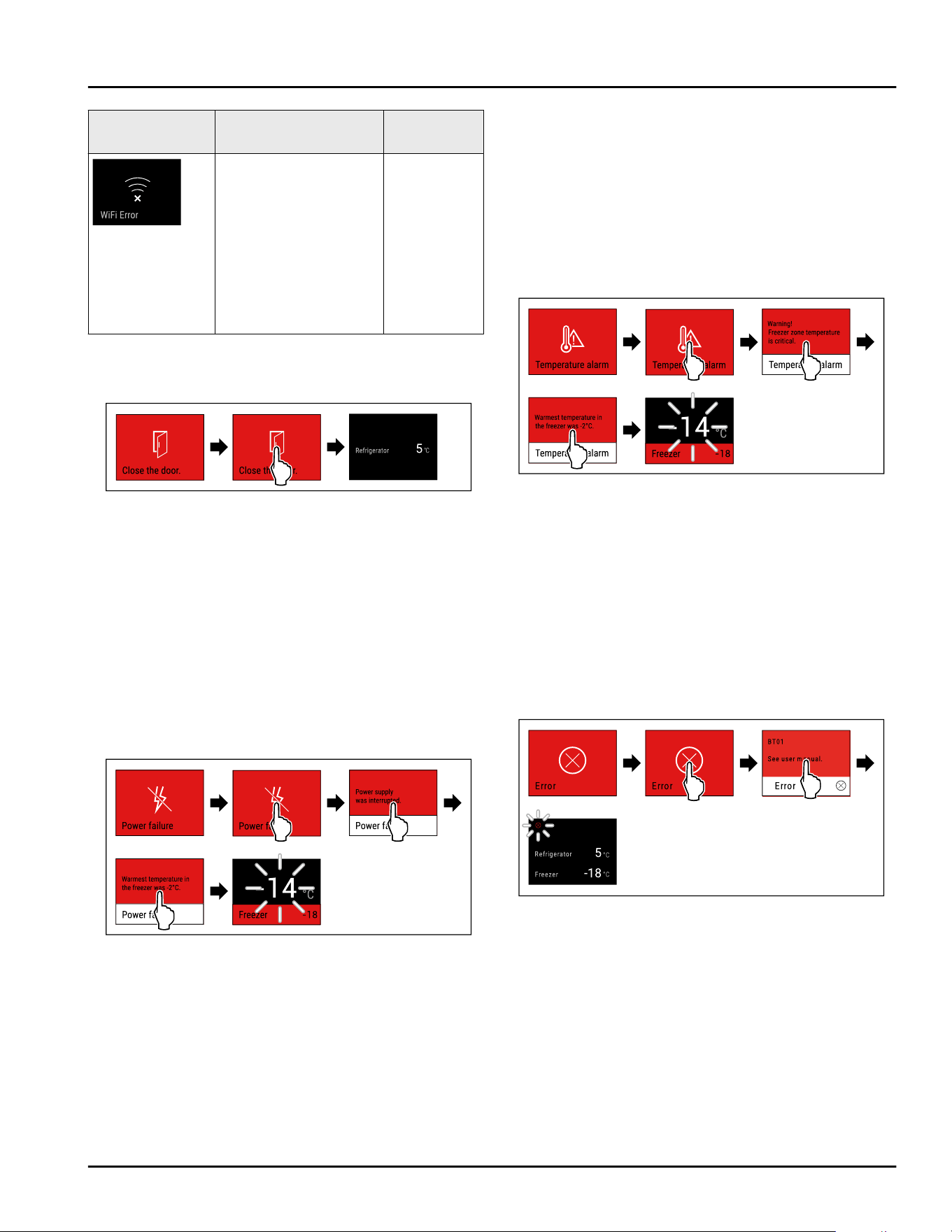
Message Cause Ending the
message
WLAN error
This message appears
if the appliance could
not be connected to
WLAN. (see Estab‐
lishing the WiFi
connection for the
first time) This
message only appears
the first time the
appliance is set up.
Carry out
action steps
(see WLAN
error) .
7.3.2 Ending warnings
Door alarm
Fig. 115 Example illustration
► Carry out action steps according to the illustration.
-or-
► Close the door.
▷ Display skips to status display.
You can set how long to door may remain open until
the door alarm sounds. (see Setting the door alarm)
Power failure alarm
Once the power failure has ended, the appliance auto‐
matically cools to the target temperature set earlier
without you having to confirm the message. But you
must confirm it in order for the message to disappear
on the display.
Fig. 116 Example illustration
► Briefly touch the display.
▷ Display shows information about the warning.
► Briefly touch the display.
▷ The warmest freezing temperature is displayed.
▷ If the freezing temperature was below -9 °C (16 °F):
Food can still be eaten.
If the freezing temperature exceeded -9°C(16°F):
► Check the food.
► Briefly touch the display.
▷ Display skips to status display: The current tempera‐
ture and target temperature are displayed.
Temperature alarm
Causes for the temperature differences may be:
-
You have put in warm, fresh food.
-
Too much warm room air has flowed in during the
rearrangement and removal of food.
-
The power has been out for a longer period of time.
-
The appliance is defective.
► Remedy the cause.
▷ The appliance cools to the target temperature set
earlier:
Fig. 117 Example illustration
► Briefly touch the display.
▷ Display shows information about the warning.
► Briefly touch the display.
▷ The warmest freezing temperature is displayed.
▷ If the freezing temperature was below -9 °C (16 °F):
Food can still be eaten.
If the freezing temperature exceeded -9°C(16°F):
► Check the food.
► Briefly touch the display.
▷ Display skips to status display: The current tempera‐
ture and target temperature are displayed.
Error
Fig. 118 Example illustration
► Briefly touch the display.
▷ Error code is displayed.
► Make a note of the error code.
► Briefly touch the display.
▷ Display skips to status display.
► Contact Customer Service. (see 10.4 Customer
Service)
WLAN error
► Check the WLAN connection.
► Connect the appliance to the WLAN again.
(seeWiFi)
Use
32 * Depending on model and options
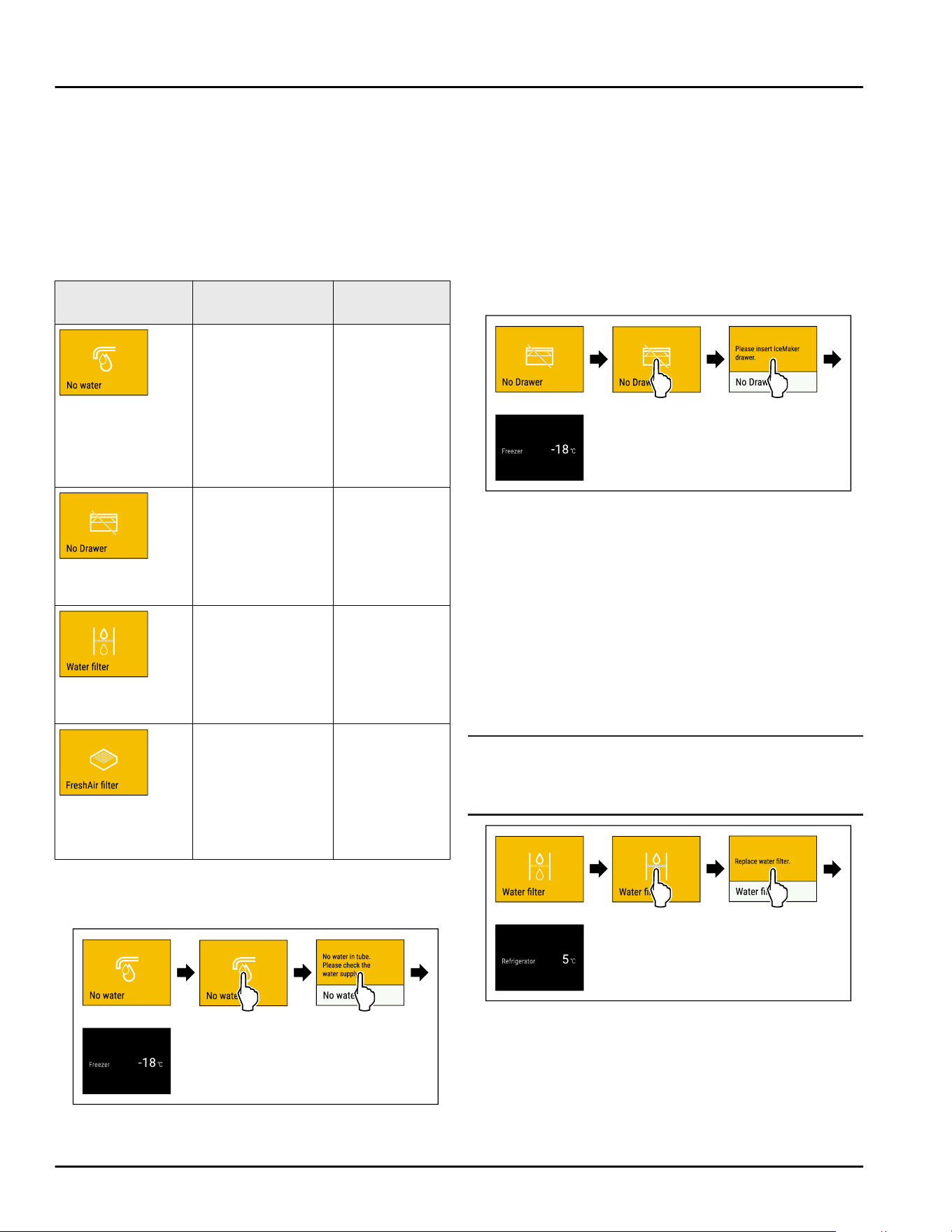
7.3.3 Overview of reminders
The appliance’s behavior in the event of a reminders:
-
Reminder appears in the display in yellow.
-
Alarm tone sounds.
-
For some reminders the interior lighting pulses.
You can deactivate the following reminders (see Deac‐
tivating reminder) :
-
Replace FreshAir activated charcoal filter
Message Cause Ending the
message
Check water
connection
This message
appears if the
IceMaker is active,
but the IceMaker
is no longer being
supplied with
water by a perma‐
nent water
connection.
Carry out
action steps
(see Check
water connec‐
tion) .
Push in the
IceMaker drawer
This message
appears if the
IceMaker is active,
but the IceMaker
drawer is open.
Carry out
action steps
(see Push in
the IceMaker
drawer) .
*
Replace water
filter*
This message
appears if you
have to replace
the water filter.*
Carry out
action steps
(see Replace
water filter*) .*
Replace FreshAir
activated char‐
coal filter
This message
appears if you
have to replace
the FreshAir acti‐
vated charcoal
filter.
Carry out
action steps
(see Replace
FreshAir acti‐
vated charcoal
filter) .
7.3.4 Ending reminders
Check water connection
Fig. 119 Example illustration
► Briefly touch the display
▷
Display shows information about the reminder.
► Briefly touch the display
► Check the water connection.
-or-
► Deactivate IceMaker. (see Deactivating IceMaker and
MaxIce)
If the water connection has been checked and
IceMaker is activated:
► Clean the IceMaker. (see 9.8.7 Cleaning the IceMaker)
▷ IceMaker is producing ice cubes.
Push in the IceMaker drawer
Fig. 120 Example illustration
► Briefly touch the display.
▷ Display shows information about the reminder.
► Briefly touch the display.
► Push in the IceMaker drawer.
-or-
► Deactivate IceMaker. (see IceMaker / MaxIce )
▷ If the IceMaker drawer is pushed in and IceMaker is
active: IceMaker is producing ice cubes.
Replace water filter*
Liebherr recommends: Replace the water filter every
6 months.
Note
The water filter can be purchased from the Liebherr
Service Center. The address for your respective country
can be found on the back of the instructions.
Fig. 121 Example illustration
► Briefly touch the display.
▷ Display shows information about the reminder.
► Briefly touch the display.
► Replace water filter. (see 9.3 Water filter*)
▷ Water filter ensures optimum water quality.
▷ Reminder appears again after 6 months.
Use
* Depending on model and options 33
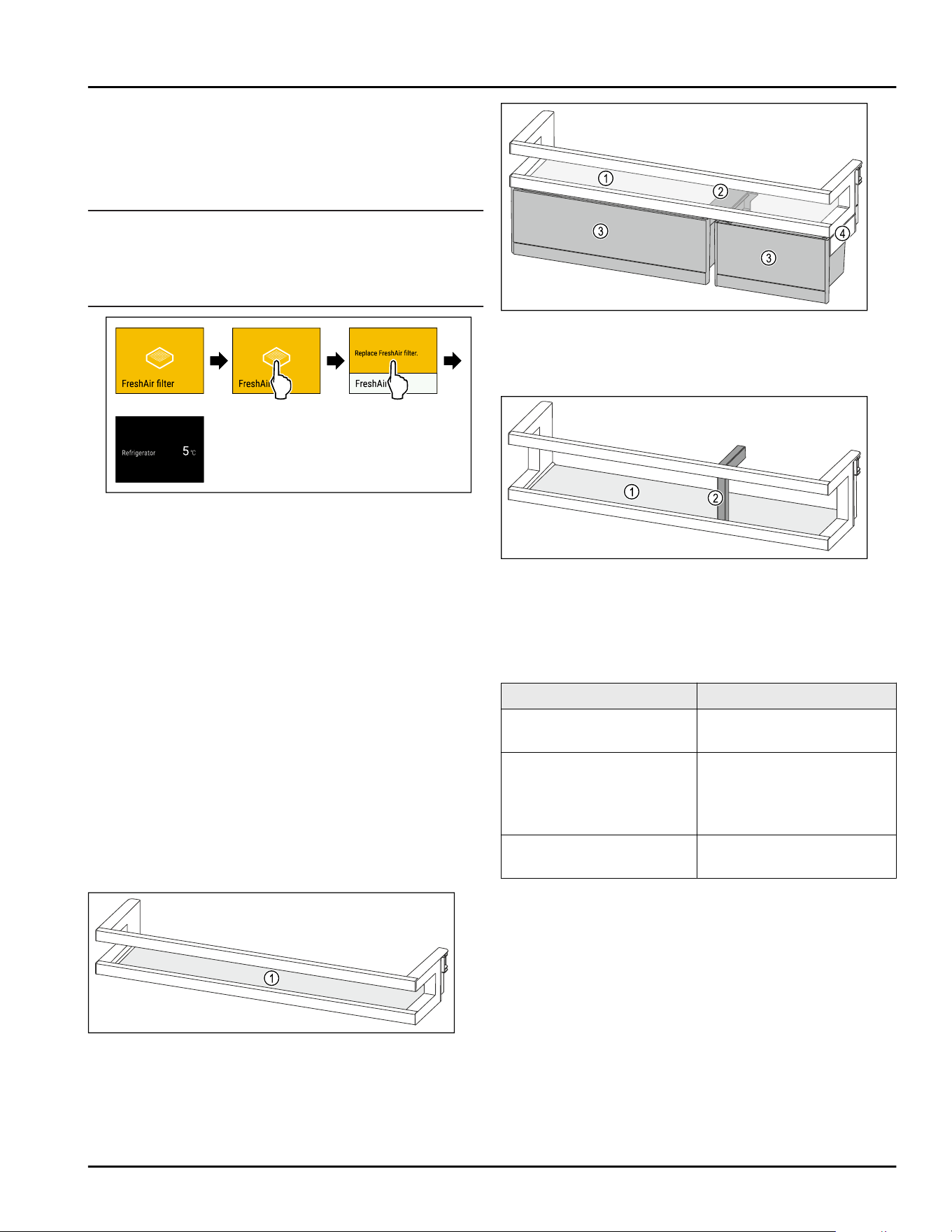
If you no longer want to keep this reminder, you can
deactivate the reminder. (see Deactivating reminder)
Replace FreshAir activated charcoal filter
Liebherr recommends: Replace the FreshAir activated
charcoal filter every 6 months.
Note
FreshAir activated charcoal filters can be purchased
from the Liebherr Service Center. The address for your
respective country can be found on the back of the
instructions.
Fig. 122 Example illustration
► Briefly touch the display.
▷ Display shows information about the reminder.
► Briefly touch the display.
► Replace activated charcoal filter. (see 9.1 FreshAir
carbon filter)
▷ The activated charcoal filter ensures optimum air
quality in the refrigerator.
▷ Reminder appears again after 6 months.
If you no longer want to keep this reminder, you can
deactivate the reminder. (see Deactivating reminder)
8 Equipment
8.1 Door racks
Door racks are suitable for storing beverages and food.
You can move door racks for use as individually needed
and disassemble them for cleaning. However, Liebherr
recommends using the door racks in the position they
are in when delivered from the plant.
Fig. 123 Example illustration of the door racks
(1)
Shelf
Fig. 124 Example illustration of door racks with VarioBoxes
(1)
Shelf (3) VarioBoxes
(2) Retaining part for
VarioBoxes
(4) Side section
Fig. 125 Example illustration of the door racks with bottle
holder
(1)
Shelf (2) Bottle holder
The following table shows examples of what you can
store in each door rack. Here, make sure that you do
not exceed the maximum loading weight for the door.
Door racks
Food
Door racks (see Fig.123) Butter, cheese, canned
food, tubes
Door racks with bottle
holder (see Fig.125)
Bottles
Use the movable bottle
holder to secure the
bottles in the door rack.
Door racks with Vario‐
Boxes (see Fig. 124)
small food items
8.1.1 Removing the VarioBoxes
You can use either one or both VarioBoxes. If you want
to place especially high bottles in the door rack below
the door rack with VarioBoxes, you can remove one or
both VarioBoxes.
Equipment
34 * Depending on model and options
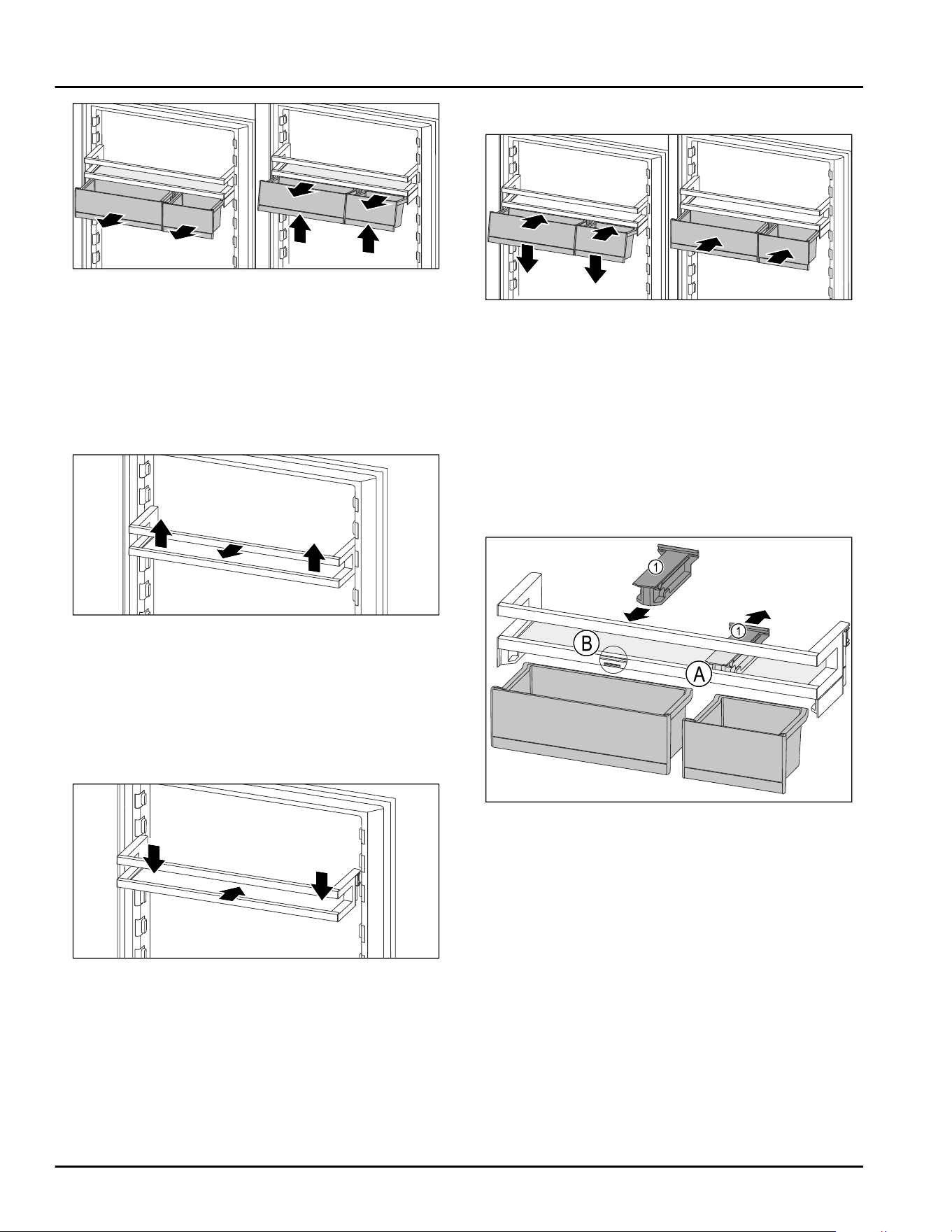
Fig. 126
► Pull out the VarioBoxes as far as they go.
► Lift VarioBoxes at the front.
► Take the VarioBoxes out to the front.
8.1.2 Removing the door rack
Make sure that the following requirements are fulfilled:
❑
VarioBoxes are removed. (see 8.1.1 Removing the
VarioBoxes)
Fig. 127 Example illustration
► Move the door rack up.
► Move the door rack to the front.
8.1.3 Inserting the door rack
Make sure that the following requirements are fulfilled:
❑
VarioBoxes are removed. (see 8.1.1 Removing the
VarioBoxes)
Fig. 128 Example illustration
► Insert the door rack.
► Press the door rack down.
8.1.4 Inserting the VarioBoxes
Fig.129
► Place the VarioBoxes at an angle on the ridge of the
door rack.
► Lower the VarioBoxes.
► Push in the VarioBoxes.
8.1.5 Repositioning the VarioBoxes
Make sure that the following requirements are fulfilled:
❑
VarioBoxes are removed. (see 8.1.1 Removing the
VarioBoxes)
❑
Door rack is removed. (see 8.1.2 Removing the door
rack)
Fig.130
► Pull off the retaining part Fig. 130 (1) in position
Fig.130(A) downward.
► Insert the retaining part Fig. 130 (1) in position
Fig.130(B).
► Insert the door rack. (see 8.1.3 Inserting the door
rack)
Equipment
* Depending on model and options 35
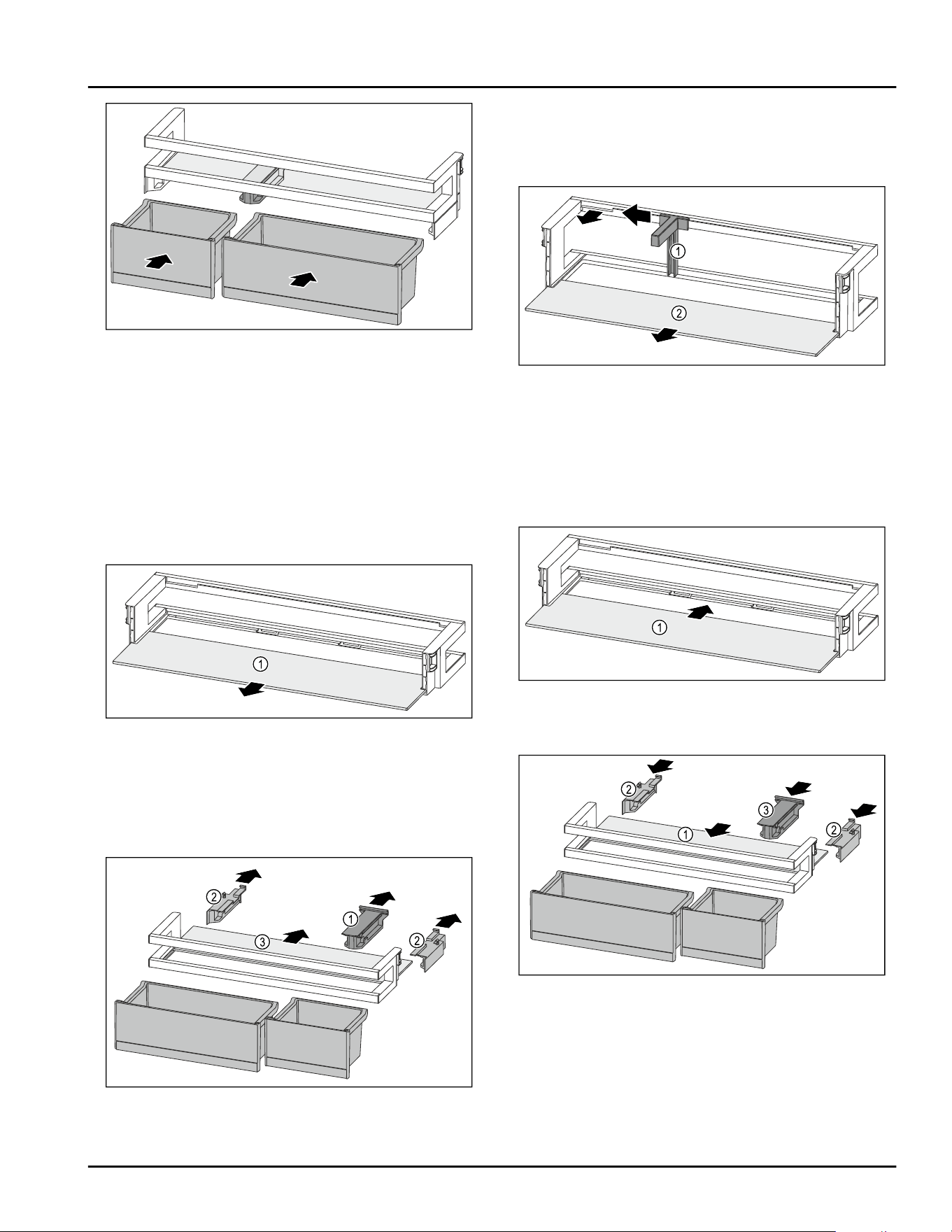
Fig.131
► Insert the VarioBoxes opposite order. (see Fig.131)
8.1.6 Disassembling the door rack
You can disassemble some of the door racks if you
want to clean the door rack or if you’d like to insert or
remove replacement parts.
Disassembling the door rack
Make sure that the following requirements are fulfilled:
❑
Door rack is removed. (see 8.1.2 Removing the door
rack)
Fig. 132 Door racks with shelf
► Remove the shelf Fig.132(1).
Disassembling the shelf with VarioBoxes
Make sure that the following requirements are fulfilled:
❑
Door rack is removed. (see 8.1.2 Removing the door
rack)
Fig.133
► Remove theVarioBoxes. (see 8.1.1 Removing the Vari‐
oBoxes)
►
Pull off the retaining part Fig.133(1).
► Pull off the side part Fig.133(2).
► Remove the shelf Fig.133(3).
Disassembling the door racks with bottle holder
Fig. 134 Door racks with bottle holder and shelf
► Push the bottle holder Fig.134(1) to the side up to the
recess.
► Remove the bottle holder Fig.134(1).
► Remove the shelf Fig.134(2).
8.1.7 Assembling the door rack
Assembling the door rack
Fig. 135 Door racks with shelf
► Push the shelf Fig.135(1) into the side cutouts.
Assembling the door rack with VarioBoxes
Fig.136
► Push the shelf Fig.136(1) into the side cutouts.
► Insert the side parts Fig.136(2).
► Insert the retaining part Fig.136(3).
► Insert the VarioBoxes. (see 8.1.4 Inserting the Vario‐
Boxes)
Equipment
36 * Depending on model and options
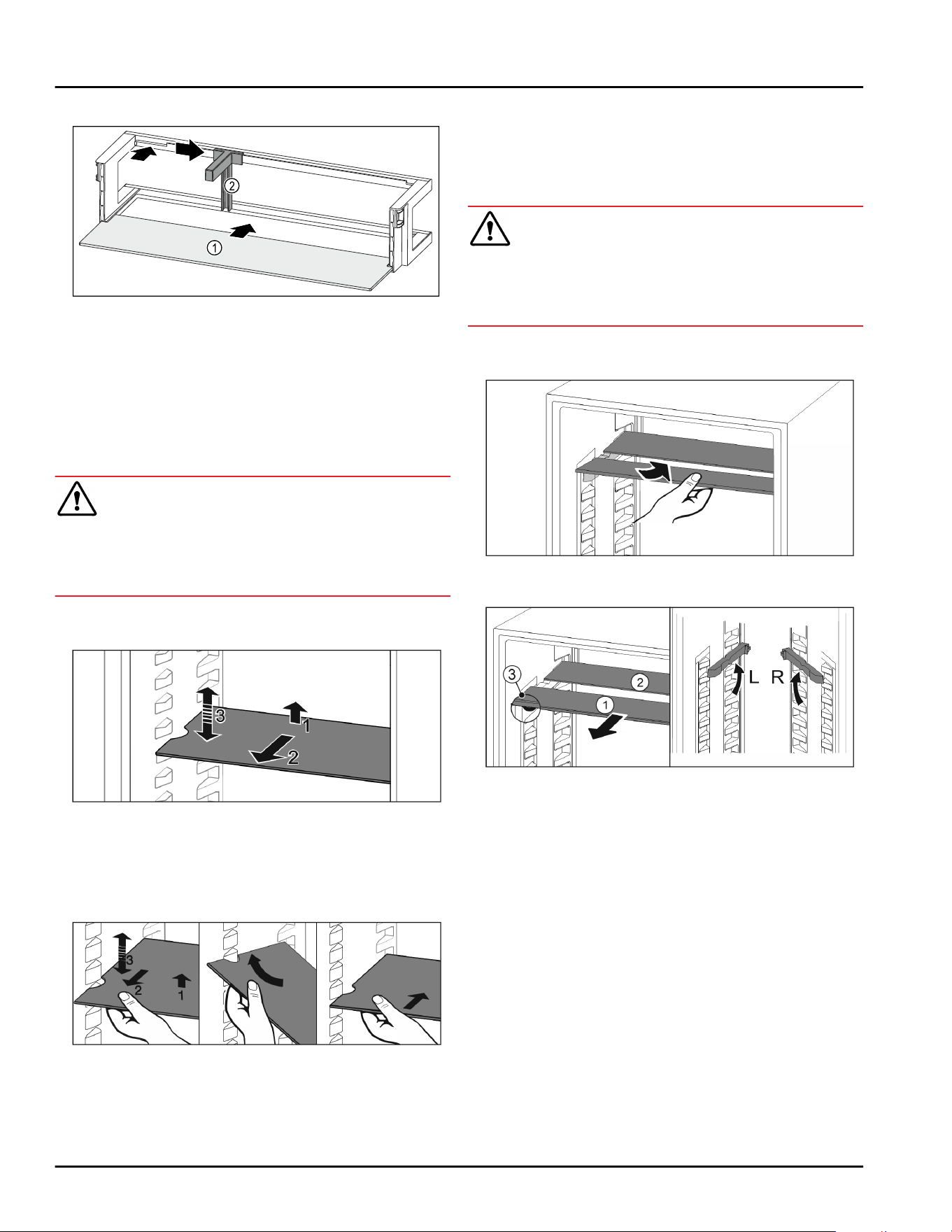
Assembling the door racks with bottle holder
Fig. 137 Door racks with shelf
► Push the shelf Fig.137(1) into the side cutouts.
► Insert the bottle holder Fig.137(2) into the recess.
► Push the bottle holder Fig. 137 (2) to the side into the
desired position.
8.2 Shelves*
8.2.1 Moving/removing shelves
CAUTION
Broken shelves!
Danger of cuts.
► Only remove storage shelves when there is nothing
on them
Extension stops secure the shelves against being acci‐
dentally pulled out
Fig.138
► Lift the shelf and pull to the front.
▷ Side recess to shelf position.
► Reposition the shelf: Lift up or lower to the desired
height and insert.
-or-
Fig. 139
► Take out the shelf completely: Pull out to the front.
► Easier removal: Set the shelf at an angle.
► Reinsert the shelf: Push it in to its stop limit.
▷ Pull-out stoppers are pointing down.
▷
Pull-out stoppers are behind the front shelf.
8.3 Split shelf
8.3.1 Using the split shelf
CAUTION
Broken shelves!
Danger of cuts.
► Only remove storage shelves when there is nothing
on them
Extension stops secure the shelves against being acci‐
dentally pulled out
Fig. 140
► Push the split shelf underneath as in the illustration
Fig. 141
Adjusting heights:
► Pull the glass panels out Fig. 141 (1) from the front,
one at a time.
► Pull the support rails out of their retainers and snap
into place at the height you want them.
► Slide in the glass panels one at a time.
▷ Flat pull-out stoppers at the front, right behind the
support rail.
▷ Taller pull-out stoppers at the back.
Using both shelves:
► Hold the bottom glass panel with one hand and pull
it to the front.
▷ The glass panel Fig. 141(1) with the trim strip is at the
front.
▷ The stops Fig. 141(3) point downward.
Equipment
* Depending on model and options 37
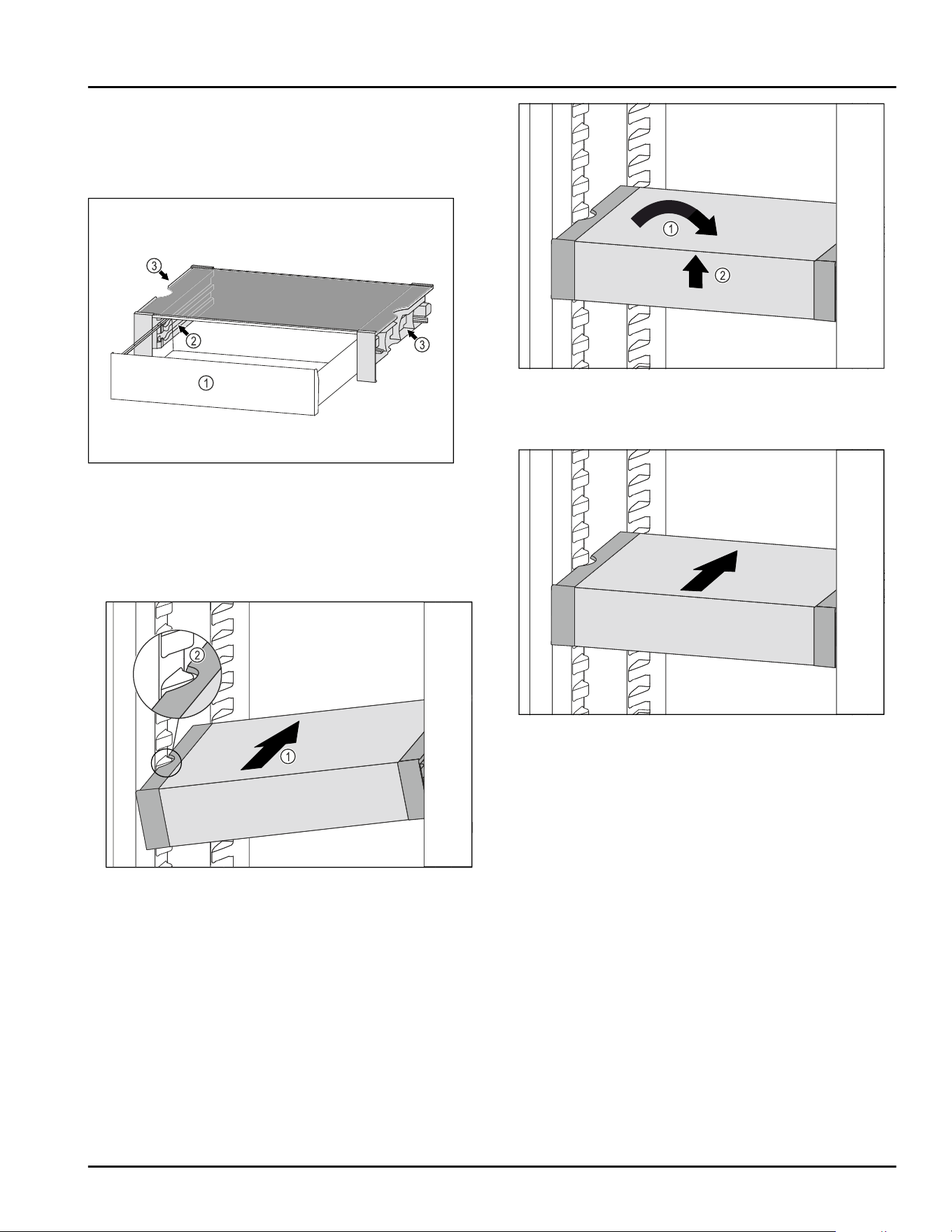
8.4 VarioSafe
The VarioSafe offers space in the refrigerator compart‐
ment for small groceries, packages, tubes and jars, for
example.
Fig. 142
(1)
VarioSafe drawer (3) Recesses on the left
and right side panel
(2) Side panels with ribs
for VarioSafe drawer
8.4.1 Inserting the VarioSafe
Fig. 143
► Insert the VarioSafe into the refrigerator compart‐
ment at an angle Fig. 143 (1) until the recesses in the
side Fig. 143(2) of the VarioSafe are at the level of the
support rib in the refrigerator compartment.
Fig. 144
► Set VarioSafe straight. Fig. 144(1)
► Lift VarioSafe at the front. Fig. 144(2)
Fig. 145
► Lift VarioSafe up toward the front.
► Push VarioSafe in to the rear.
► Lower VarioSafe.
▷ VarioSafe audibly engages.
▷ VarioSafe is inserted.
8.4.2 Repositioning the VarioSafe
You can move the VarioSafe as a whole in the refriger‐
ator compartment.
Equipment
38 * Depending on model and options
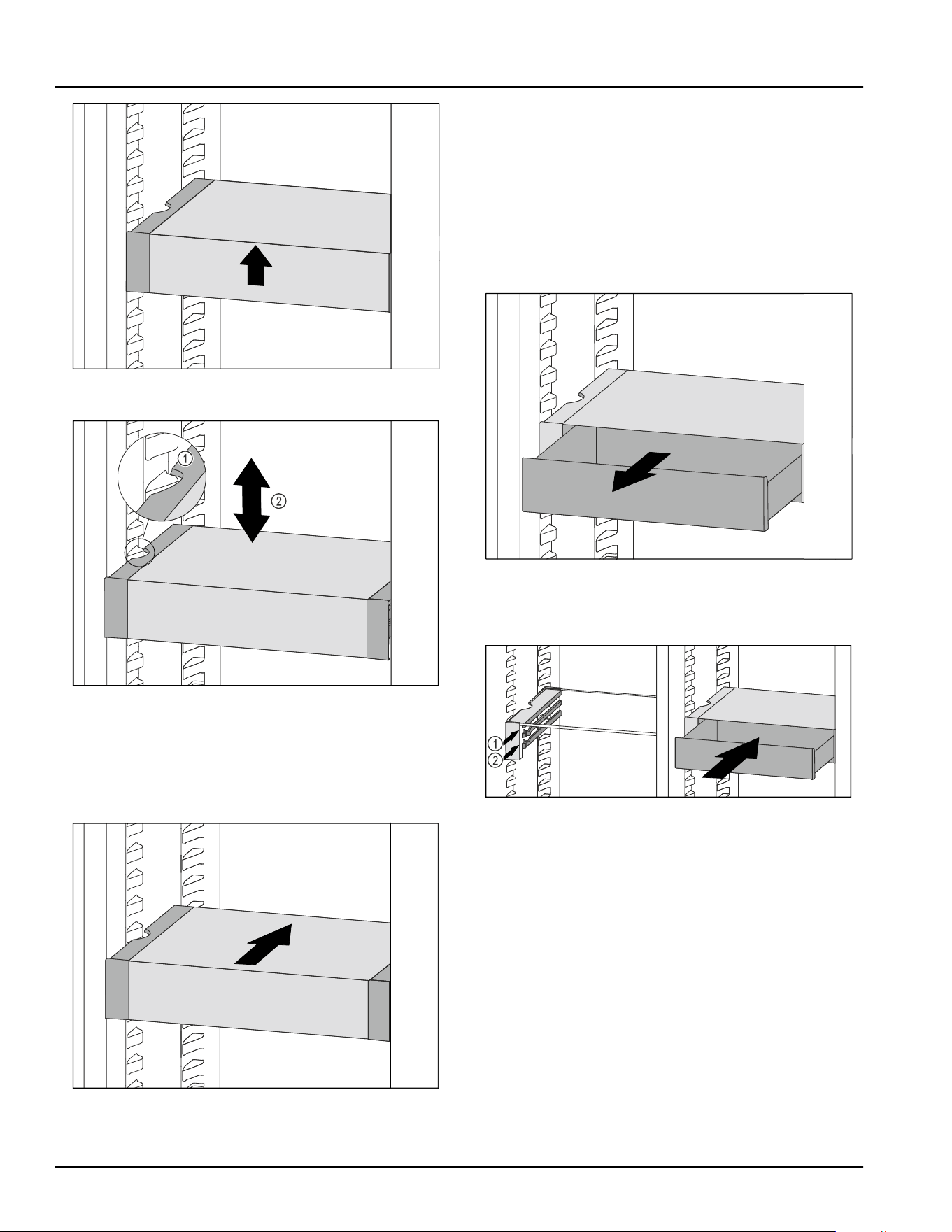
Fig. 146
► Lift VarioSafe at the front.
Fig. 147
► Pull VarioSafe forwards until the recesses in the side
of the VarioSafe are at the level of the support rib in
the refrigerator compartment. Fig. 147(1)
► Move VarioSafe up or down in the refrigerator
compartment until the desired height is reached.
Fig. 147(2)
Fig. 148
► Lift VarioSafe at the front.
► Push VarioSafe in to the rear.
▷
VarioSafe audibly engages.
▷ VarioSafe is offset in height.
8.4.3 Moving the VarioSafe drawer
You can use the VarioSafe drawer at two different
heights. If you would like to store taller foodstuffs in
the VarioSafe drawer, slide the VarioSafe drawer in on
the bottom rib. If you would like to store smaller food‐
stuffs in the VarioSafe drawer, slide the VarioSafe
drawer in on the top rib.
Fig. 149
► Pull out the VarioSafe drawer as far as it will go.
► Lift the VarioSafe drawer up at the front.
► Remove the VarioSafe drawer to the front.
Fig. 150
► Lift the VarioSafe drawer up at the front.
► Place the VarioSafe drawer behind the stoppers on
desired rib Fig. 150(1) or Fig. 150(2).
▷ VarioSafe drawer is offset in height.
8.4.4 Removing the VarioSafe
You can remove the VarioSafe as a whole.
Equipment
* Depending on model and options 39
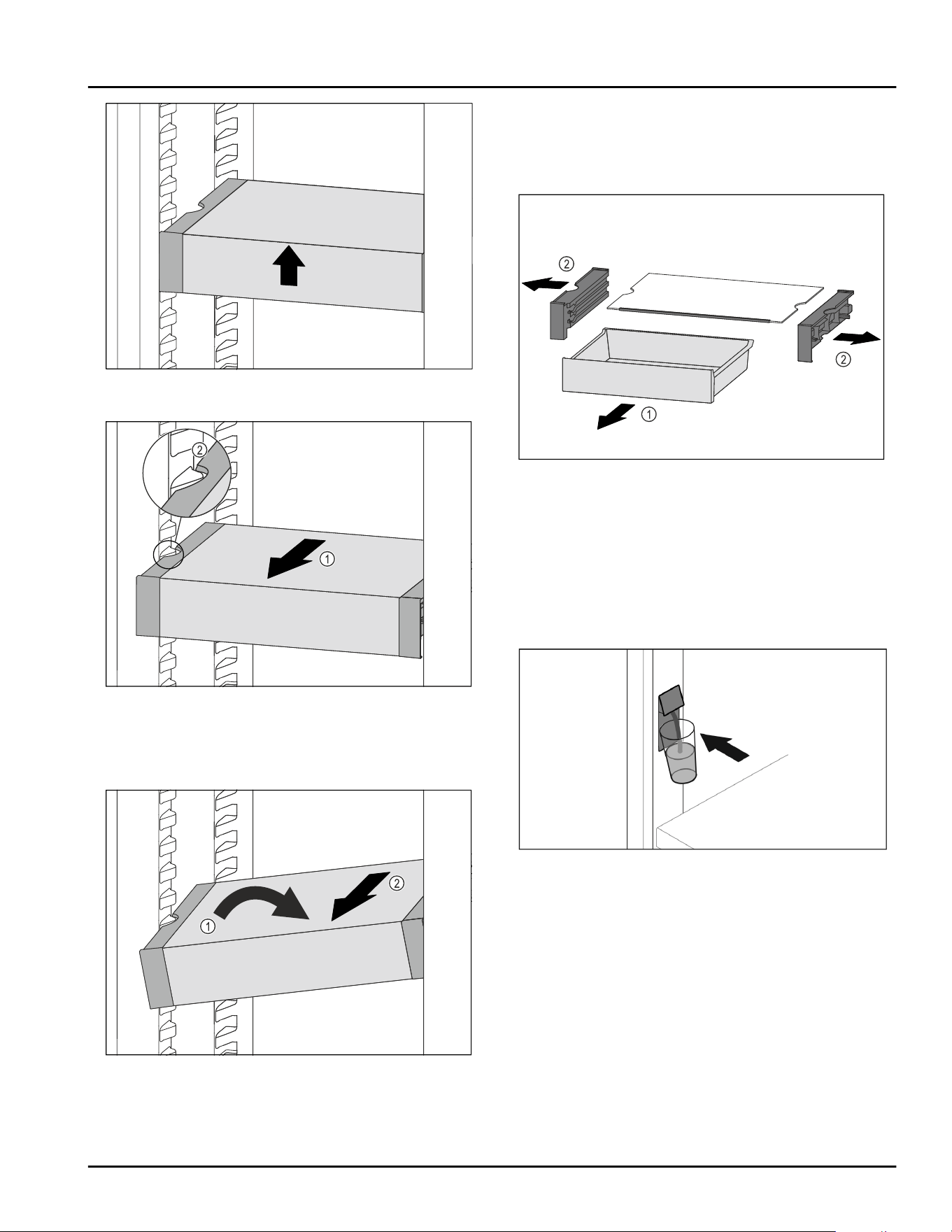
Fig. 151
► Lift VarioSafe at the front.
Fig. 152
► Pull VarioSafe forward Fig. 152(1) until the recesses in
the side of the VarioSafe are at the level of the
support rib in the refrigerator compartment.
Fig. 152(2)
Fig. 153
► Set VarioSafe in refrigerator compartment at an
angle. Fig. 153(1)
► Take VarioSafe out to the front. Fig. 153(2)
▷ VarioSafe is removed.
8.4.5 Disassembling the VarioSafe
You can disassemble the VarioSafe into its individual
parts if you want to clean the VarioSafe or if you need
to install or remove parts.
Fig. 154
► Remove VarioSafe as a whole. (see 8.4.4 Removing
the VarioSafe )
► Disassemble VarioSafe according to the illustration.
8.5 InfinitySpring*
The built-in water dispenser provides convenient
drinking water. The water temperature depends on the
temperature in the fridge.
Fig. 155
► Push the glass against the button pushbutton of the
dispenser.
▷ The outlet unit moves out: water pours into the
glass.
► Avoid splashes: Remove the glass slowly.
If dispensing larger quantities of water:
► If the water flow stops, remove the water tank and
push your container against the button push button
of the dispenser again.
8.6 Variable bottle shelf
You can use either the glass shelf or the variable bottle
shelf on the floor of the fridge section. The glass shelf
is inserted upon delivery.
Equipment
40 * Depending on model and options
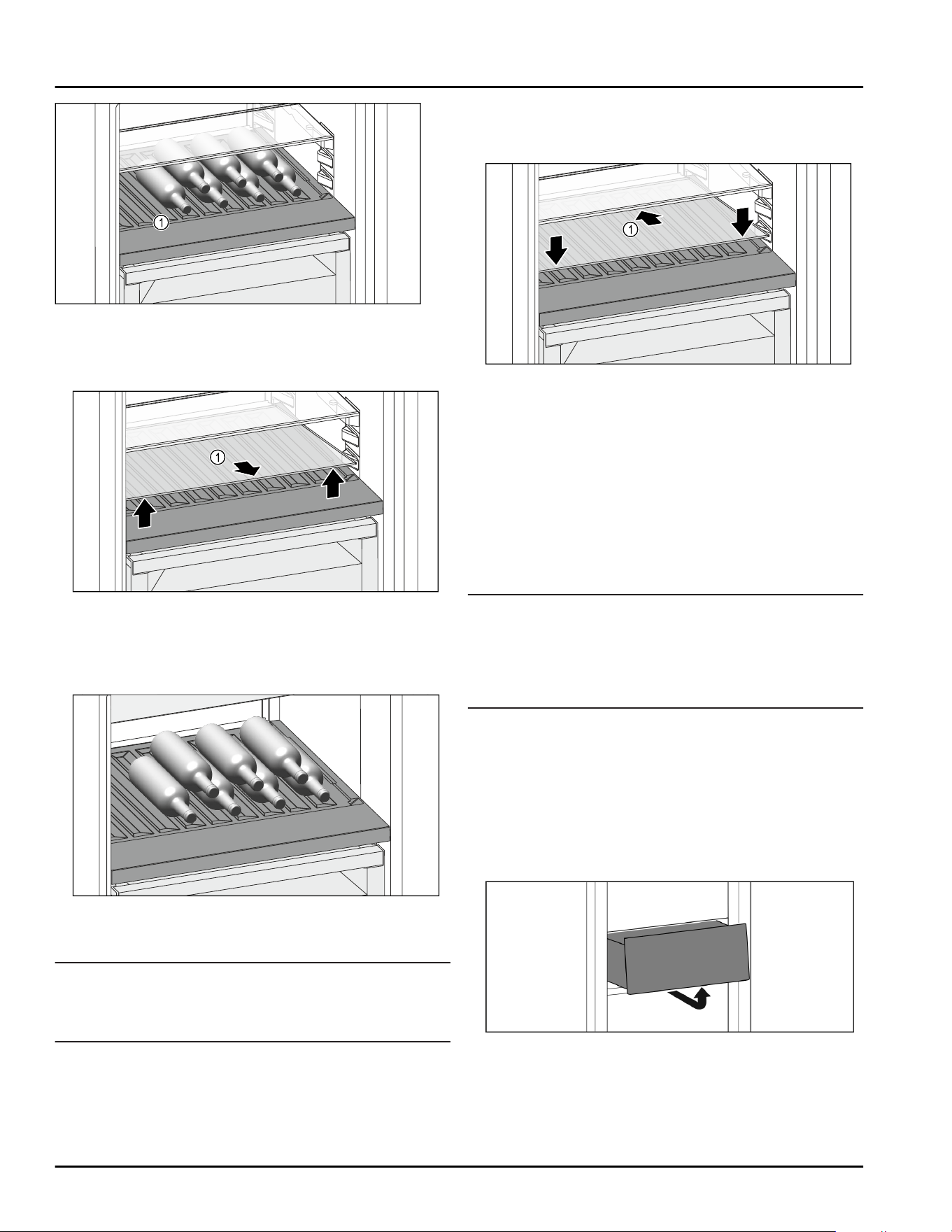
Fig. 156 Example illustration
(1)
Variable bottle rack
8.6.1 Using the variable bottle shelf
Fig. 157
► Lift the glass shelf Fig. 157 (1) in the front at the
recess and pull it out.
► Store the glass shelf Fig. 157 (1) somewhere safe
outside of the appliance.
Fig. 158
► Insert the bottles facing backwards towards the rear
wall. (see Fig. 158)
Note
If the bottles protrude towards the front over the vari‐
able bottle shelf:
► Set the lower door rack one position higher.
8.6.2 Using the glass shelf
Make sure that the following requirements are fulfilled:
❑
Bottles are removed.
❑
The variable bottle shelf has been cleaned.
(see
9.5 Removing / inserting the variable bottle
shelf)
(see 9.8.4 Cleaning the equipment)
Fig. 159
► Place the glass shelf Fig. 159 (1) at an angle, tilted
back and down.
► Lower the glass shelf Fig. 159(1) at the front.
8.7 Drawers
You can remove the drawers for cleaning.
You can remove the drawers to use VarioSpace.
The way to remove/insert the drawers varies
depending on the pull-out system. Your appliance can
contain a variety of pull-out systems.
Note
Insufficient ventilation results in an increase in energy
consumption and reduction of the refrigerating
performance.
► Leave the bottom drawer in appliance!
► Never obstruct the vents on the interior rear wall!
8.7.1 Drawer on appliance base or glass
shelf
The drawer runs directly on the appliance base or on a
glass shelf. There are no rails.
When you remove the drawers, you can use the glass
shelves below them as storage shelves.
Removing drawer
Fig. 160
► Remove drawer as shown in the diagram.
Equipment
* Depending on model and options 41
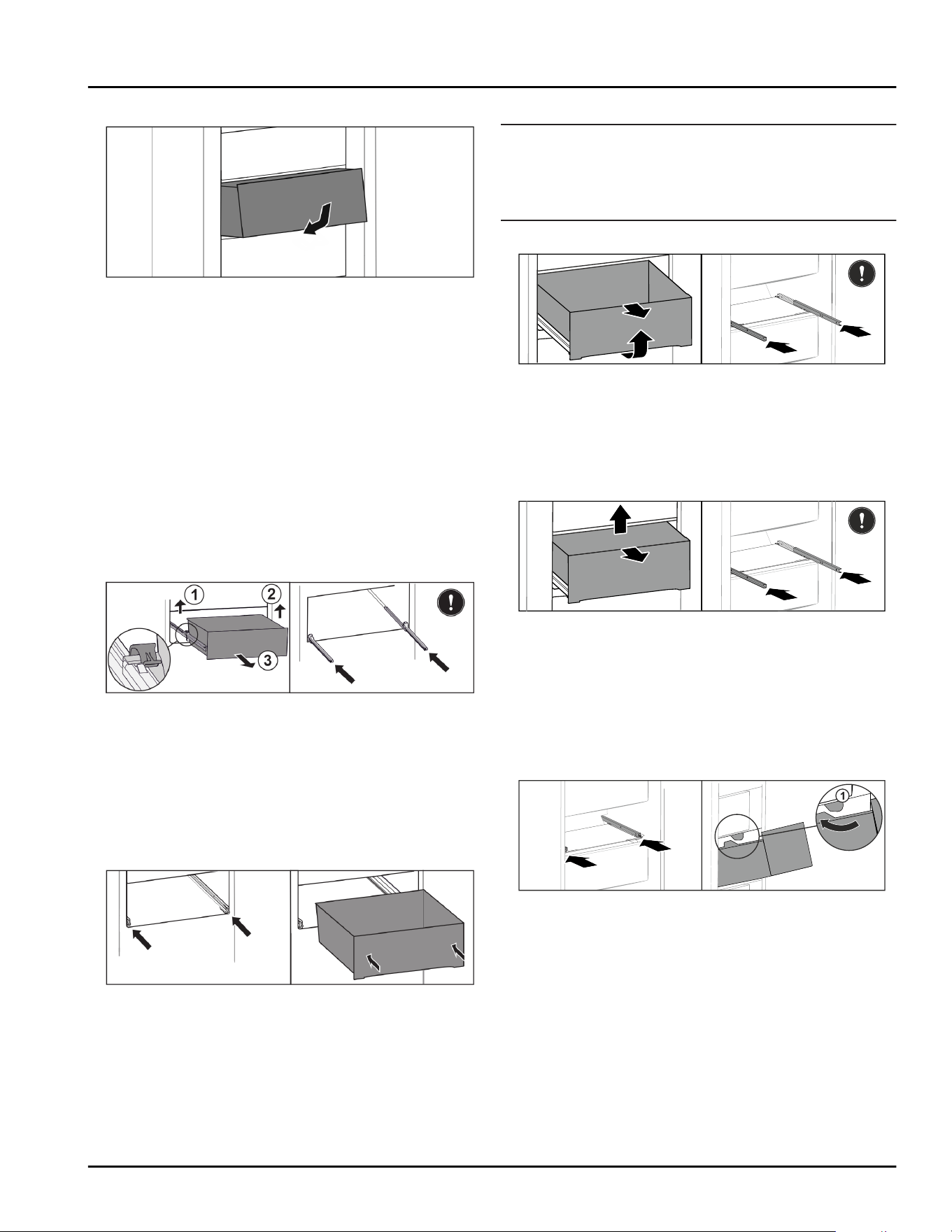
Inserting drawer
Fig. 161
► Insert drawer as shown in the diagram.
8.7.2 Drawer on telescopic rails
The drawer runs on full-extension rails (telescopic
rails). There are full-extension telescopic rails and tele‐
scopic rails with partial pull-out. Drawers which are full
extension can be pulled out fully from the appliance.
Drawers with partial pull-out cannot be pulled out fully
from the appliance. The system in your appliance
depends on the type of appliance.
Full extension
If you have full-extension rails, there is a clamp located
at the back on the left and right of the rail.
Removing drawer
Fig. 162
► Pull out drawer as far as it will go.
► Lift left clamp and simultaneously pull drawer
forwards on the left. Fig. 162(1)
► Lift right clamp and simultaneously pull drawer
forwards on the right. Fig. 162(2)
► Remove drawer to the front. Fig. 162(3)
► Slide rails in.
Inserting drawer
Fig. 163
► Slide rails in.
► Place drawer on rails.
► Slide in drawer to the back.
▷ Drawer latches in audibly at the back.
Partial pull-out freezing compartment*
Note
If the magnet on the top drawer in the freezing
compartment is damaged or removed, the door sensor
will malfunction.
► Do not damage or remove the magnet.
Removing drawer
Fig. 164
If the drawer is in the top freezer:
► Pull out drawer as far as it will go.
► Lift up the front of the drawer.
► Remove the drawer from the front.
► Slide rails in.
-or-
Fig. 165
If the drawer is in the middle of the freezing
compartment:
► Pull out drawer halfway.
► Lift the back of the drawer from the bottom.
► Remove the drawer from the front.
► Slide rails in.
Inserting drawer
Fig. 166
► Slide rails in.
► Guide drawer around the stoppers Fig. 166(1).
► Place drawer on rails.
► Slide in drawer to the back.
8.8 Lid for Fruit & Vegetable-safe
The lid ensures constant levels of humidity.
The lid is located directly on the drawer and can be
covered by shelves or additional drawers.
Equipment
42 * Depending on model and options
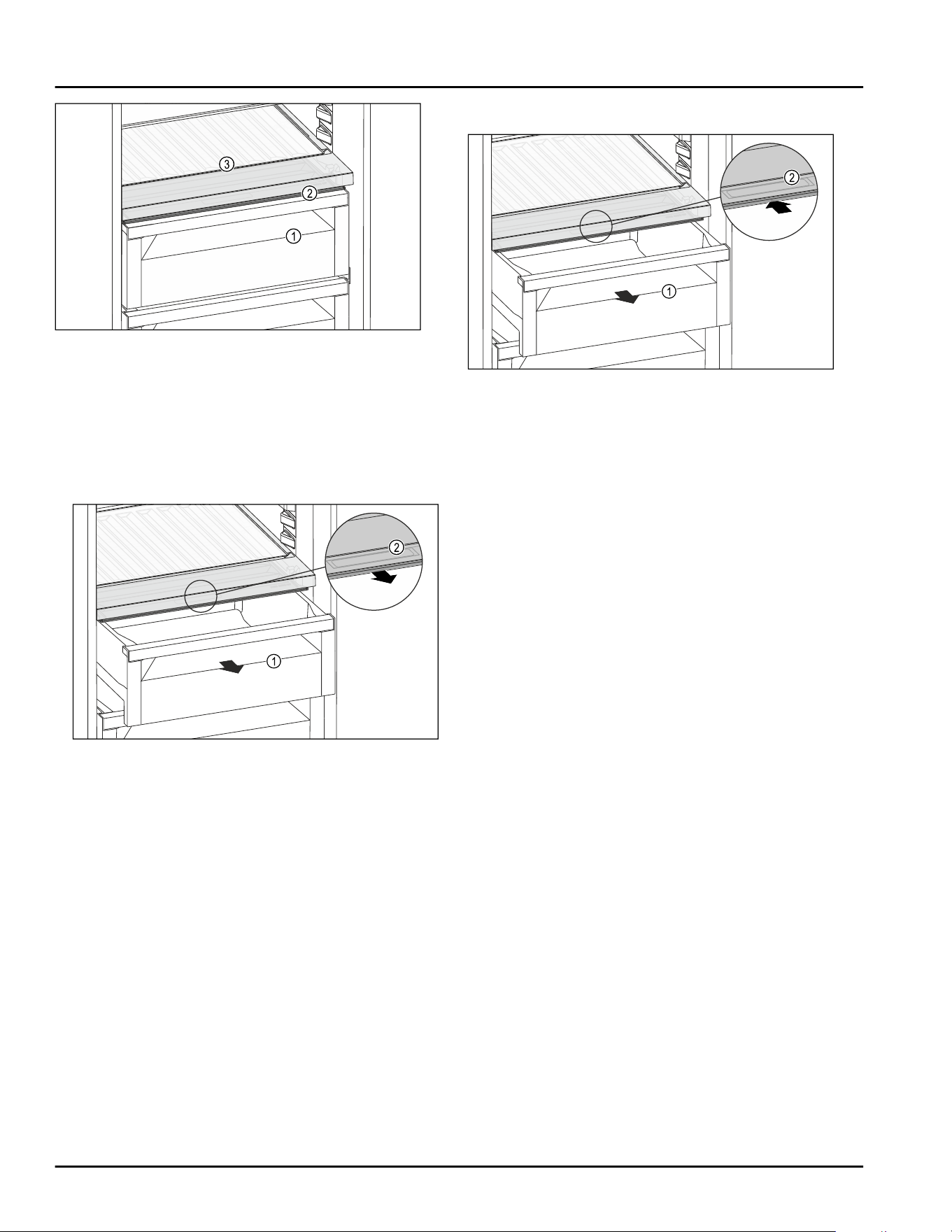
Fig. 167 Example illustration of the lid for Fruit & Vegetable-
safe
(1)
Fruit & Vegetable-
safe
(2) Lid for Fruit & Vege‐
table-safe
(3) Variable bottle rack
8.8.1 Reducing humidity in the drawer
Fig. 168
► Pull out the drawer Fig. 168(1).
► Grip the handle recess Fig. 168 (2) on the lid while
pulling the lid forward at the same time.
▷ When the drawer is closed, there is a small gap
between the lid and the drawer.
▷ HydroBreeze cannot be used. (see 8.9 HydroBreeze*)
*
8.8.2 Increasing humidity in the drawer
Fig. 169
► Pull out the drawer Fig. 169(1).
► Grip the handle recess Fig. 169 (2) on the lid while
pulling the lid backward at the same time.
▷ When the drawer is closed, the lid closes tightly with
the drawer.
▷ HydroBreeze can be used. (see 8.9 HydroBreeze*) *
8.8.3 Using Fruit & Vegetable-safe as a
Meat & Dairy-safe
You can use the Fruit & Vegetable-safe as a
Meat & Dairy-safe. To do so, you must reduce the mois‐
ture in the drawer. (see 8.8.1 Reducing humidity in the
drawer)
8.8.4 Using Fruit & Vegetable-safe with
HydroBreeze*
You can use the Fruit & Vegetable-safe with Hydro‐
Breeze. To do so, you must increase the moisture in the
drawer. (see8.8.2 Increasing humidity in the drawer)
8.9 HydroBreeze*
HydroBreeze emits a mist over the refrigerated goods
to provide moisture every time the door is opened.
The HydroBreeze and its water tank are located in the
adjustable bottle shelf.
Make sure that the following requirements are fulfilled
-
Water tank is cleaned. (see 9.8.4 Cleaning the equip‐
ment)
-
The water tank is properly engaged.
-
The moisture in the drawer is set to high humidity.
(see8.8.2 Increasing humidity in the drawer)
-
HydroBreeze is activated. (see HydroBreeze*)
Equipment
* Depending on model and options 43
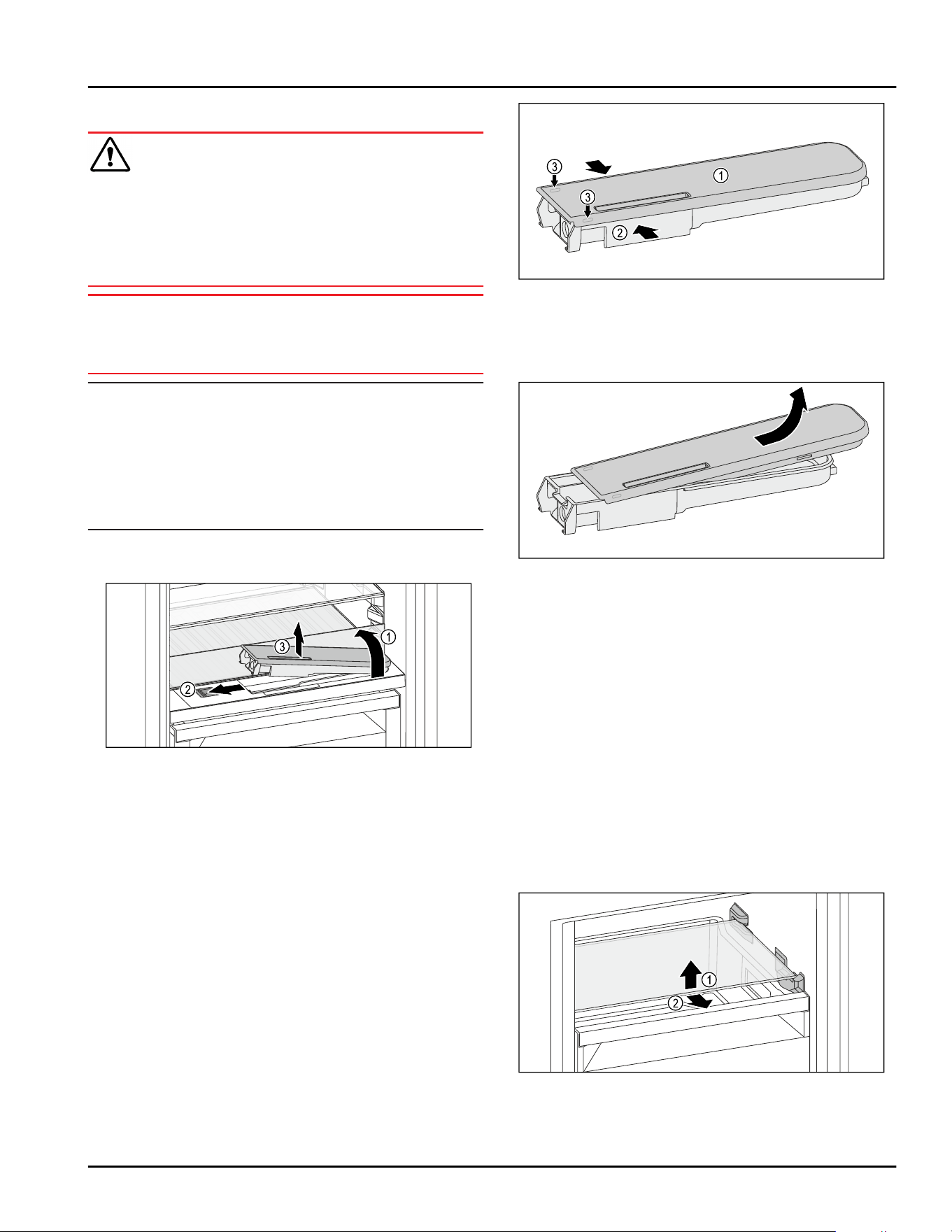
8.9.1 Fill the water tank
WARNING
Contaminated water!
Poisoning.
► Fill with drinking water only.
► HydroBreeze is off: Empty the water tank.
► HydroBreeze is out of use for a prolonged period:
Empty the water tank.
NOTICE
Sugary liquids!
Damage to the HydroBreeze.
► Fill with drinking water only.
Note
Use filtered, decarbonized water to provide the best-
quality drinking water and keep the HydroBreeze
working smoothly.
This water quality can be achieved using a table water
filter of the kind available in trade retail outlets.
► Fill the water tank with filtered, decarbonized
drinking water.
The water tank is built into the adjustable bottle shelf
(see2.2 Overview of appliances and equipment) .
Fig.170
► Press on the back-left corner of the front glass
plate.
▷ The glass panel folds upwards.
► Lift the glass panel and fold to the back as far as it
will go Fig.170(1).
▷ The glass panel is upright.
► Slide the slider Fig.170(2) to the left.
▷ The water tank jumps out of its recess.
► Remove the water tank Fig.170(3).
► Cleaning the water tank (see 9.8.4 Cleaning the
equipment) .
Angular opening:
► Fill with drinking water up to the level mark.
► Insert the water tank, bottom first, into the recess.
► Slowly lower the front part and push the tank in.
▷ Water tank is engaged.
8.9.2 Disassembling the water tank
You can disassemble the water tank of the Hydro‐
Breeze to clean it.
Fig.171
► Squeeze the water tank Fig.171(2) and carefully lever
the cover Fig.171(1) over the latches Fig.171(3) pull it
up.
▷ The cover is released.
Fig.172
► Slightly move the cover Fig. 171 (1) back and forth and
remove it from the top.
▷ The water tank is disassembled.
8.10 Glass shelves
You can remove the glass shelf under the drawers for
cleaning.
You can remove the glass shelf under the drawers to
use VarioSpace.
8.10.1 Removing / inserting the glass shelf
Make sure that the following requirements are fulfilled:
❑
Glass shelf under the drawer: Drawer has been
removed. (see 8.7 Drawers)
Removing glass shelf
Fig. 173 Example illustration of the glass shelf*
Equipment
44 * Depending on model and options
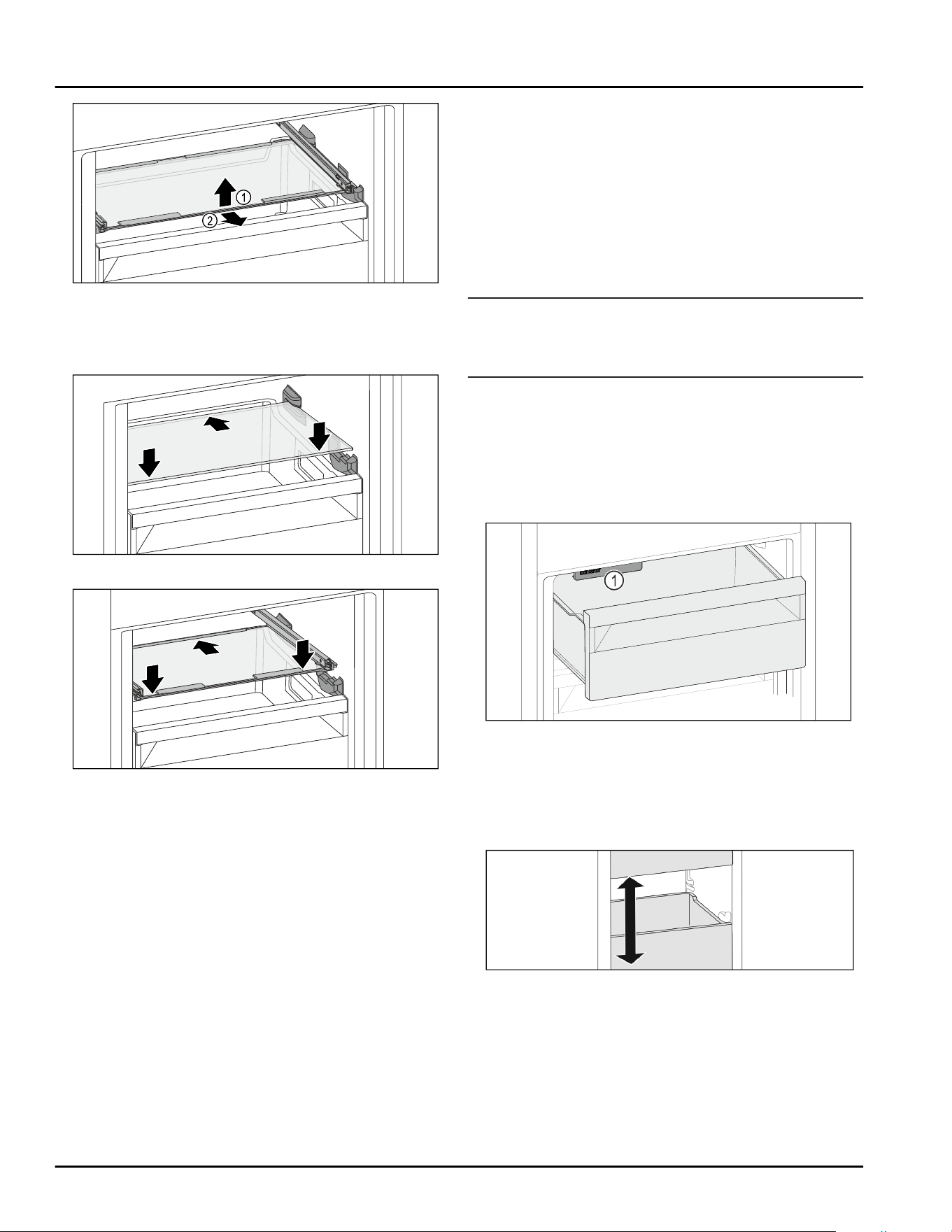
Fig. 174 Example illustration of the glass shelf*
► Lift the front of the glass shelf.
► Remove the glass shelf from the front.
Inserting the glass shelf
Fig. 175 Example illustration of the glass shelf*
Fig. 176 Example illustration of the glass shelf*
► Set down the glass shelf diagonally behind the stop‐
pers.
► Lower glass shelf.
► Slide in glass shelf to the back.
8.11 IceMaker
The IceMaker is used exclusively for the production of
ice cubes in household quantities.
Make sure that the following conditions are fulfilled
-
IceMaker is cleaned. (see9 Maintenance)
-
IceMaker drawer is cleaned.
-
IceMaker drawer is fully inserted.
8.11.1 Producing ice cubes
The production capacity depends on the freezer
temperature The lower the temperature, the more ice
cubes can be produced in a certain period
Once IceMaker is switched on for the first time, it can
take up to 24 hours to produce the first ice cubes.
► Activate the IceMaker function.
► Making many ice cubes: Activate the MaxIce func‐
tion.
► To make a large quantity of ice cubes: Move or
remove the separators in the IceMaker drawer.
► Distribute ice cubes evenly in the drawer to increase
its capacity.
► Close the drawer: The IceMaker starts making ice
again.
Note
When a certain level is reached in the IceMaker drawer,
it stops making ice cubes. The IceMaker does not fill
the drawer to the very top.
8.11.2 Using the drawer with the IceMaker
deactivated
If you deactivate the IceMaker, then you can use the
entire IceMaker drawer as a freezer drawer.
► Deactivate IceMaker. (see Deactivating IceMaker and
MaxIce)
Fig.177
► Place food in drawer.
If you put food in the left side of the drawer:
► Pay attention to the IceMaker Fig.177(1).
8.12 VarioSpace
Fig.178
You can remove drawers and glass panels from your
appliance. This provides more room for large food
items such as poultry, joints of meat, large game and
bulky baked goods. You can then freeze these items
whole for later preparation.
► Note the load limits on the drawers and glass panels
(see 10.1 Technical specifications) .
Equipment
* Depending on model and options 45
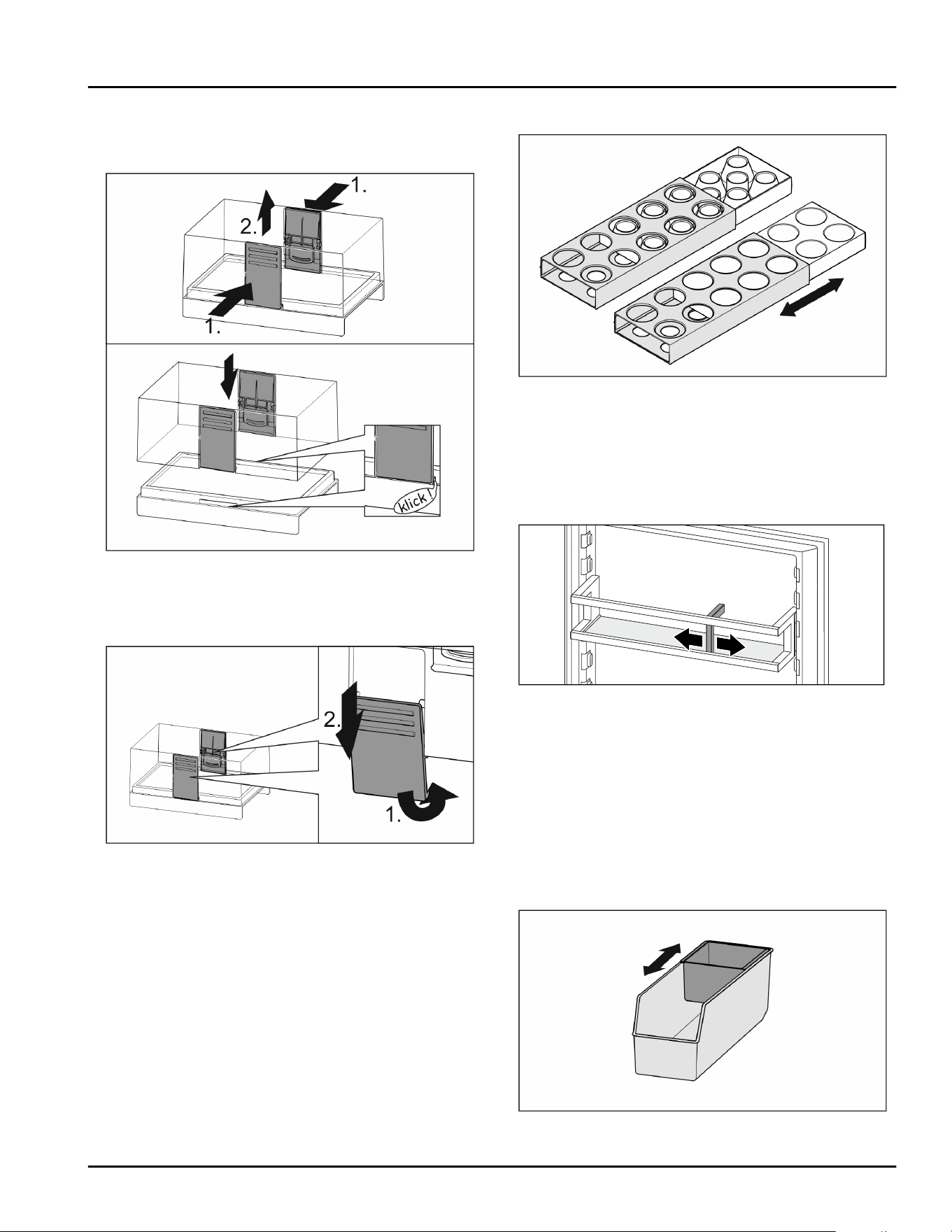
8.13 Butter dish
8.13.1 Opening/closing the butter dish
Fig.179
8.13.2 Dismantling the butter dish
You can disassemble the butter dish for cleaning.
Fig. 180
► Disassemble the butter dish.
8.14 Egg rack
You can pull out and turn the egg rack. You can use
both sides of the egg rack so you can label specifics
like the purchase date.
8.14.1 Using the egg rack
Fig. 181
► Top section: store hen eggs.
► Bottom section: store quail eggs.
8.15 Bottle rack
8.15.1 Using the bottle rack
Fig. 182
► Slide the bottle rack at the edges.
▷ Stops bottles from tipping over.
8.16 FlexSystem
8.16.1 Using the FlexSystem
The FlexSystem helps you store and arrange food
clearly and in the way you want. It lets you clearly
divide your food into fruit, vegetables or by use-by
dates, for example.
Fig. 183
► Move the inside tray.
Equipment
46 * Depending on model and options
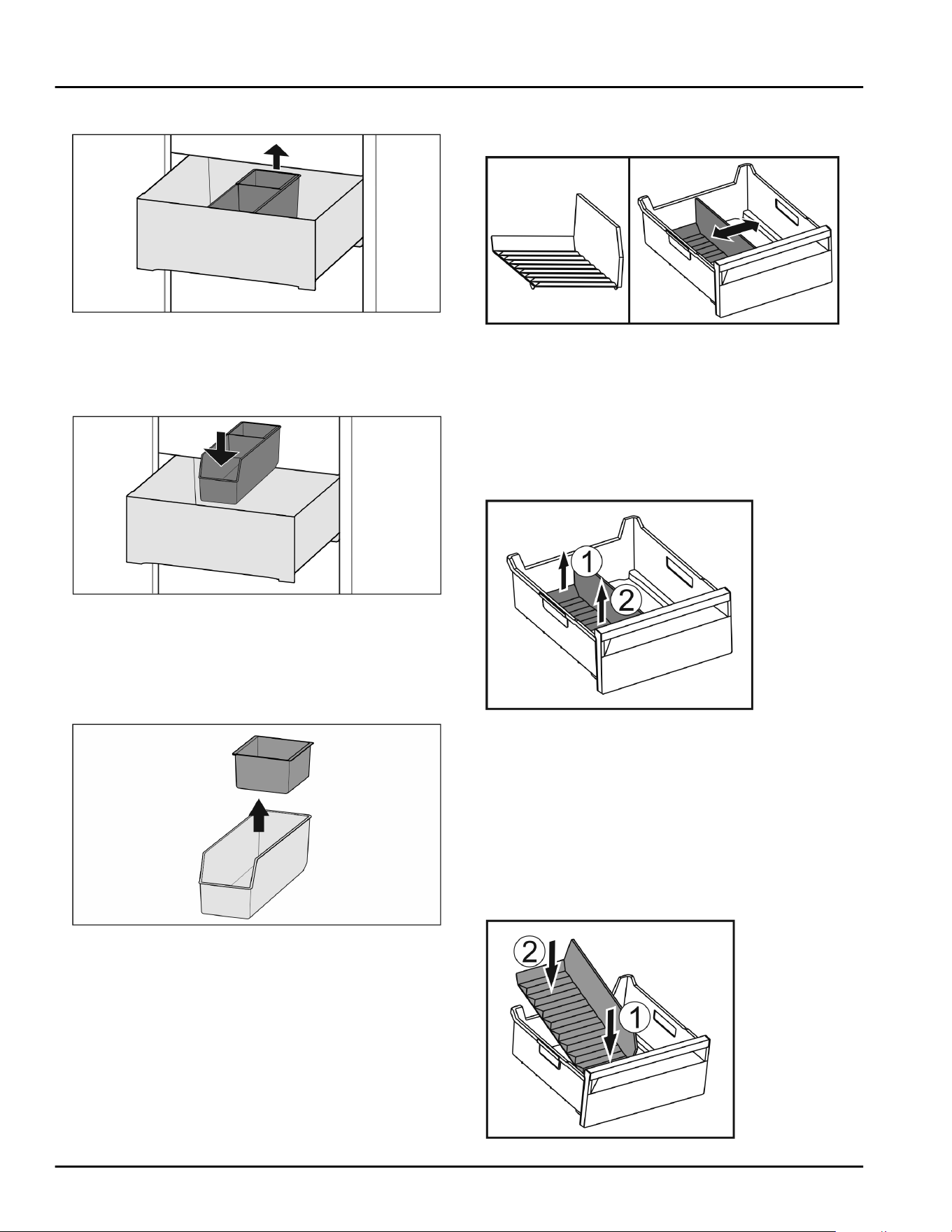
8.16.2 Removing the FlexSystem
Fig. 184
► Lift the FlexSystem at the back.
► Pull up and out.
8.16.3 Inserting the FlexSystem
Fig. 185
► Insert front of the FlexSystem first.
► Lower the back part.
8.16.4 Disassembling the FlexSystem
The FlexSystem can be dismantled for cleaning.
Fig. 186
► Dismantling the FlexSystem.
8.17 Flexible ice compartment divider
The IceMaker’s ice cube drawer has a flexible ice
compartment divider. This allows you to store larger
quantities of ice cubes or additional food items as
needed. You can move or remove the ice compartment
divider.
8.17.1 Moving the flexible ice compartment
divider
Fig. 187 Example illustration of the ice compartment divider
► Move the ice compartment divider to the desired
position.
8.17.2 Removing the flexible ice compart‐
ment divider
Make sure that the following requirements are fulfilled:
❑
Ice cube drawer is removed. (see 8.7 Drawers)
Fig. 188
► Lift the rear part of the ice compartment divider.
Fig. 188(1)
► Remove the ice compartment divider upwards.
Fig. 188(2)
8.17.3 Putting in the flexible ice compart‐
ment divider
Make sure that the following requirements are fulfilled:
❑
Ice cube drawer is removed. (see 8.7 Drawers)
Equipment
* Depending on model and options 47
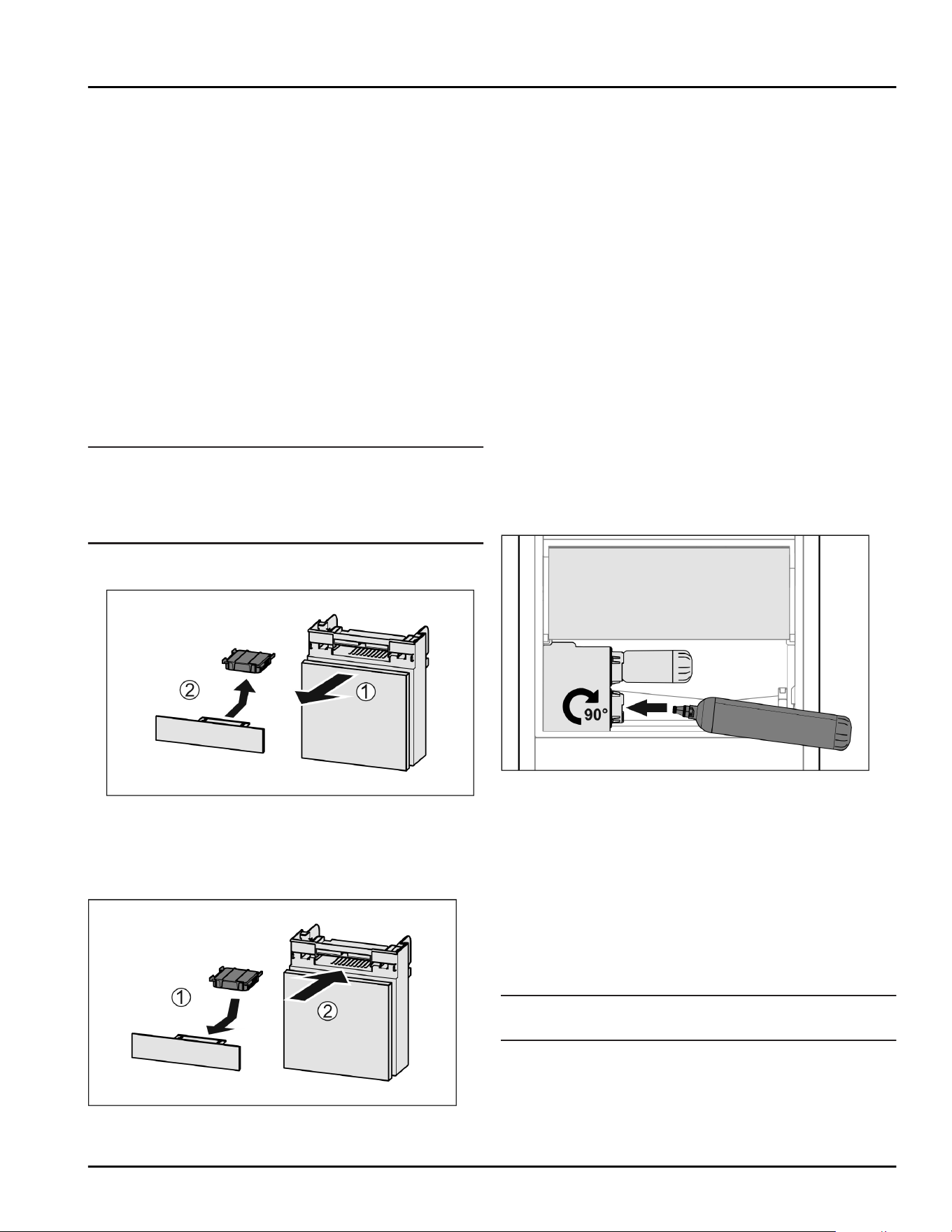
Fig. 189
► Insert the front part of the ice compartment divider.
Fig. 189(1)
► Lower the rear part of the ice compartment divider
to the drawer bottom. Fig. 189(2)
9 Maintenance
9.1 FreshAir carbon filter
The FreshAir carbon filter is located in the compart‐
ment above the fan.
It guarantees the best air quality.
❑
Change the carbon filter every 6 months.
When the reminder is set, a message on the display
prompts you to change it.
❑
You can dispose of the carbon filter with the regular
household waste.
Note
FreshAir activated charcoal filters can be purchased
from the Liebherr Service Center. The address for your
respective country can be found on the back of the
instructions.
9.1.1 Removing the FreshAir carbon filter
Fig. 190
► Pull out the compartment Fig. 190(1).
► Remove the carbon filter Fig. 190(2).
9.1.2 Inserting the FreshAir carbon filter
Fig. 191
►
Insert the carbon filter as shown in the diagram
Fig. 191(1).
▷ The carbon filter clicks into place.
If the carbon filter is pointing downwards:
► Push the compartment in Fig. 191(2).
▷ The carbon filter is now ready for use.
9.2 Water tank*
The InfinitySpring is located behind the lowest drawer
in the fridge section.*
9.2.1 Removing the water tank
► Turn off the water tap.
► Run the InfinitySpring for 30 seconds and collect the
remaining water in a glass.*
► Remove the drawer.
► Turn the water tank all the way to the left and pull it
out.
▷ Water dripping out is collected in the drip tray.
► Drain the water from the drip tray.*
► Clean the drip tray with a cloth or in the dishwasher.*
9.2.2 Inserting the water tank
Fig. 192
► Remove the drawer.
► Insert the water tank and turn approx. 90° to the
right until it engages.
► Check that the water tank is sealed and no water
leaks out.
► Insert the drawer.
► Turn on the water tap.
► Bleed the water system. (see 4.2.1 Vent the water
system) *
Instead of the water filter, you can use an additional
water tank.*
Note
The water tank is available as a spare part.
9.2.3 Removing / inserting the drip tray*
You can remove the drip tray for cleaning.
Maintenance
48 * Depending on model and options
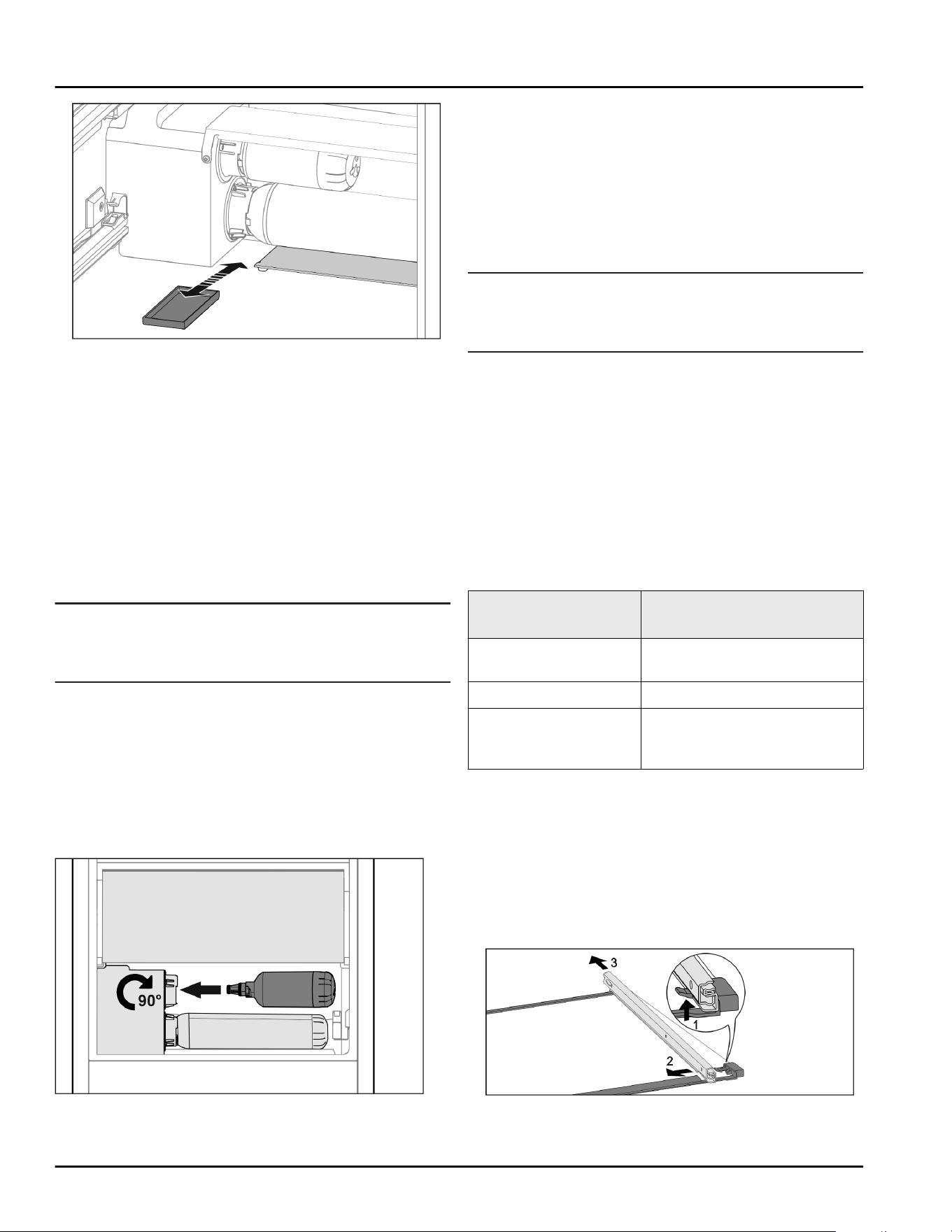
Fig. 193
► Pull out the drip tray to the front.
9.3 Water filter*
The water filter is located behind the lowest drawer in
the fridge section.
It absorbs deposits in the water and reduces the taste
of chlorine.
❑
Replace the water filter at least every 6 months
under the specified usage conditions or if the flow
rate drops significantly.
❑
The water filter contains carbon and can be
disposed of with the regular household waste.
Note
The water filter can be purchased from the Liebherr
Service Center. The address for your respective country
can be found on the back of the instructions.
9.3.1 Removing the water filter
► Remove the drawer.
► Turn the water filter all the way counterclockwise
and pull it out.
▷ Water dripping out is collected in the drip tray.
► Clean the drip tray with a cloth or in the dishwasher.*
9.3.2 Installing the water filter
Fig. 194
Make sure that the following conditions are fulfilled
❑
Water pressure is maintained (see Installation
Instructions, Water Connection).
► Remove the drawer.
► Insert the water filter and turn clockwise approx. 90°
until it engages.
► Make sure the filter does not leak and no water is
coming out.
► Insert the drawer.
Note
New water filters may contain suspended solids.*
► After changing the filter: Draw and dispose of
3l(3qt) water at the InfinitySpring.
▷
The water filter is now ready for use.
9.4 Disassembling / assembling pull-
out systems
9.4.1 Notes on disassembly
You can disassemble some of the pull-out systems for
cleaning. Your appliance can contain a variety of pull-
out systems.
The following pull-out systems can be disassembled or
cannot be disassembled:
Pull-out system
can be disassembled/
cannot be disassembled
Drawer on appliance
base or glass shelf
cannot be disassembled
Full extension cannot be disassembled
Partial-extension in
the freezer section*
can be disassembled
(see Partial pull-out freezing
compartment*) *
9.4.2 Drawer on telescopic rails
Partial pull-out freezing compartment*
Disassembling pull-out system
Make sure that the following requirements are fulfilled:
❑
Drawer has been removed.
❑
Glass shelf has been removed. (see 8.10 Glass
shelves)
Fig. 195 Glass shelf with rails
► Push up front click-in hooks. Fig. 195(1)
Maintenance
* Depending on model and options 49
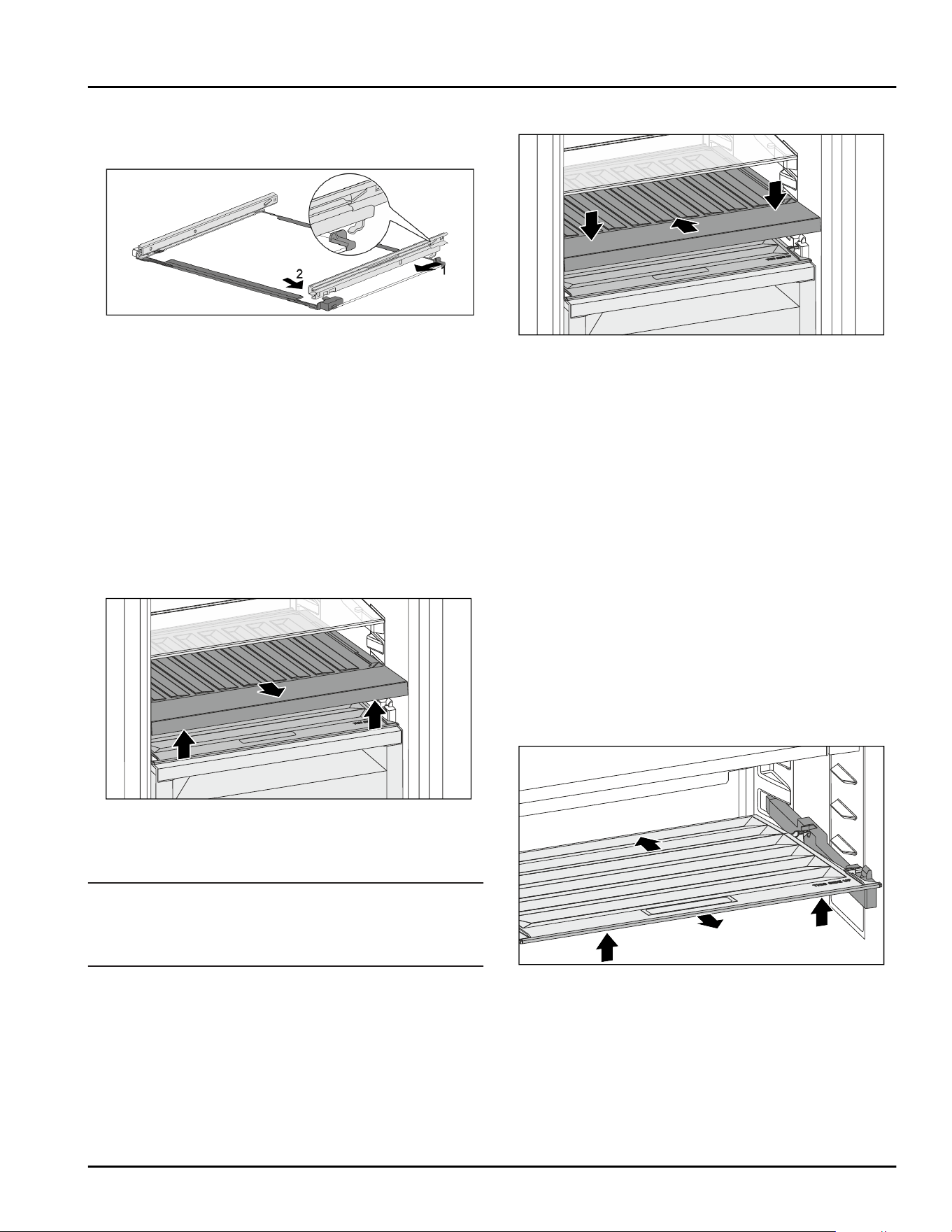
► Slide pull-out rails to the side Fig. 195 (2) and back‐
wards Fig. 195(3).
Installing pull-out system
Fig. 196 Glass shelf with rails
► Hook in rail at the back. Fig. 196(1)
► Hook in rail at the front. Fig. 196(2)
9.5 Removing / inserting the variable
bottle shelf
You can remove the variable bottle shelf for cleaning.
9.5.1 Removing the variable bottle shelf
Make sure that the following requirements are fulfilled:
❑
Bottles are removed.
❑
Glass shelf is removed. (see 8.6.1 Using the variable
bottle shelf)
Fig. 197
► Lift the variable bottle shelf from the front and pull it
out.
▷ The compartment lid is visible.
Note
Liebherr recommends:
Do not store any product on the compartment lid below
it.
9.5.2 Inserting the variable bottle shelf
Fig. 198
► Push in the variable bottle shelf as far as it goes and
press it down.
▷ The back plugs on the variable bottle shelf are
connected automatically.
▷ LED light ups.
► Insert the glass shelf. (see 8.6.2 Using the glass
shelf)
-or-
► Use the variable bottle shelf for bottles.
9.6 Lid for Fruit & Vegetable-safe
You can remove the lid for cleaning.
9.6.1 Removing the lid
Make sure that the following requirements are fulfilled:
❑
The glass plate directly above the variable bottle
rack has been removed.
❑
The variable bottle rack has been removed.
❑
The drawer directly below the lid has been removed.
(see 8.7 Drawers)
Fig. 199
► Push the lid backward.
► Lift up the lid forward.
► Remove the front lid by lifting it up at an angle.
Maintenance
50 * Depending on model and options
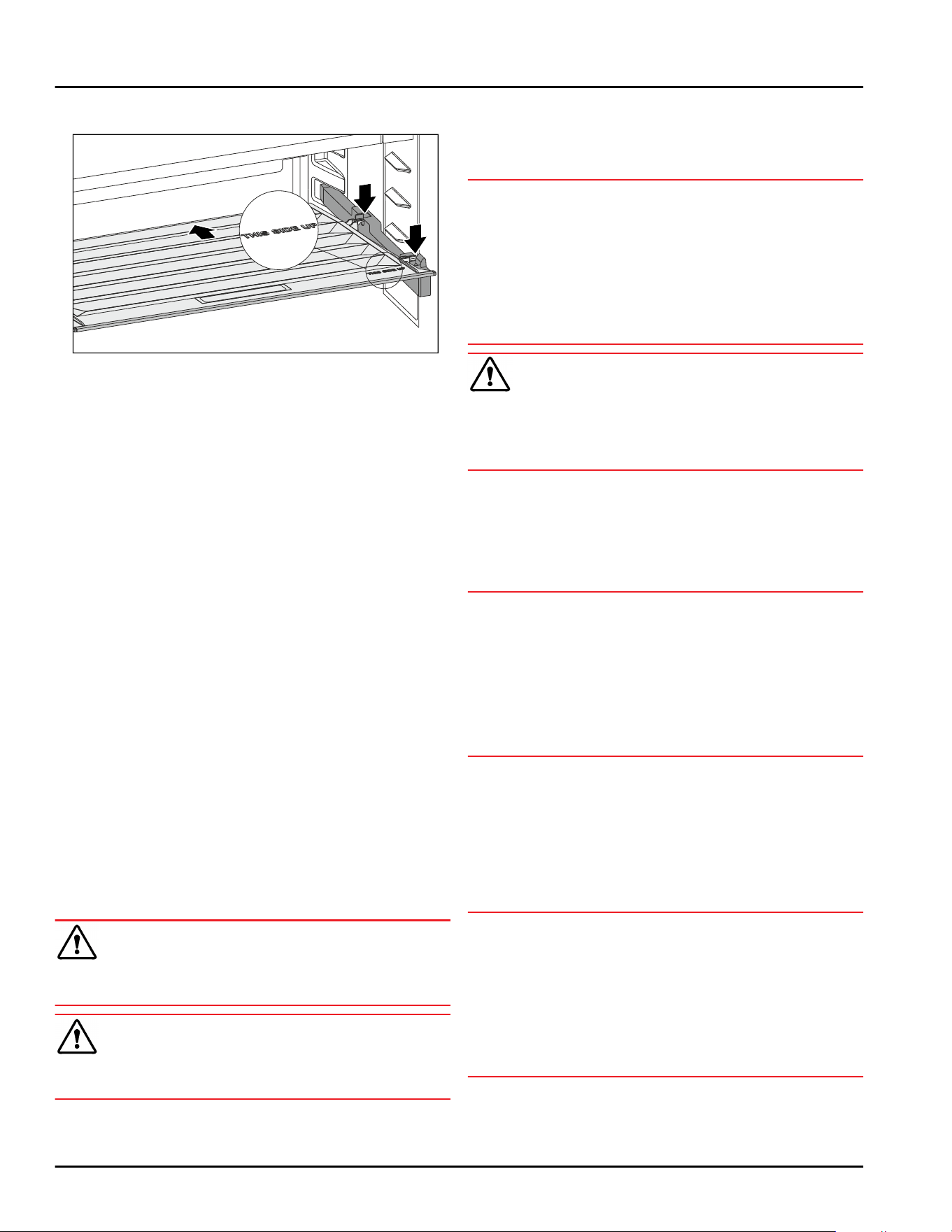
9.6.2 Inserting the lid
Fig.200
If the lettering THIS SIDE UP is on top:
► Insert the rear bracket retainers in the corresponding
rear openings.
► Push the lid backward.
► Lower the lid at the front and latch the front bracket
retainers in the openings.
► Bring the lid to the desired position.
9.7 Defrosting the appliance
9.7.1 Defrosting the refrigerator compart‐
ment
Defrosting is performed automatically. The water from
the thawing process runs out via the drain opening and
is evaporated.
► Clean the drain hole regularly. (see 9.8 Cleaning the
appliance)
9.7.2 Defrosting the freezer compartment
with NoFrost
Defrosting is performed automatically by the NoFrost
system. The moisture condenses on the evaporator and
is periodically defrosted and evaporated.
The appliance does not need to be defrosted.
9.8 Cleaning the appliance
9.8.1 Preparation
WARNING
Danger of electric shock.
► Unplug refrigerator or disconnect power.
WARNING
Danger of fire
► Do not damage the refrigerant circuit.
► Empty appliance.
► Pull out the power plug.
-or-
► Activate CleaningMode. (seeCleaningMode)
9.8.2 Cleaning the housing
NOTICE
Improper cleaning!
Damage to the appliance.
► Only use soft cleaning cloths and ph-neutral all-
purpose cleaners.
► Do not use steel wool or sponges that scour or
scratch.
► Do not use caustic or abrasive cleaning materials or
those containing sand, chloride, or acids.
WARNING
Risk of injury or damage due to hot steam.
Hot steam can cause scalding/burns and damage to
surfaces.
► Do not use steam cleaners.
►
Wipe the housing down with soft, clean cloth. If very
dirty, use lukewarm water with a neutral cleaner.
Glass surfaces can also be cleaned with glass
cleaner.
9.8.3 Cleaning the interior
NOTICE
Improper cleaning!
Damage to the appliance.
► Only use soft cleaning cloths and ph-neutral all-
purpose cleaners.
► Do not use steel wool or sponges that scour or
scratch.
► Do not use caustic or abrasive cleaning materials or
those containing sand, chloride, or acids.
► Plastic surfaces: clean by hand with a soft clean
cloth, lukewarm water and a little detergent.
► Metal surfaces: clean by hand with a soft clean
cloth, lukewarm water and a little detergent.
► Drain hole: remove any deposits with a thin item
such as a cotton bud.
9.8.4 Cleaning the equipment
NOTICE
Improper cleaning!
Damage to the appliance.
► Only use soft cleaning cloths and ph-neutral all-
purpose cleaners.
► Do not use steel wool or sponges that scour or
scratch.
► Do not use caustic or abrasive cleaning materials or
those containing sand, chloride, or acids.
Clean with a soft, clean cloth, lukewarm water and a
little washing up liquid:
- Shelf*
Maintenance
* Depending on model and options 51

- Split shelf
- VarioSafe
- Lid for Fruit & Vegetable-safe
- Drawer
Please note: Do not remove the magnet on the
drawer. The magnet ensures that the IceMaker func‐
tions.
- Flexible ice compartment divider in the ice cube tray
of the IceMakers
- Variable bottle shelf
- FlexSystem
Clean with a damp cloth:
- Retracting rails
Please note: the grease in the tracks is there for
lubrication purposes and must not be removed!
Clean in the dishwasher up to 60°C(140°F):
- Door racks
- VarioBox
- Bottle rack
- Holder for the split shelf
- HydroBreeze water tank and water tank lid*
- Drip tray*
- Egg rack
- Butter dish
- Ice cube scoop
► Disassemble the equipment: see the relevant
section.
► Clean the equipment.
9.8.5 Cleaning the InfinitySpring *
You can clean the InfinitySpring outlet and around it
without disconnecting the appliance from the mains.
We recommend cleaning in the following situations:
❑
Initial commissioning
❑
If out of use for longer than 5 days.
► Press the bottom pushbutton of the dispenser.
▷ The outlet unit moves out.
► Clean the water outlet and around it with a soft,
damp cloth, lukewarm water and a little washing up
liquid.
► Release the bottom pushbutton.
► Draw and dispose of 2l(2.11qt) water at the Infinity‐
Spring.
9.8.6 Cleaning the HydroBreeze*
We recommend cleaning in the following situations:
❑
Initial commissioning
❑
HydroBreeze was off for longer than 48 hours.
❑
Refill the water tank.
Make sure that the following requirements are fulfilled
❑
HydroBreeze is off (see HydroBreeze*) .
❑
Water tank was removed and cleaned in the dish‐
washer.
► Wipe out the recess with a damp cloth.
► Insert the water tank.
►
Activate the HydroBreeze.
9.8.7 Cleaning the IceMaker
There are various options for cleaning the IceMaker.
We recommend cleaning in the following situations:
❑
Initial commissioning
❑
With water connection:
If out of use for longer than 5 days.
Make sure that the following requirements are met:
❑
IceMaker drawer is emptied.
❑
IceMaker drawer is fully inserted.
❑
The IceMaker has been activated.
On first use or if not used for prolonged periods
Clean the IceMaker with TubeClean.
► Put an empty 1.5 l (1.59 qt) vessel (max. height
10cm(3 15/16in)) in the drawer under the IceMaker.
► Activate the TubeClean function.
▷ The rinse process is prepared (max. 60 min.): The
symbol flashes.
▷ Water pipes are rinsed: Symbol flashes.
▷ Rinsing process is complete: Function turns off auto‐
matically.
► Take out the IceMaker drawer and remove the
container.
► Clean the IceMaker drawer with warm water and a
little detergent.
► Push in the IceMaker drawer.
▷ Ice cube production starts automatically.
Without water filter*
► Dispose of any ice cubes that are produced within 24
hours of the first ice cube production.*
With water filter:*
► Dispose of any ice cubes that are produced within
48 hours of the first ice cube production.*
-or-
► Draw 2l(2.11qt) of water from the InfinitySpring and
dispose of it.*
When cleaning is required
Clean the IceMaker manually.
► Remove the IceMaker drawer and clean with warm
water and a little detergent.
► Push in the IceMaker drawer.
▷ Ice cube production starts automatically.
9.8.8 After cleaning
► Wipe dry the appliance and items of equipment
► Connect and switch on the appliance.
► Activate SuperFrost (see 7.2Appliance functions) .
When the temperature is sufficiently cold
► Place the food inside.
► Repeat cleaning regularly.
Maintenance
52 * Depending on model and options
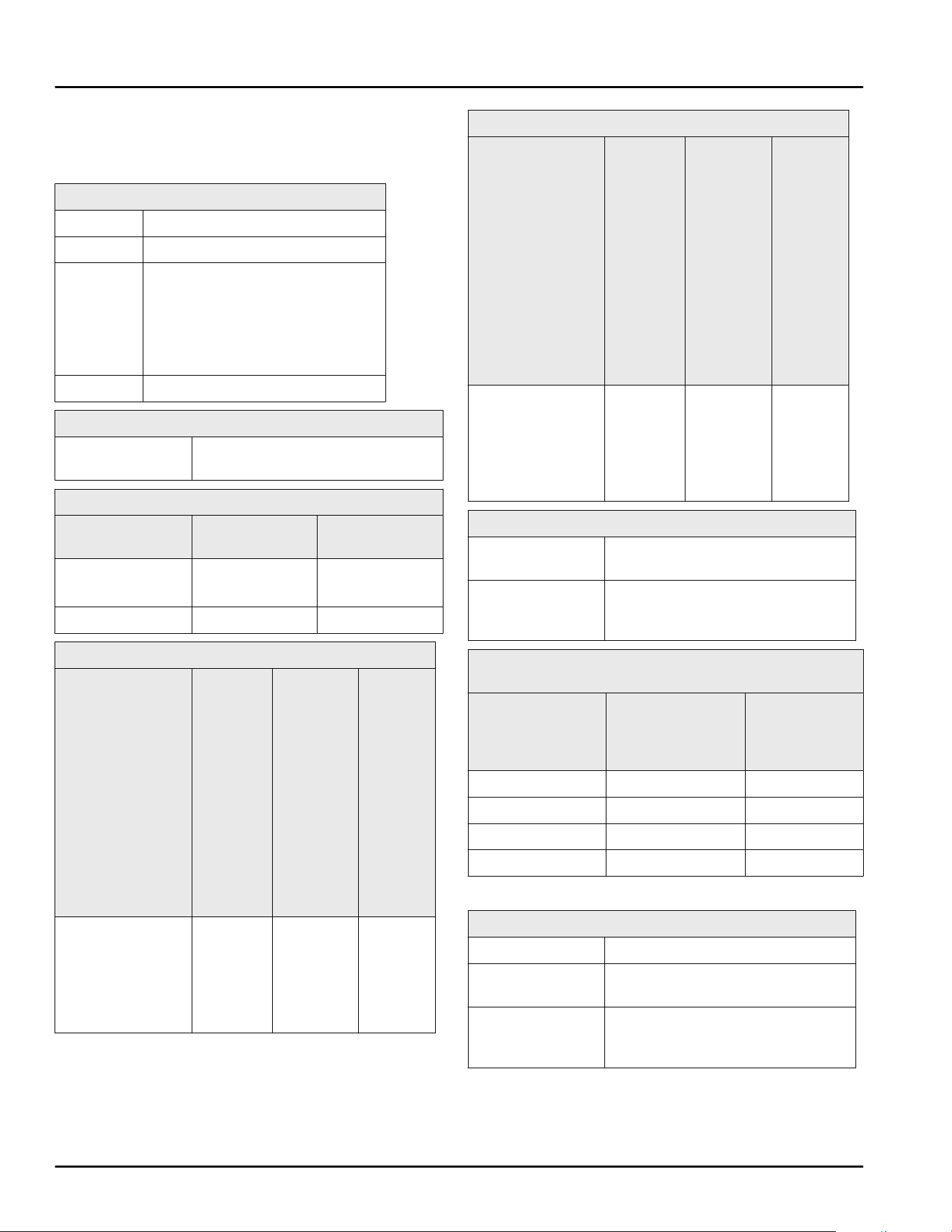
10 Customer support
10.1 Technical specifications
Temperature zone
Cool: 3°C(36°F) to 9°C(46°F)
BioFresh 0°C(32°F) to 3°C(37°F)
Fish & Sea
Food*
-2°C(28°F) to 0°C(32°F)*
Possible settings :*
0°C(32°F) | 0°C(32°F)*
-2°C(28°F) | 0°C(32°F)*
-2°C(28°F) | -2°C(28°F)*
Freezing -26°C(-15°F) to -15°C(5°F)
Maximum amount of food to freeze / 24 hours
Freezer See type plate under “freezer
capacity …/ 24 h”
Max. door capacity
Number of
drawers, freezer
Top door Bottom door
2 drawers 12 kg(26.46lb)
14 kg(30.86lb)
--
3 drawers 9 kg(19.84lb) --
Maximum loading weight of the features
Equipment Appliance
width
600 mm
(23 1/2in)
(see
installa‐
tion
instruc‐
tions,
appliance
dimen‐
sions)
Appliance
width
700 mm
(27 9/16in)
(see
installa‐
tion
instruc‐
tions,
appliance
dimen‐
sions)
Appli‐
ance
width
750 mm
(29 1/2in)
(see
installa‐
tion
instruc‐
tions,
appli‐
ance
dimen‐
sions)
Drawer on glass
shelf
(see 8.7.1 Drawer
on appliance
base or glass
shelf)
15 kg
(33.07lb)
-- 23 kg
50.71lb
Maximum loading weight of the features
Equipment Appliance
width
600 mm
(23 1/2in)
(see
installa‐
tion
instruc‐
tions,
appliance
dimen‐
sions)
Appliance
width
700 mm
(27 9/16in)
(see
installa‐
tion
instruc‐
tions,
appliance
dimen‐
sions)
Appli‐
ance
width
750 mm
(29 1/2in)
(see
installa‐
tion
instruc‐
tions,
appli‐
ance
dimen‐
sions)
Partial-extension
in the freezer
section*
(see 8.7.2 Drawer
on telescopic
rails) *
15 kg
(33.07 lb)
*
22 kg
(48.50 lb)
*
22 kg
(48.50lb)
*
Ice cube production with IceMaker
Ice cube produc‐
tion / 24 hours
At a temperature of -18°C(-0°F):
1.2 kg(2.65lb) of ice cubes
Maximum ice
cube produc‐
tion / 24 hours
When the MaxIce function is
active: 1.5 kg(3.31lb) of ice cubes
Time required to reach various temperatures with
VarioTemp
Initial tempera‐
ture
Target tempera‐
ture
Time until
target temper‐
ature is
reached
-18°C(-0°F) 0°C(32°F) > 8 hours
-18°C(-0°F) 8°C(46°F) > 12 hours
8°C(46°F) 14°C(57°F) > 6 hours
14°C(57°F) -18°C(-0°F) > 4 hours
For appliances with a WiFi connection:
Frequency specification
Frequency band 2.4GHz
Maximum radi‐
ated power
< 100 mW
Purpose of the
wireless equip‐
ment
Integration in the local WiFi
network for data communication
Customer support
* Depending on model and options 53
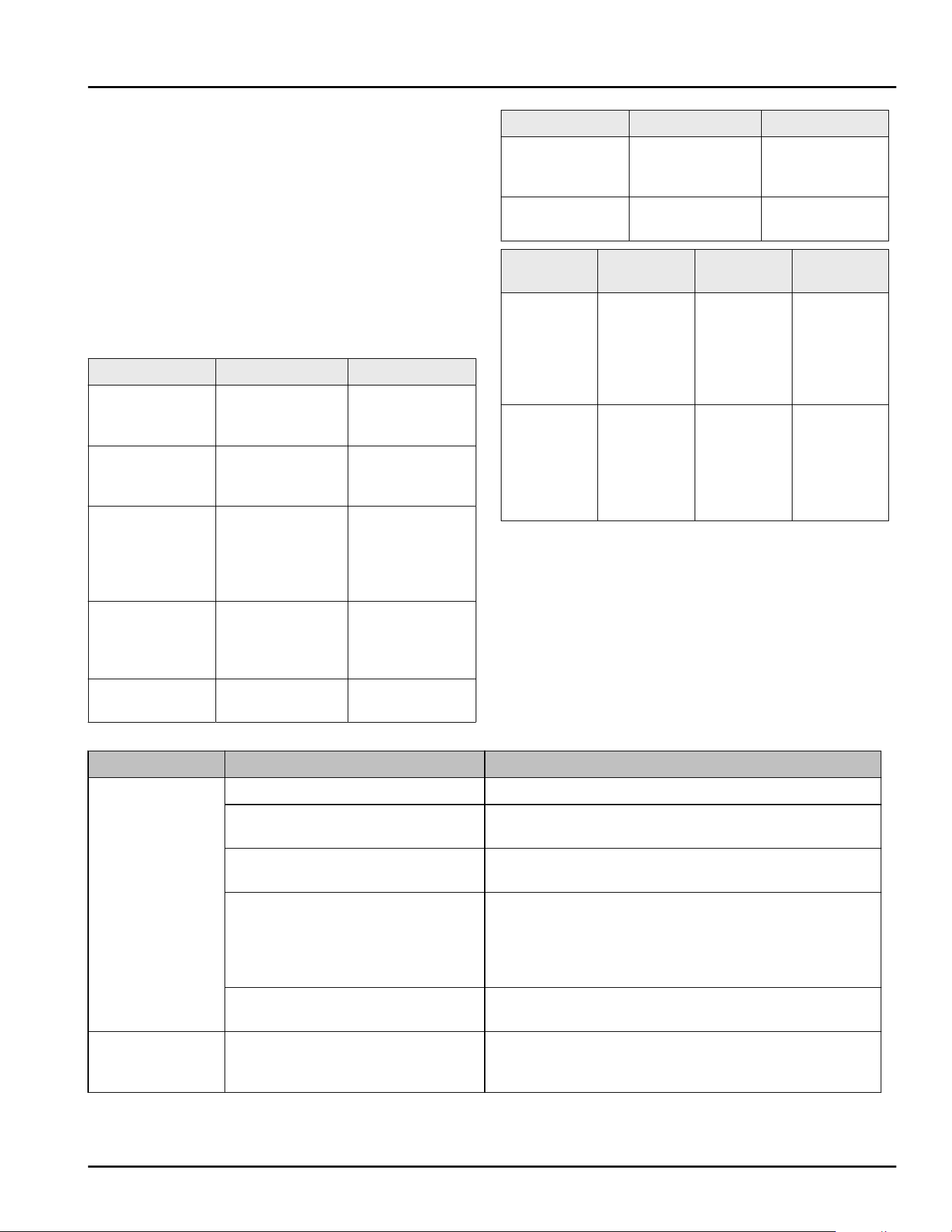
10.2 Operating noises
The appliance makes noises while in operation.
-
At less cooling output the appliance saves energy
but takes longer to cool items. The volume is lower.
-
At a higher cooling output the food cools more
quickly. The volume is higher.
Examples:
•
Activated functions (see 7.2Appliance functions)
•
Running fan
•
Freshly sorted food
•
High ambient temperature
•
Door opened for long periods
Noise
Possible cause Type of noise
Bubbling and
splashing
Coolant is
flowing into the
cooling circuit.
Normal noise
Spitting and
hissing
Coolant is
spraying into the
cooling circuit.
Normal noise
Humming The appliance
cools. The
volume depends
on the cooling
output.
Normal noise
Sipping noises The self-closing
door is being
opened and
closed.
Normal noise
Whirring and
murmuring
The fan is
running.
Normal oper‐
ating noise
Noise Possible cause Type of noise
Clicking Components are
being switched
on and off.
Normal
switching noise
Rattling or
humming
Valves are
active.
Normal
switching noise
Noise Possible
cause
Type of
noise
How to
resolve
Vibration Unsuitable
setup
Error noise Adjust the
feet to
make sure
the appli‐
ance is
horizontal.
Clattering Equipment,
Objects
inside the
appliance
Error noise Secure
equipment
parts.
Leave a gap
between
items.
10.3 Technical faults
Your appliance is designed and manufactured for reli‐
able operation and a long service life. If a malfunction
nonetheless occurs during operation, please check
whether the malfunction is due to an operating error. In
this case, you will have to be charged for the costs
incurred, even during the warranty period.
You may be able to rectify the following faults yourself.
10.3.1 Appliance function
Defect
Cause Remedy
The appliance
does not work.
The appliance is not switched on. ► Switch on the appliance.
The power plug is not properly
inserted in the wall socket.
► Check the power plug.
The powerfuse in the wall socket
is not OK.
► Check the fuse.
Power failure. ► Keep the appliance closed.
► Protect food: Place cold storage batteries on the
food or use another freezer appliance if the power
failure lasts longer.
► Do not re-freeze defrosted food.
The IEC socket is not correctly
plugged into the appliance.
► Check the IEC socket.
The temperature
is not cold
enough
This means that the door of the
appliance is not closed properly
► Close the appliance door
Customer support
54 * Depending on model and options
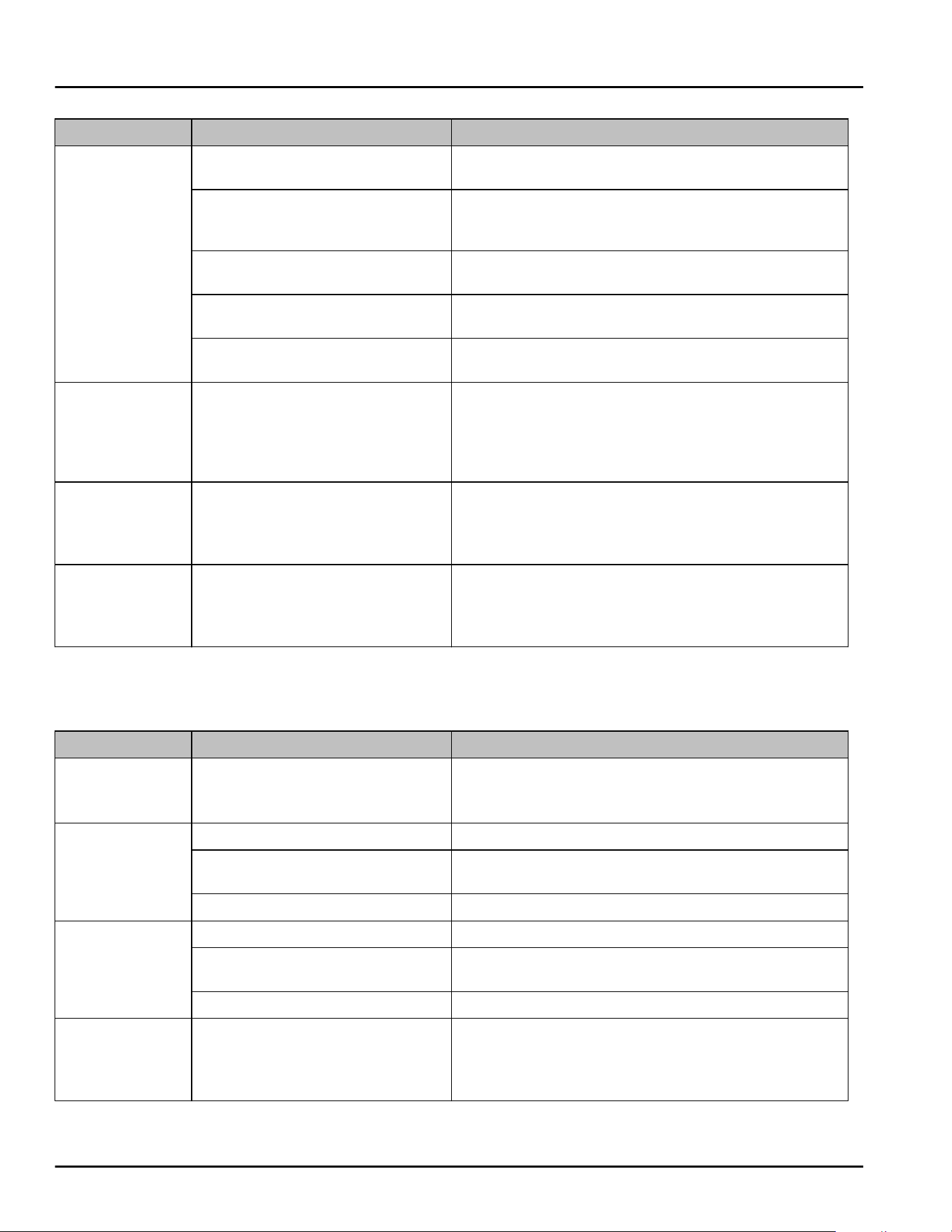
Defect Cause Remedy
The ambient temperature is too
high
► Problem solution: (see2.4 Range of appliance use)
The appliance was opened too
frequently or for too long
► Wait to see if the required temperature corrects
itself. If not, contact Customer Service.
(see 10.4 Customer Service)
Too much fresh food was placed
inside without SuperFrost.
► Solution: (see SuperFrost)
The temperature is incorrectly set ► Set to a colder temperature and check after 24
hours.
The appliance is too near to a heat
source (stove, heater etc).
► Change location of appliance or the heat source.
The door seal is
defective or
should be
replaced for
other reasons.
The door seal is interchangeable.
You can replace it without the use
of any special tools.
► Contact Customer Service. (see 10.4 Customer
Service)
The appliance is
iced up or
condensation is
building.
The door seal may have slipped
out of its groove.
► Check the door seal is well placed in the groove.
The appliance is
warm on the
exterior
surfaces.*
The heat of the refrigerant circuit
is used to prevent condensate
from forming
► This is normal.
10.3.2 Equipment
Defect Cause Remedy
The IceMaker
cannot be
switched on.
The appliance and therefore the
IceMaker are not connected.
► Connect the appliance (see Installation Guide).
The IceMaker is
not making any
ice cubes.
The IceMaker is not switched on. ► Activate the IceMaker.
The drawer of the IceMaker is not
properly closed
► Close the drawer properly
The water connection is not open ► Open the water connection
The Infinity‐
Spring is not
working.*
The ice cube tray rotates. ► Tray again after 1 minute.
There is air in the system. ► Vent the water system. (see 4.2 Putting Infinity‐
Spring into operation*)
The water connection is not open ► Open the water connection
The water flow
at the Infinity‐
Spring is irreg‐
ular.*
The aerator is not clean. ► Replace aerator. Contact Customer Service.
(see 10.4 Customer Service)
Customer support
* Depending on model and options 55
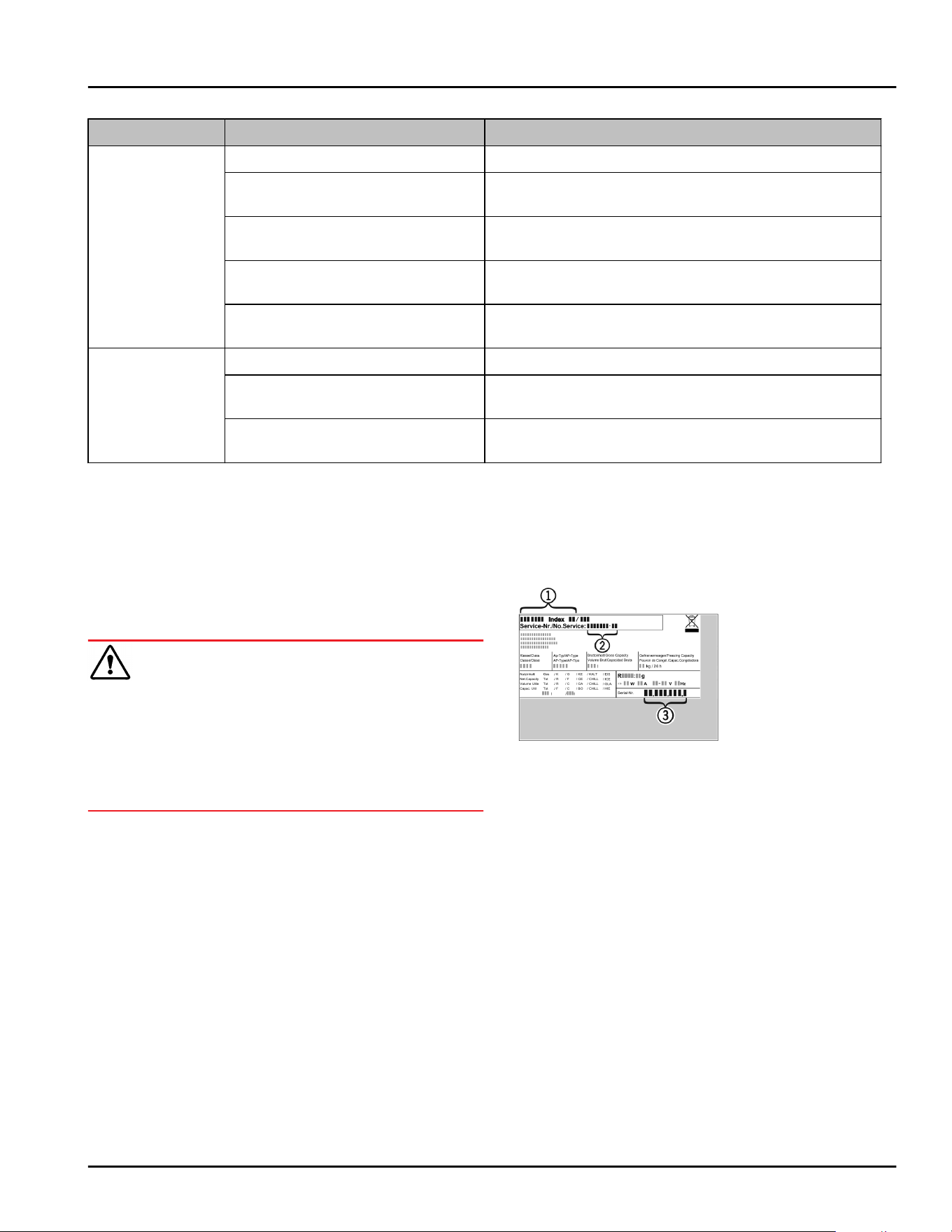
Defect Cause Remedy
HydroBreeze is
not keeping refri‐
gerated foods
moist.*
HydroBreeze is not activated. ► Activate the HydroBreeze.
There is not enough water in the
water tank
► Fill the water tank.
There is dirt upstream of the
concentrator.
► Clean the HydroBreeze.
The water tank is not properly
locked into place.
► Make sure the water tank clicks in properly.
The lid of the Fruit & Vegetable-
safe is set at “low humidity”.
► Set the lid of the Fruit & Vegetable-safe to “high
humidity”.
The interior light
does not turn on.
The appliance is not switched on. ► Switch on the appliance.
The door was open for more than
15 minutes.
► If the door is open, the interior lighting switches
off automatically after about 15 minutes.
The LED interior light is faulty or
the lid is damaged.
► Contact Customer Service. (see 10.4 Customer
Service)
10.4 Customer Service
First check whether you can rectify the fault yourself
(see 10 Customer support) . If you cannot rectify the
problem, contact Customer Service.
You can find the address in the enclosed brochure
“Liebherr-Service” or at home.liebherr.com/service.
WARNING
Unprofessional repair!
Injuries.
► A damaged power cable may only be replaced by the
manufacturer, the manufacturer’s Customer Service
or a similarly qualified person.
► For appliances with plug and play connection cables,
the change can be made by the customer.
10.4.1 Contacting Customer Service
Make sure that the following appliance information is
available:
❑
Appliance name (model and index)
❑
Service no. (service)
❑
Serial no. (S no.)
► Call up the appliance information via the display.
(see Appliance information)
-or-
► Refer to the type plate for appliance information.
(see 10.5 Rating plate)
► Take note of the appliance information.
► Notify customer service: Report errors and the appli‐
ance information.
▷ This will help us give you fast and accurate support.
► Follow further instructions from Customer Service.
10.5 Rating plate
The nameplate is located behind the drawers on the
inside of the appliance.
Fig.201
(1)
Appliance name (3) Serial no.
(2) Service no.
► Information from the nameplate.
11 Decommissioning
► Empty appliance.
► Deactivate IceMaker. (see Deactivating IceMaker and
MaxIce)
► Deactivate HydroBreeze. (see Deactivating Hydro‐
Breeze) *
► Switch off appliance. (see Switching appliance off
and on)
► Pull the power plug from the outlet.
► If necessary, remove the IEC socket: Pull the IEC
socket out of the appliance plug while turning it to
the left and right at the same time.
► Clean appliance. (see 9.8Cleaning the appliance)
► Leave the door open to prevent unpleasant odors.
Decommissioning
56 * Depending on model and options
12 Disposal
12.1 Preparing the appliance for
disposal
WARNING
Risk of child entrapment!
Before you throw away your old refrigerator or freezer:
► Take off the doors.
► Leave the shelves in place so that children may not
easily climb inside.
Liebherr uses batteries in some of its appli‐
ances. You should remove these before
disposal of the old appliance for environ‐
mental reasons. If your appliance contains
batteries, a corresponding notice is
attached to the appliance.
Lamps If you can remove the lamps yourself
without destroying them, also remove these
before disposal.
► Take the appliance out of operation.
► If possible: Remove lamps without destroying them.
12.2 Disposing of the appliance in an
environmentally friendly manner
The appliance still contains
valuable materials and must
be collected separately from
unsorted municipal waste so
it can be recycled.
Dispose of batteries sepa‐
rately from the old appliance.
Certain batteries should NOT
go in household garbage or
recycling bins. Waste
batteries can always be recy‐
cled or taken to household
hazardous waste collection
points. To prevent fires from
lithium-ion batteries, tape
battery terminals and/or
place batteries in separate
plastic bags and never put
these batteries in household
garbage or recycling bins.
Lamps
Dispose of removed lamps via
the respective collection
systems.
For USA: Check the Responsible Appli‐
ance Disposal (RAD) program
to find a RAD partner near
you.
For Canada: Follow your local guidance
about recycling and disposal
capabilities near you.
WARNING
Leaking refrigerant and oil!
Fire. The refrigerant contained within the appliance is
environmentally friendly, but flammable. The oil
contained within the appliance is flammable. Escaping
refrigerant and oil can ignite if they are of high enough
concentration and are exposed to an external heat
source.
► Do not damage the pipelines of the coolant circuit
and the compressor.
► Observe the notes on appliance transport.
► Transport the appliance away without damaging it.
► Dispose of batteries, lamps, and the appliance
according to the above specifications.
Disposal
* Depending on model and options 57
home.liebherr.com/fridge-manuals
Combined fridge-freezer with BioFresh
Issue date:20250902
Part number index: 7086393-00
For Service in the U.S.: Liebherr Service Center
Toll Free: 1-866-LIEBHER or 1-866-543-2437
Service-appliances.us@liebherr.com
PlusOne Solutions, Inc.
3501 Quadrangle Blvd, Suite 120
Orlando, FL 32817
For Service in Canada: Liebherr Service Center
Toll Free: 1-888-LIEBHER or 1-888-543-2437
www.euro-parts.ca
EURO-PARTS CANADA
39822 Belgrave Road, Belgrave, Ontario, N0G 1E0
Phone: (519) 357-3320 | Fax: (519) 357-1326