BG-IPGEAR-PRO
HDMI 2.0 over IP Multicast System
with Video Wall & PoE Support
User Manual
BZBGEAR BG-IPGEAR-PRO PRODUCT MANUAL
Address: 830 National Drive #140, Sacramento, CA 95834, USA · Tel: +1(888)499-9906 · Email: support@bzbgear.com 2
BZBGEAR BG-IPGEAR-PRO PRODUCT MANUAL
TABLE OF CONTENTS
Statement 5
Safety Precaution 5
Introduction 6
Features 7
Controller Packing List 8
Transmitter Packing List 8
Receiver Packing List 8
Optional Accessories (Not Included) 8
Transmitter and Receiver Specifications 9
Transmitter and Receiver Interface Descriptions 10
Transmitter and Receiver DIP Switch ID Settings 12
Controller Technical Specifications 13
Application Diagram 14
Network Switch Selection 14
IR Passthrough 15
Network Connection and System Setup 16
Web Control 17
Mapping 18
Groups 20
Video Wall Setup 22
On Screen Display (OSD) 26
Schedule (OSD) 27
Setup 28
History 31
Account 32
BZBGEAR Switcher Control Application 33
Troubleshooting 41
Technical Support 42
Limited Product Warranty Terms 42
Mission Statement 42
Copyright 42
Address: 830 National Drive #140, Sacramento, CA 95834, USA · Tel: +1(888)499-9906 · Email: support@bzbgear.com 3
BZBGEAR BG-IPGEAR-PRO PRODUCT MANUAL
Statement
Please read these instructions carefully before connecting, operating, or configuring this
product. Please save this manual for future reference.
Safety Precaution
● To prevent damaging this product, avoid heavy pressure, strong vibration, or immersion
during transportation, storage, and installation.
● The housing of this product is made of organic materials. Do not expose to any liquid,
gas, or solids which may corrode the shell.
● Do not expose the product to rain or moisture.
● To prevent the risk of electric shock, do not open the case. Installation and maintenance
should only be carried out by qualified technicians.
● Do not use the product beyond the specified temperature, humidity, or power supply
specifications.
● This product does not contain parts that can be maintained or repaired by users.
Damage caused by dismantling the product without authorization from BZBGEAR is not
covered under the warranty policy.
● Installation and use of this product must strictly comply with local electrical safety
standards.
Address: 830 National Drive #140, Sacramento, CA 95834, USA · Tel: +1(888)499-9906 · Email: support@bzbgear.com 4

BZBGEAR BG-IPGEAR-PRO PRODUCT MANUAL
Introduction
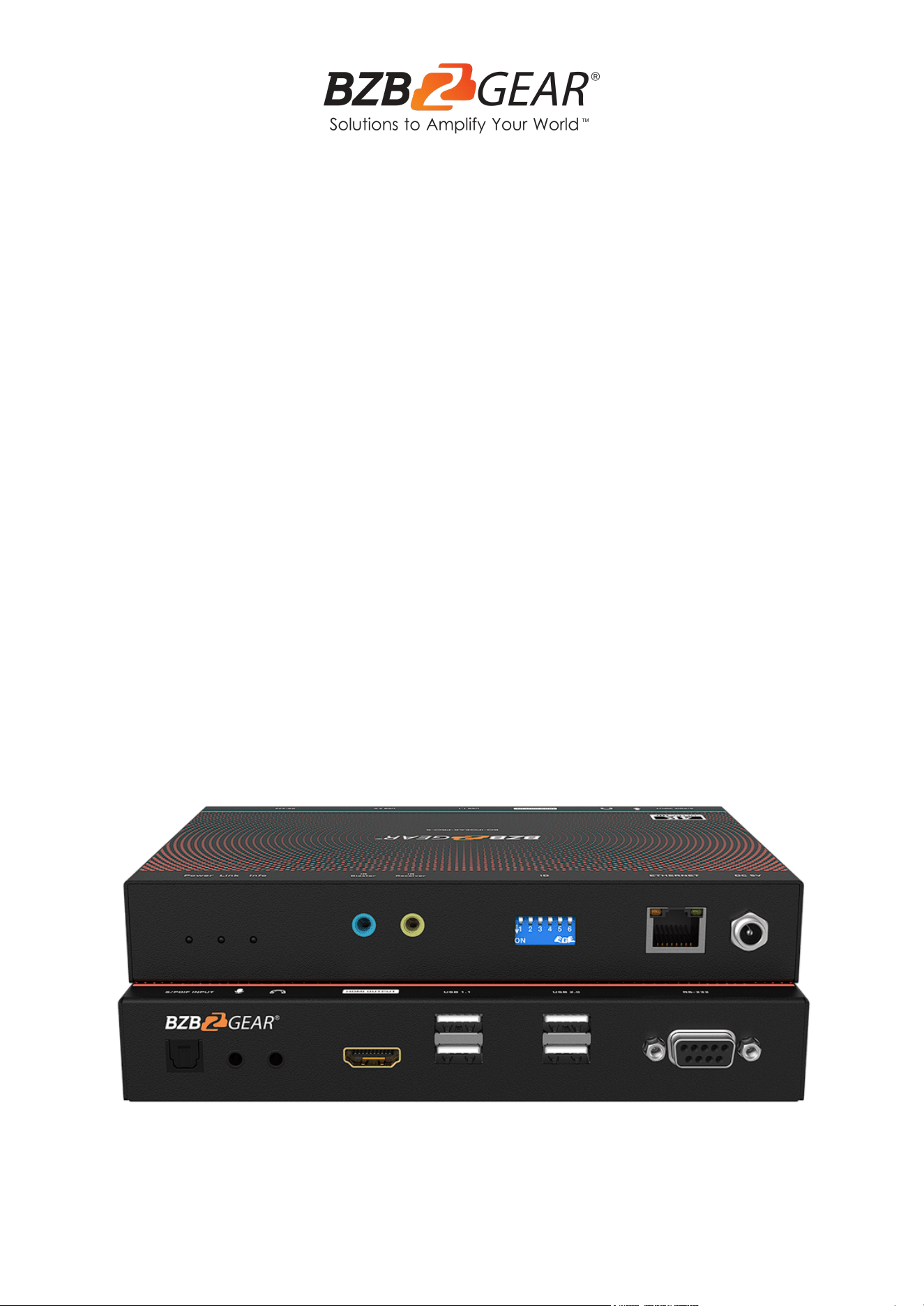
The BG-IPGEAR-PRO system is an HDMI 2.0 over IP multicast system with video wall &
PoE support that boosts up your video/audio transmission distances up to 120m(396ft) in
stunning UHD 4K@60. With cost effective ethernet cables, users can easily extend a UHD
video from source devices such as a Blu-ray player, PS5, PC, to a distant display.
Additionally, the BG-IPGEAR-PRO system is HDCP compliant and supports IR and RS-232
pass-through.
The BG-IPGEAR-PRO-C smart controller for the BG-IPGEAR-PRO system provides
continuous system monitoring, self-recovery, along with real-time email event notifications
and alerts. With a high degree of expandability, a single BG-IPGEAR-PRO-C can manage
up to 1024 transmitters and an unlimited number of receivers at once.
The intuitive web-based GUI enables users to drag and drop any source to any display,
build custom video walls, and create custom on-screen-display (OSD) messages. Users can
also access and manage the system by using the free iOS, Android, Windows, and MAC
applications.
Note: A supported gigabit network switch is required for the BG-IPGEAR-PRO system. The
system is capable of Point-to-Point, Point-to-Many, and Multicasting. Network switches
must support IGMP snooping and jumbo frame/large packet transfer. Multicasting requires
a managed gigabit network switch with 802.1Q VLAN functionality to allow for multiple
video sources.
Address: 830 National Drive #140, Sacramento, CA 95834, USA · Tel: +1(888)499-9906 · Email: support@bzbgear.com 5

BZBGEAR BG-IPGEAR-PRO PRODUCT MANUAL
Features
● Resolutions up to 4K@60 4:4:4 8 bits
● High Dynamic Range (HDR)*
● HDMI 2.0a compliant
● HDCP 2.2 compliant
● Flexible and scalable UHD video broadcasting: one-to-one, one-to-many &
multicasting.
● Each transmitter can multicast up to 1,023 receivers for video wall applications or
point-to-point.
● Full frequency, bi-directional IR signal from 20KHz to 60KHz.
● Full duplex RS-232 control up to 115,200 bps.
● Easy dip switch matching for hardcoding multicast group configurations.
● Simultaneous video wall functionality (up to a 5x5 video wall)
● 90°, 180°, and 270° clockwise image rotation in video wall mode.
● KVM support to control remote devices.
○ USB flash drive (USBoIP) and keyboard/mouse (KMoIP)**
○ USB webcam and USB audio device over IP (HW-USBoIP)***
● Wall mounting housing design for easy and robust installation
Notes:
* Due to the video compression, some distortion in terms of visual perception may happen
in HDR modes.
** For KMoIP functions:
A. The Tx channel ID must set between 0001 to 0008 (max quantity of Tx devices for
KVM support is 8 units)
B. The Rx channel ID must set to ID=0 [↑-↑-↑-↑-↑-↑]
C. Users must click the hotkey three times to switch Tx . (ex. Press the “5” key on the
num pad three times to switch to ID=0005(Tx)
*** For HW-USBoIP functions:
A. Do not attach devices other than a USB webcam and USB audio device
B. The Rx's webcam and video signal must come from the same Tx.
Address: 830 National Drive #140, Sacramento, CA 95834, USA · Tel: +1(888)499-9906 · Email: support@bzbgear.com 6
BZBGEAR BG-IPGEAR-PRO PRODUCT MANUAL
Controller Packing List
● 1x BG-IPGEAR-PRO-C
● 1x Rack-mounting ear set
● 1x DC 5V power supply
● 1x User Manual
● 1х Quick Start Guide
Transmitter Packing List
● 1x IPGEAR-PRO-T
● 1x IR Blaster Cable
● 1x User Manual
● 1x IR Receiver Cable
Receiver Packing List
● 1x IPGEAR-PRO-T
● 1x IR Blaster Cable
● 1x User Manual
● 1x IR Receiver Cable
Optional Accessories (Not Included)
● BG-VOP-ACC-RM
(Mount bracket for RM10)
● BG-VOP-ACC-RM10
(4RU rack mount fits 10
transmitters/receivers)
● BG-VOP-ACC-RB
(Blank mount bracket for RM10)
Address: 830 National Drive #140, Sacramento, CA 95834, USA · Tel: +1(888)499-9906 · Email: support@bzbgear.com 7
BZBGEAR BG-IPGEAR-PRO PRODUCT MANUAL
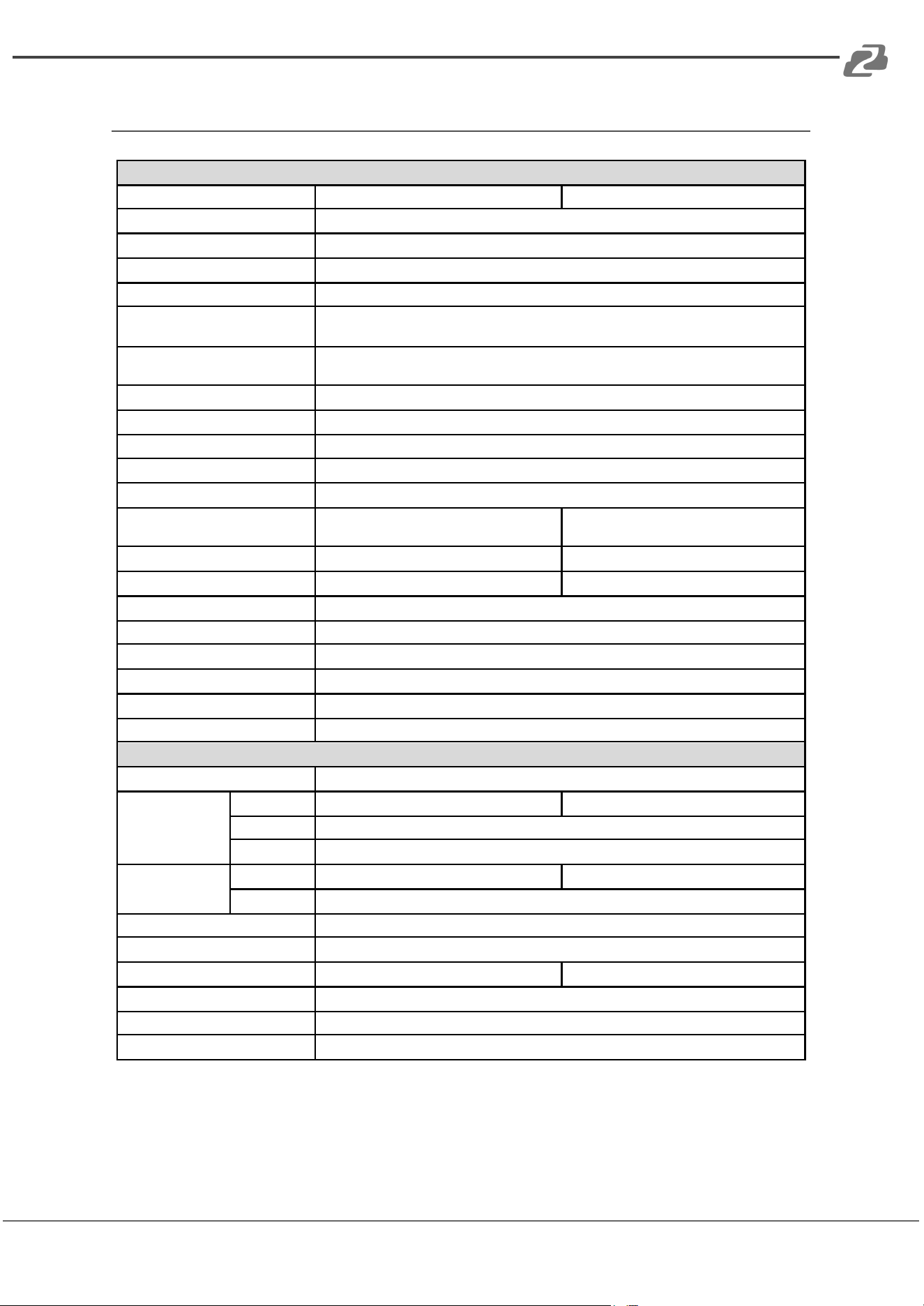
Transmitter and Receiver Specifications
Technical Specifications
Model
BG-IPGEAR-PRO-T [Tx]
BG-IPGEAR-PRO-R [Rx]
HDMI Compliance
HDMI
HDCP Compliance
Yes
Video Support
Up to 4K@60 (4:4:4 8 bits)
Latency
2 frames (33 ms) maximum
HDMI over UTP Transmission
[24-bit]
Ultra HD (4K2K60)-120m (396ft) [CAT.X]
Audio Support
Surround sound (up to 7.1ch) or stereo digital audio
Dolby Digital 5.1 - Dolby Atmos; DTS 5.1 - DTS:X; PCM 2ch - PCM 7.1ch
Input TMDS Signal
1.2 Volts [peak-to-peak]
Input DDC Signal
5 Volts [peak-to-peak, TTL]
ESD Protection
Human body model — ±15kV [air-gap discharge] & ±8kV [contact discharge]
IR Pass-Thru
Full-duplex bi-directional
RS-232 Support
Yes
Input
1x HDMI + 2x 3.5mm + 2x USB
1x RJ45 + 1x HDMI + 2x 3.5mm + 1x
S/PDIF
Output
1x RJ45 + 1x S/PDIF + 2x 3.5mm
2x 3.5mm + 5x USB
In/ Out
1x DIN9
1x DIN9
HDMI Source Control
Controllable via IR pass-through from Rx to Tx and from Tx to Rx with IR extenders
IR Remote Control
Electro-optical characteristics: = 25° / Carrier frequency: 20-60kHz
HDMI Connector
Type A [19-pin female]
Min DIN Connector
DIN-9
RJ45 Connector
WE/SS 8P8C with 2 LED indicators
3.5mm Connector
Analog audio / IR blaster & IR receiver
Mechanical Specifications
Housing
Metal enclosure
Dimensions
(L x W x H)
Model
194 x 133 x 28 mm[7.6" x 5.2" x 1.1"]
194 x 133 x 28 mm[7.6" x 5.2" x 1.1"]
Package
264 x 170 x 77mm [10.3" x 6.7" x 3"]
Carton
430 x 358 x 291mm [1'4" x 1'2" x 11.5"]
Weight
Model
663g [1.5 lbs]
644g [1.4 lbs]
Package
1528g [3.4 lbs]
Mounting
Wall mountable case with screws
Power Supply
5V DC/ / 48V POE
Power Consumption
6 Watts [max]
7 Watts [max
Operation Temperature
0~40°C [32~104°F]
Storage Temperature
-20~60°C [-4~140°F]
Relative Humidity
20~90% RH [no condensation]
Address: 830 National Drive #140, Sacramento, CA 95834, USA · Tel: +1(888)499-9906 · Email: support@bzbgear.com 8
BZBGEAR BG-IPGEAR-PRO PRODUCT MANUAL
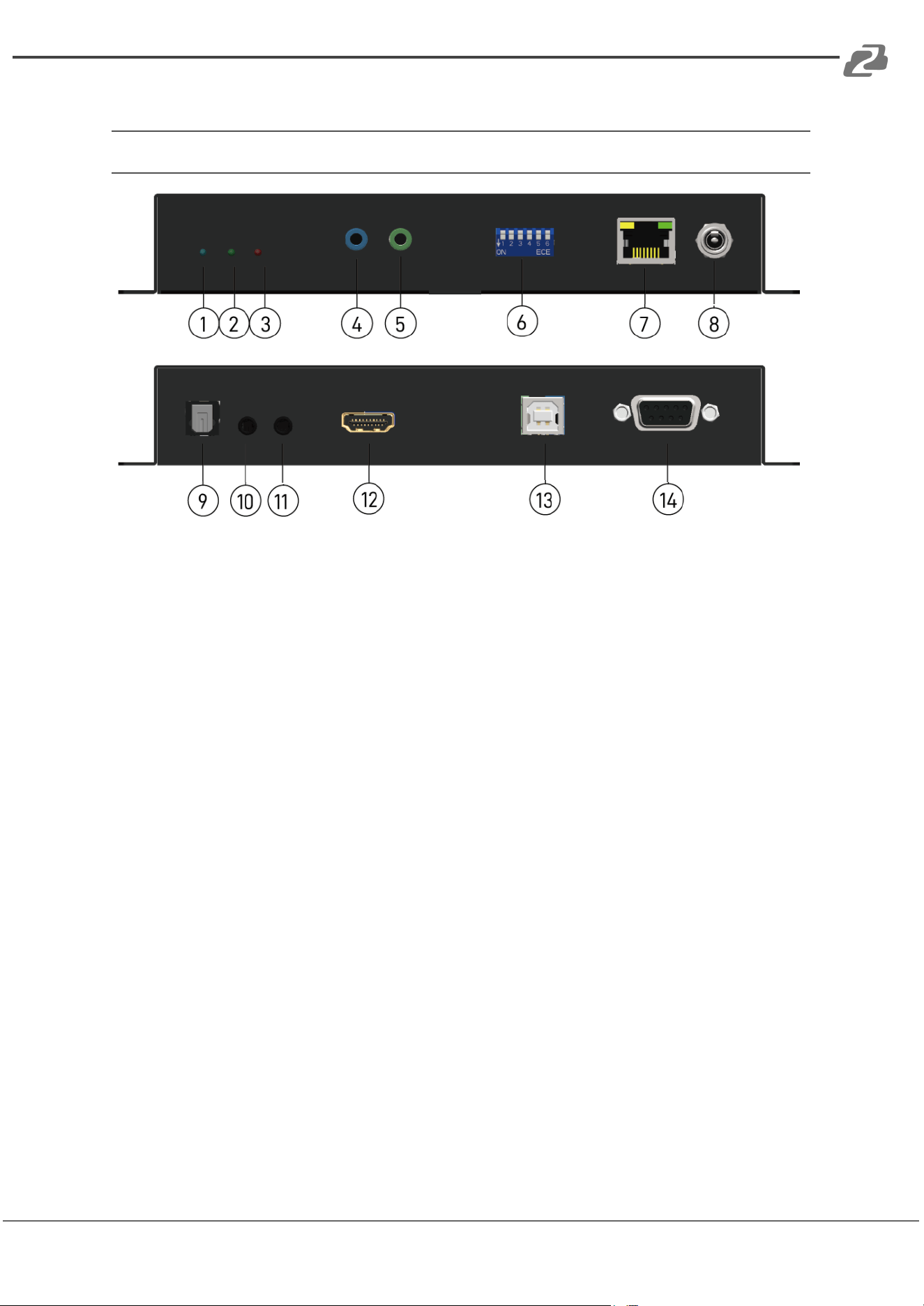
Transmitter and Receiver Interface Descriptions
Transmitter Unit - BG-IPGEAR-PRO-T
1. Power LED indicator:
[Blinking] When the unit is connected to power
[Solid] After fully booting and the device has become stable
2. Link LED indicator:
[Blinking] When the unit is connected to a Cat-5/5e/6 cable
[Solid] When the transmitting unit connects to an HDMI source and is linked to the
receiving unit
3. Info LED indicator: When a user clicks the LED button from the software, the LED
light will blink for 30 seconds.
4. IR Blaster: Infrared 3.5mm socket for plugging in the extension cable of IR blaster
5. IR Receiver: Infrared 3.5mm socket for plugging in the extension cable of IR
receiver
6. Dip Switch: Video channel selection
7. RJ-45: Gigabit Ethernet port
8. +5V DC: Connect to 5V DC power supply
9. S/PDIF: Reserved
10. Analog audio line in: Connect to audio source
11. Analog audio line out: Connect to headphones
12. HDMI IN: Connects to an HDMI source with an HDMI cable
13. USB: Connect to USB host (keyboard/mouse & USB flash driver function)
14. RS-232: Connect to PC serial port with a DSUB-9 cable
Address: 830 National Drive #140, Sacramento, CA 95834, USA · Tel: +1(888)499-9906 · Email: support@bzbgear.com 9
BZBGEAR BG-IPGEAR-PRO PRODUCT MANUAL
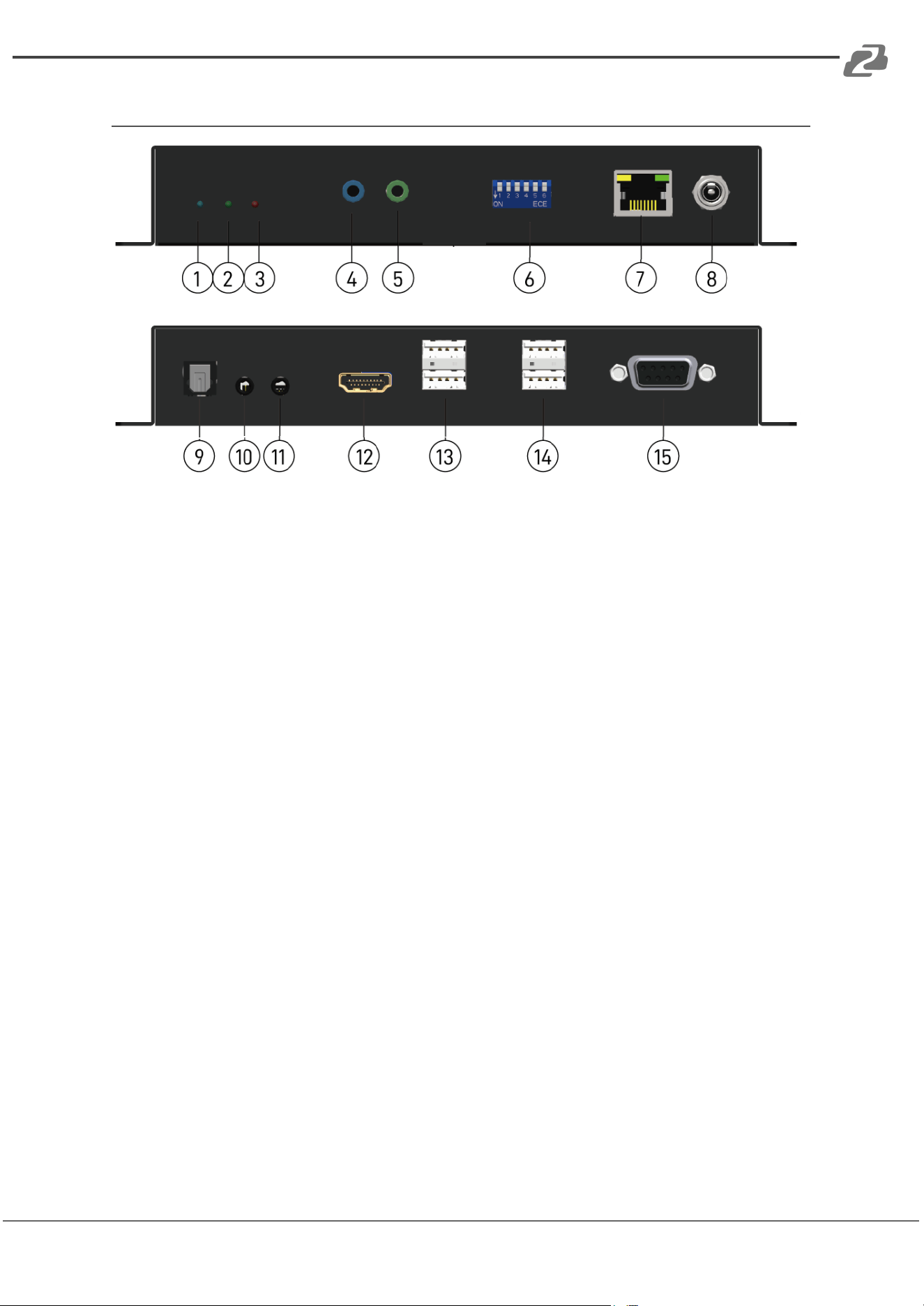
Receiver Unit - BG-IPGEAR-PRO-R
1. Power LED indicator:
[Blinking] When the unit is connected to power
[Solid] After fully booting and the device has become stable
2. Link LED indicator:
[Blinking] When the unit is connected to a Cat-5/5e/6 cable
[Solid] When the transmitting unit connects to an HDMI source and is linked to the
receiving unit
3. Info LED indicator: When a user clicks the LED button from the software, the LED
light will blink for 30 seconds.
4. IR Blaster: Infrared 3.5mm socket for plugging in the extension cable of IR blaster
5. IR Receiver: Infrared 3.5mm socket for plugging in the extension cable of IR
receiver.
6. Dip Switch: Video channel selection
7. RJ-45: Gigabit Ethernet port
8. +5V DC: Connect to 5V DC power supply
9. S/PDIF: Reserved
10. Analog audio mic in (for unicast only): Connect to microphone
11. Analog audio line out: Connect to headphones
12. HDMI OUT: Connect to an HDMI display with an HDMI cable.
13. USB(USB 1.1 port): Connect to keyboard/mouse
14. USB(USB 2.0 port): Connect to USB flash drive or webcam
15. RS-232: Connect to PC serial port with a DSUB-9 cable
Address: 830 National Drive #140, Sacramento, CA 95834, USA · Tel: +1(888)499-9906 · Email: support@bzbgear.com 10
BZBGEAR BG-IPGEAR-PRO PRODUCT MANUAL
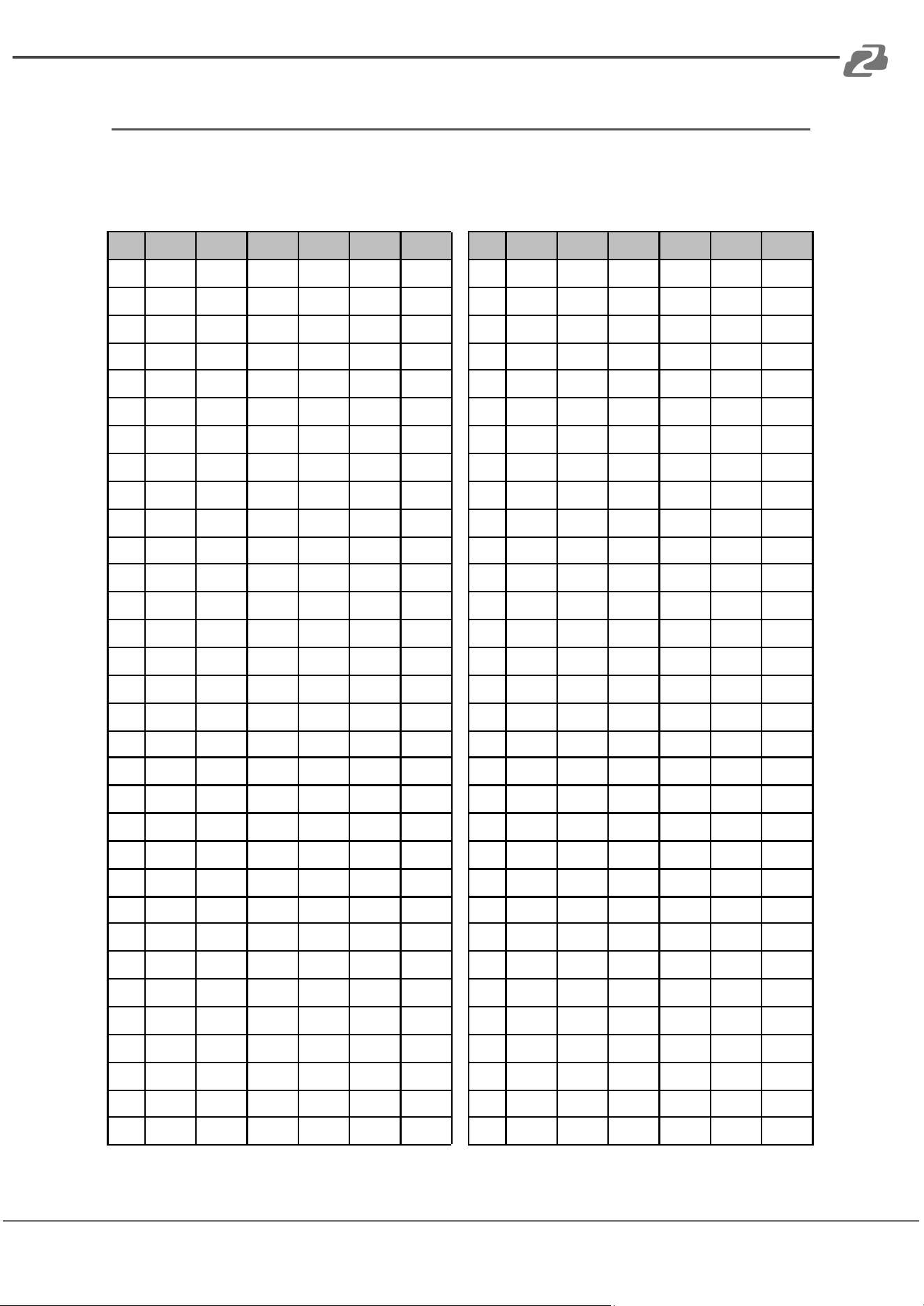
Transmitter and Receiver DIP Switch ID Settings
Notes:
1. For ID=1~63 refer to the table below to set up device hardware control.
2. For ID=64~1023, adjust the DIP switches to ID=0 and the ID will be decided by the
controller.
ID
Pin1
Pin2
Pin3
Pin4
Pin5
Pin6
ID
Pin1
Pin2
Pin3
Pin4
Pin5
Pin6
0
↑
↑
↑
↑
↑
↑
32
↑
↑
↑
↑
↑
↓
1
↓
↑
↑
↑
↑
↑
33
↓
↑
↑
↑
↑
↓
2
↑
↓
↑
↑
↑
↑
34
↑
↓
↑
↑
↑
↓
3
↓
↓
↑
↑
↑
↑
35
↓
↓
↑
↑
↑
↓
4
↑
↑
↓
↑
↑
↑
36
↑
↑
↓
↑
↑
↓
5
↓
↑
↓
↑
↑
↑
37
↓
↑
↓
↑
↑
↓
6
↑
↓
↓
↑
↑
↑
38
↑
↓
↓
↑
↑
↓
7
↓
↓
↓
↑
↑
↑
39
↓
↓
↓
↑
↑
↓
8
↑
↑
↑
↓
↑
↑
40
↑
↑
↑
↓
↑
↓
9
↓
↑
↑
↓
↑
↑
41
↓
↑
↑
↓
↑
↓
10
↑
↓
↑
↓
↑
↑
42
↑
↓
↑
↓
↑
↓
11
↓
↓
↑
↓
↑
↑
43
↓
↓
↑
↓
↑
↓
12
↑
↑
↓
↓
↑
↑
44
↑
↑
↓
↓
↑
↓
13
↓
↑
↓
↓
↑
↑
45
↓
↑
↓
↓
↑
↓
14
↑
↓
↓
↓
↑
↑
46
↑
↓
↓
↓
↑
↓
15
↓
↓
↓
↓
↑
↑
47
↓
↓
↓
↓
↑
↓
16
↑
↑
↑
↑
↓
↑
48
↑
↑
↑
↑
↓
↓
17
↓
↑
↑
↑
↓
↑
49
↓
↑
↑
↑
↓
↓
18
↑
↓
↑
↑
↓
↑
50
↑
↓
↑
↑
↓
↓
19
↓
↓
↑
↑
↓
↑
51
↓
↓
↑
↑
↓
↓
20
↑
↑
↓
↑
↓
↑
52
↑
↑
↓
↑
↓
↓
21
↓
↑
↓
↑
↓
↑
53
↓
↑
↓
↑
↓
↓
22
↑
↓
↓
↑
↓
↑
54
↑
↓
↓
↑
↓
↓
23
↓
↓
↓
↑
↓
↑
55
↓
↓
↓
↑
↓
↓
24
↑
↑
↑
↓
↓
↑
56
↑
↑
↑
↓
↓
↓
25
↓
↑
↑
↓
↓
↑
57
↓
↑
↑
↓
↓
↓
26
↑
↓
↑
↓
↓
↑
58
↑
↓
↑
↓
↓
↓
27
↓
↓
↑
↓
↓
↑
59
↓
↓
↑
↓
↓
↓
28
↑
↑
↓
↓
↓
↑
60
↑
↑
↓
↓
↓
↓
29
↓
↑
↓
↓
↓
↑
61
↓
↑
↓
↓
↓
↓
30
↑
↓
↓
↓
↓
↑
62
↑
↓
↓
↓
↓
↓
31
↓
↓
↓
↓
↓
↑
63
↓
↓
↓
↓
↓
↓
Address: 830 National Drive #140, Sacramento, CA 95834, USA · Tel: +1(888)499-9906 · Email: support@bzbgear.com 11
BZBGEAR BG-IPGEAR-PRO PRODUCT MANUAL
Controller Technical Specifications
Technical
Role of usage
System Controller
Input
1x RJ-45
Output
1x HDMI
HDMI connector
Type A [19-pin female]
RJ-45 connector
WE/SS 8P8C
Mechanical
Housing
Metal enclosure
Dimensions
[L x W x H]
Model
90 x 78 x 29mm [3.5" x 3" x 1.1"]
Package
198 x 137 x 74mm [7.8" x 5.4" x 2.9"]
Carton
420 x 400 x 300mm [1'4"x 1'3" x 11.8"]
Weight
Model
222g[0.4 lbs]
Package
493g [1 lbs]
Fixedness
Rack-mount with ears
Power supply
5V DC
Power consumption
3.5 Watts [max]
Operation temperature
0~40°C [32~104°F]
Storage temperature
-20~60°C [-4~140°F]
Relative humidity
20~90% RH [no condensation]
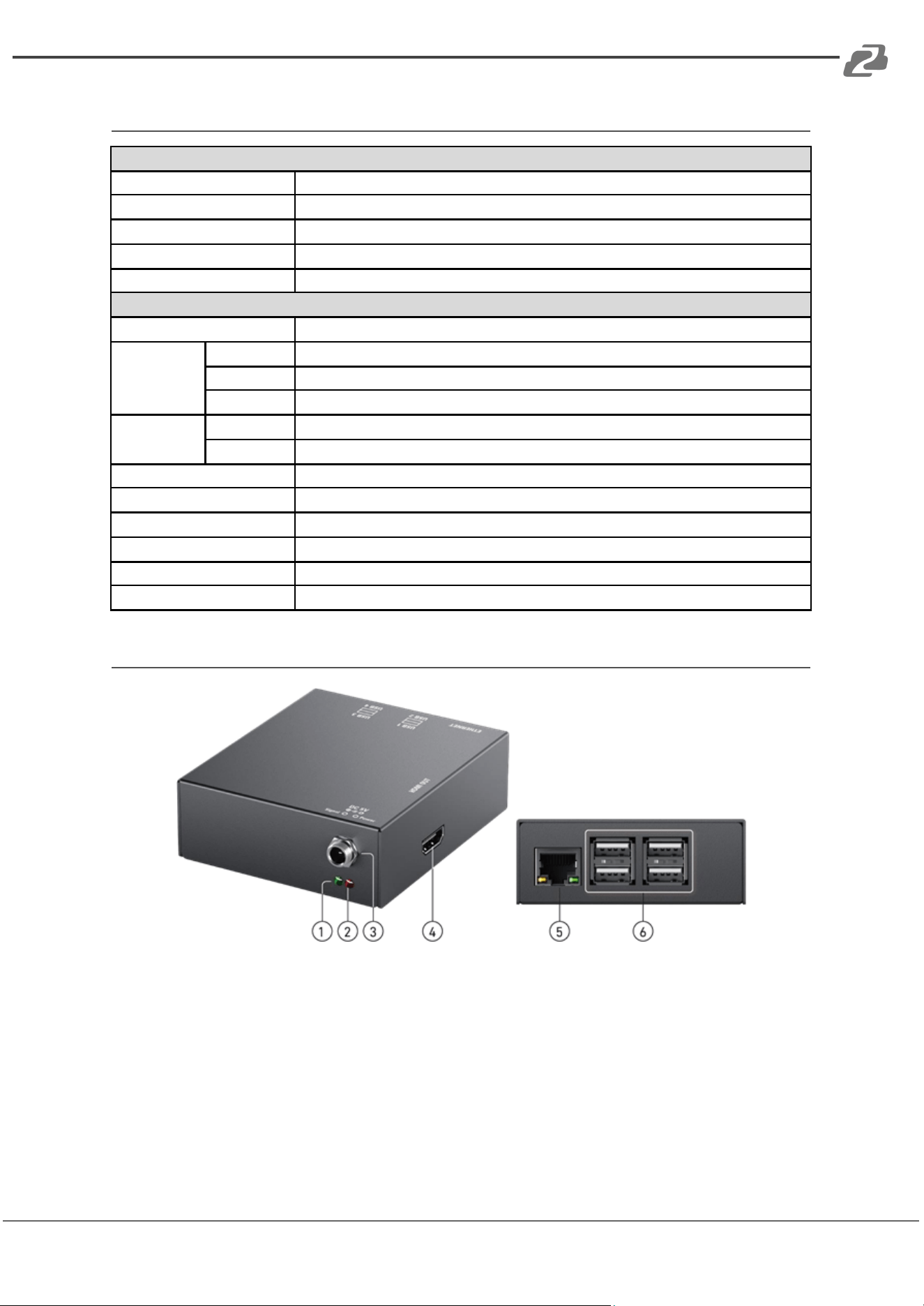
Controller Interface Descriptions
1. Activity LED indicator: When the device is being used, the light will blink.
2. Power LED indicator: When the unit connects to power the light will illuminate.
3. +5V DC:+5V DC power jack.
4. Output: HDMI output displays the information of the controller (NOTE: An HDMI cable
must be plugged in before powering the unit or no image will be displayed).
5. RJ-45: Ethernet control port
6. USB: Not Used
Address: 830 National Drive #140, Sacramento, CA 95834, USA · Tel: +1(888)499-9906 · Email: support@bzbgear.com 12
BZBGEAR BG-IPGEAR-PRO PRODUCT MANUAL
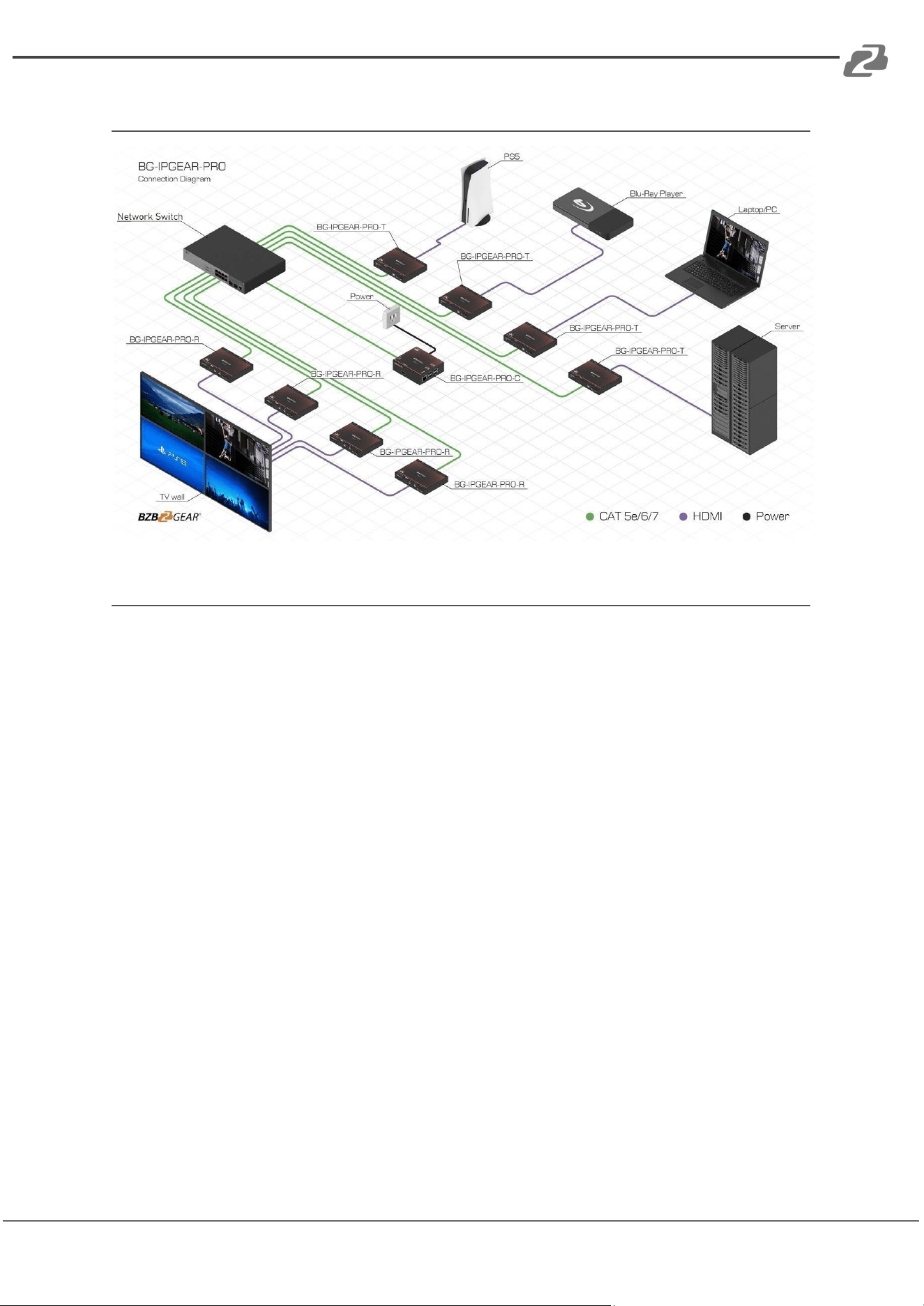
Application Diagram
Network Switch Selection
1. Choosing a Network Switch
The selected network switch must support the following functions:
● Gigabit (or faster) ethernet ports
● IGMP Snooping
● IGMP v2 Snooping (multicast)
● IGMP Querier
● IGMP Snooping Fast Leave
● Multicast forwarding or filtering
● Jumbo frames/large packet transfer up to 9KB (9000 bytes)
2. Network Switch Configuration
Configuring your switch properly so it will pass data more efficiently, please refer to the
following settings:
● Enable IGMP Snooping on Layer 2 switches.
● Enable IGMP Querier on the Layer 3 switches.
● Enable IGMP Fast-Leave on all switches that have IPGEAR-PRO units connected
directly to them.
● Enable jumbo frame/large packet transfer on the network switch to improve data
transfer efficiency.
Address: 830 National Drive #140, Sacramento, CA 95834, USA · Tel: +1(888)499-9906 · Email: support@bzbgear.com 13
BZBGEAR BG-IPGEAR-PRO PRODUCT MANUAL
IR Passthrough
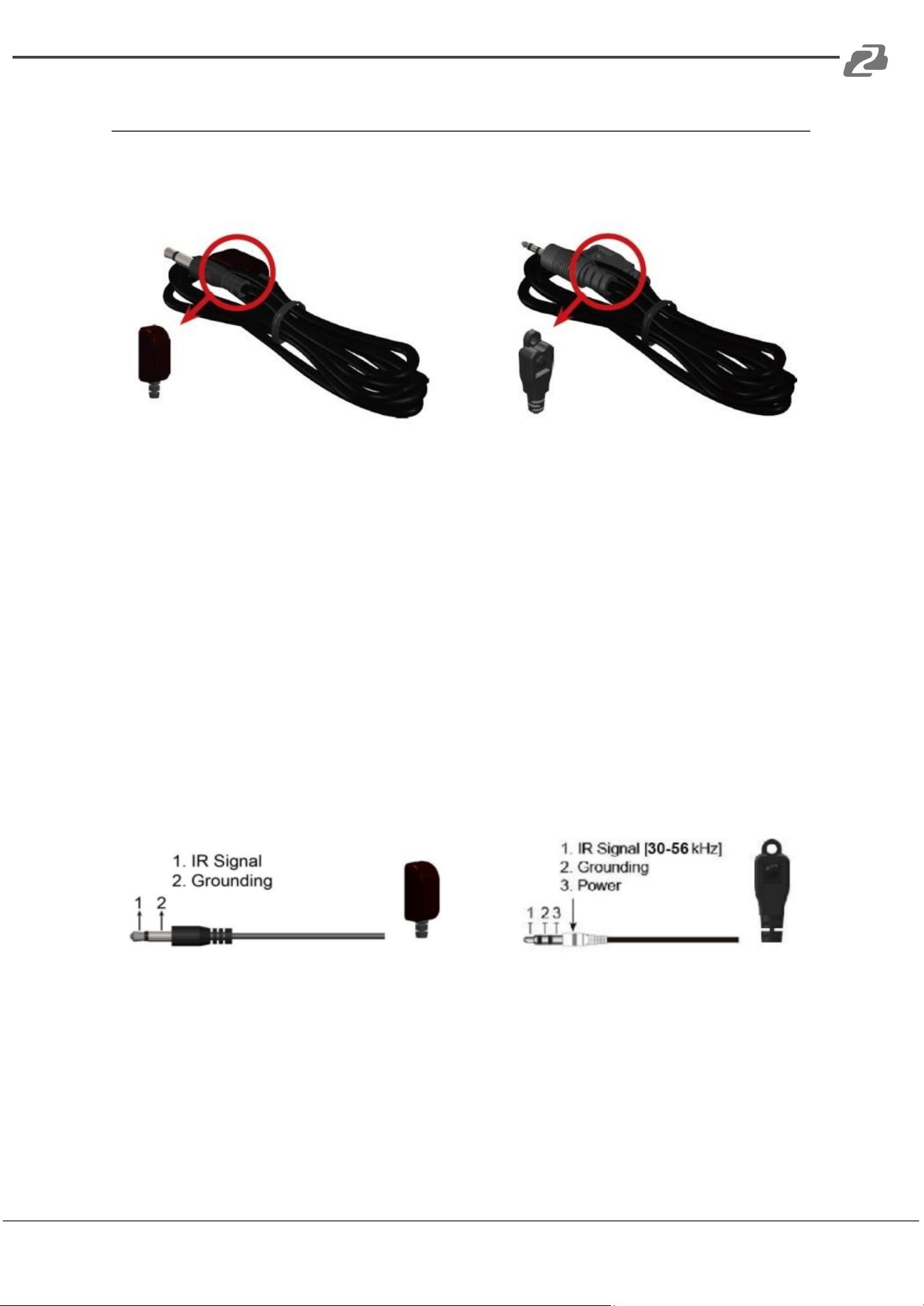
[IR Extenders]
IR Blaster IR Receiver
[IR Sockets]
IR BLASTER: Plug in the IR blaster to emit all IR command signals received from the IR
receiver from the other end to control the devices corresponding to the IR signals.
IR RECEIVER: Plug in the IR receiver to receive all IR command signals from the IR remote
controls of the corresponding devices.
CAUTION!
Incorrect placement of IR Blaster and Receiver may result in the failure of the IR extenders.
Please check carefully before plugging in the IR extender to the respective IR sockets.
Warranty will not cover the damage.
[Definition of IR Earphone Jack]
IR Blaster IR Receiver
NOTE: Users can buy any IR extension cables on the market that are compatible with the IR
sockets and extender for replacement use shown in the diagram above. IR cables longer
than 2m (6ft) may not work.
Address: 830 National Drive #140, Sacramento, CA 95834, USA · Tel: +1(888)499-9906 · Email: support@bzbgear.com 14
BZBGEAR BG-IPGEAR-PRO PRODUCT MANUAL
Network Connection and System Setup
Installation Setup
1. Connect a Laptop/PC and the BG-IPGEAR-PRO-C into a Gigabit IP
Switch/Router/Hub.
a. Ensure your Gigabit IP Switch/Router/Hub has a DHCP server enabled.
b. The BG-IPGEAR-PRO-C controller is preconfigured to be set to DHCP and will
automatically grab an IP address from the network. If a DHCP server is not
available, the unit will assign itself its own IP. The controller, transmitters, and
receivers must all be on the same network/VLAN to communicate properly.
2. Plug one end of an HDMI cable into the BG-IPGEAR-PRO-C and the other end into a
display.
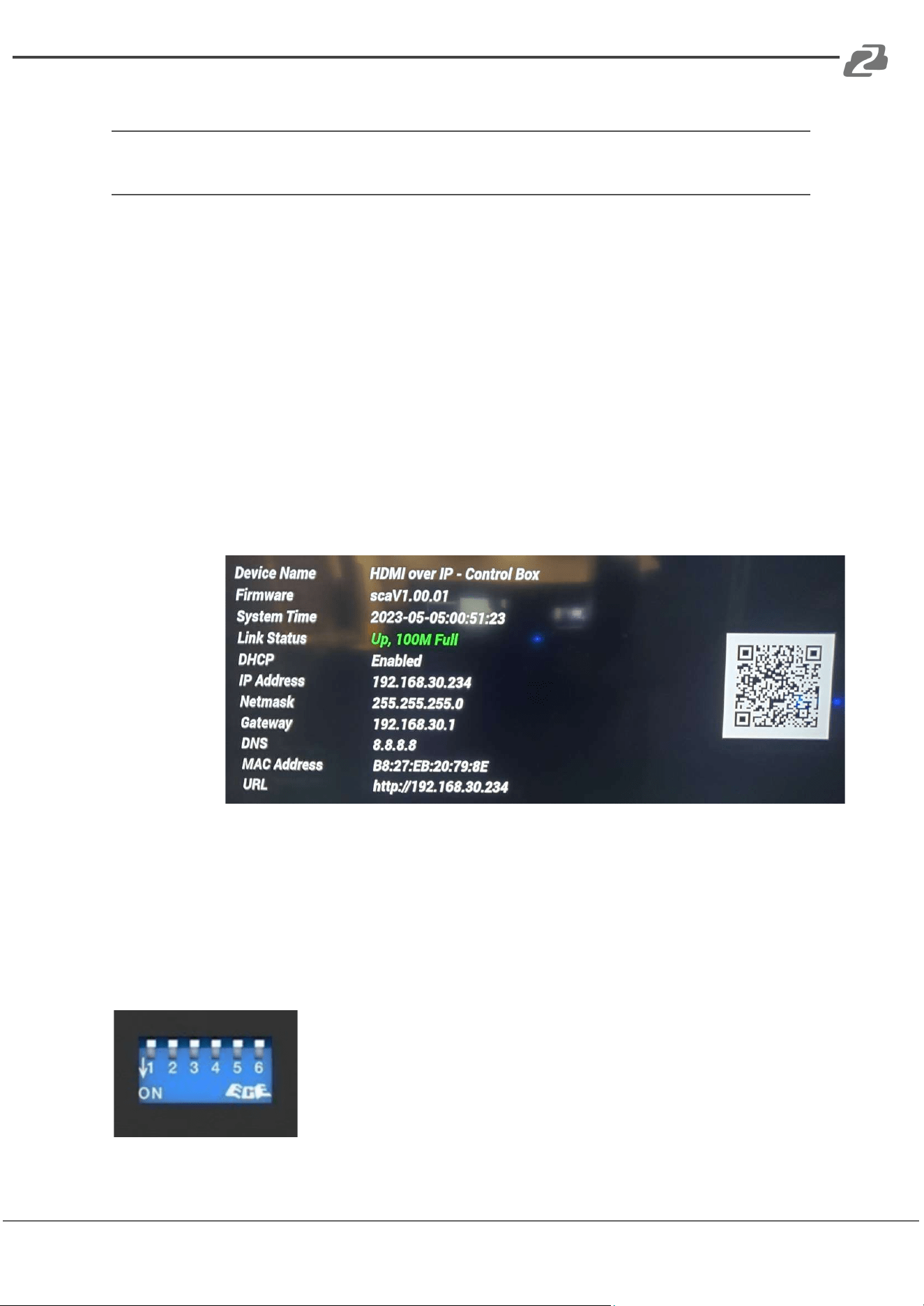
3. Plug power into the control box and wait for the unit to boot and show its information
splash screen on the display.
a. NOTE: HDMI must be plugged into the controller before it is powered on
otherwise no image will be displayed.
4. The splash screen will display the IP Address, Network Mask, Gateway, and URL if the
network had DHCP configured properly as shown in the image above.
a. Users can also use a mobile device connected to the same network to scan the
QR code on the display to access the web page for management.
5. Next, assign each transmitter (BG-IPGEAR-PRO-T) in the system a unique ID by using
the DIP switch panel on the side of the unit (for specific DIP switch settings see the
previous chart).
Address: 830 National Drive #140, Sacramento, CA 95834, USA · Tel: +1(888)499-9906 · Email: support@bzbgear.com 15
BZBGEAR BG-IPGEAR-PRO PRODUCT MANUAL
6. Receivers (BG-IPGEAR-PRO-R) can be set to receive signals from any transmitter or a
specific one. To receive signal from any transmitter, leave all dip switches in the 0
position (up). To receive signal only from a specific transmitter, toggle the DIP switches
on the receiver to match the positions on the desired transmitter.
7. When the dipswitches are set, plug the transmitters and receivers into the PoE network
switch to power them on.
a. Connect sources to transmitters and displays to receivers using HDMI cables.
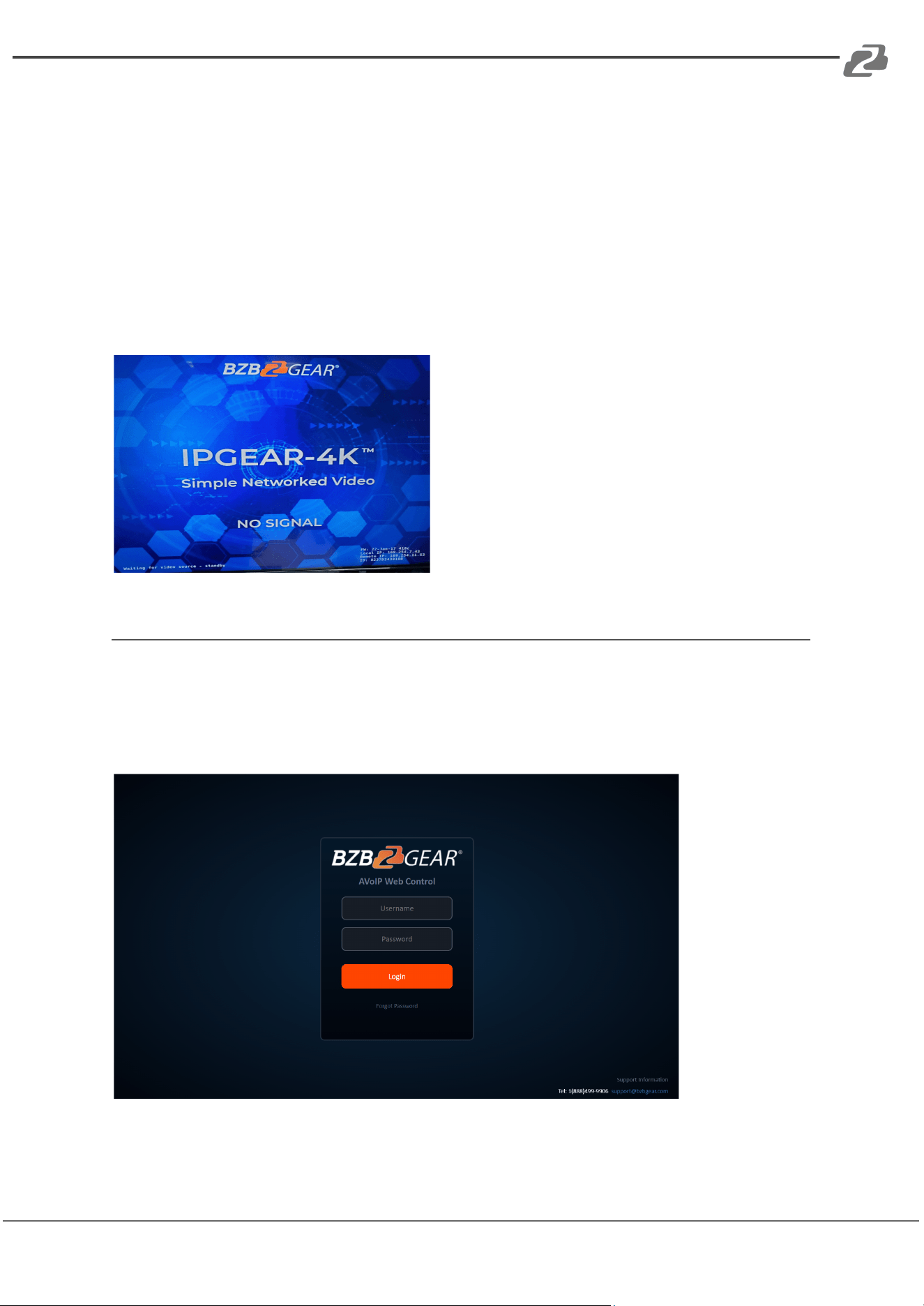
b. When powered, connected to a display, and unpaired from a transmitter the
receivers will display the following image:
Web Control
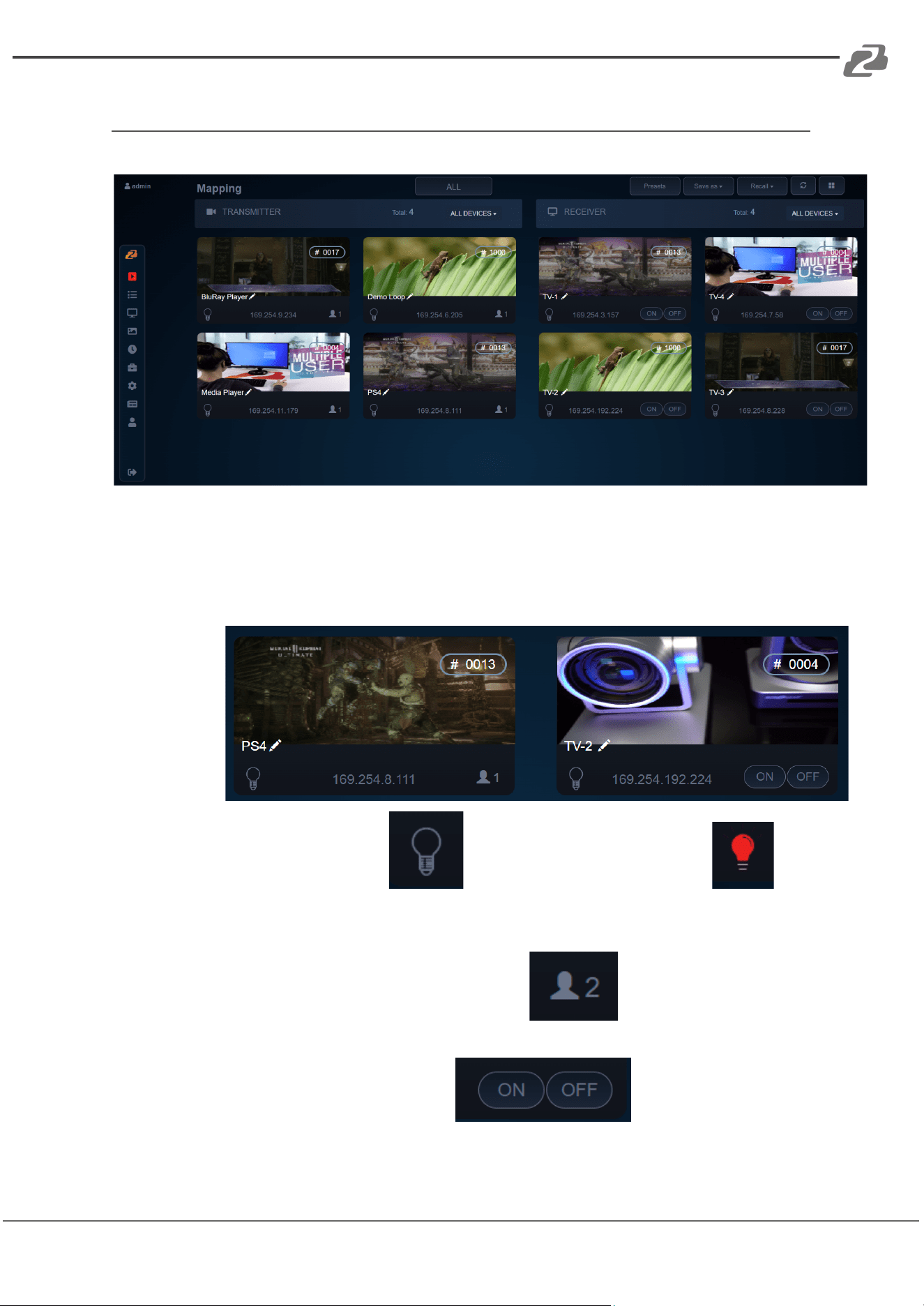
1. Type in the URL shown by the BG-IPGEAR-PRO-C into your preferred web browser
or scan the QR code using a mobile device connected to the same network as the
controller.
2. The login page will be displayed if the system and network were configured correctly
as shown below.
3. Enter the default credentials to login to the system.
a. Default account: admin
b. Default password: admin
Address: 830 National Drive #140, Sacramento, CA 95834, USA · Tel: +1(888)499-9906 · Email: support@bzbgear.com 16
BZBGEAR BG-IPGEAR-PRO PRODUCT MANUAL
Mapping
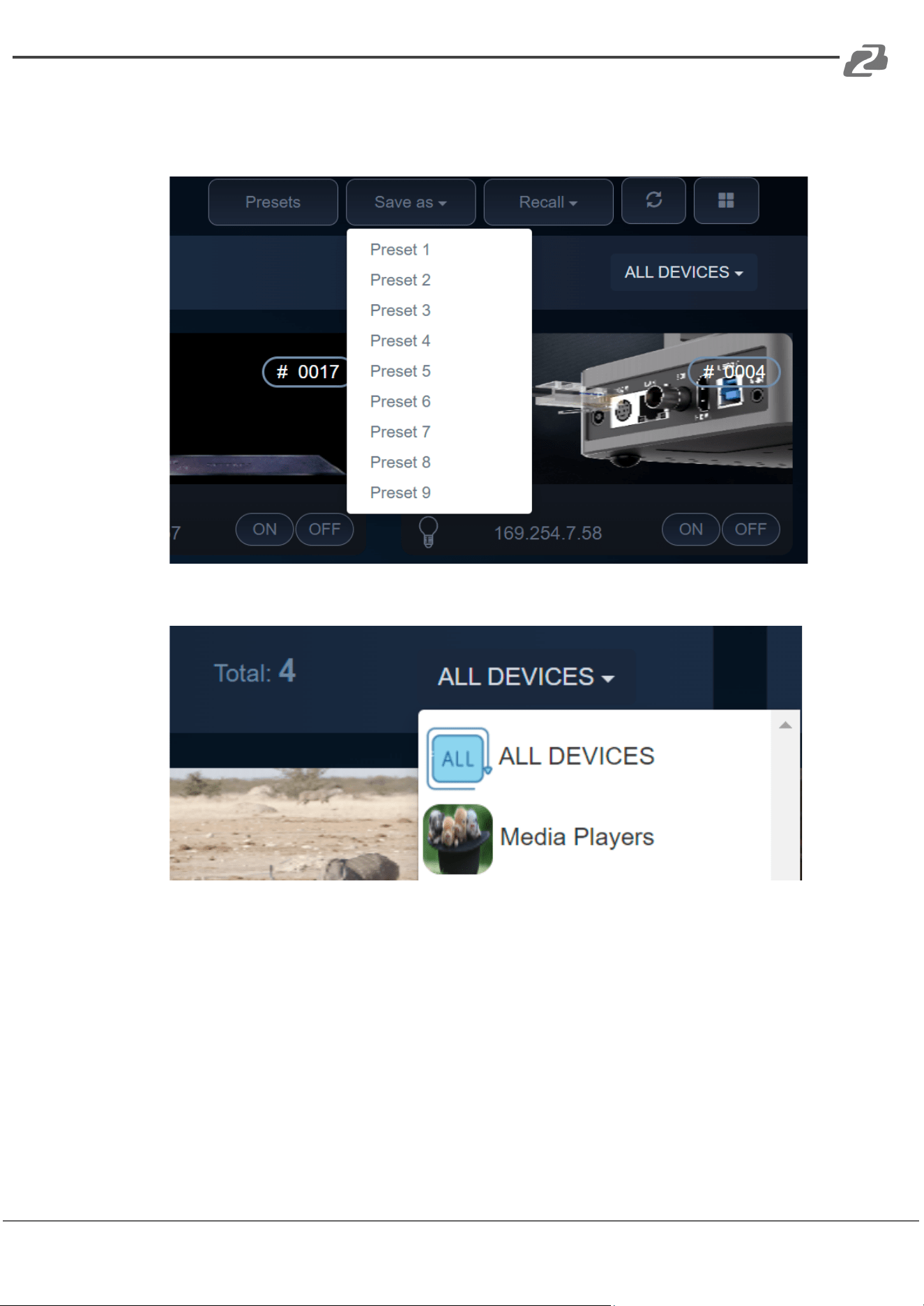
1. Upon logging in you will be taken to the systems Mapping page.
2. On this screen users can pair transmitters and receivers together, view and manage
presets, as well as view grouped units.
3. The image previews on the Mapping page display useful information such as the
group/pair ID in the top right, editable device name in the bottom left, and device IP
address.
a.
b. The lightbulb symbol will illuminate red when clicked
which will cause the corresponding units red LED indicator light to blink for a
short period of time to assist with identification.
c. On transmitting units the paired symbol shows the number of
receivers that the transmitter is currently broadcasting too.
d. On receiver units the ON/OFF buttons send CEC
commands to compatible displays to turn them on or off.
Address: 830 National Drive #140, Sacramento, CA 95834, USA · Tel: +1(888)499-9906 · Email: support@bzbgear.com 17
BZBGEAR BG-IPGEAR-PRO PRODUCT MANUAL
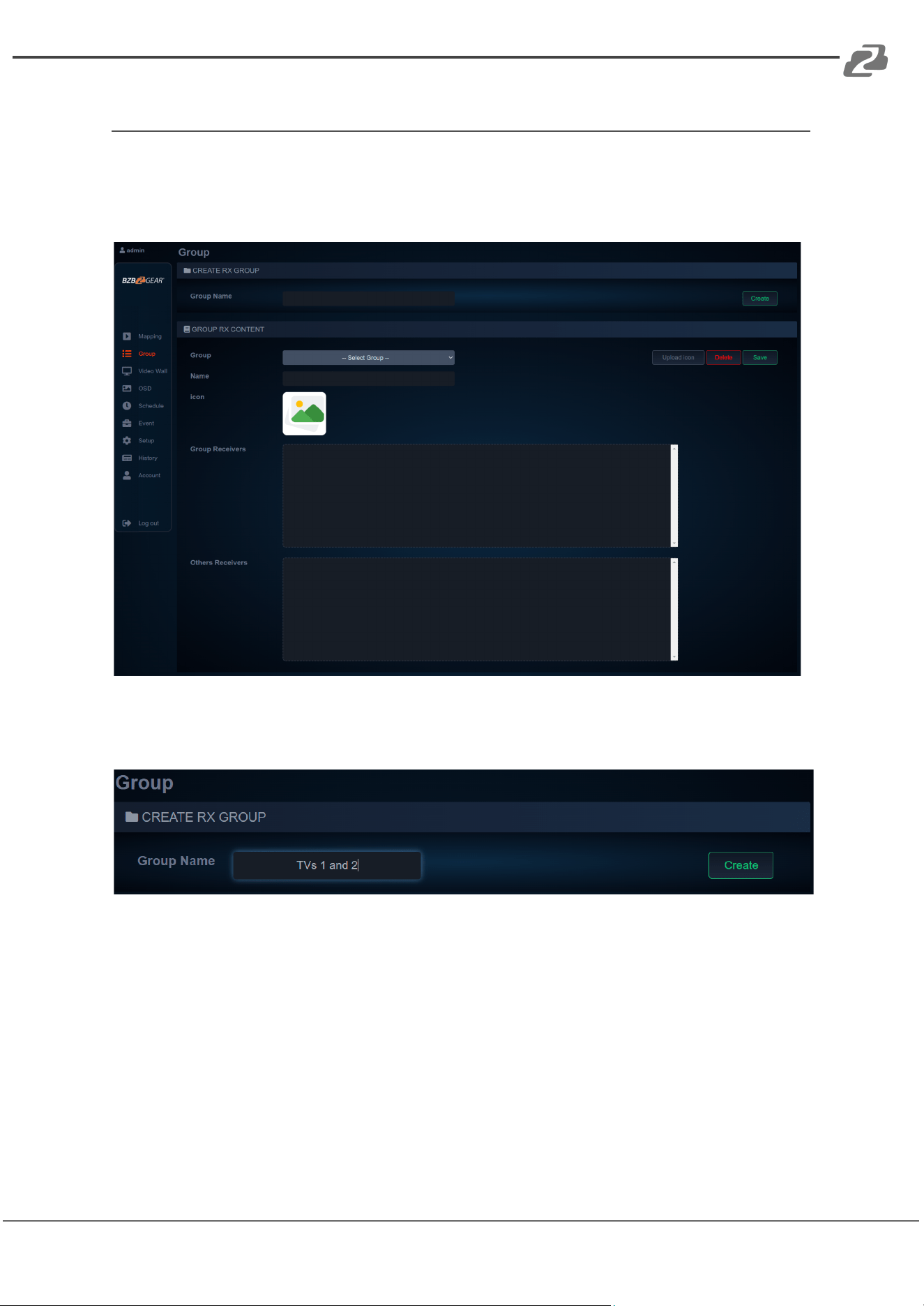
4. To set a configuration as a preset click “Save as” dropdown and select the desired
preset location. To recall a preset click the “Recall” drop down and select a preset
that has been previously saved.
5. To select a set of grouped transmitters or receivers select the drop down at the top
of each respective section.
a. Selecting a group of transmitters or receivers will make the system display
only units in that group for easier identification and management.
Address: 830 National Drive #140, Sacramento, CA 95834, USA · Tel: +1(888)499-9906 · Email: support@bzbgear.com 18
BZBGEAR BG-IPGEAR-PRO PRODUCT MANUAL
Groups
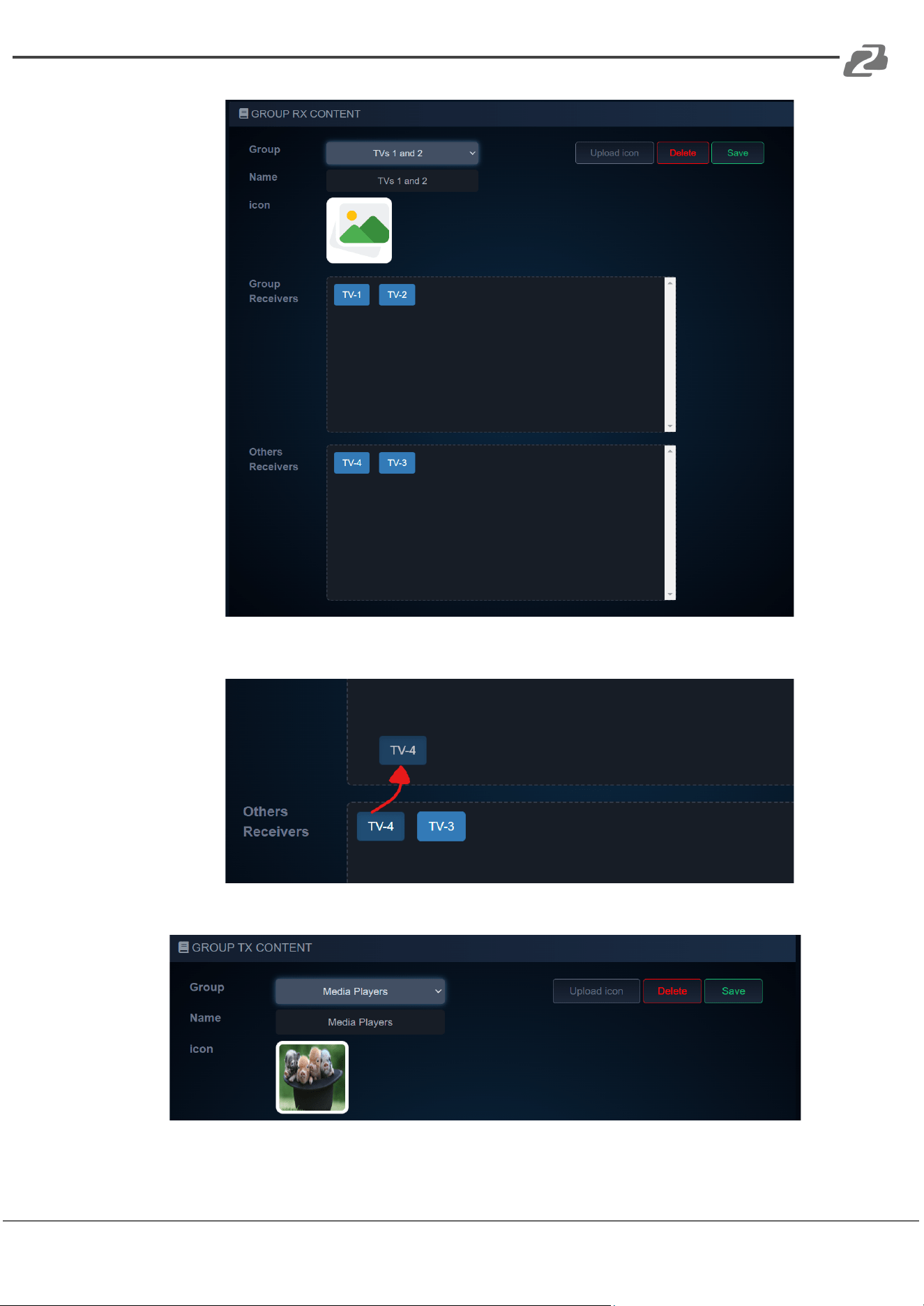
Transmitters or receivers can be grouped together for easier identification and system
management. To create or manage device groups select the “Group” tab from the menu on
the left hand side of the web interface.
1. To create a receiver or transmitter group, type in a “Group Name” and click
“Create.”
2. Once the group is created, move to the next section on the screen and select the
group name you just created from the “Group” dropdown menu.
Address: 830 National Drive #140, Sacramento, CA 95834, USA · Tel: +1(888)499-9906 · Email: support@bzbgear.com 19
BZBGEAR BG-IPGEAR-PRO PRODUCT MANUAL
a.
b. Click and drag devices from the bottom “Others” box to the “Group” box
above.
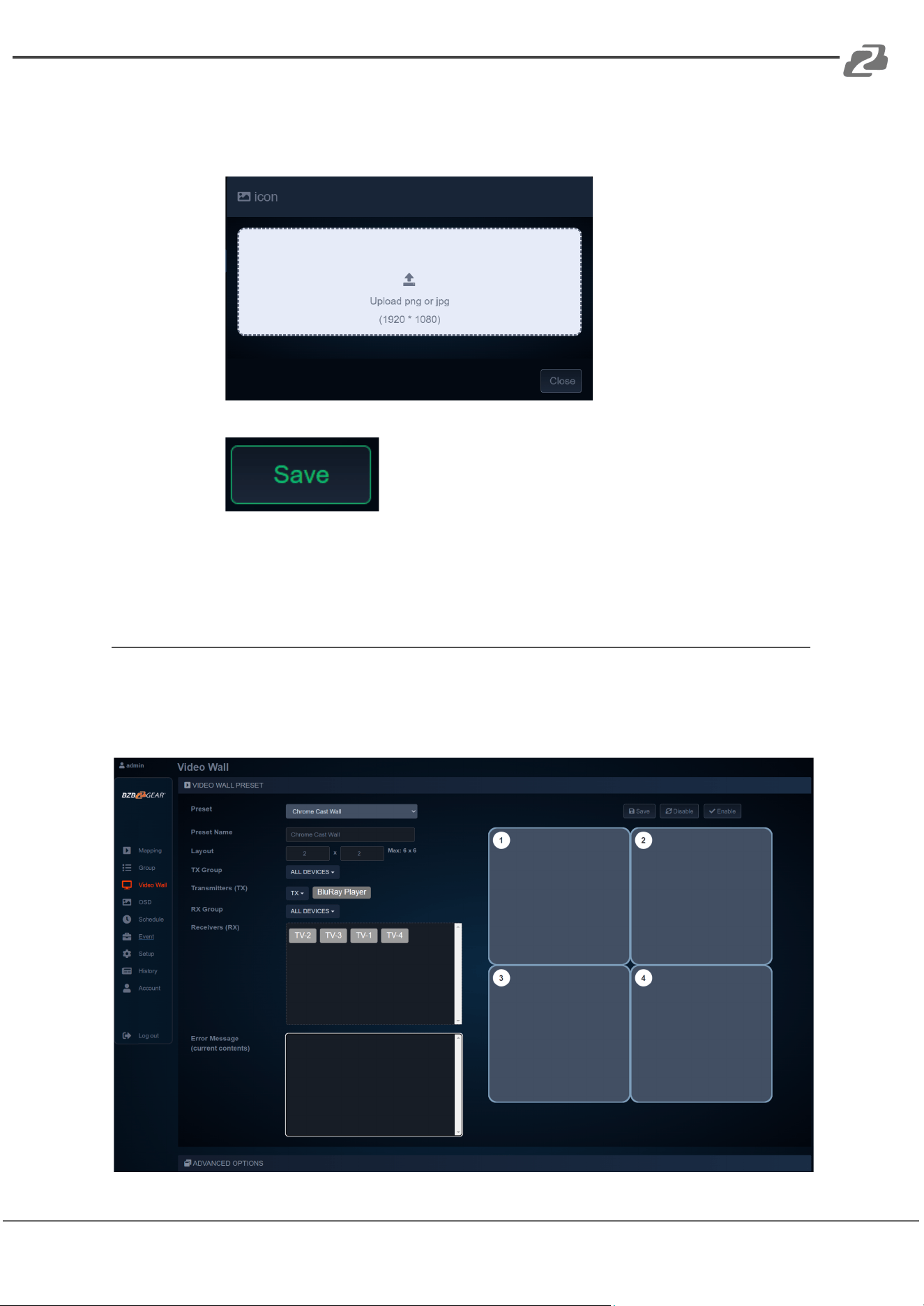
3. Users can also choose to upload an icon for the group to assist with identification.
Address: 830 National Drive #140, Sacramento, CA 95834, USA · Tel: +1(888)499-9906 · Email: support@bzbgear.com 20
BZBGEAR BG-IPGEAR-PRO PRODUCT MANUAL
a. Click the “Upload icon” button to choose an image to upload for the group.
Note: Group images must be .png or .jpg file formats and no larger than
1920x1080.
b.
4. When you are done editing the group, click the “Save” button to save the group.
a.
5. The grouped device can now be filtered on the Mapping page using their respective
drop down menus.
Video Wall Setup
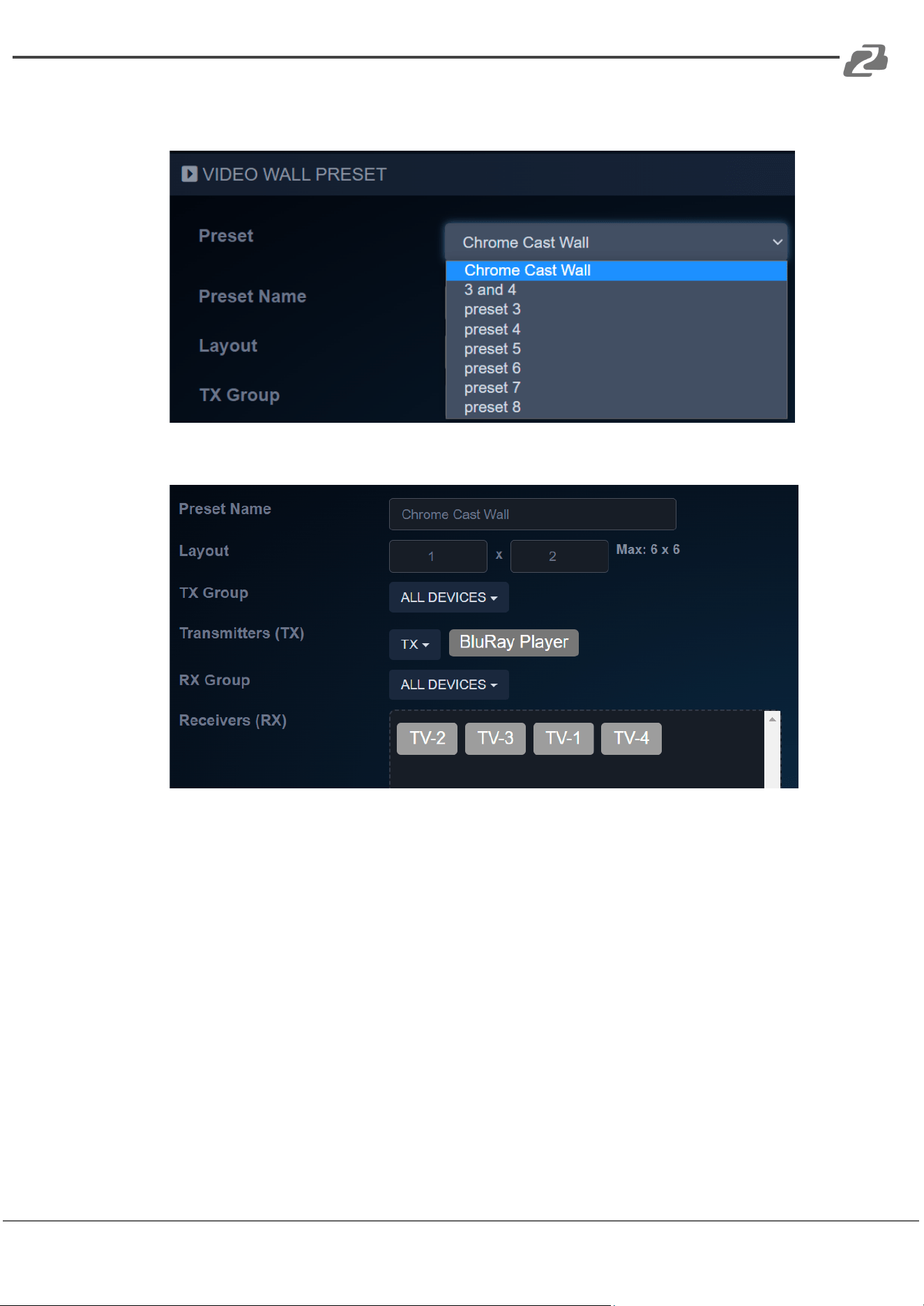
The BG-IPGEAR-PRO system is capable of forming multiple video walls simultaneously
(maximum size 6x6 or 36 displays). To create a video wall select the “Video Wall” tab from
the left hand menu.
Address: 830 National Drive #140, Sacramento, CA 95834, USA · Tel: +1(888)499-9906 · Email: support@bzbgear.com 21
BZBGEAR BG-IPGEAR-PRO PRODUCT MANUAL
1. To create or edit a video wall select a Preset from the dropdown menu
2. Users can edit the video wall “Preset Name” by typing in a desired name in the text
field.
3. To edit the size of the video wall adjust the number of rows and columns up to a
maximum of 6x6.
a. If you have previously created device groups use the “TX Group” and “RX
Group” dropdowns to filter your selection
4. Select a Transmitter from the “TX” dropdown that will act as the source device for
the video wall.
Address: 830 National Drive #140, Sacramento, CA 95834, USA · Tel: +1(888)499-9906 · Email: support@bzbgear.com 22
BZBGEAR BG-IPGEAR-PRO PRODUCT MANUAL
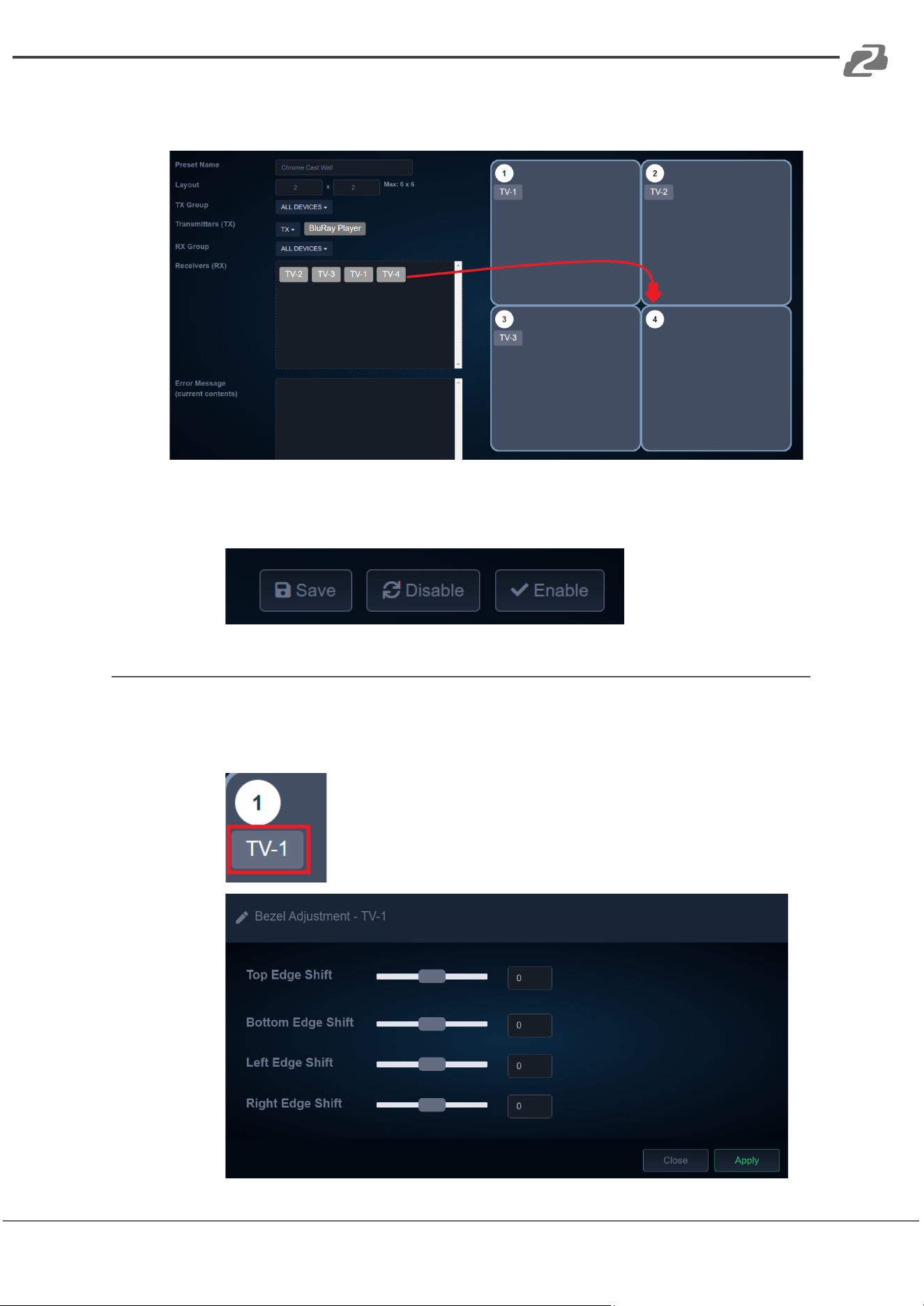
5. Click and drag receivers to their respective spot on the video wall to coordinate with
the display position.
6. Once your receivers are placed in their position on the wall click “Save” to save the
video wall layout. Press “Enable” to start the video wall feed and “Disable” to stop
the video wall.
a.
Bezel Adjustments
1. To adjust the bezel alignment of a display on the video wall users can use the quick
options by clicking the display name shown under the position number or Advanced
Options which requires measuring the display but can be more accurate..
a.
b.
Address: 830 National Drive #140, Sacramento, CA 95834, USA · Tel: +1(888)499-9906 · Email: support@bzbgear.com 23
BZBGEAR BG-IPGEAR-PRO PRODUCT MANUAL
c. Use the sliders to adjust the bezel alignment of the selected screen.
i. For vertical edges positive values shift the image up and negative
values shift the image down.
ii. For horizontal edges positive values shift the image to the right and
negative values shift the image to the left.
d. Click “Apply” to finalize the bezel adjustment changes for the selected
screen.
e. Repeat these steps for each screen in the video wall as necessary.
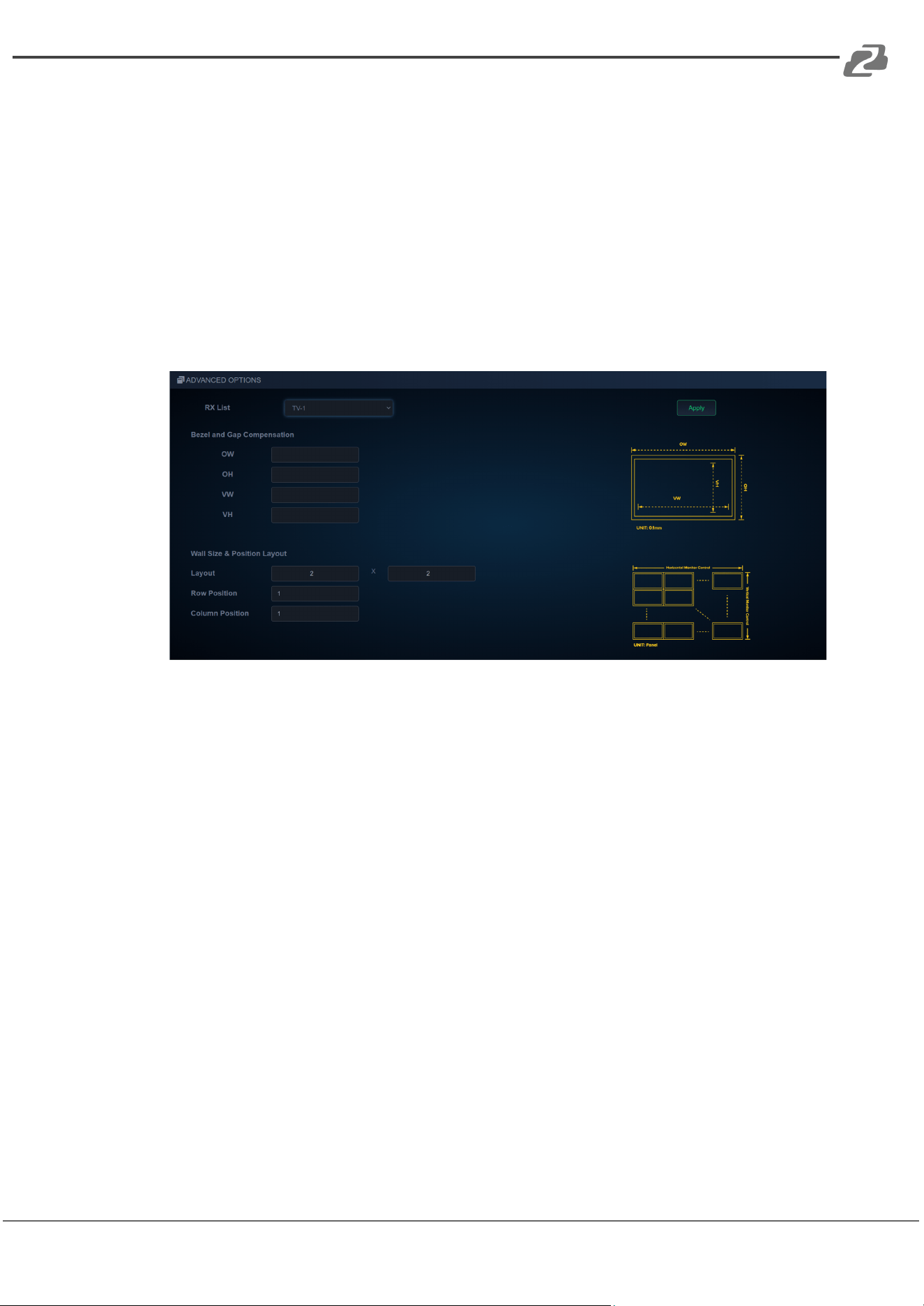
The “Advance Options” section allows for even greater control of bezel adjustment.
2. Select a Receiver from the “RX List” and use the diagram to the right to assist with
taking measurements of the display. All measurements are in millimeters (mm).
3. Define the layout of the wall and the display placement on the wall by entering its
row and column. (The top left display in the video wall (TV 1) will be at Row Position
0, Column Position 0.)
4. OW and OH represent Outside Width and Outside Height. These measurements
should be obtained by measuring from the outside edges of the display frame
(bezel).
5. VW and VH represent Video Width and Video Height. These measurements should
be obtained by measuring from the edges of the image area of the display (usually
the inside edge of the bezel).
6. Click “Apply” to finalize changes for the display.
Address: 830 National Drive #140, Sacramento, CA 95834, USA · Tel: +1(888)499-9906 · Email: support@bzbgear.com 24
BZBGEAR BG-IPGEAR-PRO PRODUCT MANUAL
On Screen Display (OSD)
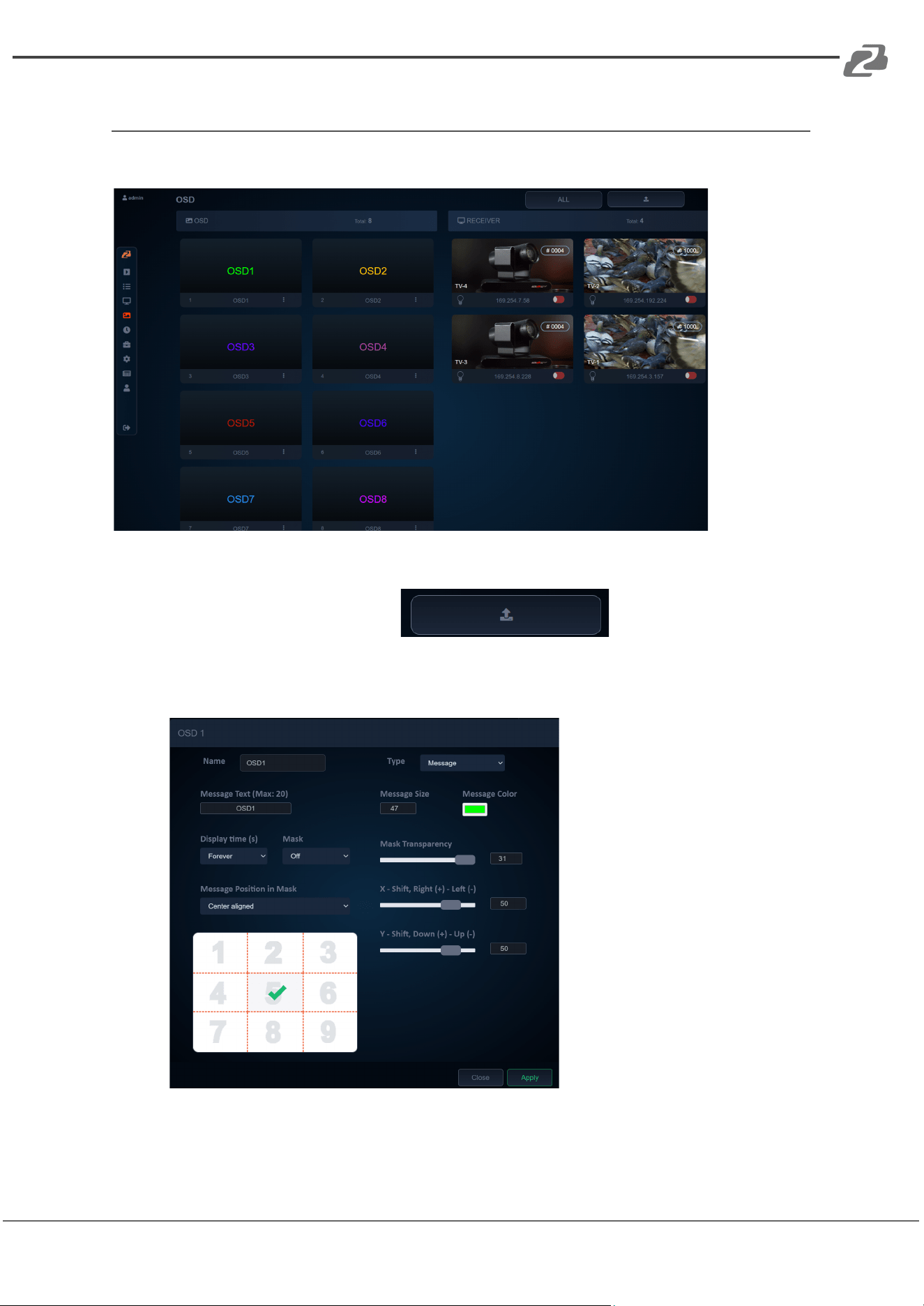
The OSD menu allows users to brand video streams with a image or text overlay.
1. Users can upload their own.jpg or .png with a 1920*1080 resolution by clicking the
upload button in the top right.
2. By clicking the settings icon (3 dots) beneath one of the OSD windows users can
adjust the message text, image selection, transparency, position, color, and size.
3. Click and drag the desired image/text from the OSD panel to the receiver of your
choice on the right. Use the red/green toggle on the bottom of each receiver to
either display or hide the OSD image on the unit.
Address: 830 National Drive #140, Sacramento, CA 95834, USA · Tel: +1(888)499-9906 · Email: support@bzbgear.com 25
BZBGEAR BG-IPGEAR-PRO PRODUCT MANUAL
Schedule (OSD)
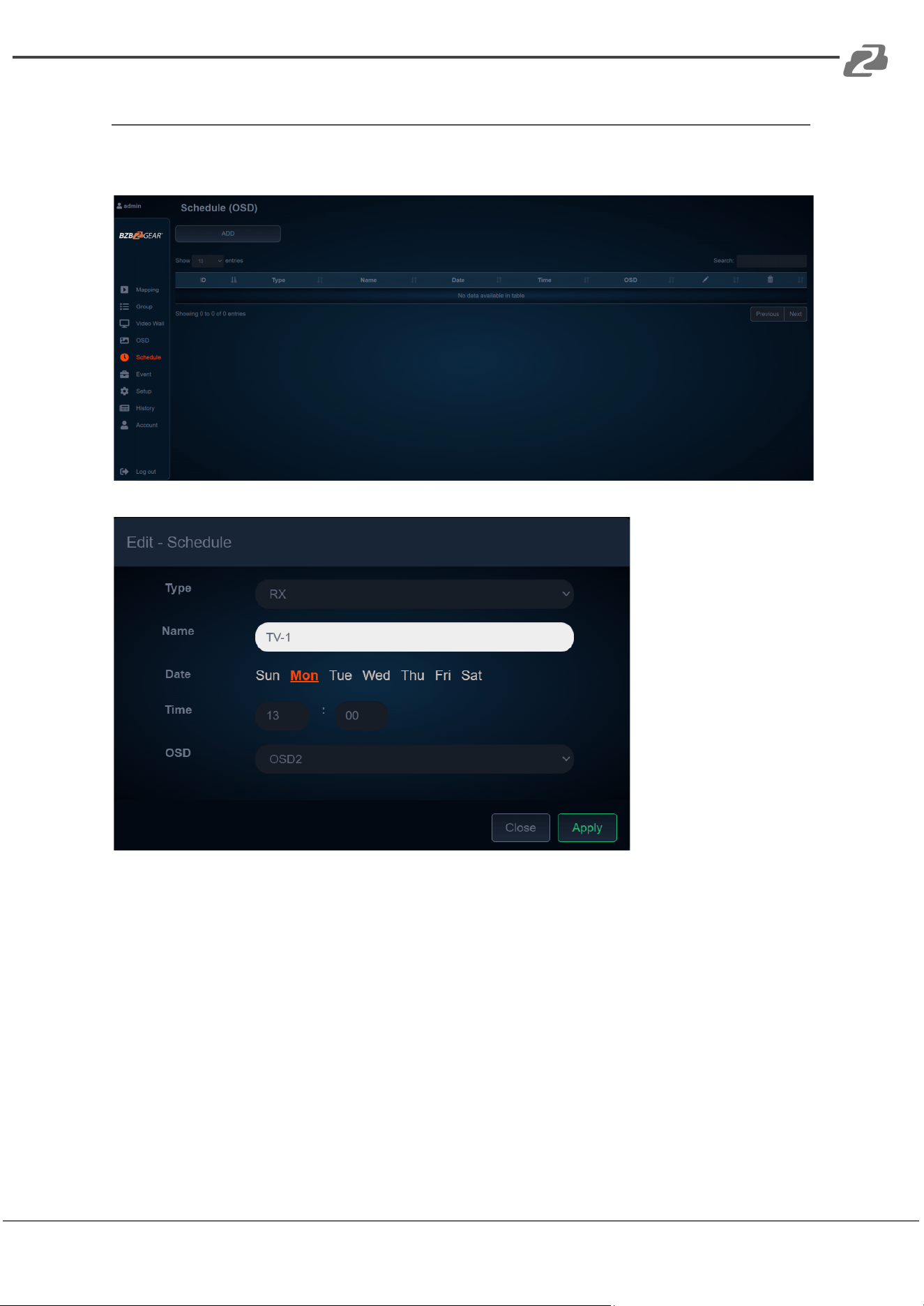
The Schedule (OSD) tab allows users to set a day and time for a message to automatically
appear on a screen.
Address: 830 National Drive #140, Sacramento, CA 95834, USA · Tel: +1(888)499-9906 · Email: support@bzbgear.com 26
BZBGEAR BG-IPGEAR-PRO PRODUCT MANUAL
Event
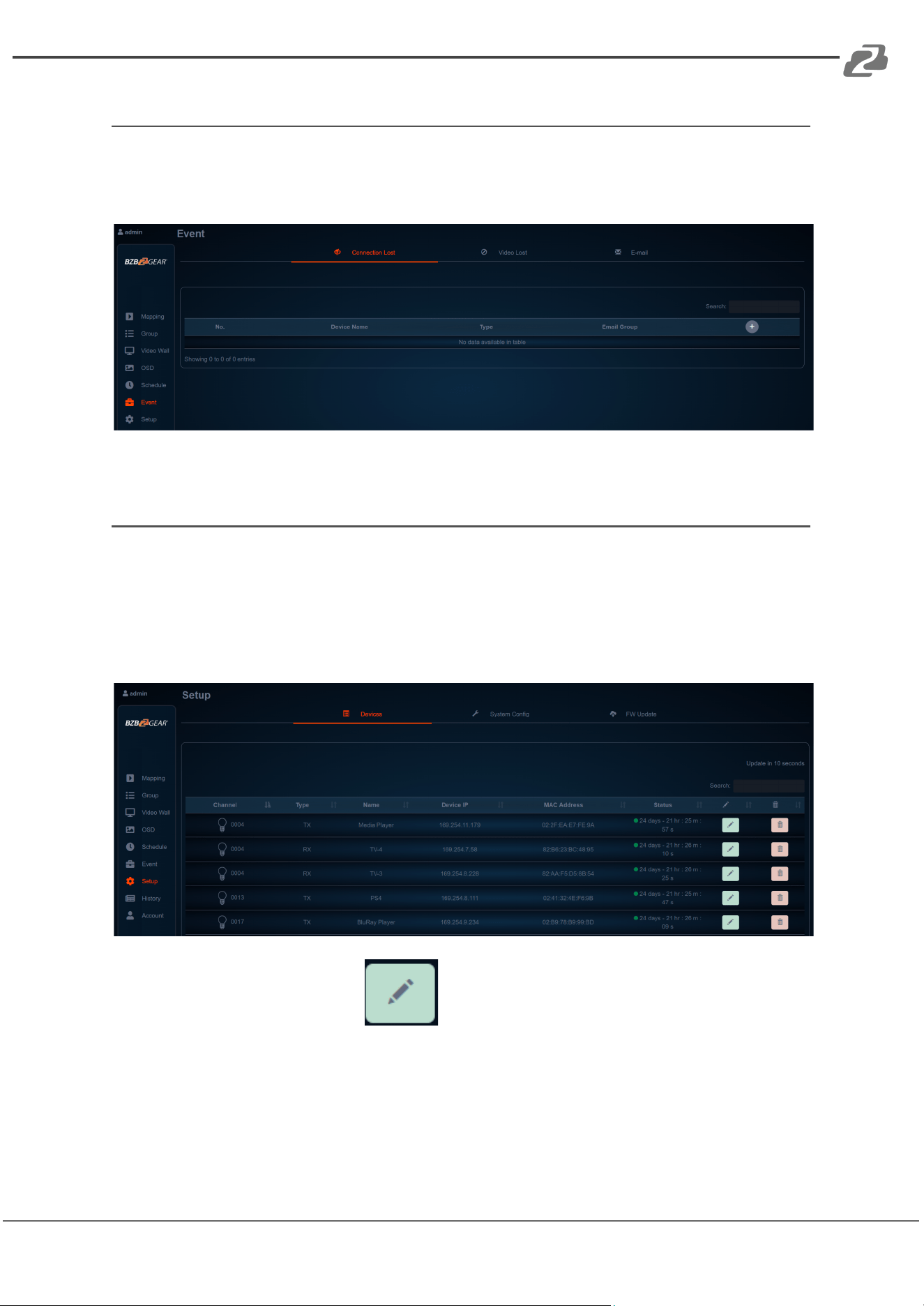
Using the event feature, users can set the system to automatically send notifications in the
event of video loss or a system device going offline, helping administrators efficiently
manage the system.
Setup
After connected BG-IPGEAR-PRO transmitters and receivers are discovered by the control
unit, the devices will be visible on the “Setup” tab under the “Devices” page. This page
refreshes every 10 seconds automatically.
The Status page includes the device’s Group ID, Name, IP Address, MAC Address, and
uptime.
By clicking the green pencil icon users can edit settings of a particular
transmitter or receiver.
Address: 830 National Drive #140, Sacramento, CA 95834, USA · Tel: +1(888)499-9906 · Email: support@bzbgear.com 27
BZBGEAR BG-IPGEAR-PRO PRODUCT MANUAL
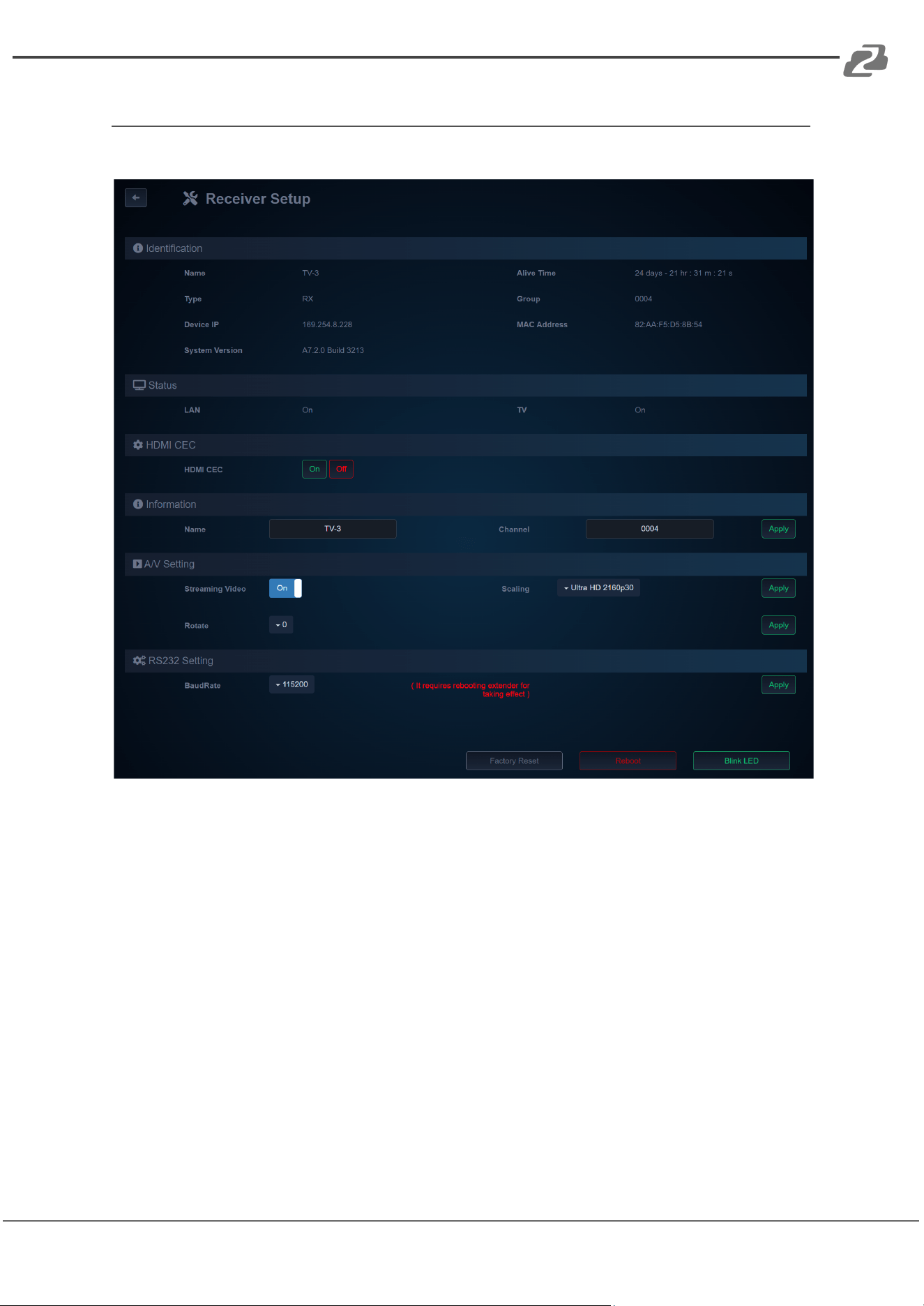
Receiver Setup
From the Receiver Setup screen users can view device information and edit its settings.
● Name - Edits the device’s name.
● Streaming Video - Mutes the receiver’s video output.
● Scaling - Scales the output resolution to match a connected display.
● Rotate - Rotates the output image for video walls and digital signage applications.
● RS232 Baud Rate - Sets the baud rate for RS232 signal extension
Address: 830 National Drive #140, Sacramento, CA 95834, USA · Tel: +1(888)499-9906 · Email: support@bzbgear.com 28
BZBGEAR BG-IPGEAR-PRO PRODUCT MANUAL
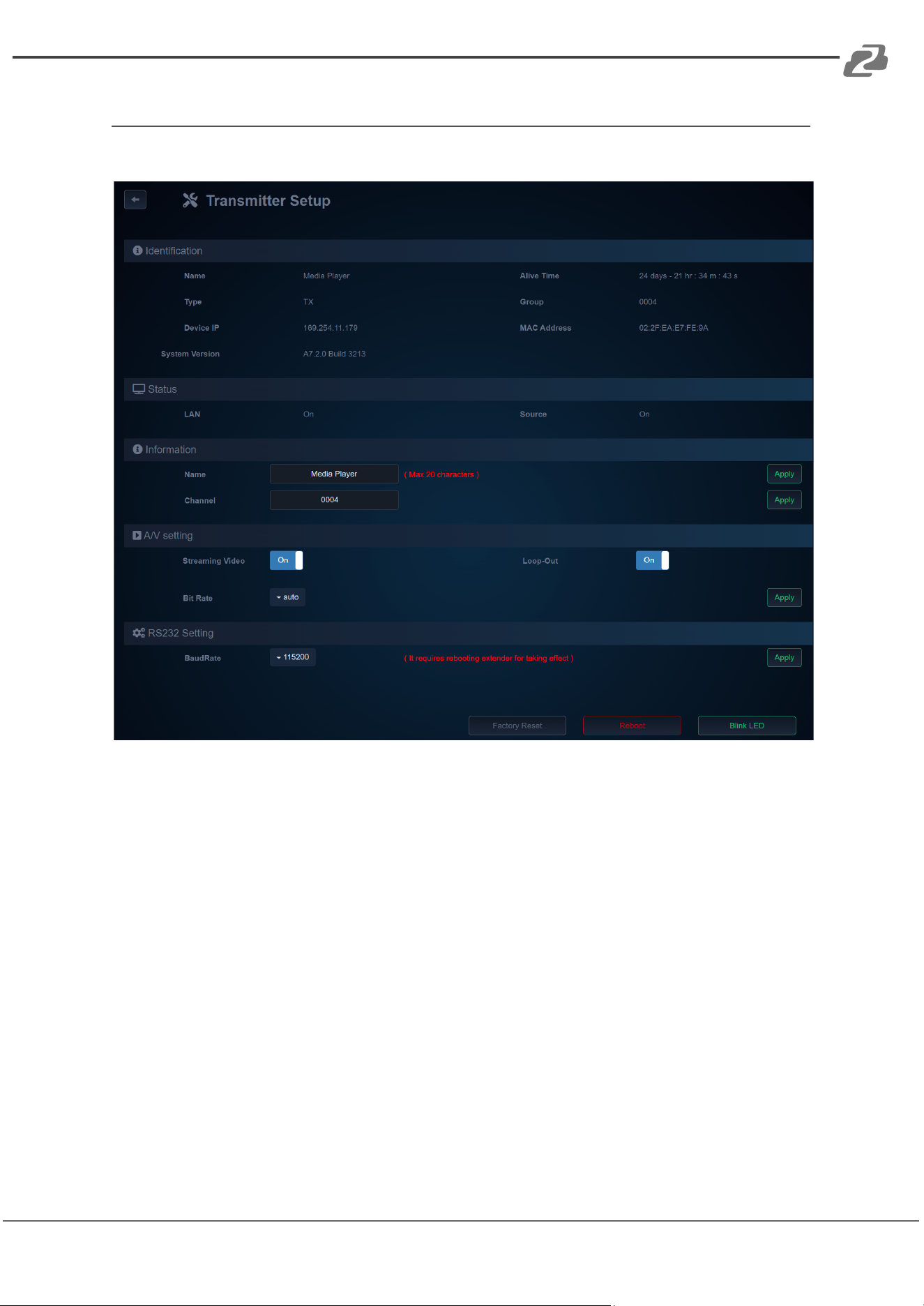
Transmitter Setup
From the Transmitter Setup screen users can view device information and edit its settings.
● Name – Edits the device’s name.
● Group ID – Edits the device’s Group ID. It is recommended that users allow the
system to automatically assign the Group ID.
● Streaming Video – Mutes the transmitter’s video output stream.
● Loop-Out – Enable/Disable the HDMI Loop-Out port.
● Bit Rate – Limits the transmitter's output data rate. It is recommended that users
leave this setting on Auto. Compressing the output signal can result in video
artifacts if done incorrectly. The system should be installed with sufficient bandwidth
available for the signal to be transmitted without additional compression.
● RS232 Baud Rate – Sets the baud rate for RS232 signal extension
Address: 830 National Drive #140, Sacramento, CA 95834, USA · Tel: +1(888)499-9906 · Email: support@bzbgear.com 29
BZBGEAR BG-IPGEAR-PRO PRODUCT MANUAL
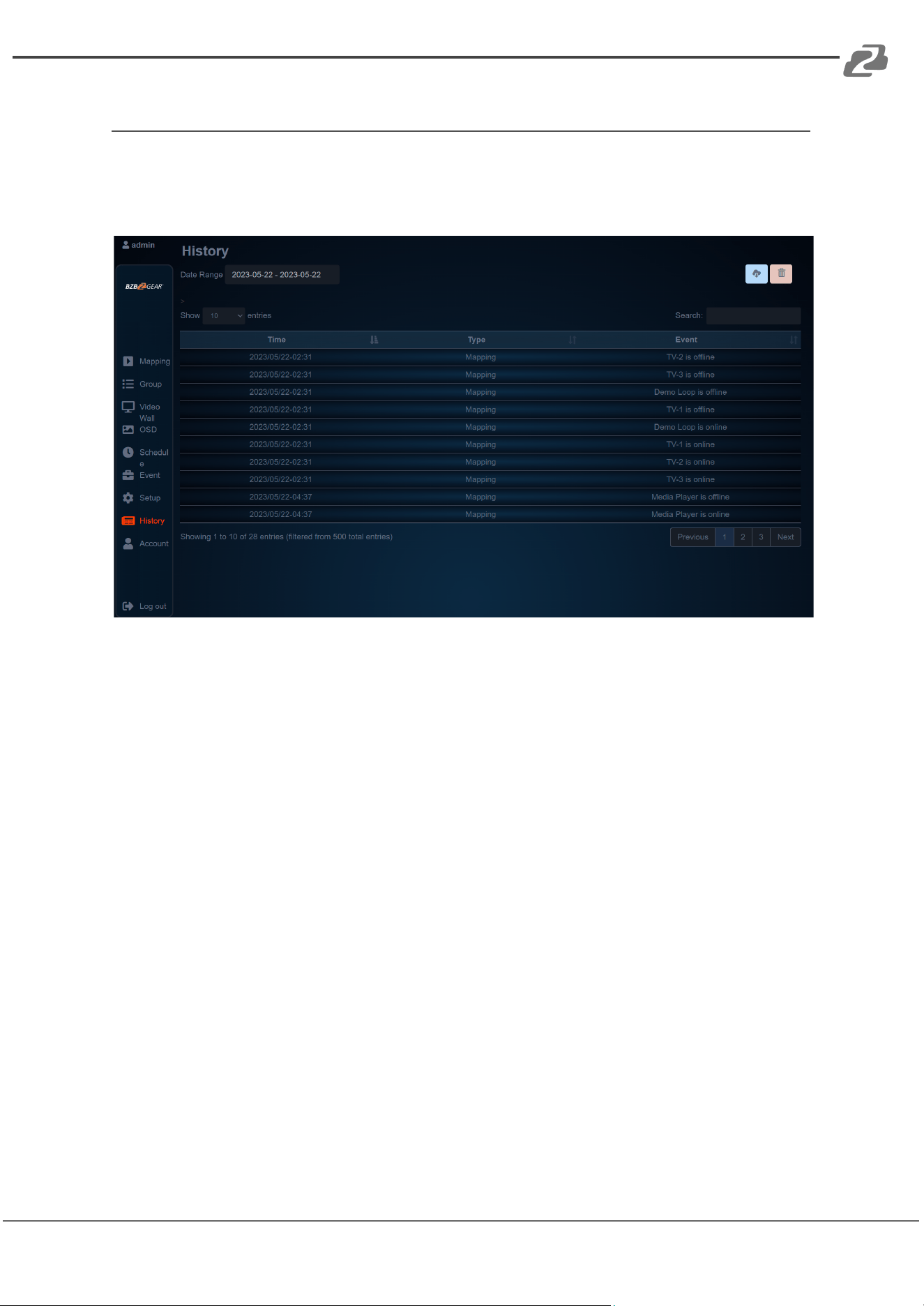
History
The History tab displays a list of recent system events for a specified date range (up to 500
entries). The event history can be cleared by clicking the red trash icon or exported by
hitting the blue download button in the top right.
Address: 830 National Drive #140, Sacramento, CA 95834, USA · Tel: +1(888)499-9906 · Email: support@bzbgear.com 30
BZBGEAR BG-IPGEAR-PRO PRODUCT MANUAL
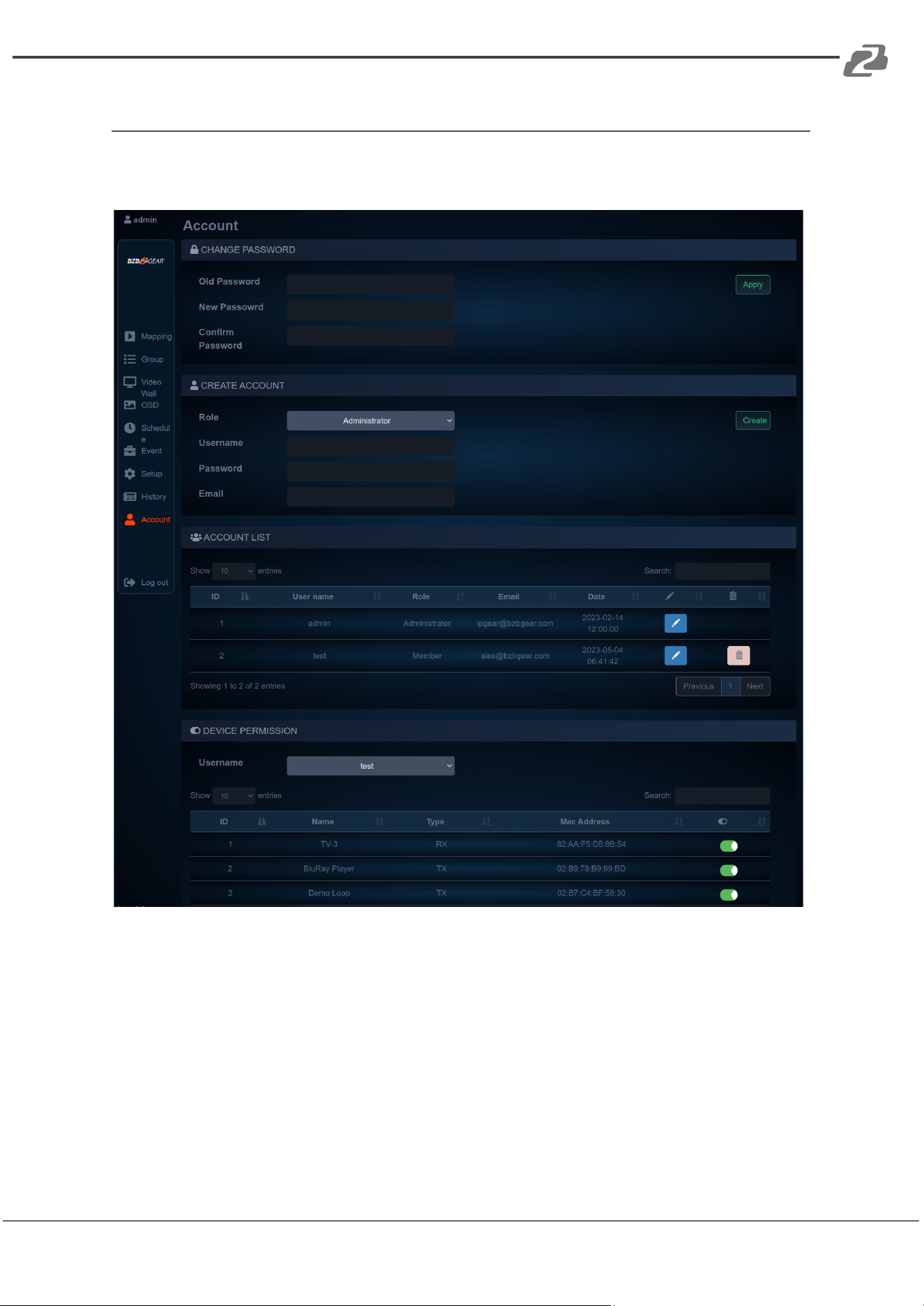
Account
The Account page allows Admin users to change passwords, create other admin or
standard user accounts, and set device permissions.
Standard users do not have access to control or edit video walls or OSD messages. They
can also be restricted to access/manage certain transmitters or receivers visible to the
system by using the toggle switches in the Device Permissions section.
Address: 830 National Drive #140, Sacramento, CA 95834, USA · Tel: +1(888)499-9906 · Email: support@bzbgear.com 31
BZBGEAR BG-IPGEAR-PRO PRODUCT MANUAL
BZBGEAR Switcher Control Application
A switcher control application developed by BZBGEAR specifically for our products is
available to control the IPGEAR-PRO system. It is available for iOS, MAC, PC, and can be
found on the controller product page on our website or via the Windows or Apple app
stores.
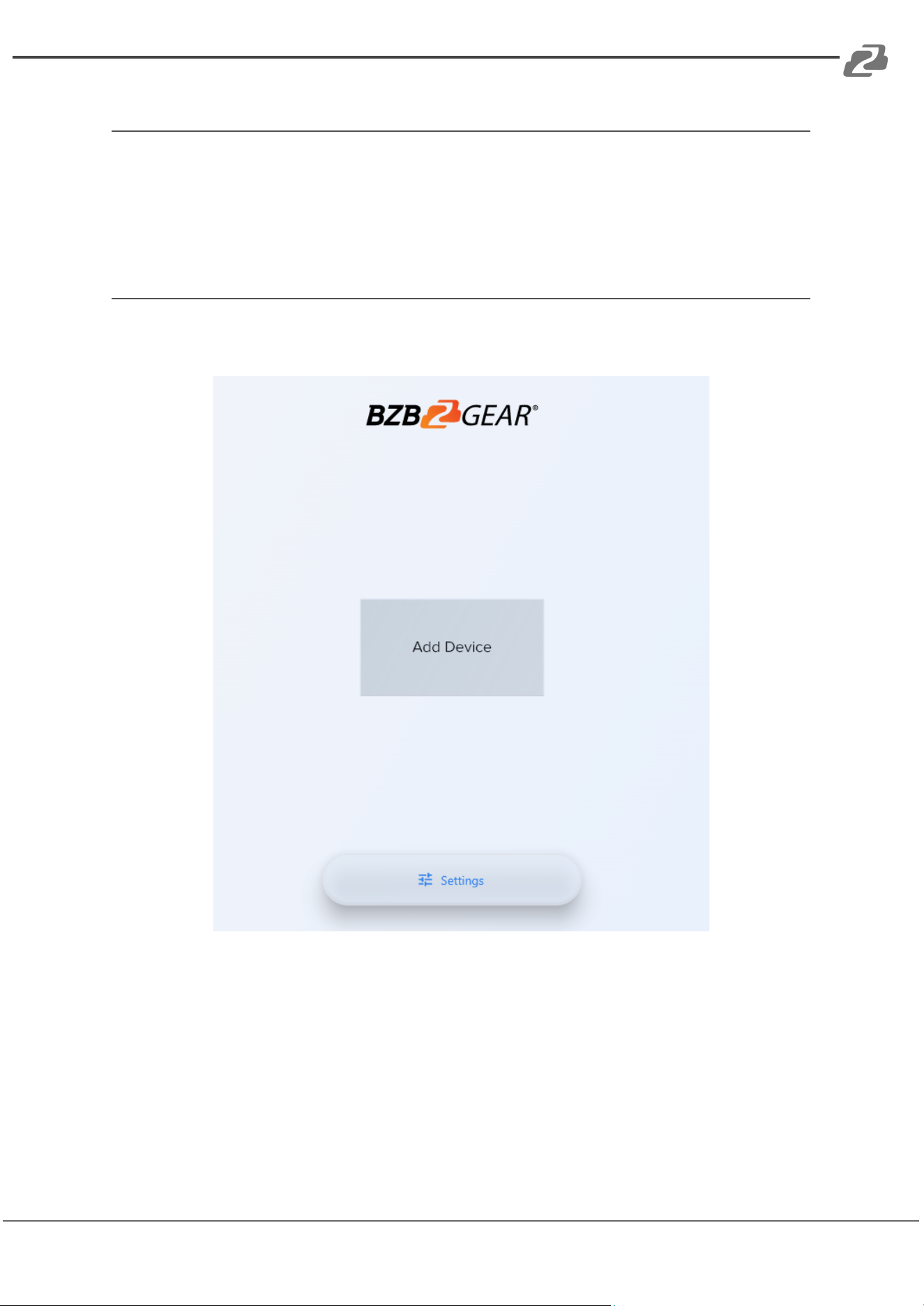
Adding a Device to the Switcher Control Application
After installing the app on your device and opening it, you will be navigated to the “Add
Device” screen. Click the “Add Device” button to begin adding a device.
Address: 830 National Drive #140, Sacramento, CA 95834, USA · Tel: +1(888)499-9906 · Email: support@bzbgear.com 32
BZBGEAR BG-IPGEAR-PRO PRODUCT MANUAL
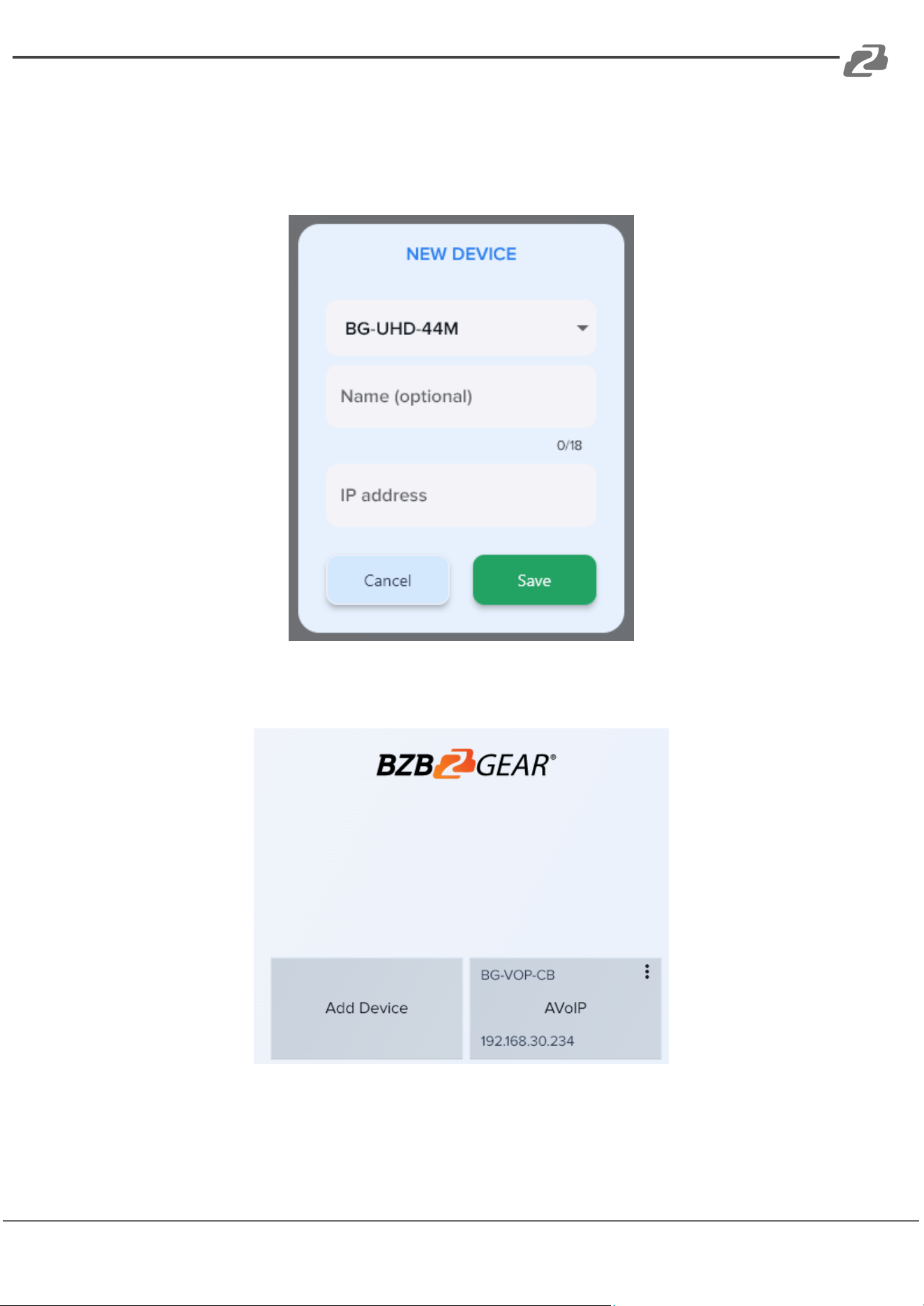
From the “New Device” popup, select your device you wish to control from the model
selection drop down. Type in a name for easy identification (optional). Next, type in the IP
address of the device you wish to control. For the IPGEAR PRO system the IP address can
be found on the splash screen of the controller when it is connected to a display via HDMI.
Click “Save” and you will be navigated automatically back to the “Add Device” screen
where your system should now be viewable and selectable if added correctly.
Address: 830 National Drive #140, Sacramento, CA 95834, USA · Tel: +1(888)499-9906 · Email: support@bzbgear.com 33
BZBGEAR BG-IPGEAR-PRO PRODUCT MANUAL
Mapping on the Switcher Control Application
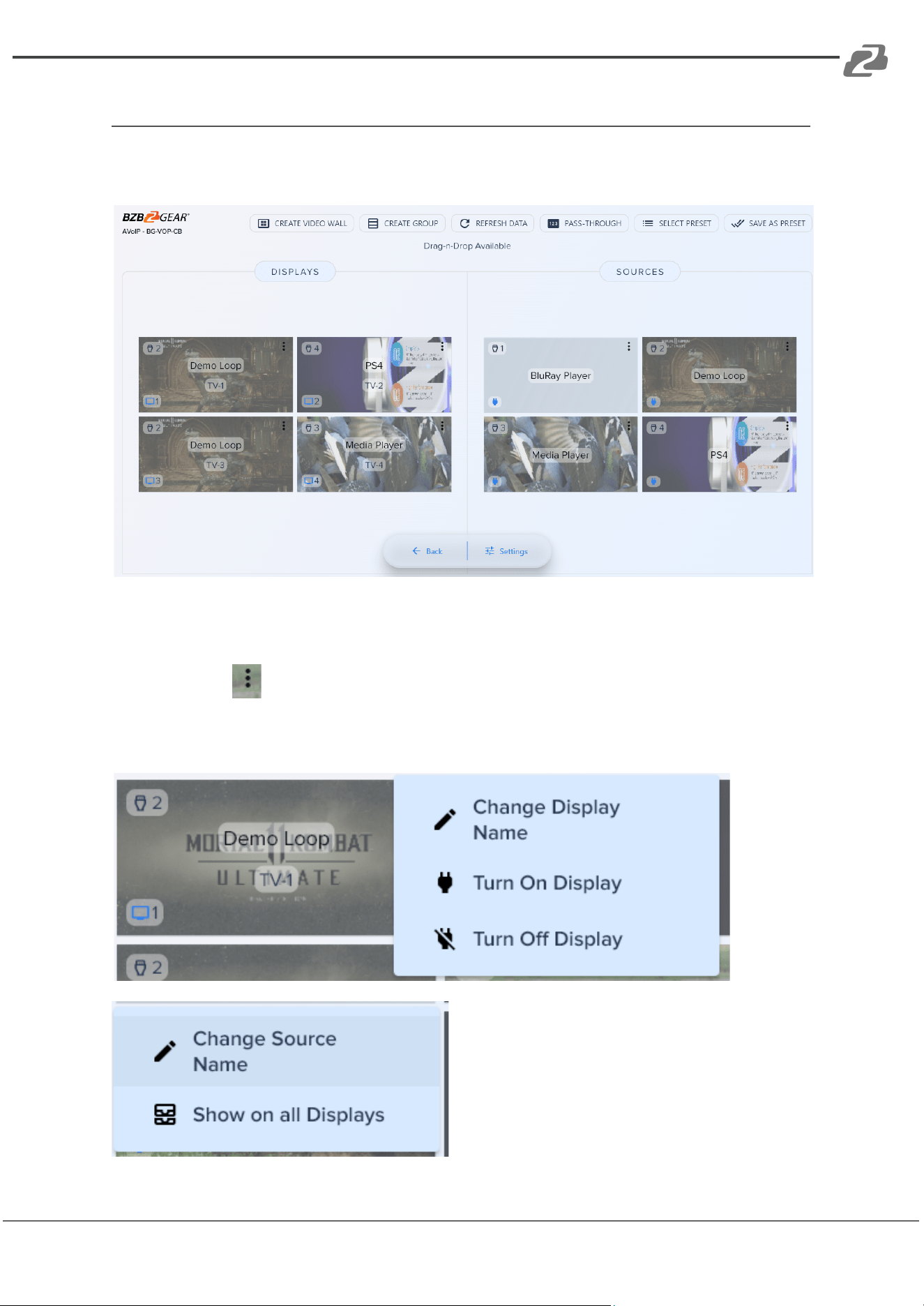
The control app for the IPGEAR system was designed to function much like the web
interface for ease of use.
On the main mapping page users can click and drag displays or sources to one another to
pair devices together.
Clicking on the in the upper right corner of a display will allow users to change the
display name or, if available on the display, send CEC commands to turn the display On or
Off.
Clicking on the 3 dots on a source device
allows users to change the source name or to
send the selected source signal to all
displays.
Address: 830 National Drive #140, Sacramento, CA 95834, USA · Tel: +1(888)499-9906 · Email: support@bzbgear.com 34
BZBGEAR BG-IPGEAR-PRO PRODUCT MANUAL
Creating a Device Group using the Switcher Controller App
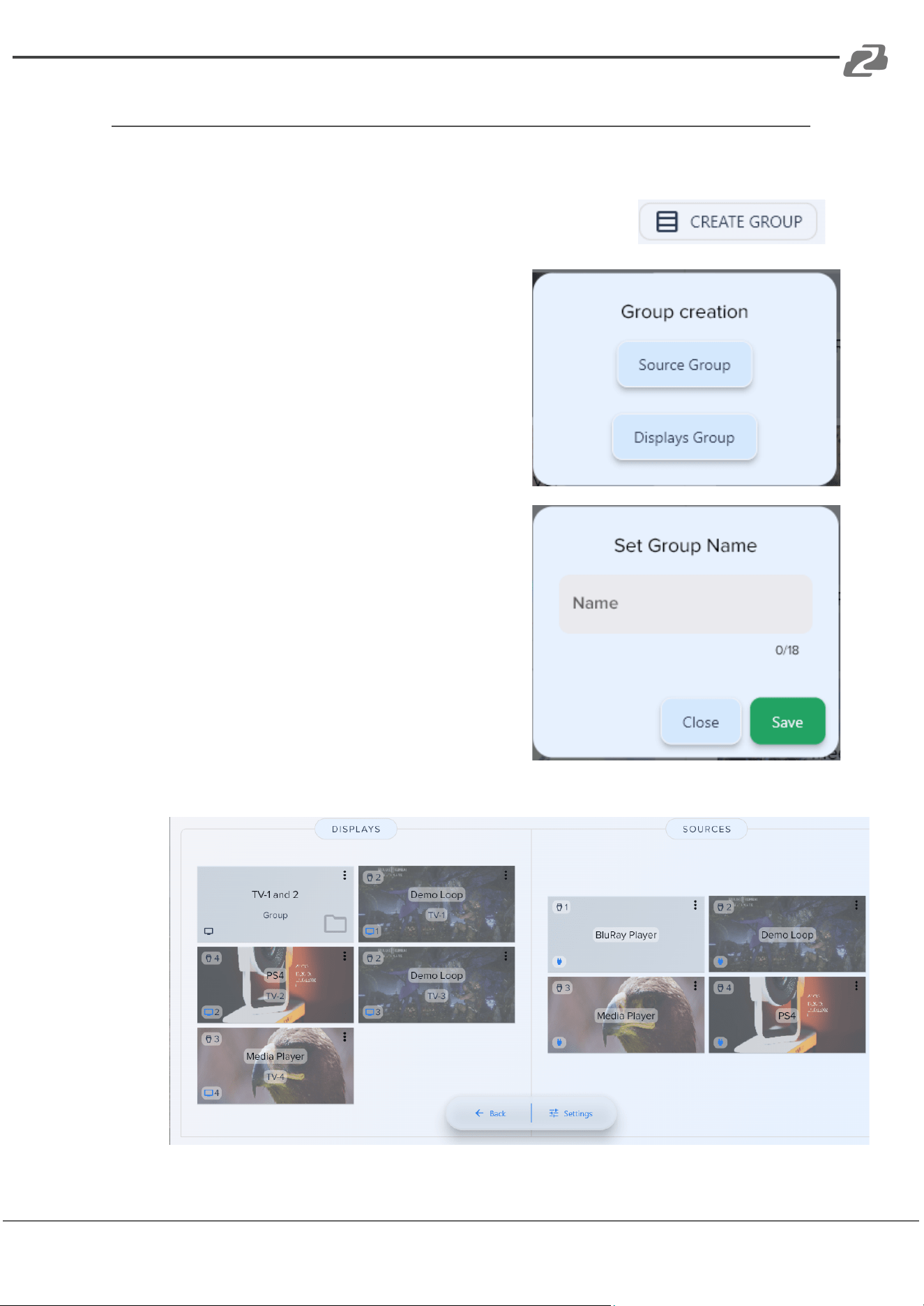
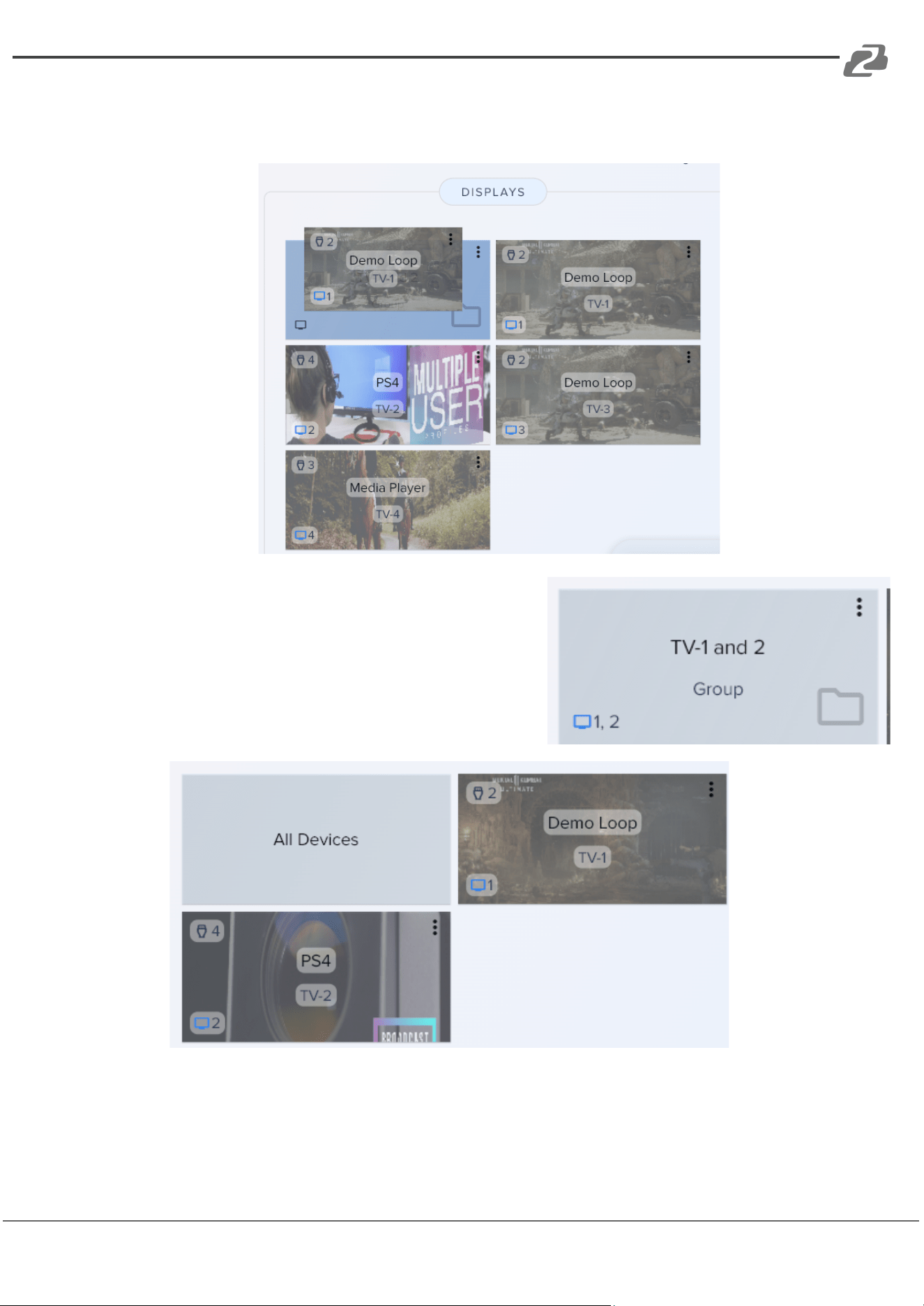
For simpler management of larger systems displays and sources can be grouped together
for easier identification.
1) From the options on the top of the Mapping page select the
“Create Group” button to begin creating a group.
2) Next select whether your group is going to be
for source or display devices.
3) Type in a name for your group. (Note group
names can only be 18 characters long.
4) Once created your group will appear under its relevant section.
Address: 830 National Drive #140, Sacramento, CA 95834, USA · Tel: +1(888)499-9906 · Email: support@bzbgear.com 35
BZBGEAR BG-IPGEAR-PRO PRODUCT MANUAL
5) Click and drag the displays or sources to the group and they will be moved from the
available list into the group folder.
6) Click on the group to view and manage the
devices inside. Click “All Devices” to return to
the main mapping page to view all groups
and/or ungrouped devices.
Note: Groups cannot be dragged. However, dragging a source to a “Display Group” will
change all display devices in that group to the selected source.
Address: 830 National Drive #140, Sacramento, CA 95834, USA · Tel: +1(888)499-9906 · Email: support@bzbgear.com 36
BZBGEAR BG-IPGEAR-PRO PRODUCT MANUAL
Creating a Video Wall using the Switcher Controller App
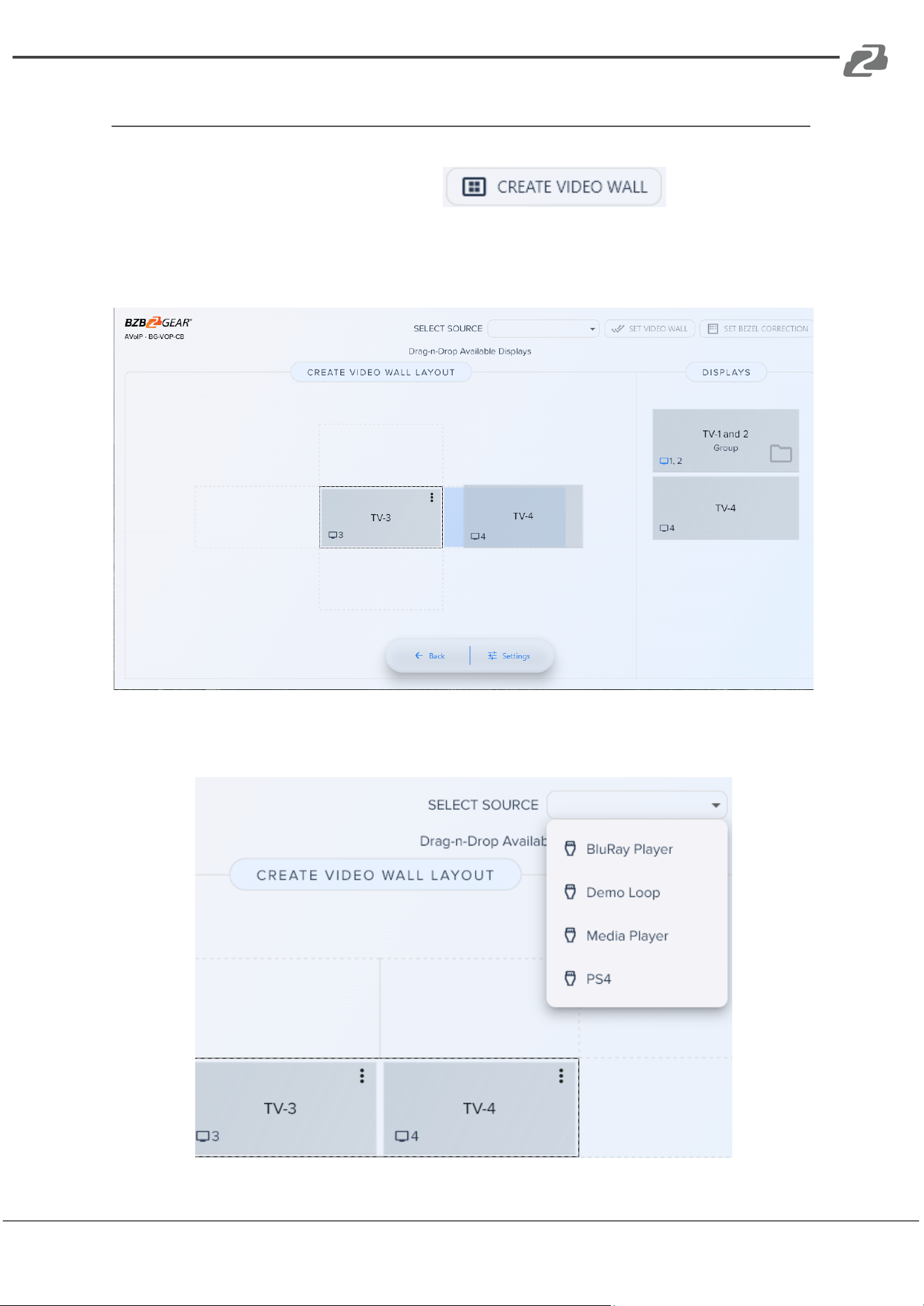
1) To create a video wall using the Switcher Control app click the “Create Video Wall”
button at the top of the application.
2) On the Video Wall page click and drag displays to their respective position in the
video wall. Note: If a display group has been created it will also be shown here for
easier identification. Simply click the group to expand it and show grouped displays.
3) Once your displays are positioned correctly on the template, click the “Select
Source” drop down at the top of the application to pick a source for the video wall.
Address: 830 National Drive #140, Sacramento, CA 95834, USA · Tel: +1(888)499-9906 · Email: support@bzbgear.com 37
BZBGEAR BG-IPGEAR-PRO PRODUCT MANUAL
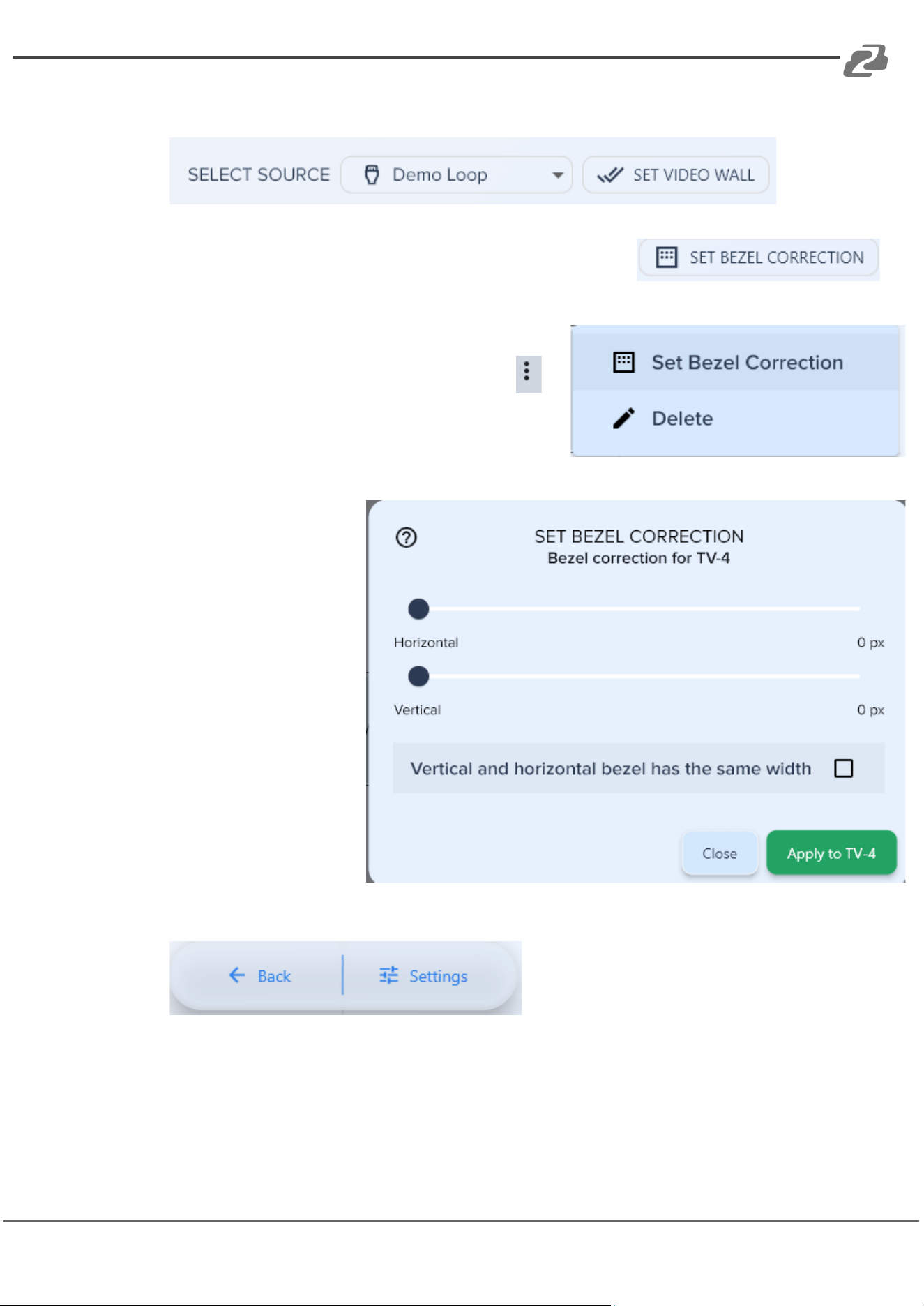
4) Once a source is selected click the “Set Video Wall” button to create the video wall.
5) Use the “Set Bezel Correction” button at the top to adjust
the image on the video wall to compensate for the border
on all displays simultaneously.
6) To adjust each display individually, select the
in the upper right corner of the display in the video
wall and select “Set Bezel Correction” from the
pop up menu.
7) Move the sliders to
adjust the image to
compensate for the TV
bezel/frame.
8) Return to the main mapping page by clicking the “Back” button at the bottom.
Address: 830 National Drive #140, Sacramento, CA 95834, USA · Tel: +1(888)499-9906 · Email: support@bzbgear.com 38
BZBGEAR BG-IPGEAR-PRO PRODUCT MANUAL
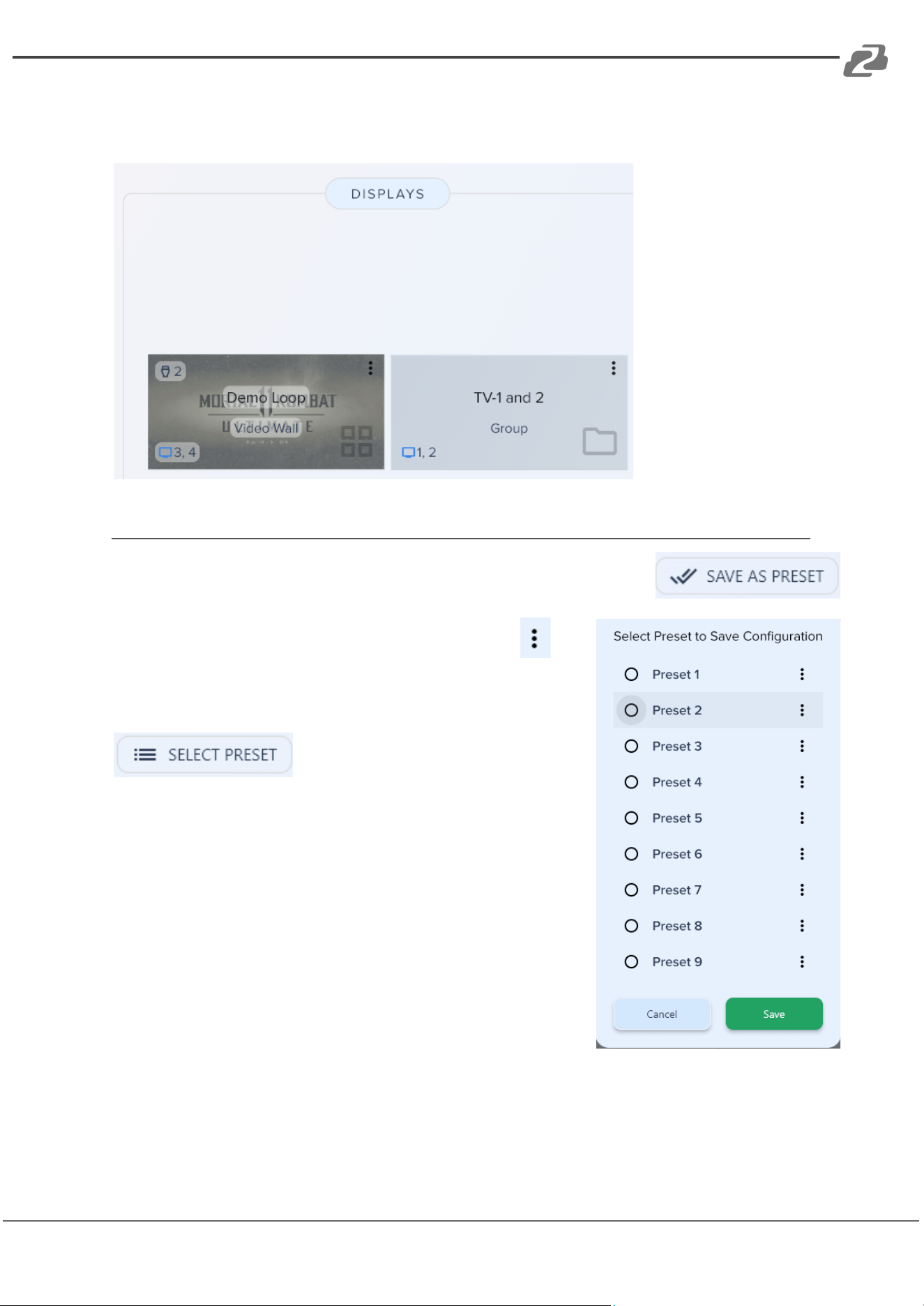
The video wall can now be viewed under the display section of the mapping page. To
change the source of the video wall simply drag a source device to the Video Wall.
Switcher Control Application Presets
To save a mapping configuration as a preset select the “Save as
Preset” button in the top right corner.
Select the preset position you wish to save. Click the to
rename the preset if desired.
To recall a saved preset click the “Select Preset”
button and then select your desired
preset from the menu.
Address: 830 National Drive #140, Sacramento, CA 95834, USA · Tel: +1(888)499-9906 · Email: support@bzbgear.com 39

BZBGEAR BG-IPGEAR-PRO PRODUCT MANUAL
Troubleshooting
1) No image/splash screen from control box:
a) Ensure HDMI and ethernet cables are plugged in and power cycle the control
box.
2) Transmitters or receivers are not populating in the control software/web
interface.
a) Power cycle the transceivers by unplugging their ethernet cable and ensure
the control box is plugged into the same network/VLAN as the transceivers.
b) Factory reset the transceiver by logging into the unit via its IP address
displayed on screen while in receiver mode.
3) Image will not display from the receiver unit.
a) Ensure the receiver is paired with a transmitter unit.
b) Ensure HDMI is plugged into the output port on the transceiver.
c) Ensure resolution is set on the receiver unit in settings to match the display it
is connected to (4K2K will not display on a 1080p TV).
4) Image previews on the mapping page are not updating correctly.
a) Clear your browser cache and restart your browser.
5) Transmitter will not pair with another device or a receiver will only pair to one
transmitter.
a) Ensure transmitters are set to a unique ID using the dipswitch panel.
b) Ensure the receiver dipswitch panel is set to 0 for all switches.
Address: 830 National Drive #140, Sacramento, CA 95834, USA · Tel: +1(888)499-9906 · Email: support@bzbgear.com 40

BZBGEAR BG-IPGEAR-PRO PRODUCT MANUAL
Technical Support
Have technical questions? We may have answered them already!
Please visit BZBGEAR’s support page (bzbgear.com/support) for helpful information and
tips regarding our products. Here you will find our Knowledge Base
(bzbgear.com/knowledge-base) with detailed tutorials, quick start guides, and step-by-step
troubleshooting instructions. Or explore our YouTube channel, BZB TV
(youtube.com/c/BZBTVchannel), for help setting up, configuring, and other helpful how-to
videos about our gear.
Need more in-depth support? Connect with one of our technical specialists directly:
Phone
1.888.499.9906
Email
support@bzbgear.com
Live Chat
bzbgear.com
Limited Product Warranty Terms
Pro Line: 5-year warranty from the date of purchase for AV/Broadcasting products bought
on or after August 1, 2024.
Essential Line: 3-year warranty from the date of purchase for AV/Broadcasting products
bought on or after August 1, 2024.
Cables: Lifetime Limited Product Warranty.
For complete warranty information, please visit bzbgear.com/warranty.
For questions, please call 1.888.499.9906 or email support@bzbgear.com.
Mission Statement
BZBGEAR is a breakthrough manufacturer of high-quality, innovative audiovisual equipment
ranging from AVoIP, professional broadcasting, conferencing, home theater, to live
streaming solutions. We pride ourselves on unparalleled customer support and services.
Our team offers system design consultation, and highly reviewed technical support for all
the products in our catalog. BZBGEAR delivers quality products designed with users in
mind.
Copyright
All the contents in this manual and its copyright are owned by BZBGEAR. No one is allowed
to imitate, copy, or translate this manual without BZBGEAR’s permission. This manual
contains no guarantee, standpoint expression or other implies in any form. Product
specification and information in this manual is for reference only and subject to change
without notice.
All rights reserved. No reproducing is allowed without acknowledgement.
Address: 830 National Drive #140, Sacramento, CA 95834, USA · Tel: +1(888)499-9906 · Email: support@bzbgear.com 41