Configuring the Magic Remote Control Pointer
Smart Home (
Q
) > Settings > OPTION > Pointer
To configure the speed, shape, and size of the Magic Remote Control pointer, perform the following steps
1 . On the Magic Remote Control, press the Smart Home ( Q) button to open the home screen of your Sma『t TV.
2 . On the home screen, select Settings.
3 . Select OPTION > Pointer to open the pointer settings window.
4 . Select the setting you wish to configure:
·Speed: Sets the movement speed of the pointer.
• Shape: Selects the shape of the pointer
• Size: Sets the size of the pointer
• Alignment: Enables O『disables the alignment function of the pointer.
NOTE:
The Alignment function repositions the pointer to the center of the screen when you shake the Magic Remote Control
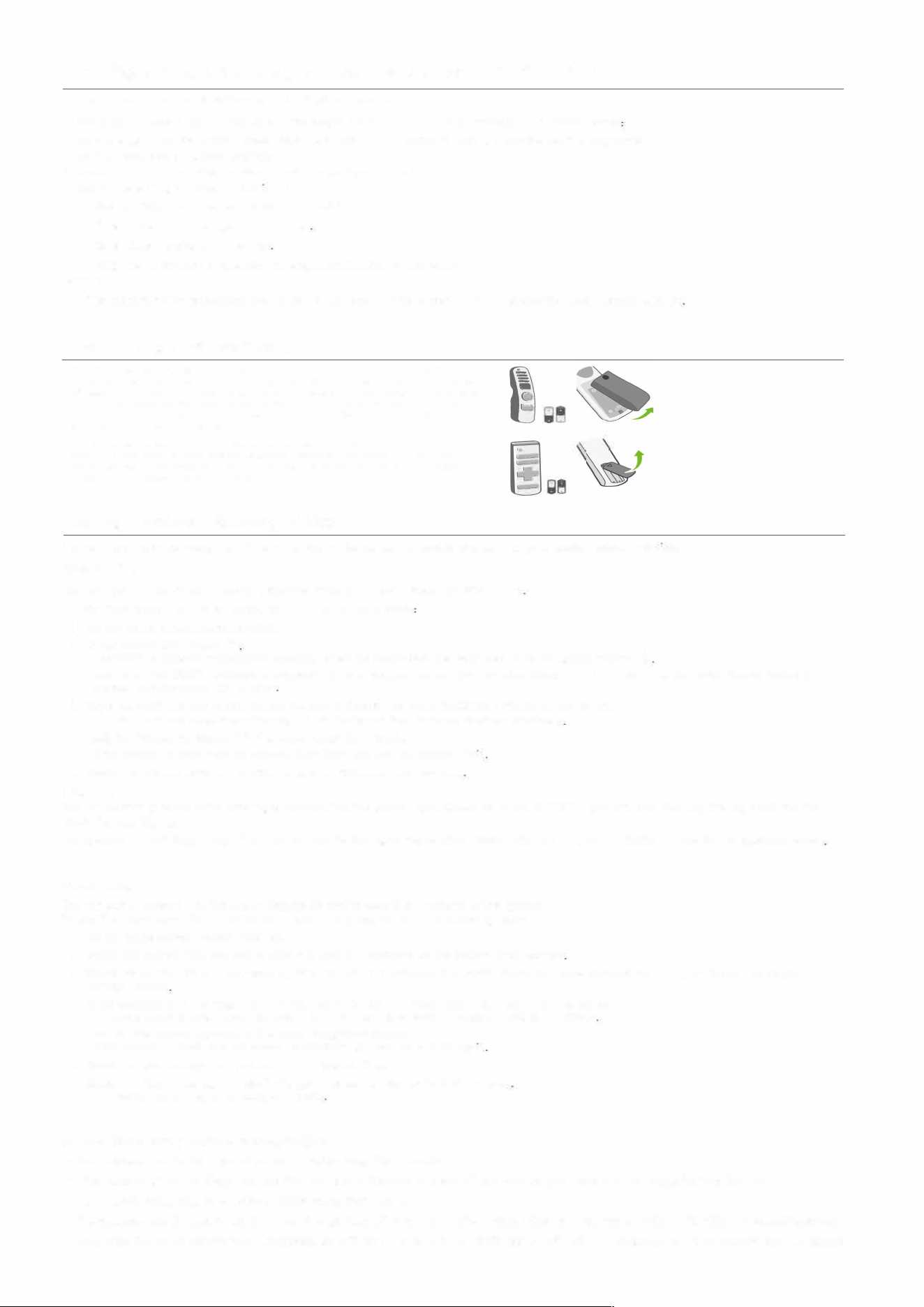
Inserting the battery
• When the message [Magic Remote battery is low. Please change the baery.] is displayed,
replace the batteries. install batteries, open the baery cover, replace batteries (1.5 V AA)
matchi『1g the and①ends to the label inside the compartment, and close the baery co附.
Be su削o point the magic remote toward the remote control senso『on the TV. remove the
baeries, perrm the installation actions in reverse. This remote uses inared light. When in use, it
should be pointed ’
in the direction of the TVs remote senso仁
• install baeries, open the battery cover, replace baeries (1.5 V AA) matching the and
ends to the label inside the compartment, and close the battery cove仁 remove the batteries,
perrm the installation actions in reverse. This remote uses inared light. When in use, it should ’
be pointed in the direction of the TVs remote sensor.
Using Voice Recognition
You can use the voice recognition function to search for content or posVsha『e comments on social netwo『k services.
Searching
You can pe『form searches by saying keywo『ds directly into your Magic Remote Control
To use voice 『ecognition fo『 searches, perform the following steps
1 . On the home screen, select Search.
2 . In the search field, select
• The QWERTY keyboard that appea『s when you select the sea『ch field also featu『es a voice 『ecognition function
• Even when the QWERTY keyboard is displayed on the sc『ee门
,
you can still use the Voice Recognition (
) button on the Magic Remote Control to
access the voice recognition function
3 . Say a keyword into the Magic Remote Control to display the voice recognition results on the screen.
• If the『e is only one voice 『ecognition 『esult, then the Search Results sc『een opens automatically
4 . Look for the desired keyword in the voice recognition results.
• If the desired keyword does not appear, select Retry and say the keyword again
5 . Select the desired keywo『d to open the search results for that keywo『d
NOTE:
You can sea『ch by voice while ente『ing a keyword into the sea『ch field. Select
on the QWERTY keyboard, and then say the keyword into the
Magic Remote Control.
The success rate of voice recognition may change depending on the ambient noise, voice volume, pronunciation, intonation, or speaking speed
Browsing
You can say a keywo『d into the Magic Remote Control to search for content on the Internet.
To use the voice recognition function for Internet searches, perform the following steps:
1 . On the home sc『een, select Internet.
2 . Select the search field of a site to open the QWERTY keyboard at the bottom of the sc『een
3 . Select
⑨
on the QWERTY keyboard or, with the QWERTY keyboard displayed, press the Voice Recognition (
⑨
) button on the Magic
Remote Control
4 . Say a keyword into the Magic Remote Cont『ol to display the voice recognition results on the screen.
• If there is only one voice recognition result, then that result is entered in the search field automatically
5 . Look for the desired keyword in the voice recognition results.
•
If the desired keyword does not appear, select Retry and say the keyword again
6 . Select the desired keyword to enter it in the search field.
7 . Select the Sea『ch button on the site to open the search results for that keyword
• The Search buon may dier based on the site
Notes for Using Voice Recognition
• You must connect to the Internet to use the voice 『ecognition function.
• When speaking into the Magic Remote Control, keep a distance of about 10 cm between your face and the Magic Remote Control.
• If you speak too quickly or too slowly, voice recognition may fail.
• The success rate of voice 『ecognition may change depending on the ambient noise, voice volume, p『onunciation, intonation, or speaking speed.
• To change the Voice Recognition Language, go to Sma『t Home ( Q) > Settings > OPTION > Language > Voice Recognition Language.
