Owner’s Manual Xeo
English

2 Dynaudio
All Apple products are trademarks of Apple Inc.
All Sony products are trademarks of Sony Electronics Inc.
All Sonos products are trademarks of Sonos Inc.
Logitech Squeezebox is a trademark of Logitech Inc.
An update to this manual may be necessary due to product improvements and new functions.
The latest version of this manual can be found on the Dynaudio website at www.dynaudio.com/xeo
3
Important Safety Instructions
1. Read these instructions.
2. Keep these instructions.
3. Heed all warnings.
4. Follow all instructions.
5. Do not use this apparatus near water.
6. Clean only with dry cloth.
7. Do not block any ventilation openings. Install in accordance with the
manufacturer‘s instructions.
8. Do not install near any heat sources such as radiators, heat registers, stoves, or
other apparatus (including ampliers) that produce heat.
9. Do not defeat the safety purpose of the polarized or grounding-type plug. A po-
larized plug has two blades with one wider than the other. A grounding type plug
has two blades and a third grounding prong. The wide blade or the third prong
are provided for your safety. If the provided plug does not t into your outlet,
consult an electrician for replacement of the obsolete outlet.
10. Protect the power cord from being walked on or pinched particularly at plugs,
convenience receptacles, and the point where they exit from the apparatus.
11. Only use attachments/accessories specied by the manufacturer.
12. Use only with the cart, stand, tripod, bracket, or table specied by the manufac-
turer, or sold with the apparatus. When a cart is used use caution when moving
the cart/apparatus combination to avoid injury from tip-over.
13. Unplug th is apparatus during lightning storms or when unused for long periods
of time.
4 Dynaudio
14. Refer all servicing to qualied service personnel. Servicing is required when the
apparatus has been damaged in any way, such as power supply cord or plug is
damaged, liquid has been spilled or objects have fallen into the apparatus, the
apparatus has been exposed to rain or moisture, does not operate normally, or
has been dropped.
15. WARNING: To reduce the risk of re or electric shock, this apparatus should not
be exposed to rain or moisture and objects lled with liquids, such as vases,
should not be placed on this apparatus.
16. To completely disconnect this eq uipment from the mains, d isconnect the pow-
er supply cord plug from the receptacle.
17. The mains plug of the power supply cord shall remain readily operable.
WARNING
RISK OF ELECTRIC SHOCK! DO NOT OPEN!
To reduce the risk of electric shock, do not remove the back panel and do not expose the
apparatus to rain or moisture. No user serviceable parts inside. Refer servicing to qualied
personnel. Never open the loudspeaker housing.

5
Safety information 7
Xeo loudspeakers 7
Power supply unit for Xeo Hub, Extender, and Link 7
Scope of delivery 8
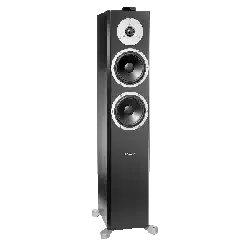
Xeo loudspeakers (Xeo 4 or Xeo 6) 8
Xeo Hub 9
Xeo Extender 10
Xeo Link 10
Unpacking 11
Packaging material 11
Disposal 11
The Xeo system 12
Components 12
Combination examples 13
Remote control 14
Control elements 14
Xeo Hub 14
Display elements 15
Inputs 15
Other connections and control elements 16
Connection 16
Xeo loudspeakers 18
Connections and control elements 18
Division into audio zones 19
Cloth cover 20
Setting up 20
Connecting and adjusting 20
Switching on/standby mode 21
Selecting a Hub or input/autoplay function 21
Fixing the volume 21
Interface display 22
Xeo Extender 24
Connections and control elements 24
Connecting and establishing a link 25
Xeo Link 26
Connections and control elements 26
Connecting and establishing a link 27
Malfunctions 28
Technical data 29
Reminding 30
IC NOTICE 31
MPE Reminding 31
Table of Contents

6 Dynaudio
Thank you
for choosing Dynaudio Xeo.
Xeo combines the latest wireless technology with impressive sound quality and makes listening to
music truly comfortable and easy.
The next few pages contain important information on connecting the system and its operation to
ensure perfect function and the best-possible sound quality.
We hope you have a great time listening to your favorite music,
Dynaudio
7
Safety information
Xeo loudspeakers
WARNING
Dangerous electrical voltage
If the loudspeakers are connected to the mains voltage, a dangerous electrical voltage is
present inside the speakers.
►
Never open the loudspeaker housing.
►
Do not operate defective loudspeakers and disconnect defective loudspeakers from the mains
voltage. Please contact your Dynaudio Xeo distributor if you have any problems. Distributor
addresses can be found in the Internet at www.dynaudio.com.
►
Use the supplied power cable to connect the loudspeakers to the mains voltage. Make sure that
the power supply cable is not damaged; exchange it for a new one if it has been damaged.
Power supply unit for Xeo Hub, Extender, and Link
WARNING
Dangerous electrical voltage
When plugged in, a dangerous electrical voltage is present inside the housing of the supplied
Xeo power supply unit for Hub, Extender, and Link.
►
Only use the delivered Xeo power supply unit.
►
Never open the housing of the power supply unit.
►
Make sure that the housing is not damaged. Exchange the power supply unit for a new one if it
has been damaged.
8 Dynaudio
Scope of delivery
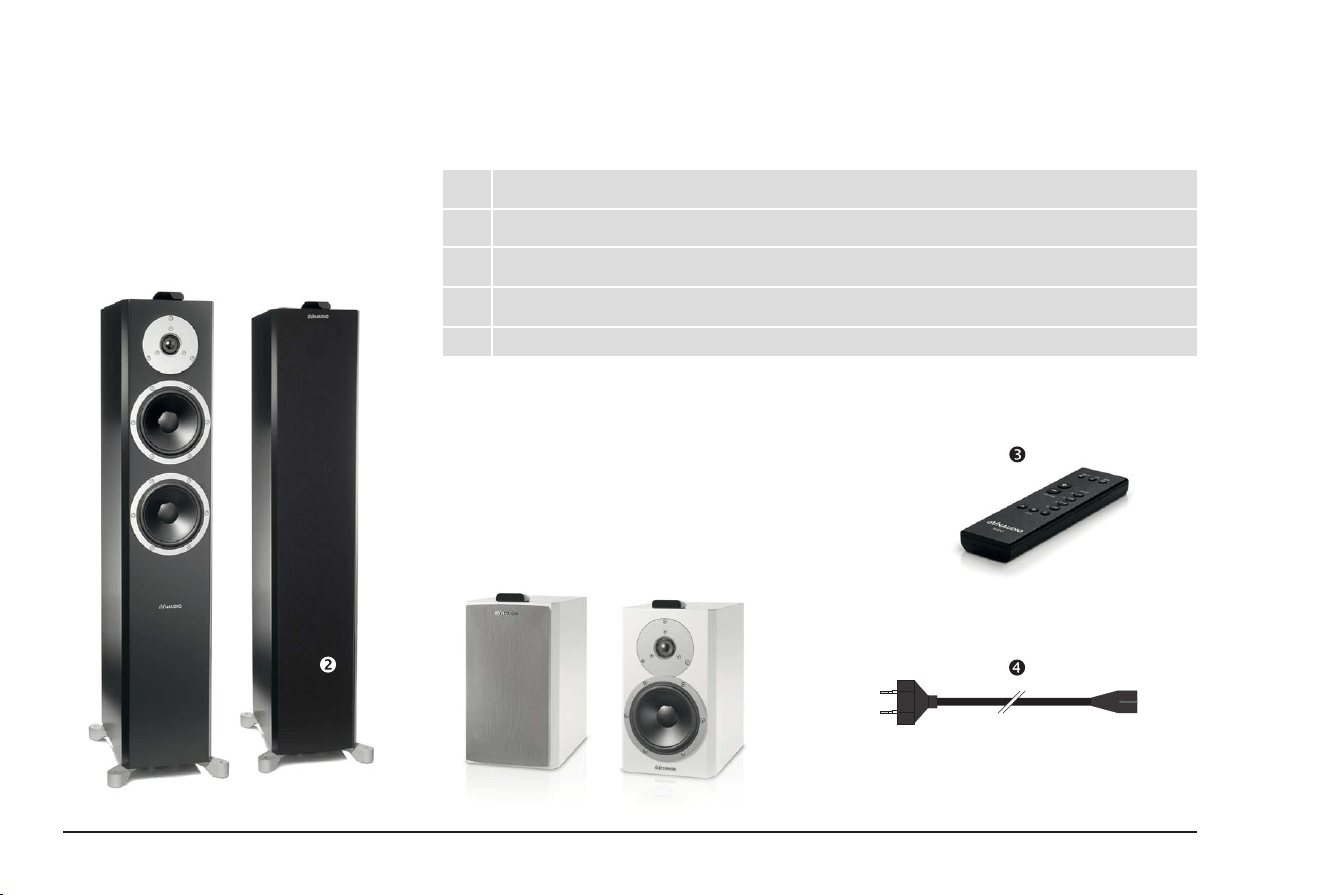
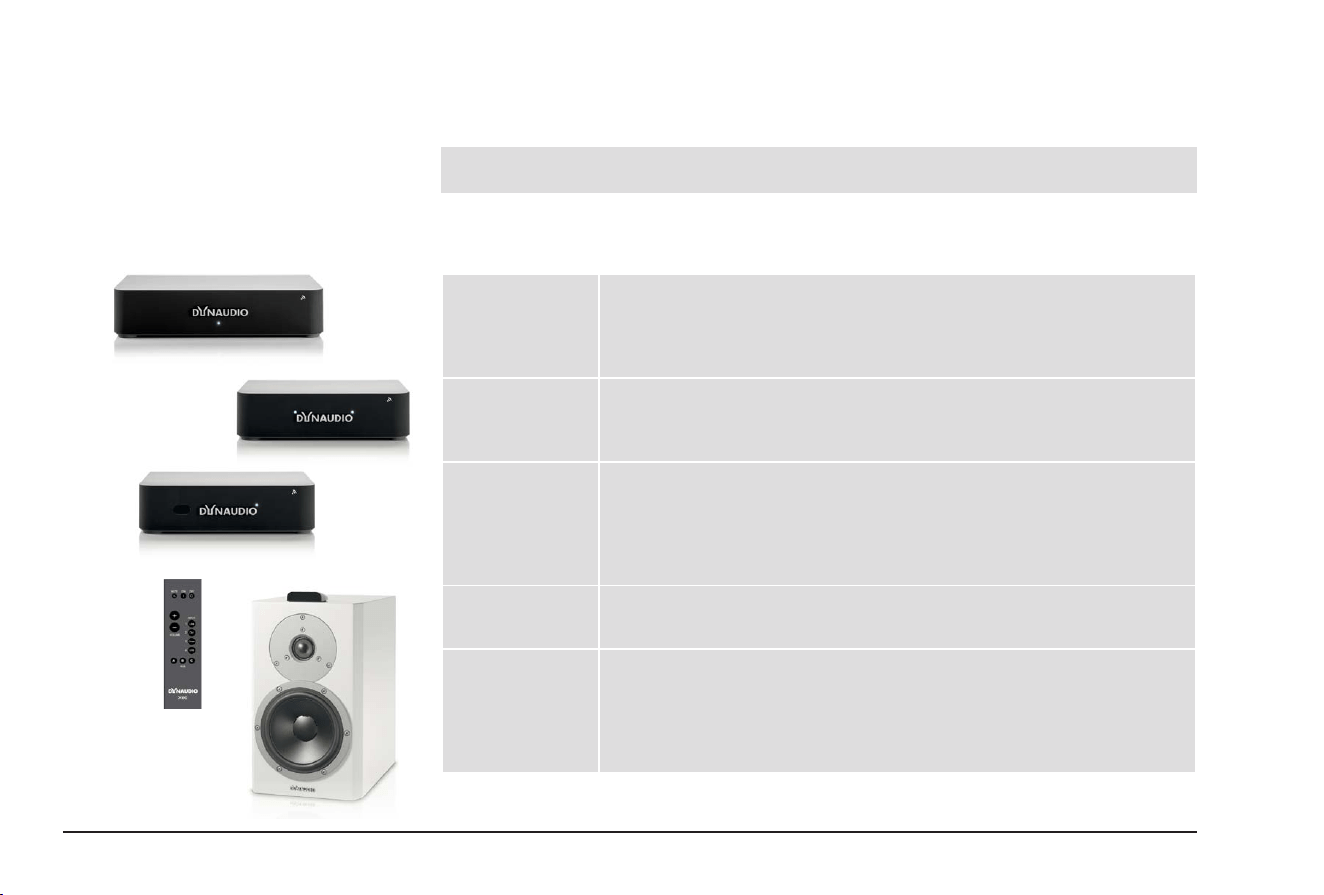
Xeo loudspeakers (Xeo 4 or Xeo 6)
2 Xeo loudspeakers (Xeo 4 or Xeo 6)
2 Xeo loudspeaker cloth covers
1 Xeo remote control
2 Xeo loudspeaker power cables (country-specic version)
1 Xeo rst time setup manual (quick guide for installation, not shown)
9
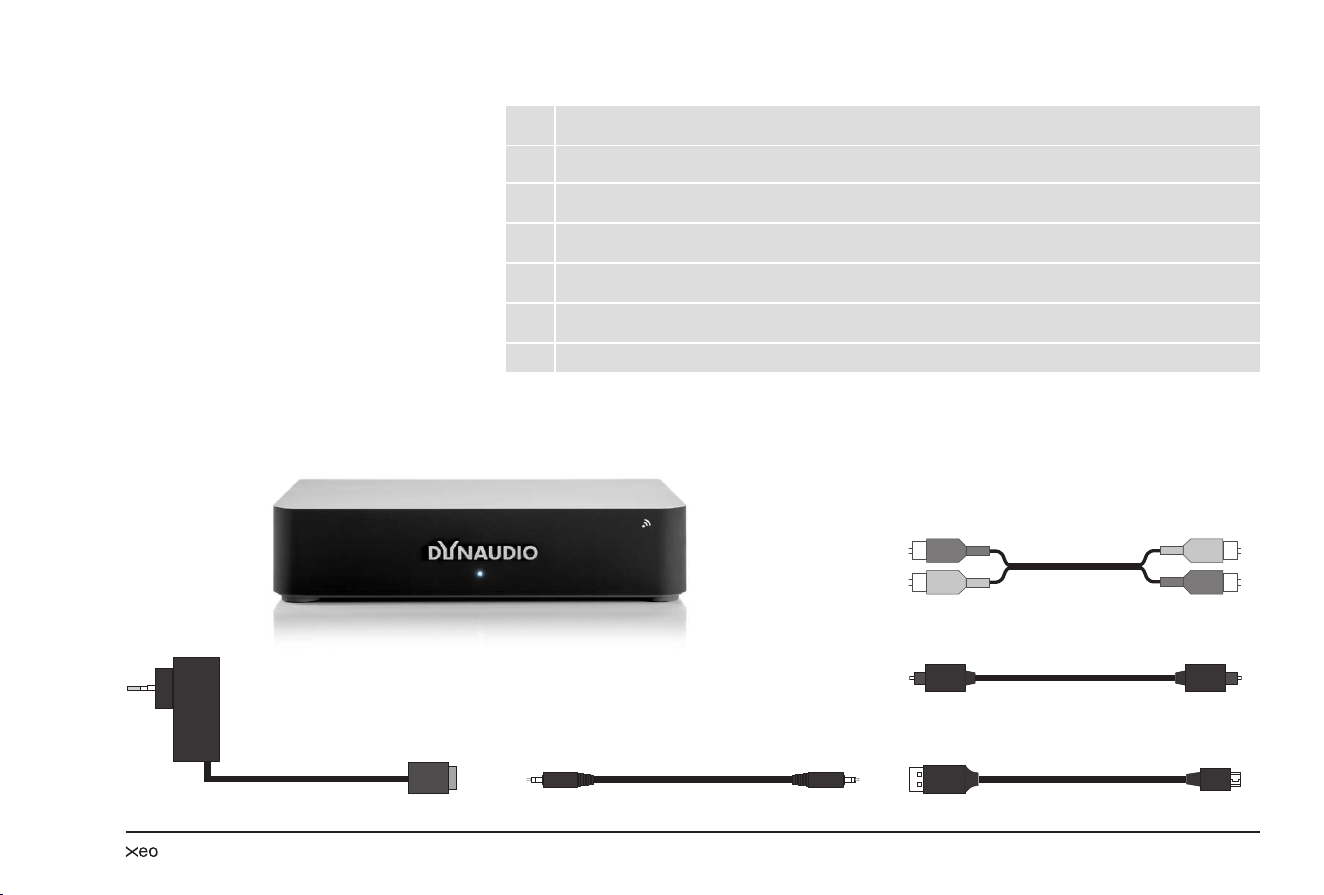
Xeo Hub
1 Xeo Hub
1 Xeo power supply unit with micro USB cable (country-specic version)
1 stereo analog cable (jack 3.5 mm – 3.5 mm)
1 stereo analog cable (RCA – RCA)
1 optical digital cable (Toslink – Toslink)
1 USB cable (USB – mini USB)
1 Xeo rst time setup manual (quick guide for installation, not shown)
10 Dynaudio
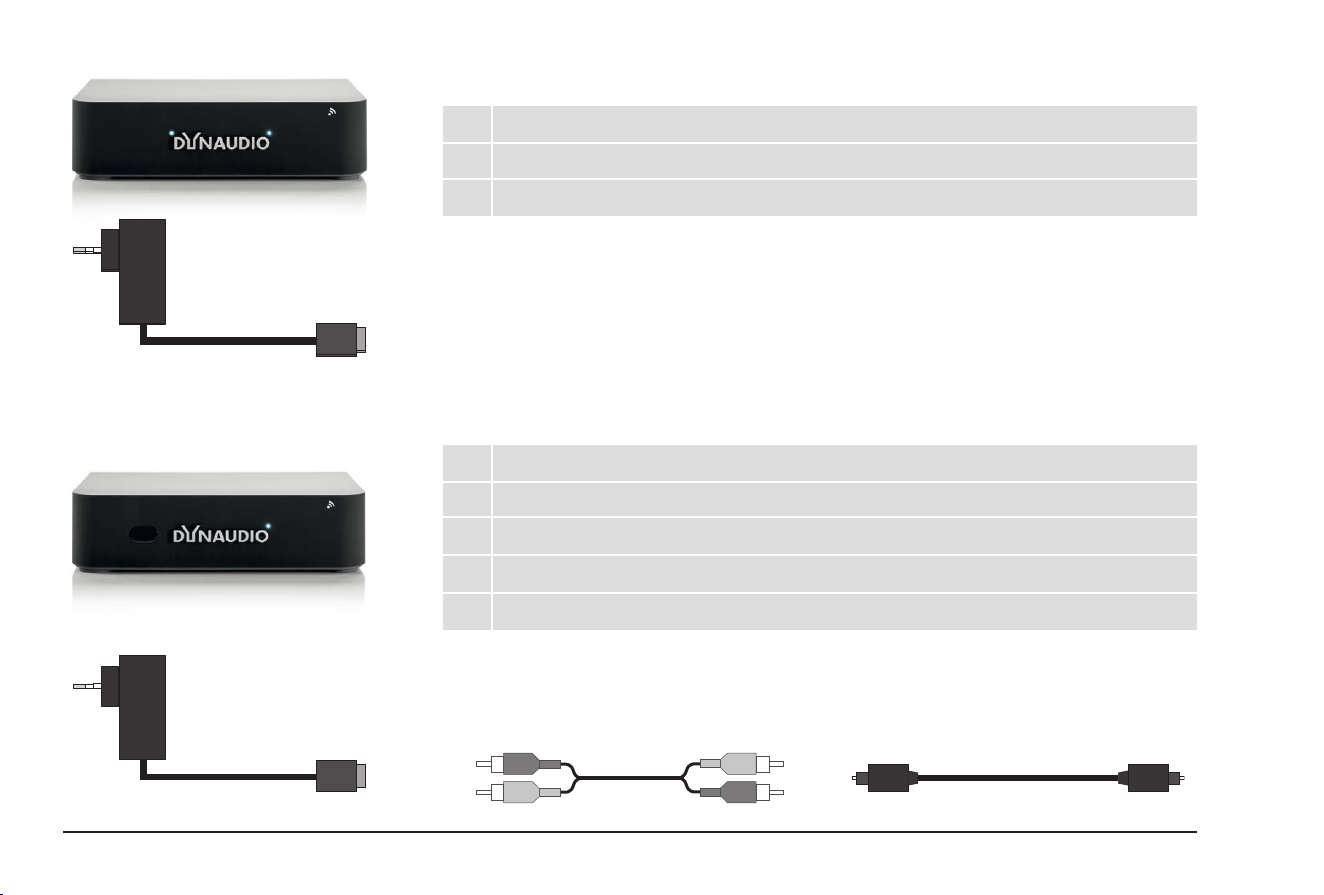
Xeo Extender
1 Xeo Extender
1 Xeo power supply unit with micro USB cable (country-specic version)
1 Xeo rst time setup manual (quick guide for installation, not shown)
Xeo Link
1 Xeo Link
1 Xeo power supply unit with micro USB cable (country-specic version)
1 stereo analog cable (RCA – RCA)
1 optical digital cable (Toslink – Toslink)
1 Xeo rst time setup manual (quick guide for installation, not shown)
11
Unpacking
After unpacking, make sure the system is complete and check the device and all accessories for
transport damage. Transport damage may be expected if the packaging is already severely harmed.
Do not attempt to commission a damaged device. If the contents are incomplete or damaged, please
contact your Dynaudio Xeo distributor. Distributor addresses can be found in the Internet at www.
dynaudio.com.
Packaging material
The packaging has been designed so that it may be reused if it was not damaged during transport.
Keep the packaging and use the original packaging for all further transport.
Disposal
Disposal of used electrical and electronic equipment (applicable in European countries with
separate collection systems for this equipment)
This symbol on the product or its packaging indicates that the product may not be treated as
household waste. Instead it must be handed over to the applicable collection point for the recycling of
electrical and electronic equipment. By ensuring this product is disposed of correctly, you will help
prevent potential negative consequences for the environment and human health. The recycling of
materials helps to conserve natural resources. For more detailed information on recycling this product,
please contact your local authority, community waste disposal ofce, or the shop where you purchased
the product.
12 Dynaudio
The Xeo system
Xeo consists of several high-quality components that are optimally matched. When combined, they
can fulll the most demanding requirements for a wireless multi-room and multi-source system.
NOTE:
This manual describes all of the available Xeo components. It is possible that only a few of the
descriptions are relevant to you, depending on your system conguration.
Components
Xeo Hub The Xeo Hub is the control center for the Xeo system. Signal sources such as
tuners, receivers, CD players, TVs, streaming clients, network players, MP3
players, or computers are connected to it. Signals are sent via radio from the
Hub to the loudspeakers (or Xeo Link) where they are then played back.
Xeo Extender The Xeo Extender extends the reception range of the Xeo Hub. As a result,
Xeo loudspeakers or other Xeo components can be operated further away
from the Hub.
Xeo Link
The Xeo Link receives wireless signals from a Xeo Hub and outputs
analog and digital signals from its connections. As a result, you can also
connect active subwoofers, active loudspeakers, other audio components
or the Xeo Transmitter to the Xeo Link.
Xeo remote
control
The Xeo remote control can be used to turn the loudspeakers on and off,
change the volume, and select a Hub and its connected signal sources.
Xeo
loudspeakers
The active Xeo 4 and Xeo 6 loudspeakers receive the wireless signals from
the Hub and play them back in optimal sound quality. They have an integrated
amplier and can be controlled with the Xeo remote control. A display
indicates the operational state of the system and lets you switch it on/off or
change the volume without using the remote control.
13
Combination examples
Below you will nd several examples of Xeo component combinations. The high level of exibility in
the Xeo system enables even more variants. Ask your Dynaudio distributor to nd the perfect solution
for your needs.
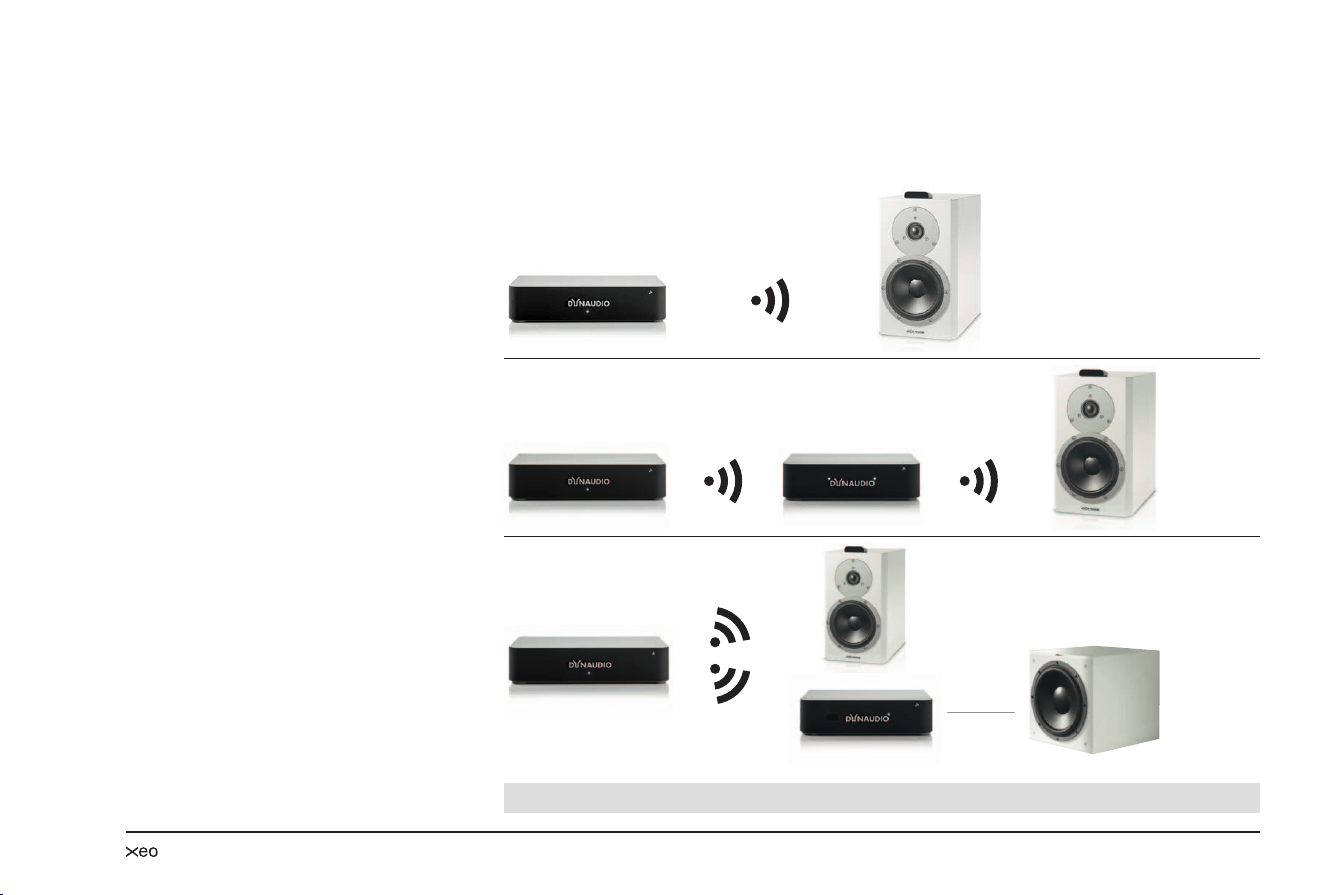
Standard:
Hub + loudspeaker
Hub
For a larger range:
Hub + Extender + loudspeaker
Hub Extender
For additional active components:
Hub + loudspeaker + Link
This example would also be possible with only a
Hub, Link, and active component.
Hub
Link
NOTE:
The Extender and Link may also be combined.
14 Dynaudio
Connection and operation
This section describes the connections and control elements for the Xeo components. Please contact
your Dynaudio Xeo distributor if you have any problems with connection and start-up. Distributor
addresses can be found in the Internet at www.dynaudio.com.
Remote control
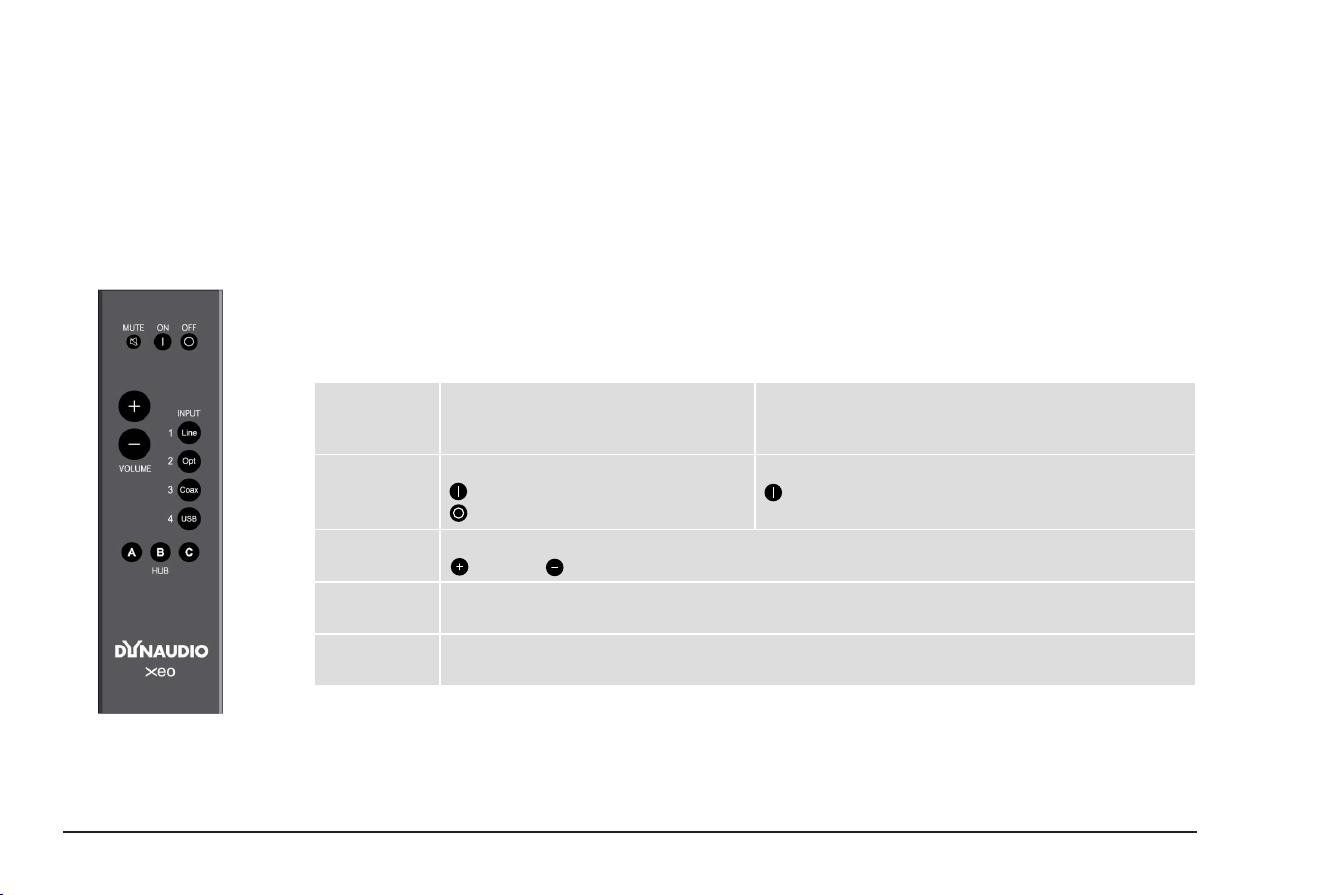
The Xeo remote control can be used to turn the loudspeakers on and off, change the volume, and
select a Hub and its connected signal sources. If the loudspeakers are being operated in stereo mode
(right/left), commands will always apply to both of the loudspeakers.
Control elements
MUTE Mute the loudspeaker
Briey pressing this button will mute or
unmute the selected loudspeaker.
Fixing the volume
Pressing this button for longer than 2 seconds will set a
high volume for the loudspeaker (see page 21).
ON/OFF Loudspeaker on/off
= on
= switch to standby
Reset
= Pressing this button for longer than 5 seconds will
reset the loudspeaker to the factory settings.
VOLUME Changing the volume
= louder, = quieter
INPUT
1/2/3/4
Selecting the signal source
Selects one of the signal sources Line In, Optical In, Coax In or USB In from the active Hub.
HUB
A/B/C
Selecting the Hub
Selects one of the three possible Hubs A, B, or C.
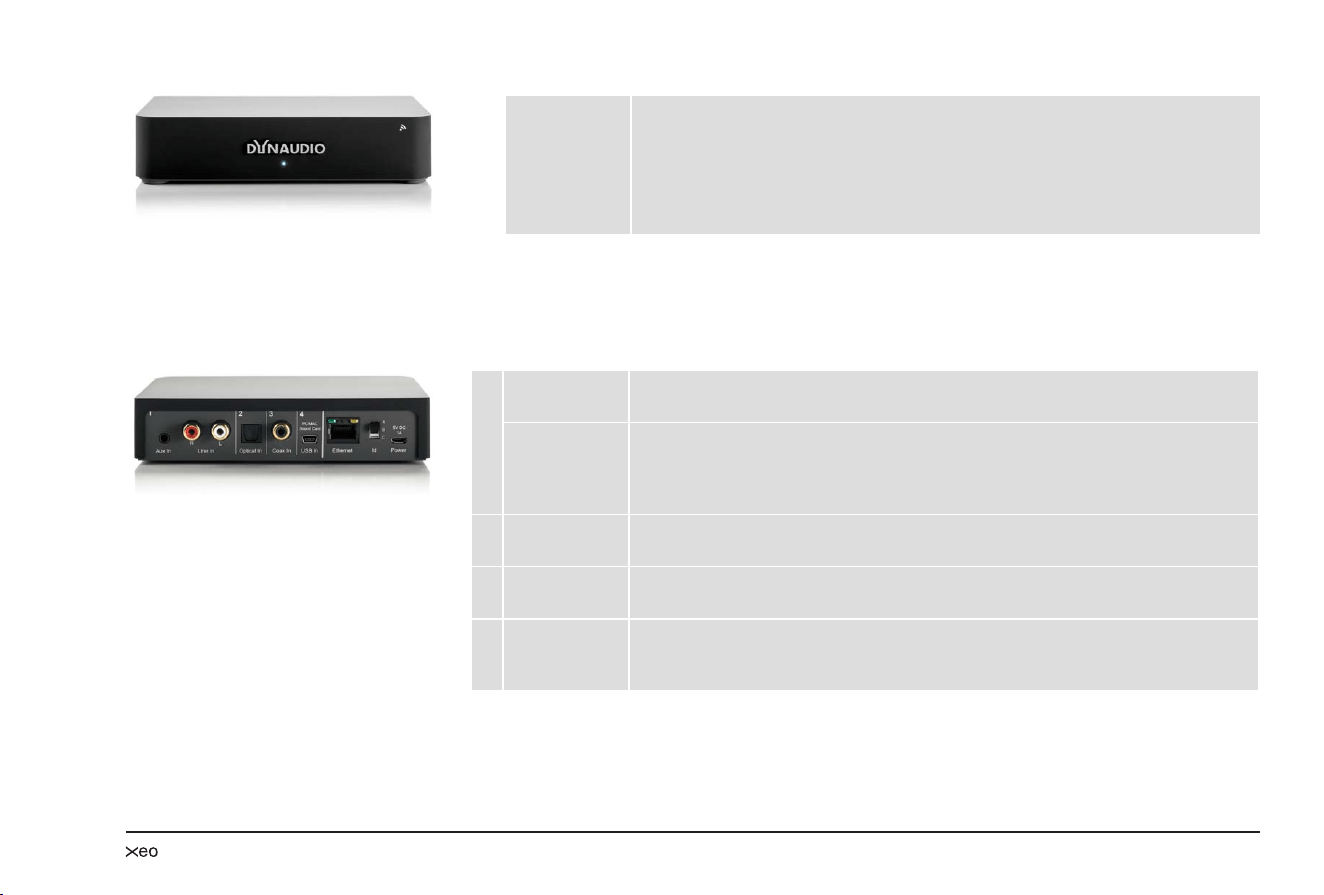
Xeo Hub
The Xeo Hub is the control center for the Xeo system. Signal sources such as tuners, receivers, CD
players, TVs, network players, MP3 players, or computers are connected to it. Signals are sent via
radio from the Xeo Hub to the loudspeakers where they are then played back.
15
Display elements
LED Connection status
LED illuminated in
blue:
Connection established (to a loudspeaker, Extender, or
Link).
LED ashes: The Hub is searching for a connection.
LED illuminated in red: The Hub could not establish a connection.
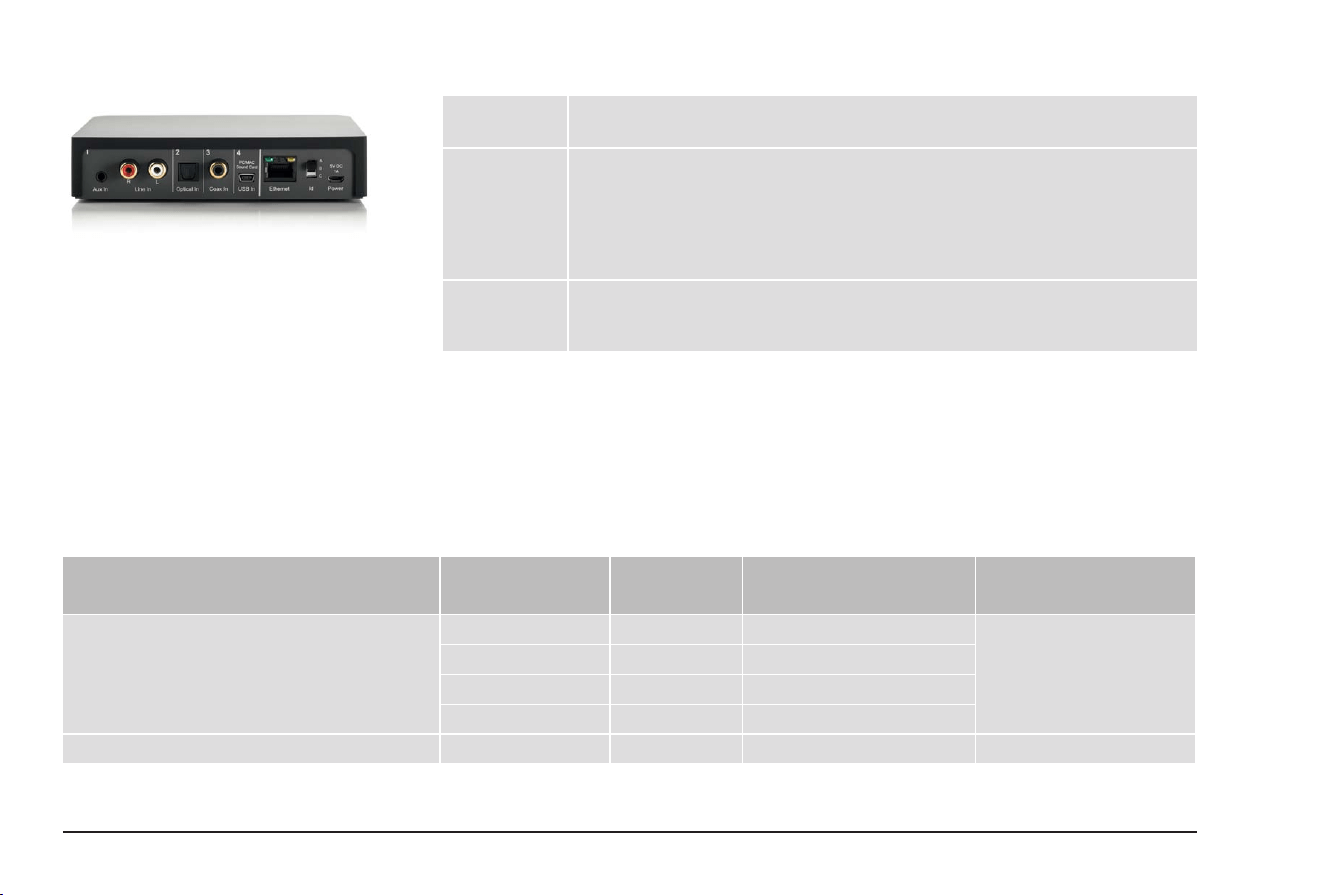
Inputs
1 Aux in Input for cable with stereo jack (3.5 mm stereo)
Connect devices here that have an output for the stereo jack.
Line in Input for cable with RCA plug
Connect devices here that have an output for the RCA plug.
NOTE: If a device is connected in parallel at Aux in, only that device will be played
back.
2 Optical In Input for optical digital cable (Toslink)
Connect devices here that have an optical digital output.
3 Coax In Input for electrical digital cable (coax)
Connect devices here that have an electrical digital output.
4 USB in Input for USB cable
Connect your computer’s USB output here. The Hub will then work as a sound
card.
16 Dynaudio
Other connections and control elements
Ethernet Network connection
Intended for future functions.
Id Transmission channel
If you assign an ID, you can select the desired Hub from several Hubs using the
remote control.
In addition, each ID has its own transmission channel: A = 2.4 GHz, B = 5.2 GHz,
C = 5.8 GHz. If the transmission quality is poor or there is a disruption caused by
other radio systems, changing to a different channel may produce an improvement.
Power Connection for power supply unit
Connect the delivered Xeo power supply unit here.
Do not use a different power supply unit!
Connection
► Connect the Hub to the mains voltage using the POWER connection and the Xeo power supply
unit. Do not use a different power supply unit!
Note: If you connect the Xeo Hub via a USB cable to a computer (that is switched on), you do not
need an additional mains connection.
► Connect your signal source to the appropriate input on the Hub.
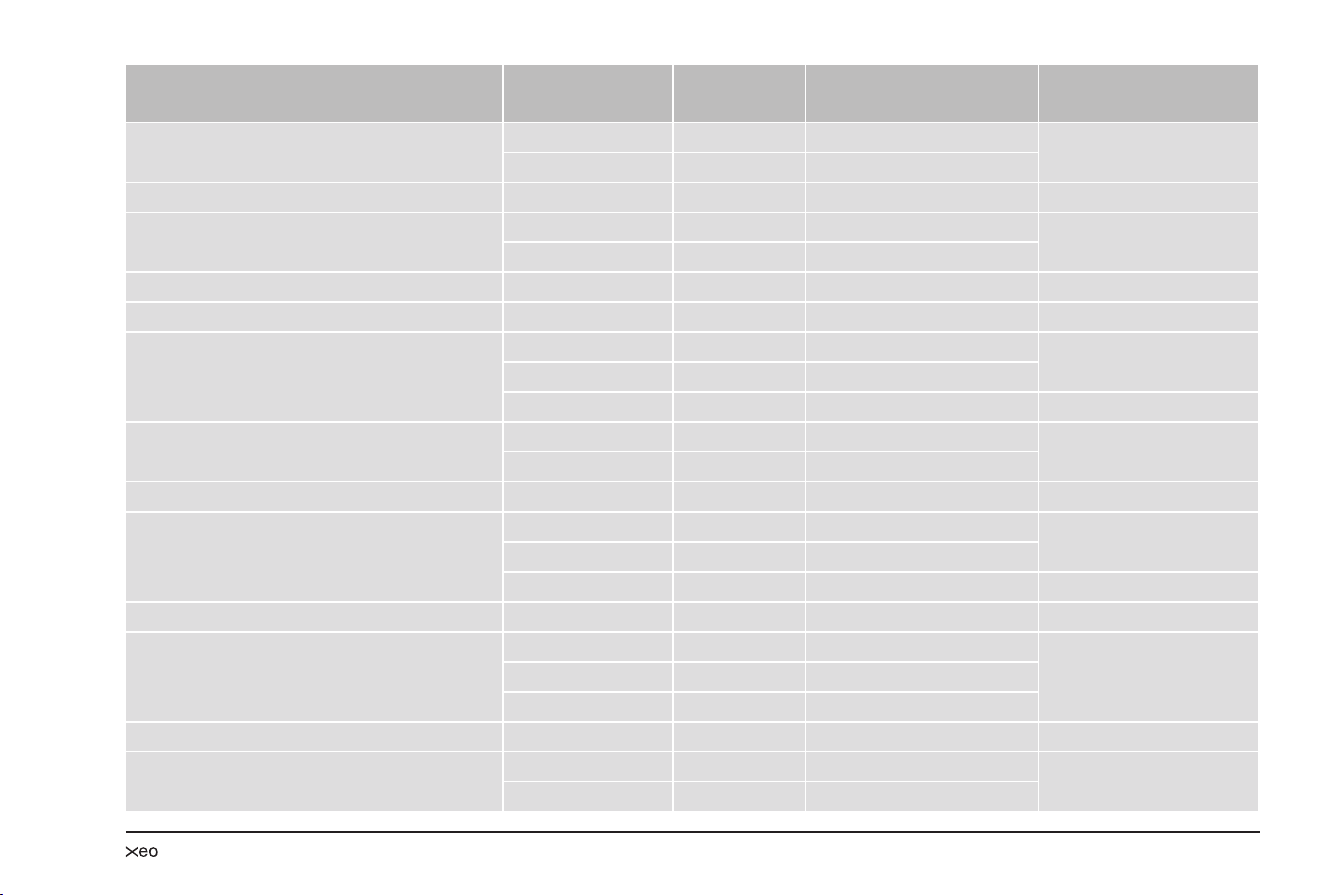
Below you will nd a selection of signal sources and options for connecting to the Xeo Hub.
Your signal source Signal source
output
Xeo Hub
input
Cable
(source – Hub)
Notes
Notebook, MAC™, PC USB* 4: USB in USB – mini USB * The Hub works as a
sound card.
Optical 2: Optical In Toslink – Toslink
Line out 1: Line in RCA – RCA
Headphones 1: Aux in Jack 3.5 mm – 3.5 mm
Smartphone, other portable devices Headphones 1: Aux in Jack 3.5 mm – 3.5 mm –
17
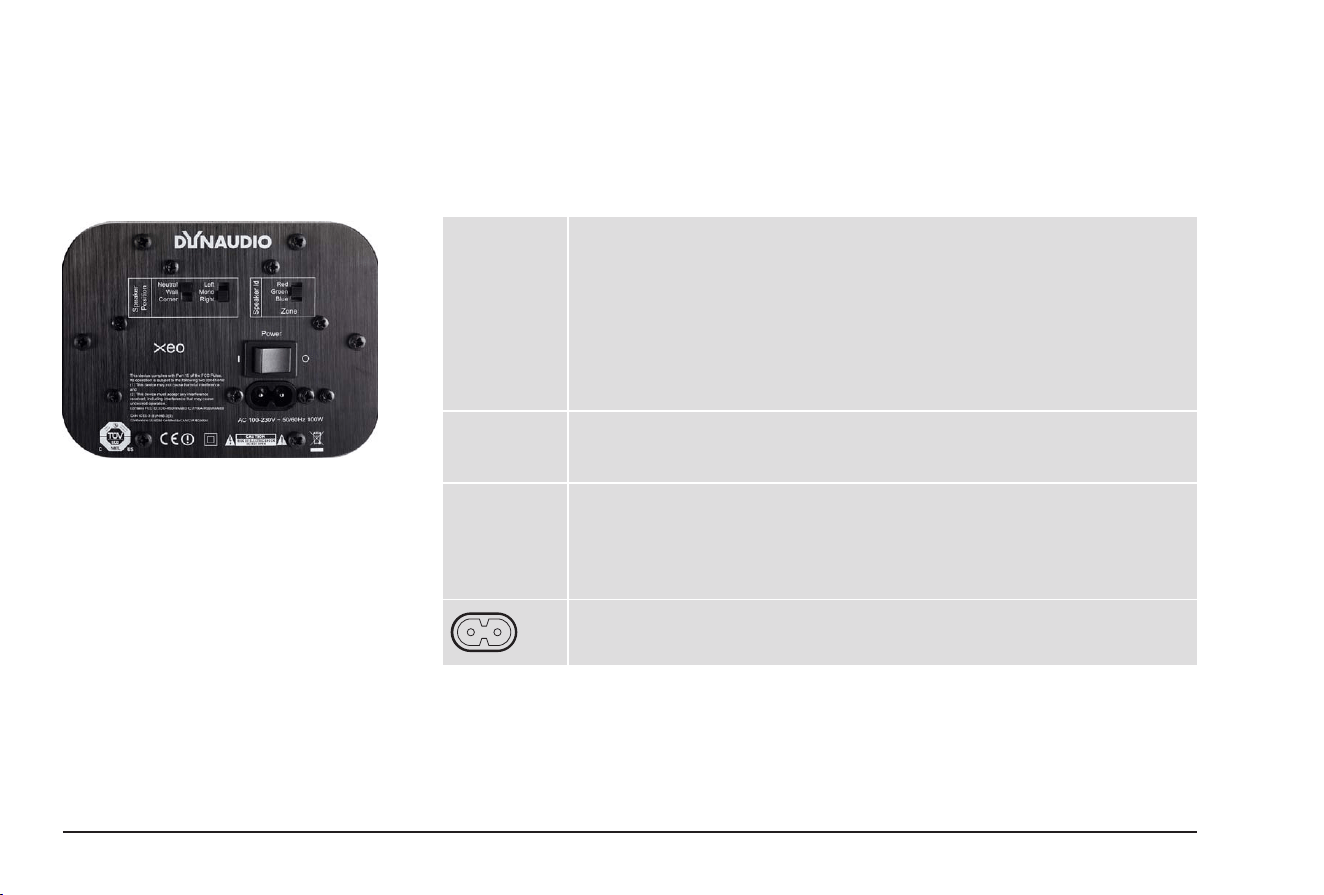
Your signal source Signal source
output
Xeo Hub
input
Cable
(source – Hub)
Notes
Astell&Kern Headphones 1: Aux in Jack 3.5 mm – 3.5 mm –
Optical 2: Optical In Toslink – Toslink
PonoPlayer Jack 1: Aux in Jack 3.5 mm – 3.5 mm –
Docking station, network client, Sonos,
Logitech, Squeezebox, ...
Line out 1: Line in RCA – RCA * If available
Optical* 2: Optical In Toslink – Toslink
Apple AirPort Express Optical 2: Optical In Mini Toslink – Toslink –
Apple TV Optical 2: Optical In Toslink – Toslink –
Hard disk, network player,
CD player
Line out 1: Line in RCA – RCA * If available
Optical* 2: Optical In Toslink – Toslink
Electrical* 3: Coax In Coax – coax –
Analog radio, digital radio Line out 1: Line in RCA – RCA * If available
Optical* 2: Optical In Toslink – Toslink
Analog record player Line out* 1: Line in RCA – RCA * On phono preamplier
TV Headphones 1: Aux in Jack 3.5 mm – 3.5 mm Select a variant.
Line out 1: Line in RCA – RCA
Optical* 2: Optical In Toslink – Toslink * If available
Stereo preamplier Pre-out, main out 1: Line in RCA – RCA –
Stereo power amplier Tape out 1: Line in RCA – RCA * Disconnect bridge
Pre-out, main out* 1: Line in RCA – RCA
Second pre-out 1: Line in RCA – RCA
Subwoofer Analog output 1: Line in RCA – RCA –
AV receiver, AV processor Optical 2: Optical In Toslink – Toslink –
Pre-out, main out 1: Line in RCA – RCA
18 Dynaudio
Xeo loudspeakers
The active Xeo 4 and Xeo 6 loudspeakers have an integrated amplier and can be controlled with
the Xeo remote control. The loudspeakers can be switched between stereo and mono mode using a
switch on the rear.
Connections and control elements
Speaker
position
Sound adjustment (depending on the position of the loudspeakers)
• Neutral = with free-standing placement
• Wall = if placed near a wall
• Corner = if placed in a corner
Loudspeaker placement
• Left = left loudspeaker for stereo mode
• Mono = if only using one loudspeaker
• Right = right speaker for stereo mode
Speaker ID/
zone
Selection of audio zones
Loudspeakers assigned to different zones can be controlled separately via the
remote control. The zones are identied as Red, Green, and Blue.
Power Power switch
• I = The loudspeaker is on. The loudspeaker can be activated and deactivated via
the remote control. If the loudspeaker is activated and there is no signal, it will
switch to standby mode.
• O = The loudspeaker is completely off.
Mains socket
To connect the loudspeaker to the mains voltage.
19
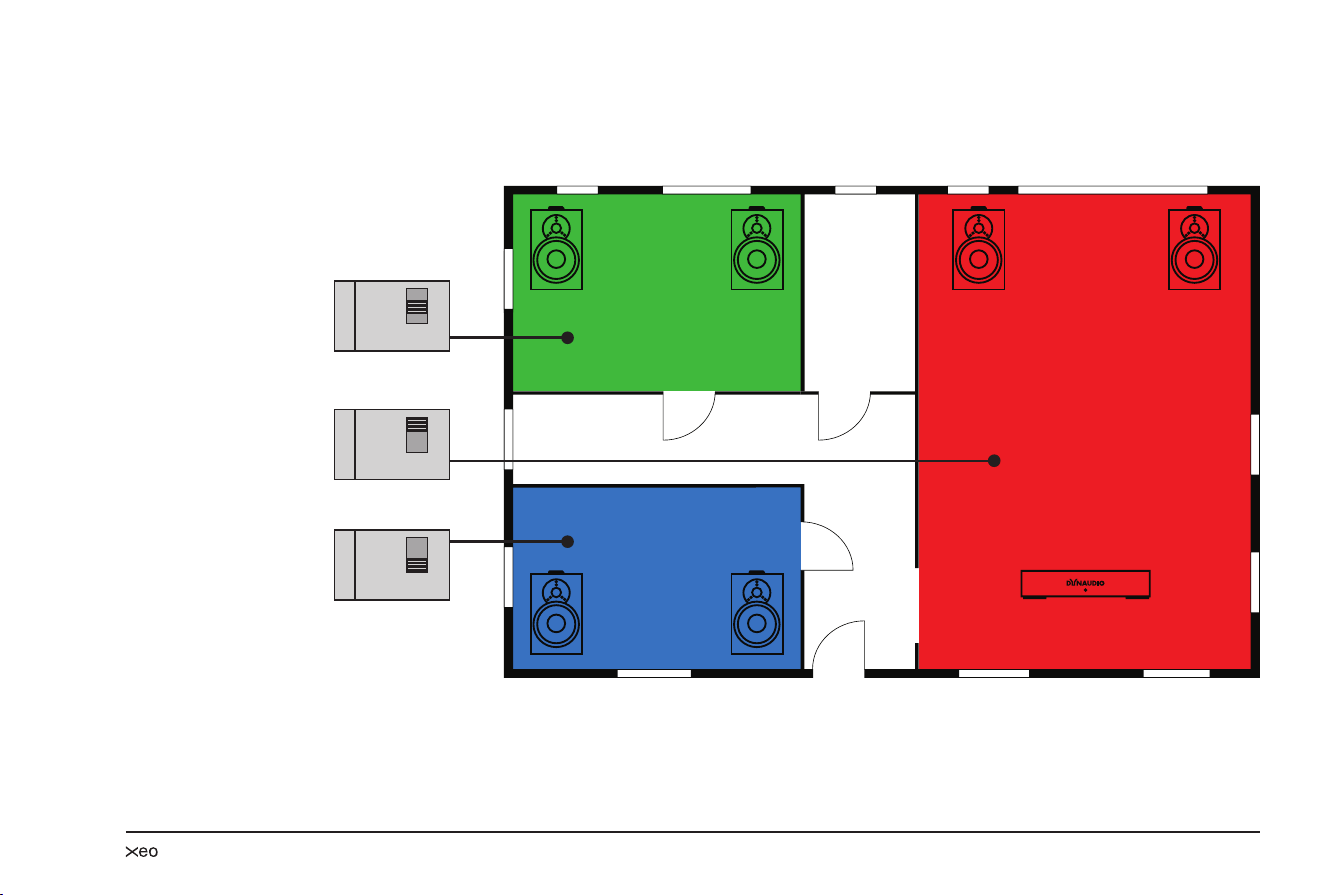
Division into audio zones
The Xeo loudspeakers (as well as Xeo Link) can be assigned to an audio zone using the Zone
selector switch. All components assigned to a zone can be operated together via the remote control.
Red
Green
Blue
Speaker Id
Red
Green
Blue
Zone
Speaker Id
Red
Green
Blue
Zone
Speaker Id
Red
Green
Blue
Zone
20 Dynaudio
Cloth cover
The cloth cover has been designed so it does not inuence the sound dispersion of the loudspeaker.
The cloth cover is attached to the housing with magnets and may be removed if needed.
Setting up
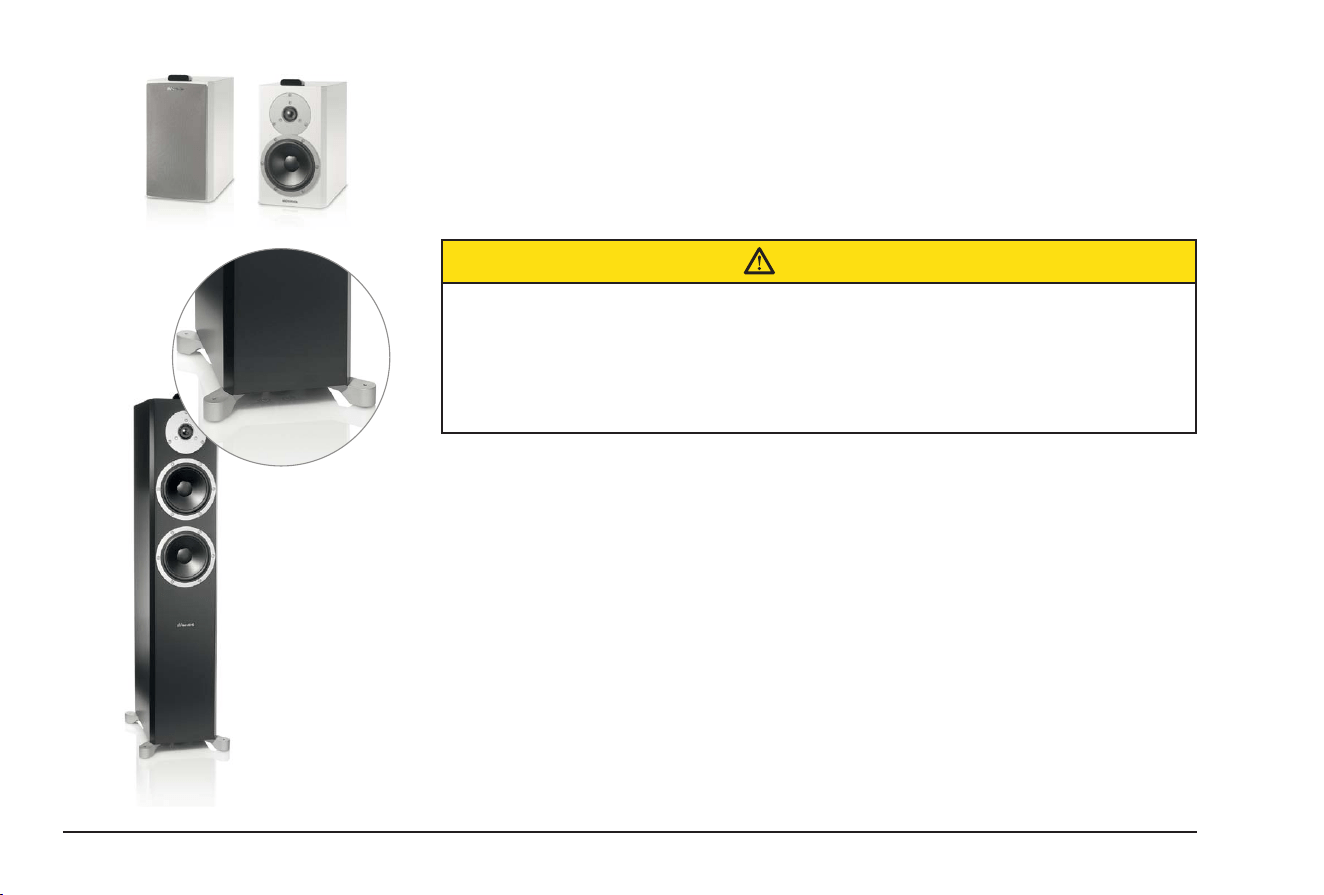
CAUTION
Spikes with pointed ends
Xeo 6 oor-standing speakers are delivered with spikes for permanent installation on the
oor. The pointed ends of the spikes may result in injuries and damage delicate oors.
► Pay attention that you do not injure yourself with the spikes.
► We recommend inserting the spikes in aluminum feet if you have delicate oors, such as parquet
or laminate.
► Position the loudspeaker in the desired location.
– Do not expose the loudspeakers to direct sunlight, heat, or moisture.
– Do not place the loudspeakers near devices with strong electromagnetic radiation or devices
that could be destroyed or damaged by magnetic elds.
Connecting and adjusting
1. Use the power cable to connect the loudspeaker to the mains voltage and switch it on using the
power switch on the rear.
2. In stereo mode:
– Select Left operating mode for the left loudspeaker.
– Select Right operating mode for the right loudspeaker.
In mono: Select Mono operating mode.
3. Select the Red, Green, or Blue zone. In stereo, select the same zone for the right and left
loudspeakers. Loudspeakers with different zone settings can be controlled separately via the
remote control.
21
Switching on/standby mode
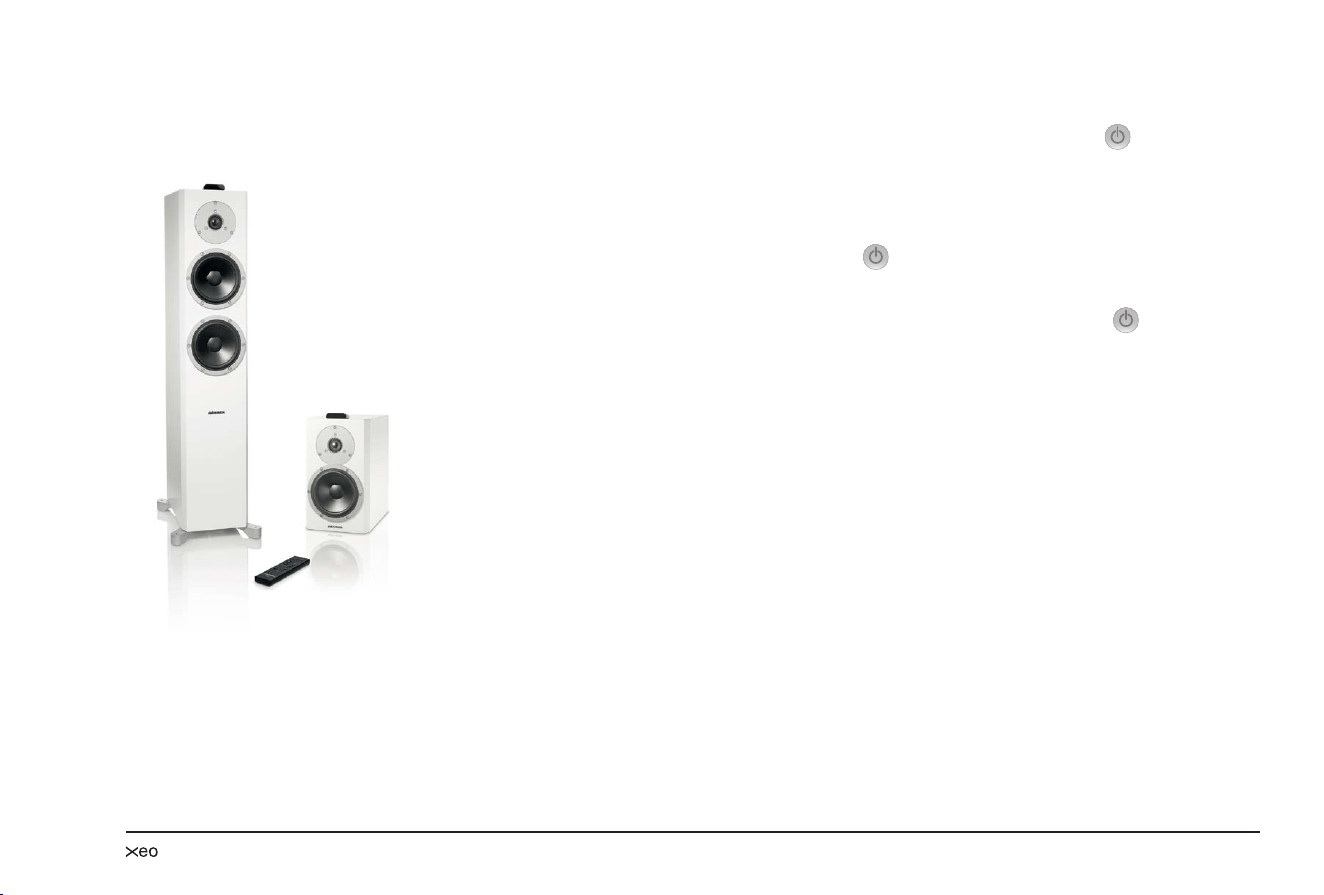
To switch the loudspeaker on from standby mode:
► Point the remote control at the loudspeaker and press the ON button or press on the interface
display.
▼ The loudspeaker will automatically search for an active Hub and an audio signal. If found, the
signal will be output (autoplay function).
If there is no input signal, the loudspeaker will go into standby mode after a certain period.
► To switch it on again, press the ON button or .
To switch a loudspeaker to standby mode:
► Point the remote control at the loudspeaker and press the OFF button or press .
▼ The loudspeaker will go into standby mode. To completely switch off the loudspeaker, turn the
POWER switch on the rear to OFF. However, the loudspeaker can then no longer be switched
on via the remote control.
Selecting a Hub or input/autoplay function
After it is turned on, the loudspeaker automatically searches for an audio signal and then plays it back
immediately. If several signal sources are active, one of the signal sources will be played back. Select
a different Hub or input if you want to play back a different signal source.
To select a different Hub or input:
► Press HUB A, B, or C or INPUT 1, 2, 3, or 4 on the remote control.
▼ The selected signal source will be played back.
Fixing the volume
You can set the loudspeaker to a higher volume using the function to x the volume. This setting
also remains in effect in standby mode. If a signal source is connected to a Hub with its own volume
control, you have the option to change the output volume across a broad range with the signal source.
To x the volume:
► Point the remote control at the loudspeaker and press the MUTE button for longer than 2 seconds.
To undo xing, press one of the two volume buttons.
22 Dynaudio
Interface display
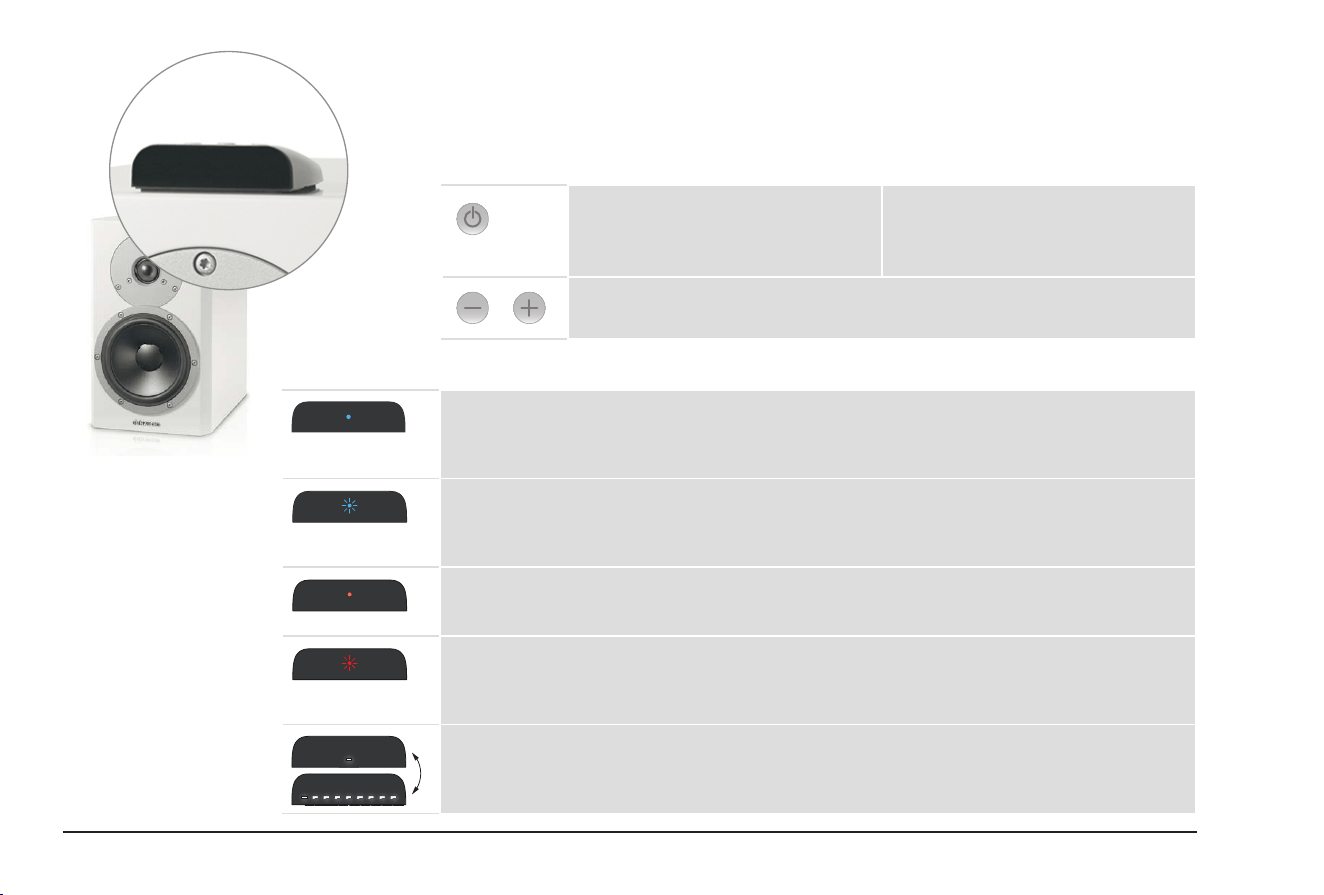
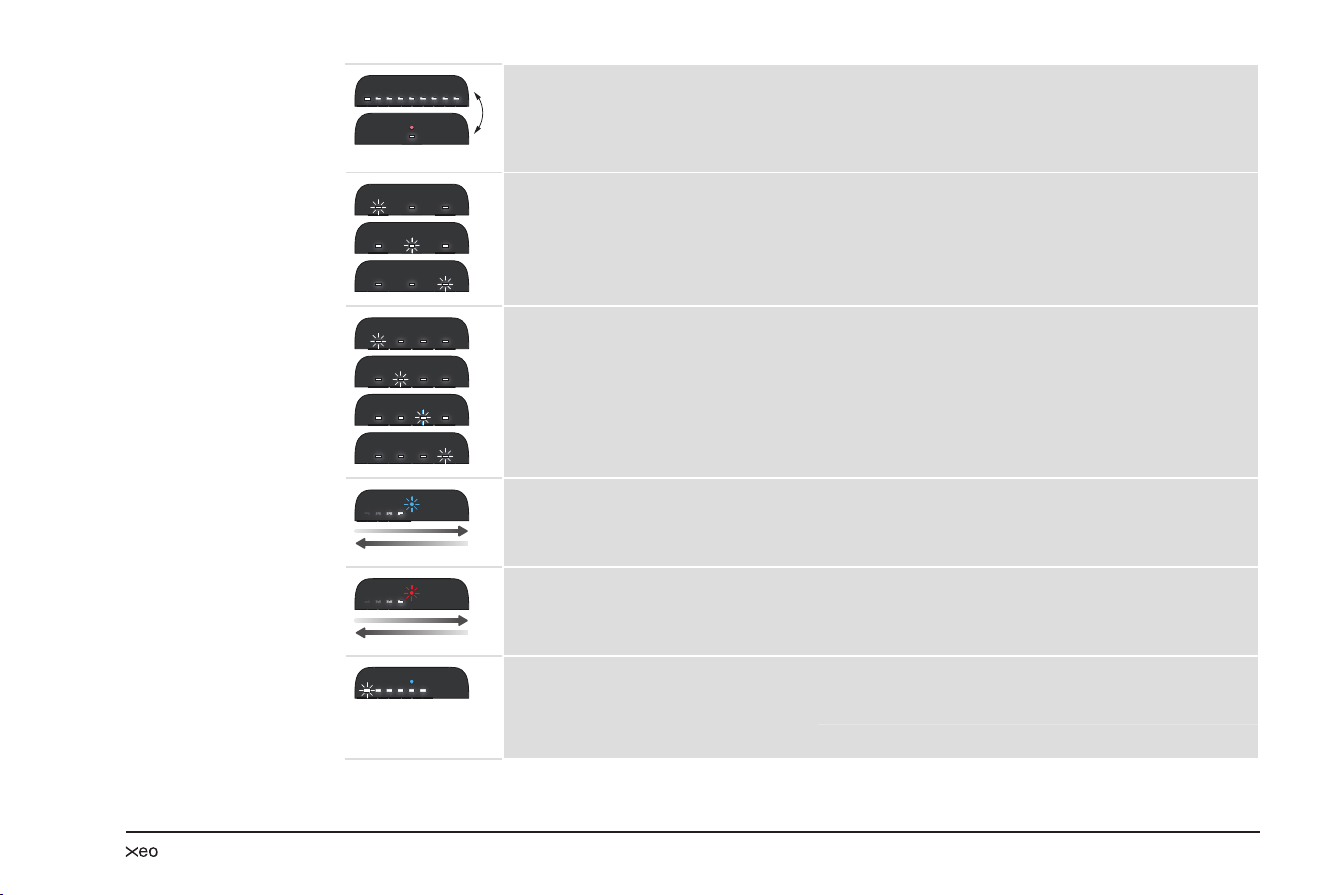
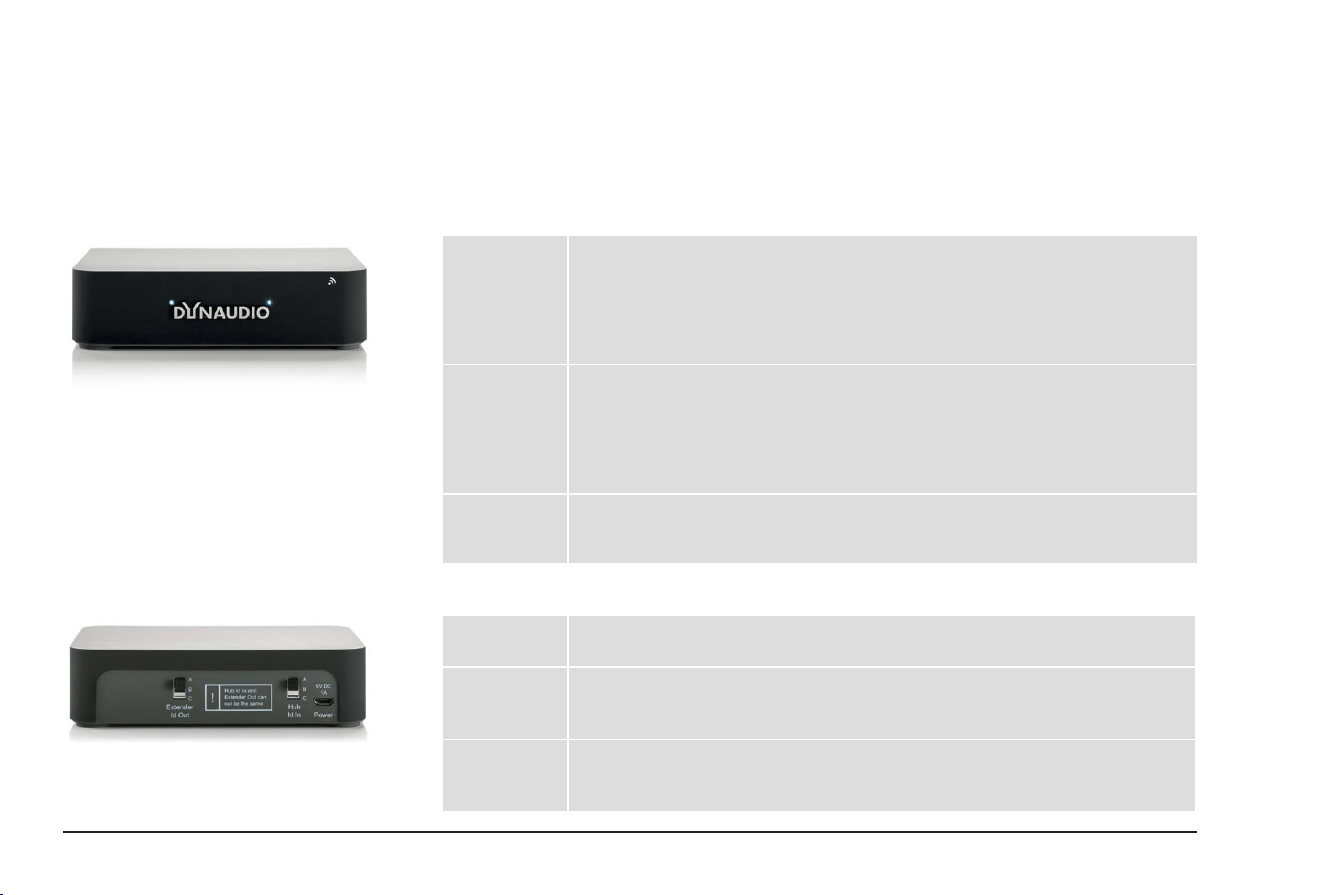
The display on the housing indicates the operational state of the loudspeakers and system using LEDs
with various colors and ash functions.
Buttons on the display
On/off switch
Pressing this button for longer than
2 seconds will switch the loudspeaker
on or to standby mode.
Input selection
A brief press of this button switches
between the inputs (1 → 2 → 3 → 4 →
1...). Only the inputs in use are shown.
Volume control
Increases or decreases the volume.
LED display meanings
On-state
LED is illuminated in blue. The loudspeaker is switched on and an audio signal is
played back.
On-state
LED is ashing in blue. The loudspeaker is switched on, but an audio signal
cannot be found.
Off-state
LED is illuminated dimly in red. The loudspeaker is in standby mode.
Hub connection
LED is ashing in red. There is no active Hub or no connection to a Hub
possible.
Switch-on process
LEDs are illuminated one by one. The loudspeaker is being switched on.
23
Switch-off process
The LEDs go out one by one.
In the nal state, only one LED is
illuminated dimly in red.
The loudspeaker is being switched off.
Select a Hub
One of the three LEDs ashes. LED 1 = Hub A
LED 2 = Hub B
LED 3 = Hub C
Select an input
One of the four LEDs ashes. LED 1 = INPUT 1
LED 2 = INPUT 2
LED 3 = INPUT 3
LED 4 = INPUT 4
Hub search
The blue LED ashes; the lights in the
white LEDs move back and forth.
Searching for an active input on the Hub
Synchronization
The red LED ashes; the lights in the
white LEDs move back and forth.
System synchronization
Volume, mute
A number of white LEDs are illuminated. The number of LEDs indicates the selected volume.
The rst LED ashes. The loudspeaker is muted.
24 Dynaudio
Xeo Extender
The Xeo Extender extends the reception range of the Xeo Hub. As a result, Xeo loudspeakers or other
Xeo components can be operated further away from the Hub.
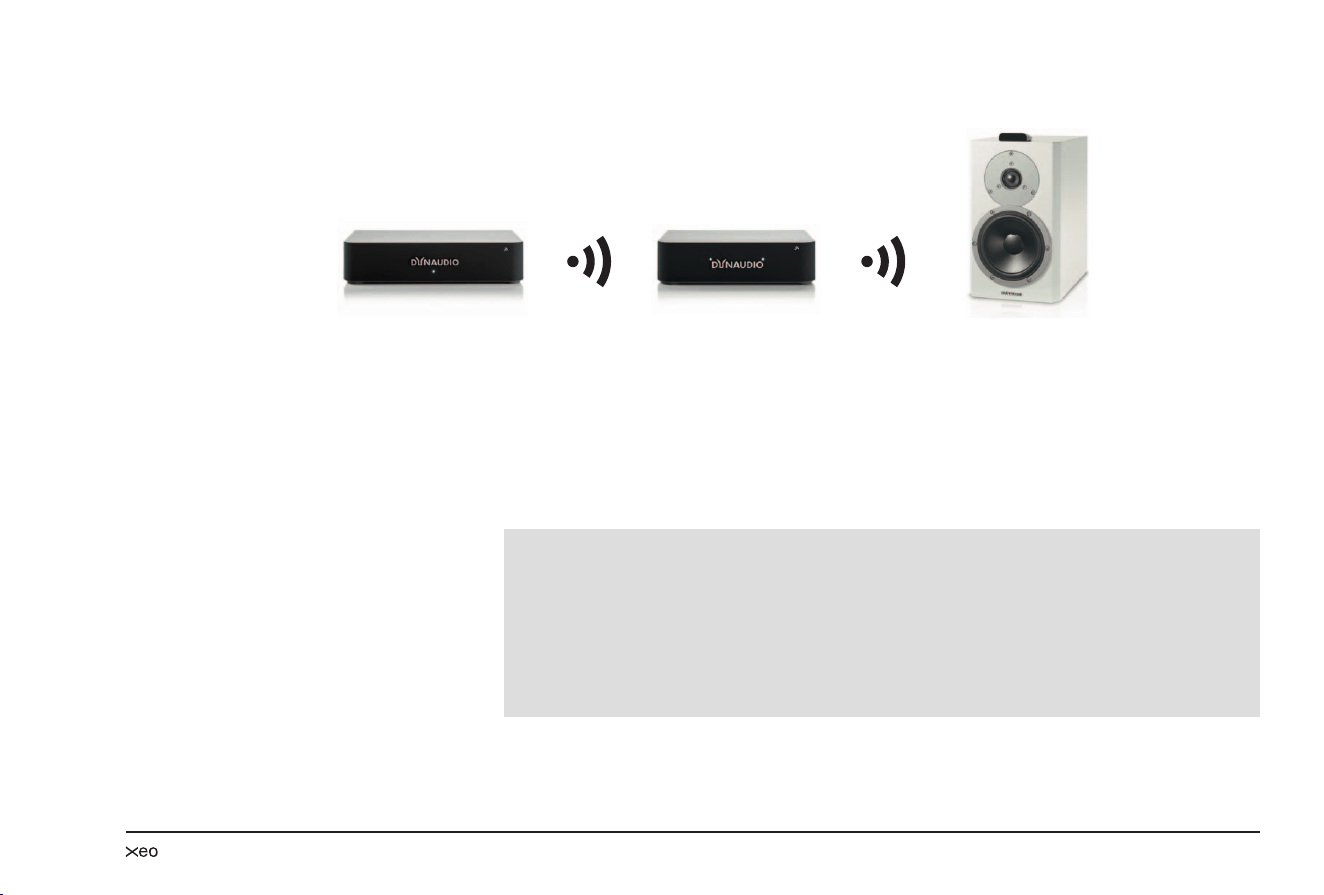
Connections and control elements
Front
Left LED Reception status
LED illuminated in
blue:
There is a connection to a Hub.
LED ashing in
red:
No connection to a Hub possible.
Right LED Transmission status
LED illuminated in
blue:
There is a connection to a loudspeaker/Link.
LED ashing in
red:
There is no connection to a loudspeaker/Link.
Both LEDs Both LEDs are
illuminated in
violet:
The same ID was selected for Hub Id In and Hub Id Out.
This is not permitted.
Rear
Hub
Id In
Reception ID
Select the same ID as the the one on the Hub that provides the signal: A, B, or C.
Extender
Id Out
Transmission ID
Select a transmission ID.
The reception and transmission ID may not be identical!
Power Connection for power supply unit
Connect the delivered Xeo power supply unit here.
Do not use a different power supply unit!
25
Connecting and establishing a link
Hub Extender
1. Connect the Power socket to the voltage supply via the Xeo power supply unit.
Do not use a different power supply unit!
2. Select the same ID on the Hub and Extender for the Hub Id In.
E.g. Hub: Id = B → Extender: Hub Id In = B.
3. Select any (other) ID on the Extender for the Extender Id Out.
It may not be identical to the Hub Id In.
E.g. Extender Id Out = C
NOTES:
Two Extenders may also be used in a sequence.
Select e.g. the following ID settings:
• Hub: Id = A → Extender 1: Hub Id In = A, Extender Id Out = B → Extender 2: Hub Id In = B,
Extender Id Out = C
Only one Extender may be deployed if using two Hubs.
Select e.g. the following ID settings:
• Hub 1: Id = A
• Hub 2: Id = B → Extender: Hub Id In = B, Extender Id Out = C
26 Dynaudio
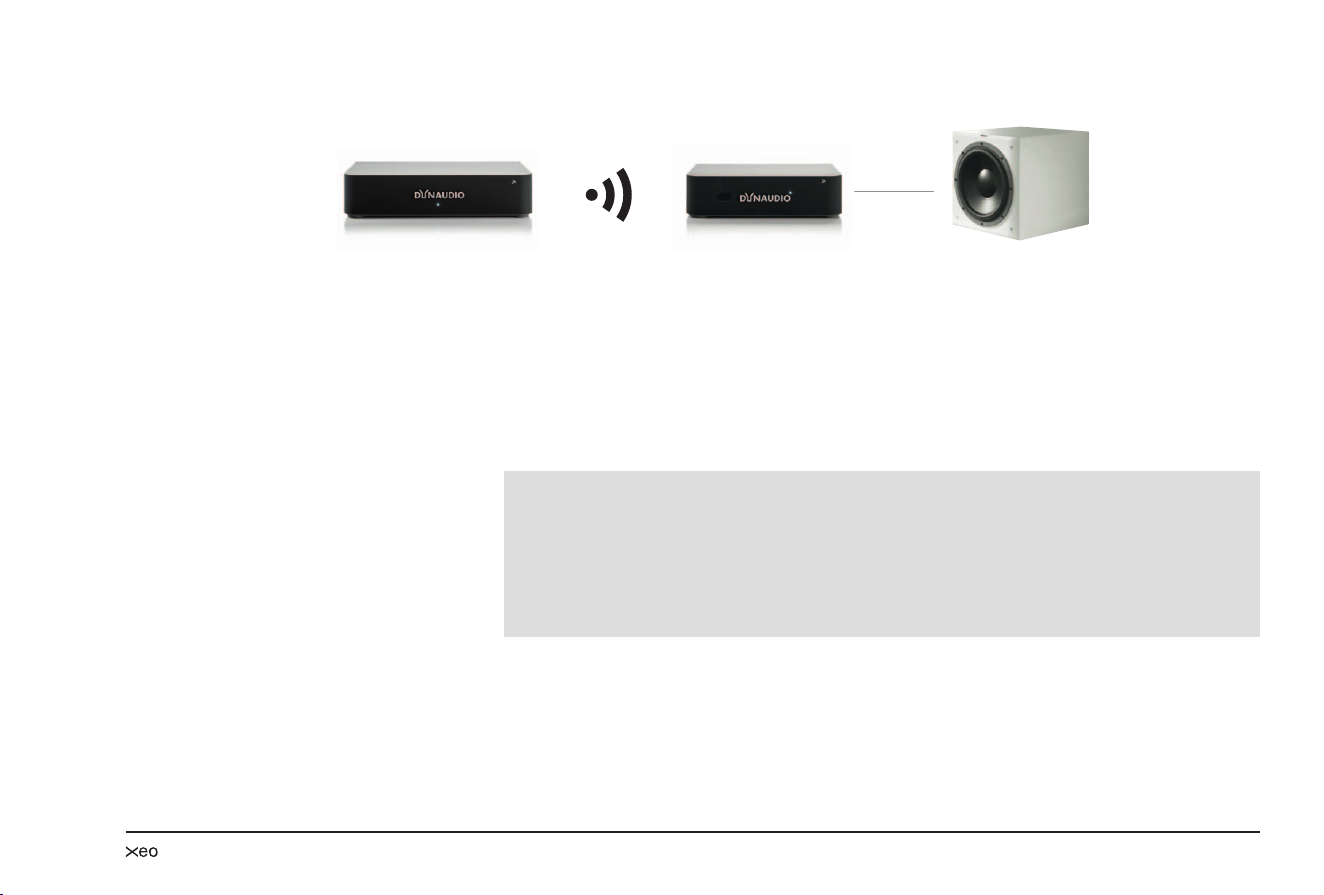
Xeo Link
The Xeo Link receives wireless signals from a Xeo Hub or Xeo Extender and outputs analog and
digital signals from its connections. As a result, you can also connect active subwoofers, active
loudspeakers, or other components to the Xeo system.
Xeo Link can also be connected with a 1st generation Xeo transmitter. This lets you operate both Xeo
systems together.
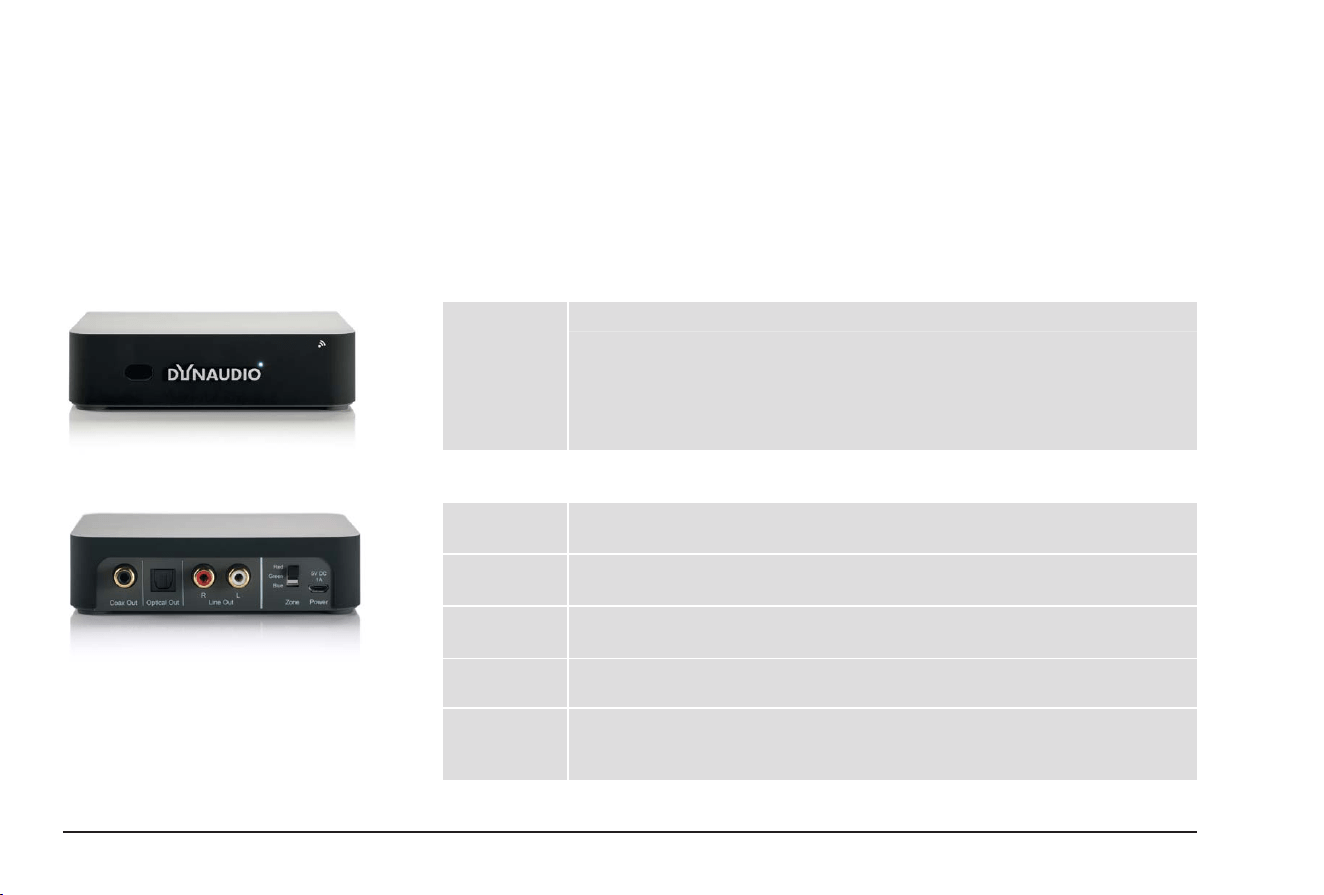
Connections and control elements
Front
LED Operational state
LED illuminated in blue: The Link receives an audio signal and plays it back.
LED is ashing in blue: There is a connection, but no audio signal is transmitted.
LED is ashing in red: There is no connection to a Hub or Extender.
LED illuminated in red: Xeo Link is in standby mode.
Rear
Coax Out Output for electrical digital cable
Connect devices here that have an electrical digital input (coax).
Optical Out Output for optical digital cable
Connect devices here that have an optical digital input (Toslink).
Line out Output for cable with RCA plug
Connect devices here that have an input for the RCA plug.
Zone Audio zones
Select the desired audio zone here.
Power Connection for power supply unit
Connect the delivered Xeo power supply unit here.
Do not use a different power supply unit!
27
Connecting and establishing a link
Hub
Link
1. Connect the Power socket to the voltage supply via the Xeo power supply unit.
Do not use a different power supply unit!
2. Select an audio zone: Red, Green, or Blue.
Use one of the outputs to connect the Xeo Link with one of the active components, e.g. the active
subwoofer Dynaudio Sub 600.
3. Select the desired signal source with the remote control and control the volume.
NOTES:
You can assign the Xeo Link to an audio zone the same way as with the Xeo 4 and Xeo 6
loudspeakers and then control it specically via the remote control.
A Xeo loudspeaker can also be used parallel to the Xeo Link.
Several active components can be connected to the Xeo Link. The signal is then output in parallel on
all analog and digital outputs.
The Xeo Link can also be used in conjunction with the Xeo Extender. The settings are identical for
using the Xeo Extender and a Xeo loudspeaker.

28 Dynaudio
Malfunctions
Interruptions, clicking noises, or other audible interference when playing music is usually not caused
by the radio transmission in the Xeo system. Often other external causes inuence the transmission
quality.
Below are a few tips for improving transmission quality:
1. Position all radio transmitters and receivers away from each other. WLAN devices, radio receivers,
and radio systems may inuence each other if they are too close together. Test out various
locations for each device.
2. Switch off the automatic search function in WLAN devices. WLAN devices and other radio
systems permanently scan for available frequencies, thus sending signals that could disrupt other
radio systems. This automatic search function can usually be switched off.
3. Xeo technology radio signals can, of course, transmit through walls. However, walls may consist of
very different materials, such as wood berboard, stone, or even steel. The walls may also contain
complex cable installations for electrics, phones, TVs, and radios, as well as water pipes and air
shafts. These can divert radio signals. This is why you should test different locations for the Xeo
Hub, Extender, and Link and favor the most direct radio path between the Xeo components.
4. Some electrical devices, such as microwaves, generate strong electromagnetic elds that could
disrupt radio systems. Do not operate such electrical devices near Xeo components.
You can ask your Dynaudio Xeo distributor for assistance at any time or contact the Dynaudio helpline
Further information can also be found on the Xeo website at www.xeo.dynaudio.de
29
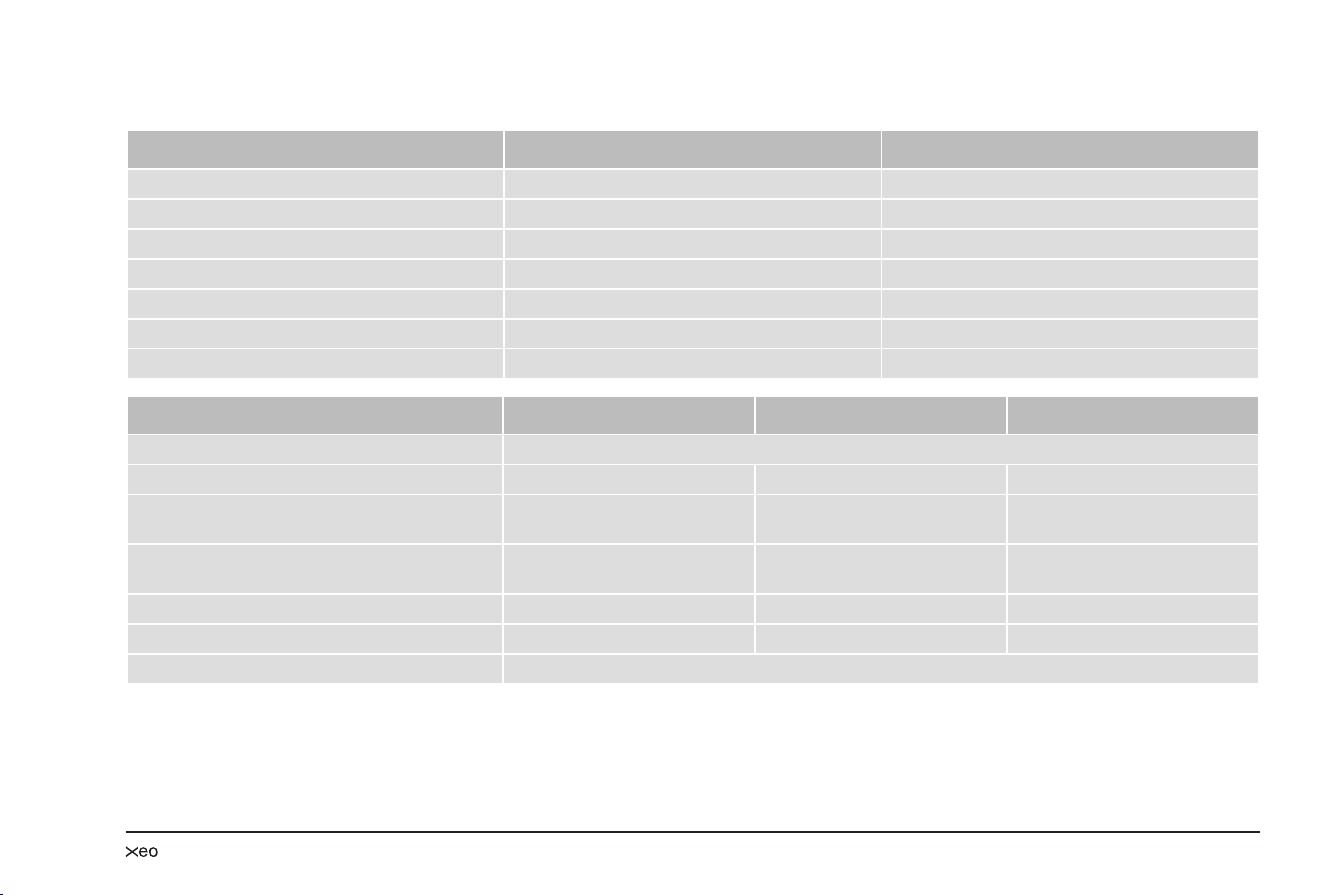
Technical data
Loudspeakers Xeo 4 Xeo 6
Frequency range (± 3 dB) 45 Hz – 23 kHz 31 Hz – 23 kHz
Power consumption during operation 5 – 38 W 7.4 – 77 W
Power consumption in standby 0.34 W (with active network) 0.35 W (with active network)
Amplier performance Woofer: 50 W, tweeter: 50 W Woofer: 2 x 50 W, tweeter: 50 W
Dimensions (W x H x L) 170 x 282 x 246/246 mm 170 x 854 x 246 mm
Weight 6.4 kg 14.7 kg
Voltage supply 100 – 240 V, 50/60 Hz 100 – 240 V, 50/60 Hz
Xeo Hub Xeo Extender Xeo Link
Signal frequencies A: 2.4 GHz, B: 5.2 GHz, C: 5.8 GHz*
Sampling rate for digital inputs Up to 24 bits/96 kHz – –
Input voltage (typ.) RCA: 1 V
rms
Mini jack: 250 mV
rms
– –
Input impedance RCA: 11.4 kΩ
Mini jack: 8.2 kΩ
– –
Dimensions (W x H x L) 140 x 32 x 105 mm 120 x 32 x 90 mm 120 x 32 x 90 mm
Weight 0.2 kg 0.16 kg 0.16 kg
Voltage supply Adapter: 100 – 240 V, micro USB: 5 V/min. 500 mA
* If available

30 Dynaudio
Reminding
This device complies with Part 15 of the FCC Rules. Operation is subject to the following two
conditions: (1) This device may not cause harmful interference, and (2) this device must accept any
interference received, including interference that may cause undesired operation.
Cet appareil est conforme à Ia section 15 des réglementations de Ia FCC. Le fonctionnement de
l‘appareil est sujetaux deux conditions suivantes: (1) cet appareil ne doit pas provoquer d‘interférences
néfastes, et (2) cet appareil doit tolérer les interférences reçues, y compris celles qui risquent de
provoquer un fonctionnement indésirable.
This equipment has been tested and found to comply with the limits for a Class B digital device,
pursuant to part 15 of the FCC Rules. These limits are designed to provide reasonable protection
against harmful interference in a residential installation. This equipment generates uses and can
radiate radio frequency energy and, if not installed and used in accordance with the instructions, may
cause harmful interference to radio communications. However, there is no guarantee that interference
will not occur in a particular installation. If this equipment does cause harmful interference to radio
or television reception, which can be determined by turning the equipment off and on, the user is
encouraged to try to correct the interference by one or more of the following measures:
• Reorient or relocate the receiving antenna.
• Increase the separation between the equipment and receiver.
• Connect the equipment into an outlet on a circuit different from that to which the receiver is
connected.
• Consult the dealer or an experienced radio/TV technician for help.
Please take attention that changes or modication not expressly approved by the party responsible for
compliance could void the user‘s authority to operate the equipment.

31
IC NOTICE
This device complies with Industry Canada licence-exempt RSS standard(s). Operation is subject
to the following two conditions: (1) this device may not cause interference, and (2) this device must
accept any interference, including interference that may cause undesired operation of the device.
Le présent appareil est conforme aux CNR d‘Industrie Canada applicables aux appareils radio
exempts de licence. L‘exploitation est autorisée aux deux conditions suivantes : (1) l‘appareil ne doit
pas produire de brouillage, et (2) l‘utilisateur de l‘appareil doit accepter tout brouillage radioélectrique
subi, même si le brouillage est susceptible d‘en compromettre le fonctionnement.
MPE Reminding
This equipment should be installed and operated with a minimum distance 20 cm between the radiator
and your body.
(i) The device for operation in the band 5150 – 5250 MHz is only for indoor use to reduce the potential
for harmful interference to co-channel mobile satellite systems;
(ii) The maximum antenna gain permitted for devices in the bands 5250 – 5350 MHz and
5470 – 5725 MHz shall comply with the e.i.r.p. limit; and
(ii1) The maximum antenna gain permitted for devices in the band 5725 – 5825 MHz shall comply with
the e.i.r.p. limits specied for point-to-point and non point-to-point operation as appropriate.
Cet équipement doit être installe et utilisé à une distance minimale de 20 cm entre le radiateur et votre
corps.
(i) Tout appareil destiné à la bande 5150 – 5250 MHz devra être exclusivemenl utilisé en intérieur a
n de réduire les risques de pertuarbatians électromagnétiques gênantes sur les systémes de satellite
mobile dans un même canal.
(ii) Les radars à forte puissance sont désignés comme les utilisateurs principaux (c‘est-à-dire qu‘ils
sont prioritaires) des bandes 5250 – 5350 MHz et
(iii) 5650 – 5850 MHz. IIs peuvent provoquer des perturbations electromagnetiques sur les appareils
de type LELAN (réseau de communication local sans licence) ou les endommager.
All there is.
Dynaudio A/S, 8660 Skanderborg, Denmark
Sales & Marketing: Dynaudio International GmbH, Ohepark 2, 21224 Rosengarten, Germany, Phone: +49 4108 - 41 80 - 0
www.dynaudio.com
© Dynaudio International GmbH, Xeo Owner’s Manual 0714 Item No. 4552612. All text and image copyrights reserved. Subject to change without notice.