Operating Instructions
Thank you for purchasing a Panasonic product.
Please read these operating instructions before using the unit and
save them for future reference.
Before initial use, see “Important Information” on page 4.
Individuals with disabilities can nd helpful resources and setup instructions at
https://support-uk.panasonic.eu
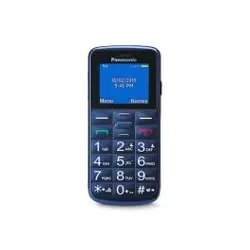
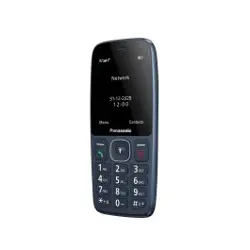
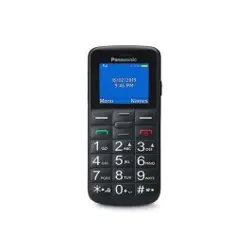
Easy Use Mobile Phone
Model No. KX-TU110 EX
(Revision E)
– USB charging cable (Part No. XYT-4P15): 1 pc
– Rechargeable battery (Part No. HT523450AR-E): 1 pc
– Headset (Part No. JYK-E112): 1 pc
Supplied accessories
Note: For environmental reasons this package does not include a charger.
This device can be powered with most USB power adapters and a cable with USB Type-C plug.

Contents
1 Important Information ...................................................................................... 4
2 General information ........................................................................................ 11
2.1 Prole .................................................................................................. 11
2.2 Safety Information .............................................................................. 11
2.3 Safety warning and Attentions ........................................................... 11
2.4 Precautions ......................................................................................... 12
3 Your phone ....................................................................................................... 13
3.1 Phone overview .................................................................................. 13
3.2 Status icons ........................................................................................ 13
3.3 Functions of Keys ............................................................................... 14
3.4 Technical specications ..................................................................... 15
4 Getting started ................................................................................................ 16
4.1 Installing the SIM Cards and the Battery ........................................... 16
4.2 Installing Memory Card ...................................................................... 17
4.3 Charging the Battery .......................................................................... 17
4.4 Powering On/O the Mobile Phone ................................................... 18
4.5 Linking to the Network ........................................................................ 18
4.6 Dialling Calls ....................................................................................... 19
4.7 Using the Headset .............................................................................. 19
5 Input method .................................................................................................... 20
5.1 Icons for Input Methods ...................................................................... 20
5.2 To Shift Entry Methods ....................................................................... 20
5.3 Numeric Input ..................................................................................... 20

5.4 English input and numeric input ......................................................... 20
5.5 Inserting a Symbol ............................................................................. 21
6 Using the Menus .............................................................................................. 22
6.1 Multimedia .......................................................................................... 22
6.2 Messages ........................................................................................... 22
6.3 Phonebook ......................................................................................... 22
6.4 Settings ............................................................................................... 23
6.5 Call center .......................................................................................... 24
6.6 Organizer ............................................................................................ 25
6.7 File manager ....................................................................................... 25
6.8 Camera ............................................................................................... 25
7 Appendix .......................................................................................................... 26
Appendix 1: Handling the Battery, SIM card and microSD card .............. 26
Appendix 2: Troubleshooting .................................................................... 27
Appendix 3: For your future reference ...................................................... 28
Appendix 4: Sales department ................................................................. 29
Appendix 5: Equipment Power Consumption ........................................... 31
Appendix 6: Graphical symbol .................................................................. 32
4
1 Important Information
For your safety
Read this section carefully before using the product to ensure proper and safe operation.
Failure to read them carefully may cause severe injury, loss of life/property, or be illegal.
Please read enclosed instructions completely before operating this unit.
WARNING
Power connection
● Use only the power source marked on the product.
● Do not overload power outlets and extension cords. This can result in the risk of re or
electric shock.
● Regularly remove any dust, etc. from the USB charging cable by pulling it from the power
outlet, then wiping with a dry cloth. Accumulated dust may cause an insulation defect from
moisture, etc. resulting in a re.
● Unplug the product from power outlets and remove the battery from the phone if it emits
smoke, an abnormal smell, or makes an unusual noise. These conditions can cause re or
electric shock. Conrm that smoke has stopped emitting and contact an authorised service
centre.
● Unplug from power outlets and never touch the inside of the product if its casing has been
broken open.
● Never touch the plug with wet hands. Danger of electric shock exists.
Installation
● This product is not water-resistant. To prevent the risk of re or electrical shock, do not
expose the product to rain or any type of moisture.
● Keep all accessories, including the SIM card and microSD card, out of the reach of children
to prevent swallowing.
● This product emits radio waves and may cause interference to other electronic devices.
● Do not allow the USB charging cable to be excessively pulled, bent or placed under heavy
objects.
● To prevent serious damage to this product, avoid strong impacts and rough handling.
● To avoid damage or malfunction, do not modify the SIM card or microSD card or touch the
card’s gold-coloured contacts.
Battery
● Use only the battery specied.
● Risk of explosion if battery is replaced with an incorrect type. Dispose of used batteries
according to the instructions.
● Do not open, puncture, crush, or drop the battery. A damaged battery must not be used. This
can result in the risk of re, explosion, overheating, and leaking of the electrolyte.
● Stop using the battery immediately and keep away from re if it emits an abnormal smell or
leaks electrolyte. Released electrolyte may cause re or burns.
● Do not touch released electrolyte if the battery leaks. It may cause burns or injury to the eyes
or skin. The electrolyte is toxic and may be harmful if swallowed. If you touch it, immediately
wash the aected areas with water and seek medical help.

5
● Exercise care when handling the battery. Do not allow conductive materials such as rings,
bracelets, or keys to touch the battery, otherwise a short circuit may cause the battery and/or
the conductive material to overheat and cause burns.
● Do not use or charge a wet battery. This can result in the risk of re, explosion, overheating,
and leaking of the electrolyte.
● Charge the battery provided with or identied for use with this product only, in accordance
with the instructions and limitations specied in this manual.
● Only use a compatible charger to charge the battery. Do not tamper with the charger. Failure
to follow these instructions may cause the battery to swell or explode.
● Do not put any conductive materials such as coins or hairpins onto the charge contacts. This
can result in the risk of overheating.
● Switching o radio connections, such as Bluetooth, has a positive impact on power
consumption.
● Exposure to both high and low temperatures, as well as suboptimal or fast charging, harms
battery lifespan.
● Avoid the use in the following conditions:
- High or low extreme temperatures during use, storage or transportation.
- Replacement of a battery with an incorrect type that can defeat a safeguard.
- Disposal of a battery into re or a hot oven, or mechanically crushing or cutting of a battery,
that can result in an explosion.
- Extremely high temperature and/or extremely low air pressure that can result in an
explosion or the leakage of ammable liquid or gas.
Operating safeguards
● Unplug the product from power outlets before cleaning. Do not use liquid or aerosol cleaners.
● Do not disassemble the product.
● Do not allow liquids such as water, or foreign materials such as metal pieces or ammable
materials to get into the SIM card holder. This can result in the risk of re, electric shock, or
malfunction.
● Do not leave this product near heat sources (such as radiators, cookers, etc.), in direct
sunlight, or in a car under blazing sun. It should not be placed in rooms where the
temperature is less than 0 °C or greater than 40 °C.
● You are advised not to use the phone in an aircraft. Turn the phone o before boarding an
aircraft. Set the alarm function o so that the phone cannot be automatically turned on. Using
this phone in an aircraft may be hazardous to the aircraft’s operation and disrupt wireless
communication. It may also be illegal.
● You are advised not to use this product at refuelling points. Users are reminded to observe
restrictions on the use of radio equipment in fuel depots, chemical plants or where blasting
operations are in progress.
● It is imperative that drivers exercise proper control of vehicles at all times. Do not use a
phone while you are driving; nd a safe place to stop rst. Do not speak into a hands free
microphone if it will take your mind o the road. Always acquaint yourself thoroughly with
restrictions concerning the use of phones within the area where you are driving and observe
them at all times.
● RF signals may aect electronic systems in motor vehicles (for example, fuel injection, air
bag systems) that have been improperly installed or are inadequately shielded. For more
information, consult the manufacturer of your vehicle or its equipment.
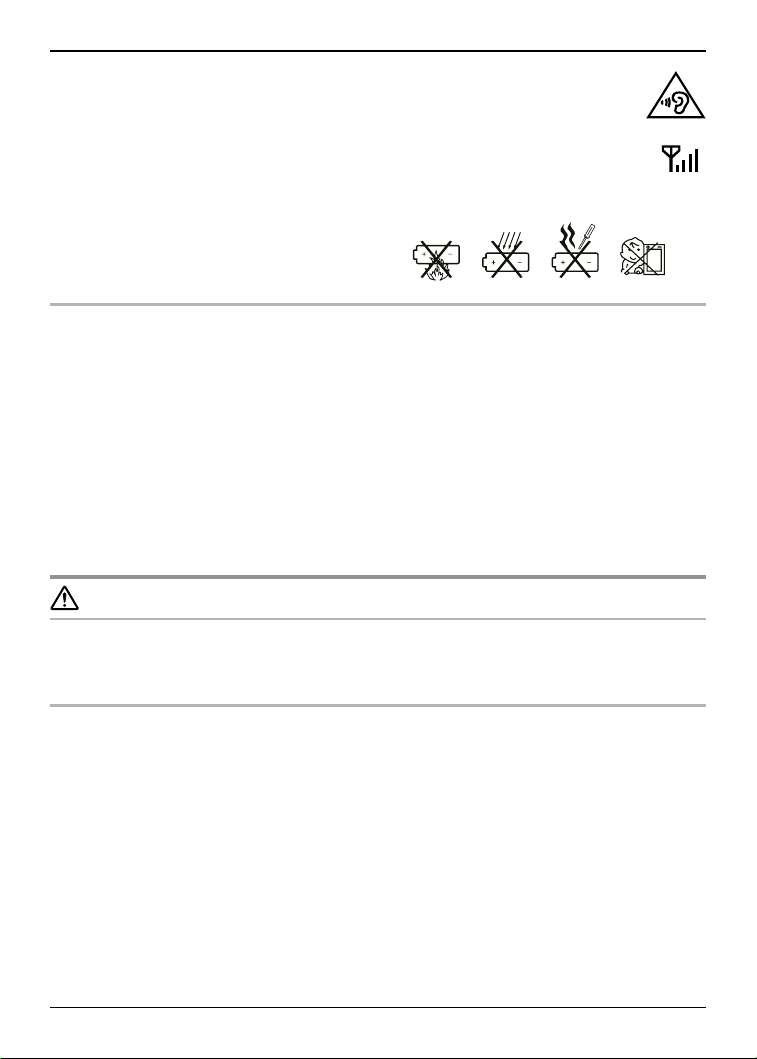
● The use of excessive sound volume through earphones, headphones, or headsets may
cause hearing loss.
6
● To prevent possible hearing damage, do not listen at high volume levels for long
periods.
● Do not shine the LED light close to anybody’s eyes or turn the LED light in the
direction of car drivers. This can result in the risk of injuries or accident.
● It is recommended that this equipment be used under good reception conditions.
In a place with good reception, the LCD display will show the following. Example:
● It is recommended to use a hands-free kit, and in this case keep the phone away from the
stomachs of pregnant women and the lower abdomen of adolescents.
1. Do not put the battery into the re.
2. Do not drop the battery.
3. Do not disassemble the battery.
4. Do not allow baby to play with battery.
Medical
● Consult the manufacturer of any personal medical devices, such as pacemakers or implanted
cardioverter debrillators to determine if they are adequately shielded from external RF (radio
frequency) energy.
● Wireless Technology Research (WTR) recommends a minimum separation of 15.3 cm
between a wireless device and an implanted medical device such as pacemaker or implanted
cardioverter debrillator to avoid potential interference with the medical device. If you have
any reason to suspect that your phone is interfering with a pacemaker or other medical
devices, turn o the phone immediately and contact the manufacture of pacemaker or other
medical devices.
● Turn o the phone in hospitals or health care facilities when any regulations posted in the
area instruct you to do so. Hospitals or health care facilities may be using equipment that
could be sensitive to external RF energy.
CAUTION
Installation
● It is recommended that you keep a written record of any important data which you store in
your phone or SIM card in order to avoid accidental loss.
Operating environment
● Do not place magnetic cards or similar objects near the phone. Magnetic data on cash cards,
credit cards, telephone cards and oppy disks, etc. may be deleted.
● Do not put magnetic substances close to the phone. Strong magnetism might aect
operation.
7
Important safety instructions
When using your product, basic safety precautions should always be followed to reduce the
risk of re, electric shock, and injury to persons, including the following:
1. Do not use this product near water. For example, avoid areas near a bathtub, washbowl,
kitchen sink, laundry tub, or swimming pool.
2. Avoid using the phone if charging during an electrical storm. There may be a remote risk of
electric shock from lightning.
3. Do not use the phone to report a gas leak in the vicinity of the leak.
4. Use only the USB charging cable and battery indicated in this manual. Do not dispose of
the battery in a re. It may explode. Check with local codes for possible special disposal
instructions.
5. Do not paint or attach a thick sticker to the phone. This may prevent proper operation.
SAVE THESE INSTRUCTIONS
For best performance
Environment
● The product should be kept free from excessive smoke, dust, moisture, high temperature and
vibration.
● To avoid damage, charge the battery only in temperatures ranging from 10 °C to 40 °C.
Routine care
● Wipe the outer surface of the product and/or charge contacts with a soft and dry cloth.
● Do not use benzine, thinner, or any abrasive powder.
Other information
Notice for product disposal, transfer, or return
● This product and SIM card can store your private/condential information. To protect your
privacy/condentiality, we recommend that you erase information such as contacts stored in
the contacts list and call logs from the memory before you dispose of, transfer, or return the
product.
8
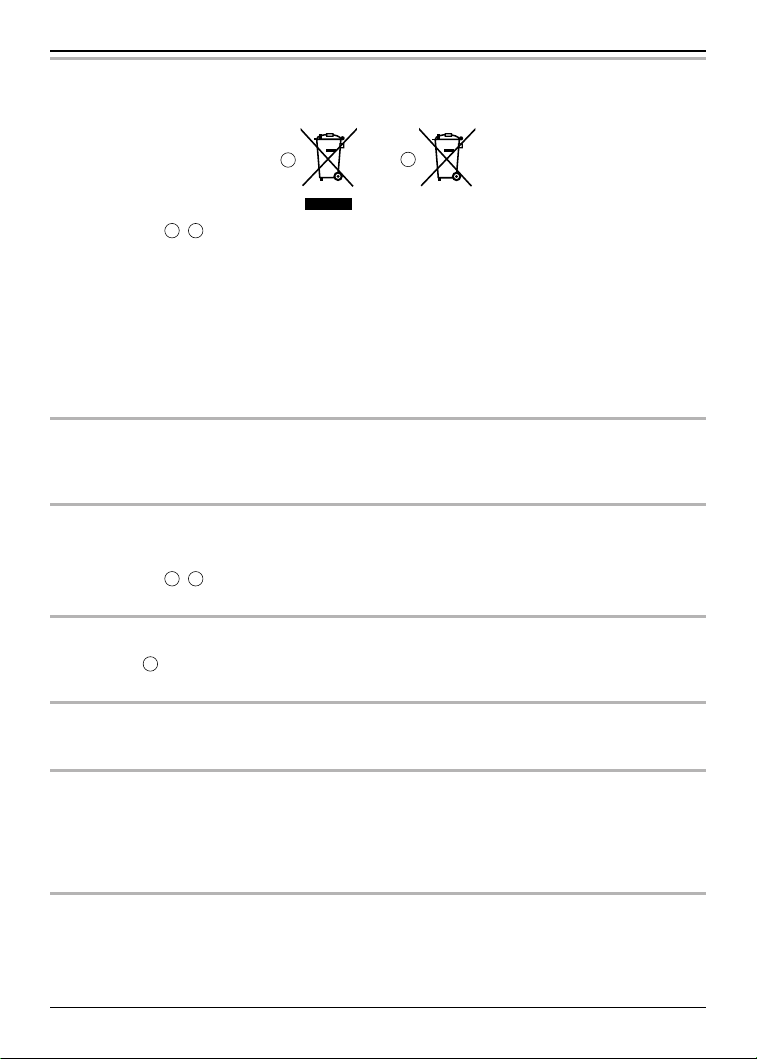
Disposal of Old Equipment and Batteries
(Only for European Union and countries with recycling systems)
1
2
These symbols (
1
,
2
) on the products, packaging, and/or accompanying documents mean
that used electrical and electronic products and batteries must not be mixed with general
household waste.
For proper treatment, recovery and recycling of old products and used batteries, please take them to
applicable collection points in accordance with your national legislation.
By disposing of them correctly, you will help to save valuable resources and prevent any
potential negative eects on human health and the environment.
For more information about collection and recycling, please contact your local authority.
Penalties may be applicable for incorrect disposal of this waste, in accordance with national
legislation.
For business users in the European Union
If you wish to discard electrical and electronic equipment, please contact your dealer or
supplier for further information.
Information on Disposal in other Countries outside the
European Union
These symbols (
1
,
2
) are only valid in the European Union. If you wish to discard these items,
please contact your local authorities or dealer and ask for the correct method of disposal.
Note for the battery symbol
This symbol (
2
) might be used in combination with a chemical symbol. In this case it complies
with the requirement set by the Directive for the chemical involved.
Note for the battery removal procedure
Refer to “Appendix 1: Handling the Battery, SIM card and microSD card” on page 26.
Trademarks
● microSDHC Logo is a trademark of SD-3C, LLC.
● The Bluetooth
®
word mark and logos are registered trademarks owned by Bluetooth SIG,
Inc., and any use of such marks by Panasonic Holdings Corporation is under licence.
● All other trademarks identied herein are the property of their respective owners.
Notice
● The phone supports microSD and microSDHC memory cards. In this document, the term
“microSD card” is used as a generic term for any of the supported cards.

9
Ecodesign information
For more information about the energy eciency of the product (Commission Regulation (EU)
2023/826), please visit our website, www.panasonic.com, and enter the model number in the
search box.
SAR
This model meets international guidelines and EU requirements for exposure to radio waves.
Your wireless device is a radio transmitter and receiver. It is designed not to exceed radio wave
exposure limits recommended by international guidelines. These guidelines were developed by
the independent scientic organisation ICNIRP and include safety margins designed to assure
the protection of all persons, regardless of age and health. These guidelines also form the
basis of international regulations and standards on RF Exposure.
The guidelines use a unit of measurement known as the Specic Absorption Rate, or SAR. The
SAR limit for wireless devices is 2 W/kg.
The highest SAR value for this device tested at the head was: 0.69 W/kg
The highest SAR value for this device tested on the body was: 1.12 W/kg
*1
This SAR limit at the limb for wireless devices is 4 W/kg.
The highest SAR value for this device tested on the handheld was: 2.83 W/kg
*2
As SAR is measured utilizing the devices highest transmitting power the actual SAR of this unit
while operating is typically below that indicated above. This is due to automatic changes to the
power level of the device to ensure it only uses the minimum level required to communicate
with the network.
ICNIRP (http://www.icnirp.org)
*1
This device was tested for typical body-worn operation with the back of the phone kept
0.5 cm from the body.
*2
This device was tested for typical body-worn operation with the back of the phone kept
0 cm from the body.

10
Specications
● Standard:
Dual band GSM 900/1800 MHz
Bluetooth version 3.0, Class 2
USB version 2.0
● Display: TFT colour 1.77-inch
(QVGA: 128 x 160 pixels)
● Camera: 0.08 MP
● Frequency range:
GSM900: 880 - 915 MHz
925 - 960 MHz
DCS1800: 1710 - 1785 MHz
1805 - 1880 MHz
Bluetooth: 2.402 - 2.480 GHz
● RF transmission power:
GSM 900: 35 dBm (max.)
DCS1800: 32 dBm (max.)
Bluetooth: 4 dBm (max.)
● Power supply: DC 5 V, 700 mA
● Charging terminal: USB Type-C Shape
● USB charging cable: Approx 1.5 m
(Input plug: USB Type-A Shape,
Output plug: USB Type-C Shape)
● Operating/Charging conditions:
Operating: 0 °C – 40 °C, 20 % – 80 %
relative air humidity (dry)
Charging: 10 °C - 40 °C
● Battery:
Li-Ion 3.7 V/1,000 mAh
● 100% Battery charging performance
(supplied):
Talk time: Approx. 5.0 hours
*1
Standby time: Approx. 220 hours
*1*2
● Antenna:
Internal
● SIM card type:
Mini SIM and Micro SIM (Dual SIM)
● Memory card type:
microSD, microSDHC up to 32 GB
(not supplied)
*1
Operating time is dependent upon usage environment, battery age and condition. Values
were calculated according to GSMA TS.09.
*2
The incoming call indicator and message indicator ash when there is a missed call or a
new message is received. The standby time will be shortened when you leave the indicator
ashing.
11
2 General information
● This phone is designed to operate on GSM network - GSM 900/1800 MHz.
● This equipment is designed for use in Germany, Italy, Spain, France, Netherlands, Czech
Republic, Poland, Hungary, Croatia, Greece and Lithuania.
● In the event of problems, you should contact your equipment supplier in the rst instance.
● For use in other countries, please contact your equipment supplier.
Declaration of Conformity
Hereby, Panasonic Marketing Europe GmbH declares that the radio equipment type Easy Use
Mobile Phone KX-TU110 is in compliance with Directive 2014/53/EU (for EU) and The Radio
Equipment Regulations 2017 (for UK). The full text of the EU and UK declaration of conformity
is available at the following internet address:
https://www.ptc.panasonic.eu/compliance-documents
Additional/replacement accessories
Please contact your place of purchase or Panasonic sales oce for sales information.
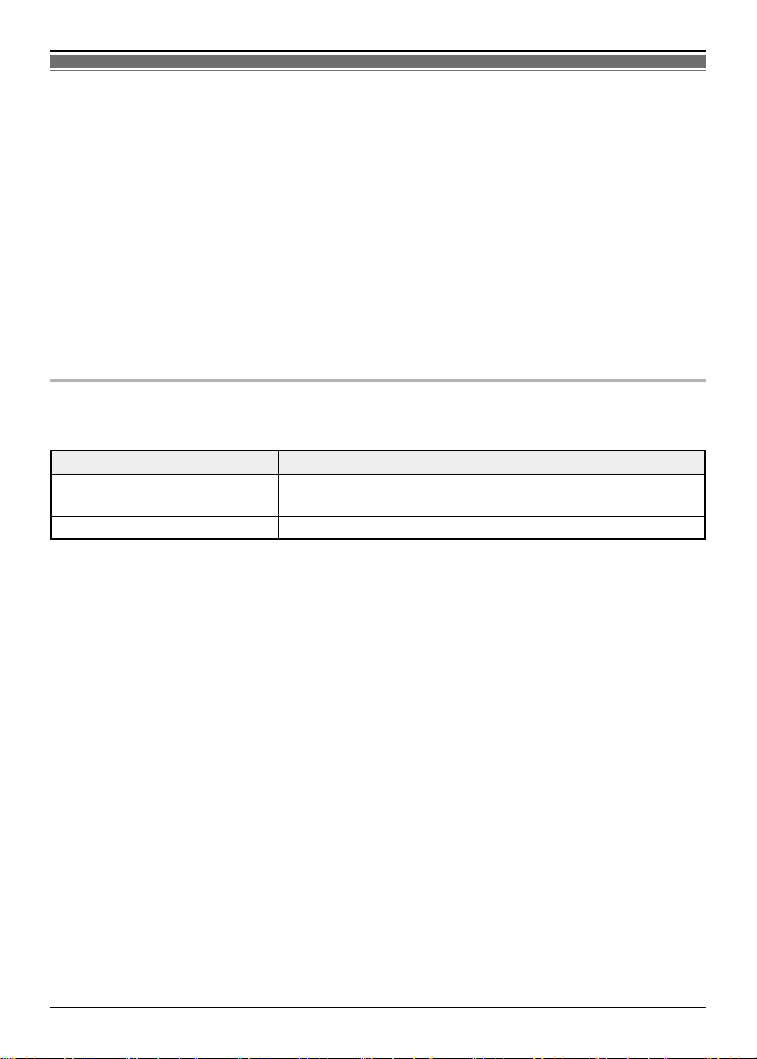
Accessory item Model number
Rechargeable battery HT523450AR-E
Lithium Ion (Li-Ion) battery
Headset JYK-E112
2.1 Prole
Please read this pamphlet carefully in order to make your phone in perfect condition.
Our company may change this mobile phone without prior written notice and reserves the nal
right to interpret the performance of this mobile phone.
Due to dierent software and network operators, display on your phone may be dierent, refer
to your phone for details.
2.2 Safety Information
If your phone has lost or been stolen, notify the telecommunication oce the SIM card is
disabled (Network support is required). This can avoid economic loss caused by unauthorised
use.
Please take measures as following to avoid your phone being unauthorised use:
Set PIN code of SIM card
Set phone password
2.3 Safety warning and Attentions
Safety warning
● Road safety comes rst
Do not use a hand-held phone while driving. Use hands-free ttings when calls are
unavoidable while driving. In some countries, dialling or receiving calls while driving is illegal!
● Switch o in aircraft
Wireless devices can cause interference in aircraft. Using a mobile phone in ight is illegal and risky.

12
Please make sure that your mobile phone is powered o in ight.
● Switch o before entering risky areas
Strictly observe the relevant laws, codes, and regulations on the use of mobile phones in risky
areas. Turn o your mobile phone before entering a place susceptible to explosion, such as an oil
station, oil tank, chemical plant or a place where a blasting process is under way.
● Observe all special regulations
Follow any special regulations in force in any area such as hospitals and always switch o
your phone whenever it is forbidden to use it or, when it may cause interference or danger.
Properly use your mobile phone near medical apparatuses, such as pacemakers, hearing
aids and some other electronic medical devices, as it may cause interference to such
apparatuses.
● Interference
The conversation quality of any mobile phone may be aected by radio interference. An
antenna is built inside the mobile phone and located below the microphone. Do not touch the
antenna area during a conversation, lest that the conversation quality deteriorate.
● Qualied service
Only qualied personnel may install or repair phone equipment. Installing or repairing the
mobile phone on your own may bring great danger and violates the warranty rules.
● Accessories and batteries
Use only approved accessories and batteries.
● Use sensibly
Use only in a normal and proper manner.
● Emergency calls
Ensure the phone is switched on and in service, enter the emergency number, e.g. 112, then
press the Dial key. Give your location and state your situation briey. Do not end the call until
told to do so.
Note: Just like all other mobile phones, this mobile phone does not necessarily support all
the features described in this manual due to network or radio transmission problems. Some
networks even do not support the emergency call service. Therefore, do not rely solely on the
mobile phone for critical communications such as first aid. Please consult the local network
operator.
2.4 Precautions
This mobile phone is well designed with ne art. Please exercise special care when using it.
The following suggestions will help your mobile phone survive the warranty period and extend
its service life:
● Keep the mobile phone and all its ttings beyond children’s reach.
● Keep the mobile phone dry. Keep away from rain, moisture, liquid or other substances that
may corrode electronic circuits.
● Do not use or store the mobile phone in dusty places, lest that active parts of the mobile
phone be damaged.
● Do not store the mobile phone in a high-temperature place. High temperature will shorten the
life of electronic circuits and damage the battery and some plastic parts.
● Do not store the mobile phone in a chilly place. Otherwise, moistures will be formed inside
the mobile phone to damage electronic circuits when the mobile phone is moved to a
constant temperature place.
● Do not throw, knock or shock the mobile phone, as that will destroy the internal circuits and
high-precision components of the mobile phone.
13
3 Your phone
3.1 Phone overview
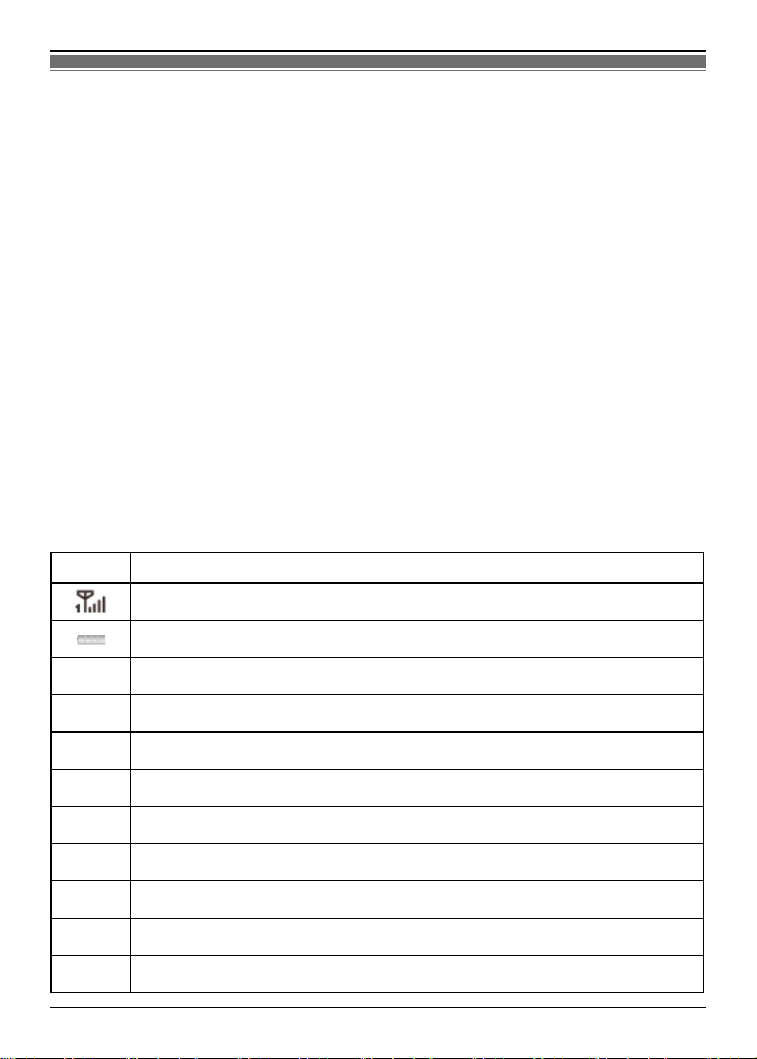
3.2 Status icons
The table below lists various icons that might appear on the status bar while using the phone.
Apart from the icons for signal strength level and the power, other icons are displayed as per
the current mode and priority of the phone.
Icon Description
Indicates the network signal strength.
Indicates the current battery capacity.
Indicates that there is an unread message.
Indicates that there is a missed call.
Indicates that the current Sound Status is the Ring only.
Indicates that the current Sound Status is the Vibrate only.
Indicates that the current prole mode is the Headset mode.
Indicates that the current alarm clock is set as activated.
Indicates the current keypad-locked state.
Indicates that the Bluetooth is turned on.
ECO
Indicates the eco charging mode is turned on.
14
3.3 Functions of Keys
The mobile phone provides the following keys:
● Left and right keys
The bottom line on the screen displays the functions of the Left and Right soft keys.
● Dial/Answer key
Press it to originate a call by entering the called number or selecting a contact from the
phonebook; or press it to receive an incoming call; or press it in standby state to show the
latest call records.
● End/Power key
Press it to end a call being dialled or end an ongoing call; or press it to exit the menu and
return to the standby state. You can hold it for two or three seconds can power on/o the
mobile phone.
● Navigation key
Press them to scroll the options when browsing a function list. In edit state, press direction
keys to navigate.
● Center key (OK key)
Press it to conrm a selection.
● Number keys, * key and # key
Press number keys 0 through 9 to input or edit state to input numbers and characters;
The # key and the * key represent dierent functions in dierent states or dierent function
menus.
Hold the # key up to 2s in standby state to activate or deactivate the silent mode.
Press the # key in edit state to switch between input methods.
Pressing the * key in edit status to select a symbol.
In idle screen, you can press left soft key then * key to lock keypad. When the keypad is
locked, you can press left soft key then * key to unlock it.
Press and hold the 0 key up for 2s to input “+” in standby interface. When the symbol “+”
appears, press the 0 key quickly to input “P” or “W”. “P” and “W” are used for calling the
extension; “+” are used for dialling an international call.
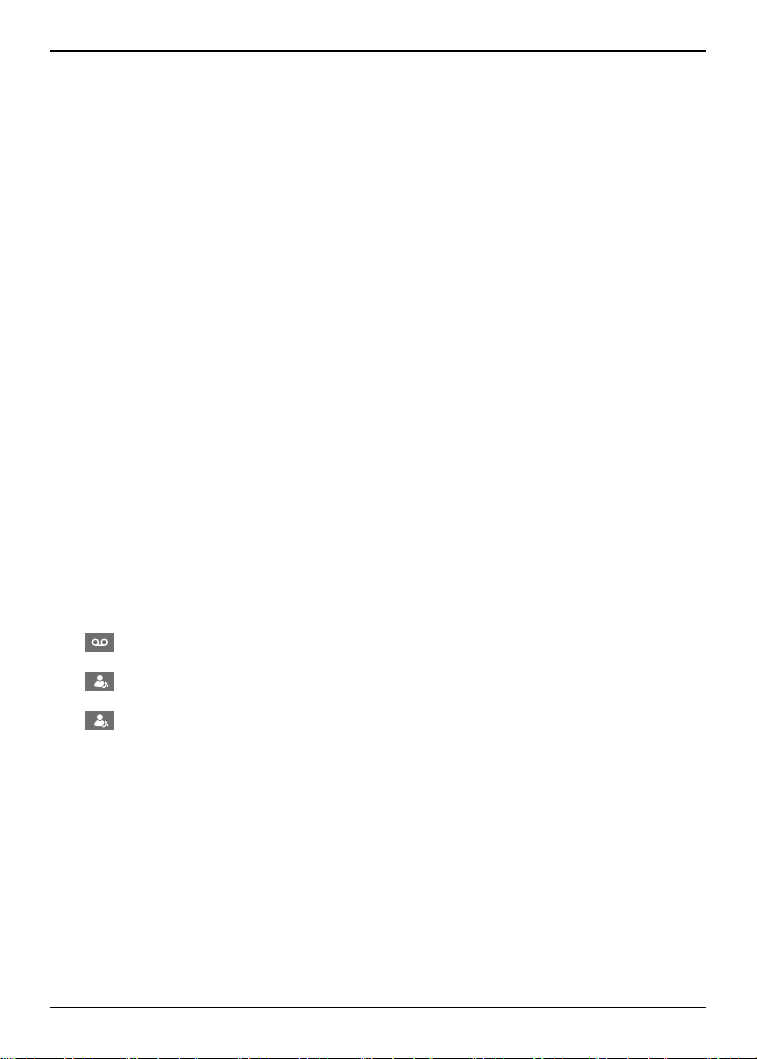
● 1 (
) key
Long press it to dial the voicemail number, if you have set voicemail number.
● 2 (
) key
Long press it to dial the speed dial number, if you have set speed dial number.
● 3 (
) key
Long press it to dial the speed dial number, if you have set speed dial number.
15
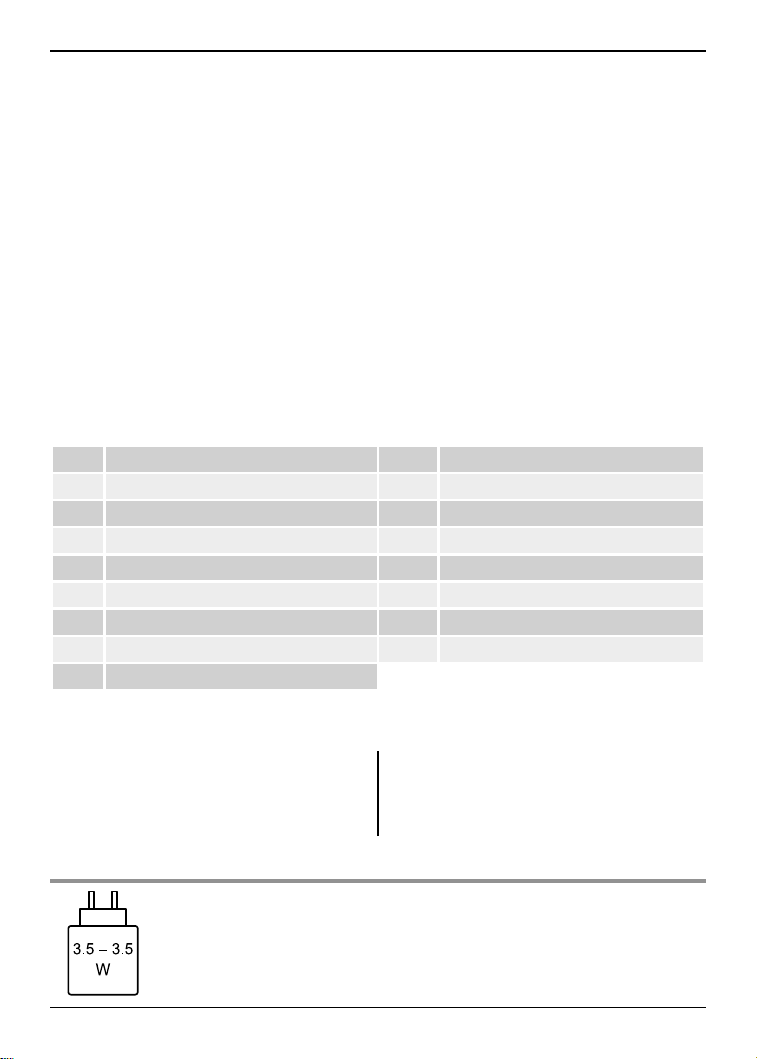
1 Volume key 10 Keypad
2 Center key (OK key) 11 USB jack
3 Left key 12 Camera
4 Dial/Answer key 13 Torch key
5 Receiver 14 SOS key
6 Display 15 Speaker
7 Navigation key 16 Headset jack
8 Right key 17 Torch
9 End/Power key
3.4 Technical specications
Phone
Dimensions: Approx. 116 × 54 × 15 mm
Weight: Approx. 92 g (With battery)
Lithium Ion battery
Rated capacity: 1,000 mAh
Talk time: Approx. 5.0 hours
Standby time: Approx. 220 hours
Please refer to their labels for other data related to the battery and the charger.
The power delivered by the charger must be min 3.5 Watts required by
the radio equipment, and max 3.5 Watts in order to achieve the maximum
charging speed.

16
4 Getting started
4.1 Installing the SIM Cards and the Battery
A SIM card carries useful information, including your mobile phone number, PIN (Personal
Identication Number), PIN2, PUK (PIN Unlocking Key), PUK2 (PIN2 Unlocking Key), IMSI
(International Mobile Subscriber Identity), network information, contacts data, and short
messages data.
Note: After powering o your mobile phone, wait for a few seconds before removing or
inserting a SIM card.
Exercise caution when operating a SIM card, as friction or bending will damage the SIM card.
Properly keep the mobile phone and its ttings such as the SIM cards beyond children’s reach.
Installation
● Hold the End key for a while to power off the mobile phone.
● Hook your nail in the gap between the cover and pull it up.
● Pull the battery outward and then lift the battery away.
● Insert the SIM card into the SIM card slot lightly and the gold plate of the card facing
download, till the SIM card cannot be further pushed in.
● With the metallic contacts of the battery facing the metallic contacts in the battery slot, press
the battery down until it locks into place.
Using code
The mobile phone and the SIM cards support sorts of passwords, in order to prevent the phone
and the SIM cards from being misused. When you are prompted to input any of the codes
mentioned below, just input the correct code and then press the OK key. If you input a wrong
code, press the Right soft key to clear it and then input the correct code.
Phone lock code
The phone lock code may be set to prevent your mobile phone from being misused. The initial
phone lock code is set during the welcome mode. If the phone lock code is set, you need to
input the phone lock code when powering on the mobile phone. To turn o the phone lock
code, go to Settings > Security settings > Phone security > Phone lock.
PIN
The PIN (Personal identication number, 4 to 8 digits) code prevents your SIM card from being
used by unauthorised people. In general, the PIN is supplied with SIM card by the network
operator. If PIN check is enabled, you need to input the PIN each time when you power on your
mobile phone. The SIM card will be locked if you input wrong PIN code for three times.
Unlocking methods as follows:
- Input the correct PUK according to the screen tips to unlock the SIM card.
- Then input the new PIN and press the OK key.
- Input the new PIN again and then press the OK key.
- If the input PUK is correct, the SIM card will be unlocked and the PIN will be reset.
Note: The SIM card will be locked if you input wrong PIN code for three times. To unlock the
SIM card, you need to input the PUK. In general, the PUK can be obtained from the network
operator.

17
PUK
The PUK code (Personal Unlocking Key) is required to change a blocked PIN. It is supplied
with SIM card. If not, contact your network operator. If you input wrong PUK code for 10 times,
SIM card will be invalid. Please contact the network operator to replace the SIM card.
Barring code
A barring code is required for setting the call barring function. You can obtain this code from the
network operator to set the call barring function.
4.2 Installing Memory Card
The memory card is a pluggable mobile storage card inside the mobile phone.
To install the memory card, insert the card into the card slot.
To remove the memory card, take the card out.
Note:
1. The mobile phone cannot automatically identify the memory card being inserted when the
mobile phone is powered on. You must power o the mobile phone and then power it on, so
that the phone can identify the memory card.
2. The memory card is a miniature object. Keep it out of the reach of children for fear that
children swallow it!
4.3 Charging the Battery
The lithium battery delivered with the mobile phone can be put into use immediately after being
unpacked.
● Your mobile phone can monitor and display the battery state.
● Normally the remaining energy of the battery is indicated by the battery level icon at the
upper right corner of the display screen.
● When the battery energy is insucient, the mobile phone prompts “Battery low”. If you have
set an alert tone, an alert tone will be given o when the battery level is too low.
● A charging animation appears when the battery is being charged. When the charging is
complete, the animation disappears.
Using a travel adaptor:
● Install the battery into the mobile phone before charging the battery.
● Connect the adaptor of the travel charger with the charging slot in the mobile phone.
Ensure that the adaptor is fully inserted.
● Insert the plug of the travel charger to an appropriate power outlet.
● During the charging, the battery level grids in the battery icon keep ickering till the battery is
fully charged.
● It is normal when the battery is become hot during the charging period.
● The battery icon does no longer icker when the charging process ends.
Note: Ensure that the plug of the charger, the plug of the earphone, and the plug of the USB
charging cable are inserted in the right direction. Inserting them in a wrong direction may cause
charging failure or other problems.
Before the charging, ensure that the standard voltage and frequency of the local mains supply
match the rated voltage and power of the travel charger.

18
Using the Battery
The performance of a battery is subject to multiple factors: radio network conguration, signal
strength, ambient temperature, chosen functions or settings, phone ttings, and the voice, data
or other application mode you choose to use.
To guarantee the optimal performance of your battery, please stick to the following rules:
● Use only the battery provided by the vendor. Otherwise, damages or even injuries could be
caused during the charging.
● Power off the mobile phone before removing the battery.
● The charging process lasts a longer time for a new battery or a battery not in use for long.
If the battery voltage is too low to enable the mobile phone to be powered on, charge the
battery for a longer time. In this case, the battery icon does not flicker until a long time after
the battery enters the charge status.
● During the charging, ensure the battery is placed in a room temperature environment or in an
environment close to room temperature.
● Immediately stop using the battery if the battery produces odor, overheats, cracks, distorts or
has other damage, or if the electrolyte leaks.
● The battery wears out with use. A longer charging time is required as the battery is put
into use for a long time. If the total conversation duration decreases but the charging time
increases even though the battery is properly charged, purchase a standard battery from the
OEM or use a battery approved by our company. Using any poor-quality fittings will cause
harm to your mobile phone or even incur danger!
Note: To guarantee your personal safety and protect the environment, do not litter the battery!
Return the old battery to the mobile phone manufacturer or place it in specied battery
reclamation areas. Do not litter any battery with other rubbish.
Warning: Short-circuits of the battery may cause explosion, re, personal injury or other
severe consequences!
4.4 Powering On/O the Mobile Phone
Hold the End key for a while to power on the mobile phone. A power-on animation appears on
the display screen.
Input the phone lock code and press the OK key if the mobile phone prompts you to input the
phone lock code. The code is the one you created during the welcome mode.
Input the PIN and press the OK key if the mobile phone prompts you to input the PIN.
The PIN is provided by the network operator for new opening SIM card.
Enter the standby interface.
To power o the mobile phone, hold the End key for a while.
4.5 Linking to the Network
After the SIM card and the mobile phone are successfully unlocked, the mobile phone
automatically searches for an available network. After nding a network, the mobile phone
enters the standby state. When the mobile phone is registered in the network, the name of the
network operator is displayed on the screen. Then you can dial or receive a call.

19
4.6 Dialling Calls
In the standby interface, press number keys to input the area code and the telephone number,
and then press the Dial key to dial a call. To end the call, press the End key.
● Dialling an international call
Hold the 0 key and input “+”. Then input the country code, the area code and the telephone
number. Finally, press the Dial key.
● Dialling a call to a number in the phonebook
Enter the phonebook and use the up or down direction keys to nd the telephone number you
want to call.
Press the Dial key. The mobile phone automatically dials the chosen telephone number.
● Redialling the last number
In the standby interface, press the Dial key to show the dialled calls.
Press the up or down direction keys to select a number you want to dial and then press the
Dial key.
● Answering incoming calls
Press the Dial key or the Left soft key to answer an incoming call.
Press the End key to end the current conversation.
To reject an incoming call, press the End key or the Right soft key.
Note: If the calling number exists in the phonebook, the mobile phone will present the name
of the caller. If the caller cannot be identified, the mobile phone will present the calling number
only.
You can answer an incoming call when using a function list or browsing the phonebook.
● Using options during a conversation
Select Options during a conversation to pause, end the ongoing call, browse the phonebook,
view information, set the mute, or perform other operations. For details, refer to the menu
guide.
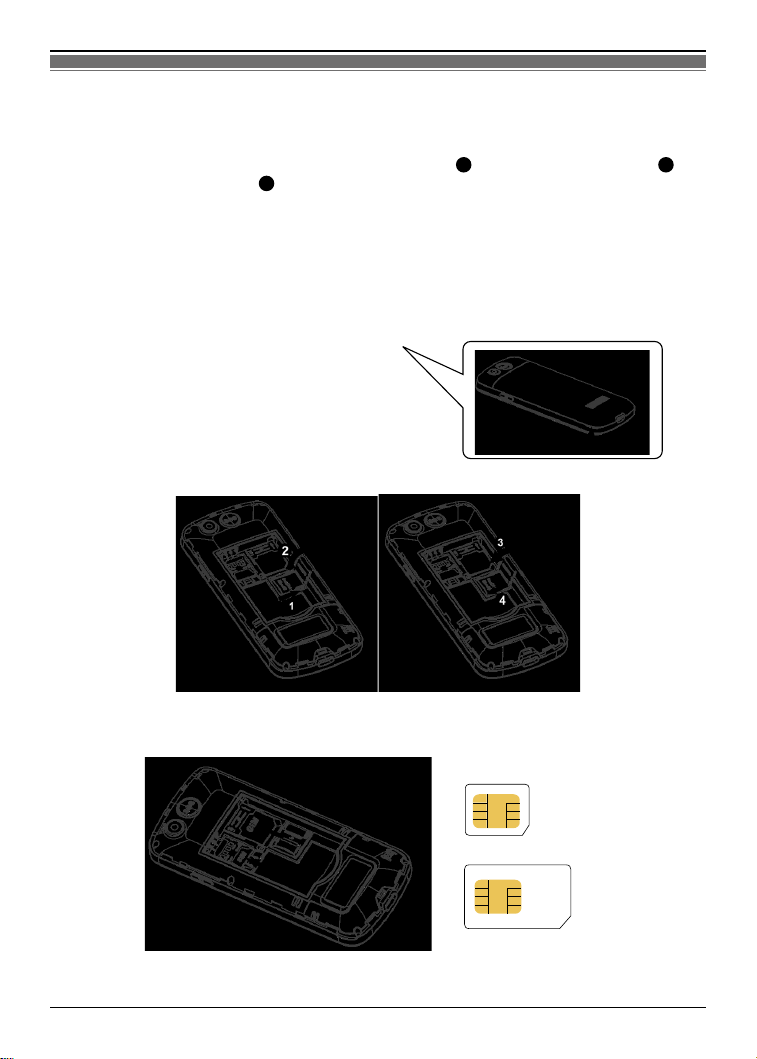
4.7 Using the Headset
It would enter headset mode automatically when you insert headset to the slot. Make sure of
inserting it at the bottom of the slot, or you can’t use it normally.
20
5 Input method
This mobile phone provides multiple input methods, including English input and numeric input.
You can use these input methods when editing the phonebook, short messages and les.
5.1 Icons for Input Methods
After you enter an edit window such as a window for editing the phonebook, short messages,
an icon is displayed to indicate the current input method:
Numeric input: “123”
English input in upper case: “ABC”
English input in lower case: “abc”
5.2 To Shift Entry Methods
Press the # key to switch between input methods.
5.3 Numeric Input
You can input numbers with the numeric input method. Press a number key to input the
corresponding number.
5.4 English input and numeric input
The keyboards for English input and numeric input are dened in the following table:
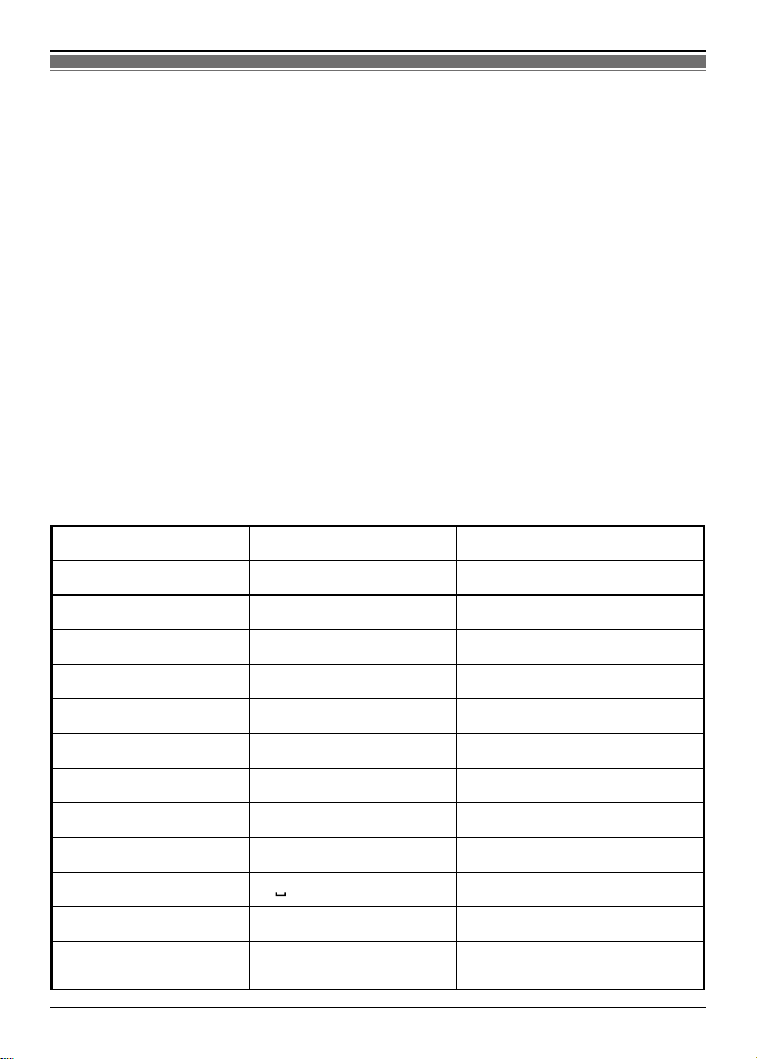
Key Character or Function Remarks
Number key 1 . , - ? ! ’@ : # $ /_ 1
Number key 2 ABCabc2
Number key 3 DEFdef3
Number key 4 GHIghi4
Number key 5 JKLjkl5
Number key 6 MNOmno6
Number key 7 PQRSpqrs7
Number key 8 TUVtuv8
Number key 9 WXYZwxyz9
Number key 0 0,
* key Press it to input a symbol
# key Press it to switch
between input methods

21
Up direction key Press it to move to the
left
Down direction key Press it to move to the
right
End key Press it to return to the
standby interface
English input:
● Each key is used to represent multiple characters. Quickly and continuously press a key till
the character you want appears. Input the next character after the cursor moves.
● Press the # key to switch between input methods.
● To input a blank, switch to the English input mode (in upper or lower case) and then press
number key 0.
● Clear wrong inputs, press the Right soft key.
5.5 Inserting a Symbol
Press the * key to enter the Select symbol interface, use direction keys to select a symbol you
want.

22
6 Using the Menus
6.1 Multimedia
Image viewer: You can view the pictures or images through this function.
Video recorder: This function enables you to record video. In the capture interface, you can
press up or down direction key to zoom in and zoom out, press OK key to capture videos clip.
The video recording can not be done without a memory card.
6.2 Messages
If the short message memory is full, a blinking message icon appears on the top of the screen.
To normally receive short messages, you need to delete some of the existing short messages.
If the destination user has received the short message you sent and the short message
delivery report function is activated, the phone will give o a message report alert tone.
Write message: Access this menu to create a text message.
Inbox: Received messages are listed in this menu.
Drafts: Draft messages are listed in this menu.
Outbox: The messages which are sent failed are stored in the Outbox.
Sent messages: Sent messages are listed in this menu.
Broadcast messages: Receive broadcast message related to disaster information and public
safety information. Menu selection available when SIM card inserted.
SMS settings: This function enables you to set the default features about the text message
and service message.
6.3 Phonebook
The mobile phone can store up to 300 telephone numbers. The number of telephone numbers
that a SIM card can store depends on the storage capacity of the SIM card. The telephone
numbers stored in the mobile phone and in the SIM cards form a phonebook.
Add new contact: Create new contact to phonebook.
After selecting a telephone number in the phonebook, select Options to perform the following
operations:
View: View the content of the telephone number.
Sent text message: Sent text message to the selected number.
Call: Call the current number of the SIM1 or SIM2.
Edit: Edit the selected number and name.
Delete: Delete the telephone number from the phonebook.
Copy: Duplicate the telephone number from the mobile phone to the SIM card or from the SIM
card to the mobile phone.
Groups: You can assign contacts to the default caller groups. For each group, you can edit
group name.
Phonebook settings: To set some parameters of phonebook.

23
6.4 Settings
Proles: The mobile phone provides multiple user proles, so that you can customize some
settings to adapt to the specic events and environments.
Customize the user proles according to your preference and then activate the user proles.
The user proles fall into four scenarios: General, Silent, Meeting and Outdoor.
When you insert an earpiece to the mobile phone, the mobile phone automatically enters the
Headset mode. There is no option for activating the Headset mode on the screen. For details
on operation, refer to General.
● Activate: Select Activate to activate the selected mode.
● Customize: After choosing one of the above four modes, select Customize to edit the
following items: Alert type, Ring type, incoming call ringtone, ringtone volume, message
ringtone, keypad tone, etc.
● Reset: Use this function to restore factory settings of user prole.
Note: If you remove the battery from the mobile phone or if the battery energy was
exhausted a long time ago, you may need to reset the date and time when re-inserting the
battery or powering on the mobile phone after recharging.
Dual SIM settings: Dual-SIM refers to two SIM card slots, and the two cards can standby at
the same time or set one of them to display on the idle screen.
Phone settings:
● Time and date: Set the date format, the time format, and detail time of the location.
Note: If you remove the battery from the mobile phone or if the battery energy was
exhausted a long time ago, you may need to reset the date and time when re-inserting the
battery or powering on the mobile phone after recharging.
● Language: Select the display language for the mobile phone.
● Writing language: Select writing language as needed.
● Display: Users can access this item to set wallpaper, Show date and time, etc.
● Dedicated keys: You can set shortcuts for those functions you often use.
● Auto update time: Activate/deactivate this function as per your need.
● Misc. setting: You can set the LCD backlight brightness, time, and eco charging.
Eco charging: You can set your mobile phone to Eco charging (80%) to extend your battery
lifespan.
One key for help: You can turn on or o this function, and set the help content, help number
etc.
Network settings: Contact the network operator to obtain the following network services.
● Network selection: Set Network selection mode to Automatic or Manual. Automatic is
recommended. When Network selection mode is set to Automatic, the mobile phone will
prefer the network where the SIM card is registered. When Network selection mode is set to
Manual, you need to select the network operator’s network where the SIM card is registered.
● GPRS transfer pref.: Select Call rst or Data rst.
Security settings: This function provides you with related settings about safety use.
● SIM security:
PIN lock: To activate PIN lock, you need to input the correct PIN code. If you set PIN lock
to on, you need to input the PIN each time you power on the mobile phone. In the case you
input a wrong PIN for three consecutive times; you need to input the PIN Unblocking Key
(PUK). The PUK is used to unlock and change the locked PIN. To obtain the PUK, contact
the network operator.

24
Change PIN: To change PIN code of SIM card.
Change PIN2: To change PIN2 code of SIM card.
● Phone security:
Phone lock: The function enables you to lock/unlock the phone. Entering password to switch
on the phone. Password is required when the phone is locked. The code is the one you
created during the welcome mode.
Change password: To change phone password.
● Screen auto lock: The function enables you to lock/unlock the keypad. Setting the auto
locking time that 15s, 30s, 1min or 5mins is available. The keypad will be auto locked with no
operation during the period.
● Privacy protection: In this menu, you can set password-protected on the need of menu. For
the menu open the private protection, need to input a phone password when you entered.
Enter the other module which has opened the function, do not input the password again until
return to idle to give up operation of authority.
Restore Settings: Use this function to restore factory settings, the reset password is the same
as the one you created during the welcome mode.
6.5 Call center
Call history:
● Missed calls: You can view a list of the latest missed calls.
Note: When the mobile phone indicates that some calls are missed, you can select View to
enter the missed calls list. Navigate to a missed call and then press the Dial key to dial the
number that originated that call.
● Dialled calls: You can view the latest dialled calls. Choose Dialled calls and then select a
dialled call to delete, save, dial, or send a short message to it.
● Received calls: You can view the latest received calls. Choose Received calls and then
select a received call to delete, save, dial, or send a short message to it.
● All calls: You can view the complete call history in one place, includes missed calls, dialled
calls, and received calls.
● Delete call logs: You can delete the latest call records. Choose Delete call logs and then
select to delete all the numbers in the call history, or delete only the numbers in the missed
calls list, the dialled calls list or the received calls list.
● Call timers: Choose Call timers to view the last call time, the total time of all dialled calls, the
total time of all received calls and the total time of call history, and/or to reset all the time.
Call settings:
● SIM call settings:
Call waiting: After you choose Activate, the mobile phone will contact the network. A moment
later, the network will make a response and send a message to acknowledge your operation.
If the call waiting function is activated, the network will alert you and the mobile phone screen
will display the incoming call number if others are calling you while you are already in a
conversation.
Call divert: This network function enables you to forward incoming calls to another number
you have previously specied.
Call barring: The call barring function enables you to bar calls as needed. When setting this
function, you need to use a network barring code, which can be obtained from the network
operator. If the code is wrong, an error message will be prompted on the screen. After
selecting a call barring option, continue to select Activate or Deactivate. The mobile phone
will prompt you to input the call barring code and then contact the network. A moment later,

25
the network will make a response and send the operation results to the mobile phone.
Line switching: Switch to Line 1 or Line 2. By default, Line 1 is used.
Note: If you choose Line 2, dialling may fail. This depends on the implementation of the
network operator.
● Advanced settings:
Auto redial: Set it to On or O to enable or disable auto redial. If you set Auto redial to On,
the mobile phone will automatically redial the number a moment later if the called party does
not reply. The number of auto redial times can be set to a maximum of 10. In the auto redial
period, you cannot dial other numbers. To end the auto redial process, press the End key.
Note: This function requires support from the network operator to which the SIM card is
registered.
Call time reminder: To set single or periodic tone in a call to make you know the time.
Answer mode: Select an answer mode as per your need.
6.6 Organizer
Alarm: Five alarm clocks are set but deactivated by default. You can activate one, multiple or
all of them as needed. For each alarm clock, the ringing date and the ringing time can be set.
World clock: By pressing left/right navigation keys to change time zone on world map, you can
check time and date of dierent cities and regions.
Bluetooth: With Bluetooth, you can make a wireless connection to other compatible devices,
such as mobile phones, computers, headsets and car kits.
Shortcuts: Set shortcuts for those functions you often use.
SIM toolkit: SIM toolkit service is the tool kit of SIM card. This phone supports the service
function. The specic items are depended by SIM card and network. Service menu will be auto
added to the phone menu when supported by network and SIM card.
6.7 File manager
The phone provides a certain space for users to manage les and supports the memory card.
The capacity of the memory card is selectable. You can use the le manager to conveniently
manage various directories and les on the phone and the memory card.
Choose File manager to enter the root directory of the memory. The root directory will list the
default folders, new folders and user les. When the mobile phone is powered on for the rst
time or when you have not changed the directory, the root directory contains the default folders
only.
6.8 Camera
The phone is provided with a camera, which supports the photographing functions. Roll the
phone to align the camera to the picture and then press OK key to capture photos. Pictures will
be saved in the le system of the phone or the memory card. In the capture interface, you can
press up or down direction key to zoom in and zoom out.
26
7 Appendix
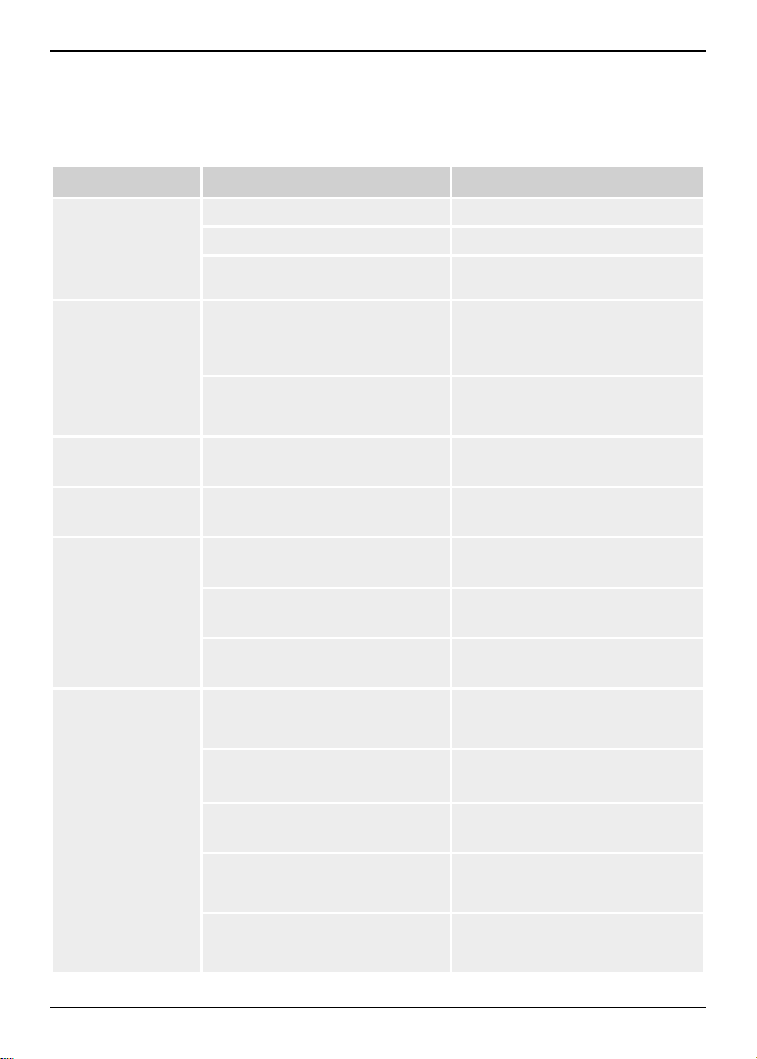
Appendix 1: Handling the Battery, SIM card and microSD card
Hook your nail in the gap between the cover and pull it up (
1
). Pull the battery outward (
2
)
and then lift the battery away (
3
).
To install the microSD card, place its indented side downward, insert the card into the card slot.
Insert the SIM card into the SIM card slot lightly with the corner cutting of the card aligning to
the notch of the slot and the gold plate of the card facing down load, till the SIM card cannot be
further pushed in.
Micro SIM Card
Mini SIM Card
27
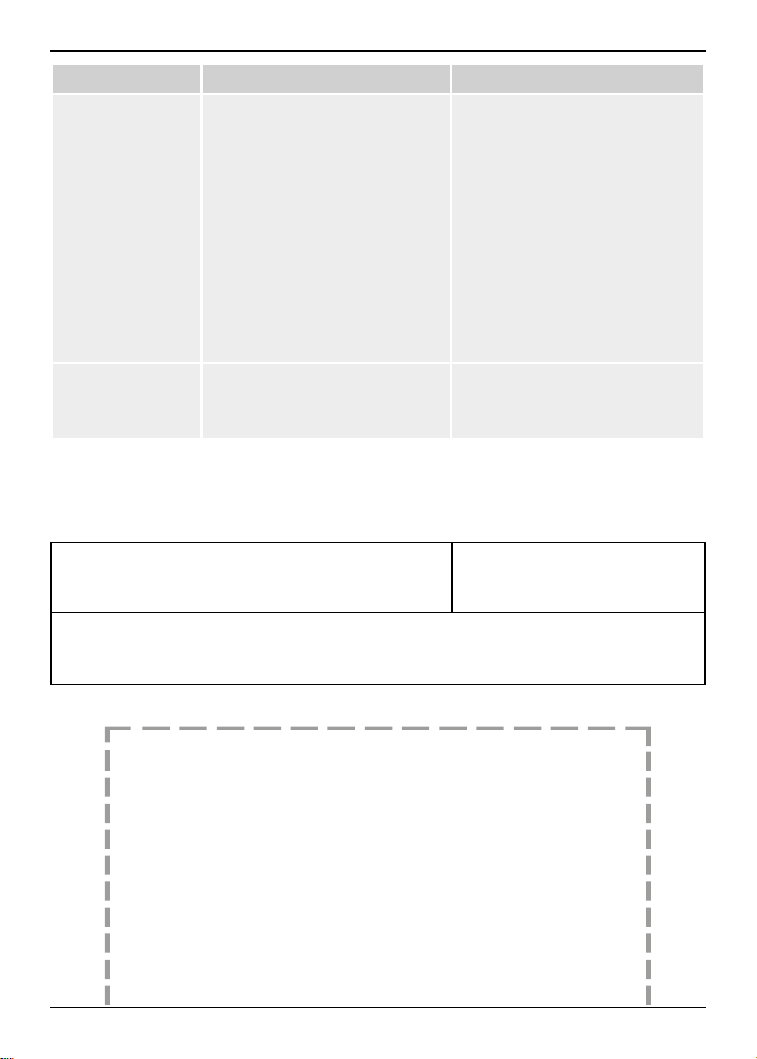
Appendix 2: Troubleshooting
If you nd exceptions when operating the mobile phone, restore the factory settings and then
refer to the following table to solve the problem. If the problem persists, contact the distributor
or service provider.
Fault Cause Solution
SIM card error
The SIM card is damaged Contact your network service provider
The SIM card is not in position Check the SIM card
The metal face of the SIM card
is polluted
Clean the SIM card
with a clean cloth
Poor received
signal quality
Signals are obstructed. For instance,
radio waves cannot be eectively
transmitted nearby a high building
or in a basement
Move to a place where signals
can be eectively transmitted
Line congestions occur when
you use the mobile phone
in high-trac hours
Avoid using the mobile phone
in high-trac hours
The mobile phone
cannot be powered on
The battery energy is exhausted Charge the battery
Calls cannot be
dialled
Call barring is activated Cancel call barring
The mobile phone
cannot connect
the network
The SIM card is invalid Contact your network service provider
The mobile phone is not in a service
area of the GSM network
Move to the network operator’s
service area
The signal is weak
Move to a place where
the signal quality is high
The battery cannot be
charged
The charging voltage does not match
the voltage range indicated
on the charger
Ensure the charging voltage matches
the voltage range indicated
on the charger
An improper charger or battery is used
Use the charger or battery specially
designed for the mobile phone
Poor contact
Ensure the charger plug is in good
contact with the mobile phone
Environmental temperature when
charging is too high or too low,
“Battery error” is displayed
Check the environmental temperature
Charging conditions: 10 °C - 40 °C
Battery failure (deterioration)
The standard number of times of
charging is 500 times
28
Fault Cause Solution
You forgot your phone
lock code
You need to enter recovery mode and
all data will be cleared
● When the phone is powered on
and the lock code is required.
1. Reboot the mobile phone by
removing and reinsert the battery,
then power back on.
2. Press and hold the Center key.
3. Press the Dial key to proceed with
restoring to factory settings.
● When changing the phone lock
settings:
1. Go to Menu > Settings > Security
settings > Phone security > Phone
lock > Select the option and press
and hold the Center key.
2. Press the Dial key to proceed with
restoring to factory settings.
The earphone cannot
connect
The earphone cover is not fully open
When using the earphone, make sure
to fully open the earphone cover to
ensure a proper connection and optimal
functionality.
Appendix 3: For your future reference
We recommend keeping a record of the following information to assist with any repair under
warranty:
Serial No. (found on the carton box or in the battery compartment) Date of purchase
Name and address of dealer
Attach your purchase receipt here.

29
Appendix 4: Sales department
Sales department/Vertrieb/Organisation Commerciale/Klantenservice/Försäljning/
Salgsavdeling/Maahantuonti/Departamento comercial/Tμήμα Πωλήσεων/Salgskontor/
Departamento de ventas/Ucio Vendite/Satιş bölümü
Belgique/België
Panasonic Belgium is a branch of
Panasonic Marketing Europe GmbH
Europalaan 28E
5232 BC ’s-Hertogenbosch, The Netherlands
Tel. (Belgique/België): 0032 70 223 011
Réparations/Reparaties:
www.panasonic.be
Deutschland
Panasonic Deutschland eine Division der
Panasonic Marketing Europe GmbH
Winsbergring 15
22525 Hamburg
www.panasonic.de
España
Panasonic España, Sucursal de
Panasonic Marketing Europe GmbH
WTC Almeda Park
Plaza dela Pau s/n Edicio 8 planta baja
08940 Cornella de Llobregat, Barcelona
Número del teléfono de atención al cliente:
902 15 30 60
www.panasonic.es
ΕΛΛΑΔΑ
INTERTECH SA,
Αφροδίτης 24
167 77 ΕΛΛΗΝΙΚΟ
Tel: +30 210 9692300
Fax: +30 210 9648588
E-mail: [email protected]
Web: www.panasonic.gr
France
Panasonic France, une Succursale
de Panasonic Marketing Europe GmbH
1 à 7 Rue du 19 Mars 1962
92238 Gennevilliers Cedex, France
Service Consommateurs:
08 92 35 05 05 (0,34 € la minute)
Service après-vente:
01 70 48 91 73 (numéro non surtaxé)
Italia
Panasonic Italia - branch oce of
Panasonic Marketing Europe GmbH
Viale dell’Innovazione
3-20126 Milano
servizio clienti: 02-67 07 25 56
www.panasonic.it
Nederland
Panasonic Netherlands
Europalaan 28E
5232 BC ’s-Hertogenbosch
Tel: 073 6 402 802
Reparaties:
www.panasonic.nl
Türkiye
Başari Elektronik Sanayi ve Ticaret A.Ş.
Mah. Batman Sok. No: 30 Iç Kapi
No: 20 34734 Kadiköy / Istanbul

30
Sales department/Értékesítési osztály/Dział sprzedaży/Obchodné zastúpenie/Obchodní
zastoupení/Kontakt/Prodajni oddelek/Departamentul de vânzări/Отдел „Продажби“/
Odeljenje prodaje/Оддел за продажба/Departamenti i shitjeve/Prodajni odjel
Romania
Panasonic Marketing Europe GmbH, Wiesbaden,
Germania, Sucursala Bucureşti, Romania
B-dul Preciziei, Nr. 24, West Gate Park,
Clădirea H3, Etaj 2, Sector 6,
Bucureşti, 062204, Romania
Telefon: +40 21 316 31 61
Fax: +40 21 316 04 46
E-mail: [email protected]
Web: www.panasonic.ro
Polska - Dystrybucja w Polsce
Panasonic Marketing Europe GmbH, Oddział
w Polsce (Spółka z ograniczoną odpowiedzialnością)
ul. Wołoska 9A, 02-583 Warszawa
Produkt Panasonic
Produkt objęty jest E-Gwarancją Panasonic.
Prosimy o zachowanie dowodu zakupu.
Warunki gwarancji oraz informacje o produkcie
są dostępne na stronie www.panasonic.com/pl
lub pod numerem telefonu (+48) 825 820 000.
Dystrybucja w Polsce:
Panasonic Marketing Europe GmbH
(Spółka z ograniczoną odpowiedzialnością)
Oddział w Polsce
ul. Wołoska 9, 02-583 Warszawa
Hrvatska
Panasonic Marketing Europe GmbH
– Podružnica Zagreb
B. Bušića 27
10 020 Zagreb, Hrvatska
Magyarország
Panasonic Marketing Europe GmbH.
South-East Europe Fióktelep
1117 Budapest, Alíz u.4. Ofce Garden III.
Tel.: +36 80 201 006
E-mail: Customer[email protected]
Web: www.panasonic.hu
Česká republika
Panasonic Marketing Europe GmbH,
organizační složka Česká republika
Thámova 289/13 (Palác Karlín)
186 00 Praha 8
Telefon: +420 236 032 511
Centrální fax: +420 236 032 411
Zákaznická linka: +420 236 032 911
E-mail: [email protected]
Web: www.panasonic.cz
Slovenská republika
Panasonic Marketing Europe GmbH,
organizačná zložka Slovenská republika
Štúrova 11
811 01 Bratislava, Slovenská republika
Telefón: +421 2 2062 2211
Fax: +421 2 2062 2311
Zákaznická linka: +421 2 2062 2911
E-mail: [email protected]
Web: www.panasonic.sk

31
Appendix 5: Equipment Power Consumption
i) Power o mode consumption: 0.1 W
ii) Standby mode consumption: 0.1 W
Equipment automatically reaches this condition after approximately 5 minutes.
iii) Networked standby mode consumption: 0.1 W
Equipment automatically reaches this condition after approximately 5 minutes.
32
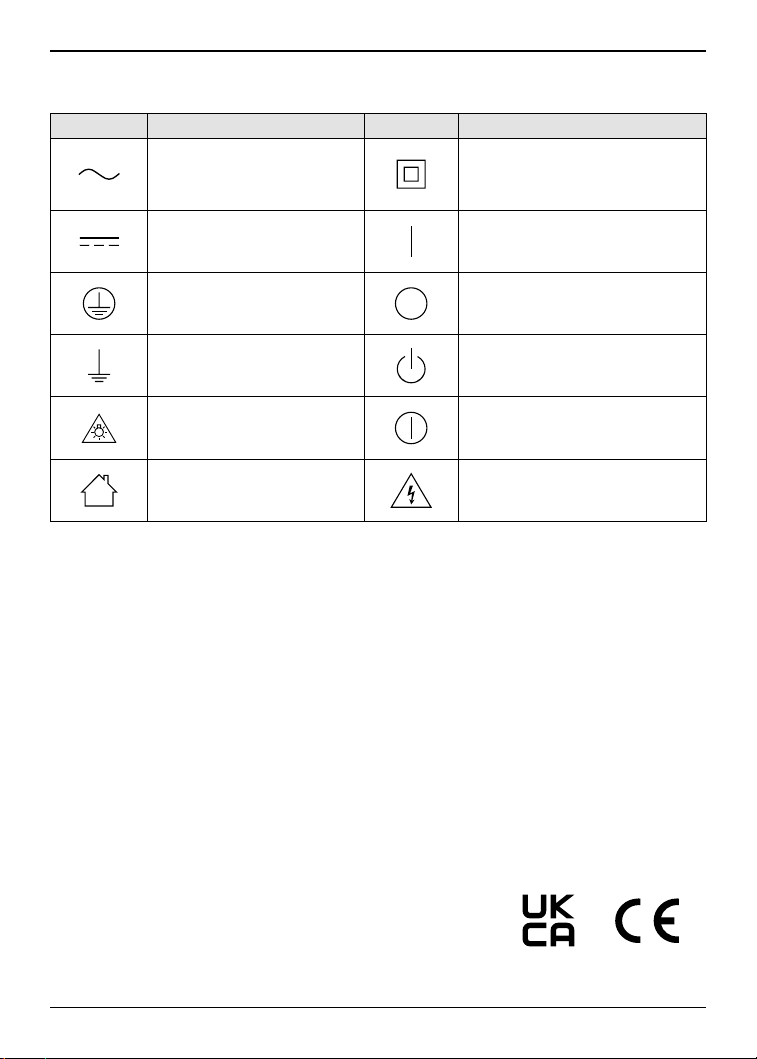
Appendix 6: Graphical symbol
Symbol Explanation Symbol Explanation
Alternating current (A.C.)
Class II equipment
(equipment in which protection
against electric shock relies on Double
Insulation or Reinforced Insulation.)
Direct current (D.C.) “ON” (power)
Protective earth “OFF” (power)
Protective bonding earth Stand-by (power)
Caution, risk caused by visible
radiation
“ON”/“OFF”
(power; push-push)
For indoor use only Caution, risk of electric shock
For any inquiries, please contact us at the email address below:
Panasonic Marketing Europe GmbH
Hagenauer Straße 43, D-65203 Wiesbaden, Germany
Authorised Representative in EU:
Panasonic Marketing Europe GmbH
Panasonic Testing Centre
Winsbergring 15, 22525 Hamburg, Germany
Importer for UK:
Panasonic UK, a branch of Panasonic Marketing Europe GmbH,
Maxis 2, Western Road, Bracknell, Berkshire, RG12 1RT
www.panasonic.com
© Panasonic Marketing Europe GmbH 2025