1
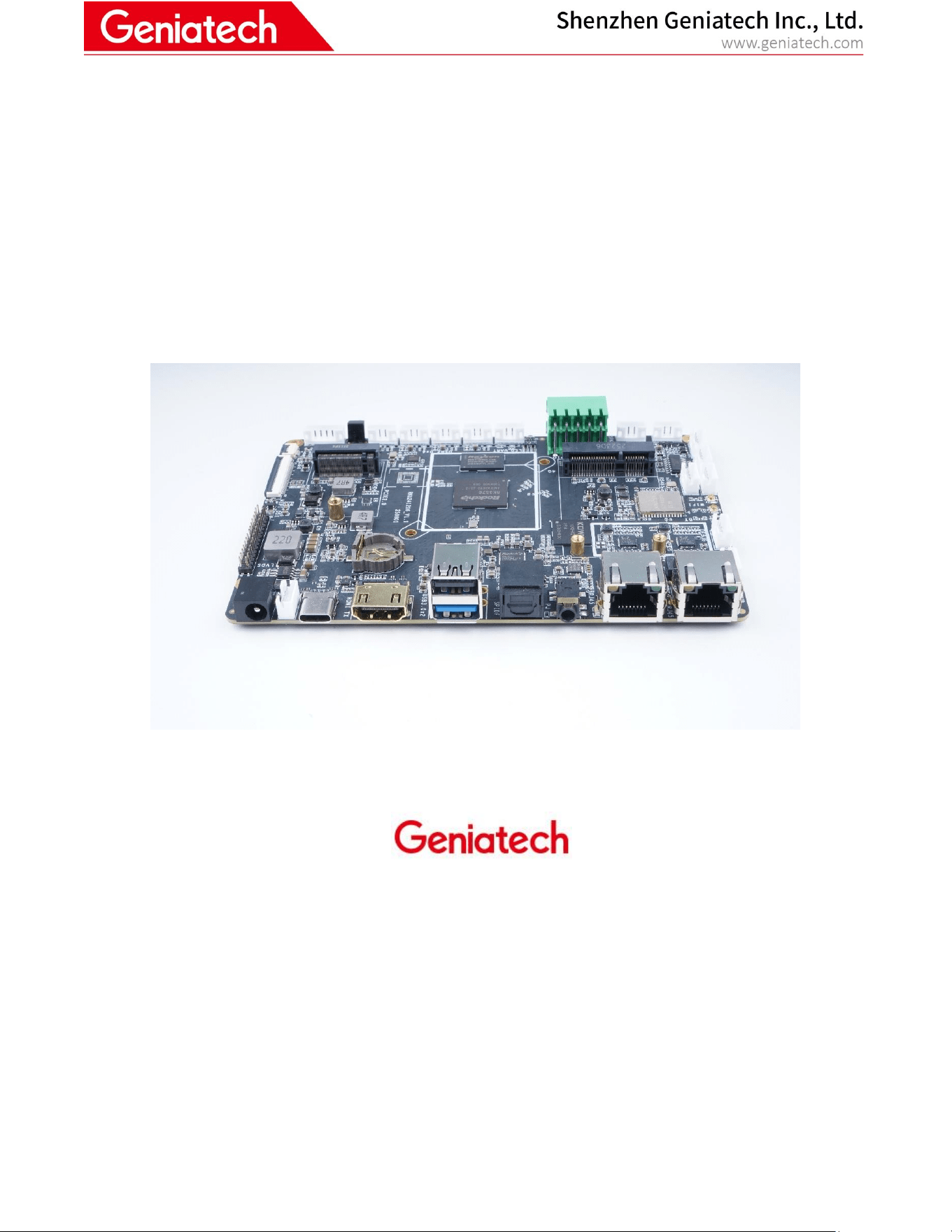
DB3576
Hardware User Guide
Powered
by:

Room 02-04, 10/F, Block A, Building 8, Shenzhen International Innovation Valley, Dashi Road,
Nanshan District, Shenzhen, Guangdong, China
2 / 20
Contents
1
Introduction
..................................................................................................................................................................................3
3
Getting
started
..............................................................................................................................................................................6
3.1
Prerequisites
.......................................................................................................................................................................6
3.2
Starting
the
board
for
the
first
time
.....................................................................................................................................6
4.
DB3576
Overview
.........................................................................................................................................................................7
4.1 Product Diagram
...................................................................................................................................................................7
Block Diagram:
...........................................................................................................................................................................8
4.2 Internal Connectors, Headers & Jumpers
................................................................................................................................9
4.3
System
Block
D
iagram
.......................................................................................................................................................19

Room 02-04, 10/F, Block A, Building 8, Shenzhen International Innovation Valley, Dashi Road,
Nanshan District, Shenzhen, Guangdong, China
3 / 20
1
Introduction
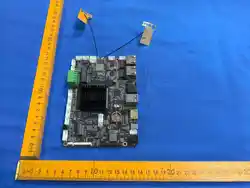
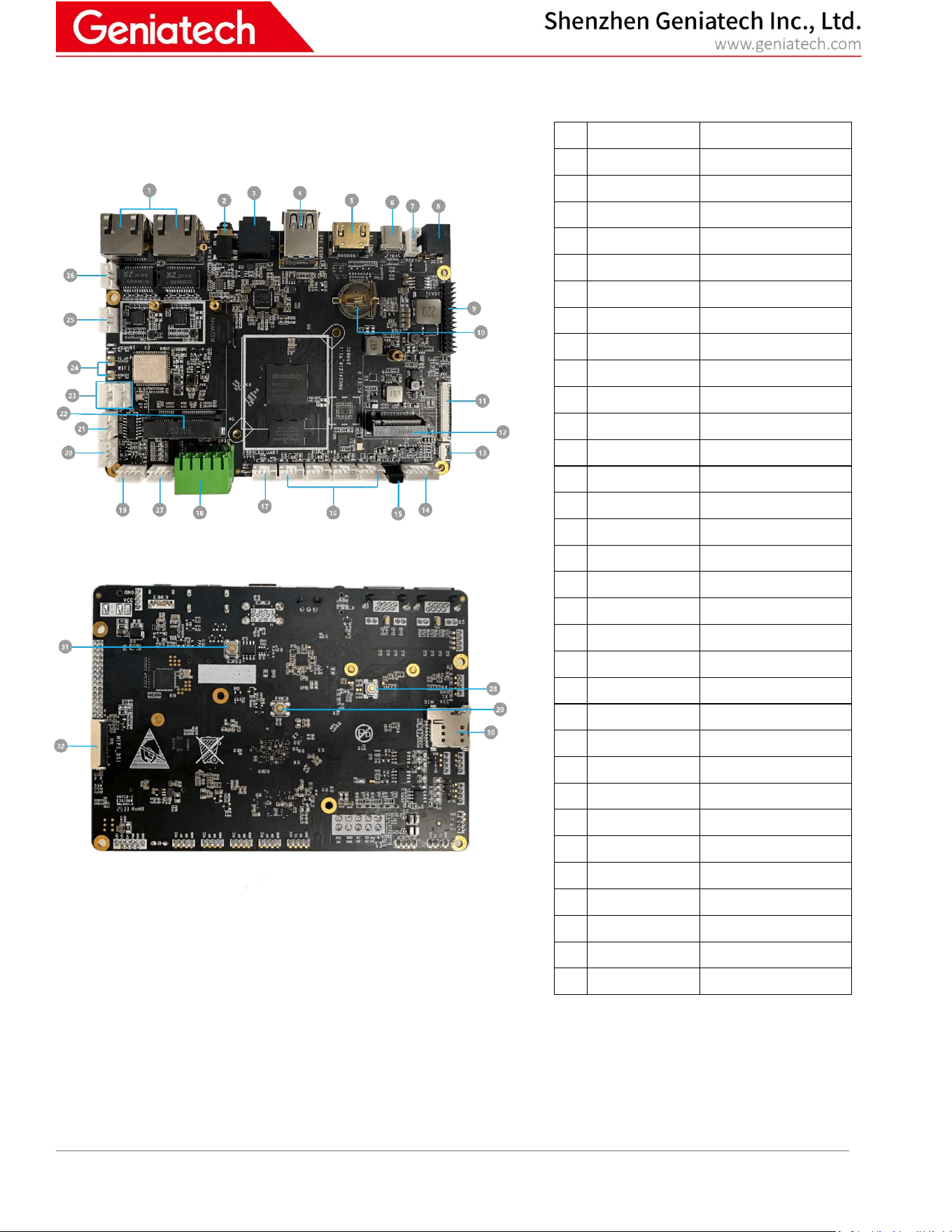
DB3576 is an intelligent development board based on RK3576/RK3576J,which is a low power, high performance
processor for ARM-based PC and Edge Computing device with below new features:
(I) Quad-core Cortex-A72 and Quad-core Cortex-A53
(II) ARM Mali-G52 MC4 GPU, Support OpenGL ES1.1/2.0/3.2, OpenCL2.0 and Vulkan 1.1
(III) NPU: Neural network acceleration engine with processing performance up to 6 TOPS
(IV) Support Android 14.0 / Linux Debian12
(V) Support 4GB/8GB/16GB LPDDR4, 16~256GB eMMc, External expansion M.2/USB storage
(VI) Dual Ethernet 10/100/1000M
(VII) 2T2R 802.11 ax/ac/a/b/g/n Wi-Fi + BT 5.0 Module,LTE 4G Moudle(options)
(VIII) 1 * HDMI Out, 1 * LVDS, 1*MIPI DSI support multi-screen simultaneous display, multi-screen different display,
multi-screen rotation splicing, multi-channel video source simultaneous decoding, etc. Display method
(IX) Support 2 * RS232 + 2 * RS485 + 1 * Can + 1 * GPIO industrial control bus
(X) 1* USB3.0 + 1*type-c(full-featured)+5*USB2.0
(XI) Support hardware WDT & RTC +1*M.2(Scalable 2242 PCIe NVMe SSD)+ 1*Speaker+1*SPDIF
(XII) Support USB and I2C TP
(XIII) Support wide voltage 12~24V power and POE module (options) power supply input, standard EMC and ESD
protection design
(XIV) Specially designed for smart express cabinet, smart commercial display, smart vending machine, digital signage,
smart home, etc.
1.1
Board
O
verview
Room 02-04, 10/F, Block A, Building 8, Shenzhen International Innovation Valley, Dashi Road,
Nanshan District, Shenzhen, Guangdong, China
4 / 20
2
What’s
in
the
Developer Board
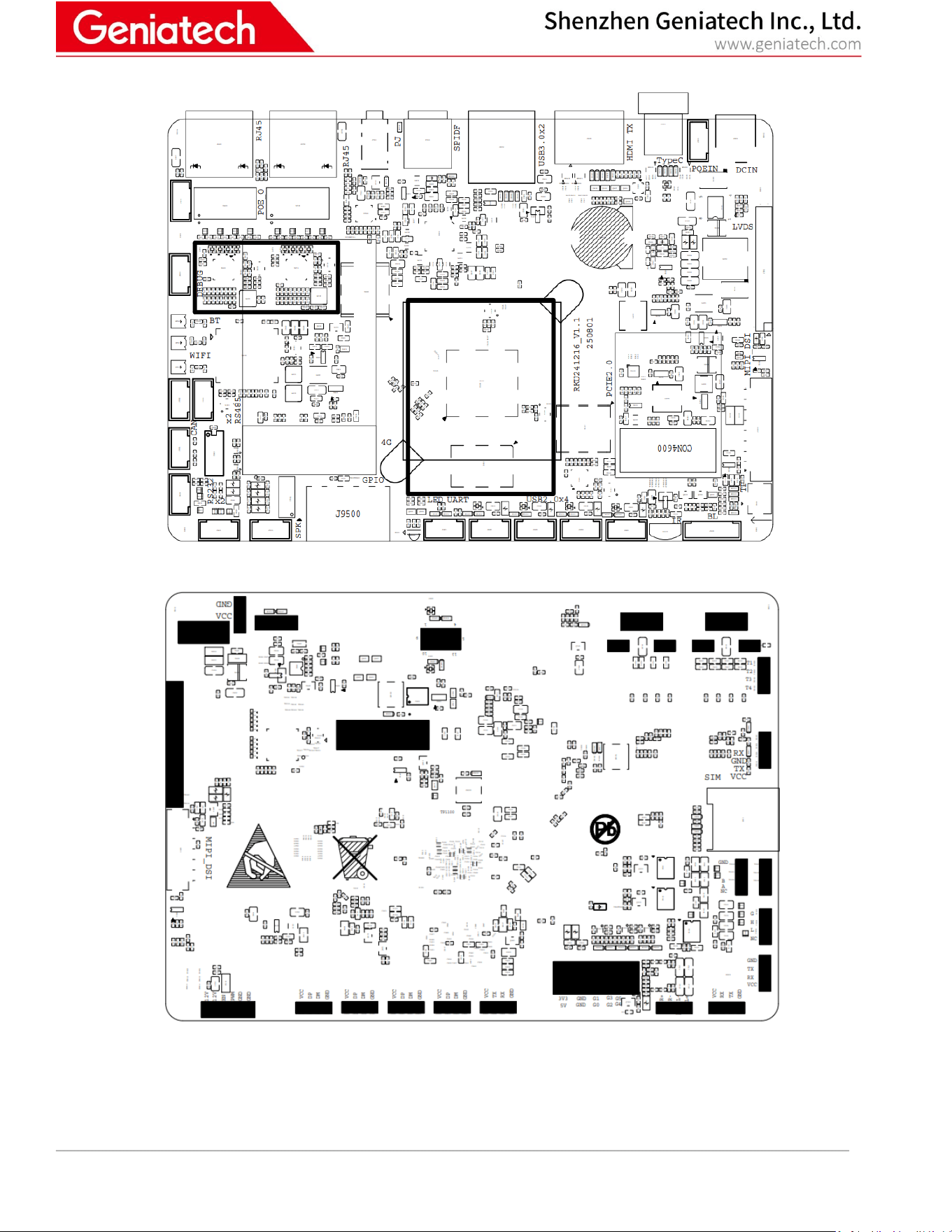
The Developer Board contains one DB3576.
No
...
Name
Description
1
LAN
2*10M/100M/1000M
Ethernet
2
speaker
3.5mm phone Jack
3
SPDIF
SPDIF
4
USB3.0
1*USB3.0&1*USB-C2.0-
Type A
5
HDMI OUT
1*HDMI
6
TYPE-C
1*TYPE-C
7
POE-IN
1 * 4Pin 2.0mm
8
DC In
1*(DCΦ5.5mm / φ2.1mm)
9
LVDS
1 * (2x15Pin 2.0mm)
10
RTC battery
Battery connecter
11
MIPI-DSI
1 * 40P FPC, pitch 0.5mm
12
M.2 Key-M
NGFF 2230
13
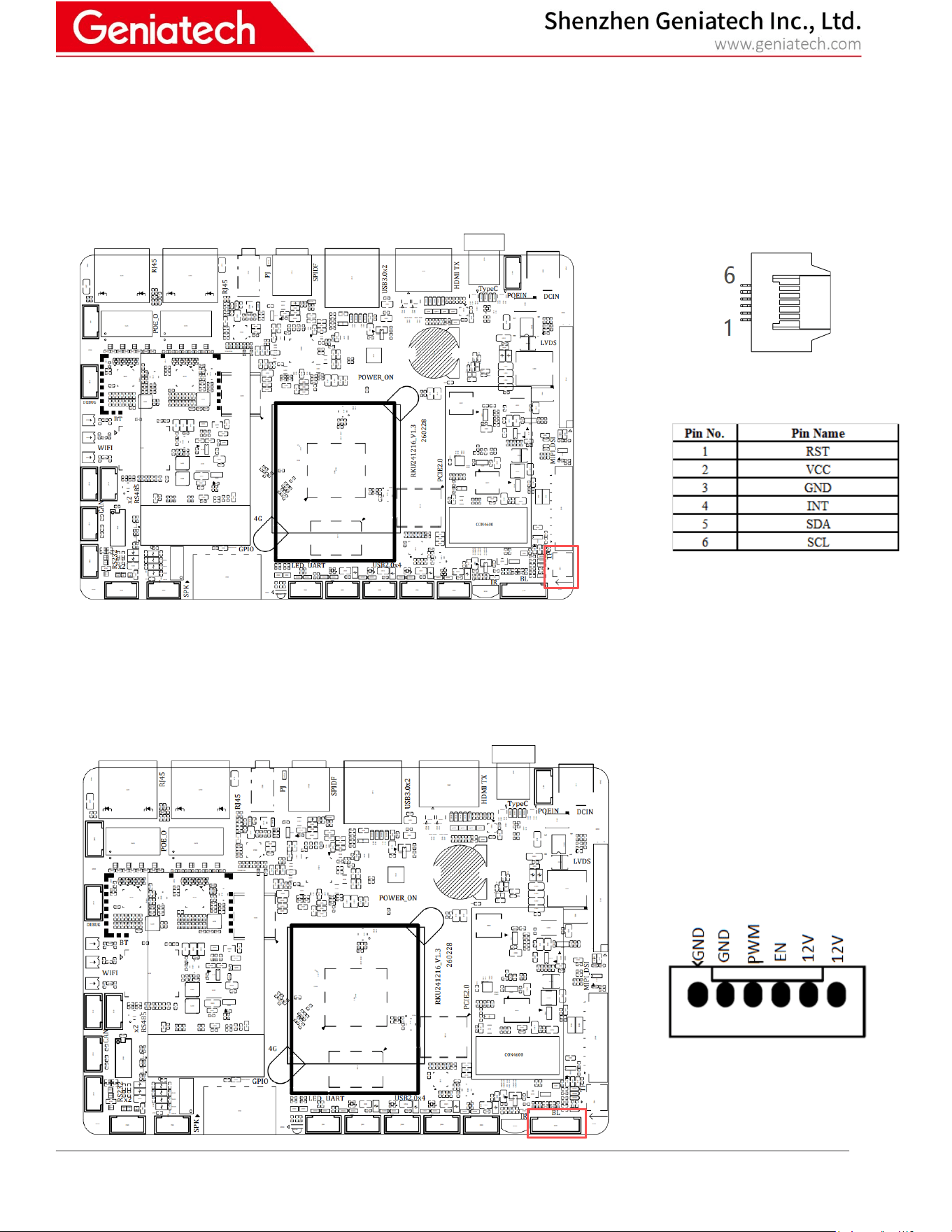
I2C(TP)
1 * 6P FPC, pitch 0.5mm
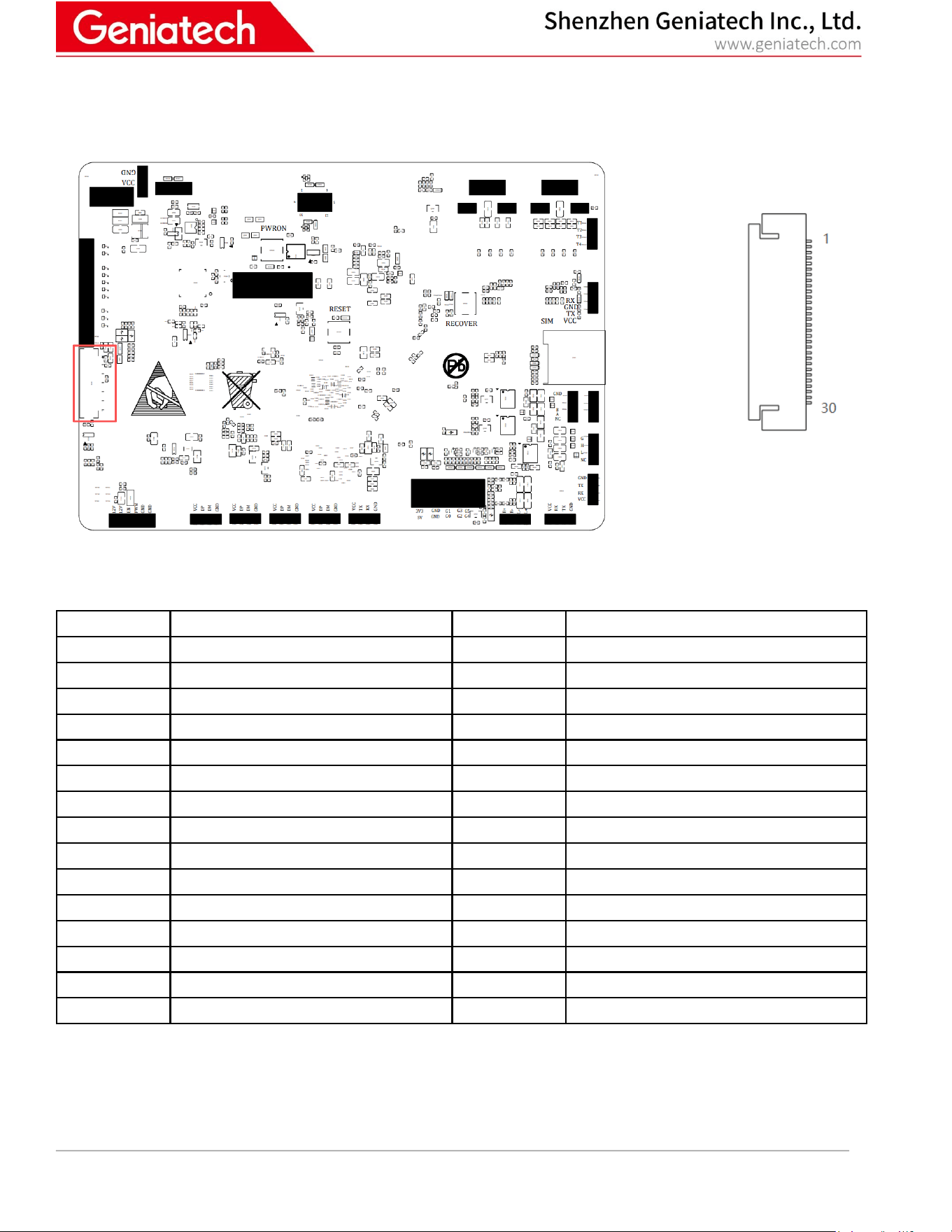
14
Backlight
1 * 6Pin 2.0mm
15
IR
1* IR
16
USB2.0(4)
4 * 4P , pitch 2.0mm
17
UART
1 * 4Pin 2.0mm
18
GPIO/3.3V/5V
2 * 10P 3.81mm phoenix
terminal
19
RS 232-1
1 * 4P , pitch 2.0mm
20
RS 232-2
1 * 4P , pitch 2.0mm
21
CAN
1 * 4P , pitch 2.0mm
22
LTE
1 * Mini PCIE
23
RS485(2)
2 * 4P , pitch 2.0mm
24
WiFi/BT Antenna
connecter 1
1*IPEX
25
Debug
1 * 4Pin 2.0mm
26
POE-OUT
1 * 4P , pitch 2.0mm
27
Speaker connecter
1 * 4Pin 2.0mm
28
recovery key
1 * Switch
29
reset key
1 * Switch
30
Micro SIM
1* Micro SIM
31
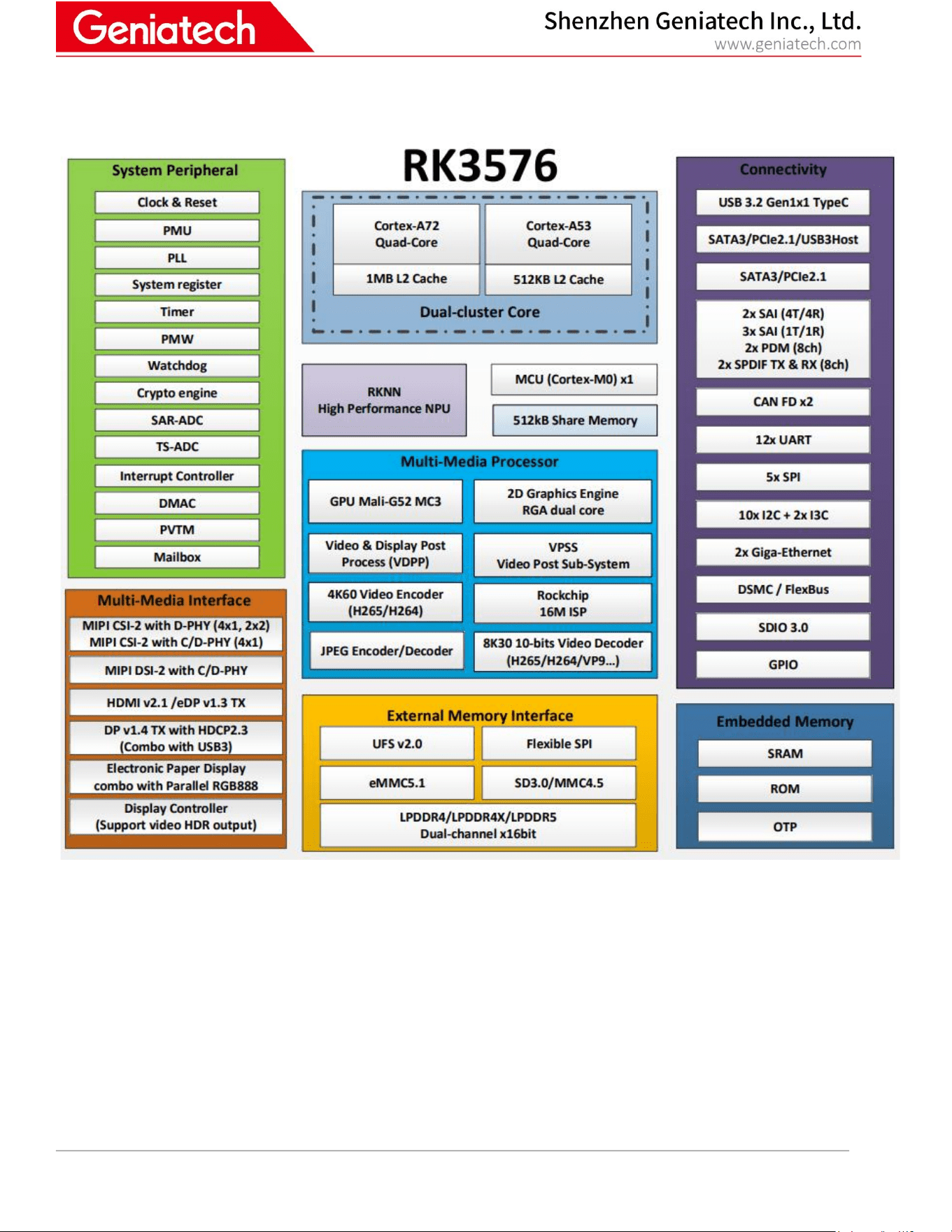
power key
1 * Switch
32
MIPI-CSI
1 * 40P FPC, pitch 0.5mm

Room 02-04, 10/F, Block A, Building 8, Shenzhen International Innovation Valley, Dashi Road,
Nanshan District, Shenzhen, Guangdong, China
6 / 20
3
Getting
started
3.1
Prerequisites
Before you power up your DB3576 for the first time you will need the following:
• DB3576 board
• A DB3576 board compliant power supply (sold separately by Geniatech).
• A DB3576 board compliant IR remote (sold separately by Geniatech).
• A LVDS LCD that supports a resolution of 1280*800 or or MIPI LCD that supports a resolution of 1080P.
• LVDS-LVDS cable cable to connect the board to the LCD.
• A computer keyboard/mouse with USB interface.
3.2
Starting
the
board
for
the
first
time
To start the board, follow these simple steps:
step 1. Connect the LVDS /MIPI cable to the DB3576 connector (marked ) and to the LCD Monitor.
step 2. Connect the keyboard to the boards USB connector marked or connect the mouse to the USB connector
marked. (It doesn’t matter which order you connect it in.
You can also connect via an external USB Hub.)
step 3. Connect the power supply to power connector marked.
Power on (Plug power adapter), toggle the power switch, then the board will boot up and you will see the boot up logo.
Please note that the first boot takes several minutes due to Androids initialization. Subsequent boot times should be faster.
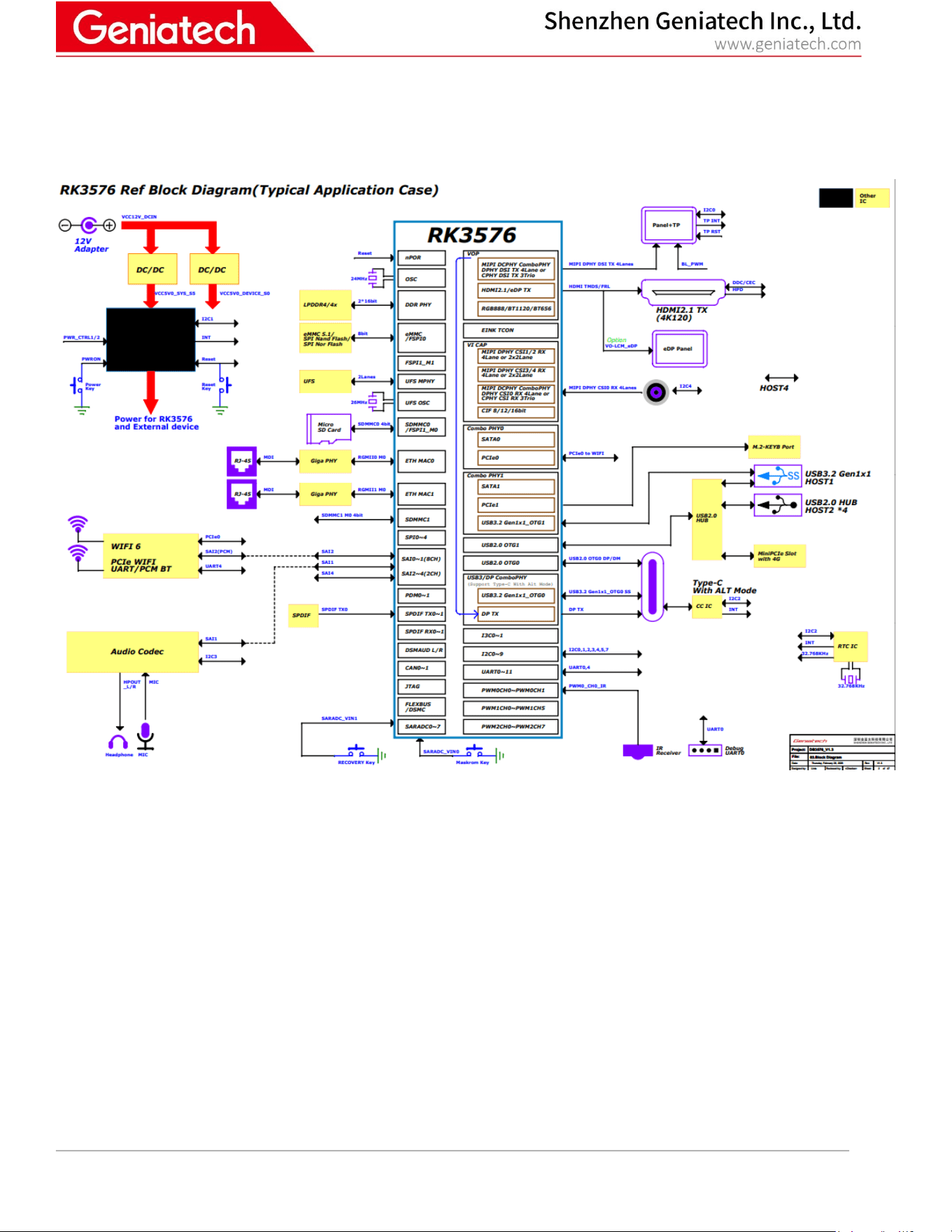
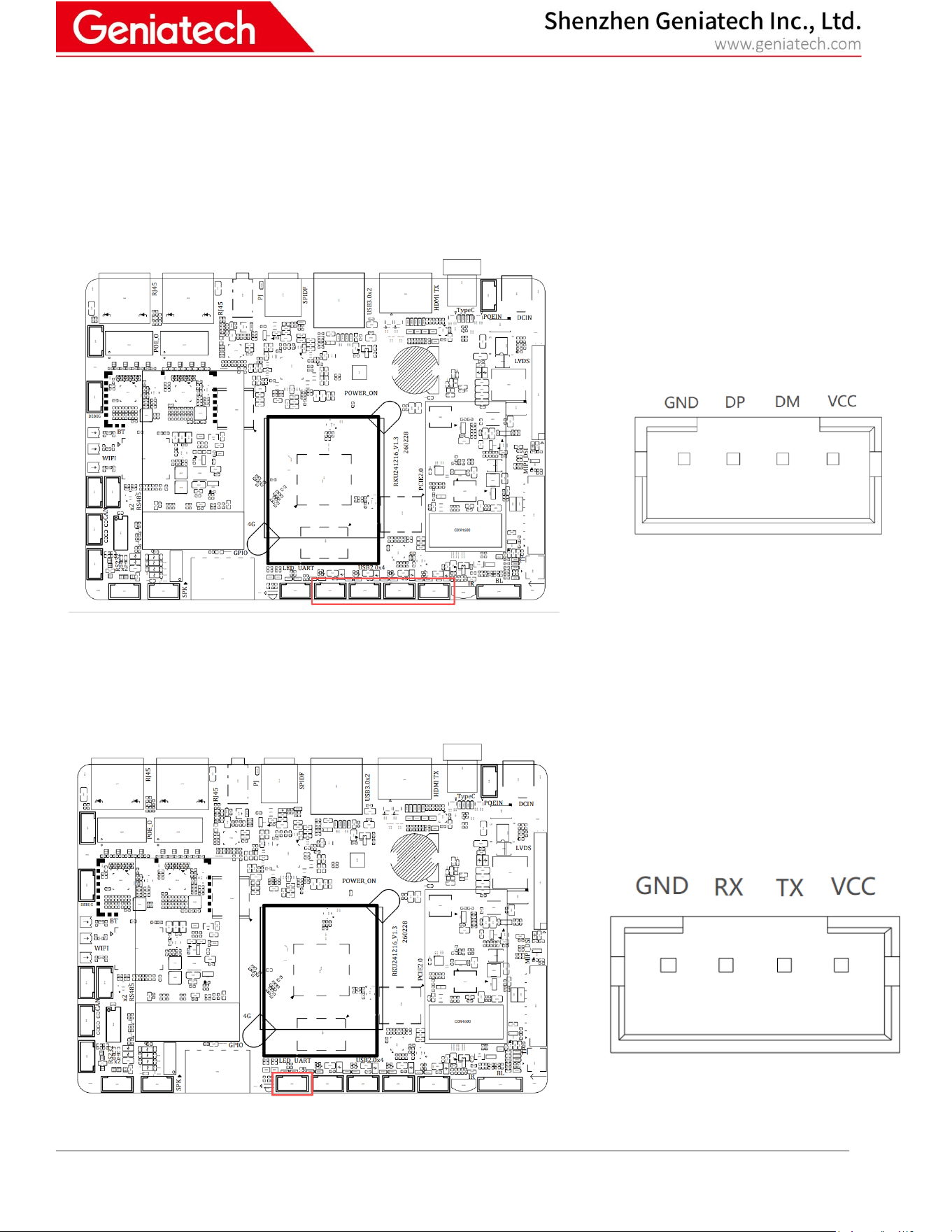
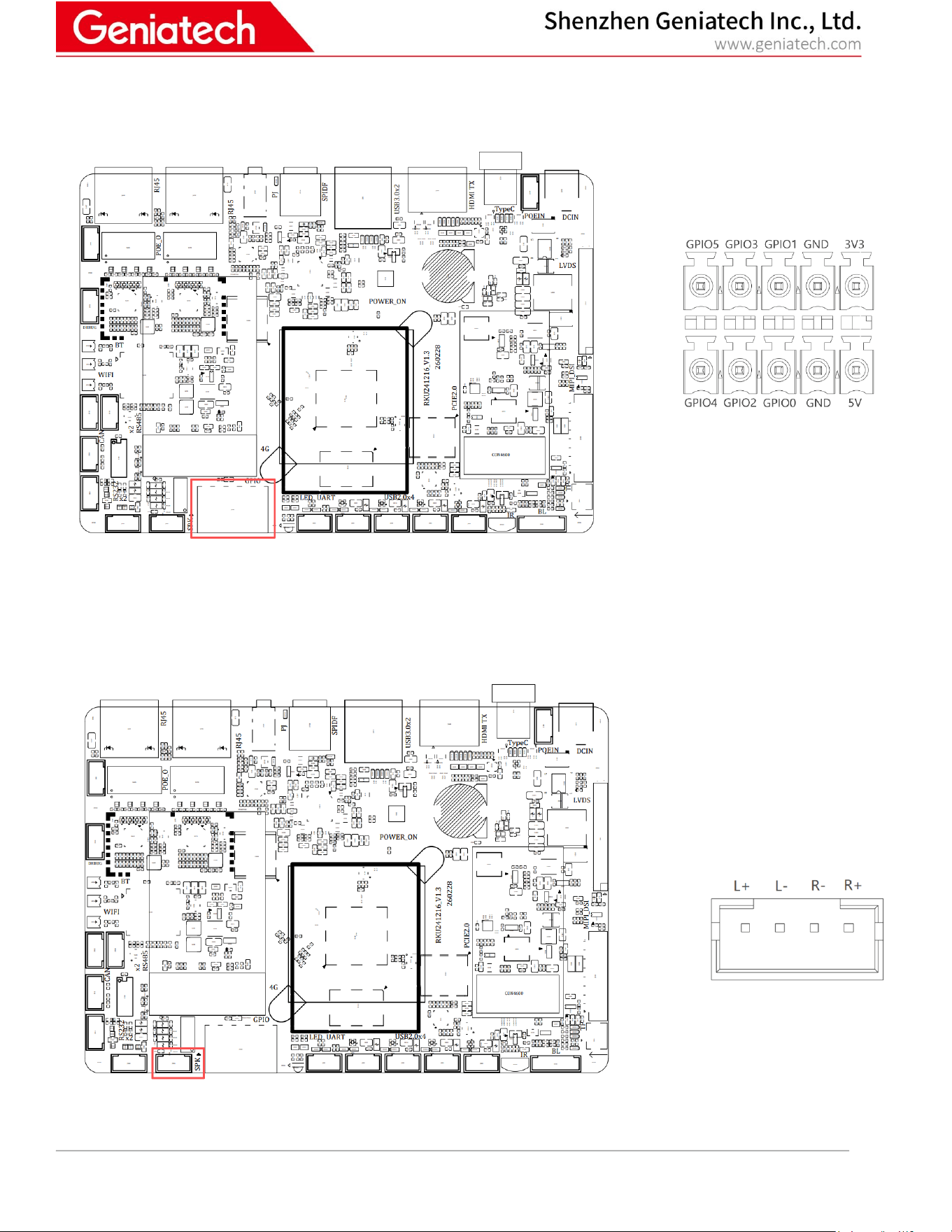
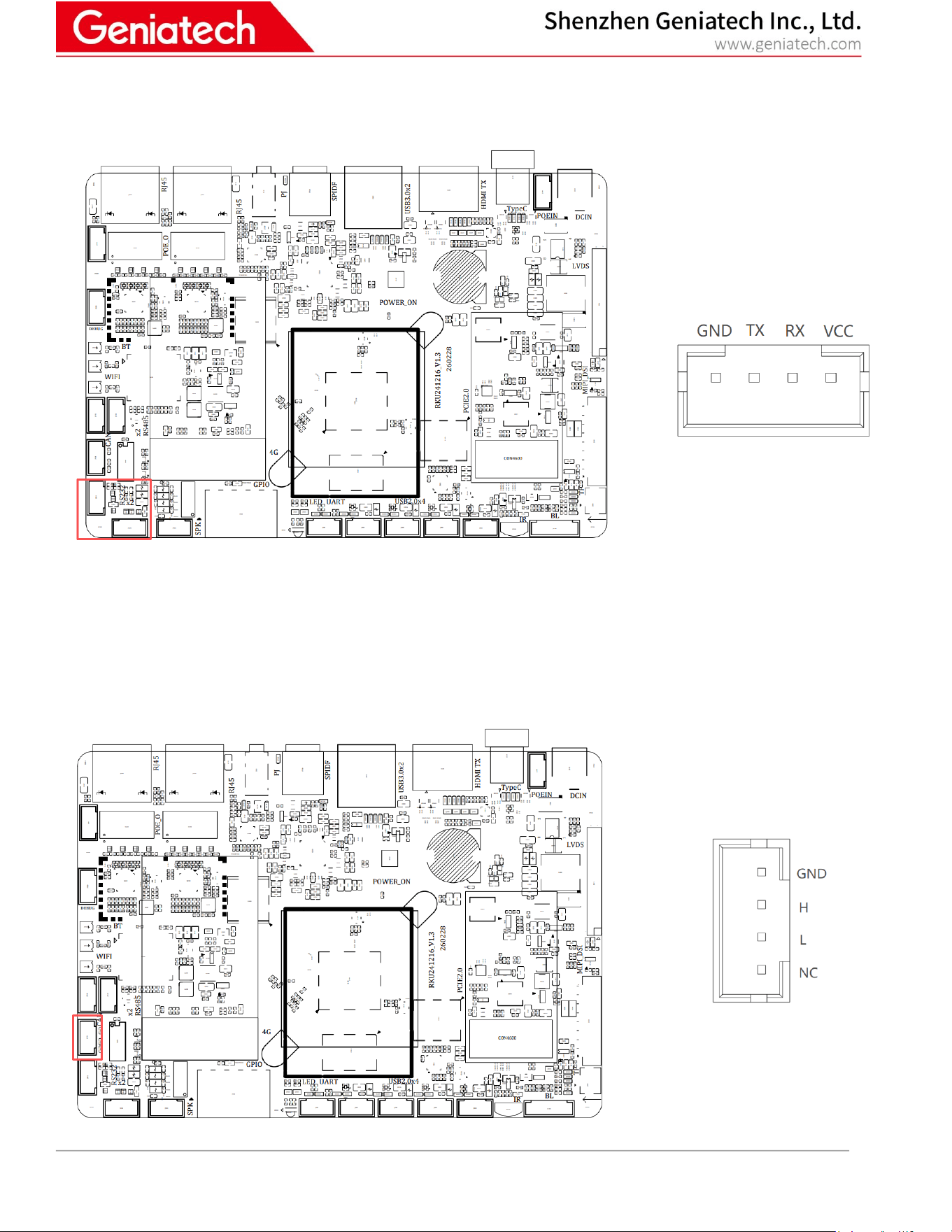
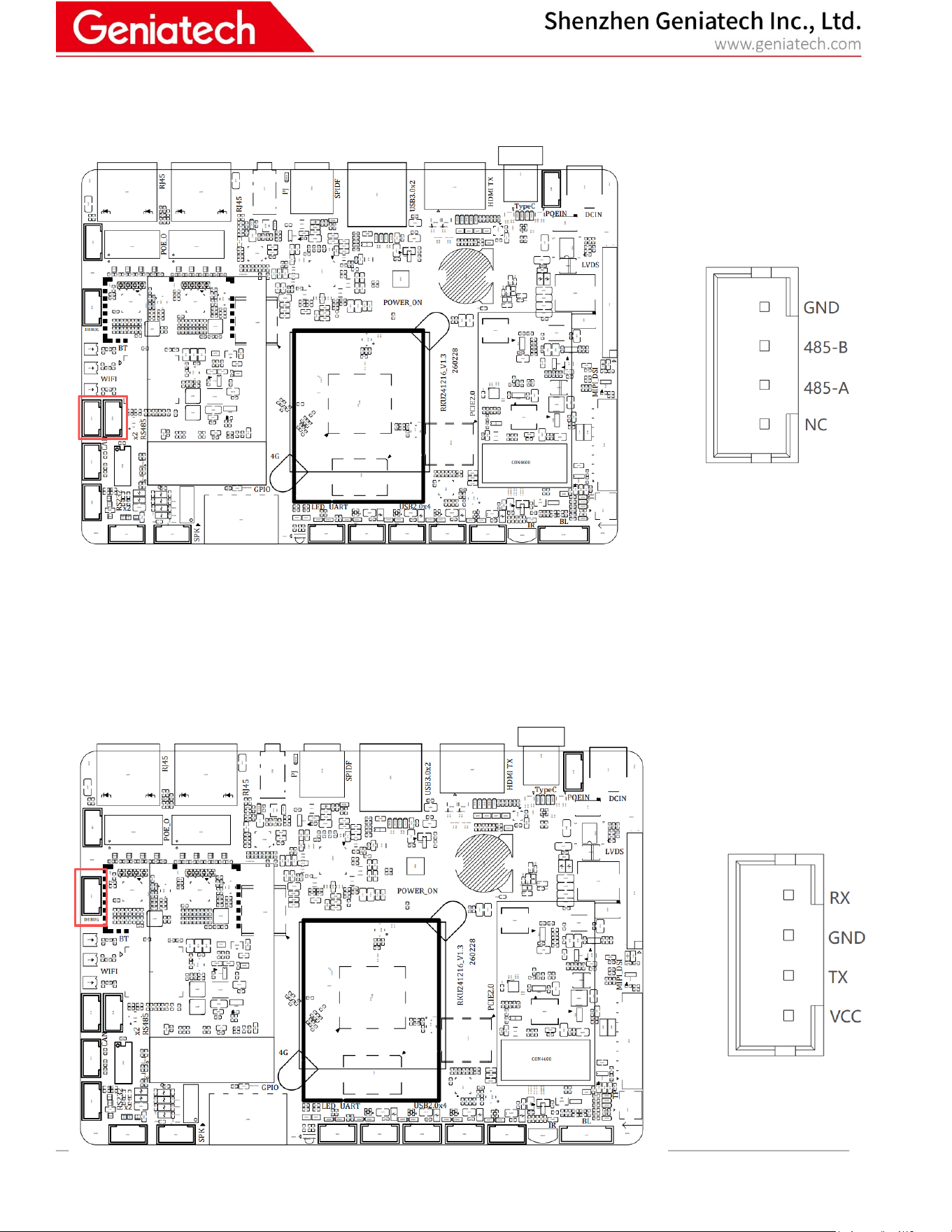
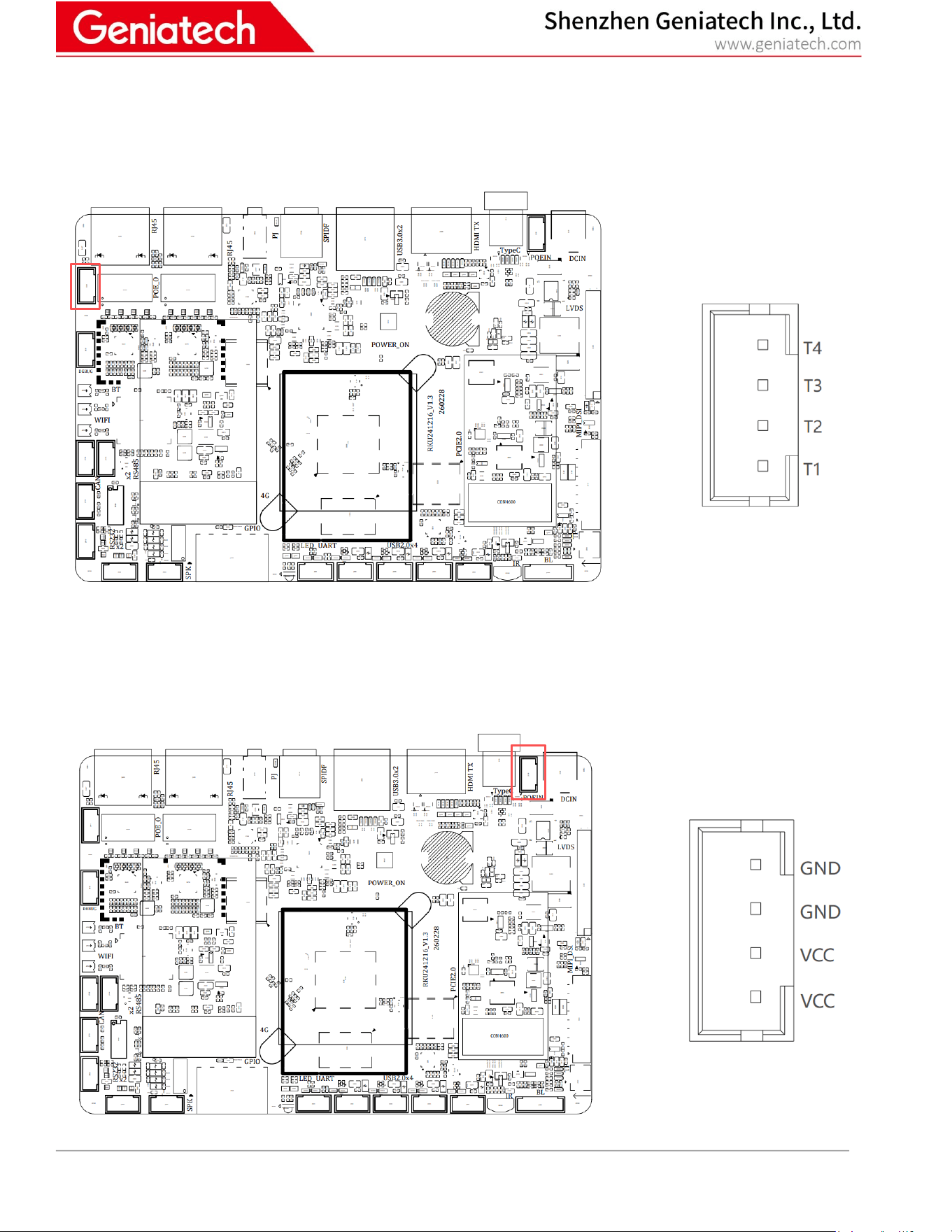
Room 02-04, 10/F, Block A, Building 8, Shenzhen International Innovation Valley, Dashi Road,
Nanshan District, Shenzhen, Guangdong, China
14 / 20
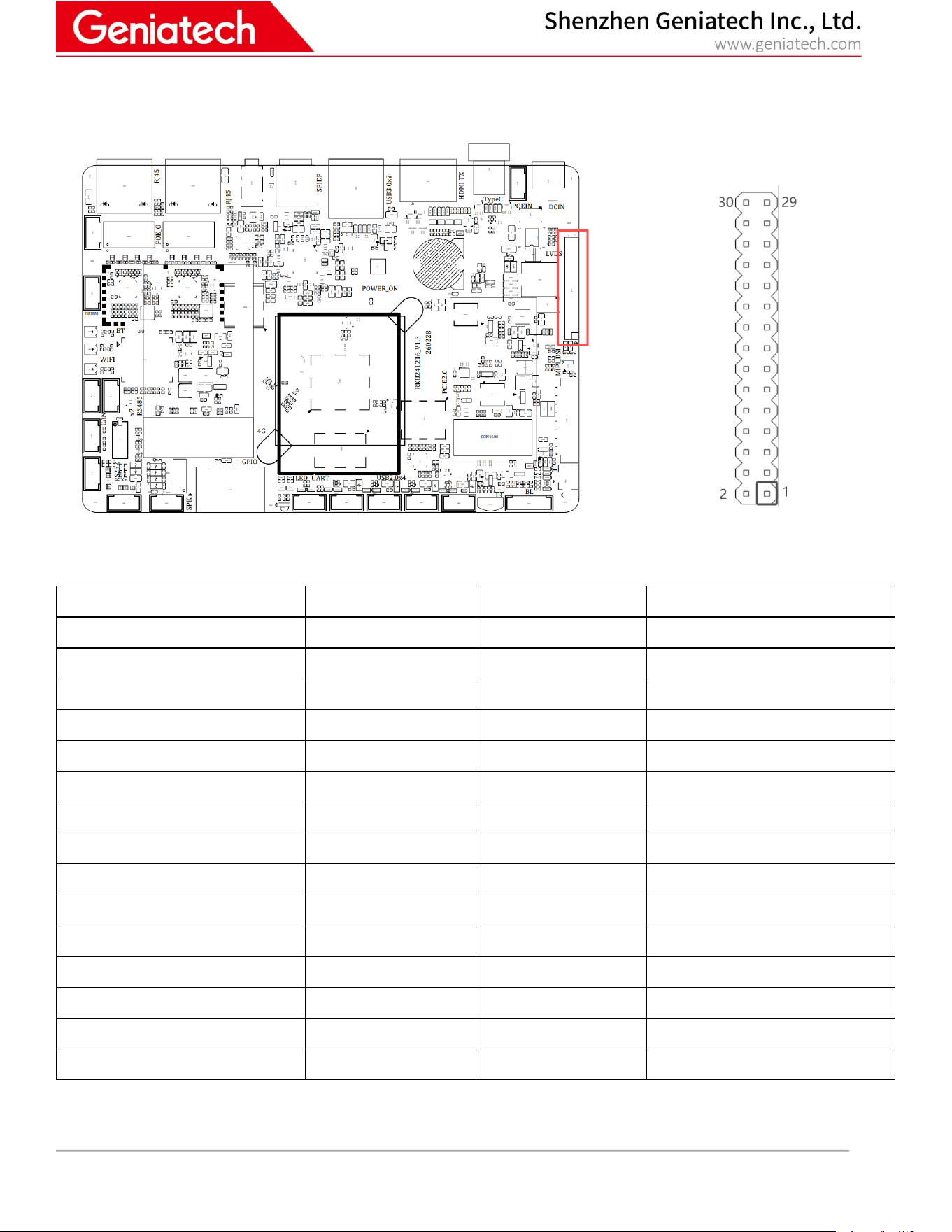
4.2.11 LVDS (J5301)
Pin Name
Pin No.
Pin No.
Pin Name
VCC_PANEL
1
2
VCC_PANEL
VCC_PANEL
3
4
GND
GND
5
6
GND
LVDS_A0_N
7
8
LVDS_A0_P
LVDS_A1_N
9
10
LVDS_A1_P
LVDS_A2_N
11
12
LVDS_A2_P
GND
13
14
GND
LVDS_ACLK_N
15
16
LVDS_ACLK_P
LVDS_A3_N
17
18
LVDS_A3_P
LVDS_B0_N
19
20
LVDS_B0_P
LVDS_B1_N
21
22
LVDS_B1_P
LVDS_B2_N
23
24
LVDS_B2_P
GND
25
26
GND
LVDS_BCLK_N
27
28
LVDS_BCLK_P
LVDS_B3_N
29
30
LVDS_B3_P
Room 02-04, 10/F, Block A, Building 8, Shenzhen International Innovation Valley, Dashi Road,
Nanshan District, Shenzhen, Guangdong, China
15 / 20
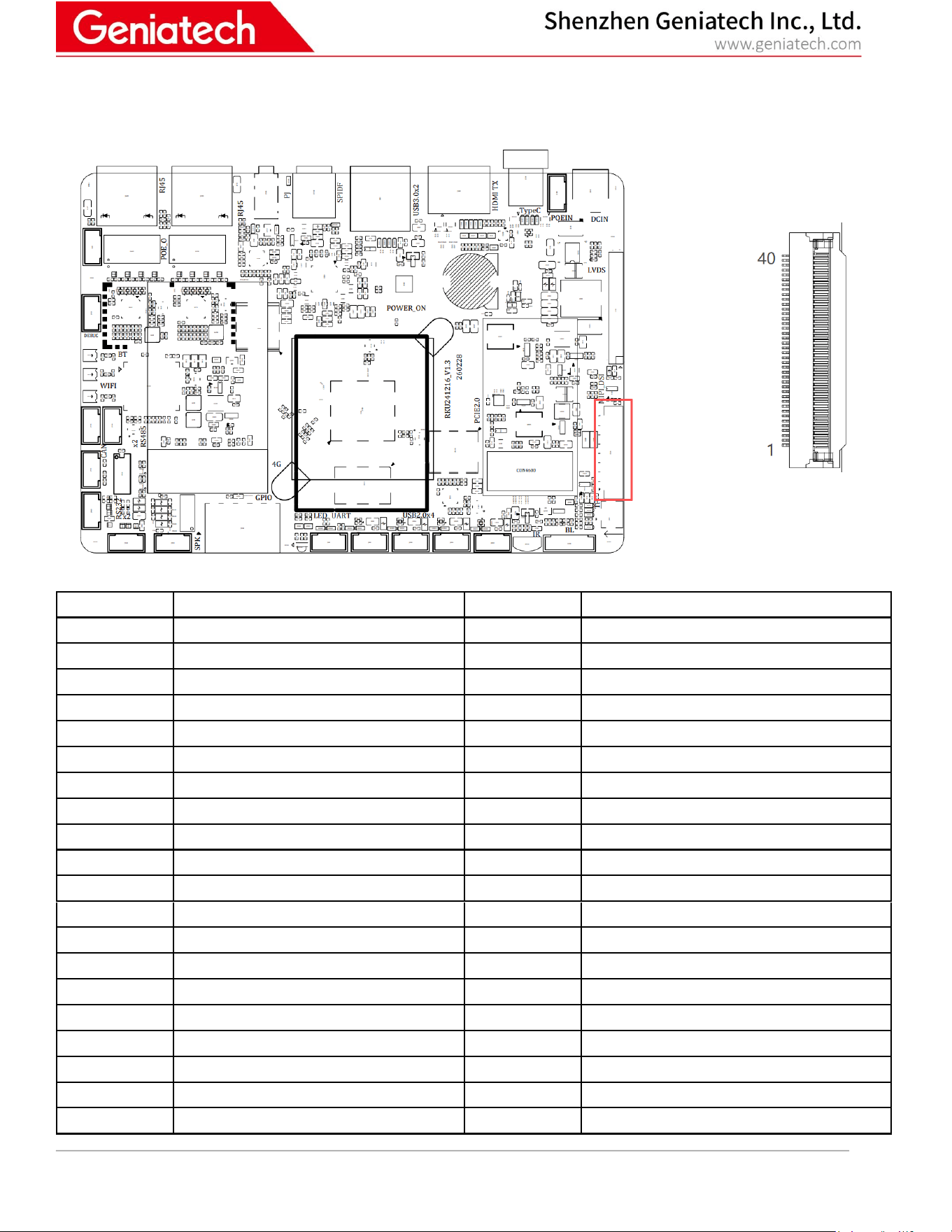
4.2.12 MIPI-DSI (J5000)
Pin No.
Pin Name
Pin No.
Pin Name
1
NC
21
MIPI_D3P
2
MIPI-VCC-3V3
22
GND
3
MIPI-VCC-3V3
23
NC
4
GND
24
NC
5
RESET
25
GND
6
NC
26
NC
7
GND
27
NC
8
MIPI_D0N
28
NC
9
MIPI_D0P
29
NC
10
GND
30
GND
11
MIPI_D1N
31
VCC_LED1-
12
MIPI_D1P
32
VCC_LED2-
13
GND
33
NC
14
MIPI_CKN
34
NC
15
MIPI_CKN
35
NC
16
GND
36
NC
17
MIPI_D2N
37
NC
18
MIPI_D2P
38
NC
19
GND
39
VCC_LED1+
20
MIPI_D3N
40
VCC_LED2+
Room 02-04, 10/F, Block A, Building 8, Shenzhen International Innovation Valley, Dashi Road,
Nanshan District, Shenzhen, Guangdong, China
17 / 20
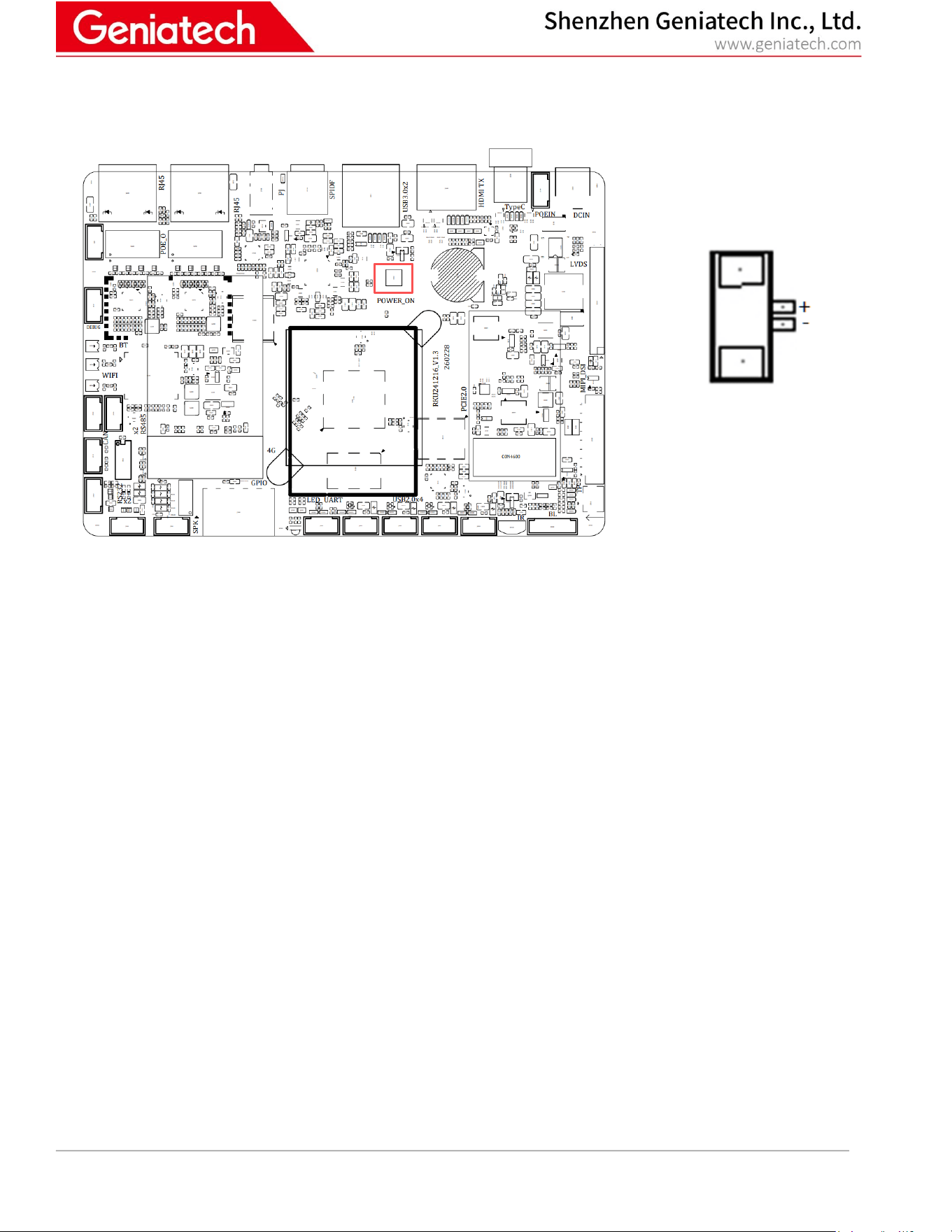
4.2.15 MIPI-CSI (J4500)
Pin No.
Pin Name
Pin No.
Pin Name
1
NC
16
DP3
2
VCC-2V8
17
DN3
3
VCC-1V2
18
GND
4
VCC-1V8
19
DP2
5
NC
20
DN3
6
GND
21
GND
7
VCC-2V8
22
DP1
8
GND
23
DN1
9
SDA
24
GND
10
SCL
25
CLKP
11
RST
26
CLKN
12
VCC-1V8
27
GND
13
GND
28
DP0
14
MCLK
29
DN0
15
GND
30
GND

Room 02-04, 10/F, Block A, Building 8, Shenzhen International Innovation Valley, Dashi Road,
Nanshan District, Shenzhen, Guangdong, China
20 / 20
5. FCC Statement
This equipment has been tested and found to comply with the limits for a Class B digital device, pursuant to part 15 of the FCC
Rules. These limits are designed to provide reasonable protection against harmful interference in a residential installation. This
equipment generates, uses and can radiate radio frequency energy and, if not installed and used in accordance with the
instructions, may cause harmful interference to radio communications. However, there is no guarantee that interference will not
occur in a particular installation. If this equipment does cause harmful interference to radio or television reception, which can
be determined by turning the equipment off and on, the user is encouraged to try to correct the interference by one or more of
the following measures:
•Reorient or relocate the receiving antenna.
•Increase the separation between the equipment and receiver.
•Connect the equipment into an outlet on a circuit different from that to which the receiver is connected.
•Consult the dealer or an experienced radio/TV technician for help.
Caution: Any changes or modifications to this device not explicitly approved by manufacturer could void your authority to
operate this equipment.
This device complies with part 15 of the FCC Rules. Operation is subject to the following two conditions: (1) This device may
not cause harmful interference, and (2) this device must accept any interference received, including interference that may cause
undesired operation.
RF Exposure Information
This equipment complies with FCC radiation exposure limits set forth for an uncontrolled environment. This equipment should
be installed and operated with minimum distance 20cm between the radiator and your body.