1 Safety Precautions
For your safety, read this manual thoroughly before
operating your scan tool. Always refer to and follow
safety messages and test procedures provided by the
manufacturer of the vehicle or equipment being tested.
The safety messages presented below and throughout
this user’s manual are reminders to the operator to
exercise extreme care when using this test instrument.
1.1 Read All Instructions
Read and understand the user guide be-
fore operating the tool.
Read, understand, and follow all safety messages and
instructions in this manual and on the test equipment.
Safety messages in this section of the manual contain a
signal word with a three-part message and, in some
instances, an icon.
1.2 Safety Messages
Safety messages are provided to help prevent personal
injury and equipment damage. All safety messages are
introduced by a signal word. The signal word indicates
the level of the hazard in a situation. The types of safety
messages are.
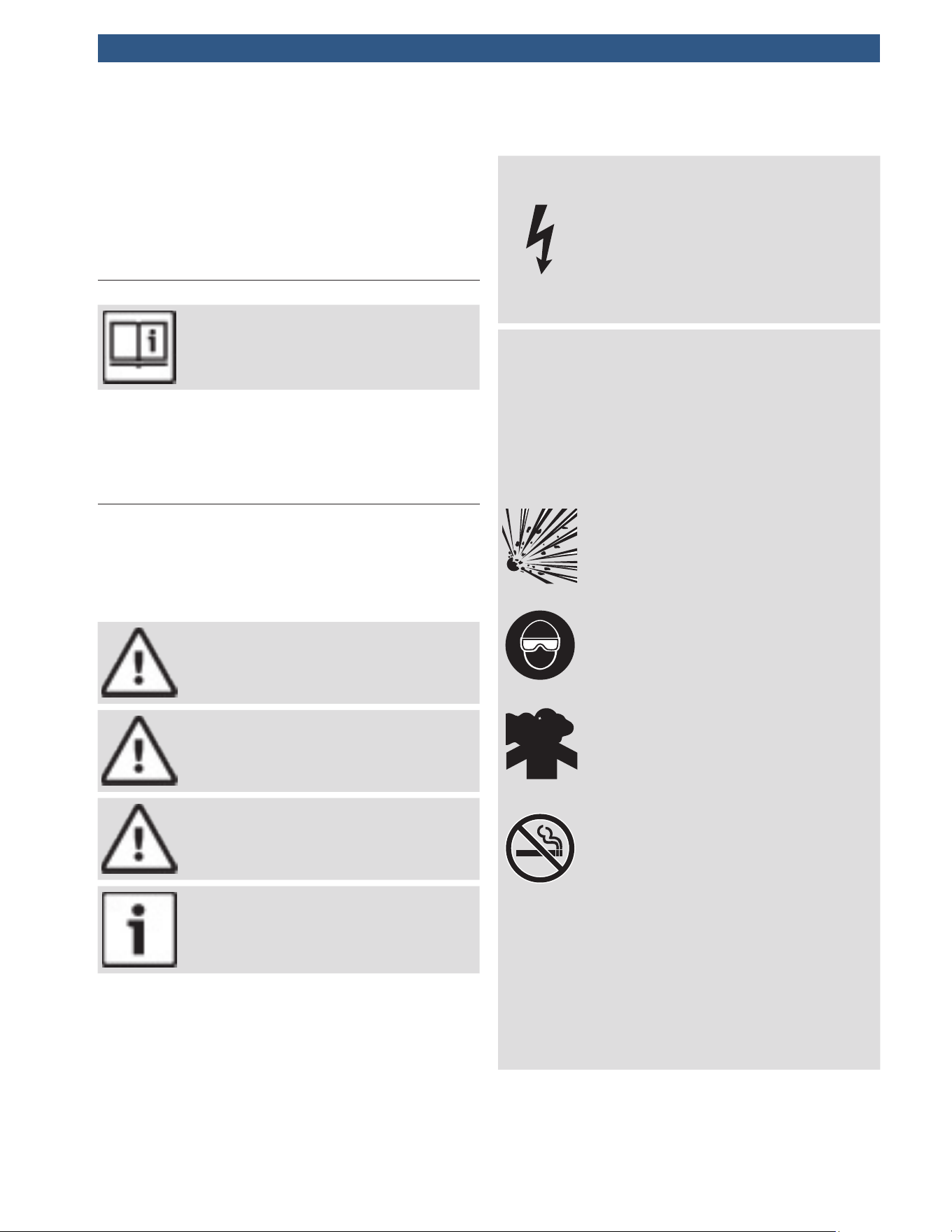
DANGER
Indicates a possible hazardous situation
which, if not avoided, will result in death or
serious injury to operator or bystanders.
WARNING
Indicates a possible hazardous situation
which, if not avoided, could result in death
or serious injury to operator or bystanders.
CAUTION
Indicates a possible hazardous situation
which, if not avoided, may result in moderate
or minor injury to operator or bystanders.
IMPORTANT
Indicates a condition which, if not avoided, may
result in damage to test equipment or vehicle.
2 Important Safety Warnings
and Instructions
WARNING
Risk of electric shock.
• Do not exceed voltage limits between
inputs indicated in the Specifications.
• Use extreme caution when working
with circuits that have voltage greater
than 60 volts DC or 24 volts AC.
Electric shock can cause injury.
WARNING
Risk of poisoning.
• Safety goggles and protective clothing must
be worn by the operator and any bystanders.
– Even if everyday glasses have
impact resistant lenses, they are
NOT safety glasses, and may not
provide adequate protection.
• Do not use this scan tool in environ-
ments where explosive vapors may
collect. These areas include:
– below-ground pits.
– confined areas.
– areas that are less than 18 inches
above floor.
• Use this scan tool in locations with
mechanical ventilation providing at
least 4 air changes per hour.
• Flammable fuel and vapors can ignite.
• Do not smoke, strike a match, or cause
a spark in the vicinity of the battery.
Battery gases can ignite.
• Avoid making an accidental connection
between the battery terminals. Do not place
uninsulated metal tools on the battery.
• When removing battery cables, remove
the ground cable first.
• Avoid sparks when connecting or dis-
connecting power leads to the battery.
• Make sure ignition is off, headlights
and other accessories are off and
vehicle doors are closed before dis-
connecting the battery cables.
– This also helps prevent damage to
on-board computer systems.
• Always disconnect the battery ground
connections before servicing electri-
cal system components.
Explosion can cause injury.
WARNING
Risk of poisoning.
• Use this scan tool in locations with
mechanical ventilation providing at
least 4 air changes per hour. Engine
exhaust contains odorless gas which
can be lethal.
• Route the exhaust outside while
testing with the engine running.
Poisoning can result in death or serious injury.
WARNING
Battery acid is a highly corrosive sulfuric acid.
• Safety goggles and protective gloves must be
worn by the operator and any bystanders.
– Even if your everyday glasses
have impact resistant lenses, they
are NOT safety glasses, and may
not provide adequate protection.
• Make sure someone can hear you or is
close enough to provide aid when
working near a battery.
• Have plenty of fresh water and soap nearby.
– If battery acid contacts skin,
clothing, or eyes, flush exposed
area with soap and water for 10
minutes. Seek medical help.
• Do not touch eyes while working near battery.
Battery acid can burn eyes and skin.
WARNING
Risk of fire.
• Safety goggles and protective clothing must
be worn by the operator and any bystanders.
– Even if your everyday glasses
have impact resistant lenses, they
are NOT safety glasses, and may
not provide adequate protection.
• Do not position your head directly in
front of or over the throttle body.
• Do not pour gasoline down the throt-
tle body when cranking or running the
engine, when working with fuel deliv-
ery systems or any open fuel line.
– Engine backfire can occur when
the air cleaner is out of position.
• Do not use fuel injector cleaning solvents
when performing diagnostic testing.
• Keep cigarettes, sparks, open flame
and other sources of ignition away
from vehicle.
• Keep a dry chemical (Class B) fire
extinguisher rated for gasoline, chemi-
cal and electrical fires in work area.
Fire can cause death or serious injury.
WARNING
Risk of flying particles.
• Safety goggles and protective gloves must
be worn by the operator and any bystand-
ers while using electrical equipment.
– Electrical equipment or rotating
engine parts can cause flying particles.
– Even if your everyday glasses
have impact resistant lenses, they
are NOT safety glasses, and may
not provide adequate protection.
Flying particles can cause eye injury.
WARNING
Risk of burns.
• Batteries can produce a short-circuit
current high enough to weld jewelry
to metal.
– Remove jewelry such as rings,
bracelets and watches before
working near batteries.
Short circuits can cause injury.
WARNING
Risk of burns.
• Do not remove radiator cap unless
engine is cold.
– Pressurized engine coolant may
be hot.
• Do not touch hot exhaust systems, mani-
folds, engines, radiators, sample probe.
• Wear insulated gloves when handling
hot engine components.
• Tester leads can become hot after extended
testing in close proximity to manifolds.
Hot components can cause injury.
WARNING
Risk of expelling fuel, oil vapors, hot steam,
hot toxic exhaust gases, acid, refrigerant
and other debris.
• Safety goggles and protective clothing
must be worn by the operator and any
bystanders.
– Even if your everyday glasses
have impact resistant lenses, they
are NOT safety glasses, and may
not provide adequate protection.
• Engine systems can malfunction,
expelling fuel, oil vapors, hot steam,
hot toxic exhaust gases, acid, refriger-
ant and other debris.
Fuel, oil vapors, hot steam, hot toxic
exhaust gases, acid, refrigerant and other
debris can cause serious injury.
WARNING
Engine compartment contains electrical
connections and hot or moving parts.
• Keep yourself, test leads, clothing and
other objects clear of electrical connec-
tions and hot or moving engine parts.
• Do not wear watches, rings, or loose
fitting clothing when working in an
engine compartment.
• Do not place tools or test equipment
on fenders or other places in engine
compartment.
• Barriers are recommended to help
identify danger zones in test area.
• Prevent personnel from walking
through test area.
Contacting electrical connections and hot
or moving parts can cause injury.
WARNING
Risk of injury.
• The scan tool should be operated by
qualified personnel only.
• Use the scan tool only as described in
the user’s manual.
• Use only manufacturer’s recom-
mended attachments.
• Do not operate the scan tool with
damaged cables.
• Do not operate the scan tool if it has
been dropped or damaged, until exam-
ined by a qualified service representative.
Operation of the scan tool by anyone other
than qualified personnel may result in injury.
P R N D L 2
WARNING
Risk of unexpected vehicle movement.
• Block drive wheels before performing
a test with engine running.
• Unless instructed otherwise:
– set parking brake
– put gear selector in neutral for
manual transmissions
– put gear selector in park for
automatic transmissions
– disconnect release mechanism on
the automatic parking brake
release for testing and reconnect
when testing is completed.
• Do not leave a running engine unattended.
A moving vehicle can cause injury.
CAUTION
Risk of equipment or circuit damage.
• Unless specifically directed by manufac-
turer, make sure ignition is off before
connecting or disconnecting connectors
or any vehicle electrical terminals.
• Do not create a short between battery
terminals with a jumper wire or tools.
Improper equipment use can cause equip-
ment or circuit damage.
CAUTION
Misdiagnosis may lead to incorrect or
improper repair and/or adjustment.
• Do not rely on erratic, questionable,
or obviously erroneous test informa-
tion or results.
– If test information or results are
erratic, questionable, or obviously
erroneous, make sure all connec-
tions and data entry information
are correct and test procedures
were performed correctly.
– If test information or results are
still suspicious, do not use them
for diagnosis.
Improper repair and/or adjustment may
cause vehicle or equipment damage or
unsafe operation.
DANGER
Some vehicles are equipped with air bags.
• Follow service manual warnings when
working around air bag components
or wiring.
– If service manual instructions are
not followed, an air bag may deploy
unexpectedly, resulting in injury.
– Note an air bag can still deploy
several minutes after ignition key
is off (or even if vehicle battery is
disconnected) because of a
special energy reserve module.
An air bag opening can cause injury.

3 Getting Started
3.1 Introduction
The scan tool was developed by experts in the automo-
tive service industry to help diagnose vehicles and assist
in troubleshooting procedures.
The scan tool monitors vehicle events and retrieves
codes from the vehicle’s control modules to help pin-
point problem areas.
All information, illustrations and specifications contained
in this manual are based on the latest information avail-
able from industry sources at the time of publication.
No warranty (expressed or implied) can be made for its
accuracy or completeness, nor is any responsibility
assumed by the manufacturer or anyone connected with
it for loss or damages suffered through reliance on any
information contained in this manual or misuse of
accompanying product. The manufacturer reserves the
right to make changes at any time to this manual or
accompanying product without obligation to notify any
person or organization of such changes.
3.2 Download Scanning Suite
1.
Download the Scanning Suite PC application.
Scan-ning Suite is NOT required to operate the
scan tool.
2. Install the downloaded Scanning Suite application
before connecting the scan tool to the PC.
To be able to use Scanning Suite the PC must meet
the following minimum requirements:
• Microsoft Windows XP, Vista, 7, and 8
• Adobe Acrobat Reader
• Screen Resolution of 800 x 600
– If screen resolution is 800 x 600, in Display
Properties, Settings Tab, set Font Size to
Small Fonts.
3. Use Scanning Suite to determine if any updates are avail-
able for your tool by clicking Check for Update button.
4. Check for updates to Use Scanning Suite by clicking
on the Check For Scanning Suite Update button. This
should be done before checking for Tool Updates.
You can also configure the Scanning Suite Frequency (SS
Frequency) to automatically check every xx minutes.
3.3 OBDII
On-board diagnostics version II (OBDII) is a system that
the Society of Automotive Engineers (SAE) developed to
standardize automotive electronic diagnosis.
Beginning in 1996, most new vehicles sold in the United
States were fully OBDII compliant.
Technicians can now use the same tool to test any OBDII
compliant vehicle without special adapters. SAE estab-
lished guidelines that provide:
• A universal OBDII data link connector, called the
DLC, with dedicated pin assignments.
• A standard location for the DLC, visible under the
dash on driver’s side.
• A standard list of diagnostic trouble codes (DTCs)
used by all manufacturers.
• A standard list of parameter identification (PID) data
used by all manufacturers.
• Ability for vehicle systems to record operating condi-
tions when a fault occurs.
• Expanded diagnostic capabilities that records a
code whenever a condition occurs that affects
vehicle emissions.
• Ability to clear stored codes from the vehicle’s
memory with a scan tool.
3.4 SAE Publications
SAE has published hundreds of pages of text defining a
standard communication protocol that establishes hard-
ware, software, and circuit parameters of OBDII sys-
tems. Unfortunately, vehicle manufacturers have differ-
ent interpretations of this standard communications
protocol. As a result, the generic OBDII communications
scheme varies, depending on the vehicle. SAE publishes
recommendations, not laws, but the Environmental
Protection Agency (EPA) and California Air Resources
Board (CARB) made many of SAE’s recommendations
legal requirements that vehicle manufacturers were
required to phase in over a three-year period. Beginning
in 1994, vehicles with a new engine management com-
puter (about 10% of each manufacturers fleet) were sup-
posed to comply with OBDII standards. For 1995, OBDII
systems were to appear on about 40% of the new vehi-
cles sold in the United States. Some of the 1994-1995
OBDII systems were not fully compliant, so the Govern-
ment granted waivers to give manufacturers time to
fine-tune their systems. Beginning in 1996, most of the
new vehicles sold in the United States were fully OBDII
compliant.
3.5 OBDII Data Link Connector (DLC)
The OBDII data link connector (DLC) allows the scan
tool to communicate with the vehicle’s computer(s).
Beginning in 1996, vehicles sold in the United States use
the J1962 (OBDII) DLC, a term taken from a physical
and electrical specification number assigned by the SAE
(J1962). The DLC should be located under the dash-
board on the driver’s side of the vehicle. If the DLC is
not located under the dashboard as stated, a decal
describing its location should be attached to the dash-
board in the area the DLC should have been located.
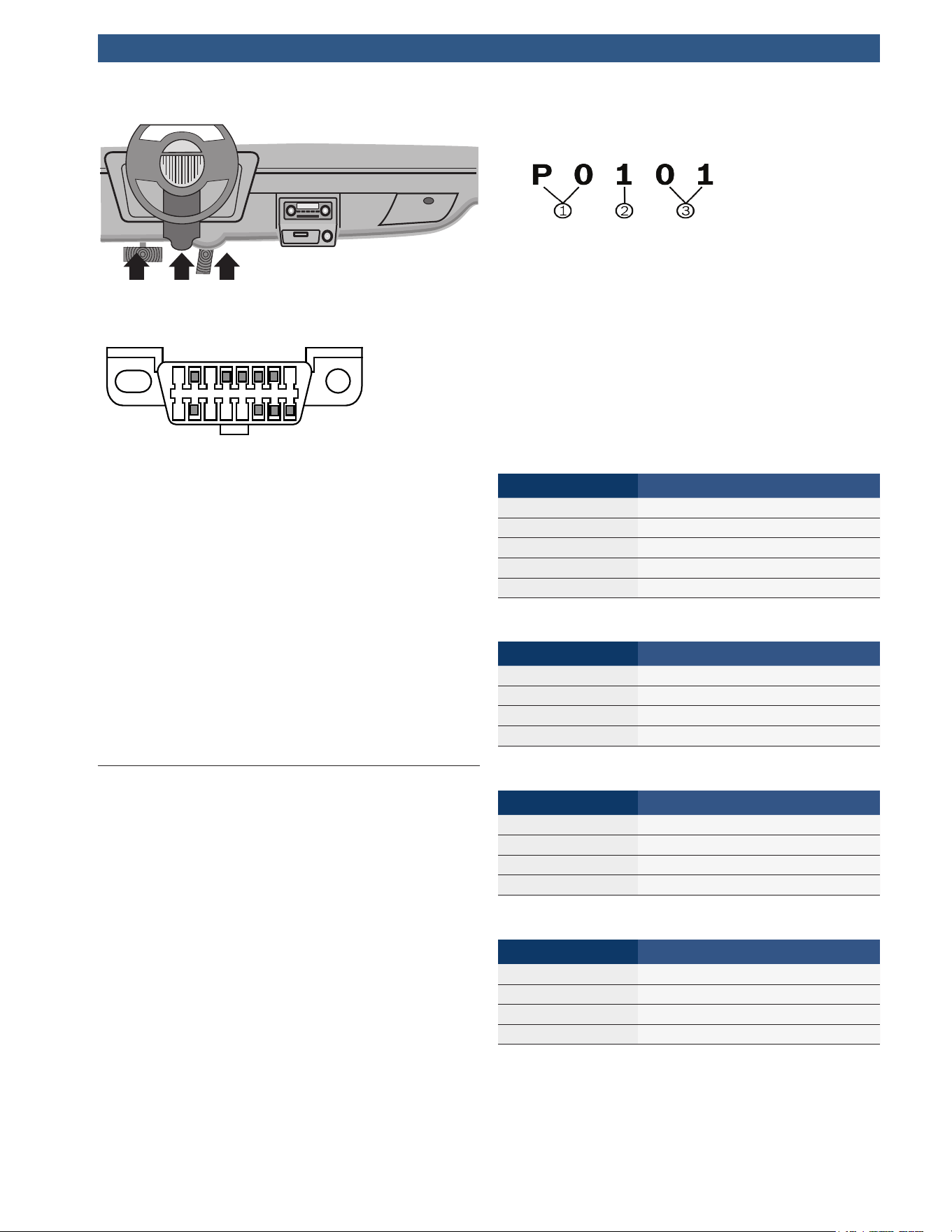
OBD II Data Link Connector (DLC) Pins
1 8
9 16
1. Manufacturer reserved
2. J1850 bus+
3. Manufacturer reserved
4. Chassis ground
5. Signal ground
6. CAN high, J-2284
7. K line, ISO 9141-2 & ISO/DIS 14230-4
8. Manufacturer reserved
9. Manufacturer reserved
10. J1850 Bus-
11. Manufacturer reserved
12. Manufacturer reserved
13. Manufacturer reserved
14. CAN low, J-2284
15. L line, ISO 9141-2 & ISO/DIS 14230-4
16. Battery power
3.6 OBDII Diagnostic Trouble Codes
(DTCs)
J2012 and ISO 15031-6 are standards for all DTCs,
established by the SAE, International Organization for
Standardization (ISO) and other governing bodies.
• Codes and definitions assigned by these specifica-
tions are known as Generic OBDII codes.
• OBDII requires compliance to these standards for all
cars, light trucks, APVs, MPVs, and SUVs sold in the
United States.
• Codes not reserved by the SAE are reserved for the
manufacturer and referred to as Manufacturer Spe-
cific Codes.
DTCs are used to help determine the cause of a problem
or problems with a vehicle.
• DTCs consist of a five-digit alphanumeric code.
• The DTC format and general code types are shown below.
1. Bx = Body
Cx = Chassis
Px = Powertrain
Ux = Network communication
x - 0, 1, 2, or 3
2. Vehicle specific system
3. Specific fault designation
Example:
P0101 = Mass or volume air flow cir cuit range/perfor-
mance problem
Powertrain Codes
Code Type
P0xxx Generic (SAE)
P1xxx Manufacturer specific
P2xxx Generic (SAE)
P30xx–P33xx Manufacturer specific
P34xx–P39xx Generic (SAE)
Chassis Codes
Code Type
C0xxx Generic (SAE)
C1xxx Manufacturer specific
C2xxx Manufacturer specific
C3xxx Generic (SAE)
Body Codes
Code Type
B0xxx Generic (SAE)
B1xxx Manufacturer specific
B2xxx Manufacturer specific
B3xxx Generic (SAE)
Network Communication Codes
Code Type
U0xxx Generic (SAE)
U1xxx Manufacturer specific
U2xxx Manufacturer specific
U3xxx Generic (SAE)
4 Using the Scan Tool
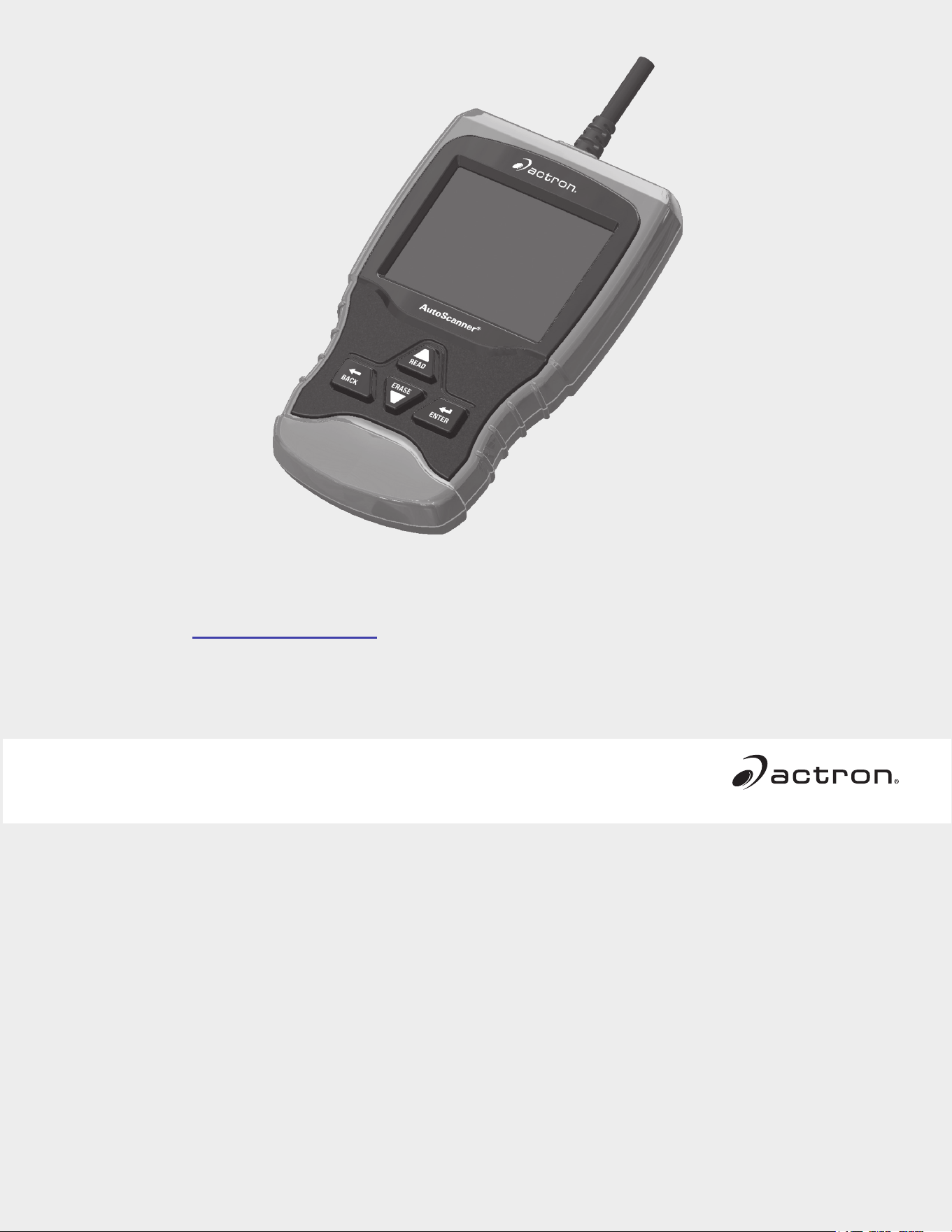
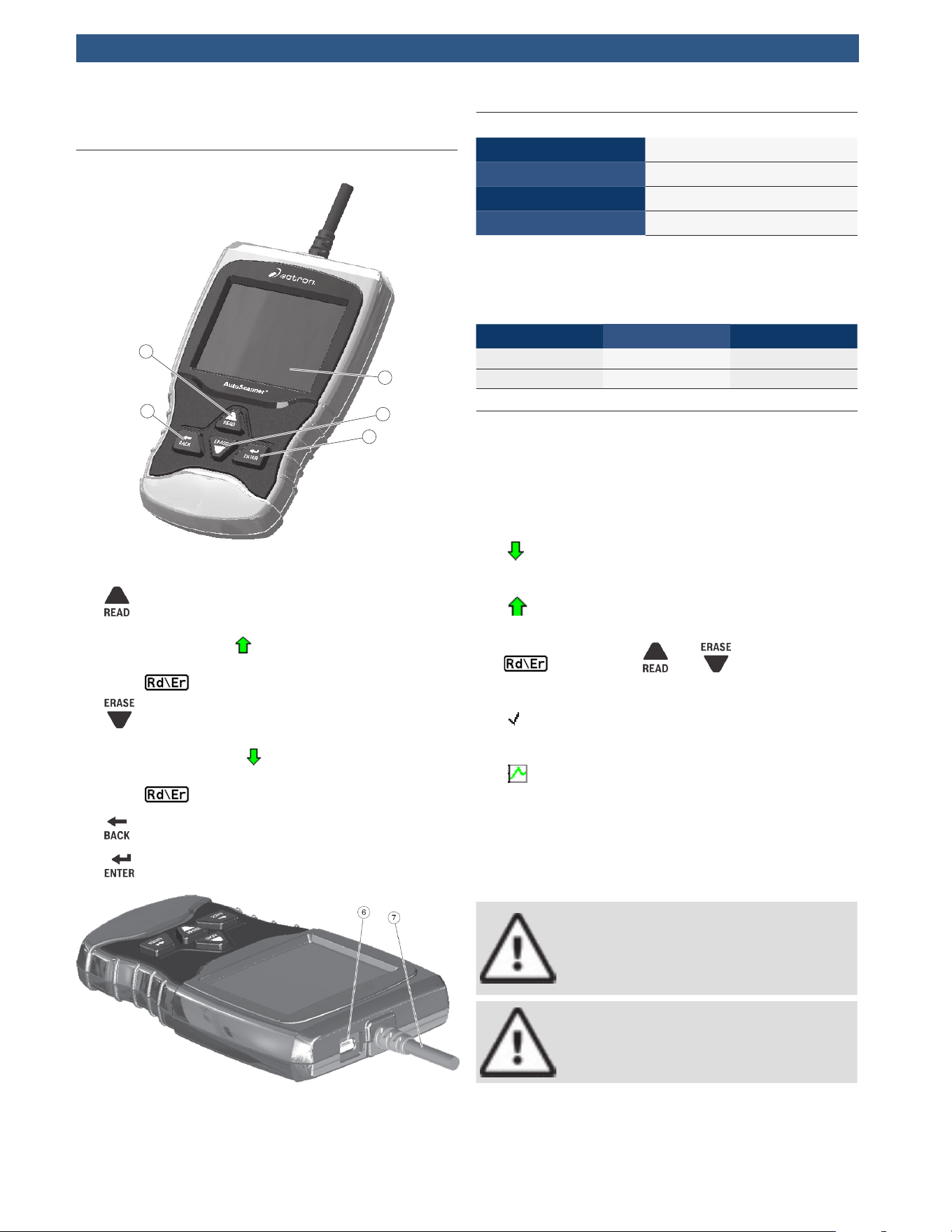
4.1 The Scan Tool
1
3
5
2
4
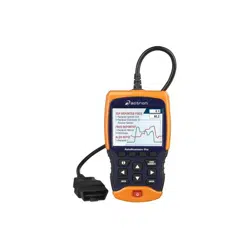
1. LCD display (color, backlit, QVGA resolution)
2. key performs the Read Codes function and
scrolls back through the screens. Press this key
when an up arrow (
) appears on the display to
scroll backwards, or press and hold for 2 seconds
when
appears on the display to read codes.
3. key performs the Erase Codes function and
scrolls forward through the screens. Press this key
when a down arrow (
) appears on the display to
scroll forward, or press and hold for 2 seconds
when
appears on the display to erase codes.
4. key returns to previous screen.
5. key selects item.
6. USB port provides USB connection for the computer.
7. DLC cable provides connection for vehicle interface.
8. Serial number plate (on back; not shown).
4.2 Specifications
Display Color, backlit, QVGA resolution
Operating Temperature 0 to 50°C (32 to 122°F)
Storage Temperature -20 to 70°C (-4 to 158°F)
External Power 7 to 16 Volts
A minimum of 8.0 V is required for most control modules
to operate properly in a vehicle.
Dimensions
Height Width Depth
5.6 inches 3.5 inches 0.9 inches
142 mm 89 mm 23 mm
4.3 Display
The display has a large viewing area for displaying mes-
sages, instructions, and diagnostic information.
The back-lit liquid crystal display (LCD) is a QVGA pixel
display. Characters used to help operate the scan tool
are:
•
Indicates additional information is available by
scrolling down.
• Indicates additional information is available by
scrolling up.
•
Indicates the and hot keys are
active.
• Indicates data is available for items on the
Review Data Menu.
•
Indicates graphical viewing of data items is
available in View Data.
Keypad
The keypad is used to move through the different menus
of the scan tool. The scan tool’s software is designed for
ease in operating and navigating through menus.
CAUTION
Do not use solvents such as alcohol to clean
keypad or display. Use a mild nonabrasive
detergent and a soft, cotton cloth.
CAUTION
Do not soak keypad as water might find its
way inside the scan tool.
4.4 Power
Vehicle Power
When the scan tool is connected to the vehicle’s DLC,
the tool is powered by the vehicle and will automatically
turn on once connected.
USB Power
When the tool is connected to a PC via the USB cable
(not provided), the tool will automatically power up.
Refer to “6.2 Scan Tool Does Not Power Up”.
4.5 System Setup
System Setup allows:
• Measurement units to be changed.
• Scan tool information to be viewed.
• Display to be checked.
• Operation of the keypad to be checked.
• Memory of the tool to be checked.
• Scan tool to be upgraded.
• Language to be changed.
• Long PID names to be turned ON or OFF.
From the Diagnostic Menu:
1. Select System Setup.
• Use the
key until System Setup is high-
lighted.
• Press .
Diagnostic Menu
Diagnostic Monitor Tests
On-Board Systems
Charging System Monitor
Vehicle Information
Component Locator
Acronyms
Review Data
Code Lookup
System Setup
Rd\Er
Changing Measurement Units
English is the default measurement unit. Measurement
units can be changed in View and Record Data.
From System Setup screen:
1. Select English/Metric.
• Use the
and keys until English/Metric
is highlighted.
• Press .
System Setup
Language Setup
Long PID Names
Tool Information
Display Test
Keypad Test
Memory Test
Program Mode
English/Metric
2. Select desired measurement unit.
• Use the
and keys until the desired unit
is highlighted.
• Press .
Measurement Units
English
Metric
3. Save measurement setting.
• Press
.
Language Setup
Language Setup selection allows the user to change the
language used by the Tool. English is the default lan-
guage.
From System Setup screen:
1. Select Language Setup.
• Use the
and keys until Language Setup
is highlighted.
• Press .
System Setup
Language Setup
Long PID Names
Tool Information
Display Test
Keypad Test
Memory Test
Program Mode
English/Metric
2. Select desired measurement unit.
• Use the
and keys until the desired
language is highlighted.
• Press .
Language Setup
English
Español
Francais
3. Save language setting.
• Press
.
NOTE: When Spanish or French translation is not known,
English will be shown.
Long PID Names
Long PID Names allows the user to enable/disable the tool
scrolling the complete PID name on the bottom line of the
display while viewing Live Data or viewing Freeze Data.
From System Setup screen:
1. Select Long PID Names.
• Use the
and keys until Long PID
Names is highlighted.
• Press .
System Setup
Language Setup
Long PID Names
Tool Information
Display Test
Keypad Test
Memory Test
Program Mode
English/Metric
2. Select ON or OFF.
• Use the
and keys until the desired
option is highlighted.
• Press .
Long PID Names
ON
OFF
3. Save Long PID Names setting.
• Press
.
Tool Information
Tool Information allows the user to view specific tool
information that may be needed when contacting cus-
tomer service.
From System Setup screen:
1. Select Tool Information.
• Use the
and keys until Tool Informa-
tion is highlighted.
• Press .
System Setup
Language Setup
Long PID Names
Tool Information
Display Test
Keypad Test
Memory Test
Program Mode
English/Metric
2. View information.
• Serial Number (Serial No:)
• Software ID (SW ID:)
• Hardware Version (HW Ver:)
• Boot Version (Boot Ver:)
• Product ID (Prod ID:)
• Board ID (Board ID:)
• Burn Date (Burn Date:)
• Burn Location (Burn Loc:)
a
Tool Information
SW ID
HW Ver
Boot Ver
Prod ID
Board ID
Burn Date
Burn Loc
Serial No
773B
01
01
23
35
--/--/--
--
--
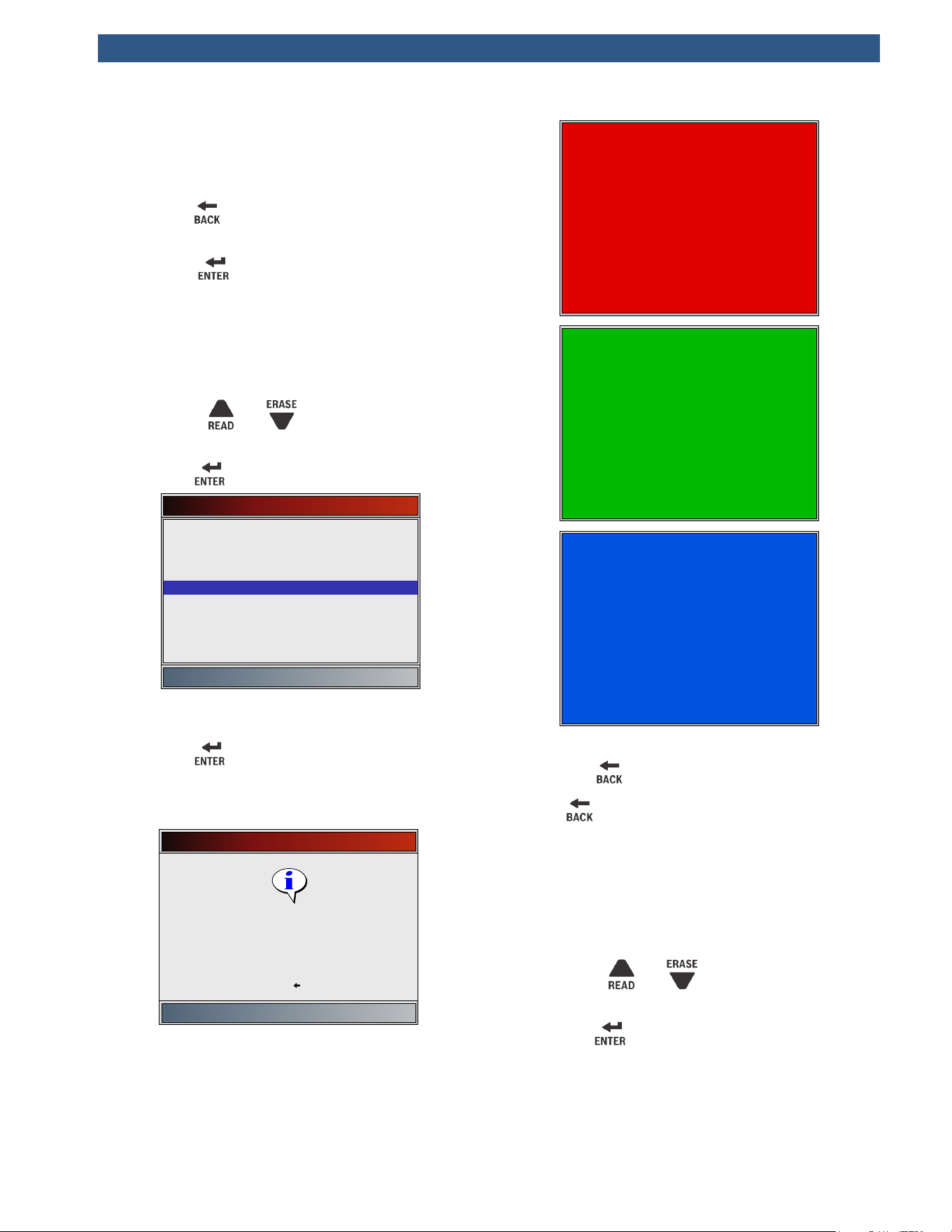
3. Record Tool Information.
• Space is provided inside the front cover of this
manual to write down the scan tool information.
4. Return to System Setup menu.
• Press
or
• press
.
Display Test
The Display Test is used to check the display. The test
fills every pixel of the display with a solid color.
From System Setup screen:
1. Select Display Test.
• Use the
and keys until Display Test is
highlighted.
• Press .
System Setup
Language Setup
Long PID Names
Tool Information
Display Test
Keypad Test
Memory Test
Program Mode
English/Metric
2. Start Display Test.
• Press
.
3. Look for missing spots.
• The first screen displayed says, “Check for
missing spots in the display.”
Display Test
Check for missing spots in
the display
Press BACK to exit
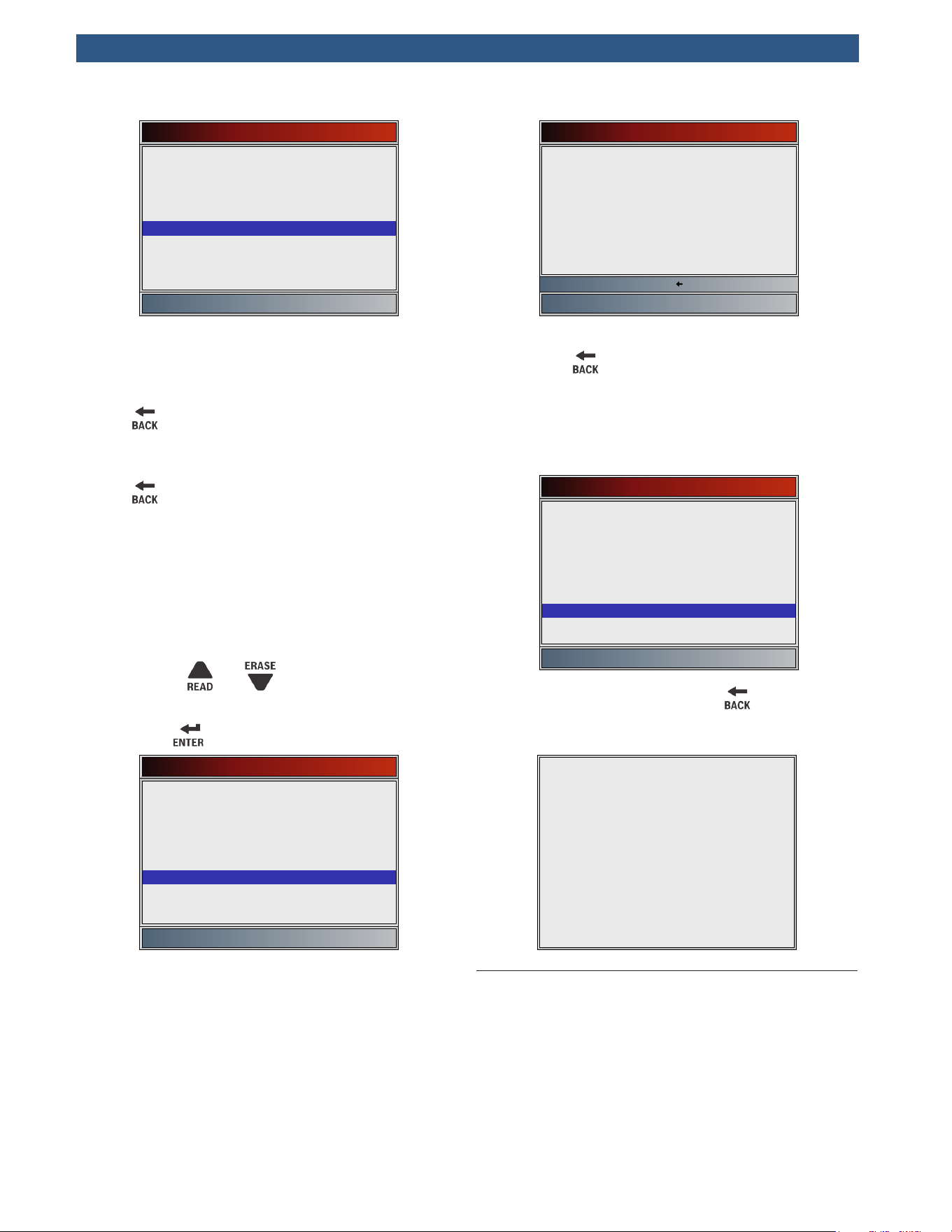
• Solid red, green, and blue screens are displayed.
• These four screens will continue in succession
until
is pressed.
4. Press to exit the test and return to the System
Setup menu.
Keypad Test
The Keypad Test is used to verify that the keys are work-
ing correctly.
From System Setup screen:
1. Select Keypad Test.
• Use the
and keys until Keypad Test is
highlighted.
• Press .
System Setup
Language Setup
Long PID Names
Tool Information
Display Test
Keypad Test
Memory Test
Program Mode
English/Metric
2. Press a key.
• The on-screen key will appear depressed, and
the key name will appear bold.
•
will return the tool to the System Setup
screen.
• If the System Setup menu does not return, the
key is not functioning correctly.
Memory Test
The Memory Test will test RAM and flash ROM. Run the
Memory Test if the tool has trouble:
• Playing back recorded data.
• Displaying trouble code definitions.
From System Setup screen:
1. Select Memory Test.
• Use the
and keys until Memory Test is
highlighted.
• Press .
System Setup
Language Setup
Long PID Names
Tool Information
Display Test
Keypad Test
Memory Test
Program Mode
English/Metric
• Memory Test may take several minutes to com-
plete.
• Memory Test results display:
– If no problems were detected, then
“Passed” is displayed.
– If RAM fails, an error message is shown.
– If FLASH fails, a checksum is shown.
Memory Test
INT RAM
INT FLASH
Passed
68ee
Press BACK to exit
2. Return to System Setup menu.
• Press
.
Program Mode
The Program Mode is used for updating the scan tool.
Instructions are provided with upgrades. Refer to “3.2
Download Scanning Suite”.
System Setup
Language Setup
Long PID Names
Tool Information
Display Test
Keypad Test
Memory Test
Program Mode
English/Metric
• If the Program Mode is entered, is not opera-
tional. The tool must be powered off to exit Pro-
gram Mode and then restarted to continue.
PROGRAM MODE
See User Manual
Connect Tool to PC
with USB Cable
4.6 Vehicle-Specific Features
Review Data
The Review Data function allows the user to view the
information from the previous vehicle tested. The scan
tool can be powered from vehicle or PC using USB to
use the Review Data function.
Review Data is a mixture of all previous vehicles
scanned. If the origin of the data is questionable, per-
form all functions for the currently selected vehicle.
1. Select Review Data.
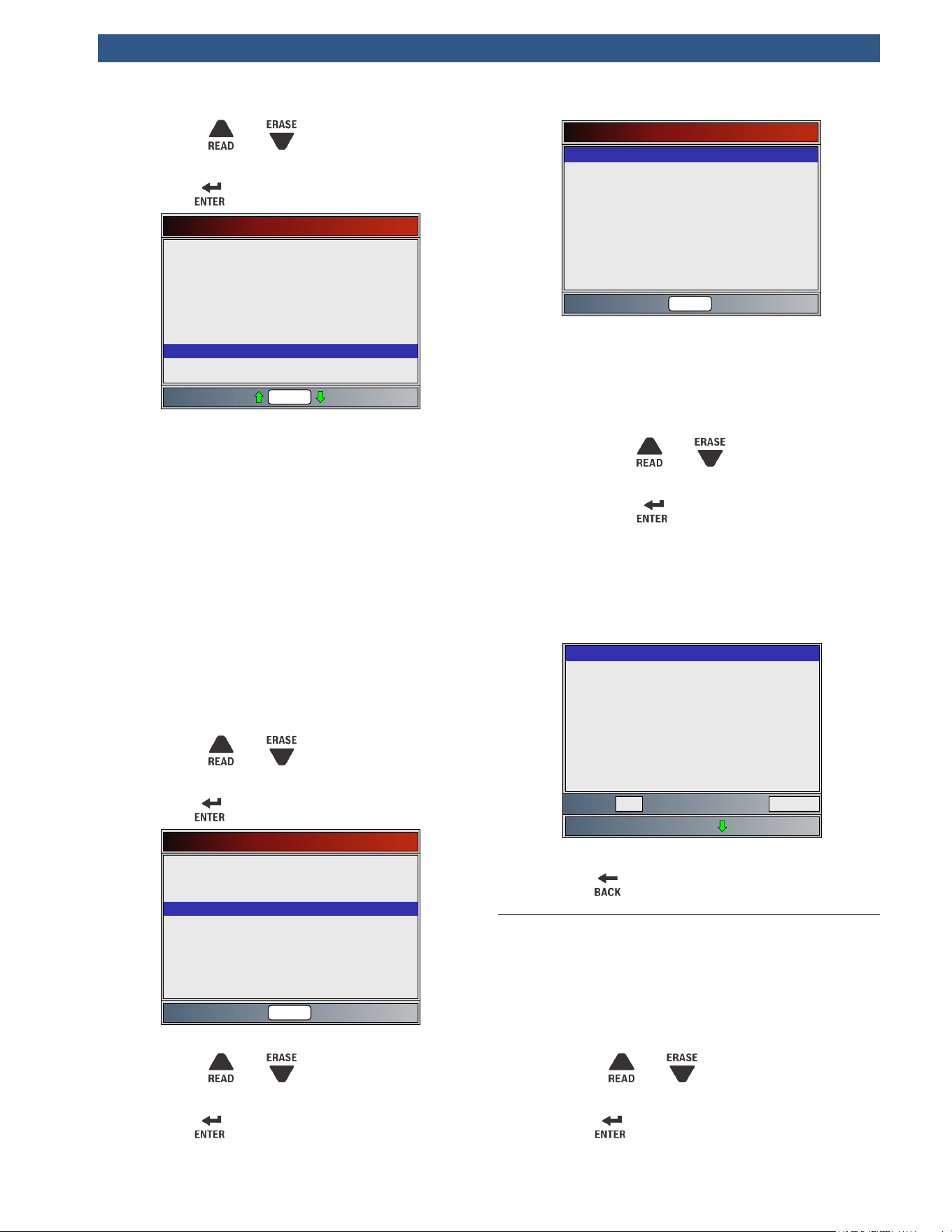
• Use the and keys until Review Data is
highlighted.
• Press .
Diagnostic Menu
O2 Monitor Tests
Diagnostic Monitor Tests
On-Board Systems
Charging System Monitor
Vehicle Information
Component Locator
Acronyms
Review Data
Code Lookup
Rd\Er
2. Follow prompts and instructions provided by scan tool
and then select item whose data you wish to review.
• The Review Data menu shows a checkmark next
to the item(s) that has data.
• If there is not a checkmark next to the item,
then this item can’t be selected until the appro-
priate function is run from the Diagnostic Menu.
•
See “Recording” for detailed
instructions on this function.
Recording
The Recording function is used to play back a recording.
This function is very similar to View Data. The only differ-
ence is that View Data is real-time viewing of PIDs, while
Recording is a viewing of previously recorded PIDs.
From the Review Data menu:
1. Select Recording.
• Use the
and keys until Recording is
highlighted.
• Press .
Review Data
✓DTCs (Codes)
✓State OBD Check
✓Recording
✓View Freeze Data
✓O2 Monitor Tests
✓Diagnostic Monitor Tests
✓Vehicle Information
✓I/M Monitors
Rd\Er
2. Select Playback Recording.
• Use the
and keys until Playback
Recording is highlighted.
• Press .
Playback Options
Long PID Names
English/Metric
Playback Recording
Rd\Er
• The recording has frame number and timestamp
(in seconds).
– Negative frames and timestamps indicate
data recorded before trigger event.
– Positive frames and timestamps indicate
data recorded after trigger event.
– Use the and keys to view recorded
PID data within each frame.
– Use the key to scroll back and forth
through frames.
– See “Appendix A—PID Definitions”.
• Different vehicles communicate at different
speeds and support a different number of PIDs.
Therefore, the maximum number of frames that
can be recorded varies.
ABSLT TPS(%)
CALC LOAD(%)
COOLANT(°C)
ENG SPEED(RPM)
EQ RATIO11
FUEL SYS 1
FUEL SYS 2
IAT(°C)
IGN ADV(°)
0.0
0.0
-40
0
1.999
N/A
N/A
-40
0.0
Frame: Time: -3.8-1
3. Return to Review Data menu.
• Press
.
4.7 Code Lookup
Code Lookup is used to look up definitions of DTCs
stored in the scan tool. The scan tool can be powered
from vehicle or from a PC using USB to use the Code
Lookup function.
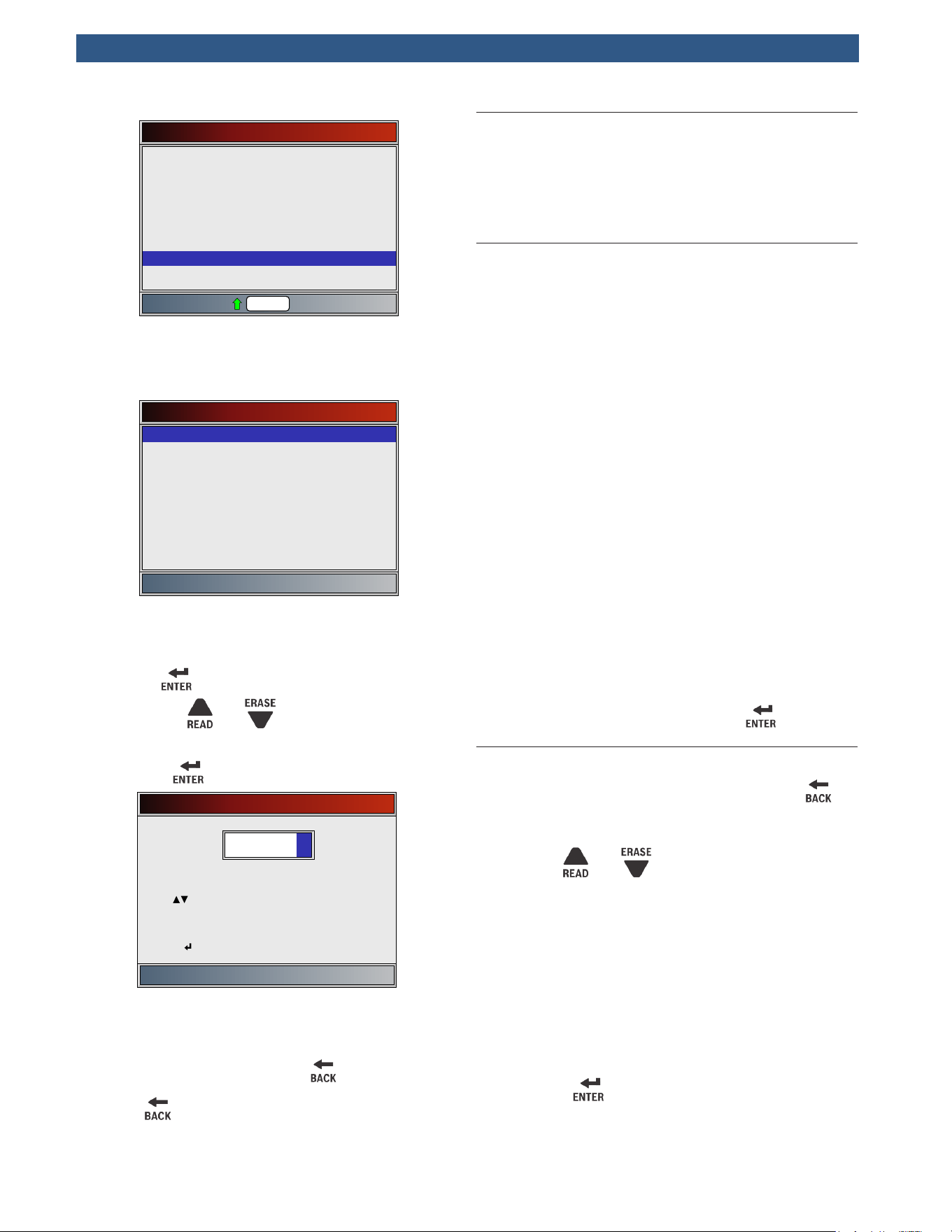
From the Diagnostic menu:
1. Select Code Lookup.
• Use the
and keys until Code Lookup is
highlighted.
• Press .
Diagnostic Menu
Diagnostic Monitor Tests
On-Board Systems
Charging System Monitor
Vehicle Information
Component Locator
Acronyms
Review Data
Code Lookup
System Setup
Rd\Er
2. Select the appropriate module for the code.
• The Select Module screen may not be shown
for every vehicle. If not shown, the DTC will be
looked up as OBDII/EOBD.
Select Module
Engine
ABS
All of the Above
OBDII/EOBD
3. Enter code.
• All characters must be entered.
• Only one character can be changed at a time.
• Use
to advance to the next digit.
• Use the and keys to change the
selected digit.
• Press .
Code Lookup
P2122
moves to next digit
alters selected digit
• If the definition could not be found, the scan
tool displays “No DTC Definition Found.” See
Service Manual.
4. To look up another DTC, press .
5. Press again to return to the Diagnostic Menu.
4.8 Locating Data Link Connector
• The OBDII data link connector (DLC) is usually
located under the driver’s side dash.
• Refer to vehicle user manual for DLC location.
4.9 Connect the Tool
1. Locate the OBDII data link connector (DLC) under
the steering column. If the connector is not there, a
label should be there indicating the whereabouts of
the connector.
2. If necessary, remove the cover from the vehicle
connector.
3. Turn the ignition switch to the ON position. Do not
start the engine.
4. Plug the OBDII connector attached to the tool into
the DLC.
5. The tool will attempt to identify the vehicle. If suc-
cessful, the vehicle identified will be displayed. If
vehicle couldn‘t be identified, menus will be shown
for you to select the vehicle manually.
The tool can support one previous vehicle in the
garage. If you already have a previous vehicle in your
garage, the tool will automatically overwrite the
previous vehicle with the currently selected one. All
previous scanned data in Review Data will be a
combination of all previous vehicles. Run all func-
tions again to ensure that all data was scanned from
the current vehicle.
6. Review Quick Test results.
7. Go to Diagnostic Menu by pressing .
4.10 Vehicle Selection
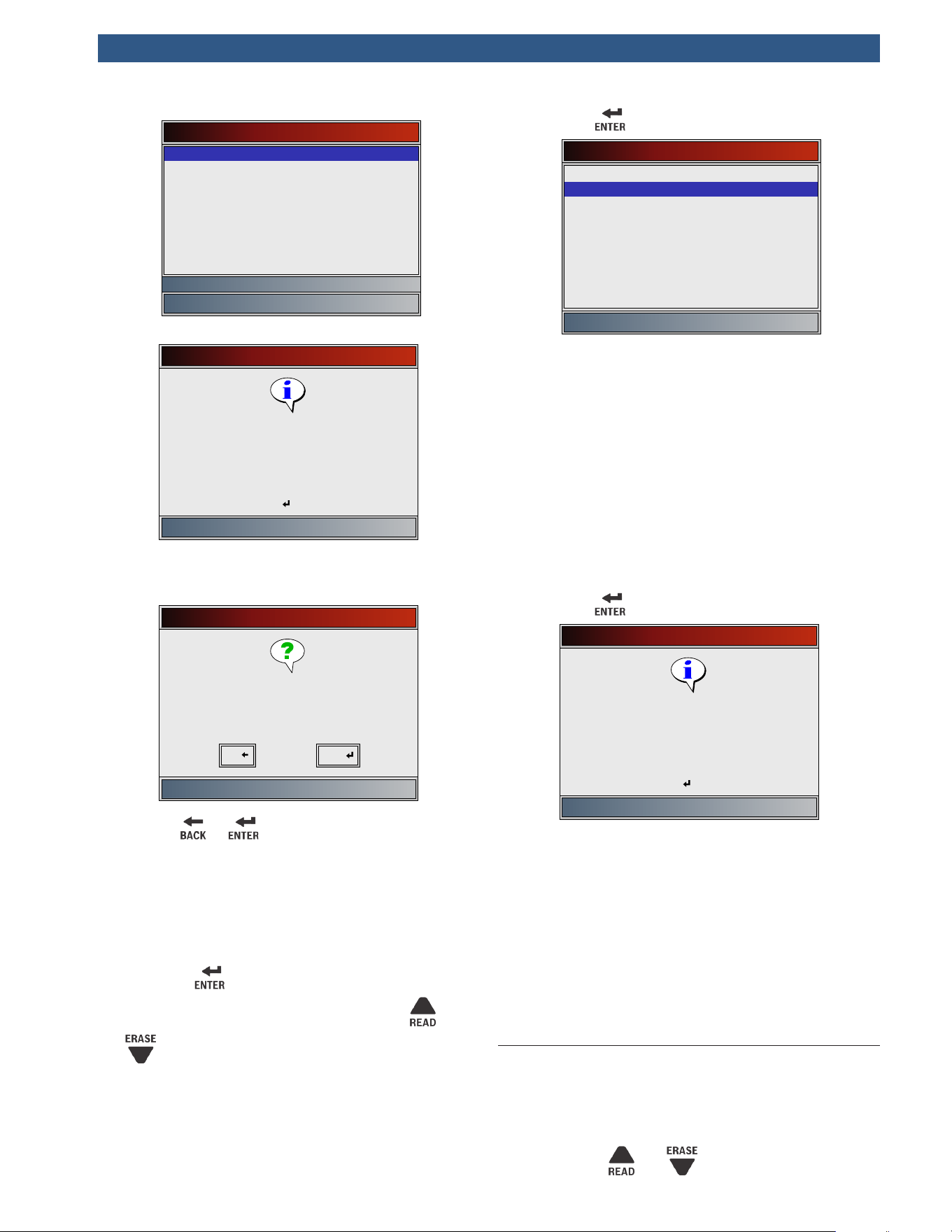
If the scan tool failed to identify the vehicle, or if
was pressed from the Diagnostic Menu, the Vehicle
Selection screen will appear.
1. Use the and keys to select AutoID™,
Manual or Prev:.
• If the vehicle is a model year 2000 or newer,
select AutoID.
• If the vehicle is 1999 or older, or if the vehicle is
2000 to 2004 but does not support AutoID™,
select Manual and go to Step 3.
• If the previously tested vehicle listed after Prev:
is desired, select Prev:. If this is the first time
the tool has been used, the space after Prev:
will be blank.
• Press
.
Select Vehicle
AutoID (>=2000)
Manual (<=1999)
Prev: 06 Lancer
2000-04 vehicles may support Aut
• A Turn Key Off screen will display.
Turn Key Off
Please turn the key off for
10 seconds then turn the key
on.
Press ENTER to continue
2. After 10 seconds, turn key ON.
• If the vehicle is supported, the VIN number and
essential vehicle data will display.
Select Vehicle
Pre: 06 Lancer
Is this correct?
No Yes
3. Use the or key to select YES or NO.
• If YES is selected, the Tool may display more
selections to further select the vehicle because
not every aspect of vehicle identification is
contained in the VIN.
• If NO is selected, the Tool proceeds to manual
selection.
• Press
.
4. If Manual was selected in Step 1, use the and
keys to select:
• OBDII/EOBD
• US
• Europe
• Asia
• Prev:
• Press .
Vehicle?
US
Europe
Asia
Prev: 06 Lancer
OBDII/EOBD
The OBDII/EOBD selection is provided for vehicles that
are not listed, however, selection of the specific vehicle
is recommended for maximum tool utility.
The previously selected vehicle will appear as the Prev:
menu selection after Asia.
• To select a vehicle other than the previous
vehicle, choose between OBDII/EOBD, US,
Europe, or Asia, and continue making selections
until the vehicle selection is complete.
The following screen only displays when power comes
from vehicle.
• Turn vehicle key OFF for 10 seconds.
• Turn vehicle key back to the ON position.
• Press
.
Turn Key Off
Please turn the key off for
10 seconds then turn the key
on.
Press ENTER to continue
If vehicle power is not detected, a screen is shown to
verify tool connection.
If a vehicle other than the previous vehicle is selected,
the tool will automatically overwrite the previous vehicle
with the currently selected one. All previous scanned
data in Review Data will be a combination of all previ-
ous vehicles. Run all functions again to ensure that all
data was scanned from the current vehicle.
If the previous vehicle is selected, all stored vehicle data
will be retained until it is overwritten by the correspond-
ing function selected from the Diagnostic Menu.
4.11 Acronyms
The Acronyms function allows the user to view acro-
nyms and abbreviations used by the scan tool.
From the Diagnostic Menu.
1. Select Acronyms.
• Use the
and keys until Acronyms is
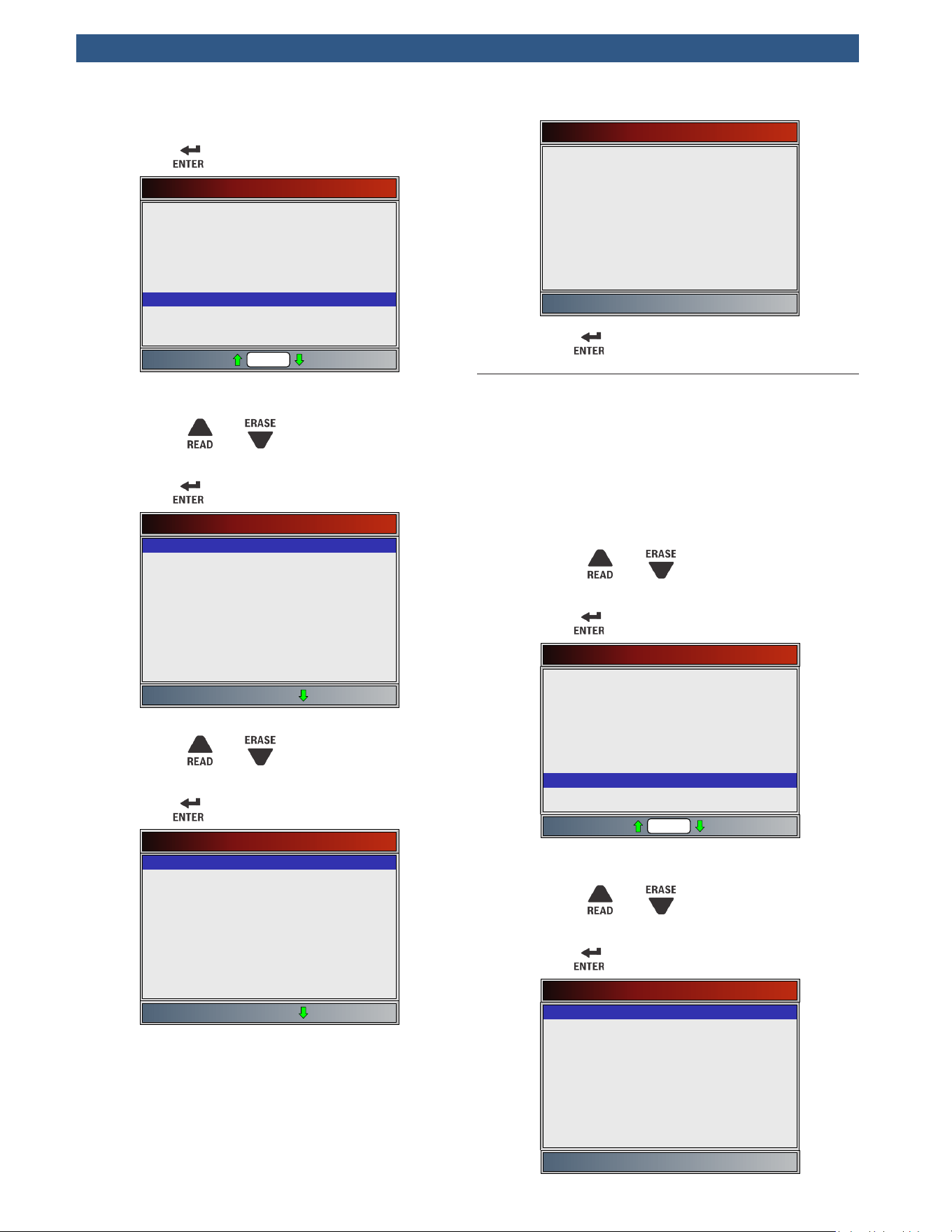
highlighted.
• Press
.
Diagnostic Menu
O2 Monitor Tests
Diagnostic Monitor Tests
On-Board Systems
Charging System Monitor
Vehicle Information
Component Locator
Acronyms
Review Data
Code Lookup
Rd\Er
2. Select the alphabetical group range for the desired
acronym.
• Use the and keys until the desired
group range is highlighted.
• Press .
Acronyms
# - 24X C
24X S - 5
A - AF 1/1
AF 1/2 - AI
Al - B-
BA - CA
CA - CL
Cl - c
C - DIA
3. Select the acronym.
• Use the
and keys until the desired
acronym is highlighted.
• Press .
Acronyms
# Of Emiss
# Of Pwrt
#CMP/CKP LOSS
#TRP SNC MISF
#TRPS SNC MISF
% Alcohol
% GRADE
% Methanol
% of Pdl
4. View selected acronym.
# Of Emiss
Number Of Emission Related DTC
• Press to return to the Diagnostic Menu.
4.12 Component Locator
Component Locator provides a vehicle-specific location
of components found on the selected vehicle.
Component Locator can be selected from the Diagnos-
tic Menu. Because Component Locator provides vehicle-
specific component locations, a previous vehicle must
be stored in the scan tool.
From the Diagnostic Menu.
1. Select Component Locator.
• Use the
and keys until Component
Locator is highlighted.
• Press .
Diagnostic Menu
View Freeze Data
Drive Cycle Monitor
O2 Monitor Tests
Diagnostic Monitor Tests
On-Board Systems
Charging System Monitor
Vehicle Information
Component Locator
Acronyms
Rd\Er
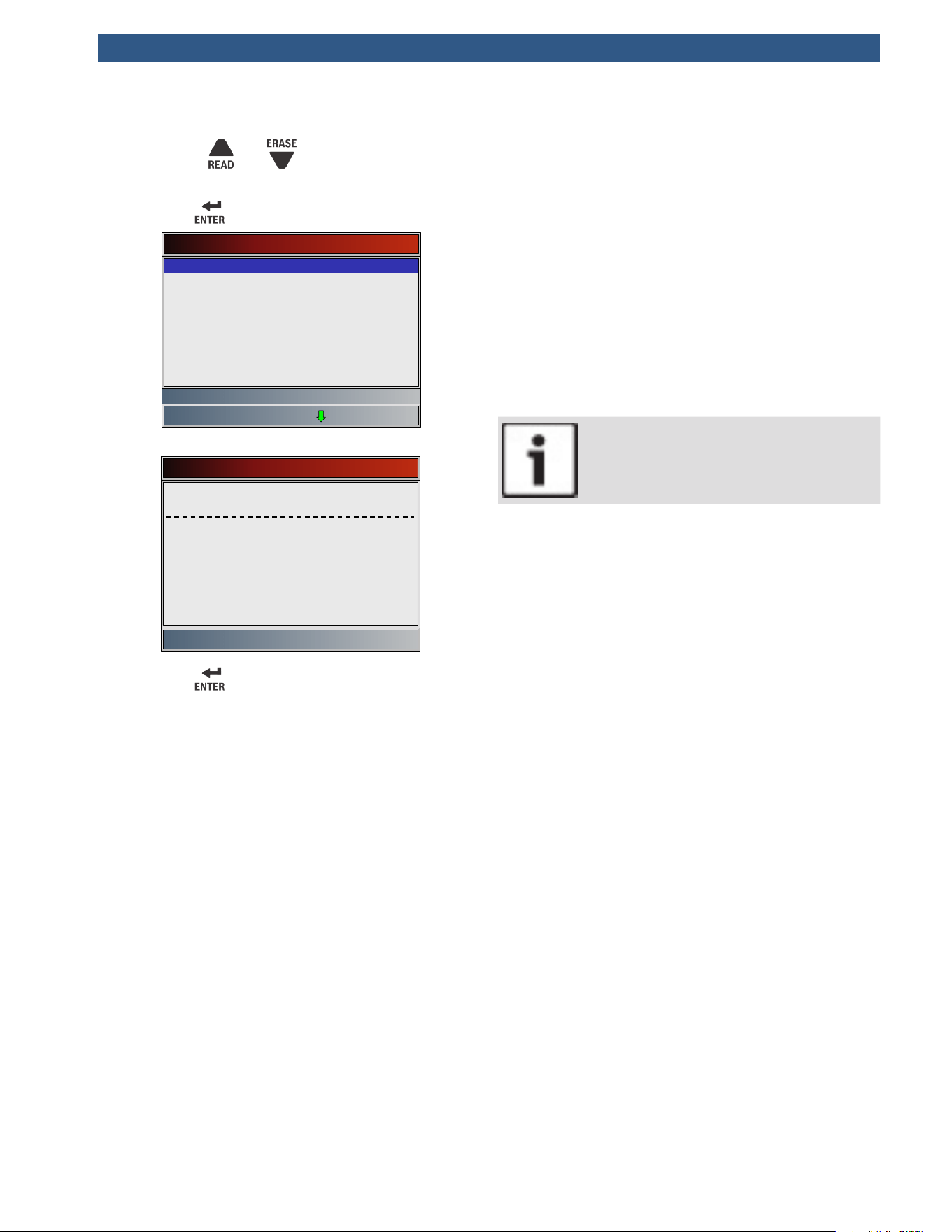
2. Select the alphabetical group range for the desired
component.
• Use the and keys until the desired
group range is highlighted.
• Press
.
Component Locator
A - Fuel P
Fuel T - O
P - W
3. Select the component.
• Use the
and keys until the desired
component is highlighted.
• Press .
Component Locator
A/T Control Solenoid Valve Asse
ABS Control Module
Accelerator Pedal Position Sens
Camshaft Position Sensor
Clutch Pedal Position Sensor (M
Crankshaft Position Sens
EGR Solenoid Valve
Engine Coolant Temperature Sens
A/T Control Solenoid Valve Assem
4. View selected component location.
Component Locator
A/T Control Solenoid Valve
Assembly
In the automatic transmission
• Press to return to the Diagnostic Menu.
5 Diagnostic Menu
The first time the scan tool links to the vehicle, the
communication protocol is automatically detected, and
is used until the scan tool is turned off or another vehi-
cle is diagnosed.
If an error message displays, make sure the DLC cable is
attached and the ignition key is on. Cycle ignition key to OFF
for 10 seconds, then ON. This may be required to reset
computer. If required, select YES to try again. If problem still
exists, refer to “Error Messages” in Troubleshooting.
The scan tool keeps all data received from the last vehi-
cle selected until any of the following occurs:
• A new vehicle is selected.
• Scan tool is flash programmed to update software.
On initial link to vehicle, scan tool checks the status of
I/M Monitors no matter which function is selected.
IMPORTANT
Review Data, Code Lookup, and System Setup
are covered in Section 4 of this manual. These
items are not covered in this section.
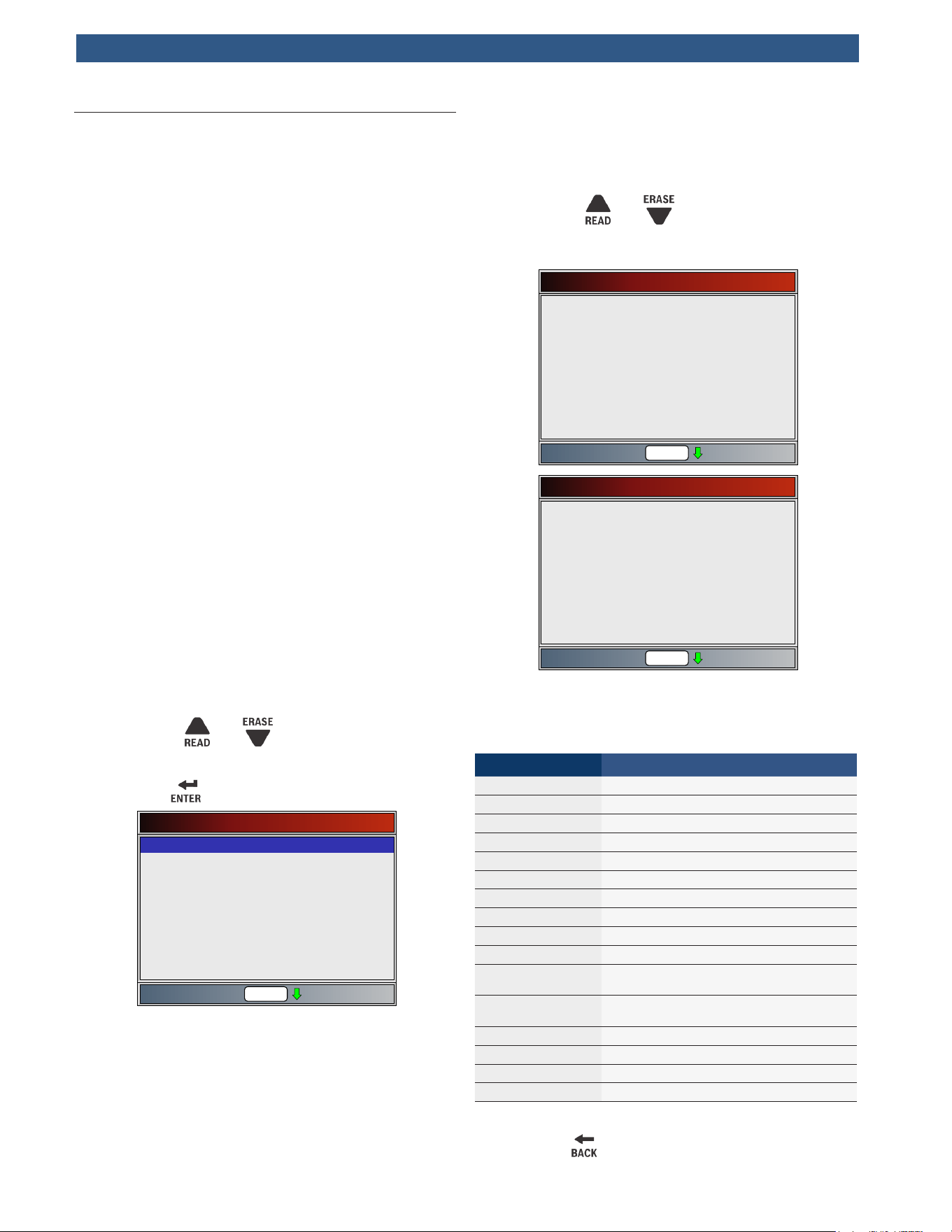
The Diagnostic Menu is broken down into the following selections:
• I/M Monitors
• Read Codes
• Erase Codes
• MIL Status
• State OBD Check
• View Data
• Record Data
• View Freeze Data
• Drive Cycle Monitor
• O2 Monitor Tests
• Diagnostic Monitor Tests
• On-Board Systems
• Charging System Monitor
• Vehicle Information
• Component Locator
• Acronyms
• Review Data
– I/M Monitors
– DTCs (Codes)
– State OBD Check
– Recording
– View Freeze Data
– O2 Monitor Tests
– Diag Monitor Tests
– Vehicle Information
• Code Lookup
• System Setup
– English/Metric
– Language Setup
– Long PID Names
– Tool Information
– Display Test
– Keypad Test
– Memory Test
– Program Mode
5.1 I/M Monitors (Emissions)
The I/M Monitors (Inspection / Maintenance) function is
used to view a snapshot of the operations for the emis-
sion system on OBDII vehicles. I/M Monitors is a very
useful function. To guarantee no faults exist make sure
all monitors are ok or n/a and no DTC’s exist. Refer to
the vehicles service manual for the drive cycle operation.
During normal driving conditions, the vehicle computer
scans the emission system. After a specific amount of
drive time (each monitor has specific driving conditions
and time required), the computer monitors decide if the
vehicles emission system is working correctly or not as
well as detecting out of range values. When the monitor
status is:
• ok - vehicle was driven enough to complete the
monitor.
• inc (Incomplete) - vehicle was not driven enough to
complete the monitor.
• n/a (not applicable)- vehicle does not support that
monitor.
Depending on vehicle, disconnecting or a discharged
battery may erase DTCs and clear monitor status. Moni-
tors may be reset by:
• Erasing codes
• Vehicle control modules losing power
The I/M Monitors function can be run key on engine
running (KOER) or key on engine off (KOEO).
Extreme weather and/or road conditions can prevent a
monitor from running. Also, some monitors may require
a cold start to complete.
From the Diagnostic Menu.
1. Select I/M Monitors.
• Use the
and keys until I/M Monitors is
highlighted.
• Press .
Diagnostic Menu
I/M Monitors
Read Codes
Erase Codes
MIL Status
State OBD Check
View Data
Record Data
View Freeze Data
Drive Cycle Monitor
Rd\Er
Two types of I/M Monitors test are:
• Since DTCs Cleared - shows status of the monitors
since the DTCs were last erased.
• This Drive Cycle - shows status of monitors since
the start of the current drive cycle. Refer to the
vehicle service manual for more detailed information
on emission-related monitors and their status.
Some vehicles do not support This Drive Cycle. If vehi-
cle supports both types of monitors the I/M Monitors
Menu displays.
2. View summary of monitor status.
• Use the
and keys (if required).
Depending on monitor test, one of these two screens
will be present.
Since DTCs Cleared
Fuel System Mon
Comp Component
Catalyst Mon
Htd Catalyst
Evap System Mon
Sec Air System
A/C Refrig Mon
Oxygen Sens Mon
Misfire Monitor
ok
ok
ok
n/a
inc
n/a
n/a
ok
ok
Rd\Er
This Drive Cycle
Fuel System Mon
Comp Component
Catalyst Mon
Htd Catalyst
Evap System Mon
Sec Air System
A/C Refrig Mon
Oxygen Sens Mon
Misfire Monitor
ok
ok
inc
n/a
dis
n/a
n/a
inc
ok
Rd\Er
Abbreviations and names for OBDII monitors supported
by the scan tool are shown below. They are required by
the United States Environmental Protection Agency
(EPA). Not all monitors are supported by all vehicles.
Monitors Expanded Name
Misfire Monitor Misfire monitor
Fuel System Mon Fuel System Monitor
Comp Component Comprehensive components monitor
Catalyst Mon Catalyst monitor
Htd Catalyst Heated catalyst monitor
Evap System Mon Evaporative system monitor
Sec Air System Secondary air system monitor
A/C Refrig Mon Air conditioning refrigerant monitor
Oxygen Sens Mon Oxygen sensor monitor
Oxygen Sens Htr Oxygen sensor heater monitor
EGR/VVT Sys Mon
Exhaust gas recirculation or variable
valve timing monitor
NMHC Cat Mon
Non-methane hydrocarbon catalyst mon-
itor
NOX Treat Mon Nitrogen oxide treatment monitor
Boost Pres Mon Boost pressure monitor
Exhst Gas Sensr Exhaust gas sensor
PM Filter Mon Particulate matter filter monitor
3. Return to Diagnostic Menu.
• Press
.
5.2 Read Codes
The Read Codes function allows the scan tool to read
the DTCs from the vehicle’s control modules. DTCs are
used to help determine the cause of a problem or prob-
lems with a vehicle. These codes cause the control
module to illuminate the malfunction indicator lamp
(MIL) when emission-related or driveability fault occurs.
When referring to the engine control module, MIL is also
known as service engine soon or check engine lamp.
Read Codes can be done with the key on engine off
(KOEO) or with the key on engine running (KOER).
From the Diagnostic Menu.
1. Select Read Codes.
• Use the
and keys until Read Codes is
highlighted.
• Press .
Diagnostic Menu
Read Codes
Erase Codes
MIL Status
State OBD Check
View Data
Record Data
View Freeze Data
Drive Cycle Monitor
Rd\Er
I/M Monitors
• Alternately, press and hold the key for 2
seconds when
appears on the display.
2. If more than one module is supported, a menu is
displayed.
• Use the and keys until the desired
choice is highlighted.
• Press .
Select Module
Engine
ABS
All of the Above
OBDII/EOBD
If no DTCs are present, a message stating “System Pass:
No Faults Detected” is displayed. If All of the Above is
selected from the Select Module menu, all of the codes
will be displayed as if all menu items were selected
individually.
3. View and write down the DTCs.
• Use the
and keys until the desired
choice is highlighted.
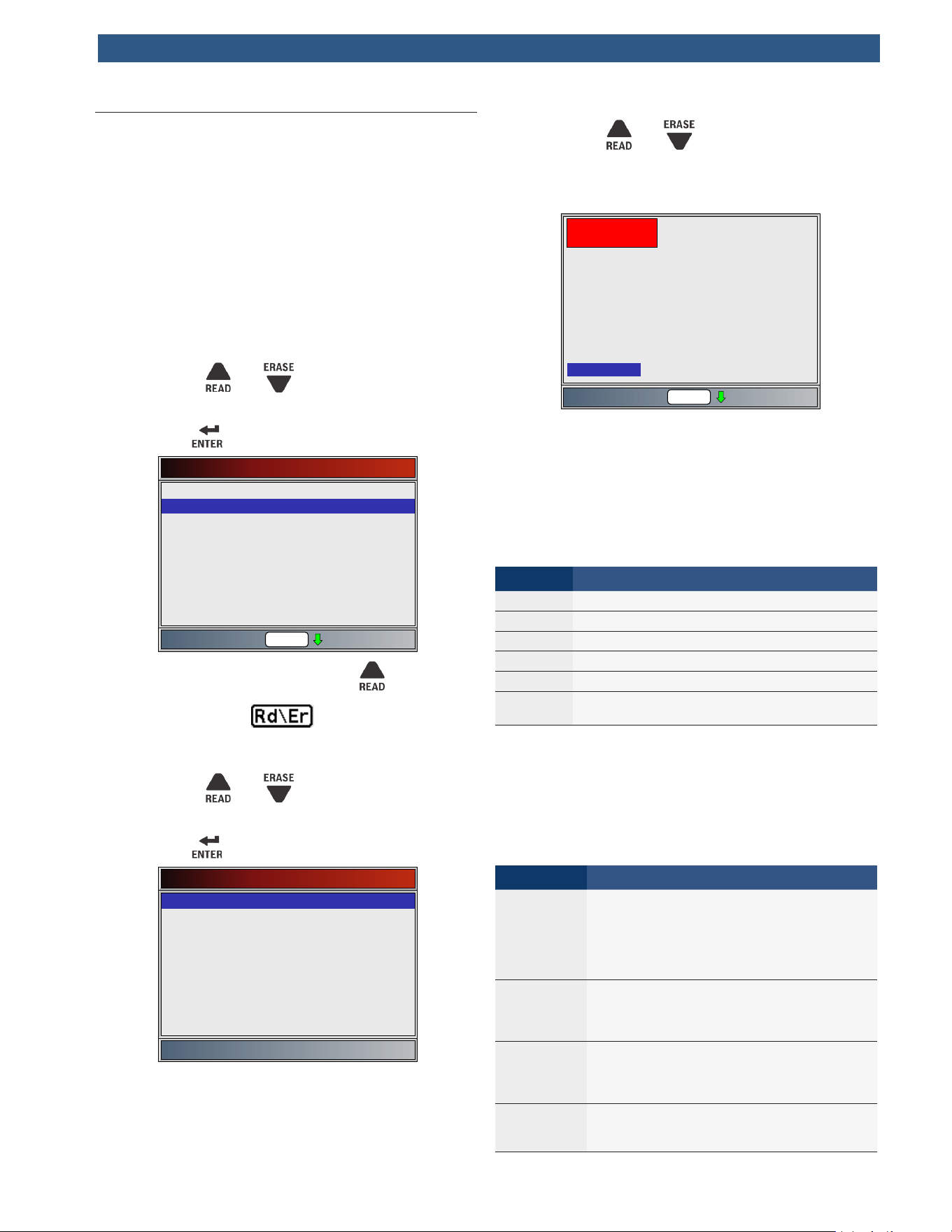
This screen indicates where the Read Codes information
is located.
Rd\Er
DTC Description
X/Y
Module
DTC#
DTC Type
DTC# - Number of the trouble code found in vehicle
service information.
X of Y - Indication that code x of y is being viewed,
where x is the code being viewed of the total y.
Module - The name of the module (e.g. ABS) or address
of the module (e.g. Mod $28) or both are shown (ABS
$28) in this field. The table below describes modules
supported.
Module Description
ECM Engine or powertrain module
TCM Transmission control module
TCCM Transfer case control module
ABS Anti-lock brake system module
HPCM Hybrid powertrain control module
MOD $XX
Module address for the OBDII/EOBD mod-
ule reporting the DTC
DTC Description - This area is reserved for the text
describing the trouble code listed in the DTC number
field.
DTC Type - This area is reserved for providing additional
information about the DTC. Multiple DTC types may be
possible for a given DTC number. Not all vehicles sup-
port DTC types. This table describes possible DTC types.
DTC Type Description
History
Intermittent codes placed in the vehicle’s
memory when the trouble originally oc-
curred, and will remain there even if the
trouble has been corrected. If no trouble
after 50 engine warm-up cycles, the DTC
will be erased.
Confirmed
Confirmed codes are reported when a
component, sensor, or other part of the
vehicle is indication a malfunction is pres-
ent.
Current
Codes transmitted through the PCMs da-
ta stream when a trouble condition is ac-
tive and cannot be erased. The problem
must be repaired to remove the DTC.
Intermittent
Indicates the current code has been set
at least once but possibly not enough to
cause a history code to be stored.
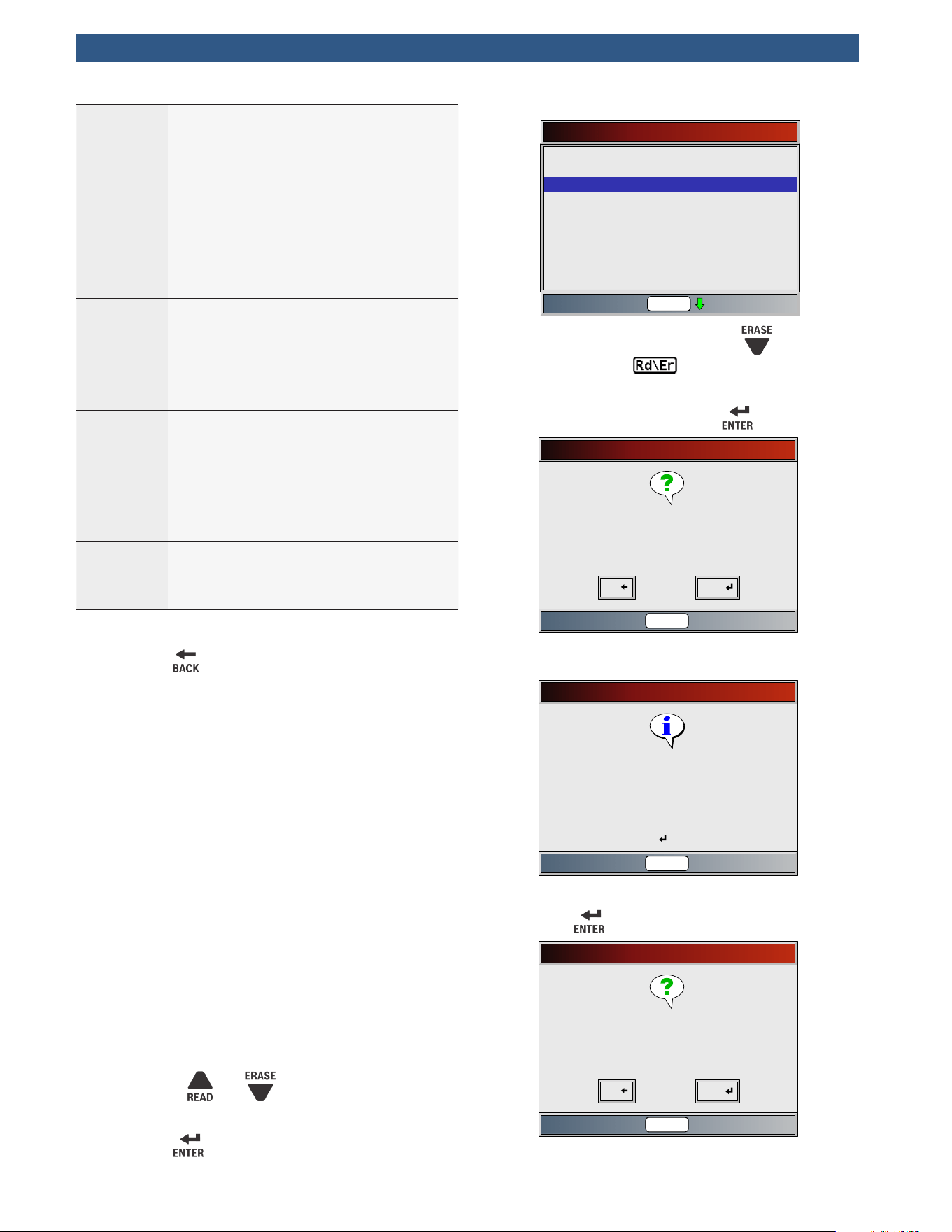
MIL
Indicates that this DTC has turned on the
MIL light.
Pending
Pending codes are also referred to as
continuous monitor or maturing codes.
An intermittent fault causes the control
module to store a code in memory. If the
fault does not occur within a certain num-
ber of warm-up cycles (depending on ve-
hicle), the code clears from memory. If
fault occurs a specific number of times,
the code matures into a DTC and the MIL
illuminates or blinks. This function can be
used with KOEO or KOER.
Non-MIL
DTC that is not emission-related and did
not turn on the MIL light.
MIL Code
This DTC type also has a number with it
indicating that this is the code number
turning on the MIL. Vehicle service man-
uals may refer to this number instead of
the one listed in the DTC number field.
Permanent
Permanent codes are a special type of
confirmed code. Permanent codes be-
gan being reported by vehicles around
2010, and therefore not supported by ev-
ery vehicle. While Confirmed Codes can
be erased by the Tool, Permanent Codes
cannot. Permanent Codes are erased by
the vehicle when the vehicle has deter-
mined the fault is no longer present.
Active
DTC that was present at the time of scan
tool request.
Stored
DTC that was not present at the time of
scan tool request.
4. Return to Diagnostic Menu.
• Press
.
5.3 Erase Codes
The Erase Codes function deletes DTCs and resets I/M
Monitor data from vehicle’s control module(s). Perform
this function key on engine off (KOEO). Do not start the
engine.
The Erase Codes function may also erase View Freeze
Data, O2 Monitor Tests, and Diagnostic Monitor Test
results depending on vehicle.
The Erase Codes function sets monitors to inc.
Perform Erase Codes function only after systems have
been checked completely and DTCs have been written
down.
After servicing the vehicle, erase stored DTCs and verify
no codes have returned. If a DTC returns, problem has
not been fixed or other faults are present.
Depending on which monitor sets a code the vehicle
may need to be driven and the monitor ran before con-
cluding that the fault is repaired.
From Diagnostic Menu:
1. Select Erase Codes.
• Use the
and keys until Erase Codes is
highlighted.
• Press .
Diagnostic Menu
I/M Monitors
Read Codes
Erase Codes
MIL Status
State OBD Check
View Data
Record Data
View Freeze Data
Drive Cycle Monitor
Rd\Er
• Alternately, press and hold the key for 2
seconds when appears on the display.
• If diagnostic results and codes are not to be
erased select NO and press
.
Erase Codes
Are you sure you want to
erase diagnostic results and
codes?
No Yes
Rd\Er
• Selecting NO displays a “Command canceled”
message.
Erase Codes
Command canceled
Press ENTER to continue
Rd\Er
2. Select YES to erase diagnostic results and codes.
• Press
.
Erase Codes
Are you sure you want to
erase diagnostic results and
codes?
No Yes
Rd\Er
3. If more than one module is supported, a menu is
displayed.
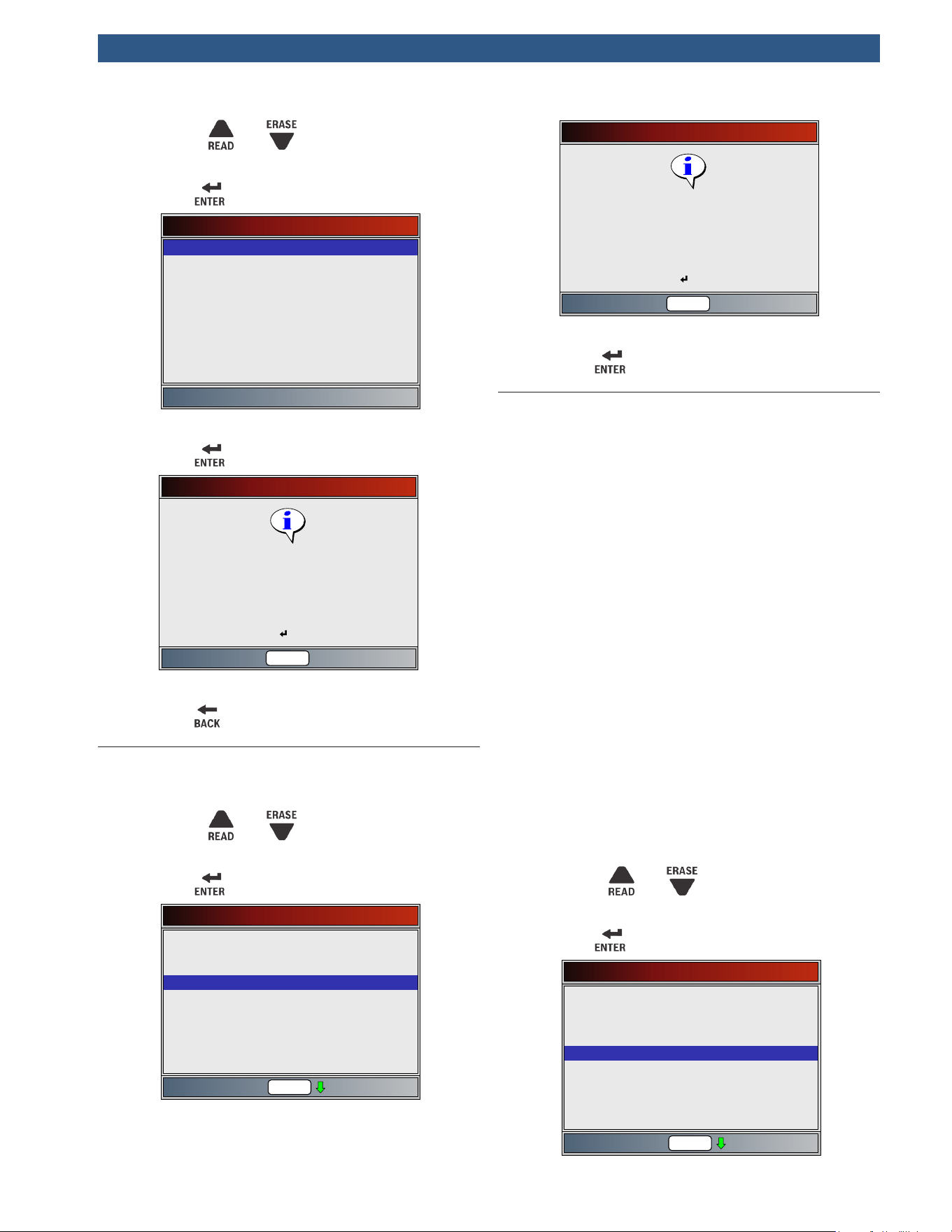
• Use the and keys until the desired
choice is highlighted.
• Press .
Select Module
Engine
ABS
OBDII/EOBD
4. Observe “Command sent” message is displayed.
• Press
.
Erase Codes
Command sent
Codes remaining:36
Press ENTER to continue
Rd\Er
5. Return to Diagnostic Menu.
• Press
.
5.4 MIL Status
From Diagnostic Menu:
1. Select MIL Status.
• Use the
and keys until MIL Status is
highlighted.
• Press .
Diagnostic Menu
I/M Monitors
Read Codes
Erase Codes
MIL Status
State OBD Check
View Data
Record Data
View Freeze Data
Drive Cycle Monitor
Rd\Er
2. View MIL Status.
MIL is ON
MIL lamp should be ON if
engine is running
Press ENTER to continue
Rd\Er
3. Return to Diagnostic Menu.
• Press
.
5.5 State OBD Check
The State OBD Check function is used to display a basic
status of the vehicles OBD system.
• Malfunction indicator lamp (MIL) status
• Codes found
• I/M monitors
Erase Codes deletes DTCs and resets I/M monitors from
vehicle’s computer module(s).
The State OBD Check function has the following areas:
• MIL Status ON or OFF
• Number of Codes Found
• Number of Monitors OK
• Number of Monitors Inc
• Number of Monitors N/A
State OBD Check should be done with the key on
engine running (KOER) due to showing MIL status.
The number of codes found are OBDII/EOBD confirmed
codes and permanent codes. Pending codes are not
included.
The number of monitors that are either ok, inc, or na are
only Since DTCs Cleared and not This Drive Cycle.
Refer to Read Codes and I/M Monitors for more
detailed information about the results.
From Diagnostic Menu:
1. Select State OBD Check.
• Use the
and keys until State OBD
Check is highlighted.
• Press .
Diagnostic Menu
Read Codes
Erase Codes
MIL Status
State OBD Check
View Data
Record Data
View Freeze Data
Drive Cycle Monitor
Rd\Er
I/M Monitors
2. View State OBD Check display.
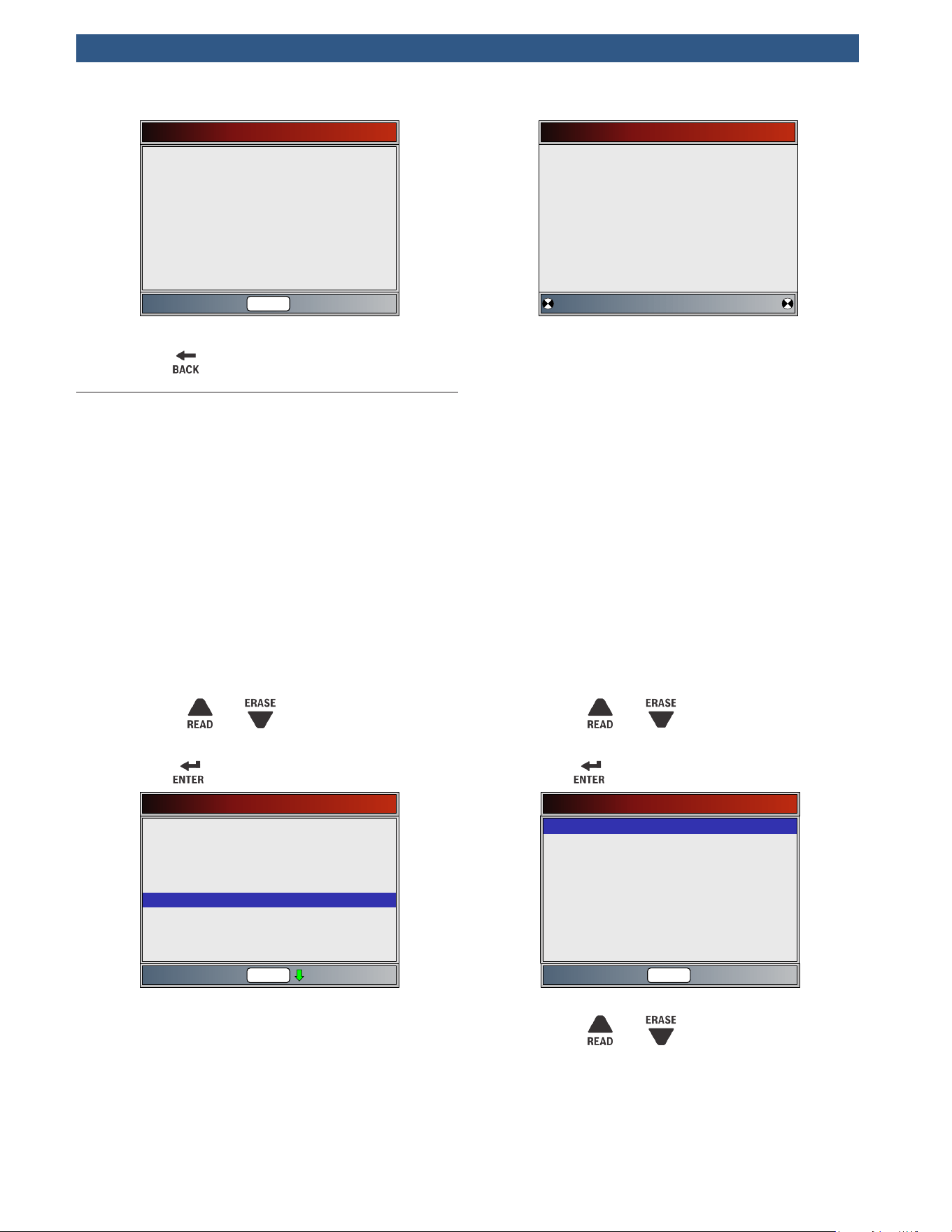
State OBD Check
Codes Found
Monitors OK
Monitors Inc
Monitors N/A
MIL Status
18
3
5
3
ON
Rd\Er
3. Return to Diagnostic Menu.
• Press
.
5.6 View Data
The View Data function allows real time viewing of the
vehicle’s computer module’s parameter identification
(PID) data. As the computer monitors the vehicle, infor-
mation is simultaneously transmitted to scan tool.
View Data allows the following items to be viewed on
the scan tool:
• Sensor data
• Operation of switches
• Operation of solenoids
• Operation of relays
Apart from Read Codes, View Data is the most useful
diagnostic function for isolating the cause of a vehicle
operation problem.
From Diagnostic Menu:
1. Select View Data.
• Use the
and keys until View Data is
highlighted.
• Press .
Diagnostic Menu
Read Codes
Erase Codes
MIL Status
State OBD Check
View Data
Record Data
View Freeze Data
Drive Cycle Monitor
Rd\Er
I/M Monitors
2. Observe while the scan tool validates PID list.
Validating PIDs
Validating PID List
PID 7/329
Please Wait
•
PID MAP validation is the tool asking the vehicle
which PIDs are supported. See “Appendix A—PID
Definitions” for a complete list of PIDs
supported by the tool.
• Multiple PIDs may be sent if vehicle is equipped
with more than one computer module (for
example a powertrain control module [PCM]
and a transmission control module [TCM]). The
scan tool identifies them by their identification
names (ID) assigned by manufacturer (i.e. $10
or $1A).
• If one or more control module stops responding,
the scan tool displays a message.
– If continuing, dashes will replace data in
right-hand column.
– If NO is selected, the scan tool attempts to
re-establish communication with that mod-
ule.
From Select Data to View menu:
1. Select Entire Data List.
• Use the
and keys until Entire Data List
is highlighted.
• Press .
Select Data to View
Long PID Names
English/Metric
Entire Data List
Rd\Er
2. View PIDs on scan tool.
• Use the
and keys.
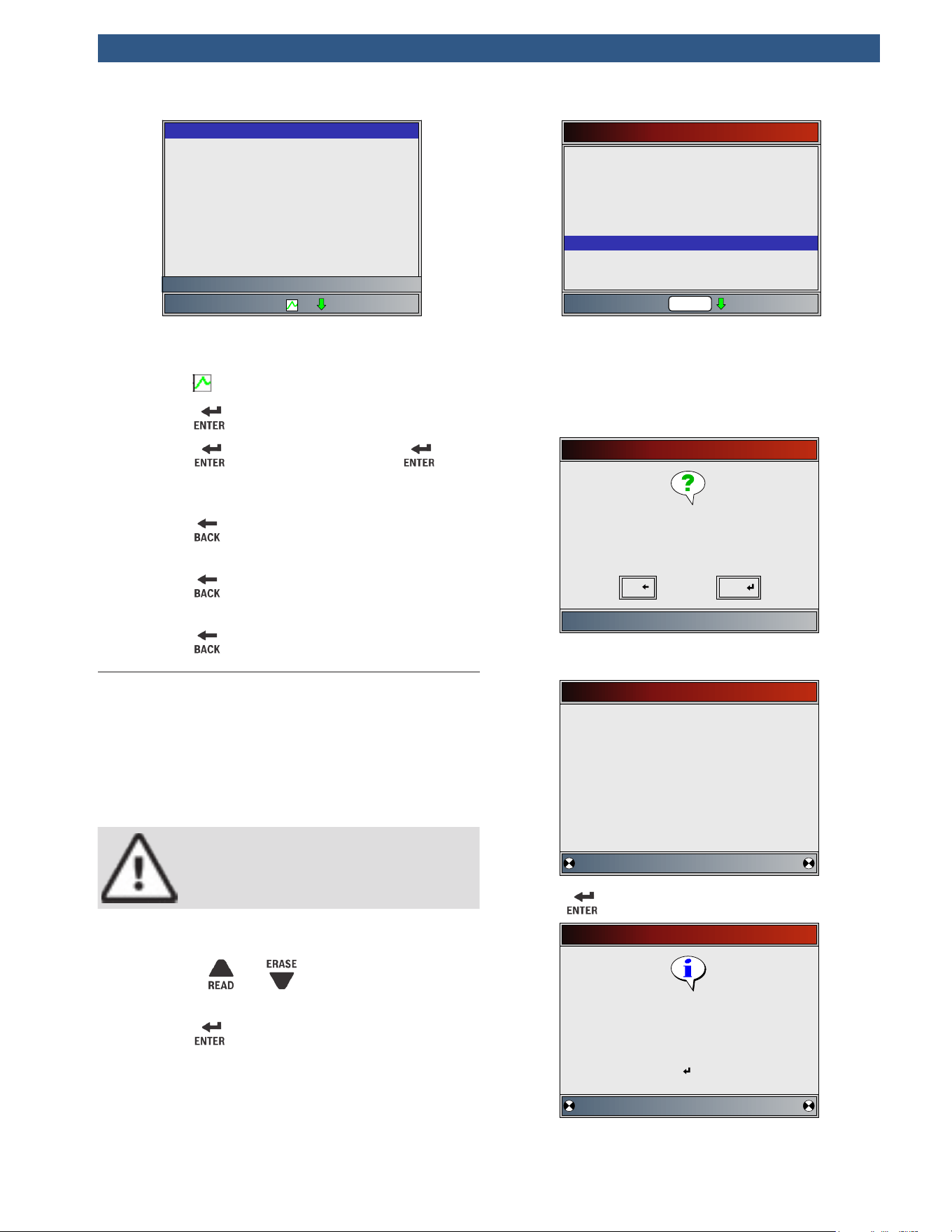
ABSLT TPS(%)
CALC LOAD(%)
COOLANT(°C)
ENG SPEED(RPM)
EQ RATIO11
FUEL SYS 1
FUEL SYS 2
IAT(°C)
IGN ADV(°)
0.0
0.0
-40
0
1.999
N/A
N/A
-40
0.0
LT FTRM1(%) 0.0
Throttle Position
•
See “Appendix A—PID Definitions” for PID
definitions.
• If the icon displays while a PID is selected
press to view graph.
• Press
to pause the graph. Press again
to continue graphing.
3. Return to PID screen.
• Press
.
4. Return to Select Data to View menu.
• Press
.
5. Return to Diagnostic Menu.
• Press
.
5.7 Record Data
The Record Data function records PIDs while vehicle is
parked or being driven. The Record Data function is
mainly used for diagnosing intermittent driveability
problems that cannot be isolated by any other method.
The recording time varies. A recording consists of frames
of data before the trigger and several frames after the
trigger.
CAUTION
Two people must be in vehicle when driving.
One to drive and the other to operate the
scan tool.
From Diagnostic Menu:
1. Select Record Data.
• Use the
and keys until Record Data is
highlighted.
• Press .
Diagnostic Menu
Read Codes
Erase Codes
MIL Status
State OBD Check
View Data
Record Data
View Freeze Data
Drive Cycle Monitor
Rd\Er
I/M Monitors
2. Follow all instructions on display.
• The scan tool can maintain only one recording.
Make sure to thoroughly review old recording
before erasing.
• If a recording currently exists in memory, a
message prompting to erase data is displayed.
Record Data
Previous recording in
memory.
Do you want to erase it and
make a new one?
No Yes
• Scan tool validates list of global PIDs from
vehicle.
Validating PIDs
Validating PID List
PID 7/329
Please Wait
3. Press to begin recording.
Recording
Collecting pretrigger data
Press ENTER to trigger
recording
• Data continues to be saved until either:
– Record memory is full.
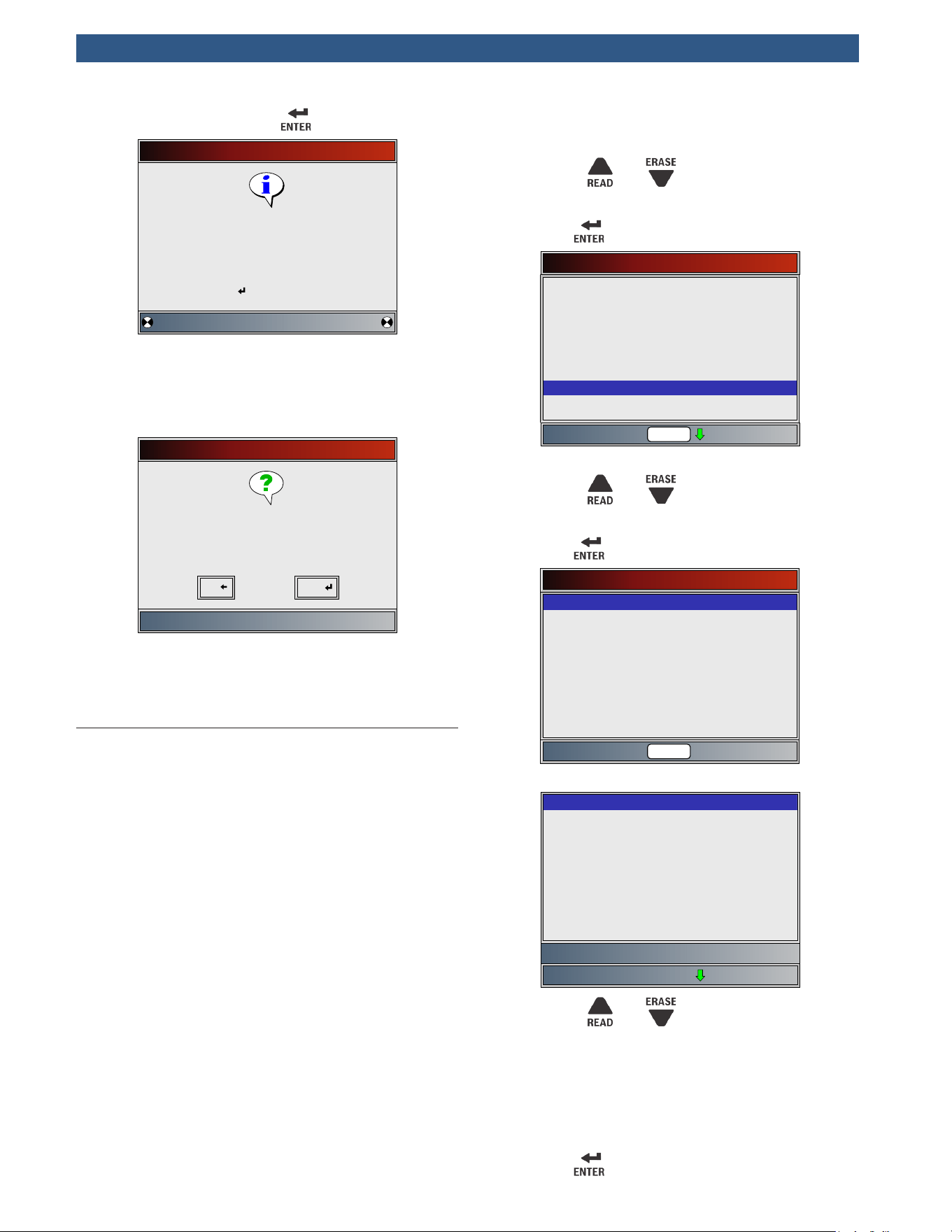
– Operator presses .
Recording
Collecting data for frame #2
Press ENTER to end recording
• Scan tool recording times vary. A recording
consists of frames of data before trigger and
several frames after trigger.
4. After recording, scan tool displays a prompt to
Playback Data.
Record Data
Playback data?
No Yes
• Select NO to return to Diagnostic Menu.
• Select YES to display recorded data.
• Refer to “Recording” for instructions
on how to play back data.
5.8 View Freeze Data
When an emission-related fault occurs, certain vehicle
conditions are recorded by the on-board computer. This
information is referred to as freeze frame data. View
Freeze Data is a snapshot of the operating conditions at
the time of an emission-related fault. View Freeze Data
can be overwritten by faults with a higher priority. If
codes were erased, View Freeze Data may not be stored
in vehicle memory depending on vehicle.
From Diagnostic Menu:
1. Select View Freeze Data.
• Use the
and keys until View Freeze
Data is highlighted.
• Press .
Diagnostic Menu
Read Codes
Erase Codes
MIL Status
State OBD Check
View Data
Record Data
View Freeze Data
Drive Cycle Monitor
Rd\Er
I/M Monitors
2. Select frame, if more than one frame is present.
• Use the
and keys until the desired
frame is highlighted.
• Press
.
Select Data to View
Long PID Names
English/Metric
P2122 (MOD $09)
Rd\Er
3. View PID on scan tool.
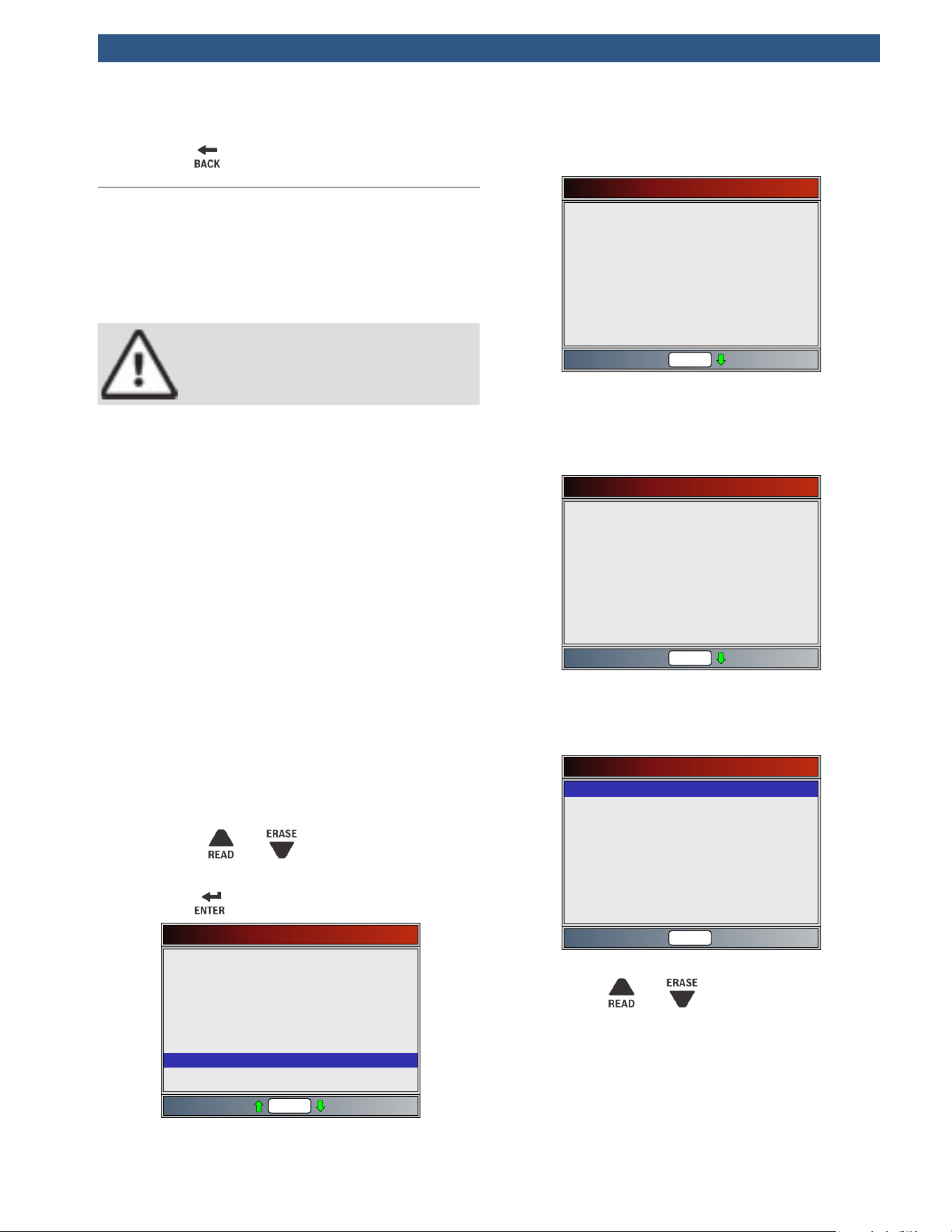
Trouble Code that caused Freeze
TROUB CODE
FUEL SYS 1
FUEL SYS 2
CALC LOAD(%)
COOLANT(°C)
ST FTRM1(%)
LT FTRM1(%)
MAP(KPa)
ENG SPEED(RPM)
P2122
N/A
N/A
0.0
-40
0.0
0.0
177.0
0
VEH SPEED(KPH) 0
• Use the and keys.
• See “Appendix A—PID Definitions”
for PID definitions.
• If Long PID Names is turned on, the expanded text
for the PID will scroll on the bottom line of the
display. See “Long PID Names”.
4. Select another frame to view (if available).
• Press
.
5. Return to Diagnostic Menu.
• Press
.
5.9 Drive Cycle Monitor
The Drive Cycle Monitor function is very similar to I/M
Monitors though the Drive Cycle Monitor is used to
view real-time operations of the emissions system on
OBDII vehicles. Drive Cycle Monitor continuously
updates as the vehicle reports operations of the emis-
sion system.
CAUTION
Two people must be in vehicle when driving.
One to drive and the other to operate the
scan tool.
• Refer to the vehicle service manual for the drive
cycle operation.
Drive Cycle Monitor can be used if you want to drive the
vehicle until all of the monitors are OK.
During normal driving conditions, the vehicle computer
scans the emission system. After a specific amount of
drive time (each monitor has specific driving conditions
and time requirements), the computer monitors will
decide if the vehicle emissions system is working cor-
rectly or not as well as detecting out a range of values.
When the monitor status is:
• “ok” - vehicle has been driven enough for function.
• “inc” (incomplete) - vehicle was not driven enough
to complete all of the monitors.
• “n/a” (not applicable) - vehicle does not support
that monitor.
Reset monitors by:
• Erasing codes.
• Vehicle computer module losing power (on some
vehicles).
From Diagnostic Menu:
1. Select Drive Cycle Monitor.
• Use the
and keys until Drive Cycle
Monitor is highlighted.
• Press .
Diagnostic Menu
Read Codes
Erase Codes
MIL Status
State OBD Check
View Data
Record Data
View Freeze Data
Drive Cycle Monitor
O2 Monitor Tests
Rd\Er
• Two types of drive cycle monitors are:
– Since DTCs Cleared shows status of the
monitors since the Diagnostic Trouble
Codes were last erased.
Since DTCs Cleared
Fuel System Mon
Comp Component
Catalyst Mon
Htd Catalyst
Evap System Mon
Sec Air System
A/C Refrig Mon
Oxygen Sens Mon
Misfire Monitor
ok
ok
ok
n/a
inc
n/a
n/a
ok
ok
Rd\Er
– This Drive Cycle shows status of monitors
since start of current drive cycle. Refer to
the vehicle service manual for more detailed
information on emission-related monitors
and their status.
This Drive Cycle
Fuel System Mon
Comp Component
Catalyst Mon
Htd Catalyst
Evap System Mon
Sec Air System
A/C Refrig Mon
Oxygen Sens Mon
Misfire Monitor
ok
ok
inc
n/a
dis
n/a
n/a
inc
ok
Rd\Er
– Some vehicles do not support Drive Cycle
Monitor. If vehicle supports both types of
drive cycle monitors the Drive Cycle Moni-
tor menu will display.
Drive Cycle Monitor
This Drive Cycle
Since DTCs Cleared
Rd\Er
2. View summary of monitor status.
• Use the
and keys (if required).
3. Depending on the drive cycle monitors, either the
This Drive Cycle or the Since DTCs Cleared screen
will display.
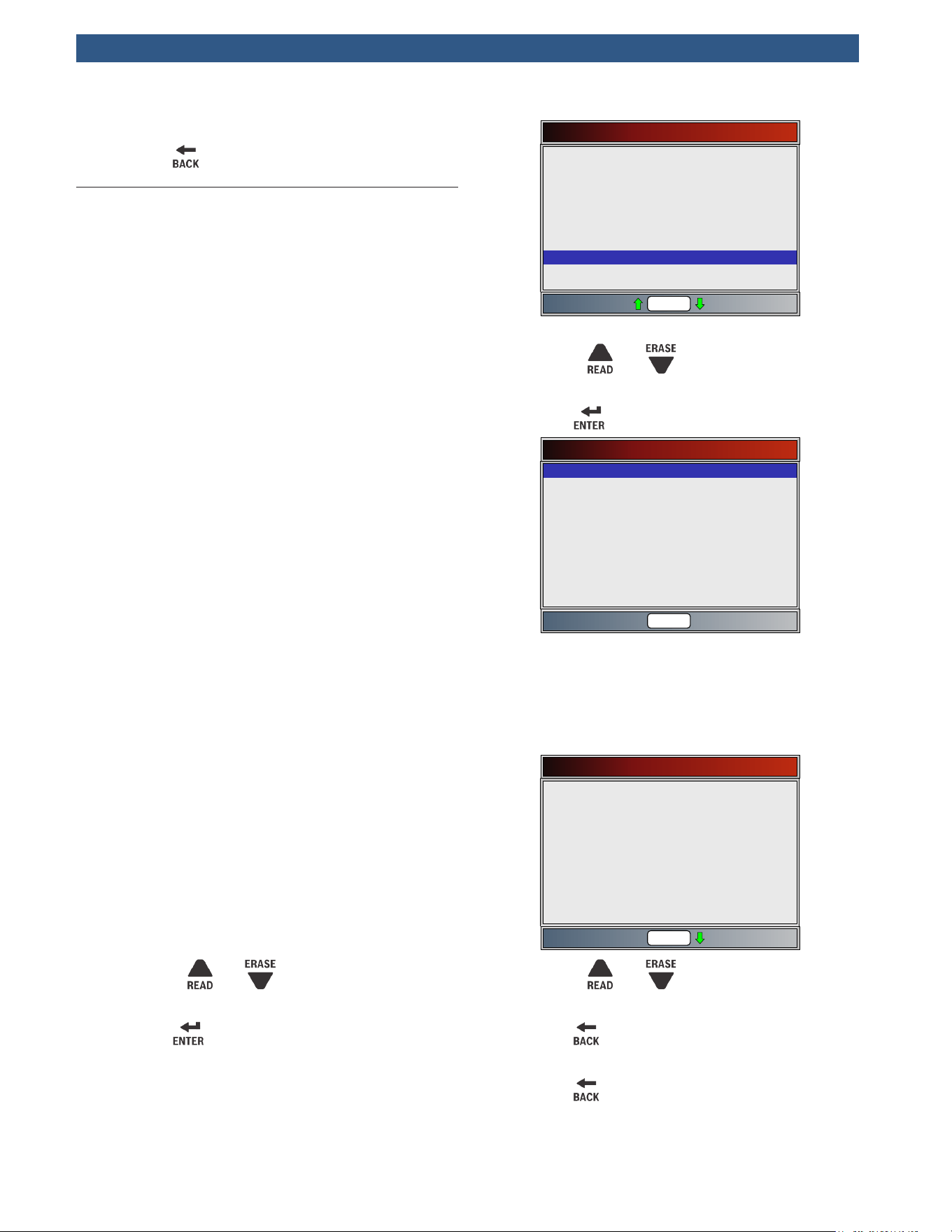
• The scan tool display is continuously updated.
Monitors that are “ok” will disappear and only
the “inc” monitors will remain displayed. Moni-
tors designated “n/a” are not displayed.
• When all Monitors are “OK” a screen stating “All
supported monitors are OK” will display.
4. Return to Diagnostic Menu.
• Press
.
5.10 O2 Monitor Tests
OBDII regulations require applicable vehicles monitor
and test oxygen (O2) sensors to determine problems
related to fuel and emissions. The O2 Monitor Tests
allows retrieval of completed O2 sensors monitor test
results.
• The O2 Monitor Tests is not an on-demand test. O2
sensors are not tested when selected via the menu.
O2 sensors are tested when engine operating condi-
tions are within specified limits.
• If the vehicle communicates using a controller area
network (CAN), O2 Monitor Tests are not supported
by vehicle. A message is displayed. See “Diagnostic
Monitor Tests” in this section to see O2 monitor data.
• O2 sensors are located before (upstream) and after
(downstream) catalyst(s). Sensors are named (xy) for
their position to both cylinder banks and catalysts.
– The O2 sensor for cylinder bank 1 has prefix 1y
while O2 sensor for cylinder bank 2 has prefix 2y.
– The O2 sensor upstream of catalyst (closest to
engine) has suffix x1 while O2 sensor down-
stream of catalyst has suffix x2. If vehicle con-
tains more catalysts, O2 sensor downstream of
second catalyst has suffix x3 and O2 sensor
downstream of next catalyst has suffix x4.
– For example, O2S21 is upstream O2 sensor for
cylinder bank 2.
The following O2 Sensor Tests are available:
• Rich-to-lean sensor threshold voltage
• Lean-to-rich sensor threshold voltage
• Low sensor voltage for switch time
• High sensor voltage for switch time
• Rich-to-lean sensor switch time
• Lean-to-rich sensor switch time
• Minimum sensor voltage test cycle
• Maximum sensor voltage test cycle
• Time between sensor transitions
• Sensor period
• Manufacturer specific tests
From Diagnostic Menu:
1. Select O2 Monitor Tests.
• Use the
and keys until O2 Monitor
Tests is highlighted.
• Press .
Diagnostic Menu
Erase Codes
MIL Status
State OBD Check
View Data
Record Data
View Freeze Data
Drive Cycle Monitor
O2 Monitor Tests
Diagnostic Monitor Tests
Rd\Er
2. Select O2 sensor.
• Use the
and keys until the desired O2
monitor is highlighted.
• Press
.
Select O2 Sensor
Rd\Er
O2 Bank1 Sensor2
O2 Bank1 Sensor1
• The O2 sensors located upstream (before cata-
lyst) may perform differently than ones located
downstream (after catalyst).
• Test IDs are shown for unknown O2 sensor
tests.
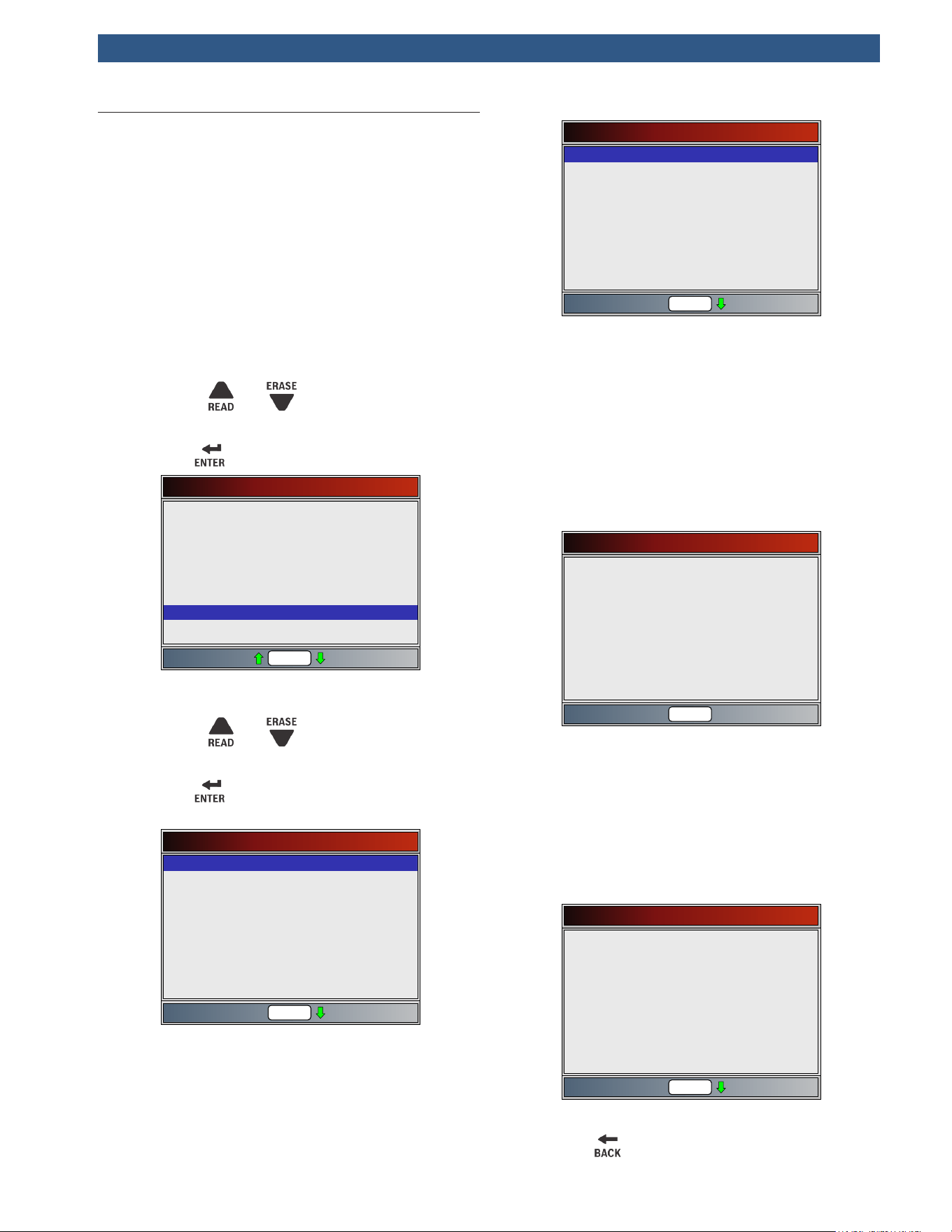
3. View results of selection.
O2 Bank1 Sensor1
MOD
MAX
MEAS
MIN
Rd\Er
Test $86
MOD
MAX
MEAS
MIN
$09
128
128
128
$09
255
128
128
Test $8D
• Use the and keys.
4. Return to O2 Sensor Tests menu.
• Press
.
5. Return to Diagnostic Menu.
• Press
.
5.11 Diagnostic Monitor Tests
The Diagnostic Monitor Test function is useful after
servicing or after erasing a vehicle’s memory. Test results
do not necessarily indicate a faulty component or system.
• Non-CAN vehicles Diagnostic Monitor Test receives test
results for emission-related powertrain components
and systems that are not continuously monitored.
• CAN vehicles Diagnostic Monitor Test receives test
results for emission-related powertrain components and
systems that are and are not continuously monitored.
• Vehicle manufacturer is responsible for assigning
test and component IDs.
From Diagnostic Menu:
1. Select Diagnostic Monitor Test.
• Use the
and keys until Diagnostic
Monitor Test is highlighted.
• Press .
Diagnostic Menu
MIL Status
State OBD Check
View Data
Record Data
View Freeze Data
Drive Cycle Monitor
O2 Monitor Tests
Diagnostic Monitor Tests
On-Board Systems
Rd\Er
• Applicable diagnostic monitor tests are displayed.
2. Review test results displayed on scan tool.
• Use the
and keys until desired result is
highlighted.
• Press .
• Non-CAN example:
Select Diag Mon Test
Test $49
Test $4A
Test $62
Test $76
Test $78
Test $81
Test $9A
Test $9B
Test $03
Rd\Er
• CAN example:
Select Diag Mon Test
O2 Sensor B1S2
Catalyst B1
Purge Flow Mon
HO2 Sen B1S2
Misfire Data
Misfire Cyl 1
Misfire Cyl 2
Misfire Cyl 3
O2 Sensor B1S1
Rd\Er
Or, refer to appropriate vehicle service manual for
test IDs and definitions.
• On Non-CAN vehicles the scan tool displays:
– Test data (test ID)
– Maximum value (MAX)
– Test measurements (MEAS)
– Minimum value (MIN)
– Status (STS)
– Measurements and Specification values are
hexadecimal numbers (i.e., $1A, $FE, $11.)
– Module (MOD)
Test $03
MOD
MAX
MEAS
MIN
ID
$09
----
00
00
STS OK
01
Rd\Er
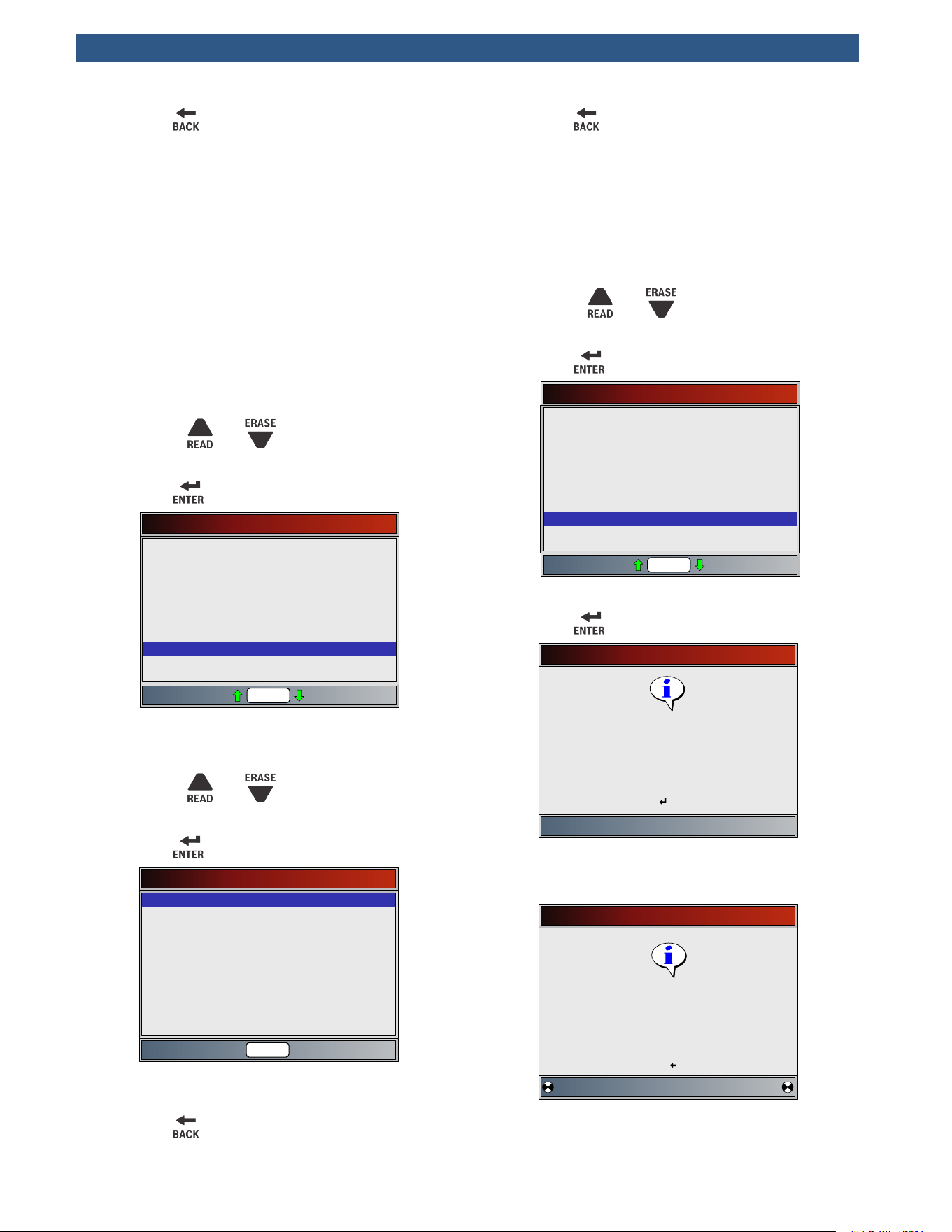
• On CAN vehicles scan tool displays:
– Test performed. The test performed can be
$## if test is not defined. Refer to vehicle
service manual for details.
– Measured values and units of measured
(such as volts, amps, and seconds).
– Status of monitor test data.
– Module ID where the monitor test data
came from.
Purge Flow Mon
MOD $00
MAX 32.767(KPa)
MEAS 0.110(KPa)
MIN 0.000(KPa)
STS OK
Test $C9
Rd\Er
3. Return to Select Test menu.
• Press
.
4. Return to Diagnostic Menu.
• Press .
5.12 On-Board Systems
The On-Board Systems test allows the scan tool to con-
trol operation of vehicle components, tests or systems.
• Some manufacturers do not allow tools to control
vehicle systems. A vehicle not supporting an on-
board system is identified by a message that is
displayed when selected.
• Refer to the vehicle service manual for on-board
systems instructions.
• The manufacturer is responsible for determining the
criteria to automatically stop test. Refer to appropri-
ate vehicle service manual.
From Diagnostic Menu:
1. Select On-Board Systems.
• Use the
and keys until On-Board Sys-
tems is highlighted.
• Press .
Diagnostic Menu
State OBD Check
View Data
Record Data
View Freeze Data
Drive Cycle Monitor
O2 Monitor Tests
Diagnostic Monitor Tests
On-Board Systems
Charging System Monitor
Rd\Er
• A list of on-board systems and components
available for testing are shown on the display.
2. Select test.
• Use the
and keys until desired test is
highlighted.
• Press .
On-Board Systems
Rd\Er
EVAP Systems Test
3. Return to On-Board Systems menu.
• Press
.
4. Return to Diagnostic Menu.
• Press .
5.13 Charging System Monitor
The Charging System Monitor function allows the ccan
tool to provide voltage measurements at the DLC to give
an indication of battery, starter, and alternator perfor-
mance.
From the Diagnostic Menu:
1. Select Charging System Monitor
• Use the
and keys until Charging Sys-
tem Monitor is highlighted.
• Press
Diagnostic Menu
View Data
Record Data
View Freeze Data
Drive Cycle Monitor
O2 Monitor Tests
Diagnostic Monitor Tests
On-Board Systems
Charging System Monitor
Vehicle Information
Rd\Er
2. Turn the ignition key ON but do not start the engine.
• Press
.
Charging System Monitor
Turn the key on.
Do NOT start the engine.
Press ENTER to continue
3. The DLC voltage is measured at KOEO.
• The screen below shows a KOEO voltage of
11.4V.
Charging System Monitor
DLC KOEO Voltage:
11.4V
Press BACK to exit.
Please start the engine.
• Start the engine, or press BACK to return to the
Diagnostic Menu.
• The scan tool will monitor the DLC voltage and
progress to step 4 if starter cranking is detected.
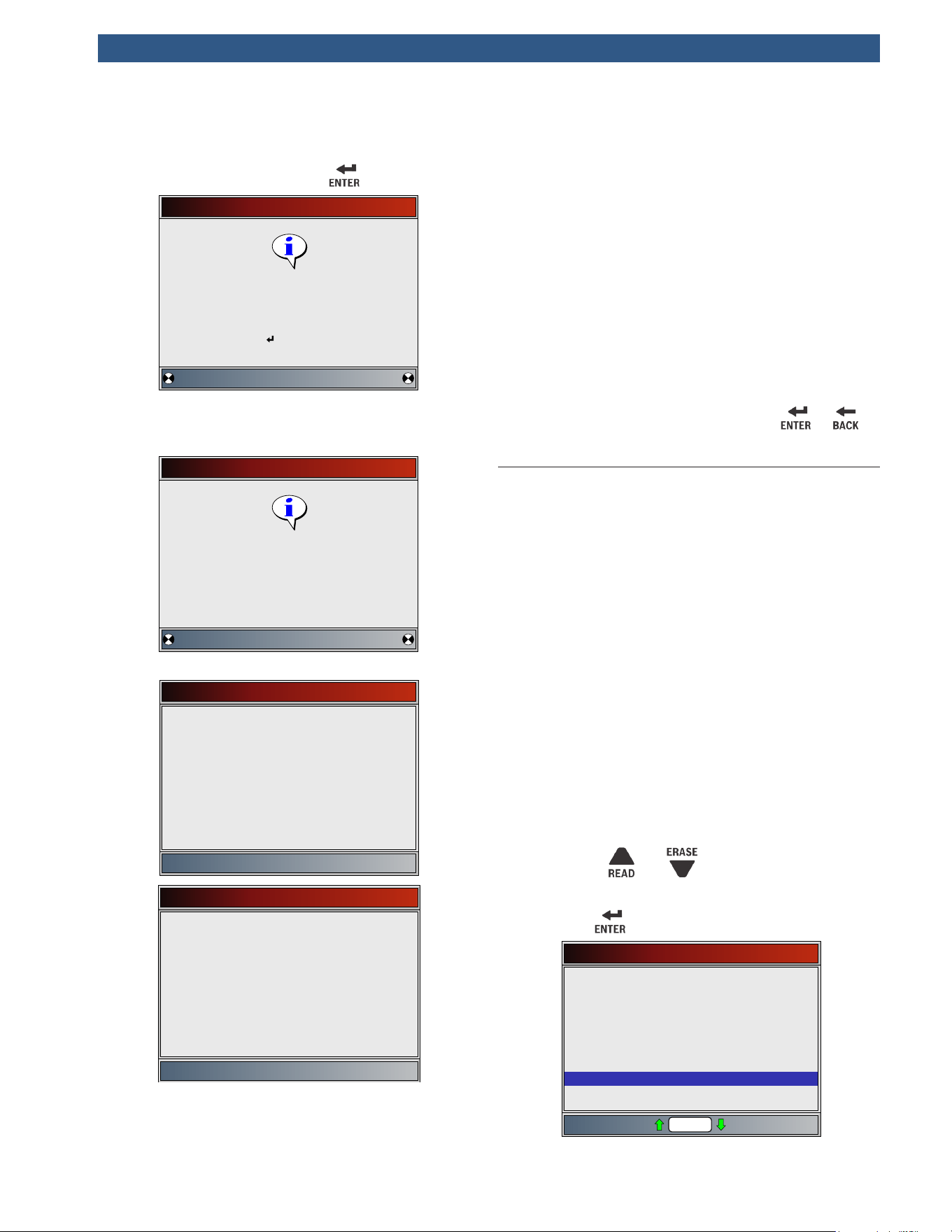
4. When the cranking condition is detected, the scan
tool will begin collecting DLC voltage readings.
• If the engine starts, press .
Charging System Monitor
Collecting data
Press ENTER when the engine
has started.
5. If an engine started condition is detected, the scan
tool will collect Key On Engine running DLC volt-
ages.
Charging System Monitor
Determining DLC KOER voltage.
6. The test results are then displayed.
Test Results
DLC Cranking Voltage 7.9
DLC KOER Voltage ---
DLC KOEO Voltage 11.4
Test Results
DLC Cranking Voltage 8.0
DLC KOER Voltage 14.6
DLC KOEO Voltage 11.7
On the first “Test Results” screen example, the Scan
Tool did not detect that the engine had started. Because
of this, there is no KOER voltage reading.
The second “Test Results” screen example did detect
that the engine had started, and a KOER reading is
displayed.
The second “Test Results” screen example shows that
the KOEO voltage before an engine start was attempted
was 11.7V. Once the starter began cranking the engine,
a cranking voltage of 8V was measured. After the engine
started, a KOER voltage reading of 14.6V was measured.
• If the KOEO voltage is very low, this could be an
indication of a bad battery, or one that needs to be
charged.
• If the cranking voltage is a lot lower than the KOEO
voltage, than this is an indication of a worn starter.
• If the KOER voltage is not higher than the KOEO
voltage, than this indicates a bad or weak alternator.
7. After reviewing the test results, press or to
return to the Diagnostic Menu.
5.14 Vehicle Information
The Vehicle Information function allows the scan tool to
request the vehicle’s VIN number, calibration ID(s) which
identifies software version in vehicle control module(s),
calibration verification numbers (CVN(s)) and in-use
performance tracking.
• Vehicle Information function applies to model year
2000 and newer OBDII compliant vehicles.
• The scan tool cannot verify if data is correct for
scanned vehicles.
• CVNs are calculated values required by OBDII regula-
tions.
• The CVN calculation may take several minutes.
• CVNs are reported to determine if emission-related
calibrations have been changed. Multiple CVNs may
be reported for a control module.
• In-use performance tracking, tracks performance of
key I/M Monitors.
From Diagnostic Menu:
1. Select Vehicle Information.
• Use the
and keys until Vehicle Infor-
mation is highlighted.
• Press .
Diagnostic Menu
Record Data
View Freeze Data
Drive Cycle Monitor
O2 Monitor Tests
Diagnostic Monitor Tests
On-Board Systems
Charging System Monitor
Vehicle Information
Component Locator
Rd\Er
2. Select information to view from the menu.
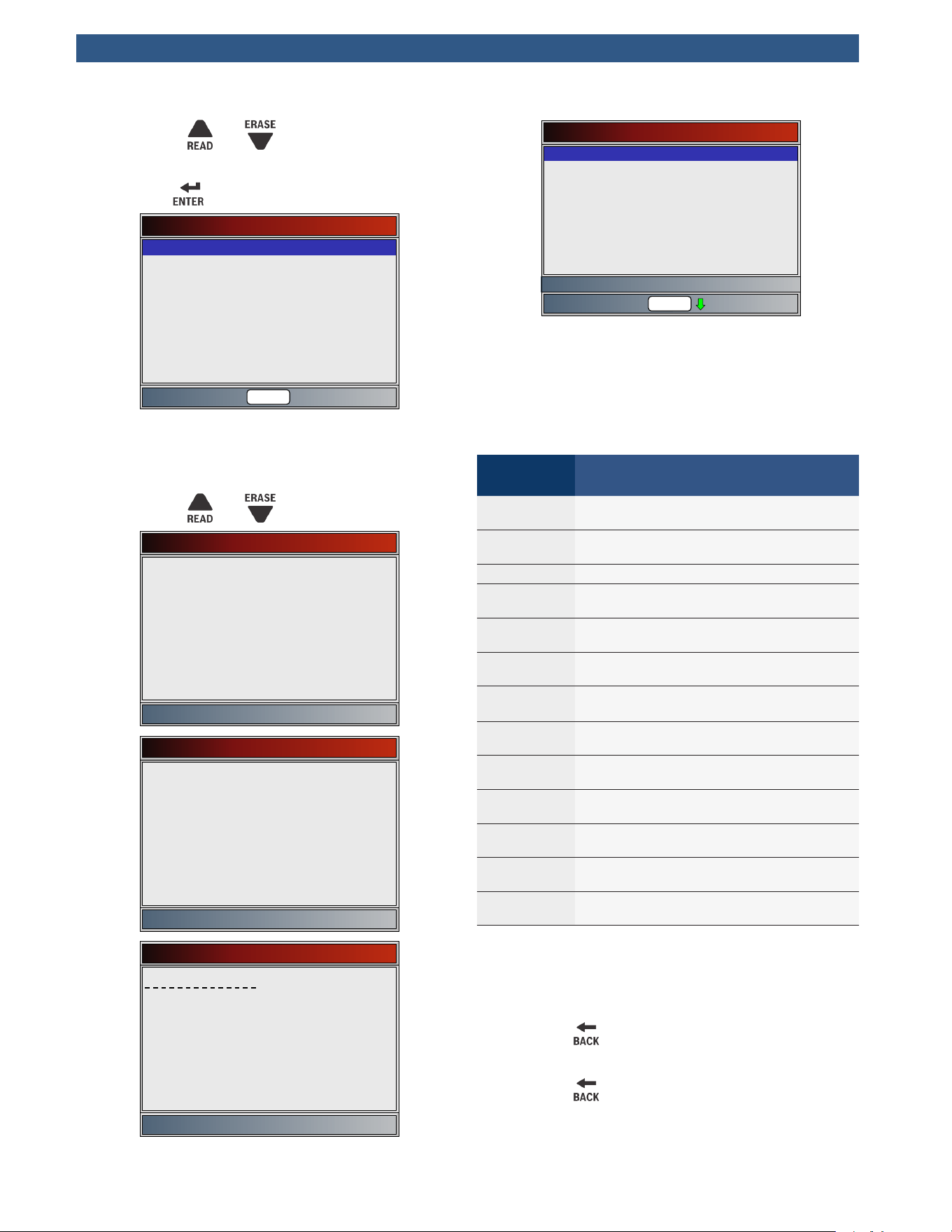
• Use the and keys until desired selec-
tion is highlighted.
• Press .
Vehicle Information
CVN
CAL ID
IPT
VIN
Rd\Er
• If the selected menu item has data for more
than one module, a menu listing all modules
returning data for that menu item is shown.
3. View information supported by vehicle.
• Use the
and keys (if required).
VIN (MOD $09)
1HGCM56866A018504
CVN (MOD $09)
00 5C 02 52
CAL ID (MOD $09)
37805-RAD-A590
IPT (MOD $09)
OBDCOND
IGNCNTR
CATCOMP1
CATCOND1
CATCOMP2
CATCOND2
O2SCOMP1
O2SCOMD1
0
0
0
0
0
0
0
0
OBD Monitoring Conditions Encoun
Rd\Er
• In the above examples, Module $09 returned
data. Scroll down to view information. CVNs are
shown as hexadecimal numbers.
• Abbreviations and names for in-use performance
tracking data supported by the tool are shown
below. Not all data is supported by all vehicles.
Abbreviated
Name
Expanded Name
In-Use Perf
Tracking
In-Use Performance Tracking
OBDCOND
OBD Monitoring Conditions Encountered
Counts
IGNCNTR Ignition Counter
CATCOMPX
Catalyst Monitor Completion Counts
Bank x
CATCONDX
Catalyst Monitor Conditions Encoun-
tered Counts Bank x
O2SCOMPX
O2 Sensor Monitor Completion Counts
Bank x
O2SCONDX
O2 Sensor Conditions Encountered
Counts Bank x
EGRCOMP
EGR Monitor Completion Condition
Counts
EGRCOND
EGR Monitor Conditions Encountered
Counts
AIRCOMP
AIR Monitor Completion Condition
Counts (Secondary Air)
AIRCOND
AIR Monitor Conditions Encountered
Counts (Secondary Air)
EVAPCOMP
EVAP Monitor Completion Condition
Counts
EVAPCOND
EVAP Monitor Conditions Encountered
Counts
• If message INVALID displays on screen, the data
returned from the vehicle is incorrect, or is not
formatted in accordance with OBDII specifications.
4. Return to Vehicle Information menu.
• Press
.
5. Return to Diagnostic Menu.
• Press
.
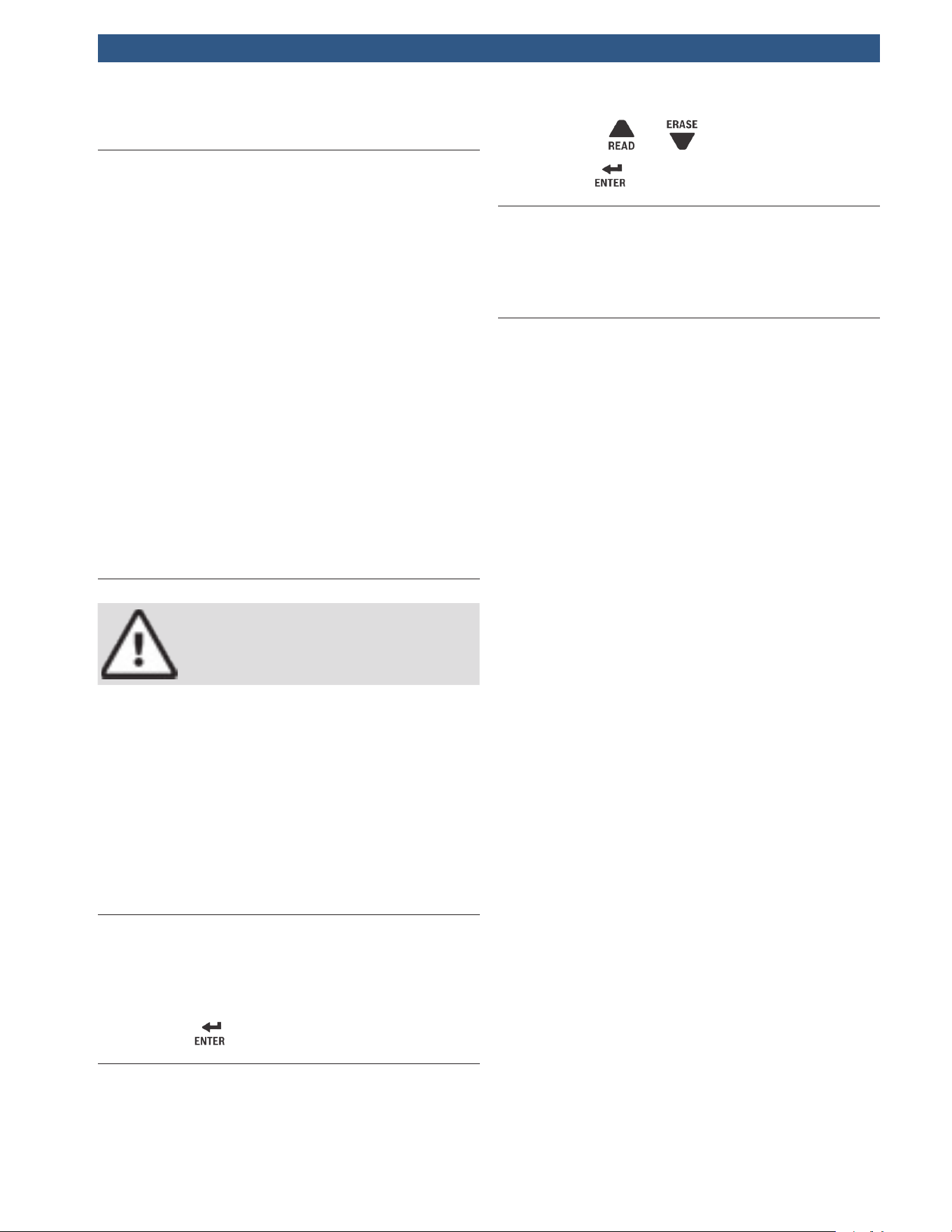
6 Troubleshooting
6.1 Error Messages
Check the following if an error message displays:
• Verify ignition key is in the ON and not in the ACCES-
SORIES position.
• Make sure the DLC Cable is attached to vehicle’s
data link connector (DLC) and scan tool.
• Look at DLC and check for cracked or recessed pins,
or for any substance that could prevent a good
electrical connection.
• Test for continuity between the DLC wiring and the
computer. In an extreme case, there may be a bro-
ken wire.
• Check for bent or broken pins.
• With the engine off, check for blown fuses in the
vehicle fuse box.
• Make sure the vehicle’s control module has a good
ground. If the computer case is grounded, then
clean the connection and apply a conductive (dielec-
tric) grease to the mating surfaces.
• With the key on engine off (KOEO), verify vehicle
battery voltage is at least 8.0V.
• Verify the control module is not defective.
6.2 Scan Tool Does Not Power Up
WARNING
Review “Safety Messages” before
troubleshooting.
If scan tool will not power up, communicate with vehicle
control module, pass scan tool self-tests, or functions
incorrectly in any other way, do the following:
• Clean the DLC pins.
• Disconnect and reconnect DLC making sure it is
connected correctly.
• Check vehicle battery to make sure at least 8.0 volts
is present.
• Contact customer service.
• With the engine off, check for blown fuses in the
vehicle fuse box.
6.3 Vehicle Communication Fault
The vehicle’s control module(s) enters into an unrecov-
erable state.
1. Turn vehicle key to off position.
• Wait 10 seconds.
• Press .
6.4 Operating Error or Erroneous Data
An Operating Error or Erroneous Data occurs if vehicle’s
computer(s) stop(s) communicating with the scan tool.
1. Make selection.
• Use the and keys.
• Press
.
6.5 Tool Self-Tests
Tool Self-Tests check the display, keys, and internal
memory.
•
Refer to “4 Using the Scan Tool” for
the operation procedures for scan tool self-tests.

7 Appendix A—PID Definitions
Although there are in excess of 300 PIDs, the tool only
displays the PIDs the vehicle supports.
PID PID Description
ABS FRP Absolute Fuel Rail Pressure
ABS LOAD Absolute Load Value
ABS TPS B, C Throttle Position B, C
ABSLT TPS Absolute Throttle Position
ACC POS D Accelerator Pedal D, E, F
ACC POS REL Relative Accelerator Pedal Position
AECD1_TIME1,
TIME 2
Total Run Time with EI-AECD #1 Timer
1 Active, #2 Timer Active
AECD10_TIME1,
TIME 2
Total Run Time with EI-AECD #10
Timer 1 Active, #2 Timer Active
AECD11_TIME1,
TIME 2
Total Run Time with EI-AECD #11
Timer 1 active, #2 Timer Active
AECD12_TIME1,
TIME 2
Total Run Time with EI-AECD #12
Timer 1 active, #2 Timer Active
AECD13_TIME1,
TIME 2
Total Run Time with EI-AECD #13
Timer 1 active, #2 Timer Active
AECD14_TIME1,
TIME 2
Total Run Time with EI-AECD #14
Timer 1 active, #2 Timer Active
AECD15_TIME1,
TIME 2
Total Run Time with EI-AECD #15
Timer 1 active, #2 Timer Active
AECD16_TIME1,
TIME 2
Total Run Time with EI-AECD #16
Timer 1 active, #2 Timer Active
AECD17_TIME1,
TIME 2
Total Run Time with EI-AECD #17
Timer 1 active, #2 Timer Active
AECD18_TIME1,
TIME 2
Total Run Time with EI-AECD #18
Timer 1 active, #2 Timer Active
AECD19_TIME1,
TIME 2
Total Run Time with EI-AECD #19
Timer 1 active, #2 Timer Active
AECD2_TIME1,
TIME 2
Total Run Time with EI-AECD #2 Timer
1 Active, #2 Timer Active
AECD20_TIME1,
TIME 2
Total Run Time with EI-AECD #20
Timer 1 active, #2 Timer Active
AECD3_TIME1,
TIME 2
Total Run Time with EI-AECD #3 Timer
1 Active, #2 Timer Active
AECD4_TIME1,
TIME 2
Total Run Time with EI-AECD #4 Timer
1 Active, #2 Timer Active
AECD5_TIME1,
TIME 2
Total Run Time with EI-AECD #5 Timer
1 Active, #2 Timer Active
AECD6_TIME1,
TIME 2
Total Run Time with EI-AECD #6 Timer
1 Active, #2 Timer Active
AECD7_TIME1,
TIME 2
Total Run Time with EI-AECD #7 Timer
1 Active, #2 Timer Active
AECD8_TIME1,
TIME 2
Total Run Time with EI-AECD #8 Timer
1 Active, #2 Timer Active
AECD9_TIME1,
TIME 2
Total Run Time with EI-AECD #9 Timer
1 Active, #2 Timer Active
ALCOHOL Alcohol Fuel Percent
BARO PRS Barometric Pressure
BAT_PWR Hybrid Battery Pack Remaining Life
BP_A_ACT, B_
ACT
Boost Pressure Sensor A, Sensor B
BP_A_CMD, B_
CMD
Commanded Boost Pressure A, Pres-
sure B
BP_A_STAT, B_
STAT
Boost Pressure A Control Status, B
Control Status
PID PID Description
CACT 11, 12
Charge Air Cooler Temperature Bank
1 Sensor 1 supported, Sensor 2
supported
CACT 21,22
Charge Air Cooler Temperature Bank
2 Sensor 1 supported, Sensor 2
supported
CALC LOAD Calculated Engine Load
CAT TEMP11,
TEMP12
Cataltic Converter Temp Bank1, Temp
Bank 3
CAT TEMP21,
TEMP22
Cataltic Converter Temp Bank2, Temp
Bank 4
CLR DIST Distance since erase
CLR TIME Minutes Run since Erase
CLR TRPS Warmups Since Erase
CMD EQ RAT Commanded Equivalence Ratio
COOLANT Engine Coolant Temp
DPF_REG_AVGD Average Distance Between DPF Regen
DPF_REG_AVGT Average Time Between DPF Regen
DPF_REG_STAT
Diesel Particulate Filter (DPF) Regen
Status
DPF_REG_TYP
Diesel Particulate Filter (DPF) Regen
Type
DPF_REGEN_
PCT
Normalized Trigger for DPF Regen
DPF1_DP,
DPF2_DP
Diesel Particulate Filter (DPF) Bank 1
Delta Pressure Bank 2 Delta Pressure
DPF1_INP,
DPF2_INP
Diesel Particulate Filter (DPF) Bank 1
Inlet Pressure, Bank 2 Inlet Pressure
DPF1_INT,
DPF2_INT
DPF Bank 1 Inlet Temperature Sensor,
Bank 2 Inlet Temperature Sensor
DPF1_OUTP,
DPF2_OUTP
Diesel Particulate Filter (DPF) Bank
1 Outlet Pressure, Bank 2 Outlet
Pressure
DPF1_OUTT,
DPF2_OUTT
DPF Bank 1 Outlet Temperature Sen-
sor, Bank 2 Outlet Temperature Sensor
ECT 1, 2
Engine Coolant Temperature 1, Tem-
perature 2
EGR CMD Comanded EGR
EGR ERR Exhaust Gas Recirculation Error
EGR_A_ACT, B_
ACT
Actual EGR A Duty Cycle / Position, B
Duty Cycle / Position
EGR_A_CMD, B_
CMD
Commanded EGR A Duty Cycle / Posi-
tion, B Duty Cycle / Position
EGR_A_ERR, B_
ERR
EGR A Error, B Error
EGRT 11, 21
Exhaust Gas Recirculation Tempera-
ture Bank 1 Sensor 1, Bank 2 Sensor 1
EGRT 12, 22
Exhaust Gas Recirculation Tempera-
ture Bank 1 Sensor 2, Bank 2 Sensor 2
EGT 11, 21
Exhaust Gas Temperature (EGT) Bank
1 Sensor 1, Bank 2 Sensor 1
EGT 12, 22
Exhaust Gas Temperature (EGT) Bank
1 Sensor 2, Bank 2 Sensor 2
EGT 13, 23
Exhaust Gas Temperature (EGT) Bank
1 Sensor 3, Bank 2 Sensor 3
EGT 14, 24
Exhaust Gas Temperature (EGT) Bank
1 Sensor 4, Bank 2 Sensor 4
EMIS_SUP
Emission requirements to which vehi-
cle is designed
ENG RUN Time Since Engine Start
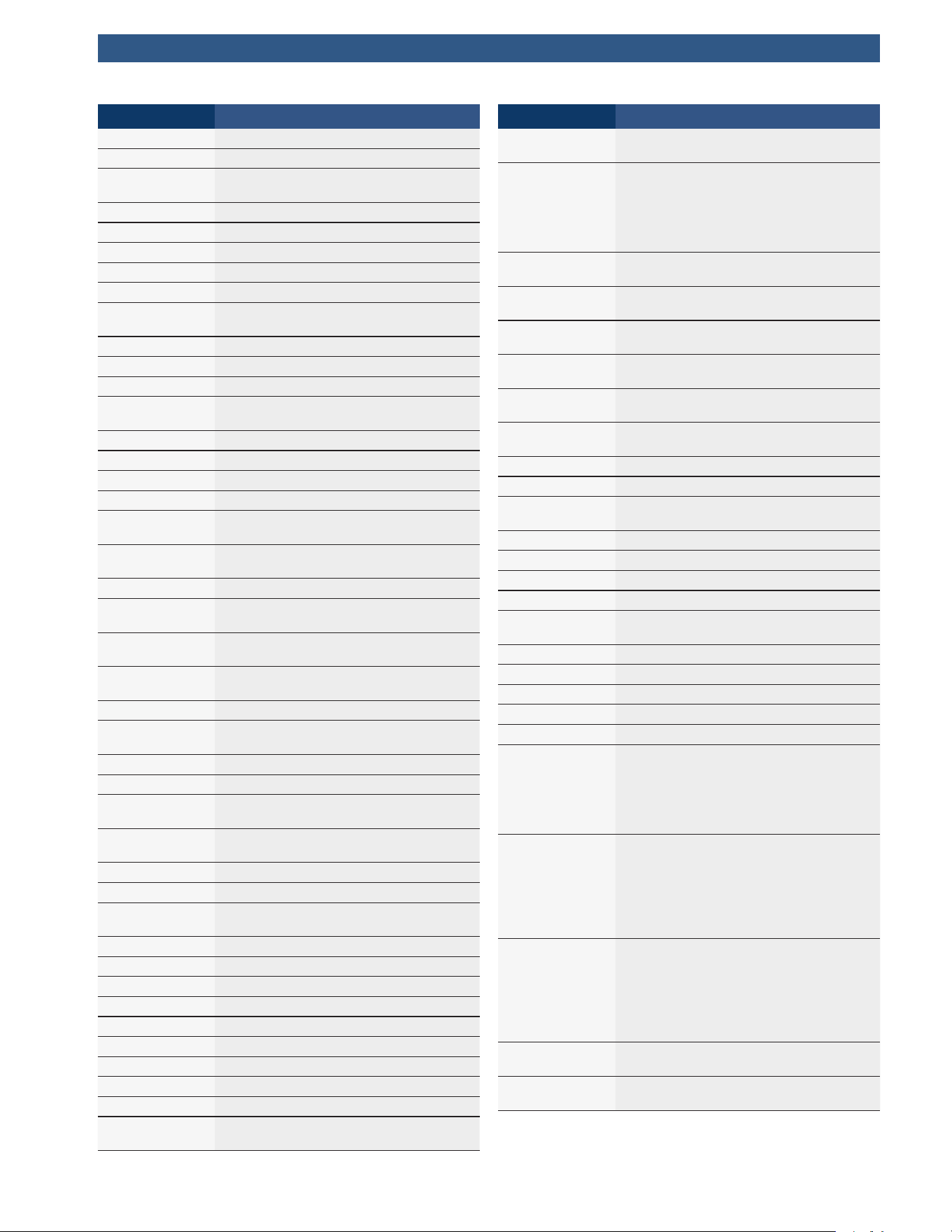
PID PID Description
ENG SPEED Engine RPM
EOT Engine Oil Temperature
EP_1, 2
Exhaust Pressure Sensor Bank 1, Bank
2
EQ RATIO Equivalence Ratio
EVAP PURGE Commanded EVAP Purge
EVAP VP EVAP Vapor Pressure
EVAP VPA Absolute EVAP Vapor Pressure
FRP_A, B Fuel Rail Pressure A, B
FRP_A_CMD, B_
CMD
Commanded Fuel Rail Pressure A, B
FRT_A, B Fuel Rail Temperature A, B
FUEL LEVEL Fuel Level Input
FUEL PRES Fuel Rail Pressure
FUEL SYS 1, 2
Fuel System 1 Loop Status, System 2
Loop Status
FUEL TYPE Fuel Type
FUEL_RATE Engine Fuel Rate
FUEL_TIMING Fueling Injection Timing
GPL_STAT Glow Plug Lamp Status
IAF_A_CMD, B_
CMD
Commanded Intake Air Flow A Control,
B Control
IAF_A_REL, B_
REL
Relative Intake Air Flow A Position, B
Position
IAT Intake Air Temp
IAT 11, 21
Intake Air Temperature Sensor Bank 1
Sensor 1, Bank 2 Sensor 1
IAT 12, 22
Intake Air Temperature Sensor Bank 1
Sensor 2, Bank 2 Sensor 2
IAT 13, 23
Intake Air Temperature Sensor Bank 1
Sensor 3, Bank 2 Sensor 3
ICP_A, B Injection Control Pressure A, B
ICP_A_CMD, B_
CMD
Commanded Injection Control Pres-
sure A, B
IDLE_TIME Total Idle Run Time
IGN ADV Timing Advance
LAMBDA11, 21
02 Sensor Lambda Bank 1 Sensor 1,
Bank 2 Sensor 1
LAMBDA12, 22
02 Sensor Lambda Bank 1 Sensor 2,
Bank 2 Sensor 2
LT FTRM1 Long Term Fuel Trim 1 or 3
LT FTRM2 Long Term Fuel Trim 2 or 4
LT SEC FT1, 2,
3, 4
Long Term Secondary O2 Sensor Fuel
Trim 1, 2, 3, 4
MAF, A, B Mass Air Flow, A, B
MAP, A, B Manifold Absolute Pressure, A, B
MIL DIST MIL_DIST
MIL STATUS Malfunction Indicator Lamp
MIL TIME Minutes Run by MIL activated
MST Manifold Surface Temperature
N/D_STAT Auto Trans Neutral Drive Status
N/G_STAT Manual Trans Neutral Gear Status
NNTE_Stat NOx NTE control area status
NOX 11, 21
NOx Sensor Concentration Bank 1
Sensor 1, Bank 2 Sensor 1
PID PID Description
NOX 12,22
NOx Sensor Concentration Bank 1
Sensor 2, Bank 2 Sensor 2
NOX LEVEL HI,
HI1, HI2, HI3,
HI4
SCR inducement system actual state
10K history HI1 (0-10000 km), 10K his-
tory HI2 (10000-20000 km), 10K his-
tory HI3 20000-30000 km), 10K history
HI4 (30000-40000 km): NOx emission
too high
NOX_ADS_DE-
SUL
NOx Adsorber Desulfurization Status
NOX_ADS_RE-
GEN
NOx Adsorber Regen Status
NWI_TIME
Total Run Time by the Engien whicle
NOx warning mode is activated
O2S
O2 Voltage or Current indicates
Bank / Sensor
O2S11_PCT,
O2S21_PCT
02 Sensor Concentration Bank 1 Sen-
sor 1, Bank 2 Sensor 1
O2S12_PCT,
O2S22_PCT
02 Sensor Concentration Bank 1 Sen-
sor 2, Bank 2 Sensor 2
OBD2 STAT OBD Status
OUT TEMP Ambient Air Temp
PM 11, PM 21
PM Sensor Mass Concentration Bank
1 Sensor 1, Bank 2 Sensor 1
PNTE_Stat PM NTE control area status
PTO STATUS PTO Status
PTO_STAT Power Take Off (PTO) Status
PTO_TIME Total Run Time With PTO Active
REAG_DEMD
Average Demanded Reagent
Consumption
REAG_LVL Reagent Tank Level
REAG_RATE Average Reagent Consumption
REL FRP Relative Fuel Rail Pressure
REL TPS Relative Throttle Position
RUN_TIME Total Engine Run Time
SCR REAG DEV,
DEV1, DEV2,
DEV3, DEV4
SCR inducement system actual state
10K history DEV1 (0 - 10000 km), 10K
history DEV2 (10000 - 20000 km),
10K history DEV3 (20000 - 30000 km),
10K history DEV4 (30000 - 40000 km):
deviation of reagent consumption
SCR REAG
LOW, LOW1,
LOW2, LOW3,
LOW4
SCR inducement system actual state
10K history LOW1 (0 - 10000 km), 10K
history LOW2 (10000 - 20000 km),
10K history LOW3 (20000 -
30000 km), 10K history LOW4
(30000 - 40000 km): reagent level too
low
SCR RE-
AG WRONG,
WRONG1,
WRONG2,
WRONG3,
WRONG4
SCR inducement system actual state
10K history WRONG1 (0 - 10000 km),
10K history WRONG2 (10000 -
20000 km), 10K history WRONG3
(20000 - 30000 km), 10K history
WRONG4 (30000 - 40000 km): incor-
rect reagent
SCR SYS AC-
TIVE
SCR inducement system actual state:
inducement system active
SCR_DIST_1D
Distance travelled in current 10K block
(0 - 10000 km)
PID PID Description
SCR_DIST_1N,
2N, 3N, 4N
Distance travelled while induce-
ment system active in current 10K
block 1N (0 - 10000 km), 20K block
2N (10 - 20000 km), 30K block 3N
(20 - 30000 km), 40K block 4N
(30 - 40000 km)
SECOND AIR Secondary Air Status
ST FTRM
Fuel Trim Bank / Sensor
ST FTRM1, 3 Short Term Fuel Trim1 or 3
ST FTRM2, 4 Short Term Fuel Trim2 or 4
ST SEC
FT1, 2, 3, 4
Short Term Secondary O2 Sensor Fuel
Trim 1, 2, 3, 4
TAC_A_CMD, B_
CMD
Commanded Throttle Actuator A Con-
trol, B Control
TAC_A_REL, B_
REL
Relative Throttle A Position, B Position
TCA_CINP, TCB_
CINP
Turbocharger Compressor Inlet Pres-
sure Sensor A, Pressure Sensor B
TCA_CINT, TCB_
CINT
Turbocharger A Compressor Inlet Tem-
perature, Turbocharger B
TCA_COUT,
TCB_COUT
Turbocharger A Compressor Outlet
Temperature, Turbocharger B
TCA_RPM, TCB_
RPM
Turbocharger A RPM, B RPM
TCA_TCOUT,
TCB_TCOUT
Turbocharger A Turbine Outlet Temper-
ature, Turbocharger B
TCA_TINT, TCB_
TINT
Turbocharger A Turbine Inlet Tempera-
ture, Turbocharger B
THROT CMD Commanded Throttle Actuator Control
TP G Absolute Throttle Position G
TQ_ACT
Actual Engine - Percent Torque
TQ_DD
Driver's Demand Engine - Percent
Torque
TQ_MAX1, 2, 3,
4, 5
Engine Percent Torque At Point 1
(Idle), Point 2, 3, 4, 5
TQ_REF Engine Reference Torque
TROUB CODE Code causing the Freeze Frame
VEH SPEED Vehicle Speed
VGT_A_ACT, B_
ACT
Variable Geometry Turbo A Position,
Turbo B
VGT_A_CMD, B_
CMD
Commanded Variable Geometry Turbo
A Position, Turbo B
VGT_A_STAT, B_
STAT
Variable Geometry Turbo A Control
Status, Turbo B
VPWR Control Module Voltage
WG_A_ACT, B_
ACT
Wastegate A Position, B Position
WG_A_CMD, B_
CMD
Commanded Wastegate A Control, B
Control
TQ_DD Driver's demand engine percent torque
TQ_ACT Actual engine percent torque
TQ_MAX1,
MAX2, MAX3,
MAX4, MAX5
Engine percent torque at
idle point 1, 2, 3, 4, 5
TQ_REF Engine reference torque
VGT_A_ACT Variable geometry turbo A position
VGT_A_CMD Commanded variable geometry turbo
A position
PID PID Description
VGT_A_STAT Variable geometry turbo A control
status
VGT_B_ACT Variable geometry turbo B position
VGT_B_CMD Commanded variable geometry turbo
B position
VGT_B_STAT Variable geometry turbo B control
status
VPWR Control module voltage
WG_A_ACT Wastegate A position
WG_A_CMD Commanded wastegate A control
WG_B_ACT Wastegate B position
WG_B_CMD Commanded wastegate B control

8 Appendix B—Glossary
A/C:
Air conditioner
A/D:
Analog to digital
A/F:
Air/Fuel ratio. The proportion of air and fuel delivered to
the cylinder for combustion. For example, an A/F ratio of
14:1 denotes 14 times as much air as fuel in the mixture.
Ideally the A/F ratio is 14.7:1.
ABS:
Anti-lock crake system
A/C clutch relay:
The PCM uses this relay to energize the A/C clutch,
turning the A/C compressor on or off.
A/C pressure sensor:
Measures air conditioning refrigerant pressure and
sends a voltage signal to the PCM.
A/C pressure switch:
A mechanical switch connected to the A/C refrigerant
line. The switch is activated (sending a signal to the
PCM) when the A/C refrigerant pressure becomes too
low or high.
Actuator:
Actuators such as relays, solenoids, and motors allow
the PCM to control the operation of vehicle systems.
Air Injection Reaction (AIR) System:
An emission control system operated by the PCM. Dur-
ing cold starts, an air pump injects outside air into the
exhaust manifold to help burn hot exhaust gases. This
reduces pollution and speeds warm-up of oxygen sen-
sors and catalytic converters. After the engine is warm,
the air will either be dumped back to the atmosphere (or
into the air cleaner assembly) or sent to the catalytic
converter.
APP:
Acceleration pedal position (sensor)
ASR:
Acceleration slip regulation
Bank x:
The standard way of referring to the bank of cylinders
containing cylinder #x. In-line engines have only one
bank of cylinders. Most commonly used to identify the
location of oxygen sensors. See O2S, Sensor x, Sensor
x.
BARO:
Barometric pressure sensor. See MAP sensor.
BBV:
Brake boost vacuum (sensor)
BCM:
Body control module
Boost control solenoid:
A solenoid that is energized by the PCM, in order to
control turbo/supercharger boost pressure.
Brake switch signal:
An input signal to the PCM indicating that the brake
pedal is being pressed. This signal is typically used to
disengage cruise control systems and torque converter
clutch (TCC) solenoids. See also TCC.
CAM:
Camshaft position sensor. Sends a frequency signal to
the PCM to synchronize fuel injector and spark plug
firing.
Catalytic converter:
Designed to reduce exhaust emissions.
CAN:
Controller area network
CARB:
California air resources board. Governing body for emis-
sions control in California.
CKP REF:
Crankshaft position reference.
CKP:
Crankshaft position. See CPS.
CKT:
Circuit
Closed loop (CL):
A feedback system that uses the O2 Sensor(s) to moni-
tor the results of combustion. Based on the signal(s)
from the O2 sensor(s), the PCM modifies the air/fuel
mixture to maintain optimum performance with lowest
emissions. In closed loop mode, the PCM can fine tune
control of a system to achieve an exact result.
CMP:
Camshaft position sensor
CO:
Carbon monoxide; odorless gas produced by incomplete
combustion.
Code scanner:
A device that interfaces with and communicates informa-
tion via a data link.
Continuous memory codes:
See pending codes.
CPS:
Crankshaft position sensor. Sends a frequency signal to
the PCM. It is used to reference fuel injector operation
and synchronize spark plug firing on distributorless
ignition systems (DIS).
CTS:
Coolant temperature sensor. A resistance sensor that
sends a voltage signal to the PCM indicating the tem-
perature of the coolant. This signal tells the PCM
whether the engine is cold or warm.
CVRTD:
Continuous variable real time damping
D/R:
Drive/reverse
Data Link Connector (DLC):

Connector providing access and/or control of the vehicle
information, operating conditions, and diagnostic infor-
mation. Vehicles with OBD II use a 16-pin connector
located in the passenger compartment.
Data stream:
The actual data communications sent from the vehicle’s
PCM to the data connector.
DEPS:
Digital engine position sensor.
Detonation:
See knock.
DI/DIS:
Direct Ignition/Distributorless Ignition System. A system
that produces the ignition spark without the use of a
distributor.
DPFE:
Differential pressure feedback-exhaust gas recirculation
sensor
DTC:
Diagnostic trouble code. An alphanumeric identifier for a
fault condition identified by the on board diagnostic
system.
Duty Cycle:
A term applied to signals that switch between on and
off. Duty cycle is the percentage of time the signal is on.
For example, if the signal is on only one fourth of the
time, then the duty cycle is 25%. The PCM uses duty
cycle type signals to maintain precise control of an
actuator.
EBCM:
Electronic brake control module
EBTCM:
Electronic brake/traction control module
ECM:
Engine control module or electronic control module
ECT:
Engine coolant temperature sensor. See CTS.
EEPROM:
Electrically erasable programmable read only memory
EFE:
Early fuel evaporation
EFI:
Electronic fuel injection. Any system where a computer
controls fuel delivery to the engine by using fuel injec-
tors.
EGR:
Exhaust gas recirculation. The PCM uses the EGR system
to recirculate exhaust gases back into the intake mani-
fold to reduce emissions. EGR is used only during warm
engine cruise conditions.
EOP:
Engine oil pressure (switch)
EOT:
Engine oil temperature (sensor)
EPA:
Environmental protection agency
ESC:
Electronic spark control. An ignition system function that
warns the PCM when knock is detected. The PCM then
retards spark timing to eliminate the knocking condition.
EST:
Electronic spark timing. An ignition system that allows
the PCM to control spark advance timing. The PCM
determines optimum spark timing from sensor informa-
tion — engine speed, throttle position, coolant tempera-
ture, engine load, vehicle speed, Park/Neutral switch
position, and knock sensor condition.
EVAP:
Evaporative emissions system
FC:
Fan control
Freeze frame:
A block of memory containing DTCs of the vehicle oper-
ating conditions for a specific time.
FTP:
Federal test procedure. Strict test of vehicle’s emissions.
Ground (GND):
An electrical conductor used as a common return for an
electric circuit(s) and with a relative zero potential
(voltage).
Hall effect sensor:
Any of a type of sensor utilizing a permanent magnet and
a transistorized Hall Effect switch. Hall Effect type sen-
sors may be used to measure speed and position of the
crankshaft or camshaft — for spark timing and fuel injec-
tor control.
HO2S:
Heated oxygen sensor. See O2S.
HVAC:
Heating, ventilation, & air conditioning (system)
I/M:
Inspection and maintenance. An emission control pro-
gram.
IAC:
Idle air control. A device mounted on the throttle body
which adjusts the amount of air bypassing a closed
throttle so that the PCM can control idle speed.
IAT:
Intake air temperature (sensor)
ICM:
Ignition control module.
IMRC:
Intake manifold runner control
IPC:
Instrument panel cluster
ISC:
Idle speed control. A small electric motor mounted on
the throttle body and controlled by the PCM. The PCM
can control idle speed by commanding the ISC to adjust
its position.
ISO:
International Organization of Standardization also know
as International Standards Organization.
KAM:

Keep alive memory
Knock sensor (KS):
Used to detect engine detonation or knock. The sensor
contains a piezoelectric element and is threaded into the
engine block. Special construction makes the element
sensitive only to engine vibrations associated with deto-
nation.
Knock:
Uncontrolled ignition of the air/fuel mixture in the cylin-
der. Also referred to as detonation or ping. Knock indi-
cates extreme cylinder pressures or “hotspots” that are
causing the air/fuel mixture to detonate prematurely.
KOEO:
Key ON engine OFF. Turn the ignition key to on, but don’t
start the engine.
KOER:
Key ON engine running. Start the vehicle.
LCD:
Liquid crystal display
LTFT:
Long term fuel trim
M/T:
Manual transmission or manual transaxle.
MAF:
Mass air flow (sensor). Measures the amount and den-
sity of air entering the engine and sends a frequency or
voltage signal to the PCM. The PCM uses this signal in
its fuel delivery calculations.
MAP:
Manifold absolute pressure (sensor). Measures intake
manifold vacuum or pressure and sends a frequency or
voltage signal (depending on sensor type) to the PCM.
This gives the PCM information on engine load for con-
trol of fuel delivery, spark advance, and EGR flow.
MAT:
Manifold air temperature (sensor). A resistance sensor
in the intake manifold that sends a voltage signal to the
PCM indicating the temperature of the incoming air. The
PCM uses this signal for fuel delivery calculations.
MIL:
Malfunction indicator lamp. The MIL is most commonly
known as the check engine or service engine soon light.
A required on-board indicator to alert the driver of an
emission-related malfunction.
Misfire:
Caused by the air fuel ratio being incorrect.
Monitor:
A test performed by the on-board computer to verify
proper operation of emission-related systems or compo-
nents.
MPFI or MFI:
Multi-port fuel injection. MPFI is a fuel injection system
using one (or more) injector(s) for each cylinder. The
injectors are mounted in the intake manifold, and fired in
groups rather than individually.
NOx:
Oxides of nitrogen. The system EGR and Camshafts
injects exhaust gases into the intake manifold to reduce
these gases at the tailpipe.
O2S:
Oxygen sensor. Generates a voltage of 0.6 to 1.1 volts
when the exhaust gas is rich (low oxygen content). The
voltage changes to 0.4 volts or less when the exhaust
gas is lean (high oxygen content). This sensor only oper-
ates after it reaches a temperature of approximately
349ºC (660ºF). O2 sensors are usually found both
upstream and downstream of the catalytic converter.
The PCM uses these sensors to fine tune the air-fuel
ratio and to monitor the efficiency of the catalytic con-
verter. See Bank 1, Bank 2, Sensor 1, Sensor 2.
OBDII:
On-board diagnostics, second generation. OBD II is a
U.S. Government-mandated standard requiring all cars
and light trucks to have a common data connector,
connector location, communication protocol, DTCs and
code definitions. OBD II first appeared on vehicles in
late 1994, and is required to be present on all cars sold
in the US after January 1, 1996.
ODM:
Output device monitor
Open loop (OL):
A control system mode that does not monitor the output
to verify if the desired results were achieved. A fuel
delivery system usually operates in open loop mode
during cold engine warm-up because the oxygen sensors
are not yet ready to send a signal. Without the oxygen
sensor signal, the computer cannot check the actual
results of combustion.
PCM:
Powertrain control module. The brains of the engine and
transmission control systems housed in a metal box with
a number of sensors and actuators connected via a
wiring harness. Its job is to control fuel delivery, idle
speed, spark advance timing, and emission systems. The
PCM receives information from sensors, then energizes
various actuators to control the engine. The PCM is also
known as the ECM (engine control module).
Pending codes:
Also referred to as continuous memory codes and matur-
ing diagnostic trouble codes. Pending codes may be set
by emission related powertrain components and sys-
tems. If the fault does not occur after a certain number
of drive cycles, the code is erased from memory.
PID:
Parameter identification. Identifies an address in mem-
ory which contains vehicle operating information.
PNP:
Park/neutral position. A switch that tells the PCM when
the gear shift lever is in the park or neutral position.
When in park or neutral, the PCM operates the engine in
an idle mode.
PROM:

Programmable read-only memory. The PROM contains
programming information the PCM needs to operate a
specific vehicle model/engine combination.
PSPS:
Power steering pressure switch
Purge solenoid:
Controls the flow of fuel vapors from the carbon canister
to the intake manifold. The canister collects vapors
evaporating from the fuel tank, preventing them from
escaping to the atmosphere and causing pollution.
During warm engine cruise conditions, the PCM ener-
gizes the Purge Solenoid so the trapped vapors are
drawn into the engine and burned.
PWM:
Pulse width modulated
PZM:
Platform zone module
QDM:
Quad driver module
RAM:
Random access memory
Relay:
An electromechanical device in which connections in
one circuit are switched.
Reluctance sensor:
A type of sensor typically used to measure crankshaft or
camshaft speed and/or position, driveshaft speed, and
wheel speed.
ROM:
Read-only memory. Permanent programming information
stored inside the PCM, containing the information the
PCM needs to operate a specific vehicle model/engine
combination.
RPM:
Revolutions per minute
SAE:
Society of Automotive Engineers
Scan tool:
A device that interfaces with and communicates informa-
tion on a data link.
SDM:
Sensing and diagnostic module
Sensor x:
A standard term used to identify the location of oxygen
sensors. Sensor 1 is located upstream of the catalytic
converter. See O2S, Bank 1, Bank 2.
Sensor:
Any device that reports information to the PCM. The job
of the sensor is to convert a parameter such as engine
temperature into an electrical signal that the PCM can
understand.
SFI or SEFI:
Sequential fuel injection or sequential electronic fuel
Injection. A fuel injection system that uses one or more
injectors for each cylinder. The injectors are mounted in
the intake manifold and are fired individually.
Solenoid:
A device consisting of an electrical coil which when
energized, produces a magnetic field in a plunger, which
is pulled to a central position. A solenoid may be used as
an actuator in a valve or switch.
STFT:
Short term fuel trim
STS:
Service throttle soon
TAC:
Throttle actuator control
TBI:
Throttle body injection. A fuel injection system having
one or more injectors mounted in a centrally located
throttle body, as opposed to positioning the injectors
close to an intake valve port. TBI is also called Central
Fuel Injection (CFI) in some vehicles.
TCC:
Torque converter clutch
TCM:
Transmission control module
TCS:
Traction control system for PCM and brakes
TDC:
Top dead center. When a piston is at its uppermost
position in the cylinder.
TFP:
Transmission fluid pressure
TFT:
Transmission fluid temperature (sensor)
Throttle body:
A device which performs the same function as a carbure-
tor in a fuel injection system. On a throttle body injec-
tion (TBI) system, the throttle body is both the air door
and the location of the fuel injectors. On port fuel injec-
tion systems (PFI, MPFI, SFI, etc.), the throttle body is
simply an air door. Fuel is not added until the injectors
at each intake port are activated. In each case, the
throttle body is attached to the accelerator pedal.
TPS:
Throttle position sensor. Potentiometer-type sensor
connected to the throttle shaft. Its voltage signal output
increases as the throttle is opened. The PCM uses this
signal to control many systems such as idle speed, spark
advance, fuel delivery, etc.
Traction assist:
Assist in traction with brakes only.
Trip:
Vehicle operation for a period of time so the systems can
be monitored.
TTS:
Transmission temperature sensor. A resistance sensor
mounted in the transmission housing in contact with the
transmission fluid. It sends a voltage signal to the PCM
indicating the temperature of the transmission.
VECI:
Vehicle emission control information. A decal located in
the engine compartment containing information about

the emission control systems found on the vehicle. The
VECI is the authoritative source for determining whether
a vehicle is OBDII compliant.
VIN:
Vehicle identification number. This is the factory-
assigned vehicle serial number. This number is stamped
on a number of locations throughout the vehicle, but the
most prominent location is on top of the dashboard on
the driver’s side, visible from outside the car. The VIN
includes information about the car, including where it
was built, body and engine codes, options, and a
sequential build number.
VSS:
Vehicle speed sensor. Sends a frequency signal to the
PCM. The frequency increases as the vehicle moves
faster to give the PCM vehicle speed information used to
determine shift points, engine load, and cruise control
functions.
VTD:
Vehicle theft deterrent
Warm-up cycle:
Warm-up cycle is when the engine coolant temperature
rises at least 40 degrees above that at engine start up.
WOT:
Wide-open throttle. The vehicle operating condition
brought about when the throttle is completely (or
nearly) open. The PCM typically delivers extra fuel to the
engine and de-energizs the A/C compressor at this time
for acceleration purposes. The PCM uses a switch or the
TPS to identify the WOT condition.
9 Limited Warranty
THIS WARRANTY IS EXPRESSLY LIMITED TO ORIGI-
NAL RETAIL BUYERS OF BOSCH ELECTRONIC DIAG-
NOSTIC TOOLS (“UNITS”).
BOSCH Automotive Service Solutions Inc. Units are war-
ranted against defects in materials and workmanship for
one year (12 months) from date of delivery. This warranty
does not cover any Unit that has been abused, altered,
used for a purpose other than that for which it was
intended, or used in a manner inconsistent with instruc-
tions regarding use. The sole and exclusive remedy for any
Unit found to be defective is repair or replacement, the
option of BOSCH. In no event shall BOSCH be liable for any
direct, indirect, special, incidental or consequential dam-
ages (including lost profit) whether based on warranty,
contract, tort or any other legal theory. The existence of a
defect shall be determined by BOSCH in accordance with
procedures established by BOSCH. No one is authorized to
make any statement or representation altering the terms of
this warranty.
DISCLAIMER
THE ABOVE WARRANTY IS IN LIEU OF ANY OTHER WAR-
RANTY, EXPRESS OR IMPLIED, INCLUDING ANY WAR-
RANTY OF MERCHANTABILITY OR FITNESS FOR A PAR-
TICULAR PURPOSE.
SOFTWARE
Unit software is proprietary, confidential information
protected under copyright law. Users have no right in or
title to Unit software other than a limited right of use
revocable by BOSCH. Unit software may not be trans-
ferred or disclosed without written consent of BOSCH.
Unit software may not be copied except in ordinary
backup procedures.