AIPIPrintUserManual(EN-US)
UserManual
QuickStartGuide
Loadthelabelpaper
1.
Pressthecompartmentreleasebuttondownward;thepapercompartmentcoverwillpop
open.Liftthecoverallthewayopenbyhand.
(Image)
2.
Takeoutthesuppliesandtearofftheouterbindingsticker.Pushthepaperguidesoutward
tobothsides,andplacethelabelpaperintothecompartmentwiththeprintingsidefacing
down.(Whenthecompartmentisopen,becarefulofthesharptear-offbladetoavoidcuts.)
(Image)
3.
Pushthepaperguidesinwarduntiltheyholdthelabelpaperfirmlyinplace.Leaveabout2
‒
3
cmofthefirstlabelstickingout.
(Image)
4.
Closethepapercompartment.
(Image)
Poweron
Pressandholdthepowerbuttonontheleftsidefor2seconds.Whenthescreenlightsupand
displaysthelogoandtheindicatorturnssolidwhite,thedevicehaspoweredonsuccessfully.
Connecttoanetworkandbindthedevice
1.
Getthecompanionappfortheprinter:scantheQRcodebelow,orsearchfortheAIPIPrint
appintheAppStoreorGooglePlay.
2.
OpentheAIPIPrintapp,tap
"
SearchandConnect,
"
andselectyourprintertopairover
Bluetooth.Thenfollowtheon-screeninstructionstoconfigurethenetworkandbindthe
device.
*Note:AIprintingisavailableonlywhenthedeviceisconnectedtotheinternetandboundtoan
account.
UsingAIprinting
1.
Afterthedeviceisonlineandbound,presstheUp/Downbuttonsonthehomescreento
selectanAIprintingfeature,thenpresstheConfirmbuttontoenter.
(Imageofthedevicehomescreen)
2.
PressandholdtheDownbuttontorecord,andsayoutloudwhatyouwanttoprint.
(Left:illustrationofpressingandholdingtheDownbuttononthedevice;right:aspeechbubble
reading
"
Alittlewhiterabbiteatingacarrot
"
)
3.
Whenyoufinishspeaking,presstheConfirmbutton.ThedevicewilluseAItosummarize
yourrequestandgeneratethelabel,andthenstartprinting.
(Thedevicescreenshowsalittlewhiterabbiteatingacarrotwhiletheprintiscomingout)
TermsandDefinitions
AIPIPrint
AIPIPrintisasmartlabelprinterthatusesthermalprintingtechnology.Itprintslabels,images,
andtextwithoutinkorinkcartridges.
AIPIPrintsupportstwomainwaystoprint:AIprintingandBluetoothprinting.Youcancreate
andprintcontentdirectlyonthedeviceusingitsAIfeatures,oreditcontentintheAIPIPrintapp
andsendittotheprinter.
Throughoutthismanual,
"
theprinter
"
and
"
thedevice
"
bothrefertoAIPIPrint.
AIPIPrintapp
TheAIPIPrintappisthecompanionmobileapplicationforAIPIPrint.Itismainlyusedto
connecttotheprinteroverBluetoothandtoeditcontentandprint.
YoucanusetheAIPIPrintapptocreate,edit,andmanagethecontentyouwanttoprint,and
sendthatcontenttoAIPIPrintoverBluetooth.
Throughoutthismanual,
"
theapp
"
referstotheAIPIPrintapp.
AIprinting
AIprintingistheintelligentcontent-creationandprintingfeatureprovidedbyAIPIPrint.You
don
'
tneedtoprepareprintcontentinadvance;youcaninteractwiththeAIdirectlyonthe
printer
―
byvoice,forexample
―
andtheAIgeneratescontentsuitedtoprintingbasedonyour
requestandcompletestheprint.
AIprintingcurrentlyincludesthefollowingfeatures:
•
AIImage:generatesanimagefromyourdescriptionandprintsit.
•
AILabel:intelligentlyunderstandsandsummarizesyourinputandautomaticallygenerates
print-readylabelcontent.
•
AIFortune:generatesfunfortune-tellingcontentbasedonyourrequestandprintstheresult.
Note:AIprintingisusedmainlyontheAIPIPrintdeviceitself.AIfeaturesworkonlyafterthe
deviceisconnectedtotheinternetandbound.
Bluetoothprinting
Bluetoothprintingistheclassiclabel-printingfeatureprovidedbyAIPIPrint.Youeditorselect
thecontentyouwanttoprintintheAIPIPrintapp,thensendtheprintjobtoAIPIPrintover
Bluetooth,andtheprintercompletestheprint.
Bluetoothprintingisdesignedforclassictext,image,andlabelprinting
―
thestandardsetof
featurescommonlyfoundonthermalprinters.
UnlikeAIprinting,BluetoothprintingstartsintheAIPIPrintapp:youfinisheditingcontentinthe
app,thensendittothedeviceoverBluetoothtoprint.
KeyFeatures
AIPIPrintcombinesAI-poweredcreationwithclassicBluetoothprinting,givingyouanall-in-one
experiencefromcontentgenerationandlabeldesigntofastprinting.Withasimplevoiceinput,
thedevicequicklyturnsyourideasintoprintabletext,images,orpolishedlabels.
AILabel
AILabelisavoice-basedsmartlabelgenerationandprintingfeature.Youdon
'
tneedtotypetext
ordesignalabellayout
―
justtellAIPIPrintwhatyouwanttorecordormark.TheAI
automaticallyunderstandsthemeaningofyourspeech,extracts,summarizes,andorganizesit,
removesunnecessaryinformation,andconvertsthekeycontentintoconcise,clear,print-ready
labeltext.Forexample,youcansay,
"
ThisisthestrawberryjamIboughtyesterday;refrigerateit
afteropening,andit
'
sbestfinishedwithinamonth.
"
TheAIautomaticallypullsoutthe
importantinformationandgeneratesaconciselabel,whichthedevicethenprintsdirectly.AI
Labelisidealforeverydaysituationssuchasmarkingitems,organizingstorage,managingfood,
sortinghouseholdgoods,andtidyingupthehome.Ithelpsyoucaptureinformationinseconds,
makingittrulyeasyto
"
printwhatevercomestomind.
"
AIImage
AIImageturnsyourspokendescriptiondirectlyintoaprintablepicture.Youdon
'
tneedto
prepareanimageinadvanceoruseprofessionaldrawingsoftware
―
justdescribethesceneyou
wantbyvoice.TheAIunderstandsyourdescription,automaticallydistillsitssubject,action,and
content,generatesamatchingimage,andoutputsitinstantlyonthethermalprinter.For
example,youcansay,
"
Drawalittlerabbitsittingonthegrasseatingacarrot,
"
andthedevice
generatesandprintsthatimagefromyourdescription.AIImagequicklyturnsyourideas,
stories,objects,andfunmomentsinlifeintophysicalpictures.It
'
sgreatfordecoratingjournals,
kids
'
artprojects,DIYcrafts,giftdecoration,lifelogging,andmakingfunstickers,takingthermal
printingwellbeyondtraditionaltextandlabels.
MagicBrush
MagicBrushbuildsonAIImagebyaddingstyleselection,soyoucanactivelydecidethevisual
styleoftheAI-generatedpicture.Touseit,firstpickanimagestyleyoulike
―
suchasComic,
ChibiCartoon,LineArt,Sketch,InkWash,orPixelArt
―
andthentellthedevicebyvoicewhat
youwanttogenerate.TheAIunderstandsbothyourdescribedcontentandyourchosenstyleat
thesametime,andcombinesthetwotoproduceanimageinthespecifiedstyle.Forexample,
afterselecting
"
LineArt,
"
say,
"
Drawakittenlickingitsfur,
"
andtheAIgeneratesacuteline-art
kittenwithclean,simplestrokesandprintsitrightaway.Bycombining
"
whatIwanttodraw
"
with
"
thestyleIwantitin,
"
MagicBrushletsyoutakeamoreactivepartinAIcreation.It
'
s
perfectforjournals,decoration,DIY,kids
'
art,andpersonalizedpictureprinting.
SceneLabel
SceneLabelcombinesAIcontentgenerationwithdifferentreal-lifeusagescenarios,givingyoua
morepractical,well-designedlabelexperience.Touseit,firstchoosealabelscenario
―
suchas
To-Do,ShoppingList,StudyCards,FoodManagement,Storage&Organization,orLifeLog
―
and
thentellthedevicebyvoicewhatyouwanttorecord.Basedonthescenarioyouchose,theAI
interpretsyourspeech,automaticallyextractskeyinformation,andorganizesthecontent
structure.Atthesametime,itgeneratesafittinglabellayout,texthierarchy,anddecorative
elementsforthatscenario,completewithadedicatedborderdesign,ultimatelyproducinga
labelwithafinishedvisuallookandprintingit.Forexample,afterselecting
"
ShoppingList,
"
say,
"
Notedownmilk,eggs,bread,andapples,
"
andtheAIautomaticallyturnsthisintoaclean
shopping-listlabel.Withitsscenario+AI+designapproach,SceneLabelmakesthesame
sentencetakedifferentformsindifferentscenarios.It
'
swellsuitedtohomestorage,studying,
officework,shopping,andeverydaylifemanagement.
AIFortune
AIFortuneisalightheartedAIentertainmentfeaturethatgivesyouafunfortune-slipprinting
experience.Youcansimplytellthedevicebyvoicewhatyou
'
dlikeafortuneabout
―
for
example,
"
Tellmemyfortunefortoday
"
or
"
What
'
smyluckycolortoday?
"
TheAIgeneratesa
funresultforthattopicfromyourinput,formatsitasaprintablefortuneslip,luckyslip,or
noveltycard,andoutputsitontheprinter.Youcankeeptheprintedslipsorsharethemwith
friends,addinganinteractive,entertainingtouchtoeverydaylife.AIFortuneisintendedpurely
forlightheartedfun.Thegeneratedcontentisforentertainmentonly;itisnotarealprediction
anddoesnotconstituteprofessionaladviceofanykind.
Bluetoothprinting
BluetoothprintingisAIPIPrint
'
sclassicthermalprintingfeatureandthefoundationfor
everydayprintingneeds.YouestablishaBluetoothconnectionwiththeprinterthroughtheAIPI
Printapp,edit,layout,andadjustthetext,images,andlabelsyouwanttoprintintheapp,and
thensendtheprintjobtoAIPIPrinttocomplete.Unliketheon-deviceAIprintingfeatures,
Bluetoothprintingemphasizesyourowneditingandcontroloverthecontent:youcanselect
images,entertext,adjustlayouts,andcreatepersonalizedlabelstomeetyourneeds.Itgives
youamoretraditional,reliable,andfree-formthermalprintingexperience.
PartNames
(Image)
What
'
sintheBox
Tomakesureyouenjoyagreatexperience,pleasecarefullycheckthefollowingitemsthefirst
timeyouopenthepackage.
Item
Quantity
Description
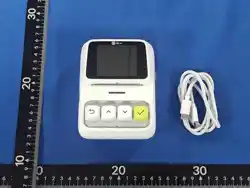
AIPIPrint
1
Smartlabelprinter(mainproduct)
DualUSB-Ccable
1
Forchargingthedevice(chargingonly;nodata
transfer)
Thermallabelpaper
2
Labelrollsforthermalprinting
QuickStartGuide
1
Aquickguidetogettingstarted
UserGuide
PoweringOnandOff
Topoweron
•
Pressandholdthepowerbuttonontheleftsidefor2seconds.Thestartupsoundplays,the
statuslightturnssolidwhite,andthescreenlightsupwiththelogo
―
AIPIPrinthaspoweredon
successfully.
•
AIPIPrintpowersonautomaticallywhenyouconnectittoapoweredUSB-Cport.
Topoweroff
•
Pressandholdthepowerbuttonontheleftsidefor2secondsuntilthescreenandstatus
lightturnoff.AIPIPrinthaspoweredoffsuccessfully.
*Note:AslongasAIPIPrintisconnectedtoapoweredUSB-Cport,thepowerbuttonisdisabled
andthedevicestayspoweredonatalltimes.
ConnectingtoaNetworkandBinding
First-timesetup
BeforeusingAIPIPrint,youneedtocompletetheBluetoothconnection,networkconfiguration,
anddevicebindingthroughthe
AIPIPrintapp
.Oncebindingiscomplete,youcanusethe
device
'
sAIprintingfeatures.
1.
Getthecompanionappfortheprinter.ScantheQRcodebelow,orsearchfortheAIPIPrint
appintheAppStoreorGooglePlay.
2.
Connecttheprinter.
OpentheAIPIPrintappandtap
"
SearchandConnect
"
onthehomescreen.Ifyourphone
'
s
Bluetoothisturnedoff,theappwillpromptyoutoenableit
―
pleasefollowtheprompts.Power
onAIPIPrint;afterthedevicefinishesstartingup,theappautomaticallysearchesfornearby
printers.FindyourAIPIPrintinthedevicelistandtapitsnametoconnect.Thefirsttimeyou
connect,yourphonedisplaysaBluetoothpairingrequest
―
tap
"
Pair
"
or
"
OK
"
tocomplete
pairing.
Tip:KeepyourphoneclosetoAIPIPrint,andavoidturningoffyourphone
'
sBluetoothduring
theconnectionprocess.
3.
Configurethenetwork.
AftertheBluetoothconnectionsucceeds,theappautomaticallyentersthenetworksetupflow.
ItautomaticallyobtainsthenameoftheWi-Finetworkyourphoneiscurrentlyconnectedtoand
usesitastheWi-FinetworkAIPIPrintwillconnectto.Youdon
'
tneedtoentertheWi-Finame
manually
―
simplyenterthecorrespondingWi-Fipasswordandfollowthein-apppromptsto
completenetworkconfiguration.
Tip:MakesuretheWi-FipasswordyouenteriscorrectandthattheWi-Finetworkyourphone
iscurrentlyconnectedtocanaccesstheinternetnormally.
4.
Completedevicebinding.
Afterthenetworkisconfigured,AIPIPrintautomaticallyconnectstothespecifiedWi-Finetwork.
Oncethedeviceisonline,theappcompletesdevicebindingautomatically.Whenbinding
succeeds,theappshowsthatthedeviceisbound.Atthispoint,AIPIPrinthascompletedfirst-
timesetupandyoucannormallyusetheAIprintingfeaturesthatrequireanetworkconnection
andbinding.
1.AIPIPrintsupportsboth2.4GHzand5GHznetworks.
*Notes:
2.AIprintingrequiresthedevicetobeonlineandbound.Featuresthatdon
'
trelyonAI
services,suchasBluetoothprinting,canbeusedaccordingtotheirownrequirements.
Reconfiguringthenetwork
1.
Ifyouneedtoreconfiguretheprinter
'
snetwork,firstpowerontheprinterandopentheapp
toconnectoverBluetooth.Onceconnected,gotothe
"
Printer
"
pageandtap
"
Network.
"
The
appdisplaystheWi-Finetworkyourphoneiscurrentlyconnectedto.Afterconfirmingthe
networknameiscorrect,enterthecorrespondingWi-Fipasswordandfollowtheon-screen
promptstocompletereconfiguration.
(Image)
*Notes:1.Bydefault,theappdisplaystheWi-Finetworkyourphoneiscurrentlyconnectedto.
ToconnecttheprintertoadifferentWi-Finetwork,firstconnectyourphonetothetargetWi-Fi;
whenyoureturntotheapp,thatnetworkwillbedisplayed.
2.AIPIPrintsavesnetworksithasconnectedtoandreconnectstosavednetworks
automatically.
3.AfterasuccessfulBluetoothconnection,theappconnectsautomaticallyoverBluetooththe
nexttimetheprinteristurnedon.
AIPrinting
AIprintingrequiresthedevicetobeonlineandbound.Youcaninputcontentbyvoicedirectly
ontheAIPIPrintdevice,andtheAIwillautomaticallyunderstandandsummarizeittogeneratea
print-readylabelorimage.
1.
ChooseanAIprintingfeature
Afterthedeviceisonlineandbound,presstheUp/Downbuttonsonthehomescreentoselect
anAIprintingfeature,thenpresstheConfirmbuttontoenterit.
2.
Chooseascenario/style(requiredonlyforMagicBrushandSceneLabel)
AfterenteringsomeAIprintingfeatures,youfirstneedtoselectthecorrespondinglabel
scenarioorimagestyle.
Forexample,whenusingSceneLabel,youcanpresstheUp/Downbuttonstochoosealabel
scenariosuchasTo-Do,ShoppingList,orStudyCards.Afteryouchooseascenario,theAI
interpretsyourspeechinthecontextofthatscenario,soitcanextractandorganizeinformation
moreaccuratelyandproduceapolishedlabelwiththematchinglayoutanddecorativeborder.
WhenusingMagicBrush,youfirstneedtochooseanimagestyle,suchasComic,ChibiCartoon,
LineArt,Sketch,orPixelArt.TheAIcombinesyourchosenstylewithyoursubsequentspoken
descriptiontogenerateanimageinthatstyle.
3.
Voiceinput
Afteryourselectioniscomplete,you
'
llenterthevoiceinputscreen.
PressandholdtheDownbuttontostartrecording.YoucantelltheAIwhatyouwanttoprintina
natural,conversationalway
―
there
'
snoneedtofollowafixedformat.
Whenyou
'
redonespeaking,releasetheDownbuttontoendtherecording,andtherecognized
speechwillbedisplayedonthescreen.
Ifyouwanttoaddmore,pressandholdtheDownbuttonagainforanothervoiceinput;multiple
inputsareaccumulated.
Ifyouwanttodeletecontentyou
'
vealreadyentered,presstheUpbuttontodeletetext.
Afterconfirmingthatallinputiscomplete,presstheConfirmbuttontocontinue.
Tip:Youdon
'
tneedtocarefullyorganizeyourwords
―
justdescribewhatyouwanttoprintin
naturallanguage.Forexample:
"
Makemeastoragelabelformilk,remindingmetorefrigerate
itafteropening.
"
4.
AIgenerationandprinting
Afteryouconfirmthevoiceinput,AIPIPrintappliesAIunderstanding,informationextraction,
andcontentorganizationtoyourinput,andgeneratesthecorrespondingprintcontentbasedon
thecurrentlyselectedfeature.
•
AILabel/SceneLabel:theAIautomaticallysummarizesandorganizesyourspeechto
generatethelabel.
•
AIImage:theAIgeneratesthecorrespondingimagefromyourdescription.
•
MagicBrush:theAIgeneratesanimageinthecorrespondingstylebasedonyourselected
imagestyleandspokendescription.
Whengenerationiscomplete,thedevicesendsthefinalcontenttotheprintmoduleand
finishesprintingautomatically.
Thewholeprocesscanbeunderstoodsimplyas:
Selectfeature
→
Selectscenario/style
→
Voiceinput
→
AIunderstanding&generation
→
Automaticprinting
Note:AIgenerationtakessomeprocessingtime.Keepthedeviceonlineduringgeneration
―
do
notturnoffthedeviceorinterruptthenetworkconnection.
5.
AIfeatures
•
AIImage:
AIImagecanautomaticallyunderstandwhatyouwanttoexpressfromyourspokendescription,
generatethecorrespondingimage,andprintitrightaway.
Justdescribethesceneyouwant,forexample:
"
Threecatsgatheredaroundacakecelebratingabirthdaytogether.
"
"
Drawalittlerabbiteatingacarrot.
"
TheAIgeneratesthecorrespondingimagefromyourdescriptionandprintsitonthethermal
printer.
•
AILabel:
AILabelcanautomaticallyunderstand,summarize,anddistillthekeyinformationfromyour
voiceinput,generateconcise,practicallabelcontent,andthenprintitdirectly.Youdon
'
tneed
toeditlabelsmanually
―
justsaywhatyouwanttorecord,forexample:
"
Thisboxofcookiesischocolateflavor.ItexpiresnextMarch.
"
"
Generateaweatherforecastforthecomingweek.
"
TheAIautomaticallyextractsthekeyinformationandgeneratesprint-readylabelcontent.
•
MagicBrush
MagicBrushisanimage-creationexperiencethatcombinesimage-styleselectionwithAIvoice
creation.
First,choosetheimagestyleyouwant,forexample:
•
Comic
•
ChibiCartoon
•
LineArt
•
Sketch
•
InkWash
•
PixelArt,andmore
Thendescribebyvoicewhatyouwanttogenerate.TheAIcombinesyourselectedimagestyle
withyourspokendescriptiontogenerateandprintanimageinthatstyle.
Forexample:
Select:LineArt
→
Say:
"
Akittenlickingitsfur.
"
Select:InkWash
→
Say:
"
Amountainrangethatlookslikerollingridgesfromthefrontand
sharppeaksfromtheside.
"
TheAIgeneratesakittenimageinline-artstyle.
•
SceneLabel
SceneLabelcombinesAIcontentgenerationwithdifferentreal-lifeusagescenariostogiveyou
morepolished,practicallabels.
First,choosealabelscenario,forexample:
•
To-Do
•
ShoppingList
•
StudyCards
•
FoodLabel
•
StorageLabel
•
Memo,andmore
ThentelltheAIbyvoicewhatyouwanttorecord.Combiningyourselectedscenariowithyour
speech,theAIautomaticallyorganizestheinformationandgeneratesapolishedlabelwiththe
correspondinglayoutanddecorativeborder.
Forexample:
Select:To-Do
→
Say:
"
Ineedtograbbreakfastinabit,remembertotakemymedicineatnoon,
there
'
sacompanymeetingintheafternoon,andI
'
mgoingtoamoviewithfriendstonight.
"
Select:FoodLabel
→
Say:
"
Thisisabottleofmilk.Itexpiresinaweek.
"
Select:Memo
→
Say:
"
NotethatI
'
vealreadymadebreakfastandleftitonthetable.Remind
Momtoheatitupbeforesheeatsit
―
coldfoodisn
'
tgoodforthestomach.
"
TheAIautomaticallyorganizesthecontentandgeneratesalabelsuitedtotheselectedscenario.
•
AIFortune
AIFortuneisalighthearted,funAIentertainmentfeature.
YoucantelltheAIbyvoicewhatyou
'
dlikeafortuneabout,forexample:
"
Tellmemyfortunefortoday.
"
TheAIgeneratesacorrespondingfunfortuneslipfromyourinputandpresentstheresultina
printableformat.
AIFortunecontentisintendedsolelyforentertainmentandfun;itisnotarealpredictionor
professionaladvice.
•
History
HistorysavestheAIlabelsandimagesthedevicehasgeneratedmostrecently,soyoucan
quicklyreviewandreprintthem.
Thedevicesavesyour10mostrecentgenerations.AfterenteringHistory,youcanpressthe
Up/Downbuttonstobrowsesaveditems,andpresstheConfirmbuttontoreprintthecurrently
selectedlabelorimage
―
noneedtorunAIgenerationagain.
Note:Historykeepsonlythe10mostrecentgenerateditems;asnewrecordsareadded,older
onesarereplacedautomatically.
•
Settings
SettingsisusedtomanageAIPIPrint
'
sdeviceinformation,language,network,devicestatus,
andotherparameters.
InSettings,youcanviewtheaccountinformationcurrentlyboundtothedeviceandconfirm
whichaccountitisboundto;youcanalsochangethedevice
'
svoicelanguage
―
currently
ChineseandEnglisharesupported.
Innetworksettings,youcanviewtheWi-Finetworkthedeviceiscurrentlyconnectedtoandthe
Wi-Finetworkinformationthedevicehassaved,makingiteasytounderstandandmanagethe
device
'
snetworkconnections.
Indevicesettings,youcanadjustthedevice
'
sstatustoyourpersonalhabits,suchasscreen
brightness,volume,andtheautoscreen-offtime.
Inaddition,youcanviewthedevice
'
sbasicinformationunderDeviceInfo,includingtheSN
(serialnumber)andfirmwareversion,fordeviceidentification,versionconfirmation,andafter-
salesservice.
Settingsmainlyinclude:
•
Accountinfo:viewthecurrentlyboundaccount
•
Language:switchthedevice
'
svoicelanguage(currentlyChineseandEnglish)
•
Networksettings:viewthecurrentlyconnectedWi-Fiandsavednetworks
•
Displaysettings:adjustscreenbrightnessandautoscreen-offtime
•
Soundsettings:adjustdevicevolume
•
Deviceinfo:viewtheSN,firmwareversion,andotherdeviceinformation
BluetoothPrintingandUsingtheApp
1.Bluetoothprinting
1.1Connecttheprinter
AfterpoweringonAIPIPrint,opentheAIPIPrintappandtap
"
SearchandConnect
"
onthehome
screentoentertheBluetoothconnectionpage.
FindyourAIPIPrintintheBluetoothdevicelist.Thedevice
'
sBluetoothnameusestheformat
"
Print-XXXXX,
"
whereXXXXXisthelastfivedigitsofthedevice
'
sSN;youcanusethistoconfirm
whichdevicetoconnectto.
Afterselectingthedevice,followyourphone
'
spromptstocompleteBluetoothpairingand
connection.OncetheBluetoothconnectionsucceeds,theappaskswhetheryouwantto
configurethenetwork:
•
Continuenetworksetup:completeWi-Ficonfigurationfollowingtheon-screenpromptsto
usethedevice
'
sAIprintingfeatures.
•
Skipnetworksetup:useBluetoothprintingonly,withoutconfiguringanetworkfornow.
Note:AfterAIPIPrintcompletesitsfirstBluetoothpairing,theappautomaticallytriesto
connecttothepaireddeviceinlateruse,aslongasyourphone
'
sBluetoothisonandtheapp
isrunningnormally.
1.2Createalabel
AftertheBluetoothconnectionsucceeds,youcancreatethelabelyouwanttoprintintheapp.
Youcanenterthelabeleditorinthefollowingtwoways:
Option1:Useatemplate
Gotothe
"
Templates
"
page,browseandselectalabeltemplateyoulike,andtapthe
templatetoentertheeditor,whereyoucaneditonthebasisoftheexistingtemplate.
Option2:Createanewlabel
Gotothe
"
Labels
"
page,tapthe
"
+
"
buttonintheupper-rightcorner,andchooseNewLabel
toenterthelabeleditor.
1.3Editalabel
Afterenteringthelabeleditor,theupperareaisthelabelcanvas,whereyoucanpreviewand
editthefinalprintcontentinrealtime.
Belowtheeditoristheelementtoolbar,whereyoucanadddifferentkindsofcontentand
decorativeelementstothelabelasneeded.
Forexample,tap
"
Text
"
inthetoolbartoaddtexttothecanvas.Taptextyou
'
vealreadyadded
toviewandmodifyitfurtherandmakethecorrespondingedits.
Theeditorcurrentlysupportsaddingseveralelementtypes,including:
•
Text:addandedittextcontent
•
Stickers:addfundecorativeelements
•
Borders:adddecorativeborderstoalabel
•
Lines:adddividersandotherlineelements
Youcanfreelycombinedifferentelementstocreatepersonalizedlabelsand,onceeditingis
complete,sendthemtoAIPIPrinttoprint.Supportformorefeatures
―
suchasimagesandQR
codes
―
willbeaddedlater,sostaytuned.
2.Usingtheapp
TheAIPIPrintappprovidesdeviceconnection,labelediting,templatemanagement,anddevice
settingsforAIPIPrint.Youcancreateandmanagelabelcontentthroughtheapp,andviewand
configuretheconnectedprinter.
2.1Home
OntheAIPIPrintapphomescreen,youcanviewthecurrentprinterconnectionstatusand
quicklyseewhetherthedeviceisconnected.
Thehomescreenalsoprovidesrecenteditsandpopulartemplates.Youcanquicklyopena
recentlyusedlabelortemplate,orchoosesomethingofinterestfrompopulartemplatestoedit
andprint,makingiteasytogetstarted.
2.2TemplateLibrary
TheTemplateLibraryprovidesavarietyofofficiallydesignedlabeltemplatescoveringdifferent
usagescenariosanddesignstyles.
Youcanbrowseandselectatemplateyou
'
reinterestedin.Aftertappingintothetemplate
details,youcanprintitdirectlyoreditthetemplatefurther,modifyingtextandotherelements
toyourneedstocreateapersonalizedlabel.
2.3MyLabels
MyLabelsisusedtosaveandmanagethelabelcontentyourcurrentaccounthascreatedor
saved.
Hereyoucanviewallsavedlabelsandorganizethembycategoryaccordingtoyourneeds,
placingdifferenttypesoflabelsintothecorresponding
"
folders
"
sothey
'
reeasytofindanduse
later.
Forasavedlabel,youcanchoosetoprintitdirectlyorre-entertheeditortomodifyit,thensave
orprintagainaftermakingadjustments.
2.4Printer
ThePrinterpageisusedtoviewandmanagethecurrentlyconnectedAIPIPrintdevice.
Ifnoprinteriscurrentlyconnected,thepagepromptsyoutoconnectadevice,andyoucan
followthepageguidetocompletetheBluetoothconnection.
Afterconnectionsucceeds,thepagedisplaysinformationaboutthecurrentprinter,including
devicename,model,batterystatus,andpaperstatus,soyoucanquicklyunderstandthe
device
'
scurrentstate.
Innetworksettings,youcanviewtheWi-Finetworktheprinteriscurrentlyconnectedto.Ifyou
needtochangethenetworktheprinterconnectsto,enternetworksettingsandreconfigureit
followingtheon-screenprompts.
Atthebottomofthepagearedevice-relatedconfigurationfunctions,whereyoucansetthe
deviceaccordingtoyourhabits
―
forexample,adjustingscreenbrightness,devicevolume,and
autoscreen-offtime.
2.5Me
TheMepageisusedtomanageyourcurrentaccountandthedevicesboundtoit.
UnderAccountInfo,youcanviewandmodifyinformationrelatedtoyourcurrentaccount;
underMyDevices,youcanviewtheAIPIPrintdevicesyouraccounthasboundandmanage
thosebounddevices.
Eachaccountcanbindupto5devices.Forabounddevice,youcanviewitsinformationand
unbinditasneeded.
Inaddition,theMepageprovidesAccount&SecurityandHelp&Feedback,whereyoucan
manageyouraccountsecurityinformation,getproductusagehelp,andsubmitquestionsand
feedback.
DeviceStatusIndicators
1.Pop-upscreens
Description
Screen
Afterstartup,thedeviceautomaticallychecks
itshardwareandsystemstatustoconfirm
whetherallfunctionsarenormal.
Thedeviceisnotcurrentlyboundtoan
account.PleasecompletebindingintheAIPI
Printapp.
Thedevicecannotcurrentlyconnecttothe
network.Checkthenetworkconnectionor
reconfigureitintheapp.AIfeaturescannotbe
usedatthistime.
Theprintingsuppliesareexhausted.Please
replacethempromptlywithnewofficial
printingsupplies.
Apaperjamwasdetectedduringprinting.
Openthepapercompartmentandfollowthe
guidetoclearthejam.
Theprintmoduleisworkingabnormally.
Pleasecheckthedevicestatusandtrythe
operationagain.
Thedevicefirmwareupdatedidnotsucceed.
Checkthenetworkandreconfigureit,orrestart
thedevice.
Thedevicebatteryiscurrentlylow.We
recommendconnectingachargerpromptlyto
chargethedevice.
Thedevicebatteryiscriticallylow.We
recommendconnectingachargerimmediately
topreventthedevicefromshuttingdown
automatically;printingiscurrentlypaused.
Thesupplycompartmentisdetectedasopen.
Pleasecloseitbeforecontinuingtousethe
device.
2.Statuslightmeanings
Statuslight
Meaning
Solidwhite
AIPIPrintisrunning
―
Bluetoothnotconnected
Solidblue
AIPIPrintisrunning
―
Bluetoothconnected
Solidyellow
AIPIPrintwarning(forexample,coveropen,outof
paper,etc.)
Breathingyellow
AIPIPrintislistening/recording
Solidred
Batterybelow20%
―
AIPIPrintbatteryislowand
needscharging
Breathingred
AIPIPrintischarging
Breathinggreen
AIPIPrintbatteryisfullycharged
Breathingwhite
AIPIPrintisinstandbymode
Fast-blinkingwhite
AIPIPrintisupdatingfirmware
Fast-blinkingyellow
AIPIPrintisprinting
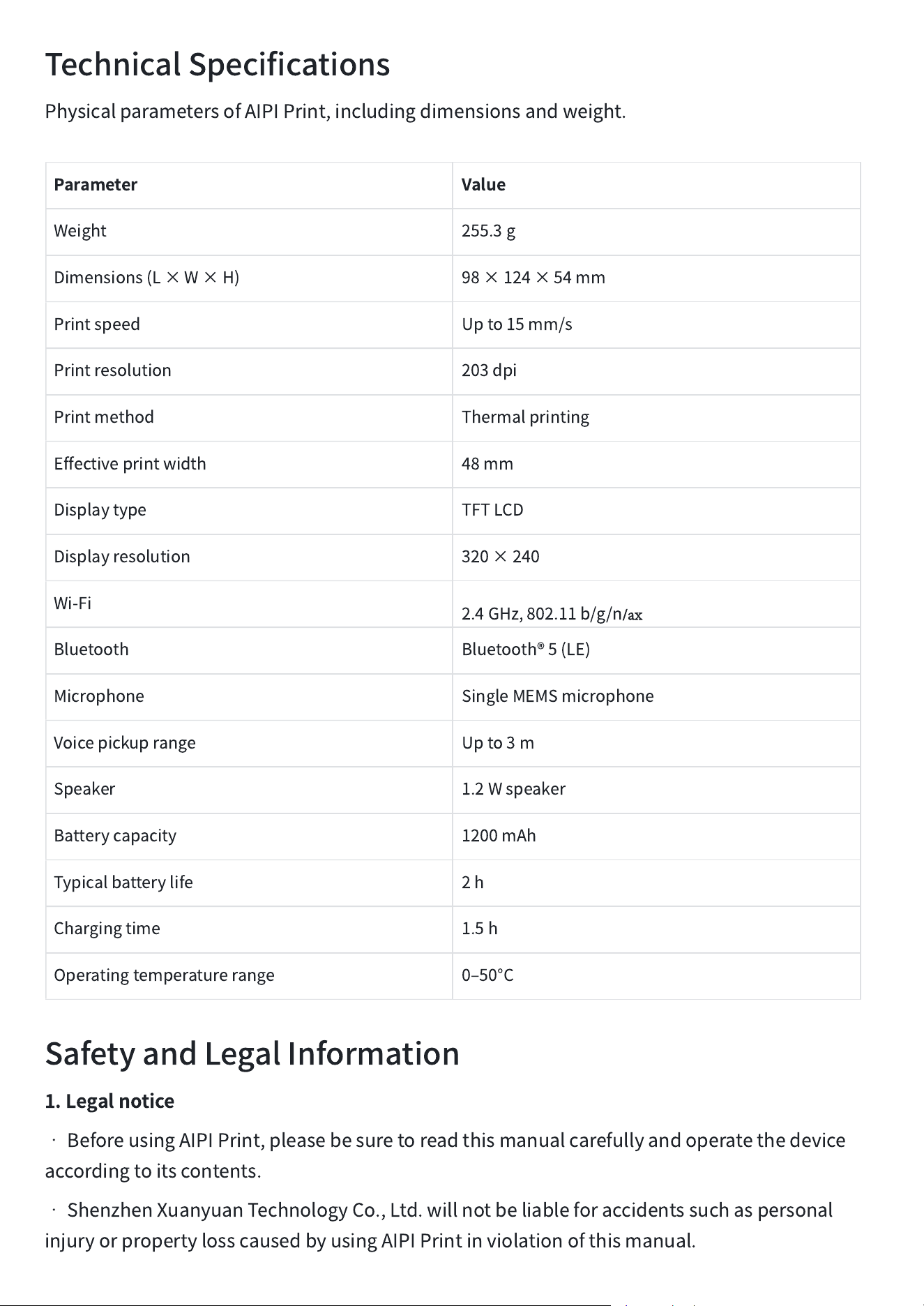
TechnicalSpecifications
PhysicalparametersofAIPIPrint,includingdimensionsandweight.
Parameter
Value
Weight
255.3g
Dimensions(L×W×H)
98×124×54mm
Printspeed
Upto15mm/s
Printresolution
203dpi
Printmethod
Thermalprinting
Effectiveprintwidth
48mm
Displaytype
TFTLCD
Displayresolution
320×240
Wi-Fi
2.4GHz,802.11b/g/n
/ax
Bluetooth
Bluetooth®5(LE)
Microphone
SingleMEMSmicrophone
Voicepickuprange
Upto3m
Speaker
1.2Wspeaker
Batterycapacity
1200mAh
Typicalbatterylife
2h
Chargingtime
1.5h
Operatingtemperaturerange
0
‒
50°C
SafetyandLegalInformation
1.Legalnotice
•
BeforeusingAIPIPrint,pleasebesuretoreadthismanualcarefullyandoperatethedevice
accordingtoitscontents.
•
ShenzhenXuanyuanTechnologyCo.,Ltd.willnotbeliableforaccidentssuchaspersonal
injuryorpropertylosscausedbyusingAIPIPrintinviolationofthismanual.
•
ThecontentAIPIPrintoutputsthroughitsAIprintingfeaturesisbasedonthelimiteddataits
AIalgorithmsrelyonanddoesnotrepresentthepositionofShenzhenXuanyuanTechnology
Co.,Ltd.,whichmakesnoguaranteeastothetruthfulness,accuracy,orcompletenessofsuch
output.
•
TheAIPIPrintshowninthismanualisintendedtoguideusersonhowtouseAIPIPrint
correctlyandgetthebestexperience.TheAIPIshownintheimagesmaydifferfromtheAIPI
Printyoupurchasedincolor,appearance,andotherrespects;pleaserefertotheactualproduct
youreceive.
•
Tocontinuouslyimproveproductfeaturesandyourexperience,AIPIPrintwillkeepbeing
upgradedandoptimized,andtheelectronicversionofthismanualwillbeupdatedonthe
officialwebsite,whereyoucanobtainthelatestversionintime.
•
WhenusingAIPIPrint,usersmustcomplywithlocallawsandregulationsandmustnotuse
AIPIPrinttoharmotherpeopleoranimals;otherwise,youmayloseyourproductwarrantyand
othercustomerrights.
2.Precautions
•
Neverdisassemblethecomponentsthatwereinstalledatthefactory,asthismayaffect
productperformance.Disassembledproductsarenoteligibleforreturnorexchange.
•
Donotstoretheproductnearheatsources(suchasstovesorheaters).
•
Makesurethereisnoforeignmatter(suchaswater,oil,sand,ordirt)insidetheproductor
anyofitscomponents.
•
Thisproductisnotdesignedtobewaterproof.Neverimmerseorwetit,anddonotuseitin
therain.
•
Iftheproductmalfunctions,turnoffthepowerimmediately.
•
Childrenmustuseitonlyunderthesupervisionandguidanceofaguardiantoprevent
danger.
•
Donottouchtheheatedcomponentsafterthedevicehasbeenrunning;touchingthemcan
burnyourfingers.Wait30minutesafterturningoffthepowerbeforetouchingthese
components.
•
Neverdisassemblethebatteryinanywayorpunctureitwithasharpobject.Otherwise,
batteryleakagemaycauseafireorevenanexplosion.
•
Donotsubjecttheproducttomechanicalimpact,crushing,orthrowing,anddonotplace
heavyobjectsontheproduct.
•
Theelectrolyteinsidethebatteryishighlycorrosive.Ifitaccidentallycontactsyourskinor
eyes,rinseimmediatelywithcleanwaterforatleast15minutesandseekmedicalattention
rightaway.
•
Neverheatthebattery.
•
Avoidleavingthebatteryunusedforlongperiods,asthismaydegradebatteryperformance.
•
Thesoftware,audio,wallpapers,images,labels,andothermediaprovidedwiththisproduct
arelicensedforlimiteduse.Quotingandusingthesematerialsforcommercialorother
purposesisaviolationofcopyrightlaw.Usersbearfullresponsibilityforlegalissuescaused
byunlawfuluseofthemedia.
•
Pleaseoperatetheproductaccordingtothismanual.
•
Pleaseuseoriginalaccessoriesandofficiallabelpaper.
IfyouuseAIPIPrintinviolationoftheaboveinstructions,yourAIPIPrintunderwarrantymay
loseitsrighttofreeafter-salesservice.Forthedetailedafter-salespolicy,seetheAfter-Sales
ServicePolicy.
WARNING!
•
Apoweradapterisnotincludedwiththeproduct.Ifyouuseapoweradaptertocharge,
pleasepurchaseanduseaUL/ETL-certifiedpoweradapterthatmeetstheapplicablestandards.
•
Riskofexplosionifthebatterypackisreplacedwithanincorrecttype.
•
Donotdisposeofthebatteryinfireoraheatingfurnace,anddonotdisposeofthebatteryby
mechanicalcrushingorcutting.
•
Donotexposethebatterytoextremelyhigh-temperatureenvironmentsthatcouldcausethe
batterytoexplodeorleakflammableliquidsorgases.
•
Donotexposethebatterytoextremelylowairpressurethatcouldcausethebatteryto
explodeorleakflammableliquidsandgases.
•
Thisequipmentmaycauseradiointerferenceinaresidentialenvironment.Ifsuch
interferenceoccurs,youmayneedtocorrectitatyourownexpense.
•
Thisproductisdesignedforusebypersonsaged14andolder!
WARNING:Thisequipmentmaycauseradiointerferenceinaresidentialenvironment.
CAUTION!
Thetear-offbladehassharpedges.Pleasehandlewithcareanddonottouchittopreventcuts.
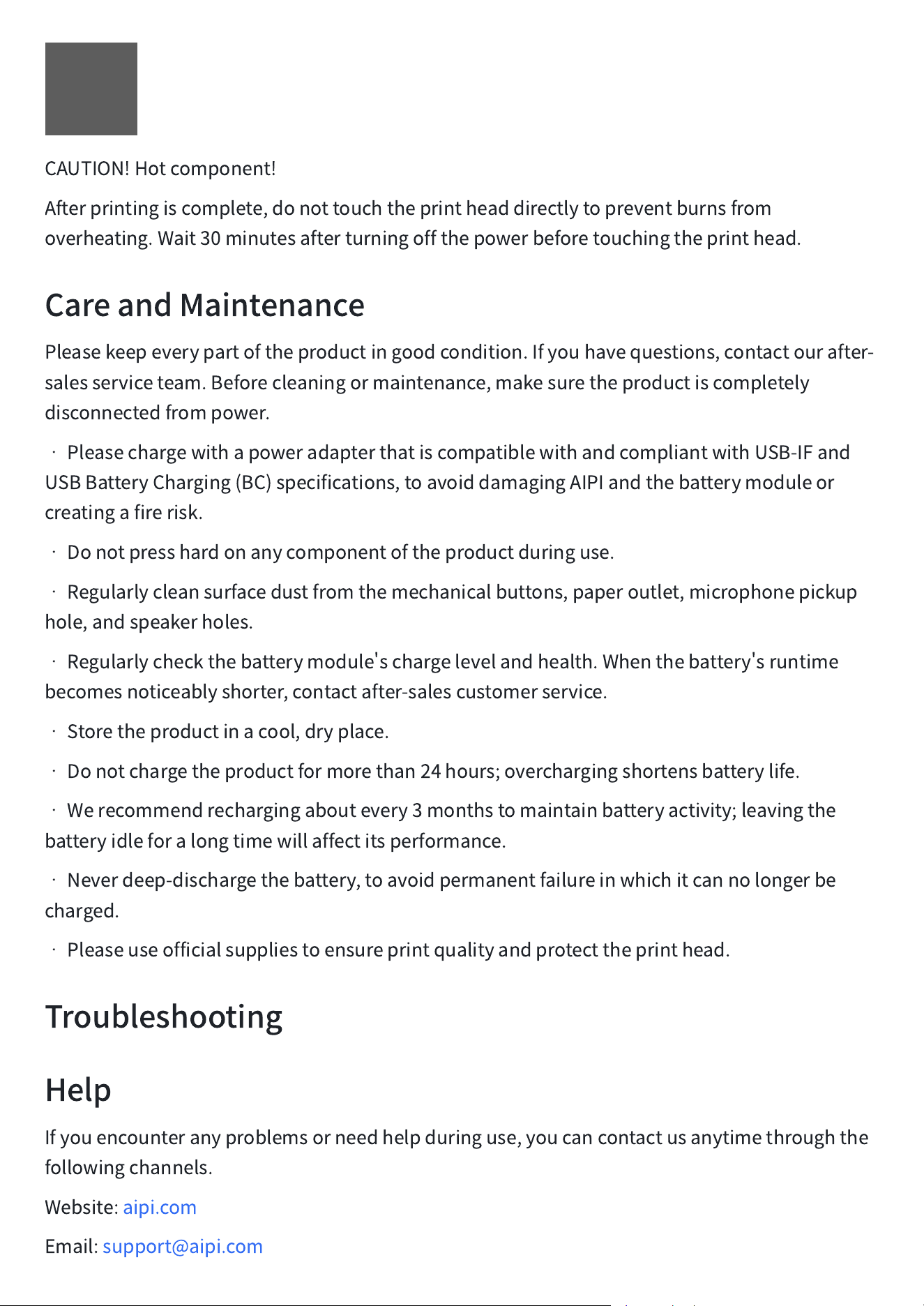
CAUTION!Hotcomponent!
Afterprintingiscomplete,donottouchtheprintheaddirectlytopreventburnsfrom
overheating.Wait30minutesafterturningoffthepowerbeforetouchingtheprinthead.
CareandMaintenance
Pleasekeepeverypartoftheproductingoodcondition.Ifyouhavequestions,contactourafter-
salesserviceteam.Beforecleaningormaintenance,makesuretheproductiscompletely
disconnectedfrompower.
•
PleasechargewithapoweradapterthatiscompatiblewithandcompliantwithUSB-IFand
USBBatteryCharging(BC)specifications,toavoiddamagingAIPIandthebatterymoduleor
creatingafirerisk.
•
Donotpresshardonanycomponentoftheproductduringuse.
•
Regularlycleansurfacedustfromthemechanicalbuttons,paperoutlet,microphonepickup
hole,andspeakerholes.
•
Regularlycheckthebatterymodule
'
schargelevelandhealth.Whenthebattery
'
sruntime
becomesnoticeablyshorter,contactafter-salescustomerservice.
•
Storetheproductinacool,dryplace.
•
Donotchargetheproductformorethan24hours;overchargingshortensbatterylife.
•
Werecommendrechargingaboutevery3monthstomaintainbatteryactivity;leavingthe
batteryidleforalongtimewillaffectitsperformance.
•
Neverdeep-dischargethebattery,toavoidpermanentfailureinwhichitcannolongerbe
charged.
•
Pleaseuseofficialsuppliestoensureprintqualityandprotecttheprinthead.
Troubleshooting
Help
Ifyouencounteranyproblemsorneedhelpduringuse,youcancontactusanytimethroughthe
followingchannels.
Website:aipi.com
Email:support@aipi.com

IfyouhaveanycommentsorsuggestionsabouttheAIPIPrintprinter,you
'
realsowelcometolet
usknow.Wesincerelylookforwardtoyourvaluablecommentsandsuggestions
―
your
understandingandsupportarewhatdriveusforward.
Fordetailedafter-salespolicies,pleasevisitourofficialwebsite.
FCC Warning
This device complies with Part 15 of the FCC Rules. Operation is subject to the following two conditions:
(1) This device may not cause harmful interference, and (2) this device must accept any interference received,
including interference that may cause undesired operation.
NOTE 1: This equipment has been tested and found to comply with the limits for a Class B digital device,
pursuant to part 15 of the FCC Rules. These limits are designed to provide reasonable protection against harmful
interference in a residential installation. This equipment generates, uses and can radiate radio frequency energy
and, if not installed and used in accordance with the instructions, may cause harmful interference to radio
communications. However, there is no guarantee that interference will not occur in a particular installation. If
this equipment does cause harmful interference to radio or television reception, which can be determined by
turning the equipment off and on, the user is encouraged to try to correct the interference by one or more of the
following measures:
- Reorient or relocate the receiving antenna.
- Increase the separation between the equipment and receiver.
-Connect the equipment into an outlet on a circuit different from that to which the receiver is connected.
-Consult the dealer or an experienced radio/TV technician for help.
NOTE 2: Any changes or modifications to this unit not expressly approved by the party responsible for
compliance could void the user's authority to operate the equipment.
The device has been evaluated to meet general RF exposure requirement. The device can be used in portable
exposure condition without restriction.