
Voice remote control manual
User Manual
1. Product Introduction
This is a BLE low- power Bluetooth voice remote control, compatible with
Android- TV smart televisions and TV boxes. It supports Bluetooth pairing, voice
search, one- click quick- access streaming hot- keys and full- function operation. No
line- of- sight alignment is required. You can control your TV from wide- angle and
long- distance positions.
⚠ Important Notice: This remote is Bluetooth- only, no IR infrared function. It can
NOT work with traditional infrared- only televisions.
2. Technical Specifications
Item
Parameter
Communication
BLE Bluetooth 5.0 (Low- Energy)
Power Supply
2 × AAA Batteries (DC 3V)
Control Distance
≥ 10 meters (open space without obstacles)
Functions
Voice Search, Channel Selection, Navigation, Media
Control, APP Shortcut Keys
Operating
Temperature
-10℃ ~ +45℃
3. Button Function Description
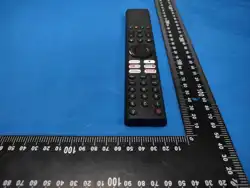
Left- side Buttons
1. Voice Key: Press and hold to speak, release to send voice command
2. Numeric Keys (0- 9): Input channel numbers or digits
3. - /- - Key: Double- digit channel switch
4. Recall Key: Jump back to previous channel

5. Netflix / YouTube / Live- TV Hot- keys: One- tap launch corresponding streaming
applications
6. Power Key: Turn TV on / enter standby mode
Middle Navigation Area
Up / Down / Left / Right: Move on- screen cursor
OK Key: Confirm selection
Return Key: Go back to previous menu
Home Key: Return to TV main home screen
Right- side Function Buttons
Menu Key: Open TV system settings menu
Volume + / Volume - : Adjust speaker volume
CH + / CH - : Switch TV channels
Color Buttons (Blue/Yellow/Green/Red): Expandable shortcut functions, follow
on- screen prompts
4. Bluetooth Pairing Steps (Must pair for first- time use)
1. Open the battery cover and insert 2×AAA batteries, follow polarity marks inside the
compartment.
2. Power on your Android TV, go to Settings > Bluetooth, turn on Bluetooth and start
searching new devices.
3. Press and hold Home + Return buttons together for 5- 8 seconds. The remote will enter
pairing mode.
4. Select the remote device name on your TV’s Bluetooth list and complete connection.
5. Once connected successfully, all buttons will work normally.
Troubleshooting for failed pairing: Remove batteries, wait
10 seconds, reinstall batteries and restart pairing
procedure.
5. How to Use Voice Function
1. Make sure the remote has been successfully connected over Bluetooth. Voice will not
work under infrared connection.
2. Press and hold the Voice button, speak clearly toward the remote microphone.
Example voice commands: Open YouTube, Play movie, Set volume
to 20, Search Andy Lau videos

3.Release the voice button after you finish speaking, the TV will execute your command.
6. Troubleshooting Guide
Problem
Solution
All buttons no
response
1. Check AAA battery power & polarity; 2. Re- pair
Bluetooth; 3. Reboot TV
Buttons work, but
voice fails
1. Verify Bluetooth connection status; 2. Confirm
your TV supports built- in voice assistant; 3.
Enable microphone permission on TV
Intermittent /
unstable control
1. Keep closer distance, stay away from 2.4GHz Wi- Fi
routers (signal interference); 2. Replace with
brand- new batteries
APP shortcut key no
reaction
Corresponding streaming application is not
installed on your TV, please download and install the
APP manually.
7. Safety Precautions
1. Do NOT mix old and new batteries or different battery brands. Remove batteries if you
will not use the remote for a long time to avoid battery leakage and circuit corrosion.
2. Do not drop, submerge in water, or store this remote under high- temperature & humid
environment.
3. This remote only works for BLE- Bluetooth- enabled Android- TV devices, non- Bluetooth
TVs are not compatible.
Outer Box Quick- Start Guide
Quick Pairing
1. Insert 2×AAA batteries
2. Turn on TV Bluetooth & start search
3. Hold【Home + Return】5- 8s for pairing