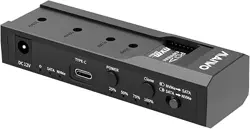
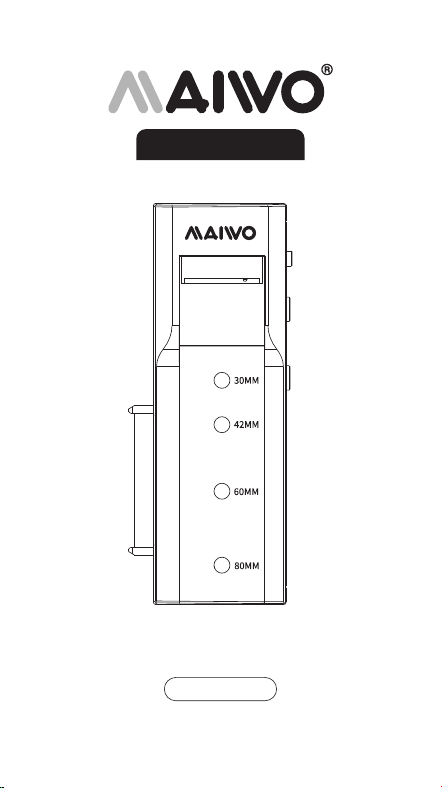
Adapter / Duplicator for 3.5" /2.5"
SATA HDD/SSD & NVMe M.2 SSD
K10635N
User Manuals
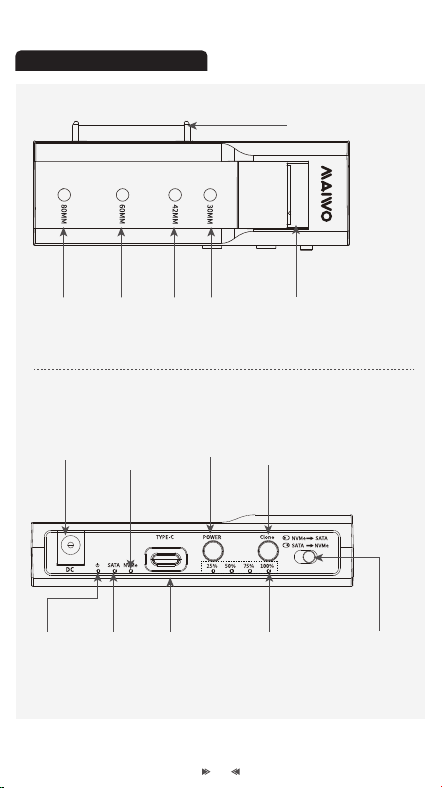
NVMe SSD
indicator
SATA
disk
indicator
2230224222602280
Type-C
(connect to the
data port of
PC)
Power
button
DC jack
Clone
button
Clone
setting key
Clone
progress
light
Power
light
NVMe M-key
connector
3.5" /2.5"
SATA connector
01
Product Introduction:
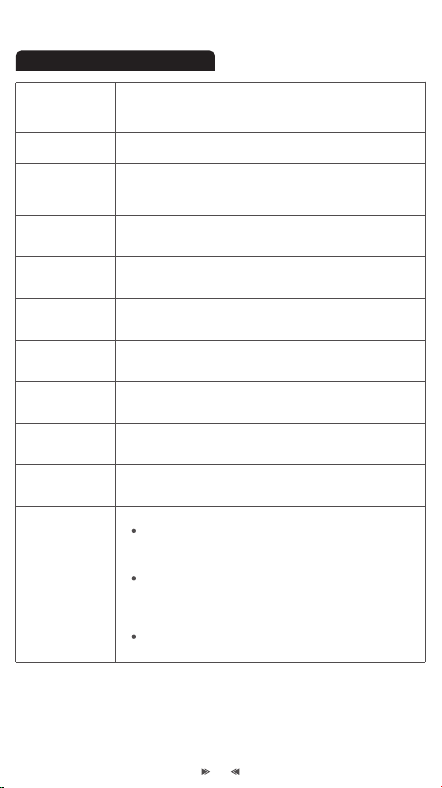
HDD/SSD Bay
Material
2 Bays
Type-C
ABS Plastic
Speed
USB3.2 Gen2 x 1, SATA 6Gbps, NVMe 10Gbps
108.4X44.3X24mm
LED light
indicator
Power light: blue (on when clone & read /
write)
HDD/SSD indicator light: white (flash when
clone & read / write )
Clone progress light: blue (flash when clone,
on when clone finished)
Model
External Port
Product
name
System
HDD/SSD
Supported
K10635N
Windows, mac OS, Linux
Function
1:1 offline clone, bidirectional clone (NVMe to
SATA, SATA to NVMe), data transmission
NVMe M.2 (M-key )2230/2242/2260/2280 SSD,
3.5
"
/2.5
"
SATA HDD/SSD
Size
MAIWO
Adapter / Duplicator for 3.5" /2.5"
SATA HDD/SSD & NVMe M.2 SSD
02
Product Specification:
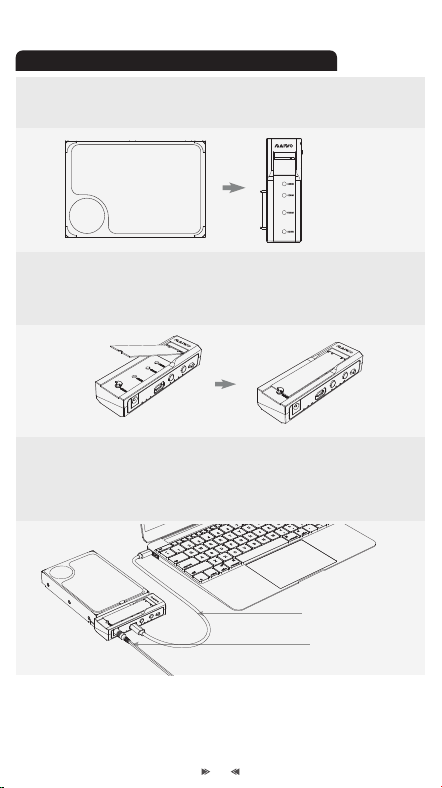
1. 2.5"/3.5" SATA HDD/SSD Installation:
1.2. M.2 NVMe SSD Installation:
Install the silicone screw, insert the SSD to M.2 NVMe slot at 45°,
adjust the silicone screw to secure the SSD.
1.1. SATA HDD/SSD Installation:
Push the 3.5" /2.5" SATA HDD/SSD to the SATA port in parallel.
Note: if it is used hard drive, you can find the drive on "computer".
If it is new hard drive, need to initialize, partition and format before
use.
1.3. Plug AC adapter with wall plug and DC jack, then connect
USB cable with PC and type C port, following press down power
button.power and disk LED lights will illuminate when
recognized.
Power cable
type C data cable
03
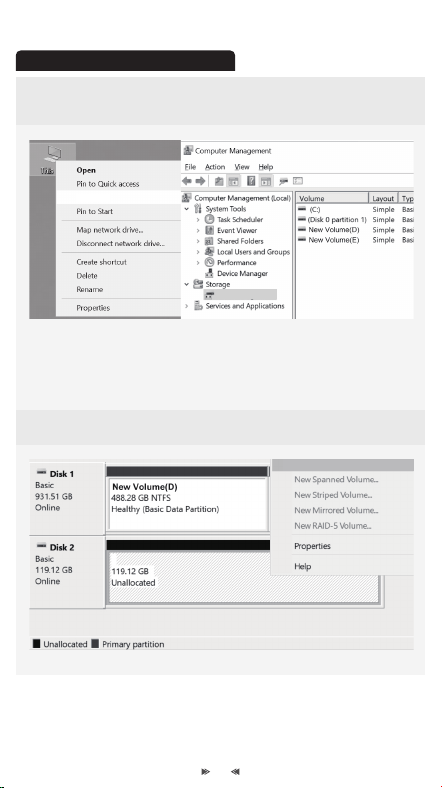
2. New hard disk format:
2.2. Right click the “Disk 1”, then click “New Simple Volume”.
New Simple Volume
2.1. View “computer - Manage - disk management” to find the
new disk .
Manage
Disk Management
Note: There are two formats when initialization, please choose
MBR if your drives are smaller than 2TB, choose GPT if your drives
are larger than 2TB.
04
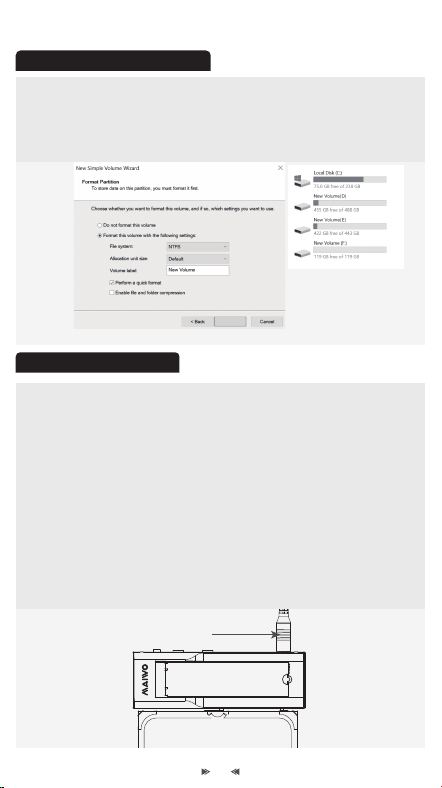
2.3. According to the instruction, choose the size of partition,
then click“Next” to finish.
2.4. Then you can find the new hard disk in the“Computer”, it's
ready to be use.
Next >
2. Hard disk partition:
3. Offline clone:
Only need to connect to power
3.1. Push the clone setting key to set the clone mode, as 4.1 / 4.2
schematic diagram shows.
(Note: capacity of source SSD must ≤ target SSD, or it can’ t
clone).
3.2. Plug AC adapter with wall plug and DC jack, no need to connect
with PC.
3.3. Press down power button, blue power light and white disk lights
will illuminate, then keep pressing clone button for about 5s, release
it when clone four lights flash, following press clone button one
time, means clone strat when LED 25% flash.
3.4. Clone LED 25% will illuminate blue and LED 50% starts flash
after clone 25%, four clone LED will illuminate when complete clone.
05
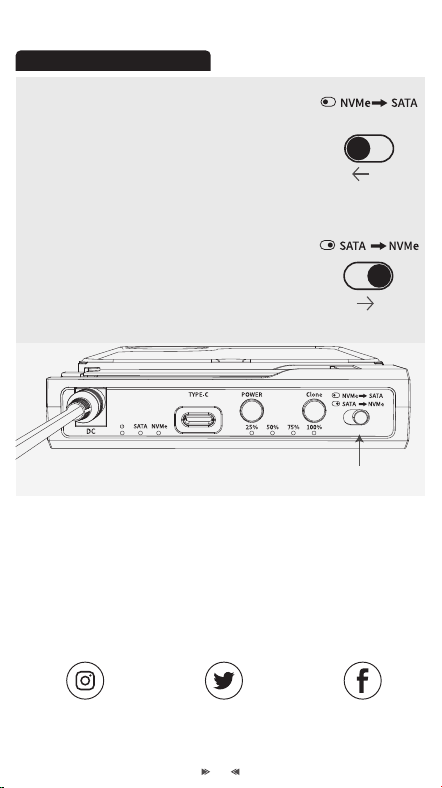
4. Clone Mode Setting:
Instagram
@MAIWO_Official
Twitter
@MAIWOOffcial
Facebook
@MAIWO
Email:[email protected]
Website:www.maiwoasia.com
For FAQs and more information please visit:
4.1. Clone NVMe SSD to SATA HDD/SSD: Push
the clone setting key to left side (as schematic
diagram shows), insert the HDD/SSD in,
connect to power (don't connect to PC). Press
the power button, start offline clone after
power-on identification (Refer to 3.3).
4.2. Clone SATA HDD/SSD to NVMe SSD: Push
the clone setting key to right side (as schematic
diagram shows), insert the HDD/SSD in,
connect to power (don't connect to PC). Press
the power button, start offline clone after
power-on identification (Refer to 3.3).
Clone setting key
06

