APPLICATION
SOFTWARE
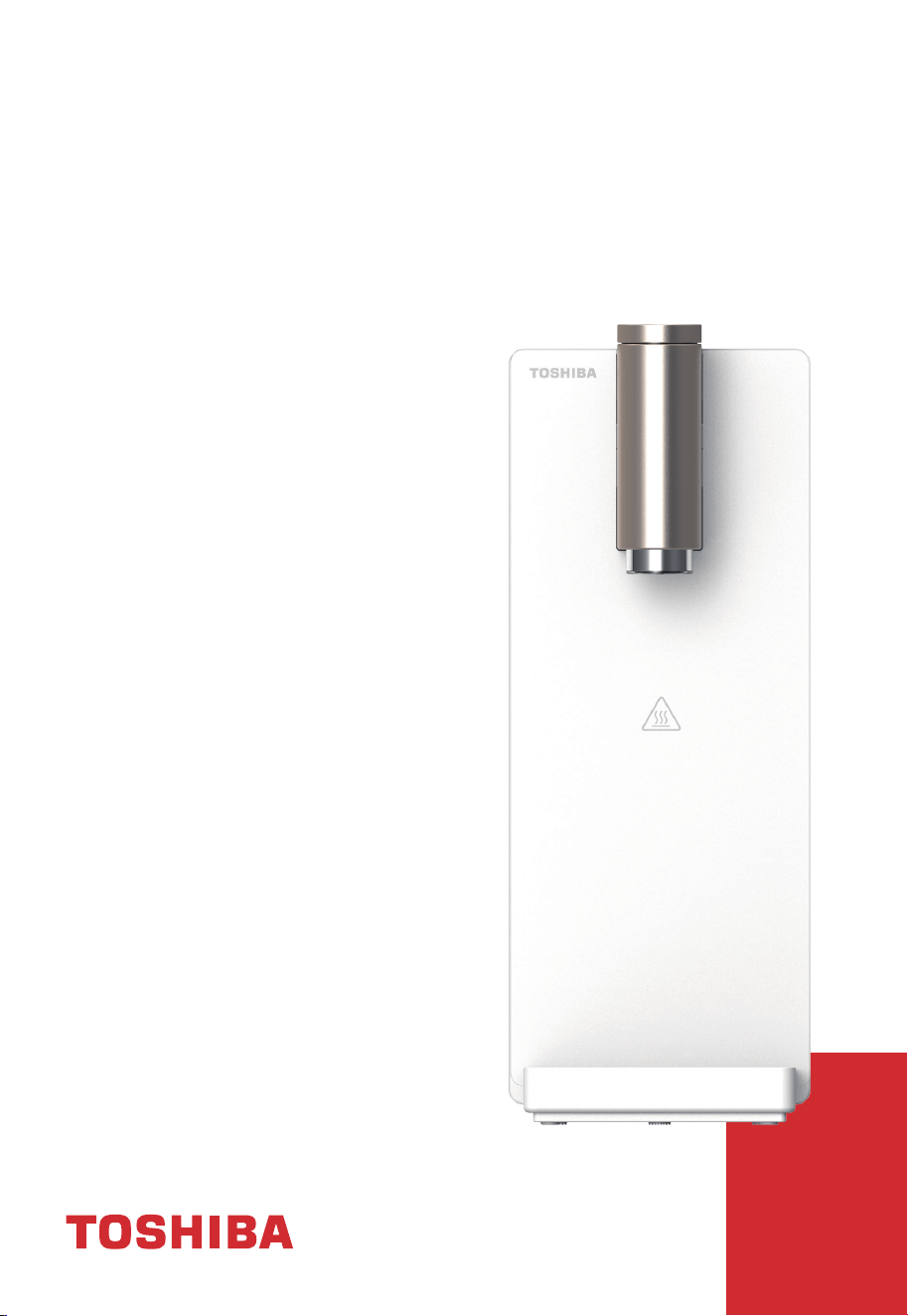
USE GUIDE
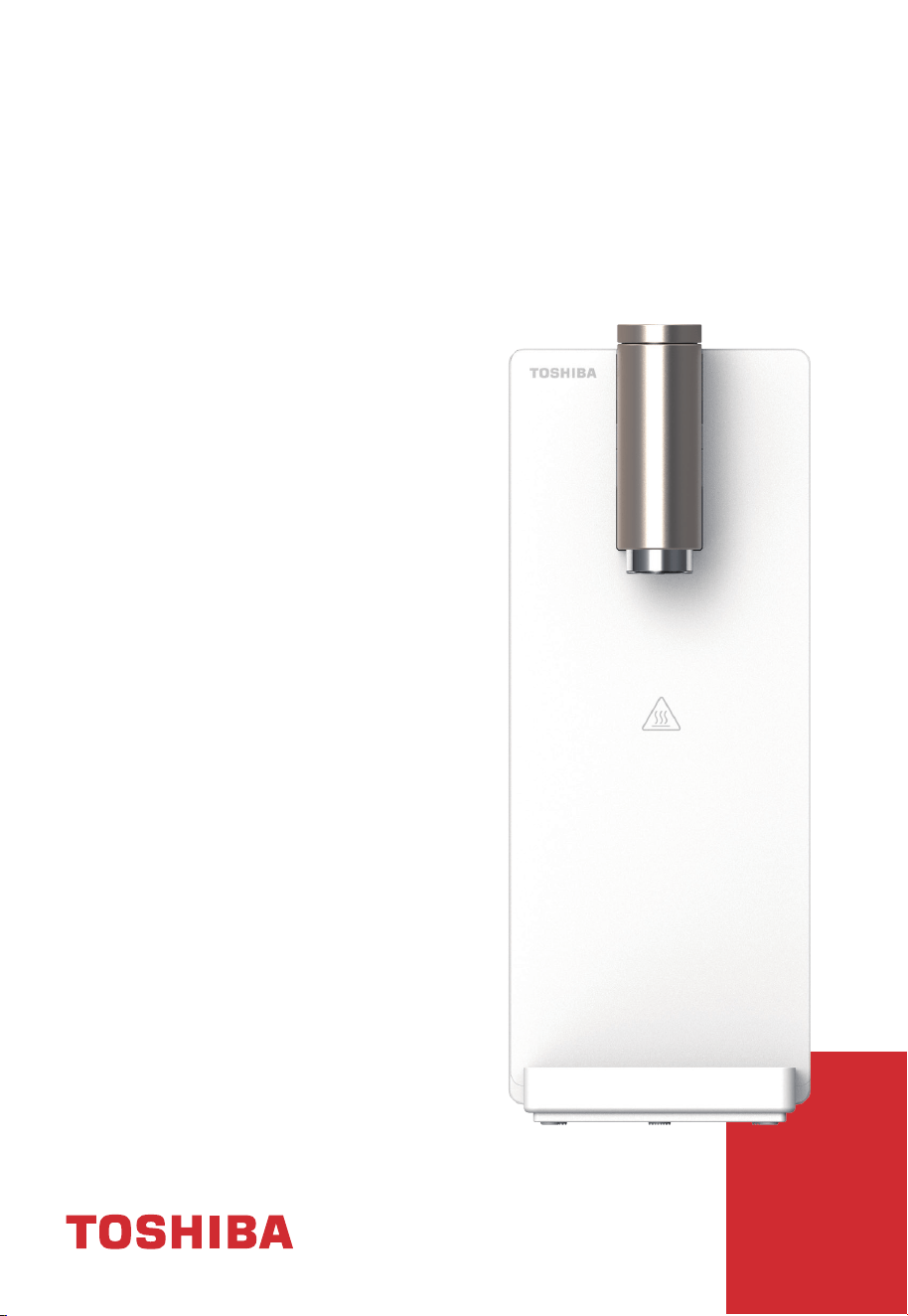
WATER PURIFIER
TWP-W2529TMY(W)
TWP-W2529TMY(M)
1
1
1
2
3
5
8
9
9
9
CONTENTS
The following functions can be achieved---------------------------------------------------------------
Safety precautions--------------------------------------------------------------------------------------------
Articles required for using the application software-----------------------------------------------
Wireless LAN requirements---------------------------------------------------------------------------------
From the installation of the application software to the connection with the water
purifier------------------------------------------------------------------------------------------------------------
Application software operation interface--------------------------------------------------------------
Under this circumstance-------------------------------------------------------------------------------------
Specification of wireless LAN------------------------------------------------------------------------------
Copyright, etc. -------------------------------------------------------------------------------------------------
Consultation about using the operation method or in trouble----------------------------------
Thank you very much for purchasing Toshiba direct drinking water Purifier.
In order to use this product safely and correctly, please read this Manual carefully before using
it and fully understand the contents.
After reading this Manual, please keep it where the user can see it at any time.
The menu of the application software used in this Manual may be changed without notice.
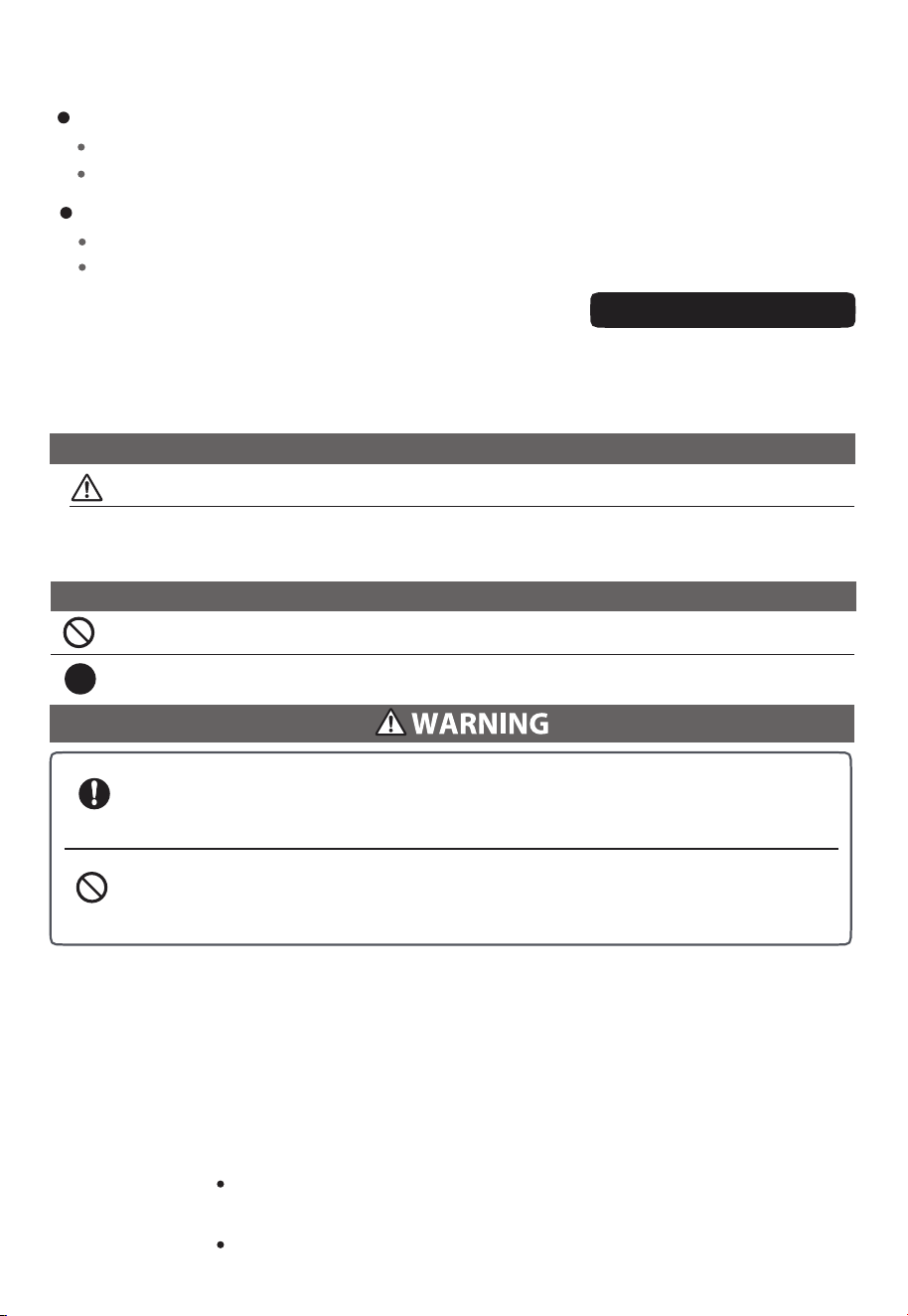
The following functions can be achieved
Remotely check the status of the water purifier
Client support function
The water consumption of the cumulative daily, weekly, monthly and yearly through the APP.
The life of filters is about to expire,the APP will remind you with Red/Yellow color.
Safety precautions
□
□
□
□
Receive push notifications when error occurs.
Provides common questions, menus, and other information to use the water purifier.
Please read it carefully
The followings describe the matters that must be observed in order to prevent harm to users or
others or property damage. When described in the "Description of marks" are the classification of
the degree of hazard and damage that occurs during misuse and operation, and "Description of
graphic symbols" are the meaning of different symbols.
Description of marks
WARNING It means "content with the possibility of death or serious injury".
* Severe injuries refer to those which cause sequelae, need hospital cares and long-term sequential
treatments, including going blind, getting injured, getting burned (high temperature and low
temperature), getting an electric shock, being fractured and being poisoned, etc.
Description of graphic symbols
The text near the graphic indicates operations that must not be performed (prohibited).
The text near the graphic indicates the operation (instruction) that must be performed.
Instruction
Prohibited
Please keep more than 15cm away from people who have embedded pacemakers and
efibrillators.
The radio waves generated by wireless LAN may have a bad influence on pacemakers,
etc. and cause accident.
Do not use it near automatic control equipment such as automatic doors and fire alarms.
Do not use it in hospitals or places with electric equipment for medical use.
The radio waves generated by the wireless LAN may have a bad influence on the
equipment and cause accident.
Articles required for using the application software
Smart phone (Android, iPhone)... it cannot guarantee that the product can work properly if tablet
computer is adopted.
Dedicated application software (free)...... It is necessary to check the water purifier with the
smartphone.
Installation method (→ Page 3)
Internet environment... Need to sign contract with the Internet line provider.
Wireless LAN router... Connect the water purifier to the Internet line.
* The connection with the water purifier uses the 2.4Ghz/5Ghz frequency band
(IEEE802.11a, IEEE802.11b, IEEE802.11g, IEEE802.11n).
【Requirem
ents】 In order to achieve the security countermeasures, make sure to use the device
that adopts the suitable encryption method WPA2 or WPA (both TKIP or AES).
Recommendation: WPA2 (AES)
For the wireless LAN router settings, please refer to the Operation Instructions.
1
Wireless LAN requirements
Working frequency band
Wireless LAN uses the 2.4Ghz/5Ghz frequency band,
but it is possible that other wireless devices
are also using the same frequency. In order to prevent
radio wave interference with other wireless
devices, please note the following when using it.
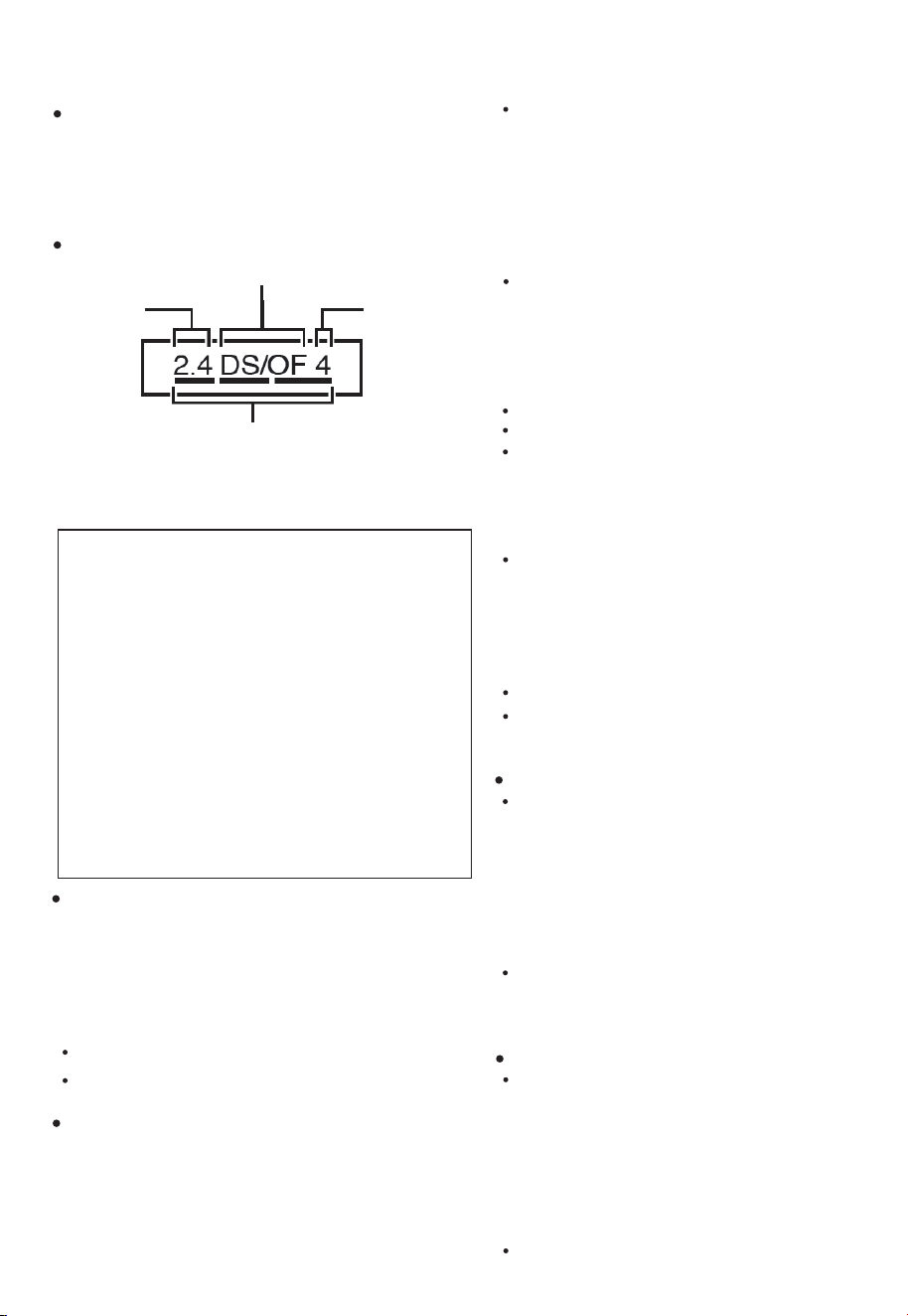
Specifications of the wireless used by this product
2.4 DS/OF 4
Modulation methods are DSSS and OFDM
Use 2.4Ghz/5Ghz
frequency band
Radio wave
interference
distance is < 40m
This means that the entire frequency band from
2.4GHz to 2.4835GHz and 5.15GHz to 5.825GHz can
be used, and the use of the frequency band of the
mobile identification device can be avoided.
Precautions for the use of wireless LAN device
In the frequency band used by this equipment, in addition to
industrial, scientific and medical equipment such as microwave
ovens, there are also radio stations in the area for identification of
moving objects used in factory production lines (licensed radio
stations) and specific low-power radio stations (radio stations that
do not require license) and amateur radio stations (radio stations
hat require license) are also in use.
1. Before using this device, please make sure that there isn't any
radio station in the a
rea for identification of moving objects,
specific low-power radio stations, and wireless radio stations are
in use near the accessory.
2. In the event that harmful radio wave interference occurs from
the radio station in the area where this device is used for
identification of moving objects, please change the venue
immediately or stop using the radio wave.
3. In addition, if this equipment causes harmful radio wave
interference to specific low-power radio stations or amateur
radio stations used for mobile identification, please change the
equipment immedi
ately or stop using radio.
Equipment certification
This equipment has built-in wireless device that has
obtained engineering design certification based on
the radio law, and there is no need to obtain a
separate radio station license.
However, the following actions are prohibited under
the radio act.
Implement decomposition/remodeling.
Eliminate the compliance mark of the built-in
wireless device.
Service life
Please be aware of the following restrictions
during use.
Our company will not be responsible for any
incidental damage caused by the use or
inability of wireless LAN in the case of
non-compliance with restrictions.
Do not connect to a wireless network
without permission.
When an automatic search of the wireless
network environment is performed, the
wireless network (SSID ※) that does not
have access rights may be displayed, and it
may be determined as illegal access after
connection.
Please do not use it in the place that
generates magnetic field, static electricity,
or radio wave interference.
When used near the following equipment, the
communication may be interrupted or the
speed may slow down.
Microwave oven
Other wireless LAN devices
Other devices that use 2.4Ghz/5Ghz
frequency band radio waves (digital
cordless phones, wireless audio equipment,
game consoles, personal computer
peripherals, etc.)
Metal objects that easily reflect radio
waves, etc.
※It is the name used to identify the specific
network in the wireless LAN. Two devices can
communicate if the SSID are the same.
【About the SSID of this machine】
SSID: toshiba_ed_xxxx
PASSWORD: 12345678
※ "xxxx" is the fixed serial number of the
equipment.
Security countermeasures
Since data is sent and received using radio
waves via wireless LAN, there is a risk of
nauthorized access. To ensure data security,
please take security countermeasures.
(
→ Page 1)
If the failure to take safety measures causes
any problem, our company will not assume
any responsibility.
Please set the password of the wireless LAN
router to 8 characters or more and 63
characters or less, and it is recommended to
change the password regularly.
About firmware
This equipment has the function of
connecting to the firmware update server
of our company via the Internet and
automatically updating its firmware to the
latest version. Since wireless communication
will be temporarily interrupted during the
update process, communication
interruption or slowdown may occur.
Please do not analyze or modify the firmware.
2
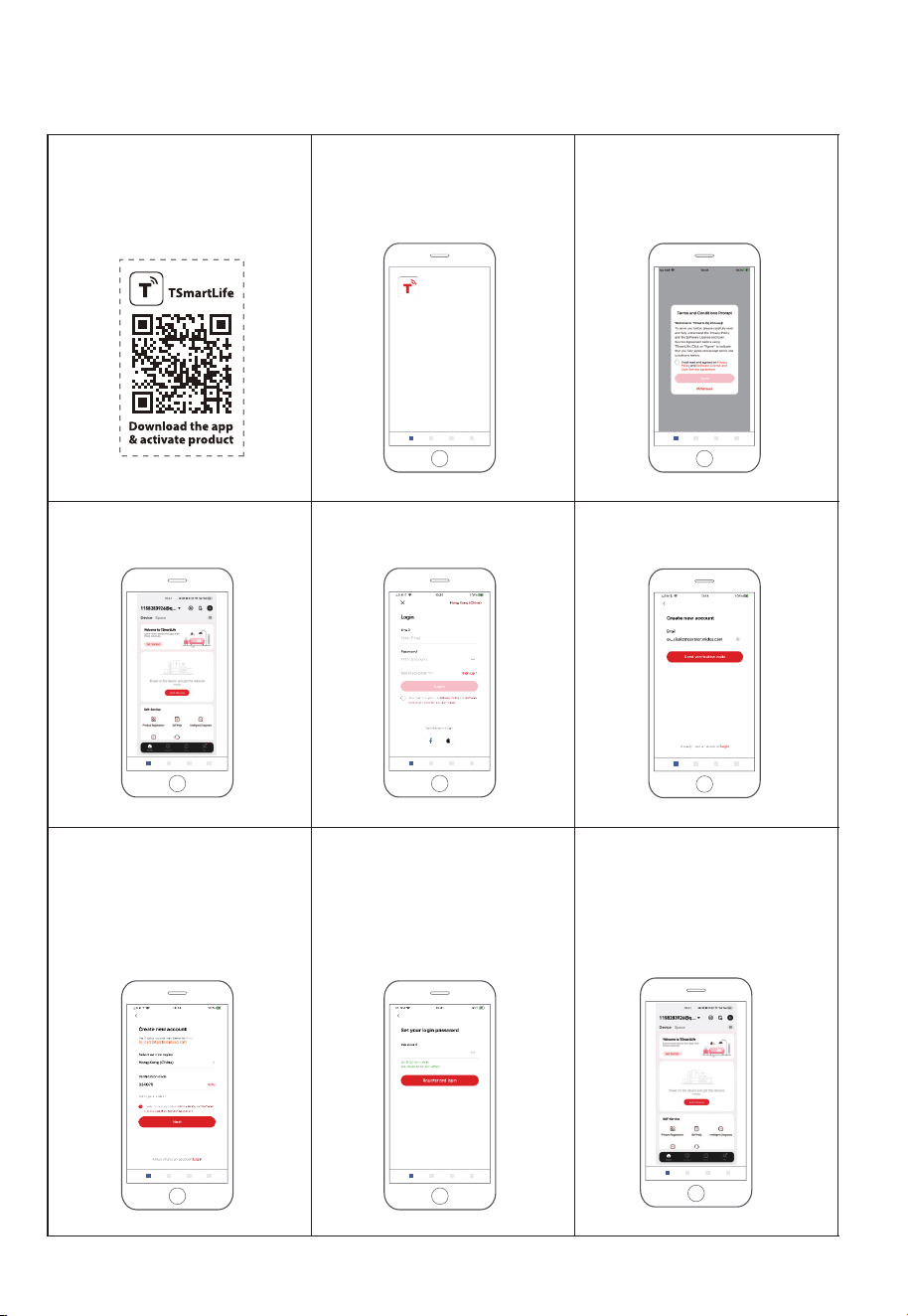
From the installation of the application software to the
connection with the water purifier
3
1. Download and install the app.
Search for: TSmartLife in the
mobile application market, or
scan the QR code to download
and install the APP.
2. Click on the APP icon to enter
the APP.
3.Read and agree on the Privacy
Policy and Software License
and User Service Agreement.
4. Click the button of Login. 5. Click the button of Sign up >.
6.Enter email and send
verification code.
7. Select service region and
enter verification code. Agree
on the Privacy Policy and
Software License and User
Service Agreement. Click the
button of Next.
8.Set password.Then c
lick the
button of Register and login.
9.Enter the homepage. click
the button of Add device.
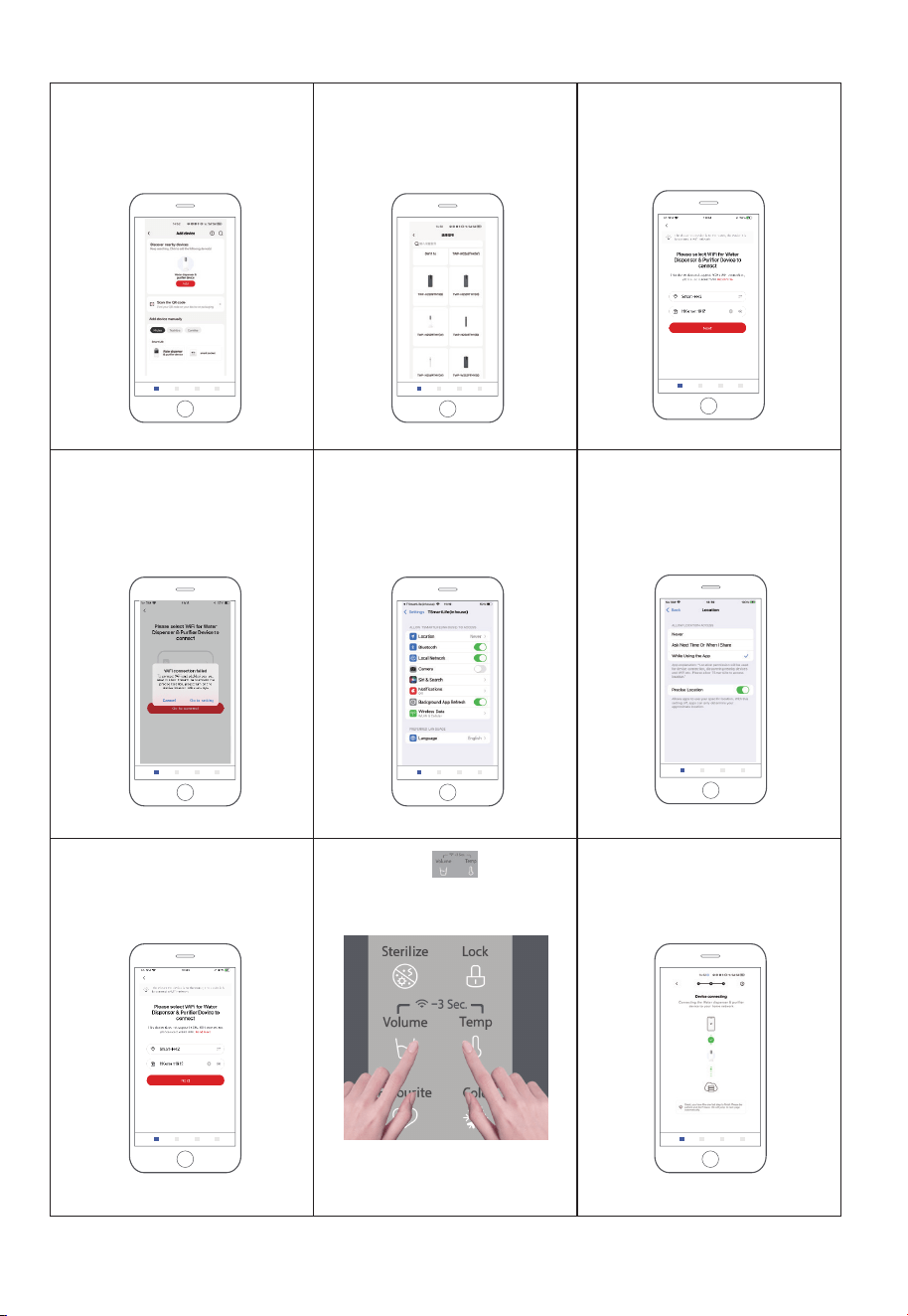
13.If you haven't authorized
location before, please allow
access in the settings the turn
on the precise location.Click
the button of Go to setting.
14.Enter Setting page.Click the
button of Location.
15.Choose While Using the App.
16.Return back to the
TSmartLife.Click the button of
Next.
4
10.Select a device.Choose
Water dispenser and purifier
device.
11.Select model
TWP-W2529TMY(W)
TWP-W2529TMY(M).
17
18.Wait for connecting.
. Long press for 3
seconds, light flashes.
12.Choose Wireless Connection
interface, enter Wireless
Connection password. Click the
buttonof Next.
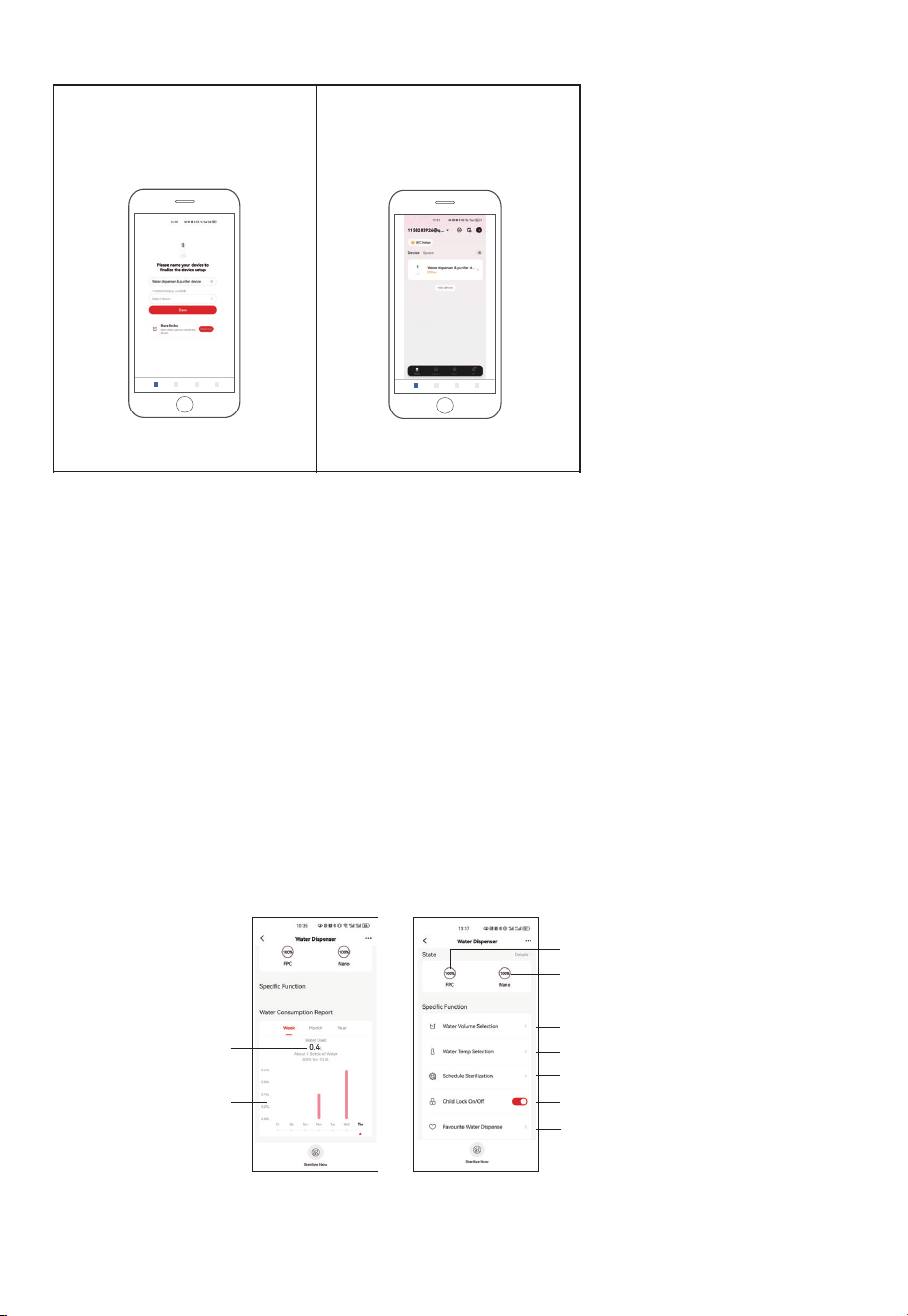
5
19.Added successfully. Named
it as your wish.Then click the
button of Complete.
20.Back to the homepage.
Precautions and troubleshooting for reasons for network failure.
1. When connecting the product to the network, make sure that the mobile phone is as close as possible
to the product.
2. According to the App prompt, if your product only supports 2.4GHz Wireless network communication,
when selecting the current home Wireless network, please pay attention to selecting the 2.4GHz network.
3. The router Wireless network name is not recommended to contain Chinese or special characters
(including punctuation marks, spaces, etc.).
4. It is recommended that the number of connected devices under the same router does not exceed 10 to
avoid the inuence of unstable signals on the network.
5. If the router or Wireless network name and password are changed, you need to repeat the above process
to reconnect to the Internet.
6. As product technology is updated, the content of Toshiba App may be changed, and the actual display
guide in TSmartLife shall prevail.
Application software operation interface
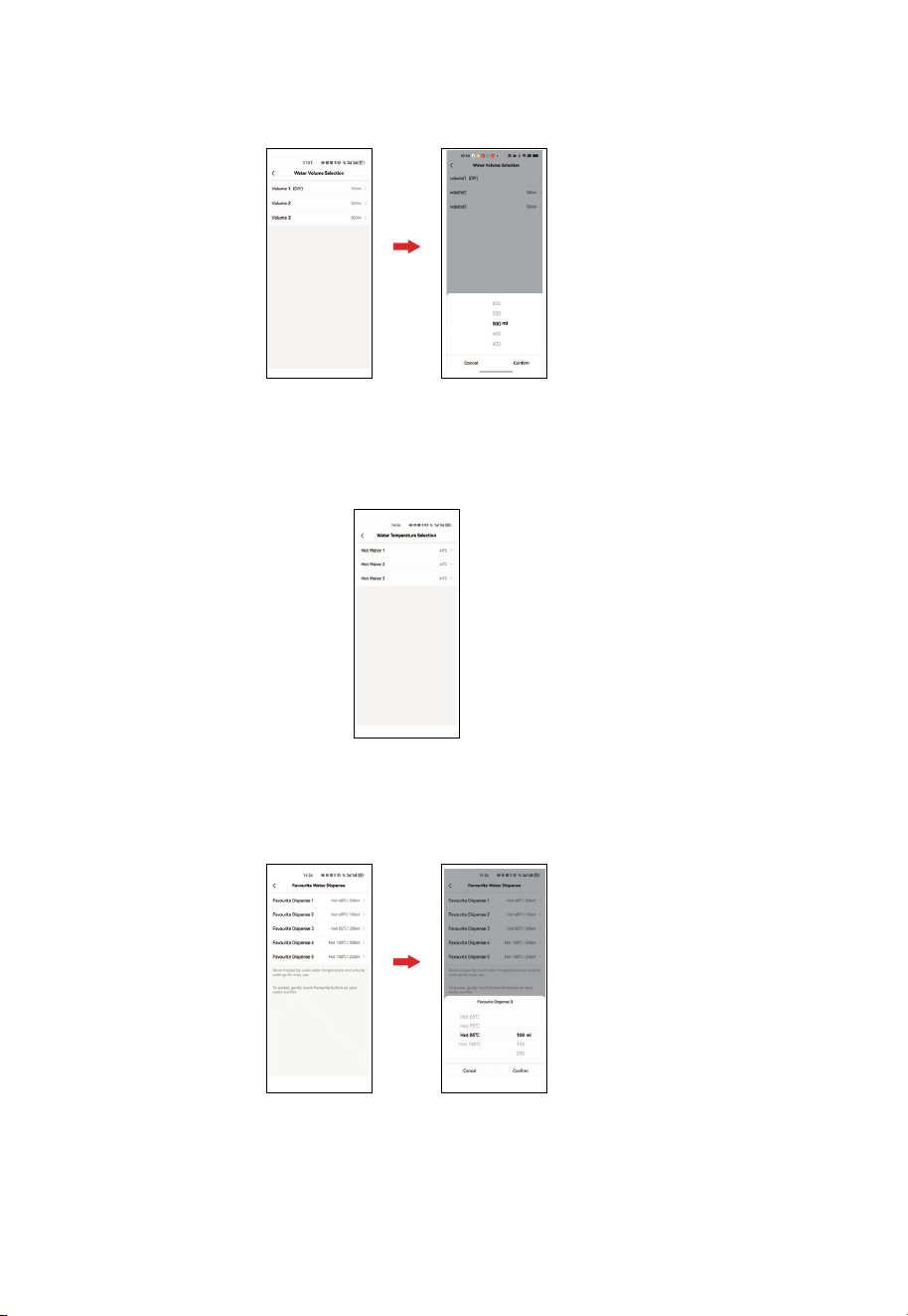
1. Enter the home page of the APP control interface, the display is as follows:
Child lock switch
FPC iter life
Sterilization time reservation
Temperature selection
The yield of water
NANO iter life
Custom Settings
Water consumption
report
Today's Water Consumption
value
6
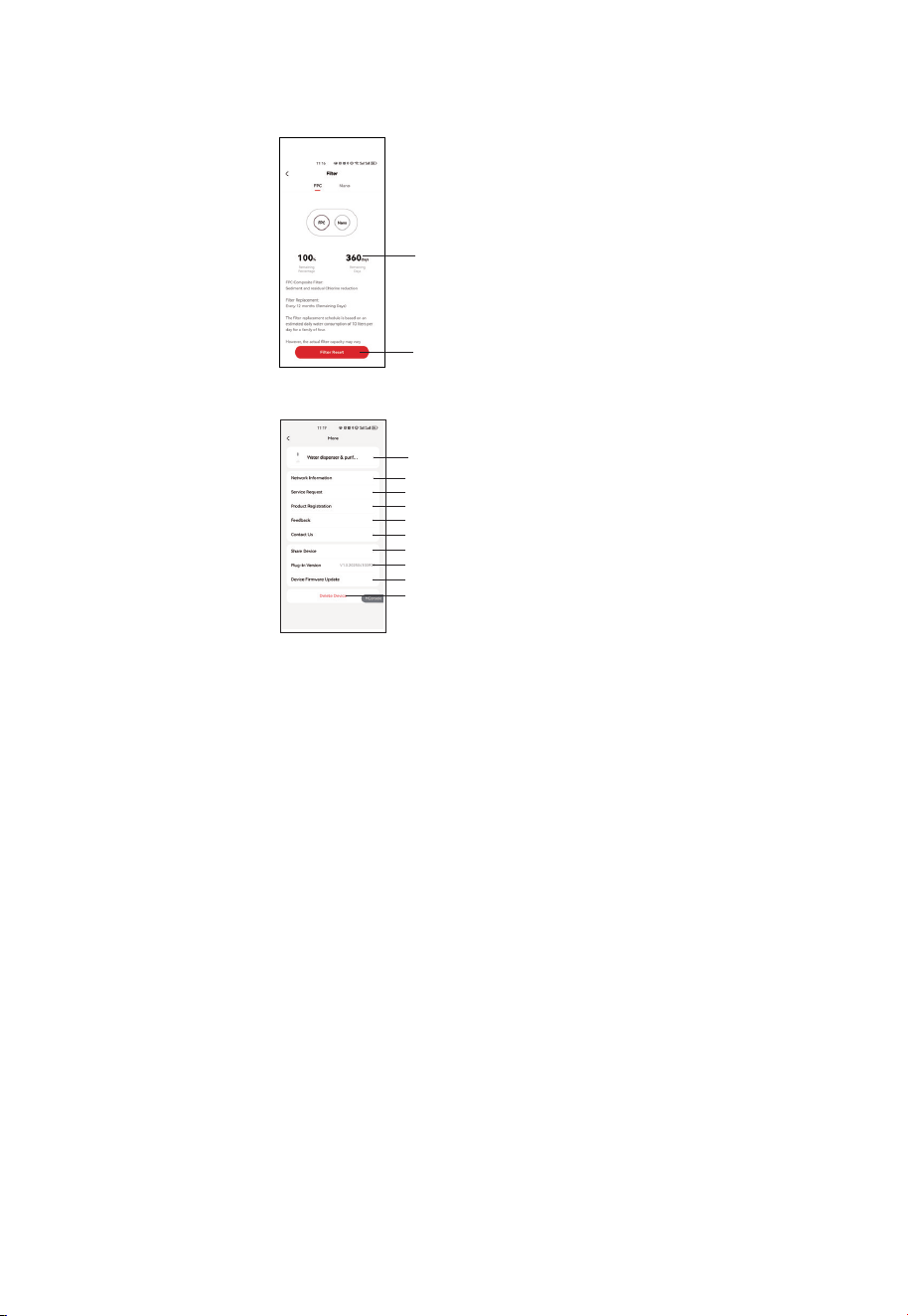
2. The yield of water
3. Temperature selection
On the home page of the APP, click on the quantity of water, there are three stalls to choose, click on
any stall, you can select the corresponding amount of water to set water intake.
On the home page of the app, click the water temperature selection to set the water temperature, you
can set the water temperature of hot water, click hot water 1 to 3, there is a corresponding hot water
temperature choice.
4. Sterilization time reservation
On the home page of the APP, click Sterilization reservation, you can choose dierent water temperature
and quantity, you can set up to 5 items.
7
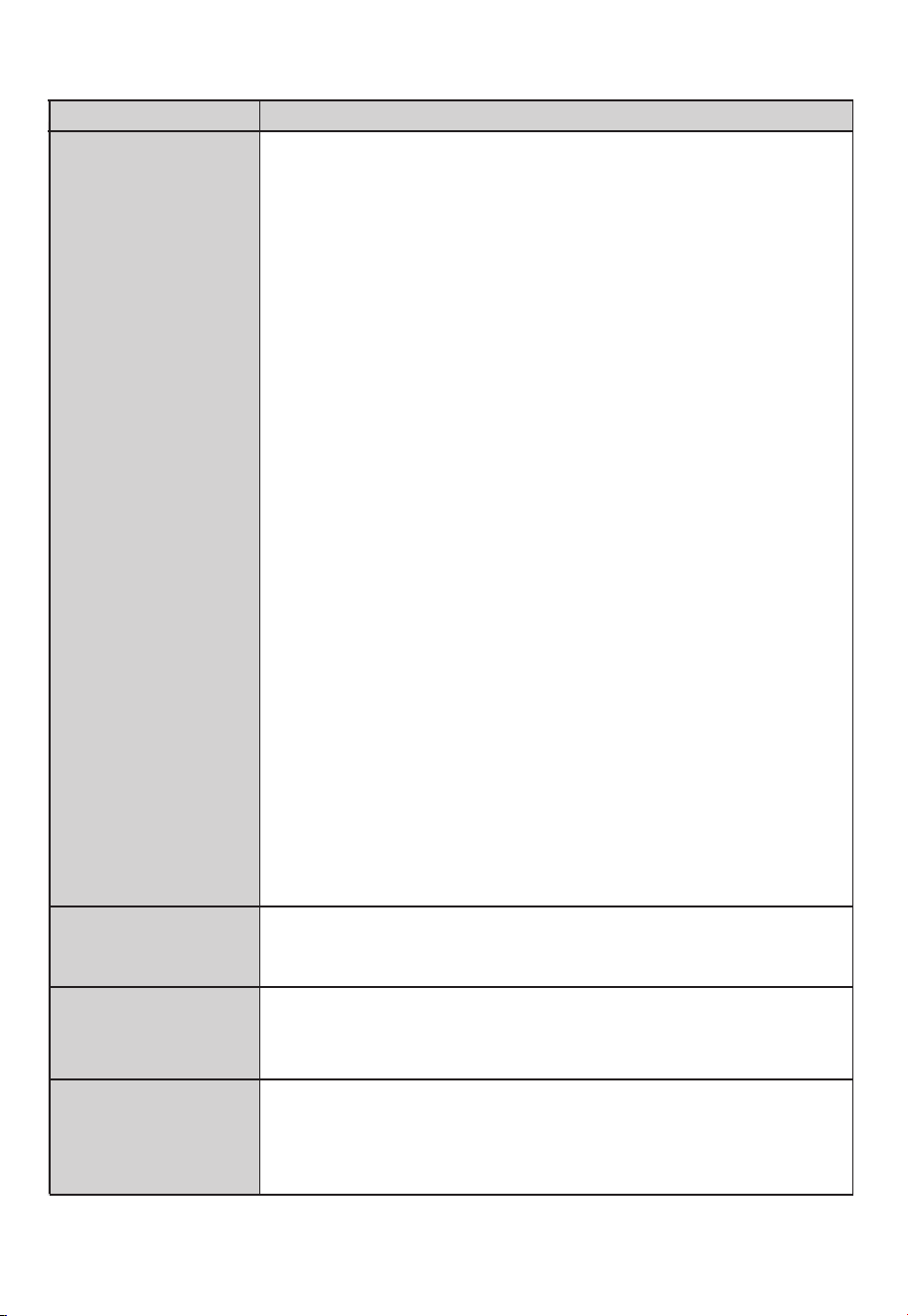
6. APP control interface homepage, click the button of "•••" , enter other function display interface:
5. On the APP homepage interface, click the corresponding filter element icon to enter the
corresponding filter element life display interface:
Filter reset
Filter life
Click to enter the Product Model information interface
Click to view network information
Click to view service information
Click to enter the Product registration interface
Click to enter the Product Model information interface
Click on the feedback product problem
Click to share your device with others
Click for software update
Click to view the current version of the plugin
Click to delete the device
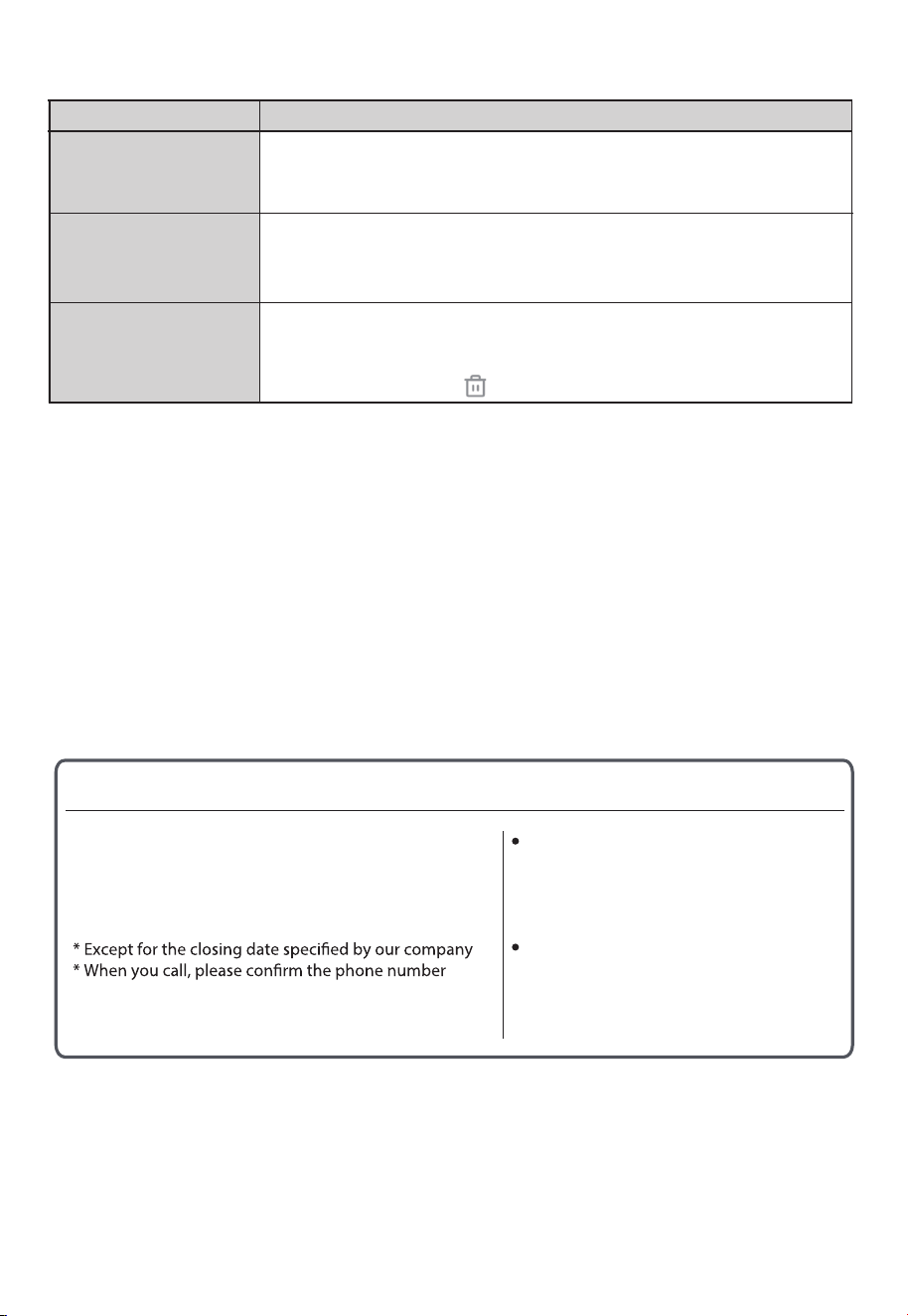
Under this circumstance
Continued…
Under this circumstance
Check ・Cause
The water purifier has not established a connection with the
wireless LAN router.
·Is the SSID of the wireless LAN router is displayed on the selection menu
of the wireless LAN router.
→Before performing the connection operation with the water purifier,
please connect the smartphone to the wireless LAN router.
In addition, when acquiring SSID information, the location information
service of the smartphone needs to be enabled. Please confirm the
settings of the smartphone.
·Is the 2.4GHz/5GHz band SS
ID selected in the selection screen of the
wireless LAN router?
→The communication between the water purifier and the wireless LAN
router is only applicable to the 2.4GHz/5GHz frequency band.
·On the connection menu with the water purifier, whether the
[Connect to the water purifier] button changes to [Next].
→The smartphone is not connected to the water purifier.
Please touch [Connect to water purifier], enter the following
SSID and password, and then connect to the water purifier.
SSID: Toshiba_ed_xxxx (※ "xxxx" is the fixed SN of the device)
Passw
ord: 12345678
·Is the login of the application software completed?
→The password entered on the selection menu of the wireless LAN router
may be wrong. Please reconfirm the password of the wireless LAN router.
·Is the distance between the wireless LAN router and the water
purifier too far.
→Please place the wireless LAN router near the water purifier.
·Whether the smartphone is connected to the wireless LAN router?
→When logging in the water purifier, the smartphone and the
water purifier need to be connected to the same wireless LAN
router.
* Before conn
ecting the water purifier to the wireless LAN,
connect your smartphone to the wireless LAN router.
* If you have multiple wireless LAN routers in your home, cut off the power
of the other wireless LAN routers.
When the user logs in,
the confirmation E-mail
cannot arrive
·Please confirm E-mail rejection settings, spam folder, and E-mail address.
The displayed content is
different from the actual
operating conditions.
1. Depending on the communication, server status and smartphone status,
the display may be delayed.
2. For Android phones, please make sure to install Google APP first.
3. Check whether the network is normal.
The content after
executing the
notification setting
cannot be sent out
·Is the power of the connected wireless LAN router turned on?
·Is there network failure?
·Have corresponding settings been made in the "notification setting" of
the smartphone and the "notification setting" of the application software?
(Corresponding settings must be made)
If the connection fails,
please follow the steps
on the right to check.
8
Under this circumstance
Continued…
Under this circumstance
Check ・Cause
To change login ID
To change password
Please operate according to the following steps.
1. Enter "My", click to view and edit your information;
2. Operate according to the screen display.
You can't log out
You cannot log out after a certain period. Please operate according to the
following steps.
1. Enter "My" and settings;
2. Click "Logout".
To stop using
Please operate according to the following steps.
1. Enter "My" and select my device.
2. Click on the added device.
3. Click the delete icon“ ”in the upper right corner.
Specification of wireless LAN
* Specification: IEEE802.11a/b/g/n
* Frequency: 2.4GHz/5GHz
* Encryption method: WPA™ / WPA2™ * WPS version: Version 2.0
Copyright, etc.
·Android and Google Play are trademarks or registered trademarks of Google Inc.
·iPhone is the trademark of Apple, Inc., registered in the USA and other countries.
The iPhone trademark is used with permission from Aiphone Co., Ltd.
·App Store is the service mark of Apple, Inc.
·“WPA™” and “WPA2™” are the registered marks of “Wi-Fi Alliance®”.
·In this Manual, there are some p
laces where ™ and ® marks are not recorded.
·In addition, various names, company names, and product names described in this Manual are
trademarks or registered trademarks of the companies respectively.
Consultation about using the operation method or in trouble
Free hotline 1300 88 7899
Service time: Monday to Saturday, 9:00-18:00
Sunday·Festivals and Holidays 9:00-17:00
carefully to avoid making a mistake.
The personal information provided by
the customer will be used to provide
information such as product repairs,
reply to inquiries, and send product
catalogs.
Within the scope of the use purpose,
the personal information of the
customer may be provided to Toshiba
Group or aliated companies related to
the product.
9
PANDUAN
PENGGUNAAN
PERISIAN
APLIKASI
PENULEN AIR
TWP-W2529TMY(W)
TWP-W2529TMY(M)
KANDUNGAN
Fungsi berikut boleh dicapai---------------------------------------------------------------------------------
Langkah berjaga-jaga keselamatan------------------------------------------------------------------------
Artikel yang diperlukan untuk menggunakan perisian aplikasi-----------------------------------
Keperluan LAN wayarles---------------------------------------------------------------------------------------
Dari pemasangan perisian aplikasi hingga sambungan dengan penulen air------------------
Antara muka operasi perisian aplikasi---------------------------------------------------------------------
Dalam keadaan ini-----------------------------------------------------------------------------------------------
Spesikasi LAN wayarles--------------------------------------------------------------------------------------
Hak Cipta, dsb. ---------------------------------------------------------------------------------------------------
Perundingan tentang menggunakan kaedah operasi atau dalam masalah--------------------
Terima kasih banyak kerana membeli Penulen air minuman terus Toshiba.
Untuk menggunakan produk ini dengan selamat dan betul, sila baca Manual ini dengan teliti sebelum
menggunakannya dan fahami kandungannya sepenuhnya.
Selepas membaca Manual ini, sila simpan di tempat yang boleh dilihat oleh pengguna pada bila-bila masa.
Menu perisian aplikasi yang digunakan dalam Manual ini boleh berubah tanpa notis.
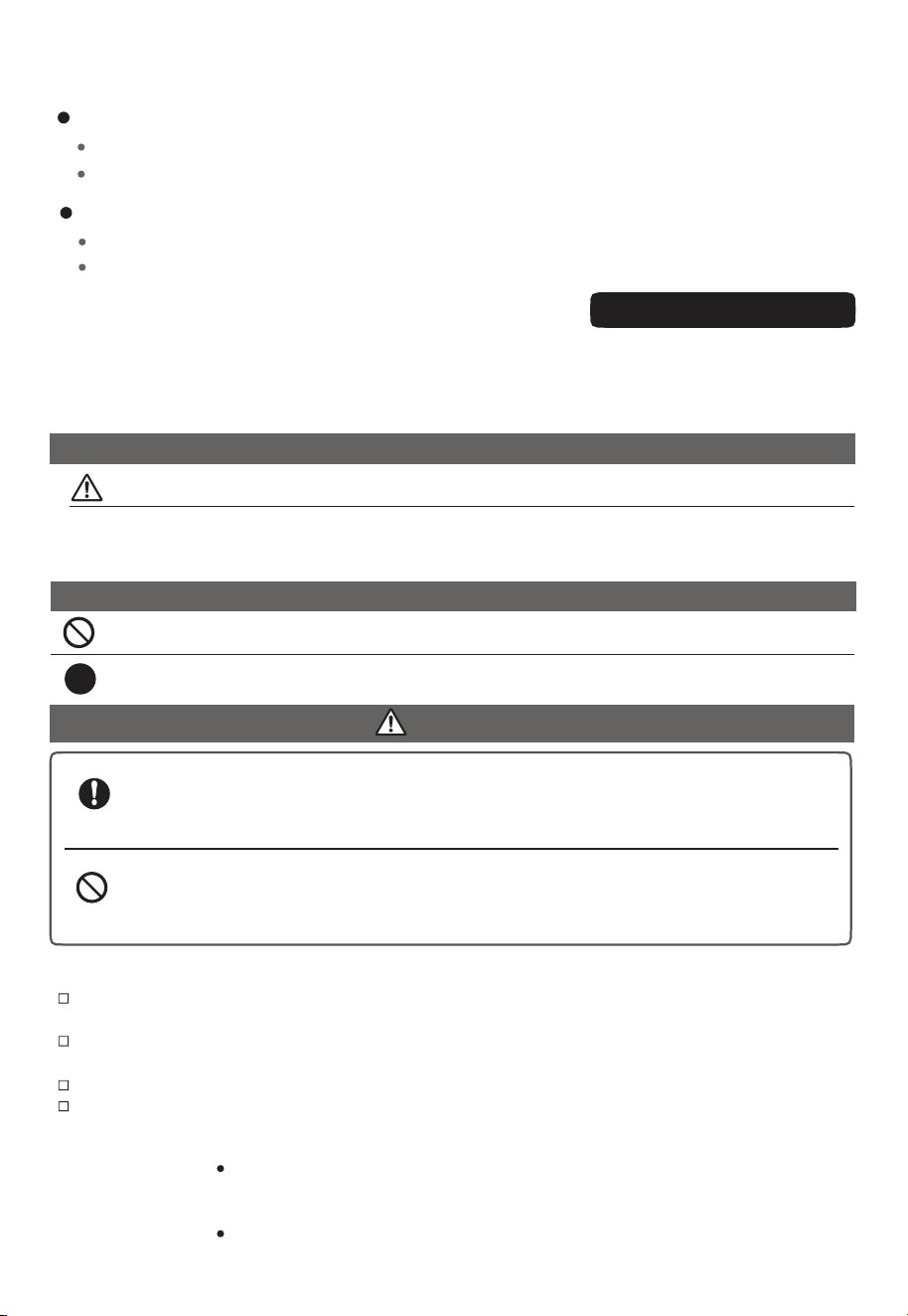
Fungsi berikut boleh dicapai
Semak status penulen air dari jauh
Fungsi sokongan pelanggan
Penggunaan air kumulatif harian, mingguan, bulanan dan tahunan melalui APL.
Hayat penapis akan tamat tempoh, APL akan mengingatkan anda dengan warna Merah/Kuning.
Langkah berjaga-jaga keselamatan
Terima pemberitahuan tolak apabila ralat berlaku.
Menyediakan soalan lazim, menu dan maklumat lain untuk menggunakan penulen air.
Sila baca dengan teliti
Berikut menerangkan perkara-perkara yang mesti dipatuhi untuk mengelakkan kemudaratan kepada
pengguna atau orang lain atau kerosakan harta benda. Apabila diterangkan dalam "Perihalan tanda" ialah
klasifikasi tahap bahaya dan kerosakan yang berlaku semasa penyalahgunaan dan operasi, dan "Perihalan
simbol grafik" ialah makna bagi simbol yang berbeza.
Perihalan tanda
AMARAN Ia bermaksud "kandungan dengan kemungkinan kematian atau kecederaan serius".
* Kecederaan teruk merujuk kepada kecederaan yang menyebabkan sekuela, memerlukan penjagaan
hospital dan rawatan berurutan jangka panjang, termasuk menjadi buta, cedera, melecur (suhu tinggi
dan suhu rendah), terkena kejutan elektrik, patah tulang dan keracunan, dsb.
Perihalan simbol grafik
Teks berhampiran grafik menunjukkan operasi yang tidak boleh dilakukan (dilarang).
Teks berhampiran grafik menunjukkan operasi (arahan) yang mesti dilakukan.
Arahan
Dilarang
Sila kekalkan jarak melebihi 15 cm daripada individu yang mempunyai implan alat perentak
jantung atau defibrilator.
Gelombang radio yang dihasilkan oleh LAN wayarles mungkin mempunyai pengaruh buruk
pada alat perentak jantung. dsb. dan menyebabkan kemalangan.
Jangan gunakannya berdekatan dengan peralatan kawalan automatik seperti pintu automatik dan
penggera kebakaran. Jangan gunakannya di hospital atau tempat yang mempunyai peralatan elektrik
untuk kegunaan perubatan.
Gelombang radio yang dihasilkan oleh LAN wayarles mungkin mempunyai pengaruh buruk pada
peralatan dan menyebabkan kemalangan.
Artikel yang diperlukan untuk menggunakan perisian aplikasi
Telefon pintar (Android, iPhone)... ia tidak dapat menjamin bahawa produk boleh berfungsi dengan baik
jika komputer tablet diguna pakai.
Perisian aplikasi khusus (percuma). Ia adalah perlu untuk memeriksa penulen air dengan telefon pintar.
Kaedah pemasangan (→ Halaman 3)
* Sambungan dengan penulen air menggunakan jalur frekuensi 2.4Ghz/5Ghz
(IEEE802.11 a, IEEE802.11 b, IEEE802.11 g, IEEE802.11 n).
Untuk mencapai langkah-langkah keselamatan, pastikan anda menggunakan
peranti yang menggunakan kaedah penyulitan yang sesuai WPA2 atau WPA
(kedua-dua TKIP atau AES). Syor: WPA2 (AES)
Untuk tetapan penghala LAN wayarles, sila rujuk kepada Arahan Operasi.
Persekitaran Internet... Perlu menandatangani kontrak dengan pembekal talian Internet.
Penghala LAN wayarles... Sambungkan penulen air ke talian Internet.
【Keperluan】
1
AMARAN
Keperluan LAN wayarles
Jalur frekuensi kerja
LAN wayarles menggunakan jalur frekuensi
2.4Ghz/5Ghz, tetapi ada kemungkinan peranti wayarles
lain juga menggunakan frekuensi yang sama. Untuk
mengelakkan gangguan gelombang radio dengan
peranti wayarles lain, sila ambil perhatian perkara
berikut semasa menggunakannya.
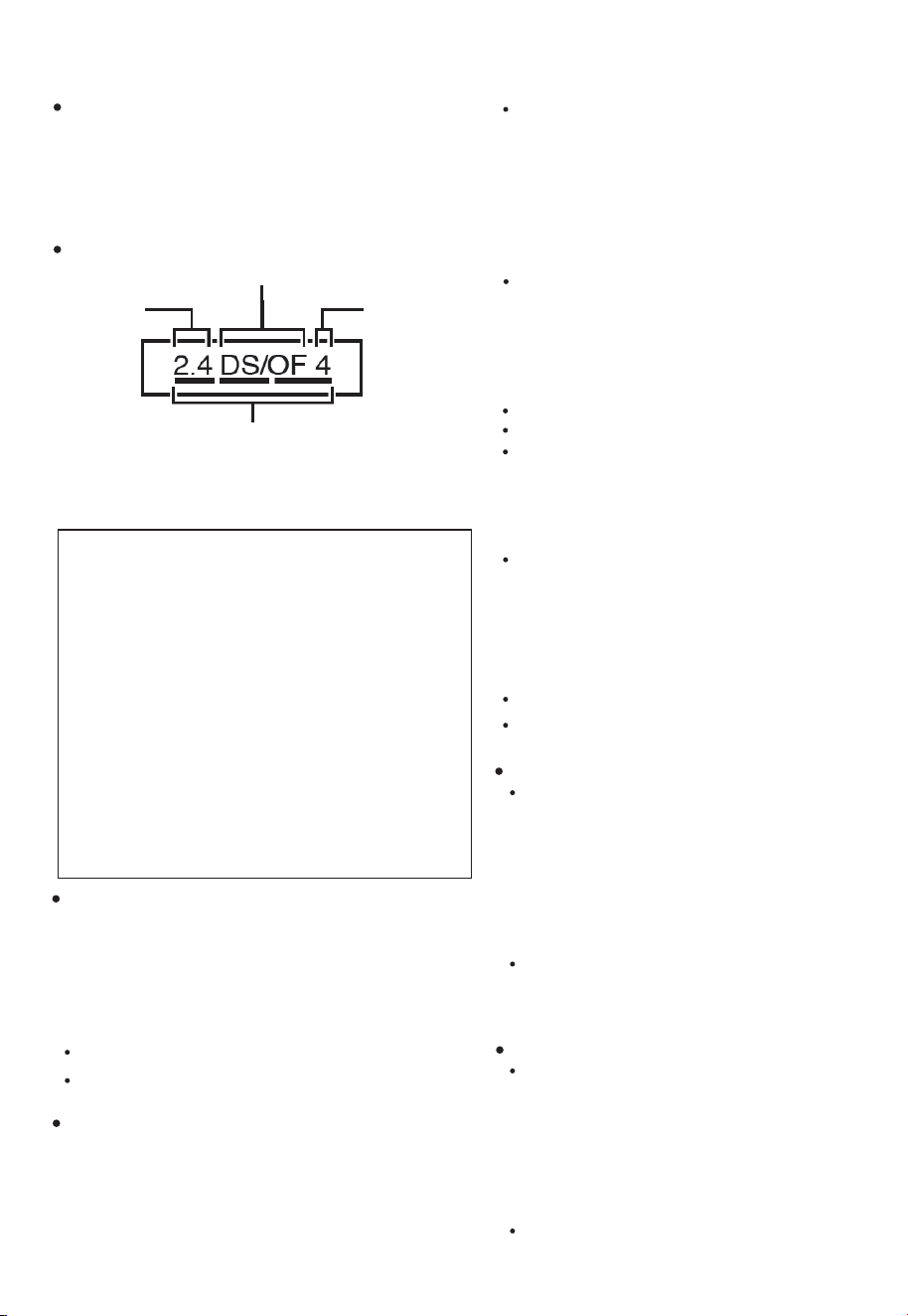
Spesifikasi wayarles yang digunakan oleh produk ini
2.4 DS/OF 4
Kaedah modulasi ialah DSSS dan OFDM
Gunakan jalur
frekuensi
2.4Ghz/5Ghz
Jarak gangguan
gelombang radio
ialah < 40m
Ini bermakna keseluruhan jalur frekuensi daripada
2.4GHz hingga 2.4835GHz dan 5.15GHz hingga
5.825GHz boleh digunakan, dan penggunaan jalur
frekuensi peranti pengenalpastian mudah alih boleh
dielakkan.
Langkah berjaga-jaga untuk penggunaan peranti LAN
wayarles
Dalam jalur frekuensi yang digunakan oleh peralatan ini, selain peralatan
industri, saintifik dan perubatan seperti ketuhar gelombang mikro, terdapat
juga stesen radio di kawasan tersebut untuk mengenal pasti objek bergerak
yang digunakan dalam barisan pengeluaran kilang (stesen radio berlesen)
dan stesen radio berkuasa rendah tertentu (stesen radio yang tidak
memerlukan lesen) dan stesen radio amatur (stesen radio memerlukan
lesen) juga digunakan.
1. Sebelum menggunakan peranti ini, sila pastikan bahawa tiada stesen
radio di kawasan untuk mengenal pasti objek bergerak, stesen radio
berkuasa rendah tertentu dan stesen radio wayarles sedang digunakan
berhampiran aksesori.
2. Sekiranya gangguan gelombang radio berbahaya berlaku dari stesen
radio di kawasan di mana peranti ini digunakan untuk mengenal pasti
objek bergerak, sila tukar tempat tersebut dengan segera atau berhenti
me
nggunakan gelombang radio.
3. Selain itu, jika peralatan ini menyebabkan gangguan gelombang radio
berbahaya kepada stesen radio berkuasa rendah tertentu atau stesen
radio amatur yang digunakan untuk pengenalpastian mudah alih, sila
tukar peralatan dengan segera atau berhenti menggunakan radio.
Pensijilan peralatan
Peralatan ini mempunyai peranti wayarles terbina dalam
yang telah memperoleh pensijilan reka bentuk
kejuruteraan berdasarkan undang-undang radio, dan
tidak perlu mendapatkan lesen stesen radio berasingan.
Bagaimanapun, tindakan berikut adalah dilarang di
bawah akta radio.
Sila ambil perhatian tentang sekatan berikut semasa
penggunaan.
Syarikat kami tidak akan bertanggungjawab untuk
sebarang kerosakan sampingan yang disebabkan oleh
penggunaan atau ketidakupayaan LAN wayarles
sekiranya berlaku ketidakpatuhan terhadap sekatan.
Laksanakan penguraian/pembentukan semula.
Hilangkan tanda pematuhan peranti wayarles
terbina dalam.
Hayat perkhidmatan
Jangan sambung ke rangkaian wayarles tanpa
kebenaran.
Apabila carian automatik bagi persekitaran
rangkaian wayarles dilakukan, rangkaian
wayarles (SSID ※) yang tidak mempunyai hak
akses mungkin dipaparkan, dan ia mungkin
ditentukan sebagai akses haram selepas
sambungan.
Tolong jangan gunakannya di tempat yang
menjana medan magnet, elektrik statik atau
gangguan gelombang radio.
Apabila digunakan berhampiran peralatan
berikut, komunikasi mungkin terganggu atau
kelajuan mungkin menjadi perlahan.
Ketuhar gelombang mikro
Peranti LAN wayarles lain
Peranti lain yang menggunakan gelombang
radio jalur frekuensi 2.4Ghz/5Ghz (telefon
tanpa wayar digital, peralatan audio
wayarles, konsol permainan, peranti
komputer peribadi, dsb.)
Objek logam yang mudah memantulkan
gelombang radio, dsb.
※ Ia adalah nama yang digunakan untuk mengenal
pasti rangkaian tertentu dalam LAN wayarles. Dua
peranti boleh berkomunikasi jika SSID adalah sama.
【Mengenai SSID mesin ini】
SSID: toshiba_ed_xxxx
KATA LALUAN: 12345678
※ "xxxx" ialah nombor siri tetap peralatan.
Langkah-langkah keselamatan
Memandangkan data dihantar dan diterima
menggunakan gelombang radio melalui LAN
wayarles, terdapat risiko akses yang tidak
dibenarkan. Untuk memastikan keselamatan data,
sila ambil langkah-langkah keselamatan.
(→ Halaman 1)
Jika kegagalan untuk mengambil langkah
keselamatan menyebabkan sebarang masalah,
syarikat kami tidak akan bertanggungjawab.
Sila tetapkan kata laluan penghala LAN
wayarles kepada 8 aksara atau lebih dan 63
aksara atau kurang, dan disyorkan untuk
menukar kata laluan dengan kerap.
Peralatan ini mempunyai fungsi menyambung
ke pelayan kemas kini perisian tegar syarikat
kami melalui Internet dan mengemas kini
perisian tegarnya secara automatik kepada versi
terkini. Memandangkan komunikasi tanpa
wayar akan terganggu buat sementara waktu
semasa proses kemas kini, gangguan atau
kelembapan komunikasi mun
gkin berlaku.
Tolong jangan menganalisis atau mengubah
suai perisian tegar.
Mengenai perisian tegar
2
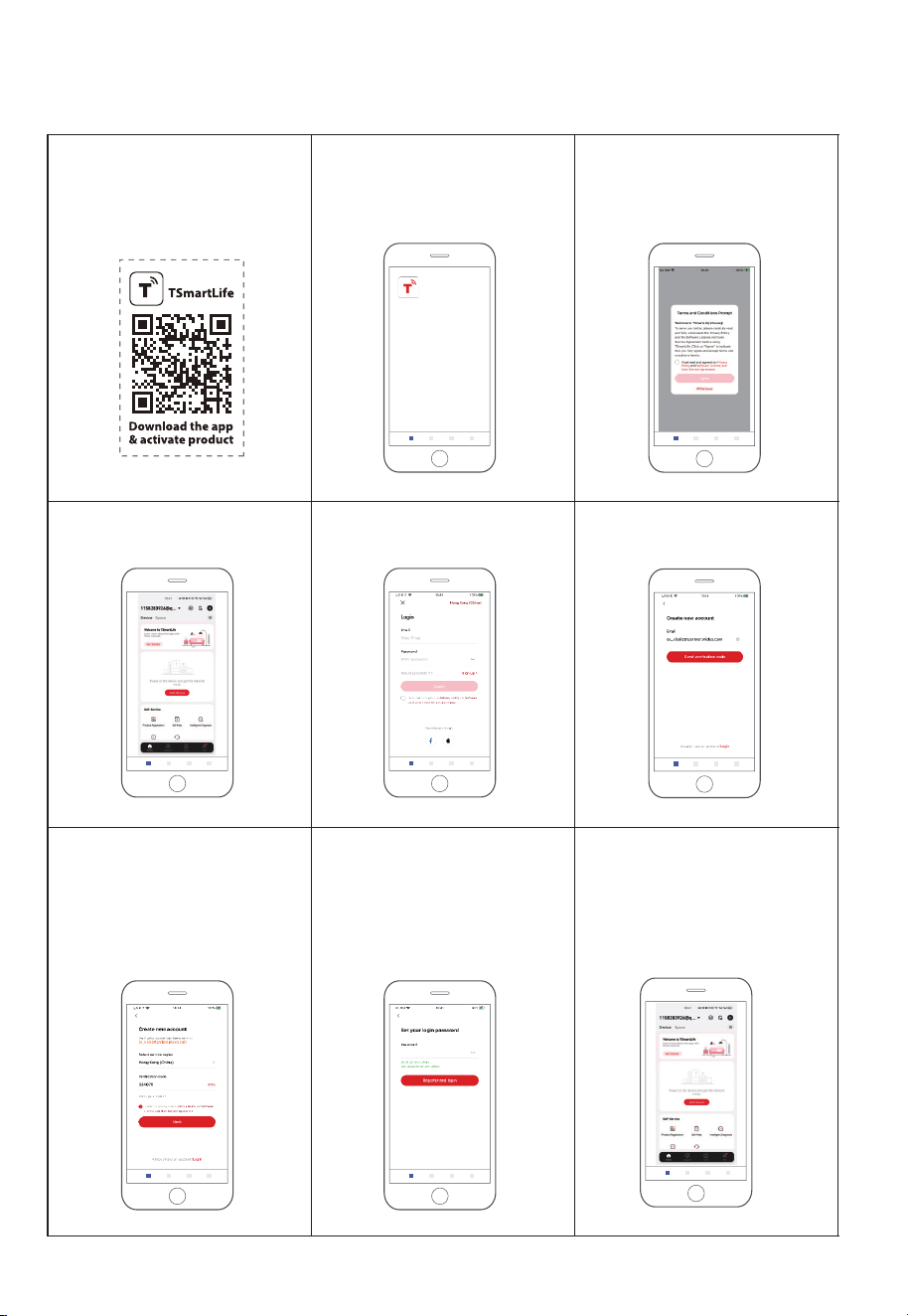
Dari pemasangan perisian aplikasi hingga sambungan
dengan penulen air
3
1. Muat turun dan pasang apl.
Cari: TSmartLife dalam pasaran
aplikasi mudah alih, atau imbas
kod QR untuk memuat turun dan
memasang APL.
2. Klik pada ikon APL untuk
masuk APL.
3.Baca dan bersetuju dengan
Dasar Privasi dan Lesen
Perisian dan Perjanjian
Perkhidmatan Pengguna.
4. Klik butang Log masuk.
5. Klik butang Daftar >.
6.Masukkan e-mel dan hantar
kod pengesahan.
7. Pilih kawasan perkhidmatan
dan masukkan kod pengesahan.
Bersetuju dengan Dasar Privasi
dan Lesen Perisian dan
Perjanjian Perkhidmatan
Pengguna. Klik butang
Seterusnya.
8.Tetapkan kata laluan.Kemudian
klik butang Daftar dan log
masuk.
9.Masuk halaman utama. Klil
butang Tambah peranti.
4
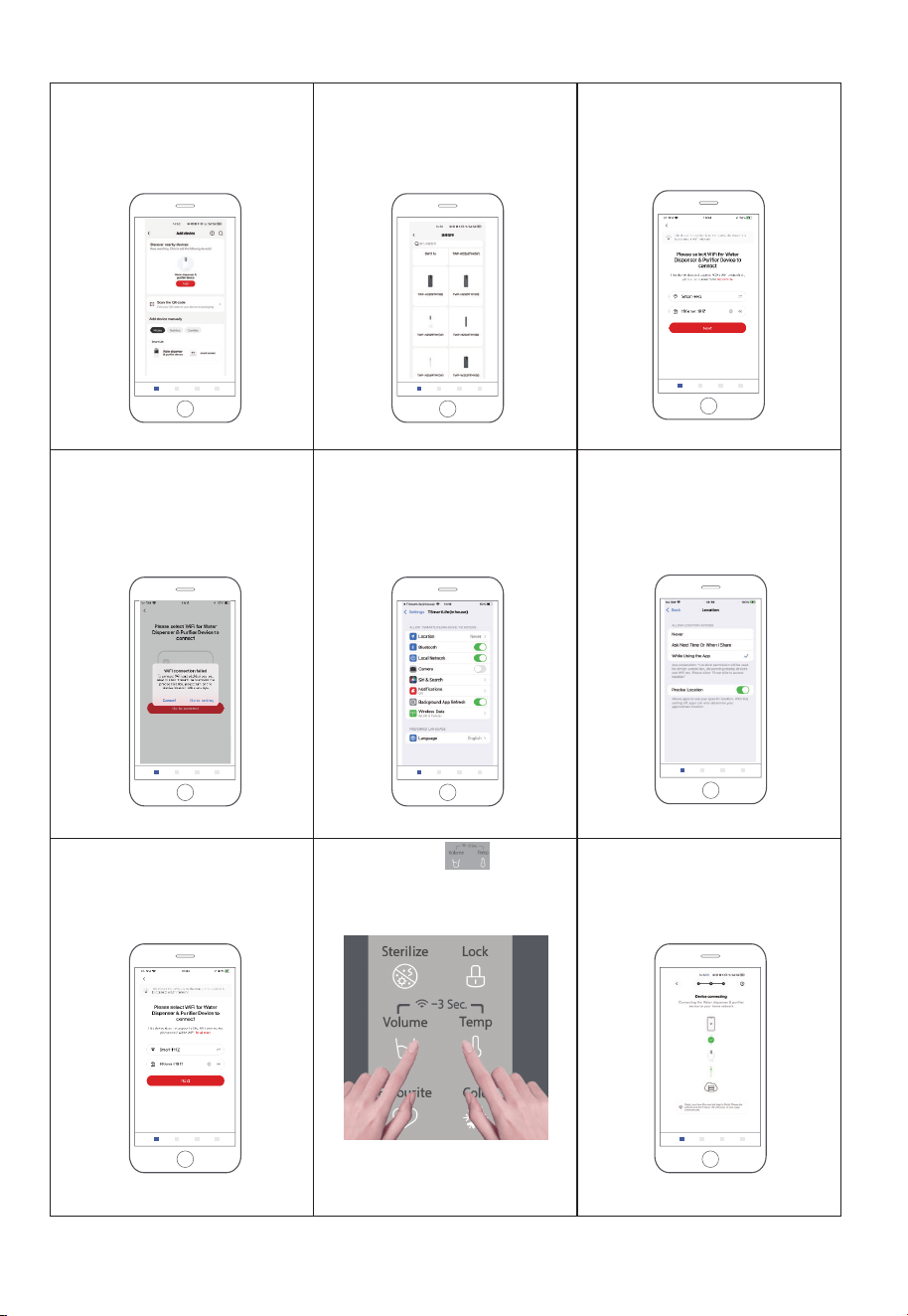
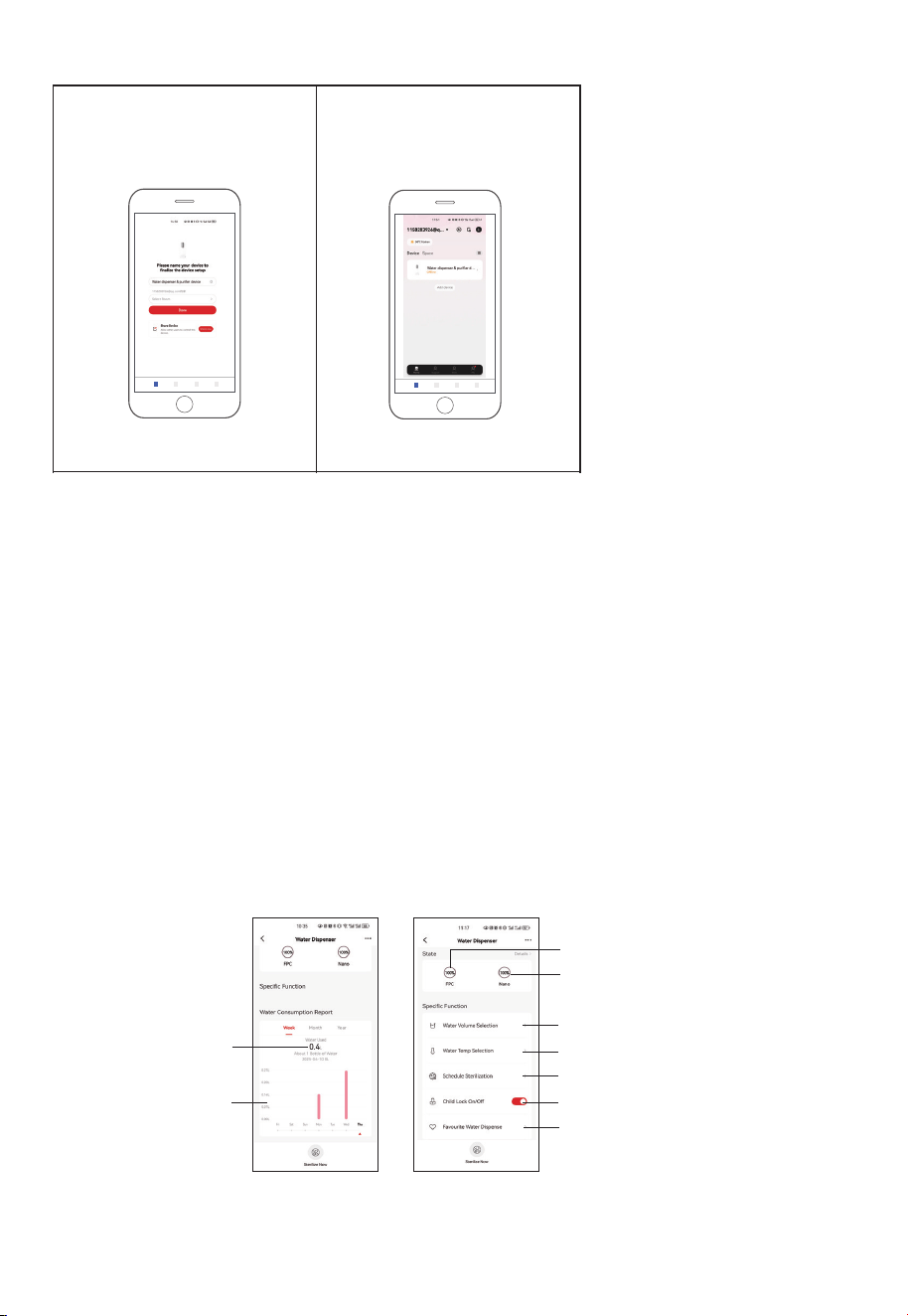
11. Pilih model
17. Tekan lama selama 3
saat, cahaya berkelip.
12.Pilih antara muka Sambungan
Wayarles, masukkan kata laluan
Sambungan Wayarles. Klik
butang Seterusnya.
10.Pilih peranti.Pilih Peranti
dispenser dan penulen air.
13. Jika anda tidak membenarkan
lokasi sebelum ini, sila benarkan
akses dalam tetapan kemudian
hidupkan lokasi yang tepat. Klik
butang Pergi ke tetapan.
14.Masuk halaman Tetapan
.Klik butang Lokasi.
15.Pilih Semasa Menggunakan
Apl.
16.Kembali ke TSmartLife.
Klik butang Seterusnya.
18.Tunggu untuk menyambung.
TWP-W2529TMY(W)
TWP-W2529TMY(M).
5
Langkah berjaga-jaga dan penyelesaian masalah atas sebab kegagalan rangkaian.
1. Apabila menyambungkan produk ke rangkaian, pastikan telefon bimbit berada sedekat mungkin
dengan produk.
2. Menurut gesaan Apl, jika produk anda hanya menyokong komunikasi rangkaian Wayarles 2.4GHz,
apabila memilih rangkaian Wayarles rumah semasa, sila beri perhatian untuk memilih rangkaian 2.4GHz.
3. Nama rangkaian wayarles penghala tidak disyorkan untuk mengandungi aksara Cina atau khas
(termasuk tanda baca, ruang, dsb.).
4. Adalah disyorkan agar bilangan peranti yang disambungkan di bawah penghala yang sama tidak
melebihi 10 untuk mengelakkan pengaruh isyarat tidak stabil pada rangkaian.
5. Jika penghala atau nama rangkaian wayarles dan kata laluan ditukar, anda perlu mengulangi proses di
atas untuk menyambung semula ke Internet.
6. Apabila teknologi produk dikemas kini, kandungan Apl Toshiba mungkin ditukar dan panduan paparan
sebenar dalam TSmartLife akan diguna pakai.
19. Berjaya ditambahkan
namakannya mengikut
kehendak anda. Kemudian klik
butang Selesai.
20.Kembali ke laman utama.
Antara muka operasi perisian aplikasi
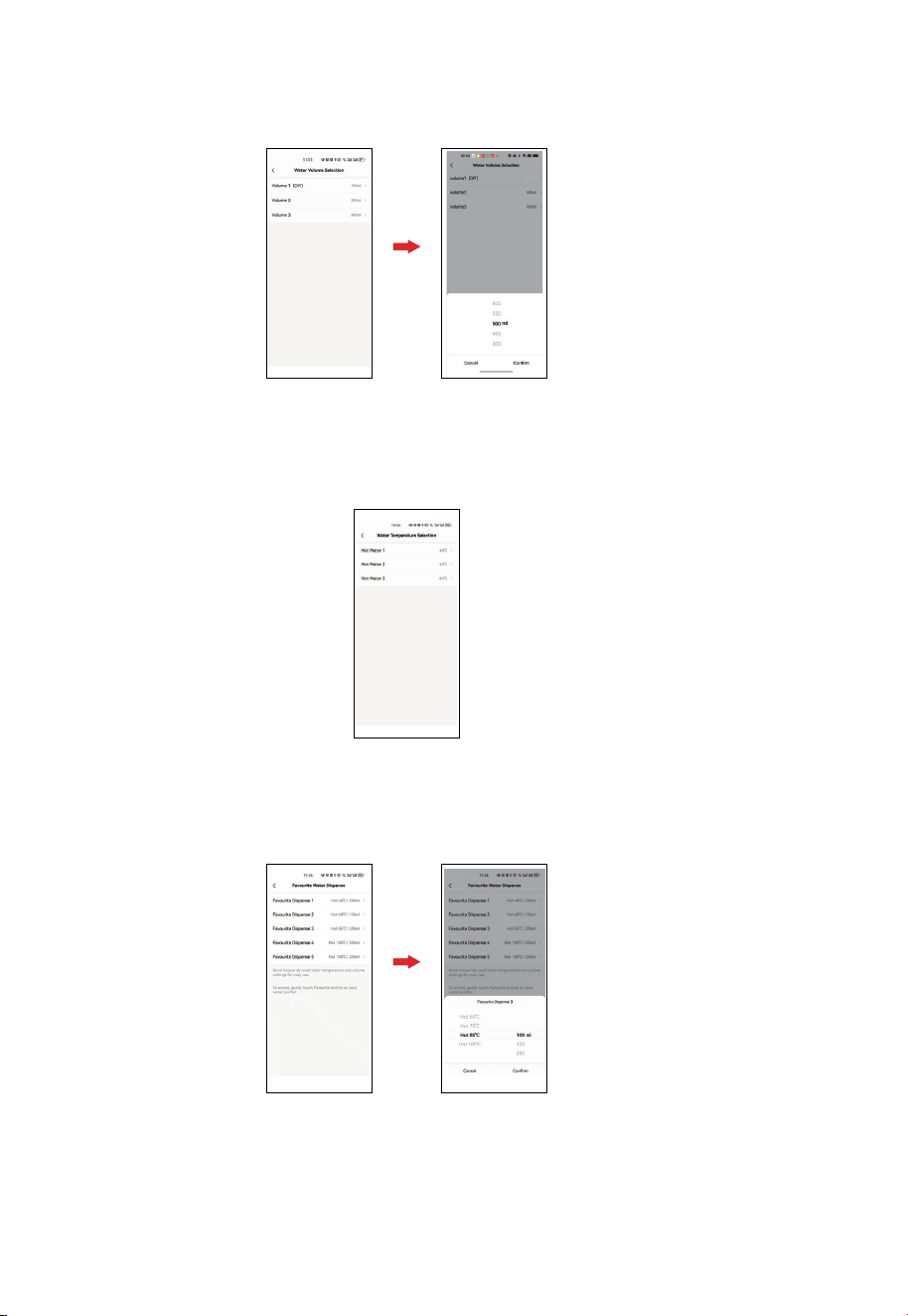
1. Masuk ke halaman utama antara muka kawalan APP, paparan adalah seperti berikut:
Jangka hayat penapis FPC
Jangka hayat penapis NANO
Suis kunci kanak-kanak
Penetapan masa pensterilan
Pemilihan suhu
Hasil air
Tetapan Tersuai
Laporan penggunaan air
Nilai Penggunaan Air Hari Ini
6
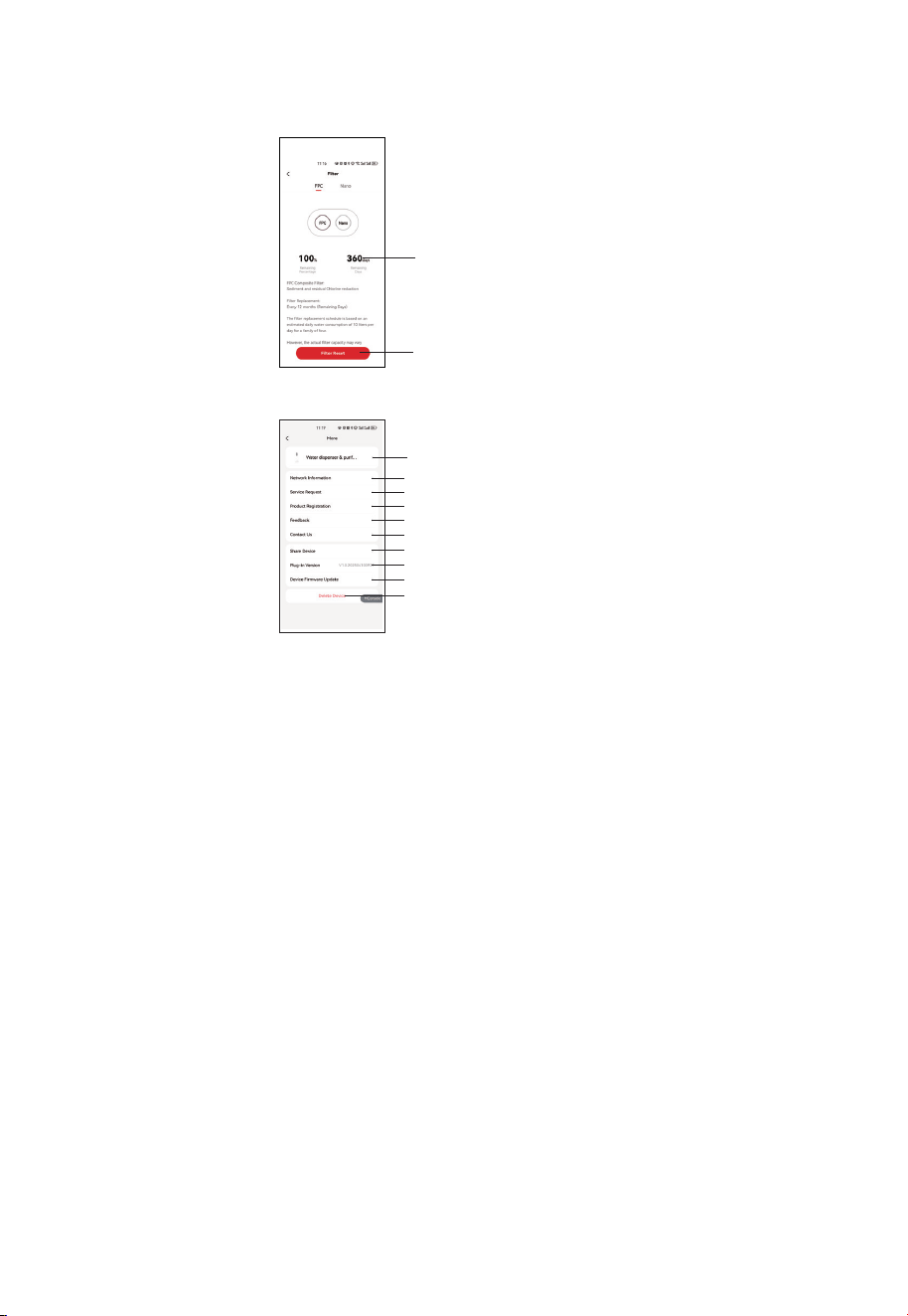
2. Hasil air
3. Pemilihan suhu
Pada halaman utama APL, klik pada kuantiti air, terdapat tiga gerai untuk dipilih, klik pada mana-mana
gerai, anda boleh memilih jumlah air yang sepadan untuk menetapkan pengambilan air.
Pada halaman utama aplikasi, klik pilihan suhu air untuk menetapkan suhu air, anda boleh
menetapkan suhu air panas, klik air panas 1 hingga 3, terdapat pilihan suhu air panas yang sepadan.
4. Penetapan masa pensterilan
Pada halaman utama APL, klik Tetapan Pensterilan, anda boleh memilih suhu dan kuantiti air yang
berbeza, anda boleh menyediakan sehingga 5 item.
7
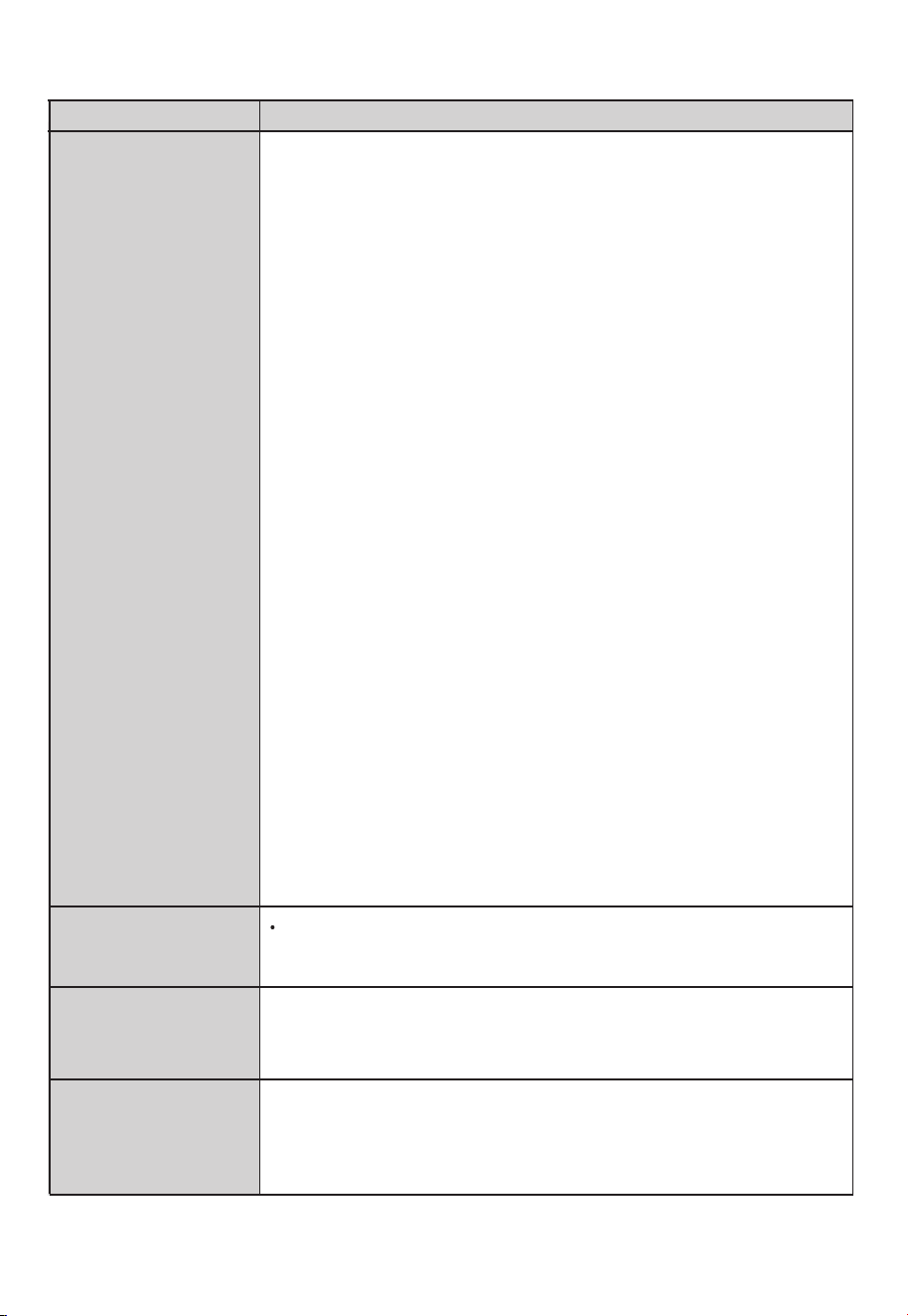
Tetapan semula penapis
5. Pada antara muka halaman utama APL, klik ikon elemen penapis yang sepadan untuk memasuki antara
muka paparan hayat elemen penapis yang sepadan:
Jangka hayat penapis
6. Laman utama antara muka kawalan APL, klik butang " ... ", masukkan antara muka paparan fungsi lain:
Klik untuk maklumat model produk
Klik untuk maklumat rangkaian
Klik untuk melihat maklumat perkhidmatan
Klik untuk memasuki antara muka pendaftaran produk
Klik untuk memasuki antara muka maklumat Model Produk
Klik untuk memberikan maklum balas masalah produk
Klik untuk berkongsi peranti anda dengan peranti lain
Klik untuk kemas kini perisian
Klik untuk melihat versi plugin semasa
Klik untuk memadam peranti
Dalam keadaan ini
Bersambung...
Dalam keadaan ini
Semak • Sebab
Penulen air belum mewujudkan sambungan dengan penghala LAN wayarles.
• Adakah SSID penghala LAN wayarles dipaparkan pada menu pemilihan
penghala LAN wayarles.
→ Sebelum melakukan operasi sambungan dengan penulen air, sila
sambungkan telefon pintar ke penghala LAN wayarles..
Selain itu, apabila memperoleh maklumat SSID, perkhidmatan maklumat
lokasi telefon pintar perlu didayakan. Sila sahkan tetapan telefon pintar.
• Adakah SSID jalur 2.4GHz/5GHz dipilih dalam skrin pemilihan penghala LAN
wayarles?
→ Komunikasi antara penulen air dan penghala LAN wayarles hanya terpakai
pada jalur frekuensi 2.4GHz/5GHz..
• Pada menu sambungan dengan penulen air, sama ada butang [Sambung ke
penulen air] bertukar kepada [Seterusnya].
→ Telefon pintar tidak disambungkan kepada penulen air.
Sila sentuh [Sambung ke penulen air], masukkan SSID dan kata laluan berikut,
dan kemudian sambungkan kepada penulen air.
SSID: Toshiba_ed_xxxx (※ "xxxx" adalah SN tetap peranti)
Kata laluan: 12345678
• Adakah log masuk perisian aplikasi selesai?
→ Kata laluan yang dimasukkan pada menu pemilihan penghala LAN
wayarles mungkin salah. Sila sahkan semula kata laluan penghala LAN
wayarles.
• Adakah jarak antara penghala LAN wayarles dan penulen air terlalu jauh.
→ Sila letakkan penghala LAN wayarles berhampiran penulen air.
• Adakah telefon pintar disambungkan ke penghala LAN wayarles?
→ Apabila log masuk penulen air, telefon pintar dan penulen air perlu
disambungkan ke penghala LAN wayarles yang sama.
* Sebelum menyambungkan penulen air ke LAN wayarles, sambungkan
telefon pintar anda ke penghala LAN wayarles.
* Jika anda mempunyai berbilang penghala LAN wayarles di rumah anda,
matikan kuasa penghala LAN wayarles yang lain.
Apabila pengguna log
masuk, e-mel pengesahan
tidak boleh sampai
Sila sahkan tetapan penolakan E-mel, folder spam dan alamat e-mel.
• Adakah kuasa penghala LAN wayarles yang disambungkan dihidupkan?
• Adakah terdapat kegagalan rangkaian?
• Adakah tetapan yang sepadan telah dibuat dalam "tetapan pemberitahuan"
telefon pintar dan "tetapan pemberitahuan" perisian aplikasi? (Tetapan yang
sepadan mesti dibuat)
Kandungan yang
dipaparkan adalah berbeza
daripada keadaan operasi
sebenar.
1. Bergantung pada komunikasi, status pelayan dan status telefon pintar, paparan
mungkin tertunda.
2. Untuk telefon Android, sila pastikan anda memasang APL Google terlebih dahulu.
3. Semak sama ada rangkaian adalah normal.
Kandungan selepas
melaksanakan tetapan
pemberitahuan tidak
boleh dihantar keluar
Jika sambungan gagal,
sila ikuti langkah di
sebelah kanan untuk
menyemak.
8
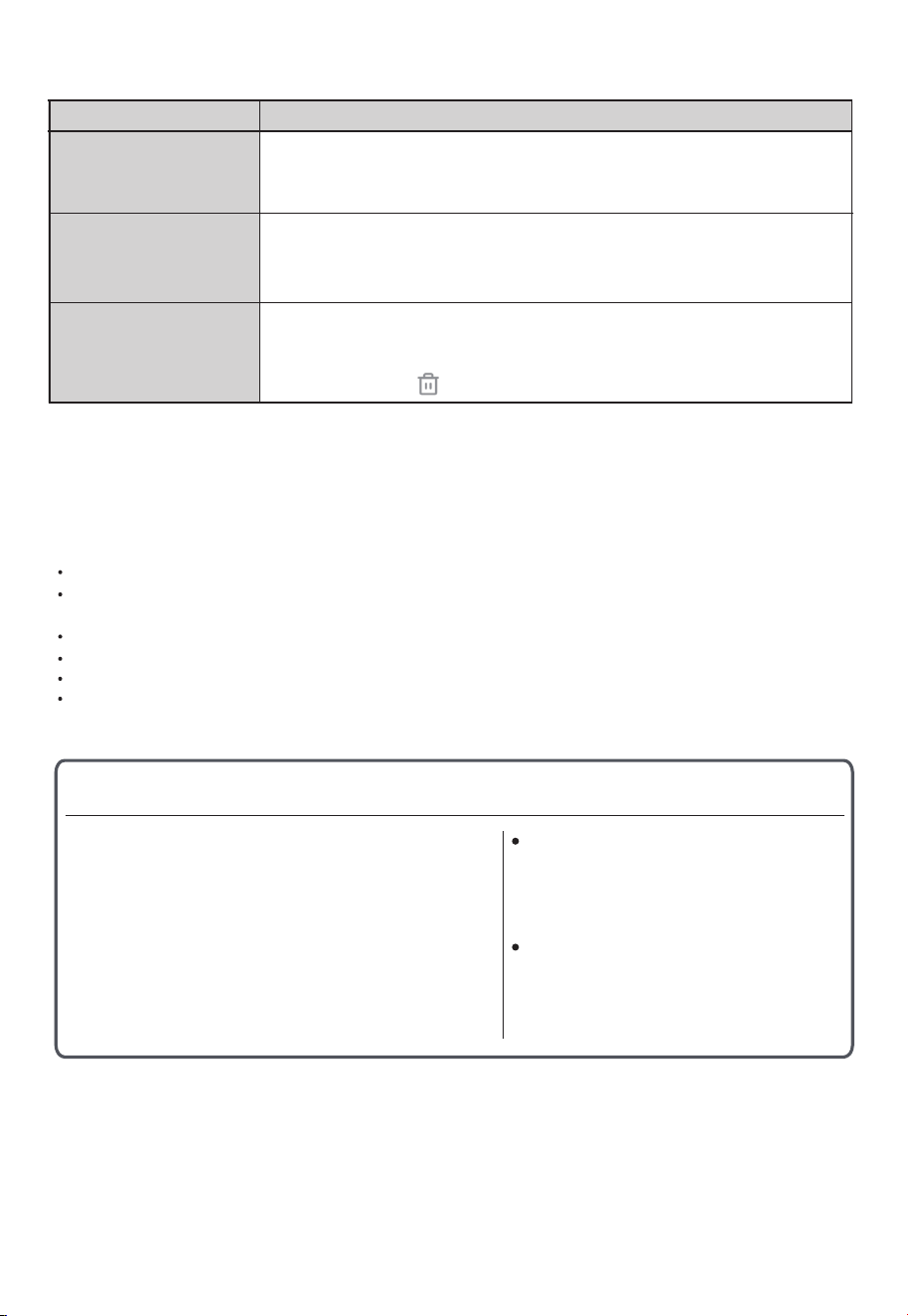
Dalam keadaan ini
Bersambung...
Dalam keadaan ini
Semak • Sebab
Untuk menukar ID log masuk
Untuk menukar kata laluan
Sila kendalikan mengikut langkah berikut.
1. Masukkan "Saya", klik untuk melihat dan mengedit maklumat anda;
2. Beroperasi mengikut paparan skrin.
Anda tidak boleh log keluar
Anda tidak boleh log keluar selepas tempoh tertentu. Sila kendalikan
mengikut langkah berikut.
1. Masukkan "Saya" dan tetapan;
2. Klik "Log Keluar".
Untuk berhenti
menggunakan
Sila kendalikan mengikut langkah berikut.
1. Masukkan "Saya" dan pilih peranti saya.
2. Klik pada peranti yang ditambahkan.
3. Klik ikon padam" "di penjuru kanan sebelah atas.
Spesifikasi LAN wayarles
* Spesifikasi: IEEE802.1 1a/b/g/n
* Frekuensi: 2.4GHz/5GHz
* Kaedah penyulitan: WPA™ / WPA2™ * Versi WPS: Versi 2.0
Hak Cipta, dsb.
Android dan Google Play ialah tanda dagangan atau tanda dagangan berdaftar Google Inc.
iPhone ialah tanda dagangan Apple, Inc., yang didaftarkan di AS dan negara lain.
Tanda dagangan iPhone digunakan dengan kebenaran daripada Aiphone Co., Ltd.
App Store ialah tanda perkhidmatan Apple, Inc.
"WpA™" dan "WPA2™" ialah tanda berdaftar "Wi-Fi Alliance®".
Dalam Manual ini, terdapat beberapa tempat di mana tanda ™ dan ® tidak direkodkan.
Selain itu, pelbagai nama, nama syarikat dan nama produk yang diterangkan dalam Manual ini adalah
tanda dagangan atau tanda dagangan berdaftar syarikat masing-masing.
Perundingan tentang menggunakan kaedah operasi atau dalam
masalah
Talian penting percuma 1300 88 7899
Masa perkhidmatan: Isnin hingga Sabtu, 9:00-18:00
Ahad·Perayaan dan Cuti 9:00-17:00
* Kecuali tarikh tutup yang ditentukan oleh syarikat kami
* Apabila anda membuat panggilan, sila sahkan nombor
telefon dengan teliti untuk mengelakkan kesilapan.
Maklumat peribadi yang diberikan oleh
pelanggan akan digunakan untuk
memberikan maklumat seperti pembaikan
produk, membalas pertanyaan dan
menghantar katalog produk.
Dalam skop tujuan penggunaan, maklumat
peribadi pelanggan mungkin diberikan
kepada Kumpulan Toshiba atau syarikat
gabungan yang berkaitan dengan produk.
9