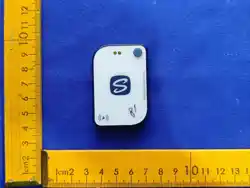
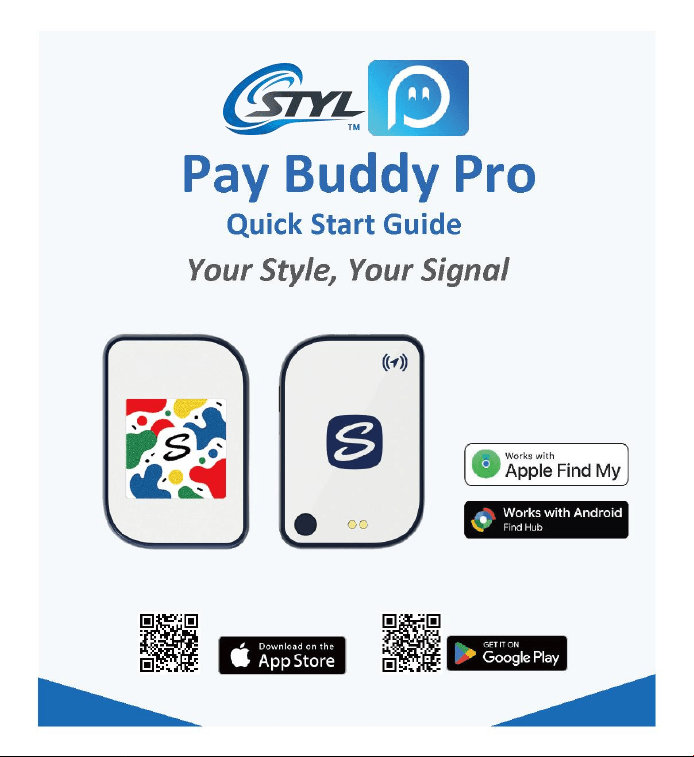

Specifications
Model
PBP-20260001
Display
240 × 240 px e-ink screen
Battery
3.7 V, 140 mAh Li-ion (built-in, rechargeable)
Charging
5 V ⎓ 0.15 A MAX, via magnetic pogo-pin contacts
Wireless
Bluetooth Low Energy (BLE)
Pairing / sync range
~5 m recommended (line-of-sight varies)
Storage slots
6 numbered image slots on-device
Payment
Smart Buddy — NFC, handled entirely by on-device hardware
Operating temperature
0°C to 45°C
IP Rating
IP54
Connectivity requirement
None — works fully offline, no account needed
Find My / Find Hub Accessory Operations
1. Power On / Off
● Power on: press the button once while the badge is off. A chord tone sounds and the LED flashes red
once, confirming startup.
● Power off: with the badge on, press the button quickly four times. The badge beeps three times and the
LED flashes red once, confirming shutdown.
2. Pairing & Binding (Find My / Find Hub)
● After powering on, an unpaired badge broadcasts for Find My / Find Hub pairing for 5 minutes; if not
paired in that window, the broadcast turns off.
● In the Apple Find My or Google's Find Hub app: add the item, select the badge, name it, choose an icon,
and confirm.
● A successful bind makes the badge beep once and flash blue once. Once paired, finding capabilities are
continuously available.
3. Play Sound

● With the badge within Bluetooth range (~10 m) of the phone, tap Play Sound in the Find My or Find Hub
app.
● The badge beeps and flashes blue in a repeating pattern (flash 3 seconds, pause 1 second) and stops
automatically after 60 seconds if you don't stop it manually first.
4. Restore Factory Settings
● Double-click the button, then press and hold it until you hear the chord tone and see the LED flashing
about once per second.
● Release the button — factory reset is complete.
● Required before the badge can be bound to a different Find My account or Google Account, if it wasn't
unbound while next to the original phone (see Remove / Unbind Device below).
5. Remove / Unbind Device
● In the Find My or Find Hub app: select the badge, then Remove Item.
● Keep the badge next to the phone during removal — a successful removal makes it beep once.
● If the badge isn't nearby during removal, it must be factory-reset before it can be bound to a different
account, even though it's already unbound from the original one.
6. View Certification Information
● Press the button three times in succession. The blue LED blinks four times and the badge beeps four
times ("didi didi didi didi").
● The badge's screen automatically displays the certification information graphic.
Quick Start
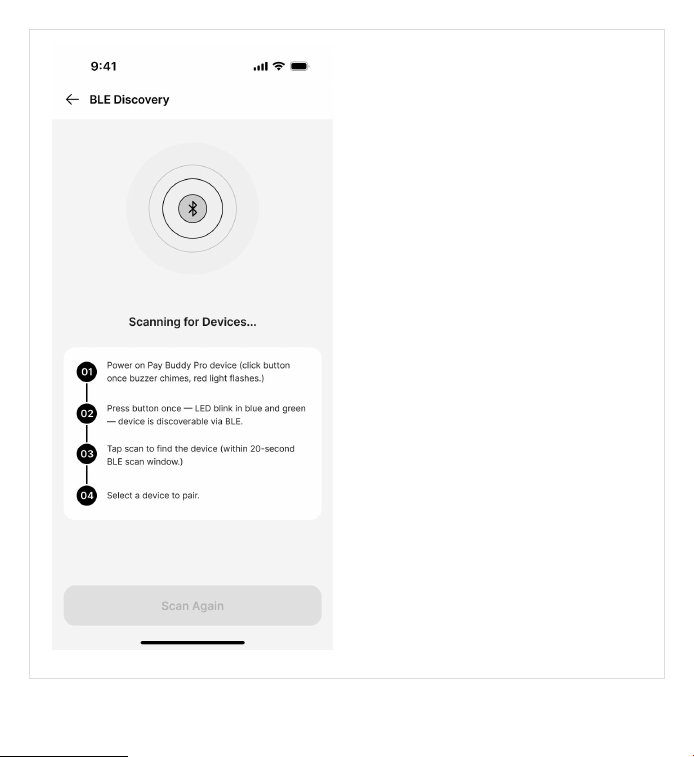
1. Turn On & Pair Your Badge
● Press the button 1 time when the device
is in power Off mode. LED blinks red, and
the buzzer sounds.
● Press the badge's button once — the LED
blinks blue and green, opening a 30-
second pairing window.
● On your phone, open Pay Buddy Pro →
Home tab → Add Device.
● The app scans for nearby badges by
Bluetooth address — only supported Pay
Buddy Pro hardware appears.
● Tap your badge, enter a nickname (up to
50 characters), optionally assign a profile,
then tap Pair Device.
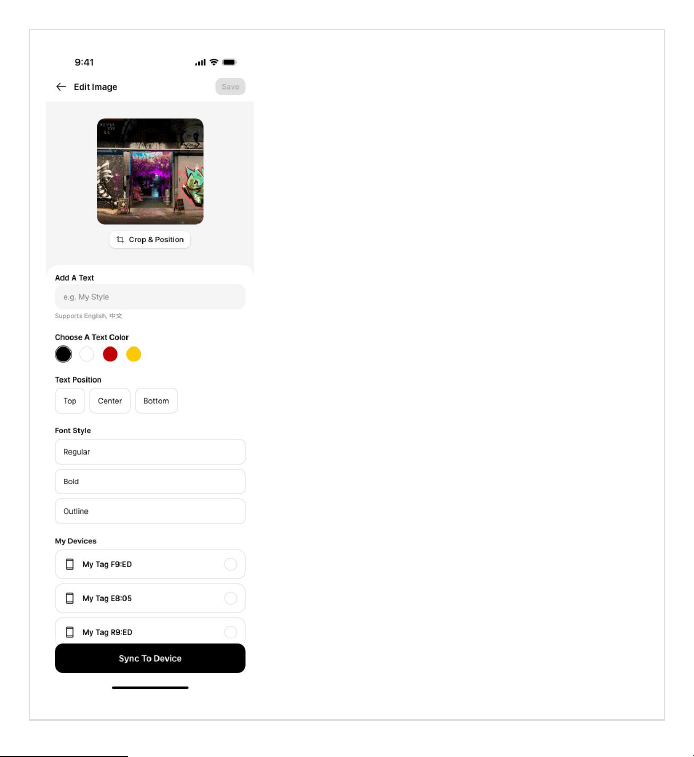
2. Personalize & Sync an Image
● Go to the Customize tab and choose a Preset, import
from your Library, or pick a Saved image.
● Edit it: crop/position.
● Add text with the color, position, and font style.
● Choose a device in the paired device list.
● Tap Sync To Device, choose one of the 6 numbered slots,
then tap Sync To A Slot.
● Wait 20–25 seconds after the success message for the
badge's e-ink screen to refresh.

Other Function
1. Smart Buddy Payment
● NFC payment is handled entirely by the badge's built-in chip and card slot — the app never collects,
stores, or processes payment credentials.
2. Locate Your Badge
● Open the badge's Locate Device screen for a live “nearby” status.
● This screen has a button that navigates you to the Apple Find My app (iOS) or the Google's Find Hub app
(Android™) to actually locate the badge.
● Only one network can be active per badge at a time — set it up from the system app, not from within
Pay Buddy Pro.
Pay Buddy Pro App Operations (Quick Reference)
1. Device Binding
● Pair a badge to the Pay Buddy Pro app — see Quick Start, step 1 (scan → select → name → Pair Device).
2. Card Tapping (Smart Buddy Payment)
● Hold the badge against a contactless payment terminal. NFC payment is handled entirely by the badge's
built-in chip and card slot — the app has no role in the transaction.
3. Scanning for a Badge
● The app's Bluetooth scan (Quick Start, step 1) — not a card/NFC scan — discovers nearby Pay Buddy Pro
hardware to pair.
Manage Profiles & Devices
1. Profiles (Users Tab)
● A profile is a named record with an emoji icon (20 options) — group badges by person or purpose.
● Create up to 50 profiles; each can be assigned one or more badges.
● Rename a profile and every assigned badge follows the new name automatically.
● Deleting a profile does not delete its badges — they move to “No Profile”.
2. Devices
● Pair up to 100 badges total.
● Tap a badge from the Users tab to open its detail screen: Customise, Locate Device, Assign To Profile,
Device Guide, or Unpair Device.

● Unpairing a badge removes it from local data only — this cannot be undone.
App Settings
1. Language
● Choose English, 中文, or Bahasa Melayu — applies instantly, no restart, and persists across app restarts.
2. Appearance
● Choose Dark Theme, Light Theme, or System Default — applies immediately.
3. Permissions
● View live Bluetooth, Camera, and Photos/Storage status; tap to jump straight to the OS Settings app if
access is needed.
4. Wipe All Local Data
● Permanently deletes all profiles, saved images, and sync history, returning the app to its first-launch
state. Requires confirming twice. Does not revoke OS permissions or change your language.
Device Button & LED Guide
1. Pairing & Photo-Update Mode
● Press the button once → LED blinks blue and green → a 30-second pairing/BLE window opens.
2. Advance Stored Photos
● Hold the button for 2 seconds → the badge advances to the next stored photo, cycling through its 6
slots.
LED indicator states
Normal operation
Off
Low battery (<10%)
5 flashes (1/sec), pause 5s, repeat
Charging (<80%)
Solid red
Charging (80–99%)
Solid green
Fully charged
Off
Pairing / update in progress
Blinks every 1 second
FAQ

1. Do I need an internet connection or account?
● No. Every core feature — onboarding, scanning, editing, syncing — works entirely offline, with no login.
2. Why isn't my badge appearing in the scan list?
● Make sure it's powered on and in pairing mode, Bluetooth is enabled on your phone, and you're within
~5 m. Only supported Pay Buddy Pro hardware appears in results.
3. What is a slot?
● One of 6 numbered image memory locations on the badge. Hold the button for 2 seconds to cycle
through them.
4. Why does my image look different on the badge than on my phone?
● The badge has a fixed on-device colour palette. Your saved image stays full-colour in the app — a
converted copy is generated automatically at sync time.
5. Does the app handle payments?
● No. Smart Buddy NFC payment is handled entirely by the badge's own hardware.
6. Are my saved images backed up?
● No — they're stored locally on your phone only. Uninstalling the app or wiping its data deletes them
permanently.
7. Can I still use the app if Bluetooth is off?
● Yes — you can browse and edit images offline. You just can't scan or sync until Bluetooth is switched
back on.
8. How is my badge located if it's lost?
● When a badge is separated from its owner, the Find My / Find Hub network uses nearby compatible
devices to find your misplaced belongings.
9. How does the badge discourage unwanted tracking?
● If a badge that isn't with its owner is seen moving with you over time, you'll be notified: on an iPhone or
iPad running iOS/iPadOS 14.5 or later, you get a system notification; without a compatible phone, the
badge itself emits a sound when it's moved to alert you.
● Find Hub is designed to prevent unwanted tracking. If your Android phone detects an unfamiliar device
moving with you, you’ll receive an alert — with options to either see the unknown device on a map,
hear where it is from a ringing sound, or get help.
10. How is my location privacy protected?
● Your device location data is stored safely, meaning that only you can see it. Google can never view or
access it.
11. What is the Find My / Find Hub network, and how does it work?
● It's a simple, secure way to locate a paired badge on a map using the Find My app (iPhone/iPad/Mac) or
the Find Hub app (Android). Once paired, you can view the badge alongside your other devices; if it's
lost, put it in Lost Mode to display a message and contact info to whoever finds it. The network is
encrypted and anonymous.
12. How do I disable Find My / Find Hub for my badge?
● Power the badge off — press the button quickly four times while it's on (see Power On/Off above). The
red LED flashes once and the badge beeps three times, confirming shutdown and that Find My/Find Hub
is disabled at the same time.
Regulatory & Safety Information
Model: PBP-20260001 · FCC ID: 2BXNS-PBP-20260001 · Made in China
FCC Statement (USA)
This device complies with part 15 of the FCC Rules. Operation is subject to the following two conditions: (1) This device may not cause harmful
interference, and (2) this device must accept any interference received, including interference that may cause undesired operation. Any changes or
modifications not expressly approved by the party responsible for compliance could void the user's authority to operate the equipment.
NOTE: This equipment has been tested and found to comply with the limits for a Class B digital device, pursuant to Part 15 of the FCC Rules. These
limits are designed to provide reasonable protection against harmful interference in a residential installation. This equipment generates, uses and
can radiate radio frequency energy and, if not installed and used in accordance with the instructions, may cause harmful interference to radio
communications. However, there is no guarantee that interference will not occur in a particular installation. If this equipment does cause harmful
interference to radio or television reception, which can be determined by turning the equipment off and on, the user is encouraged to try to
correct the interference by one or more of the following measures:
-- Reorient or relocate the receiving antenna.
-- Increase the separation between the equipment and receiver.
-- Connect the equipment into an outlet on a circuit different from that to which the receiver is connected.
-- Consult the dealer or an experienced radio/TV technician for help.
The device has been evaluated to meet general RF exposure requirement. The device can be used in portable exposure condition without
restriction.
CE Marking (European Union)
Hereby, STYL SOLUTIONS PTE. LTD. declares that this product is in compliance with essential requirements and other relevant
provisions of Directive 2014/53/EU, 2011/65/EU.
CB
Maximum operating temperature (45°C)
The following information constitutes standard safety requirements
● Rated Input and Charging Parameters
Please charge the device according to the rated input voltage, current, and charging parameters specified on the product.
● Battery Information
This product contains a built-in rechargeable lithium battery; do not disassemble or replace the battery yourself.

● Operating temperature
Please use this product within the specified operating temperature range.
● Charging temperature
Please charge the product within the specified charging temperature range.
● Proper Charging Method
This product uses magnetic contact charging. Please align the charging contacts correctly with the product's charging contacts to charge.
● Prevent short circuits
Do not allow the charging contacts or battery terminals to come into contact with metal objects such as keys, coins, or metal scraps, to avoid short
circuits
● Do not disassemble or damage the battery.
Do not disassemble, puncture, crush, impact, bend, or modify the product or its built-in battery yourself.
● Keep away from sources of fire and high temperatures.
Do not dispose of the product in a fire, or place it near a heat source or in an environment with extreme temperatures.
● Handling of Abnormal Situations
If the product exhibits abnormal heating, swelling, deformation, an unusual odor, smoke, or any other abnormality, please stop using and charging
it immediately.
● Unauthorized modification is prohibited.
Do not modify the product's internal circuitry, battery, charging structure, or safety protection devices without authorization.
Once the product and its built-in battery have reached the end of their service life, please recycle and dispose of them in accordance with relevant
local regulations and requirements.
WEEE / Disposal (European Union)
Marked with the crossed-out wheelie bin symbol per the EU WEEE Directive (2012/19/EU). Do not dispose of as household waste — return to the
point of sale or a municipal recycling point.
Bluetooth® Trademark
The Bluetooth® word mark and logos are registered trademarks owned by Bluetooth SIG, Inc., and any use of such marks by STYL SOLUTIONS PTE.
LTD. is under license. Other trademarks and trade names are those of their respective owners.
Apple Find My / Google's Find Hub Trademarks
The Apple Find My network provides an easy, secure way to locate compatible personal items on a map using the Find My app on your iPhone,
iPad, iPod touch, Mac, or the Find Items app on Apple Watch.
Use of the Works with Apple badge means that a product has been designed to work specifically with the technology identified in the badge and
has been certified by the product manufacturer to meet Apple Find My network product specifications and requirements. Apple is not responsible
for the operation of this device or use of this product or its compliance with safety and regulatory standards.
Apple, Apple Find My, Apple Watch, Find My, iPhone, iPad, iPadOS, Mac, macOS and watchOS are trademarks of Apple Inc., registered in the U.S.
and other countries. IOS is a trademark or registered trademark of Cisco in the U.S. and other countries and is used under license.
To use the Apple Find My app to locate this item, the latest version of iOS, iPadOS, or macOS is recommended. The Find My app on Apple Watch
requires the latest version of watchOS.
This product has been certified by Google to meet Find Hub network accessory specifications. Google is not responsible for the operation of this
product, and is also not responsible for ensuring that the product complies with any applicable safety standards or other requirements.
Find Hub helps you find and connect to what matters in a single secure place. Google, Android, and Find Hub are trademarks of Google LLC.
Find Hub network requires location services and Bluetooth to be turned on. Requires cell service or internet connection. Works on Android 9+ and
in certain countries for age-eligible users.
Singapore IMDA Compliance
⚠
WARNING: Placeholder — do not publish until filled in. Per IMDA Dealer's Licence conditions, the product/packaging/manual must carry:
“Complies with IMDA Standards — [Dealer's Licence No.]” before sale.
Telec Certification (Japan)
技術基準適合証明番号:【R 220-J12360】。本製品は小型であるため、技適マークは取扱説明書およびパッケージに表示しておりま
す。
本製品に内蔵されているリチウムイオン電池は、「電気用品安全法」に基づく特定電気用品として認証を
受けています。
(リサイクルマーク)
本製品に内蔵されたリチウムイオン電池は、一般社団法人
JBRC の回収・リサイクル制度の対象です。廃棄の際は、
お近くの回収協力店にお持ちください。
JBRC ホームページ:https://www.jbrc.com