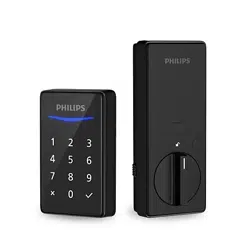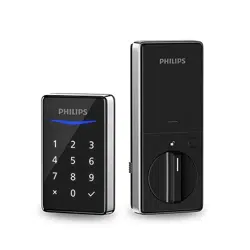
Ea syKey
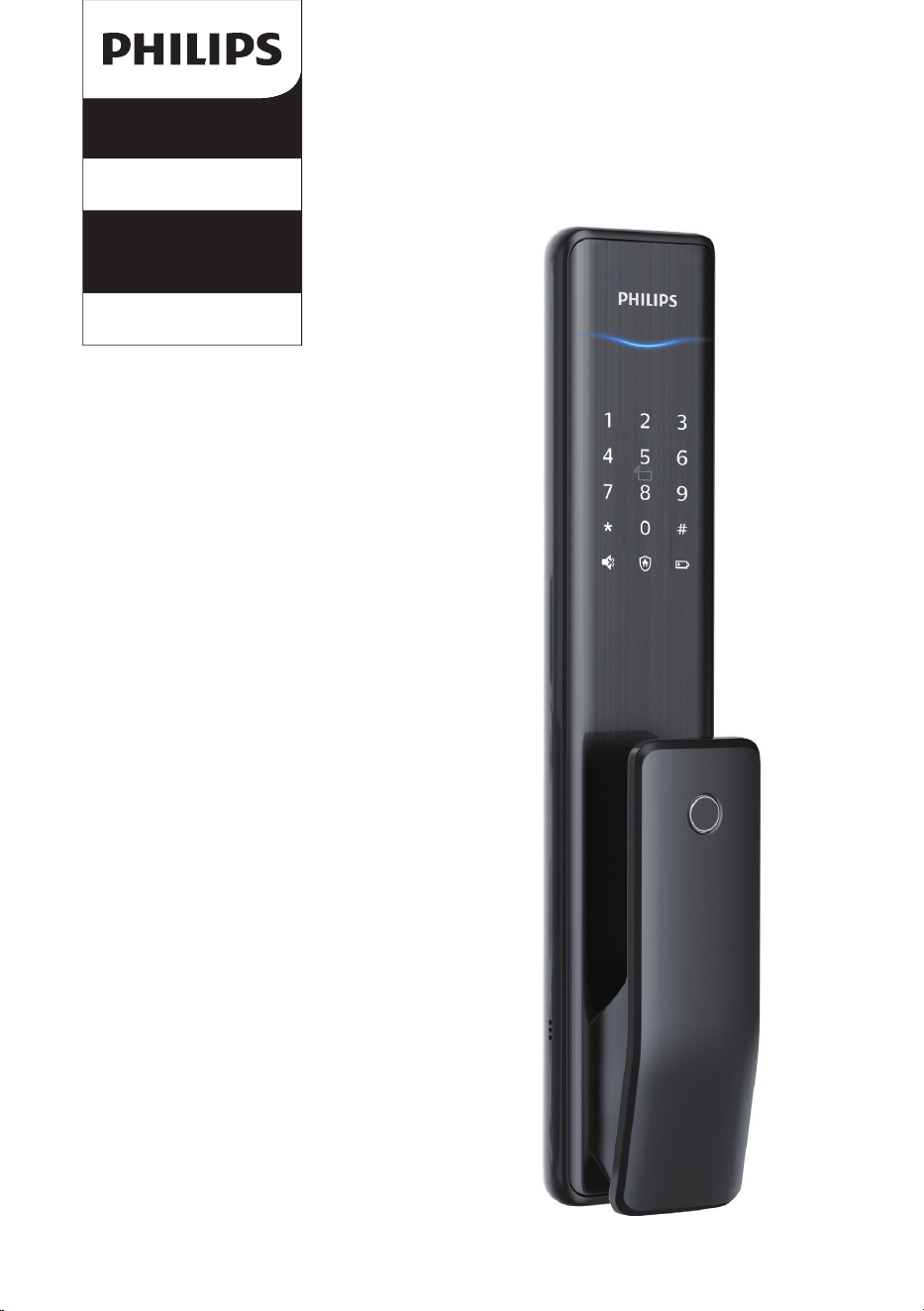
Alpha series
Alpha
Push-pull
Smart Door Lock
User
manual
Bluetooth Edition
Register products and get
support on the following sites
www.philips.com/support


1
Contents
5 How to use your
EasyKey 16
6 Other functions 19
7 Meanings & Use of the
indicators 21
8 Troubleshooting 23
Safe handle function
Restore to factory settings
One-button mute function
Outside forced lock function
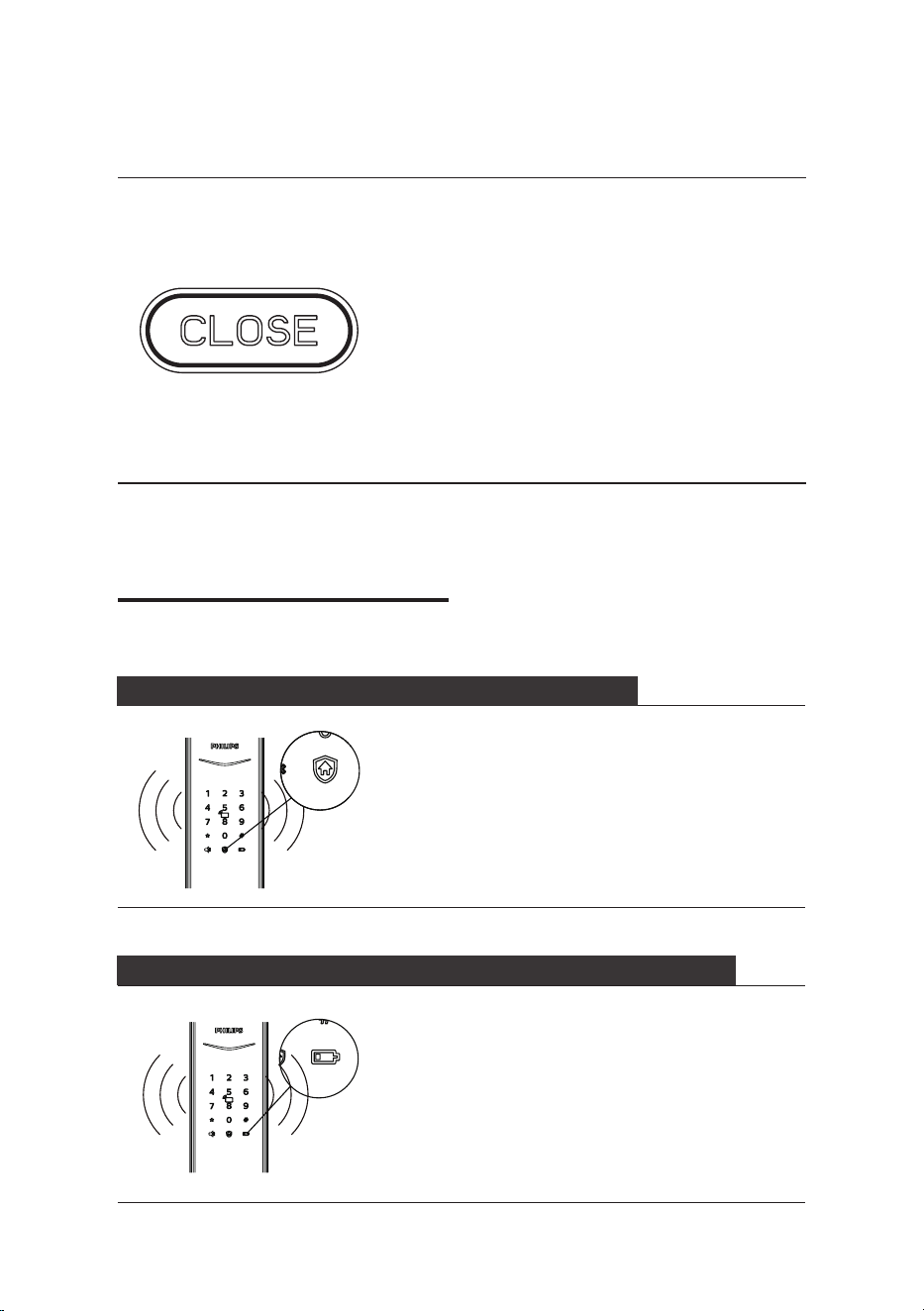
Door status indicator
Low battery indicator
Outside forced lock indicator
Mute mode indicator
Inside deadlock indicator
System lock indicator
[CLOSE] button indicator
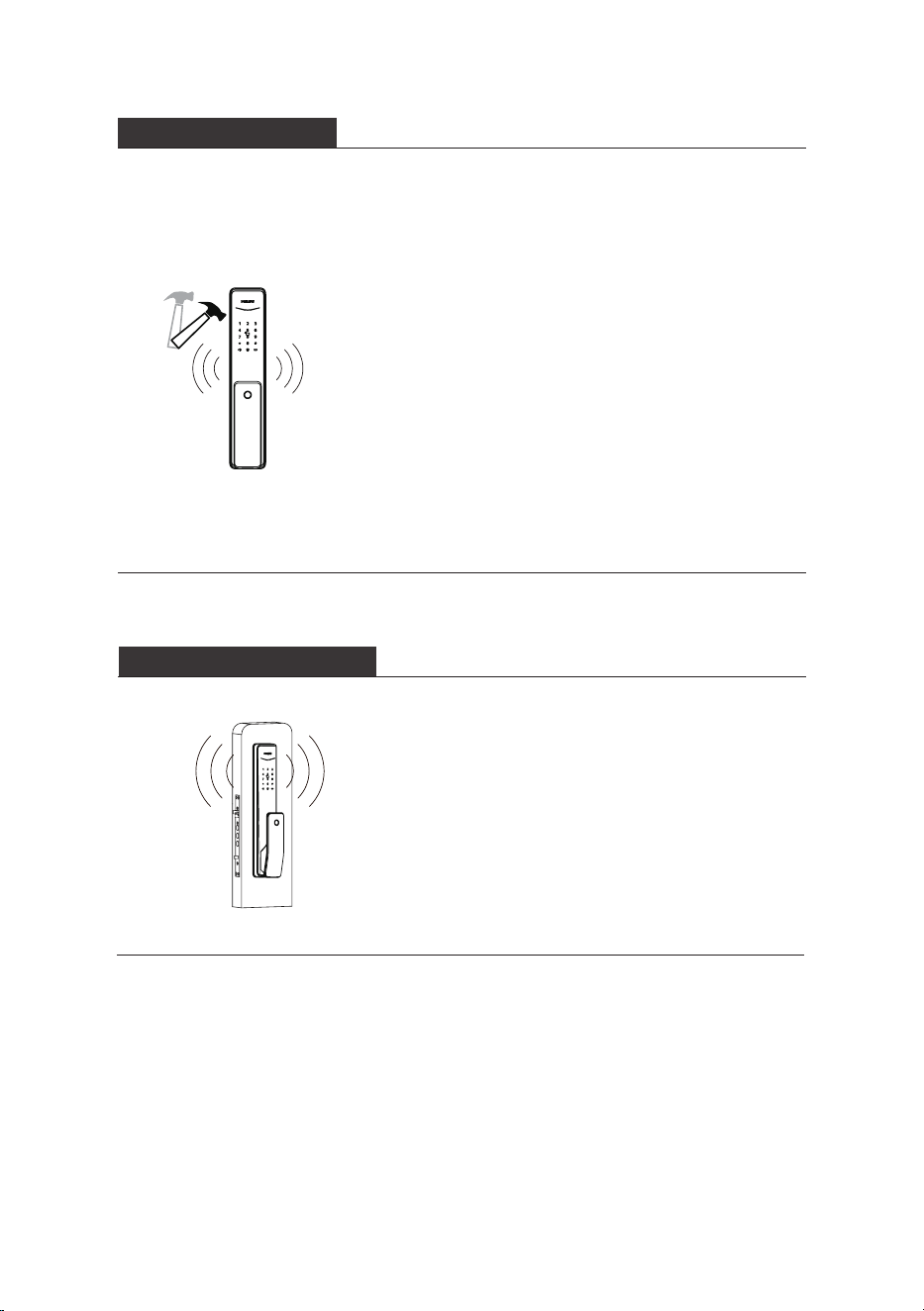
Alarm types and alarm modes
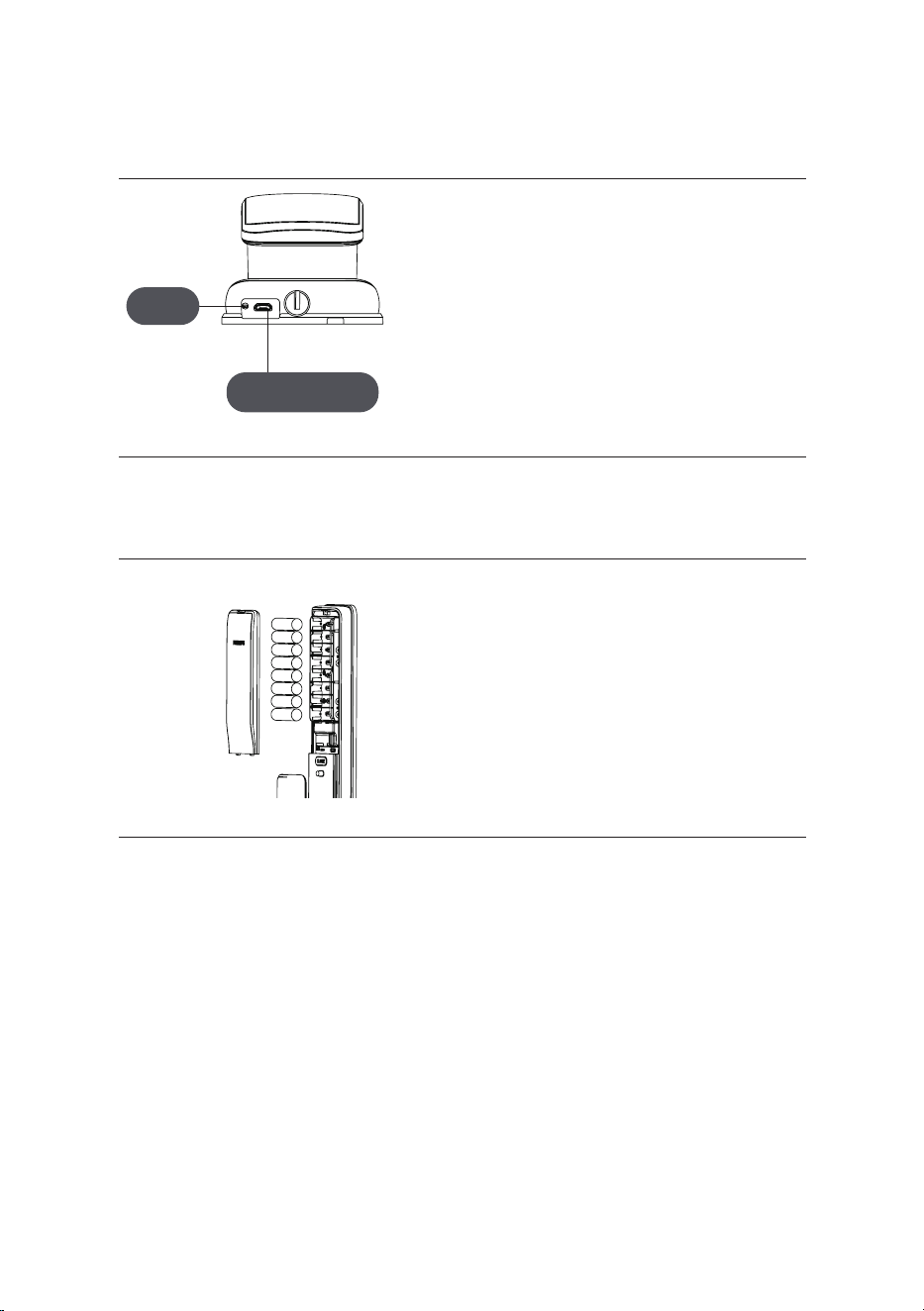
How to apply an emergency
power
How to replace batteries
Unlock
Unlock from outside
-With a PIN code
-With a ngerprint
-With a card
Unlock from inside
-With handle
-With Close button
Lock
-Auto/Manual modes
-Lock from outside
-Lock from inside
Inside Deadlock
Mechanical key opening
1 Important information 02
2 Install your EasyKey 03
3 Get to know your
EasyKey 09
4 How to set up your
EasyKey 10
Security
Caution
Disposal of used
Products and batteries
Packaging list
Exploded views
Pre-installation instructions
Installation steps
Outside escutcheon
Inside escutcheon
-Modify Master PIN code
-User settings
-Delete a user
-System settings
-Extended functions
-System query
-Local Query
-Bluetooth settings

2
1 Important information
Security
◆Before using Philips EasyKey,
please read and understand all
instructions. Damage caused by non-
compliance with the instructions
will not be covered by warranty.
◆Use only the manufacturer-
specied accessories/components.
◆Use only the alkaline batteries
the product is equipped with,
or use the same specification
type of alkaline batteries.
◆Do not forcibly disassemble
this product to avoid triggering an
alarm or damaging the product.
◆Do not scrape the ngerprint
sensor with sharp objects, otherwise
it may cause permanent damage.
◆Do not expose products to
environments where there is
water leakage or splashing.
◆Do not expose the product to
corrosive substances to prevent
damaging the protective cover.
◆Do not hang objects on the
handle, in case it might aect
the normal use of the lock.
◆Pleae clean the product
with a soft cloth.
◆Do not remove the battery during
setting up and operating.
◆Please let a professional technician
to install the door lock and follow the
installation guidelines provided.Do not
disassemble the lock by yourself. Keep the
relevant sealed stickers properly. Do not
easily disclose the password information.
◆Please modify the default master
PIN code immediately after nishing
installing and debugging, and keep
the mechanical key properly.
◆Please replace all the batteries
immediately if there is a low
Caution
◆Do not place the battery near
re sources to avoid explosion.
◆Do not use any emergency power
supply that does not meet the safety
requirements to power up the product.
◆Do not connect the 2 poles of the
batteries with metals to avoid short
circuit which may lead to an explosion.
◆Please make sure any component
replacement is executed by Philips,
Philips authorized service center
or professional technicians.
◆Do not use accessories or parts
that have been produced by other
manufacturers or have not been
specically recommended by Philips.
The use of such accessories and
parts may void your warranty.
Disposal of used products
and batteries
◆You can have your locks reclaimed at
Philips authorized service centers. You
will receive corresponding compensation
if your products meet our conditions.
◆Please familiarize yourself with the
local electronic product collection system.
◆Please follow local regulations
and do not discard used products
into ordinary household waste.
◆Proper disposal of used products can
help to avoid potential negative impacts
on the environment and human health.
◆Batteries must not be disposed of
with ordinary household waste.
◆Please familiarize yourself with the local
regulations on batteries classication
recycling. Disposing of batteries properly
can help avoid a negative impact on
the environment and human health.
battery alarm. Please make sure
to correctly match the poles (+/-)
when installing the batteries.
3
2 Install your EasyKey
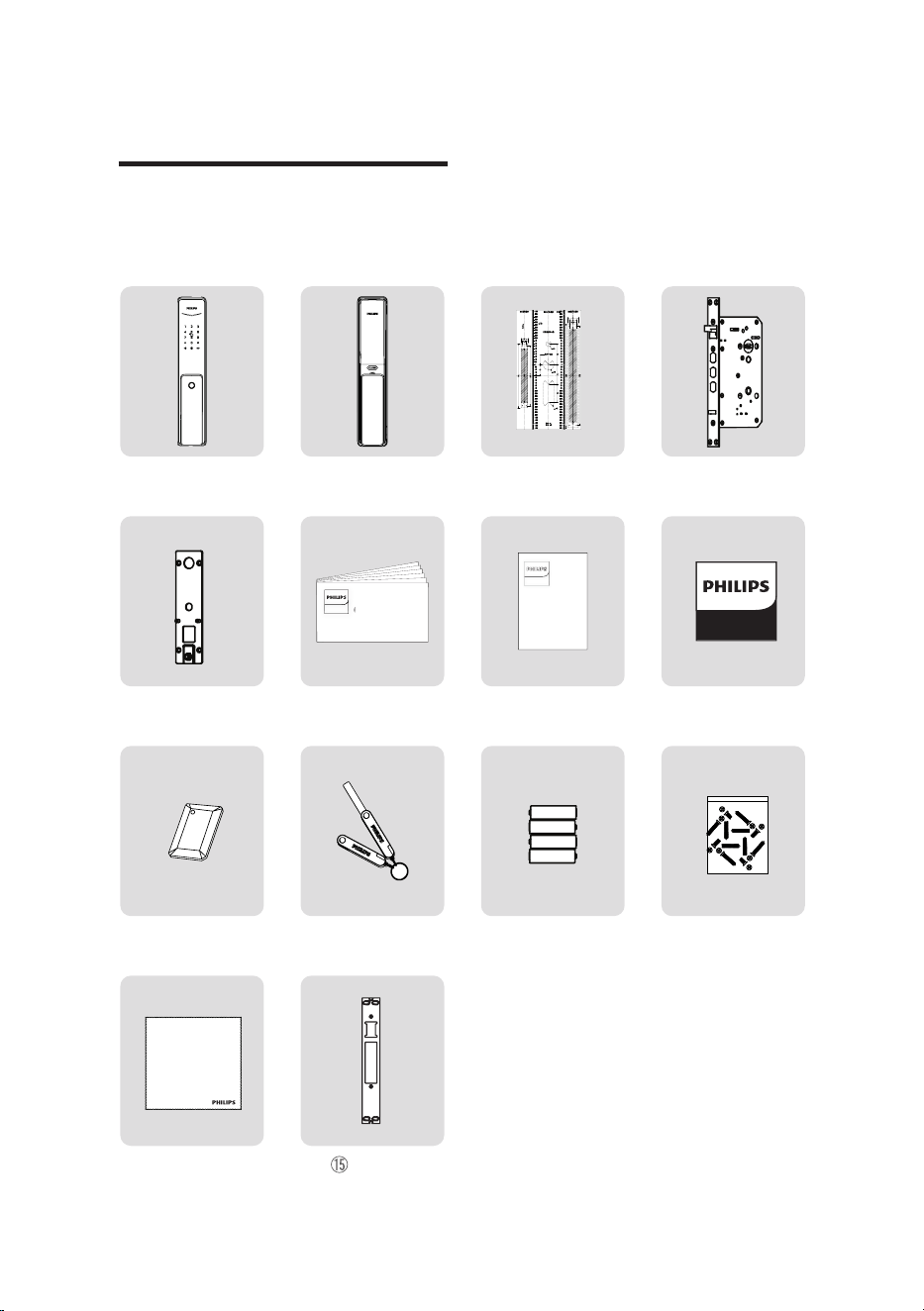
Packaging list
This packaging list is for reference only. Please refer to the actual packaging
contents.
①Outside
escutcheon (including
silicone pad)
⑤Mounting plate
⑬ Installation kit
②Inside escutcheon
(including
silicone pad)
⑥ Quick Start Guide
⑩Smart card x2
⑭Scouring pad
③Drilling template
⑦ Warranty Card
⑪Mechanical
key x2
④Mortise
⑧ Certicate of
Conformity
⑫Batteries
Striker
EasyKey
Warranty
Card
Quick Start
Guide
EasyKey易锁
EasyKey
4
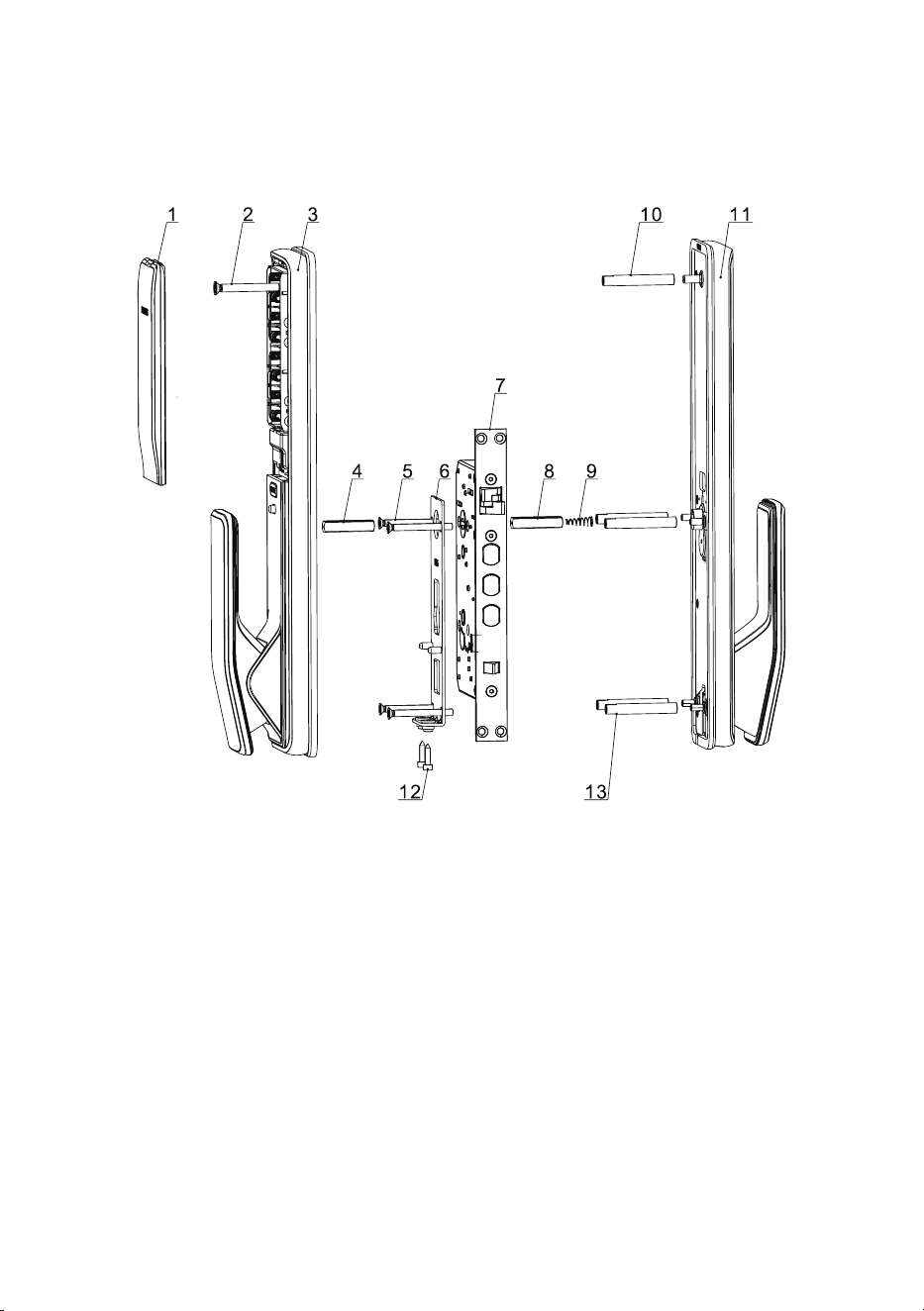
1. Battery cover (x1)
2. M6 chamfer
head screw (x1)
3. Inside escutcheon
component (x1)
4. Square shaft (x2)
5. M5 chamfer
head screw (x4)
6. Mounting plate (x1)
7. Mortise (x1)
8. 35mm square
shaft (x1)
9. Compressed Spring (x1)
10. M6 screw tube (x1)
11. Outer escutcheon
component (x1)
12. M4 hexagon screw(X2)
13. M5 screw tube (x4)
Exploded Views
5
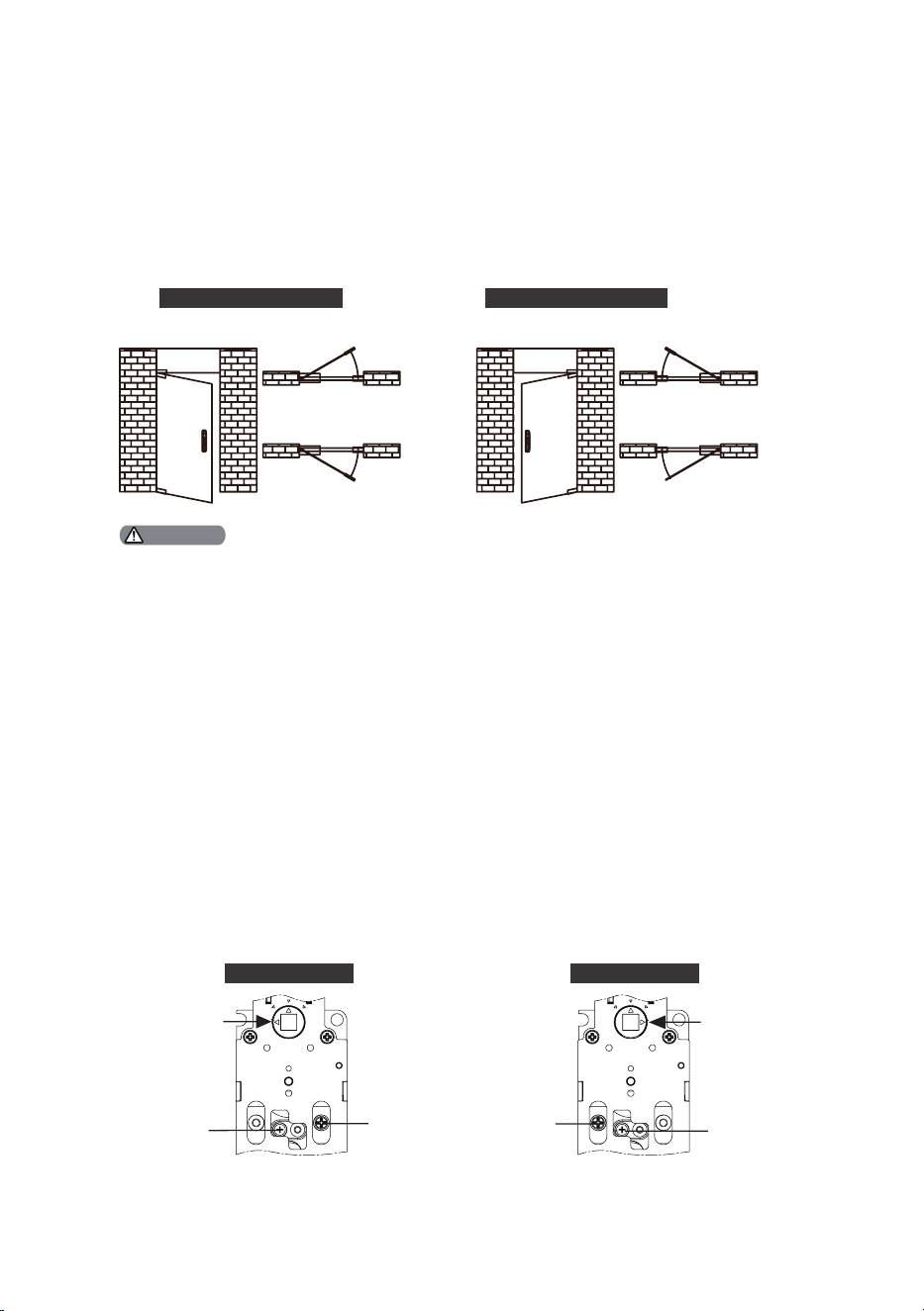
Pre-installation instructions
Step 1 | Check the door opening direction
This product can be installed on doors of 4 types of opening directions:
left-out pull, right-in push, right-out pull and left-in push.
Left-in
push
Right-
in push
Indoor Indoor
Indoor Indoor
Outdoor
Outdoor
Outdoor Outdoor
Left-
out pull
Right-
out pull
Left-handle open Right-handle open
1. Please choose proper installation kit as per the door thickness.
2. The default installation kit is applicable for a door thickness of 38-60mm, if your door thickness
does not within this range, please feel free to contact us.
Attention
Step 2 | How to switch between push and pull
Please x the screws in proper locations according to the door opening
direction.
Right-in push
Direction of
square shaft
driving block
Direction of
square shaft
driving block
Inside escutcheon Inside escutcheon
Screw Screw
Screw
Screw
Left-in push
Right pull
Left push
Right pull
Left push
Right push
Left pull
Right push
Left pull
6
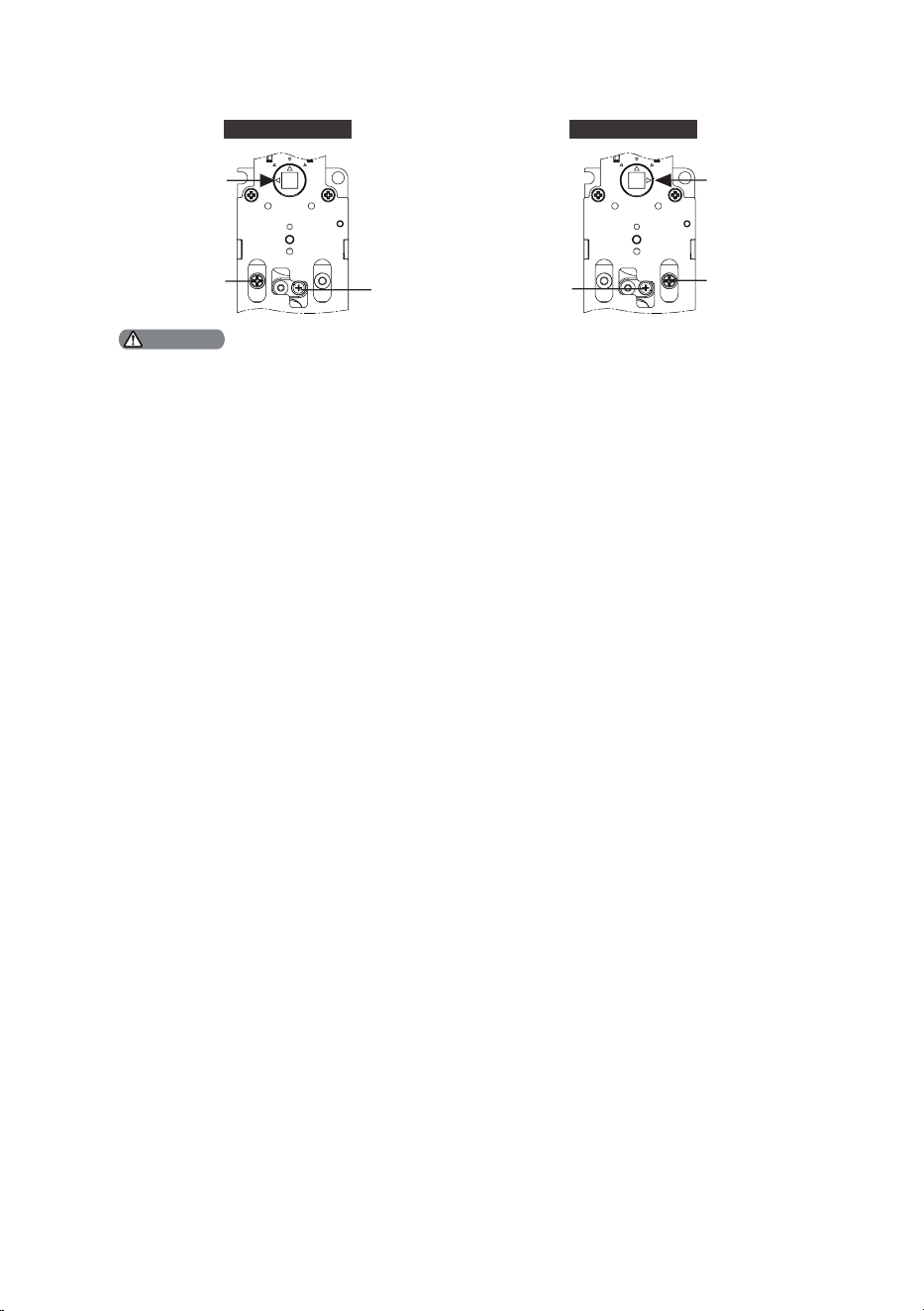
1.Use proper installation kit according to the door thickness.
2.The default installation kit is applicable to doors of 38-60 mm thickness. If the thickness
of your door is not within this range, please contact us.
Direction of
square shaft
driving block
Direction of
square shaft
driving block
Inside escutcheon Inside escutcheon
Screw
Screw
Screw
Screw
Right-out pull Left-out pull
Right pull
Left push
Right pull
Left push
Right push
Left pull
Right push
Left pull
Attention
7
2
4
5
3
1
Installation steps
The following installation steps apply to left-open doors. For right-open doors,
please read the chapter [Pre-installation instructions] carefully and make
needed adjustments.
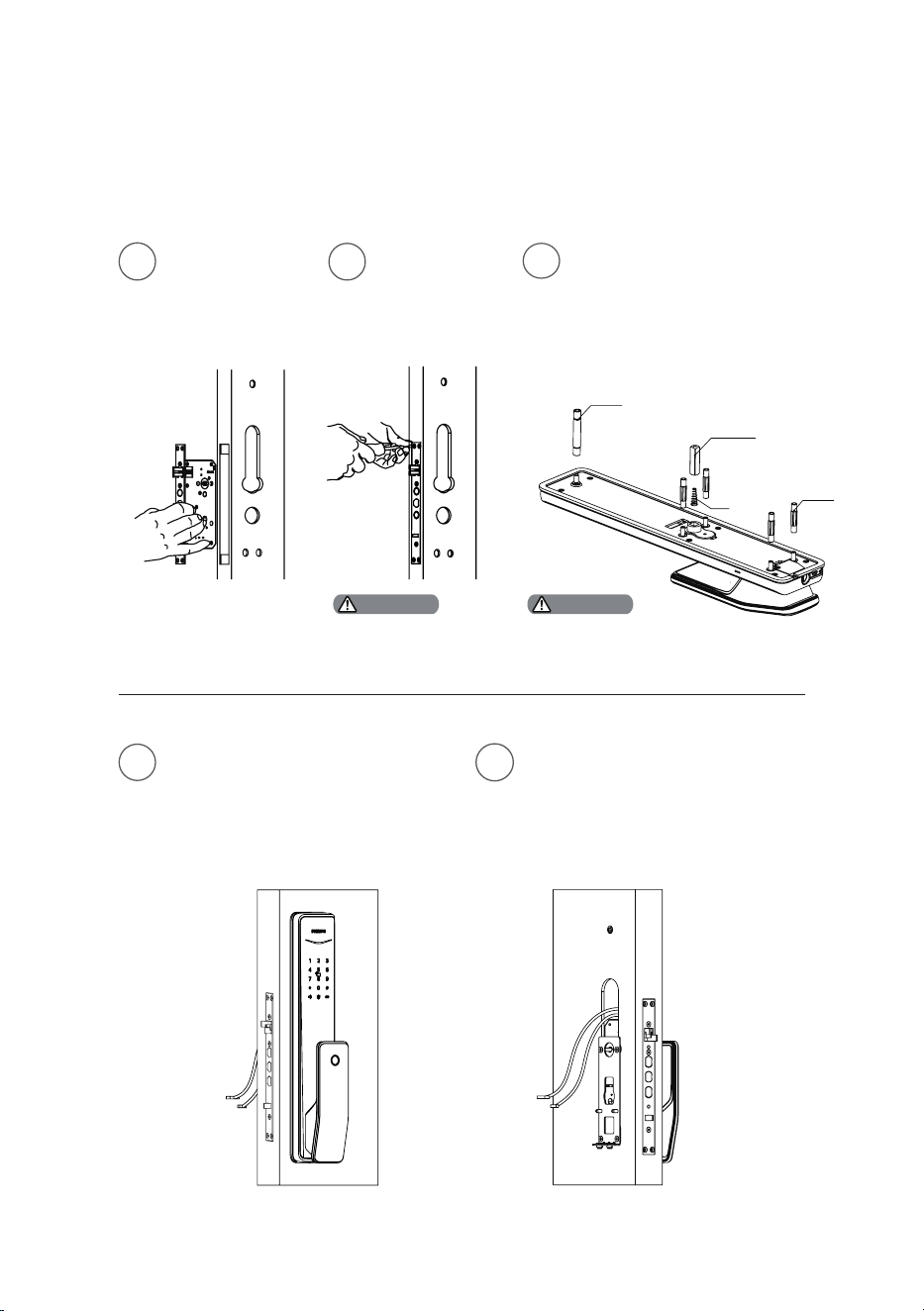
Please make sure
the main dead bolt
is retracted during
installation.
Select a square shaft and connecting
screw tube with appropriate length.
M6 screw tube
M5 screw tube
Use the drilling
template to drill
the needed holes
on the door and
mount the mortise
into the door.
Pass the cable through the hole
on the door. The square shaft
needs to be inserted into the
rotary hole on the mortise, so that
the outer escutcheon stays close
to the outside door.
Tighten the mounting plate
with the 4 M5 chamfer
head screws against the
inside of the door.
Tighten the 4
anchor screws
on the mortise.
Install the connecting
screw tubes on the
outside escutcheon. Place
the square shaft and
compressed spring into
the hole of the handle.
Attention Attention
35mm square shaft
Compressed Spring
8
8
9
10
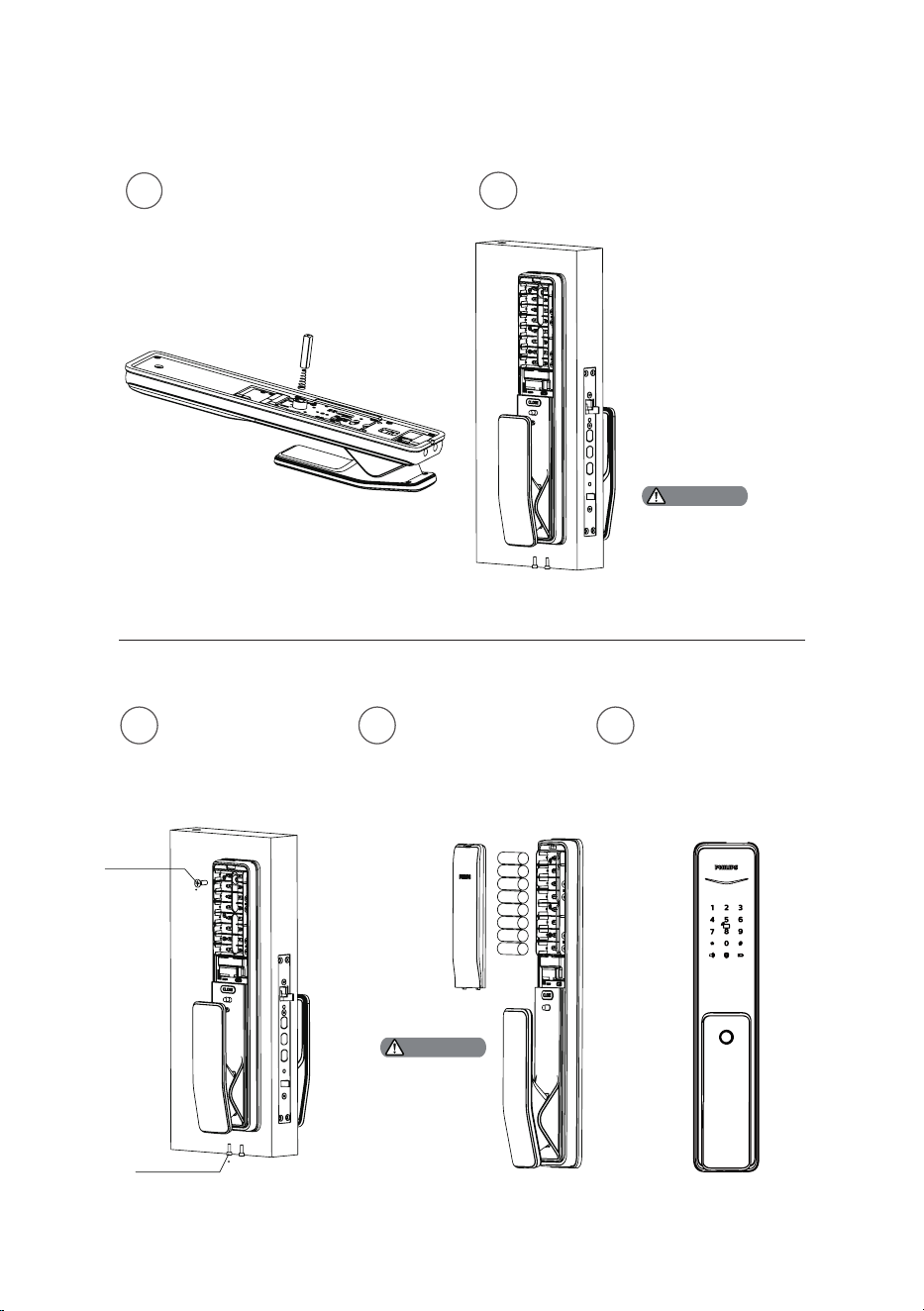
After xing the
striker, please
test if the door
can be opened
and closed
smoothly.
Tighten the M6
chamfer head
screws and the 2 M4
hexagon screws.
M6 Chamfer
Head Screws
M4 Hexagon
Screws
Put in the batteries
and close the
battery cover.
Then x the
striker to nish
the installation.
Please check if all
components are
connected properly,
such as the push-
pull handle, the safe
handle switch and
the mechanical key.
6
7
Please hide the extra
connecting wires into
the hole of the door.
Install the compressed spring
and square shaft into the
inside escutcheon accordingly.
Insert the connection wire of the
outside escutcheon and the motor
wire into the corresponding holes on
the inside escutcheon,
then align the square
shaft on the inside
escutcheon with the
rotary hole on the
mortise and insert
it to make sure the
inside escutcheon
is kept close to the
inside of the door.
Attention
Attention
9
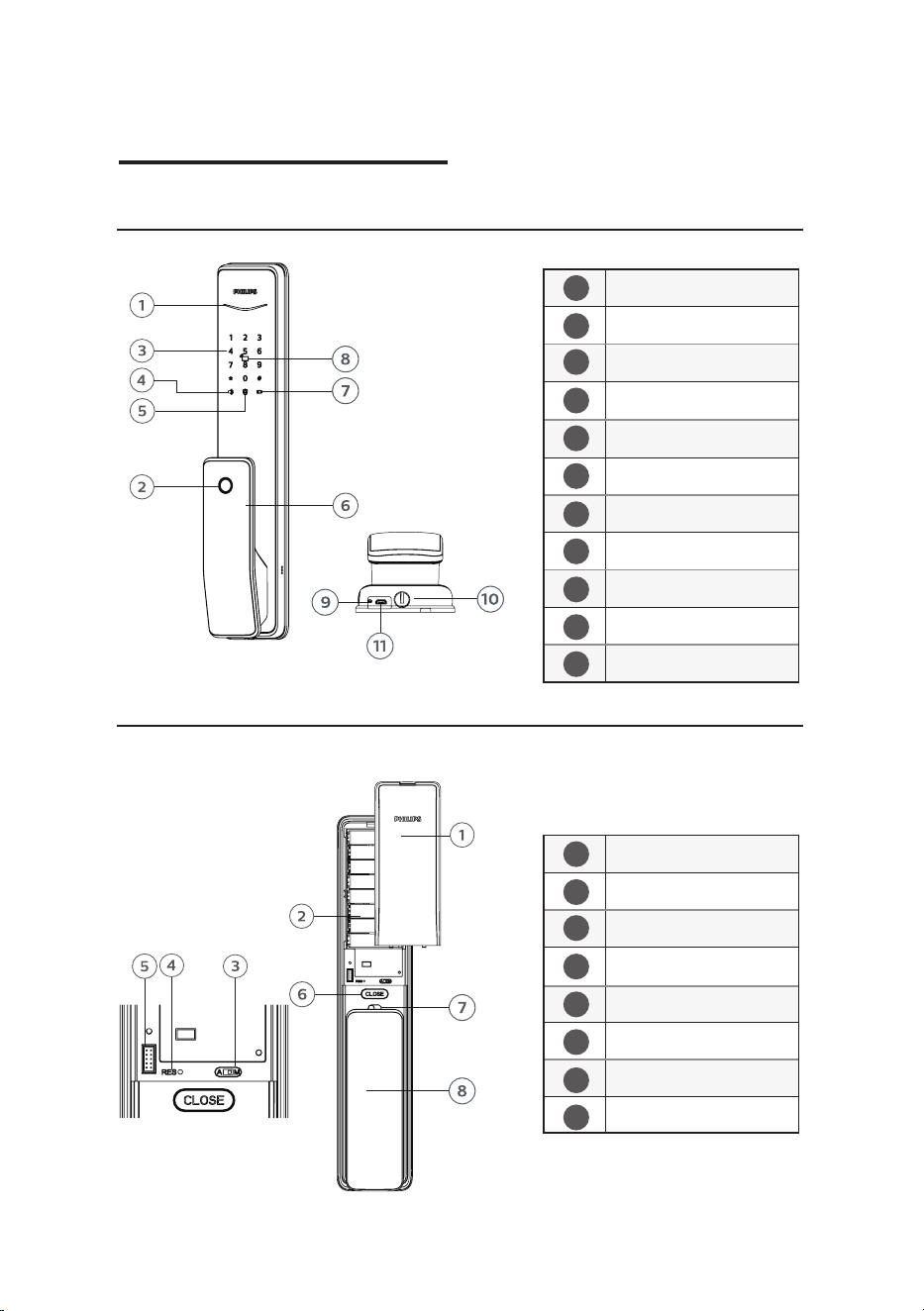
Door status
indicator
Fingerprint sensor
Keypad
Mute button
Outside
forced lock button
Push-pull handle
Low battery indicator
Card reader
Reset button
Mechanical key hole
Emergency power
interface
Battery cover
Battery cabinet
Auto/Manual
mode switch
Reset button
Extended module
interface
Close button
Safe handle switch
Push-pull handle
1
1
2
2
3
3
4
4
5
5
6
6
7
7
8
8
9
10
11
3 Get to know your EasyKey
Outside escutcheon
Inside escutcheon
10
00
01
02
03
04
05
06
07
08
09
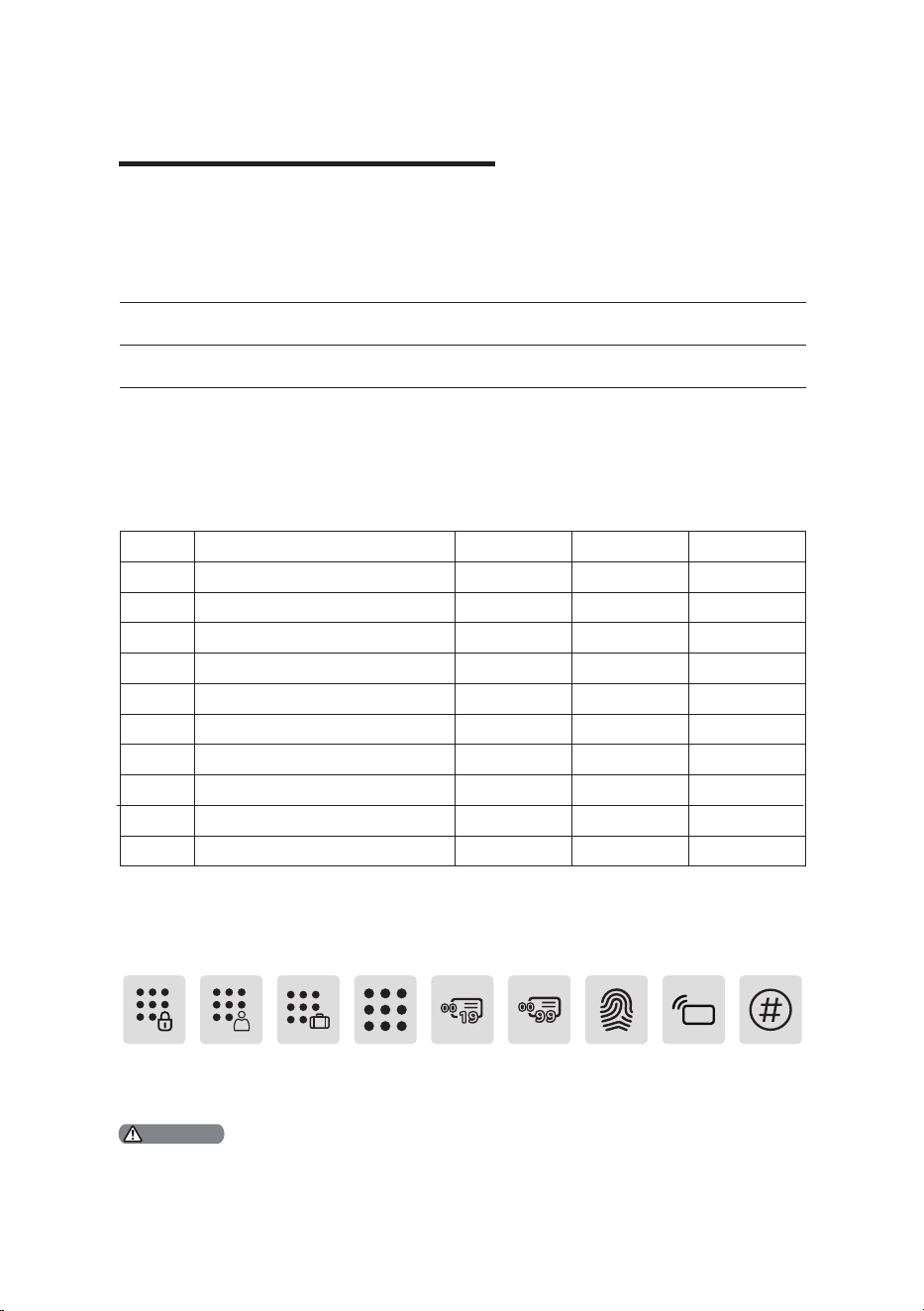
4. How to set up your EasyKey
Pre-setup Instructions:
◆There are 2 operating modes in the EasyKey:
General mode and dual verication mode.
General mode Dual verication mode
Unlock with any registered
identity information
Unlock with any two of PIN
code, card and ngerprint
◆User Number
You can delete a single user information by its user
number without having to delete everything.
◆You can record the user information in the following table for future query.
CardPIN CodeFingerprintNameNumber
◆Icon annotation
Master
PIN code
One-time
user PIN
code
Visitor
PIN
code
User
number
00-99
User PIN
code
User
number
00-19
Finger
print
Card
Reader
# key
1.Press [*] key to return to the previous menu.
2. The default master PIN code is 12345678.
Attention
11
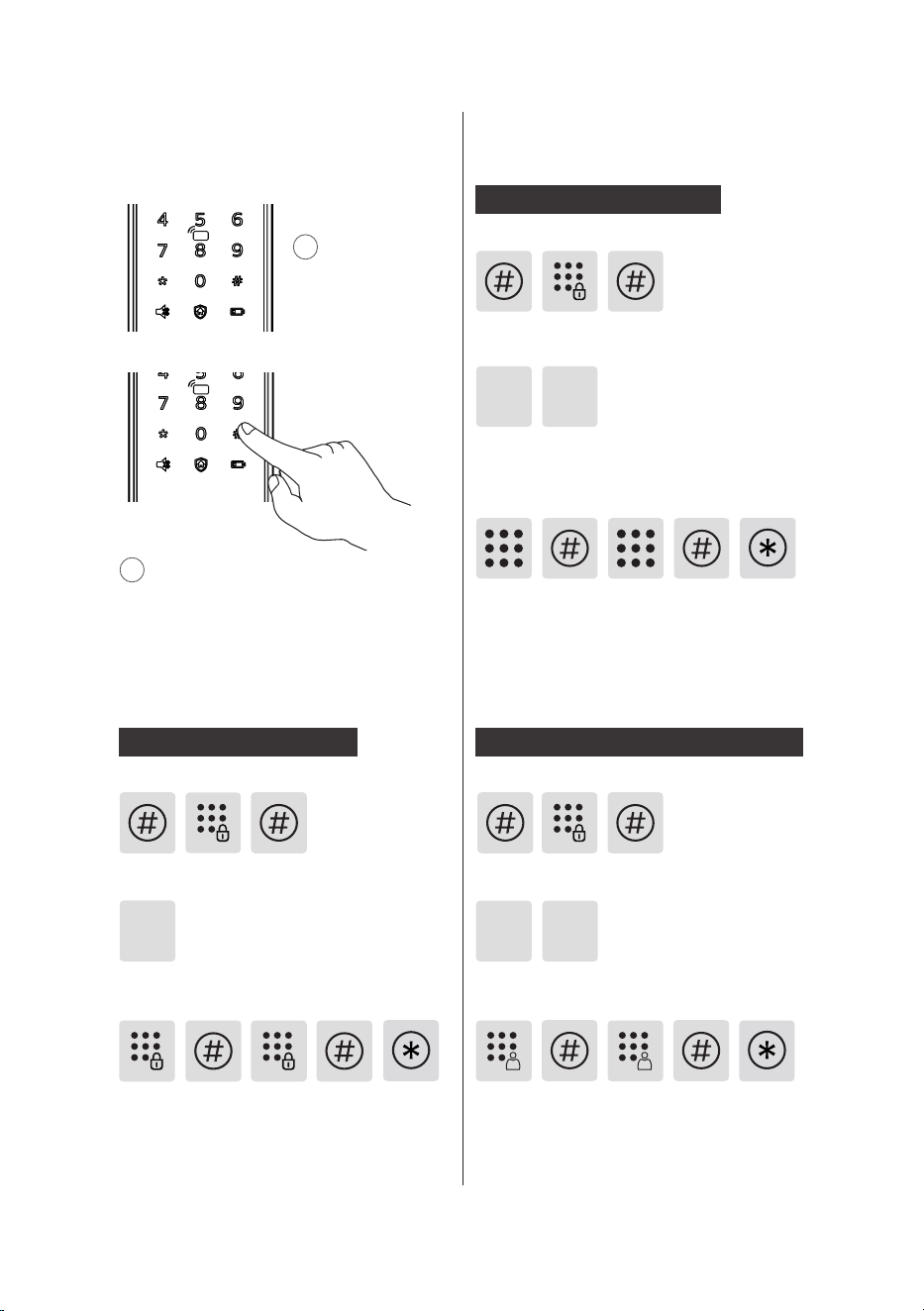
1
Light up the
keypad.
2
Press [#] before inputting any
other numbers. Enter your master PIN
code and conrm with [#]. Then you
are in master mode.
1
Press [#], enter master PIN code and
conrm with [#].
Press [2] to enter user registration, then
press [1] to register a new user PIN code,
which will be automatically numbered and
broadcasted by the system.
1
2
Enter a user PIN code of 6 to 12 digits
and conrm with [#]. Then re-enter it
and conrm with [#]. After hearing a
voice prompt of “Succeeded”, press
[*] several times until you exit master
mode.
Press [#], enter master PIN code and
conrm with [#].
Enter a one-time user PIN code of
6 to 12 digits and conrm with [#].
Re-enter and press [#] to conrm.
After hearing a voice prompt of
“Succeeded”, press [*] several times
until you exit master mode.
Press [2] to enter user settings, then press [2]
again to enter one-time PIN code registration.
2 2
◆How to enter master mode:
Modify master PIN code
Enter the new master PIN code and
conrm with [#]. Re-enter the new
master PIN code and conrm with
[#]. After hearing a voice prompt
of “Succeeded”, press [*] several
times until you exit master mode.
Press [1] to modify master PIN code.
User settings
Register a user PIN code
Register a one-time user PIN code
Press [#], enter master PIN code and
conrm with [#].
12
Press [3] to enter user deletion, then press [1] to
enter user PIN code deletion. Press [2] to delete
all user PIN codes. After hearing a voice prompt
of "Succeeded", press [*] several times until you
exit master mode.
Press [#], enter master PIN code and
conrm with [#].
1
1
1
3
3
Delete a user PIN code
Delete all user PIN codes
Press [#], enter master PIN code and
conrm with [#].
Press [#], enter master PIN code and
conrm with [#].
Press [3] to enter user deletion, then
press [1] to enter user PIN code deletion.
Press [1] again to delete a single user PIN
code.
Enter the 2-digit [user number] (00-19)
of the user PIN code that is to be deleted
and press [#] to conrm. After hearing
a voice prompt of “Succeeded”, press
[*] several times until you exit master
mode.
Press [#], enter master PIN code and
conrm with [#].
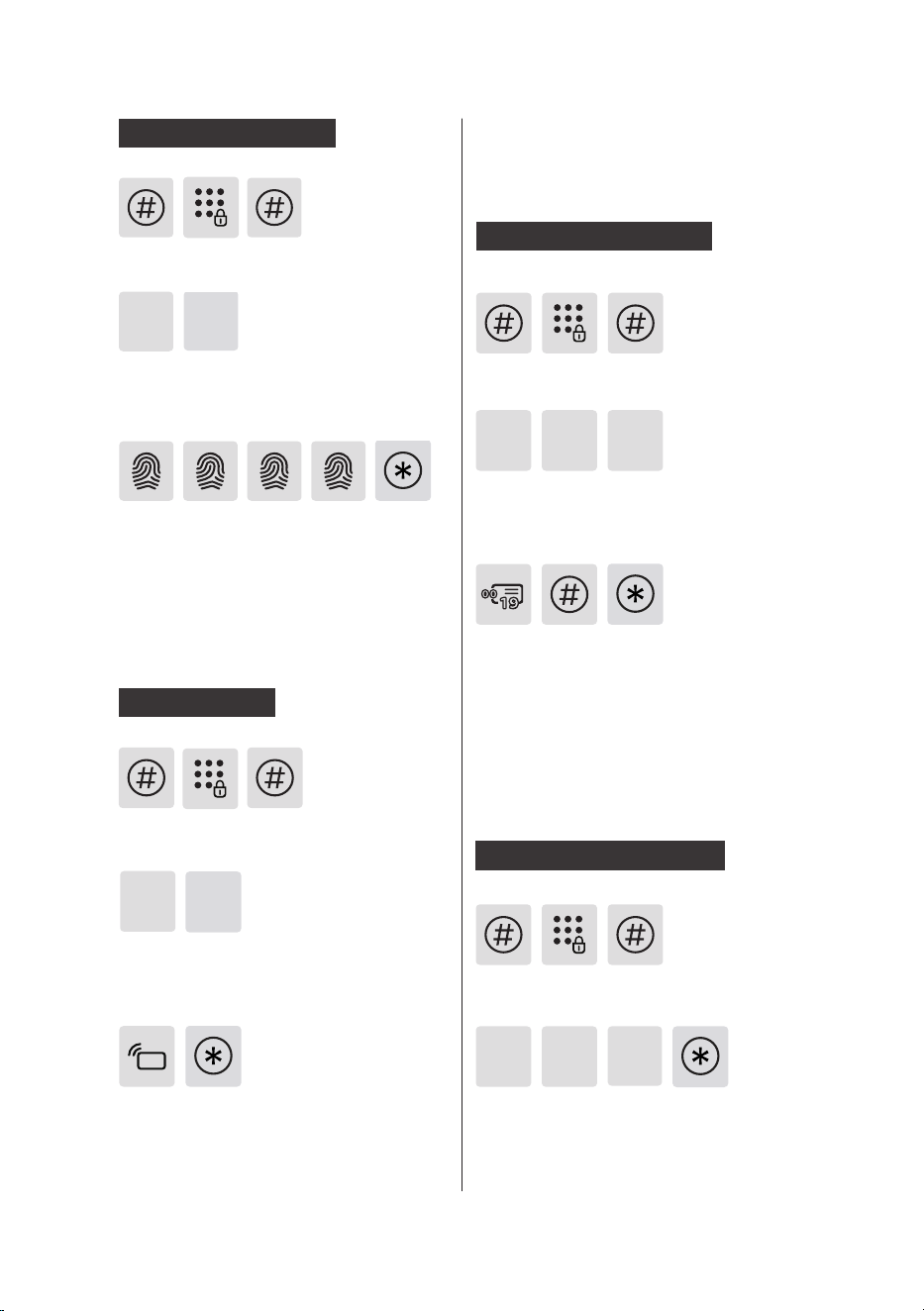
Press [2] to enter user adding, then press
[4] to enter card registration. The system
will automatically number the card and
broadcast the number.
Hold the card close to the card reader
until you hear a beep. After hearing
a voice prompt of “Succeeded”, press
[*] several times until you exit master
mode.
Place your nger against the sensor.
After hearing a voice prompt of “Take
away your nger and enroll again”,
please take away your nger and re-
place it against the sensor. After hearing
a voice prompt of “Succeeded”, press
[*] several times until you exit master
mode.
Press [2] to enter user settings, then press [3]
to enter fingerprint registration. The system
will automatically number the fingerprint and
broadcast the number.
2
2
3
Register a card
2
4
User Information
Deletion
Register a ngerprint
13
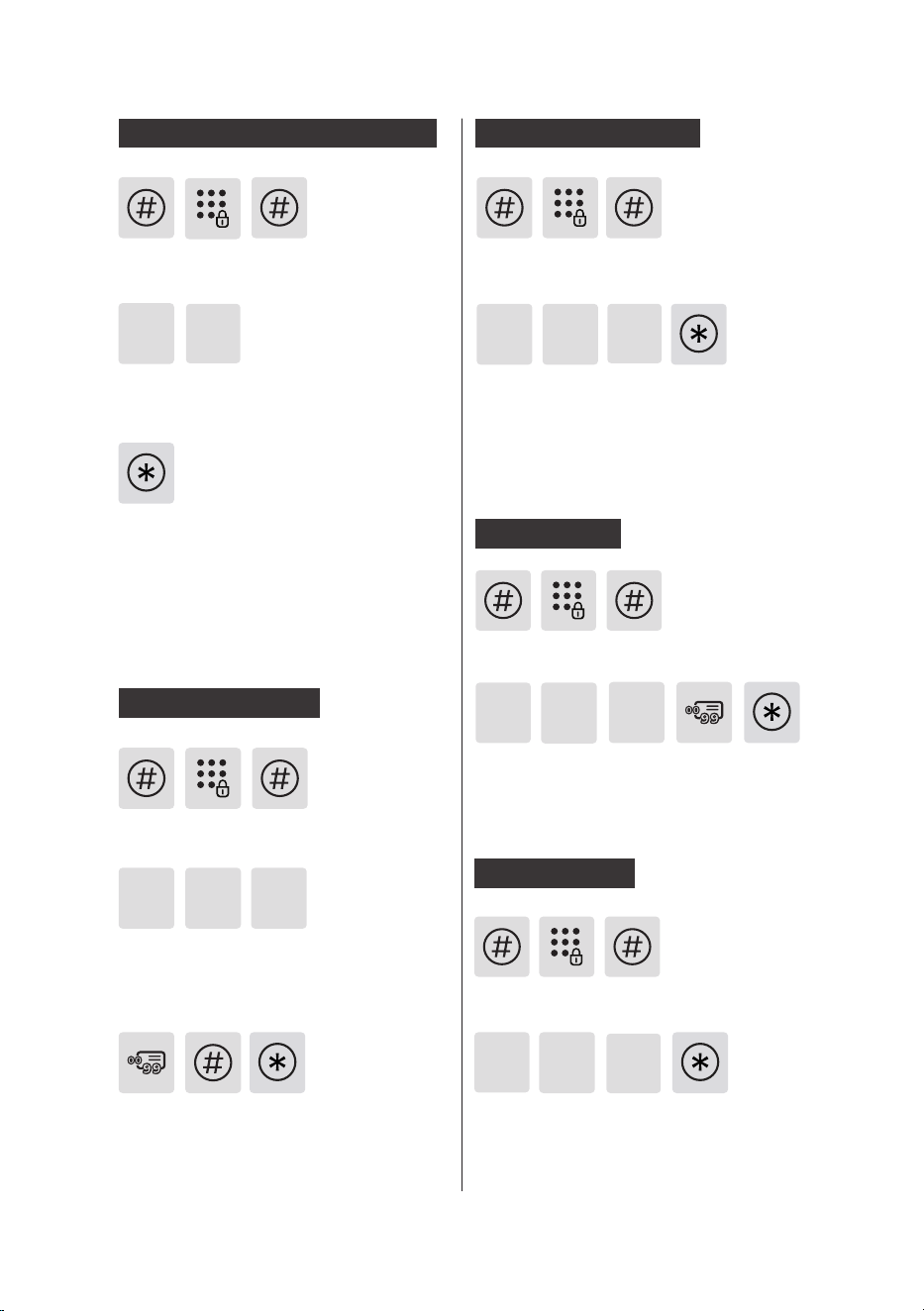
Press [3] to enter user deletion, then
press [4] to enter card deletion. Press [1]
to delete a single card and then press
[*] several times until you exit master
mode.
3
4
Delete a card
1
Press [3] to enter user deletion, then
press [3] again to enter ngerprint
deletion. Press [2] to delete all
ngerprints. After hearing a voice
prompt of "Succeeded", press [*] several
times until you exit master mode.
3 3
Delete all ngerprints
2
Enter the 2-digit [user number] (00-99)
of the ngerprint that is to be deleted
and conrm with [#]. After hearing
a voice prompt of “Succeeded”, press
[*] several times until you exit master
mode.
Press [3] to enter user deletion, then
press [3] again to enter ngerprint
deletion. Press [1] to enter single
nerprint deletion.
3 3
Press [#], enter master PIN code and
conrm with [#].
Delete a ngerprint
1
Press [3] to enter user deletion, then
press [4] to enter card deletion. Press [2]
to delete all cards. After hearing a voice
prompt of "Succeeded", press [*] several
times until you exit master mode.
3
4
Delete all cards
2
Press [#], enter master PIN code and
conrm with [#].
Press [#], enter master PIN code and
conrm with [#].
Press [#], enter master PIN code and
conrm with [#].
Press [#], enter master PIN code and
conrm with [#].
Press [3] to enter user deletion, then
press [2] to enter one-time user PIN
code deletion.
After hearing a voice prompt of
“Succeeded”, press [*] several times until
you exit master mode.
3
Delete a one-time user PIN code
2
14
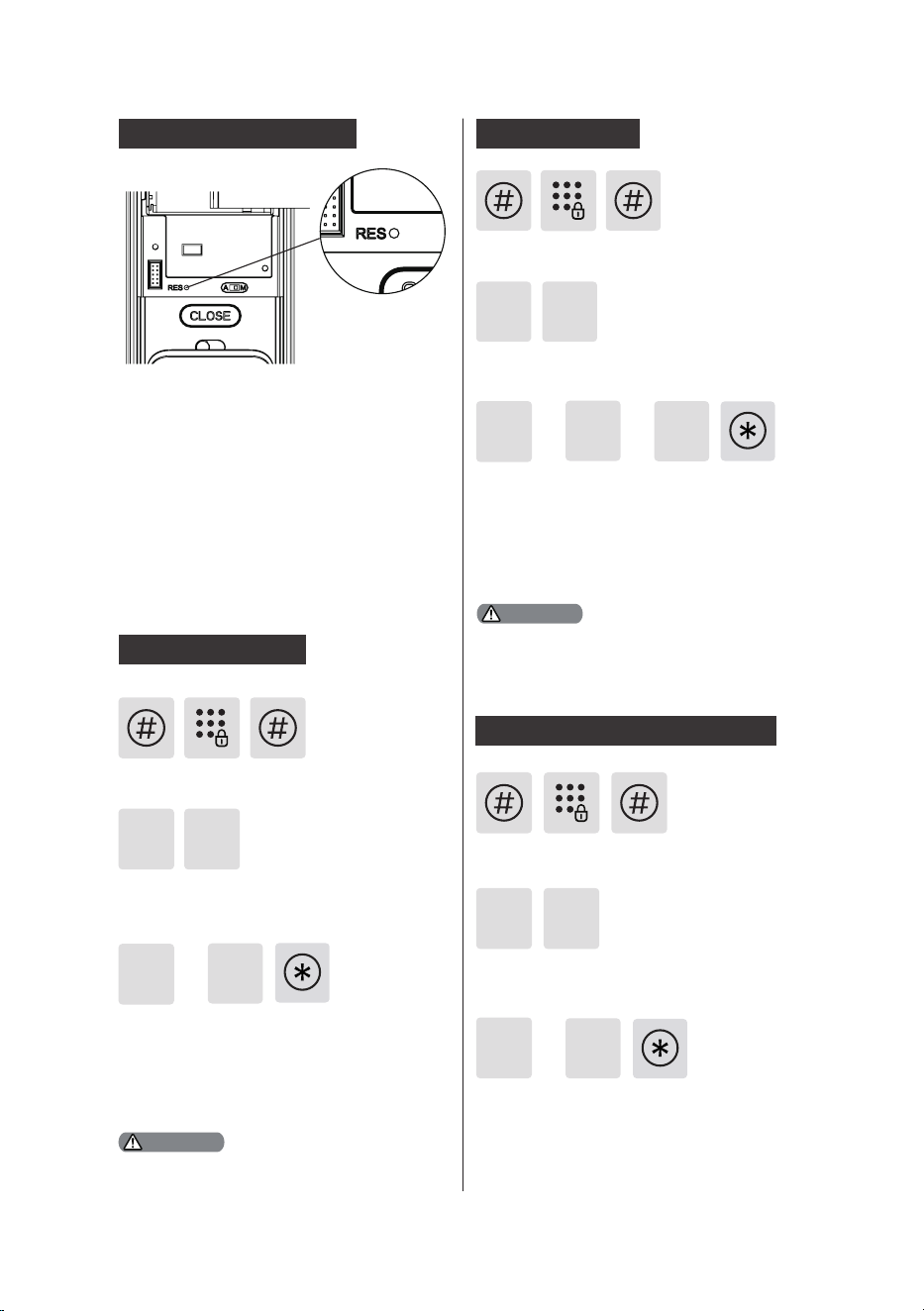
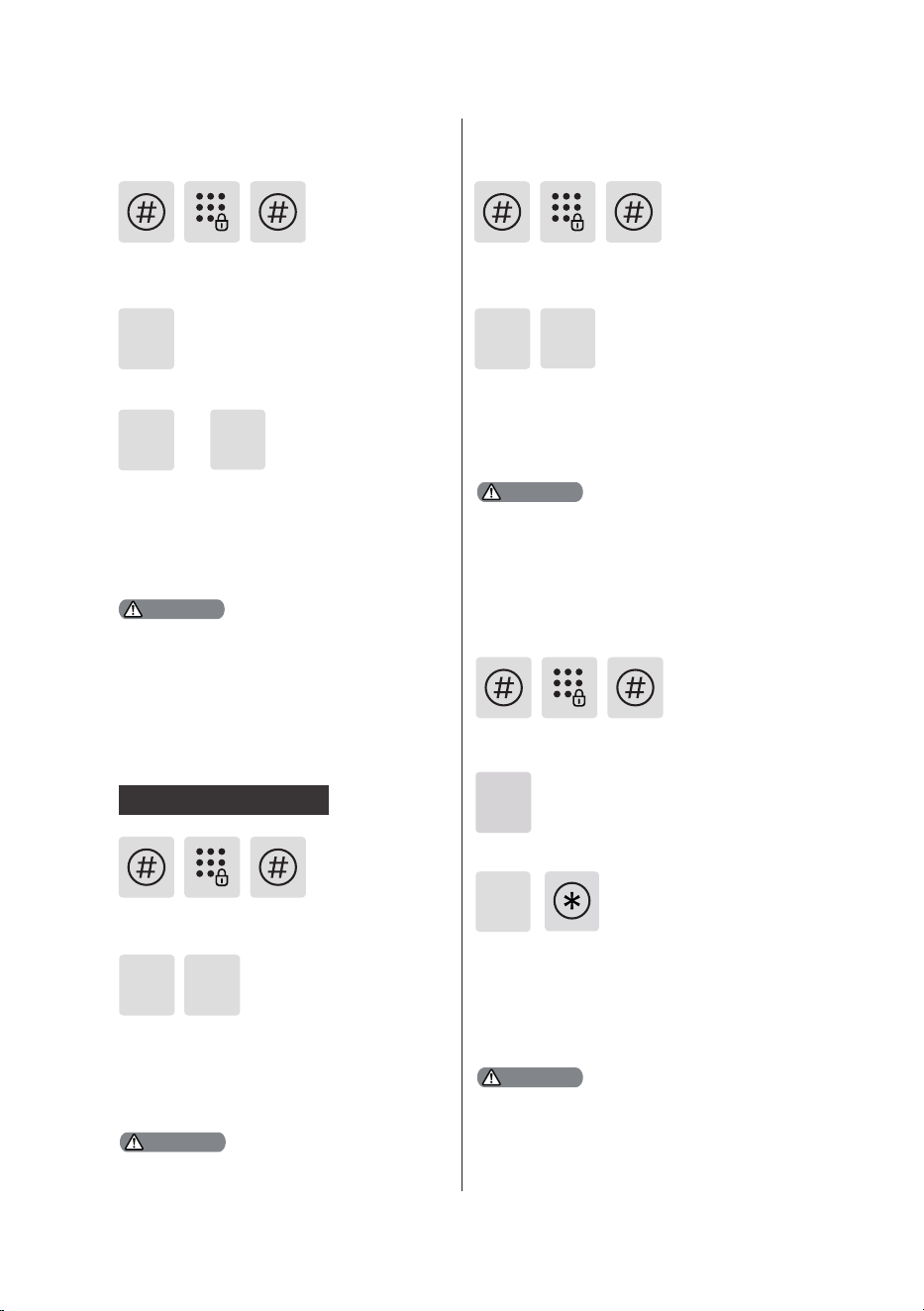
System date initialization
Remove the battery cover and double
press the [RES] button with a sharp
object, until you hear a voice prompt
of "Restored to factory settings". All
user information will be emptied.
Adjust the language as needed: For
Chinese, press [1]; for English, press
[2]. After hearing a voice prompt of
“Succeeded”, press [*] several times
until you exit master mode.
Press [4] to enter system settings,
then press [1] to enter language
settings.
The default language is English.
The default volume is “higher volume”.
4
Language Settings
or
2
1
1
Adjust the volume as needed: For
higher volume, press [1]; for lower
volume, press [2]; for mute mode, press
[3]. After hearing a voice prompt of
“Succeeded”, press [*] several times
until you exit master mode.
Press [4] to enter system settings, then
press [2] to enter volume settings.
2
4
Volume settings
3
or or
2
1
or
2
1
Press [4] to enter system settings,
then press [3] to choose verication
method.
For single verication, press [1]; for
dual verication, press [2]. After
hearing a voice prompt of “Succeeded”,
press [*] several times until you exit
master mode.
4
Switch to dual verication mode
3
Press [#], enter master PIN code and
conrm with [#].
Press [#], enter master PIN code and
conrm with [#].
Press [#], enter master PIN code and
conrm with [#].
System Settings
Attention
Attention
15
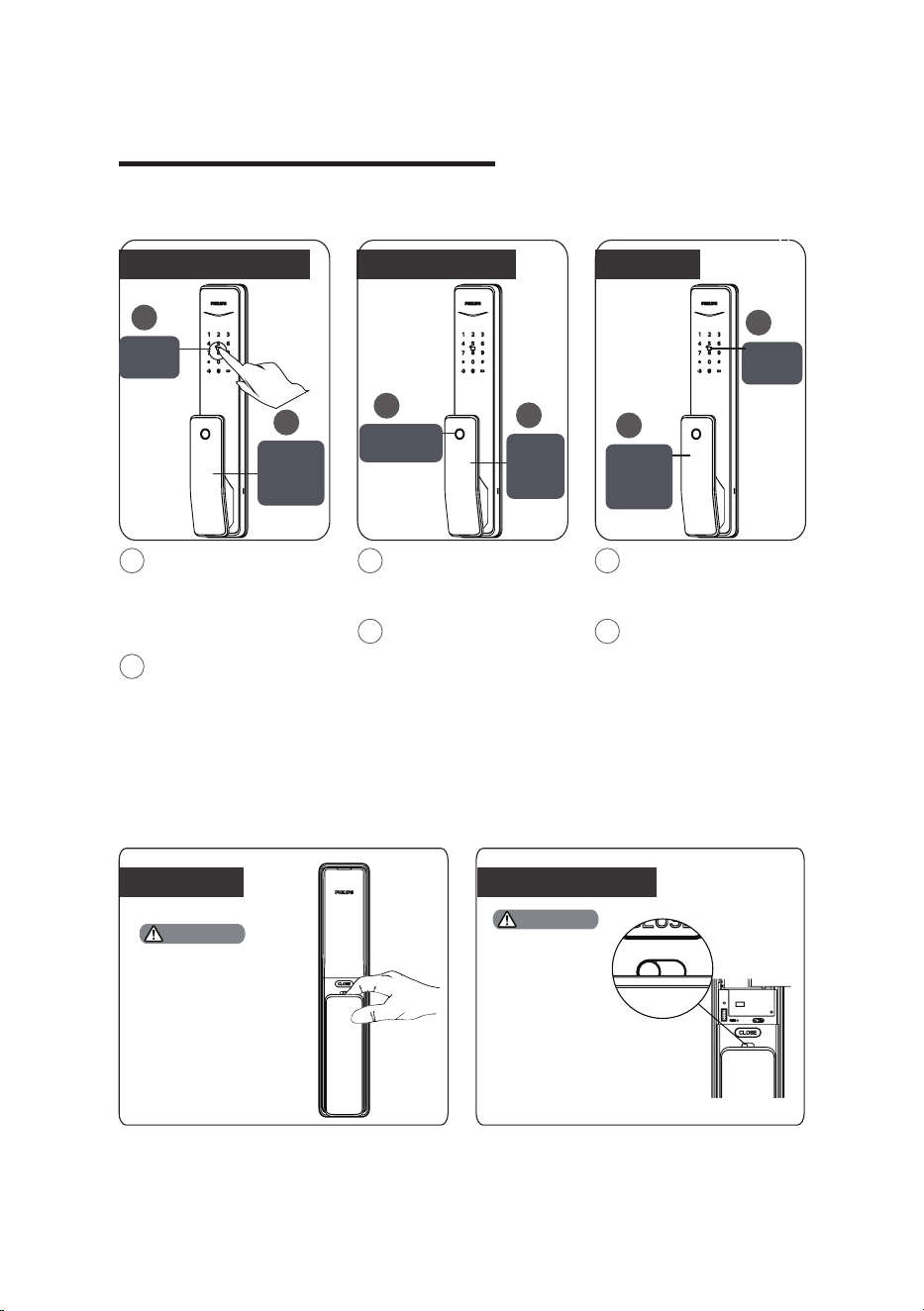
Press [7] to enter Bluetooth settings.
To disable Bluetooth, press [3]. After
hearing a voice prompt of “Settings
succeeded”, press [*] back to previous
menu until you exit master mode.
7
3
2
Press [6] to enter system query, then
press [2] to get the software version
automatically broadcasted.
6
Directly enter 114# to start local query.
The extended functions are optional.
or
2
1
5
Press [5] to enter extended functions.
To join a network, press [1]. To exit
a network, press [2]. Before setting
up the extended functions, please
download and open the Philips
EasyKey APP via your mobile phone.
Press [6] to enter system query, then
press [1] to get the serial number
(security code) automatically
broadcasted.
6
Directly enter 400# to start system
query.
1
Security code query
Press [#], enter master PIN code and
conrm with [#].
Press [#], enter master PIN code and
conrm with [#].
Press [#], enter master PIN code and
conrm with [#].
Press [#] and input master pin code,
then press [#] to conrm.
Extended Functions Local Query
Bluetooth Settings
System Query
Attention
Attention
Attention
Attention
1.Bluetooth switch shortcut, directly input
403# to open the Bluetooth module,
input 404# to turn o the Bluetooth
module.
2. When the Bluetooth is o, please press
[1] to enable Bluetooth.
16
With User PIN code With ngerprint With card
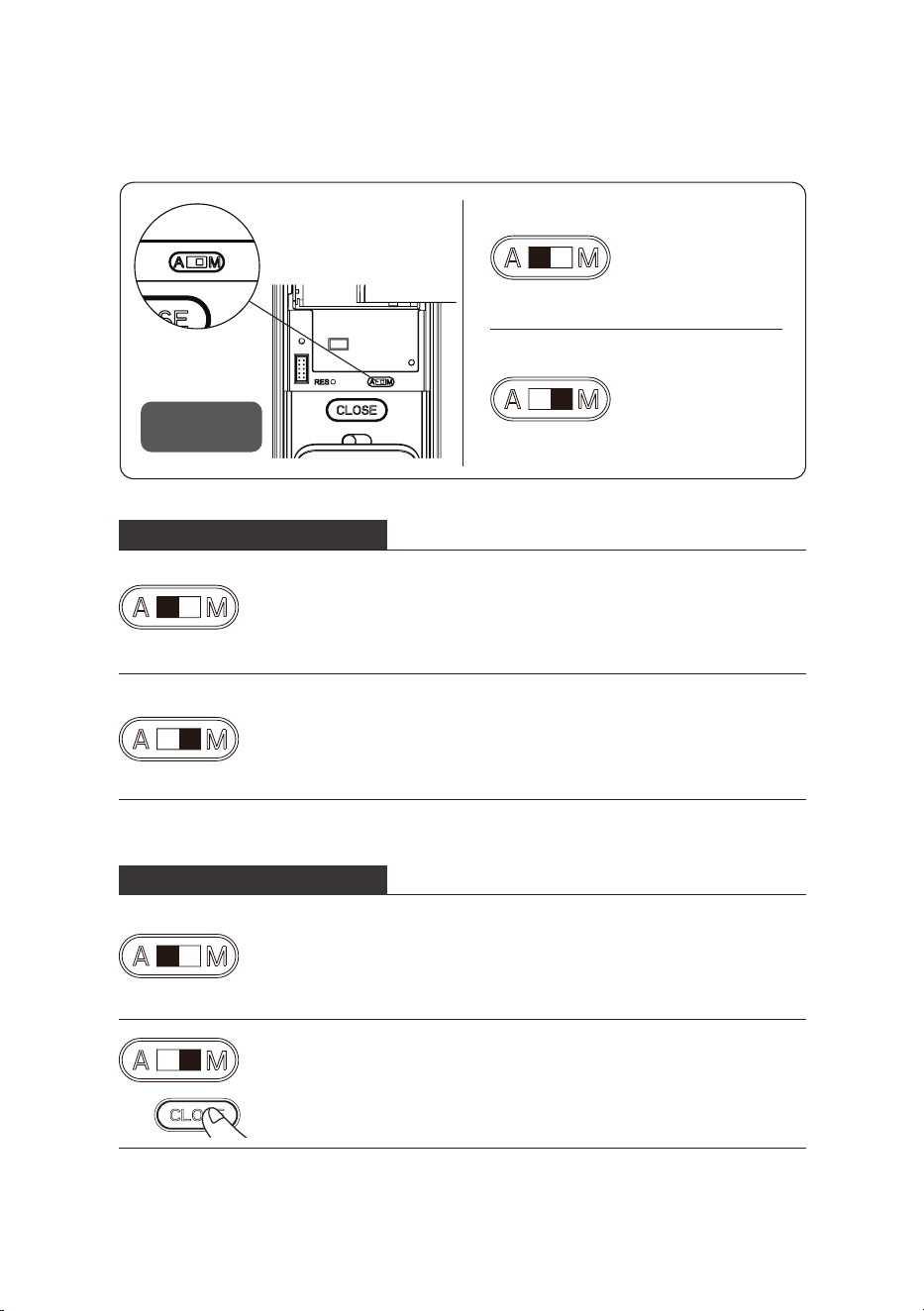
1
Touch the keypad
and light up the buttons.
Enter the registered
user PIN code and press
[#] to conrm.
2
After hearing a
voice prompt of “Door
opened”, push or pull
the handle to open the
door.
When you want to
open the door from
inside, please make
sure the safe handle
switch is toggled to
green scale and the
safe handle function
is disabled.
When you want
to open the door
from inside,
please make sure
the safe handle
switch is toggled
to green scale
and the safe
handle function
is disabled.
1
Place your
registered nger
properly on the sensor.
2
After hearing a
voice prompt of “Door
opened”, push or pull
the handle to open the
door.
1
Place your
registered card on the
card reader.
2
After hearing a
voice prompt of “Door
opened”, push or pull
the handle to open the
door.
1
2
1
2
1
2
Philips EasyKey employs indoor fast
opening motise allowing you to directly
push or pull the handle to unlock.
Only after you double press the
[CLOSE] button within one second can
the deadbolt pop up and lock the door.
Then pull/push the handle to unlock
the door.
Unlock | Opening from inside
5.How to use your EasyKey
Unlock | Opening from outside
Card
reader
Push or
pull to
open the
door
Push or
pull to
open the
door
Push or
pull to
open the
door
Touch
keypad
Fingerprint
sensor
With handle With Close button
Attention
Attention
17
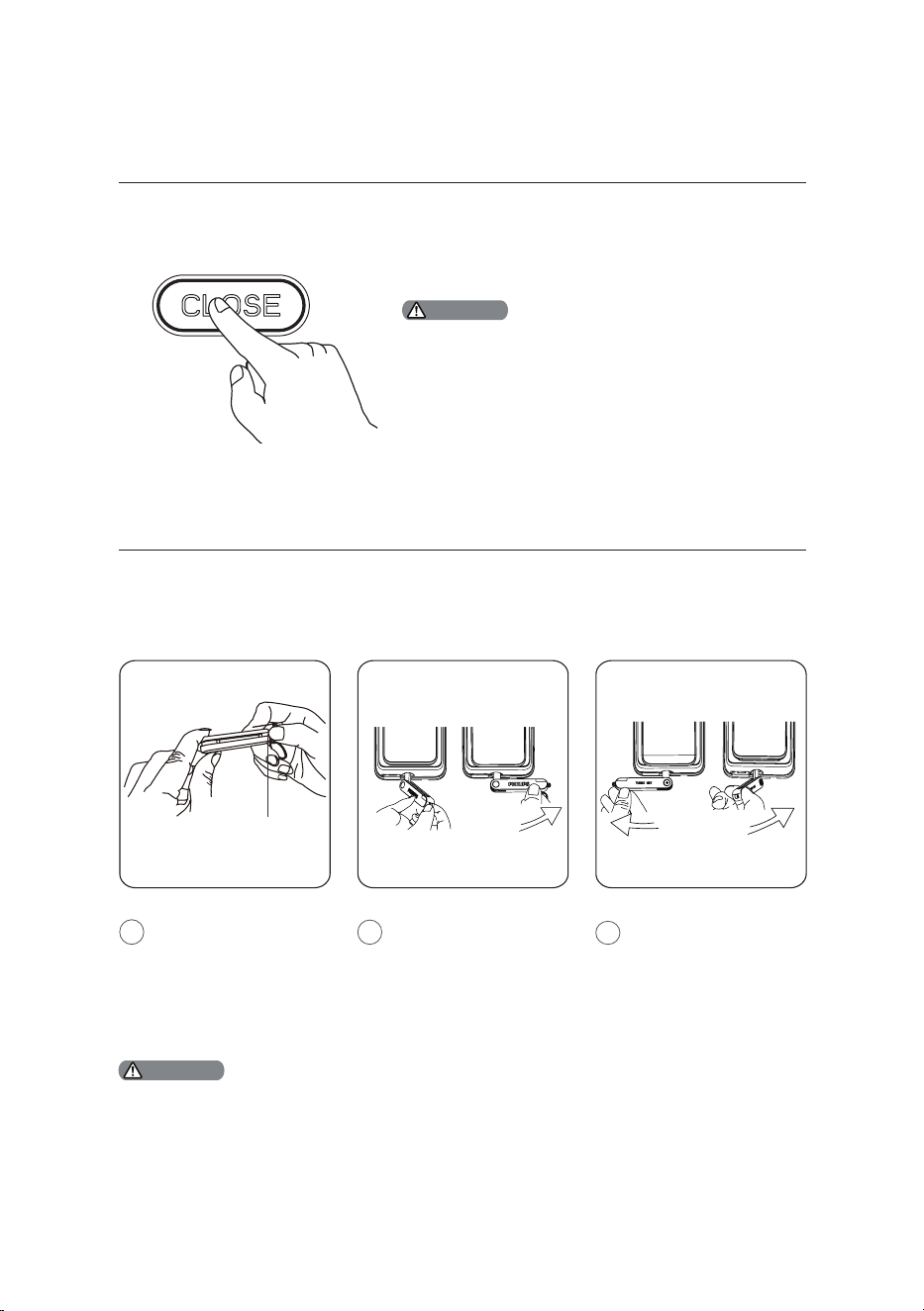
[A] represents Auto
Mode, under which
after you shut the
door, the deadbolt
will automatically
pop up and the
door will be locked.
[M] represents
Manual Mode,
under which after
you shut the door,
the deadbolt will
not automatically
pop up and the
door will stay open.
Lock | Auto/Manual modes
Auto/Manual
Switch
When the lock is adjusted to Auto Mode, shutting the
door will make the deadbolt automatically pop up
and there will be a voice prompt of “Door closed”.
When the lock is adjusted to Manual Mode, the deadbolt
won’t pop up automatically after shutting the door. Only
ngerprint, card or PIN code verication can make it
automatically pop up. After the door is locked, you will hear
a voice prompt of “Door closed”. Under Manual mode, after
closing the door, you can wake up the outside escutcheon,
Lock from outside the door
When the lock is adjusted to Auto Mode, shutting the
door will make the deadbolt automatically pop up and
there will be a voice prompt of “Door closed”.
When the lock is adjusted to Manual Mode, the deadbolt
won’t pop up automatically after shutting the door. Only
after you double press the [CLOSE] button within one second
can the deadbolt pop up and lock the door. After the door
is locked, you will hear a voice prompt of “Door closed”.
Lock from inside the door
18
Push
1
2
3
Deadlock from inside
After the door is locked, long press the
[CLOSE] button. The button will ash
once in red and there will be a voice
prompt of “Inside deadlock enabled”.
Under inside deadlock mode, all functions of the
outside escutcheon will be locked. If you try to wake
up the system manually, the keypad area will display
the combination of “15937(X)” and there will be a
voice prompt of “Inside deadlock enabled” reminding
you that the door has been dead locked from inside.
Under deadlock mode, all operations of the outside
escutcheon are disabled. Only Master PIN code
verication or mechanical key opening is required
to release the door from deadlock mode.
Attention
Mechanical key opening
Cut the mechanical
key box and take out
the key shell. Push
the cover aside and
reveal the key itself.
Insert the key into
the key hole and
keep the key and key
shell vertical to each
other. Rotate the key
shell towards the
handle for 90° until
it becomes close to
the door surface.
Rotate the key shell
downwards for
180° to make the
key shell parallel
to the ground.
Then rotate the key
shell horizontally
towards the handle
to unlock the door.
We suggest that you do not use the mechanical key for daily unlocking. Use
the key only for emergencies, for example when the battery is dead, when
the PIN code is forgotten, or when the system fails to work properly.
Attention
19
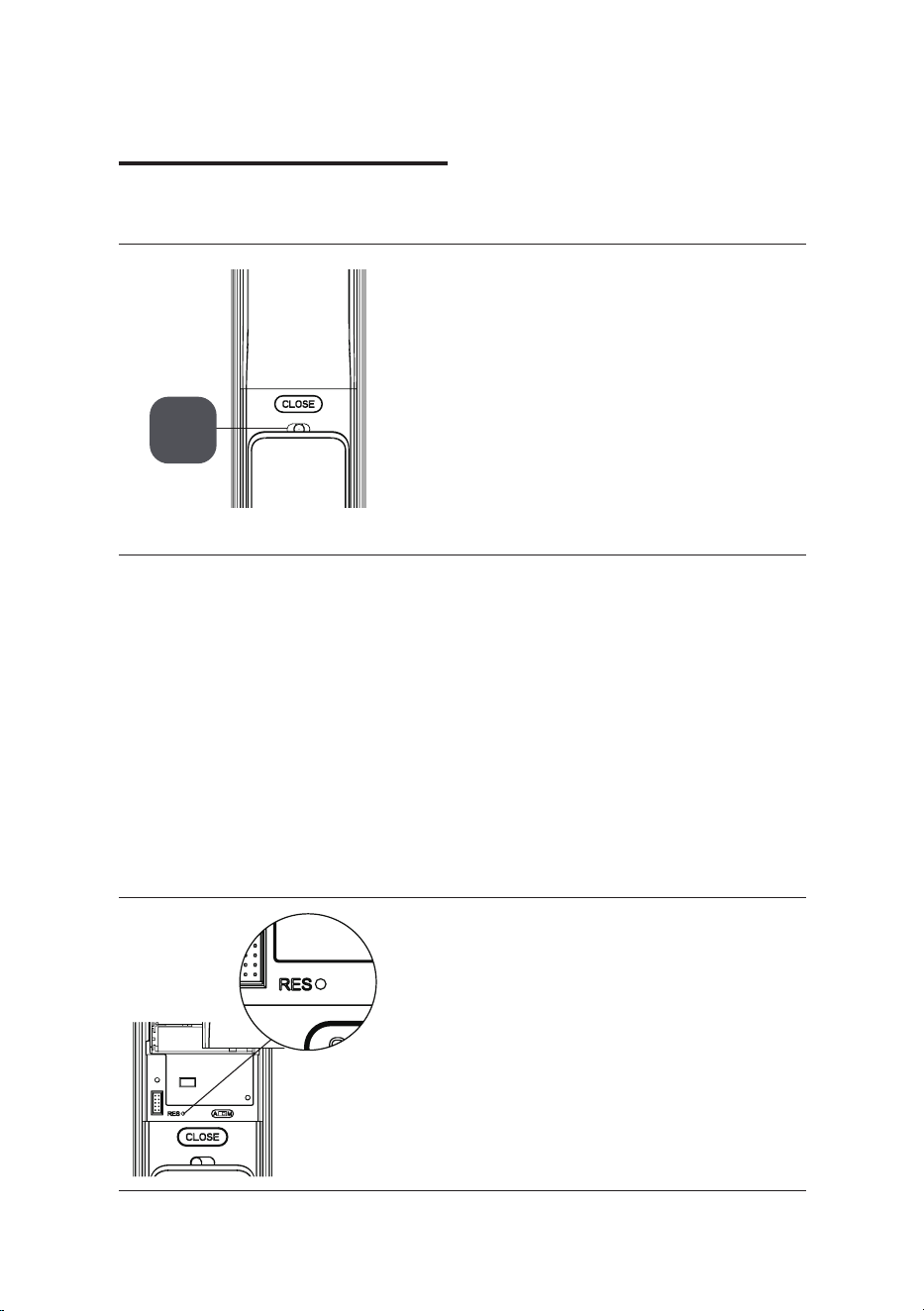
Function:
Lock the handle from inside and
prevent unlocking from inside.
How to use:
1. Enable safe handle function:
Toggle the switch to red scale.
2. Disable safe handle function:
Toggle the switch to green scale.
Safe handle function: Lock the handle from inside
6 Other functions
Safe
handle
switch
Restore factory settings: one button
to return to initial state
Function:
Empty all user information and
return to factory settings.
How to use:
Double press the [RES] and all the user
information will be emptied. The lock
will be restored to factory settings.
20
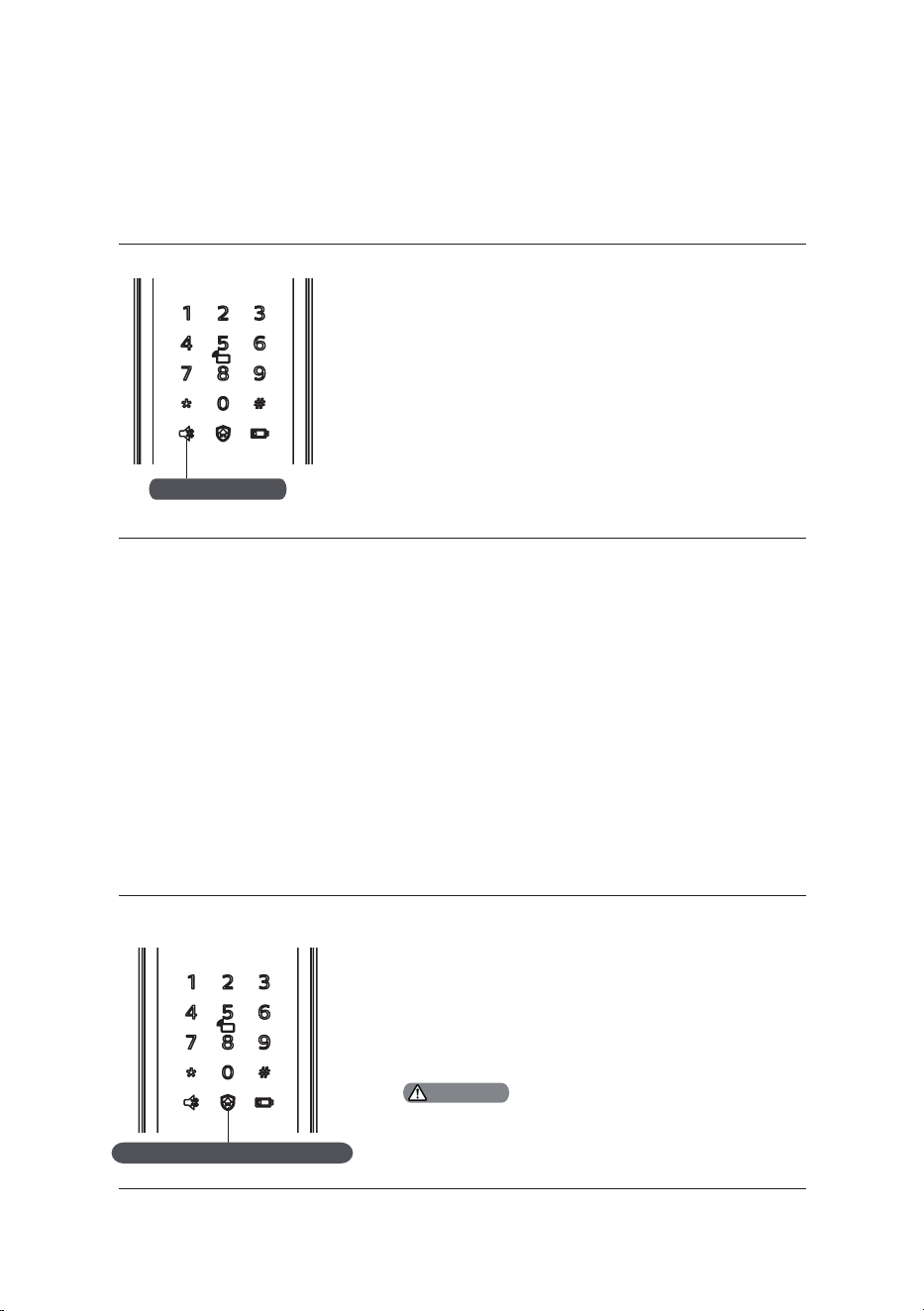
One-button mute function
Outside forced lock function
Function:
Use only one button to mute the
lock by turning o the voice guide.
Applicable to the scenes where you
don’t want to disturb your family.
How to use:
1. Mute: When the system is awake, long press
the [Mute] button for 2 seconds to enter one-
time mute mode. The button will glow green.
2. Unmute: When the system is awake,
long press the [Mute] button for 2
seconds to restore the voice guide.
The button will glow white.
Function:
Unlocking from inside will trigger an alarm.
How to use:
After the door is successfully locked, long
press the functional button for 2 seconds
to enter the outside forced lock mode.
Enabling the outside forced lock function
will not aect unlocking from outside.
Outside forced lock button
Attention
Mute button
21
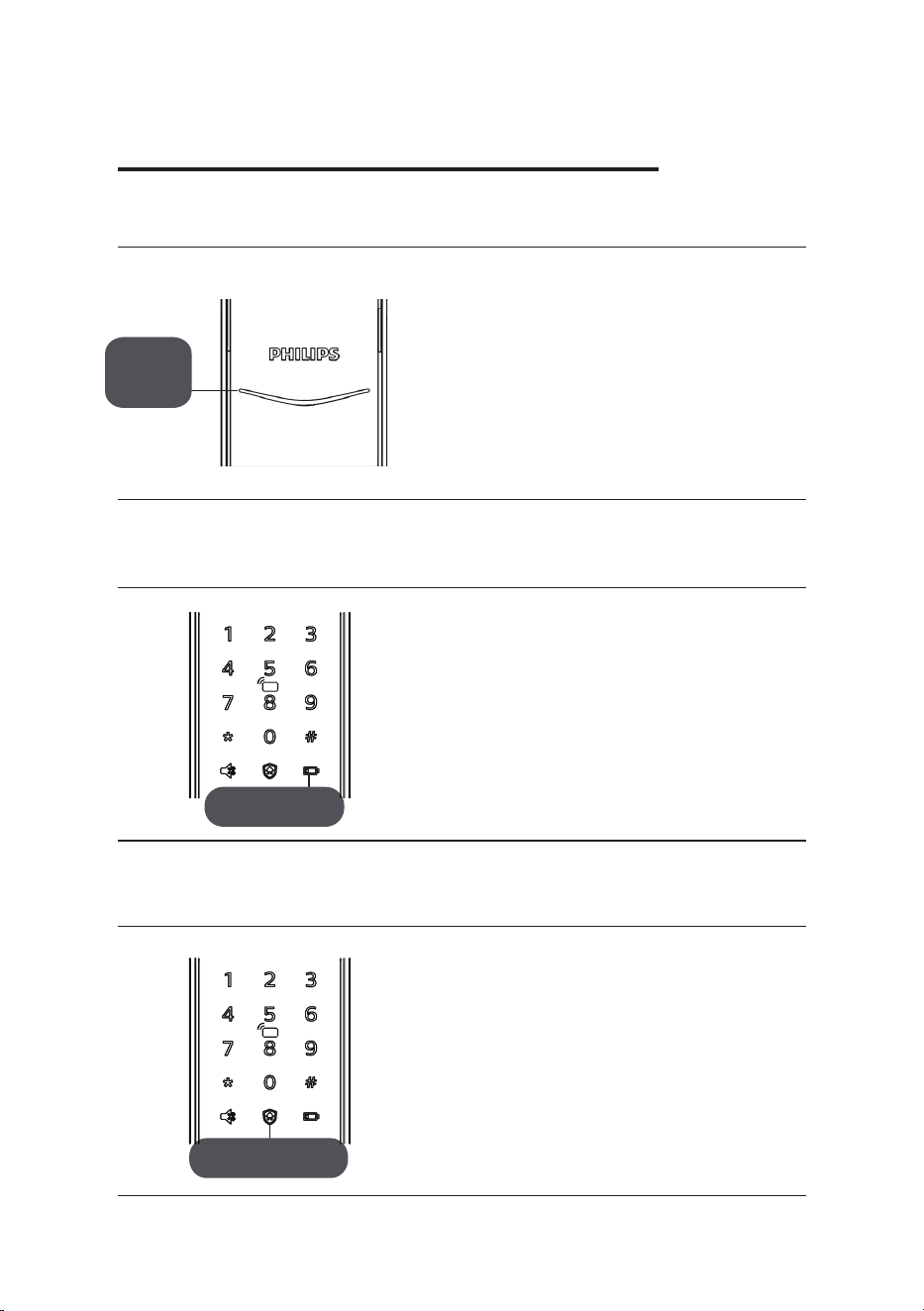
Lock status indicator
Low battery indicator
Outside forced lock indicator
Colors of the light and the
corresponding meanings:
Blue: After the system wakes up,
the light will glow blue, indicating
that you can operate the lock.
Green: After the door is unlocked,
the light will glow green, indicating
that the door has been opened.
Red: After the door is locked, the light will glow
red, indicating that the door has been closed.
Colors of the light and the
corresponding meanings:
Red: After waking up, the system will run an
automatic examination on the battery voltage.
If the voltage is too low, the light will ash
in red and there will be a voice prompt of
“Low battery. Please replace all batteries”.
Colors of the light and the
corresponding meanings:
White:
1. When the door is locked, the light will
light up alone, indicating that you can
enable the outside forced lock function.
2. If you have enabled the outside forced lock
function, the light will light up after the system
wakes up, indicating this function is in use.
7 Meanings and use of the indicators
Outside forced
Low battery
Lock
status
indicator
indicator
lock indicator
22
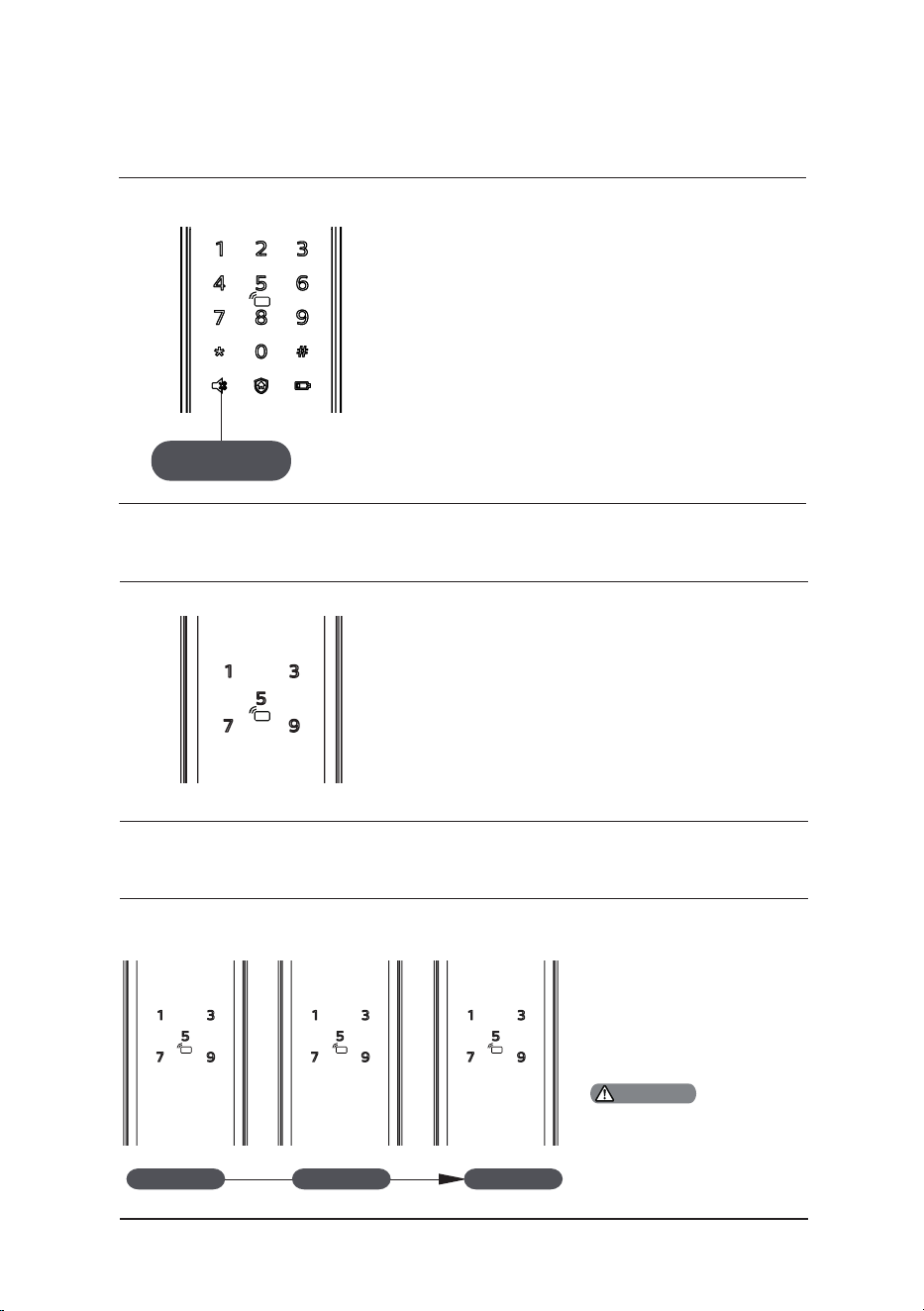
Mute mode indicator
Colors of the light and the
corresponding meanings:
1. White: Indicates the mute mode is o.
2. Green:Indicates the mute mode is on.
Inside deadlock indicator
System lock indicator
When the door is inside dead locked,
the digital functions of the outside
escutcheon will be disabled.
If the system is waken up manually, the
keypad will display the combination of “15937
(X)” and there will be a voice prompt saying
that the inside deadlock has been enabled.
3 ashes 2 ashes 1 ash
Only when touching to wake
up the keypad or inputting the
locked type of verication will
the system give such a prompt.
Mute mode
Attention
3 minutes 2 minutes 1 minute
If there are 5 consecutive
and incorrect inputs of any
of the 3 types of verication
information (ngerprint/
PIN code/card), this type of
verication will be locked
for 3 minutes.
indicator
23
[CLOSE] button indicator
Colors of the light and the
corresponding meanings:
1. Red light with 2 ashes: Indicates
the door has been locked.
2. Green light with 2 ashes: Indicates
the door has been unlocked.
3. Red light with 1 ash: Indicates
the door has been dead locked.
Types of alarms and alarm modes
Triggering: If the lock is under outside
forced lock mode, unlocking from
inside will trigger the alarm.
Alarm mode: Continuous repeated alarms.
Turning o: The alarm can be turned o
by a successful verication of any type.
Triggering: After waking up, the system will
run an automatic examination on the battery
voltage. If the voltage is too low, the lock
give an alarm and a voice prompt of “Low
battery. Please replace all batteries”.
Alarm mode: A voice prompt of “Low battery.
Please replace all batteries” during unlocking.
Turning o: The alarm will be
automatically turned o.
Inside unlocking alarm under outside forced lock mode
Low battery alarm, prompting you to replace the batteries in time
8 Troubleshooting
24
Triggering: The deadbolt works abnormally.
The door cannot be locked or unlocked.
Alarm mode: Continuous repeated alarms.
Turning o: The alarm will be
automatically turned o.
Triggering 1: The door is pried open
and the sensor latch bolt pops up.
Alarm mode: Continuous repeated alarms.
Turning o: The alarm can be turned o
automatically or by a successful verication.
Triggering 2: Outside escutcheon is pried
open and there is no t to the door.
Alarm mode: Continuous repeated alarms.
Turning o: Auto-close, or close after
the successful key verication, or close
after the normal indoor unlock.
Deadbolt abnormity alarm
Anti-dismantle alarm
25
Emergency
power interface
How to replace batteries
When the battery voltage is insucient,
and the door cannot be opened from
the outside, you can power the lock
through the Micro USB interface by using
a 5V power bank as an emergency power
supply. After opening the door lock, please
replace the batteries immediately.
In case of a system crash and it’s
impossible to open the door from outside,
please press the Reset button and then
release to let it reboot automatically.
How to apply an emergency power
The lock is powered by four 1.5V alkaline
batteries. There are two sets of working
power inside the battery cabinet. Eight
batteries can be put in to extend the
battery life and reduce battery replacement
frequency. The battery cabinet is located
at the upper end of the inside escutcheon.
By pushing the cover upwards, you can
remove it and then take out the batteries.
Reset
button

Philips and the Philips Shield Emblem are registered trademarks of Koninklijke
Philips N.V. and are used under license. This product has been manufactured by
and is sold under the responsibility of Shenzhen Conex Intelligent Technology
Co., Ltd. and Shenzhen Conex Intelligent Technology Co., Ltd. is the warrantor in
relation to this product.