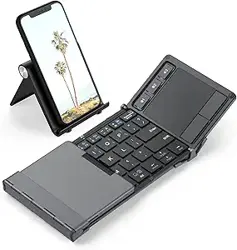
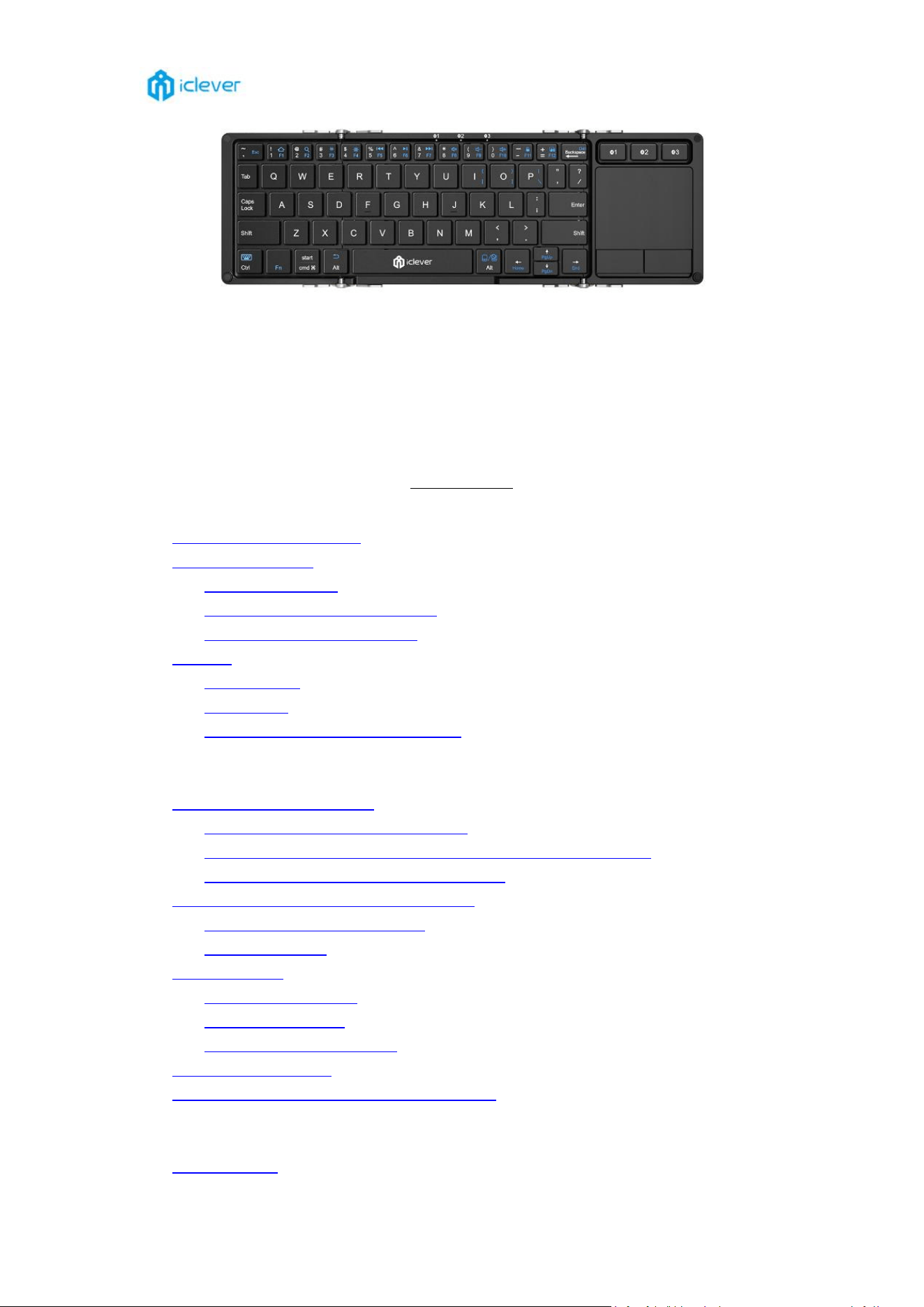
Multi-device Foldable Wireless Keyboard
IC-BK08
CATALOG
Operating Guidelines
Indicator Light Descriptions
Connect your device
Paring with devices
Switch among connected channel
Re-pairing connected channels
Features
Function Keys
Special Keys
touchpad Function and Compatibility
FAQs
Bluetooth connectivity issues
Connection failed / Unable to connect
Keystroke delay / Character repetition / Frequent disconnections
Keyboard are not searched in the match list
The output does not match the key symbols
For Windows/iOS/Mac OS users
For Android users
touchpad issues
touchpad not working
touchpad Sensitivity
touchpad scrolling direction
Does not hold a charge
Compatibility issues and scope of compatibility
Contact us
iClever support
Operating Guidelines
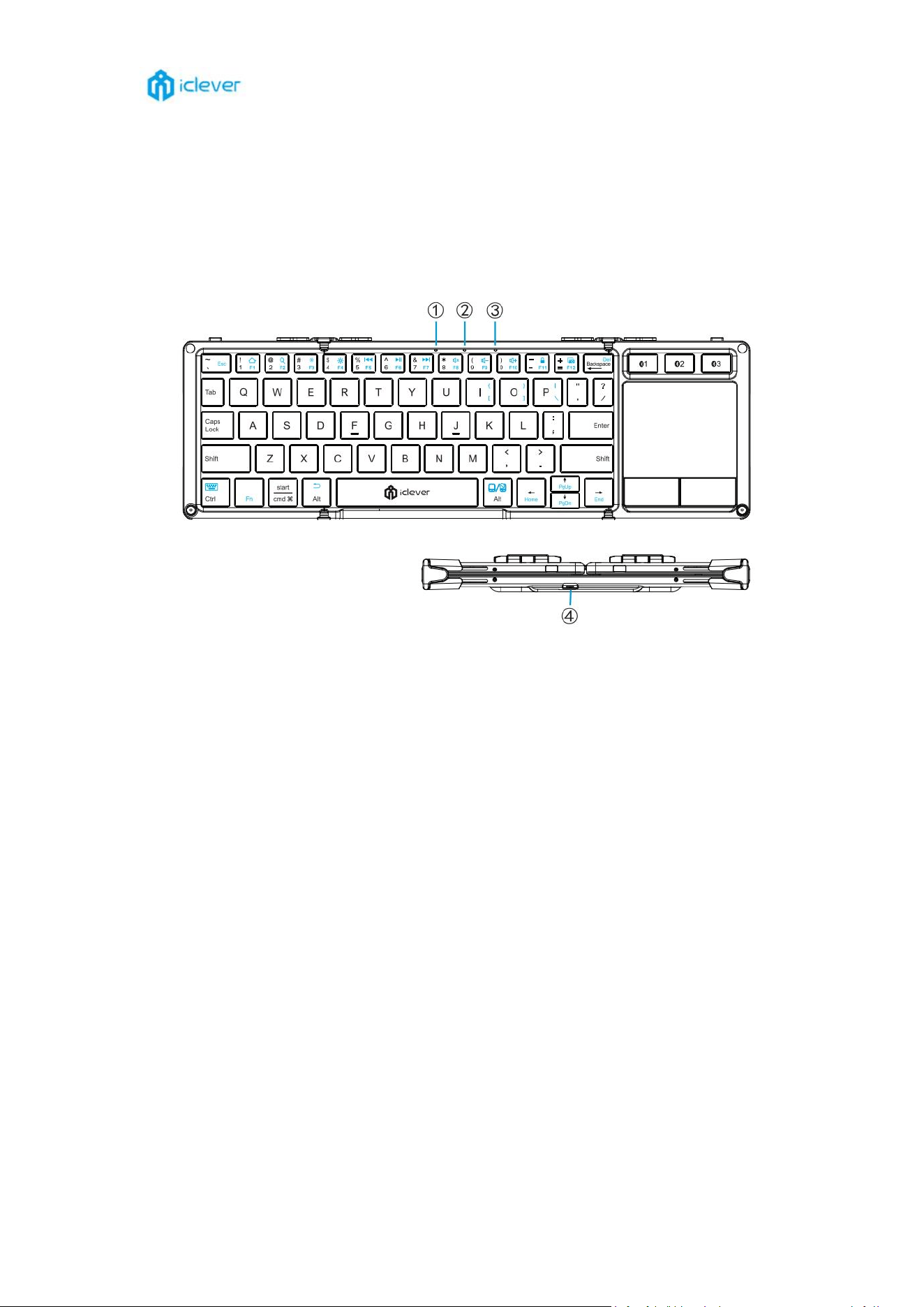
Indicator Light Descriptions
Power on status: indicator ①②③ will light up in blue for 3 seconds when power on.
Charging status: indicator ① will stay in red when charging and turn off once fully charged.
Low battery status: indicator ①②③ will flash in red when it is time to charge.
Bluetooth status: indicator ①/②/③ flash in blue when it is in Bluetooth pairing status
and turn off once paired successfully.
④ Charging port: for charging only.
Note:The charging port is USB-C port.
Connect your device
Pairing with devices
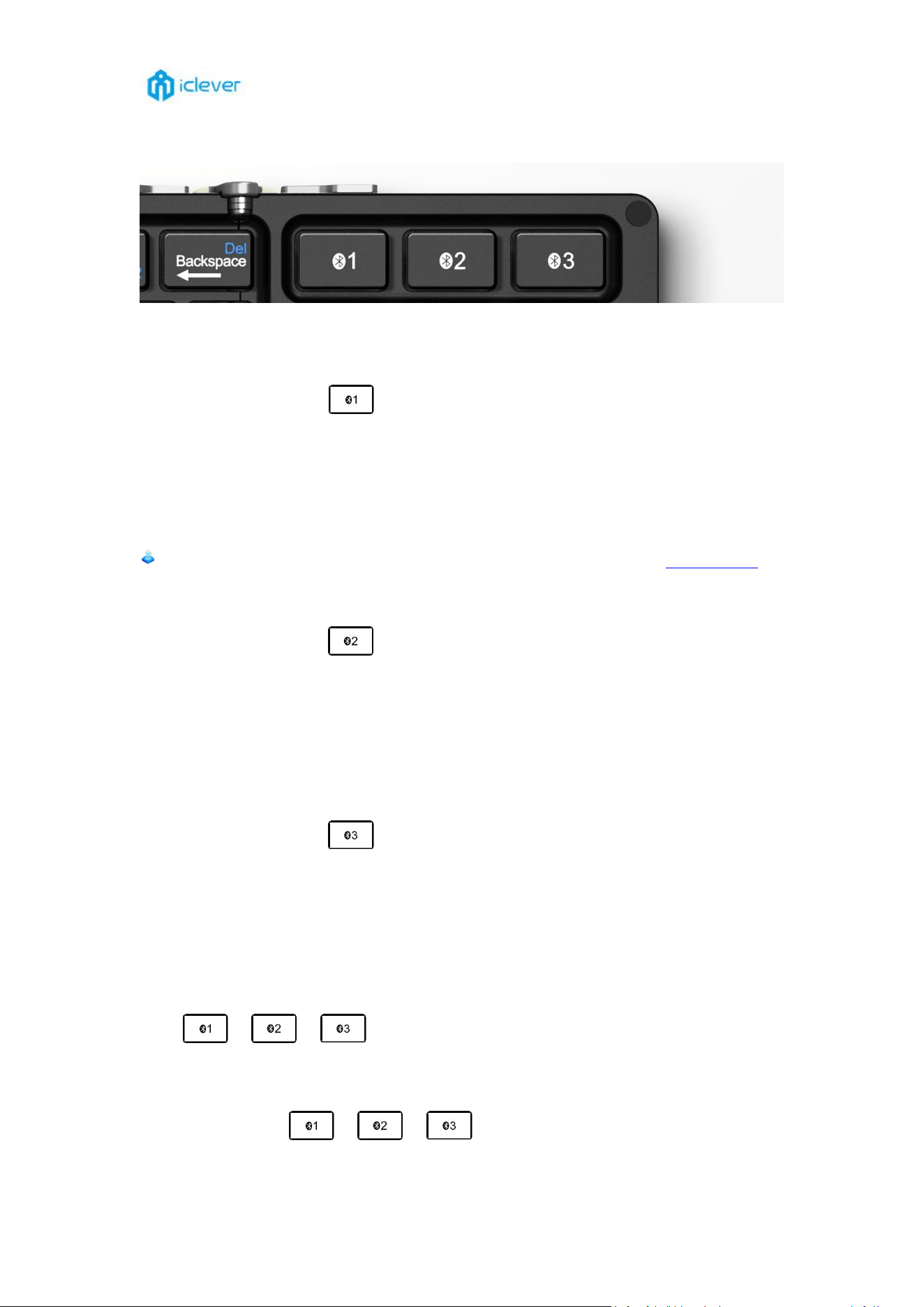
Pairing with 1
st
device
1. Unfold the keyboard to power it on, ①②③ indicator will turn to be blue for 3 seconds.
2. Hold and press key of for 5 seconds to enter pairing mode in channel 1 until the
indicator ① flash blue quickly.
3. On your device, under Bluetooth, find the Bluetooth name “iClever IC-BK08 Keyboard” and
click to connect.
4. The indicator ① will turn off once paired successfully.
You can also make the connection to your new keyboard by watching our video tutorial.
Pairing with 2
nd
device
1. Hold and press key of for 5 seconds to enter pairing mode in channel 2 until the
indicator ② flash blue quickly.
2. On your device, under Bluetooth, find the Bluetooth name “iClever IC-BK08 Keyboard” and
click to connect.
3. The indicator ② will turn off once paired successfully.
Pairing with 3
rd
device
1. Hold and press key of for 5 seconds to enter pairing mode in channel 3 until the
indicator ③ flash blue quickly.
2. On your device, under Bluetooth, find the Bluetooth name “iClever IC-BK08 Keyboard” and
click to connect.
3. The indicator ③ will turn off once paired successfully.
Switch among connected channel
Press / / to switch among the connected devices.
Re-pairing connected channels
Holy and press key of / / for 5 seconds, it will enter pairing mode again.
On your device find the Bluetooth name “iClever IC-BK08 Keyboard” and click to connect.
Features
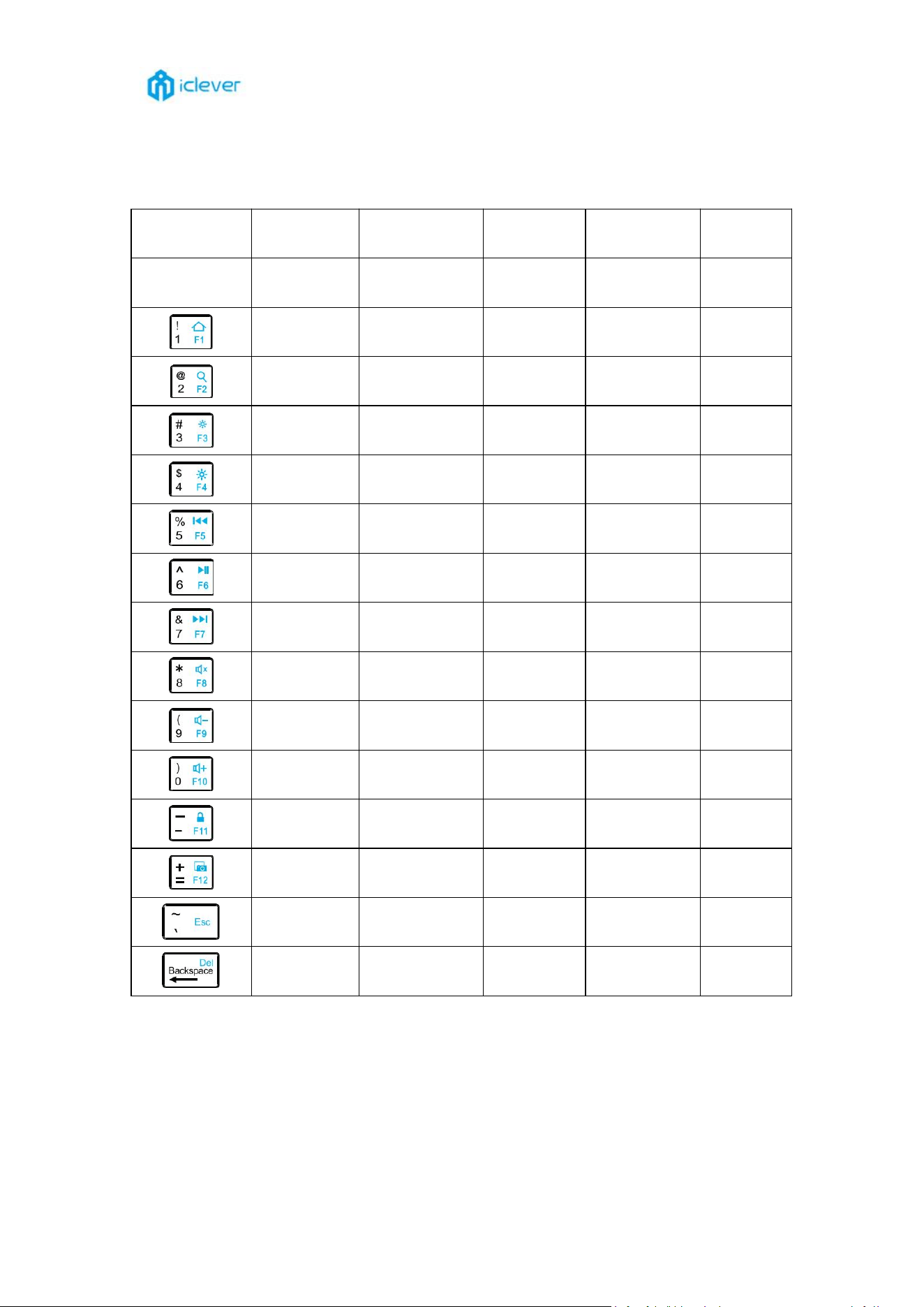
Functions Keys
Corresponding
System
iOS
Android
Windows
Mac OS
Windows
Way to use
Press Fn +
Press Fn +
Press Fn +
Press Fn +
Press
Fn+Shift+
Home
Home
Web
browser
Mission
Control
F1
Search
Search in
browser or N/A
Search
Search
F2
Lightness -
Lightness -
Lightness -
(win10)
Lightness -
F3
Lightness +
Lightness +
Lightness +
(win10)
Lightness +
F4
Previous
track
Previous
track
Previous
track
Previous
track
F5
Play/pause
Play/pause
Play/pause
Play/pause
F6
Next track
Next track
Next track
Next track
F7
Mute
Mute
Mute
Mute
F8
Volume -
Volume -
Volume -
Volume -
F9
Volume +
Volume +
Volume +
Volume +
F10
Screen lock
Screen lock
Screen lock
N/A
F11
Screenshot
Screenshot
Screenshot
Screenshot
F12
Esc or N/A
Esc or N/A
Esc
Esc
N/A
Forward
delete
Forward
delete
Delete
Forward
delete
N/A
Special Keys
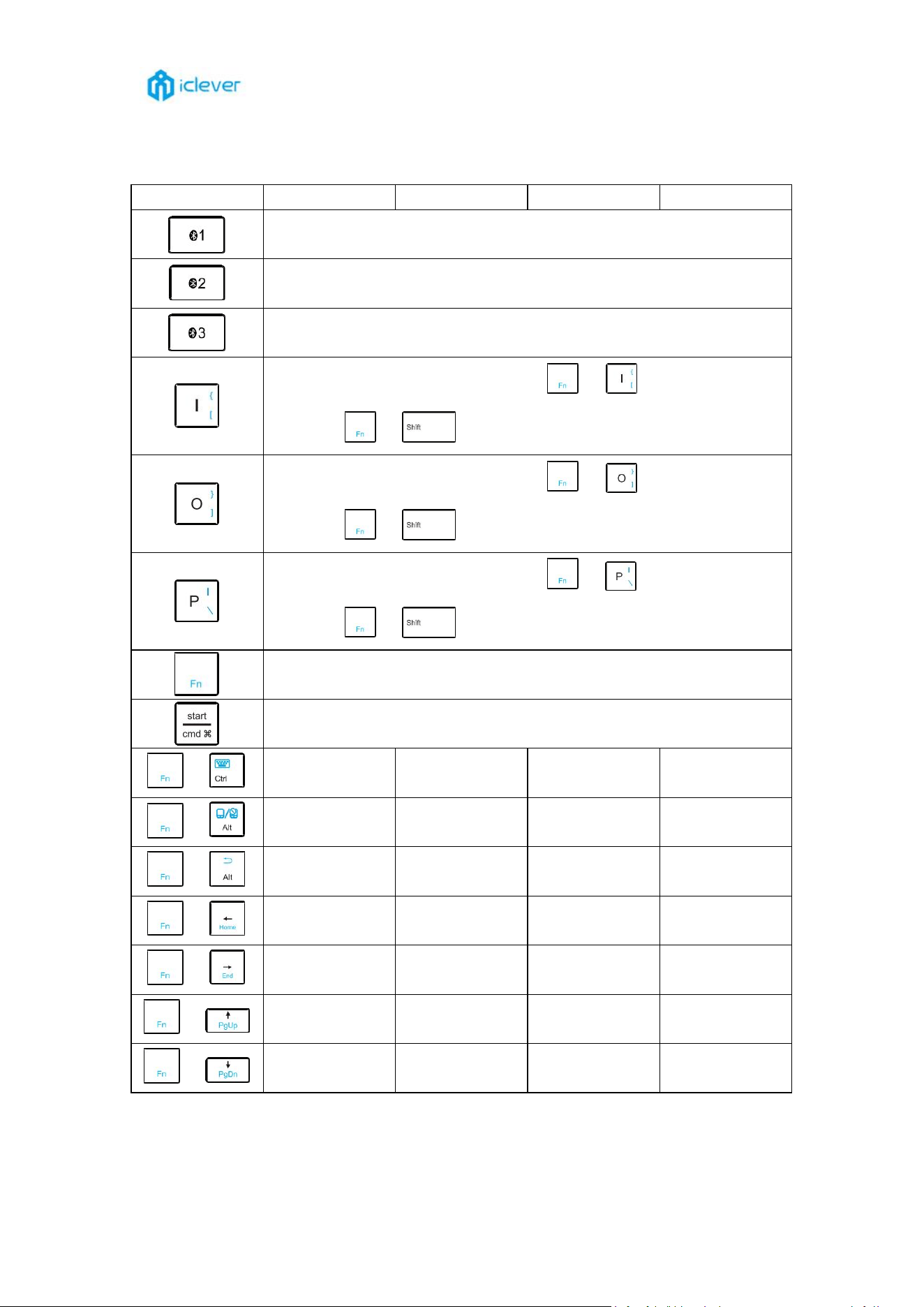
Special Keys
iOS
Android
Windows
Mac OS
Switching function: press to switch to channel 1.
Pairing function: hold and press this key for 5s to enter pairing mode.
Switching function: press to switch to channel 2.
Pairing function: hold and press this key for 5s to enter pairing mode.
Switching function: press to switch to channel 3.
Pairing function: hold and press this key for 5s to enter pairing mode.
Under English(US) input method,press + , the “[” can be typed
out; press + + this key, the “{” can be typed out.
Under English(US) input method,press + , the “]” can be typed
out; press + + this key, the “}” can be typed out.
Under English(US) input method,press + , the “\” can be typed
out; press + + this key, the “|” can be typed out.
This key is combination used with blue color key to preform special
function.
This key work as “start” or “Win” under Windows, and it works as
“command” under iOS and Mac OS.
+
Keyboard
Display
N/A
N/A
N/A
+
Lock Touchpad
on/off
Lock Touchpad
on/off
Lock Touchpad
on/off
Lock Touchpad
on/off
+
Esc or N/A
Back
Back
Esc
+
Page up
Home
Home
Home
+
Page down
End
End
End
+
N/A
Page up
Page up
Page up
+
N/A
Page down
Page down
Page down
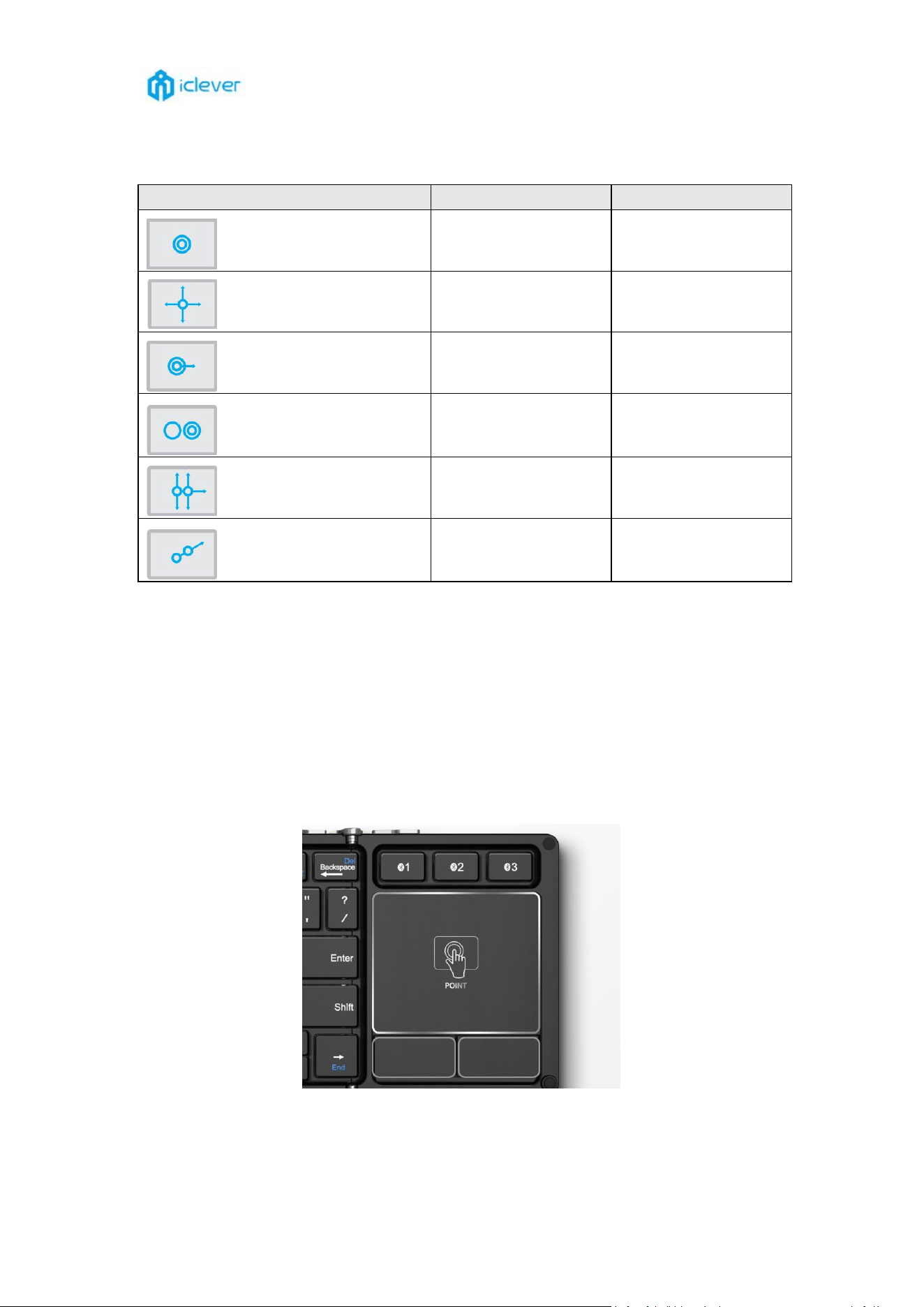
Touchpad Function and Compatibility
Touchpad Function
Windows
Android
One finger click
Mouse left
button
Mouse left
button
Slide one finger
Move mouse
pointer
Move mouse
pointer
One finger quick click to
hold and drag
Left button to select
target to drag
Left button to select
target to drag
Two fingers click
Mouse right
button
Back
Two fingers move vertically
or horizontally
Vertical, horizontal
scroll
N/A
Two fingers move
Zoom In/Out
N/A
Note: under Android device, the left button work as mouse left button, but right button
work as function of back.
Touchpad Compatibility
1. Support Android, Windows, Mac OS.
2. Do not support on iPhone.
3. Support part of iPad model:
12.9-inch iPad Pro, 11-inch iPad Pro, 10.5-inch iPad Pro, 9.7-inch iPad Pro, iPad (5/6/7
th
generation), iPad mini (5th generation), iPad mini 4, iPad Air (3
rd
generation), iPad Air 2.

FAQs
Bluetooth connectivity issues
Connection failed / Unable to connect
Please follow the troubleshooting steps below:
1. Please Please make sure that your iClever device and computer are within close proximity of
each other.
2. Try moving away at least 8 inches (20 cm) from metal and other sources of wireless signal.
3. Delete all Bluetooth connection records, turn Bluetooth off on the device and turn it back on
to refresh.
4. Connect again.
5. Try a different device to test.
Keystroke delay / Character repetition / Frequent disconnections
Please follow the troubleshooting steps below:
1. Restart your device and keyboard.
2. Charge the keyboard for 2 hours.
3. Check if there are any updates running in the background that may cause the delay.
4. Make sure your operating system (OS) is up to date.
5. Try on a different device to test.
6. Try moving away from metal and other sources of wireless signal:
Bluetooth Speakers, TWS, headphone, WiFi router, Computer power supplies, Strong WiFi signals,
Metal or metal wiring in the wall, any device that could emit wireless waves: Microwave, cordless
phone, baby monitor, wireless speaker, garage door opener.
Keyboard are not searched in the match list
Here are some troubleshooting tips to ensure that your iClever device is ready to connect:
1. Restart your Bluetooth device.
2. Make sure you are in Bluetooth pairing mode (the keyboard Bluetooth indicator will keep
flashing when you are in Bluetooth paring).
3. The pairing name may be shown as a keyboard icon (like 7B:08:22:19:27:B9).
4.
Remove the iClever previous connection records and pair it again.

The output does not match the key symbols
For Windows/iOS/Mac OS users
Please ensure your input method corresponds to the keyboard layout. For example, if you are
using a English(US) keyboard, please choose the English(US) input method. If you have it this way
but the problem still persists, please keep us updated.
For Android users
Please ensure your input method corresponds to the keyboard layout by setting the Virtual
Keyboard and the Physical Keyboard on your device.
1. Virtual Keyboard:
Step 1: Find the language-switching button which is usually represented by a globe icon on the
virtual keyboard.
Step 2: Choose your language from the virtual keyboard. This will change the virtual keyboard
layout to match your language.
2. Physical Keyboard:
Step 1: Go to the Settings menu on your device.
Step 2: Find and choose "Language and Input" on your android device. You may need to follow a
slightly different path depending on the brand of your device.
Step 3: Find the option related to the physical keyboard settings and choose your language layout
for your physical keyboard.
Touchpad issues
Touchpad not working
Possible solution for not-working touchpad:
1. Press “Fn+right Alt” to activate the touchpad.
2. If it doesn’t make a difference, please reset the keyboard by pressing "fn+left
shift+backspace" for 5 seconds.
3. Remove the Bluetooth record of the keyboard from your device's Bluetooth list. Turn off

Bluetooth on your device, then turn it back on, and re-pair.
4. Reboot your device to refresh the system.
5. Ensure that your device's operating system is up to date.
6. Try connecting the keyboard to another device to verify if the issue persists.
Please note that for iOS and iPad OS users, you may need to enable Assistive Touch for accessing
the touchpad, please go to Settings > Accessibility > Touch > Assistive Touch.
Touchpad Sensitivity
Mac OS/Windows:
Please note that touchpad sensitivity adjustment is not available on Mac and Windows systems.
iOS:
Setting > General > Trackpad & Mouse > follow on-screen instructions.
Android:
possible solution:
Settings - Mouse & touchpad- Additional mouse options - Pointer Options- Move "Select a
pointer speed" to fast, tick "Enhance pointer precision".
Please note that the exact settings may vary depending on the device brand and Android version.
Touchpad scrolling direction
Please note that the scrolling direction of the touchpad can’t be changed in any operating system.

Does not hold a charge
1. Try using another USB cable and connect it to a different power source to charge for 2 hours
(e.g., USB port on a computer or a different charging adapter).
2. Make sure that the voltage of the charger you are using is not greater than 5V. Higher
voltage can potentially cause the keyboard to shut down.
Note: the charging indicator will turn green once the battery is fully charged and please unplug
the cable.
Compatibility issues and scope of compatibility
Incompatible range at this stage:
Devices: Steam deck, PlayStation (PS4, PS5), XBOX, Smart TV
System: Linux all, Ubuntu all
Other: 3rd party Bluetooth adapters 4.0 and below, remote desktop software
Range of compatibility at this stage:
System version: Windows 8 or later, Mac OS 10.12 or later, iOS 9.0 or later, Android 6.0 or
later , Chrome OS
Contact us
iClever support
Your feedback is important to us.
If you have any question or idea want to share, please contact our team by:
iclever@support.com