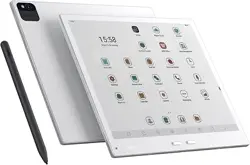

QUICK START GUIDE
customizable buttonscreen
indicator light Type-C interface
microphone
camera
camera flash TF+Nano SIM card slot
Capacitor pen wireless
charging
capacitive stylus
power button
Stylus Pen
Packaging Contents
device Product
Manual
USB
Cable
Capacitive
Stylus
Pen nib
Clip
Slide on the screen to activate
the erasing function
Charging light is always on,
and the light goes off when it's
full.
Pen n : Can be used for writing and touch control
in the writing area.
Eraser But ton
indicator light
Magnetic at traction
position
Magnetic at traction
position
Charging spot
Replace the pen nib
1. Use a pen clip to clamp the old nib (ink cartridge/pen core)
and pull it out from the capacitive stylus.
2. Hold the new pen nib with your hand, align it with the nib
tube, and slowly push it into the capacitive stylus. Please
make sure to push it all the way in to prevent the nib from
falling out during use.
Attention:
1. Please use or purchase the standard capacitive stylus
provided by this manufacturer.
2. Using other non-standard capacitive styluses may lead to
compatibility issues and may also cause damage to the
product. Damage under such circumstances is not covered
by the free warranty.
3. The Bigme capacitive stylus is a pressure-sensitive one.
The pen tip can be replaced with the accompanying tool
after wear. Do not rotate or disassemble the pen body at the
seam. Please avoid such operations.
Fragile Screen -
Avoid Impact &
Pressure
Contains built-in
battery
Keep away from
liquids
Operating
Environment
0℃~45℃
Unauthorized
disassembly voids
warranty
Safety Usage Guide
Instructions for use
How to power on/o ff the device:
1. When the device is powered off, press and hold the power
button for 5 seconds to start the device.
2. Press and hold the power button for 1 second, and a
shutdown dialog box will pop up. You can choose to shut down
or restart the device.
3. The device supports automatic sleep mode. You can set the
time for it to enter sleep mode on your own. A short press of
the power button can switch between sleep and wake modes.
4. In an abnormal state, pressing and holding the power button
for 'Bigme Cloud' APP
1. New device: Power on and start up -- Connect to WIFI --
Scan the QR code on the login/registration interface --
Download and install the "Bigme Cloud" APP .
2. On the note list interface -- Long press one of the note
options -- Click the "Bigme Cloud" button on the top
right corner to generate a download QR code -- Scan the code
to download and install the "Bigme Cloud" APP .
3. Scan the QR code below to download and install the "Bigme
Cloud" APP .
Note: The account password for the "Cloud Read-Write" is
consistent with that for the Bigme smart notebook.
How to transmit (transfer) data:
1. Connect the device to a computer via a USB data cable for
transmission.
2. Sync and transmit data through the Bigme Cloud APP .
How to transfer books via Wi-Fi:
1. Open the "Bookshelf" app, click "Import" in the upper right
corner of the page, and then select "Wi-Fi Import".
2. Within the same local area network, enter the pop-up website
address in the computer's browser.
3. Select a local file to import and upload it.
How to perform OTA upgrade:
Enter "Settings" - "System Update" - "Check for Updates" - then
proceed to "OTA Online Upgrade".
Note: Please ensure that the device battery level is above 30%
before starting the upgrade.
How to protect the device:
1. Try to use a leather case during daily use to prevent the screen
from direct impacts and squeezing.
2. Avoid placing heavy objects on top of the smart office tablet
when storing it.
3. Keep it a
5.2 GHz band is restricted to indoor use only
way from all kinds of liquids.
How to charge:
1
.
Please use a certified 5V 3A power adapter for charging.
2
.
Connect the device to a computer's USB port using the
standard data cable for charging.
3
.
During charging, the white indicator light stays on constantly,
and it turns off when the device is fully charged.
4. The charging process takes approximately 2.5 hours to complete.
ib
Touch Button
Note
保修卡
WARRANTY CARD
Certificate
:02
P roblem description
QC
Manaufacturer:Bigme Cloud Literacy Technology Co., Ltd. Tel:+86 400-0188-938
Address: 01,18th Floor,COFCO Group Building, No. 3,Longjing 2nd Road, Longjing Community,
Xin'an Street,Bao'an District,Shenzhen,China
13
14
Pogo�Pin
9
10
11
11
12
13
14
1.The maximum operating temperature of the product is 45 °C;
2.If the wrong model of battery pack is used for replacement, there is a
riskof fire or explosion;
3.Do not place the battery pack in extremely high temperature or
lowpressure environments,or mechanically squeeze or cut the battery
pack,which may cause explosions or leakage of flammable liquids or
gases;
4.This product is not sold with a power adapter.If a power adapter is
usedfor power supply, a power adapter that has obtained certification
andmeets standard requirements should be used.
FCC Statement
This equipment has been tested and found to comply with the limits for a
Class B digital device, pursuant to part 15 of the FCC rules. These limits
are designed to provide reasonable protection against harmful
interference in a residential installation. This
equipment generates, uses and can radiate radio frequency energy and,
if not installed and used in accordance with the instructions, may cause
harmful interference to radio communications. However, there is no
guarantee that interference will not occur in a
particular installation. If this equipment does cause harmful interference
to radio or television reception, which can be determined by turning the
equipment off and on, the user is encouraged to try to correct the
interference by one or more of the following
measures:
-Reorient or relocate the receiving antenna.
-Increase the separation between the equipment and receiver.
-Connect the equipment into an outlet on a circuit different from that to
which the receiver is connected.
-Consult the dealer or an experienced radio/TV technician for help.
To assure continued compliance, any changes or modifications not
expressly approved by the party.
Responsible for compliance could void the user’s authority to operate
this equipment. (Example- use only shielded interface cables when
connecting to computer or peripheral devices).
This equipment complies with Part 15 of the FCC Rules. Operation is
subject to the
following two conditions:
(1) This device may not cause harmful interference, and
(2) This device must accept any interference received, including
interference thatmay cause undesired operation.
Specific Absorption Rate (SAR) information: This device meets the
government's requirements for exposure to radio waves. The guidelines
are based on standards that were developed by in dependent scientific
organizations through periodic and thorough evaluation of scientific
studies. The standards include a substantial safety margin designed to
assure the safety of all persons regardless of age or health.
FCC RF Exposure Information and Statement the SAR limit of USA (FCC) is
1.6 W/kg averaged over one gram of tissue. Device types: device has
also been tested against this SAR limit. This device was tested for typical
body-worn operations with the back of the Tablet computer kept 0mm
from the body. To maintain compliance with FCC RF exposure
requirements, use accessories that maintain an 0mm separation distance
between the user's body and the back of the Tablet computer.
The use of belt clips, holsters and similar accessories should not contain
metallic components in its assembly. The use of accessories that do not
satisfy these requirements may not comply with FCC RF Exposure
requirements, and should be avoided

