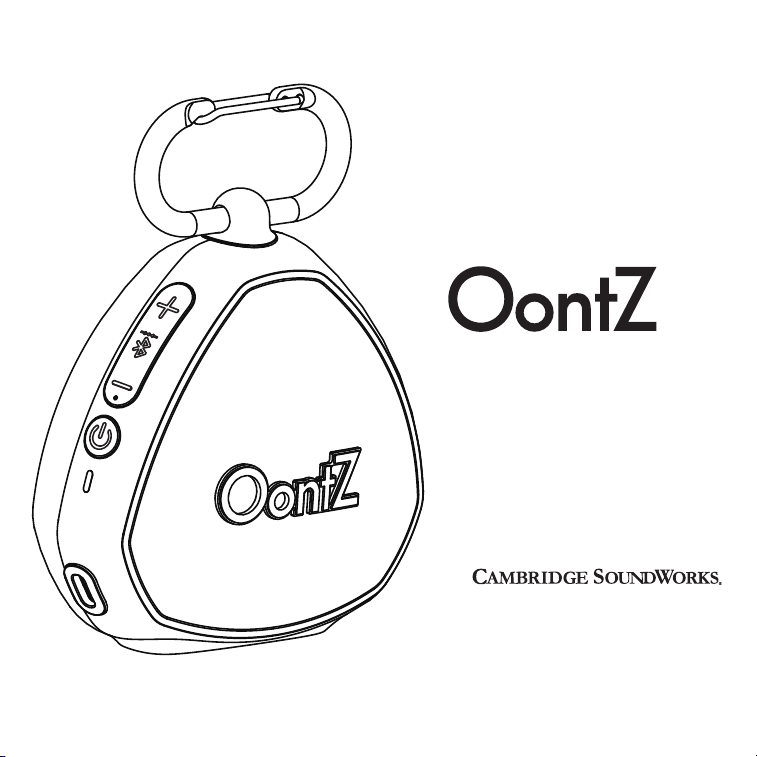
Quick Start Guide
Portable Bluetooth Speaker
OontZ Dual Speaker Model
TheOontZ.com
Designed and Engineered By
CLIP


Pages
Table of Contents
In the Package
Buttons
Lights
Battery Features
Turning On and Off
Pair & Connect—Step 1
Pair & Connect -- Step 2
— From Your Amazon Echo device
— From Your Amazon Echo device (continued)
IPX7 WaterProof
Wireless Hands Free Personal Speakerphone
OontZ Dual Speaker - Connect two OontZ Clip Speakers Together
Resetting Your OontZ Clip
Troubleshooting & Customer Support
Safety and Precautions
1
2
3
4
5
6-7
8
9
10
11-14
15
16
17 - 18
………………………………………………………………………………………
………………………………………………………………………………………………
…………………………………………………………………………………………………
……………………………………………………………………………………
…………………………………………………………………………………
…………………………………………………………………………………
……………………………………………………………………………
……………………………………………………………………………………
…………………………………………………
……………………………
…………………………………………………………………………
…………………………………………………………
……………………………………………………………………………
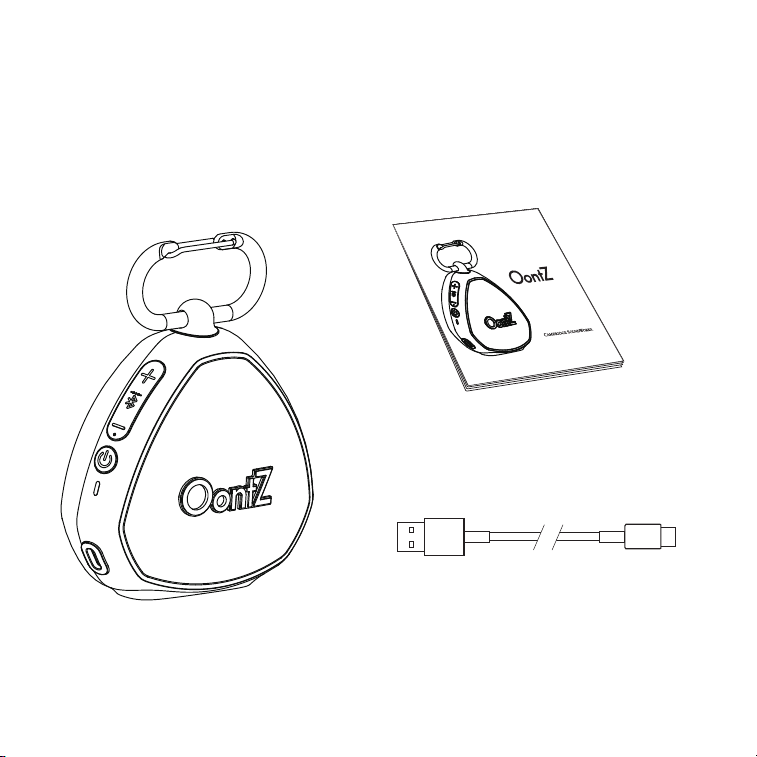
In the Package
Quick-Start GuideOontZ CLIP
Page 1
USB Type C Charging Cable
Note: The USB Type-C charging cable is packed
under the speaker.
Quick Start Guide
Portable Bluetooth Speaker
OontZ Dual Speaker Model
TheOontZ.com
Designed and Engineered By
CLIP
Page 2
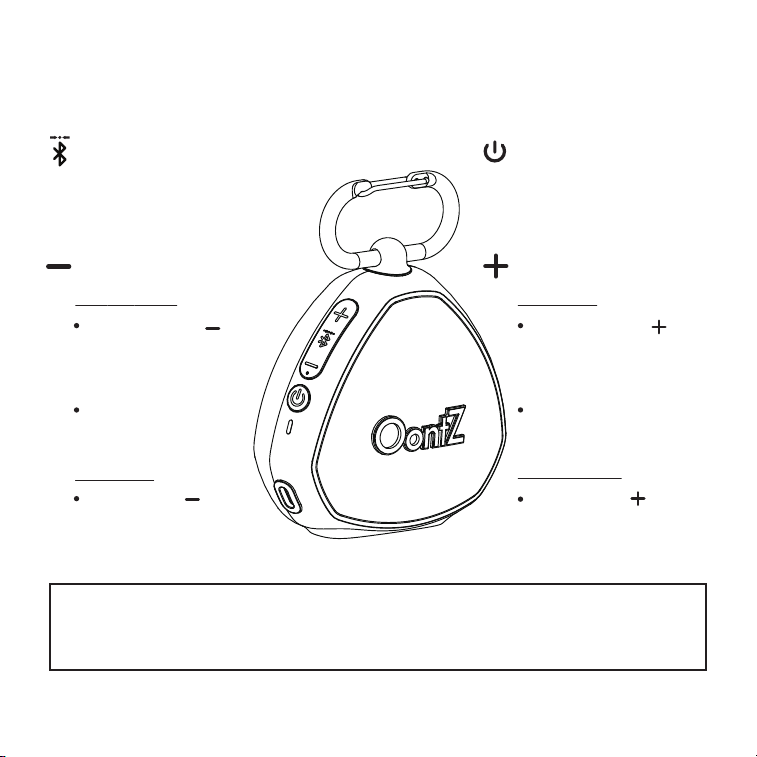
Press and Release to
decrease volume one
level
Important - Make sure the volume level is set high on your audio source device. The volume on the
OontZ Clip and your audio source device both need to be set to the highest level for the loudest volume.
Important - The track back feature is application-dependent. Some apps may not support track back,
track forward, or play/pause
Holding the button down
will result in track back
Volume Down
Buttons
Bluetooth/play/pause/speaker
phone/dual speaker button
(Multi-function) Button
Button (Dual Function)
Track Back
Press and Hold
Press and Release to Pause/Play
Down for 2 Seconds
Power Button
Holding the button down
will result in track forward
Track Forward
Volume Up
Press and Hold
Down for 2 Seconds
Button (Dual Function)
Press and Release to
increase volume one level
Page 3
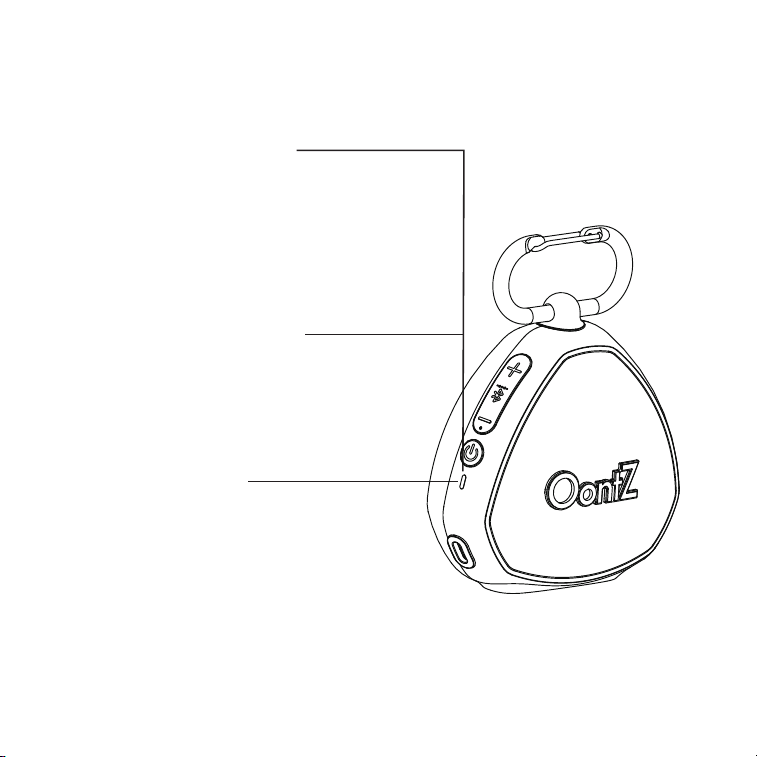
Lights
Lit Blue when speaker is on:
– Flashing Blue
speaker is in pairing mode
–
Solid Blue
speaker is connected
Lit Red when charging:
– Slowly flashing Red
battery is charging
– Solid Red
battery is fully charged
Lit White when the speaker is
the second speaker connected
in OontZ Dual Speaker

In the Package
Buttons
Lights
Battery Features
Turning On and Off
Pair & Connect—Step 1
Pair & Connect -- Step 2
— From Your Amazon Echo device
— From Your Amazon Echo device (continued)
IPX7 WaterProof
Wireless Hands Free Personal Speakerphone
OontZ Dual Speaker - Connect two OontZ Clip Speakers Together
Resetting Your OontZ Clip
Troubleshooting & Customer Support
Safety and Precautions
Page 4
Battery Features
– The rechargeable battery comes with a partial charge and the speaker is ready to play.
– For maximum playtime, fully charge the battery.
– You can play while charging.
USB Type C Charging Connector
– When the battery charge has less than 15% remaining the Red Light will begin flashing rapidly.
– The volume will decrease to preserve the remaining battery charge.
– When playing from battery power the OontZ Clip will turn off after 15 minutes of not playing audio
to conserve the battery charge.
– When plugged into a charging source the OontZ Clip will remain on until you turn the power off.
– You can continue to keep the speaker plugged into a charging source even when it is fully charged.
Low Charge Remaining
– Up to 12 hours on a full charge, at 2/3 volume.
– Louder volumes will reduce the battery play time.
Music Play Time
Power Saving Feature
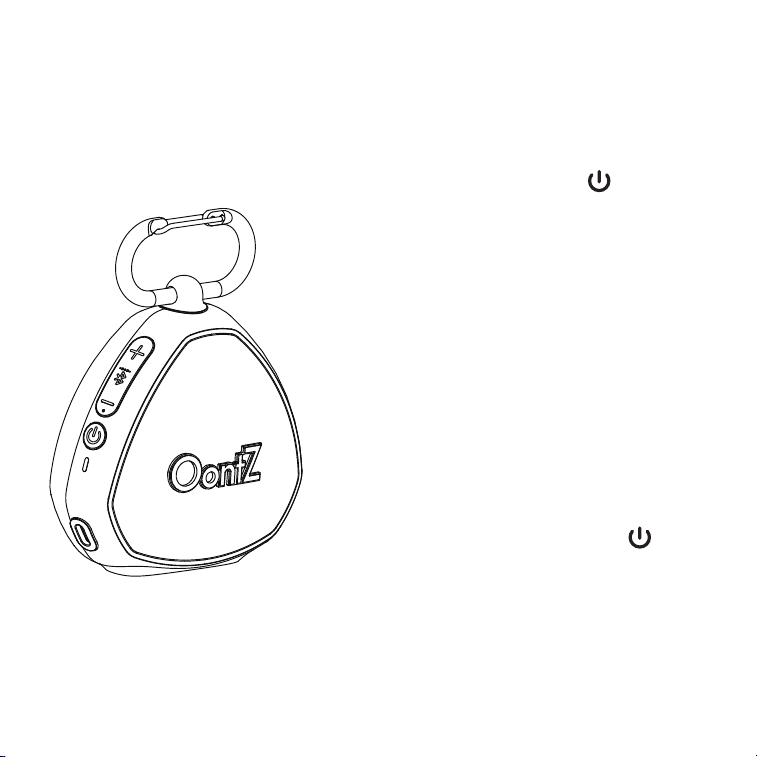
Turn ON
– Press and hold the Power Button for 1 second
Red Light turns on
– will turn off after 3 seconds if playing from battery
power
Blue Light turns on
–
Flashing Blue
The speaker is turned on and is in pairing mode
–
Solid Blue
The speaker is turned on and has connected to an
audio source device and is ready to play
Turn OFF
– Press and Hold Down the Power Button for 3
Seconds
Blue Light will turn off
Page 5
Turning On and Off
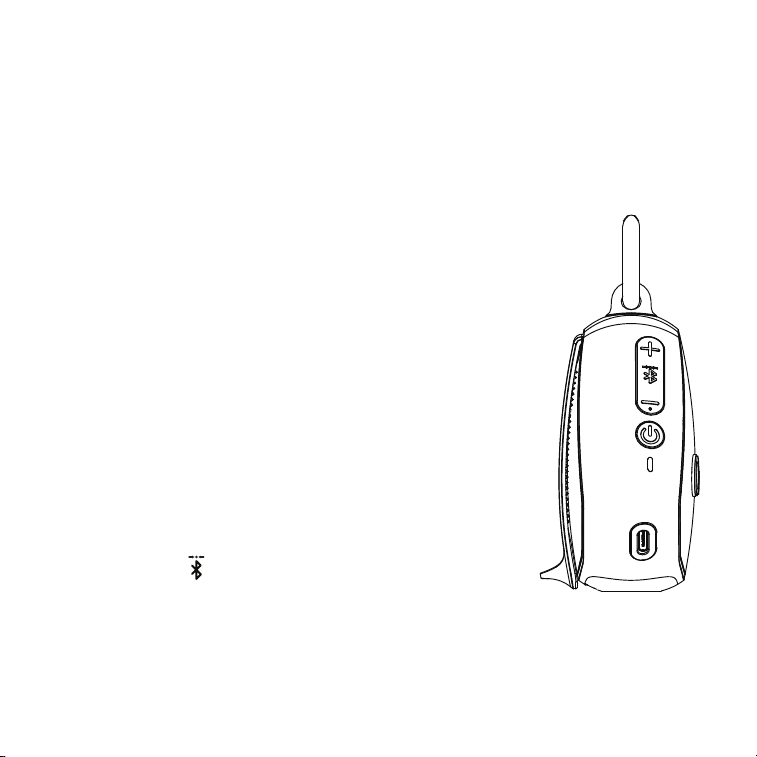
– Make sure your OontZ Clip battery has a sufficient charge, it is not able to
connect when the charge is too low.
– Your device needs to be within 100 unobstructed feet of the OontZ Clip to
pair and connect. If there is an issue when connecting please move your
device closer to the speaker, then pair and connect.
Turn ON your OontZ Clip
Flashing Blue Light
– The OontZ Clip is ready to pair and connect.
Solid Blue Light
– The OontZ Clip has automatically reconnected to the last device it
was connected to and is ready to play.
– The OontZ Clip will automatically try to connect to the last device
it was connected to each time it is turned on and that device is
within range.*
The OontZ Clip can be connected to one device at a
time.
– To pair and connect to a different device, you need to first
disconnect the currently paired device.
– To disconnect the current device, press and hold down the
Bluetooth button for 3 seconds.
– The Blue Light will begin flashing and the OontZ Clip is ready to
pair and connect to your device.
*Exception: certain devices may not automatically reconnect.
Amazon Echo devices will not automatically reconnect. You will need to say "Alexa, connect my speaker"
Page 6
Pair & Connect ——Step 1
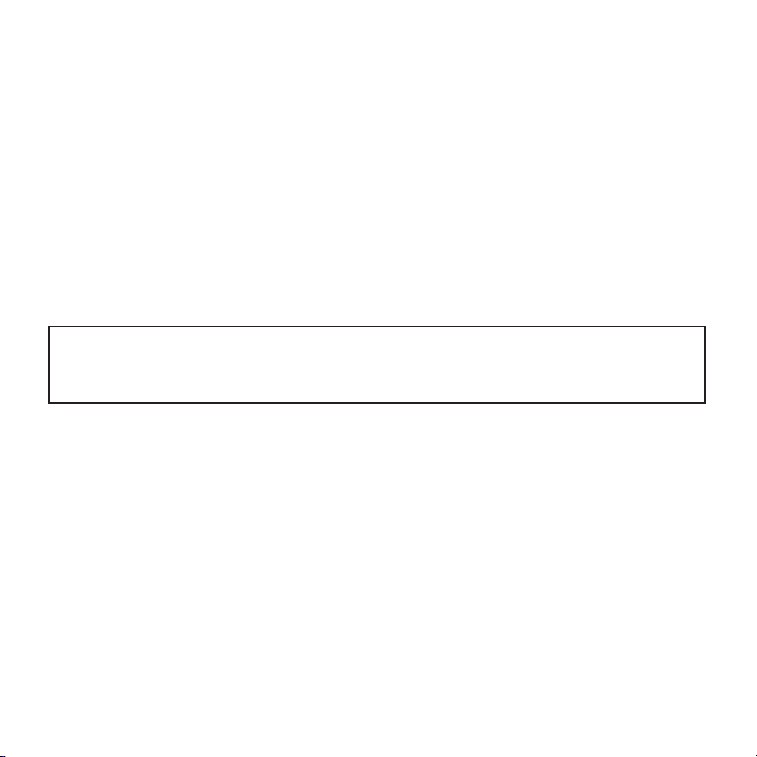
— With Your iPhone, iPad, iPod, Smartphone, Tablet & Mobile Devices
– Go to Settings > Bluetooth, check Bluetooth is on
– Select 'OontZ Clip xxx' when it appears under DEVICES (xxx: 3 characters which are unique
to your speaker)
– Your device will connect in a few seconds
– The Blue Light will turn solid blue and there will be a quiet chime
You can now play your audio wirelessly to your OontZ Clip
— With Your Apple Mac or Windows Laptop/Computer
For the pairing and connecting guide for your Apple Mac or Windows laptop/computer,
please visit: TheOontZ.com/pairing.
Note: Your Smartphone or Tablet instructions may vary
Important
–
The volume control on your device and the speaker work independently of each
other. To play the speaker at the loudest volume, set the volume on your device to maximum
and raise the volume on the speaker to maximum.
Page 7
Pair & Connect with Your Device——Step 2

— From Your Amazon Echo device (continued)
We recommend to:
1) Keep the OontZ Clip plugged into a USB wall charger.
It can remain on and available to play from the Amazon Echo device.
– Or –
2) Turn off the OontZ Clip when you are done listening.
– Either turn off the speaker by pressing and holding down the power button for 3
seconds,
– or say "Alexa, disconnect my speaker" and the OontZ Clip will automatically turn off after
15 minutes.
– When you want to connect and play to the speaker again turn on the OontZ Clip and say
"Alexa, connect my speaker" or "Alexa, pair".
For assistance with the Alexa app, contact Amazon's Customer Service.
Open the Alexa app and select Help & Feedback > Email Customer Service
— From Your Amazon Echo device
To pair and connect the first time with an Amazon Echo device use the Alexa app on your
device.
To connect the next time, turn on the OontZ Clip and say "Alexa, connect my speaker" or "Alexa, pair"
–
Open the Alexa app
–
Press 'Devices' by pressing the 'Devices' button in the bottom right corner
–
Press 'Echo & Alexa'
–
Select your Amazon Echo device under list of devices displayed by pressing it
–
Press 'Bluetooth Devices'
–
Press 'Pair A New Device'
–
Select the 'OontZ Clip xxx' (xxx: 3 characters unique to your speaker) when it appears
–
The OontZ Clip will make a 'ding' sound when connected
Page 8
Pair & Connect——Step 2

The OontZ Clip is Waterproof and it is IPX7 certied
The perfect speaker for listening to your favorite music in any environment
Perfect for taking to the lake, the beach, listening by the pool, listening in the shower
IPX7 means the OontZ Clip is WaterProof and can handle water spray or being splashed and
can handle being partially or fully submerged in water up to a maximum of 3 feet deep, for up
to a maximum of 30 minutes.
“Important Safety Precaution: To avoid the risk of electric shock, please do not use your
speaker near water when charging”
Page 9
IPX7 WaterProof
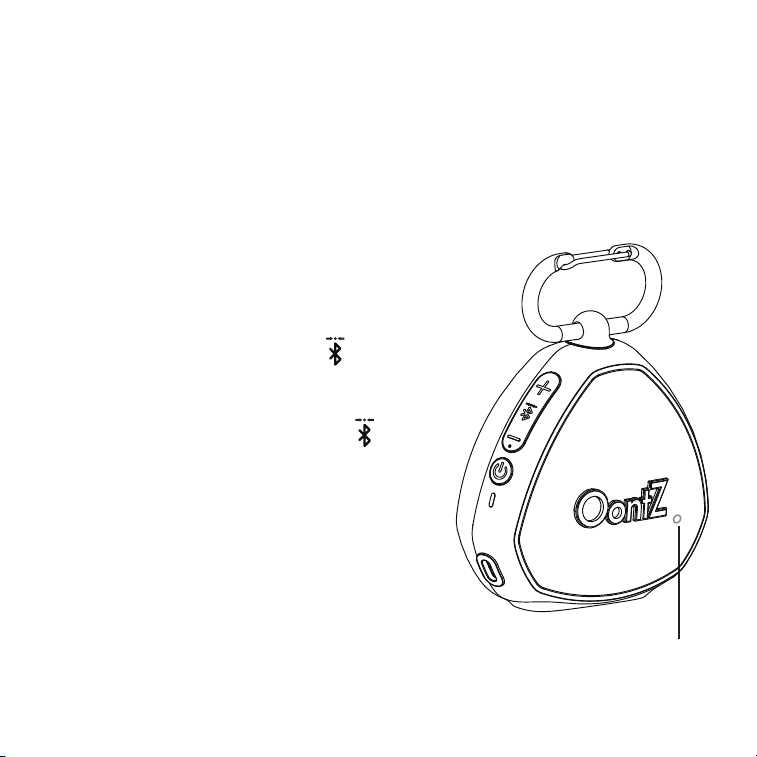
To answer an Incoming Call / To End a Call
– Press and Release the Bluetooth Button
To Reject an Incoming Call
– Press and Hold Down the Bluetooth Button for 2
Seconds.
– Please keep the speaker close in front of you so you may
be heard clearly by the listener.
– You can use your Smartphone or iPhone to switch
between using Hands Free Speakerphone and your phone.
Built-in Mic for Speakerphone
– The Wireless Hands Free Personal Speakerphone feature works over Bluetooth with
Smartphones and iPhones only
– This feature is not supported when connected to PCs, laptops, Apple Mac or other
types of devices.
Page 10
Wireless Hands Free Personal Speakerphone
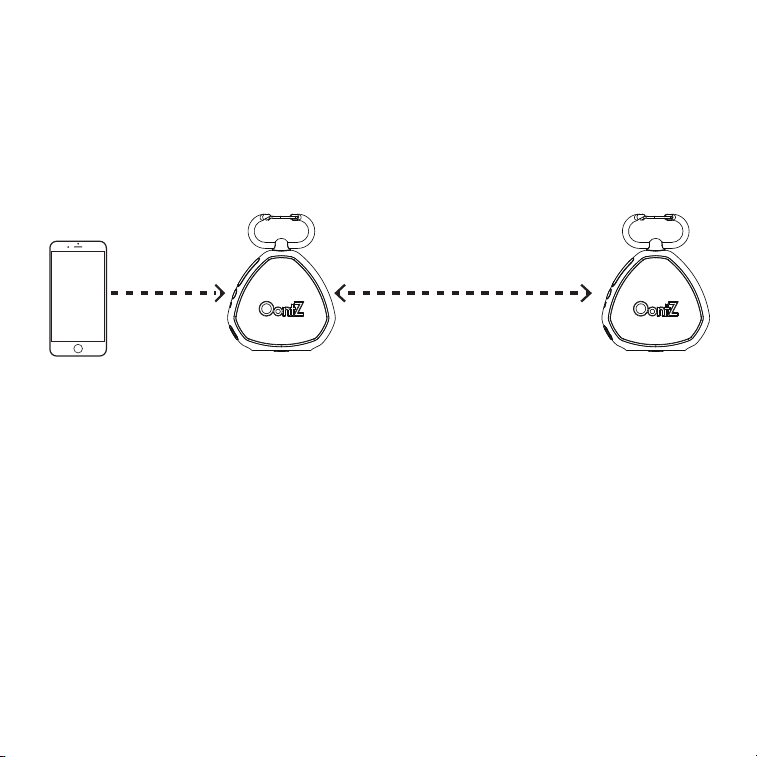
*Placing the speakers on the ground or having walls or obstructions between the speakers will significantly
reduce the distance apart the two speakers can play together
Play your music wirelessly through both speakers up to 66 feet apart*
Page 11
OontZ Dual Speaker - Connect two OontZ Clip Speakers
Together
Left Channel - Right Channel
for stereo separation
Left Channel Right Channel
Bluetooth
for playing music

– Turn on both OontZ Clip speakers.
– Pair and Connect one of the speakers with your device. When connected the Blue Light will be lit Solid
Blue. This speaker will serve as the Play Control Speaker.
The second speaker must not be connected to any device, its Blue Light needs to be flashing. If the
second speaker has a solid Blue Light it is connected to a device and you need to disconnect it by
pressing and holding down the Dual Speaker Button for 3 seconds until the Blue Light begins
flashing.
-On the Play Control Speaker (speaker with solid Blue Light) double clik the Dual Speaker
Button until the Play Control Speaker says “Dual Pairing”.
– After a few seconds the Play Control Speaker will say “Left Channel” and the second speaker will
say “Right Channel”. The Play Control Speaker speaker light will remain solid Blue and the second
speaker light will be solid White. The OontZ Clip speakers will be connected together for Left Channel -
Right Channel and you are ready to play.
Page 12
Connecting two OontZ Clip speakers together for Left
Channel - Right Channel
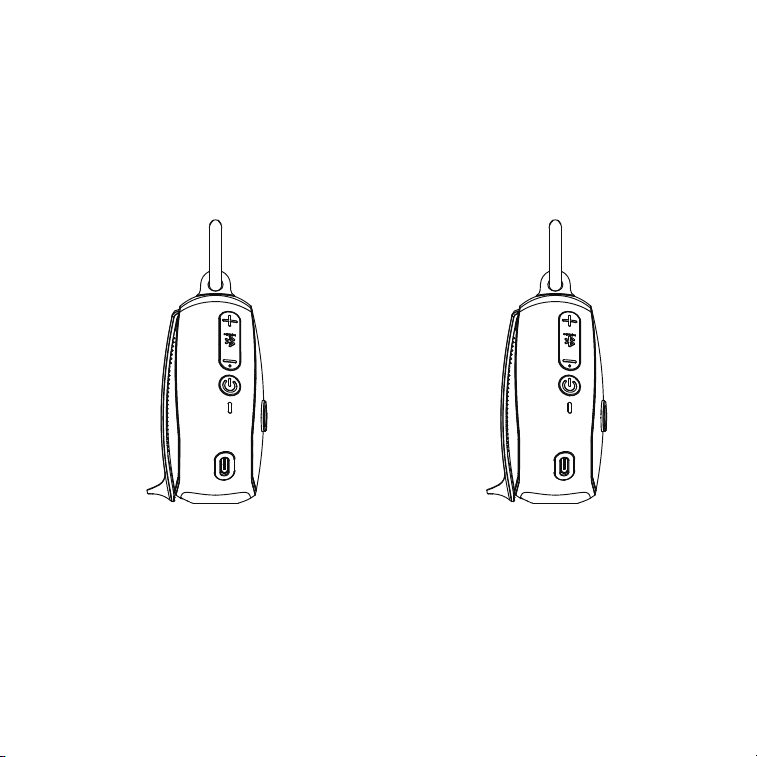
Play Control Speaker Second Speaker
Page 13
Two OontZ Clip Speakers connected for Left Channel
- Right Channel
– Use the buttons on the Play Control Speaker for play/pause, track back, track forward, answer and end
phone calls. These controls are disabled on the second speaker when paired together.
– Use the Play Control Speaker for connecting to dierent audio devices via Bluetooth . The Bluetooth is
disabled on the second speaker when paired together.
– Speakerphone call audio will only play through the Play Control Speaker
Lit Blue Lit White

Turning the speakers off
– Turning the Play Control Speaker o will turn both speakers o.
– Turning the second speaker o first will only turn that speaker o and the Play Control Speaker will
play as a single speaker.
Turning the speakers back on
– Turn both speakers on and they will automatically try to connect to each other again.
– Turn one of the speakers on and a device can connect with it, and play as a single speaker.
Not Recommended to play the audio from a video in OontZ Dual Speaker
– It is not recommended to play the audio from a video with two OontZ Clip speakers connected in
OontZ Dual Speaker. Playing the audio from a video or TV in OontZ Dual Speaker will have a delay in the
audio playback from a video and will cause the audio and video to play out of sync with each other.
Disconnecting the two speakers from each other
– Both speakers need to be turned on.
– On the Play Control Speaker press twice times the Dual Speaker Button . The White Light
on the second speaker will turn o and the speakers will be disconnected from each other.
Page 14
OontZ Dual Speaker - Important Notes
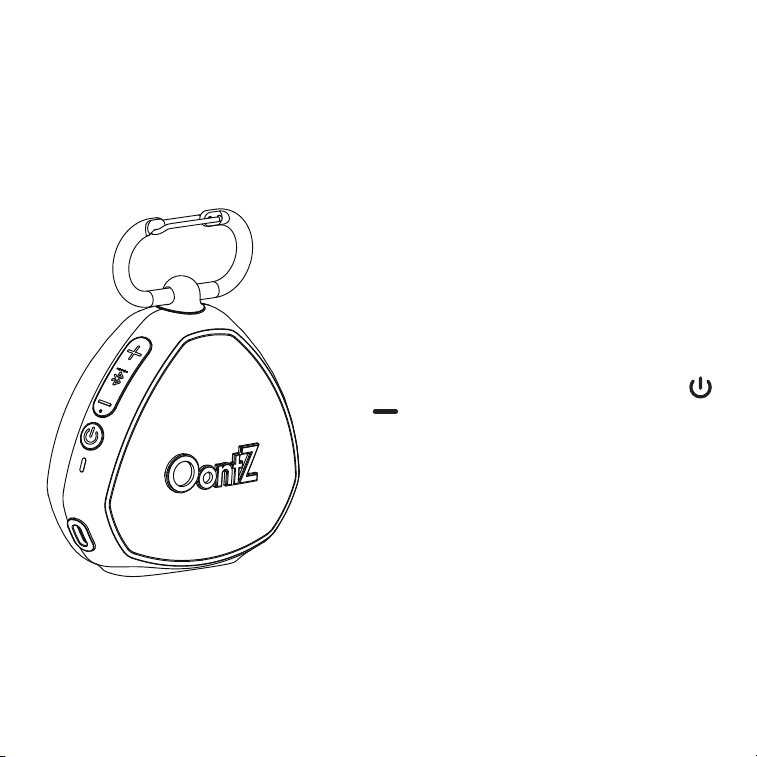
Step 1:
Remove the USB Type C Charging Cable if
connected.
Step 2:
Press and hold down the Power button
and button together for 1 second, then release.
Step 3:
The speaker has now been reset and you
can turn it on.
Page 15
Resetting Your OontZ Clip

Customer Support
If you have any issues with your OontZ Clip, our Customer Support Team wants to assist
you. Please contact us at: TheOontZ.com/support
Page 16

Page 17
Safety and Precautions
When the OontZ Clip speaker is plugged in to a charging source with the USB
Type C Charging Cable, never use the speaker in the shower, bath, or near water,
to prevent risk of electric shock.
Read and follow all instructions – All operating and use instructions should be
followed.
Protect the USB Type C Charging Cable from being pinched, particularly at the
connectors.
Unplug the USB Type C Charging Cable during lightning storms or when unused for
long periods of time.
Do not place speaker near any heat sources such as radiators, heat registers, stoves,
or other apparatus (including amplifiers) that produce heat.
Refer all servicing to qualified personnel. Servicing is required when the speaker has
been damaged in any way.
Do not make alterations to this speaker.
The battery in the speaker is not replaceable. Do not attempt to change it.
Use this speaker only with an agency approved power supply which meets local
regulatory requirements (e.g., UL, CSA, VDE, CCC) in accordance with the manufactur-
er’s specifications.
Do not place near naked flame sources, such as lighted candles, on or near the
speaker.
Do not expose this speaker to excessive heat (e.g. from storage in direct sunlight, fire
or the like)
If the battery leaks, do not allow the liquid to come in contact with the skin or eyes. If
contact is made, seek medical advice.
1.
2.
3.
4.
5.
6.
7.
8.
9.
10.
11.
12.

Page 18
Safety and Precautions (continued)
This device complies with Part 15 of the FCC Rules. Operation is subject to the
following two conditions:
(1) This device may not cause harmful interference, and (2) this device must accept any
interference received, including interference that may cause undesired operation.
NOTE 1: This equipment has been tested and found to comply with the limits for a
Class B digital device, pursuant to part 15 of the FCC Rules. These limits are designed
to provide reasonable protection against harmful interference in a residential
installation. This equipment generates, uses and can radiate radio frequency energy
and, if not installed and used in accordance with the instructions, may cause harmful
interference to radio communications. However, there is no guarantee that interfer-
ence will not occur in a particular installation. If this equipment does cause harmful
interference to radio or television reception, which can be determined by turning
the equipment off and on, the user is encouraged to try to correct the interference by
one or more of the following measures:
-Reorient or relocate the receiving antenna.
-Increase the separation between the equipment and receiver.
-Connect the equipment into an outlet on a circuit different from that to which the
receiver is connected.
-Consult the dealer or an experienced radio/TV technician for help.
NOTE 2: Any changes or modifications to this unit not expressly approved by the party
responsible for compliance could void the user's authority to operate the equipment.
Apple, iPhone, iPad, iPod, and Mac are registered trademarks of Apple Inc.
Amazon, Alexa, Amazon Echo and Amazon Echo Dot are registered trademarks of
Amazon.com, Inc. Windows is a registered trademark of Microsoft Corporation
Bluetooth is a registered trademark of Bluetooth SIG, Inc
UL is a registered trademark of UL.