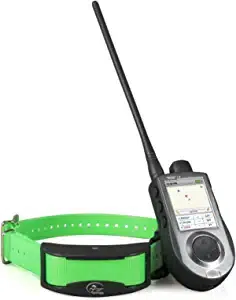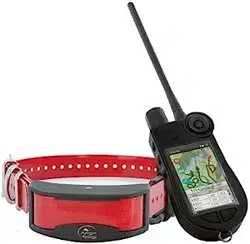
OPERATING GUIDE
PLEASE READ THIS ENTIRE GUIDE BEFORE BEGINNING

2
SPORTDOG.COM
Hereinafter Radio Systems Corporation, Radio Systems PetSafe Europe Ltd., Radio Systems Australia Ltd. and any
other affiliate or Brand of Radio Systems Corporation may be referred to collectively as “We” or “Us”.
IMPORTANT SAFETY INFORMATION
EXPLANATION OF ATTENTION WORDS AND SYMBOLS USED IN THIS GUIDE
This is the safety alert symbol. It is used to alert you to potential personal injury hazards.
Obey all safety messages that follow this symbol to avoid possible injury or death.
WARNING indicates a hazardous situation which, if not avoided, could result in death or
serious injury.
CAUTION, used without the safety alert symbol, indicates a hazardous situation which, if not
avoided, could result in harm to your dog.
NOTICE is used to address safe use practices not related to personal injury.
• Not for use with aggressive dogs. Do not use this product if your dog is aggressive, or if your dog is prone
to aggressive behavior. Aggressive dogs can cause severe injury and even death to their owner and others.
If you are unsure whether this product is appropriate for your dog, please consult your veterinarian or a
certified trainer.
• This device contains Lithium-Ion (Li-Ion) batteries; never incinerate, puncture, deform, short-circuit, or charge
with an inappropriate Charger. Fire, explosion, property damage, or bodily harm may occur if this warning
is not followed.
• Risk of explosion if battery is replaced by an incorrect type. Dispose of used batteries according to the
regulations in your area.
• Batteries should never be removed from the battery compartment for charging.
• Risk of explosion if batteries are charged in areas with high temperature (38° C / 100° F+).
• Keep batteries away from children.
• Using your TEK Series 1.5 System while operating a motor vehicle can be distracting. Always pay full attention
to operating your vehicle.
• Radio signals can cause interference to poorly designed or inadequately shielded vehicle electrical and
electronic systems. Radio Systems Corporation recommends that you do not operate the Handheld Device
in your vehicle, especially when the vehicle is in motion. Contact your vehicle’s manufacturer for more
information.
• Always be alert to your surroundings when navigating to a way point. Do not cross dangerous terrain or
obstacles as you move.

3
SPORTDOG.COM
TEK-V1.5LT:
Please read and follow the instructions in this manual. Proper fit of the collar is important. A collar worn for too
long or made too tight on the dog’s neck may cause skin damage. This is called bed sores; it is also called decubitus
ulcers or pressure necrosis.
• Avoid leaving the collar on the dog for more than 12 hours per day.
• When possible, reposition the collar on the dog’s neck every 1 to 2 hours.
• Check the fit to prevent excessive pressure; follow the instructions in this manual.
• Never connect a lead to the electronic collar; it will cause excessive pressure on the contacts.
• When using a separate collar for a lead, don’t put pressure on the electronic collar.
• Wash the dog’s neck area and the contacts of the collar weekly with a damp cloth.
• Examine the contact area daily for signs of a rash or a sore.
• If a rash or sore is found, discontinue use of the collar until the skin has healed.
• If the condition persists beyond 48 hours, see your veterinarian.
For additional information on bed sores and pressure necrosis, please visit the Support section for Remote Trainers
at www.sportdog.com.
These steps will help keep your dog safe and comfortable. Millions of dogs are comfortable while they wear Contact
Points. Some dogs are sensitive to contact pressure. You may find after some time that your dog is very tolerant of
the collar. If so, you may relax some of these precautions. It is important to continue daily checks of the contact area.
If redness or sores are found, discontinue use until the skin has fully healed.
• You may need to trim the hair in the area of the Contact Points or switch to the longer Contact Points to ensure
consistent contact. Never shave the dog’s neck; this may lead to a rash or infection.
• You should not make the collar any tighter than is required for good contact. A collar that is too tight will
increase the risk of pressure necrosis in the contact area.
TEK-V1.5L:
Please read and follow the instructions in this manual. Proper fit of the collar is important.
• Avoid leaving the collar on the dog for more than 12 hours per day.
• When possible, reposition the collar on the dog’s neck every 1 to 2 hours.
• When using a separate collar for a lead, don’t put pressure on the electronic collar.
• Wash the dog’s neck area and collar weekly with a damp cloth.
• Avoid chemical cleaners and solvents that can damage plastic components.
• Do not store the TEK Series 1.5 System where prolonged exposure to temperature extremes may occur, because
permanent damage may result.
• When storing the device for an extended time, store within the temperature range of 0° to 25°C
(from 32°F to 77°F).
• Do not leave the device exposed to a heat source or in a high-temperature location, such as in the sun in an
unattended vehicle. To prevent damage, remove the device from the vehicle or store it out of direct sunlight,
such as in the glove box.
• In a typical training situation a user will not exceed 100 seconds of transmission time per hour, equating to 294
unique commands.
• Always confirm legal hunting times with the appropriate local hunting and shooting associations.

4
SPORTDOG.COM
Thank you for choosing SportDOG
®
Brand products. Used properly, this product will help you track and/or train
your dog efficiently and safely. To ensure your satisfaction, please review this Operating Guide thoroughly. If
you have questions regarding this product’s operation, please see this manual’s Frequently Asked Questions and
Troubleshooting sections or contact our Customer Care Centre. For a listing of telephone numbers in your area, visit
our website at www.sportdog.com.
To get the most protection out of your warranty, please register your product within 30 days at www.sportdog.com.
By registering and keeping your receipt you will enjoy the product’s full warranty and, should you ever need to call
the Customer Care Centre, we will be able to help you faster. Most importantly, your valuable information will never
be given or sold to anyone. Complete warranty information is available online at www.sportdog.com.
TABLE OF CONTENTS
COMPONENTS 5
HOW THE SYSTEM WORKS 5
KEY DEFINITIONS 6
ICON DEFINITIONS 8
MAIN MENU 9
OPERATE THE TEK SERIES 1.5 HANDHELD DEVICE 10
PREPARE THE GPS COLLAR/E-COLLAR MODULE 11
TEST LIGHT TOOL INSTRUCTIONS 11
CONVERT A GPS COLLAR TO A GPS COLLAR WITH E-COLLAR MODULE 14
FIT THE GPS COLLAR OR GPS COLLAR WITH E-COLLAR MODULE 15
PREPARE THE TEK SERIES 1.5 HANDHELD DEVICE 16
TEK 1.5 SETTINGS 17
MY DOGS 26
MY COLLARS 30
TRAINING 32
TRACKING 36
COMPASS 38
SETTINGS 41
ACCESSORIES 45
FREQUENTLY ASKED QUESTIONS 46
TROUBLESHOOTING 48
TERMS OF USE AND LIMITATION OF LIABILITY 50
COMPLIANCE 50
BATTERY DISPOSAL 51
IMPORTANT RECYCLING ADVICE 51
WARRANTY 52
5
SPORTDOG.COM
GETTING STARTED
COMPONENTS
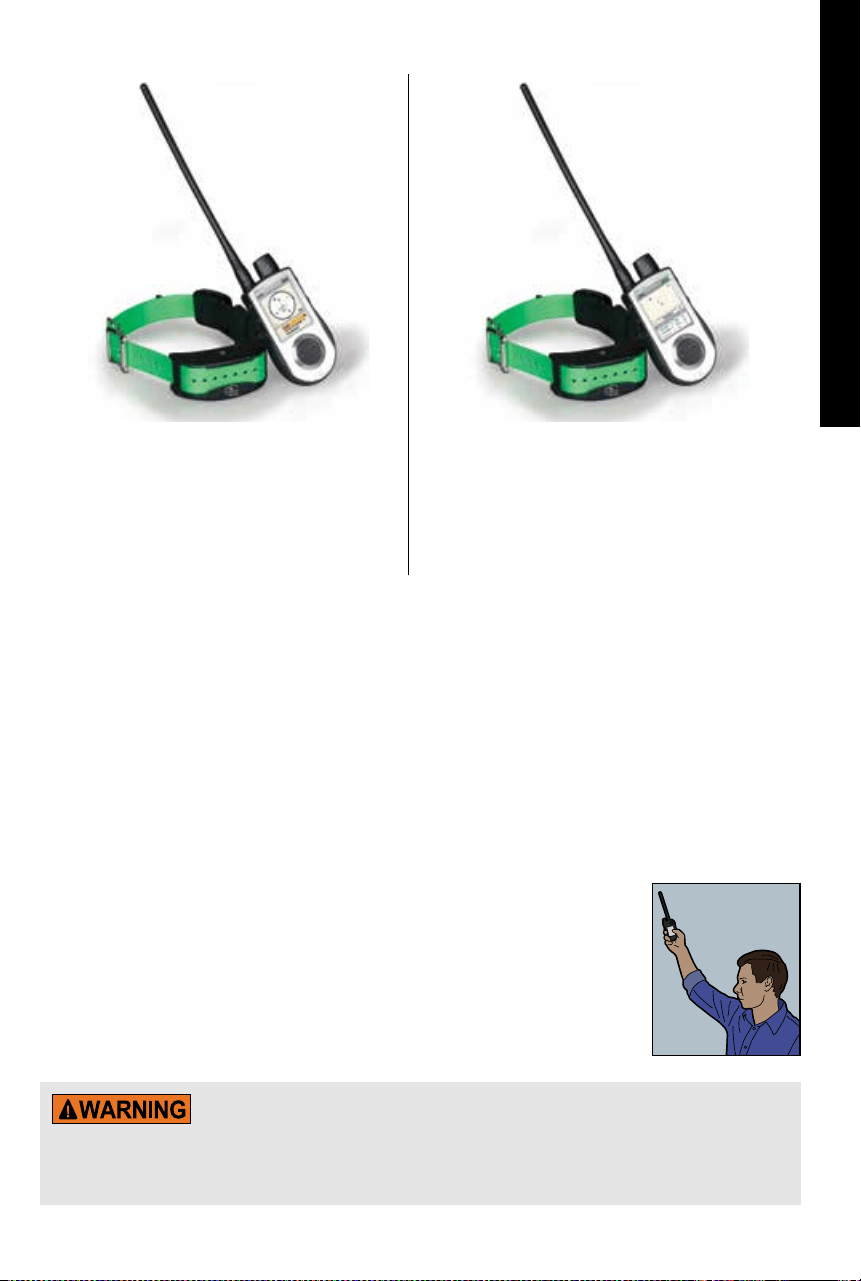
TEK SERIES TEK-V1.5L SYSTEM CONTAINS:
• GPS Collar on Green Collar Strap
• Handheld Device with Antenna
• Charge Cradle • Adaptor • USB Cable
• Quick Start Guide • Lanyard
TEK SERIES TEK-V1.5LT SYSTEM CONTAINS:
• GPS Collar with E-Collar Module on Green Collar Strap
• Handheld Device with Antenna
• Charge Cradle • Adaptor • USB Cable
• Quick Start Guide • Long Contact Points
• Test Light Tool • Lanyard • Allen Key
HOW THE SYSTEM WORKS
The SportDOG
®
Brand TEK Series 1.5 Systems have been proven safe, comfortable, and effective for all dogs over
3.6 kg. Consistent, correct use of this product allows you to track your dog, reinforce commands, and correct
misbehavior from up to 11 km line of sight.
The Handheld Device receives your location from its built-in GPS antenna and receives location updates from the
GPS antenna mounted on the collar to track the location of your dog. The Handheld Device sends a signal,
activating the E-Collar Module to deliver a harmless stimulation.* With proper training, a dog will learn to
associate the signal with a command. Like all SportDOG
®
products, this model features adjustable static
stimulation levels so you can tailor the stimulation level to your dog’s temperament, eliminating the risk
of over-stimulation.
* TEK-V1.5LT and TEK-2AD have E-Collar functionality. To add E-Collar functionality to your TEK-V1.5L, you must
purchase the TEK Series E-Collar Module.
IMPORTANT: THE TEK SERIES 1.5 SYSTEM HAS A RANGE OF UP TO 11 KM LINE OF
SIGHT. DEPENDING ON THE WAY YOU HOLD THE HANDHELD DEVICE, THE MAXIMUM
RANGE MAY VARY. FOR CONSISTENT RESULTS AT LONGER RANGES, HOLD THE
HANDHELD DEVICE IN A VERTICAL POSITION AWAY FROM YOUR BODY AND ABOVE
YOUR HEAD. TERRAIN, WEATHER, VEGETATION, TRANSMISSIONS FROM OTHER
RADIO DEVICES, AND OTHER FACTORS WILL AFFECT THE MAXIMUM RANGE.
Do not use this product if your dog is aggressive, or if your dog is prone to aggressive behavior. Aggressive
dogs can cause severe injury and even death to their owner and others. If you are unsure whether this product
is appropriate for your dog, please consult your veterinarian or a certified trainer.
6
SPORTDOG.COM
GETTING STARTED
KEY DEFINITIONS
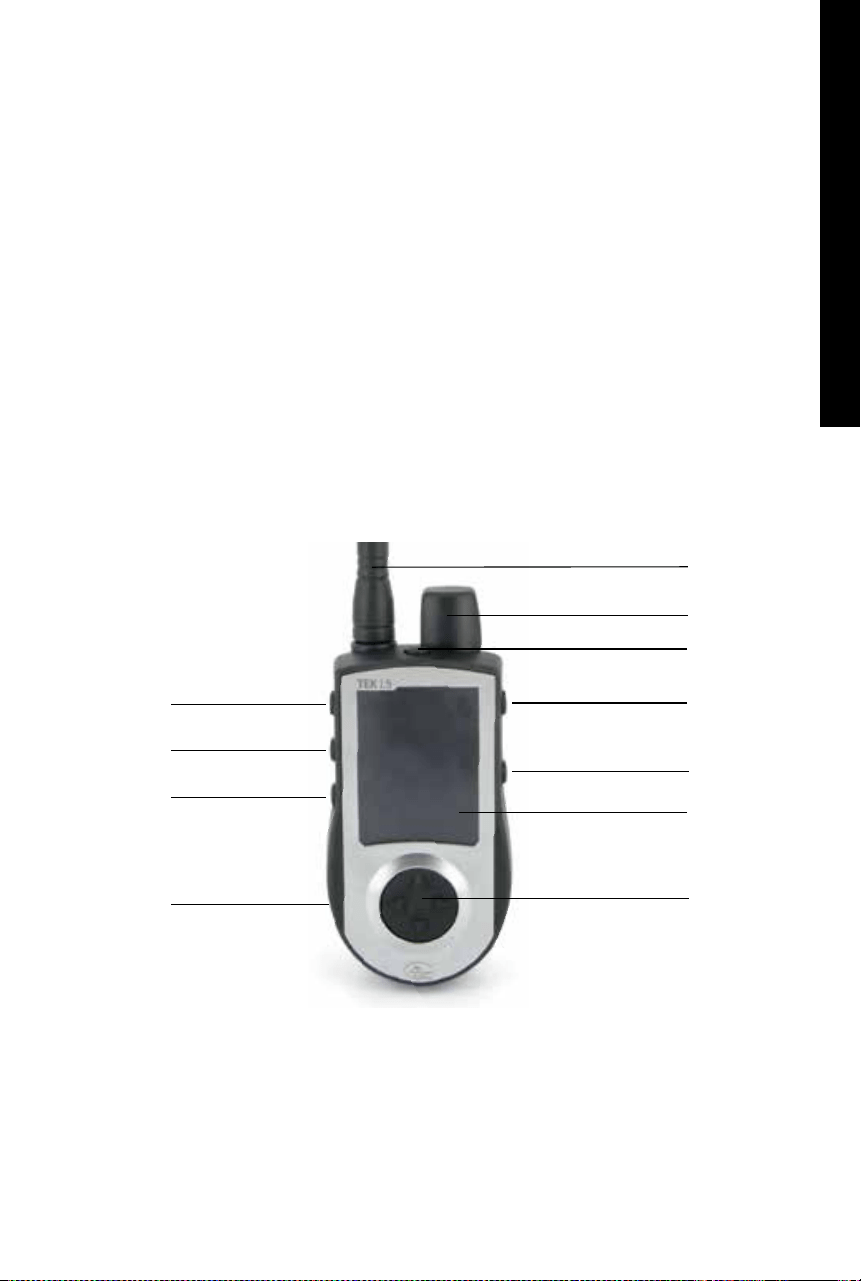
HANDHELD DEVICE: Receives and displays location updates from the GPS Collar. It sends the radio signal to the
E-Collar Module. It is waterproof and can be submerged in water to a depth of 1.5 m.
ON/OFF BUTTON: Pressing and releasing this button turns the Handheld Device ON and OFF, and also controls
the display’s brightness level.
BACK BUTTON: While navigating menus, this button moves back to the previous menu screen.
MENU SELECTION PAD: Contains four Arrow Keys (up, down, left, and right) and can be used to control
navigation through all menus and lists on the screen.
TRACKING/TRAINING TOGGLE BUTTONS: This button toggles between the TRACKING screen and the TRAINING
screen at any time and acts as an enter key when entering information in text entry fields on the TEK-V1.5LT
or when the optional E-Collar module is installed on the TEK-V1.5L. Otherwise, this button takes you to the
TRACKING screen at any time and acts as an ENTER key when entering information in text entry fields on the
TEK-V1.5L.
USER-DEFINED STIM BUTTONS: These buttons (Button 1 on top, Button 2 in the middle, and Button 3 on the
bottom) send the stimulation signals you have selected to use when training your dog. These buttons only
function on the TEK-V1.5LT or when the optional E-Collar module is installed on the TEK-V1.5L.
CHARGING JACK: Port for connecting the Handheld Device to the Wall Charger.
HANDHELD DEVICE
HANDHELD DEVICE ANTENNA
GPS ANTENNA
ON/OFF BUTTON
TRACKING/TRAINING
TOGGLE BUTTON
BACK BUTTON
DISPLAY
MENU SELECTION PAD
CHARGING JACK
STIM BUTTON 1
STIM BUTTON 2
STIM BUTTON 3
7
SPORTDOG.COM
GETTING STARTED
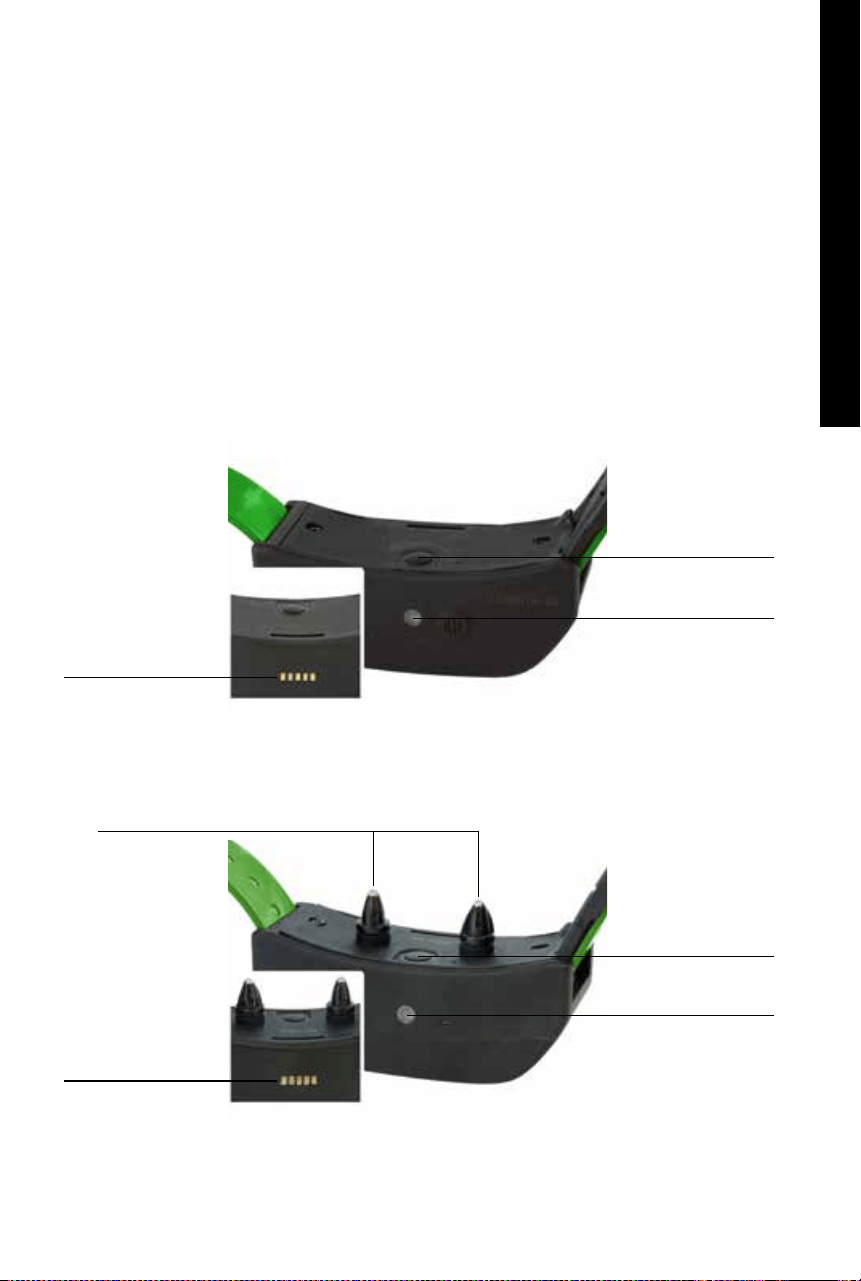
GPS COLLAR: Receives location from GPS and transmits location updates to the Handheld Device. It is waterproof
and can be submerged in water to a depth of 7.6 m.
ON/OFF BUTTON: Pressing this button and releasing when the GPS Receiver Indicator Light comes on will turn
the unit on. Pressing and holding this button until the GPS Receiver Indicator Light comes on solid red and the
GPS Collar beeps for 2 seconds will turn the unit off.
RECEIVER INDICATOR LIGHT: Indicates when the GPS Collar has been turned on or off, whether a GPS Lock has
been attained, is in Pairing Mode, and also serves as a low-battery indicator.
CHARGE CONTACTS: Location for connecting the GPS Collar to the charge cradle.
E-COLLAR MODULE*: Receives the radio signal from the Handheld Device and delivers static, vibration, or tone
stimulation for correcting or cueing your dog. It is waterproof and can be submerged in water to a depth of 7.6 m.
* Included with TEK-V1.5LT only. For the TEK-V1.5L, purchase the TEK Series E-Collar Module accessory to add
E-Collar functionality to a GPS Collar.
CONTACT POINTS: The contacts through which the E-Collar Module delivers static stimulation to your dog.
GPS COLLAR
CONTACT POINTS
CHARGE CONTACTS
CHARGE CONTACTS
ON/OFF BUTTON
ON/OFF BUTTON
RECEIVER INDICATOR
LIGHT
RECEIVER INDICATOR
LIGHT
GPS COLLAR WITH E-COLLAR MODULE
8
SPORTDOG.COM
GETTING STARTED
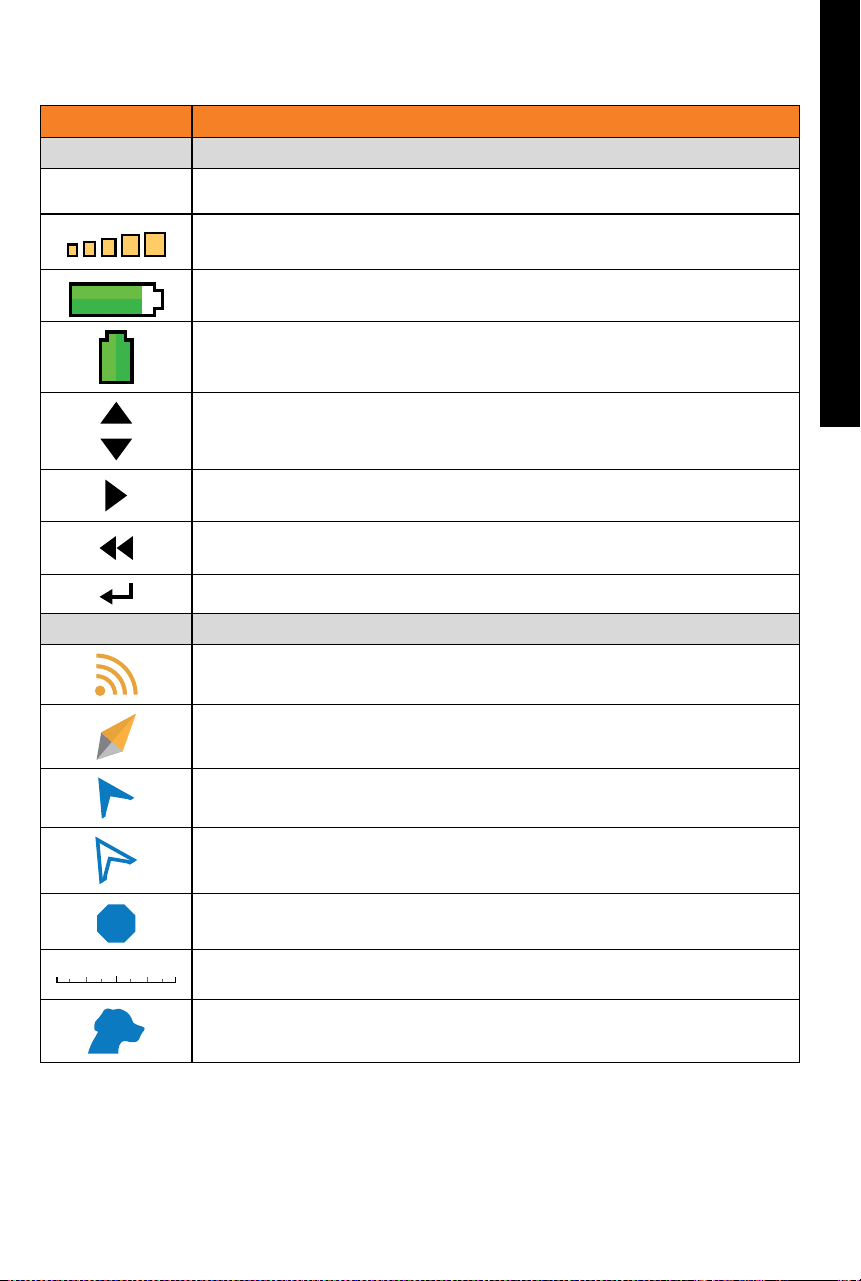
ICON DEFINITIONS
The following icons are used throughout the TEK Series 1.5 software interface.
ICON FUNCTION
GENERAL ICONS
09:40
TIME INDICATOR: Displays the current local time. Default is 24H format.
BRIGHTNESS INDICATOR: Displays the current brightness level.
BATTERY GAUGE: Displays the battery charge status of the Handheld Device.
BATTERY GAUGE: Displays the battery charge status of the GPS Collar.
UP / DOWN INDICATORS: Indicates menu choices available. Use the Arrow Keys to view
additional menu items.
MORE / SELECT INDICATOR: Indicates more information is available. Use the Arrow
Keys to view additional information.
BACK INDICATOR: Indicates lower menu level. Press the BACK button to return to the
previous screen.
TEXT ENTER/ACCEPT: Select to lock in a new text entry.
TRACKING ICONS
GPS LOCK INDICATOR: Indicates the Handheld Device has a good satellite fix.
COMPASS NEEDLE: Displays compass heading to magnetic north.
DOG DIRECTION INDICATOR: Displays the direction your dog is traveling.
DOG DIRECTION INDICATOR COMMUNICATION LOST: Displays if communication to the
collar is lost.
DOG STATUS INDICATOR: Indicates the location of your dog when the dog is either on
point or treed.
100 m
SCALE INDICATOR: Shows the current scale. Scale is adjustable from 100 m to 120 km.
MY DOG: Indicates the current dog. Colour is based on the assigned collar to
this dog.
* Before the Handheld Device can show your current location and the location of a tracked dog(s), it must acquire
GPS lock. To acquire GPS lock, go outdoors to an open area with a clear view of the sky. The searching for GPS
lock icon will display until GPS lock is acquired.
9
SPORTDOG.COM
GETTING STARTED
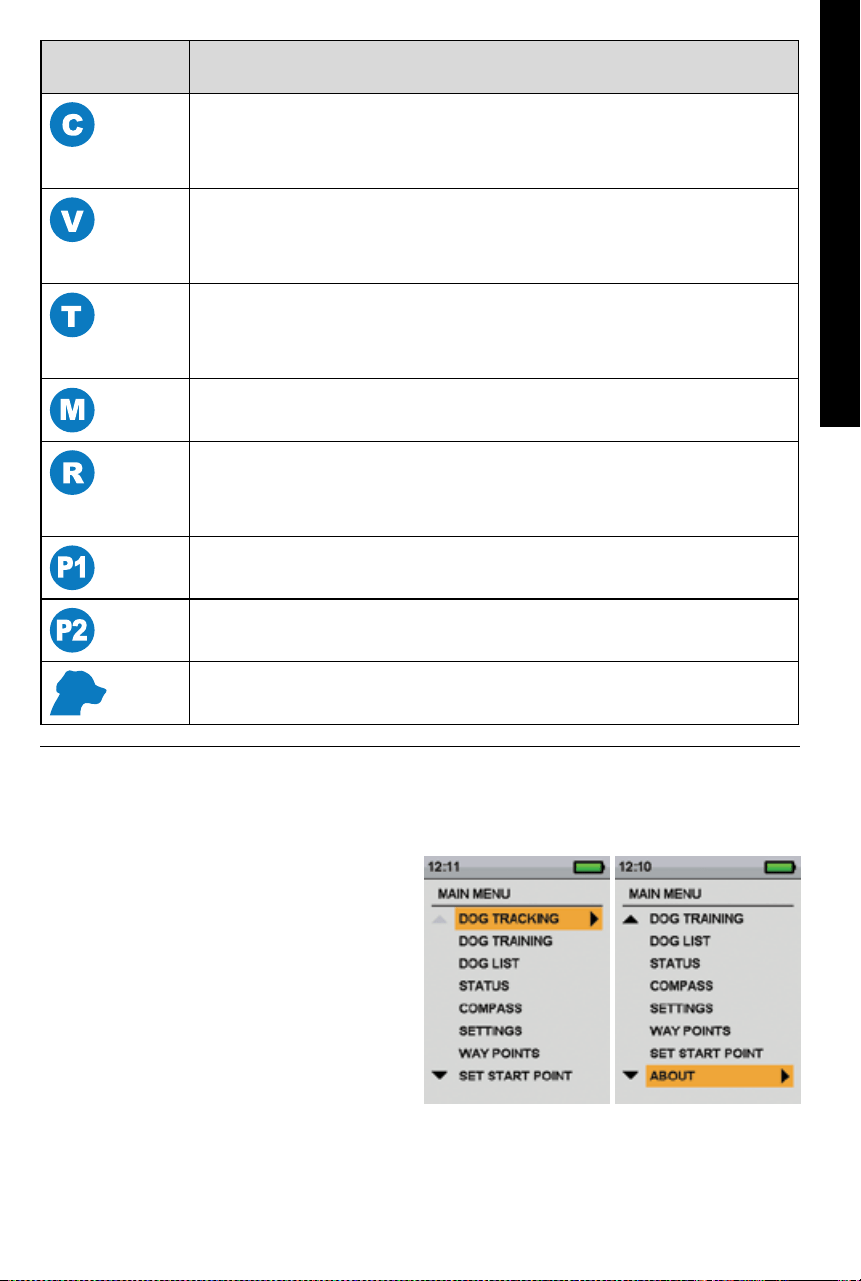
TRAINING ICONS
Available only with the TEK-V1.5LT system. For the TEK-V1.5L system, purchase the TEK
Series E-Collar Module accessory to add E-Collar functionality to a GPS Collar.
CONTINUOUS STIMULATION: You control both when and how long stimulation is
delivered, up to a maximum of 10 seconds. After 10 seconds, the Handheld Device will
“time-out” and stimulation cannot be delivered to your dog for 5 seconds. After the 5
second “time-out” period, stimulation can be delivered again.
VIBRATION: The E-Collar Module will vibrate when a User-Defined Stim button is
pressed. After 10 seconds, the Handheld Device will “time-out” and vibration cannot be
delivered to your dog for 5 seconds. After the 5 second “time-out” period, vibration can
be delivered again.
TONE: The E-Collar Module will emit a beeping noise when a User-Defined Stim button
is pressed. After 10 seconds, the Handheld Device will “time-out” and tone cannot be
delivered to your dog for 5 seconds. After the 5 second “time-out” period, tone can be
delivered again.
MOMENTARY (NICK) STIMULATION: Stimulation is delivered for 1/10 of a second,
regardless of how long the button is pressed.
RISING STIMULATION: While holding this button the stimulation will rise from your
current level to the maximum level. After 10 seconds, the Handheld Device will “time-
out” and stimulation cannot be delivered to your dog for 5 seconds. After the 5 second
“time-out” period, stimulation can be delivered again.
USER PROGRAMMABLE STIMULATION 1: The E-Collar Module applies a user-
configurable stimulation.
USER PROGRAMMABLE STIMULATION 2: The E-Collar Module applies a user-
configurable stimulation.
MY DOG: Indicates the current dog. Colour is based on the assigned collar to this dog.
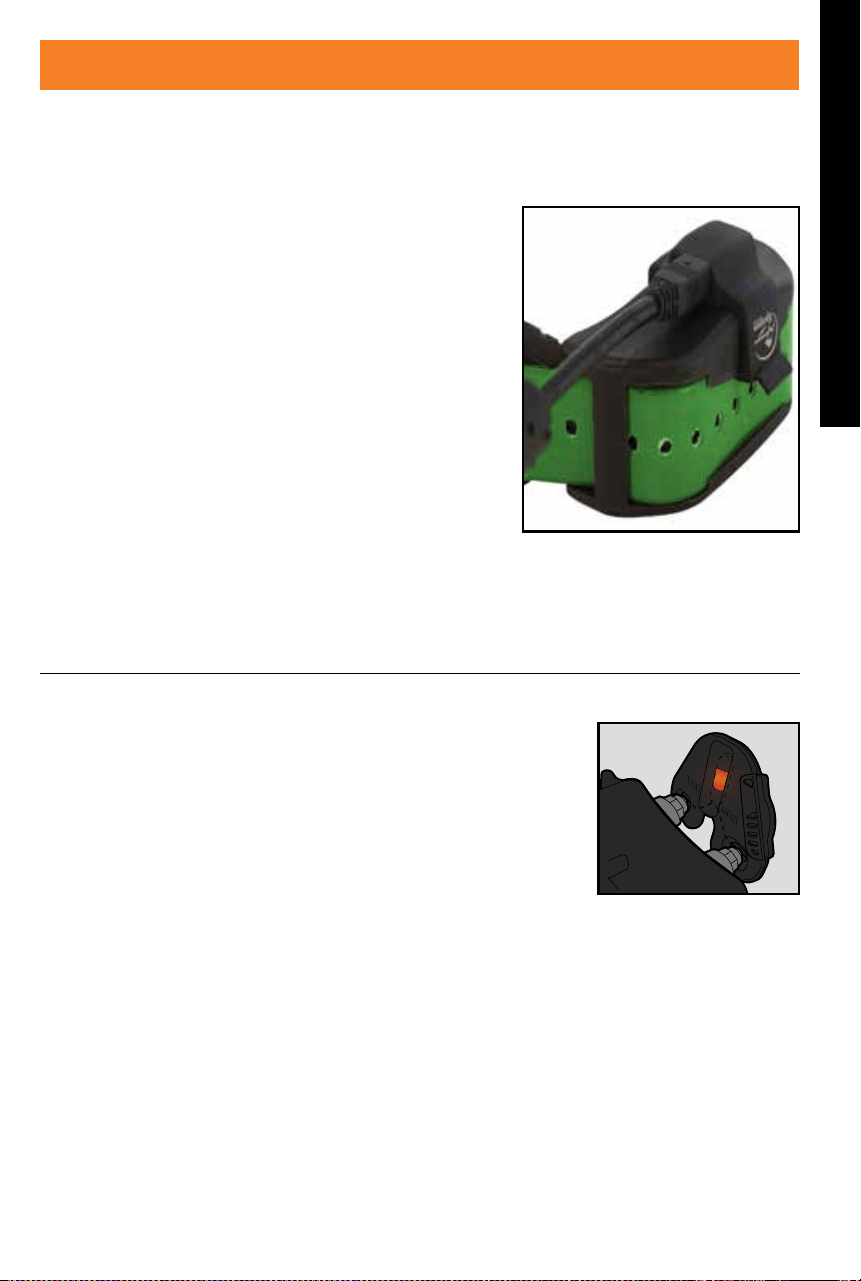
MAIN MENU
When you power ON the Handheld Device or press the BACK button, the main menu displays. The main menu
provides the following options:
DOG TRACKING: View the location of your dogs and
way points in relation to you.
DOG TRAINING: Send stimulations to command dogs
while training or hunting.
DOG LIST: Suspend or resume tracking of a particular
dog and set the order of the dogs.
STATUS: View a list of all dogs and their current status.
COMPASS: View the electronic compass for navigation.
SETTINGS: Change configuration for dogs, collars,
units, time, display, and other settings.
WAY POINTS: Add, change, or remove way points from the system.
SET START POINT: Set a way point to your starting location.
ABOUT: View name, ID number, and software/hardware version of your Handheld Device.

10
SPORTDOG.COM
GETTING STARTED
OPERATE THE TEK SERIES 1.5 HANDHELD DEVICE
The following terms are used throughout this Operating Guide:
SELECT: Use the Up, Down, Left, or Right Arrow Keys to scroll through and highlight menu items or areas of the
screen. A selected item is highlighted in orange.
FIELD: The location on a screen where data can be entered.
TRACKING/TRAINING TOGGLE BUTTON: Press the Tracking/Training Toggle Button to select a highlighted
item.
KEYBOARD: Use the Up, Down, Left, or Right Arrow Keys to navigate keyboards. Press the Tracking/Training
Toggle Button in a text entry field to select a highlighted character.
NAVIGATION TIP
The Tracking/Training Toggle Button and the Right Arrow Key share many of the same functions. Both can be
used to select a highlighted option in a list.
ARROW KEYS
Press the Up, Down, Left, or Right Arrow Keys to scroll through lists.
ARROW KEYS USES
• The Arrow Keys navigate the Home Screens.
• The Up or Down Arrow Key navigate menu lists.
• The Left or Right Arrow Keys and the Tracking/Training Toggle Button interact with menu items.
• The Left or Right Arrow Keys changes the map scale on the Dog Tracking Screen.
• The Up, Down, Left, or Right Arrow Keys pan the cursor on the Map Screen.
• The Up or Down Arrow Keys change static stimulation levels on the Dog Training Screen.
• The Left or Right Arrow Keys move through the active DOG LIST on the Dog Training Screen and tracked item
list on the Compass Screen.
11
SPORTDOG.COM
GETTING STARTED
STEP
::
01
PREPARE THE GPS COLLAR/E-COLLAR MODULE
YOU MUST COMPLETE THESE STEPS PRIOR TO USING THIS DEVICE FOR THE FIRST TIME.
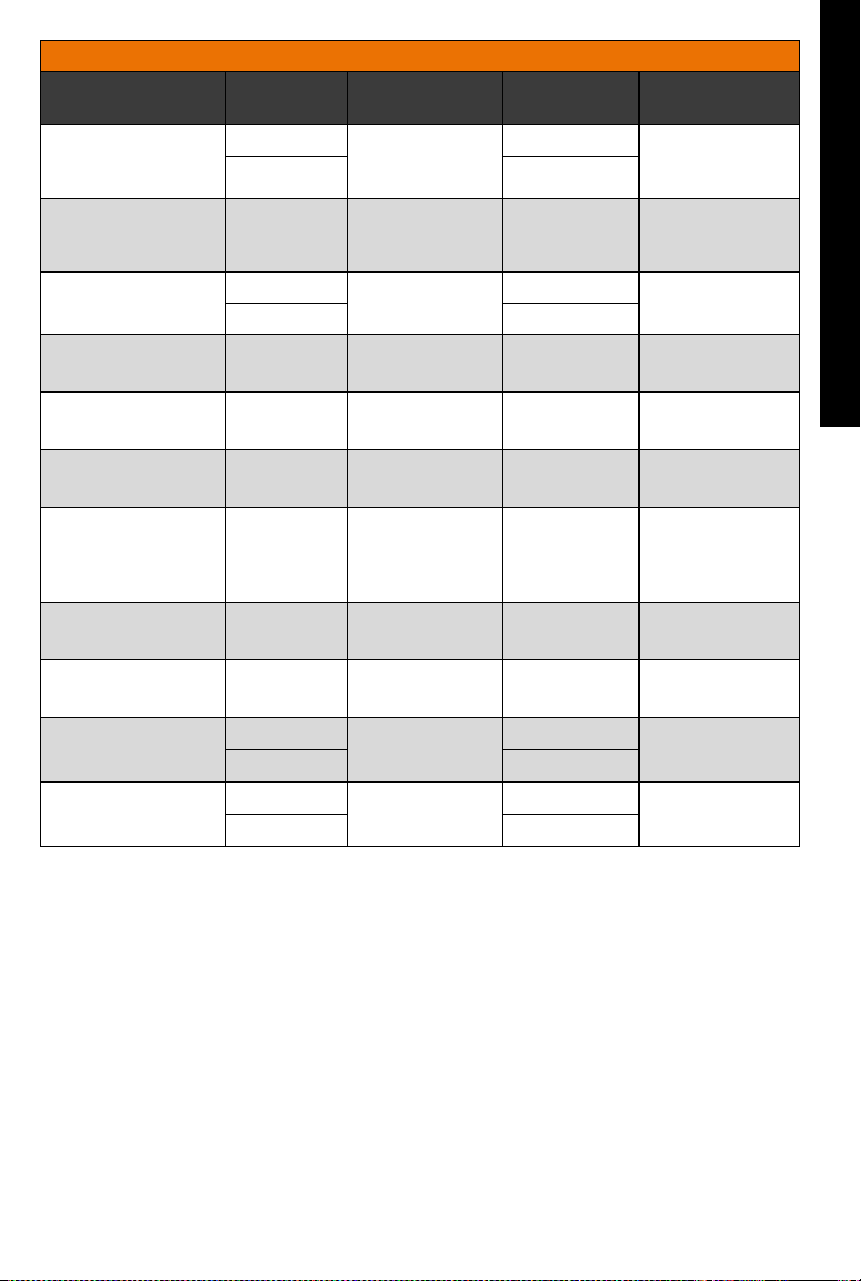
TO CHARGE THE GPS COLLAR/E-COLLAR MODULE
1. Attach the supplied Charge Cradle so that the SportDOG
®
Brand
logo on the Charge Cradle covers the SportDOG
®
Brand logo on
the GPS Collar.
2. Connect the appropriate Charger Connector to the Charging Jack.
3. Plug the Charger into a standard wall outlet.
4. Charge the GPS Collar for 4 hours for the first charge and every
charge thereafter. It is not harmful to let the unit charge more
than 4 hours.
5. When charging is complete, as indicated by the Receiver Indicator
Light flashing green, remove the Charge Cradle.
NOTE: Approximate battery life between charges is 24 hours.
TO TURN THE GPS COLLAR/E-COLLAR MODULE ON
Press the On/Off Button and release when the Receiver Indicator
Light comes on. The GPS Collar will beep 1 to 5 times indicating which
channel the collar is on.
TO TURN THE GPS COLLAR/E-COLLAR MODULE OFF
Press and hold the On/Off Button until the Receiver Indicator Light comes on solid red and the GPS Collar beeps
for 2 seconds. To extend the battery life between charging cycles, turn off the GPS Collar when it is not in use.
TEST LIGHT TOOL INSTRUCTIONS
1. Turn the GPS Collar with E-Collar Module on.
2. Hold the Test Light Tool Contacts to the Contact Points.
3. Press a Static Stimulation Button on the Handheld Device.
4. The Test Light will flash.
NOTE: At higher static stimulation levels, the Test Light will flash brighter.
5. Turn the GPS Collar with E-Collar Module off.
NOTE: If the Test Light does not flash, recharge the battery and re-test. If the Test
Light still does not flash, contact the Customer Care Centre.
12
SPORTDOG.COM
GETTING STARTED
GPS COLLAR RECEIVER INDICATOR LIGHT
OPERATIONAL MODE LIGHT
COLOUR
LIGHT FUNCTION BATTERY
STATUS
SPEAKER FUNCTION
Unit is turned on via
On/Off Button
Green Light is solid in
colour during
beep sequence
Good Beeps 1-5 times
depending on
GPS Code
Red Low
Unit is turned off via
On/Off Button
Red Light is solid in
colour during
beep sequence
N/A N/A
Unit is on Green Single blink every
3 seconds
Good N/A
Red Low*
Unit is in Pairing Mode Amber Light is solid
in colour
N/A N/A
Unit is charging Green Light is solid
in colour
N/A N/A
Unit is charged Green Light flashes N/A N/A
Unit is delivering
continuous, momentary,
rising, or programmable
static stimulation
Red Light is solid
in colour while
delivering static
stimulation
N/A N/A
Unit is delivering
tone stimulation
N/A N/A N/A Unit will beep
Unit is delivering
vibration stimulation
N/A N/A N/A N/A
Unit has attained
GPS lock**
Green Single blink every
3 seconds
Good N/A
Red Low
Unit has lost GPS lock Green Double blink every
3 seconds
Good N/A
Red Low
* Update rate automatically adjusts to 25 seconds.
** Before the GPS Collar can send location information to the Handheld Device, it must acquire GPS lock. To
acquire GPS lock, go outdoors to an open area with a clear view of the sky.

13
SPORTDOG.COM
GETTING STARTED
ABOUT RECHARGEABLE BATTERIES
• The Handheld Device and GPS Collar contain Lithium-Ion (Li-Ion) batteries; never incinerate, puncture,
deform, short-circuit, or charge with an inappropriate Charger. Fire, explosion, property damage, or
bodily harm may occur if this warning is not followed.
• Risk of explosion if battery is replaced by an incorrect type. Dispose of used batteries according to the
regulations in your area.
• Risk of explosion if batteries are charged in areas with high temperature (38° C / 100° F+).
• Batteries should never be removed from the battery compartment for charging.
• The rechargeable Lithium Ion (Li-Ion) batteries are not memory sensitive, do not require depletion before
charging and cannot be over charged.
• The batteries come partially charged from the factory, but will require a full charge before the first use.
• When storing the unit for long periods, remember to regularly give batteries a full charge. This should be
done once every 3 to 4 months. Failure to do so will result in decreased battery life.
• You should expect hundreds of recharge cycles from your batteries. However, all rechargeable batteries
lose capacity over time relative to the number of recharge cycles they experience. This is normal. If your
operating time drops to half of the original life, contact the Customer Care Centre.
• The batteries should last for a period of 3 to 5 years. When a battery needs replacement, call our Customer Care
Centre. Please do not open the GPS Collar until you have received your replacement.
• When storing the device for an extended time, store within the following temperature range: from 0° to 25°C
(from 32°F to 77°F).
14
SPORTDOG.COM
GETTING STARTED
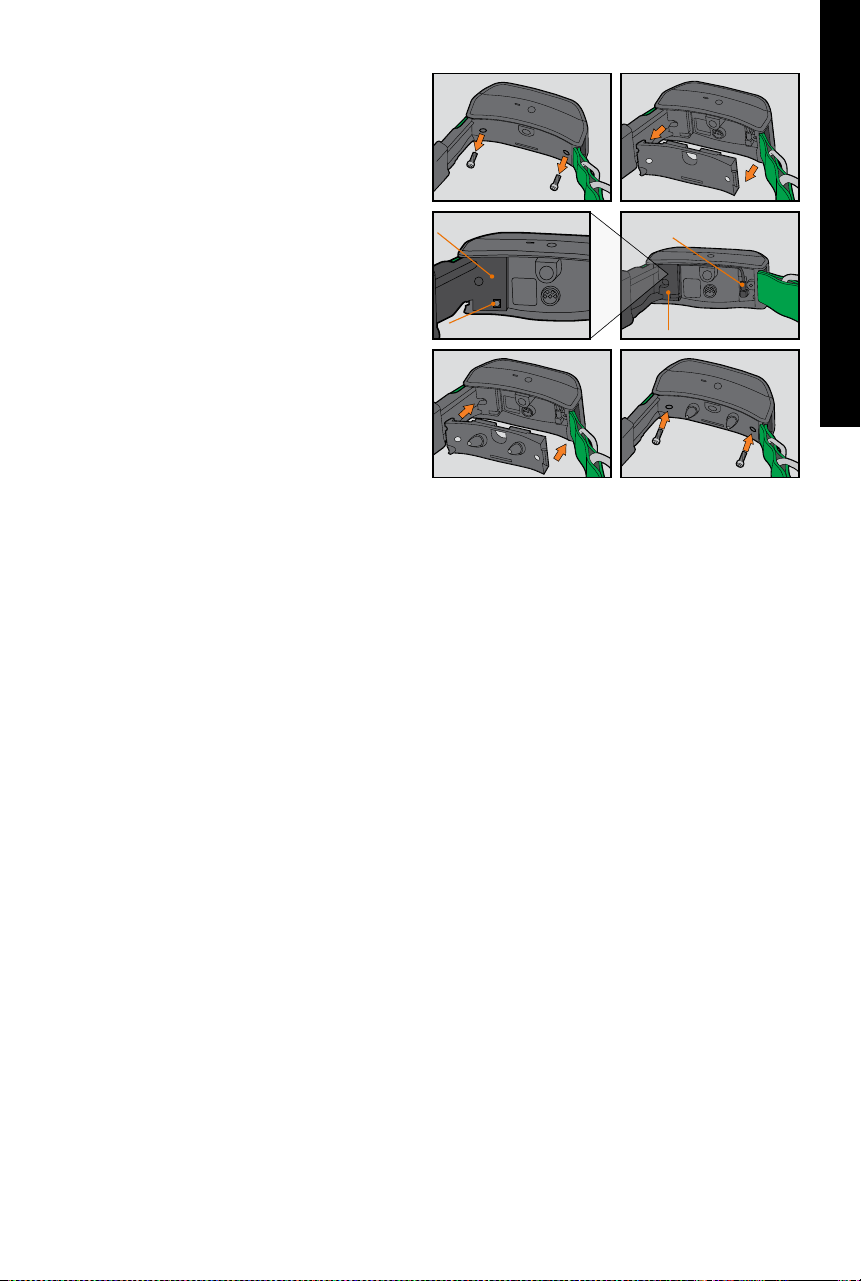
CONVERT A GPS COLLAR TO A GPS COLLAR WITH E-COLLAR MODULE
1. Remove the 2 outer screws from the Location-Only
Module with a 3/32 Allen wrench (A).
2. Separate the Location-Only Module from the GPS
Collar’s front housing (B).
3. Thoroughly clean inside the front housing with a
soft towel, removing any debris.
4. Before installing the E-Collar Module, check to
make sure the GPS Collar mount, antenna base and
antenna cable have not become dislodged (C).
• Ensure the GPS Collar mount is seated properly in
the front housing and that the GPS Collar mount
plug is securely in place.
• Ensure the antenna base is seated firmly on top of
the GPS Collar mount and that the antenna cable is
routed properly through front housing channel.
5. Install the E-Collar Module onto the GPS Collar’s
front housing. Ensure that the E-Collar Module is
fully seated before replacing the screws (D).
6. Replace the 2 outer screws being careful not to
over-tighten (E).
NOTE: If you own the TEK Series 1.5 GPS Tracking System (TEK-V1.5L), you must purchase the TEK Series E-Collar
Module accessory to utilise E-Collar functionality.
A
D
B
E
C
Antenna base
Antenna cable
GPS Collar mount
GPS Collar mount plug
15
SPORTDOG.COM
GETTING STARTED
FIT THE GPS COLLAR OR GPS COLLAR WITH E-COLLAR MODULE
To ensure the effectiveness of this product and the comfort and safety of your dog, check the fit of the collar
frequently. If you notice that your dog is experiencing skin irritation, discontinue use of the collar for a few days.
If the condition persists beyond 48 hours, see your veterinarian.
IMPORTANT: The proper fit and placement of the collar is important for effective use.
Please see page 2 for Important Safety Information.
To ensure a proper fit, follow these steps:
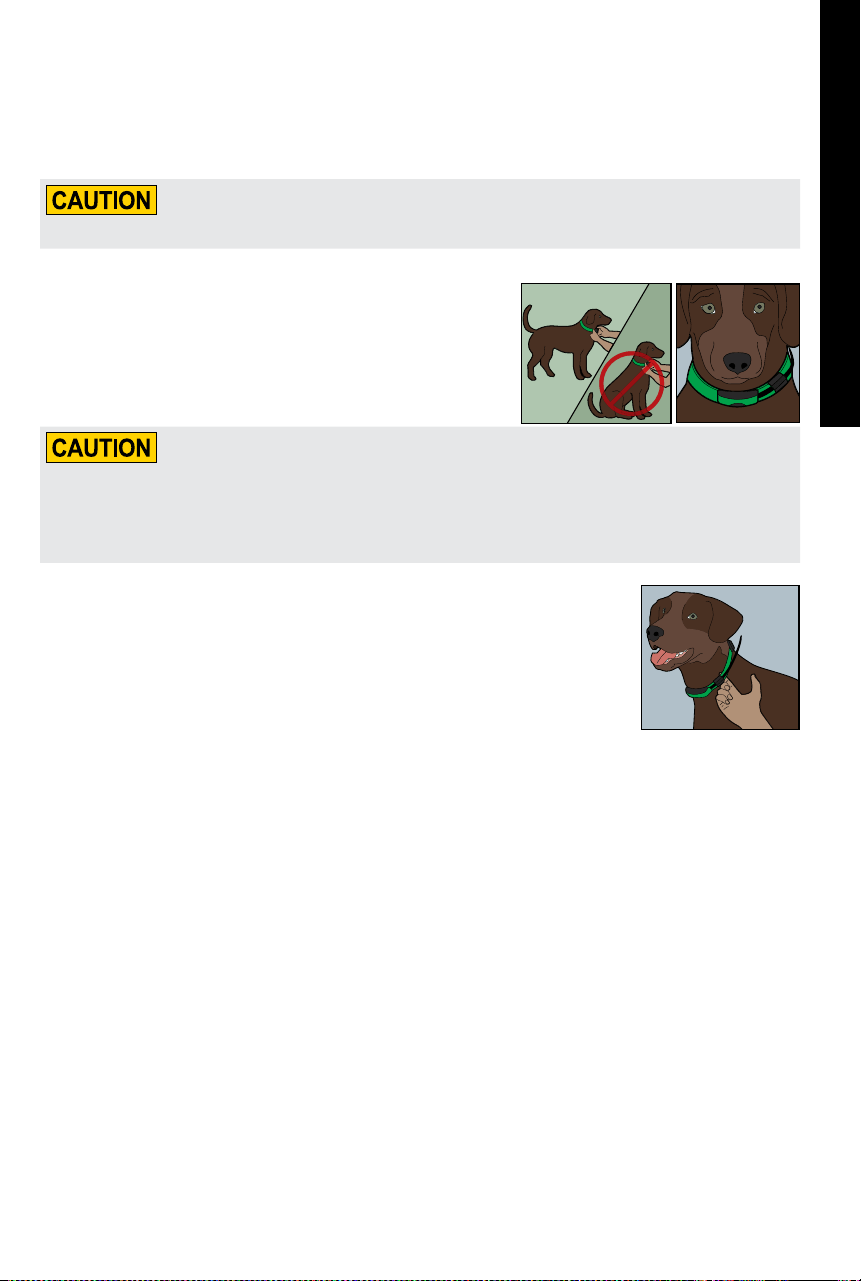
1. With your dog standing (A), center the GPS Collar underneath
your dog’s neck (B). If using an E-Collar Module, ensure the
Contact Points are touching the skin. If your dog has a long or
thick coat, you have 2 options to ensure consistent contact: either
trim the hair around the Contact Points or switch to the longer
Contact Points included with your system.
• You may need to trim the hair in the area of the Contact Points. Never shave the dog’s neck; this may lead to
a rash or infection.
• You should not make the collar any tighter than is required for good contact. A collar that is too tight will
increase the risk of pressure necrosis in the contact area.
2. The collar should fit snugly, yet loose enough to allow 1 finger to fit between the
strap and your dog’s neck (C).
3. Allow your dog to wear the collar for several minutes, and then recheck the fit.
Check the fit again as your dog becomes more comfortable wearing the collar.
NOTE: To ensure the best reception possible, ensure the GPS antenna is positioned on the
back of your dog’s neck.
A
B
C
16
SPORTDOG.COM
GETTING STARTED
STEP
::
02
PREPARE THE TEK SERIES 1.5 HANDHELD DEVICE
YOU MUST COMPLETE THESE STEPS PRIOR TO USING THIS DEVICE FOR THE FIRST TIME.
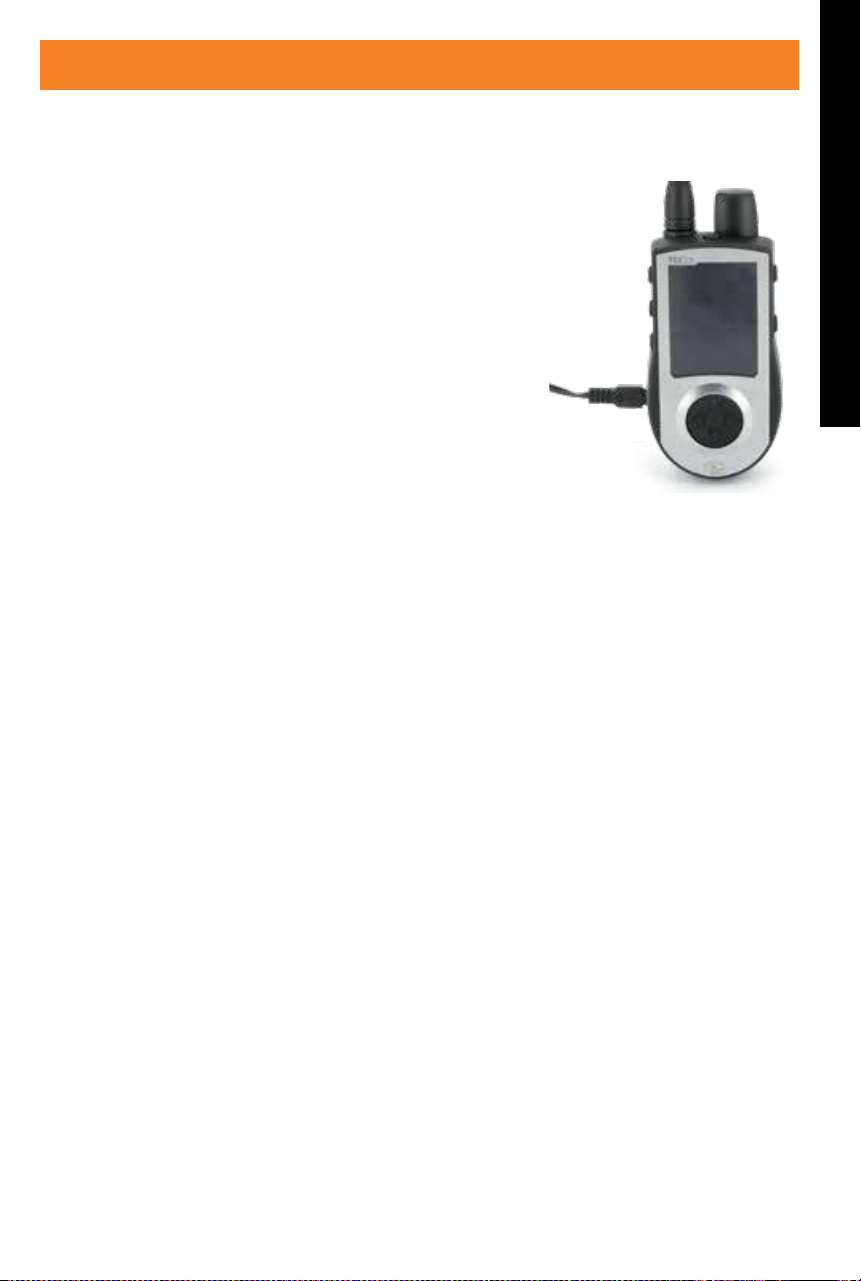
TO CHARGE THE HANDHELD DEVICE
1. Lift the rubber cover protecting the Charging Jack.
2. Connect the appropriate Charger Connector to the Charging Jack.
3. Plug the Charger into a standard wall outlet. The Handheld Device will
automatically power on.
4. Charge the Handheld Device for up to 2 hours for the first charge and
every charge thereafter. It is not harmful to let the unit charge more
than 2 hours.
5. When charging is complete, as indicated by a full bar on the Battery
Gauge, replace the rubber cover.
NOTE: Approximate battery life between charges is 20 hours, depending on
the frequency of use.
TO TURN THE HANDHELD DEVICE ON
Firmly press and release the On/Off Button. The START-UP Screen will display.
TO TURN THE HANDHELD DEVICE OFF
Firmly press and hold the On/Off Button. Release when the display goes blank.
TO ADJUST THE DISPLAY BRIGHTNESS
With the Handheld Device powered ON, press and release the On/Off Button to increase/decrease brightness
levels. There are 5 levels of brightness available. The Brightness Indicator will display the current level at the
top of the display.
17
SPORTDOG.COM
GETTING STARTED
STEP
::
03
TEK 1.5 SETTINGS
MAIN MENU
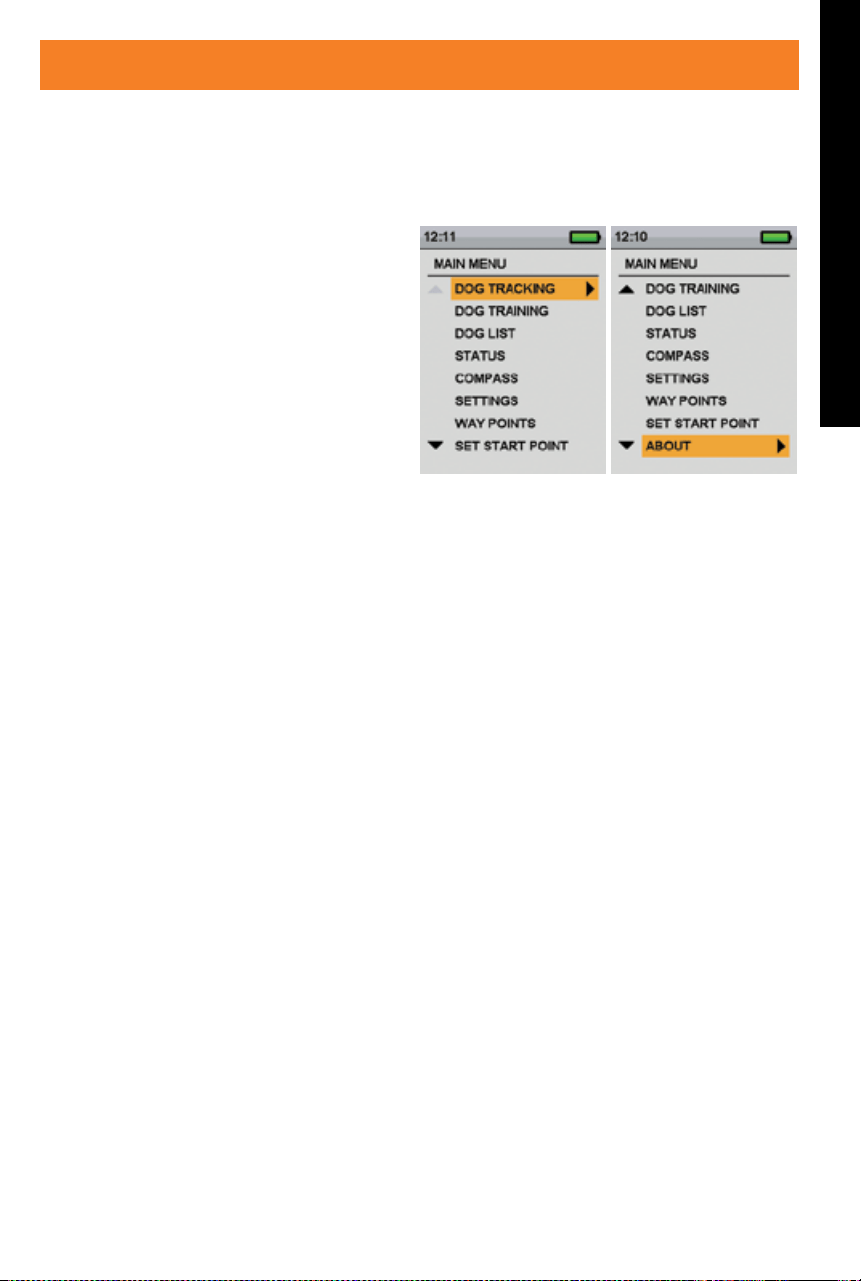
When you power ON the Handheld Device or press the BACK button, the main menu displays. The main menu
provides the following options:
DOG TRACKING: View the location of your dogs
and way points in relation to you.
DOG TRAINING: Send stimulations to command
dogs while training or hunting.
DOG LIST: Suspend or resume tracking of a
particular dog and set the order of the dogs.
STATUS: View a list of all dogs and their current
status.
COMPASS: View the electronic compass for
navigation.
SETTINGS: Change configuration for dogs, collars, units, time, display, and other settings.
WAY POINTS: Add, change, or remove way points from the system.
SET START POINT: Set a way point to your starting location.
ABOUT: View name, ID number, and software/hardware version of your Handheld Device.
SETTINGS MENU
The SETTINGS screen allows you to customize the operation of the Handheld Device.
TO OPEN THE SETTINGS MENU:
From the main menu, select SETTINGS. The SETTINGS screen displays the following options:
LANGUAGE: Allows the current language to be changed.
GENERAL: Includes tracking/training modes, stimulation settings, action, name, and magnetic declination.
COMMUNICATION: Includes user ID, GPS channel, and E-Collar channel.
MY COLLARS: Includes collar status, collar pairing, and collar sharing.
MY DOGS: Includes adding a dog, changing dog name, changing colour, enabling E-Collar, configuring
stimulation buttons, setting stimulation range, or deleting a dog from the system.
UNITS: Includes distance, speed, and time modes.
TRACKING VIEW: Includes way point, dog speed, and dog distance display options.
SET TIME: Sets the time used by the Handheld Device.
DISPLAY: Includes the brightness dim timer and power OFF timer.
VEHICLE MODE: Enables or disables vehicle mode.
RESET ALL: Resets all settings to the factory default configuration.

18
SPORTDOG.COM
GETTING STARTED
LANGUAGE
The default is English and there are 10 additional languages available.
TO CHANGE THE LANGUAGE:
1. From the main menu, select SETTINGS > LANGUAGE.
2. Use the Arrow Keys to highlight the desired language.
3. Press the Right Arrow Key to change the language.
Available Languages :
• English (default)
• Français
• Español
• Deutsch
• Italiano
• Nederlands
• Dansk
• Suomi
• Svenska
• Norsk
• Pycckий
DISTANCE AND SPEED
The UNITS screen allows you to change distance units, speed units, and time modes.
• Distance – Yards or Metres
• Speed – MPH or KM/H
TO CHANGE DISTANCE UNITS:
1. From the main menu, select SETTINGS > UNITS > DISTANCE.
2. Press the Right Arrow Key on the Menu Selection Pad to select METERS or YARDS. Distances will be
displayed in the selected format. The default is METERS.
3. Press BACK to return to the main menu.
TO CHANGE SPEED UNITS:
1. From the main menu, select SETTINGS > UNITS > SPEED.
2. Use the Right Arrow Key on the Menu Selection Pad to select MPH or KM/H. Dog speed will be displayed in
the selected format. The default is KM/H.
3. Press BACK to return to the main menu.
TIME
SET SYSTEM TIME
NOTE: Be sure to accurately set the time to your current local time.
TO SET THE LOCAL TIME:
1. From the main menu, select SETTINGS > SET TIME. The SET TIME screen displays.
2. Press the Up or Down Arrow Keys on the Menu Selection Pad to set the current hours. Then, press the Right
Arrow Key to move to the minute field.
3. Press the Up or Down Arrow Keys to set the current minute.
4. If in 12-hour mode, press the Right Arrow Key to move to the AM/PM field. Press the Up or Down Arrow Keys
to toggle between AM/PM.
5. Press the Right Arrow Key to set the time. Then, press BACK to return to the main menu.
TO CHANGE TIME MODE:
1. From the main menu, select SETTINGS > UNITS > TIME.
2. Press the Right Arrow Key on the Menu Selection Pad to select 24H or 12H mode. All times will display in the
selected format. The default is 24H.
3. Press BACK to return to the main menu.

19
SPORTDOG.COM
GETTING STARTED
DOG NAME
1. From the main menu, select SETTINGS > MY DOGS > DOG > CHANGE NAME where DOG is the name
previously entered for this dog. A text entry screen displays.
2. Press the Arrow Keys to select CLR and press ENTER to clear the name.
3. Press the Arrow Keys on the Menu Selection Pad to enter a new name, if desired.
4. When finished, select .
E-COLLAR
TO ENABLE OR DISABLE E-COLLAR MODULE:
The E-COLLAR setting allows you to enable (or disable) the E-Collar Module to deliver stimulation, vibration,
and/or a tone for correcting a particular dog.
1. From the main menu, select SETTINGS > MY DOGS > DOG where DOG is the name of the dog for which you
want to enable or disable the E-Collar Module.
2. Select E-COLLAR and use the Right Arrow Key to select Y to enable or N to disable stimulations for this dog.
NOTE: This setting only applies to this dog when wearing his assigned collar.
3. When finished, press BACK to return to the main menu.
STIM BUTTONS
If you are using an E-Collar, choose from the following values for each Stim Button (see “TRAINING ICONS” for a
description of each option):
• (C) Continuous Static Stimulation
• (V) Vibration Stimulation
• (T) Tone Stimulation
• (M) Momentary Static Stimulation
• (R) Rising Static Stimulation
• (P1) User Programmable Static Stimulation 1
• (P2) User Programmable Static Stimulation 2
1. From the main menu, select SETTINGS > GENERAL > STIM BUTTONS. The STIM BUTTONS screen displays.
2. Select BUTTON 1.
3. Select the desired stimulation type for Button 1. The default for Button 1 is C.
4. Select BUTTON 2.
5. Select the desired stimulation type for Button 2. The default for Button 2 is T.
6. Select BUTTON 3.
7. Select the desired stimulation type for Button 3. The default for Button 3 is V.
8. Press BACK to return to the main menu.

20
SPORTDOG.COM
GETTING STARTED
STIM RANGE
TO CHANGE STIM RANGE SETTINGS FOR A DOG:
The STIM RANGE setting allows you to set the stimulation range (low, medium, or high) for the temperament of
a specific dog. A dog with a mild temperament should have a low range while a stubborn dog may require a high
range of stimulation. There are multiple levels available within each stimulation range (see “STIM BUTTONS”).
The default range setting is medium.
1. From the main menu, select SETTINGS > MY DOGS > DOG where DOG is the name of the dog for which you
want to change the STIM RANGE SETTINGS.
2. Select STIM RANGE.
3. Press the Right Arrow Key to select L (low), M (medium), or H (high) stimulation ranges. The default is M.
4. When finished, press BACK to return to the main menu.
ACTION
The Handheld Device can alert you when your dog exhibits specific hunting actions:
• ON-POINT – used for hunting with pointing dogs to indicate the dog is stationary or on-point.
• TREED – used for hunting with trailing dogs to indicate the dog is “on the tree” and holding an animal at bay.
While on the TRACKING screen, the Handheld Device will alert you when the action is detected.
1. From the main menu, select SETTINGS > GENERAL > ACTION.
2. Press the Right Arrow Key to toggle among the action types: NONE, ON-POINT, TREED.
3. Press BACK to return to the main menu.
TO SET THE ACTION ALERT TYPE:
The Handheld Device can alert you to an action with several alert types.
1. From the main menu, select SETTINGS > GENERAL > ALERT.
2. Press the Right Arrow Key to toggle among the action types: NONE, TONE, VIBE, BOTH.
3. Press BACK to return to the main menu.
ADDITIONAL DOGS
The MY DOGS screen allows you to add or remove dogs assigned to the Handheld Device. It helps track which dog
is wearing which collar and defines collar SETTINGS specific to that dog.
TO ADD A DOG:
1. From the main menu, select SETTINGS > MY DOGS > ADD A DOG. A screen labeled DOG n appears where n is
the next available number of the dog.
2. Change the dog’s name by selecting CHANGE NAME. A text entry screen displays. Press the Arrow Keys to
select CLR and press ENTER to clear the name. Pressing the Arrow Keys, select letters to enter a new name.
Select to complete the new name.
3. Assign a collar to this dog by selecting COLLAR. Use the Arrow Keys to select the colour matching the
desired collar.
4. Once a collar is assigned to the new dog, you are ready to track this dog. Press BACK to return to the
main menu.

21
SPORTDOG.COM
GETTING STARTED
ADDITIONAL COLLARS
The MY COLLARS screen allows you to configure a new collar, pair the collar to work with your Handheld Device,
or share tracking of a collar from another Handheld Device. You can add up to 12 collars to the system.
TO ADD A COLLAR:
1. From the main menu, select SETTINGS > MY COLLARS.
2. Press the up or down Arrow Keys to select the colour you want to use with the new collar.
3. Press the Right Arrow Key to open the configuration window.
4. To enable the E-Collar Module, select and press the Right Arrow Key to set E-COLLAR to Y.
5. To enable the GPS Collar, select and press the Right Arrow Key to set ACTIVE to Y. If sharing a collar skip
steps 5, 6, and 7 and move to the “SHARED COLLAR” section.
6. Put the new collar in “Pairing Mode” by pressing and holding the On/Off Buttons on the GPS Collar or GPS
Collar with E-Collar Module until their Receiver Indicator Lights are solid amber. For details see “PAIR THE
COLLAR”.
7. On the Handheld Device, select PAIR COLLAR to allow the GPS Collar or GPS Collar with E-Collar Module to
connect to the Handheld Device. This collar is now ready to be put on a dog.
SHARED COLLAR
You can track dogs associated with another Handheld Device. This is helpful if you and another person are
working with the same dogs.
NOTE: This feature is for tracking only. You cannot train a shared dog.
1. On the main menu, select SETTINGS > MY COLLARS > COLOUR > SHARE COLLAR where COLOUR is the
colour associated with the collar to be tracked.
2. Press the Right Arrow Key to select Y to enable collar sharing.
3. To enter a User ID, select ID and press the Right Arrow Key.
4. Use the up or down Arrow Keys on the Menu Selection Pad to enter the 4-digit ID code aquired from the
Handheld Device whose dog you want to track. See STATUS screen from the main menu to find the ID Code.
5. To select a dog number, select DOG and press the Right Arrow Key.
6. Use the up or down Arrow Keys to enter the 2-digit identifier of the specific dog to be tracked. This identifier is
also aquired from the Handheld Device whose dog you want to track.
UPDATE RATE
The update rate on your Handheld Device will update automatically according to the following GPS Collar
battery status:
• Good Battery - Every 2.5 seconds
• Medium Battery - Every 10 seconds
• Low Battery - Every 25 seconds

22
SPORTDOG.COM
GETTING STARTED
PAIR THE COLLAR
Your system will already be paired when you get it, but in the event you need to pair the Handheld Device to the
GPS Collar or GPS Collar with E-Collar Module, follow the steps below. The Handheld Device can support up to 12
collars at a time. You must repeat this procedure for each GPS Collar or GPS Collar with E-Collar Module that you
want to monitor with this Handheld Device.
Follow the instructions below to pair the collar with your Handheld Device. Press and hold the collar On/Off
Button until the Receiver Indicator Light turns amber to put the collar in Pairing Mode. When the collar Receiver
Indicator Light flashes green five times, pairing is complete.
TO PAIR THE COLLARS TO THE HANDHELD DEVICE:
1. On the main menu, select SETTINGS > MY COLLARS > COLOUR where COLOUR is the colour that you want to
associate with this collar.
2. Press the Right Arrow Key to open the configuration window.
3. To enable the GPS Collar, select and press the Right Arrow Key to set ACTIVE to Y.
4. To enable the E-Collar Module, select and press the Right Arrow Key to set E-COLLAR to Y.
5. With the GPS Collar or GPS Collar with E-Collar Module turned OFF, press and hold the On/Off Button until
its Receiver Indicator Light is solid amber. The collar is now in “Pairing Mode”.
6. On the Handheld Device, select PAIR COLLAR and press the Right Arrow Key to complete the pairing process.
The Receiver Indicator Lights on the collar and module will blink 5 times to confirm that they are paired to
the Handheld Device.
7. When finished, press BACK to return to the main menu.
ASSIGN COLLARS
The COLLAR setting allows you to assign a collar to a specific dog according to the colour set in the MY COLLARS
screen. The colour will also be used to identify the dog on the TRACKING screen and the TRAINING screen.
1. From the main menu, select SETTINGS > MY DOGS > DOG where DOG is the name of the dog to be assigned
a collar.
2. Select COLLAR.
3. Press the Arrow Keys to select the colour for the desired collar then press the Right Arrow Key. You must
select YES to confirm the new collar assignment.
NOTE: If the selected collar has already been assigned to a different dog, a warning message displays.
4. When finished, press BACK to return to the main menu.
HANDHELD DEVICE NAME
1. From the main menu, select SETTINGS > GENERAL > HANDHELD NAME where HANDHELD NAME is
previously entered name. A text entry screen displays.
2. Select CLR to clear the name.
3. Press the Arrow Keys on the Menu Selection Pad to enter a new name, if desired.
4. When finished, select .
23
SPORTDOG.COM
GETTING STARTED
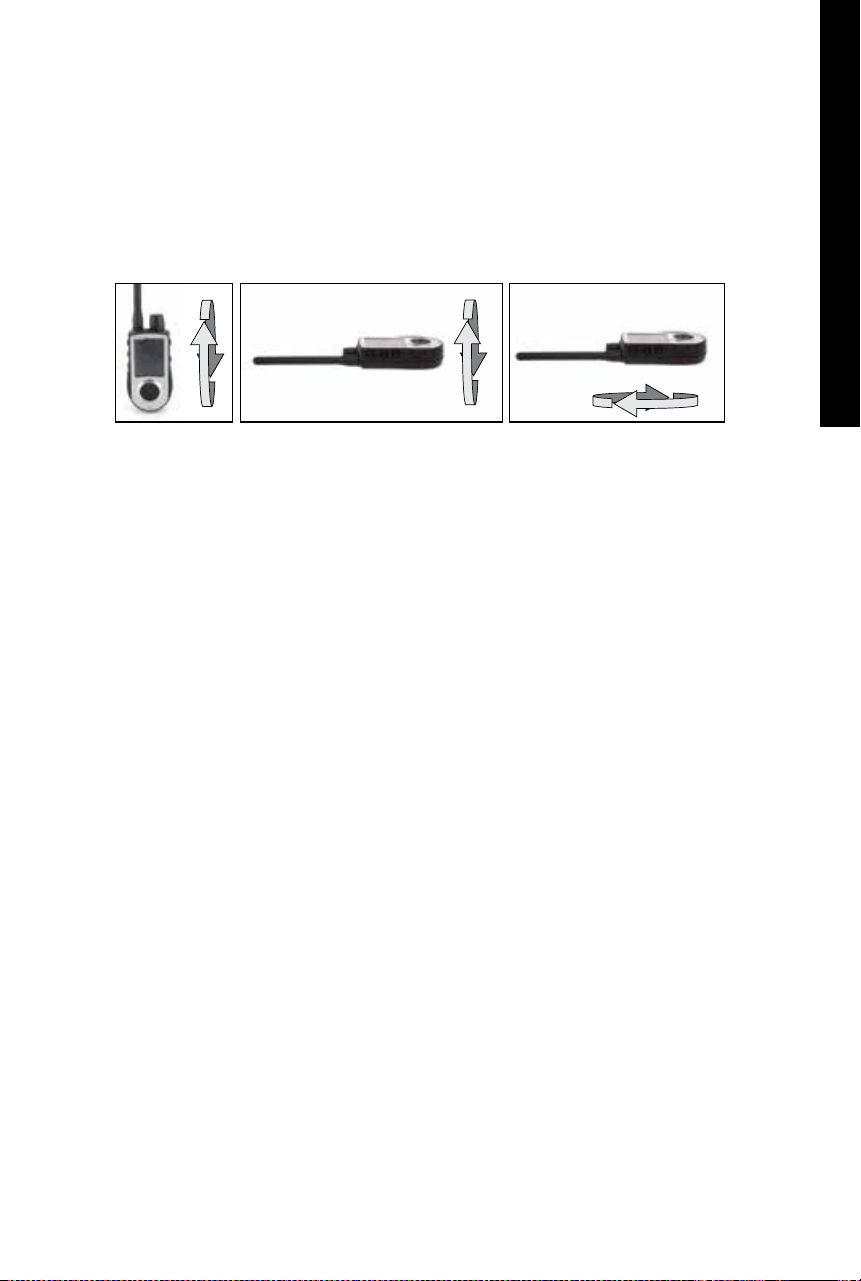
TO CALIBRATE THE COMPASS
In order for the TEK Series 1.5 Handheld Device to accurately display your location, you must first calibrate the
electronic compass. You should always calibrate the compass after you arrive at a new starting location, after
periods of storage or after you install new batteries.
NOTE: Always calibrate the compass outdoors. Hold the compass level and away from objects that may generate
magnetic fields, such as cars, buildings, or overhead power lines.
1. From the main menu, select COMPASS > CALIBRATE. The compass screen appears.
2. Rotate the Handheld Device 2-3 times in all 3 dimensions as shown below. Rotate until the black indicators
are as close as possible to the centre of the green zone. If successful, your Handheld Device will beep and
vibrate as well as display a message that says “CALIBRATION DATA HAS BEEN UPDATED SUCCESSFULLY”.
NOTE: If you are unable to get the compass to automatically update your calibration data, follow the
remaining steps.
3. Rotate until the black indicators are as close as possible to the green zone and press the Menu Selection Pad
to continue.
4. At the prompt “DO YOU WANT TO SAVE THE NEW CALIBRATION DATA?” press the Arrow Keys to select YES.
5. Press BACK to return to the main menu.
24
SPORTDOG.COM
GETTING STARTED
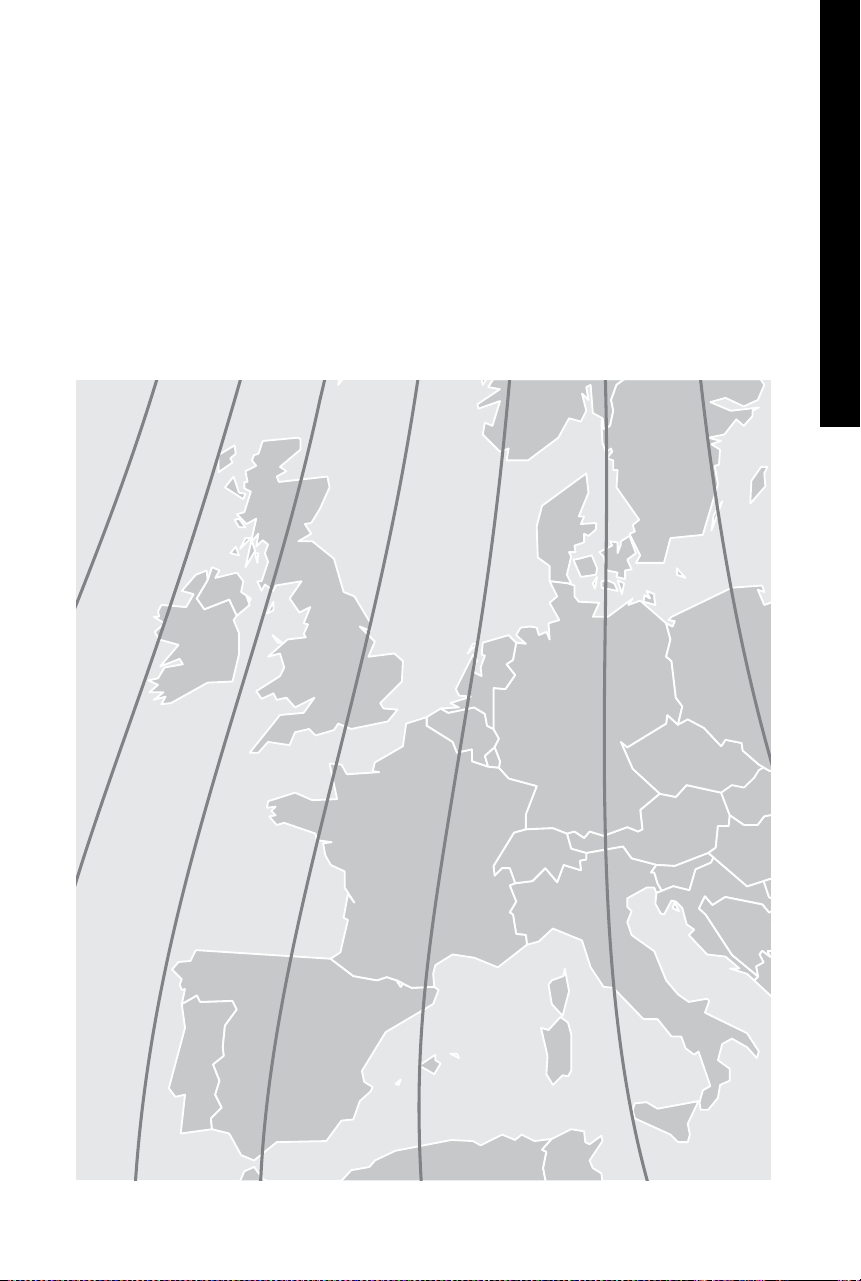
TO SET THE MAGNETIC DECLINATION ANGLE:
Magnetic declination is the angle between magnetic north (the direction the north end of a compass needle
points) and true north. The declination is positive when the magnetic north is east of true north and negative
when the magnetic north is west of true north.
To find your exact declination angle, you can use a web resource
likengdc.noaa.gov/geomagmodels/Declination.jsp. This is a United States government website available in
English. Enter the web address into a web translator tool to view the website in your language.
NOTE: Incorrect magnetic declination will result in inaccurate compass readings.
1. From the main menu, select SETTINGS > GENERAL > MAG DEC ANGLE.
2. Press the Up or Down Arrow Keys on the Menu Selection Pad to select the amount of declination. Magnetic
declination ranges from -70 to 70. The default is 0.
3. Press the Right Arrow Key when finished.
4. Press BACK to return to the main menu.
10º
0º
0º
-10º
-10º
10º
0
º
-2
º
-4
º
-6
º
2
º
4
º
25
SPORTDOG.COM
GETTING STARTED
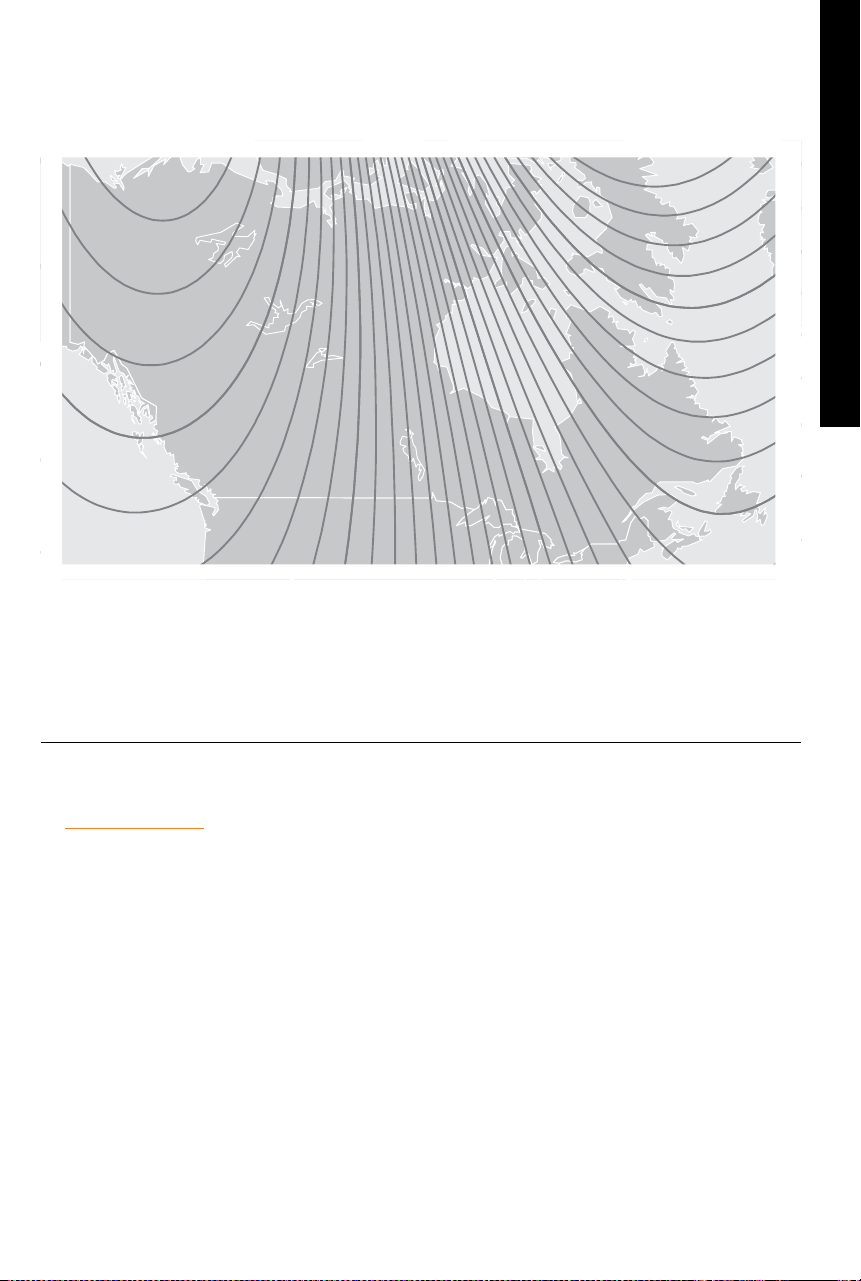
MAGNETIC DECLINATION: CANADA
Magnetic declination is the angle between magnetic north (the direction the north end of a compass needle
points) and true north. The declination is positive when the magnetic north is east of true north and negative
when the magnetic north is west of true north.
SETUP COMPLETE
Your setup is now complete.
• Use the SETTINGS menu to adjust any settings at any time.
• Use the MY DOGS and MY COLLARS to add these items to your Handheld Device at any time.
SETTINGS
On the SETTINGS menu, you will find a list that allows you to access all the screens on your Handheld Device. See
the ”TEK 1.5 SETTINGS” section for descriptions of each.
-20º
0º
0º10º -10º
20º 10º
20º
-10º -20º
-30º
-30º

26
SPORTDOG.COM
MY DOGS
MY DOGS
The MY DOGS Screen displays a list of your dogs. You can add and remove dogs, assign each dog to a colour-coded
collar so it can be tracked, and manage settings for each dog from this screen.
DOG LIST
Active dog names (up to 12) appear next to their collar colours and inactive dog names appear in grey.
SET ORDER
This option allows you to change the order of your dogs in the DOG LIST.
1. From the main menu, select DOG LIST > SET ORDER. A list of dogs displays.
2. Use the Arrow Keys to highlight the dog you want to move in the list and press the Right Arrow Key.
3. Use the up or down Arrow Keys to move the selected dog in the list.
4. When the dog is in the desired order, press the Right Arrow Key.
5. Repeat for each dog until they are in the desired order. Dogs will now appear in this order on the TRACKING
screen and the TRAINING screen.
ADD A DOG
Select ADD A DOG to begin choosing settings for a new dog.
DOG’S NAME
From the main menu, select SETTINGS > MY DOGS > DOG > CHANGE NAME where DOG is the name previously
entered for this dog. A text entry screen displays.
1. Change the dog’s name by selecting CHANGE NAME. A text entry screen displays. Press the Arrow Keys to
select CLR and press ENTER to clear the name. Pressing the Arrow Keys, select letters to enter a new name.
Select to complete the new name.
2. Assign a collar to this dog by selecting COLLAR. Use the Arrow Keys to select the colour matching the
desired collar.
3. Once a collar is assigned to the new dog, you are ready to track this dog. Press BACK to return to the
main menu.
NOTE: Duplicate dog names are not allowed. If you enter a duplicate name, an alert will appear prompting
you to enter a different name before advancing to the next step.
E-COLLAR
The E-COLLAR setting allows you to enable (or disable) the E-Collar Module to deliver stimulation, vibration,
and/or a tone for correcting a particular dog.
1. From the main menu, select SETTINGS > MY DOGS > DOG where DOG is the name of the dog for which you
want to enable or disable the E-Collar Module.
2. Select E-COLLAR and use the Right Arrow Key to select Y to enable or N to disable stimulations for this dog.
NOTE: This setting only applies to this dog when wearing his assigned collar.
3. When finished, press BACK to return to the main menu.

27
SPORTDOG.COM
MY DOGS
STIM BUTTONS
The STIM BUTTONS setting allows you to assign the type of stimulation for each User-Defined Stim button
according to your training preferences for a particular dog. The buttons are labeled Button 1 (top), Button 2
(middle), and Button 3 (bottom).
NOTE: This setting only applies to the specific dog chosen.
1. From the main menu, select SETTINGS > MY DOGS > DOG where DOG is the name of the dog for which you
want to change the stim button settings.
2. Select STIM BUTTONS. The STIM BUTTONS screen displays.
3. Press the up or down arrow to select BUTTON 1.
4. Press the Right Arrow Key to select C (continuous), T (tone), V (vibration), M (momentary), R (rising), P1
(programmable 1), or P2 (programmable 2). The default for Button 1 is C.
5. Press the up or down arrow to select BUTTON 2.
6. Press the Right Arrow Key to select C (continuous), T (tone), V (vibration), M (momentary), R (rising), P1
(programmable 1), or P2 (programmable 2). The default for Button 2 is T.
7. Press the up or down arrow to select BUTTON 3.
8. Press the Right Arrow Key to select C (continuous), T (tone), V (vibration), M (momentary), R (rising), P1
(programmable 1), or P2 (programmable 2). The default for Button 3 is V.
9. When finished, press BACK to return to the main menu.
STIM RANGE
NOTE: This setting only applies to the specific dog chosen.
1. From the main menu, select SETTINGS > MY DOGS > DOG where DOG is the name of the dog for which you
want to change the Programmable Stim Level.
2. Select STIM BUTTONS. The STIM BUTTONS screen displays.
3. Select P1 LEVEL and use the Arrow Keys to set the desired stimulation level.
4. Select P2 LEVEL and use the Arrow Keys to set the desired stimulation level.
5. When finished, press BACK to return to the main menu.
ACTION
The Handheld Device can alert you when your dog exhibits specific hunting actions:
• ON-POINT – used for pointing dogs to detect when the dog is stationary, indicating it is on-point.
• TREED – used for hunting with trailing dogs to indicate the dog is “on the tree” and holding an animal at bay.
While on the TRACKING screen, the Handheld Device will alert you when the action is detected.
1. From the main menu, select SETTINGS > GENERAL > ALERT.
2. Press the Right Arrow Key to toggle among the action types: NONE, TONE, VIBE, BOTH.
3. Press BACK to return to the main menu.
ASSIGN COLLAR COLOUR
The COLLAR setting allows you to assign a collar to a specific dog according to the colour set in the MY
COLLARS screen. The colour will also be used to identify the dog on the TRACKING screen and the
TRAINING screen.
1. From the main menu, select SETTINGS > MY DOGS > DOG where DOG is the name of the dog to be
assigned a collar.
2. Select COLLAR.
3. Press the Arrow Keys to select the colour for the desired collar then press the Right Arrow Key. You must
select YES to confirm the new collar assignment.
NOTE: If the selected collar has already been assigned to a different dog, a warning message displays.
4. When finished, press BACK to return to the main menu.

28
SPORTDOG.COM
MY DOGS
DOG DETAILS
To view a dog’s details, highlight and select the dog name in the list. To edit a specific detail, highlight the field
and press the TRACKING/TRAINING TOGGLE BUTTON. Press the Left Arrow Key at any time to return to the MY
DOGS Screen.
CHANGE NAME
1. From the main menu, select SETTINGS > MY DOGS > DOG > CHANGE NAME where DOG is the name
previously entered for this dog. A text entry screen displays.
2. Press the Arrow Keys to select CLR and press ENTER to clear the name.
3. Press the Arrow Keys on the Menu Selection Pad to enter a new name, if desired.
4. When finished, select .
ASSIGN COLLAR
The COLLAR setting allows you to assign a collar to a specific dog according to the colour set in the MY
COLLARS screen. The colour will also be used to identify the dog on the TRACKING screen and the
TRAINING screen.
1. From the main menu, select SETTINGS > MY DOGS > DOG where DOG is the name of the dog to be assigned
a collar.
2. Select COLLAR.
3. Press the Arrow Keys to select the colour for the desired collar then press the Right Arrow Key. You must
select YES to confirm the new collar assignment.
NOTE: If the selected collar has already been assigned to a different dog, a warning message displays.
4. When finished, press BACK to return to the main menu.
SUSPEND/RESUME
You can choose to suspend tracking/training of a specific dog without having to delete the dog from
the system.
1. From the main menu, select DOG LIST. A list of current dogs displays.
2. Use the Arrow Keys to highlight the dog you want to suspend tracking/training.
3. Press the Right Arrow Key. A message displays “DOG X SUSPEND” where DOG X is the name of the dog
selected. The dog will no longer display on the TRACKING screen or the TRAINING screen.
4. To resume tracking/training the dog, select DOG LIST.
5. Use the Arrow Keys to highlight the dog you want to resume tracking/training.
Press the Right Arrow Key. A message displays “DOG X RESUME” where DOG X is the name of the dog selected.
The dog will appear on the TRACKING screen and the TRAINING screen.
E-COLLAR
The E-COLLAR setting allows you to enable (or disable) the E-Collar Module to deliver stimulation, vibration,
and/or a tone for correcting a particular dog.
1. From the main menu, select SETTINGS > MY DOGS > DOG where DOG is the name of the dog for which you
want to enable or disable the E-Collar Module.
2. Select E-COLLAR and use the Right Arrow Key to select Y to enable or N to disable stimulations for this dog.
NOTE: This setting only applies to this dog when wearing his assigned collar.
3. When finished, press BACK to return to the main menu

29
SPORTDOG.COM
MY DOGS
STIM BUTTONS
The STIM BUTTONS setting allows you to assign the type of stimulation for each User-Defined Stim Button
according to your training preferences for a particular dog. The buttons are labeled Button 1 (top), Button 2
(middle), and Button 3 (bottom).
NOTE: This setting only applies to the specific dog chosen.
1. From the main menu, select SETTINGS > MY DOGS > DOG where DOG is the name of the dog for which you
want to change the stim button settings.
2. Select STIM BUTTONS. The STIM BUTTONS screen displays.
3. Press the up or down arrow to select BUTTON 1.
4. Press the Right Arrow Key to select C (continuous), T (tone), V (vibration), M (momentary), R (rising), P1
(programmable 1), or P2 (programmable 2). The default for Button 1 is C.
5. Press the up or down arrow to select BUTTON 2.
6. Press the Right Arrow Key to select C (continuous), T (tone), V (vibration), M (momentary), R (rising), P1
(programmable 1), or P2 (programmable 2). The default for Button 2 is T.
7. Press the up or down arrow to select BUTTON 3.
8. Press the Right Arrow Key to select C (continuous), T (tone), V (vibration), M (momentary), R (rising), P1
(programmable 1), or P2 (programmable 2). The default for Button 3 is V.
9. When finished, press BACK to return to the main menu.
If you select P1 or P2 for a Stim Button, the default static stimulation level is 1. Use P1 Level and P2 Level to
customise the stim levels for each. Press the TRACKING/TRAINING TOGGLE BUTTON or the Right Arrow Key
to bring up a numeric keypad and select a level (1-20). When complete, select the checkbox. Press the Left
Arrow Key to return to the DOG DETAILS Screen.
STIM RANGE
NOTE: This setting only applies to the specific dog chosen.
1. From the main menu, select SETTINGS > MY DOGS > DOG where DOG is the name of the dog for which you
want to change the Programmable Stim Level.
2. Select STIM BUTTONS. The STIM BUTTONS screen displays.
3. Select P1 LEVEL and use the Arrow Keys to set the desired stimulation level.
4. Select P2 LEVEL and use the Arrow Keys to set the desired stimulation level.
5. When finished, press BACK to return to the main menu.
ACTION
The Handheld Device can alert you to an action with several alert type
1. From the main menu, select SETTINGS > GENERAL > ALERT.
2. Press the Right Arrow Key to toggle among the action types: NONE, TONE, VIBE, BOTH.
3. Press BACK to return to the main menu.
DELETE
NOTE: Deleting a dog cannot be undone. All configuration SETTINGS related to this dog will be deleted.
1. From the main menu, select SETTINGS > MY DOGS > DOG where DOG is the name of the dog to be deleted
from the system.
2. Press the Arrow Keys to select DELETE and press the Right Arrow Key.
3. A warning message displays. Select YES, if desired, to confirm.
To exit the MY DOGS Screen, press the BACK Button.

30
SPORTDOG.COM
MY COLLARS
MY COLLARS
The MY COLLARS screen allows you to configure a new collar, pair the collar to work with your Handheld Device,
or share tracking of a collar from another Handheld Device.
COLLAR LIST
Active collars appear next to their selected colour and inactive collars appear in grey. You can have up to 12
collars in the list.
TO ADD A COLLAR
1. From the main menu, select SETTINGS > MY COLLARS.
2. Press the up or down Arrow Keys to select the colour you want to use with the new collar.
3. Press the Right Arrow Key to open the configuration window.
4. To enable the E-Collar Module, select and press the Right Arrow Key to set E-COLLAR to Y.
5. To enable the GPS Collar or GPS Collar with E-Collar Module, select and press the Right Arrow Key to set
ACTIVE to Y. If sharing a collar skip steps 5, 6, and 7 and move to the “SHARED COLLAR” section.
6. Put the new collar in “Pairing Mode” by pressing and holding the On/Off Buttons on the GPS Collar or GPS
Collar with E-Collar Module until their Receiver Indicator Lights are solid amber. For details see “PAIR THE
COLLAR”.
7. On the Handheld Device, select PAIR COLLAR to allow the GPS Collar and E-Collar Module to connect to
the Handheld Device. This collar is now ready to be put on a dog.
SHARED COLLAR
You can track dogs associated with another Handheld Device. This is helpful if you and another person are
working with the same dogs.
NOTE: This feature is for tracking only. You cannot train a shared dog.
1. On the main menu, select SETTINGS > MY COLLARS > COLOUR > SHARE COLLAR where COLOUR is the
colour associated with the collar to be tracked.
2. Press the Right Arrow Key to select Y to enable collar sharing.
3. To enter a User ID, select ID and press the Right Arrow Key.
4. Use the up or down Arrow Keys on the Menu Selection Pad to enter the 4-digit ID code aquired from the
Handheld Device whose dog you want to track. See STATUS screen from the main menu to find the ID code.
5. To select a dog number, select DOG and press the Right Arrow Key.
6. Use the up or down Arrow Keys to enter the 2-digit identifier of the specific dog to be tracked. This identifier
is also aquired from the Handheld Device whose dog you want to track.
7. When finished, press BACK to return to the main menu.
UPDATE RATE
The update rate on your Handheld Device will update automatically according to the following GPS Collar
battery status:
• Good Battery - Every 2.5 seconds
• Medium Battery - Every 10 seconds
• Low Battery - Every 25 seconds
E-COLLAR
The E-COLLAR setting allows you to enable (or disable) the E-Collar Module to deliver stimulation, vibration,
and/or a tone for correcting a particular dog.
1. From the main menu, select SETTINGS > MY DOGS > DOG where DOG is the name of the dog for which you
want to enable or disable the E-Collar Module.
2. Select E-COLLAR and use the Right Arrow Key to select Y to enable or N to disable stimulations for this dog.
NOTE: This setting only applies to this dog when wearing his assigned collar.
3. When finished, press BACK to return to the main menu.

31
SPORTDOG.COM
MY COLLARS
PAIR COLLAR
Your system will already be paired when you get it, but in the event you need to pair the Handheld Device to the
GPS Collar with E-Collar Module, follow the steps below. The Handheld Device can support up to 12 collars at
a time. You must repeat this procedure for each GPS Collar with E-Collar Module that you want to monitor with
this Handheld Device.
1. On the main menu, select SETTINGS > MY COLLARS > COLOUR where COLOUR is the colour that you want
to associate with this collar.
2. Press the Right Arrow Key to open the configuration window.
3. To enable the GPS Collar, select and press the Right Arrow Key to set ACTIVE to Y.
4. To enable the E-Collar Module, select and press the Right Arrow Key to set E-COLLAR to Y.
5. With the GPS Collar or GPS Collar with E-Collar Module turned OFF, press and hold the On/Off Button until
its Receiver Indicator Light is solid amber. The collar is now in “Pairing Mode”.
6. On the Handheld Device, select PAIR COLLAR and press the Right Arrow Key to complete the pairing
process. The Receiver Indicator Lights on the collar and module will blink 5 times to confirm that they are
paired to the Handheld Device.
7. When finished, press BACK to return to the main menu.
To exit the MY COLLARS Screen, press the Back Button.

32
SPORTDOG.COM
TRAINING
TRAINING
BEFORE TRAINING WITH THIS PRODUCT
You will have the most success using this product if you always remember to teach a command before trying to
reinforce the command with stimulation. Always keep the following training tips in mind:
• Eliminate a single misbehavior or teach a single obedience command at a time. If you move too fast with the
training, your dog may become confused.
• Be consistent. Give your dog a tone, vibration, and/or stimulation for each misbehavior.
• Do not overcorrect your dog. Use as little stimulation as possible to train your dog.
• Restrict your dog from situations in which he has a history of misbehaving unless you can supervise him and
use the TEK Series 1.5 Handheld Device for applying tone, stimulation, or vibration.
• If you notice a situation in which your dog misbehaves repeatedly, set up this situation as a training session.
This will dramatically increase your chances of success.
• If your dog has a timid reaction to the tone, stimulation, or vibration (especially the first couple of times),
do not be alarmed. Redirect his attention to a simple and appropriate behavior (i.e. a known command,
such as “Sit”).
• Never use the TEK Series 1.5 System to correct or eliminate any form of aggressive behavior. If your dog
exhibits such behavior, contact a professional trainer. Aggression in dogs is the result of many factors
– it may be a learned behavior or it may be brought on as a result of fear. Another factor contributing to
aggression in dogs is social dominance. Every dog is different.
Visit our website at www.sportdog.com to find more detailed training tips and guides or contact our Customer
Care Centre for further assistance. For a listing of telephone numbers in your area, visit our website at
www.sportdog.com.
NOTE: If you own the TEK Series 1.5 GPS Tracking System (TEK-V1.5L) you must purchase the TEK Series E-Collar
Module accessory to utilise the training functionality.
The TEK Series 1.5 GPS Tracking and Training System supports 6 types of stimulation: continuous, momentary,
rising, programmable, tone, and vibration. The continuous stimulation mode has multiple intensity levels so you
can match the stimulation to your dog’s temperament.
33
SPORTDOG.COM
TRAINING
TO FIND YOUR DOG’S RECOGNITION LEVEL:
NOTE: Always start at the lowest level and work your way up. Every dog is different and you cannot predict
where your dog’s recognition level will be. Watch closely for any slight change in behavior that tells you your dog
is feeling the stimulation.
For training efficiency, it is important to find the right intensity level for your dog. This is called the “recognition
level”, the level at which your dog looks around in curiosity or flicks his ears.
Your dog should not vocalize or panic when receiving stimulation. If this happens, the
stimulation level is too high and you need to go back to the previous level and repeat the process.
1. With the GPS Collar and E-Collar Module turned ON and properly fitted to your dog, select DOG TRAINING.
The DOG TRAINING screen displays.
2. Press the down arrow on the Menu Selection Pad to lower the intensity level to 1.
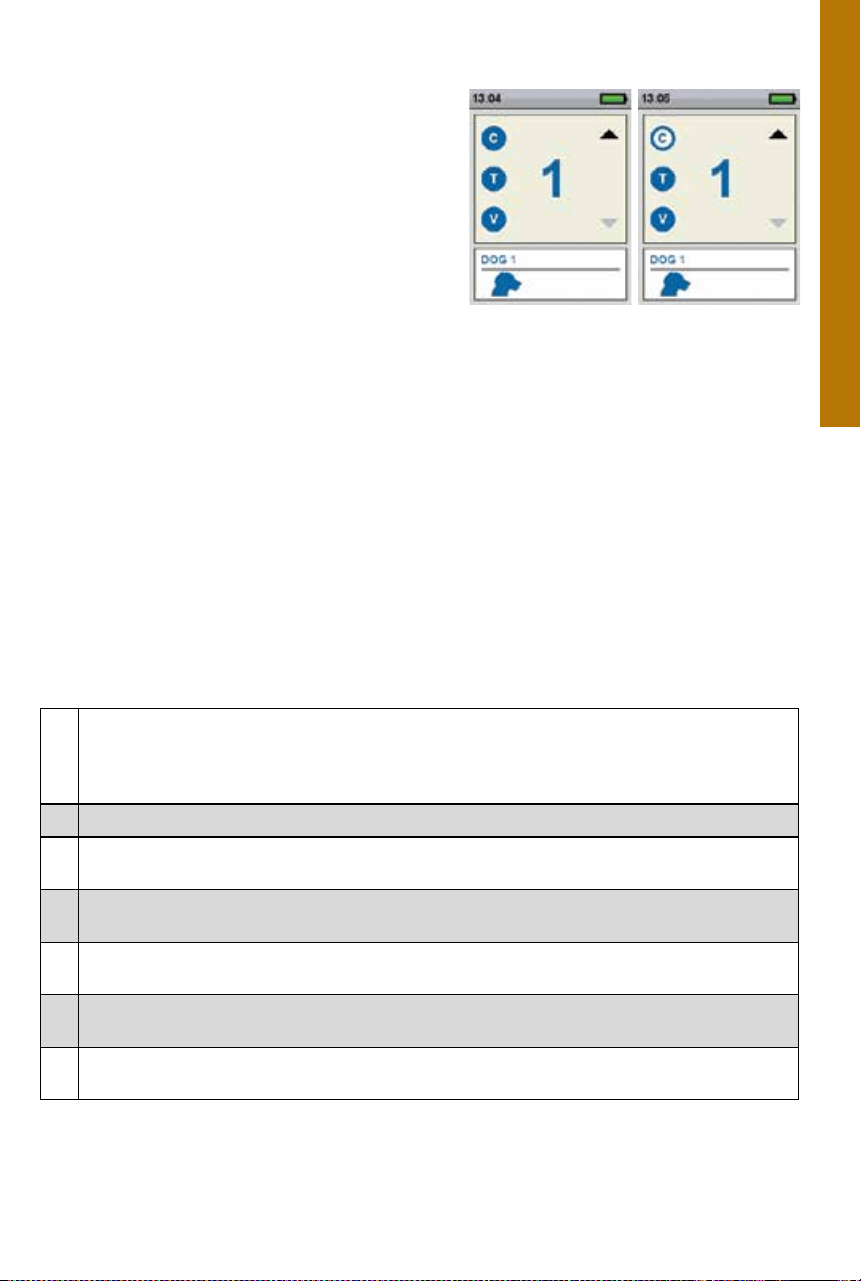
3. Press the stim button next to the icon (C) to apply continuous stimulation for 1 to 2 seconds.
In the event that you inadvertently press and hold any stimulation button for longer than 10
seconds the Handheld Device will enter a “time-out” period. During the “time-out” period, stimulation cannot
be delivered to the dog for 5 seconds.
4. If your dog shows no reaction to level 1, press the up arrow on the Menu Selection Pad to increase the
stimulation to level 2 and repeat the process.
5. Continue to increase the intensity level until you find your dog’s recognition level. Once you find your dog’s
recognition level, this is the level you should use when you begin a training exercise.
6. If you have progressed to level 20 while searching for your dog’s recognition level and your dog continues
to show no response, check to see if the GPS Collar with E-Collar Module is snug against your dog’s
neck. Then go back to level 1 and repeat the process. If your dog still does not indicate he is feeling the
stimulation, you can try changing the STIM RANGE setting (see “STIM RANGE” section), trimming the hair
beneath the Contact Points, or switching to longer Contact Points.
NOTE: If after completing all of these steps your dog still does not indicate he is feeling stimulation, please
contact the Customer Care Centre.
34
SPORTDOG.COM
TRAINING
STIM BUTTONS
TO USE TRAINING MODE:
The DOG TRAINING screen allows you to send a signal to
deliver stimulation to your dog in order to correct a behavior.
You can switch among the dogs currently being trained and
select the type and intensity level of stimulation.
NOTE: In training mode, the User-Defined Stim Buttons are
active, allowing you to select among 3 predefined stimulation
types for the currently selected dog.
1. From the main menu, select DOG TRAINING.
2. Press the right or left arrows on the Menu Selection Pad
to choose among dogs in the system. The current dog is
shown at the bottom of the screen.
3. Select the desired level of continuous stimulation for that dog.
4. To send stimulation to the selected dog, press 1 of the 3 stim buttons on the left side of the Handheld Device
matching to the type of stimulation desired. When the desired button is pressed, the corresponding icon will
highlight to confirm that the signal has been sent.
The circles on the left side of the screen correspond with the User-Defined Stim Buttons 1, 2, and 3 on the left side
of your Handheld Device. The Stim Button SETTINGS for the current dog are shown.
To send a stimulation, press the Stim Button (1, 2, or 3) on the Handheld Device for the type of stimulation you
want to deliver. When the desired button is pressed, the corresponding icon will highlight to confirm the signal
has been sent.
Example: To deliver continuous (C) press Stim Button 1. To deliver tone (T), press Stim Button 2. To deliver
vibration (V), press Stim Button 3.
You can adjust the Stim Button SETTINGS at any time from the main menu by selecting SETTINGS > MY DOGS >
DOG where DOG is the name of the dog for which you want to change the stim button settings.
TYPES OF STIMULATION
C
CONTINUOUS STATIC STIMULATION: You control both when and how long static stimulation is
delivered, up to a maximum of 10 seconds. After 10 seconds, the static stimulation will “time out” for
5 seconds. You will see a transmission time out message on the screen. Release the User-Defined Stim
Button and press it again for additional static stimulation to be delivered.
V VIBRATION STIMULATION: The collar will vibrate when this User-Defined Stim Button is pressed.
T
TONE STIMULATION: The collar will make a rapid beeping noise when this User-Defined Stim Button
is pressed.
M
MOMENTARY STATIC STIMULATION: The E-Collar Module will deliver static stimulation for 1/10 of a
second, when this User-Defined Stim Button is pressed.
R
RISING STATIC STIMULATION: The static stimulation will rise from the current level to the maximum
level when this User-Defined Stim Button is pressed and held.
P1
USER PROGRAMMABLE STIMULATION 1: The E-Collar Module will deliver static stimulation according
to the User-Defined setting.
P2
USER PROGRAMMABLE STIMULATION 2: The E-Collar Module will deliver static stimulation according
to the User-Defined setting.

35
SPORTDOG.COM
TRAINING
INTENSITY LEVEL
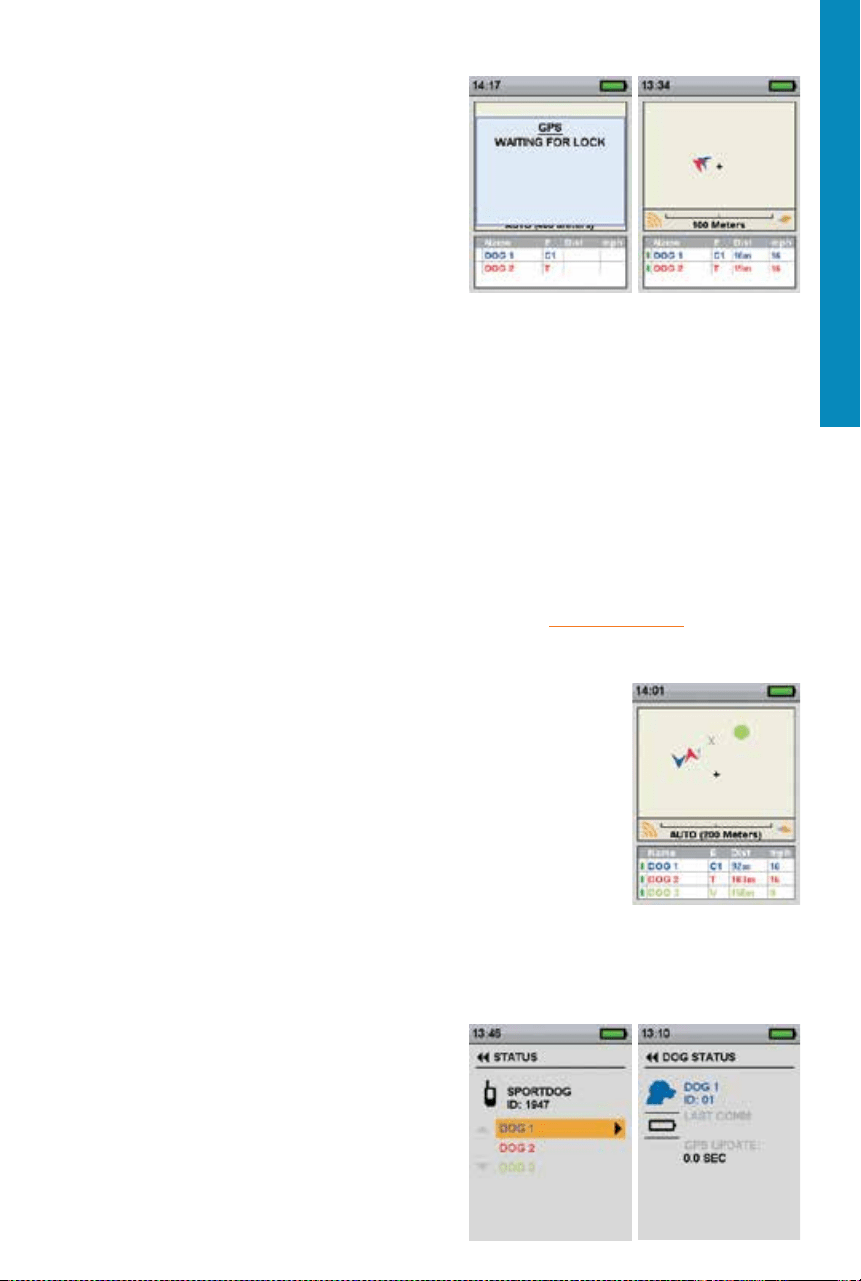
The number displayed in the center of the DOG TRAINING screen is the Intensity Level setting for the current dog.
Use the Up or Down Arrow Keys to adjust the level from 1 to 99.*
* The default Intensity Level is 1. Each time you adjust the Intensity Level for a dog, that value is remembered
between training sessions and recharge cycles. The Stim Range setting (low, medium, or high) can be changed
on the MY DOGS Screen. Change the Stim Range from the main menu by selecting SETTINGS > MY DOGS > DOG
where DOG is the name of the dog for which you want to change the stim button settings.
DOG NAME
The name of the current dog is displayed below the Stim Button and Intensity Level settings.
DOG LIST
The DOG LIST at the bottom of the Training Screen is a horizontally scrolling list of all active dogs on the
Handheld Device. Each dog’s unique colour is used to display the Stim Button and Intensity Level settings for that
dog. Use the down Arrow Key to scroll through the list.
TRAINING MENU
From the main menu, navigate to DOG TRAINING screen. You can exit the DOG TRAINING screen by pressing the
BACK Button.
Intensity: Use the Up or Down Arrow Keys on the Menu Selection Pad to change the Intensity Level.
To exit the DOG TRAINING Screen, press the BACK Button.
36
SPORTDOG.COM
TRACKING
TRACKING
ACQUIRE GPS SATELLITE SIGNALS
Before the TEK Series 1.5 Handheld Device can show your
current location and the location of your dog(s), both units
must acquire a GPS signal fix.
TO ACQUIRE GPS SIGNAL FIX:
NOTE: Acquiring a GPS signal fix can take several minutes.
1. Go outdoors to an open area with a clear vi ew of the sky.
2. Once you are outdoors, turn ON the Handheld Device
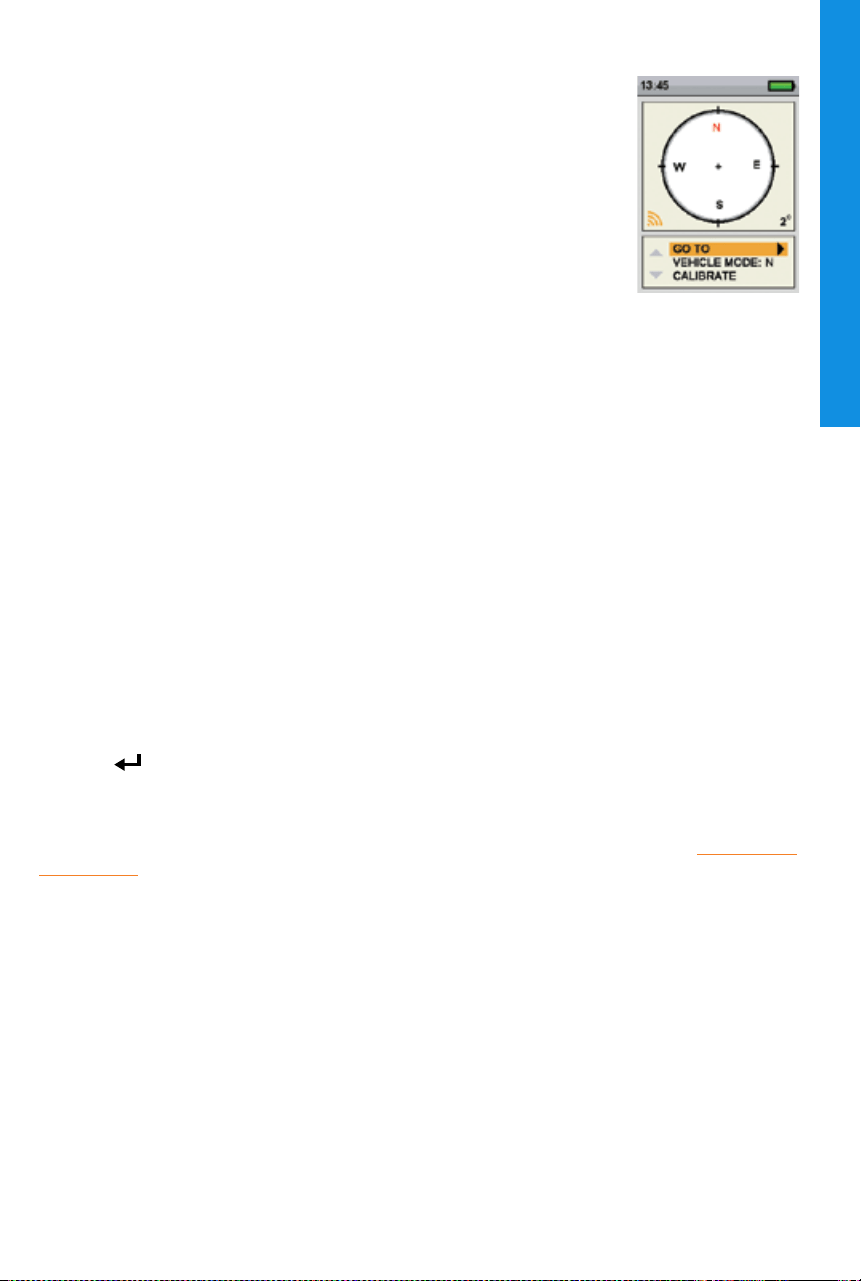
and GPS Collar. The “WAITING FOR LOCK” message will
display until a good GPS lock is acquired. On the Handheld Device, the GPS lock Indicator displays when GPS
lock is achieved. The GPS Receiver Indicator Light will single blink every 3 seconds when it has a GPS lock.
NOTE: You must have a clear view of the sky in order for the GPS to acquire a signal. The “WAITING FOR LOCK”
message will display until a good GPS lock is acquired. The Handheld Device will beep once and move to the
TRACKING screen when GPS lock is acquired.
From the main menu, select DOG TRACKING. The DOG TRACKING screen displays.
USER LOCATION
Your location is marked by a black crosshair (+) in the centre of the display. Dogs are marked by an arrow showing
their direction of travel or an octagon if the dog is stationary. If you have set a start point, it appears as an X on
the DOG TRACKING screen. Any active way points are marked by their respective number. The upper portion of the
screen also displays your GPS status, current map scale, and compass direction.
TRACKED ITEMS
Each of your tracked items are represented by their own unique symbol (see “TRACKING ICONS” section). You can
adjust the map SETTINGS to show all, none, or selected items.
DOGS
Each tracked dog is represented by an icon in the colour you selected to represent that
dog (collar colour).
When a dog is in an alert state – on-point, treed, or stopped – its icon will change
to the On-Point/Treed Indicator icon. If a dog is moving, its icon will appear as an
arrow, rotating to show the direction of travel. If the Handheld Device is unable to
communicate with a tracked dog’s collar, the dog’s arrow icon will change to an arrow
with a hollow fill. The icon will not update until communication is restored.
VIEW DOG STATUS
The STATUS screen allows you to view the status of the GPS Collar for each dog, the ID
for your Handheld Device, and a list of dogs being tracked. For each dog, you can view
its ID, GPS Collar Battery Gauge, GPS lock status, update rate, and the time since its last update.
The update rate on your Handheld Device will update automatically according to the following GPS Collar battery
status:
• Good Battery - Every 2.5 seconds
• Medium Battery - Every 10 seconds
• Low Battery - Every 25 seconds
TO VIEW THE DOG STATUS:
1. From the main menu, select STATUS. The STATUS screen
displays .
2. Select the dog whose status you want to view e.g. DOG 1.
3. Press the Right Arrow Key to view the DOG STATUS screen.

37
SPORTDOG.COM
TRACKING
COMPASS NEEDLE
The Compass Needle in the bottom-right corner of the map represents the direction to either magnetic north or
true north, based on your current SETTINGS. As you turn, the map will rotate and the North Arrow will update to
reflect the new heading.*
SCALE BAR
The scale bar below the map displays the current map scale* and notifies you if the map is set to Auto Scale. By
default, the DOG TRACKING screen will automatically scale to best fit all tracked items on the screen. You can
override Auto Scale by navigating to the DOG TRACKING screen, press the Left or Right Arrow Key on the Menu
Selection Pad to manually adjust the scale from 100 m to 120 km.
* You can change the units at any time on the SETTINGS Screen.
STIMULATION BUTTONS
The STIM BUTTONS setting allows you to assign the type of stimulation for each User-Defined Stim button
according to your training preferences for a particular dog. The buttons are labeled Button 1 (top), Button 2
(middle), and Button 3 (bottom).
NOTE: This setting only applies to the specific dog chosen.
38
SPORTDOG.COM
COMPASS
COMPASS
The TEK Series 1.5 System comes with a built-in electronic compass and GPS tools to
track your location and guide you to previously saved locations.
From the main menu, select COMPASS. The COMPASS screen displays.
NOTE: When using the compass, hold the Handheld Device up to a 45° angle and point
the antenna forward along your line of travel.
The COMPASS screen allows you to see your current heading, track the bearing to pre-
defined way points, track the bearing to a dog and enable/disable Vehicle Mode. The
compass shows north as a red N and will rotate as you move to keep its orientation.
Your current heading is shown at the lower right corner of the display.
SET YOUR STARTING LOCATION
The SET START POINT screen allows you to define a way point specific to your starting location prior to working
the dogs in a particular area.
TO SET A START POINT
NOTE: You must have a good GPS lock before you can mark a new start point.
1. From the main menu, select SET START POINT. A prompt appears, “YOU ARE ABOUT TO CHANGE THE
STARTING LOCATION. ARE YOU SURE YOU WANT TO CONTINUE?”
2. Select YES to set a new starting location.
MARK A LOCATION WITH WAY POINTS
The WAY POINTS screen allows you to save your current GPS location or the current GPS location of tracked dogs
as a way point, navigate to, rename and/or delete existing way points. You can store up to 20 way points. If you
have set a start point, it appears as an X on the TRACKING screen. Other way points are shown by their respective
number.
TO MARK YOUR LOCATION AS A NEW POINT:
NOTE: You must have a good GPS lock before you can mark a new way point.
1. From the main menu, select WAY POINTS > MARK NEW POINT > YOUR LOCATION. A text entry field appears.
2. Use the Arrow Keys to enter a name for the new way point.
3. Select when finished.
TO MARK A DOG AS A NEW POINT:
NOTE: You must have a good GPS lock to mark a new way point. Your dog’s last location shown on the TRACKING
screen will be marked as a new point. To mark the most recently transmitted location (see section “TO VIEW THE
DOG STATUS:”), view the TRACKING screen immediately before marking the location as a new point).
1. Identify your dog on the TRACKING screen.
2. Navigate to the main menu. From the main menu, select WAY POINTS > MARK NEW POINT. A list of active
dogs being tracked displays.
3. Use the Arrow Keys to highlight the dog you want to mark as a way point.
4. Press the Right Arrow Key.
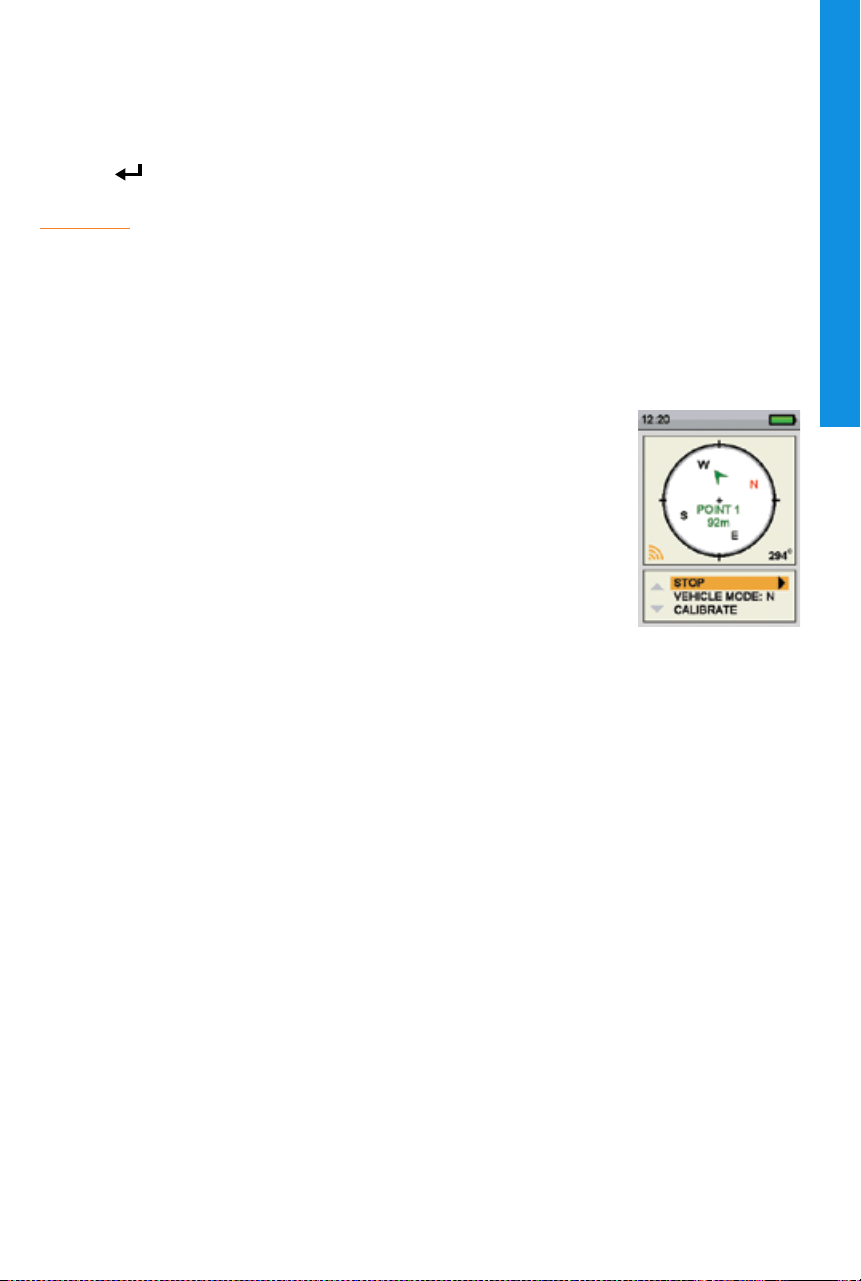
39
SPORTDOG.COM
COMPASS
TO RENAME A WAY POINT:
1. From the main menu, select WAY POINTS > WAY POINT NAME where WAY POINT NAME is a previously
marked way point.
2. Select RENAME. A text entry screen displays.
3. Use the Arrow Keys to type in the new name.
4. Select when finished.
NOTE: Renaming a dog marked as a way point only renames the way point and not the dog’s name. (See section
“DOG NAME” for details on changing a dog’s name.)
TO DELETE A WAY POINT:
NOTE: Deleting a way point cannot be undone.
1. From the main menu, select WAY POINTS > WAY POINT NAME where WAY POINT NAME is a previously
marked way point.
2. Select DELETE.
3. At the prompt, “ARE YOU SURE YOU WANT TO CONTINUE?” select YES. The way point is deleted.
TO GO TO YOUR START POINT:
NOTE: You must have first set a start point before you can use the compass to navigate
to it, and you must have a good GPS lock of your current location.
1. From the main menu, select COMPASS. The COMPASS screen displays.
2. Select GO TO > START. The COMPASS screen now displays the bearing and distance
to your starting location.
3. Face the direction toward the starting location then follow the best route to
that location.
TO GO TO A WAY POINT:
NOTE: You must have first created a way point before you can use the compass to navigate to it, and you must
have a good GPS lock of your current location.
1. From the main menu, select COMPASS. The COMPASS screen displays.
2. Select GO TO > WAY POINTS. A list of pre-defined way points displays.
3. Use the Arrow Keys to highlight the desired way point.
4. Press the Right Arrow Key. The COMPASS screen now displays the bearing and distance to the way point.
TO GO TO A WAY POINT
(
VIA WAY POINT MENU
)
:
1. From the main menu, select WAY POINTS > WAY POINT NAME where WAY POINT NAME is a previously
marked way point.
2. Select GO TO. The COMPASS screen displays with the bearing and distance to the selected way point.
40
SPORTDOG.COM
COMPASS
TRACKED DOGS
NOTE: You must have first paired a dog to your Handheld Device before you can use the compass to navigate to a
dog, and you must have a good GPS lock of your current location.
1. From the main menu, select COMPASS. The COMPASS screen displays.
2. Select GO TO. A list of active dogs being tracked displays.
3. Use the Arrow Keys to highlight the dog you want to view on the COMPASS screen.
4. Press the Right Arrow Key. The COMPASS screen now displays the bearing and distance to the dog.
Always be alert to your surroundings when navigating to a way point. Do not cross dangerous terrain or
obstacles as you move.
TO ENABLE OR DISABLE VEHICLE MODE
(
VIA THE COMPASS SCREEN
)
:
NOTE: See section “Use Vehicle Mode” for more information.
1. From the main menu, select COMPASS. The COMPASS screen displays.
2. Select VEHICLE MODE.
3. Use the Right Arrow Key on the Menu Selection Pad to select Y to enable or N to disable Vehicle Mode.
Important: While Vehicle Mode is enabled, the compass will accurately display direction only while your vehicle
is moving.
Using the TEK Series 1.5 System while operating a motor vehicle can be distracting. Always pay full attention
to operating your vehicle.

41
SPORTDOG.COM
SETTINGS
SETTINGS
The SETTINGS screen allows you to customize the operation of the Handheld Device.
TO OPEN THE SETTINGS MENU:
From the main menu, select SETTINGS. The SETTINGS screen displays the following options:
LANGUAGE: Allows the current language to be changed.
GENERAL: Includes tracking/training modes, stimulation SETTINGS, action, name, and magnetic declination.
COMMUNICATION: Includes user ID, GPS channel, and E-Collar channel.
MY COLLARS: Includes collar status, collar pairing, and collar sharing.
MY DOGS: Includes adding a dog, changing dog name, changing colour, enabling E-Collar, configuring
stimulation buttons, setting stimulation range, or deleting a dog from the system.
UNITS: Includes distance, speed, and time modes.
TRACKING VIEW: Includes way point, dog speed, and dog distance display options.
SET TIME: Sets the time used by the Handheld Device.
DISPLAY: Includes the brightness dim timer and power OFF timer.
VEHICLE MODE: Enables or disables vehicle mode.
RESET ALL: Resets all SETTINGS to the factory default configuration.
LANGUAGE
The LANGUAGE screen allows the language of the Handheld Device to be changed. The default is English.
TO CHANGE THE LANGUAGE:
1. From the main menu, select SETTINGS > LANGUAGE.
2. Use the Arrow Keys to highlight the desired language.
3. Press the Right Arrow Key to change the language.
Available Languages :
• English (default)
• Français
• Español
• Deutsch
• Italiano
• Nederlands
• Dansk
• Suomi
• Svenska
• Norsk
• Pycckий
GENERAL
The GENERAL SETTINGS screen allows you to set the tracking/training mode, stimulation configuration, action,
identity, and magnetic declination.
TO TOGGLE TRACKING/TRAINING MODE:
The Handheld Device can be configured to operate in 2 modes: TRACKING ONLY and TRACK & TRAIN. In
TRACKING ONLY mode, the Handheld Device will only track the location of dogs and all stimulation functions
will be disabled. In TRACK & TRAIN mode, all stimulation options are available for use. The default mode is
TRACK & TRAIN mode.
1. From the main menu, select SETTINGS > GENERAL.
2. Press the Right Arrow Key to select TRACKING ONLY or TRACK & TRAIN.
3. Press BACK to return to the main menu.

42
SPORTDOG.COM
SETTINGS
TRACKING ONLY: Choose to enable or disable all stimulation functions. Select Yes to make the TEK Series 1.5 a
tracking only system. Select No to use an E-Collar with your system.
Default TEK-V1.5L: Yes
Default TEK-V1.5LT: No
STIM LEVELS: Choose the number of increments for the Stim Level. Select from 20 (Default) up to 99.
STIM BUTTONS: Set the default Stim Button configuration for when a new dog is added. See the “TRAINING”
section for a detailed list of stimulation options for each field.
ALERT:
1. From the main menu, select SETTINGS > GENERAL > ALERT.
2. Press the Right Arrow Key to toggle among the action types: NONE, TONE, VIBE, BOTH.
3. Press BACK to return to the main menu.
USER NAME:
At initial set-up, you can name your Handheld Device.
1. From the main menu, select SETTINGS > GENERAL > SET NAME. A text entry screen displays.
2. Use the Arrow Keys on the Menu Selection Pad to enter a name.
3. Select the when finished.
HANDHELD UPDATE RATE:
The update rate on your Handheld Device will update automatically according to the following GPS Collar
battery status:
• Good Battery - Every 2.5 seconds
• Medium Battery - Every 10 seconds
• Low Battery - Every 25 seconds
COMMUNICATION
The COMMUNICATION screen allows you to set the User ID, GPS channel, and E-Collar channel. The User ID is
a unique identifier used by the Handheld Device and shared with the GPS Collar with E-Collar Module. The GPS
channel is the radio channel used for communication between the GPS Collar and the Handheld Device. The
E-Collar channel is the radio channel used for communication between the E-Collar Module and the Handheld
Device. The collar learns the User ID, GPS channel, and E-Collar channel during the pairing process.
The Handheld Device uses an ID value to distinguish it from other Handheld Devices. This ID is factory set and for
most users will never need attention. The ID value can be viewed on either the STATUS or ABOUT screens.
If the factory-set User ID on your Handheld Device conflicts with another Handheld Device, you should change
the User ID to eliminate the conflict. Alternately, if two users want to have the ability to monitor the same dog(s)
with each user operating his own Handheld Device, they can choose to set their User IDs to match.
The only reason to change the GPS or E-Collar channel is if there is outside interference (other radios in the area)
causing communications problems.

43
SPORTDOG.COM
SETTINGS
TO CHANGE THE USER ID:
1. From the main menu, select SETTINGS > COMMUNICATION > USER ID.
2. Press the Up or Down Arrow Keys to select a User ID number from 0 to 100.
NOTE: The User ID value is a number from 0 to 100 that is used to alter the actual ID value that the Handheld
Device uses for communication. A value of 0 is used to revert back to the factory set ID.
3. Press the Right Arrow Key to confirm your selection.
4. At the prompt, “ARE YOU SURE YOU WANT TO CONTINUE?” select YES.
5. Press BACK to return to the main menu.
NOTE: Changing the User ID requires that the collar(s) be paired again to the Handheld Device.
TO CHANGE THE GPS CHANNEL:
1. From the main menu, select SETTINGS > COMMUNICATION > GPS CHANNEL.
2. Press the Right Arrow Key to toggle between available GPS channels, 1 to 5.
3. At the prompt “ARE YOU SURE YOU WANT TO CONTINUE?” select YES.
4. Press BACK to return to the main menu.
NOTE: Changing the GPS channel requires that the collar(s) be paired again to the Handheld Device.
UNITS
THE UNITS SCREEN ALLOWS YOU TO CHANGE DISTANCE UNITS, SPEED UNITS, AND TIME MODES.
TO CHANGE DISTANCE UNITS:
1. From the main menu, select SETTINGS > UNITS > DISTANCE.
2. Press the Right Arrow Key on the Menu Selection Pad to select METERS or YARDS. Distances will be
displayed in the selected format. The default is METERS.
3. Press BACK to return to the main menu.
TO CHANGE SPEED UNITS:
1. From the main menu, SELECT SETTINGS > UNITS > SPEED.
2. Use the Right Arrow Key on the Menu Selection Pad to select MPH or KM/H. Dog speed will be displayed in
the selected format. The default is KM/H.
3. Press BACK to return to the main menu.
TO CHANGE TIME MODE:
1. From the main menu, select SETTINGS > UNITS > TIME.
2. Press the Right Arrow Key on the Menu Selection Pad to select 24H or 12H mode. All times will display in the
selected format. The default is 24H.
3. Press BACK to return to the main menu.
TIME
NOTE: Be sure to accurately set the time to your current local time.
TO SET THE LOCAL TIME:
1. From the main menu, select SETTINGS > SET TIME. The SET TIME screen displays.
2. Press the Up or Down Arrow Keys on the Menu Selection Pad to set the current hours. Then, press the Right
Arrow Key to move to the minute field.
3. Press the Up or Down Arrow Keys to set the current minute.
4. If in 12-hour mode, press the Right Arrow Key to move to the AM/PM field. Press the Up or Down Arrow Keys
to toggle between AM/PM.
5. Press the Right Arrow Key to set the time. Then, press BACK to return to the main menu.
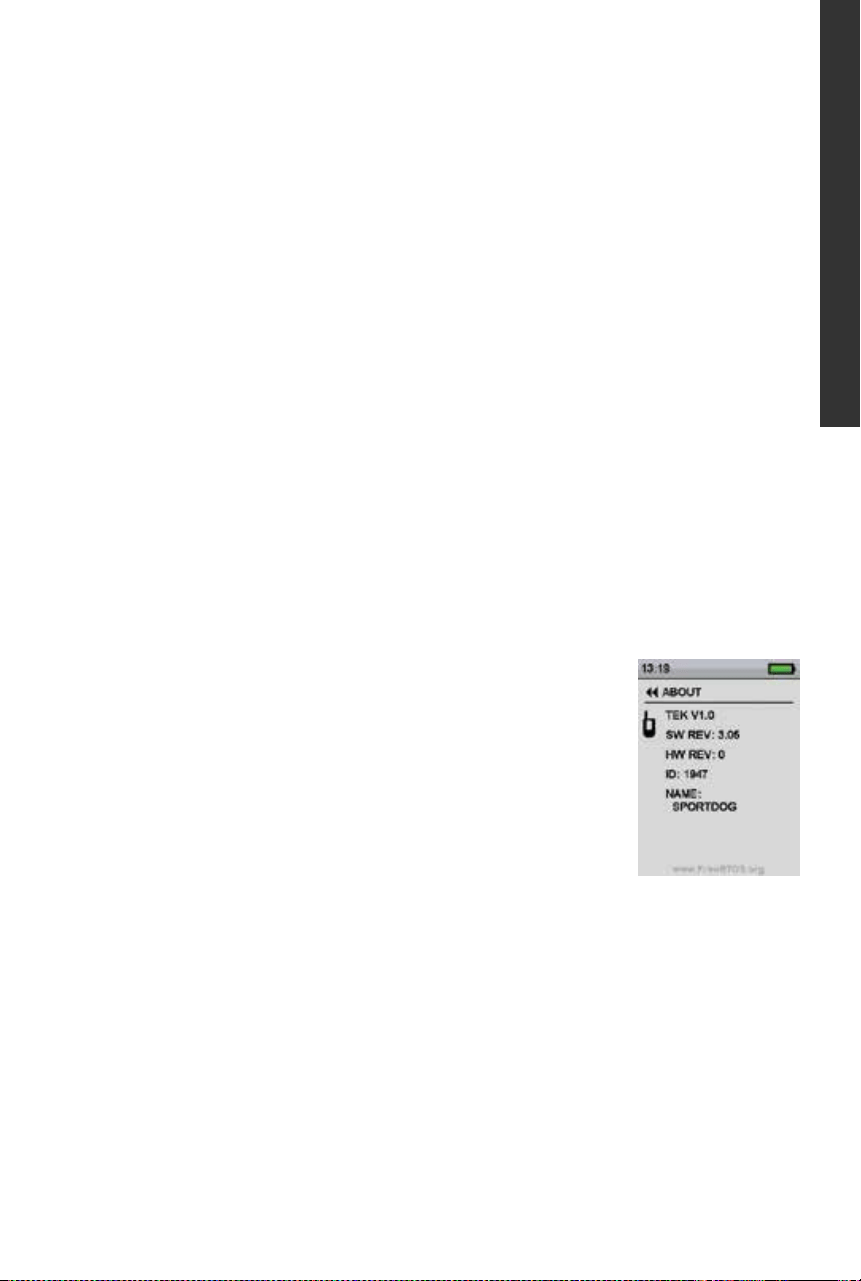
44
SPORTDOG.COM
SETTINGS
DISPLAY
The DISPLAY screen allows you to configure the brightness display timer and the power OFF timer.
TO CHANGE THE LIGHT DIM TIMER:
1. From the main menu, select SETTINGS > DISPLAY > LIGHT DIM.
2. Press the Right Arrow Key on the Menu Selection Pad to toggle among timer SETTINGS: NO, 30 SEC, 60 SEC,
90 SEC. When not in use, the display screen will dim after the number of seconds selected. The default is
30 SEC.
3. Press BACK to return to the main menu.
TO CHANGE POWER OFF TIMER:
1. From the main menu, select SETTINGS > DISPLAY > POWER OFF.
2. Press the Right Arrow Key on the Menu Selection Pad to toggle among timer SETTINGS: NO, 1 HR, 2 HR, 3
HR. If not used, the Handheld Device will then automatically power OFF after the time period selected. The
default is 3 HR.
3. Press BACK to return to the main menu.
RESET
Reset restores the Handheld Device to its factory-default settings.
TO RESET HANDHELD DEVICE SETTINGS:
NOTE: Resetting the system cannot be undone. All information including way points will be lost. All collars must
be paired again to the Handheld Device after reset.
1. From the main menu, select SETTINGS > RESET ALL. A confirmation screen displays.
2. At the prompt, “ARE YOU SURE YOU WANT TO CONTINUE?” select YES. The handheld will reset to its default
configuration and power OFF.
ABOUT
From the ABOUT screen you can view your Handheld Device’s name, ID number, and
software/hardware revision.
45
SPORTDOG.COM
ACCESSORIES
ACCESSORIES
To purchase additional accessories for your TEK-V1.5L-E or TEK-V1.5LT-E, contact the Customer Care Centre or visit our
website at www.sportdog.com.
GPS Collar with E-Collar Module TEK-2AD-E
GPS Collar TEK-2L-E
E-Collar Module TEK-2T-E
Collar Charging Cradle TEK-V2GCRAD
Car Mount Antenna (Compatible with TEK Series 1.5 Handheld only) TEK-CARANT-E
GPS Collar Antenna TEK-V2GANT-E
GPS Collar Battery TEK-V2GBATT-E
Handheld Antenna TEK-V2HANT-E
Adaptor Cable TEK-V2CABLE
Collar Antenna Id Band TEK-V2IDBANDS
Canvas Bag TEK-V2BAG
To purchase additional accessories for your TEK-V1.5L-C or TEK-V1.5LT-C, contact the Customer Care Centre or visit
our website at www.sportdog.com.
GPS Collar with E-Collar Module TEK-2AD-C
GPS Collar TEK-2L-C
E-Collar Module TEK-2T-E
Collar Charging Cradle TEK-V2GCRAD
Car Mount Antenna (Compatible with TEK Series 1.5 Handheld only) TEK-V2CARANT
GPS Collar Antenna TEK-V2GANT-E
GPS Collar Battery TEK-V2GBATT-E
Handheld Antenna TEK-V2HANT
Adaptor Cable TEK-V2CABLE
Collar Antenna Id Band TEK-V2IDBANDS
Canvas Bag TEK-V2BAG
46
SPORTDOG.COM
FREQUENTLY ASKED QUESTIONS
FREQUENTLY ASKED QUESTIONS
How old does a dog have to be before
using the TEK Series 1.5 System?
Your dog should be able to learn basic obedience commands such
as “Sit” or “Stay.” The system should only be used with dogs over 6
months of age. The GPS Collar or GPS Collar with E-Collar Module
may be too large for dogs under 3.6 kg. Fits neck sizes 27 cm to 58
cm.
Are the GPS Collar and E-Collar
Module waterproof?
Yes. They are waterproof and can be submersed in water to a
depth of 7.6 m.
Can my GPS Collar or GPS Collar
with E-Collar Module be used around
salt water?
If the collar is used in or around salt water, it should be rinsed with
fresh water following each use.
Can I use the TEK Series 1.5 System for
multi-dog tracking and/or training?
Yes, the TEK Series 1.5 System is expandable to a maximum of
12 dogs. Additional collars must be purchased separately (see
accessories chart above).
Can I use the TEK Series 1.5 System on
aggressive dogs?
We do not recommend any of our products to be used on
aggressive dogs. We recommend you contact your local
veterinarian or professional trainer to determine if your dog
might be aggressive.
Will I get exactly 11 km of range with the
TEK Series 1.5 System?
The range you get with your TEK Series 1.5 System will vary
according to terrain, weather and vegetation, as well as
transmission from other radio devices. To get the maximum
amount of range, please refer to the “HOW THE SYSTEM WORKS”
section.
Can I attach a lead to the GPS Collar? DO NOT attach a lead to the collar. You may put a separate non-
metallic collar strap on your dog’s neck and attach a lead. If the
E-Collar Module is installed, be sure the extra collar does not
interfere with the Contact Points.
Can I program my TEK Series 1.5 System
to work with my other SportDOG
®
Brand Systems?
Yes. The TEK Series 1.5 Systems is compatible with the TEK-2AD,
TEK-2L-2, TEK-2T, TEK-V2GCRAD, TEK-CARANT, TEK-V2GANT, and
TEK-V2GBATT.
Can I organise the way MY DOGS are
displayed or the TRACKING, TRAINING,
and COMPASS creens?
Yes. See “SET ORDER” in the MY DOGS section.
How many dogs can I share? You can share up to 12 dogs. Sharing a dog is the same as adding a
dog to an available slot on your Handheld Device.
Do I need to recalibrate my Compass
when I change locations?
For best results it is recommended that the Compass be calibrated
after you arrive at a new starting location.
How many Way Points can I store? You can store up to 1,000 Way Points, including a start point.
Will the TEK Series 1.5 System interfere
with my CB radio?
No. Your TEK Series 1.5 GPS Tracking and Training System will not
cause interference with your CB radio.
47
SPORTDOG.COM
FREQUENTLY ASKED QUESTIONS
FREQUENTLY ASKED QUESTIONS
TEK-V1.5LT:
Is the static stimulation safe for my dog? While continuous and/or momentary static stimulation may
be unpleasant, it is harmless to your dog. Electronic training
devices require interaction and training from the owner to achieve
desired results.
Once my dog is trained and has been
obeying my commands, will my dog have
to continue to wear the E-Collar Module?
Your dog may need to wear the E-Collar Module from time to time
for reinforcement. Also, many hunters keep the E-Collar Module
on their dog(s) while hunting for maximum control.
If I have a TEK-V1.5LT System, how
long can I continuously deliver static
stimulation to my dog?
You control both when and how long static stimulation is
delivered, up to a maximum of 10 seconds. After 10 seconds,
the static stimulation will “time out” for 5 seconds. You will see
a transmission time out message on the screen. Release the
User-Defined Stim Button and press it again for additional static
stimulation to be delivered.
What do I do if my dog’s neck becomes
red and irritated?
This condition is due to the Contact Points irritating the skin.
Discontinue use of the E-Collar Module for a few days. If the
condition persists beyond 48 hours, see your veterinarian. Once
the skin returns to normal, resume use, and monitor the skin
condition closely. Please refer to the “FIT THE GPS COLLAR OR
GPS COLLAR WITH E-COLLAR MODULE” section.
48
SPORTDOG.COM
TROUBLESHOOTING
TROUBLESHOOTING
The answers to these questions should help you solve any problem you have with this system. If they do not,
please contact the Customer Care Centre or visit our website at www.sportdog.com/international.
PROBLEM SOLUTION
My Handheld Device does not
turn on.
Check to make sure the unit was properly charged. Refer to “TO
CHARGE THE HANDHELD DEVICE” section.
My GPS Collar or GPS Collar with
E-Collar Module does not turn on.
Refer to “TO CHARGE THE GPS COLLAR/E-COLLAR MODULE” in the
“PREPARE THE GPS COLLAR/E-COLLAR MODULE” section.
The GPS Collar or GPS Collar with
E-Collar Module is not responding
to the Handheld Device.
• Make sure the GPS Collar has been charged. The collar will charge
in 4 hours.
• Verify the GPS Collar has been turned ON. Refer to “PREPARE THE
GPS COLLAR/E-COLLAR MODULE” section.
• Verify the E-Collar Module has been turned ON. Refer to “TO TURN
THE GPS COLLAR/E-COLLAR MODULE ON” section.
• Refer to “TO PAIR THE COLLARS TO THE HANDHELD DEVICE:” in
the “PAIR THE COLLAR” section.
I cannot get my Compass
to calibrate.
Always calibrate the Compass outdoors. Refer to “TO CALIBRATE THE
COMPASS” section.
My dog is not showing up on the
TRACKING screen.
Use the Menu Selection Pad on the TRACKING Screen to set the scale
to AUTO.
My Handheld Device conflicts
with another handheld or similar
device.
Refer to the “COMMUNICATION” section.
NOTE: If you change the User ID, all collars must be paired again.
My GPS Collar or GPS Collar with
E-Collar Module is experiencing
outside interference.
Refer to “TO CHANGE THE GPS CHANNEL:” in the “COMMUNICATION”
section.
NOTE: If you change the GPS Channel code, all collars must be
paired again.

49
SPORTDOG.COM
TROUBLESHOOTING
TROUBLESHOOTING
TEK-V1.5LT:
My dog is not responding when I
press a Stim Button.
• Check to see if the E-Collar Module has been turned ON.
• If your range has reduced from the first time you used it, please
check to see if the battery is low in either the Handheld Device or
E-Collar Module.
• Many factors can impact the range you have with the TEK Series 1.5
GPS Tracking and Training System. For a list of these factors, please
refer to “HOW THE SYSTEM WORKS”.
• You can verify the E-Collar Module is delivering stimulation to your
dog by placing the Test Light, enclosed in your kit, on the Contact
Points. Please refer to the “TEST LIGHT TOOL INSTRUCTIONS”
section for details.
• Increase the stimulation level. Refer to “TO FIND YOUR DOG’S
RECOGNITION LEVEL:” in the “TRAINING” section.
• Make sure the Contact Points are placed snugly against your
dog’s skin. Refer to “FIT THE GPS COLLAR OR GPS COLLAR WITH
E-COLLAR MODULE” for more information.
• You may need to switch to the longer Contact Points included with
your system or trim the hair beneath the Contact Points.
• If you notice your operating time dropping to about half the original
time, your E-Collar Module battery needs to be replaced. Contact
the Customer Care Centre.
50
SPORTDOG.COM
TERMS OF USE AND LIMITATION OF LIABILITY
1. TERMS OF USE
Use of this Product is subject to your acceptance without modification of the terms, conditions and notices
contained herein. Use of this Product implies acceptance of all such terms, conditions and notices. If you do not
wish to accept these terms, conditions, and notices, please return the Product, unused, in its original packaging
and at your own cost and risk to the relevant Customer Care Centre together with proof of purchase for a
full refund.
2. PROPER USE
This Product is designed for use with dogs where tracking and training is desired. The specific temperament
or size/weight of your dog may not be suitable for this Product (please refer to “HOW THE SYSTEM WORKS”).
Radio Systems Corporation recommends that this Product is not used if your dog is aggressive and accepts no
liability for determining suitability in individual cases. If you are unsure whether this Product is appropriate
for your dog, please consult your veterinarian or certified trainer prior to use. Proper use includes, without
limitation, reviewing the entire Operating Guide and any specific safety information statement.
3. NO UNLAWFUL OR PROHIBITED USE
This Product is designed for use with dogs only. This dog training device is not intended to harm, injure or
provoke. Using this Product in a way that is not intended could result in violation of Federal, State or local laws.
4. LIMITATION OF LIABILITY
In no event shall Radio Systems Corporation or any of its associated companies be liable for (i) any indirect,
punitive, incidental, special or consequential damage and/or (ii) any loss or damages whatsoever arising out of
or connected with the misuse of this Product. The Purchaser assumes all risks and liability from the use of this
Product to the fullest extent permissible by law.
5. MODIFICATION OF TERMS AND CONDITIONS
Radio Systems Corporation reserves the right to change the terms, conditions and notices governing this
Product from time to time. If such changes have been notified to you prior to your use of this Product, they shall
be binding on you as if incorporated herein.
COMPLIANCE
This equipment has been tested and found to comply with relevant R&TTE Directives. Before using this equipment
outside the EU countries, check with the relevant local R&TTE authority. Unauthorised changes or modifications to
the equipment that are not approved by Radio Systems Corporation are in violation of EU R&TTE regulations, could
void the user’s authority to operate the equipment, and void the warranty.
The Declaration of Conformity can be found at: www.sportdog.com/eu_docs.php
IC
This device complies with Industry Canada licence-exempt RSS standard(s). Operation is subject to the following
two conditions: (1) this device may not cause interference, and (2) this device must accept any interference, including
interference that may cause undesired operation of the device.
This device has been designed to operate with the antennas provided with the equipment. Use of other antennas may
violate Industry Canada rules and void the user’s authority to operate the equipment.
ACMA
This device complies with the applicable EMC requirements specified by the ACMA (Australian Communications and
Media Authority).
51
SPORTDOG.COM
BATTERY DISPOSAL
See Important Safety Information related to the battery on page 2.
This system operates on two Li-Ion battery packs (2000mAh capacity for the GPS Collar and 1900mAh capacity for
the Handheld Device). Call the Customer Care Centre if your battery needs to be replaced.
Separate collection of spent batteries is required in many regions; check the regulations in your area before
discarding spent batteries. Please see below for information on how to remove the battery from the product for
separate disposal. If you wish to ship us your spent batteries for disposal, contact Customer Care Centre.
AT END OF PRODUCT LIFE, USE THESE BATTERY REMOVAL INSTRUCTIONS FOR FINAL DISPOSAL (DO NOT OPEN
THE COLLAR UNTIL YOU HAVE RECEIVED THE REPLACEMENT):
GPS Collar:
• Remove the collar strap.
• Using a 3/32 Allen Key, remove the 2 screws which secure the E-Collar Module or Location Only Module.
• Using the 3/32 Allen Key, remove the 4 screws in the corners which secure the top cover to the module (lift the
antenna bases to access all of the screws).
• Remove the top cover to expose the battery.
• Disconnect the battery wires by pulling the connector gently away from the board.
• When removing the old battery pack, care must be taken when gripping the connector firmly
to avoid damaging the wires. Shorting the battery wires may cause fire or explosion.
• These instructions are not valid for repair or battery replacement. Replacing the battery
with a battery not specifically approved by Radio Systems Corporation may cause fire or
explosion. Please call the Customer Care Centre to avoid invalidating your warranty.
Handheld Device:
• Lift the metal lock and turn it anticlockwise.
• Remove the back cover.
IMPORTANT RECYCLING ADVICE
Please respect the Waste Electrical and Electronic Equipment regulations in your country. This equipment must
be recycled. If you no longer require this equipment, do not place it in the normal municipal waste system. Please
return it to where it was purchased in order that it can be placed in our recycling system. If this is not possible,
please contact the Customer Care Center for further information. For a listing of Customer Care Center telephone
numbers, visit our website at www.sportdog.com.

52
SPORTDOG.COM
WARRANTY
THREE YEAR NON-TRANSFERABLE LIMITED WARRANTY
This Product has the benefit of a limited manufacturer’s warranty. Complete
details of the warranty applicable to this Product and its terms can be found at www.sportdog.com and/ or are
available by contacting your local Customer Care Centre.
Europe - Radio Systems PetSafe Europe Ltd, 2nd Floor, Elgee Building, Market Square
Dundalk, Co. Louth, A91 YR9X Ireland
Canada - Radio Systems Corporation, 10427 PetSafe Way, Knoxville, TN 37932 USA
For a list of patents protecting this product, please visit: www.radiosystemscorporation.com/patents
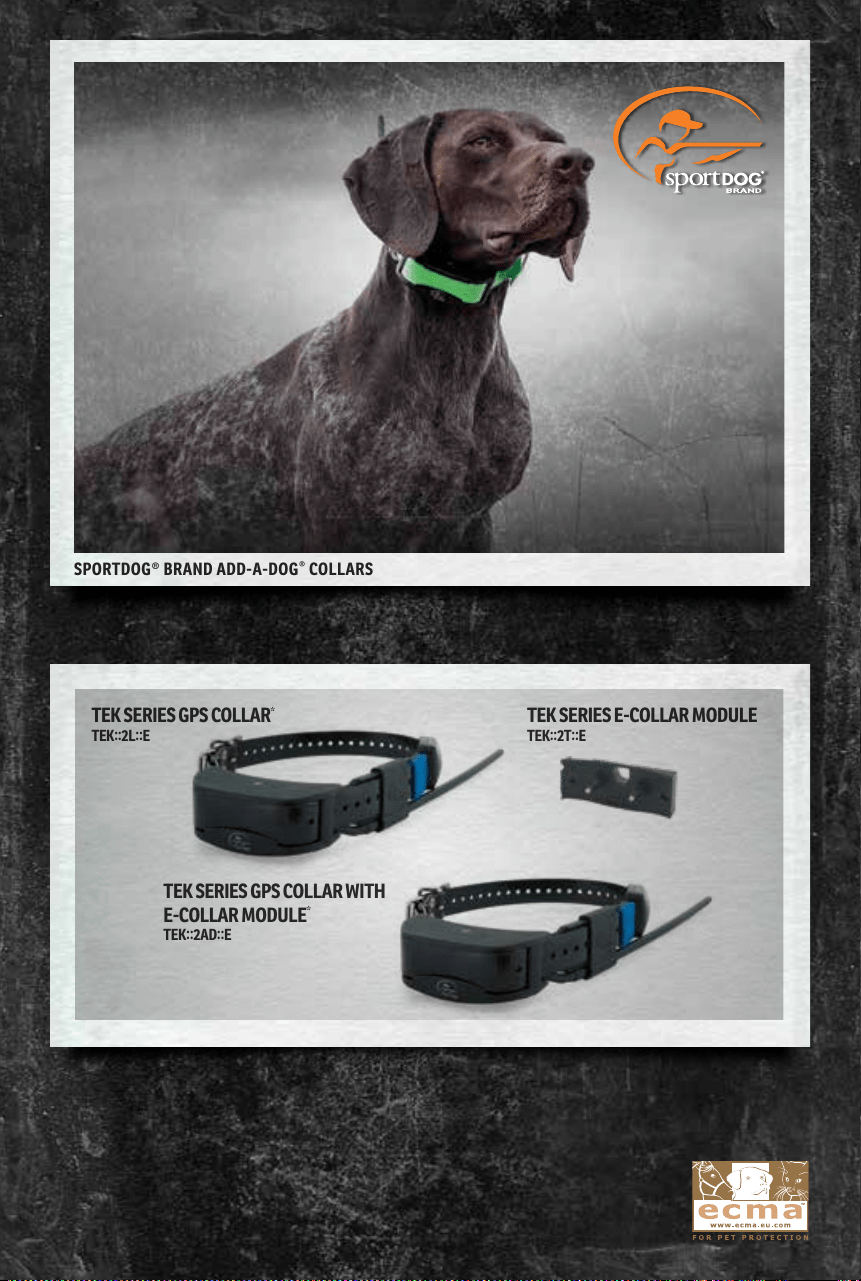
NOT COMPATIBLE WITH TEK SERIES 1.5 OR OTHER SPORTDOG
®
BRAND SYSTEMS.
*PINK AND GREEN ID BANDS ALSO INCLUDED.
SPORTDOG® BRAND ADD-A-DOG
®
COLLARS
SPORTDOG.COM
TEK SERIES GPS COLLAR
*
TEK
::
2L
::
E
TEK SERIES E-COLLAR MODULE
TEK
::
2T
::
E
TEK SERIES GPS COLLAR WITH
E-COLLAR MODULE
*
TEK
::
2AD
::
E
©2017 RADIO SYSTEMS CORPORATION
Radio Systems Corporation • 10427 PetSafe Way • Knoxville, TN USA 37932 • +1 865.777.5404
Radio Systems PetSafe Europe Ltd. • 2nd Floor, Elgee Building, Market Square
Dundalk, Co. Louth, A91 YR9X Ireland • +353 (0) 76 892 0427
400-2086-1