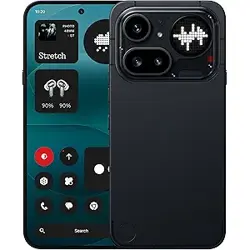

Nothing Phone (4a) Pro User Guide
Due to software updates, your experience of the software interface (including
but not limited to software features, user interfaces, and interaction
experiences) may differ from the interface presented in this guide. The
software interface is subject to change.
Table of Contents
GETTING STARTED
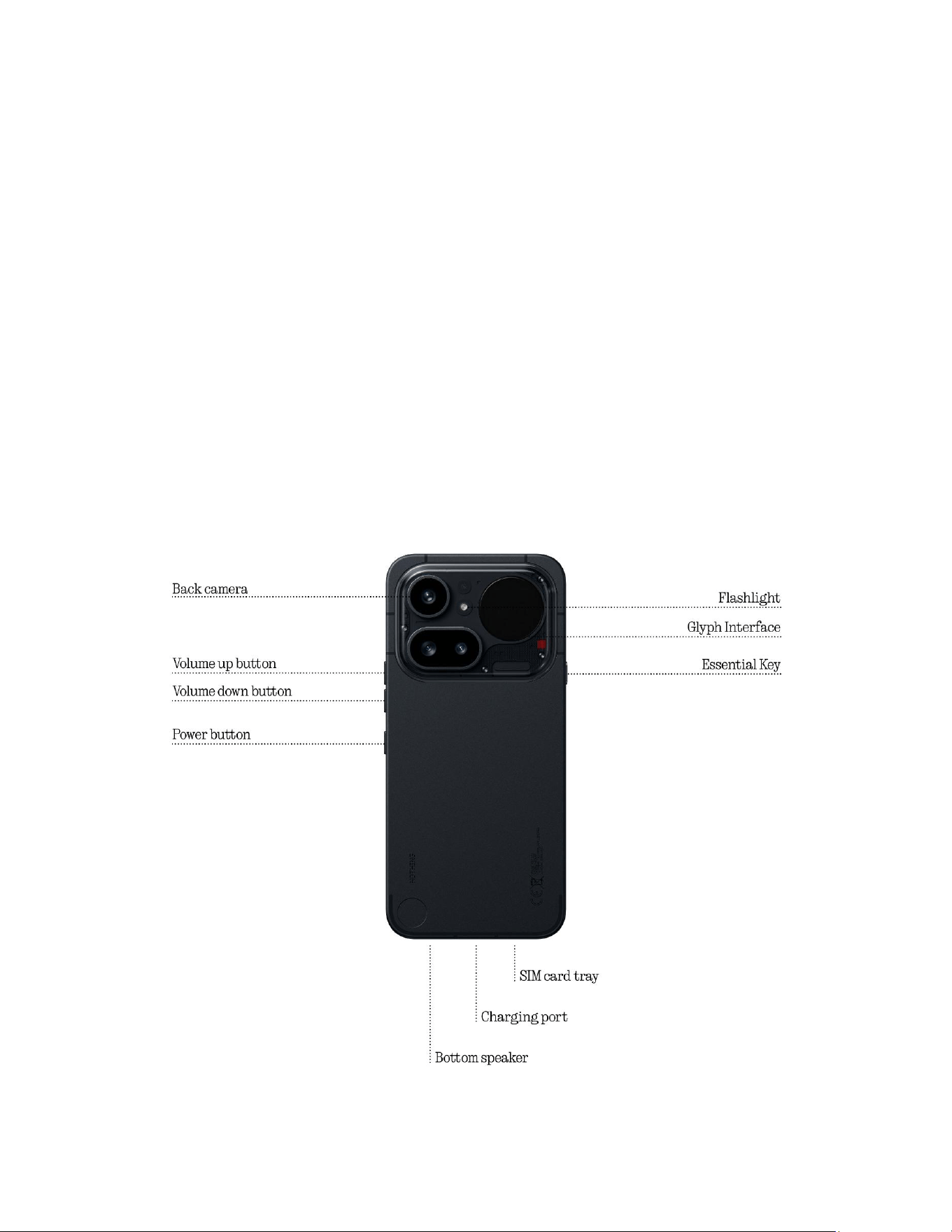
1. Hardware Layout
2. Charging
3. Navigation
4. Launcher
5. Quick Settings / Notifications
BASICS
1. Network and Internet
2. Connected Devices
3. Installing / Deleting Apps
4. Battery
5. Storage
6. Sound & Vibration
7. Security & Privacy
8. About Phone
ADVANCED
1. Essential Key
2. Essential Space
3. Glyph Interface
4. App Shortcuts
5. Max Icons & Big Folder
6. Do Not Disturb
7. Google Assistant
8. Screenshot
9. NFC

2. Charging
Phone (4a) Pro charges at 33W. Able to reach 100% power in about 1.1 hour with
wired fast charge and a compatible fast charge adapter.
3. Navigation
3-button navigation
• Back: return to the previous screen or reverse the last action.
• Home: return to the home page of the launcher.
• App switcher: open the app switcher to change to a recently opened app or
to free up memory by closing apps running in the background.
Gesture navigation
• Back: swipe inwards from the left or right edge of the screen.
• Home: swipe up from the bottom edge of the screen.
• App switcher: swipe up and hold from the bottom edge of the screen.
4. Launcher
Home screen
• Long press the empty area to bring up Home settings, Widgets and
Customisation.
• Long press app icons to show app shortcuts and rearrange the icons position.
• Long press and drag one app icon to another icon to create a folder.
• Long press a folder to access folder customisation and change the folder
layout.
App drawer
• Swipe up from the bottom to pull up the App drawer.
• Long press and drag the app icon to add apps to the home screen.
• Swipe right in the App Drawer to show the hidden app icons.

Widgets
• Open the Widget menu through app shortcuts or long press the empty area of
the home screen.
• Long press and drag any widget to the home screen.
• Long press widget to resize or edit.
5. Quick Settings / Notifications
• Pull down from the status bar to access Quick Settings & the Notification
Centre. In Quick Settings, tap each tile to toggle each feature. Long press the
tiles to access more detailed settings.
• Pull down a second time to access the expanded Quick Settings. Swipe left
and right to access more Quick Settings tiles. Press the edit (pencil) icon and
drag the tiles to customise the layout.
Basics
1. Network and Internet
• To change network settings, either drag down the Quick Settings panel and
long press the first tile on the top left, or open the Settings app and tap on
“Network and internet".
• To connect to Wi-Fi, tap on the Wi-Fi menu item and turn on the Wi-Fi toggle.
Proceed to select the wireless network of choice and enter the password.
• Internet sharing can also be turned on via this page. To do so, simply tap on
“Hotspot and tethering" to select the preferred method and proceed to set it
up. This option can also be easily accessed through Quick Settings.
2. Connected Devices
• To connect to a Bluetooth device, either drag down the Quick Settings panel
and long press the tile in the top right, or open the Settings app and tap on
“Connected devices".
• Tap on “Pair new device" and select the target device to connect to it.

3. Installing / Deleting Apps
Installing
Launch the “Play Store" and log into a Google account. Proceed to search for
the app on the top search bar and tap the blue “Install" button. The installed
app can be found in the app drawer.
Deleting
Open the app drawer or visit the home screen, hold and drag the app that needs
to be deleted. Drag it to the top right corner of the screen and release it under
the area marked “Uninstall". Or open the app drawer and long press the app that
needs to be deleted and click “Uninstall" when it is brought up.
4. Battery
The Phone (4a) Pro uses a 5080mAh battery, which should last a whole day of
medium to heavy usage. If the battery is running low, enable Battery Saver
mode by either tapping on the “Battery Saver" tile in Quick Settings, or pressing
the Low Power notification that appears automatically when the device's
battery falls below 20%.
Optimal Battery Usage Environment
The ideal usage temperature for the phone is between 32°F and 95°F (0°C to
35°C). Using or charging the device continuously in extreme temperatures may
speed up battery wear. Exposure to extreme temperatures triggers the
device’s protection mechanisms to mitigate battery performance issues, and
charging will be restricted to safeguard the battery if temperatures move
outside a prescribed range.
Optimal Charging Practices
When a mobile phone is fast charged, the battery receives more energy in a
shorter time. Lithium batteries have a limited number of charge and discharge
cycles. The fast charging process increases the chemical reaction rate inside
the battery, potentially causing accelerated damage to its internal structure,
and thereby reducing the battery's overall cycle life.
To address this, mobile phones are typically equipped with a complex Battery
Management System (BMS) to optimize the charging process. By controlling

the charging rate, monitoring battery temperature, and adjusting charging
strategies, the BMS helps mitigate the impact of fast charging on battery
longevity. It's recommended to avoid keeping the phone in a high-power
charging state for prolonged periods and to stop charging once the battery
reaches around 80% to minimize internal chemical reactions.
Power Saving Tips for Wireless Connections
To access the device information from the battery management system by
going to Settings > Battery > Battery information.
When the phone screen is on and Wi-Fi is available, prioritizing the activation
and connection to Wi-Fi can effectively save battery power, thus extending the
phone's battery life.
When GPS navigation is not in use, turning off the GPS function helps save
battery power, allowing the phone to achieve longer battery life while GPS is
disabled.
Only turn on Bluetooth when needed to avoid unnecessary battery
consumption.
For environmental reasons this package does not include a charger. This device
can be powered with most USB power adapters and a cable with USB Type-C
plug.
5. Storage
• To check the available storage on the device, open the Settings app and tap
on “Storage" to get an overview of the storage consumption of each type of
tiles.
• To clear app storage or wipe app cache, open the Settings app and tap on
“App", then “All apps" to view all installed apps and the respective storage
each app is using. Tap on a select app to access its “More info" page, which
shows the two buttons for either clearing storage or clearing cache.
6. Sound & Vibration
• Press the physical volume up or down button on the side of the device to
adjust the volume for the most recently used audio source and open the
audio menu.
• In the audio menu, tap on the top bell icon to change between the “Ring",
“Vibrate", and “Mute".

• In the audio menu, tap the expand icon at the bottom to open a slider menu
with four sliders to adjust the volume of media volume, call volume, ring &
notification volume, and alarm volume respectively.
• In the Quick Settings, tap on the volume tiles to change between the “Ring",
“Vibrate", and “Mute".
7. Security & Privacy
• To change the unlocking method, open the Settings app and find the
“Security and privacy" option. Enter the “Device unlock" page to set the
unlocking PIN, record additional fingerprints, or record facial data used for
unlocking the device.
• Note: fingerprint / face data unlocking cannot be used without a PIN as
otherwise anyone could simply swipe to unlock the device.
8. About Phone
• Contains all the device specific information such as hardware information,
phone number etc.
• Press on the “Device name" to edit how Phone (4a) Pro appears on other
devices.
• If there is a new software update available for the device, a dot will show up
next to the Nothing OS version.
Advanced
1. Essential Key
With the screen of the phone facing you, the Essential Key is located on the left
side of your Phone (4a) Pro and works in conjunction with the Essential Space
app to provide convenient screenshot and voice memo functions.
The Essential Key supports various operations, such as long press and double
press, each triggering different functionalities within different interfaces:
Functionality:

• Screenshot: Press the Essential Key to capture a quick screenshot. You’ll feel
haptic feedback when it’s successful. Press the Essential Key again to store
the screenshot in Essential Space. Note that when capturing on the home
screen, lock screen, and App drawer, you’ll need to tap the screenshot to
select it, then store it manually.
• Voice memo: Long press the Essential Key in any interface and begin speaking
to add voice notes directly to the captured content or ask questions about it.
The audio and screenshot are automatically saved to Essential Space, where
the system intelligently extracts key information, generates summaries, and
transcribes the audio into text to help you organize your thoughts. Note that
when long pressing the Essential Key on the home screen, lock screen, and
App drawer, you’ll only get voice recordings (no screenshots).
• View Records: Double press the Essential Key to quickly open Essential Space
and access your recent recordings and screenshots.
2. Essential Space
The Essential Space is your personal AI-powered collection where everything
captured by the Essential Key is stored and you can revisit, refine, and enjoy it
with ease.
Functionality:
• Intelligent Analysis (Requires Nothing Account Login): After logging into your
Nothing account, content recorded via the Essential Key will undergo
intelligent analysis. This includes generating summary highlights and even
recognizing and extracting location information directly from Google Maps
links within the content. Please note: Logging into your Nothing account is
required to enable these advanced analysis capabilities.
• Voice Commands for Enhanced Organization: Within voice memos, you can
utilise voice commands such as “Remind me to buy baby formula tomorrow
afternoon" or “What mountain is this?". Essential Space will intelligently set
the reminder or provide the answer. This functionality helps you effectively
manage daily tasks and obtain quick information.
• Editable Memory (Requires Nothing Account Login): In Memory, you can now
not only scan and modify voice memo transcriptions but also manually edit AI-
generated summarisation and reminder content, offering you greater control
and flexibility over your records.

• Auto-sync to Google Calendar: Enable the Google Calendar toggle in settings
to automatically add your to-do items from Essential reminders into Google
Calendar. Note that only tasks with a set time will be synced.
• Essential Memory: When enabled, captures saved in Essential Space are
interpreted as contextual memories rather than simple records. Stored in
Essential Memory, these memories can be recognised and recalled through
natural queries in Essential Search, making it easier to surface the most
relevant information when you need it.
• Essential Voice: Essential Voice helps you generate clean and polished
transcriptions from natural speech. It supports multiple languages, on-the-fly
translation, and snippets for quickly inserting most-used text. Now you can
finally focus on what you want to say, not how to say it.
3. Glyph Interface
• The Glyph Interface is the illuminated micro-LED Glyph Matrix on the back of
the Phone (4a) Pro. All of the preloaded Nothing ringtones and notification
sounds have their bespoke patterns, lighting up the Glyph Interface in sync
with the audio and vibration, providing you with a new way to interact with
Phone (4a) Pro.
• To set up individual features, find the Glyph Interface section in the Settings
app (Settings > Glyph Interface) . Alternatively, long-press the Glyphs toggle
in Quick Settings.
• Drag the brightness slider to adjust the brightness of the Glyph Matrix. This
will scale all Glyphs down from maximum brightness to the set brightness. Tap
the automatic brightness button to automatically adjust the Glyph Matrix
brightness.
• To preview and set ringtones, find the Ringtones tab in the Glyph Interface
settings. Two mode options are available in Ringtones: classic or generative. In
classic mode, you can choose between setting the default ringtone or pairing
individual contacts with unique ringtones, then proceed to decide between
Nothing Signals (bespoke Glyph) or My sounds (imported sounds). In
generative mode, you can choose a default sound engine to dynamically
generate the exclusive Glyph ringtones for automatic assignment to each
contact.

• To add a custom ringtone, choose the classic mode in Ringtones, go to My
sounds in Sound library and tap “Add new sounds." This will open the file
browser to select the files to import.
• Notification sounds can be set in a similar manner, deciding between classic
or generative mode.
• Other features of the Glyph Interface include:
• Flip to Glyph – temporarily mutes ringtone & notifications of the device
when Phone (4a) Pro is placed with the screen face down, reducing
distractions while ensuring you do not miss any important calls. Silent and
Vibrate modes are available. And there is an Essential Notification option to
choose whether to receive only Essential Notifications.
• Essential Notifications – mark a notification as Essential by long-pressing
the incoming notification banner and tapping “Essential Glyph" to complete
setup, or navigating to Glyph Interface > Essential Notifications > + New rule
to complete setup. The Glyph Interface will remain lit until you have read or
dismissed the Essential notification.
• Glyph timer - pomodoro timer like experience allows you to focus on your
tasks at hand with minimal distractions. Simply set the timer and face down
to start.
• Volume indicator - uses the Glyph Interface to show the volume level.
• Glyph Progress - processes notifications from enabled apps to provide an
estimation of progress.
• Bedtime schedule – temporarily disables the Glyph Interface at set times on
selected days, ensuring you won’t be distracted at night-time.
4. App Shortcuts
• In the launcher, app-specific shortcuts can be accessed by long holding on an
app icon to show the expanded menu of shortcuts.
• Tip: the shortcut can also be made into its own standalone icon by dragging
and dropping it on the homescreen.

5. Max Icons & Big Folder
• The Nothing launcher offers the option to expand any icon on the
homescreen to four times the size, allowing full customisation options for
users. To use this feature, long hold on an app icon and press the expand icon
to enlarge the selected app icon.
• The same procedure can also be carried out on folders, allowing users to
organise their home screen without adding another step of opening the folder
first for the first three apps in the folder.
6. Do Not Disturb
• Do Not Disturb mode offers a distraction free experience, temporarily muting
any non-whitelisted notifications and incoming calls, as well as hiding any
unseen notifications on the status bar and notification tray. To toggle this
feature, tap on the “Do Not disturb" tile in the Quick Settings or on the home
screen.
• To make changes to the list of whitelisted people / apps, simply long hold the
“Do Not disturb" tile in Quick Settings and edit the important people / apps.
This will allow them to bypass the Do Not Disturb.
• Do not disturb mode also temporarily disables the Glyph Interface by default.
• When playing games, you can quickly block incoming calls or notifications
without turning on the Do Not Disturb mode. Through the game mode
shortcut panel on the left side of the game, you can choose to block incoming
calls or notifications individually.
7. Google Assistant
Google Assistant provides a virtual personal assistant experience through a
natural language speech interface to perform a variety of tasks. It can be
activated by short holding the power button or swiping up from the bottom
right corner of the screen.
Learn more about things to say to Google Assistant from the Google Assistant
app.

8. Screenshot
• To capture a screenshot on Phone (4a) Pro, simultaneously press the volume
down and power button. The image will be stored in the Screenshot album in
the Nothing Gallery. By default, this folder might not be synchronised to the
main photo album. To access the Screenshot album, go to Nothing Gallery and
navigate to the bottom “Albums" tab.
• To take an expanded screenshot, take a normal screenshot first and wait for a
“Capture more" button to show up on the bottom of the screen. Once tapped,
a full page view will be visible for any scrollable interface. Simply drag the
borders to adjust the size of the screenshot.
• You can also utilise the three-finger screenshot gesture for taking
screenshots. To activate the screenshot gesture, proceed to Settings >
Special features > Gestures > Screenshot gesture and enable this feature.
• The screenshot can also be quickly edited by pressing the thumbnail that
pops up after taking the screenshot. Make any changes like crop or annotate,
then press “Save" on the top left corner to save the edited screenshot.
9. NFC
• NFC (Near Field Communication) allows Phone (4a) Pro to connect to other
NFC-supported devices by placing the two devices in proximity to each other.
The most common use is to use Phone (4a) Pro as a virtual credit / debit card
through Google Pay.
• It is recommended to keep NFC on for convenience as it does not drain much
battery when left on standby. To toggle this feature off, open the Quick
Settings and tap on the “NFC" tile.
FAQ
Q: How do I turn on my Nothing Phone (4a) Pro?
A: Press and hold the power button until the Nothing logo appears on the
display.
Q: How do I transfer data from my existing phone to my Nothing Phone (4a) Pro?

A: In the setup wizard, there will be an option to copy data from an existing
device, either via a Google account backup or by connecting the two devices
with a cable.
Q: How do I change the language?
A: The language can be set on the first page of the setup wizard. It can also be
changed in Settings > System > Languages.
Q: How do I enable location services?
A: Location services can be activated in Settings > Location. When this toggle is
on, apps that require location services will request permission to access your
location data when you open the app for the first time.
Q: How do I activate Find Hub on my Nothing Phone (4a) Pro?
A: Find Hub will be automatically activated after you log into a Google account.
However, the location can only be accessible if location services are toggled on.
For more information, check out Settings > Google > Find Hub.
Q: How do I back up data on my Nothing Phone (4a) Pro?
A: Phone (4a) Pro uses Google's default backup routine when it's connected to
Wi-Fi and charging on standby for 2 hours. To backup immediately, navigate to
Settings > Google > All services > Backup and tap on the “Back up now" button.
Q: How do I change the wallpaper and accent colours on my Nothing Phone (4a)
Pro?
A: The wallpaper and accent colours can be changed by long pressing on an
empty space in the homescreen, and selecting “Customisation" in the pop up
menu. By default, Phone (4a) Pro will deploy Android's Dynamic Colour feature
to extract colours from the wallpaper unless specified.
Q: How do I use screen recording on my Nothing Phone (4a) Pro?
A: To locate the screen recording feature, swipe down from the top of the
screen two times, then swipe left to find the “Screen record" tile.
To begin recording, swipe down to open the Quick Settings and find the “Screen
record" tile. Tap it once and confirm to begin recording after the three-second
countdown, shown on the right side of the notification bar.
To finish recording, swipe down to open the notification centre and tap “Stop"
to save the recording. The file can be accessible in Nothing Gallery > Albums >
Movies.
Q: How do I add the Nothing X widget to my Nothing Phone (4a) Pro?
A: Just like any other widget, the Nothing X widget can be accessible by long
pressing on an empty space on the home screen and selecting “Widgets" in the
pop-up menu.

Q: How do I record on my Nothing Phone (4a) Pro?
A: Launch the Camera app and tap on the “Video" option on the mode selection
bar.
Q: How do I set and use passcode on my Nothing Phone (4a) Pro?
A: Go to Settings > Security and privacy > Device unlock to choose your
preferred unlocking method. Note that you need to set a pattern / PIN first in
order to use fingerprint or Face Unlock.
Q: How do I do factory reset on my Nothing Phone (4a) Pro?
A: To carry out a factory reset, go to Settings > System > Reset options > Erase
all data (factory reset).
Q: How do I eject the SIM tray on my Nothing Phone (4a) Pro?
A: Insert the provided SIM card remover tool into the hole next to the SIM tray,
located on the bottom of the phone.
Q: How do I connect my Ear (2) to my Nothing Phone (4a) Pro?
A: The Fast Pair feature launches on the Phone (4a) Pro when opening an
unpaired Ear (2) case with the buds inside. Navigate through the Fast Pair setup
to finish the pairing.
If Fast Pair does not appear, go to Settings > Connected Devices > Pair new
device to search for Nothing Ear (2). For more details, please refer to the Ear (2)
manual.
Q: How do I enable battery saver on my Nothing Phone (4a) Pro?
A: When the Phone (4a) Pro's battery falls below 20%, a low battery notification
will appear to prompt you to turn on battery saver.
To toggle it manually, swipe down from the top of the screen two times to
access the expanded Quick Settings, then swipe left to find it. Tap it to toggle
it on and off.
Q: How do I force restart my Nothing Phone (4a) Pro?
A: Hold the power button and volume up button simultaneously until the
Nothing logo appears on the display.
Q: How do I enable Game Mode on my Nothing Phone (4a) Pro?
A: Game mode is automatically activated when a listed app is launched. To edit
the list of apps, go to Settings > Special features > Game Mode > Game list
management. Apps that are listed as games on the Play Store will be added to
this list by default.
Q: How do I know when a new software update is available?
A: Whenever a new software update becomes available, a notification will pop
up reminding you to update to the latest version. However, you can also

manually check for updates by going to Settings > About phone > Software
info(the phone image). If there is a new update available, a red icon will appear
next to the Nothing OS label.
Q: How do I hide message details on the lockscreen?
A: Go to Settings > Lock screen > Privacy to pick the notification preview option.
Q: How do I enable call waiting on Nothing Phone (4a) Pro?
A: Open the Phone app and tap on the hamburger icon on the left of the search
bar. Next, navigate to Settings > Calling accounts, then choose the relevant SIM
card if you have dual SIM, tap Additional settings and toggle the Call waiting
switch to turn it on or off.
Q: How do I block / blacklist numbers on Nothing Phone (4a) Pro?
A: Open the Phone app and tap on the hamburger icon on the left of the search
bar. Next, navigate to Settings > Blocked numbers > Add a number, to block
incoming calls and texts from the added number.
Q: How do I screen cast Nothing Phone (4a) Pro to my TV?
A: To set up the screen cast feature, swipe down from the top of the screen
two times to access the expanded Quick Settings. Press the edit (pencil) icon
and drag the Screen Cast tile up from the hidden tiles.
To begin mirroring, swipe down to open the Quick Settings and find the newly
added Screen Cast tile. Tap it once and select the targeted device to cast to
connect in the same local area network.
Q: How do I enable dark theme on Nothing Phone (4a) Pro?
A: Dark theme is enabled by default. To change it, swipe down to access Quick
Settings and find the “Dark Theme" tile and tap it to toggle it on / off.
Q: How do I restore deleted photos or videos?
A: Open the Nothing Gallery app and navigate to the Albums tab on the bottom
bar. Next, tap on “Recently deleted" to see items deleted within the recent 30
days.

