Please read this guide before using the product.
Models:
VHQ24M, VHQ32M
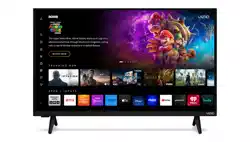
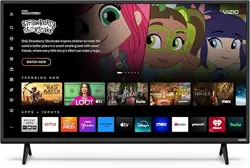
Quantum HD Smart TV
User Manual
Accessibility
Contact VIZIO for accessibility support at:
Email: accessibility@vizio.com
Phone: 1-877-698-4746
Binding Arbitration Agreement and Class Action Waiver
This purchase is subject to full VIZIO Terms and Conditions, including Binding Arbitration Agreement and Class Action
Waiver, which may be viewed at vizio.com/en/terms/terms-of-service.
By using this device, you accept those Terms and Conditions.
You have the right to opt out of the Binding Arbitration Agreement and Class Action Waiver within 60 calendar days
of your purchase. Please refer to the Limited Warranty section of this User Manual or view the full VIZIO Terms and
Conditions for opt-out instructions.
SAFETY & CERTIFICATIONS
WARNING
When you see this symbol, please read the accompanying
important warning or notice. It is intended to alert you to
the presence of important operating instructions.
Color Text — This is the TV menu feature you should be
selecting.
Grey Text — This is an action for you to complete, such as
entering in a name.
> — The arrow sign shows the ow of the steps you should take.
1. Lists additional steps you can take for each setting.
• Bullets give more detailed information about each feature.
TIP
When you see this symbol, please read the accompanying
helpful tip.
To get the most out of your new VIZIO product, read these instructions before using your product and retain them for future reference.
Be sure to inspect the package contents to ensure there are no missing or damaged parts.
To purchase or inquire about accessories and installation services for your VIZIO product, visit our website at vizio.com. We
recommend that you register your VIZIO product at: vizio.com/product-registration.
Thank You for Choosing VIZIO and congratulations on your new VIZIO TV.
Product Registration
IMPORTANT SAFETY INSTRUCTIONS
• When moving your TV from an area of low temperature to an area of high
temperature, condensation may form in the housing. Wait before turning on
your TV to avoid causing re, electric shock, or component damage.
• A distance of at least three feet should be maintained between your TV and any
heat source, such as a radiator, heater, oven, amplier, etc. Do not install your
TV close to smoke. Operating your TV close to smoke or moisture may cause
re or electric shock.
• Slots and openings in the back and bottom of the TV are provided for
ventilation. To ensure reliable operation of your TV and to protect it from
overheating, be sure these openings are not blocked or covered. Do not place
your TV in a bookcase or cabinet unless proper ventilation is provided.
• Never push any object into the slots and openings on your TV. Do not place any
objects on the top of your TV. Doing so could short circuit parts causing a re or
electric shock. Never spill liquids on your TV.
• Your TV should be operated only from the type of power source indicated on
the label. If you are not sure of the type of power supplied to your home, consult
your dealer or local power company.
• Do not apply pressure or throw objects at your TV. This may compromise the
integrity of the TV. The manufacturer’s warranty does not cover user abuse or
improper installations.
• The power cord must be replaced when using dierent voltage than the voltage
specied. For more information, contact your dealer.
• When connected to a power outlet, power is always owing into your TV. To
totally disconnect power, unplug the power cord.
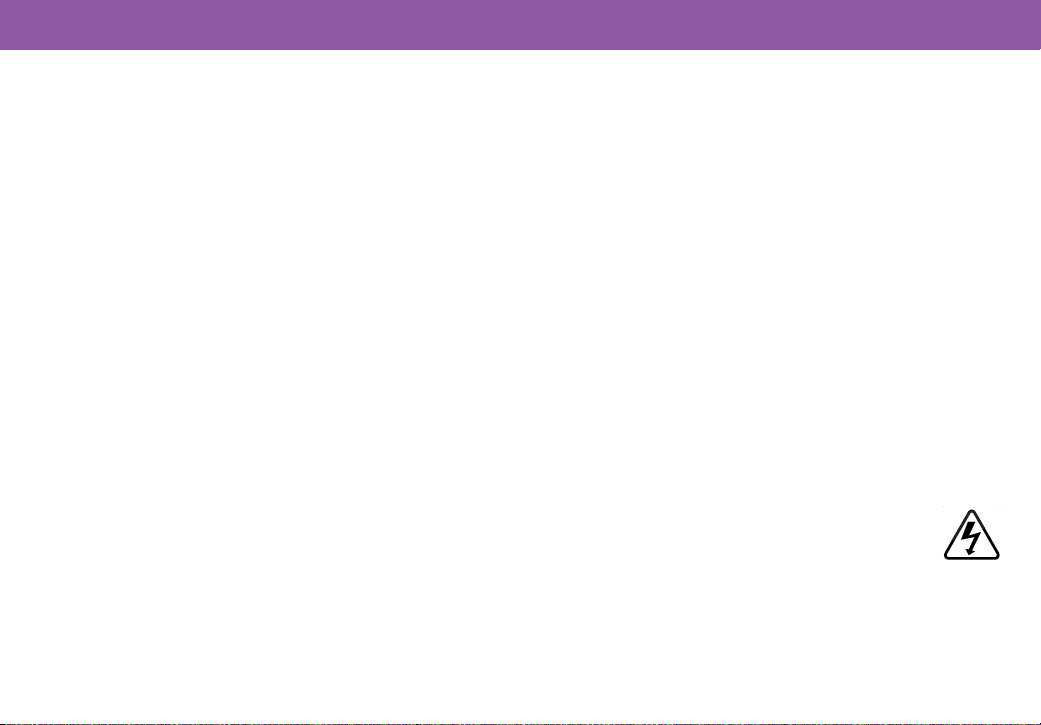
• The lightning ash with arrowhead symbol within an equilateral
triangle is intended to alert the user to the presence of un-isolated,
dangerous voltage within the inside of your TV that may be of
sucient magnitude to constitute a risk of electric shock to
persons.
• Do not overload power strips and extension cords. Overloading can result in re
or electric shock.
• The wall socket should be installed near your TV and easily accessible.
• Only power of the marked voltage can be used for your TV. Any other voltage
than the specied voltage may cause re or electric shock.
Important Safety Instructions
Your TV is designed and manufactured to operate within dened design limits.
Misuse may result in electric shock or re. To prevent your TV from being
damaged, the following instructions should be observed for the installation,
use, and maintenance of your TV. Read the following safety instructions before
operating your TV. Keep these instructions in a safe place for future reference.
• To reduce the risk of electric shock or component damage, switch o the power
before connecting other components to your TV.
• Heed all warnings.
• Follow all instructions.
• Do not use this TV near water.
• Clean only with dry cloth.
• Do not install near any heat sources such as radiators, heat registers, stoves, or
other appliances (including ampliers) that produce heat.
• Do not defeat the safety purpose of the polarized or grounding-type plug. A
polarized plug has two blades with one wider than the other. A grounding type
plug has two blades and a third grounding prong. The wide blade or the third
prong are provided for your safety. If the provided plug does not t into your
outlet, consult an electrician for replacement of the obsolete outlet.
• Protect the power cord from being walked on or pinched particularly at the
ends where the plug is located, near convenience receptacles, or where they
exit from the TV.
• Only use attachments/accessories specied by the manufacturer.
• Use only with the stand, tripod, or bracket specied by the manufacturer, or
sold with the TV.
• Unplug the power cord before cleaning your TV.
• Refer all servicing to qualied service personnel. Servicing is required when
the TV has been damaged in any way, such as power-supply cord or plug is
damaged, liquid has been spilled or objects have fallen into the TV, the TV
has been exposed to rain or moisture, does not operate normally, or has been
dropped.
• CAUTION: Always use a power outlet that is properly grounded.
IMPORTANT SAFETY INSTRUCTIONS
• Do not touch the power cord during lightning. To avoid electric shock, avoid
handling the power cord during electrical storms.
• Unplug your TV during a lightning storm or when it will not be used for long
period of time. This will protect your TV from damage due to power surges.
• VIZIO recommends that you do not attempt to repair or service your TV
yourself. Opening or removing the back cover may expose you to high voltages,
electric shock, and other hazards. If repair is required, contact your dealer and
refer all servicing to qualied service personnel.
• WARNING: Keep your TV away from moisture. Do not expose your TV to rain or
moisture. If water penetrates into your TV, unplug the power cord and contact
your dealer. Continuous use in this case may result in re or electric shock.
• Do not use your TV if any abnormality occurs. If any smoke or odor becomes
apparent, unplug the power cord and contact your dealer immediately. VIZIO
recommends that you do not attempt to repair or service your TV yourself.
• Avoid using dropped or damaged appliances. If your TV is dropped and the
housing is damaged, the internal components may function abnormally.
Unplug the power cord immediately and contact your dealer for repair.
Continued use of your TV may cause re or electric shock.
• Do not install your TV in an area with heavy dust or high humidity. Operating
your TV in environments with heavy dust or high humidity may cause re or
electric shock.
• Follow instructions for moving your TV. Ensure that the power cord and any
other cables are unplugged before moving your TV.
• Insert batteries in accordance with instructions. Incorrect polarities may
cause the batteries to leak which can damage the remote control or injure the
operator. Do not expose batteries to excessive heat such as sunlight, re, etc.
• When unplugging your TV, grab the head of the power plug, not the cord.
Pulling on the power cord may damage the wires inside the cord and cause re
or electric shock. When your TV will not be used for an extended period of time,
unplug the power cord.
• To reduce risk of electric shock, do not touch the connector with wet hands.
• Do not expose TV to liquids, including dripping or splashing.
• Do not place objects lled with liquid, such as vases, on the TV.
• If the main wall plug or the appliance coupler is disconnected, the disconnected
device will remain readily operable upon reconnection to an appropriate power
source.
• If any of the following occurs, contact the dealer:
– The power cord fails or frays.
– Liquid sprays or any object drops into your TV.
– Your TV is exposed to rain or other moisture.
– Your TV is dropped or damaged in any way.
– The performance of your TV changes substantially.
• CAUTION: These servicing instructions are for use by qualied service
personnel only. To reduce the risk of electric shock, do not perform any
servicing other than that contained in the operating instructions unless you are
qualied to do so.
• WARNING: Exposure to loud sounds can damage your hearing causing hearing
loss and tinnitus (ringing or buzzing in the ears). With continued exposure to
loud noises, ears may become accustomed to the sound level, which may result
in permanent damage to hearing without any noticeable discomfort.
• Install the TV where it cannot be pulled, pushed or knocked over.
• Do not allow children to hang onto the product.
• Store the accessories (remote, batteries, etc.) in a location safely out of the
reach of children.
• The American Academy of Pediatrics discourages television viewing for
children younger than two years of age.
• WARNING — STABILITY HAZARD: A television set may fall, causing serious
personal injury or death. Many injuries, particularly to children, can be avoided
by taking simple precautions such as:
• A LWAYS use cabinets or stands or mounting methods recommended by the
manufacturer of the television set.
v
IMPORTANT SAFETY INSTRUCTIONS
• A LWAYS use furniture that can safely support the television set.
• A LWAYS ensure the television set is not overhanging the edge of the supporting
furniture.
• A LWAYS educate children about the dangers of climbing on furniture to reach
the television set or its controls.
• A LWAYS route cords and cables connected to your television so they cannot be
tripped over, pulled or grabbed.
• NEVER place a television set in an unstable location.
• NEVER place the television set on tall furniture (for example, cupboards or
bookcases) without anchoring both the furniture and the television set to a
suitable support.
• NEVER place the television set on cloth or other materials that may be located
between the television set and supporting furniture.
• NEVER place items that might tempt children to climb, such as toys and remote
controls, on the top of the television or furniture on which the television is
placed.
• If the existing television set is going to be retained and relocated, the same
considerations as above should be applied.
• Disposal of a battery into re or a hot oven, or mechanically crushing or cutting
of a battery can result in an explosion.
• Leaving a battery in an extremely high temperature can result in an explosion
or the leakage of ammable liquid or gas.
• A battery subjected to extremely low air pressure may result in an explosion or
the leakage of ammable liquid or gas.
• WARNING — To prevent injury, this apparatus must be securely attached to the
furniture/wall in accordance with the installation instructions.
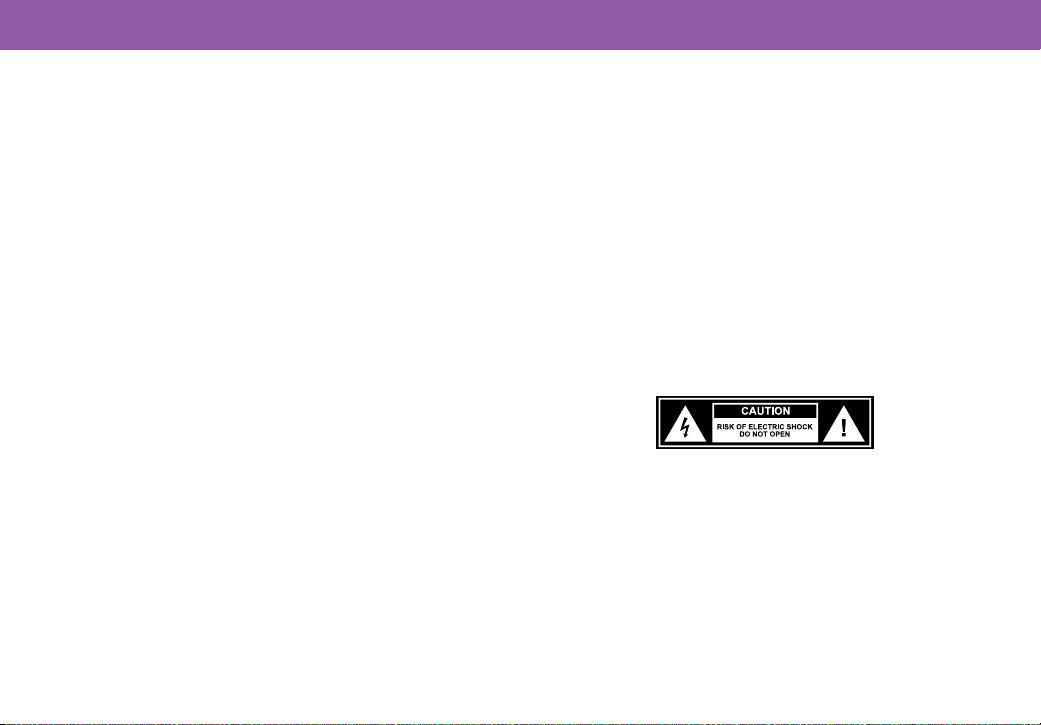
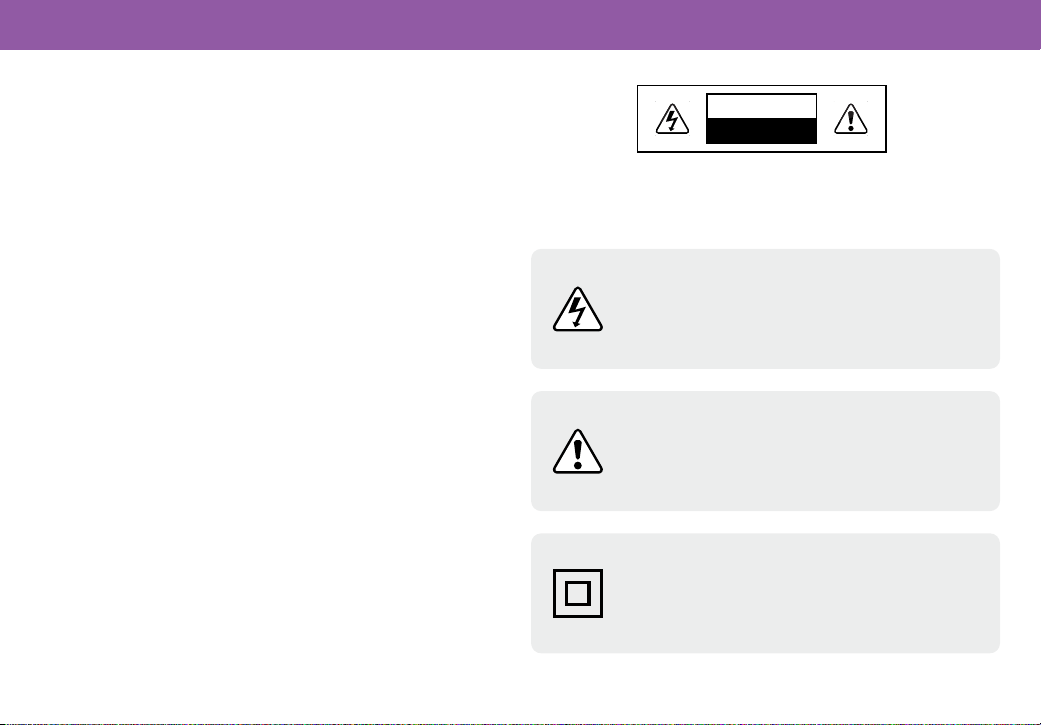
CAUTION
RISK OF ELECTRIC
SHOCK DO NOT OPEN
WARNING: To reduce the risk of re or electric shock,
do not expose this Unit to rain or moisture.
The exclamation point within an equilateral triangle is
intended to alert the user to the presence of important
operating and servicing instructions in the literature
accompanying the appliance.
The lighting ash with arrowhead symbol within an
equilateral triangle is intended to alert the user to the
presence of not isolated dangerous voltage within
the appliance that may be sucient magnitude to
constitute a risk of shock to persons.
WARNING
This equipment is a Class II or double insulated electrical
appliance. It has been designed in such a way that it
does not require a safety connection to electrical earth.
vi
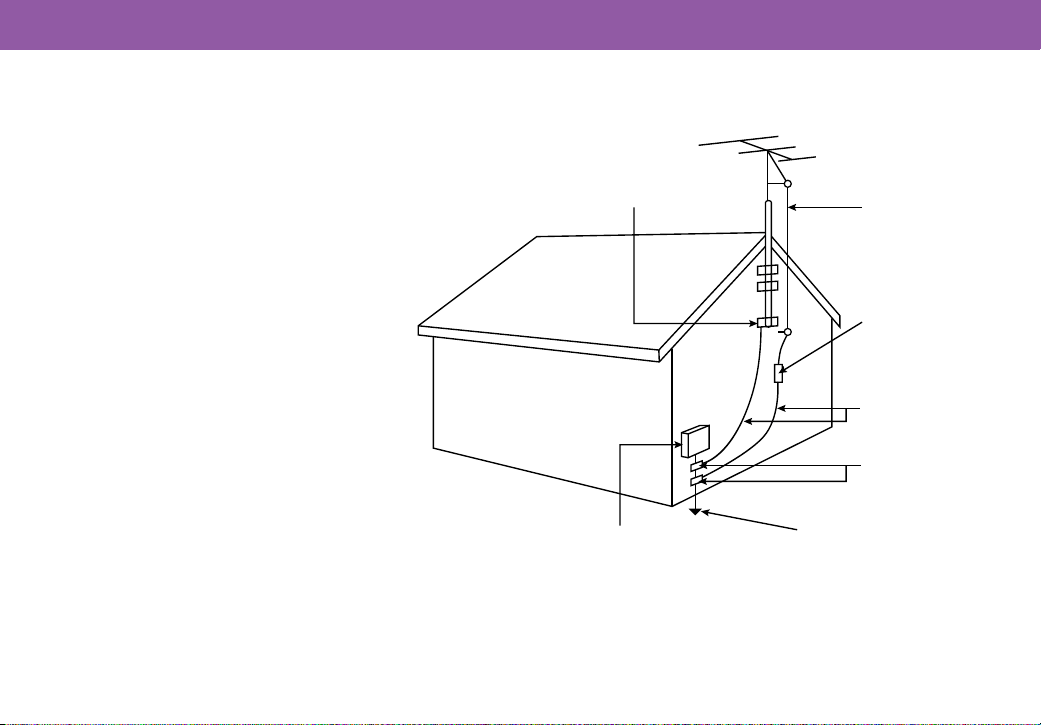
Ground Clamp
Antenna Lead In Wire
Antenna Discharge Unit
(NEC Section 810-20)
Grounding Conductors
(NEC Section 810-21)
Ground Clamps
Power Service Grounding
Electrode System
(NEC ART 250, part H)
Electric Service Equipment
Television Antenna Connection Protection
The TV shall be installed in accordance with the applicable
provisions of Article 810 and Article 820.
If an outside antenna/satellite dish or cable system is to be
connected to the TV, make sure that the antenna or cable
system is electrically grounded to provide some protection
against voltage surges and static charges.
Article 810 of the National Electrical Code, ANSI/NFPSA 70,
provides information with regard to proper grounding of the
mast and supporting structure, grounding of the lead-in wire to
an antenna discharge unit, size of the grounding conductors,
location of antenna discharge unit, connection to grounding
electrodes, and requirements of the grounding electrode.
Lightning Protection
For added protection of the TV during a lightning storm or
when it is left unattended or unused for long periods of time,
unplug the TV from the wall outlet and disconnect the antenna
or cable system.
Power Lines
Do not locate the antenna near overhead light or power
circuits, or where it could fall into such power lines or circuits.
Remember, the screen of the coaxial cable is intended to be
connected to earth in the building installation.
Installation of CATV
The installation instructions states the cable distribution
system should be grounded (earthed) in accordance with
ANSI/NFPA 70. the National Electrical Code (NEC), in
particular Section 820.93, Grounding of Outer Conductive
Shield of a Coaxial Cable.
Installation of Antenna
The installation instructions states the cable distribution
system used for connection to antennas and dishes should be
grounded (earthed) in accordance with ANSI/NFPA 70. the
National Electrical Code (NEC), in particular Section 810.21,
Bonding Conductors and Grounding Electrode Conductors —
Receiving Stations.
TELEVISION ANTENNA CONNECTION PROTECTION

Getting to Know Your TV ...................................................................................................................................................................................... 1
Front Panel ........................................................................................................................................................................................................................................................................1
Power/Input Button ........................................................................................................................................................................................................................................................ 1
Rear Panel ......................................................................................................................................................................................................................................................................... 2
Connecting a Device ........................................................................................................................................................................................................................................................ 3
Wall Mounting the TV ...................................................................................................................................................................................................................................................... 4
Using the Remote ............................................................................................................................................................................................................................................................. 5
Picture Mode .....................................................................................................................................................................................................................................................................7
Completing the First-Time Setup ....................................................................................................................................................................... 8
Pairing Bluetooth
®
Headphones .................................................................................................................................................................................................................................... 9
Accessibility ........................................................................................................................................................................................................... 10
Accessibility Settings ......................................................................................................................................................................................................................................................10
Setting up Closed Captioning ........................................................................................................................................................................................................................................ 11
VIZIO OS .................................................................................................................................................................................................................. 12
What is VIZIO OS? ............................................................................................................................................................................................................................................................ 12
Launching the VIZIO Home Screen .............................................................................................................................................................................................................................. 12
What You Can Do with VIZIO OS .................................................................................................................................................................................................................................... 12
Controlling Your TV with the VIZIO mobile app .......................................................................................................................................................................................................... 13
WatchFree+ ............................................................................................................................................................................................................. 14
What is WatchFree+? .......................................................................................................................................................................................................................................................14
What You Can Do with WatchFree+ ..............................................................................................................................................................................................................................14
How to Launch WatchFree+ ........................................................................................................................................................................................................................................... 14
Product Registration & Technical Support....................................................................................................................................................... 15
Help Topics ............................................................................................................................................................................................................. 16
Specications ........................................................................................................................................................................................................ 21
Regulatory Information ........................................................................................................................................................................................ 23
Limited Warranty ................................................................................................................................................................................................... 24
Legal & Compliance .............................................................................................................................................................................................. 27
Table of Contents
1
Getting to Know Your TV
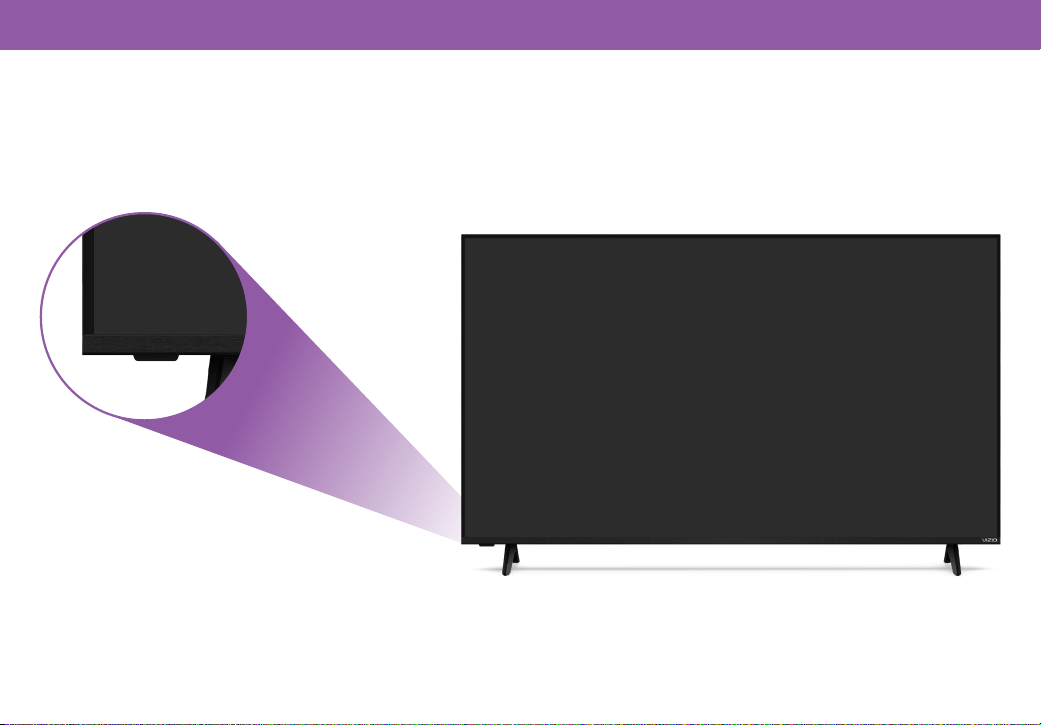
Remote Sensor and Power Indicator
When using the remote, aim it directly at this sensor.
The power indicator ashes on when the TV turns on, then goes out after several seconds.
When TV is OFF: Press to turn On the TV.
When TV is ON:
Press to change to the next input source.
Press and hold (3 seconds) and release to turn TV O.
Press and hold (12 seconds) to reset TV to default settings.
(Note: Resetting TV will remove all login credentials from WiFi and Apps)
Front Panel
Power/Input Button
2
r
Getting to Know Your TV
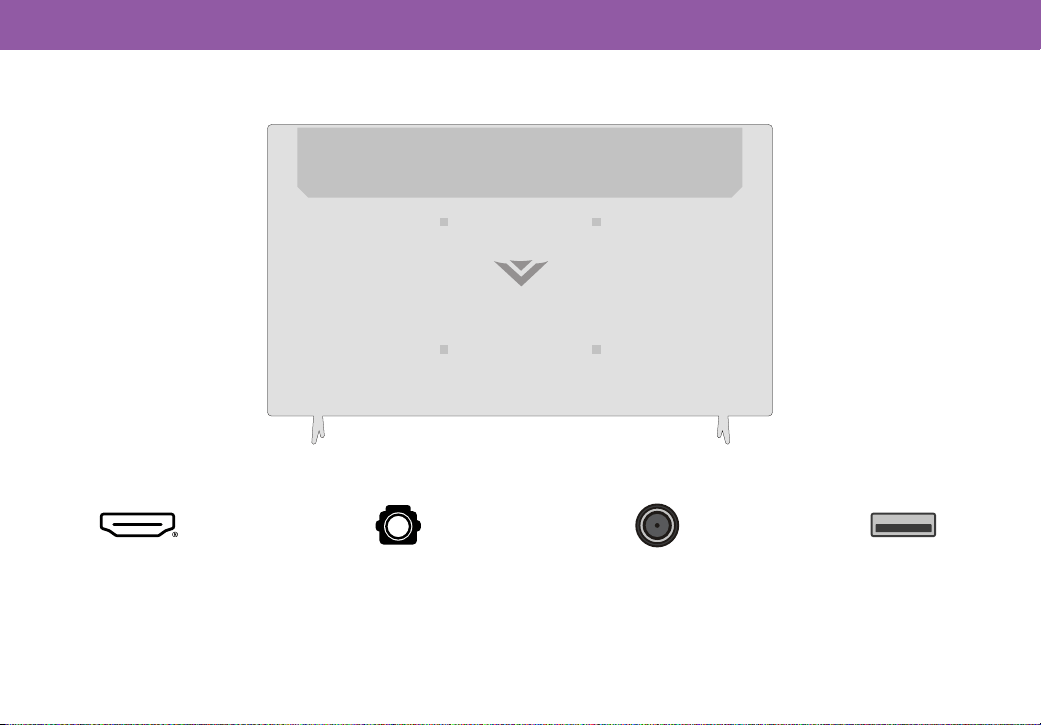
Rear Panel
HDMI
Connect an HDMI device
Optical Audio Out
Connect to an optical/SPDIF audio
device, such as home audio receiver
Coaxial
Connect to a coaxial cable from
cable, satellite, or antenna
USB
Connect a USB thumb drive to
play photo, music, or video
3
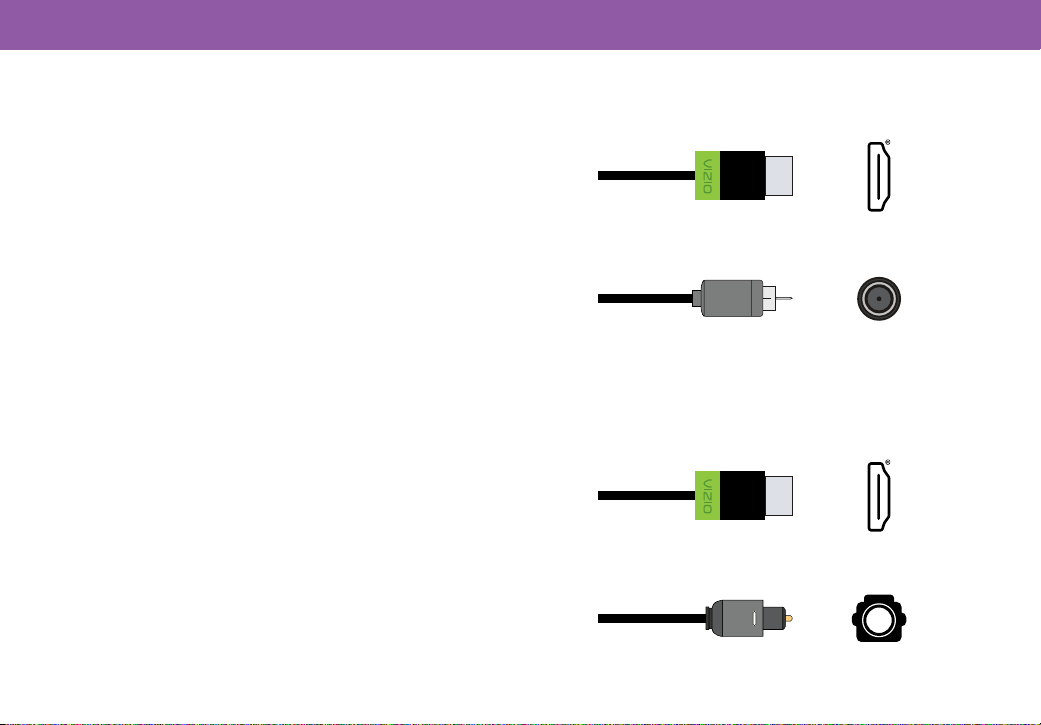
Your TV can be used to display output from most devices.
1. Verify that your device has a video port that matches an
available port on the TV (HDMI or Coaxial).
2. Connect the appropriate cable (not included) to the TV and
the device.
3. Turn the TV and your device on.
4. Set the TV’s input to match the connection you used
(HDMI-1, HDMI-2, etc.).
Your TV can output sound to an audio device, such as a receiver
or sound bar.
1. Verify that your device has an audio port that matches an
available port on the TV (HDMI or Optical).
2. Connect the appropriate cable (not included) to the TV and
the device.
3. Turn the TV and your device on.
Connecting a Device
Audio & Video Cable Types
Audio Cable Types
HDMI
HDMI
HDMI Cable
HDMI Cable
Coaxial
Optical
Coaxial Cable
Optical/SPDIF Cable
4
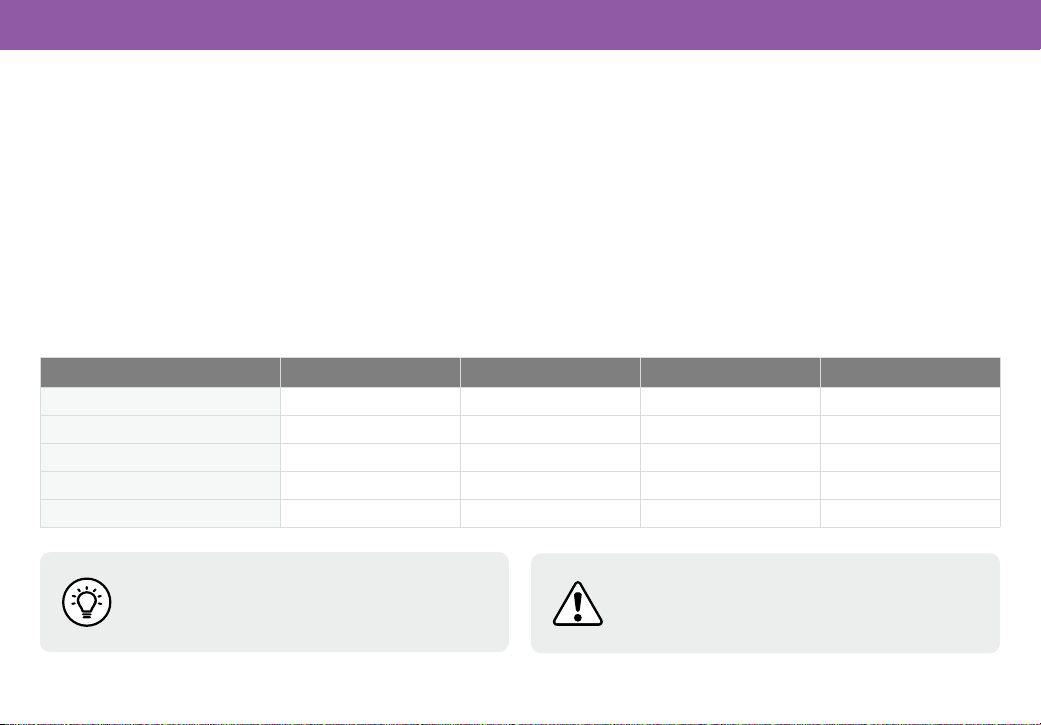
First you will need a wall mount. Consult the provided table below to nd the appropriate mount for your TV. Be sure the mount you
choose is capable of supporting the weight of the TV. If you’re reusing an existing bracket, you may need to adjust its position to keep
your TV at the same height you’re used to.
1. Disconnect any cables connected to your TV.
2. Place the TV face-down on a clean, at, stable surface. Be sure the surface is clear of debris that can scratch or damage the TV.
3. If attached, remove the stands by loosening and removing the screws.
4. Attach your TV and wall mount to the wall by carefully following the instructions that came with your mount. Use only with a
UL-listed wall mount bracket rated for the weight/load of your TV.
Wall Mounting the TV
Wall Mount Installation
WARNING
Do not use the screws that are included inside the wall
mount holes to mount TV.
TIP
Installing a TV on a wall requires lifting. To prevent injury
or damage to the TV, ask someone to help you.
VHQ24M-1010 VHQ24M-1007 VHQ32M-1010 VHQ32M-1007
Screw Size M4 x 6 mm M4 x 7 mm M4 x 5 mm M6 x 10 mm
# of Screws (not included) 4 4 4 4
Hole Depth 6 mm 7 mm 5 mm 10 mm
Hole Pattern 100 mm x 100 mm 100 mm x 100 mm 100 mm x 100 mm 100 mm x100 mm
Weight w/o Stand 5.51 lb (2.5 kg) 4.85 lb (2.2 kg) 8.38 lb (3.8 kg) 8.00 lb (3.63 kg)
5
Using the Remote
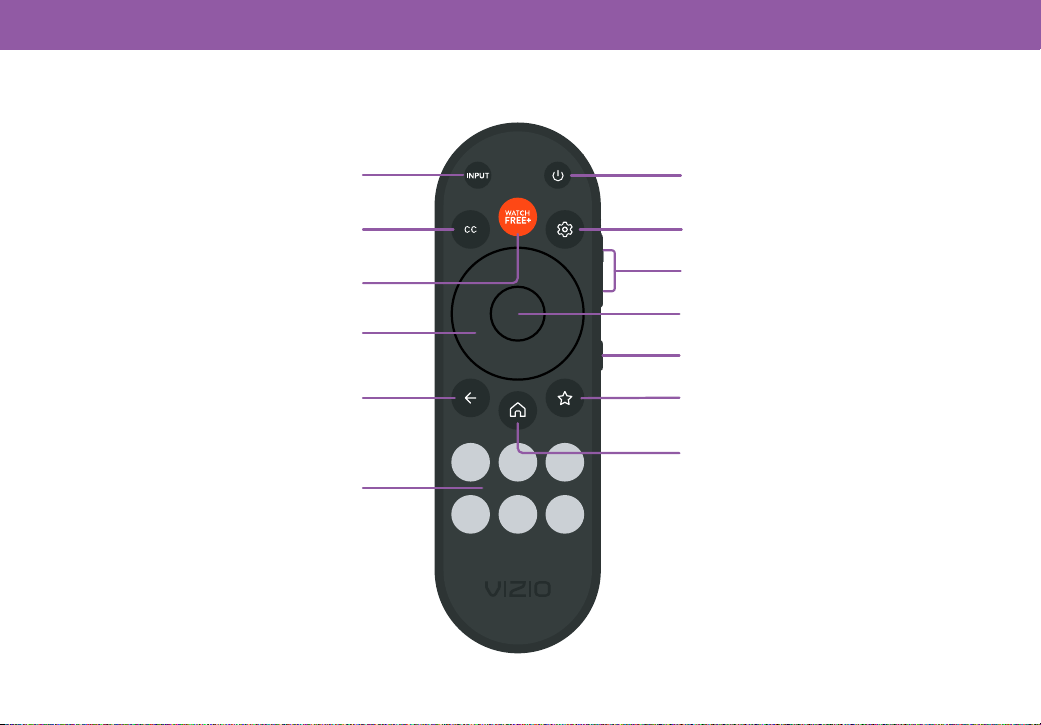
Buttons
*
In-box remote may dier
Buttons
Power
Turn television on or o
OK/Play/Pause
Select the highlighted menu option and play or pause content
Mute
Turn the audio on or o
Menu
Display the Quick Settings menu
Star Button
Opens a quick menu with various settings,
including accessibility options
Input
Change the currently displayed input
App Launcher
Quickly launch the pictured app
Back
Go to the previous on-screen menu
Navigation Wheel
Navigate the on-screen menus
Closed Captions
Enable or disable Closed Captions
Long press to open Accessibility menu
Volume Up/Down
Increase or decrease the loudness of the audio
*
In-box remote may dier
WatchFree+
Access free streaming channels
Home Button
Launch or return to the VIZIO Home Screen
6
Replacing the Batteries
In many places batteries cannot be thrown away or discarded with household waste. Please ensure you properly dispose of your batteries
consistent with the laws and/or regulations where you live. For more information please visit: www.vizio.com/environment.
WARNING
Requires two (2) AAA batteries. Do not mix old and new batteries. Do not mix alkaline, standard (carbon-zinc), or rechargeable (ni-cad,
ni-mh, etc.) batteries. Keep the remote control batteries away from children. It may cause choking and/or lead to a re or chemical burn
if mishandled. Do not dispose of batteries in re. Replace only with batteries of the correct type. Risk of re or explosion if the battery is
replaced by an incorrect type.
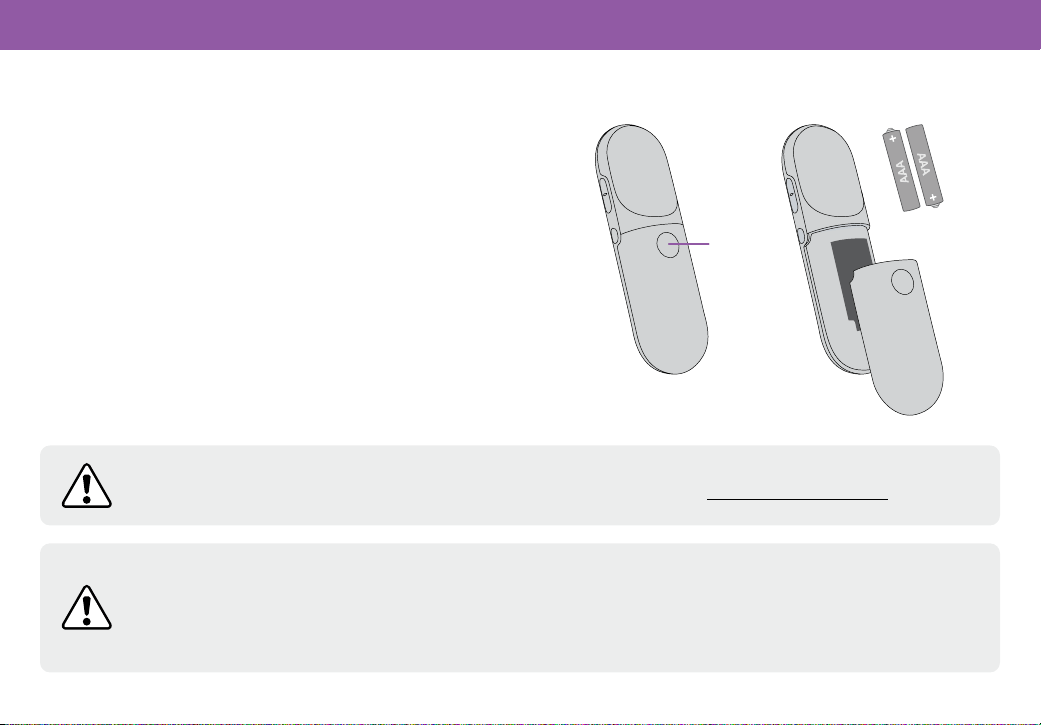
1. Push and slide the cover down. Then lift the cover to access
the battery compartment.
2. Insert the included two batteries into the remote
control. Make sure that the (+) and (-) symbols on the
batteries match the (+) and (-) symbols inside the battery
compartment.
3. Replace the battery cover and slide to close.
*
In-box remote may dier
Press down
and slide o
Using the Remote
7
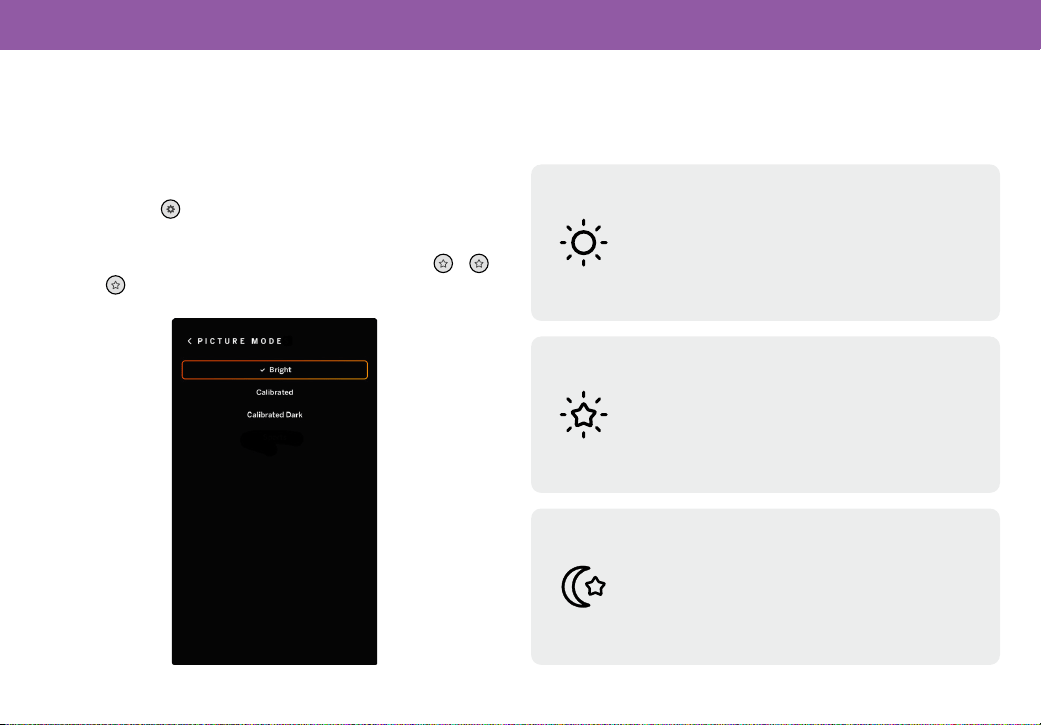
Picture Mode Settings
This feature adjusts the picture settings for your Smart TV that
matches with certain viewing environments. After setup, adjust
to your preference and environment.
Press the MENU
button on your VIZIO TV remote and select
PICTURE MODE.
For advanced color calibration settings, press MENU + + +
DOWN +
.
There are three settings to choose from:
Picture Mode
Ideal for most rooms, this mode delivers a vivid,
enhanced picture that makes content stand out.
It’s tuned for maximum clarity and brightness,
even in well-lit spaces.
Bright Mode (recommended)
Provides a balanced, natural-looking image for
bright rooms. It adjusts brightness and contrast
to maintain a lifelike appearance without over-
enhancing the picture.
Calibrated Mode
Designed for dark rooms, this mode emphasizes
deep contrast and subtle details. It minimizes
visual distractions like halos and delivers a
natural, immersive viewing experience.
Calibrated Dark Mode
8
Completing the First-Time Setup
Before you begin the rst-time setup:
• Your TV should be installed and the power cord should be connected to an electrical outlet.
• Have your mobile device ready for the VIZIO app download and TV registration.
• If you have a wireless network, have the network password ready.
The rst time you turn on the TV, the on-screen instructions will guide you through each of the steps necessary to get your TV ready
for use:
1. Choose your language
Pressing the MUTE button will enable TTS (text-to-speech) functionality
2. Choose your WiFi network and enter the password
3. Name your TV
4. Scan the QR code with your mobile device to sign in and register your TV to the VIZIO mobile app
5. Accept the VIZIO Terms and Conditions
6. Accept the VIZIO Viewing Data policy
7. Accept the VIZIO Activity Data policy
Before starting, scan the QR code with your mobile device
to download the VIZIO mobile app.
9
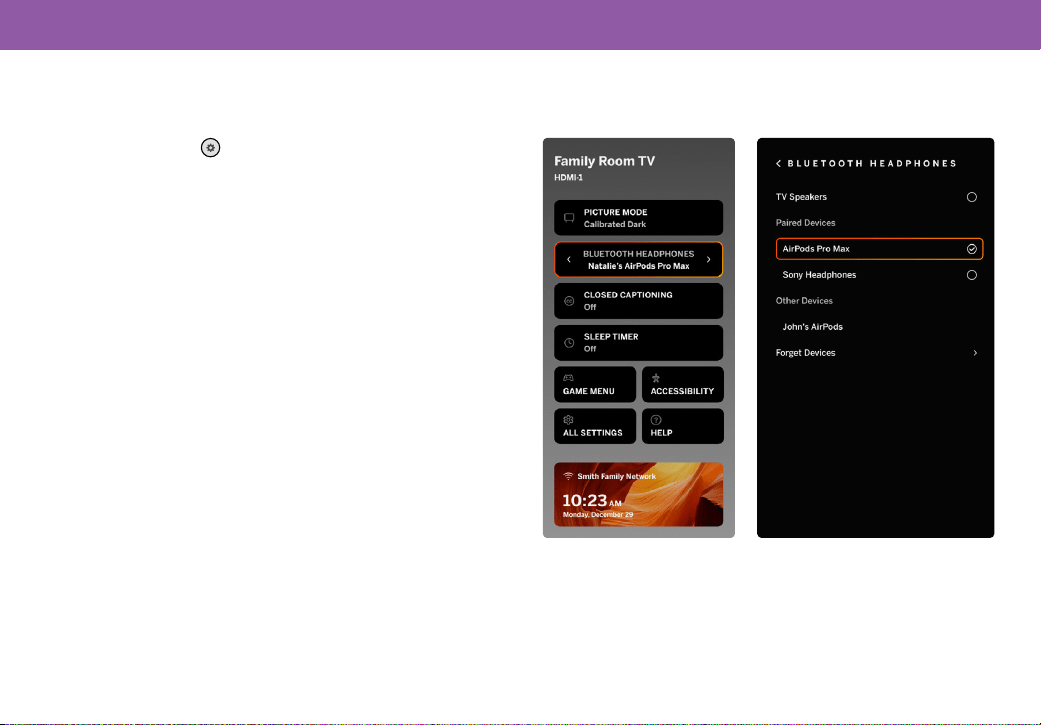
Pairing Bluetooth Headphones
To pair Bluetooth headphones:
1. Press the MENU button on the remote. The Quick
Settings menu opens.
2. Use the Navigation buttons to highlight PAIR HEADPHONES,
and press OK.
3. Set your Bluetooth headphones to pairing mode (see
your device manual for instructions). The headphones will
appear in the list of Other Devices.
4. Select your Bluetooth headphones and press OK.
5. Once paired, the device will be listed under Paired Devices
and is ready for listening.
10
Accessibility
Accessibility Settings
VIZIO is comitted to providing intuitive, user-friendly products. Your new VIZIO TV oers several accessibility features that can help
you with easy navigation.
To access the Accessibility menu:
Press the MENU
button on the remote and use the NAVIGATION buttons to highlight ACCESSIBILITY and press OK. Below are
the options you can access:
1. Captions: Activate and customize analog and digital closed captions.
2. Video Description: If included by the broadcaster, provides a narrated description of the action for the content.
3. Talk Back: Text-to-speech is provided to speak the text displayed.
4. Select the speed at which text is spoken.
5. Zoom Mode: Enlarges the text for the selected setting or current display.
TIP
You can also enable/disable accessibility features using
the included remote.
To access the Video Description menu:
Press the MENU
button on your VIZIO TV remote and navigate to: Accessiblity > Video Description > ON/OFF.
11
Accessibility
Setting Up Closed Captioning
Your TV can display closed captions for programs that include them. Closed captions display a transcription of a program’s dialogue.
Activating/Deactivating Closed Captions for current content
Press the MENU
button on your VIZIO TV remote navigate to: Accessibility > Captions > Closed Captions > ON/OFF.
If your remote has a CC button, press it and follow the steps below:
1. Use the Navigation buttons on the remote to highlight either Analog or Digital Closed Captions.
2. Use the Left/Right Navigation buttons on the remote to select the caption channel you wish to display.
TIP
The Closed Captions menu does not appear when an
HDMI input is selected.
TIP
Closed Captioning is available for tuner and streaming
content (if supported by the app).
12
VIZIO OS
What is VIZIO OS?
VIZIO OS powers your Smart TV to provide all the apps you want, free live TV and On Demand movies and shows with WatchFree+,
and the VIZIO mobile app to control your experience.
A Walmart account is required for Smart TV functionality, product updates, and to manage subscriptions and purchases.
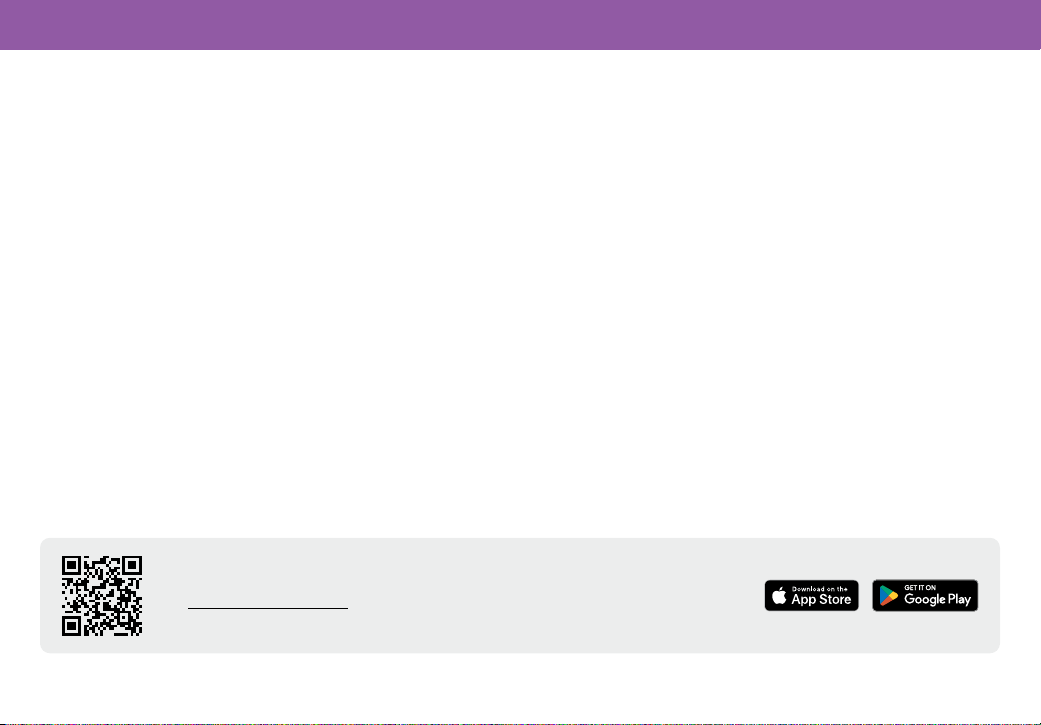
Launching VIZIO Home Screen
To begin streaming from the VIZIO Home Screen:
• Press the Home
button on your remote, or
• Select VIZIO HOME from the list of inputs on your remote.
*
In-box remote may dier
Search
Find TV shows, movies, and more
Featured Content
Launch content with one click
Streaming Apps on your TV
Home Screen Button
Quick Access to Popular Apps
13
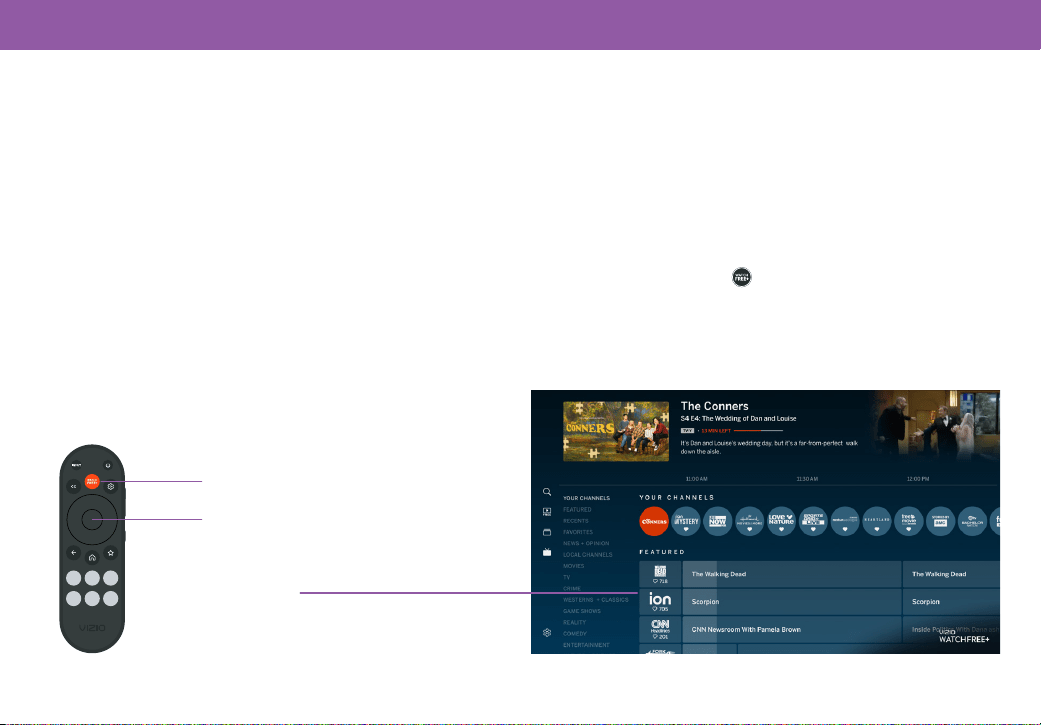
Scan with your mobile device to download the VIZIO mobile app.
Visit www.vizio.com/pairing-mobile for minimum requirements.
VIZIO OS
Controlling Your TV with the VIZIO mobile app
Download the VIZIO mobile app to transform your phone into a
powerful entertainment hub.
With the VIZIO mobile app, you can:
• Control your TV from your phone.
• Find what to watch across multiple streaming services all in
one place.
• Launch apps and nd content hands-free with voice control.
• Easily enter text onto your TV using your phone’s keyboard.
• Stream free live channels on WatchFree+.
Using the VIZIO mobile app
• Stream high-quality entertainment and nd movies, shows,
sports, local news, and more in one place.
• Easily access and launch the most popular streaming apps
directly from the home screen.
• Discover and enjoy free live TV channels and On Demand
movies and shows with VIZIO WatchFree+.
• Customize your experience with shortcuts to your favorite
content, apps, and settings.
• Get built-in compatibility with connected devices for
Amazon, Google, and Apple.
• Use Voice Search for faster content and feature discovery.
• Your TV keeps getting smarter with free, continuous, and
automatic platform updates.
14
VIZIO WatchFree+ takes your cord-cutting entertainment experience one step further! With the simple press of a button, enjoy free
streaming TV with hundreds of live TV channels to choose from–news, movies, sports, comedy, music, and more. A built-in on-screen
guide makes nding something to watch easier than ever. A customer account is required to access WatchFree+.
What is WatchFree+?
WatchFree+
On-Screen Guide
Hundreds of live TV and audio channels organized by genre.
*
In-box remote may dier
WatchFree+ Button
OK Button
Press the OK button to return to the full WatchFree+ on-screen guide.
Use the up/down Navigation buttons to scroll through the guide.
What you can do with WatchFree+
• Stream hundreds of live TV channels absolutely free–news,
movies, sports, comedy, music, and more.
• Navigate through channels, organized by genre, with an
intuitive on-screen guide.
• Watch the best of internet TV.
• No subscriptions or transactions fees.
How to Launch WatchFree+
To launch and begin watching entertainment oered on WatchFree+
• Press the WatchFree+
button on your remote, or
• Select WATCHFREE+ from the list of inputs on your remote.
15
More questions? Find answers at:
SUPPORT.VIZIO.COM
Get helpful tips and register your TV.
Scan with your phone camera or QR reader.
Customized Support
Get assistance quickly with your information on hand.
News and Oers
Take advantage of the latest news and special oers from VIZIO.
Updates and Enhancements
Stay up-to-date with important product updates and notications.
Product Registration & Support
16
The remote is
not responding
Make sure the batteries are properly inserted matching the - and + symbols.
Replace the batteries with fresh ones.
The TV displays
“No Signal”
Look behind your TV to see where your device is connected. There will be a name next to the port you are using.
• Make sure your device is powered on.
• Press the INPUT button on the TV remote control and choose the port your device is connected too.
If you are using cable TV or antenna connected directly to the TV, scan for channels.
There is no power
Ensure the power cable is securely attached to the TV and outlet.
(Some models do not have a detachable power cable).
Ensure the outlet the TV is connected to is working. You may want to connect another device to the outlet to ensure
the devices are receiving power.
Press the Power/Standby button on the remote or on the bottom of the TV to turn the TV on.
The power is on,
but there is no image
on the screen
Ensure all devices are connected securely and correctly. See your device’s user manual for details.
Ensure your TV is powering on. When your TV powers on, a light on the remote sensor will turn on.
See Front Panel on page 1.
Press the MENU key on your remote control. If you can see the menu, try to adjust Brightness, Contrast, or Backlight.
Press the INPUT button on the remote to select a dierent input source.
The sound is at or
dialog is not audible
Turn o Volume Leveling. Go to All Settings > Audio > Volume Leveling.
Help & Troubleshooting
17
Where do I nd
information on the
accessibility features
of this product and
other VIZIO products?
Please visit vizio.com/accessibility,
Email us at [email protected], or
Give us a call at 1-877-698-4746.
How do I stream apps
like Netix to my
VIZIO TV?
Popular apps are located on the Home screen, so you can simply navigate to the app row on your TV to start
streaming.
You can also use Apple AirPlay 2 or Chromecast built-in to stream content from your device directly to your TV.
For more information, please visit:
• vizio.com/Apple
• vizio.com/Google
The colors on the TV
don’t look right
Adjust the Color and Tint settings in the Picture menu.
Select a pre-set picture mode. VIZIO recommends selecting Calibrated.
Check all cables to ensure they are securely attached.
The image quality
is not good
Image quality can very depending on personal preference and environmental factors like how much light is in a
room. Your TV includes a variety of picture settings and preset picture modes that can be adjusted to calibrate this
TV to your preference.
Image quality can vary depending on what program you are watching, and what device or app you are using to
watch it. For the best picture quality, VIZIO recommends watching HD or UHD content. You can contact your device
manufacturer or app provider for more information about their video playback quality.
For the best image quality, view high-denition programs using digital sources. Connect your devices with
HDMI cables.
If you are using an antenna, the signal strength of the channel may be low. Ensure your antenna is connected
securely to the TV and move the antenna around the room or close to a window for the best signal.
Help & Troubleshooting
18
The picture is distorted
Move the TV away from electrical appliances, cars, and uorescent lights.
Ensure all cables are securely attached.
The TV image does not
cover the entire screen
Go to All Settings > Picture > Aspect Ratio to adjust the Aspect Ratio.
The TV has pixels (dots)
that are always dark
Your TV is precision-manufactured using an extremely high level of technology. However, sometimes pixels may
not display correctly. These types of occurrences are inherent to this type of product and do not constitute a
defective product.
The buttons on the
remote aren’t working
Ensure you are only pressing one button at a time.
Point the remote directly at the TV when pressing a button.
Replace the remote batteries with new ones. See Replacing the Batteries on page 6.
Remove any obstacles that may be blocking the remote sensor on the TV.
There is no sound
Press Volume Up on the remote control.
Press the MUTE button on the remote to ensure mute is o.
Check the audio settings to ensure your TV speakers are set to On.
Check the audio connections of external devices (Blu-ray player, game console, cable/satellite box) that are
connected to the TV.
If you are using an antenna, the signal strength of the channel may be low. Ensure your antenna is connected
securely to the TV and move the antenna around the room or close to a window for the best signal.
Set eARC to O and use ARC mode.
Help & Troubleshooting
19
How do I download the
VIZIO mobile app?
Make sure your phone or tablet is connected to a WiFi network. Open a browser on your phone or tablet.
Navigate to www.vizio.com/pairing-mobile and follow the on-screen instructions to download the VIZIO mobile app.
How do I change
the Inputs?
Press the INPUT button on the basic remote to cycle through the Inputs.
Make sure the VIZIO mobile app is installed on your phone or tablet. Open the VIZIO mobile app. Tap on the Device list
and select your TV. Tap on the Input key and select the Input of your choice.
How do I connect to
my WiFi network?
On your TV remote, press the MENU button then go to
All Settings > Network > Select your WiFi name > Enter password.
How do I exit
Demo Mode?
Press the BACK button on the remote and then select Exit Demo and press OK.
How do I watch
Cable/Antenna
TV channels?
If you subscribe to cable or satellite, simply connect an HDMI cable (not included) to the receiver.
If you use external antennas to watch local broadcast channels, use a coaxial cable to connect.
Some of my Channels
are missing
Press the MENU button on your TV remote, then go to All Settings > Antenna Channels > Find Channels.
Open the VIZIO mobile app on your phone or tablet.
• Click on: Menu Tab > Devices > Your TV/Device Name > Channels > Find Channels.
Help & Troubleshooting
20
How do I disable/enable
Viewing Data?
Press the MENU button on your remote go to All Settings > Admin & Privacy, then select Viewing Data to turn the
feature on or o.
The television will not
turn on using Alexa or
Google Assistant
Ensure the television is in Quick Start Mode.
Press the MENU button, then go to All Settings > System > Power Mode > Quick Start.
How do I know I am
getting HDR content?
As you are watching content on the television, press the INFO button on the remote or VIZIO mobile app. You will see
the current resolution being displayed along with the version of video.
HDR will show as HDR10 or HLG.
Help & Troubleshooting
Need Additional Support?
Contact VIZIO Customer Support at support.vizio.com
21
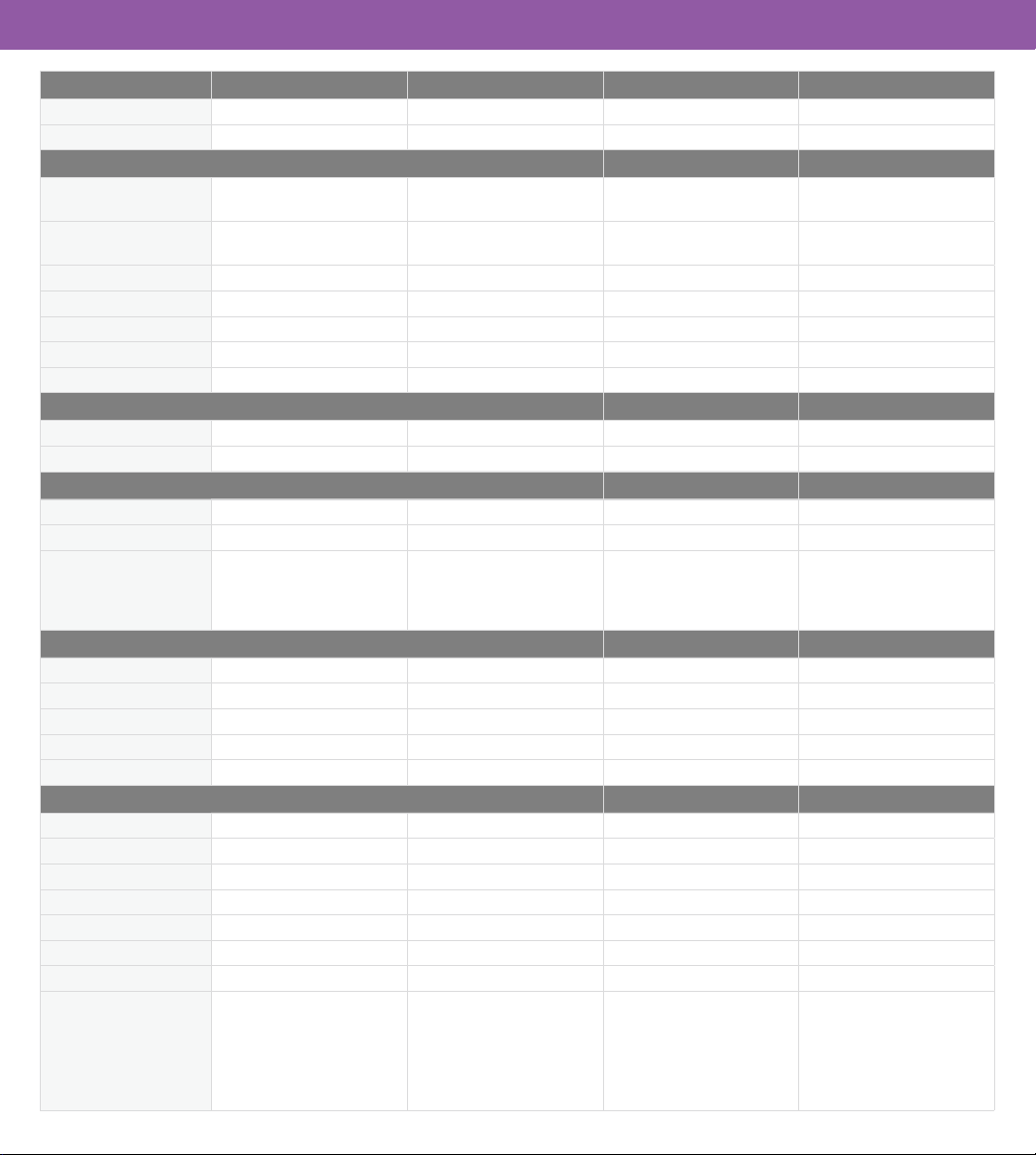
Specications
SIZE VHQ24M-1010 VHQ24M-1007 VHQ32M-1010 VHQ32M-1007
Size 24" 24" 32" 32"
Viewable Area 23.5" 23.5" 31.5" 31.5"
DIMENSIONS
Dimensions w/ Stand
21.1” x 14.8” x 6.6”
536.2 x 376.5 x 167.6 mm
21.1” x 14.8” x7.0”
537.04 x 375.1 x 178.57 mm
28.2” x 18.9” x 6.6”
715.7 x 479.9 x 167.6 mm
28.3” x 18.9” x 8.7”
719.2 x 479.7 x 221.6 mm
Dimensions w/o Stand
21.1” x 12.8” x 3.2”
536.2 x 324.5 x 80.6 mm
21.1” x 12.8” x 2.6”
537.04 x 324.67 x 65.15 mm
28.2” x 16.8” x 3.3”
715.7 x 427.9 x 83.6 mm
28.3” x 16.8” x 2.6”
719.2 x 426.7 x 65.6 mm
Weight w/ Stand 5.73 lb (2.6 kg) 4.94 lb (2.24 kg) 8.6 lb (3.9 kg) 8.16 lb (3.7 kg)
Weight w/o Stand 5.51 lb (2.5 kg) 4.85 lb (2.2 kg) 8.38 lb (3.8 kg) 8.00 lb (3.63 kg)
Mounting Screw Size M4 x 6 mm M4 x 7 mm M4 x 5 mm M6 x 10 mm
Hole Pattern 100 x 100 mm 100 x 100 mm 100 x 100 mm 100 x 100 mm
# of Screws (not included) 4 4 4 4
PICTURE QUALITY
Maximum Resolution 1366x768 1366x768 1366x768 1366x768
LCD Backlight Full Array LED Full Array LED Full Array LED Full Array LED
INPUTS/OUTPUTS
HDMI Inputs 2 2 2 2
USB 1 1 1 1
Audio Output
HDMI
ARC
Bluetooth
Digital Optical
HDMI
ARC
Bluetooth
Digital Optical
HDMI
ARC
Bluetooth
Digital Optical
HDMI
ARC
Bluetooth
Digital Optical
RF ANTENNA/TUNER INPUT
RF Antenna Input 1 1 1 1
TV System NTSC NTSC NTSC NTSC
Channel Range VHF: 2~13 VHF: 2~13 VHF: 2~13 VHF: 2~13
Channel Range UHF: 14~69 UHF: 14~69 UHF: 14~69 UHF: 14~69
Tuner Type Frequency synthesized Frequency synthesized Frequency synthesized Frequency synthesized
OTHER
WiFi WiFi 5 WiFi 5 WiFi 5 WiFi 5
Remote Control Type IR Remote IR Remote IR Remote IR Remote
Power Consumption 40 W 25 W 25 W 40 W
Quick Start Mode Power 5 W 5 W 6 W 6 W
Eco Mode Standby Power <1 W <1 W <1 W <1 W
Voltage 120V 120V 120V 120V
OSD Language English, French, Spanish English, French, Spanish English, French, Spanish English, French, Spanish
Certication
UL
FCC Class B
HDMI (CEC, ARC)
DTS Virtual:X
DTS-HD
Dolby Audio
UL
FCC Class B
HDMI (CEC, ARC)
DTS Virtual:X
DTS-HD
Dolby Audio
UL
FCC Class B
HDMI (CEC, ARC)
DTS Virtual:X
DTS-HD
Dolby Audio
UL
FCC Class B
HDMI (CEC, ARC)
DTS Virtual:X
DTS-HD
Dolby Audio
22
The terms HDMI, HDMI High-Denition Multimedia Interface, HDMI Trade dress and the HDMI Logos
are trademarks or registered trademarks of HDMI Licensing Administrator, Inc.
®
Specications
Dolby, Dolby Audio, and the double-D symbol are trademarks of Dolby Laboratories Licensing
Corporation. Manufactured under license from Dolby Laboratories. Condential unpublished works.
Copyright 1992-2019 Dolby Laboratories. All rights reserved.
For DTS patents, see http://xperi.com/dts-patents/. Manufactured under license from DTS, Inc.
and its aliates. DTS, DTS-HD, the DTS-HD logo, Virtual:X, and the DTS Virtual:X logo are registered
trademarks or trademarks of DTS, Inc. and its aliates in the United States and/or other countries.
© DTS, Inc. and its aliates. All rights reserved.

23
FCC Class B Radio Interference Statement
This device complies with Part 15 of the FCC Rules. Operation is subject to the
following two conditions: (1) this device may not cause harmful interference,
and (2) this device must accept any interference received, including
interference that may cause undesired operation.
NOTE: This equipment has been tested and found to comply with the limits
for a Class B digital device, pursuant to Part 15 of the FCC Rules. These limits
are designed to provide reasonable protection against harmful interference
in a residential installation. This equipment generates, uses and can radiate
radio frequency energy, and if not installed and used in accordance with
the instructions, may cause harmful interference to radio communications.
However, there is no guarantee that interference will not occur in a particular
installation. If this equipment does cause harmful interference to radio or
television reception, which can be determined by turning the equipment o
and on, the user is encouraged to try to correct the interference by one or
more of the following measures:
• Reorient or relocate the receiving antenna.
• Increase the separation between the equipment and receiver.
• Connect the equipment into an outlet on a circuit dierent from that to
which the receiver is connected.
• Consult the dealer or an experienced radio/TV technician for help.
Regulatory Information
FCC Caution
Changes or modications not expressly approved by the party responsible
for compliance could void the user’s authority to operate this equipment.
Notice
The changes or modications not expressly approved by the party responsible
for compliance could void the user’s authority to operate the equipment.
Shielded interface cables and AC power cord, if any, must be used in order to
comply with the emission limits.
The manufacturer is not responsible for any radio or TV interference caused
by unauthorized modication to this equipment. It is the responsibilities of
the user to correct such interference.
This transmitter must not be co-located or operating in conjunction with any
other antenna or transmitter.
Operations in the 5GHz products are restricted to indoor usage only.
This equipment complies with FCC radiation exposure limits set forth for an
uncontrolled environment. This equipment should be installed and operated
with minimum distance 20cm between the radiator & your body.

24
UNITED STATES
By using this VIZIO product, you accept all VIZIO Terms and Conditions, including all the Terms of Warranty, BINDING ARBITRATION AGREEMENT,
and Class Action Waiver. If you do not agree to the terms of this warranty, do not use the VIZIO product and, within thirty (30) days of the date of purchase,
return it for a refund to the authorized retailer where you purchased it. You have the right to opt out of the Arbitration Agreement and Class Action Waiver
within 60 calendar days of your purchase. Please refer to the full section “Binding Arbitration Agreement; Class Action Waiver” below for more details and
instructions for opt-out. Full Terms and Conditions may be viewed at vizio.com/en/terms/terms-of-service.
How Long This Warranty Lasts
For non-commercial use, VIZIO warrants the product on the terms set forth below for one (1) year from the date of original purchase. For commercial use,
VIZIO warrants this product on the terms set forth below for ninety (90) days from the date of original purchase.
What This Warranty Covers
VIZIO warrants the product against defects in materials and workmanship when the product is used normally in accordance with VIZIO’s user guides and
manuals. Except where restricted by law, this warranty applies only to the original purchaser of a new product. The purchase must have been made from
an authorized retailer in the United States (including Puerto Rico). The product must also be located in the country where it was purchased at the time of
warranty service.
How to Get Service
Before obtaining warranty service, you may visit support.vizio.com for additional help and troubleshooting. To obtain warranty service, contact
VIZIO Customer Support by going to support.vizio.com and selecting Contact Us. You can also call Customer Support (US): 877-698-4946, or
support.vizio.com/s/contact-us.
Your Obligations Before Service
You must obtain pre-authorization before sending your product to a VIZIO service center. You may be required to supply a purchase receipt (or copy) to show
that the product is within the warranty period.
When you return a product to a VIZIO service center, you must ship the product in its original packaging or in packaging that aords an equal degree of
protection. VIZIO Technical Support will provide instructions for packing and shipping the product to the VIZIO service center.
ALL USER DATA AND DOWNLOADED APPLICATIONS STORED ON A PRODUCT WILL BE DELETED IN THE COURSE OF SOME IN-HOME AND ALL SHIP-IN
WARRANTY SERVICE. If this occurs, your product will be restored to its original state. You will be responsible for restoring all applicable user data and
downloaded applications. Recovery and reinstallation of user data and downloaded applications is not covered under this warranty. In order to protect your
personal information, VIZIO recommends that you always clear all personal information from the product before it is serviced, regardless of the servicer.
VIZIO’s Responsibilities
If VIZIO determines that a product is covered by this warranty, VIZIO will (at its option) repair or replace it, or refund the purchase price to you. There will be
no charge for parts or labor during the warranty period. Replacement parts may be new or recertied at VIZIO’s option and sole discretion. Replacement
parts and VIZIO’s labor are warranted for the remaining portion of the original warranty or for ninety (90) days from warranty service, whichever is longer.
Limited Warranty

25
What This Warranty Does Not Cover
This warranty does not cover: (a) cosmetic damage; (b) normal wear and tear; (c) improper operation; (d) improper voltage supply or power surges; (e) signal
issues; (f) damage from shipping; (g) acts of God; (h) customer misuse, modications or adjustments; (i) installation, set-up, or repairs attempted by anyone
other than by a VIZIO authorized service center; (j) products with unreadable or removed serial numbers; (k) products requiring routine maintenance; or (l)
products sold “AS IS”, “CLEARANCE”, “FACTORY RECERTIFIED”, or by a non-authorized reseller.
What to Do If You Are Not Satised With Service
If you feel VIZIO has not met its obligations under this warranty, you may attempt to resolve the issue informally with VIZIO. If you are unable to resolve the
issue informally and wish to le a formal claim against VIZIO, and if you are a resident of the United States, you must submit your claim to binding arbitration
according to the procedures described below, unless an exception applies. Submitting a claim to binding arbitration means that you do not have the right to
have your claim heard by a judge or jury. Instead your claim will be heard by a neutral arbitrator.
Binding Arbitration Agreement; Class Action Waiver (U.S. Residents Only)
UNLESS YOU HAVE BROUGHT AN ELIGIBLE CLAIM IN SMALL CLAIMS COURT OR HAVE OPTED OUT AS DESCRIBED BELOW, ANY CONTROVERSY
OR CLAIM RELATING IN ANY WAY TO YOUR VIZIO PRODUCT, INCLUDING ANY CONTROVERSY OR CLAIM ARISING OUT OF OR RELATING TO THIS
WARRANTY, A BREACH OF THIS WARRANTY, OR THE VIZIO PRODUCT’S SALE, CONDITION OR PERFORMANCE, WILL BE SETTLED BY BINDING
ARBITRATION ADMINISTERED BY THE AMERICAN ARBITRATION ASSOCIATION AND CONDUCTED BY A SINGLE ARBITRATOR APPOINTED BY THE
AMERICAN ARBITRATION ASSOCIATION, IN ACCORDANCE WITH ITS COMMERCIAL ARBITRATION RULES AND ITS SUPPLEMENTARY PROCEDURES FOR
CONSUMER-RELATED DISPUTES. You may learn more about the American Arbitration Association and its rules for arbitration by visiting www.adr.org or by
calling 800-778-7879. Since this warranty concerns a transaction in interstate or international commerce, the Federal Arbitration Act will apply.
The ling fees to begin and carry out arbitration will be shared between you and VIZIO, but in no event will your fees ever exceed the amount allowable by the
American Arbitration Association, at which point VIZIO will cover all additional administrative fees and expenses. VIZIO waives its right to recover attorneys’
fees in connection with any arbitration under this warranty. If you are the prevailing party in an arbitration to which the Supplementary Procedures for
Consumer- Related Disputes applies, then you are entitled to recover attorneys’ fees as the arbitrator may determine.
The dispute will be governed by the laws of the state or territory in which you resided at the time of your purchase (if in the United States). The place of
arbitration will be Irvine, California, or your county of residence (if in the United States). The arbitrator will have no authority to award punitive or other
damages not measured by the prevailing party’s actual damages, except as may be required by statute. The arbitrator will not award consequential damages,
and any award will be limited to monetary damages and will include no equitable relief, injunction, or direction to any party other than the direction to pay
a monetary amount. Judgment on the award rendered by the arbitrator will be binding and nal, except for any right of appeal provided by the Federal
Arbitration Act, and may be entered in any court having jurisdiction. Except as may be required by law, neither you nor VIZIO nor an arbitrator may disclose
the existence, content, or results of any arbitration under this warranty without the prior written consent of you and VIZIO.
ANY DISPUTE, WHETHER IN ARBITRATION, IN COURT, OR OTHERWISE, WILL BE CONDUCTED SOLELY ON AN INDIVIDUAL BASIS. VIZIO AND YOU AGREE
THAT NO PARTY WILL HAVE THE RIGHT OR AUTHORITY FOR ANY DISPUTE TO BE ARBITRATED AS A CLASS ACTION, A PRIVATE ATTORNEY GENERAL
ACTION, OR IN ANY OTHER PROCEEDING IN WHICH EITHER PARTY ACTS OR PROPOSES TO ACT IN A REPRESENTATIVE CAPACITY.
NO ARBITRATION OR PROCEEDING WILL BE JOINED, CONSOLIDATED, OR COMBINED WITH ANOTHER ARBITRATION OR PROCEEDING WITHOUT THE
PRIOR WRITTEN CONSENT OF ALL PARTIES TO ANY SUCH ARBITRATION OR PROCEEDING.
Limited Warranty

26
Opt-Out Instructions
IF YOU DO NOT WISH TO BE BOUND BY THE BINDING ARBITRATION AGREEMENT AND CLASS ACTION WAIVER, THEN: (1) you must notify VIZIO in writing
within sixty (60) days of the date that you purchased the product; (2) your written notication must be mailed to VIZIO at 39 Tesla, Irvine, CA 92618, Attn:
Legal Department; and (3) your written notication must include (a) your name, (b) your address, (c) the date you purchased the product, and (d) a clear
statement that you wish to opt out of the binding arbitration agreement and class action waiver.
In addition, you may pursue a claim in small claims court in your county of residence (if in the United States) or in Orange County, California. In such case the
provisions of the section titled “Binding Arbitration Agreement; Class Action Waiver (U.S. Residents)” will not apply.
Exclusions and Limitations
TO THE GREATEST EXTENT PERMITTED BY APPLICABLE LAW, THERE ARE NO EXPRESS WARRANTIES OTHER THAN THOSE DESCRIBED ABOVE. ANY
IMPLIED WARRANTIES, INCLUDING ANY IMPLIED WARRANTY OF MERCHANTABILITY AND FITNESS FOR A PARTICULAR PURPOSE, WILL BE LIMITED IN
DURATION TO THE WARRANTY PERIOD SET FORTH ABOVE. SOME STATES AND PROVINCES DO NOT ALLOW LIMITATIONS ON HOW LONG AN IMPLIED
WARRANTY LASTS, SO THE ABOVE LIMITATION MAY NOT APPLY TO YOU.
VIZIO WILL NOT BE RESPONSIBLE FOR LOSS OF USE, LOSS OF INFORMATION OR DATA, COMMERCIAL LOSS, LOST REVENUE OR LOST PROFITS, OR
OTHER INDIRECT, SPECIAL, INCIDENTAL OR CONSEQUENTIAL DAMAGES, EVEN IF VIZIO HAS BEEN ADVISED OF THE POSSIBILITY OF SUCH DAMAGES,
AND EVEN IF THE REMEDY FAILS OF ITS ESSENTIAL PURPOSE. SOME STATES AND PROVINCES DO NOT ALLOW THE EXCLUSION OR LIMITATION OF
INCIDENTAL OR CONSEQUENTIAL DAMAGES, SO THE ABOVE LIMITATION OR EXCLUSION MAY NOT APPLY TO YOU.
IN LIEU OF ANY OTHER REMEDY FOR ANY AND ALL LOSSES AND DAMAGES RESULTING FROM ANY CAUSE WHATSOEVER (INCLUDING VIZIO’S
NEGLIGENCE, ALLEGED DAMAGE, OR DEFECTIVE GOODS, NO MATTER WHETHER SUCH DEFECTS ARE DISCOVERABLE OR LATENT), VIZIO MAY, AT ITS
SOLE AND EXCLUSIVE OPTION AND IN ITS DISCRETION, REPAIR OR REPLACE YOUR PRODUCT, OR REFUND ITS PURCHASE PRICE. AS NOTED, SOME
STATES AND PROVINCES DO NOT ALLOW THE EXCLUSION OR LIMITATION OF INCIDENTAL OR CONSEQUENTIAL DAMAGES, SO THE ABOVE LIMITATION
OR EXCLUSION MAY NOT APPLY TO YOU.
How the Law Applies
This warranty gives you specic legal rights, and you may also have other rights, which vary from state to state and province to province. This warranty
applies to the greatest extent permitted by applicable law.
General
No employee or agent of VIZIO may modify this warranty. If any term of this warranty, other than the class action waiver, is found to be unenforceable, that
term will be severed from this warranty and all other terms will remain in eect. If the class action waiver is found to be unenforceable, then the entire section
titled “Binding Arbitration Agreement; Class Action Waiver (U.S. Residents Only)” will not apply. This warranty applies to the maximum extent not prohibited
by law.
Changes to Warranty
This warranty may change without notice, but any change will not aect your original warranty. Check www.vizio.com for the most current version.
Limited Warranty
27
Software Licenses
All software is provided subject to a software license agreement(s) and you agree that
you will be bound by such license agreement(s) in addition to these terms. Your use of
this product is subject to VIZIO’s privacy policy, which may be updated from time to
time, and is available to view at vizio.com/privacy.
Export Regulations
Customer acknowledges that the VIZIO products, which include technology and
software, are subject to customs and export control laws in the United States (“US”).
The products may also be subject to the customs and export control laws and
regulations of the country in which the products are manufactured and/or received.
Internet Connectivity and App Availability
Network conditions, environmental and other factors may negatively aect
connectivity and the resulting video quality, if any. The applications and content of the
applications pictured herein or described in accompanying documentation may only be
available in certain countries or languages, may require additional fees or subscription
charges, and may be subject to future updates, modications or discontinuation
without notice. VIZIO has no control over third party applications or content and
assumes no responsibility for the availability or interruption of such applications or
content. Additional third party terms, conditions and restrictions apply.
© 2026 VIZIO, Inc. All Rights Reserved.
This User Manual may not be copied in whole or in part without the written permission
of VIZIO, Inc. VIZIO, Inc. has made reasonable eorts to ensure the accuracy of the
information provided herein. All product specications, functionality, features,
congurations, performance, design and other product information described herein
are subject to change without notice. VIZIO, Inc. is not responsible for typographical,
technical, or descriptive errors. To review the most updated version of this User
Manual and the associated Quick Start Guide, go to vizio.com.
VIZIO, the VIZIO logo, the V logo, VIZIO SmartCast, and other terms and phrases are
trademarks or registered trademarks of VIZIO, Inc.
The terms HDMI, HDMI High-Denition Multimedia Interface, HDMI Trade dress
and the HDMI Logos are trademarks or registered trademarks of HDMI Licensing
Administrator, Inc.
For DTS patents, see http://xperi.com/dts-patents/. Manufactured under license
from DTS, Inc. and its aliates. DTS, DTS-HD, the DTS-HD logo, Virtual:X, and the DTS
Virtual:X logo are registered trademarks or trademarks of DTS, Inc. and its aliates in
the United States and/or other countries. © DTS, Inc. and its aliates. All rights reserved.
Legal & Compliance
Dolby, Dolby Audio, and the double-D symbol are trademarks of Dolby Laboratories
Licensing Corporation. Manufactured under license from Dolby Laboratories.
Condential unpublished works. Copyright 1992-2019 Dolby Laboratories. All
rights reserved.
The Bluetooth
®
word mark and logos are registered trademarks owned by Bluetooth
SIG, inc. and any use of such marks by VIZIO Inc. is under license.
Google, Google Play, and Google Cast are trademarks of Google LLC.
Amazon, Alexa and all related logos are trademarks of Amazon.com, Inc. or its
aliates. Other names of companies, products, and services used in this User Manual
may be trademarks, trade names or service marks of others and VIZIO, Inc. disclaims
any interest in trademarks, trade names or service marks other than its own. Mention
of non-VIZIO products is for informational purposes only.
App services featured on the included remote may vary and may not be available in
all regions.
4K or HDR availability varies by app and may be subject to subscription fees, internet
service, and device capabilities.
Battery Disposal Caution: This product may be shipped with batteries.
Do not dispose of batteries in a re or with ordinary household waste.
Batteries may explode and can cause damage. Replace batteries only
with the same or equivalent type of battery recommended by VIZIO.
The disposal of batteries may be regulated by your state. For more information on
recycling or properly disposing of your batteries, please check with your state or go
to vizio.com/environment.
Product Recycling
The disposal and recycling of consumer electronic products may be regulated by your
state. Always properly dispose of your VIZIO products in accordance with local laws
and regulations. VIZIO supports the proper recycling of our products. For information
on how to properly recycle your VIZIO products and to learn more about consumer
electronics recycling laws, please go to vizio.com/environment or call (844) 254-8087.
Packaging Disposal
VIZIO encourages the recycling of the packaging used for this product. Please break-
down all boxes and recycle eligible materials according to local laws and regulations.
For more information please go to vizio.com/environment or call (844) 254-8087.

© 2026 VIZIO, INC. ALL RIGHTS RESERVED.
052026