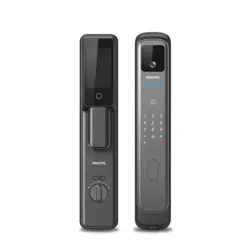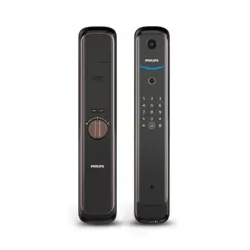
Ea syKey
7000 series
DDL702
Smart
Video Door Lock
User
manual
To register your produc t(s)
and get support from below
site
www. philips.com/support


1
Contents
1. Important information 02
Security
Caution
Disposal of used products
and batteries
2. EasyKey installation 03
Packaging list
Exploded views
Pre-installation instructions
Installation steps
3. Get to know your
EasyKey
08
Outside escutcheon
Inside escutcheon
4. How to set up your
Easykey
09
Pre-setup instructions
Enter master mode
Change master PIN code
Add a new user
Delete a user record
System settings
Extended functions
System query
Shortcut keys
App pairing guide
5. How to use EasyKey 16
Unlock from outside or inside
Lock from outside or inside
Inside deadlock
Unlock with mechanical key
6. Other functions 18
Indoor infrared sensor unlock
Outside forced lock
Mute mode
Restore to default settings
Doorbell
Two-way video intercom
7. Indicators meaning
and usage
21
Door lock status indicator
Low battery voltage indicator
Outside forced lock indicator
Mute indicator
Inside deadlock indicator
System freezing indicator
[OPEN/CLOSE] indicator
Indoor infrared sensor unlock
indicator
8. Troubleshooting 23
Alert types and methods
How to charge EasyKey in an
emergency
How to replace batteries
How to charge lithium battery

2
1. Important information
Safety
◆
Before using Philips EasyKey, please read
and understand all instructions. Damage
caused by non-compliance with the
instructions will not be covered by warranty.
◆
Use only the manufacturer-specied
accessories/components.
◆
Use only the alkaline batteries the
product is equipped with, or use the same
specication type of alkaline batteries.
◆
Do not forcibly disassemble this product
to avoid triggering an alarm or damaging the
product.
◆
Do not scrape the ngerprint sensor
with sharp objects, otherwise it may cause
permanent damage.
◆
Do not expose products to environments
where there is water leakage or splashing.
◆
Do not expose the product to corrosive
substances to prevent damaging the
protective cover.
◆
Do not hang objects on the handle, in
case it might aect the normal use of the
lock.
◆
Please clean the product with a soft cloth.
◆
Do not remove the battery during
setting up and operating.
◆
Please let a professional technician
to install the door lock and follow the
installation guidelines provided. Do not
disassemble the lock by yourself. Keep the
relevant sealed stickers properly.
◆
Please modify the default master PIN
code immediately after nishing installing
and debugging, and do not easily disclose
the password information and also keep the
mechanical key properly.
◆
Please replace all the batteries
immediately if there is a low battery alarm.
Please make sure to correctly match the
poles (+/-) when installing the batteries.
Caution
◆
Do not place the battery near re sources
to avoid the explosion.
◆
Do not use any emergency power supply
that does not meet the safety requirements
to power up the product.
◆
Do not connect the 2 poles of the
batteries with metals to avoid short circuit
which may lead to an explosion.
◆
Please make sure any component
replacement is executed by Philips, Philips
authorized service center or professional
technicians.
◆
Do not use accessories or parts that have
been produced by other manufacturers or
have not been specically recommended
by Philips. The use of such accessories and
parts may void your warranty.
Disposal of used
products and batteries
◆
You can have your locks reclaimed at
Philips authorized service centers. You will
receive corresponding compensation if your
products meet our conditions.
◆
Please familiarize yourself with the local
electronic product collection system.
◆
Please follow local regulations and do
not discard used products into ordinary
household waste.
◆
Proper disposal of used products can
help to avoid potential negative impacts on
the environment and human health.
◆
Batteries must not be disposed of with
ordinary household waste.
◆
Please familiarize yourself with the
local regulations on batteries classication
recycling. Disposing of batteries properly
can help avoid a negative impact on the
environment and human health.
3
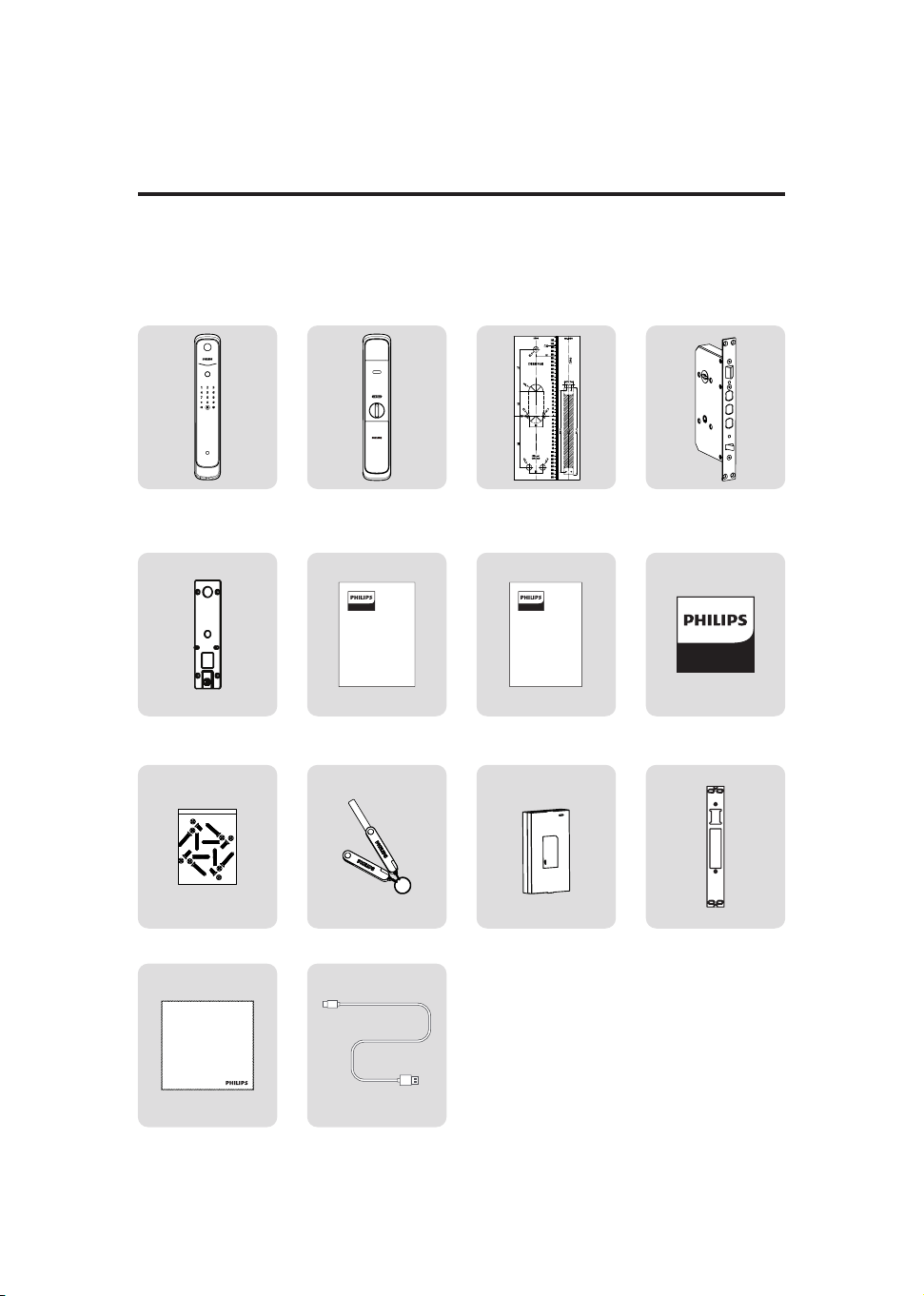
Packaging list
The pictures are for reference only, please refer to the actual packaging
items.
2. EasyKey installation
①
Outside
escutcheon with
silicone pad
②
Inside
escutcheon with
silicone pad
③
Drilling
template
④
Mortise
⑤
Mounting plate
⑥
User manual
⑦
Warranty card
⑧
Certicate of
conformity
⑨
Installation kit
⑩
Mechanical key
⑪
Lithium battery
⑫
Strike
⑬
Cleaning pad
Warranty
Card
Easy
Key
User
Manual
Easy
Key
EasyKey
⑭
USB cable
4
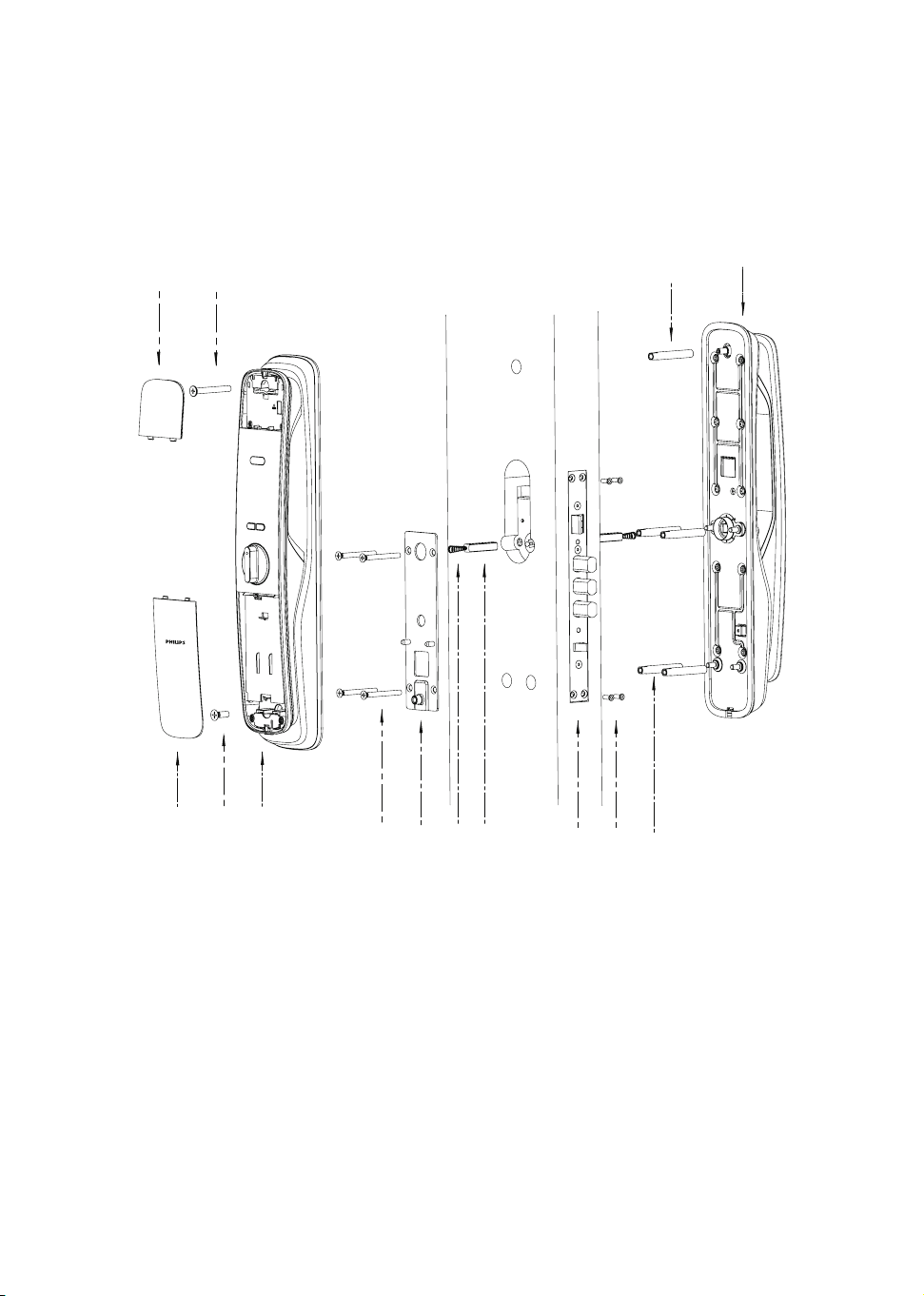
Exploded views
1.
2.
3.
4.
5.
6.
7.
Deco cover *1
M6 connecting screw*1
M6 connecting screw tube*1
Outside escutcheon*1
Battery cover*1
M6 mounting screw*1
Inside escutcheon*1
8.
9.
10.
11.
12.
13.
14.
Compressed spring *2
Square shaft*2
M5 connecting screw*4
Mounting plate*1
Mortise*1
Mortise anchor screw* 4
M5 connecting screw tube*4
2
1
3
4
5
6
7
8
9
10
11
12 14
13
5
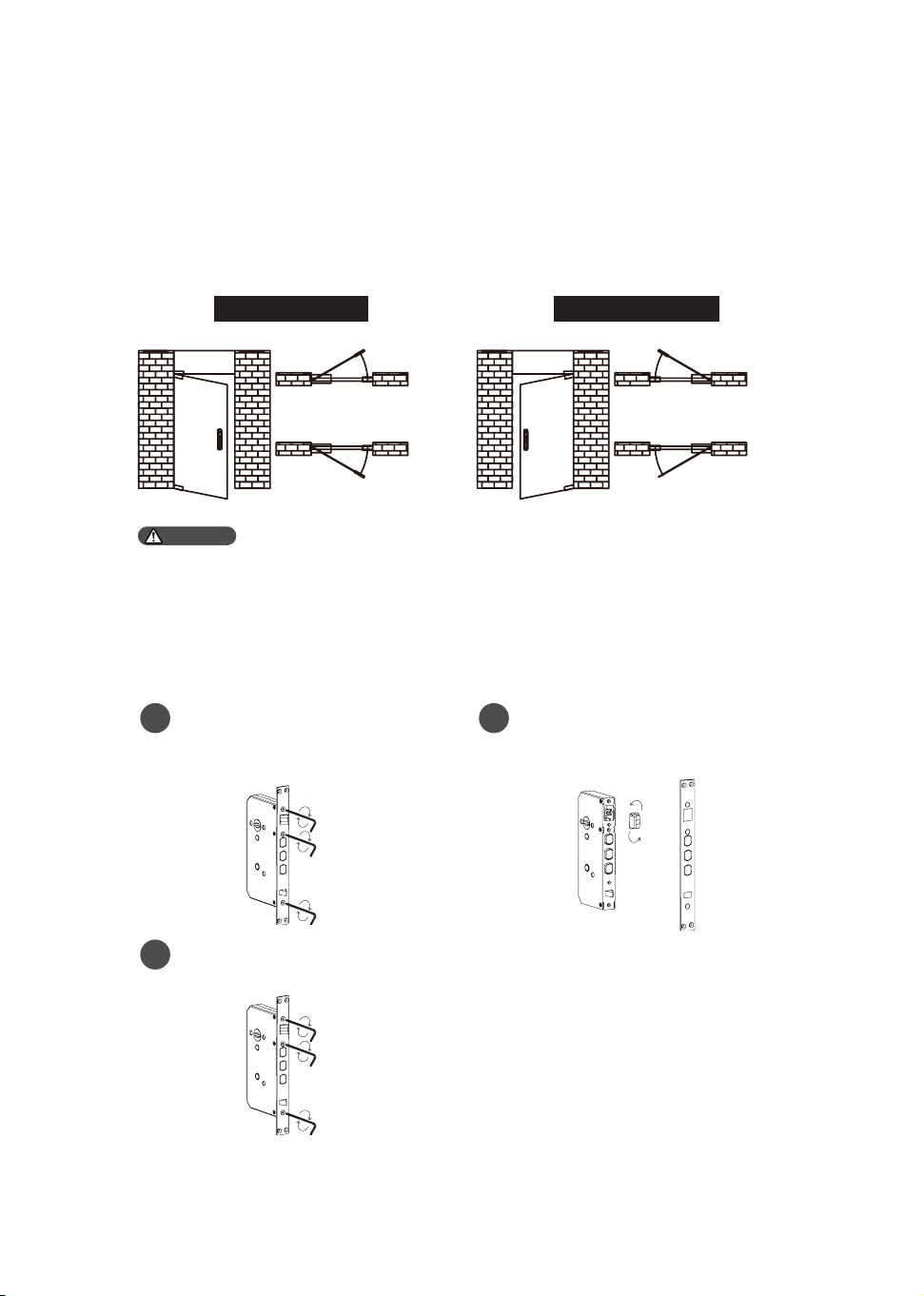
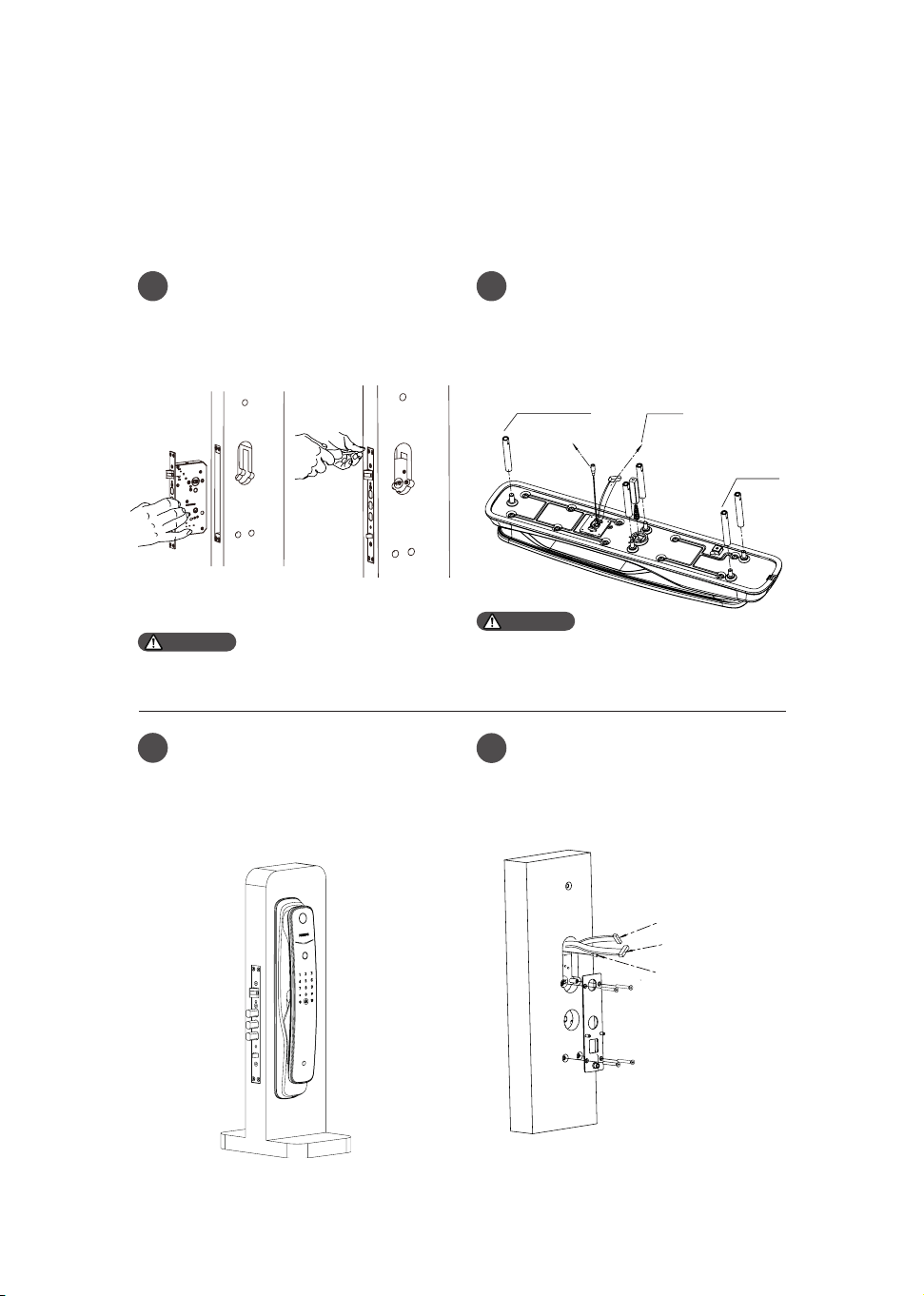
Loosen the screws by turning them
counterclockwise with an Allen
wrench and remove the mortise
plate.
Mount the mortise plate and
fasten it with screws.
Take out the latch bolt and rotate
it to 180°, then put it back.
Pre-setup instructions
1. Please choose the proper installation kit to suit your door thickness.
2. The default installation kit is applicable for a door thickness of 60-90mm. If your
door thickness does not within this range, please feel free to contact us.
Left-handed door Right-handed door
Left inward
Left outward
Mortise plate
Mortise plate
Allen wrench
Latch
bolt
Allen wrench
Right inward
Right outward
Attention
Step 1 | Determine door swing direction
This product allows you to have your door installed to go in four directions:
left outward, right outward, left inward and right inward.
Step 2 | Change the orientation of the latch bolt
1
3
2
6
Installation steps
The following installation steps only apply to right-handed doors. For
left-handed doors, please read [Pre-installation instructions] carefully
and make necessary adjustments.
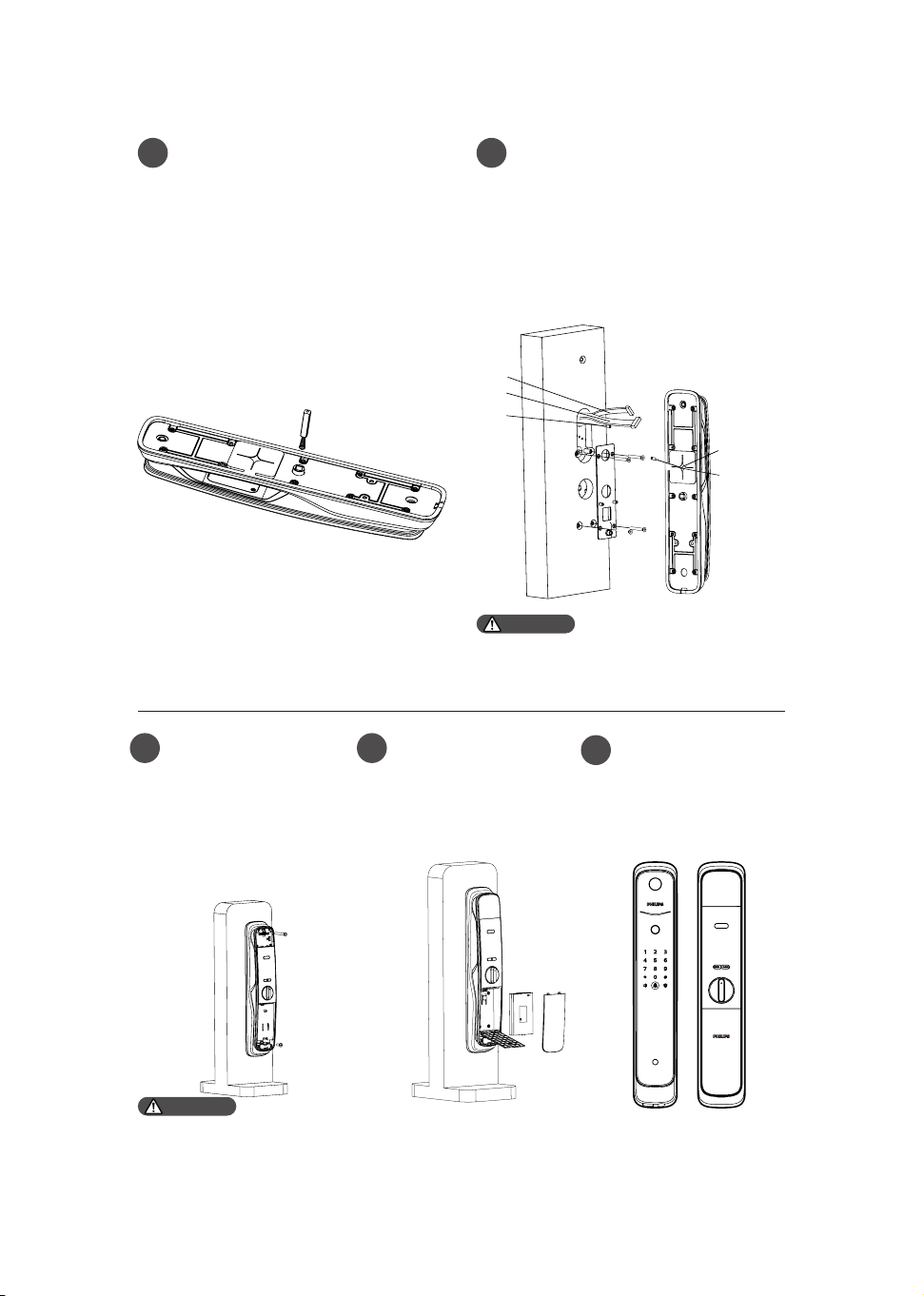
Mark the hole for drilling with
drilling template and drill the hole
marked, then mount the mortise
into the hole and fasten it with
four mortise anchor screws.
1 2
Install the connecting screw tubes
on the outside escutcheon, and
put the compressed spring and
square shaft accordingly into the
square shaft holes.
Pass the cable through the hole
and then insert the square shaft
of the outside escutcheon to the
rotary hole on the mortise until
the outside escutcheon is close to
the surface of the door.
3
Place the mounting plate against
the inner surface of the door and
fasten it with four M5 connecting
screws.
4
Make sure the latch bolt stays inside
the door during installation.
Attention
Please choose the proper square shaft
and connecting screw tube to suit your
door thickness.
Attention
Escutcheon
cable
Wi-Fi
antennas
M5 connecting
screw tube
M6 connecting
screw tube
Mortise cable
Escutcheon cable
Wi-Fi antennas
7
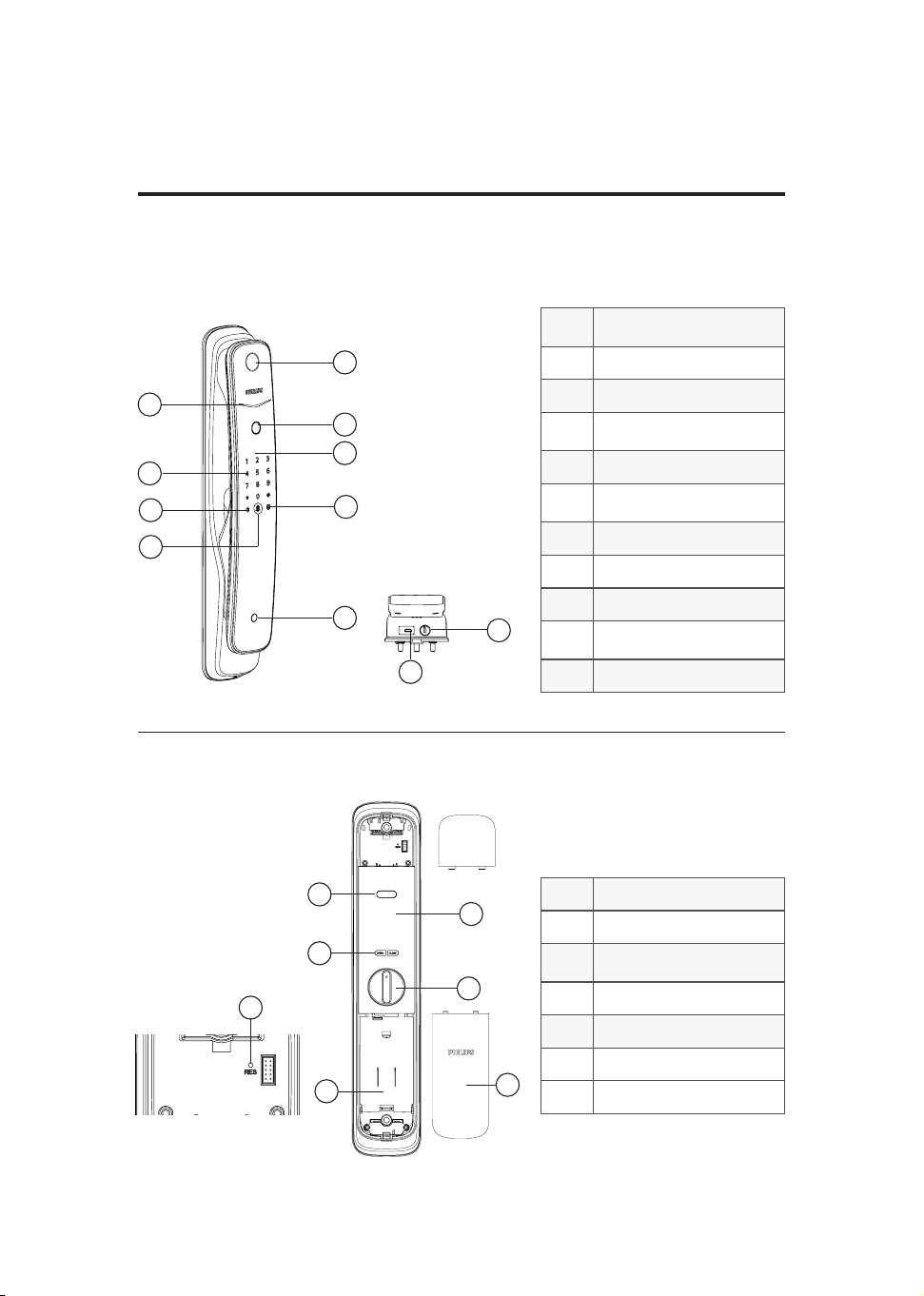
Remove the deco
cover at the top and
press the button at
the bottom of rear
escutcheon to remove
the battery cover,
then fasten the rear
escutcheon with two
M6 mounting screws.
Put the deco cover
back, install the
lithium battery, and
install the battery
cover along with the
strike.
Check whether
the rotary knob,
mechanical key, and
all other components
work properly.
Put the compressed spring and
square shaft into the square shaft
hole of the inside escutcheon
accordingly.
5 6
Insert the cable of both outside
escutcheon and mortise into the
corresponding sockets on the
inside escutcheon. Then insert
the square shaft of the inside
escutcheon to the rotary hole
on the mortise until the inside
escutcheon is close to the surface
of the door.
Please hide the extra cables in the
door hole or the inside escutcheon.
Attention
After nishing the strike installation, please check whether the smart
door lock can be used normally.
Attention
7 8
9
Mortise cable
Mortise cable
connector
Escutcheon
cable connector
Front escutcheon cable
Wi-Fi antennas
8
The pictures are for reference only, please refer to the actual packaging
items.
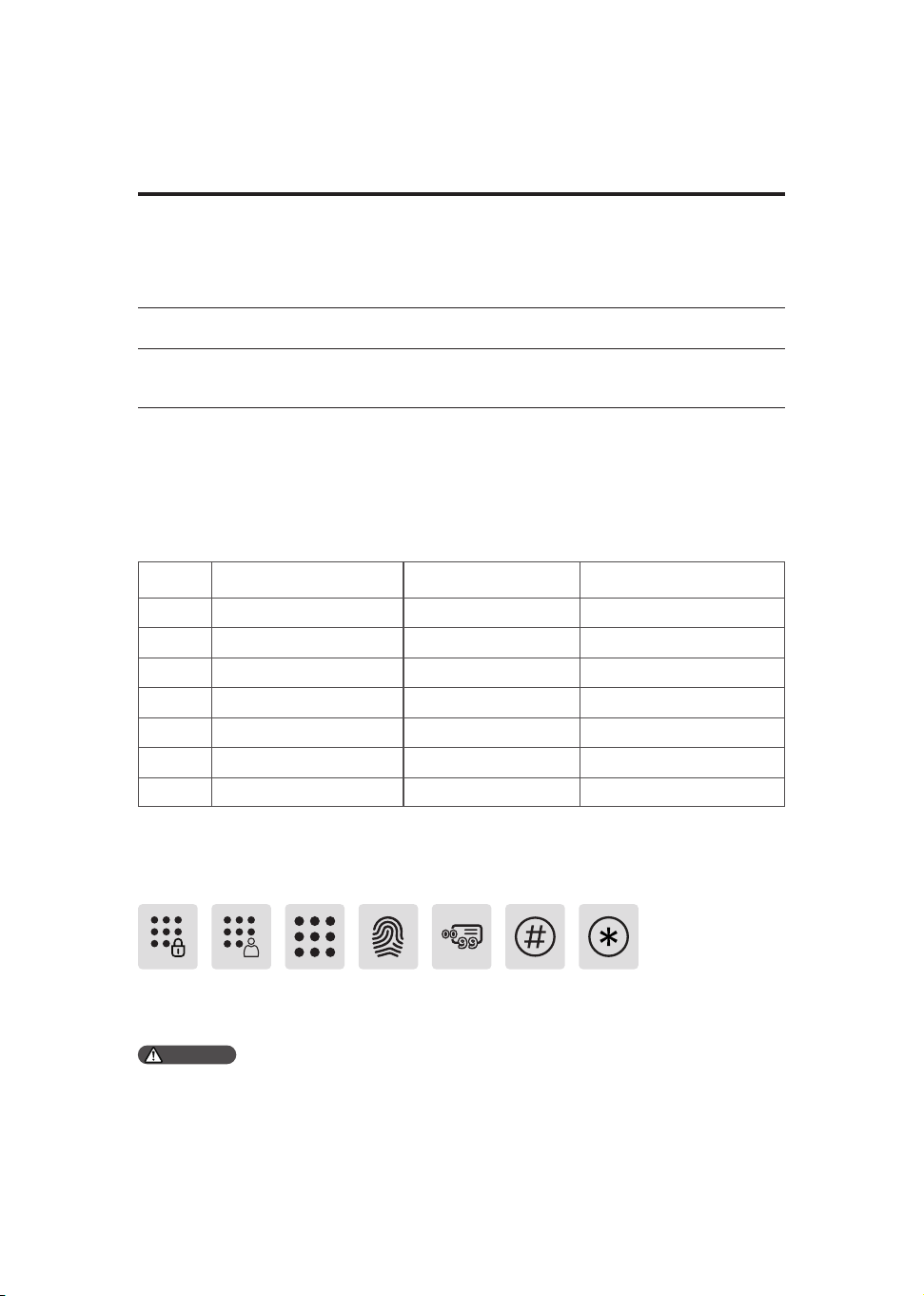
Inside escutcheon
Outside escutcheon
3. Get to know your EasyKey
①
Door lock status
indicator
②
Keypad
③
Mute button
④
Doorbell button/Low
battery voltage indicator
⑤
Push-pull handle
⑥
Outside forced lock
button
⑦
Camera
⑧
PIR sensor
⑨
Fingerprint sensor
⑩
Reboot and emergency
power supply interface
⑪
Mechanical key hole
①
Battery cover
②
Battery compartment
③
Restore to a default
setting
④
Push-pull handle
⑤
[OPEN/CLOSE] button
⑥
Rotary knob
⑦
Infrared sensor
3
4
7
5
6
8
9
11
1
2
10
6
2
5
7
4
1
3
9
Pre-setup instructions
◆Philips EasyKey comes with two modes: General mode and Dual verication mode.
◆User code
If you want to delete a specic user's information, you could delete the related user
code in the system.
You can use the below template to write down all user information for review.
4. How to set up your EasyKey
General mode Unlock with any registered identity information
Unlock with the two seperate forms of identication: PIN
code + Fingerprint.
Dual verication mode
User
code
Name Fingerprint Password
00
01
02
03
04
05
06
◆Icon annotation
Master
PIN
code
User
PIN
code
Fingerprint [#]One-
time PIN
code
[*]
1.Press [*] key to return to the previous menu.
2.The default master PIN code is 12345678.
Attention
User
code
00-99
10
How to enter master
mode
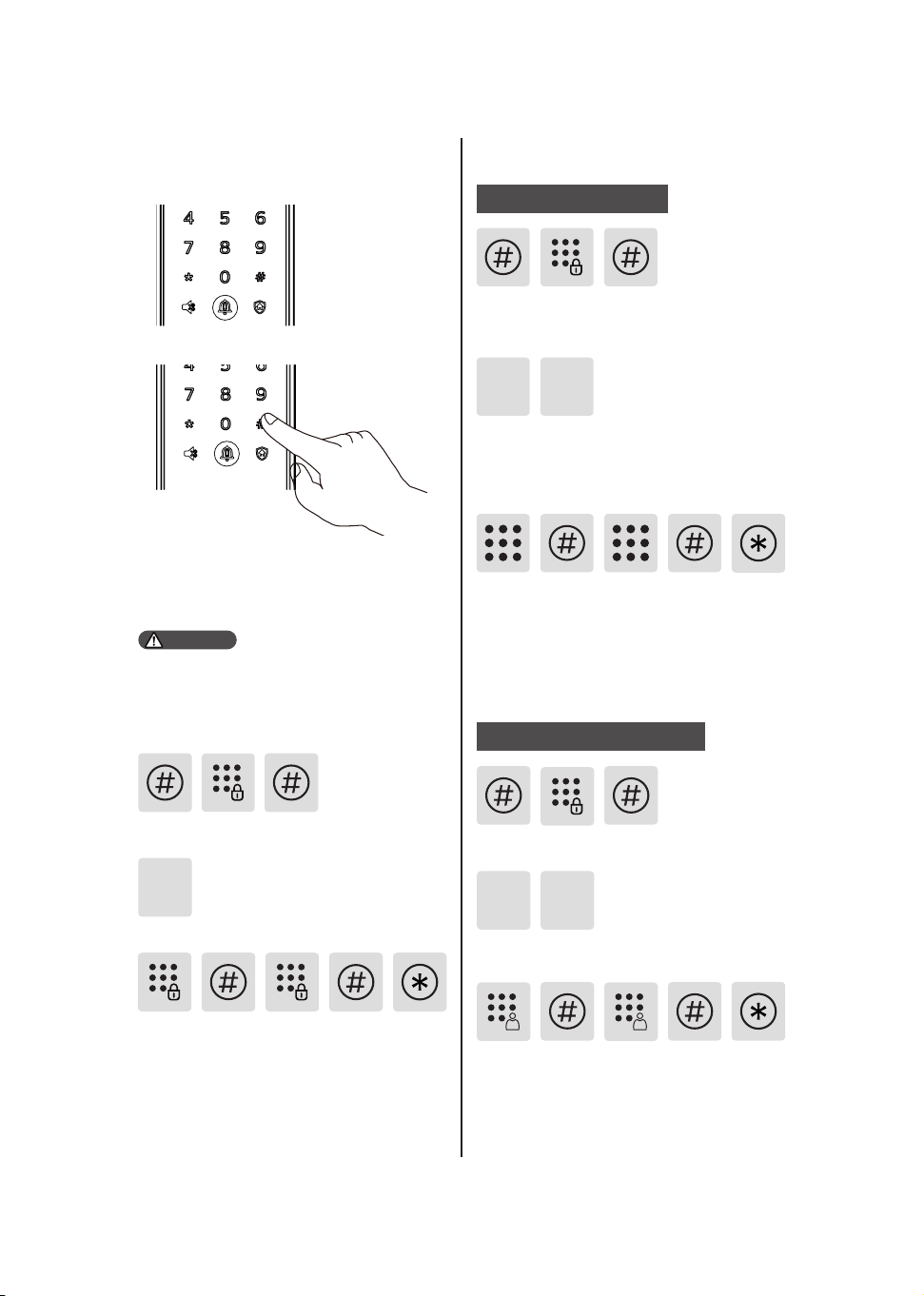
Add a new user
Wake up the keypad and enter [#]
before you enter any other numbers,
then enter master PIN code and enter
[#] to enter the master mode.
Change master PIN code
Enter the new master PIN code and
conrm with [#]. Re-enter the new
master PIN code master PIN code
and conrm with [#]. After hearing a
voice prompt of “Succeeded", press [*]
to return to previous menu until you
nally exit master mode.
Enter [1] to change master PIN code.
1
Enter [#] and enter master PIN code,
then conrm with [#].
Add a user PIN code
Enter [#] and enter master PIN code,
then conrm with [#].
Enter [2] to enter user registration and
enter [1] to add a new user PIN code,
then the system will automatically
number it and generate a voice prompt.
1
2
Enter a new user PIN code of 6 to
12 digits and conrm with [#]. Then
re-enter the new user PIN code and
comrm with [#]. After hearing a voice
prompt of "Succeeded", press [*] until
you nally exit master mode.
Enter [#] and enter master PIN code,
then conrm with [#].
Enter a new one-time PIN code of 6 to
12 digits and conrm with [#]. Then re-
enter the new one-time PIN code and
comrm with [#]. After hearing a voice
prompt of "Succeeded", press [*] until
you nally exit master mode.
Enter [2] to enter user settings, then
enter [2] again to add a one-time PIN code.
2 2
Add one-time PIN code
You can only wake up the keypad by
pressing keys in the keypad
Attention
11
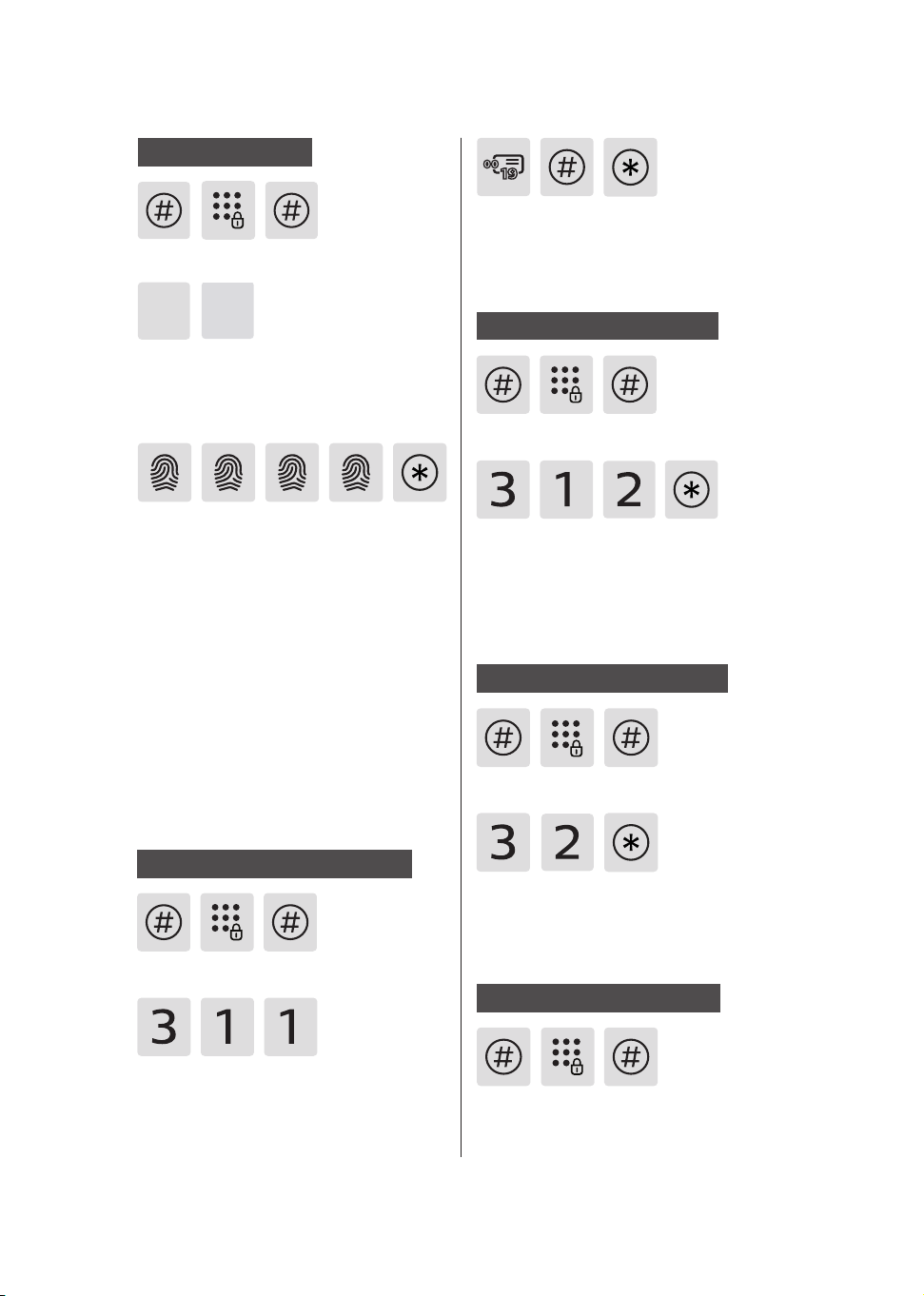
Delete a user record
Add a ngerprint
Enter [#] and enter master PIN code,
then conrm with [#].
Place your nger on the ngerprint
sensor until you hear a voice prompt
of “Move your nger and put on
again". Lift your nger and repeat
the process until you hear a voice
prompt of “Succeeded". After you have
successfully registered your ngerprint,
press [*] until you nally exit the
master mode.
Enter [2] to enter user registration and
enter [3] to add a user ngerprint, then
the system will automatically number it
and generate a voice prompt.
2
3
Enter [#] and enter master PIN code,
then conrm with [#].
Enter [3] to enter user record deletion
and enter [1] to enter user PIN code
deletion, then enter [1] to delete a
single user PIN code.
Delete a single user PIN code
Enter a 2-digit code (user code:00-19)
to be deleted and conrm with[#]. After
hearing a voice prompt of “Succeeded",
press [*] until you nally exit the master
mode.
Enter [#] and enter master PIN code,
then conrm with [#].
Delete all user PIN codes
Enter [3] to enter user record deletion
and enter [1] to enter user PIN code
deletion, then enter [2] to delete all
user PIN code. After hearing a voice
prompt of "Succeeded", press [*] until
you nally exit the master mode.
Delete one-time PIN code
Enter [#] and enter master PIN code,
then conrm with [#].
Enter [3] to enter user record deletion
and enter [2] to delete one-time PIN
code. After hearing a voice prompt of
"Succeeded", press [*] until you nally
exit the master mode.
Enter [#] and enter master PIN code,
then conrm with [#].
Delete a single ngerprint
12
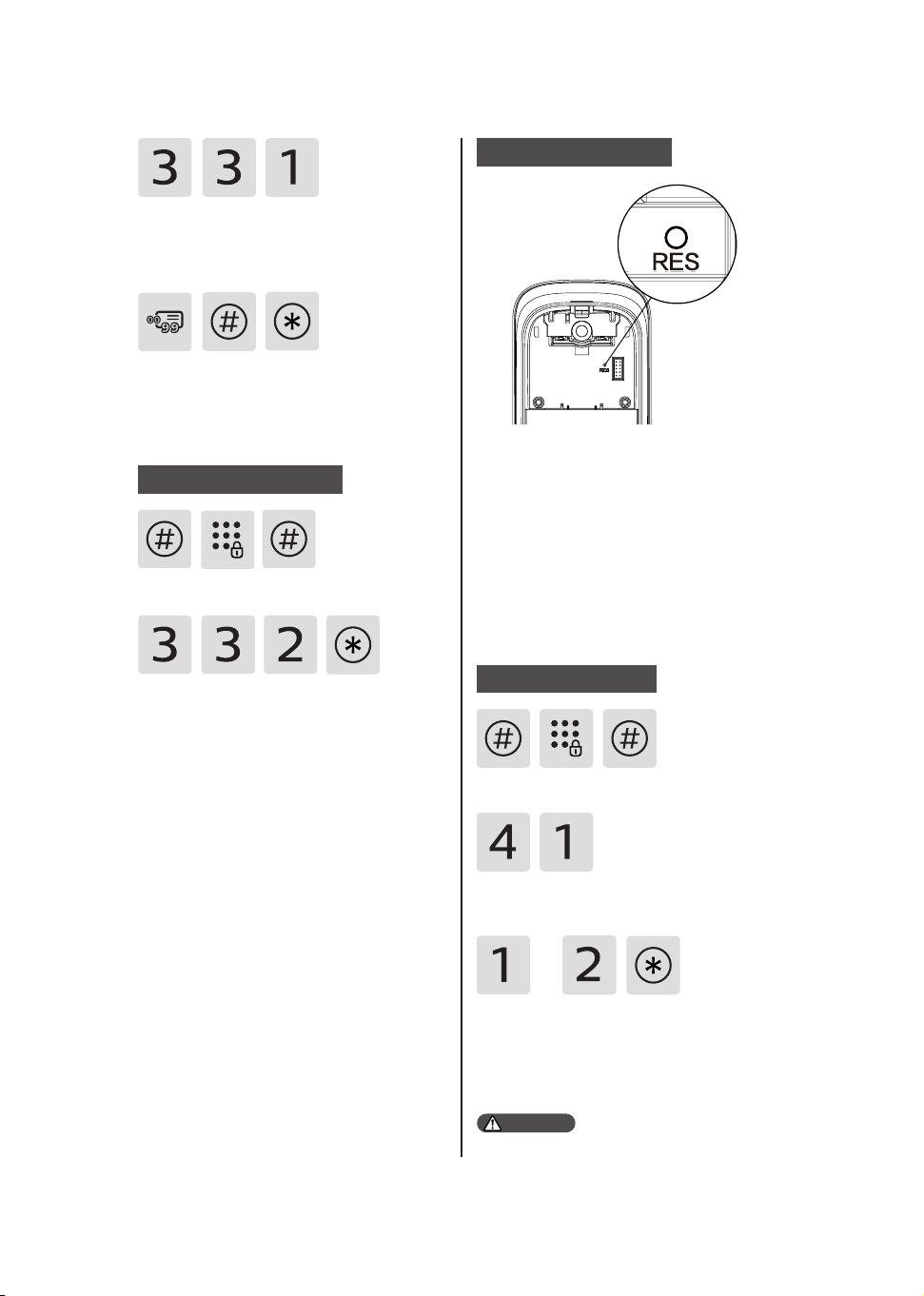
Enter [3] to enter user record deletion
and enter [3] to enter user ngerprint
deletion, then enter [1] to delete a
single ngerprint.
Enter a 2-digit code (user code:00-99)
to be deleted and conrm with[#]. After
hearing a voice prompt of “Succeeded',
press [*] until you nally exit the master
mode.
Enter [#] and enter master PIN code,
then conrm with [#].
Enter [3] to enter user record deletion
and enter [3] to enter user ngerprint
deletion, then enter [2] to delete all
ngerprints. After hearing a voice
prompt of “Succeeded", press [*] until
you nally exit the master mode.
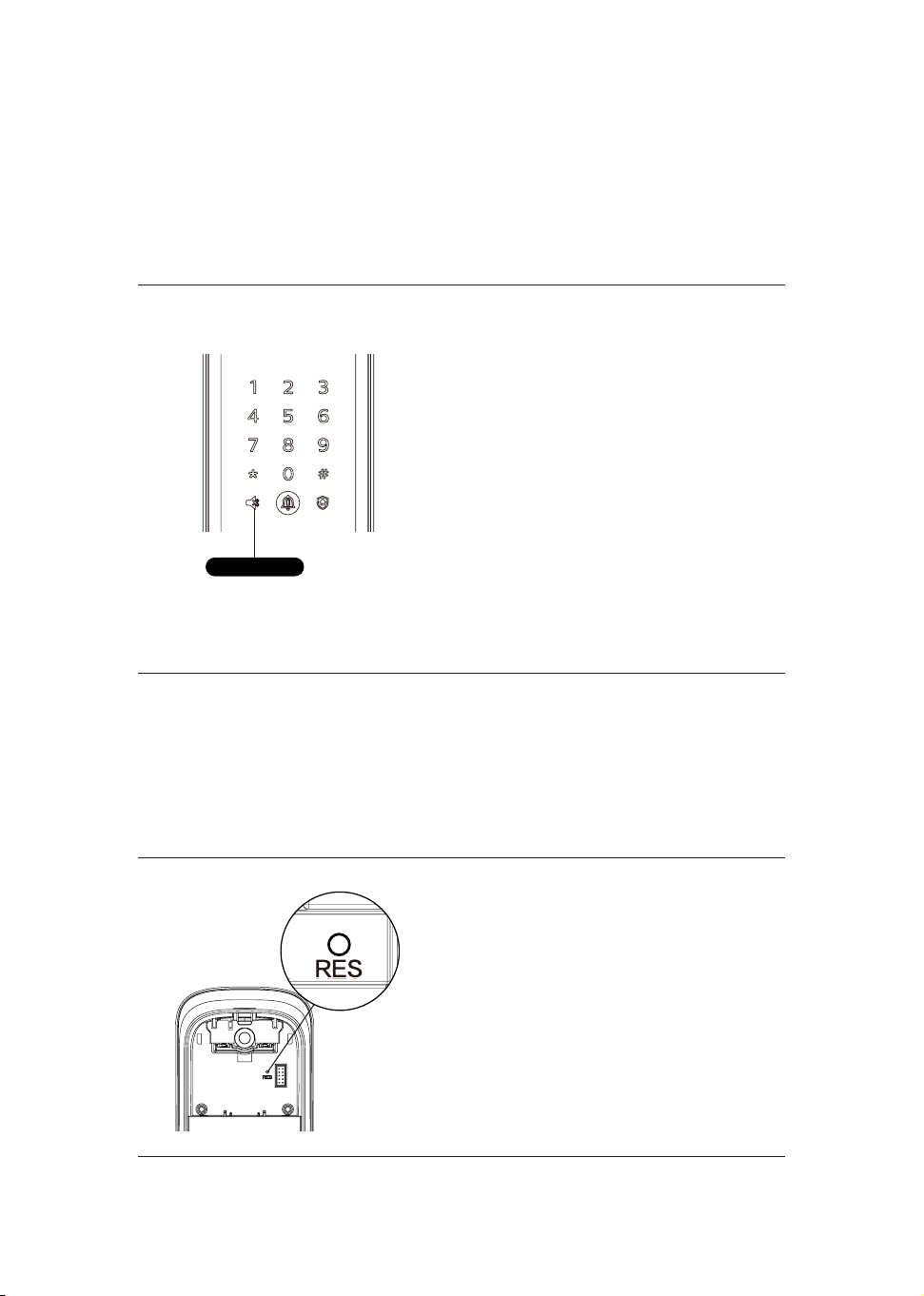
Delete all ngerprints
Remove the battery cover, then double
press the [RES] hole with a sharp
object. When you hear a voice prompt
of “Restoring to default settings", it
means all user record are deleted.
System initialization
System settings
Enter [#] and enter master PIN code,
then conrm with [#].
Enter [4] to go to system settings and
enter [1] to go to language settings.
Choose the language as needed: For
Chinese, press [1]; for English, press
[2]. After hearing a voice prompt of
“Succeeded", press [*] until you nally
exit the master mode.
Language settings
or
The default language is English.
Attention
13
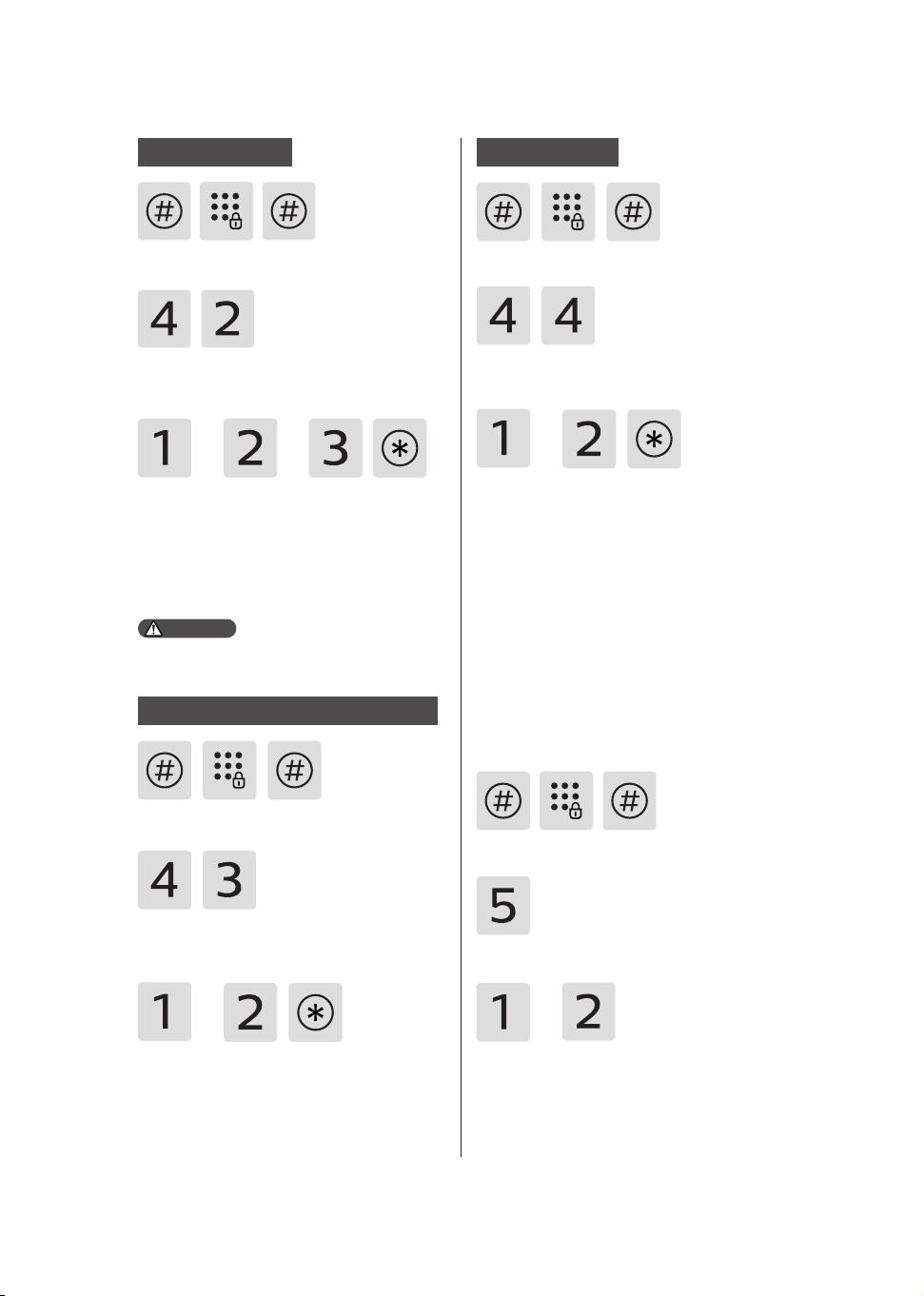
Enter [#] and enter master PIN code
and conrm with [#].
Enter [4] to go to system settings and
then enter [2] to enter volume settings.
Choose the volume as needed: For
high volume, press [1]; for low volume,
press [2]; for mute mode, press [3].
After hearing a voice prompt of
“Succeeded", press [*] until you nally
exit the master mode.
Volume settings
Enter [#] and enter master PIN code,
then conrm with [#].
Enter [4] to go into system settings, then
enter [3] to go into dual verication
mode.
For single verication mode, please
press [1]; For dual verication mode,
press [2]; After hearing a voice prompt
of “Succeeded", press [*] until nally
you exit master mode.
Switch to dual verication mode
or or
The default volume is "high volume".
Attention
or
Extended functions
Enter [#] and enter master PIN code,
then conrm with [#].
Enter [#] and enter the master PIN
code, then conrm with [#].
Enter [4] to go to system settings and
enter [4] again to enter the locking
mode.
or
Press [1] to enable auto mode and
press [2] to enable manual mode. After
hearing a voice prompt of "Succeeded",
press [*] to exit the master mode.
Enter [5] to go into extended functions.
To join a network, press [1]. To exit
a network, press [2]. Before setting
up the extended functions, please
download and open the ocial app on
your mobile phone.
Locking mode
or
14
System query
Enter [6] to go into system query, then
enter [1] to check the security code
and the system will automatically
broadcast the product series number.
Enter [#] and enter master PIN code,
then conrm with [#].
Security code query
Local query
Enter [#] and enter master PIN code,
then conrm with [#].
Enter [6] to go into system query, and
enter [2] to check the software version,
then the system will broadcast it
automatically.
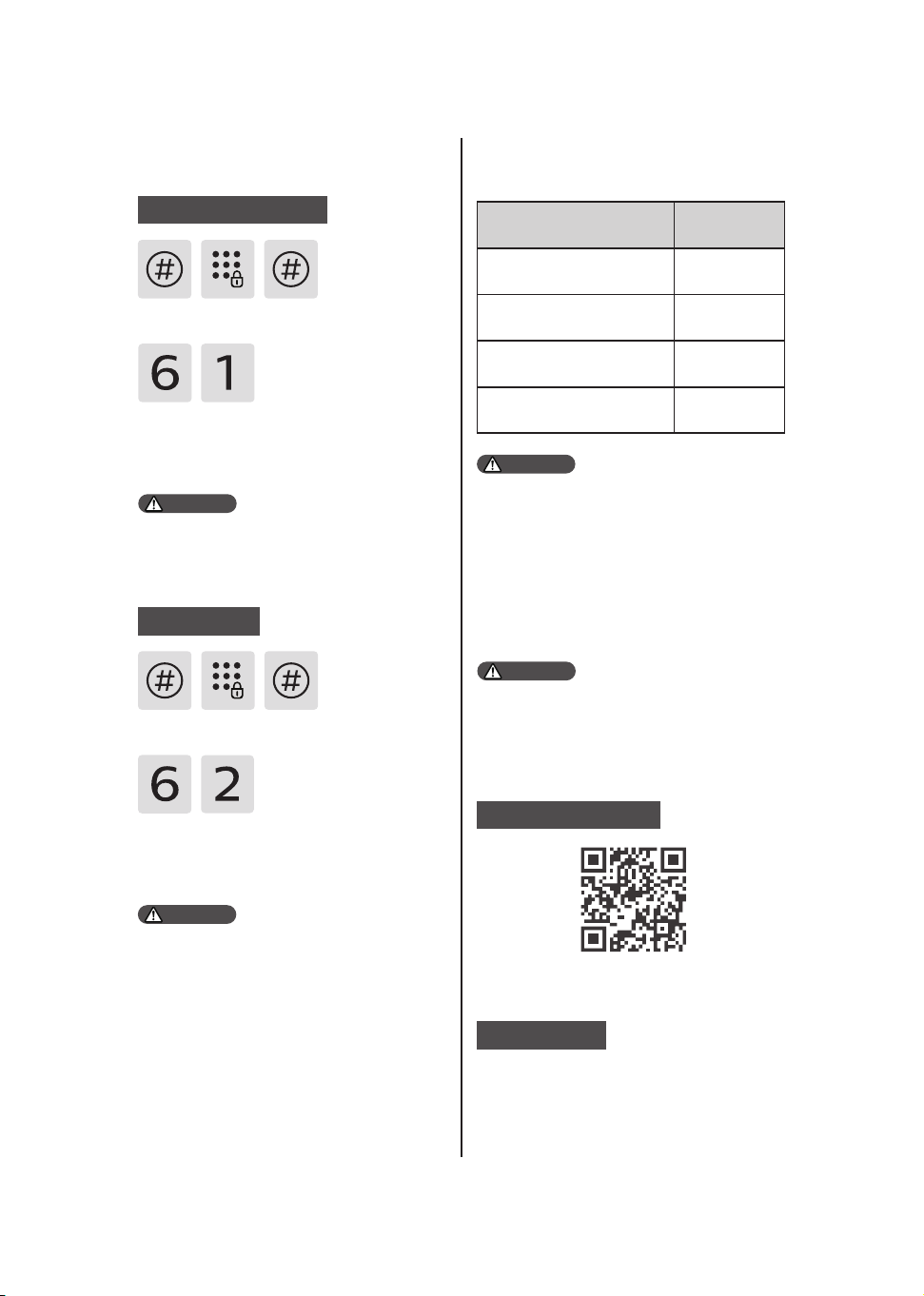
Directly enter 400# to go into system
query.
Attention
Directly enter 114# to go into the local
query.
The above function of shortcut keys
are provided for reference only and
might be updated later for usability
reasons.
Attention
Attention
Shortcut keys*
Functions Shortcut keys
Check serial number 400#
Check rmware version 114#
Enable video 407#
Disable video 408#
App binding instruction
Download the App
Lock pairing
Due to the functions vary in dierent
models, please consult the ocial
authorized seller to conrm whether
the product(s) you purchased
support(s) networking.
Please scan the QR code above to
download the App and install it.
Make sure the door lock terminal
has been installed with batteries or
connected to the power supply.
①
1. For Bluetooth smart door lock(s)
Attention

15
Make sure the door lock terminal
has been installed with batteries or
connected to the power supply.
Sign in to the App, click to “Add
a device” on the Homepage,
choose [Bluetooth Smart Door
Lock] to enter the pairing page,
then complete the pairing process
according to the App prompts.
Click the [#] on the smart door
lock terminal and enter the
master PIN code, re-click the
[#] to enter master mode, press
[5], then press[1] to enter the
Networking Distribution Mode,
then you will hear a voice prompt
of “Connecting, please wait a
moment”.
①
②
②
2. For Wi-Fi smart door lock(s), facial
recognition smart door lock(s) and
video smart door lock(s)
The door locks only support connecting
to the 2.4Ghz Wi-Fi router (5Ghz Wi-Fi
is not supported). Please make sure
that the visual distance between the
router and the door lock terminal is less
than 10 meters, otherwise, the signal
might be poor.
Sign in to the App, click to “Add a
device” on the Homepage, choose
[Wi-Fi lock/Facial recognition lock/
Video lock] to enter the pairing
page, then complete the pairing
process according to the App
prompts.
③
Attention
16
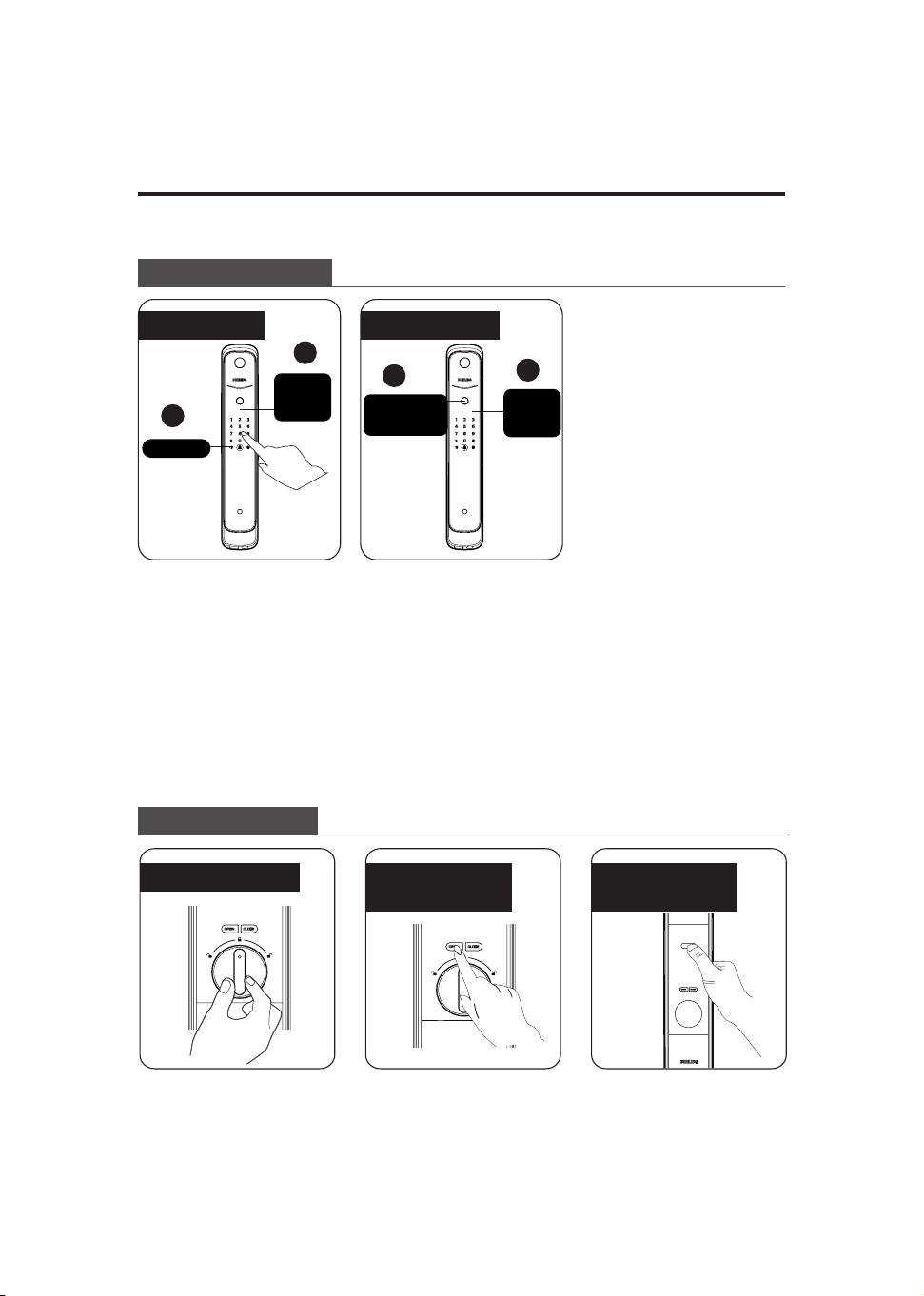
①Touch the digit input area
to light up the keypad and
enter the registered PIN
code and conrm with [#].
②After hearing a voice
prompt of “Door opened",
push or pull the door to
unlock.
Philips EasyKey adopts
indoor fast opening
mortise. You can unlock
the door from inside by
rotating the rotary knob.
①Place the registered
nger on the ngerprint
sensor.
②When you hear a voice
prompt of "Door opened",
push or pull the handle to
unlock.
Double press the [OPEN]
functional button within
one second, then push or
pull to unlock the door.
Philips Easykey has an
infrared sensor on the
handle. When the sensor is
triggered, you can press the
sensor module on both the
front and rear sides of the
handle simultaneously to
unlock the door.
Unlock from inside or outside
5. How to use EasyKey
With PIN code With ngerprint
1
Unlock from outside
Unlock from inside
1
2
2
Keypad
Push or
pull to
unlock
Push or
pull to
unlock
Fingerprint
sensor
With a rotary knob With a functional
button
With an infrared
sensor
17
Lock from outside or inside
Inside deadlock
When the EasyKey is locked, long press the
[CLOSE] button until the indicator ashes
once in red, then there will be a voice
prompt of “Inside deadlock enabled".
When the door is under inside deadlock
mode, the outside escutcheon will lock up. If
you try to wake up the system manually, the
keypad area will display the combination of
“15937(X)” and there will be a voice prompt of
“Inside deadlock enabled" to remind you that
the door has been deadlocked from inside.
Under deadlock mode, all operations of the
outside escutcheon are disabled. Master PIN
code verication or mechanical key opening
is required to release the door from deadlock
mode.
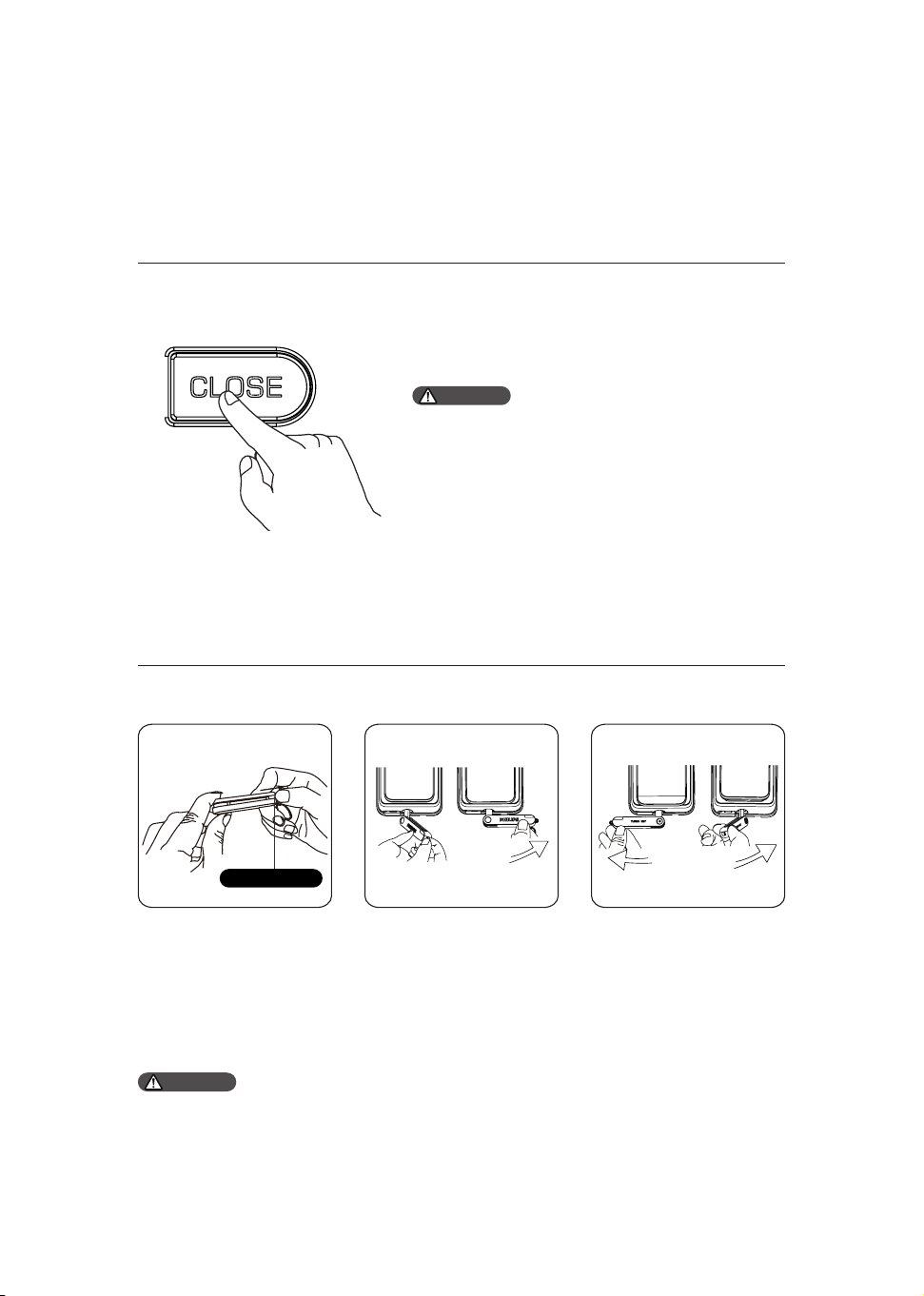
Unlock with mechanical key
① Cut the mechanical
box and take out the
key. Push the cover
aside and reveal the key.
② Insert the key into
the keyhole and the key
should be vertical to the
key shell. Then turn the
key shell by 90° in the
direction of the handle
until it is close to the
lock.
③ Make a 180 degrees
twist clockwise and
make sure the key
shell is parallel to the
horizontal plane. Then
rotate the key cover
horizontally in the
direction of the handle
to unlock.
Attention
Push button
The latch bolt will pop up automatically as soon as the door is close and there will
be a voice prompt of “Door Close”.
It is recommended not to use mechanical keys daily unless there is an emergency,
such as the battery is dead, forgetting the password, or the system is not working
properly.
Attention
18
6. Other functions
Indoor infrared sensor unlock
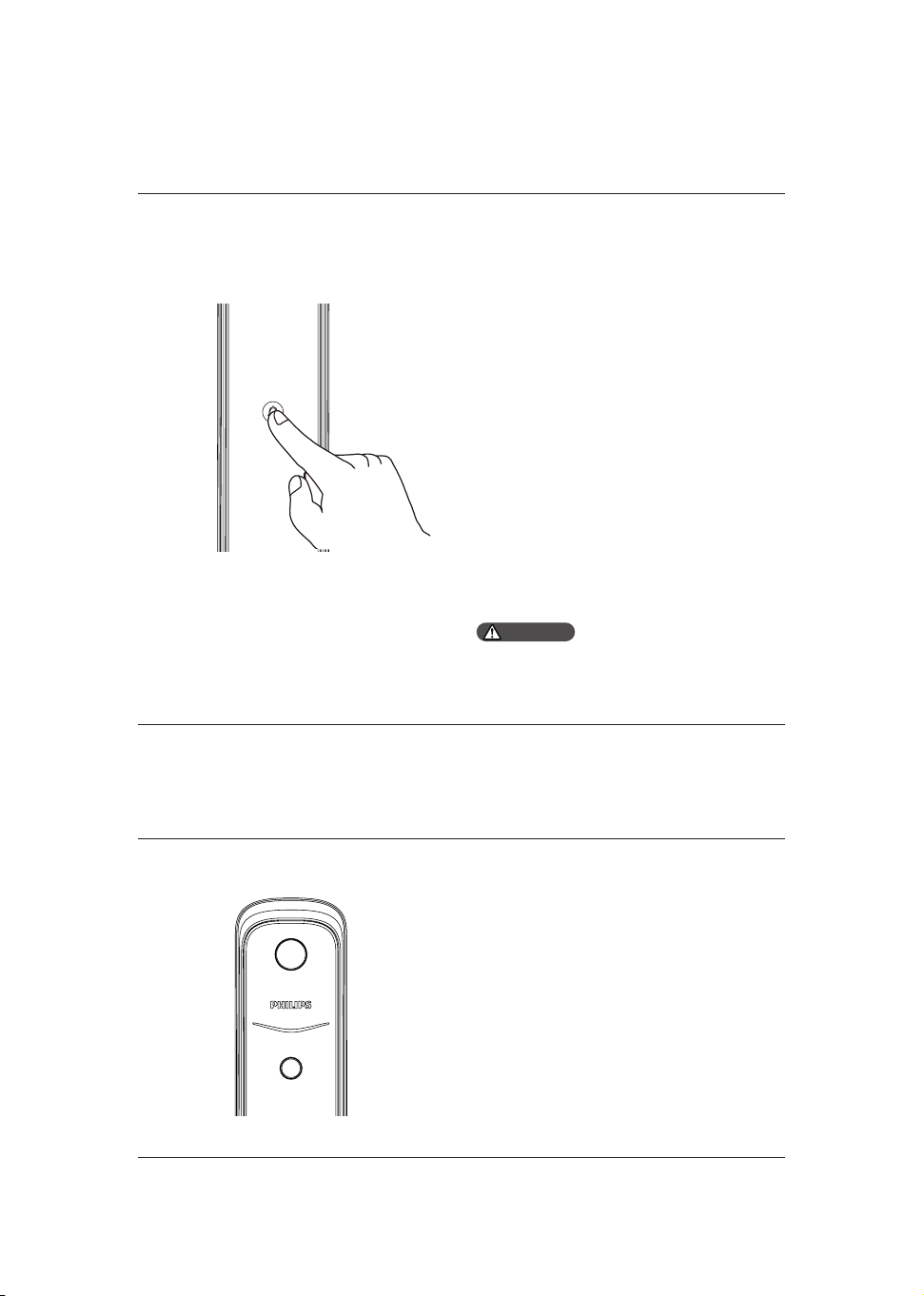
Outside forced lock
Function:
Once the indoor infrared sensor
unlocking is enabled, you could easily
unlock the door from inside.
How to use:
Philips Easykey has an infrared sensor
on the handle. When the sensor is
triggered, you can press the sensor
module on both sides of the handle
simultaneously to unlock the door.
Enable/Disable:
When the infrared sensor unlocking is
disabled, long press the [OPEN/CLOSE]
button at the same time to turn on the
function, and the green light will glow
quickly;
When the infrared sensor unlocking is
enabled, long press the [OPEN/ CLOSE]
button at the same time to turn o the
function and the red light will glow
quickly.
Function:
Unlocking from inside will trigger an
alert.
How to use:
After the door is successfully locked,
long press the button for 2 seconds to
enter the outside forced lock mode.
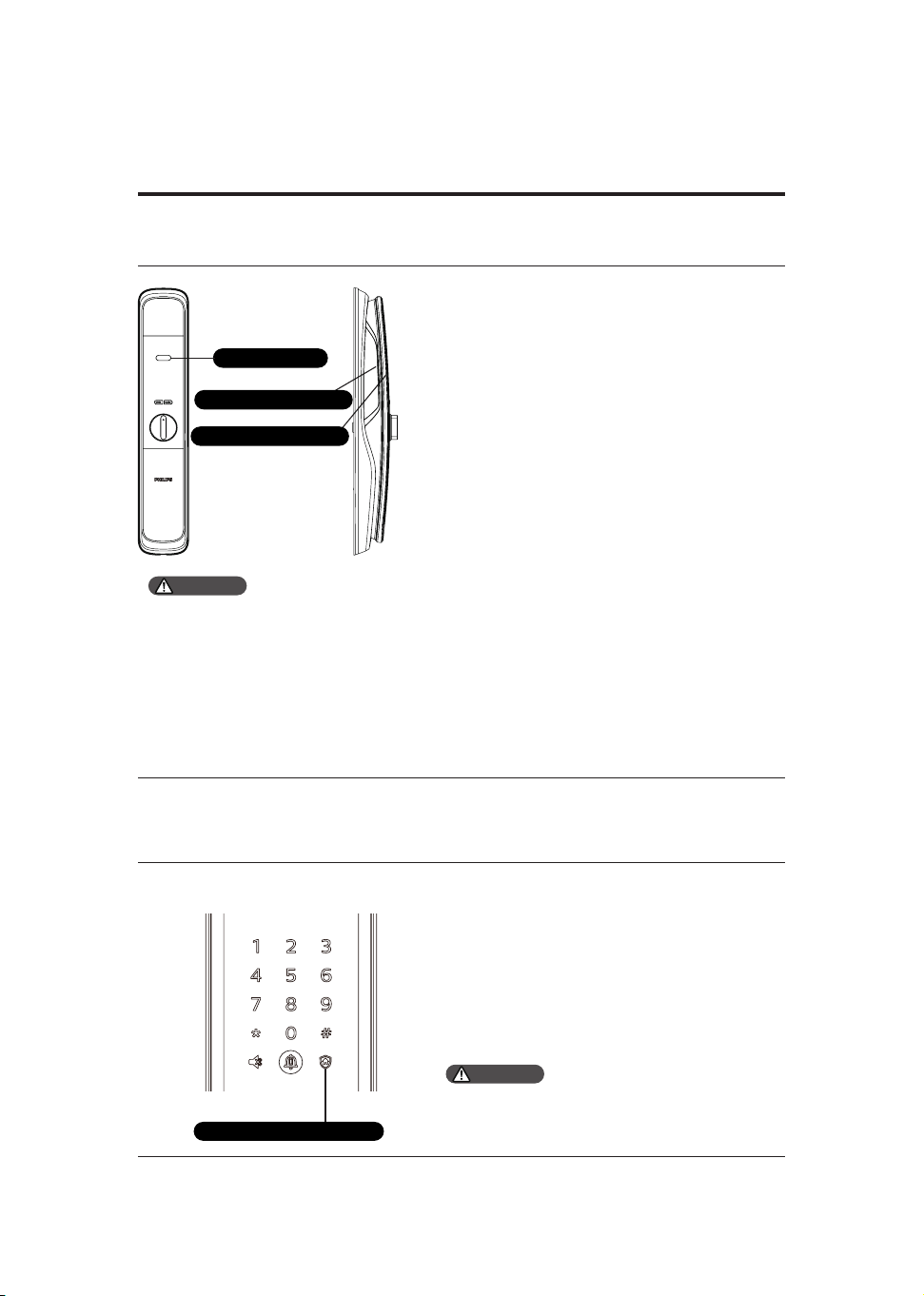
Outside forced lock button
Enabling the outside forced lock function
will not aect the normal way to unlock the
door from outside.
Attention
Infrared sensor
Rear sensing area
Front sensing area
When the infrared sensor unlocking
is disabled, the indoor inductive
unlocking would be inactive. When
you touch both the front and rear
side of the sensing area on the
handle, the red light will light up
to remind you that the indoor
inductive unlocking is o.
Attention
19
Mute mode
Restore to default settings
Function:
Empty all user information and
restore the EasyKey to default
settings.
How to use:
Use a sharp object to double press
the [RES] button, and all the user
information will be emptied, then
the lock will be restored to default
settings.
Function:
Use only one button to mute the
lock and the voice guide will be
turned o. This feature applies to
the scenes where you don't want to
disturb your family.
How to use:
1. Mute: When the system is awake,
long press the [Mute] button for 2
seconds until it glows green.
2. Unmute: When the system is
awake, long press the [Mute] button
for 2 seconds until it glows white
and the lock will produce sound
again.
Mute button
20
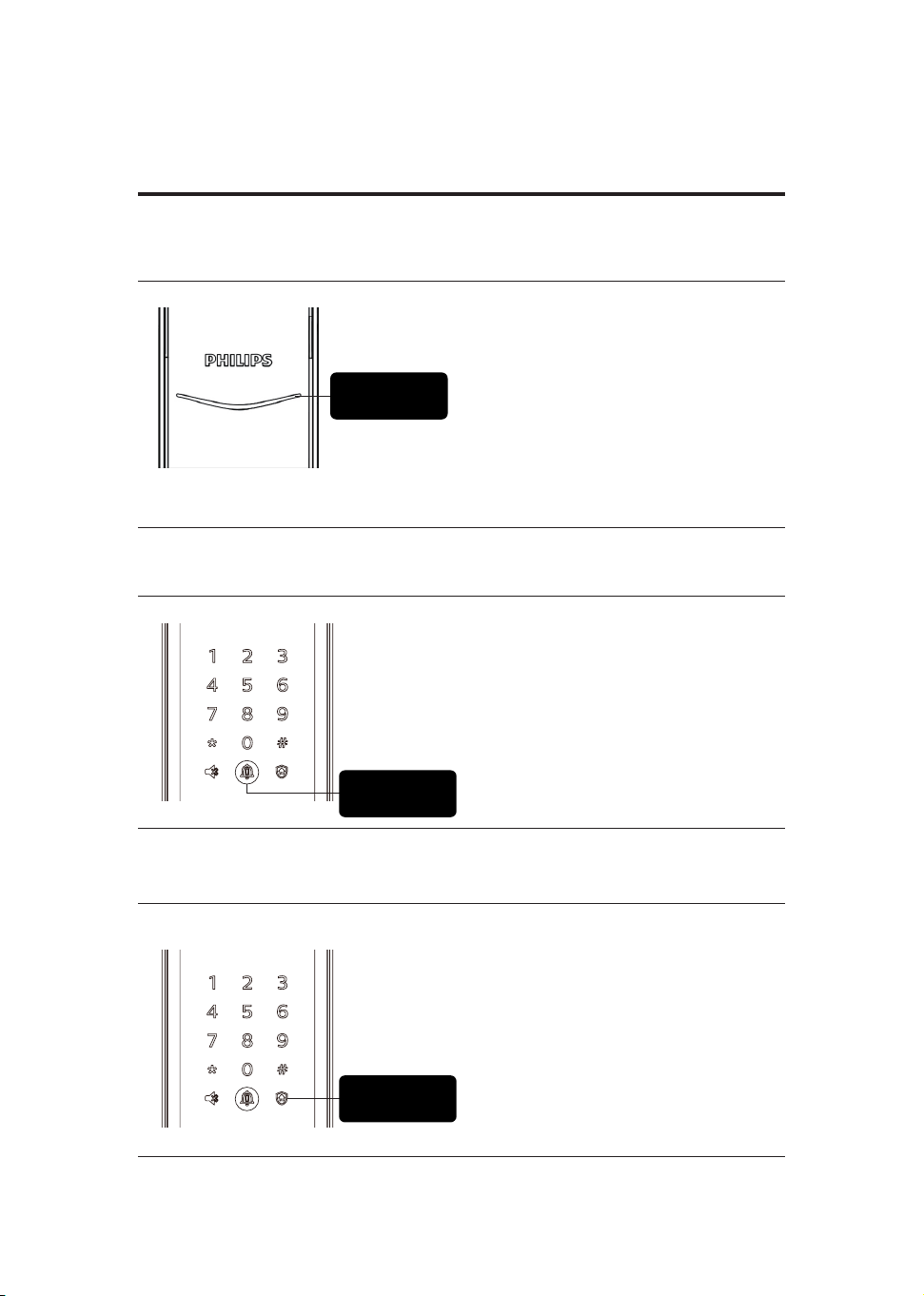
Doorbell
Function:
When the doorbell make sound, it
indicates that someone comes in
the door.
How to use:
When the visitor press the doorbell
on the keypad, the indoor chime
will produce a dingdong bell
sound. Meanwhile, the camera of
smart lock will capture a video clip
of the visitors and send it straight
to the paired app. When you get
a notication on your phone, you
can check the situation outside
your front door remotely via app.
Function:
View the situation outside the
front door and talk to the visitors
via mobile app.
How to use:
When paired the smart door lock
with mobile app, you can view the
situation outside the front door
and talk to the visitors in real-time
with app.
When you press the doorbell key, the
light will ash twice in blue.
Attention
Two-way video intercom
21
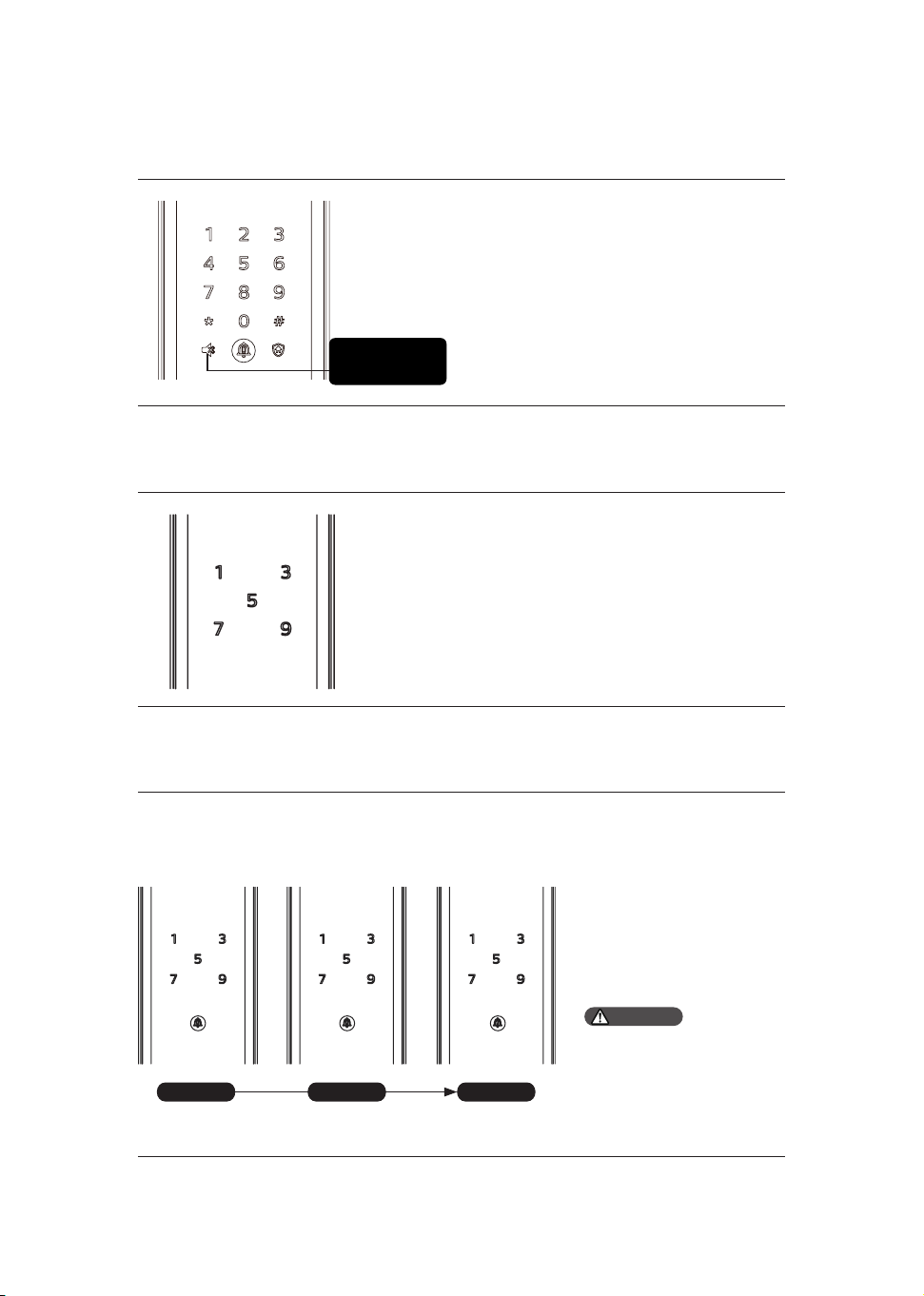
7. Indicators meaning and usage
Door lock status indicator
Low battery voltage indicator
Outside forced lock indicator
Blue: When the system wakes up
and the light glows blue, it means
you can use the lock.
Green: When the door is unlocked
and the light glows green, it means
the door is open.
Red: When the door is locked and
the light glows red, it means the
door is closed.
Red: When the system wakes up,
it will automatically check the
battery voltage. If the voltage is
too low, then the light will ash
in red and there will be a voice
prompt of “Low battery voltage,
please replace all batteries".
White:
1. When the door is locked and
the outside forced lock indicator
is glowing, it means that you can
enable the outside forced locking.
2. When outside forced lock mode
is enabled, the light will glow as
soon as the system wakes up.
Door lock
status indicator
Low battery
voltage indicator
Outside forced
lock indicator
22
Mute mode indicator
Inside deadlock indicator
System freezing indicator
1. White: indicates the mute mode
is o.
2. Green: indicates the mute mode
is on.
When the door is under inside
deadlock mode, the keypad will
lock. If you wake up the system
manually, the keypad will show the
combination of “15937 (X)” with a
voice prompt of "inside deadlock
enabled".
If there are consecutive
incorrect inputs of any
of the ngerprint, PIN
code,5 times within 5
minutes, the system will
lock up for 3 minutes.
3 minutes
Flash three times Flash twice Flash once
2 minutes 1 minute
Mute mode
indicator
Only when waking up
the outside escutcheon
or verifying the identity
of the user would the
numbers appear.
Attention
23
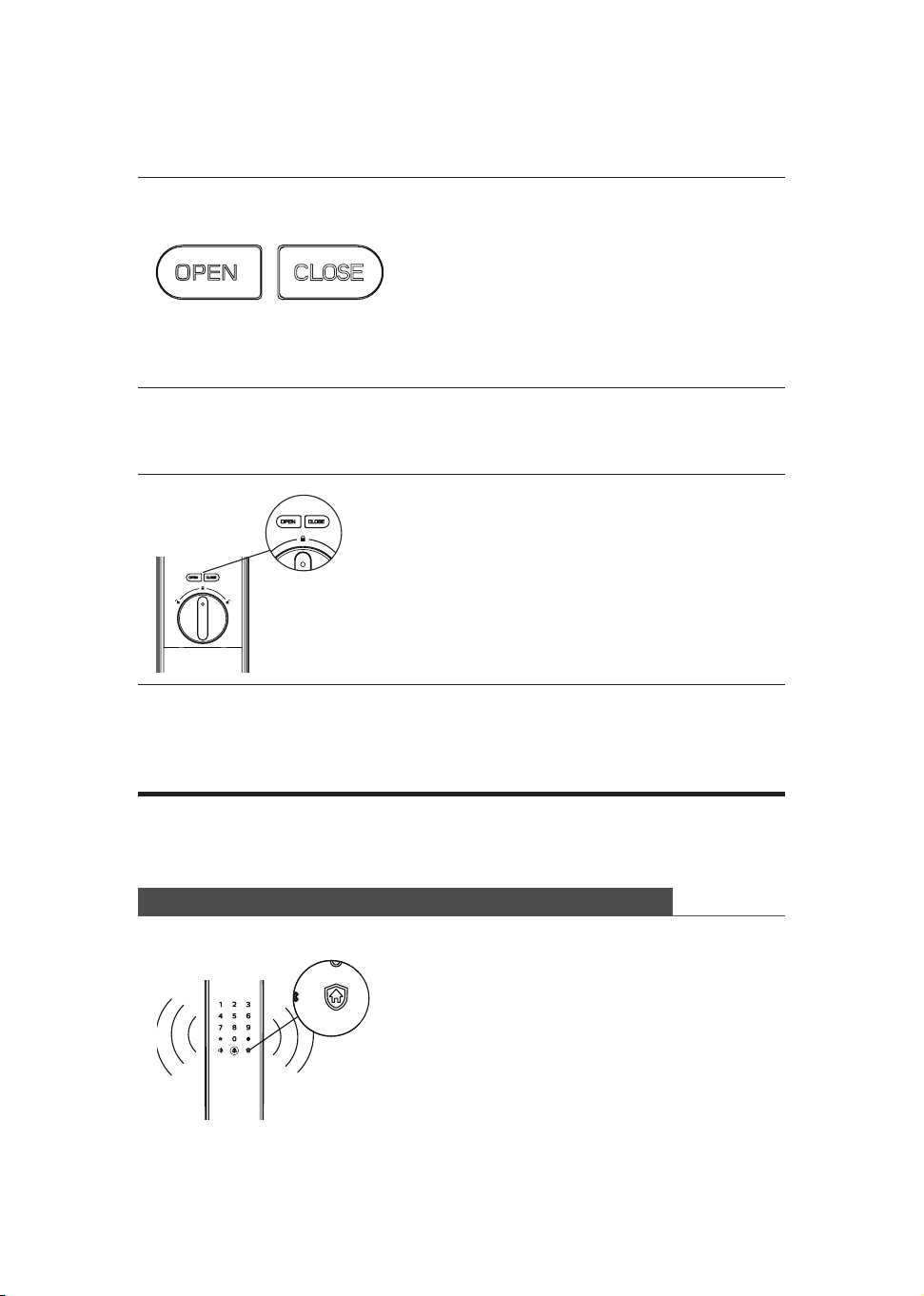
[OPEN/CLOSE] indicator
Infrared sensor unlocking indicator
1. Red light ashing twice: indicates that
the door is locked successfully.
2. Green light ashing twice: indicates that
the door is unlocked successfully.
3. Red light ashing once: indicates that
the door is under the deadlock mode.
1.Fast ashing in green: infrared sensor
unlocking is on.
2.Fast ashing in red: infrared sensor
unlocking is o.
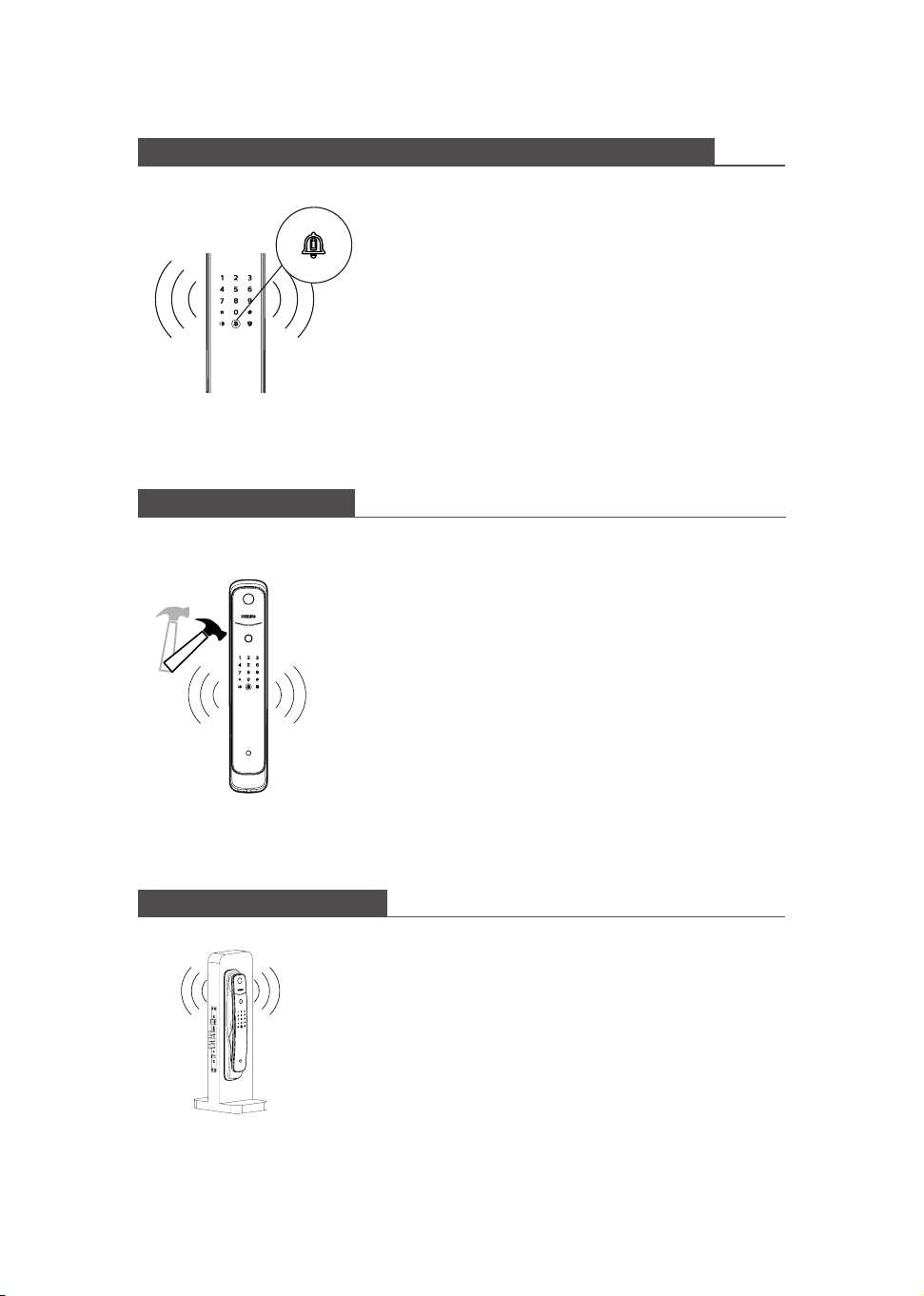
Alert types and methods
8. Troubleshooting
Alert to unlock from inside under outside forced lock mode
Way to trigger: Under outside forced lock
mode, an alert will be triggered when the
door is unlocked from inside.
Way to be alerted: Repeat alerts
Way to turn o: The alert will be turned o
once the identity verication is successful.
24
Low battery voltage alert reminds you to replace the batteries
Way to trigger: When the system wakes
up, it will automatically check the battery
voltage. If the voltage is too low, then an
alert will be triggered to remind you to
replace the batteries.
Way to be alerted: A voice prompt of
“Low battery voltage, please replace all
batteries" will be given when unlocking the
door.
Way to turn o: The alert will be
automatically turned o.
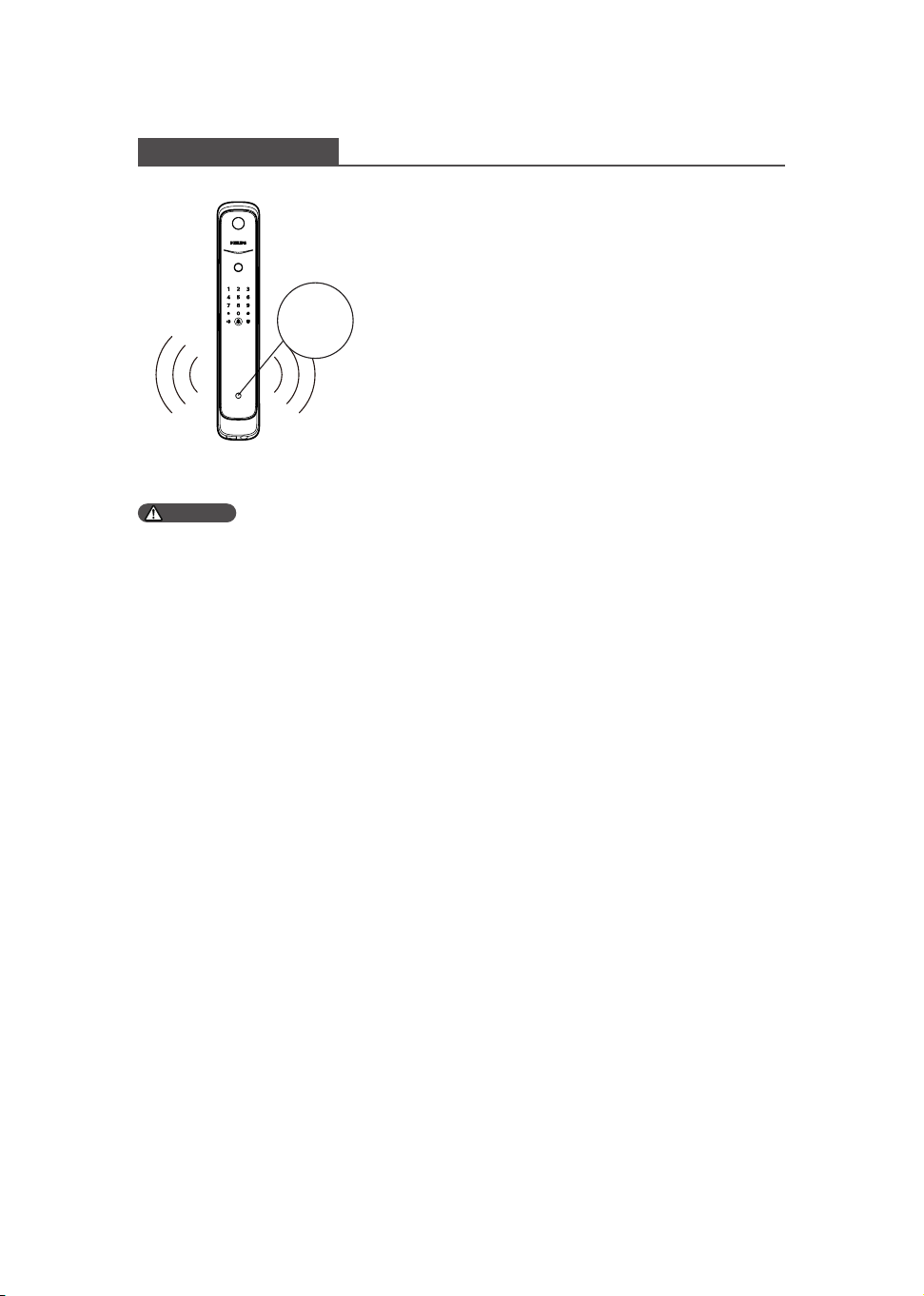
Anti-dismantling alert
1. Way to trigger: The door is pried apart
and the latch bolt is popped up.
Way to be alerted: Repeat alerts.
Way to turn o: Automatically turning o or
successful identity verication.
2. Way to trigger: The outside escutcheon
is pried open and there is a gap of space
between the door and the outside
escutcheon.
Way to be alerted: Repeat alerts.
Way to turn o: Automatically turning o or
successful identity verication or a normal
way to unlock the door from inside.
Anomalous deadbolt alert
Way to trigger: The deadbolt works
abnormally and causes a failure in locking
or unlocking the door.
Way to be alerted: Repeat alerts
Way to turn o: The alert will be
automatically turned o.
25
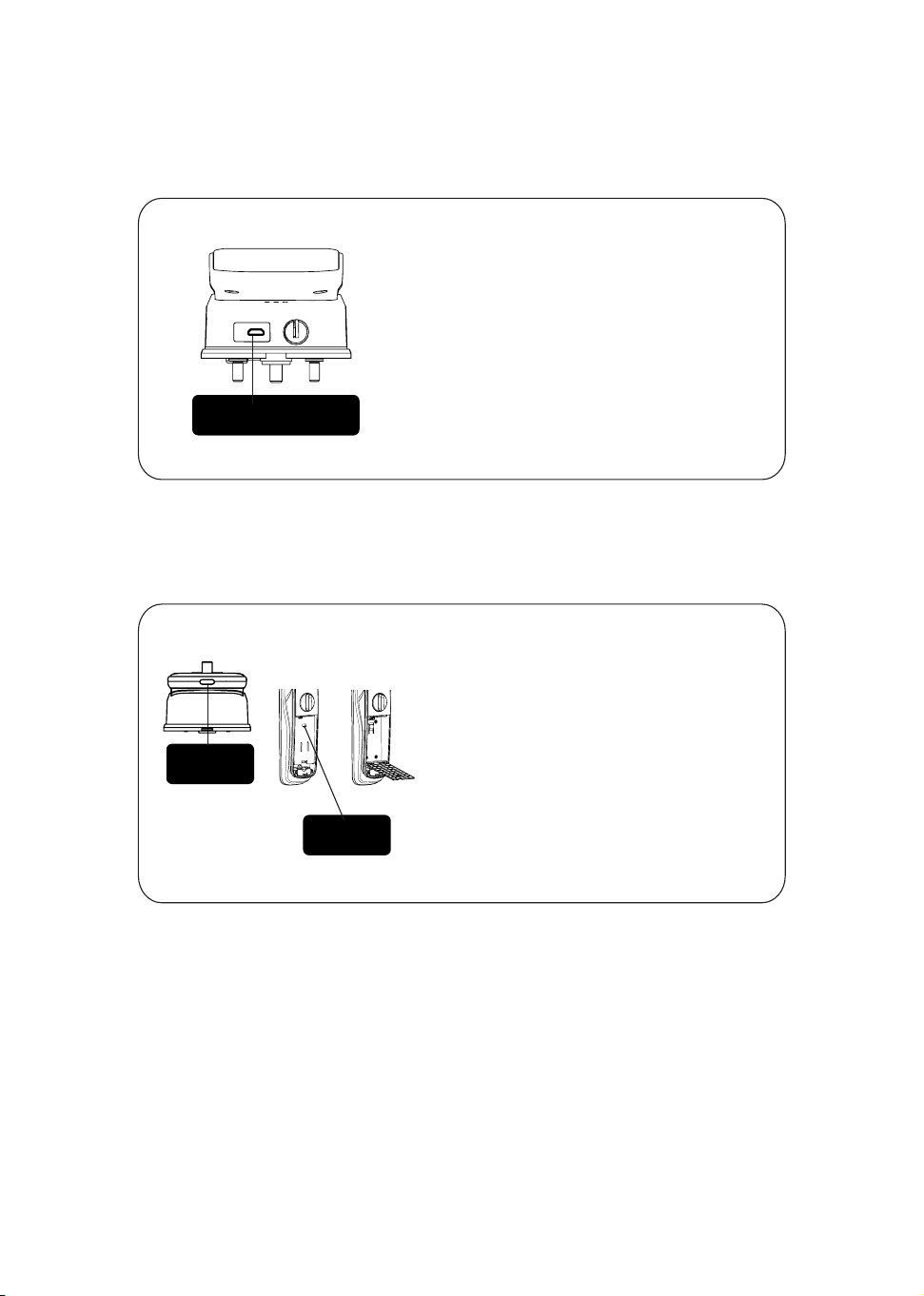
Motion sensor alert
Way to trigger: When an unexpected
person shows up and stays outside your
home for more than 30 seconds within a
certain distance, an alert will be triggered.
Way to be alerted: The camera can record
10 seconds of video and send instant
notications to the mobile app.
Way to turn o: The motion sensor alert is
turned o by default. In order to use this
function, you can turn it on or o on the
mobile app.
PIR
sensor
1. Once the smart door lock is restored to default settings, the PIR motion sensor is
turned o by default. In order to turn it on, please install the ocial app rst and
choose "Add a device" on the rst screen.After pairing successfully, please open
the setting page, go to "motion sensor alert" and turn it on.
2. When paired the smart video door lock with the mobile app, you can set the
sensitivity level of the motion sensor on the setting screen. The default detection
distance for the motion sensor is 3 meters and the default length of stay outside
the front door is 10 seconds. If an invited person is wandering within this certain
distance and time, an alert will be triggered.
3. The increasing operating frequency of functions on smart video door lock
can increase the power consumption, so it is recommended to set the minimum
sensitivity level of the motion sensor. If there are many passersby travel the road
in front of your door, it is advised to limit the detection distance to 3 meters and
also set the length of stay to 30 seconds. By doing so, it can lower the sensitivity
level and reducing the power consumption of the device.
Attention
26
How to charge EasyKey in an emergency
How to replace batteries
When the battery voltage is low, and the
door cannot be opened from
outside, you can power up the lock by
plugging 5V power bank into the micro
USB. After the door is unlocked, please
replace the batteries instantly.
If the system crash occurs and the smart
door lock can not be unlocked from the
outside, you can reboot the system using
micro USB port.
The smart door lock is powered by a
5000mA/h lithium battery.
The battery compartment is in the lower
part of the inside escutcheon. Press the
button near the bottom of the inside
escutcheon, then remove the battery
cover to replace lithium battery.
Battery
cover button
Battery
cover buckle
Reboot and emergency
power supply interface
27
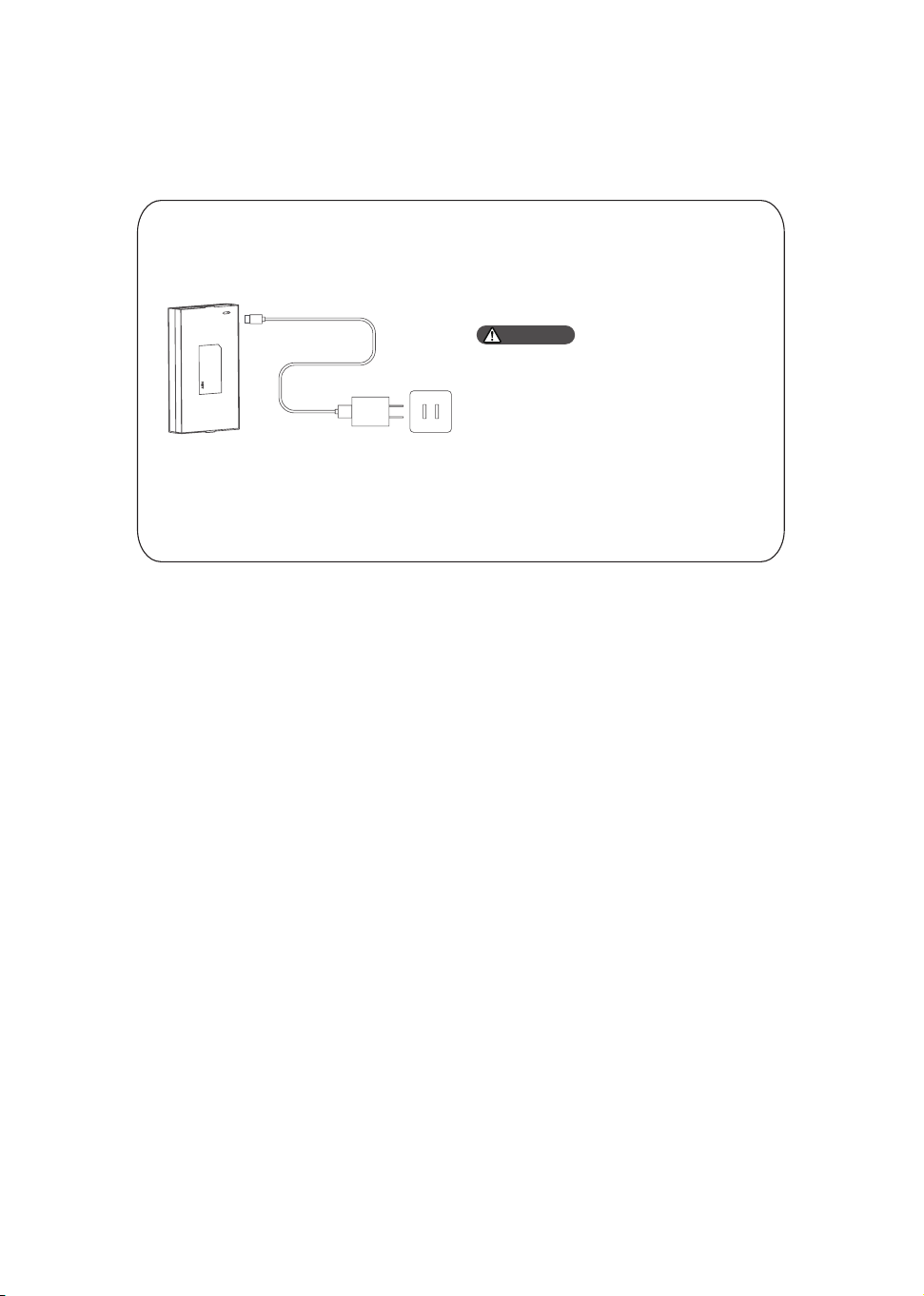
How to charge the lithium battery
Press the button near the bottom of the
inside escutcheon, remove the battery
cover and take out the lithium battery.
You can charge the lithium battery using
USB port.
1. Lithium battery is guaranteed for
one year and the lithium battery life
is 300 times of complete charge and
discharge.
2. For a lithium battery, the charge
cut-o voltage is 5V.
3, A bad network connection will
increase power consumption at a
faster rate.
Attention

Philips and the Philips Shield Emblem are registered trademarks of Koninklijke Philips
N.V. and are used under license. This product has been manufactured by and is sold
under the responsibility of Shenzhen Conex Intelligent Technology Co., Ltd, and
Shenzhen Conex Intelligent Technology Co., Ltd is the warrantor in relation to this
product.