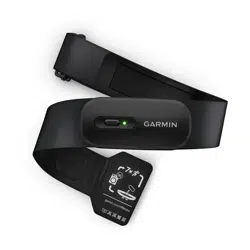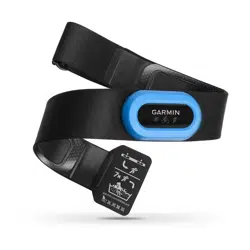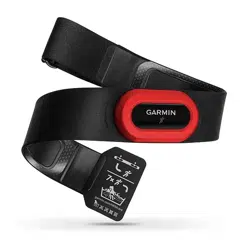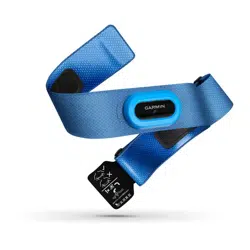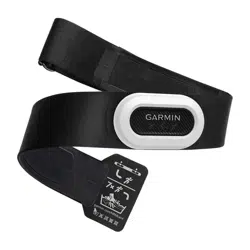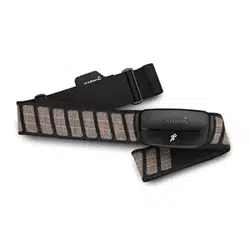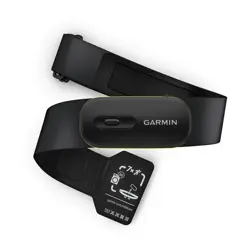
HRM 600
Owner’s Manual

© 2025 Garmin Ltd. or its subsidiaries
All rights reserved. Under the copyright laws, this manual may not be copied, in whole or in part, without the written consent of Garmin. Garmin reserves the right to change
or improve its products and to make changes in the content of this manual without obligation to notify any person or organization of such changes or improvements. Go to
www.garmin.com for current updates and supplemental information concerning the use of this product.
Garmin
®
, the Garmin Logo, and ANT+
®
are trademarks of Garmin Ltd. or its subsidiaries, registered in the USA and other countries. These trademarks may not be used without the
express permission of Garmin. Garmin Connect
™
, Garmin Express
™
, and TrueUp
™
are trademarks of Garmin Ltd. or its subsidiaries. These trademarks may not be used without the
express permission of Garmin.
The BLUETOOTH
®
word mark and logos are owned by the Bluetooth SIG, Inc. and any use of such marks by Garmin is under license. Mac
®
is a trademark of Apple Inc., registered in
the U.S. and other countries. Other trademarks and trade names are those of their respective owners.
M/N: A04863

Table of Contents
Heart Rate Monitor Instructions........1
Activating the HRM 600 for the First
Time......................................................... 1
Pairing and Setup.................................... 1
Putting On the HRM 600......................... 4
Running Dynamics.................................. 5
Running Pace and Distance....................5
Heart Rate While Swimming................... 5
Recording an Activity.............................. 6
Activity Tracking...................................... 6
Linking to Fitness Equipment................. 7
Device Information........................... 7
Caring for the Strap................................. 7
Charging the Device................................ 8
Connecting the Device to Your
Computer................................................. 8
Specifications.......................................... 8
Limited Warranty..................................... 9
Troubleshooting............................... 9
Status LED............................................... 9
Tips for Erratic Heart Rate Data........... 10
How do I check the battery level?........ 10
Updating the HRM 600 Software......... 10
Resetting the Device Using the Garmin
Connect App.......................................... 10
Table of Contents i

Heart Rate Monitor Instructions
WARNING
See the Important Safety and Product Information guide in the product box for product warnings and other
important information.
Activating the HRM 600 for the First Time
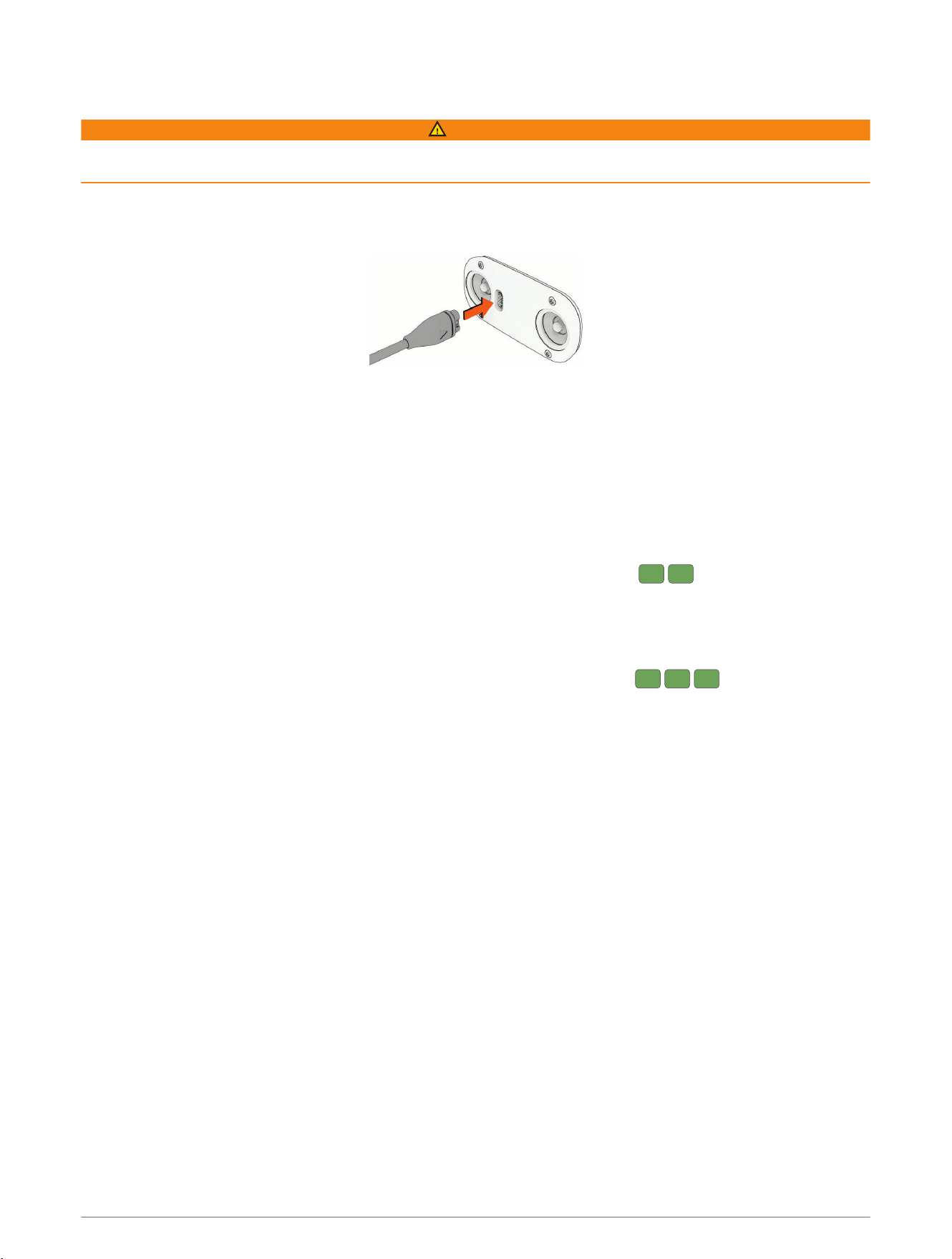
1 Connect the HRM 600 module to a power source for 2 seconds.
2 Disconnect the HRM 600.
Pairing and Setup
Connection Types and LED Behavior
The HRM 600 supports both secure and open connections types.
Secure: The secure Bluetooth
®
connection type is encrypted and authenticated. For a list of Garmin
®
devices that
support forming secure connections, go to garmin.com/hrm_connection_types. Some Garmin devices may
require a software update.
When the HRM 600 is active and using a secure connection, the LED flashes (2 times) every 5
seconds.
Open: The open connection type supports all Garmin devices that are compatible with heart rate monitors.
ANT+
®
connections and some Bluetooth connections are open. The open connection type is also
recommended for Bluetooth pairing with third-party smartwatches, tablets, or fitness equipment.
When the HRM 600 is active and using an open connection, the LED flashes (3 times) every 5
seconds.
TIP: Stay 10m (33 ft.) away from other heart rate monitors while pairing.
Heart Rate Monitor Instructions 1
Pairing the HRM 600 with Your Compatible Device
You can pair the HRM 600 to your compatible Garmin device, smartwatch, tablet, or fitness equipment
(Connection Types and LED Behavior, page1).
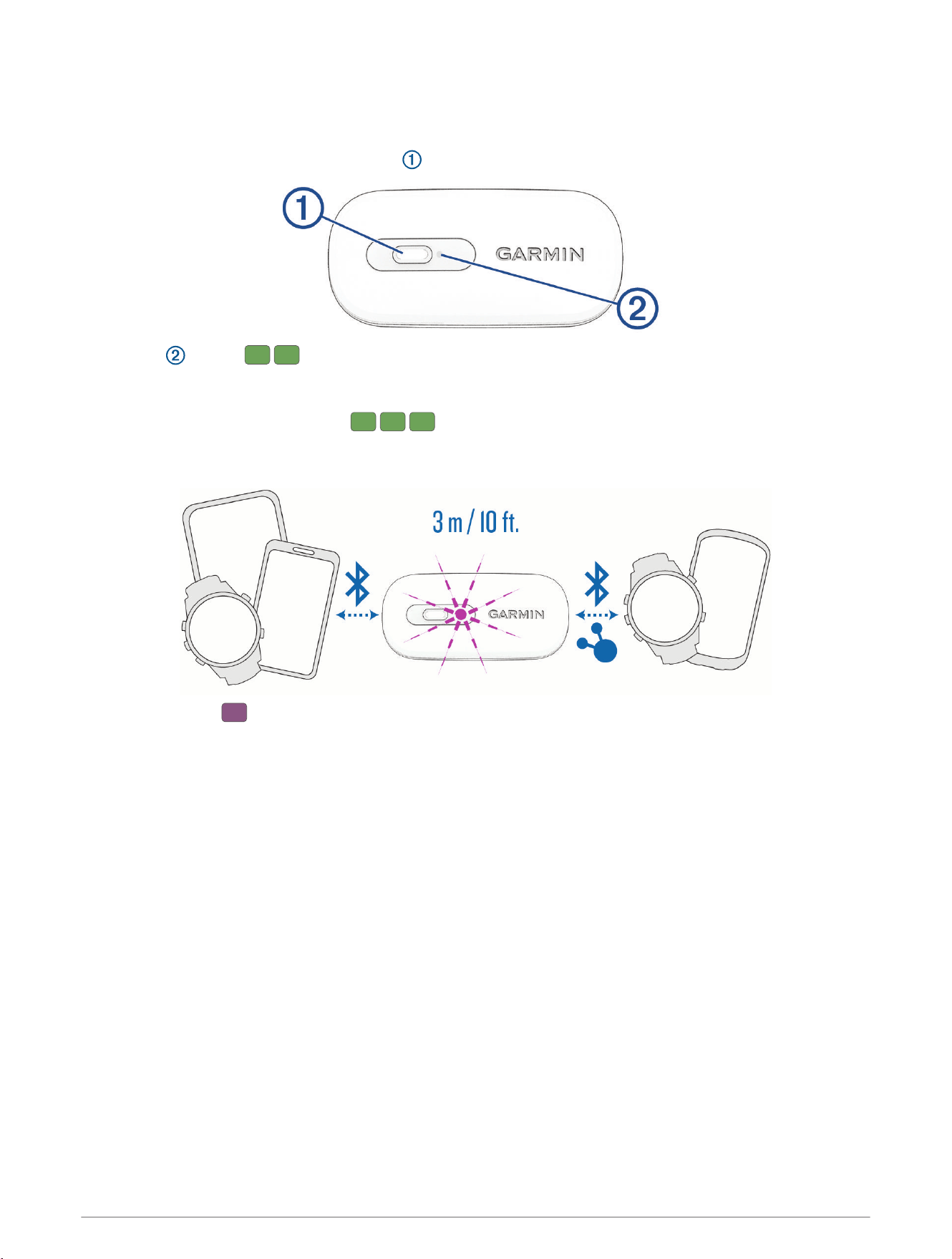
1 On the HRM 600 module, press the button to wake it up.
The LED flashes when it is active and using a secure connection.
2 Check that your Garmin device supports the connection type indicated by the LED.
You can press the button twice quickly to toggle between connection types (Connection Types and LED
Behavior, page1). The LED flashes when it is active and using an open connection.
TIP: Many compatible devices and apps use the open connection.
3 Hold the button for 4 seconds to enter pairing mode.
The LED flashes continuously.
The HRM 600 is in pairing mode for 5 minutes.
To end pairing mode, you can press the button.
4 Select an option:
• From your Garmin device, open the sensors menu to add the external heart rate sensor.
NOTE: The pairing instructions differ for each Garmin compatible device. See your owner's manual.
• From your third-party device, open the Bluetooth settings.
The HRM 600 should appear in the list of available devices.
5 Select the HRM 600.
After you pair the first time, your device automatically recognizes the HRM 600 each time it is active and in
range.
2 Heart Rate Monitor Instructions
Pairing the HRM 600 with the Garmin Connect
™
App
The Garmin Connect app allows you to customize settings, receive software updates, and record and sync
activities using your HRM 600 without connecting it to a smartwatch or bike computer.
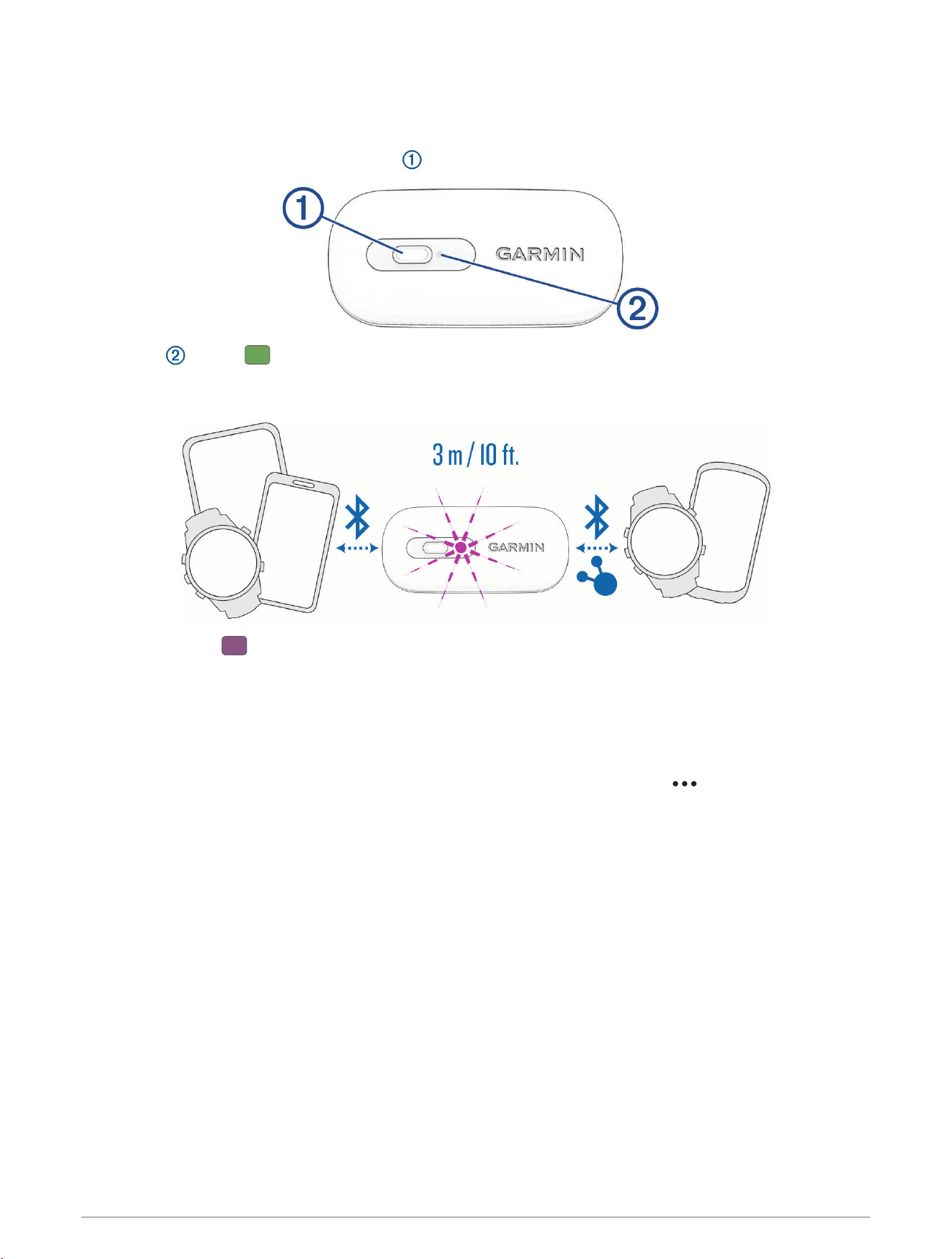
1 On the HRM 600 module, press the button to wake it up.
The LED flashes when it is active and transmitting.
2 From the app store on your phone, install and open the Garmin Connect app.
3 Hold the button for 4 seconds to enter pairing mode.
The LED flashes continuously.
The HRM 600 is in pairing mode for 5 minutes.
To end pairing mode, you can press the button.
4 Select an option to add your HRM 600 to your Garmin Connect account:
• If this is the first time you are pairing a device with the Garmin Connect app, follow the on-screen
instructions.
• If you have already paired another device with the Garmin Connect app, select > Garmin Devices > Add
Device, and follow the on-screen instructions.
Heart Rate Monitor Instructions 3
Putting On the HRM 600
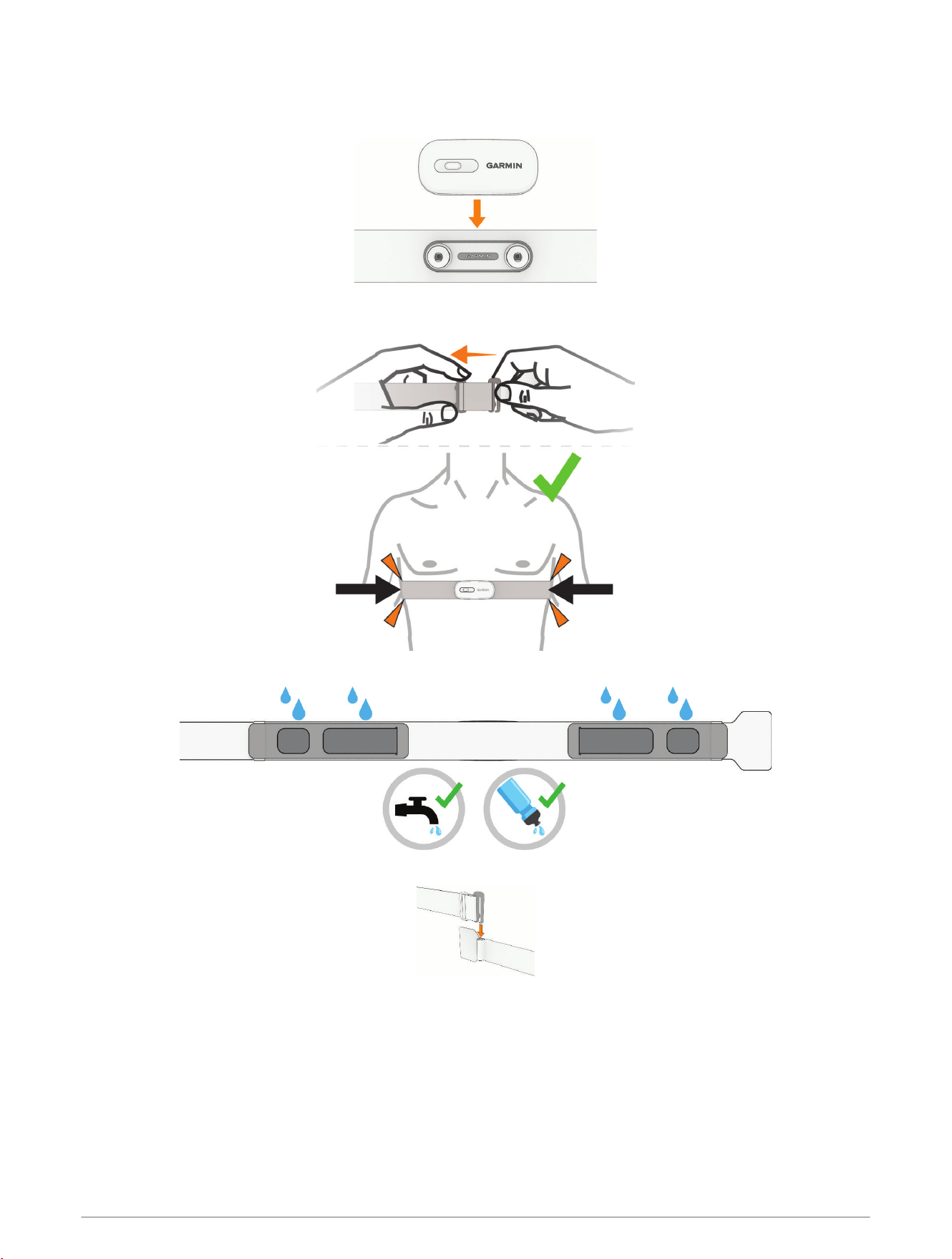
1 Snap the module into the strap.
NOTE: Both of the Garmin logos should be facing up.
2 Adjust the strap.
3 Wet the sensors.
4 Connect the strap hook on the right side of your body.
4 Heart Rate Monitor Instructions

Running Dynamics
You can use your compatible Garmin watch paired with the HRM 600 heart rate monitor to provide real-time
feedback about your running form.
The heart rate monitor has motion sensors that measures torso movement in order to calculate running
metrics. For more information, go to garmin.com/performance-data/running.
NOTE: Ground contact and step speed loss metrics are not available while walking.
Cadence: Cadence is the number of steps per minute. It displays the total steps (right and left combined).
Stride length: Stride length is the length of your stride from one footfall to the next. It is measured in meters.
Vertical oscillation: Vertical oscillation is your bounce while running. It displays the vertical motion of your
torso, measured in centimeters.
Vertical ratio: Vertical ratio is the ratio of vertical oscillation to stride length. It displays a percentage. A lower
number typically indicates better running form.
Ground contact time: Ground contact time is the amount of time in each step that you spend on the ground
while running. It is measured in milliseconds.
Ground contact time balance: Ground contact time balance displays the left/right balance of your ground
contact time while running. It displays a percentage. For example, 53.2 with an arrow pointing left or right.
Step speed loss: Step speed loss is how much you slow down when your foot hits the ground while running. It
is measured in centimeters per second. A lower number is typically better, as it indicates you have to do less
propulsive work to speed back up.
Step speed loss percent: Step speed loss percent is how much you slow down when your foot hits the ground
as a percentage of your running speed. This accounts for step speed loss typically increasing with faster
running speed.
Running Pace and Distance
The heart rate monitor calculates your running pace and distance based on your user profile and the motion
measured by the sensor on every stride. The heart rate monitor provides running pace and distance when
GPS is not available, such as during treadmill running. You can view your running pace and distance on your
compatible Garmin device when connected using ANT+ or secure Bluetooth technology. You can also view it on
compatible third-party training apps.
Heart Rate While Swimming
The heart rate monitor records and stores your heart rate data while swimming. Heart rate data is not
transmitted to paired Garmin devices while the heart rate monitor is underwater.
You should ensure the heart rate monitor is snug when using it for swimming. Movement of the heart rate
monitor on your chest can affect the accuracy of the heart rate measurements. For pool swimming, the heart
rate monitor should be worn under a swim suit or triathlon top. Otherwise, it may slide down your chest when
pushing off the pool wall.
You must start a timed activity on your paired Garmin device to view stored heart rate data later. During rest
intervals when out of the water, the heart rate monitor sends your average and maximum heart rate for the
previous interval, and your real-time heart rate, to your Garmin device.
Your Garmin device automatically downloads stored heart rate data from your heart rate monitor when you save
your timed swim activity. Your heart rate monitor must be out of the water, active, and within range of the device
(3m) while your data is downloaded. Your swimming activity with the heart rate data included can be reviewed
in the device history and on your Garmin Connect account.
NOTE: To record heart rate data while swimming, your HRM 600 accessory must be paired to your compatible
Garmin device using ANT+ or secure Bluetooth technology. Only some Garmin devices support heart rate data
while swimming.
Heart Rate Monitor Instructions 5
Accessing Stored Heart Rate Data
If you save a timed activity without downloading stored heart rate data, you can download the data from the
HRM 600 heart rate monitor later.
1 Put on the heart rate monitor.
2 From your compatible Garmin watch, select the History menu.
3 Select the timed activity you saved while you were wearing the HRM 600 heart rate monitor.
4 Select Download HR.
Your Garmin watch generates a new activity file with heart rate data. You may need to manually import the new
file to your Garmin Connect account.
Recording an Activity
When paired with the Garmin Connect app, you can record timed activities directly on your HRM 600. This can
be useful for team sports, martial arts, and other activities where you need to remove your watch. You can
record for up to 24 hours.
NOTE: The heart rate monitor does not record when the battery level is less than 5% (How do I check the battery
level?, page10). If you are recording an activity and the battery drops below 5%, the heart rate monitor will
automatically stop recording.
1 Put on the heart rate monitor.
2 If necessary, press the button to wake the heart rate monitor.
3 From the Garmin Connect app, select > Garmin Devices.
4 Select the HRM 600.
5 Select Activity Recording.
6 Follow the on-screen instructions to start the activity.
The LED flashes every five seconds while the heart rate monitor is active and recording the activity.
NOTE: You do not need to stay within range of your phone while recording the activity.
7 After completing the activity, select Stop > Save from the activity screen in the Garmin Connect app.
If you remove the heart rate monitor without selecting Stop > Save in the Garmin Connect app, the heart rate
monitor automatically stops recording and saves the activity before going into sleep mode. It also attempts
to sync the activity with the Garmin Connect app.
Activity Tracking
Whenever you wear the HRM 600 heart rate monitor, it monitors your daily activity metrics. The activity tracking
feature records your step count, distance, calories, intensity minutes, and all-day heart rate. To use this feature,
you must pair your heart rate monitor with your Garmin Connect account (Pairing the HRM 600 with the Garmin
Connect
™
App, page3).
After it is paired, the heart rate monitor sends activity data to your Garmin Connect account whenever the
monitor is awake and within range of your phone. If you wear only the heart rate monitor during an activity,
the TrueUp
™
feature sends activity tracking data to the daily summary section in Garmin Connect and to your
compatible Garmin devices.
6 Heart Rate Monitor Instructions
Linking to Fitness Equipment
You can connect your heart rate monitor to compatible fitness equipment using ANT+ or Bluetooth technology
so you can view your heart rate on the equipment console.
• Look for the ANT+LINK HERE logo on compatible fitness equipment.
• Look for the Bluetooth logo on compatible fitness equipment.
Device Information
Caring for the Strap
Before you can wash the strap, you must unsnap and remove the module.
NOTICE
A buildup of sweat and salt on the strap can permanently damage the strap and decrease the device's ability to
report accurate data.
Using too much detergent may damage the strap.
Putting the strap in a dryer may permanently damage the strap.
Washing the strap in hot water above 40°C (104°F) may permanently damage the strap.
Wash the strap after exposure to chlorine or other pool chemicals. Prolonged exposure to these substances can
damage the heart rate monitor.
• Rinse the strap after every use.
• Wash the strap after every seven uses.
• Do not put the strap in the dryer.
Tips for Storage and Protection
NOTICE
Minimize exposure to sunscreen, bleach, mosquito repellant, and chemicals found in certain deodorants,
body washes, hand soaps, and first aid ointments. Specifically, propylene glycol, dipropylene glycol, and
ethylenediaminetetraacetic acid (EDTA) can damage the strap.
• When storing the heart rate monitor, lay it flat.
• Avoid bending or tightly rolling the heart rate monitor.
• Do not store the heart rate monitor in direct sunlight or extreme temperatures.
Device Information 7
Charging the Device
WARNING
This device contains a lithium-ion battery. See the Important Safety and Product Information guide in the product
box for product warnings and other important information.
NOTICE
To prevent corrosion, thoroughly clean and dry the contacts and the surrounding area before charging.
NOTE: The device will not charge when outside the approved temperature range (Specifications, page8).
Your device comes with a proprietary charging cable. For optional accessories and replacement parts, go to
buy.garmin.com, or contact your Garmin dealer.
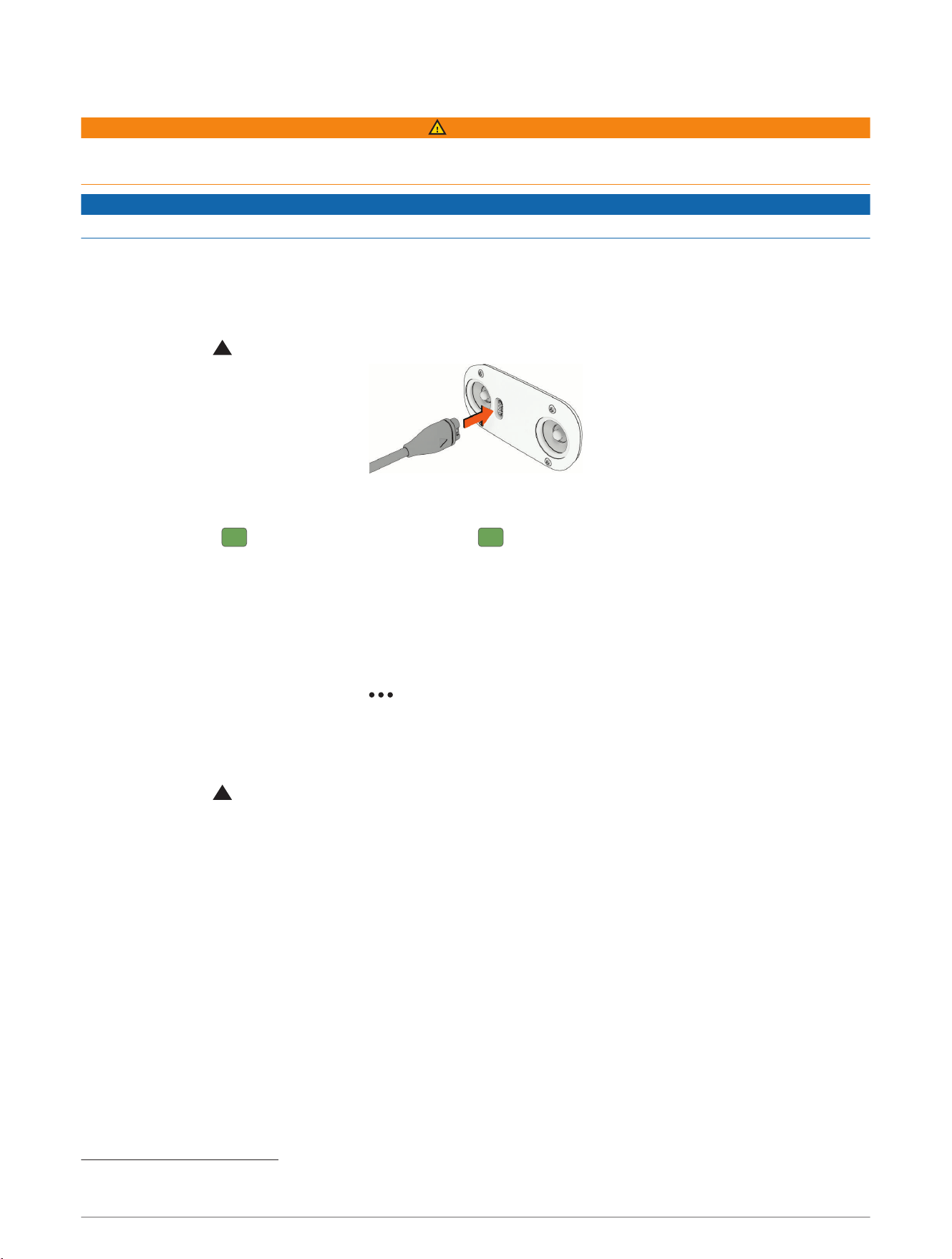
1 Unsnap and remove the module.
2 Plug the cable ( end) into the charging port.
3 Plug the other end of the cable into a USB charging port.
4 Charge the device completely.
The LED flashes while charging. The LED is solid when charging is complete.
Charging can take up to 3 hours.
TIP: Charging the device for at least 10 minutes provides up to two hours of use.
Connecting the Device to Your Computer
You can connect the HRM 600 device to your computer to install software updates or transfer activity files or
data to your computer.
1 From the Garmin Connect app, select > Garmin Devices.
2 Select the HRM 600 device.
3 Select System > USB File Access.
4 Enable File Access Over USB.
5 Plug the cable ( end) into the charging port on the device.
6 Plug the other end of the cable into a computer USB port.
Depending on your computer operating system, the device appears as either a portable device, a removable
drive, or a removable volume.
NOTE: Mac
®
operating systems do not detect the device by default. You must use Garmin Express
™
software
to interact with files on your device.
Specifications
Battery type: Rechargeable lithium-ion battery
Battery life: Up to 2 mo. at 1hr./day
Water resistance: 5ATM
1
Operating temperature range: From 0° to 40°C (from 32° to 104°F)
Charging temperature range: From 15° to 42°C (from 59° to 108°F)
EU wireless frequency (power): 2.4GHz @ 9.9 dBm maximum
1
The device withstands pressure equivalent to a depth of 50m. For more information, go to www.garmin.com/waterrating.
8 Device Information
Limited Warranty
The Garmin standard limited warranty applies to this accessory. For more information, go to garmin.com
/support/warranty.
Australian Purchases: Our goods come with guarantees that cannot be excluded under the Australian
Consumer Law. You are entitled to a replacement or refund for a major failure and for compensation for any
other reasonably foreseeable loss or damage. You are also entitled to have the goods repaired or replaced if the
goods fail to be of acceptable quality and the failure does not amount to a major failure. The benefits under our
Limited Warranty are in addition to other rights and remedies under applicable law in relation to the products.
Garmin Australasia, 30 Clay Place, Eastern Creek, NSW 2766, Australia. Phone: 1800 235 822.
Troubleshooting
Status LED
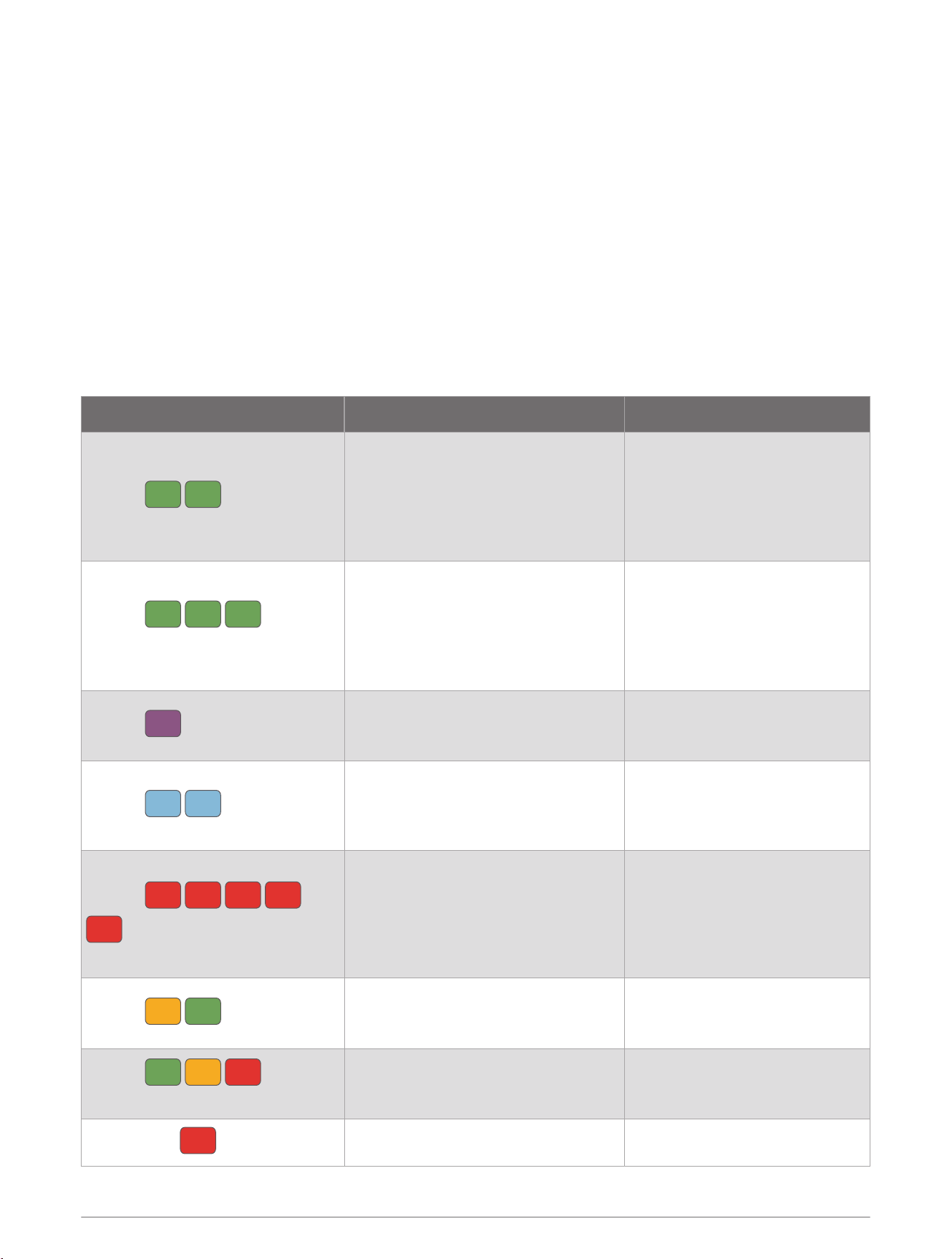
The LED can help you troubleshoot issues with the HRM 600.
LED State Description Action
Flashes every 5 seconds
Active and secure connection
You can press the button twice
quickly to change to change the
connection type to open.
The LED color reflects the battery
life (How do I check the battery
level?, page10).
Flashes every 5
seconds
Active and open connection
You can press the button twice
quickly to change to change the
connection type to secure.
The LED color reflects the battery
life (How do I check the battery
level?, page10).
Flashes continuously
Pairing mode
You can press the button to exit
pairing mode (Pairing and Setup,
page1).
Flashes every 5 seconds
Active and recording a timed activity
Finish your activity, and select
Stop > Save in the Garmin
Connect app (Recording an
Activity, page6).
Flashes
quickly and repeats
Connection error
Remove the HRM 600 from
the paired sensors list on your
Garmin device or phone, switch
the HRM 600 to open connection,
and pair again (Pairing and Setup,
page1).
Flashes
Updating the software
Wait for the update to complete
(Updating the HRM 600 Software,
page10).
Flashes continu
ously
Resetting the device
Wait for the reset to complete
(Resetting the Device Using the
Garmin Connect App, page10).
Slow flashes
Error state Contact Garmin Support.
Troubleshooting 9
Tips for Erratic Heart Rate Data
If the heart rate data is erratic or does not appear, you can try these tips.
• Press the button to make sure the heart rate monitor is awake.
• Reapply water to the electrodes and contact patches (if applicable).
• Check that both snaps are fully connected to the strap.
• Warm up for 5 to 10 minutes.
• Check that the strap is snug enough to ensure minimal movement during the activity.
• Follow the care instructions (Caring for the Strap, page7).
• Move away from sources that can interfere with your heart rate monitor.
Sources of interference may include strong electromagnetic fields, some 2.4GHz wireless sensors, high-
voltage power lines, electric motors, ovens, microwave ovens, 2.4GHz cordless phones, and wireless LAN
access points.
How do I check the battery level?
There are three different ways to check the battery level.
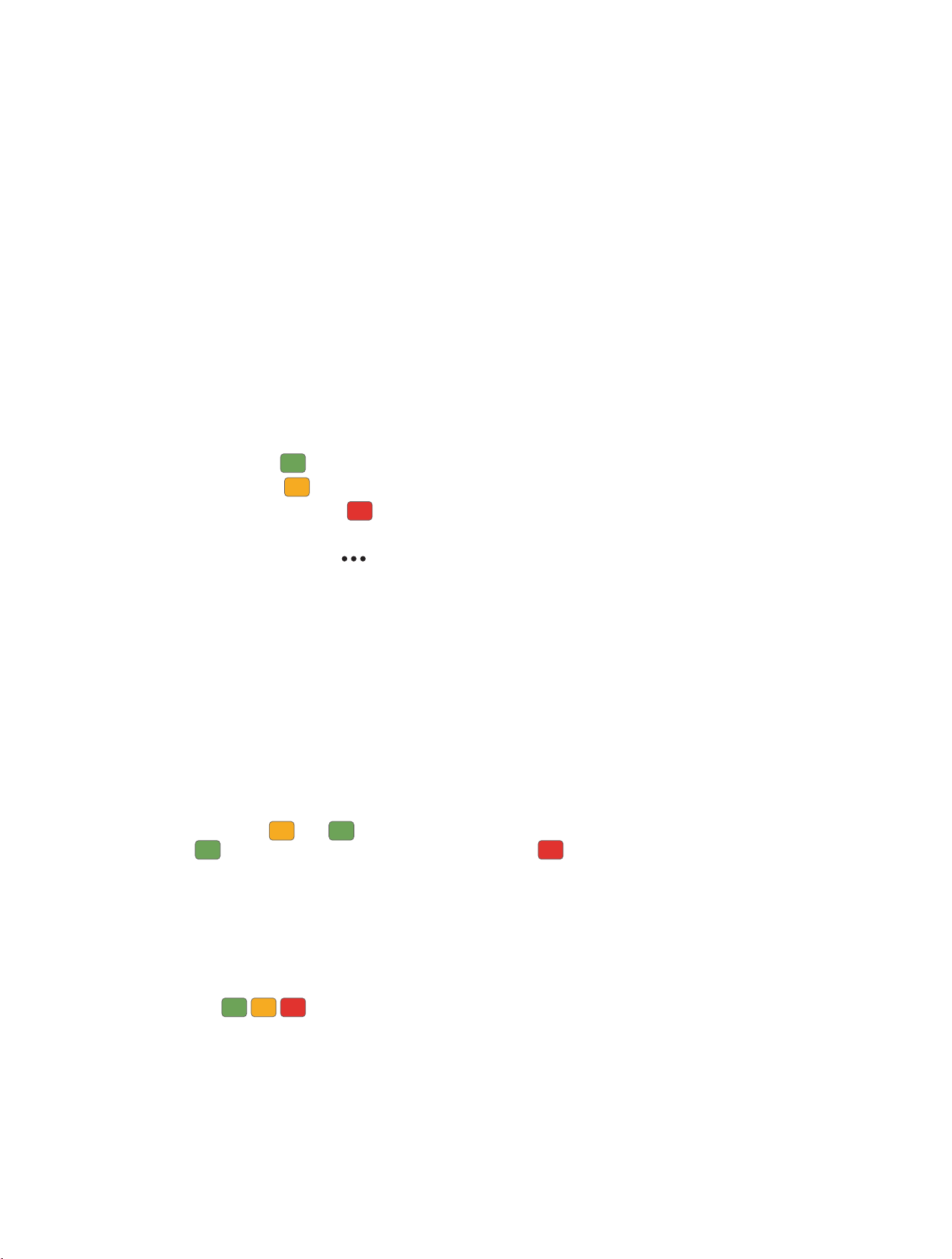
• On the HRM 600 module, press the button to wake it up.
◦ The battery level is OK .
◦ The battery level is low .
◦ The battery level is critically low .
• On your connected Garmin device, open the sensors menu, and select the HRM 600.
• In the Garmin Connect app, select > Garmin Devices, and select the HRM 600.
Updating the HRM 600 Software
The HRM 600 can receive a software update from a connected Garmin device, or directly from either the Garmin
Connect app or the Garmin Express desktop application (Connecting the Device to Your Computer, page8).
1 On the HRM 600 module, press the button to wake it up.
2 Bring the devices within 3m (10ft.).
3 Select an option:
• Sync your compatible Garmin device with the Garmin Connect app.
If an update is available, the connected device will prompt you to apply the update for your HRM 600 after
your next activity.
• Sync your HRM 600 with the Garmin Connect app.
The HRM 600 LED flashes and while updating. When the update is complete, the HRM 600 turns on and
the LED flashes 20 times. If the update fails, the LED flashes 20 times.
Resetting the Device Using the Garmin Connect App
You can reset the HRM 600 to the factory default values.
NOTE: Resetting the device clears all data and pairing.
1 From the Garmin Connect app, select Garmin Devices, select the HRM 600, and select System > Factory
Reset.
The LED flashes continuously, until the reset is complete.
2 Pair again (Pairing and Setup, page1).


support.garmin.com
GUID-B0181685-1501-4D08-AA9E-759D07CF5FB6 v1May 2025