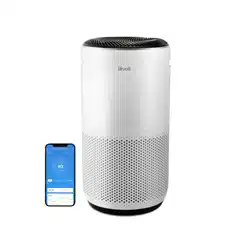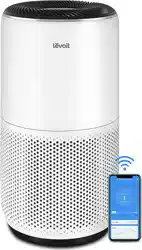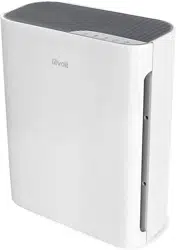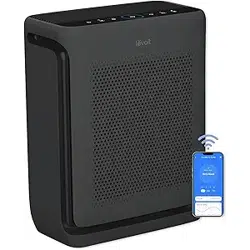
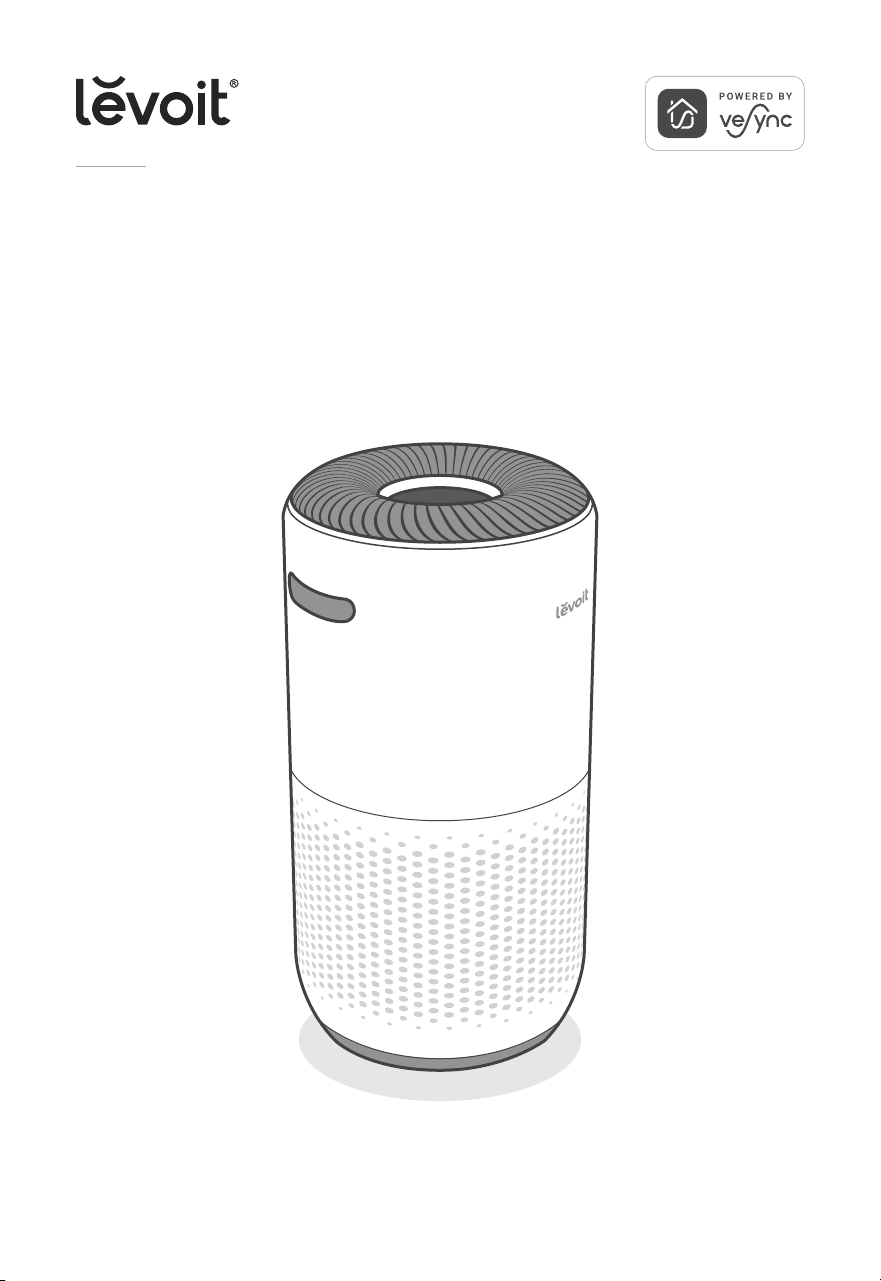
Levoit Core® 400S-P smart air purifier
Model: Core 400S
Questions or Concerns?
Please contact us Mon–Fri, 9:00 am–5:00 pm PST/PDT
at support.levoit.com or at 1-888-726-8520.
USER MANUAL
2
Table of Contents
Package Contents
Specifications
Safety Information
Getting to Know Your Smart Air Purifier
Controls & Display
Getting Started
Using Your Smart Air Purifier
About the Filter
Care & Maintenance
Troubleshooting
Warranty Information
Customer Support
2
2
3
5
6
7
8
12
13
16
20
22
Package Contents
1 × Smart Air Purifier
1 × 3-Stage Original Filter
(Pre-Installed)
1 × User Manual
1 × Quick Start Guide
Specifications
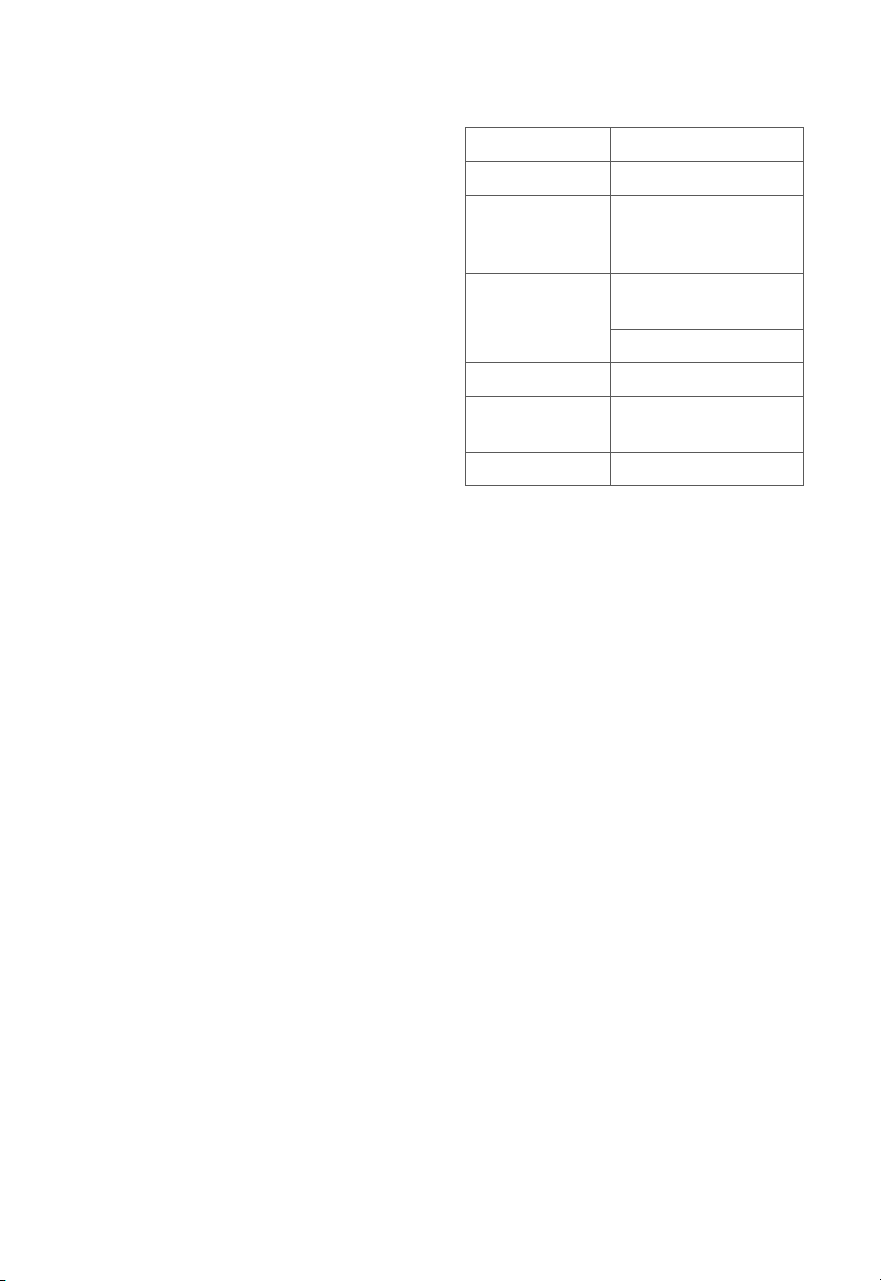
Power Supply AC 120V, 60Hz
Rated Power 38W
CADR (CFM) Smoke: 231
Dust: 240
Pollen: 259.
Operating
Conditions
Temperature:
14°–104°F / -10°–40°C
Humidity: < 85% RH
Noise Level 24–52dB
Dimensions 10.8 × 10.8 × 20.5 in /
27.4 × 27.4 × 52 cm
Weight 11 lb / 5 kg
Note: To access additional smart functions,
download the free VeSync app (see page 8).

3
SAFETY INFORMATION
To reduce the risk of fire, electric shock, or other injury, follow all instructions and safety guidelines.
READ AND SAVE THESE
INSTRUCTIONS
• Only use your air purifier as described
in this manual.
• Do not use without removing the plastic
wrap from the filter. The air purifier will
not filter air, and may overheat, causing
a fire hazard.
• Do not use the air purifier outdoors.
• Keep the air purifier away from water,
and wet or damp areas. Never place in
water or liquid.
• Do not use in excessively humid areas.
• Keep the air purifier away from heat
sources.
• Do not use where combustible gases,
vapors, metallic dust, aerosol (spray)
products, or fumes from industrial oil are
present.
• At least keep 5 ft / 1.5 m away from
where oxygen is being administered.
• Supervise children when they are near
the air purifier. Do not allow children to
play with the air purifier.
• Do not place anything into any opening
in the air purifier.
• Do not sit on or place heavy objects on
the air purifier.
• Keep the inside of the air purifier dry.
To prevent moisture buildup, avoid
placing in rooms with major temperature
changes or underneath air conditioners.
• Always unplug your air purifier before
servicing ,cleaning or any other
General Safety
maintenances(such as changing the
filter).
• Do not use the air purifier if it is
damaged or not working correctly, or if
the cord or plug is damaged. Do not try
to repair it yourself. Contact Customer
Support (see page 22).
• This appliance is not intended for used
by persons (including children) with
reduced physical,sensory or mental
capabilities, or lack of experience
and knowledge, unless they have
been given supervision or instruction
concerning use of the appliance by a
person responsible for their safety.
• Children should be supervised to ensure
that they do not play with the appliance.
• Cleaning and user maintenance shall
not be made by children without
supervision.
• WARNING: To reduce the risk of fire
or electric shock, do not use this air
purifier with any solid-state speed
controls (such as a dimmer switch).
• Not for commercial use. Household use
only.
• WARNING:To Reduce The Risk Of Fire,
Electric Shock Or Injury To Persons,
Do Not Use Replacement Parts That
Have Not Been Recommended By The
Manufacturer (e.g. Parts Made At Home
Using A 3D Printer).

4
• Keep the air purifier near the outlet it is
plugged into.
• Never place the cord near any heat
source.
• Do not cover the cord with a rug,
carpet, or other covering. Do not place
the cord under furniture or appliances.
• Keep the cord out of areas where
people walk often. Place the cord where
it will not be tripped over.
• If the supply cord is damaged, it must be
replaced by the manufacturer, its service
agent or similarly qualified persons in
order to avoid a hazard.
• This appliance has a polarized plug
(one blade is wider than the other). To
reduce the risk of electric shock, this
plug is intended to fit in a polarized
outlet only one way. lf the plug does not
fit fully in the outlet, reverse the plug.
lf it still does not fit,contact a qualified
electrician. Do not attempt to defeat
this safety feature.
• This air purifier uses standard North
American 120V, 60Hz outlets. If using
outside the US or Canada, check for
compatibility.
Power & Cord
5
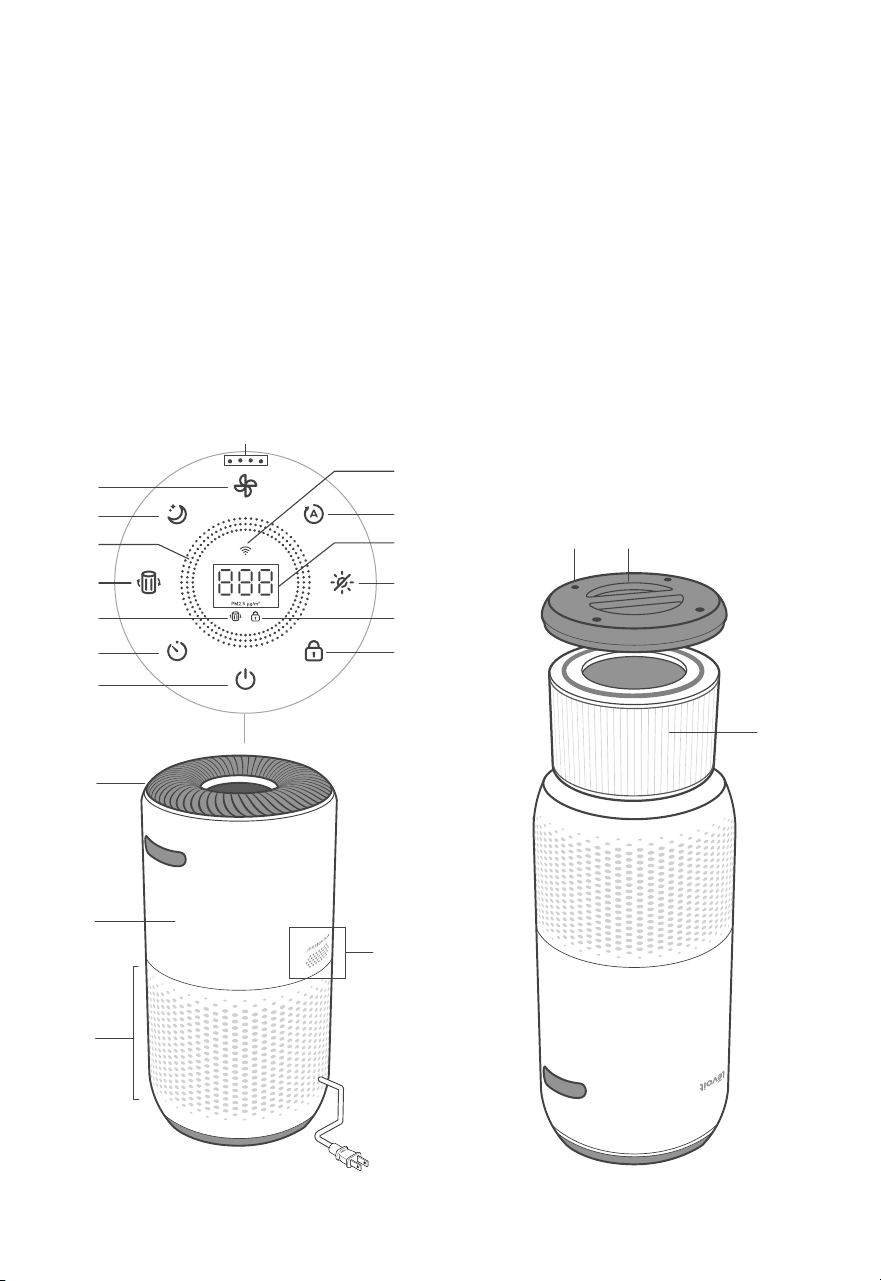
GETTING TO KNOW YOUR SMART AIR PURIFIER
A. Fan Speed Indicators
B. Fan Speed Button
C. Sleep Mode Button
D. Air Quality Indicator Rings
E. Check Filter Indicator Reset Button
F. Check Filter Indicator
G. Timer Button
H. On/O Button
I. Wi-Fi® Indicator
J. Auto Mode Button
K. PM2.5/Timer Display
Front, upside downBack
L. Display O Button
M. Display Lock Indicator
N. Display Lock Button
O. Air Outlets
P. Housing
Q. Air Inlets
R. AirSight™ Plus Laser Dust Sensor
S. Anti-Skid Pads
T. Filter Cover
U. 3-Stage Original Filter
B
J
S T
U
L
N
M
I
K
F
H
O
P
Q
R
C
G
E
D
A
6
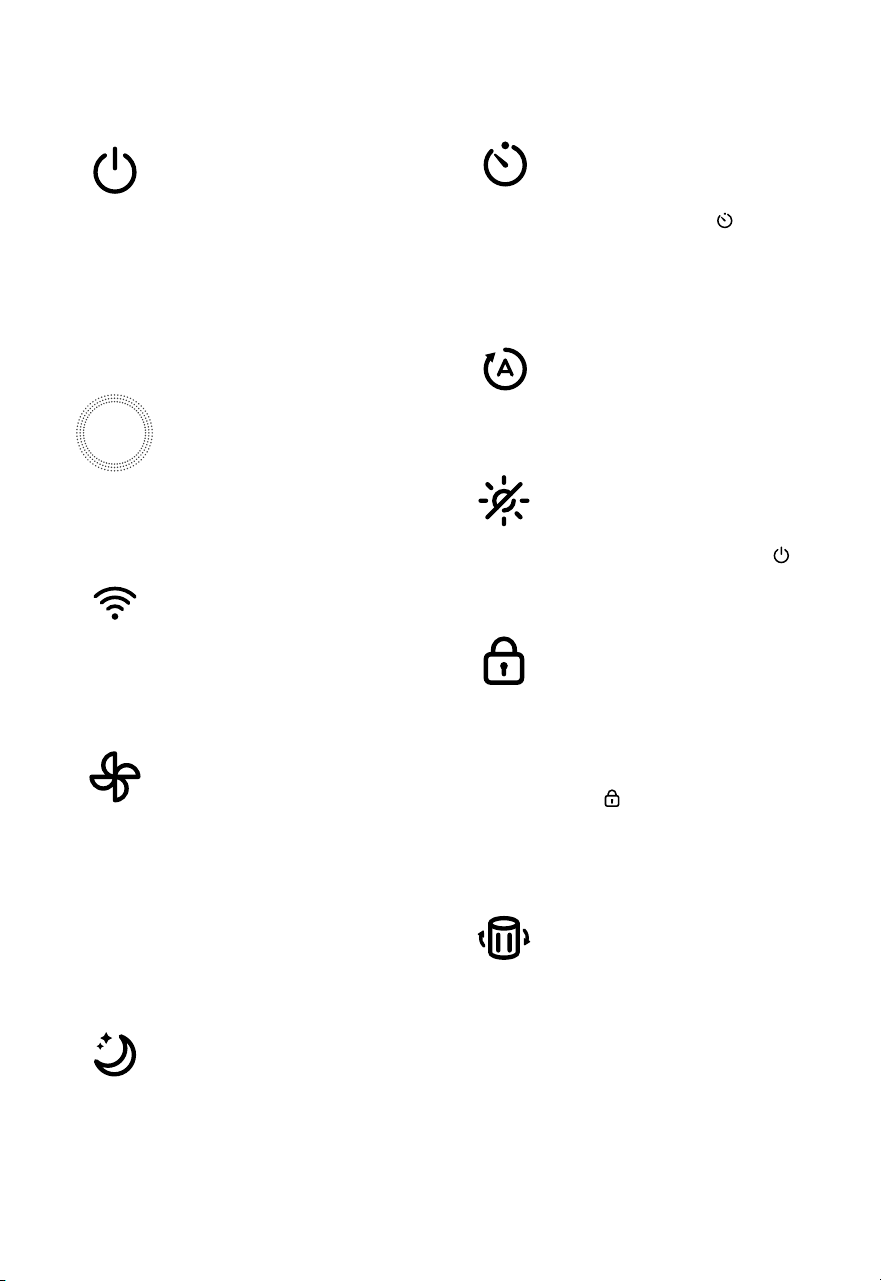
CONTROLS & DISPLAY
On/O Button
• Turns the air purifier on/o.
• Press and hold to configure
the air purifier. See the
VeSync in-app instructions
for more information.
• Press and hold to reset the
air purifier and disconnect
from Wi-Fi (see page 8).
Fan Speed Button
• Cycles through fan speeds:
low (1 indicator will light up),
medium (2 indicators), high
(3 indicators), and turbo
(4 indicators).
• Tapping the Fan Speed
Button while the air purifier
is in Auto Mode or Sleep
Mode (if the display is on)
will exit that mode.
Wi-Fi® Indicator
• Turns on, o, or blinks to
indicate pairing status.
See the VeSync in-app
instructions for more
information.
Sleep Mode Button
• Turns Sleep Mode on/o
(see page 9).
Timer Button
• Cycles through timer
options (see page 10).
• Press and hold for 2
seconds to begin cycling
through the timer options
in 1-hour increments.
Display Lock Button
• Prevents current settings
from being changed (see
page 10). Press and hold for
3 seconds to turn Display
Lock on/o.
• The Display Lock Indicator
( ) will blink when any
other button is tapped to
indicate that Display Lock
is on.
Auto Mode Button
• Turns Auto Mode on/o
(see page 9).
Check Filter Indicator Reset
Button
• Press and hold for 3
seconds to reset the
Check Filter Indicator.
• The Check Filter Indicator
lights up when the filter
should be checked (see
page 13).
Display O Button
• Turns the display o
(see page 10).
• Tap any button (except )
to turn the display back on.
Air Quality Indicator Rings
• These indicators use an
automatic sensor to display
the air quality: Blue (Very
Good), Green (Good),
Orange (Moderate), and
Red (Bad).
7
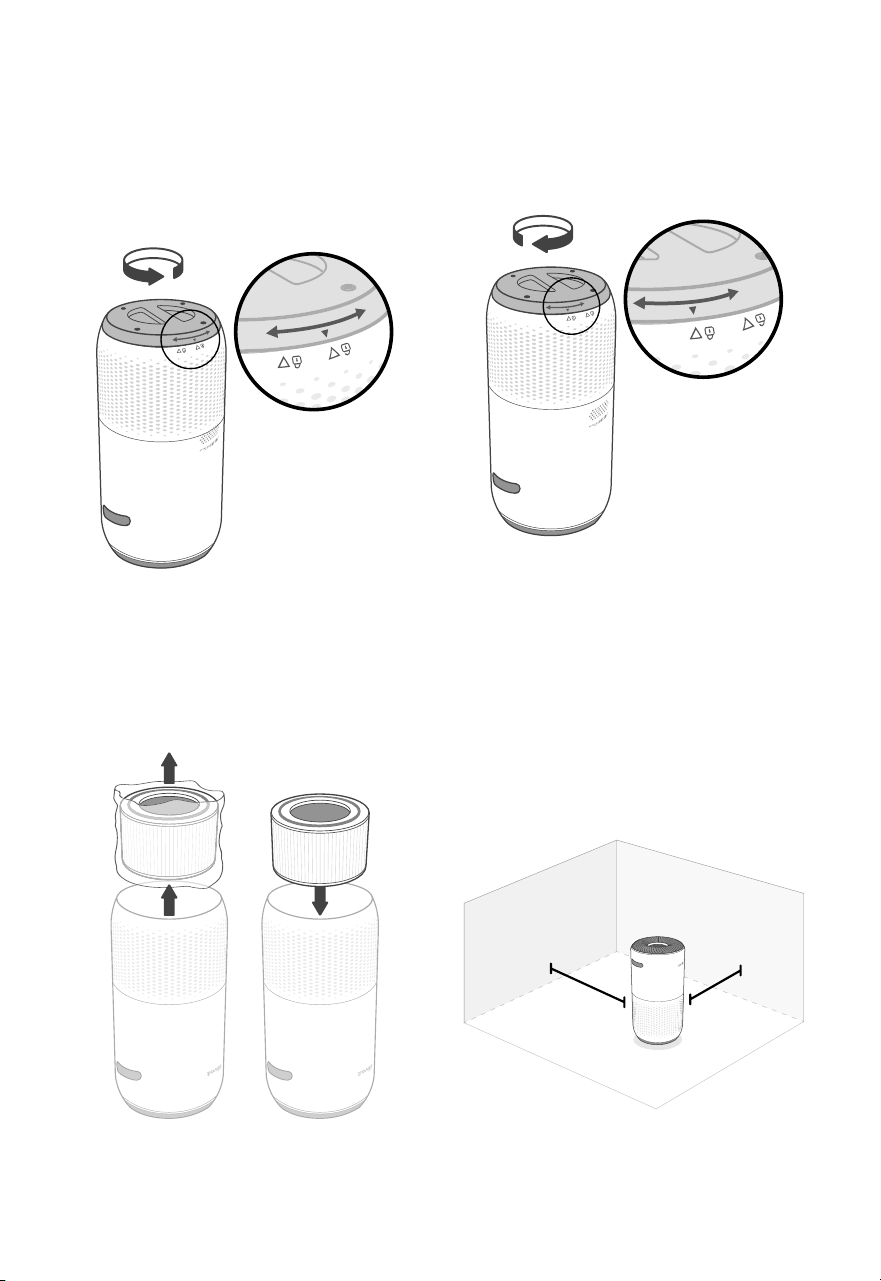
3. Replace the filter cover and twist
clockwise to lock. [Figure 1.3]
Figure 1.3
Figure 1.4
15 in /
38 cm
cover should
snap shut
15 in /
38 cm
GETTING STARTED
1. Flip the air purifier over or turn it
on its side. Twist the filter cover
counterclockwise and remove it.
[Figure 1.1]
Figure 1.1
Figure 1.2
2. Remove the filter from its plastic
packaging and place the filter back
into the air purifier. [Figure 1.2]
4. Place the purifier on a flat, stable surface
with the display facing up. Allow at least
15 inches / 38 cm of clearance on all
sides. Keep away from anything that
would block airflow, such as curtains.
[Figure 1.4]
8
USING YOUR SMART
AIR PURIFIER
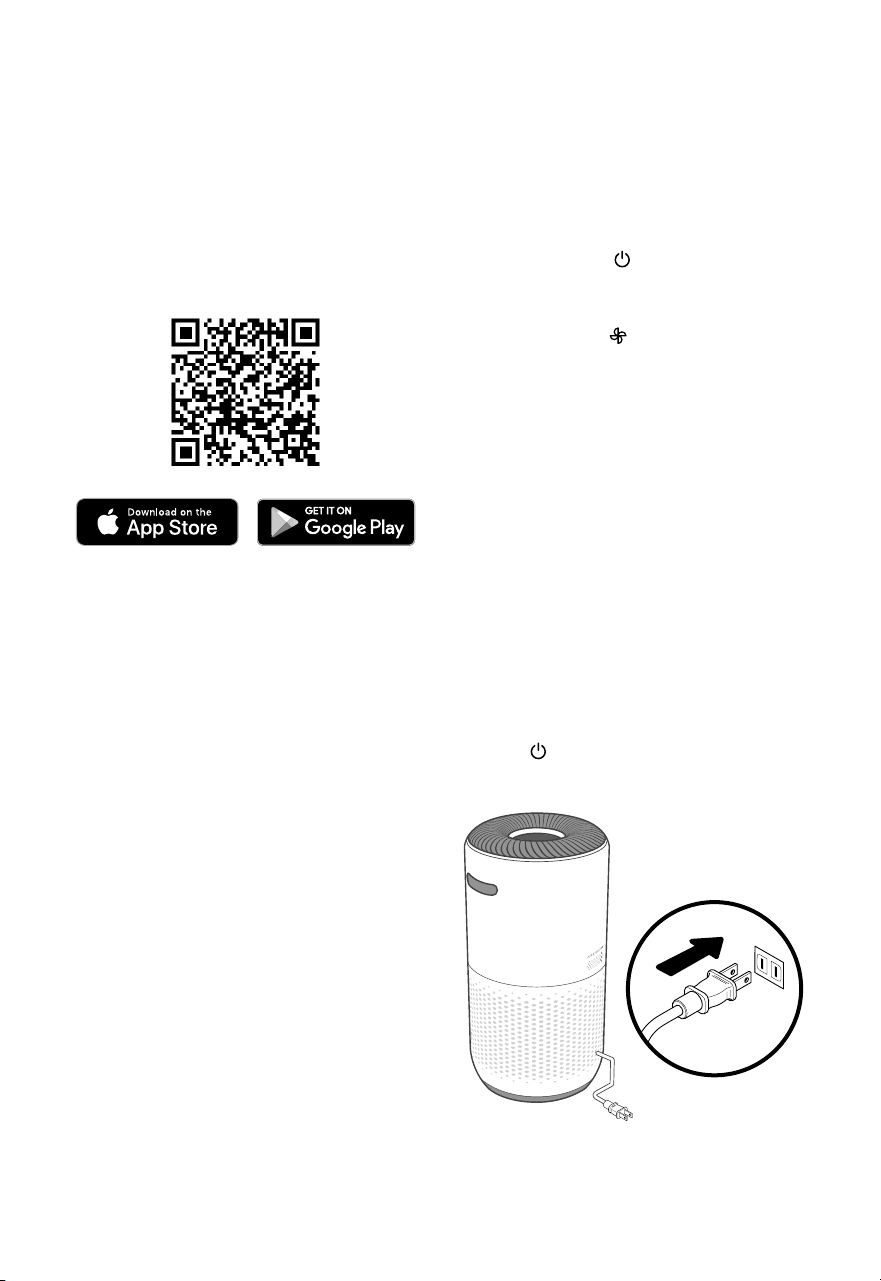
1. Plug in and tap to turn on the air
purifier. The fan will start on low speed.
[Figure 2.1]
2. Optionally, tap to change fan speed
between low, medium, high, and turbo.
Note:
• The fan speed indicators will light
up when active. 1 indicator will light
up for low, 2 for medium, 3 for high,
and 4 for turbo.
• Turbo speed is the loudest, but cleans
air the quickest.
• For best results, or to address a specific
air quality issue such as smoke, run the
air purifier at turbo speed for 15–20
minutes before using a lower speed.
• To eectively clean air, keep windows
and doors closed while the air purifier
is on.
Note:
• To disconnect Wi-Fi, press and hold the
On/O button for 15 seconds until the
Wi-Fi indicator turns o. This will restore
the smart air purifier’s default settings
and disconnect it from the VeSync app.
• To reconnect, please follow the instructions
in the VeSync app for adding a device.
3. Tap to turn o the air purifier.
Figure 2.1
Note: You must create your own VeSync account
to access voice assistants.
Note: Using the VeSync app allows you to control
your air purifier remotely and access additional
functions and features.
1. To download the VeSync app, scan the
QR code or search “VeSync” in the Apple
App Store® or Google Play Store.
2. Open the VeSync app. Log In or Sign Up.
3. Follow the in-app instructions to set up
your smart air purifier.
You can use the VeSync app to connect
your smart air purifier to Amazon Alexa or
Google Assistant™. Please follow the in-app
instructions to set up your voice assistant.
VeSync App Setup
Connect with Amazon Alexa or
Google Assistant™

9
Sleep Mode operates quietly by using a fan
speed lower than low speed.
1. Tap to turn Sleep Mode on.
2. Sleep Mode will turn o the display after
3 seconds if no other buttons are tapped.
3. To switch from Sleep Mode, tap Auto
Mode or select a fan speed on the air
purifier’s display or in the VeSync app..
Auto Mode uses AirSight™ Plus, a smart laser
dust sensor inside the air purifier, to adjust the
fan speed automatically based on air quality.
For example, if the air quality is bad, the fan
will automatically be set to high speed.
The PM2.5 value on the display shows the
amount of airborne particles (µg) that are
detected per 1 cubic meter (m³) of air volume.
PM2.5 refers to particulate matter (PM) that
is less than or equal to 2.5 microns (µm) in
diameter. These particles, also known as
“fine particles”, are so small that they can only
be detected with an electron microscope,
and they stay in the air longer than heavier
particles such as dust and mold.
Your air purifier’s AirSight Plus Laser Dust
Sensor detects the amount of PM2.5 particles
that are in a given space (µg/m³). Generally, the
lower the number, the better your air quality.
A number above 115 indicates that there is an
unhealthy amount of fine particles in the air.
Note:
• When the display is turned o, tap any
button (except ) to turn the display
back on. If you don’t tap another
button, the display will turn o again
after 3 seconds.
• The Check Filter Indicator will still turn
on and stay on if it’s time to check your
filter (see page 13).
Note:
• The air purifier will take 5 seconds
to detect the air quality each time
it is turned on. During this time, the
air quality indicator rings will be
blue. After 5 seconds, the air quality
indicator rings will change color
based on the detected air quality.
• Auto Mode does not use the turbo
fan speed.
• The VeSync app also supports
additional auto modes: Quiet Auto
Mode and Ecient Auto Mode
(see page 11).
USING YOUR PURIFIER (CONT.)
Air Quality Indicator Chart
Indicator Color Air Quality Auto Mode Fan Speed
Blue Very Good Sleep Mode
Green Good Low
Orange Moderate Medium
Red Bad High
Auto Mode
PM2.5 Display
Sleep Mode

10
You can set a timer for 1–12 hours.
1. Tap . The display will switch from
showing the PM2.5 reading to the time
you’ve selected.
2. Tap repeatedly to select a time in
1-hour increments. If you don’t touch any
buttons for 5 seconds, the display will
switch to showing the PM2.5 reading and
the timer will start automatically.
Note:
• While a timer is active, tapping will
show the remaining time, rounded up to
the nearest hour. Tap again within
5 seconds to add more time in 1-hour
increments.
• You can see the exact remaining time in
the VeSync app.
Note:
• You can change the fan speed at any
time while the timer is on.
• The timer will restart if the time is changed.
• The air purifier will remember the last timer
setting while turned o, but the timer will
be cancelled and need to be restarted.
• You can set a timer for 1–24 hours in the
VeSync app.
3. The timer will count down from your
selected time.
Note: Press and hold for 2 seconds to
cycle through timer options automatically in
1-hour increments.
USING YOUR PURIFIER (CONT.)
Timer
4. When the timer is finished, the air purifier
will turn o.
5. To cancel a timer, tap repeatedly until
the display reads “--H”.
When the air purifier is on, you can lock
the display to prevent settings from being
accidentally changed. Buttons will not
respond to being tapped.
1. Press and hold for 3 seconds to lock
the display. The indicator will light up
in the center of the display.
This turns o the display lights on the air
purifier, including button lights and indicator
lights (except the Check Filter Indicator).
1. Tap to turn o the display.
2. Tap any button (except or ) to
temporarily turn the display back on. If
you don’t tap another button, the display
will turn back o after 3 seconds.
3. Tap to turn the display back on. The
display will stay on.
Note: The Check Filter Indicator will still
turn on and stay on if it’s time to check
your filter (see page 13).
Note: If the display is turned o, the
indicator will flash 3 times to show that the
display has been locked, then turn o.
Note:
• If the display is turned o, the
indicator will flash 3 times to show
that the display has been unlocked.
• Display Lock can still be used when
the air purifier is in Standby Mode.
Display Off
Display Lock
2. The indicator will blink when any
other button is tapped to indicate that
Display Lock is on.
3. Tap and hold again for 3 seconds
to unlock the display. The indicator
will turn o.

11
The VeSync app allows you to access
additional smart air purifier functions, including
those listed below. As the app develops, more
features may become available.
Remote Control
• Change any air purifier settings
through the app, even while
Display Lock is on.
Timer Function
• Set a timer between 1–24 hours.
• Easily view the exact time remaining
on a timer.
Air Quality Updates
• View real-time PM2.5 updates in the app.
• See your air quality history for the
previous week.
Filter Replacement Info
• Keep tabs on the remaining filter life
by checking the filter life percentage
in the app.
• Shop for replacement filters.
Schedules
• Create and customize schedules for
your air purifier to match your routines.
Auto Mode
• Access additional Auto Modes: Quiet
Auto Mode and Ecient Auto Mode.
• Quiet Auto Mode uses medium fan
speed instead of the high or turbo fan
speeds, even when the air quality is
poor, to avoid making too much noise.
• Ecient Auto Mode lets you choose
the size of the area you want to
purify. The air purifier will use the
highest fan speed (turbo) to clean the
air for a designated amount of time.
This time is based on ACH 1 and the
size of the room, meaning how long
it takes for the air purifier to clean
all the air in your room one time,
regardless of the air quality. After this,
the mode will adjust the fan speed
according to the actual detected air
quality in the room.
VeSync App Functions
USING YOUR PURIFIER (CONT.)
The air purifier is in Standby Mode when it is
turned o, but plugged in.
Note: Display Lock can be used while the
air purifier is in Standby Mode to keep
the air purifier from being turned back
on. The laser dust sensor will still detect
the surrounding air quality and give you
updates in the VeSync app.
When the air purifier is plugged in and turned
o, it will remember its previous fan speed,
Sleep Mode, Auto Mode, Display Lock, and
Display O settings.
When the air purifier is unplugged and turned
o, it will only remember its previous fan
speed, Sleep Mode, and Auto Mode.
Note: The air purifier will remember the last
timer setting chosen (1–12 hours), but it will
not automatically resume the timer. You will
need to restart the timer after the air purifier
is turned back on.
Note: Ecient Auto Mode is useful
for purifying odors from the air. The
air purifier’s sensor can only detect
particles in the air, not smells. Ecient
Auto Mode does not rely on the
sensor, but the room size instead.
Memory Function
Standby Mode
12
ABOUT THE FILTER
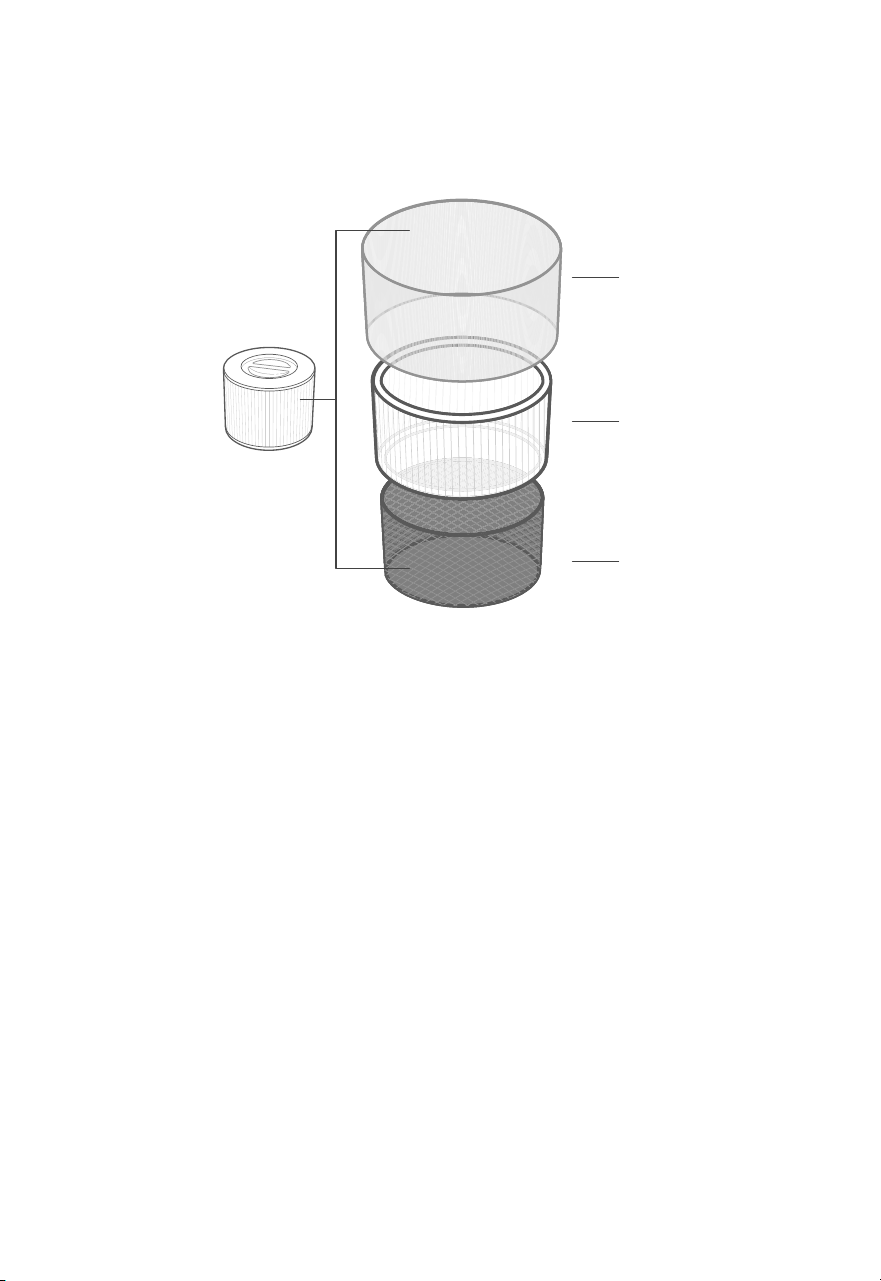
The air purifier uses a 3-stage filtration
system to purify air.
A. Pre-Filter
• Captures large particles such as
dust, lint, fibers, hair, and pet fur.
• Maximizes the filter’s life by
protecting it.
B. Main Filter
• 99.97% filtration eciency for 0.1-0.3
µm airborne particulates, including
pollen, dust, and animal dander
allergens.*.
• Traps small particles such as mould
spores, fine dust, smoke particles,
bacteria and viruses**, and allergens
such as pollen, dust mites, and pet
dander.
A
B
C
**The Main Filter can remove most viruses and bacteria from the air, but cannot fully remove them from
your environment. Air purifiers cannot prevent an infected person from spreading an infection,and
cannot remove bacteria and viruses from surfaces. Please use this air purifier together with other
precautions.
C. Custom High-Eciency Activated
Carbon Filter
• Physically adsorbs smoke, odors,
and fumes.
• Customized using the ARC Formula™
to be especially eective for cooking
smells and pet odours in a multi-pet
household.
• Filters compounds such as
formaldehyde, benzene, ammonia,
hydrogen sulfide, and volatile
organic compounds (VOCs).
*Disclaimer: Tested by an independent lab

13
Moisture may damage the filter. This air
purifier should be used in an area with a
humidity level below 85% RH. If you use
the air purifier in excessively humid areas,
the surface of the filter may become moldy.
Humidity
Do not add essential oils to the air purifier
or filter. The filter will become damaged
by the oil and will eventually release an
unpleasant smell. Do not use diusers
near the air purifier.
Essential Oils
Note: Water or moisture will allow mold
to grow. To solve a mold problem, get
rid of the source of the moisture and
clean up the mold.
ABOUT THE FILTER (CONT.)
Resetting the Check
Filter Indicator
Reset the Check Filter Indicator when:
A. lights up red.
1. Replace the filter (see page 15).
2. Turn on the air purifier.
3. Press and hold the button for
3 seconds.
4. will turn o when successfully
reset.
B. The filter was changed before
lit up.
1. Press and hold the button for
3 seconds.
2. The will flash for 3 seconds.
3. will turn o when successfully
reset.
CARE & MAINTENANCE
will light up as a reminder to check the
filter. Depending on how often you use
the air purifier, the indicator should turn on
at about 12 months. You may not need to
change your filter yet, but you should check
it when turns on.
When your air purifier is set up with the
VeSync app, you can also check the app to
see your remaining filter life. You will also
receive a notification from VeSync when it’s
time to check your filter.
The VeSync app uses a scientific algorithm to
determine your filter life based on air quality,
amount of use, and other factors. The filter life
percentage is based on 12 hours of daily use.
Check Filter Indicator
Cleaning the Smart Air Purifier
• Unplug before cleaning.
• Wipe the outside of the air purifier
with a soft, dry cloth. If necessary,
wipe the housing with a damp cloth,
then immediately dry.
• Vacuum the inside of the air purifier.
• Do not clean with abrasive chemicals
or flammable cleaning agents.
The outer pre-filter should be cleaned every
2–4 weeks to increase eciency and extend
the life of your filter. Clean the pre-filter using
a soft brush or vacuum hose to remove hair,
dust, and large particles. Do not clean the
filter with water or other liquids.
Cleaning the Filter

14
Filter When to Clean How to Clean When to Replace
Pre-Filter Every 2–4 weeks
Use a soft brush or
vacuum hose
12 months is
recommended
Main Filter&Activated
Carbon Filter
Do not clean
CARE & MAINTENANCE (CONT.)
The filter should be replaced every 12
months. You may need to replace your filter
earlier or later depending on how often you
use your air purifier. Using your air purifier in
an environment with relatively high pollution
may mean you will need to replace the filter
more often, even if is o.
You may need to replace your filter if
you notice:
• Increased noise when the air
purifier is on
• Decreased airflow
• Unusual odors
• A visibly clogged filter
When Should I Replace the
Filter?
Note:
• To maintain the performance of your air
purifier, only use ocial Levoit filters.
• Remember to reset after changing
the filter (see page 13).
15
1. Unplug the air purifier. Flip the air purifier
over or turn it on its side. Remove the
filter cover (see Getting Started, page 7).
2. Remove the old filter.
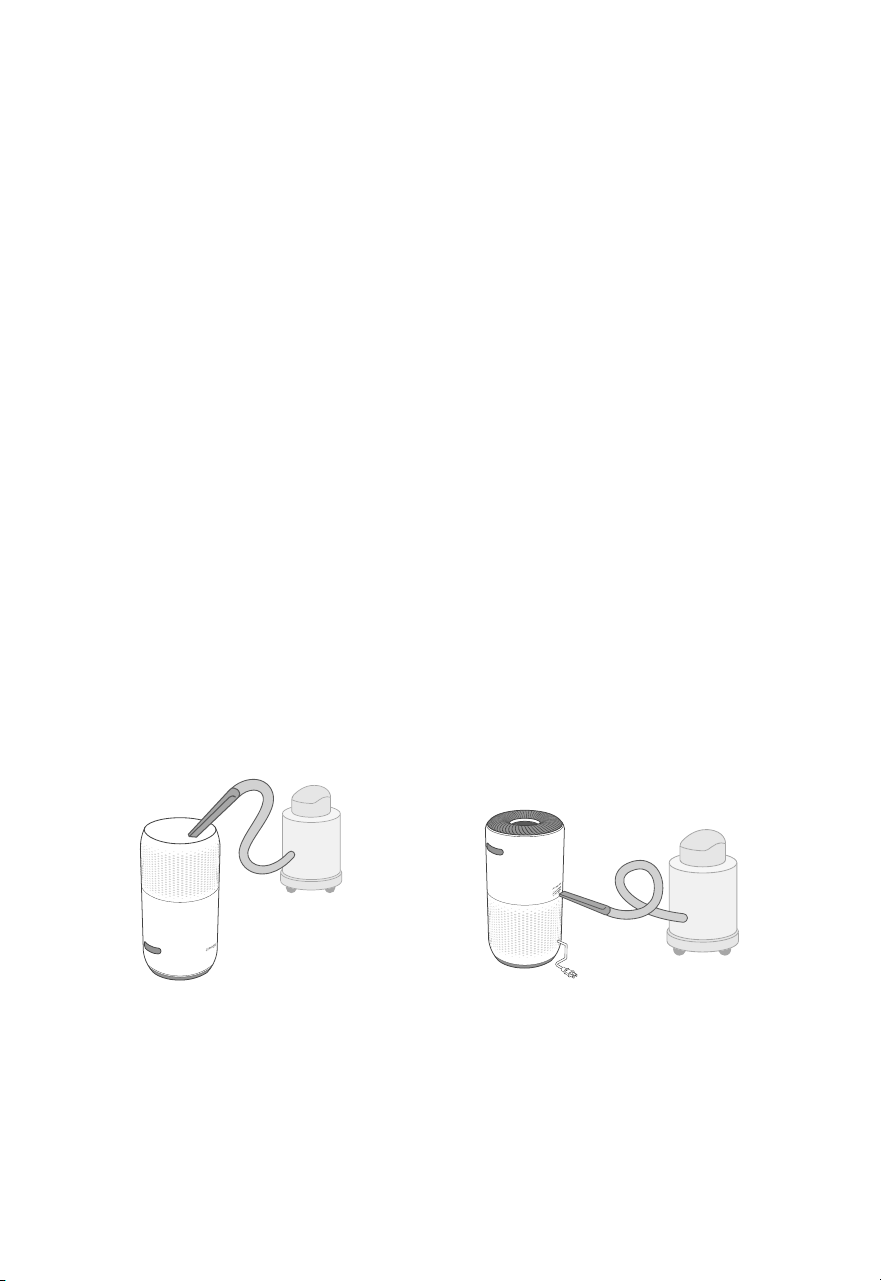
3. Clean out any remaining dust or hair
inside the air purifier using a vacuum
hose. Do not use water or liquids to
clean the air purifier. [Figure 3.2]
4. Unwrap the new filter and place it into the
housing (see Getting Started, page 7).
5. Replace the cover. Plug in the air purifier.
6. Reset the Check Filter Indicator
(see page 13).
The AirSight Plus Laser Dust Sensor can be
blocked by dust, which aects the sensor’s
accuracy. Clean the sensor every 3 months.
Using your air purifier in an environment with
more dust may mean you will need to clean
the sensor more often.
1. Unplug the air purifier.
2. Place the end of a vacuum cleaner over
the sensor openings. [Figure 3.3]
3. Turn the vacuum on for at least 10
seconds to clean out dust.
Replacing the Filter
Cleaning the AirSight Plus
Laser Dust Sensor
Figure 3.2 Figure 3.3
If not using the air purifier for an extended
period of time, wrap both the air purifier and
the filter in plastic packaging and store in a
dry place to avoid moisture damage.
Storage
CARE & MAINTENANCE (CONT.)
16
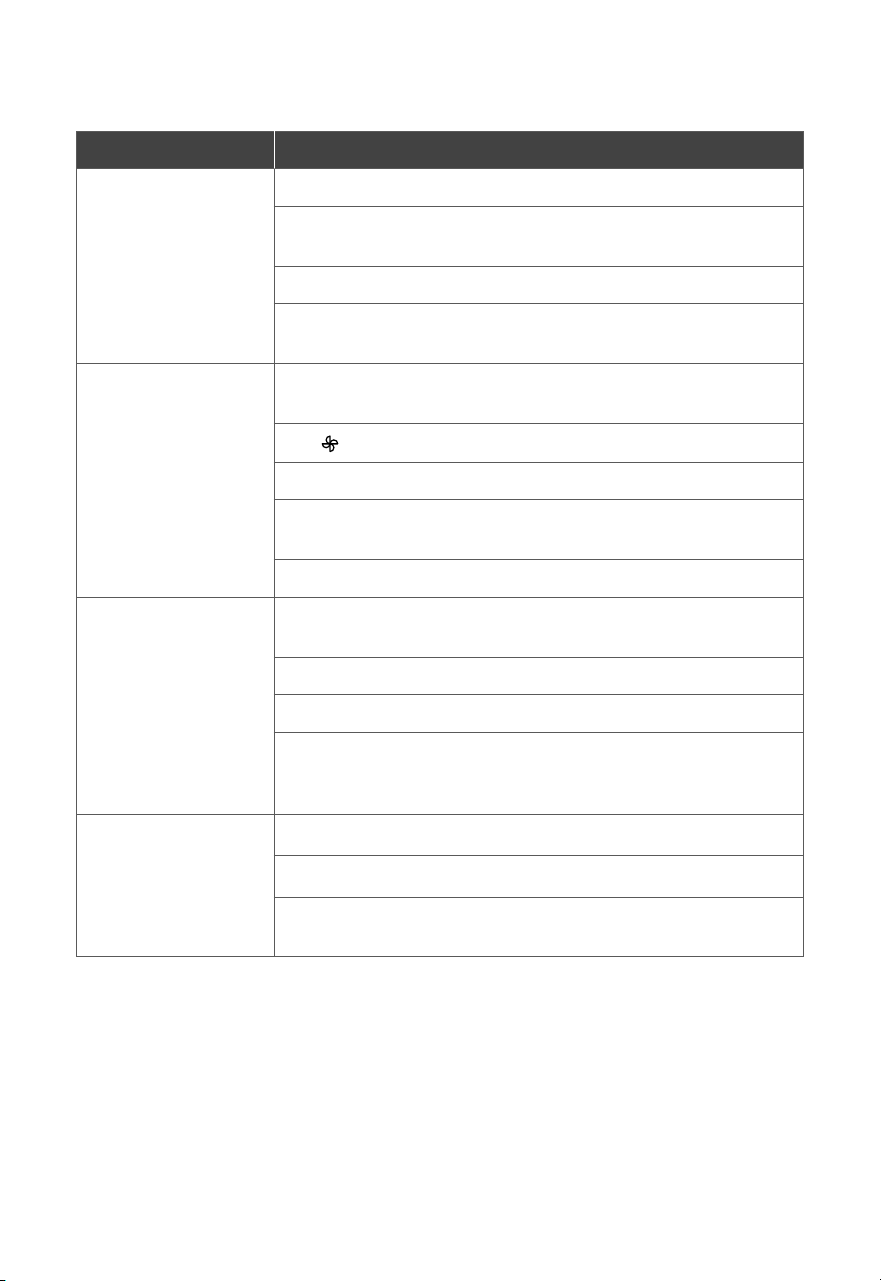
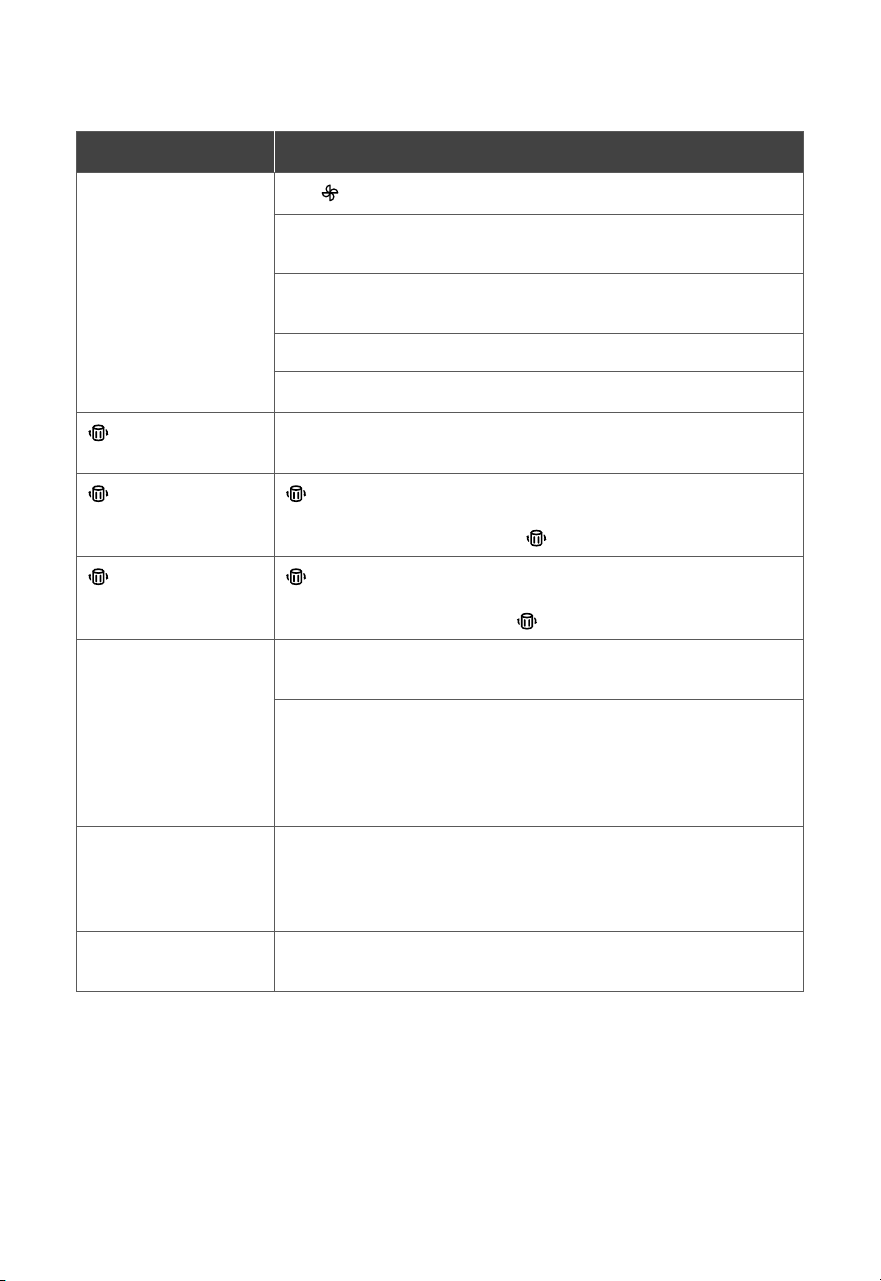
Problem Possible Solution
Air purifier will not
turn on or respond to
button controls.
Plug in the air purifier.
Check to see if the power cord is damaged. If it is, stop using the air
purifier and contact Customer Support (see page 22).
Plug the air purifier into a dierent outlet.
The air purifier may be malfunctioning. Contact Customer Support
(see page 22).
Airflow is significantly
reduced.
Make sure the filter is removed from its packaging and properly in
place (see page 7).
Tap to increase the fan speed.
Leave 15 inches / 38 cm of clearance on all sides of the air purifier.
The pre-filter may be clogged by large particles, such as hair or
lint, blocking airflow. Clean the pre-filter (see page 13).
Replace the filter (see page 15).
Air purifier makes an
unusual noise while
the fan is on.
Make sure the filter is properly in place with plastic packaging
removed (see page 7).
Make sure the air purifier is operating on a hard, flat, level surface.
Replace the filter (see page 15).
The air purifier may be damaged, or a foreign object may be
inside. Stop using the air purifier and contact Customer Support
(see page 22). Do not try to repair the air purifier.
Strange smell coming
from the air purifier.
Clean the filter, or replace if necessary.
Contact Customer Support (see page 22).
Make sure not to use your air purifier in an area with high
humidity or while diusing essential oils.
TROUBLESHOOTING
17
If your problem is not listed, please contact Customer Support (see page 22).
TROUBLESHOOTING (CONT.)
Problem Possible Solution
Poor air purification
quality.
Tap to increase the fan speed.
Make sure no objects are blocking the sides or top of the air purifier
(the inlet or outlet).
Make sure the filter is removed from its packaging and properly in
place (see page 7).
Close doors and windows while using the air purifier.
Replace the filter (see page 15).
is still on after
replacing the filter.
Reset the Check Filter Indicator (see page 13).
has not turned on
within 12 months.
is a reminder for you to check the filter and will light up based
on how much the air purifier has been used (see page 13). If you
don’t use your air purifier often, will take longer to turn on.
turned on before
12 months.
is a reminder for you to check the filter and will light up based
on how much the air purifier has been used (see page 13). If you
run your air purifier frequently, will turn on sooner.
Air Quality Indicator
always stays red.
The AirSight Plus Laser Dust Sensor may need to be cleaned
(see page 15).
If you’re using an ultrasonic humidifier near the air purifier, the mist
may aect the accuracy of the AirSight Plus Laser Dust Sensor.
The sensor will detect the large mist particles, and the Air Quality
Indicator may turn red. Avoid using an ultrasonic humidifier near
the air purifier, or avoid using Auto Mode.
Air Quality Indicator
always stays blue,
even when the air
quality is poor.
The AirSight Plus Laser Dust Sensor detects airborne particles, but
it cannot detect gas. Make sure there isn’t gas polluting the air.
Display shows Error
Code “E1”.
The motor has malfunctioned. Please contact Customer Support
(see page 22).

18
If your problem is not listed, please contact Customer Support (see page 22).
VESYNC APP TROUBLESHOOTING
My smart air purifier isn’t connecting to the VeSync app.
• Make sure your phone has Bluetooth® turned on and is not currently connected to
another Bluetooth device.
• During the setup process, you must be on a secure 2.4GHz Wi-Fi® network. Confirm
that the network is working correctly.
• Make sure the Wi-Fi password you entered is correct.
• There should be no spaces at the beginning or end of the password.
• Test the password by connecting a dierent electronic device to the router.
• If you’re manually typing in the SSID and password, double check that both
are entered correctly.
• Try moving your air purifier closer to the router. Your phone should be as close as
possible to your air purifier.
• Your router may need to be at a higher location, away from obstructions.
• Make sure your air purifier and router are away from appliances (such as microwave
ovens, refrigerators, electronic devices, etc.) to avoid signal interference.
• If you’re using a VPN, make sure it’s turned o while setting up your air purifier.
• Disable portal authentication for your Wi-Fi network. If portal authentication is enabled,
the air purifier will not be able to access your Wi-Fi network, and setup will fail.
My air purifier is oine.
• Make sure the air purifier is plugged in and has power, then refresh the VeSync
menu by swiping down on the screen.
• Make sure your router is connected to the internet and your phone’s network
connection is working.
• Delete the oine air purifier from the VeSync app. Swipe left (iOS®) or press and
hold (Android™), then tap Delete. Reconfigure the air purifier with the VeSync app.
Note: Portal authentication means that you need to sign in to your Wi-Fi network through
a web page before you can use the Internet.
Note: Power outages, internet outages, or changing Wi-Fi routers may cause the air
purifier to go oine.

19
FEDERAL COMMUNICATION COMMISSION
INTERFERENCE STATEMENT
FCC RADIATION EXPOSURE STATEMENT
FCC SDOC SUPPLIER’S DECLARATION
OF CONFORMITY
This device complies with Part 15 of the FCC Rules. Operation is subject to the following
two conditions:
1. This device may not cause harmful interference, and
2. This device must accept any interference received, including interference that may
cause undesired operation.
NOTE: This equipment has been tested and found to comply with the limits for a Class B digital
device, pursuant to Part 15 of the FCC Rules. These limits are designed to provide reasonable
protection against harmful interference in a residential installation. This equipment generates,
uses and can radiate radio frequency energy and, if not installed and used in accordance with
the instructions, may cause harmful interference to radio communications. However, there is
no guarantee that interference will not occur in a particular installation. If this equipment does
cause harmful interference to radio or television reception, which can be determined by turning
the equipment o and on, the user is encouraged to try to correct the interference by one or
more of the following measures:
• Reorient or relocate the receiving antenna.
• Increase the separation between the equipment and receiver.
• Connect the equipment into an outlet on a circuit dierent from that to
which the receiver is connected.
• Consult the dealer or an experienced radio/TV technician for help.
FCC Caution: Any changes or modifications not expressly approved by the party responsible
for compliance could void the user’s authority to operate this equipment.
This equipment complies with FCC radiation exposure limits set forth for an uncontrolled
environment. End users must follow the specific operating instructions for satisfying RF exposure
compliance. To maintain compliance with FCC RF exposure compliance requirements, please
follow operation instructions as documented in this manual. This transmitter must not be co-
located or operating in conjunction with any other antenna or transmitter. This equipment should
be installed and operated with a minimum distance of 20cm between the radiator and your
body. The availability of some specific channels and/or operational frequency bands are country
dependent and are firmware programmed at the factory to match the intended destination. The
firmware setting is not accessible by the end user.
Arovast Corporation hereby declares that this equipment is in compliance with the FCC rules.
The declaration of conformity can be found at:https://www.vesync.com/legal/compliance/fcc

20
Product Name Levoit Core® 400S-P Smart
Air Purifier
Model Core 400S
For your own reference, we strongly recommend
that you record your order ID and date of purchase.
Date of Purchase
Order ID
WARRANTY INFORMATION
Levoit Limited Product Warranty
Register your products at https://warranty.levoit.com/warranty
to stay up to date with important product information such as
product updates, limited warranties, usage and maintenance
recommendations, and notifications concerning safety
warnings or product recalls. Registration is not required to
claim your limited warranty.
Two (2) Year Limited Consumer Product Warranty
Arovast Corporation (“Arovast”) warrants that the product
shall be free from defects in material and workmanship for
a period of 2 years from the date of original purchase
(“Limited Warranty Period”), provided the product was used
in accordance with its use and care instructions (e.g., in the
intended environment and under normal circumstances).
Your Limited Warranty Benefits
During the Limited Warranty Period and subject to this
limited Warranty Policy, Arovast will, in its sole and
exclusive discretion, either (i) refund the purchase price
if the purchase was made directly from the online Levoit
store, (ii) repair any defects in material or workmanship,
(iii) replace the product with another product of equal or
greater value, or (iv) provide store credit in the amount of
the purchase price.
Who is Covered?
This limited warranty extends only to the original consumer
purchaser of the product and is not transferable to any
subsequent owner of the product, regardless of whether
the product transferred ownership during the specified
term of the limited warranty. The original consumer
purchaser must provide verification of the defect or
malfunction and proof of the date of purchase to claim the
Limited Warranty Benefits.
Be Aware of Unauthorized Dealers or Sellers
This limited warranty does not extend to products
purchased from unauthorized dealers or sellers. Arovast’s
limited warranty only extends to products purchased from
authorized dealers or sellers that are subject to Arovast’s
quality controls and have agreed to follow its quality
controls. Please be aware, products purchased from an
unauthorized website or dealer may be counterfeit, used,
defective, or may not be designed for use in your country.
You can protect yourself and your products by making sure
you only purchase from Arovast or its authorized dealers.
If you have any questions about a specific seller, or if
you think you may have purchased your product from an
unauthorized seller, please contact our Customer Support
Team via support.levoit.com.
What’s Not Covered?
• Normal wear and tear, including parts that might wear
out over time (e.g., batteries, filters, cleaning brush,
essential oil pads, etc.).
• If the proof-of-purchase has been altered in any way or
is made illegible.
• If the model number, serial number or production date
code on the product has been altered, removed or
made illegible.
• If the product has been modified from its original condition.
• If the product has not been used in accordance with
directions and instructions in the user manual.
• Damages caused by connecting peripherals,
additional equipment or accessories other than those
recommended in the user manual.
• Damages or defects caused by accident, abuse,
misuse, or improper or inadequate maintenance.
• Damages or defects caused by service or repair of the
product performed by an unauthorized service provider
or by anyone other than Arovast.
• Damages or defects occurring during commercial use,
rental use, or any use for which the product is not intended.
• If the unit has been damaged, including but not limited
to damage by animals, lightning, abnormal voltage,
fire, natural disaster, transportation, dishwasher, or
water (unless the user manual expressly states that the
product is dishwasher-safe).
• Incidental and consequential damages.
• Damages or defects exceeding the cost of the product.
Claiming Your Limited Warranty Service in 5 Simple Steps:
1. Make sure your product is within the specified
limited warranty period.
2. Make sure you have a copy of the invoice and order
ID or proof-of-purchase.
3. Make sure you have your product. DO NOT dispose
of your product before contacting us.
4. Contact our Customer Support Team via
support.levoit.com
5. Once our Customer Support Team has approved
your request, please return the product with a copy
of the invoice and order ID.

21
Sole and Exclusive Remedy
THE FOREGOING LIMITED WARRANTY CONSTITUTES
AROVAST CORPORATION’S EXCLUSIVE LIABILITY, AND
YOUR SOLE AND EXCLUSIVE REMEDY, FOR ANY BREACH
OF ANY WARRANTY OR OTHER NONCONFORMITY OF
THE PRODUCT COVERED BY THIS LIMITED PRODUCT
WARRANTY STATEMENT. THIS LIMITED WARRANTY IS
EXCLUSIVE, AND IN LIEU OF ALL OTHER WARRANTIES.
NO EMPLOYEE OF AROVAST CORPORATION OR
ANY OTHER PARTY IS AUTHORIZED TO MAKE ANY
WARRANTY IN ADDITION TO THE LIMITED WARRANTY IN
THIS LIMITED PRODUCT WARRANTY STATEMENT.
Disclaimer of Limited Warranties
TO THE FULLEST EXTENT PROVIDED BY APPLICABLE
LAW, EXCEPT AS WARRANTED IN THIS LIMITED PRODUCT
WARRANTY POLICY, AROVAST CORPORATION PROVIDES
THE PRODUCTS YOU PURCHASE FROM AROVAST
CORPORATION “AS IS” AND AROVAST CORPORATION
HEREBY DISCLAIMS ALL WARRANTIES OF ANY KIND,
WHETHER EXPRESS OR IMPLIED, STATUTORY, OR
OTHERWISE, INCLUDING BUT NOT LIMITED TO ANY
WARRANTIES OF MERCHANTABILITY, NON-INFRINGEMENT,
AND FITNESS FOR PARTICULAR PURPOSE.
Limitations of Liability
TO THE FULLEST EXTENT PROVIDED BY APPLICABLE
LAW, IN NO EVENT WILL AROVAST CORPORATION, ITS
AFFILIATES, OR THEIR LICENSORS, SERVICE PROVIDERS,
EMPLOYEES, AGENTS, OFFICERS, OR DIRECTORS BE
LIABLE FOR:
(a) DAMAGES OF ANY KIND ARISING OUT OF OR IN
CONNECTION WITH PRODUCTS PURCHASED FROM
AROVAST CORPORATION IN EXCESS OF THE PURCHASE
PRICE PAID BY THE PURCHASER FOR SUCH PRODUCTS, OR
(b) INDIRECT, SPECIAL, INCIDENTAL, CONSEQUENTIAL, OR
PUNITIVE DAMAGES EVEN IF AROVAST CORPORATION
OR ONE OF ITS SUPPLIERS HAS BEEN ADVISED OF THE
POSSIBILITY OR LIKELIHOOD OF SUCH DAMAGES.
AND REGARDLESS OF WHETHER CAUSED BY TORT
(INCLUDING NEGLIGENCE), BREACH OF CONTRACT,
OR OTHERWISE. OUR LIABILITY SHALL UNDER NO
CIRCUMSTANCES EXCEED THE ACTUAL AMOUNT PAID
BY YOU FOR THE DEFECTIVE PRODUCT, NOR SHALL
WE UNDER ANY CIRCUMSTANCES BE LIABLE FOR ANY
CONSEQUENTIAL, INCIDENTAL, SPECIAL OR PUNITIVE
DAMAGES OR LOSSES, WHETHER DIRECT OR INDIRECT.
EXCEPT AS COVERED BY THIS LIMITED PRODUCT
WARRANTY STATEMENT, AROVAST CORPORATION
SHALL NOT BE LIABLE FOR COSTS ASSOCIATED
WITH THE REPLACEMENT OR REPAIR OF PRODUCTS
PURCHASED FROM IT, INCLUDING, BUT NOT LIMITED TO,
LABOR, INSTALLATION, OR OTHER COSTS INCURRED BY
THE USER AND, IN PARTICULAR, ANY COSTS RELATING
TO THE REMOVAL OR REPLACEMENT OF ANY PRODUCT.
OTHER RIGHTS YOU MAY HAVE
SOME JURISDICTIONS DO NOT ALLOW FOR: (1)
EXCLUSION OF IMPLIED WARRANTIES; (2) LIMITATION
ON THE DURATION OF IMPLIED WARRANTIES; AND/
OR (3) EXCLUSION OR LIMITATION OF INCIDENTAL OR
CONSEQUENTIAL DAMAGES; SO THE DISCLAIMERS
IN THIS POLICY MAY NOT APPLY TO YOU. IN THESE
JURISDICTIONS YOU HAVE ONLY THE IMPLIED
WARRANTIES THAT ARE EXPRESSLY REQUIRED TO BE
PROVIDED IN ACCORDANCE WITH APPLICABLE LAW. THE
LIMITATIONS OF WARRANTIES, LIABILITY, AND REMEDIES
APPLY TO THE MAXIMUM EXTENT PERMITTED BY LAW.
ALTHOUGH THIS LIMITED WARRANTY GIVES YOU
SPECIFIC LEGAL RIGHTS, YOU MAY HAVE OTHER RIGHTS
IN YOUR JURISDICTION. THIS STATEMENT OF LIMITED
WARRANTY IS SUBJECT TO APPLICABLE LAWS THAT
APPLY TO YOU AND THE PRODUCT. PLEASE REVIEW THE
LAWS IN YOUR JURISDICTION TO UNDERSTAND YOUR
RIGHTS FULLY.
CHANGES TO THIS POLICY
We may change the terms and availability of this limited
warranty at our discretion, but any changes will not be
retroactive.
This warranty is made by:
Arovast Corporation
1775 Flight Way, Suite 150
Tustin, CA 92782, USA
WARRANTY INFORMATION (CONT.)
22
CUSTOMER SUPPORT
If you have any questions or concerns about
your new product, please contact our helpful
Customer Support Team.
Distributed by Arovast Corporation
1775 Flight Way, Suite 150
Tustin, CA 92782, USA
URL: support.levoit.com
Toll-Free: 1-888-726-8520
Mon–Fri, 9:00 am–5:00 pm PST/PDT
Support Hours
*Please have your order invoice PDF or
screenshot(s) ready before contacting
Customer Support.
ATTRIBUTIONS
Amazon, Alexa, and all related logos are trademarks of Amazon.com, Inc. or its aliates.
Google, Android, and Google Play are trademarks of Google LLC.
App Store® is a trademark of Apple Inc.
Wi-Fi® is a registered trademark of Wi-Fi Alliance®.
iOS is a registered trademark of Cisco Systems, Inc. and/or its aliates in the United States and
certain other countries.
The Bluetooth® word mark and logos are registered trademarks owned by Bluetooth SIG, Inc.
and any use of such marks by Arovast Corporation is under license. Other trademarks and trade
names are those of their respective owners.
The energy eciency of this ENERGY STAR certified model is based
on the Integrated Energy Factor (IEF), a ratio between the model’s
PM2.5CADR and its energy consumption, in terms of CADR/Watt.
NOTES
A2_26C31_us