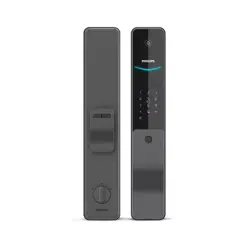
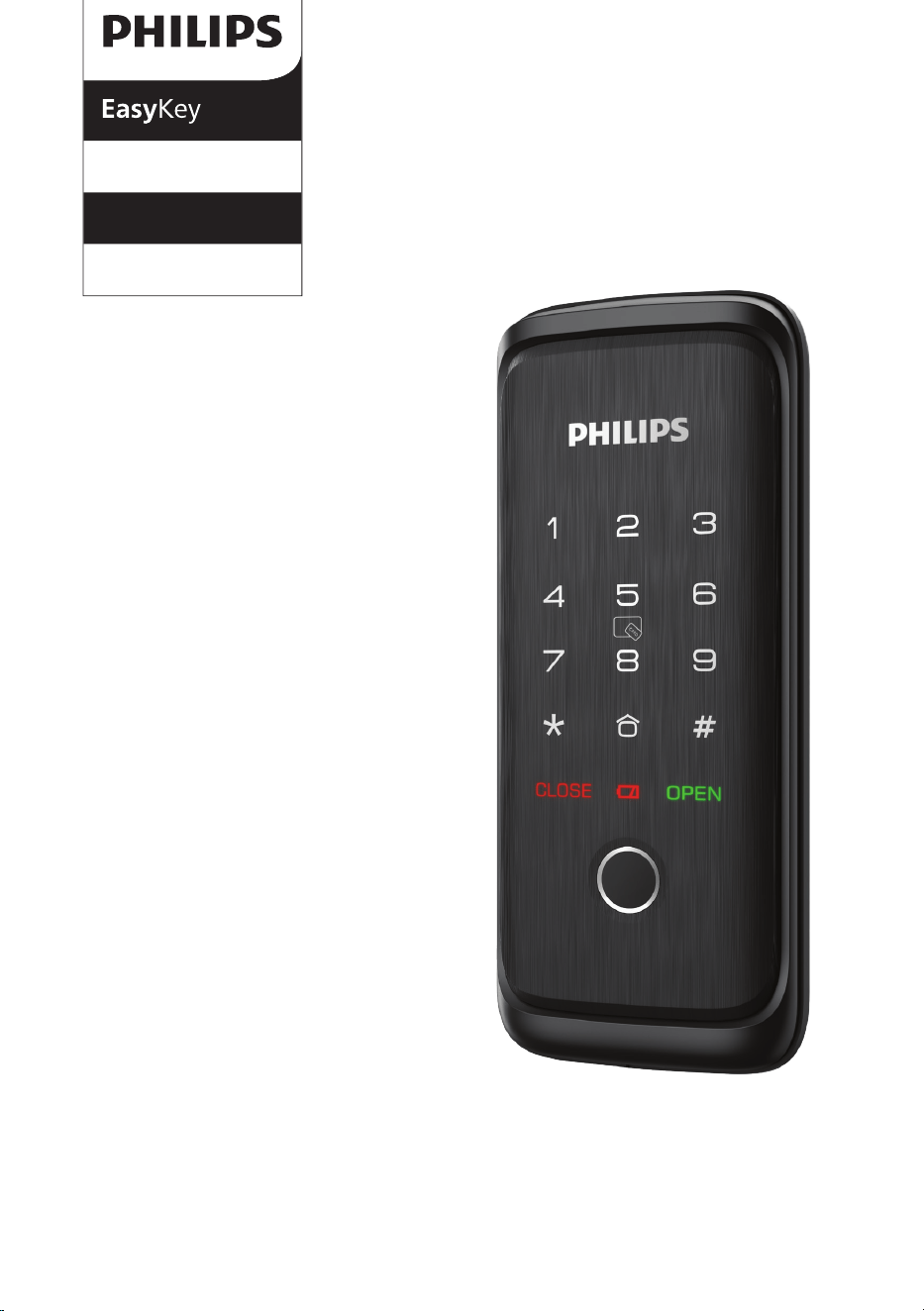
DDL506-18HS
5000 series
Smart rim lock
User
manual
www.philips.com/support
Sign your product up and get support at
www.philips.com/support


1
14
16
18
Contents
1. Important Information
Safety
Caution
Disposal of used products and batteries
2. Assembly
Packing list
Exploded views
Notice before assembling
Assembly procedures
3. Get to know your lock
Exterior assembly
Interior assembly
02
03
07
08
13
4. Settings
Instructions before setting
Master mode
Add user information
System settings
Remote conrol pairing
Door lock linkage settings
5. Get to use your lock
Outdoor/ indoor unlock
6. Other features
Default settings
Mute button
Armed mode
7. Indicators
Low battery indicator
Armed mode indicator
System locking indicator
8. Troubleshooting
Alert types
How to apply external power supply
Battery replacement

2
1 Important information
Safety
◆
Before using this product, please read and
understand all instructions. Damage caused by
failure to follow the instructions is not covered
by the warranty.
◆
Use only the accessories/components specied
by the manufacturer.
◆
Use only the alkaline batteries with which the
product is equipped or use alkaline batteries of
the same type.
◆
Do not forcibly disassemble the product to
trigger an alarm or damage the product.
◆
Do not scrape the ngerprint sensor with
sharp objects, as this may cause permanent
damage.
◆
Do not expose products to places that have
water leakage or splashing.
◆
Do not expose the product to corrosive
substances to prevent damaging the protective
cover.
◆
Do not hang objects on the handle in case it
might aect the use of the lock.
◆
Please use a soft cloth soaked in water to
remove ngerprints/dirt left on the surface of
the assembly.
◆
Do not remove the batteries during setting up
and operating.
◆
Please follow the assembly instructions to
install the product and keep the relevant sealed
stickers properly.
◆
Please change the default master PIN code
immediately after completing the installation and
troubleshooting, properly store the mechanical
keys, and do not disclose the PIN codes to others.
◆
Please replace all batteries immediately when
a low battery alarm appears.
Caution
◆
Do not place the batteries near ignition source
to avoid explosion.
◆
Do not use any power supply that does not
meet the safety requirements to power up the
product.
◆
Do not connect the 2 poles of the batteries to
metals to avoid a short circuit that may cause an
explosion.
◆
Please make sure installation or any
component replacement is performed by Philips,
a Philips authorized service center or professional
technicians.
◆
Do not use accessories or parts manufactured
by others or not expressly recommended by
Philips. The use of such accessories and parts may
void the warranty.
Disposal of used
products and batteries
◆
You can have your locks taken back at
authorized Philips service centers. You will receive
appropriate compensation if your products meet
our conditions.
◆
Please familiarize yourself with the local
collection system for electronic products.
◆
Please follow local regulations and do not
discard used products and batteries into ordinary
household waste.
◆
Please familiarize yourself with the local
regulations for recycling batteries. Proper
disposal of batteries can help prevent negative
eects on the environment and human health.
3
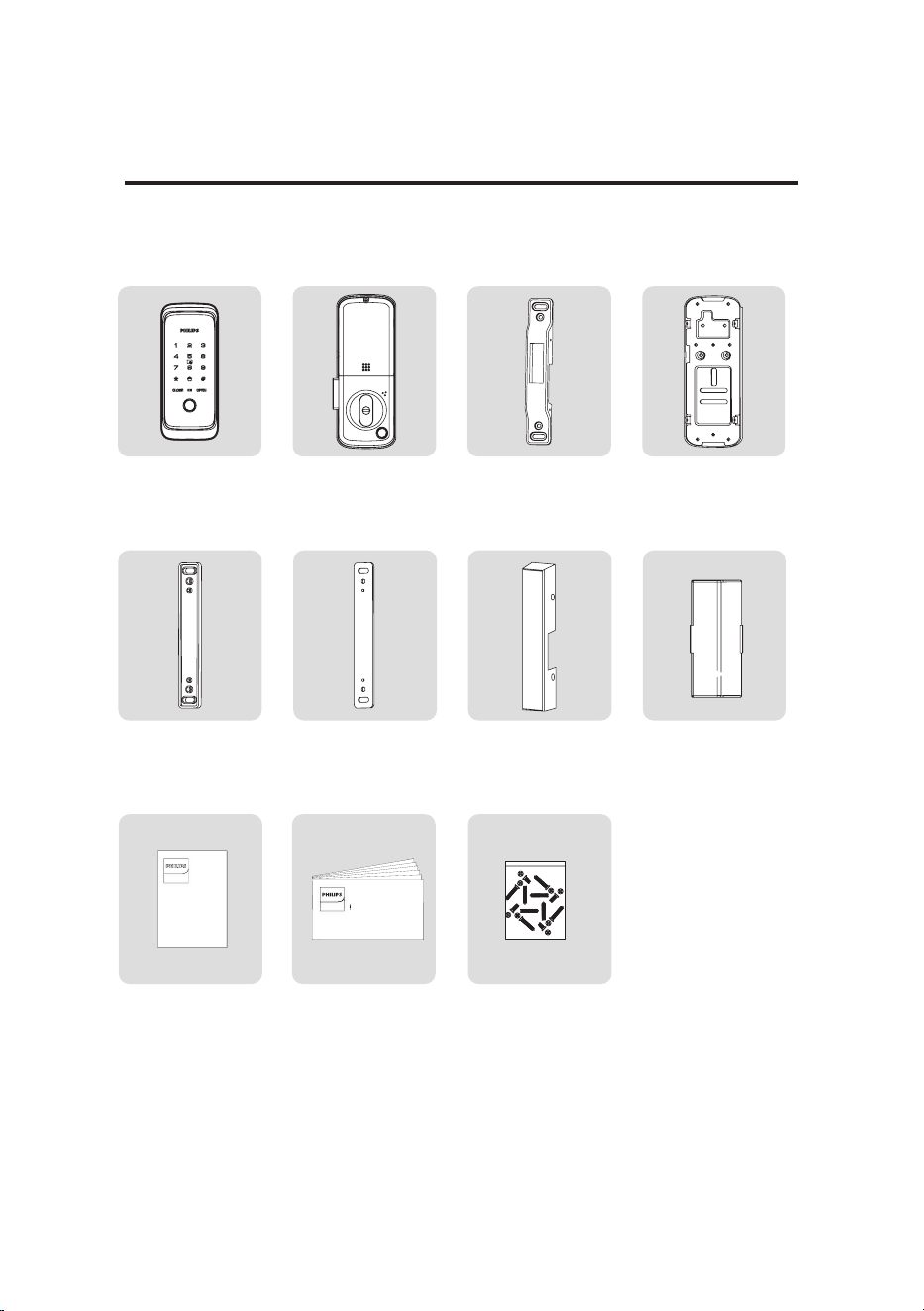
⑨
Warranty
card
②
Interior
assemblywith
silicon pad
⑩
Quick start
guide
③
Strike plate
⑦
Strike
cover
⑪
Installation
kit
④
Mounting
plate
⑧
Remote
module
EasyKey易锁
Warranty
Card
Quick Start
Guide
EasyKey易锁
Packing list
This packing list is for reference only. Please refer to the actual packing items.
2 Assembly
①
Exterior
assemblywith
silicon pad
⑤
Strike
shim(5mm)
⑥
Strike
shims(2.5mm)
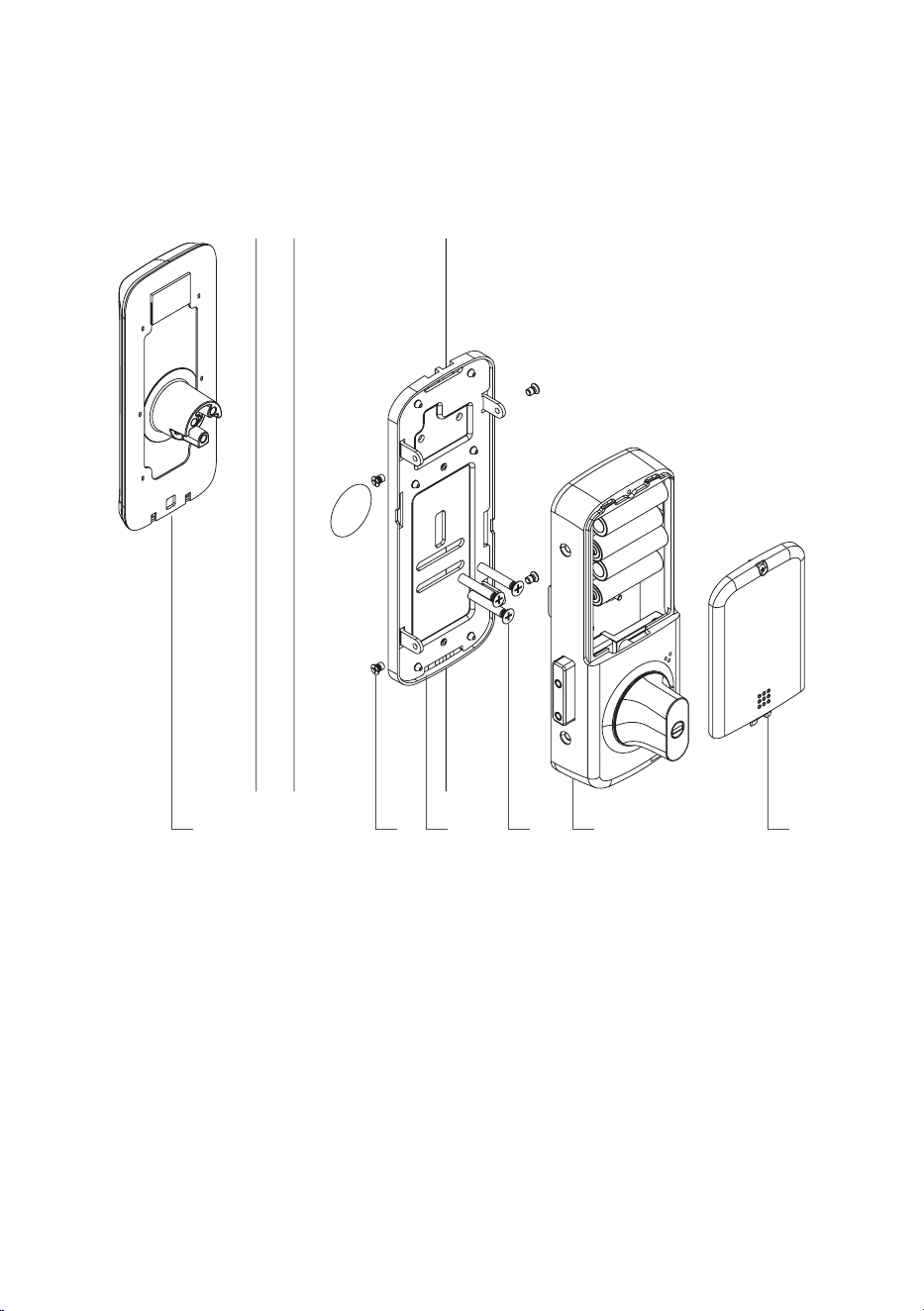
4
1.Exterior assembly x1
2.Fixing screws for interior assembly x4
3.Mounting plate x1
21 3 4 5 6
Exploded views
4.Fixing screws for exterior assembly x4
5.Interior assembly x1
6.Battery cover x1
5
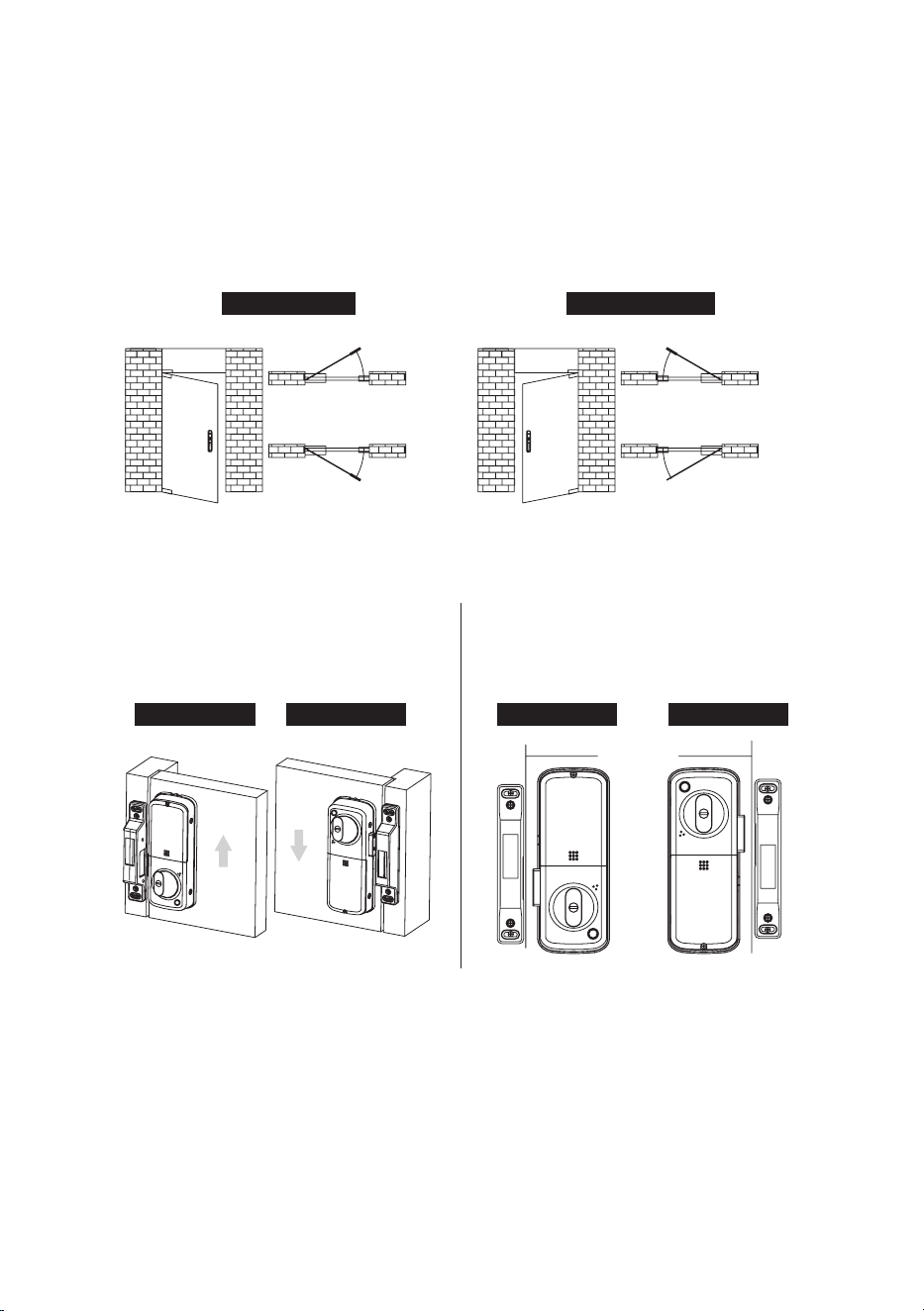
Notice before assembling
Step 2 | Illustrations for doors
with dierent swing directions
Step 1 | Door swing direction
Left-hand swing Left-hand swingRight-hand swing Right-hand swing
Step 3 | Drill holes accordingly
with the correct drilling template
This product applies to doors with swing directions as follows: left-hand inswing,
left-hand outswing, right-hand inswing, and right-hand outswing.
Left-hand swing Right-hand swing
Left-hand inswing
Left-hand outswing
Right-hand inswing
Right-hand outswing
Door edge
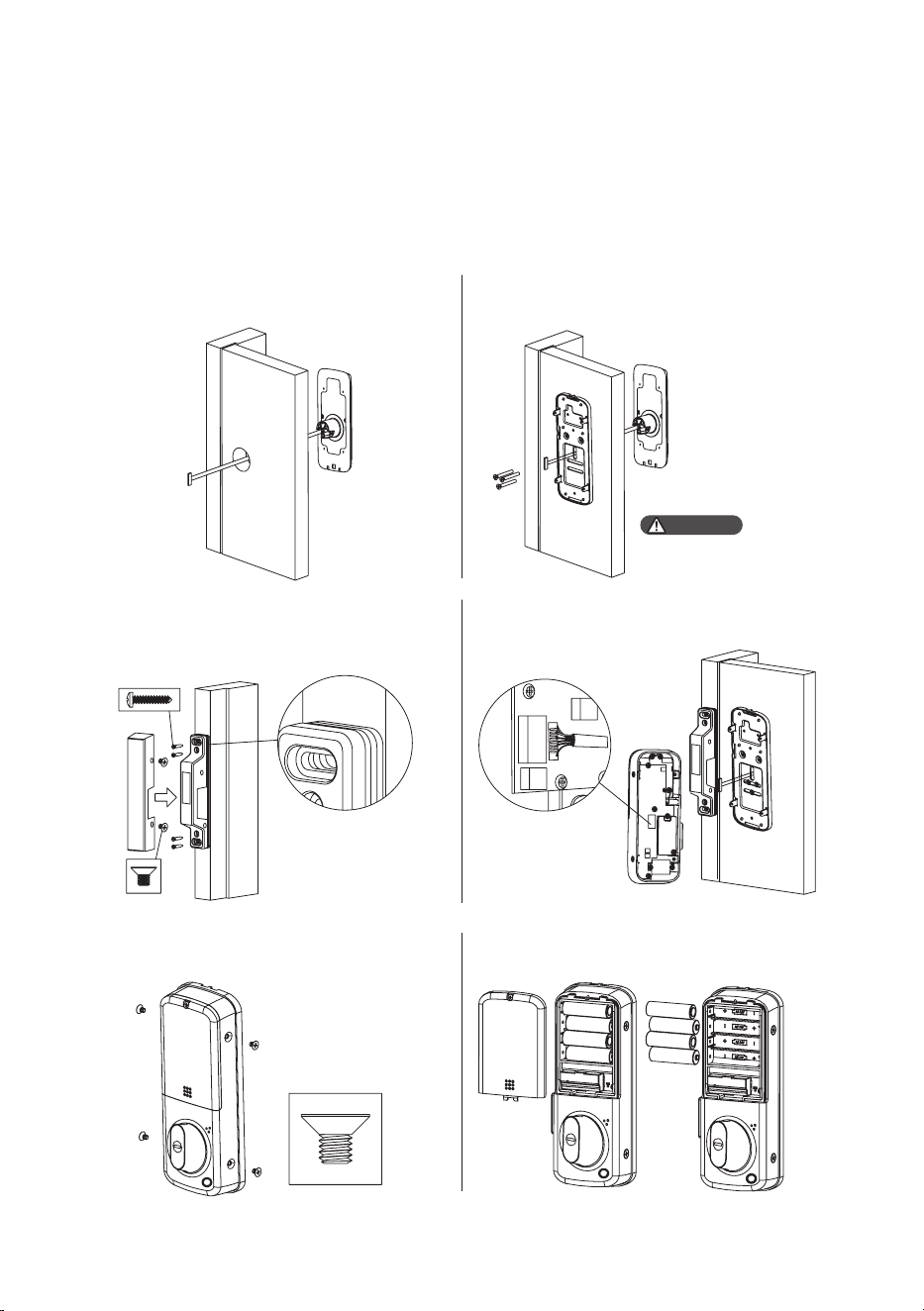
6
②
Pass the front assembly cable through
the inside mounting plate and secure it with
screws from the indoor side of the door.
⑤
Attach the rear assembly to the inside
mounting plate and secure it with screws.
④
Connect the front assembly cable to the
rear assembly cable.
⑥
Insert four AA batteries, secure the cover
with the top screw, and test the functions.
Assembly procedures
The following assembly instructions are for right-hand swing doors. For left-hand
swing doors, please invert the interior assembly for installation. Use the appropriate
installation method for the strike plate according to the actual door swing direction.
①
Pass the front assembly cable through the
door hole.
③
Based on the lock's assembly height, select
the appropriate strike shim and attach them
to the strike After assembling the strike, secure
the strike cover with the screws.
Attention
Be careful not to break
the assembly cable.
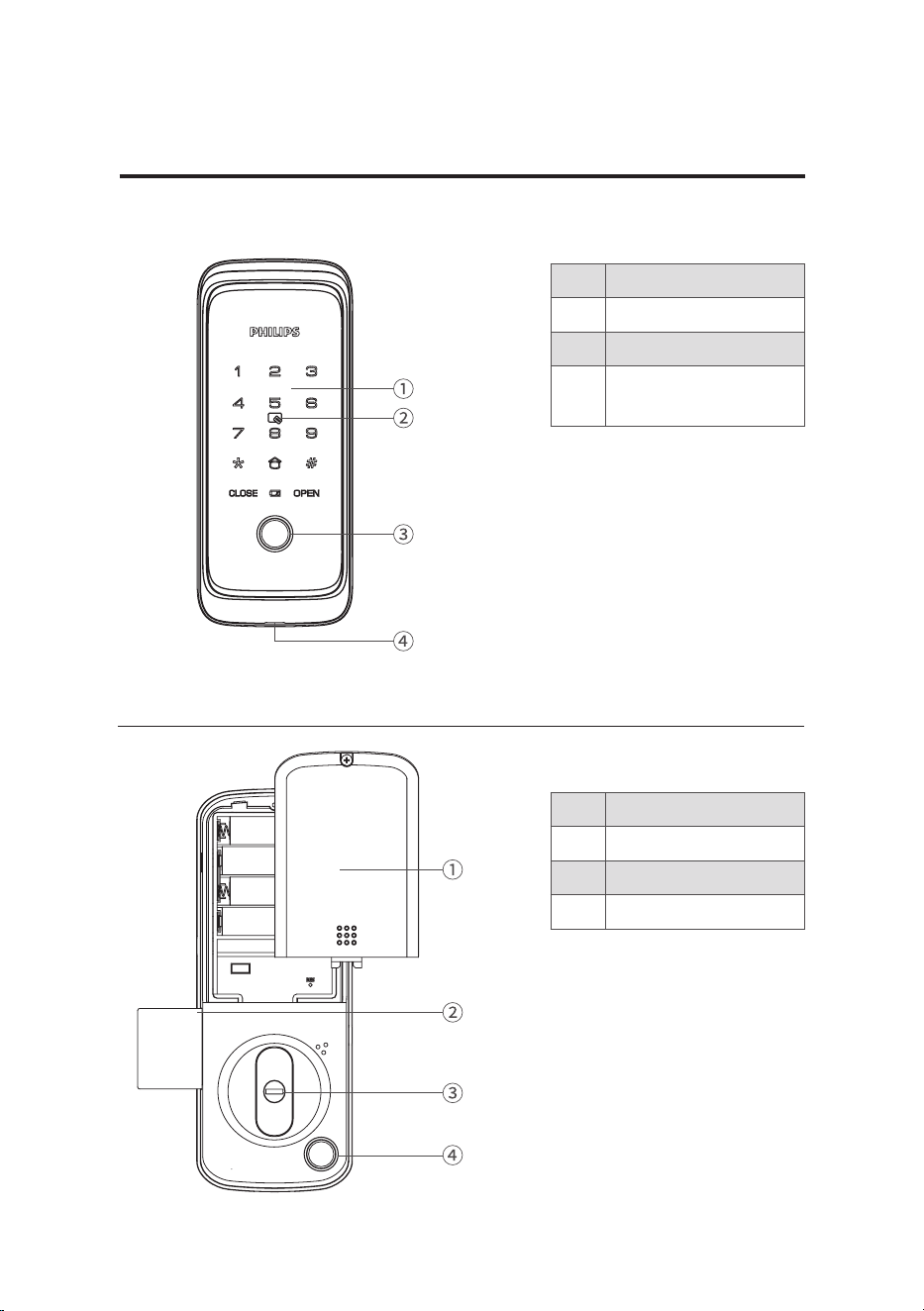
7
Interior assembly
①
Battery cover
②
Dead bolt
③
Mechanical keyhole
④
Fingerprint sensor
①
Keypad
②
Card reader
③
Fingerprint sensor
④
Reboot and emergency
charging port
3 Get to know your lock
Exterior assembly
8
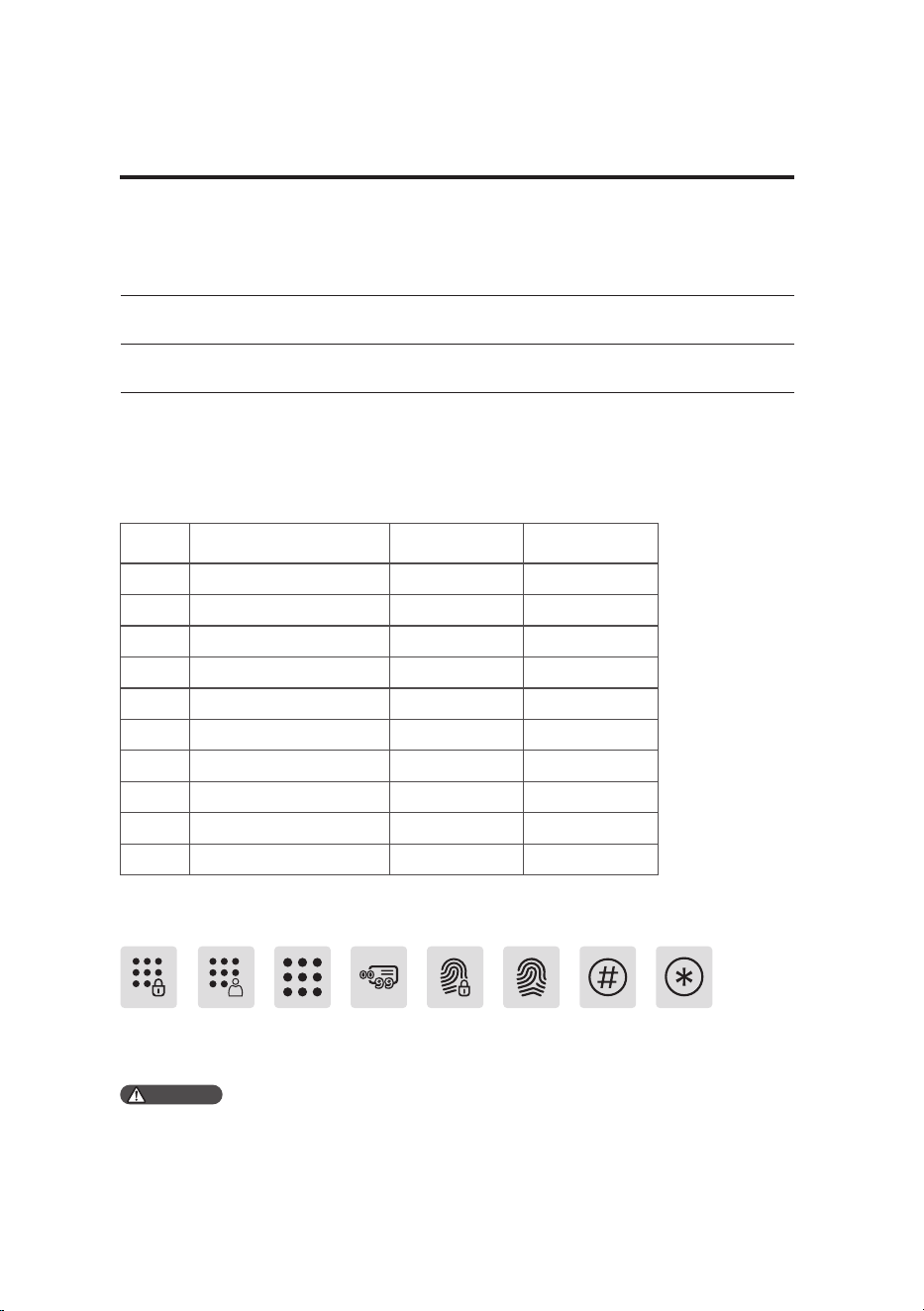
User
number
Name Fingerprint PIN code
00
01
02
03
04
05
06
07
08
09
One-time
PIN code
[#] key [*] keyUser PIN
code
User
number
FingerprintMaster
ngerprint
Instructions before setting
◆
The system mode is divided into general mode and dual-verication mode.
4 Settings
General mode Any enrolled access method can unlock the door.
Unlocked the door with both enrolled ngerprint and PIN code.Dual-verication mode
◆ User number
You can delete individual users by their user numbers in the system without deleting all of
them. You may use the table below to keep track of user information for management and
reference.
Master PIN
code
◆ Icon annotation
Attention
1. Press [*] to return to the previous menu.
2. The default initial PIN code is 12345678.
9
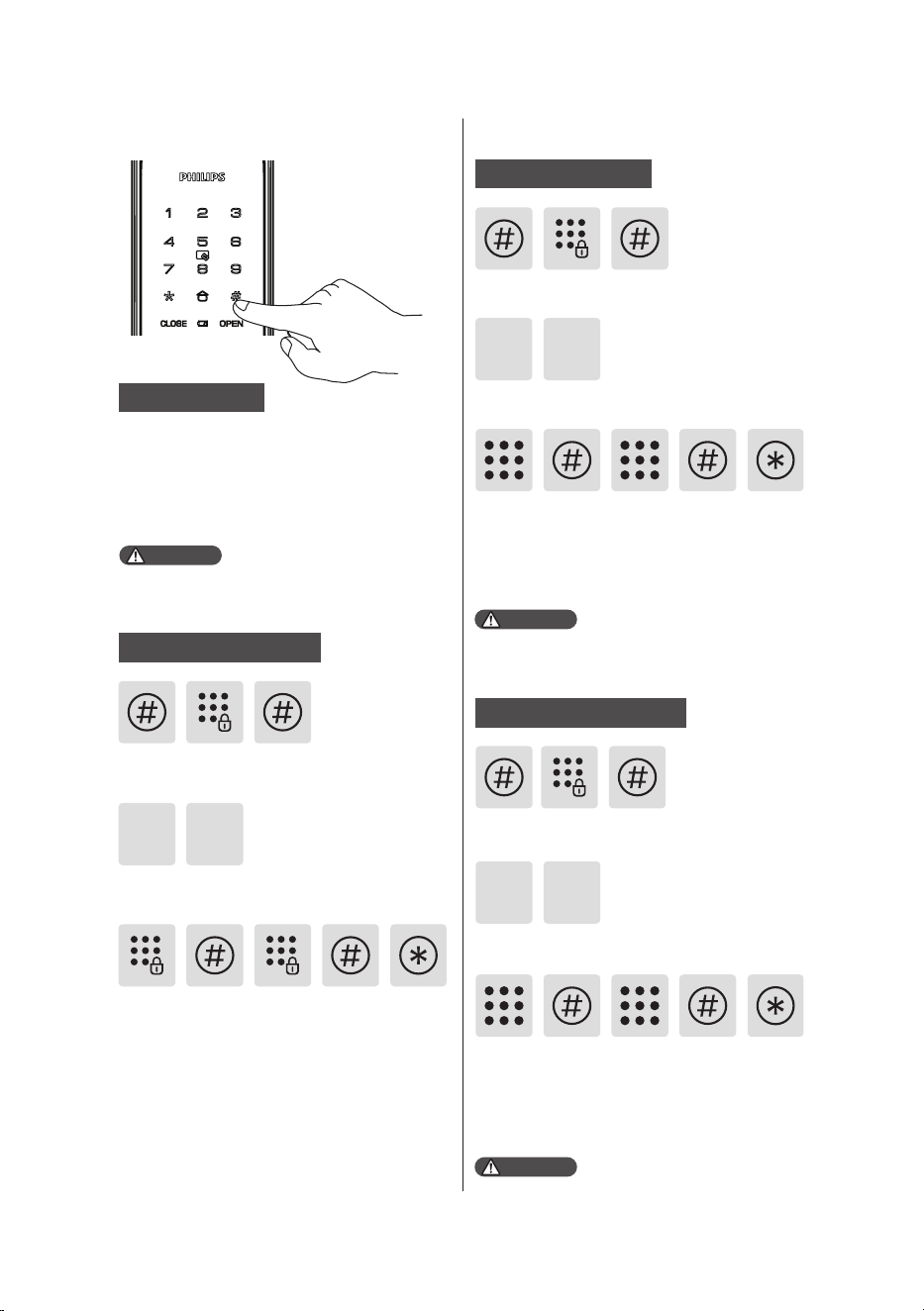
Master mode
Attention
Attention
Attention
Step1: Light up the keypad.
Step2: Enter [#] twice before you enter any
other numbers. Then enter master PIN code,
and confirm with [#]. Then you are entering
into the master mode.
The default master PIN code is 12345678.
Master PIN Code
Enter [#] followed by master PIN code and
confirm with [#].
Enter [1] to go to user settings and enter [1] to
modify the master PIN code.
Enter a new master PIN code of 6-12 digits and
confirm with [#]. Enter the new master PIN code
again and confirm with [#]. Once heard a voice
prompt of "succeeded", keep pressing [*] until
you finally exit master mode.
Modify master PlN code
1 1
Add user information
Enter [#] followed by master PIN code and
confirm with [#].
Press [2] to enter user settings, then press [1] to
add a user.
Add a User PIN Code
The user PIN code capacity is 10 sets.
2 1
Enter a new user PIN code of 6-12 digits, press
[#] to confirm, after re-enter the user PIN code,
confirm with [#] again. After the voice prompt
of “succeeded”, press [*] to back to the previous
menu until exit the master mode.
Press [2] to enter user settings, then press [2]
again to add a one-time PIN code.
2 2
The one-time PIN code capacity is 1 set.
Enter a PIN code of 6 to 12 digits and confirm
with [#]. Re-enter the PIN code and confirm
with [#]. Once hearing a voice prompt of
“succeeded", keep pressing [*] to back to
previous menu until finally exit master mode.
Enter [#] followed by master PIN code and
confirm with [#].
Add a one-time PlN code
10
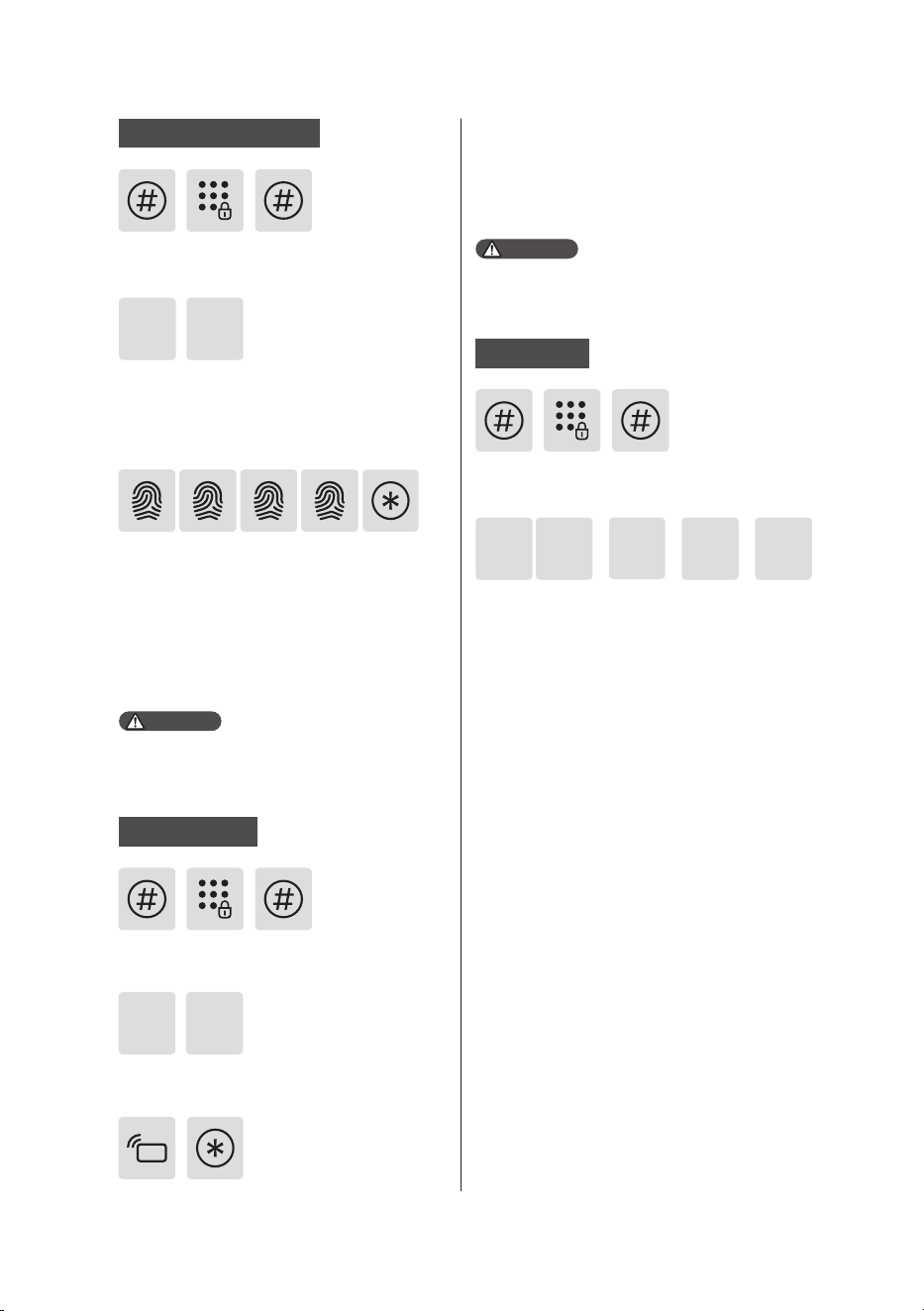
or or or
2
1
3 3 4
Attention
Attention
2 3
The user fingerprint capacity is 20 sets.
Press [2] to enter user settings, then press [3] to
enter user fingerprint adding. Then press [1] to
add front lock fingerprint, press [2] to add rear
lock fingerprint.
Place the finger on the fingerprint sensor, after
hearing the voice prompt of “Remove your
finger and place it on the sensor again”, follow
the voice prompt until there is a voice reminder
of “succeeded”, you can keep pressing [*] to
back to the previous menu until finally exit the
master mode.
Enter [#] followed by master PIN code and
confirm with [#].
Add a user ngerprint
The key tag capacity is 100 sets.
Enter [#] followed by master PIN code and
confirm with [#].
Enter [#] followed by master PlN code and
confirm with [#].
Place the key tag near the recognition area until
you hear a "beep" sound. After hearing the
voice prompt for successful setup, press [*] to
return to the previous menu, and keep pressing
[*] until you exit the setup mode.
2 4
Press [2] to enter user settings, then press [4] to
add a user card.
Press [3] to delete a user. Then press [1] to delete
user PIN code, [2] to delete one-time PIN code,
[3] to delete user fingerprint, [4] to delete user
card.
Add a user card
Delete a user
11
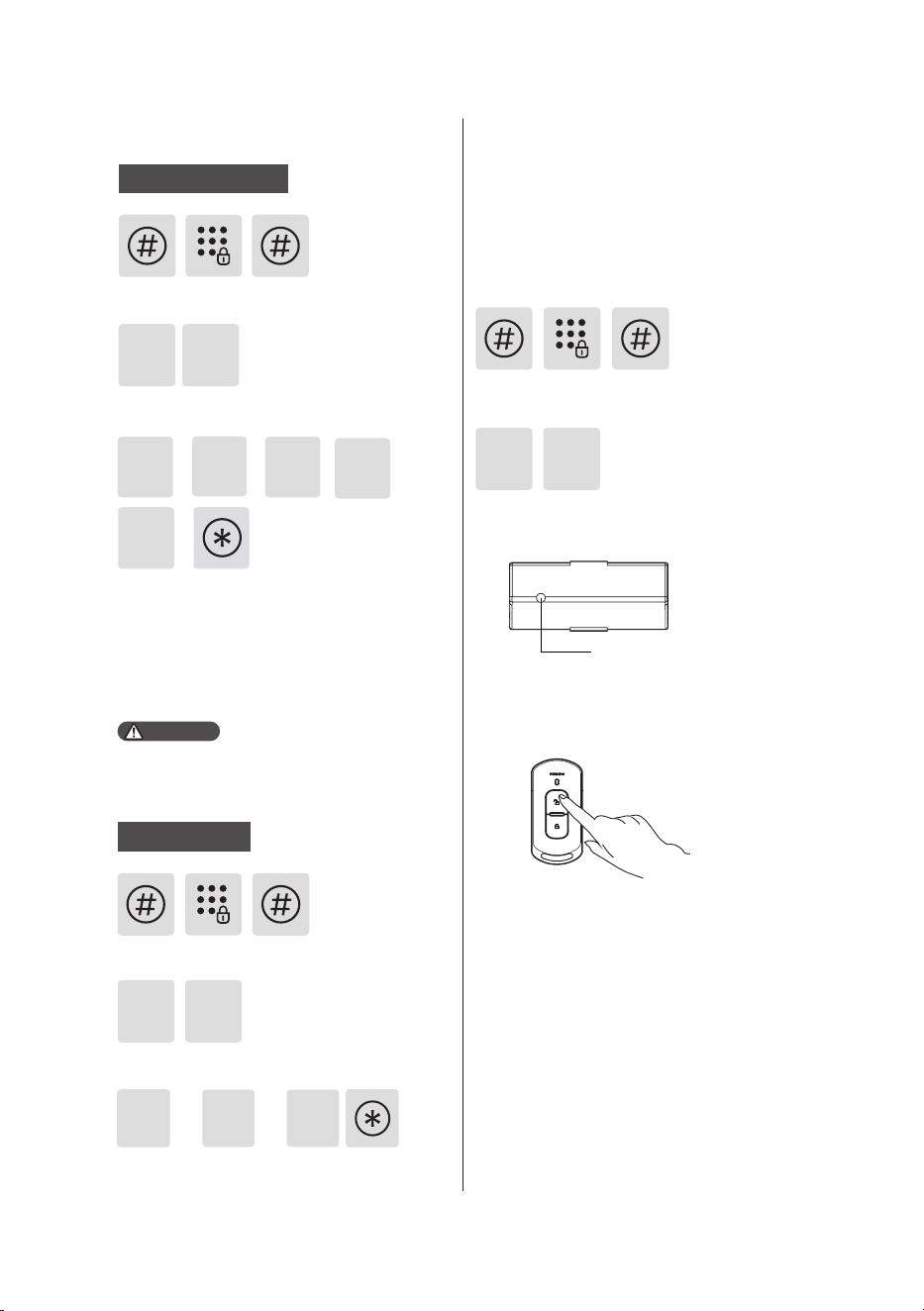
To select your preferred language, press
[1] for Chinese, press [2] for English, press
[3] for Spanish, press [4] for Portuguese,
press [5] for Russian. After hearing a voice
prompt indicating the language has been set
successfully, press [*] to return to the previous
menu until you exit the master mode.
Press [4] to enter system settings, then press
[1] to enter the language settings.
or or or or
2
1
1
System settings
To select the volume level, press [1] for high
volume, press [2] for low volume, and press [3]
Press [4] to enter system settings, then press
[2] to enter the voice settings.
2
Voice settings
3
or or
2
1
4
4
3
5
Enter [#] followed by master PlN code and
conrm with [#].
Enter [#] followed by master PlN code and
conrm with [#].
Language settings
Attention
The default language is English.
4
Enter [#] followed by master PIN code and
confirm with [#].
Remote control pairing
Press [5] to enter wireless function settings,
then press 1 to join the network for pairing.
5 1
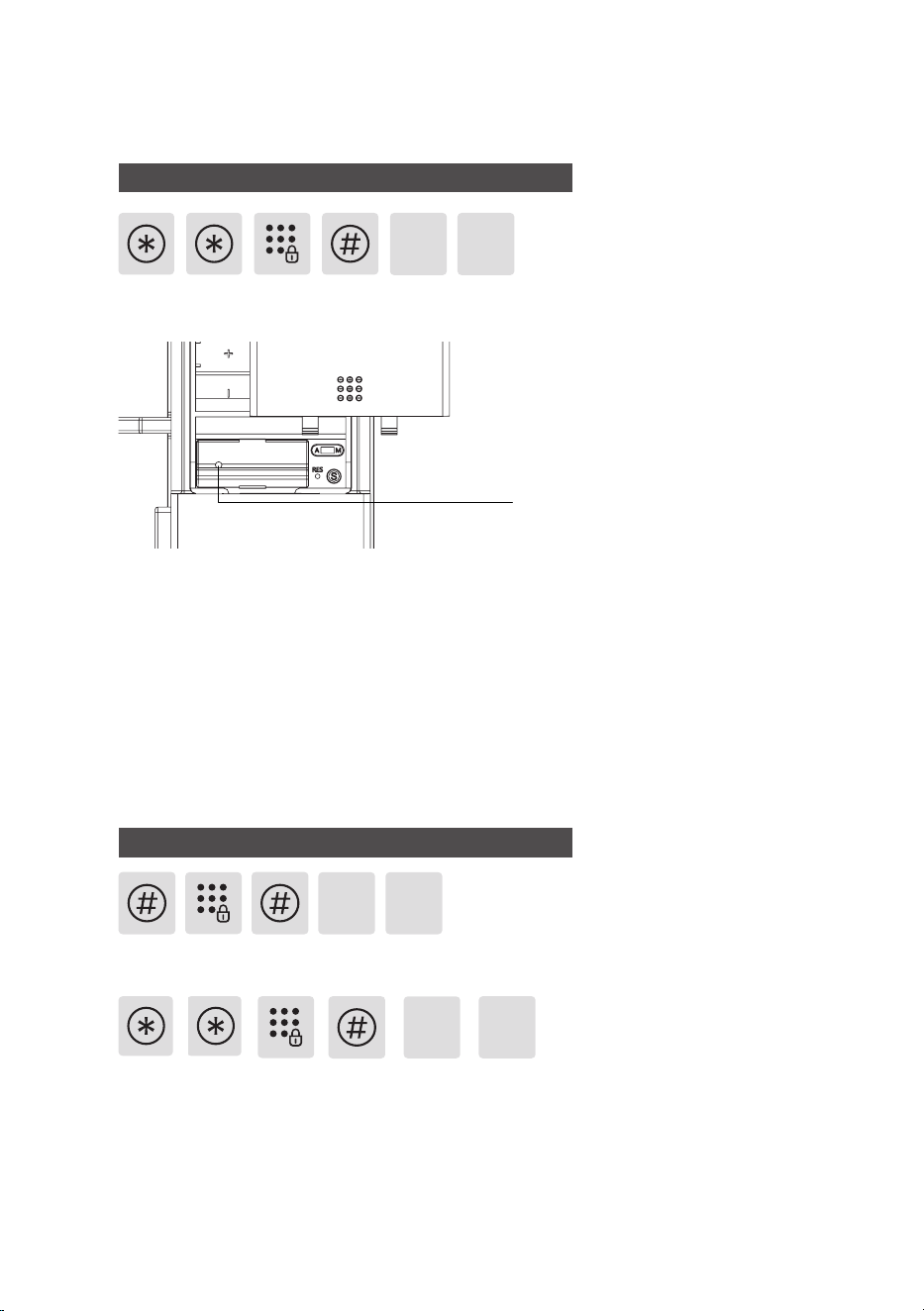
Use a stick to press the [set] button on the back
of the remote control. Then the indicator will
always be on blue.
Press [unlock button] of remote control to
complete pairing.
Set button
for mute mode. After hearing a voice prompt
indicating the setting was successful, press [*]
to return to the previous menu until you exit
the master mode.
12
Door lock linkage settings
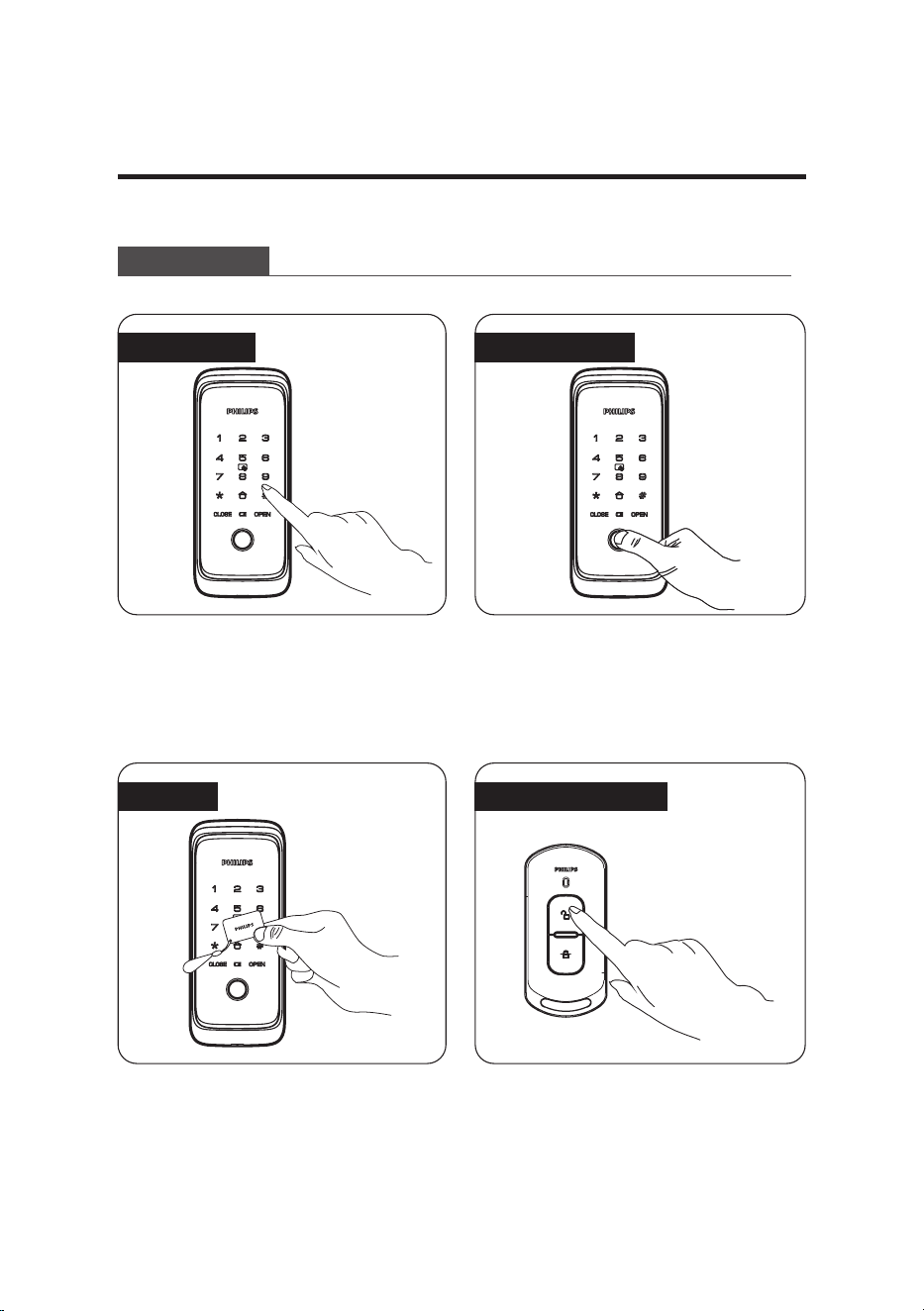
PIN code + [#]”, then press [1], followed by [4] to enter pairing mode. When the lock prompts ‘set up
successful’, the pairing is complete.
Once setup, the DDL702-5HS functions as the master lock, while the DDL506-18HS acts as the slave
lock, enabling synchronized unlocking.
Step 1: Enter master mode on the DDL702-5HS by inputting “[*] twice + master PIN code + [#]”, then
press [1], followed by [4] to enter pairing mode.
Step 2: Use a sharp object to double-click the
setup button on the DDL506-18HS remote module.
When the DDL702-5HS prompts ‘set up successful’, the pairing is complete.
Once setup, the DDL506-18HS functions as the master lock, while the DDL702-5HS acts as the slave
lock, enabling synchronized unlocking. After successfully unlocking the DDL506-18HS with any
enrolled unlock method, the DDL702-5HS will automatically unlock, so users do not need to enter an u nlock
method again.
Step 1: Enter master mode on the DDL506-18HS by inputting “[#] + master PIN code + [#]”, then
press [5], followed by [1] to enter pairing mode.
Step 2: Enter master mode on the DDL702-5HS by inputting “[*] twice + master
1 4
4
Set button
5 1
1
1.DDL506-18HS as master lock, DDL702-5HS as slave lock
2.DDL702-5HS as master lock, DDL506-18HS as slave lock
13
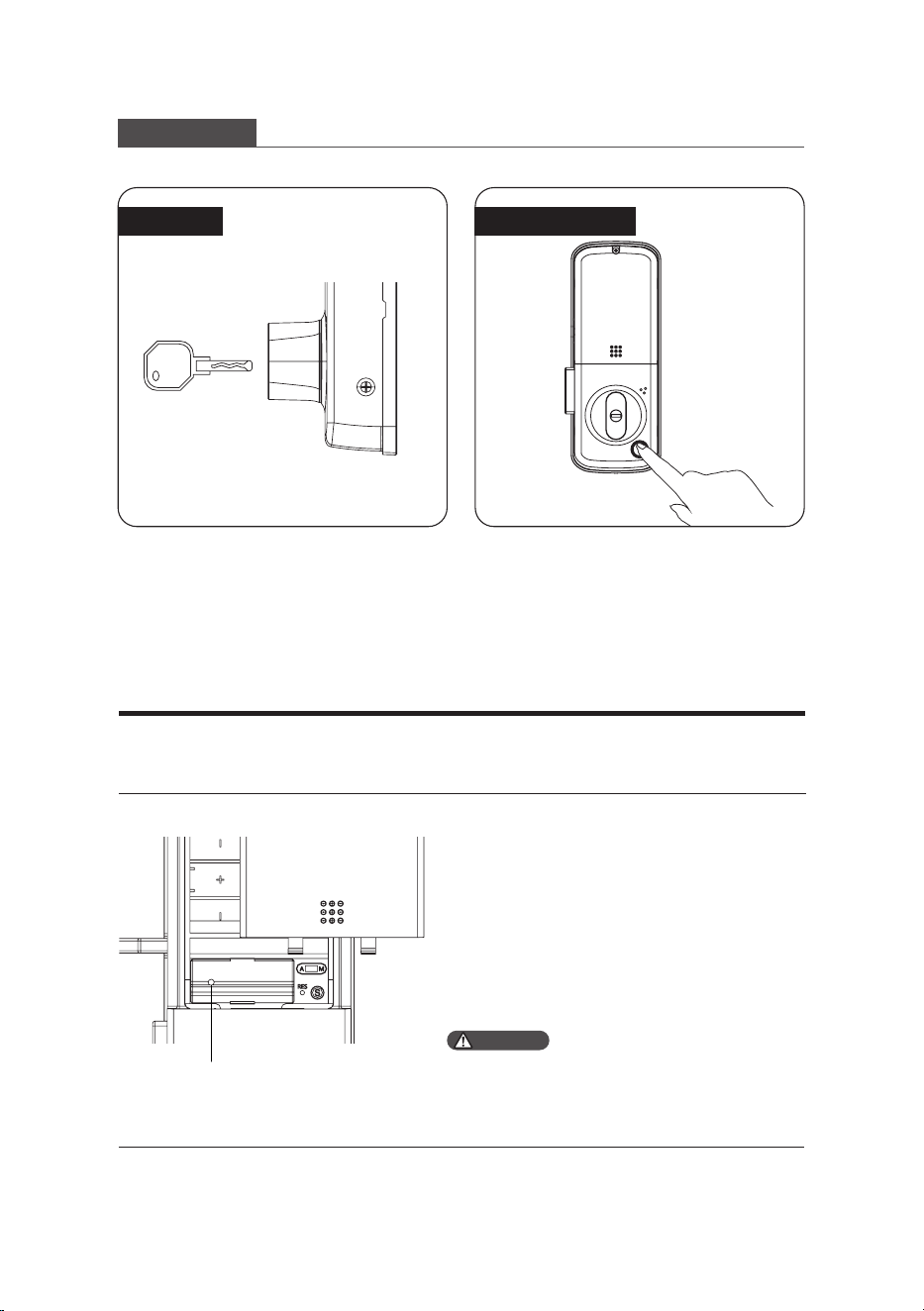
Step1: Place the finger of which that has been
successfully registered on the fingerprint
sensor properly.
Step2: After hearing a voice prompt of
“verification successful”, push/pull the door to
unlock.
Press [unlock button] of the paired remote
control to unlock the door. You can unlock with
remote control anywhere within 40 meters of
the door lock.
Step1: Touch and light up the keypad, enter the
registered PIN code and confirm with [#].
Step2: After hearing a voice prompt of
“verification successful”, push/pull the door to
unlock.
Step1: Place the pre-enrolled key tag on the
card recognition area.
Step2: After hearing a voice prompt of
“verification successful”, push/pull the door to
unlock.
With a PlN Code
With a card
With a Fingerprint
With a remote control
Outdoor/ indoor unlock
5 Get to use your lock
Outdoor unlock
14
Indoor unlock
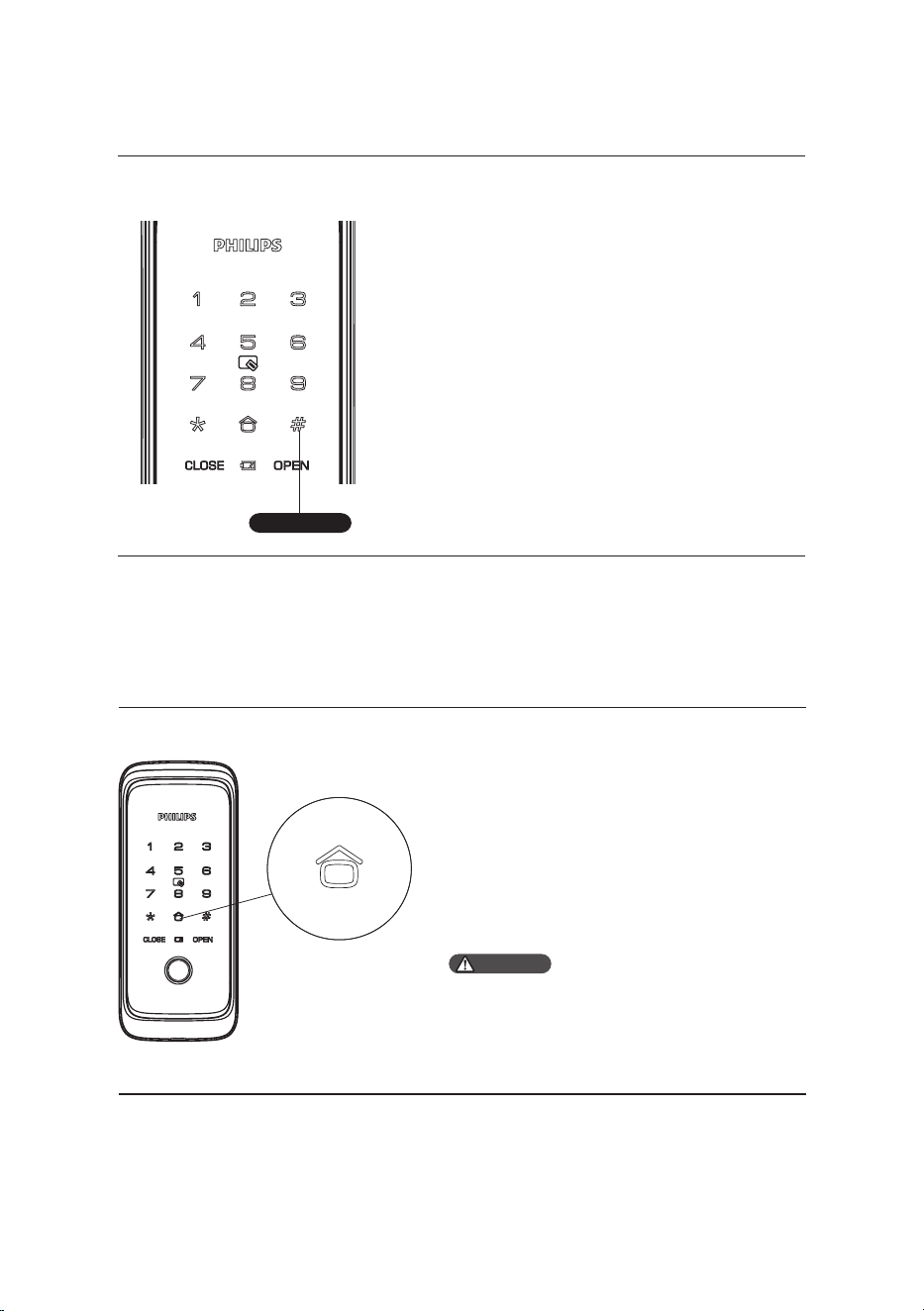
Place the enrolled finger on fingerprint sensor
to unlock.
Insert the mechanical key into the keyway hole
and rotare to unlock after inserting firmly.
Thumb turn
Functional button
Function:
To empty all user information and restore to
default settings.
How to use:
Press the [RES] button twice, all user
information will be erasedand the lock willbe
restoredtoitsdefault settings.
6 Other features
Default settings
Attention
After restoring the factory settings, all information
in the door lock system will be cleared. Please
proceed with caution.
Set button
15
Mute button
Function:
Press the [Mute button] to enter one-time mute
mode, this function applies to scenarios in which
you don’t want to disturb your family.
How to use:
While the system is activated, press and hold the
[#] button for 3 seconds to enter one-time mute
mode. After the lock sleeps, it will restore to
voice mode. You can set in lock menu if you want
to enable permanent mute mode.
Mute button
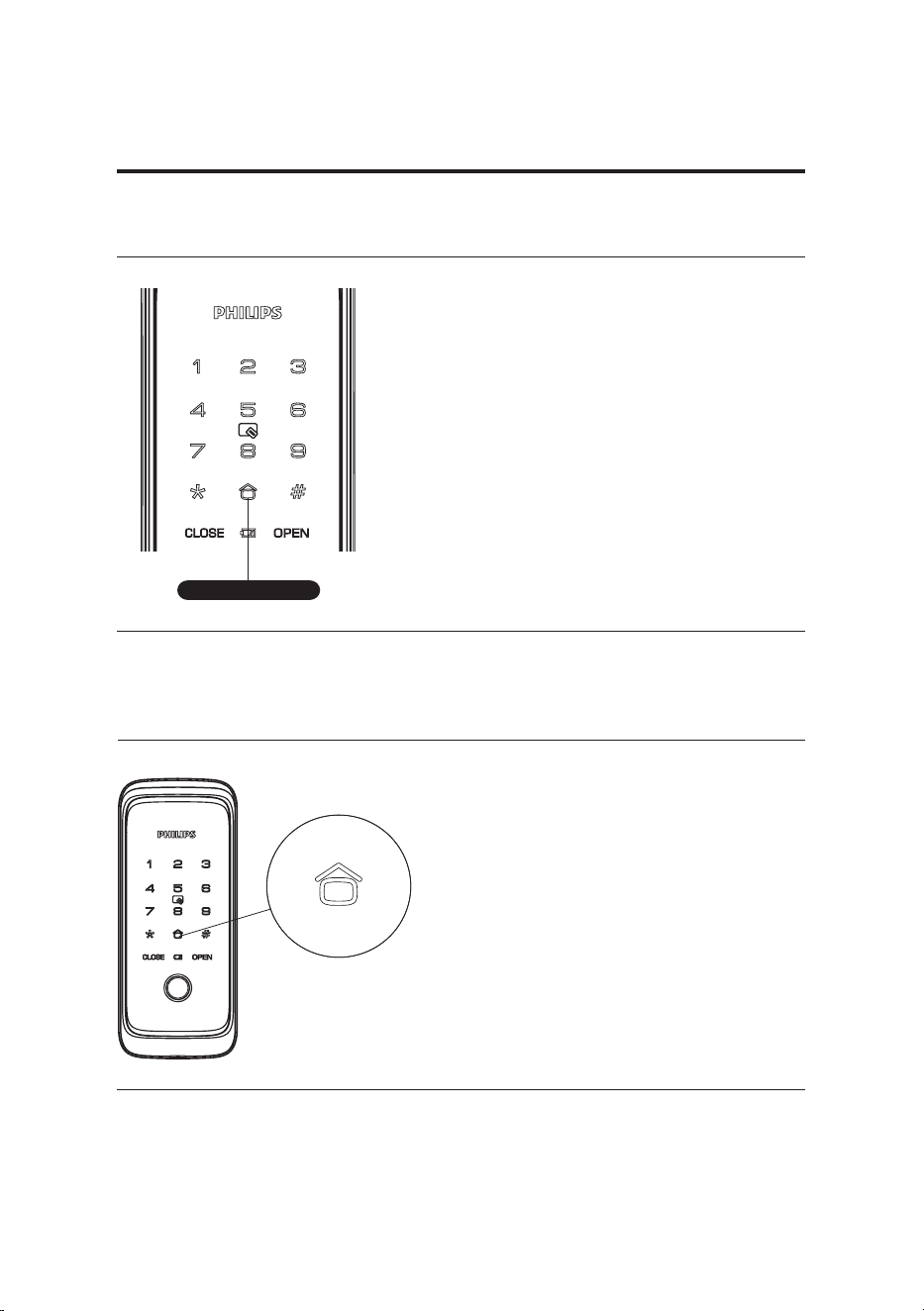
Armed mode
Function: Once the door lock is opened from
the inside, the alarm will be triggered.
How to use: After successfully locking the door,
press[8]to enter the Armed mode.
Attention
The Armed mode will not aect normal opening
from the outside.
16
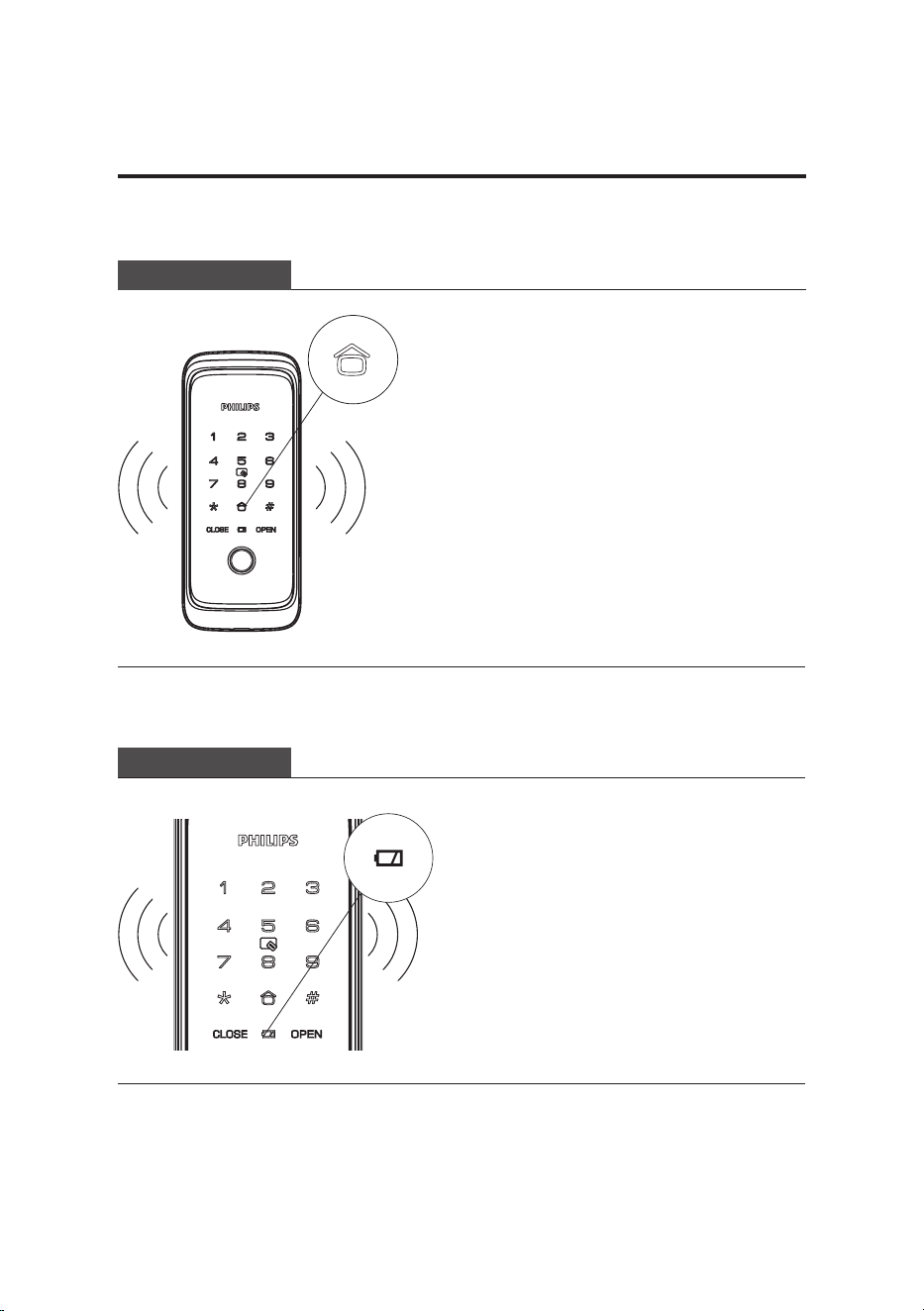
Meanings of the indicator in dierent
colors
Red: When the lock system is awakened,
it automatically detects the battery
voltage. If the battery voltage is too low,
the indicator light will turn on and ash in
red, and the voice prompt will indicate low
battery level, please replace the batteries
in time.
Meanings of the indicator in dierent
colors
White: When the lock is in a locked
state, the number “0” key will light up
independently in white to indicate that the
armed mode can be enabled.
Low battery indicator
Armed mode indicator
7 Indicators
Low battery indicator
17
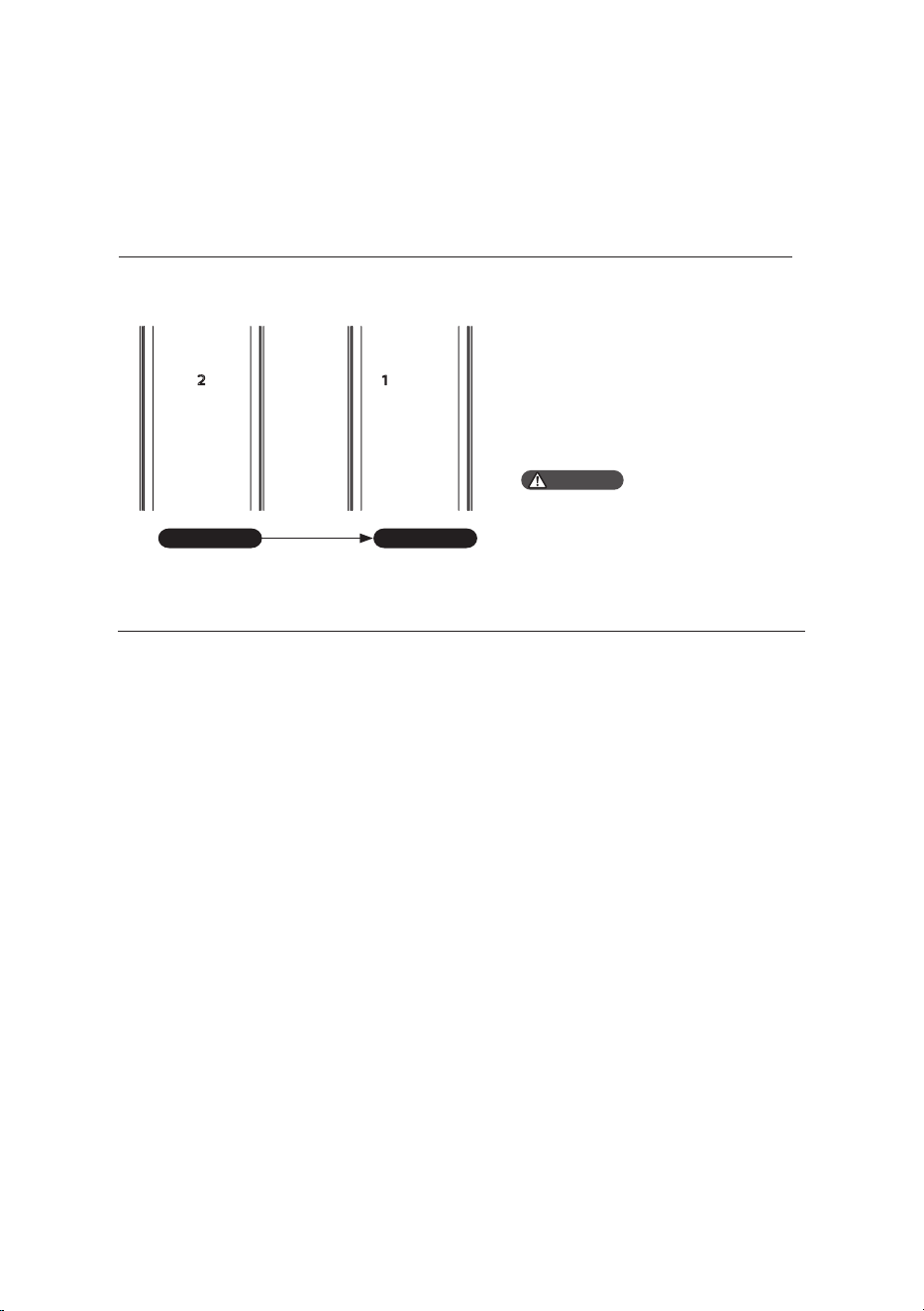
System-locking indicator
The door lock will be locked
for 100 seconds if there are 5
consecutive incorrect attempts
of any enrolled access method
(i.e. ngerprint, PIN code, and
key tag) in 5 minutes.
Digit key “2” blinks Digit key “1” blinks
Within 2 mins Within 1 min
Attention
The prompt will only appear when the
touchscreen is lighting up or any of the
access methods is being veried.
18
Triggering:
Whenthedoorlockisinthearmedmode,
openingthedoorlockfromtheinsidewill
triggeranalert.
Alert mode:
Continuousandrepeatedalarm
sound.
O:Thealarmwillbestoppedwhenanyof
the enrolledaccessmethodsissuccessfully
veried.
Triggering: After the system wakes
up, it will detect the battery voltage
automatically. If the voltage is low, an
alarm will sound to notify you to replace
the battery promptly.
Alert mode: Witha voice prompt of low
battery, please replace the batteries in
time.
O: Turn o automatically.
Low battery alert
8 Troubleshooting
Alert types
Armed mode alert
19
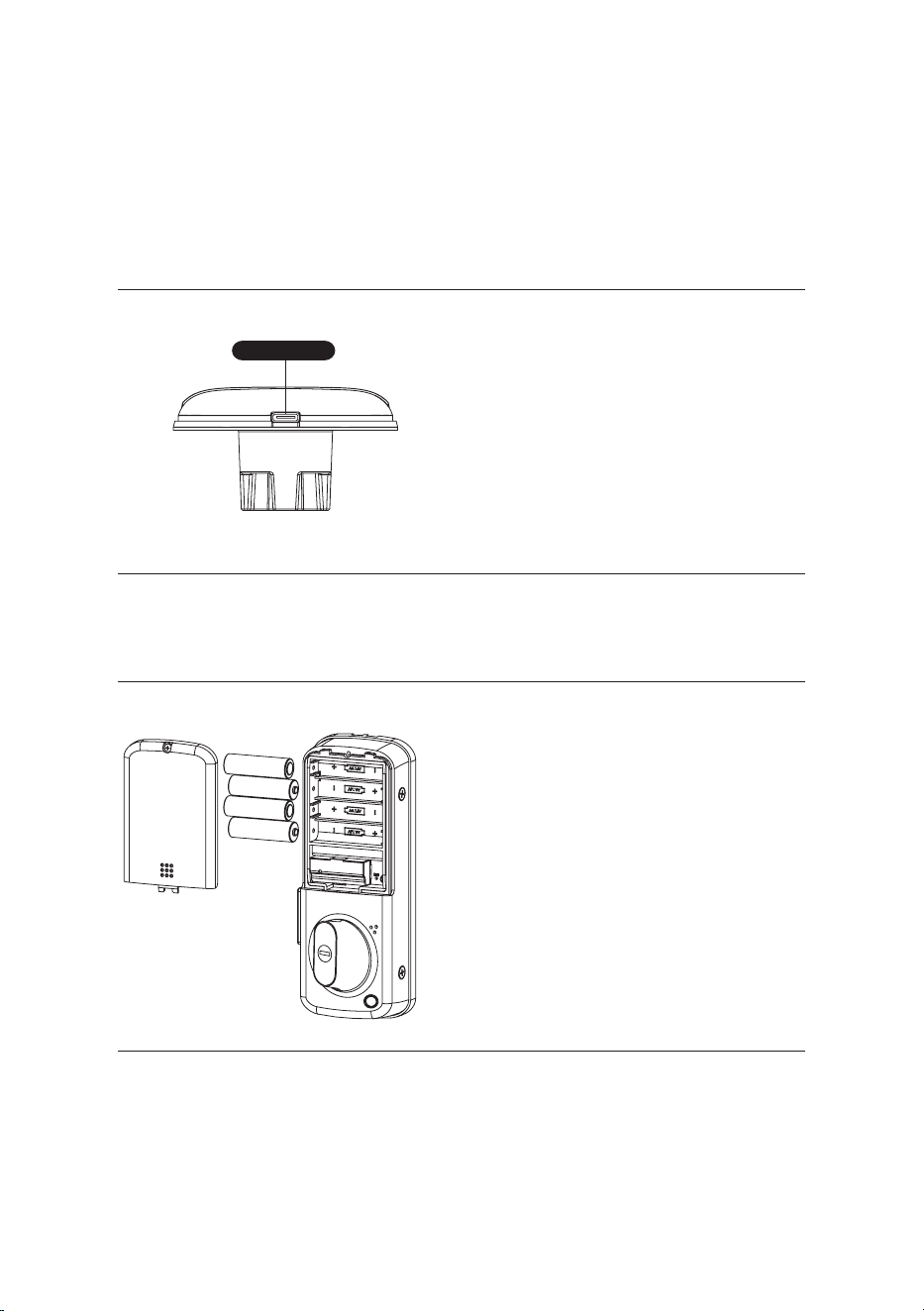
Battery replacement
If the battery voltage is too low to open
the lock from the outside, you can use a 5V
power bank as an external power supply
by connecting it to the lock through the
Type-C port. Once you have unlocked
the door, please replace the battery
immediately.
How to apply an external power supply
The working power of the door lock is 4pcs
AA alkaline batteries.
The battery compartment is located on
the upper end of the interior assembly. To
remove the battery, you can push up the
battery cover and take out the battery.
Type-C port


Philips and the Philips Shield Emblem are registered trademarks of Koninklijke Philips N.V.
and are used under license. This product has been manufactured by and is sold under the
responsibility of Shenzhen Conex Intelligent Technology Co., Ltd., and Shenzhen Conex
Intelligent Technology Co., Ltd. is the warrantor concerning this product.